Advanced Imaging
Topics in AV over IP
Thursday, January 11, 2024
Multiview, Video
Walls, Blended
Projection and more!
PRESENTER:
Art Weeks
Director of Product Management
aweeks@zeevee.com
https://www.linkedin.com/company/zeevee/mycompany/
Today’s Webinar Ground Rules
All microphones (except presenters) will be muted to keep the
webinar on track, and short and sweet.
Questions can be submitted using the ZOOM Q&A functionality
found at the bottom of your ZOOM window.
If we don’t answer your question during the session, we will follow
up within the next 24 hours.
We will send you a link to the recording of this webinar.
AVIXA Accredited Session
1.25 Credits
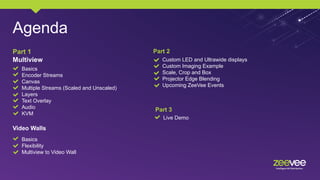
Agenda
Part 1
Multiview
Part 2
Basics
Encoder Streams
Canvas
Multiple Streams (Scaled and Unscaled)
Layers
Text Overlay
Audio
KVM
Video Walls
Basics
Flexibility
Multiview to Video Wall
Custom LED and Ultrawide displays
Custom Imaging Example
Scale, Crop and Box
Projector Edge Blending
Upcoming ZeeVee Events
Part 3
Live Demo
AV over IP Schematic
Let’s talk about some of
the really cool things you
can do here!
Extensive Use of
MULTIVIEW
Over 175 Multiview configurations
that can be sent to any screen.
Video Wall is 18 feet by 220 feet
(6.5m x 67m)
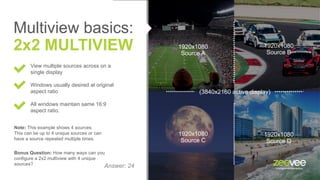
Multiview basics:
2x2 MULTIVIEW
View multiple sources across on a
single display
Windows usually desired at original
aspect ratio
All windows maintain same 16:9
aspect ratio.
1920x1080
Source A
1920x1080
Source B
1920x1080
Source C
1920x1080
Source D
(3840x2160 active display)
Note: This example shows 4 sources.
This can be up to 4 unique sources or can
have a source repeated multiple times.
Bonus Question: How many ways can you
configure a 2x2 multiview with 4 unique
sources? Answer: 24
1920x1080
Source B
1920x1080
Source C
1920x1080
Source D
Multiview basics:
3x3 MULTIVIEW
Note: This example shows 9 sources.
This can be up to 9 unique sources or can have a
source repeated multiple times.
All windows maintain the same 16:9 aspect ratio.
Bonus Question: How many ways can you
configure a 3x3 multiview with 9 unique
sources?
1280x720
Source A
1280x720
Source D
1280x720
Source B
1280x720
Source C
1280x720
Source E
1280x720
Source F
1280x720
Source G
1280x720
Source H
1280x720
Source I
(3840x2160 active display)
Answer: 362,880
1920x1080
Source B
1920x1080
Source C
1920x1080
Source D
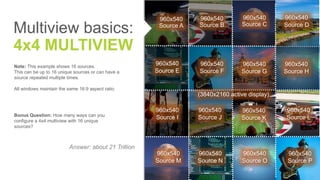
Multiview basics:
4x4 MULTIVIEW
Note: This example shows 16 sources.
This can be up to 16 unique sources or can have a
source repeated multiple times.
All windows maintain the same 16:9 aspect ratio.
Bonus Question: How many ways can you
configure a 4x4 multiview with 16 unique
sources?
960x540
Source A
960x540
Source B
960x540
Source C
960x540
Source E
960x540
Source F
960x540
Source G
960x540
Source H
960x540
Source I
Answer: about 21 Trillion
960x540
Source D
960x540
Source J
960x540
Source K
960x540
Source L
960x540
Source M
960x540
Source N
960x540
Source O
960x540
Source P
(3840x2160 active display)
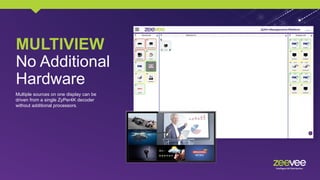
MULTIVIEW
No Additional
Hardware
Multiple sources on one display can be
driven from a single ZyPer4K decoder
without additional processors.
ENCODER
STREAMS WITH
ZyPer4K
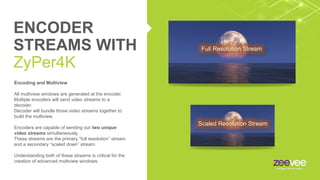
Encoding and Multiview
All multiview windows are generated at the encoder.
Multiple encoders will send video streams to a
decoder.
Decoder will bundle those video streams together to
build the multiview.
Encoders are capable of sending out two unique
video streams simultaneously.
These streams are the primary “full resolution” stream
and a secondary “scaled down” stream.
Understanding both of these streams is critical for the
creation of advanced multiview windows.
Scaled Resolution Stream
Full Resolution Stream
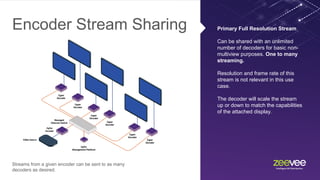
Encoder Stream Sharing Primary Full Resolution Stream
Can be shared with an unlimited
number of decoders for basic non-
multiview purposes. One to many
streaming.
Resolution and frame rate of this
stream is not relevant in this use
case.
The decoder will scale the stream
up or down to match the capabilities
of the attached display.
Streams from a given encoder can be sent to as many
decoders as desired.
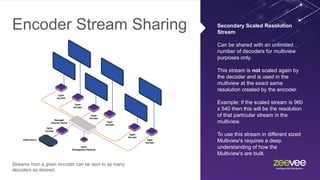
Encoder Stream Sharing Secondary Scaled Resolution
Stream
Can be shared with an unlimited
number of decoders for multiview
purposes only.
This stream is not scaled again by
the decoder and is used in the
multiview at the exact same
resolution created by the encoder.
Example: if the scaled stream is 960
x 540 then this will be the resolution
of that particular stream in the
multiview.
To use this stream in different sized
Multiview's requires a deep
understanding of how the
Multiview's are built.
Streams from a given encoder can be sent to as many
decoders as desired.
ENCODER
STREAMS WITH
ZyPer4K
Scaled Resolution Stream
Full Resolution Stream
60 frames per second
30 frames per second
Encoder Stream Bandwidth
The first thing to always know is the combined
bandwidth of the two streams can never exceed
9.5Gb/s.
The ZyPer4K will automatically take some actions to
reduce the bandwidth of the scaled down stream.
The scaled down stream will always be output at a
frame rate of 30 fps.
If the original source was 60 fps, this reduction sends
the scaled stream out at half the original frame rate.
ENCODER
STREAM
Bandwidth
Scaled Resolution Stream
1920 x 1080
Full Resolution Stream
3840 X 2160
8.7 Gb/s 60 fps
1.5 Gb/s 30 fps
1.5 Gb/s 30 fps
Scaled Resolution Stream
1920 X 1080
0.375 Gb/s 30 fps
Scaled Resolution Stream
960 X 540
Encoder Data Rate Example
Primary unscaled stream example A: 3840 x 2160
@60fps, 4:4:4 RGB = 8.7 Gbps after compression.
With a limit of 9.5 Gbps this leaves only 0.8 Gbps
available for the secondary scaled stream. Therefore;
the scaled stream must be sized appropriately.
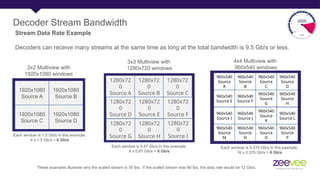
Decoder Stream Bandwidth
Stream Data Rate Example
Decoders can receive many streams at the same time as long at the total bandwidth is 9.5 Gb/s or less.
1920x1080
Source A
1920x1080
Source B
1920x1080
Source C
1920x1080
Source D
2x2 Multiview with
1920x1080 windows
Each window is 1.5 Gb/s in this example.
4 x 1.5 Gb/s = 6 Gb/s
1280x72
0
Source A
1280x72
0
Source D
1280x72
0
Source G
1280x72
0
Source B
1280x72
0
Source E
1280x72
0
Source H
1280x72
0
Source C
1280x72
0
Source F
1280x72
0
Source I
Each window is 0.67 Gb/s in this example.
9 x 0.67 Gb/s = 6 Gb/s
3x3 Multiview with
1280x720 windows
These examples illustrate why the scaled stream is 30 fps. If the scaled stream was 60 fps, the data rate would be 12 Gb/s.
960x540
Source
A
960x540
Source
B
960x540
Source
C
960x540
Source
D
960x540
Source E
960x540
Source F
960x540
Source
G
960x540
Source
H
960x540
Source I
960x540
Source J
960x540
Source
K
960x540
Source L
960x540
Source
M
960x540
Source
N
960x540
Source
O
960x540
Source
P
4x4 Multiview with
960x540 windows
Each window is 0.375 Gb/s in this example.
16 x 0.375 Gb/s = 6 Gb/s
How Multiview's are created: Multiview Canvas
All Multiview's are
created on a virtual
canvas. Think of this
as a simple drawing
platform to create
and work with your
multiview.
This canvas has
nothing to do with the
decoder or any
connected display.
Example 1: Canvas Size 3840 x 2160
With a canvas size of 3840 x 2160 you can create Multiview's like the examples to
the left. The first example is a simple 2 x 2 multiview. In this case, each of the
windows/streams would be 1920 x 1080 in size.
The example to the left shows a multiview with 6 windows. Some simple math
reveals that to fit 4 windows across, each window needs a width of 960 pixels. To
maintain the 16:9 aspect ratio, the height of each small window is 540 pixels.
This example shows similar case to above, but with fewer windows and equal
spacing between windows.
This example shows 9 windows in a multiview. The limit is 19.
Multiview Canvas
Example 2: Canvas Size 2880 x 1620
These examples show a classic L-shape multiview and then other
Multiview's comprised of both 1920 x 1080 windows and 960 x 540
windows.
Note that if the scaled stream from the encoder is 960 x 540 in size
that the stream can be used in any or all of the Multiview's shown in
this example. The 960 x 540 stream can also be used in the bottom
3 multiview windows shown in Example #1.
The key is understanding how and where the scaled stream can be
used. For example, the scaled 960 x 540 stream can be used for
any of the windows that match that size; but cannot be used as the
1920 x 1080 sized window.
Setting the Canvas Size
The Canvas Size
for a multiview can
only be set using
the Command Line
Interface (CLI).
To access the CLI
you can Telnet or
SSH to the ZyPer
Management
Platform.
Above is an example of using that 960 x 540 scaled stream in different Multiview's.
2 x 2, 3 x 3 and 4 x 4. Note the appropriate Canvas Size settings.
Note: ZyPer4K Multiview's with up to 19 windows currently supported in release 2.2 of the ZMP.
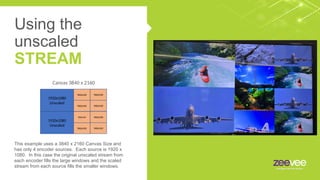
Multiple Stream Support (Using the unscaled stream)
By default, the stream used in a multiview is the scaled stream. However, it is possible to incorporate
both the scaled stream and unscaled stream in a multiview under certain conditions.
There may be cases where you want to use multiple size streams from the same encoder. An example
would be when you have multiple L-shaped Multiview's in a venue.
The L-shape multiview contains windows of different sizes. As we have
already learned, you can only use the scaled stream for a single window
size. So, if you attempt to use the scaled stream for both the 1920 x 1080
and 960 x 540 windows; one of the windows will not be available and thus
appear black.
Note: This problem can be resolved by using the unscaled stream if
that unscaled stream happens to be the exact size you need. In this
case 1920 x 1080.
Canvas 2880 x 1620
This example uses a 3840 x 2160 Canvas Size and
has only 4 encoder sources. Each source is 1920 x
1080. In this case the original unscaled stream from
each encoder fills the large windows and the scaled
stream from each source fills the smaller windows.
Canvas 3840 x 2160
Using the
unscaled
STREAM
1920x1080
Unscaled
960x540
960x540
960x540
960x540
1920x1080
Unscaled
960x540
960x540
960x540
960x540
Custom Multiview (Layers, Picture in Picture)
Advanced multiview features such as Picture-In-Picture (PIP) and layering can be accomplished via
the API.
Layers: A multiview window supports multiple layers for the various streams. Technically there are
9 layers where streams can reside. These are labeled from 1-9. Higher numbered layers
sit on top of lower numbered layers. For example, a stream at layer 4 would sit on top of
any streams on layer 1, 2 or 3. This could partially or fully block the lower numbered
stream from being seen.
1920x1080
Source A Layer 2
1920x1080
Source B Layer 2
1920x1080
Source C Layer 2
1920x1080
Source D Layer 2
Multiview #1
1920x1080
Source E Layer 3
1920x1080
Source A Layer 2
1920x1080
Source B Layer 2
1920x1080
Source D Layer 2
1920x1080
Source E Layer 3
1920x1080
Source F Layer 4
Multiview #2
Custom Multiview (Layers, Picture in Picture)
Picture in Picture example using layers
Hide or reveal
instantly by
changing layer
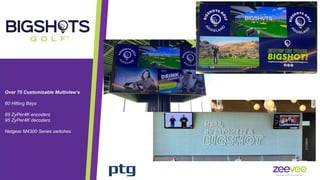
Over 75 Customizable Multiview’s
60 Hitting Bays
85 ZyPer4K encoders
95 ZyPer4K decoders
Netgear M4300 Series switches
Text can be inserted to identify multiview
windows. The text can vary in size, position,
color and transparency. Four windows shown
with different text.
Text Overlay in
MULTIVIEW
First Endoscopy Site in UK
using 100% AV over IP
The ZeeVee Difference
Image Quality
Multiview
Zero-Latency
Galvanic Isolation
Easy to Deploy
Simple to Manage
Audio can be preselected from any of the
sources being sent to the multiview. This
includes any windows currently hidden by the
layering feature. Audio selection can be
changed on the fly via the API.
Audio in
MULTIVIEW
If source/encoder and multiview
destination/decoder are equipped with USB;
you can perform keyboard/mouse function in
any individual window.
To switch control between windows you issue
a command to the API. This command can
be issued by something simple like a touch
button controller (ZyPerPad)
KVM in
MULTIVIEW
Sources can be changed on the fly in any
multiview window via the ZMP GUI or API
command.
Set multiview MVNAME windowNumber X
newEncoderName ENCNAME
Changing
sources in a
MULTIVIEW
Video
WALLS
A video wall shows one source spread
over multiple screens.
Video walls can come in many sizes. The
ZyPer4K supports video wall with from 2
to 225 screens. (1 x 2 up to 15 x 15)
All displays are Genlocked to the source
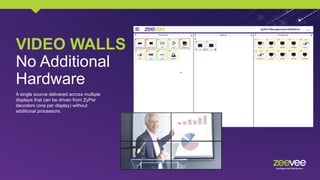
VIDEO WALLS
No Additional
Hardware
A single source delivered across multiple
displays that can be driven from ZyPer
decoders (one per display) without
additional processors.
Video Wall Flexibility
4 x 4 Video Wall
made up of 16
independent displays.
Video Wall will
continue to display
even after changing
individual displays.
Video Wall Rotation (ZyPerUHD60)
If the ratio is close, the ZyPerUHD60 can present a video wall to rotated screens.
Original Aspect Ratio to 1 Screen (16:9)
Rotated Image to 3 Screens. Approximately (15.2:9)
Video Wall Rotation (ZyPerUHD60)
If the ratio is close, the ZyPerUHD60 can present a video wall to rotated screens.
Original Aspect Ratio to 1 Screen (16:9)
Rotated Image to 3 Screens. Approximately (15.2:9)
Multiple Video Walls
3 x 6 Video Wall
3 x 5 Video Wall #1
3 x 5 Video Wall #2
3 x 4 Video Wall #1
3 x 4 Video Wall #2
2 x 5 Video Wall
48 ZyPer4K encoders
90 ZyPer4K-XS decoders
Netgear M4300 Series switches
Control System: 3rd
party system with
21” touch monitor
Multiview to a Video Wall
Multiview on One Screen
Multiview on 2x2 Video Wall
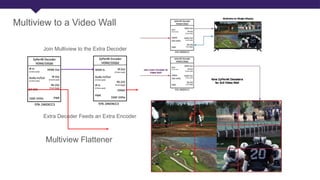
You can feed a multiview directly to a video wall by adding an extra
encoder and extra decoder to the system.
Multiview to a Video Wall
Multiview Flattener
Extra Decoder Feeds an Extra Encoder
Join Multiview to the Extra Decoder
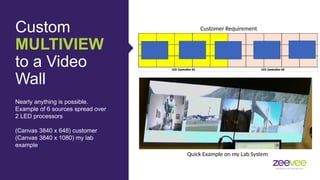
Custom
MULTIVIEW
to a Video
Wall
Nearly anything is possible.
Example of 6 sources spread over
2 LED processors
(Canvas 3840 x 648) customer
(Canvas 3840 x 1080) my lab
example
Customer Requirement
Quick Example on my Lab System
Custom Imaging – Multiview to a Video Wall
Example of Multiview to Video Wall with Layering: ZeeVee booth at InfoComm
Custom LED
Support and
ULTRAWIDE
Examples of unique resolution requirements are shown below:
1920 x 1080 x 120Hz 10-bit with DisplayPort input to the LED
2560 x 1800 x 60Hz 10-bit with DisplayPort input to the LED
2560 x 1080 x 60Hz 8-bit with HDMI input to the Ultrawide 21:9 display
3440 x 1440 x 60Hz 8-bit with HDMI input to the Ultrawide 21:9 display
3840 x 1080 x 60Hz 8-bit with HDMI input to Ultrawide 32:9 display
1080 x 3360 x 120Hz 10-bit 4:2:2 to 7th
Sense Juggler Pixel Processor
1354 x 2652 x 120Hz 10-bit 4:2:2 to 7th
Sense Juggler Pixel Processor
1364 x 2120 x 120Hz 10-bit 4:2:2 to 7th
Sense Juggler Pixel Processor
Unique LED Features
LED displays can bring extremely high-resolution
viewing options such as largescale walls and curved
surfaces comprised of many LED tiles. LED
displays thus create a unique challenge in that they
require very specific resolutions and timing
parameters sent to them in order to function
correctly.
ZeeVee provides ZyPer4K encoders with DisplayPort inputs.
ZeeVee provides ZyPer4K decoders with DisplayPort outputs.
(The only SDVoE provider to do so)
ZeeVee provides the ability to manually assign any custom EDID to the
ZyPer4K encoder.
ZeeVee provides the ability to manually assign custom resolution and timing
parameters at the ZyPer4K decoder. (Overriding EDID settings if desired)
Custom LED
Support and
ULTRAWIDE
ZeeVee Unique Features
The ZeeVee ZyPer4K systems
provide many features to
address the requirements of
custom displays.
Widescreen Custom 32:9 Multiview Options
Canvas Size 3840 x 1080
1 ,2 , 5 and 8 Image Examples
Custom Imaging
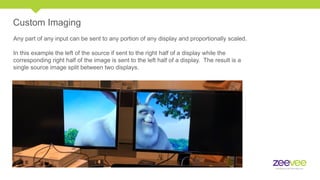
Any part of any input can be sent to any portion of any display and proportionally scaled.
In this example the left of the source if sent to the right half of a display while the
corresponding right half of the image is sent to the left half of a display. The result is a
single source image split between two displays.
Custom Imaging
This request came from a customer, and I was provided with this image.
Custom Imaging
The ZyPer4K can accomplish this via the custom imaging feature. Below is ZeeVee booth at InfoComm
Scale, Crop and Box
The ZyPer4K can scale crop or box output at the decoder depending the input source resolution and
requirements of the user.
16:9 Ratio
21:9 Ratio
Input Example: 21:9 Ratio Image
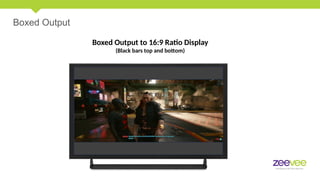
Boxed Output
Boxed Output to 16:9 Ratio Display
(Black bars top and bottom)
Cropped output
Cropped output to 16:9 Ratio Display
(Content on Left and Right not shown)
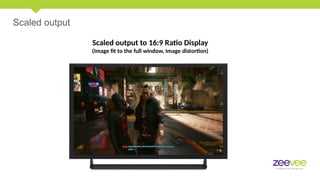
Scaled output
Scaled output to 16:9 Ratio Display
(Image fit to the full window, Image distortion)
Projector Edge Blending
Edge blending is a technique used when using multiple
projectors display portions of a single image. To make for a
seamless single image, adjacent projectors need to overlap
edges slightly and, to compensate for the double brightness
this creates in said regions, the projector needs to selectively
adjust its brightness for the pixels in this overlap region.
ZyPer4K can provide any customizable overlap needed to
implement this feature.
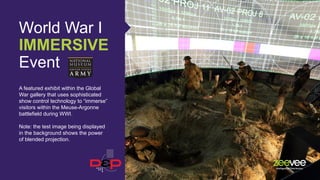
World War I
IMMERSIVE
Event
A featured exhibit within the Global
War gallery that uses sophisticated
show control technology to “immerse”
visitors within the Meuse-Argonne
battlefield during WWI.
Note: the test image being displayed
in the background shows the power
of blended projection.

Upcoming Events
https://www.zeevee.com/events-and-shows/
More events can be found here:
Jan 30 – Feb 2
10am to 6pm Barcelona Time
Booth 5D240
Thank You!
Art Weeks
Director of Product Management
aweeks@zeevee.com
Or contact:
sales@zeevee.com
https://www.linkedin.com/company/zeevee/mycompany/

Advanced Imaging Topiccs - Jan 2024.pptx

  • 1.
    Advanced Imaging Topics inAV over IP Thursday, January 11, 2024 Multiview, Video Walls, Blended Projection and more!
  • 2.
    PRESENTER: Art Weeks Director ofProduct Management aweeks@zeevee.com https://www.linkedin.com/company/zeevee/mycompany/
  • 3.
    Today’s Webinar GroundRules All microphones (except presenters) will be muted to keep the webinar on track, and short and sweet. Questions can be submitted using the ZOOM Q&A functionality found at the bottom of your ZOOM window. If we don’t answer your question during the session, we will follow up within the next 24 hours. We will send you a link to the recording of this webinar.
  • 4.
  • 5.
    Agenda Part 1 Multiview Part 2 Basics EncoderStreams Canvas Multiple Streams (Scaled and Unscaled) Layers Text Overlay Audio KVM Video Walls Basics Flexibility Multiview to Video Wall Custom LED and Ultrawide displays Custom Imaging Example Scale, Crop and Box Projector Edge Blending Upcoming ZeeVee Events Part 3 Live Demo
  • 6.
    AV over IPSchematic Let’s talk about some of the really cool things you can do here!
  • 7.
    Extensive Use of MULTIVIEW Over175 Multiview configurations that can be sent to any screen. Video Wall is 18 feet by 220 feet (6.5m x 67m)
  • 8.
    Multiview basics: 2x2 MULTIVIEW Viewmultiple sources across on a single display Windows usually desired at original aspect ratio All windows maintain same 16:9 aspect ratio. 1920x1080 Source A 1920x1080 Source B 1920x1080 Source C 1920x1080 Source D (3840x2160 active display) Note: This example shows 4 sources. This can be up to 4 unique sources or can have a source repeated multiple times. Bonus Question: How many ways can you configure a 2x2 multiview with 4 unique sources? Answer: 24
  • 9.
    1920x1080 Source B 1920x1080 Source C 1920x1080 SourceD Multiview basics: 3x3 MULTIVIEW Note: This example shows 9 sources. This can be up to 9 unique sources or can have a source repeated multiple times. All windows maintain the same 16:9 aspect ratio. Bonus Question: How many ways can you configure a 3x3 multiview with 9 unique sources? 1280x720 Source A 1280x720 Source D 1280x720 Source B 1280x720 Source C 1280x720 Source E 1280x720 Source F 1280x720 Source G 1280x720 Source H 1280x720 Source I (3840x2160 active display) Answer: 362,880
  • 10.
    1920x1080 Source B 1920x1080 Source C 1920x1080 SourceD Multiview basics: 4x4 MULTIVIEW Note: This example shows 16 sources. This can be up to 16 unique sources or can have a source repeated multiple times. All windows maintain the same 16:9 aspect ratio. Bonus Question: How many ways can you configure a 4x4 multiview with 16 unique sources? 960x540 Source A 960x540 Source B 960x540 Source C 960x540 Source E 960x540 Source F 960x540 Source G 960x540 Source H 960x540 Source I Answer: about 21 Trillion 960x540 Source D 960x540 Source J 960x540 Source K 960x540 Source L 960x540 Source M 960x540 Source N 960x540 Source O 960x540 Source P (3840x2160 active display)
  • 11.
    MULTIVIEW No Additional Hardware Multiple sourceson one display can be driven from a single ZyPer4K decoder without additional processors.
  • 12.
    ENCODER STREAMS WITH ZyPer4K Encoding andMultiview All multiview windows are generated at the encoder. Multiple encoders will send video streams to a decoder. Decoder will bundle those video streams together to build the multiview. Encoders are capable of sending out two unique video streams simultaneously. These streams are the primary “full resolution” stream and a secondary “scaled down” stream. Understanding both of these streams is critical for the creation of advanced multiview windows. Scaled Resolution Stream Full Resolution Stream
  • 13.
    Encoder Stream SharingPrimary Full Resolution Stream Can be shared with an unlimited number of decoders for basic non- multiview purposes. One to many streaming. Resolution and frame rate of this stream is not relevant in this use case. The decoder will scale the stream up or down to match the capabilities of the attached display. Streams from a given encoder can be sent to as many decoders as desired.
  • 14.
    Encoder Stream SharingSecondary Scaled Resolution Stream Can be shared with an unlimited number of decoders for multiview purposes only. This stream is not scaled again by the decoder and is used in the multiview at the exact same resolution created by the encoder. Example: if the scaled stream is 960 x 540 then this will be the resolution of that particular stream in the multiview. To use this stream in different sized Multiview's requires a deep understanding of how the Multiview's are built. Streams from a given encoder can be sent to as many decoders as desired.
  • 15.
    ENCODER STREAMS WITH ZyPer4K Scaled ResolutionStream Full Resolution Stream 60 frames per second 30 frames per second Encoder Stream Bandwidth The first thing to always know is the combined bandwidth of the two streams can never exceed 9.5Gb/s. The ZyPer4K will automatically take some actions to reduce the bandwidth of the scaled down stream. The scaled down stream will always be output at a frame rate of 30 fps. If the original source was 60 fps, this reduction sends the scaled stream out at half the original frame rate.
  • 16.
    ENCODER STREAM Bandwidth Scaled Resolution Stream 1920x 1080 Full Resolution Stream 3840 X 2160 8.7 Gb/s 60 fps 1.5 Gb/s 30 fps 1.5 Gb/s 30 fps Scaled Resolution Stream 1920 X 1080 0.375 Gb/s 30 fps Scaled Resolution Stream 960 X 540 Encoder Data Rate Example Primary unscaled stream example A: 3840 x 2160 @60fps, 4:4:4 RGB = 8.7 Gbps after compression. With a limit of 9.5 Gbps this leaves only 0.8 Gbps available for the secondary scaled stream. Therefore; the scaled stream must be sized appropriately.
  • 17.
    Decoder Stream Bandwidth StreamData Rate Example Decoders can receive many streams at the same time as long at the total bandwidth is 9.5 Gb/s or less. 1920x1080 Source A 1920x1080 Source B 1920x1080 Source C 1920x1080 Source D 2x2 Multiview with 1920x1080 windows Each window is 1.5 Gb/s in this example. 4 x 1.5 Gb/s = 6 Gb/s 1280x72 0 Source A 1280x72 0 Source D 1280x72 0 Source G 1280x72 0 Source B 1280x72 0 Source E 1280x72 0 Source H 1280x72 0 Source C 1280x72 0 Source F 1280x72 0 Source I Each window is 0.67 Gb/s in this example. 9 x 0.67 Gb/s = 6 Gb/s 3x3 Multiview with 1280x720 windows These examples illustrate why the scaled stream is 30 fps. If the scaled stream was 60 fps, the data rate would be 12 Gb/s. 960x540 Source A 960x540 Source B 960x540 Source C 960x540 Source D 960x540 Source E 960x540 Source F 960x540 Source G 960x540 Source H 960x540 Source I 960x540 Source J 960x540 Source K 960x540 Source L 960x540 Source M 960x540 Source N 960x540 Source O 960x540 Source P 4x4 Multiview with 960x540 windows Each window is 0.375 Gb/s in this example. 16 x 0.375 Gb/s = 6 Gb/s
  • 18.
    How Multiview's arecreated: Multiview Canvas All Multiview's are created on a virtual canvas. Think of this as a simple drawing platform to create and work with your multiview. This canvas has nothing to do with the decoder or any connected display. Example 1: Canvas Size 3840 x 2160 With a canvas size of 3840 x 2160 you can create Multiview's like the examples to the left. The first example is a simple 2 x 2 multiview. In this case, each of the windows/streams would be 1920 x 1080 in size. The example to the left shows a multiview with 6 windows. Some simple math reveals that to fit 4 windows across, each window needs a width of 960 pixels. To maintain the 16:9 aspect ratio, the height of each small window is 540 pixels. This example shows similar case to above, but with fewer windows and equal spacing between windows. This example shows 9 windows in a multiview. The limit is 19.
  • 19.
    Multiview Canvas Example 2:Canvas Size 2880 x 1620 These examples show a classic L-shape multiview and then other Multiview's comprised of both 1920 x 1080 windows and 960 x 540 windows. Note that if the scaled stream from the encoder is 960 x 540 in size that the stream can be used in any or all of the Multiview's shown in this example. The 960 x 540 stream can also be used in the bottom 3 multiview windows shown in Example #1. The key is understanding how and where the scaled stream can be used. For example, the scaled 960 x 540 stream can be used for any of the windows that match that size; but cannot be used as the 1920 x 1080 sized window.
  • 20.
    Setting the CanvasSize The Canvas Size for a multiview can only be set using the Command Line Interface (CLI). To access the CLI you can Telnet or SSH to the ZyPer Management Platform. Above is an example of using that 960 x 540 scaled stream in different Multiview's. 2 x 2, 3 x 3 and 4 x 4. Note the appropriate Canvas Size settings. Note: ZyPer4K Multiview's with up to 19 windows currently supported in release 2.2 of the ZMP.
  • 21.
    Multiple Stream Support(Using the unscaled stream) By default, the stream used in a multiview is the scaled stream. However, it is possible to incorporate both the scaled stream and unscaled stream in a multiview under certain conditions. There may be cases where you want to use multiple size streams from the same encoder. An example would be when you have multiple L-shaped Multiview's in a venue. The L-shape multiview contains windows of different sizes. As we have already learned, you can only use the scaled stream for a single window size. So, if you attempt to use the scaled stream for both the 1920 x 1080 and 960 x 540 windows; one of the windows will not be available and thus appear black. Note: This problem can be resolved by using the unscaled stream if that unscaled stream happens to be the exact size you need. In this case 1920 x 1080. Canvas 2880 x 1620
  • 22.
    This example usesa 3840 x 2160 Canvas Size and has only 4 encoder sources. Each source is 1920 x 1080. In this case the original unscaled stream from each encoder fills the large windows and the scaled stream from each source fills the smaller windows. Canvas 3840 x 2160 Using the unscaled STREAM 1920x1080 Unscaled 960x540 960x540 960x540 960x540 1920x1080 Unscaled 960x540 960x540 960x540 960x540
  • 23.
    Custom Multiview (Layers,Picture in Picture) Advanced multiview features such as Picture-In-Picture (PIP) and layering can be accomplished via the API. Layers: A multiview window supports multiple layers for the various streams. Technically there are 9 layers where streams can reside. These are labeled from 1-9. Higher numbered layers sit on top of lower numbered layers. For example, a stream at layer 4 would sit on top of any streams on layer 1, 2 or 3. This could partially or fully block the lower numbered stream from being seen. 1920x1080 Source A Layer 2 1920x1080 Source B Layer 2 1920x1080 Source C Layer 2 1920x1080 Source D Layer 2 Multiview #1 1920x1080 Source E Layer 3 1920x1080 Source A Layer 2 1920x1080 Source B Layer 2 1920x1080 Source D Layer 2 1920x1080 Source E Layer 3 1920x1080 Source F Layer 4 Multiview #2
  • 24.
    Custom Multiview (Layers,Picture in Picture) Picture in Picture example using layers Hide or reveal instantly by changing layer
  • 25.
    Over 75 CustomizableMultiview’s 60 Hitting Bays 85 ZyPer4K encoders 95 ZyPer4K decoders Netgear M4300 Series switches
  • 26.
    Text can beinserted to identify multiview windows. The text can vary in size, position, color and transparency. Four windows shown with different text. Text Overlay in MULTIVIEW
  • 27.
    First Endoscopy Sitein UK using 100% AV over IP The ZeeVee Difference Image Quality Multiview Zero-Latency Galvanic Isolation Easy to Deploy Simple to Manage
  • 28.
    Audio can bepreselected from any of the sources being sent to the multiview. This includes any windows currently hidden by the layering feature. Audio selection can be changed on the fly via the API. Audio in MULTIVIEW
  • 29.
    If source/encoder andmultiview destination/decoder are equipped with USB; you can perform keyboard/mouse function in any individual window. To switch control between windows you issue a command to the API. This command can be issued by something simple like a touch button controller (ZyPerPad) KVM in MULTIVIEW
  • 30.
    Sources can bechanged on the fly in any multiview window via the ZMP GUI or API command. Set multiview MVNAME windowNumber X newEncoderName ENCNAME Changing sources in a MULTIVIEW
  • 31.
    Video WALLS A video wallshows one source spread over multiple screens. Video walls can come in many sizes. The ZyPer4K supports video wall with from 2 to 225 screens. (1 x 2 up to 15 x 15) All displays are Genlocked to the source
  • 32.
    VIDEO WALLS No Additional Hardware Asingle source delivered across multiple displays that can be driven from ZyPer decoders (one per display) without additional processors.
  • 33.
    Video Wall Flexibility 4x 4 Video Wall made up of 16 independent displays. Video Wall will continue to display even after changing individual displays.
  • 34.
    Video Wall Rotation(ZyPerUHD60) If the ratio is close, the ZyPerUHD60 can present a video wall to rotated screens. Original Aspect Ratio to 1 Screen (16:9) Rotated Image to 3 Screens. Approximately (15.2:9)
  • 35.
    Video Wall Rotation(ZyPerUHD60) If the ratio is close, the ZyPerUHD60 can present a video wall to rotated screens. Original Aspect Ratio to 1 Screen (16:9) Rotated Image to 3 Screens. Approximately (15.2:9)
  • 36.
    Multiple Video Walls 3x 6 Video Wall 3 x 5 Video Wall #1 3 x 5 Video Wall #2 3 x 4 Video Wall #1 3 x 4 Video Wall #2 2 x 5 Video Wall 48 ZyPer4K encoders 90 ZyPer4K-XS decoders Netgear M4300 Series switches Control System: 3rd party system with 21” touch monitor
  • 37.
    Multiview to aVideo Wall Multiview on One Screen Multiview on 2x2 Video Wall You can feed a multiview directly to a video wall by adding an extra encoder and extra decoder to the system.
  • 38.
    Multiview to aVideo Wall Multiview Flattener Extra Decoder Feeds an Extra Encoder Join Multiview to the Extra Decoder
  • 39.
    Custom MULTIVIEW to a Video Wall Nearlyanything is possible. Example of 6 sources spread over 2 LED processors (Canvas 3840 x 648) customer (Canvas 3840 x 1080) my lab example Customer Requirement Quick Example on my Lab System
  • 40.
    Custom Imaging –Multiview to a Video Wall Example of Multiview to Video Wall with Layering: ZeeVee booth at InfoComm
  • 41.
    Custom LED Support and ULTRAWIDE Examplesof unique resolution requirements are shown below: 1920 x 1080 x 120Hz 10-bit with DisplayPort input to the LED 2560 x 1800 x 60Hz 10-bit with DisplayPort input to the LED 2560 x 1080 x 60Hz 8-bit with HDMI input to the Ultrawide 21:9 display 3440 x 1440 x 60Hz 8-bit with HDMI input to the Ultrawide 21:9 display 3840 x 1080 x 60Hz 8-bit with HDMI input to Ultrawide 32:9 display 1080 x 3360 x 120Hz 10-bit 4:2:2 to 7th Sense Juggler Pixel Processor 1354 x 2652 x 120Hz 10-bit 4:2:2 to 7th Sense Juggler Pixel Processor 1364 x 2120 x 120Hz 10-bit 4:2:2 to 7th Sense Juggler Pixel Processor Unique LED Features LED displays can bring extremely high-resolution viewing options such as largescale walls and curved surfaces comprised of many LED tiles. LED displays thus create a unique challenge in that they require very specific resolutions and timing parameters sent to them in order to function correctly.
  • 42.
    ZeeVee provides ZyPer4Kencoders with DisplayPort inputs. ZeeVee provides ZyPer4K decoders with DisplayPort outputs. (The only SDVoE provider to do so) ZeeVee provides the ability to manually assign any custom EDID to the ZyPer4K encoder. ZeeVee provides the ability to manually assign custom resolution and timing parameters at the ZyPer4K decoder. (Overriding EDID settings if desired) Custom LED Support and ULTRAWIDE ZeeVee Unique Features The ZeeVee ZyPer4K systems provide many features to address the requirements of custom displays.
  • 43.
    Widescreen Custom 32:9Multiview Options Canvas Size 3840 x 1080 1 ,2 , 5 and 8 Image Examples
  • 44.
    Custom Imaging Any partof any input can be sent to any portion of any display and proportionally scaled. In this example the left of the source if sent to the right half of a display while the corresponding right half of the image is sent to the left half of a display. The result is a single source image split between two displays.
  • 45.
    Custom Imaging This requestcame from a customer, and I was provided with this image.
  • 46.
    Custom Imaging The ZyPer4Kcan accomplish this via the custom imaging feature. Below is ZeeVee booth at InfoComm
  • 47.
    Scale, Crop andBox The ZyPer4K can scale crop or box output at the decoder depending the input source resolution and requirements of the user. 16:9 Ratio 21:9 Ratio Input Example: 21:9 Ratio Image
  • 48.
    Boxed Output Boxed Outputto 16:9 Ratio Display (Black bars top and bottom)
  • 49.
    Cropped output Cropped outputto 16:9 Ratio Display (Content on Left and Right not shown)
  • 50.
    Scaled output Scaled outputto 16:9 Ratio Display (Image fit to the full window, Image distortion)
  • 51.
    Projector Edge Blending Edgeblending is a technique used when using multiple projectors display portions of a single image. To make for a seamless single image, adjacent projectors need to overlap edges slightly and, to compensate for the double brightness this creates in said regions, the projector needs to selectively adjust its brightness for the pixels in this overlap region. ZyPer4K can provide any customizable overlap needed to implement this feature.
  • 52.
    World War I IMMERSIVE Event Afeatured exhibit within the Global War gallery that uses sophisticated show control technology to “immerse” visitors within the Meuse-Argonne battlefield during WWI. Note: the test image being displayed in the background shows the power of blended projection.
  • 53.
    Upcoming Events https://www.zeevee.com/events-and-shows/ More eventscan be found here: Jan 30 – Feb 2 10am to 6pm Barcelona Time Booth 5D240
  • 54.
    Thank You! Art Weeks Directorof Product Management aweeks@zeevee.com Or contact: sales@zeevee.com https://www.linkedin.com/company/zeevee/mycompany/