SOUTHWESTERN INSTITUTE OFBUSINESS AND TECHNOLOGY, INC.
DISCIPLINE…ACCOUNTABILITY…PROFESSIONALISM…HUMILITY
NAUTICAL HIGHWAY, PANGGULAYAN, PINAMALAYAN, ORIENTAL MINDORO
Contact Nos.: +63917-127-8500 | +63912-448-6518
1 | P a g e
HANDOUT 1
Prepared by:
Renz L. Angeles
INSTRUCTORS
Name: _________________________________
Section: ________________________________
2.
Lesson Objectives:
1. Identifythe different parts and function of the keyboard
2. Apply the basic typing position on the home keys and type different letter combinations.
SOUTHWESTERN INSTITUTE OF BUSINESS AND TECHNOLOGY, INC.
DISCIPLINE…ACCOUNTABILITY…PROFESSIONALISM…HUMILITY
NAUTICAL HIGHWAY, PANGGULAYAN, PINAMALAYAN, ORIENTAL MINDORO
Contact Nos.: +63917-127-8500 | +63912-448-6518
Introduction
A keyboard is a computer hardware input device. Originally based upon the design of the
mechanical typewriter, computer keyboards have evolved with technological advances much as other
computer hardware has evolved. New ergonomic keyboards can cost as much as a central
processing unit or quality computer monitor. Besides the mouse, the keyboard is often the principal
input device on home and office computers. Although primarily used for text input, keyboards are also
used for precise image and interface manipulation, sending special commands to the operating
system, and even controlling characters and objects in computer games. Some keyboards include
other input/output features such as card readers, USB ports, or integrated trackballs. Although there
are pseudo-standards regarding key arrangement, keyboard manufacturers are free to create original
arrangements and designs. These blank keyboards are intended for touch-typists only, who have no
need to look at the keyboard while entering information.
Most conventional keyboards are built using dome-membrane technology. In these models, keys
are mounted on a tray which affords them up and down movement only. The keys are supported in
the up position by rubber membrane domes on which they rest. The domes are easily collapsible, and
quickly return to their upright positions when released from the collapsing force. The underside of
each dome houses a graphite bullet, which completes an open circuit underneath the dome when the
dome is collapsed. Special circuitry senses the completed circuit, and translates this to a keypress
which is then transmitted to the computer.
2 | P a g e
3.
SOUTHWESTERN INSTITUTE OFBUSINESS AND TECHNOLOGY, INC.
DISCIPLINE…ACCOUNTABILITY…PROFESSIONALISM…HUMILITY
NAUTICAL HIGHWAY, PANGGULAYAN, PINAMALAYAN, ORIENTAL MINDORO
Contact Nos.: +63917-127-8500 | +63912-448-6518
Directions: Read and understand the following questions carefully. Encircle the letter of the correct answer.
1. The longest key on the keyboard is ____________________.
a. Enter key
b. Shift key
c. Space bar
d. Backspace
2. The ____________ keys are used to move the cursor.
a. Shift
b. Function
c. Arrow
d. Control
3. ______________ keys are used to type words.
a. Numeric keys
b. Function keys
c. Alphabet keys
d. Shift key
4. Which of the following spelling is correct?
a. Keybord
b. Kyibord
c. Keyboard
d. Keysboard
5. _____________ is a blinking line on the screen.
a. Arrow
b. Line
c. Cursor
d. Shift
6. ________________ keys are used to type numbers.
a. Alphabet keys
b. Function keys
c. Number keys
d. Control keys
3 | P a g e
4.
SOUTHWESTERN INSTITUTE OFBUSINESS AND TECHNOLOGY, INC.
DISCIPLINE…ACCOUNTABILITY…PROFESSIONALISM…HUMILITY
NAUTICAL HIGHWAY, PANGGULAYAN, PINAMALAYAN, ORIENTAL MINDORO
Contact Nos.: +63917-127-8500 | +63912-448-6518
7. Where is the numeric keypad located in the keyboard?
a. Top left corner
b. Right side
c. Left side
d. Bottom left corner
8. Which key is used to erase characters to the right of the cursor?
a. Tab key
b. Delete key
c. Backspace key
d. Spacebar
9. Which key is used to erase anything typed on the left of the cursor?
a. Caps lock
b. Backspace
c. Space bar
d. Shift
10. Keyboard is an ___________________ device.
a. output device
b. processing
c. input device
11. What type of keyboards are used in laptops and desktops?
a. A to Z
b. QWERTY
c. 0 to 9
d. F1 to F12
12. Page up and page down keys are also called as
a. Enter key
b. Navigation key
c. Back space key
d. Tab key
13. How many shift keys are there on the keyboard?
a. Two c. Three
b. One d. Five
14. There are 3(4) cursor control keys.
a. True
b. False
4 | P a g e
5.
SOUTHWESTERN INSTITUTE OFBUSINESS AND TECHNOLOGY, INC.
DISCIPLINE…ACCOUNTABILITY…PROFESSIONALISM…HUMILITY
NAUTICAL HIGHWAY, PANGGULAYAN, PINAMALAYAN, ORIENTAL MINDORO
Contact Nos.: +63917-127-8500 | +63912-448-6518
15. Using the _____________ key, the cursor shifts few spaces forward.
a. Tab c. Ctrl
b. Caps lock d. Shift
16. The back space key erases the character that is present to the ______________.
a. Right
b. Left
17. How many arrow keys are there on the keyboard?
a. Two
b. Four
c. Three
18. Which of the following is not a special key?
a. Enter
b. F4
c. Shift
19. Shift + 2 will give
a. @ c. &
b. #
20. How many delete keys are there on the keyboard?
a. Three
b. One
c. Two
5 | P a g e
6.
SOUTHWESTERN INSTITUTE OFBUSINESS AND TECHNOLOGY, INC.
DISCIPLINE…ACCOUNTABILITY…PROFESSIONALISM…HUMILITY
NAUTICAL HIGHWAY, PANGGULAYAN, PINAMALAYAN, ORIENTAL MINDORO
Contact Nos.: +63917-127-8500 | +63912-448-6518
LESSON 1: KEYBOARD PARTS
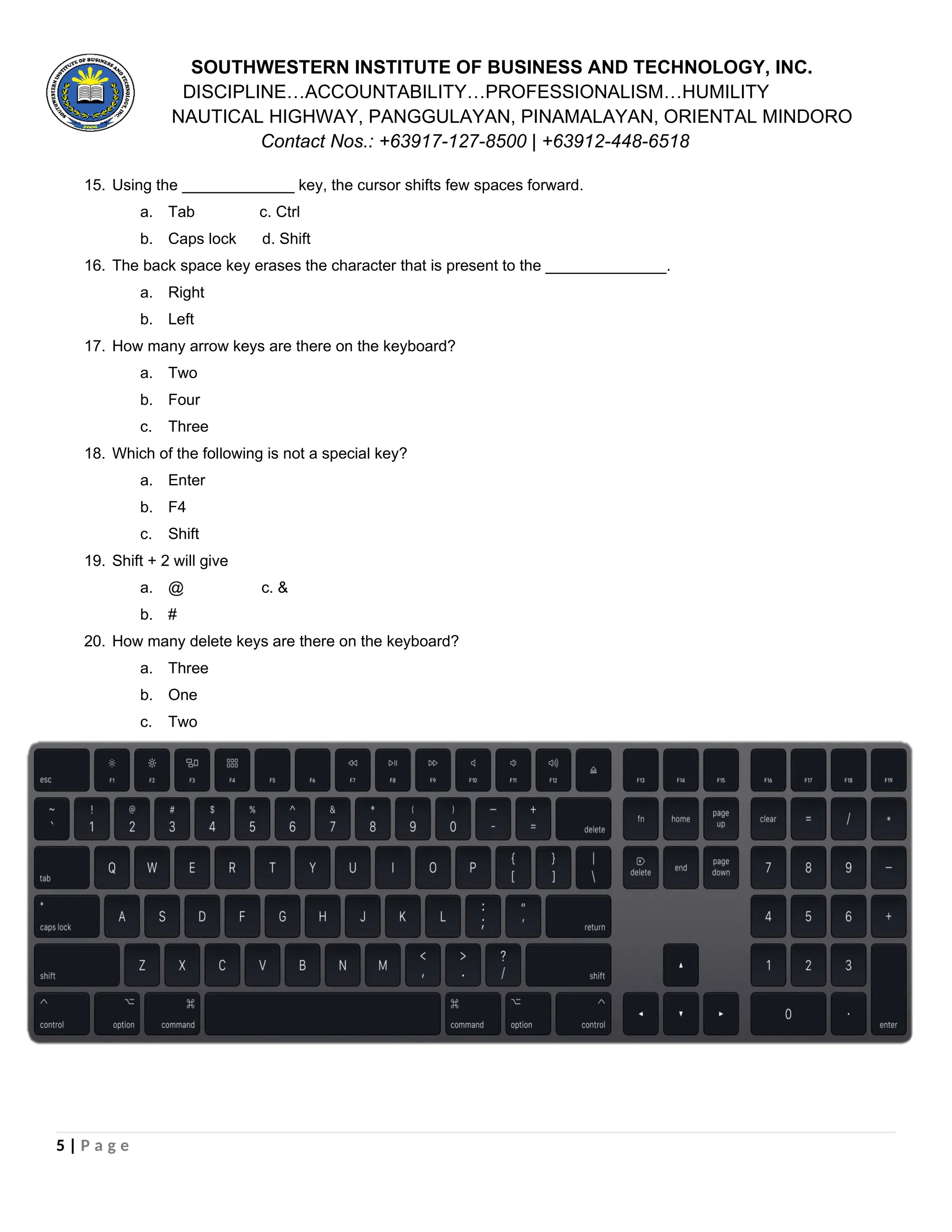
A computer keyboard is an input device used to enter characters and functions into the computer
system by pressing buttons, or keys. It is the primary device used to enter text. A keyboard typically
contains keys for individual letters, numbers and special characters, as well as keys for specific
functions. A keyboard is connected to a computer system using a cable or a wireless connection.
Most keyboards have a very similar layout. The individual keys for letters, numbers and special
characters are collectively called the Character Keys. The layout of these keys is derived from the
original layout of keys on a typewriter. The most widely used layout in the English language is
called QWERTY, named after the sequence of the first six letters from the top left. Other sets of keys
common to almost all keyboards are entering and editing keys (e.g., Enter, Delete, Insert), modifier
keys (e.g., Control, Shift), navigation keys (e.g., arrows for up, down, left, right) and lock keys (e.g.,
Caps Lock). Additional keys are very operating system specific (such as the Windows and Apple
keys).
Most keyboards also include a set of function keys at the top (F1, F2, etc.). The function keys typically
perform a very specific task within a particular software application. So, what they do may depend on
what you are doing on your computer at the time.
Most keyboards for desktop computers also contain a separate numeric keypad to the right. Even
though there are numeric keys already in a row near the top, having them all close together makes it
faster to enter numeric data. On smaller keyboards, like those on most laptops, these numeric
keypads are typically no longer present due to space constraints.
PARTS OF KEYBOARD
1. Function keys
The functions keys are located at the top of a keyboard and grouped into four. There are 12
functions keys starting from F1 through F12. These keys are used for special purposes and
most programmers use these keys to do a specific task.
For example, if you are writing text with Microsoft Word and wanted to read Help, you can
press F1 to display the Help. F5 key will display Find and Replace dialogue box. F12 key will
6 | P a g e
7.
SOUTHWESTERN INSTITUTE OFBUSINESS AND TECHNOLOGY, INC.
DISCIPLINE…ACCOUNTABILITY…PROFESSIONALISM…HUMILITY
NAUTICAL HIGHWAY, PANGGULAYAN, PINAMALAYAN, ORIENTAL MINDORO
Contact Nos.: +63917-127-8500 | +63912-448-6518
display Save As dialogue box.
2. Numeric keypad
Numeric keypad is the other part of computer keyboard. Usually, it is located at the right side
of a keyboard. It is arranged like a standard calculator used to enter numerical data.
It can also be used as directional keys. Pressing the Num Lock key above the numeric keypad
will tell whether the keys are on numeric or directional mode. If it is on, it is on numeric mode
and can enter numbers. If it is off, it is on directional mode and only used for moving a cursor
on screen UP, Down, Left or Right.
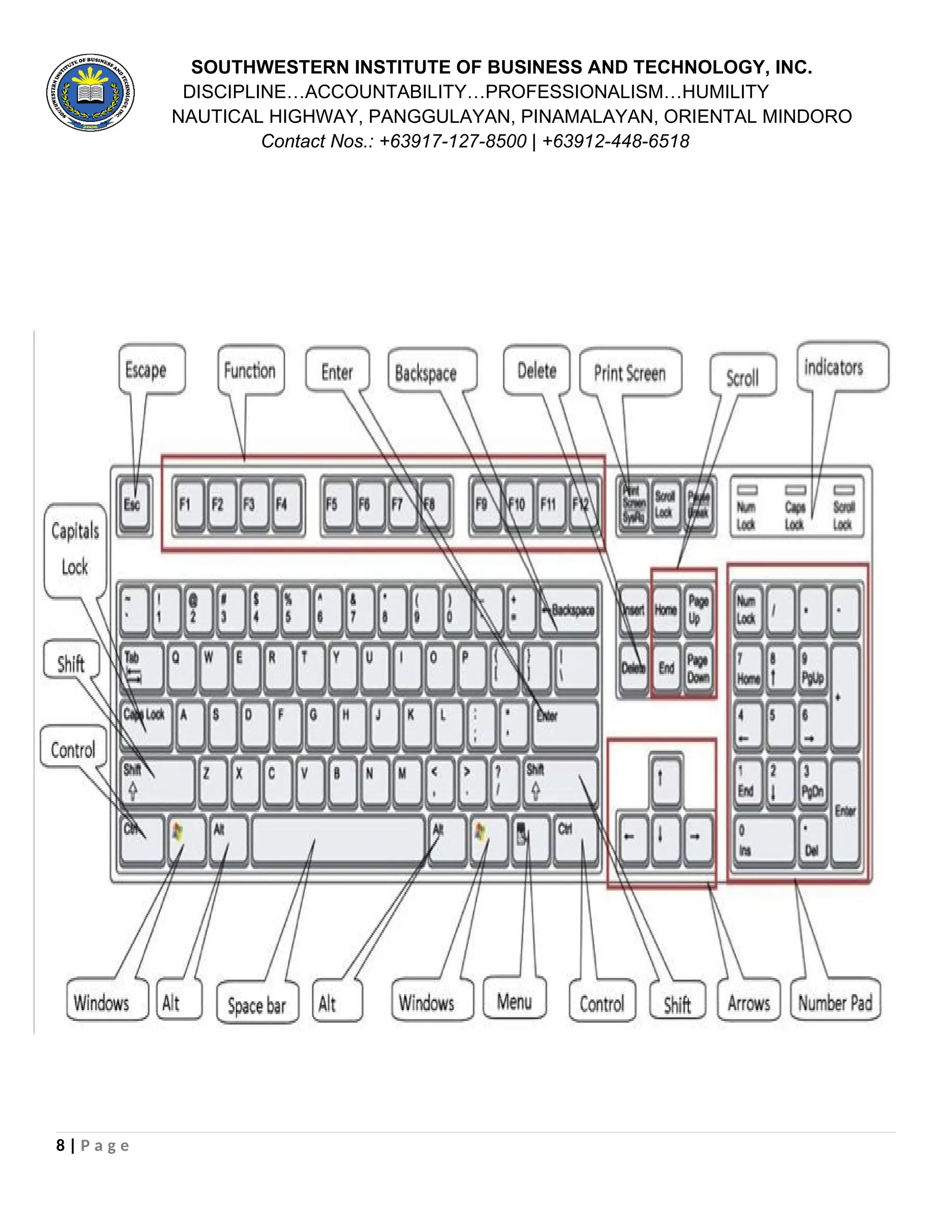
3. Cursor Control Keys
These are keys found between the typing keypad and the numeric keypad. It has two groups
of keys, arranged top and bottom.
The top keys holds Insert, Home, Page Up, Page Down, Delete, and End keys.
Insert key switches between insert and overtype modes. Home key brings you back at the
beginning of a page. Page Up and Page Down keys help you to move one page or screen up
or down. Delete key erases a text or page. The End key takes you at the end of a page.
The bottom keys are independent directional keys, which let you to move the cursor Left,
Right, Up and Down. Status lights, Escape key, Print Screen/SysRq, Scroll Lock, Pause/Break
are user for frequent functions.
For example, if you press the Caps Lock on the typing keypad, the Caps Lock Status light tells
you that is on and can type Capital letters. You press Print Screen key if you want to save the
current Window as an image.
4. Alpha Numeric Key
Simple Keys on your keyboard that consist of all letters and numbers and some different
symbols. Contains the middle row for alphanumeric characters, the space bar and all other
keys such as control, Alt and the function keys.
7 | P a g e
8.
SOUTHWESTERN INSTITUTE OFBUSINESS AND TECHNOLOGY, INC.
DISCIPLINE…ACCOUNTABILITY…PROFESSIONALISM…HUMILITY
NAUTICAL HIGHWAY, PANGGULAYAN, PINAMALAYAN, ORIENTAL MINDORO
Contact Nos.: +63917-127-8500 | +63912-448-6518
8 | P a g e
9.
SOUTHWESTERN INSTITUTE OFBUSINESS AND TECHNOLOGY, INC.
DISCIPLINE…ACCOUNTABILITY…PROFESSIONALISM…HUMILITY
NAUTICAL HIGHWAY, PANGGULAYAN, PINAMALAYAN, ORIENTAL MINDORO
Contact Nos.: +63917-127-8500 | +63912-448-6518
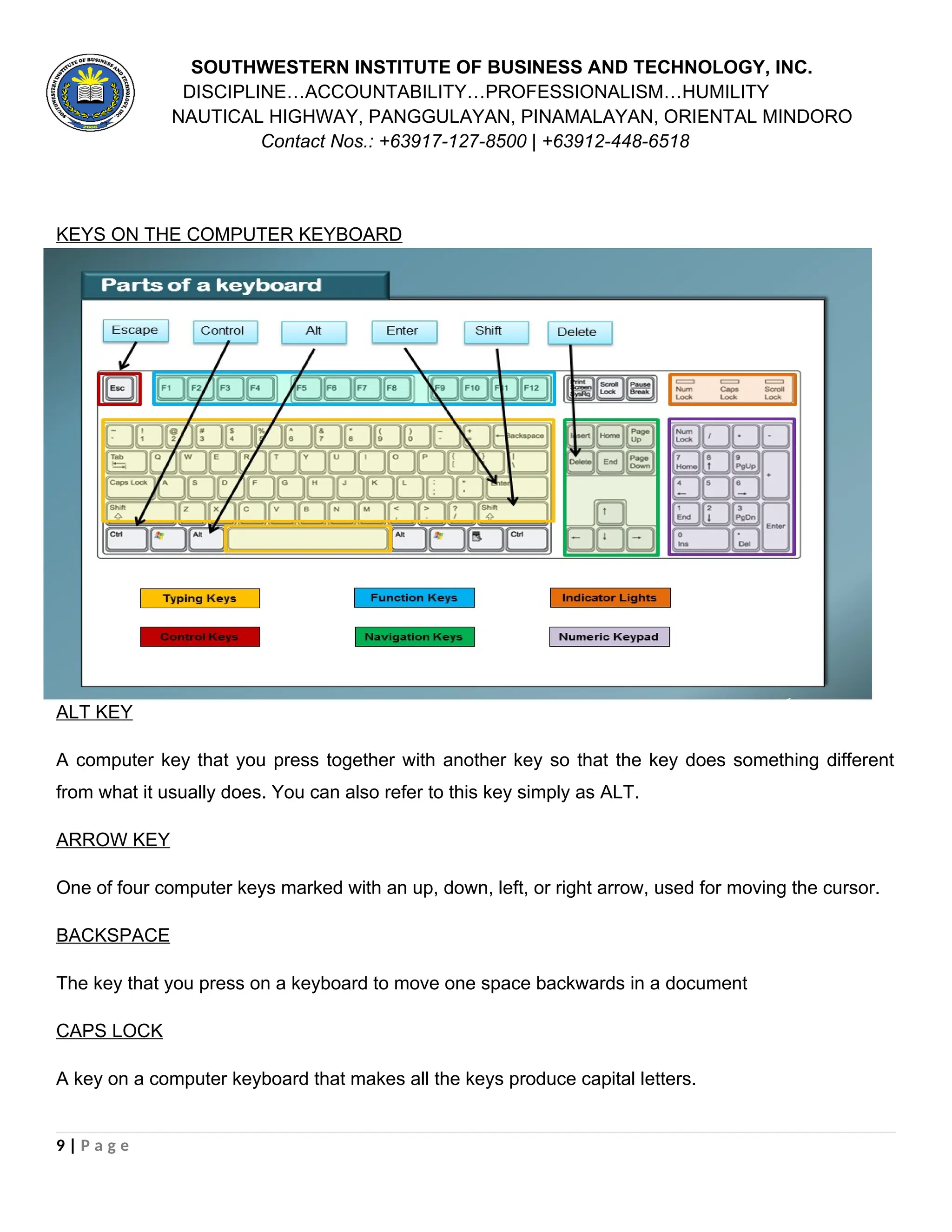
KEYS ON THE COMPUTER KEYBOARD
ALT KEY
A computer key that you press together with another key so that the key does something different
from what it usually does. You can also refer to this key simply as ALT.
ARROW KEY
One of four computer keys marked with an up, down, left, or right arrow, used for moving the cursor.
BACKSPACE
The key that you press on a keyboard to move one space backwards in a document
CAPS LOCK
A key on a computer keyboard that makes all the keys produce capital letters.
9 | P a g e
10.
SOUTHWESTERN INSTITUTE OFBUSINESS AND TECHNOLOGY, INC.
DISCIPLINE…ACCOUNTABILITY…PROFESSIONALISM…HUMILITY
NAUTICAL HIGHWAY, PANGGULAYAN, PINAMALAYAN, ORIENTAL MINDORO
Contact Nos.: +63917-127-8500 | +63912-448-6518
CHARACTER SET
Complete set of letters, or symbol that can be used by a computer.
COMMAND KEY
On some computers, a key that you press together with another key to make the computer do a
particular thing
CONTROL KEY
A key on a computer keyboard that is used in combination with other keys for doing particular
operations. This key is usually marked ‘Ctrl’. Ctrl abbreviation control: the control key on a computer
keyboard.
DELETE KEY
A Computer key that removes characters. This key sometimes simply referred to as del.
ENTER KEY
A key on a computer keyboard that makes the computer perform an action or start a new line of
writing.
ESCAPE KEY
A key on a computer that allows someone to stop an action, leave a program, or return to a previous
menu. This key is usually marked ‘ESC’.
FUNCTION KEY
A special button on a computer keyboard that is used for a particular operation in a program. The
keys near the top of a keyboard marked ‘F1’ to ‘F12’ are function keys.
10 | P a g e
11.
SOUTHWESTERN INSTITUTE OFBUSINESS AND TECHNOLOGY, INC.
DISCIPLINE…ACCOUNTABILITY…PROFESSIONALISM…HUMILITY
NAUTICAL HIGHWAY, PANGGULAYAN, PINAMALAYAN, ORIENTAL MINDORO
Contact Nos.: +63917-127-8500 | +63912-448-6518
HOT KEY
A key on a computer keyboard that provides a short way of performing a set of actions
NUMERIC KEYPAD
The part of a computer keyboard to the right of the main keys that has keys with numbers on them.
NUM LOCK
A key computer keys that you press to make the number keys below it enter numbers and not be
used for moving up and down a document.
SHIFT KEY
The key that you press on a computer keyboard when you want to write a capital letter
SPACE BAR
The long narrow bar at the front of a computer keyboard that you press to make a space between
words when you are typing.
TAB
Computing a button on a computer keyboard or typewriter that you press to move several spaces
along the same line
11 | P a g e
12.
Lesson Objectives:
1. Applythe basic typing position on the home keys and type different letter combinations.
SOUTHWESTERN INSTITUTE OF BUSINESS AND TECHNOLOGY, INC.
DISCIPLINE…ACCOUNTABILITY…PROFESSIONALISM…HUMILITY
NAUTICAL HIGHWAY, PANGGULAYAN, PINAMALAYAN, ORIENTAL MINDORO
Contact Nos.: +63917-127-8500 | +63912-448-6518
LESSON 2: PROPER PLACING OF FINGER ON KEYBOARD
The first step to learning proper keyboarding techniques is to understand the layouts of the
keyboard itself. There are many different types of keyboard lay outs, but the most common is known
as the “QWERTY” style. With this layout, much of the use falls inside the top and middle rows of keys,
with about 66 percent of the keystrokes being performed by the left hand. The “shift” key is a common
key, too. Among the basic letters and numbers in this keyboard. Once the basic keyboard layout is
familiar to a person, it is time to concentrate on the proper typing technique. The feet should be flat on
the floor before starting, the back straight against the chair with the forearms slanting at the keyboard.
With their left-hand fingers on the asdf buttons right-hand fingers on the jkl; keys and both thumbs
resting on the space bar key, the typist should keep his fingers bent and upright. Their eyes should
concentrate on the data they need to type. This might indicate that they look directly at the computer
screen or the side where there is a paper copy or book, but not directly at the keyboard.
12 | P a g e
13.
SOUTHWESTERN INSTITUTE OFBUSINESS AND TECHNOLOGY, INC.
DISCIPLINE…ACCOUNTABILITY…PROFESSIONALISM…HUMILITY
NAUTICAL HIGHWAY, PANGGULAYAN, PINAMALAYAN, ORIENTAL MINDORO
Contact Nos.: +63917-127-8500 | +63912-448-6518
HOMEROW
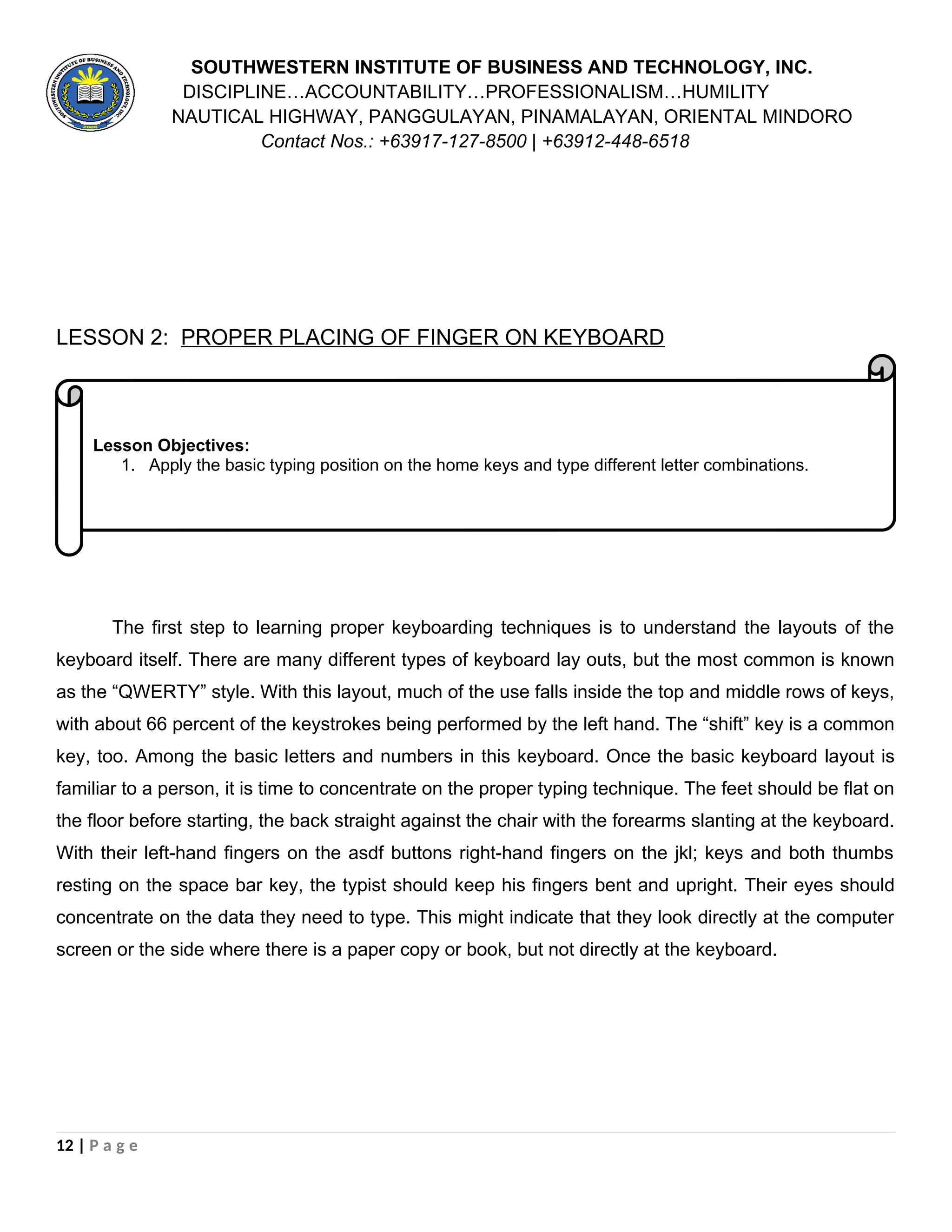
This is the center row on a keyboard that has the home keys. The home keys are where you place
your fingers when you are learning to type. The home keys include F, D, S, and A on the left of the
keyboard and J, K, L, and; semicolon on the right of the keyboard.
UPPER ROW KEYS
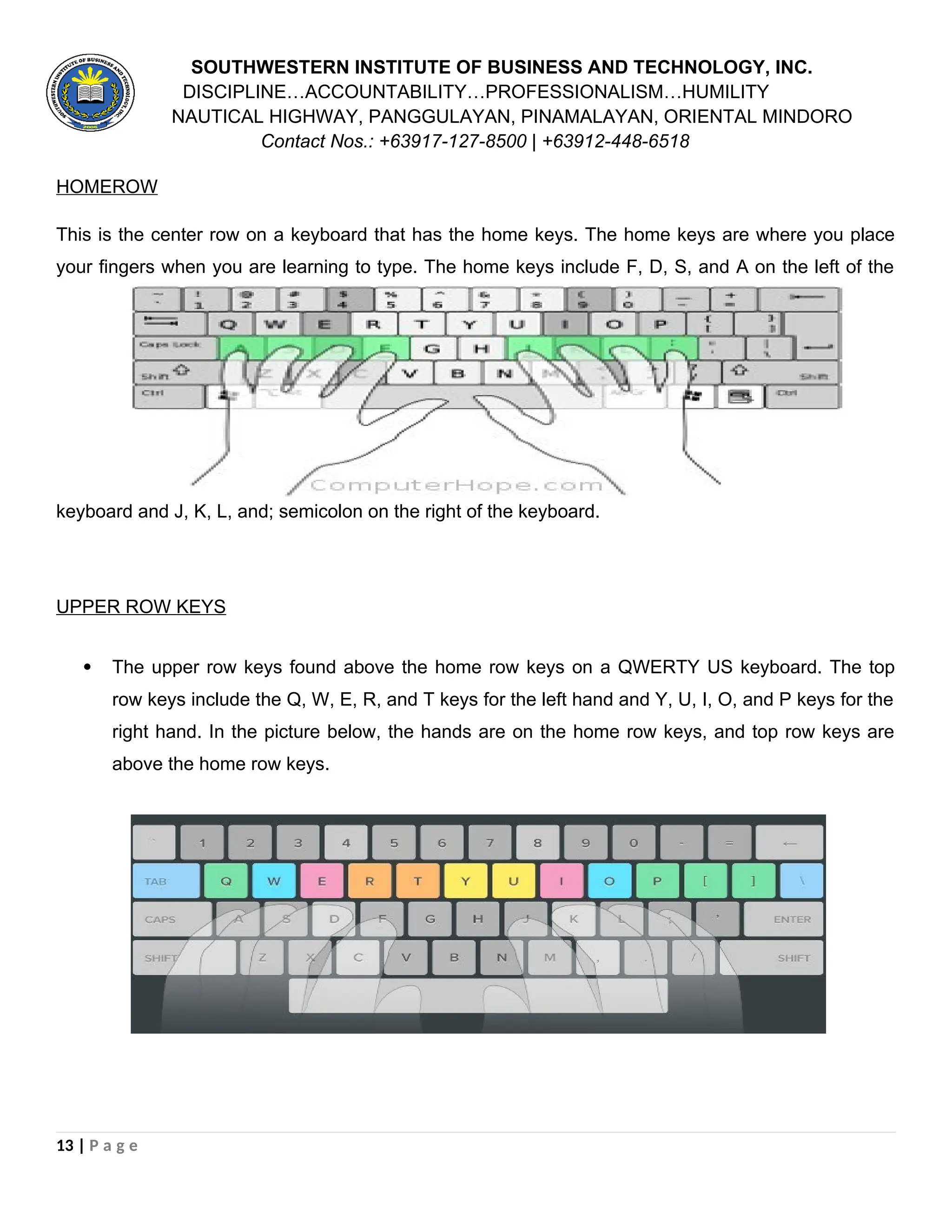
The upper row keys found above the home row keys on a QWERTY US keyboard. The top
row keys include the Q, W, E, R, and T keys for the left hand and Y, U, I, O, and P keys for the
right hand. In the picture below, the hands are on the home row keys, and top row keys are
above the home row keys.
13 | P a g e
14.
SOUTHWESTERN INSTITUTE OFBUSINESS AND TECHNOLOGY, INC.
DISCIPLINE…ACCOUNTABILITY…PROFESSIONALISM…HUMILITY
NAUTICAL HIGHWAY, PANGGULAYAN, PINAMALAYAN, ORIENTAL MINDORO
Contact Nos.: +63917-127-8500 | +63912-448-6518
LOWER ROW KEY
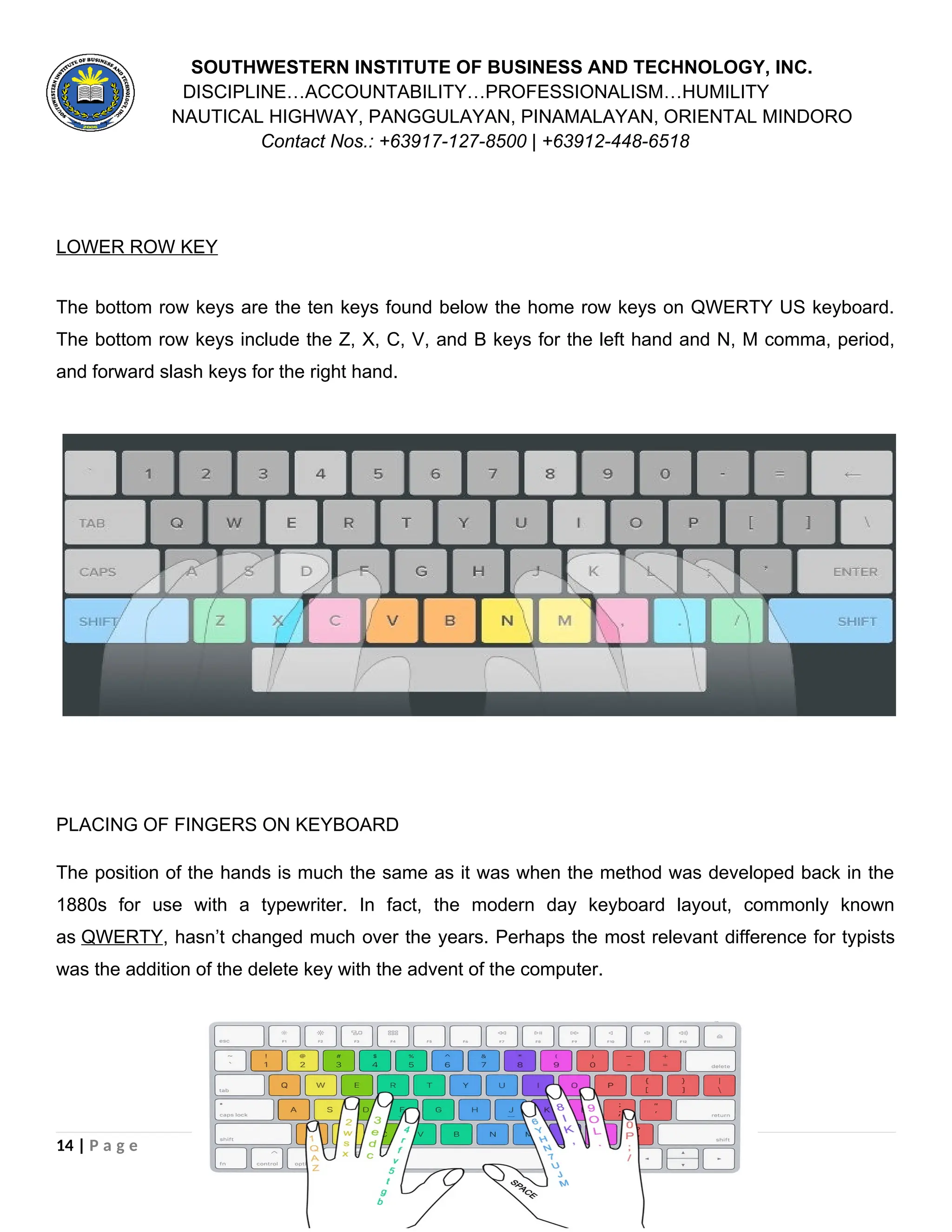
The bottom row keys are the ten keys found below the home row keys on QWERTY US keyboard.
The bottom row keys include the Z, X, C, V, and B keys for the left hand and N, M comma, period,
and forward slash keys for the right hand.
PLACING OF FINGERS ON KEYBOARD
The position of the hands is much the same as it was when the method was developed back in the
1880s for use with a typewriter. In fact, the modern day keyboard layout, commonly known
as QWERTY, hasn’t changed much over the years. Perhaps the most relevant difference for typists
was the addition of the delete key with the advent of the computer.
14 | P a g e
15.
SOUTHWESTERN INSTITUTE OFBUSINESS AND TECHNOLOGY, INC.
DISCIPLINE…ACCOUNTABILITY…PROFESSIONALISM…HUMILITY
NAUTICAL HIGHWAY, PANGGULAYAN, PINAMALAYAN, ORIENTAL MINDORO
Contact Nos.: +63917-127-8500 | +63912-448-6518
Start with the home row
At rest, the fingers sit on the home row keys. If you’re not sure which ones these are, look two lines
up from the spacebar on your keyboard and you’ll see them starting with ASDF on the left. The
fingers of each hand should sit on four keys each. The left hand pinky finger starts things off on the
“A” key, the ring finger sits on the “S” key, the middle finger takes the “D” and the index the “F”.
Thumbs don’t have a row and typically hover over the spacebar which can be hit with either hand,
depending on the typist’s preference. When it comes to the right hand, the index starts off on the “J”
key and the fingers fall in line across the “K,” “L” and “;” to complete the row.
Run your fingers along the F and J keys
This is how you position your fingers when you’re ready to begin. Keyboard makers have made it
easy for you to get back here by placing a slightly raised line on the “F” and “J” keys. This ensures
your index fingers can guide the rest of your hands back to the home row at each pause in typing
without looking.
Each finger is responsible for a group of keys
The rest of the keyboard has been divided up so each finger is responsible for a certain group of keys
(the letters in its vicinity).
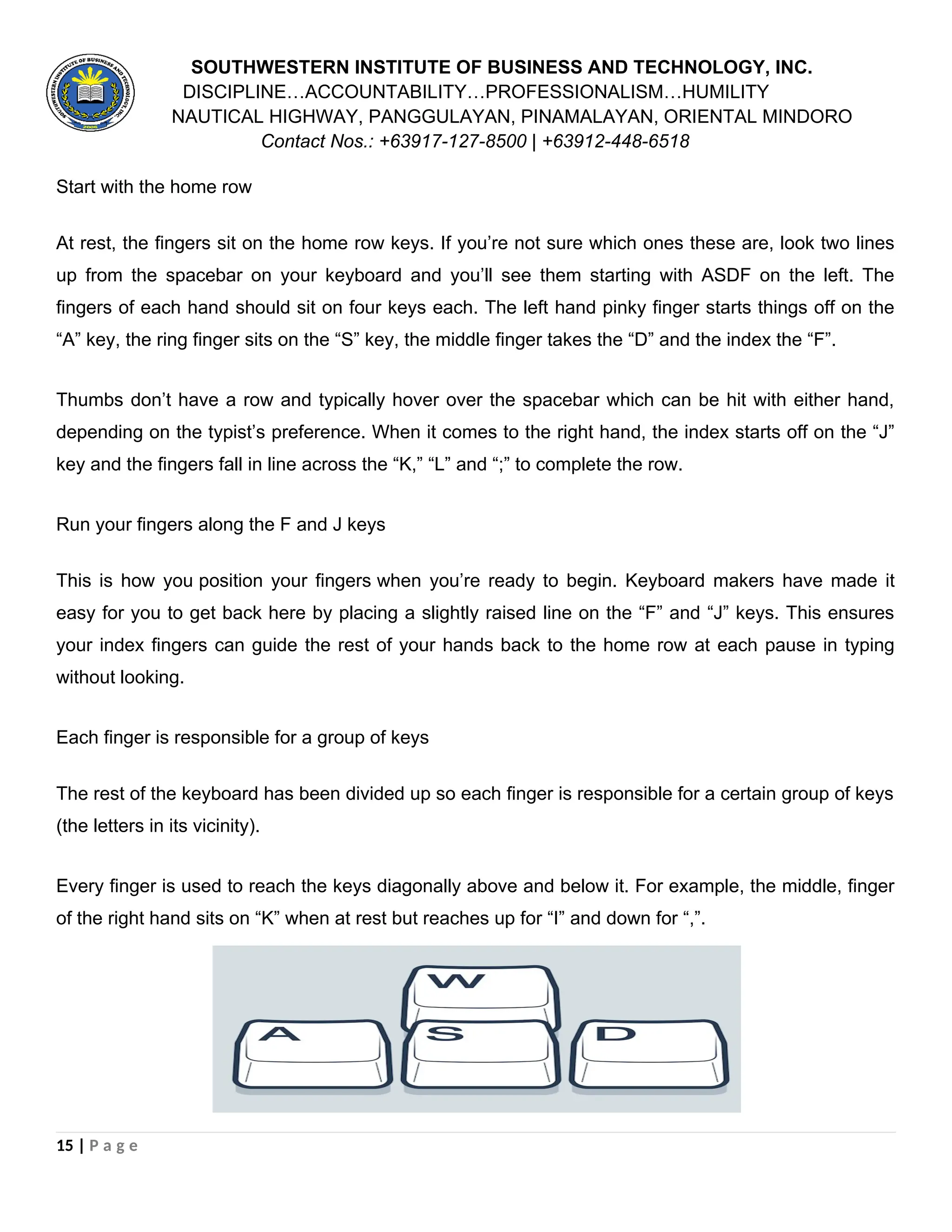
Every finger is used to reach the keys diagonally above and below it. For example, the middle, finger
of the right hand sits on “K” when at rest but reaches up for “I” and down for “,”.
15 | P a g e
16.
SOUTHWESTERN INSTITUTE OFBUSINESS AND TECHNOLOGY, INC.
DISCIPLINE…ACCOUNTABILITY…PROFESSIONALISM…HUMILITY
NAUTICAL HIGHWAY, PANGGULAYAN, PINAMALAYAN, ORIENTAL MINDORO
Contact Nos.: +63917-127-8500 | +63912-448-6518
The ring finger of the left hand sits on “S” but moves up for “W” and down for the “Z” key.
However, the fingers on the ends of rows have slightly more work to do as they are also involved in
functions other than letter choice, such as indenting, moving to a paragraph and capitalizing.
Each index or pointer finger is responsible for two rows of keys. The right hand pointer takes the “U”
and “M” column, as well as the “Y,” “H” and “N” keys. The left hand index finger is at rest on “F” and
moves up for “R,” down for “V” and over for “T,” “G” and “B”.
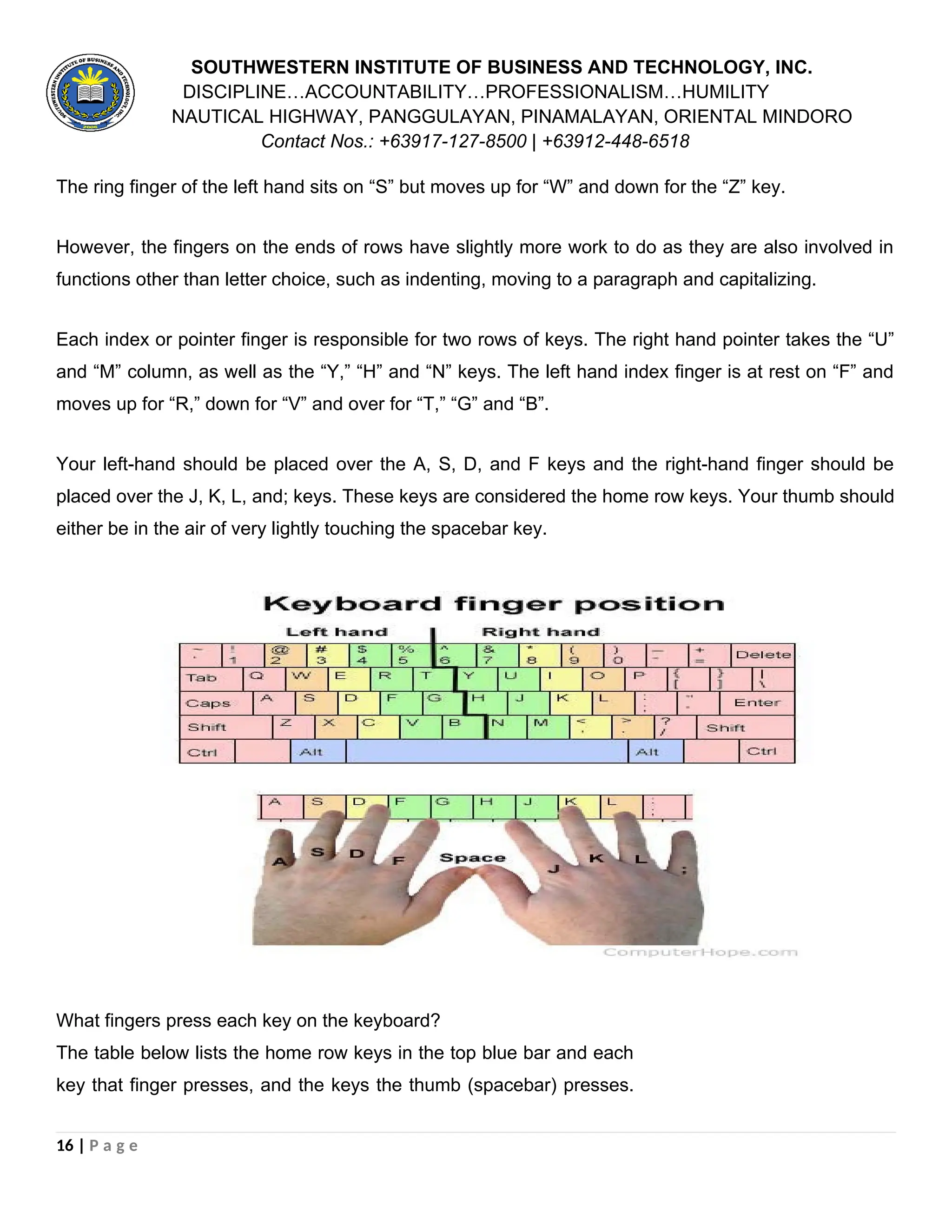
Your left-hand should be placed over the A, S, D, and F keys and the right-hand finger should be
placed over the J, K, L, and; keys. These keys are considered the home row keys. Your thumb should
either be in the air of very lightly touching the spacebar key.
What fingers press each key on the keyboard?
The table below lists the home row keys in the top blue bar and each
key that finger presses, and the keys the thumb (spacebar) presses.
16 | P a g e
17.
SOUTHWESTERN INSTITUTE OFBUSINESS AND TECHNOLOGY, INC.
DISCIPLINE…ACCOUNTABILITY…PROFESSIONALISM…HUMILITY
NAUTICAL HIGHWAY, PANGGULAYAN, PINAMALAYAN, ORIENTAL MINDORO
Contact Nos.: +63917-127-8500 | +63912-448-6518
As seen in this table, both pinkies, especially the right pinky, are
responsible for the most keys on the keyboard.
A S D F J K L ;
~ `
! 1
Tab
Q
Caps
A
Left Shift
Left Ctrl
Z
Fn key
@ 2
W
S
X
# 3
E
D
C
$ 4
% 5
R
T
F
G
V
B
^ 6
& 7
Y
U
H
J
N
M
* 8
I
K
< ,
( 9
O
L
> .
) 0
P
; :
? /
- _
[ {
" '
Right Shift
+ =
] }
Delete
|
Enter
Right Ctrl
The remaining keyboard keys not listed above are not necessarily
assigned to a specific finger for pressing them. Instead, you can use
whichever finger is easiest or most comfortable for reaching and
pressing those keys.
NOTE: For keys with 2 or more characters, you may need to use tow
hand and two fingers to create the character. For example, with the
bracket and brace keys ( [ { and ] } ), to type the curly bracket, first
you must press the left Shift key with your left pinky.
17 | P a g e
18.
SOUTHWESTERN INSTITUTE OFBUSINESS AND TECHNOLOGY, INC.
DISCIPLINE…ACCOUNTABILITY…PROFESSIONALISM…HUMILITY
NAUTICAL HIGHWAY, PANGGULAYAN, PINAMALAYAN, ORIENTAL MINDORO
Contact Nos.: +63917-127-8500 | +63912-448-6518
Typing tips
1. Position your hands. When you position your fingers on the keyboard, it can help to curve them
slightly and place your hands down lightly, so they are ready to move. It may feel awkward initially but
will become more comfortable the more you practice.
2. Don’t look down. Try imagining the keyboard and then feeling your way through it. Whatever you do,
it’s best not to look down, even if you are completely unsure of the key you’re about to type. TOP TIP
When you struggle to learn the position of a particular key, place some blue tack on it to make the
surface more recognizable by your fingertips. Next, do some typing drills of words that force you to
use that key.
3. Position your wrists. Don’t let your wrists droop. Your hands will get tired more quickly and you may
be setting yourself up for wrist problems in future years. A rolled tea towel placed along the front of
the keyboard, or a wrist guard can help. For the correct wrist position, imagine yourself playing the
piano.
18 | P a g e
19.
SOUTHWESTERN INSTITUTE OFBUSINESS AND TECHNOLOGY, INC.
DISCIPLINE…ACCOUNTABILITY…PROFESSIONALISM…HUMILITY
NAUTICAL HIGHWAY, PANGGULAYAN, PINAMALAYAN, ORIENTAL MINDORO
Contact Nos.: +63917-127-8500 | +63912-448-6518
4. Use all of your senses. Listen out for the rhythm of your typing and keep your eyes on the screen
ahead. If you’re using an online typing course, make sure it is one where the letters and words you
are practicing are read out loud as you type them. Let your sense of touch do the work.
5. Learn keyboard shortcuts. Certain keyboard shortcuts can be advantageous to learn once you’ve
mastered the basics of typing text. You may need to use your thumbs to reach the Ctrl or Apple
Command buttons that shortcuts require.
6. Maintain good posture. Keep your back straight, knees bent and arms extended. Be careful not to
place too much weight on your wrists as this can lead to typing injuries such as carpal tunnel
syndrome, as mentioned previously.
7. Check your keyboard. If you are really struggling, it may be that the keyboard you are using doesn’t fit
your hands. Some adults with large hands may find they hit more than one key at once, while children
with smaller hands tend to struggle more when reaching for keys. It can also be the keys are overly
sensitive and register from a light touch. On the other hand, you may need to pound them on an older
keyboard. Keep in mind there are plenty of keyboard options out there so you can always find one
that will be more comfortable and make typing easier.
8. Start typing lessons early. Children are generally thought to be ready for typing lessons at the age of
6-7, when their hands are big enough for the keyboard. Teaching typing to children at this age
coincides with reading, writing and spelling lessons at school and can give them a boost across the
board when it comes to literacy skills.
9. Ask for help. If you struggle with fine motor skills, such as is the case for both young children
and stroke survivors who are learning typing, it’s important to have someone work through an online
typing course with you. When you can’t find a particular key, ask your assistant to gently stroke the
correct finger to enhance the sensory input for that combination. It will make it easier for you to find
the right position next time.
WHY RIGHT HAND POSITION IMPORTANT!
When your touch typing, the Home Row is where the four fingers of your left hand and the four fingers
of your right hand will remain whenever they are not in use. Positioning your fingers on the Home
19 | P a g e
20.
SOUTHWESTERN INSTITUTE OFBUSINESS AND TECHNOLOGY, INC.
DISCIPLINE…ACCOUNTABILITY…PROFESSIONALISM…HUMILITY
NAUTICAL HIGHWAY, PANGGULAYAN, PINAMALAYAN, ORIENTAL MINDORO
Contact Nos.: +63917-127-8500 | +63912-448-6518
Row is always the starting position whenever you begin a touch typing session. So get into the habit
of placing these eight fingers on the eight corresponding keys on the Home Row. Here’s where your
fingers should be when they’re properly positioned in “rest” mode:
The little finger on your left hand is on the letter A.
The left-hand ring finger is on the letter S.
The left-hand second finger is on the letter D.
The left-hand index finger is on the letter F.
The little finger on your right hand is on the semicolon.
The right-hand ring finger is on the letter L.
The right-hand second finger is on the letter K.
The right-hand index finger is on the letter J.
Rest both of your thumbs on the space bar. You can use either thumb to press the space bar. Some
people use only one thumb (for example their left), while others use a combination. This is really a
matter of personal preference.
If you’re new to typing, take some time to get comfortable with the location of the Home Row keys
and proper Home Row finger placement. When your hands learn to automatically return to this
position, you’ll be able to accurately position your fingers to hit the correct keys when typing. If your
hands are off to one side, you might think you’re reaching for the right key, but you’ll be missing it and
will type the letter or number to its left or right instead. Some QWERTY keyboards have a little raised
bump on the “F” and “J” keys. The bumps make it easier to feel your way onto the correct index finger
home keys. Once your index fingers learn the location of the correct Home Keys, placing your
remaining fingers on their proper keys is simple.
“Success is not final; failure is not fatal: it is the courage to continue that counts.”
20 | P a g e
![SOUTHWESTERN INSTITUTE OF BUSINESS AND TECHNOLOGY, INC.
DISCIPLINE…ACCOUNTABILITY…PROFESSIONALISM…HUMILITY
NAUTICAL HIGHWAY, PANGGULAYAN, PINAMALAYAN, ORIENTAL MINDORO
Contact Nos.: +63917-127-8500 | +63912-448-6518
As seen in this table, both pinkies, especially the right pinky, are
responsible for the most keys on the keyboard.
A S D F J K L ;
~ `
! 1
Tab
Q
Caps
A
Left Shift
Left Ctrl
Z
Fn key
@ 2
W
S
X
# 3
E
D
C
$ 4
% 5
R
T
F
G
V
B
^ 6
& 7
Y
U
H
J
N
M
* 8
I
K
< ,
( 9
O
L
> .
) 0
P
; :
? /
- _
[ {
" '
Right Shift
+ =
] }
Delete
|
Enter
Right Ctrl
The remaining keyboard keys not listed above are not necessarily
assigned to a specific finger for pressing them. Instead, you can use
whichever finger is easiest or most comfortable for reaching and
pressing those keys.
NOTE: For keys with 2 or more characters, you may need to use tow
hand and two fingers to create the character. For example, with the
bracket and brace keys ( [ { and ] } ), to type the curly bracket, first
you must press the left Shift key with your left pinky.
17 | P a g e](https://image.slidesharecdn.com/advance-computer-handout1-250317000935-cd741a62/75/ADVANCE-COMPUTER-HANDOUT1-docx-for-grade-17-2048.jpg)