

Building an AWS native
serverless website
RUNCY OOMMEN | 12-Oct-2019
@runcyoommen
https://runcy.me
1.Serverless – Introduction, understanding & advantages
2.Route 53 - Purchase a domain
3.DynamoDB – Setup tables/attributes/items
4.IAM - Required roles
5.Lambda - Make functions
6.API Gateway - Appropriate triggers
7.S3 - Host the static web files
8.ACM - Generate appropriate certificate
9.CloudFront - Create a global distribution
10.Route 53 - DNS redirection
Today’s Agenda
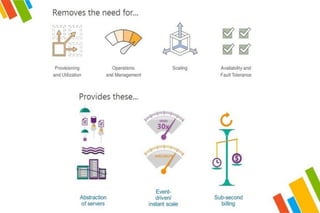
“Serverless computing is a cloud
computing execution model in which the
cloud provider runs the server, and
dynamically manages the allocation of
machine resources.”
Reference:
https://en.wikipedia.org/wiki/Cloud_computing_security
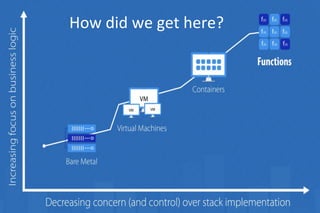
How did we get here?
A few good resources…
• AWS Info page on serverless
https://aws.amazon.com/serverless/
• Serverless Architectures
https://martinfowler.com/articles/serverless.html
• Lambda + Serverless
https://www.youtube.com/watch?v=71cd5XerKss
What are we
building today?
Pre-requisites to begin
• AWS free-tier account
• Get the source code
https://github.com/roommen/runcystees
• Basic knowledge of Python, HTML, JS, CSS
• A good IDE like Visual Studio Code
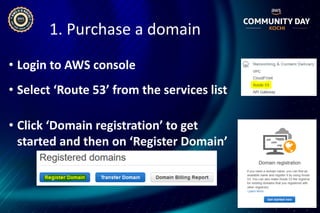
1. Purchase a domain
• Login to AWS console
• Select ‘Route 53’ from the services list
• Click ‘Domain registration’ to get
started and then on ‘Register Domain’
• Search for domain availability
• Fill in the contact details and verify the email address
• Domain purchase request pending (max of 48 hrs)
• Successful domain registration
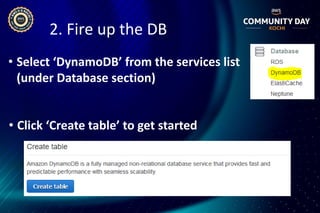
2. Fire up the DB
• Select ‘DynamoDB’ from the services list
(under Database section)
• Click ‘Create table’ to get started
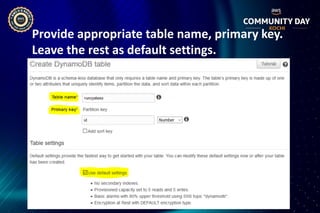
Provide appropriate table name, primary key.
Leave the rest as default settings.
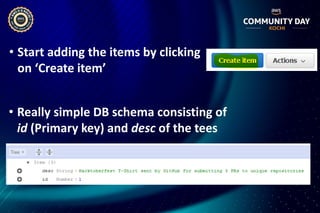
• Start adding the items by clicking
on ‘Create item’
• Really simple DB schema consisting of
id (Primary key) and desc of the tees
3. Setup IAM role
• Select ‘IAM’ from the services list
(under Security, Identity & Compliance)
• Navigate to ‘Roles’ to create a new role
• Select Lambda as the service that will use this role
• Click Next to attach the permissions
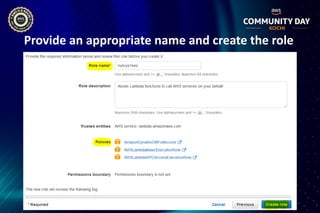
• Attach the below given pre-defined policies
• Add appropriate tags (optional but good practice)
Provide an appropriate name and create the role
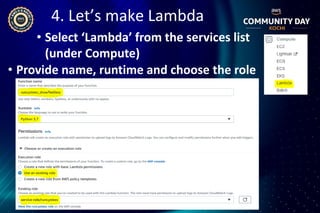
4. Let’s make Lambda
• Select ‘Lambda’ from the services list
(under Compute)
• Provide name, runtime and choose the role
In this web app example, we have:
✓ Show Tee Description – handled by ShowTeeDesc.py
For Python to be enabled as Lambda function, we need
to zip all source code and dependencies (if any)
We have boto3 as the only external dependency which
need not be packaged as it’s already part of the default
Python runtime for AWS Lambda
• You should now have
showTeeDesc.zip created
• Verify the contents of the zip file and ensure
contents look identical to screenshot below
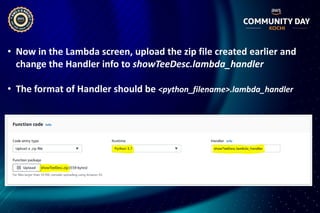
• Now in the Lambda screen, upload the zip file created earlier and
change the Handler info to showTeeDesc.lambda_handler
• The format of Handler should be <python_filename>.lambda_handler
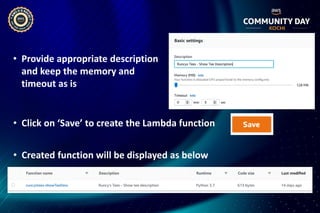
• Provide appropriate description
and keep the memory and
timeout as is
• Click on ‘Save’ to create the Lambda function
• Created function will be displayed as below
5. Integration with API Gateway
• Select ‘API Gateway’ from the services
list (under Networking & Content Delivery)
• Click ‘Create API’
• Choose the protocol, name and other details
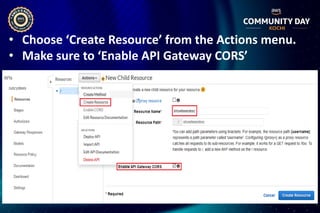
• Choose ‘Create Resource’ from the Actions menu.
• Make sure to ‘Enable API Gateway CORS’
Resource created - showteedesc
• Select the resource
and now click
‘Create Method’
• Choose ‘POST’
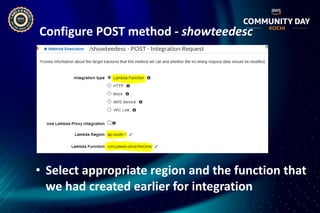
Configure POST method - showteedesc
• Select appropriate region and the function that
we had created earlier for integration
• Select a method and click
“Enable CORS”
• On the next screen, leave everything as is and click
“Enable CORS and replace existing headers”
• Select “Deploy API” from ‘Actions’
Choose [New Stage] and provide
appropriate values
• After deployment, the APIs would be available under stage
• Click on POST method created for /showteedesc and
see the API endpoint
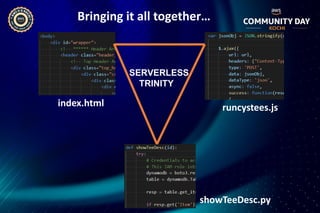
Bringing it all together…
index.html runcystees.js
showTeeDesc.py
SERVERLESS
TRINITY
• Enable the APIs – Edit the JS function
• Integrate the APIs with the relevant functions
defined in runcystees.js to have them invoked
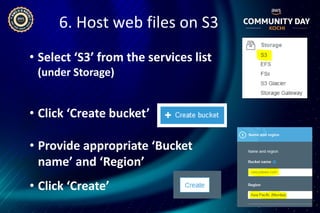
6. Host web files on S3
• Select ‘S3’ from the services list
(under Storage)
• Click ‘Create bucket’
• Provide appropriate ‘Bucket
name’ and ‘Region’
• Click ‘Create’
• Select the bucket that you created earlier
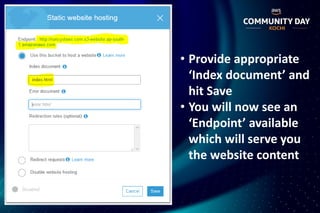
• From the “Properties” tab select ‘Static
website hosting’
• Provide appropriate
‘Index document’ and
hit Save
• You will now see an
‘Endpoint’ available
which will serve you
the website content
• Click on the
‘Permissions’ tab
• Select ‘Bucket
Policy’
• Enter the above policy to make it world readable
7. Generate certificate
• Select ‘Certificate Manager’ from the
services (under Security, Identity & Compliance)
• Click ‘Request a certificate’
• Select ‘Request a public certificate’
• Choose region as N. Virginia
Enter domain name
for generating the
certificate
Select ‘DNS
validation’
• Choose ‘Create record in Route 53’ to make
the appropriate DNS entry for certificates
• An entry would be created under Route 53
• Certificate status would be shown as Issued (~30 mins)
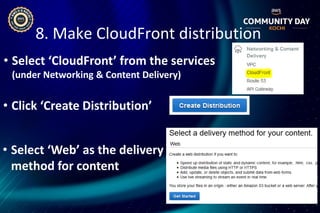
8. Make CloudFront distribution
• Select ‘CloudFront’ from the services
(under Networking & Content Delivery)
• Click ‘Create Distribution’
• Select ‘Web’ as the delivery
method for content
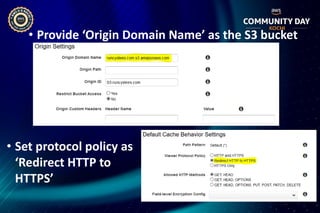
• Provide ‘Origin Domain Name’ as the S3 bucket
• Set protocol policy as
‘Redirect HTTP to
HTTPS’
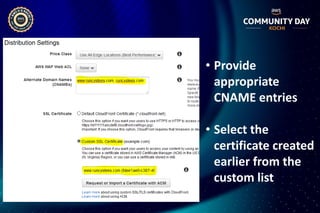
• Provide
appropriate
CNAME entries
• Select the
certificate created
earlier from the
custom list
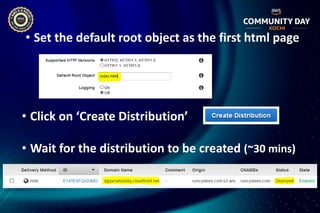
• Click on ‘Create Distribution’
• Wait for the distribution to be created (~30 mins)
• Set the default root object as the first html page
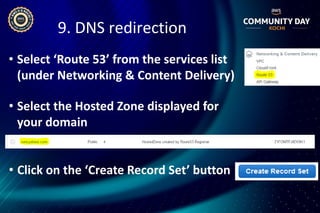
• Select ‘Route 53’ from the services list
(under Networking & Content Delivery)
9. DNS redirection
• Select the Hosted Zone displayed for
your domain
• Click on the ‘Create Record Set’ button
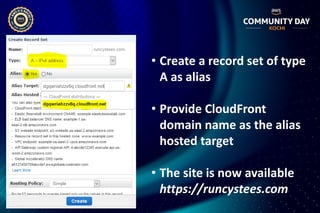
• Create a record set of type
A as alias
• Provide CloudFront
domain name as the alias
hosted target
• The site is now available
https://runcystees.com
• The website is ** NOW LIVE **
@runcyoommen
https://runcy.me

ACDKOCHI19 - Building a serverless full-stack AWS native website

  • 1.
    Building an AWSnative serverless website RUNCY OOMMEN | 12-Oct-2019 @runcyoommen https://runcy.me
  • 2.
    1.Serverless – Introduction,understanding & advantages 2.Route 53 - Purchase a domain 3.DynamoDB – Setup tables/attributes/items 4.IAM - Required roles 5.Lambda - Make functions 6.API Gateway - Appropriate triggers 7.S3 - Host the static web files 8.ACM - Generate appropriate certificate 9.CloudFront - Create a global distribution 10.Route 53 - DNS redirection Today’s Agenda
  • 4.
    “Serverless computing isa cloud computing execution model in which the cloud provider runs the server, and dynamically manages the allocation of machine resources.” Reference: https://en.wikipedia.org/wiki/Cloud_computing_security
  • 6.
    How did weget here?
  • 9.
    A few goodresources… • AWS Info page on serverless https://aws.amazon.com/serverless/ • Serverless Architectures https://martinfowler.com/articles/serverless.html • Lambda + Serverless https://www.youtube.com/watch?v=71cd5XerKss
  • 10.
  • 13.
    Pre-requisites to begin •AWS free-tier account • Get the source code https://github.com/roommen/runcystees • Basic knowledge of Python, HTML, JS, CSS • A good IDE like Visual Studio Code
  • 14.
    1. Purchase adomain • Login to AWS console • Select ‘Route 53’ from the services list • Click ‘Domain registration’ to get started and then on ‘Register Domain’
  • 15.
    • Search fordomain availability • Fill in the contact details and verify the email address
  • 16.
    • Domain purchaserequest pending (max of 48 hrs) • Successful domain registration
  • 17.
    2. Fire upthe DB • Select ‘DynamoDB’ from the services list (under Database section) • Click ‘Create table’ to get started
  • 18.
    Provide appropriate tablename, primary key. Leave the rest as default settings.
  • 19.
    • Start addingthe items by clicking on ‘Create item’ • Really simple DB schema consisting of id (Primary key) and desc of the tees
  • 20.
    3. Setup IAMrole • Select ‘IAM’ from the services list (under Security, Identity & Compliance) • Navigate to ‘Roles’ to create a new role • Select Lambda as the service that will use this role • Click Next to attach the permissions
  • 21.
    • Attach thebelow given pre-defined policies • Add appropriate tags (optional but good practice)
  • 22.
    Provide an appropriatename and create the role
  • 23.
    4. Let’s makeLambda • Select ‘Lambda’ from the services list (under Compute) • Provide name, runtime and choose the role
  • 24.
    In this webapp example, we have: ✓ Show Tee Description – handled by ShowTeeDesc.py For Python to be enabled as Lambda function, we need to zip all source code and dependencies (if any)
  • 25.
    We have boto3as the only external dependency which need not be packaged as it’s already part of the default Python runtime for AWS Lambda • You should now have showTeeDesc.zip created • Verify the contents of the zip file and ensure contents look identical to screenshot below
  • 26.
    • Now inthe Lambda screen, upload the zip file created earlier and change the Handler info to showTeeDesc.lambda_handler • The format of Handler should be <python_filename>.lambda_handler
  • 27.
    • Provide appropriatedescription and keep the memory and timeout as is • Click on ‘Save’ to create the Lambda function • Created function will be displayed as below
  • 28.
    5. Integration withAPI Gateway • Select ‘API Gateway’ from the services list (under Networking & Content Delivery) • Click ‘Create API’ • Choose the protocol, name and other details
  • 29.
    • Choose ‘CreateResource’ from the Actions menu. • Make sure to ‘Enable API Gateway CORS’
  • 30.
    Resource created -showteedesc • Select the resource and now click ‘Create Method’ • Choose ‘POST’
  • 31.
    Configure POST method- showteedesc • Select appropriate region and the function that we had created earlier for integration
  • 32.
    • Select amethod and click “Enable CORS” • On the next screen, leave everything as is and click “Enable CORS and replace existing headers”
  • 33.
    • Select “DeployAPI” from ‘Actions’ Choose [New Stage] and provide appropriate values
  • 34.
    • After deployment,the APIs would be available under stage • Click on POST method created for /showteedesc and see the API endpoint
  • 35.
    Bringing it alltogether… index.html runcystees.js showTeeDesc.py SERVERLESS TRINITY
  • 36.
    • Enable theAPIs – Edit the JS function • Integrate the APIs with the relevant functions defined in runcystees.js to have them invoked
  • 37.
    6. Host webfiles on S3 • Select ‘S3’ from the services list (under Storage) • Click ‘Create bucket’ • Provide appropriate ‘Bucket name’ and ‘Region’ • Click ‘Create’
  • 38.
    • Select thebucket that you created earlier • From the “Properties” tab select ‘Static website hosting’
  • 39.
    • Provide appropriate ‘Indexdocument’ and hit Save • You will now see an ‘Endpoint’ available which will serve you the website content
  • 40.
    • Click onthe ‘Permissions’ tab • Select ‘Bucket Policy’ • Enter the above policy to make it world readable
  • 41.
    7. Generate certificate •Select ‘Certificate Manager’ from the services (under Security, Identity & Compliance) • Click ‘Request a certificate’ • Select ‘Request a public certificate’ • Choose region as N. Virginia
  • 42.
    Enter domain name forgenerating the certificate Select ‘DNS validation’
  • 43.
    • Choose ‘Createrecord in Route 53’ to make the appropriate DNS entry for certificates • An entry would be created under Route 53 • Certificate status would be shown as Issued (~30 mins)
  • 44.
    8. Make CloudFrontdistribution • Select ‘CloudFront’ from the services (under Networking & Content Delivery) • Click ‘Create Distribution’ • Select ‘Web’ as the delivery method for content
  • 45.
    • Provide ‘OriginDomain Name’ as the S3 bucket • Set protocol policy as ‘Redirect HTTP to HTTPS’
  • 46.
    • Provide appropriate CNAME entries •Select the certificate created earlier from the custom list
  • 47.
    • Click on‘Create Distribution’ • Wait for the distribution to be created (~30 mins) • Set the default root object as the first html page
  • 48.
    • Select ‘Route53’ from the services list (under Networking & Content Delivery) 9. DNS redirection • Select the Hosted Zone displayed for your domain • Click on the ‘Create Record Set’ button
  • 49.
    • Create arecord set of type A as alias • Provide CloudFront domain name as the alias hosted target • The site is now available https://runcystees.com
  • 50.
    • The websiteis ** NOW LIVE ** @runcyoommen https://runcy.me