© 2017 Her Majesty the Queen in Right of Canada
(Canadian Food Inspection Agency), all rights reserved. Use without permission is prohibited.
Accessibility Testing Using
Screen Readers
Rabab Gomaa
Canadian Food Inspection Agency
@RubysDo , a11ytour.ca (Ottawa & Montreal)
Feb 23-24, 2018
Objective
• To explore how to use Windows screen
readers to test for accessibility
2 of 25
@RubysDo “Accessibility Testing Using Screen Readers” http://bit.do/webapp-screenreader-testing
Content
• Screen Readers Overview
– How screen readers work
• Using Screen Reader Interaction Modes in testing
– Virtual/Browse Mode
– Forms/Focus Mode
– Application Mode
• Example: Testing a design concept
• Summary
3 of 25
@RubysDo “Accessibility Testing Using Screen Readers” http://bit.do/webapp-screenreader-testing
Screen Readers Overview
- What is a screen reader?
``A screen reader is a software application which, rather than
presenting web content visually, converts text into ‘synthesized
speech' allowing user to alternatively listen to content`` Wikipedia ,
2017
Some examples of screen readers are:
• JAWS , NVDA, Window-Eyes Windows
• TalkBack Android 1.6+
• VoiceOver Mac OS X, iPhone, iPad, Apple TV
@RubysDo “Accessibility Testing Using Screen Readers” http://bit.do/webapp-screenreader-testing
Reference: Wikipedia (2018, Feb 21). Screen reader. Retrieved from https://en.wikipedia.org/wiki/Screen_reader
4 of 25
Screen Readers Overview
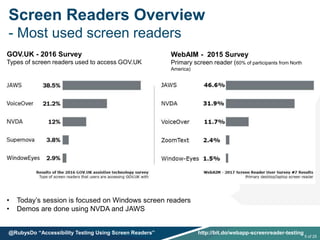
- Most used screen readers
GOV.UK - 2016 Survey
Types of screen readers used to access GOV.UK
WebAIM - 2015 Survey
Primary screen reader (60% of participants from North
America)
• Today’s session is focused on Windows screen readers
• Demos are done using NVDA and JAWS
5 of 25
@RubysDo “Accessibility Testing Using Screen Readers” http://bit.do/webapp-screenreader-testing
Screen Readers Overview
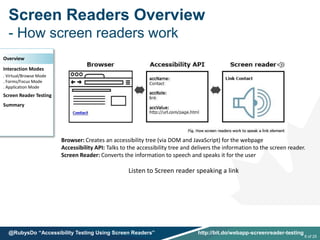
- How screen readers work
Browser: Creates an accessibility tree (via DOM and JavaScript) for the webpage
Accessibility API: Talks to the accessibility tree and delivers the information to the screen reader.
Screen Reader: Converts the information to speech and speaks it for the user
Listen to Screen reader speaking a link
Overview
Interaction Modes
. Virtual/Browse Mode
. Forms/Focus Mode
. Application Mode
Screen Reader Testing
Summary
6 of 25
@RubysDo “Accessibility Testing Using Screen Readers” http://bit.do/webapp-screenreader-testing
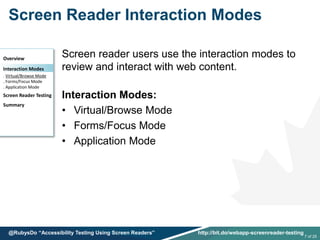
Screen Reader Interaction Modes
Screen reader users use the interaction modes to
review and interact with web content.
Interaction Modes:
• Virtual/Browse Mode
• Forms/Focus Mode
• Application Mode
Overview
Interaction Modes
. Virtual/Browse Mode
. Forms/Focus Mode
. Application Mode
Screen Reader Testing
Summary
7 of 25
@RubysDo “Accessibility Testing Using Screen Readers” http://bit.do/webapp-screenreader-testing
Virtual/Browse Mode (1)
- Interaction with the virtual document
Reference: Léonie Watson (2014, September 21). Understanding screen reader interaction modes. Retrieved from https://tink.uk/understanding-screen-reader-
interaction-modes/
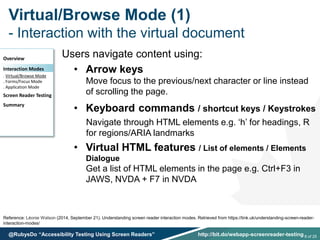
Users navigate content using:
• Arrow keys
Move focus to the previous/next character or line instead
of scrolling the page.
• Keyboard commands / shortcut keys / Keystrokes
Navigate through HTML elements e.g. ‘h’ for headings, R
for regions/ARIA landmarks
• Virtual HTML features / List of elements / Elements
Dialogue
Get a list of HTML elements in the page e.g. Ctrl+F3 in
JAWS, NVDA + F7 in NVDA
Overview
Interaction Modes
. Virtual/Browse Mode
. Forms/Focus Mode
. Application Mode
Screen Reader Testing
Summary
8 of 25@RubysDo “Accessibility Testing Using Screen Readers” http://bit.do/webapp-screenreader-testing
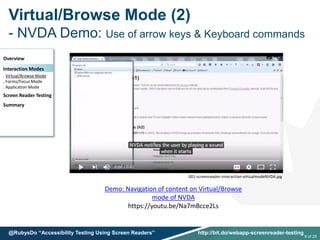
Virtual/Browse Mode (2)
- NVDA Demo: Use of arrow keys & Keyboard commands
Overview
Interaction Modes
. Virtual/Browse Mode
. Forms/Focus Mode
. Application Mode
Screen Reader Testing
Summary
Demo: Navigation of content on Virtual/Browse
mode of NVDA
https://youtu.be/Na7mBcce2Ls
001-screenreader-interaction-virtualmodeNVDA.jpg
9 of 25
@RubysDo “Accessibility Testing Using Screen Readers” http://bit.do/webapp-screenreader-testing
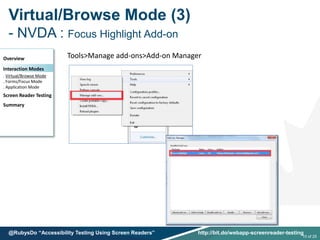
Virtual/Browse Mode (3)
- NVDA : Focus Highlight Add-on
Overview
Interaction Modes
. Virtual/Browse Mode
. Forms/Focus Mode
. Application Mode
Screen Reader Testing
Summary
Tools>Manage add-ons>Add-on Manager
10 of 25
@RubysDo “Accessibility Testing Using Screen Readers” http://bit.do/webapp-screenreader-testing
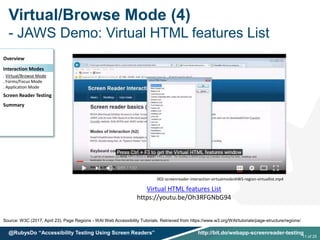
Virtual/Browse Mode (4)
- JAWS Demo: Virtual HTML features List
Source: W3C (2017, April 23). Page Regions - WAI Web Accessibility Tutorials. Retrieved from https://www.w3.org/WAI/tutorials/page-structure/regions/
Overview
Interaction Modes
. Virtual/Browse Mode
. Forms/Focus Mode
. Application Mode
Screen Reader Testing
Summary
Virtual HTML features List
https://youtu.be/Oh3RFGNbG94
002-screenreader-interaction-virtualmodeJAWS-region-virtuallist.mp4
11 of 25
@RubysDo “Accessibility Testing Using Screen Readers” http://bit.do/webapp-screenreader-testing
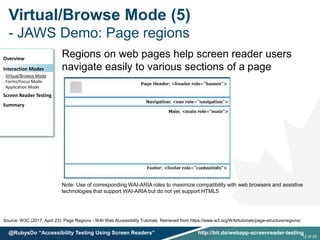
Virtual/Browse Mode (5)
- JAWS Demo: Page regions
Source: W3C (2017, April 23). Page Regions - WAI Web Accessibility Tutorials. Retrieved from https://www.w3.org/WAI/tutorials/page-structure/regions/
Regions on web pages help screen reader users
navigate easily to various sections of a page
Note: Use of corresponding WAI-ARIA roles to maximize compatibility with web browsers and assistive
technologies that support WAI-ARIA but do not yet support HTML5
Overview
Interaction Modes
. Virtual/Browse Mode
. Forms/Focus Mode
. Application Mode
Screen Reader Testing
Summary
12 of 25
@RubysDo “Accessibility Testing Using Screen Readers” http://bit.do/webapp-screenreader-testing
Virtual/Browse Mode (5)
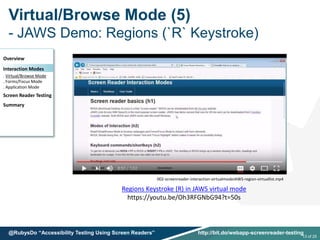
- JAWS Demo: Regions (`R` Keystroke)
Overview
Interaction Modes
. Virtual/Browse Mode
. Forms/Focus Mode
. Application Mode
Screen Reader Testing
Summary
Regions Keystroke (R) in JAWS virtual mode
https://youtu.be/Oh3RFGNbG94?t=50s
002-screenreader-interaction-virtualmodeJAWS-region-virtuallist.mp4
13 of 25
@RubysDo “Accessibility Testing Using Screen Readers” http://bit.do/webapp-screenreader-testing
Virtual/Browse Mode (7)
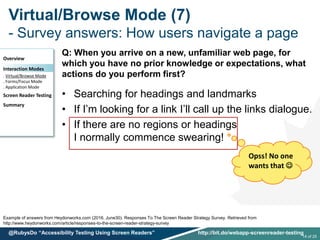
- Survey answers: How users navigate a page
Example of answers from Heydonworks.com (2016, June30). Responses To The Screen Reader Strategy Survey. Retrieved from
http://www.heydonworks.com/article/responses-to-the-screen-reader-strategy-survey
Q: When you arrive on a new, unfamiliar web page, for
which you have no prior knowledge or expectations, what
actions do you perform first?
• Searching for headings and landmarks
• If I’m looking for a link I’ll call up the links dialogue.
• If there are no regions or headings
I normally commence swearing!
Overview
Interaction Modes
. Virtual/Browse Mode
. Forms/Focus Mode
. Application Mode
Screen Reader Testing
Summary
Opss! No one
wants that 
14 of 25
@RubysDo “Accessibility Testing Using Screen Readers” http://bit.do/webapp-screenreader-testing
Forms/Focus Mode (1)
- Interaction with form elements
Screen readers allow users to interact with form
elements using the Forms Mode:
• Pressing the tab key automatically enters/exits
focus mode, a sound plays.
• User navigates form elements using ‘Tab’ to go
next element & ‘Shift + Tab’ to go previous element
• Users can fill form fields
e.g. pressing h will type a character instead of
move focus to the next heading
Overview
Interaction Modes
. Virtual/Browse Mode
. Forms/Focus Mode
. Application Mode
Screen Reader Testing
Summary
15 of 25
@RubysDo “Accessibility Testing Using Screen Readers” http://bit.do/webapp-screenreader-testing
Forms/Focus Mode (2)
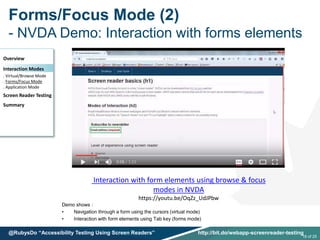
- NVDA Demo: Interaction with forms elements
Demo shows :
• Navigation through a form using the cursors (virtual mode)
• Interaction with form elements using Tab key (forms mode)
Overview
Interaction Modes
. Virtual/Browse Mode
. Forms/Focus Mode
. Application Mode
Screen Reader Testing
Summary
Interaction with form elements using browse & focus
modes in NVDA
https://youtu.be/OqZz_UdJPbw
16 of 25
@RubysDo “Accessibility Testing Using Screen Readers” http://bit.do/webapp-screenreader-testing
Application Mode (1)
- Interaction with custom widget & WAI-ARIA
Reference: WAI-ARIA Authoring Practices 1.1 (2017, December 14). Tabs. Retrieved from https://www.w3.org/TR/wai-aria-practices/#tabpanel
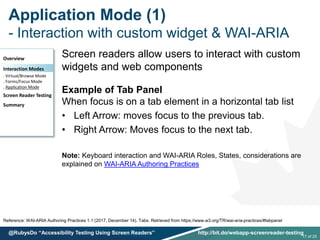
Screen readers allow users to interact with custom
widgets and web components
Example of Tab Panel
When focus is on a tab element in a horizontal tab list
• Left Arrow: moves focus to the previous tab.
• Right Arrow: Moves focus to the next tab.
Note: Keyboard interaction and WAI-ARIA Roles, States, considerations are
explained on WAI-ARIA Authoring Practices
Overview
Interaction Modes
. Virtual/Browse Mode
. Forms/Focus Mode
. Application Mode
Screen Reader Testing
Summary
17 of 25
@RubysDo “Accessibility Testing Using Screen Readers” http://bit.do/webapp-screenreader-testing
Application Mode (2)
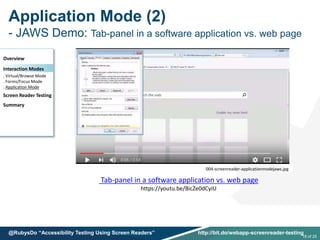
- JAWS Demo: Tab-panel in a software application vs. web page
Overview
Interaction Modes
. Virtual/Browse Mode
. Forms/Focus Mode
. Application Mode
Screen Reader Testing
Summary
Tab-panel in a software application vs. web page
https://youtu.be/BicZe0dCyiU
004-screenreader-applicationmodejaws.jpg
18 of 25
@RubysDo “Accessibility Testing Using Screen Readers” http://bit.do/webapp-screenreader-testing
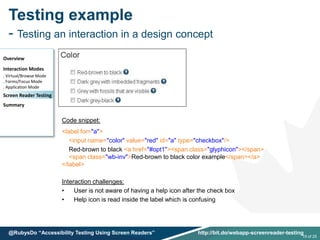
Testing example
- Testing an interaction in a design concept
Overview
Interaction Modes
. Virtual/Browse Mode
. Forms/Focus Mode
. Application Mode
Screen Reader Testing
Summary
Interaction challenges:
• User is not aware of having a help icon after the check box
• Help icon is read inside the label which is confusing
Code snippet:
<label for="a">
<input name="color" value="red" id="a" type="checkbox"/>
Red-brown to black <a href="#opt1"><span class="glyphicon"></span>
<span class="wb-inv">Red-brown to black color example</span></a>
</label>
19 of 25
@RubysDo “Accessibility Testing Using Screen Readers” http://bit.do/webapp-screenreader-testing
Testing with Screen Readers
- Testing an interaction design concept
Overview
Interaction Modes
. Virtual/Browse Mode
. Forms/Focus Mode
. Application Mode
Screen Reader Testing
Summary
20 of 25
@RubysDo “Accessibility Testing Using Screen Readers” http://bit.do/webapp-screenreader-testing
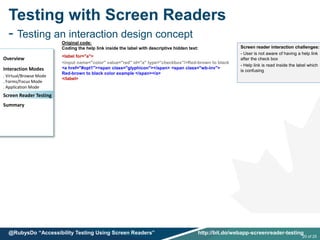
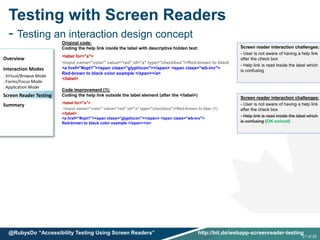
Original code:
Coding the help link inside the label with descriptive hidden text:
<label for="a">
<input name="color" value="red" id="a" type="checkbox"/>Red-brown to black
<a href="#opt1"><span class="glyphicon"></span> <span class="wb-inv">
Red-brown to black color example </span></a>
</label>
Screen reader interaction challenges:
- User is not aware of having a help link
after the check box
- Help link is read inside the label which
is confusing
Testing with Screen Readers
- Testing an interaction design concept
Overview
Interaction Modes
. Virtual/Browse Mode
. Forms/Focus Mode
. Application Mode
Screen Reader Testing
Summary
Code improvement (1):
Coding the help link outside the label element (after the </label>)
<label for="a">
<input name="color" value="red" id="a" type="checkbox"/>Red-brown to blac (1)
</label>
<a href="#opt1"><span class="glyphicon"></span> <span class="wb-inv">
Red-brown to black color example </span></a>
21 of 25
@RubysDo “Accessibility Testing Using Screen Readers” http://bit.do/webapp-screenreader-testing
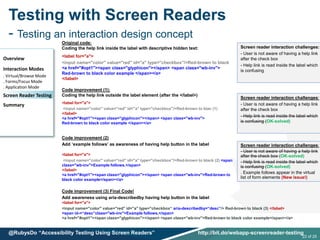
Original code:
Coding the help link inside the label with descriptive hidden text:
<label for="a">
<input name="color" value="red" id="a" type="checkbox"/>Red-brown to black
<a href="#opt1"><span class="glyphicon"></span> <span class="wb-inv">
Red-brown to black color example </span></a>
</label>
Screen reader interaction challenges:
- User is not aware of having a help link
after the check box
- Help link is read inside the label which
is confusing
Screen reader interaction challenges:
- User is not aware of having a help link
after the check box
- Help link is read inside the label which
is confusing (OK-solved)
Testing with Screen Readers
- Testing an interaction design concept
Overview
Interaction Modes
. Virtual/Browse Mode
. Forms/Focus Mode
. Application Mode
Screen Reader Testing
Summary
Code improvement (1):
Coding the help link outside the label element (after the </label>)
<label for="a">
<input name="color" value="red" id="a" type="checkbox"/>Red-brown to blac (1)
</label>
<a href="#opt1"><span class="glyphicon"></span> <span class="wb-inv">
Red-brown to black color example </span></a>
Code improvement (2)
Add ‘example follows’ as awareness of having help button in the label
<label for="a">
<input name="color" value="red" id="a" type="checkbox"/>Red-brown to black (2) <span
class="wb-inv">Example follows.</span>
</label>
<a href="#opt1"><span class="glyphicon"></span> <span class="wb-inv">Red-brown to
black color example</span></a>
22 of 25
@RubysDo “Accessibility Testing Using Screen Readers” http://bit.do/webapp-screenreader-testing
Original code:
Coding the help link inside the label with descriptive hidden text:
<label for="a">
<input name="color" value="red" id="a" type="checkbox"/>Red-brown to black
<a href="#opt1"><span class="glyphicon"></span> <span class="wb-inv">
Red-brown to black color example </span></a>
</label>
Screen reader interaction challenges:
- User is not aware of having a help link
after the check box
- Help link is read inside the label which
is confusing
Screen reader interaction challenges:
- User is not aware of having a help link
after the check box
- Help link is read inside the label which
is confusing (OK-solved)
Screen reader interaction challenges:
- User is not aware of having a help link
after the check box (OK-solved)
- Help link is read inside the label which
is confusing (OK-solved)
. Example follows appear in the virtual
list of form elements (New issue!)
Code improvement (3) Final Code!
Add awareness using aria-describedby having help button in the label
<label for="a">
<input name="color" value="red" id="a" type="checkbox“ aria-describedby=“desc”/> Red-brown to black (3) </label>
<span id-=“desc”class="wb-inv">Example follows.</span>
<a href="#opt1"><span class="glyphicon"></span> <span class="wb-inv">Red-brown to black color example</span></a>
Testing with Screen Readers
- Testing dialog box
Overview
Interaction Modes
. Virtual/Browse Mode
. Forms/Focus Mode
. Application Mode
Screen Reader Testing
Summary
23 of 25
@RubysDo “Accessibility Testing Using Screen Readers” http://bit.do/webapp-screenreader-testing
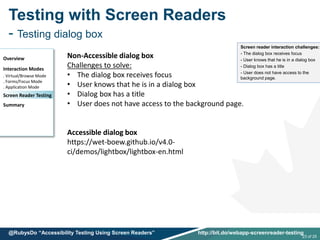
Non-Accessible dialog box
Challenges to solve:
• The dialog box receives focus
• User knows that he is in a dialog box
• Dialog box has a title
• User does not have access to the background page.
Accessible dialog box
https://wet-boew.github.io/v4.0-
ci/demos/lightbox/lightbox-en.html
Screen reader interaction challenges:
- The dialog box receives focus
- User knows that he is in a dialog box
- Dialog box has a title
- User does not have access to the
background page.
Testing with Screen Readers
- Testing dialog box
Overview
Interaction Modes
. Virtual/Browse Mode
. Forms/Focus Mode
. Application Mode
Screen Reader Testing
Summary
24 of 25
@RubysDo “Accessibility Testing Using Screen Readers” http://bit.do/webapp-screenreader-testing
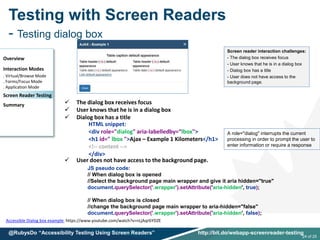
HTML snippet:
<div role="dialog" aria-labelledby=“lbox">
<h1 id=" lbox ">Ajax – Example 1 Kilometers</h1>
<!-- content -->
</div>
 The dialog box receives focus
 User knows that he is in a dialog box
 Dialog box has a title
JS pseudo code:
// When dialog box is opened
//Select the background page main wrapper and give it aria hidden="true"
document.querySelector('.wrapper').setAttribute('aria-hidden', true);
// When dialog box is closed
//change the background page main wrapper to aria-hidden="false"
document.querySelector('.wrapper').setAttribute('aria-hidden', false);
 User does not have access to the background page.
A role="dialog" interrupts the current
processing in order to prompt the user to
enter information or require a response
Accessible Dialog box example https://www.youtube.com/watch?v=nLjAqr6YDZE
Screen reader interaction challenges:
- The dialog box receives focus
- User knows that he is in a dialog box
- Dialog box has a title
- User does not have access to the
background page.
Summary
• Screen reader users interact with webpages using
virtual, forms and application mode
• Testing with screen reader helps addressing challenges
in the design & development phases of a web application
Resources
• keyboard shortcuts for JAWS
• keyboard shortcuts for NVDA
• WAI-ARIA Authoring Practices
25 of 25
@RubysDo “Accessibility Testing Using Screen Readers” http://bit.do/webapp-screenreader-testing

Accessibility Testing Using Screen Readers

  • 1.
    © 2017 HerMajesty the Queen in Right of Canada (Canadian Food Inspection Agency), all rights reserved. Use without permission is prohibited. Accessibility Testing Using Screen Readers Rabab Gomaa Canadian Food Inspection Agency @RubysDo , a11ytour.ca (Ottawa & Montreal) Feb 23-24, 2018
  • 2.
    Objective • To explorehow to use Windows screen readers to test for accessibility 2 of 25 @RubysDo “Accessibility Testing Using Screen Readers” http://bit.do/webapp-screenreader-testing
  • 3.
    Content • Screen ReadersOverview – How screen readers work • Using Screen Reader Interaction Modes in testing – Virtual/Browse Mode – Forms/Focus Mode – Application Mode • Example: Testing a design concept • Summary 3 of 25 @RubysDo “Accessibility Testing Using Screen Readers” http://bit.do/webapp-screenreader-testing
  • 4.
    Screen Readers Overview -What is a screen reader? ``A screen reader is a software application which, rather than presenting web content visually, converts text into ‘synthesized speech' allowing user to alternatively listen to content`` Wikipedia , 2017 Some examples of screen readers are: • JAWS , NVDA, Window-Eyes Windows • TalkBack Android 1.6+ • VoiceOver Mac OS X, iPhone, iPad, Apple TV @RubysDo “Accessibility Testing Using Screen Readers” http://bit.do/webapp-screenreader-testing Reference: Wikipedia (2018, Feb 21). Screen reader. Retrieved from https://en.wikipedia.org/wiki/Screen_reader 4 of 25
  • 5.
    Screen Readers Overview -Most used screen readers GOV.UK - 2016 Survey Types of screen readers used to access GOV.UK WebAIM - 2015 Survey Primary screen reader (60% of participants from North America) • Today’s session is focused on Windows screen readers • Demos are done using NVDA and JAWS 5 of 25 @RubysDo “Accessibility Testing Using Screen Readers” http://bit.do/webapp-screenreader-testing
  • 6.
    Screen Readers Overview -How screen readers work Browser: Creates an accessibility tree (via DOM and JavaScript) for the webpage Accessibility API: Talks to the accessibility tree and delivers the information to the screen reader. Screen Reader: Converts the information to speech and speaks it for the user Listen to Screen reader speaking a link Overview Interaction Modes . Virtual/Browse Mode . Forms/Focus Mode . Application Mode Screen Reader Testing Summary 6 of 25 @RubysDo “Accessibility Testing Using Screen Readers” http://bit.do/webapp-screenreader-testing
  • 7.
    Screen Reader InteractionModes Screen reader users use the interaction modes to review and interact with web content. Interaction Modes: • Virtual/Browse Mode • Forms/Focus Mode • Application Mode Overview Interaction Modes . Virtual/Browse Mode . Forms/Focus Mode . Application Mode Screen Reader Testing Summary 7 of 25 @RubysDo “Accessibility Testing Using Screen Readers” http://bit.do/webapp-screenreader-testing
  • 8.
    Virtual/Browse Mode (1) -Interaction with the virtual document Reference: Léonie Watson (2014, September 21). Understanding screen reader interaction modes. Retrieved from https://tink.uk/understanding-screen-reader- interaction-modes/ Users navigate content using: • Arrow keys Move focus to the previous/next character or line instead of scrolling the page. • Keyboard commands / shortcut keys / Keystrokes Navigate through HTML elements e.g. ‘h’ for headings, R for regions/ARIA landmarks • Virtual HTML features / List of elements / Elements Dialogue Get a list of HTML elements in the page e.g. Ctrl+F3 in JAWS, NVDA + F7 in NVDA Overview Interaction Modes . Virtual/Browse Mode . Forms/Focus Mode . Application Mode Screen Reader Testing Summary 8 of 25@RubysDo “Accessibility Testing Using Screen Readers” http://bit.do/webapp-screenreader-testing
  • 9.
    Virtual/Browse Mode (2) -NVDA Demo: Use of arrow keys & Keyboard commands Overview Interaction Modes . Virtual/Browse Mode . Forms/Focus Mode . Application Mode Screen Reader Testing Summary Demo: Navigation of content on Virtual/Browse mode of NVDA https://youtu.be/Na7mBcce2Ls 001-screenreader-interaction-virtualmodeNVDA.jpg 9 of 25 @RubysDo “Accessibility Testing Using Screen Readers” http://bit.do/webapp-screenreader-testing
  • 10.
    Virtual/Browse Mode (3) -NVDA : Focus Highlight Add-on Overview Interaction Modes . Virtual/Browse Mode . Forms/Focus Mode . Application Mode Screen Reader Testing Summary Tools>Manage add-ons>Add-on Manager 10 of 25 @RubysDo “Accessibility Testing Using Screen Readers” http://bit.do/webapp-screenreader-testing
  • 11.
    Virtual/Browse Mode (4) -JAWS Demo: Virtual HTML features List Source: W3C (2017, April 23). Page Regions - WAI Web Accessibility Tutorials. Retrieved from https://www.w3.org/WAI/tutorials/page-structure/regions/ Overview Interaction Modes . Virtual/Browse Mode . Forms/Focus Mode . Application Mode Screen Reader Testing Summary Virtual HTML features List https://youtu.be/Oh3RFGNbG94 002-screenreader-interaction-virtualmodeJAWS-region-virtuallist.mp4 11 of 25 @RubysDo “Accessibility Testing Using Screen Readers” http://bit.do/webapp-screenreader-testing
  • 12.
    Virtual/Browse Mode (5) -JAWS Demo: Page regions Source: W3C (2017, April 23). Page Regions - WAI Web Accessibility Tutorials. Retrieved from https://www.w3.org/WAI/tutorials/page-structure/regions/ Regions on web pages help screen reader users navigate easily to various sections of a page Note: Use of corresponding WAI-ARIA roles to maximize compatibility with web browsers and assistive technologies that support WAI-ARIA but do not yet support HTML5 Overview Interaction Modes . Virtual/Browse Mode . Forms/Focus Mode . Application Mode Screen Reader Testing Summary 12 of 25 @RubysDo “Accessibility Testing Using Screen Readers” http://bit.do/webapp-screenreader-testing
  • 13.
    Virtual/Browse Mode (5) -JAWS Demo: Regions (`R` Keystroke) Overview Interaction Modes . Virtual/Browse Mode . Forms/Focus Mode . Application Mode Screen Reader Testing Summary Regions Keystroke (R) in JAWS virtual mode https://youtu.be/Oh3RFGNbG94?t=50s 002-screenreader-interaction-virtualmodeJAWS-region-virtuallist.mp4 13 of 25 @RubysDo “Accessibility Testing Using Screen Readers” http://bit.do/webapp-screenreader-testing
  • 14.
    Virtual/Browse Mode (7) -Survey answers: How users navigate a page Example of answers from Heydonworks.com (2016, June30). Responses To The Screen Reader Strategy Survey. Retrieved from http://www.heydonworks.com/article/responses-to-the-screen-reader-strategy-survey Q: When you arrive on a new, unfamiliar web page, for which you have no prior knowledge or expectations, what actions do you perform first? • Searching for headings and landmarks • If I’m looking for a link I’ll call up the links dialogue. • If there are no regions or headings I normally commence swearing! Overview Interaction Modes . Virtual/Browse Mode . Forms/Focus Mode . Application Mode Screen Reader Testing Summary Opss! No one wants that  14 of 25 @RubysDo “Accessibility Testing Using Screen Readers” http://bit.do/webapp-screenreader-testing
  • 15.
    Forms/Focus Mode (1) -Interaction with form elements Screen readers allow users to interact with form elements using the Forms Mode: • Pressing the tab key automatically enters/exits focus mode, a sound plays. • User navigates form elements using ‘Tab’ to go next element & ‘Shift + Tab’ to go previous element • Users can fill form fields e.g. pressing h will type a character instead of move focus to the next heading Overview Interaction Modes . Virtual/Browse Mode . Forms/Focus Mode . Application Mode Screen Reader Testing Summary 15 of 25 @RubysDo “Accessibility Testing Using Screen Readers” http://bit.do/webapp-screenreader-testing
  • 16.
    Forms/Focus Mode (2) -NVDA Demo: Interaction with forms elements Demo shows : • Navigation through a form using the cursors (virtual mode) • Interaction with form elements using Tab key (forms mode) Overview Interaction Modes . Virtual/Browse Mode . Forms/Focus Mode . Application Mode Screen Reader Testing Summary Interaction with form elements using browse & focus modes in NVDA https://youtu.be/OqZz_UdJPbw 16 of 25 @RubysDo “Accessibility Testing Using Screen Readers” http://bit.do/webapp-screenreader-testing
  • 17.
    Application Mode (1) -Interaction with custom widget & WAI-ARIA Reference: WAI-ARIA Authoring Practices 1.1 (2017, December 14). Tabs. Retrieved from https://www.w3.org/TR/wai-aria-practices/#tabpanel Screen readers allow users to interact with custom widgets and web components Example of Tab Panel When focus is on a tab element in a horizontal tab list • Left Arrow: moves focus to the previous tab. • Right Arrow: Moves focus to the next tab. Note: Keyboard interaction and WAI-ARIA Roles, States, considerations are explained on WAI-ARIA Authoring Practices Overview Interaction Modes . Virtual/Browse Mode . Forms/Focus Mode . Application Mode Screen Reader Testing Summary 17 of 25 @RubysDo “Accessibility Testing Using Screen Readers” http://bit.do/webapp-screenreader-testing
  • 18.
    Application Mode (2) -JAWS Demo: Tab-panel in a software application vs. web page Overview Interaction Modes . Virtual/Browse Mode . Forms/Focus Mode . Application Mode Screen Reader Testing Summary Tab-panel in a software application vs. web page https://youtu.be/BicZe0dCyiU 004-screenreader-applicationmodejaws.jpg 18 of 25 @RubysDo “Accessibility Testing Using Screen Readers” http://bit.do/webapp-screenreader-testing
  • 19.
    Testing example - Testingan interaction in a design concept Overview Interaction Modes . Virtual/Browse Mode . Forms/Focus Mode . Application Mode Screen Reader Testing Summary Interaction challenges: • User is not aware of having a help icon after the check box • Help icon is read inside the label which is confusing Code snippet: <label for="a"> <input name="color" value="red" id="a" type="checkbox"/> Red-brown to black <a href="#opt1"><span class="glyphicon"></span> <span class="wb-inv">Red-brown to black color example</span></a> </label> 19 of 25 @RubysDo “Accessibility Testing Using Screen Readers” http://bit.do/webapp-screenreader-testing
  • 20.
    Testing with ScreenReaders - Testing an interaction design concept Overview Interaction Modes . Virtual/Browse Mode . Forms/Focus Mode . Application Mode Screen Reader Testing Summary 20 of 25 @RubysDo “Accessibility Testing Using Screen Readers” http://bit.do/webapp-screenreader-testing Original code: Coding the help link inside the label with descriptive hidden text: <label for="a"> <input name="color" value="red" id="a" type="checkbox"/>Red-brown to black <a href="#opt1"><span class="glyphicon"></span> <span class="wb-inv"> Red-brown to black color example </span></a> </label> Screen reader interaction challenges: - User is not aware of having a help link after the check box - Help link is read inside the label which is confusing
  • 21.
    Testing with ScreenReaders - Testing an interaction design concept Overview Interaction Modes . Virtual/Browse Mode . Forms/Focus Mode . Application Mode Screen Reader Testing Summary Code improvement (1): Coding the help link outside the label element (after the </label>) <label for="a"> <input name="color" value="red" id="a" type="checkbox"/>Red-brown to blac (1) </label> <a href="#opt1"><span class="glyphicon"></span> <span class="wb-inv"> Red-brown to black color example </span></a> 21 of 25 @RubysDo “Accessibility Testing Using Screen Readers” http://bit.do/webapp-screenreader-testing Original code: Coding the help link inside the label with descriptive hidden text: <label for="a"> <input name="color" value="red" id="a" type="checkbox"/>Red-brown to black <a href="#opt1"><span class="glyphicon"></span> <span class="wb-inv"> Red-brown to black color example </span></a> </label> Screen reader interaction challenges: - User is not aware of having a help link after the check box - Help link is read inside the label which is confusing Screen reader interaction challenges: - User is not aware of having a help link after the check box - Help link is read inside the label which is confusing (OK-solved)
  • 22.
    Testing with ScreenReaders - Testing an interaction design concept Overview Interaction Modes . Virtual/Browse Mode . Forms/Focus Mode . Application Mode Screen Reader Testing Summary Code improvement (1): Coding the help link outside the label element (after the </label>) <label for="a"> <input name="color" value="red" id="a" type="checkbox"/>Red-brown to blac (1) </label> <a href="#opt1"><span class="glyphicon"></span> <span class="wb-inv"> Red-brown to black color example </span></a> Code improvement (2) Add ‘example follows’ as awareness of having help button in the label <label for="a"> <input name="color" value="red" id="a" type="checkbox"/>Red-brown to black (2) <span class="wb-inv">Example follows.</span> </label> <a href="#opt1"><span class="glyphicon"></span> <span class="wb-inv">Red-brown to black color example</span></a> 22 of 25 @RubysDo “Accessibility Testing Using Screen Readers” http://bit.do/webapp-screenreader-testing Original code: Coding the help link inside the label with descriptive hidden text: <label for="a"> <input name="color" value="red" id="a" type="checkbox"/>Red-brown to black <a href="#opt1"><span class="glyphicon"></span> <span class="wb-inv"> Red-brown to black color example </span></a> </label> Screen reader interaction challenges: - User is not aware of having a help link after the check box - Help link is read inside the label which is confusing Screen reader interaction challenges: - User is not aware of having a help link after the check box - Help link is read inside the label which is confusing (OK-solved) Screen reader interaction challenges: - User is not aware of having a help link after the check box (OK-solved) - Help link is read inside the label which is confusing (OK-solved) . Example follows appear in the virtual list of form elements (New issue!) Code improvement (3) Final Code! Add awareness using aria-describedby having help button in the label <label for="a"> <input name="color" value="red" id="a" type="checkbox“ aria-describedby=“desc”/> Red-brown to black (3) </label> <span id-=“desc”class="wb-inv">Example follows.</span> <a href="#opt1"><span class="glyphicon"></span> <span class="wb-inv">Red-brown to black color example</span></a>
  • 23.
    Testing with ScreenReaders - Testing dialog box Overview Interaction Modes . Virtual/Browse Mode . Forms/Focus Mode . Application Mode Screen Reader Testing Summary 23 of 25 @RubysDo “Accessibility Testing Using Screen Readers” http://bit.do/webapp-screenreader-testing Non-Accessible dialog box Challenges to solve: • The dialog box receives focus • User knows that he is in a dialog box • Dialog box has a title • User does not have access to the background page. Accessible dialog box https://wet-boew.github.io/v4.0- ci/demos/lightbox/lightbox-en.html Screen reader interaction challenges: - The dialog box receives focus - User knows that he is in a dialog box - Dialog box has a title - User does not have access to the background page.
  • 24.
    Testing with ScreenReaders - Testing dialog box Overview Interaction Modes . Virtual/Browse Mode . Forms/Focus Mode . Application Mode Screen Reader Testing Summary 24 of 25 @RubysDo “Accessibility Testing Using Screen Readers” http://bit.do/webapp-screenreader-testing HTML snippet: <div role="dialog" aria-labelledby=“lbox"> <h1 id=" lbox ">Ajax – Example 1 Kilometers</h1> <!-- content --> </div>  The dialog box receives focus  User knows that he is in a dialog box  Dialog box has a title JS pseudo code: // When dialog box is opened //Select the background page main wrapper and give it aria hidden="true" document.querySelector('.wrapper').setAttribute('aria-hidden', true); // When dialog box is closed //change the background page main wrapper to aria-hidden="false" document.querySelector('.wrapper').setAttribute('aria-hidden', false);  User does not have access to the background page. A role="dialog" interrupts the current processing in order to prompt the user to enter information or require a response Accessible Dialog box example https://www.youtube.com/watch?v=nLjAqr6YDZE Screen reader interaction challenges: - The dialog box receives focus - User knows that he is in a dialog box - Dialog box has a title - User does not have access to the background page.
  • 25.
    Summary • Screen readerusers interact with webpages using virtual, forms and application mode • Testing with screen reader helps addressing challenges in the design & development phases of a web application Resources • keyboard shortcuts for JAWS • keyboard shortcuts for NVDA • WAI-ARIA Authoring Practices 25 of 25 @RubysDo “Accessibility Testing Using Screen Readers” http://bit.do/webapp-screenreader-testing