722
High Resolution Digital Audio Recorder
User Guide and Technical Information
firmware rev. 2.66
                                               SATA
                                             2.5" HDD


Sound Devices, LLC
300 Wengel Drive • Reedsburg, WI • USA
+1 (608) 524-0625 • fax: +1 (608) 524-0655
Toll-Free: (800) 505-0625
www.sounddevices.com
support@sounddevices.com
722 User Guide and Technical Information


Table of Contents
Quick Start Guide . . . . . . . . . . . . . . . . . . . . . . . . . . . 3       Recording Time Calculation . . . . . . . . . . . . . . . . . . 34
      Powering the Unit                                                               Uncompressed Recording Time in Track-Hours
      Menu Navigation Basics                                                          MP3 Compressed Record Time in Hours
      Connecting Audio Sources                                                  File Naming / Numbering . . . . . . . . . . . . . . . . . . . . 35
      Routing Inputs to Tracks                                                        Scene Name/Number
      Recording Parameter Setup                                                       Take Numbers
      Recording                                                                       Mono Track Name Designators
      Playback                                                                        Duplicate File Names
      FireWire File Transfer
                                                                                Wave Agent Beta . . . . . . . . . . . . . . . . . . . . . . . . . . . 37
Front Panel Descriptions . . . . . . . . . . . . . . . . . . . . . 6
      Panel Lock                                                                File Management . . . . . . . . . . . . . . . . . . . . . . . . . . 38
                                                                                      Folder Actions
LCD Display Descriptions . . . . . . . . . . . . . . . . . . . . 9                    File Viewer Screen
Left Panel Connectors and Controls . . . . . . . . . . 11                             File Time and Date
Right Panel Connectors and Controls . . . . . . . . . 12                              File Size Maximum
                                                                                      Setting/Clearing Flag Bits
Back Panel Descriptions . . . . . . . . . . . . . . . . . . . . 13                    Automatic Flag Clearing
Input Setup and Control . . . . . . . . . . . . . . . . . . . . . 14                  File Copying Among Available Drives
      Input Source Selection                                                          File Deletion
      Analog Inputs                                                                   False Take Control
      Input Linking (Stereo or MS Decoding)                                           Emptying the Trash and False Take Folders
      Digital Input – AES3                                                            Take Number Incrementing
      Digital Input – AES3id (S/PDIF)                                                 Take List
      Signal Presence and Peak Indicator                                              Take Status
      Input Delay                                                               Storage Medium – Internal Drive . . . . . . . . . . . . . . 44
Input-to-Track Routing . . . . . . . . . . . . . . . . . . . . . . 17                 Formatting
      Routing                                                                         Drive Type
      Selective Input Muting                                                          Drive Replacement
Sampling Rate and Bit Depth . . . . . . . . . . . . . . . . 19                        Drive Failure
      Sampling Rate                                                             Storage Medium – CompactFlash . . . . . . . . . . . . . 47
      Bit Depths                                                                      When to Use CF
Word Clock . . . . . . . . . . . . . . . . . . . . . . . . . . . . . . . 20           Formatting
                                                                                      Testing
      Clock Slave
                                                                                      Qualified CF Cards
      C. Link – Multi-Unit Linking
Outputs – Analog and Digital . . . . . . . . . . . . . . . . 22                 Storage Medium – External FireWire Drives . . . . 48
                                                                                      When to Use External FireWire Drives
      Analog Output Bus
                                                                                      Formatting
      Digital Output Bus
                                                                                      FireWire Bus Powering
Headphone Output . . . . . . . . . . . . . . . . . . . . . . . . . 23                 Qualified Drives
      Selecting Headphone Sources                                                     DVD-RAM Drives
      Setting Headphone Source Options
                                                                                File Transfer – FireWire . . . . . . . . . . . . . . . . . . . . . 50
      MS Stereo Monitoring
      Rotary Switch Behavior                                                    Powering . . . . . . . . . . . . . . . . . . . . . . . . . . . . . . . . . 51
      Headphone Favorite Selection                                                    Lithium Ion Rechargeable Battery
      Headphone Playback Mode                                                         External Powering and Battery Charging
      Headphone Warning Tones                                                         Time of Day Battery
Metering and Display . . . . . . . . . . . . . . . . . . . . . . . 25                 Auto Functions with External Powering
                                                                                      Power-up Messages
      Output Meter
                                                                                      Power Consumption Variables
      Meter Ballistics
      Peak LEDs                                                                 Firmware Upgrades . . . . . . . . . . . . . . . . . . . . . . . . 54
      Tone Oscillator                                                                 Version Information
      LCD Contrast & Backlight, LED Brightness                                        Upgrade Process
      LCD Gain Display                                                          CL-1 Remote Control and Keyboard Interface . . . 55
      Record Indication                                                               Connecting the CL-1
24-Hour Time Counter . . . . . . . . . . . . . . . . . . . . . . . 28                 Logic Inputs and Outputs
Recording . . . . . . . . . . . . . . . . . . . . . . . . . . . . . . . . 29          Logic Inputs
                                                                                      Logic Outputs
      Recording
      Pre-Record Buffer                                                         Setup Menu Presets . . . . . . . . . . . . . . . . . . . . . . . . 58
      Failure During Recording                                                        Built-In Presets
      Record Pause                                                              Setup Menu . . . . . . . . . . . . . . . . . . . . . . . . . . . . . . . 61
      Record Timer
                                                                                Front Panel Button Shortcuts . . . . . . . . . . . . . . . . 67
Playback . . . . . . . . . . . . . . . . . . . . . . . . . . . . . . . . . 31
      AutoPlay
                                                                                Connector Pin Assignments . . . . . . . . . . . . . . . . . 68
Audio File Formats . . . . . . . . . . . . . . . . . . . . . . . . . 32         Specifications . . . . . . . . . . . . . . . . . . . . . . . . . . . . . 69
      .WAV                                                                      Accessories . . . . . . . . . . . . . . . . . . . . . . . . . . . . . . 71
      .FLAC                                                                     CE Declaration of Conformity . . . . . . . . . . . . . . . . 73
      .MP2
      .MP3                                                                      Software License . . . . . . . . . . . . . . . . . . . . . . . . . . 74
      iXML                                                                      Warranty . . . . . . . . . . . . . . . . . . . . . . . . . . . . . . . . . 75


                                                                                                                                                                1
722 User Guide and Technical Information


            Welcome
                 Thank you for purchasing the 722. The super-compact 722 records and plays back audio to and from
                 its internal hard drive or CompactFlash medium, making field recording simple and fast. It writes
                 and reads uncompressed PCM audio at 16 or 24 bits with sample rates between 32 kHz and 192 kHz.
                 It also writes and reads data compressed FLAC and audio compressed MP2 and MP3 files.
                 The 722 implements a no-compromise audio path that includes Sound Devices’ next generation
                 microphone preamplifiers. Designed specifically for high bandwidth, high bit rate digital recording,
                 these preamps set a new standard for frequency response linearity, low distortion performance, and
                 low noise.
                 With documentary and ENG recording engineers in mind, the 722 is very small, while still being fea-
                 ture-rich. No other recorder on the market matches its size and feature set. In addition, its learning
                 curve is quite short—powerful does not mean complicated. While the 722 is a very capable recorder
                 by itself, it truly excels when used in conjunction with an outboard audio mixer such as Sound
                 Devices’ own 302 or 442.
                 Sound Devices took advantage of the best in professional and consumer electronics technologies
                 to bring incredible feature depth with ease of use. Its two internal recording media (hard drive and
                 CompactFlash) and external FireWire storage are highly reliable, industry standard, and easily
                 obtainable. The removable, rechargeable battery is a standard Sony-compatible Li-ion camcorder
                 cell. The 722 interconnects with Windows and Mac OS computers for convenient data transfer and
                 backup.

            722 Firmware Known Issues
                 For a complete list of known issues regarding the most current firmware please visit Sound Notes.
                 http://www.sounddevices.com/notes/recorders/known-issues/

            Copyright Notice and Release
                 All rights reserved. No part of this publication may be reproduced, stored in a retrieval system, or transmitted in any form or by any
                 means, electronic, mechanical, photocopying, recording, or otherwise, without the expressed written permission of SOUND DEVICES,
                 LLC. SOUND DEVICES is not responsible for any use of this information.
                 SOUND DEVICES, LLC shall not be liable to the purchaser of this product or third parties for damages, losses, costs, or expenses
                 incurred by purchaser or third parties as a result of: accident, misuse, or abuse of this product or unauthorized modifications, repairs, or
                 alterations to this product, or failure to strictly comply with SOUND DEVICES, LLC’s operating and installation instructions.
                 Microsoft Windows is registered trademarks of Microsoft Corporation. Macintosh is a registered trademark of Apple Computer. Other
                 product and company names mentioned herein may be the trademarks of their respective owners.
                 The sound waves logo is a registered trademark of Sound Devices, LLC.


 2
       v. 2.66       Features and specifications are subject to change. Visit www.sounddevices.com for the latest documentation.
722 User Guide and Technical Information


Quick Start Guide
  The 722 is an extremely powerful and flexible portable audio recorder. Before recording, familiarity
  with the product is essential. Several settings should be verified or set based on individual recording
  needs.

 Powering the Unit
     1.   Apply power to the unit by connecting the (included) removable, rechargeable Li-ion (lithium ion) bat-
          tery to the back panel battery mount. The metal tabs on the mount line up with the electrical contacts
          on the battery. From the factory, the battery may not have a charge, so external DC may be needed for
          initial operation and charging. Connect the included AC-to-DC power adapter to the DC input plug to
          power and charge the removable Li-ion battery.
     2.   Press and hold the power key to power up the unit. To power down the unit the power button must be
          held for one second.

  If this is the first time the recorder has been powered, or if it has been without a battery for an ex-
  tended period, the date and time may need to be set.


  Charge the included Li-ion battery for 6 hours prior to initial use.


 Menu Navigation Basics
  The setup menu provides options for recording, routing, and control parameters. The single layer
  menu structure allows for very quick navigation and selection of functions. To enter the setup menu
  press the front panel    key. Once in the setup menu, the following conventions are shared for
  navigating among selections and to select specific parameters.
     •       - enters setup menu
     • item - highlighted menu item
     •    - selects highlighted item or parameter
     • - moves up in menu and between menu parameters
     • - moves down in menu and between menu parameters
     • - exits the selected menu or menu altogether
     • The        stop key will exit from any menu and cancel any changes. Use it to escape out of the
       setup menus.
  The right panel Rotary Switch (labeled “Select”) is a convenient control to quickly navigate among
  menu items and item options. Its push-to-select function duplicates the check mark in most menus.

 Connecting Audio Sources
     1.   Connect audio sources, either analog or digital, to the input connectors.
     2.   Set the appropriate input type and level—analog mic, analog line, or digital—with the adjacent slide
          switch.
     3.   If mic-level inputs are used on XLR 1 or XLR 2, make certain that phantom power, input limiters, and
          high-pass filters are activated, as required.


                                                                                                                   3
722 User Guide and Technical Information


            Routing Inputs to Tracks
                 Before recording, inputs must be assigned to tracks. Each of the 722’s two inputs can be assigned to
                 the two tracks (A, B). Sixteen possible routing combinations are shown on the front panel with four
                 blue LEDs. Illuminated LEDs indicate input-to-track assignment.
                    1.   Press and hold the        STOP key then press the       INPUT key to cycle through factory routing pre-
                         sets. The 722 has four often-used presets for quick setup of input-to-track routing combinations. Note
                         the routing combinations on the blue LEDs with each successive press.
                    2.   If none of the preset routing combinations are suitable, assign a custom routing. Sequential presses of
                         the     input key will eventually cycle to the custom routing option (see Input to Track Routing, pg. 18).
                         From the custom input routing menu any input can be assigned to any track, including multiple inputs
                         assigned to a single track.
                    3.   Press Exit to leave input routing mode.


                 If no input is assigned to a track the 722 will not record.


            Recording Parameter Setup
                 For most productions, the general recording parameters of sample rate, bit depth, media selection,
                 and file format are changed infrequently. Enter the setup menu to verify recording settings. Sample
                 rate and bit depth are displayed on the LCD panel.
                    1.   Select the bit depth as needed.
                    2.   Set the sample rate as needed.
                    3.   Select the file type, WAV mono or WAV poly, FLAC, MP2, or MP3.
                    4.   Select the storage medium (internal hard drive, CompactFlash, external drive, or any combination of the
                         three) for recording.

            Recording
                 Now that file basics are set, you are ready to begin recording. The 722 is a record-priority box. Press-
                 ing the record key cancels all functions—except file operations—and immediately starts recording
                 a new file. When record is pressed, the red record LED illuminates to confirm record mode. The
                 filename in the LCD display shows the currently recorded file. Push the           stop (150 ms) key to
                 end recording.

            Playback
                 When recording is stopped, the most recently recorded file is immediately available for playback.
                 Press the    key to begin file playback from the beginning of the file.
                 To select a file for playback:
                    1.   Press and hold the    key to select the folder (directory) for playback, either internal hard drive or
                         Compact Flash. The default playback directory is the volume being recorded.
                    2.   Use the Rotary Switch, or the arrow soft-keys, to navigate through the file directory.
                    3.   Once a file is highlighted, press the                 play key to begin playback.

                 When playback has finished, the filename will begin flashing. Use the      fast-forward key or
                 rewind key to step through files in the folder, or press the stop key to exit playback mode.


 4
       v. 2.66      Features and specifications are subject to change. Visit www.sounddevices.com for the latest documentation.
722 User Guide and Technical Information


FireWire File Transfer

 Sound Devices strongly recommends shutting down equipment before connecting to or from any
 FireWire device with a connection that carries power (6-pin). Reports have come to our attention of
 isolated problems when hot-plugging IEEE 1394 (FireWire) devices. (Hot-plugging refers to making con-
 nections when one or more of the devices—including the computer—is on.) When hot-plugging, there are
 rare occurrences where either the FireWire device or the FireWire port on the host computer is rendered
 permanently inoperable. From our experience, any FireWire connection which carries power is susceptible
 to this type of damage.


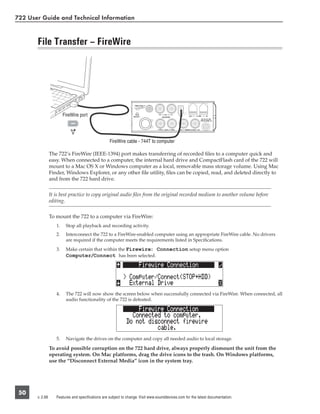
 When connected via FireWire (IEEE-1394a) to a Mac OS or Windows OS computer (see Specifications
 for computer requirements), the internal hard drive and connected CompactFlash storage mediums are
 mounted onto the computer as “letter” accessible drives. Use the appropriate FireWire cable, either
 6-pin to 4-pin or 6-pin to 6-pin, for interconnection. Files on the 722 can be treated as if they are local
 files, including renaming files, copying, and playing directly from the 722 storage medium. No driv-
 ers are required with operating systems meeting the specifications.


 In general, it is good practice to copy all needed audio files from the 722 to a computer before any process-
 ing is performed on the files.


 To connect the 722 for FireWire transfer:
    1.   Stop all playback and recording activity.
    2.   Make certain the 722 battery is fully charged, or connect to external DC.
    3.   Connect the 722 to the host computer with a FireWire cable.
    4.   Initiate connection to the computer by accessing the FireWire: Connection menu option in the
         Setup Menu. Select Computer/Connect or if this has already been selected simply hit STOP then the
         HDD key to initiate a connection to the computer. The 722 will enter FireWire transfer, indicated by
         FIREWIRE CONNECTION on the LCD display. All functions of the 722 are stopped while the 722 is con-
         nected to a computer through FireWire.
    5.   Navigate to either the CF card or hard drive from the computer and copy all needed audio files to local
         storage on the computer.


 To avoid possible directory corruption on the hard drive, do not interrupt the connection process and
 always properly dismount the drives from the operating system. On Mac OS platforms, drag the drive
 icons to the trash. On Windows platforms, use the “Disconnect External Media” icon in the system tray.


 Dismount the 722 after file transfer by “ejecting” the volume from the computer. In Mac OS, drag the
 disk icon from the desktop to the trash or hit -e. In Windows OS, highlight the disk icon, right-click,
 and select “eject”. It is best practice to “eject” the 722 volume from the computer to maintain file
 integrity (see FireWire File Transfer).


                                                                                                                  5
722 User Guide and Technical Information


       Front Panel Descriptions
                 All settings of the 722 can be accessed and monitored through the front panel LCD and navigation
                 keys. This allows the unit to be placed in a production bag along with field mixers and wireless
                 transmitters and receivers.

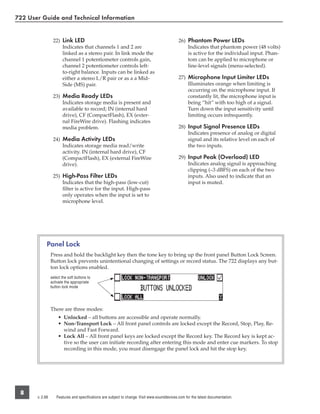
                             1          2         3        4               5                        6       7       8         9       10   11
                                                                                                                                                12
                       29

                   28

                  27

                 26

                       25
                                 24    23    22       21   20   19   18        17     16            15             14                13

                  1) Digital Input LEDs                                                          6) Tone Oscillator
                     Indicates the presence of digital signal                                       Press to activate the tone oscillator, press
                     on the respective input. When flashing,                                         and hold for two seconds or longer to
                     indicates that digital input is selected                                       latch on, press again to deactivate. Fre-
                     but no valid digital clock signal is pres-                                     quency, tone level, and routing are con-
                     ent.                                                                           trolled in the Setup Menu. When in the
                                                                                                    Setup Menu use the TONE key to enter
                  2) Input 1 Gain                                                                   Setup Menu options and select parame-
                     Controls the analog gain (input trim) of                                       ters when the check mark appears in the
                     the channel 1 input. Normal mic input                                          upper right hand corner of the LCD.
                     range is from 25 dB to 70 dB, low gain
                     mic range is from 10 dB to 55 dB, line                                      7) Input-to-Track Matrix LEDs
                     input range is from −6 dB to 18 dB. For                                        Blue LEDs indicate inputs (1 and 2)
                     line-level inputs, this control can be                                         enabled for recording to tracks (A and
                     defeated and gain can be setup menu-                                           B). A solid blue LED indicates an input
                     controlled. If the LCD display shows                                           is routed to a track. A flashing LED dur-
                     “locked” when the pot is turned, gain                                          ing “custom” routing mode shows the
                     control of the line-level input is menu-                                       selected input/track combination.
                     controlled. When inputs are linked as
                     a stereo pair, Input 1 Gain controls the                                    8) INPUT Select Key
                     gain of both inputs.                                                           Pressing the INPUT key brings up the
                                                                                                    input muting and routing menu. Hold
                  3) Input 2 Gain                                                                   down the INPUT key and press one
                     Controls input 2 gain, as in #2 above.                                         of the two indicated soft keys to mute
                     When inputs are linked as a stereo pair,                                       inputs. Pressing the STOP key and the
                     Input 2 Gain controls left-to-right bal-                                       INPUT select key cycles through the
                     ance.                                                                          six factory preset input-to-track routing
                                                                                                    combinations plus the custom routing
                  4) MENU Key                                                                       menu. In the custom routing menu any
                     Used to access all 722 setup menu selec-                                       input can be routed to any track. See
                     tions. When in menu mode, used to                                              Input-to-Track Routing, page 18.
                     move up through the menu selections.
                                                                                                 9) Level Meter LEDs
                  5) LCD Display                                                                    Two, 19-segment track level-meters indi-
                     Primary display of 722 status. The LCD                                         cate level in dBFS. Metering ballistics are
                     is backlit using the LCD backlight con-                                        selected in the setup menu.
                     trol (#15).

 6
       v. 2.66         Features and specifications are subject to change. Visit www.sounddevices.com for the latest documentation.
722 User Guide and Technical Information


10) Power Key                                    16) Fast Forward Key
    Press and hold to power up the 722.              Performs fast-forward (FF) scrubbing
    Press and hold to power down.                    through the played file when pressed in
                                                     playback and play-pause mode. Play-
11) Charge LED                                       pause indicated by flashing A-time on
    Indicates the status of the onboard              LCD. Fast forward rate increases the lon-
    battery charger. Flashes when exter-             ger the key is held. In play-stop mode
    nal power is connected and battery is            (indicated by flashing filename on LCD)
    charging; solid when battery is fully            selects the next file in the record folder
    charged.                                         (either daily folder or main folder).

12) Power LED                                    17) Play Key
    Indicates that the 722 is powered and            Plays back the file displayed in the LCD.
    available for operation. Flashes when            If pressed immediately after recording is
    the removable battery or external DC is          stopped, the most recently recorded file
    in a low-voltage state.                          is played back.

13) Record Key                                   18) Rewind Key
    Used to start recording. The 722 is a            Performs reverse (REW) scrubbing
    record-priority device, pressing this key        through the played file when pressed in
    starts recording and discontinues all            playback and play-pause mode. Play-
    other functions, except file operations.          pause indicated by flashing A-time on
    Pressing key while recording can set a           LCD. Reverse playback rate increases
    cue marker or start a new file, as select-        the longer the key is held. In play-stop
    ed in the setup menu.                            mode (indicated by flashing filename
                                                     on LCD) selects the previous file in the
14) Stop/Pause Key                                   record folder (either daily folder or main
    Press and hold this key for 150 ms to            folder).
    stop recording. In Record Pause mode
    the STOP key will pause the recording,       19) HDD Key (File Viewer)
    pressing it twice will finalize the record-       Press to enter the File Viewer. Any avail-
    ing. In playback mode, a single press            able drive, folder, and valid audio file
    pauses playback (play-pause), allowing           will appear in the file listings. Selected
    audio scrubbing with the FF and REW              drive is shown in white type. Press-and-
    keys. Another press of the key enters            hold to toggle between available drives.
    play-stop mode where the FF and REW              If only one drive is present, press-and-
    keys select files for playback from the           hold is disabled.
    current directory. One more press of the
    key exits playback mode. In the setup        20) Headphone Output Peak LED
    menu the stop key is also used to exit           Indicates overload of the headphone
    from any menu, returning to the main             amplifier. When lit, the headphone cir-
    display.                                         cuit is overloading. Reduce headphone
                                                     level.
15) LCD Backlight Key
    Press to toggle LCD and keyboard             21) LIM LED
    backlighting. Hold the key and turn the          Indicates that the microphone input
    Rotary Switch to adjust the brightness of        limiters are engaged. This LED does not
    LEDs. In menu mode, functions as the             show input limiting activity (see descrip-
    cancel key.                                      tor #27, Microphone Input Limiter LEDs).


                                                                                                  7
722 User Guide and Technical Information


                  22) Link LED                                                                26) Phantom Power LEDs
                      Indicates that channels 1 and 2 are                                         Indicates that phantom power (48 volts)
                      linked as a stereo pair. In link mode the                                   is active for the individual input. Phan-
                      channel 1 potentiometer controls gain,                                      tom can be applied to microphone or
                      channel 2 potentiometer controls left-                                      line-level signals (menu-selected).
                      to-right balance. Inputs can be linked as
                      either a stereo L/R pair or as a a Mid-                                 27) Microphone Input Limiter LEDs
                      Side (MS) pair.                                                             Illuminates orange when limiting is
                                                                                                  occurring on the microphone input. If
                  23) Media Ready LEDs                                                            constantly lit, the microphone input is
                      Indicates storage media is present and                                      being “hit” with too high of a signal.
                      available to record; IN (internal hard                                      Turn down the input sensitivity until
                      drive), CF (CompactFlash), EX (exter-                                       limiting occurs infrequently.
                      nal FireWire drive). Flashing indicates
                      media problem.                                                          28) Input Signal Presence LEDs
                                                                                                  Indicates presence of analog or digital
                  24) Media Activity LEDs                                                         signal and its relative level on each of
                      Indicates storage media read/write                                          the two inputs.
                      activity. IN (internal hard drive), CF
                      (CompactFlash), EX (external FireWire                                   29) Input Peak (Overload) LED
                      drive).                                                                     Indicates analog signal is approaching
                                                                                                  clipping (–3 dBFS) on each of the two
                  25) High-Pass Filter LEDs                                                       inputs. Also used to indicate that an
                      Indicates that the high-pass (low-cut)                                      input is muted.
                      filter is active for the input. High-pass
                      only operates when the input is set to
                      microphone level.


             Panel Lock
                 Press and hold the backlight key then the tone key to bring up the front panel Button Lock Screen.
                 Button lock prevents unintentional changing of settings or record status. The 722 displays any but-
                 ton lock options enabled.
                 select the soft buttons to
                 activate the appropriate
                 button lock mode


                 There are three modes:
                     • Unlocked – all buttons are accessible and operate normally.
                     • Non-Transport Lock – All front panel controls are locked except the Record, Stop, Play, Re-
                       wind and Fast Forward.
                     • Lock All – All front panel keys are locked except the Record key. The Record key is kept ac-
                       tive so the user can initiate recording after entering this mode and enter cue markers. To stop
                       recording in this mode, you must disengage the panel lock and hit the stop key.


 8
       v. 2.66      Features and specifications are subject to change. Visit www.sounddevices.com for the latest documentation.
722 User Guide and Technical Information


LCD Display Descriptions
                                  1               2     3               4


                                                                                5
                        10
                                                                                6
                         9

                                      8                      7

   1) Battery Level Indicator                           7) Headphone Source Display
      Shows the voltage level of the remov-                Indicates the source for headphone out-
      able rechargeable battery or external                put. Sources and selection order are user
      power sources. External power over-                  selectable in the setup menus.
      rides internal power when present.
      Graphical bar for relative level and              8) External Drive Status
      numeric indicator for precise voltage                 (space remaining/record ready)
      measurement.                                          Bar graph indicates amount of record
                                                            time remaining on the external FireWire
   2) File Name Display                                     volume. Numbers show time in hours
      Shows file name actively being recorded                and minutes based on the presently se-
      or played back. In playback-stop mode,                lected number of record tracks, sample
      flashing file name indicates that the fast-             frequency, bit rate, and file type. An as-
      forward and rewind keys can be used to                terisk next to any of the available drives
      step through files in the current play-                indicates that it is selected as a destina-
      back directory.                                       tion for recorded audio.

   3) Absolute Time (A-time) Display                    9) Internal Hard Drive Status
      Shows the elapsed time of the file be-                 (space remaining/record ready)
      ing recorded or played back. Flashes                  Bar graph indicates amount of record
      in playback pause mode. In this mode                  time remaining on the internal hard
      the FF/REW keys will scrub through                    drive. Numbers show time in hours and
      an open audio file. This display can be                minutes based on the presently selected
      set to reverse or flash during recording.              of number of record tracks, sample fre-
      Flashes in playback-pause mode. The                   quency, bit rate, and file type.
      A-time and the 24-Hour Time Counter
      display can be exchanged if a large 24-           10) CompactFlash Status
      Hour Time Counter display is needed.                  (space remaining/record ready)
                                                            Bar graph indicates amount of record
   4) Time & Date Display                                   time remaining on the CompactFlash
      Alternating display between the set date              media. Numbers show time in hours
      and time of the 722. This information is              and minutes based on the presently se-
      written as the creation and modification               lected number of record tracks, sample
      date for generated audio files.                        frequency, bit rate, and file type.
   5) Bit Depth Indicator
      Shows the set record bit depth. In play-        For all three media types, an asterisk in front
      back, shows the file bit depth.                  of the media descriptor indicates that the
                                                      media is selected for recording. Highlighted
   6) Sample Rate Indicator                           drive descriptor indicates drive selected for
      Shows the set record sample rate. In            record monitoring, playback or file directory
      playback, shows the file sample rate.            display.


                                                                                                          9
722 User Guide and Technical Information


                                                                                                                                13


                                                                               12

                                     11                                                                                              14

                 11) 24-Hour Time Counter                                                   13) Cue Marker Display
                     24-Hour time is displayed                                                  In record mode, indicates when cue
                     when the Setup Menu option                                                 markers are set. Markers set by pressing
                     Time Counter: Mode is set to 24h.                                          the record key (option must be selected
                     The A-time and the 24-Hour Time                                            in setup menu). In playback mode, dis-
                     Counter display can be exchanged if                                        plays cue points numerically as they are
                     a large 24-Hour Time Counter display                                       reached in a file.
                     is needed. See 24-Hour Time Counter for
                     details.                                                               14) External Digital Clock Indicator
                                                                                                The 722 is locked to a valid external
                 12) Input 1/2 Level                                                            digital or word clock source when the L
                     When input 1 or 2 gain is turned this                                      is in the display.
                     indicates the gain level in dB for inputs
                     1 and 2. Gain levels can be selected to
                     always be displayed in the Setup Menu
                     option LCD: Gain Display. Normal
                     mic input gain range is from 26 dB to
                     70 dB, low gain mic range is from 10 dB
                     to 50 dB, line input range is from −6 dB
                     to 18 dB. “Locked” will be displayed
                     on the LCD when the pot is turned
                     with digital inputs selected or with line
                     inputs set to menu control.


 10
       v. 2.66    Features and specifications are subject to change. Visit www.sounddevices.com for the latest documentation.
722 User Guide and Technical Information


Left Panel Connectors and Controls
                                       3      4         5         6


                                   1           2    8         7

   1) XLR Input 1/AES3 Input 1&2                    5) TA3 Master (L/R) Analog Outputs
      Dual function input connection. Input            Active-balanced, line-level analog L/R
      type set with switch (see #3). Active-bal-       outputs for the Master Analog Out-
      anced analog microphone- or line-level           puts. Program source and attenuation
      input for input 1. Transformer-balanced          level are user selectable. Pin-1 ground,
      two-channel AES3 input (1 and 2).                pin-2 (+), pin-3 (–).

   2) XLR Input 2                                   6) Headphone Output
      Same as Input 1 above for analog sig-            3.5 mm TRS stereo headphone connec-
      nals. Input type set with switch above.          tor. Can drive headphones from 8 to
      Active-balanced analog microphone- or            1000 ohm impedances to required levels.
      line-level input for input 2.                    Tip left, ring right, sleeve ground.

   3) Mic-Line-AES3 Input Switch 1                  7) Headphone Volume
      Selects the input level and mode of the          Adjusts the headphone volume. NOTE:
      input XLR 1 connector.                           the 722 is capable of producing ear-dam-
                                                       aging levels in headphones.
   4) Mic-Line Input Switch 2
      Selects the input level, mic- or line-level   8) Tape Output
      of input XLR 2. NOTE: there are two re-          Unbalanced tape (–10 dBV nominal)
      dundant switch positions for line-level.         output on 3.5 mm TRS stereo connector.
                                                       Signal source is identical to the Master
                                                       Output Bus. Tip left, ring right, sleeve
                                                       ground.


                                                                                                  11
722 User Guide and Technical Information


       Right Panel Connectors and Controls
                                                                                 1         2            3


                                                             7                       6             5            4

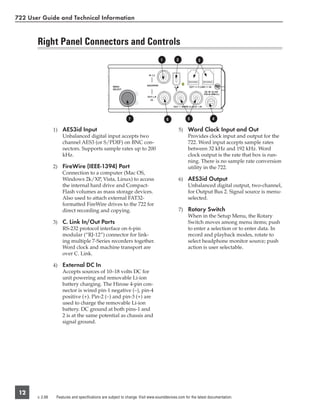
                 1) AES3id Input                                                               5) Word Clock Input and Out
                    Unbalanced digital input accepts two                                          Provides clock input and output for the
                    channel AES3 (or S/PDIF) on BNC con-                                          722. Word input accepts sample rates
                    nectors. Supports sample rates up to 200                                      between 32 kHz and 192 kHz. Word
                    kHz.                                                                          clock output is the rate that box is run-
                                                                                                  ning. There is no sample rate conversion
                 2) FireWire (IEEE-1394) Port                                                     utility in the 722.
                    Connection to a computer (Mac OS,
                    Windows 2k/XP, Vista, Linux) to access                                     6) AES3id Output
                    the internal hard drive and Compact-                                          Unbalanced digital output, two-channel,
                    Flash volumes as mass storage devices.                                        for Output Bus 2. Signal source is menu-
                    Also used to attach external FAT32-                                           selected.
                    formatted FireWire drives to the 722 for
                    direct recording and copying.                                              7) Rotary Switch
                                                                                                  When in the Setup Menu, the Rotary
                 3) C. Link In/Out Ports                                                          Switch moves among menu items; push
                    RS-232 protocol interface on 6-pin                                            to enter a selection or to enter data. In
                    modular (“RJ-12”) connector for link-                                         record and playback modes, rotate to
                    ing multiple 7-Series recorders together.                                     select headphone monitor source; push
                    Word clock and machine transport are                                          action is user selectable.
                    over C. Link.

                 4) External DC In
                    Accepts sources of 10–18 volts DC for
                    unit powering and removable Li-ion
                    battery charging. The Hirose 4-pin con-
                    nector is wired pin-1 negative (−), pin-4
                    positive (+). Pin-2 (−) and pin-3 (+) are
                    used to charge the removable Li-ion
                    battery. DC ground at both pins-1 and
                    2 is at the same potential as chassis and
                    signal ground.


 12
       v. 2.66    Features and specifications are subject to change. Visit www.sounddevices.com for the latest documentation.
722 User Guide and Technical Information


Back Panel Descriptions


                 1             2                         3               4

   1) Security Slot                               3) Battery Mount
      Compatible with the Kensington® Secu-          Accepts Sony® InfoLithium L- or M-
      rity Slot specification. Useful for secur-      Series removable rechargeable batteries,
      ing the recorder to a fixed object with a       or batteries conforming to this mount.
      compatible computer lock.                      Numerous capacities, from 1500 mAh to
                                                     7000 mAh are accommodated.
   2) CompactFlash Slot
      Accepts CompactFlash medium with the        4) Battery Release Pin
      label-side up. Compatible with Type I,         Push down the pin with a long skinny
      Type II, and MicroDrives.                      object such as a key, screwdriver, or a
                                                     pen. With the pin pushed in, slide the L-
                                                     or M-Series battery to the right to release
                                                     the battery


                                                                                                   13
722 User Guide and Technical Information


       Input Setup and Control
                 The 722 has two inputs and two record tracks. Inputs are selectable between analog or digital sourc-
                 es. Analog inputs are connected with the balanced XLR connectors; digital inputs can be connected
                 to either XLR Input 1 (AES3) or the BNC input (AES3id).

            Input Source Selection
                 Input types are selected in pairs. Each input pair accepts analog or digital audio. The XLR input
                 signal is selected with slide switch above the connector.
                 Manually selecting the audio source is used to force the inputs to analog while using an AES3 or
                 AES3id input to lock the 722 to an external sample rate.
                 Digital sources connected to AES3id BNC inputs override analog signals on the corresponding XLR
                 input. The BNC input signal type is set in the menu settings Input 1,2: Source. For most situations
                 the appropriate setting is auto select—the 722 will choose the input type based on signal present.
                 The 722 is capable of off-speed sample rates when clocked from either external digital inputs or the
                 word clock input.
                 Input sources can be set to “disabled (power save)”. This option shuts down all circuitry associated
                 with the inputs to reduce power draw and extend battery runtime during playback. When an input
                 pair is disabled, the digital input LEDs associated with the pair will flash.

            Analog Inputs
                 Analog inputs 1 and 2, on XLR connectors, are the primary connections into the recorder. These
                 inputs accept balanced or unbalanced mic- or line-level inputs. When at mic-level, gain is controlled
                 by the front panel potentiometers. Gain for the line level inputs can be controlled by the front panel
                 potentiometers or menu settings. Line input gain is controlled in 0.1 dB steps.


                 A digital input present on the BNC inputs will override an analog signal present on the XLR inputs un-
                 less the input source is set to analog in the setup menu.


                 In the setup menu, the following functions can be controlled for analog inputs 1 and 2:
                 Phantom Power
                 Phantom power (48 volts) can be activated for inputs 1 and 2. When active, phantom is indicated by
                 front panel LEDs (    ).


                 Phantom power is available for both mic- and line-level inputs. Using line-level inputs with microphones
                 is useful in high SPL environments such as concert recording. Make certain to turn off phantom power
                 with line level output devices susceptible to damage from DC.


                 Shortcut: To toggle phantom power without entering the menus, press and hold the tone key then
                 press the menu key for channel 1. Channel 2 phantom can be toggled by pressing the tone key then
                 pressing the HDD key. If the inputs are in line level mode, phantom power will not activate from the
                 shortcut keys and must be activated from the menus. Phantom power is linked when the inputs are
                 linked. (See Input Linking)
                 Input Limiters (mic-level only)
                 Microphone inputs 1 and 2 each have a limiter circuit designed to prevent input overload. In nor-
                 mal operation, with proper gain settings, the limiters should rarely engage. When activated, these


 14
       v. 2.66      Features and specifications are subject to change. Visit www.sounddevices.com for the latest documentation.
722 User Guide and Technical Information


 limiters will prevent unusually high input signal levels from clipping the analog input stage of
 the preamp. The front panel LIM LED (         ) shows that the limiter is engaged. Limiter activity is
 indicated by additional front panel LEDs, one for each input channel (        ). The input limiters are
 active only with mic-level inputs. The limiters are engaged by (factory) default.


 When limiters are engaged, audio on channels 1 and 2 is limited to −6 dBFS.

 Microphone Level Control
 Microphone gain is controlled by the front panel recessed knobs. The gain control adjusts an analog
 gain stage and functions similarly to the input trim on a mixing console or stand-alone microphone
 preamplifier. Gain is controllable over two ranges, normal and low.
 Gain Range (microphone-level only)
 The microphone inputs operate in four gain ranges, normal, normal fades to off, low,
 and low fades to off. The normal range controls input gain from 24.3 dB to 67.4 dB of gain.
 The low range controls input gain from 9.3 dB to 52.4 dB. The low ranges are useful for high
 SPL recording environments. The fade to off options allow for fader-like control of your gain.
 Normal fades to off provides a gain range of off or 0 to 67.4 dB and low fades to off pro-
 vides a gain range of off or 0 to 52.4 dB.
 High-Pass Filters (microphone-level only)
 The high pass filters on the microphone inputs use a combination of analog and digital filters to re-
 duce sensitivity to low frequency signals. When the high-pass is engaged on an input, its front-panel
 LED illuminates to indicate it is active (    ). The first pole of the high-pass circuit is an analog filter
 at 40 Hz, 6 dB per octave and is part of the microphone preamplifier circuit. Additional poles of
 high-pass filtering are done in DSP.
 Several frequency and slope combinations are selectable, including corner frequencies of 40, 80, 160,
 or 240 Hz, and filter slopes of 12 dB, 18 dB, or 24 dB per octave. The high-pass is selected for each
 input independently.
 Shortcut: The filters can be toggled with a two-key combination. Press and hold the      LCD back-
 light key and press the      menu key for channel 1 high-pass. Press and hold the     LCD backlight
 key and press the       HDD key to toggle channel 2 high-pass. The high pass filters are linked when
 the inputs are linked. (See Input Linking)
 Line-Level Gain Control
 When in line-level position, the gain for inputs 1 and 2 is controlled by the front panel recessed
 potentiometers or by a menu sensitivity setting. When set for front panel control in the user menu,
 Line Input 1: Gain and Line Input 2: Gain controls in the user menu are lined out and not ac-
 cessible.

Input Linking (Stereo or MS Decoding)
 Analog inputs 1 and 2 can be linked as a stereo pair. When linked, the channel 1 front panel potenti-
 ometer controls the signal level of both inputs, and the channel 2 pot controls the left-to-right balance
 of the pair. When the inputs are linked, their peak limiters are linked, as well.
 When set to link as an MS pair, the inputs are decoded as left/right stereo, where the gain and bal-
 ance for the pair work the same as stereo linking above. Input 1 is for Mid signal, input 2 for Side
 signal.
 When the inputs are linked, phantom power and the high pass filters also act as linked pairs. Engag-
 ging and disengaging phantom power or the high pass filters on input one will force the same func-


                                                                                                              15
722 User Guide and Technical Information


                 tion upon input two. Engaging or disengaging phantom power or the high pass filter on input two
                 causes no effect on input one.


                 If MS stereo linking is selected for inputs, program sent to tracks and headphones will be L/R stereo pro-
                 gram. To record discrete M and S signals, do not link for MS, but monitor the MS signal in headphones.

                 Things to consider when Linking Input 1,2 as MS:
                    • Digital Inputs cannot be linked as an MS pair.
                    • If linking Line Inputs as an MS pair, the Setup Menu option Line Input 1,2: Gain Ctrl
                      must be set to Use Front Panel Knobs.

            Digital Input – AES3
                 The 722 accepts AES3 (AES/EBU) balanced digital at the input 1 XLR connector. Digital input is two-
                 channel—AES3 signals on XLR-1 appear at inputs 1 and 2. To use the AES3 input, the input mode-se-
                 lect switch must be set to AES/EBU. There is no level control for AES inputs.

                         The front panel digital input LEDs illuminate when digital signal is selected as input. If the
                 LED is flashing, digital input is selected but a no valid digital clock is being received.

            Digital Input – AES3id (S/PDIF)
                 The 722 accepts AES3id and S/PDIF unbalanced digital signals on the BNC connector. The 722 will
                 auto detect the type of digital signal and adjust accordingly. Like AES3 signals, this is two channel
                 input. There is no level control for AES3id inputs.
                 AES3id inputs override analog signals present at the XLR inputs. To use analog sources while using
                 the AES3id signal as a digital clock source, select analog in the input source menu selection.
                 When a digital signal is present, the 722 locks its sample rate to its source frequency. This lock is indi-
                 cated by a highlighted block on the main LCD display to the right of the bit depth and sample rate
                 indicators. Recording bit depth is independent of the external digital source.
                 When locking the 722 to an external digital signal, be certain the source is stable. Loss of digital
                 signal will cause the 722 to revert to its internally set sample rate, even while recording. The portion
                 of the file recorded after the loss of signal may not play back properly. Once recording has begun,
                 unused digital inputs are muted, digital signals that appear on them after the record key has been
                 pressed will not be recorded or affect the sample rate of the 722.


                 The 722 clocks itself to the first digital signal presented to it. If the 722 detects a digital signal on the
                 BNC inputs and locks to that signal, a digital signal applied to the XLR input will be ignored until the
                 first digital signal is removed.


            Signal Presence and Peak Indicator
                      The signal presence and peak indicators show audio activity before input-to-track routing. In-
                 put signal presence LED’s illuminate when a –50 dBFS or greater signal is present. Input signal peak
                 LEDs illuminate when signal levels reach –3 dBFS or greater.

            Input Delay
                 A digital delay is selectable on each channel of the 722. Delay time per input is selectable in tenths of
                 a millisecond (0.1 msec) steps. The Rotary Switch and menu arrows are accelerated. The more you
                 press or spin, the faster the time setting will increase or decrease. Delay is not set until the Rotary


 16
       v. 2.66      Features and specifications are subject to change. Visit www.sounddevices.com for the latest documentation.
722 User Guide and Technical Information


  Switch is pressed or or the check mark is selected. The amount of delay available is dependent on the
  sampling frequency in use.

   Sample Frequency                            Maximum Amount of Delay Available (per input)
   32, 44.1, 47.952, 48, 48.048 kHz            30 mS
   88.2, 96, 96.096 kHz                        15 mS
   176.4, 192 kHz                              7.5 mS

  Input delay can be useful for time aligning input signals from differing sources. For example, digital
  wireless mics that have a processing delay in their outputs. In addition, all digital conversion stages
  have delay.


Input-to-Track Routing
  The 722 uses a flexible routing scheme to assign inputs and tracks for recording. The input matrix
  allows any input to be routed to any recording track. Multiple inputs can be routed to a single track
  to create mono-mixed recordings.
  The 2-by-2 blue LED matrix makes it easy to view the set routing. A solid blue LED indicates an
  input is assigned to a record track.


                    inputs can be routed to
                    tracks in any of sixteen
                    possible combinations


  Pressing the            INPUT key brings up the following menu.


 Routing
  Hold down the STOP key then press the         key to cycle through the four preset input-to-track rout-
  ing combinations. These presets are factory set and cannot be changed. The last three preset selec-
  tions are Custom Route options. Press the EDIT soft key to enter the custom routing menu. Custom
  routing allows any input to be assigned to any record track. In the menu, highlighted input and track
  combination are displayed in white text. The two inputs are shown on the left; the two record tracks
  are shown on the right.


                                                                                                              17
722 User Guide and Technical Information


                 To assign custom input routing:
                     1.    Press the           input key until Input Routing is displayed in the LCD display.
                                                                        arrow indicates highlighted
                                                                        input is assigned to high-
                                                                        lighted track
                                                                                                                          select to exit menu and
                                                                                                                          apply selected routing

                                selet to move up
                                and down menu
                                                                                                                        select to remove
                                                                                                                        input assignment

                     2.    Press the EDIT soft button (                ) and scroll to the appropriate input screen.
                     3.    Using either the Rotary Switch or the up and down arrows, navigate to desired input-to-track combina-
                           tions.
                     4.    When a chosen pairing is highlighted press either the ASSIGN soft key or the Rotary Switch to assign
                           the combination. Assigned tracks are noted on the screen by the addition of an arrow pointing to the
                           record track. The LED routing matrix will also show a flashing blue LED for the currently selected
                           input-to-track combination.
                     5.    Once a track is assigned move to the next input-to-track combination desired.
                     6.    To remove an input-to-track combination assignment, navigate that combination and press the
                           UNASSIGN soft key.
                     7.    Exit and complete the assignment by pressing the check mark soft key.


                 The input routing menu will always exit to the main screen whether entered from the input key or the
                 menu selection.


            Selective Input Muting
                 When the INPUT key is pressed, individual input muting is available. This feature can be used to
                 quickly mute microphones while maintaining their respective track assignments.
                                            Indicates that an input is avail-
                                            able for routing.

                                            No indication here shows that
                                            an input is muted.

                 A solidly lit input Peak LED indicates that an input is muted.

                 A solid illuminated Peak
                 LED indicates that an
                 input is muted

                 Mono- and polyphonic files behave differently when selective muting is applied. When monophonic
                 files are selected, files from tracks A and B are named with the suffix “_1 and _2” respectively. If, for
                 instance, track A is muted but trackB is still selected, the resulting file will be named with the suffix
                 “_2” and track A will not be recorded, saving storage space.
                 When polyphonic file type is selected in the same scenario as above with track A muted, the result-
                 ing data file will be a two-track file with track A being a blank track. Blank tracks in polyphonic files
                 take up the same amount of storage space as tracks that are assigned.


 18
       v. 2.66       Features and specifications are subject to change. Visit www.sounddevices.com for the latest documentation.
722 User Guide and Technical Information


Sampling Rate and Bit Depth
  When recording the 722 generates uncompressed PCM audio WAV files in the Broadcast Wave File
  format at the user-selected sampling rate and bit depth. The 722 LCD calculates available recording
  time based on the sampling rate, bit depth, number of tracks set for recording and the selected stor-
  age media available capacity. See the Calculating Recording Time later in this guide to estimate record
  time.

 Sampling Rate
  When a sampling rate is selected for recording, all tracks are recorded at the selected sampling
  rate. Sampling rates are selected among common rates from 32 kHz to 192 kHz. Additionally,
  non-standard sampling rates can be applied when the 722 is word clocked from an external source
  (clock sources between 32 kHz and 192 kHz). When recording off-speed sampling rates files will be
  stamped with the rate closest to an internally generated frequency.


  Relationship Between Sampling Frequency and Audio Bandwidth
  The sampling frequency is expressed in samples per second (in hertz) and defines the number of
  times in a second that the analog audio signal has been measured. Sampling frequency determines
  the audio bandwidth, or frequency response, that can be represented by the digital signal. A quick
  estimate of the maximum bandwidth capable of being represented at a given sampling rate is maxi-
  mum analog frequency = sampling frequency/2. Higher sampling frequencies allow for wider audio
  bandwidth.
  The 722 generates the following sampling rates:
          •   32 kHz                                       •   88.2 kHz
          •   44.1 kHz                                     •   96 kHz
          •   47.952 kHz                                   •   96.096 kHz
          •   47.952kF - file stamped at 48 kHz             •   96.096kF - file stamped at 96 kHz
          •   48 kHz                                       •   176.4 kHz
          •   48.048 kHz                                   •   192 kHz
          •   48.048kF -file stamped at 48 kHz

 Bit Depths
  The 722 records at bit depths of either 16 or 24 bit. 24 bit recording provides greater dynamic range
  and addition headroom for signal peaks relative to 16 bit recordings. 24 bit recording (versus 16 bit)
  is a significant benefit for field production audio tracks.
  Bit Depth = Available Dynamic Range
  Bit depth defines the digital “word length” used to represent a given sample. Bit depth correlates to
  the maximum dynamic range that can be represented by the digital signal. Larger bit depths accom-
  modate more dynamic range. A quick estimate of maximum dynamic range capable of being rep-
  resented by a given word length is dynamic range ~= no. of bits x 6 dB. Bit depth is an exponential
  measure (exponent of 2), so as bit depth increases, the amount of data it represents increases expo-
  nentially. The majority of field recording is done with 16-bit audio, therefore, each sample is rep-
  resented by a digital word of 2^16 (65,536) possible values. 24-bit audio has a word length of 2^24
  (16.7 million) possible values per sample.


                                                                                                            19
722 User Guide and Technical Information


                 The 722 has 24 bit analog-to-digital converters. To obtain 16 bit recording the 722 can be set to dither
                 24 bit digital signals to 16 bit. The 722 uses a proprietary pseudo-random dither routine for accurate
                 bit rate reduction. Dither can be defeated in the user menu. Without dither, 24 bit audio is truncated
                 to 16 bit, meaning the least significant 8 bits are discarded.


                 Once a file is recorded its sampling rate and bit depth can not be changed in the recorder. The 722 does
                 not perform sample rate conversion or bit depth changes. File conversion must be done in another en-
                 vironment, such as an audio workstation. Alternatively, a real-time analog transfer is often performed
                 instead of sample rate conversion.


       Word Clock
                 Stable word clock is fundamental to high quality a digital audio signal. The 722 uses a highly-stable
                 crystal to generate its internal word clock frequencies. The 722 can clock external devices from its
                 word clock and accept external clock sources for recording.
                 The 722 disregards external clock, both AES and word clock, during playback.

                 Clock Master
                 When sending digital audio to several devices, one unit is designated as the word clock master and
                 the others as slaves. Generally, the device with the analog-to-digital converter is designated as the
                 word clock master.
                 The 722 can function as an A/D converter and can be used as the master word clock source. Slaved
                 devices will derive their word clock timing from either their digital audio inputs, S/PDIF or AES/
                 EBU, or through their word clock input connection. As a word clock master the 722 generates word
                 clock whether or not audio is sent.

            Clock Slave
                 When using an external digital preamplifier connected to the 722 inputs, the recorder can derive its
                 clock signal from the AES (S/PDIF) stream (it will slave to the external device), or the external device
                 can be slaved from the 722 (if the external device has word clock input or accepts clock from the
                 722’s digital output). If, for example, you are using a wireless receiver with a digital output, it may
                 not have an external word clock input, and will be the word clock master.
                 If digital audio is connected to the 722 from more than one digital device, you must word clock the
                 sources to the same clock, otherwise variations between the sources will render their signals unus-
                 able.
                 If the 722 is slaved to external word clock, be certain that the source is stable. Loss of the word clock
                 signal during recording can cause the 722 to revert back to its internally set sampling frequency. If
                 this occurs, the portion of the file recorded after the loss of word clock may not play back at the prop-
                 er speed. For reliability, set the 722 to the same sample frequency as the word clock source. Loss of
                 the word clock signal in this case will likely cause a glitch in the file, but the file may still be usable.


 20
       v. 2.66      Features and specifications are subject to change. Visit www.sounddevices.com for the latest documentation.
722 User Guide and Technical Information


C. Link – Multi-Unit Linking
 The proprietary C. Link (control link) connection allows multiple 702, 702T, 722, and 744T record-
 ers to be connected and clocked together. C. Link also enables connection to external keyboards and
 switch contacts using the CL-1 Remote Control and Keyboard Interface.
 When linked, 7-Series recorders have a master/slave relationship. The master recorder and the slave
 unit will share sample accurate start and stop record times. Multiple units can be daisy-chained
 together to record many tracks. The C. Link protocol links carries the following data:
    • word clock
    • time code information (702T and 744T only)
    • RS-232 machine transport data


                             master                     slave                     slave
                              unit                       unit                      unit

 To link units:
    1.   Connect multiple units as shown in the illustration.
    2.   Set all linked recorders to the same sample rate, bit depth, file format, and time code frame rate (for
         702T and 744T recorders). This will ensure that all files generated are compatible.
    3.   Set scene and take numbers on all linked recorders to the same starting file name. There is no file name
         synchronization with multiple unit linking.

 When linked, record start and stop on slave units will not affect units “above” it in the linked chain.
 This makes it possible for units to get out of synchronization if a unit other than the master is set to
 record or stop. Using the master unit will assure that all machines begin and end recording together.
 Master/Slave relationships between C.Linked recorders is established immediately after the C.Link
 Out to C.Link In connection is made. To reverse the Master/Slave relationship, power down all
 recorders, establish the new Master/Slave relationships by reconnecting the C.Link Out to C.Link In
 connectors in the desired sequence, then power on all units in order of their Master/Slave relation-
 ships


 The C. Link jack is a proprietary RS-232 port. Under no circumstances should analog or digital telephone
 lines be connected to either jack. Serious damage could result.


                                                                                                                  21
722 User Guide and Technical Information


       Outputs – Analog and Digital
                 The 722 has two discrete output buses, the Analog Output Bus (Bus 1) and the Digital Output Bus
                 (Bus 2). Each side (left and right) of the two-channel buses are assigned their audio sources indepen-
                 dently, enabling the 722 to feed multiple audio devices with unique program content.
                 The chart below shows the audio sources available for the analog and digital output buses. The au-
                 dio source for each output is selected in the setup menu.

                  Available Output Sources                                                              Description
                                                            Inputs are assignable for each channel of the output bus.
                 Input 1
                 Input 2                                      When inputs are selected as the source for the outputs, the state of recording or playback activity has no
                                                              effect on the output signal. This allow uninterrupted input audio at the output.

                 Track A                                    Track assignments and playback audio.
                 Track B
                 Input 1,2                                  Multiple inputs are summed with these selections.
                 Track A,B                                  Multiple track assignments are summed with these selections.


            Analog Output Bus
                 Audio signals routed to the Analog Output Bus (Bus 1) are sent to three output connections:
                    • analog line out, TA3 x 2, two-channel
                    • analog tape out, 3.5 mm TRS, two-channel
                 Analog Line Out L, R
                 The analog line outputs are active-balanced line-level signals on Switchcraft TA3M locking connec-
                 tors. The output level is a nominally 0 dBu at −20 dBFS. The level of the line output can be attenuated
                 in the setup menu by up to 40 dB in 1 dB increments. Attenuation is done as an output pair.
                 Analog Tape Output
                 The tape output connection is stereo, unbalanced consumer output level (–10 dBV) on a TRS 3.5 mm
                 connector. Output attenuation affects this output level.

            Digital Output Bus
                 Just as with the Analog Output Bus, the Digital Output Bus (Bus 2) can be assigned signal sources
                 from inputs or tracks. Sources assigned to the Digital Output Bus are exclusive and do not affect the
                 assignments to the Analog Output Bus or headphone assignments. The same signal sources available
                 for the Analog Output Bus are available for Digital Output Bus (see chart above).
                 The Digital Output Bus appears solely on the AES3id BNC output connector. The unbalanced
                 AES3id output is directly compatible with most S/PDIF inputs.


                 The format for the AES3id output is selectable between professional AES and SPDIF. In either case
                 the SCMS bit is not set.
                 The maximum output level is 0 dBFS and can be attenuated in the setup menu in 1 dB increments by
                 40 dB.


 22
       v. 2.66      Features and specifications are subject to change. Visit www.sounddevices.com for the latest documentation.
722 User Guide and Technical Information


Headphone Output
  The 722 headphone output is a flexible tool for monitoring audio in the field. The 722 allows the user
  to monitor inputs, tracks, and post-record tracks in a number of combinations. MS stereo monitoring
  is also available in headphones.
  The headphone output is independent of the Master Output Bus and the Output Bus 2—audio
  sources can be routed to headphones independent of routing assignments to output buses.


  The 722 is capable of driving headphones to extremely high sound pressure levels. Hearing experts advise
  against exposure to high sound pressure levels for extended periods.


 Selecting Headphone Sources
  The headphone source display on the main LCD screen (                ) shows the audio sources sent to
  headphones. The 722 comes from the factory with several preset headphone audio source selections
  available on the Rotary Switch. These selections include inputs, tracks and track monitors. Turn the
  Rotary Switch to select among the available headphone monitoring sources.
  Track Monitoring While Recording (Confidence Monitoring)
  The 722 can monitor actual recorded audio written to the internal hard drive or CompactFlash dur-
  ing recording. This is commonly referred to as “confidence monitoring”. To monitor recorded tracks,
  during recording select one of the track monitor modes. Because of the record buffering topology
  of the 722, a delay of up to 12 seconds can be expected before recorded audio appears at the output.
  The 722 will play back recorded audio from the media highlighted on the LCD panel (see File Man-
  agement and Copying for more information on selecting and highlighting storage medium).

 Setting Headphone Source Options
  In addition to the 5 preset headphone routings, a total of 20 available “slots” can be filled in a user
  defined order. Headphone monitoring sources are selected from combinations of inputs, tracks, and
  post-record tracks, including stereo and MS decoding. The order of headphone selections is user-se-
  lectable. Available sources for headphone monitoring include:

            HP Sources                                                         Description
   Inputs 1,2                    Stereo monitoring of input pairs. Input 1 is assigned to left headphone output; input 2 is assigned to
                                 right headphone output.
   Tracks A,B                    Stereo monitoring of track pairs. Track 1 is assigned to left headphone output; track 2 is assigned to
                                 right headphone output. Upon playback, will play as track monitor.
   Monitor A,B                   Stereo monitoring of playback (post-record) track pairs. Track 1 is assigned to left headphone output;
                                 track 2 is assigned to right headphone output.
                                   When using the recorded track monitor selection, there is a sample rate dependent delay in the signal. At 48
                                   kHz sampling, the delay is approximately 12 seconds. This delay is due to the record buffering topology. Audio
                                   can not be monitored until it has left the record buffer and written to the recording media.

   Input 1, 1                    Solo monitoring of selected input. This signal is sent to both sides of the headphones.
   Input 2, 2
   Track A, A                    Solo monitoring of selected track. This signal is sent to both sides of the headphones. Upon playback,
   Track B, B                    will play as track monitor.
   Monitor A, A                  Solo monitoring of playback (post-record) track. Highlighted media is source of monitor program. This
   Monitor B, B                  signal is sent to both sides of the headphones. When not in playback, headphones have no program.
   Inputs 1, 2 (MS)              Stereo monitoring of discrete M (mid) and S (side) input pairs. Highlighted media is source of monitor
                                 program.


                                                                                                                                                    23
722 User Guide and Technical Information


                          HP Sources                                                              Description
                  Tracks A, B (MS)                      Stereo monitoring of discrete M (mid) and S (side) track pairs. Highlighted media is source of monitor
                                                        program. Upon playback will function as MS track monitor.
                  Monitor A,B (MS)                      Stereo monitoring of playback (post-record) discrete M (mid) and S (side) track pairs. Highlighted
                                                        media is source of monitor program. When not in playback, headphones have no program.
                  Inputs 1+2, 1+2                       Summed inputs appear in each ear for summed mono monitoring of both inputs.
                  Tracks A+B, A+B                       Summed tracks appear in each ear forsummed mono monitoring of both tracks.


                 When tracks (A or B) are monitored in headphones, audio assigned to the tracks is heard in headphones
                 during recording. During playback the recorded track audio is heard in headphones.


                 To set the available headphone source options for headphone monitoring enter the HP: Monitor
                 modes menu. Once you enter the Monitor Modes menu you will immediately be in slot-1. Rotate the
                 Rotary Switch to select the source you wish to appear first in your Headphone monitor list. Once the
                 chosen source appears, press the Rotary Switch or the soft key ENTER (tone) key to move to the next
                 slot. Continue down the list to select the source for each slot in the list. Once all sources have been
                 chosen, press (done). This will exit the headphone monitor mode setup. You can exit the selection
                 process by pressing the stop or cancel (backlight) key at any time.


                 If DONE is pressed in the first headphone slot, the 722 will select a single option (Tracks A, B) for head-
                 phone monitoring. The 10 factory presets will be erased.


            MS Stereo Monitoring
                 The MS stereo mode decodes discrete Mid-Side stereo signals to a left/right stereo signal for moni-
                 toring purposes. This allows for a proper stereo signal to be monitored in the field while discrete
                 M and S signals are recorded for later post production. For the MS decoder to operate properly, the
                 Mid signal is connected to input 1 and the Side signal is connected to input 2. The amount of stereo
                 “spread” is fixed to a 50/50 percentage from Mid to Side signal.


                 If MS is selected for input linking, do not use MS stereo monitoring. This would result in two MS decod-
                 ers being inserted in the signal path. The resulting audio in the headphones would be the discrete M and
                 S signals!


            Rotary Switch Behavior
                 The action of the Rotary Switch during recording and playback is set from among the three available
                 options:
                    • Disabled: pushing the Rotary Switch has no effect.
                    • Selects Favorite Mode: places the headphone source into the mode selected in the HP Favorite
                      menu.
                    • Playback/Monitor Drive Select: pushing the Rotary Switch toggles between CompactFlash,
                      internal hard drive, and external hard drives for playback and monitoring while recording.


 24
       v. 2.66      Features and specifications are subject to change. Visit www.sounddevices.com for the latest documentation.
722 User Guide and Technical Information


 Headphone Favorite Selection
  If “Selects Favorite Mode” is selected from the choices above, pushing the Rotary Switch
  selects the assigned “Headphone Favorite” source. This feature is helpful to quickly return to a se-
  lected headphone monitoring selection while recording or playing. One of the available headphone
  selection can be selected as the headphone favorite.

 Headphone Playback Mode
  The user may select a headphone source for automatic selection upon playback. All headphone
  source selections are available for Headphone Playback Mode, as well as “No Change”, which leaves
  the headphone source set to the currently selected mode. Headphone Playback Mode is controlled in
  setup menu #61.

 Headphone Warning Tones
  The 722 can generate an audible beep, or warning “bell”, in the headphones when an error has oc-
  curred. The specific error will be reported on the LCD. The output level of the warning bell is menu-
  selectable from off to –12 dBFS in the setup menu.
  Recording Start and Stop Bells
  If the Setup Menu option HP: Record/Stop Bell is enabled, the 722 will generate beeps to alert
  the user of the recorder’s current status. These beeps are only sent to the headphone monitor, these
  beeps are not present in the recordings or at the analog outputs.

                                   7-Series Status                          HP: Bell
                         Recording                                One 440 Hz beep
                         Paused (if using Rec: Record Pause)      One 220 Hz beep
                         Stopped                                  Two 220 Hz beeps

  Low Battery Warning
  When either the attached battery or external power supply voltage reaches their low warning levels
  (6.5 V for the attached Li-ion, 11.0 V or user-selectable for external) warning tones are played in
  headphones. The warning tone is a three pop note of 880 Hz every 20 seconds.
  If all warning tones are turned off, no tones are sent to headphones, including low battery warning
  tones.


Metering and Display
  The 722 features a 38-segment LED (2 x 19) signal level meter. The DSP-controlled meter provides
  a selection of ballistics and lighting intensities. In addition, peak indicators on input channels show
  overload activity.

 Output Meter

                                                 0 dBFS track LEDs are programmable as
                                                 peak LEDs
                                                 (0 dBFS to −20 dBFS)


                                                                                                            25
722 User Guide and Technical Information


                 The meter uses energy efficient LEDs viewable in full sunlight. The 722 output meter is unaffected
                 by shock or extremes in temperature and humidity. Meter ballistics are setup menu selectable among
                 VU, Peak, Peak-Hold, VU + Peak and VU + PeakHold.
                 The meter uses a compound metering scale which increases meter resolution in the most important
                 part of the scale. From −50 to −40 dBFS, each LED segment equals approximately 10 dB. From −40 to
                 −12 dBFS, each segment equals 2 dB. From −12 to 0 dBFS each segment equals 4 dB.

            Meter Ballistics
                 The output meter can be set to display any of five types of meter ballistics: VU, Peak, Peak-hold,
                 a combination of VU and Peak, and a combination of VU with Peak-hold. The meter ballistics are
                 selected in the setup menu.


                 VU - (Volume Units)
                 Ballistics correspond closely to how the human ear perceives loudness and provides a good visual
                 indication of how loud a signal will be. In VU mode, the attack and decay of the meter signal is
                 300 mS. While giving a very good visual indication of perceived loudness, VU meters gives poor
                 information on actual signal peaks and are virtually useless for tracking to the 722. In VU mode, the
                 front panel meter labeling is in volume units.
                 Peak
                 Peak-reading ballistics correspond to actual signal maximums, but don’t necessarily correspond to
                 perceived signal loudness. A peak meter has a near-instantaneous attack to display maximum signal
                 amplitude and a slow decay to allow the user to see them. Peak metering is essential for digital re-
                 cording, since signal overload can cause immediate distortion. The peak meters front panel markings
                 are calibrated in dBFS, decibels relative to full-scale digital signal.
                 Peak Hold
                 Essentially the same as Peak metering where the peak level indication will hold for the peak level
                 indication for several seconds. Peak-hold indicators are useful for metering in applications when an
                 overload condition is unacceptable.
                 Peak/VU
                 The meter can simultaneously display VU and Peak level information. In this mode the perceived
                 loudness (VU) is displayed on a bar graph, and the Peak signal on a dot above the VU. With this
                 combination the user gets the best of both VU and Peak metering by seeing both the “loudness” of
                 the signal and the peaks at the same time. Peak/VU is the factory default.
                 Peak Hold/VU
                 Similar to VU/Peak mode, this mode holds the peak level indication for several seconds before
                 releasing. Peak Hold indicators are useful for metering in applications when an overload condition is
                 unacceptable.


 26
       v. 2.66      Features and specifications are subject to change. Visit www.sounddevices.com for the latest documentation.
722 User Guide and Technical Information


Peak LEDs

                               input peak LEDs


                               input signal present LEDs


                               headphone peak LED


 In addition to the main LED output meter, peak LEDs show input peaks, track peaks, and head-
 phone peaks.
 Input Peak
 The 722 has a peak LED associated with each input. These LEDs illuminate when input signal
 reaches –3 dBFS. There is no user-adjustment to the Input Peak LEDs. These LED’s also function as
 indicators of input mute activity (see Input-to-Track Routing).
 Track Peak
 The 0 dBFS LED on each track can also function as a track peak indicator. The user can select a signal
 threshold above which the 0 dB LED will flash.
 Headphone Peak
 Like the channel peak LEDs, the headphone circuit has an indicator for peak overload. This LED is
 useful, since headphones can often overload before the recorder overloads. Monitoring without a
 visual indication of headphone clipping may mislead the operator into thinking that the output or
 return tracks are distorting.

Tone Oscillator
 The tone oscillator can be used as an aid to lining up levels. Both tone level and frequency are user
 selectable. Reference level is adjustable over a range of −40 to 0 dBFS in the Setup Menu option
 Tone: Level. The tone frequency is adjustable from 100 to 10,000 Hz in increments of 10 Hz from
 the Setup Menu option Tone: Frequency. Standard tone levels vary according to the practices and
 needs of production and post-production, but are generally in the –20 to −12 dBFS range.
 The tone oscillator is activated by pressing the      TONE key. Press and hold for two seconds to
 latch on, pressing again will deactivate the tone signal. Tone is routed where specified in the Setup
 Menu option Tone: Mode. Routing choices include: Outputs only, Outputs and Tracks, Tracks only,
 or no tone routing (disabled). When routed to Tracks, all selected record tracks will receive the tone
 signal. Changes to tone oscillator settings made while tone is latched on do not take affect until tone
 is turned off.
 To record tone at the head of a take, activate the tone signal then press the REC key. From the factory,
 subsequent presses of the TONE key are locked out to prevent tone from being inadvertently record-
 ed. Tone can be activated while recording by following these steps.
    1.   Enter the Setup Menu option File: Marker Mode and set it to disabled.
    2.   Press the REC key to begin the recording.
    3.   To record tone, Press and hold down the REC key then press the TONE key. To latch tone, press and
         hold the Tone key for 2 seconds, press again to release. Once tone is generated the REC key can be
         released.


                                                                                                              27
722 User Guide and Technical Information


                 The tone oscillator can be activated anytime during recording by setting the Tone: Record Lock
                 feature in the Setup Menu. Press the Tone key anytime to generate a tone signal. Please note that
                 when enabled, any slight press of the tone key will generate tone and override any program material
                 where tone has been routed to, including record tracks.

            LCD Contrast & Backlight, LED Brightness
                 LCD contrast is setup menu controlled. From the factory the contrast is set to 50%, suitable for most
                 viewing conditions. Contrast can be increased or decreased.

                 The front panel        key toggles the LCD and key backlight. Backlighting is suitable in low or no
                 ambient light situations.

                 LED brightness is continuously adjustable from low to high. Hold down the            key, then turn the
                 Rotary Controller to change brightness levels. The brightness of all LED’s is adjusted. In stealth
                 mode (setup menu selected) the LEDs are toggled on and off with the LCD backlight key.

            LCD Gain Display
                 By default, the 722 displays the set Bit Depth and Sampling Rate in the right-hand side of the Main
                 LCD Display. The gain level for inputs 1 and 2 temporarily override the Bit Depth and Sampling
                 Rate display while the input gain pots are in use. The LCD display can be set to always display gain
                 by selecting Gain Only in the Setup Menu option LCD: Gain Display.

            Record Indication
                 The position of the A-time numbers and time code numbers can be exchanged in the setup menu.
                 When Big time code is selected in the menu the time code is displayed in the main numeric dis-
                 play. If time code is turned off A-time is shown as large numbers, even with Big time code set.
                 To provide for additional visual indication that recording is in process the big numerals can be set to
                 reverse contrast or to flash during record. This is menu-selected.


                                                                                                           744T display shown


                                      reversed numbers indicating that recording is active


       24-Hour Time Counter
                 24-Hour Time Counter Mode is primarily used to easily identify the time-of-day that an event oc-
                 curred during a recording. When the Setup Menu option Time Counter: Mode is set to 24h, the
                 722 displays a 24-hour time counter on the Main LCD Display. The value of this counter is derived
                 from the 722’s internal time-of-day clock.
                 Recorded files are stamped with the beginning record time in metadata. Although this is not true
                 time code, the files are stamped in the beginning time code fields with a fixed 30 frames per second
                 frame rate. Files recorded with 24-Hour Time Counter Mode will display the time that they were
                 recorded when played back from the 722. The Time Counter Mode is set to off at Factory Default.


 28
       v. 2.66      Features and specifications are subject to change. Visit www.sounddevices.com for the latest documentation.
722 User Guide and Technical Information


                                    24-Hour Time Counter

  By default, the 24-Hour Time Counter is displayed below the big A-Time. The position of the
  A-time and the 24-hour time counter numbers can be exchanged in the Setup Menu option
  Time Counter: Display. When Big 24h time is selected, the 24-Hour Time Counter value is
  displayed in the main numeric display. If Time Counter Mode is turned off, A-time is shown as large
  numbers, even with Big 24h time is set.


  Record Pause is not available when set to 24-Hour Time Counter Mode.


Recording
  The user interface of the product has been designed similar to a “tape recorder”. Recording and play-
  back functions are quite similar to that of tape-based machines. The flexibility of file-based recording
  provides control not possible with tape-based recorders.

 Recording

                 The largest, most easily accessed control on the 722 is the record key. Recording takes
  priority over all activity except for disk formatting, disk speed tests, and file transfers. The 722 will
  immediately enter record mode when the record key is pressed. When recording, the adjacent red
  LED will illuminate to indicate that the unit is in record mode.
  In the event that the system is not ready to begin a new file, the recorder will enter standby mode.
  “REC Pending” will appear in the File Name field of the LCD display and the adjacent red LED will
  flash. The 722 will immediately begin recording as soon all selected media is ready.


  If no inputs are routed to tracks, recording cannot take place. Make certain that at least one record track is
  assigned for recording.


  Recording integrity is further enhanced through a process of periodic, automatic file directory and
  header updates written to disk during recording. This ensures file integrity in the unlikely event of a
  total loss of power.


  The auto save feature does not apply to MP3 or FLAC recordings. If power is lost while recording to these
  formats the recordings maybe invalid.


  While recording, the power, ff, rew, input, tone, and drive keys are disabled. Recording is stopped by
  pressing and holding the STOP key. The Stop key must be held for 150 ms or greater to end record-
  ing. Although the setup menu can be viewed during recording, menu items affecting recording are
  lined out in the menu list.


                                                                                                                   29
722 User Guide and Technical Information


                 During recording, subsequent presses of the record key can perform one of three setup-menu-select-
                 ed actions:
                    • no action,
                    • new cue - cue markers are set within the file being written,
                    • new file - a new file is started with each press of the record key, the take counter is increased by
                      one.

                 When removing the CompactFlash from the 722, always observe the amber CF activity LED. If it is lit,
                 wait until it goes out before removing the CF. If you remove the CF while the LED is lit, the file will be
                 corrupted and there is a possibility of FAT corruption as well.


            Pre-Record Buffer
                 To prevent missing record cues or up-cutting takes the 722 has an available pre-record (or pre-roll)
                 buffer. When active, pre-record begins recording at a set number of seconds PRECEDING the record
                 key being pressed. The amount of pre-record is sample-rate-dependent. At 48 kHz, ten seconds of
                 buffered audio is available. At a 96 kHz sampling rate five seconds is available. At very high rates
                 (192 kHz) two seconds of pre-record buffer is available.

            Failure During Recording
                 In the event of a recording media failure the error will be indicated on the front panel and by a tone
                 in headphones. Possible causes of media failure include a hard drive is in severe motion which
                 results in recording errors, or a the CompactFlash card filling up while recording. If both hard drive
                 and CF are selected for recording, recording will continue on the medium without the failure.

            Front Panel Lockout
                 See Panel Lock on page 8 to engage panel lock during recording.

            Record Pause
                 This allows a recording to be stopped then continued without creating a new take or file. Record
                 Pause is useful for live music recording, reporter interviews, or any other application that can benefit
                 by stopping and starting recording without generating a new file. To use the Record Pause Feature:
                    1.   Access the Setup Menu option REC: Record Pause and select Enabled.


                 The Record Pause feature does not support the 24-Hour Time Counter. If the Record Pause Enabled set-
                 ting is crossed out, the Time Counter is active and must be turned off before Record Pause is available.


                    Navigate to the Setup Menu Option Time Counter: Mode and set it to Off.


 30
       v. 2.66      Features and specifications are subject to change. Visit www.sounddevices.com for the latest documentation.
722 User Guide and Technical Information


     2.    Press the REC key to begin recording.
     3.    Pause the recording at any time by pressing the STOP key once. When paused the absolute time and
           Record LED will flash.
     4.    Press the REC key again to continue recording.
     5.    Press the STOP key twice will finalize the recording. At this point, the file is available for Playback and
           the next press of the REC key will begin recording the next incremented take.
  Things to consider when using Record Pause:
     • Time Counter Mode must be Off.
     • Multi-unit linking using the C. Link connection is not supported.
     • Pre-Roll is only added at the beginning of a file or take. Pre-Roll is not added when recording is
       resumed from the paused state.

 Record Timer
  The 722 is equipped with a record start and stop timer. This allows a user to record a take at a specific
  time from an unattended recorder. Set the start time in the Setup Menu option Rec: Timer Start
  then set the record stop time in the Setup Menu option Rec: Timer Stop. The 722 will only start
  recording if the recorder is On when the timer start time elapses.


Playback
  The 722 has high-resolution playback circuitry and is appropriate for any reference audio applica-
  tion. Any file recorded by the 722 can be played back, including MP2, MP3, FLAC, and WAV files.
  In addition, files copied to the storage medium from a computer can be played back. This is useful
  when using the 722 as a high-resolution playback device.
  The 722 plays back the last recorded audio file unless another file is selected. There are two ways
  to select another file for playback. To select another file in the current record directory, push either
  the FastForward or reverse key to put the 722 in to play-stop mode. The filename display will begin
  flashing and the FastForward and Reverse keys are used to step through files available in the current
  record directory. To select a file in an alternate directory, press enter the File Viewer by pressing the
  HDD key. Navigate to the appropriate folder on any available storage drive. Select the file to play
  back with the Rotary Switch and press play.

 AutoPlay
  The 722 can be set to play back all (playable) audio files in a folder. Files will play back in their order
  in the folder. Autoplay can be set with the following options:
     •    Disabled – auto playback is off
     •    Play all – all files in the directory will play, then stop when all files have been played
     •    Repeat one – the selected file will play back, then continue until stopped by the user
     •    Repeat all – all files in the directory will play in succession, then repeat until stopped by the
          user


                                                                                                                       31
722 User Guide and Technical Information


       Audio File Formats
                 The 722 records audio to the industry-standard Broadcast Wave file format, either monophonic or
                 polyphonic, MP2, MP3, or FLAC. Files created by the 722 receive the .WAV, .MP2, .MP3, .FLAC file
                 extensions. The 722 will read files with the .BWF extension.

            .WAV
                 The 722 has two file type options for recording WAV files, mono and poly. Select the file type in the
                 Setup Menu option REC: FILE TYPE.
                 Monophonic
                 When WAV Mono is selected, the 722 will generate a separate audio file for each recorded track.
                 The mono files generated by the 722 have file names similar to T01_1.WAV and T01_2.WAV. The file
                 name suffixes, _1 and _2, identify the track number of the file.
                 Polyphonic
                 When WAV Poly is selected, the 722 will generate one audio file for each take. All recorded tracks are
                 interleaved into this single file.


                 Wave Agent Beta allows for the splitting (de-interleaving) of polyphonic files and combining (merging or
                 interleaving) of monophonic sibling files into a single polyphonic file. See Wave Agent Beta.


                 The 722 writes AES-31 Broadcast Wave formatted files. The audio files created by the 722 place ad-
                 ditional information in the file header, called the Broadcast Audio Extension data chunk. Software
                 that does not recognize this additional broadcast wave data chunk will simply ignore this added
                 information. Among the values recorded are:
                    •   time code stamp
                    •   time code frame rate
                    •   date and time of the original recording
                    •   bit depth
                    •   sampling rate
                    •   originating machine serial number

            .FLAC
                 Free Lossless Audio Codec is a lossless data compression algorithm specifically designed for au-
                 dio. It is a convenient way to extend recording time with no effect on audio quality. It is suitable for
                 recording and archiving. FLAC, in particular, offers data compression rates that range anywhere
                 between 30% and 60%, depending on the audio program. Sound Devices Wave Agent Classic (www.
                 waveagent.com) is a free Windows based software used to extract FLAC to WAV as well as combin-
                 ing monophonic files and splitting polyphonic files.

                 What to consider when recording FLAC:
                    • notes are currently disabled, all other metadata is stored
                    • limits your sampling rate to 96 kHz
                    • limits recording to only one storage medium at a time
                    • The 7-Series can play back the recorded FLAC files.
                    • Use Sound Devices Wave Agent Classic software (www.waveagent.com) to extract Broadcast
                      Wave files from 7-Series recorded FLAC files.
                    • Auto save feature does not apply to FLAC files, if power is lost while recording the file maybe
                      invalid.


 32
       v. 2.66      Features and specifications are subject to change. Visit www.sounddevices.com for the latest documentation.
722 User Guide and Technical Information


.MP2
MPEG-1 Layer II is a lossy compression algorithm often used for speech recording.

What to consider when recording to MP2:
    •   BEXT or iXML
    •   mono recordings are not allowed with bit rates above 192k
    •   limits your sampling rate to 48 kHz
    •   limits your bit depth to 16 bit
    •   limits recording to only one storage medium at a time

.MP3
MPEG-1 Layer III is a lossy compression algorithm often used for music.

What to consider when recording to MP3:
    •   No BEXT or iXML data
    •   limits your sampling rate to 48 kHz
    •   limits your bit depth to 16 bit
    •   limits recording to only one storage medium at a time
    •   Auto save feature does not apply to MP3 files, if power is lost during recording the file maybe
        invalid.
The chart below indicates the limitations of all file types available on the 722.

 File           Bit Depth   Sampling Rate - kHz                        Maximum     File        Multi-
 Format         (bits)                                                 Number of   Extension   Medium
                            (Bit Rate – kbps)
                                                                       Tracks                  Recording

 PCM            16 or 24    32 to 192                                  2           .WAV        yes
 FLAC           16 or 24    32 – 96                                    2           .FLAC       no
 MP2 (mono)     16          32, 44.1, 48                               1           .MP2        no
                            (64, 96, 128, 160, 192)
 MP2 (stereo)   16          32, 44.1, 48                               2           .MP2        no
                            (64, 96, 128, 160, 192, 256, 320, 384) *
 MP3 (mono)     16          32, 44.1, 48                               1           .MP3        no
                            (32, 64, 96, 128, 160, 192, 256, 320)
 MP3 (stereo)   16          32, 44.1, 48                               2           .MP3        no
                            (32, 64, 96, 128, 160, 192, 256, 320) **


* For MP2-Stereo, the per-channel bit rate is half of the selected bit rate.
** MP3-Stereo uses Joint Stereo Coding, which improves per-channel resolution over MP2-Stereo but
can not be quantified into a specific per-channel bit rate.


iXML
The 722 includes iXML (revision 1.5) data in addition to the broadcast wave extension data. For
iXML-aware software applications this data is available. For applications that don’t recognize iXML,
this information is ignored.
Notes
iXML supports notes fields. From the File Viewer select OPTIONS, then Notes.


                                                                                                                   33
722 User Guide and Technical Information


                 Using an external keyboard via the CL-1 Remote Control and Keyboard Interface the entry of notes
                 is much quicker than using the Rotary Switch.


                 Post-record metadata editing can be performed using a Mac OS or Windows based computer with Sound
                 Devices Wave Agent Beta. See Wave Agent Beta for more details.


       Recording Time Calculation
                 The calculation of available 722 recording time involves three factors:
                                  • track count - how many concurrent audio tracks are selected for recording.
                                  • data rate - calculated from the sample rate and bit depth for non-compressed audio and by bit
                                    rate for data compressed audio. Data rate determines how big the data “container” is for the
                                    audio signal (see the calculation below for determining PCM audio).
                                  • storage medium capacity - typically expressed in GB

            Uncompressed Recording Time in Track-Hours
                                                                             Data Rate (bit depth/sampling rate), one track
                                                              16/44.1          16/48            24/48              24/96           24/192
                                                           (5.05 MB/min)   (5.49 MB/min)    (8.24 MB/min)      (16.5 MB/min)    (33.0 MB/min)
                                                       1        3.3             3.1                 2:                 1              0.5
                                                       2        6.7             6.2               4.1                  2                1
                                                       4       13.5            12.4               8:2                4.1                2
                  Storage in GB


                                                       8         27            24.8              16.5                8.2              4.1
                                  (1000 MB = 1 GB)


                                                      16         54            49.7              33.1               16.5              8.2
                                                      40      135.1           124.3              82.8               41.4             20.7
                                                      60      202.7           186.5             124.2               62.1               31
                                                      80      270.3           248.7             165.7               82.8             41.4
                                                     100        338           310.8             207.1              103.5             51.7
                                                     160      540.7          497.38            331.38              165.4             82.8

                 The chart above shows recording time available with the 722. Time is expressed in hours per track
                 (track-hours) at the specified data rate supported by the 722. If recording two tracks, divide the track
                 hours figure by two. Note that the 722 supports additional sample rate/bit depth combinations,
                 however, only the most common are included below.
                 Record Time
                 The chart shows that when recording 24-bit/48 kHz audio to a 40 GB hard drive the maximum
                 amount of recording time available roughly 330 track-hours. If recording a stereo two-track file, this
                 yields 115 stereo hours of record time.


                 Note that most storage mediums now quote capacity in GB using SI units, where 1000 megabytes equals
                 one gigabyte.


 34
       v. 2.66                    Features and specifications are subject to change. Visit www.sounddevices.com for the latest documentation.
722 User Guide and Technical Information


  PCM Audio
  Uncompressed digital audio is expressed numerically by two measurements, bit depth and sampling
  frequency, such as 16-bit/48 kHz. These two numbers are used to compute the data rate of uncom-
  pressed audio.
  Audio Data Rate = Bit Depth x Sampling Frequency
  In the example below the data rate of a single 16-bit/48 kHz audio stream is computed in megabytes
  per minute. Division by 1,048,576 converts from bits to megabits. Division by 8 converts from mega-
  bits to megabytes; multiply by 60 converts seconds to minutes.
                                      (((16 x 48000) / 1,048,576) / 8) x 60 = 5.49 MB/min

 MP3 Compressed Record Time in Hours
                                                                                         MP3 Data Rate (bit depth/sampling rate), stereo track
                                                32 kb/s        64 kb/s         96 kb/s          128 kb/s         160 kb/s       192 kb/s        256 kb/s        320 kb/s
                                               (0.2 MB/min)   (0.47 MB/min)   (0.70 MB/min)    (0.94 MB/min)   (1.17 MB/min)    (1.40 MB/min)   (1.86 MB/min)   (2.34 MB/min)

                                          1        72.8          36.4             24.2             18.2            14.5            12.1              9.1             7.2
                                          2      145.6           72.8             48.5             36.4            29.1            24.2             18.2            14.5
                                          4      291.2          145.6               97             72.8            58.2            48.5             36.4            29.1
   Storage in GB
                   (1000 MB = 1 GB)


                                          8      582.5          291.2           194.1            145.6            116.5              97             72.8            58.2
                                         16       1165          582.5           388.3            291.2             233            194.1           145.6           116.5
                                         40     2912.7         1456.3           970.9            728.1            582.5           485.4             364           291.2
                                         60       4369         2184.5          1456.3           1092.2            873.8           728.1           546.1           436.9
                                         80     5825.4         2912.7          1941.8           1456.3            1165            970.9           728.1           582.5
                                        100     7281.7         3640.8          2427.2           1820.4           1456.3          1213.6           910.2           728.1
                                        160    11650.8         5825.4          3883.6           2912.7           2330.2          1941.8          1456.3             165

  The chart above shows recording time available with the 722 when recording to an MP3 file. Time
  is expressed in hours at the specified MP3 supported by the 722. Note that all recordings are two-
  channel recordings.
  Compressed Audio
  When digital audio is compressed using some form of lossy, perceptual process such as MPEG2-
  Layer3 (MP3 audio), Windows Media encoding (WMA), ATRAC encoding (used in MiniDisc), AAC
  (MPEG-4 audio), or others - it can have a significant reduction in its data rate. Compressed audio has
  enabled the practical distribution of audio over low speed data networks.


File Naming / Numbering
  Files generated by the 722 are named using a syntax made up of four parts: scene number, take num-
  ber, mono track designator (if mono file is selected), and extension.
                                                                              S001T01_1.WAV
                                                                                                                    extension
                                                                    scene                           mono
                                                                    number          take            file
                                                                                    number          designator


  Post-record metadata editing can also be performed using a Mac OS or Windows based computer with
  Sound Devices Wave Agent Beta. See Wave Agent Beta for more details.


                                                                                                                                                                                35
722 User Guide and Technical Information


            Scene Name/Number
                 Scene names are made with alphanumeric characters, including “_ ” and “-” can can be any length
                 between zero (0) and nine (9) characters in length. Scene numbers are helpful to match audio with
                 the corresponding scene in a production. Scene names can also be used to identify other items, in-
                 cluding recording date, artist name, or any other descriptor as required.
                 Scene names are user-selected in the setup menu and do not change until changed by the user.


                 To change scene numbers:
                    1.   Enter the user menu and navigate to the Scene Name/Number option.
                    2.   Use the REW (<<) and FF (>>) soft keys to move among characters. Use the PLAY key to delete charac-
                         ters. Characters are entered from left to right and deleted from right to left.
                    3.   Use the Rotary Switch or the soft key arrows to choose characters. Press the Controller or hit the fast-
                         forward key to save the character and move to the next position.
                    4.   To save the scene name, press the soft check key or the Controller without selecting a character. After
                         the ninth character is entered, the scene name is automatically saved.

                 If all characters are removed, no scene name will be written to files. If Scene Folder is selected for file
                 management, all takes will be placed in the root of the drive.

            Take Numbers
                 Take numbers are integers between 01 and 32000, with or without preceding zeros, which increase
                 by one each time a new file is recorded. Take numbers can be set with or without a take separator,
                 such as the character “-” or “T”. Take numbers can be overridden and a new take number can be set
                 in the setup menu. If the 722 detects a file with a duplicate name in the destination folder, a letter
                 suffix, starting with “A” is added to the file name, before the extension. Note that take number han-
                 dling can be selected to reset if set in the setup menu (see File Management and Copying).


                 To change take numbers:
                    1.   Enter the user menu and navigate to the Take Name/Number option.
                    2.   Use the REW (<) and FF (>) soft keys to move among decimal places and to jump to the single alpha-
                         numeric take spacer character. Use the PLAY key to reset the take number to 1. Characters are entered
                         from left to right and deleted from right to left.


 36
       v. 2.66      Features and specifications are subject to change. Visit www.sounddevices.com for the latest documentation.
722 User Guide and Technical Information


     3.    The Rotary Switch or the soft keys are used to choose characters/numbers. Press the Controller or hit
           the soft check key to save the character and move to the next position.

  From the user menu the action for take resetting is controlled from the following options:
     •    Never – take numbers do not reset
     •    When scene is changed – take resets when scene name is changed
     •    When daily folder is changed – takes reset on new day
     •    Either scene or daily– takes reset on either change

 Mono Track Name Designators
  When recording monophonic Broadcast WAV files each track is recorded in a separate data file. To
  identify each track, each file is identified by an underscore and track number suffix. The file of the
  first track recorded has “_1” appended to it. Numbers don’t necessarily correspond to specific tracks,
  only to the number of tracks recorded. For instance, if track B is the only track recorded, it’s designa-
  tor will still be _1.

 Duplicate File Names
  When the 722 detects that a duplicate file name is going to be generated in any specific folder, the 722
  changes the file name by adding of a letter suffix before the extension. For instance, if take numbers
  are reset but files are recorded to the same folder as previous files, a suffix “A” is added to the file. If
  additional duplicate files are generated the letter suffix increments, to B, C, etc.


Wave Agent Beta


  Wave Agent Beta is a WAV file librarian for Mac OS and Windows computers. Designed for Produc-
  tion Sound Mixers and Post Production Editors, Wave Agent provides a comprehensive and indis-
  pensable range of tools for preparing audio files for problem-free passage through complex produc-
  tion workflows.
  Wave Agent is an essential, time-saving tool for anyone working in Production Sound. It allows for
  the following;
     •    Playback of polyphonic and monophonic WAV and Broadcast Wave files from any source
     •    Viewing and editing file metadata
     •    Changing of sampling rate, frame rate, and start time code metadata stamps
     •    Splitting and combining polyphonic and monophonic files with selectable track assignments
     •    Batch editing
     •    Generating customized PDF and CSV Sound Reports
     •    Large time code display
     •    Monitor mixer with faders, pans, solos, mutes, and meters
     •    Drag-and-drop operation
     •    Comprehensive keyboard shortcuts for accelerated operation


                                                                                                                   37
722 User Guide and Technical Information


                    • Mac OS and Windows compatible
                 Wave Agent is available as a no-charge software download for either Mac OS or Windows.
                 http://www.sounddevices.com/download/waveagent.html


       File Management
                 The 722, like a computer, saves audio recordings to a file system containing files and folders. The 722
                 formats its internal hard drive, CompactFlash medium, and attached external drives as single drives
                 named “722 INDD”, “722 CF”, and “722 EXTHDD,” respectively. All files generated by the 722 can
                 be saved to the Root Folder, a Daily Folder, or a Scene Folder.

            Folder Actions
                 All files generated by the 722 can be saved to the Root directory, a Project Folder, a Daily (Roll)
                 Folder, or a Scene Folder (Files are saved to the Root directory by default). File organiza-
                 tion is managed in the Setup Menu option FILE: FOLDER OPTIONS. Folder choices include
                 TOP-LEVEL, MID-LEVEL, and BOTTOM LEVEL FOLDERS. Folders are created when the record
                 key is pressed. This reduces the likelihood of empty folders.
                    • Top-Level folder - is a root-level folder and can be set with a user-selected name. The Top-
                      Level folder can also be de-activated by selecting <None> from the Setup Menu. If the Top-
                      Level folder is not used then the next lower-level folder will reside at the drive’s root. If the
                      Top-Level folder is active then the Mid-Level and Bottom-Level folders will be its sub-
                      folders.
                    • Mid-Level /Daily folder - can be selected as a <Daily> folder, a folder with a user-selected
                      name, or not used. If a Top-Level folder is in use, the Mid-Level folder will be a sub-folder
                      of the Top-Level folder. If no Top-Level folder is used the Mid-Level folder will reside
                      at the drive’s root. If set to <Daily> a new folder will be created daily. When recording past
                      midnight the 722 will prompt to make to a new daily folder.
                    • Bottom-Level /Scene Folders - can be selected as a <Scene> folder which will use the name
                      generated from Rec: Scene Name/Number Setup Menu, as a user-selected name, or not
                      used at all. If no upper-level folder is in use, the Bottom-Level folder will reside at drive’s
                      root. If the Mid-Level and/or Top-Level are in use the Bottom-Level folder will be a sub-
                      folder.
                    Example: If a daily Folder is desired, set the Top-Level to <None>, the Mid-Level folder to
                      <Daily>, and the Bottom-Level to <None>. This will generate a Daily Folder in the root
                      directory with it’s files directly inside the folder.


 38
       v. 2.66      Features and specifications are subject to change. Visit www.sounddevices.com for the latest documentation.
722 User Guide and Technical Information


 A hierarchical view of files generated by the 722 is below.
             722
                                                      The FALSETAKES, SOUNDDEV, and TRASH folders are automatically gener-
                FALSETAKES                            ated. SOUNDDEV is not viewable from the 722 File Viewer.
                SOUNDDEV
                                                      A TOP-LEVEL folder sits in the root directory. This folder can be negated by
                TRASH                                 choosing <None> in the menu File: Folder Options.
                TOP-LEVEL
                                                      A MID-LEVEL folder can be used as a sub-folder. This folder can be selected
                    MID-LEVEL                         to be a <Daily> folder in the menu File: Folder Options.
                                BOTTOM-LEVEL
                                                      A BOTTOM-LEVEL folder could also be used as a sub-folder. This folder can
         Example:                                     be selected to be a <Scene> folder in the menu
                                                      File: Folder Options.
             722
                FALSETAKES
                SOUNDDEV
                TRASH
                                                      This is a TOP-LEVEL folder named PROJECT activated in the menu File:
                PROJECT                               Folder Options.
                    07Y01M15                          This is a MID-LEVEL folder set to <Daily> from the menu
                                SCENE                 File: Folder Options.
                               NAMET01.WAV            This is a BOTTOM-LEVEL folder set to <Scene> from the menu
                               NAMET02.WAV            File: Folder Options.
                                                      These two files are title NAME in the menu
                                                      Rec: Scene Name/Number.

 File Viewer Navigation
 Moving from file to file is similar to navigating among files on a computer.
    1.     Enter the file menu by either selecting File:View Files file in the setup menu or by pressing the front
           panel HDD key. By default the current record folder is opened.
    2.     To move up the hierarchy scroll up to the top of the menu to “..” .
    3.     Press enter or the Rotary Switch button to go up one menu level.
    4.     From the root menu, selecting .. opens the media select screen.
    5.     Continuing up the file hierarchy the media menu is viewable. Select either internal hard drive or CF (if
           installed) and drill down through the directories of that medium to the file required.


 Larger files take added time to show details; this is normal.


File Viewer Screen
 The file list screen contains information about the individual audio files contained in the folder. The
 left side of the display shows files and folders. The top line displays the folder path in the form of
 mediafolder name. File names are listed in the order they were recorded.


 Data files not native to the 722 will not show in the File Viewer, although folders that they occupy will be
 visible.


                                                                                                                                     39
722 User Guide and Technical Information


                 File detail is shown at the right side of the display. The center divider points to the file selected for
                 information viewing. Information shown includes:
                    • file creation date, file archive bit status, checked means the file archive bit is set, clear means
                      the file archive bit is cleared
                    • file creation time, file size
                    • number of tracks, bit depth, sample rate
                    • The length (LEN) of the file

                 The file directories always exit to the main screen whether entered via the menus or the HDD key.


            File Time and Date
                 Similar to a computer file system, all files recorded by the 722 are stamped with the time and date of
                 file generation. To ensure that accurate time-of-day and file generation dates are written for each file,
                 make certain that the time-of-day clock and calendar are accurately set.
                    1.   Enter the TIME/DATE: Set menu.
                    2.   Set the current time and date using the navigation below.
                          soft keys increment                                                                                     advances to the next
                          and decrement time                                                                                      selection
                          and date, controller
                          can be turned, as well
                                                                                                                                  returns to the
                                                                                                                                  previous setting

                 Once set, the time and date clock will be kept while the removable rechargeable battery is attached.
                 If it is removed the internal AA NiMH time-of-day battery maintains the date for up to 5 days.

            File Size Maximum
                 The 722 data volumes (internal hard drive and CF) are formatted and write to FAT32 file structures.
                 This structure allows these drives to directly mount in a wide variety of computer platforms, includ-
                 ing Windows, Mac OS, and Linux. Using the FireWire connection both internal drives (internal hard
                 drive and CF) appear as external FAT32 volumes.


                 Windows XP has a limitation on FAT32 drive formatting; XP can format a FAT32 volume to a maximum
                 of 32 GB, however it can read FAT32 volumes as large as 2 TB.


                 FAT32 has a maximum file size limitation of 4 GB. While it is possible to have thousands of files on
                 the 722 medium(s), the largest any single file may be is 4 GB. The 722 automatically splits an au-
                 dio file before the 4 GB size is reached and begins writing to a new file. When joined in an editing
                 program, these files match seamlessly with no samples lost. The 722 has menu-selectable file size
                 maximums of 512 MB, 1 GB, 2 GB, and 4 GB. The factory default setting for maximum file size is 2
                 GB. Some applications will not properly import audio files above 2 GB. The 512 MB size allows the
                 user to break an audio program into CD-R sized files for backup to inexpensive CD-R medium.


 40
       v. 2.66      Features and specifications are subject to change. Visit www.sounddevices.com for the latest documentation.
722 User Guide and Technical Information


Setting/Clearing Flag Bits
 Pressing the tone key in the File Viewer display opens the “Set or Clear Flag Bit” screen. The
 options for setting or clearing flag bits include: set or clear the selected file, set or clear all the files in
 the current folder, or set or clear all files on the volume.


 All files created by the 722 have their archive bit set to on.


Automatic Flag Clearing
 The recorder can be set to clear the flag bit of copied files automatically. When enabled in the Setup
 Menu option File: Copy Flag Reset, all files copied internally by the recorder will have their
 flag bits cleared on the original file. Flags are not cleared when copying to a computer over FireWire.

File Copying Among Available Drives
 Audio files are easily transferred between CF and the 722’s hard drive. File transfer is initiated with
 the setup menu option File:Copy File.
 The Copy File menu has four options for each media type:
    Copy All [Media] > [Media]:
      Copies all files from one media to the other.
    Last 24Hr [Media] > [Media]:
      Copies files created in the last 24 hours between media.
    Last 48Hr [Media] > [Media]:
      Copies files created in the last 48 hours between media.
    Flagged [Media] > [Media]:
      Copies all files with their archive bit set between.
 Once file copying has begun, the 722 searches the source media for the selected files. The 722 will
 then search the destination drive looking for duplicate file names. The LCD will report the number
 of files found, the number of duplicates found and the net number of files to be copied and prompt
 to continue.
 Pressing the enter key or controller button begins copying. The LCD will report progress of the file
 being copied and the number of files remaining to be copied. When file copy is complete, the 722 will
 report the number of files successfully copies and show a progress bar showing the percentage of
 files successfully copied.
 Error Conditions:
 If a file is to large for the destination medium, the 722 will give you the option to skip the it or cancel
 copying. If an error occurs during file copying, the 722 will prompt to cancel the transfer. When the
 destination medium is full, the 722 will report the error and end the transfer.


                                                                                                                 41
722 User Guide and Technical Information


            File Deletion
                 Any file or folder on either internal hard drive or CompactFlash can be deleted. Permanently delet-
                 ing files is a two-step process. Similar to Mac OS and Windows operating systems, the 7-Series uses a
                 “trash” folder to temporarily hold files which have been deleted. To send a file to the trash, perform
                 the following:

                    1.   Press the             HDD button to enter the File Viewer.
                    2.   Navigate to the file to be deleted.
                    3.   Press the soft key marked OPTIONS.
                    4.   Select DELETE.
                    5.   You will be prompted to verify file deletion.

                 The file has now been moved to the trash folder and will no longer appear in the file listing. It will,
                 however, appear in the trash folder. Files sent the trash folder can be viewed and played.


                 If a file or folder has accidentally been sent to the trash the drive can be mounted to a computer via
                 FireWire and moved back to its original folder. Files and folders moved to the trash cannot be removed
                 from the trash from the 7-Series recorder.


            False Take Control
                 To identify a take as a false take, perform the following:

                    1.   Press stop                 to end recording.
                    2.   Wait for the file to finish writing, the activity LED will turn off
                    3.   Hold down the stop key and press rewind to be prompted to delete the most recent take.
                    4.   Press the soft check box to delete the take

                 Files that have been deleted as false takes are moved to the FALSETAKES folder and the file’s meta-
                 data False Takes flag is set to true. The False Takes folder sits in the drive root. When recording to
                 CompactFlash and external FireWire storage devices files from each media will be moved to each
                 media’s FALSETAKES folder. False takes will remain on the drive until the FALSETAKES folder is
                 deleted. See Emptying the Trash and False Take Folders.

            Emptying the Trash and False Take Folders
                 Files that have been moved to the trash and false take folders (see below) can be permanently delet-
                 ed from the recorder. Each drive has its own Trash and False Take folders and they are permanently
                 deleted, independently.


                 Once the trash and False Take folders have been emptied, any files or folders they contain are permanently
                 deleted and cannot be recovered.


 42
       v. 2.66      Features and specifications are subject to change. Visit www.sounddevices.com for the latest documentation.
722 User Guide and Technical Information


Take Number Incrementing
 To advance to a higher take number hold the STOP button and press FastForward. The file name to
 be recorded is indicated above the file time.
                  Indicates                                       Indicates next
                  active take                                     upcoming take


Take List
 The take list shows a sequential listing of the last 200 recorded files, without regard to what folder
 they have been recorded in. The first file in the list, marked with an * indicates the file name of the
 next recorded take. Subsequent takes are listed in the order of recording from the 7-Series. Only files
 recorded on the unit will appear in the take list, unlike in the File Viewer, where all valid sound files
 are shown.


 From the take list several controls are available. Take Number Incrementing is available, as well as
 False Take deletion. Soft keys move among take numbers. Takes can also be marked as No Good or
 Circled. See Take Status for details.

Take Status
 Takes recorded by the 722 can be marked as Circled or as No Good. Take Status is used to mark the
 quality of the take so that post can quickly identify which takes to use. The Take Status of the last
 take recorded can be quickly changed in the Take Status Menu. Any take recorded prior to that must
 be changed in the Take List. Take Status changes are applied to all available media that recorded the
 selected take. If one of the media has been removed and a Take Status change is performed, the 722
 reports “Warning: Media Not Open”.
 Circle Take
 Circled Takes are generally the best quality or “print” take. Takes are marked as circled so that post is
 quickly able to identify which take to use.
 Takes that are circled are renamed to include the “@” symbol preceding the file name. Additionally,
 Circled Takes are tagged <CIRCLE>= TRUE in the iXML chunk.
 No Good
 No Good or NG takes are generally takes that have useful material but are not the best take record-
 ed. Takes are marked as No Good so that the Dialog Editor is able to quickly find alternate takes that
 may have useful material.
 Takes that are marked as No Good are renamed to include the “$” symbol preceding the file name.
 Additionally, No Good Takes are tagged <NO_GOOD>= TRUE in the iXML chunk.


 Takes are either No Good or Circled, they cannot be marked as both.


                                                                                                             43
722 User Guide and Technical Information


                 To quickly identify the last recorded take as Circled or as No Good, perform the following steps:
                    1.   Press the STOP key to end recording.
                    2.   Press and hold the STOP key down, then press the LCD Backlight key to enter the Take Status Menu.


                    3.   Press the soft Circle (Menu) key to mark the take as Circled or press the soft No Good (HDD) key to
                         mark the take as No Good. The check mark appears in the selected box and the 722 automatically re-
                         turns to the Main Display.


                 To identify any take in the Take List as Circled or No Good, perform the following steps:
                    1.   Press the STOP key to end recording.
                    2.   Press and hold the STOP key down, then press PLAY to enter the Take List. The Take List can also be
                         accessed via the Setup Menu option File: View Take List.
                    3.   Scroll among files to find the take that is to have its status changed.


                    4.   Press the soft No Good (Rewind) key or the soft Circle (Fast Forward) key. To remove the take status
                         indication, highlight the No Good or Circled file and select “No Good” or “Circle” again.


                    5.   Press the soft X (LCD Backlight) key or Stop key to exit the Take List.


       Storage Medium – Internal Drive
                 The 722’s internal hard disk drive is the 722’s primary storage medium. The large capacity and fast
                 data read/write speeds of hard drives are a perfect choice when long length, high data rate record-
                 ing is performed. Hard drives are a good balance of speed, reliability, noise performance, and cur-
                 rent draw. Higher speed hard drives can be used with the 722, however, they will not significantly
                 improve performance. High speed drives slightly increase transfer throughput with the penalty of
                 increased power draw (reduced battery run time).


 44
       v. 2.66      Features and specifications are subject to change. Visit www.sounddevices.com for the latest documentation.
722 User Guide and Technical Information


Formatting
 The drive installed in the 722 is formatted at the factory as a single-partition FAT32 volume. If a drive
 with multiple partitions is installed, the 722 will only “see” the primary partition. The 722 can only
 address one partition.
 As a matter of routine maintenance, periodic re-formatting of the 722 hard drive is recommended.
 Formatting the hard drive rebuilds the FAT (file allocation table) and erases any audio or other data
 files present on the medium. This reduces possibility of corruption and reduces the possibility of
 fragmented audio files.


 Be certain that all files on the 722 drive have been backed up to another media before formatting. Once
 formatted, all data on the drive will be erased.


 To format the 722 internal hard drive:
     1.    Verify that all data on the hard drive has been copied or is no longer needed.
     2.    Press the Menu key.
     3.    Use the Rotary Switch to scroll to In HDD: Erase / Format.
     4.    To verify that a non-recoverable format of the storage device is desired two keys must be pressed to
           begin formatting. Press and hold down the play key to enable the check mark. Hit the tone key (check
           mark) to begin formatting.


  Press and hold                                                                       Hit the tone key to begin
 down the play key                                                                                    formatting

 Formatting the 722 hard drive can take up to 30 seconds. When the format is completed, the 722
 will create a fresh menu hierarchy, including the daily folder, if selected. Dynamic lists such as track
 names, scene names, folder options, etc... will be saved.

Drive Type
 The 722 ships with a 2.5-inch SATA interface, 5400 RPM hard drive. Sound Devices has chosen the
 specific mechanism for maximum vibration and shock resistance. Most 2.5 inch drives conforming to
 the SATA specification can be substituted for the factory hard drive.


 Units with serial numbers below 471309092000 have a 2.5-inch ATA-5 interface, 5400 RPM hard drive.
 Most 2.5 inch drives conforming to the ATA specification can be substituted for the factory hard drive.


 When choosing a substitute hard drive, note that higher RPM hard drives draw more current, reduc-
 ing battery run time. Higher speed drives may be used with the 722, however they will not signifi-
 cantly improve performance. They will slightly increase transfer throughput with the penalty of
 increased current draw and reduced battery run time. The 722 can address drives with capacities up
 to 2 TB.


                                                                                                                   45
722 User Guide and Technical Information


            Drive Replacement
                 The internal hard drive can be removed and replaced if the drive fails or if a different capacity drive
                 is needed. The internal hard drive is not a swappable medium. Its multi-pin connector is not rated
                 for repeated insertion and removal cycles and may be prone to breakage with repeated cycling.


                 In typical service conditions Sound Devices recommends hard drive replacement every three years.


                 The hard drive is mounted to the bottom-side of the recorder’s chassis and is screwdriver acces-
                 sible. The drive is “suspended” in the unit with a shock isolating membrane and is attached to the
                 main circuit board via a “flex board”. Since the unit’s high-density circuitry and tight construction
                 require specific electronics knowledge, Sound Devices strongly recommends drive replacement be
                 performed by a qualified technician using proper ESD precautions. Drive replacement done by a
                 qualified technician has no warranty implications.


                                                                                                                                  722 with bottom panel
                                                                                                                                  removed showing hard drive
                                                                                                                                  mounting location


                 The internal hard drive is not intended as a swappable exchange medium. Only qualified service techni-
                 cian using proper ESD precautions should perform drive replacement.


            Drive Failure
                 Hard disk drives are mechanical devices and are susceptible to damage from physical shock. One
                 type of physical shock, called operating shock, occurs when the disk is in operation. During opera-
                 tion, the drive head is typically over the drive platters reading or writing data. When a physical
                 shock to the drive occurs during operation, the head and the platters can come into contact causing
                 both components to be damaged. The second type of shock, called non-operating shock, occurs
                 when the head is in the unloaded position, or not positioned over the platters. When a physical
                 shock occurs in the non-operating state, the head can contact the ramp it is positioned over and dam-
                 age the ability of the head to read and write data to the hard disk drive. All devices with hard drives
                 are subject to damage from operating and non-operating shock.
                 The mechanical construction of the 722 is designed to minimize the transmission of shock to the
                 hard drive. The drive is isolated from the chassis using special shock-reducing closed-cell foam. This
                 material increases the amount of shock the hard drive can withstand. Additional protection can be
                 achieved by operating the unit in a carry case.


 46
       v. 2.66      Features and specifications are subject to change. Visit www.sounddevices.com for the latest documentation.
722 User Guide and Technical Information


  If the recorder is used in applications subject to extreme motion, Sound Devices recommends recording to
  CF medium only. The hard drive will park its write heads to reduce the chance of failure.


  Like all electrical devices, the higher the ambient temperature the shorter the drive’s operational life.
  Therefore, take care to observe the specified temperature rating.
  There is also a risk from sudden temperature changes, which can create condensation inside the
  drive. This condensation can lead to the drive’s read/write heads adhering to the disk surfaces
  which will, in turn, stop the hard disk from rotating. Condensation tends to occur when the tempera-
  ture inside the drive suddenly falls, for example, just after the unit is moved to a new position, or
  after operation is stopped in a cold environment.
  Sudden changes in temperature or air pressure can cause disk surface material to evaporate, which
  can also cause the head to adhere to the disk surface. This can happen when a hard disk drive is left
  unused for a long period of time.


Storage Medium – CompactFlash
  CompactFlash (CF) is a practical, portable storage medium for audio recording. Its speed, reliability,
  and price continue to evolve to the benefit of portable recorders. The 722 can write to and read from
  CF as either its sole recording medium or simultaneously with the internal hard drive.

 When to Use CF
  The key benefits of CF include:
     •   wider temperature range capability than hard drives
     •   increased shock immunity versus hard drives
     •   convenient media insertion and removal
     •   established workflow and ubiquitous card readers and transfer tools

 Formatting
  Upon insertion of an unformatted (or non-FAT32 formatted) CF medium, the 722 will prompt the
  user to format the card. If the card is formatted as a FAT32 volume the card will be ready for selec-
  tion as a recording volume. To reformat the CF medium, follow the same procedure as formatting
  the hard drive, substituting the CF menu selection for the hard drive.
  Formatting the CF rebuilds the FAT (file allocation table) and erases any audio or other data files
  present on the medium. While some PC utilities can recover files immediately after formatting the
  drive, consider that the files have been permanently erased. FAT32 volumes generated by the 722
  may not be compatible with numerous consumer electronic devices, including entry-level digital
  cameras.


  After recording has stopped, it may take several seconds for the 722 to finish “housekeeping” on CF.
  When preparing to remove the CF, always observe the amber activity LED for the CF medium. If it is lit,
  wait until it goes out before removing the CF. If the CF is removed while the LED is lit, at the very least
  the file will be corrupted and there is a possibility of FAT corruption as well.


 Testing
  CF cards varied widely in their write/read throughput. Later generation “24x” and greater CF cards
  can reliably read and write multi-track, high sample rate audio. The 722 includes a drive speed test


                                                                                                                47
722 User Guide and Technical Information


                 to measure the throughput speed of CF medium. Measured numbers greater than 3000 KB/s can
                 reliably write 24/192 audio.


                 Not all CF medium can sustain write speeds for reliable 192 kHz recording. Use the speed test utility to
                 make certain that installed medium can support the selected number of tracks at 192 kHz.


            Qualified CF Cards
                 Several CF mediums have been tested and “approved” for use in the 7-Series, including Lexar Me-
                 dia, SanDisk, and Kingston Technology cards in capacities from 128 MB and above will successfully
                 operate in the 722. The unit will support up to 2 TB of data. It is not feasible for Sound Devices to test
                 all available CF cards for compatibility or maximum throughput with the 722. Use the CF transfer
                 speed test to verify that an installed card can support the needed read/write speed.


       Storage Medium – External FireWire Drives
                 The FireWire port on the 722 can function in either “host” mode or “drive” mode (see File Transfer
                 Using FireWire for additional information on drive mode). In host mode an attached FireWire stor-
                 age volume such as a hard drive or DVD-RAM can be used to record and play back audio files. To
                 activate host mode select External Drive via the Setup Menu item FireWire: Connection.
                 Because the 7-Series can write to all available mediums simultaneously the abilility to write to an
                 external drive reduces the need for post-record copying of sound files.
                                             External hard drive
                                             is attached and
                                             is selected as the
                                             recording destination


                 External FireWire drives require 2.0-ready 722 hardware. Only recorders specifically labeled 2.0 ready are
                 able to connect to external FireWire drives as an available storage medium.


            When to Use External FireWire Drives
                 The key benefits of recording to external drives include:
                    • the choice of drive types include DVD-RAM optical drive or hard drive
                    • near limitless recording capacity when a large volume external hard drive is attached (up to 2
                      TB)
                    • fast, no-waiting simultaneous record option
                    • post-record copying to quickly back up internal hard drive or CF medium

            Formatting
                 Identical to both the internal hard drive and CompactFlash, attached FireWire drives are formatted
                 as FAT32 volumes. Upon connection to an unformatted (or non-FAT32 formatted) external drive, the


 48
       v. 2.66      Features and specifications are subject to change. Visit www.sounddevices.com for the latest documentation.
722 User Guide and Technical Information


 722 will prompt the user to format the drive. If the drive is already formatted as a FAT32 volume the
 drive will be ready to be selected as a storage medium. The front panel drive LED will illuminate to
 show which drives are available for recording. To reformat an attached drive, follow the same pro-
 cedure as formatting the internal hard drive, substituting the external drive menu selection for the
 internal hard drive.


 After recording to an external drive has stopped, it may take several seconds for the 722 to finish “house-
 keeping” on drive. This is especially true when recording to DVD-RAM disks, which generally have
 slower throughput than hard drives. When preparing to disconnect a FireWire drive, always observe the
 amber activity LED labeled EXT. If it is lit, wait until it is off before disconnecting the drive. If the drive
 is disconnected while the LED is on, there is a high likelihood that the file being written will be unusable
 and there is a possibility of FAT corruption on the drive.


FireWire Bus Powering
 The six-pin FireWire port on the 722 provides power for bus-powered FireWire drives. The following
 conditions should be observed when connecting to bus-powered drives.
    • Bus powering a drive requires external DC powering of the 722. The 722 cannot operate bus-
      powered drives from an attached Li-ion battery.
    • When recording in realtime to bus-powered FireWire drives the XL-1394 FireWire Power Filter
      is recommended. This filter network isolates the electrical noise in bus-powered drives from
      the 722.
    • While hot-swapping FireWire cables is possible it is recommended to attach bus-powered
      drives with the recorder turned off.

Qualified Drives
 External FireWire storage volumes that can be formatted and addressed as FAT32 can be used with
 the 722. These include:
    • external hard drives, bus-powered or mains powered. Drives as large as 2 TB can be addressed,
    • FireWire CompactFlash card readers,
    • DVD-RAM drives.
 FireWire drives use a variety of chipsets to perform conversion from the drive’s native format (i.e.
 IDE) to FireWire. Sound Devices has tested and qualified enclosures and card readers which use the
 Oxford 911, Oxford 922, PL3507, GL711, and FW912 chipsets. Other chipsets may operate, but Sound
 Devices does not officially support them. To check for compatibility with the 722 attach a FireWire
 drive and run the media speed test selected from the User Menu. This will write, then read a file to
 the drive. If the drive can perform this test then it can be used to record audio.

DVD-RAM Drives
 DVD-RAM drives are essentially optical hard drives. Revision 2.00 firmware supports recording to
 and playing back from DVD-RAM drives when formatted as FAT32 volumes.
 When recording to DVD-RAM drives in realtime it is important to note the following:
    1.   Keep sampling rates below 48048.
    2.   Record to polyphonic file formats.
    3.   Use DVD-RAM drive mechanisms and media that support 3X recording speeds.


 Post-record copying from internal hard drive (or CF) to external drives is recommended with material
 recorded at high sampling rates.


                                                                                                                   49
722 User Guide and Technical Information


       File Transfer – FireWire


                         FireWire port


                                                    FireWire cable - 744T to computer

                 The 722’s FireWire (IEEE-1394) port makes transferring of recorded files to a computer quick and
                 easy. When connected to a computer, the internal hard drive and CompactFlash card of the 722 will
                 mount to a Mac OS X or Windows computer as a local, removable mass storage volume. Using Mac
                 Finder, Windows Explorer, or any other file utility, files can be copied, read, and deleted directly to
                 and from the 722 hard drive.


                 It is best practice to copy original audio files from the original recorded medium to another volume before
                 editing.


                 To mount the 722 to a computer via FireWire:
                    1.    Stop all playback and recording activity.
                    2.    Interconnect the 722 to a FireWire-enabled computer using an appropriate FireWire cable. No drivers
                          are required if the computer meets the requirements listed in Specifications.
                    3.    Make certain that within the Firewire: Connection setup menu option
                          Computer/Connect has been selected.


                    4.    The 722 will now show the screen below when successfully connected via FireWire. When connected, all
                          audio functionality of the 722 is defeated.


                    5.    Navigate the drives on the computer and copy all needed audio to local storage.

                 To avoid possible corruption on the 722 hard drive, always properly dismount the unit from the
                 operating system. On Mac platforms, drag the drive icons to the trash. On Windows platforms,
                 use the “Disconnect External Media” icon in the system tray.


 50
       v. 2.66      Features and specifications are subject to change. Visit www.sounddevices.com for the latest documentation.
722 User Guide and Technical Information


  To disconnect the 722 from FireWire:
     1.   Make certain that any software applications that reference the 722 drive are closed and that all file copy
          functions to and from the 722 have completed.
     2.   In Mac OS X highlight the drive icon on the desktop and select    -e to eject the volume. Alternatively,
          drag the drive icon to the trash in the dock.
     2.   In Windows, right-click the drive icon and select “eject.”
     3.   The cable between the computer and 722 can now be disconnected. If a future connection is going to be
          made the cable can be left connected.

  If the 722 is disconnected from the computer via an eject command and the FireWire cable is still
  physically connected between the computer and recorder, the data connection can be made by enter-
  ing the setup menu select Firewire: Connection. Alternatively, press the STOP key and HDD
  key together to begin a FireWire connection.


  Do not remove the CompactFlash card while FIREWIRE: CONNECTION appears in the LCD.


Powering
  The 722 is powered from either removable, Li-ion rechargeable batteries or external DC power. The
  included, removable 7.2 V Li-ion cell can be used as a primary or backup power source. The 722
  automatically chooses the power source based on the voltage level of the external power supply. If
  it falls below a factory-set threshold, the unit will transition to Li-ion power. The transition between
  external and removable battery powering is seamless and has no affect on recording or playback
  operation.
  During typical operation the 722 will run for approximately four hours from the included 4800 mAh
  Li-ion battery.

 Lithium Ion Rechargeable Battery
  The 722 is compatible with Sony-mount L- or M-type Li-ion rechargeable batteries. Numerous power
  capacities are available in these battery types, ranging from 1000 mAh to 7000 mAh. The 722’s mount
  accommodates unlimited battery depth. Larger amp-hour cells provide more run time.
  When powered by the removable Li-ion battery the LCD displays the battery voltage. The nominal
  operating voltage for Li-ion batteries is 7.2 V, with operating voltages ranging between 6.5–8.5 V.
  When the battery drops to 6.5 V, the LCD voltage display and the power LED begin flashing to warn
  that the battery is nearly depleted. When the voltage reaches 6.3 volts the 722 will power down—any
  recordings in-process will automatically be closed (stopped).

 External Powering and Battery Charging
  The 722 can be powered externally from 10–18 VDC (2 amp minimum). External DC fully powers the
  unit and charges an attached Li-ion battery simultaneously using the 722’s onboard Li-ion charger.
  The charger circuit operates whenever the unit is powered on and optionally when the unit is off,
  depending on the external power wiring (see below).


                                                                                                                      51
722 User Guide and Technical Information


                 DC input uses a 4-pin Hirose connector (Part # HR10-7P4P). There are two connection options avail-
                 able.

                  External DC Input Wiring                    Operation
                  pin-2 to negative (–)                       operates the on-board Li-ion charger when the unit is both turned on and off. Use when plugged
                  pin-3 to positive (+)                       into AC power
                  pin-1 to negative (–)                       operates the on-board Li-ion charger only when the unit is turned on—there is no external current
                  pin-4 to positive (+)                       draw when powered off. Use when connecting to an external battery pack
                  Regardless of whether pins-1 and -4 or pins-2 and -3 are used, the unit will always charge the Li-ion battery when the unit is powered on.


                 Pin-1 and pin-2 of the external DC input are at the same ground potential as chassis and signal ground.


                 The voltage level of the source powering the unit is displayed on the main LCD screen in the up-
                 per left-hand corner (             ). When the 722 senses a low voltage condition from an external
                 DC source the power LED and battery voltage display flashes, to alert the user. When the external
                 DC reaches 9 volts, the 722 will automatically switch over to the removable battery. If no battery is
                 installed the unit will shut down.
                 The included AC-to-DC power supply operates the unit and charges the removable batteries simul-
                 taneously. Pins-3 and -4 are wired to (+) and pins-1 and -2 are wired to (–).
                 When power is applied, the charging circuit evaluates the battery condition and supplies charg-
                 ing current, if necessary. When charging, the amber charge LED will flash. Once the battery is fully
                 charged, the charger will turn off and the amber charge LED will light solid, indicating a full charge.
                 Large capacity cells increase the charge time.

                  Charge LED Activity                    Description of Activity
                  Off                                    Charger disabled
                  On                                     Completed charge / battery fully charged
                  Blinking                               Charger enabled / battery is charging


                 If the charge LED shows anything but a successful charge, the Li-ion battery may require replacement.


            Time of Day Battery
                 The 722 has an internal NiMH LR6 (AA) battery to power to the time-of-day clock and date. This
                 battery is charged simultaneously with the Li-ion battery. The AA battery holds the time of day and
                 date for approximately 60 days.

            Auto Functions with External Powering
                 The 722 can perform several functions when DC power is applied to and removed from the recorder.
                 Options available include:
                        • Power on unit – unit will turn on and be ready for operation.
                        • Power on and begin recording – unit will power on and begin recording with the settings
                          used when previously powered down.
                        • Power on, power off unit – external DC functions as the on/off switch.
                        • Power on and begin recording, power off – unit will power and begin recording, then turn off
                          when power is removed.
                 These functions are useful when the unit is part of a production kit powered by a single power
                 source. A single power switch can be used to power on the whole kit.


 52
       v. 2.66          Features and specifications are subject to change. Visit www.sounddevices.com for the latest documentation.
722 User Guide and Technical Information


 In addition to the internal record timer, the auto functions (power on/begin record/power off) can
 be used for more extensive unattended recording control. Using an outboard timer attached to a DC
 supply the 722 can be placed and activated to record events including EFX or nature, and for surveil-
 lance applications.


 Pin-3 (+) of the external DC input must be wired in order for the External Power Functions to operate.


Power-up Messages
 This Setup Menu option provides a choice of whether or not the 7-Series displays messages upon
 boot up. It is best practice to set Power: Power-up Messages to disabled when using the exter-
 nal power functions to activate recording. This prevents power up messages, such as daily folder
 prompts, output attenuation notices, and time and date setting notices, from prohibiting the 7-Series
 from beginning a recording

Power Consumption Variables
 The 722 draws power from either its on-board Li-ion battery or from external DC sources. Two fac-
 tors need to be considered to calculate battery runtime—battery/power supply capacity and unit
 power consumption. The best determination of your run time is to experiment with a given record-
 ing setup.
 The 722 power consumption varies over a range between 4 W to 20 W (12 volts), depending on ac-
 tive functions. The following functions have the most significant affect on power consumption:

  Inputs                     Active analog inputs increase power consumption. If recording from digital sources, disable analog inputs,
                             or inputs altogether to reduce power consumption. If recording solely to inputs 1 and 2, disable inputs 3
                             and 4 to reduce power consumption. Analog inputs and the microphone preamps draw current whether
                             they are idle or active. Active inputs draw 1.5 W compared to deactivated inputs.
  Microphone Powering        Phantom powered microphones draw power for operation. Up to 1 W can be drawn from the phantom
                             supply.
  Battery Chargers           Depending on the charge state of the on-board Li-ion and the internal AA time code battery, the charging
                             circuit can draw ~10 W from external DC.
  Sampling Rate              The 722 draws more power at higher sampling rates. Each doubling of the sampling rate adds ~1 W of
                             power consumption.


                                                                                                                                          53
722 User Guide and Technical Information


       Firmware Upgrades
                 The 722 uses upgradable EEPROM (electrically erasable programmable read-only memory) to hold
                 the unit’s operating system software, or firmware. Firmware is the source code which controls all
                 aspects of the device, including: signal routing, signal processing, menu options, LED’s, controls,
                 and data ports.

            Version Information
                 During manufacturing the unit’s hardware revision number and serial number are burned into a
                 protected area of the EEPROM. This information is not modifiable. These numbers are viewed in the
                 Info:Version selection of the setup menu. Info:Version also shows the firmware version of the
                 recorder.


                 The current firmware revision number is also displayed on the bottom right-hand corner of the
                 Sound Devices splash screen at boot up (v2.65+). The 722 firmware version and unit serial numbers
                 are written to the data chunk of every WAV audio file generated by the 722.

            Upgrade Process
                 From time to time Sound Devices may issue revisions (new versions) of firmware for the 722. Firm-
                 ware is user-upgradeable. To upgrade firmware follow the steps below.
                    1.   Download the firmware file from the Sound Devices web site.
                    2.   Transfer the firmware file (it will be named version _ number.prg) to the 722 internal hard drive via
                         FireWire or onto a CF card. If there are multiple firmware files on the media, the 722 will select the first
                         firmware file available. There is no provision to skip to the next file. To prevent confusion, ensure that
                         there is only one firmware file available on any 722 media.
                    3.   Enter the firmware upgrade menu. You will be prompted to search for the firmware file. If a valid
                         firmware file is present on either the internal hard drive or CF the recorder will prompt if the path is
                         the proper file to use. Press the Rotary Switch or the tone key to say yes. The 722 will begin firmware
                         upgrade and validation. Progress is indicated with a bar graph.


                    4.   When the upgrade and verify process is complete, power cycle the 722. On power-up the LCD will turn
                         solid black and the green LED next to the FireWire port will blink 20 times. When the update sequence
                         is complete, the 722 will reboot once again.
                    5.   Verify the firmware version using the Info:Version menu.
                    6.   Reset the time-of-day clock to the present time and date.


                 Firmware upgrades are designed to preserve all user menu settings. As a precaution, we recommend sav-
                 ing the present state as a setup file on the hard drive or CF. Once a firmware upgrade is complete, restore
                 settings from this file, if necessary.


 54
       v. 2.66      Features and specifications are subject to change. Visit www.sounddevices.com for the latest documentation.
722 User Guide and Technical Information


CL-1 Remote Control and Keyboard Interface
  The CL-1 Remote Control and Keyboard Interface is an available hardware accessory to interface
  with PS/2 compliant computer keyboards and enable external devices to control the 722. When us-
  ing the CL-1, front panel controls and menu selections on the 722 can be mapped to keyboard short-
  cuts, allowing for full keyboard control of the recorder. Additionally the CL-1 has contact closures for
  programming remote inputs or outputs. These are commonly used for machine control and “remote
  rolling” using a mixing console with transport controls.

 Connecting the CL-1
     1.     Connect the included C. Link cable to the 722’s C. Link Input connector.
     2.     Connect the opposite end of the C. Link cable to the CL-1’s C. Link connector.
     3.     Connect a PS/2 keyboard to the PS/2 connector on the CL-1.
     4.     Connect switches between assigned pins 1-6, pin-7 (ground), and pin-8 (+5V) on the CL-1. (See Logic
            Inputs and Outputs)
  The C. Link port on the 722 provides power for CL-1 operation.

  Keyboard Assignments
  Standard keyboard shortcuts have been pre-assigned and are listed below.
  Menu Keys
           Shortcut Key                                                        Function
   Space Bar                      Enters Playback Mode
                                  Pauses take in Playback Mode
   Escape                         Cancel – Exits without saving in all menus
   Enter                          Ok – Exits with saving in all menus (Check Mark or Edit)
   Up Arrow                       Mirrors the LCD Up Arrow in all menus
   Down Arrow                     Mirrors the LCD Down Arrow in all menus
   Left Arrow                     Mirrors the LCD RWD Arrow in all menus
                                  Custom Route User Interface – Un-assign Route
                                  Time Menu – Moves to previous field
   Right Arrow                    Mirrors the LCD FFWD Arrow in all menus
                                  Custom Route User Interface – Assign Route.
                                  InRoute User Interface – Edit if on ‘Custom Route’
                                  File User Interface – Selects Options for Folders/Files when displayed
                                  Shortcut Edit User Interface – Edit shortcut if on shortcut number
                                  Scene/Track Lists – Edits (Same as hitting Play button)
                                  Time Menu – Moves to next field.
   CTRL + Up Arrow                Setup User Interface Menu - Moves to the previous category
   CTRL + Down Arrow              Setup User Interface Menu - Moves to the next category
   Page Up                        Setup User Interface Menu - Moves to the previous category or marker
   Page Down                      Setup User Interface Menu - Moves to the next category or marker
                                  Shortcut Edit User Interface Menu – Same as Enter
   Menu                           Enters the Setup Menu
   Home                           Setup User Interface Menu - Moves to the top of the list.
                                  File User Interface – Moves to the top of the list
                                  Shortcut Edit User Interface – Goes to first shortcut number or Hot Key
                                  String User Interface – Goes to the beginning of the string


                                                                                                                    55
722 User Guide and Technical Information


                  End                               Setup User Interface Menu - Moves to the bottom of the list.
                                                    Shortcut Edit User Interface – Goes to last shortcut number or Hot Key
                                                    String User Interface – Goes to the end of the string being edited
                  Delete                            Scene/Track Lists – Deletes entry when permitted
                                                    String User Interface – Deletes character when permitted
                  Insert                            Setup User Interface Menu - Toggles Markers
                                                    String User Interface – Inserts a space when permitted
                  Custom Assignment                 Shortcut Edit User Interface Menu - Selects Hot Key In Set Key Mode
                  “Hot Key”                         Global - Executes Command if function is assigned to Hot Key
                  01 - 99 (number sequence)         Setup User Interface Menu – Jumps to menu list number.
                                                    Shortcut User Interface Menu – Jumps to shortcut number.

                 String Edits & Take Name/Number (Renaming & Notes)
                            Hot Key                                                                Function
                  ASCII Characters                  Scene – Prints Character and moves to next character.
                                                    Take – ‘0-9’ – Prints Number, ‘A-Z’ – Prints Spacer
                  Backspace                         Deletes previous character and moves one character to the left
                  Delete                            Deletes currently selected character
                                                    Take – Same as ‘Reset’ (Play Button)
                  Enter                             Carriage Return if permitted, otherwise
                                                    Ok – Exits with saving
                  CTRL + Enter                      Ok – Exits with saving. (Only when Carriage Return is permitted.)
                  Insert                            Inserts a space when permitted
                  Escape                            Cancel – Exits without saving in both menus

                  Up Arrow                          Increment Character in both menus
                  Down Arrow                        Decrement Character in both menus
                  Left Arrow                        Previous Character in both menus
                  Right Arrow                       Next Character in both menus
                  Home                              Goes to the beginning of string being edited
                  End                               Goes to the end of the string being edited

                 Assignable Shortcuts
                 Keyboard shortcuts can be programmed to control nearly every function on the 722. Shortcuts can
                 select and change menu items with a simple key strokes. Combinations of computer keyboard func-
                 tion keys, along with Control-, Alt-, and Shift- can also be programmed. The following chart shows
                 what keys are programmable.

                                 Hot Key                          Key          Shift-            Ctrl-         Alt-
                  F1-F12                                            X              X               X            X
                  0-9                                                -             -               X            X
                  A-Z                                                -             -               X            X
                  Logic In 1-6                                      X              -               -            -

                 To program a shortcut perform the following steps:
                    1.     Enter the External Keyboard Assignment Setup Menu selection.

                                               Shortcut number. Up
                                               to 50 shortcuts can be
                                               programmed


 56
       v. 2.66      Features and specifications are subject to change. Visit www.sounddevices.com for the latest documentation.
722 User Guide and Technical Information


    2.   Select an unassigned shortcut number for programming. If a duplicate key sequence is selected the low-
         est shortcut number action takes place. The example below shows the F1 key being reprogrammed.


    3.   After selecting a key sequence select the desired Setup Menu item or action. The example below shows
         the reprogramming of the F1 key to change the sampling rate to 48048.
                             Specific Setup Menu
                             options can be
                             programmed if multiple
                             options are available.


 If a single key or key combination is programmed for multiple shortcuts, the shortcut with the lowest
 number will take precedence.

 Shortcut List Functionality
 The shortcut list is a user definable list of keyboard keys/Logic In that perform specified actions.
 The actions that a keyboard key can perform are listed in the below table. Macros are currently not
 implemented.

         Action                                                          Function
Momentary Button            Logic In only. Simulates selected button. Can simulate in any menu
Toggle Button               Logic In only. Toggles state of selected button. Play and Record are supported
Open Menu                   Opens a SetupUI Menu
Cycle Settings              Cycles a SetupUI parameter to the next setting and saves it
Set Settings                Sets a SetupUI parameter to the given setting and saves it
Open Time Code Menu         Opens the TimeCode: Jam Menu and goes to the given parameter
Jam Time Code Item          Jams given TimeCode parameter
Edit Time Code Item         Opens the TimeCode: Jam Menu Edit screen for the given parameter
Button Shortcuts            Simulates a front panel button shortcut. Ex: (Stop+Play) opens TakeList Menu

Logic Inputs and Outputs


 Identical to shortcuts assigned to computer keyboard key sequences, the CL-1 has six contacts that
 can be programmed to perform Setup Menu items or control the record, play, and stop functions of
 the recorder. A switch connected between the assigned pin and ground (pin-7) will form a circuit.
 Closing the circuit will activate the programmed action.
 The Logic pins on the CL-1 can be set individually as either a switch-closure input or a switch clo-
 sure output. The inputs and outputs are “logic low” devices, meaning that to turn “on” an input, it
 must be connected to ground (zero volts). Likewise, when an output is “on”, it puts out 0 volts and
 when it is “off”, it puts out +5 volts.


                                                                                                                  57
722 User Guide and Technical Information


            Logic Inputs
                 Configured as a switch-closure input, a pin can be connected to a switch that a user has wired to
                 assigned contact. This switch can then trigger the 744T to begin recording. Other functions can be
                 assigned as well from the Setup Menu. The switch-closure on a given pin of the CL-1 can be thought
                 of as just another key on the keyboard. Anything that can be assigned to a key can also be assigned
                 to a switch.
                 To configure a pin as an input, navigate to Ext Keyboard Assign in the Setup Menu. Select
                 a new Shortcut number, then locate the Login inputs amongst the assignable keys. Choosing
                 Logic In 1 would correspond to pin 1 on the CL-1, Logic In 2 would correspond to pin 2 on
                 the CL-1, and so on. After a Logic input is chosen assign the desired action that the Logic input will
                 control.

            Logic Outputs
                 Configured as a switch-closure output, the CL-1 can drive LEDs, relays, or any other sort of device
                 which will accept a TTL-level or similar input. For example, the CL-1 can drive a big red LED con-
                 nected via a series resistor between the +5V output and a switch-closure output and light up when-
                 ever the recorder is put into record mode.
                 To configure a pin as an output, go to CL-1: Logic Out Assign in the Setup Menu. The Logic
                 Pin number is on the left hand side (“00”, “01”, etc). Each of these pins can be assigned to un-
                 defined, Stop, Play, Record, or Pause. Note that if a pin is assigned to be both an input (via the
                 Ext Keyboard Assign Setup Menu) and an output (via the CL-1: Logic Out Assign Setup
                 Menu), the pin will automatically default to an output.


       Setup Menu Presets
                 Presets are useful shortcuts to speed setting the numerous parameters available in the setup menu.
                 The 722 has four built-in presets and one user preset per media.

            Built-In Presets
                 The 722 is shipped from the factory with the factory preset applied. Its settings are listed below.
                 Three additional presets, film, reporter, and music presets allow for quick setup of typical param-
                 eters for the defined application. Presets are applied by entering the setup menu and selecting the
                 preset. All previous settings are lost when a preset is applied.

                 722 Presets                       Factory Preset                      Film                    Reporter                     Music
                                                                                      Preset                    Preset                      Preset
                 Rec: FireWire Connection         External Drive            External Drive              Computer Connect          Computer Connect
                 Rec: Sampling rate               48 kHz                    48 kHz                      44.1 kHz                  44.1 kHz
                 Rec: Bit Depth                   24 bits                   24 bits                     16 bits                   16 bits
                 Rec: File Type                   .wav poly                 .wav mono                   .wav mono                 .wav poly
                                                  EXHDD and INHDD           EXHDD and INHDD
                 Rec: Media Select                                                                      INHDD only                INHDD only
                                                  and CF                    and CF
                 Rec: Scene Name/Number           None                      None                        None                      None
                                                  Track A: Track A          Track A: Track A            Track A: Track A          Track A: Track A
                 Rec: Track Names
                                                  Track B: Track B          Track B: Track B            Track B: Track B          Track B: Track B
                 Rec: Take Name/Number            T 01                      T 01                        T 01                      T 01
                                                  When Scene is
                 Rec: Take Reset Mode                                       When Scene is changed       When Scene is changed     When Scene is changed
                                                  changed


 58
       v. 2.66      Features and specifications are subject to change. Visit www.sounddevices.com for the latest documentation.
722 User Guide and Technical Information


722 Presets                      Factory Preset                     Film                Reporter                 Music
                                                                   Preset                Preset                  Preset
Rec: Pre-Roll Time               2 Sec                   2 Sec                   2 Sec                   2 Sec
Rec: Dither                      Off                     Off                     On                      On
Rec: Timer Start                 Disabled                Disabled                Disabled                Disabled
Rec: Timer Stop                  Disabled                Disabled                Disabled                Disabled
Rec: Record Indicator            Normal Numbers          Normal Numbers          Normal Numbers          Normal Numbers
Rec: Record Pause                Disabled                Disabled                Disabled                Disabled
Input: Routing                   1->A / 2->B             1->A / 2->B             1->A,B / 2->A,B         1->A / 2->B
Input 1: 48V Phantom             Off                     On - Mic                On - Mic                On - Mic
Input 2: 48V Phantom             Off                     On - Mic                On - Mic                On - Mic
Mic Inputs: Limiter              Enabled                 Enabled                 Enabled                 Enabled
Mic Input 1: Low Cut             Disabled                Disabled                Enabled                 Disabled
Mic Input 2: Low Cut             Disabled                Disabled                Enabled                 Disabled
Mic Input 1: Low Cut Frequency   40 Hz, 12 dB/oct        40 Hz, 12 dB/oct        40 Hz, 24 dB/oct        40 Hz, 12 dB/oct
Mic Input 2: Low Cut Frequency   40 Hz, 12 dB/oct        40 Hz, 12 dB/oct        40 Hz, 24 dB/oct        40 Hz, 12 dB/oct
Mic Input 1: Gain Range          Normal                  Normal                  Normal                  Normal
Mic Input 2: Gain Range          Normal                  Normal                  Normal                  Normal
Input 1,2: Source                Auto Select             Auto Select             Auto Select             Auto Select
Input 1,2: Linking, MS           Unlinked                Unlinked                Unlinked                Linked 1,2
Line Input 1,2: Gain Ctrl        Use Front Panel Knobs   Use Front Panel Knobs   Use Front Panel Knobs   Use Front Panel Knobs
Input 1: Delay                   0 mS                    0 mS                    0 mS                    0 mS
Input 2: Delay                   0 mS                    0 mS                    0 mS                    0 mS
File: Marker Mode                New File                New File                New File                New File
File: Max Size                   2G CF (1.8 GB)          2G CF (1.8 GB)          2G CF (1.8 GB)          2G CF (1.8 GB)
File: Folder Options             None                    None                    None                    None
File: Copy Files                 Copy all INHDD> CF      Copy all INHDD > CF     Copy all INHDD > CF     Copy all INHDD > CF
File: Copy Flag Reset            Enabled                 Enabled                 Enabled                 Enabled
Time Counter: Display            Big A-Time              Big A-Time              Big A-Time              Big A-Time
Time Counter: Mode               Off                     Off                     Off                     Off
Output1 Left: Source             Track A                 Track A                 Track A                 Track A
Output1 Right: Source            Track B                 Track B                 Track B                 Track B
Output1 L,R: Attenuation         0 dB                    0 dB                    0 dB                    0 dB
Output2 Left: Source             Track A                 Track A                 Track A                 Track A
Output2 Right: Source            Track B                 Track B                 Track B                 Track B
Output2 L,R: Attenuation         0 dB                    0 dB                    0 dB                    0 dB
Digital Output: Mode             Consumer                Consumer                Consumer                Consumer
Play: AutoPlay Mode              Play All                Play All                Play All                Play All
Time/Date: 12/24 Hr              12 Hr                   12 Hr                   12 Hr                   12 Hr
Time/Date: Date Format           MM/DD/YY                MM/DD/YY                MM/DD/YY                MM/DD/YY
LCD Contrast                     50%                     50%                     50%                     50%
LCD: Gain Display                Bit Depth, SR & Gain    Bit Depth, SR & Gain    Bit Depth, SR & Gain    Bit Depth, SR & Gain
LCD: Scrolling Direction         Normal                  Normal                  Normal                  Normal
Meter: Ballistics                Peak Hold + VU          Peak Hold + VU          Peak Hold + VU          Peak Hold + VU
Meter: Peak Threshold            0 dBFS                  0 dBFS                  0 dBFS                  0 dBFS


                                                                                                                                 59
722 User Guide and Technical Information


                 722 Presets                       Factory Preset                      Film                   Reporter                   Music
                                                                                      Preset                   Preset                    Preset
                 Meter: Stealth Mode              Off                       Off                         Off                       Off
                 HP: Rotary Sw Function           Selects Favorite Mode     Selects Favorite Mode       Selects Favorite Mode     Selects Favorite Mode
                                                  01> Inputs 1,2            01> Inputs 1,2                                        01> Inputs 1,2
                                                  02> Tracks A,B            02> Tracks A,B                                        02> Tracks A,B
                 HP: Monitor Modes                03> Input 1,1             03> Input 1,1               01> Tracks A,B            03> Input 1,1
                                                  04> Input 2,2             04> Input 2,2                                         04> Input 2,2
                                                  05> Monitor A,B           05> Monitor A,B                                       05> Monitor A,B
                 HP: Favorite Mode                Tracks A,B                Tracks A,B                  Tracks A,B                Tracks A,B
                 HP: Playback Mode                Tracks A,B                Tracks A,B                  Tracks A,B                Tracks A,B
                 HP: Warning Bell                 -30 dBFS                  -30 dBFS                    -30 dBFS                  -20 dBFS
                 HP: Record/Stop Bell             Disabled                  Disabled                    Disabled                  Disabled
                 Tone: Level                      -20 dBFS                  -20 dBFS                    -20 dBFS                  -12 dBFS
                 Tone: Frequency                  1000 Hz                   1000 Hz                     1000 Hz                   1000 Hz
                                                  To Rec Tracks and         To Rec Tracks and           To Rec Tracks and         To Rec Tracks and
                 Tone: Mode
                                                  Outputs                   Outputs                     Outputs                   Outputs
                 Tone: Record Lock                Locked while Recording    Locked while Recording      Locked while Recording    Locked while Recording
                 INHDD: Empty Trash               Empty Trash               Empty Trash                 Empty Trash               Empty Trash
                 CF: Empty Trash                  Empty Trash               Empty Trash                 Empty Trash               Empty Trash
                 EXHDD: Empty Trash               Empty Trash               Empty Trash                 Empty Trash               Empty Trash
                 Power: Ext Low Batt Volt         11.0 volts                11.0 volts                  11.0 volts                11.0 volts
                 Power: Ext Power Function        Do Nothing                Do Nothing                  Do Nothing                Do Nothing
                 Power: Power-up Messages         Enabled                   Enabled                     Enabled                   Enabled
                                                  F1 > Record               F1 > Record                 F1 > Record               F1 > Record
                                                  F2 > Stop Button          F2 > Stop Button            F2 > Stop Button          F2 > Stop Button
                                                  F5 > Rewind Button        F5 > Rewind Button          F5 > Rewind Button        F5 > Rewind Button
                                                  F6 > Play Button          F6 > Play Button            F6 > Play Button          F6 > Play Button
                                                  F7 > Fast Forward         F7 > Fast Forward           F7 > Fast Forward         F7 > Fast Forward
                                                  Button                    Button                      Button                    Button
                 Ext Keyboard: Assign
                                                  CTRL + C > File: Copy     CTRL + C > File: Copy       CTRL + C > File: Copy     CTRL + C > File: Copy
                                                  Files Last 24Hr CF >      Files Last 24Hr CF >        Files Last 24Hr CF >      Files Last 24Hr CF >
                                                  EXHDD                     EXHDD                       EXHDD                     EXHDD
                                                  CTRL + H > File: Copy     CTRL + H > File: Copy       CTRL + H > File: Copy     CTRL + H > File: Copy
                                                  Files Last 24Hr INHDD     Files Last 24Hr INHDD >     Files Last 24Hr INHDD     Files Last 24Hr INHDD
                                                  > EXHDD                   EXHDD                       > EXHDD                   > EXHDD
                 Ext Keyboard: Langauge           English                   English                     English                   English
                 CL-1: Re-Program                 CL-1 Module               CL-1 Module                 CL-1 Module               CL-1 Module
                 CL-1: Logic Out Assign           (Undefined)               (Undefined)                 (Undefined)               (Undefined)

                 User Setups
                 All of the set parameters in the table above can be saved in a file to internal hard drive or to CF card.
                 By entering the Get/Save Setup Menu, the user can save or retrieve parameters to a data file. This
                 binary file is named 722.SUP and is saved in the SOUNDDEV folder on the selected medium.


 60
       v. 2.66      Features and specifications are subject to change. Visit www.sounddevices.com for the latest documentation.
722 User Guide and Technical Information


Setup Menu
        The setup menu controls a wide range of parameters for the 722, including all audio routing and re-
        cording settings. The setup menu is a single, flat architecture with no sub-menus, easing navigation.
        Each setup controls a specific parameter with several selections. The chart below shows the setup
        number, a description of the control, and the menu options available.

    #         Setup Name                        Setup Description                                              Setup Options
1        Quick Setup              Allows the user to quickly apply default menu setups          • Load Factory Settings
                                  and save/retrieve user setups to disk or CF.                  - restores the factory default settings
                                                                                                • Load Film Settings
                                                                                                - applies typical setups for film production
                                                                                                • Load Reporter Settings
                                                                                                - applies typical setups for voice recording
                                                                                                • Load Music Settings
                                                                                                - applies typical setups for music recording
                                                                                                • Load User from INHDD
                                                                                                - applies settings saved by user to hard disk
                                                                                                • Load User from CF
                                                                                                - applies settings saved by user to CF
                                                                                                • Save User to INHDD
                                                                                                - saves present state to file on hard drive
                                                                                                • Save User to CF
                                                                                                - saves present state to file on CF
2        FireWire: Connection     Activates FireWire drive mode.                                • Computer/Connect (STOP+HDD buttons)
                                                                                                • External Drive
3        Rec: Sample Rate         Sets the audio sampling frequency of the 722                  • 32 kHz              • 88.2 kHz
                                                                                                • 44.1 kHz            • 96 kHz
                                                                                                • 47.952 kHz          • 96.096 kHz
                                                                                                • 47.952k F           • 96.096 k F
                                                                                                • 48 kHz              • 176.4 kHz
                                                                                                • 48.048 kHz          • 192 kHz
                                                                                                • 48.048k F

4        Rec: Bit Depth           Sets the bit depth of the 722 recordings.                     • 16 bit,
                                                                                                • 24 bit
5        Rec: File Type           Selects the file format (type) recorded to the selected       • .wav poly           • .MP3 320 kb/s
                                  medium.                                                       • .wav mono           • .MP2 64 kb/s
                                                                                                • .flac               • .MP2 96 kb/s
                                                                                                • .MP3 32 kb/s        • .MP2 128 kb/s
                                                                                                • .MP3 64 kb/s        • .MP2 160 kb/s
                                                                                                • .MP3 96 kb/s        • .MP2 192 kb/s
                                                                                                • .MP3 128 kb/s       • .MP2 256 kb/s
                                                                                                • .MP3 160 kb/s       • .MP2 320 kb/s
                                                                                                • .MP3 192 kb/s       • .MP2 384 kb/s
                                                                                                • .MP3 256 kb/s

6        Rec: Media Select        Selects the storage media used for recording. Media is         • INHDD Only        • INHDD and CF
                                  selectable even if it is not present.                          • CF Only           • EXHDD and INHDD
                                                                                                 • EXHDD Only        • EXHDD and CF
                                                                                                                     • EXHDD and INHDD and CF

7        Rec: Scene Name/Number   User-defined, alpha-numeric file scene names can be pre-set   <up to 9 alpha-numeric characters can be
                                  and selected from a list. Scene name lists can be saved to    entered for the scene name>
                                  hard drive.                                                   Scene name can also be left blank
8        Rec: Track Names         used to identify a track name which shows up in iXML                            • Mix
                                                                                                 • Track A
                                  and BWF metadata                                                                • Boom
                                                                                                 • Track B
                                                                                                 • Track C        • <Add New Entry>
                                                                                                 • Track D        • <Load List From INHDD>
                                                                                                                  • <Save List From INHDD>

9        Rec: Take Name/Number    Numeric, auto-incrementing number used for take               <selectable alpha character + integers up to
                                  identification.                                               32000, with or without preceding 0’s>


                                                                                                                                                61
722 User Guide and Technical Information


          #           Setup Name                              Setup Description                                            Setup Options
        10       Rec: Take Reset Mode            Defines when take numbers are reset. Reset brings           • Never
                                                 take number to <1>.                                         - take numbers do not reset
                                                                                                             • When scene is changed
                                                                                                             - take resets when scene name is changed
                                                                                                             • When daily folder changes
                                                                                                             - takes reset on new day
                                                                                                             • Either scene or daily
                                                                                                             - takes reset on either change
        11       Rec: Pre-Roll Time              Selects the amount of pre-roll time the 722 will add to     0–10 sec. @ 48 kHz
                                                 the beginning of each file.                                 0–5 sec. @ 88.2–96.096 kHz
                                                                                                             0–2 sec. @ >96.096–192 kHz
        12       Rec: Dither                     Selects whether to dither is added to 24 bit digital        • Off
                                                 signals while recording 16 bit files.                       • On (16 bit only)
        13       Rec: Timer Start                Sets a specific start time/date for unattended record-      <enter time, date>
                                                 ing. Unit must be powered.
        14       Rec: Timer Stop                 Set a specific time/date to stop recording. May be          <enter time, date>
                                                 used with or without the Rec: Timer Start. May be set
                                                 before the Timer Start time to temporarily stop record-
                                                 ing and then resume recording with Timer Start.
        15       Rec: Record Indicator           Sets how the large display looks when the unit enters       • Normal Numbers
                                                 record.                                                     • Reverse Numbers
                                                                                                             • Flash Numbers
        16       Rec: Record Pause               Allows a recording to be stopped then continued             • Disabled
                                                 without creating a new take or file. Time Counter Mode      • Enabled
                                                 must be set to Off to enable Record Pause.
        17       Input: Routing                  Allows the user to setup their routing matrix among all     •1 A
                                                 available inputs and tracks. There are preset routings      •1 A/2 B
                                                 and three custom routings available. Pressing the           •1 A/1 B
                                                 input select key repeatedly will cycle through all preset   • 1 A,B / 2 A,B
                                                 routings.                                                   • Custom Route 1
                                                 Primarily accessible from the Input Select Key.             • Custom Route 2
                                                                                                             • Custom Route 3
        18       Input 1: 48V Phantom            Enables or disables 48 V phantom power on inputs 1          • Off
        19       Input 2: 48V Phantom            and 2.                                                      • On - Mic
                                                                                                             • On - Mic and Line
        20       Mic Inputs: Limiter             Enables or disables the analog input limiter on input 1     • Disabled
                                                 and 2 mic preamps.                                          • Enabled
        21       Mic Input 1: Low Cut            Enables the high-pass (low cut) filter to reduce sensi-     • Disabled
        22       Mic Input 2: Low Cut            tivity to low frequencies.                                  • Enabled
        23       Mic Input 1: Low Cut Freq       Selection of twelve high-pass filter frequency and          • 40, • 80, • 160, • 240 Hz @ 12 dB/oct
        24       Mic Input 2: Low Cut Freq       slope combinations for microphone inputs.                   • 40, • 80, • 160, • 240 Hz @ 18 dB/oct
                                                                                                             • 40, • 80, • 160, • 240 Hz @ 24 dB/oct
        25       Mic Input 1: Gain Range         Selects the sensitivity of the microphone input. Low        • Normal
        26       Mic Input 2: Gain Range         sensitivity is used for very loud and/or very hot           • Low
                                                 microphones.                                                • Normal, fades to off
                                                                                                             • Low, fades to off
        27       Input 1, 2: Source              Forces the inputs to analog or digital mode.                • Auto-select
                                                                                                             • Analog
                                                                                                             • Digital (S/PDIF/AES)
                                                                                                             • Disabled (Power Save)
        28       Input 1,2: Linking, MS          Selects whether the input 1 & 2 levels are controlled       • Unlinked
                                                 independently or grouped as a pair with or without          Inputs 1 and 2 operate independently
                                                 mid-side decoding.                                          • Linked 1/2
                                                                                                             Inputs are linked, channel 1 pot controls level,
                                                                                                             channel 2 pot controls pan
                                                                                                             • Linked 1/2 and MS
                                                                                                             Inputs are linked, channel. 1 pot controls level,
                                                                                                             channel. 2 pot controls pan and are decoded for
                                                                                                             MS stereo.


 62
       v. 2.66     Features and specifications are subject to change. Visit www.sounddevices.com for the latest documentation.
722 User Guide and Technical Information


 #        Setup Name                              Setup Description                                             Setup Options
29   Line Input 1,2: Gain Control   When inputs 1 and 2 are in LINE input mode, selects         • Use front panel knobs
                                    whether the gain setting is controlled by the front         • Use sensitivity settings
                                    panel knobs or by the menu sensitivity settings below.
30   Line Input 1: Gain             Adjusts the input sensitivity of line-level inputs when     Adjustable from -6 dB to +18 dB in 0.1 dB steps.
31   Line Input 2: Gain             set to Use Sensitivity Settings.
32   Input 1: Delay                 Sets a digital delay for each input. Can be used to         0 to 30 milliseconds, 0.1 mS increments
33   Input 2: Delay                 compensate for delay in various digital wireless micro-     0 mS to 30,000 mS up to 48.048 kHz Fs
                                    phone units or digital processors.                          0 mS to 15,000 mS up to 96.096 kHz Fs
                                                                                                0 mS to 7,500 mS up to 192 kHz Fs
34   File: Marker Mode              Enables the user to set cue points on the fly while         • Markers disabled
                                    recording by pressing the record key.                       No cue marks are set.
                                                                                                • New Cue
                                                                                                Cue markers will be set within one contiguous
                                                                                                file.
                                                                                                • New File
                                                                                                A new file is started with each press of the record
                                                                                                key, the take counter is increased by one.
35   File: Max Size                 Selects the file size where the 722 will close, then        • 4 GB CF (3.6 GB)
                                    start a new file. The 722 will not record a file larger     • 2 GB CF (1.8 GB)
                                    than the selected size.                                     • 1 GB CF (950 MB)
                                    The largest file permissible with the 722’s FAT32 file      • 512MB CF (450 MB)
                                    system is 4 GB
36   File: Folder Options           Allows user to organize files in root and sub-folders. To    • TOP-LEVEL               <None>, <Add new entry>
                                    not use any folders select <None> on every level.            • MID-LEVEL               <None>,<Add new entry>, <Daily>
                                                                                                 • BOTTOM-LEVEL            <None>, <Add new entry>, <Scene>


37   File: View Files               Enters the file directory tree for the selected drive.      Highlight media descriptor to navigate the menu
38   File: View Take List           Allows user to view the last 200 takes. Takes can be        • Circle
                                    selected and converted to circle takes.
39   File: Copy Files               Allows the user to select a file or a range of files to     • Copy all {drive}     {drive}
                                    be copied from one storage media to another. Files          • Last 24 hr {drive}     {drive}
                                    will only be copied from their current directory to a
                                    directory of the same name on the other media. If a         • Last 48 hr {drive}     {drive}
                                    file will not fit on the destination media, user is given   • Flagged {drive}      {drive}
                                    the option to skip that file and continue with the copy
                                    or abort the copy all together. User is advised at the        All files, when recorded, automatically have their
                                    end of the copy process how many files were copied            flag bit set to “on”
                                    successfully.
40   File: Copy Flag Reset          Selects whether the flag bit is cleared or not on files     • Disabled
                                    copied from one media to another.                           • Enabled
41   Time Counter: Display          Sets the numbers of the large numerical display.            • Big A-time
                                                                                                • Big 24 hour time
42   Time Counter: Mode             When set to 24 hour, the time counter is displayed          • Off
                                    on the main LCD display. The time counter value is          • 24 hour
                                    derived from the 722 time of date clock. Recorded files
                                    are stamped in metadata according to that value.
43   Output 1 Left: Source          Selects the signal source for the Master Output Bus         • Input 1
44   Output 1 Right: Source         (TA3 Outputs and Tape Outputs).                             • Input 2
                                                                                                • Track A
                                                                                                • Track B
                                                                                                • Input 1+2
                                                                                                • Track A+B
45   Output 1 L,R: Attenuation      Selects the attenuation level of signal sent to the         Selectable from 0 to −40 dBFS
                                    Master Output Bus.


                                                                                                                                                              63
722 User Guide and Technical Information


          #           Setup Name                              Setup Description                                           Setup Options
        46       Output 2 Left: Source           Selects the signal source for output bus 2 sent to        • Input 1
        47       Output 2 Right: Source          digital output bus 2.                                     • Input 2
                                                                                                           • Track A
                                                                                                           • Track B
                                                                                                           • Input 1+2
                                                                                                           • Track A+B
        48       Output 2 L,R: Attenuation       Selects the attenuation level of the signal output to     Selectable from 0 to –40 dBFS
                                                 bus 2.
        49       Digital Output: Mode            Selects whether or not the consumer SPDIF bit is ap-      • Consumer
                                                 plied or not in the AES3id output.                        • Professional
        50       Play: AutoPlay Mode             Allows user to play file(s) consecutively from selected   • Disabled
                                                 directory, one time through or continuously.              • Play all
                                                 Great for playing an MP3 collection during down time!     • Repeat one
                                                                                                           • Repeat all
        51       Time/Date: 12/24 Hr             Selects between 12 hour and 24 hour time.                 • 12 hr
                                                                                                           • 24 hr
        52       Time/Date: Date Format          Selects the date syntax of the recorder.                  • mm/dd/yy
                                                                                                           • dd/mm/yy
        53       Time/Date: Set                  Sets the internal date and time of the 722.               <time, date>
                                                 Resetting the time re-jams the internal time code         Clock is not set until <done> is selected
                                                 generator to the set time. Setting the internal clock
                                                 during a production day will require time code devices
                                                 to be re-jammed.
        54       LCD: Contrast                   Adjusts the contrast level of the LCD display.            0–100%
        55       LCD: Gain Display               Sets the Main LCD Display to show the gain values         • Bit Depth, SR & Gain
                                                 of inputs 1 and 2 always or to show Bit Depth and         • Gain Only
                                                 Sample Rate and Gain of input 1 and 2 only when
                                                 attenuated.
        56       LCD: Scrolling Direction        Defines the direction in which the Multi-Function         • Normal
                                                 Rotary Switch will navigate throughout the 722.           • Reverse
        57       Meter: Ballistics               Selects among five different meter ballistics settings    • VU only                • Peak+VU
                                                                                                           • Peak only              • Peak-hold + VU
                                                                                                           • Peak-hold only

        58       Meter: Peak Threshold           User-set level in dBFS where track peak LED’s illumi-     0 to −20 dBFS (1 dB increments)
                                                 nate. 0 LED doubles as track peak indicator.
        59       Meter: Stealth Mode             Enables LEDs to toggle on and off with the LCD            • Off
                                                 backlight key.                                            • On
        60       HP: Rotary Switch Function      Selects the functionality of the Rotary Switch’s button   • Disabled:
                                                 when in record and playback.                              push makes no change to the headphone matrix.
                                                                                                           • Selects Favorite Mode:
                                                                                                           in record and playback modes, push will change
                                                                                                           the headphone source immediately to the favorite
                                                                                                           selected in HP: Favorite Mode.
                                                                                                           • Playback/Monitor Drive Select
                                                                                                           Selects the media source for file playback and
                                                                                                           record monitoring
        61       HP: Monitor Modes               Select the sequence of the modes that appear in the       Up to 20 source selections can be entered in any
                                                 Headphone Source Display on the LCD.                      order. See headphone monitor section in guide
                                                                                                           for adjustment and Favorite Mode below for list of
                                                                                                           headphone selections.


 64
       v. 2.66     Features and specifications are subject to change. Visit www.sounddevices.com for the latest documentation.
722 User Guide and Technical Information


 #        Setup Name                       Setup Description                                           Setup Options
62   HP: Favorite Mode        Selects the audio source monitored when the Rotary         Inputs 1,2
                              Switch is pressed during recording or playback.            Tracks A,B
                                                                                         Monitor A,B
                                                                                         Input 1,1
                                                                                         Input 2,2
                                                                                         Track A,A
                                                                                         Track B,B
                                                                                         Monitor A,A
                                                                                         Monitor B,B
                                                                                         Inputs 1,2 (MS)
                                                                                         Tracks A,B (MS)
                                                                                         Monitor A,B (MS)
                                                                                         Inputs 1+2,1+2
                                                                                         Tracks A+B,A+B
63   HP: Playback Mode        Selects the audio source sent to headphones upon           • No change
                              playback.                                                  • Same as options listed above
64   HP: Warning Bell Level   Set the output level of the multi-function warning bell.   Off, −60 to –12 dBFS in 1 dB steps
65   HP: Rec/Stop Bell        Alerts the user with one beep at the start of recording    • Disabled
                              and two beeps when the recording is stopped                • Enabled
66   Tone: Level              Set the output level of the reference tone                 −40 to 0 dBFS in 1 dB steps
67   Tone: Frequency          Allows the user to set the frequency of the reference      100–10,000 Hz in 10 Hz steps
                              tone oscillator
68   Tone: Mode               Select the destination of the reference tone or to         • disabled
                              disables it completely                                     • to record tracks only
                                                                                         • to outputs only
                                                                                         • to record tracks and outputs
69   Tone: Record Lock        Sets the Tone key to be either available or locked while   • Enabled While Recording
                              in Record Mode.                                            • Locked While Recording
70   Drive: Speed Tests       Performs a write/read speed test on the internal hard      Caution: Drive test will disable processing and
                              drive, CompactFlash, and external drives. Data trans-      mute outputs for duration of test. Outputs will not
                              fer speed is measured in KB/s.                             return until test is exited.
71   INHDD: Space             Shows the drive file system, total size, and space
                              remaining on the internal hard drive.
72   INHDD: Erase / Format    Formats the internal hard drive.                           • Empty Trash
                              Caution, while various PC utilities are able to recover    • Empty False Takes
                              files from a re-formatted drive, once formatted old        • Empty both
                              audio data is not accessible by the 722.
73   INHDD: Empty Trash       Allows user to delete files previously sent to the trash
                              as well as false takes.
74   CF: Space                Shows the drive file system, total size, and space
                              remaining on connected CompactFlash medium.


75   CF: Erase / Format)      Formats installed CompactFlash medium
                              Caution, while various PC utilities are able to recover
                              files from re-formatted drives, once formatted, old
                              audio data is not accessible by the 722.
76   CF: Empty Trash          Allows user to delete files previously sent to the trash   • Empty Trash
                              as well as false takes.                                    • Empty False Takes
                                                                                         • Empty both
77   EXHDD: Space             Shows the drive file system, total size, and space
                              remaining on connected Compact Flash medium.


78   EXHDD: Erase / Format    Formats attached FireWire storage volume
                              Caution, while various PC utilities are able to recover
                              files from re-formatted drives, once formatted, old
                              audio data is not accessible by the 722.


                                                                                                                                               65
722 User Guide and Technical Information


          #            Setup Name                              Setup Description                                           Setup Options
        79        EXHDD: Empty Trash              Allows user to delete files previously sent to the trash   • Empty Trash
                                                  as well as false takes.                                    • Empty False Takes
                                                                                                             • Empty both
        80        Balance Cal                     Calibrates the center position of the input 2 pot when     Place balance control to center and press to
                                                  used as the balance control for MS recording.              select.


        81        Power: Ext Low Batt Volt        Sets the warning voltage of the low battery alert with     10.0–18.0 VDC, 0.1 V steps
                                                  an external power source. Internal battery warning
                                                  threshold is factory set.
        82        Power: Ext Power Function       Controls the behavior of the unit when power is ap-        • Do Nothing
                                                  plied to the external DC jack.                             • Power On Unit
                                                  Pin-3 (+) of the external DC input must be wired in        • Power On and Start Record
                                                  order for the External Power Functions to operate.         • Power On/Off unit
                                                                                                             • Power On/Off unit and Record
        83        Power: Power-up Messages        Enables or disables the notifications that appear upon     • Disabled
                                                  boot up (daily folder prompt, output attenuation notice,   • Enabled
                                                  and set time and date message). Disabling these
                                                  messages is useful when using the External Power
                                                  Functions to power on and start recording and the
                                                  Record Start and Stop Timer.
        84        Ext Keyboard: Assign            Enter to setup keyboard shortcuts when using the
                                                  CL-1 keyboard interface
        85        Ext Keyboard: Language          Select the language of the keyboard attached to the        • English
                                                  CL-1.                                                      • German
                                                                                                             • French
        86        CL-1: Re-program                The CL-1 has its own firmware which is supplied from
                                                  the 722. This utility updates the CL-1 firmware.


        87        CL-1: Logic Out Assign          Each logic output pin can be assigned to go high when      • Undefined
                                                  the unit is in the selected mode. Logic input overrides    • Stop
                                                  logic output selection.                                    • Play
                                                                                                             • Pause
                                                                                                             • Record
        88        Info: Button Shortcuts          An informative menu showing the available keyboard
                                                  shortcuts.
        89        Info: Version                   Shows the hardware revision, serial number, and
                                                  firmware version of the unit.
        90        Update Software                 Upgrade tool used to apply new firmware. It will search
                                                  all connected storage for the firmware file and prompt
                                                  to update.

                 Setup Menu Shortcuts
                 The Setup Menu can be quickly navigated using the Rotary Switch to move up and down through
                 the menu. Additionally, shortcuts, or “breadcrumbs” can be placed on often-used menu items. A
                 breadcrumb is set by holding the play button when at a selected menu item. A small dot is shown to
                 the left of the setup number. Any number of breadcrumbs can be set, but their utility is reduced with
                 too many applied.
                        toggles among menu bread         press and hold to set or remove a menu crumb; single       toggles among menu bread
                   crumbs to lower numbered items        press navigates to menu item #1                            crumbs to higher numbered
                      with no bread crumbs placed,                                                                  items
                       moves to a previous general                                                                  with no bread crumbs placed,
                                      menu section                                                                  moves to the next general menu
                                                                                                                    section


 66
       v. 2.66      Features and specifications are subject to change. Visit www.sounddevices.com for the latest documentation.
722 User Guide and Technical Information


Front Panel Button Shortcuts
       To speed navigation the 7-Series has numerous navigation “shortcuts”. For combinations, hold down
       the first identified key and continue to hold while pressing the next keys.

Function                  Key Sequence                                              Action
Record Tone                                      Record and Tone
                       +                         In the menu File: Marker Mode must be set to Markers Disabled. While record-
                                                 ing hold the REC button and press the tone button. Tone will be active as long
                                                 as the tone button is held.
Jam Menu                                         Menu and HDD
                      +                          Enters the time code jam menu. (702T &744T Only)
Button Lock                                      Backlight and Tone
                      +                          Press backlight then tone to lock all front panel buttons except for Record, Stop
                                                 and Play. FF and Rew are available in playback mode. Use backlight and tone
                                                 again to unlock the panel.
Input Mutes                                      Input
                                                 Hold down and press soft buttons to mute inputs
Input                                            Stop and Input
Routing                   +                      Hold down Stop and press INPUT to cycle through input routing presets. Last
                                                 preset will open the input routing menu to the custom route selection
Phantom #1                                       Tone and Menu
                      +                          Toggles Input 1 phantom power. Phantom 1 & 2 are linked when Inputs 1 & 2
                                                 are linked.
Phantom #2                                       Tone and HDD
                      +                          Toggles Input 2 phantom power
Low-cut #1                                       Backlight and Menu
                      +                          Toggles Input 1 high-pass filter. Low-cuts 1 & 2 are linked when Inputs 1 & 2
                                                 are linked.
Low-cut #2                                       Backlight and HDD
                      +                          Toggles Input 2 high-pass filter
Connect                                          Stop and HDD
FireWire                  +                      Initiates FireWire connection if previously disconnected via an “eject” command
Take Status                                      Stop and Backlight
Menu                      +                      Enters Take Status Menu. From this menu mark the last recorded take as
                                                 Circled or No Good
False                                            Stop and Rewind
Take                      +
                                                 Delete last take prompt.

Increase                                         Stop and Fast Forward
Take                                             Increments take number to be recorded for next file
                          +
Take                                             Stop and Play
List                                             Take list and take status identifying screen
                          +
Toggle                                           HDD
Drives                                           Hold HDD button down for 1 second to toggle between viewable drives.
LED Level                                        Backlight and Rotary Switch
                      + Rotary Switch            Adjusts level of LED brightness.
Flashlight                                       Rewind and Play and Stop
Mode                   +            +            With the power off, hold down these buttons while powering the unit to enter
                                                 Flashlight mode. This illuminates all LEDs except for three. Press power again
                                                 to exit.


                                                                                                                                     67
722 User Guide and Technical Information


       Connector Pin Assignments
                 Each connector type, electrical characteristics, and pin assignment is shown below.
        Connector                                             Pin Assignments                Notes
        XLR                                                   1 – ground                     7.5k ohm input impedance, mic level
        (Analog Inputs)                                       2 – signal (+)                 20k ohm input impedance, line level
                                                              3 – signal (-)                 active-balanced


        XLR                                                   1 – ground                     transformer-balanced, for use 110 ohm twisted-pair cabling,
        (AES Inputs)                                          2 – signal (+)                 AES3 specification
                                                              3 – signal (–)


        TA3M                                                  1 – ground                     120 ohm output impedance, active balanced.
        Master Output Bus                                     2 – signal (+)                 For unbalanced connection, pin-1 ground, pin-2 hot, pin-3 not
                                                              3 – signal (–)                 connected. Mates with Switchcraft TA3F-type connector.


        3.5 mm                                                tip – signal L                 Master Output Bus signal in an unbalanced, consumer-elec-
        Master Output Bus                                     ring – signal R                tronic level.
                                                              sleeve – signal ground
        3.5 mm                                                tip – signal L                 mates with 3.5 mm TRS jack.
        Headphone                                             ring – signal R
                                                              sleeve – signal ground
        AES3id (S/PDIF) Input                                 center pin – signal            BNC female, unbalanced, coaxial connection, 75 ohm connec-
                                                              sleeve – ground                tors recommended

        AES3id (S/PDIF) Output                                center pin – signal            BNC female, unbalanced, coaxial connection, 75 ohm connec-
                                                              sleeve – ground                tors recommended

        Word Clock Input and Output                           center pin – signal            BNC female, unbalanced, coaxial connection, 75 ohm connec-
                                                              sleeve – ground                tors recommended

        FireWire (-1394)                                      6-pin cabling                  6-pin male FireWire cable, provides bus power at 12 volts when
                                                                                             the unit is powered from external DC sources.

        C. Link In / Out                                      1 – +3.3 V                     Not a telephone jack!
                                                              2 – Tx (output)
                                                              3 – ground
                                                              4 – Rx (input)
                                                              5 – WC in
                                                              6 – TC in
        Hirose 4-pin                                          1 – ground
        DC Input                                              2 – ground, same as pin-1
                                                              3 – DC (+) charge
                                                              4 – DC (+) operate


 68
       v. 2.66      Features and specifications are subject to change. Visit www.sounddevices.com for the latest documentation.
722 User Guide and Technical Information


Specifications
 System
   Sampling Frequency           internal: 32, 44.1, 47.952, 48, 48.048, 88.2, 96, 96.096, 176.4, 192 kHz
                                external: 32–192 kHz via word clock input
   Internal Data Path and       32 bit, 192 dB dynamic range
   Processing
   A/D, D/A Converters          24 bit, 192 kHz sample rate maximum. A/D converters on socketed, field-upgradeable daughter board
   A/D Dynamic Range            114 dB, A-weighted bandwidth
                                110 dB, 20 Hz – 22 kHz bandwidth
   D/A Dynamic Range            112 dB, A-weighted bandwidth
                                108 dB, 20 Hz–22 kHz bandwidth
   Metering                     38-segment (2 x 19), sunlight-viewable
                                selectable peak, VU, or peak (with or without peak hold) with VU ballistics, variable brightness


 Analog Input
  (all measurements at Fs 96 kHz, 24 bit unless noted)

   Frequency Response           Mic or Line: 10 Hz–40 kHz, +0.1, −0.5 dB (gain controls centered)
   Equivalent Input Noise       Mic: −133 dBu max (−135 dBV), 50 ohm source, A-weighted filter
                                Mic: −131 dBu max (−133 dBV), 50 ohm source, 20 Hz–20 kHz BW flat filter, gain fully up
                                Mic: −130 dBu max (−132 dBV), 150 ohm source, A-weighted filter
                                Mic: −128 dBu max (−130 dBV), 150 ohm source, 20 Hz–20 kHz BW flat filter, gain fully up
   THD + Noise                  Mic: 0.004% max (1 kHz, 22 Hz–22 kHz BW, gain control down, −15 dBu input)
                                Line: 0.004% max (1 kHz, 22 Hz–22 kHz BW, gain control down, +16 dBu input)
   Gain                         Mic (normal gain mode): 24.3–67.4 dB
   (input dBu to −20 dBFS)      Mic (low gain mode): 9.3–52.4 dB
                                Mic (normal, fades to off gain mode): off (0)–67.4 dB
                                Mic (low, fades to off gain mode): off (0)–52.4 dB
                                Line: −6–18 dB, 0.1 dB increments
   Input Impedance              Mic: 7.5k ohm
                                Line: 20k ohm
   Input Clipping Level         Mic input: −5 dBu minimum (normal gain mode, gain control fully down)
                                Mic input: +10 dBu minimum (low gain mode, gain control fully down)
                                Line input: +26 dBu minimum (gain control fully down)
   Input Topology               Mic and Line: fully electronically balanced, RF, ESD, short, and overload protected; pin-2 hot, pin-3 cold

   Gain Matching                Line inputs: ±0.1 dB, channel-to-channel
   Common Mode Rejection        Mic: 40 dB minimum at 80 Hz
   Ratio
   High-Pass Filters            40, 80, 160, 240 Hz @ 12/18/24 dB/oct (all menu selectable)
   Mic Powering                 48 V phantom through 6.8k resistors, 10 mA per mic available, menu-selected per channel in mic or line level
   (each XLR selectable)        positions
   Mic Input Limiters           analog (pre-A/D converter), dual-stage optocoupler and FET,
                                −4 dBFS threshold, 20:1 limiting ratio, 5 mS attack time, 200 mS release time

 Output Analog
   Line Output Clipping Level   +20 dBu minimum, 10k ohm load
   Attenuation & Resolution      0–40 dB, 1 dB increments
   Output Topology              Line: fully electronically-balanced, RF, ESD, short, and overload protected; pin-2 driven hot, pin-3 driven
                                cold; let pin-3 float for unbalanced connections.


                                                                                                                                               69
722 User Guide and Technical Information


            Inputs/Outputs – Digital
             AES3-id                          75 ohm, 0.5 V p-p, S/PDIF compatible with RCA adapter


            Digital Storage
             Internal hard drive              SATA interface 2.5-in hard drive 4200–7200 RPM supported, FAT32 formatted,
                                              up to 2 TB addressable
                                              serial numbers below 471309092000 use
                                              ATA-5 interface 1.8-in or 2.5-in hard drive 4200–7200 RPM supported, FAT32 formatted,
                                              up to 2 TB addressable
             CompactFlash                     CF type I, II, and + (microdrive) compatible, FAT32 formatted, up to 2 TB addressable
             File Types                       WAV (AES-31 format), mono or polyphonic, at supported Fs, 24-bit or 16-bit
                                              FLAC, (Free Lossless Audio Codec)
                                              MP3 @ 32, 64, 96, 128, 160, 192, 256, or 320 kb/s stereo
                                              MP2 @ 64, 96, 128, 160, 192, 256, or 320, 384 kb/s stereo
             Utilities                        format and speed test for internal HD, CF, and external drive volumes

            Data Transfer / Control
             FireWire                         peripheral-mode, IEEE-1394a compliant, 6-pin FireWire, Windows 2000, XP, Vista, Mac OS X only
             C. Link                          6-wire modular input and output, RS-232 machine control, word clock, time code transfer (744T)


            Powering
             Internal Voltages                ±16 VDC regulated audio rails
                                              5 VDC data
                                              3.3 VDC data
                                              1.5 VDC DSP core
                                              48 VDC phantom power
             Power supply (batteries)         operating cell, removable 7.2 V (nominal) Sony M- or L-type Li-ion, operational from 6–8 V
             Power supply (external)          10–18 V, 1000 mA minimum, via locking 4-pin Hirose connector, use Hirose #HR10-7P-4P (DigiKey# HR100-
                                              ND) for locking mating DC connector; pin-1 (−), pin-2 (−), pin-3 (+), pin-4 (+). See Powering section for
                                              additional details


            Environmental
             Operation and Storage            Ambient temperature 5–55° C,
                                              Relative humidity (non-condensing) <80%

            Other
             LCD Display                      202 x 32 pixels, extended temperature, backlit display
             Tone Oscillator                  100 Hz–10 kHz, variable output, assigned to tracks or outputs (menu-selectable)
             Quick Setups                     Four factory presets, one user setup stored to CF or HD as data file

            Dimensions and Weight
             Size                             45 mm x 209 mm x 125 mm (H x W x D)
                                              1.8” x 8.2” x 4.9”
             Mass                             unpackaged: 1.2 kg, (2.6 lbs) without battery


 70
       v. 2.66      Features and specifications are subject to change. Visit www.sounddevices.com for the latest documentation.
722 User Guide and Technical Information


Accessories
 Included Accessories
   The accessories below are included with the 722:
        •   Universal In-Line Power Supply, 100–240 VAC input, 12 VDC, 45 W output (XL-WPH3)
        •   Li-ion removable rechargeable battery, 4600 mAh
        •   3.5 mm to 1/4-inch jack for headphone output extension (XL-14)
        •   C. Link cable for unit-to-unit linking (XL-RJ)
        •   Padded man-bag (XL-MAN)
        •   FireWire Power conditioner (XL-1394)

 Optional Accessories
   The above accessories are just the start of building a flexible recording kit that can accommodate
   multiple types of connections. Available accessories from Sound Devices include:
 CL-1                        Remote Control and Keyboard Interface used to control the 722 with an
                             external keyboard.


 CS-3                        Production case with high-quality strap for use with 302, 7-Series recorders
                             and MixPre; NP-type battery compartment and accessory pouch for
                             wireless. Built for Sound Devices by CamRade.


 CS- MAN                     Convenient, padded carry/storage case with handles, handy to store
                             wallets, keys and mobile phones; handcrafted in China.
 Wave Agent Beta             WAV file librarian for Mac OS and Windows computers. Wave Agent
                             provides a comprehensive and indispensable range of tools for preparing
                             audio files for problem-free passage through complex production
                             workflows.

 XL-1394                     The XL-1394 Power Filter is used when connecting bus-powered disk
                             drives, DVD-RAM and hard drive, to the 7-Series recorders. The XL-1394
                             filters power supply noise generated by these consumer devices from
                             inducing noise into the analog preamplifiers of 7-Series recorders. The filter
                             is powered by the 7-Series
 XL-1B                       TA3F to TA3F cable, used to connect the line outputs of the 722 to other
                             TA3 input sources, 12-inch.
 XL-2                        TA3F to XLR-M cable, used to connect analog outputs to third-party
                             devices with XLR-F inputs, 25-inch; package of two.
 XL-B2                       Removable, rechargeable, Li-ion battery; 7.2 V, 4600 mAh battery; good to
                             have several spares.
 XL-4                        Bag of four (4) TA3-F-type connectors.
 XL-14                       3.5 mm right-angle TRS to 1/4-inch female TRS for headphone extension,
                             12-inch.
 XL-BNC                      BNC to BNC cable for word clock and AES3id interconnection, 24-inch.


                                                                                                            71
722 User Guide and Technical Information


          XL-DVDRAM                            An external bus-powered FireWire DVD Multi-drive. Based on the slot-
                                               loading Panasonic UJ-85 drive mechanism, the XL-DVDRAM is used with
                                               a 7-Series recorder to record directly to optical disk or as a post-record
                                               storage volume.

          XL-H                                 Bare Hirose 4-pin locking DC connector (HR10-7P-4P).
          XL-LCD                               Protective, clear Lexan LCD cover for 7-Series Digital Recorders. Protects
                                               the LCD glass from scratches and water. Kit of four covers.
          XL-NPH                               NP-type battery cup with 24-inch cable terminated in Hirose 4-pin locking
                                               DC connector (HR10-7P-4P) at equipment end.


          XL-RJ                                RJ-12 to RJ-12 for C.Link to C.Link 702, 702T, 722, and 744T recorder
                                               linking, 12-inch.
          XL-SATA                              SATA Drive Interface provides an internal connection to 2.5-inch SATA
                                               (Serial ATA) hard drives for 722 originally equipped with PATA / IDE
                                               internal hard drives. Drive not included.
          XL-WPH3                              AC to DC Power Supply (in-line) 100 - 240V 50/60 Hz input, 12 VDC 3.75
                                               A (45 W) output, Hirose 4-pin DC plug. Supplied with 3-pin IEC cord for
                                               use in North America and Japan. It is always good to have a spare.


 72
       v. 2.66   Features and specifications are subject to change. Visit www.sounddevices.com for the latest documentation.
722 User Guide and Technical Information


CE Declaration of Conformity
  According to ISO/IEC Guide 22
  Sound Devices, LLC
  300 Wengel Drive
  Reedsburg, WI 53959 USA
  declares that the product, 722 Professional Digital Audio Recorder is in conformity with and passes:


   89/336/EEC                             EMC Directive
   EN55103-1, 1997                        EMC-product family standard for audio, video, audio-
                                          visual and entertainment lighting control apparatus for
                                          professional use. Part 1: Emissions
   EN55103-2, 1997                        EMC-product family standard for audio, video, audio-
                                          visual and entertainment lighting control apparatus for
                                          professional use. Part 2: Immunity
   EN55103-1 Phenomena 2, 3,              Magnetic emissions at 1 meter 50 Hz – 50 kHz
   1997
   EN55103-2 Phenomena 3, 1997            Magnetic immunity 50 Hz to 10 kHz
   CISPR 22 (EN55022) 2003                Radiated and conducted emissions, Class B
   EN61000-4-2 (2001)/                    ESD, ±4 kV contact, ±8 kV air discharge
   IEC61000-4-2 (2001)
   EN61000-4-3 (2001)/                    Radiated RF immunity, 10 V/m, 80% 1 kHz amplitude
   IEC1000-4-3 (2001)                     modulation
   EN61000-4-4 (2001)/                    AC power ports: EFT Burst, I/O lines, ±0.25 kV to ±1.0
   IEC61000-4-4 (2001)                    kV, power line ±0.5 kB – ±1 kV
   EN61000-4-4 (2001)/                    EFT Burst, I/O lines, ±0.25 kV to ±1.0 kV, power line
   IEC61000-4-4 (2001)                    ±0.5 kB – ±1 kV
   EN61000-4-5 (2001)/                    Surge ±1 kV differential mode (line-to-line), ±2 kV
   IEC61000-4-5 (2001)                    common mode (line-to-ground)
   EN61000-4-6 (2001)/                    Conducted RF immunity, 3 V, 80% @1 kHz amplitude
   IEC61000-4-6 (2001)                    modulation
   EN61000-4-11 (2002)/                   Voltage dips and short interruptions at test voltage
   IEC61000-4-11(2001)                    level: 0% V unominal @ 70% V unominal @ 25 period


  Tested by L. S. Compliance, Inc. Cedarburg, Wisconsin
  November 19, 2004


  Matthew Anderson
  Director of Engineering
  Sound Devices, LLC


                                                                                                         73
722 User Guide and Technical Information


       Software License
                 End-user license agreement for Sound Devices 7-Series Embedded Software / Firmware
                 Important Read carefully: This Sound Devices, LLC end-user license agreement (“EULA”) is a legal agreement between you (either
                 an individual or a single entity) and Sound Devices, LLC for the Sound Devices, LLC software product identified above, which includes
                 computer software, embedded software, and may include associated media, printed materials, and “online” or electronic documentation
                 (“SOFTWARE PRODUCT”). By using, installing, or copying the SOFTWARE PRODUCT, you agree to be bound by the terms of this
                 EULA. If you do not agree to the terms of this EULA, do not use or install the SOFTWARE PRODUCT.
                 Software Product License
                 The SOFTWARE PRODUCT is protected by copyright laws and international copyright treaties, as well as other intellectual property laws
                 and treaties. The SOFTWARE PRODUCT is licensed, not sold.
                 Grant of license. This EULA grants you the following limited, non-exclusive rights: In consideration of payment of the licensee fee, Sound
                 Devices, LLC, as licensor, grants to you, the licensee, a non-exclusive right to use this copy of a Sound Devices, LLC software program
                 (hereinafter the “SOFTWARE”) on a single product and/or computer. All rights not expressly granted to licensee are reserved to Sound
                 Devices, LLC.
                 Software ownership. As the licensee, you own the hardware on which the SOFTWARE is recorded or fixed. Sound Devices, LLC shall
                 retain full and complete title to the SOFTWARE and all subsequent copies of the SOFTWARE, regardless of the media or form on or in
                 which the original copies may exist. The license is not a sale of the original SOFTWARE.
                 Copyright. All rights, title, and copyrights in and to the SOFTWARE PRODUCT (including, but not limited to, any images, photographs,
                 animations, video, audio, music, text, and “applets” incorporated into the SOFTWARE PRODUCT) and any copies of the SOFTWARE
                 PRODUCT are owned by Sound Devices, LLC or its suppliers. The SOFTWARE PRODUCT is protected by copyright laws and interna-
                 tional treaty provisions. Therefore, you must treat the SOFTWARE PRODUCT like any other copyrighted material, except that you may
                 make copies as only provided below. You may not copy the printed materials accompanying the SOFTWARE PRODUCT.
                 Restrictions on use. Licensee may not distribute copies of the SOFTWARE or accompanying materials to others. Licensee may not
                 modify, adapt, translate, reverse engineer, decompile, disassemble, or create derivative works based on the SOFTWARE or its accompa-
                 nying printed or written materials.
                 Transfer restrictions. Licensee shall not assign, rent, lease, sell, sublicense, or otherwise transfer the SOFTWARE to another party with-
                 out prior written consent of Sound Devices, LLC. Any party authorized by Sound Devices, LLC to receive the SOFTWARE must agree to
                 be bound by the terms and conditions of this agreement.
                 Termination. Without prejudice to any other rights, Sound Devices, LLC may terminate this EULA if you fail to comply with the terms and
                 conditions of this EULA. In such event, you must destroy all copies of the SOFTWARE PRODUCT and all of its component parts.
                 Limited Warranty
                 No warranties. Sound Devices, LLC expressly disclaims any warranty for the SOFTWARE PRODUCT. The SOFTWARE PRODUCT and
                 any related documentation is provided “as is” without warranty or condition of any kind, either express or implied, including, without limita-
                 tion, the implied warranties and conditions of merchantability, fitness for a particular purpose, or non-infringement. The entire risk arising
                 out of use or performance of the SOFTWARE PRODUCT remains with you.
                 No liability for damages. In no event shall Sound Devices, LLC or its suppliers be liable for any damages whatsoever (including, without
                 limitation, damages for loss of business profits, business interruption, loss of business information, or any other pecuniary loss) arising
                 out of the use of or inability to use this Sound Devices, LLC product, even if Sound Devices, LLC has been advised of the possibility of
                 such damages. In any case, Sound Devices, LLC’s entire liability under any provision of this evaluation license shall be limited to the
                 greater of the amount actually paid by you for the SOFTWARE PRODUCT or U.S. $5.00. Because some states/jurisdictions do not allow
                 the exclusion or limitation of liability for consequential or incidental damages, the above limitation may not apply to you.
                 Governing Law
                 This agreement and limited warranty are governed by the laws of the state of Wisconsin. Warranty and Technical Support


 74
       v. 2.66       Features and specifications are subject to change. Visit www.sounddevices.com for the latest documentation.
722 User Guide and Technical Information


Warranty
  Sound Devices, LLC warrants the 722 Portable Audio Recorder against defects in materials and
  workmanship for a period of ONE (1) year from date of original retail purchase. This is a non-
  transferable warranty that extends only to the original purchaser. Sound Devices, LLC will repair or
  replace the product at its discretion at no charge. Warranty claims due to severe service conditions
  will be addressed on an individual basis. THE WARRANTY AND REMEDIES SET FORTH ABOVE
  ARE EXCLUSIVE. SOUND DEVICES, LLC DISCLAIMS ALL OTHER WARRANTIES, EXPRESS OR
  IMPLIED, INCLUDING WARRANTIES OF MERCHANTABILITY AND FITNESS FOR A PARTICU-
  LAR PURPOSE. SOUND DEVICES, LLC IS NOT RESPONSIBLE FOR SPECIAL, INCIDENTAL, OR
  CONSEQUENTIAL DAMAGES ARISING FROM ANY BREACH OF WARRANTY OR UNDER ANY
  OTHER LEGAL THEORY. Because some jurisdictions do not permit the exclusion or limitations set
  forth above, they may not apply in all cases.
  For all service, including warranty repair, please contact Sound Devices for an RMA (return mer-
  chandise authorization). Product returned without an RMA number may experience delays in repair.
  Sound Devices, LLC
  Service Repair RMA #XXXXX
  300 Wengel Drive
  Reedsburg, WI 53959 USA
  telephone: (608) 524-0625

 Technical Support/Bug Reports
  For technical support and bug reporting on all Sound Devices products contact:
  Sound Devices, LLC
  E-mail: support@sounddevices.com
  web: www.sounddevices.com/contact_support.htm
  Telephone: +1 (608) 524-0625 / Toll-Free in the U.S.A.: (800) 505-0625
  Fax: +1 (608) 524-0655
  Sound Devices hosts a support forum for 7-Series recorders. The URL is:
     http://forums.sounddevices.com
  Sound Devices cannot guarantee that a given computer, software, or operating system configura-
  tion can be used satisfactorily with the 722 based exclusively on the fact that it meets our minimum
  system requirements.
  Please check with your software editing application to make certain that it is compatible with the file
  type selected.


                                                                                                           75
722 rev. 2.65 - Printed in U.S.A.

Sound Devices 722

  • 1.
    722 High Resolution DigitalAudio Recorder User Guide and Technical Information firmware rev. 2.66 SATA 2.5" HDD Sound Devices, LLC 300 Wengel Drive • Reedsburg, WI • USA +1 (608) 524-0625 • fax: +1 (608) 524-0655 Toll-Free: (800) 505-0625 www.sounddevices.com support@sounddevices.com
  • 3.
    722 User Guideand Technical Information Table of Contents Quick Start Guide . . . . . . . . . . . . . . . . . . . . . . . . . . . 3 Recording Time Calculation . . . . . . . . . . . . . . . . . . 34 Powering the Unit Uncompressed Recording Time in Track-Hours Menu Navigation Basics MP3 Compressed Record Time in Hours Connecting Audio Sources File Naming / Numbering . . . . . . . . . . . . . . . . . . . . 35 Routing Inputs to Tracks Scene Name/Number Recording Parameter Setup Take Numbers Recording Mono Track Name Designators Playback Duplicate File Names FireWire File Transfer Wave Agent Beta . . . . . . . . . . . . . . . . . . . . . . . . . . . 37 Front Panel Descriptions . . . . . . . . . . . . . . . . . . . . . 6 Panel Lock File Management . . . . . . . . . . . . . . . . . . . . . . . . . . 38 Folder Actions LCD Display Descriptions . . . . . . . . . . . . . . . . . . . . 9 File Viewer Screen Left Panel Connectors and Controls . . . . . . . . . . 11 File Time and Date Right Panel Connectors and Controls . . . . . . . . . 12 File Size Maximum Setting/Clearing Flag Bits Back Panel Descriptions . . . . . . . . . . . . . . . . . . . . 13 Automatic Flag Clearing Input Setup and Control . . . . . . . . . . . . . . . . . . . . . 14 File Copying Among Available Drives Input Source Selection File Deletion Analog Inputs False Take Control Input Linking (Stereo or MS Decoding) Emptying the Trash and False Take Folders Digital Input – AES3 Take Number Incrementing Digital Input – AES3id (S/PDIF) Take List Signal Presence and Peak Indicator Take Status Input Delay Storage Medium – Internal Drive . . . . . . . . . . . . . . 44 Input-to-Track Routing . . . . . . . . . . . . . . . . . . . . . . 17 Formatting Routing Drive Type Selective Input Muting Drive Replacement Sampling Rate and Bit Depth . . . . . . . . . . . . . . . . 19 Drive Failure Sampling Rate Storage Medium – CompactFlash . . . . . . . . . . . . . 47 Bit Depths When to Use CF Word Clock . . . . . . . . . . . . . . . . . . . . . . . . . . . . . . . 20 Formatting Testing Clock Slave Qualified CF Cards C. Link – Multi-Unit Linking Outputs – Analog and Digital . . . . . . . . . . . . . . . . 22 Storage Medium – External FireWire Drives . . . . 48 When to Use External FireWire Drives Analog Output Bus Formatting Digital Output Bus FireWire Bus Powering Headphone Output . . . . . . . . . . . . . . . . . . . . . . . . . 23 Qualified Drives Selecting Headphone Sources DVD-RAM Drives Setting Headphone Source Options File Transfer – FireWire . . . . . . . . . . . . . . . . . . . . . 50 MS Stereo Monitoring Rotary Switch Behavior Powering . . . . . . . . . . . . . . . . . . . . . . . . . . . . . . . . . 51 Headphone Favorite Selection Lithium Ion Rechargeable Battery Headphone Playback Mode External Powering and Battery Charging Headphone Warning Tones Time of Day Battery Metering and Display . . . . . . . . . . . . . . . . . . . . . . . 25 Auto Functions with External Powering Power-up Messages Output Meter Power Consumption Variables Meter Ballistics Peak LEDs Firmware Upgrades . . . . . . . . . . . . . . . . . . . . . . . . 54 Tone Oscillator Version Information LCD Contrast & Backlight, LED Brightness Upgrade Process LCD Gain Display CL-1 Remote Control and Keyboard Interface . . . 55 Record Indication Connecting the CL-1 24-Hour Time Counter . . . . . . . . . . . . . . . . . . . . . . . 28 Logic Inputs and Outputs Recording . . . . . . . . . . . . . . . . . . . . . . . . . . . . . . . . 29 Logic Inputs Logic Outputs Recording Pre-Record Buffer Setup Menu Presets . . . . . . . . . . . . . . . . . . . . . . . . 58 Failure During Recording Built-In Presets Record Pause Setup Menu . . . . . . . . . . . . . . . . . . . . . . . . . . . . . . . 61 Record Timer Front Panel Button Shortcuts . . . . . . . . . . . . . . . . 67 Playback . . . . . . . . . . . . . . . . . . . . . . . . . . . . . . . . . 31 AutoPlay Connector Pin Assignments . . . . . . . . . . . . . . . . . 68 Audio File Formats . . . . . . . . . . . . . . . . . . . . . . . . . 32 Specifications . . . . . . . . . . . . . . . . . . . . . . . . . . . . . 69 .WAV Accessories . . . . . . . . . . . . . . . . . . . . . . . . . . . . . . 71 .FLAC CE Declaration of Conformity . . . . . . . . . . . . . . . . 73 .MP2 .MP3 Software License . . . . . . . . . . . . . . . . . . . . . . . . . . 74 iXML Warranty . . . . . . . . . . . . . . . . . . . . . . . . . . . . . . . . . 75 1
  • 4.
    722 User Guideand Technical Information Welcome Thank you for purchasing the 722. The super-compact 722 records and plays back audio to and from its internal hard drive or CompactFlash medium, making field recording simple and fast. It writes and reads uncompressed PCM audio at 16 or 24 bits with sample rates between 32 kHz and 192 kHz. It also writes and reads data compressed FLAC and audio compressed MP2 and MP3 files. The 722 implements a no-compromise audio path that includes Sound Devices’ next generation microphone preamplifiers. Designed specifically for high bandwidth, high bit rate digital recording, these preamps set a new standard for frequency response linearity, low distortion performance, and low noise. With documentary and ENG recording engineers in mind, the 722 is very small, while still being fea- ture-rich. No other recorder on the market matches its size and feature set. In addition, its learning curve is quite short—powerful does not mean complicated. While the 722 is a very capable recorder by itself, it truly excels when used in conjunction with an outboard audio mixer such as Sound Devices’ own 302 or 442. Sound Devices took advantage of the best in professional and consumer electronics technologies to bring incredible feature depth with ease of use. Its two internal recording media (hard drive and CompactFlash) and external FireWire storage are highly reliable, industry standard, and easily obtainable. The removable, rechargeable battery is a standard Sony-compatible Li-ion camcorder cell. The 722 interconnects with Windows and Mac OS computers for convenient data transfer and backup. 722 Firmware Known Issues For a complete list of known issues regarding the most current firmware please visit Sound Notes. http://www.sounddevices.com/notes/recorders/known-issues/ Copyright Notice and Release All rights reserved. No part of this publication may be reproduced, stored in a retrieval system, or transmitted in any form or by any means, electronic, mechanical, photocopying, recording, or otherwise, without the expressed written permission of SOUND DEVICES, LLC. SOUND DEVICES is not responsible for any use of this information. SOUND DEVICES, LLC shall not be liable to the purchaser of this product or third parties for damages, losses, costs, or expenses incurred by purchaser or third parties as a result of: accident, misuse, or abuse of this product or unauthorized modifications, repairs, or alterations to this product, or failure to strictly comply with SOUND DEVICES, LLC’s operating and installation instructions. Microsoft Windows is registered trademarks of Microsoft Corporation. Macintosh is a registered trademark of Apple Computer. Other product and company names mentioned herein may be the trademarks of their respective owners. The sound waves logo is a registered trademark of Sound Devices, LLC. 2 v. 2.66 Features and specifications are subject to change. Visit www.sounddevices.com for the latest documentation.
  • 5.
    722 User Guideand Technical Information Quick Start Guide The 722 is an extremely powerful and flexible portable audio recorder. Before recording, familiarity with the product is essential. Several settings should be verified or set based on individual recording needs. Powering the Unit 1. Apply power to the unit by connecting the (included) removable, rechargeable Li-ion (lithium ion) bat- tery to the back panel battery mount. The metal tabs on the mount line up with the electrical contacts on the battery. From the factory, the battery may not have a charge, so external DC may be needed for initial operation and charging. Connect the included AC-to-DC power adapter to the DC input plug to power and charge the removable Li-ion battery. 2. Press and hold the power key to power up the unit. To power down the unit the power button must be held for one second. If this is the first time the recorder has been powered, or if it has been without a battery for an ex- tended period, the date and time may need to be set. Charge the included Li-ion battery for 6 hours prior to initial use. Menu Navigation Basics The setup menu provides options for recording, routing, and control parameters. The single layer menu structure allows for very quick navigation and selection of functions. To enter the setup menu press the front panel key. Once in the setup menu, the following conventions are shared for navigating among selections and to select specific parameters. • - enters setup menu • item - highlighted menu item • - selects highlighted item or parameter • - moves up in menu and between menu parameters • - moves down in menu and between menu parameters • - exits the selected menu or menu altogether • The stop key will exit from any menu and cancel any changes. Use it to escape out of the setup menus. The right panel Rotary Switch (labeled “Select”) is a convenient control to quickly navigate among menu items and item options. Its push-to-select function duplicates the check mark in most menus. Connecting Audio Sources 1. Connect audio sources, either analog or digital, to the input connectors. 2. Set the appropriate input type and level—analog mic, analog line, or digital—with the adjacent slide switch. 3. If mic-level inputs are used on XLR 1 or XLR 2, make certain that phantom power, input limiters, and high-pass filters are activated, as required. 3
  • 6.
    722 User Guideand Technical Information Routing Inputs to Tracks Before recording, inputs must be assigned to tracks. Each of the 722’s two inputs can be assigned to the two tracks (A, B). Sixteen possible routing combinations are shown on the front panel with four blue LEDs. Illuminated LEDs indicate input-to-track assignment. 1. Press and hold the STOP key then press the INPUT key to cycle through factory routing pre- sets. The 722 has four often-used presets for quick setup of input-to-track routing combinations. Note the routing combinations on the blue LEDs with each successive press. 2. If none of the preset routing combinations are suitable, assign a custom routing. Sequential presses of the input key will eventually cycle to the custom routing option (see Input to Track Routing, pg. 18). From the custom input routing menu any input can be assigned to any track, including multiple inputs assigned to a single track. 3. Press Exit to leave input routing mode. If no input is assigned to a track the 722 will not record. Recording Parameter Setup For most productions, the general recording parameters of sample rate, bit depth, media selection, and file format are changed infrequently. Enter the setup menu to verify recording settings. Sample rate and bit depth are displayed on the LCD panel. 1. Select the bit depth as needed. 2. Set the sample rate as needed. 3. Select the file type, WAV mono or WAV poly, FLAC, MP2, or MP3. 4. Select the storage medium (internal hard drive, CompactFlash, external drive, or any combination of the three) for recording. Recording Now that file basics are set, you are ready to begin recording. The 722 is a record-priority box. Press- ing the record key cancels all functions—except file operations—and immediately starts recording a new file. When record is pressed, the red record LED illuminates to confirm record mode. The filename in the LCD display shows the currently recorded file. Push the stop (150 ms) key to end recording. Playback When recording is stopped, the most recently recorded file is immediately available for playback. Press the key to begin file playback from the beginning of the file. To select a file for playback: 1. Press and hold the key to select the folder (directory) for playback, either internal hard drive or Compact Flash. The default playback directory is the volume being recorded. 2. Use the Rotary Switch, or the arrow soft-keys, to navigate through the file directory. 3. Once a file is highlighted, press the play key to begin playback. When playback has finished, the filename will begin flashing. Use the fast-forward key or rewind key to step through files in the folder, or press the stop key to exit playback mode. 4 v. 2.66 Features and specifications are subject to change. Visit www.sounddevices.com for the latest documentation.
  • 7.
    722 User Guideand Technical Information FireWire File Transfer Sound Devices strongly recommends shutting down equipment before connecting to or from any FireWire device with a connection that carries power (6-pin). Reports have come to our attention of isolated problems when hot-plugging IEEE 1394 (FireWire) devices. (Hot-plugging refers to making con- nections when one or more of the devices—including the computer—is on.) When hot-plugging, there are rare occurrences where either the FireWire device or the FireWire port on the host computer is rendered permanently inoperable. From our experience, any FireWire connection which carries power is susceptible to this type of damage. When connected via FireWire (IEEE-1394a) to a Mac OS or Windows OS computer (see Specifications for computer requirements), the internal hard drive and connected CompactFlash storage mediums are mounted onto the computer as “letter” accessible drives. Use the appropriate FireWire cable, either 6-pin to 4-pin or 6-pin to 6-pin, for interconnection. Files on the 722 can be treated as if they are local files, including renaming files, copying, and playing directly from the 722 storage medium. No driv- ers are required with operating systems meeting the specifications. In general, it is good practice to copy all needed audio files from the 722 to a computer before any process- ing is performed on the files. To connect the 722 for FireWire transfer: 1. Stop all playback and recording activity. 2. Make certain the 722 battery is fully charged, or connect to external DC. 3. Connect the 722 to the host computer with a FireWire cable. 4. Initiate connection to the computer by accessing the FireWire: Connection menu option in the Setup Menu. Select Computer/Connect or if this has already been selected simply hit STOP then the HDD key to initiate a connection to the computer. The 722 will enter FireWire transfer, indicated by FIREWIRE CONNECTION on the LCD display. All functions of the 722 are stopped while the 722 is con- nected to a computer through FireWire. 5. Navigate to either the CF card or hard drive from the computer and copy all needed audio files to local storage on the computer. To avoid possible directory corruption on the hard drive, do not interrupt the connection process and always properly dismount the drives from the operating system. On Mac OS platforms, drag the drive icons to the trash. On Windows platforms, use the “Disconnect External Media” icon in the system tray. Dismount the 722 after file transfer by “ejecting” the volume from the computer. In Mac OS, drag the disk icon from the desktop to the trash or hit -e. In Windows OS, highlight the disk icon, right-click, and select “eject”. It is best practice to “eject” the 722 volume from the computer to maintain file integrity (see FireWire File Transfer). 5
  • 8.
    722 User Guideand Technical Information Front Panel Descriptions All settings of the 722 can be accessed and monitored through the front panel LCD and navigation keys. This allows the unit to be placed in a production bag along with field mixers and wireless transmitters and receivers. 1 2 3 4 5 6 7 8 9 10 11 12 29 28 27 26 25 24 23 22 21 20 19 18 17 16 15 14 13 1) Digital Input LEDs 6) Tone Oscillator Indicates the presence of digital signal Press to activate the tone oscillator, press on the respective input. When flashing, and hold for two seconds or longer to indicates that digital input is selected latch on, press again to deactivate. Fre- but no valid digital clock signal is pres- quency, tone level, and routing are con- ent. trolled in the Setup Menu. When in the Setup Menu use the TONE key to enter 2) Input 1 Gain Setup Menu options and select parame- Controls the analog gain (input trim) of ters when the check mark appears in the the channel 1 input. Normal mic input upper right hand corner of the LCD. range is from 25 dB to 70 dB, low gain mic range is from 10 dB to 55 dB, line 7) Input-to-Track Matrix LEDs input range is from −6 dB to 18 dB. For Blue LEDs indicate inputs (1 and 2) line-level inputs, this control can be enabled for recording to tracks (A and defeated and gain can be setup menu- B). A solid blue LED indicates an input controlled. If the LCD display shows is routed to a track. A flashing LED dur- “locked” when the pot is turned, gain ing “custom” routing mode shows the control of the line-level input is menu- selected input/track combination. controlled. When inputs are linked as a stereo pair, Input 1 Gain controls the 8) INPUT Select Key gain of both inputs. Pressing the INPUT key brings up the input muting and routing menu. Hold 3) Input 2 Gain down the INPUT key and press one Controls input 2 gain, as in #2 above. of the two indicated soft keys to mute When inputs are linked as a stereo pair, inputs. Pressing the STOP key and the Input 2 Gain controls left-to-right bal- INPUT select key cycles through the ance. six factory preset input-to-track routing combinations plus the custom routing 4) MENU Key menu. In the custom routing menu any Used to access all 722 setup menu selec- input can be routed to any track. See tions. When in menu mode, used to Input-to-Track Routing, page 18. move up through the menu selections. 9) Level Meter LEDs 5) LCD Display Two, 19-segment track level-meters indi- Primary display of 722 status. The LCD cate level in dBFS. Metering ballistics are is backlit using the LCD backlight con- selected in the setup menu. trol (#15). 6 v. 2.66 Features and specifications are subject to change. Visit www.sounddevices.com for the latest documentation.
  • 9.
    722 User Guideand Technical Information 10) Power Key 16) Fast Forward Key Press and hold to power up the 722. Performs fast-forward (FF) scrubbing Press and hold to power down. through the played file when pressed in playback and play-pause mode. Play- 11) Charge LED pause indicated by flashing A-time on Indicates the status of the onboard LCD. Fast forward rate increases the lon- battery charger. Flashes when exter- ger the key is held. In play-stop mode nal power is connected and battery is (indicated by flashing filename on LCD) charging; solid when battery is fully selects the next file in the record folder charged. (either daily folder or main folder). 12) Power LED 17) Play Key Indicates that the 722 is powered and Plays back the file displayed in the LCD. available for operation. Flashes when If pressed immediately after recording is the removable battery or external DC is stopped, the most recently recorded file in a low-voltage state. is played back. 13) Record Key 18) Rewind Key Used to start recording. The 722 is a Performs reverse (REW) scrubbing record-priority device, pressing this key through the played file when pressed in starts recording and discontinues all playback and play-pause mode. Play- other functions, except file operations. pause indicated by flashing A-time on Pressing key while recording can set a LCD. Reverse playback rate increases cue marker or start a new file, as select- the longer the key is held. In play-stop ed in the setup menu. mode (indicated by flashing filename on LCD) selects the previous file in the 14) Stop/Pause Key record folder (either daily folder or main Press and hold this key for 150 ms to folder). stop recording. In Record Pause mode the STOP key will pause the recording, 19) HDD Key (File Viewer) pressing it twice will finalize the record- Press to enter the File Viewer. Any avail- ing. In playback mode, a single press able drive, folder, and valid audio file pauses playback (play-pause), allowing will appear in the file listings. Selected audio scrubbing with the FF and REW drive is shown in white type. Press-and- keys. Another press of the key enters hold to toggle between available drives. play-stop mode where the FF and REW If only one drive is present, press-and- keys select files for playback from the hold is disabled. current directory. One more press of the key exits playback mode. In the setup 20) Headphone Output Peak LED menu the stop key is also used to exit Indicates overload of the headphone from any menu, returning to the main amplifier. When lit, the headphone cir- display. cuit is overloading. Reduce headphone level. 15) LCD Backlight Key Press to toggle LCD and keyboard 21) LIM LED backlighting. Hold the key and turn the Indicates that the microphone input Rotary Switch to adjust the brightness of limiters are engaged. This LED does not LEDs. In menu mode, functions as the show input limiting activity (see descrip- cancel key. tor #27, Microphone Input Limiter LEDs). 7
  • 10.
    722 User Guideand Technical Information 22) Link LED 26) Phantom Power LEDs Indicates that channels 1 and 2 are Indicates that phantom power (48 volts) linked as a stereo pair. In link mode the is active for the individual input. Phan- channel 1 potentiometer controls gain, tom can be applied to microphone or channel 2 potentiometer controls left- line-level signals (menu-selected). to-right balance. Inputs can be linked as either a stereo L/R pair or as a a Mid- 27) Microphone Input Limiter LEDs Side (MS) pair. Illuminates orange when limiting is occurring on the microphone input. If 23) Media Ready LEDs constantly lit, the microphone input is Indicates storage media is present and being “hit” with too high of a signal. available to record; IN (internal hard Turn down the input sensitivity until drive), CF (CompactFlash), EX (exter- limiting occurs infrequently. nal FireWire drive). Flashing indicates media problem. 28) Input Signal Presence LEDs Indicates presence of analog or digital 24) Media Activity LEDs signal and its relative level on each of Indicates storage media read/write the two inputs. activity. IN (internal hard drive), CF (CompactFlash), EX (external FireWire 29) Input Peak (Overload) LED drive). Indicates analog signal is approaching clipping (–3 dBFS) on each of the two 25) High-Pass Filter LEDs inputs. Also used to indicate that an Indicates that the high-pass (low-cut) input is muted. filter is active for the input. High-pass only operates when the input is set to microphone level. Panel Lock Press and hold the backlight key then the tone key to bring up the front panel Button Lock Screen. Button lock prevents unintentional changing of settings or record status. The 722 displays any but- ton lock options enabled. select the soft buttons to activate the appropriate button lock mode There are three modes: • Unlocked – all buttons are accessible and operate normally. • Non-Transport Lock – All front panel controls are locked except the Record, Stop, Play, Re- wind and Fast Forward. • Lock All – All front panel keys are locked except the Record key. The Record key is kept ac- tive so the user can initiate recording after entering this mode and enter cue markers. To stop recording in this mode, you must disengage the panel lock and hit the stop key. 8 v. 2.66 Features and specifications are subject to change. Visit www.sounddevices.com for the latest documentation.
  • 11.
    722 User Guideand Technical Information LCD Display Descriptions 1 2 3 4 5 10 6 9 8 7 1) Battery Level Indicator 7) Headphone Source Display Shows the voltage level of the remov- Indicates the source for headphone out- able rechargeable battery or external put. Sources and selection order are user power sources. External power over- selectable in the setup menus. rides internal power when present. Graphical bar for relative level and 8) External Drive Status numeric indicator for precise voltage (space remaining/record ready) measurement. Bar graph indicates amount of record time remaining on the external FireWire 2) File Name Display volume. Numbers show time in hours Shows file name actively being recorded and minutes based on the presently se- or played back. In playback-stop mode, lected number of record tracks, sample flashing file name indicates that the fast- frequency, bit rate, and file type. An as- forward and rewind keys can be used to terisk next to any of the available drives step through files in the current play- indicates that it is selected as a destina- back directory. tion for recorded audio. 3) Absolute Time (A-time) Display 9) Internal Hard Drive Status Shows the elapsed time of the file be- (space remaining/record ready) ing recorded or played back. Flashes Bar graph indicates amount of record in playback pause mode. In this mode time remaining on the internal hard the FF/REW keys will scrub through drive. Numbers show time in hours and an open audio file. This display can be minutes based on the presently selected set to reverse or flash during recording. of number of record tracks, sample fre- Flashes in playback-pause mode. The quency, bit rate, and file type. A-time and the 24-Hour Time Counter display can be exchanged if a large 24- 10) CompactFlash Status Hour Time Counter display is needed. (space remaining/record ready) Bar graph indicates amount of record 4) Time & Date Display time remaining on the CompactFlash Alternating display between the set date media. Numbers show time in hours and time of the 722. This information is and minutes based on the presently se- written as the creation and modification lected number of record tracks, sample date for generated audio files. frequency, bit rate, and file type. 5) Bit Depth Indicator Shows the set record bit depth. In play- For all three media types, an asterisk in front back, shows the file bit depth. of the media descriptor indicates that the media is selected for recording. Highlighted 6) Sample Rate Indicator drive descriptor indicates drive selected for Shows the set record sample rate. In record monitoring, playback or file directory playback, shows the file sample rate. display. 9
  • 12.
    722 User Guideand Technical Information 13 12 11 14 11) 24-Hour Time Counter 13) Cue Marker Display 24-Hour time is displayed In record mode, indicates when cue when the Setup Menu option markers are set. Markers set by pressing Time Counter: Mode is set to 24h. the record key (option must be selected The A-time and the 24-Hour Time in setup menu). In playback mode, dis- Counter display can be exchanged if plays cue points numerically as they are a large 24-Hour Time Counter display reached in a file. is needed. See 24-Hour Time Counter for details. 14) External Digital Clock Indicator The 722 is locked to a valid external 12) Input 1/2 Level digital or word clock source when the L When input 1 or 2 gain is turned this is in the display. indicates the gain level in dB for inputs 1 and 2. Gain levels can be selected to always be displayed in the Setup Menu option LCD: Gain Display. Normal mic input gain range is from 26 dB to 70 dB, low gain mic range is from 10 dB to 50 dB, line input range is from −6 dB to 18 dB. “Locked” will be displayed on the LCD when the pot is turned with digital inputs selected or with line inputs set to menu control. 10 v. 2.66 Features and specifications are subject to change. Visit www.sounddevices.com for the latest documentation.
  • 13.
    722 User Guideand Technical Information Left Panel Connectors and Controls 3 4 5 6 1 2 8 7 1) XLR Input 1/AES3 Input 1&2 5) TA3 Master (L/R) Analog Outputs Dual function input connection. Input Active-balanced, line-level analog L/R type set with switch (see #3). Active-bal- outputs for the Master Analog Out- anced analog microphone- or line-level puts. Program source and attenuation input for input 1. Transformer-balanced level are user selectable. Pin-1 ground, two-channel AES3 input (1 and 2). pin-2 (+), pin-3 (–). 2) XLR Input 2 6) Headphone Output Same as Input 1 above for analog sig- 3.5 mm TRS stereo headphone connec- nals. Input type set with switch above. tor. Can drive headphones from 8 to Active-balanced analog microphone- or 1000 ohm impedances to required levels. line-level input for input 2. Tip left, ring right, sleeve ground. 3) Mic-Line-AES3 Input Switch 1 7) Headphone Volume Selects the input level and mode of the Adjusts the headphone volume. NOTE: input XLR 1 connector. the 722 is capable of producing ear-dam- aging levels in headphones. 4) Mic-Line Input Switch 2 Selects the input level, mic- or line-level 8) Tape Output of input XLR 2. NOTE: there are two re- Unbalanced tape (–10 dBV nominal) dundant switch positions for line-level. output on 3.5 mm TRS stereo connector. Signal source is identical to the Master Output Bus. Tip left, ring right, sleeve ground. 11
  • 14.
    722 User Guideand Technical Information Right Panel Connectors and Controls 1 2 3 7 6 5 4 1) AES3id Input 5) Word Clock Input and Out Unbalanced digital input accepts two Provides clock input and output for the channel AES3 (or S/PDIF) on BNC con- 722. Word input accepts sample rates nectors. Supports sample rates up to 200 between 32 kHz and 192 kHz. Word kHz. clock output is the rate that box is run- ning. There is no sample rate conversion 2) FireWire (IEEE-1394) Port utility in the 722. Connection to a computer (Mac OS, Windows 2k/XP, Vista, Linux) to access 6) AES3id Output the internal hard drive and Compact- Unbalanced digital output, two-channel, Flash volumes as mass storage devices. for Output Bus 2. Signal source is menu- Also used to attach external FAT32- selected. formatted FireWire drives to the 722 for direct recording and copying. 7) Rotary Switch When in the Setup Menu, the Rotary 3) C. Link In/Out Ports Switch moves among menu items; push RS-232 protocol interface on 6-pin to enter a selection or to enter data. In modular (“RJ-12”) connector for link- record and playback modes, rotate to ing multiple 7-Series recorders together. select headphone monitor source; push Word clock and machine transport are action is user selectable. over C. Link. 4) External DC In Accepts sources of 10–18 volts DC for unit powering and removable Li-ion battery charging. The Hirose 4-pin con- nector is wired pin-1 negative (−), pin-4 positive (+). Pin-2 (−) and pin-3 (+) are used to charge the removable Li-ion battery. DC ground at both pins-1 and 2 is at the same potential as chassis and signal ground. 12 v. 2.66 Features and specifications are subject to change. Visit www.sounddevices.com for the latest documentation.
  • 15.
    722 User Guideand Technical Information Back Panel Descriptions 1 2 3 4 1) Security Slot 3) Battery Mount Compatible with the Kensington® Secu- Accepts Sony® InfoLithium L- or M- rity Slot specification. Useful for secur- Series removable rechargeable batteries, ing the recorder to a fixed object with a or batteries conforming to this mount. compatible computer lock. Numerous capacities, from 1500 mAh to 7000 mAh are accommodated. 2) CompactFlash Slot Accepts CompactFlash medium with the 4) Battery Release Pin label-side up. Compatible with Type I, Push down the pin with a long skinny Type II, and MicroDrives. object such as a key, screwdriver, or a pen. With the pin pushed in, slide the L- or M-Series battery to the right to release the battery 13
  • 16.
    722 User Guideand Technical Information Input Setup and Control The 722 has two inputs and two record tracks. Inputs are selectable between analog or digital sourc- es. Analog inputs are connected with the balanced XLR connectors; digital inputs can be connected to either XLR Input 1 (AES3) or the BNC input (AES3id). Input Source Selection Input types are selected in pairs. Each input pair accepts analog or digital audio. The XLR input signal is selected with slide switch above the connector. Manually selecting the audio source is used to force the inputs to analog while using an AES3 or AES3id input to lock the 722 to an external sample rate. Digital sources connected to AES3id BNC inputs override analog signals on the corresponding XLR input. The BNC input signal type is set in the menu settings Input 1,2: Source. For most situations the appropriate setting is auto select—the 722 will choose the input type based on signal present. The 722 is capable of off-speed sample rates when clocked from either external digital inputs or the word clock input. Input sources can be set to “disabled (power save)”. This option shuts down all circuitry associated with the inputs to reduce power draw and extend battery runtime during playback. When an input pair is disabled, the digital input LEDs associated with the pair will flash. Analog Inputs Analog inputs 1 and 2, on XLR connectors, are the primary connections into the recorder. These inputs accept balanced or unbalanced mic- or line-level inputs. When at mic-level, gain is controlled by the front panel potentiometers. Gain for the line level inputs can be controlled by the front panel potentiometers or menu settings. Line input gain is controlled in 0.1 dB steps. A digital input present on the BNC inputs will override an analog signal present on the XLR inputs un- less the input source is set to analog in the setup menu. In the setup menu, the following functions can be controlled for analog inputs 1 and 2: Phantom Power Phantom power (48 volts) can be activated for inputs 1 and 2. When active, phantom is indicated by front panel LEDs ( ). Phantom power is available for both mic- and line-level inputs. Using line-level inputs with microphones is useful in high SPL environments such as concert recording. Make certain to turn off phantom power with line level output devices susceptible to damage from DC. Shortcut: To toggle phantom power without entering the menus, press and hold the tone key then press the menu key for channel 1. Channel 2 phantom can be toggled by pressing the tone key then pressing the HDD key. If the inputs are in line level mode, phantom power will not activate from the shortcut keys and must be activated from the menus. Phantom power is linked when the inputs are linked. (See Input Linking) Input Limiters (mic-level only) Microphone inputs 1 and 2 each have a limiter circuit designed to prevent input overload. In nor- mal operation, with proper gain settings, the limiters should rarely engage. When activated, these 14 v. 2.66 Features and specifications are subject to change. Visit www.sounddevices.com for the latest documentation.
  • 17.
    722 User Guideand Technical Information limiters will prevent unusually high input signal levels from clipping the analog input stage of the preamp. The front panel LIM LED ( ) shows that the limiter is engaged. Limiter activity is indicated by additional front panel LEDs, one for each input channel ( ). The input limiters are active only with mic-level inputs. The limiters are engaged by (factory) default. When limiters are engaged, audio on channels 1 and 2 is limited to −6 dBFS. Microphone Level Control Microphone gain is controlled by the front panel recessed knobs. The gain control adjusts an analog gain stage and functions similarly to the input trim on a mixing console or stand-alone microphone preamplifier. Gain is controllable over two ranges, normal and low. Gain Range (microphone-level only) The microphone inputs operate in four gain ranges, normal, normal fades to off, low, and low fades to off. The normal range controls input gain from 24.3 dB to 67.4 dB of gain. The low range controls input gain from 9.3 dB to 52.4 dB. The low ranges are useful for high SPL recording environments. The fade to off options allow for fader-like control of your gain. Normal fades to off provides a gain range of off or 0 to 67.4 dB and low fades to off pro- vides a gain range of off or 0 to 52.4 dB. High-Pass Filters (microphone-level only) The high pass filters on the microphone inputs use a combination of analog and digital filters to re- duce sensitivity to low frequency signals. When the high-pass is engaged on an input, its front-panel LED illuminates to indicate it is active ( ). The first pole of the high-pass circuit is an analog filter at 40 Hz, 6 dB per octave and is part of the microphone preamplifier circuit. Additional poles of high-pass filtering are done in DSP. Several frequency and slope combinations are selectable, including corner frequencies of 40, 80, 160, or 240 Hz, and filter slopes of 12 dB, 18 dB, or 24 dB per octave. The high-pass is selected for each input independently. Shortcut: The filters can be toggled with a two-key combination. Press and hold the LCD back- light key and press the menu key for channel 1 high-pass. Press and hold the LCD backlight key and press the HDD key to toggle channel 2 high-pass. The high pass filters are linked when the inputs are linked. (See Input Linking) Line-Level Gain Control When in line-level position, the gain for inputs 1 and 2 is controlled by the front panel recessed potentiometers or by a menu sensitivity setting. When set for front panel control in the user menu, Line Input 1: Gain and Line Input 2: Gain controls in the user menu are lined out and not ac- cessible. Input Linking (Stereo or MS Decoding) Analog inputs 1 and 2 can be linked as a stereo pair. When linked, the channel 1 front panel potenti- ometer controls the signal level of both inputs, and the channel 2 pot controls the left-to-right balance of the pair. When the inputs are linked, their peak limiters are linked, as well. When set to link as an MS pair, the inputs are decoded as left/right stereo, where the gain and bal- ance for the pair work the same as stereo linking above. Input 1 is for Mid signal, input 2 for Side signal. When the inputs are linked, phantom power and the high pass filters also act as linked pairs. Engag- ging and disengaging phantom power or the high pass filters on input one will force the same func- 15
  • 18.
    722 User Guideand Technical Information tion upon input two. Engaging or disengaging phantom power or the high pass filter on input two causes no effect on input one. If MS stereo linking is selected for inputs, program sent to tracks and headphones will be L/R stereo pro- gram. To record discrete M and S signals, do not link for MS, but monitor the MS signal in headphones. Things to consider when Linking Input 1,2 as MS: • Digital Inputs cannot be linked as an MS pair. • If linking Line Inputs as an MS pair, the Setup Menu option Line Input 1,2: Gain Ctrl must be set to Use Front Panel Knobs. Digital Input – AES3 The 722 accepts AES3 (AES/EBU) balanced digital at the input 1 XLR connector. Digital input is two- channel—AES3 signals on XLR-1 appear at inputs 1 and 2. To use the AES3 input, the input mode-se- lect switch must be set to AES/EBU. There is no level control for AES inputs. The front panel digital input LEDs illuminate when digital signal is selected as input. If the LED is flashing, digital input is selected but a no valid digital clock is being received. Digital Input – AES3id (S/PDIF) The 722 accepts AES3id and S/PDIF unbalanced digital signals on the BNC connector. The 722 will auto detect the type of digital signal and adjust accordingly. Like AES3 signals, this is two channel input. There is no level control for AES3id inputs. AES3id inputs override analog signals present at the XLR inputs. To use analog sources while using the AES3id signal as a digital clock source, select analog in the input source menu selection. When a digital signal is present, the 722 locks its sample rate to its source frequency. This lock is indi- cated by a highlighted block on the main LCD display to the right of the bit depth and sample rate indicators. Recording bit depth is independent of the external digital source. When locking the 722 to an external digital signal, be certain the source is stable. Loss of digital signal will cause the 722 to revert to its internally set sample rate, even while recording. The portion of the file recorded after the loss of signal may not play back properly. Once recording has begun, unused digital inputs are muted, digital signals that appear on them after the record key has been pressed will not be recorded or affect the sample rate of the 722. The 722 clocks itself to the first digital signal presented to it. If the 722 detects a digital signal on the BNC inputs and locks to that signal, a digital signal applied to the XLR input will be ignored until the first digital signal is removed. Signal Presence and Peak Indicator The signal presence and peak indicators show audio activity before input-to-track routing. In- put signal presence LED’s illuminate when a –50 dBFS or greater signal is present. Input signal peak LEDs illuminate when signal levels reach –3 dBFS or greater. Input Delay A digital delay is selectable on each channel of the 722. Delay time per input is selectable in tenths of a millisecond (0.1 msec) steps. The Rotary Switch and menu arrows are accelerated. The more you press or spin, the faster the time setting will increase or decrease. Delay is not set until the Rotary 16 v. 2.66 Features and specifications are subject to change. Visit www.sounddevices.com for the latest documentation.
  • 19.
    722 User Guideand Technical Information Switch is pressed or or the check mark is selected. The amount of delay available is dependent on the sampling frequency in use. Sample Frequency Maximum Amount of Delay Available (per input) 32, 44.1, 47.952, 48, 48.048 kHz 30 mS 88.2, 96, 96.096 kHz 15 mS 176.4, 192 kHz 7.5 mS Input delay can be useful for time aligning input signals from differing sources. For example, digital wireless mics that have a processing delay in their outputs. In addition, all digital conversion stages have delay. Input-to-Track Routing The 722 uses a flexible routing scheme to assign inputs and tracks for recording. The input matrix allows any input to be routed to any recording track. Multiple inputs can be routed to a single track to create mono-mixed recordings. The 2-by-2 blue LED matrix makes it easy to view the set routing. A solid blue LED indicates an input is assigned to a record track. inputs can be routed to tracks in any of sixteen possible combinations Pressing the INPUT key brings up the following menu. Routing Hold down the STOP key then press the key to cycle through the four preset input-to-track rout- ing combinations. These presets are factory set and cannot be changed. The last three preset selec- tions are Custom Route options. Press the EDIT soft key to enter the custom routing menu. Custom routing allows any input to be assigned to any record track. In the menu, highlighted input and track combination are displayed in white text. The two inputs are shown on the left; the two record tracks are shown on the right. 17
  • 20.
    722 User Guideand Technical Information To assign custom input routing: 1. Press the input key until Input Routing is displayed in the LCD display. arrow indicates highlighted input is assigned to high- lighted track select to exit menu and apply selected routing selet to move up and down menu select to remove input assignment 2. Press the EDIT soft button ( ) and scroll to the appropriate input screen. 3. Using either the Rotary Switch or the up and down arrows, navigate to desired input-to-track combina- tions. 4. When a chosen pairing is highlighted press either the ASSIGN soft key or the Rotary Switch to assign the combination. Assigned tracks are noted on the screen by the addition of an arrow pointing to the record track. The LED routing matrix will also show a flashing blue LED for the currently selected input-to-track combination. 5. Once a track is assigned move to the next input-to-track combination desired. 6. To remove an input-to-track combination assignment, navigate that combination and press the UNASSIGN soft key. 7. Exit and complete the assignment by pressing the check mark soft key. The input routing menu will always exit to the main screen whether entered from the input key or the menu selection. Selective Input Muting When the INPUT key is pressed, individual input muting is available. This feature can be used to quickly mute microphones while maintaining their respective track assignments. Indicates that an input is avail- able for routing. No indication here shows that an input is muted. A solidly lit input Peak LED indicates that an input is muted. A solid illuminated Peak LED indicates that an input is muted Mono- and polyphonic files behave differently when selective muting is applied. When monophonic files are selected, files from tracks A and B are named with the suffix “_1 and _2” respectively. If, for instance, track A is muted but trackB is still selected, the resulting file will be named with the suffix “_2” and track A will not be recorded, saving storage space. When polyphonic file type is selected in the same scenario as above with track A muted, the result- ing data file will be a two-track file with track A being a blank track. Blank tracks in polyphonic files take up the same amount of storage space as tracks that are assigned. 18 v. 2.66 Features and specifications are subject to change. Visit www.sounddevices.com for the latest documentation.
  • 21.
    722 User Guideand Technical Information Sampling Rate and Bit Depth When recording the 722 generates uncompressed PCM audio WAV files in the Broadcast Wave File format at the user-selected sampling rate and bit depth. The 722 LCD calculates available recording time based on the sampling rate, bit depth, number of tracks set for recording and the selected stor- age media available capacity. See the Calculating Recording Time later in this guide to estimate record time. Sampling Rate When a sampling rate is selected for recording, all tracks are recorded at the selected sampling rate. Sampling rates are selected among common rates from 32 kHz to 192 kHz. Additionally, non-standard sampling rates can be applied when the 722 is word clocked from an external source (clock sources between 32 kHz and 192 kHz). When recording off-speed sampling rates files will be stamped with the rate closest to an internally generated frequency. Relationship Between Sampling Frequency and Audio Bandwidth The sampling frequency is expressed in samples per second (in hertz) and defines the number of times in a second that the analog audio signal has been measured. Sampling frequency determines the audio bandwidth, or frequency response, that can be represented by the digital signal. A quick estimate of the maximum bandwidth capable of being represented at a given sampling rate is maxi- mum analog frequency = sampling frequency/2. Higher sampling frequencies allow for wider audio bandwidth. The 722 generates the following sampling rates: • 32 kHz • 88.2 kHz • 44.1 kHz • 96 kHz • 47.952 kHz • 96.096 kHz • 47.952kF - file stamped at 48 kHz • 96.096kF - file stamped at 96 kHz • 48 kHz • 176.4 kHz • 48.048 kHz • 192 kHz • 48.048kF -file stamped at 48 kHz Bit Depths The 722 records at bit depths of either 16 or 24 bit. 24 bit recording provides greater dynamic range and addition headroom for signal peaks relative to 16 bit recordings. 24 bit recording (versus 16 bit) is a significant benefit for field production audio tracks. Bit Depth = Available Dynamic Range Bit depth defines the digital “word length” used to represent a given sample. Bit depth correlates to the maximum dynamic range that can be represented by the digital signal. Larger bit depths accom- modate more dynamic range. A quick estimate of maximum dynamic range capable of being rep- resented by a given word length is dynamic range ~= no. of bits x 6 dB. Bit depth is an exponential measure (exponent of 2), so as bit depth increases, the amount of data it represents increases expo- nentially. The majority of field recording is done with 16-bit audio, therefore, each sample is rep- resented by a digital word of 2^16 (65,536) possible values. 24-bit audio has a word length of 2^24 (16.7 million) possible values per sample. 19
  • 22.
    722 User Guideand Technical Information The 722 has 24 bit analog-to-digital converters. To obtain 16 bit recording the 722 can be set to dither 24 bit digital signals to 16 bit. The 722 uses a proprietary pseudo-random dither routine for accurate bit rate reduction. Dither can be defeated in the user menu. Without dither, 24 bit audio is truncated to 16 bit, meaning the least significant 8 bits are discarded. Once a file is recorded its sampling rate and bit depth can not be changed in the recorder. The 722 does not perform sample rate conversion or bit depth changes. File conversion must be done in another en- vironment, such as an audio workstation. Alternatively, a real-time analog transfer is often performed instead of sample rate conversion. Word Clock Stable word clock is fundamental to high quality a digital audio signal. The 722 uses a highly-stable crystal to generate its internal word clock frequencies. The 722 can clock external devices from its word clock and accept external clock sources for recording. The 722 disregards external clock, both AES and word clock, during playback. Clock Master When sending digital audio to several devices, one unit is designated as the word clock master and the others as slaves. Generally, the device with the analog-to-digital converter is designated as the word clock master. The 722 can function as an A/D converter and can be used as the master word clock source. Slaved devices will derive their word clock timing from either their digital audio inputs, S/PDIF or AES/ EBU, or through their word clock input connection. As a word clock master the 722 generates word clock whether or not audio is sent. Clock Slave When using an external digital preamplifier connected to the 722 inputs, the recorder can derive its clock signal from the AES (S/PDIF) stream (it will slave to the external device), or the external device can be slaved from the 722 (if the external device has word clock input or accepts clock from the 722’s digital output). If, for example, you are using a wireless receiver with a digital output, it may not have an external word clock input, and will be the word clock master. If digital audio is connected to the 722 from more than one digital device, you must word clock the sources to the same clock, otherwise variations between the sources will render their signals unus- able. If the 722 is slaved to external word clock, be certain that the source is stable. Loss of the word clock signal during recording can cause the 722 to revert back to its internally set sampling frequency. If this occurs, the portion of the file recorded after the loss of word clock may not play back at the prop- er speed. For reliability, set the 722 to the same sample frequency as the word clock source. Loss of the word clock signal in this case will likely cause a glitch in the file, but the file may still be usable. 20 v. 2.66 Features and specifications are subject to change. Visit www.sounddevices.com for the latest documentation.
  • 23.
    722 User Guideand Technical Information C. Link – Multi-Unit Linking The proprietary C. Link (control link) connection allows multiple 702, 702T, 722, and 744T record- ers to be connected and clocked together. C. Link also enables connection to external keyboards and switch contacts using the CL-1 Remote Control and Keyboard Interface. When linked, 7-Series recorders have a master/slave relationship. The master recorder and the slave unit will share sample accurate start and stop record times. Multiple units can be daisy-chained together to record many tracks. The C. Link protocol links carries the following data: • word clock • time code information (702T and 744T only) • RS-232 machine transport data master slave slave unit unit unit To link units: 1. Connect multiple units as shown in the illustration. 2. Set all linked recorders to the same sample rate, bit depth, file format, and time code frame rate (for 702T and 744T recorders). This will ensure that all files generated are compatible. 3. Set scene and take numbers on all linked recorders to the same starting file name. There is no file name synchronization with multiple unit linking. When linked, record start and stop on slave units will not affect units “above” it in the linked chain. This makes it possible for units to get out of synchronization if a unit other than the master is set to record or stop. Using the master unit will assure that all machines begin and end recording together. Master/Slave relationships between C.Linked recorders is established immediately after the C.Link Out to C.Link In connection is made. To reverse the Master/Slave relationship, power down all recorders, establish the new Master/Slave relationships by reconnecting the C.Link Out to C.Link In connectors in the desired sequence, then power on all units in order of their Master/Slave relation- ships The C. Link jack is a proprietary RS-232 port. Under no circumstances should analog or digital telephone lines be connected to either jack. Serious damage could result. 21
  • 24.
    722 User Guideand Technical Information Outputs – Analog and Digital The 722 has two discrete output buses, the Analog Output Bus (Bus 1) and the Digital Output Bus (Bus 2). Each side (left and right) of the two-channel buses are assigned their audio sources indepen- dently, enabling the 722 to feed multiple audio devices with unique program content. The chart below shows the audio sources available for the analog and digital output buses. The au- dio source for each output is selected in the setup menu. Available Output Sources Description Inputs are assignable for each channel of the output bus. Input 1 Input 2 When inputs are selected as the source for the outputs, the state of recording or playback activity has no effect on the output signal. This allow uninterrupted input audio at the output. Track A Track assignments and playback audio. Track B Input 1,2 Multiple inputs are summed with these selections. Track A,B Multiple track assignments are summed with these selections. Analog Output Bus Audio signals routed to the Analog Output Bus (Bus 1) are sent to three output connections: • analog line out, TA3 x 2, two-channel • analog tape out, 3.5 mm TRS, two-channel Analog Line Out L, R The analog line outputs are active-balanced line-level signals on Switchcraft TA3M locking connec- tors. The output level is a nominally 0 dBu at −20 dBFS. The level of the line output can be attenuated in the setup menu by up to 40 dB in 1 dB increments. Attenuation is done as an output pair. Analog Tape Output The tape output connection is stereo, unbalanced consumer output level (–10 dBV) on a TRS 3.5 mm connector. Output attenuation affects this output level. Digital Output Bus Just as with the Analog Output Bus, the Digital Output Bus (Bus 2) can be assigned signal sources from inputs or tracks. Sources assigned to the Digital Output Bus are exclusive and do not affect the assignments to the Analog Output Bus or headphone assignments. The same signal sources available for the Analog Output Bus are available for Digital Output Bus (see chart above). The Digital Output Bus appears solely on the AES3id BNC output connector. The unbalanced AES3id output is directly compatible with most S/PDIF inputs. The format for the AES3id output is selectable between professional AES and SPDIF. In either case the SCMS bit is not set. The maximum output level is 0 dBFS and can be attenuated in the setup menu in 1 dB increments by 40 dB. 22 v. 2.66 Features and specifications are subject to change. Visit www.sounddevices.com for the latest documentation.
  • 25.
    722 User Guideand Technical Information Headphone Output The 722 headphone output is a flexible tool for monitoring audio in the field. The 722 allows the user to monitor inputs, tracks, and post-record tracks in a number of combinations. MS stereo monitoring is also available in headphones. The headphone output is independent of the Master Output Bus and the Output Bus 2—audio sources can be routed to headphones independent of routing assignments to output buses. The 722 is capable of driving headphones to extremely high sound pressure levels. Hearing experts advise against exposure to high sound pressure levels for extended periods. Selecting Headphone Sources The headphone source display on the main LCD screen ( ) shows the audio sources sent to headphones. The 722 comes from the factory with several preset headphone audio source selections available on the Rotary Switch. These selections include inputs, tracks and track monitors. Turn the Rotary Switch to select among the available headphone monitoring sources. Track Monitoring While Recording (Confidence Monitoring) The 722 can monitor actual recorded audio written to the internal hard drive or CompactFlash dur- ing recording. This is commonly referred to as “confidence monitoring”. To monitor recorded tracks, during recording select one of the track monitor modes. Because of the record buffering topology of the 722, a delay of up to 12 seconds can be expected before recorded audio appears at the output. The 722 will play back recorded audio from the media highlighted on the LCD panel (see File Man- agement and Copying for more information on selecting and highlighting storage medium). Setting Headphone Source Options In addition to the 5 preset headphone routings, a total of 20 available “slots” can be filled in a user defined order. Headphone monitoring sources are selected from combinations of inputs, tracks, and post-record tracks, including stereo and MS decoding. The order of headphone selections is user-se- lectable. Available sources for headphone monitoring include: HP Sources Description Inputs 1,2 Stereo monitoring of input pairs. Input 1 is assigned to left headphone output; input 2 is assigned to right headphone output. Tracks A,B Stereo monitoring of track pairs. Track 1 is assigned to left headphone output; track 2 is assigned to right headphone output. Upon playback, will play as track monitor. Monitor A,B Stereo monitoring of playback (post-record) track pairs. Track 1 is assigned to left headphone output; track 2 is assigned to right headphone output. When using the recorded track monitor selection, there is a sample rate dependent delay in the signal. At 48 kHz sampling, the delay is approximately 12 seconds. This delay is due to the record buffering topology. Audio can not be monitored until it has left the record buffer and written to the recording media. Input 1, 1 Solo monitoring of selected input. This signal is sent to both sides of the headphones. Input 2, 2 Track A, A Solo monitoring of selected track. This signal is sent to both sides of the headphones. Upon playback, Track B, B will play as track monitor. Monitor A, A Solo monitoring of playback (post-record) track. Highlighted media is source of monitor program. This Monitor B, B signal is sent to both sides of the headphones. When not in playback, headphones have no program. Inputs 1, 2 (MS) Stereo monitoring of discrete M (mid) and S (side) input pairs. Highlighted media is source of monitor program. 23
  • 26.
    722 User Guideand Technical Information HP Sources Description Tracks A, B (MS) Stereo monitoring of discrete M (mid) and S (side) track pairs. Highlighted media is source of monitor program. Upon playback will function as MS track monitor. Monitor A,B (MS) Stereo monitoring of playback (post-record) discrete M (mid) and S (side) track pairs. Highlighted media is source of monitor program. When not in playback, headphones have no program. Inputs 1+2, 1+2 Summed inputs appear in each ear for summed mono monitoring of both inputs. Tracks A+B, A+B Summed tracks appear in each ear forsummed mono monitoring of both tracks. When tracks (A or B) are monitored in headphones, audio assigned to the tracks is heard in headphones during recording. During playback the recorded track audio is heard in headphones. To set the available headphone source options for headphone monitoring enter the HP: Monitor modes menu. Once you enter the Monitor Modes menu you will immediately be in slot-1. Rotate the Rotary Switch to select the source you wish to appear first in your Headphone monitor list. Once the chosen source appears, press the Rotary Switch or the soft key ENTER (tone) key to move to the next slot. Continue down the list to select the source for each slot in the list. Once all sources have been chosen, press (done). This will exit the headphone monitor mode setup. You can exit the selection process by pressing the stop or cancel (backlight) key at any time. If DONE is pressed in the first headphone slot, the 722 will select a single option (Tracks A, B) for head- phone monitoring. The 10 factory presets will be erased. MS Stereo Monitoring The MS stereo mode decodes discrete Mid-Side stereo signals to a left/right stereo signal for moni- toring purposes. This allows for a proper stereo signal to be monitored in the field while discrete M and S signals are recorded for later post production. For the MS decoder to operate properly, the Mid signal is connected to input 1 and the Side signal is connected to input 2. The amount of stereo “spread” is fixed to a 50/50 percentage from Mid to Side signal. If MS is selected for input linking, do not use MS stereo monitoring. This would result in two MS decod- ers being inserted in the signal path. The resulting audio in the headphones would be the discrete M and S signals! Rotary Switch Behavior The action of the Rotary Switch during recording and playback is set from among the three available options: • Disabled: pushing the Rotary Switch has no effect. • Selects Favorite Mode: places the headphone source into the mode selected in the HP Favorite menu. • Playback/Monitor Drive Select: pushing the Rotary Switch toggles between CompactFlash, internal hard drive, and external hard drives for playback and monitoring while recording. 24 v. 2.66 Features and specifications are subject to change. Visit www.sounddevices.com for the latest documentation.
  • 27.
    722 User Guideand Technical Information Headphone Favorite Selection If “Selects Favorite Mode” is selected from the choices above, pushing the Rotary Switch selects the assigned “Headphone Favorite” source. This feature is helpful to quickly return to a se- lected headphone monitoring selection while recording or playing. One of the available headphone selection can be selected as the headphone favorite. Headphone Playback Mode The user may select a headphone source for automatic selection upon playback. All headphone source selections are available for Headphone Playback Mode, as well as “No Change”, which leaves the headphone source set to the currently selected mode. Headphone Playback Mode is controlled in setup menu #61. Headphone Warning Tones The 722 can generate an audible beep, or warning “bell”, in the headphones when an error has oc- curred. The specific error will be reported on the LCD. The output level of the warning bell is menu- selectable from off to –12 dBFS in the setup menu. Recording Start and Stop Bells If the Setup Menu option HP: Record/Stop Bell is enabled, the 722 will generate beeps to alert the user of the recorder’s current status. These beeps are only sent to the headphone monitor, these beeps are not present in the recordings or at the analog outputs. 7-Series Status HP: Bell Recording One 440 Hz beep Paused (if using Rec: Record Pause) One 220 Hz beep Stopped Two 220 Hz beeps Low Battery Warning When either the attached battery or external power supply voltage reaches their low warning levels (6.5 V for the attached Li-ion, 11.0 V or user-selectable for external) warning tones are played in headphones. The warning tone is a three pop note of 880 Hz every 20 seconds. If all warning tones are turned off, no tones are sent to headphones, including low battery warning tones. Metering and Display The 722 features a 38-segment LED (2 x 19) signal level meter. The DSP-controlled meter provides a selection of ballistics and lighting intensities. In addition, peak indicators on input channels show overload activity. Output Meter 0 dBFS track LEDs are programmable as peak LEDs (0 dBFS to −20 dBFS) 25
  • 28.
    722 User Guideand Technical Information The meter uses energy efficient LEDs viewable in full sunlight. The 722 output meter is unaffected by shock or extremes in temperature and humidity. Meter ballistics are setup menu selectable among VU, Peak, Peak-Hold, VU + Peak and VU + PeakHold. The meter uses a compound metering scale which increases meter resolution in the most important part of the scale. From −50 to −40 dBFS, each LED segment equals approximately 10 dB. From −40 to −12 dBFS, each segment equals 2 dB. From −12 to 0 dBFS each segment equals 4 dB. Meter Ballistics The output meter can be set to display any of five types of meter ballistics: VU, Peak, Peak-hold, a combination of VU and Peak, and a combination of VU with Peak-hold. The meter ballistics are selected in the setup menu. VU - (Volume Units) Ballistics correspond closely to how the human ear perceives loudness and provides a good visual indication of how loud a signal will be. In VU mode, the attack and decay of the meter signal is 300 mS. While giving a very good visual indication of perceived loudness, VU meters gives poor information on actual signal peaks and are virtually useless for tracking to the 722. In VU mode, the front panel meter labeling is in volume units. Peak Peak-reading ballistics correspond to actual signal maximums, but don’t necessarily correspond to perceived signal loudness. A peak meter has a near-instantaneous attack to display maximum signal amplitude and a slow decay to allow the user to see them. Peak metering is essential for digital re- cording, since signal overload can cause immediate distortion. The peak meters front panel markings are calibrated in dBFS, decibels relative to full-scale digital signal. Peak Hold Essentially the same as Peak metering where the peak level indication will hold for the peak level indication for several seconds. Peak-hold indicators are useful for metering in applications when an overload condition is unacceptable. Peak/VU The meter can simultaneously display VU and Peak level information. In this mode the perceived loudness (VU) is displayed on a bar graph, and the Peak signal on a dot above the VU. With this combination the user gets the best of both VU and Peak metering by seeing both the “loudness” of the signal and the peaks at the same time. Peak/VU is the factory default. Peak Hold/VU Similar to VU/Peak mode, this mode holds the peak level indication for several seconds before releasing. Peak Hold indicators are useful for metering in applications when an overload condition is unacceptable. 26 v. 2.66 Features and specifications are subject to change. Visit www.sounddevices.com for the latest documentation.
  • 29.
    722 User Guideand Technical Information Peak LEDs input peak LEDs input signal present LEDs headphone peak LED In addition to the main LED output meter, peak LEDs show input peaks, track peaks, and head- phone peaks. Input Peak The 722 has a peak LED associated with each input. These LEDs illuminate when input signal reaches –3 dBFS. There is no user-adjustment to the Input Peak LEDs. These LED’s also function as indicators of input mute activity (see Input-to-Track Routing). Track Peak The 0 dBFS LED on each track can also function as a track peak indicator. The user can select a signal threshold above which the 0 dB LED will flash. Headphone Peak Like the channel peak LEDs, the headphone circuit has an indicator for peak overload. This LED is useful, since headphones can often overload before the recorder overloads. Monitoring without a visual indication of headphone clipping may mislead the operator into thinking that the output or return tracks are distorting. Tone Oscillator The tone oscillator can be used as an aid to lining up levels. Both tone level and frequency are user selectable. Reference level is adjustable over a range of −40 to 0 dBFS in the Setup Menu option Tone: Level. The tone frequency is adjustable from 100 to 10,000 Hz in increments of 10 Hz from the Setup Menu option Tone: Frequency. Standard tone levels vary according to the practices and needs of production and post-production, but are generally in the –20 to −12 dBFS range. The tone oscillator is activated by pressing the TONE key. Press and hold for two seconds to latch on, pressing again will deactivate the tone signal. Tone is routed where specified in the Setup Menu option Tone: Mode. Routing choices include: Outputs only, Outputs and Tracks, Tracks only, or no tone routing (disabled). When routed to Tracks, all selected record tracks will receive the tone signal. Changes to tone oscillator settings made while tone is latched on do not take affect until tone is turned off. To record tone at the head of a take, activate the tone signal then press the REC key. From the factory, subsequent presses of the TONE key are locked out to prevent tone from being inadvertently record- ed. Tone can be activated while recording by following these steps. 1. Enter the Setup Menu option File: Marker Mode and set it to disabled. 2. Press the REC key to begin the recording. 3. To record tone, Press and hold down the REC key then press the TONE key. To latch tone, press and hold the Tone key for 2 seconds, press again to release. Once tone is generated the REC key can be released. 27
  • 30.
    722 User Guideand Technical Information The tone oscillator can be activated anytime during recording by setting the Tone: Record Lock feature in the Setup Menu. Press the Tone key anytime to generate a tone signal. Please note that when enabled, any slight press of the tone key will generate tone and override any program material where tone has been routed to, including record tracks. LCD Contrast & Backlight, LED Brightness LCD contrast is setup menu controlled. From the factory the contrast is set to 50%, suitable for most viewing conditions. Contrast can be increased or decreased. The front panel key toggles the LCD and key backlight. Backlighting is suitable in low or no ambient light situations. LED brightness is continuously adjustable from low to high. Hold down the key, then turn the Rotary Controller to change brightness levels. The brightness of all LED’s is adjusted. In stealth mode (setup menu selected) the LEDs are toggled on and off with the LCD backlight key. LCD Gain Display By default, the 722 displays the set Bit Depth and Sampling Rate in the right-hand side of the Main LCD Display. The gain level for inputs 1 and 2 temporarily override the Bit Depth and Sampling Rate display while the input gain pots are in use. The LCD display can be set to always display gain by selecting Gain Only in the Setup Menu option LCD: Gain Display. Record Indication The position of the A-time numbers and time code numbers can be exchanged in the setup menu. When Big time code is selected in the menu the time code is displayed in the main numeric dis- play. If time code is turned off A-time is shown as large numbers, even with Big time code set. To provide for additional visual indication that recording is in process the big numerals can be set to reverse contrast or to flash during record. This is menu-selected. 744T display shown reversed numbers indicating that recording is active 24-Hour Time Counter 24-Hour Time Counter Mode is primarily used to easily identify the time-of-day that an event oc- curred during a recording. When the Setup Menu option Time Counter: Mode is set to 24h, the 722 displays a 24-hour time counter on the Main LCD Display. The value of this counter is derived from the 722’s internal time-of-day clock. Recorded files are stamped with the beginning record time in metadata. Although this is not true time code, the files are stamped in the beginning time code fields with a fixed 30 frames per second frame rate. Files recorded with 24-Hour Time Counter Mode will display the time that they were recorded when played back from the 722. The Time Counter Mode is set to off at Factory Default. 28 v. 2.66 Features and specifications are subject to change. Visit www.sounddevices.com for the latest documentation.
  • 31.
    722 User Guideand Technical Information 24-Hour Time Counter By default, the 24-Hour Time Counter is displayed below the big A-Time. The position of the A-time and the 24-hour time counter numbers can be exchanged in the Setup Menu option Time Counter: Display. When Big 24h time is selected, the 24-Hour Time Counter value is displayed in the main numeric display. If Time Counter Mode is turned off, A-time is shown as large numbers, even with Big 24h time is set. Record Pause is not available when set to 24-Hour Time Counter Mode. Recording The user interface of the product has been designed similar to a “tape recorder”. Recording and play- back functions are quite similar to that of tape-based machines. The flexibility of file-based recording provides control not possible with tape-based recorders. Recording The largest, most easily accessed control on the 722 is the record key. Recording takes priority over all activity except for disk formatting, disk speed tests, and file transfers. The 722 will immediately enter record mode when the record key is pressed. When recording, the adjacent red LED will illuminate to indicate that the unit is in record mode. In the event that the system is not ready to begin a new file, the recorder will enter standby mode. “REC Pending” will appear in the File Name field of the LCD display and the adjacent red LED will flash. The 722 will immediately begin recording as soon all selected media is ready. If no inputs are routed to tracks, recording cannot take place. Make certain that at least one record track is assigned for recording. Recording integrity is further enhanced through a process of periodic, automatic file directory and header updates written to disk during recording. This ensures file integrity in the unlikely event of a total loss of power. The auto save feature does not apply to MP3 or FLAC recordings. If power is lost while recording to these formats the recordings maybe invalid. While recording, the power, ff, rew, input, tone, and drive keys are disabled. Recording is stopped by pressing and holding the STOP key. The Stop key must be held for 150 ms or greater to end record- ing. Although the setup menu can be viewed during recording, menu items affecting recording are lined out in the menu list. 29
  • 32.
    722 User Guideand Technical Information During recording, subsequent presses of the record key can perform one of three setup-menu-select- ed actions: • no action, • new cue - cue markers are set within the file being written, • new file - a new file is started with each press of the record key, the take counter is increased by one. When removing the CompactFlash from the 722, always observe the amber CF activity LED. If it is lit, wait until it goes out before removing the CF. If you remove the CF while the LED is lit, the file will be corrupted and there is a possibility of FAT corruption as well. Pre-Record Buffer To prevent missing record cues or up-cutting takes the 722 has an available pre-record (or pre-roll) buffer. When active, pre-record begins recording at a set number of seconds PRECEDING the record key being pressed. The amount of pre-record is sample-rate-dependent. At 48 kHz, ten seconds of buffered audio is available. At a 96 kHz sampling rate five seconds is available. At very high rates (192 kHz) two seconds of pre-record buffer is available. Failure During Recording In the event of a recording media failure the error will be indicated on the front panel and by a tone in headphones. Possible causes of media failure include a hard drive is in severe motion which results in recording errors, or a the CompactFlash card filling up while recording. If both hard drive and CF are selected for recording, recording will continue on the medium without the failure. Front Panel Lockout See Panel Lock on page 8 to engage panel lock during recording. Record Pause This allows a recording to be stopped then continued without creating a new take or file. Record Pause is useful for live music recording, reporter interviews, or any other application that can benefit by stopping and starting recording without generating a new file. To use the Record Pause Feature: 1. Access the Setup Menu option REC: Record Pause and select Enabled. The Record Pause feature does not support the 24-Hour Time Counter. If the Record Pause Enabled set- ting is crossed out, the Time Counter is active and must be turned off before Record Pause is available. Navigate to the Setup Menu Option Time Counter: Mode and set it to Off. 30 v. 2.66 Features and specifications are subject to change. Visit www.sounddevices.com for the latest documentation.
  • 33.
    722 User Guideand Technical Information 2. Press the REC key to begin recording. 3. Pause the recording at any time by pressing the STOP key once. When paused the absolute time and Record LED will flash. 4. Press the REC key again to continue recording. 5. Press the STOP key twice will finalize the recording. At this point, the file is available for Playback and the next press of the REC key will begin recording the next incremented take. Things to consider when using Record Pause: • Time Counter Mode must be Off. • Multi-unit linking using the C. Link connection is not supported. • Pre-Roll is only added at the beginning of a file or take. Pre-Roll is not added when recording is resumed from the paused state. Record Timer The 722 is equipped with a record start and stop timer. This allows a user to record a take at a specific time from an unattended recorder. Set the start time in the Setup Menu option Rec: Timer Start then set the record stop time in the Setup Menu option Rec: Timer Stop. The 722 will only start recording if the recorder is On when the timer start time elapses. Playback The 722 has high-resolution playback circuitry and is appropriate for any reference audio applica- tion. Any file recorded by the 722 can be played back, including MP2, MP3, FLAC, and WAV files. In addition, files copied to the storage medium from a computer can be played back. This is useful when using the 722 as a high-resolution playback device. The 722 plays back the last recorded audio file unless another file is selected. There are two ways to select another file for playback. To select another file in the current record directory, push either the FastForward or reverse key to put the 722 in to play-stop mode. The filename display will begin flashing and the FastForward and Reverse keys are used to step through files available in the current record directory. To select a file in an alternate directory, press enter the File Viewer by pressing the HDD key. Navigate to the appropriate folder on any available storage drive. Select the file to play back with the Rotary Switch and press play. AutoPlay The 722 can be set to play back all (playable) audio files in a folder. Files will play back in their order in the folder. Autoplay can be set with the following options: • Disabled – auto playback is off • Play all – all files in the directory will play, then stop when all files have been played • Repeat one – the selected file will play back, then continue until stopped by the user • Repeat all – all files in the directory will play in succession, then repeat until stopped by the user 31
  • 34.
    722 User Guideand Technical Information Audio File Formats The 722 records audio to the industry-standard Broadcast Wave file format, either monophonic or polyphonic, MP2, MP3, or FLAC. Files created by the 722 receive the .WAV, .MP2, .MP3, .FLAC file extensions. The 722 will read files with the .BWF extension. .WAV The 722 has two file type options for recording WAV files, mono and poly. Select the file type in the Setup Menu option REC: FILE TYPE. Monophonic When WAV Mono is selected, the 722 will generate a separate audio file for each recorded track. The mono files generated by the 722 have file names similar to T01_1.WAV and T01_2.WAV. The file name suffixes, _1 and _2, identify the track number of the file. Polyphonic When WAV Poly is selected, the 722 will generate one audio file for each take. All recorded tracks are interleaved into this single file. Wave Agent Beta allows for the splitting (de-interleaving) of polyphonic files and combining (merging or interleaving) of monophonic sibling files into a single polyphonic file. See Wave Agent Beta. The 722 writes AES-31 Broadcast Wave formatted files. The audio files created by the 722 place ad- ditional information in the file header, called the Broadcast Audio Extension data chunk. Software that does not recognize this additional broadcast wave data chunk will simply ignore this added information. Among the values recorded are: • time code stamp • time code frame rate • date and time of the original recording • bit depth • sampling rate • originating machine serial number .FLAC Free Lossless Audio Codec is a lossless data compression algorithm specifically designed for au- dio. It is a convenient way to extend recording time with no effect on audio quality. It is suitable for recording and archiving. FLAC, in particular, offers data compression rates that range anywhere between 30% and 60%, depending on the audio program. Sound Devices Wave Agent Classic (www. waveagent.com) is a free Windows based software used to extract FLAC to WAV as well as combin- ing monophonic files and splitting polyphonic files. What to consider when recording FLAC: • notes are currently disabled, all other metadata is stored • limits your sampling rate to 96 kHz • limits recording to only one storage medium at a time • The 7-Series can play back the recorded FLAC files. • Use Sound Devices Wave Agent Classic software (www.waveagent.com) to extract Broadcast Wave files from 7-Series recorded FLAC files. • Auto save feature does not apply to FLAC files, if power is lost while recording the file maybe invalid. 32 v. 2.66 Features and specifications are subject to change. Visit www.sounddevices.com for the latest documentation.
  • 35.
    722 User Guideand Technical Information .MP2 MPEG-1 Layer II is a lossy compression algorithm often used for speech recording. What to consider when recording to MP2: • BEXT or iXML • mono recordings are not allowed with bit rates above 192k • limits your sampling rate to 48 kHz • limits your bit depth to 16 bit • limits recording to only one storage medium at a time .MP3 MPEG-1 Layer III is a lossy compression algorithm often used for music. What to consider when recording to MP3: • No BEXT or iXML data • limits your sampling rate to 48 kHz • limits your bit depth to 16 bit • limits recording to only one storage medium at a time • Auto save feature does not apply to MP3 files, if power is lost during recording the file maybe invalid. The chart below indicates the limitations of all file types available on the 722. File Bit Depth Sampling Rate - kHz Maximum File Multi- Format (bits) Number of Extension Medium (Bit Rate – kbps) Tracks Recording PCM 16 or 24 32 to 192 2 .WAV yes FLAC 16 or 24 32 – 96 2 .FLAC no MP2 (mono) 16 32, 44.1, 48 1 .MP2 no (64, 96, 128, 160, 192) MP2 (stereo) 16 32, 44.1, 48 2 .MP2 no (64, 96, 128, 160, 192, 256, 320, 384) * MP3 (mono) 16 32, 44.1, 48 1 .MP3 no (32, 64, 96, 128, 160, 192, 256, 320) MP3 (stereo) 16 32, 44.1, 48 2 .MP3 no (32, 64, 96, 128, 160, 192, 256, 320) ** * For MP2-Stereo, the per-channel bit rate is half of the selected bit rate. ** MP3-Stereo uses Joint Stereo Coding, which improves per-channel resolution over MP2-Stereo but can not be quantified into a specific per-channel bit rate. iXML The 722 includes iXML (revision 1.5) data in addition to the broadcast wave extension data. For iXML-aware software applications this data is available. For applications that don’t recognize iXML, this information is ignored. Notes iXML supports notes fields. From the File Viewer select OPTIONS, then Notes. 33
  • 36.
    722 User Guideand Technical Information Using an external keyboard via the CL-1 Remote Control and Keyboard Interface the entry of notes is much quicker than using the Rotary Switch. Post-record metadata editing can be performed using a Mac OS or Windows based computer with Sound Devices Wave Agent Beta. See Wave Agent Beta for more details. Recording Time Calculation The calculation of available 722 recording time involves three factors: • track count - how many concurrent audio tracks are selected for recording. • data rate - calculated from the sample rate and bit depth for non-compressed audio and by bit rate for data compressed audio. Data rate determines how big the data “container” is for the audio signal (see the calculation below for determining PCM audio). • storage medium capacity - typically expressed in GB Uncompressed Recording Time in Track-Hours Data Rate (bit depth/sampling rate), one track 16/44.1 16/48 24/48 24/96 24/192 (5.05 MB/min) (5.49 MB/min) (8.24 MB/min) (16.5 MB/min) (33.0 MB/min) 1 3.3 3.1 2: 1 0.5 2 6.7 6.2 4.1 2 1 4 13.5 12.4 8:2 4.1 2 Storage in GB 8 27 24.8 16.5 8.2 4.1 (1000 MB = 1 GB) 16 54 49.7 33.1 16.5 8.2 40 135.1 124.3 82.8 41.4 20.7 60 202.7 186.5 124.2 62.1 31 80 270.3 248.7 165.7 82.8 41.4 100 338 310.8 207.1 103.5 51.7 160 540.7 497.38 331.38 165.4 82.8 The chart above shows recording time available with the 722. Time is expressed in hours per track (track-hours) at the specified data rate supported by the 722. If recording two tracks, divide the track hours figure by two. Note that the 722 supports additional sample rate/bit depth combinations, however, only the most common are included below. Record Time The chart shows that when recording 24-bit/48 kHz audio to a 40 GB hard drive the maximum amount of recording time available roughly 330 track-hours. If recording a stereo two-track file, this yields 115 stereo hours of record time. Note that most storage mediums now quote capacity in GB using SI units, where 1000 megabytes equals one gigabyte. 34 v. 2.66 Features and specifications are subject to change. Visit www.sounddevices.com for the latest documentation.
  • 37.
    722 User Guideand Technical Information PCM Audio Uncompressed digital audio is expressed numerically by two measurements, bit depth and sampling frequency, such as 16-bit/48 kHz. These two numbers are used to compute the data rate of uncom- pressed audio. Audio Data Rate = Bit Depth x Sampling Frequency In the example below the data rate of a single 16-bit/48 kHz audio stream is computed in megabytes per minute. Division by 1,048,576 converts from bits to megabits. Division by 8 converts from mega- bits to megabytes; multiply by 60 converts seconds to minutes. (((16 x 48000) / 1,048,576) / 8) x 60 = 5.49 MB/min MP3 Compressed Record Time in Hours MP3 Data Rate (bit depth/sampling rate), stereo track 32 kb/s 64 kb/s 96 kb/s 128 kb/s 160 kb/s 192 kb/s 256 kb/s 320 kb/s (0.2 MB/min) (0.47 MB/min) (0.70 MB/min) (0.94 MB/min) (1.17 MB/min) (1.40 MB/min) (1.86 MB/min) (2.34 MB/min) 1 72.8 36.4 24.2 18.2 14.5 12.1 9.1 7.2 2 145.6 72.8 48.5 36.4 29.1 24.2 18.2 14.5 4 291.2 145.6 97 72.8 58.2 48.5 36.4 29.1 Storage in GB (1000 MB = 1 GB) 8 582.5 291.2 194.1 145.6 116.5 97 72.8 58.2 16 1165 582.5 388.3 291.2 233 194.1 145.6 116.5 40 2912.7 1456.3 970.9 728.1 582.5 485.4 364 291.2 60 4369 2184.5 1456.3 1092.2 873.8 728.1 546.1 436.9 80 5825.4 2912.7 1941.8 1456.3 1165 970.9 728.1 582.5 100 7281.7 3640.8 2427.2 1820.4 1456.3 1213.6 910.2 728.1 160 11650.8 5825.4 3883.6 2912.7 2330.2 1941.8 1456.3 165 The chart above shows recording time available with the 722 when recording to an MP3 file. Time is expressed in hours at the specified MP3 supported by the 722. Note that all recordings are two- channel recordings. Compressed Audio When digital audio is compressed using some form of lossy, perceptual process such as MPEG2- Layer3 (MP3 audio), Windows Media encoding (WMA), ATRAC encoding (used in MiniDisc), AAC (MPEG-4 audio), or others - it can have a significant reduction in its data rate. Compressed audio has enabled the practical distribution of audio over low speed data networks. File Naming / Numbering Files generated by the 722 are named using a syntax made up of four parts: scene number, take num- ber, mono track designator (if mono file is selected), and extension. S001T01_1.WAV extension scene mono number take file number designator Post-record metadata editing can also be performed using a Mac OS or Windows based computer with Sound Devices Wave Agent Beta. See Wave Agent Beta for more details. 35
  • 38.
    722 User Guideand Technical Information Scene Name/Number Scene names are made with alphanumeric characters, including “_ ” and “-” can can be any length between zero (0) and nine (9) characters in length. Scene numbers are helpful to match audio with the corresponding scene in a production. Scene names can also be used to identify other items, in- cluding recording date, artist name, or any other descriptor as required. Scene names are user-selected in the setup menu and do not change until changed by the user. To change scene numbers: 1. Enter the user menu and navigate to the Scene Name/Number option. 2. Use the REW (<<) and FF (>>) soft keys to move among characters. Use the PLAY key to delete charac- ters. Characters are entered from left to right and deleted from right to left. 3. Use the Rotary Switch or the soft key arrows to choose characters. Press the Controller or hit the fast- forward key to save the character and move to the next position. 4. To save the scene name, press the soft check key or the Controller without selecting a character. After the ninth character is entered, the scene name is automatically saved. If all characters are removed, no scene name will be written to files. If Scene Folder is selected for file management, all takes will be placed in the root of the drive. Take Numbers Take numbers are integers between 01 and 32000, with or without preceding zeros, which increase by one each time a new file is recorded. Take numbers can be set with or without a take separator, such as the character “-” or “T”. Take numbers can be overridden and a new take number can be set in the setup menu. If the 722 detects a file with a duplicate name in the destination folder, a letter suffix, starting with “A” is added to the file name, before the extension. Note that take number han- dling can be selected to reset if set in the setup menu (see File Management and Copying). To change take numbers: 1. Enter the user menu and navigate to the Take Name/Number option. 2. Use the REW (<) and FF (>) soft keys to move among decimal places and to jump to the single alpha- numeric take spacer character. Use the PLAY key to reset the take number to 1. Characters are entered from left to right and deleted from right to left. 36 v. 2.66 Features and specifications are subject to change. Visit www.sounddevices.com for the latest documentation.
  • 39.
    722 User Guideand Technical Information 3. The Rotary Switch or the soft keys are used to choose characters/numbers. Press the Controller or hit the soft check key to save the character and move to the next position. From the user menu the action for take resetting is controlled from the following options: • Never – take numbers do not reset • When scene is changed – take resets when scene name is changed • When daily folder is changed – takes reset on new day • Either scene or daily– takes reset on either change Mono Track Name Designators When recording monophonic Broadcast WAV files each track is recorded in a separate data file. To identify each track, each file is identified by an underscore and track number suffix. The file of the first track recorded has “_1” appended to it. Numbers don’t necessarily correspond to specific tracks, only to the number of tracks recorded. For instance, if track B is the only track recorded, it’s designa- tor will still be _1. Duplicate File Names When the 722 detects that a duplicate file name is going to be generated in any specific folder, the 722 changes the file name by adding of a letter suffix before the extension. For instance, if take numbers are reset but files are recorded to the same folder as previous files, a suffix “A” is added to the file. If additional duplicate files are generated the letter suffix increments, to B, C, etc. Wave Agent Beta Wave Agent Beta is a WAV file librarian for Mac OS and Windows computers. Designed for Produc- tion Sound Mixers and Post Production Editors, Wave Agent provides a comprehensive and indis- pensable range of tools for preparing audio files for problem-free passage through complex produc- tion workflows. Wave Agent is an essential, time-saving tool for anyone working in Production Sound. It allows for the following; • Playback of polyphonic and monophonic WAV and Broadcast Wave files from any source • Viewing and editing file metadata • Changing of sampling rate, frame rate, and start time code metadata stamps • Splitting and combining polyphonic and monophonic files with selectable track assignments • Batch editing • Generating customized PDF and CSV Sound Reports • Large time code display • Monitor mixer with faders, pans, solos, mutes, and meters • Drag-and-drop operation • Comprehensive keyboard shortcuts for accelerated operation 37
  • 40.
    722 User Guideand Technical Information • Mac OS and Windows compatible Wave Agent is available as a no-charge software download for either Mac OS or Windows. http://www.sounddevices.com/download/waveagent.html File Management The 722, like a computer, saves audio recordings to a file system containing files and folders. The 722 formats its internal hard drive, CompactFlash medium, and attached external drives as single drives named “722 INDD”, “722 CF”, and “722 EXTHDD,” respectively. All files generated by the 722 can be saved to the Root Folder, a Daily Folder, or a Scene Folder. Folder Actions All files generated by the 722 can be saved to the Root directory, a Project Folder, a Daily (Roll) Folder, or a Scene Folder (Files are saved to the Root directory by default). File organiza- tion is managed in the Setup Menu option FILE: FOLDER OPTIONS. Folder choices include TOP-LEVEL, MID-LEVEL, and BOTTOM LEVEL FOLDERS. Folders are created when the record key is pressed. This reduces the likelihood of empty folders. • Top-Level folder - is a root-level folder and can be set with a user-selected name. The Top- Level folder can also be de-activated by selecting <None> from the Setup Menu. If the Top- Level folder is not used then the next lower-level folder will reside at the drive’s root. If the Top-Level folder is active then the Mid-Level and Bottom-Level folders will be its sub- folders. • Mid-Level /Daily folder - can be selected as a <Daily> folder, a folder with a user-selected name, or not used. If a Top-Level folder is in use, the Mid-Level folder will be a sub-folder of the Top-Level folder. If no Top-Level folder is used the Mid-Level folder will reside at the drive’s root. If set to <Daily> a new folder will be created daily. When recording past midnight the 722 will prompt to make to a new daily folder. • Bottom-Level /Scene Folders - can be selected as a <Scene> folder which will use the name generated from Rec: Scene Name/Number Setup Menu, as a user-selected name, or not used at all. If no upper-level folder is in use, the Bottom-Level folder will reside at drive’s root. If the Mid-Level and/or Top-Level are in use the Bottom-Level folder will be a sub- folder. Example: If a daily Folder is desired, set the Top-Level to <None>, the Mid-Level folder to <Daily>, and the Bottom-Level to <None>. This will generate a Daily Folder in the root directory with it’s files directly inside the folder. 38 v. 2.66 Features and specifications are subject to change. Visit www.sounddevices.com for the latest documentation.
  • 41.
    722 User Guideand Technical Information A hierarchical view of files generated by the 722 is below. 722 The FALSETAKES, SOUNDDEV, and TRASH folders are automatically gener- FALSETAKES ated. SOUNDDEV is not viewable from the 722 File Viewer. SOUNDDEV A TOP-LEVEL folder sits in the root directory. This folder can be negated by TRASH choosing <None> in the menu File: Folder Options. TOP-LEVEL A MID-LEVEL folder can be used as a sub-folder. This folder can be selected MID-LEVEL to be a <Daily> folder in the menu File: Folder Options. BOTTOM-LEVEL A BOTTOM-LEVEL folder could also be used as a sub-folder. This folder can Example: be selected to be a <Scene> folder in the menu File: Folder Options. 722 FALSETAKES SOUNDDEV TRASH This is a TOP-LEVEL folder named PROJECT activated in the menu File: PROJECT Folder Options. 07Y01M15 This is a MID-LEVEL folder set to <Daily> from the menu SCENE File: Folder Options. NAMET01.WAV This is a BOTTOM-LEVEL folder set to <Scene> from the menu NAMET02.WAV File: Folder Options. These two files are title NAME in the menu Rec: Scene Name/Number. File Viewer Navigation Moving from file to file is similar to navigating among files on a computer. 1. Enter the file menu by either selecting File:View Files file in the setup menu or by pressing the front panel HDD key. By default the current record folder is opened. 2. To move up the hierarchy scroll up to the top of the menu to “..” . 3. Press enter or the Rotary Switch button to go up one menu level. 4. From the root menu, selecting .. opens the media select screen. 5. Continuing up the file hierarchy the media menu is viewable. Select either internal hard drive or CF (if installed) and drill down through the directories of that medium to the file required. Larger files take added time to show details; this is normal. File Viewer Screen The file list screen contains information about the individual audio files contained in the folder. The left side of the display shows files and folders. The top line displays the folder path in the form of mediafolder name. File names are listed in the order they were recorded. Data files not native to the 722 will not show in the File Viewer, although folders that they occupy will be visible. 39
  • 42.
    722 User Guideand Technical Information File detail is shown at the right side of the display. The center divider points to the file selected for information viewing. Information shown includes: • file creation date, file archive bit status, checked means the file archive bit is set, clear means the file archive bit is cleared • file creation time, file size • number of tracks, bit depth, sample rate • The length (LEN) of the file The file directories always exit to the main screen whether entered via the menus or the HDD key. File Time and Date Similar to a computer file system, all files recorded by the 722 are stamped with the time and date of file generation. To ensure that accurate time-of-day and file generation dates are written for each file, make certain that the time-of-day clock and calendar are accurately set. 1. Enter the TIME/DATE: Set menu. 2. Set the current time and date using the navigation below. soft keys increment advances to the next and decrement time selection and date, controller can be turned, as well returns to the previous setting Once set, the time and date clock will be kept while the removable rechargeable battery is attached. If it is removed the internal AA NiMH time-of-day battery maintains the date for up to 5 days. File Size Maximum The 722 data volumes (internal hard drive and CF) are formatted and write to FAT32 file structures. This structure allows these drives to directly mount in a wide variety of computer platforms, includ- ing Windows, Mac OS, and Linux. Using the FireWire connection both internal drives (internal hard drive and CF) appear as external FAT32 volumes. Windows XP has a limitation on FAT32 drive formatting; XP can format a FAT32 volume to a maximum of 32 GB, however it can read FAT32 volumes as large as 2 TB. FAT32 has a maximum file size limitation of 4 GB. While it is possible to have thousands of files on the 722 medium(s), the largest any single file may be is 4 GB. The 722 automatically splits an au- dio file before the 4 GB size is reached and begins writing to a new file. When joined in an editing program, these files match seamlessly with no samples lost. The 722 has menu-selectable file size maximums of 512 MB, 1 GB, 2 GB, and 4 GB. The factory default setting for maximum file size is 2 GB. Some applications will not properly import audio files above 2 GB. The 512 MB size allows the user to break an audio program into CD-R sized files for backup to inexpensive CD-R medium. 40 v. 2.66 Features and specifications are subject to change. Visit www.sounddevices.com for the latest documentation.
  • 43.
    722 User Guideand Technical Information Setting/Clearing Flag Bits Pressing the tone key in the File Viewer display opens the “Set or Clear Flag Bit” screen. The options for setting or clearing flag bits include: set or clear the selected file, set or clear all the files in the current folder, or set or clear all files on the volume. All files created by the 722 have their archive bit set to on. Automatic Flag Clearing The recorder can be set to clear the flag bit of copied files automatically. When enabled in the Setup Menu option File: Copy Flag Reset, all files copied internally by the recorder will have their flag bits cleared on the original file. Flags are not cleared when copying to a computer over FireWire. File Copying Among Available Drives Audio files are easily transferred between CF and the 722’s hard drive. File transfer is initiated with the setup menu option File:Copy File. The Copy File menu has four options for each media type: Copy All [Media] > [Media]: Copies all files from one media to the other. Last 24Hr [Media] > [Media]: Copies files created in the last 24 hours between media. Last 48Hr [Media] > [Media]: Copies files created in the last 48 hours between media. Flagged [Media] > [Media]: Copies all files with their archive bit set between. Once file copying has begun, the 722 searches the source media for the selected files. The 722 will then search the destination drive looking for duplicate file names. The LCD will report the number of files found, the number of duplicates found and the net number of files to be copied and prompt to continue. Pressing the enter key or controller button begins copying. The LCD will report progress of the file being copied and the number of files remaining to be copied. When file copy is complete, the 722 will report the number of files successfully copies and show a progress bar showing the percentage of files successfully copied. Error Conditions: If a file is to large for the destination medium, the 722 will give you the option to skip the it or cancel copying. If an error occurs during file copying, the 722 will prompt to cancel the transfer. When the destination medium is full, the 722 will report the error and end the transfer. 41
  • 44.
    722 User Guideand Technical Information File Deletion Any file or folder on either internal hard drive or CompactFlash can be deleted. Permanently delet- ing files is a two-step process. Similar to Mac OS and Windows operating systems, the 7-Series uses a “trash” folder to temporarily hold files which have been deleted. To send a file to the trash, perform the following: 1. Press the HDD button to enter the File Viewer. 2. Navigate to the file to be deleted. 3. Press the soft key marked OPTIONS. 4. Select DELETE. 5. You will be prompted to verify file deletion. The file has now been moved to the trash folder and will no longer appear in the file listing. It will, however, appear in the trash folder. Files sent the trash folder can be viewed and played. If a file or folder has accidentally been sent to the trash the drive can be mounted to a computer via FireWire and moved back to its original folder. Files and folders moved to the trash cannot be removed from the trash from the 7-Series recorder. False Take Control To identify a take as a false take, perform the following: 1. Press stop to end recording. 2. Wait for the file to finish writing, the activity LED will turn off 3. Hold down the stop key and press rewind to be prompted to delete the most recent take. 4. Press the soft check box to delete the take Files that have been deleted as false takes are moved to the FALSETAKES folder and the file’s meta- data False Takes flag is set to true. The False Takes folder sits in the drive root. When recording to CompactFlash and external FireWire storage devices files from each media will be moved to each media’s FALSETAKES folder. False takes will remain on the drive until the FALSETAKES folder is deleted. See Emptying the Trash and False Take Folders. Emptying the Trash and False Take Folders Files that have been moved to the trash and false take folders (see below) can be permanently delet- ed from the recorder. Each drive has its own Trash and False Take folders and they are permanently deleted, independently. Once the trash and False Take folders have been emptied, any files or folders they contain are permanently deleted and cannot be recovered. 42 v. 2.66 Features and specifications are subject to change. Visit www.sounddevices.com for the latest documentation.
  • 45.
    722 User Guideand Technical Information Take Number Incrementing To advance to a higher take number hold the STOP button and press FastForward. The file name to be recorded is indicated above the file time. Indicates Indicates next active take upcoming take Take List The take list shows a sequential listing of the last 200 recorded files, without regard to what folder they have been recorded in. The first file in the list, marked with an * indicates the file name of the next recorded take. Subsequent takes are listed in the order of recording from the 7-Series. Only files recorded on the unit will appear in the take list, unlike in the File Viewer, where all valid sound files are shown. From the take list several controls are available. Take Number Incrementing is available, as well as False Take deletion. Soft keys move among take numbers. Takes can also be marked as No Good or Circled. See Take Status for details. Take Status Takes recorded by the 722 can be marked as Circled or as No Good. Take Status is used to mark the quality of the take so that post can quickly identify which takes to use. The Take Status of the last take recorded can be quickly changed in the Take Status Menu. Any take recorded prior to that must be changed in the Take List. Take Status changes are applied to all available media that recorded the selected take. If one of the media has been removed and a Take Status change is performed, the 722 reports “Warning: Media Not Open”. Circle Take Circled Takes are generally the best quality or “print” take. Takes are marked as circled so that post is quickly able to identify which take to use. Takes that are circled are renamed to include the “@” symbol preceding the file name. Additionally, Circled Takes are tagged <CIRCLE>= TRUE in the iXML chunk. No Good No Good or NG takes are generally takes that have useful material but are not the best take record- ed. Takes are marked as No Good so that the Dialog Editor is able to quickly find alternate takes that may have useful material. Takes that are marked as No Good are renamed to include the “$” symbol preceding the file name. Additionally, No Good Takes are tagged <NO_GOOD>= TRUE in the iXML chunk. Takes are either No Good or Circled, they cannot be marked as both. 43
  • 46.
    722 User Guideand Technical Information To quickly identify the last recorded take as Circled or as No Good, perform the following steps: 1. Press the STOP key to end recording. 2. Press and hold the STOP key down, then press the LCD Backlight key to enter the Take Status Menu. 3. Press the soft Circle (Menu) key to mark the take as Circled or press the soft No Good (HDD) key to mark the take as No Good. The check mark appears in the selected box and the 722 automatically re- turns to the Main Display. To identify any take in the Take List as Circled or No Good, perform the following steps: 1. Press the STOP key to end recording. 2. Press and hold the STOP key down, then press PLAY to enter the Take List. The Take List can also be accessed via the Setup Menu option File: View Take List. 3. Scroll among files to find the take that is to have its status changed. 4. Press the soft No Good (Rewind) key or the soft Circle (Fast Forward) key. To remove the take status indication, highlight the No Good or Circled file and select “No Good” or “Circle” again. 5. Press the soft X (LCD Backlight) key or Stop key to exit the Take List. Storage Medium – Internal Drive The 722’s internal hard disk drive is the 722’s primary storage medium. The large capacity and fast data read/write speeds of hard drives are a perfect choice when long length, high data rate record- ing is performed. Hard drives are a good balance of speed, reliability, noise performance, and cur- rent draw. Higher speed hard drives can be used with the 722, however, they will not significantly improve performance. High speed drives slightly increase transfer throughput with the penalty of increased power draw (reduced battery run time). 44 v. 2.66 Features and specifications are subject to change. Visit www.sounddevices.com for the latest documentation.
  • 47.
    722 User Guideand Technical Information Formatting The drive installed in the 722 is formatted at the factory as a single-partition FAT32 volume. If a drive with multiple partitions is installed, the 722 will only “see” the primary partition. The 722 can only address one partition. As a matter of routine maintenance, periodic re-formatting of the 722 hard drive is recommended. Formatting the hard drive rebuilds the FAT (file allocation table) and erases any audio or other data files present on the medium. This reduces possibility of corruption and reduces the possibility of fragmented audio files. Be certain that all files on the 722 drive have been backed up to another media before formatting. Once formatted, all data on the drive will be erased. To format the 722 internal hard drive: 1. Verify that all data on the hard drive has been copied or is no longer needed. 2. Press the Menu key. 3. Use the Rotary Switch to scroll to In HDD: Erase / Format. 4. To verify that a non-recoverable format of the storage device is desired two keys must be pressed to begin formatting. Press and hold down the play key to enable the check mark. Hit the tone key (check mark) to begin formatting. Press and hold Hit the tone key to begin down the play key formatting Formatting the 722 hard drive can take up to 30 seconds. When the format is completed, the 722 will create a fresh menu hierarchy, including the daily folder, if selected. Dynamic lists such as track names, scene names, folder options, etc... will be saved. Drive Type The 722 ships with a 2.5-inch SATA interface, 5400 RPM hard drive. Sound Devices has chosen the specific mechanism for maximum vibration and shock resistance. Most 2.5 inch drives conforming to the SATA specification can be substituted for the factory hard drive. Units with serial numbers below 471309092000 have a 2.5-inch ATA-5 interface, 5400 RPM hard drive. Most 2.5 inch drives conforming to the ATA specification can be substituted for the factory hard drive. When choosing a substitute hard drive, note that higher RPM hard drives draw more current, reduc- ing battery run time. Higher speed drives may be used with the 722, however they will not signifi- cantly improve performance. They will slightly increase transfer throughput with the penalty of increased current draw and reduced battery run time. The 722 can address drives with capacities up to 2 TB. 45
  • 48.
    722 User Guideand Technical Information Drive Replacement The internal hard drive can be removed and replaced if the drive fails or if a different capacity drive is needed. The internal hard drive is not a swappable medium. Its multi-pin connector is not rated for repeated insertion and removal cycles and may be prone to breakage with repeated cycling. In typical service conditions Sound Devices recommends hard drive replacement every three years. The hard drive is mounted to the bottom-side of the recorder’s chassis and is screwdriver acces- sible. The drive is “suspended” in the unit with a shock isolating membrane and is attached to the main circuit board via a “flex board”. Since the unit’s high-density circuitry and tight construction require specific electronics knowledge, Sound Devices strongly recommends drive replacement be performed by a qualified technician using proper ESD precautions. Drive replacement done by a qualified technician has no warranty implications. 722 with bottom panel removed showing hard drive mounting location The internal hard drive is not intended as a swappable exchange medium. Only qualified service techni- cian using proper ESD precautions should perform drive replacement. Drive Failure Hard disk drives are mechanical devices and are susceptible to damage from physical shock. One type of physical shock, called operating shock, occurs when the disk is in operation. During opera- tion, the drive head is typically over the drive platters reading or writing data. When a physical shock to the drive occurs during operation, the head and the platters can come into contact causing both components to be damaged. The second type of shock, called non-operating shock, occurs when the head is in the unloaded position, or not positioned over the platters. When a physical shock occurs in the non-operating state, the head can contact the ramp it is positioned over and dam- age the ability of the head to read and write data to the hard disk drive. All devices with hard drives are subject to damage from operating and non-operating shock. The mechanical construction of the 722 is designed to minimize the transmission of shock to the hard drive. The drive is isolated from the chassis using special shock-reducing closed-cell foam. This material increases the amount of shock the hard drive can withstand. Additional protection can be achieved by operating the unit in a carry case. 46 v. 2.66 Features and specifications are subject to change. Visit www.sounddevices.com for the latest documentation.
  • 49.
    722 User Guideand Technical Information If the recorder is used in applications subject to extreme motion, Sound Devices recommends recording to CF medium only. The hard drive will park its write heads to reduce the chance of failure. Like all electrical devices, the higher the ambient temperature the shorter the drive’s operational life. Therefore, take care to observe the specified temperature rating. There is also a risk from sudden temperature changes, which can create condensation inside the drive. This condensation can lead to the drive’s read/write heads adhering to the disk surfaces which will, in turn, stop the hard disk from rotating. Condensation tends to occur when the tempera- ture inside the drive suddenly falls, for example, just after the unit is moved to a new position, or after operation is stopped in a cold environment. Sudden changes in temperature or air pressure can cause disk surface material to evaporate, which can also cause the head to adhere to the disk surface. This can happen when a hard disk drive is left unused for a long period of time. Storage Medium – CompactFlash CompactFlash (CF) is a practical, portable storage medium for audio recording. Its speed, reliability, and price continue to evolve to the benefit of portable recorders. The 722 can write to and read from CF as either its sole recording medium or simultaneously with the internal hard drive. When to Use CF The key benefits of CF include: • wider temperature range capability than hard drives • increased shock immunity versus hard drives • convenient media insertion and removal • established workflow and ubiquitous card readers and transfer tools Formatting Upon insertion of an unformatted (or non-FAT32 formatted) CF medium, the 722 will prompt the user to format the card. If the card is formatted as a FAT32 volume the card will be ready for selec- tion as a recording volume. To reformat the CF medium, follow the same procedure as formatting the hard drive, substituting the CF menu selection for the hard drive. Formatting the CF rebuilds the FAT (file allocation table) and erases any audio or other data files present on the medium. While some PC utilities can recover files immediately after formatting the drive, consider that the files have been permanently erased. FAT32 volumes generated by the 722 may not be compatible with numerous consumer electronic devices, including entry-level digital cameras. After recording has stopped, it may take several seconds for the 722 to finish “housekeeping” on CF. When preparing to remove the CF, always observe the amber activity LED for the CF medium. If it is lit, wait until it goes out before removing the CF. If the CF is removed while the LED is lit, at the very least the file will be corrupted and there is a possibility of FAT corruption as well. Testing CF cards varied widely in their write/read throughput. Later generation “24x” and greater CF cards can reliably read and write multi-track, high sample rate audio. The 722 includes a drive speed test 47
  • 50.
    722 User Guideand Technical Information to measure the throughput speed of CF medium. Measured numbers greater than 3000 KB/s can reliably write 24/192 audio. Not all CF medium can sustain write speeds for reliable 192 kHz recording. Use the speed test utility to make certain that installed medium can support the selected number of tracks at 192 kHz. Qualified CF Cards Several CF mediums have been tested and “approved” for use in the 7-Series, including Lexar Me- dia, SanDisk, and Kingston Technology cards in capacities from 128 MB and above will successfully operate in the 722. The unit will support up to 2 TB of data. It is not feasible for Sound Devices to test all available CF cards for compatibility or maximum throughput with the 722. Use the CF transfer speed test to verify that an installed card can support the needed read/write speed. Storage Medium – External FireWire Drives The FireWire port on the 722 can function in either “host” mode or “drive” mode (see File Transfer Using FireWire for additional information on drive mode). In host mode an attached FireWire stor- age volume such as a hard drive or DVD-RAM can be used to record and play back audio files. To activate host mode select External Drive via the Setup Menu item FireWire: Connection. Because the 7-Series can write to all available mediums simultaneously the abilility to write to an external drive reduces the need for post-record copying of sound files. External hard drive is attached and is selected as the recording destination External FireWire drives require 2.0-ready 722 hardware. Only recorders specifically labeled 2.0 ready are able to connect to external FireWire drives as an available storage medium. When to Use External FireWire Drives The key benefits of recording to external drives include: • the choice of drive types include DVD-RAM optical drive or hard drive • near limitless recording capacity when a large volume external hard drive is attached (up to 2 TB) • fast, no-waiting simultaneous record option • post-record copying to quickly back up internal hard drive or CF medium Formatting Identical to both the internal hard drive and CompactFlash, attached FireWire drives are formatted as FAT32 volumes. Upon connection to an unformatted (or non-FAT32 formatted) external drive, the 48 v. 2.66 Features and specifications are subject to change. Visit www.sounddevices.com for the latest documentation.
  • 51.
    722 User Guideand Technical Information 722 will prompt the user to format the drive. If the drive is already formatted as a FAT32 volume the drive will be ready to be selected as a storage medium. The front panel drive LED will illuminate to show which drives are available for recording. To reformat an attached drive, follow the same pro- cedure as formatting the internal hard drive, substituting the external drive menu selection for the internal hard drive. After recording to an external drive has stopped, it may take several seconds for the 722 to finish “house- keeping” on drive. This is especially true when recording to DVD-RAM disks, which generally have slower throughput than hard drives. When preparing to disconnect a FireWire drive, always observe the amber activity LED labeled EXT. If it is lit, wait until it is off before disconnecting the drive. If the drive is disconnected while the LED is on, there is a high likelihood that the file being written will be unusable and there is a possibility of FAT corruption on the drive. FireWire Bus Powering The six-pin FireWire port on the 722 provides power for bus-powered FireWire drives. The following conditions should be observed when connecting to bus-powered drives. • Bus powering a drive requires external DC powering of the 722. The 722 cannot operate bus- powered drives from an attached Li-ion battery. • When recording in realtime to bus-powered FireWire drives the XL-1394 FireWire Power Filter is recommended. This filter network isolates the electrical noise in bus-powered drives from the 722. • While hot-swapping FireWire cables is possible it is recommended to attach bus-powered drives with the recorder turned off. Qualified Drives External FireWire storage volumes that can be formatted and addressed as FAT32 can be used with the 722. These include: • external hard drives, bus-powered or mains powered. Drives as large as 2 TB can be addressed, • FireWire CompactFlash card readers, • DVD-RAM drives. FireWire drives use a variety of chipsets to perform conversion from the drive’s native format (i.e. IDE) to FireWire. Sound Devices has tested and qualified enclosures and card readers which use the Oxford 911, Oxford 922, PL3507, GL711, and FW912 chipsets. Other chipsets may operate, but Sound Devices does not officially support them. To check for compatibility with the 722 attach a FireWire drive and run the media speed test selected from the User Menu. This will write, then read a file to the drive. If the drive can perform this test then it can be used to record audio. DVD-RAM Drives DVD-RAM drives are essentially optical hard drives. Revision 2.00 firmware supports recording to and playing back from DVD-RAM drives when formatted as FAT32 volumes. When recording to DVD-RAM drives in realtime it is important to note the following: 1. Keep sampling rates below 48048. 2. Record to polyphonic file formats. 3. Use DVD-RAM drive mechanisms and media that support 3X recording speeds. Post-record copying from internal hard drive (or CF) to external drives is recommended with material recorded at high sampling rates. 49
  • 52.
    722 User Guideand Technical Information File Transfer – FireWire FireWire port FireWire cable - 744T to computer The 722’s FireWire (IEEE-1394) port makes transferring of recorded files to a computer quick and easy. When connected to a computer, the internal hard drive and CompactFlash card of the 722 will mount to a Mac OS X or Windows computer as a local, removable mass storage volume. Using Mac Finder, Windows Explorer, or any other file utility, files can be copied, read, and deleted directly to and from the 722 hard drive. It is best practice to copy original audio files from the original recorded medium to another volume before editing. To mount the 722 to a computer via FireWire: 1. Stop all playback and recording activity. 2. Interconnect the 722 to a FireWire-enabled computer using an appropriate FireWire cable. No drivers are required if the computer meets the requirements listed in Specifications. 3. Make certain that within the Firewire: Connection setup menu option Computer/Connect has been selected. 4. The 722 will now show the screen below when successfully connected via FireWire. When connected, all audio functionality of the 722 is defeated. 5. Navigate the drives on the computer and copy all needed audio to local storage. To avoid possible corruption on the 722 hard drive, always properly dismount the unit from the operating system. On Mac platforms, drag the drive icons to the trash. On Windows platforms, use the “Disconnect External Media” icon in the system tray. 50 v. 2.66 Features and specifications are subject to change. Visit www.sounddevices.com for the latest documentation.
  • 53.
    722 User Guideand Technical Information To disconnect the 722 from FireWire: 1. Make certain that any software applications that reference the 722 drive are closed and that all file copy functions to and from the 722 have completed. 2. In Mac OS X highlight the drive icon on the desktop and select -e to eject the volume. Alternatively, drag the drive icon to the trash in the dock. 2. In Windows, right-click the drive icon and select “eject.” 3. The cable between the computer and 722 can now be disconnected. If a future connection is going to be made the cable can be left connected. If the 722 is disconnected from the computer via an eject command and the FireWire cable is still physically connected between the computer and recorder, the data connection can be made by enter- ing the setup menu select Firewire: Connection. Alternatively, press the STOP key and HDD key together to begin a FireWire connection. Do not remove the CompactFlash card while FIREWIRE: CONNECTION appears in the LCD. Powering The 722 is powered from either removable, Li-ion rechargeable batteries or external DC power. The included, removable 7.2 V Li-ion cell can be used as a primary or backup power source. The 722 automatically chooses the power source based on the voltage level of the external power supply. If it falls below a factory-set threshold, the unit will transition to Li-ion power. The transition between external and removable battery powering is seamless and has no affect on recording or playback operation. During typical operation the 722 will run for approximately four hours from the included 4800 mAh Li-ion battery. Lithium Ion Rechargeable Battery The 722 is compatible with Sony-mount L- or M-type Li-ion rechargeable batteries. Numerous power capacities are available in these battery types, ranging from 1000 mAh to 7000 mAh. The 722’s mount accommodates unlimited battery depth. Larger amp-hour cells provide more run time. When powered by the removable Li-ion battery the LCD displays the battery voltage. The nominal operating voltage for Li-ion batteries is 7.2 V, with operating voltages ranging between 6.5–8.5 V. When the battery drops to 6.5 V, the LCD voltage display and the power LED begin flashing to warn that the battery is nearly depleted. When the voltage reaches 6.3 volts the 722 will power down—any recordings in-process will automatically be closed (stopped). External Powering and Battery Charging The 722 can be powered externally from 10–18 VDC (2 amp minimum). External DC fully powers the unit and charges an attached Li-ion battery simultaneously using the 722’s onboard Li-ion charger. The charger circuit operates whenever the unit is powered on and optionally when the unit is off, depending on the external power wiring (see below). 51
  • 54.
    722 User Guideand Technical Information DC input uses a 4-pin Hirose connector (Part # HR10-7P4P). There are two connection options avail- able. External DC Input Wiring Operation pin-2 to negative (–) operates the on-board Li-ion charger when the unit is both turned on and off. Use when plugged pin-3 to positive (+) into AC power pin-1 to negative (–) operates the on-board Li-ion charger only when the unit is turned on—there is no external current pin-4 to positive (+) draw when powered off. Use when connecting to an external battery pack Regardless of whether pins-1 and -4 or pins-2 and -3 are used, the unit will always charge the Li-ion battery when the unit is powered on. Pin-1 and pin-2 of the external DC input are at the same ground potential as chassis and signal ground. The voltage level of the source powering the unit is displayed on the main LCD screen in the up- per left-hand corner ( ). When the 722 senses a low voltage condition from an external DC source the power LED and battery voltage display flashes, to alert the user. When the external DC reaches 9 volts, the 722 will automatically switch over to the removable battery. If no battery is installed the unit will shut down. The included AC-to-DC power supply operates the unit and charges the removable batteries simul- taneously. Pins-3 and -4 are wired to (+) and pins-1 and -2 are wired to (–). When power is applied, the charging circuit evaluates the battery condition and supplies charg- ing current, if necessary. When charging, the amber charge LED will flash. Once the battery is fully charged, the charger will turn off and the amber charge LED will light solid, indicating a full charge. Large capacity cells increase the charge time. Charge LED Activity Description of Activity Off Charger disabled On Completed charge / battery fully charged Blinking Charger enabled / battery is charging If the charge LED shows anything but a successful charge, the Li-ion battery may require replacement. Time of Day Battery The 722 has an internal NiMH LR6 (AA) battery to power to the time-of-day clock and date. This battery is charged simultaneously with the Li-ion battery. The AA battery holds the time of day and date for approximately 60 days. Auto Functions with External Powering The 722 can perform several functions when DC power is applied to and removed from the recorder. Options available include: • Power on unit – unit will turn on and be ready for operation. • Power on and begin recording – unit will power on and begin recording with the settings used when previously powered down. • Power on, power off unit – external DC functions as the on/off switch. • Power on and begin recording, power off – unit will power and begin recording, then turn off when power is removed. These functions are useful when the unit is part of a production kit powered by a single power source. A single power switch can be used to power on the whole kit. 52 v. 2.66 Features and specifications are subject to change. Visit www.sounddevices.com for the latest documentation.
  • 55.
    722 User Guideand Technical Information In addition to the internal record timer, the auto functions (power on/begin record/power off) can be used for more extensive unattended recording control. Using an outboard timer attached to a DC supply the 722 can be placed and activated to record events including EFX or nature, and for surveil- lance applications. Pin-3 (+) of the external DC input must be wired in order for the External Power Functions to operate. Power-up Messages This Setup Menu option provides a choice of whether or not the 7-Series displays messages upon boot up. It is best practice to set Power: Power-up Messages to disabled when using the exter- nal power functions to activate recording. This prevents power up messages, such as daily folder prompts, output attenuation notices, and time and date setting notices, from prohibiting the 7-Series from beginning a recording Power Consumption Variables The 722 draws power from either its on-board Li-ion battery or from external DC sources. Two fac- tors need to be considered to calculate battery runtime—battery/power supply capacity and unit power consumption. The best determination of your run time is to experiment with a given record- ing setup. The 722 power consumption varies over a range between 4 W to 20 W (12 volts), depending on ac- tive functions. The following functions have the most significant affect on power consumption: Inputs Active analog inputs increase power consumption. If recording from digital sources, disable analog inputs, or inputs altogether to reduce power consumption. If recording solely to inputs 1 and 2, disable inputs 3 and 4 to reduce power consumption. Analog inputs and the microphone preamps draw current whether they are idle or active. Active inputs draw 1.5 W compared to deactivated inputs. Microphone Powering Phantom powered microphones draw power for operation. Up to 1 W can be drawn from the phantom supply. Battery Chargers Depending on the charge state of the on-board Li-ion and the internal AA time code battery, the charging circuit can draw ~10 W from external DC. Sampling Rate The 722 draws more power at higher sampling rates. Each doubling of the sampling rate adds ~1 W of power consumption. 53
  • 56.
    722 User Guideand Technical Information Firmware Upgrades The 722 uses upgradable EEPROM (electrically erasable programmable read-only memory) to hold the unit’s operating system software, or firmware. Firmware is the source code which controls all aspects of the device, including: signal routing, signal processing, menu options, LED’s, controls, and data ports. Version Information During manufacturing the unit’s hardware revision number and serial number are burned into a protected area of the EEPROM. This information is not modifiable. These numbers are viewed in the Info:Version selection of the setup menu. Info:Version also shows the firmware version of the recorder. The current firmware revision number is also displayed on the bottom right-hand corner of the Sound Devices splash screen at boot up (v2.65+). The 722 firmware version and unit serial numbers are written to the data chunk of every WAV audio file generated by the 722. Upgrade Process From time to time Sound Devices may issue revisions (new versions) of firmware for the 722. Firm- ware is user-upgradeable. To upgrade firmware follow the steps below. 1. Download the firmware file from the Sound Devices web site. 2. Transfer the firmware file (it will be named version _ number.prg) to the 722 internal hard drive via FireWire or onto a CF card. If there are multiple firmware files on the media, the 722 will select the first firmware file available. There is no provision to skip to the next file. To prevent confusion, ensure that there is only one firmware file available on any 722 media. 3. Enter the firmware upgrade menu. You will be prompted to search for the firmware file. If a valid firmware file is present on either the internal hard drive or CF the recorder will prompt if the path is the proper file to use. Press the Rotary Switch or the tone key to say yes. The 722 will begin firmware upgrade and validation. Progress is indicated with a bar graph. 4. When the upgrade and verify process is complete, power cycle the 722. On power-up the LCD will turn solid black and the green LED next to the FireWire port will blink 20 times. When the update sequence is complete, the 722 will reboot once again. 5. Verify the firmware version using the Info:Version menu. 6. Reset the time-of-day clock to the present time and date. Firmware upgrades are designed to preserve all user menu settings. As a precaution, we recommend sav- ing the present state as a setup file on the hard drive or CF. Once a firmware upgrade is complete, restore settings from this file, if necessary. 54 v. 2.66 Features and specifications are subject to change. Visit www.sounddevices.com for the latest documentation.
  • 57.
    722 User Guideand Technical Information CL-1 Remote Control and Keyboard Interface The CL-1 Remote Control and Keyboard Interface is an available hardware accessory to interface with PS/2 compliant computer keyboards and enable external devices to control the 722. When us- ing the CL-1, front panel controls and menu selections on the 722 can be mapped to keyboard short- cuts, allowing for full keyboard control of the recorder. Additionally the CL-1 has contact closures for programming remote inputs or outputs. These are commonly used for machine control and “remote rolling” using a mixing console with transport controls. Connecting the CL-1 1. Connect the included C. Link cable to the 722’s C. Link Input connector. 2. Connect the opposite end of the C. Link cable to the CL-1’s C. Link connector. 3. Connect a PS/2 keyboard to the PS/2 connector on the CL-1. 4. Connect switches between assigned pins 1-6, pin-7 (ground), and pin-8 (+5V) on the CL-1. (See Logic Inputs and Outputs) The C. Link port on the 722 provides power for CL-1 operation. Keyboard Assignments Standard keyboard shortcuts have been pre-assigned and are listed below. Menu Keys Shortcut Key Function Space Bar Enters Playback Mode Pauses take in Playback Mode Escape Cancel – Exits without saving in all menus Enter Ok – Exits with saving in all menus (Check Mark or Edit) Up Arrow Mirrors the LCD Up Arrow in all menus Down Arrow Mirrors the LCD Down Arrow in all menus Left Arrow Mirrors the LCD RWD Arrow in all menus Custom Route User Interface – Un-assign Route Time Menu – Moves to previous field Right Arrow Mirrors the LCD FFWD Arrow in all menus Custom Route User Interface – Assign Route. InRoute User Interface – Edit if on ‘Custom Route’ File User Interface – Selects Options for Folders/Files when displayed Shortcut Edit User Interface – Edit shortcut if on shortcut number Scene/Track Lists – Edits (Same as hitting Play button) Time Menu – Moves to next field. CTRL + Up Arrow Setup User Interface Menu - Moves to the previous category CTRL + Down Arrow Setup User Interface Menu - Moves to the next category Page Up Setup User Interface Menu - Moves to the previous category or marker Page Down Setup User Interface Menu - Moves to the next category or marker Shortcut Edit User Interface Menu – Same as Enter Menu Enters the Setup Menu Home Setup User Interface Menu - Moves to the top of the list. File User Interface – Moves to the top of the list Shortcut Edit User Interface – Goes to first shortcut number or Hot Key String User Interface – Goes to the beginning of the string 55
  • 58.
    722 User Guideand Technical Information End Setup User Interface Menu - Moves to the bottom of the list. Shortcut Edit User Interface – Goes to last shortcut number or Hot Key String User Interface – Goes to the end of the string being edited Delete Scene/Track Lists – Deletes entry when permitted String User Interface – Deletes character when permitted Insert Setup User Interface Menu - Toggles Markers String User Interface – Inserts a space when permitted Custom Assignment Shortcut Edit User Interface Menu - Selects Hot Key In Set Key Mode “Hot Key” Global - Executes Command if function is assigned to Hot Key 01 - 99 (number sequence) Setup User Interface Menu – Jumps to menu list number. Shortcut User Interface Menu – Jumps to shortcut number. String Edits & Take Name/Number (Renaming & Notes) Hot Key Function ASCII Characters Scene – Prints Character and moves to next character. Take – ‘0-9’ – Prints Number, ‘A-Z’ – Prints Spacer Backspace Deletes previous character and moves one character to the left Delete Deletes currently selected character Take – Same as ‘Reset’ (Play Button) Enter Carriage Return if permitted, otherwise Ok – Exits with saving CTRL + Enter Ok – Exits with saving. (Only when Carriage Return is permitted.) Insert Inserts a space when permitted Escape Cancel – Exits without saving in both menus Up Arrow Increment Character in both menus Down Arrow Decrement Character in both menus Left Arrow Previous Character in both menus Right Arrow Next Character in both menus Home Goes to the beginning of string being edited End Goes to the end of the string being edited Assignable Shortcuts Keyboard shortcuts can be programmed to control nearly every function on the 722. Shortcuts can select and change menu items with a simple key strokes. Combinations of computer keyboard func- tion keys, along with Control-, Alt-, and Shift- can also be programmed. The following chart shows what keys are programmable. Hot Key Key Shift- Ctrl- Alt- F1-F12 X X X X 0-9 - - X X A-Z - - X X Logic In 1-6 X - - - To program a shortcut perform the following steps: 1. Enter the External Keyboard Assignment Setup Menu selection. Shortcut number. Up to 50 shortcuts can be programmed 56 v. 2.66 Features and specifications are subject to change. Visit www.sounddevices.com for the latest documentation.
  • 59.
    722 User Guideand Technical Information 2. Select an unassigned shortcut number for programming. If a duplicate key sequence is selected the low- est shortcut number action takes place. The example below shows the F1 key being reprogrammed. 3. After selecting a key sequence select the desired Setup Menu item or action. The example below shows the reprogramming of the F1 key to change the sampling rate to 48048. Specific Setup Menu options can be programmed if multiple options are available. If a single key or key combination is programmed for multiple shortcuts, the shortcut with the lowest number will take precedence. Shortcut List Functionality The shortcut list is a user definable list of keyboard keys/Logic In that perform specified actions. The actions that a keyboard key can perform are listed in the below table. Macros are currently not implemented. Action Function Momentary Button Logic In only. Simulates selected button. Can simulate in any menu Toggle Button Logic In only. Toggles state of selected button. Play and Record are supported Open Menu Opens a SetupUI Menu Cycle Settings Cycles a SetupUI parameter to the next setting and saves it Set Settings Sets a SetupUI parameter to the given setting and saves it Open Time Code Menu Opens the TimeCode: Jam Menu and goes to the given parameter Jam Time Code Item Jams given TimeCode parameter Edit Time Code Item Opens the TimeCode: Jam Menu Edit screen for the given parameter Button Shortcuts Simulates a front panel button shortcut. Ex: (Stop+Play) opens TakeList Menu Logic Inputs and Outputs Identical to shortcuts assigned to computer keyboard key sequences, the CL-1 has six contacts that can be programmed to perform Setup Menu items or control the record, play, and stop functions of the recorder. A switch connected between the assigned pin and ground (pin-7) will form a circuit. Closing the circuit will activate the programmed action. The Logic pins on the CL-1 can be set individually as either a switch-closure input or a switch clo- sure output. The inputs and outputs are “logic low” devices, meaning that to turn “on” an input, it must be connected to ground (zero volts). Likewise, when an output is “on”, it puts out 0 volts and when it is “off”, it puts out +5 volts. 57
  • 60.
    722 User Guideand Technical Information Logic Inputs Configured as a switch-closure input, a pin can be connected to a switch that a user has wired to assigned contact. This switch can then trigger the 744T to begin recording. Other functions can be assigned as well from the Setup Menu. The switch-closure on a given pin of the CL-1 can be thought of as just another key on the keyboard. Anything that can be assigned to a key can also be assigned to a switch. To configure a pin as an input, navigate to Ext Keyboard Assign in the Setup Menu. Select a new Shortcut number, then locate the Login inputs amongst the assignable keys. Choosing Logic In 1 would correspond to pin 1 on the CL-1, Logic In 2 would correspond to pin 2 on the CL-1, and so on. After a Logic input is chosen assign the desired action that the Logic input will control. Logic Outputs Configured as a switch-closure output, the CL-1 can drive LEDs, relays, or any other sort of device which will accept a TTL-level or similar input. For example, the CL-1 can drive a big red LED con- nected via a series resistor between the +5V output and a switch-closure output and light up when- ever the recorder is put into record mode. To configure a pin as an output, go to CL-1: Logic Out Assign in the Setup Menu. The Logic Pin number is on the left hand side (“00”, “01”, etc). Each of these pins can be assigned to un- defined, Stop, Play, Record, or Pause. Note that if a pin is assigned to be both an input (via the Ext Keyboard Assign Setup Menu) and an output (via the CL-1: Logic Out Assign Setup Menu), the pin will automatically default to an output. Setup Menu Presets Presets are useful shortcuts to speed setting the numerous parameters available in the setup menu. The 722 has four built-in presets and one user preset per media. Built-In Presets The 722 is shipped from the factory with the factory preset applied. Its settings are listed below. Three additional presets, film, reporter, and music presets allow for quick setup of typical param- eters for the defined application. Presets are applied by entering the setup menu and selecting the preset. All previous settings are lost when a preset is applied. 722 Presets Factory Preset Film Reporter Music Preset Preset Preset Rec: FireWire Connection External Drive External Drive Computer Connect Computer Connect Rec: Sampling rate 48 kHz 48 kHz 44.1 kHz 44.1 kHz Rec: Bit Depth 24 bits 24 bits 16 bits 16 bits Rec: File Type .wav poly .wav mono .wav mono .wav poly EXHDD and INHDD EXHDD and INHDD Rec: Media Select INHDD only INHDD only and CF and CF Rec: Scene Name/Number None None None None Track A: Track A Track A: Track A Track A: Track A Track A: Track A Rec: Track Names Track B: Track B Track B: Track B Track B: Track B Track B: Track B Rec: Take Name/Number T 01 T 01 T 01 T 01 When Scene is Rec: Take Reset Mode When Scene is changed When Scene is changed When Scene is changed changed 58 v. 2.66 Features and specifications are subject to change. Visit www.sounddevices.com for the latest documentation.
  • 61.
    722 User Guideand Technical Information 722 Presets Factory Preset Film Reporter Music Preset Preset Preset Rec: Pre-Roll Time 2 Sec 2 Sec 2 Sec 2 Sec Rec: Dither Off Off On On Rec: Timer Start Disabled Disabled Disabled Disabled Rec: Timer Stop Disabled Disabled Disabled Disabled Rec: Record Indicator Normal Numbers Normal Numbers Normal Numbers Normal Numbers Rec: Record Pause Disabled Disabled Disabled Disabled Input: Routing 1->A / 2->B 1->A / 2->B 1->A,B / 2->A,B 1->A / 2->B Input 1: 48V Phantom Off On - Mic On - Mic On - Mic Input 2: 48V Phantom Off On - Mic On - Mic On - Mic Mic Inputs: Limiter Enabled Enabled Enabled Enabled Mic Input 1: Low Cut Disabled Disabled Enabled Disabled Mic Input 2: Low Cut Disabled Disabled Enabled Disabled Mic Input 1: Low Cut Frequency 40 Hz, 12 dB/oct 40 Hz, 12 dB/oct 40 Hz, 24 dB/oct 40 Hz, 12 dB/oct Mic Input 2: Low Cut Frequency 40 Hz, 12 dB/oct 40 Hz, 12 dB/oct 40 Hz, 24 dB/oct 40 Hz, 12 dB/oct Mic Input 1: Gain Range Normal Normal Normal Normal Mic Input 2: Gain Range Normal Normal Normal Normal Input 1,2: Source Auto Select Auto Select Auto Select Auto Select Input 1,2: Linking, MS Unlinked Unlinked Unlinked Linked 1,2 Line Input 1,2: Gain Ctrl Use Front Panel Knobs Use Front Panel Knobs Use Front Panel Knobs Use Front Panel Knobs Input 1: Delay 0 mS 0 mS 0 mS 0 mS Input 2: Delay 0 mS 0 mS 0 mS 0 mS File: Marker Mode New File New File New File New File File: Max Size 2G CF (1.8 GB) 2G CF (1.8 GB) 2G CF (1.8 GB) 2G CF (1.8 GB) File: Folder Options None None None None File: Copy Files Copy all INHDD> CF Copy all INHDD > CF Copy all INHDD > CF Copy all INHDD > CF File: Copy Flag Reset Enabled Enabled Enabled Enabled Time Counter: Display Big A-Time Big A-Time Big A-Time Big A-Time Time Counter: Mode Off Off Off Off Output1 Left: Source Track A Track A Track A Track A Output1 Right: Source Track B Track B Track B Track B Output1 L,R: Attenuation 0 dB 0 dB 0 dB 0 dB Output2 Left: Source Track A Track A Track A Track A Output2 Right: Source Track B Track B Track B Track B Output2 L,R: Attenuation 0 dB 0 dB 0 dB 0 dB Digital Output: Mode Consumer Consumer Consumer Consumer Play: AutoPlay Mode Play All Play All Play All Play All Time/Date: 12/24 Hr 12 Hr 12 Hr 12 Hr 12 Hr Time/Date: Date Format MM/DD/YY MM/DD/YY MM/DD/YY MM/DD/YY LCD Contrast 50% 50% 50% 50% LCD: Gain Display Bit Depth, SR & Gain Bit Depth, SR & Gain Bit Depth, SR & Gain Bit Depth, SR & Gain LCD: Scrolling Direction Normal Normal Normal Normal Meter: Ballistics Peak Hold + VU Peak Hold + VU Peak Hold + VU Peak Hold + VU Meter: Peak Threshold 0 dBFS 0 dBFS 0 dBFS 0 dBFS 59
  • 62.
    722 User Guideand Technical Information 722 Presets Factory Preset Film Reporter Music Preset Preset Preset Meter: Stealth Mode Off Off Off Off HP: Rotary Sw Function Selects Favorite Mode Selects Favorite Mode Selects Favorite Mode Selects Favorite Mode 01> Inputs 1,2 01> Inputs 1,2 01> Inputs 1,2 02> Tracks A,B 02> Tracks A,B 02> Tracks A,B HP: Monitor Modes 03> Input 1,1 03> Input 1,1 01> Tracks A,B 03> Input 1,1 04> Input 2,2 04> Input 2,2 04> Input 2,2 05> Monitor A,B 05> Monitor A,B 05> Monitor A,B HP: Favorite Mode Tracks A,B Tracks A,B Tracks A,B Tracks A,B HP: Playback Mode Tracks A,B Tracks A,B Tracks A,B Tracks A,B HP: Warning Bell -30 dBFS -30 dBFS -30 dBFS -20 dBFS HP: Record/Stop Bell Disabled Disabled Disabled Disabled Tone: Level -20 dBFS -20 dBFS -20 dBFS -12 dBFS Tone: Frequency 1000 Hz 1000 Hz 1000 Hz 1000 Hz To Rec Tracks and To Rec Tracks and To Rec Tracks and To Rec Tracks and Tone: Mode Outputs Outputs Outputs Outputs Tone: Record Lock Locked while Recording Locked while Recording Locked while Recording Locked while Recording INHDD: Empty Trash Empty Trash Empty Trash Empty Trash Empty Trash CF: Empty Trash Empty Trash Empty Trash Empty Trash Empty Trash EXHDD: Empty Trash Empty Trash Empty Trash Empty Trash Empty Trash Power: Ext Low Batt Volt 11.0 volts 11.0 volts 11.0 volts 11.0 volts Power: Ext Power Function Do Nothing Do Nothing Do Nothing Do Nothing Power: Power-up Messages Enabled Enabled Enabled Enabled F1 > Record F1 > Record F1 > Record F1 > Record F2 > Stop Button F2 > Stop Button F2 > Stop Button F2 > Stop Button F5 > Rewind Button F5 > Rewind Button F5 > Rewind Button F5 > Rewind Button F6 > Play Button F6 > Play Button F6 > Play Button F6 > Play Button F7 > Fast Forward F7 > Fast Forward F7 > Fast Forward F7 > Fast Forward Button Button Button Button Ext Keyboard: Assign CTRL + C > File: Copy CTRL + C > File: Copy CTRL + C > File: Copy CTRL + C > File: Copy Files Last 24Hr CF > Files Last 24Hr CF > Files Last 24Hr CF > Files Last 24Hr CF > EXHDD EXHDD EXHDD EXHDD CTRL + H > File: Copy CTRL + H > File: Copy CTRL + H > File: Copy CTRL + H > File: Copy Files Last 24Hr INHDD Files Last 24Hr INHDD > Files Last 24Hr INHDD Files Last 24Hr INHDD > EXHDD EXHDD > EXHDD > EXHDD Ext Keyboard: Langauge English English English English CL-1: Re-Program CL-1 Module CL-1 Module CL-1 Module CL-1 Module CL-1: Logic Out Assign (Undefined) (Undefined) (Undefined) (Undefined) User Setups All of the set parameters in the table above can be saved in a file to internal hard drive or to CF card. By entering the Get/Save Setup Menu, the user can save or retrieve parameters to a data file. This binary file is named 722.SUP and is saved in the SOUNDDEV folder on the selected medium. 60 v. 2.66 Features and specifications are subject to change. Visit www.sounddevices.com for the latest documentation.
  • 63.
    722 User Guideand Technical Information Setup Menu The setup menu controls a wide range of parameters for the 722, including all audio routing and re- cording settings. The setup menu is a single, flat architecture with no sub-menus, easing navigation. Each setup controls a specific parameter with several selections. The chart below shows the setup number, a description of the control, and the menu options available. # Setup Name Setup Description Setup Options 1 Quick Setup Allows the user to quickly apply default menu setups • Load Factory Settings and save/retrieve user setups to disk or CF. - restores the factory default settings • Load Film Settings - applies typical setups for film production • Load Reporter Settings - applies typical setups for voice recording • Load Music Settings - applies typical setups for music recording • Load User from INHDD - applies settings saved by user to hard disk • Load User from CF - applies settings saved by user to CF • Save User to INHDD - saves present state to file on hard drive • Save User to CF - saves present state to file on CF 2 FireWire: Connection Activates FireWire drive mode. • Computer/Connect (STOP+HDD buttons) • External Drive 3 Rec: Sample Rate Sets the audio sampling frequency of the 722 • 32 kHz • 88.2 kHz • 44.1 kHz • 96 kHz • 47.952 kHz • 96.096 kHz • 47.952k F • 96.096 k F • 48 kHz • 176.4 kHz • 48.048 kHz • 192 kHz • 48.048k F 4 Rec: Bit Depth Sets the bit depth of the 722 recordings. • 16 bit, • 24 bit 5 Rec: File Type Selects the file format (type) recorded to the selected • .wav poly • .MP3 320 kb/s medium. • .wav mono • .MP2 64 kb/s • .flac • .MP2 96 kb/s • .MP3 32 kb/s • .MP2 128 kb/s • .MP3 64 kb/s • .MP2 160 kb/s • .MP3 96 kb/s • .MP2 192 kb/s • .MP3 128 kb/s • .MP2 256 kb/s • .MP3 160 kb/s • .MP2 320 kb/s • .MP3 192 kb/s • .MP2 384 kb/s • .MP3 256 kb/s 6 Rec: Media Select Selects the storage media used for recording. Media is • INHDD Only • INHDD and CF selectable even if it is not present. • CF Only • EXHDD and INHDD • EXHDD Only • EXHDD and CF • EXHDD and INHDD and CF 7 Rec: Scene Name/Number User-defined, alpha-numeric file scene names can be pre-set <up to 9 alpha-numeric characters can be and selected from a list. Scene name lists can be saved to entered for the scene name> hard drive. Scene name can also be left blank 8 Rec: Track Names used to identify a track name which shows up in iXML • Mix • Track A and BWF metadata • Boom • Track B • Track C • <Add New Entry> • Track D • <Load List From INHDD> • <Save List From INHDD> 9 Rec: Take Name/Number Numeric, auto-incrementing number used for take <selectable alpha character + integers up to identification. 32000, with or without preceding 0’s> 61
  • 64.
    722 User Guideand Technical Information # Setup Name Setup Description Setup Options 10 Rec: Take Reset Mode Defines when take numbers are reset. Reset brings • Never take number to <1>. - take numbers do not reset • When scene is changed - take resets when scene name is changed • When daily folder changes - takes reset on new day • Either scene or daily - takes reset on either change 11 Rec: Pre-Roll Time Selects the amount of pre-roll time the 722 will add to 0–10 sec. @ 48 kHz the beginning of each file. 0–5 sec. @ 88.2–96.096 kHz 0–2 sec. @ >96.096–192 kHz 12 Rec: Dither Selects whether to dither is added to 24 bit digital • Off signals while recording 16 bit files. • On (16 bit only) 13 Rec: Timer Start Sets a specific start time/date for unattended record- <enter time, date> ing. Unit must be powered. 14 Rec: Timer Stop Set a specific time/date to stop recording. May be <enter time, date> used with or without the Rec: Timer Start. May be set before the Timer Start time to temporarily stop record- ing and then resume recording with Timer Start. 15 Rec: Record Indicator Sets how the large display looks when the unit enters • Normal Numbers record. • Reverse Numbers • Flash Numbers 16 Rec: Record Pause Allows a recording to be stopped then continued • Disabled without creating a new take or file. Time Counter Mode • Enabled must be set to Off to enable Record Pause. 17 Input: Routing Allows the user to setup their routing matrix among all •1 A available inputs and tracks. There are preset routings •1 A/2 B and three custom routings available. Pressing the •1 A/1 B input select key repeatedly will cycle through all preset • 1 A,B / 2 A,B routings. • Custom Route 1 Primarily accessible from the Input Select Key. • Custom Route 2 • Custom Route 3 18 Input 1: 48V Phantom Enables or disables 48 V phantom power on inputs 1 • Off 19 Input 2: 48V Phantom and 2. • On - Mic • On - Mic and Line 20 Mic Inputs: Limiter Enables or disables the analog input limiter on input 1 • Disabled and 2 mic preamps. • Enabled 21 Mic Input 1: Low Cut Enables the high-pass (low cut) filter to reduce sensi- • Disabled 22 Mic Input 2: Low Cut tivity to low frequencies. • Enabled 23 Mic Input 1: Low Cut Freq Selection of twelve high-pass filter frequency and • 40, • 80, • 160, • 240 Hz @ 12 dB/oct 24 Mic Input 2: Low Cut Freq slope combinations for microphone inputs. • 40, • 80, • 160, • 240 Hz @ 18 dB/oct • 40, • 80, • 160, • 240 Hz @ 24 dB/oct 25 Mic Input 1: Gain Range Selects the sensitivity of the microphone input. Low • Normal 26 Mic Input 2: Gain Range sensitivity is used for very loud and/or very hot • Low microphones. • Normal, fades to off • Low, fades to off 27 Input 1, 2: Source Forces the inputs to analog or digital mode. • Auto-select • Analog • Digital (S/PDIF/AES) • Disabled (Power Save) 28 Input 1,2: Linking, MS Selects whether the input 1 & 2 levels are controlled • Unlinked independently or grouped as a pair with or without Inputs 1 and 2 operate independently mid-side decoding. • Linked 1/2 Inputs are linked, channel 1 pot controls level, channel 2 pot controls pan • Linked 1/2 and MS Inputs are linked, channel. 1 pot controls level, channel. 2 pot controls pan and are decoded for MS stereo. 62 v. 2.66 Features and specifications are subject to change. Visit www.sounddevices.com for the latest documentation.
  • 65.
    722 User Guideand Technical Information # Setup Name Setup Description Setup Options 29 Line Input 1,2: Gain Control When inputs 1 and 2 are in LINE input mode, selects • Use front panel knobs whether the gain setting is controlled by the front • Use sensitivity settings panel knobs or by the menu sensitivity settings below. 30 Line Input 1: Gain Adjusts the input sensitivity of line-level inputs when Adjustable from -6 dB to +18 dB in 0.1 dB steps. 31 Line Input 2: Gain set to Use Sensitivity Settings. 32 Input 1: Delay Sets a digital delay for each input. Can be used to 0 to 30 milliseconds, 0.1 mS increments 33 Input 2: Delay compensate for delay in various digital wireless micro- 0 mS to 30,000 mS up to 48.048 kHz Fs phone units or digital processors. 0 mS to 15,000 mS up to 96.096 kHz Fs 0 mS to 7,500 mS up to 192 kHz Fs 34 File: Marker Mode Enables the user to set cue points on the fly while • Markers disabled recording by pressing the record key. No cue marks are set. • New Cue Cue markers will be set within one contiguous file. • New File A new file is started with each press of the record key, the take counter is increased by one. 35 File: Max Size Selects the file size where the 722 will close, then • 4 GB CF (3.6 GB) start a new file. The 722 will not record a file larger • 2 GB CF (1.8 GB) than the selected size. • 1 GB CF (950 MB) The largest file permissible with the 722’s FAT32 file • 512MB CF (450 MB) system is 4 GB 36 File: Folder Options Allows user to organize files in root and sub-folders. To • TOP-LEVEL <None>, <Add new entry> not use any folders select <None> on every level. • MID-LEVEL <None>,<Add new entry>, <Daily> • BOTTOM-LEVEL <None>, <Add new entry>, <Scene> 37 File: View Files Enters the file directory tree for the selected drive. Highlight media descriptor to navigate the menu 38 File: View Take List Allows user to view the last 200 takes. Takes can be • Circle selected and converted to circle takes. 39 File: Copy Files Allows the user to select a file or a range of files to • Copy all {drive} {drive} be copied from one storage media to another. Files • Last 24 hr {drive} {drive} will only be copied from their current directory to a directory of the same name on the other media. If a • Last 48 hr {drive} {drive} file will not fit on the destination media, user is given • Flagged {drive} {drive} the option to skip that file and continue with the copy or abort the copy all together. User is advised at the All files, when recorded, automatically have their end of the copy process how many files were copied flag bit set to “on” successfully. 40 File: Copy Flag Reset Selects whether the flag bit is cleared or not on files • Disabled copied from one media to another. • Enabled 41 Time Counter: Display Sets the numbers of the large numerical display. • Big A-time • Big 24 hour time 42 Time Counter: Mode When set to 24 hour, the time counter is displayed • Off on the main LCD display. The time counter value is • 24 hour derived from the 722 time of date clock. Recorded files are stamped in metadata according to that value. 43 Output 1 Left: Source Selects the signal source for the Master Output Bus • Input 1 44 Output 1 Right: Source (TA3 Outputs and Tape Outputs). • Input 2 • Track A • Track B • Input 1+2 • Track A+B 45 Output 1 L,R: Attenuation Selects the attenuation level of signal sent to the Selectable from 0 to −40 dBFS Master Output Bus. 63
  • 66.
    722 User Guideand Technical Information # Setup Name Setup Description Setup Options 46 Output 2 Left: Source Selects the signal source for output bus 2 sent to • Input 1 47 Output 2 Right: Source digital output bus 2. • Input 2 • Track A • Track B • Input 1+2 • Track A+B 48 Output 2 L,R: Attenuation Selects the attenuation level of the signal output to Selectable from 0 to –40 dBFS bus 2. 49 Digital Output: Mode Selects whether or not the consumer SPDIF bit is ap- • Consumer plied or not in the AES3id output. • Professional 50 Play: AutoPlay Mode Allows user to play file(s) consecutively from selected • Disabled directory, one time through or continuously. • Play all Great for playing an MP3 collection during down time! • Repeat one • Repeat all 51 Time/Date: 12/24 Hr Selects between 12 hour and 24 hour time. • 12 hr • 24 hr 52 Time/Date: Date Format Selects the date syntax of the recorder. • mm/dd/yy • dd/mm/yy 53 Time/Date: Set Sets the internal date and time of the 722. <time, date> Resetting the time re-jams the internal time code Clock is not set until <done> is selected generator to the set time. Setting the internal clock during a production day will require time code devices to be re-jammed. 54 LCD: Contrast Adjusts the contrast level of the LCD display. 0–100% 55 LCD: Gain Display Sets the Main LCD Display to show the gain values • Bit Depth, SR & Gain of inputs 1 and 2 always or to show Bit Depth and • Gain Only Sample Rate and Gain of input 1 and 2 only when attenuated. 56 LCD: Scrolling Direction Defines the direction in which the Multi-Function • Normal Rotary Switch will navigate throughout the 722. • Reverse 57 Meter: Ballistics Selects among five different meter ballistics settings • VU only • Peak+VU • Peak only • Peak-hold + VU • Peak-hold only 58 Meter: Peak Threshold User-set level in dBFS where track peak LED’s illumi- 0 to −20 dBFS (1 dB increments) nate. 0 LED doubles as track peak indicator. 59 Meter: Stealth Mode Enables LEDs to toggle on and off with the LCD • Off backlight key. • On 60 HP: Rotary Switch Function Selects the functionality of the Rotary Switch’s button • Disabled: when in record and playback. push makes no change to the headphone matrix. • Selects Favorite Mode: in record and playback modes, push will change the headphone source immediately to the favorite selected in HP: Favorite Mode. • Playback/Monitor Drive Select Selects the media source for file playback and record monitoring 61 HP: Monitor Modes Select the sequence of the modes that appear in the Up to 20 source selections can be entered in any Headphone Source Display on the LCD. order. See headphone monitor section in guide for adjustment and Favorite Mode below for list of headphone selections. 64 v. 2.66 Features and specifications are subject to change. Visit www.sounddevices.com for the latest documentation.
  • 67.
    722 User Guideand Technical Information # Setup Name Setup Description Setup Options 62 HP: Favorite Mode Selects the audio source monitored when the Rotary Inputs 1,2 Switch is pressed during recording or playback. Tracks A,B Monitor A,B Input 1,1 Input 2,2 Track A,A Track B,B Monitor A,A Monitor B,B Inputs 1,2 (MS) Tracks A,B (MS) Monitor A,B (MS) Inputs 1+2,1+2 Tracks A+B,A+B 63 HP: Playback Mode Selects the audio source sent to headphones upon • No change playback. • Same as options listed above 64 HP: Warning Bell Level Set the output level of the multi-function warning bell. Off, −60 to –12 dBFS in 1 dB steps 65 HP: Rec/Stop Bell Alerts the user with one beep at the start of recording • Disabled and two beeps when the recording is stopped • Enabled 66 Tone: Level Set the output level of the reference tone −40 to 0 dBFS in 1 dB steps 67 Tone: Frequency Allows the user to set the frequency of the reference 100–10,000 Hz in 10 Hz steps tone oscillator 68 Tone: Mode Select the destination of the reference tone or to • disabled disables it completely • to record tracks only • to outputs only • to record tracks and outputs 69 Tone: Record Lock Sets the Tone key to be either available or locked while • Enabled While Recording in Record Mode. • Locked While Recording 70 Drive: Speed Tests Performs a write/read speed test on the internal hard Caution: Drive test will disable processing and drive, CompactFlash, and external drives. Data trans- mute outputs for duration of test. Outputs will not fer speed is measured in KB/s. return until test is exited. 71 INHDD: Space Shows the drive file system, total size, and space remaining on the internal hard drive. 72 INHDD: Erase / Format Formats the internal hard drive. • Empty Trash Caution, while various PC utilities are able to recover • Empty False Takes files from a re-formatted drive, once formatted old • Empty both audio data is not accessible by the 722. 73 INHDD: Empty Trash Allows user to delete files previously sent to the trash as well as false takes. 74 CF: Space Shows the drive file system, total size, and space remaining on connected CompactFlash medium. 75 CF: Erase / Format) Formats installed CompactFlash medium Caution, while various PC utilities are able to recover files from re-formatted drives, once formatted, old audio data is not accessible by the 722. 76 CF: Empty Trash Allows user to delete files previously sent to the trash • Empty Trash as well as false takes. • Empty False Takes • Empty both 77 EXHDD: Space Shows the drive file system, total size, and space remaining on connected Compact Flash medium. 78 EXHDD: Erase / Format Formats attached FireWire storage volume Caution, while various PC utilities are able to recover files from re-formatted drives, once formatted, old audio data is not accessible by the 722. 65
  • 68.
    722 User Guideand Technical Information # Setup Name Setup Description Setup Options 79 EXHDD: Empty Trash Allows user to delete files previously sent to the trash • Empty Trash as well as false takes. • Empty False Takes • Empty both 80 Balance Cal Calibrates the center position of the input 2 pot when Place balance control to center and press to used as the balance control for MS recording. select. 81 Power: Ext Low Batt Volt Sets the warning voltage of the low battery alert with 10.0–18.0 VDC, 0.1 V steps an external power source. Internal battery warning threshold is factory set. 82 Power: Ext Power Function Controls the behavior of the unit when power is ap- • Do Nothing plied to the external DC jack. • Power On Unit Pin-3 (+) of the external DC input must be wired in • Power On and Start Record order for the External Power Functions to operate. • Power On/Off unit • Power On/Off unit and Record 83 Power: Power-up Messages Enables or disables the notifications that appear upon • Disabled boot up (daily folder prompt, output attenuation notice, • Enabled and set time and date message). Disabling these messages is useful when using the External Power Functions to power on and start recording and the Record Start and Stop Timer. 84 Ext Keyboard: Assign Enter to setup keyboard shortcuts when using the CL-1 keyboard interface 85 Ext Keyboard: Language Select the language of the keyboard attached to the • English CL-1. • German • French 86 CL-1: Re-program The CL-1 has its own firmware which is supplied from the 722. This utility updates the CL-1 firmware. 87 CL-1: Logic Out Assign Each logic output pin can be assigned to go high when • Undefined the unit is in the selected mode. Logic input overrides • Stop logic output selection. • Play • Pause • Record 88 Info: Button Shortcuts An informative menu showing the available keyboard shortcuts. 89 Info: Version Shows the hardware revision, serial number, and firmware version of the unit. 90 Update Software Upgrade tool used to apply new firmware. It will search all connected storage for the firmware file and prompt to update. Setup Menu Shortcuts The Setup Menu can be quickly navigated using the Rotary Switch to move up and down through the menu. Additionally, shortcuts, or “breadcrumbs” can be placed on often-used menu items. A breadcrumb is set by holding the play button when at a selected menu item. A small dot is shown to the left of the setup number. Any number of breadcrumbs can be set, but their utility is reduced with too many applied. toggles among menu bread press and hold to set or remove a menu crumb; single toggles among menu bread crumbs to lower numbered items press navigates to menu item #1 crumbs to higher numbered with no bread crumbs placed, items moves to a previous general with no bread crumbs placed, menu section moves to the next general menu section 66 v. 2.66 Features and specifications are subject to change. Visit www.sounddevices.com for the latest documentation.
  • 69.
    722 User Guideand Technical Information Front Panel Button Shortcuts To speed navigation the 7-Series has numerous navigation “shortcuts”. For combinations, hold down the first identified key and continue to hold while pressing the next keys. Function Key Sequence Action Record Tone Record and Tone + In the menu File: Marker Mode must be set to Markers Disabled. While record- ing hold the REC button and press the tone button. Tone will be active as long as the tone button is held. Jam Menu Menu and HDD + Enters the time code jam menu. (702T &744T Only) Button Lock Backlight and Tone + Press backlight then tone to lock all front panel buttons except for Record, Stop and Play. FF and Rew are available in playback mode. Use backlight and tone again to unlock the panel. Input Mutes Input Hold down and press soft buttons to mute inputs Input Stop and Input Routing + Hold down Stop and press INPUT to cycle through input routing presets. Last preset will open the input routing menu to the custom route selection Phantom #1 Tone and Menu + Toggles Input 1 phantom power. Phantom 1 & 2 are linked when Inputs 1 & 2 are linked. Phantom #2 Tone and HDD + Toggles Input 2 phantom power Low-cut #1 Backlight and Menu + Toggles Input 1 high-pass filter. Low-cuts 1 & 2 are linked when Inputs 1 & 2 are linked. Low-cut #2 Backlight and HDD + Toggles Input 2 high-pass filter Connect Stop and HDD FireWire + Initiates FireWire connection if previously disconnected via an “eject” command Take Status Stop and Backlight Menu + Enters Take Status Menu. From this menu mark the last recorded take as Circled or No Good False Stop and Rewind Take + Delete last take prompt. Increase Stop and Fast Forward Take Increments take number to be recorded for next file + Take Stop and Play List Take list and take status identifying screen + Toggle HDD Drives Hold HDD button down for 1 second to toggle between viewable drives. LED Level Backlight and Rotary Switch + Rotary Switch Adjusts level of LED brightness. Flashlight Rewind and Play and Stop Mode + + With the power off, hold down these buttons while powering the unit to enter Flashlight mode. This illuminates all LEDs except for three. Press power again to exit. 67
  • 70.
    722 User Guideand Technical Information Connector Pin Assignments Each connector type, electrical characteristics, and pin assignment is shown below. Connector Pin Assignments Notes XLR 1 – ground 7.5k ohm input impedance, mic level (Analog Inputs) 2 – signal (+) 20k ohm input impedance, line level 3 – signal (-) active-balanced XLR 1 – ground transformer-balanced, for use 110 ohm twisted-pair cabling, (AES Inputs) 2 – signal (+) AES3 specification 3 – signal (–) TA3M 1 – ground 120 ohm output impedance, active balanced. Master Output Bus 2 – signal (+) For unbalanced connection, pin-1 ground, pin-2 hot, pin-3 not 3 – signal (–) connected. Mates with Switchcraft TA3F-type connector. 3.5 mm tip – signal L Master Output Bus signal in an unbalanced, consumer-elec- Master Output Bus ring – signal R tronic level. sleeve – signal ground 3.5 mm tip – signal L mates with 3.5 mm TRS jack. Headphone ring – signal R sleeve – signal ground AES3id (S/PDIF) Input center pin – signal BNC female, unbalanced, coaxial connection, 75 ohm connec- sleeve – ground tors recommended AES3id (S/PDIF) Output center pin – signal BNC female, unbalanced, coaxial connection, 75 ohm connec- sleeve – ground tors recommended Word Clock Input and Output center pin – signal BNC female, unbalanced, coaxial connection, 75 ohm connec- sleeve – ground tors recommended FireWire (-1394) 6-pin cabling 6-pin male FireWire cable, provides bus power at 12 volts when the unit is powered from external DC sources. C. Link In / Out 1 – +3.3 V Not a telephone jack! 2 – Tx (output) 3 – ground 4 – Rx (input) 5 – WC in 6 – TC in Hirose 4-pin 1 – ground DC Input 2 – ground, same as pin-1 3 – DC (+) charge 4 – DC (+) operate 68 v. 2.66 Features and specifications are subject to change. Visit www.sounddevices.com for the latest documentation.
  • 71.
    722 User Guideand Technical Information Specifications System Sampling Frequency internal: 32, 44.1, 47.952, 48, 48.048, 88.2, 96, 96.096, 176.4, 192 kHz external: 32–192 kHz via word clock input Internal Data Path and 32 bit, 192 dB dynamic range Processing A/D, D/A Converters 24 bit, 192 kHz sample rate maximum. A/D converters on socketed, field-upgradeable daughter board A/D Dynamic Range 114 dB, A-weighted bandwidth 110 dB, 20 Hz – 22 kHz bandwidth D/A Dynamic Range 112 dB, A-weighted bandwidth 108 dB, 20 Hz–22 kHz bandwidth Metering 38-segment (2 x 19), sunlight-viewable selectable peak, VU, or peak (with or without peak hold) with VU ballistics, variable brightness Analog Input (all measurements at Fs 96 kHz, 24 bit unless noted) Frequency Response Mic or Line: 10 Hz–40 kHz, +0.1, −0.5 dB (gain controls centered) Equivalent Input Noise Mic: −133 dBu max (−135 dBV), 50 ohm source, A-weighted filter Mic: −131 dBu max (−133 dBV), 50 ohm source, 20 Hz–20 kHz BW flat filter, gain fully up Mic: −130 dBu max (−132 dBV), 150 ohm source, A-weighted filter Mic: −128 dBu max (−130 dBV), 150 ohm source, 20 Hz–20 kHz BW flat filter, gain fully up THD + Noise Mic: 0.004% max (1 kHz, 22 Hz–22 kHz BW, gain control down, −15 dBu input) Line: 0.004% max (1 kHz, 22 Hz–22 kHz BW, gain control down, +16 dBu input) Gain Mic (normal gain mode): 24.3–67.4 dB (input dBu to −20 dBFS) Mic (low gain mode): 9.3–52.4 dB Mic (normal, fades to off gain mode): off (0)–67.4 dB Mic (low, fades to off gain mode): off (0)–52.4 dB Line: −6–18 dB, 0.1 dB increments Input Impedance Mic: 7.5k ohm Line: 20k ohm Input Clipping Level Mic input: −5 dBu minimum (normal gain mode, gain control fully down) Mic input: +10 dBu minimum (low gain mode, gain control fully down) Line input: +26 dBu minimum (gain control fully down) Input Topology Mic and Line: fully electronically balanced, RF, ESD, short, and overload protected; pin-2 hot, pin-3 cold Gain Matching Line inputs: ±0.1 dB, channel-to-channel Common Mode Rejection Mic: 40 dB minimum at 80 Hz Ratio High-Pass Filters 40, 80, 160, 240 Hz @ 12/18/24 dB/oct (all menu selectable) Mic Powering 48 V phantom through 6.8k resistors, 10 mA per mic available, menu-selected per channel in mic or line level (each XLR selectable) positions Mic Input Limiters analog (pre-A/D converter), dual-stage optocoupler and FET, −4 dBFS threshold, 20:1 limiting ratio, 5 mS attack time, 200 mS release time Output Analog Line Output Clipping Level +20 dBu minimum, 10k ohm load Attenuation & Resolution 0–40 dB, 1 dB increments Output Topology Line: fully electronically-balanced, RF, ESD, short, and overload protected; pin-2 driven hot, pin-3 driven cold; let pin-3 float for unbalanced connections. 69
  • 72.
    722 User Guideand Technical Information Inputs/Outputs – Digital AES3-id 75 ohm, 0.5 V p-p, S/PDIF compatible with RCA adapter Digital Storage Internal hard drive SATA interface 2.5-in hard drive 4200–7200 RPM supported, FAT32 formatted, up to 2 TB addressable serial numbers below 471309092000 use ATA-5 interface 1.8-in or 2.5-in hard drive 4200–7200 RPM supported, FAT32 formatted, up to 2 TB addressable CompactFlash CF type I, II, and + (microdrive) compatible, FAT32 formatted, up to 2 TB addressable File Types WAV (AES-31 format), mono or polyphonic, at supported Fs, 24-bit or 16-bit FLAC, (Free Lossless Audio Codec) MP3 @ 32, 64, 96, 128, 160, 192, 256, or 320 kb/s stereo MP2 @ 64, 96, 128, 160, 192, 256, or 320, 384 kb/s stereo Utilities format and speed test for internal HD, CF, and external drive volumes Data Transfer / Control FireWire peripheral-mode, IEEE-1394a compliant, 6-pin FireWire, Windows 2000, XP, Vista, Mac OS X only C. Link 6-wire modular input and output, RS-232 machine control, word clock, time code transfer (744T) Powering Internal Voltages ±16 VDC regulated audio rails 5 VDC data 3.3 VDC data 1.5 VDC DSP core 48 VDC phantom power Power supply (batteries) operating cell, removable 7.2 V (nominal) Sony M- or L-type Li-ion, operational from 6–8 V Power supply (external) 10–18 V, 1000 mA minimum, via locking 4-pin Hirose connector, use Hirose #HR10-7P-4P (DigiKey# HR100- ND) for locking mating DC connector; pin-1 (−), pin-2 (−), pin-3 (+), pin-4 (+). See Powering section for additional details Environmental Operation and Storage Ambient temperature 5–55° C, Relative humidity (non-condensing) <80% Other LCD Display 202 x 32 pixels, extended temperature, backlit display Tone Oscillator 100 Hz–10 kHz, variable output, assigned to tracks or outputs (menu-selectable) Quick Setups Four factory presets, one user setup stored to CF or HD as data file Dimensions and Weight Size 45 mm x 209 mm x 125 mm (H x W x D) 1.8” x 8.2” x 4.9” Mass unpackaged: 1.2 kg, (2.6 lbs) without battery 70 v. 2.66 Features and specifications are subject to change. Visit www.sounddevices.com for the latest documentation.
  • 73.
    722 User Guideand Technical Information Accessories Included Accessories The accessories below are included with the 722: • Universal In-Line Power Supply, 100–240 VAC input, 12 VDC, 45 W output (XL-WPH3) • Li-ion removable rechargeable battery, 4600 mAh • 3.5 mm to 1/4-inch jack for headphone output extension (XL-14) • C. Link cable for unit-to-unit linking (XL-RJ) • Padded man-bag (XL-MAN) • FireWire Power conditioner (XL-1394) Optional Accessories The above accessories are just the start of building a flexible recording kit that can accommodate multiple types of connections. Available accessories from Sound Devices include: CL-1 Remote Control and Keyboard Interface used to control the 722 with an external keyboard. CS-3 Production case with high-quality strap for use with 302, 7-Series recorders and MixPre; NP-type battery compartment and accessory pouch for wireless. Built for Sound Devices by CamRade. CS- MAN Convenient, padded carry/storage case with handles, handy to store wallets, keys and mobile phones; handcrafted in China. Wave Agent Beta WAV file librarian for Mac OS and Windows computers. Wave Agent provides a comprehensive and indispensable range of tools for preparing audio files for problem-free passage through complex production workflows. XL-1394 The XL-1394 Power Filter is used when connecting bus-powered disk drives, DVD-RAM and hard drive, to the 7-Series recorders. The XL-1394 filters power supply noise generated by these consumer devices from inducing noise into the analog preamplifiers of 7-Series recorders. The filter is powered by the 7-Series XL-1B TA3F to TA3F cable, used to connect the line outputs of the 722 to other TA3 input sources, 12-inch. XL-2 TA3F to XLR-M cable, used to connect analog outputs to third-party devices with XLR-F inputs, 25-inch; package of two. XL-B2 Removable, rechargeable, Li-ion battery; 7.2 V, 4600 mAh battery; good to have several spares. XL-4 Bag of four (4) TA3-F-type connectors. XL-14 3.5 mm right-angle TRS to 1/4-inch female TRS for headphone extension, 12-inch. XL-BNC BNC to BNC cable for word clock and AES3id interconnection, 24-inch. 71
  • 74.
    722 User Guideand Technical Information XL-DVDRAM An external bus-powered FireWire DVD Multi-drive. Based on the slot- loading Panasonic UJ-85 drive mechanism, the XL-DVDRAM is used with a 7-Series recorder to record directly to optical disk or as a post-record storage volume. XL-H Bare Hirose 4-pin locking DC connector (HR10-7P-4P). XL-LCD Protective, clear Lexan LCD cover for 7-Series Digital Recorders. Protects the LCD glass from scratches and water. Kit of four covers. XL-NPH NP-type battery cup with 24-inch cable terminated in Hirose 4-pin locking DC connector (HR10-7P-4P) at equipment end. XL-RJ RJ-12 to RJ-12 for C.Link to C.Link 702, 702T, 722, and 744T recorder linking, 12-inch. XL-SATA SATA Drive Interface provides an internal connection to 2.5-inch SATA (Serial ATA) hard drives for 722 originally equipped with PATA / IDE internal hard drives. Drive not included. XL-WPH3 AC to DC Power Supply (in-line) 100 - 240V 50/60 Hz input, 12 VDC 3.75 A (45 W) output, Hirose 4-pin DC plug. Supplied with 3-pin IEC cord for use in North America and Japan. It is always good to have a spare. 72 v. 2.66 Features and specifications are subject to change. Visit www.sounddevices.com for the latest documentation.
  • 75.
    722 User Guideand Technical Information CE Declaration of Conformity According to ISO/IEC Guide 22 Sound Devices, LLC 300 Wengel Drive Reedsburg, WI 53959 USA declares that the product, 722 Professional Digital Audio Recorder is in conformity with and passes: 89/336/EEC EMC Directive EN55103-1, 1997 EMC-product family standard for audio, video, audio- visual and entertainment lighting control apparatus for professional use. Part 1: Emissions EN55103-2, 1997 EMC-product family standard for audio, video, audio- visual and entertainment lighting control apparatus for professional use. Part 2: Immunity EN55103-1 Phenomena 2, 3, Magnetic emissions at 1 meter 50 Hz – 50 kHz 1997 EN55103-2 Phenomena 3, 1997 Magnetic immunity 50 Hz to 10 kHz CISPR 22 (EN55022) 2003 Radiated and conducted emissions, Class B EN61000-4-2 (2001)/ ESD, ±4 kV contact, ±8 kV air discharge IEC61000-4-2 (2001) EN61000-4-3 (2001)/ Radiated RF immunity, 10 V/m, 80% 1 kHz amplitude IEC1000-4-3 (2001) modulation EN61000-4-4 (2001)/ AC power ports: EFT Burst, I/O lines, ±0.25 kV to ±1.0 IEC61000-4-4 (2001) kV, power line ±0.5 kB – ±1 kV EN61000-4-4 (2001)/ EFT Burst, I/O lines, ±0.25 kV to ±1.0 kV, power line IEC61000-4-4 (2001) ±0.5 kB – ±1 kV EN61000-4-5 (2001)/ Surge ±1 kV differential mode (line-to-line), ±2 kV IEC61000-4-5 (2001) common mode (line-to-ground) EN61000-4-6 (2001)/ Conducted RF immunity, 3 V, 80% @1 kHz amplitude IEC61000-4-6 (2001) modulation EN61000-4-11 (2002)/ Voltage dips and short interruptions at test voltage IEC61000-4-11(2001) level: 0% V unominal @ 70% V unominal @ 25 period Tested by L. S. Compliance, Inc. Cedarburg, Wisconsin November 19, 2004 Matthew Anderson Director of Engineering Sound Devices, LLC 73
  • 76.
    722 User Guideand Technical Information Software License End-user license agreement for Sound Devices 7-Series Embedded Software / Firmware Important Read carefully: This Sound Devices, LLC end-user license agreement (“EULA”) is a legal agreement between you (either an individual or a single entity) and Sound Devices, LLC for the Sound Devices, LLC software product identified above, which includes computer software, embedded software, and may include associated media, printed materials, and “online” or electronic documentation (“SOFTWARE PRODUCT”). By using, installing, or copying the SOFTWARE PRODUCT, you agree to be bound by the terms of this EULA. If you do not agree to the terms of this EULA, do not use or install the SOFTWARE PRODUCT. Software Product License The SOFTWARE PRODUCT is protected by copyright laws and international copyright treaties, as well as other intellectual property laws and treaties. The SOFTWARE PRODUCT is licensed, not sold. Grant of license. This EULA grants you the following limited, non-exclusive rights: In consideration of payment of the licensee fee, Sound Devices, LLC, as licensor, grants to you, the licensee, a non-exclusive right to use this copy of a Sound Devices, LLC software program (hereinafter the “SOFTWARE”) on a single product and/or computer. All rights not expressly granted to licensee are reserved to Sound Devices, LLC. Software ownership. As the licensee, you own the hardware on which the SOFTWARE is recorded or fixed. Sound Devices, LLC shall retain full and complete title to the SOFTWARE and all subsequent copies of the SOFTWARE, regardless of the media or form on or in which the original copies may exist. The license is not a sale of the original SOFTWARE. Copyright. All rights, title, and copyrights in and to the SOFTWARE PRODUCT (including, but not limited to, any images, photographs, animations, video, audio, music, text, and “applets” incorporated into the SOFTWARE PRODUCT) and any copies of the SOFTWARE PRODUCT are owned by Sound Devices, LLC or its suppliers. The SOFTWARE PRODUCT is protected by copyright laws and interna- tional treaty provisions. Therefore, you must treat the SOFTWARE PRODUCT like any other copyrighted material, except that you may make copies as only provided below. You may not copy the printed materials accompanying the SOFTWARE PRODUCT. Restrictions on use. Licensee may not distribute copies of the SOFTWARE or accompanying materials to others. Licensee may not modify, adapt, translate, reverse engineer, decompile, disassemble, or create derivative works based on the SOFTWARE or its accompa- nying printed or written materials. Transfer restrictions. Licensee shall not assign, rent, lease, sell, sublicense, or otherwise transfer the SOFTWARE to another party with- out prior written consent of Sound Devices, LLC. Any party authorized by Sound Devices, LLC to receive the SOFTWARE must agree to be bound by the terms and conditions of this agreement. Termination. Without prejudice to any other rights, Sound Devices, LLC may terminate this EULA if you fail to comply with the terms and conditions of this EULA. In such event, you must destroy all copies of the SOFTWARE PRODUCT and all of its component parts. Limited Warranty No warranties. Sound Devices, LLC expressly disclaims any warranty for the SOFTWARE PRODUCT. The SOFTWARE PRODUCT and any related documentation is provided “as is” without warranty or condition of any kind, either express or implied, including, without limita- tion, the implied warranties and conditions of merchantability, fitness for a particular purpose, or non-infringement. The entire risk arising out of use or performance of the SOFTWARE PRODUCT remains with you. No liability for damages. In no event shall Sound Devices, LLC or its suppliers be liable for any damages whatsoever (including, without limitation, damages for loss of business profits, business interruption, loss of business information, or any other pecuniary loss) arising out of the use of or inability to use this Sound Devices, LLC product, even if Sound Devices, LLC has been advised of the possibility of such damages. In any case, Sound Devices, LLC’s entire liability under any provision of this evaluation license shall be limited to the greater of the amount actually paid by you for the SOFTWARE PRODUCT or U.S. $5.00. Because some states/jurisdictions do not allow the exclusion or limitation of liability for consequential or incidental damages, the above limitation may not apply to you. Governing Law This agreement and limited warranty are governed by the laws of the state of Wisconsin. Warranty and Technical Support 74 v. 2.66 Features and specifications are subject to change. Visit www.sounddevices.com for the latest documentation.
  • 77.
    722 User Guideand Technical Information Warranty Sound Devices, LLC warrants the 722 Portable Audio Recorder against defects in materials and workmanship for a period of ONE (1) year from date of original retail purchase. This is a non- transferable warranty that extends only to the original purchaser. Sound Devices, LLC will repair or replace the product at its discretion at no charge. Warranty claims due to severe service conditions will be addressed on an individual basis. THE WARRANTY AND REMEDIES SET FORTH ABOVE ARE EXCLUSIVE. SOUND DEVICES, LLC DISCLAIMS ALL OTHER WARRANTIES, EXPRESS OR IMPLIED, INCLUDING WARRANTIES OF MERCHANTABILITY AND FITNESS FOR A PARTICU- LAR PURPOSE. SOUND DEVICES, LLC IS NOT RESPONSIBLE FOR SPECIAL, INCIDENTAL, OR CONSEQUENTIAL DAMAGES ARISING FROM ANY BREACH OF WARRANTY OR UNDER ANY OTHER LEGAL THEORY. Because some jurisdictions do not permit the exclusion or limitations set forth above, they may not apply in all cases. For all service, including warranty repair, please contact Sound Devices for an RMA (return mer- chandise authorization). Product returned without an RMA number may experience delays in repair. Sound Devices, LLC Service Repair RMA #XXXXX 300 Wengel Drive Reedsburg, WI 53959 USA telephone: (608) 524-0625 Technical Support/Bug Reports For technical support and bug reporting on all Sound Devices products contact: Sound Devices, LLC E-mail: support@sounddevices.com web: www.sounddevices.com/contact_support.htm Telephone: +1 (608) 524-0625 / Toll-Free in the U.S.A.: (800) 505-0625 Fax: +1 (608) 524-0655 Sound Devices hosts a support forum for 7-Series recorders. The URL is: http://forums.sounddevices.com Sound Devices cannot guarantee that a given computer, software, or operating system configura- tion can be used satisfactorily with the 722 based exclusively on the fact that it meets our minimum system requirements. Please check with your software editing application to make certain that it is compatible with the file type selected. 75
  • 78.
    722 rev. 2.65- Printed in U.S.A.