E


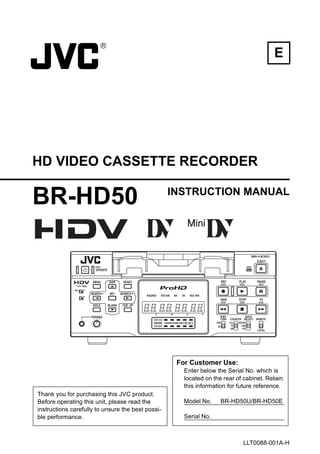
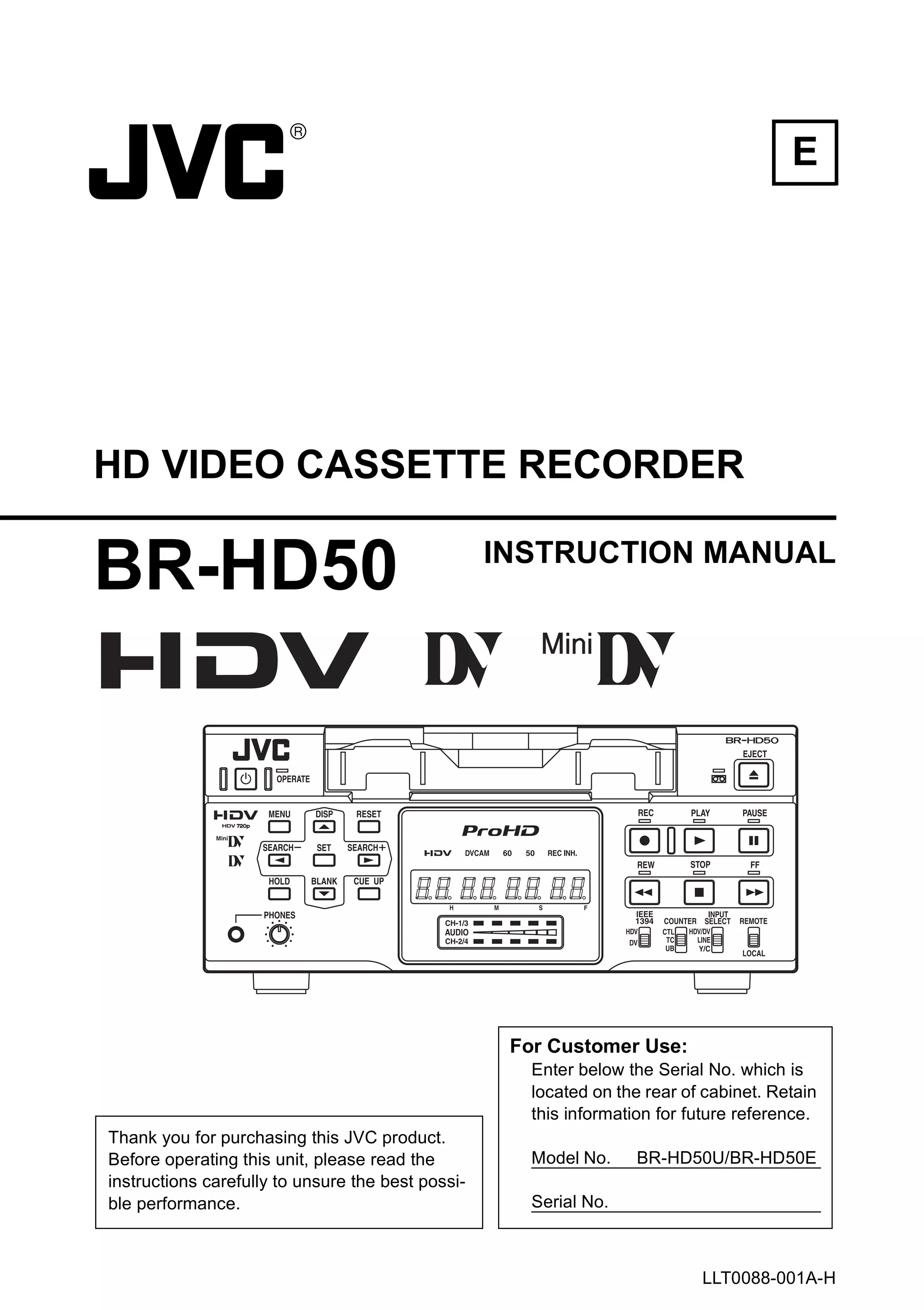
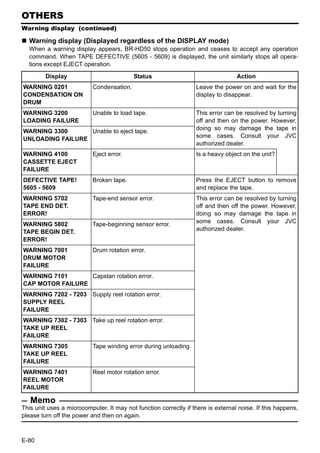
HD VIDEO CASSETTE RECORDER

BR-HD50                                            INSTRUCTION MANUAL


                                                    For Customer Use:
                                                      Enter below the Serial No. which is
                                                      located on the rear of cabinet. Retain
                                                      this information for future reference.
Thank you for purchasing this JVC product.
Before operating this unit, please read the           Model No.     BR-HD50U/BR-HD50E
instructions carefully to unsure the best possi-
ble performance.                                      Serial No.


                                                                            LLT0088-001A-H
IMPORTANT SAFEGUARDS

1.    Read all of these instructions.
2.    Save these instructions for later use.
3.    All warnings on the product and in the operating instructions should be adhered to.
4.    Unplug this appliance system from the wall outlet before cleaning. Do not use liquid cleaners or aerosol
      cleaners. Use a damp cloth for cleaning.
5.    Do not use attachments not recommended by the appliance manufacturer as they may cause hazards.
6.    Do not use this appliance near water - for example, near a bathtub, washbowl, kitchen sink, or laundry tub,
      in a wet basement, or near a swimming pool, etc.
7.    Do not place this appliance on an unstable cart, stand, or table. The appliance may
      fall, causing serious injury to a child or adult, and serious damage to the appliance.
      Use only with a cart or stand recommended by the manufacturer, or sold with the
      appliance.
      Wall or shelf mounting should follow the manufacturer’s instructions, and should
      use a mounting kit approved by the manufacturer.
      An appliance and cart combination should be moved with care. Quick stops,
      excessive force, and uneven surfaces may cause the appliance and cart combina-
      tion to overturn.
8.    Slots and openings in the cabinet and the back or bottom are provided for ventila-
      tion, and to insure reliable operation of the appliance and to protect it from over-
      heating, these openings must not be blocked or covered. The openings should
      never be blocked by placing the appliance on a bed, sofa, rug, or other similar surface. This appliance
      should never be placed near or over a radiator or heat register. This appliance should not be placed in a
      built-in installation such as a bookcase unless proper ventilation is provided.
9.    This appliance should be operated only from the type of power source indicated on the marking label. If
      you are not sure of the type of power supplied to your home, consult your dealer or local power company.
      For appliance designed to operate from battery power, refer to the operating instructions.
10.   This appliance system is equipped with a 3-wire grounding type plug (a plug having a third (grounding
      pin). This plug will only fit into a grounding-type power outlet. This is a safety feature. If you are unable to
      insert the plug into the outlet, contact your electrician to replace your obsolete outlet. Do not defeat the
      safety purpose of the grounding plug.
11.   For added protection for this product during a lightning storm, or when it is left unattended and unused for
      long periods of time, unplug it from the wall outlet and disconnect the antenna or cable system. This will
      prevent damage to the product due to lightning and power-line surges.
12.   Do not allow anything to rest on the power cord. Do not locate this appliance where the cord will be
      abused by persons walking on it.
13.   Follow all warnings and instructions marked on the appliance.
14.   Do not overload wall outlets and extension cords as this can result in fire or electric shock.
15.   Never push objects of any kind into this appliance through cabinet slots as they may touch dangerous volt-
      age points or short out parts that could result in a fire or electric shock. Never spill liquid of any kind on the
      appliance.
16.   Do not attempt to service this appliance yourself as opening or removing covers may expose you to dan-
      gerous voltage or other hazards. Refer all servicing to qualified service personnel.
17.   Unplug this appliance from the wall outlet and refer servicing to qualified service personnel under the fol-
      lowing conditions:
      a.When the power cord or plug is damaged or frayed.
      b.If liquid has been spilled into the appliance.
      c.If the appliance has been exposed to rain or water.
      d.If the appliance does not operate normally by following the operating instructions. Adjust only those con-
            trols that are covered by the operating instructions as improper adjustment of other controlsmay result
            in damage and will often require extensive work by a qualified technician to restore the appliance to
            normal operation.
      e.If the appliance has been dropped or the cabinet has been damaged.
      f. When the appliance exhibits a distinct change in performance - this indicates a need for service.
18.   When replacement parts are required, be sure the service technician has used replacement parts speci-
      fied by the manufacturer that have the same characteristics as the original part. Unauthorized substitu-
      tions may result in fire, electric shock, or other hazards.
19.   Upon completion of any service or repairs to this appliance, ask the service technician to perform routine
      safety checks to determine that the appliance is in safe operating condition.


I
SAFETY PRECAUTIONS (For USA & Canada)


                      CAUTION                                                              ATTENTION
                    RISK OF ELECTRIC                                                       RISQUE D’ELECTRO-
                   SHOCK DO NOT OPEN                                                         CUTION NE PAS
                                                                                                OUVRIR

CAUTION: TO REDUCE THE RISK OF ELECTRIC SHOCK,                        ATTENTION: POUR EVITER TOUT RISQUE D’ELECTROCUTION
        DO NOT REMOVE COVER (OR BACK).                                             NE PAS OUVRIR LE BOITER.
       NO USER-SERVICEABLE PARTS INSIDE.                                        AUCUNE PIECE INTERIEURE N’EST
REFER SERVICING TO QUALIFIED SERVICE PERSONNEL                                    A REGLER PAR L’UTILISATEUR.
                                                                      SE REFERER A UN AGENT QUALIFIE EN CAS DE PROBLEME.
                  The lightning flash with arrowhead symbol,
                  within an equilateral triangle, is intended to                       Le symbole de l’éclair à l’intérieur d’un triangle
                  alert the user to the presence of uninsulated                        équilatéral est destiné à alerter l’utilisateur sur
                  “dangerous voltage” within the product’s enclo-                      la présence d’une “tension dangereuse” non
                  sure that may be of sufficient magnitude to                          isolée dans le boîtier du produit. Cette tension
                  constitute a risk of electric shock to persons.                      est suffisante pour provoquer l’électrocution
                                                                                       de personnes.
                  The exclamation point within an equilateral tri-
                  angle is intended to alert the user to the pres-                     Le point d’exclamation à l’intérieur d’un trian-
                  ence of important operating and maintenance                          gle équilatéral est destiné à alerter l’utilisateur
                  (servicing) instructions in the literature accom-                    sur la présence d’opérations d’entretien impor-
                  panying the appliance.                                               tantes au sujet desquelles des renseigne-
                                                                                       ments se trouvent dans le manuel
                                                                                       d’instructions.

WARNING:                                                                               *   Ces symboles ne sont utilisés qu’aux Etats-
TO REDUCE THE RISK OF FIRE OR ELEC-                                                        Unis.
TRIC SHOCK, DO NOT EXPOSE THIS
APPLIANCE TO RAIN OR MOISTURE.                                        AVERTISSEMENT:
                                                                      POUR EVITER LES RISQUES D’INCENDIE
This unit should be used with 120 V AC only.
                                                                      OU    D’ELECTROCUTION,    NE     PAS
CAUTION:                                                              EXPOSER L’APPAREIL A L’HUMIDITE OU A
To prevent electric shocks and fire hazards, DO
NOT use any other power source.                                       LA PLUIE.
                                                                      Ce magnétoscope ne doit être utilisé que sur du
                                                                      courant alternatif en 120 V.
NOTE:
The rating plate (serial number plate) is on the rear of the unit.    ATTENTION:
                                                                      Afin d’éviter tout resque d’incendie ou d’électro-
INFORMATION                                                           cution, ne pas utiliser d’autres sources d’alimen-
This equipment has been tested and found to comply with the           tation électrique.
limits for a Class B digital device, pursuant to Part 15 of the
FCC Rules. These limits are designed to provide reasonable
protection against harmful interference in a residential installa-
                                                                      REMARQUE:
tion. This equipment generates, uses, and can radiate radio           La plaque d’identification (numéro de série) se trouve sur le
frequency energy and, if not installed and used in accordance         panneau arrière de l’appareil.
with the instructions, may cause harmful interference to radio
communications. However, there is no guarantee that interfer-         WARNING:
ence will not occur in a particular installation.                     The battery used in the BR-HD50 must be replaced by a JVC
If this equipment does cause harmful interference to radio or         authorized service dealer only.
television reception, which can be determined by turning the
equipment off and on, the user is encouraged to try to correct
the interference by one or more of the following measures:
    Reorient or relocate the receiving antenna.
    Increase the separation between the equipment and
    receiver.
    Connect the equipment into an outlet on a circuit different
    from that to which the receiver is connected.
    Consult the dealer or an experienced radio/TV technician
    for help.

CAUTION
CHANGES OR MODIFICATIONS NOT APPROVED BY JVC                          INFORMATION (FOR CANADA)
COULD VOID USER’S AUTHORITY TO OPERATE THE
EQUIPMENT.
                                                                      RENSEIGNEMENT (POUR CANADA)
                                                                        This Class B digital apparatus complies with Canadian
THIS DEVICE COMPLIES WITH PART 15 OF THE FCC                            ICES-003.
RULES. OPERATION IS SUBJECT TO THE FOLLOWING TWO
CONDITIONS: (1) THIS DEVICE MAY NOT CAUSE HARMFUL
INTERFERENCE, AND (2) THIS DEVICE MUST ACCEPT ANY                       Cet appareil numérique de la Class B est conforme à la
INTERFERENCE RECEIVED, INCLUDING INTERFERENCE                           norme NMB-003 du Canada.
THAT MAY CAUSE UNDESIRED OPERATION.

                                                                                                                                        II
Supplement

This equipment is in conformity with the provisions and protection requirements of the corresponding
European Directives. This equipment is designed for professional video appliances and can be used in
the following environments:

       Residential (including both of the location type class 1 and 2 found in IEC 1000-2-5)
       Commercial and light industrial (including, for example, theatres)
       Urban outdoors (based on the definition of location type class 6 in IEC 1000-2-5)

In order to keep the best performance and furthermore for electromagnetic compatibility we recom-
mend to use cables not exceeding the following lengths:

                Port                                   Cable                             Length
AUDIO                               SHIELDED CABLE                              10 meters
LINE                                COAXIAL CABLE                               10 meters
COMPONENT                           COAXIAL CABLE                               10 meters
Y/C                                 COAXIAL CABLE                               10 meters
IEEE1394                            SHIELDED TWIST PAIR CABLE                   4.5 meters
HDMI                                SHIELDED TWIST PAIR CABLE                   5 meters
REMOTE                              SHIELDED TWIST PAIR CABLE                   5 meters
The inrush current of this apparatus is 9.0 amperes.

Caution:
  Where there are strong electromagnetic waves or magnetism, for example near a radio or TV trans-
  mitter, transformer, motor, etc., the picture and sound may be disturbed. In such a case, please keep
  the apparatus away from the sources of the disturbance.


Information for Users on Disposal of Old Equipment
                   [European Union]
                   This symbol indicates that the electrical and electronic equipment should not be dis-
                   posed as general household waste at its end-of-life. Instead, the product should be
                   handed over to the applicable collection point for the recycling of electrical and elec-
                   tronic equipment for proper treatment, recovery and recycling in accordance with
                   your national legislation.
                   By disposing of this product correctly, you will help to conserve natural resources and
                   will help prevent potential negative effects on the environment and human health
                   which could otherwise be caused by inappropriate waste handling of this product.
  Attention:       For more information about collection point and recycling of this product, please con-
  This symbol is   tact your local municipal office, your household waste disposal service or the shop
  only valid in    where you purchased the product.
  the European     Penalties may be applicable for incorrect disposal of this waste, in accordance with
  Union.           national legislation.
                   (Business users)
                   If you wish to dispose of this product, please visit our web page www.jvc-europe.com
                   to obtain information about the take-back of the product.
                   [Other Countries outside the European Union]
                   If you wish to dispose of this product, please do so in accordance with applicable
                   national legislation or other rules in your country for the treatment of old electrical
                   and electronic equipment.


III
SAFETY PRECAUTIONS (For Europe)


               Warning Notice                                              POWER SYSTEM
         FOR YOUR SAFETY (Australia)                                       Connection to the mains supply
1. Insert this plug only into effectively earthed three-pin power          This unit operates on voltage of 220 V to 240 V AC, 50 Hz/60
   outlet.                                                                 Hz.
2. If any doubt exists regarding the earthing, consult a quali-
   fied electrician.                                                       WARNING:
3. Extension cord, if used, must be three-core correctly wired.
                                                                           TO REDUCE THE RISK OF FIRE OR ELEC-
                                                                           TRIC SHOCK, DO NOT EXPOSE THIS
    IMPORTANT (In the United Kingdom)                                      APPLIANCE TO RAIN OR MOISTURE.
        Mains Supply (AC 230 V C)
       WARNING - THIS APPARATUS
                                                                           CAUTION
           MUST BE EARTHED                                                 To prevent electric shock, do not open the cabinet. No user
                                                                           serviceable parts inside. Refer servicing to qualified service
The wires in this mains lead are coloured in accordance with               personnel.
the following code;
      GREEN-and-YELLOW             : EARTH
      BLUE                         : NEUTRAL                               Note:
      BROWN                        : LIVE                                  The rating plate and the safety caution are on the rear of the
As the colours of the wires in the mains lead of this apparatus            unit.
may not correspond with the coloured markings identifying the
terminals in your plug, proceed as follows.
The wire which is coloured GREEN-AND-YELLOW must be                        The OPERATE button does not completely shut off mains
connected to the terminal in the plug which is marked with the             power from the unit, but switches operating current on and off.
letter E or by the safety earth symbol U or coloured GREEN
or GREEN-AND-YELLOW. The wire which is coloured BLUE                       WARNING
must be connected to the terminal which is marked with the                 It should be noted that it may be unlawful to re-record pre-
letter N or which is coloured BLACK. The wire which is                     recorded tapes, records, or discs without the consent of the
coloured BROWN must be connected to the terminal which is                  owner of copyright in the sound or video recording, broadcast,
marked with the letter L or coloured RED.                                  or cable programme and in any literary, dramatic, musical or
                                                                           artistic work embodied therein.


                                             Caution for AC Mains Lead
FOR YOUR SAFETY PLEASE READ THE FOLLOWING TEXT CAREFULLY.
This product is equipped with 2 types of AC cable. One is for continental Europe, etc. and the other one is only for U.K.
Appropriate mains cable must be used in each local area, since the other type of mains cable is not suitable.

 FOR CONTINENTAL EUROPE, ETC.                                         FOR U.K. ONLY
 Not to be used in the U.K.                                           If the plug supplied is not suitable for your
                                                                      socket outlet, it should be cut off and appropri-
                                                                      ate one fitted.


                                                                                                                                         IV
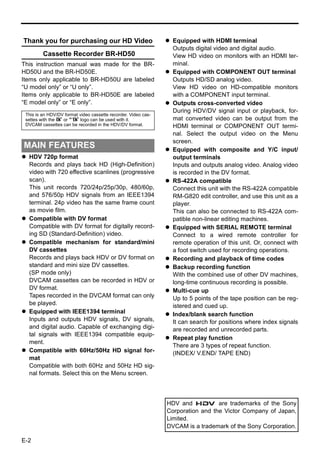
Thank you for purchasing our HD Video                             Equipped with HDMI terminal
                                                                  Outputs digital video and digital audio.
         Cassette Recorder BR-HD50                                View HD video on monitors with an HDMI ter-
This instruction manual was made for the BR-                      minal.
HD50U and the BR-HD50E.                                           Equipped with COMPONENT OUT terminal
Items only applicable to BR-HD50U are labeled                     Outputs HD/SD analog video.
“U model only” or “U only”.                                       View HD video on HD-compatible monitors
Items only applicable to BR-HD50E are labeled                     with a COMPONENT input terminal.
“E model only” or “E only”.                                       Outputs cross-converted video
                                                                  During HDV/DV signal input or playback, for-
 This is an HDV/DV format video cassette recorder. Video cas-
 settes with the B or A logo can be used with it.                 mat converted video can be output from the
 DVCAM cassettes can be recorded in the HDV/DV format.            HDMI terminal or COMPONENT OUT termi-
                                                                  nal. Select the output video on the Menu
                                                                  screen.
MAIN FEATURES                                                     Equipped with composite and Y/C input/
  HDV 720p format                                                 output terminals
  Records and plays back HD (High-Definition)                     Inputs and outputs analog video. Analog video
  video with 720 effective scanlines (progressive                 is recorded in the DV format.
  scan).                                                          RS-422A compatible
  This unit records 720/24p/25p/30p, 480/60p,                     Connect this unit with the RS-422A compatible
  and 576/50p HDV signals from an IEEE1394                        RM-G820 edit controller, and use this unit as a
  terminal. 24p video has the same frame count                    player.
  as movie film.                                                  This can also be connected to RS-422A com-
  Compatible with DV format                                       patible non-linear editing machines.
  Compatible with DV format for digitally record-                 Equipped with SERIAL REMOTE terminal
  ing SD (Standard-Definition) video.                             Connect to a wired remote controller for
  Compatible mechanism for standard/mini                          remote operation of this unit. Or, connect with
  DV cassettes                                                    a foot switch used for recording operations.
  Records and plays back HDV or DV format on                      Recording and playback of time codes
  standard and mini size DV cassettes.                            Backup recording function
  (SP mode only)                                                  With the combined use of other DV machines,
  DVCAM cassettes can be recorded in HDV or                       long-time continuous recording is possible.
  DV format.                                                      Multi-cue up
  Tapes recorded in the DVCAM format can only                     Up to 5 points of the tape position can be reg-
  be played.                                                      istered and cued up.
  Equipped with IEEE1394 terminal                                 Index/blank search function
  Inputs and outputs HDV signals, DV signals,                     It can search for positions where index signals
  and digital audio. Capable of exchanging digi-                  are recorded and unrecorded parts.
  tal signals with IEEE1394 compatible equip-
                                                                  Repeat play function
  ment.
                                                                  There are 3 types of repeat function.
  Compatible with 60Hz/50Hz HD signal for-                        (INDEX/ V.END/ TAPE END)
  mat
  Compatible with both 60Hz and 50Hz HD sig-
  nal formats. Select this on the Menu screen.


                                                                HDV and           are trademarks of the Sony
                                                                Corporation and the Victor Company of Japan,
                                                                Limited.
                                                                DVCAM is a trademark of the Sony Corporation.

E-2
Table of Contents

INTRODUCTION                                                             PLAYBACK
Remarks of usage...............................................4         Playback settings ............................................. 49
Cassette tape......................................................5     Basic playback procedure................................ 51
HDV and DV format ............................................6          Special playback functions............................... 52
Regular maintenance..........................................8           Search function ................................................ 54
Cleaning tape......................................................9     Repeat playback .............................................. 55
Condensation......................................................9      Multi cue-up ..................................................... 56

NAMES AND FUNCTIONS OF PARTS                                             TIME CODE
Front panel........................................................10    Displaying the time code.................................. 58
Rear panel ........................................................16    Presetting the time code .................................. 59
                                                                         Recording the time code .................................. 60
ON-SCREEN DISPLAY                                                        Playing back the time code .............................. 62
On-screen display.............................................20
Status display ...................................................21     EDIT
Event/Alarm display ..........................................24         Using a non-linear editing system.................... 63

CONNECTION                                                               MENU SCREENS
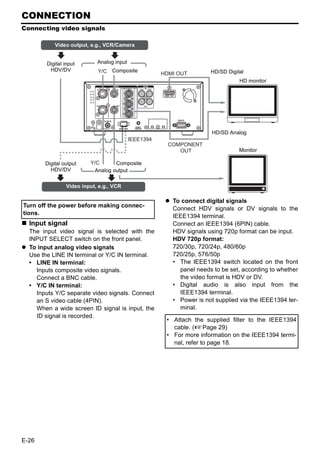
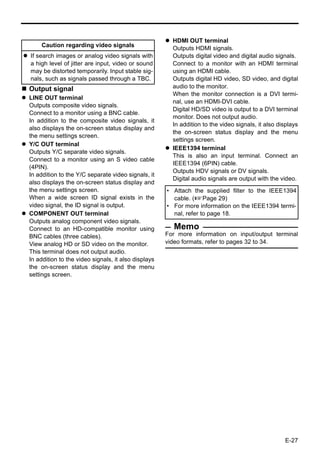
Connecting video signals..................................26             Setting the menus ............................................ 64
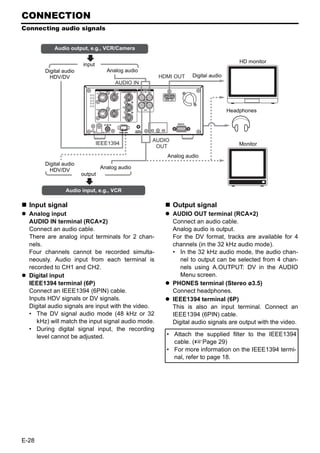
Connecting audio signals..................................28             Structure of the Menu screens......................... 66
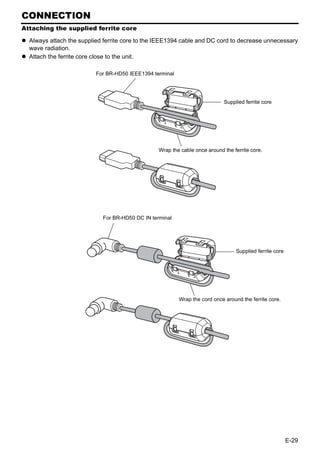
Attaching the supplied ferrite core ....................29               Description of the Menu screens ..................... 67
Connecting with SERIAL REMOTE terminals ...30
Connecting the AC adapter ..............................31               OTHERS
                                                                         Warning display ............................................... 79
RECORDING/OUTPUT SIGNAL FORMAT                                           Troubleshooting ............................................... 81
Inputting analog signal......................................32          Checking the hour meter.................................. 83
Inputting digital signal .......................................33       Specifications................................................... 84
Playback ...........................................................34   Supplement...................................................... 86

PREPARATION
Turning on/off the power...................................35
Operation method (main unit/remote controller)
and OPERATION LOCK mode.........................36
Loading/Ejecting cassette.................................37
Setting/Displaying date and time ......................38
Selecting HD signal format ...............................40

RECORDING
Settings for analog signal input.........................41
Settings for digital signal input ..........................42
Adjusting audio recording level.........................44
Recording procedure ........................................46
Backup recording function ................................47
Recording with SERIAL REMOTE terminals ....48


                                                                                                                                         E-3
INTRODUCTION


Remarks of usage
  Place of storage and use                           Maintaining the unit (Turn off the power
  Avoid storing or using this VCR in the following   before performing maintenance work.)
  places:                                            Wipe the unit with a soft cloth.
     Excessively hot or cold places beyond the       Do not wipe it with thinner or benzene as it
     allowable temperature for operation(5°C –       may melt or tarnish the unit surface.
     40°C).                                          For stubborn stains, use water-diluted neutral
     Humid or dry places beyond the allowable        detergent and then wipe it dry.
     humidity range for operation (30% – 80%
     RH).                                            Always use the supplied AC adapter.
     Dusty or sandy places.                          Failure to do so can cause mechanical break-
     Places exposed to oil, smoke or steam,          down or electric shock.
     such as the kitchen vicinity.
                                                     Use the supplied power cord.
     Intensely vibrating or unstable places.         Using a different type or damaged cord may
     Places prone to condensation.                   cause fire or electric shock.
     Places that generate strong magnetic fields,
     e.g., near a transformer or motor.
                                                     Do not use the supplied power cord
     Places near devices that generate electric
     waves, e.g., a transceiver or mobile phone.
                                                     for other models.
     Places that generate X-ray radiation or cor-
     rosive gases.
  Also do not leave the unit for long hours in a
  parked car under direct sunlight or near room
  heating equipment.

  Handling the unit
      Do not place heavy objects on the unit, like
      a monitor or TV.
      Do not insert foreign objects into the cas-
      sette slot.
      Mind your finger when loading a cassette
      tape.
      Be careful not to get your fingers clamped
      when loading the cassette to prevent injury.
      Place this unit out of reach of young chil-
      dren to prevent injury as fingers may get
      clamped while a cassette tape is being         When making an important recording, do not
      loaded.                                        record within the two or three minutes at the
      Do not block the ventilation openings on the   beginning or end of the tape.
      rear panel.                                    Recorded video (sound) is meant for per-
      Avoid strong impact to the unit. Do not drop   sonal entertainment only and must not be
      the unit.                                      used for other purposes without the prior con-
      Remove the cassette tape from the cas-         sent of the copyright owner.
      sette slot when transporting the unit.         JVC shall not guarantee the quality of record-
      Remove the AC adapter to save energy           ing and playback should BR-HD50 fail to
      when the unit is not in use.                   function normally due to defects, either of the
                                                     unit itself or the video cassette tapes.


E-4
Cassette tape
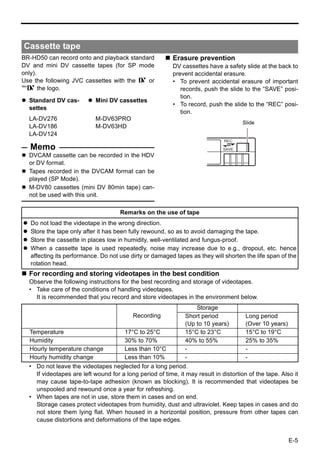
BR-HD50 can record onto and playback standard             Erasure prevention
DV and mini DV cassette tapes (for SP mode                DV cassettes have a safety slide at the back to
only).                                                    prevent accidental erasure.
Use the following JVC cassettes with the B or             • To prevent accidental erasure of important
A the logo.                                                  records, push the slide to the “SAVE” posi-
                                                             tion.
  Standard DV cas-          Mini DV cassettes
                                                          • To record, push the slide to the “REC” posi-
  settes
                                                             tion.
  LA-DV276                  M-DV63PRO
                                                                                      Slide
  LA-DV186                  M-DV63HD
  LA-DV124
                                                                              REC
  Memo                                                                        SAVE
  DVCAM cassette can be recorded in the HDV
  or DV format.
  Tapes recorded in the DVCAM format can be
  played (SP Mode).
  M-DV80 cassettes (mini DV 80min tape) can-
  not be used with this unit.

                                     Remarks on the use of tape
   Do not load the videotape in the wrong direction.
   Store the tape only after it has been fully rewound, so as to avoid damaging the tape.
   Store the cassette in places low in humidity, well-ventilated and fungus-proof.
   When a cassette tape is used repeatedly, noise may increase due to e.g., dropout, etc. hence
   affecting its performance. Do not use dirty or damaged tapes as they will shorten the life span of the
   rotation head.
  For recording and storing videotapes in the best condition
  Observe the following instructions for the best recording and storage of videotapes.
  • Take care of the conditions of handling videotapes.
    It is recommended that you record and store videotapes in the environment below.
                                                                   Storage
                                          Recording            Short period            Long period
                                                               (Up to 10 years)        (Over 10 years)
  Temperature                          17°C to 25°C            15°C to 23°C            15°C to 19°C
  Humidity                             30% to 70%              40% to 55%              25% to 35%
  Hourly temperature change            Less than 10°C          -                       -
  Hourly humidity change               Less than 10%           -                       -
  • Do not leave the videotapes neglected for a long period.
    If videotapes are left wound for a long period of time, it may result in distortion of the tape. Also it
    may cause tape-to-tape adhesion (known as blocking). It is recommended that videotapes be
    unspooled and rewound once a year for refreshing.
  • When tapes are not in use, store them in cases and on end.
    Storage cases protect videotapes from humidity, dust and ultraviolet. Keep tapes in cases and do
    not store them lying flat. When housed in a horizontal position, pressure from other tapes can
    cause distortions and deformations of the tape edges.


                                                                                                         E-5
INTRODUCTION


HDV and DV format
This unit records in HDV or DV format.
DV format is a standard for recording SD (Standard-Definition) video onto DV cassettes or mini DV cas-
settes.
HDV format is a standard for recording HD (High-Definition) video onto DV cassettes or mini DV cas-
settes.
The two HDV recording formats are HDV 720p and HDV 1080i.
HDV 720p : 720p (720 effective scanlines, progressive scan)
HDV 1080i : 1080i (1080 effective scanlines, interlace scan)
This unit supports the HDV 720p format.
                                      HDV               60 or 50


                                                       [IEEE1394] switch


  HDV and DV signal input/output
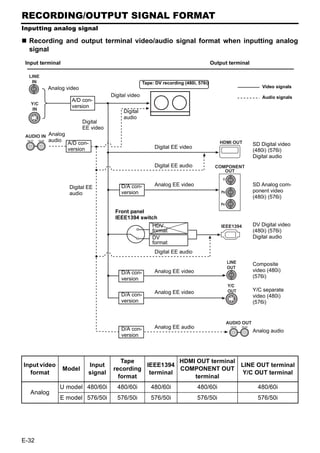
HDV signals and DV signals are input/output from the IEEE1394 terminal.
HDV signals from the IEEE1394 terminal are recorded in HDV format.
DV signals from the IEEE1394 terminal are recorded in DV format.
Recorded HDV signals or DV signals are output from the IEEE1394 terminal during playback.
Digital audio is also input/output from the IEEE1394 terminal, together with HDV signals or DV signals.
The front panel IEEE1394 switch must be set on the front panel, according to whether the input/output
signal from the IEEE1394 terminal is in HDV format or DV format.
When the input signal or playback signal is in HDV format, the front panel HDV display is lit.
Analog signal input is digitally converted and recorded in DV format.

  HD signal format
This unit is compatible with both 60Hz and 50Hz HD signal formats. The HDV signal format must be set
on this unit, according to whether the input/playback HD signal format is 60Hz or 50Hz.
(Set this using 60/50 SEL in the SYSTEM [2/2] Menu screen.)
Menu settings on this unit can be checked by whether the front panel 60 or 50 indicator light is lit.
The field frequency for DV signals and analog signals is fixed by region.
[U model: 60Hz (NTSC), E model: 50Hz (PAL)]


E-6
HDV (720p) and DV format
                                          HDV 720p format                                   DV format
Video signal *1             60Hz:720/30p, 720/24p, 480/60p                    U (NTSC) : 480/60i
                            50Hz:720/25p, 576/50p                             E (PAL)      : 576/50i
Pixel count                 1280 × 720                                        U (NTSC) : 720 × 480
                            720 × 480 (480/60p)
                                                                              E (PAL)      : 720 × 576
                            720 × 576 (576/50p)
Aspect ratio                16:9                                              4:3 (16:9)
Video compression           MPEG-2 Video (Profile & level: MP@H-14) DV
format
Bit rate after              About 19 Mbps                                     About 25 Mbps
compression
Audio compression           MPEG1 Audio Layer II                              Linear PCM
format
Audio channels              2CH (48 kHz,16 bit)                               2CH (48 kHz,16 bit)
                                                                              4CH (32 kHz,12 bit) *2
*1 : For HDV/DV signals, the unit records the same signals as the input signals.
*2 : During analog audio input, only CH1/CH2 are recorded.
Viewing video signal display (Example)
720/30p: 720 effective scanlines, 30-frame progressive scan
480/60i:   480 effective scanlines, 60-field interlace scan
   Recording time
The recording/playback speed for HDV format is SP mode only.
Though DV format recording and playback speed has SP and LP modes, this unit supports SP mode
only.
The cassette recording time is the same for HDV and DV format.

      Standard DV                                               Mini DV cassettes             Recording time
                                Recording time
       cassettes
                                                             M-DV63PRO                     About 63 minutes
LA-DV276                    About 276 minutes
                                                             M-DV63HD                      About 63 minutes
LA-DV186                    About 186 minutes
LA-DV124                    About 124 minutes
   HD video output
HD video is output from the HDMI OUT terminal and the COMPONENT OUT terminal.
HDMI OUT terminal            : Outputs HD/SD digital video and digital audio.
                               This is connected to a monitor with an HDMI terminal.
                               (HDMI : High Definition Multimedia Interface)
COMPONENT OUT terminal: Outputs HD/SD analog video. Does not output audio.
                               This is connected to an HD-compatible monitor with COMPONENT input
                               terminal.
  The video format to output from the HDMI OUT terminal and the COMPONENT OUT terminal can be
  selected using OUT FORMAT [60]/OUT FORMAT [50] in the VIDEO Menu screen.


                                                                                                               E-7
INTRODUCTION


Regular maintenance
This unit uses consumables or components that will wear off. If a worn-out or deteriorated component
continues to be used, it may cause the unit to break down. To prevent this, perform routine mainte-
nance using the head-cleaning tape. With the head-cleaning tape alone, however, the entire tape-wind-
ing mechanism cannot be completely cleaned.
Perform regular maintenance of the components as shown below.

  Regular maintenance
  The tasks of maintenance involved are similar to that of replacing the engine oil or tire of a car.
  Depending on the number of usage hours, inspect or replace the components as follows:


      Number of hours              500H 1000H 1500H 2000H G : Cleaning, inspection and adjust-
                                                              ment
Drum assembly
                                    G     E     E     F   E : Cleaning and inspection; Replace-
(including head)
                                                              ment if necessary
Tape guide, roller                  G     E     E     F   F : Replacement
                                                          Work and frequency of maintenance
Belt gears                          —     E     E     F
                                                          depend on the environment and
Drive system parts                  —     —     E     F   usage. The above information serves
                                                          only as a guide.

Usage Time                         : You can check the drum usage time with the hour meter display. For
                                     details, refer to page 83, “Checking the hour meter”.
Maintenance consultation           : For details on the maintenance plan and fee, consult with your JVC-
                                     authorized service agent.

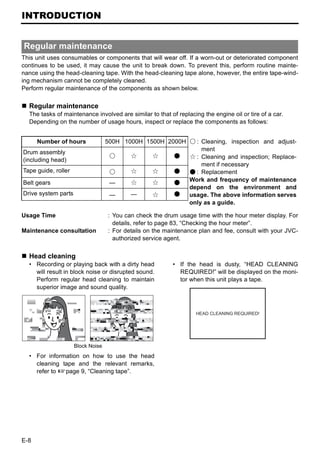
  Head cleaning
  • Recording or playing back with a dirty head           • If the head is dusty, “HEAD CLEANING
    will result in block noise or disrupted sound.          REQUIRED!” will be displayed on the moni-
    Perform regular head cleaning to maintain               tor when this unit plays a tape.
    superior image and sound quality.


                                                                   HEAD CLEANING REQUIRED!


                     Block Noise
  • For information on how to use the head
    cleaning tape and the relevant remarks,
    refer to Xpage 9, “Cleaning tape”.


E-8
Cleaning tape
Use a JVC cleaning tape.
Follow the instructions below for using the clean-
                                                          Note
                                                          Under low humidity conditions, (10% RH to
ing tape.
                                                          30% RH), perform head cleaning at intervals
1. Run the tape for 10 seconds in the PLAY                of half of the periods stated in the table.
  mode. (Thereafter, it stops automatically               If an M-DV80 tape is used immediately after
  and enters the STOP mode.)                              cleaning, the message, “HEAD CLEANING
  • After loading the cleaning tape, press the            REQUIRED!” may not disappear. It does only
    PLAY button.                                          after the tape has run for some time.
2. Fora single cleaning session, it can be                Use the cleaning tape at room temperature
  repeated up to 4 times.                                 (10°C to 35°C).
3. Referto the following table as a guide for             Instructions for using the cleaning tape stated
  cleaning.                                               on a sheet inside its storage case may be dif-
                                                          ferent in part from those stated here.
                                                          Follow the instructions in this manual.


Operating environ-         Low temperature             Room temperature        High temperature
ment                       5°C to 10°C                 10°C to 35°C            35°C to 40°C
Frequency of cleaning 1 to 2 times every 5 1 to 2 times every 20 to 1 to 2 times every 5
                      hours                30 hours                 hours


Condensation
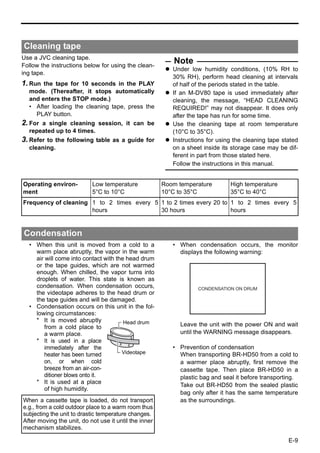
  • When this unit is moved from a cold to a              • When condensation occurs, the monitor
    warm place abruptly, the vapor in the warm              displays the following warning:
    air will come into contact with the head drum
    or the tape guides, which are not warmed
    enough. When chilled, the vapor turns into
    droplets of water. This state is known as
    condensation. When condensation occurs,                        CONDENSATION ON DRUM
    the videotape adheres to the head drum or
    the tape guides and will be damaged.
  • Condensation occurs on this unit in the fol-
    lowing circumstances:
    * It is moved abruptly             Head drum
        from a cold place to                                Leave the unit with the power ON and wait
        a warm place.                                       until the WARNING message disappears.
    * It is used in a place
        immediately after the                             • Prevention of condensation
        heater has been turned        Videotape             When transporting BR-HD50 from a cold to
        on, or when cold                                    a warmer place abruptly, first remove the
        breeze from an air-con-                             cassette tape. Then place BR-HD50 in a
        ditioner blows onto it.                             plastic bag and seal it before transporting.
    * It is used at a place
                                                            Take out BR-HD50 from the sealed plastic
        of high humidity.
                                                            bag only after it has the same temperature
When a cassette tape is loaded, do not transport            as the surroundings.
e.g., from a cold outdoor place to a warm room thus
subjecting the unit to drastic temperature changes.
After moving the unit, do not use it until the inner
mechanism stabilizes.

                                                                                                     E-9
NAMES AND FUNCTIONS OF PARTS
Front panel

            2                                  1


                                                                                           3


                                                                                           4


1Cassette loading slot/LED                            3[EJECT] button
  • For loading a cassette into or unloading it         • Press this button to eject the cassette.
    from the slot.
    Insert a standard DV cassette or a mini DV
                                                        Memo
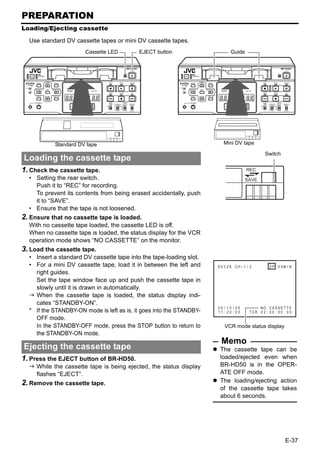
                                                        It takes about 6 seconds for the cassette to be
    cassette. (XPage 37)
                                                        ejected.
  • When BR-HD50 is in the OPERATE OFF
                                                        The cassette can be ejected even when BR-
    state and a cassette is loaded, it changes to
                                                        HD50 is in the OPERATE OFF mode. After the
    the OPERATE ON state.
                                                        eject action is completed, BR-HD50 returns to
  • With a cassette loaded, the LED lights up in
                                                        the OPERATE OFF mode.
    green.
    When a cassette is being loaded or ejected,
    the LED flashes.                                  4Operation buttons
2[OPERATE] button/LED                                   [REC] button/LED
  • Press this button to turn on the power and BR-      • Hold down this button and press the PLAY
    HD50 becomes ready for operation.                     button to start recording. During recording,
    (OPERATE ON)                                          the red LED lights up.
    Press this button again when BR-HD50 is             • Hold down this button and press the
    already on to turn off the power. (OPERATE OFF)       PAUSE button to pause recording.
  • OPERATE LED lights up as follows.                   • If this button is pressed during recording, an
    OPERATE ON : the green LED lights up                  index signal is recorded on the tape (when
    OPERATE OFF : the red LED lights up                   INDEX WRITE in the SYSTEM [2/2] Menu
    VCR error          : the red LED blinks               screen is set to ON).
                                                        • When this button is pressed in the STOP
  Memo                                                    mode, the time code generator value can
  If DC IN MODE in the SYSTEM [2/2] Menu                  be checked while the button is being held
  screen is set to “OPE ON”, and power is sup-            down. If TC DUPLI.: DV Menu is set to
  plied to the DC IN terminal on the rear panel,          AUTO, the time code, date and time of the
  power is turned on and the unit enters OPER-            IEEE1394 terminal can be checked. (In DV
  ATE ON mode without pressing this button.               mode only)
  Even after the power is turned off with this but-
  ton, BR-HD50 is live with a small amount of
  electricity.
  Therefore, if BR-HD50 is not to be used for a
  long period of time, please remove the AC
  adapter to save energy.

E-10
[PLAY] button/LED                                  [STOP] button/LED
  • Press this button to start playing back a        • Press this button to stop operation.
    tape. During playback, the green LED lights      • When BR-HD50 is in the STANDBY-OFF
    up.                                                mode, press this button to enter the
  • When recording is paused, press this but-          STANDBY-ON mode.
    ton to resume recording.                         • While stopped, the LED lights green.
  [PAUSE] button/LED                                 Memo
  • During recording, press this button to pause   There are two stop modes.
    it.                                              STANDBY-OFF: For protecting the tape and
  • In the PLAYBACK or STOP mode, press              the drum, the drum does not rotate.
    this button to enter the STILL mode. In the      STANDBY-ON: The drum rotates so that it
    RECORDING PAUSE or STILL mode, the               starts up faster after BR-HD50 moves into
    green LED lights up.                             another mode.
  • When BR-HD50 is in the STILL mode,
    press this button for frame advance play-        [REW] button/LED
    back. (In DV mode only)
                                                     • When BR-HD50 enters the STOP mode,
   Memo                                                press this button to rewind the tape.
Still images or images in frame advance can be       • When BR-HD50 is in the PLAYBACK or
selected with STL/F.ADV: DV of the SYSTEM [1/          STILL mode, press this button for reverse
2] Menu screen.                                        playback. The rewind playback speed can
                                                       be changed by pressing the SEARCH+/S
  [FF] button/LED                                      button h or the SEARCH–/Q button
  • When BR-HD50 enters the STOP mode,                 (when “Q, S” KEY FUNC. in the SYS-
    press this button to fast-forward the tape.        TEM [1/2] Menu screen is set to VAR/
  • When BR-HD50 is in the PLAYBACK or                 RECV).
    STILL mode, press this button for fast-for-        (XPage 53 “Slow playback and Search
    ward playback. The fast forward playback           mode”)
    speed can be changed by pressing the             • During rewinding or rewind playback, the
    SEARCH+/S button h or the SEARCH–/                 LED lights up in green.
    Q button (when “Q, S” KEY FUNC. in
    the SYSTEM [1/2] Menu screen is set to
    VAR/RECV).
    (XPage 53 “Slow playback and Search
    mode”)
  • During fast-forwarding or fast-forward play-
    back, the LED lights up in green.


                                                                                           E-11
NAMES AND FUNCTIONS OF PARTS
Front panel (continued)

                                           a


               b    c                  9            0                8 7 6 5
5[REMOTE/LOCAL] switch                                  6[INPUT SELECT] switch
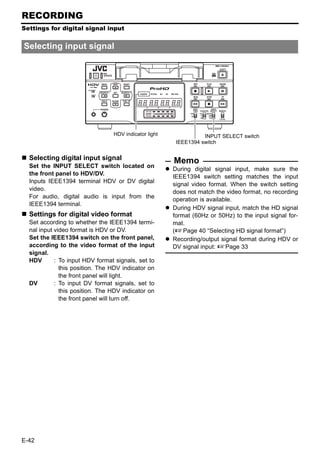
  This switch is used to select how BR-HD50 is           This switch is used to select input signals.
  to be operated.                                        HDV/DV : Inputs IEEE1394 terminal HDV sig-
  LOCAL : Use this setting if BR-HD50 is to                         nals or DV signals.
              be controlled with the key opera-                     The 8 IEEE1394 switch needs to
              tion of the unit.                                     be set, according to whether the
  REMOTE : Use this setting to control this unit                    video format is HDV or DV.
              using the REMOTE terminal,                 LINE     : For inputting the composite images
              SERIAL REMOTE terminal, or                            of the LINE IN terminal and analog
              IEEE1394 terminal.                                    audio signals.
                                                         Y/C      : For inputting the Y/C separate
  Memo                                                              video signal of the Y/C IN terminal
  Select to enable/disable operation with the
                                                                    and analog audio signals.
  REMOTE terminal, using REMOTE SEL 9P on
  the REMOTE [1/2] Menu screen.                           Note
  To control BR-HD50 with the SERIAL                     Switching is invalid during recording.
  REMOTE terminal or IEEE1394 terminal, this             Switching this switch during playback may
  switch setting can be set up with REMOTE               briefly cut off the audio.
  SEL SERIAL or REM SEL HDV/DV in the
  REMOTE [1/2] Menu screen. (XPage 70)                  7[COUNTER] switch
  If it is set to REMOTE, the buttons that can be        Switches the displayed information on the 9
  operated from the unit are selectable from             counter display and the monitor counter dis-
  LOCAL FUNCTION in the REMOTE [1/2]                     play.
  Menu screen.                                           CTL : It displays the counter in hour, minute,
                                                               second and frame based on CTL (con-
                                                               trol signal).
                                                         TC : It displays the time code data.
                                                         UB : It displays the user’s bit (UB).


E-12
8[IEEE1394] IEEE1394 terminal switch                     [DVCAM] indicator light
  Set this switch according to the video format of       Lights when playing a tape recorded in
  the IEEE1394 input signal and playback sig-            DVCAM format.
  nal. When the video format is HDV, a HDV               Only tapes recorded in SP mode can be
  indicator is lit.                                      played.
  HDV         : Use this setting when the video          [60] indicator light
                format is HDV (HDV indicator is          Lights when 60/50 SEL in the SYSTEM [2/2]
                lit).
                                                         Menu screen is set to 60.
  DV          : Use this setting when the video          The HD signal format on this unit is set to
                format is DV (HDV indicator is off).     60Hz.
  Note                                                   [50] indicator light
  Video and audio recording and playback using           Lights when 60/50 SEL in the SYSTEM [2/2]
  the IEEE1394 terminal are unavailable when             Menu screen is set to 50.
  the switch setting differs from the video format.      The HD signal format on this unit is set to
  When the IEEE1394 terminal is used to input/           50Hz.
  output video or audio signals with a non-linear
  editing system, and the format is changed by           Memo
                                                       The field frequency for DV signals and analog
  switching this switch, either reconnect the
                                                       signals are fixed by region.
  IEEE1394 cable, or use the OPERATE button
                                                       (U model: 60Hz, E model: 50Hz)
  to reset the power.

9Counter display                                         [REC INH] indicator light
                                                         Lights upon loading a cassette that cannot be
  Displays the counter, menu settings, and oper-
                                                         recorded.
  ation mode. (8 digits)
  • Counter display                                    b[PHONES] terminal
     The displayed contents can be selected              This is the mini jack terminal for connecting to
     using the 7 COUNTER switch.                         the headphone. (Stereo ø3.5)
  • For menu settings, menu code numbers are             • When playing back tapes recorded in 32
     displayed.                                             kHz mode, the audio channel output from
0Audio level indicator                                      this terminal is selected using A.OUTPUT:
  Displays the audio level for CH-1/3 and CH-2/             DV on the AUDIO Menu screen.
  4.                                                   c[PHONES] Headphone volume
  In RECORDING mode, audio recording level               Use this switch to adjust the output level of the
  is displayed. In PLAY mode, audio playback             PHONES terminal.
  level is displayed.                                    Both channels are adjusted at the same time.
  Only the audio recording level during analog
  input can be adjusted.
aIndicator lights
  [HDV] indicator light
  Lights when the video format for the IEEE1394
  terminal input signal or playback signal is HDV.
  When this indicator is lit, set the 8 IEEE1394
  switch to HDV.
  When this indicator is off, set the 8 IEEE1394
  switch to DV.


                                                                                                    E-13
NAMES AND FUNCTIONS OF PARTS
Front panel (continued)

                     e           f


             d             h     g
d[HOLD] button                                       g[CUE UP] button
  Pressing this button while stopped will engage       When the 7 COUNTER switch is set to TC,
  the time code and user’s bit PRESET mode.            press this button to display the Multi Cue-up
  (When TCG SELECT in the TC/UB/CLOCK [1/              screen on the monitor.
  2] Menu screen is set to PRESET)                     When the Multi-Cue-up screen is displayed,
  In time code PRESET mode, press this button          press this button to start searching the
  to return to the normal display.                     selected tape position.
  (XPage 59 “Presetting the time code”)                (XPage 56 “Multi cue-up”)
e[MENU] button                                       hSpecial functions/Setting buttons
  If this button is pressed in the STOP/STILL          The following buttons have different functions
  mode or when no cassette is loaded, the menu         depending on whether the normal screen or
  is displayed on the monitor connected to the         the setting screen is displayed.
  video output terminal (LINE OUT, Y/C OUT,            Setting screens:
  COMPONENT OUT, or HDMI OUT terminal).                Menu, Date/Time setting, Time code preset
  The counter display shows menu code num-             and Multi Cue-up
  bers.                                                [DISP/R] button
  When the menu is displayed, press this button
                                                       • Press this button during PLAY mode to dis-
  to return to the normal display.                       play the video output format on the counter
  (XPage 64 “Setting the menus”)                         display.
f[RESET] button                                        • During the STOP or REC mode, the audio
  • To reset the CTL counter display to “00”,            recording level is increased. (Pressing simul-
    press this button.                                   taneously with Q or S button) (When “Q,
  • If this button is pressed when the time code         S” KEY FUNC. in the SYSTEM [1/2] Menu
    preset screen is displayed, all the digits of        screen is set to VAR/RECV)
    the time code or the user’s bit are reset to         (XPage 44 “Adjusting audio recording
    “00”.                                                level”)
  • When the Multi Cue-up screen is displayed,         • When the setting screen is displayed, this
    press this button to clear the registered cue-       button is used to select the items or setting.
    up points.


E-14
[BLANK/P] button                                   [SEARCH–/Q] button
• When BR-HD50 is in the STOP mode,                • During normal display, the function of this
  press this button to start blank search. It        button can be selected using “Q, S” KEY
  searches the unrecorded part of the tape           FUNC. in the SYSTEM [1/2] Menu screen.
  and goes into the still mode.                      If it is set to VAR/RECV, the searching
  (XPage 54 “Blank search”)                          speed decreases if this button is pressed
• During the STOP or REC mode, the audio             during a search operation.
  recording level is decreased. (Pressing simul-     (XPage 53 “Slow playback and Search
  taneously with Q or S button) (When “Q,            mode”)
  S” KEY FUNC. in the SYSTEM [1/2] Menu              If it is set to INDEX, press this button to
  screen is set to VAR/RECV)                         start reverse index search. This function is
  (XPage 44 “Adjusting audio recording               not effective during recording or recording
  level”)                                            pause.
• When the setting screen is displayed, this         (XPage 54 “Index search”)
  button is used to select the items or setting.   • During the STOP or REC mode, CH1 is
[SEARCH+/S] button                                   selected as the channel for adjusting the
                                                     audio recording level. (When “Q, S” KEY
• During normal display, the function of this
  button can be selected using “Q, S” KEY            FUNC. in the SYSTEM [1/2] Menu screen is
  FUNC. in the SYSTEM [1/2] Menu screen.             set to VAR/RECV)
                                                     (XPage 44 “Adjusting audio recording
  If it is set to VAR/RECV, the searching
  speed increases if this button is pressed          level”)
  during a search operation.                       • When the setting screen is displayed, this
                                                     button is used to return to the previous
  (XPage 53 “Slow playback and Search
  mode”)                                             menu or select setting digits.
  If it is set to INDEX, press this button to      [SET] button
  start forward index search. This function is     • When the Menu screen, Date/Time setting
  not effective during recording or recording        screen or the Multi Cue-up screen is dis-
  pause.                                             played, press this button to confirm the set-
  (XPage 54 “Index search”)                          ting.
• During the STOP or REC mode, CH2 is              • In time code PRESET mode, press this but-
  selected as the channel for adjusting the          ton to preset the set time codes or user’s bit
  audio recording level. (When “Q, S” KEY            to the time code generator.
  FUNC. in the SYSTEM [1/2] Menu screen is
  set to VAR/RECV)
  (XPage 44 “Adjusting audio recording
  level”)
• When the setting screen is displayed, this
  button is used to select items or setting dig-
  its.


                                                                                              E-15
NAMES AND FUNCTIONS OF PARTS
Rear panel

                         2       1                  6 7


         4


                                 3            5 8 9                0
1[VIDEO LINE IN] terminal (BNC)                     4[VIDEO Y/C OUT] terminal (4-PIN)
  This is the input terminal for composite video      This is the output terminal for Y/C separate
  signals.                                            video signals.
  • To input video via this terminal, set the         • It displays the Menu setting screen, Date/
     INPUT SELECT switch located on the front            Time setting screen and warning informa-
     panel to “LINE”.                                    tion.
2[VIDEO Y/C IN] terminal (4-PIN)                      • If DISPLAY in the DISPLAY Menu screen is
  This is the input terminal for Y/C separate            set to “ON” or “AUTO”, information will be
  video signals.                                         displayed on-screen, e.g., the operation
                                                         mode, date/time and counter. (XPage 20)
  • To input video via this terminal, set the
     INPUT SELECT switch located on the front         • When the input signal or playback signal is
     panel to “Y/C”.                                     in HDV format, this terminal outputs video
                                                         that is converted down to 480i or 576i.
  • When wide-screen ID signals are input, the
     wide-screen ID signal is recorded.                  Select the style for displaying down-con-
                                                         verted video on a monitor screen with a 4:3
3[VIDEO LINE OUT] terminal (BNC)                         aspect ratio, using DOWN CONV. MODE
  This is the output terminal for composite video        on the VIDEO Menu screen. (XPage 74)
  signals.                                            • When tapes that have recorded wide-
  • It displays the Menu setting screen, Date/           screen signals are played back, the wide-
     Time setting screen and warning informa-            screen ID signal is output.
     tion.                                               When playing back an HDV recorded tape,
  • If DISPLAY in the DISPLAY Menu screen is             wide-screen ID signals are output according
     set to “ON” or “AUTO”, information will be          to the mode set using DOWN CONV.
     displayed on-screen, e.g., the operation            MODE in the VIDEO Menu screen.
     mode, date/time and counter. (XPage 20)
  • When the input signal or playback signal is        Memo
                                                    Whether or not to enable SET UP for analog sig-
     in HDV format, this terminal outputs video
                                                    nals (composite, Y/C separate and component
     that is converted down to 480i or 576i.
                                                    signals) can be selected with SET UP [60]: DV in
     Select the style for displaying down-con-
                                                    the VIDEO Menu screen (for U model only).
     verted video on a monitor screen with a 4:3
     aspect ratio, using DOWN CONV. MODE
     on the VIDEO Menu screen. (XPage 74)


E-16
5[COMPONENT OUT] Component sig-                      9[CH2/4 AUDIO OUT] terminal (RCA)
 nal output terminal (BNC×3)                           Use this terminal to output analog audio sig-
  Output terminal for component video signals          nals.
  (Y/PB/PR). Outputs analog HD/SD video. Con-          • In the 48 kHz audio mode, it outputs the
  nect this to an HD-compatible monitor with a            sound of CH2.
  COMPONENT IN terminal.                               • The output audio channel during playback
  • The video format to output from this termi-           of tapes recorded in 32 kHz audio mode, or
     nal can be selected using OUT FORMAT                 the EE audio channel during DV signal
     [60]/[50] in the VIDEO Menu screen.                  input in 32 kHz audio mode, can be
     (XPage 73, 74)                                       selected using A.OUTPUT: DV in the
  • It displays the Menu setting screen, Date/            AUDIO Menu screen. (XPage 72)
     Time setting screen and warning informa-        0[HDMI OUT] HDMI signal output termi-
     tion.                                            nal
  • If DISPLAY in the DISPLAY Menu screen is           Outputs HDMI signals. (HDMI : High Definition
     set to “ON” or “AUTO”, information will be        Multimedia Interface)
     displayed on-screen, e.g., the operation
                                                       Outputs digital HD/SD video and digital audio.
     mode, date/time and counter. (XPage 20)           This is connected to a monitor with an HDMI
6[CH1 AUDIO IN] terminal (RCA)                         terminal.
  Use this terminal to input analog audio signals.     • The video format to output from this termi-
  To enable audio input via this terminal, set the        nal can be selected using OUT FORMAT
  INPUT SELECT switch located on the front                [60]/[50] and MONITOR SELECT in the
  panel to “LINE” or “Y/C”.                               VIDEO Menu screen. (XPage 73, 74)
  Analog signals are recorded on CH1.                  • It displays the Menu setting screen, Date/
7[CH2 AUDIO IN] terminal (RCA)                            Time setting screen and warning informa-
  Use this terminal to input analog audio signals.        tion.
  To enable audio input via this terminal, set the     • If DISPLAY in the DISPLAY Menu screen is
                                                          set to “ON” or “AUTO”, information will be
  INPUT SELECT switch located on the front
  panel to “LINE” or “Y/C”.                               displayed on-screen, e.g., the operation
                                                          mode, date/time and counter. (XPage 20)
  Analog signals are recorded on CH2.
8[CH1/3 AUDIO OUT] terminal (RCA)                      Memo
  Use this terminal to output analog audio sig-        Video is not displayed when the connected
  nals.                                                monitor does not support the video format
  • In the 48 kHz audio mode, it outputs the           selected using OUT FORMAT [60]/[50] in the
     sound of CH1.                                     VIDEO Menu screen.
  • The output audio channel during playback           If this occurs, set MONITOR SELECT to
     of tapes recorded in 32 kHz audio mode, or        HDMI[A].
     the EE audio channel during DV signal             If the monitor has a DVI-D terminal that sup-
     input in 32 kHz audio mode, can be                ports HDCP, you can watch digital video by
     selected using A.OUTPUT: DV in the                connecting an HDMI↔DVI-D cable.
     AUDIO Menu screen. (XPage 72)                     When the video format of the IEEE1394 input
                                                       signal differs from the IEEE1394 switch, or
                                                       INPUT SELECT switch is set to HDV/DV and a
                                                       signal is not input into the IEEE1394 terminal,
                                                       no signal is output from the HDMI OUT termi-
                                                       nal. ("no 1394" is displayed on the counter dis-
                                                       play.) Similarly, no signal is output from the
                                                       HDMI OUT terminal when a blank cassette
                                                       tape is played. ("-------" is displayed on the
                                                       counter display.)


                                                                                                  E-17
NAMES AND FUNCTIONS OF PARTS
Rear panel (continued)


                                                                                              g


       d


                      c b              a        e             h            f
a[IEEE1394] IEEE1394 terminal (6P)                       • To record a time code via this terminal, set
  This is the input/output terminal for IEEE1394-          TC DUPLI.: DV in the TC/UB/CLOCK [1/2]
  compliant digital signals.                               Menu screen to AUTO or NONDROP. (In
  Inputs HDV signals or DV signals when                    DV mode only)
  recording. Digital audio is input simulta-             • To control this unit via this terminal, set
  neously.                                                 REM SEL HDV/DV in the REMOTE [1/2]
  During playback, it outputs HDV signals, DV              Menu screen to ON or LOC/REM.
  signals, and digital audio on the playback tape.        Note
  Upon analog signal input, EE images and EE           If HDV/DV signals are not input/output when the
  audio are output. EE images are DV format            IEEE1394 cable is connected, check whether the
  signals (480i or 576i) (Only when IEEE1394           signal format matches the IEEE1394 switch set-
  switch is set to DV).                                ting on the front panel. If the settings match,
  • This unit records and plays 720p format            either reconnect the IEEE1394 cable, or reset the
     HDV signals.                                      power to the unit.
     720p HDV signals and DV signals from this
     terminal are recorded as is, without format
                                                       bDC power input terminal
     conversion.
                                                         This terminal is for inputting DC 12 V. Connect
  • To enable signal input via this terminal, set
                                                         the DC power cord of the supplied AC adapter.
     the INPUT SELECT switch located on the
     front panel to “HDV/DV”.                             Memo
  • The IEEE1394 switch located on the front             When power is supplied to this terminal, the
     panel must be set to “HDV” or “DV”, accord-         OPERATE indicator located on the front panel
     ing to the input signal to this terminal or the     lights up. (The indicator turns red when BR-
     video format of the playback tape.                  HD50 is in the OPERATE OFF state)
  • The audio mode (48 kHz or 32 kHz) cannot             Whether to set BR-HD50 to enter the OPER-
     be changed for the input audio signal via           ATE ON mode or OPERATE OFF mode when
     this terminal. It will be recorded using the        power is supplied to the terminal can be
     input signal audio mode. 4-channel record-          selected with DC IN MODE in the SYSTEM [2/
     ing is possible in the 32 kHz audio mode.           2] Menu screen.
  • Power cannot be supplied via this terminal.
                                                       cDC power cord clamp
                                                         Use this clamp to fasten the DC power cord.
                                                       d[SIGNAL GND] terminal
                                                         This is the grounding terminal for signals.


E-18
e[SERIAL REMOTE] terminal (mini jack)
  This terminal is for connecting to the serial
  remote controller.
  To operate BR-HD50 with this terminal, per-
  form the following settings.
  • Set REMOTE SEL SER in the REMOTE [1/
     2] Menu screen to “ON” or “LOC+REM”.
  ON           : When the 5 REMOTE/LOCAL
                 switch on the front panel is set to
                 “REMOTE”, this terminal becomes
                 effective.
  LOC+REM : This terminal is effective regard-
                 less of the setting of the 5
                 REMOTE/LOCAL switch on the
                 front panel.
   Memo
To use this terminal as the foot switch input, set
FOOT SW in the REMOTE [2/2] Menu screen.
(XPage 71)

f[REMOTE] RS-422A terminal
 (D-SUB 9P)
  This terminal is for connecting to an RS-422A
  serial interface-compatible editing remote con-
  troller (e.g. RM-G820).
  With this terminal, BR-HD50 can be used as a
  player of an editing system.
  To operate BR-HD50 with RS-422A, perform
  the following settings.
  • Set REMOTE SEL 9P in the REMOTE [1/2]
     Menu screen to “ON”.
  • Set the 5 REMOTE/LOCAL switch on the
     front panel to “REMOTE”.
   Memo
Screws for securing connectors differ by region.
U model : inch screws
E model : metric screws

gFan
  This is a ventilation port for the fan motor.
  Do not place objects in this area.
hSlot cover for servicing
  This is used for servicing the unit.


                                                       E-19
ON-SCREEN DISPLAY
On-screen display

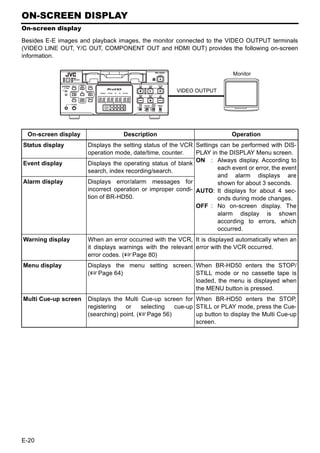
Besides E-E images and playback images, the monitor connected to the VIDEO OUTPUT terminals
(VIDEO LINE OUT, Y/C OUT, COMPONENT OUT and HDMI OUT) provides the following on-screen
information.

                                                                           Monitor


                                                      VIDEO OUTPUT


 On-screen display                 Description                             Operation
Status display        Displays the setting status of the VCR Settings can be performed with DIS-
                      operation mode, date/time, counter.    PLAY in the DISPLAY Menu screen.
                                                             ON : Always display. According to
Event display         Displays the operating status of blank
                                                                     each event or error, the event
                      search, index recording/search.
                                                                     and alarm displays are
Alarm display         Displays error/alarm messages for              shown for about 3 seconds.
                      incorrect operation or improper condi- AUTO: It displays for about 4 sec-
                      tion of BR-HD50.                               onds during mode changes.
                                                             OFF : No on-screen display. The
                                                                     alarm display is shown
                                                                     according to errors, which
                                                                     occurred.
Warning display       When an error occurred with the VCR, It is displayed automatically when an
                      it displays warnings with the relevant error with the VCR occurred.
                      error codes. (XPage 80)
Menu display          Displays the menu setting screen. When BR-HD50 enters the STOP/
                      (XPage 64)                        STILL mode or no cassette tape is
                                                        loaded, the menu is displayed when
                                                        the MENU button is pressed.
Multi Cue-up screen   Displays the Multi Cue-up screen for When BR-HD50 enters the STOP,
                      registering   or    selecting cue-up STILL or PLAY mode, press the Cue-
                      (searching) point. (XPage 56)        up button to display the Multi Cue-up
                                                           screen.


E-20
ON-SCREEN DISPLAY
Status display

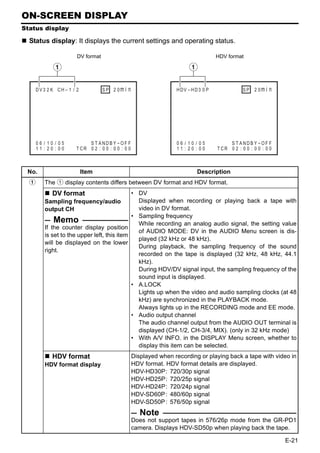
  Status display: It displays the current settings and operating status.

                       DV format                                                       HDV format

             1                                                            1

    DV3 2 K CH – 1 / 2              S P 2 0m i   n                   HDV – H D 3 0 P               SP   2 0m i   n

               WA RN I NG 7 0 0 1
          D R UM MO T O R F A I L U R E

               REC   I NH I B I T


      06 / 10 / 05          S T ANDB Y -OF F                         06 / 10 / 05           S T ANDB Y -OF F
      11 : 20 : 00     T CR 0 2 : 0 0 : 0 0 : 0 0                    11 : 20 : 00      T CR 0 2 : 0 0 : 0 0 : 0 0


 No.                     Item                                                 Description
  1      The 1 display contents differs between DV format and HDV format.
             DV format                       • DV
         Sampling frequency/audio              Displayed when recording or playing back a tape with
         output CH                             video in DV format.
                                             • Sampling frequency
             Memo                              While recording an analog audio signal, the setting value
         If the counter display position
                                               of AUDIO MODE: DV in the AUDIO Menu screen is dis-
         is set to the upper left, this item
                                               played (32 kHz or 48 kHz).
         will be displayed on the lower
                                               During playback, the sampling frequency of the sound
         right.
                                               recorded on the tape is displayed (32 kHz, 48 kHz, 44.1
                                               kHz).
                                               During HDV/DV signal input, the sampling frequency of the
                                               sound input is displayed.
                                             • A.LOCK
                                               Lights up when the video and audio sampling clocks (at 48
                                               kHz) are synchronized in the PLAYBACK mode.
                                               Always lights up in the RECORDING mode and EE mode.
                                             • Audio output channel
                                               The audio channel output from the AUDIO OUT terminal is
                                               displayed (CH-1/2, CH-3/4, MIX). (only in 32 kHz mode)
                                             • With A/V INFO. in the DISPLAY Menu screen, whether to
                                               display this item can be selected.
             HDV format                              Displayed when recording or playing back a tape with video in
         HDV format display                          HDV format. HDV format details are displayed.
                                                     HDV-HD30P: 720/30p signal
                                                     HDV-HD25P: 720/25p signal
                                                     HDV-HD24P: 720/24p signal
                                                     HDV-SD60P : 480/60p signal
                                                     HDV-SD50P : 576/50p signal
                                                        Note
                                                     Does not support tapes in 576/26p mode from the GR-PD1
                                                     camera. Displays HDV-SD50p when playing back the tape.

                                                                                                                     E-21
ON-SCREEN DISPLAY
Status display (continued)


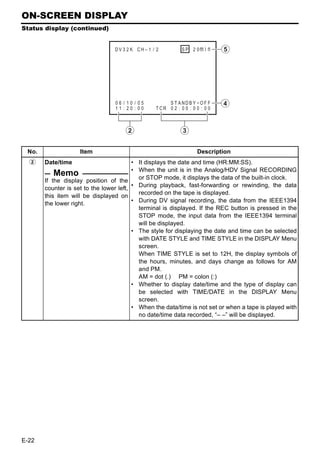
                                 DV 3 2 K CH – 1 / 2              S P 2 0m i   n   5
                                            WA RN I NG 7 0 0 1
                                       D R UM MO T O R F A I L U R E

                                            REC    I NH I B I T


                                 06 / 10 / 05
                                 11 : 20 : 00
                                                       S T ANDB Y -OF F
                                                  T CR 0 2 : 0 0 : 0 0 : 0 0
                                                                                   4


                                     2                        3

 No.                Item                                                Description
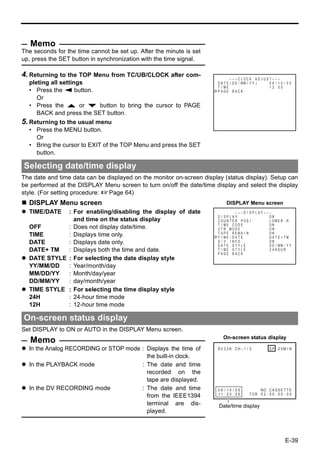
  2    Date/time                         • It displays the date and time (HR:MM:SS).
                                         • When the unit is in the Analog/HDV Signal RECORDING
           Memo                            or STOP mode, it displays the data of the built-in clock.
       If the display position of the
       counter is set to the lower left, • During playback, fast-forwarding or rewinding, the data
                                           recorded on the tape is displayed.
       this item will be displayed on
       the lower right.                  • During DV signal recording, the data from the IEEE1394
                                           terminal is displayed. If the REC button is pressed in the
                                           STOP mode, the input data from the IEEE1394 terminal
                                           will be displayed.
                                         • The style for displaying the date and time can be selected
                                           with DATE STYLE and TIME STYLE in the DISPLAY Menu
                                           screen.
                                           When TIME STYLE is set to 12H, the display symbols of
                                           the hours, minutes, and days change as follows for AM
                                           and PM.
                                           AM = dot (.) PM = colon (:)
                                         • Whether to display date/time and the type of display can
                                           be selected with TIME/DATE in the DISPLAY Menu
                                           screen.
                                         • When the data/time is not set or when a tape is played with
                                           no date/time data recorded, “– –” will be displayed.


E-22
No.               Item                                         Description
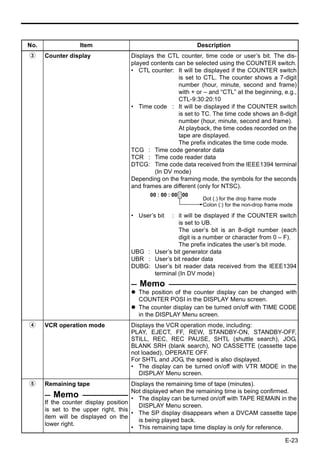
3     Counter display               Displays the CTL counter, time code or user’s bit. The dis-
                                    played contents can be selected using the COUNTER switch.
                                    • CTL counter: It will be displayed if the COUNTER switch
                                                     is set to CTL. The counter shows a 7-digit
                                                     number (hour, minute, second and frame)
                                                     with + or – and “CTL” at the beginning, e.g.,
                                                     CTL-9:30:20:10
                                    • Time code : It will be displayed if the COUNTER switch
                                                     is set to TC. The time code shows an 8-digit
                                                     number (hour, minute, second and frame).
                                                     At playback, the time codes recorded on the
                                                     tape are displayed.
                                                     The prefix indicates the time code mode.
                                    TCG : Time code generator data
                                    TCR : Time code reader data
                                    DTCG: Time code data received from the IEEE1394 terminal
                                            (In DV mode)
                                    Depending on the framing mode, the symbols for the seconds
                                    and frames are different (only for NTSC).
                                           00 : 00 : 00 : 00
                                                                Dot (.) for the drop frame mode
                                                                Colon (:) for the non-drop frame mode

                                    • User’s bit: it will be displayed if the COUNTER switch
                                                   is set to UB.
                                                   The user’s bit is an 8-digit number (each
                                                   digit is a number or character from 0 – F).
                                                   The prefix indicates the user’s bit mode.
                                    UBG : User’s bit generator data
                                    UBR : User’s bit reader data
                                    DUBG: User’s bit reader data received from the IEEE1394
                                          terminal (In DV mode)
                                       Memo
                                       The position of the counter display can be changed with
                                       COUNTER POSI in the DISPLAY Menu screen.
                                       The counter display can be turned on/off with TIME CODE
                                       in the DISPLAY Menu screen.
4     VCR operation mode            Displays the VCR operation mode, including:
                                    PLAY, EJECT, FF, REW, STANDBY-ON, STANDBY-OFF,
                                    STILL, REC, REC PAUSE, SHTL (shuttle search), JOG,
                                    BLANK SRH (blank search), NO CASSETTE (cassette tape
                                    not loaded), OPERATE OFF.
                                    For SHTL and JOG, the speed is also displayed.
                                    • The display can be turned on/off with VTR MODE in the
                                       DISPLAY Menu screen.
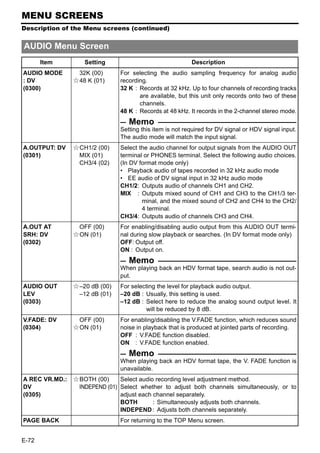
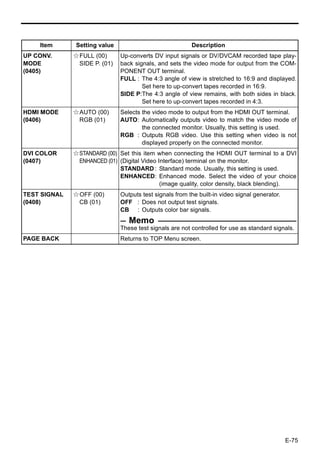
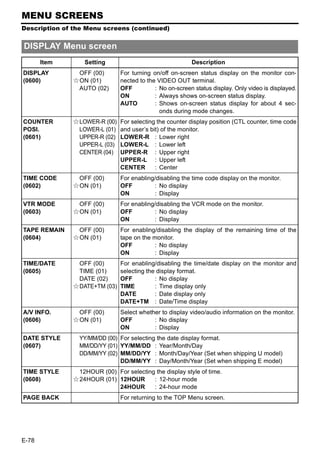
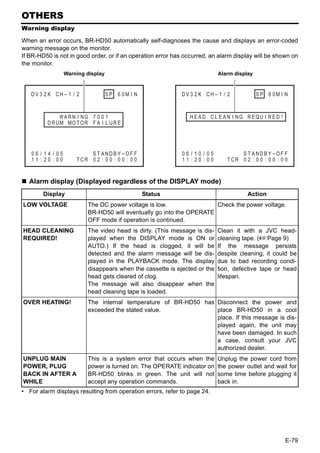
5     Remaining tape                  Displays the remaining time of tape (minutes).
                                      Not displayed when the remaining time is being confirmed.
          Memo                        • The display can be turned on/off with TAPE REMAIN in the
      If the counter display position
                                         DISPLAY Menu screen.
      is set to the upper right, this
                                      • The SP display disappears when a DVCAM cassette tape
      item will be displayed on the
                                         is being played back.
      lower right.
                                      • This remaining tape time display is only for reference.

                                                                                                 E-23
ON-SCREEN DISPLAY
Event/Alarm display

    Event display : When certain functions are in use, it is displayed at the following posi-
                    tions (with the DISPLAY mode ON or AUTO).
                                                                      “A” display: displayed during operation
       DV 3 2 K CH – 1 / 2             SP 2 0m i n
                                                                         Display                     Description
                                                                   BLANK                     Blank search in progress.
A                     B L ANK S E ARCH                             SEARCH
B                 I NDE X DE T EC T ED                             INDEX +1                  Index search in progress.
                                                                                             The number indicates the
                                                                                             index search position.
       06 / 10 / 05            S T ANDB Y -OF F
       11 : 20 : 00       T CR 0 2 : 0 0 : 0 0 : 0 0               INDEX MARK                When an index has been
                                                                                             specified on the tape during
                                                                                             recording.
                                                                      “B” display: displayed for about 3 seconds

                                                                         Display                     Description
                                                                   INDEX                     An index has been detected
                                                                   DETECTED                  during index repeat operation.
                                                                   VIDEO END                 The video end has been
                                                                   DETECTED                  detected during end repeat
                                                                                             operation.
    Alarm display : An alarm message is displayed at the following positions when there has
                    been an operation error or when BR-HD50 is not in good condition, e.g.,
                    dirty head.

                                            DV 3 2 K CH – 1 / 2             S P 2 0m i   n

                                   A          H E A D C L E A N I NG R EQU I R E D !

                                   B                   NO HD V / D V S I GN A L


                                            06 / 10 / 05             S T ANDB Y -OF F
                                            11 : 20 : 00        T CR 0 2 : 0 0 : 0 0 : 0 0

    “A” display: The state of BR-HD50 is displayed. It continues to be displayed until the error state is
                 corrected. This display is not affected by the setting of the display mode.

       Display                                                       Description
LOW VOLTAGE              The voltage of the DC power source is low. If the operation continues, it enters
                         the OPERATE OFF mode.
HEAD CLEANING The video head is dirty. Clean it with the head-cleaning tape exclusively for BR-
REQUIRED!     HD50. (XPage 9)
              If the head is clogged, it is detected in the PLAYBACK mode and this message is
              displayed.
OVERHEATING!             The temperature inside BR-HD50 has exceeded the stated value.
                         Disconnect the power and place it at a cool place. If this message is displayed
                         again, BR-HD50 could be defective.
                         Consult your JVC-authorized service agent.

E-24
“B” display: Messages for incorrect operation are displayed for about 3 seconds.
               They are displayed when the DISPLAY mode is ON or AUTO.

     Display                                         Description
INVALID TAPE!      Data tape for PCs or DVC PRO tape is used.
                   The cassette tape will be automatically ejected.
LP TAPE!           The user attempted to play back a tape recorded in the LP mode.
                   BR-HD50 cannot record or play in the LP mode.
NO HDV/DV SIG-     The user attempted to record without HDV or DV signal input.
NAL
COPY INHIBIT       The user attempted to record copy-guarded signals.
REC INHIBIT        The user attempted to record on a tape that is not ready for recording (the rear
                   switch is set to SAVE).
OPERATION          This message is displayed when an operation button is pressed with OPERA-
LOCK               TION LOCK enabled. To enable OPERATION LOCK, set OPERATION LOCK in
                   the SYSTEM [2/2] Menu screen to ON.
PB INHIBIT         This message is displayed when the HD/SD signal format setting differs during
[60/50]            playback of a tape recorded in HDV/DV format.
REC INHIBIT        • (for U model)
[60/50]              This message is displayed when the unit is recorded in PAL mode.
                   • (for E model)
                     This message is displayed when the unit is recorded in NTSC mode.
50/25 INHIBIT      • When 60/50 SEL in the SYSTEM [2/2] Menu screen is set to 60, this message
                     is displayed when HDV signal format is not 60Hz.
                   • This message is displayed when the DV signal from the IEEE1394 terminal is
                     not NTSC.
60/30 INHIBIT      • When 60/50 SEL in the SYSTEM [2/2] Menu screen is set to 50, this message
                     is displayed when HDV signal format is not 50Hz.
                   • This message is displayed when the DV signal from the IEEE1394 terminal is
                     not PAL.


                                                                                              E-25
CONNECTION
Connecting video signals

           Video output, e.g., VCR/Camera


        Digital input       Analog input
         HDV/DV             Y/C Composite                             HD/SD Digital
                                                      HDMI OUT
                                                                                 HD monitor


                                                                       HD/SD Analog
                                           IEEE1394
                                                        COMPONENT
                                                           OUT                   Monitor

       Digital output    Y/C      Composite
         HDV/DV           Analog output

                Video input, e.g., VCR

                                                         To connect digital signals
Turn off the power before making connec-
                                                         Connect HDV signals or DV signals to the
tions.
                                                         IEEE1394 terminal.
  Input signal                                           Connect an IEEE1394 (6PIN) cable.
  The input video signal is selected with the            HDV signals using 720p format can be input.
  INPUT SELECT switch on the front panel.                HDV 720p format:
  To input analog video signals                          720/30p, 720/24p, 480/60p
  Use the LINE IN terminal or Y/C IN terminal.           720/25p, 576/50p
  • LINE IN terminal:                                    • The IEEE1394 switch located on the front
    Inputs composite video signals.                        panel needs to be set, according to whether
    Connect a BNC cable.                                   the video format is HDV or DV.
  • Y/C IN terminal:                                     • Digital audio is also input from the
    Inputs Y/C separate video signals. Connect             IEEE1394 terminal.
    an S video cable (4PIN).                             • Power is not supplied via the IEEE1394 ter-
    When a wide screen ID signal is input, the             minal.
    ID signal is recorded.
                                                       • Attach the supplied filter to the IEEE1394
                                                         cable. (XPage 29)
                                                       • For more information on the IEEE1394 termi-
                                                         nal, refer to page 18.


E-26
HDMI OUT terminal
    Caution regarding video signals
                                                       Outputs HDMI signals.
If search images or analog video signals with          Outputs digital video and digital audio signals.
a high level of jitter are input, video or sound       Connect to a monitor with an HDMI terminal
may be distorted temporarily. Input stable sig-        using an HDMI cable.
nals, such as signals passed through a TBC.            Outputs digital HD video, SD video, and digital
Output signal                                          audio to the monitor.
                                                       When the monitor connection is a DVI termi-
LINE OUT terminal
                                                       nal, use an HDMI-DVI cable.
Outputs composite video signals.
                                                       Digital HD/SD video is output to a DVI terminal
Connect to a monitor using a BNC cable.
                                                       monitor. Does not output audio.
In addition to the composite video signals, it
                                                       In addition to the video signals, it also displays
also displays the on-screen status display and
                                                       the on-screen status display and the menu
the menu settings screen.
                                                       settings screen.
Y/C OUT terminal
                                                       IEEE1394 terminal
Outputs Y/C separate video signals.
                                                       This is also an input terminal. Connect an
Connect to a monitor using an S video cable
                                                       IEEE1394 (6PIN) cable.
(4PIN).
                                                       Outputs HDV signals or DV signals.
In addition to the Y/C separate video signals, it
                                                       Digital audio signals are output with the video.
also displays the on-screen status display and
the menu settings screen.                            • Attach the supplied filter to the IEEE1394
When a wide screen ID signal exists in the             cable. (XPage 29)
video signal, the ID signal is output.               • For more information on the IEEE1394 termi-
COMPONENT OUT terminal                                 nal, refer to page 18.
Outputs analog component video signals.
Connect to an HD-compatible monitor using              Memo
BNC cables (three cables).                           For more information on input/output terminal
View analog HD or SD video on the monitor.           video formats, refer to pages 32 to 34.
This terminal does not output audio.
In addition to the video signals, it also displays
the on-screen status display and the menu
settings screen.


                                                                                                   E-27
CONNECTION
Connecting audio signals


            Audio output, e.g., VCR/Camera

                                                                                     HD monitor
                        input
        Digital audio              Analog audio
          HDV/DV                                    HDMI OUT     Digital audio
                                      AUDIO IN


                                                                                 Headphones


                                                  AUDIO
                                IEEE1394                                             Monitor
                                                   OUT
                                                      Analog audio
        Digital audio
                                 Analog audio
          HDV/DV
                        output


                 Audio input, e.g., VCR

  Input signal                                            Output signal
  Analog input                                            AUDIO OUT terminal (RCA×2)
  AUDIO IN terminal (RCA×2)                               Connect an audio cable.
  Connect an audio cable.                                 Analog audio is output.
  There are analog input terminals for 2 chan-            For the DV format, tracks are available for 4
  nels.                                                   channels (in the 32 kHz audio mode).
  Four channels cannot be recorded simulta-               • In the 32 kHz audio mode, the audio chan-
  neously. Audio input from each terminal is                 nel to output can be selected from 4 chan-
  recorded to CH1 and CH2.                                   nels using A.OUTPUT: DV in the AUDIO
  Digital input                                              Menu screen.
  IEEE1394 terminal (6P)                                  PHONES terminal (Stereo ø3.5)
  Connect an IEEE1394 (6PIN) cable.                       Connect headphones.
  Inputs HDV signals or DV signals.                       IEEE1394 terminal (6P)
  Digital audio signals are input with the video.         This is also an input terminal. Connect an
  • The DV signal audio mode (48 kHz or 32                IEEE1394 (6PIN) cable.
     kHz) will match the input signal audio mode.         Digital audio signals are output with the video.
  • During digital signal input, the recording
     level cannot be adjusted.                        • Attach the supplied filter to the IEEE1394
                                                        cable. (XPage 29)
                                                      • For more information on the IEEE1394 termi-
                                                        nal, refer to page 18.


E-28
CONNECTION
Attaching the supplied ferrite core

  Always attach the supplied ferrite core to the IEEE1394 cable and DC cord to decrease unnecessary
  wave radiation.
  Attach the ferrite core close to the unit.

                          For BR-HD50 IEEE1394 terminal


                                                                             Supplied ferrite core


                                                 Wrap the cable once around the ferrite core.


                            For BR-HD50 DC IN terminal


                                                                                  Supplied ferrite core


                                                          Wrap the cord once around the ferrite core.


                                                                                                          E-29
CONNECTION
Connecting with SERIAL REMOTE terminals

The following describes examples of SERIAL REMOTE terminal connection.
To use the SERIAL REMOTE terminals, set REMOTE SEL SER of the REMOTE [1/2] Menu screen
to “ON” or “LOC+REM.” (XPage 70)
  Operate BR-HD50 with the wired remote controller
                                                Connect the wired remote controller to the
                                                SERIAL REMOTE terminal.


            SERIAL
            REMOTE
                               Wired remote
                               controller

  Start/stop recording with an external switch, e.g., a foot switch.
                                                Connect an external switch, e.g., a foot switch,
                                                to the SERIAL REMOTE terminal.
                                                The format of the input signals can be selected
                                                with FOOT SW in the REMOTE [2/2] Menu
                                                screen. (XPage 71)


            SERIAL
            REMOTE


   Foot
   switch


E-30
CONNECTION
Connecting the AC adapter

  Connect the supplied AC adapter to BR-HD50.

                    1. Clamp
                  Screw
                                                                         3. Clamp


  Supplied AC adapter


                                           DC IN terminal
                                                                 4.
                                                  Supplied power cord
        DC cord                             2.

                Supplied ferrite core            5.

              OPERATE indicator                               Always attach the supplied ferrite core
                                                              to the DC cord. (XPage 29)

  OPERATE
                                                            1. Remove one screw on the back panel of the
  button                                                      unit, and remove the DC cord clamp.
                                                            2. Connect the DC cord of the AC adapter to
                                                              the DC IN terminal of BR-HD50.
                                                            3. To prevent accidental disconnection of the
                                                              DC cord, insert the DC cord into the clamp,
                                                              orient the clamp as shown in the figure
                                                              above, and secure the clamp to the unit.
  Memo                                                        Use the screw removed in step 1 above to
  Even in the OPERATE OFF mode, a small                       secure the clamp to the unit.
  amount of electricity will still flow into the unit.      4. Connect the supplied power cord to the AC
  When the unit is in the OPERATE OFF mode,                   IN terminal of the AC adapter.
  no operation can be performed except that of              5. Connect  the power cord to the power out-
  the OPERATE buttons and cassette loading/                   let.
  ejecting.                                                   • BR-HD50 is turned on and the OPERATE
                                                                 indicator lights up in red.
                                                                 (OPERATE OFF mode)
                                                              • If DC IN MODE of the SYSTEM [2/2] Menu
                                                                 screen is set to “OPE ON”, the OPERATE
                                                                 indicator will light up in green.
                                                                 (OPERATE ON mode)
  Note
  Supply power to BR-HD50 using the supplied AC adapter. Do not
  use other power sources.
  Do not unplug the DC cord and/or the power cord during recording
  or playback.                                                                      LOW VOLTAGE
  If the supply voltage is low, an alarm display of “LOW VOLTAGE”
  is shown.


                                                                                    Alarm message


                                                                                                    E-31
RECORDING/OUTPUT SIGNAL FORMAT
Inputting analog signal

  Recording and output terminal video/audio signal format when inputting analog
  signal
 Input terminal                                                                                 Output terminal

  LINE
   IN                                                         Tape: DV recording (480i, 576i)
                   Analog video                                                                                                 Video signals
                                              Digital video                                                                     Audio signals
                              A/D con-
    Y/C
                              version
     IN
                                                   Digital
                                                   audio
                                   Digital
                                   EE video
 AUDIO IN Analog
 CH 1/3   CH 2/4   audio                                                                           HDMI OUT
                            A/D con-                                                                                        SD Digital video
                            version                                Digital EE video
                                                                                                                            (480i) (576i)
                                                                                                                            Digital audio
                                                                   Digital EE audio              COMPONENT
                                                                                                    OUT
                                                                                                     Y

                             Digital EE           D/A con-         Analog EE video                                          SD Analog com-
                             audio                version                                           PB                      ponent video
                                                                                                                            (480i) (576i)
                                                                                                    PR
                                               Front panel
                                               IEEE1394 switch
                                                                  HDV                               IEEE1394                DV Digital video
                                                                  format                                                    (480i) (576i)
                                                                  DV                                                        Digital audio
                                                                  format
                                                                   Digital EE audio
                                                                                                         LINE               Composite
                                                                                                         OUT
                                                  D/A con-         Analog EE video                                          video (480i)
                                                  version                                                                   (576i)
                                                                                                         Y/C
                                                                   Analog EE video                       OUT                Y/C separate
                                                  D/A con-                                                                  video (480i)
                                                  version                                                                   (576i)


                                                                                                         AUDIO OUT
                                                  D/A con-         Analog EE audio                        CH 1/3   CH 2/4

                                                                                                                            Analog audio
                                                  version


                                                  Tape             HDMI OUT terminal
Input video                          Input               IEEE1394                    LINE OUT terminal
                           Model               recording           COMPONENT OUT
  format                             signal               terminal                   Y/C OUT terminal
                                                 format                terminal
                       U model 480/60i          480/60i           480/60i              480/60i                                480/60i
    Analog
                       E model 576/50i          576/50i           576/50i              576/50i                                576/50i


E-32
RECORDING/OUTPUT SIGNAL FORMAT
Inputting digital signal

  Recording and output terminal video/audio signal format when inputting digital signal
 Input terminal                                                                           Output terminal


                                                                                                                                 Video signals
                  Front panel                             Tape : HDV (720p, 480p, 576p)
                  IEEE1394 switch                                DV (480i, 576i) recording                                       Audio signals
           Digital
IEEE1394   video              HDV format            Digital video

                                  DV format
                                                     Digital audio
           Digital audio
                                                    MONITOR SELECT
                                      Digital EE    (HDMI[A]/OUT FRMT)
                                      video                                                   HDMI OUT HD/SD Digital video
                                                                                                       (480i, 480p, 720p, 1080i)
                     Digital EE
                                                                                                       (576i, 576p, 720p, 1080i)
                     audio                         MENU:                                               Digital audio
                                                   OUT FORMAT[60]
                                                   OUT FORMAT[50]                           COMPONENT
                                                                                               OUT
                                                     Cross converter
                                                   (480I, 480P, 720P, 1080I)                   Y
                                                   (576I, 576P, 720P, 1080I)                                          HD/SD Analog compo-
                                                                               D/A con-
                                                                                               PB
                                                                                                                      nent video
                                                                               version
                                                                                                                      (480i, 480p, 720p, 1080i)
                                                                                                                      (576i, 576p, 720p, 1080i)
                                                                                              PR

                                                            Digital EE audio
                                        Down converter
                                                                                                LINE                  Composite
                                                                                                OUT                   video (480i)
                                                           D/A con-      Analog EE video
                                                           version                                                    (576i)
                                                                                                   Y/C
                                                                                                   OUT                Y/C separate
                                                           D/A con-      Analog EE video                              video (480i)
                                                           version                                                    (576i)


                                                                                              AUDIO OUT
                                        D/A con-          Analog EE audio                           CH 1/3   CH 2/4


                                        version                                                                         Analog audio

Input video HD signal              Input Tape record-    HDMI OUT terminal        LINE OUT terminal
  format    format (*1)            signal ing format COMPONENT OUT terminal (*2) Y/C OUT terminal
                                  720/30p   720/30p
                                                      720/60p, 480/60p, 1080/60i,
                     60Hz         720/24p   720/24p                                    480/60i
                                                                480/60i
    HDV                           480/60p   480/60p
                                  720/25p   720/25p   720/50p, 576/50p, 1080/50i,
                     50Hz                                                              576/50i
                                  576/50p   576/50p             576/50i
Input video                         Input Tape record-    HDMI OUT terminal        LINE OUT terminal
                  Model
  format                           signal ing format COMPONENT OUT terminal (*2) Y/C OUT terminal
                                                       720/60p, 480/60p, 1080/60i,
                  U model          480/60i  480/60i                                     480/60i
                                                                 480/60i
    DV
                                                       720/50p, 576/50p, 1080/50i,
                  E model          576/50i  576/50i                                     576/50i
                                                                 576/50i
*1 : Set using 60/50 SEL in the SYSTEM [2/2] Menu screen.
*2 : Set using OUT FORMAT [60]/OUT FORMAT [50] in the VIDEO Menu screen.

                                                                                                                                          E-33
RECORDING/OUTPUT SIGNAL FORMAT
Playback

  Output terminal video/audio signal format during playback
                                                                                Output terminal
  Tape : HDV (720p, 480p, 576p)/
         DV (480i, 576i)/DVCAM (480i, 576i)                                                                   Video signals
         format
                                                                                                              Audio signals


            Playback                        MONITOR SELECT
                                           (HDMI[A]/OUT FRMT)
  Digital              Digital video                                               HDMI OUT HD/SD Digital video
  audio                                                                                     (480i, 480p, 720p, 1080i)
                                                                                            (576i, 576p, 720p, 1080i)
                                          MENU:
                                                                                            Digital audio
                                          OUT FORMAT[60]
                                          OUT FORMAT[50]                         COMPONENT
                                            Cross converter                         OUT

                                         (480I, 480P, 720P, 1080I)                  Y
                                         (576I, 576P, 720P, 1080I)   D/A con-                         HD/SD Analog compo-
                                                                     version       PB                 nent video
                        Digital audio                                                                 (480i, 480p, 720p, 1080i)
                                                                                                      (576i, 576p, 720p, 1080i)
                                                                                   PR


                                                              HDV format         IEEE1394
                        Digital video                                                                 HDV (720p, 480p, 576p)
                                                                                                      /DV (480i, 576i) Digital
                                                               DV format                              video
                                Digital audio                                                         Digital audio


               Down converter
                                                                                        LINE          Composite
                                                                                        OUT           video (480i)
                              D/A con-             Analog video
                                                                                                      (576i)
                              version
                                                                                        Y/C
                                                                                        OUT           Y/C separate
                              D/A con-             Analog video                                       video (480i)
                              version                                                                 (576i)
                                                                                    AUDIO OUT
                              D/A con-             Analog audio                         CH 1/3   CH 2/4


                              version                                                                     Analog audio

   Video          HD signal Tape record-           IEEE1394      HDMI OUT terminal        LINE OUT terminal
  format         format (*1) ing format             terminal COMPONENT OUT terminal (*2) Y/C OUT terminal
                               720/30p              720/30p
                                                              720/60p, 480/60p, 1080/60i,
                    60Hz       720/24p              720/24p                                    480/60i
                                                                        480/60i
    HDV                        480/60p              480/60p
                               720/25p              720/25p 720/50p, 576/50p, 1080/50i,
                    50Hz                                                                       576/50i
                               576/50p              576/50p             576/50i
   Video                         Tape record- IEEE1394    HDMI OUT terminal        LINE OUT terminal
                   Model
  format                          ing format terminal COMPONENT OUT terminal (*2) Y/C OUT terminal
                                                       720/60p, 480/60p, 1080/60i,
                  U model           480/60i    480/60i                                  480/60i
                                                                 480/60i
DV/DVCAM
                                                       720/50p, 576/50p, 1080/50i,
                  E model           576/50i    576/50i                                  576/50i
                                                                 576/50i
*1 : Set using 60/50 SEL in the SYSTEM [2/2] Menu screen.
*2 : Set using OUT FORMAT [60]/OUT FORMAT [50] in the VIDEO Menu screen.

E-34
PREPARATION
Turning on/off the power


Turning on the power
                                                      Press the OPERATE button when BR-
                   OPERATE indicator
                                                      HD50 is in the OPERATE OFF mode
                                                      (with the OPERATE indicator lit up in
      OPERATE                                         red)
       button
                                                      • The power is turned on and the OPERATE
                                                        indicator lights up in green. BR-HD50 is
                                                        ready for operation. (OPERATE ON mode)
                                                       Memo
                                                      In the OPERATE OFF mode, if a cassette tape
                                                      is inserted, the power is turned on and BR-
   Note                                               HD50 goes into the OPERATE ON mode.
After the OPERATE button is pressed and BR-           Whether BR-HD50 goes into the OPERATE
HD50 is turned on, if the green indicator blinks or   ON or OFF mode when the power is supplied
the monitor displays “UNPLUG MAIN POWER,              to the DC IN terminal can be selected with DC
PLUG BACK IN AFTER A WHILE”, unplug the               IN MODE in the SYSTEM [2/2] Menu screen.
power cord from the power outlet, leave it for a
while before turning on the power again.


Turning off the power
  Turn off BR-HD50
1. Press the OPERATE button.
  • BR-HD50 enters the OPERATE OFF mode and the OPERATE indicator lights up in red.
2. If BR-HD50 is not to be used for a long period of time, unplug the AC adapter.
  To unplug the AC adapter, remove the power cord from the power outlet first.


                                                                                              E-35
PREPARATION
Operation method (main unit/remote controller) and OPERATION LOCK mode


Selecting the operating method (main unit/remote controller)
Whether to operate BR-HD50 with its buttons or the remote con-
troller can be selected with the REMOTE/LOCAL switch.
  Setting the REMOTE/LOCAL switch
  • To operate with the buttons of BR-HD50, set it to “LOCAL”.
  • To operate BR-HD50 with RS-422A editing remote controller
    that is connected to the REMOTE terminal, set it to
    “REMOTE”.

                                                                                REMOTE/LOCAL switch

                                                                      REMOTE [1/2] Menu screen
   Memo
With the REMOTE/LOCAL switch set to REMOTE, RS-422A can                    – – – R E MO T E [ 1 / 2 ] – – –
be enabled using REMOTE SEL 9P in the REMOTE [1/2] Menu             R E MO T E S E L 9 P
                                                                    R E MO T E S E L S E R
                                                                                                   ON
                                                                                                   ON
screen.                                                             R EM S E L HD V / D V          ON
                                                                    L OC A L F UNC T I ON           STP+EJ T
                                                                    P R E RO L L                    7 SEC
                                                                    NE X T P AGE
  • The setting position of the REMOTE switch for operating BR-     P AGE B ACK
    HD50 with the SERIAL REMOTE terminal can be selected
    using REMOTE SEL SER in the REMOTE [1/2] Menu
    screen.
  • The setting position of the REMOTE switch for operating BR-
    HD50 with the IEEE1394 terminal can be selected at REM           Memo
    SEL HDV/DV in the REMOTE [1/2] Menu screen.                   If the REMOTE/LOCAL switch
    [XPage 70 “REMOTE [1/2] Menu screen”]                         is set to REMOTE, the buttons
                                                                  that can be operated by the
                                                                  main unit can be selected with
                                                                  LOCAL FUNCTION.


OPERATION LOCK mode
BR-HD50 comes with an operation lock function to prevent unauthorized or incorrect operation.
In the OPERATION LOCK mode, the operation buttons and slide switches of BR-HD50 are disabled.
However, the OPERATE ON and MENU operations are effective.
The PHONES volume is always effective.
  Turning on the OPERATION LOCK mode                                  SYSTEM [2/2] Menu screen
  Set OPERATION LOCK in the SYSTEM [2/2] Menu screen to                     – – – SYS T EM [ 2 / 2 ] – – – – – –
  ON.                                                               D C I N MOD E                    OPE OF F
                                                                    I N D E X WR I T E               I NDEX
  • If the operation button of BR-HD50 is pressed while BR-         OPERA T I ON LOCK                ON
                                                                    6 0 / 5 0 SEL                    60
    HD50 is in the OPERATION LOCK mode, “OPERATION                  F AC TORY SE T T I NG            CANCE L
    LOCK” is displayed on the monitor for about 3 seconds.          DRUM HOUR ME T E R               000000
                                                                    PAGE BACK

  Turning off the OPERATION LOCK mode
  Set OPERATION LOCK in the SYSTEM [2/2] Menu screen to
  OFF.


E-36
PREPARATION
Loading/Ejecting cassette

        Use standard DV cassette tapes or mini DV cassette tapes.
                                                              Cassette LED                                               EJECT button                                                     Guide


                                                                                                                EJECT                                                                                                                                    EJECT

            OPERATE                                                                                                                              OPERATE


           MENU       DISP     RESET                                                    REC          PLAY       PAUSE                           MENU       DISP     RESET                                                        REC          PLAY       PAUSE

 Mini                                                                                                                                   Mini
          SEARCH       SET    SEARCH                                                                                                           SEARCH       SET    SEARCH
                                             DVCAM       60   50       REC INH.                                                                                                       DVCAM       60   50       REC INH.
                                                                                        REW          STOP         FF                                                                                                             REW          STOP         FF
           HOLD       BLANK    CUE UP                                                                                                           HOLD       BLANK    CUE UP

                                         H           M             S              F                                                                                               H           M             S              F
          PHONES                                                                        IEEE            INPUT                                  PHONES                                                                            IEEE            INPUT
                                        CH-1/3                                          1394   COUNTER SELECT   REMOTE                                                           CH-1/3                                          1394   COUNTER SELECT   REMOTE
                                        AUDIO                                         HDV      CTL   HDV/DV                                                                      AUDIO                                         HDV      CTL   HDV/DV
                                        CH-2/4                                         DV       TC     LINE                                                                      CH-2/4                                         DV       TC     LINE
                                                                                                UB     Y/C                                                                                                                               UB     Y/C
                                                                                                                LOCAL                                                                                                                                    LOCAL


                                Standard DV tape                                                                                                                                Mini DV tape

                                                                                                                                                                                                                                     Switch
Loading the cassette tape
1. Check the cassette tape.                                                                                                                                                                                     REC
        • Setting the rear switch.                                                                                                                                                                              SAVE
          Push it to “REC” for recording.
          To prevent its contents from being erased accidentally, push
          it to “SAVE”.
        • Ensure that the tape is not loosened.
2. Ensure that no cassette tape is loaded.
        With no cassette tape loaded, the cassette LED is off.
        When no cassette tape is loaded, the status display for the VCR
        operation mode shows “NO CASSETTE” on the monitor.
3. Load the cassette tape.
        • Insert a standard DV cassette tape into the tape-loading slot.
        • For a mini DV cassette tape, load it in between the left and                                                                                                       DV 3 2 K CH – 1 / 2                                         SP 0 0M I N
          right guides.
          Set the tape window face up and push the cassette tape in
          slowly until it is drawn in automatically.
          When the cassette tape is loaded, the status display indi-
          cates “STANDBY-ON”.
                                                                                                                                                                             06 / 10 / 05                                NO C A S S E T T E
        * If the STANDBY-ON mode is left as is, it goes into the STANDBY-                                                                                                    11 : 20 : 00                           T CR 0 2 : 0 0 : 0 0 : 0 0
          OFF mode.
          In the STANDBY-OFF mode, press the STOP button to return to                                                                                                           VCR mode status display
          the STANDBY-ON mode.
                                                                                                                                                                              Memo
Ejecting the cassette tape                                                                                                                                                    The cassette tape can be
1. Press the EJECT button of BR-HD50.                                                                                                                                         loaded/ejected even when
           While the cassette tape is being ejected, the status display                                                                                                       BR-HD50 is in the OPER-
           flashes “EJECT”.                                                                                                                                                   ATE OFF mode.
2. Remove the cassette tape.                                                                                                                                                  The loading/ejecting action
                                                                                                                                                                              of the cassette tape takes
                                                                                                                                                                              about 6 seconds.


                                                                                                                                                                                                                                                          E-37
PREPARATION
Setting/Displaying date and time

This function sets up the date and time of the built-in clock. With the built-in chargeable battery, the date
and time data that have been set are maintained even after the main power is turned off. The set date
and time data are displayed on the monitor according to the settings in the Menu screen. Date and time
display information are recorded onto the tape. During IEEE1394 terminal DV signal input, internal
clock data is not recorded.
                        MENU button
                                  R button      S button
             OPERATE button


         Q button


       SET button


                              P button

                                                                           TC/UB/CLOCK [2/2] Menu screen
Setting date and time
                                                                                – – – TC / UB / C LOCK [ 2 / 2 ] – – –
The date and time are set up at the CLOCK ADJUST Menu                        U-BI T [ 50 ]             OFF
screen.                                                                      C LOCK AD J US T . .
                                                                             PAGE BACK
The CLOCK ADJUST Menu screen is found under the TC/UB/
CLOCK [2/2] Menu.
Setting can be performed while checking the information shown on
the monitor.
  Press the OPERATE button to turn on the power and
                                                                         Cursor
  set it to the STOP mode.
                                                                             CLOCK ADJUST Menu screen
1. Press the MENU button to display the TOP Menu screen.                       Date (MM/DD/YY)...U model
2. Displaying the CLOCK ADJUST Menu.                                           Date (DD/MM/YY)...E model
  1 Press the R or P button to bring the cursor to the desired
    TC/UB/CLOCK item. Press SET or the S button.                                     – – – C L OCK AD J US T – – –
  2 Press the R or P button to bring the cursor to the NEXT                  D A T E ( D D / MM / Y Y )
                                                                             T I ME
                                                                                                           06 / 10 / 05
                                                                                                           00 : 00
    PAGE item in the TC/UB/CLOCK [1/2] Menu screen. Press                    PAGE BACK

    SET or the S button.                                                                       Time (Hour, minute)
  3 Press the R or P button to bring the cursor to the CLOCK
    ADJUST item in the TC/UB/CLOCK [2/2] Menu screen.
    Press SET or the S button.
3. Setting the date and time in the CLOCK ADJUST Menu
  screen.                                                                            – – – C L OCK AD J US T – – –
                                                                             D A T E ( D D / MM / Y Y )    06 / 10 / 05
  1 Press the R or P button to bring the cursor to the date or               T I ME                        12 : 00
                                                                             PAGE BACK
    time item. Press SET or the S button.
  2 Press the S or Q button to select the digit for setting.
    The selected digit starts blinking.
  3 Press the R or P to set the value.
  4 Repeat step 1 – 3. After completing the required setting,
    press the SET button.

E-38
Memo
The seconds for the time cannot be set up. After the minute is set
up, press the SET button in synchronization with the time signal.

4. Returning to the TOP Menu from TC/UB/CLOCK after com-                       – – – C L OCK AD J US T – – –
  pleting all settings                                                 D A T E ( D D / MM / Y Y )    06 / 10 / 05
                                                                       T I ME                        12 : 00
  • Press the Q button.                                                PAGE BACK
     Or
  • Press the R or P button to bring the cursor to PAGE
     BACK and press the SET button.
5. Returning to the usual menu
  • Press the MENU button.
    Or
  • Bring the cursor to EXIT of the TOP Menu and press the SET
    button.

Selecting date/time display
The date and time data can be displayed on the monitor on-screen display (status display). Setup can
be performed at the DISPLAY Menu screen to turn on/off the date/time display and select the display
style. (For setting procedure: XPage 64)
  DISPLAY Menu screen                                                      DISPLAY Menu screen
  TIME/DATE  : For enabling/disabling the display of date                        – – –D I SPLAY– – –
                                                                       D I SPLAY                   ON
               and time on the status display                          COUN T ER POS I .           L OW E R - R
                                                                       T I ME CODE                 ON
  OFF        : Does not display date/time.                             V T R MOD E                 ON
  TIME       : Displays time only.                                     T APE REMA I N              ON
                                                                       T I ME / DA T E             DATE + TM
  DATE       : Displays date only.                                     A / V I NFO .
                                                                       DATE STYLE
                                                                                                   ON
                                                                                                   D D / MM / Y Y
  DATE+ TM   : Displays both the time and date.                        T I ME S T Y L E            2 4 HOUR
                                                                       PAGE BACK
  DATE STYLE : For selecting the date display style
  YY/MM/DD   : Year/month/day
  MM/DD/YY   : Month/day/year
  DD/MM/YY   : day/month/year
  TIME STYLE : For selecting the time display style
  24H        : 24-hour time mode
  12H        : 12-hour time mode

On-screen status display
Set DISPLAY to ON or AUTO in the DISPLAY Menu screen.
                                                                          On-screen status display
   Memo
  In the Analog RECORDING or STOP mode : Displays the time of          DV 3 2 K CH – 1 / 2           SP 0 0M I N
                                         the built-in clock.
  In the PLAYBACK mode                 : The date and time
                                         recorded on the
                                         tape are displayed.
  In the DV RECORDING mode             : The date and time             06 / 10 / 05           NO C A S S E T T E
                                                                       11 : 20 : 00      T CR 0 2 : 0 0 : 0 0 : 0 0
                                         from the IEEE1394
                                         terminal are dis-             Date/time display
                                         played.


                                                                                                               E-39
PREPARATION
Selecting HD signal format

On this unit, 60Hz format or 50Hz format for the HD signal format can be selected using 60/50 SEL in
the SYSTEM [2/2] Menu screen.
This must be set in the following situations.
   Set to match the input signal format when recording HDV signals from the IEEE1394 terminal.
   Set to match the playback signal format when playing a tape recorded with HDV signals.

Check settings
Current settings on this unit can be checked by whether the front
panel 60 or 50 indicator light is lit.
60 indicator : The HD signal format is 60Hz.
50 indicator : The HD signal format is 50Hz.

Setting the Menu screen
Set this using 60/50 SEL in the SYSTEM [2/2] Menu screen.
Perform setting while checking the monitor display.
  Press the OPERATE button to turn on the power, and                    SYSTEM [2/2] Menu screen
  set it to the STOP mode.                                                     – – – SYS T EM [ 2 / 2 ] – – – – – –
                                                                       D C I N MOD E                    OPE OF F
1. Press the MENU button to display the TOP Menu screen.               I N D E X WR I T E               I NDEX
                                                                       OPERA T I ON LOCK                ON
2. Display the SYSTEM Menu screen.                                     6 0 / 5 0 SEL                    60
                                                                       F AC TORY SE T T I NG            CANCE L
  Press the R or P button to move the cursor to SYSTEM,                DRUM HOUR ME T E R               000000
                                                                       PAGE BACK
  then press SET or the S button.
3. Display the SYSTEM [2/2] Menu screen.
  Press the R or P button to move the cursor to NEXT PAGE,
  then press SET or the S button.
4. Set 60/50 SEL.
  1 Press the R or P button to move the cursor to 60/50 SEL
    in the SYSTEM [2/2] Menu screen, then press SET or the S
    button.
    • The setting value area flashes.
  2 Press the R or P button to select the setting value.
    60 : The HD signal format becomes 60Hz.
    50 : The HD signal format becomes 50Hz.
  3 Press the SET or S button confirm the setting value.
  The unit automatically restarts when the setting is
  confirmed.
   Memo
  Recording and playback are unavailable when the unit setting
  differs from the HDV input signal or HDV recorded tape signal
  format.
  During DV/analog signal input or when playing a tape recorded
  with DV/analog signals, the field frequency format is fixed for
  the region, regardless of the 60/50 SEL menu setting.
  (U model: 60Hz, E model: 50Hz)


E-40
RECORDING
Settings for analog signal input


                                                            INPUT SELECT switch

  Selecting analog input signal                        Setting SYSTEM Menu screen
  Set the INPUT SELECT switch located on the           REC LONG P. TIME
  front panel to LINE or Y/C.                          This is for setting the time for BR-HD50 to
  LINE     : Inputs composite video from the           enter the tape protection mode if there is a
             LINE IN terminal, and analog audio        long recording pause.
             signals from the AUDIO IN terminal.       INDEX WRITE: SYSTEM [2/2] Menu
  Y/C      : Inputs Y/C separate signals from          This is for selecting whether to record index
             the Y/C IN terminal, and analog           signals automatically when recording starts.
             audio signals from the AUDIO IN           (SYSTEM menu details: XPage 67 to 69)
             terminal.
                                                       For settings when recording time
Setting Menu screens                                   codes, refer to pages 60 and 61.
  Setting VIDEO Menu screen
  SET UP [60]: DV (only for U model)
  Set here according to the existence of the
  setup of analog video signals (composite and
  Y/C separate). If it exists, set here to ON. If it
  does not, OFF.
  Setting AUDIO Menu screen
  AUDIO MODE: DV (In DV mode only)
  Selects the audio sampling frequency for
  recording.
  32k      : Records in 12-bit 32 kHz mode. DV
             format has up to four channels of
             recording tracks available, but this
             unit only records onto two chan-
             nels: CH1 and CH2.
  48k      : Records in 16-bit 48 kHz mode.
             Records onto CH1 and CH2.
   Memo
Audio dubbing is not available on this unit.


                                                                                               E-41
RECORDING
Settings for digital signal input


Selecting input signal


                                 HDV indicator light              INPUT SELECT switch
                                                        IEEE1394 switch


  Selecting digital input signal                       Memo
  Set the INPUT SELECT switch located on
                                                       During digital signal input, make sure the
  the front panel to HDV/DV.
                                                       IEEE1394 switch setting matches the input
  Inputs IEEE1394 terminal HDV or DV digital
                                                       signal video format. When the switch setting
  video.
                                                       does not match the video format, no recording
  For audio, digital audio is input from the
                                                       operation is available.
  IEEE1394 terminal.
                                                       During HDV signal input, match the HD signal
  Settings for digital video format                    format (60Hz or 50Hz) to the input signal for-
  Set according to whether the IEEE1394 termi-         mat.
  nal input video format is HDV or DV.                 (XPage 40 “Selecting HD signal format”)
  Set the IEEE1394 switch on the front panel,          Recording/output signal format during HDV or
  according to the video format of the input           DV signal input: XPage 33
  signal.
  HDV       : To input HDV format signals, set to
              this position. The HDV indicator on
              the front panel will light.
  DV        : To input DV format signals, set to
              this position. The HDV indicator on
              the front panel will turn off.


E-42
Setting related Menu screen
 Setting SYSTEM Menu screen                        Settings for recording the time code
 REC LONG P. TIME                                  Select the time code to record, from the data in
 This is for setting the time for BR-HD50 to       the built-in time code generator or from the
 enter the tape protection mode if there is a      time code data input from the IEEE1394 termi-
 long recording pause.                             nal, using TC DUPLI.: DV in the TC/UB/
 INDEX WRITE: SYSTEM [2/2] Menu                    CLOCK [1/2] Menu screen. To record the time
 This is for selecting whether to record index     code from the IEEE1394 terminal, set TC
 signals automatically when recording starts.      DUPLI.: DV to AUTO or NON DROP. (In DV
 (SYSTEM menu details: XPage 67 to 69)             mode only)
                                                   (Setting time code recording: XPage 60, 61)
 Setting VIDEO Menu screen
 OUT FORMAT [60]/[50]                              Memo
 Select the EE image format output from the        Audio mode
 HDMI OUT terminal and the COMPONENT               During digital signal input, the audio mode is
 OUT terminal. (Cross converter video)             identical to the IEEE1394 terminal input signal
 Setting [60]: NATIVE/480I/480P/1080I/720P         mode.
 Setting [50]: NATIVE/576I/576P/1080I/720P         DV format : 48K, 44.1K, or 32K mode
 MONITOR SELECT                                    HDV format : 48K mode
 To automatically match the EE image format        During digital signal input, the AUDIO MODE:
 output from the HDMI terminal to the video for-   DV setting in the AUDIO menu is invalid.
 mat of the connected display, set this menu       Time/Date display
 item to HDMI[A].                                  During DV signal input, data from the built-in
 [Settings: HDMI[A]/OUT FRMT]                      clock cannot be recorded.
 DOWN CONV. MODE                                   The date/time data input from the IEEE1394
 The HDV signal is a wide-screen video signal.     terminal is recorded, regardless of the menu
 When HDV signals are input, the output from       settings.
 the LINE OUT terminal and Y/C OUT terminal
 will be down-converted EE images (480i/576i).
 Set the style for displaying the down-con-
 verted EE image on a display with a 4:3 aspect
 ratio.
 This will also apply to down-converted EE
 images (480i/576i) output from the COMPO-
 NENT OUT terminal.
 [Settings: SQUEEZE/LETTER BOX/SIDE-
 CUT]
 UP CONV. MODE
 Up-converts DV input signals or DV/DVCAM
 recorded tape playback signals, and sets the
 video mode for output from the COMPONENT
 OUT terminal.
 [Settings: FULL/SIDE P.]
 (VIDEO menu details: XPage 73 to 75)


                                                                                              E-43
RECORDING
Adjusting audio recording level

The analog audio recording level can be adjusted on this unit. There are two adjustment methods,
selected using A.REC VR.MD.: DV in the AUDIO Menu screen.
The audio recording level can be set to the initial setting value. (UNITY mode)
   Memo
Audio input level from the IEEE1394 terminal cannot be adjusted.


Settings
  Set “Q, S” KEY FUNC. in the SYSTEM [1/2] Menu screen to VAR/RECV.
  Select an adjustment method using A.REC VR.MD.: DV in the AUDIO Menu screen.
  BOTH     : The audio recording level for both CH1 and CH2 are adjusted simultaneously.
  INDEPEND : The audio recording level for CH1 and CH2 are adjusted separately.

Adjusting audio recording level


                      Adjustment buttons       Audio level indicator

  Hide the Menu screen.
  This can be adjusted in the STOP or REC mode. Watching the audio level indicator
  on the front panel, adjust so that the far right LED is turned off.
 Simultaneously adjusting both channels (BOTH)
  Increasing the recording level
  Press the R button while holding down the Q or S button. The
  audio recording level for both CH1 and CH2 increases.


  Decreasing the recording level
  Press the P button while holding down the Q or S button. The
  audio recording level for CH1 and CH2 decreases.


E-44
Adjusting each channel separately (INDEPEND)
 Adjusting the CH1 channel
 Press the R or P button while holding down the Q button.
 Press the R button to increase the recording level.
 Press the P button to decrease the recording level.


 Adjusting the CH2 channel
 Press the R or P button while holding down the S button.
 Press the R button to increase the recording level.
 Press the P button to decrease the recording level.


Adjusting the audio recording level to the initial setting value
(UNITY mode)
 To set the audio recording level to the initial setting
 value, press the Q button and S button simulta-
 neously.
 • The audio recording level is fixed to the initial setting value.


                                                                      E-45
RECORDING
Recording procedure


                                                    2. REC button              2. 4. PLAY button


                                                                                            3. PAUSE
                                                                                            button


                                                                           5. STOP button
1. Load the cassette tape.
  • Before loading the cassette tape, please ensure that the rear
                                                                           Memo
                                                                          The tape protection function
    slide of the cassette tape is pushed to REC.
                                                                          enables BR-HD50 automati-
        The unit is turned on.
                                                                          cally to go into the STOP
2. Start recording.                                                       mode when there is a long
  • Press the PLAY button while holding down the REC button.              recording pause. The time to
3. Pause recording.                                                       go into the STOP mode can
  • Press the PAUSE button.                                               be set with REC LONG P.
4. Resume recording.                                                      TIME in the SYSTEM [1/2]
  • Press the PLAY button.                                                Menu screen.
5. Stop recording.                                                        When a home-use DV VCR
  • Press the STOP button.                                                is used to play tapes record-
                                                                          ed with BR-HD50, the sound
                                                                          level may be reduced.


Recording index signals
If INDEX WRITE is set to ON in the SYSTEM [2/2] Menu screen, an index signal is recorded at the
recording starting position of the tape. In the PLAYBACK mode, the position where the index signal is
recorded can be searched. (Index search)
  Press the REC button to record index signals during                      Memo
  recording.                                                            If recording is performed right
  * It is not possible to record only index signals after the record-   after the RECORDING PAUSE
    ing. Allow at least an interval of 1 minute between recordings      mode is exited, index signals
    of index.                                                           are not recorded.
  * Index signals cannot be recorded with the REC button of the
    remote controller. Use the record button of BR-HD50.


E-46
RECORDING
Backup recording function

In combination with DV equipment, BR-HD50 can perform continuous, long-hour recording.
BR-HD50 can be set as the backup unit connected to a DVcamcorder (GY-DV300/DV500/DV550/
DV5000, etc.). When the recording tape of the source unit nears its end, BR-HD50 can start recording,
enabling long-hour recording.
                                                                     Backup unit: BR-HD50


                                 IEEE1394 cable
                                              IEEE1394
                       DV terminal
                                              terminal

                                                                            INPUT SELECT switch
                                                                                REMOTE/LOCAL switch
                                                         For using GY-DV5000/DV5100 as the
 Connection
                                                         source unit
Connect the DV terminal of the source unit to the        Set DV REC TRIGGER in the OTHERS [1/2]
IEEE1394 terminal of BR-HD50 with an IEEE1394            Menu screen of GY-DV5000/DV5100 to OFF.
cable.
                                                     Operation
 Setting up BR-HD50
                                                    1. Recording begins on the source unit.
  Set the INPUT SELECT switch on the                     * Ensure that recording starts from the begin-
  front panel to “HDV/DV”.                                 ning of the recording tape.
  Set the REMOTE/LOCAL switch on the                2. BR-HD50 begins recording when the tape of
  front panel to “REMOTE”.                               the source unit nears its end (about 5 min-
                                                         utes before the end of the tape).
  Set BACKUP REC: DV in the SYSTEM
                                                         • BR-HD50 begins recording when the record-
  [1/2] Menu screen.                                        ing time of the source unit reaches the time
  Use the following settings according to the               set by BACKUP REC: DV.
  tape length of the source unit.
  * For DV or mini DV cassette tape:                     Memo
  25MIN : 30-minute tape                                 In backup recording, BR-HD50 records video/
  55MIN : 60-minute tape                                 sound from the source unit.
  75MIN : 80-minute tape                                 While this unit is performing backup recording,
  115MIN : 120-minute tape                               continue shooting from the source unit.
  175MIN : 180-minute tape                               The audio mode is the one selected in the
  265MIN : 270-minute tape                               source unit. (32 K/48 K)
  OFF      : No backup recording                         Set BACKUP REC: DV to “OFF” if the unit is
  Set the REM SEL HDV/DV in the RE-                      not performing backup recording.
  MOTE [1/2] Menu screen to ON or
  LOC+REM.
  Set TC DUPLI.: DV in the TC/UB/CLOCK
  [1/2] Menu screen to OFF.
  • It records the data of the built-in time code
    generator.
  • When TC DUPLI.: DV is set to AUTO or
    NON DROP, the time code of the DV cam-
    corder will stop advancing. If the DV cable
    is disconnected, the time code of the
    backup recording will stop advancing.
                                                                                                   E-47
RECORDING
Recording with SERIAL REMOTE terminals

Recording can be turned ON/OFF with a serial remote controller or foot switch connected to the serial
remote terminal located at the rear panel of BR-HD50.


                                                                  SERIAL
                         REMOTE/LOCAL switch                     REMOTE
                               •   Serial remote controller
                               •   Foot switch
                                                                         REMOTE [1/2] Menu screen
 Connection                                                                   – – – R E MO T E [ 1 / 2 ] – – –
The serial remote controller can be connected to the SERIAL            R E MO T E S E L 9 P           ON
                                                                       R E MO T E S E L S E R         ON
REMOTE terminal located on the rear panel of BR-HD50.                  R EM S E L HD V / D V          ON
                                                                       L OC A L F UNC T I ON           STP+EJ T
                                                                       P R E RO L L                    7 SEC
 Setting                                                               NE X T P AGE
                                                                       P AGE B ACK
  To use the SERIAL REMOTE terminal, set REMOTE
  SEL SER in the REMOTE [1/2] Menu screen to ON or
  LOC+REM. Then, set the REMOTE/LOCAL switch on
  the front panel accordingly.                                           Memo
  REMOTE SEL SER                                                        Besides recording, the serial
  ON      : When the REMOTE/LOCAL switch is set to                      remote controller can per-
            REMOTE, operations can be performed via the                 form other functions.
            SERIAL REMOTE terminal.                                     If the REMOTE SEL SER is set
  LOC+REM : With the REMOTE/LOCAL switch is set either way,             to ON, unit buttons that can be
            operations can be performed via the SERIAL                  operated can be selected from
            REMOTE terminal. With this setting, the buttons             LOCAL FUNCTION in the
            and switches of the unit can be used too.                   REMOTE [1/2] Menu screen.
  Set FOOT SW in the REMOTE [2/2] Menu screen accord-                    REMOTE [2/2] Menu screen
  ing to how the SERIAL REMOTE terminal is used.
                                                                             – – – R EMO T E [ 2 / 2 ] – – –
  OFF     : Set to OFF when the serial remote controller is            R EM F F / R EW MOD E           F F / R EW
            used. The footswitch cannot be used.                       REM S TOP SE L .
                                                                       PB START DELAY
                                                                                                       EE
                                                                                                       0F
  L EDGE : Recording and recording pause is switched at the            SYNCHRON I Z A T I ON           ON
                                                                       CON T ROL L ER SE L             TYPE1
            LOW edge of the footswitch signal.                         F OO T SW                       L EDGE
                                                                       PAGE BACK
  H EDGE : Recording and recording pause is switched at the
            HIGH edge of the footswitch signal.
  L LEVEL : Recording is performed at the LOW edge and
            paused at the HIGH edge of the footswitch signal.
                                                                                     Foot switch
 Operation
                                                                                                 Signal
Before using the foot switch, set BR-HD50 to the RECORDING or                                      H
RECORDING PAUSE mode using the relevant buttons of the unit.           Serial IN
(Only with L EDGE and H EDGE)                                          terminal
                                                                                                   L       400ms
                                                                                                             Min
   Memo
  The foot switch can only be used to switch between RECORD-
  ING ON and OFF.
  The foot switch can be operated regardless of the setting of the
  REMOTE/LOCAL switch.

E-48
PLAYBACK
Playback settings


Video settings
This unit plays back tapes recorded in HDV, DV,
or DVCAM format. (SP mode only)                       Setting VIDEO Menu screen
                                                       Selecting video format for HDMI OUT
                                                       terminal and COMPONENT OUT terminal
                                                       OUT FORMAT [60]/[50]
                                                       Select the playback image format to output
                                                       from the HDMI OUT terminal and the COMPO-
                                                       NENT OUT terminal. (Cross converter video)
                                                       [Settings [60]: NATIVE, 480I, 480P, 1080I, 720P]
                                                       [Settings [50]: NATIVE, 576I, 576P, 1080I, 720P]
                                                       Automatic selection of HDMI OUT ter-
When playing back tapes recorded in HDV or             minal video output
DVCAM format, the front panel HDV or DVCAM             MONITOR SELECT
indicator is lit.                                      To automatically match the playback image
  Selecting playback video format                      format output from the HDMI OUT terminal to
  Set whether to automatically detect the video        the video format of the connected display, set
  format for playback, or to select a specific for-    this menu item to HDMI[A].
  mat, using PB TAPE FORMAT on the SYS-                [Settings: HDMI[A]/OUT FRMT]
  TEM [2/2] Menu screen.                               Screen display style for up/down-con-
  [Settings: AUTO, DV, HDV, DVCAM]                     verter video
  (Details: XPage 69)                                  DOWN CONV. MODE
  Setting IEEE1394           terminal     output       The HDV signal is a wide-screen video signal.
  video format                                         When playing a tape recorded in HDV format,
  Set the IEEE1394 terminal output video format        the output from the LINE OUT terminal and Y/
  to HDV or DV.                                        C OUT terminal will be down-converted play-
  Set the IEEE1394 switch on the front panel,          back images (480i/576i).
  according to the playback video format.              Set the style for displaying the down-con-
  HDV : Use this setting when the playback tape        verted playback image on a display with a 4:3
         video format is HDV.                          aspect ratio.
  DV : Use this setting when the playback tape         This will also apply to down-converted play-
         video format is DV or DVCAM.                  back images (480i/576i) output from the COM-
                                                       PONENT OUT terminal.
   Memo                                                [Settings: SQUEEZE/LETTER BOX/SIDECUT]
  When playing back a tape recorded in HDV
                                                       UP CONV. MODE
  format, match the unit HD signal format (60Hz
                                                       Up-converts DV/DVCAM recorded tape play-
  or 50Hz) to the playback signal format.
                                                       back signals, and sets the video mode for out-
  (XPage 40 “Selecting HD signal format”)
                                                       put from the COMPONENT OUT terminal.
  Playback output signal format: XPage 34              [Settings: FULL/SIDE P.]
                                                       Setting analog signal setup (U model
                                                       only)
                                                       SET UP [60]: DV
                                                       Set enabling or disabling the application of set-
                                                       ups to analog video signals (composite, Y/C
                                                       separate, and SD component).


                                                      VIDEO menu details: XPage 73 to 75


                                                                                                  E-49
PLAYBACK
Playback settings (continued)


Audio settings                                       Settings regarding playback
Set audio settings using the AUDIO Menu              function
screen.                                              Set various functions in the SYSTEM Menu
Setting AUDIO Menu screen                            screen.

  Selecting output audio channel (DV                 Setting SYSTEM Menu screen
  only)                                                Selecting still pictures or            frame-
  A.OUTPUT: DV                                         advance playback (DV only)
  To play back tapes recorded in the 32 kHz            STL/F.ADV: DV
  mode, select the output audio channel for the        Selects still pictures or frame-advance play-
  AUDIO OUT terminal or the PHONES termi-              back when playing back DV format video.
  nal. In the 48 kHz mode or HDV format, the           [Settings : FIELD, 1ST FIELD, 2ND FIELD,
  audio of CH1 and CH2 is output regardless of                     FRAME]
  the setting of this menu item.                       When playing back HDV format video, frame
  [Settings: CH-1/2, MIX, CH-3/4]                      images are output, regardless of the setting of
  Selecting audio output during search                 this menu item.
  (DV only)                                            Selecting still mode
  A. OUT AT SRH: DV                                    LONG PAUSE TIME
  For selecting whether sound is output during         For setting the time (minute) when BR-HD50
  variable speed playback. In HDV format, audio        enters the tape protection mode if BR-HD50 is
  is not output during search, regardless of the       in the STILL mode for a long time.
  setting of this menu item.                           [Settings: 5, 3, 2, 1 minute or 30 seconds]
  [Settings: ON, OFF]                                  LONG PAUSE MODE
  Selecting the standard audio output                  For selecting the state of BR-HD50 when it
  level                                                enters the tape protection mode after it stayed
  AUDIO OUT LEVEL                                      in the STILL mode for a prolonged period of
  Select the standard audio output level.              time.
  Set to –12dB to playback tapes recorded at           [Settings: F.ADV or STBY-OFF]
  –12dB on a home-use DV machine.                      Selecting Q, S button functions
  [Settings: –20dB, –12dB]                             “Q, S” KEY FUNC.
  Selecting V. fade function (DV only)                 Select whether to use the SEARCH+ (S) and
  V.FADE: DV                                           SEARCH– (Q) buttons for index search, or to
  Select whether to fade the audio during play-        change the search speed.
  back at jointed portions of recording. No fading     [Settings : INDEX, VAR/RECV]
  occurs for HDV format.                               Selecting repeat playback function
  [Settings: OFF, ON]                                  REPEAT MODE
                                                       This mode is for turning ON/OFF the REPEAT
                                                       PLAYBACK function and selecting the type of
                                                       REPEAT PLAYBACK. If REPEAT PLAYBACK
                                                       is not performed, set it to OFF.
                                                       [Settings: OFF, INDEX, V. END, TAPE END]


E-50
PLAYBACK
Basic playback procedure

                                                                  PLAY button


                                                                                      PAUSE button


                                                                                      FF button


                                                         REW button     STOP button
1. Load a recorded cassette tape.
     The power for BR-HD50 is turned on.                               Note
2. Start playback.                                                 Tapes recorded in the LP mode
                                                                   cannot be played. The monitor
  Press the PLAY button.
    Playback starts.                                               displays an alarm message:
    When playing back tapes recorded in HDV format, the front      “LP TAPE!”
    panel HDV indicator is lit.
    When the tape is recorded in DVCAM format, the DVCAM               Memo
    indicator is lit.                                                  Press the DISPLAY button
3. Pause the tape.                                                     during PLAY mode to dis-
  Press the PAUSE button.                                              play the playback video for-
    A still image is output.                                           mat on the counter display.
   Memo                                                                When output of still image
The still image selected with STL/F.ADV: DV in the SYSTEM [1/2]        continues for a prolonged
Menu screen is output. (1st field image/ 2nd field image/ frame        period, BR-HD50 enters the
image)                                                                 tape protection mode.
Playback of HDV format tapes is always in frame image output.
                                                                      Playback of tapes recorded
4. Resume playback.
  Press the PLAY button.
                                                                      in HDV format
5. Stop playback.                                                  Set 60/50 SEL in the SYSTEM
  Press the STOP button.                                           [2/2] Menu screen, according
                                                                   to the HD signal format. (60Hz
Fast forward/rewind                                                or 50Hz)

  When BR-HD50 is in the STOP mode, press the FF                      IEEE1394 terminal output
  button to fast-forward the tape.                                    signal
  When BR-HD50 is in the STOP mode, press the REW                  To use the IEEE1394 terminal
  button to rewind the tape.                                       output signal, set the front
                                                                   panel IEEE1394 switch accord-
                                                                   ing to the video format of the
                                                                   playback tape. (HDV or DV)


                                                                                                  E-51
PLAYBACK
Special playback functions


                                                                           PAUSE button


Frame-advance playback
Setting
  STL/F. ADV: DV in the SYSTEM [1/2] Menu screen                     SYSTEM [1/2] Menu screen
  The unit of frame advance and still images can be selected. (DV           – – – SYS T EM [ 1 / 2 ] – – –
                                                                    ST L / F . ADV : DV              2ND
  format only)                                                      BACKUP REC : DV                  OFF
                                                                    LONG PAUSE T I ME                3 0SEC
  FIELD        : Field-by-field advance                             REC LONG P . T I ME              5M I N
  1st FIELD : Frame-by-frame advance and stops at the 1st           L ONG P A U S E MOD E            S T BY - OF F
                                                                    “ , ” KEY FUNC .                 VAR / RECV
                 field.                                             R E P E A T MOD E
                                                                    NEXT PAGE
                                                                                                     OF F

  2nd FIELD : Frame-by-frame advance and stops at the 2nd           PAGE BACK

                 field.
  FRAME        : Frame-by-frame advance.
  • Does not frame-advance when playing back an HDV tape.

 Operation
1. Set BR-HD50 to the STILL mode.
2. Press the PAUSE button to perform frame advance.


E-52
SEARCH–/Q button                SEARCH+/S button


                                                         REW button FF button

Slow playback and Search mode
 Setting                                                                  Memo
                                                                          Whether to enable/disable
  Set “Q, S” KEY FUNC in the SYSTEM [1/2] Menu
                                                                          audio out in the Slow play-
  screen to VAR/RECV.
                                                                          back or SEARCH mode can
 Operation                                                                be selected with A. OUT AT
                                                                          SRH: DV in the AUDIO
1. Set BR-HD50 to the PLAYBACK or the STILL mode.                         Menu screen.
2. Press the FF button to start fast-forward playback.                    Search audio is not output
  Press the REW button to start reverse playback.                         for HDV format.
  Press the SEARCH+/S button to increase the                              Playback at ± 0.1 × speed is
  search speed. Every time you press this button, the                     step-slow playback (continu-
  speed increases more.                                                   ous frame-advance play-
                                                                          back/frame-reverse
  Press the SEARCH–/Q button to decrease the                              playback).
  search speed. Every time you press this button, the                     In step-slow playback, video
  speed decreases more.                                                   is output according to the
                                                                          STL/F.ADV: DV setting in
Search speed                                                              the SYSTEM [1/2] Menu
SEARCH+/S button        (Fast)   (Slow)  SEARCH–/Q button                screen. (DV format only)
   DV recorded tape playback                                              When step-slow playback is
   ×–20··×–9 (U)/ –10(E)··×–5··×–2··×–1··×–0.5··×–0.33··                  continued, the speed is
   ×–0.2··×–0.1··STILL··×0.1··×0.2··×0.33··×0.5··×1(PLAY)··               automatically set to ±0.2×.
   ×2··×5··×9 (U)/10 (E)··×20                                             During slow-playback or
   (U): U model                                                           frame-advance, noise is
   (E): E model                                                           generated to the output
   * The maximum speed in the DVCAM mode is 15×.                          images from the IEEE1394
   HDV recorded tape playback                                             terminal. For recording slow-
   ×–16··×–6.5··×–4.5··×–2.5··×–1.5··STILL··×1(PLAY)··                    playback images, use ana-
   ×2.5··×5.5··×8.5··×18                                                  log output signals of BR-
                                                                          HD50.
  • Cannot perform slow playback when playing back an HDV
    tape.


                                                                                                  E-53
PLAYBACK
Search function


Index search
This function searches to the position where the index signal is recorded.

 Setting
  Set “Q, S” KEY FUNC in the SYSTEM [1/2] Menu screen
  to INDEX.

 Operation
  To search an index point in the forward direction
  from the current tape position:
  • Press the SEARCH+ button.                                              SEARCH SEARCH
    The index position to be searched can be specified by the              – button + button
    number of times this button is pressed. (Max: 99)
  To search an index point in the reverse direction                             Monitor screen
  from the current tape position:
  • Press the SEARCH– button.
    The index position to be searched can be specified by the
    number of times this button is pressed. (Max: 99)                              INDEX+1

  When the SEARCH+ or SEARCH– button is pressed,
  the unit fast-forwards or rewinds to the specified
  indexed position and start playing.
                                                                          Index search progressing:
   Memo                                                                   displayed on the screen
  If the interval between index signals is less than one minute, the      (The number denotes the corre-
  function may not work well.                                             sponding index position.)

  The specifications for index signal recording varies with the
  device used.


Blank search
This function searches unrecorded parts of the tape.
  In the STOP mode, press the BLANK button.
       • If the current position is at a recorded part of the tape, BR-
         HD50 fast-forwards until an unrecorded part is reached
         and stops there.
       • If the current position is an unrecorded part of the tape,
         BR-HD50 will first advance the tape in the forward direc-
         tion for confirmation and thereafter rewind and go into the
         STILL mode at the last recorded position.                           BLANK button
       • During a blank search, “BLANK SEARCH” is displayed on                  Monitor screen
         the monitor.


                                                                                BLANK SEARCH


E-54
PLAYBACK
Repeat playback

Three types of repeat playback are available for BR-HD50.
The repeat playback function can be set with REPEAT MODE in the SYSTEM [1/2] Menu screen.
                                                                   SYSTEM [1/2] Menu screen
 Setting
                                                                          – – – SYS T EM [ 1 / 2 ] – – –
  REPEAT MODE in the SYSTEM [1/2] Menu screen                     ST L / F . ADV : DV              2 ND
  OFF     : No repeat playback.                                   BACKUP REC : DV                  OFF
                                                                  LONG PAUSE T I ME                3 0SEC
  INDEX   : Repeat playback between positions where index         REC LONG P . T I ME              5MI N
                                                                  L ONG P A U S E MOD E            STBY - OFF
             signals are recorded.                                “ , ” KEY FUNC .                 VAR / RECV
                                                                  R E P E A T MOD E                I NDE X
  V. END  : Repeat playback from the beginning of the tape to     NEXT PAGE
             the position where recording of video signals        PAGE BACK

             ends.
  TAPE END : Repeat playback from the beginning to the end of
             the tape.

 Operation                                                          INDEX repeat playback
1. Press the REW button to rewind the tape to the beginning.        If no index signal is
2. Press the PLAY button to start playback.                         detected during playback,
     When it reaches the position set at REPEAT MODE, the tape      the tape will run until the
     starts rewinding and plays back again.                         end. If no index signal is
                                                                    detected during rewind, the
  To abort the repeat playback function, press the                  tape will rewind until the
  STOP button.                                                      beginning.
                                                                    If the interval between
Repeat operation                                                    index signals is less than
                                                                    one minute, the function
                                                                    may not work well.
                             TAPE END
                                                                    Memo
                              V. END                             If the head is dirty, repeat play-
                                                                 back may not work well.
            INDEX        Playback

                    Rewind
           Index signal             Index signal


   Beginning of tape                               End of tape


                                                                                                         E-55
PLAYBACK
Multi cue-up

Using the time codes recorded on the tape, up to 5 points on the tape can be registered as cue-up
points at the Multi Cue-up screen. The registered tape positions (cue-up points) can be searched.
                        R button          RESET button


           SET button


                        P button    CUE UP button           COUNTER swicth

Registering cue-up points
1. Set the COUNTER switch to TC.
2. Load a tape with time codes recorded.
3. Press the CUE UP button.                                             Memo
       The MULTI CUE UP screen appears on the monitor.              For details on time code setting
4. Perform  playback or search. At the position to be regis-        and recording:
  tered, set it to the STILL or STOP mode.                          (XPage 58)
5. Press the R or P button to bring the cursor to the cue-
  up point. Press the SET button.
                                                                    Cursor
    Register the time code data of the current position as a cue-
                                                                     Cue-up point
    up point.
  • If no tape is loaded, “00” is registered.                                 – – – MU L T I CU E U P – – – – – –
  • Cue-up points can be registered while the tape is being            CUE I         00 : 01 : 35 : 11
                                                                       CUE 2         03 : 42 : 59 : 21
    played back.                                                       CUE 3         –– : –– : –– : ––
                                                                       CUE 4         11 : 21 : 48 : 07
6. To register more cue-up points, repeat steps 4 and 5. Up to         CUE 5
                                                                       EX I T
                                                                                     –– : –– : –– : ––

  5 cue-up points can be registered.                                   “ SET ”       : ENTRY CUE DATA
                                                                       “ RESET ” : CL EAR CUE DATA
                                                                       “ CUE UP ” : EXECUTE CUE UP
Clearing registered cue-up points
Press the R or P button to bring the cursor to the cue-up point           MULTI CUE UP screen
to be cleared. Press the RESET button.
   After a cue-up point is cleared, “– –” is displayed.


E-56
Changing cue-up points                                                                       SET button
                                                                                                  R button
1Press the R or P button to bring the cursor to the
 cue-up point to be changed. Press the S button.
      The hour digits of the registered time code display blink.
      Press the S button to select the digit to be changed.
2Press the R or P button again to change the time-
 code.
  Press the R button to increase the time code data.
  Press the P button to decrease the time code data.                                       Q button         S button
                                                                                                      P button
3Press the SET button to register the changed time
 code.
  If no time code is to be registered, do not press the SET button.                            Memo
  Instead, press the Q button to make the blinking time code dis-                           If the COUNTER switch is set
  play disappear.                                                                           to CTL or UB while the Multi
                                                                                            Cue-up screen is being dis-
Exiting the Multi Cue-up screen                                                             played, the display returns to
Press the R or P button to bring the cursor to EXIT. Press the                              the normal screen.
SET button.
  The display of the monitor returns to the normal screen.

Searching cue-up points
1. Set the COUNTER switch to TC.                                                                 R button
2. Press the CUE UP button when               the normal screen is dis-
  played.
     The Multi Cue-up screen appears on the monitor.
3. Press the R or P button to bring the cursor to the cue-
  up point to be searched.
4. Press the CUE UP button.
      The cue-up operation for the selected point is performed.
 Cue-up point                                                                                                CUE UP button
                                                                                             P button
        – – – MU L T I CU E U P – – – – – –          – – – MU L T I CU E U P – – – – – –
 CUE I         00 : 01 : 35 : 11              CUE I         00 : 01 : 35 : 11
                                                                                            While searching is being per-
 CUE 2
 CUE 3
               03 : 42 : 59 : 21
               –– : –– : –– : ––
                                              CUE 2
                                              CUE 3
                                                            03 : 42 : 59 : 21
                                                            –– : –– : –– : ––
                                                                                            formed, the cue-up point to be
 CUE 4         11 : 21 : 48 : 07              CUE 4         11 : 21 : 48 : 07               searched flashes on the moni-
 CUE 5         –– : –– : –– : ––              CUE 5         –– : –– : –– : ––
 EX I T                                       EX I T                                        tor.
 “ SET ”       : ENTRY CUE DATA               “ SET ”       : ENTRY CUE DATA
 “ RESET ” : CL EAR CUE DATA
 “ CUE UP ” : EXECUTE CUE UP
                                              “ RESET ” : CL EAR CUE DATA
                                              “ CUE UP ” : EXECUTE CUE UP                      Memo
                                                                                               For cue-up operation, use
      Multi Cue-up screen                       During cue-up operation
                                                                                               tapes with continuous time
                                                                                               codes recorded.
                                                                                               If the COUNTER switch is
                                                                                               set to CTL or UB while the
                                                                                               Multi Cue-up screen is being
                                                                                               displayed, the COUNTER
                                                                                               mode does not change.


                                                                                                                       E-57
TIME CODE
Displaying the time code

This unit records or plays back the time code and user’s bit. Whether to record the user’s bit can be
selected with U-BIT in the TC/UB/CLOCK [2/2] Menu screen (only for E model). With the time code
function, accurate positions of the tape contents can be specified to enhance editing precision and
operation efficiency. During recording or playback, the time code and user’s bit are displayed on the
monitor or the Counter display.
                                                Status display (Monitor)
TCG    : Time code generator data
                                         DV 3 2 K CH – 1 / 2              SP 6 0M I N
TCR    : Time code reader data
                                                    WA RN I NG 7 0 0 1
DTCG : Input time code data from               D R UM MO T O R F A I L U R E
       the IEEE1394 terminal                                                              Framing mode
                                                    REC    I NH I B I T
UBG    : User’s bit generator data                                                        (for NTSC only)

UBR    : User’s bit reader data                                                           : (colon) : Non-drop frame
                                         06 / 10 / 05          S T ANDB Y -OF F 1
                                         10 : 20 : 00     T CR 0 2 : 0 0 : 0 0 : 0 0
DUBG : User’s bit input data from                                                         . (dot)      : Drop frame
       the IEEE1394 terminal


                                                          Time code/User’s bit display
                                     During recording and stop mode: Data of time code generator
                                     During playback               : Data recorded on the tape
                                     During DV input               : Data selected with TC DUPLI.:
                                                                     DV in the TC/UB/CLOCK
                                                                     Menu screen

  To display the time code/ user’s bit, perform the fol-                                 DISPLAY Menu screen
  lowing settings.                                                                             – – –D I SPLAY– – –
                                                                                    D I SPLAY                    ON
  • Set DISPLAY in the DISPLAY Menu screen to ON or AUTO.                           COUN T ER POS I .            L OW E R - R
                                                                                    T I ME CODE                  ON
    The status is displayed on the monitor.                                         V T R MOD E                  ON
  • Set TIME CODE in the DISPLAY Menu screen to ON.                                 T APE REMA I N
                                                                                    T I ME / DA T E
                                                                                                                 ON
                                                                                                                 DATE + TM
    The time code, user’s bit or CTL counter is displayed at the                    A/V      I NFO .             ON
                                                                                    DATE STYLE                   D D / MM / Y Y
    counter display section of the status display.                                  T I ME S T Y L E             2 4 HOUR
                                                                                    PAGE BACK
  • Select the counter display mode with the COUNTER switch
    on the front panel.
                                                                                    The display position can be
    To display the time code, select TC.
                                                                                    selected.
    To display the user’s bit, select UB.

            Checking the data of time code generator
When it is in the STOP mode, press the REC button and the data
of the time code generator will be displayed while the button is
held down.


                                                                                                 COUNTER switch


E-58
TIME CODE
Presetting the time code

Variable values can be set for the time code and the user’s bit for efficient material management and
editing.

                         SET button
                                 DISP/R button RESET button


                  Q button


                     HOLD button     P button     S button             COUNTER switch

                                                                            TC/UB/CLOCK[1/2] Menu screen
 Setting       ...TC/UB/CLOCK [1/2] Menu screen
  Set TCG SELECT to “PRESET”.                                                  – – – TC / UB / C LOCK   [ 1 / 2 ]–––
                                                                             TCG SE L EC T                PRESET
  The time code advance mode is REC-RUN mode.                                NDF / DF [ 6 0 ]             DROP
                                                                             DF B I T [ 5 0 ]             ON
  REC-RUN : The time code runs only during recording.                        TC DUP L I . : DV            OFF
                                                                             TC OFFSET                    OFF
  NDF/DF [60] (U model only)                                                 NEXT PAGE
                                                                             PAGE BACK
  NON-DROP: Enters non-drop frame mode. Use this setting
            when emphasizing the frame count.
  DROP    : Enters drop-frame mode. Use this setting when
            emphasizing the recording time.

 Operation        ...Perform setting while checking the Counter display.       Memo
This section describes the setting of the time code. The setting of           To stop the setting, press
the user’s bit is the same. Values that can be used to configure the          the HOLD button to return to
user’s bit are hexadecimal numeral from 0 - F.                                the normal screen.
                                                                              To preset all digits to 0, press
1. Set the COUNTER switch to TC.                                              the RESET button when any
  (For user’s bit, set the switch to UB.)
                                                                              of the digits is blinking.
2. In the STOP mode, press the HOLD button.                                   When the hour digit is blink-
     The hour digit of the counter starts blinking.                           ing, the frame digit starts
3. Press the R or P button to change the value.                               blinking when the Q button
4. Press the S or Q button to move blinking to                the next        is pressed.
  digit.                                                                      If a user’s bit is input with its
5. Press the R or P button to change the value of the blink-                  all digits set as “F”, BR-HD50
  ing digit.                                                                  converts       FFFFFFFF        to
6. Repeat steps 4 and 5 to perform the necessary settings.                    FFFFFFFE before recording.
7. Press the SET button to confirm the setting value and
  blinking of the counter stops.
     The setting is preset to the time code generator.


                                                                                                                   E-59
TIME CODE
Recording the time code

Time codes can be recorded with the following ways. Whether to record user’s bit can be selected with
U-BIT in the TC/UB/CLOCK [2/2] Menu screen. (Only for E model)
   Record it from preset data.
   Record it following the one last recorded on the tape.
   Record the time code, which is input to the IEEE1394 terminal. (In DV mode only)

Recording from preset data
Record preset time code data to the internal time code generator in the TIME CODE Preset screen.
                                                                      TC/UB/CLOCK [1/2] Menu screen
 Setting
                                                                         – – – TC / UB / C LOCK   [ 1 / 2 ]–––
  Set the TC/UB/CLOCK [1/2] Menu as follows.                           TCG SE L EC T                PRESET
                                                                       NDF / DF [ 6 0 ]             DROP
  TCG SELECT : PRESET                                                  DF B I T [ 5 0 ]             ON
                                                                       TC DUP L I . : DV            OFF
  The time code advance mode is REC-RUN mode.                          TC OFFSET                    OFF
  NDF/DF [60]     : NON DROP or DROP (U model only)                    NEXT PAGE
                                                                       PAGE BACK

 Operation
1. Check the preset time code.
  1 Set the COUNTER switch to TC or UB.
  2 In the STOP mode, hold down the REC button.
       The preset time code or the user’s bit is displayed on the                        REC button
       monitor. The counter mode is displayed as TCG or UBG.
  3 When the REC button is released, it returns to the origi-
    nal display.
2. Record.
  Press the PLAY button while holding down the REC button.
    The time code and user’s bit are recorded.
    To stop recording, press the STOP button.

                       Preset time code
                                                                                        COUNTER switch
Stopping the power supply to the DV IN terminal of BR-HD50 can-
cels the preset value of the time code generator.


E-60
Recording time code following the one last recorded on the tape
BR-HD50 is equipped with a time code reader. When it enters the RECORD mode from the RECORD-
ING PAUSE mode, it reads the time code data already recorded on the tape and continues recording
time code from that value. (Regeneration)
                                                                     TC/UB/CLOCK [1/2] Menu screen
 Setting
                                                                        – – – TC / UB / C LOCK   [ 1 / 2 ]–––
  Set the TC/UB/CLOCK [1/2] Menu as follows.                          TCG SE L EC T                REGEN
                                                                      NDF / DF [ 6 0 ]             DROP
  TCG SELECT       : REGEN                                            DF B I T [ 5 0 ]             ON
                                                                      TC DUP L I . : DV            OFF
  NDF/DF [60]      : No setting required. The framing mode will       TC OFFSET                    OFF
                                                                      NEXT PAGE
                     match the tape. (U model only)                   PAGE BACK

 Operation
1. Insert a tape with time codes recorded.
2. Set BR-HD50 to the RECORDING PAUSE mode at the posi-
  tion where time codes are to be recorded again.
3. Press the PLAY button to go to the RECORDING mode.
     Time codes will be recorded on the tape, starting from where
     it stopped at last recording.
     The counter mode display shows either TCR or UBR.

Recording time code, input to the IEEE1394 terminal (In DV mode only)
                                                                     TC/UB/CLOCK [1/2] Menu screen
 Setting
                                                                        – – – TC / UB / C LOCK   [ 1 / 2 ]–––
  Set the INPUT SELECT switch on the front panel to                   TCG SE L EC T                PRESET
                                                                      NDF / DF [ 6 0 ]             DROP
  HDV/DV.                                                             DF B I T [ 5 0 ]             ON
                                                                      TC DUP L I . : DV            AUTO
                                                                      TC OFFSET                    OFF
  Set TC DUPLI.: DV in the TC/UB/CLOCK [1/2] Menu                     NEXT PAGE
                                                                      PAGE BACK
  screen to AUTO.
  * To record the time code from a BR-DV600 or GY-DV500 in
    non-drop frame mode, set TC DUPLI.: DV to NON DROP. (U
    model only)

 Operation
1. Check the time code of the IEEE1394 terminal.
  Press the REC button when BR-HD50 is in the STOP mode to
  display the time code on the monitor. It will be displayed while
  the button is held down.
  The counter mode display shows DTCG or DUBG.
2. Select the RECORDING mode.
     Record time codes from the IEEE1394 terminal.
   Memo
For date/time also, data from the IEEE1394 terminal are recorded.


                                                                                                            E-61
TIME CODE
Playing back the time code

BR-HD50 is also equipped with a time code reader. During playback, the time code or user’s bit data
recorded on the tape is displayed on the monitor or the counter display.


                                                           COUNTER switch

1. Select the time code data to display.                                    Monitor (Status display)
  Set the COUNTER switch to “TC” or “UB”.
                                                                        DV 3 2 K CH – 1 / 2              SP 6 0M I N
2. Press the PLAY button to go to the PLAYBACK mode.
       It displays the time code and the user’s bit on the monitor or              WA RN I NG 7 0 0 1
                                                                              D R UM MO T O R F A I L U R E
       the counter display. The counter display mode becomes TCR
                                                                                   REC    I NH I B I T
       or UBR.

                  Caution on time code playback                         06 / 10 / 05                        PLAY
                                                                        11 : 20 : 00     T CR 0 2 : 0 0 : 0 0 : 0 0
   During playback, if a portion of tape without recorded time
   code runs through, the time code stops running. Playback con-                       Time code or user’s bit
   tinues.
   If tapes without recorded user’s bit, e.g. those recorded with a
   home-use DV VCR, are played back on BR-HD50, “– –” is dis-
   played.


E-62
EDIT
Using a non-linear editing system

Tape contents of BR-HD50 are captured by a non-linear editing system and the non-linear edited con-
tents are recorded on BR-HD50.

 Connection
                     Analog video
                 VIDEO OUT              Analog audio
                                        AUDIO OUT


                                                         RS-422A
                                                         REMOTE


                                                                              Non-linear system
 IEEE1394 terminal
                          IEEE1394 (image, audio, control)


Control with RS-422A                                     Control with the IEEE1394 ter-
(Analog signals)                                         minal (Digital signals)
 Setting                                                 Setting
  Set the REMOTE/LOCAL switch on the                         Set the INPUT SELECT switch located
  front panel to REMOTE.                                     on the front panel to HDV/DV.
  REMOTE [1/2] Menu screen                                   Set the IEEE1394 switch located on
  • Set REMOTE SEL 9-PIN to “ON”.                            the front panel to match the video for-
  REMOTE [2/2] Menu screen                                   mat.
  REMOTE FF/REW MODE:                                        • Set to DV position for DV mode, and to
  Use this item to select the operation to be per-             HDV position for HDV mode.
  formed if the FF or REW command is received                Set the REMOTE/LOCAL switch on the
  during playback. (FF/REW or Search)                        front panel to the position matching
  If the search operation is not performed prop-             the REMOTE menu below.
  erly, set it to “SEARCH”.
  CONTROLLER TYPE (in the REMOTE [2/2]
                                                             REMOTE [1/2] Menu screen
                                                             • Set REM SEL HDV/DV to ON or LOC+REM.
  Menu screen):
                                                               Set this item to ON if it is to become
  Set this item to “TYPE1”.
                                                               enabled only when the REMOTE/LOCAL
                                                               switch on the front panel is set to REMOTE.
                                                               Set this item to LOC+REM if it is to become
                                                               enabled regardless of the position of the
                                                               REMOTE/LOCAL switch.


   Memo
  If the time code of BR-HD50 is not displayed correctly when the non-linear side moves one frame
  forward or backward, set the STL/F.ADV: DV in the SYSTEM [1/2] Menu screen to “FRAME.” (In DV
  mode only)
  When controlling with RS-422A using the HDV format, only the capture operation is supported.


                                                                                                     E-63
MENU SCREENS
Setting the menus

The functions of BR-HD50 are configured in the Menu screens. The configured settings are saved in
the memory of BR-HD50 and retained even after power off.

            MENU button                  R button


        SET button


             Q button


                              P button     S button


Perform the menu settings while viewing the display on the moni-             TOP Menu screen
tor.                                                                               – – –MENU – – –
The counter display shows menu code numbers.                         SYS T EM . .
                                                                     R EMO T E . .
  Set BR-HD50 to the STOP or STILL mode.                             AUD I O . .
                                                                     V I DEO . .
                                                                     TC / UB / C LOCK . .
1. Displaying the TOP MENU screen.                                   D I SPLAYSET . .
                                                                     EX I T
  Press the MENU button.
2. Displaying the Menu screen items for setting.
  1 Press the R or P button to bring the cursor to the Menu
    screen item for setting.                                       Cursor                         Menu Items
  2 Press SET or the S button.

   Select EXIT of the TOP Menu screen to return to the normal
   screen.
3. Setting the Menu item for setting.                              Cursor     Item        Setting value
  1 Press the R or P button to bring the cursor to the Menu
    screen item for setting.                                                – – – SYS T EM [ 1 / 2 ] – – –
  2 Press SET or the S button.                                      ST L / F . ADV : DV
                                                                    BACKUP REC : DV
                                                                                                     2ND
                                                                                                     OFF
       The selected setting value blinks and becomes available      LONG PAUSE T I ME                3 0SEC
                                                                    REC L ONG P . T I ME             5M I N
       for changing.                                                L ONG P A U S E MOD E            STBY - OFF
                                                                    “ , ” KEY FUNC .                 VAR / RECV
  3 Press the R or P button to change the value.                    R E P E A T MOD E                OFF
                                                                    NEXT PAGE
  4 Press the SET button to confirm the change.                     PAGE BACK
       Blinking stops and the new value is confirmed.
  5 Repeat steps 1 - 4 and continue setting as necessary.


E-64
To display the Menu screen at the next level, bring               SYSTEM [1/2] Menu screen
  the cursor to NEXT PAGE and press the SET or S                           – – – SYS T EM [ 1 / 2 ] – – –
  button.                                                          ST L / F . ADV : DV
                                                                   BACKUP REC : DV
                                                                                                    2ND
                                                                                                    OFF
                                                                   LONG PAUSE T I ME                3 0SEC
  To return to the previous Menu screen, do one of the             REC L ONG P . T I ME             5M I N
                                                                   L ONG P A U S E MOD E            STBY - OFF
  following actions.                                               “ , ” KEY FUNC .                 VAR / RECV
                                                                   R E P E A T MOD E                OFF
  • Press the S button.                                            NEXT PAGE
                                                                   PAGE BACK
    Or
  • Select PAGE BACK and press the SET or S button.

4. To return to the normal screen, do one of the following                 – – – SYS T EM [ 1 / 2 ] – – –
  actions.                                                         ST L / F . ADV : DV
                                                                   BACKUP REC : DV
                                                                                                    2ND
                                                                                                    OFF
  • Press the MENU button.                                         LONG PAUSE T I ME                3 0SEC
                                                                   REC LONG P . T I ME              5M I N
    Or                                                             L ONG P A U S E MOD E            STBY - OFF
                                                                   “ , ” KEY FUNC .                 V AR / RECV
  • Select EXIT in the TOP Menu screen and press the SET or        R E P E A T MOD E                OFF
                                                                   NEXT PAGE
    S button.                                                      PAGE BACK


Menu screen on counter display
                                                                    SYSTEM [2/2] Menu screen
The counter display shows menu code numbers when setting
menus.

                     01 05 00
                                                   Setting value

                                     Items


                  Menu screen

               (Example) 01: SYSTEM Menu screen

  • Menu display : Flashes when the TOP MENU screen is dis-
                   played.
  • Items        : Flashes when each menu screen is displayed.
                   (No settings are selected yet.)
  • Setting      : Flashes when a menu item is selected and the
                   setting on the monitor display is flashing.


                                                                                                             E-65
MENU SCREENS
Structure of the Menu screens

The Menu screens are displayed on the monitor. They are structured with multiple layers.

                                           SYSTEM [1/2] menu                                SYSTEM [2/2] menu
                                               – – – SYS T EM [ 1 / 2 ] – – – – – –            – – – SYS T EM [ 2 / 2 ] – – – – – –
                                       ST L / F . ADV : DV              2ND            D C I N MOD E                    OPE OF F
                                       BACKUP REC : DV                  OFF            I N D E X WR I T E               ON
                                       LONG PAUSE T I ME                3 0SEC         OPERA T I ON LOCK                OFF
                                       REC L ONG P . T I ME             5M I N         6 0 / 5 0 SEL                    50
                                       L ONG P A U S E MOD E            STBY - OFF     F AC TORY SE T T I NG            CANCE L
                                       “ , ” KEY FUNC .                 VAR / REC      DRUM HOUR ME T E R               000000
                                       V R E P E A T MOD E                OFF          PAGE BACK
                                       NEXT PAGE
                                       PAGE BACK


                                           REMOTE [1/2] menu                               REMOTE [2/2] menu
                                              – – – R E MO T E [ 1 / 2 ] – – –               – – – R EMO T E [ 2 / 2 ] – – –
                                       R E MO T E S E L 9 P           ON               R EM F F / R EW MOD E           F F / R EW
                                       R E MO T E S E L S E R         ON               REM S TOP SE L .                EE
                                       R EM S E L HD V / D V          ON               PB START DELAY                  0F
                                       L OC A L F UNC T I ON           STP+EJ T        SYNCHRON I Z A T I ON           ON
                                       P R E RO L L                    7 SEC           CON T ROL L ER SE L             TYPE1
                                       NE X T P AGE                                    F OO T SW                       OFF
                                       P AGE B ACK                                     PAGE BACK


              Top menu                           AUDIO menu
              – – –MENU – – –                      – – – AUD I O–   ––
 SYS T EM . .                          A U D I O MOD E : D V         48K
 R EMO T E . .                         A . OU T PU T : DV            CH1 / 2
 AUD I O . .                           A . OU T A T SRH : DV         ON
 V I DEO . .                           AUD I O OU T L EV             - 20dB
 T C / UB / C LOCK . .                 V . FADE : DV                 ON
 D I SPLAYSET . .                      A . R E C V R . MD . : D V    BOTH
 EX I T                                PAGE BACK


                                                 VIDEO menu
                                                  – – – V I DEO– – –
                                       SET UP [ 6 0 ] : DV           ON
          Normal screen                MON I T OR S E L E C T        HDM I [ A ]
                                       OU T F ORMA T [ 6 0 ]         NAT I VE
                                       OU T F ORMA T [ 5 0 ]         NAT I VE
                                       D OWN C O N V . M O D E       SQUE E Z E
                                       U P CON V . MODE              FUL L
                                       H DM I MOD E                  AUTO
                                       DV I COLOR                    STANDARD
                                       T ES T S I GNA L              OFF
                                       PAGE BACK


                                        TC/UB/clock [1/2] menu                           TC/UB/clock [2/2] menu
                                         – – – T C / UB / C L OCK   [ 1 / 2 ] –––          – – – TC / UB / C LOCK [ 2 / 2 ] – – –
                                       TCG SE L ECT                   REGEN            U-BI T [ 50 ]
                                       NDF / DF [ 6 0 ]               DROP             C L OCK AD J US T . .
                                       DF B I T [ 5 0 ]               ON               PAGE BACK
                                       TC DUP L I . : DV              OFF
                                       TC OFFSET                      OFF
                                       NEXT PAGE
                                       PAGE BACK


                                               DISPLAY menu                                           CLOCK ADJUST menu
                                                 – – –D I SPLAY–     ––                                     – – – C LOCK AD J US T – – –
                                       D I SPLAY                      ON                            D A T E ( D D / MM / Y Y )   06 / 10 / 05
                                       COUNT ER POS I .               L OW E R - R                  T I ME                       00 : 00
                                       T I ME CODE                    ON                            PAGE BACK
                                       V T R MOD E                    ON
                                       T APE REMA I N                 ON
                                       T I ME / DA T E                DA T E + TM
                                       A / V I NFO .                  ON
                                       DATE STYLE                     D D / MM / Y Y
                                       T I ME S T Y L E               2 4 HOUR
                                       PAGE BACK


E-66
MENU SCREENS
Description of the Menu screens

In the following description of the Menus, E indicates factory settings.
Numbers in parentheses by items and settings are the code number shown on the counter display.

TOP Menu screen
       Item           Setting                                 Description
SYSTEM..                           Displays the menus related to the operating system of BR-HD50.
                         –
                                   It also displays factory setting and the drum hour meter.
REMOTE..                 –         Displays the menus related to the remote controller.
AUDIO..                  –         Displays the menus related to the audio.
VIDEO..                  –         Displays the menus related to the video.
TC/UB/CLOCK..                      Displays the menu for setting time codes.
                         –
                                   Also displays the date/time setting screen.
DISPLAYSET..             –         Displays menus related to on-screen display.
EXIT                     –         Return to the normal screen.

SYSTEM Menu screens
The SYSTEM Menu consists of the following two screens (1/2 and 2/2).
  SYSTEM [1/2] Menu screens
       Item           Setting                                 Description
STL/F.ADV: DV      FIELD (00)      Use this setting to select the still image for the STILL mode or
(0100)             1ST (01)        frame-advance playback. (During DV format video playback)
                  E2ND (02)        FIELD : Displays the field image. During frame-advance play-
                   FRAME (03)                back, it displays the 1st and 2nd field images alternately.
                                   1ST     : Displays the 1st field image.
                                   2ND     : Displays the 2nd field image.
                                   FRAME: Displays the frame image.
                                      Memo
                                     Playback of HDV format tapes is always in frame image output,
                                     regardless of menu settings.
                                     The first field image is displayed as the DV output image from
                                     the IEEE1394 terminal, regardless of the settings.
BACKUP REC        EOFF (00)        For setting backup recording time with DV input signals according
: DV               25MIN (01)      to the tape length of the source unit:
(0101)             55MIN (02)      OFF        : No backup recording
                   75MIN (03)      25MIN      : For a 30-minute source unit recording tape
                   115MIN (04)     55MIN      : For a 60-minute source unit recording tape
                   175MIN (05)     75MIN      : For a 80-minute source unit recording tape
                   265MIN (06)     115MIN : For a 120-minute source unit recording tape
                                   175MIN : For a 180-minute source unit recording tape
                                   265MIN : For a 270-minute source unit recording tape
                                   (XPage 47 “Backup recording function”)
                                      Memo
                                   Set this item to “OFF” if DV REC TRIGGER of GY-DV5000/
                                   DV5100 is set to ON.


                                                                                                   E-67
MENU SCREENS
Description of the Menu screens (continued)


SYSTEM Menu screens (continued)
       Item       Setting                                   Description
LONG PAUSE    E30SEC (00)       Select the time when BR-HD50 enters the TAPE PROTECTION
TIME           1MIN (01)        mode if the unit has stayed at still or stop for a prolonged period of
(0102)         2MIN (02)        time. The TAPE PROTECTION mode in at STILL can be selected
               3MIN (03)        from LONG PAUSE MODE:
               5MIN (04)        30SEC : 30 seconds
                                1MIN : 1 minute         3MIN : 3 minutes
                                2MIN : 2 minutes 5MIN : 5 minutes
                                   Memo
                                To prevent the video head from clogged or the tape from being
                                damaged, set as short a time as possible.
REC LONG       30SEC (00)       Select the time when BR-HD50 enters the TAPE PROTECTION
P.TIME         1MIN (01)        mode if the unit has stayed at recording pause for a prolonged
(0103)         2MIN (02)        period of time.
               3MIN (03)        30SEC : 30 seconds
              E5MIN (04)        1MIN : 1 minute       3MIN : 3 minutes
                                2MIN : 2 minutes 5MIN : 5 minutes
                                   Memo
                                To prevent the video head from clogged or the tape from being
                                damaged, set as short a time as possible.
LONG PAUSE     F.ADV (00)    For selecting the action when BR-HD50 stays at still for a long time.
MODE          ESTBY-OFF (01) In the case of RECORDING PAUSE or STOP, it enters the
(0104)                       STANDBY-OFF status:
                             F.ADV        : Frame-advances BR-HD50 five times in the forward
                                            direction. On the 6th attempt, this mode stops it.
                             STBY-OFF : Stops BR-HD50.
“Q,S” KEY      INDEX (00)       For selecting the function for the SEARCH+/S button and
FUNC.         EVAR/RECV         SEARCH–/Q button.
(0105)         (01)             INDEX       : Performs index search. (XPage 54)
                                VAR/RECV : Changes the search speed during a search. (XPage 53)
                                              Enables adjusting analog audio input level. (XPage 44)
REPEAT MODE EOFF (00)           For enabling/disabling repeat playback and selecting the type of
(0106)       INDEX (01)         repeat playback.
             V. END (02)        OFF         : No repeat playback
             TAPE END (03)      INDEX       : Repeat playback between the positions where
                                              index signals are recorded.
                                V. END      : Repeat playback from the beginning of the tape to
                                              the position where video signal recording ends.
                                TAPE END : Repeat playback from the beginning to the end of
                                              the tape.
NEXT PAGE                       For displaying the SYSTEM [2/2] Menu screen.
PAGE BACK                       For returning to the TOP Menu screen.


E-68
SYSTEM [2/2] Menu
      Item           Setting                                Description
DC IN MODE        EOPE OFF (00) For selecting the action to perform when the power is supplied to
(0107)             OPE ON (01) the DC IN terminal:
                                OPE OFF : Sets BR-HD50 to the OPERATE OFF mode.
                                OPE ON : Sets BR-HD50 to the OPERATE ON mode.
INDEX WRITE        OFF (00)     For enabling/disabling index signal recording.
(0108)            EON (01)      OFF : No index signal
                                ON : Select here to record index signals.
                                        It records an index signal automatically at the position
                                        where recording starts.
OPERATION         EOFF (00)     For enabling/disabling OPERATION LOCK.
LOCK               ON (01)      OFF : Turns off OPERATION LOCK and the operation buttons of
(0109)                                  BR-HD50 can be used.
                                ON : Turns on OPERATION LOCK. The operation buttons and
                                        slide switches of BR-HD50 are disabled except the OPER-
                                        ATE ON button and MENU operation. (XPage 36)
60/50 SEL          60 (00)      Sets HD video signal format to 60Hz or 50Hz.
(010A)             50 (01)      This menu item applies only to HDV format.
                                This must be set in the following situations.
                                • Set this menu item to match the input video signal format when
                                   inputting HDV signals to the IEEE1394 terminal.
                                • Set this menu item to match the video format recorded on the
                                   tape when playing a tape recorded with HDV signals.
                                60 : The HD signal format becomes 60Hz.
                                50 : The HD signal format becomes 50Hz.
                                [Settings upon shipping: U model: 60, E model: 50]
                                        Memo
                             The unit restarts when this menu setting is changed.
                             The front panel 60 or 50 indicator is lit, according to this menu setting.
                             Recording and playback are unavailable when this menu setting dif-
                             fers from the HDV input signal or HDV recorded tape signal format.
                             During DV/analog signal input or when playing a tape recorded with DV/
                             analog signals, the field frequency format is fixed for the region, regard-
                             less of this menu setting. [U model: 60Hz (NTSC), E model: 50Hz (PAL)]
FACTORY SET- ECANCEL (00) For enabling/disabling the factory setting for the Menu screens.
TING          EXECUTE (01) CANCEL : Disable the factory setting
(010b)                     EXECUTE: Enable the factory setting
                                        Memo
                                    The unit restarts when this menu setting is executed.
PB TAPE           EAUTO (00)        Selects whether to automatically detect playback tape video for-
FORMAT             DV (01)          mat, or to playback only a specific format.
(010c)             HDV (02)         AUTO : Automatically detects and plays back all video formats.
                   DVCAM (03)       DV       : Plays back only video in DV format.
                                    HDV      : Plays back only video in HDV format.
                                    DVCAM : Plays back only video in DVCAM format.
                                        Memo
                                      When set to a specific format and a tape with a different format
                                      is played back, there will be noise in the video.
                                      If you play back a tape containing both DV and HDV formats,
                                      the video signal is disturbed when the signal is switched.
DRUM HOUR                           For displaying the time of drum usage.
METER                               * The cursor cannot be brought to this item.
PAGE BACK                           For returning to the SYSTEM [1/2] Menu screen.


                                                                                                   E-69
MENU SCREENS
Description of the Menu screens (continued)


REMOTE Menu screens
The REMOTE Menu consists of the following two screens (1/2 and 2/2).
  REMOTE [1/2] Menu screen
       Item           Setting                                 Description
REMOTE SEL         OFF (00)        For enabling/disabling the REMOTE terminal when the REMOTE/
9P                EON (01)         LOCAL switch on the front panel is set to REMOTE.
(0200)                             OFF : Control through RS-422A disabled.
                                   ON : Control through RS-422A enabled.
REMOTE SEL         OFF (00)     For enabling/disabling control via the SERIAL REMOTE terminal.
SER               EON (01)      OFF         : Control disabled regardless of the settings of the
(0201)             LOC+REM (02)               REMOTE/LOCAL switch.
                                ON          : Control enabled only when the REMOTE/LOCAL
                                              switch is set to REMOTE.
                                LOC+REM : Control enabled regardless of the settings of the
                                              REMOTE/LOCAL switch.
REM SEL            OFF (00)     For enabling/disabling control via the IEEE1394 terminal.
HDV/DV            EON (01)      OFF         : Control disabled regardless of the settings of the
(0202)             LOC+REM (02)               REMOTE/LOCAL switch.
                                ON          : Control enabled only when the REMOTE/LOCAL
                                              switch is set to REMOTE.
                                LOC+REM : Control enabled regardless of the settings of the
                                              REMOTE/LOCAL switch.
LOCAL              NO KEY (00)     For selecting the buttons of BR-HD50 to be enabled in remote-
FUNCTION           EJECT (01)      controlling it with the REMOTE terminals or the SERIAL REMOTE
(0203)            ESTP+EJT (02)    terminal:
                   ALL KEYS (03)   NO KEY        : No button enabled.
                                   EJECT         : Only the EJECT button enabled.
                                   STP + EJT : Only the STOP button and the EJECT button are
                                                   enabled.
                                   ALL KEYS : All operation buttons are enabled.
                                      Memo
                                   If OPERATION LOCK in the SYSTEM [2/2] Menu screen is set to
                                   ON, the buttons on BR-HD50 will be disabled regardless of the
                                   setting here.
PREROLL            3SEC (00)       For setting the preroll time of BR-HD50 in remote-controlling it
(0204)             5SEC (01)       with the REMOTE terminal. Setting done with the editing remote
                  E7SEC (02)       controller prevails over other settings:
                   10SEC (03)      3SEC : 3 seconds          7SEC : 7 seconds
                                   5SEC : 5 seconds          10SEC: 10 seconds
                                      Memo
                                   To enhance editing precision, please set it to at least 7 seconds.
NEXT PAGE                          For displaying the REMOTE [2/2] Menu screen.
PAGE BACK                          For returning to the TOP Menu screen.


E-70
REMOTE [2/2] Menu screen
    Item        Setting                                 Description
REM FF/REW   EFF/REW (00) For setting the action to be performed when the REMOTE termi-
MODE          SEARCH (01) nal or IEEE1394 terminal received an FF/REW command:
(0205)                    FF/REW : Sets BR-HD50 to perform FF/REW when an FF/REW
                                       command is received. Normal setting.
                          SEARCH : Sets BR-HD50 to perform searching when an FF/
                                       REW command is received. Use this setting if the
                                       search (cue up) function does not work properly.
REM STOP SEL EEE (00)        For setting the action to be performed when the REMOTE termi-
(0206)        PB (01)        nal received a STANDBY-ON command:
                             EE: Sets BR-HD50 to the EE mode. (It goes into the STOP mode.)
                             PB : Sets BR-HD50 to the PLAY mode. (It goes into the STILL mode.)
PB START     E0F (00)        For adjusting the edit timing. With the remote controller in use, if
DELAY           |            the start points of edit are not concurrent, adjust the playback
(0207)        9F (09)        startup timing:
              10F (0A)       0F         : No correction.
                |            1F to 15F : Delays the timing by the number of frames set by the
              15F (0F)                    user. When BR-HD50 is connected to an editing
                                          remote controller with no bump function, use this set-
                                          ting to adjust the editing precision.
SYNCHRONI-    OFF (00)       For enabling/disabling the bump function when BR-HD50 is con-
ZATION       EON (01)        nected to an editing remote controller:
(0208)                       OFF: No synchronization.
                             ON : Performs synchronization. The editing precision is
                                  enhanced. Please set the pre-roll time to at least 7 seconds.
CONTROLLER   ETYPE1 (00)     For setting the type of controller to be connected when remote
SEL           TYPE2 (01)     control is enabled with the RS-422A interface:
(0209)        TYPE3 (02)     TYPE1 : RM-G820
              TYPE4 (03)     TYPE2 : RM-G860 (set the preroll time to at least 10 seconds)
              TYPE5 (04)     TYPE3 : AG-A850
              TYPE6 (05)     TYPE4 : RM-450, PVE-500
              TYPE7 (06)     TYPE5 : FXE-100, FXE-120
                             TYPE6 : (Not in use)
                             TYPE7 : Avid Xpress DV, Canopus
                                        DV Rex-RT Professional
FOOT SW      EOFF (00)       For setting when an external switch (e.g., a footswitch) is con-
(020A)        L EDGE (01)    nected to the SERIAL REMOTE terminal. Before operating an
              H EDGE (02)    external switch (footswitch) with L EDGE or H EDGE, turn BR-
              L LEVEL (03)   HD50 to the RECORDING PAUSE or RECORDING mode:
                             OFF        : For when the external switch is not used.
                             L EDGE : Recording and recording pause is switched at the
                                          LOW edge of the external switch signal.
                             H EDGE : Recording and recording pause is switched at the
                                          HIGH edge of the external switch signal.
                             L LEVEL : Record at the LOW edge and pause recording at the
                                          HIGH edge of the external switch signal.
PAGE BACK                    Return to the REMOTE [1/2] Menu screen.


                                                                                            E-71
MENU SCREENS
Description of the Menu screens (continued)


AUDIO Menu Screen
       Item         Setting                               Description
AUDIO MODE       32K (00)      For selecting the audio sampling frequency for analog audio
: DV            E48 K (01)     recording.
(0300)                         32 K : Records at 32 kHz. Up to four channels of recording tracks
                                      are available, but this unit only records onto two of these
                                      channels.
                               48 K : Records at 48 kHz. It records in the 2-channel stereo mode.
                                  Memo
                               Setting this item is not required for DV signal or HDV signal input.
                               The audio mode will match the input signal.
A.OUTPUT: DV    ECH1/2 (00)    Select the audio channel for output signals from the AUDIO OUT
(0301)           MIX (01)      terminal or PHONES terminal. Select the following audio choices.
                 CH3/4 (02)    (In DV format mode only)
                               • Playback audio of tapes recorded in 32 kHz audio mode
                               • EE audio of DV signal input in 32 kHz audio mode
                               CH1/2: Outputs audio of channels CH1 and CH2.
                               MIX : Outputs mixed sound of CH1 and CH3 to the CH1/3 ter-
                                       minal, and the mixed sound of CH2 and CH4 to the CH2/
                                       4 terminal.
                               CH3/4: Outputs audio of channels CH3 and CH4.
A.OUT AT         OFF (00)      For enabling/disabling audio output from this AUDIO OUT termi-
SRH: DV         EON (01)       nal during slow playback or searches. (In DV format mode only)
(0302)                         OFF: Output off.
                               ON : Output on.
                                  Memo
                               When playing back an HDV format tape, search audio is not out-
                               put.
AUDIO OUT       E–20 dB (00)   For selecting the level for playback audio output.
LEV              –12 dB (01)   –20 dB : Usually, this setting is used.
(0303)                         –12 dB : Select here to reduce the analog sound output level. It
                                        will be reduced by 8 dB.
V.FADE: DV       OFF (00)      For enabling/disabling the V.FADE function, which reduces sound
(0304)          EON (01)       noise in playback that is produced at jointed parts of recording.
                               OFF : V.FADE function disabled.
                               ON : V.FADE function enabled.
                                  Memo
                               When playing back an HDV format tape, the V. FADE function is
                               unavailable.
A REC VR.MD.: EBOTH (00)     Select audio recording level adjustment method.
DV             INDEPEND (01) Select whether to adjust both channels simultaneously, or to
(0305)                       adjust each channel separately.
                             BOTH        : Simultaneously adjusts both channels.
                             INDEPEND : Adjusts both channels separately.
PAGE BACK                      For returning to the TOP Menu screen.


E-72
VIDEO Menu Screen
     Item          Setting                               Description
SET UP [60]: DV  OFF (00)      For enabling/disabling the application of setups to analog video
(0400)          EON (01)       signals (composite, Y/C and SD component).
                               (During recording and playback) (Only for U model)
                               OFF : Does not apply setups.
                               ON : Applies setups.
                                  Memo
                               The application of setups on playback or recorded video signals
                               must match the setting of SET UP. Otherwise, if dubbing is
                               repeatedly performed, the hue and brightness of the video may
                               not appear normal.
MONITOR        EHDMI[A] (00) Select the video format to output from the HDMI OUT terminal
SELECT          OUT FRMT (01) and the COMPONENT OUT terminal.
(0401)                        HDMI[A]    : Automatically outputs video to match the video for-
                                           mat for the connected HDMI monitor.
                              OUT FRMT : Outputs video format set using menu items OUT
                                           FORMAT [60] or OUT FORMAT [50].
OUT FORMAT     ENATIVE (00)    Sets the video output format to output from COMPONENT OUT
[60]            480I (01)      terminal or HDMI OUT terminal during HDV/DV signal input or
(0402)          480P (02)      playback. (Cross converter video)
                1080l (03)     * During HDV signal input or playback of a tape recorded with
                720P (04)         HDV signals, this menu item is available when 60/50 SEL in
                                  the SYSTEM [2/2] Menu screen is set to 60.
                                  During DV signal input or playback of a tape recorded with DV
                                  signals, this menu item applies to the U model.
                               NATIVE : Outputs IEEE1394 terminal video input format or the
                                          video format recorded on a tape, without conversion.
                               480I     : Video with 480 effective scanlines, 60-field interlace
                                          scan (SD video)
                               480P     : Video with 480 effective scanlines, 60-frame progres-
                                          sive scan (SD video)
                               1080I : Video with 1080 effective scanlines, 60-field interlace
                                          scan (HD video)
                               720P     : Video with 720 effective scanlines, 60-frame progres-
                                          sive scan (HD video)
                                  Memo
                                  This menu item is valid when the MONITOR SELECT menu
                                  item is set to OUT FRMT.
                                  It is also valid when an HDMI monitor is not in use while the
                                  MONITOR SELECT menu is set to HDMI[A].
                                  During analog signal input, the SD video (480i) is output from
                                  the COMPONENT OUT terminal and HDMI OUT terminal,
                                  regardless of the menu settings.


                                                                                           E-73
MENU SCREENS
Description of the Menu screens (continued)


VIDEO Menu screen (continued)
       Item    Setting value                              Description
OUT FOR-      ENATIVE (00)     Sets the video output format to output from COMPONENT OUT
MAT[50]        576I (01)       terminal or HDMI OUT terminal during HDV/DV signal input or
(0403)         576P (02)       playback. (Cross converter video)
               1080I (03)      * During HDV signal input or playback of a tape recorded with
               720P (04)          HDV signals, this menu item is valid when 60/50 SEL in the
                                  SYSTEM [2/2] Menu screen is set to 50.
                                  During DV signal input or playback of a tape recorded with DV
                                  signals, this menu item applies to the E model.
                               NATIVE: Outputs IEEE1394 terminal video input format or the
                                         video format recorded on a tape, without conversion.
                               576I    : Video with 576 effective scanlines, 50-field interlace
                                         scan (SD video)
                               576P : Video with 576 effective scanlines, 50-frame progres-
                                         sive scan (SD video)
                               1080I : Video with 1080 effective scanlines, 50-field interlace
                                         scan (HD video)
                               720P : Video with 720 effective scanlines, 50-frame progres-
                                         sive scan (HD video)
                                  Memo
                                  This menu item is valid when the MONITOR SELECT menu
                                  item is set to OUT FRMT.
                                  It is also valid when an HDMI monitor is not in use while the
                                  MONITOR SELECT menu is set to HDMI[A].
                                  During analog signal input, SD video (576i) is output from the
                                  COMPONENT OUT terminal and HDMI OUT terminal, regard-
                                  less of the menu settings.
DOWN CONV.    ESQUEEZE (00) The HDV signal is a wide-screen video signal (aspect ratio 16:9).
MODE           LETTER (01) When playing a tape recorded in HDV format, or during HDV sig-
(0404)         SIDE CUT (02) nal input, the output from the LINE OUT terminal and Y/C OUT
                             terminal will be down-converted video (480i or 576i).
                             Set the style for displaying the down-converted playback video on
                             a display with a 4:3 aspect ratio.
                             Also, when OUT FORMAT [60] is set to 480i, or OUT FORMAT
                             [50] is set to 576i, this applies to the down-converted video output
                             from the COMPONENT OUT terminal during HDV signal input or
                             when playing back a tape recorded with HDV signals.
                             SQUEEZE         : The video is compressed horizontally to display
                                               wide-screen video on a display with a 4:3 aspect
                                               ratio. The video will appear elongated vertically.
                             LETTER          : Wide-screen video is displayed on a display with
                                               a 4:3 aspect ratio, with the top and bottom black.
                             SIDE CUT        : Cuts the left and right of the wide-screen video
                                               and displays on a display with a 4:3 aspect ratio.


E-74
Item       Setting value                              Description
UP CONV.      EFULL (00)       Up-converts DV input signals or DV/DVCAM recorded tape play-
MODE           SIDE P. (01)    back signals, and sets the video mode for output from the COM-
(0405)                         PONENT OUT terminal.
                               FULL : The 4:3 angle of view is stretched to 16:9 and displayed.
                                       Set here to up-convert tapes recorded in 16:9.
                               SIDE P:The 4:3 angle of view remains, with both sides in black.
                                       Set here to up-convert tapes recorded in 4:3.
HDMI MODE     EAUTO (00)       Selects the video mode to output from the HDMI OUT terminal.
(0406)         RGB (01)        AUTO: Automatically outputs video to match the video mode of
                                       the connected monitor. Usually, this setting is used.
                               RGB : Outputs RGB video. Use this setting when video is not
                                       displayed properly on the connected monitor.
DVI COLOR     ESTANDARD (00) Set this item when connecting the HDMI OUT terminal to a DVI
(0407)         ENHANCED (01) (Digital Video Interface) terminal on the monitor.
                             STANDARD : Standard mode. Usually, this setting is used.
                             ENHANCED: Enhanced mode. Select the video of your choice
                                             (image quality, color density, black blending).
TEST SIGNAL   EOFF (00)        Outputs test signals from the built-in video signal generator.
(0408)         CB (01)         OFF : Does not output test signals.
                               CB : Outputs color bar signals.
                                  Memo
                               These test signals are not controlled for use as standard signals.
PAGE BACK                      Returns to TOP Menu screen.


                                                                                                E-75
MENU SCREENS
Description of the Menu screens (continued)


TC/UB/CLOCK Menu screens
The TC/UB/CLOCK Menu consists of the following two screens. (1/2 and 2/2)
  TC/UB/CLOCK [1/2] Menu screen
       Item           Setting                               Description
TCG SELECT        PRESET (00) For selecting the time code generator mode.
(0500)           EREGEN (01) PRESET        : PRESET mode
                              REGEN        : REGENERATION mode
NDF/DF [60]       NON DROP (00) For selecting the framing mode of the time code generator.
(0501)           EDROP (01)     (Only for U model)
                                * Select here in the PRESET mode.
                                NON DROP : NON-DROP mode
                                DROP         : DROP-FRAME mode
DF BIT [50]       OFF (00)        For selecting whether to record drop-frame bits. (Only for E
(0502)           EON (01)         model)
                                  (In DV format mode only)
                                  OFF : No recording
                                  ON : Recording
TC DUPLI.: DV    EOFF (00)      For selecting the type of time code to be recorded with DV signal
(0503)            AUTO (01)     input (In DV format only).
                  NON DROP (02) OFF          : Records time code of the built-in time code genera-
                                               tor of BR-HD50.
                                AUTO         : Records the time code input to the IEEE1394 ter-
                                               minal. The framing mode of the time code will be
                                               set automatically to the framing of the time code
                                               input.
                                NON DROP : Records the time code input to the IEEE1394 ter-
                                               minal. The framing mode of the time code is fixed
                                               to non-drop framing. (Only for U model)
                                               Use this setting for dubbing tapes recorded with
                                               BR-DV600, GY-DV500 or GY-DV550 in the NON-
                                               DROP FRAME mode. (Only for U model)
TC OFFSET        EOFF (00)        For setting up the timing when time code data from the REMOTE
(0504)            +1F (01)        terminal of BR-HD50 to the editing remote controller are output.
                  +2F (02)        OFF : Normal setting
                  –2F (03)        +1F : Outputs time code data +1 frame.
                  –1F (04)        +2F : Outputs time code data +2 frames.
                                  –2F : Outputs time code data -2 frames.
                                  –1F : Outputs time code data –1 frame.
NEXT BACK                         For displaying the TC/UB/CLOCK [2/2] Menu screen.
PAGE BACK                         For returning to the TOP Menu screen.


E-76
TC/UB/CLOCK [2/2] Menu screen
     Item         Setting                              Description
U-BIT [50]      OFF (00)    For selecting whether to record user’s bit. (Only for E model)
(0505)         EON (01)     * Functions in DV format mode only.
                            OFF : No recording
                            ON : Recording
CLOCK                       For displaying the CLOCK ADJUST screen
ADJUST..                    For setting, refer to page 38 “Setting date and time”.
(0506)
   DATE [MM/DD/YY]          Sets the date. The item name differs by model.
   (0507)                   U model: DATE [MM/DD/YY], E model: DATE [DD/MM/YY]
   TIME                     Sets the time.
   (0508)
   PAGE BACK                Returns to the TC/UB/CLOCK [2/2] Menu screen.
PAGE BACK                   For returning to the TC/UB/CLOCK [1/2] Menu screen.


                                                                                             E-77
MENU SCREENS
Description of the Menu screens (continued)


DISPLAY Menu screen
       Item       Setting                                Description
DISPLAY        OFF (00)       For turning on/off on-screen status display on the monitor con-
(0600)        EON (01)        nected to the VIDEO OUT terminal.
               AUTO (02)      OFF          : No on-screen status display. Only video is displayed.
                              ON           : Always shows on-screen status display.
                              AUTO         : Shows on-screen status display for about 4 sec-
                                             onds during mode changes.
COUNTER       ELOWER-R (00)   For selecting the counter display position (CTL counter, time code
POSI.          LOWER-L (01)   and user’s bit) of the monitor.
(0601)         UPPER-R (02)   LOWER-R : Lower right
               UPPER-L (03)   LOWER-L : Lower left
               CENTER (04)    UPPER-R : Upper right
                              UPPER-L : Upper left
                              CENTER       : Center
TIME CODE      OFF (00)       For enabling/disabling the time code display on the monitor.
(0602)        EON (01)        OFF         : No display
                              ON          : Display
VTR MODE       OFF (00)       For enabling/disabling the VCR mode on the monitor.
(0603)        EON (01)        OFF         : No display
                              ON          : Display
TAPE REMAIN    OFF (00)       For enabling/disabling the display of the remaining time of the
(0604)        EON (01)        tape on the monitor.
                              OFF         : No display
                              ON          : Display
TIME/DATE      OFF (00)       For enabling/disabling the time/date display on the monitor and
(0605)         TIME (01)      selecting the display format.
               DATE (02)      OFF          : No display
              EDATE+TM (03)   TIME         : Time display only
                              DATE         : Date display only
                              DATE+TM : Date/Time display
A/V INFO.      OFF (00)       Select whether to display video/audio information on the monitor.
(0606)        EON (01)        OFF         : No display
                              ON          : Display
DATE STYLE      YY/MM/DD (00) For selecting the date display format.
(0607)          MM/DD/YY (01) YY/MM/DD : Year/Month/Day
                DD/MM/YY (02) MM/DD/YY : Month/Day/Year (Set when shipping U model)
                              DD/MM/YY : Day/Month/Year (Set when shipping E model)
TIME STYLE     12HOUR (00) For selecting the display style of time.
(0608)        E24HOUR (01) 12HOUR       : 12-hour mode
                           24HOUR       : 24-hour mode
PAGE BACK                     For returning to the TOP Menu screen.


E-78
OTHERS
Warning display

When an error occurs, BR-HD50 automatically self-diagnoses the cause and displays an error-coded
warning message on the monitor.
If BR-HD50 is not in good order, or if an operation error has occurred, an alarm display will be shown on
the monitor.
                  Warning display                                          Alarm display


   DV 3 2 K CH – 1 / 2              SP 6 0M I N             DV 3 2 K CH – 1 / 2            SP 6 0M I N


              WA RN I NG 7 0 0 1                               H E A D C L E A N I NG R EQU I R E D !
         D R UM MO T O R F A I L U R E


   06 / 14 / 05            S T ANDB Y -OF F                 06 / 10 / 05           S T ANDB Y -OF F
   11 : 20 : 00       T CR 0 2 : 0 0 : 0 0 : 0 0            11 : 20 : 00      T CR 0 2 : 0 0 : 0 0 : 0 0


  Alarm display (Displayed regardless of the DISPLAY mode)
        Display                                    Status                             Action
LOW VOLTAGE               The DC power voltage is low.                Check the power voltage.
                          BR-HD50 will eventually go into the OPERATE
                          OFF mode if operation is continued.
HEAD CLEANING             The video head is dirty. (This message is dis-   Clean it with a JVC head-
REQUIRED!                 played when the DISPLAY mode is ON or            cleaning tape. (XPage 9)
                          AUTO.) If the head is clogged, it will be        If the message persists
                          detected and the alarm message will be dis-      despite cleaning, it could be
                          played in the PLAYBACK mode. The display         due to bad recording condi-
                          disappears when the cassette is ejected or the   tion, defective tape or head
                          head gets cleared of clog.                       lifespan.
                          The message will also disappear when the
                          head cleaning tape is loaded.
OVER HEATING!             The internal temperature of BR-HD50 has Disconnect the power and
                          exceeded the stated value.              place BR-HD50 in a cool
                                                                  place. If this message is dis-
                                                                  played again, the unit may
                                                                  have been damaged. In such
                                                                  a case, consult your JVC
                                                                  authorized dealer.
UNPLUG MAIN               This is a system error that occurs when the      Unplug the power cord from
POWER, PLUG               power is turned on. The OPERATE indicator on     the power outlet and wait for
BACK IN AFTER A           BR-HD50 blinks in green. The unit will not       some time before plugging it
WHILE                     accept any operation commands.                   back in.
• For alarm displays resulting from operation errors, refer to page 24.


                                                                                                        E-79
OTHERS
Warning display (continued)

  Warning display (Displayed regardless of the DISPLAY mode)
  When a warning display appears, BR-HD50 stops operation and ceases to accept any operation
  command. When TAPE DEFECTIVE (5605 - 5609) is displayed, the unit similarly stops all opera-
  tions except EJECT operation.

         Display                           Status                                 Action
WARNING 0201               Condensation.                          Leave the power on and wait for the
CONDENSATION ON                                                   display to disappear.
DRUM
WARNING 3200               Unable to load tape.                   This error can be resolved by turning
LOADING FAILURE                                                   off and then on the power. However,
                                                                  doing so may damage the tape in
WARNING 3300      Unable to eject tape.
                                                                  some cases. Consult your JVC
UNLOADING FAILURE
                                                                  authorized dealer.
WARNING 4100               Eject error.                           Is a heavy object on the unit?
CASSETTE EJECT
FAILURE
DEFECTIVE TAPE!            Broken tape.                           Press the EJECT button to remove
5605 - 5609                                                       and replace the tape.
WARNING 5702               Tape-end sensor error.                 This error can be resolved by turning
TAPE END DET.                                                     off and then off the power. However,
ERROR!                                                            doing so may damage the tape in
WARNING 5802                                                      some cases. Consult your JVC
                           Tape-beginning sensor error.
                                                                  authorized dealer.
TAPE BEGIN DET.
ERROR!
WARNING 7001               Drum rotation error.
DRUM MOTOR
FAILURE
WARNING 7101      Capstan rotation error.
CAP MOTOR FAILURE
WARNING 7202 - 7203 Supply reel rotation error.
SUPPLY REEL
FAILURE
WARNING 7302 - 7303 Take up reel rotation error.
TAKE UP REEL
FAILURE
WARNING 7305               Tape winding error during unloading.
TAKE UP REEL
FAILURE
WARNING 7401               Reel motor rotation error.
REEL MOTOR
FAILURE

   Memo
This unit uses a microcomputer. It may not function correctly if there is external noise. If this happens,
please turn off the power and then on again.


E-80
OTHERS
Troubleshooting

            Symptom                                            Action
No power.                          Is the AC adapter correctly connected?
Unable to record.                  Is the slide of the cassette tape turned to “REC”?
                                   Set it to “REC” if it is at the “SAVE” position.
The operation buttons of BR-HD50 Is OPERATION LOCK of the SYSTEM [2/2] Menu set to ON?
do not work.                     Set it to OFF if the operation buttons are to be used.
                                 For REMOTE, select the buttons that can be operated with the
                                 LOCAL FUNCTION Menu.
Editing cannot be controlled even To control with RS-422A, set REMOTE SEL 9P in the REMOTE
after the REMOTE/LOCAL switch [1/2] Menu screen to “ON”.
is set to REMOTE.
Noise is produced on the playback • The tape is damaged.
video.                              Replace the tape.
Playback sound interrupted.       • The head is dirty.
                                    Clean it with the specified head-cleaning tape. (XPage 9)
Cannot play back.                  Is the setting for PB TAPE FORMAT in the SYSTEM [2/2] Menu
                                   screen something other than AUTO?
                                   Playback is not available when this menu item does not match
                                   the tape format.
Time codes are not correctly       Is TC DUPLI.: DV in the TC/UB/CLOCK [1/2] Menu screen cor-
recorded during DV signal input.   rectly set up?
Unable to turn on the power with   Isn’t the REMOTE/LOCAL switch set to REMOTE when
the OPERATE button.                LOCAL FUNCTION in the REMOTE [1/2] Menu screen is not
                                   set to ALL KEYS?
SERIAL REMOTE control does not Isn’t REMOTE SEL SER in the REMOTE [1/2] Menu screen set
function.                      to OFF?
                               For SERIAL REMOTE control, set it to ON or LOC+REM.
Unable to operate BR-HD50 with     • Isn’t REM SEL HDV/DV in the REMOTE [1/2] Menu screen
the IEEE1394 terminal.               set to OFF? To operate with the IEEE1394 terminal, set it to
                                     ON or LOC+REM.
                                   • When the controlling equipment (non-linear editor, etc.) does
                                     not recognize this unit, either reconnect the IEEE1394
                                     cable, or reset the power to the unit.


                                                                                             E-81
OTHERS
Troubleshooting (continued)

            Symptom                                            Action
Cannot record HDV signals from      • Is the IEEE1394 switch on the front panel set correctly?
the IEEE1394 terminal.                To record HDV signals, set this to HDV.
                                    • Is the HD signal format set correctly?
                                      Match the 60/50 SEL setting in the SYSTEM [2/2] Menu
                                      screen to the input HDV signal format. (XPage 40)
Cannot record DV signals from the Is the IEEE1394 switch on the front panel set correctly?
IEEE1394 terminal.                To record DV signals, set this to DV.
No HD signal is output from the     Is the HD signal format set correctly?
HDMI OUT or COMPONENT OUT           Match the 60/50 SEL setting in the SYSTEM [2/2] Menu screen
terminal.                           to the HD signal format. (XPage 40)
HDMI OUT terminal video does not Is the monitor compatible with video from the HDMI OUT termi-
display on the monitor.          nal?
                                 Check the monitor specifications.
                                 To automatically set the HDMI OUT terminal video to the video
                                 format for the connected equipment (monitor), set MONITOR
                                 SELECT to HDMI[A] in the VIDEO Menu screen.
No signal is output from the        • Is the IEEE1394 switch on the front panel set correctly?
IEEE1394 terminal during play-        Match the IEEE1394 switch setting to the playback tape
back.                                 recording format.
                                    • When playing a tape recorded in HDV format, check that the
                                      HD signal format setting is correct. (XPage 40)


E-82
OTHERS
Checking the hour meter

This unit displays the drum usage time as the hour meter in DRUM HOUR METER in the SYSTEM [2/
2] Menu screen. Use it as a guide for regular maintenance. (XPage 8)
Use standard DV cassette tapes or mini DV cassette tapes.
         MENU button                  R button


        SET button


                           P button        S button

                                                                           TOP Menu screen
 Operation
                                                                                – – –MENU – – –
  Set BR-HD50 to the STOP mode:                                   SYS T EM . .
                                                                  R EMO T E . .
1. Press the MENU button to display the TOP Menu screen.          AUD I O . .
                                                                  V I DEO . .
                                                                  TC / UB / C LOCK . .
2. Press the R or P button to bring the cursor to SYSTEM.         D I SPLAYSET . .
                                                                  EX I T
  Press SET or the S button.
    The SYSTEM [1/2] Menu screen is displayed.
3. Press the R or P button to bring the cursor to NEXT PAGE.
  Press SET or the S button.                                       SYSTEM [1/2] Menu screen
    The SYSTEM [2/2] Menu screen is displayed.
                                                                          – – – SYS T EM [ 1 / 2 ] – – –
  • The drum usage time is displayed on DRUM HOUR METER in        ST L / F . ADV : DV              2ND
                                                                  BACKUP REC : DV                  OFF
    the SYSTEM [2/2] Menu screen.                                 LONG PAUSE T I ME                3 0SEC
                                                                  REC LONG P . T I ME              5M I N
4. Press the MENU button to return to the normal screen.          L ONG P A U S E MOD E            STBY - OFF
                                                                  “ , ” KEY FUNC .                 VAR / RECV
                                                                  R E P E A T MOD E                OFF
                                                                  NEXT PAGE
                                                                  PAGE BACK


                                                                   SYSTEM [2/2] Menu screen
                                                                          – – – SYS T EM [ 2 / 2 ] – – – – – –
                                                                  D C I N MOD E                    OPE OF F
                                                                  I N D E X WR I T E               I NDEX
                                                                  OPERA T I ON LOCK                ON
                                                                  6 0 / 5 0 SEL                    60
                                                                  F AC TORY SE T T I NG            CANCE L
                                                                  DRUM HOUR ME T E R               000200
                                                                  PAGE BACK


                                                                                      Drum usage time


                                                                                                            E-83
OTHERS
Specifications

  General                                                Connectors
Power requirements:DC 12 V W (from provided           Video
                    AC adapter)                       [HDV]
Power consumption:DC 12 V W 26.4 W 2.2 A              Video outputs
Usable tape       : Standard/ mini DV cassette tape   Analog component
Tape speed        :18.8 mm/s                                        Y        :1.0 V (p-p), 75 Ω (BNC)
Record/play time  : 276 minutes (with LA-DV276PRO                   PB/PR :0.7 V (p-p), 75 Ω (BNC)
                    tape)                             [DV]
                    63 minutes (with M-DV63PROHD      Video inputs
                    tape)                             Analog composite:1.0 V (p-p), 75 Ω (BNC)
External dimension:212 mm (W) × 88 mm (H) ×           Analog Y/C
                    327 mm (D) (Excluding pro-                      Y        :1.0 V (p-p), 75 Ω
                    truding parts)                                  C        :0.286 V (NTSC)/0.3 V (PAL)
Weight            :Approx. 3.9 d                                               (p-p), 75 Ω (4-pin)
                    (Not including AC Adapter)        Video outputs
Allowable operating temperature                       Analog composite :1.0 V (p-p), 75 Ω (BNC)
                  :5°C to 40°C                        Analog Y/C
Allowable storage temperature                                       Y        :1.0 V (p-p), 75 Ω
                  :–20°C to 60°C                                    C        :0.286 V (NTSC)/0.3 V (PAL)
Allowable operating humidity                                                   (p-p), 75 Ω (4-pin)
                  :30% RH to 80% RH                   Analog component
Allowable storage humidity                                          Y        :1.0 V (p-p), 75 Ω (BNC)
                  :85% RH or less                                   PB/PR :0.7 V (p-p), 75 Ω (BNC)
  Video                                               Audio
Recording format :720/24p, 720/25p, 720/30p,          Audio inputs
                                                      Line                   :–8 dBs, 10 kΩ unbalanced
                    576/50p, 480/60p
                    (BR-HD50U/HD50E),                                          (RCA)
                    480/60i (BR-HD50U),               Audio outputs
                                                      Line                   : –8 dBs, 1 kΩ unbalanced (RCA)
                    576/50i (BR-HD50E)
Video format      :                                   Headphones             :– ∞ to – 15 dBs, 8 Ω (Stereo
                                                                               mini Jack)
[HDV]
Video signal recording format                         HDMI output            :Type A (19-pin)
                                                      IEEE1394 interface:6-pin
                  :HDV720p format, 8-bit, 19.7
                                                      RS-422 interface :D-sub-9pin
                    Mbps
                                                      Serial remote interface:Mini jack
Compression       :MPEG-2 video (profile &
                    level: MP@H-14)                      AC adapter
[DV]                                                  Input                   :AC 100 V – 240 V D,
Video signal recording format                                                  50 Hz/60 Hz 1.0 A – 0.5 A
                  :DV format, 8-bit, 25 Mbps          Output                  :DC 12 V W 3.5 A
Compression       :DV format, 4:1:1 (NTSC)/              Accessories
                    4:2:0 (PAL)                       AC adapter (AA-G30) ....................................    ×1
  Audio                                               Power cord (for BR-HD50U) .........................         ×1
[HDV]                                                 Power cord (for BR-HD50E) .........................         ×2
Audio signal recording format                         Ferrite core (for IEEE1394 cable) .................         ×1
                 :MPEG1 Audio Layer II                Ferrite core (for DC cord) ..............................   ×1
[DV]
Audio signal recording format
                 :16-bit (locked audio), 48 kHz
                  PCM for 2 channels or 12-bit,
                  32 kHz PCM for 4 channels


E-84
External dimensions (Unit: mm)


                                     327


                     88                                        212


For improvement, the specifications and external appearance may be changed without prior notice.


                                                                                              E-85
OTHERS
Supplement

  AC adapter section

                   IMPORTANT SAFETY INSTRUCTIONS
1) Read these instructions.
2) Keep these instructions.
3) Heed all warnings.
4) Follow all instructions.
5) Do not use this apparatus near water.
6) Clean only with dry cloth.
7) Do not block any ventilation openings. Install in accordance with the manufacturer’s instructions.
8) Do not install near any heat sources such as radiators, heat registers, stoves, or other apparatus
   (including amplifiers) that produce heat.
9) Do not defeat the safety purpose of the polarized or grounding-type plug. A polarized plug has two
   blades with one wider than the other. A grounding type plug has two blades and a third grounding
   prong. The wide blade or the third prong are provided for your safety. If the provided plug does not
   fit into your outlet, consult an electrician for replacement of the obsolete outlet.
10) Protect the power cord from being walked on or pinched particularly at plugs,
    convenience receptacles, and the point where they exit from the apparatus.
11) Only use attachments/accessories specified by the manufacturer.
12) Use only with the cart, stand, tripod, bracket, or the table specified by the
    manufacturer, or sold with the apparatus.
    When a cart is used, use caution when moving the cart/apparatus combina-
    tion to avoid injury from tip-over.
13) Unplug this apparatus during lightning storms or when unused for long peri-
    ods of time.
14) Refer all servicing to qualified service personnel. Servicing is required when the apparatus has
    been damaged in any way, such as power-supply cord or plug is damaged, liquid has been spilled
    or objects have fallen into the apparatus, the apparatus has been exposed to rain or moisture, does
    not operate normally, or has been dropped.

WARNING – To reduce the risk of fire or electric shock, do not expose this apparatus to rain or mois-
          ture.

Apparatus shall not be exposed to dripping or splashing and no objects filled with liquids, such as
vases, shall be placed on the apparatus.

CAUTION – These servicing instructions are for use by qualified service personnel only. To reduce the
          risk of electric shock, do not perform any servicing other than that contained in the operat-
          ing instructions unless you are qualified to do so.


E-86
is a registered trademark owned by Victor Company of Japan, Limited.
       is a registered trademark in Japan, the U.S.A., the U.K. and many other countries.   Printed in Thailand
2005 Victor Company of Japan, Limited                                                      LLT0088-001A-H

JVC BR-HD50

  • 1.
    E HD VIDEO CASSETTERECORDER BR-HD50 INSTRUCTION MANUAL For Customer Use: Enter below the Serial No. which is located on the rear of cabinet. Retain this information for future reference. Thank you for purchasing this JVC product. Before operating this unit, please read the Model No. BR-HD50U/BR-HD50E instructions carefully to unsure the best possi- ble performance. Serial No. LLT0088-001A-H
  • 2.
    IMPORTANT SAFEGUARDS 1. Read all of these instructions. 2. Save these instructions for later use. 3. All warnings on the product and in the operating instructions should be adhered to. 4. Unplug this appliance system from the wall outlet before cleaning. Do not use liquid cleaners or aerosol cleaners. Use a damp cloth for cleaning. 5. Do not use attachments not recommended by the appliance manufacturer as they may cause hazards. 6. Do not use this appliance near water - for example, near a bathtub, washbowl, kitchen sink, or laundry tub, in a wet basement, or near a swimming pool, etc. 7. Do not place this appliance on an unstable cart, stand, or table. The appliance may fall, causing serious injury to a child or adult, and serious damage to the appliance. Use only with a cart or stand recommended by the manufacturer, or sold with the appliance. Wall or shelf mounting should follow the manufacturer’s instructions, and should use a mounting kit approved by the manufacturer. An appliance and cart combination should be moved with care. Quick stops, excessive force, and uneven surfaces may cause the appliance and cart combina- tion to overturn. 8. Slots and openings in the cabinet and the back or bottom are provided for ventila- tion, and to insure reliable operation of the appliance and to protect it from over- heating, these openings must not be blocked or covered. The openings should never be blocked by placing the appliance on a bed, sofa, rug, or other similar surface. This appliance should never be placed near or over a radiator or heat register. This appliance should not be placed in a built-in installation such as a bookcase unless proper ventilation is provided. 9. This appliance should be operated only from the type of power source indicated on the marking label. If you are not sure of the type of power supplied to your home, consult your dealer or local power company. For appliance designed to operate from battery power, refer to the operating instructions. 10. This appliance system is equipped with a 3-wire grounding type plug (a plug having a third (grounding pin). This plug will only fit into a grounding-type power outlet. This is a safety feature. If you are unable to insert the plug into the outlet, contact your electrician to replace your obsolete outlet. Do not defeat the safety purpose of the grounding plug. 11. For added protection for this product during a lightning storm, or when it is left unattended and unused for long periods of time, unplug it from the wall outlet and disconnect the antenna or cable system. This will prevent damage to the product due to lightning and power-line surges. 12. Do not allow anything to rest on the power cord. Do not locate this appliance where the cord will be abused by persons walking on it. 13. Follow all warnings and instructions marked on the appliance. 14. Do not overload wall outlets and extension cords as this can result in fire or electric shock. 15. Never push objects of any kind into this appliance through cabinet slots as they may touch dangerous volt- age points or short out parts that could result in a fire or electric shock. Never spill liquid of any kind on the appliance. 16. Do not attempt to service this appliance yourself as opening or removing covers may expose you to dan- gerous voltage or other hazards. Refer all servicing to qualified service personnel. 17. Unplug this appliance from the wall outlet and refer servicing to qualified service personnel under the fol- lowing conditions: a.When the power cord or plug is damaged or frayed. b.If liquid has been spilled into the appliance. c.If the appliance has been exposed to rain or water. d.If the appliance does not operate normally by following the operating instructions. Adjust only those con- trols that are covered by the operating instructions as improper adjustment of other controlsmay result in damage and will often require extensive work by a qualified technician to restore the appliance to normal operation. e.If the appliance has been dropped or the cabinet has been damaged. f. When the appliance exhibits a distinct change in performance - this indicates a need for service. 18. When replacement parts are required, be sure the service technician has used replacement parts speci- fied by the manufacturer that have the same characteristics as the original part. Unauthorized substitu- tions may result in fire, electric shock, or other hazards. 19. Upon completion of any service or repairs to this appliance, ask the service technician to perform routine safety checks to determine that the appliance is in safe operating condition. I
  • 3.
    SAFETY PRECAUTIONS (ForUSA & Canada) CAUTION ATTENTION RISK OF ELECTRIC RISQUE D’ELECTRO- SHOCK DO NOT OPEN CUTION NE PAS OUVRIR CAUTION: TO REDUCE THE RISK OF ELECTRIC SHOCK, ATTENTION: POUR EVITER TOUT RISQUE D’ELECTROCUTION DO NOT REMOVE COVER (OR BACK). NE PAS OUVRIR LE BOITER. NO USER-SERVICEABLE PARTS INSIDE. AUCUNE PIECE INTERIEURE N’EST REFER SERVICING TO QUALIFIED SERVICE PERSONNEL A REGLER PAR L’UTILISATEUR. SE REFERER A UN AGENT QUALIFIE EN CAS DE PROBLEME. The lightning flash with arrowhead symbol, within an equilateral triangle, is intended to Le symbole de l’éclair à l’intérieur d’un triangle alert the user to the presence of uninsulated équilatéral est destiné à alerter l’utilisateur sur “dangerous voltage” within the product’s enclo- la présence d’une “tension dangereuse” non sure that may be of sufficient magnitude to isolée dans le boîtier du produit. Cette tension constitute a risk of electric shock to persons. est suffisante pour provoquer l’électrocution de personnes. The exclamation point within an equilateral tri- angle is intended to alert the user to the pres- Le point d’exclamation à l’intérieur d’un trian- ence of important operating and maintenance gle équilatéral est destiné à alerter l’utilisateur (servicing) instructions in the literature accom- sur la présence d’opérations d’entretien impor- panying the appliance. tantes au sujet desquelles des renseigne- ments se trouvent dans le manuel d’instructions. WARNING: * Ces symboles ne sont utilisés qu’aux Etats- TO REDUCE THE RISK OF FIRE OR ELEC- Unis. TRIC SHOCK, DO NOT EXPOSE THIS APPLIANCE TO RAIN OR MOISTURE. AVERTISSEMENT: POUR EVITER LES RISQUES D’INCENDIE This unit should be used with 120 V AC only. OU D’ELECTROCUTION, NE PAS CAUTION: EXPOSER L’APPAREIL A L’HUMIDITE OU A To prevent electric shocks and fire hazards, DO NOT use any other power source. LA PLUIE. Ce magnétoscope ne doit être utilisé que sur du courant alternatif en 120 V. NOTE: The rating plate (serial number plate) is on the rear of the unit. ATTENTION: Afin d’éviter tout resque d’incendie ou d’électro- INFORMATION cution, ne pas utiliser d’autres sources d’alimen- This equipment has been tested and found to comply with the tation électrique. limits for a Class B digital device, pursuant to Part 15 of the FCC Rules. These limits are designed to provide reasonable protection against harmful interference in a residential installa- REMARQUE: tion. This equipment generates, uses, and can radiate radio La plaque d’identification (numéro de série) se trouve sur le frequency energy and, if not installed and used in accordance panneau arrière de l’appareil. with the instructions, may cause harmful interference to radio communications. However, there is no guarantee that interfer- WARNING: ence will not occur in a particular installation. The battery used in the BR-HD50 must be replaced by a JVC If this equipment does cause harmful interference to radio or authorized service dealer only. television reception, which can be determined by turning the equipment off and on, the user is encouraged to try to correct the interference by one or more of the following measures: Reorient or relocate the receiving antenna. Increase the separation between the equipment and receiver. Connect the equipment into an outlet on a circuit different from that to which the receiver is connected. Consult the dealer or an experienced radio/TV technician for help. CAUTION CHANGES OR MODIFICATIONS NOT APPROVED BY JVC INFORMATION (FOR CANADA) COULD VOID USER’S AUTHORITY TO OPERATE THE EQUIPMENT. RENSEIGNEMENT (POUR CANADA) This Class B digital apparatus complies with Canadian THIS DEVICE COMPLIES WITH PART 15 OF THE FCC ICES-003. RULES. OPERATION IS SUBJECT TO THE FOLLOWING TWO CONDITIONS: (1) THIS DEVICE MAY NOT CAUSE HARMFUL INTERFERENCE, AND (2) THIS DEVICE MUST ACCEPT ANY Cet appareil numérique de la Class B est conforme à la INTERFERENCE RECEIVED, INCLUDING INTERFERENCE norme NMB-003 du Canada. THAT MAY CAUSE UNDESIRED OPERATION. II
  • 4.
    Supplement This equipment isin conformity with the provisions and protection requirements of the corresponding European Directives. This equipment is designed for professional video appliances and can be used in the following environments: Residential (including both of the location type class 1 and 2 found in IEC 1000-2-5) Commercial and light industrial (including, for example, theatres) Urban outdoors (based on the definition of location type class 6 in IEC 1000-2-5) In order to keep the best performance and furthermore for electromagnetic compatibility we recom- mend to use cables not exceeding the following lengths: Port Cable Length AUDIO SHIELDED CABLE 10 meters LINE COAXIAL CABLE 10 meters COMPONENT COAXIAL CABLE 10 meters Y/C COAXIAL CABLE 10 meters IEEE1394 SHIELDED TWIST PAIR CABLE 4.5 meters HDMI SHIELDED TWIST PAIR CABLE 5 meters REMOTE SHIELDED TWIST PAIR CABLE 5 meters The inrush current of this apparatus is 9.0 amperes. Caution: Where there are strong electromagnetic waves or magnetism, for example near a radio or TV trans- mitter, transformer, motor, etc., the picture and sound may be disturbed. In such a case, please keep the apparatus away from the sources of the disturbance. Information for Users on Disposal of Old Equipment [European Union] This symbol indicates that the electrical and electronic equipment should not be dis- posed as general household waste at its end-of-life. Instead, the product should be handed over to the applicable collection point for the recycling of electrical and elec- tronic equipment for proper treatment, recovery and recycling in accordance with your national legislation. By disposing of this product correctly, you will help to conserve natural resources and will help prevent potential negative effects on the environment and human health which could otherwise be caused by inappropriate waste handling of this product. Attention: For more information about collection point and recycling of this product, please con- This symbol is tact your local municipal office, your household waste disposal service or the shop only valid in where you purchased the product. the European Penalties may be applicable for incorrect disposal of this waste, in accordance with Union. national legislation. (Business users) If you wish to dispose of this product, please visit our web page www.jvc-europe.com to obtain information about the take-back of the product. [Other Countries outside the European Union] If you wish to dispose of this product, please do so in accordance with applicable national legislation or other rules in your country for the treatment of old electrical and electronic equipment. III
  • 5.
    SAFETY PRECAUTIONS (ForEurope) Warning Notice POWER SYSTEM FOR YOUR SAFETY (Australia) Connection to the mains supply 1. Insert this plug only into effectively earthed three-pin power This unit operates on voltage of 220 V to 240 V AC, 50 Hz/60 outlet. Hz. 2. If any doubt exists regarding the earthing, consult a quali- fied electrician. WARNING: 3. Extension cord, if used, must be three-core correctly wired. TO REDUCE THE RISK OF FIRE OR ELEC- TRIC SHOCK, DO NOT EXPOSE THIS IMPORTANT (In the United Kingdom) APPLIANCE TO RAIN OR MOISTURE. Mains Supply (AC 230 V C) WARNING - THIS APPARATUS CAUTION MUST BE EARTHED To prevent electric shock, do not open the cabinet. No user serviceable parts inside. Refer servicing to qualified service The wires in this mains lead are coloured in accordance with personnel. the following code; GREEN-and-YELLOW : EARTH BLUE : NEUTRAL Note: BROWN : LIVE The rating plate and the safety caution are on the rear of the As the colours of the wires in the mains lead of this apparatus unit. may not correspond with the coloured markings identifying the terminals in your plug, proceed as follows. The wire which is coloured GREEN-AND-YELLOW must be The OPERATE button does not completely shut off mains connected to the terminal in the plug which is marked with the power from the unit, but switches operating current on and off. letter E or by the safety earth symbol U or coloured GREEN or GREEN-AND-YELLOW. The wire which is coloured BLUE WARNING must be connected to the terminal which is marked with the It should be noted that it may be unlawful to re-record pre- letter N or which is coloured BLACK. The wire which is recorded tapes, records, or discs without the consent of the coloured BROWN must be connected to the terminal which is owner of copyright in the sound or video recording, broadcast, marked with the letter L or coloured RED. or cable programme and in any literary, dramatic, musical or artistic work embodied therein. Caution for AC Mains Lead FOR YOUR SAFETY PLEASE READ THE FOLLOWING TEXT CAREFULLY. This product is equipped with 2 types of AC cable. One is for continental Europe, etc. and the other one is only for U.K. Appropriate mains cable must be used in each local area, since the other type of mains cable is not suitable. FOR CONTINENTAL EUROPE, ETC. FOR U.K. ONLY Not to be used in the U.K. If the plug supplied is not suitable for your socket outlet, it should be cut off and appropri- ate one fitted. IV
  • 6.
    Thank you forpurchasing our HD Video Equipped with HDMI terminal Outputs digital video and digital audio. Cassette Recorder BR-HD50 View HD video on monitors with an HDMI ter- This instruction manual was made for the BR- minal. HD50U and the BR-HD50E. Equipped with COMPONENT OUT terminal Items only applicable to BR-HD50U are labeled Outputs HD/SD analog video. “U model only” or “U only”. View HD video on HD-compatible monitors Items only applicable to BR-HD50E are labeled with a COMPONENT input terminal. “E model only” or “E only”. Outputs cross-converted video During HDV/DV signal input or playback, for- This is an HDV/DV format video cassette recorder. Video cas- settes with the B or A logo can be used with it. mat converted video can be output from the DVCAM cassettes can be recorded in the HDV/DV format. HDMI terminal or COMPONENT OUT termi- nal. Select the output video on the Menu screen. MAIN FEATURES Equipped with composite and Y/C input/ HDV 720p format output terminals Records and plays back HD (High-Definition) Inputs and outputs analog video. Analog video video with 720 effective scanlines (progressive is recorded in the DV format. scan). RS-422A compatible This unit records 720/24p/25p/30p, 480/60p, Connect this unit with the RS-422A compatible and 576/50p HDV signals from an IEEE1394 RM-G820 edit controller, and use this unit as a terminal. 24p video has the same frame count player. as movie film. This can also be connected to RS-422A com- Compatible with DV format patible non-linear editing machines. Compatible with DV format for digitally record- Equipped with SERIAL REMOTE terminal ing SD (Standard-Definition) video. Connect to a wired remote controller for Compatible mechanism for standard/mini remote operation of this unit. Or, connect with DV cassettes a foot switch used for recording operations. Records and plays back HDV or DV format on Recording and playback of time codes standard and mini size DV cassettes. Backup recording function (SP mode only) With the combined use of other DV machines, DVCAM cassettes can be recorded in HDV or long-time continuous recording is possible. DV format. Multi-cue up Tapes recorded in the DVCAM format can only Up to 5 points of the tape position can be reg- be played. istered and cued up. Equipped with IEEE1394 terminal Index/blank search function Inputs and outputs HDV signals, DV signals, It can search for positions where index signals and digital audio. Capable of exchanging digi- are recorded and unrecorded parts. tal signals with IEEE1394 compatible equip- Repeat play function ment. There are 3 types of repeat function. Compatible with 60Hz/50Hz HD signal for- (INDEX/ V.END/ TAPE END) mat Compatible with both 60Hz and 50Hz HD sig- nal formats. Select this on the Menu screen. HDV and are trademarks of the Sony Corporation and the Victor Company of Japan, Limited. DVCAM is a trademark of the Sony Corporation. E-2
  • 7.
    Table of Contents INTRODUCTION PLAYBACK Remarks of usage...............................................4 Playback settings ............................................. 49 Cassette tape......................................................5 Basic playback procedure................................ 51 HDV and DV format ............................................6 Special playback functions............................... 52 Regular maintenance..........................................8 Search function ................................................ 54 Cleaning tape......................................................9 Repeat playback .............................................. 55 Condensation......................................................9 Multi cue-up ..................................................... 56 NAMES AND FUNCTIONS OF PARTS TIME CODE Front panel........................................................10 Displaying the time code.................................. 58 Rear panel ........................................................16 Presetting the time code .................................. 59 Recording the time code .................................. 60 ON-SCREEN DISPLAY Playing back the time code .............................. 62 On-screen display.............................................20 Status display ...................................................21 EDIT Event/Alarm display ..........................................24 Using a non-linear editing system.................... 63 CONNECTION MENU SCREENS Connecting video signals..................................26 Setting the menus ............................................ 64 Connecting audio signals..................................28 Structure of the Menu screens......................... 66 Attaching the supplied ferrite core ....................29 Description of the Menu screens ..................... 67 Connecting with SERIAL REMOTE terminals ...30 Connecting the AC adapter ..............................31 OTHERS Warning display ............................................... 79 RECORDING/OUTPUT SIGNAL FORMAT Troubleshooting ............................................... 81 Inputting analog signal......................................32 Checking the hour meter.................................. 83 Inputting digital signal .......................................33 Specifications................................................... 84 Playback ...........................................................34 Supplement...................................................... 86 PREPARATION Turning on/off the power...................................35 Operation method (main unit/remote controller) and OPERATION LOCK mode.........................36 Loading/Ejecting cassette.................................37 Setting/Displaying date and time ......................38 Selecting HD signal format ...............................40 RECORDING Settings for analog signal input.........................41 Settings for digital signal input ..........................42 Adjusting audio recording level.........................44 Recording procedure ........................................46 Backup recording function ................................47 Recording with SERIAL REMOTE terminals ....48 E-3
  • 8.
    INTRODUCTION Remarks of usage Place of storage and use Maintaining the unit (Turn off the power Avoid storing or using this VCR in the following before performing maintenance work.) places: Wipe the unit with a soft cloth. Excessively hot or cold places beyond the Do not wipe it with thinner or benzene as it allowable temperature for operation(5°C – may melt or tarnish the unit surface. 40°C). For stubborn stains, use water-diluted neutral Humid or dry places beyond the allowable detergent and then wipe it dry. humidity range for operation (30% – 80% RH). Always use the supplied AC adapter. Dusty or sandy places. Failure to do so can cause mechanical break- Places exposed to oil, smoke or steam, down or electric shock. such as the kitchen vicinity. Use the supplied power cord. Intensely vibrating or unstable places. Using a different type or damaged cord may Places prone to condensation. cause fire or electric shock. Places that generate strong magnetic fields, e.g., near a transformer or motor. Do not use the supplied power cord Places near devices that generate electric waves, e.g., a transceiver or mobile phone. for other models. Places that generate X-ray radiation or cor- rosive gases. Also do not leave the unit for long hours in a parked car under direct sunlight or near room heating equipment. Handling the unit Do not place heavy objects on the unit, like a monitor or TV. Do not insert foreign objects into the cas- sette slot. Mind your finger when loading a cassette tape. Be careful not to get your fingers clamped when loading the cassette to prevent injury. Place this unit out of reach of young chil- dren to prevent injury as fingers may get clamped while a cassette tape is being When making an important recording, do not loaded. record within the two or three minutes at the Do not block the ventilation openings on the beginning or end of the tape. rear panel. Recorded video (sound) is meant for per- Avoid strong impact to the unit. Do not drop sonal entertainment only and must not be the unit. used for other purposes without the prior con- Remove the cassette tape from the cas- sent of the copyright owner. sette slot when transporting the unit. JVC shall not guarantee the quality of record- Remove the AC adapter to save energy ing and playback should BR-HD50 fail to when the unit is not in use. function normally due to defects, either of the unit itself or the video cassette tapes. E-4
  • 9.
    Cassette tape BR-HD50 canrecord onto and playback standard Erasure prevention DV and mini DV cassette tapes (for SP mode DV cassettes have a safety slide at the back to only). prevent accidental erasure. Use the following JVC cassettes with the B or • To prevent accidental erasure of important A the logo. records, push the slide to the “SAVE” posi- tion. Standard DV cas- Mini DV cassettes • To record, push the slide to the “REC” posi- settes tion. LA-DV276 M-DV63PRO Slide LA-DV186 M-DV63HD LA-DV124 REC Memo SAVE DVCAM cassette can be recorded in the HDV or DV format. Tapes recorded in the DVCAM format can be played (SP Mode). M-DV80 cassettes (mini DV 80min tape) can- not be used with this unit. Remarks on the use of tape Do not load the videotape in the wrong direction. Store the tape only after it has been fully rewound, so as to avoid damaging the tape. Store the cassette in places low in humidity, well-ventilated and fungus-proof. When a cassette tape is used repeatedly, noise may increase due to e.g., dropout, etc. hence affecting its performance. Do not use dirty or damaged tapes as they will shorten the life span of the rotation head. For recording and storing videotapes in the best condition Observe the following instructions for the best recording and storage of videotapes. • Take care of the conditions of handling videotapes. It is recommended that you record and store videotapes in the environment below. Storage Recording Short period Long period (Up to 10 years) (Over 10 years) Temperature 17°C to 25°C 15°C to 23°C 15°C to 19°C Humidity 30% to 70% 40% to 55% 25% to 35% Hourly temperature change Less than 10°C - - Hourly humidity change Less than 10% - - • Do not leave the videotapes neglected for a long period. If videotapes are left wound for a long period of time, it may result in distortion of the tape. Also it may cause tape-to-tape adhesion (known as blocking). It is recommended that videotapes be unspooled and rewound once a year for refreshing. • When tapes are not in use, store them in cases and on end. Storage cases protect videotapes from humidity, dust and ultraviolet. Keep tapes in cases and do not store them lying flat. When housed in a horizontal position, pressure from other tapes can cause distortions and deformations of the tape edges. E-5
  • 10.
    INTRODUCTION HDV and DVformat This unit records in HDV or DV format. DV format is a standard for recording SD (Standard-Definition) video onto DV cassettes or mini DV cas- settes. HDV format is a standard for recording HD (High-Definition) video onto DV cassettes or mini DV cas- settes. The two HDV recording formats are HDV 720p and HDV 1080i. HDV 720p : 720p (720 effective scanlines, progressive scan) HDV 1080i : 1080i (1080 effective scanlines, interlace scan) This unit supports the HDV 720p format. HDV 60 or 50 [IEEE1394] switch HDV and DV signal input/output HDV signals and DV signals are input/output from the IEEE1394 terminal. HDV signals from the IEEE1394 terminal are recorded in HDV format. DV signals from the IEEE1394 terminal are recorded in DV format. Recorded HDV signals or DV signals are output from the IEEE1394 terminal during playback. Digital audio is also input/output from the IEEE1394 terminal, together with HDV signals or DV signals. The front panel IEEE1394 switch must be set on the front panel, according to whether the input/output signal from the IEEE1394 terminal is in HDV format or DV format. When the input signal or playback signal is in HDV format, the front panel HDV display is lit. Analog signal input is digitally converted and recorded in DV format. HD signal format This unit is compatible with both 60Hz and 50Hz HD signal formats. The HDV signal format must be set on this unit, according to whether the input/playback HD signal format is 60Hz or 50Hz. (Set this using 60/50 SEL in the SYSTEM [2/2] Menu screen.) Menu settings on this unit can be checked by whether the front panel 60 or 50 indicator light is lit. The field frequency for DV signals and analog signals is fixed by region. [U model: 60Hz (NTSC), E model: 50Hz (PAL)] E-6
  • 11.
    HDV (720p) andDV format HDV 720p format DV format Video signal *1 60Hz:720/30p, 720/24p, 480/60p U (NTSC) : 480/60i 50Hz:720/25p, 576/50p E (PAL) : 576/50i Pixel count 1280 × 720 U (NTSC) : 720 × 480 720 × 480 (480/60p) E (PAL) : 720 × 576 720 × 576 (576/50p) Aspect ratio 16:9 4:3 (16:9) Video compression MPEG-2 Video (Profile & level: MP@H-14) DV format Bit rate after About 19 Mbps About 25 Mbps compression Audio compression MPEG1 Audio Layer II Linear PCM format Audio channels 2CH (48 kHz,16 bit) 2CH (48 kHz,16 bit) 4CH (32 kHz,12 bit) *2 *1 : For HDV/DV signals, the unit records the same signals as the input signals. *2 : During analog audio input, only CH1/CH2 are recorded. Viewing video signal display (Example) 720/30p: 720 effective scanlines, 30-frame progressive scan 480/60i: 480 effective scanlines, 60-field interlace scan Recording time The recording/playback speed for HDV format is SP mode only. Though DV format recording and playback speed has SP and LP modes, this unit supports SP mode only. The cassette recording time is the same for HDV and DV format. Standard DV Mini DV cassettes Recording time Recording time cassettes M-DV63PRO About 63 minutes LA-DV276 About 276 minutes M-DV63HD About 63 minutes LA-DV186 About 186 minutes LA-DV124 About 124 minutes HD video output HD video is output from the HDMI OUT terminal and the COMPONENT OUT terminal. HDMI OUT terminal : Outputs HD/SD digital video and digital audio. This is connected to a monitor with an HDMI terminal. (HDMI : High Definition Multimedia Interface) COMPONENT OUT terminal: Outputs HD/SD analog video. Does not output audio. This is connected to an HD-compatible monitor with COMPONENT input terminal. The video format to output from the HDMI OUT terminal and the COMPONENT OUT terminal can be selected using OUT FORMAT [60]/OUT FORMAT [50] in the VIDEO Menu screen. E-7
  • 12.
    INTRODUCTION Regular maintenance This unituses consumables or components that will wear off. If a worn-out or deteriorated component continues to be used, it may cause the unit to break down. To prevent this, perform routine mainte- nance using the head-cleaning tape. With the head-cleaning tape alone, however, the entire tape-wind- ing mechanism cannot be completely cleaned. Perform regular maintenance of the components as shown below. Regular maintenance The tasks of maintenance involved are similar to that of replacing the engine oil or tire of a car. Depending on the number of usage hours, inspect or replace the components as follows: Number of hours 500H 1000H 1500H 2000H G : Cleaning, inspection and adjust- ment Drum assembly G E E F E : Cleaning and inspection; Replace- (including head) ment if necessary Tape guide, roller G E E F F : Replacement Work and frequency of maintenance Belt gears — E E F depend on the environment and Drive system parts — — E F usage. The above information serves only as a guide. Usage Time : You can check the drum usage time with the hour meter display. For details, refer to page 83, “Checking the hour meter”. Maintenance consultation : For details on the maintenance plan and fee, consult with your JVC- authorized service agent. Head cleaning • Recording or playing back with a dirty head • If the head is dusty, “HEAD CLEANING will result in block noise or disrupted sound. REQUIRED!” will be displayed on the moni- Perform regular head cleaning to maintain tor when this unit plays a tape. superior image and sound quality. HEAD CLEANING REQUIRED! Block Noise • For information on how to use the head cleaning tape and the relevant remarks, refer to Xpage 9, “Cleaning tape”. E-8
  • 13.
    Cleaning tape Use aJVC cleaning tape. Follow the instructions below for using the clean- Note Under low humidity conditions, (10% RH to ing tape. 30% RH), perform head cleaning at intervals 1. Run the tape for 10 seconds in the PLAY of half of the periods stated in the table. mode. (Thereafter, it stops automatically If an M-DV80 tape is used immediately after and enters the STOP mode.) cleaning, the message, “HEAD CLEANING • After loading the cleaning tape, press the REQUIRED!” may not disappear. It does only PLAY button. after the tape has run for some time. 2. Fora single cleaning session, it can be Use the cleaning tape at room temperature repeated up to 4 times. (10°C to 35°C). 3. Referto the following table as a guide for Instructions for using the cleaning tape stated cleaning. on a sheet inside its storage case may be dif- ferent in part from those stated here. Follow the instructions in this manual. Operating environ- Low temperature Room temperature High temperature ment 5°C to 10°C 10°C to 35°C 35°C to 40°C Frequency of cleaning 1 to 2 times every 5 1 to 2 times every 20 to 1 to 2 times every 5 hours 30 hours hours Condensation • When this unit is moved from a cold to a • When condensation occurs, the monitor warm place abruptly, the vapor in the warm displays the following warning: air will come into contact with the head drum or the tape guides, which are not warmed enough. When chilled, the vapor turns into droplets of water. This state is known as condensation. When condensation occurs, CONDENSATION ON DRUM the videotape adheres to the head drum or the tape guides and will be damaged. • Condensation occurs on this unit in the fol- lowing circumstances: * It is moved abruptly Head drum from a cold place to Leave the unit with the power ON and wait a warm place. until the WARNING message disappears. * It is used in a place immediately after the • Prevention of condensation heater has been turned Videotape When transporting BR-HD50 from a cold to on, or when cold a warmer place abruptly, first remove the breeze from an air-con- cassette tape. Then place BR-HD50 in a ditioner blows onto it. plastic bag and seal it before transporting. * It is used at a place Take out BR-HD50 from the sealed plastic of high humidity. bag only after it has the same temperature When a cassette tape is loaded, do not transport as the surroundings. e.g., from a cold outdoor place to a warm room thus subjecting the unit to drastic temperature changes. After moving the unit, do not use it until the inner mechanism stabilizes. E-9
  • 14.
    NAMES AND FUNCTIONSOF PARTS Front panel 2 1 3 4 1Cassette loading slot/LED 3[EJECT] button • For loading a cassette into or unloading it • Press this button to eject the cassette. from the slot. Insert a standard DV cassette or a mini DV Memo It takes about 6 seconds for the cassette to be cassette. (XPage 37) ejected. • When BR-HD50 is in the OPERATE OFF The cassette can be ejected even when BR- state and a cassette is loaded, it changes to HD50 is in the OPERATE OFF mode. After the the OPERATE ON state. eject action is completed, BR-HD50 returns to • With a cassette loaded, the LED lights up in the OPERATE OFF mode. green. When a cassette is being loaded or ejected, the LED flashes. 4Operation buttons 2[OPERATE] button/LED [REC] button/LED • Press this button to turn on the power and BR- • Hold down this button and press the PLAY HD50 becomes ready for operation. button to start recording. During recording, (OPERATE ON) the red LED lights up. Press this button again when BR-HD50 is • Hold down this button and press the already on to turn off the power. (OPERATE OFF) PAUSE button to pause recording. • OPERATE LED lights up as follows. • If this button is pressed during recording, an OPERATE ON : the green LED lights up index signal is recorded on the tape (when OPERATE OFF : the red LED lights up INDEX WRITE in the SYSTEM [2/2] Menu VCR error : the red LED blinks screen is set to ON). • When this button is pressed in the STOP Memo mode, the time code generator value can If DC IN MODE in the SYSTEM [2/2] Menu be checked while the button is being held screen is set to “OPE ON”, and power is sup- down. If TC DUPLI.: DV Menu is set to plied to the DC IN terminal on the rear panel, AUTO, the time code, date and time of the power is turned on and the unit enters OPER- IEEE1394 terminal can be checked. (In DV ATE ON mode without pressing this button. mode only) Even after the power is turned off with this but- ton, BR-HD50 is live with a small amount of electricity. Therefore, if BR-HD50 is not to be used for a long period of time, please remove the AC adapter to save energy. E-10
  • 15.
    [PLAY] button/LED [STOP] button/LED • Press this button to start playing back a • Press this button to stop operation. tape. During playback, the green LED lights • When BR-HD50 is in the STANDBY-OFF up. mode, press this button to enter the • When recording is paused, press this but- STANDBY-ON mode. ton to resume recording. • While stopped, the LED lights green. [PAUSE] button/LED Memo • During recording, press this button to pause There are two stop modes. it. STANDBY-OFF: For protecting the tape and • In the PLAYBACK or STOP mode, press the drum, the drum does not rotate. this button to enter the STILL mode. In the STANDBY-ON: The drum rotates so that it RECORDING PAUSE or STILL mode, the starts up faster after BR-HD50 moves into green LED lights up. another mode. • When BR-HD50 is in the STILL mode, press this button for frame advance play- [REW] button/LED back. (In DV mode only) • When BR-HD50 enters the STOP mode, Memo press this button to rewind the tape. Still images or images in frame advance can be • When BR-HD50 is in the PLAYBACK or selected with STL/F.ADV: DV of the SYSTEM [1/ STILL mode, press this button for reverse 2] Menu screen. playback. The rewind playback speed can be changed by pressing the SEARCH+/S [FF] button/LED button h or the SEARCH–/Q button • When BR-HD50 enters the STOP mode, (when “Q, S” KEY FUNC. in the SYS- press this button to fast-forward the tape. TEM [1/2] Menu screen is set to VAR/ • When BR-HD50 is in the PLAYBACK or RECV). STILL mode, press this button for fast-for- (XPage 53 “Slow playback and Search ward playback. The fast forward playback mode”) speed can be changed by pressing the • During rewinding or rewind playback, the SEARCH+/S button h or the SEARCH–/ LED lights up in green. Q button (when “Q, S” KEY FUNC. in the SYSTEM [1/2] Menu screen is set to VAR/RECV). (XPage 53 “Slow playback and Search mode”) • During fast-forwarding or fast-forward play- back, the LED lights up in green. E-11
  • 16.
    NAMES AND FUNCTIONSOF PARTS Front panel (continued) a b c 9 0 8 7 6 5 5[REMOTE/LOCAL] switch 6[INPUT SELECT] switch This switch is used to select how BR-HD50 is This switch is used to select input signals. to be operated. HDV/DV : Inputs IEEE1394 terminal HDV sig- LOCAL : Use this setting if BR-HD50 is to nals or DV signals. be controlled with the key opera- The 8 IEEE1394 switch needs to tion of the unit. be set, according to whether the REMOTE : Use this setting to control this unit video format is HDV or DV. using the REMOTE terminal, LINE : For inputting the composite images SERIAL REMOTE terminal, or of the LINE IN terminal and analog IEEE1394 terminal. audio signals. Y/C : For inputting the Y/C separate Memo video signal of the Y/C IN terminal Select to enable/disable operation with the and analog audio signals. REMOTE terminal, using REMOTE SEL 9P on the REMOTE [1/2] Menu screen. Note To control BR-HD50 with the SERIAL Switching is invalid during recording. REMOTE terminal or IEEE1394 terminal, this Switching this switch during playback may switch setting can be set up with REMOTE briefly cut off the audio. SEL SERIAL or REM SEL HDV/DV in the REMOTE [1/2] Menu screen. (XPage 70) 7[COUNTER] switch If it is set to REMOTE, the buttons that can be Switches the displayed information on the 9 operated from the unit are selectable from counter display and the monitor counter dis- LOCAL FUNCTION in the REMOTE [1/2] play. Menu screen. CTL : It displays the counter in hour, minute, second and frame based on CTL (con- trol signal). TC : It displays the time code data. UB : It displays the user’s bit (UB). E-12
  • 17.
    8[IEEE1394] IEEE1394 terminalswitch [DVCAM] indicator light Set this switch according to the video format of Lights when playing a tape recorded in the IEEE1394 input signal and playback sig- DVCAM format. nal. When the video format is HDV, a HDV Only tapes recorded in SP mode can be indicator is lit. played. HDV : Use this setting when the video [60] indicator light format is HDV (HDV indicator is Lights when 60/50 SEL in the SYSTEM [2/2] lit). Menu screen is set to 60. DV : Use this setting when the video The HD signal format on this unit is set to format is DV (HDV indicator is off). 60Hz. Note [50] indicator light Video and audio recording and playback using Lights when 60/50 SEL in the SYSTEM [2/2] the IEEE1394 terminal are unavailable when Menu screen is set to 50. the switch setting differs from the video format. The HD signal format on this unit is set to When the IEEE1394 terminal is used to input/ 50Hz. output video or audio signals with a non-linear editing system, and the format is changed by Memo The field frequency for DV signals and analog switching this switch, either reconnect the signals are fixed by region. IEEE1394 cable, or use the OPERATE button (U model: 60Hz, E model: 50Hz) to reset the power. 9Counter display [REC INH] indicator light Lights upon loading a cassette that cannot be Displays the counter, menu settings, and oper- recorded. ation mode. (8 digits) • Counter display b[PHONES] terminal The displayed contents can be selected This is the mini jack terminal for connecting to using the 7 COUNTER switch. the headphone. (Stereo ø3.5) • For menu settings, menu code numbers are • When playing back tapes recorded in 32 displayed. kHz mode, the audio channel output from 0Audio level indicator this terminal is selected using A.OUTPUT: Displays the audio level for CH-1/3 and CH-2/ DV on the AUDIO Menu screen. 4. c[PHONES] Headphone volume In RECORDING mode, audio recording level Use this switch to adjust the output level of the is displayed. In PLAY mode, audio playback PHONES terminal. level is displayed. Both channels are adjusted at the same time. Only the audio recording level during analog input can be adjusted. aIndicator lights [HDV] indicator light Lights when the video format for the IEEE1394 terminal input signal or playback signal is HDV. When this indicator is lit, set the 8 IEEE1394 switch to HDV. When this indicator is off, set the 8 IEEE1394 switch to DV. E-13
  • 18.
    NAMES AND FUNCTIONSOF PARTS Front panel (continued) e f d h g d[HOLD] button g[CUE UP] button Pressing this button while stopped will engage When the 7 COUNTER switch is set to TC, the time code and user’s bit PRESET mode. press this button to display the Multi Cue-up (When TCG SELECT in the TC/UB/CLOCK [1/ screen on the monitor. 2] Menu screen is set to PRESET) When the Multi-Cue-up screen is displayed, In time code PRESET mode, press this button press this button to start searching the to return to the normal display. selected tape position. (XPage 59 “Presetting the time code”) (XPage 56 “Multi cue-up”) e[MENU] button hSpecial functions/Setting buttons If this button is pressed in the STOP/STILL The following buttons have different functions mode or when no cassette is loaded, the menu depending on whether the normal screen or is displayed on the monitor connected to the the setting screen is displayed. video output terminal (LINE OUT, Y/C OUT, Setting screens: COMPONENT OUT, or HDMI OUT terminal). Menu, Date/Time setting, Time code preset The counter display shows menu code num- and Multi Cue-up bers. [DISP/R] button When the menu is displayed, press this button • Press this button during PLAY mode to dis- to return to the normal display. play the video output format on the counter (XPage 64 “Setting the menus”) display. f[RESET] button • During the STOP or REC mode, the audio • To reset the CTL counter display to “00”, recording level is increased. (Pressing simul- press this button. taneously with Q or S button) (When “Q, • If this button is pressed when the time code S” KEY FUNC. in the SYSTEM [1/2] Menu preset screen is displayed, all the digits of screen is set to VAR/RECV) the time code or the user’s bit are reset to (XPage 44 “Adjusting audio recording “00”. level”) • When the Multi Cue-up screen is displayed, • When the setting screen is displayed, this press this button to clear the registered cue- button is used to select the items or setting. up points. E-14
  • 19.
    [BLANK/P] button [SEARCH–/Q] button • When BR-HD50 is in the STOP mode, • During normal display, the function of this press this button to start blank search. It button can be selected using “Q, S” KEY searches the unrecorded part of the tape FUNC. in the SYSTEM [1/2] Menu screen. and goes into the still mode. If it is set to VAR/RECV, the searching (XPage 54 “Blank search”) speed decreases if this button is pressed • During the STOP or REC mode, the audio during a search operation. recording level is decreased. (Pressing simul- (XPage 53 “Slow playback and Search taneously with Q or S button) (When “Q, mode”) S” KEY FUNC. in the SYSTEM [1/2] Menu If it is set to INDEX, press this button to screen is set to VAR/RECV) start reverse index search. This function is (XPage 44 “Adjusting audio recording not effective during recording or recording level”) pause. • When the setting screen is displayed, this (XPage 54 “Index search”) button is used to select the items or setting. • During the STOP or REC mode, CH1 is [SEARCH+/S] button selected as the channel for adjusting the audio recording level. (When “Q, S” KEY • During normal display, the function of this button can be selected using “Q, S” KEY FUNC. in the SYSTEM [1/2] Menu screen is FUNC. in the SYSTEM [1/2] Menu screen. set to VAR/RECV) (XPage 44 “Adjusting audio recording If it is set to VAR/RECV, the searching speed increases if this button is pressed level”) during a search operation. • When the setting screen is displayed, this button is used to return to the previous (XPage 53 “Slow playback and Search mode”) menu or select setting digits. If it is set to INDEX, press this button to [SET] button start forward index search. This function is • When the Menu screen, Date/Time setting not effective during recording or recording screen or the Multi Cue-up screen is dis- pause. played, press this button to confirm the set- (XPage 54 “Index search”) ting. • During the STOP or REC mode, CH2 is • In time code PRESET mode, press this but- selected as the channel for adjusting the ton to preset the set time codes or user’s bit audio recording level. (When “Q, S” KEY to the time code generator. FUNC. in the SYSTEM [1/2] Menu screen is set to VAR/RECV) (XPage 44 “Adjusting audio recording level”) • When the setting screen is displayed, this button is used to select items or setting dig- its. E-15
  • 20.
    NAMES AND FUNCTIONSOF PARTS Rear panel 2 1 6 7 4 3 5 8 9 0 1[VIDEO LINE IN] terminal (BNC) 4[VIDEO Y/C OUT] terminal (4-PIN) This is the input terminal for composite video This is the output terminal for Y/C separate signals. video signals. • To input video via this terminal, set the • It displays the Menu setting screen, Date/ INPUT SELECT switch located on the front Time setting screen and warning informa- panel to “LINE”. tion. 2[VIDEO Y/C IN] terminal (4-PIN) • If DISPLAY in the DISPLAY Menu screen is This is the input terminal for Y/C separate set to “ON” or “AUTO”, information will be video signals. displayed on-screen, e.g., the operation mode, date/time and counter. (XPage 20) • To input video via this terminal, set the INPUT SELECT switch located on the front • When the input signal or playback signal is panel to “Y/C”. in HDV format, this terminal outputs video that is converted down to 480i or 576i. • When wide-screen ID signals are input, the wide-screen ID signal is recorded. Select the style for displaying down-con- verted video on a monitor screen with a 4:3 3[VIDEO LINE OUT] terminal (BNC) aspect ratio, using DOWN CONV. MODE This is the output terminal for composite video on the VIDEO Menu screen. (XPage 74) signals. • When tapes that have recorded wide- • It displays the Menu setting screen, Date/ screen signals are played back, the wide- Time setting screen and warning informa- screen ID signal is output. tion. When playing back an HDV recorded tape, • If DISPLAY in the DISPLAY Menu screen is wide-screen ID signals are output according set to “ON” or “AUTO”, information will be to the mode set using DOWN CONV. displayed on-screen, e.g., the operation MODE in the VIDEO Menu screen. mode, date/time and counter. (XPage 20) • When the input signal or playback signal is Memo Whether or not to enable SET UP for analog sig- in HDV format, this terminal outputs video nals (composite, Y/C separate and component that is converted down to 480i or 576i. signals) can be selected with SET UP [60]: DV in Select the style for displaying down-con- the VIDEO Menu screen (for U model only). verted video on a monitor screen with a 4:3 aspect ratio, using DOWN CONV. MODE on the VIDEO Menu screen. (XPage 74) E-16
  • 21.
    5[COMPONENT OUT] Componentsig- 9[CH2/4 AUDIO OUT] terminal (RCA) nal output terminal (BNC×3) Use this terminal to output analog audio sig- Output terminal for component video signals nals. (Y/PB/PR). Outputs analog HD/SD video. Con- • In the 48 kHz audio mode, it outputs the nect this to an HD-compatible monitor with a sound of CH2. COMPONENT IN terminal. • The output audio channel during playback • The video format to output from this termi- of tapes recorded in 32 kHz audio mode, or nal can be selected using OUT FORMAT the EE audio channel during DV signal [60]/[50] in the VIDEO Menu screen. input in 32 kHz audio mode, can be (XPage 73, 74) selected using A.OUTPUT: DV in the • It displays the Menu setting screen, Date/ AUDIO Menu screen. (XPage 72) Time setting screen and warning informa- 0[HDMI OUT] HDMI signal output termi- tion. nal • If DISPLAY in the DISPLAY Menu screen is Outputs HDMI signals. (HDMI : High Definition set to “ON” or “AUTO”, information will be Multimedia Interface) displayed on-screen, e.g., the operation Outputs digital HD/SD video and digital audio. mode, date/time and counter. (XPage 20) This is connected to a monitor with an HDMI 6[CH1 AUDIO IN] terminal (RCA) terminal. Use this terminal to input analog audio signals. • The video format to output from this termi- To enable audio input via this terminal, set the nal can be selected using OUT FORMAT INPUT SELECT switch located on the front [60]/[50] and MONITOR SELECT in the panel to “LINE” or “Y/C”. VIDEO Menu screen. (XPage 73, 74) Analog signals are recorded on CH1. • It displays the Menu setting screen, Date/ 7[CH2 AUDIO IN] terminal (RCA) Time setting screen and warning informa- Use this terminal to input analog audio signals. tion. To enable audio input via this terminal, set the • If DISPLAY in the DISPLAY Menu screen is set to “ON” or “AUTO”, information will be INPUT SELECT switch located on the front panel to “LINE” or “Y/C”. displayed on-screen, e.g., the operation mode, date/time and counter. (XPage 20) Analog signals are recorded on CH2. 8[CH1/3 AUDIO OUT] terminal (RCA) Memo Use this terminal to output analog audio sig- Video is not displayed when the connected nals. monitor does not support the video format • In the 48 kHz audio mode, it outputs the selected using OUT FORMAT [60]/[50] in the sound of CH1. VIDEO Menu screen. • The output audio channel during playback If this occurs, set MONITOR SELECT to of tapes recorded in 32 kHz audio mode, or HDMI[A]. the EE audio channel during DV signal If the monitor has a DVI-D terminal that sup- input in 32 kHz audio mode, can be ports HDCP, you can watch digital video by selected using A.OUTPUT: DV in the connecting an HDMI↔DVI-D cable. AUDIO Menu screen. (XPage 72) When the video format of the IEEE1394 input signal differs from the IEEE1394 switch, or INPUT SELECT switch is set to HDV/DV and a signal is not input into the IEEE1394 terminal, no signal is output from the HDMI OUT termi- nal. ("no 1394" is displayed on the counter dis- play.) Similarly, no signal is output from the HDMI OUT terminal when a blank cassette tape is played. ("-------" is displayed on the counter display.) E-17
  • 22.
    NAMES AND FUNCTIONSOF PARTS Rear panel (continued) g d c b a e h f a[IEEE1394] IEEE1394 terminal (6P) • To record a time code via this terminal, set This is the input/output terminal for IEEE1394- TC DUPLI.: DV in the TC/UB/CLOCK [1/2] compliant digital signals. Menu screen to AUTO or NONDROP. (In Inputs HDV signals or DV signals when DV mode only) recording. Digital audio is input simulta- • To control this unit via this terminal, set neously. REM SEL HDV/DV in the REMOTE [1/2] During playback, it outputs HDV signals, DV Menu screen to ON or LOC/REM. signals, and digital audio on the playback tape. Note Upon analog signal input, EE images and EE If HDV/DV signals are not input/output when the audio are output. EE images are DV format IEEE1394 cable is connected, check whether the signals (480i or 576i) (Only when IEEE1394 signal format matches the IEEE1394 switch set- switch is set to DV). ting on the front panel. If the settings match, • This unit records and plays 720p format either reconnect the IEEE1394 cable, or reset the HDV signals. power to the unit. 720p HDV signals and DV signals from this terminal are recorded as is, without format bDC power input terminal conversion. This terminal is for inputting DC 12 V. Connect • To enable signal input via this terminal, set the DC power cord of the supplied AC adapter. the INPUT SELECT switch located on the front panel to “HDV/DV”. Memo • The IEEE1394 switch located on the front When power is supplied to this terminal, the panel must be set to “HDV” or “DV”, accord- OPERATE indicator located on the front panel ing to the input signal to this terminal or the lights up. (The indicator turns red when BR- video format of the playback tape. HD50 is in the OPERATE OFF state) • The audio mode (48 kHz or 32 kHz) cannot Whether to set BR-HD50 to enter the OPER- be changed for the input audio signal via ATE ON mode or OPERATE OFF mode when this terminal. It will be recorded using the power is supplied to the terminal can be input signal audio mode. 4-channel record- selected with DC IN MODE in the SYSTEM [2/ ing is possible in the 32 kHz audio mode. 2] Menu screen. • Power cannot be supplied via this terminal. cDC power cord clamp Use this clamp to fasten the DC power cord. d[SIGNAL GND] terminal This is the grounding terminal for signals. E-18
  • 23.
    e[SERIAL REMOTE] terminal(mini jack) This terminal is for connecting to the serial remote controller. To operate BR-HD50 with this terminal, per- form the following settings. • Set REMOTE SEL SER in the REMOTE [1/ 2] Menu screen to “ON” or “LOC+REM”. ON : When the 5 REMOTE/LOCAL switch on the front panel is set to “REMOTE”, this terminal becomes effective. LOC+REM : This terminal is effective regard- less of the setting of the 5 REMOTE/LOCAL switch on the front panel. Memo To use this terminal as the foot switch input, set FOOT SW in the REMOTE [2/2] Menu screen. (XPage 71) f[REMOTE] RS-422A terminal (D-SUB 9P) This terminal is for connecting to an RS-422A serial interface-compatible editing remote con- troller (e.g. RM-G820). With this terminal, BR-HD50 can be used as a player of an editing system. To operate BR-HD50 with RS-422A, perform the following settings. • Set REMOTE SEL 9P in the REMOTE [1/2] Menu screen to “ON”. • Set the 5 REMOTE/LOCAL switch on the front panel to “REMOTE”. Memo Screws for securing connectors differ by region. U model : inch screws E model : metric screws gFan This is a ventilation port for the fan motor. Do not place objects in this area. hSlot cover for servicing This is used for servicing the unit. E-19
  • 24.
    ON-SCREEN DISPLAY On-screen display BesidesE-E images and playback images, the monitor connected to the VIDEO OUTPUT terminals (VIDEO LINE OUT, Y/C OUT, COMPONENT OUT and HDMI OUT) provides the following on-screen information. Monitor VIDEO OUTPUT On-screen display Description Operation Status display Displays the setting status of the VCR Settings can be performed with DIS- operation mode, date/time, counter. PLAY in the DISPLAY Menu screen. ON : Always display. According to Event display Displays the operating status of blank each event or error, the event search, index recording/search. and alarm displays are Alarm display Displays error/alarm messages for shown for about 3 seconds. incorrect operation or improper condi- AUTO: It displays for about 4 sec- tion of BR-HD50. onds during mode changes. OFF : No on-screen display. The alarm display is shown according to errors, which occurred. Warning display When an error occurred with the VCR, It is displayed automatically when an it displays warnings with the relevant error with the VCR occurred. error codes. (XPage 80) Menu display Displays the menu setting screen. When BR-HD50 enters the STOP/ (XPage 64) STILL mode or no cassette tape is loaded, the menu is displayed when the MENU button is pressed. Multi Cue-up screen Displays the Multi Cue-up screen for When BR-HD50 enters the STOP, registering or selecting cue-up STILL or PLAY mode, press the Cue- (searching) point. (XPage 56) up button to display the Multi Cue-up screen. E-20
  • 25.
    ON-SCREEN DISPLAY Status display Status display: It displays the current settings and operating status. DV format HDV format 1 1 DV3 2 K CH – 1 / 2 S P 2 0m i n HDV – H D 3 0 P SP 2 0m i n WA RN I NG 7 0 0 1 D R UM MO T O R F A I L U R E REC I NH I B I T 06 / 10 / 05 S T ANDB Y -OF F 06 / 10 / 05 S T ANDB Y -OF F 11 : 20 : 00 T CR 0 2 : 0 0 : 0 0 : 0 0 11 : 20 : 00 T CR 0 2 : 0 0 : 0 0 : 0 0 No. Item Description 1 The 1 display contents differs between DV format and HDV format. DV format • DV Sampling frequency/audio Displayed when recording or playing back a tape with output CH video in DV format. • Sampling frequency Memo While recording an analog audio signal, the setting value If the counter display position of AUDIO MODE: DV in the AUDIO Menu screen is dis- is set to the upper left, this item played (32 kHz or 48 kHz). will be displayed on the lower During playback, the sampling frequency of the sound right. recorded on the tape is displayed (32 kHz, 48 kHz, 44.1 kHz). During HDV/DV signal input, the sampling frequency of the sound input is displayed. • A.LOCK Lights up when the video and audio sampling clocks (at 48 kHz) are synchronized in the PLAYBACK mode. Always lights up in the RECORDING mode and EE mode. • Audio output channel The audio channel output from the AUDIO OUT terminal is displayed (CH-1/2, CH-3/4, MIX). (only in 32 kHz mode) • With A/V INFO. in the DISPLAY Menu screen, whether to display this item can be selected. HDV format Displayed when recording or playing back a tape with video in HDV format display HDV format. HDV format details are displayed. HDV-HD30P: 720/30p signal HDV-HD25P: 720/25p signal HDV-HD24P: 720/24p signal HDV-SD60P : 480/60p signal HDV-SD50P : 576/50p signal Note Does not support tapes in 576/26p mode from the GR-PD1 camera. Displays HDV-SD50p when playing back the tape. E-21
  • 26.
    ON-SCREEN DISPLAY Status display(continued) DV 3 2 K CH – 1 / 2 S P 2 0m i n 5 WA RN I NG 7 0 0 1 D R UM MO T O R F A I L U R E REC I NH I B I T 06 / 10 / 05 11 : 20 : 00 S T ANDB Y -OF F T CR 0 2 : 0 0 : 0 0 : 0 0 4 2 3 No. Item Description 2 Date/time • It displays the date and time (HR:MM:SS). • When the unit is in the Analog/HDV Signal RECORDING Memo or STOP mode, it displays the data of the built-in clock. If the display position of the counter is set to the lower left, • During playback, fast-forwarding or rewinding, the data recorded on the tape is displayed. this item will be displayed on the lower right. • During DV signal recording, the data from the IEEE1394 terminal is displayed. If the REC button is pressed in the STOP mode, the input data from the IEEE1394 terminal will be displayed. • The style for displaying the date and time can be selected with DATE STYLE and TIME STYLE in the DISPLAY Menu screen. When TIME STYLE is set to 12H, the display symbols of the hours, minutes, and days change as follows for AM and PM. AM = dot (.) PM = colon (:) • Whether to display date/time and the type of display can be selected with TIME/DATE in the DISPLAY Menu screen. • When the data/time is not set or when a tape is played with no date/time data recorded, “– –” will be displayed. E-22
  • 27.
    No. Item Description 3 Counter display Displays the CTL counter, time code or user’s bit. The dis- played contents can be selected using the COUNTER switch. • CTL counter: It will be displayed if the COUNTER switch is set to CTL. The counter shows a 7-digit number (hour, minute, second and frame) with + or – and “CTL” at the beginning, e.g., CTL-9:30:20:10 • Time code : It will be displayed if the COUNTER switch is set to TC. The time code shows an 8-digit number (hour, minute, second and frame). At playback, the time codes recorded on the tape are displayed. The prefix indicates the time code mode. TCG : Time code generator data TCR : Time code reader data DTCG: Time code data received from the IEEE1394 terminal (In DV mode) Depending on the framing mode, the symbols for the seconds and frames are different (only for NTSC). 00 : 00 : 00 : 00 Dot (.) for the drop frame mode Colon (:) for the non-drop frame mode • User’s bit: it will be displayed if the COUNTER switch is set to UB. The user’s bit is an 8-digit number (each digit is a number or character from 0 – F). The prefix indicates the user’s bit mode. UBG : User’s bit generator data UBR : User’s bit reader data DUBG: User’s bit reader data received from the IEEE1394 terminal (In DV mode) Memo The position of the counter display can be changed with COUNTER POSI in the DISPLAY Menu screen. The counter display can be turned on/off with TIME CODE in the DISPLAY Menu screen. 4 VCR operation mode Displays the VCR operation mode, including: PLAY, EJECT, FF, REW, STANDBY-ON, STANDBY-OFF, STILL, REC, REC PAUSE, SHTL (shuttle search), JOG, BLANK SRH (blank search), NO CASSETTE (cassette tape not loaded), OPERATE OFF. For SHTL and JOG, the speed is also displayed. • The display can be turned on/off with VTR MODE in the DISPLAY Menu screen. 5 Remaining tape Displays the remaining time of tape (minutes). Not displayed when the remaining time is being confirmed. Memo • The display can be turned on/off with TAPE REMAIN in the If the counter display position DISPLAY Menu screen. is set to the upper right, this • The SP display disappears when a DVCAM cassette tape item will be displayed on the is being played back. lower right. • This remaining tape time display is only for reference. E-23
  • 28.
    ON-SCREEN DISPLAY Event/Alarm display Event display : When certain functions are in use, it is displayed at the following posi- tions (with the DISPLAY mode ON or AUTO). “A” display: displayed during operation DV 3 2 K CH – 1 / 2 SP 2 0m i n Display Description BLANK Blank search in progress. A B L ANK S E ARCH SEARCH B I NDE X DE T EC T ED INDEX +1 Index search in progress. The number indicates the index search position. 06 / 10 / 05 S T ANDB Y -OF F 11 : 20 : 00 T CR 0 2 : 0 0 : 0 0 : 0 0 INDEX MARK When an index has been specified on the tape during recording. “B” display: displayed for about 3 seconds Display Description INDEX An index has been detected DETECTED during index repeat operation. VIDEO END The video end has been DETECTED detected during end repeat operation. Alarm display : An alarm message is displayed at the following positions when there has been an operation error or when BR-HD50 is not in good condition, e.g., dirty head. DV 3 2 K CH – 1 / 2 S P 2 0m i n A H E A D C L E A N I NG R EQU I R E D ! B NO HD V / D V S I GN A L 06 / 10 / 05 S T ANDB Y -OF F 11 : 20 : 00 T CR 0 2 : 0 0 : 0 0 : 0 0 “A” display: The state of BR-HD50 is displayed. It continues to be displayed until the error state is corrected. This display is not affected by the setting of the display mode. Display Description LOW VOLTAGE The voltage of the DC power source is low. If the operation continues, it enters the OPERATE OFF mode. HEAD CLEANING The video head is dirty. Clean it with the head-cleaning tape exclusively for BR- REQUIRED! HD50. (XPage 9) If the head is clogged, it is detected in the PLAYBACK mode and this message is displayed. OVERHEATING! The temperature inside BR-HD50 has exceeded the stated value. Disconnect the power and place it at a cool place. If this message is displayed again, BR-HD50 could be defective. Consult your JVC-authorized service agent. E-24
  • 29.
    “B” display: Messagesfor incorrect operation are displayed for about 3 seconds. They are displayed when the DISPLAY mode is ON or AUTO. Display Description INVALID TAPE! Data tape for PCs or DVC PRO tape is used. The cassette tape will be automatically ejected. LP TAPE! The user attempted to play back a tape recorded in the LP mode. BR-HD50 cannot record or play in the LP mode. NO HDV/DV SIG- The user attempted to record without HDV or DV signal input. NAL COPY INHIBIT The user attempted to record copy-guarded signals. REC INHIBIT The user attempted to record on a tape that is not ready for recording (the rear switch is set to SAVE). OPERATION This message is displayed when an operation button is pressed with OPERA- LOCK TION LOCK enabled. To enable OPERATION LOCK, set OPERATION LOCK in the SYSTEM [2/2] Menu screen to ON. PB INHIBIT This message is displayed when the HD/SD signal format setting differs during [60/50] playback of a tape recorded in HDV/DV format. REC INHIBIT • (for U model) [60/50] This message is displayed when the unit is recorded in PAL mode. • (for E model) This message is displayed when the unit is recorded in NTSC mode. 50/25 INHIBIT • When 60/50 SEL in the SYSTEM [2/2] Menu screen is set to 60, this message is displayed when HDV signal format is not 60Hz. • This message is displayed when the DV signal from the IEEE1394 terminal is not NTSC. 60/30 INHIBIT • When 60/50 SEL in the SYSTEM [2/2] Menu screen is set to 50, this message is displayed when HDV signal format is not 50Hz. • This message is displayed when the DV signal from the IEEE1394 terminal is not PAL. E-25
  • 30.
    CONNECTION Connecting video signals Video output, e.g., VCR/Camera Digital input Analog input HDV/DV Y/C Composite HD/SD Digital HDMI OUT HD monitor HD/SD Analog IEEE1394 COMPONENT OUT Monitor Digital output Y/C Composite HDV/DV Analog output Video input, e.g., VCR To connect digital signals Turn off the power before making connec- Connect HDV signals or DV signals to the tions. IEEE1394 terminal. Input signal Connect an IEEE1394 (6PIN) cable. The input video signal is selected with the HDV signals using 720p format can be input. INPUT SELECT switch on the front panel. HDV 720p format: To input analog video signals 720/30p, 720/24p, 480/60p Use the LINE IN terminal or Y/C IN terminal. 720/25p, 576/50p • LINE IN terminal: • The IEEE1394 switch located on the front Inputs composite video signals. panel needs to be set, according to whether Connect a BNC cable. the video format is HDV or DV. • Y/C IN terminal: • Digital audio is also input from the Inputs Y/C separate video signals. Connect IEEE1394 terminal. an S video cable (4PIN). • Power is not supplied via the IEEE1394 ter- When a wide screen ID signal is input, the minal. ID signal is recorded. • Attach the supplied filter to the IEEE1394 cable. (XPage 29) • For more information on the IEEE1394 termi- nal, refer to page 18. E-26
  • 31.
    HDMI OUT terminal Caution regarding video signals Outputs HDMI signals. If search images or analog video signals with Outputs digital video and digital audio signals. a high level of jitter are input, video or sound Connect to a monitor with an HDMI terminal may be distorted temporarily. Input stable sig- using an HDMI cable. nals, such as signals passed through a TBC. Outputs digital HD video, SD video, and digital Output signal audio to the monitor. When the monitor connection is a DVI termi- LINE OUT terminal nal, use an HDMI-DVI cable. Outputs composite video signals. Digital HD/SD video is output to a DVI terminal Connect to a monitor using a BNC cable. monitor. Does not output audio. In addition to the composite video signals, it In addition to the video signals, it also displays also displays the on-screen status display and the on-screen status display and the menu the menu settings screen. settings screen. Y/C OUT terminal IEEE1394 terminal Outputs Y/C separate video signals. This is also an input terminal. Connect an Connect to a monitor using an S video cable IEEE1394 (6PIN) cable. (4PIN). Outputs HDV signals or DV signals. In addition to the Y/C separate video signals, it Digital audio signals are output with the video. also displays the on-screen status display and the menu settings screen. • Attach the supplied filter to the IEEE1394 When a wide screen ID signal exists in the cable. (XPage 29) video signal, the ID signal is output. • For more information on the IEEE1394 termi- COMPONENT OUT terminal nal, refer to page 18. Outputs analog component video signals. Connect to an HD-compatible monitor using Memo BNC cables (three cables). For more information on input/output terminal View analog HD or SD video on the monitor. video formats, refer to pages 32 to 34. This terminal does not output audio. In addition to the video signals, it also displays the on-screen status display and the menu settings screen. E-27
  • 32.
    CONNECTION Connecting audio signals Audio output, e.g., VCR/Camera HD monitor input Digital audio Analog audio HDV/DV HDMI OUT Digital audio AUDIO IN Headphones AUDIO IEEE1394 Monitor OUT Analog audio Digital audio Analog audio HDV/DV output Audio input, e.g., VCR Input signal Output signal Analog input AUDIO OUT terminal (RCA×2) AUDIO IN terminal (RCA×2) Connect an audio cable. Connect an audio cable. Analog audio is output. There are analog input terminals for 2 chan- For the DV format, tracks are available for 4 nels. channels (in the 32 kHz audio mode). Four channels cannot be recorded simulta- • In the 32 kHz audio mode, the audio chan- neously. Audio input from each terminal is nel to output can be selected from 4 chan- recorded to CH1 and CH2. nels using A.OUTPUT: DV in the AUDIO Digital input Menu screen. IEEE1394 terminal (6P) PHONES terminal (Stereo ø3.5) Connect an IEEE1394 (6PIN) cable. Connect headphones. Inputs HDV signals or DV signals. IEEE1394 terminal (6P) Digital audio signals are input with the video. This is also an input terminal. Connect an • The DV signal audio mode (48 kHz or 32 IEEE1394 (6PIN) cable. kHz) will match the input signal audio mode. Digital audio signals are output with the video. • During digital signal input, the recording level cannot be adjusted. • Attach the supplied filter to the IEEE1394 cable. (XPage 29) • For more information on the IEEE1394 termi- nal, refer to page 18. E-28
  • 33.
    CONNECTION Attaching the suppliedferrite core Always attach the supplied ferrite core to the IEEE1394 cable and DC cord to decrease unnecessary wave radiation. Attach the ferrite core close to the unit. For BR-HD50 IEEE1394 terminal Supplied ferrite core Wrap the cable once around the ferrite core. For BR-HD50 DC IN terminal Supplied ferrite core Wrap the cord once around the ferrite core. E-29
  • 34.
    CONNECTION Connecting with SERIALREMOTE terminals The following describes examples of SERIAL REMOTE terminal connection. To use the SERIAL REMOTE terminals, set REMOTE SEL SER of the REMOTE [1/2] Menu screen to “ON” or “LOC+REM.” (XPage 70) Operate BR-HD50 with the wired remote controller Connect the wired remote controller to the SERIAL REMOTE terminal. SERIAL REMOTE Wired remote controller Start/stop recording with an external switch, e.g., a foot switch. Connect an external switch, e.g., a foot switch, to the SERIAL REMOTE terminal. The format of the input signals can be selected with FOOT SW in the REMOTE [2/2] Menu screen. (XPage 71) SERIAL REMOTE Foot switch E-30
  • 35.
    CONNECTION Connecting the ACadapter Connect the supplied AC adapter to BR-HD50. 1. Clamp Screw 3. Clamp Supplied AC adapter DC IN terminal 4. Supplied power cord DC cord 2. Supplied ferrite core 5. OPERATE indicator Always attach the supplied ferrite core to the DC cord. (XPage 29) OPERATE 1. Remove one screw on the back panel of the button unit, and remove the DC cord clamp. 2. Connect the DC cord of the AC adapter to the DC IN terminal of BR-HD50. 3. To prevent accidental disconnection of the DC cord, insert the DC cord into the clamp, orient the clamp as shown in the figure above, and secure the clamp to the unit. Memo Use the screw removed in step 1 above to Even in the OPERATE OFF mode, a small secure the clamp to the unit. amount of electricity will still flow into the unit. 4. Connect the supplied power cord to the AC When the unit is in the OPERATE OFF mode, IN terminal of the AC adapter. no operation can be performed except that of 5. Connect the power cord to the power out- the OPERATE buttons and cassette loading/ let. ejecting. • BR-HD50 is turned on and the OPERATE indicator lights up in red. (OPERATE OFF mode) • If DC IN MODE of the SYSTEM [2/2] Menu screen is set to “OPE ON”, the OPERATE indicator will light up in green. (OPERATE ON mode) Note Supply power to BR-HD50 using the supplied AC adapter. Do not use other power sources. Do not unplug the DC cord and/or the power cord during recording or playback. LOW VOLTAGE If the supply voltage is low, an alarm display of “LOW VOLTAGE” is shown. Alarm message E-31
  • 36.
    RECORDING/OUTPUT SIGNAL FORMAT Inputtinganalog signal Recording and output terminal video/audio signal format when inputting analog signal Input terminal Output terminal LINE IN Tape: DV recording (480i, 576i) Analog video Video signals Digital video Audio signals A/D con- Y/C version IN Digital audio Digital EE video AUDIO IN Analog CH 1/3 CH 2/4 audio HDMI OUT A/D con- SD Digital video version Digital EE video (480i) (576i) Digital audio Digital EE audio COMPONENT OUT Y Digital EE D/A con- Analog EE video SD Analog com- audio version PB ponent video (480i) (576i) PR Front panel IEEE1394 switch HDV IEEE1394 DV Digital video format (480i) (576i) DV Digital audio format Digital EE audio LINE Composite OUT D/A con- Analog EE video video (480i) version (576i) Y/C Analog EE video OUT Y/C separate D/A con- video (480i) version (576i) AUDIO OUT D/A con- Analog EE audio CH 1/3 CH 2/4 Analog audio version Tape HDMI OUT terminal Input video Input IEEE1394 LINE OUT terminal Model recording COMPONENT OUT format signal terminal Y/C OUT terminal format terminal U model 480/60i 480/60i 480/60i 480/60i 480/60i Analog E model 576/50i 576/50i 576/50i 576/50i 576/50i E-32
  • 37.
    RECORDING/OUTPUT SIGNAL FORMAT Inputtingdigital signal Recording and output terminal video/audio signal format when inputting digital signal Input terminal Output terminal Video signals Front panel Tape : HDV (720p, 480p, 576p) IEEE1394 switch DV (480i, 576i) recording Audio signals Digital IEEE1394 video HDV format Digital video DV format Digital audio Digital audio MONITOR SELECT Digital EE (HDMI[A]/OUT FRMT) video HDMI OUT HD/SD Digital video (480i, 480p, 720p, 1080i) Digital EE (576i, 576p, 720p, 1080i) audio MENU: Digital audio OUT FORMAT[60] OUT FORMAT[50] COMPONENT OUT Cross converter (480I, 480P, 720P, 1080I) Y (576I, 576P, 720P, 1080I) HD/SD Analog compo- D/A con- PB nent video version (480i, 480p, 720p, 1080i) (576i, 576p, 720p, 1080i) PR Digital EE audio Down converter LINE Composite OUT video (480i) D/A con- Analog EE video version (576i) Y/C OUT Y/C separate D/A con- Analog EE video video (480i) version (576i) AUDIO OUT D/A con- Analog EE audio CH 1/3 CH 2/4 version Analog audio Input video HD signal Input Tape record- HDMI OUT terminal LINE OUT terminal format format (*1) signal ing format COMPONENT OUT terminal (*2) Y/C OUT terminal 720/30p 720/30p 720/60p, 480/60p, 1080/60i, 60Hz 720/24p 720/24p 480/60i 480/60i HDV 480/60p 480/60p 720/25p 720/25p 720/50p, 576/50p, 1080/50i, 50Hz 576/50i 576/50p 576/50p 576/50i Input video Input Tape record- HDMI OUT terminal LINE OUT terminal Model format signal ing format COMPONENT OUT terminal (*2) Y/C OUT terminal 720/60p, 480/60p, 1080/60i, U model 480/60i 480/60i 480/60i 480/60i DV 720/50p, 576/50p, 1080/50i, E model 576/50i 576/50i 576/50i 576/50i *1 : Set using 60/50 SEL in the SYSTEM [2/2] Menu screen. *2 : Set using OUT FORMAT [60]/OUT FORMAT [50] in the VIDEO Menu screen. E-33
  • 38.
    RECORDING/OUTPUT SIGNAL FORMAT Playback Output terminal video/audio signal format during playback Output terminal Tape : HDV (720p, 480p, 576p)/ DV (480i, 576i)/DVCAM (480i, 576i) Video signals format Audio signals Playback MONITOR SELECT (HDMI[A]/OUT FRMT) Digital Digital video HDMI OUT HD/SD Digital video audio (480i, 480p, 720p, 1080i) (576i, 576p, 720p, 1080i) MENU: Digital audio OUT FORMAT[60] OUT FORMAT[50] COMPONENT Cross converter OUT (480I, 480P, 720P, 1080I) Y (576I, 576P, 720P, 1080I) D/A con- HD/SD Analog compo- version PB nent video Digital audio (480i, 480p, 720p, 1080i) (576i, 576p, 720p, 1080i) PR HDV format IEEE1394 Digital video HDV (720p, 480p, 576p) /DV (480i, 576i) Digital DV format video Digital audio Digital audio Down converter LINE Composite OUT video (480i) D/A con- Analog video (576i) version Y/C OUT Y/C separate D/A con- Analog video video (480i) version (576i) AUDIO OUT D/A con- Analog audio CH 1/3 CH 2/4 version Analog audio Video HD signal Tape record- IEEE1394 HDMI OUT terminal LINE OUT terminal format format (*1) ing format terminal COMPONENT OUT terminal (*2) Y/C OUT terminal 720/30p 720/30p 720/60p, 480/60p, 1080/60i, 60Hz 720/24p 720/24p 480/60i 480/60i HDV 480/60p 480/60p 720/25p 720/25p 720/50p, 576/50p, 1080/50i, 50Hz 576/50i 576/50p 576/50p 576/50i Video Tape record- IEEE1394 HDMI OUT terminal LINE OUT terminal Model format ing format terminal COMPONENT OUT terminal (*2) Y/C OUT terminal 720/60p, 480/60p, 1080/60i, U model 480/60i 480/60i 480/60i 480/60i DV/DVCAM 720/50p, 576/50p, 1080/50i, E model 576/50i 576/50i 576/50i 576/50i *1 : Set using 60/50 SEL in the SYSTEM [2/2] Menu screen. *2 : Set using OUT FORMAT [60]/OUT FORMAT [50] in the VIDEO Menu screen. E-34
  • 39.
    PREPARATION Turning on/off thepower Turning on the power Press the OPERATE button when BR- OPERATE indicator HD50 is in the OPERATE OFF mode (with the OPERATE indicator lit up in OPERATE red) button • The power is turned on and the OPERATE indicator lights up in green. BR-HD50 is ready for operation. (OPERATE ON mode) Memo In the OPERATE OFF mode, if a cassette tape is inserted, the power is turned on and BR- Note HD50 goes into the OPERATE ON mode. After the OPERATE button is pressed and BR- Whether BR-HD50 goes into the OPERATE HD50 is turned on, if the green indicator blinks or ON or OFF mode when the power is supplied the monitor displays “UNPLUG MAIN POWER, to the DC IN terminal can be selected with DC PLUG BACK IN AFTER A WHILE”, unplug the IN MODE in the SYSTEM [2/2] Menu screen. power cord from the power outlet, leave it for a while before turning on the power again. Turning off the power Turn off BR-HD50 1. Press the OPERATE button. • BR-HD50 enters the OPERATE OFF mode and the OPERATE indicator lights up in red. 2. If BR-HD50 is not to be used for a long period of time, unplug the AC adapter. To unplug the AC adapter, remove the power cord from the power outlet first. E-35
  • 40.
    PREPARATION Operation method (mainunit/remote controller) and OPERATION LOCK mode Selecting the operating method (main unit/remote controller) Whether to operate BR-HD50 with its buttons or the remote con- troller can be selected with the REMOTE/LOCAL switch. Setting the REMOTE/LOCAL switch • To operate with the buttons of BR-HD50, set it to “LOCAL”. • To operate BR-HD50 with RS-422A editing remote controller that is connected to the REMOTE terminal, set it to “REMOTE”. REMOTE/LOCAL switch REMOTE [1/2] Menu screen Memo With the REMOTE/LOCAL switch set to REMOTE, RS-422A can – – – R E MO T E [ 1 / 2 ] – – – be enabled using REMOTE SEL 9P in the REMOTE [1/2] Menu R E MO T E S E L 9 P R E MO T E S E L S E R ON ON screen. R EM S E L HD V / D V ON L OC A L F UNC T I ON STP+EJ T P R E RO L L 7 SEC NE X T P AGE • The setting position of the REMOTE switch for operating BR- P AGE B ACK HD50 with the SERIAL REMOTE terminal can be selected using REMOTE SEL SER in the REMOTE [1/2] Menu screen. • The setting position of the REMOTE switch for operating BR- HD50 with the IEEE1394 terminal can be selected at REM Memo SEL HDV/DV in the REMOTE [1/2] Menu screen. If the REMOTE/LOCAL switch [XPage 70 “REMOTE [1/2] Menu screen”] is set to REMOTE, the buttons that can be operated by the main unit can be selected with LOCAL FUNCTION. OPERATION LOCK mode BR-HD50 comes with an operation lock function to prevent unauthorized or incorrect operation. In the OPERATION LOCK mode, the operation buttons and slide switches of BR-HD50 are disabled. However, the OPERATE ON and MENU operations are effective. The PHONES volume is always effective. Turning on the OPERATION LOCK mode SYSTEM [2/2] Menu screen Set OPERATION LOCK in the SYSTEM [2/2] Menu screen to – – – SYS T EM [ 2 / 2 ] – – – – – – ON. D C I N MOD E OPE OF F I N D E X WR I T E I NDEX • If the operation button of BR-HD50 is pressed while BR- OPERA T I ON LOCK ON 6 0 / 5 0 SEL 60 HD50 is in the OPERATION LOCK mode, “OPERATION F AC TORY SE T T I NG CANCE L LOCK” is displayed on the monitor for about 3 seconds. DRUM HOUR ME T E R 000000 PAGE BACK Turning off the OPERATION LOCK mode Set OPERATION LOCK in the SYSTEM [2/2] Menu screen to OFF. E-36
  • 41.
    PREPARATION Loading/Ejecting cassette Use standard DV cassette tapes or mini DV cassette tapes. Cassette LED EJECT button Guide EJECT EJECT OPERATE OPERATE MENU DISP RESET REC PLAY PAUSE MENU DISP RESET REC PLAY PAUSE Mini Mini SEARCH SET SEARCH SEARCH SET SEARCH DVCAM 60 50 REC INH. DVCAM 60 50 REC INH. REW STOP FF REW STOP FF HOLD BLANK CUE UP HOLD BLANK CUE UP H M S F H M S F PHONES IEEE INPUT PHONES IEEE INPUT CH-1/3 1394 COUNTER SELECT REMOTE CH-1/3 1394 COUNTER SELECT REMOTE AUDIO HDV CTL HDV/DV AUDIO HDV CTL HDV/DV CH-2/4 DV TC LINE CH-2/4 DV TC LINE UB Y/C UB Y/C LOCAL LOCAL Standard DV tape Mini DV tape Switch Loading the cassette tape 1. Check the cassette tape. REC • Setting the rear switch. SAVE Push it to “REC” for recording. To prevent its contents from being erased accidentally, push it to “SAVE”. • Ensure that the tape is not loosened. 2. Ensure that no cassette tape is loaded. With no cassette tape loaded, the cassette LED is off. When no cassette tape is loaded, the status display for the VCR operation mode shows “NO CASSETTE” on the monitor. 3. Load the cassette tape. • Insert a standard DV cassette tape into the tape-loading slot. • For a mini DV cassette tape, load it in between the left and DV 3 2 K CH – 1 / 2 SP 0 0M I N right guides. Set the tape window face up and push the cassette tape in slowly until it is drawn in automatically. When the cassette tape is loaded, the status display indi- cates “STANDBY-ON”. 06 / 10 / 05 NO C A S S E T T E * If the STANDBY-ON mode is left as is, it goes into the STANDBY- 11 : 20 : 00 T CR 0 2 : 0 0 : 0 0 : 0 0 OFF mode. In the STANDBY-OFF mode, press the STOP button to return to VCR mode status display the STANDBY-ON mode. Memo Ejecting the cassette tape The cassette tape can be 1. Press the EJECT button of BR-HD50. loaded/ejected even when While the cassette tape is being ejected, the status display BR-HD50 is in the OPER- flashes “EJECT”. ATE OFF mode. 2. Remove the cassette tape. The loading/ejecting action of the cassette tape takes about 6 seconds. E-37
  • 42.
    PREPARATION Setting/Displaying date andtime This function sets up the date and time of the built-in clock. With the built-in chargeable battery, the date and time data that have been set are maintained even after the main power is turned off. The set date and time data are displayed on the monitor according to the settings in the Menu screen. Date and time display information are recorded onto the tape. During IEEE1394 terminal DV signal input, internal clock data is not recorded. MENU button R button S button OPERATE button Q button SET button P button TC/UB/CLOCK [2/2] Menu screen Setting date and time – – – TC / UB / C LOCK [ 2 / 2 ] – – – The date and time are set up at the CLOCK ADJUST Menu U-BI T [ 50 ] OFF screen. C LOCK AD J US T . . PAGE BACK The CLOCK ADJUST Menu screen is found under the TC/UB/ CLOCK [2/2] Menu. Setting can be performed while checking the information shown on the monitor. Press the OPERATE button to turn on the power and Cursor set it to the STOP mode. CLOCK ADJUST Menu screen 1. Press the MENU button to display the TOP Menu screen. Date (MM/DD/YY)...U model 2. Displaying the CLOCK ADJUST Menu. Date (DD/MM/YY)...E model 1 Press the R or P button to bring the cursor to the desired TC/UB/CLOCK item. Press SET or the S button. – – – C L OCK AD J US T – – – 2 Press the R or P button to bring the cursor to the NEXT D A T E ( D D / MM / Y Y ) T I ME 06 / 10 / 05 00 : 00 PAGE item in the TC/UB/CLOCK [1/2] Menu screen. Press PAGE BACK SET or the S button. Time (Hour, minute) 3 Press the R or P button to bring the cursor to the CLOCK ADJUST item in the TC/UB/CLOCK [2/2] Menu screen. Press SET or the S button. 3. Setting the date and time in the CLOCK ADJUST Menu screen. – – – C L OCK AD J US T – – – D A T E ( D D / MM / Y Y ) 06 / 10 / 05 1 Press the R or P button to bring the cursor to the date or T I ME 12 : 00 PAGE BACK time item. Press SET or the S button. 2 Press the S or Q button to select the digit for setting. The selected digit starts blinking. 3 Press the R or P to set the value. 4 Repeat step 1 – 3. After completing the required setting, press the SET button. E-38
  • 43.
    Memo The seconds forthe time cannot be set up. After the minute is set up, press the SET button in synchronization with the time signal. 4. Returning to the TOP Menu from TC/UB/CLOCK after com- – – – C L OCK AD J US T – – – pleting all settings D A T E ( D D / MM / Y Y ) 06 / 10 / 05 T I ME 12 : 00 • Press the Q button. PAGE BACK Or • Press the R or P button to bring the cursor to PAGE BACK and press the SET button. 5. Returning to the usual menu • Press the MENU button. Or • Bring the cursor to EXIT of the TOP Menu and press the SET button. Selecting date/time display The date and time data can be displayed on the monitor on-screen display (status display). Setup can be performed at the DISPLAY Menu screen to turn on/off the date/time display and select the display style. (For setting procedure: XPage 64) DISPLAY Menu screen DISPLAY Menu screen TIME/DATE : For enabling/disabling the display of date – – –D I SPLAY– – – D I SPLAY ON and time on the status display COUN T ER POS I . L OW E R - R T I ME CODE ON OFF : Does not display date/time. V T R MOD E ON TIME : Displays time only. T APE REMA I N ON T I ME / DA T E DATE + TM DATE : Displays date only. A / V I NFO . DATE STYLE ON D D / MM / Y Y DATE+ TM : Displays both the time and date. T I ME S T Y L E 2 4 HOUR PAGE BACK DATE STYLE : For selecting the date display style YY/MM/DD : Year/month/day MM/DD/YY : Month/day/year DD/MM/YY : day/month/year TIME STYLE : For selecting the time display style 24H : 24-hour time mode 12H : 12-hour time mode On-screen status display Set DISPLAY to ON or AUTO in the DISPLAY Menu screen. On-screen status display Memo In the Analog RECORDING or STOP mode : Displays the time of DV 3 2 K CH – 1 / 2 SP 0 0M I N the built-in clock. In the PLAYBACK mode : The date and time recorded on the tape are displayed. In the DV RECORDING mode : The date and time 06 / 10 / 05 NO C A S S E T T E 11 : 20 : 00 T CR 0 2 : 0 0 : 0 0 : 0 0 from the IEEE1394 terminal are dis- Date/time display played. E-39
  • 44.
    PREPARATION Selecting HD signalformat On this unit, 60Hz format or 50Hz format for the HD signal format can be selected using 60/50 SEL in the SYSTEM [2/2] Menu screen. This must be set in the following situations. Set to match the input signal format when recording HDV signals from the IEEE1394 terminal. Set to match the playback signal format when playing a tape recorded with HDV signals. Check settings Current settings on this unit can be checked by whether the front panel 60 or 50 indicator light is lit. 60 indicator : The HD signal format is 60Hz. 50 indicator : The HD signal format is 50Hz. Setting the Menu screen Set this using 60/50 SEL in the SYSTEM [2/2] Menu screen. Perform setting while checking the monitor display. Press the OPERATE button to turn on the power, and SYSTEM [2/2] Menu screen set it to the STOP mode. – – – SYS T EM [ 2 / 2 ] – – – – – – D C I N MOD E OPE OF F 1. Press the MENU button to display the TOP Menu screen. I N D E X WR I T E I NDEX OPERA T I ON LOCK ON 2. Display the SYSTEM Menu screen. 6 0 / 5 0 SEL 60 F AC TORY SE T T I NG CANCE L Press the R or P button to move the cursor to SYSTEM, DRUM HOUR ME T E R 000000 PAGE BACK then press SET or the S button. 3. Display the SYSTEM [2/2] Menu screen. Press the R or P button to move the cursor to NEXT PAGE, then press SET or the S button. 4. Set 60/50 SEL. 1 Press the R or P button to move the cursor to 60/50 SEL in the SYSTEM [2/2] Menu screen, then press SET or the S button. • The setting value area flashes. 2 Press the R or P button to select the setting value. 60 : The HD signal format becomes 60Hz. 50 : The HD signal format becomes 50Hz. 3 Press the SET or S button confirm the setting value. The unit automatically restarts when the setting is confirmed. Memo Recording and playback are unavailable when the unit setting differs from the HDV input signal or HDV recorded tape signal format. During DV/analog signal input or when playing a tape recorded with DV/analog signals, the field frequency format is fixed for the region, regardless of the 60/50 SEL menu setting. (U model: 60Hz, E model: 50Hz) E-40
  • 45.
    RECORDING Settings for analogsignal input INPUT SELECT switch Selecting analog input signal Setting SYSTEM Menu screen Set the INPUT SELECT switch located on the REC LONG P. TIME front panel to LINE or Y/C. This is for setting the time for BR-HD50 to LINE : Inputs composite video from the enter the tape protection mode if there is a LINE IN terminal, and analog audio long recording pause. signals from the AUDIO IN terminal. INDEX WRITE: SYSTEM [2/2] Menu Y/C : Inputs Y/C separate signals from This is for selecting whether to record index the Y/C IN terminal, and analog signals automatically when recording starts. audio signals from the AUDIO IN (SYSTEM menu details: XPage 67 to 69) terminal. For settings when recording time Setting Menu screens codes, refer to pages 60 and 61. Setting VIDEO Menu screen SET UP [60]: DV (only for U model) Set here according to the existence of the setup of analog video signals (composite and Y/C separate). If it exists, set here to ON. If it does not, OFF. Setting AUDIO Menu screen AUDIO MODE: DV (In DV mode only) Selects the audio sampling frequency for recording. 32k : Records in 12-bit 32 kHz mode. DV format has up to four channels of recording tracks available, but this unit only records onto two chan- nels: CH1 and CH2. 48k : Records in 16-bit 48 kHz mode. Records onto CH1 and CH2. Memo Audio dubbing is not available on this unit. E-41
  • 46.
    RECORDING Settings for digitalsignal input Selecting input signal HDV indicator light INPUT SELECT switch IEEE1394 switch Selecting digital input signal Memo Set the INPUT SELECT switch located on During digital signal input, make sure the the front panel to HDV/DV. IEEE1394 switch setting matches the input Inputs IEEE1394 terminal HDV or DV digital signal video format. When the switch setting video. does not match the video format, no recording For audio, digital audio is input from the operation is available. IEEE1394 terminal. During HDV signal input, match the HD signal Settings for digital video format format (60Hz or 50Hz) to the input signal for- Set according to whether the IEEE1394 termi- mat. nal input video format is HDV or DV. (XPage 40 “Selecting HD signal format”) Set the IEEE1394 switch on the front panel, Recording/output signal format during HDV or according to the video format of the input DV signal input: XPage 33 signal. HDV : To input HDV format signals, set to this position. The HDV indicator on the front panel will light. DV : To input DV format signals, set to this position. The HDV indicator on the front panel will turn off. E-42
  • 47.
    Setting related Menuscreen Setting SYSTEM Menu screen Settings for recording the time code REC LONG P. TIME Select the time code to record, from the data in This is for setting the time for BR-HD50 to the built-in time code generator or from the enter the tape protection mode if there is a time code data input from the IEEE1394 termi- long recording pause. nal, using TC DUPLI.: DV in the TC/UB/ INDEX WRITE: SYSTEM [2/2] Menu CLOCK [1/2] Menu screen. To record the time This is for selecting whether to record index code from the IEEE1394 terminal, set TC signals automatically when recording starts. DUPLI.: DV to AUTO or NON DROP. (In DV (SYSTEM menu details: XPage 67 to 69) mode only) (Setting time code recording: XPage 60, 61) Setting VIDEO Menu screen OUT FORMAT [60]/[50] Memo Select the EE image format output from the Audio mode HDMI OUT terminal and the COMPONENT During digital signal input, the audio mode is OUT terminal. (Cross converter video) identical to the IEEE1394 terminal input signal Setting [60]: NATIVE/480I/480P/1080I/720P mode. Setting [50]: NATIVE/576I/576P/1080I/720P DV format : 48K, 44.1K, or 32K mode MONITOR SELECT HDV format : 48K mode To automatically match the EE image format During digital signal input, the AUDIO MODE: output from the HDMI terminal to the video for- DV setting in the AUDIO menu is invalid. mat of the connected display, set this menu Time/Date display item to HDMI[A]. During DV signal input, data from the built-in [Settings: HDMI[A]/OUT FRMT] clock cannot be recorded. DOWN CONV. MODE The date/time data input from the IEEE1394 The HDV signal is a wide-screen video signal. terminal is recorded, regardless of the menu When HDV signals are input, the output from settings. the LINE OUT terminal and Y/C OUT terminal will be down-converted EE images (480i/576i). Set the style for displaying the down-con- verted EE image on a display with a 4:3 aspect ratio. This will also apply to down-converted EE images (480i/576i) output from the COMPO- NENT OUT terminal. [Settings: SQUEEZE/LETTER BOX/SIDE- CUT] UP CONV. MODE Up-converts DV input signals or DV/DVCAM recorded tape playback signals, and sets the video mode for output from the COMPONENT OUT terminal. [Settings: FULL/SIDE P.] (VIDEO menu details: XPage 73 to 75) E-43
  • 48.
    RECORDING Adjusting audio recordinglevel The analog audio recording level can be adjusted on this unit. There are two adjustment methods, selected using A.REC VR.MD.: DV in the AUDIO Menu screen. The audio recording level can be set to the initial setting value. (UNITY mode) Memo Audio input level from the IEEE1394 terminal cannot be adjusted. Settings Set “Q, S” KEY FUNC. in the SYSTEM [1/2] Menu screen to VAR/RECV. Select an adjustment method using A.REC VR.MD.: DV in the AUDIO Menu screen. BOTH : The audio recording level for both CH1 and CH2 are adjusted simultaneously. INDEPEND : The audio recording level for CH1 and CH2 are adjusted separately. Adjusting audio recording level Adjustment buttons Audio level indicator Hide the Menu screen. This can be adjusted in the STOP or REC mode. Watching the audio level indicator on the front panel, adjust so that the far right LED is turned off. Simultaneously adjusting both channels (BOTH) Increasing the recording level Press the R button while holding down the Q or S button. The audio recording level for both CH1 and CH2 increases. Decreasing the recording level Press the P button while holding down the Q or S button. The audio recording level for CH1 and CH2 decreases. E-44
  • 49.
    Adjusting each channelseparately (INDEPEND) Adjusting the CH1 channel Press the R or P button while holding down the Q button. Press the R button to increase the recording level. Press the P button to decrease the recording level. Adjusting the CH2 channel Press the R or P button while holding down the S button. Press the R button to increase the recording level. Press the P button to decrease the recording level. Adjusting the audio recording level to the initial setting value (UNITY mode) To set the audio recording level to the initial setting value, press the Q button and S button simulta- neously. • The audio recording level is fixed to the initial setting value. E-45
  • 50.
    RECORDING Recording procedure 2. REC button 2. 4. PLAY button 3. PAUSE button 5. STOP button 1. Load the cassette tape. • Before loading the cassette tape, please ensure that the rear Memo The tape protection function slide of the cassette tape is pushed to REC. enables BR-HD50 automati- The unit is turned on. cally to go into the STOP 2. Start recording. mode when there is a long • Press the PLAY button while holding down the REC button. recording pause. The time to 3. Pause recording. go into the STOP mode can • Press the PAUSE button. be set with REC LONG P. 4. Resume recording. TIME in the SYSTEM [1/2] • Press the PLAY button. Menu screen. 5. Stop recording. When a home-use DV VCR • Press the STOP button. is used to play tapes record- ed with BR-HD50, the sound level may be reduced. Recording index signals If INDEX WRITE is set to ON in the SYSTEM [2/2] Menu screen, an index signal is recorded at the recording starting position of the tape. In the PLAYBACK mode, the position where the index signal is recorded can be searched. (Index search) Press the REC button to record index signals during Memo recording. If recording is performed right * It is not possible to record only index signals after the record- after the RECORDING PAUSE ing. Allow at least an interval of 1 minute between recordings mode is exited, index signals of index. are not recorded. * Index signals cannot be recorded with the REC button of the remote controller. Use the record button of BR-HD50. E-46
  • 51.
    RECORDING Backup recording function Incombination with DV equipment, BR-HD50 can perform continuous, long-hour recording. BR-HD50 can be set as the backup unit connected to a DVcamcorder (GY-DV300/DV500/DV550/ DV5000, etc.). When the recording tape of the source unit nears its end, BR-HD50 can start recording, enabling long-hour recording. Backup unit: BR-HD50 IEEE1394 cable IEEE1394 DV terminal terminal INPUT SELECT switch REMOTE/LOCAL switch For using GY-DV5000/DV5100 as the Connection source unit Connect the DV terminal of the source unit to the Set DV REC TRIGGER in the OTHERS [1/2] IEEE1394 terminal of BR-HD50 with an IEEE1394 Menu screen of GY-DV5000/DV5100 to OFF. cable. Operation Setting up BR-HD50 1. Recording begins on the source unit. Set the INPUT SELECT switch on the * Ensure that recording starts from the begin- front panel to “HDV/DV”. ning of the recording tape. Set the REMOTE/LOCAL switch on the 2. BR-HD50 begins recording when the tape of front panel to “REMOTE”. the source unit nears its end (about 5 min- utes before the end of the tape). Set BACKUP REC: DV in the SYSTEM • BR-HD50 begins recording when the record- [1/2] Menu screen. ing time of the source unit reaches the time Use the following settings according to the set by BACKUP REC: DV. tape length of the source unit. * For DV or mini DV cassette tape: Memo 25MIN : 30-minute tape In backup recording, BR-HD50 records video/ 55MIN : 60-minute tape sound from the source unit. 75MIN : 80-minute tape While this unit is performing backup recording, 115MIN : 120-minute tape continue shooting from the source unit. 175MIN : 180-minute tape The audio mode is the one selected in the 265MIN : 270-minute tape source unit. (32 K/48 K) OFF : No backup recording Set BACKUP REC: DV to “OFF” if the unit is Set the REM SEL HDV/DV in the RE- not performing backup recording. MOTE [1/2] Menu screen to ON or LOC+REM. Set TC DUPLI.: DV in the TC/UB/CLOCK [1/2] Menu screen to OFF. • It records the data of the built-in time code generator. • When TC DUPLI.: DV is set to AUTO or NON DROP, the time code of the DV cam- corder will stop advancing. If the DV cable is disconnected, the time code of the backup recording will stop advancing. E-47
  • 52.
    RECORDING Recording with SERIALREMOTE terminals Recording can be turned ON/OFF with a serial remote controller or foot switch connected to the serial remote terminal located at the rear panel of BR-HD50. SERIAL REMOTE/LOCAL switch REMOTE • Serial remote controller • Foot switch REMOTE [1/2] Menu screen Connection – – – R E MO T E [ 1 / 2 ] – – – The serial remote controller can be connected to the SERIAL R E MO T E S E L 9 P ON R E MO T E S E L S E R ON REMOTE terminal located on the rear panel of BR-HD50. R EM S E L HD V / D V ON L OC A L F UNC T I ON STP+EJ T P R E RO L L 7 SEC Setting NE X T P AGE P AGE B ACK To use the SERIAL REMOTE terminal, set REMOTE SEL SER in the REMOTE [1/2] Menu screen to ON or LOC+REM. Then, set the REMOTE/LOCAL switch on the front panel accordingly. Memo REMOTE SEL SER Besides recording, the serial ON : When the REMOTE/LOCAL switch is set to remote controller can per- REMOTE, operations can be performed via the form other functions. SERIAL REMOTE terminal. If the REMOTE SEL SER is set LOC+REM : With the REMOTE/LOCAL switch is set either way, to ON, unit buttons that can be operations can be performed via the SERIAL operated can be selected from REMOTE terminal. With this setting, the buttons LOCAL FUNCTION in the and switches of the unit can be used too. REMOTE [1/2] Menu screen. Set FOOT SW in the REMOTE [2/2] Menu screen accord- REMOTE [2/2] Menu screen ing to how the SERIAL REMOTE terminal is used. – – – R EMO T E [ 2 / 2 ] – – – OFF : Set to OFF when the serial remote controller is R EM F F / R EW MOD E F F / R EW used. The footswitch cannot be used. REM S TOP SE L . PB START DELAY EE 0F L EDGE : Recording and recording pause is switched at the SYNCHRON I Z A T I ON ON CON T ROL L ER SE L TYPE1 LOW edge of the footswitch signal. F OO T SW L EDGE PAGE BACK H EDGE : Recording and recording pause is switched at the HIGH edge of the footswitch signal. L LEVEL : Recording is performed at the LOW edge and paused at the HIGH edge of the footswitch signal. Foot switch Operation Signal Before using the foot switch, set BR-HD50 to the RECORDING or H RECORDING PAUSE mode using the relevant buttons of the unit. Serial IN (Only with L EDGE and H EDGE) terminal L 400ms Min Memo The foot switch can only be used to switch between RECORD- ING ON and OFF. The foot switch can be operated regardless of the setting of the REMOTE/LOCAL switch. E-48
  • 53.
    PLAYBACK Playback settings Video settings Thisunit plays back tapes recorded in HDV, DV, or DVCAM format. (SP mode only) Setting VIDEO Menu screen Selecting video format for HDMI OUT terminal and COMPONENT OUT terminal OUT FORMAT [60]/[50] Select the playback image format to output from the HDMI OUT terminal and the COMPO- NENT OUT terminal. (Cross converter video) [Settings [60]: NATIVE, 480I, 480P, 1080I, 720P] [Settings [50]: NATIVE, 576I, 576P, 1080I, 720P] Automatic selection of HDMI OUT ter- When playing back tapes recorded in HDV or minal video output DVCAM format, the front panel HDV or DVCAM MONITOR SELECT indicator is lit. To automatically match the playback image Selecting playback video format format output from the HDMI OUT terminal to Set whether to automatically detect the video the video format of the connected display, set format for playback, or to select a specific for- this menu item to HDMI[A]. mat, using PB TAPE FORMAT on the SYS- [Settings: HDMI[A]/OUT FRMT] TEM [2/2] Menu screen. Screen display style for up/down-con- [Settings: AUTO, DV, HDV, DVCAM] verter video (Details: XPage 69) DOWN CONV. MODE Setting IEEE1394 terminal output The HDV signal is a wide-screen video signal. video format When playing a tape recorded in HDV format, Set the IEEE1394 terminal output video format the output from the LINE OUT terminal and Y/ to HDV or DV. C OUT terminal will be down-converted play- Set the IEEE1394 switch on the front panel, back images (480i/576i). according to the playback video format. Set the style for displaying the down-con- HDV : Use this setting when the playback tape verted playback image on a display with a 4:3 video format is HDV. aspect ratio. DV : Use this setting when the playback tape This will also apply to down-converted play- video format is DV or DVCAM. back images (480i/576i) output from the COM- PONENT OUT terminal. Memo [Settings: SQUEEZE/LETTER BOX/SIDECUT] When playing back a tape recorded in HDV UP CONV. MODE format, match the unit HD signal format (60Hz Up-converts DV/DVCAM recorded tape play- or 50Hz) to the playback signal format. back signals, and sets the video mode for out- (XPage 40 “Selecting HD signal format”) put from the COMPONENT OUT terminal. Playback output signal format: XPage 34 [Settings: FULL/SIDE P.] Setting analog signal setup (U model only) SET UP [60]: DV Set enabling or disabling the application of set- ups to analog video signals (composite, Y/C separate, and SD component). VIDEO menu details: XPage 73 to 75 E-49
  • 54.
    PLAYBACK Playback settings (continued) Audiosettings Settings regarding playback Set audio settings using the AUDIO Menu function screen. Set various functions in the SYSTEM Menu Setting AUDIO Menu screen screen. Selecting output audio channel (DV Setting SYSTEM Menu screen only) Selecting still pictures or frame- A.OUTPUT: DV advance playback (DV only) To play back tapes recorded in the 32 kHz STL/F.ADV: DV mode, select the output audio channel for the Selects still pictures or frame-advance play- AUDIO OUT terminal or the PHONES termi- back when playing back DV format video. nal. In the 48 kHz mode or HDV format, the [Settings : FIELD, 1ST FIELD, 2ND FIELD, audio of CH1 and CH2 is output regardless of FRAME] the setting of this menu item. When playing back HDV format video, frame [Settings: CH-1/2, MIX, CH-3/4] images are output, regardless of the setting of Selecting audio output during search this menu item. (DV only) Selecting still mode A. OUT AT SRH: DV LONG PAUSE TIME For selecting whether sound is output during For setting the time (minute) when BR-HD50 variable speed playback. In HDV format, audio enters the tape protection mode if BR-HD50 is is not output during search, regardless of the in the STILL mode for a long time. setting of this menu item. [Settings: 5, 3, 2, 1 minute or 30 seconds] [Settings: ON, OFF] LONG PAUSE MODE Selecting the standard audio output For selecting the state of BR-HD50 when it level enters the tape protection mode after it stayed AUDIO OUT LEVEL in the STILL mode for a prolonged period of Select the standard audio output level. time. Set to –12dB to playback tapes recorded at [Settings: F.ADV or STBY-OFF] –12dB on a home-use DV machine. Selecting Q, S button functions [Settings: –20dB, –12dB] “Q, S” KEY FUNC. Selecting V. fade function (DV only) Select whether to use the SEARCH+ (S) and V.FADE: DV SEARCH– (Q) buttons for index search, or to Select whether to fade the audio during play- change the search speed. back at jointed portions of recording. No fading [Settings : INDEX, VAR/RECV] occurs for HDV format. Selecting repeat playback function [Settings: OFF, ON] REPEAT MODE This mode is for turning ON/OFF the REPEAT PLAYBACK function and selecting the type of REPEAT PLAYBACK. If REPEAT PLAYBACK is not performed, set it to OFF. [Settings: OFF, INDEX, V. END, TAPE END] E-50
  • 55.
    PLAYBACK Basic playback procedure PLAY button PAUSE button FF button REW button STOP button 1. Load a recorded cassette tape. The power for BR-HD50 is turned on. Note 2. Start playback. Tapes recorded in the LP mode cannot be played. The monitor Press the PLAY button. Playback starts. displays an alarm message: When playing back tapes recorded in HDV format, the front “LP TAPE!” panel HDV indicator is lit. When the tape is recorded in DVCAM format, the DVCAM Memo indicator is lit. Press the DISPLAY button 3. Pause the tape. during PLAY mode to dis- Press the PAUSE button. play the playback video for- A still image is output. mat on the counter display. Memo When output of still image The still image selected with STL/F.ADV: DV in the SYSTEM [1/2] continues for a prolonged Menu screen is output. (1st field image/ 2nd field image/ frame period, BR-HD50 enters the image) tape protection mode. Playback of HDV format tapes is always in frame image output. Playback of tapes recorded 4. Resume playback. Press the PLAY button. in HDV format 5. Stop playback. Set 60/50 SEL in the SYSTEM Press the STOP button. [2/2] Menu screen, according to the HD signal format. (60Hz Fast forward/rewind or 50Hz) When BR-HD50 is in the STOP mode, press the FF IEEE1394 terminal output button to fast-forward the tape. signal When BR-HD50 is in the STOP mode, press the REW To use the IEEE1394 terminal button to rewind the tape. output signal, set the front panel IEEE1394 switch accord- ing to the video format of the playback tape. (HDV or DV) E-51
  • 56.
    PLAYBACK Special playback functions PAUSE button Frame-advance playback Setting STL/F. ADV: DV in the SYSTEM [1/2] Menu screen SYSTEM [1/2] Menu screen The unit of frame advance and still images can be selected. (DV – – – SYS T EM [ 1 / 2 ] – – – ST L / F . ADV : DV 2ND format only) BACKUP REC : DV OFF LONG PAUSE T I ME 3 0SEC FIELD : Field-by-field advance REC LONG P . T I ME 5M I N 1st FIELD : Frame-by-frame advance and stops at the 1st L ONG P A U S E MOD E S T BY - OF F “ , ” KEY FUNC . VAR / RECV field. R E P E A T MOD E NEXT PAGE OF F 2nd FIELD : Frame-by-frame advance and stops at the 2nd PAGE BACK field. FRAME : Frame-by-frame advance. • Does not frame-advance when playing back an HDV tape. Operation 1. Set BR-HD50 to the STILL mode. 2. Press the PAUSE button to perform frame advance. E-52
  • 57.
    SEARCH–/Q button SEARCH+/S button REW button FF button Slow playback and Search mode Setting Memo Whether to enable/disable Set “Q, S” KEY FUNC in the SYSTEM [1/2] Menu audio out in the Slow play- screen to VAR/RECV. back or SEARCH mode can Operation be selected with A. OUT AT SRH: DV in the AUDIO 1. Set BR-HD50 to the PLAYBACK or the STILL mode. Menu screen. 2. Press the FF button to start fast-forward playback. Search audio is not output Press the REW button to start reverse playback. for HDV format. Press the SEARCH+/S button to increase the Playback at ± 0.1 × speed is search speed. Every time you press this button, the step-slow playback (continu- speed increases more. ous frame-advance play- back/frame-reverse Press the SEARCH–/Q button to decrease the playback). search speed. Every time you press this button, the In step-slow playback, video speed decreases more. is output according to the STL/F.ADV: DV setting in Search speed the SYSTEM [1/2] Menu SEARCH+/S button (Fast) (Slow)  SEARCH–/Q button screen. (DV format only) DV recorded tape playback When step-slow playback is ×–20··×–9 (U)/ –10(E)··×–5··×–2··×–1··×–0.5··×–0.33·· continued, the speed is ×–0.2··×–0.1··STILL··×0.1··×0.2··×0.33··×0.5··×1(PLAY)·· automatically set to ±0.2×. ×2··×5··×9 (U)/10 (E)··×20 During slow-playback or (U): U model frame-advance, noise is (E): E model generated to the output * The maximum speed in the DVCAM mode is 15×. images from the IEEE1394 HDV recorded tape playback terminal. For recording slow- ×–16··×–6.5··×–4.5··×–2.5··×–1.5··STILL··×1(PLAY)·· playback images, use ana- ×2.5··×5.5··×8.5··×18 log output signals of BR- HD50. • Cannot perform slow playback when playing back an HDV tape. E-53
  • 58.
    PLAYBACK Search function Index search Thisfunction searches to the position where the index signal is recorded. Setting Set “Q, S” KEY FUNC in the SYSTEM [1/2] Menu screen to INDEX. Operation To search an index point in the forward direction from the current tape position: • Press the SEARCH+ button. SEARCH SEARCH The index position to be searched can be specified by the – button + button number of times this button is pressed. (Max: 99) To search an index point in the reverse direction Monitor screen from the current tape position: • Press the SEARCH– button. The index position to be searched can be specified by the number of times this button is pressed. (Max: 99) INDEX+1 When the SEARCH+ or SEARCH– button is pressed, the unit fast-forwards or rewinds to the specified indexed position and start playing. Index search progressing: Memo displayed on the screen If the interval between index signals is less than one minute, the (The number denotes the corre- function may not work well. sponding index position.) The specifications for index signal recording varies with the device used. Blank search This function searches unrecorded parts of the tape. In the STOP mode, press the BLANK button. • If the current position is at a recorded part of the tape, BR- HD50 fast-forwards until an unrecorded part is reached and stops there. • If the current position is an unrecorded part of the tape, BR-HD50 will first advance the tape in the forward direc- tion for confirmation and thereafter rewind and go into the STILL mode at the last recorded position. BLANK button • During a blank search, “BLANK SEARCH” is displayed on Monitor screen the monitor. BLANK SEARCH E-54
  • 59.
    PLAYBACK Repeat playback Three typesof repeat playback are available for BR-HD50. The repeat playback function can be set with REPEAT MODE in the SYSTEM [1/2] Menu screen. SYSTEM [1/2] Menu screen Setting – – – SYS T EM [ 1 / 2 ] – – – REPEAT MODE in the SYSTEM [1/2] Menu screen ST L / F . ADV : DV 2 ND OFF : No repeat playback. BACKUP REC : DV OFF LONG PAUSE T I ME 3 0SEC INDEX : Repeat playback between positions where index REC LONG P . T I ME 5MI N L ONG P A U S E MOD E STBY - OFF signals are recorded. “ , ” KEY FUNC . VAR / RECV R E P E A T MOD E I NDE X V. END : Repeat playback from the beginning of the tape to NEXT PAGE the position where recording of video signals PAGE BACK ends. TAPE END : Repeat playback from the beginning to the end of the tape. Operation INDEX repeat playback 1. Press the REW button to rewind the tape to the beginning. If no index signal is 2. Press the PLAY button to start playback. detected during playback, When it reaches the position set at REPEAT MODE, the tape the tape will run until the starts rewinding and plays back again. end. If no index signal is detected during rewind, the To abort the repeat playback function, press the tape will rewind until the STOP button. beginning. If the interval between Repeat operation index signals is less than one minute, the function may not work well. TAPE END Memo V. END If the head is dirty, repeat play- back may not work well. INDEX Playback Rewind Index signal Index signal Beginning of tape End of tape E-55
  • 60.
    PLAYBACK Multi cue-up Using thetime codes recorded on the tape, up to 5 points on the tape can be registered as cue-up points at the Multi Cue-up screen. The registered tape positions (cue-up points) can be searched. R button RESET button SET button P button CUE UP button COUNTER swicth Registering cue-up points 1. Set the COUNTER switch to TC. 2. Load a tape with time codes recorded. 3. Press the CUE UP button. Memo The MULTI CUE UP screen appears on the monitor. For details on time code setting 4. Perform playback or search. At the position to be regis- and recording: tered, set it to the STILL or STOP mode. (XPage 58) 5. Press the R or P button to bring the cursor to the cue- up point. Press the SET button. Cursor Register the time code data of the current position as a cue- Cue-up point up point. • If no tape is loaded, “00” is registered. – – – MU L T I CU E U P – – – – – – • Cue-up points can be registered while the tape is being CUE I 00 : 01 : 35 : 11 CUE 2 03 : 42 : 59 : 21 played back. CUE 3 –– : –– : –– : –– CUE 4 11 : 21 : 48 : 07 6. To register more cue-up points, repeat steps 4 and 5. Up to CUE 5 EX I T –– : –– : –– : –– 5 cue-up points can be registered. “ SET ” : ENTRY CUE DATA “ RESET ” : CL EAR CUE DATA “ CUE UP ” : EXECUTE CUE UP Clearing registered cue-up points Press the R or P button to bring the cursor to the cue-up point MULTI CUE UP screen to be cleared. Press the RESET button. After a cue-up point is cleared, “– –” is displayed. E-56
  • 61.
    Changing cue-up points SET button R button 1Press the R or P button to bring the cursor to the cue-up point to be changed. Press the S button. The hour digits of the registered time code display blink. Press the S button to select the digit to be changed. 2Press the R or P button again to change the time- code. Press the R button to increase the time code data. Press the P button to decrease the time code data. Q button S button P button 3Press the SET button to register the changed time code. If no time code is to be registered, do not press the SET button. Memo Instead, press the Q button to make the blinking time code dis- If the COUNTER switch is set play disappear. to CTL or UB while the Multi Cue-up screen is being dis- Exiting the Multi Cue-up screen played, the display returns to Press the R or P button to bring the cursor to EXIT. Press the the normal screen. SET button. The display of the monitor returns to the normal screen. Searching cue-up points 1. Set the COUNTER switch to TC. R button 2. Press the CUE UP button when the normal screen is dis- played. The Multi Cue-up screen appears on the monitor. 3. Press the R or P button to bring the cursor to the cue- up point to be searched. 4. Press the CUE UP button. The cue-up operation for the selected point is performed. Cue-up point CUE UP button P button – – – MU L T I CU E U P – – – – – – – – – MU L T I CU E U P – – – – – – CUE I 00 : 01 : 35 : 11 CUE I 00 : 01 : 35 : 11 While searching is being per- CUE 2 CUE 3 03 : 42 : 59 : 21 –– : –– : –– : –– CUE 2 CUE 3 03 : 42 : 59 : 21 –– : –– : –– : –– formed, the cue-up point to be CUE 4 11 : 21 : 48 : 07 CUE 4 11 : 21 : 48 : 07 searched flashes on the moni- CUE 5 –– : –– : –– : –– CUE 5 –– : –– : –– : –– EX I T EX I T tor. “ SET ” : ENTRY CUE DATA “ SET ” : ENTRY CUE DATA “ RESET ” : CL EAR CUE DATA “ CUE UP ” : EXECUTE CUE UP “ RESET ” : CL EAR CUE DATA “ CUE UP ” : EXECUTE CUE UP Memo For cue-up operation, use Multi Cue-up screen During cue-up operation tapes with continuous time codes recorded. If the COUNTER switch is set to CTL or UB while the Multi Cue-up screen is being displayed, the COUNTER mode does not change. E-57
  • 62.
    TIME CODE Displaying thetime code This unit records or plays back the time code and user’s bit. Whether to record the user’s bit can be selected with U-BIT in the TC/UB/CLOCK [2/2] Menu screen (only for E model). With the time code function, accurate positions of the tape contents can be specified to enhance editing precision and operation efficiency. During recording or playback, the time code and user’s bit are displayed on the monitor or the Counter display. Status display (Monitor) TCG : Time code generator data DV 3 2 K CH – 1 / 2 SP 6 0M I N TCR : Time code reader data WA RN I NG 7 0 0 1 DTCG : Input time code data from D R UM MO T O R F A I L U R E the IEEE1394 terminal Framing mode REC I NH I B I T UBG : User’s bit generator data (for NTSC only) UBR : User’s bit reader data : (colon) : Non-drop frame 06 / 10 / 05 S T ANDB Y -OF F 1 10 : 20 : 00 T CR 0 2 : 0 0 : 0 0 : 0 0 DUBG : User’s bit input data from . (dot) : Drop frame the IEEE1394 terminal Time code/User’s bit display During recording and stop mode: Data of time code generator During playback : Data recorded on the tape During DV input : Data selected with TC DUPLI.: DV in the TC/UB/CLOCK Menu screen To display the time code/ user’s bit, perform the fol- DISPLAY Menu screen lowing settings. – – –D I SPLAY– – – D I SPLAY ON • Set DISPLAY in the DISPLAY Menu screen to ON or AUTO. COUN T ER POS I . L OW E R - R T I ME CODE ON The status is displayed on the monitor. V T R MOD E ON • Set TIME CODE in the DISPLAY Menu screen to ON. T APE REMA I N T I ME / DA T E ON DATE + TM The time code, user’s bit or CTL counter is displayed at the A/V I NFO . ON DATE STYLE D D / MM / Y Y counter display section of the status display. T I ME S T Y L E 2 4 HOUR PAGE BACK • Select the counter display mode with the COUNTER switch on the front panel. The display position can be To display the time code, select TC. selected. To display the user’s bit, select UB. Checking the data of time code generator When it is in the STOP mode, press the REC button and the data of the time code generator will be displayed while the button is held down. COUNTER switch E-58
  • 63.
    TIME CODE Presetting thetime code Variable values can be set for the time code and the user’s bit for efficient material management and editing. SET button DISP/R button RESET button Q button HOLD button P button S button COUNTER switch TC/UB/CLOCK[1/2] Menu screen Setting ...TC/UB/CLOCK [1/2] Menu screen Set TCG SELECT to “PRESET”. – – – TC / UB / C LOCK [ 1 / 2 ]––– TCG SE L EC T PRESET The time code advance mode is REC-RUN mode. NDF / DF [ 6 0 ] DROP DF B I T [ 5 0 ] ON REC-RUN : The time code runs only during recording. TC DUP L I . : DV OFF TC OFFSET OFF NDF/DF [60] (U model only) NEXT PAGE PAGE BACK NON-DROP: Enters non-drop frame mode. Use this setting when emphasizing the frame count. DROP : Enters drop-frame mode. Use this setting when emphasizing the recording time. Operation ...Perform setting while checking the Counter display. Memo This section describes the setting of the time code. The setting of To stop the setting, press the user’s bit is the same. Values that can be used to configure the the HOLD button to return to user’s bit are hexadecimal numeral from 0 - F. the normal screen. To preset all digits to 0, press 1. Set the COUNTER switch to TC. the RESET button when any (For user’s bit, set the switch to UB.) of the digits is blinking. 2. In the STOP mode, press the HOLD button. When the hour digit is blink- The hour digit of the counter starts blinking. ing, the frame digit starts 3. Press the R or P button to change the value. blinking when the Q button 4. Press the S or Q button to move blinking to the next is pressed. digit. If a user’s bit is input with its 5. Press the R or P button to change the value of the blink- all digits set as “F”, BR-HD50 ing digit. converts FFFFFFFF to 6. Repeat steps 4 and 5 to perform the necessary settings. FFFFFFFE before recording. 7. Press the SET button to confirm the setting value and blinking of the counter stops. The setting is preset to the time code generator. E-59
  • 64.
    TIME CODE Recording thetime code Time codes can be recorded with the following ways. Whether to record user’s bit can be selected with U-BIT in the TC/UB/CLOCK [2/2] Menu screen. (Only for E model) Record it from preset data. Record it following the one last recorded on the tape. Record the time code, which is input to the IEEE1394 terminal. (In DV mode only) Recording from preset data Record preset time code data to the internal time code generator in the TIME CODE Preset screen. TC/UB/CLOCK [1/2] Menu screen Setting – – – TC / UB / C LOCK [ 1 / 2 ]––– Set the TC/UB/CLOCK [1/2] Menu as follows. TCG SE L EC T PRESET NDF / DF [ 6 0 ] DROP TCG SELECT : PRESET DF B I T [ 5 0 ] ON TC DUP L I . : DV OFF The time code advance mode is REC-RUN mode. TC OFFSET OFF NDF/DF [60] : NON DROP or DROP (U model only) NEXT PAGE PAGE BACK Operation 1. Check the preset time code. 1 Set the COUNTER switch to TC or UB. 2 In the STOP mode, hold down the REC button. The preset time code or the user’s bit is displayed on the REC button monitor. The counter mode is displayed as TCG or UBG. 3 When the REC button is released, it returns to the origi- nal display. 2. Record. Press the PLAY button while holding down the REC button. The time code and user’s bit are recorded. To stop recording, press the STOP button. Preset time code COUNTER switch Stopping the power supply to the DV IN terminal of BR-HD50 can- cels the preset value of the time code generator. E-60
  • 65.
    Recording time codefollowing the one last recorded on the tape BR-HD50 is equipped with a time code reader. When it enters the RECORD mode from the RECORD- ING PAUSE mode, it reads the time code data already recorded on the tape and continues recording time code from that value. (Regeneration) TC/UB/CLOCK [1/2] Menu screen Setting – – – TC / UB / C LOCK [ 1 / 2 ]––– Set the TC/UB/CLOCK [1/2] Menu as follows. TCG SE L EC T REGEN NDF / DF [ 6 0 ] DROP TCG SELECT : REGEN DF B I T [ 5 0 ] ON TC DUP L I . : DV OFF NDF/DF [60] : No setting required. The framing mode will TC OFFSET OFF NEXT PAGE match the tape. (U model only) PAGE BACK Operation 1. Insert a tape with time codes recorded. 2. Set BR-HD50 to the RECORDING PAUSE mode at the posi- tion where time codes are to be recorded again. 3. Press the PLAY button to go to the RECORDING mode. Time codes will be recorded on the tape, starting from where it stopped at last recording. The counter mode display shows either TCR or UBR. Recording time code, input to the IEEE1394 terminal (In DV mode only) TC/UB/CLOCK [1/2] Menu screen Setting – – – TC / UB / C LOCK [ 1 / 2 ]––– Set the INPUT SELECT switch on the front panel to TCG SE L EC T PRESET NDF / DF [ 6 0 ] DROP HDV/DV. DF B I T [ 5 0 ] ON TC DUP L I . : DV AUTO TC OFFSET OFF Set TC DUPLI.: DV in the TC/UB/CLOCK [1/2] Menu NEXT PAGE PAGE BACK screen to AUTO. * To record the time code from a BR-DV600 or GY-DV500 in non-drop frame mode, set TC DUPLI.: DV to NON DROP. (U model only) Operation 1. Check the time code of the IEEE1394 terminal. Press the REC button when BR-HD50 is in the STOP mode to display the time code on the monitor. It will be displayed while the button is held down. The counter mode display shows DTCG or DUBG. 2. Select the RECORDING mode. Record time codes from the IEEE1394 terminal. Memo For date/time also, data from the IEEE1394 terminal are recorded. E-61
  • 66.
    TIME CODE Playing backthe time code BR-HD50 is also equipped with a time code reader. During playback, the time code or user’s bit data recorded on the tape is displayed on the monitor or the counter display. COUNTER switch 1. Select the time code data to display. Monitor (Status display) Set the COUNTER switch to “TC” or “UB”. DV 3 2 K CH – 1 / 2 SP 6 0M I N 2. Press the PLAY button to go to the PLAYBACK mode. It displays the time code and the user’s bit on the monitor or WA RN I NG 7 0 0 1 D R UM MO T O R F A I L U R E the counter display. The counter display mode becomes TCR REC I NH I B I T or UBR. Caution on time code playback 06 / 10 / 05 PLAY 11 : 20 : 00 T CR 0 2 : 0 0 : 0 0 : 0 0 During playback, if a portion of tape without recorded time code runs through, the time code stops running. Playback con- Time code or user’s bit tinues. If tapes without recorded user’s bit, e.g. those recorded with a home-use DV VCR, are played back on BR-HD50, “– –” is dis- played. E-62
  • 67.
    EDIT Using a non-linearediting system Tape contents of BR-HD50 are captured by a non-linear editing system and the non-linear edited con- tents are recorded on BR-HD50. Connection Analog video VIDEO OUT Analog audio AUDIO OUT RS-422A REMOTE Non-linear system IEEE1394 terminal IEEE1394 (image, audio, control) Control with RS-422A Control with the IEEE1394 ter- (Analog signals) minal (Digital signals) Setting Setting Set the REMOTE/LOCAL switch on the Set the INPUT SELECT switch located front panel to REMOTE. on the front panel to HDV/DV. REMOTE [1/2] Menu screen Set the IEEE1394 switch located on • Set REMOTE SEL 9-PIN to “ON”. the front panel to match the video for- REMOTE [2/2] Menu screen mat. REMOTE FF/REW MODE: • Set to DV position for DV mode, and to Use this item to select the operation to be per- HDV position for HDV mode. formed if the FF or REW command is received Set the REMOTE/LOCAL switch on the during playback. (FF/REW or Search) front panel to the position matching If the search operation is not performed prop- the REMOTE menu below. erly, set it to “SEARCH”. CONTROLLER TYPE (in the REMOTE [2/2] REMOTE [1/2] Menu screen • Set REM SEL HDV/DV to ON or LOC+REM. Menu screen): Set this item to ON if it is to become Set this item to “TYPE1”. enabled only when the REMOTE/LOCAL switch on the front panel is set to REMOTE. Set this item to LOC+REM if it is to become enabled regardless of the position of the REMOTE/LOCAL switch. Memo If the time code of BR-HD50 is not displayed correctly when the non-linear side moves one frame forward or backward, set the STL/F.ADV: DV in the SYSTEM [1/2] Menu screen to “FRAME.” (In DV mode only) When controlling with RS-422A using the HDV format, only the capture operation is supported. E-63
  • 68.
    MENU SCREENS Setting themenus The functions of BR-HD50 are configured in the Menu screens. The configured settings are saved in the memory of BR-HD50 and retained even after power off. MENU button R button SET button Q button P button S button Perform the menu settings while viewing the display on the moni- TOP Menu screen tor. – – –MENU – – – The counter display shows menu code numbers. SYS T EM . . R EMO T E . . Set BR-HD50 to the STOP or STILL mode. AUD I O . . V I DEO . . TC / UB / C LOCK . . 1. Displaying the TOP MENU screen. D I SPLAYSET . . EX I T Press the MENU button. 2. Displaying the Menu screen items for setting. 1 Press the R or P button to bring the cursor to the Menu screen item for setting. Cursor Menu Items 2 Press SET or the S button. Select EXIT of the TOP Menu screen to return to the normal screen. 3. Setting the Menu item for setting. Cursor Item Setting value 1 Press the R or P button to bring the cursor to the Menu screen item for setting. – – – SYS T EM [ 1 / 2 ] – – – 2 Press SET or the S button. ST L / F . ADV : DV BACKUP REC : DV 2ND OFF The selected setting value blinks and becomes available LONG PAUSE T I ME 3 0SEC REC L ONG P . T I ME 5M I N for changing. L ONG P A U S E MOD E STBY - OFF “ , ” KEY FUNC . VAR / RECV 3 Press the R or P button to change the value. R E P E A T MOD E OFF NEXT PAGE 4 Press the SET button to confirm the change. PAGE BACK Blinking stops and the new value is confirmed. 5 Repeat steps 1 - 4 and continue setting as necessary. E-64
  • 69.
    To display theMenu screen at the next level, bring SYSTEM [1/2] Menu screen the cursor to NEXT PAGE and press the SET or S – – – SYS T EM [ 1 / 2 ] – – – button. ST L / F . ADV : DV BACKUP REC : DV 2ND OFF LONG PAUSE T I ME 3 0SEC To return to the previous Menu screen, do one of the REC L ONG P . T I ME 5M I N L ONG P A U S E MOD E STBY - OFF following actions. “ , ” KEY FUNC . VAR / RECV R E P E A T MOD E OFF • Press the S button. NEXT PAGE PAGE BACK Or • Select PAGE BACK and press the SET or S button. 4. To return to the normal screen, do one of the following – – – SYS T EM [ 1 / 2 ] – – – actions. ST L / F . ADV : DV BACKUP REC : DV 2ND OFF • Press the MENU button. LONG PAUSE T I ME 3 0SEC REC LONG P . T I ME 5M I N Or L ONG P A U S E MOD E STBY - OFF “ , ” KEY FUNC . V AR / RECV • Select EXIT in the TOP Menu screen and press the SET or R E P E A T MOD E OFF NEXT PAGE S button. PAGE BACK Menu screen on counter display SYSTEM [2/2] Menu screen The counter display shows menu code numbers when setting menus. 01 05 00 Setting value Items Menu screen (Example) 01: SYSTEM Menu screen • Menu display : Flashes when the TOP MENU screen is dis- played. • Items : Flashes when each menu screen is displayed. (No settings are selected yet.) • Setting : Flashes when a menu item is selected and the setting on the monitor display is flashing. E-65
  • 70.
    MENU SCREENS Structure ofthe Menu screens The Menu screens are displayed on the monitor. They are structured with multiple layers. SYSTEM [1/2] menu SYSTEM [2/2] menu – – – SYS T EM [ 1 / 2 ] – – – – – – – – – SYS T EM [ 2 / 2 ] – – – – – – ST L / F . ADV : DV 2ND D C I N MOD E OPE OF F BACKUP REC : DV OFF I N D E X WR I T E ON LONG PAUSE T I ME 3 0SEC OPERA T I ON LOCK OFF REC L ONG P . T I ME 5M I N 6 0 / 5 0 SEL 50 L ONG P A U S E MOD E STBY - OFF F AC TORY SE T T I NG CANCE L “ , ” KEY FUNC . VAR / REC DRUM HOUR ME T E R 000000 V R E P E A T MOD E OFF PAGE BACK NEXT PAGE PAGE BACK REMOTE [1/2] menu REMOTE [2/2] menu – – – R E MO T E [ 1 / 2 ] – – – – – – R EMO T E [ 2 / 2 ] – – – R E MO T E S E L 9 P ON R EM F F / R EW MOD E F F / R EW R E MO T E S E L S E R ON REM S TOP SE L . EE R EM S E L HD V / D V ON PB START DELAY 0F L OC A L F UNC T I ON STP+EJ T SYNCHRON I Z A T I ON ON P R E RO L L 7 SEC CON T ROL L ER SE L TYPE1 NE X T P AGE F OO T SW OFF P AGE B ACK PAGE BACK Top menu AUDIO menu – – –MENU – – – – – – AUD I O– –– SYS T EM . . A U D I O MOD E : D V 48K R EMO T E . . A . OU T PU T : DV CH1 / 2 AUD I O . . A . OU T A T SRH : DV ON V I DEO . . AUD I O OU T L EV - 20dB T C / UB / C LOCK . . V . FADE : DV ON D I SPLAYSET . . A . R E C V R . MD . : D V BOTH EX I T PAGE BACK VIDEO menu – – – V I DEO– – – SET UP [ 6 0 ] : DV ON Normal screen MON I T OR S E L E C T HDM I [ A ] OU T F ORMA T [ 6 0 ] NAT I VE OU T F ORMA T [ 5 0 ] NAT I VE D OWN C O N V . M O D E SQUE E Z E U P CON V . MODE FUL L H DM I MOD E AUTO DV I COLOR STANDARD T ES T S I GNA L OFF PAGE BACK TC/UB/clock [1/2] menu TC/UB/clock [2/2] menu – – – T C / UB / C L OCK [ 1 / 2 ] ––– – – – TC / UB / C LOCK [ 2 / 2 ] – – – TCG SE L ECT REGEN U-BI T [ 50 ] NDF / DF [ 6 0 ] DROP C L OCK AD J US T . . DF B I T [ 5 0 ] ON PAGE BACK TC DUP L I . : DV OFF TC OFFSET OFF NEXT PAGE PAGE BACK DISPLAY menu CLOCK ADJUST menu – – –D I SPLAY– –– – – – C LOCK AD J US T – – – D I SPLAY ON D A T E ( D D / MM / Y Y ) 06 / 10 / 05 COUNT ER POS I . L OW E R - R T I ME 00 : 00 T I ME CODE ON PAGE BACK V T R MOD E ON T APE REMA I N ON T I ME / DA T E DA T E + TM A / V I NFO . ON DATE STYLE D D / MM / Y Y T I ME S T Y L E 2 4 HOUR PAGE BACK E-66
  • 71.
    MENU SCREENS Description ofthe Menu screens In the following description of the Menus, E indicates factory settings. Numbers in parentheses by items and settings are the code number shown on the counter display. TOP Menu screen Item Setting Description SYSTEM.. Displays the menus related to the operating system of BR-HD50. – It also displays factory setting and the drum hour meter. REMOTE.. – Displays the menus related to the remote controller. AUDIO.. – Displays the menus related to the audio. VIDEO.. – Displays the menus related to the video. TC/UB/CLOCK.. Displays the menu for setting time codes. – Also displays the date/time setting screen. DISPLAYSET.. – Displays menus related to on-screen display. EXIT – Return to the normal screen. SYSTEM Menu screens The SYSTEM Menu consists of the following two screens (1/2 and 2/2). SYSTEM [1/2] Menu screens Item Setting Description STL/F.ADV: DV FIELD (00) Use this setting to select the still image for the STILL mode or (0100) 1ST (01) frame-advance playback. (During DV format video playback) E2ND (02) FIELD : Displays the field image. During frame-advance play- FRAME (03) back, it displays the 1st and 2nd field images alternately. 1ST : Displays the 1st field image. 2ND : Displays the 2nd field image. FRAME: Displays the frame image. Memo Playback of HDV format tapes is always in frame image output, regardless of menu settings. The first field image is displayed as the DV output image from the IEEE1394 terminal, regardless of the settings. BACKUP REC EOFF (00) For setting backup recording time with DV input signals according : DV 25MIN (01) to the tape length of the source unit: (0101) 55MIN (02) OFF : No backup recording 75MIN (03) 25MIN : For a 30-minute source unit recording tape 115MIN (04) 55MIN : For a 60-minute source unit recording tape 175MIN (05) 75MIN : For a 80-minute source unit recording tape 265MIN (06) 115MIN : For a 120-minute source unit recording tape 175MIN : For a 180-minute source unit recording tape 265MIN : For a 270-minute source unit recording tape (XPage 47 “Backup recording function”) Memo Set this item to “OFF” if DV REC TRIGGER of GY-DV5000/ DV5100 is set to ON. E-67
  • 72.
    MENU SCREENS Description ofthe Menu screens (continued) SYSTEM Menu screens (continued) Item Setting Description LONG PAUSE E30SEC (00) Select the time when BR-HD50 enters the TAPE PROTECTION TIME 1MIN (01) mode if the unit has stayed at still or stop for a prolonged period of (0102) 2MIN (02) time. The TAPE PROTECTION mode in at STILL can be selected 3MIN (03) from LONG PAUSE MODE: 5MIN (04) 30SEC : 30 seconds 1MIN : 1 minute 3MIN : 3 minutes 2MIN : 2 minutes 5MIN : 5 minutes Memo To prevent the video head from clogged or the tape from being damaged, set as short a time as possible. REC LONG 30SEC (00) Select the time when BR-HD50 enters the TAPE PROTECTION P.TIME 1MIN (01) mode if the unit has stayed at recording pause for a prolonged (0103) 2MIN (02) period of time. 3MIN (03) 30SEC : 30 seconds E5MIN (04) 1MIN : 1 minute 3MIN : 3 minutes 2MIN : 2 minutes 5MIN : 5 minutes Memo To prevent the video head from clogged or the tape from being damaged, set as short a time as possible. LONG PAUSE F.ADV (00) For selecting the action when BR-HD50 stays at still for a long time. MODE ESTBY-OFF (01) In the case of RECORDING PAUSE or STOP, it enters the (0104) STANDBY-OFF status: F.ADV : Frame-advances BR-HD50 five times in the forward direction. On the 6th attempt, this mode stops it. STBY-OFF : Stops BR-HD50. “Q,S” KEY INDEX (00) For selecting the function for the SEARCH+/S button and FUNC. EVAR/RECV SEARCH–/Q button. (0105) (01) INDEX : Performs index search. (XPage 54) VAR/RECV : Changes the search speed during a search. (XPage 53) Enables adjusting analog audio input level. (XPage 44) REPEAT MODE EOFF (00) For enabling/disabling repeat playback and selecting the type of (0106) INDEX (01) repeat playback. V. END (02) OFF : No repeat playback TAPE END (03) INDEX : Repeat playback between the positions where index signals are recorded. V. END : Repeat playback from the beginning of the tape to the position where video signal recording ends. TAPE END : Repeat playback from the beginning to the end of the tape. NEXT PAGE For displaying the SYSTEM [2/2] Menu screen. PAGE BACK For returning to the TOP Menu screen. E-68
  • 73.
    SYSTEM [2/2] Menu Item Setting Description DC IN MODE EOPE OFF (00) For selecting the action to perform when the power is supplied to (0107) OPE ON (01) the DC IN terminal: OPE OFF : Sets BR-HD50 to the OPERATE OFF mode. OPE ON : Sets BR-HD50 to the OPERATE ON mode. INDEX WRITE OFF (00) For enabling/disabling index signal recording. (0108) EON (01) OFF : No index signal ON : Select here to record index signals. It records an index signal automatically at the position where recording starts. OPERATION EOFF (00) For enabling/disabling OPERATION LOCK. LOCK ON (01) OFF : Turns off OPERATION LOCK and the operation buttons of (0109) BR-HD50 can be used. ON : Turns on OPERATION LOCK. The operation buttons and slide switches of BR-HD50 are disabled except the OPER- ATE ON button and MENU operation. (XPage 36) 60/50 SEL 60 (00) Sets HD video signal format to 60Hz or 50Hz. (010A) 50 (01) This menu item applies only to HDV format. This must be set in the following situations. • Set this menu item to match the input video signal format when inputting HDV signals to the IEEE1394 terminal. • Set this menu item to match the video format recorded on the tape when playing a tape recorded with HDV signals. 60 : The HD signal format becomes 60Hz. 50 : The HD signal format becomes 50Hz. [Settings upon shipping: U model: 60, E model: 50] Memo The unit restarts when this menu setting is changed. The front panel 60 or 50 indicator is lit, according to this menu setting. Recording and playback are unavailable when this menu setting dif- fers from the HDV input signal or HDV recorded tape signal format. During DV/analog signal input or when playing a tape recorded with DV/ analog signals, the field frequency format is fixed for the region, regard- less of this menu setting. [U model: 60Hz (NTSC), E model: 50Hz (PAL)] FACTORY SET- ECANCEL (00) For enabling/disabling the factory setting for the Menu screens. TING EXECUTE (01) CANCEL : Disable the factory setting (010b) EXECUTE: Enable the factory setting Memo The unit restarts when this menu setting is executed. PB TAPE EAUTO (00) Selects whether to automatically detect playback tape video for- FORMAT DV (01) mat, or to playback only a specific format. (010c) HDV (02) AUTO : Automatically detects and plays back all video formats. DVCAM (03) DV : Plays back only video in DV format. HDV : Plays back only video in HDV format. DVCAM : Plays back only video in DVCAM format. Memo When set to a specific format and a tape with a different format is played back, there will be noise in the video. If you play back a tape containing both DV and HDV formats, the video signal is disturbed when the signal is switched. DRUM HOUR For displaying the time of drum usage. METER * The cursor cannot be brought to this item. PAGE BACK For returning to the SYSTEM [1/2] Menu screen. E-69
  • 74.
    MENU SCREENS Description ofthe Menu screens (continued) REMOTE Menu screens The REMOTE Menu consists of the following two screens (1/2 and 2/2). REMOTE [1/2] Menu screen Item Setting Description REMOTE SEL OFF (00) For enabling/disabling the REMOTE terminal when the REMOTE/ 9P EON (01) LOCAL switch on the front panel is set to REMOTE. (0200) OFF : Control through RS-422A disabled. ON : Control through RS-422A enabled. REMOTE SEL OFF (00) For enabling/disabling control via the SERIAL REMOTE terminal. SER EON (01) OFF : Control disabled regardless of the settings of the (0201) LOC+REM (02) REMOTE/LOCAL switch. ON : Control enabled only when the REMOTE/LOCAL switch is set to REMOTE. LOC+REM : Control enabled regardless of the settings of the REMOTE/LOCAL switch. REM SEL OFF (00) For enabling/disabling control via the IEEE1394 terminal. HDV/DV EON (01) OFF : Control disabled regardless of the settings of the (0202) LOC+REM (02) REMOTE/LOCAL switch. ON : Control enabled only when the REMOTE/LOCAL switch is set to REMOTE. LOC+REM : Control enabled regardless of the settings of the REMOTE/LOCAL switch. LOCAL NO KEY (00) For selecting the buttons of BR-HD50 to be enabled in remote- FUNCTION EJECT (01) controlling it with the REMOTE terminals or the SERIAL REMOTE (0203) ESTP+EJT (02) terminal: ALL KEYS (03) NO KEY : No button enabled. EJECT : Only the EJECT button enabled. STP + EJT : Only the STOP button and the EJECT button are enabled. ALL KEYS : All operation buttons are enabled. Memo If OPERATION LOCK in the SYSTEM [2/2] Menu screen is set to ON, the buttons on BR-HD50 will be disabled regardless of the setting here. PREROLL 3SEC (00) For setting the preroll time of BR-HD50 in remote-controlling it (0204) 5SEC (01) with the REMOTE terminal. Setting done with the editing remote E7SEC (02) controller prevails over other settings: 10SEC (03) 3SEC : 3 seconds 7SEC : 7 seconds 5SEC : 5 seconds 10SEC: 10 seconds Memo To enhance editing precision, please set it to at least 7 seconds. NEXT PAGE For displaying the REMOTE [2/2] Menu screen. PAGE BACK For returning to the TOP Menu screen. E-70
  • 75.
    REMOTE [2/2] Menuscreen Item Setting Description REM FF/REW EFF/REW (00) For setting the action to be performed when the REMOTE termi- MODE SEARCH (01) nal or IEEE1394 terminal received an FF/REW command: (0205) FF/REW : Sets BR-HD50 to perform FF/REW when an FF/REW command is received. Normal setting. SEARCH : Sets BR-HD50 to perform searching when an FF/ REW command is received. Use this setting if the search (cue up) function does not work properly. REM STOP SEL EEE (00) For setting the action to be performed when the REMOTE termi- (0206) PB (01) nal received a STANDBY-ON command: EE: Sets BR-HD50 to the EE mode. (It goes into the STOP mode.) PB : Sets BR-HD50 to the PLAY mode. (It goes into the STILL mode.) PB START E0F (00) For adjusting the edit timing. With the remote controller in use, if DELAY | the start points of edit are not concurrent, adjust the playback (0207) 9F (09) startup timing: 10F (0A) 0F : No correction. | 1F to 15F : Delays the timing by the number of frames set by the 15F (0F) user. When BR-HD50 is connected to an editing remote controller with no bump function, use this set- ting to adjust the editing precision. SYNCHRONI- OFF (00) For enabling/disabling the bump function when BR-HD50 is con- ZATION EON (01) nected to an editing remote controller: (0208) OFF: No synchronization. ON : Performs synchronization. The editing precision is enhanced. Please set the pre-roll time to at least 7 seconds. CONTROLLER ETYPE1 (00) For setting the type of controller to be connected when remote SEL TYPE2 (01) control is enabled with the RS-422A interface: (0209) TYPE3 (02) TYPE1 : RM-G820 TYPE4 (03) TYPE2 : RM-G860 (set the preroll time to at least 10 seconds) TYPE5 (04) TYPE3 : AG-A850 TYPE6 (05) TYPE4 : RM-450, PVE-500 TYPE7 (06) TYPE5 : FXE-100, FXE-120 TYPE6 : (Not in use) TYPE7 : Avid Xpress DV, Canopus DV Rex-RT Professional FOOT SW EOFF (00) For setting when an external switch (e.g., a footswitch) is con- (020A) L EDGE (01) nected to the SERIAL REMOTE terminal. Before operating an H EDGE (02) external switch (footswitch) with L EDGE or H EDGE, turn BR- L LEVEL (03) HD50 to the RECORDING PAUSE or RECORDING mode: OFF : For when the external switch is not used. L EDGE : Recording and recording pause is switched at the LOW edge of the external switch signal. H EDGE : Recording and recording pause is switched at the HIGH edge of the external switch signal. L LEVEL : Record at the LOW edge and pause recording at the HIGH edge of the external switch signal. PAGE BACK Return to the REMOTE [1/2] Menu screen. E-71
  • 76.
    MENU SCREENS Description ofthe Menu screens (continued) AUDIO Menu Screen Item Setting Description AUDIO MODE 32K (00) For selecting the audio sampling frequency for analog audio : DV E48 K (01) recording. (0300) 32 K : Records at 32 kHz. Up to four channels of recording tracks are available, but this unit only records onto two of these channels. 48 K : Records at 48 kHz. It records in the 2-channel stereo mode. Memo Setting this item is not required for DV signal or HDV signal input. The audio mode will match the input signal. A.OUTPUT: DV ECH1/2 (00) Select the audio channel for output signals from the AUDIO OUT (0301) MIX (01) terminal or PHONES terminal. Select the following audio choices. CH3/4 (02) (In DV format mode only) • Playback audio of tapes recorded in 32 kHz audio mode • EE audio of DV signal input in 32 kHz audio mode CH1/2: Outputs audio of channels CH1 and CH2. MIX : Outputs mixed sound of CH1 and CH3 to the CH1/3 ter- minal, and the mixed sound of CH2 and CH4 to the CH2/ 4 terminal. CH3/4: Outputs audio of channels CH3 and CH4. A.OUT AT OFF (00) For enabling/disabling audio output from this AUDIO OUT termi- SRH: DV EON (01) nal during slow playback or searches. (In DV format mode only) (0302) OFF: Output off. ON : Output on. Memo When playing back an HDV format tape, search audio is not out- put. AUDIO OUT E–20 dB (00) For selecting the level for playback audio output. LEV –12 dB (01) –20 dB : Usually, this setting is used. (0303) –12 dB : Select here to reduce the analog sound output level. It will be reduced by 8 dB. V.FADE: DV OFF (00) For enabling/disabling the V.FADE function, which reduces sound (0304) EON (01) noise in playback that is produced at jointed parts of recording. OFF : V.FADE function disabled. ON : V.FADE function enabled. Memo When playing back an HDV format tape, the V. FADE function is unavailable. A REC VR.MD.: EBOTH (00) Select audio recording level adjustment method. DV INDEPEND (01) Select whether to adjust both channels simultaneously, or to (0305) adjust each channel separately. BOTH : Simultaneously adjusts both channels. INDEPEND : Adjusts both channels separately. PAGE BACK For returning to the TOP Menu screen. E-72
  • 77.
    VIDEO Menu Screen Item Setting Description SET UP [60]: DV OFF (00) For enabling/disabling the application of setups to analog video (0400) EON (01) signals (composite, Y/C and SD component). (During recording and playback) (Only for U model) OFF : Does not apply setups. ON : Applies setups. Memo The application of setups on playback or recorded video signals must match the setting of SET UP. Otherwise, if dubbing is repeatedly performed, the hue and brightness of the video may not appear normal. MONITOR EHDMI[A] (00) Select the video format to output from the HDMI OUT terminal SELECT OUT FRMT (01) and the COMPONENT OUT terminal. (0401) HDMI[A] : Automatically outputs video to match the video for- mat for the connected HDMI monitor. OUT FRMT : Outputs video format set using menu items OUT FORMAT [60] or OUT FORMAT [50]. OUT FORMAT ENATIVE (00) Sets the video output format to output from COMPONENT OUT [60] 480I (01) terminal or HDMI OUT terminal during HDV/DV signal input or (0402) 480P (02) playback. (Cross converter video) 1080l (03) * During HDV signal input or playback of a tape recorded with 720P (04) HDV signals, this menu item is available when 60/50 SEL in the SYSTEM [2/2] Menu screen is set to 60. During DV signal input or playback of a tape recorded with DV signals, this menu item applies to the U model. NATIVE : Outputs IEEE1394 terminal video input format or the video format recorded on a tape, without conversion. 480I : Video with 480 effective scanlines, 60-field interlace scan (SD video) 480P : Video with 480 effective scanlines, 60-frame progres- sive scan (SD video) 1080I : Video with 1080 effective scanlines, 60-field interlace scan (HD video) 720P : Video with 720 effective scanlines, 60-frame progres- sive scan (HD video) Memo This menu item is valid when the MONITOR SELECT menu item is set to OUT FRMT. It is also valid when an HDMI monitor is not in use while the MONITOR SELECT menu is set to HDMI[A]. During analog signal input, the SD video (480i) is output from the COMPONENT OUT terminal and HDMI OUT terminal, regardless of the menu settings. E-73
  • 78.
    MENU SCREENS Description ofthe Menu screens (continued) VIDEO Menu screen (continued) Item Setting value Description OUT FOR- ENATIVE (00) Sets the video output format to output from COMPONENT OUT MAT[50] 576I (01) terminal or HDMI OUT terminal during HDV/DV signal input or (0403) 576P (02) playback. (Cross converter video) 1080I (03) * During HDV signal input or playback of a tape recorded with 720P (04) HDV signals, this menu item is valid when 60/50 SEL in the SYSTEM [2/2] Menu screen is set to 50. During DV signal input or playback of a tape recorded with DV signals, this menu item applies to the E model. NATIVE: Outputs IEEE1394 terminal video input format or the video format recorded on a tape, without conversion. 576I : Video with 576 effective scanlines, 50-field interlace scan (SD video) 576P : Video with 576 effective scanlines, 50-frame progres- sive scan (SD video) 1080I : Video with 1080 effective scanlines, 50-field interlace scan (HD video) 720P : Video with 720 effective scanlines, 50-frame progres- sive scan (HD video) Memo This menu item is valid when the MONITOR SELECT menu item is set to OUT FRMT. It is also valid when an HDMI monitor is not in use while the MONITOR SELECT menu is set to HDMI[A]. During analog signal input, SD video (576i) is output from the COMPONENT OUT terminal and HDMI OUT terminal, regard- less of the menu settings. DOWN CONV. ESQUEEZE (00) The HDV signal is a wide-screen video signal (aspect ratio 16:9). MODE LETTER (01) When playing a tape recorded in HDV format, or during HDV sig- (0404) SIDE CUT (02) nal input, the output from the LINE OUT terminal and Y/C OUT terminal will be down-converted video (480i or 576i). Set the style for displaying the down-converted playback video on a display with a 4:3 aspect ratio. Also, when OUT FORMAT [60] is set to 480i, or OUT FORMAT [50] is set to 576i, this applies to the down-converted video output from the COMPONENT OUT terminal during HDV signal input or when playing back a tape recorded with HDV signals. SQUEEZE : The video is compressed horizontally to display wide-screen video on a display with a 4:3 aspect ratio. The video will appear elongated vertically. LETTER : Wide-screen video is displayed on a display with a 4:3 aspect ratio, with the top and bottom black. SIDE CUT : Cuts the left and right of the wide-screen video and displays on a display with a 4:3 aspect ratio. E-74
  • 79.
    Item Setting value Description UP CONV. EFULL (00) Up-converts DV input signals or DV/DVCAM recorded tape play- MODE SIDE P. (01) back signals, and sets the video mode for output from the COM- (0405) PONENT OUT terminal. FULL : The 4:3 angle of view is stretched to 16:9 and displayed. Set here to up-convert tapes recorded in 16:9. SIDE P:The 4:3 angle of view remains, with both sides in black. Set here to up-convert tapes recorded in 4:3. HDMI MODE EAUTO (00) Selects the video mode to output from the HDMI OUT terminal. (0406) RGB (01) AUTO: Automatically outputs video to match the video mode of the connected monitor. Usually, this setting is used. RGB : Outputs RGB video. Use this setting when video is not displayed properly on the connected monitor. DVI COLOR ESTANDARD (00) Set this item when connecting the HDMI OUT terminal to a DVI (0407) ENHANCED (01) (Digital Video Interface) terminal on the monitor. STANDARD : Standard mode. Usually, this setting is used. ENHANCED: Enhanced mode. Select the video of your choice (image quality, color density, black blending). TEST SIGNAL EOFF (00) Outputs test signals from the built-in video signal generator. (0408) CB (01) OFF : Does not output test signals. CB : Outputs color bar signals. Memo These test signals are not controlled for use as standard signals. PAGE BACK Returns to TOP Menu screen. E-75
  • 80.
    MENU SCREENS Description ofthe Menu screens (continued) TC/UB/CLOCK Menu screens The TC/UB/CLOCK Menu consists of the following two screens. (1/2 and 2/2) TC/UB/CLOCK [1/2] Menu screen Item Setting Description TCG SELECT PRESET (00) For selecting the time code generator mode. (0500) EREGEN (01) PRESET : PRESET mode REGEN : REGENERATION mode NDF/DF [60] NON DROP (00) For selecting the framing mode of the time code generator. (0501) EDROP (01) (Only for U model) * Select here in the PRESET mode. NON DROP : NON-DROP mode DROP : DROP-FRAME mode DF BIT [50] OFF (00) For selecting whether to record drop-frame bits. (Only for E (0502) EON (01) model) (In DV format mode only) OFF : No recording ON : Recording TC DUPLI.: DV EOFF (00) For selecting the type of time code to be recorded with DV signal (0503) AUTO (01) input (In DV format only). NON DROP (02) OFF : Records time code of the built-in time code genera- tor of BR-HD50. AUTO : Records the time code input to the IEEE1394 ter- minal. The framing mode of the time code will be set automatically to the framing of the time code input. NON DROP : Records the time code input to the IEEE1394 ter- minal. The framing mode of the time code is fixed to non-drop framing. (Only for U model) Use this setting for dubbing tapes recorded with BR-DV600, GY-DV500 or GY-DV550 in the NON- DROP FRAME mode. (Only for U model) TC OFFSET EOFF (00) For setting up the timing when time code data from the REMOTE (0504) +1F (01) terminal of BR-HD50 to the editing remote controller are output. +2F (02) OFF : Normal setting –2F (03) +1F : Outputs time code data +1 frame. –1F (04) +2F : Outputs time code data +2 frames. –2F : Outputs time code data -2 frames. –1F : Outputs time code data –1 frame. NEXT BACK For displaying the TC/UB/CLOCK [2/2] Menu screen. PAGE BACK For returning to the TOP Menu screen. E-76
  • 81.
    TC/UB/CLOCK [2/2] Menuscreen Item Setting Description U-BIT [50] OFF (00) For selecting whether to record user’s bit. (Only for E model) (0505) EON (01) * Functions in DV format mode only. OFF : No recording ON : Recording CLOCK For displaying the CLOCK ADJUST screen ADJUST.. For setting, refer to page 38 “Setting date and time”. (0506) DATE [MM/DD/YY] Sets the date. The item name differs by model. (0507) U model: DATE [MM/DD/YY], E model: DATE [DD/MM/YY] TIME Sets the time. (0508) PAGE BACK Returns to the TC/UB/CLOCK [2/2] Menu screen. PAGE BACK For returning to the TC/UB/CLOCK [1/2] Menu screen. E-77
  • 82.
    MENU SCREENS Description ofthe Menu screens (continued) DISPLAY Menu screen Item Setting Description DISPLAY OFF (00) For turning on/off on-screen status display on the monitor con- (0600) EON (01) nected to the VIDEO OUT terminal. AUTO (02) OFF : No on-screen status display. Only video is displayed. ON : Always shows on-screen status display. AUTO : Shows on-screen status display for about 4 sec- onds during mode changes. COUNTER ELOWER-R (00) For selecting the counter display position (CTL counter, time code POSI. LOWER-L (01) and user’s bit) of the monitor. (0601) UPPER-R (02) LOWER-R : Lower right UPPER-L (03) LOWER-L : Lower left CENTER (04) UPPER-R : Upper right UPPER-L : Upper left CENTER : Center TIME CODE OFF (00) For enabling/disabling the time code display on the monitor. (0602) EON (01) OFF : No display ON : Display VTR MODE OFF (00) For enabling/disabling the VCR mode on the monitor. (0603) EON (01) OFF : No display ON : Display TAPE REMAIN OFF (00) For enabling/disabling the display of the remaining time of the (0604) EON (01) tape on the monitor. OFF : No display ON : Display TIME/DATE OFF (00) For enabling/disabling the time/date display on the monitor and (0605) TIME (01) selecting the display format. DATE (02) OFF : No display EDATE+TM (03) TIME : Time display only DATE : Date display only DATE+TM : Date/Time display A/V INFO. OFF (00) Select whether to display video/audio information on the monitor. (0606) EON (01) OFF : No display ON : Display DATE STYLE YY/MM/DD (00) For selecting the date display format. (0607) MM/DD/YY (01) YY/MM/DD : Year/Month/Day DD/MM/YY (02) MM/DD/YY : Month/Day/Year (Set when shipping U model) DD/MM/YY : Day/Month/Year (Set when shipping E model) TIME STYLE 12HOUR (00) For selecting the display style of time. (0608) E24HOUR (01) 12HOUR : 12-hour mode 24HOUR : 24-hour mode PAGE BACK For returning to the TOP Menu screen. E-78
  • 83.
    OTHERS Warning display When anerror occurs, BR-HD50 automatically self-diagnoses the cause and displays an error-coded warning message on the monitor. If BR-HD50 is not in good order, or if an operation error has occurred, an alarm display will be shown on the monitor. Warning display Alarm display DV 3 2 K CH – 1 / 2 SP 6 0M I N DV 3 2 K CH – 1 / 2 SP 6 0M I N WA RN I NG 7 0 0 1 H E A D C L E A N I NG R EQU I R E D ! D R UM MO T O R F A I L U R E 06 / 14 / 05 S T ANDB Y -OF F 06 / 10 / 05 S T ANDB Y -OF F 11 : 20 : 00 T CR 0 2 : 0 0 : 0 0 : 0 0 11 : 20 : 00 T CR 0 2 : 0 0 : 0 0 : 0 0 Alarm display (Displayed regardless of the DISPLAY mode) Display Status Action LOW VOLTAGE The DC power voltage is low. Check the power voltage. BR-HD50 will eventually go into the OPERATE OFF mode if operation is continued. HEAD CLEANING The video head is dirty. (This message is dis- Clean it with a JVC head- REQUIRED! played when the DISPLAY mode is ON or cleaning tape. (XPage 9) AUTO.) If the head is clogged, it will be If the message persists detected and the alarm message will be dis- despite cleaning, it could be played in the PLAYBACK mode. The display due to bad recording condi- disappears when the cassette is ejected or the tion, defective tape or head head gets cleared of clog. lifespan. The message will also disappear when the head cleaning tape is loaded. OVER HEATING! The internal temperature of BR-HD50 has Disconnect the power and exceeded the stated value. place BR-HD50 in a cool place. If this message is dis- played again, the unit may have been damaged. In such a case, consult your JVC authorized dealer. UNPLUG MAIN This is a system error that occurs when the Unplug the power cord from POWER, PLUG power is turned on. The OPERATE indicator on the power outlet and wait for BACK IN AFTER A BR-HD50 blinks in green. The unit will not some time before plugging it WHILE accept any operation commands. back in. • For alarm displays resulting from operation errors, refer to page 24. E-79
  • 84.
    OTHERS Warning display (continued) Warning display (Displayed regardless of the DISPLAY mode) When a warning display appears, BR-HD50 stops operation and ceases to accept any operation command. When TAPE DEFECTIVE (5605 - 5609) is displayed, the unit similarly stops all opera- tions except EJECT operation. Display Status Action WARNING 0201 Condensation. Leave the power on and wait for the CONDENSATION ON display to disappear. DRUM WARNING 3200 Unable to load tape. This error can be resolved by turning LOADING FAILURE off and then on the power. However, doing so may damage the tape in WARNING 3300 Unable to eject tape. some cases. Consult your JVC UNLOADING FAILURE authorized dealer. WARNING 4100 Eject error. Is a heavy object on the unit? CASSETTE EJECT FAILURE DEFECTIVE TAPE! Broken tape. Press the EJECT button to remove 5605 - 5609 and replace the tape. WARNING 5702 Tape-end sensor error. This error can be resolved by turning TAPE END DET. off and then off the power. However, ERROR! doing so may damage the tape in WARNING 5802 some cases. Consult your JVC Tape-beginning sensor error. authorized dealer. TAPE BEGIN DET. ERROR! WARNING 7001 Drum rotation error. DRUM MOTOR FAILURE WARNING 7101 Capstan rotation error. CAP MOTOR FAILURE WARNING 7202 - 7203 Supply reel rotation error. SUPPLY REEL FAILURE WARNING 7302 - 7303 Take up reel rotation error. TAKE UP REEL FAILURE WARNING 7305 Tape winding error during unloading. TAKE UP REEL FAILURE WARNING 7401 Reel motor rotation error. REEL MOTOR FAILURE Memo This unit uses a microcomputer. It may not function correctly if there is external noise. If this happens, please turn off the power and then on again. E-80
  • 85.
    OTHERS Troubleshooting Symptom Action No power. Is the AC adapter correctly connected? Unable to record. Is the slide of the cassette tape turned to “REC”? Set it to “REC” if it is at the “SAVE” position. The operation buttons of BR-HD50 Is OPERATION LOCK of the SYSTEM [2/2] Menu set to ON? do not work. Set it to OFF if the operation buttons are to be used. For REMOTE, select the buttons that can be operated with the LOCAL FUNCTION Menu. Editing cannot be controlled even To control with RS-422A, set REMOTE SEL 9P in the REMOTE after the REMOTE/LOCAL switch [1/2] Menu screen to “ON”. is set to REMOTE. Noise is produced on the playback • The tape is damaged. video. Replace the tape. Playback sound interrupted. • The head is dirty. Clean it with the specified head-cleaning tape. (XPage 9) Cannot play back. Is the setting for PB TAPE FORMAT in the SYSTEM [2/2] Menu screen something other than AUTO? Playback is not available when this menu item does not match the tape format. Time codes are not correctly Is TC DUPLI.: DV in the TC/UB/CLOCK [1/2] Menu screen cor- recorded during DV signal input. rectly set up? Unable to turn on the power with Isn’t the REMOTE/LOCAL switch set to REMOTE when the OPERATE button. LOCAL FUNCTION in the REMOTE [1/2] Menu screen is not set to ALL KEYS? SERIAL REMOTE control does not Isn’t REMOTE SEL SER in the REMOTE [1/2] Menu screen set function. to OFF? For SERIAL REMOTE control, set it to ON or LOC+REM. Unable to operate BR-HD50 with • Isn’t REM SEL HDV/DV in the REMOTE [1/2] Menu screen the IEEE1394 terminal. set to OFF? To operate with the IEEE1394 terminal, set it to ON or LOC+REM. • When the controlling equipment (non-linear editor, etc.) does not recognize this unit, either reconnect the IEEE1394 cable, or reset the power to the unit. E-81
  • 86.
    OTHERS Troubleshooting (continued) Symptom Action Cannot record HDV signals from • Is the IEEE1394 switch on the front panel set correctly? the IEEE1394 terminal. To record HDV signals, set this to HDV. • Is the HD signal format set correctly? Match the 60/50 SEL setting in the SYSTEM [2/2] Menu screen to the input HDV signal format. (XPage 40) Cannot record DV signals from the Is the IEEE1394 switch on the front panel set correctly? IEEE1394 terminal. To record DV signals, set this to DV. No HD signal is output from the Is the HD signal format set correctly? HDMI OUT or COMPONENT OUT Match the 60/50 SEL setting in the SYSTEM [2/2] Menu screen terminal. to the HD signal format. (XPage 40) HDMI OUT terminal video does not Is the monitor compatible with video from the HDMI OUT termi- display on the monitor. nal? Check the monitor specifications. To automatically set the HDMI OUT terminal video to the video format for the connected equipment (monitor), set MONITOR SELECT to HDMI[A] in the VIDEO Menu screen. No signal is output from the • Is the IEEE1394 switch on the front panel set correctly? IEEE1394 terminal during play- Match the IEEE1394 switch setting to the playback tape back. recording format. • When playing a tape recorded in HDV format, check that the HD signal format setting is correct. (XPage 40) E-82
  • 87.
    OTHERS Checking the hourmeter This unit displays the drum usage time as the hour meter in DRUM HOUR METER in the SYSTEM [2/ 2] Menu screen. Use it as a guide for regular maintenance. (XPage 8) Use standard DV cassette tapes or mini DV cassette tapes. MENU button R button SET button P button S button TOP Menu screen Operation – – –MENU – – – Set BR-HD50 to the STOP mode: SYS T EM . . R EMO T E . . 1. Press the MENU button to display the TOP Menu screen. AUD I O . . V I DEO . . TC / UB / C LOCK . . 2. Press the R or P button to bring the cursor to SYSTEM. D I SPLAYSET . . EX I T Press SET or the S button. The SYSTEM [1/2] Menu screen is displayed. 3. Press the R or P button to bring the cursor to NEXT PAGE. Press SET or the S button. SYSTEM [1/2] Menu screen The SYSTEM [2/2] Menu screen is displayed. – – – SYS T EM [ 1 / 2 ] – – – • The drum usage time is displayed on DRUM HOUR METER in ST L / F . ADV : DV 2ND BACKUP REC : DV OFF the SYSTEM [2/2] Menu screen. LONG PAUSE T I ME 3 0SEC REC LONG P . T I ME 5M I N 4. Press the MENU button to return to the normal screen. L ONG P A U S E MOD E STBY - OFF “ , ” KEY FUNC . VAR / RECV R E P E A T MOD E OFF NEXT PAGE PAGE BACK SYSTEM [2/2] Menu screen – – – SYS T EM [ 2 / 2 ] – – – – – – D C I N MOD E OPE OF F I N D E X WR I T E I NDEX OPERA T I ON LOCK ON 6 0 / 5 0 SEL 60 F AC TORY SE T T I NG CANCE L DRUM HOUR ME T E R 000200 PAGE BACK Drum usage time E-83
  • 88.
    OTHERS Specifications General Connectors Power requirements:DC 12 V W (from provided Video AC adapter) [HDV] Power consumption:DC 12 V W 26.4 W 2.2 A Video outputs Usable tape : Standard/ mini DV cassette tape Analog component Tape speed :18.8 mm/s Y :1.0 V (p-p), 75 Ω (BNC) Record/play time : 276 minutes (with LA-DV276PRO PB/PR :0.7 V (p-p), 75 Ω (BNC) tape) [DV] 63 minutes (with M-DV63PROHD Video inputs tape) Analog composite:1.0 V (p-p), 75 Ω (BNC) External dimension:212 mm (W) × 88 mm (H) × Analog Y/C 327 mm (D) (Excluding pro- Y :1.0 V (p-p), 75 Ω truding parts) C :0.286 V (NTSC)/0.3 V (PAL) Weight :Approx. 3.9 d (p-p), 75 Ω (4-pin) (Not including AC Adapter) Video outputs Allowable operating temperature Analog composite :1.0 V (p-p), 75 Ω (BNC) :5°C to 40°C Analog Y/C Allowable storage temperature Y :1.0 V (p-p), 75 Ω :–20°C to 60°C C :0.286 V (NTSC)/0.3 V (PAL) Allowable operating humidity (p-p), 75 Ω (4-pin) :30% RH to 80% RH Analog component Allowable storage humidity Y :1.0 V (p-p), 75 Ω (BNC) :85% RH or less PB/PR :0.7 V (p-p), 75 Ω (BNC) Video Audio Recording format :720/24p, 720/25p, 720/30p, Audio inputs Line :–8 dBs, 10 kΩ unbalanced 576/50p, 480/60p (BR-HD50U/HD50E), (RCA) 480/60i (BR-HD50U), Audio outputs Line : –8 dBs, 1 kΩ unbalanced (RCA) 576/50i (BR-HD50E) Video format : Headphones :– ∞ to – 15 dBs, 8 Ω (Stereo mini Jack) [HDV] Video signal recording format HDMI output :Type A (19-pin) IEEE1394 interface:6-pin :HDV720p format, 8-bit, 19.7 RS-422 interface :D-sub-9pin Mbps Serial remote interface:Mini jack Compression :MPEG-2 video (profile & level: MP@H-14) AC adapter [DV] Input :AC 100 V – 240 V D, Video signal recording format 50 Hz/60 Hz 1.0 A – 0.5 A :DV format, 8-bit, 25 Mbps Output :DC 12 V W 3.5 A Compression :DV format, 4:1:1 (NTSC)/ Accessories 4:2:0 (PAL) AC adapter (AA-G30) .................................... ×1 Audio Power cord (for BR-HD50U) ......................... ×1 [HDV] Power cord (for BR-HD50E) ......................... ×2 Audio signal recording format Ferrite core (for IEEE1394 cable) ................. ×1 :MPEG1 Audio Layer II Ferrite core (for DC cord) .............................. ×1 [DV] Audio signal recording format :16-bit (locked audio), 48 kHz PCM for 2 channels or 12-bit, 32 kHz PCM for 4 channels E-84
  • 89.
    External dimensions (Unit:mm) 327 88 212 For improvement, the specifications and external appearance may be changed without prior notice. E-85
  • 90.
    OTHERS Supplement ACadapter section IMPORTANT SAFETY INSTRUCTIONS 1) Read these instructions. 2) Keep these instructions. 3) Heed all warnings. 4) Follow all instructions. 5) Do not use this apparatus near water. 6) Clean only with dry cloth. 7) Do not block any ventilation openings. Install in accordance with the manufacturer’s instructions. 8) Do not install near any heat sources such as radiators, heat registers, stoves, or other apparatus (including amplifiers) that produce heat. 9) Do not defeat the safety purpose of the polarized or grounding-type plug. A polarized plug has two blades with one wider than the other. A grounding type plug has two blades and a third grounding prong. The wide blade or the third prong are provided for your safety. If the provided plug does not fit into your outlet, consult an electrician for replacement of the obsolete outlet. 10) Protect the power cord from being walked on or pinched particularly at plugs, convenience receptacles, and the point where they exit from the apparatus. 11) Only use attachments/accessories specified by the manufacturer. 12) Use only with the cart, stand, tripod, bracket, or the table specified by the manufacturer, or sold with the apparatus. When a cart is used, use caution when moving the cart/apparatus combina- tion to avoid injury from tip-over. 13) Unplug this apparatus during lightning storms or when unused for long peri- ods of time. 14) Refer all servicing to qualified service personnel. Servicing is required when the apparatus has been damaged in any way, such as power-supply cord or plug is damaged, liquid has been spilled or objects have fallen into the apparatus, the apparatus has been exposed to rain or moisture, does not operate normally, or has been dropped. WARNING – To reduce the risk of fire or electric shock, do not expose this apparatus to rain or mois- ture. Apparatus shall not be exposed to dripping or splashing and no objects filled with liquids, such as vases, shall be placed on the apparatus. CAUTION – These servicing instructions are for use by qualified service personnel only. To reduce the risk of electric shock, do not perform any servicing other than that contained in the operat- ing instructions unless you are qualified to do so. E-86
  • 92.
    is a registeredtrademark owned by Victor Company of Japan, Limited. is a registered trademark in Japan, the U.S.A., the U.K. and many other countries. Printed in Thailand 2005 Victor Company of Japan, Limited LLT0088-001A-H