2D Animation
Project: Calculator
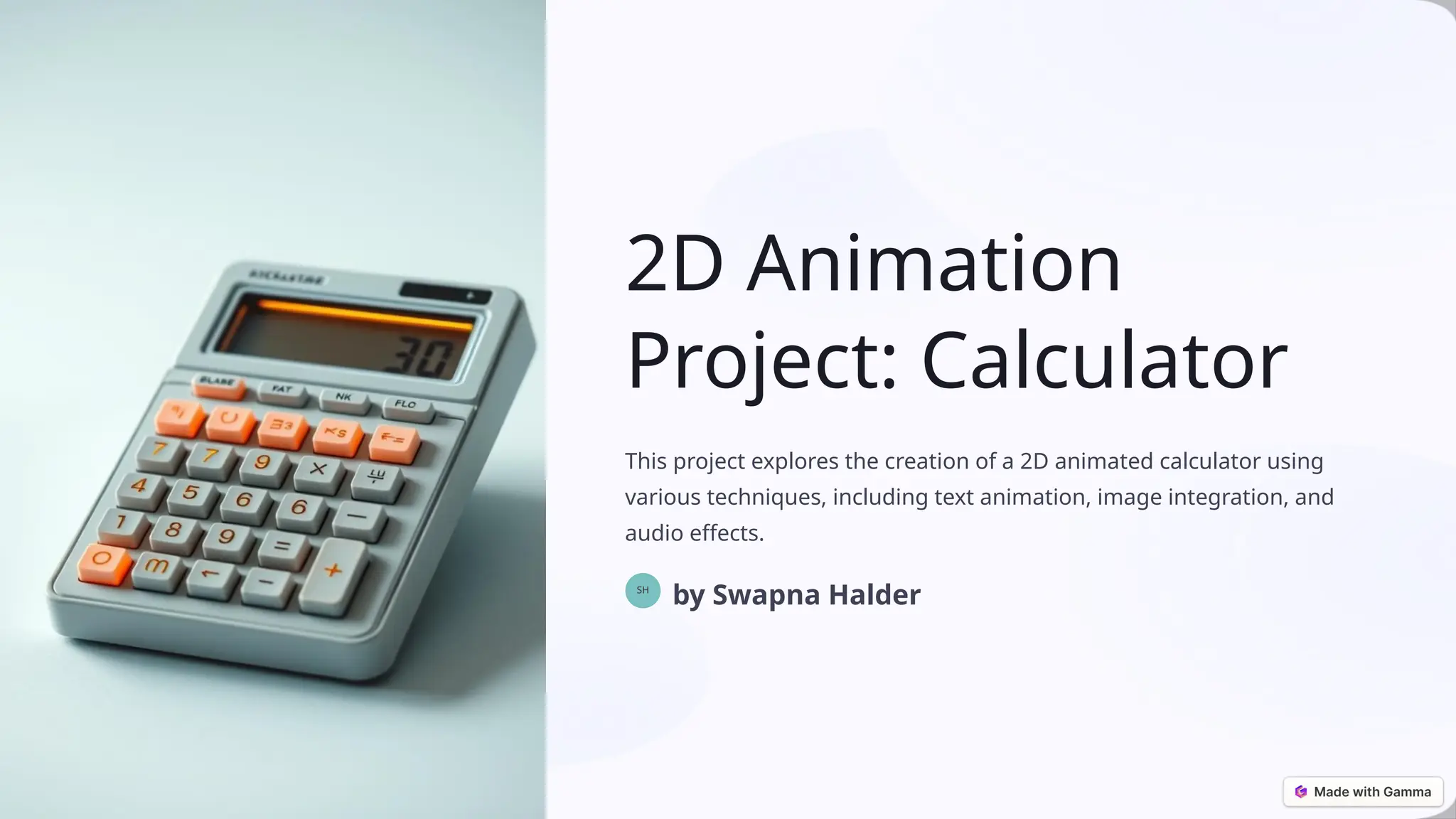
Thisproject explores the creation of a 2D animated calculator using
various techniques, including text animation, image integration, and
audio effects.
SH
by Swapna Halder
2.
Objectives and Goals
1Functionality
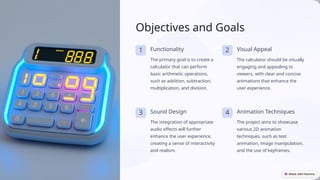
The primary goal is to create a
calculator that can perform
basic arithmetic operations,
such as addition, subtraction,
multiplication, and division.
2 Visual Appeal
The calculator should be visually
engaging and appealing to
viewers, with clear and concise
animations that enhance the
user experience.
3 Sound Design
The integration of appropriate
audio effects will further
enhance the user experience,
creating a sense of interactivity
and realism.
4 Animation Techniques
The project aims to showcase
various 2D animation
techniques, such as text
animation, image manipulation,
and the use of keyframes.
3.
Software and ToolsUsed
Animation Software
The primary animation software used
for this project is Adobe After Effects.
This industry-standard software
provides a powerful suite of tools for
creating and animating 2D graphics.
Image Editing
Adobe Photoshop is used to create
and edit the images and graphics
used in the calculator interface.
Audio Editing
Adobe Audition is utilized for editing
and adding sound effects to the
animation, enhancing the user's
audio experience.
4.
Storyboarding and Concept
Development
1Initial Design
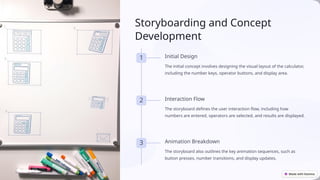
The initial concept involves designing the visual layout of the calculator,
including the number keys, operator buttons, and display area.
2 Interaction Flow
The storyboard defines the user interaction flow, including how
numbers are entered, operators are selected, and results are displayed.
3 Animation Breakdown
The storyboard also outlines the key animation sequences, such as
button presses, number transitions, and display updates.
5.
Text Animation andComposition
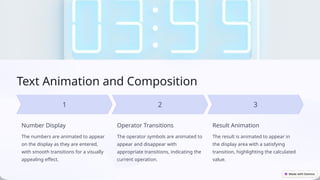
Number Display
The numbers are animated to appear
on the display as they are entered,
with smooth transitions for a visually
appealing effect.
Operator Transitions
The operator symbols are animated to
appear and disappear with
appropriate transitions, indicating the
current operation.
Result Animation
The result is animated to appear in
the display area with a satisfying
transition, highlighting the calculated
value.
6.
Incorporating Images and
Graphics
ButtonGraphics
Custom-designed images are
created for the calculator
buttons, ensuring a visually
appealing and intuitive
interface.
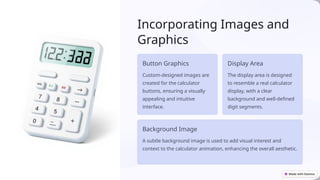
Display Area
The display area is designed
to resemble a real calculator
display, with a clear
background and well-defined
digit segments.
Background Image
A subtle background image is used to add visual interest and
context to the calculator animation, enhancing the overall aesthetic.
7.
Adding Audio andSound Effects
Button Clicks
Realistic button click sounds are added to each button press, providing auditory
feedback and enhancing the interactive experience.
Result Confirmation
A satisfying "ding" sound is used when the calculator displays the result, reinforcing
the successful calculation.
Error Sounds
Specific error sounds are used for situations like dividing by zero or entering invalid
characters, providing audio cues for potential errors.
8.
Challenges and LessonsLearned
Time Management Balancing the animation's complexity
with the project timeline was
challenging. Effective planning and
task prioritization were crucial.
Technical Proficiency The project required strong technical
skills in animation software, image
editing, and audio editing. Continued
learning and practice were essential.
Creative Collaboration Working effectively with team
members, sharing ideas, and
providing constructive feedback
contributed to the project's success.