Teacher Prep
●Put an poster up on the wall where all
students can get to it. Title the poster "Class
Bugs"
●Sticky notes
LESSON OBJECTIVES
Students will be able to:
● Describe why using white space, indentation, and comments
makes your code easier to maintain.
● Develop a set of techniques for preventing bugs in HTML code
and finding them when they occur.
Warm Up
Today you will be working with your table row!
Warm Up
With Your Group:
• Using your sticky notes, come up with at least
three specific problems you have encountered
while trying to write web pages in HTML.
• What project were you working on?
• How did you ultimately track down and fix the
problem?
Bug
Part of a program that does not work correctly.
Debugging
Finding and fixing problems in your algorithm or program.
NEW WORDS!
Warm Up
Using your sticky notes, now write 3 bugs you’ve
encountered
Each sticky should have:
1. A brief description of the bug
2. Steps taken to solve it .
3. Name of student who solved it
Once groups have written down their at least three bugs,
stick them up on the class poster.
Warm Up
The problems you had when your HTML code did
not work correctly are bugs. The process of
fixing bugs and strategies used to fix them is
called debugging. Today we're going to be working
on our debugging skills and learning some
strategies to keep our code clean to help avoid
them.
BUG REPORT!
During today’s lesson, if you squash a bug and want to
write up your bug report, you can write it on your sticky
note. Make sure you include your name, description of
bug, and how you fixed it!
If anyone gets stuck today they can go look at the bug
reports to see if they find any help!
Go to Code Studio
Unit 2, Chapter 1, Lesson 8
Work through level 2, 3, 4, 5, and 6
https://studio.code.org/s/csd2/stage/8/
puzzle/2
Formatting HTML
We are going to read the the level 7 together.
But before we do, the next two slides have
some NEW WORDS!
After we are done reading level 7 anyone that
has completed 2-6 can move on to level 8!
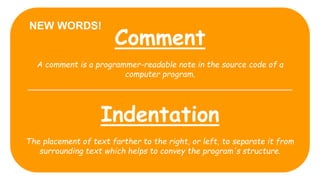
Comment
A comment is a programmer-readable note in the source code of a
computer program.
Indentation
The placement of text farther to the right, or left, to separate it from
surrounding text which helps to convey the program's structure.
NEW WORDS!
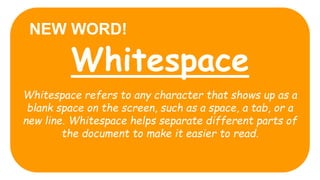
Whitespace
Whitespace refers to any character that shows up as a
blank space on the screen, such as a space, a tab, or a
new line. Whitespace helps separate different parts of
the document to make it easier to read.
NEW WORD!
WRAP UP
What made it harder or easier
to debug the web pages?
WRAP UP
Code needs to be useful for both people and
computers. Code that your computer can run might still
be really hard for someone (or even you!) to read and
make changes to.
From now on it's important that we use these
formatting practices to ensure our code is easy to
read for people, not just good enough for a computer
to use.

2.1.8 clean code and debugging

  • 1.
    Teacher Prep ●Put anposter up on the wall where all students can get to it. Title the poster "Class Bugs" ●Sticky notes
  • 3.
    LESSON OBJECTIVES Students willbe able to: ● Describe why using white space, indentation, and comments makes your code easier to maintain. ● Develop a set of techniques for preventing bugs in HTML code and finding them when they occur.
  • 4.
    Warm Up Today youwill be working with your table row!
  • 5.
    Warm Up With YourGroup: • Using your sticky notes, come up with at least three specific problems you have encountered while trying to write web pages in HTML. • What project were you working on? • How did you ultimately track down and fix the problem?
  • 6.
    Bug Part of aprogram that does not work correctly. Debugging Finding and fixing problems in your algorithm or program. NEW WORDS!
  • 7.
    Warm Up Using yoursticky notes, now write 3 bugs you’ve encountered Each sticky should have: 1. A brief description of the bug 2. Steps taken to solve it . 3. Name of student who solved it Once groups have written down their at least three bugs, stick them up on the class poster.
  • 8.
    Warm Up The problemsyou had when your HTML code did not work correctly are bugs. The process of fixing bugs and strategies used to fix them is called debugging. Today we're going to be working on our debugging skills and learning some strategies to keep our code clean to help avoid them.
  • 9.
    BUG REPORT! During today’slesson, if you squash a bug and want to write up your bug report, you can write it on your sticky note. Make sure you include your name, description of bug, and how you fixed it! If anyone gets stuck today they can go look at the bug reports to see if they find any help!
  • 10.
    Go to CodeStudio Unit 2, Chapter 1, Lesson 8 Work through level 2, 3, 4, 5, and 6 https://studio.code.org/s/csd2/stage/8/ puzzle/2
  • 11.
    Formatting HTML We aregoing to read the the level 7 together. But before we do, the next two slides have some NEW WORDS! After we are done reading level 7 anyone that has completed 2-6 can move on to level 8!
  • 12.
    Comment A comment isa programmer-readable note in the source code of a computer program. Indentation The placement of text farther to the right, or left, to separate it from surrounding text which helps to convey the program's structure. NEW WORDS!
  • 13.
    Whitespace Whitespace refers toany character that shows up as a blank space on the screen, such as a space, a tab, or a new line. Whitespace helps separate different parts of the document to make it easier to read. NEW WORD!
  • 14.
    WRAP UP What madeit harder or easier to debug the web pages?
  • 15.
    WRAP UP Code needsto be useful for both people and computers. Code that your computer can run might still be really hard for someone (or even you!) to read and make changes to. From now on it's important that we use these formatting practices to ensure our code is easy to read for people, not just good enough for a computer to use.

Editor's Notes

  • #3 Chapter Commentary Students use computing as a form of self expression as they design and develop basic web pages. Focusing on the tags, keywords, and syntax used to communicate instructions to the computer, students use HTML to structure the content of a web page. They also explore the privacy and intellectual property implications of publishing their work online. Week 1 Lesson 1: Exploring Websites Unplugged This lesson covers the purposes that a website might serve, both for the users and the creators. The class explores a handful of the most-used websites in the United States and discusses how each of those sites is useful for users and how it might also serve its creators. Student Links: Activity Guide Lesson 2: Websites for Expression Unplugged This lesson introduces websites as a means of personal expression. The class first discusses different ways that people express and share their interests and ideas, then looks at a few exemplar websites made by students from a previous course. Finally everyone brainstorms and shares a list of topics and interests to include, creating a resource for developing a personal website in the rest of the unit. Student Links: Activity Guide Lesson 3: Intro to HTML Web Lab This lesson introduces to HTML as a solution to the problem of how to communicate both the content and structure of a website to a computer. The lesson begins with a brief unplugged activity demonstrating the challenges of effectively communicating the structure of a web page. The class looks at an HTML page in Web Lab and discusses how HTML tags help solve this problem, then uses HTML to write the first web pages of the unit. Teacher Links: Week 2 Lesson 4: Headers Web Lab This lesson continues the introduction to HTML tags, this time with headers. The class practices using header tags to create page and section titles and learns how the different header elements are displayed by default. Next, the class plans how to organize their content on the personal web pages that will be built across the unit and begins the first page of the project. Lesson 5: Digital Footprint Unplugged This lesson takes a step back from creating the personal website to talk about personal information people choose to share digitally. The class begins by discussing what types of information are good to share with other people, then looks at several sample social media pages to see what types of personal information could be shared intentionally or unintentionally. Finally, the class comes up with a set of guidelines to follow when putting information online. Student Links: Activity Guide | Activity Guide Week 3 Lesson 6: Lists Web Lab This lesson introduces ordered and unordered lists and the associated <ul>, <ol>, and <li> HTML tags. The class practices using the tags, then goes back to the personal web page project to add a new HTML page that includes the new tags. Lesson 7: Intellectual Property and Images Unplugged | Web Lab This lesson covers how to use media such as images, video, or music created by others a website while respecting the rights of the creator of that media. After first studying Creative Commons licensing, the class learns how to add images to web pages, and how to give proper attribution when doing so. Teacher Links: Website Student Links: Video | Video | Activity Guide Lesson 8: Clean Code and Debugging Web Lab In this lesson covers common issues that arise when designing web pages in HTML. The class will correct errors in a sequence of increasingly complex web pages found on Code Studio and learn the importance of comments, whitespace, and indentation as tools for making web pages easier to read. Week 4 Lesson 9: Project - Multi-Page Websites Web Lab | Project This lesson covers hyperlinks, which allow web developers to connect pages together into one website. The class will link together all the previous pages into one project, and create navigation bars for each page before publishing the entire site to the Web. Student Links: Project Guide | Peer Review | Rubric
  • #4 Preparation Prepare poster paper, sticky notes, and markers Vocabulary Bug - Part of a program that does not work correctly. Comment - A comment is a programmer-readable note in the source code of a computer program. Debugging - Finding and fixing problems in your algorithm or program. Indentation - The placement of text farther to the right, or left, to separate it from surrounding text which helps to convey the program's structure. Whitespace - Whitespace refers to any character that shows up as a blank space on the screen, such as a space, a tab, or a new line. Whitespace helps separate different parts of the document to make it easier to read. Introduced Code <!-- --> Web Lab Overview In this lesson students will deal with common issues that arise when designing web pages in HTML. Students will correct errors in a sequence of increasingly complex web pages found on Code Studio. In the process they will learn the importance of comments, whitespace, and indentation as tools for making web pages easier to read. At the end of the lesson students create a list of strategies for debugging web pages and ensuring they are easy to read and maintain. Purpose Bugs in HTML are more forgiving than programming languages such as JavaScript (the language used in Unit 3). However debugging is an explicit problem solving process that students will use repeatedly when working with any language on the computer. When problem solving there are different strategies that a computer scientist can use to find the source of the issue. In addition to the strategies to fix bugs once they have occurred there are certain styles of writing HTML code that help prevent bugs or make it easier to find bugs. The three main style conventions used are comment, whitespace, and indentation. To motivate students to consider using these conventions in the future, the debugging levels demonstrate that it is easier to debug a program that is written with these style conventions. Agenda Warm Up (10 minutes) Previous Experience with Bugs Activity (35 minutes) Web Lab: Smash Those Bugs! Wrap Up (10 minutes) Coding Style Conventions