GUI Development


               OOSSE - Programming with Java
                        Lecture 12


Dec 21, 2012    OOSSE - Java Lecture 12    1
Objectives
 In this lecture, we will
 • Introduce the Abstract Window Toolkit
 • Introduce the Java Foundation Classes
 • Discuss containers and layout managers
 • Introduce events and event handling
 • Introduce menus
 • Introduce dialogs
 • Discuss mouse events


Dec 21, 2012   OOSSE - Java Lecture 12      2
The Abstract Windowing Toolkit AWT
 • The Abstract Windowing Toolkit provides a set of GUI
   components in the package java.awt
 • The AWT supports the most common user interface
   idioms
 • The AWT makes use of the GUI components of the
   underlying platform
     – Has the look and feel of the native windowing toolkit
     – The same AWT GUI may have a different appearance on
       different platforms
 • With J2SE came Swing components that allow a uniform
   look and feel to be specified across different platforms
     – Most Swing components are pure Java components


Dec 21, 2012     OOSSE - Java Lecture 12         3
The Java Foundation Classes JFC
 • The Java Foundation Classes form a set of classes for
   cross platform GUI development
 • The Swing GUI components are part of JFC
     – They exist in the package javax.swing
     – Swing makes use of some of the classes found in AWT
 • Swing provides alternatives to most of the GUI
   components found in AWT
     – For examples JButton is a Swing alternative to Button found
       in AWT
     – Swing GUI components are more portable and flexible than
       the original AWT GUI components and generally preferred


Dec 21, 2012     OOSSE - Java Lecture 12           4
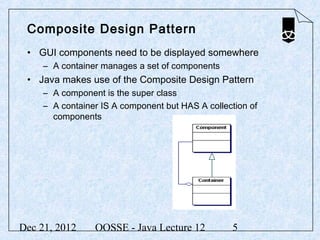
Composite Design Pattern
 • GUI components need to be displayed somewhere
     – A container manages a set of components
 • Java makes use of the Composite Design Pattern
     – A component is the super class
     – A container IS A component but HAS A collection of
       components


Dec 21, 2012     OOSSE - Java Lecture 12          5
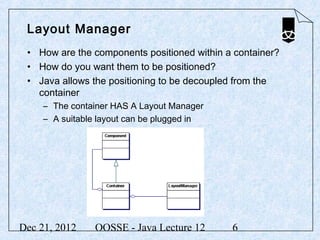
Layout Manager
 • How are the components positioned within a container?
 • How do you want them to be positioned?
 • Java allows the positioning to be decoupled from the
   container
     – The container HAS A Layout Manager
     – A suitable layout can be plugged in


Dec 21, 2012    OOSSE - Java Lecture 12      6
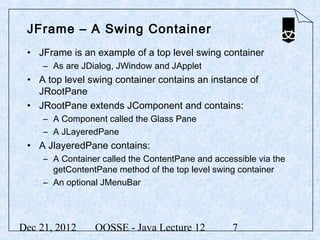
JFrame – A Swing Container
 • JFrame is an example of a top level swing container
     – As are JDialog, JWindow and JApplet
 • A top level swing container contains an instance of
   JRootPane
 • JRootPane extends JComponent and contains:
     – A Component called the Glass Pane
     – A JLayeredPane
 • A JlayeredPane contains:
     – A Container called the ContentPane and accessible via the
       getContentPane method of the top level swing container
     – An optional JMenuBar


Dec 21, 2012     OOSSE - Java Lecture 12           7
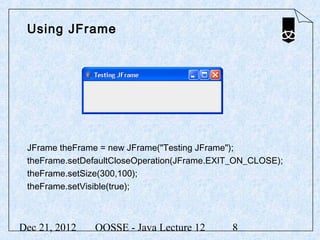
Using JFrame


 JFrame theFrame = new JFrame("Testing JFrame");
 theFrame.setDefaultCloseOperation(JFrame.EXIT_ON_CLOSE);
 theFrame.setSize(300,100);
 theFrame.setVisible(true);


Dec 21, 2012   OOSSE - Java Lecture 12       8
Extending the JFrame class
 • Normally JFrame is used as a starting point:

 import java.awt.*;
 import javax.swing.*;

 public class PeteFrame extends JFrame
 {
    private JButton b1;
    private JLabel l1;

    public PeteFrame (String sTitle)
    {
          super (sTitle);
          Container contentPane;
          contentPane = getContentPane();
          contentPane.setLayout(new FlowLayout());


Dec 21, 2012        OOSSE - Java Lecture 12          9
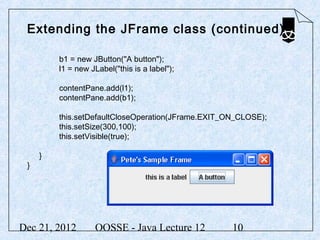
Extending the JFrame class (continued)

         b1 = new JButton("A button");
         l1 = new JLabel("this is a label");

         contentPane.add(l1);
         contentPane.add(b1);

         this.setDefaultCloseOperation(JFrame.EXIT_ON_CLOSE);
         this.setSize(300,100);
         this.setVisible(true);

     }
 }


Dec 21, 2012       OOSSE - Java Lecture 12          10
Closing JFrames
 • It is possible to choose what happens when a JFame is
   closed
 • The setDefaultCloseOperation is used
 • It takes a single argument and suitable constants are
   defined in JFrame:
     –   DO_NOTHING_ON_CLOSE
     –   HIDE_ON_CLOSE
     –   DISPOSE_ON_CLOSE
     –   EXIT_ON_CLOSE
 • For example form the previous slide:
     – this.setDefaultCloseOperation(JFrame.EXIT_ON_CLOSE);


Dec 21, 2012     OOSSE - Java Lecture 12           11
Layout Manager
 • The positions of the components added to a container is
   determined by a layout manager
 • In the previous example a flow layout manager was used
     – contentPane.setLayout(new FlowLayout());


 • Some examples of existing layout managers are:
     – FlowLayout        – left to right and horizontally centred
     – BorderLayout      – NORTH, SOUTH, EAST, WEST and
       CENTER
     – GridLayout        - evenly spaced rows and columns


     – GridBagLayout
     – CardLayout


Dec 21, 2012      OOSSE - Java Lecture 12                12
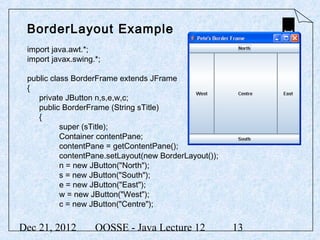
BorderLayout Example
 import java.awt.*;
 import javax.swing.*;

 public class BorderFrame extends JFrame
 {
    private JButton n,s,e,w,c;
    public BorderFrame (String sTitle)
    {
           super (sTitle);
           Container contentPane;
           contentPane = getContentPane();
           contentPane.setLayout(new BorderLayout());
           n = new JButton("North");
           s = new JButton("South");
           e = new JButton("East");
           w = new JButton("West");
           c = new JButton("Centre");


Dec 21, 2012        OOSSE - Java Lecture 12             13
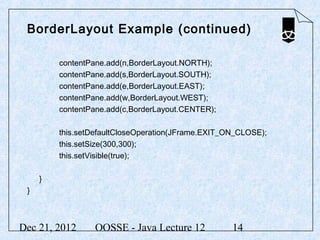
BorderLayout Example (continued)

         contentPane.add(n,BorderLayout.NORTH);
         contentPane.add(s,BorderLayout.SOUTH);
         contentPane.add(e,BorderLayout.EAST);
         contentPane.add(w,BorderLayout.WEST);
         contentPane.add(c,BorderLayout.CENTER);

         this.setDefaultCloseOperation(JFrame.EXIT_ON_CLOSE);
         this.setSize(300,300);
         this.setVisible(true);

     }
 }


Dec 21, 2012      OOSSE - Java Lecture 12           14
GridLayout Example
 • Code fragment:
 contentPane.setLayout(new GridLayout(4,3,2,2));
 buttons = new JButton [12] ;
 for (int i = 1; i < 10; ++i)
 {
     buttons[i] = new JButton (Integer.toString(i));
     contentPane.add(buttons[i]);
 }
 buttons[10] = new JButton("*");
 contentPane.add(buttons[10]);
 buttons[0] = new JButton("0");
 contentPane.add(buttons[0]);
 buttons[11] = new JButton("#");
 contentPane.add(buttons[11]);


Dec 21, 2012        OOSSE - Java Lecture 12            15
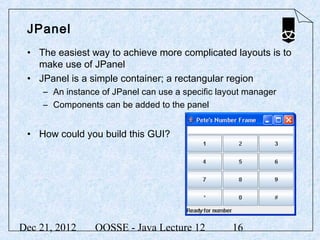
JPanel
 • The easiest way to achieve more complicated layouts is to
   make use of JPanel
 • JPanel is a simple container; a rectangular region
     – An instance of JPanel can use a specific layout manager
     – Components can be added to the panel


 • How could you build this GUI?


Dec 21, 2012     OOSSE - Java Lecture 12           16
Using JPanel – Code Fragment
 • First set up the JPanel and add components using the
   GridLayout:
    numPanel = new JPanel();
    numPanel.setLayout(new GridLayout(4,3,2,2));
    buttons = new JButton [12] ;
    for (int i = 1; i < 10; ++i)
    {
           buttons[i] = new JButton (Integer.toString(i));
           numPanel.add(buttons[i]);
    }
    buttons[10] = new JButton("*");
    numPanel.add(buttons[10]);
    buttons[0] = new JButton("0");
    numPanel.add(buttons[0]);
    buttons[11] = new JButton("#");
    numPanel.add(buttons[11]);


Dec 21, 2012         OOSSE - Java Lecture 12                 17
Using JPanel – Code Fragment
 • Now add the panel, a text field and a label to a frame
   using the Border Layout manager:

    Container contentPane;
    contentPane = getContentPane();
    contentPane.setLayout(new BorderLayout());

    number = new JTextField();
    statusLabel = new JLabel("Ready for number");

    contentPane.add(number,BorderLayout.NORTH);
    contentPane.add(statusLabel,BorderLayout.SOUTH);
    contentPane.add(numPanel,BorderLayout.CENTER);


Dec 21, 2012       OOSSE - Java Lecture 12             18
Event Handling


Dec 21, 2012   OOSSE - Java Lecture 12   19
Events
 • We know how to add GUI components but at the moment
   there is little or no user interaction
 • Java GUIs are event driven
     – Any user interaction with a GUI component generates an
       event
     – An application handles the events
 • An application must explicitly listen for events
 • For example a JButton generates an event when it is
   clicked
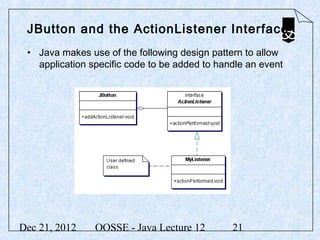
 • A JButton can have an ActionListener added
 • The ActionListener has a method called actionPerformed
   that is invoked when the button is clicked


Dec 21, 2012     OOSSE - Java Lecture 12          20
JButton and the ActionListener Interface
 • Java makes use of the following design pattern to allow
   application specific code to be added to handle an event


Dec 21, 2012    OOSSE - Java Lecture 12        21
Adding an ActionListener
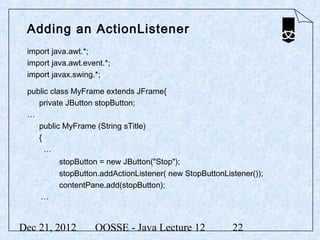
 import java.awt.*;
 import java.awt.event.*;
 import javax.swing.*;

 public class MyFrame extends JFrame{
    private JButton stopButton;
 …
    public MyFrame (String sTitle)
    {
      …
          stopButton = new JButton("Stop");
          stopButton.addActionListener( new StopButtonListener());
          contentPane.add(stopButton);
    …


Dec 21, 2012        OOSSE - Java Lecture 12              22
Building the ActionListener
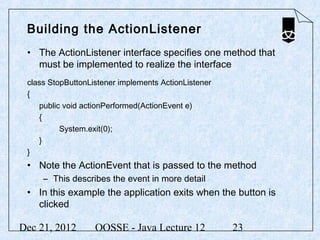
 • The ActionListener interface specifies one method that
   must be implemented to realize the interface
 class StopButtonListener implements ActionListener
 {
    public void actionPerformed(ActionEvent e)
    {
          System.exit(0);
    }
 }
 • Note the ActionEvent that is passed to the method
     – This describes the event in more detail
 • In this example the application exits when the button is
   clicked

Dec 21, 2012       OOSSE - Java Lecture 12            23
Events
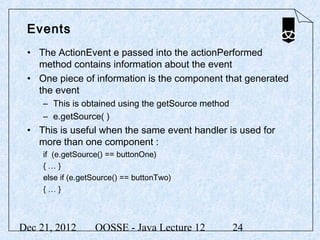
 • The ActionEvent e passed into the actionPerformed
   method contains information about the event
 • One piece of information is the component that generated
   the event
     – This is obtained using the getSource method
     – e.getSource( )
 • This is useful when the same event handler is used for
   more than one component :
     if (e.getSource() == buttonOne)
     {…}
     else if (e.getSource() == buttonTwo)
     {…}


Dec 21, 2012       OOSSE - Java Lecture 12           24
Using Inner Classes
 • If the event handler needs to access member variables
   and member methods of a class then it is convenient to
   make it an inner class
     – An inner class has access to the enclosing class


Dec 21, 2012     OOSSE - Java Lecture 12            25
Using an Inner Class
 public class PresenterFrame extends JFrame {
    String [] list; final int max; int pos = 0;
    JLabel title; JButton next; JButton prev;

     public PresenterFrame(String sTitle, String [] theList) {
           super(sTitle);
           …
     }
     class DirectionListener implements ActionListener
     {
           public void actionPerformed(ActionEvent e){
                    if (e.getSource() == next) { if (pos < max) ++pos; }
                    else if (e.getSource() == prev) {if (pos >0) --pos; }
                    title.setText(list[pos]);
           }
     }
 }


Dec 21, 2012         OOSSE - Java Lecture 12                  26
JTextField
 • JTextField can be used for simple text input
 • JTextField has the following constructors:
     –   JTextField()
     –   JTextField(“Initial text”)
     –   JTextField(10)
     –   JTextField(“name”, 30)
 • Two of the most useful methods are:
     – void setText(String)
     – String getText()
 • The alignment of text within the component is set using:
     – setHorizontalAlignment (int)
     – JTextField.LEADING, JTextField.CENTER, and
       JTextField.TRAILING

Dec 21, 2012         OOSSE - Java Lecture 12        27
JTextField and ActionListeners
 • A JTextField component handles much of the user
   interaction
 • When the user hits enter the component generates an
   event
     – an ActionEvent
 • An inner class is normally written to implement the
   ActionListener interface
     – The actionPerformed method handles the event


Dec 21, 2012     OOSSE - Java Lecture 12        28
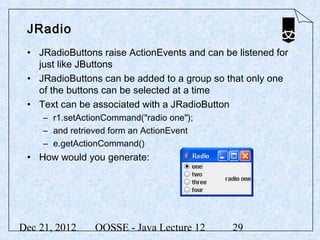
JRadio
 • JRadioButtons raise ActionEvents and can be listened for
   just like JButtons
 • JRadioButtons can be added to a group so that only one
   of the buttons can be selected at a time
 • Text can be associated with a JRadioButton
     – r1.setActionCommand("radio one");
     – and retrieved form an ActionEvent
     – e.getActionCommand()
 • How would you generate:


Dec 21, 2012     OOSSE - Java Lecture 12      29
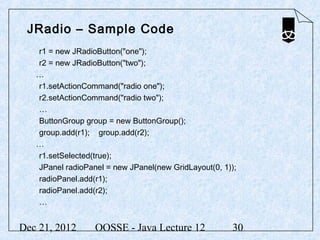
JRadio – Sample Code
   r1 = new JRadioButton("one");
   r2 = new JRadioButton("two");
   …
   r1.setActionCommand("radio one");
   r2.setActionCommand("radio two");
   …
   ButtonGroup group = new ButtonGroup();
   group.add(r1); group.add(r2);
   …
   r1.setSelected(true);
   JPanel radioPanel = new JPanel(new GridLayout(0, 1));
   radioPanel.add(r1);
   radioPanel.add(r2);
   …


Dec 21, 2012      OOSSE - Java Lecture 12             30
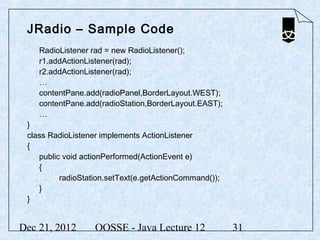
JRadio – Sample Code
    RadioListener rad = new RadioListener();
    r1.addActionListener(rad);
    r2.addActionListener(rad);
    …
    contentPane.add(radioPanel,BorderLayout.WEST);
    contentPane.add(radioStation,BorderLayout.EAST);
    …
 }
 class RadioListener implements ActionListener
 {
    public void actionPerformed(ActionEvent e)
    {
          radioStation.setText(e.getActionCommand());
    }
 }


Dec 21, 2012       OOSSE - Java Lecture 12              31
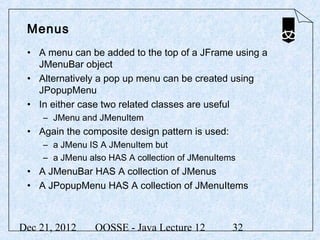
Menus
 • A menu can be added to the top of a JFrame using a
   JMenuBar object
 • Alternatively a pop up menu can be created using
   JPopupMenu
 • In either case two related classes are useful
     – JMenu and JMenuItem
 • Again the composite design pattern is used:
     – a JMenu IS A JMenuItem but
     – a JMenu also HAS A collection of JMenuItems
 • A JMenuBar HAS A collection of JMenus
 • A JPopupMenu HAS A collection of JMenuItems


Dec 21, 2012     OOSSE - Java Lecture 12         32
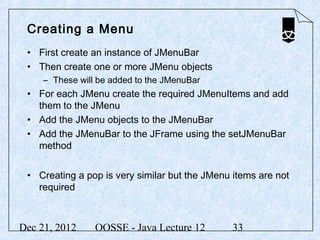
Creating a Menu
 • First create an instance of JMenuBar
 • Then create one or more JMenu objects
     – These will be added to the JMenuBar
 • For each JMenu create the required JMenuItems and add
   them to the JMenu
 • Add the JMenu objects to the JMenuBar
 • Add the JMenuBar to the JFrame using the setJMenuBar
   method


 • Creating a pop is very similar but the JMenu items are not
   required


Dec 21, 2012     OOSSE - Java Lecture 12        33
Menus and Events
 • Menus raise events when they are selected
     – ActionEvents
 • The events can be listened for using an ActionListener in
   a similar way to JButton events


Dec 21, 2012    OOSSE - Java Lecture 12        34
Dialogs
 • A dialog is typically used for data entry
     –   a dialog pops up,
     –   the user enters data,
     –   the dialog disappears,
     –   the application uses the data
 • A dialog provides context for data entry and closure when
   used in a modal way
 • Dialogs can be modal or modeless
 • Java provides the class JDialog as the starting point for
   building dialogs
 • An application shows an instance of a dialog
     – Delegation methods are used to retrieve data from the dialog


Dec 21, 2012       OOSSE - Java Lecture 12          35
Sample JDialog Code
 • Extending the dialog class:
 public class MyNameDialog extends JDialog
 {
    JTextField name ;
    MyNameDialog(String sTitle, JFrame owner)
    {
            super (owner, sTitle, true);
            name = new JTextField(20) ;
                       …
    }
    public String getName()
    {
            return name.getText() ;
    }
    public void actionPerformed(ActionEvent e)
    {
            dispose();
    }
 }


Dec 21, 2012         OOSSE - Java Lecture 12     36
Sample JDialog Code
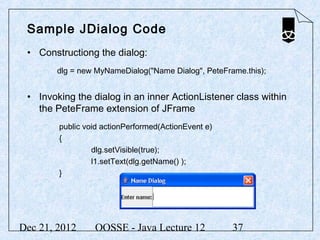
 • Constructiong the dialog:
        dlg = new MyNameDialog("Name Dialog", PeteFrame.this);


 • Invoking the dialog in an inner ActionListener class within
   the PeteFrame extension of JFrame
        public void actionPerformed(ActionEvent e)
        {
                 dlg.setVisible(true);
                 l1.setText(dlg.getName() );
        }


Dec 21, 2012     OOSSE - Java Lecture 12             37
JOptionPane
 • JOptionPane provides support for several simple and easy
   to use pre-defined dialogs
 • The dialogs can be displayed without instantiating the
   class
 • JOptionPane has many static methods such as:
     – showMessageDialog
     – showConfirmDialog
     – showInputDialogOptionDialog
 • Some, such as the confirm dialog, have a return value that
   can be checked with a simple if others do not
 • There are numerous overloaded versions of the methods
     – See the sun documentation for further details


Dec 21, 2012      OOSSE - Java Lecture 12              38
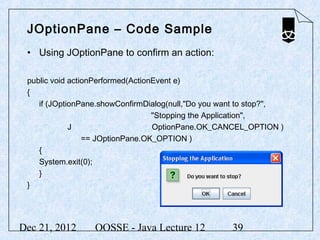
JOptionPane – Code Sample
 • Using JOptionPane to confirm an action:

 public void actionPerformed(ActionEvent e)
 {
    if (JOptionPane.showConfirmDialog(null,"Do you want to stop?",
                                   "Stopping the Application",
             J                     OptionPane.OK_CANCEL_OPTION )
                 == JOptionPane.OK_OPTION )
    {
    System.exit(0);
    }
 }


Dec 21, 2012      OOSSE - Java Lecture 12            39
Mouse Events
 • When a JButton is pressed only one event occurs
     – an ActionEvent
     – the ActionListener interface only specified 1 method
 • A mouse is capable of generating several different types
   of event
     – Mouse click, mouse press, mouse release, mouse move …
 • The mouse moves very frequently and responding to each
   event associated with movement may be too expensive
   for many applications
 • Java provides:
     – A MouseListener that is associated with mouse actions
     – A MouseMotionListener that is associated with movement


Dec 21, 2012      OOSSE - Java Lecture 12           40
The MouseListener Interface
 • The MouseListener interface caters for possible actions
   associated with a mouse:
     public interface MouseListener
     {
          void mouseClicked(MouseEvent event);
          void mousePressed(MouseEvent event);
          void mouseReleased(MouseEvent event);
          void mouseEntered(MouseEvent event);
          void mouseExited(MouseEvent event);
     }
 • Not all of these may be of interest in an application
     – BUT to implement an interface all methods must be implemented
     – Java introduces the MouseAdapter class to make life easier


Dec 21, 2012      OOSSE - Java Lecture 12             41
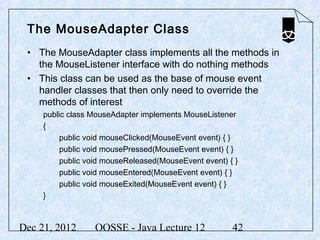
The MouseAdapter Class
 • The MouseAdapter class implements all the methods in
   the MouseListener interface with do nothing methods
 • This class can be used as the base of mouse event
   handler classes that then only need to override the
   methods of interest
     public class MouseAdapter implements MouseListener
     {
          public void mouseClicked(MouseEvent event) { }
          public void mousePressed(MouseEvent event) { }
          public void mouseReleased(MouseEvent event) { }
          public void mouseEntered(MouseEvent event) { }
          public void mouseExited(MouseEvent event) { }
     }


Dec 21, 2012      OOSSE - Java Lecture 12              42
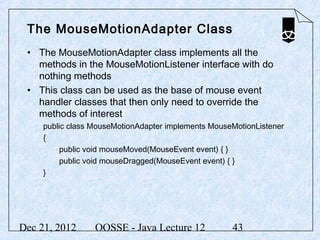
The MouseMotionAdapter Class
 • The MouseMotionAdapter class implements all the
   methods in the MouseMotionListener interface with do
   nothing methods
 • This class can be used as the base of mouse event
   handler classes that then only need to override the
   methods of interest
     public class MouseMotionAdapter implements MouseMotionListener
     {
          public void mouseMoved(MouseEvent event) { }
          public void mouseDragged(MouseEvent event) { }
     }


Dec 21, 2012      OOSSE - Java Lecture 12            43
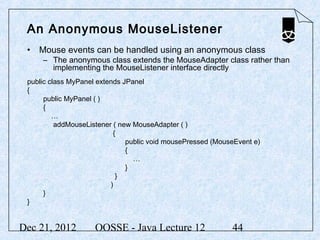
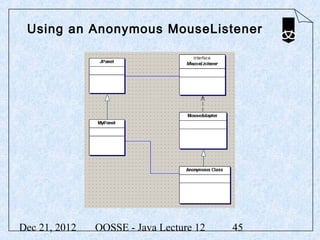
An Anonymous MouseListener
 • Mouse events can be handled using an anonymous class
     – The anonymous class extends the MouseAdapter class rather than
       implementing the MouseListener interface directly
 public class MyPanel extends JPanel
 {
      public MyPanel ( )
      {
         …
          addMouseListener ( new MouseAdapter ( )
                           {
                               public void mousePressed (MouseEvent e)
                               {
                                 …
                               }
                            }
                          )
      }
 }


Dec 21, 2012         OOSSE - Java Lecture 12                 44
Using an Anonymous MouseListener


Dec 21, 2012   OOSSE - Java Lecture 12   45
Summary
 In this lecture we have:
 • Introduced the Abstract Window Toolkit
 • Introduced the Java Foundation Classes
 • Discussed containers and layout managers
 • Introduced events and event handling
 • Introduced menus
 • Introduced dialogs
 • Discussed mouse events


Dec 21, 2012   OOSSE - Java Lecture 12        46
Useful Websites
 http://java.sun.com/docs/books/tutorial/uiswing/components/componentlist.html


Dec 21, 2012          OOSSE - Java Lecture 12                   47

13 gui development

  • 1.
    GUI Development OOSSE - Programming with Java Lecture 12 Dec 21, 2012 OOSSE - Java Lecture 12 1
  • 2.
    Objectives In thislecture, we will • Introduce the Abstract Window Toolkit • Introduce the Java Foundation Classes • Discuss containers and layout managers • Introduce events and event handling • Introduce menus • Introduce dialogs • Discuss mouse events Dec 21, 2012 OOSSE - Java Lecture 12 2
  • 3.
    The Abstract WindowingToolkit AWT • The Abstract Windowing Toolkit provides a set of GUI components in the package java.awt • The AWT supports the most common user interface idioms • The AWT makes use of the GUI components of the underlying platform – Has the look and feel of the native windowing toolkit – The same AWT GUI may have a different appearance on different platforms • With J2SE came Swing components that allow a uniform look and feel to be specified across different platforms – Most Swing components are pure Java components Dec 21, 2012 OOSSE - Java Lecture 12 3
  • 4.
    The Java FoundationClasses JFC • The Java Foundation Classes form a set of classes for cross platform GUI development • The Swing GUI components are part of JFC – They exist in the package javax.swing – Swing makes use of some of the classes found in AWT • Swing provides alternatives to most of the GUI components found in AWT – For examples JButton is a Swing alternative to Button found in AWT – Swing GUI components are more portable and flexible than the original AWT GUI components and generally preferred Dec 21, 2012 OOSSE - Java Lecture 12 4
  • 5.
    Composite Design Pattern • GUI components need to be displayed somewhere – A container manages a set of components • Java makes use of the Composite Design Pattern – A component is the super class – A container IS A component but HAS A collection of components Dec 21, 2012 OOSSE - Java Lecture 12 5
  • 6.
    Layout Manager •How are the components positioned within a container? • How do you want them to be positioned? • Java allows the positioning to be decoupled from the container – The container HAS A Layout Manager – A suitable layout can be plugged in Dec 21, 2012 OOSSE - Java Lecture 12 6
  • 7.
    JFrame – ASwing Container • JFrame is an example of a top level swing container – As are JDialog, JWindow and JApplet • A top level swing container contains an instance of JRootPane • JRootPane extends JComponent and contains: – A Component called the Glass Pane – A JLayeredPane • A JlayeredPane contains: – A Container called the ContentPane and accessible via the getContentPane method of the top level swing container – An optional JMenuBar Dec 21, 2012 OOSSE - Java Lecture 12 7
  • 8.
    Using JFrame JFrametheFrame = new JFrame("Testing JFrame"); theFrame.setDefaultCloseOperation(JFrame.EXIT_ON_CLOSE); theFrame.setSize(300,100); theFrame.setVisible(true); Dec 21, 2012 OOSSE - Java Lecture 12 8
  • 9.
    Extending the JFrameclass • Normally JFrame is used as a starting point: import java.awt.*; import javax.swing.*; public class PeteFrame extends JFrame { private JButton b1; private JLabel l1; public PeteFrame (String sTitle) { super (sTitle); Container contentPane; contentPane = getContentPane(); contentPane.setLayout(new FlowLayout()); Dec 21, 2012 OOSSE - Java Lecture 12 9
  • 10.
    Extending the JFrameclass (continued) b1 = new JButton("A button"); l1 = new JLabel("this is a label"); contentPane.add(l1); contentPane.add(b1); this.setDefaultCloseOperation(JFrame.EXIT_ON_CLOSE); this.setSize(300,100); this.setVisible(true); } } Dec 21, 2012 OOSSE - Java Lecture 12 10
  • 11.
    Closing JFrames •It is possible to choose what happens when a JFame is closed • The setDefaultCloseOperation is used • It takes a single argument and suitable constants are defined in JFrame: – DO_NOTHING_ON_CLOSE – HIDE_ON_CLOSE – DISPOSE_ON_CLOSE – EXIT_ON_CLOSE • For example form the previous slide: – this.setDefaultCloseOperation(JFrame.EXIT_ON_CLOSE); Dec 21, 2012 OOSSE - Java Lecture 12 11
  • 12.
    Layout Manager •The positions of the components added to a container is determined by a layout manager • In the previous example a flow layout manager was used – contentPane.setLayout(new FlowLayout()); • Some examples of existing layout managers are: – FlowLayout – left to right and horizontally centred – BorderLayout – NORTH, SOUTH, EAST, WEST and CENTER – GridLayout - evenly spaced rows and columns – GridBagLayout – CardLayout Dec 21, 2012 OOSSE - Java Lecture 12 12
  • 13.
    BorderLayout Example importjava.awt.*; import javax.swing.*; public class BorderFrame extends JFrame { private JButton n,s,e,w,c; public BorderFrame (String sTitle) { super (sTitle); Container contentPane; contentPane = getContentPane(); contentPane.setLayout(new BorderLayout()); n = new JButton("North"); s = new JButton("South"); e = new JButton("East"); w = new JButton("West"); c = new JButton("Centre"); Dec 21, 2012 OOSSE - Java Lecture 12 13
  • 14.
    BorderLayout Example (continued) contentPane.add(n,BorderLayout.NORTH); contentPane.add(s,BorderLayout.SOUTH); contentPane.add(e,BorderLayout.EAST); contentPane.add(w,BorderLayout.WEST); contentPane.add(c,BorderLayout.CENTER); this.setDefaultCloseOperation(JFrame.EXIT_ON_CLOSE); this.setSize(300,300); this.setVisible(true); } } Dec 21, 2012 OOSSE - Java Lecture 12 14
  • 15.
    GridLayout Example •Code fragment: contentPane.setLayout(new GridLayout(4,3,2,2)); buttons = new JButton [12] ; for (int i = 1; i < 10; ++i) { buttons[i] = new JButton (Integer.toString(i)); contentPane.add(buttons[i]); } buttons[10] = new JButton("*"); contentPane.add(buttons[10]); buttons[0] = new JButton("0"); contentPane.add(buttons[0]); buttons[11] = new JButton("#"); contentPane.add(buttons[11]); Dec 21, 2012 OOSSE - Java Lecture 12 15
  • 16.
    JPanel • Theeasiest way to achieve more complicated layouts is to make use of JPanel • JPanel is a simple container; a rectangular region – An instance of JPanel can use a specific layout manager – Components can be added to the panel • How could you build this GUI? Dec 21, 2012 OOSSE - Java Lecture 12 16
  • 17.
    Using JPanel –Code Fragment • First set up the JPanel and add components using the GridLayout: numPanel = new JPanel(); numPanel.setLayout(new GridLayout(4,3,2,2)); buttons = new JButton [12] ; for (int i = 1; i < 10; ++i) { buttons[i] = new JButton (Integer.toString(i)); numPanel.add(buttons[i]); } buttons[10] = new JButton("*"); numPanel.add(buttons[10]); buttons[0] = new JButton("0"); numPanel.add(buttons[0]); buttons[11] = new JButton("#"); numPanel.add(buttons[11]); Dec 21, 2012 OOSSE - Java Lecture 12 17
  • 18.
    Using JPanel –Code Fragment • Now add the panel, a text field and a label to a frame using the Border Layout manager: Container contentPane; contentPane = getContentPane(); contentPane.setLayout(new BorderLayout()); number = new JTextField(); statusLabel = new JLabel("Ready for number"); contentPane.add(number,BorderLayout.NORTH); contentPane.add(statusLabel,BorderLayout.SOUTH); contentPane.add(numPanel,BorderLayout.CENTER); Dec 21, 2012 OOSSE - Java Lecture 12 18
  • 19.
    Event Handling Dec 21,2012 OOSSE - Java Lecture 12 19
  • 20.
    Events • Weknow how to add GUI components but at the moment there is little or no user interaction • Java GUIs are event driven – Any user interaction with a GUI component generates an event – An application handles the events • An application must explicitly listen for events • For example a JButton generates an event when it is clicked • A JButton can have an ActionListener added • The ActionListener has a method called actionPerformed that is invoked when the button is clicked Dec 21, 2012 OOSSE - Java Lecture 12 20
  • 21.
    JButton and theActionListener Interface • Java makes use of the following design pattern to allow application specific code to be added to handle an event Dec 21, 2012 OOSSE - Java Lecture 12 21
  • 22.
    Adding an ActionListener import java.awt.*; import java.awt.event.*; import javax.swing.*; public class MyFrame extends JFrame{ private JButton stopButton; … public MyFrame (String sTitle) { … stopButton = new JButton("Stop"); stopButton.addActionListener( new StopButtonListener()); contentPane.add(stopButton); … Dec 21, 2012 OOSSE - Java Lecture 12 22
  • 23.
    Building the ActionListener • The ActionListener interface specifies one method that must be implemented to realize the interface class StopButtonListener implements ActionListener { public void actionPerformed(ActionEvent e) { System.exit(0); } } • Note the ActionEvent that is passed to the method – This describes the event in more detail • In this example the application exits when the button is clicked Dec 21, 2012 OOSSE - Java Lecture 12 23
  • 24.
    Events • TheActionEvent e passed into the actionPerformed method contains information about the event • One piece of information is the component that generated the event – This is obtained using the getSource method – e.getSource( ) • This is useful when the same event handler is used for more than one component : if (e.getSource() == buttonOne) {…} else if (e.getSource() == buttonTwo) {…} Dec 21, 2012 OOSSE - Java Lecture 12 24
  • 25.
    Using Inner Classes • If the event handler needs to access member variables and member methods of a class then it is convenient to make it an inner class – An inner class has access to the enclosing class Dec 21, 2012 OOSSE - Java Lecture 12 25
  • 26.
    Using an InnerClass public class PresenterFrame extends JFrame { String [] list; final int max; int pos = 0; JLabel title; JButton next; JButton prev; public PresenterFrame(String sTitle, String [] theList) { super(sTitle); … } class DirectionListener implements ActionListener { public void actionPerformed(ActionEvent e){ if (e.getSource() == next) { if (pos < max) ++pos; } else if (e.getSource() == prev) {if (pos >0) --pos; } title.setText(list[pos]); } } } Dec 21, 2012 OOSSE - Java Lecture 12 26
  • 27.
    JTextField • JTextFieldcan be used for simple text input • JTextField has the following constructors: – JTextField() – JTextField(“Initial text”) – JTextField(10) – JTextField(“name”, 30) • Two of the most useful methods are: – void setText(String) – String getText() • The alignment of text within the component is set using: – setHorizontalAlignment (int) – JTextField.LEADING, JTextField.CENTER, and JTextField.TRAILING Dec 21, 2012 OOSSE - Java Lecture 12 27
  • 28.
    JTextField and ActionListeners • A JTextField component handles much of the user interaction • When the user hits enter the component generates an event – an ActionEvent • An inner class is normally written to implement the ActionListener interface – The actionPerformed method handles the event Dec 21, 2012 OOSSE - Java Lecture 12 28
  • 29.
    JRadio • JRadioButtonsraise ActionEvents and can be listened for just like JButtons • JRadioButtons can be added to a group so that only one of the buttons can be selected at a time • Text can be associated with a JRadioButton – r1.setActionCommand("radio one"); – and retrieved form an ActionEvent – e.getActionCommand() • How would you generate: Dec 21, 2012 OOSSE - Java Lecture 12 29
  • 30.
    JRadio – SampleCode r1 = new JRadioButton("one"); r2 = new JRadioButton("two"); … r1.setActionCommand("radio one"); r2.setActionCommand("radio two"); … ButtonGroup group = new ButtonGroup(); group.add(r1); group.add(r2); … r1.setSelected(true); JPanel radioPanel = new JPanel(new GridLayout(0, 1)); radioPanel.add(r1); radioPanel.add(r2); … Dec 21, 2012 OOSSE - Java Lecture 12 30
  • 31.
    JRadio – SampleCode RadioListener rad = new RadioListener(); r1.addActionListener(rad); r2.addActionListener(rad); … contentPane.add(radioPanel,BorderLayout.WEST); contentPane.add(radioStation,BorderLayout.EAST); … } class RadioListener implements ActionListener { public void actionPerformed(ActionEvent e) { radioStation.setText(e.getActionCommand()); } } Dec 21, 2012 OOSSE - Java Lecture 12 31
  • 32.
    Menus • Amenu can be added to the top of a JFrame using a JMenuBar object • Alternatively a pop up menu can be created using JPopupMenu • In either case two related classes are useful – JMenu and JMenuItem • Again the composite design pattern is used: – a JMenu IS A JMenuItem but – a JMenu also HAS A collection of JMenuItems • A JMenuBar HAS A collection of JMenus • A JPopupMenu HAS A collection of JMenuItems Dec 21, 2012 OOSSE - Java Lecture 12 32
  • 33.
    Creating a Menu • First create an instance of JMenuBar • Then create one or more JMenu objects – These will be added to the JMenuBar • For each JMenu create the required JMenuItems and add them to the JMenu • Add the JMenu objects to the JMenuBar • Add the JMenuBar to the JFrame using the setJMenuBar method • Creating a pop is very similar but the JMenu items are not required Dec 21, 2012 OOSSE - Java Lecture 12 33
  • 34.
    Menus and Events • Menus raise events when they are selected – ActionEvents • The events can be listened for using an ActionListener in a similar way to JButton events Dec 21, 2012 OOSSE - Java Lecture 12 34
  • 35.
    Dialogs • Adialog is typically used for data entry – a dialog pops up, – the user enters data, – the dialog disappears, – the application uses the data • A dialog provides context for data entry and closure when used in a modal way • Dialogs can be modal or modeless • Java provides the class JDialog as the starting point for building dialogs • An application shows an instance of a dialog – Delegation methods are used to retrieve data from the dialog Dec 21, 2012 OOSSE - Java Lecture 12 35
  • 36.
    Sample JDialog Code • Extending the dialog class: public class MyNameDialog extends JDialog { JTextField name ; MyNameDialog(String sTitle, JFrame owner) { super (owner, sTitle, true); name = new JTextField(20) ; … } public String getName() { return name.getText() ; } public void actionPerformed(ActionEvent e) { dispose(); } } Dec 21, 2012 OOSSE - Java Lecture 12 36
  • 37.
    Sample JDialog Code • Constructiong the dialog: dlg = new MyNameDialog("Name Dialog", PeteFrame.this); • Invoking the dialog in an inner ActionListener class within the PeteFrame extension of JFrame public void actionPerformed(ActionEvent e) { dlg.setVisible(true); l1.setText(dlg.getName() ); } Dec 21, 2012 OOSSE - Java Lecture 12 37
  • 38.
    JOptionPane • JOptionPaneprovides support for several simple and easy to use pre-defined dialogs • The dialogs can be displayed without instantiating the class • JOptionPane has many static methods such as: – showMessageDialog – showConfirmDialog – showInputDialogOptionDialog • Some, such as the confirm dialog, have a return value that can be checked with a simple if others do not • There are numerous overloaded versions of the methods – See the sun documentation for further details Dec 21, 2012 OOSSE - Java Lecture 12 38
  • 39.
    JOptionPane – CodeSample • Using JOptionPane to confirm an action: public void actionPerformed(ActionEvent e) { if (JOptionPane.showConfirmDialog(null,"Do you want to stop?", "Stopping the Application", J OptionPane.OK_CANCEL_OPTION ) == JOptionPane.OK_OPTION ) { System.exit(0); } } Dec 21, 2012 OOSSE - Java Lecture 12 39
  • 40.
    Mouse Events •When a JButton is pressed only one event occurs – an ActionEvent – the ActionListener interface only specified 1 method • A mouse is capable of generating several different types of event – Mouse click, mouse press, mouse release, mouse move … • The mouse moves very frequently and responding to each event associated with movement may be too expensive for many applications • Java provides: – A MouseListener that is associated with mouse actions – A MouseMotionListener that is associated with movement Dec 21, 2012 OOSSE - Java Lecture 12 40
  • 41.
    The MouseListener Interface • The MouseListener interface caters for possible actions associated with a mouse: public interface MouseListener { void mouseClicked(MouseEvent event); void mousePressed(MouseEvent event); void mouseReleased(MouseEvent event); void mouseEntered(MouseEvent event); void mouseExited(MouseEvent event); } • Not all of these may be of interest in an application – BUT to implement an interface all methods must be implemented – Java introduces the MouseAdapter class to make life easier Dec 21, 2012 OOSSE - Java Lecture 12 41
  • 42.
    The MouseAdapter Class • The MouseAdapter class implements all the methods in the MouseListener interface with do nothing methods • This class can be used as the base of mouse event handler classes that then only need to override the methods of interest public class MouseAdapter implements MouseListener { public void mouseClicked(MouseEvent event) { } public void mousePressed(MouseEvent event) { } public void mouseReleased(MouseEvent event) { } public void mouseEntered(MouseEvent event) { } public void mouseExited(MouseEvent event) { } } Dec 21, 2012 OOSSE - Java Lecture 12 42
  • 43.
    The MouseMotionAdapter Class • The MouseMotionAdapter class implements all the methods in the MouseMotionListener interface with do nothing methods • This class can be used as the base of mouse event handler classes that then only need to override the methods of interest public class MouseMotionAdapter implements MouseMotionListener { public void mouseMoved(MouseEvent event) { } public void mouseDragged(MouseEvent event) { } } Dec 21, 2012 OOSSE - Java Lecture 12 43
  • 44.
    An Anonymous MouseListener • Mouse events can be handled using an anonymous class – The anonymous class extends the MouseAdapter class rather than implementing the MouseListener interface directly public class MyPanel extends JPanel { public MyPanel ( ) { … addMouseListener ( new MouseAdapter ( ) { public void mousePressed (MouseEvent e) { … } } ) } } Dec 21, 2012 OOSSE - Java Lecture 12 44
  • 45.
    Using an AnonymousMouseListener Dec 21, 2012 OOSSE - Java Lecture 12 45
  • 46.
    Summary In thislecture we have: • Introduced the Abstract Window Toolkit • Introduced the Java Foundation Classes • Discussed containers and layout managers • Introduced events and event handling • Introduced menus • Introduced dialogs • Discussed mouse events Dec 21, 2012 OOSSE - Java Lecture 12 46
  • 47.

Editor's Notes

  • #2 Part of this lecture will be reserved for working through solutions to selected exercises from last week. Notes relating to this do not appear in the slides.