1
NATIONAL ECONOMICS UNIVERSITY
NEU COLLEGE OF TECHNOLOGY
FACULTY OF INFORMATION TECHNOLOGY
INTRODUCTIONTO INFORMATIONTECHNOLOGY
CHAPTER II. INFORMATION REPRESENTAITON
AND COMPUTER ORGANIZATION
2
LECTURER
MSC. PHAMTHAO
Senior Lecture
📞 0966 986 689
📩 thaop@neu.edu.vn
https://fit.neu.edu.vn/lecturer/th-s-pham-thao
3
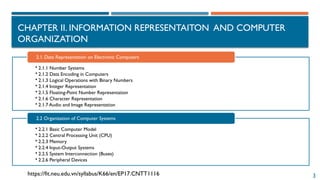
CHAPTER II. INFORMATION REPRESENTAITON AND COMPUTER
ORGANIZATION
https://fit.neu.edu.vn/syllabus/K66/en/EP17.CNTT1116
• 2.1.1 Number Systems
• 2.1.2 Data Encoding in Computers
• 2.1.3 Logical Operations with Binary Numbers
• 2.1.4 Integer Representation
• 2.1.5 Floating-Point Number Representation
• 2.1.6 Character Representation
• 2.1.7 Audio and Image Representation
2.1. Data Representation on Electronic Computers
• 2.2.1 Basic Computer Model
• 2.2.2 Central Processing Unit (CPU)
• 2.2.3 Memory
• 2.2.4 Input-Output Systems
• 2.2.5 System Interconnection (Buses)
• 2.2.6 Peripheral Devices
2.2 Organization of Computer Systems
4
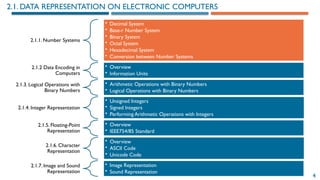
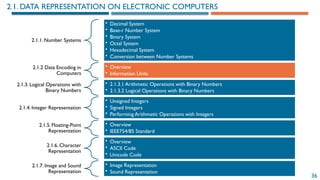
2.1. DATA REPRESENTATION ON ELECTRONIC COMPUTERS
2.1.1. Number Systems
• Decimal System
• Base-r Number System
• Binary System
• Octal System
• Hexadecimal System
• Conversion between Number Systems
2.1.2 Data Encoding in
Computers
• Overview
• Information Units
2.1.3. Logical Operations with
Binary Numbers
• Arithmetic Operations with Binary Numbers
• Logical Operations with Binary Numbers
2.1.4. Integer Representation
• Unsigned Integers
• Signed Integers
• Performing Arithmetic Operations with Integers
2.1.5. Floating-Point
Representation
• Overview
• IEEE754/85 Standard
2.1.6. Character
Representation
• Overview
• ASCII Code
• Unicode Code
2.1.7. Image and Sound
Representation
• Image Representation
• Sound Representation
5
2.1.1. NUMBER SYSTEMS
 The study of number
systems is important
from the viewpoint of
understanding how data
are represented before
they can be processed
by any digital system
including a digital
computer.
 It is one of the most
basic topics in digital
electronics.
• Decimal Number System
• Base (RADIX)-r Number System
• Binary System
• Octal System
• Hexadecimal System
• Conversion between Number
Systems
2.1.1. Number Systems
6
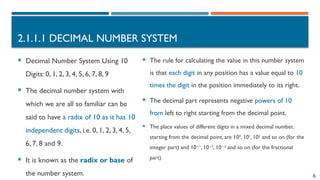
2.1.1.1 DECIMAL NUMBER SYSTEM
 Decimal Number System Using 10
Digits: 0, 1, 2, 3, 4, 5, 6, 7, 8, 9
 The decimal number system with
which we are all so familiar can be
said to have a radix of 10 as it has 10
independent digits, i.e. 0, 1, 2, 3, 4, 5,
6, 7, 8 and 9.
 It is known as the radix or base of
the number system.
 The rule for calculating the value in this number system
is that each digit in any position has a value equal to 10
times the digit in the position immediately to its right.
 The decimal part represents negative powers of 10
from left to right starting from the decimal point.
 The place values of different digits in a mixed decimal number,
starting from the decimal point, are 100
, 101
, 102
and so on (for the
integer part) and 10 1
−
, 10 2
−
, 10 3
−
and so on (for the fractional
part).
7
2.1.1.1 DECIMAL NUMBER SYSTEM
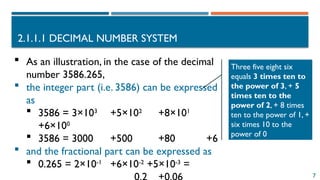
 As an illustration, in the case of the decimal
number 3586.265,
 the integer part (i.e. 3586) can be expressed
as
 3586 = 3×10³
+5×10²
+8×101
+6×100
 3586 = 3000 +500 +80 +6
 and the fractional part can be expressed as
 0.265 = 2×10⁻¹
+6×10⁻²
+5×10-3
=
Three five eight six
equals 3 times ten to
the power of 3, + 5
times ten to the
power of 2, + 8 times
ten to the power of 1, +
six times 10 to the
power of 0
8
2.1.1.1 DECIMAL NUMBER SYSTEM
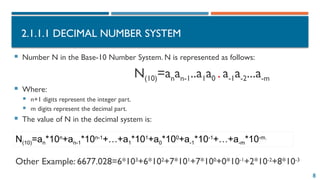
 Number N in the Base-10 Number System. N is represented as follows:
N(10)=anan-1..a1a0 . a-1a-2...a-m
 Where:
 n+1 digits represent the integer part.
 m digits represent the decimal part.
 The value of N in the decimal system is:
N(10)=an*10n
+an-1*10n-1
+…+a1*101
+a0*100
+a-1*10-1
+…+a-m*10-m.
Other Example: 6677.028=6*103
+6*102
+7*101
+7*100
+0*10-1
+2*10-2
+8*10-3
9
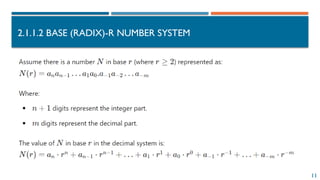
2.1.1.2 BASE (RADIX)-R NUMBER SYSTEM
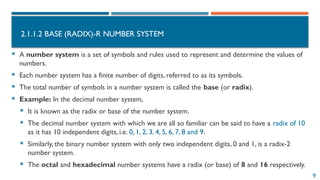
 A number system is a set of symbols and rules used to represent and determine the values of
numbers.
 Each number system has a finite number of digits, referred to as its symbols.
 The total number of symbols in a number system is called the base (or radix).
 Example: In the decimal number system,
 It is known as the radix or base of the number system.
 The decimal number system with which we are all so familiar can be said to have a radix of 10
as it has 10 independent digits, i.e. 0, 1, 2, 3, 4, 5, 6, 7, 8 and 9.
 Similarly, the binary number system with only two independent digits, 0 and 1, is a radix-2
number system.
 The octal and hexadecimal number systems have a radix (or base) of 8 and 16 respectively.
10
2.1.1.2 BASE (RADIX)-R NUMBER SYSTEM
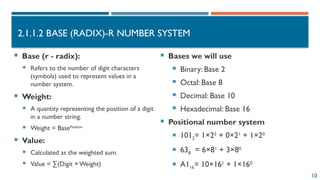
 Base (r - radix):
 Refers to the number of digit characters
(symbols) used to represent values in a
number system.
 Weight:
 A quantity representing the position of a digit
in a number string.
 Weight = BasePosition
 Value:
 Calculated as the weighted sum.
 Value = ∑(Digit × Weight)
 Bases we will use
 Binary: Base 2
 Octal: Base 8
 Decimal: Base 10
 Hexadecimal: Base 16
 Positional number system
 1012= 1×22
+ 0×21
+ 1×20
 638 = 6×81
+ 3×80
 A116= 10×161
+ 1×160
11
2.1.1.2 BASE (RADIX)-R NUMBER SYSTEM
12
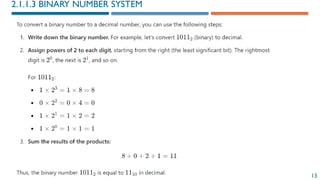
2.1.1.3 BINARY NUMBER SYSTEM
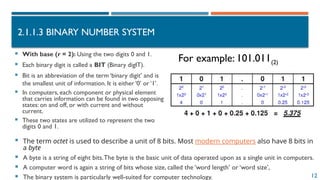
 With base (r = 2): Using the two digits 0 and 1.
 Each binary digit is called a BIT (Binary digIT).
 Bit is an abbreviation of the term ‘binary digit’ and is
the smallest unit of information. It is either ‘0’ or ‘1’.
 In computers, each component or physical element
that carries information can be found in two opposing
states: on and off, or with current and without
current.
 These two states are utilized to represent the two
digits 0 and 1.
For example: 101.011(2)
 The term octet is used to describe a unit of 8 bits. Most modern computers also have 8 bits in
a byte
 A byte is a string of eight bits.The byte is the basic unit of data operated upon as a single unit in computers.
 A computer word is again a string of bits whose size, called the ‘word length’ or ‘word size’,
 The binary system is particularly well-suited for computer technology.
13
2.1.1.3 BINARY NUMBER SYSTEM
14
2.1.1.3 BINARY NUMBER SYSTEM
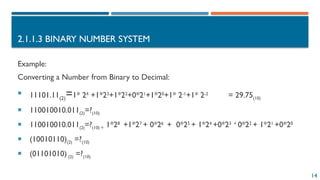
Example:
Converting a Number from Binary to Decimal:
 11101.11(2)=1* 24
+1*23
+1*22
+0*21
+1*20
+1* 2-1
+1* 2-2
= 29.75(10)
 110010010.011(2)=?(10)
 110010010.011(2)=?(10) = 1*28
+1*27
+ 0*26
+ 0*25
+ 1*24
+0*23 +
0*22
+ 1*21
+0*20
 (10010110)(2) =?(10)
 (01101010) (2) =?(10)
15
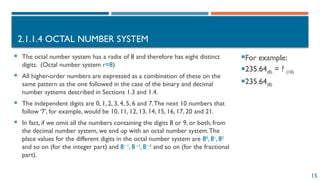
2.1.1.4 OCTAL NUMBER SYSTEM
For example:
235.64(8) = ? (10)
235.64(8)
 The octal number system has a radix of 8 and therefore has eight distinct
digits. (Octal number system r=8)
 All higher-order numbers are expressed as a combination of these on the
same pattern as the one followed in the case of the binary and decimal
number systems described in Sections 1.3 and 1.4.
 The independent digits are 0, 1, 2, 3, 4, 5, 6 and 7.The next 10 numbers that
follow ‘7’, for example, would be 10, 11, 12, 13, 14, 15, 16, 17, 20 and 21.
 In fact, if we omit all the numbers containing the digits 8 or 9, or both, from
the decimal number system, we end up with an octal number system.The
place values for the different digits in the octal number system are 80
, 81
, 82
and so on (for the integer part) and 8 1
−
, 8 2
−
, 8 3
−
and so on (for the fractional
part).
16
2.1.1.5 HEXADECIMAL NUMBER SYSTEM
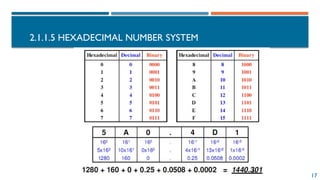
 The hexadecimal number system is a radix-16 number system and its 16 basic digits are 0, 1, 2,
3,4, 5, 6, 7, 8, 9,A, B, C, D, E and F.
 Using 10 digits from 0 to 9 and six uppercase letters A, B, C, D, E, F to represent the
corresponding numeric values of 10, 11, 12, 13, 14, 15.
 The place values or weights of different digits in a mixed hexadecimal number are 160
, 161
, 162
and
so on (for the integer part) and 16 1
−
, 16 2
−
, 16 3
−
and so on (for the fractional part).The decimal
equivalent of A, B, C, D, E and F are 10, 11, 12, 13, 14 and 15 respectively, for obvious reasons.
 Some programming languages require the hexadecimal number to have the letter 'H' at the end of
the number
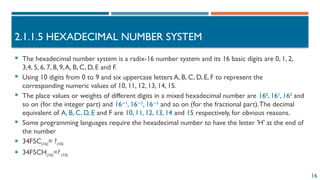
 34F5C(16)= ?(10)
 34F5CH(16)=? (10)
17
2.1.1.5 HEXADECIMAL NUMBER SYSTEM
18
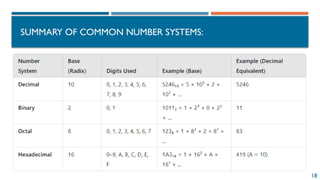
SUMMARY OF COMMON NUMBER SYSTEMS:
19
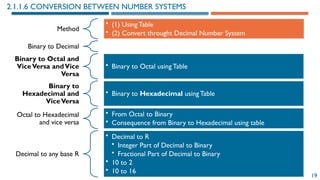
2.1.1.6 CONVERSION BETWEEN NUMBER SYSTEMS
Method
• (1) Using Table
• (2) Convert throught Decimal Number System
Binary to Decimal
Binary to Octal and
ViceVersa andVice
Versa
• Binary to Octal using Table
Binary to
Hexadecimal and
ViceVersa
• Binary to Hexadecimal using Table
Octal to Hexadecimal
and vice versa
• From Octal to Binary
• Consequence from Binary to Hexadecimal using table
Decimal to any base R
• Decimal to R
• Integer Part of Decimal to Binary
• Fractional Part of Decimal to Binary
• 10 to 2
• 10 to 16
20
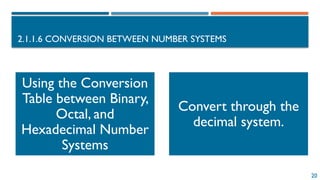
2.1.1.6 CONVERSION BETWEEN NUMBER SYSTEMS
Using the Conversion
Table between Binary,
Octal, and
Hexadecimal Number
Systems
Convert through the
decimal system.
21
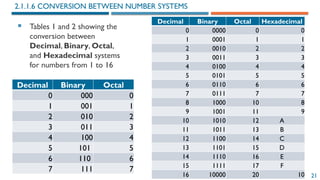
 Tables 1 and 2 showing the
conversion between
Decimal, Binary, Octal,
and Hexadecimal systems
for numbers from 1 to 16
2.1.1.6 CONVERSION BETWEEN NUMBER SYSTEMS
Decimal Binary Octal
0 000 0
1 001 1
2 010 2
3 011 3
4 100 4
5 101 5
6 110 6
7 111 7
Decimal Binary Octal Hexadecimal
0 0000 0 0
1 0001 1 1
2 0010 2 2
3 0011 3 3
4 0100 4 4
5 0101 5 5
6 0110 6 6
7 0111 7 7
8 1000 10 8
9 1001 11 9
10 1010 12 A
11 1011 13 B
12 1100 14 C
13 1101 15 D
14 1110 16 E
15 1111 17 F
16 10000 20 10
22
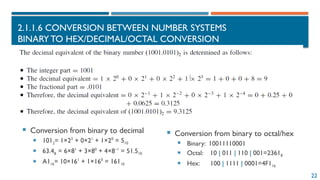
2.1.1.6 CONVERSION BETWEEN NUMBER SYSTEMS
BINARY TO HEX/DECIMAL/OCTAL CONVERSION
 Conversion from binary to decimal
 1012= 1×22
+ 0×21
+ 1×20
= 510
 63.48 = 6×81
+ 3×80
+ 4×8–1
= 51.510
 A116= 10×161
+ 1×160
= 16110
 Conversion from binary to octal/hex
 Binary: 10011110001
 Octal: 10 | 011 | 110 | 001=23618
 Hex: 100 | 1111 | 0001=4F116
23
2.1.1.6 CONVERSION BETWEEN NUMBER SYSTEMS
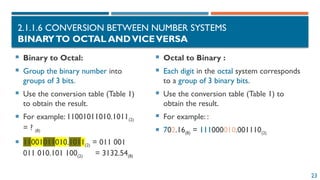
BINARYTO OCTAL ANDVICEVERSA
 Binary to Octal:
 Group the binary number into
groups of 3 bits.
 Use the conversion table (Table 1)
to obtain the result.
 For example: 11001011010.1011(2)
= ? (8)
 11001011010.1011(2) = 011 001
011 010.101 100(2) = 3132.54(8)
 Octal to Binary :
 Each digit in the octal system corresponds
to a group of 3 binary bits.
 Use the conversion table (Table 1) to
obtain the result.
 For example: :
 702.16(8) = 111000010.001110(2)
24
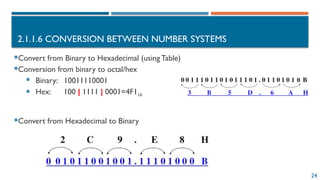
2.1.1.6 CONVERSION BETWEEN NUMBER SYSTEMS
Convert from Binary to Hexadecimal (usingTable)
Conversion from binary to octal/hex
 Binary: 10011110001
 Hex: 100 | 1111 | 0001=4F116
Convert from Hexadecimal to Binary
25
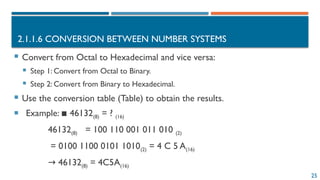
2.1.1.6 CONVERSION BETWEEN NUMBER SYSTEMS
 Convert from Octal to Hexadecimal and vice versa:
 Step 1: Convert from Octal to Binary.
 Step 2: Convert from Binary to Hexadecimal.
 Use the conversion table (Table) to obtain the results.
 Example: 46132
▪ (8) = ? (16)
46132(8) = 100 110 001 011 010 (2)
= 0100 1100 0101 1010(2) = 4 C 5 A(16)
→ 46132(8) = 4C5A(16)
26
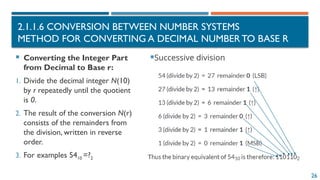
2.1.1.6 CONVERSION BETWEEN NUMBER SYSTEMS
METHOD FOR CONVERTING A DECIMAL NUMBER TO BASE R
Successive division
 Converting the Integer Part
from Decimal to Base r:
1. Divide the decimal integer N(10)
by r repeatedly until the quotient
is 0.
2. The result of the conversion N(r)
consists of the remainders from
the division, written in reverse
order.
3. For examples 5410 =?2
27
2.1.1.6 CONVERSION BETWEEN NUMBER SYSTEMS
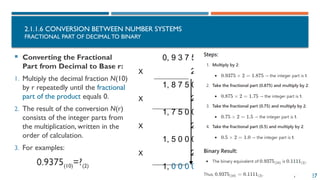
FRACTIONAL PART OF DECIMAL TO BINARY
0, 9 3 7 5
X 2
1, 8 7 5 0
X 2
1, 7 5 0 0
X 2
1, 5 0 0 0
X 2
1, 0 0 0 0
 Converting the Fractional
Part from Decimal to Base r:
1. Multiply the decimal fraction N(10)
by r repeatedly until the fractional
part of the product equals 0.
2. The result of the conversion N(r)
consists of the integer parts from
the multiplication, written in the
order of calculation.
3. For examples:
0.9375(10)=?(2)
28
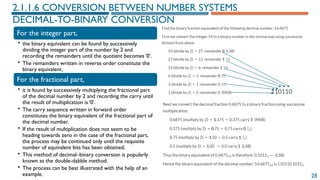
For the integer part,
• the binary equivalent can be found by successively
dividing the integer part of the number by 2 and
recording the remainders until the quotient becomes ‘0’.
• The remainders written in reverse order constitute the
binary equivalent.
For the fractional part,
• it is found by successively multiplying the fractional part
of the decimal number by 2 and recording the carry until
the result of multiplication is ‘0’.
• The carry sequence written in forward order
constitutes the binary equivalent of the fractional part of
the decimal number.
• If the result of multiplication does not seem to be
heading towards zero in the case of the fractional part,
the process may be continued only until the requisite
number of equivalent bits has been obtained.
• This method of decimal–binary conversion is popularly
known as the double-dabble method.
• The process can be best illustrated with the help of an
example.
2.1.1.6 CONVERSION BETWEEN NUMBER SYSTEMS
DECIMAL-TO-BINARY CONVERSION
29
2.1.1.6 CONVERSION BETWEEN NUMBER SYSTEMS
DECIMAL-TO-BINARY CONVERSION
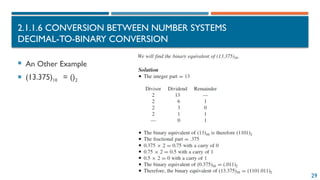
 An Other Example
 (13.375)10 = ()2
30
2.1.1.6 CONVERSION BETWEEN NUMBER SYSTEMS
DECIMAL-TO-OCTAL CONVERSION
The process of decimal-to-
octal conversion is similar to
that of decimal-to-binary
conversion.
• The progressive division in the case of
the integer part and the progressive
multiplication while working on the
fractional part here are by ‘8’ which is
the radix of the octal number system.
• Again, the integer and fractional parts
of the decimal number are treated
separately.The process can be best
illustrated with the help of an
example.
31
2.1.1.6 CONVERSION BETWEEN NUMBER SYSTEMS
DECIMAL→ BINARY/OCTAL/HEX CONVERSION
 Why does this work?
 N=5610=1110002
 Q=N/2=56/2=111000/2=11100 remainder 0
 Each successive divide liberates an LSB (least significant bit)
32
2.1.1.6 CONVERSION BETWEEN NUMBER SYSTEMS
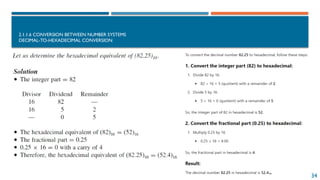
DECIMAL-TO-HEXADECIMAL CONVERSION
 The process of decimal-to-
hexadecimal conversion is
also similar.
 Since the hexadecimal
number system has a base of
16, the progressive division
and multiplication factor in
this case is 16.
 The process is illustrated
further with the help of an
example.
33
2.1.1.6 CONVERSION BETWEEN NUMBER SYSTEMS
DECIMAL-TO-HEXADECIMAL CONVERSION
34
2.1.1.6 CONVERSION BETWEEN NUMBER SYSTEMS
DECIMAL-TO-HEXADECIMAL CONVERSION
35
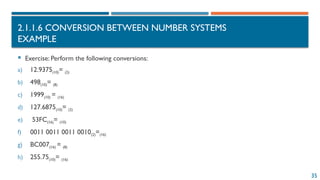
2.1.1.6 CONVERSION BETWEEN NUMBER SYSTEMS
EXAMPLE
 Exercise: Perform the following conversions:
a) 12.9375(10)= (2)
b) 498(10)= (8)
c) 1999(10) = (16)
d) 127.6875(10)= (2)
e) 53FC(16)= (10)
f) 0011 0011 0011 0010(2)=(16)
g) BC007(16) = (8)
h) 255.75(10)= (16)
36
2.1. DATA REPRESENTATION ON ELECTRONIC COMPUTERS
2.1.1. Number Systems
• Decimal System
• Base-r Number System
• Binary System
• Octal System
• Hexadecimal System
• Conversion between Number Systems
2.1.2 Data Encoding in
Computers
• Overview
• Information Units
2.1.3. Logical Operations with
Binary Numbers
• 2.1.3.1 Arithmetic Operations with Binary Numbers
• 2.1.3.2 Logical Operations with Binary Numbers
2.1.4. Integer Representation
• Unsigned Integers
• Signed Integers
• Performing Arithmetic Operations with Integers
2.1.5. Floating-Point
Representation
• Overview
• IEEE754/85 Standard
2.1.6. Character
Representation
• Overview
• ASCII Code
• Unicode Code
2.1.7. Image and Sound
Representation
• Image Representation
• Sound Representation
37
2.1.2 DATA ENCODING IN COMPUTERS
2.1.2.1 OVERVIEW
DATA CONVERSION
 Basically, we have two types of data in nature: Analog and Digital.
 Data transmission – Electrical wires (for analog) and databus (for digital).
 Most of the real-world physical quantities are in analog form.
 Data storage and processing – Analog versus Digital. (That’s the idea for data
conversion!!!)
38
2.1.2 DATA ENCODING IN COMPUTERS
2.1.2.1 OVERVIEW
ANALOG VS. DIGITAL
Analog signal- one whose output varies continuously in step with the input.
Example:
Analog
Digital signal- one whose output varies at discrete voltage levels commonly called
HIGH or LOW (1 or 0).
Example:
Digital
HIGH or 1
LOW or 0
Time
39
2.1.2 DATA ENCODING IN COMPUTERS
2.1.2.1 OVERVIEW
WHY DIGITAL?
 Data can be stored (memory characteristic of digital).
 Data can be used in calculations.
 Compatible with display technologies.
 Compatible with computer technologies.
 Systems can be programmed.
 Digital IC families make design easier.
40
2.1.2 DATA ENCODING IN COMPUTERS
2.1.2.1 OVERVIEW
WHY ANALOG?
 Most “real-world” events are analog in nature.
 Analog processing is usually simpler.
 Analog processing is usually faster.
 Traditional electronic systems were mostly analog in nature.
 Digital data processors – Microprocessors, DSPs, FPGAs etc.
 So, when a data conversion needed? –When digital devices interface with
analogue devices and vice versa.
41
2.1.2 DATA ENCODING IN COMPUTERS
2.1.2.1 OVERVIEW
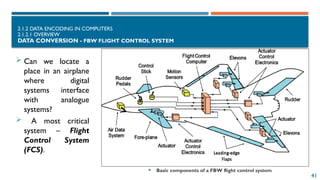
DATA CONVERSION - FBW FLIGHT CONTROL SYSTEM
 Basic components of a FBW flight control system
 Can we locate a
place in an airplane
where digital
systems interface
with analogue
systems?
 A most critical
system – Flight
Control System
(FCS).
42
2.1.2 DATA ENCODING IN COMPUTERS
2.1.2.1 OVERVIEW
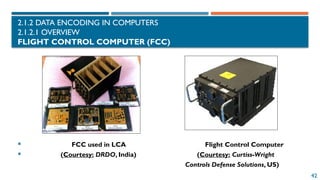
FLIGHT CONTROL COMPUTER (FCC)
 FCC used in LCA Flight Control Computer
 (Courtesy: DRDO, India) (Courtesy: Curtiss-Wright
Controls Defense Solutions, US)
43
2.1.2 DATA ENCODING IN COMPUTERS
2.1.2.1 OVERVIEW
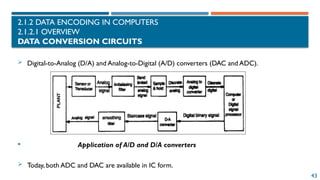
DATA CONVERSION CIRCUITS
 Digital-to-Analog (D/A) and Analog-to-Digital (A/D) converters (DAC and ADC).
 Application of A/D and D/A converters
 Today, both ADC and DAC are available in IC form.
44
2.1.2 DATA ENCODING IN COMPUTERS
2.1.2.1 OVERVIEW
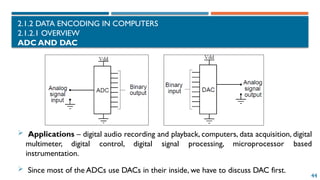
ADC AND DAC
 Applications – digital audio recording and playback, computers, data acquisition, digital
multimeter, digital control, digital signal processing, microprocessor based
instrumentation.
 Since most of the ADCs use DACs in their inside, we have to discuss DAC first.
45
2.1.2 DATA ENCODING IN COMPUTERS
2.1.2.1 OVERVIEW
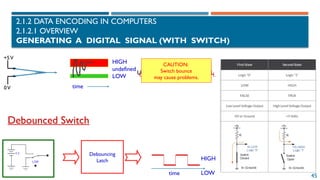
GENERATING A DIGITAL SIGNAL (WITH SWITCH)
Note: signal goes H, L, H,
UNDEFINED, and finally HIGH.
CAUTION:
Switch bounce
may cause problems.
Debounced Switch
HIGH
LOW
Debouncing
Latch
time
0V time
HIGH
undefined
LOW
+5V
46
2.1.2 DATA ENCODING IN COMPUTERS
2.1.2.2 INFORMATION UNITS
The smallest unit representing information is the Bit (Binary digIT).
A Bit corresponds to an event with one of two states: off or on.
Binary arithmetic uses the two numbers 0 and 1 to represent values.
Since the usability of the two numbers 1 and 0 is equal, an instruction
consisting of a single binary digit can be considered the smallest unit of
information.
In computer science, larger units of information measurement are used as
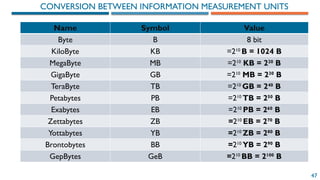
follows: Byte (B), KiloByte (KB), MegaByte (MB), GigaByte (GB),TeraByte
(TB).
47
Name Symbol Value
Byte B 8 bit
KiloByte KB =210
B = 1024 B
MegaByte MB =210
KB = 220
B
GigaByte GB =210
MB = 230
B
TeraByte TB =210
GB = 240
B
Petabytes PB =210
TB = 250
B
Exabytes EB =210
PB = 260
B
Zettabytes ZB =210
EB = 270
B
Yottabytes YB =210
ZB = 280
B
Brontobytes BB =210
YB = 290
B
GepBytes GeB =210
BB = 2100
B
CONVERSION BETWEEN INFORMATION MEASUREMENT UNITS
48
2.1. DATA REPRESENTATION ON ELECTRONIC COMPUTERS
2.1.1. Number Systems
• Decimal System
• Base-r Number System
• Binary System
• Octal System
• Hexadecimal System
• Conversion between Number Systems
2.1.2 Data Encoding in
Computers
• Overview
• Information Units
2.1.3. Logical Operations with
Binary Numbers
• Arithmetic Operations with Binary Numbers
• Logical Operations with Binary Numbers
2.1.4. Integer Representation
• Unsigned Integers
• Signed Integers
• Performing Arithmetic Operations with Integers
2.1.5. Floating-Point
Representation
• Overview
• IEEE754/85 Standard
2.1.6. Character
Representation
• Overview
• ASCII Code
• Unicode Code
2.1.7. Image and Sound
Representation
• Image Representation
• Sound Representation
49
2.1.2 DATA ENCODING IN COMPUTERS
2.1.3.1 OPERATIONSWITH BINARY NUMBERS
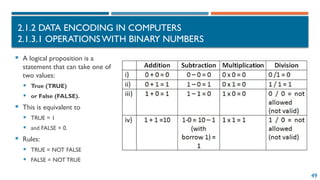
 A logical proposition is a
statement that can take one of
two values:
 True (TRUE)
 or False (FALSE).
 This is equivalent to
 TRUE = 1
 and FALSE = 0.
 Rules:
 TRUE = NOT FALSE
 FALSE = NOT TRUE
50
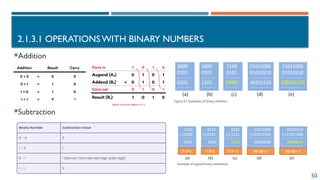
2.1.3.1 OPERATIONSWITH BINARY NUMBERS
Addition
Subtraction
51
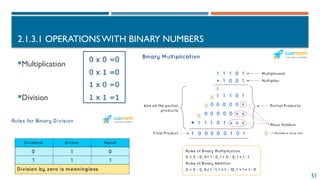
2.1.3.1 OPERATIONSWITH BINARY NUMBERS
Multiplication
Division
52
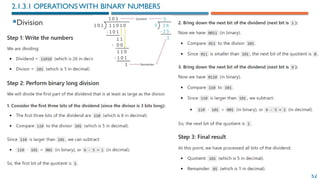
Division
2.1.3.1 OPERATIONSWITH BINARY NUMBERS
53
2.1.3.1 OPERATIONSWITH BINARY NUMBERS
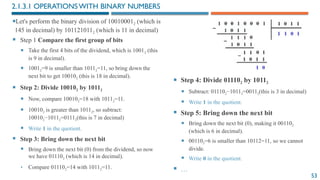
Let's perform the binary division of 100100012 (which is
145 in decimal) by 1011210112​(which is 11 in decimal)
 Step 1 Compare the first group of bits
 Take the first 4 bits of the dividend, which is 10012​(this
is 9 in decimal).
 10012=9 is smaller than 10112=11, so bring down the
next bit to get 100102 (this is 18 in decimal).
 Step 2: Divide 100102 by 10112
 Now, compare 100102=18 with 10112=11.
 100102​is greater than 10112​
, so subtract:
100102−10112=01112(this is 7 in decimal)
 Write 1 in the quotient.
 Step 3: Bring down the next bit
 Bring down the next bit (0) from the dividend, so now
we have 011102​(which is 14 in decimal).
• Compare 011102=14 with 10112=11.
 Step 4: Divide 011102 by 10112
 Subtract: 011102−10112=00112(this is 3 in decimal)
 Write 1 in the quotient.
 Step 5: Bring down the next bit
 Bring down the next bit (0), making it 001102​
(which is 6 in decimal).
 001102=6 is smaller than 10112=11, so we cannot
divide.
 Write 0 in the quotient.
 …
54
2.1.3.1 OPERATIONS WITH BINARY NUMBERS
2.1.3.2 LOGICAL OPERATIONS WITH BINARY NUMBERS
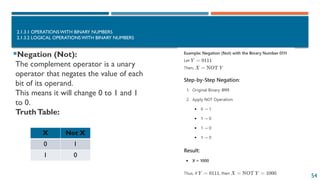
Negation (Not):
The complement operator is a unary
operator that negates the value of each
bit of its operand.
This means it will change 0 to 1 and 1
to 0.
TruthTable:
X Not X
0 1
1 0
55
2.1.3.1 OPERATIONS WITH BINARY NUMBERS
2.1.3.2 LOGICAL OPERATIONS WITH BINARY NUMBERS
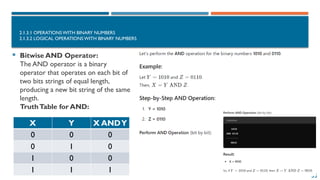
 Bitwise AND Operator:
The AND operator is a binary
operator that operates on each bit of
two bits strings of equal length,
producing a new bit string of the same
length.
TruthTable for AND:
X Y X ANDY
0 0 0
0 1 0
1 0 0
1 1 1
56
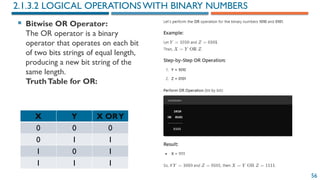
 Bitwise OR Operator:
The OR operator is a binary
operator that operates on each bit
of two bits strings of equal length,
producing a new bit string of the
same length.
TruthTable for OR:
2.1.3.2 LOGICAL OPERATIONS WITH BINARY NUMBERS
X Y X ORY
0 0 0
0 1 1
1 0 1
1 1 1
57
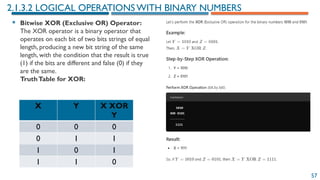
 Bitwise XOR (Exclusive OR) Operator:
The XOR operator is a binary operator that
operates on each bit of two bits strings of equal
length, producing a new bit string of the same
length, with the condition that the result is true
(1) if the bits are different and false (0) if they
are the same.
TruthTable for XOR:
2.1.3.2 LOGICAL OPERATIONS WITH BINARY NUMBERS
X Y X XOR
Y
0 0 0
0 1 1
1 0 1
1 1 0
58
EXAMPLE
Let’s perform the specified logical operations with the given values X=117,Y=93, and
Z=35 in 8-bit binary.
1. Not X
2. X ORY
3. Y And Z
4. Y XOR Z
59
EXAMPLE
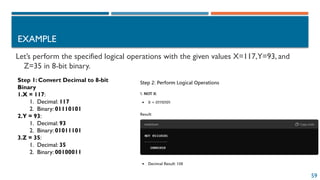
Let’s perform the specified logical operations with the given values X=117,Y=93, and
Z=35 in 8-bit binary.
Step 1: Convert Decimal to 8-bit
Binary
1.X = 117:
1. Decimal: 117
2. Binary: 01110101
2.Y = 93:
1. Decimal: 93
2. Binary: 01011101
3.Z = 35:
1. Decimal: 35
2. Binary: 00100011
60
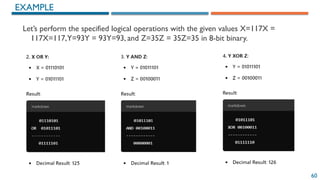
Let’s perform the specified logical operations with the given values X=117X =
117X=117,Y=93Y = 93Y=93, and Z=35Z = 35Z=35 in 8-bit binary.
EXAMPLE
61
2.1.4 REPRESENTATION OF INTEGERS
2.1.4.1 UNSIGNED INTEGERS
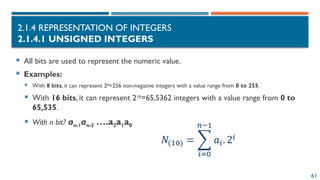
 All bits are used to represent the numeric value.
 Examples:
 With 8 bits, it can represent 28
=256 non-negative integers with a value range from 0 to 255.
 With 16 bits, it can represent 216
=65,5362 integers with a value range from 0 to
65,535.
 With n bit? an-1an-2 ….a2a1a0
62
2.1.4 REPRESENTATION OF INTEGERS
2.1.4.1 UNSIGNED INTEGERS
 Represent the following unsigned integers using
8 bits:
 A = 45 B = 156
A = 45 = 32 + 8 + 4 + 1 = 25
+ 23
+ 22
+ 20
→ A = 0010 1101(2)
B = 156 = 128 + 16 + 8 + 4 = 27
+ 24
+ 23
+ 22
→ B = 1001 1100(2)
• For n = 8 bits:
• The range of representation is
[0,255]
0000 0000 = 0
0000 0001 = 1
0000 0010 = 2
0000 0011 = 3
.....
1111 1111 = 255
63
2.1.4 REPRESENTATION OF INTEGERS
2.1.4.1 UNSIGNED INTEGERS
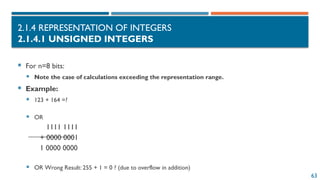
 For n=8 bits:
 Note the case of calculations exceeding the representation range.
 Example:
 123 + 164 =?
 OR
1111 1111
+ 0000 0001
1 0000 0000
 OR Wrong Result: 255 + 1 = 0 ? (due to overflow in addition)
64
2.1.4 REPRESENTATION OF INTEGERS
2.1.4.2 SIGNED INTEGERS
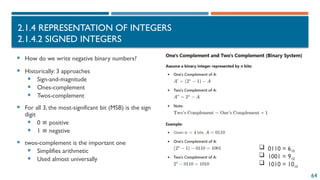
 How do we write negative binary numbers?
 Historically: 3 approaches
 Sign-and-magnitude
 Ones-complement
 Twos-complement
 For all 3, the most-significant bit (MSB) is the sign
digit
 0 positive
≡
 1 negative
≡
 twos-complement is the important one
 Simplifies arithmetic
 Used almost universally
 0110 = 610
 1001 = 910
 1010 = 1010
65
2.1.4 REPRESENTATION OF INTEGERS
2.1.4.2 SIGNED INTEGERS
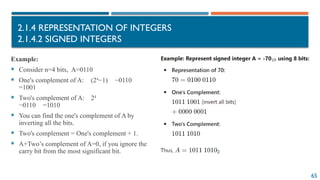
Example:
 Consider n=4 bits, A=0110
 One's complement of A: (24
−1) −0110
=1001
 Two's complement of A: 24
−0110 =1010
 You can find the one's complement of A by
inverting all the bits.
 Two's complement = One's complement + 1.
 A+Two’s complement of A=0, if you ignore the
carry bit from the most significant bit.
66
2.1.4 REPRESENTATION OF INTEGERS
2.1.4.2 SIGNED INTEGERS
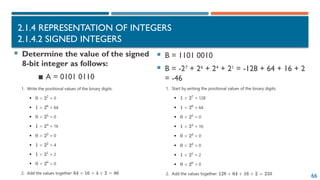
 Determine the value of the signed
8-bit integer as follows:
▪ A = 0101 0110
 B = 1101 0010
 B = -27
+ 26
+ 24
+ 21
= -128 + 64 + 16 + 2
= -46
67
2.1.4 REPRESENTATION OF INTEGERS
2.1.4.2 SIGNED INTEGERS
[-2n-1
, 2n-1
-1]
an-1an-2 ….a2a1a0
68
Method 2:
 B = 1101 0010
 B = -27
+ 26
+ 24
+ 21
= -128 + 64 + 16 + 2 = -46
2.1.4 REPRESENTATION OF INTEGERS
2.1.4.2 SIGNED INTEGERS
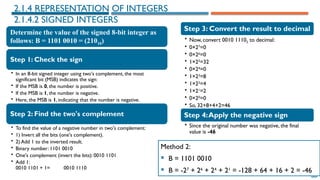
Determine the value of the signed 8-bit integer as
follows: B = 1101 0010 = (21010)
Step 1: Check the sign
• In an 8-bit signed integer using two's complement, the most
significant bit (MSB) indicates the sign:
• If the MSB is 0, the number is positive.
• If the MSB is 1, the number is negative.
• Here, the MSB is 1, indicating that the number is negative.
Step 2: Find the two's complement
• To find the value of a negative number in two's complement:
• 1) Invert all the bits (one's complement).
• 2) Add 1 to the inverted result.
• Binary number: 1101 0010
• One's complement (invert the bits): 0010 1101
• Add 1:
0010 1101 + 1= 0010 1110
Step 3: Convert the result to decimal
• Now, convert 0010 11102 to decimal:
• 0×27
=0
• 0×26
=0
• 1×25
=32
• 0×24
=0
• 1×23
=8
• 1×22
=4
• 1×21
=2
• 0×20
=0
• So, 32+8+4+2=46
Step 4:Apply the negative sign
• Since the original number was negative, the final
value is -46
69
2.1.4 REPRESENTATION OF INTEGERS
2.1.4.2 SIGNED INTEGERS
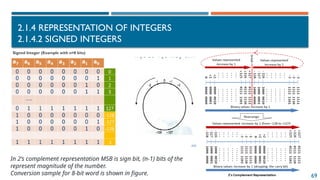
Signed Integer (Example with n=8 bits)
In 2’s complement representation MSB is sign bit, (n-1) bits of the
represent magnitude of the number.
Conversion sample for 8-bit word is shown in figure.
70
2.1.4 REPRESENTATION OF INTEGERS  2.1.4.2 SIGNED INTEGERS
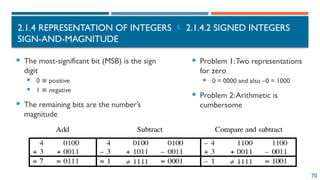
SIGN-AND-MAGNITUDE
 The most-significant bit (MSB) is the sign
digit
 0 ≡ positive
 1 ≡ negative
 The remaining bits are the number’s
magnitude
 Problem 1:Two representations
for zero
 0 = 0000 and also –0 = 1000
 Problem 2:Arithmetic is
cumbersome
71
2.1.4 REPRESENTATION OF INTEGERS  2.1.4.2 SIGNED INTEGERS
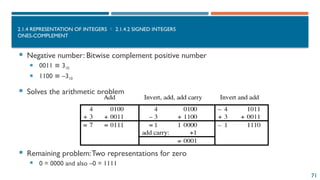
ONES-COMPLEMENT
 Negative number: Bitwise complement positive number
 0011 ≡ 310
 1100 ≡ –310
 Solves the arithmetic problem
 Remaining problem:Two representations for zero
 0 = 0000 and also –0 = 1111
72
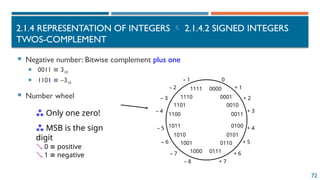
2.1.4 REPRESENTATION OF INTEGERS  2.1.4.2 SIGNED INTEGERS
TWOS-COMPLEMENT
 Negative number: Bitwise complement plus one
 0011 ≡ 310
 1101 ≡ –310
 Number wheel
0000
0001
0011
1111
1110
1100
1011
1010
1000 0111
0110
0100
0010
0101
1001
1101
0
+ 1
+ 2
+ 3
+ 4
+ 5
+ 6
+ 7
– 8
– 7
– 6
– 5
– 4
– 3
– 2
– 1
 Only one zero!
 MSB is the sign
digit
 0 ≡ positive
 1 ≡ negative
73
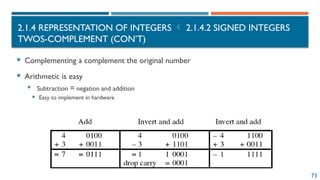
2.1.4 REPRESENTATION OF INTEGERS  2.1.4.2 SIGNED INTEGERS
TWOS-COMPLEMENT (CON’T)
 Complementing a complement the original number
 Arithmetic is easy
 Subtraction = negation and addition
 Easy to implement in hardware
74
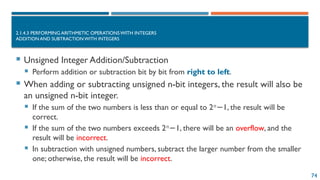
2.1.4.3 PERFORMING ARITHMETIC OPERATIONSWITH INTEGERS
ADDITION AND SUBTRACTION WITH INTEGERS
 Unsigned Integer Addition/Subtraction
 Perform addition or subtraction bit by bit from right to left.
 When adding or subtracting unsigned n-bit integers, the result will also be
an unsigned n-bit integer.
 If the sum of the two numbers is less than or equal to 2𝑛
1, the result will be
−
correct.
 If the sum of the two numbers exceeds 2𝑛
1, there will be an
− overflow, and the
result will be incorrect.
 In subtraction with unsigned numbers, subtract the larger number from the smaller
one; otherwise, the result will be incorrect.
75
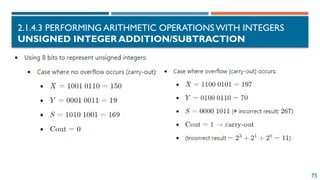
2.1.4.3 PERFORMING ARITHMETIC OPERATIONS WITH INTEGERS
UNSIGNED INTEGER ADDITION/SUBTRACTION
76
2.1.4.3 PERFORMING ARITHMETIC OPERATIONS WITH INTEGERS
SIGNED INTEGER ADDITION/SUBTRACTION
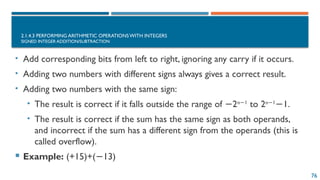
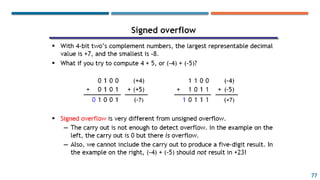
• Add corresponding bits from left to right, ignoring any carry if it occurs.
• Adding two numbers with different signs always gives a correct result.
• Adding two numbers with the same sign:
• The result is correct if it falls outside the range of 2
− n 1
−
to 2n 1
−
1.
−
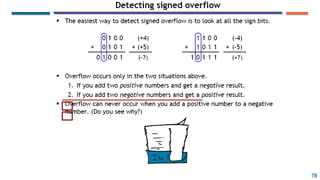
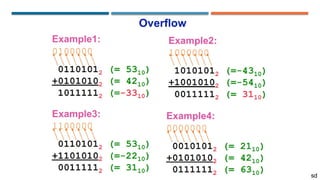
• The result is correct if the sum has the same sign as both operands,
and incorrect if the sum has a different sign from the operands (this is
called overflow).
 Example: (+15)+( 13)
−
77
78
sd
80
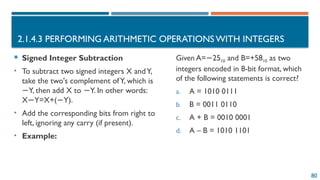
2.1.4.3 PERFORMING ARITHMETIC OPERATIONS WITH INTEGERS
 Signed Integer Subtraction
• To subtract two signed integers X andY,
take the two's complement ofY, which is
Y, then add X to Y. In other words:
− −
X Y=X+( Y).
− −
• Add the corresponding bits from right to
left, ignoring any carry (if present).
• Example:
Given A= 25
− 10​and B=+5810 as two
integers encoded in 8-bit format, which
of the following statements is correct?
a. A = 1010 0111
b. B = 0011 0110
c. A + B = 0010 0001
d. A – B = 1010 1101
81
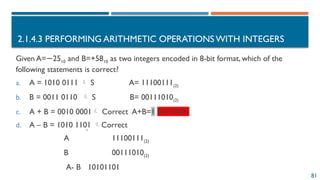
2.1.4.3 PERFORMING ARITHMETIC OPERATIONS WITH INTEGERS
Given A= 25
− 10​and B=+5810 as two integers encoded in 8-bit format, which of the
following statements is correct?
a. A = 1010 0111  S A= 11100111(2)
b. B = 0011 0110  S B= 00111010(2)
c. A + B = 0010 0001 Correct A+B=1 00100001
d. A – B = 1010 1101 Correct
A 11100111(2)
B 00111010(2)
A- B 10101101
82
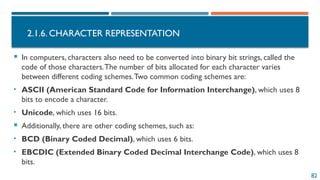
2.1.6. CHARACTER REPRESENTATION
 In computers, characters also need to be converted into binary bit strings, called the
code of those characters.The number of bits allocated for each character varies
between different coding schemes.Two common coding schemes are:
• ASCII (American Standard Code for Information Interchange), which uses 8
bits to encode a character.
• Unicode, which uses 16 bits.
 Additionally, there are other coding schemes, such as:
• BCD (Binary Coded Decimal), which uses 6 bits.
• EBCDIC (Extended Binary Coded Decimal Interchange Code), which uses 8
bits.
83
AMERICAN STANDARD CODE FOR
INFORMATION INTERCHANGE
Hexa-decimal 0 1 2 3 4 5 6 7
0 <NUL>
0
<DEL>
16
<SP>
32
0
48
@
63
P
80
`
96
p
112
1 <SOH>
1
<DC1>
17
!
33
1
49
A
65
Q
81
a
97
q
113
2 <STX>
2
<DC2>
18 34
2
50
B
66
R
82
b
98
r
114
3 <ETX>
3
<DC3>
19
#
35
3
51
C
67
S
83
c
99
s
115
4 <EOT>
4
<DC4>
20
$
36
4
52
D
68
T
84
d
100
t
116
5 <ENQ>
5
<NAK>
21
%
37
5
53
E
69
U
85
e
101
u
117
6 <ACK>
6
<SYN>
22
&
38
6
54
F
70
V
86
f
102
v
118
7 <BEL>
7
<EBT>
23
‘
39
7
55
G
71
W
87
g
103
w
119
8 <BS>
8
<CAN>
24
(
40
8
56
H
72
X
88
h
104
x
120
9 <HT>
9
<EM>
25
)
41
9
57
I
73
Y
89
i
105
y
121
A <NL>
10
<SUB>
26
*
42
:
58
J
74
Z
90
j
106
z
122
B <VT>
11
<ESC>
27
+
43
;
59
K
75
[
91
k
107
{
123
C <FF>
12
<FS>
28
,
44
<
60
L
76

92
l
108
|
124
D <CR>
13
<GS>
29
-
45
=
61
M
77
]
93
m
109
}
125
E <SO>
14
<RS>
30
.
46
>
62
N
78
^
94
n
110
~
126
F <SI>
15
<US>
31
/
47
?
63
O
79
-
95
o
111
<DEL>
127
84
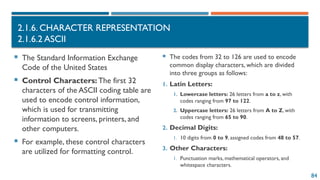
2.1.6. CHARACTER REPRESENTATION
2.1.6.2 ASCII
 The Standard Information Exchange
Code of the United States
 Control Characters: The first 32
characters of the ASCII coding table are
used to encode control information,
which is used for transmitting
information to screens, printers, and
other computers.
 For example, these control characters
are utilized for formatting control.
 The codes from 32 to 126 are used to encode
common display characters, which are divided
into three groups as follows:
1. Latin Letters:
1. Lowercase letters: 26 letters from a to z, with
codes ranging from 97 to 122.
2. Uppercase letters: 26 letters from A to Z, with
codes ranging from 65 to 90.
2. Decimal Digits:
1. 10 digits from 0 to 9, assigned codes from 48 to 57.
3. Other Characters:
1. Punctuation marks, mathematical operators, and
whitespace characters.
85
2.1.6. CHARACTER REPRESENTATION
2.1.6.2 ASCII
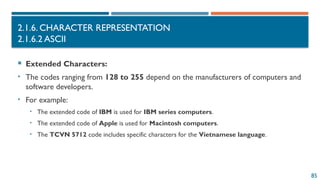
 Extended Characters:
• The codes ranging from 128 to 255 depend on the manufacturers of computers and
software developers.
• For example:
• The extended code of IBM is used for IBM series computers.
• The extended code of Apple is used for Macintosh computers.
• The TCVN 5712 code includes specific characters for the Vietnamese language.
86
2.1.6. CHARACTER REPRESENTATION
2.1.6.3 UNICODE
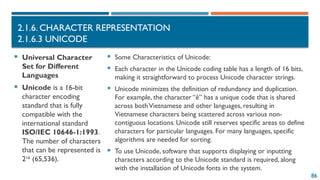
 Universal Character
Set for Different
Languages
 Unicode is a 16-bit
character encoding
standard that is fully
compatible with the
international standard
ISO/IEC 10646-1:1993.
The number of characters
that can be represented is
216
(65,536).
 Some Characteristics of Unicode:
 Each character in the Unicode coding table has a length of 16 bits,
making it straightforward to process Unicode character strings.
 Unicode minimizes the definition of redundancy and duplication.
For example, the character “ê” has a unique code that is shared
across bothVietnamese and other languages, resulting in
Vietnamese characters being scattered across various non-
contiguous locations. Unicode still reserves specific areas to define
characters for particular languages. For many languages, specific
algorithms are needed for sorting.
 To use Unicode, software that supports displaying or inputting
characters according to the Unicode standard is required, along
with the installation of Unicode fonts in the system.
87
2.1.6. CHARACTER REPRESENTATION
2.1.6.3 UNICODE
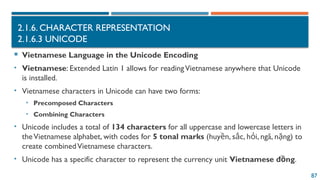
 Vietnamese Language in the Unicode Encoding
• Vietnamese: Extended Latin 1 allows for readingVietnamese anywhere that Unicode
is installed.
• Vietnamese characters in Unicode can have two forms:
• Precomposed Characters
• Combining Characters
• Unicode includes a total of 134 characters for all uppercase and lowercase letters in
theVietnamese alphabet, with codes for 5 tonal marks (huy n, s c, h i, ngã, n ng) to
ề ắ ỏ ặ
create combinedVietnamese characters.
• Unicode has a specific character to represent the currency unit Vietnamese đ ng
ồ .
88
2.1.7. IMAGE AND AUDIO REPRESENTATION
 Image Representation
• Static Image Representation
• Dynamic Image Representation
89
2.1.7. IMAGE AND AUDIO REPRESENTATION
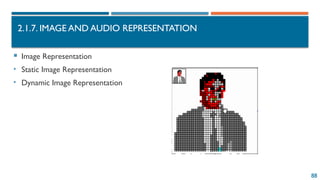
 Static Image Representation
 Static images include icons, logos, and photographs.
Images are represented according to two graphic principles: pixel graphics and vector
graphics.
• Pixel Graphics: Images are represented using a pixel matrix.
• For black-and-white images (two colors), each bit corresponds to one color (bit 1 represents black, bit 0
represents white).
• For high-quality color images, more information is needed to represent the color of each pixel.
• Color Images:
• 256 colors: requires 8 bits (pseudo-color).
• 65,536 colors: requires 16 bits (high color).
• With 24 bits, it can represent all colors distinguishable by the human eye (true color).
90
2.1.7. IMAGE AND AUDIO REPRESENTATION
 Static Image Representation
• Pixel Graphics
• Vector Graphics:
• Divides an image into fundamental objects such as points, lines, polygons, surfaces, and
volumes.
• The computer uses vector mathematical formulas to reconstruct the image from these basic
objects.
• Object-oriented graphics: Each object and its properties can be encoded using a concise
command in vector graphics, while also allowing for the representation of three-dimensional
objects.
91
2.1.7. IMAGE AND AUDIO REPRESENTATION
 Dynamic Image Representation
• Motion images include an additional parameter for representation: time.
• The representation of moving images is similar to the principle used in film:
• 30 frames per second is the rate at which humans perceive a smooth motion (images are
retained on the retina).
• To display one second of moving images, a computer needs sufficient memory capacity to store 30
static images, and the computer's processor must be fast enough to handle the data volume of 30
static images within one second.
92
2.1.7. IMAGE AND AUDIO REPRESENTATION
 Dynamic Image Representation
 Due to the high volume of information and quality of dynamic images, conventional
techniques cannot meet the demands for high-resolution digital video with true color.
 DigitalVideo Compression:This involves compressing each static frame and
compressing portions of the image that do not change over time.
 For example:When transmitting video from a meeting, the entire office scene is
transmitted initially, and subsequently, only the changes occurring within that office
space are sent.
93
2.1.7. IMAGE AND AUDIO REPRESENTATION
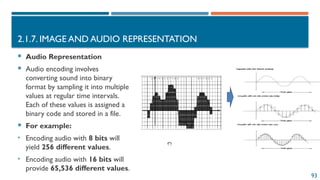
 Audio Representation
 Audio encoding involves
converting sound into binary
format by sampling it into multiple
values at regular time intervals.
Each of these values is assigned a
binary code and stored in a file.
 For example:
• Encoding audio with 8 bits will
yield 256 different values.
• Encoding audio with 16 bits will
provide 65,536 different values.
94
CHAPTER II. INFORMATION REPRESENTAITON AND COMPUTER
ORGANIZATION
• 2.1.1 Number Systems
• 2.1.2 Data Encoding in Computers
• 2.1.3 Logical Operations with Binary Numbers
• 2.1.4 Integer Representation
• 2.1.5 Floating-Point Number Representation
• 2.1.6 Character Representation
• 2.1.7 Audio and Image Representation
2.1. Data Representation on Electronic Computers
• 2.2.1 Basic Computer Model
• 2.2.2 Central Processing Unit (CPU)
• 2.2.3 Memory
• 2.2.4 Input-Output Systems
• 2.2.5 System Interconnection (Buses)
• 2.2.6 Peripheral Devices
2.2 Organization of Computer Systems
95
2.2 ORGANIZATION OF COMPUTER SYSTEMS
2.2.1 BASIC COMPUTER MODEL
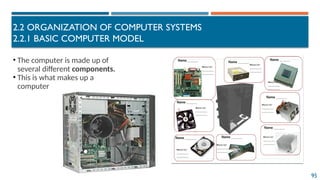
• The computer is made up of
several different components.
• This is what makes up a
computer
96
2.2 ORGANIZATION OF COMPUTER SYSTEMS
2.2.1 BASIC COMPUTER MODEL
System Board (Motherboard)
 The system board is a printed circuit board that contains most of the computer's
circuits and provides pathways for communication between all components and devices
connected to the computer.
 Internal components of the computer are mounted on the system board.
 The system board also provides ports for connecting external devices such as a mouse,
speakers, chargers, etc.
2.2 ORGANIZATION OF COMPUTER SYSTEMS
2.2.1 BASIC COMPUTER MODEL
97
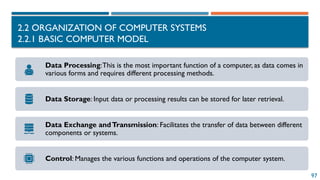
Data Processing:This is the most important function of a computer, as data comes in
various forms and requires different processing methods.
Data Storage: Input data or processing results can be stored for later retrieval.
Data Exchange andTransmission: Facilitates the transfer of data between different
components or systems.
Control: Manages the various functions and operations of the computer system.
98
2.2 ORGANIZATION OF COMPUTER SYSTEMS
2.2.1 BASIC COMPUTER MODEL
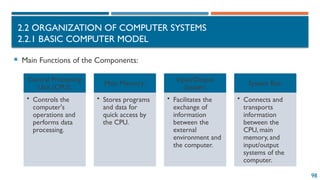
 Main Functions of the Components:
Central Processing
Unit (CPU):
• Controls the
computer's
operations and
performs data
processing.
Main Memory:
• Stores programs
and data for
quick access by
the CPU.
Input/Output
System:
• Facilitates the
exchange of
information
between the
external
environment and
the computer.
System Bus:
• Connects and
transports
information
between the
CPU, main
memory, and
input/output
systems of the
computer.
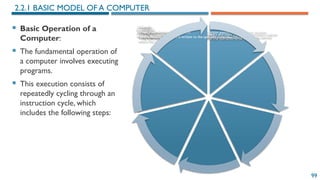
 Basic Operation of a
Computer:
 The fundamental operation of
a computer involves executing
programs.
 This execution consists of
repeatedly cycling through an
instruction cycle, which
includes the following steps:
99
2.2.1 BASIC MODEL OF A COMPUTER
Fetch:
1.The CPU fetches the address from the instruction pointer to the memory location
containing the instruction to be received.
Load:
•The CPU retrieves the instruction from memory and loads it into the instruction register.
Increment:
•The instruction pointer is incremented to point to the next storage location.
Decode:
•The CPU decodes the instruction to determine the operation to be performed.
Addressing:
•If the instruction requires data from memory or I/O ports, the CPU identifies the address
where the data is stored.
Load Data:
•The CPU loads the necessary data into its registers.
Execute:
•The CPU executes the instruction
•Store Result:The result is written to the specified location.
10
2.2 ORGANIZATION OF COMPUTER SYSTEMS
2.2.2 CENTRAL PROCESSING UNIT - CPU
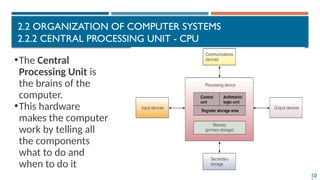
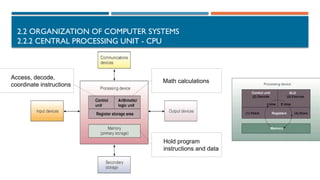
•The Central
Processing Unit is
the brains of the
computer.
•This hardware
makes the computer
work by telling all
the components
what to do and
when to do it
2.2 ORGANIZATION OF COMPUTER SYSTEMS
2.2.2 CENTRAL PROCESSING UNIT - CPU
Math calculations
Access, decode,
coordinate instructions
Hold program
instructions and data
10
2.2 ORGANIZATION OF COMPUTER SYSTEMS
2.2.2 CENTRAL PROCESSING UNIT - CPU
 Tasks of the CPU:The CPU is responsible for controlling the components of the computer and
processing data. It operates according to the programs stored in main memory, decoding
instructions to generate control signals that execute commands.
 During instruction execution, the CPU communicates with both main memory and I/O systems.The
CPU consists of three main components:
1. Control Unit:This part of the CPU directs the operation of the processor and its interactions
with other components. It manages the execution of instructions by controlling the timing and
sequence of operations.
2. Arithmetic and Logic Unit (ALU):This component performs all arithmetic calculations
(addition, subtraction, multiplication, division) and logical operations (such as comparisons).
3. Register Set:A collection of small, high-speed storage locations within the CPU used to
temporarily hold data and instructions during processing. Registers facilitate quick access to
frequently used values and intermediate results.
10
2.2 ORGANIZATION OF COMPUTER SYSTEMS
2.2.2 CENTRAL PROCESSING UNIT - CPU
 Control Unit (CU):
• The Control Unit receives program instructions from memory and brings them into
the CPU.
• Its primary function is to decode these instructions and generate control signals that
direct the operation of other components of the computer, either according to user
commands or based on pre-installed programs.
10
2.2 ORGANIZATION OF COMPUTER SYSTEMS
2.2.2 CENTRAL PROCESSING UNIT - CPU
 Arithmetic Logic Unit (ALU):
• The ALU consists of components that perform:
• Arithmetic operations (addition, subtraction, multiplication, division, etc.)
• Logical operations (AND, OR, NOT, XOR)
• Relational operations (comparisons like greater than, less than, equal to)
• Data from memory or input/output devices is transferred into the CPU's registers,
then sent to the ALU. Here, the data is processed, after which the results are returned
to the registers and can be stored back in memory or sent to output devices.
10
2.2 ORGANIZATION OF COMPUTER SYSTEMS
2.2.2 CENTRAL PROCESSING UNIT - CPU
 Arithmetic Logic Unit (ALU):
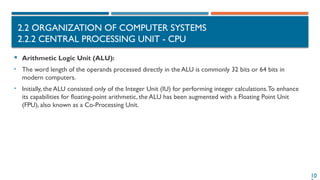
• The word length of the operands processed directly in the ALU is commonly 32 bits or 64 bits in
modern computers.
• Initially, the ALU consisted only of the Integer Unit (IU) for performing integer calculations.To enhance
its capabilities for floating-point arithmetic, the ALU has been augmented with a Floating Point Unit
(FPU), also known as a Co-Processing Unit.
10
2.2 ORGANIZATION OF COMPUTER SYSTEMS
2.2.2 CENTRAL PROCESSING UNIT - CPU
 Register File
 The register file is tightly integrated with
the CPU using electronic circuits that
serve as intermediate memory for the
CPU.
 Registers perform specialized functions
that help increase the speed of information
exchange within the computer.
 Modern CPUs typically have anywhere
from a few dozen to several hundred
registers.
The length of registers can vary, ranging
from 8 bits to 64 bits.
In addition, the CPU is equipped with a
clock, also known as a clock generator or
pulse generator.
The higher the frequency of the clock, the
faster the information processing speed.
The clock frequency is usually aligned with
the machine's configuration, with typical
frequencies including 2.0 GHz, 2.2 GHz,
2.5 GHz, 2.6 GHz, and so on.
10
2.2 ORGANIZATION OF COMPUTER SYSTEMS
2.2.2 CENTRAL PROCESSING UNIT - CPU
 Functions of the CPU
• Control the Operations of the
Entire Computer System:The
CPU oversees the functioning of all
components and processes within
the computer.
• Data Processing: It handles all data
processing tasks, ensuring
computations and operations are
performed accurately and efficiently.
Principles of Operation
The CPU operates based on the program stored in the
main memory by following these steps:
1.Fetch Instructions: It retrieves instructions from the
main memory.
2.Decode Instructions:The CPU decodes the fetched
instructions and generates control signals to execute
them.
3.Data Exchange:The CPU can exchange data with
the main memory or I/O systems as needed.
4.Execute Instructions: It performs the operations
defined by the instructions.
5.Store Results:The CPU writes the results back to
the appropriate memory location or output device.
10
2.2 ORGANIZATION OF COMPUTER SYSTEMS
2.2.2 CENTRAL PROCESSING UNIT - CPU
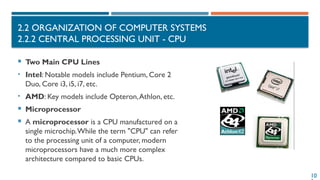
 Two Main CPU Lines
• Intel: Notable models include Pentium, Core 2
Duo, Core i3, i5, i7, etc.
• AMD: Key models include Opteron,Athlon, etc.
 Microprocessor
 A microprocessor is a CPU manufactured on a
single microchip.While the term "CPU" can refer
to the processing unit of a computer, modern
microprocessors have a much more complex
architecture compared to basic CPUs.
10
2.2 ORGANIZATION OF COMPUTER SYSTEMS
2.2.2 CENTRAL PROCESSING UNIT - CPU
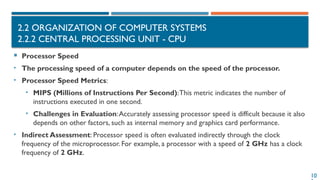
 Processor Speed
• The processing speed of a computer depends on the speed of the processor.
• Processor Speed Metrics:
• MIPS (Millions of Instructions Per Second):This metric indicates the number of
instructions executed in one second.
• Challenges in Evaluation:Accurately assessing processor speed is difficult because it also
depends on other factors, such as internal memory and graphics card performance.
• Indirect Assessment: Processor speed is often evaluated indirectly through the clock
frequency of the microprocessor. For example, a processor with a speed of 2 GHz has a clock
frequency of 2 GHz.
11
2.2 ORGANIZATION OF COMPUTER SYSTEMS
2.2.2 CENTRAL PROCESSING UNIT - CPU
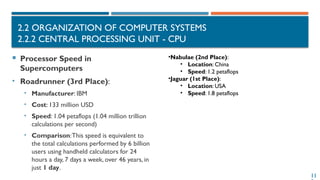
 Processor Speed in
Supercomputers
• Roadrunner (3rd Place):
• Manufacturer: IBM
• Cost: 133 million USD
• Speed: 1.04 petaflops (1.04 million trillion
calculations per second)
• Comparison:This speed is equivalent to
the total calculations performed by 6 billion
users using handheld calculators for 24
hours a day, 7 days a week, over 46 years, in
just 1 day.
•Nabulae (2nd Place):
• Location: China
• Speed: 1.2 petaflops
•Jaguar (1st Place):
• Location: USA
• Speed: 1.8 petaflops
11
2.2 ORGANIZATION OF COMPUTER SYSTEMS
2.2.3 MEMORY
 Memory in Computers
• Purpose: Memory is a device for storing information during the processing of data by a
computer.
• Types of Memory:
• Internal Memory:Also known as primary memory or RAM (Random Access Memory), this is where data
and programs currently in use are stored for quick access by the CPU.
• External Memory:Also known as secondary memory or storage, this includes devices like hard drives,
SSDs (Solid State Drives), USB drives, and optical discs. It is used for long-term storage of data and
programs.
• Basic Operations:The fundamental operations of memory include:
• Read: Retrieving data from memory.
• Write: Storing data into memory.
11
2.2 ORGANIZATION OF COMPUTER SYSTEMS
2.2.3 MEMORY
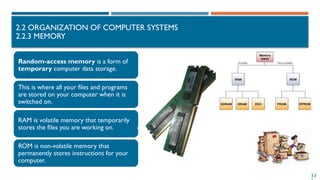
Random-access memory is a form of
temporary computer data storage.
This is where all your files and programs
are stored on your computer when it is
switched on.
RAM is volatile memory that temporarily
stores the files you are working on.
ROM is non-volatile memory that
permanently stores instructions for your
computer.
11
2.2 ORGANIZATION OF COMPUTER SYSTEMS
2.2.3 MEMORY
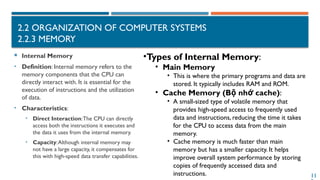
 Internal Memory
• Definition: Internal memory refers to the
memory components that the CPU can
directly interact with. It is essential for the
execution of instructions and the utilization
of data.
• Characteristics:
• Direct Interaction:The CPU can directly
access both the instructions it executes and
the data it uses from the internal memory.
• Capacity:Although internal memory may
not have a large capacity, it compensates for
this with high-speed data transfer capabilities.
•Types of Internal Memory:
• Main Memory
• This is where the primary programs and data are
stored. It typically includes RAM and ROM.
• Cache Memory (B nh cache)
ộ ớ :
• A small-sized type of volatile memory that
provides high-speed access to frequently used
data and instructions, reducing the time it takes
for the CPU to access data from the main
memory.
• Cache memory is much faster than main
memory but has a smaller capacity. It helps
improve overall system performance by storing
copies of frequently accessed data and
instructions.
11
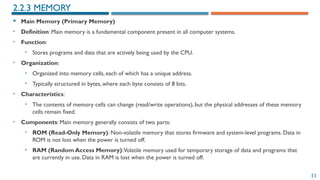
 Main Memory (Primary Memory)
• Definition: Main memory is a fundamental component present in all computer systems.
• Function:
• Stores programs and data that are actively being used by the CPU.
• Organization:
• Organized into memory cells, each of which has a unique address.
• Typically structured in bytes, where each byte consists of 8 bits.
• Characteristics:
• The contents of memory cells can change (read/write operations), but the physical addresses of these memory
cells remain fixed.
• Components: Main memory generally consists of two parts:
• ROM (Read-Only Memory): Non-volatile memory that stores firmware and system-level programs. Data in
ROM is not lost when the power is turned off.
• RAM (Random Access Memory):Volatile memory used for temporary storage of data and programs that
are currently in use. Data in RAM is lost when the power is turned off.
2.2.3 MEMORY
11
2.2 ORGANIZATION OF COMPUTER SYSTEMS
2.2.3 MEMORY
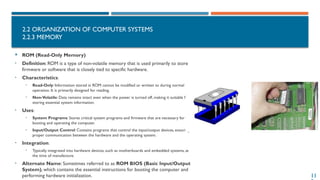
 ROM (Read-Only Memory)
• Definition: ROM is a type of non-volatile memory that is used primarily to store
firmware or software that is closely tied to specific hardware.
• Characteristics:
• Read-Only: Information stored in ROM cannot be modified or written to during normal
operation. It is primarily designed for reading.
• Non-Volatile: Data remains intact even when the power is turned off, making it suitable for
storing essential system information.
• Uses:
• System Programs: Stores critical system programs and firmware that are necessary for
booting and operating the computer.
• Input/Output Control: Contains programs that control the input/output devices, ensuring
proper communication between the hardware and the operating system.
• Integration:
• Typically integrated into hardware devices, such as motherboards and embedded systems, at
the time of manufacture.
• Alternate Name: Sometimes referred to as ROM BIOS (Basic Input/Output
System), which contains the essential instructions for booting the computer and
performing hardware initialization.
11
2.2 ORGANIZATION OF COMPUTER SYSTEMS
2.2.3 MEMORY
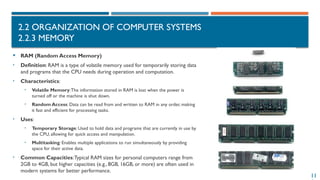
 RAM (Random Access Memory)
• Definition: RAM is a type of volatile memory used for temporarily storing data
and programs that the CPU needs during operation and computation.
• Characteristics:
• Volatile Memory:The information stored in RAM is lost when the power is
turned off or the machine is shut down.
• Random Access: Data can be read from and written to RAM in any order, making
it fast and efficient for processing tasks.
• Uses:
• Temporary Storage: Used to hold data and programs that are currently in use by
the CPU, allowing for quick access and manipulation.
• Multitasking: Enables multiple applications to run simultaneously by providing
space for their active data.
• Common Capacities:Typical RAM sizes for personal computers range from
2GB to 4GB, but higher capacities (e.g., 8GB, 16GB, or more) are often used in
modern systems for better performance.
11
 SRAM (Static RAM)
 Definition: SRAM is a type of volatile memory that retains data as long as power is supplied. It is different from
DRAM (Dynamic RAM) in its structure and functionality.
 Characteristics:
 Complex Structure: SRAM has a more intricate design, using multiple transistors for each memory cell,
leading to its complexity.
 Small Capacity: Due to its complex structure, SRAM typically has a smaller storage capacity compared to
DRAM.
 Fast Speed: Offers faster access times than DRAM, making it ideal for applications requiring high-speed
memory.
 High Cost:The complexity of its design results in a higher manufacturing cost, making it more expensive than
DRAM.
 Uses:
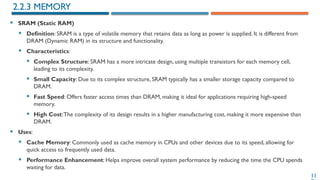
 Cache Memory: Commonly used as cache memory in CPUs and other devices due to its speed, allowing for
quick access to frequently used data.
 Performance Enhancement: Helps improve overall system performance by reducing the time the CPU spends
waiting for data.
2.2.3 MEMORY
11
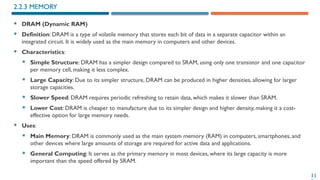
 DRAM (Dynamic RAM)
 Definition: DRAM is a type of volatile memory that stores each bit of data in a separate capacitor within an
integrated circuit. It is widely used as the main memory in computers and other devices.
 Characteristics:
 Simple Structure: DRAM has a simpler design compared to SRAM, using only one transistor and one capacitor
per memory cell, making it less complex.
 Large Capacity: Due to its simpler structure, DRAM can be produced in higher densities, allowing for larger
storage capacities.
 Slower Speed: DRAM requires periodic refreshing to retain data, which makes it slower than SRAM.
 Lower Cost: DRAM is cheaper to manufacture due to its simpler design and higher density, making it a cost-
effective option for large memory needs.
 Uses:
 Main Memory: DRAM is commonly used as the main system memory (RAM) in computers, smartphones, and
other devices where large amounts of storage are required for active data and applications.
 General Computing: It serves as the primary memory in most devices, where its large capacity is more
important than the speed offered by SRAM.
2.2.3 MEMORY
11
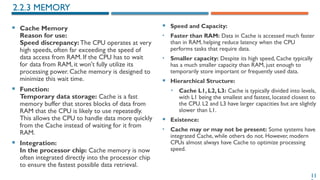
 Speed and Capacity:
• Faster than RAM: Data in Cache is accessed much faster
than in RAM, helping reduce latency when the CPU
performs tasks that require data.
• Smaller capacity: Despite its high speed, Cache typically
has a much smaller capacity than RAM, just enough to
temporarily store important or frequently used data.
 Hierarchical Structure:
• Cache L1, L2, L3: Cache is typically divided into levels,
with L1 being the smallest and fastest, located closest to
the CPU. L2 and L3 have larger capacities but are slightly
slower than L1.
 Existence:
• Cache may or may not be present: Some systems have
integrated Cache, while others do not. However, modern
CPUs almost always have Cache to optimize processing
speed.
2.2.3 MEMORY
 Cache Memory
Reason for use:
Speed discrepancy: The CPU operates at very
high speeds, often far exceeding the speed of
data access from RAM. If the CPU has to wait
for data from RAM, it won't fully utilize its
processing power. Cache memory is designed to
minimize this wait time.
 Function:
Temporary data storage: Cache is a fast
memory buffer that stores blocks of data from
RAM that the CPU is likely to use repeatedly.
This allows the CPU to handle data more quickly
from the Cache instead of waiting for it from
RAM.
 Integration:
In the processor chip: Cache memory is now
often integrated directly into the processor chip
to ensure the fastest possible data retrieval.
2.2 ORGANIZATION OF COMPUTER SYSTEMS
2.2.3 MEMORY
 ROM-BIOS chips are responsible for booting the computer, checking the system
memory, and loading the operating system.
 When the BIOS commands are loaded:
• The computer searches for a valid operating system (the boot sequence determines
the order of the drives accessed when the machine looks for the operating system
files: C drive, optical drive, USB drive).
• The operating system is loaded into RAM and occupies a certain amount of RAM
during system operation.
• The operating system takes control and displays the type of operating system on the
screen.
2.2 ORGANIZATION OF COMPUTER SYSTEMS
2.2.3 MEMORY
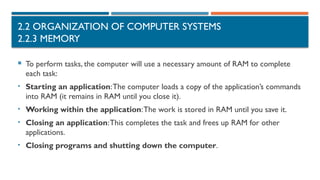
 To perform tasks, the computer will use a necessary amount of RAM to complete
each task:
• Starting an application:The computer loads a copy of the application’s commands
into RAM (it remains in RAM until you close it).
• Working within the application:The work is stored in RAM until you save it.
• Closing an application:This completes the task and frees up RAM for other
applications.
• Closing programs and shutting down the computer.
2.2 ORGANIZATION OF COMPUTER SYSTEMS
2.2.3 MEMORY
 There are many types of external memory:
• Magnetic memory: Hard disk, floppy disk
• Optical memory: CD, DVD (DigitalVideo Disc or DigitalVersatile Disc), etc.
• Semiconductor memory: Flash disk, memory card
2.2 ORGANIZATION OF COMPUTER SYSTEMS
2.2.3 MEMORY
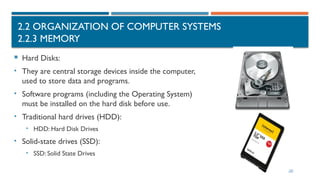
 Hard Disks:
• They are central storage devices inside the computer,
used to store data and programs.
• Software programs (including the Operating System)
must be installed on the hard disk before use.
• Traditional hard drives (HDD):
• HDD: Hard Disk Drives
• Solid-state drives (SSD):
• SSD: Solid State Drives
2.2 ORGANIZATION OF COMPUTER SYSTEMS
2.2.3 MEMORY
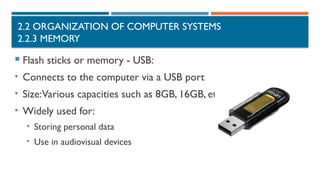
 Flash sticks or memory - USB:
• Connects to the computer via a USB port
• Size:Various capacities such as 8GB, 16GB, etc.
• Widely used for:
• Storing personal data
• Use in audiovisual devices
2.2 ORGANIZATION OF COMPUTER SYSTEMS
2.2.3 MEMORY
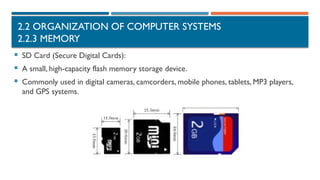
 SD Card (Secure Digital Cards):
 A small, high-capacity flash memory storage device.
 Commonly used in digital cameras, camcorders, mobile phones, tablets, MP3 players,
and GPS systems.
2.2 ORGANIZATION OF COMPUTER SYSTEMS
2.2.3 MEMORY
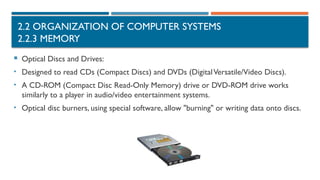
 Optical Discs and Drives:
• Designed to read CDs (Compact Discs) and DVDs (DigitalVersatile/Video Discs).
• A CD-ROM (Compact Disc Read-Only Memory) drive or DVD-ROM drive works
similarly to a player in audio/video entertainment systems.
• Optical disc burners, using special software, allow "burning" or writing data onto discs.
2.2 ORGANIZATION OF COMPUTER SYSTEMS
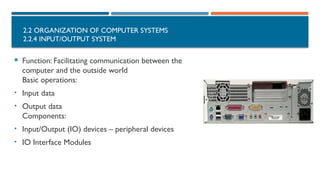
2.2.4 INPUT/OUTPUT SYSTEM
 Function: Facilitating communication between the
computer and the outside world
Basic operations:
• Input data
• Output data
Components:
• Input/Output (IO) devices – peripheral devices
• IO Interface Modules
2.2 ORGANIZATION OF COMPUTER SYSTEMS
2.2.4 INPUT/OUTPUT SYSTEM
 I/O Interface Module:
• Input/output devices are not directly connected to the CPU but are connected through an I/O interface
module.
• The module has I/O ports, which are also addressed by the CPU.
• Each I/O device connects to the CPU via its corresponding port.
2.2 ORGANIZATION OF COMPUTER SYSTEMS
2.2.4 INPUT/OUTPUT SYSTEM
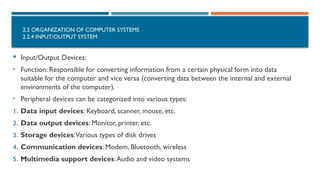
 Input/Output Devices:
• Function: Responsible for converting information from a certain physical form into data
suitable for the computer and vice versa (converting data between the internal and external
environments of the computer).
• Peripheral devices can be categorized into various types:
1. Data input devices: Keyboard, scanner, mouse, etc.
2. Data output devices: Monitor, printer, etc.
3. Storage devices:Various types of disk drives
4. Communication devices: Modem, Bluetooth, wireless
5. Multimedia support devices:Audio and video systems
2.2 ORGANIZATION OF COMPUTER SYSTEMS
2.2.4 INPUT/OUTPUT SYSTEM
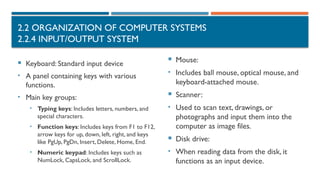
 Keyboard: Standard input device
• A panel containing keys with various
functions.
• Main key groups:
• Typing keys: Includes letters, numbers, and
special characters.
• Function keys: Includes keys from F1 to F12,
arrow keys for up, down, left, right, and keys
like PgUp, PgDn, Insert, Delete, Home, End.
• Numeric keypad: Includes keys such as
NumLock, CapsLock, and ScrollLock.
 Mouse:
• Includes ball mouse, optical mouse, and
keyboard-attached mouse.
 Scanner:
• Used to scan text, drawings, or
photographs and input them into the
computer as image files.
 Disk drive:
• When reading data from the disk, it
functions as an input device.
2.2 ORGANIZATION OF COMPUTER SYSTEMS
2.2.4 INPUT/OUTPUT SYSTEM
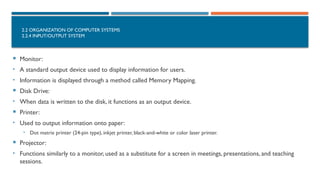
 Monitor:
• A standard output device used to display information for users.
• Information is displayed through a method called Memory Mapping.
 Disk Drive:
• When data is written to the disk, it functions as an output device.
 Printer:
• Used to output information onto paper:
• Dot matrix printer (24-pin type), inkjet printer, black-and-white or color laser printer.
 Projector:
• Functions similarly to a monitor, used as a substitute for a screen in meetings, presentations, and teaching
sessions.
2.2 ORGANIZATION OF COMPUTER SYSTEMS
2.2.5. SYSTEM INTERCONNECTION (BUSES)
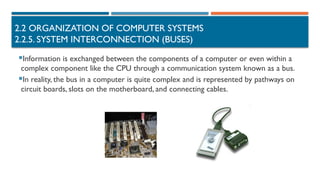
Information is exchanged between the components of a computer or even within a
complex component like the CPU through a communication system known as a bus.
In reality, the bus in a computer is quite complex and is represented by pathways on
circuit boards, slots on the motherboard, and connecting cables.
2.2 ORGANIZATION OF COMPUTER SYSTEMS
2.2.5. SYSTEM INTERCONNECTION (BUSES)
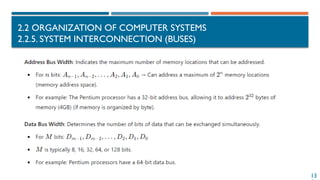
 Classification of Bus by Function:
1. Control Bus:Transfers information or signals between components, such as from the CPU
to the input/output system (CPU I/O system).
↔
2. Data Bus: Responsible for transmitting data (contents of memory, processing results) from
the CPU to memory or from memory/CPU to input/output devices.This is a bidirectional
bus, typically with a width of 32 bits or 64 bits.
3. Address Bus: Carries the addresses of memory locations when accessing the contents of
that memory or the addresses of ports for devices that the CPU communicates with.
 BusWidth: Refers to the number of wires in the bus that can transmit bits of information
simultaneously (applicable only to address and data buses).
2.2 ORGANIZATION OF COMPUTER SYSTEMS
2.2.5. SYSTEM INTERCONNECTION (BUSES)
13
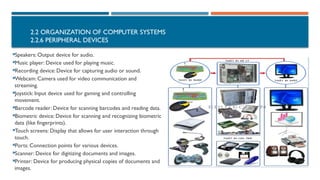
2.2 ORGANIZATION OF COMPUTER SYSTEMS
2.2.6 PERIPHERAL DEVICES
Speakers: Output device for audio.
Music player: Device used for playing music.
Recording device: Device for capturing audio or sound.
Webcam: Camera used for video communication and
streaming.
Joystick: Input device used for gaming and controlling
movement.
Barcode reader: Device for scanning barcodes and reading data.
Biometric device: Device for scanning and recognizing biometric
data (like fingerprints).
Touch screens: Display that allows for user interaction through
touch.
Ports: Connection points for various devices.
Scanner: Device for digitizing documents and images.
Printer: Device for producing physical copies of documents and
images.

02 Chapter 2 Data representation and organization of computer system_V4 (2).pptx

  • 1.
    1 NATIONAL ECONOMICS UNIVERSITY NEUCOLLEGE OF TECHNOLOGY FACULTY OF INFORMATION TECHNOLOGY INTRODUCTIONTO INFORMATIONTECHNOLOGY CHAPTER II. INFORMATION REPRESENTAITON AND COMPUTER ORGANIZATION
  • 2.
    2 LECTURER MSC. PHAMTHAO Senior Lecture 📞0966 986 689 📩 thaop@neu.edu.vn https://fit.neu.edu.vn/lecturer/th-s-pham-thao
  • 3.
    3 CHAPTER II. INFORMATIONREPRESENTAITON AND COMPUTER ORGANIZATION https://fit.neu.edu.vn/syllabus/K66/en/EP17.CNTT1116 • 2.1.1 Number Systems • 2.1.2 Data Encoding in Computers • 2.1.3 Logical Operations with Binary Numbers • 2.1.4 Integer Representation • 2.1.5 Floating-Point Number Representation • 2.1.6 Character Representation • 2.1.7 Audio and Image Representation 2.1. Data Representation on Electronic Computers • 2.2.1 Basic Computer Model • 2.2.2 Central Processing Unit (CPU) • 2.2.3 Memory • 2.2.4 Input-Output Systems • 2.2.5 System Interconnection (Buses) • 2.2.6 Peripheral Devices 2.2 Organization of Computer Systems
  • 4.
    4 2.1. DATA REPRESENTATIONON ELECTRONIC COMPUTERS 2.1.1. Number Systems • Decimal System • Base-r Number System • Binary System • Octal System • Hexadecimal System • Conversion between Number Systems 2.1.2 Data Encoding in Computers • Overview • Information Units 2.1.3. Logical Operations with Binary Numbers • Arithmetic Operations with Binary Numbers • Logical Operations with Binary Numbers 2.1.4. Integer Representation • Unsigned Integers • Signed Integers • Performing Arithmetic Operations with Integers 2.1.5. Floating-Point Representation • Overview • IEEE754/85 Standard 2.1.6. Character Representation • Overview • ASCII Code • Unicode Code 2.1.7. Image and Sound Representation • Image Representation • Sound Representation
  • 5.
    5 2.1.1. NUMBER SYSTEMS The study of number systems is important from the viewpoint of understanding how data are represented before they can be processed by any digital system including a digital computer.  It is one of the most basic topics in digital electronics. • Decimal Number System • Base (RADIX)-r Number System • Binary System • Octal System • Hexadecimal System • Conversion between Number Systems 2.1.1. Number Systems
  • 6.
    6 2.1.1.1 DECIMAL NUMBERSYSTEM  Decimal Number System Using 10 Digits: 0, 1, 2, 3, 4, 5, 6, 7, 8, 9  The decimal number system with which we are all so familiar can be said to have a radix of 10 as it has 10 independent digits, i.e. 0, 1, 2, 3, 4, 5, 6, 7, 8 and 9.  It is known as the radix or base of the number system.  The rule for calculating the value in this number system is that each digit in any position has a value equal to 10 times the digit in the position immediately to its right.  The decimal part represents negative powers of 10 from left to right starting from the decimal point.  The place values of different digits in a mixed decimal number, starting from the decimal point, are 100 , 101 , 102 and so on (for the integer part) and 10 1 − , 10 2 − , 10 3 − and so on (for the fractional part).
  • 7.
    7 2.1.1.1 DECIMAL NUMBERSYSTEM  As an illustration, in the case of the decimal number 3586.265,  the integer part (i.e. 3586) can be expressed as  3586 = 3×10³ +5×10² +8×101 +6×100  3586 = 3000 +500 +80 +6  and the fractional part can be expressed as  0.265 = 2×10⁻¹ +6×10⁻² +5×10-3 = Three five eight six equals 3 times ten to the power of 3, + 5 times ten to the power of 2, + 8 times ten to the power of 1, + six times 10 to the power of 0
  • 8.
    8 2.1.1.1 DECIMAL NUMBERSYSTEM  Number N in the Base-10 Number System. N is represented as follows: N(10)=anan-1..a1a0 . a-1a-2...a-m  Where:  n+1 digits represent the integer part.  m digits represent the decimal part.  The value of N in the decimal system is: N(10)=an*10n +an-1*10n-1 +…+a1*101 +a0*100 +a-1*10-1 +…+a-m*10-m. Other Example: 6677.028=6*103 +6*102 +7*101 +7*100 +0*10-1 +2*10-2 +8*10-3
  • 9.
    9 2.1.1.2 BASE (RADIX)-RNUMBER SYSTEM  A number system is a set of symbols and rules used to represent and determine the values of numbers.  Each number system has a finite number of digits, referred to as its symbols.  The total number of symbols in a number system is called the base (or radix).  Example: In the decimal number system,  It is known as the radix or base of the number system.  The decimal number system with which we are all so familiar can be said to have a radix of 10 as it has 10 independent digits, i.e. 0, 1, 2, 3, 4, 5, 6, 7, 8 and 9.  Similarly, the binary number system with only two independent digits, 0 and 1, is a radix-2 number system.  The octal and hexadecimal number systems have a radix (or base) of 8 and 16 respectively.
  • 10.
    10 2.1.1.2 BASE (RADIX)-RNUMBER SYSTEM  Base (r - radix):  Refers to the number of digit characters (symbols) used to represent values in a number system.  Weight:  A quantity representing the position of a digit in a number string.  Weight = BasePosition  Value:  Calculated as the weighted sum.  Value = ∑(Digit × Weight)  Bases we will use  Binary: Base 2  Octal: Base 8  Decimal: Base 10  Hexadecimal: Base 16  Positional number system  1012= 1×22 + 0×21 + 1×20  638 = 6×81 + 3×80  A116= 10×161 + 1×160
  • 11.
  • 12.
    12 2.1.1.3 BINARY NUMBERSYSTEM  With base (r = 2): Using the two digits 0 and 1.  Each binary digit is called a BIT (Binary digIT).  Bit is an abbreviation of the term ‘binary digit’ and is the smallest unit of information. It is either ‘0’ or ‘1’.  In computers, each component or physical element that carries information can be found in two opposing states: on and off, or with current and without current.  These two states are utilized to represent the two digits 0 and 1. For example: 101.011(2)  The term octet is used to describe a unit of 8 bits. Most modern computers also have 8 bits in a byte  A byte is a string of eight bits.The byte is the basic unit of data operated upon as a single unit in computers.  A computer word is again a string of bits whose size, called the ‘word length’ or ‘word size’,  The binary system is particularly well-suited for computer technology.
  • 13.
  • 14.
    14 2.1.1.3 BINARY NUMBERSYSTEM Example: Converting a Number from Binary to Decimal:  11101.11(2)=1* 24 +1*23 +1*22 +0*21 +1*20 +1* 2-1 +1* 2-2 = 29.75(10)  110010010.011(2)=?(10)  110010010.011(2)=?(10) = 1*28 +1*27 + 0*26 + 0*25 + 1*24 +0*23 + 0*22 + 1*21 +0*20  (10010110)(2) =?(10)  (01101010) (2) =?(10)
  • 15.
    15 2.1.1.4 OCTAL NUMBERSYSTEM For example: 235.64(8) = ? (10) 235.64(8)  The octal number system has a radix of 8 and therefore has eight distinct digits. (Octal number system r=8)  All higher-order numbers are expressed as a combination of these on the same pattern as the one followed in the case of the binary and decimal number systems described in Sections 1.3 and 1.4.  The independent digits are 0, 1, 2, 3, 4, 5, 6 and 7.The next 10 numbers that follow ‘7’, for example, would be 10, 11, 12, 13, 14, 15, 16, 17, 20 and 21.  In fact, if we omit all the numbers containing the digits 8 or 9, or both, from the decimal number system, we end up with an octal number system.The place values for the different digits in the octal number system are 80 , 81 , 82 and so on (for the integer part) and 8 1 − , 8 2 − , 8 3 − and so on (for the fractional part).
  • 16.
    16 2.1.1.5 HEXADECIMAL NUMBERSYSTEM  The hexadecimal number system is a radix-16 number system and its 16 basic digits are 0, 1, 2, 3,4, 5, 6, 7, 8, 9,A, B, C, D, E and F.  Using 10 digits from 0 to 9 and six uppercase letters A, B, C, D, E, F to represent the corresponding numeric values of 10, 11, 12, 13, 14, 15.  The place values or weights of different digits in a mixed hexadecimal number are 160 , 161 , 162 and so on (for the integer part) and 16 1 − , 16 2 − , 16 3 − and so on (for the fractional part).The decimal equivalent of A, B, C, D, E and F are 10, 11, 12, 13, 14 and 15 respectively, for obvious reasons.  Some programming languages require the hexadecimal number to have the letter 'H' at the end of the number  34F5C(16)= ?(10)  34F5CH(16)=? (10)
  • 17.
  • 18.
    18 SUMMARY OF COMMONNUMBER SYSTEMS:
  • 19.
    19 2.1.1.6 CONVERSION BETWEENNUMBER SYSTEMS Method • (1) Using Table • (2) Convert throught Decimal Number System Binary to Decimal Binary to Octal and ViceVersa andVice Versa • Binary to Octal using Table Binary to Hexadecimal and ViceVersa • Binary to Hexadecimal using Table Octal to Hexadecimal and vice versa • From Octal to Binary • Consequence from Binary to Hexadecimal using table Decimal to any base R • Decimal to R • Integer Part of Decimal to Binary • Fractional Part of Decimal to Binary • 10 to 2 • 10 to 16
  • 20.
    20 2.1.1.6 CONVERSION BETWEENNUMBER SYSTEMS Using the Conversion Table between Binary, Octal, and Hexadecimal Number Systems Convert through the decimal system.
  • 21.
    21  Tables 1and 2 showing the conversion between Decimal, Binary, Octal, and Hexadecimal systems for numbers from 1 to 16 2.1.1.6 CONVERSION BETWEEN NUMBER SYSTEMS Decimal Binary Octal 0 000 0 1 001 1 2 010 2 3 011 3 4 100 4 5 101 5 6 110 6 7 111 7 Decimal Binary Octal Hexadecimal 0 0000 0 0 1 0001 1 1 2 0010 2 2 3 0011 3 3 4 0100 4 4 5 0101 5 5 6 0110 6 6 7 0111 7 7 8 1000 10 8 9 1001 11 9 10 1010 12 A 11 1011 13 B 12 1100 14 C 13 1101 15 D 14 1110 16 E 15 1111 17 F 16 10000 20 10
  • 22.
    22 2.1.1.6 CONVERSION BETWEENNUMBER SYSTEMS BINARY TO HEX/DECIMAL/OCTAL CONVERSION  Conversion from binary to decimal  1012= 1×22 + 0×21 + 1×20 = 510  63.48 = 6×81 + 3×80 + 4×8–1 = 51.510  A116= 10×161 + 1×160 = 16110  Conversion from binary to octal/hex  Binary: 10011110001  Octal: 10 | 011 | 110 | 001=23618  Hex: 100 | 1111 | 0001=4F116
  • 23.
    23 2.1.1.6 CONVERSION BETWEENNUMBER SYSTEMS BINARYTO OCTAL ANDVICEVERSA  Binary to Octal:  Group the binary number into groups of 3 bits.  Use the conversion table (Table 1) to obtain the result.  For example: 11001011010.1011(2) = ? (8)  11001011010.1011(2) = 011 001 011 010.101 100(2) = 3132.54(8)  Octal to Binary :  Each digit in the octal system corresponds to a group of 3 binary bits.  Use the conversion table (Table 1) to obtain the result.  For example: :  702.16(8) = 111000010.001110(2)
  • 24.
    24 2.1.1.6 CONVERSION BETWEENNUMBER SYSTEMS Convert from Binary to Hexadecimal (usingTable) Conversion from binary to octal/hex  Binary: 10011110001  Hex: 100 | 1111 | 0001=4F116 Convert from Hexadecimal to Binary
  • 25.
    25 2.1.1.6 CONVERSION BETWEENNUMBER SYSTEMS  Convert from Octal to Hexadecimal and vice versa:  Step 1: Convert from Octal to Binary.  Step 2: Convert from Binary to Hexadecimal.  Use the conversion table (Table) to obtain the results.  Example: 46132 ▪ (8) = ? (16) 46132(8) = 100 110 001 011 010 (2) = 0100 1100 0101 1010(2) = 4 C 5 A(16) → 46132(8) = 4C5A(16)
  • 26.
    26 2.1.1.6 CONVERSION BETWEENNUMBER SYSTEMS METHOD FOR CONVERTING A DECIMAL NUMBER TO BASE R Successive division  Converting the Integer Part from Decimal to Base r: 1. Divide the decimal integer N(10) by r repeatedly until the quotient is 0. 2. The result of the conversion N(r) consists of the remainders from the division, written in reverse order. 3. For examples 5410 =?2
  • 27.
    27 2.1.1.6 CONVERSION BETWEENNUMBER SYSTEMS FRACTIONAL PART OF DECIMAL TO BINARY 0, 9 3 7 5 X 2 1, 8 7 5 0 X 2 1, 7 5 0 0 X 2 1, 5 0 0 0 X 2 1, 0 0 0 0  Converting the Fractional Part from Decimal to Base r: 1. Multiply the decimal fraction N(10) by r repeatedly until the fractional part of the product equals 0. 2. The result of the conversion N(r) consists of the integer parts from the multiplication, written in the order of calculation. 3. For examples: 0.9375(10)=?(2)
  • 28.
    28 For the integerpart, • the binary equivalent can be found by successively dividing the integer part of the number by 2 and recording the remainders until the quotient becomes ‘0’. • The remainders written in reverse order constitute the binary equivalent. For the fractional part, • it is found by successively multiplying the fractional part of the decimal number by 2 and recording the carry until the result of multiplication is ‘0’. • The carry sequence written in forward order constitutes the binary equivalent of the fractional part of the decimal number. • If the result of multiplication does not seem to be heading towards zero in the case of the fractional part, the process may be continued only until the requisite number of equivalent bits has been obtained. • This method of decimal–binary conversion is popularly known as the double-dabble method. • The process can be best illustrated with the help of an example. 2.1.1.6 CONVERSION BETWEEN NUMBER SYSTEMS DECIMAL-TO-BINARY CONVERSION
  • 29.
    29 2.1.1.6 CONVERSION BETWEENNUMBER SYSTEMS DECIMAL-TO-BINARY CONVERSION  An Other Example  (13.375)10 = ()2
  • 30.
    30 2.1.1.6 CONVERSION BETWEENNUMBER SYSTEMS DECIMAL-TO-OCTAL CONVERSION The process of decimal-to- octal conversion is similar to that of decimal-to-binary conversion. • The progressive division in the case of the integer part and the progressive multiplication while working on the fractional part here are by ‘8’ which is the radix of the octal number system. • Again, the integer and fractional parts of the decimal number are treated separately.The process can be best illustrated with the help of an example.
  • 31.
    31 2.1.1.6 CONVERSION BETWEENNUMBER SYSTEMS DECIMAL→ BINARY/OCTAL/HEX CONVERSION  Why does this work?  N=5610=1110002  Q=N/2=56/2=111000/2=11100 remainder 0  Each successive divide liberates an LSB (least significant bit)
  • 32.
    32 2.1.1.6 CONVERSION BETWEENNUMBER SYSTEMS DECIMAL-TO-HEXADECIMAL CONVERSION  The process of decimal-to- hexadecimal conversion is also similar.  Since the hexadecimal number system has a base of 16, the progressive division and multiplication factor in this case is 16.  The process is illustrated further with the help of an example.
  • 33.
    33 2.1.1.6 CONVERSION BETWEENNUMBER SYSTEMS DECIMAL-TO-HEXADECIMAL CONVERSION
  • 34.
    34 2.1.1.6 CONVERSION BETWEENNUMBER SYSTEMS DECIMAL-TO-HEXADECIMAL CONVERSION
  • 35.
    35 2.1.1.6 CONVERSION BETWEENNUMBER SYSTEMS EXAMPLE  Exercise: Perform the following conversions: a) 12.9375(10)= (2) b) 498(10)= (8) c) 1999(10) = (16) d) 127.6875(10)= (2) e) 53FC(16)= (10) f) 0011 0011 0011 0010(2)=(16) g) BC007(16) = (8) h) 255.75(10)= (16)
  • 36.
    36 2.1. DATA REPRESENTATIONON ELECTRONIC COMPUTERS 2.1.1. Number Systems • Decimal System • Base-r Number System • Binary System • Octal System • Hexadecimal System • Conversion between Number Systems 2.1.2 Data Encoding in Computers • Overview • Information Units 2.1.3. Logical Operations with Binary Numbers • 2.1.3.1 Arithmetic Operations with Binary Numbers • 2.1.3.2 Logical Operations with Binary Numbers 2.1.4. Integer Representation • Unsigned Integers • Signed Integers • Performing Arithmetic Operations with Integers 2.1.5. Floating-Point Representation • Overview • IEEE754/85 Standard 2.1.6. Character Representation • Overview • ASCII Code • Unicode Code 2.1.7. Image and Sound Representation • Image Representation • Sound Representation
  • 37.
    37 2.1.2 DATA ENCODINGIN COMPUTERS 2.1.2.1 OVERVIEW DATA CONVERSION  Basically, we have two types of data in nature: Analog and Digital.  Data transmission – Electrical wires (for analog) and databus (for digital).  Most of the real-world physical quantities are in analog form.  Data storage and processing – Analog versus Digital. (That’s the idea for data conversion!!!)
  • 38.
    38 2.1.2 DATA ENCODINGIN COMPUTERS 2.1.2.1 OVERVIEW ANALOG VS. DIGITAL Analog signal- one whose output varies continuously in step with the input. Example: Analog Digital signal- one whose output varies at discrete voltage levels commonly called HIGH or LOW (1 or 0). Example: Digital HIGH or 1 LOW or 0 Time
  • 39.
    39 2.1.2 DATA ENCODINGIN COMPUTERS 2.1.2.1 OVERVIEW WHY DIGITAL?  Data can be stored (memory characteristic of digital).  Data can be used in calculations.  Compatible with display technologies.  Compatible with computer technologies.  Systems can be programmed.  Digital IC families make design easier.
  • 40.
    40 2.1.2 DATA ENCODINGIN COMPUTERS 2.1.2.1 OVERVIEW WHY ANALOG?  Most “real-world” events are analog in nature.  Analog processing is usually simpler.  Analog processing is usually faster.  Traditional electronic systems were mostly analog in nature.  Digital data processors – Microprocessors, DSPs, FPGAs etc.  So, when a data conversion needed? –When digital devices interface with analogue devices and vice versa.
  • 41.
    41 2.1.2 DATA ENCODINGIN COMPUTERS 2.1.2.1 OVERVIEW DATA CONVERSION - FBW FLIGHT CONTROL SYSTEM  Basic components of a FBW flight control system  Can we locate a place in an airplane where digital systems interface with analogue systems?  A most critical system – Flight Control System (FCS).
  • 42.
    42 2.1.2 DATA ENCODINGIN COMPUTERS 2.1.2.1 OVERVIEW FLIGHT CONTROL COMPUTER (FCC)  FCC used in LCA Flight Control Computer  (Courtesy: DRDO, India) (Courtesy: Curtiss-Wright Controls Defense Solutions, US)
  • 43.
    43 2.1.2 DATA ENCODINGIN COMPUTERS 2.1.2.1 OVERVIEW DATA CONVERSION CIRCUITS  Digital-to-Analog (D/A) and Analog-to-Digital (A/D) converters (DAC and ADC).  Application of A/D and D/A converters  Today, both ADC and DAC are available in IC form.
  • 44.
    44 2.1.2 DATA ENCODINGIN COMPUTERS 2.1.2.1 OVERVIEW ADC AND DAC  Applications – digital audio recording and playback, computers, data acquisition, digital multimeter, digital control, digital signal processing, microprocessor based instrumentation.  Since most of the ADCs use DACs in their inside, we have to discuss DAC first.
  • 45.
    45 2.1.2 DATA ENCODINGIN COMPUTERS 2.1.2.1 OVERVIEW GENERATING A DIGITAL SIGNAL (WITH SWITCH) Note: signal goes H, L, H, UNDEFINED, and finally HIGH. CAUTION: Switch bounce may cause problems. Debounced Switch HIGH LOW Debouncing Latch time 0V time HIGH undefined LOW +5V
  • 46.
    46 2.1.2 DATA ENCODINGIN COMPUTERS 2.1.2.2 INFORMATION UNITS The smallest unit representing information is the Bit (Binary digIT). A Bit corresponds to an event with one of two states: off or on. Binary arithmetic uses the two numbers 0 and 1 to represent values. Since the usability of the two numbers 1 and 0 is equal, an instruction consisting of a single binary digit can be considered the smallest unit of information. In computer science, larger units of information measurement are used as follows: Byte (B), KiloByte (KB), MegaByte (MB), GigaByte (GB),TeraByte (TB).
  • 47.
    47 Name Symbol Value ByteB 8 bit KiloByte KB =210 B = 1024 B MegaByte MB =210 KB = 220 B GigaByte GB =210 MB = 230 B TeraByte TB =210 GB = 240 B Petabytes PB =210 TB = 250 B Exabytes EB =210 PB = 260 B Zettabytes ZB =210 EB = 270 B Yottabytes YB =210 ZB = 280 B Brontobytes BB =210 YB = 290 B GepBytes GeB =210 BB = 2100 B CONVERSION BETWEEN INFORMATION MEASUREMENT UNITS
  • 48.
    48 2.1. DATA REPRESENTATIONON ELECTRONIC COMPUTERS 2.1.1. Number Systems • Decimal System • Base-r Number System • Binary System • Octal System • Hexadecimal System • Conversion between Number Systems 2.1.2 Data Encoding in Computers • Overview • Information Units 2.1.3. Logical Operations with Binary Numbers • Arithmetic Operations with Binary Numbers • Logical Operations with Binary Numbers 2.1.4. Integer Representation • Unsigned Integers • Signed Integers • Performing Arithmetic Operations with Integers 2.1.5. Floating-Point Representation • Overview • IEEE754/85 Standard 2.1.6. Character Representation • Overview • ASCII Code • Unicode Code 2.1.7. Image and Sound Representation • Image Representation • Sound Representation
  • 49.
    49 2.1.2 DATA ENCODINGIN COMPUTERS 2.1.3.1 OPERATIONSWITH BINARY NUMBERS  A logical proposition is a statement that can take one of two values:  True (TRUE)  or False (FALSE).  This is equivalent to  TRUE = 1  and FALSE = 0.  Rules:  TRUE = NOT FALSE  FALSE = NOT TRUE
  • 50.
    50 2.1.3.1 OPERATIONSWITH BINARYNUMBERS Addition Subtraction
  • 51.
    51 2.1.3.1 OPERATIONSWITH BINARYNUMBERS Multiplication Division
  • 52.
  • 53.
    53 2.1.3.1 OPERATIONSWITH BINARYNUMBERS Let's perform the binary division of 100100012 (which is 145 in decimal) by 1011210112​(which is 11 in decimal)  Step 1 Compare the first group of bits  Take the first 4 bits of the dividend, which is 10012​(this is 9 in decimal).  10012=9 is smaller than 10112=11, so bring down the next bit to get 100102 (this is 18 in decimal).  Step 2: Divide 100102 by 10112  Now, compare 100102=18 with 10112=11.  100102​is greater than 10112​ , so subtract: 100102−10112=01112(this is 7 in decimal)  Write 1 in the quotient.  Step 3: Bring down the next bit  Bring down the next bit (0) from the dividend, so now we have 011102​(which is 14 in decimal). • Compare 011102=14 with 10112=11.  Step 4: Divide 011102 by 10112  Subtract: 011102−10112=00112(this is 3 in decimal)  Write 1 in the quotient.  Step 5: Bring down the next bit  Bring down the next bit (0), making it 001102​ (which is 6 in decimal).  001102=6 is smaller than 10112=11, so we cannot divide.  Write 0 in the quotient.  …
  • 54.
    54 2.1.3.1 OPERATIONS WITHBINARY NUMBERS 2.1.3.2 LOGICAL OPERATIONS WITH BINARY NUMBERS Negation (Not): The complement operator is a unary operator that negates the value of each bit of its operand. This means it will change 0 to 1 and 1 to 0. TruthTable: X Not X 0 1 1 0
  • 55.
    55 2.1.3.1 OPERATIONS WITHBINARY NUMBERS 2.1.3.2 LOGICAL OPERATIONS WITH BINARY NUMBERS  Bitwise AND Operator: The AND operator is a binary operator that operates on each bit of two bits strings of equal length, producing a new bit string of the same length. TruthTable for AND: X Y X ANDY 0 0 0 0 1 0 1 0 0 1 1 1
  • 56.
    56  Bitwise OROperator: The OR operator is a binary operator that operates on each bit of two bits strings of equal length, producing a new bit string of the same length. TruthTable for OR: 2.1.3.2 LOGICAL OPERATIONS WITH BINARY NUMBERS X Y X ORY 0 0 0 0 1 1 1 0 1 1 1 1
  • 57.
    57  Bitwise XOR(Exclusive OR) Operator: The XOR operator is a binary operator that operates on each bit of two bits strings of equal length, producing a new bit string of the same length, with the condition that the result is true (1) if the bits are different and false (0) if they are the same. TruthTable for XOR: 2.1.3.2 LOGICAL OPERATIONS WITH BINARY NUMBERS X Y X XOR Y 0 0 0 0 1 1 1 0 1 1 1 0
  • 58.
    58 EXAMPLE Let’s perform thespecified logical operations with the given values X=117,Y=93, and Z=35 in 8-bit binary. 1. Not X 2. X ORY 3. Y And Z 4. Y XOR Z
  • 59.
    59 EXAMPLE Let’s perform thespecified logical operations with the given values X=117,Y=93, and Z=35 in 8-bit binary. Step 1: Convert Decimal to 8-bit Binary 1.X = 117: 1. Decimal: 117 2. Binary: 01110101 2.Y = 93: 1. Decimal: 93 2. Binary: 01011101 3.Z = 35: 1. Decimal: 35 2. Binary: 00100011
  • 60.
    60 Let’s perform thespecified logical operations with the given values X=117X = 117X=117,Y=93Y = 93Y=93, and Z=35Z = 35Z=35 in 8-bit binary. EXAMPLE
  • 61.
    61 2.1.4 REPRESENTATION OFINTEGERS 2.1.4.1 UNSIGNED INTEGERS  All bits are used to represent the numeric value.  Examples:  With 8 bits, it can represent 28 =256 non-negative integers with a value range from 0 to 255.  With 16 bits, it can represent 216 =65,5362 integers with a value range from 0 to 65,535.  With n bit? an-1an-2 ….a2a1a0
  • 62.
    62 2.1.4 REPRESENTATION OFINTEGERS 2.1.4.1 UNSIGNED INTEGERS  Represent the following unsigned integers using 8 bits:  A = 45 B = 156 A = 45 = 32 + 8 + 4 + 1 = 25 + 23 + 22 + 20 → A = 0010 1101(2) B = 156 = 128 + 16 + 8 + 4 = 27 + 24 + 23 + 22 → B = 1001 1100(2) • For n = 8 bits: • The range of representation is [0,255] 0000 0000 = 0 0000 0001 = 1 0000 0010 = 2 0000 0011 = 3 ..... 1111 1111 = 255
  • 63.
    63 2.1.4 REPRESENTATION OFINTEGERS 2.1.4.1 UNSIGNED INTEGERS  For n=8 bits:  Note the case of calculations exceeding the representation range.  Example:  123 + 164 =?  OR 1111 1111 + 0000 0001 1 0000 0000  OR Wrong Result: 255 + 1 = 0 ? (due to overflow in addition)
  • 64.
    64 2.1.4 REPRESENTATION OFINTEGERS 2.1.4.2 SIGNED INTEGERS  How do we write negative binary numbers?  Historically: 3 approaches  Sign-and-magnitude  Ones-complement  Twos-complement  For all 3, the most-significant bit (MSB) is the sign digit  0 positive ≡  1 negative ≡  twos-complement is the important one  Simplifies arithmetic  Used almost universally  0110 = 610  1001 = 910  1010 = 1010
  • 65.
    65 2.1.4 REPRESENTATION OFINTEGERS 2.1.4.2 SIGNED INTEGERS Example:  Consider n=4 bits, A=0110  One's complement of A: (24 −1) −0110 =1001  Two's complement of A: 24 −0110 =1010  You can find the one's complement of A by inverting all the bits.  Two's complement = One's complement + 1.  A+Two’s complement of A=0, if you ignore the carry bit from the most significant bit.
  • 66.
    66 2.1.4 REPRESENTATION OFINTEGERS 2.1.4.2 SIGNED INTEGERS  Determine the value of the signed 8-bit integer as follows: ▪ A = 0101 0110  B = 1101 0010  B = -27 + 26 + 24 + 21 = -128 + 64 + 16 + 2 = -46
  • 67.
    67 2.1.4 REPRESENTATION OFINTEGERS 2.1.4.2 SIGNED INTEGERS [-2n-1 , 2n-1 -1] an-1an-2 ….a2a1a0
  • 68.
    68 Method 2:  B= 1101 0010  B = -27 + 26 + 24 + 21 = -128 + 64 + 16 + 2 = -46 2.1.4 REPRESENTATION OF INTEGERS 2.1.4.2 SIGNED INTEGERS Determine the value of the signed 8-bit integer as follows: B = 1101 0010 = (21010) Step 1: Check the sign • In an 8-bit signed integer using two's complement, the most significant bit (MSB) indicates the sign: • If the MSB is 0, the number is positive. • If the MSB is 1, the number is negative. • Here, the MSB is 1, indicating that the number is negative. Step 2: Find the two's complement • To find the value of a negative number in two's complement: • 1) Invert all the bits (one's complement). • 2) Add 1 to the inverted result. • Binary number: 1101 0010 • One's complement (invert the bits): 0010 1101 • Add 1: 0010 1101 + 1= 0010 1110 Step 3: Convert the result to decimal • Now, convert 0010 11102 to decimal: • 0×27 =0 • 0×26 =0 • 1×25 =32 • 0×24 =0 • 1×23 =8 • 1×22 =4 • 1×21 =2 • 0×20 =0 • So, 32+8+4+2=46 Step 4:Apply the negative sign • Since the original number was negative, the final value is -46
  • 69.
    69 2.1.4 REPRESENTATION OFINTEGERS 2.1.4.2 SIGNED INTEGERS Signed Integer (Example with n=8 bits) In 2’s complement representation MSB is sign bit, (n-1) bits of the represent magnitude of the number. Conversion sample for 8-bit word is shown in figure.
  • 70.
    70 2.1.4 REPRESENTATION OFINTEGERS  2.1.4.2 SIGNED INTEGERS SIGN-AND-MAGNITUDE  The most-significant bit (MSB) is the sign digit  0 ≡ positive  1 ≡ negative  The remaining bits are the number’s magnitude  Problem 1:Two representations for zero  0 = 0000 and also –0 = 1000  Problem 2:Arithmetic is cumbersome
  • 71.
    71 2.1.4 REPRESENTATION OFINTEGERS  2.1.4.2 SIGNED INTEGERS ONES-COMPLEMENT  Negative number: Bitwise complement positive number  0011 ≡ 310  1100 ≡ –310  Solves the arithmetic problem  Remaining problem:Two representations for zero  0 = 0000 and also –0 = 1111
  • 72.
    72 2.1.4 REPRESENTATION OFINTEGERS  2.1.4.2 SIGNED INTEGERS TWOS-COMPLEMENT  Negative number: Bitwise complement plus one  0011 ≡ 310  1101 ≡ –310  Number wheel 0000 0001 0011 1111 1110 1100 1011 1010 1000 0111 0110 0100 0010 0101 1001 1101 0 + 1 + 2 + 3 + 4 + 5 + 6 + 7 – 8 – 7 – 6 – 5 – 4 – 3 – 2 – 1  Only one zero!  MSB is the sign digit  0 ≡ positive  1 ≡ negative
  • 73.
    73 2.1.4 REPRESENTATION OFINTEGERS  2.1.4.2 SIGNED INTEGERS TWOS-COMPLEMENT (CON’T)  Complementing a complement the original number  Arithmetic is easy  Subtraction = negation and addition  Easy to implement in hardware
  • 74.
    74 2.1.4.3 PERFORMING ARITHMETICOPERATIONSWITH INTEGERS ADDITION AND SUBTRACTION WITH INTEGERS  Unsigned Integer Addition/Subtraction  Perform addition or subtraction bit by bit from right to left.  When adding or subtracting unsigned n-bit integers, the result will also be an unsigned n-bit integer.  If the sum of the two numbers is less than or equal to 2𝑛 1, the result will be − correct.  If the sum of the two numbers exceeds 2𝑛 1, there will be an − overflow, and the result will be incorrect.  In subtraction with unsigned numbers, subtract the larger number from the smaller one; otherwise, the result will be incorrect.
  • 75.
    75 2.1.4.3 PERFORMING ARITHMETICOPERATIONS WITH INTEGERS UNSIGNED INTEGER ADDITION/SUBTRACTION
  • 76.
    76 2.1.4.3 PERFORMING ARITHMETICOPERATIONS WITH INTEGERS SIGNED INTEGER ADDITION/SUBTRACTION • Add corresponding bits from left to right, ignoring any carry if it occurs. • Adding two numbers with different signs always gives a correct result. • Adding two numbers with the same sign: • The result is correct if it falls outside the range of 2 − n 1 − to 2n 1 − 1. − • The result is correct if the sum has the same sign as both operands, and incorrect if the sum has a different sign from the operands (this is called overflow).  Example: (+15)+( 13) −
  • 77.
  • 78.
  • 79.
  • 80.
    80 2.1.4.3 PERFORMING ARITHMETICOPERATIONS WITH INTEGERS  Signed Integer Subtraction • To subtract two signed integers X andY, take the two's complement ofY, which is Y, then add X to Y. In other words: − − X Y=X+( Y). − − • Add the corresponding bits from right to left, ignoring any carry (if present). • Example: Given A= 25 − 10​and B=+5810 as two integers encoded in 8-bit format, which of the following statements is correct? a. A = 1010 0111 b. B = 0011 0110 c. A + B = 0010 0001 d. A – B = 1010 1101
  • 81.
    81 2.1.4.3 PERFORMING ARITHMETICOPERATIONS WITH INTEGERS Given A= 25 − 10​and B=+5810 as two integers encoded in 8-bit format, which of the following statements is correct? a. A = 1010 0111  S A= 11100111(2) b. B = 0011 0110  S B= 00111010(2) c. A + B = 0010 0001 Correct A+B=1 00100001 d. A – B = 1010 1101 Correct A 11100111(2) B 00111010(2) A- B 10101101
  • 82.
    82 2.1.6. CHARACTER REPRESENTATION In computers, characters also need to be converted into binary bit strings, called the code of those characters.The number of bits allocated for each character varies between different coding schemes.Two common coding schemes are: • ASCII (American Standard Code for Information Interchange), which uses 8 bits to encode a character. • Unicode, which uses 16 bits.  Additionally, there are other coding schemes, such as: • BCD (Binary Coded Decimal), which uses 6 bits. • EBCDIC (Extended Binary Coded Decimal Interchange Code), which uses 8 bits.
  • 83.
    83 AMERICAN STANDARD CODEFOR INFORMATION INTERCHANGE Hexa-decimal 0 1 2 3 4 5 6 7 0 <NUL> 0 <DEL> 16 <SP> 32 0 48 @ 63 P 80 ` 96 p 112 1 <SOH> 1 <DC1> 17 ! 33 1 49 A 65 Q 81 a 97 q 113 2 <STX> 2 <DC2> 18 34 2 50 B 66 R 82 b 98 r 114 3 <ETX> 3 <DC3> 19 # 35 3 51 C 67 S 83 c 99 s 115 4 <EOT> 4 <DC4> 20 $ 36 4 52 D 68 T 84 d 100 t 116 5 <ENQ> 5 <NAK> 21 % 37 5 53 E 69 U 85 e 101 u 117 6 <ACK> 6 <SYN> 22 & 38 6 54 F 70 V 86 f 102 v 118 7 <BEL> 7 <EBT> 23 ‘ 39 7 55 G 71 W 87 g 103 w 119 8 <BS> 8 <CAN> 24 ( 40 8 56 H 72 X 88 h 104 x 120 9 <HT> 9 <EM> 25 ) 41 9 57 I 73 Y 89 i 105 y 121 A <NL> 10 <SUB> 26 * 42 : 58 J 74 Z 90 j 106 z 122 B <VT> 11 <ESC> 27 + 43 ; 59 K 75 [ 91 k 107 { 123 C <FF> 12 <FS> 28 , 44 < 60 L 76 92 l 108 | 124 D <CR> 13 <GS> 29 - 45 = 61 M 77 ] 93 m 109 } 125 E <SO> 14 <RS> 30 . 46 > 62 N 78 ^ 94 n 110 ~ 126 F <SI> 15 <US> 31 / 47 ? 63 O 79 - 95 o 111 <DEL> 127
  • 84.
    84 2.1.6. CHARACTER REPRESENTATION 2.1.6.2ASCII  The Standard Information Exchange Code of the United States  Control Characters: The first 32 characters of the ASCII coding table are used to encode control information, which is used for transmitting information to screens, printers, and other computers.  For example, these control characters are utilized for formatting control.  The codes from 32 to 126 are used to encode common display characters, which are divided into three groups as follows: 1. Latin Letters: 1. Lowercase letters: 26 letters from a to z, with codes ranging from 97 to 122. 2. Uppercase letters: 26 letters from A to Z, with codes ranging from 65 to 90. 2. Decimal Digits: 1. 10 digits from 0 to 9, assigned codes from 48 to 57. 3. Other Characters: 1. Punctuation marks, mathematical operators, and whitespace characters.
  • 85.
    85 2.1.6. CHARACTER REPRESENTATION 2.1.6.2ASCII  Extended Characters: • The codes ranging from 128 to 255 depend on the manufacturers of computers and software developers. • For example: • The extended code of IBM is used for IBM series computers. • The extended code of Apple is used for Macintosh computers. • The TCVN 5712 code includes specific characters for the Vietnamese language.
  • 86.
    86 2.1.6. CHARACTER REPRESENTATION 2.1.6.3UNICODE  Universal Character Set for Different Languages  Unicode is a 16-bit character encoding standard that is fully compatible with the international standard ISO/IEC 10646-1:1993. The number of characters that can be represented is 216 (65,536).  Some Characteristics of Unicode:  Each character in the Unicode coding table has a length of 16 bits, making it straightforward to process Unicode character strings.  Unicode minimizes the definition of redundancy and duplication. For example, the character “ê” has a unique code that is shared across bothVietnamese and other languages, resulting in Vietnamese characters being scattered across various non- contiguous locations. Unicode still reserves specific areas to define characters for particular languages. For many languages, specific algorithms are needed for sorting.  To use Unicode, software that supports displaying or inputting characters according to the Unicode standard is required, along with the installation of Unicode fonts in the system.
  • 87.
    87 2.1.6. CHARACTER REPRESENTATION 2.1.6.3UNICODE  Vietnamese Language in the Unicode Encoding • Vietnamese: Extended Latin 1 allows for readingVietnamese anywhere that Unicode is installed. • Vietnamese characters in Unicode can have two forms: • Precomposed Characters • Combining Characters • Unicode includes a total of 134 characters for all uppercase and lowercase letters in theVietnamese alphabet, with codes for 5 tonal marks (huy n, s c, h i, ngã, n ng) to ề ắ ỏ ặ create combinedVietnamese characters. • Unicode has a specific character to represent the currency unit Vietnamese đ ng ồ .
  • 88.
    88 2.1.7. IMAGE ANDAUDIO REPRESENTATION  Image Representation • Static Image Representation • Dynamic Image Representation
  • 89.
    89 2.1.7. IMAGE ANDAUDIO REPRESENTATION  Static Image Representation  Static images include icons, logos, and photographs. Images are represented according to two graphic principles: pixel graphics and vector graphics. • Pixel Graphics: Images are represented using a pixel matrix. • For black-and-white images (two colors), each bit corresponds to one color (bit 1 represents black, bit 0 represents white). • For high-quality color images, more information is needed to represent the color of each pixel. • Color Images: • 256 colors: requires 8 bits (pseudo-color). • 65,536 colors: requires 16 bits (high color). • With 24 bits, it can represent all colors distinguishable by the human eye (true color).
  • 90.
    90 2.1.7. IMAGE ANDAUDIO REPRESENTATION  Static Image Representation • Pixel Graphics • Vector Graphics: • Divides an image into fundamental objects such as points, lines, polygons, surfaces, and volumes. • The computer uses vector mathematical formulas to reconstruct the image from these basic objects. • Object-oriented graphics: Each object and its properties can be encoded using a concise command in vector graphics, while also allowing for the representation of three-dimensional objects.
  • 91.
    91 2.1.7. IMAGE ANDAUDIO REPRESENTATION  Dynamic Image Representation • Motion images include an additional parameter for representation: time. • The representation of moving images is similar to the principle used in film: • 30 frames per second is the rate at which humans perceive a smooth motion (images are retained on the retina). • To display one second of moving images, a computer needs sufficient memory capacity to store 30 static images, and the computer's processor must be fast enough to handle the data volume of 30 static images within one second.
  • 92.
    92 2.1.7. IMAGE ANDAUDIO REPRESENTATION  Dynamic Image Representation  Due to the high volume of information and quality of dynamic images, conventional techniques cannot meet the demands for high-resolution digital video with true color.  DigitalVideo Compression:This involves compressing each static frame and compressing portions of the image that do not change over time.  For example:When transmitting video from a meeting, the entire office scene is transmitted initially, and subsequently, only the changes occurring within that office space are sent.
  • 93.
    93 2.1.7. IMAGE ANDAUDIO REPRESENTATION  Audio Representation  Audio encoding involves converting sound into binary format by sampling it into multiple values at regular time intervals. Each of these values is assigned a binary code and stored in a file.  For example: • Encoding audio with 8 bits will yield 256 different values. • Encoding audio with 16 bits will provide 65,536 different values.
  • 94.
    94 CHAPTER II. INFORMATIONREPRESENTAITON AND COMPUTER ORGANIZATION • 2.1.1 Number Systems • 2.1.2 Data Encoding in Computers • 2.1.3 Logical Operations with Binary Numbers • 2.1.4 Integer Representation • 2.1.5 Floating-Point Number Representation • 2.1.6 Character Representation • 2.1.7 Audio and Image Representation 2.1. Data Representation on Electronic Computers • 2.2.1 Basic Computer Model • 2.2.2 Central Processing Unit (CPU) • 2.2.3 Memory • 2.2.4 Input-Output Systems • 2.2.5 System Interconnection (Buses) • 2.2.6 Peripheral Devices 2.2 Organization of Computer Systems
  • 95.
    95 2.2 ORGANIZATION OFCOMPUTER SYSTEMS 2.2.1 BASIC COMPUTER MODEL • The computer is made up of several different components. • This is what makes up a computer
  • 96.
    96 2.2 ORGANIZATION OFCOMPUTER SYSTEMS 2.2.1 BASIC COMPUTER MODEL System Board (Motherboard)  The system board is a printed circuit board that contains most of the computer's circuits and provides pathways for communication between all components and devices connected to the computer.  Internal components of the computer are mounted on the system board.  The system board also provides ports for connecting external devices such as a mouse, speakers, chargers, etc.
  • 97.
    2.2 ORGANIZATION OFCOMPUTER SYSTEMS 2.2.1 BASIC COMPUTER MODEL 97 Data Processing:This is the most important function of a computer, as data comes in various forms and requires different processing methods. Data Storage: Input data or processing results can be stored for later retrieval. Data Exchange andTransmission: Facilitates the transfer of data between different components or systems. Control: Manages the various functions and operations of the computer system.
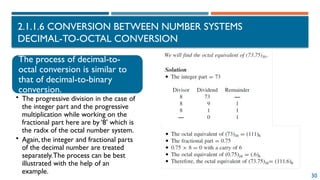
  • 98.
    98 2.2 ORGANIZATION OFCOMPUTER SYSTEMS 2.2.1 BASIC COMPUTER MODEL  Main Functions of the Components: Central Processing Unit (CPU): • Controls the computer's operations and performs data processing. Main Memory: • Stores programs and data for quick access by the CPU. Input/Output System: • Facilitates the exchange of information between the external environment and the computer. System Bus: • Connects and transports information between the CPU, main memory, and input/output systems of the computer.
  • 99.
     Basic Operationof a Computer:  The fundamental operation of a computer involves executing programs.  This execution consists of repeatedly cycling through an instruction cycle, which includes the following steps: 99 2.2.1 BASIC MODEL OF A COMPUTER Fetch: 1.The CPU fetches the address from the instruction pointer to the memory location containing the instruction to be received. Load: •The CPU retrieves the instruction from memory and loads it into the instruction register. Increment: •The instruction pointer is incremented to point to the next storage location. Decode: •The CPU decodes the instruction to determine the operation to be performed. Addressing: •If the instruction requires data from memory or I/O ports, the CPU identifies the address where the data is stored. Load Data: •The CPU loads the necessary data into its registers. Execute: •The CPU executes the instruction •Store Result:The result is written to the specified location.
  • 100.
    10 2.2 ORGANIZATION OFCOMPUTER SYSTEMS 2.2.2 CENTRAL PROCESSING UNIT - CPU •The Central Processing Unit is the brains of the computer. •This hardware makes the computer work by telling all the components what to do and when to do it
  • 101.
    2.2 ORGANIZATION OFCOMPUTER SYSTEMS 2.2.2 CENTRAL PROCESSING UNIT - CPU Math calculations Access, decode, coordinate instructions Hold program instructions and data
  • 102.
    10 2.2 ORGANIZATION OFCOMPUTER SYSTEMS 2.2.2 CENTRAL PROCESSING UNIT - CPU  Tasks of the CPU:The CPU is responsible for controlling the components of the computer and processing data. It operates according to the programs stored in main memory, decoding instructions to generate control signals that execute commands.  During instruction execution, the CPU communicates with both main memory and I/O systems.The CPU consists of three main components: 1. Control Unit:This part of the CPU directs the operation of the processor and its interactions with other components. It manages the execution of instructions by controlling the timing and sequence of operations. 2. Arithmetic and Logic Unit (ALU):This component performs all arithmetic calculations (addition, subtraction, multiplication, division) and logical operations (such as comparisons). 3. Register Set:A collection of small, high-speed storage locations within the CPU used to temporarily hold data and instructions during processing. Registers facilitate quick access to frequently used values and intermediate results.
  • 103.
    10 2.2 ORGANIZATION OFCOMPUTER SYSTEMS 2.2.2 CENTRAL PROCESSING UNIT - CPU  Control Unit (CU): • The Control Unit receives program instructions from memory and brings them into the CPU. • Its primary function is to decode these instructions and generate control signals that direct the operation of other components of the computer, either according to user commands or based on pre-installed programs.
  • 104.
    10 2.2 ORGANIZATION OFCOMPUTER SYSTEMS 2.2.2 CENTRAL PROCESSING UNIT - CPU  Arithmetic Logic Unit (ALU): • The ALU consists of components that perform: • Arithmetic operations (addition, subtraction, multiplication, division, etc.) • Logical operations (AND, OR, NOT, XOR) • Relational operations (comparisons like greater than, less than, equal to) • Data from memory or input/output devices is transferred into the CPU's registers, then sent to the ALU. Here, the data is processed, after which the results are returned to the registers and can be stored back in memory or sent to output devices.
  • 105.
    10 2.2 ORGANIZATION OFCOMPUTER SYSTEMS 2.2.2 CENTRAL PROCESSING UNIT - CPU  Arithmetic Logic Unit (ALU): • The word length of the operands processed directly in the ALU is commonly 32 bits or 64 bits in modern computers. • Initially, the ALU consisted only of the Integer Unit (IU) for performing integer calculations.To enhance its capabilities for floating-point arithmetic, the ALU has been augmented with a Floating Point Unit (FPU), also known as a Co-Processing Unit.
  • 106.
    10 2.2 ORGANIZATION OFCOMPUTER SYSTEMS 2.2.2 CENTRAL PROCESSING UNIT - CPU  Register File  The register file is tightly integrated with the CPU using electronic circuits that serve as intermediate memory for the CPU.  Registers perform specialized functions that help increase the speed of information exchange within the computer.  Modern CPUs typically have anywhere from a few dozen to several hundred registers. The length of registers can vary, ranging from 8 bits to 64 bits. In addition, the CPU is equipped with a clock, also known as a clock generator or pulse generator. The higher the frequency of the clock, the faster the information processing speed. The clock frequency is usually aligned with the machine's configuration, with typical frequencies including 2.0 GHz, 2.2 GHz, 2.5 GHz, 2.6 GHz, and so on.
  • 107.
    10 2.2 ORGANIZATION OFCOMPUTER SYSTEMS 2.2.2 CENTRAL PROCESSING UNIT - CPU  Functions of the CPU • Control the Operations of the Entire Computer System:The CPU oversees the functioning of all components and processes within the computer. • Data Processing: It handles all data processing tasks, ensuring computations and operations are performed accurately and efficiently. Principles of Operation The CPU operates based on the program stored in the main memory by following these steps: 1.Fetch Instructions: It retrieves instructions from the main memory. 2.Decode Instructions:The CPU decodes the fetched instructions and generates control signals to execute them. 3.Data Exchange:The CPU can exchange data with the main memory or I/O systems as needed. 4.Execute Instructions: It performs the operations defined by the instructions. 5.Store Results:The CPU writes the results back to the appropriate memory location or output device.
  • 108.
    10 2.2 ORGANIZATION OFCOMPUTER SYSTEMS 2.2.2 CENTRAL PROCESSING UNIT - CPU  Two Main CPU Lines • Intel: Notable models include Pentium, Core 2 Duo, Core i3, i5, i7, etc. • AMD: Key models include Opteron,Athlon, etc.  Microprocessor  A microprocessor is a CPU manufactured on a single microchip.While the term "CPU" can refer to the processing unit of a computer, modern microprocessors have a much more complex architecture compared to basic CPUs.
  • 109.
    10 2.2 ORGANIZATION OFCOMPUTER SYSTEMS 2.2.2 CENTRAL PROCESSING UNIT - CPU  Processor Speed • The processing speed of a computer depends on the speed of the processor. • Processor Speed Metrics: • MIPS (Millions of Instructions Per Second):This metric indicates the number of instructions executed in one second. • Challenges in Evaluation:Accurately assessing processor speed is difficult because it also depends on other factors, such as internal memory and graphics card performance. • Indirect Assessment: Processor speed is often evaluated indirectly through the clock frequency of the microprocessor. For example, a processor with a speed of 2 GHz has a clock frequency of 2 GHz.
  • 110.
    11 2.2 ORGANIZATION OFCOMPUTER SYSTEMS 2.2.2 CENTRAL PROCESSING UNIT - CPU  Processor Speed in Supercomputers • Roadrunner (3rd Place): • Manufacturer: IBM • Cost: 133 million USD • Speed: 1.04 petaflops (1.04 million trillion calculations per second) • Comparison:This speed is equivalent to the total calculations performed by 6 billion users using handheld calculators for 24 hours a day, 7 days a week, over 46 years, in just 1 day. •Nabulae (2nd Place): • Location: China • Speed: 1.2 petaflops •Jaguar (1st Place): • Location: USA • Speed: 1.8 petaflops
  • 111.
    11 2.2 ORGANIZATION OFCOMPUTER SYSTEMS 2.2.3 MEMORY  Memory in Computers • Purpose: Memory is a device for storing information during the processing of data by a computer. • Types of Memory: • Internal Memory:Also known as primary memory or RAM (Random Access Memory), this is where data and programs currently in use are stored for quick access by the CPU. • External Memory:Also known as secondary memory or storage, this includes devices like hard drives, SSDs (Solid State Drives), USB drives, and optical discs. It is used for long-term storage of data and programs. • Basic Operations:The fundamental operations of memory include: • Read: Retrieving data from memory. • Write: Storing data into memory.
  • 112.
    11 2.2 ORGANIZATION OFCOMPUTER SYSTEMS 2.2.3 MEMORY Random-access memory is a form of temporary computer data storage. This is where all your files and programs are stored on your computer when it is switched on. RAM is volatile memory that temporarily stores the files you are working on. ROM is non-volatile memory that permanently stores instructions for your computer.
  • 113.
    11 2.2 ORGANIZATION OFCOMPUTER SYSTEMS 2.2.3 MEMORY  Internal Memory • Definition: Internal memory refers to the memory components that the CPU can directly interact with. It is essential for the execution of instructions and the utilization of data. • Characteristics: • Direct Interaction:The CPU can directly access both the instructions it executes and the data it uses from the internal memory. • Capacity:Although internal memory may not have a large capacity, it compensates for this with high-speed data transfer capabilities. •Types of Internal Memory: • Main Memory • This is where the primary programs and data are stored. It typically includes RAM and ROM. • Cache Memory (B nh cache) ộ ớ : • A small-sized type of volatile memory that provides high-speed access to frequently used data and instructions, reducing the time it takes for the CPU to access data from the main memory. • Cache memory is much faster than main memory but has a smaller capacity. It helps improve overall system performance by storing copies of frequently accessed data and instructions.
  • 114.
    11  Main Memory(Primary Memory) • Definition: Main memory is a fundamental component present in all computer systems. • Function: • Stores programs and data that are actively being used by the CPU. • Organization: • Organized into memory cells, each of which has a unique address. • Typically structured in bytes, where each byte consists of 8 bits. • Characteristics: • The contents of memory cells can change (read/write operations), but the physical addresses of these memory cells remain fixed. • Components: Main memory generally consists of two parts: • ROM (Read-Only Memory): Non-volatile memory that stores firmware and system-level programs. Data in ROM is not lost when the power is turned off. • RAM (Random Access Memory):Volatile memory used for temporary storage of data and programs that are currently in use. Data in RAM is lost when the power is turned off. 2.2.3 MEMORY
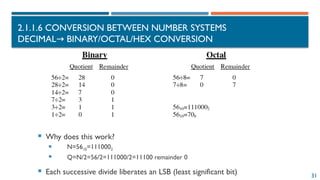
  • 115.
    11 2.2 ORGANIZATION OFCOMPUTER SYSTEMS 2.2.3 MEMORY  ROM (Read-Only Memory) • Definition: ROM is a type of non-volatile memory that is used primarily to store firmware or software that is closely tied to specific hardware. • Characteristics: • Read-Only: Information stored in ROM cannot be modified or written to during normal operation. It is primarily designed for reading. • Non-Volatile: Data remains intact even when the power is turned off, making it suitable for storing essential system information. • Uses: • System Programs: Stores critical system programs and firmware that are necessary for booting and operating the computer. • Input/Output Control: Contains programs that control the input/output devices, ensuring proper communication between the hardware and the operating system. • Integration: • Typically integrated into hardware devices, such as motherboards and embedded systems, at the time of manufacture. • Alternate Name: Sometimes referred to as ROM BIOS (Basic Input/Output System), which contains the essential instructions for booting the computer and performing hardware initialization.
  • 116.
    11 2.2 ORGANIZATION OFCOMPUTER SYSTEMS 2.2.3 MEMORY  RAM (Random Access Memory) • Definition: RAM is a type of volatile memory used for temporarily storing data and programs that the CPU needs during operation and computation. • Characteristics: • Volatile Memory:The information stored in RAM is lost when the power is turned off or the machine is shut down. • Random Access: Data can be read from and written to RAM in any order, making it fast and efficient for processing tasks. • Uses: • Temporary Storage: Used to hold data and programs that are currently in use by the CPU, allowing for quick access and manipulation. • Multitasking: Enables multiple applications to run simultaneously by providing space for their active data. • Common Capacities:Typical RAM sizes for personal computers range from 2GB to 4GB, but higher capacities (e.g., 8GB, 16GB, or more) are often used in modern systems for better performance.
  • 117.
    11  SRAM (StaticRAM)  Definition: SRAM is a type of volatile memory that retains data as long as power is supplied. It is different from DRAM (Dynamic RAM) in its structure and functionality.  Characteristics:  Complex Structure: SRAM has a more intricate design, using multiple transistors for each memory cell, leading to its complexity.  Small Capacity: Due to its complex structure, SRAM typically has a smaller storage capacity compared to DRAM.  Fast Speed: Offers faster access times than DRAM, making it ideal for applications requiring high-speed memory.  High Cost:The complexity of its design results in a higher manufacturing cost, making it more expensive than DRAM.  Uses:  Cache Memory: Commonly used as cache memory in CPUs and other devices due to its speed, allowing for quick access to frequently used data.  Performance Enhancement: Helps improve overall system performance by reducing the time the CPU spends waiting for data. 2.2.3 MEMORY
  • 118.
    11  DRAM (DynamicRAM)  Definition: DRAM is a type of volatile memory that stores each bit of data in a separate capacitor within an integrated circuit. It is widely used as the main memory in computers and other devices.  Characteristics:  Simple Structure: DRAM has a simpler design compared to SRAM, using only one transistor and one capacitor per memory cell, making it less complex.  Large Capacity: Due to its simpler structure, DRAM can be produced in higher densities, allowing for larger storage capacities.  Slower Speed: DRAM requires periodic refreshing to retain data, which makes it slower than SRAM.  Lower Cost: DRAM is cheaper to manufacture due to its simpler design and higher density, making it a cost- effective option for large memory needs.  Uses:  Main Memory: DRAM is commonly used as the main system memory (RAM) in computers, smartphones, and other devices where large amounts of storage are required for active data and applications.  General Computing: It serves as the primary memory in most devices, where its large capacity is more important than the speed offered by SRAM. 2.2.3 MEMORY
  • 119.
    11  Speed andCapacity: • Faster than RAM: Data in Cache is accessed much faster than in RAM, helping reduce latency when the CPU performs tasks that require data. • Smaller capacity: Despite its high speed, Cache typically has a much smaller capacity than RAM, just enough to temporarily store important or frequently used data.  Hierarchical Structure: • Cache L1, L2, L3: Cache is typically divided into levels, with L1 being the smallest and fastest, located closest to the CPU. L2 and L3 have larger capacities but are slightly slower than L1.  Existence: • Cache may or may not be present: Some systems have integrated Cache, while others do not. However, modern CPUs almost always have Cache to optimize processing speed. 2.2.3 MEMORY  Cache Memory Reason for use: Speed discrepancy: The CPU operates at very high speeds, often far exceeding the speed of data access from RAM. If the CPU has to wait for data from RAM, it won't fully utilize its processing power. Cache memory is designed to minimize this wait time.  Function: Temporary data storage: Cache is a fast memory buffer that stores blocks of data from RAM that the CPU is likely to use repeatedly. This allows the CPU to handle data more quickly from the Cache instead of waiting for it from RAM.  Integration: In the processor chip: Cache memory is now often integrated directly into the processor chip to ensure the fastest possible data retrieval.
  • 120.
    2.2 ORGANIZATION OFCOMPUTER SYSTEMS 2.2.3 MEMORY  ROM-BIOS chips are responsible for booting the computer, checking the system memory, and loading the operating system.  When the BIOS commands are loaded: • The computer searches for a valid operating system (the boot sequence determines the order of the drives accessed when the machine looks for the operating system files: C drive, optical drive, USB drive). • The operating system is loaded into RAM and occupies a certain amount of RAM during system operation. • The operating system takes control and displays the type of operating system on the screen.
  • 121.
    2.2 ORGANIZATION OFCOMPUTER SYSTEMS 2.2.3 MEMORY  To perform tasks, the computer will use a necessary amount of RAM to complete each task: • Starting an application:The computer loads a copy of the application’s commands into RAM (it remains in RAM until you close it). • Working within the application:The work is stored in RAM until you save it. • Closing an application:This completes the task and frees up RAM for other applications. • Closing programs and shutting down the computer.
  • 122.
    2.2 ORGANIZATION OFCOMPUTER SYSTEMS 2.2.3 MEMORY  There are many types of external memory: • Magnetic memory: Hard disk, floppy disk • Optical memory: CD, DVD (DigitalVideo Disc or DigitalVersatile Disc), etc. • Semiconductor memory: Flash disk, memory card
  • 123.
    2.2 ORGANIZATION OFCOMPUTER SYSTEMS 2.2.3 MEMORY  Hard Disks: • They are central storage devices inside the computer, used to store data and programs. • Software programs (including the Operating System) must be installed on the hard disk before use. • Traditional hard drives (HDD): • HDD: Hard Disk Drives • Solid-state drives (SSD): • SSD: Solid State Drives
  • 124.
    2.2 ORGANIZATION OFCOMPUTER SYSTEMS 2.2.3 MEMORY  Flash sticks or memory - USB: • Connects to the computer via a USB port • Size:Various capacities such as 8GB, 16GB, etc. • Widely used for: • Storing personal data • Use in audiovisual devices
  • 125.
    2.2 ORGANIZATION OFCOMPUTER SYSTEMS 2.2.3 MEMORY  SD Card (Secure Digital Cards):  A small, high-capacity flash memory storage device.  Commonly used in digital cameras, camcorders, mobile phones, tablets, MP3 players, and GPS systems.
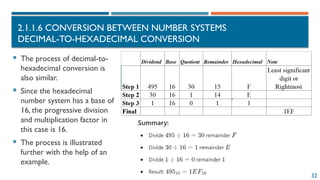
  • 126.
    2.2 ORGANIZATION OFCOMPUTER SYSTEMS 2.2.3 MEMORY  Optical Discs and Drives: • Designed to read CDs (Compact Discs) and DVDs (DigitalVersatile/Video Discs). • A CD-ROM (Compact Disc Read-Only Memory) drive or DVD-ROM drive works similarly to a player in audio/video entertainment systems. • Optical disc burners, using special software, allow "burning" or writing data onto discs.
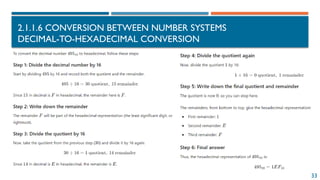
  • 127.
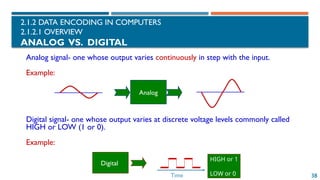
    2.2 ORGANIZATION OFCOMPUTER SYSTEMS 2.2.4 INPUT/OUTPUT SYSTEM  Function: Facilitating communication between the computer and the outside world Basic operations: • Input data • Output data Components: • Input/Output (IO) devices – peripheral devices • IO Interface Modules
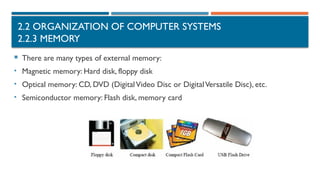
  • 128.
    2.2 ORGANIZATION OFCOMPUTER SYSTEMS 2.2.4 INPUT/OUTPUT SYSTEM  I/O Interface Module: • Input/output devices are not directly connected to the CPU but are connected through an I/O interface module. • The module has I/O ports, which are also addressed by the CPU. • Each I/O device connects to the CPU via its corresponding port.
  • 129.
    2.2 ORGANIZATION OFCOMPUTER SYSTEMS 2.2.4 INPUT/OUTPUT SYSTEM  Input/Output Devices: • Function: Responsible for converting information from a certain physical form into data suitable for the computer and vice versa (converting data between the internal and external environments of the computer). • Peripheral devices can be categorized into various types: 1. Data input devices: Keyboard, scanner, mouse, etc. 2. Data output devices: Monitor, printer, etc. 3. Storage devices:Various types of disk drives 4. Communication devices: Modem, Bluetooth, wireless 5. Multimedia support devices:Audio and video systems
  • 130.
    2.2 ORGANIZATION OFCOMPUTER SYSTEMS 2.2.4 INPUT/OUTPUT SYSTEM  Keyboard: Standard input device • A panel containing keys with various functions. • Main key groups: • Typing keys: Includes letters, numbers, and special characters. • Function keys: Includes keys from F1 to F12, arrow keys for up, down, left, right, and keys like PgUp, PgDn, Insert, Delete, Home, End. • Numeric keypad: Includes keys such as NumLock, CapsLock, and ScrollLock.  Mouse: • Includes ball mouse, optical mouse, and keyboard-attached mouse.  Scanner: • Used to scan text, drawings, or photographs and input them into the computer as image files.  Disk drive: • When reading data from the disk, it functions as an input device.
  • 131.
    2.2 ORGANIZATION OFCOMPUTER SYSTEMS 2.2.4 INPUT/OUTPUT SYSTEM  Monitor: • A standard output device used to display information for users. • Information is displayed through a method called Memory Mapping.  Disk Drive: • When data is written to the disk, it functions as an output device.  Printer: • Used to output information onto paper: • Dot matrix printer (24-pin type), inkjet printer, black-and-white or color laser printer.  Projector: • Functions similarly to a monitor, used as a substitute for a screen in meetings, presentations, and teaching sessions.
  • 132.
    2.2 ORGANIZATION OFCOMPUTER SYSTEMS 2.2.5. SYSTEM INTERCONNECTION (BUSES) Information is exchanged between the components of a computer or even within a complex component like the CPU through a communication system known as a bus. In reality, the bus in a computer is quite complex and is represented by pathways on circuit boards, slots on the motherboard, and connecting cables.
  • 133.
    2.2 ORGANIZATION OFCOMPUTER SYSTEMS 2.2.5. SYSTEM INTERCONNECTION (BUSES)  Classification of Bus by Function: 1. Control Bus:Transfers information or signals between components, such as from the CPU to the input/output system (CPU I/O system). ↔ 2. Data Bus: Responsible for transmitting data (contents of memory, processing results) from the CPU to memory or from memory/CPU to input/output devices.This is a bidirectional bus, typically with a width of 32 bits or 64 bits. 3. Address Bus: Carries the addresses of memory locations when accessing the contents of that memory or the addresses of ports for devices that the CPU communicates with.  BusWidth: Refers to the number of wires in the bus that can transmit bits of information simultaneously (applicable only to address and data buses).
  • 134.
    2.2 ORGANIZATION OFCOMPUTER SYSTEMS 2.2.5. SYSTEM INTERCONNECTION (BUSES) 13
  • 135.
    2.2 ORGANIZATION OFCOMPUTER SYSTEMS 2.2.6 PERIPHERAL DEVICES Speakers: Output device for audio. Music player: Device used for playing music. Recording device: Device for capturing audio or sound. Webcam: Camera used for video communication and streaming. Joystick: Input device used for gaming and controlling movement. Barcode reader: Device for scanning barcodes and reading data. Biometric device: Device for scanning and recognizing biometric data (like fingerprints). Touch screens: Display that allows for user interaction through touch. Ports: Connection points for various devices. Scanner: Device for digitizing documents and images. Printer: Device for producing physical copies of documents and images.

Editor's Notes

  • #5 The study of number systems is important from the viewpoint of understanding how data are represented before they can be processed by any digital system including a digital computer. It is one of the most basic topics in digital electronics.
  • #6 Five two four six equals five times ten to the power of three, plus two times ten to the power of two, plus four times ten to the power of one, plus six times ten to the power of zero. Hệ đếm sử dụng 10 chữ số: 0,1,2,3,4,5,6,7,8,9 VD: 5246=5000+200+40+6 5246=5*103+2*102+4*101+6*100 Quy tắc tính giá trị của hệ đếm này là mỗi đơn vị ở một hàng bất kỳ có giá trị bằng 10 đơn vị của hàng kế cận bên phải. Phần thập phân thể hiện 10 lũy thừa âm tính từ trái sang phải kể từ dấu chấm phân cách.
  • #7 Three five eight six equals three times ten to the power of three, plus five times ten to the power of two, plus eight times ten to the power of one, plus six times ten to the power of zero, which equals three thousand plus five hundred plus eighty plus six, which equals three five eight six.“ Example: 5246 = 5000 + 200 + 40 + 6 5246 = 5 × 10³ + 2 × 10² + 4 × 10¹ + 6 × 10⁰
  • #8 Number N in the Base-10 Number System. N is represented as follows: N(10)=anan-1..a1a0 . a-1a-2...a-m Trong đó: n+1 chữ số biểu diễn cho phần nguyên m chữ số biểu diễn cho phần thập phân. Giá trị của N trong hệ thập phân:
  • #9 Hệ đếm cơ số Cơ số R
  • #10 This describes the binary number 101 and how each bit is multiplied by powers of two to convert it to its decimal equivalent. Cơ số (r -radix): ▪ Là số lượng ký tự chữ số (ký số -digit) sử dụng để biểu diễn trong hệ thống số đếm Trọng số (weight): ▪ Đại lượng biểu diễn cho vị trí của 1 con số trong chuỗi số. ▪ Trọng số = Cơ sốVị trí Giá trị (value): ▪ Tính bằng tổng theo trọng số ▪ Giá trị =∑(Ký số x Trọng số)
  • #11 Giả sử có số N trong cơ số r (r>=2) được biểu diễn dưới dạng: N(r)=anan-1..a1a0a-1a-2...a-m có n+1 chữ số biểu diễn phần nguyên m chữ số biểu diễn phần thập phân Giá trị của N hệ cơ số r trong hệ thập phân là: N(r)=an*rn+an-1*rn-1+…+a1*r1+a0*r0+a-1*r-1+…+a-m*r-m
  • #12 Hệ nhị phân – Hệ đếm cơ số 2 Với cơ số r = 2 Sử dụng hai chữ số 0 và 1 Mỗi chữ số nhị phân gọi là BIT (Binary digIT ) Trong máy tính mỗi linh kiện hay phần tử vật chất mang thông tin người ta tìm thấy hai trạng thái trái ngược nhau: bật và tắt, hoặc có dòng điện và không có dòng điện. Người ta lợi dụng hai trạng thái để biểu thị hai chữ số 0, 1. Hệ nhị phân đặc biệt thích hợp với công nghệ máy tính.
  • #15 2.1.1.4 Hệ bát phân – Hệ đếm cơ số 8
  • #16 Hexadecimal Number System Sử dụng 10 chữ số từ 0 đến 9 và sáu chữ cái in hoa A, B, C, D, E, F để biểu diễn các giá trị số tương ứng là 10, 11, 12, 13, 14, 15 Một số ngôn ngữ lập trình quy định viết số Hexa phải có chữ H ở cuối chữ số
  • #19 https://www.sciencedirect.com/topics/computer-science/binary-to-decimal-conversion
  • #26 https://www.electronics-tutorials.ws/binary/binary-fractions.html Cách chuyển đổi từ một số hệ cơ số 10 sang hệ cơ số r Chuyển đổi phần nguyên thập phân sang hệ cơ số r Lấy số nguyên thập phân N(10) lần lượt chia cho r cho đến khi thương số bằng 0 Kết quả số chuyển đổi N(r) là các dư số trong phép chia viết theo thứ tự ngược lại Ví dụ: 52(10)=?(2)
  • #28 The integer and fractional parts are worked on separately.
  • #38 2.1.2.1 Nguyên tắc chung Để đưa dữ liệu vào máy ta cần chuyển nó về dạng nhị phân
  • #39 Với các kiểu dữ liệu khác nhau có cách mã hóa khác nhau + Dạng số: chuyển đổi trực tiếp thành chuỗi số nhị phân theo các chuẩn xác định + Các ký tự: được mã hóa theo một bộ mã cụ thể, mỗi ký tự tương ứng với một chuỗi nhị phân + Các dữ liệu âm thanh, hình ảnh, các tín hiệu vật lý khác: phải được số hóa
  • #40 Tuy mọi dữ liệu trong máy đều ở dạng nhị phân, song do bản chất của dữ liệu người ta chia dữ liệu thành hai loại Dạng cơ bản: gồm dạng số và dạng ký tự không có cấu trúc Dạng có cấu trúc: Trên dữ liệu cơ bản người ta xây dựng các kiểu dữ liệu có cấu trúc phục vụ mục đích sử dụng khác nhau như: dữ liệu mảng, tập hợp, xâu, bản ghi.. Tín hiệu vật lý  Tín hiệu điện liên tục  Tín hiệu số
  • #45 Bộ cảm biến tín hiệu (Sensor) Bộ chuyển đổi tín hiệu tương tự (AD Convert) Máy tính Tín hiệu vật lý  Tín hiệu điện liên tục  Tín hiệu số
  • #46 Đơn vị nhỏ nhất biểu diễn thông tin là Bit (Binary digIT). + Một Bit tương ứng với một sự kiện có một trong hai trạng thái: tắt, mở Số học nhị phân sử dụng hai số 0 và 1 để biểu diễn các số. Do khả năng sử dụng của hai số 1 và 0 là như nhau nên một chỉ thị chỉ gồm một chữ số nhị phân có thể xem như là đơn vị chứa thông tin nhỏ nhất Trong tin học người ta dùng các đơn vị đo thông tin lớn hơn như sau: Byte-B , KiloByte-KB, MegaByte-MB, GigaByte-GB, TeraByte-TB.
  • #52 1001100100: 11000
  • #53 100100001L 1011
  • #64 Dấu và độ lớn Sign-and-magnitude Bù 1: Nghịch đảo Bù 2: Số nghịch đảo + 1 Số bù một và số bù hai (hệ nhị phân) ▪ Giả sử có 1 số nguyên nhị phân được biểu diễn bởi n bit. Ta có: • Số bù một của A = (2n - 1) – A • Số bù hai của A = 2n – A • NX: Số bù hai = Số bù một + 1 ▪ Ví dụ • Xét n = 4 bit, A = 0110 • Số bù một của A = (24 - 1) - 0110 = 1001 • Số bù hai của A = 24 - 0110 = 1010
  • #65 ▪ Ví dụ • Xét n = 4 bit, A = 0110 • Số bù một của A = (24 - 1) - 0110 = 1001 • Số bù hai của A = 24 - 0110 = 1010 Có thể tìm số bù một của A bằng cách đảo ngược tất cả các bit Số bù hai = Số bù một + 1 A + Số bù hai của A = 0 nếu bỏ qua bit nhớ ra khỏi bit cao nhất Biểu diễn số nguyên có dấu bằng số bù hai ▪ Dùng n bit để biểu diễn số nguyên có dấu A ▪ Biểu diễn số bù 2 của A (sử dụng n bit) Ví dụ: Biểu diễn số nguyên có dấu A = - 70(10) bằng 8 bit: * Biểu diễn 70 = 0100 0110 * Bù 1: 1011 1001 (nghịch đảo các bit) + 1 * Bù 2: 1011 1010 Vậy: A = 1011 1010(2)
  • #67 dùng mã bù hai
  • #68 Từ một số, nếu chuyển thành Two Complements thì đặt dấu 0 đằng trước sẽ cho ra giá trị số đó. Từ một số có dấu. Bỏ số xác định dấu ở đầu. Tìm số bù 2 rồi Như vậy, một số có dấu, bỏ số xác định dấu ở đầu
  • #70 Số học tính cồng kềnh
  • #71 Số bù 1
  • #74 Cộng trừ với số nguyên Cộng/trừ số nguyên không dấu Tiến hành cộng trừ lần lượt từng bit từ phải qua trái Khi cộng trừ số nguyên không dấu n bit ta thu được một số nguyên không dấu n bit + Nếu tổng của hai số đó nhỏ hơn hoặc bằng 2n -1 thì kết quả nhận được là đúng + Nếu tổng hai số đó lớn hơn 2n – 1 thì khi đó sẽ tràn số và kết quả là sai. + Trừ số không dấu ta chỉ trừ số lớn cho số nhỏ, trường hợp ngược lại sẽ sai
  • #75 Cộng/trừ số nguyên không dấu Ví dụ: ▪ Dùng 8 bit để biểu diễn số nguyên không dấu ▪ Trường hợp không xảy ra tràn số (carry-out): X = 1001 0110 = 150 Y = 0001 0011 = 19 S = 1010 1001 = 169 Cout = 0 ▪ Trường hợp có xảy ra tràn số (carry-out): X = 1100 0101 = 197 Y = 0100 0110 = 70 S = 0000 1011 # 267 Cout = 1 → carry-out (KQ sai = 23 + 21 + 20 = 11)
  • #76 Cộng trừ số nguyên có dấu Cộng lần lượt các cặp bit từ trái qua phải bỏ qua bit nhớ nếu có. Cộng hai số khác dấu luôn cho kết quả đúng Cộng hai số cùng dấu: có giá trị đúng nếu kết quả nằm ngoài dải -2n-1 đến 2n-1-1 Có giá trị đúng nếu tổng có dấu cùng dấu với 2 số hạng, và cho giá trị sai nếu tổng khác dấu với 2 số hạng (hiện tượng tràn số) VD: (+15)+(-13)
  • #84 Các ký tự hiển thị thông dụng: các mã từ 32 đến 126 dùng để mã hóa cho các ký tự hiển thị thông dụng chia thành 3 nhóm như sau: Các chữ cái La tinh: gồm 26 chữ cái thường từ a đến z có mã từ 97 đến 122, 26 chữ cái hoa từ A đến Z có mã từ 65 đến 90 10 chữ số thập phân từ 0 đến 9 được gán mã từ 48 đến 57 Các ký tự khác: các dấu chấm câu, các phép toán, các dấu cách.
  • #85 Các ký tự mở rộng: + Có mã từ 128 đến 255 phụ thuộc vào các nhà chế tạo máy tính và phát triển phần mềm. + Ví dụ bộ mã mở rộng của IBM dùng cho các máy tính dòng IBM, bộ mã mở rộng của Apple dùng cho các máy tính Macintosh, bộ mã TCVN5712 có các ký tự riêng của tiếng Việt.
  • #86 Một số đặc điểm của Unicode: + Mỗi ký tự trong bảng mã Unicode đều có độ dài 16 bit nên việc xử lý các xâu ký tự Unicode rất đơn giản + Unicode tránh tối đa việc định nghĩa dư thừa, trùng lặp. VD chữ “ê” chỉ có một mã duy nhất dùng chung cho cả ngôn ngữ Việt và các ngôn ngữ khác nên hệ thống chữ tiếng Việt nằm rải rác ở nhiều vị trí không liền nhau. Unicode vẫn dùng những vùng riêng để định nghĩa cho các ngôn ngữ đặc thù. Với nhiều ngôn ngữ người ta phải dùng các thuật toán riêng để sắp xếp + Muốn sử dụng Unicode cần phần mềm hỗ trợ hiển thị hoặc cho phép gõ ký tự theo chuẩn Unicode và các font chữ Unicode cài trong hệ thống.
  • #90 Biểu diễn hình ảnh Tĩnh * Đồ họa điểm * Đồ họa véc tơ: + Chia một hình ảnh thành nhiều đối tượng cơ bản như: điểm, đường thẳng, đường đa giác, mặt, khối. + Máy tính sẽ dựa theo các công thức toán véc tơ để xây dựng lại hình ảnh từ những đối tượng cơ bản trên. + Đồ họa hướng đối tượng: mỗi đối tượng và đặc tính của nó có thể được mã hóa bằng một lệnh trên đồ họa véc tơ rất ngắn gọn, đồng thời có khả năng hiển thị đối tượng ba chiều
  • #91 Biểu diễn hình ảnh động + Hình ảnh chuyển động còn thêm một tham số biểu diễn nữa là thời gian + Biểu diễn ảnh chuyển động giống nguyên tắc dùng phim nhựa: 30 ảnh/giây là con người cảm giác đó là một hình ảnh chuyển động trơn tru (lưu ảnh trên võng mạc)  để hiển thị một giây ảnh chuyển động, máy tính cần phải có dung lượng bộ nhớ để chứa 30 ảnh tĩnh và bộ xử lí của máy tính phải nhanh để có thể xử lí được khối lượng thông tin của 30 ảnh tĩnh trong 1 giây
  • #92 Biểu diễn hình ảnh động Do khối lượng thông tin và chất lượng của ảnh động rất cao vì vậy với kĩ thuật thông thường thì máy tính không thể đáp ứng được nhu cầu kĩ thật video số có màu thực và độ phân giải cao Nén video số hóa: nén từng ảnh tĩnh và nén từng phần ảnh và không thay đổi theo thời gian Ví dụ: Truyền video của một cuộc họp, ban đầu truyền tất cả không gian của cả khung cảnh văn phòng sau đó chỉ truyền những thay đổi xảy ra trong văn phòng đó.
  • #93 Biểu diễn âm thanh Mã hóa âm thanh theo hệ đếm nhị phân bằng cách ngắt âm thanh ra nhiều giá trị sau một khoảng thời gian nhất định Mỗi giá trị này được gán một mã nhị phân và lưu trữ chúng theo một tệp Ví dụ: Mã hóa âm thanh bằng 8 bit sẽ cho ta 256 giá khác nhau Nếu mã hóa bằng 16 bit sẽ cho ta 65536 giá trị khác nhau.
  • #95 The Heat Sink keeps the CPU cool. As the CPU works very hard to gets very hot. If it gets too hot it will stop working
  • #97 2.2.1 Mô hình cơ bản của Máy tính (MT) Chức năng của HT máy tính Xử lý dữ liệu: chức năng quan trọng nhất của MT, dữ liệu có rất nhiều dạng khác nhau và yêu cầu xử lý khác nhau Lưu trữ dữ liệu: Dữ liệu đưa vào hay kết quả của xử lý có thể được lưu lại để trích rút sau này Trao đổi dữ liệu và truyền dữ liệu Điều khiển: Điều khiển các chức năng trên
  • #99 Fetch: The CPU fetches the address from the instruction pointer to the memory location containing the instruction to be received. Load: The CPU retrieves the instruction from memory and loads it into the instruction register. Increment: The instruction pointer is incremented to point to the next storage location. Decode: The CPU decodes the instruction to determine the operation to be performed. Addressing: If the instruction requires data from memory or I/O ports, the CPU identifies the address where the data is stored. Load Data: The CPU loads the necessary data into its registers. Execute: The CPU executes the instruction. Store Result: The result is written to the specified location. Repeat: The process returns to the first step to execute the next instruction.
  • #109 Tốc độ bộ xử lý ▪ Tốc độ xử lý của máy tính phụ thuộc vào tốc độ bộ xử lý ▪ Tốc độ bộ xử lý • Số lệnh được thực hiện trong 1s (MIPS - Milliions of Intructions per Second) • Khó đánh giá chính xác (còn phụ thuộc bộ nhớ trong, bo mạch đồ họa…) → Được đánh giá gián tiếp thông qua tần số xung nhịp của bộ vi xử lý Ví dụ: Bộ xử lý 2 GHz → Tần số = 2 GH
  • #112 RAM is volatile memory that temporarily stores the files you are working on. ROM is non-volatile memory that permanently stores instructions for your computer. RAM là bộ nhớ tạm thời lưu trữ các tệp bạn đang làm việc. ROM là bộ nhớ không biến động lưu trữ vĩnh viễn các hướng dẫn cho máy tính của bạn. Ngày 16 tháng 9 năm 2024
  • #114 ▪ Là thành phần nhớ tồn tại trên mọi hệ thống máy tính ▪ Chứa các chương trình và dữ liệu đang được CPU sử dụng ▪ Tổ chức thành các ngăn nhớ được đánh địa chỉ ▪ Ngăn nhớ thường được tổ chức theo Byte ▪ Nội dung của ngăn nhớ có thể thay đổi, song địa chỉ vật lý của ngăn nhớ luôn cố định ▪ Thông thường, bộ nhớ chính gồm 2 phần: • ROM • RAM
  • #115 ROM – Read Only Memory: bộ nhớ chỉ đọc thông tin, dùng để lưu trữ các chương trình hệ thống, chương trình điều khiển nhập/xuất cơ sở - các phần mềm thực hiện các công việc của thiết bị (firmware). Thông tin trên ROM không thay đổi và không bị mất ngay cả khi không có điện Tích hợp trên các thiết bị Nội dung được cài đặt tại nơi sản xuất thiết bị Đôi khi còn được gọi là ROM BIOS (Basic Input/Output System)
  • #122 Có nhiều loại bộ nhớ ngoài: Bộ nhớ từ: Đĩa cứng, đĩa mềm Bộ nhớ quang: Đĩa CD, DVD (Digital Video Disc hay Digital Versatile Disc),… Bộ nhớ bán dẫn: Flash disk, memory card
  • #123 Đĩa cứng (Hard Disks): ▪ Là thiết bị lưu trữ trung tâm bên trong máy tính, lưu trữ dữ liệu và chương trình. ▪ Các chương trình phần mềm (kể cả Hệ điều hành) phải được cài đặt (Installed) trên đĩa cứng trước khi sử dụng. ▪ Ổ đĩa cứng truyền thống HDD: • HDD: Hard Disk Drivers ▪ Ổ cứng thể rắn SSD: • SSD: Solid State Drivers
  • #125 Thẻ SD Card (Secure Digital Cards) ▪ Là thiết bị lưu trữ bộ nhớ flash nhỏ, dung lượng cao. ▪ Phổ biến cho máy ảnh kỹ thuật số, máy quay phim, điện thoại di động, máy tính bảng, máy nghe nhạc MP3 và hệ thống GPS.
  • #126 Đĩa quang và ổ đĩa (Optical Discs and Drives): • Được thiết kế để đọc đĩa CDs (Compact Discs) và Đĩa đa năng/Video đa năng DVDs (Digital Versatile/Video Discs). • Ổ đĩa CD-ROM (Compact Disc Read Only Memory) hoặc ổ đĩa DVD-ROM tương tự như trình phát (Player) trong hệ thống giải trí âm thanh/video. • Ổ đĩa ghi quang quang học, sử dụng phần mềm đặc biệt cho phép ghi “burn” hoặc ghi dữ liệu vào đĩa
  • #127 Chức năng: Trao đổi thông tin giữa máy tính và thế giới bên ngoài Thao tác cơ bản: + Vào dữ liệu + Ra dữ liệu Thành phần: + Thiết bị vào/ra (IO Devices)- thiết bị ngoại vi (Peripheral devices) + Các Module ghép nối vào/ra (IO Interface Modules).
  • #130 Bàn phím-keyboard: thiết bị nhập chuẩn + Là bộ bảng chứa các phím ký tự có tác dụng khác nhau + Nhóm phím chính: - Nhóm phím đánh máy: gồm các chữ, số, các ký tự đặc biệt - Nhóm phím chức năng-function keypad: gồm các phím từ F1 đến F12, phím di chuyển lên xuống, trái phải, phím PgUp, PgDn, Insert, Delete, Home, End. - Nhóm phím số-Numeric keypad: NumLock, CapsLock, ScrollLock.
  • #132 Giữa các thành phần của máy tính hay ngay trong một thành phần phức tạp như CPU trao đổi thông tin thông qua hệ thống kết nối – Bus. Thực tế bus trong máy tính khá phức tạp, nó được thể hiện bằng các đường dẫn trên các bản mạch, các khe cắm trên bản mạch chính, các cáp nối,…
  • #133 Phân loại Bus theo chức năng: Bus điều khiển – Control Bus: Chuyển các thông tin hay tín hiệu từ thành phần này đến các thành phần khác: CPU  hệ thống vào/ra Bus dữ liệu: làm nhiệm vụ truyền tải dữ liệu (nội dung ngăn nhớ, kết quả xử lý) từ CPU đến Bộ nhớ hay từ Bộ nhớ/CPU đến thiết bị vào/ra. Đây là loại bus hai chiều thường có độ rộng đường Bus dữ liệu là 32bit hoặc 64 bit Bus địa chỉ-Address Bus: truyền tải địa chỉ của ngăn nhớ khi muốn truy nhập nội dung ngăn nhớ đó hoặc địa chỉ cổng của các thiết bị mà CPU trao đổi. Độ rộng của bus: là số đường dây của bus có thể truyền các bit thông tin đồng thời (chỉ dùng cho bus địa chỉ và bus dữ liệu)
  • #134 Độ rộng bus địa chỉ: cho biết số lượng ngăn nhớ tối đa được đánh địa chỉ. + n bit: An-1 , An-2 , ... A2 , A1 , A0 → Có thể đánh địa chỉ tối đa cho 2n ngăn nhớ (không gian địa chỉ bộ nhớ). +Ví dụ: Bộ xử lý Pentium có bus địa chỉ 32 bit → Có khả năng đánh địa chỉ cho 232 bytes nhớ (4GB) (nếu ngăn nhớ tổ chức theo byte) Độ rộng bus dữ liệu: xác định số bit dữ liệu có thể được trao đổi đồng thời + M bit: Dm-1, Dm-2 , ... D2 , D1 , D0 + M thường là 8, 16, 32, 64,128 bit. + Ví dụ: Các bộ xử lý Pentium có bus dữ liệu 64 bit