C#
Windows Form
ROBELIA JOY G. VILLARUZ
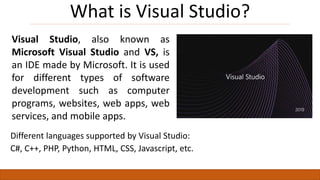
What is Visual Studio?
Visual Studio, also known as
Microsoft Visual Studio and VS, is
an IDE made by Microsoft. It is used
for different types of software
development such as computer
programs, websites, web apps, web
services, and mobile apps.
Different languages supported by Visual Studio:
C#, C++, PHP, Python, HTML, CSS, Javascript, etc.
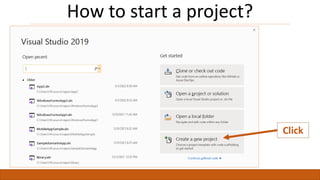
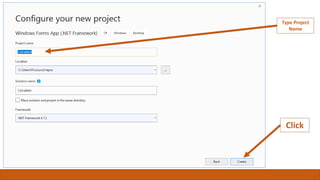
How to start a project?
Click
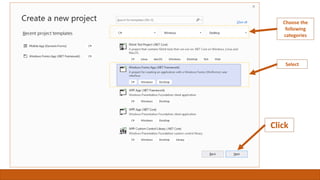
Select
Choose the
following
categories
Click
Type Project
Name
Click
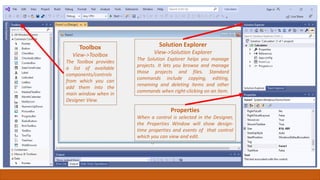
Toolbox
View->Toolbox
The Toolbox provides
a list of available
components/controls
from which you can
add them into the
main window when in
Designer View.
Solution Explorer
View->Solution Explorer
The Solution Explorer helps you manage
projects. It lets you browse and manage
those projects and files. Standard
commands include copying, editing,
renaming and deleting items and other
commands when right-clicking on an item.
Properties
When a control is selected in the Designer,
the Properties Window will show design-
time properties and events of that control
which you can view and edit.
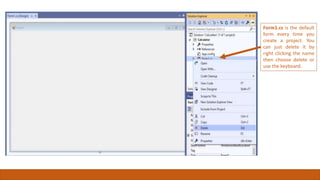
Form1.cs is the default
form every time you
create a project. You
can just delete it by
right clicking the name
then choose delete or
use the keyboard.
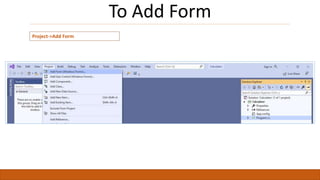
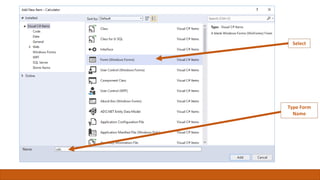
To Add Form
Project->Add Form
Select
Type Form
Name
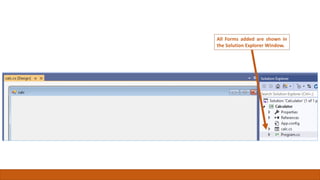
All Forms added are shown in
the Solution Explorer Window.
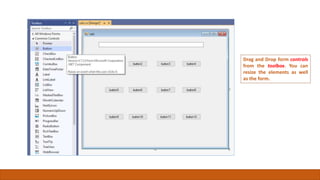
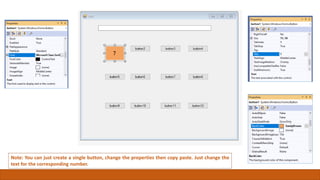
Drag and Drop form controls
from the toolbox. You can
resize the elements as well
as the form.
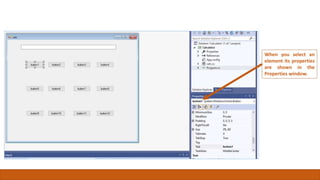
When you select an
element its properties
are shown in the
Properties window.
Note: You can just create a single button, change the properties then copy paste. Just change the
text for the corresponding number.
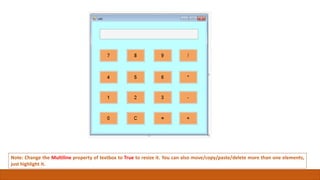
Note: Change the Multiline property of textbox to True to resize it. You can also move/copy/paste/delete more than one elements,
just highlight it.
- END -

01csharp - visual studio environment.pptx

  • 1.
  • 2.
    What is VisualStudio? Visual Studio, also known as Microsoft Visual Studio and VS, is an IDE made by Microsoft. It is used for different types of software development such as computer programs, websites, web apps, web services, and mobile apps. Different languages supported by Visual Studio: C#, C++, PHP, Python, HTML, CSS, Javascript, etc.
  • 3.
    How to starta project? Click
  • 4.
  • 5.
  • 6.
    Toolbox View->Toolbox The Toolbox provides alist of available components/controls from which you can add them into the main window when in Designer View. Solution Explorer View->Solution Explorer The Solution Explorer helps you manage projects. It lets you browse and manage those projects and files. Standard commands include copying, editing, renaming and deleting items and other commands when right-clicking on an item. Properties When a control is selected in the Designer, the Properties Window will show design- time properties and events of that control which you can view and edit.
  • 7.
    Form1.cs is thedefault form every time you create a project. You can just delete it by right clicking the name then choose delete or use the keyboard.
  • 8.
  • 9.
  • 10.
    All Forms addedare shown in the Solution Explorer Window.
  • 11.
    Drag and Dropform controls from the toolbox. You can resize the elements as well as the form.
  • 12.
    When you selectan element its properties are shown in the Properties window.
  • 13.
    Note: You canjust create a single button, change the properties then copy paste. Just change the text for the corresponding number.
  • 14.
    Note: Change theMultiline property of textbox to True to resize it. You can also move/copy/paste/delete more than one elements, just highlight it.
  • 15.