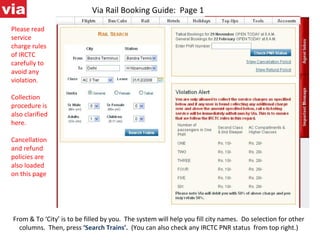
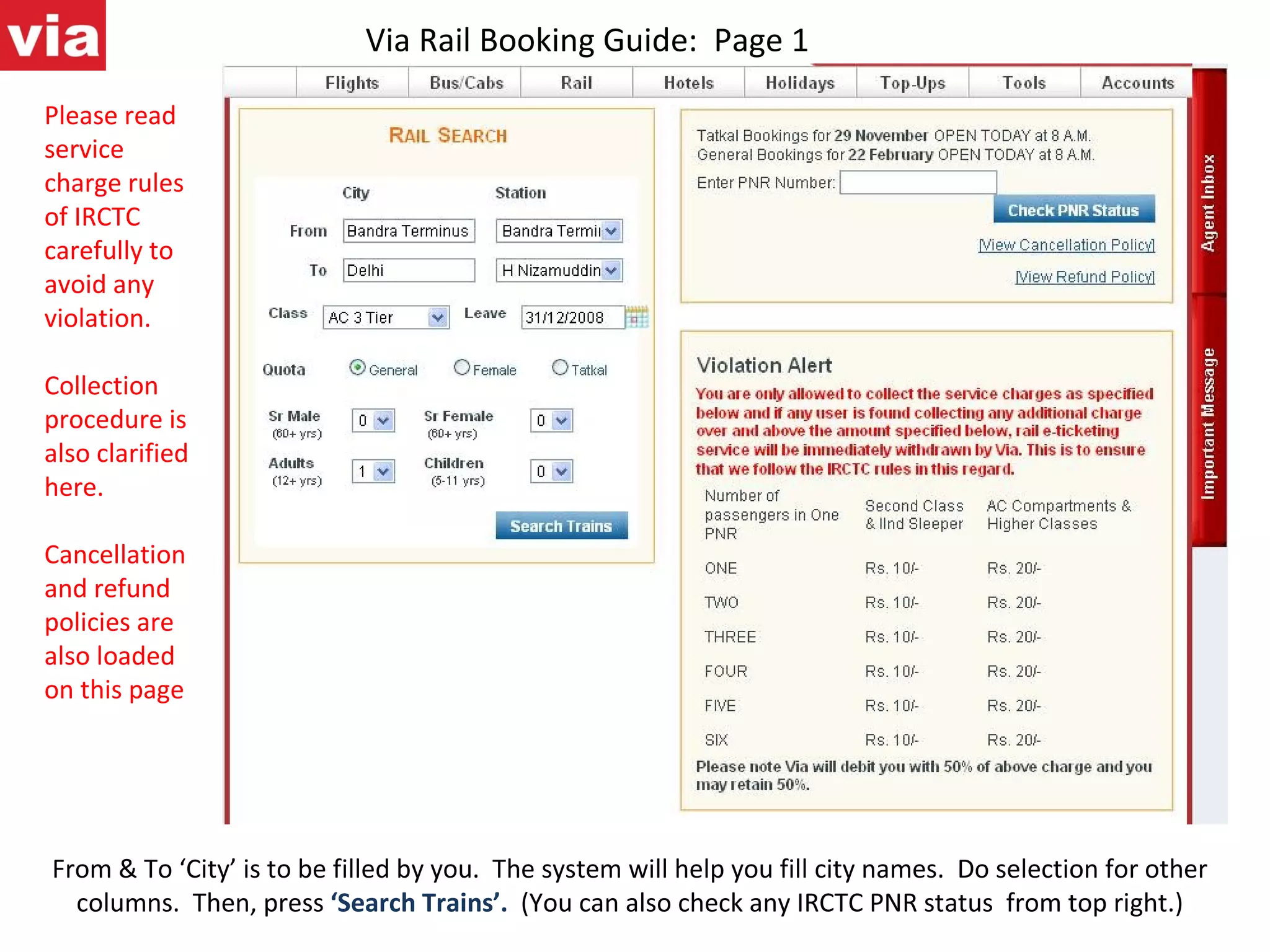
Via Rail Booking Guide:  Page 1 From & To ‘City’ is to be filled by you.  The system will help you fill city names.  Do selection for other columns.  Then, press  ‘Search Trains’.  (You can also check any IRCTC PNR status  from top right.) Please read service charge rules of IRCTC carefully to avoid any violation. Collection procedure is also clarified here. Cancellation and refund policies are also loaded on this page
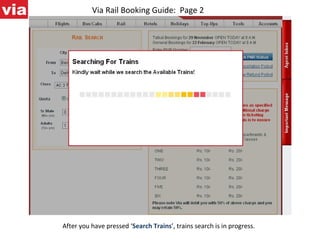
Via Rail Booking Guide:  Page 2 After you have pressed ‘ Search Trains ’, trains search is in progress.
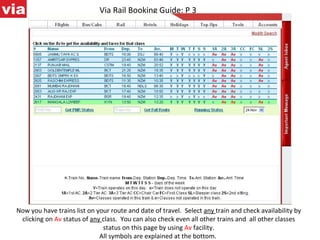
Via Rail Booking Guide: P 3 Now you have trains list on your route and date of travel.  Select  any  train and check availability by clicking on  Av  status of  any  class.  You can also check even all other trains and  all other classes status on this page by using  Av  facility. All symbols are explained at the bottom.
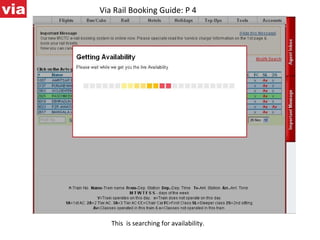
Via Rail Booking Guide: P 4 This  is searching for availability.
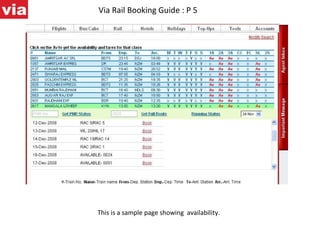
Via Rail Booking Guide : P 5 This is a sample page showing  availability.
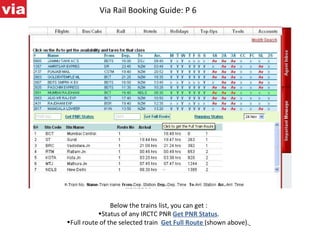
Via Rail Booking Guide: P 6 Below the trains list, you can get : Status of any IRCTC PNR  Get PNR Status . Full route of the selected train  Get Full Route  (shown above).
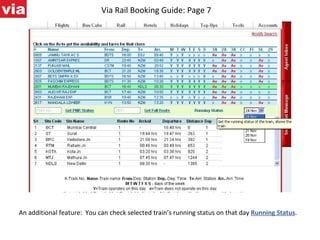
Via Rail Booking Guide: Page 7  An additional feature:  You can check selected train’s running status on that day  Running Status .
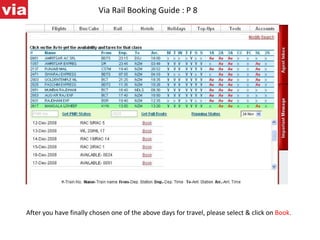
Via Rail Booking Guide : P 8 After you have finally chosen one of the above days for travel, please select & click on  Book.
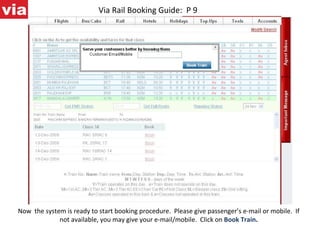
Via Rail Booking Guide:  P 9 Now  the system is ready to start booking procedure.  Please give passenger’s e-mail or mobile.  If not available, you may give your e-mail/mobile.  Click on   Book Train .
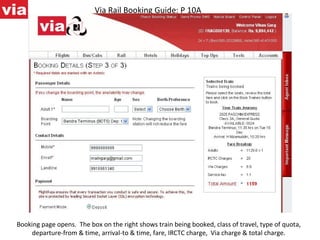
Via Rail Booking Guide: P 10A Booking page opens.  The box on the right shows train being booked, class of travel, type of quota, departure-from & time, arrival-to & time, fare, IRCTC charge,  Via charge & total charge.
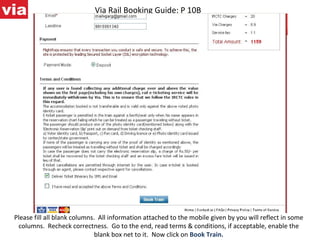
Via Rail Booking Guide: P 10B Please fill all blank columns.  All information attached to the mobile given by you will reflect in some columns.  Recheck correctness.  Go to the end, read terms & conditions, if acceptable, enable the blank box net to it.  Now click on  Book Train.
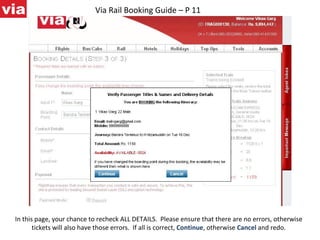
Via Rail Booking Guide – P 11 In this page, your chance to recheck ALL DETAILS.  Please ensure that there are no errors, otherwise tickets will also have those errors.  If all is correct,  Continue , otherwise  Cancel  and redo.
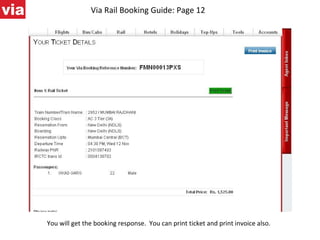
Via Rail Booking Guide: Page 12 You will get the booking response.  You can print ticket and print invoice also.
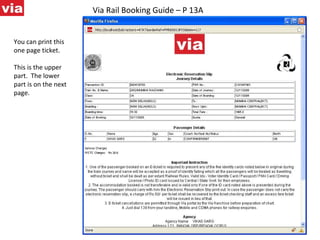
Via Rail Booking Guide – P 13A You can print this one page ticket. This is the upper part.  The lower part is on the next page.
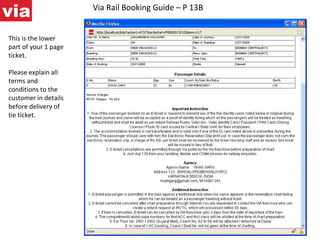
Via Rail Booking Guide – P 13B This is the lower part of your 1 page ticket. Please explain all terms and conditions to the customer in details before delivery of tie ticket.
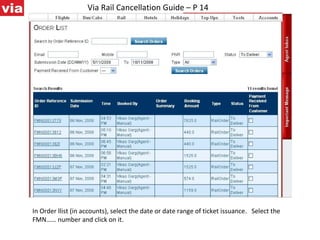
Via Rail Cancellation Guide – P 14 In Order llist (in accounts), select the date or date range of ticket issuance.  Select the FMN

 number and click on it.
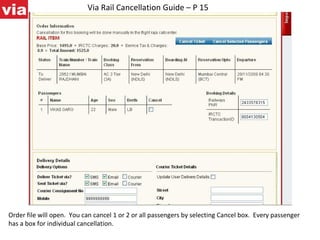
Via Rail Cancellation Guide – P 15 Order file will open.  You can cancel 1 or 2 or all passengers by selecting Cancel box.  Every passenger has a box for individual cancellation.
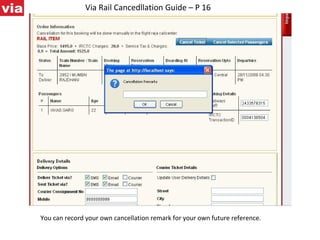
Via Rail Cancedllation Guide – P 16 You can record your own cancellation remark for your own future reference.
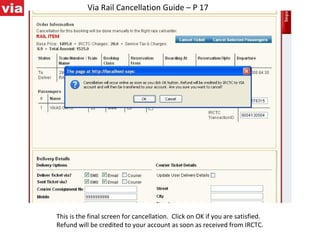
Via Rail Cancellation Guide – P 17 This is the final screen for cancellation.  Click on OK if you are satisfied. Refund will be credited to your account as soon as received from IRCTC.
Via Rail Booking & Cancellation Guide – P 18 Our  Call Centre is open 8 am to 8 pm – all days of the week.  Tel. 080 40431000 or 080-25329800 E-mail: ‘railwaycel@viaworld.in’  For any critical matter, you may contact Purshotam Jain 9845003174,  [email_address] THANK YOU FOR BOOKING WITH VIA

00 Api Users Guide V1

  • 1.
    Via Rail BookingGuide: Page 1 From & To ‘City’ is to be filled by you. The system will help you fill city names. Do selection for other columns. Then, press ‘Search Trains’. (You can also check any IRCTC PNR status from top right.) Please read service charge rules of IRCTC carefully to avoid any violation. Collection procedure is also clarified here. Cancellation and refund policies are also loaded on this page
  • 2.
    Via Rail BookingGuide: Page 2 After you have pressed ‘ Search Trains ’, trains search is in progress.
  • 3.
    Via Rail BookingGuide: P 3 Now you have trains list on your route and date of travel. Select any train and check availability by clicking on Av status of any class. You can also check even all other trains and all other classes status on this page by using Av facility. All symbols are explained at the bottom.
  • 4.
    Via Rail BookingGuide: P 4 This is searching for availability.
  • 5.
    Via Rail BookingGuide : P 5 This is a sample page showing availability.
  • 6.
    Via Rail BookingGuide: P 6 Below the trains list, you can get : Status of any IRCTC PNR Get PNR Status . Full route of the selected train Get Full Route (shown above).
  • 7.
    Via Rail BookingGuide: Page 7 An additional feature: You can check selected train’s running status on that day Running Status .
  • 8.
    Via Rail BookingGuide : P 8 After you have finally chosen one of the above days for travel, please select & click on Book.
  • 9.
    Via Rail BookingGuide: P 9 Now the system is ready to start booking procedure. Please give passenger’s e-mail or mobile. If not available, you may give your e-mail/mobile. Click on Book Train .
  • 10.
    Via Rail BookingGuide: P 10A Booking page opens. The box on the right shows train being booked, class of travel, type of quota, departure-from & time, arrival-to & time, fare, IRCTC charge, Via charge & total charge.
  • 11.
    Via Rail BookingGuide: P 10B Please fill all blank columns. All information attached to the mobile given by you will reflect in some columns. Recheck correctness. Go to the end, read terms & conditions, if acceptable, enable the blank box net to it. Now click on Book Train.
  • 12.
    Via Rail BookingGuide – P 11 In this page, your chance to recheck ALL DETAILS. Please ensure that there are no errors, otherwise tickets will also have those errors. If all is correct, Continue , otherwise Cancel and redo.
  • 13.
    Via Rail BookingGuide: Page 12 You will get the booking response. You can print ticket and print invoice also.
  • 14.
    Via Rail BookingGuide – P 13A You can print this one page ticket. This is the upper part. The lower part is on the next page.
  • 15.
    Via Rail BookingGuide – P 13B This is the lower part of your 1 page ticket. Please explain all terms and conditions to the customer in details before delivery of tie ticket.
  • 16.
    Via Rail CancellationGuide – P 14 In Order llist (in accounts), select the date or date range of ticket issuance. Select the FMN

 number and click on it.
  • 17.
    Via Rail CancellationGuide – P 15 Order file will open. You can cancel 1 or 2 or all passengers by selecting Cancel box. Every passenger has a box for individual cancellation.
  • 18.
    Via Rail CancedllationGuide – P 16 You can record your own cancellation remark for your own future reference.
  • 19.
    Via Rail CancellationGuide – P 17 This is the final screen for cancellation. Click on OK if you are satisfied. Refund will be credited to your account as soon as received from IRCTC.
  • 20.
    Via Rail Booking& Cancellation Guide – P 18 Our Call Centre is open 8 am to 8 pm – all days of the week. Tel. 080 40431000 or 080-25329800 E-mail: ‘railwaycel@viaworld.in’ For any critical matter, you may contact Purshotam Jain 9845003174, [email_address] THANK YOU FOR BOOKING WITH VIA