Department of Maths and Computer-Science
Faculty of Natural and Applied Science
BY
UMAR DANJUMA MAIWADA
This course introduces you to the discipline of
web engineering, including:
 Learning the theory and practical outcomes
 Applying the web engineering methodology for web
application development
 The Internet
 Brief History of Internet
 Internet protocols
 Internet services
 Client / server computing
 The HTML
 HTML Elements
 XHTML
 Cascading Style Sheets
 Oxford English Dictionary in 2001
 As an international information network linking computers, accessible to the
public via modem links.
 The Dictionary of Sociology 1998:
 A global network of computers
 Which allows access to an expanding number of individual Web sites.
 Information offers including the contents of daily newspapers, the price of
goods in local shopping malls, sports news and so-called chat-rooms
 The internet is a
 Network of networks
 Global interconnected network of computers
 Using the Internet you can look at documents and
images even view videos or listen to sound files from
anywhere in the world using your computer.
 You can also use the Internet to publish, so that
others can look at your information in any of a
number of standard file formats.
 You can also use the Internet to send messages
through e-mail, as long as you know the e-mail
address of the recipient.
 The Internet was originally developed by the
Government of the United States during the 1970s as
a means of sharing information and protecting
communications in the event of a nuclear attack.
 During the 1980s it developed quickly
 First into an academic exchange network
 Then as a means of mass electronic communication
available in principle to anyone having access to a
personal computer and a telephone line.
 When you connect computers together, you get a
"network" which allows computers to "talk" to each
other.
 This communication was originally part of the
"operating system" of a computer.
 The standard for communicating on the Internet is
called "TCP/IP" (pronounced as TCPIP without the '/')
which is short for Transmission Control
Protocol/Internet Protocol.
The key concept in TCP/IP is that every
computer has to know or can figure out where
all other computers are on the network, and can
send data by the quickest route, even if part of
the route is down.
Reason the route is down might include a
computer is shut down or a phone line
disconnected or in repair
 Definition: TCP (Transmission Control Protocol) is a
connection-based protocol that provides a reliable flow of data
between two computers.
 TCP/IP transfers information in small chunks called "packets."
 Each packet includes the following information:
 The computer (or last few computers) the data came from
 The computer to which it is headed
 The data itself
 The error-checking information (to ensure that the individual packet
was accurately and completely sent and received).
 The UDP protocol provides for communication that is not
guaranteed between two applications on the network.
 UDP is not connection-based like TCP. Rather, it sends
independent packets of data, called datagrams, from one
application to another.
 Sending datagrams is much like sending a letter through
the postal service
 The order of delivery is not important and is not
guaranteed, and each message is independent of any other.
 To access the Internet you need an Internet Service
Provider or "ISP".

 The ISP is connected to the Internet "backbone" which is
the permanent cabling of the Internet.
 This backbone may consist of copper wire, fiber optic
cable, microwave, and even satellite connections between
any two points.
 To you it doesn't matter – the Internet's TCP/IP works this
out for you.
 Servers in Internet provide various services,
accessible by the Internet users.
 Examples of such services are WWW, FTP, E-Mail, etc.
 Popular Internet application protocols are
associated with well-known ports and wel-known
Internet services.
 The server programs implementing these protocols
listen on these ports for service requests.
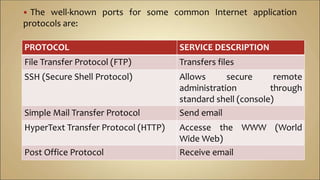
 The well-known ports for some common Internet application
protocols are:
PROTOCOL SERVICE DESCRIPTION
File Transfer Protocol (FTP) Transfers files
SSH (Secure Shell Protocol) Allows secure remote
administration through
standard shell (console)
Simple Mail Transfer Protocol Send email
HyperText Transfer Protocol (HTTP) Accesse the WWW (World
Wide Web)
Post Office Protocol Receive email
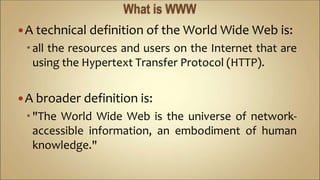
A technical definition of the World Wide Web is:
all the resources and users on the Internet that are
using the Hypertext Transfer Protocol (HTTP).
A broader definition is:
"The World Wide Web is the universe of network-
accessible information, an embodiment of human
knowledge."
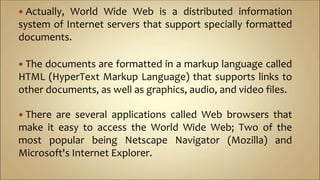
 Actually, World Wide Web is a distributed information
system of Internet servers that support specially formatted
documents.
 The documents are formatted in a markup language called
HTML (HyperText Markup Language) that supports links to
other documents, as well as graphics, audio, and video files.
 There are several applications called Web browsers that
make it easy to access the World Wide Web; Two of the
most popular being Netscape Navigator (Mozilla) and
Microsoft's Internet Explorer.
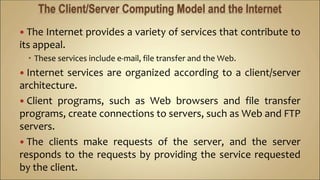
 The Internet provides a variety of services that contribute to
its appeal.
 These services include e-mail, file transfer and the Web.
 Internet services are organized according to a client/server
architecture.
 Client programs, such as Web browsers and file transfer
programs, create connections to servers, such as Web and FTP
servers.
 The clients make requests of the server, and the server
responds to the requests by providing the service requested
by the client.
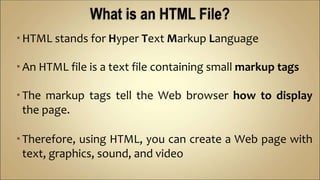
HTML stands for Hyper Text Markup Language
An HTML file is a text file containing small markup tags
The markup tags tell the Web browser how to display
the page.
Therefore, using HTML, you can create a Web page with
text, graphics, sound, and video
HTML Syntax
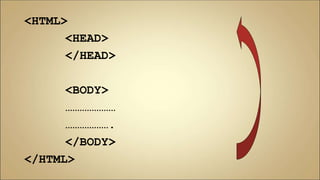
<HTML>
<HEAD>
</HEAD>
<BODY>
…………………
……………….
</BODY>
</HTML>
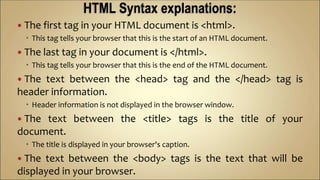
 The first tag in your HTML document is <html>.
 This tag tells your browser that this is the start of an HTML document.
 The last tag in your document is </html>.
 This tag tells your browser that this is the end of the HTML document.
 The text between the <head> tag and the </head> tag is
header information.
 Header information is not displayed in the browser window.
 The text between the <title> tags is the title of your
document.
 The title is displayed in your browser's caption.
 The text between the <body> tags is the text that will be
displayed in your browser.
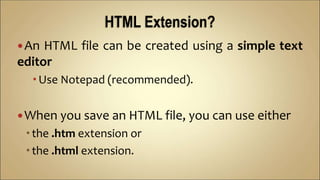
An HTML file can be created using a simple text
editor
Use Notepad (recommended).
When you save an HTML file, you can use either
the .htm extension or
the .html extension.
HTML Elements
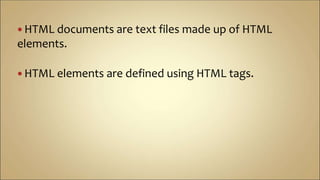
 HTML documents are text files made up of HTML
elements.
 HTML elements are defined using HTML tags.
HTML Tags
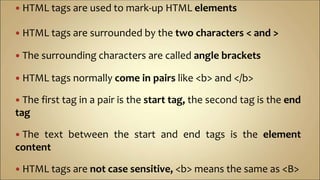
 HTML tags are used to mark-up HTML elements
 HTML tags are surrounded by the two characters < and >
 The surrounding characters are called angle brackets
 HTML tags normally come in pairs like <b> and </b>
 The first tag in a pair is the start tag, the second tag is the end
tag
 The text between the start and end tags is the element
content
 HTML tags are not case sensitive, <b> means the same as <B>
HTML Elements example
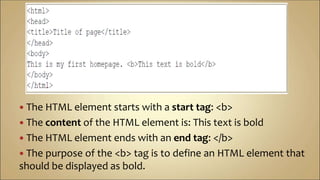
 The HTML element starts with a start tag: <b>
 The content of the HTML element is: This text is bold
 The HTML element ends with an end tag: </b>
 The purpose of the <b> tag is to define an HTML element that
should be displayed as bold.
 We have just said that HTML tags are not case
sensitive:
 <B> means the same as <b>.
 When you surf the Web, you will notice that most
tutorials use uppercase HTML tags in their examples.
 We always use lowercase tags. Why?
 If you want to prepare yourself for the next generations of HTML
you should start using lowercase tags.
 The World Wide Web Consortium (W3C) recommends lowercase
tags in their HTML 4 recommendation, and XHTML (the next
generation HTML) demands lowercase tags.
Tag Attributes
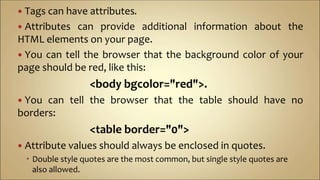
 Tags can have attributes.
 Attributes can provide additional information about the
HTML elements on your page.
 You can tell the browser that the background color of your
page should be red, like this:
<body bgcolor="red">.
 You can tell the browser that the table should have no
borders:
<table border="0">
 Attribute values should always be enclosed in quotes.
 Double style quotes are the most common, but single style quotes are
also allowed.
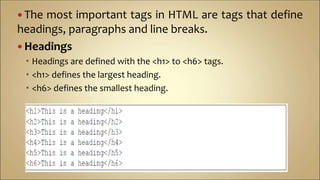
 The most important tags in HTML are tags that define
headings, paragraphs and line breaks.
 Headings
 Headings are defined with the <h1> to <h6> tags.
 <h1> defines the largest heading.
 <h6> defines the smallest heading.
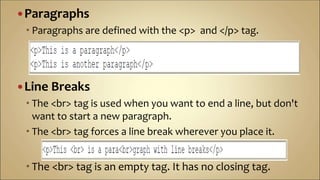
Paragraphs
 Paragraphs are defined with the <p> and </p> tag.
Line Breaks
 The <br> tag is used when you want to end a line, but don't
want to start a new paragraph.
 The <br> tag forces a line break wherever you place it.
 The <br> tag is an empty tag. It has no closing tag.
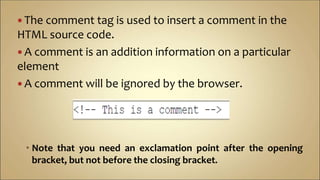
 The comment tag is used to insert a comment in the
HTML source code.
 A comment is an addition information on a particular
element
 A comment will be ignored by the browser.
 Note that you need an exclamation point after the opening
bracket, but not before the closing bracket.
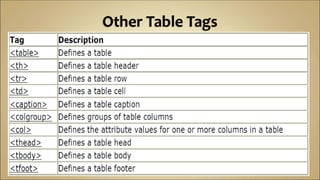
Other HTML Text Formatting tags
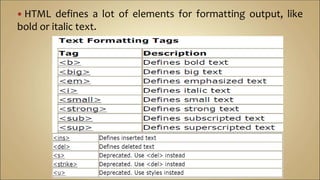
 HTML defines a lot of elements for formatting output, like
bold or italic text.
Exercise
• Design a simple HTML page that consist all the
tags we discussed
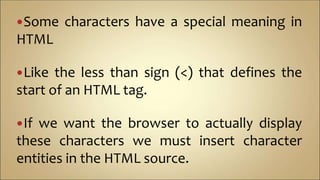
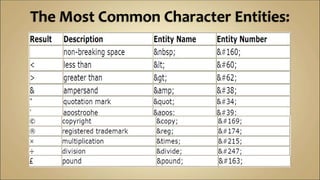
Some characters have a special meaning in
HTML
Like the less than sign (<) that defines the
start of an HTML tag.
If we want the browser to actually display
these characters we must insert character
entities in the HTML source.
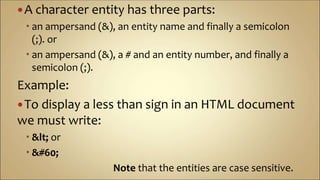
A character entity has three parts:
 an ampersand (&), an entity name and finally a semicolon
(;). or
 an ampersand (&), a # and an entity number, and finally a
semicolon (;).
Example:
To display a less than sign in an HTML document
we must write:
 &lt; or
 &#60;
Note that the entities are case sensitive.
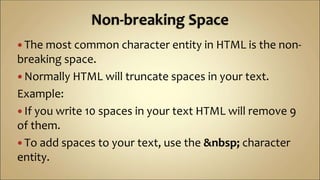
 The most common character entity in HTML is the non-
breaking space.
 Normally HTML will truncate spaces in your text.
Example:
 If you write 10 spaces in your text HTML will remove 9
of them.
 To add spaces to your text, use the &nbsp; character
entity.
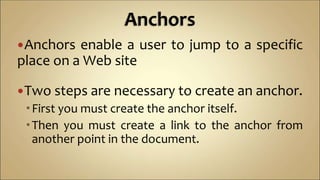
Anchors enable a user to jump to a specific
place on a Web site
Two steps are necessary to create an anchor.
First you must create the anchor itself.
Then you must create a link to the anchor from
another point in the document.
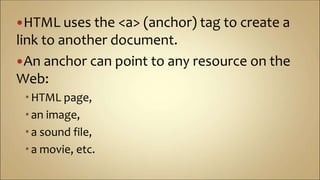
HTML uses the <a> (anchor) tag to create a
link to another document.
An anchor can point to any resource on the
Web:
HTML page,
an image,
a sound file,
a movie, etc.
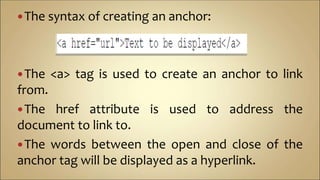
The syntax of creating an anchor:
The <a> tag is used to create an anchor to link
from.
The href attribute is used to address the
document to link to.
The words between the open and close of the
anchor tag will be displayed as a hyperlink.
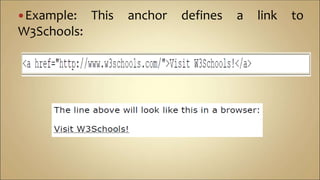
Example: This anchor defines a link to
W3Schools:
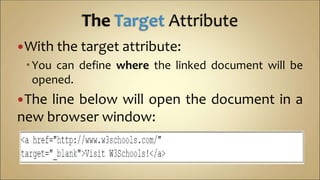
With the target attribute:
You can define where the linked document will be
opened.
The line below will open the document in a
new browser window:
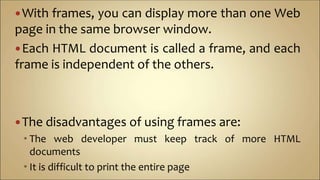
With frames, you can display more than one Web
page in the same browser window.
Each HTML document is called a frame, and each
frame is independent of the others.
The disadvantages of using frames are:
 The web developer must keep track of more HTML
documents
 It is difficult to print the entire page
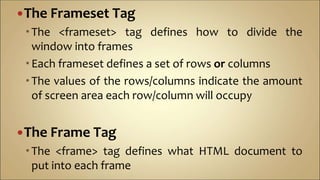
The Frameset Tag
The <frameset> tag defines how to divide the
window into frames
Each frameset defines a set of rows or columns
The values of the rows/columns indicate the amount
of screen area each row/column will occupy
The Frame Tag
The <frame> tag defines what HTML document to
put into each frame
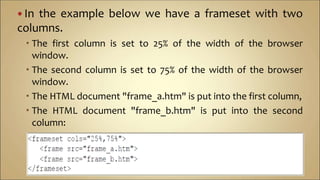
 In the example below we have a frameset with two
columns.
 The first column is set to 25% of the width of the browser
window.
 The second column is set to 75% of the width of the browser
window.
 The HTML document "frame_a.htm" is put into the first column,
 The HTML document "frame_b.htm" is put into the second
column:
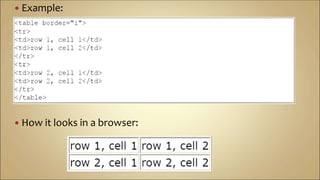
Tables are defined with the <table> tag.
A table is divided into rows (with the <tr> tag)
Each row is divided into data cells (with the <td>
tag).
The letters td stands for "table data," which is
the content of a data cell.
A data cell can contain text, images, lists,
paragraphs, forms, horizontal rules, tables, etc.
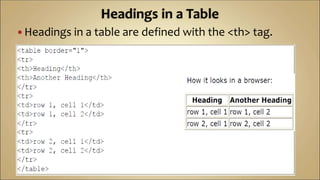
 Example:
 How it looks in a browser:
If you do not specify a border attribute the table
will be displayed without any borders.
Sometimes this can be useful, but most of the
time, you want the borders to show.
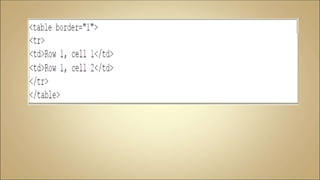
To display a table with borders, you will have to
use the border attribute:
P.T.O
 Headings in a table are defined with the <th> tag.
 HTML supports:
 Ordered list
 Unordered list
 Definition list.
 Unordered Lists
 An unordered list is a list of items.
 The list items are marked with bullets (typically small black
circles).
 An unordered list starts with the <ul> tag.
 Each list item starts with the <li> tag.
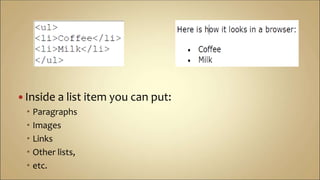
 Inside a list item you can put:
 Paragraphs
 Images
 Links
 Other lists,
 etc.
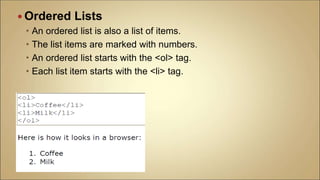
 Ordered Lists
 An ordered list is also a list of items.
 The list items are marked with numbers.
 An ordered list starts with the <ol> tag.
 Each list item starts with the <li> tag.
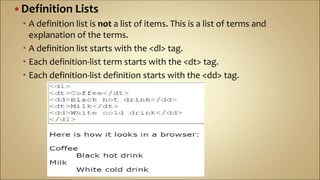
 Definition Lists
 A definition list is not a list of items. This is a list of terms and
explanation of the terms.
 A definition list starts with the <dl> tag.
 Each definition-list term starts with the <dt> tag.
 Each definition-list definition starts with the <dd> tag.
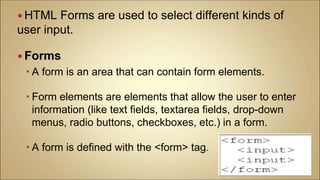
 HTML Forms are used to select different kinds of
user input.
 Forms
 A form is an area that can contain form elements.
 Form elements are elements that allow the user to enter
information (like text fields, textarea fields, drop-down
menus, radio buttons, checkboxes, etc.) in a form.
 A form is defined with the <form> tag.
 Input
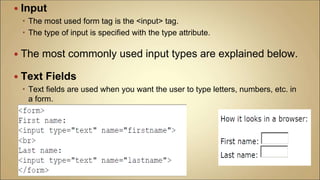
 The most used form tag is the <input> tag.
 The type of input is specified with the type attribute.
 The most commonly used input types are explained below.
 Text Fields
 Text fields are used when you want the user to type letters, numbers, etc. in
a form.
 Note that the form itself is not visible. Also note that in most
browsers, the width of the text field is 20 characters by default.
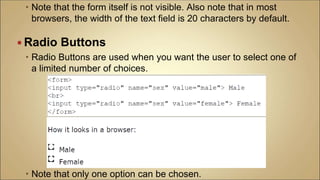
 Radio Buttons
 Radio Buttons are used when you want the user to select one of
a limited number of choices.
 Note that only one option can be chosen.
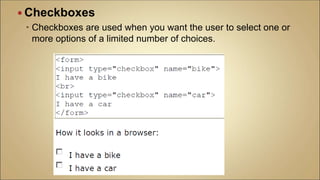
 Checkboxes
 Checkboxes are used when you want the user to select one or
more options of a limited number of choices.
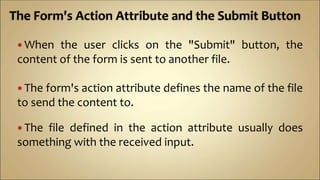
 When the user clicks on the "Submit" button, the
content of the form is sent to another file.
 The form's action attribute defines the name of the file
to send the content to.
 The file defined in the action attribute usually does
something with the received input.
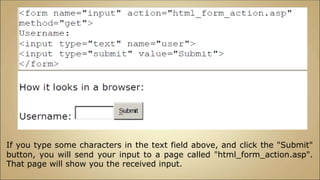
If you type some characters in the text field above, and click the "Submit"
button, you will send your input to a page called "html_form_action.asp".
That page will show you the received input.
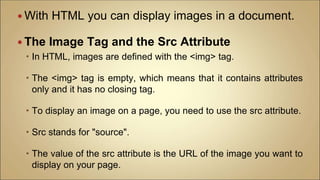
 With HTML you can display images in a document.
 The Image Tag and the Src Attribute
 In HTML, images are defined with the <img> tag.
 The <img> tag is empty, which means that it contains attributes
only and it has no closing tag.
 To display an image on a page, you need to use the src attribute.
 Src stands for "source".
 The value of the src attribute is the URL of the image you want to
display on your page.
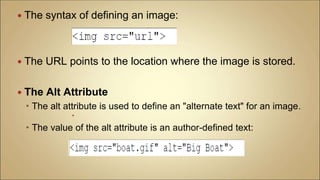
 The syntax of defining an image:
 The URL points to the location where the image is stored.
 The Alt Attribute
 The alt attribute is used to define an "alternate text" for an image.

 The value of the alt attribute is an author-defined text:
 A good background can make a Web site look really great.
Backgrounds
 The <body> tag has two attributes where you can specify
backgrounds.
 The background can be a color or an image.
Bgcolor
 The bgcolor attribute sets the background to a color.
 The value of this attribute can be a hexadecimal number,
an RGB value, or a color name.
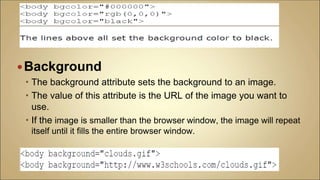
Background
 The background attribute sets the background to an image.
 The value of this attribute is the URL of the image you want to
use.
 If the image is smaller than the browser window, the image will repeat
itself until it fills the entire browser window.
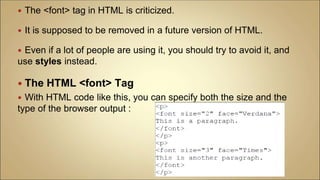
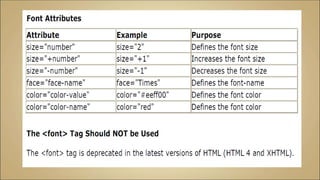
 The <font> tag in HTML is criticized.
 It is supposed to be removed in a future version of HTML.
 Even if a lot of people are using it, you should try to avoid it, and
use styles instead.
 The HTML <font> Tag
 With HTML code like this, you can specify both the size and the
type of the browser output :
88
 Short for "Cascading Style Sheets".
 Determines how the elements in our HTML documents are
displayed and formatted.
 Designed to separate the content of a web page from the
presentation of that content.
 Enables us to make all pages of our website look similar
and consistent (font, color, etc.).
89
 CSS saves time:
 You can write CSS once and then reuse the same sheet in multiple HTML pages.
 You can define a style for each HTML element and apply it to as many web pages
as you want.
 Pages load faster:
 If you are using CSS, you do not need to write HTML tag attributes every time.
 Just write one CSS rule of a tag and apply it to all the occurrences of that tag.
 So, less code means faster download times.
90
 Easy maintenance:
 To make a global change, simply change the style
 All the elements in all the web pages will be updated
automatically.
91
 Not uniformly supported by all browsers.
 Firefox adheres to CSS standards more than
IE
 For this course we use Firefox
92
93
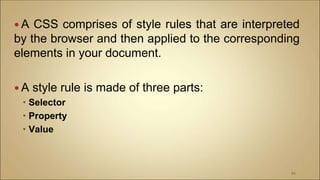
 A CSS comprises of style rules that are interpreted
by the browser and then applied to the corresponding
elements in your document.
 A style rule is made of three parts:
 Selector
 Property
 Value
94
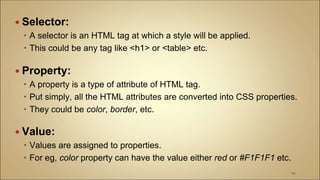
 Selector:
 A selector is an HTML tag at which a style will be applied.
 This could be any tag like <h1> or <table> etc.
 Property:
 A property is a type of attribute of HTML tag.
 Put simply, all the HTML attributes are converted into CSS properties.
 They could be color, border, etc.
 Value:
 Values are assigned to properties.
 For eg, color property can have the value either red or #F1F1F1 etc.
95
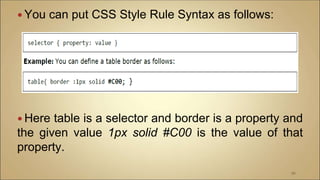
 You can put CSS Style Rule Syntax as follows:
 Here table is a selector and border is a property and
the given value 1px solid #C00 is the value of that
property.
96
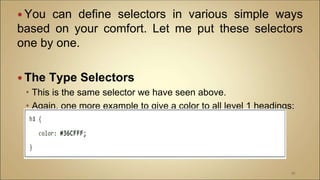
 You can define selectors in various simple ways
based on your comfort. Let me put these selectors
one by one.
 The Type Selectors
 This is the same selector we have seen above.
 Again, one more example to give a color to all level 1 headings:
97
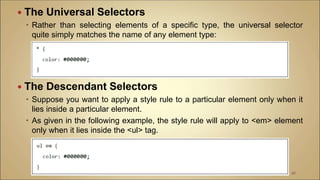
 The Universal Selectors
 Rather than selecting elements of a specific type, the universal selector
quite simply matches the name of any element type:
 The Descendant Selectors
 Suppose you want to apply a style rule to a particular element only when it
lies inside a particular element.
 As given in the following example, the style rule will apply to <em> element
only when it lies inside the <ul> tag.
98
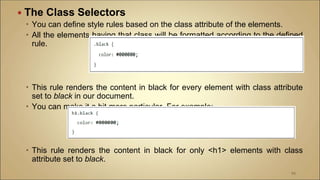
 The Class Selectors
 You can define style rules based on the class attribute of the elements.
 All the elements having that class will be formatted according to the defined
rule.
 This rule renders the content in black for every element with class attribute
set to black in our document.
 You can make it a bit more particular. For example:
 This rule renders the content in black for only <h1> elements with class
attribute set to black.
99
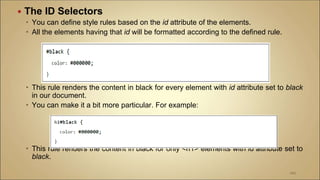
 The ID Selectors
 You can define style rules based on the id attribute of the elements.
 All the elements having that id will be formatted according to the defined rule.
 This rule renders the content in black for every element with id attribute set to black
in our document.
 You can make it a bit more particular. For example:
 This rule renders the content in black for only <h1> elements with id attribute set to
black.
100
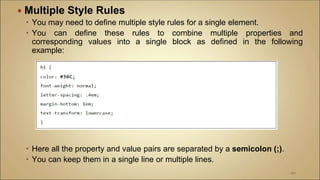
 Multiple Style Rules
 You may need to define multiple style rules for a single element.
 You can define these rules to combine multiple properties and
corresponding values into a single block as defined in the following
example:
 Here all the property and value pairs are separated by a semicolon (;).
 You can keep them in a single line or multiple lines.
101
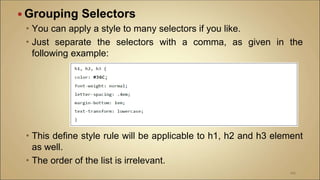
 Grouping Selectors
 You can apply a style to many selectors if you like.
 Just separate the selectors with a comma, as given in the
following example:
 This define style rule will be applicable to h1, h2 and h3 element
as well.
 The order of the list is irrelevant.
102
103
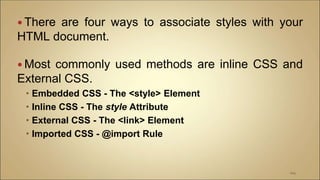
 There are four ways to associate styles with your
HTML document.
 Most commonly used methods are inline CSS and
External CSS.
 Embedded CSS - The <style> Element
 Inline CSS - The style Attribute
 External CSS - The <link> Element
 Imported CSS - @import Rule
104
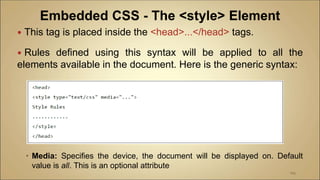
 This tag is placed inside the <head>...</head> tags.
 Rules defined using this syntax will be applied to all the
elements available in the document. Here is the generic syntax:
 Media: Specifies the device, the document will be displayed on. Default
value is all. This is an optional attribute
105
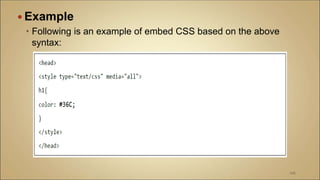
 Example
 Following is an example of embed CSS based on the above
syntax:
106
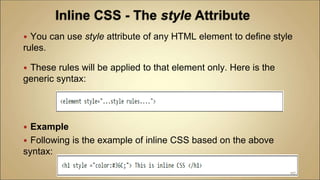
 You can use style attribute of any HTML element to define style
rules.
 These rules will be applied to that element only. Here is the
generic syntax:
 Example
 Following is the example of inline CSS based on the above
syntax:
107
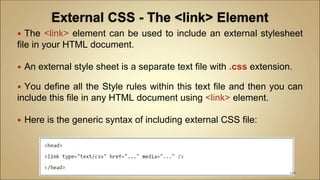
 The <link> element can be used to include an external stylesheet
file in your HTML document.
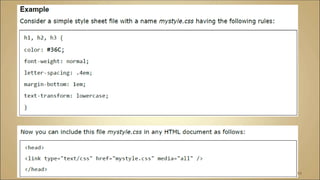
 An external style sheet is a separate text file with .css extension.
 You define all the Style rules within this text file and then you can
include this file in any HTML document using <link> element.
 Here is the generic syntax of including external CSS file:
108
109
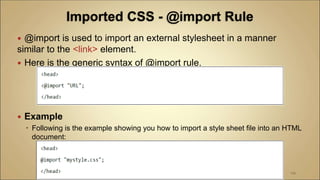
 @import is used to import an external stylesheet in a manner
similar to the <link> element.
 Here is the generic syntax of @import rule.
 Example
 Following is the example showing you how to import a style sheet file into an HTML
document:
110
111
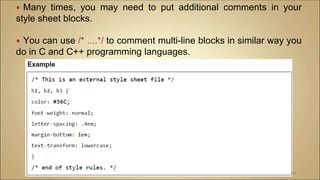
 Many times, you may need to put additional comments in your
style sheet blocks.
 You can use /* ....*/ to comment multi-line blocks in similar way you
do in C and C++ programming languages.
112
 Sams Teach Yourself HTML and XHTML in 24 Hours, Fifth Edition
By Dick Oliver, Charles Ashbacher
 Basic HTML by El Passo Books v2.0
 BASIC HTML By Dan Thompson
 WEB TECHNOLOGIES, A Computer Science Perspective by Jeffrey C.
Jackson Duquesne University

0 csc 3311 slide internet programming

  • 1.
    Department of Mathsand Computer-Science Faculty of Natural and Applied Science BY UMAR DANJUMA MAIWADA
  • 2.
    This course introducesyou to the discipline of web engineering, including:  Learning the theory and practical outcomes  Applying the web engineering methodology for web application development
  • 3.
     The Internet Brief History of Internet  Internet protocols  Internet services  Client / server computing  The HTML  HTML Elements  XHTML  Cascading Style Sheets
  • 5.
     Oxford EnglishDictionary in 2001  As an international information network linking computers, accessible to the public via modem links.  The Dictionary of Sociology 1998:  A global network of computers  Which allows access to an expanding number of individual Web sites.  Information offers including the contents of daily newspapers, the price of goods in local shopping malls, sports news and so-called chat-rooms  The internet is a  Network of networks  Global interconnected network of computers
  • 6.
     Using theInternet you can look at documents and images even view videos or listen to sound files from anywhere in the world using your computer.  You can also use the Internet to publish, so that others can look at your information in any of a number of standard file formats.  You can also use the Internet to send messages through e-mail, as long as you know the e-mail address of the recipient.
  • 8.
     The Internetwas originally developed by the Government of the United States during the 1970s as a means of sharing information and protecting communications in the event of a nuclear attack.  During the 1980s it developed quickly  First into an academic exchange network  Then as a means of mass electronic communication available in principle to anyone having access to a personal computer and a telephone line.
  • 10.
     When youconnect computers together, you get a "network" which allows computers to "talk" to each other.  This communication was originally part of the "operating system" of a computer.  The standard for communicating on the Internet is called "TCP/IP" (pronounced as TCPIP without the '/') which is short for Transmission Control Protocol/Internet Protocol.
  • 11.
    The key conceptin TCP/IP is that every computer has to know or can figure out where all other computers are on the network, and can send data by the quickest route, even if part of the route is down. Reason the route is down might include a computer is shut down or a phone line disconnected or in repair
  • 12.
     Definition: TCP(Transmission Control Protocol) is a connection-based protocol that provides a reliable flow of data between two computers.  TCP/IP transfers information in small chunks called "packets."  Each packet includes the following information:  The computer (or last few computers) the data came from  The computer to which it is headed  The data itself  The error-checking information (to ensure that the individual packet was accurately and completely sent and received).
  • 13.
     The UDPprotocol provides for communication that is not guaranteed between two applications on the network.  UDP is not connection-based like TCP. Rather, it sends independent packets of data, called datagrams, from one application to another.  Sending datagrams is much like sending a letter through the postal service  The order of delivery is not important and is not guaranteed, and each message is independent of any other.
  • 14.
     To accessthe Internet you need an Internet Service Provider or "ISP".   The ISP is connected to the Internet "backbone" which is the permanent cabling of the Internet.  This backbone may consist of copper wire, fiber optic cable, microwave, and even satellite connections between any two points.  To you it doesn't matter – the Internet's TCP/IP works this out for you.
  • 16.
     Servers inInternet provide various services, accessible by the Internet users.  Examples of such services are WWW, FTP, E-Mail, etc.  Popular Internet application protocols are associated with well-known ports and wel-known Internet services.  The server programs implementing these protocols listen on these ports for service requests.
  • 17.
     The well-knownports for some common Internet application protocols are: PROTOCOL SERVICE DESCRIPTION File Transfer Protocol (FTP) Transfers files SSH (Secure Shell Protocol) Allows secure remote administration through standard shell (console) Simple Mail Transfer Protocol Send email HyperText Transfer Protocol (HTTP) Accesse the WWW (World Wide Web) Post Office Protocol Receive email
  • 18.
    A technical definitionof the World Wide Web is: all the resources and users on the Internet that are using the Hypertext Transfer Protocol (HTTP). A broader definition is: "The World Wide Web is the universe of network- accessible information, an embodiment of human knowledge."
  • 19.
     Actually, WorldWide Web is a distributed information system of Internet servers that support specially formatted documents.  The documents are formatted in a markup language called HTML (HyperText Markup Language) that supports links to other documents, as well as graphics, audio, and video files.  There are several applications called Web browsers that make it easy to access the World Wide Web; Two of the most popular being Netscape Navigator (Mozilla) and Microsoft's Internet Explorer.
  • 21.
     The Internetprovides a variety of services that contribute to its appeal.  These services include e-mail, file transfer and the Web.  Internet services are organized according to a client/server architecture.  Client programs, such as Web browsers and file transfer programs, create connections to servers, such as Web and FTP servers.  The clients make requests of the server, and the server responds to the requests by providing the service requested by the client.
  • 23.
    HTML stands forHyper Text Markup Language An HTML file is a text file containing small markup tags The markup tags tell the Web browser how to display the page. Therefore, using HTML, you can create a Web page with text, graphics, sound, and video
  • 24.
  • 25.
  • 26.
     The firsttag in your HTML document is <html>.  This tag tells your browser that this is the start of an HTML document.  The last tag in your document is </html>.  This tag tells your browser that this is the end of the HTML document.  The text between the <head> tag and the </head> tag is header information.  Header information is not displayed in the browser window.  The text between the <title> tags is the title of your document.  The title is displayed in your browser's caption.  The text between the <body> tags is the text that will be displayed in your browser.
  • 27.
    An HTML filecan be created using a simple text editor Use Notepad (recommended). When you save an HTML file, you can use either the .htm extension or the .html extension.
  • 28.
  • 29.
     HTML documentsare text files made up of HTML elements.  HTML elements are defined using HTML tags.
  • 30.
  • 31.
     HTML tagsare used to mark-up HTML elements  HTML tags are surrounded by the two characters < and >  The surrounding characters are called angle brackets  HTML tags normally come in pairs like <b> and </b>  The first tag in a pair is the start tag, the second tag is the end tag  The text between the start and end tags is the element content  HTML tags are not case sensitive, <b> means the same as <B>
  • 32.
  • 33.
     The HTMLelement starts with a start tag: <b>  The content of the HTML element is: This text is bold  The HTML element ends with an end tag: </b>  The purpose of the <b> tag is to define an HTML element that should be displayed as bold.
  • 34.
     We havejust said that HTML tags are not case sensitive:  <B> means the same as <b>.  When you surf the Web, you will notice that most tutorials use uppercase HTML tags in their examples.  We always use lowercase tags. Why?  If you want to prepare yourself for the next generations of HTML you should start using lowercase tags.  The World Wide Web Consortium (W3C) recommends lowercase tags in their HTML 4 recommendation, and XHTML (the next generation HTML) demands lowercase tags.
  • 35.
  • 36.
     Tags canhave attributes.  Attributes can provide additional information about the HTML elements on your page.  You can tell the browser that the background color of your page should be red, like this: <body bgcolor="red">.  You can tell the browser that the table should have no borders: <table border="0">  Attribute values should always be enclosed in quotes.  Double style quotes are the most common, but single style quotes are also allowed.
  • 38.
     The mostimportant tags in HTML are tags that define headings, paragraphs and line breaks.  Headings  Headings are defined with the <h1> to <h6> tags.  <h1> defines the largest heading.  <h6> defines the smallest heading.
  • 39.
    Paragraphs  Paragraphs aredefined with the <p> and </p> tag. Line Breaks  The <br> tag is used when you want to end a line, but don't want to start a new paragraph.  The <br> tag forces a line break wherever you place it.  The <br> tag is an empty tag. It has no closing tag.
  • 41.
     The commenttag is used to insert a comment in the HTML source code.  A comment is an addition information on a particular element  A comment will be ignored by the browser.  Note that you need an exclamation point after the opening bracket, but not before the closing bracket.
  • 42.
    Other HTML TextFormatting tags
  • 43.
     HTML definesa lot of elements for formatting output, like bold or italic text.
  • 44.
    Exercise • Design asimple HTML page that consist all the tags we discussed
  • 46.
    Some characters havea special meaning in HTML Like the less than sign (<) that defines the start of an HTML tag. If we want the browser to actually display these characters we must insert character entities in the HTML source.
  • 47.
    A character entityhas three parts:  an ampersand (&), an entity name and finally a semicolon (;). or  an ampersand (&), a # and an entity number, and finally a semicolon (;). Example: To display a less than sign in an HTML document we must write:  &lt; or  &#60; Note that the entities are case sensitive.
  • 48.
     The mostcommon character entity in HTML is the non- breaking space.  Normally HTML will truncate spaces in your text. Example:  If you write 10 spaces in your text HTML will remove 9 of them.  To add spaces to your text, use the &nbsp; character entity.
  • 51.
    Anchors enable auser to jump to a specific place on a Web site Two steps are necessary to create an anchor. First you must create the anchor itself. Then you must create a link to the anchor from another point in the document.
  • 52.
    HTML uses the<a> (anchor) tag to create a link to another document. An anchor can point to any resource on the Web: HTML page, an image, a sound file, a movie, etc.
  • 53.
    The syntax ofcreating an anchor: The <a> tag is used to create an anchor to link from. The href attribute is used to address the document to link to. The words between the open and close of the anchor tag will be displayed as a hyperlink.
  • 54.
    Example: This anchordefines a link to W3Schools:
  • 55.
    With the targetattribute: You can define where the linked document will be opened. The line below will open the document in a new browser window:
  • 57.
    With frames, youcan display more than one Web page in the same browser window. Each HTML document is called a frame, and each frame is independent of the others. The disadvantages of using frames are:  The web developer must keep track of more HTML documents  It is difficult to print the entire page
  • 58.
    The Frameset Tag The<frameset> tag defines how to divide the window into frames Each frameset defines a set of rows or columns The values of the rows/columns indicate the amount of screen area each row/column will occupy The Frame Tag The <frame> tag defines what HTML document to put into each frame
  • 59.
     In theexample below we have a frameset with two columns.  The first column is set to 25% of the width of the browser window.  The second column is set to 75% of the width of the browser window.  The HTML document "frame_a.htm" is put into the first column,  The HTML document "frame_b.htm" is put into the second column:
  • 61.
    Tables are definedwith the <table> tag. A table is divided into rows (with the <tr> tag) Each row is divided into data cells (with the <td> tag). The letters td stands for "table data," which is the content of a data cell. A data cell can contain text, images, lists, paragraphs, forms, horizontal rules, tables, etc.
  • 62.
     Example:  Howit looks in a browser:
  • 63.
    If you donot specify a border attribute the table will be displayed without any borders. Sometimes this can be useful, but most of the time, you want the borders to show. To display a table with borders, you will have to use the border attribute: P.T.O
  • 65.
     Headings ina table are defined with the <th> tag.
  • 68.
     HTML supports: Ordered list  Unordered list  Definition list.  Unordered Lists  An unordered list is a list of items.  The list items are marked with bullets (typically small black circles).  An unordered list starts with the <ul> tag.  Each list item starts with the <li> tag.
  • 69.
     Inside alist item you can put:  Paragraphs  Images  Links  Other lists,  etc.
  • 70.
     Ordered Lists An ordered list is also a list of items.  The list items are marked with numbers.  An ordered list starts with the <ol> tag.  Each list item starts with the <li> tag.
  • 71.
     Definition Lists A definition list is not a list of items. This is a list of terms and explanation of the terms.  A definition list starts with the <dl> tag.  Each definition-list term starts with the <dt> tag.  Each definition-list definition starts with the <dd> tag.
  • 73.
     HTML Formsare used to select different kinds of user input.  Forms  A form is an area that can contain form elements.  Form elements are elements that allow the user to enter information (like text fields, textarea fields, drop-down menus, radio buttons, checkboxes, etc.) in a form.  A form is defined with the <form> tag.
  • 74.
     Input  Themost used form tag is the <input> tag.  The type of input is specified with the type attribute.  The most commonly used input types are explained below.  Text Fields  Text fields are used when you want the user to type letters, numbers, etc. in a form.
  • 75.
     Note thatthe form itself is not visible. Also note that in most browsers, the width of the text field is 20 characters by default.  Radio Buttons  Radio Buttons are used when you want the user to select one of a limited number of choices.  Note that only one option can be chosen.
  • 76.
     Checkboxes  Checkboxesare used when you want the user to select one or more options of a limited number of choices.
  • 77.
     When theuser clicks on the "Submit" button, the content of the form is sent to another file.  The form's action attribute defines the name of the file to send the content to.  The file defined in the action attribute usually does something with the received input.
  • 78.
    If you typesome characters in the text field above, and click the "Submit" button, you will send your input to a page called "html_form_action.asp". That page will show you the received input.
  • 80.
     With HTMLyou can display images in a document.  The Image Tag and the Src Attribute  In HTML, images are defined with the <img> tag.  The <img> tag is empty, which means that it contains attributes only and it has no closing tag.  To display an image on a page, you need to use the src attribute.  Src stands for "source".  The value of the src attribute is the URL of the image you want to display on your page.
  • 81.
     The syntaxof defining an image:  The URL points to the location where the image is stored.  The Alt Attribute  The alt attribute is used to define an "alternate text" for an image.   The value of the alt attribute is an author-defined text:
  • 83.
     A goodbackground can make a Web site look really great. Backgrounds  The <body> tag has two attributes where you can specify backgrounds.  The background can be a color or an image. Bgcolor  The bgcolor attribute sets the background to a color.  The value of this attribute can be a hexadecimal number, an RGB value, or a color name.
  • 84.
    Background  The backgroundattribute sets the background to an image.  The value of this attribute is the URL of the image you want to use.  If the image is smaller than the browser window, the image will repeat itself until it fills the entire browser window.
  • 86.
     The <font>tag in HTML is criticized.  It is supposed to be removed in a future version of HTML.  Even if a lot of people are using it, you should try to avoid it, and use styles instead.  The HTML <font> Tag  With HTML code like this, you can specify both the size and the type of the browser output :
  • 88.
  • 89.
     Short for"Cascading Style Sheets".  Determines how the elements in our HTML documents are displayed and formatted.  Designed to separate the content of a web page from the presentation of that content.  Enables us to make all pages of our website look similar and consistent (font, color, etc.). 89
  • 90.
     CSS savestime:  You can write CSS once and then reuse the same sheet in multiple HTML pages.  You can define a style for each HTML element and apply it to as many web pages as you want.  Pages load faster:  If you are using CSS, you do not need to write HTML tag attributes every time.  Just write one CSS rule of a tag and apply it to all the occurrences of that tag.  So, less code means faster download times. 90
  • 91.
     Easy maintenance: To make a global change, simply change the style  All the elements in all the web pages will be updated automatically. 91
  • 92.
     Not uniformlysupported by all browsers.  Firefox adheres to CSS standards more than IE  For this course we use Firefox 92
  • 93.
  • 94.
     A CSScomprises of style rules that are interpreted by the browser and then applied to the corresponding elements in your document.  A style rule is made of three parts:  Selector  Property  Value 94
  • 95.
     Selector:  Aselector is an HTML tag at which a style will be applied.  This could be any tag like <h1> or <table> etc.  Property:  A property is a type of attribute of HTML tag.  Put simply, all the HTML attributes are converted into CSS properties.  They could be color, border, etc.  Value:  Values are assigned to properties.  For eg, color property can have the value either red or #F1F1F1 etc. 95
  • 96.
     You canput CSS Style Rule Syntax as follows:  Here table is a selector and border is a property and the given value 1px solid #C00 is the value of that property. 96
  • 97.
     You candefine selectors in various simple ways based on your comfort. Let me put these selectors one by one.  The Type Selectors  This is the same selector we have seen above.  Again, one more example to give a color to all level 1 headings: 97
  • 98.
     The UniversalSelectors  Rather than selecting elements of a specific type, the universal selector quite simply matches the name of any element type:  The Descendant Selectors  Suppose you want to apply a style rule to a particular element only when it lies inside a particular element.  As given in the following example, the style rule will apply to <em> element only when it lies inside the <ul> tag. 98
  • 99.
     The ClassSelectors  You can define style rules based on the class attribute of the elements.  All the elements having that class will be formatted according to the defined rule.  This rule renders the content in black for every element with class attribute set to black in our document.  You can make it a bit more particular. For example:  This rule renders the content in black for only <h1> elements with class attribute set to black. 99
  • 100.
     The IDSelectors  You can define style rules based on the id attribute of the elements.  All the elements having that id will be formatted according to the defined rule.  This rule renders the content in black for every element with id attribute set to black in our document.  You can make it a bit more particular. For example:  This rule renders the content in black for only <h1> elements with id attribute set to black. 100
  • 101.
     Multiple StyleRules  You may need to define multiple style rules for a single element.  You can define these rules to combine multiple properties and corresponding values into a single block as defined in the following example:  Here all the property and value pairs are separated by a semicolon (;).  You can keep them in a single line or multiple lines. 101
  • 102.
     Grouping Selectors You can apply a style to many selectors if you like.  Just separate the selectors with a comma, as given in the following example:  This define style rule will be applicable to h1, h2 and h3 element as well.  The order of the list is irrelevant. 102
  • 103.
  • 104.
     There arefour ways to associate styles with your HTML document.  Most commonly used methods are inline CSS and External CSS.  Embedded CSS - The <style> Element  Inline CSS - The style Attribute  External CSS - The <link> Element  Imported CSS - @import Rule 104
  • 105.
     This tagis placed inside the <head>...</head> tags.  Rules defined using this syntax will be applied to all the elements available in the document. Here is the generic syntax:  Media: Specifies the device, the document will be displayed on. Default value is all. This is an optional attribute 105
  • 106.
     Example  Followingis an example of embed CSS based on the above syntax: 106
  • 107.
     You canuse style attribute of any HTML element to define style rules.  These rules will be applied to that element only. Here is the generic syntax:  Example  Following is the example of inline CSS based on the above syntax: 107
  • 108.
     The <link>element can be used to include an external stylesheet file in your HTML document.  An external style sheet is a separate text file with .css extension.  You define all the Style rules within this text file and then you can include this file in any HTML document using <link> element.  Here is the generic syntax of including external CSS file: 108
  • 109.
  • 110.
     @import isused to import an external stylesheet in a manner similar to the <link> element.  Here is the generic syntax of @import rule.  Example  Following is the example showing you how to import a style sheet file into an HTML document: 110
  • 111.
  • 112.
     Many times,you may need to put additional comments in your style sheet blocks.  You can use /* ....*/ to comment multi-line blocks in similar way you do in C and C++ programming languages. 112
  • 113.
     Sams TeachYourself HTML and XHTML in 24 Hours, Fifth Edition By Dick Oliver, Charles Ashbacher  Basic HTML by El Passo Books v2.0  BASIC HTML By Dan Thompson  WEB TECHNOLOGIES, A Computer Science Perspective by Jeffrey C. Jackson Duquesne University