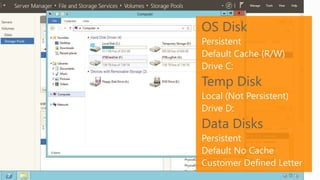
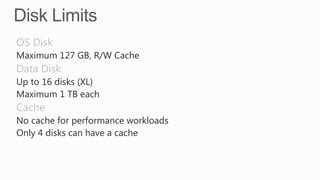
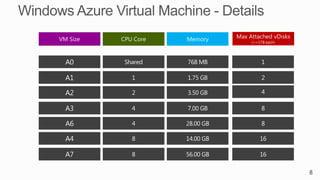


OS Disk

Temp Disk
Data Disks
Maximum 127 GB, R/W Cache

Up to 16 disks (XL)
Maximum 1 TB each
No cache for performance workloads
Only 4 disks can have a cache
8
Our customers have Linux Workloads
that they want to run in Windows Azure

IaaS enables us to satisfy this need
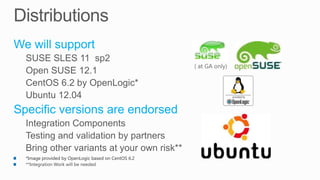
*Image provided by OpenLogic based on CentOS 6.2
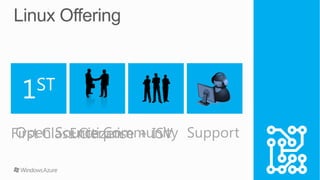
Open Source Community
First Class Citizen + ISV Support
Enterprise
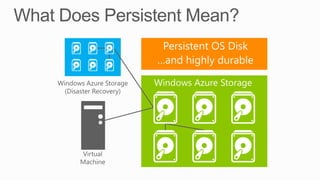
Persistent OS Disk
…and highly durable
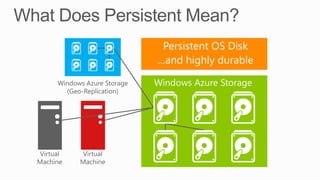
Persistent OS Disk
…and highly durable
Linux

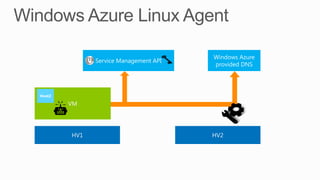
Linux Agent
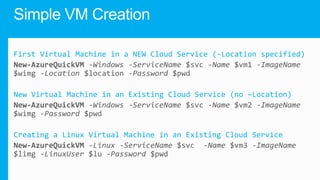
First Virtual Machine in a NEW Cloud Service (-Location specified)

New Virtual Machine in an Existing Cloud Service (no –Location)

Creating a Linux Virtual Machine in an Existing Cloud Service
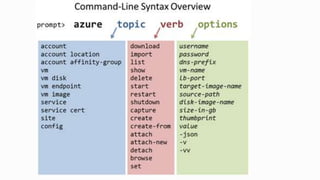
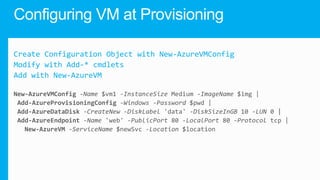
Create Configuration Object with New-AzureVMConfig
Modify with Add-* cmdlets
Add with New-AzureVM
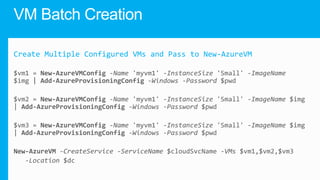
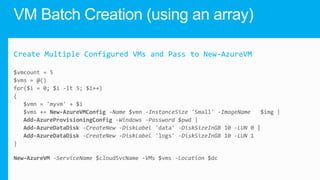
Create Multiple Configured VMs and Pass to New-AzureVM
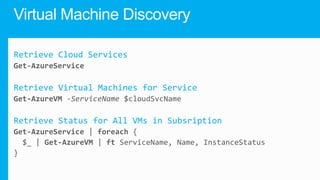
Retrieve Cloud Services

Retrieve Virtual Machines for Service

Retrieve Status for All VMs in Subsription
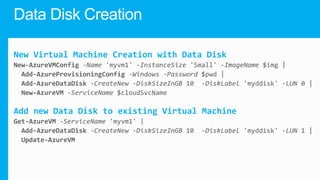
New Virtual Machine Creation with Data Disk

Add new Data Disk to existing Virtual Machine
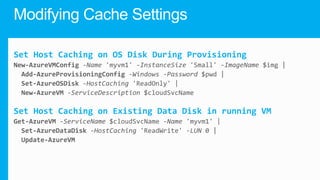
Set Host Caching on OS Disk During Provisioning

Set Host Caching on Existing Data Disk in running VM
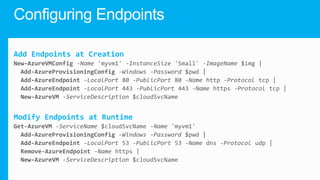
Add Endpoints at Creation

Modify Endpoints at Runtime
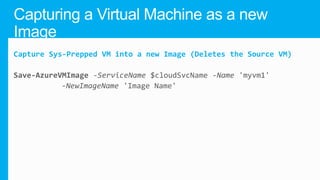
Capture Sys-Prepped VM into a new Image (Deletes the Source VM)
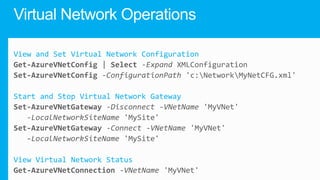
View and Set Virtual Network Configuration

Start and Stop Virtual Network Gateway

View Virtual Network Status
WIndows Azure Virtual Machines - deep dive session

WIndows Azure Virtual Machines - deep dive session

Editor's Notes

  • #11 Slide Objectives:Provide an understanding as to why Microsoft is offering Linux on Windows Azure.Speaking Points: 1) Microsoft understands that the server market isn’t a homogeneous space 2) As such, they understand that Linux is a necessary Operating System for those looking to leverage Windows Azure as their Data Center. 3) The Introduction of Infrastructure as a Service has enabled Windows Azure to satisfy the needs of the heterogeneous Data Center.
  • #12 Slide Objectives:Provide an understanding of which Distributions of Linux are offered in the Windows Azure Image Gallery.Speaking Points: 1) Only Certain distributions of Linux are officially supported: SUSE Enterprise 11 SP2, OpenSUSE 12.1, CentOS 6.2, Ubuntu 12.04 2) Virtual Machine Images of these Distributions are provided by Partners who are experts in each distribution 3) Other Distributions of Linux can be installed as “Bring-Your-Own-Linux” however, some integration work will be needed.Notes:Linux Virtual Machines Product Page: http://www.windowsazure.com/en-us/manage/linux
  • #13 Slide Objectives:Provide a better understanding of Microsoft’s Linux offering on Windows AzureSpeaking Points: 1) Linux as a first class citizen in Azure 2)We will focus mainly on Enterprises and ISVs but will also reach out to the community a)Open Sourcing critical components b) Documenting API 3)We will offer both Community and Commercial Distributions 4) You will be able to buy support for the commercial distributions (GA only)Trainsitions: 1) First Class Citizen 2) Enterprise + ISV 3) Open Source Community 4) SupportNotes:Any notes go here
  • #14 Slide Objectives:Give a high level overview of the Storage Architecture behind the Virtual Machine offeringTransition: 1) Virtual Machine & Disk 2) Virtual Machine OS Disk is created in Windows Azure Storage a) Windows Azure Storage provides 2 redundant copies of the drive 3) If Geo-Replication is enabled on the storage account, the three disks are duplicated in a different Geographical RegionNotes:Local Redundant Storage/Geo-Redundant Storage: http://blogs.msdn.com/b/windowsazure/archive/2012/06/08/introducing-locally-redundant-storage-for-windows-azure-storage.aspx
  • #15 Slide Objectives:Provide a greater understanding for what happens when a Virtual Machine Crashes.Transition: 1) Our Virtual Machine is up and running 2) Something goes wrong and the VM Fails 3) Windows Azure Fabric Controller recognizes the VM Failure, and spins up a new VM by attaching the disk to the new VM.
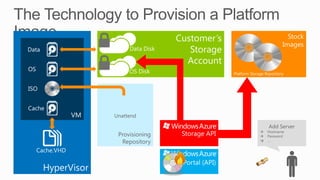
  • #16 Slide Objectives:Explaining the process in which VMs are provisioned in Windows Azure.Transition: 1) User inputs custom settings for provisioning a VM into an PowerShell or Windows Azure Management Portal 2) Custom Settings are delivered to the Windows Azure Management API 3) The management API creates an ISO with an Unattend file on it 4) The images from the Gallery will be copied from the Microsoft Repository into your Storage Account. 5) A blob lease is taken out on your OS disk (and data disk if configured) 6) Connect a Caching disk (LocalStorage, if you’re familiar with Cloud Services) 7) Connect the OS Disk 8) Connect additional Data Disks (if provided) 9) Connect the ISO, which has the unattend file with your custom settings on it. 10) VM is booted, Windows Setup utilizes the unattend file to setup the new VM. The ISO also configures the Agent which talks to the Fabric Controller.Notes:See Corey Sanders describe this: http://channel9.msdn.com/Events/TechEd/NorthAmerica/2012/AZR201 [00:13:15]
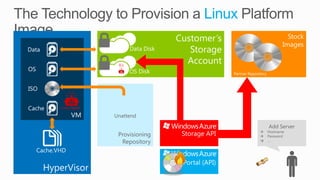
  • #17 Slide Objectives:Understand the way in which Linux VMs are published in Windows AzureTransition:Same build ups as last Provision build up.Speaking Points:As you can see the process is practically the same as before, with the slight caveat that we have a Distribution specific agent which has been added to the VM.Notes:Any notes go here
  • #18 Slide Objectives:Depicts a failover scenario with the Linux VMSpeaking Points:The Linux Agent communicates with the Windows Azure Service Management API in order to Notify the Fabric Controller to update the DNS Location in a Failover scenarioLegend:HV1 – Hypervisor 1HV2 – Hypervisor 2
  • #19 Open manage.windowsazure.comLoginClick “+ New”Hover over ComputeHover over Virtual MachineClick Quick CreateSelect a Linux Distribution from the Gallery listFill out the Wizard to provision the machine~ 6 minutes to Create, move on to more slidesCome back and show how to SSH into the machine.
  • #20 Open manage.windowsazure.comLoginClick “+ New”Hover over ComputeHover over Virtual MachineClick Quick CreateSelect a Linux Distribution from the Gallery listFill out the Wizard to provision the machine~ 6 minutes to Create, move on to more slidesCome back and show how to SSH into the machine.
  • #22 Slide Objectives:Show three examples that show a key component of using the cmdlets.Notes:When you specify -Location or -AffinityGroupthe cmdlets will attempt to create a new cloud service to deploy the VM to. If you do not specify either the cmdlets assume the cloud service exists in the current subscription.
  • #23 Slide Objectives:With PowerShell you can configure various settings in a batchNotes:New New-AzureVMConfig and New-AzureVM to allow a batched creation of a VM. New-AzureVMConfig returns a configuration object that is then passed to other cmdlets to modify via the PowerShell pipeline.Finally, it is passed to New-AzureVM where the VM is created with all of the configuration specified.
  • #24 Slide Objectives:It is also possible to create multiple configuration objects for multiple VMs and pass them to the New-AzureVMcmdlet as an array.
  • #25 Slide Objectives:Another example of batch VM creation: using an array/loop to create multiple VMs
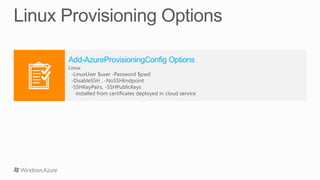
  • #26 Slide Objectives:The Add-AzureProvisioningConfigcmdlet supports one parameter set for LinuxNotes:The Linux parameter set requires specifying the user name and also allows for disabling SSH on the Linux VM or just not adding the SSH endpoint. Additionally, you can deploy SSH certificates as long as they are already in the cloud service.
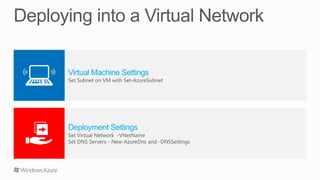
  • #27 Slide Objectives:Deploying into a Virtual Network requires multiple settings.Notes:When configuring the VM you must specify the subnet using the Set-AzureSubnetcmdlet. You can only specify the VNET and DNS settings for a cloud service on the creation of the first VM. If you add a second VM to the cloud service it will inherit the networking settings.
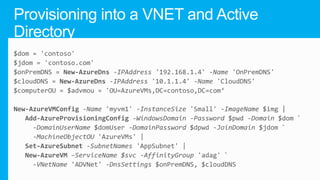
  • #28 Slide Objectives:In this example we’re specifying two AD/DNS servers – one that lives on our on-premises environment and the other is a DC that lives in the cloud.Notes:You can pass the DNS names when calling New-AzureVM. Also required is the VNET that establishes the hybrid connectivity.
  • #29 Slide Objectives:Show different methods of discovering virtual machines
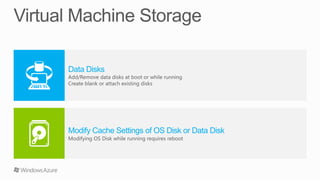
  • #30 Slide Objectives:Explain storage options
  • #31 Slide Objectives:Show examples of configuring storage Notes:The first example creates a new VM with a 10GB disk attached.The second example gets an existing VM, adds a 10GB disk to it and updates it live.
  • #32 Slide Objectives:Explain disk caching defaults and how to modify itNotes:By default OS disks have read / write caching enabled and data disks have no caching. You can use Set-AzureOSDisk or Set-AzureDataDisk to modify these settings at run time. Set-AzureOSDisk requires a reboot.
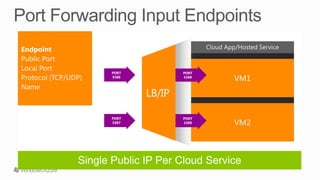
  • #33 Slide Objectives:Demonstrate how to configure network endpoints on a VM
  • #34 Slide Objectives:Show how to capture a VM
  • #35 Slide Objectives:Operations allowed from PowerShell for updating an modifying VNET Settings.
  • #36 Open manage.windowsazure.comLoginClick “+ New”Hover over ComputeHover over Virtual MachineClick Quick CreateSelect a Linux Distribution from the Gallery listFill out the Wizard to provision the machine~ 6 minutes to Create, move on to more slidesCome back and show how to SSH into the machine.