Windows Azure IAAS
G. SARAVANAN
Duration : 20 Minutes
Agenda
2
• IAAS – Virtual Machine
• Virtual Network
• Connection between PAAS and IAAS
3
IAAS – Virtual Machine
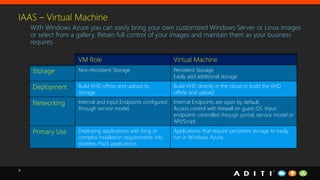
With Windows Azure you can easily bring your own customized Windows Server or Linux images
or select from a gallery. Retain full control of your images and maintain them as your business
requires.
VM Role Virtual Machine
Storage Non-Persistent Storage Persistent Storage
Easily add additional storage
Deployment Build VHD offsite and upload to
storage.
Build VHD directly in the cloud or build the VHD
offsite and upload
Networking Internal and Input Endpoints configured
through service model.
Internal Endpoints are open by default.
Access control with firewall on guest OS. Input
endpoints controlled through portal, service model or
API/Script.
Primary Use Deploying applications with long or
complex installation requirements into
stateless PaaS applications
Applications that require persistent storage to easily
run in Windows Azure.
4
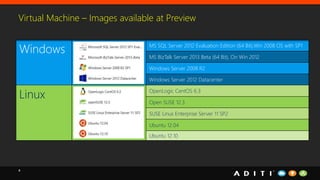
Virtual Machine – Images available at Preview
Windows MS SQL Server 2012 Evaluation Edition (64 Bit),Win 2008 OS with SP1
MS BizTalk Server 2013 Beta (64 Bit), On Win 2012
Windows Server 2008 R2
Windows Server 2012 Datacenter
Linux OpenLogic CentOS 6.3
Open SUSE 12.3
SUSE Linus Enterprise Server 11 SP2
Ubuntu 12.04
Ubuntu 12.10
5
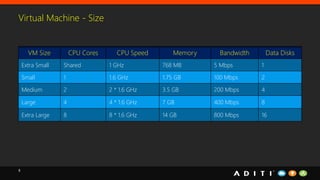
Virtual Machine - Size
VM Size CPU Cores CPU Speed Memory Bandwidth Data Disks
Extra Small Shared 1 GHz 768 MB 5 Mbps 1
Small 1 1.6 GHz 1.75 GB 100 Mbps 2
Medium 2 2 * 1.6 GHz 3.5 GB 200 Mbps 4
Large 4 4 * 1.6 GHz 7 GB 400 Mbps 8
Extra Large 8 8 * 1.6 GHz 14 GB 800 Mbps 16
6
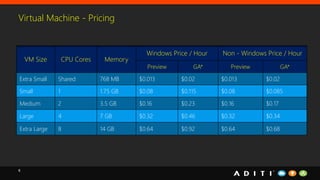
Virtual Machine - Pricing
VM Size CPU Cores Memory
Windows Price / Hour Non - Windows Price / Hour
Preview GA* Preview GA*
Extra Small Shared 768 MB $0.013 $0.02 $0.013 $0.02
Small 1 1.75 GB $0.08 $0.115 $0.08 $0.085
Medium 2 3.5 GB $0.16 $0.23 $0.16 $0.17
Large 4 7 GB $0.32 $0.46 $0.32 $0.34
Extra Large 8 14 GB $0.64 $0.92 $0.64 $0.68
7
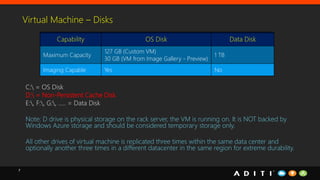
C: = OS Disk
D: = Non-Persistent Cache Disk
E:, F:, G:, ….. = Data Disk
Note: D drive is physical storage on the rack server, the VM is running on. It is NOT backed by
Windows Azure storage and should be considered temporary storage only.
All other drives of virtual machine is replicated three times within the same data center and
optionally another three times in a different datacenter in the same region for extreme durability.
Capability OS Disk Data Disk
Maximum Capacity
127 GB (Custom VM)
30 GB (VM from Image Gallery - Preview)
1 TB
Imaging Capable Yes No
Virtual Machine – Disks
8
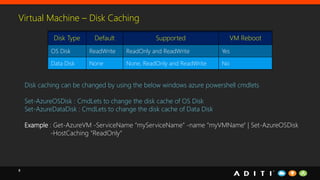
Virtual Machine – Disk Caching
Disk Type Default Supported VM Reboot
OS Disk ReadWrite ReadOnly and ReadWrite Yes
Data Disk None None, ReadOnly and ReadWrite No
Disk caching can be changed by using the below windows azure powershell cmdlets
Set-AzureOSDisk : CmdLets to change the disk cache of OS Disk
Set-AzureDataDisk : CmdLets to change the disk cache of Data Disk
Example : Get-AzureVM -ServiceName “myServiceName” -name “myVMName" | Set-AzureOSDisk
-HostCaching "ReadOnly“
9
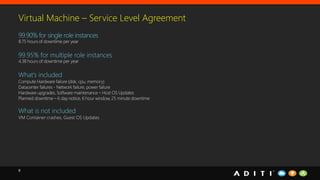
Virtual Machine – Service Level Agreement
10
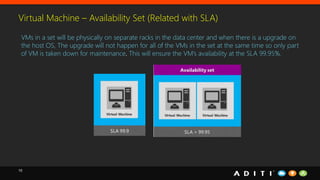
Virtual Machine – Availability Set (Related with SLA)
VMs in a set will be physically on separate racks in the data center and when there is a upgrade on
the host OS, The upgrade will not happen for all of the VMs in the set at the same time so only part
of VM is taken down for maintenance. This will ensure the VM’s availability at the SLA 99.95%.
11
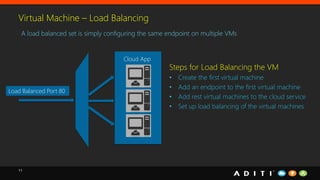
Virtual Machine – Load Balancing
A load balanced set is simply configuring the same endpoint on multiple VMs
Cloud App
Load Balanced Port 80
Steps for Load Balancing the VM
• Create the first virtual machine
• Add an endpoint to the first virtual machine
• Add rest virtual machines to the cloud service
• Set up load balancing of the virtual machines
12
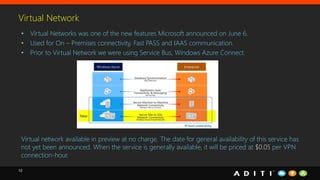
Virtual Network
• Virtual Networks was one of the new features Microsoft announced on June 6.
• Used for On – Premises connectivity, Fast PASS and IAAS communication.
• Prior to Virtual Network we were using Service Bus, Windows Azure Connect.
Virtual network available in preview at no charge. The date for general availability of this service has
not yet been announced. When the service is generally available, it will be priced at $0.05 per VPN
connection-hour.
13
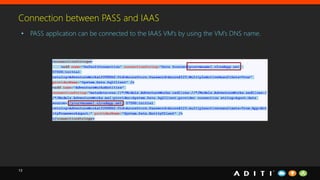
Connection between PASS and IAAS
• PASS application can be connected to the IAAS VM’s by using the VM’s DNS name.
14
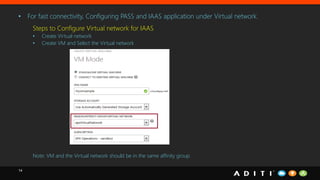
• For fast connectivity, Configuring PASS and IAAS application under Virtual network.
Steps to Configure Virtual network for IAAS
• Create Virtual network
• Create VM and Select the Virtual network
Note: VM and the Virtual network should be in the same affinity group
15
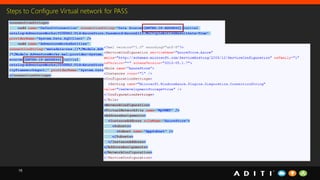
Steps to Configure Virtual network for PASS
16
Questions ?
Thank you
G. SARAVANAN
saravanang@aditi.com | +91 9176665242

WindowsAzureIAAS

  • 1.
    Windows Azure IAAS G.SARAVANAN Duration : 20 Minutes
  • 2.
    Agenda 2 • IAAS –Virtual Machine • Virtual Network • Connection between PAAS and IAAS
  • 3.
    3 IAAS – VirtualMachine With Windows Azure you can easily bring your own customized Windows Server or Linux images or select from a gallery. Retain full control of your images and maintain them as your business requires. VM Role Virtual Machine Storage Non-Persistent Storage Persistent Storage Easily add additional storage Deployment Build VHD offsite and upload to storage. Build VHD directly in the cloud or build the VHD offsite and upload Networking Internal and Input Endpoints configured through service model. Internal Endpoints are open by default. Access control with firewall on guest OS. Input endpoints controlled through portal, service model or API/Script. Primary Use Deploying applications with long or complex installation requirements into stateless PaaS applications Applications that require persistent storage to easily run in Windows Azure.
  • 4.
    4 Virtual Machine –Images available at Preview Windows MS SQL Server 2012 Evaluation Edition (64 Bit),Win 2008 OS with SP1 MS BizTalk Server 2013 Beta (64 Bit), On Win 2012 Windows Server 2008 R2 Windows Server 2012 Datacenter Linux OpenLogic CentOS 6.3 Open SUSE 12.3 SUSE Linus Enterprise Server 11 SP2 Ubuntu 12.04 Ubuntu 12.10
  • 5.
    5 Virtual Machine -Size VM Size CPU Cores CPU Speed Memory Bandwidth Data Disks Extra Small Shared 1 GHz 768 MB 5 Mbps 1 Small 1 1.6 GHz 1.75 GB 100 Mbps 2 Medium 2 2 * 1.6 GHz 3.5 GB 200 Mbps 4 Large 4 4 * 1.6 GHz 7 GB 400 Mbps 8 Extra Large 8 8 * 1.6 GHz 14 GB 800 Mbps 16
  • 6.
    6 Virtual Machine -Pricing VM Size CPU Cores Memory Windows Price / Hour Non - Windows Price / Hour Preview GA* Preview GA* Extra Small Shared 768 MB $0.013 $0.02 $0.013 $0.02 Small 1 1.75 GB $0.08 $0.115 $0.08 $0.085 Medium 2 3.5 GB $0.16 $0.23 $0.16 $0.17 Large 4 7 GB $0.32 $0.46 $0.32 $0.34 Extra Large 8 14 GB $0.64 $0.92 $0.64 $0.68
  • 7.
    7 C: = OSDisk D: = Non-Persistent Cache Disk E:, F:, G:, ….. = Data Disk Note: D drive is physical storage on the rack server, the VM is running on. It is NOT backed by Windows Azure storage and should be considered temporary storage only. All other drives of virtual machine is replicated three times within the same data center and optionally another three times in a different datacenter in the same region for extreme durability. Capability OS Disk Data Disk Maximum Capacity 127 GB (Custom VM) 30 GB (VM from Image Gallery - Preview) 1 TB Imaging Capable Yes No Virtual Machine – Disks
  • 8.
    8 Virtual Machine –Disk Caching Disk Type Default Supported VM Reboot OS Disk ReadWrite ReadOnly and ReadWrite Yes Data Disk None None, ReadOnly and ReadWrite No Disk caching can be changed by using the below windows azure powershell cmdlets Set-AzureOSDisk : CmdLets to change the disk cache of OS Disk Set-AzureDataDisk : CmdLets to change the disk cache of Data Disk Example : Get-AzureVM -ServiceName “myServiceName” -name “myVMName" | Set-AzureOSDisk -HostCaching "ReadOnly“
  • 9.
    9 Virtual Machine –Service Level Agreement
  • 10.
    10 Virtual Machine –Availability Set (Related with SLA) VMs in a set will be physically on separate racks in the data center and when there is a upgrade on the host OS, The upgrade will not happen for all of the VMs in the set at the same time so only part of VM is taken down for maintenance. This will ensure the VM’s availability at the SLA 99.95%.
  • 11.
    11 Virtual Machine –Load Balancing A load balanced set is simply configuring the same endpoint on multiple VMs Cloud App Load Balanced Port 80 Steps for Load Balancing the VM • Create the first virtual machine • Add an endpoint to the first virtual machine • Add rest virtual machines to the cloud service • Set up load balancing of the virtual machines
  • 12.
    12 Virtual Network • VirtualNetworks was one of the new features Microsoft announced on June 6. • Used for On – Premises connectivity, Fast PASS and IAAS communication. • Prior to Virtual Network we were using Service Bus, Windows Azure Connect. Virtual network available in preview at no charge. The date for general availability of this service has not yet been announced. When the service is generally available, it will be priced at $0.05 per VPN connection-hour.
  • 13.
    13 Connection between PASSand IAAS • PASS application can be connected to the IAAS VM’s by using the VM’s DNS name.
  • 14.
    14 • For fastconnectivity, Configuring PASS and IAAS application under Virtual network. Steps to Configure Virtual network for IAAS • Create Virtual network • Create VM and Select the Virtual network Note: VM and the Virtual network should be in the same affinity group
  • 15.
    15 Steps to ConfigureVirtual network for PASS
  • 16.
  • 17.