FPE Grants Online-ManagementInformation
System: FPE’s Web-based Grants Process
Visayas Regional Advisory Committee Meeting
November 29, 2014 | Bohol Tropics Resort, Tagbilaran City
2.
The Grants Online-Management
InformationSystem
(GO-MIS)
A one-stop-shop online information program:
Centralized repository of projects and program information
Quick summaries of relevant information
Grants application channel
Project tracking system
3.
3
Features beneficial toproponents
Auto-acknowledgement
Email alert and notification
Editing feature
Virtual repository
____________________________________________________________
Hi, (Proponent Name)
Congratulations!Your ORF has been approved. To proceed,
please follow these steps:
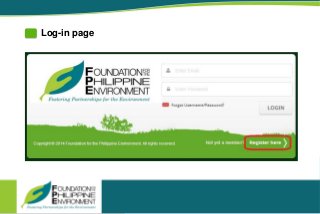
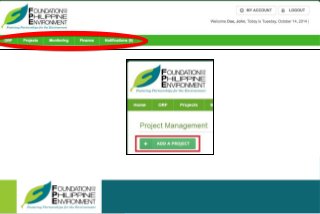
1. Log in to grantsonline.fpe.ph.
2. On the homepage menu, click Projects.
3. You will be directed to the Project Management page,
click Add a Project.
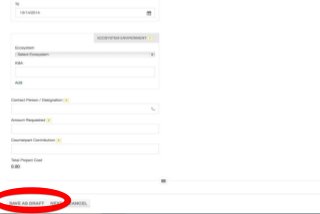
4. Fill out the required fields of the proposal form and
click the Save Draft or Submit button.
Good luck! We hope to receive your proposal soon.
____________________________________________________________
10.
Add Project
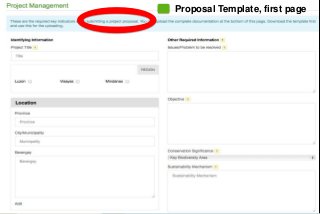
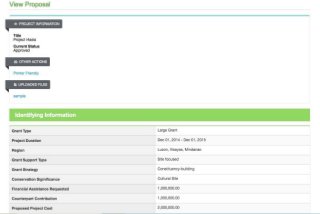
The AddProject button allows the proponents to apply for a pro
From the Project Management, click ADD A PROJEC
A new project proposal template will be displayed. It co
to 3.
Foundation for thePhilippineEnvironment
GrantsOnline-ManagementInformation System
Proponent User'sManual
Page13
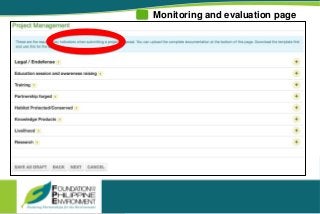
Monitoring
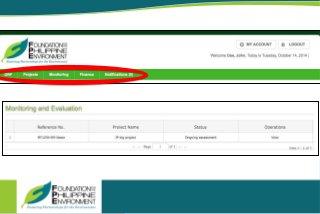
Allows the proponent to keep track of the actions FPE has taken on his/her submitted project proposal or ongoing project.
Click Monitoring in the menu to display the Monitoring and Evaluation page.
A matrix of submitted project proposals, including ongoing and past projects will be displayed. To view, click
View in the Operations column on the row of the identified project to be viewed.
The View operation allows the proponent to see the comments or suggestions that FPE has inputted.
Finance
Allows the proponent to monitor the financial aspect and the release of tranches of their projects.
18.
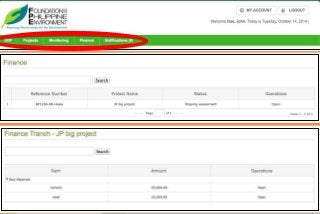
Finance
Allows the proponentto monitor the financial aspect and the release of tranches of their projects.
Click Finance menu to display Finance page
A list of projects will be displayed. Click the Open button on the Operations column on the row of the identified
project to be viewed.
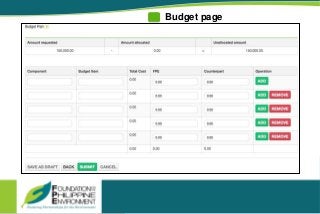
Open Project Budget Plan
1. Click the Open button on the Operations column on the row of identified project to be viewed.
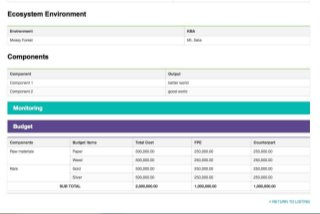
2. The financial details of the project which was inputted on Step 3 of the project proposal will be displayed.
ct Budget Plan
ck the Open button on the Operations column on the row of identified project to be viewed.
financial details of the project which was inputted on Step 3 of the project proposal will be display
19.
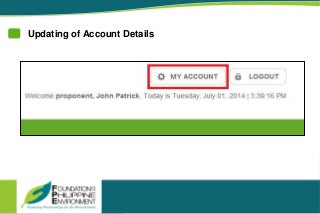
Updating of AccountDetails
y Account
ged in user can update some of the details on their profile.
Click MY ACCOUNT located in the header.
The proponent will be redirected to the My Account page where his/her person
tifications
ows proponents to be notified of project updates.
20.
The proponent willbe redirected to the My Account page where his/her personal details can be updated.
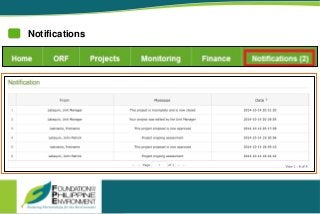
Notifications
llows proponents to be notified of project updates.
1. Click Notifications in the menu to display Notifications page
2. Notification count will add up when there are numerous updates on their projects.
Notifications
Click Notifications in the menu to display Notifications page
Notification count will add up when there are numerous updates on their proje
21.
The site canbe accessed
direhttp://grantsonline.fpe.ph