Getting started withJava(Installation & Setup), First Program, Setting
Environment variables
2.
Follow these steps:
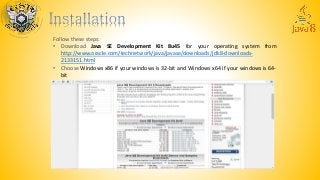
•Download Java SE Development Kit 8u45 for your operating system from
http://www.oracle.com/technetwork/java/javase/downloads/jdk8-downloads-
2133151.html
• Choose Windows x86 if your windows is 32-bit and Windows x64 if your windows is 64-
bit
3.
• Open theexecutable(.exe) file and follow the instruction.
• Choose the location to install the Java SE Development Kit
• Mostly the location will be: “C:Program FilesJava” or “C:Program Files(x86)Java”
• After completing these steps your jdk will be installed
4.
Now we areready to write our first program. To write the program follow these steps:
• Open Notepad
• Write the following code:
class First
{
public static void main(String args[])
{
System.out.println("My first Program");
}
}
• Save the file with:
File name: First.java (same name as that of class)
Save as type: All Files(*.*)
6.
• Open CommandPrompt(cmd).
• Now move to directory where your file is located.
• cd/ is used to goto root directory
• To move to new root directory pass the name with colon. For example, to move to
directory E, we will write E:
7.
• To moveto inner directory type cd name_of_directory. For example to move to
GSBPROGRAMMING in directory E, we will write:
cd GSBPROGRAMMING
• Now when you moved to the directory where you have saved your program(First.java),
then write the following statement and press Enter:
javac First.java
This will compile your source code(First.java)
• Now when you write this , you will get the following error:
'javac' is not recognized as an internal or external command, operable program or batch
file.
• This is because cmd does not understand the command javac or even any other jdk
commands, so we have to set the path, so that we can run the jdk commands
8.
• To temporaryset the path write the following command:
path="C:Program Filesjavajdk1.8.0_20bin“
As we have installed java in “C:Program Filesjava” so we have written this. This method is
temporary. Next time when you again open the cmd you have to set the path again.
• To permanently set the path you have you save the path in environment variable
• Right click “My Computer”
• Click Properties
• Goto Advanced System Settings
• Click on Environment Variables
• In system variable, find the variable path.
• Click on the variable path, then click Edit button
• Now paste the following at the last of variable value textbox:
;C:Program Filesjavajdk1.8.0_20bin;
Note: ; is necessary at the starting of this
• Now close the cmd and again open the cmd and type:
javac First.java
• Your program will be successfully compiled and a file First.class will be created in same
directory where your program is located
9.
• Now type:
javaFirst
This will interpret your program and gives the output:
My first Program
• To compile java source code we will write:
javac program_name.java
• To get output we will write:
java name_of_class_in_program
That’s why we always save the file with same name as that of the class to avoid confussion
10.
class First
{
public staticvoid main(String args[])
{
System.out.println("My first Program");
}
}
• Here name of class is First
• The statement public static void main(String args[]) is necessary. You can use any valid
identifier in place of args[]
For example:
public static void main(String myArg[]) is also valid
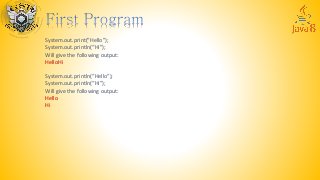
• System.out.println(“My first Program”); will print My first Program on the console screen. And
any other statement will be printed in nextline
• You can also use System.out.print(“My first Program”);

![Now we are ready to write our first program. To write the program follow these steps:
• Open Notepad
• Write the following code:
class First
{
public static void main(String args[])
{
System.out.println("My first Program");
}
}
• Save the file with:
File name: First.java (same name as that of class)
Save as type: All Files(*.*)](https://image.slidesharecdn.com/javappt3-150530163201-lva1-app6892/85/Learn-Java-Part-3-4-320.jpg?cb=1433003568)


![class First
{
public static void main(String args[])
{
System.out.println("My first Program");
}
}
• Here name of class is First
• The statement public static void main(String args[]) is necessary. You can use any valid
identifier in place of args[]
For example:
public static void main(String myArg[]) is also valid
• System.out.println(“My first Program”); will print My first Program on the console screen. And
any other statement will be printed in nextline
• You can also use System.out.print(“My first Program”);](https://image.slidesharecdn.com/javappt3-150530163201-lva1-app6892/85/Learn-Java-Part-3-10-320.jpg?cb=1433003568)