UX DESIGN
FOR

TABLETS
Rajarajan Radhakrishnan
Why Tablets?

More than 1/3rd of Americans own a tablet
- Source: Pew Research
Why Tablets?
Between 32% and 43% of tablet
owners are using their desktop less
than tablets.
- Source: Nielson Report
Why Tablets?
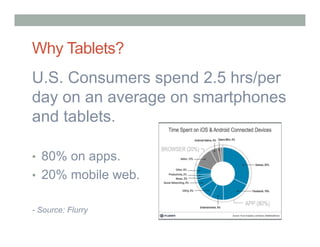
U.S. Consumers spend 2.5 hrs/per
day on an average on smartphones
and tablets.
•  80% on apps.
•  20% mobile web.
- Source: Flurry
Best Practices
1.  Design with Context in Mind
2.  Fill a need
3.  Design for core tasks and keep it air tight
4.  Make Search easy and obvious
5.  Focus on the browse experience
6.  Gestures – meaningful and engaging
7.  Immersive call to action
8.  Reduce typing
9.  Design usable forms
10.  Make clear what is touchable
11.  Intuitive navigation
1. Design with context in mind
Users use tablets when they do a task requiring optimum
portability and screen size.

Vs
•  Reading
•  Hobbies

Vs

•  Productivity
•  Email

•  Sketching

•  Note taking

•  Browsing

•  Analysis

•  Shopping

•  Programming

•  Note taking

•  Image Editing

•  Games

•  Designing

•  Learning
Notes App is a classic example of
simplified functionality.
-  No edit mode
-  Auto saves
-  Relevant functions pops on demand
2. Fill a need

“I love to paint. I don’t have enough time
to paint. The Paper app simplifies that
hobby and allows me to strengthen that
interest in my own convenience”
- Ux Professional

Paper
Learn
music

Create
podcasts

Digital audio
workstation
Garageband
3. Design for Core Tasks
1.  Provide cues for how and
where to initiate key tasks
2. Orient users by highlighting
call-to-action on the home
screen.

e-bay
4. Make Search easy and obvious
1.  Search should be placed in a easy to
discover location (top right) and
should have cue words(search) or
the search icon.
2.  When tapped the field should
immediately bring up the relevant
keyboard (shown here in app store).
5. Focus on the ‘browse’ experience
The large screens and the light weight of tablets make them suitable
for browsing. The multi touch interfaces with interesting gestures like
swiping, pinching etc., makes the interactions quite immersive

500px

Gilt
To enhance browseability:
•  Use high quality images
•  Allow users to enlarge images by
tapping or stretching
•  Hide nav elements and show them
on demand
6. Gestures – meaningful & engaging
•  Swipe – Usually for scroll and Next/Previous. Few new actions are:

reveal panels, confirmation dialogs(swipe to unlock, close, cancel)

Youtube uses a swipe left gesture to close.
Real world gestures should be meaningfully used. If it mirrors real world usage
Users will like it and adopt it instantly.

Page turning gesture in Paper

The old iOS contacts app did not work
like a real world Address book
•  Long Tap – Right click of tablets. Fires a contextual menu.

long tap brings up the contextual
actions.

Kindle: long tap allows users to
highlight and add a note.
Please note:
•  No clear standards for gestures.
•  Except for simple gestures multi

touch gestures are hard to learn
and inconsistent.
7. Immersive Call to Action
•  Call to Action should be clear, recognizable and inviting

Houzz has very
inviting call to actions
– dancing icons on
the images
8. Reduce Typing
•  Where possible use multiple choice or auto-fill and auto-suggest for

information.

Google Maps – on tapping into the search field
it brings up my home, and recent searches
along with common icons.
Zite automatically collects user
information and creates a magazine
9. Design usable fields & buttons
•  Make entering data as easy as you can by showing the relevant key

board
Large primary buttons focused on continuing the flow are well presented here

Zappos

Dropbox
10. Make clear what is touchable

Double touching the home button
brings this feature up. It is hidden.

Clickable areas are not clear
11. Intuitive navigation
Thumb Zone

Thumb Zone – Arc of your thumb span on the screen. Favor this zone for navigation controls
Content on top, controls on bottom a basic staple of industrial design.
Instapaper and Twitter provide good placement of controls
in the Thumb Zone.
Usability Testing for Tablets
Reference
•  Tablet Stats
http://www.cmo.com/articles/2013/8/13/_15_must_know_stats_.html

•  Smashing Mag article on best practices for Tablet UX
http://uxdesign.smashingmagazine.com/2012/01/31/ten-things-think-about-designing-ipad-app/

•  Touch Gestures cheat sheet
http://www.lukew.com/ff/entry.asp?1071

•  Reflector for usability testing
http://www.90percentofeverything.com/2013/01/14/combining-reflector-and-silverback-for-ios-usability-testing/

•  The Mobile Book by Smashing Magazine

User Experience Design for Tablets

  • 1.
  • 2.
    Why Tablets? More than1/3rd of Americans own a tablet - Source: Pew Research
  • 3.
    Why Tablets? Between 32%and 43% of tablet owners are using their desktop less than tablets. - Source: Nielson Report
  • 4.
    Why Tablets? U.S. Consumersspend 2.5 hrs/per day on an average on smartphones and tablets. •  80% on apps. •  20% mobile web. - Source: Flurry
  • 5.
    Best Practices 1.  Designwith Context in Mind 2.  Fill a need 3.  Design for core tasks and keep it air tight 4.  Make Search easy and obvious 5.  Focus on the browse experience 6.  Gestures – meaningful and engaging 7.  Immersive call to action 8.  Reduce typing 9.  Design usable forms 10.  Make clear what is touchable 11.  Intuitive navigation
  • 6.
    1. Design withcontext in mind Users use tablets when they do a task requiring optimum portability and screen size. Vs
  • 7.
    •  Reading •  Hobbies Vs • Productivity •  Email •  Sketching •  Note taking •  Browsing •  Analysis •  Shopping •  Programming •  Note taking •  Image Editing •  Games •  Designing •  Learning
  • 8.
    Notes App isa classic example of simplified functionality. -  No edit mode -  Auto saves -  Relevant functions pops on demand
  • 9.
    2. Fill aneed “I love to paint. I don’t have enough time to paint. The Paper app simplifies that hobby and allows me to strengthen that interest in my own convenience” - Ux Professional Paper
  • 10.
  • 11.
    3. Design forCore Tasks 1.  Provide cues for how and where to initiate key tasks 2. Orient users by highlighting call-to-action on the home screen. e-bay
  • 12.
    4. Make Searcheasy and obvious 1.  Search should be placed in a easy to discover location (top right) and should have cue words(search) or the search icon. 2.  When tapped the field should immediately bring up the relevant keyboard (shown here in app store).
  • 13.
    5. Focus onthe ‘browse’ experience The large screens and the light weight of tablets make them suitable for browsing. The multi touch interfaces with interesting gestures like swiping, pinching etc., makes the interactions quite immersive 500px Gilt
  • 14.
    To enhance browseability: • Use high quality images •  Allow users to enlarge images by tapping or stretching •  Hide nav elements and show them on demand
  • 15.
    6. Gestures –meaningful & engaging •  Swipe – Usually for scroll and Next/Previous. Few new actions are: reveal panels, confirmation dialogs(swipe to unlock, close, cancel) Youtube uses a swipe left gesture to close.
  • 16.
    Real world gesturesshould be meaningfully used. If it mirrors real world usage Users will like it and adopt it instantly. Page turning gesture in Paper The old iOS contacts app did not work like a real world Address book
  • 17.
    •  Long Tap– Right click of tablets. Fires a contextual menu. long tap brings up the contextual actions. Kindle: long tap allows users to highlight and add a note.
  • 18.
    Please note: •  Noclear standards for gestures. •  Except for simple gestures multi touch gestures are hard to learn and inconsistent.
  • 19.
    7. Immersive Callto Action •  Call to Action should be clear, recognizable and inviting Houzz has very inviting call to actions – dancing icons on the images
  • 21.
    8. Reduce Typing • Where possible use multiple choice or auto-fill and auto-suggest for information. Google Maps – on tapping into the search field it brings up my home, and recent searches along with common icons. Zite automatically collects user information and creates a magazine
  • 22.
    9. Design usablefields & buttons •  Make entering data as easy as you can by showing the relevant key board
  • 23.
    Large primary buttonsfocused on continuing the flow are well presented here Zappos Dropbox
  • 24.
    10. Make clearwhat is touchable Double touching the home button brings this feature up. It is hidden. Clickable areas are not clear
  • 25.
    11. Intuitive navigation ThumbZone Thumb Zone – Arc of your thumb span on the screen. Favor this zone for navigation controls
  • 26.
    Content on top,controls on bottom a basic staple of industrial design.
  • 27.
    Instapaper and Twitterprovide good placement of controls in the Thumb Zone.
  • 28.
  • 29.
    Reference •  Tablet Stats http://www.cmo.com/articles/2013/8/13/_15_must_know_stats_.html • Smashing Mag article on best practices for Tablet UX http://uxdesign.smashingmagazine.com/2012/01/31/ten-things-think-about-designing-ipad-app/ •  Touch Gestures cheat sheet http://www.lukew.com/ff/entry.asp?1071 •  Reflector for usability testing http://www.90percentofeverything.com/2013/01/14/combining-reflector-and-silverback-for-ios-usability-testing/ •  The Mobile Book by Smashing Magazine