GradeBookWizard Getting Started Guide for Educators
Agenda Introduction Home Page Grade Book Page Homework Checklists Assignments Report Cards Attendance Tracking Preferences Setup Pages Student Information Parent/Student Website Q & A
Introduction Getting Started with GradeBookWizard Much more than a grade book program Designed to facilitate communication with students and their parents Class websites allow students/parents to see grades, assignments, homework, news, and much more Automatic email alerts for missing or incomplete assignments and attendance incidents Emailed progress reports Access from any PC or Mac with an Internet connection Broadband connection is recommended Can also access using iPaq or other handheld device
Introduction Help Available on all pages by clicking  on the  information  icon: Access the online manual by clicking  on the  help  icon: If you need more help, contact customer support at: [email_address]
Home Page Logging In Teachers, students, and parents use the same login page:  http://login.gradebookwizard.com  or your custom school login page, if available
Log-In Information Login Name: WPHS_teacherid  teacherid = first initial + last name (ex: lboyce) Password: password Change password/ email address under “Account”
Setup Wizard When you login for the very first time, a new account setup wizard is launched to take you   through the steps involved in configuring your account.
Type of Account Select “one subject per class - several classes”
Grade Calculation System Select “Manual”
Grade Period Setup Unless your class is only a semester long, leave all grade periods checked.
Grade Scale Setup  Leave the grade scale default settings how they are.
Setup Pages Class Setup Click on  Create New Class  to create a new class
Setup Pages Class Setup – Middle/High School Classes that share assignments can be  grouped Enter class name/period and select a grade scale to use for displaying grade averages
Setup Pages Students Student records have been preloaded by your system administrator If you do not have classes in your account, student records may appear in classes belonging to the administrator account Use the  Copy From Class  feature to access preloaded student records from the administrator account If you are certain that student records have been loaded, but no administrator classes have been created, you only need to enter the Student ID for each student in your class(es). Or, you can enter a partial first and last name (one or more letters) for each student
Setup Pages Students Enter student information into the grid -- OR -- Use the  Copy From Class  button to copy student  records from other teachers’ classes
Setup Pages Copy From Class Select an administrator class to copy from Available students will show up here once you have selected a class to copy from
Setup Pages Copy From Class (cont’d) Select students to copy to your class Click on  Copy Students  button to perform copy Once copied, your class students show up here
Setup Pages Copy From Class (cont’d) You can copy students from several different classes to the same class Just change the selection in the ‘Class to Copy From’ list After you have populated your class, click on the  Done  button to save your changes and dismiss the page Clicking on the  Done  button automatically saves any changes you have made before dismissing the page To save your changes without leaving the current page, click on the  Save  button
Home Page Program sections System messages Teacher Schedule Tabs for topics within section
Home Page Common Page Elements Page title bar Current class and grade period Buttons and tabs Show page info Logout Go to home page Display online manual Minutes until auto-logout Navigation path Command buttons Tabs and sub-tabs Displayed in top  left area of page
Grade Book Page Grade Book Overview You can use the grade book to create and grade assignments Assignment grades can be scores, letter grades, or percentages You can create extra credit or no-credit assignments Assignments can be organized into categories that can optionally be weighted The grade book displays each students’ current grade average for the selected class and grading period
Grade Book Page Grade average for each student, for the selected grade period and class Names repeat Assignments repeat
Grade Book Page Creating New Assignments New assignments require a title, due date, category, grade scale, and point value
Grade Book Page Grading Single Assignments Click to Grade Enter scores and comments Comment editor Click to copy first row to all other rows
Grade Book Page Grading Multiple Assignments Grade All  mode allows all assignments to be graded at the same time. You can move either  vertically  or  horizontally  through the grade book using the arrow keys, tab key, or enter key Enter scores or status codes Select auto-email notifications
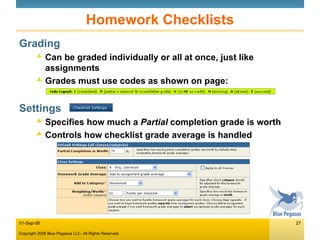
Homework Checklists Checklists can be used for homework or other smaller tasks that do not qualify as full-fledged assignments Checklist average is tracked separately from assignment grade average and can be included in class grade average if desired Grades are simple: complete, no credit, partial or status
Homework Checklists Grading Can be graded individually or all at once, just like assignments Grades must use codes as shown on page: Settings Specifies how much a  Partial  completion grade is worth Controls how checklist grade average is handled
Assignments Assignments Page Assignments can also be created and graded individually from the  Assignments  page instead of the grade book Allows usage of standards when creating and grading assignments See PDF file on standards-based grading for more information
Assignments Assignment Weighting If  manual weighting  was chosen when setting up class/subject, you can choose how much an assignment is worth Normal/Relative weighting = assignment’s worth is computed in relation to that of other assignments Absolute% weighting = assignment is worth a specific percentage of the student’s grade average If  total points system  was chosen during class/subject setup then an assignment’s worth is determined by  its maximum score Select assignment weighting/worth
Report Cards Page Period/Semester/Final Marks Shows student marks and grade trend Color-coding shows current grading period Locks indicate grade periods for which marks have been submitted Grades that are due are shown with red background Click on  Calculator  icon to review or override grades Click on Lock icon to lock grades so they can be submitted
Report Cards Page Grade Calculator Computed grades can be overridden Grade distribution curve and statistics Behavior Marks can be entered Comment codes can be entered – OR – click on note pad to see selection list
Attendance Tracking Class Attendance – Monthly View Click on column heading to go to  Daily View Optional email notifications to parents Attendance codes can be configured
Attendance Tracking Class Attendance – Daily View Parent response from class website Notes can be seen by parents and appear on Attendance report
Account Preferences Setting Up Your Account Preferences Your account has been pre-configured with default preference settings Click on the Account button to go to the account preferences area Also allows you to change your password and update personal information such as your name, office phone number, and more
Account Preferences Account Information Click on the  Edit Account Information  button to change any personal information displayed on this page Click on the  Preferences  link to go to the preferences setup page Click on the  Change Password  link to change your password
Account Preferences Preferences Grading System applies to  assignments . You can use  weighted categories  with both total points and manual assignment weighting Do not change!
Account Preferences Change Password Enter your current (old) password in the red field Enter your new password twice in the fields below
Setup Pages Setup Select tab to set up classes, students, grading options, standards, discipline, or comment lists
Setup Pages Class Groups Allows sharing assignments between classes Related classes can share assignments by creating group assignments Classes can belong to several groups at the same time Groups also allow classes to share custom web pages and announcements Groups are currently NOT available with the  Elementary School  setup (once class -> many subjects)
Setup Pages Setting Up Class Groups Click on  Class Groups  link Create new groups by clicking on the  Add/Edit Group Names  button  Add group members by setting the checkboxes Click to create group names Check to add members to selected group
Setup Pages Creating New Groups You can have any number of groups Each group can have any number of members Each class can be a member of several groups
Setup Pages Grade Periods (Marking Periods) Click on  Grading  tab Click  Add/Edit Grade Periods  to create or edit grade periods
Setup Pages Editing Grade Periods Enter date ranges or ‘exam’ grade periods Exam  grade periods are used for final/semester exams or other items that count for a fixed percentage of student  grade averages Only require  End Date  so they are sorted correctly
Student Information Students Page (GradeBook Section) Provides access to student records and student  progress information
Student Information Click on student’s name to access student record Shows detailed student and parent information Click on folder icon in list to view progress report Opens in new pop-up window
Student Information Click on pen & notepad icon in list to access  discipline log
Student Information Click on notepad icon to access student notes
Student Information Setting Up Student Logins Logins may already have been created for your students by the school administrator Click on  Generate Logins  button to create logins
Student Information Set Website Access Rules Allows you to control what students and parents see on the class website
Student Information Seating Charts You can have several seating charts per class (for different rooms or days, for instance) Seating charts use grid layouts, but you can leave empty squares to create islands or other arrangements Select a student to seat, and then select the desk. Click on the  Seat  button to move the student
Login Page Logging In Your school may have a custom login page that you should use instead of the general login page The URL is: http:// your_school_name .gradebookwizard.com If your school does not have a custom login page you can login from: http://login.gradebookwizard.com Students and parents use the same page to login as teachers (same URL)
Login Page School announcements can be created by administrator
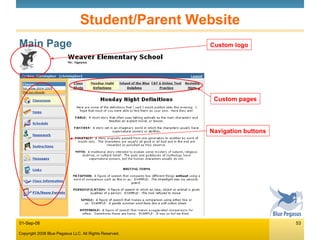
Student/Parent Website Main Page Custom logo Navigation buttons Custom pages
Student/Parent Website Student Grades You decide what to display here using the  Set  Website Access   page
Student/Parent Website Assignment Instructions You can upload handout files for students to download You can also include URLs to external websites for students to access
Student/Parent Website Attendance Parents can add comments to attendance record
Student/Parent Website Discipline Parents can add comments to discipline log entries
Thank you! Contact Information Sales [email_address] .com Phone: (888) 449-4927 Fax: (562) 985-0052 Customer Support [email_address]

Grade Book Wizard Intro

  • 1.
  • 2.
    Agenda Introduction HomePage Grade Book Page Homework Checklists Assignments Report Cards Attendance Tracking Preferences Setup Pages Student Information Parent/Student Website Q & A
  • 3.
    Introduction Getting Startedwith GradeBookWizard Much more than a grade book program Designed to facilitate communication with students and their parents Class websites allow students/parents to see grades, assignments, homework, news, and much more Automatic email alerts for missing or incomplete assignments and attendance incidents Emailed progress reports Access from any PC or Mac with an Internet connection Broadband connection is recommended Can also access using iPaq or other handheld device
  • 4.
    Introduction Help Availableon all pages by clicking on the information icon: Access the online manual by clicking on the help icon: If you need more help, contact customer support at: [email_address]
  • 5.
    Home Page LoggingIn Teachers, students, and parents use the same login page: http://login.gradebookwizard.com or your custom school login page, if available
  • 6.
    Log-In Information LoginName: WPHS_teacherid teacherid = first initial + last name (ex: lboyce) Password: password Change password/ email address under “Account”
  • 7.
    Setup Wizard Whenyou login for the very first time, a new account setup wizard is launched to take you through the steps involved in configuring your account.
  • 8.
    Type of AccountSelect “one subject per class - several classes”
  • 9.
    Grade Calculation SystemSelect “Manual”
  • 10.
    Grade Period SetupUnless your class is only a semester long, leave all grade periods checked.
  • 11.
    Grade Scale Setup Leave the grade scale default settings how they are.
  • 12.
    Setup Pages ClassSetup Click on Create New Class to create a new class
  • 13.
    Setup Pages ClassSetup – Middle/High School Classes that share assignments can be grouped Enter class name/period and select a grade scale to use for displaying grade averages
  • 14.
    Setup Pages StudentsStudent records have been preloaded by your system administrator If you do not have classes in your account, student records may appear in classes belonging to the administrator account Use the Copy From Class feature to access preloaded student records from the administrator account If you are certain that student records have been loaded, but no administrator classes have been created, you only need to enter the Student ID for each student in your class(es). Or, you can enter a partial first and last name (one or more letters) for each student
  • 15.
    Setup Pages StudentsEnter student information into the grid -- OR -- Use the Copy From Class button to copy student records from other teachers’ classes
  • 16.
    Setup Pages CopyFrom Class Select an administrator class to copy from Available students will show up here once you have selected a class to copy from
  • 17.
    Setup Pages CopyFrom Class (cont’d) Select students to copy to your class Click on Copy Students button to perform copy Once copied, your class students show up here
  • 18.
    Setup Pages CopyFrom Class (cont’d) You can copy students from several different classes to the same class Just change the selection in the ‘Class to Copy From’ list After you have populated your class, click on the Done button to save your changes and dismiss the page Clicking on the Done button automatically saves any changes you have made before dismissing the page To save your changes without leaving the current page, click on the Save button
  • 19.
    Home Page Programsections System messages Teacher Schedule Tabs for topics within section
  • 20.
    Home Page CommonPage Elements Page title bar Current class and grade period Buttons and tabs Show page info Logout Go to home page Display online manual Minutes until auto-logout Navigation path Command buttons Tabs and sub-tabs Displayed in top left area of page
  • 21.
    Grade Book PageGrade Book Overview You can use the grade book to create and grade assignments Assignment grades can be scores, letter grades, or percentages You can create extra credit or no-credit assignments Assignments can be organized into categories that can optionally be weighted The grade book displays each students’ current grade average for the selected class and grading period
  • 22.
    Grade Book PageGrade average for each student, for the selected grade period and class Names repeat Assignments repeat
  • 23.
    Grade Book PageCreating New Assignments New assignments require a title, due date, category, grade scale, and point value
  • 24.
    Grade Book PageGrading Single Assignments Click to Grade Enter scores and comments Comment editor Click to copy first row to all other rows
  • 25.
    Grade Book PageGrading Multiple Assignments Grade All mode allows all assignments to be graded at the same time. You can move either vertically or horizontally through the grade book using the arrow keys, tab key, or enter key Enter scores or status codes Select auto-email notifications
  • 26.
    Homework Checklists Checklistscan be used for homework or other smaller tasks that do not qualify as full-fledged assignments Checklist average is tracked separately from assignment grade average and can be included in class grade average if desired Grades are simple: complete, no credit, partial or status
  • 27.
    Homework Checklists GradingCan be graded individually or all at once, just like assignments Grades must use codes as shown on page: Settings Specifies how much a Partial completion grade is worth Controls how checklist grade average is handled
  • 28.
    Assignments Assignments PageAssignments can also be created and graded individually from the Assignments page instead of the grade book Allows usage of standards when creating and grading assignments See PDF file on standards-based grading for more information
  • 29.
    Assignments Assignment WeightingIf manual weighting was chosen when setting up class/subject, you can choose how much an assignment is worth Normal/Relative weighting = assignment’s worth is computed in relation to that of other assignments Absolute% weighting = assignment is worth a specific percentage of the student’s grade average If total points system was chosen during class/subject setup then an assignment’s worth is determined by its maximum score Select assignment weighting/worth
  • 30.
    Report Cards PagePeriod/Semester/Final Marks Shows student marks and grade trend Color-coding shows current grading period Locks indicate grade periods for which marks have been submitted Grades that are due are shown with red background Click on Calculator icon to review or override grades Click on Lock icon to lock grades so they can be submitted
  • 31.
    Report Cards PageGrade Calculator Computed grades can be overridden Grade distribution curve and statistics Behavior Marks can be entered Comment codes can be entered – OR – click on note pad to see selection list
  • 32.
    Attendance Tracking ClassAttendance – Monthly View Click on column heading to go to Daily View Optional email notifications to parents Attendance codes can be configured
  • 33.
    Attendance Tracking ClassAttendance – Daily View Parent response from class website Notes can be seen by parents and appear on Attendance report
  • 34.
    Account Preferences SettingUp Your Account Preferences Your account has been pre-configured with default preference settings Click on the Account button to go to the account preferences area Also allows you to change your password and update personal information such as your name, office phone number, and more
  • 35.
    Account Preferences AccountInformation Click on the Edit Account Information button to change any personal information displayed on this page Click on the Preferences link to go to the preferences setup page Click on the Change Password link to change your password
  • 36.
    Account Preferences PreferencesGrading System applies to assignments . You can use weighted categories with both total points and manual assignment weighting Do not change!
  • 37.
    Account Preferences ChangePassword Enter your current (old) password in the red field Enter your new password twice in the fields below
  • 38.
    Setup Pages SetupSelect tab to set up classes, students, grading options, standards, discipline, or comment lists
  • 39.
    Setup Pages ClassGroups Allows sharing assignments between classes Related classes can share assignments by creating group assignments Classes can belong to several groups at the same time Groups also allow classes to share custom web pages and announcements Groups are currently NOT available with the Elementary School setup (once class -> many subjects)
  • 40.
    Setup Pages SettingUp Class Groups Click on Class Groups link Create new groups by clicking on the Add/Edit Group Names button Add group members by setting the checkboxes Click to create group names Check to add members to selected group
  • 41.
    Setup Pages CreatingNew Groups You can have any number of groups Each group can have any number of members Each class can be a member of several groups
  • 42.
    Setup Pages GradePeriods (Marking Periods) Click on Grading tab Click Add/Edit Grade Periods to create or edit grade periods
  • 43.
    Setup Pages EditingGrade Periods Enter date ranges or ‘exam’ grade periods Exam grade periods are used for final/semester exams or other items that count for a fixed percentage of student grade averages Only require End Date so they are sorted correctly
  • 44.
    Student Information StudentsPage (GradeBook Section) Provides access to student records and student progress information
  • 45.
    Student Information Clickon student’s name to access student record Shows detailed student and parent information Click on folder icon in list to view progress report Opens in new pop-up window
  • 46.
    Student Information Clickon pen & notepad icon in list to access discipline log
  • 47.
    Student Information Clickon notepad icon to access student notes
  • 48.
    Student Information SettingUp Student Logins Logins may already have been created for your students by the school administrator Click on Generate Logins button to create logins
  • 49.
    Student Information SetWebsite Access Rules Allows you to control what students and parents see on the class website
  • 50.
    Student Information SeatingCharts You can have several seating charts per class (for different rooms or days, for instance) Seating charts use grid layouts, but you can leave empty squares to create islands or other arrangements Select a student to seat, and then select the desk. Click on the Seat button to move the student
  • 51.
    Login Page LoggingIn Your school may have a custom login page that you should use instead of the general login page The URL is: http:// your_school_name .gradebookwizard.com If your school does not have a custom login page you can login from: http://login.gradebookwizard.com Students and parents use the same page to login as teachers (same URL)
  • 52.
    Login Page Schoolannouncements can be created by administrator
  • 53.
    Student/Parent Website MainPage Custom logo Navigation buttons Custom pages
  • 54.
    Student/Parent Website StudentGrades You decide what to display here using the Set Website Access page
  • 55.
    Student/Parent Website AssignmentInstructions You can upload handout files for students to download You can also include URLs to external websites for students to access
  • 56.
    Student/Parent Website AttendanceParents can add comments to attendance record
  • 57.
    Student/Parent Website DisciplineParents can add comments to discipline log entries
  • 58.
    Thank you! ContactInformation Sales [email_address] .com Phone: (888) 449-4927 Fax: (562) 985-0052 Customer Support [email_address]