Creating custom themes
in AtoM
An introduction to relevant theming files, registering a plugin, home page
customizations, and also give devs a chance to create basic themes.
Basic Edits
Some things are easy to change without touching the theme:
1. Site title & site description
a. Updated in Admin - Settings - Site info
2. Logo
a. Replace atom/images/logo.png
3. Application Icon
a. Replace atom/favicon.ico
4. Website meta tags
a. atom/apps/qubit/config/view.yml
5. Static Pages
a. Admin - Static pages
6. User Interface Labels
a. Admin - Settings - User Interface Labels
7. Default standards templates
a. Admin - Settings - Default templates
8. Menus
a. Admin - Menus
Creating a new
theme
https://github.com/sbreker/arDemoThemePlugin
AtoM comes with two built in themes
● Dominion
● Archives Canada
● Dominion is default
Use Dominion as a base or copy Dominion
● Copy the whole thing
● Reference the Dominion files from our theme
Uses Less - ‘make’ to generate css file
Today we will create and customize a new theme
https://github.com/sbreker/arDemoThemePlugin
Resources:
● Admin manual theming section
● Corcovado theme in github
○ https://github.com/artefactual-labs/atom-theme-corcovado
Create the
basic structure
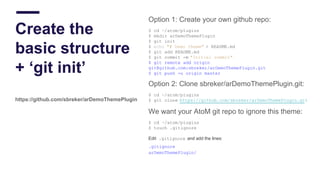
+ ‘git init’
https://github.com/sbreker/arDemoThemePlugin
Option 1: Create your own github repo:
$ cd ~/atom/plugins
$ mkdir arDemoThemePlugin
$ git init
$ echo "# Demo theme" > README.md
$ git add README.md
$ git commit -m "Initial commit"
$ git remote add origin
git@github.com:sbreker/arDemoThemePlugin.git
$ git push -u origin master
Option 2: Clone sbreker/arDemoThemePlugin.git:
$ cd ~/atom/plugins
$ git clone https://github.com/sbreker/arDemoThemePlugin.git
We want your AtoM git repo to ignore this theme:
$ cd ~/atom/plugins
$ touch .gitignore
Edit .gitignore and add the lines:
.gitignore
arDemoThemePlugin/
$ cd ~/atom/plugins/arDemoThemePlugin
$ mkdir config; cd config
Create and edit a new file:
➔ arDemoThemePluginConfiguration.class.php
Copy contents from github: sbreker/arDemoThemePlugin
Save the file.
Once file is in place:
● Login to your AtoM instance as user ‘demo@example.com’
● Go to Admin -> themes
● You will see your theme!
● Don’t select it yet!!! No CSS present yet!
Quickly review the contents...
Create config
class: Register
theme
https://github.com/sbreker/arDemoThemePlugin
Create main.less
& Makefile
https://github.com/sbreker/arDemoThemePlugin
Create Makefile:
$ cd ~/atom/plugins/arDemoThemePlugin
Create and edit a new file:
➔ Makefile
Copy contents from github: sbreker/arDemoThemePlugin
Save the file.
Create main.less:
$ mkdir css
Create and edit a new file:
➔ main.less
Copy contents from github: sbreker/arDemoThemePlugin & save
$ cd ~/atom/plugins/arDemoThemePlugin
$ make
1. Login to your AtoM instance as demo
2. Go to Admin -> themes
3. Activate your theme & refresh
4. Any changes???
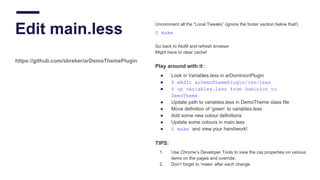
Edit main.less
https://github.com/sbreker/arDemoThemePlugin
Uncomment all the “Local Tweaks” (ignore the footer section below that!)
$ make
Go back to AtoM and refresh browser
Might have to clear cache!
Play around with it:
● Look in Variables.less in arDominionPlugin
● $ mkdir arDemoThemePlugin/css/less
● $ cp variables.less from Dominion to
DemoTheme
● Update path to variables.less in DemoTheme class file
● Move definition of ‘green’ to variables.less
● Add some new colour definitions
● Update some colours in main.less
● $ make and view your handiwork!
TIPS:
1. Use Chrome’s Developer Tools to view the css properties on various
items on the pages and override.
2. Don’t forget to ‘make’ after each change
Override a
module template
Remove ‘browse
by’ block
https://github.com/sbreker/arDemoThemePlugin
Let’s drop ‘Browse by’ sidebar item….
1. Find static page homeSuccess.php
a. In apps/qubit/modules/staticpage/templates
2. Look at dir structure
3. Build dir structure under DemoTheme
a. arDemoThemePlugin/modules/staticpage/templates
4. Copy homeSuccess.php to new DemoTheme templates dir
5. Investigate homeSuccess.php
6. Disable ‘Browse by’ menu
7. Did it work?
Override a
module template
Drop Repository
Logo from Descr
Sidebar
https://github.com/sbreker/arDemoThemePlugin
Let’s drop the logo from the Arch Descr sidebar
1. Find infoObj template component _contextmenu.php
a. In apps/qubit/modules/informationobject/templates
2. Look at dir structure
3. Build dir structure under DemoTheme modules
a. arDemoThemePlugin/modules/informationobject/templates
4. Copy _contextmenu.php to new DemoTheme templates dir
5. Investigate _contextmenu.php
6. Disable logo component
7. Success?
Let’s add a footer to the theme
● A good place for social media icons, contact info, external links
1. We are going to override the standard empty footer:
a. Default located here: apps/qubit/templates/_footer.php
2. Create folder ‘templates’ under plugins/arDemoThemePlugin
3. Create the file: _footer.php
a. Copy contents from gihub:
sbreker/arDemoThemePlugin/templates/_footerrename.php
4. Refresh AtoM (may need to clear browser cache)
5. How does it look?
6. Add some styling
a. Search for commented ‘footer’ block in css/main.less
7. ‘make’
8. What has changed?
Investigate contents of _footer.php
Where is image coming from?
Download it from github and add to theme:
● sbreker/arDemoThemePlugin/images/atom-logo.png
Add a footer
https://github.com/sbreker/arDemoThemePlugin
Reverse the 2
column layout
https://github.com/sbreker/arDemoThemePlugin
Another common request:
● Display the sidebar on the right-hand side of the content
1. Let’s override the standard 2 column layout template found here:
a. In apps/qubit/templates/layout_2col.php
2. Copy layout_2col.php to new DemoTheme templates dir
a. Place file in templates folder:
b. arDemoThemePlugin/templates/layout_2col.php
3. Investigate new file layout_2col.php
4. Search for the text “div class=”row”
5. Below this are two div blocks
a. “span3” and “span9”
b. Move the 5 lines making up ‘span3’ below the span9 block
6. Save your changes & refresh AtoM
7. Success?
Investigate contents of layout_2col.php
Note other layout types.
Does the swap affect Arch Descr detail view?
Adding logo.png
& favicon.ico
https://github.com/sbreker/arDemoThemePlugin
You will want to add your images to the theme
Replacing logo etc in atom/images will work but will impact ALL themes
1. $ cd ~/atom/plugins/arDemoThemePlugin
2. $ mkdir images; cd images
3. Add files here!
a. Logo.png
b. Favicon.ico
4. Any images missing? Check Dominion’s images folder
Other ideas:
● A new background file
● Image for top right of header
Override a
module template
Modify user
menu
https://github.com/sbreker/arDemoThemePlugin
Let’s customize the User Menu
1. Find menu module template component _userMenu.php
2. Look at dir structure
3. Build dir structure under DemoTheme
4. arDemoThemePlugin/modules/menu/templates
5. Copy _usermenu.php to new DemoTheme templates dir
6. Investigate _usermenu.php
7. Add a new menu item for Logged In users!
Bonus Points….
Let’s hide User Menu completely for unauthenticated users!!
● Could implement by deleting code block in _userMenu.php but
DON’T :)
● See apps/qubit/templates/_header.php
● Customize _header.phpusing is_authenticated()from
_usermenu.php
What’s next?
https://github.com/sbreker/arDemoThemePlugin
Ok - sky is the limit! Things to try:
● Change the font
● Add new images & refer from templates
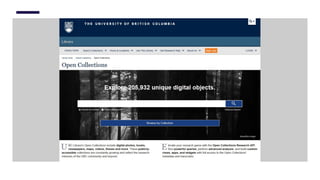
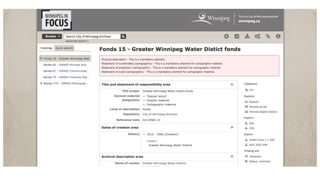
● Make the 12col layout float (e.g. Winnipeg)
● Modify header.less - copy to css/less
● Modify header: different height, contents, layout, etc
● Override apps/qubit/template files
● Create a brand new module within the theme
● Photo Carousel!
Q&A
www.accesstomemory.org
www.artefactual.com

Creating custom themes in AtoM

  • 1.
    Creating custom themes inAtoM An introduction to relevant theming files, registering a plugin, home page customizations, and also give devs a chance to create basic themes.
  • 5.
    Basic Edits Some thingsare easy to change without touching the theme: 1. Site title & site description a. Updated in Admin - Settings - Site info 2. Logo a. Replace atom/images/logo.png 3. Application Icon a. Replace atom/favicon.ico 4. Website meta tags a. atom/apps/qubit/config/view.yml 5. Static Pages a. Admin - Static pages 6. User Interface Labels a. Admin - Settings - User Interface Labels 7. Default standards templates a. Admin - Settings - Default templates 8. Menus a. Admin - Menus
  • 6.
    Creating a new theme https://github.com/sbreker/arDemoThemePlugin AtoMcomes with two built in themes ● Dominion ● Archives Canada ● Dominion is default Use Dominion as a base or copy Dominion ● Copy the whole thing ● Reference the Dominion files from our theme Uses Less - ‘make’ to generate css file Today we will create and customize a new theme https://github.com/sbreker/arDemoThemePlugin Resources: ● Admin manual theming section ● Corcovado theme in github ○ https://github.com/artefactual-labs/atom-theme-corcovado
  • 7.
    Create the basic structure +‘git init’ https://github.com/sbreker/arDemoThemePlugin Option 1: Create your own github repo: $ cd ~/atom/plugins $ mkdir arDemoThemePlugin $ git init $ echo "# Demo theme" > README.md $ git add README.md $ git commit -m "Initial commit" $ git remote add origin git@github.com:sbreker/arDemoThemePlugin.git $ git push -u origin master Option 2: Clone sbreker/arDemoThemePlugin.git: $ cd ~/atom/plugins $ git clone https://github.com/sbreker/arDemoThemePlugin.git We want your AtoM git repo to ignore this theme: $ cd ~/atom/plugins $ touch .gitignore Edit .gitignore and add the lines: .gitignore arDemoThemePlugin/
  • 8.
    $ cd ~/atom/plugins/arDemoThemePlugin $mkdir config; cd config Create and edit a new file: ➔ arDemoThemePluginConfiguration.class.php Copy contents from github: sbreker/arDemoThemePlugin Save the file. Once file is in place: ● Login to your AtoM instance as user ‘demo@example.com’ ● Go to Admin -> themes ● You will see your theme! ● Don’t select it yet!!! No CSS present yet! Quickly review the contents... Create config class: Register theme https://github.com/sbreker/arDemoThemePlugin
  • 9.
    Create main.less & Makefile https://github.com/sbreker/arDemoThemePlugin CreateMakefile: $ cd ~/atom/plugins/arDemoThemePlugin Create and edit a new file: ➔ Makefile Copy contents from github: sbreker/arDemoThemePlugin Save the file. Create main.less: $ mkdir css Create and edit a new file: ➔ main.less Copy contents from github: sbreker/arDemoThemePlugin & save $ cd ~/atom/plugins/arDemoThemePlugin $ make 1. Login to your AtoM instance as demo 2. Go to Admin -> themes 3. Activate your theme & refresh 4. Any changes???
  • 10.
    Edit main.less https://github.com/sbreker/arDemoThemePlugin Uncomment allthe “Local Tweaks” (ignore the footer section below that!) $ make Go back to AtoM and refresh browser Might have to clear cache! Play around with it: ● Look in Variables.less in arDominionPlugin ● $ mkdir arDemoThemePlugin/css/less ● $ cp variables.less from Dominion to DemoTheme ● Update path to variables.less in DemoTheme class file ● Move definition of ‘green’ to variables.less ● Add some new colour definitions ● Update some colours in main.less ● $ make and view your handiwork! TIPS: 1. Use Chrome’s Developer Tools to view the css properties on various items on the pages and override. 2. Don’t forget to ‘make’ after each change
  • 11.
    Override a module template Remove‘browse by’ block https://github.com/sbreker/arDemoThemePlugin Let’s drop ‘Browse by’ sidebar item…. 1. Find static page homeSuccess.php a. In apps/qubit/modules/staticpage/templates 2. Look at dir structure 3. Build dir structure under DemoTheme a. arDemoThemePlugin/modules/staticpage/templates 4. Copy homeSuccess.php to new DemoTheme templates dir 5. Investigate homeSuccess.php 6. Disable ‘Browse by’ menu 7. Did it work?
  • 13.
    Override a module template DropRepository Logo from Descr Sidebar https://github.com/sbreker/arDemoThemePlugin Let’s drop the logo from the Arch Descr sidebar 1. Find infoObj template component _contextmenu.php a. In apps/qubit/modules/informationobject/templates 2. Look at dir structure 3. Build dir structure under DemoTheme modules a. arDemoThemePlugin/modules/informationobject/templates 4. Copy _contextmenu.php to new DemoTheme templates dir 5. Investigate _contextmenu.php 6. Disable logo component 7. Success?
  • 15.
    Let’s add afooter to the theme ● A good place for social media icons, contact info, external links 1. We are going to override the standard empty footer: a. Default located here: apps/qubit/templates/_footer.php 2. Create folder ‘templates’ under plugins/arDemoThemePlugin 3. Create the file: _footer.php a. Copy contents from gihub: sbreker/arDemoThemePlugin/templates/_footerrename.php 4. Refresh AtoM (may need to clear browser cache) 5. How does it look? 6. Add some styling a. Search for commented ‘footer’ block in css/main.less 7. ‘make’ 8. What has changed? Investigate contents of _footer.php Where is image coming from? Download it from github and add to theme: ● sbreker/arDemoThemePlugin/images/atom-logo.png Add a footer https://github.com/sbreker/arDemoThemePlugin
  • 16.
    Reverse the 2 columnlayout https://github.com/sbreker/arDemoThemePlugin Another common request: ● Display the sidebar on the right-hand side of the content 1. Let’s override the standard 2 column layout template found here: a. In apps/qubit/templates/layout_2col.php 2. Copy layout_2col.php to new DemoTheme templates dir a. Place file in templates folder: b. arDemoThemePlugin/templates/layout_2col.php 3. Investigate new file layout_2col.php 4. Search for the text “div class=”row” 5. Below this are two div blocks a. “span3” and “span9” b. Move the 5 lines making up ‘span3’ below the span9 block 6. Save your changes & refresh AtoM 7. Success? Investigate contents of layout_2col.php Note other layout types. Does the swap affect Arch Descr detail view?
  • 18.
    Adding logo.png & favicon.ico https://github.com/sbreker/arDemoThemePlugin Youwill want to add your images to the theme Replacing logo etc in atom/images will work but will impact ALL themes 1. $ cd ~/atom/plugins/arDemoThemePlugin 2. $ mkdir images; cd images 3. Add files here! a. Logo.png b. Favicon.ico 4. Any images missing? Check Dominion’s images folder Other ideas: ● A new background file ● Image for top right of header
  • 19.
    Override a module template Modifyuser menu https://github.com/sbreker/arDemoThemePlugin Let’s customize the User Menu 1. Find menu module template component _userMenu.php 2. Look at dir structure 3. Build dir structure under DemoTheme 4. arDemoThemePlugin/modules/menu/templates 5. Copy _usermenu.php to new DemoTheme templates dir 6. Investigate _usermenu.php 7. Add a new menu item for Logged In users! Bonus Points…. Let’s hide User Menu completely for unauthenticated users!! ● Could implement by deleting code block in _userMenu.php but DON’T :) ● See apps/qubit/templates/_header.php ● Customize _header.phpusing is_authenticated()from _usermenu.php
  • 20.
    What’s next? https://github.com/sbreker/arDemoThemePlugin Ok -sky is the limit! Things to try: ● Change the font ● Add new images & refer from templates ● Make the 12col layout float (e.g. Winnipeg) ● Modify header.less - copy to css/less ● Modify header: different height, contents, layout, etc ● Override apps/qubit/template files ● Create a brand new module within the theme ● Photo Carousel!
  • 21.