Ally Alternative Formats is a derivative of Ally for Instructors by Blackboard used under CC BY 3.0
Technology Enhanced Learning | tel.yorksj.ac.uk | TEL@yorksj.ac.uk | 01904 876967
Ally
Course Accessibility Report
Strategise and prioritise how you fix your course content
Looking through your course files, you notice the Ally accessibility indicators and want to start
fixing your content, but where to start? The instructor-facing course report helps you determine a
pathway to more inclusive education that works for you. Use the report to tackle accessibility
issues file by file, prioritise specific issues based on severity, or focus on the easiest issues first.
Course Score and Content Breakdown
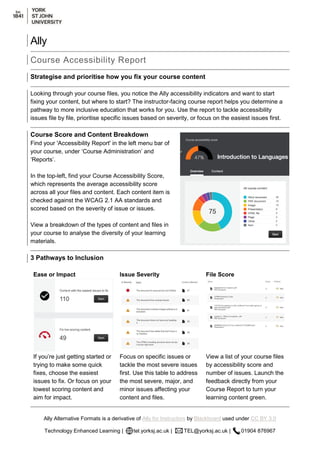
Find your 'Accessibility Report' in the left menu bar of
your course, under ‘Course Administration’ and
‘Reports’.
In the top-left, find your Course Accessibility Score,
which represents the average accessibility score
across all your files and content. Each content item is
checked against the WCAG 2.1 AA standards and
scored based on the severity of issue or issues.
View a breakdown of the types of content and files in
your course to analyse the diversity of your learning
materials.
3 Pathways to Inclusion
Ease or Impact Issue Severity File Score
If you’re just getting started or
trying to make some quick
fixes, choose the easiest
issues to fix. Or focus on your
lowest scoring content and
aim for impact.
Focus on specific issues or
tackle the most severe issues
first. Use this table to address
the most severe, major, and
minor issues affecting your
content and files.
View a list of your course files
by accessibility score and
number of issues. Launch the
feedback directly from your
Course Report to turn your
learning content green.

Ally: Course Accessibility Report

  • 1.
    Ally Alternative Formatsis a derivative of Ally for Instructors by Blackboard used under CC BY 3.0 Technology Enhanced Learning | tel.yorksj.ac.uk | TEL@yorksj.ac.uk | 01904 876967 Ally Course Accessibility Report Strategise and prioritise how you fix your course content Looking through your course files, you notice the Ally accessibility indicators and want to start fixing your content, but where to start? The instructor-facing course report helps you determine a pathway to more inclusive education that works for you. Use the report to tackle accessibility issues file by file, prioritise specific issues based on severity, or focus on the easiest issues first. Course Score and Content Breakdown Find your 'Accessibility Report' in the left menu bar of your course, under ‘Course Administration’ and ‘Reports’. In the top-left, find your Course Accessibility Score, which represents the average accessibility score across all your files and content. Each content item is checked against the WCAG 2.1 AA standards and scored based on the severity of issue or issues. View a breakdown of the types of content and files in your course to analyse the diversity of your learning materials. 3 Pathways to Inclusion Ease or Impact Issue Severity File Score If you’re just getting started or trying to make some quick fixes, choose the easiest issues to fix. Or focus on your lowest scoring content and aim for impact. Focus on specific issues or tackle the most severe issues first. Use this table to address the most severe, major, and minor issues affecting your content and files. View a list of your course files by accessibility score and number of issues. Launch the feedback directly from your Course Report to turn your learning content green.