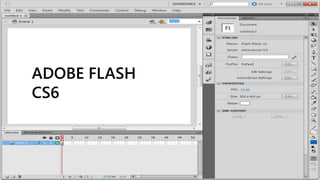
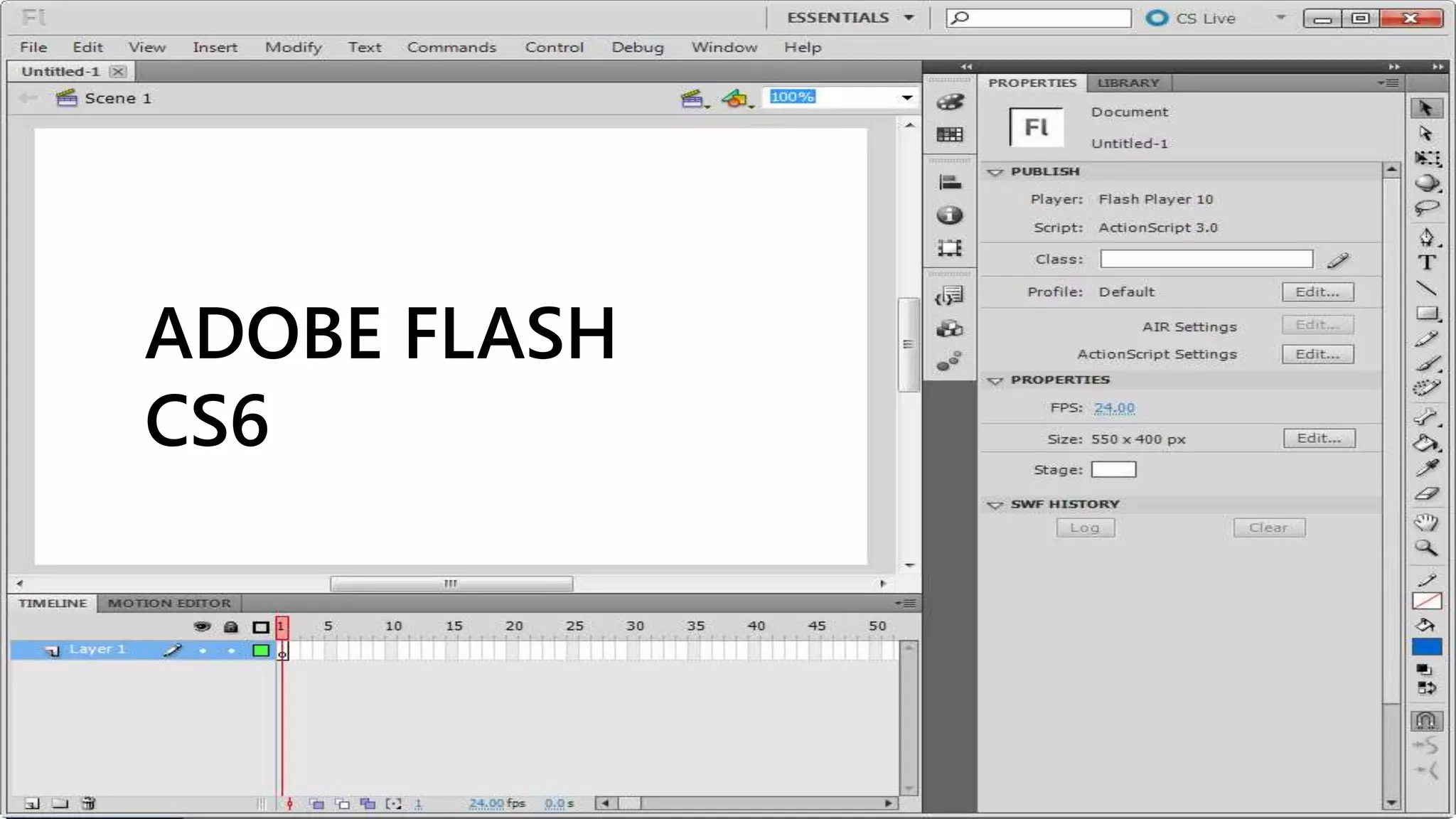
ADOBE FLASH
CS6
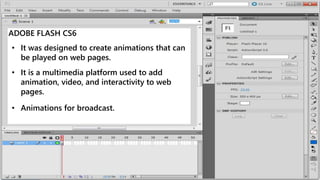
ADOBE FLASH CS6
• It was designed to create animations that can
be played on web pages.
• It is a multimedia platform used to add
animation, video, and interactivity to web
pages.
• Animations for broadcast.
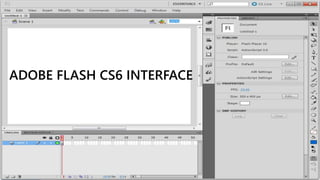
ADOBE FLASH CS6 INTERFACE
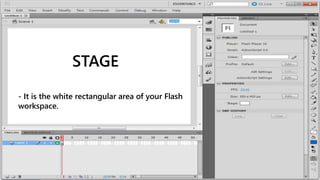
STAGE
- It is the white rectangular area of your Flash
workspace.
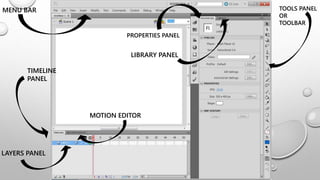
MENU BAR
TIMELINE
PANEL
TOOLS PANEL
OR
TOOLBAR
PROPERTIES PANEL
LIBRARY PANEL
LAYERS PANEL
MOTION EDITOR
TOOLS PANEL
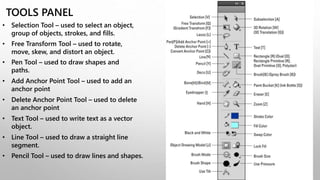
• Selection Tool – used to select an object,
group of objects, strokes, and fills.
• Free Transform Tool – used to rotate,
move, skew, and distort an object.
• Pen Tool – used to draw shapes and
paths.
• Add Anchor Point Tool – used to add an
anchor point
• Delete Anchor Point Tool – used to delete
an anchor point
• Text Tool – used to write text as a vector
object.
• Line Tool – used to draw a straight line
segment.
• Pencil Tool – used to draw lines and shapes.
TOOLS PANEL
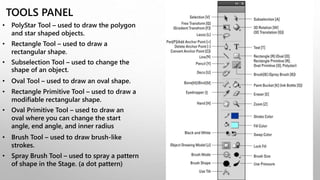
• PolyStar Tool – used to draw the polygon
and star shaped objects.
• Rectangle Tool – used to draw a
rectangular shape.
• Subselection Tool – used to change the
shape of an object.
• Oval Tool – used to draw an oval shape.
• Rectangle Primitive Tool – used to draw a
modifiable rectangular shape.
• Oval Primitive Tool – used to draw an
oval where you can change the start
angle, end angle, and inner radius
• Brush Tool – used to draw brush-like
strokes.
• Spray Brush Tool – used to spray a pattern
of shape in the Stage. (a dot pattern)
TOOLS PANEL
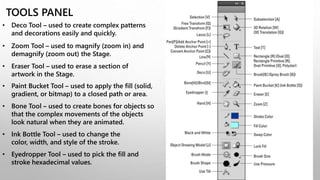
• Deco Tool – used to create complex patterns
and decorations easily and quickly.
• Zoom Tool – used to magnify (zoom in) and
demagnify (zoom out) the Stage.
• Eraser Tool – used to erase a section of
artwork in the Stage.
• Paint Bucket Tool – used to apply the fill (solid,
gradient, or bitmap) to a closed path or area.
• Bone Tool – used to create bones for objects so
that the complex movements of the objects
look natural when they are animated.
• Ink Bottle Tool – used to change the
color, width, and style of the stroke.
• Eyedropper Tool – used to pick the fill and
stroke hexadecimal values.
TOOLS PANEL
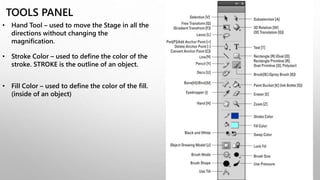
• Hand Tool – used to move the Stage in all the
directions without changing the
magnification.
• Stroke Color – used to define the color of the
stroke. STROKE is the outline of an object.
• Fill Color – used to define the color of the fill.
(inside of an object)
TIMELINE PANEL
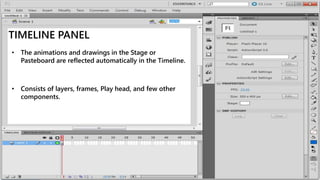
• The animations and drawings in the Stage or
Pasteboard are reflected automatically in the Timeline.
• Consists of layers, frames, Play head, and few other
components.
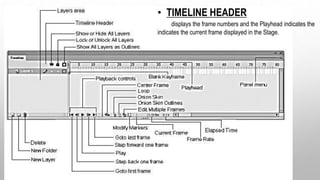
• TIMELINE HEADER
displays the frame numbers and the Playhead indicates the
indicates the current frame displayed in the Stage.
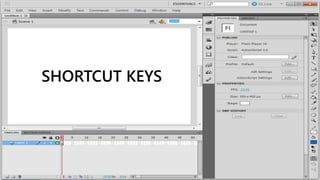
SHORTCUT KEYS
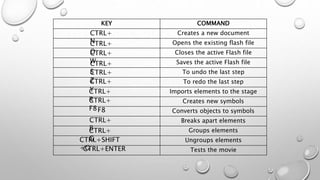
KEY COMMAND
Creates a new document
Opens the existing flash file
Closes the active Flash file
Saves the active Flash file
To undo the last step
To redo the last step
Imports elements to the stage
Creates new symbols
Converts objects to symbols
Breaks apart elements
Groups elements
Ungroups elements
Tests the movie
CTRL+
NCTRL+
OCTRL+
WCTRL+
SCTRL+
ZCTRL+
YCTRL+
RCTRL+
F8F8
CTRL+
BCTRL+
GCTRL+SHIFT
+GCTRL+ENTER
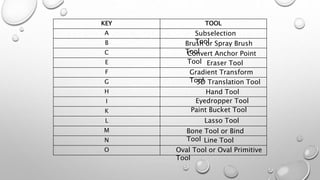
KEY TOOL
A
B
C
E
F
G
H
I
K
L
M
N
O
Brush or Spray Brush
ToolConvert Anchor Point
Tool Eraser Tool
Gradient Transform
Tool3D Translation Tool
Hand Tool
Eyedropper Tool
Paint Bucket Tool
Lasso Tool
Bone Tool or Bind
Tool Line Tool
Oval Tool or Oval Primitive
Tool
Subselection
Tool
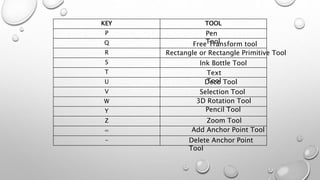
KEY TOOL
P
Q
R
S
T
U
V
W
Y
Z
=
-
Free Transform tool
Rectangle or Rectangle Primitive Tool
Ink Bottle Tool
Text
ToolDeco Tool
Selection Tool
3D Rotation Tool
Zoom Tool
Add Anchor Point Tool
Delete Anchor Point
Tool
Pencil Tool
Pen
Tool
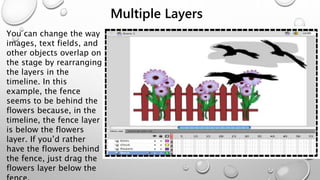
Multiple Layers
You can change the way
images, text fields, and
other objects overlap on
the stage by rearranging
the layers in the
timeline. In this
example, the fence
seems to be behind the
flowers because, in the
timeline, the fence layer
is below the flowers
layer. If you’d rather
have the flowers behind
the fence, just drag the
flowers layer below the
Two Types of Graphics
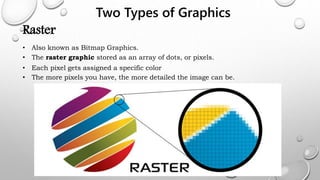
Raster
• Also known as Bitmap Graphics.
• The raster graphic stored as an array of dots, or pixels.
• Each pixel gets assigned a specific color
• The more pixels you have, the more detailed the image can be.
Two Types of Graphics
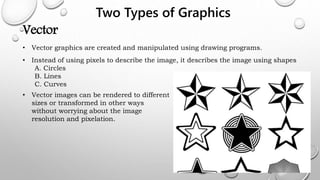
Vector
• Vector graphics are created and manipulated using drawing programs.
• Instead of using pixels to describe the image, it describes the image using shapes
A. Circles
B. Lines
C. Curves
• Vector images can be rendered to different
sizes or transformed in other ways
without worrying about the image
resolution and pixelation.
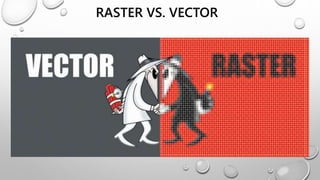
RASTER VS. VECTOR
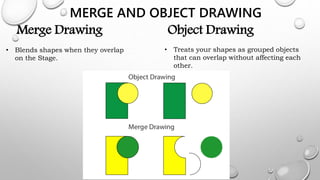
MERGE AND OBJECT DRAWING
Merge Drawing
• Blends shapes when they overlap
on the Stage.
Object Drawing
• Treats your shapes as grouped objects
that can overlap without affecting each
other.
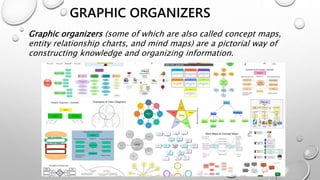
GRAPHIC ORGANIZERS
Graphic organizers (some of which are also called concept maps,
entity relationship charts, and mind maps) are a pictorial way of
constructing knowledge and organizing information.

GRADE 8 - COMPUTER ADOBE FLASH CS6

  • 1.
  • 2.
    ADOBE FLASH CS6 •It was designed to create animations that can be played on web pages. • It is a multimedia platform used to add animation, video, and interactivity to web pages. • Animations for broadcast.
  • 3.
    ADOBE FLASH CS6INTERFACE
  • 4.
    STAGE - It isthe white rectangular area of your Flash workspace.
  • 5.
    MENU BAR TIMELINE PANEL TOOLS PANEL OR TOOLBAR PROPERTIESPANEL LIBRARY PANEL LAYERS PANEL MOTION EDITOR
  • 6.
    TOOLS PANEL • SelectionTool – used to select an object, group of objects, strokes, and fills. • Free Transform Tool – used to rotate, move, skew, and distort an object. • Pen Tool – used to draw shapes and paths. • Add Anchor Point Tool – used to add an anchor point • Delete Anchor Point Tool – used to delete an anchor point • Text Tool – used to write text as a vector object. • Line Tool – used to draw a straight line segment. • Pencil Tool – used to draw lines and shapes.
  • 7.
    TOOLS PANEL • PolyStarTool – used to draw the polygon and star shaped objects. • Rectangle Tool – used to draw a rectangular shape. • Subselection Tool – used to change the shape of an object. • Oval Tool – used to draw an oval shape. • Rectangle Primitive Tool – used to draw a modifiable rectangular shape. • Oval Primitive Tool – used to draw an oval where you can change the start angle, end angle, and inner radius • Brush Tool – used to draw brush-like strokes. • Spray Brush Tool – used to spray a pattern of shape in the Stage. (a dot pattern)
  • 8.
    TOOLS PANEL • DecoTool – used to create complex patterns and decorations easily and quickly. • Zoom Tool – used to magnify (zoom in) and demagnify (zoom out) the Stage. • Eraser Tool – used to erase a section of artwork in the Stage. • Paint Bucket Tool – used to apply the fill (solid, gradient, or bitmap) to a closed path or area. • Bone Tool – used to create bones for objects so that the complex movements of the objects look natural when they are animated. • Ink Bottle Tool – used to change the color, width, and style of the stroke. • Eyedropper Tool – used to pick the fill and stroke hexadecimal values.
  • 9.
    TOOLS PANEL • HandTool – used to move the Stage in all the directions without changing the magnification. • Stroke Color – used to define the color of the stroke. STROKE is the outline of an object. • Fill Color – used to define the color of the fill. (inside of an object)
  • 10.
    TIMELINE PANEL • Theanimations and drawings in the Stage or Pasteboard are reflected automatically in the Timeline. • Consists of layers, frames, Play head, and few other components.
  • 11.
    • TIMELINE HEADER displaysthe frame numbers and the Playhead indicates the indicates the current frame displayed in the Stage.
  • 12.
  • 13.
    KEY COMMAND Creates anew document Opens the existing flash file Closes the active Flash file Saves the active Flash file To undo the last step To redo the last step Imports elements to the stage Creates new symbols Converts objects to symbols Breaks apart elements Groups elements Ungroups elements Tests the movie CTRL+ NCTRL+ OCTRL+ WCTRL+ SCTRL+ ZCTRL+ YCTRL+ RCTRL+ F8F8 CTRL+ BCTRL+ GCTRL+SHIFT +GCTRL+ENTER
  • 14.
    KEY TOOL A B C E F G H I K L M N O Brush orSpray Brush ToolConvert Anchor Point Tool Eraser Tool Gradient Transform Tool3D Translation Tool Hand Tool Eyedropper Tool Paint Bucket Tool Lasso Tool Bone Tool or Bind Tool Line Tool Oval Tool or Oval Primitive Tool Subselection Tool
  • 15.
    KEY TOOL P Q R S T U V W Y Z = - Free Transformtool Rectangle or Rectangle Primitive Tool Ink Bottle Tool Text ToolDeco Tool Selection Tool 3D Rotation Tool Zoom Tool Add Anchor Point Tool Delete Anchor Point Tool Pencil Tool Pen Tool
  • 16.
    Multiple Layers You canchange the way images, text fields, and other objects overlap on the stage by rearranging the layers in the timeline. In this example, the fence seems to be behind the flowers because, in the timeline, the fence layer is below the flowers layer. If you’d rather have the flowers behind the fence, just drag the flowers layer below the
  • 17.
    Two Types ofGraphics Raster • Also known as Bitmap Graphics. • The raster graphic stored as an array of dots, or pixels. • Each pixel gets assigned a specific color • The more pixels you have, the more detailed the image can be.
  • 18.
    Two Types ofGraphics Vector • Vector graphics are created and manipulated using drawing programs. • Instead of using pixels to describe the image, it describes the image using shapes A. Circles B. Lines C. Curves • Vector images can be rendered to different sizes or transformed in other ways without worrying about the image resolution and pixelation.
  • 19.
  • 20.
    MERGE AND OBJECTDRAWING Merge Drawing • Blends shapes when they overlap on the Stage. Object Drawing • Treats your shapes as grouped objects that can overlap without affecting each other.
  • 21.
    GRAPHIC ORGANIZERS Graphic organizers(some of which are also called concept maps, entity relationship charts, and mind maps) are a pictorial way of constructing knowledge and organizing information.