Developing and Deploying
Windows 10 Apps
Fons Sonnemans
Reflection IT
@fonssonnemans
www.storeappsug.nl
@StoreAppsUG
Topics
• Developing Windows 10 Apps
• Universal Windows Apps
• Blend 2015
• What’s new in XAML
• Adaptive UI
• Break
• Deploying Windows 10 Apps
Fons Sonnemans
• Software Development Consultant
• Programming Languages
• Clipper, Smalltalk, Visual Basic, C#
• Platforms
• Windows Forms, ASP.NET (Web Forms, MVC), XAML (WPF, Silverlight, Windows
Phone, Windows 8 & 10)
• Databases
• MS SQL Server, Oracle
• Role
• Trainer, Coach, Advisor, Architect, Designer, App Developer
• More info: www.reflectionit.nl
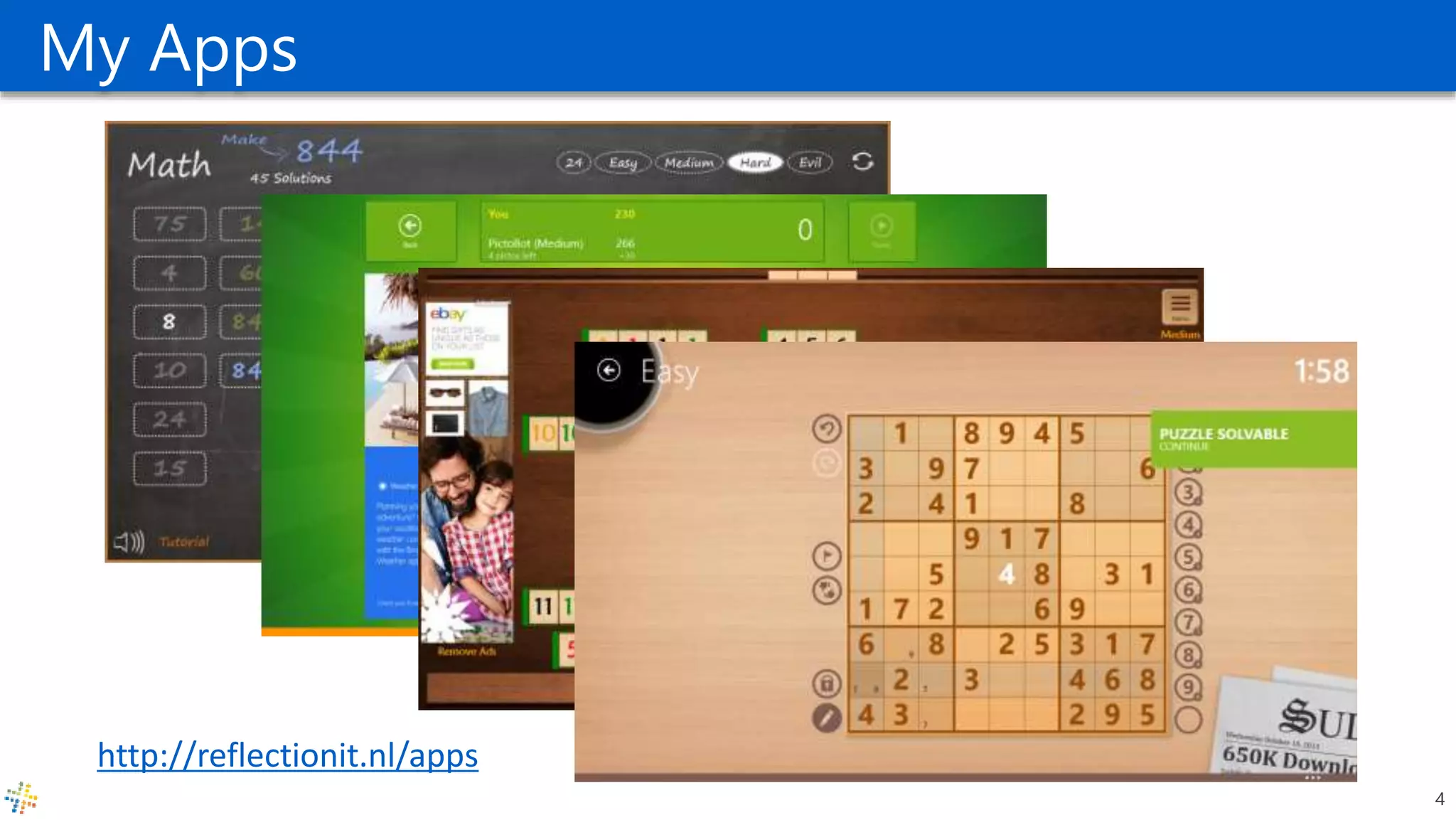
My Apps
4
http://reflectionit.nl/apps
Universal Windows Apps
Introducing the Universal Windows Platform (UWP)
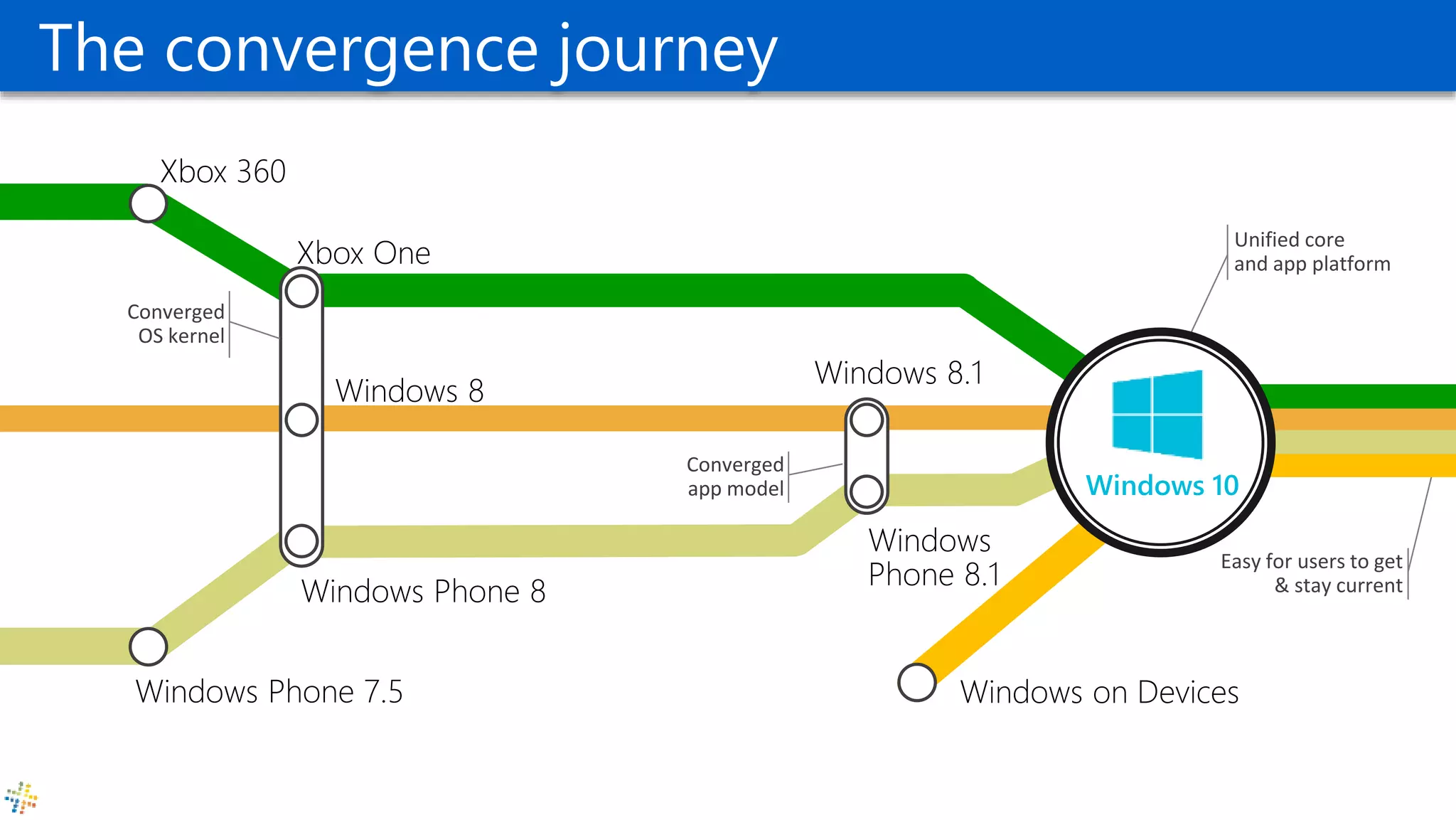
Easy for users to get
& stay current
Unified core
and app platform
The convergence journey
Windows 10
Converged
OS kernel
Converged
app model
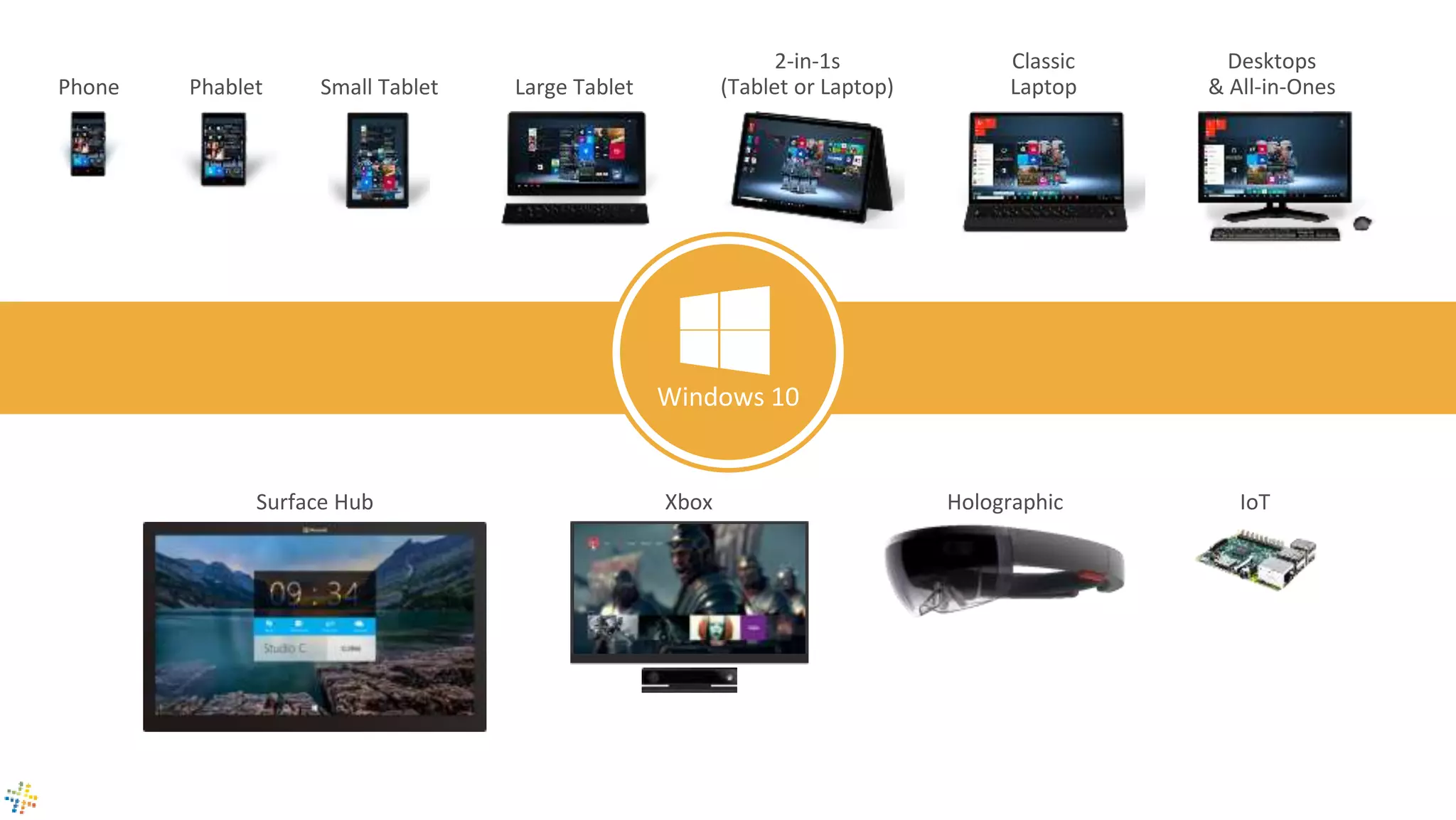
Phone Small Tablet
2-in-1s
(Tablet or Laptop)
Desktops
& All-in-OnesPhablet Large Tablet
Classic
Laptop
Xbox IoTSurface Hub Holographic
Windows 10
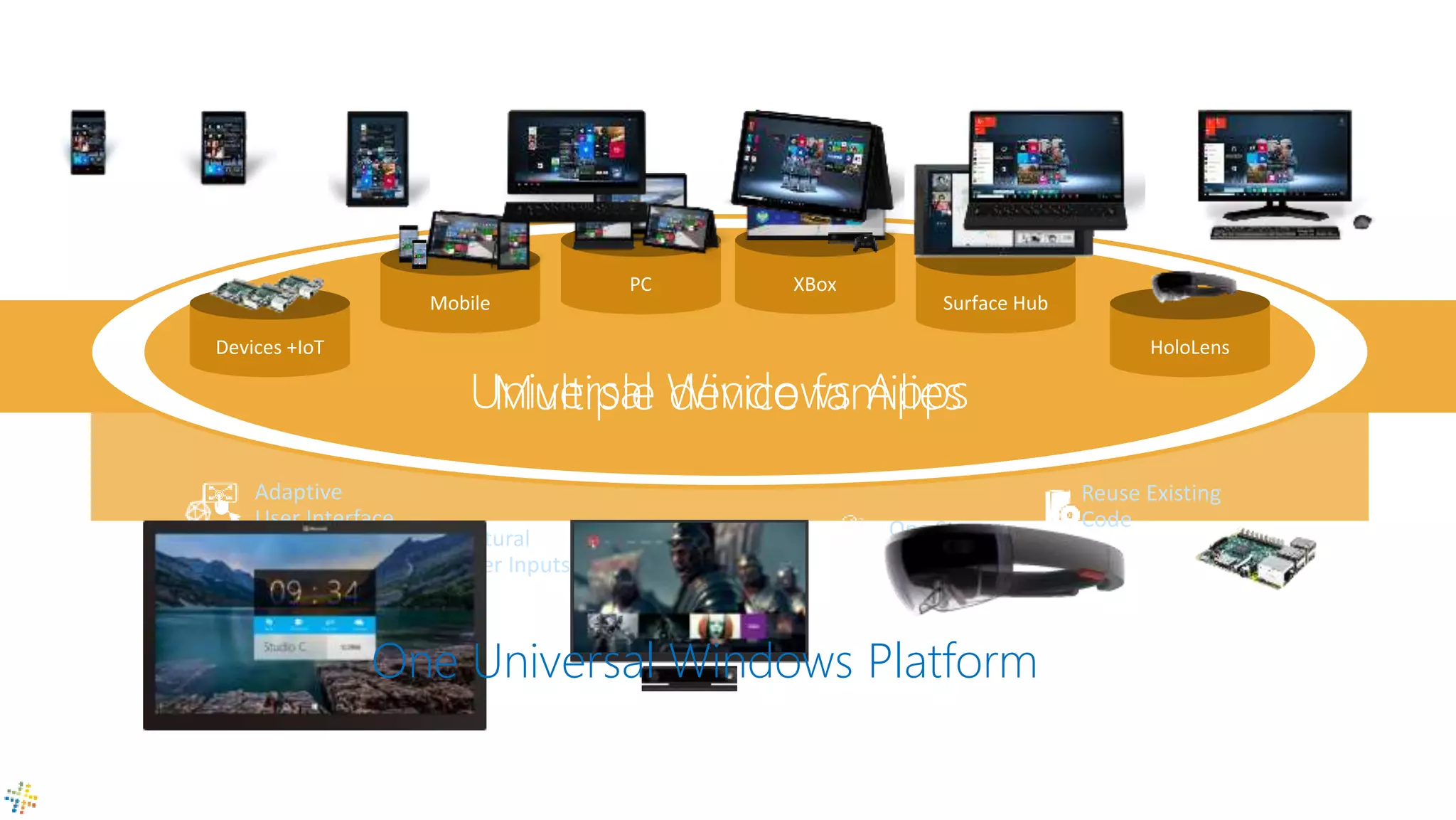
One Store +
One Dev Center
Reuse Existing
Code
One SDK +
Tooling
Adaptive
User Interface
Natural
User Inputs
One Universal Windows Platform
Universal Windows Platform
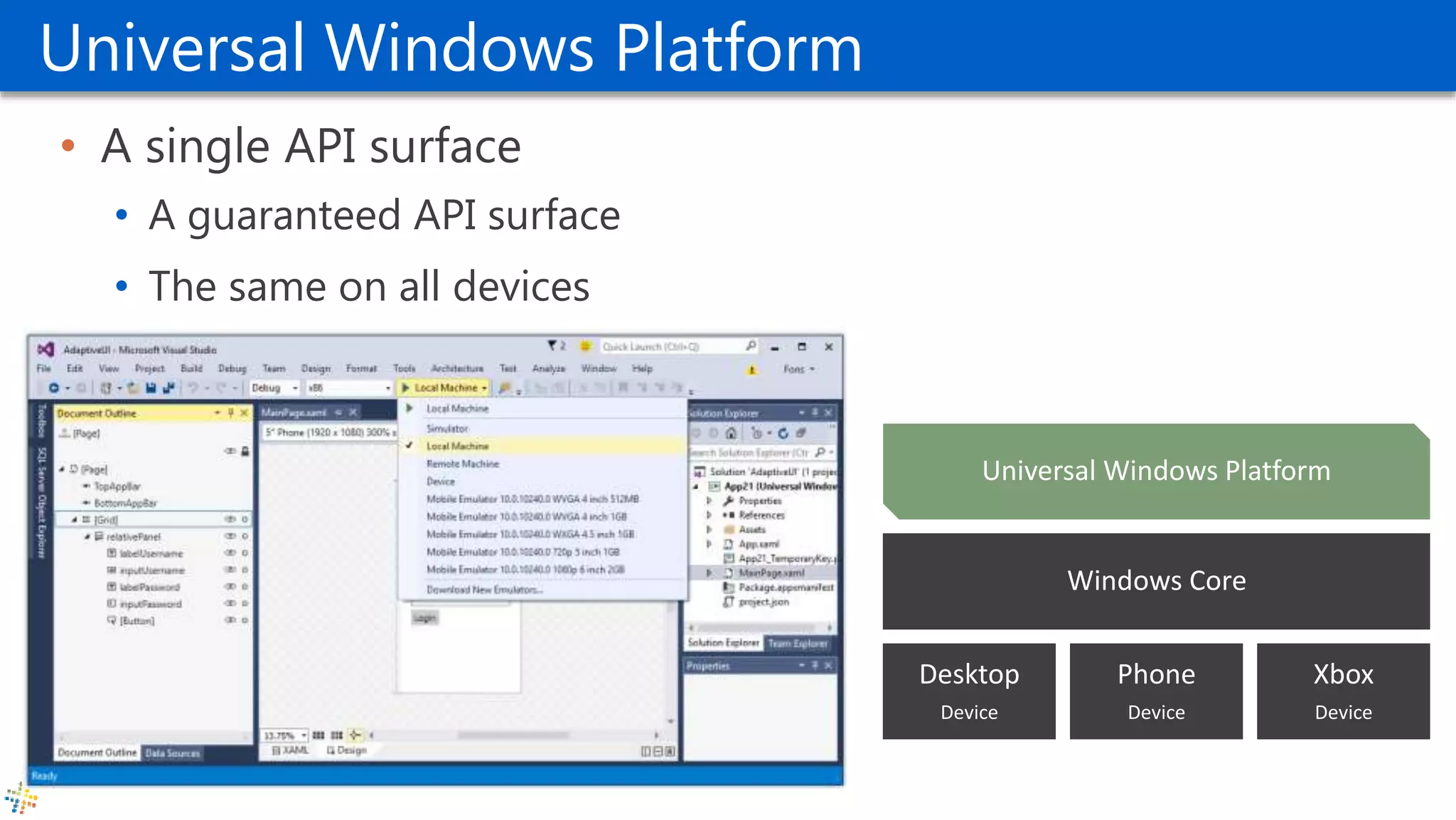
• A single API surface
• A guaranteed API surface
• The same on all devices
Phone
Device
Xbox
Device
Desktop
Device
Windows Core
Universal Windows Platform
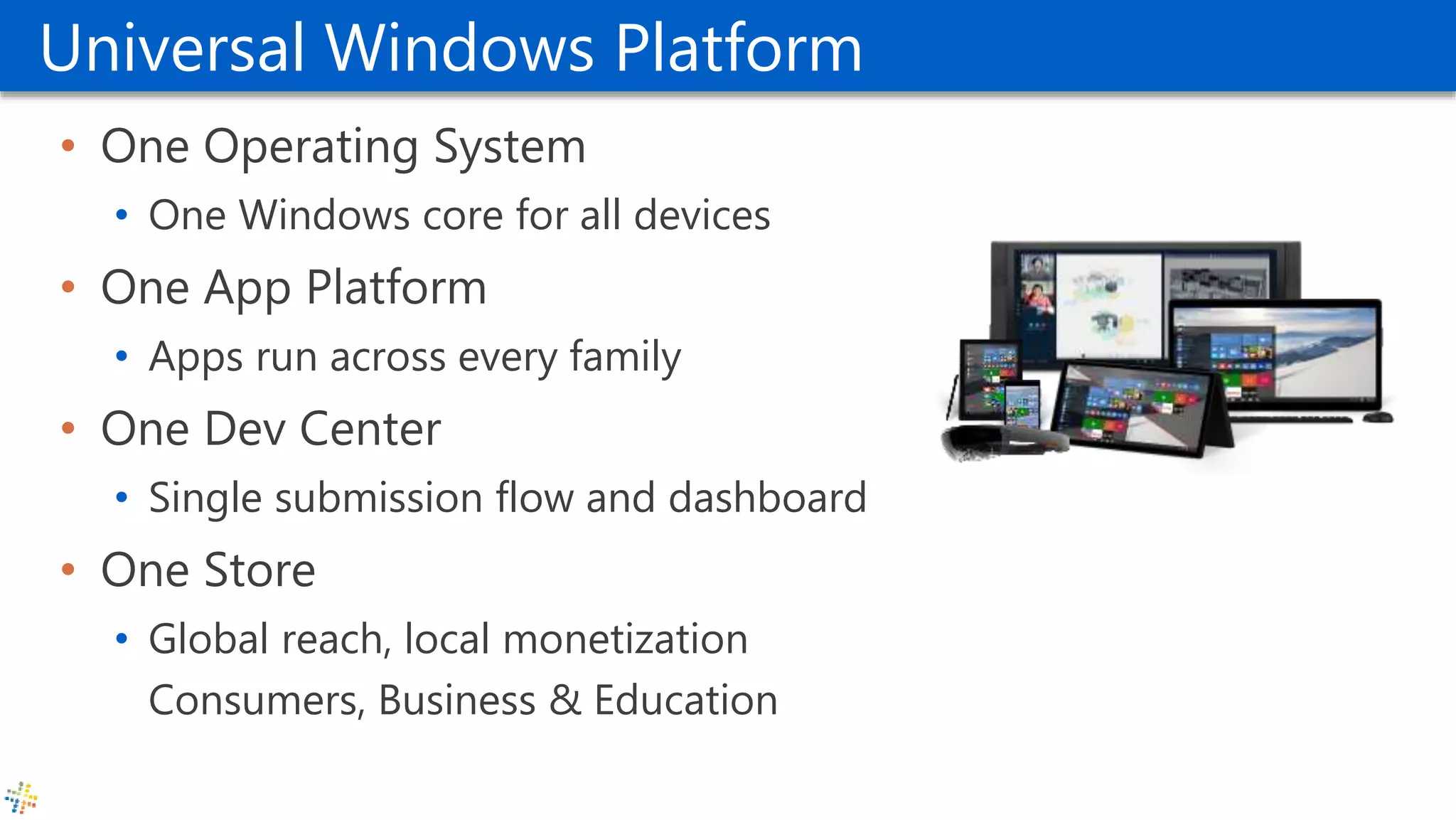
• One Operating System
• One Windows core for all devices
• One App Platform
• Apps run across every family
• One Dev Center
• Single submission flow and dashboard
• One Store
• Global reach, local monetization
Consumers, Business & Education
Adaptive code
• A compatible binary across devices
• Universal API with device-specific implementation
• Light up our app with capabilities
• Testing for capabilities and namespaces
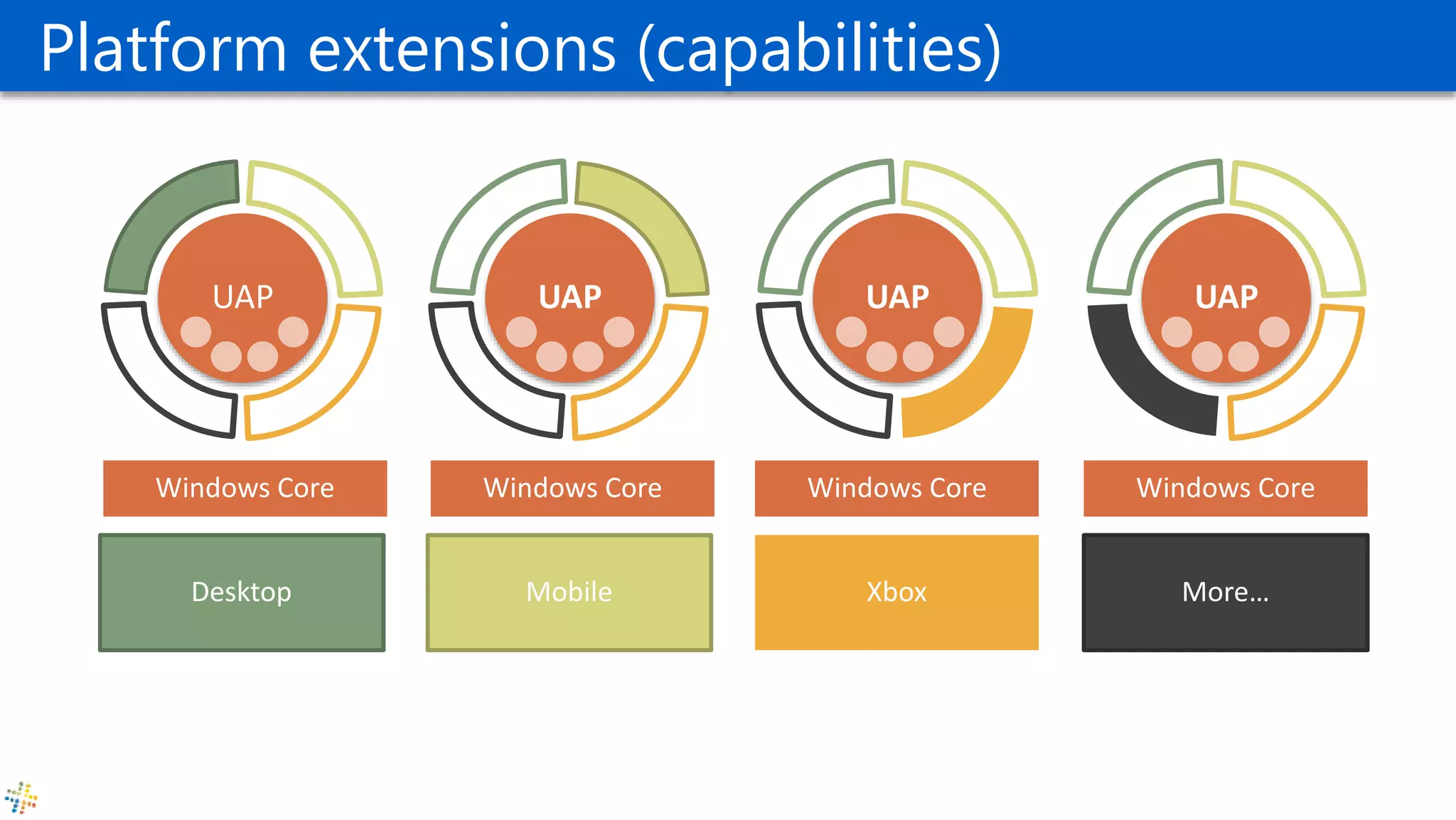
UAP
Windows Core Windows Core Windows Core Windows Core
UAP UAP UAP
Desktop Mobile Xbox More…
Adaptive codePlatform extensions (capabilities)
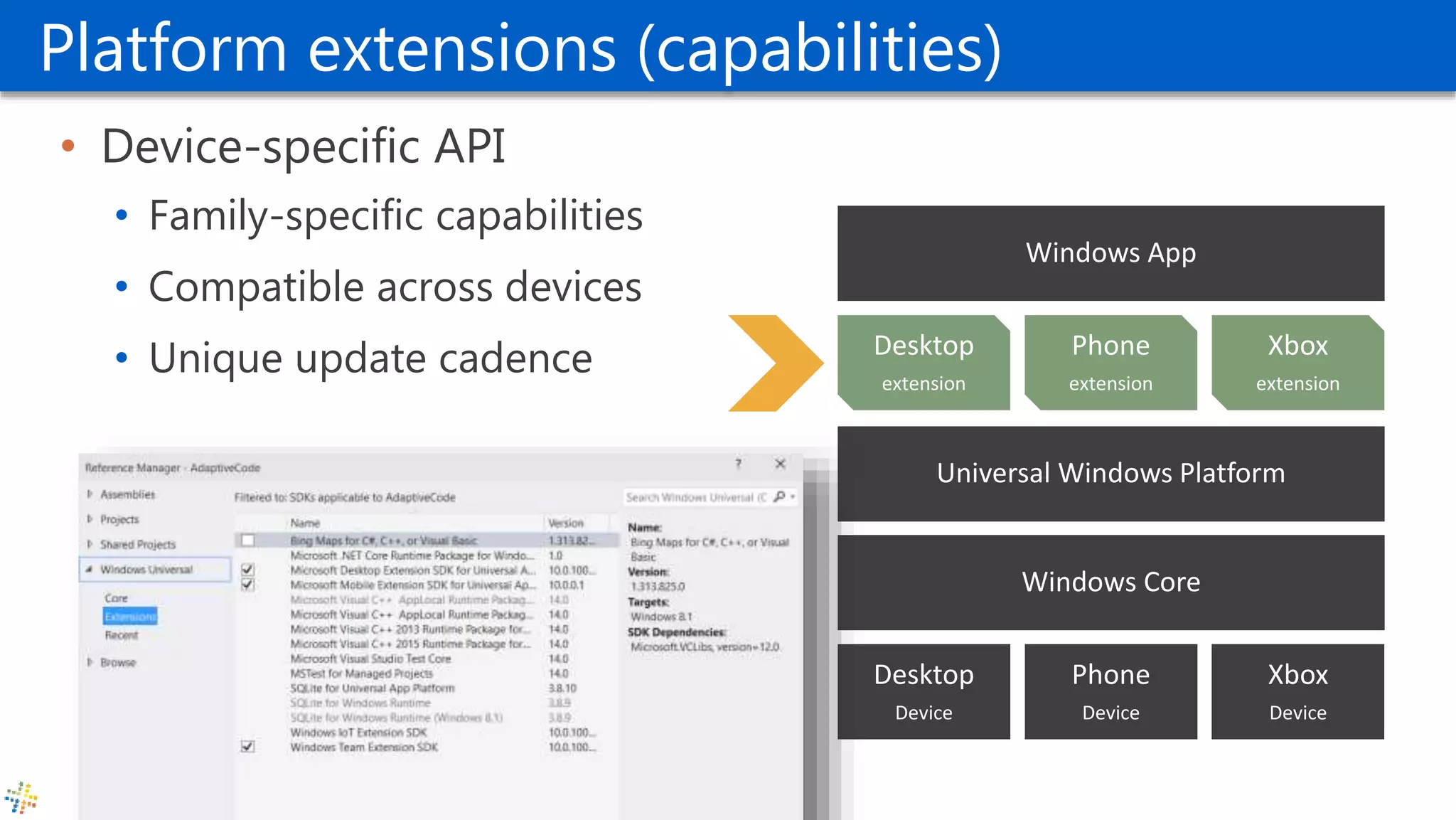
Platform extensions (capabilities)
• Device-specific API
• Family-specific capabilities
• Compatible across devices
• Unique update cadence
Phone
Device
Xbox
Device
Desktop
Device
Windows Core
Universal Windows Platform
Windows App
Phone
extension
Xbox
extension
Desktop
extension
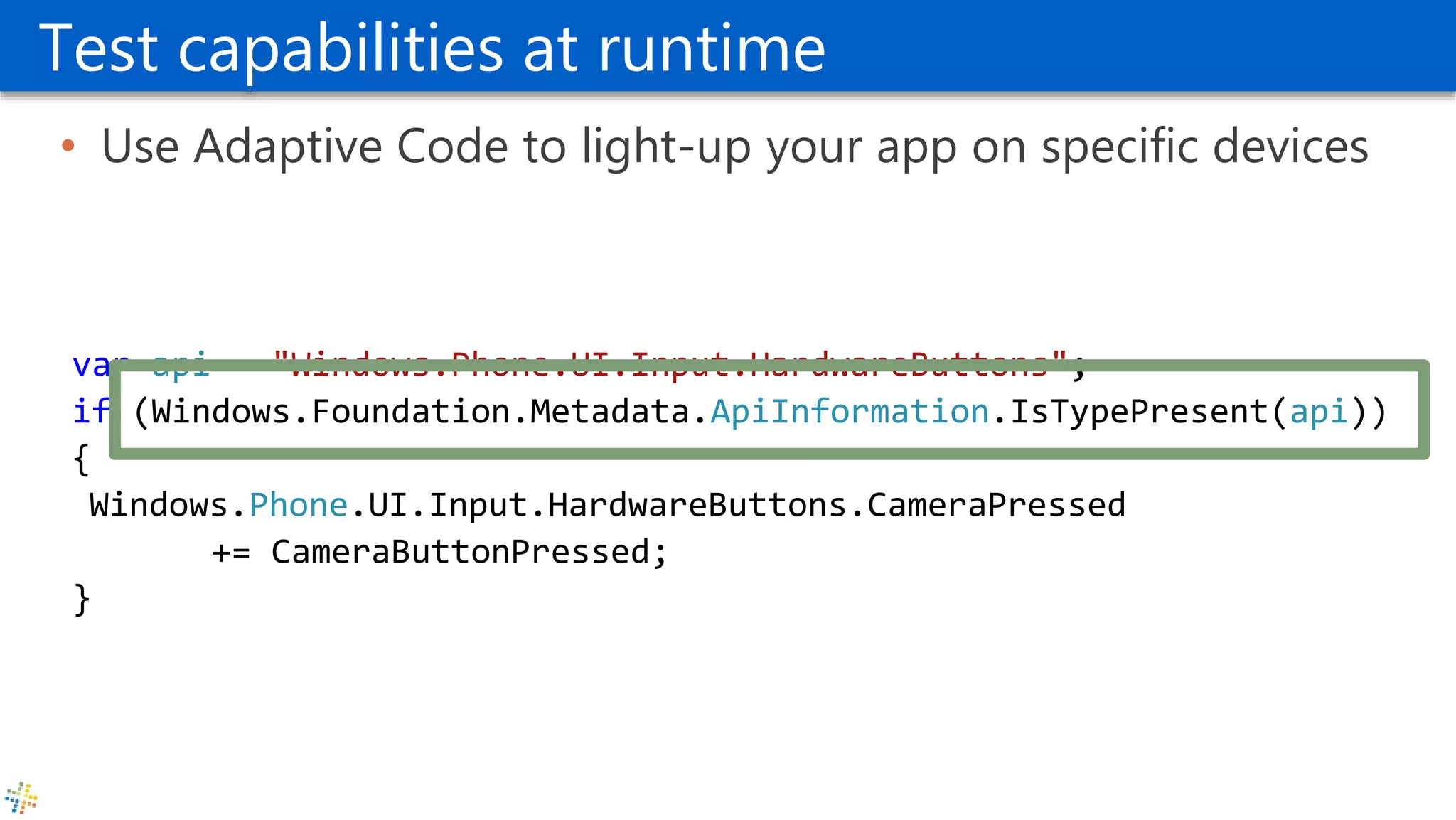
Test capabilities at runtime
• Use Adaptive Code to light-up your app on specific devices
var api = "Windows.Phone.UI.Input.HardwareButtons";
if (Windows.Foundation.Metadata.ApiInformation.IsTypePresent(api))
{
Windows.Phone.UI.Input.HardwareButtons.CameraPressed
+= CameraButtonPressed;
}
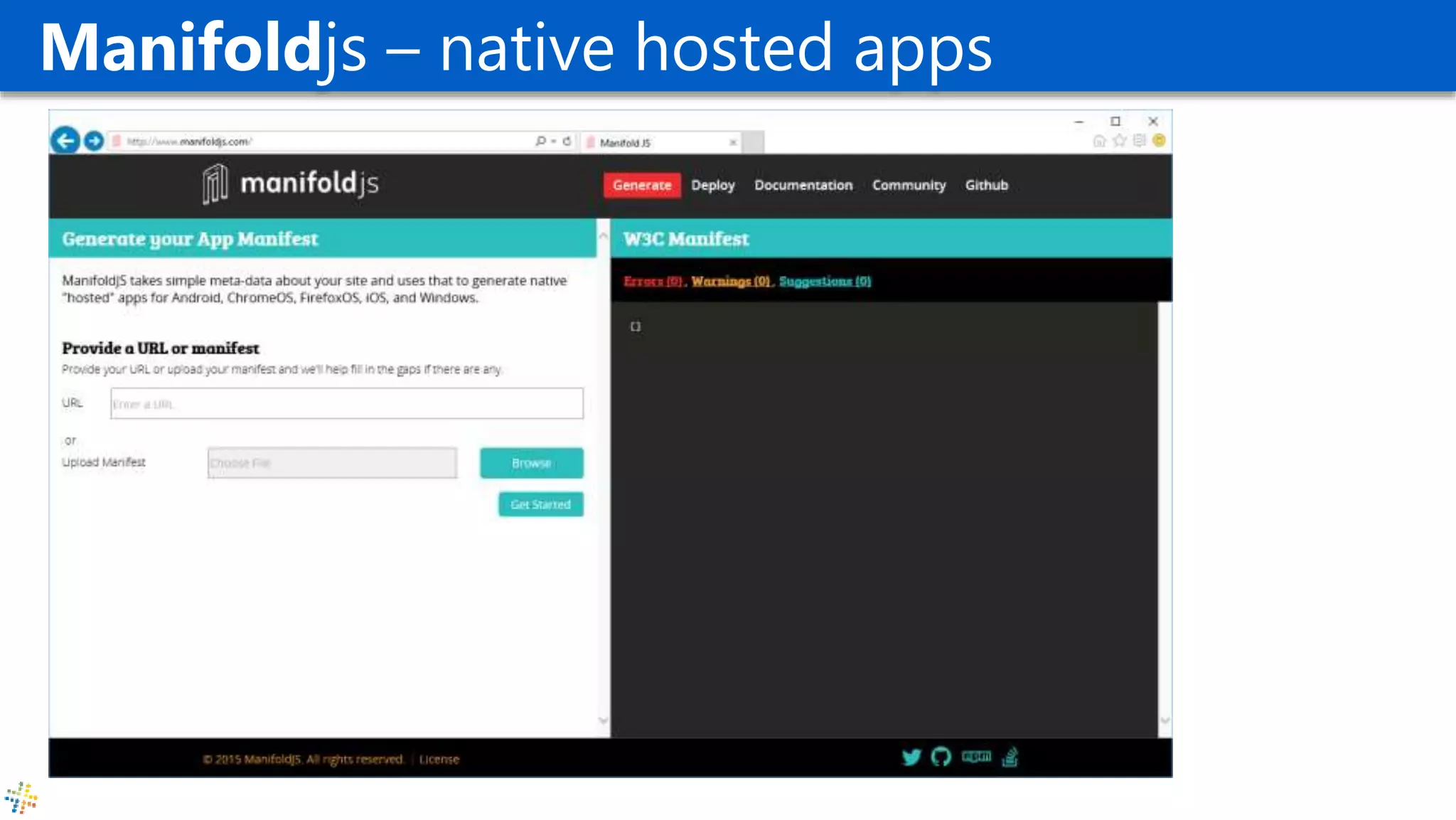
Manifoldjs – native hosted apps
Blend 2015
What’s new
Blend 2015
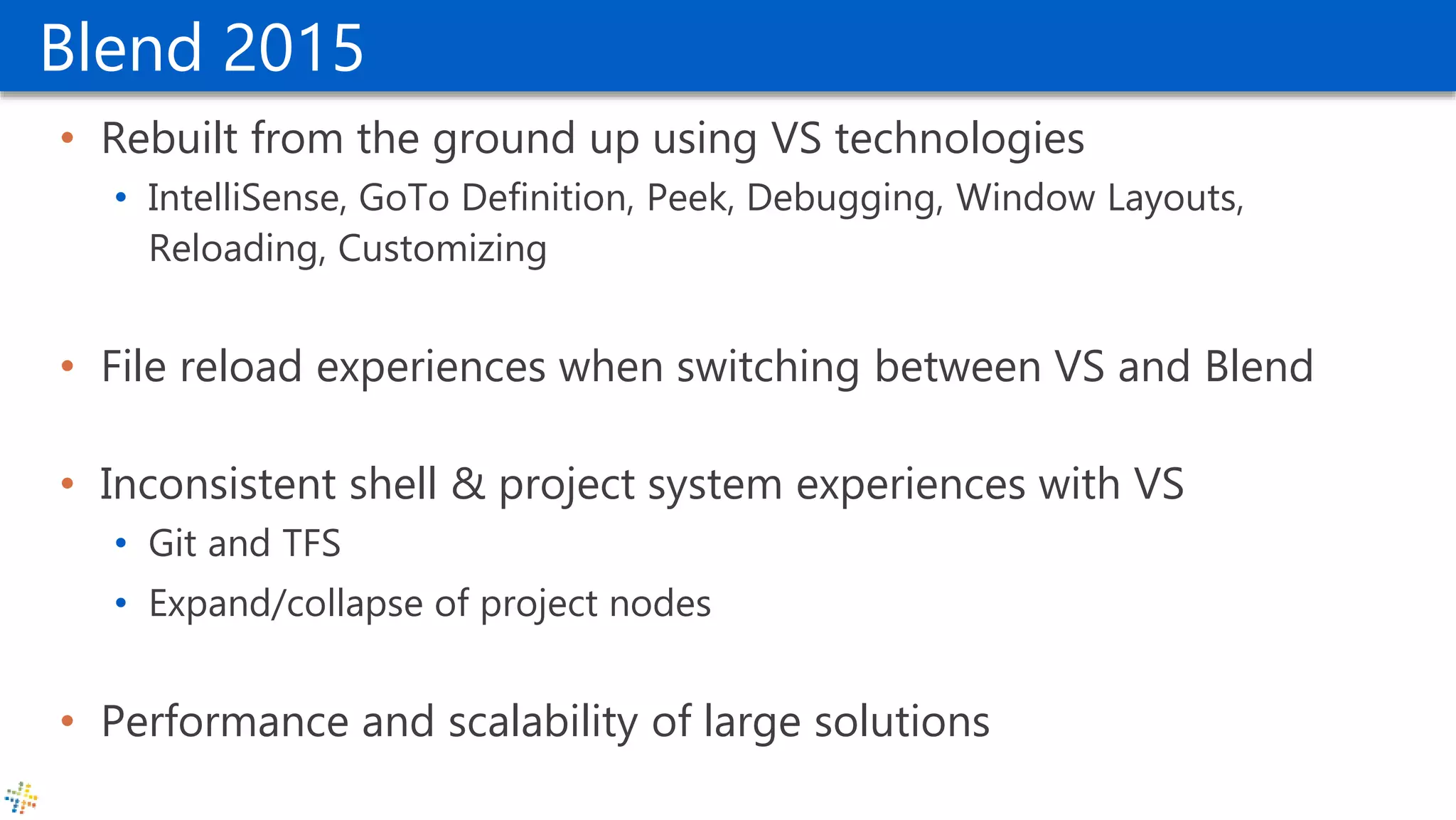
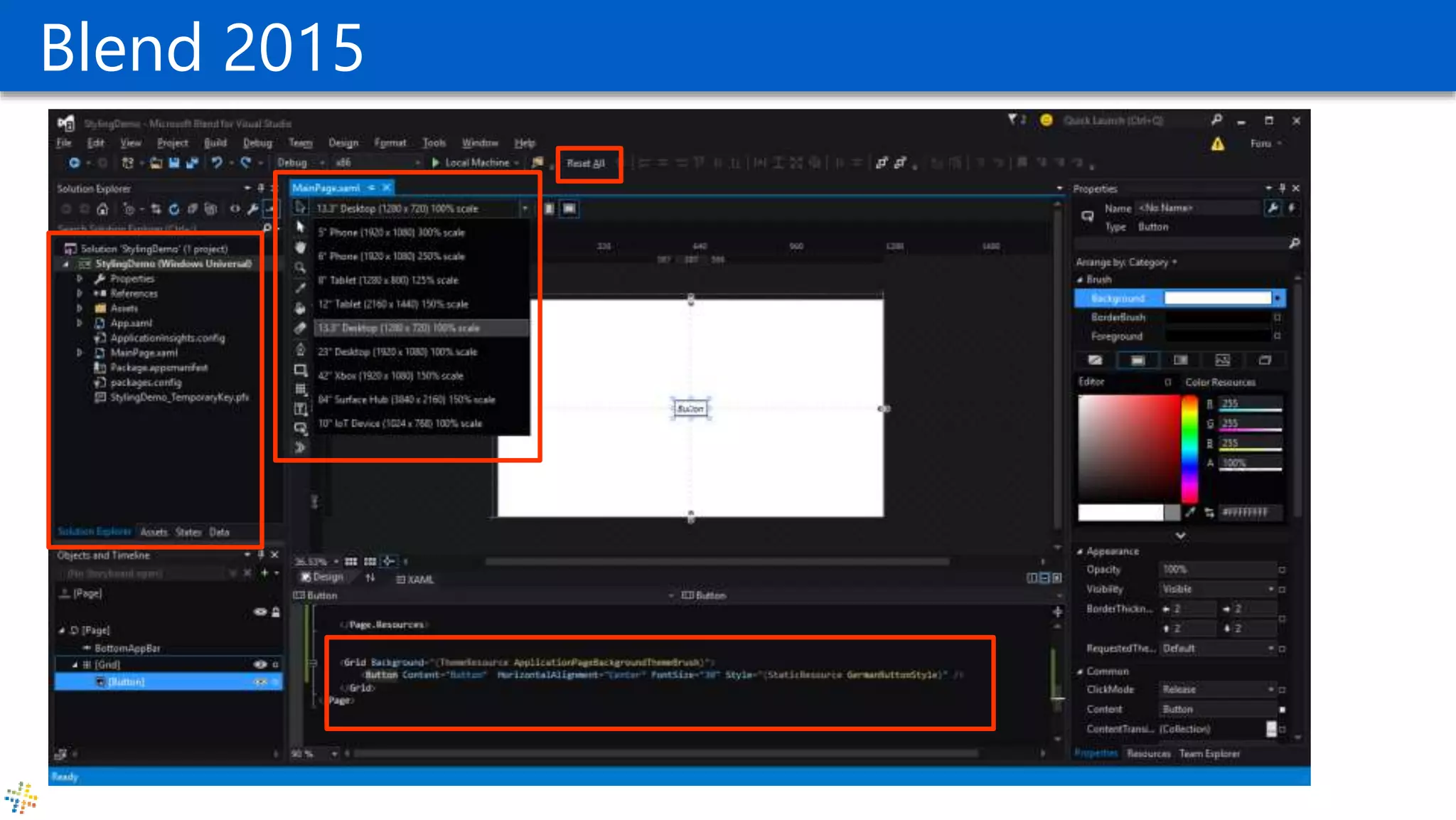
• Rebuilt from the ground up using VS technologies
• IntelliSense, GoTo Definition, Peek, Debugging, Window Layouts,
Reloading, Customizing
• File reload experiences when switching between VS and Blend
• Inconsistent shell & project system experiences with VS
• Git and TFS
• Expand/collapse of project nodes
• Performance and scalability of large solutions
Blend 2015
Live Visual Tree - UI Debugging for XAML
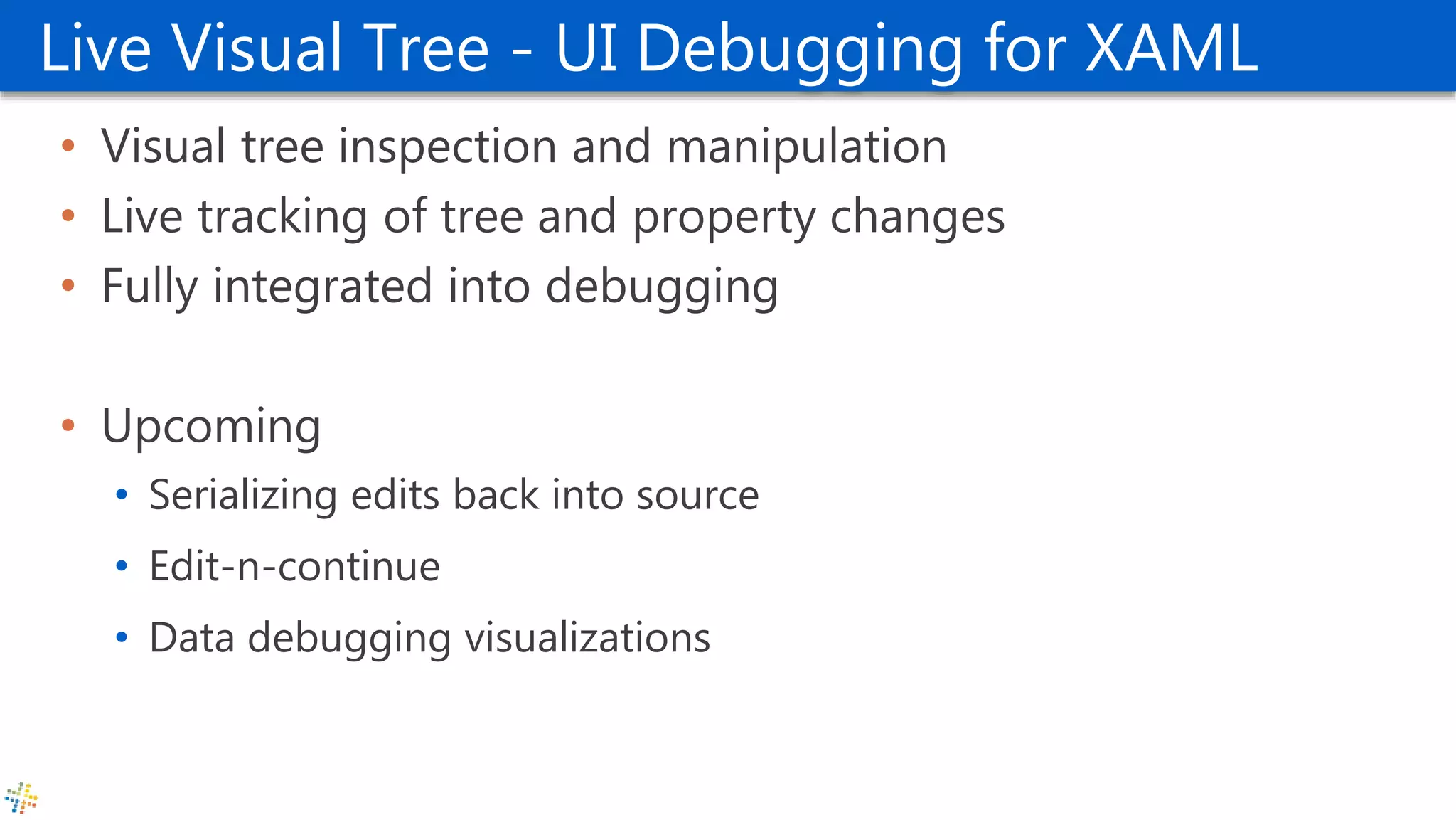
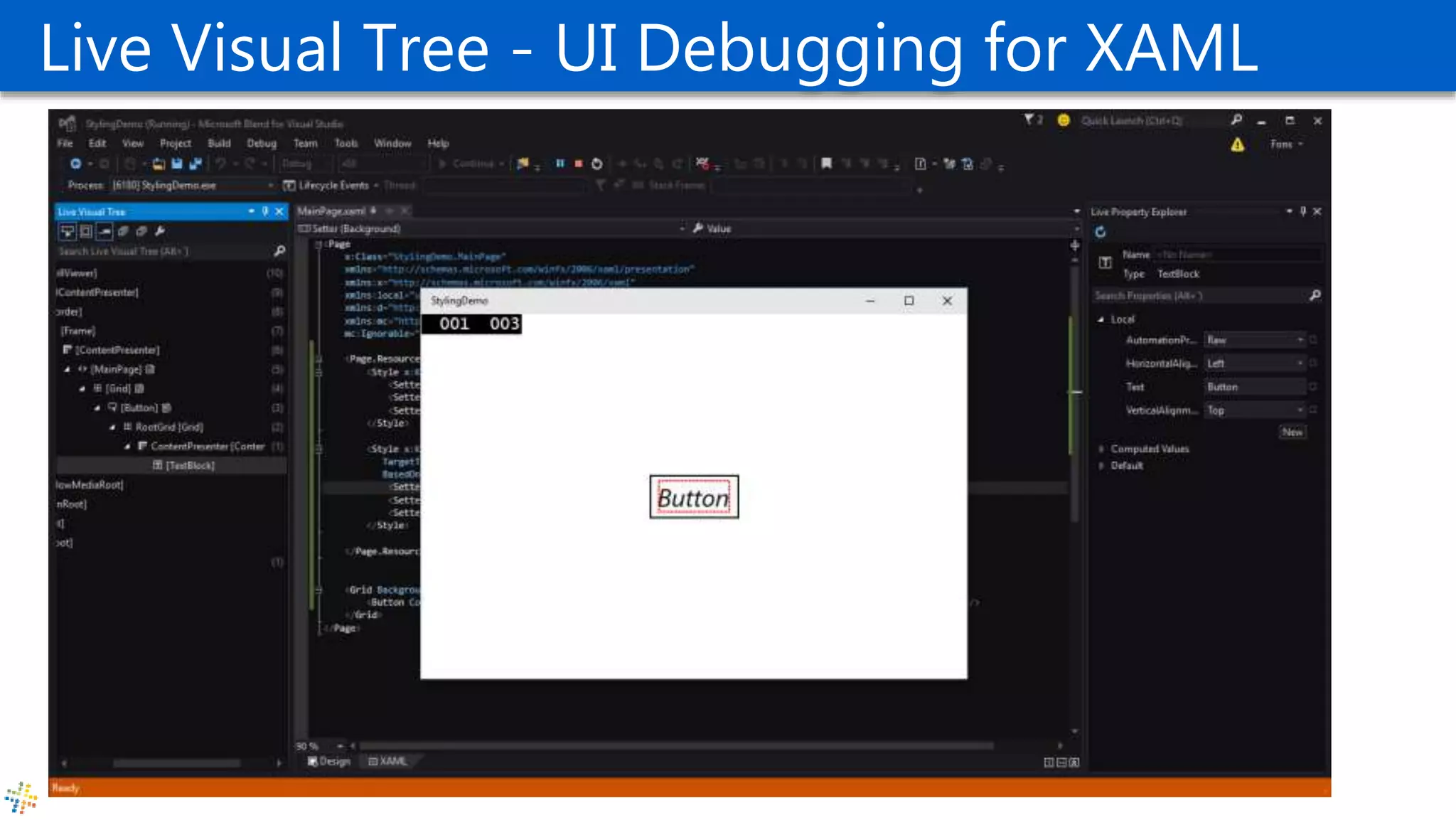
• Visual tree inspection and manipulation
• Live tracking of tree and property changes
• Fully integrated into debugging
• Upcoming
• Serializing edits back into source
• Edit-n-continue
• Data debugging visualizations
Live Visual Tree - UI Debugging for XAML
What’s new in XAML
New Universal Controls
New Properties
Other Changes
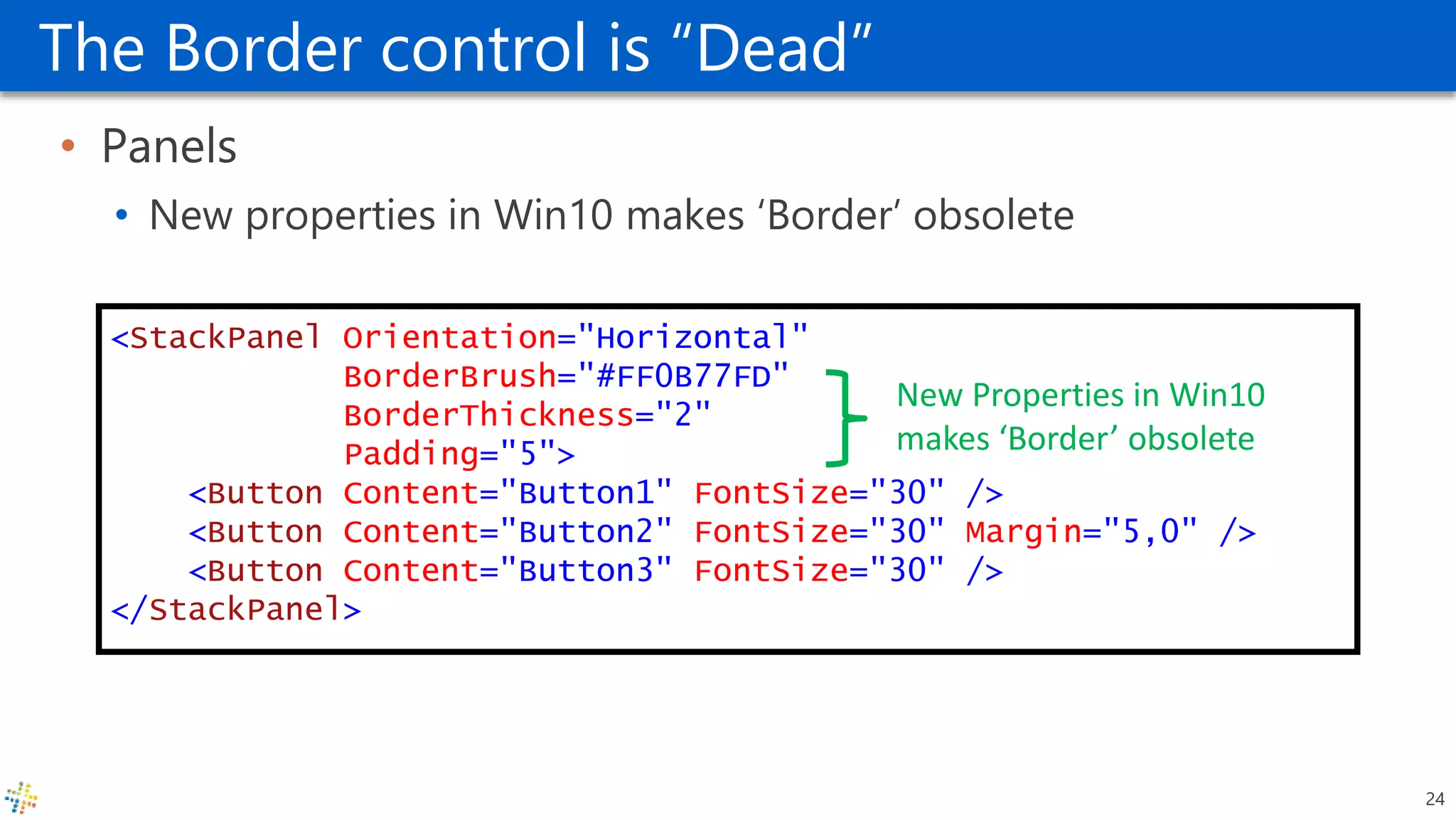
The Border control is “Dead”
• Panels
• New properties in Win10 makes ‘Border’ obsolete
<StackPanel Orientation="Horizontal"
BorderBrush="#FF0B77FD"
BorderThickness="2"
Padding="5">
<Button Content="Button1" FontSize="30" />
<Button Content="Button2" FontSize="30" Margin="5,0" />
<Button Content="Button3" FontSize="30" />
</StackPanel>
New Properties in Win10
makes ‘Border’ obsolete
24
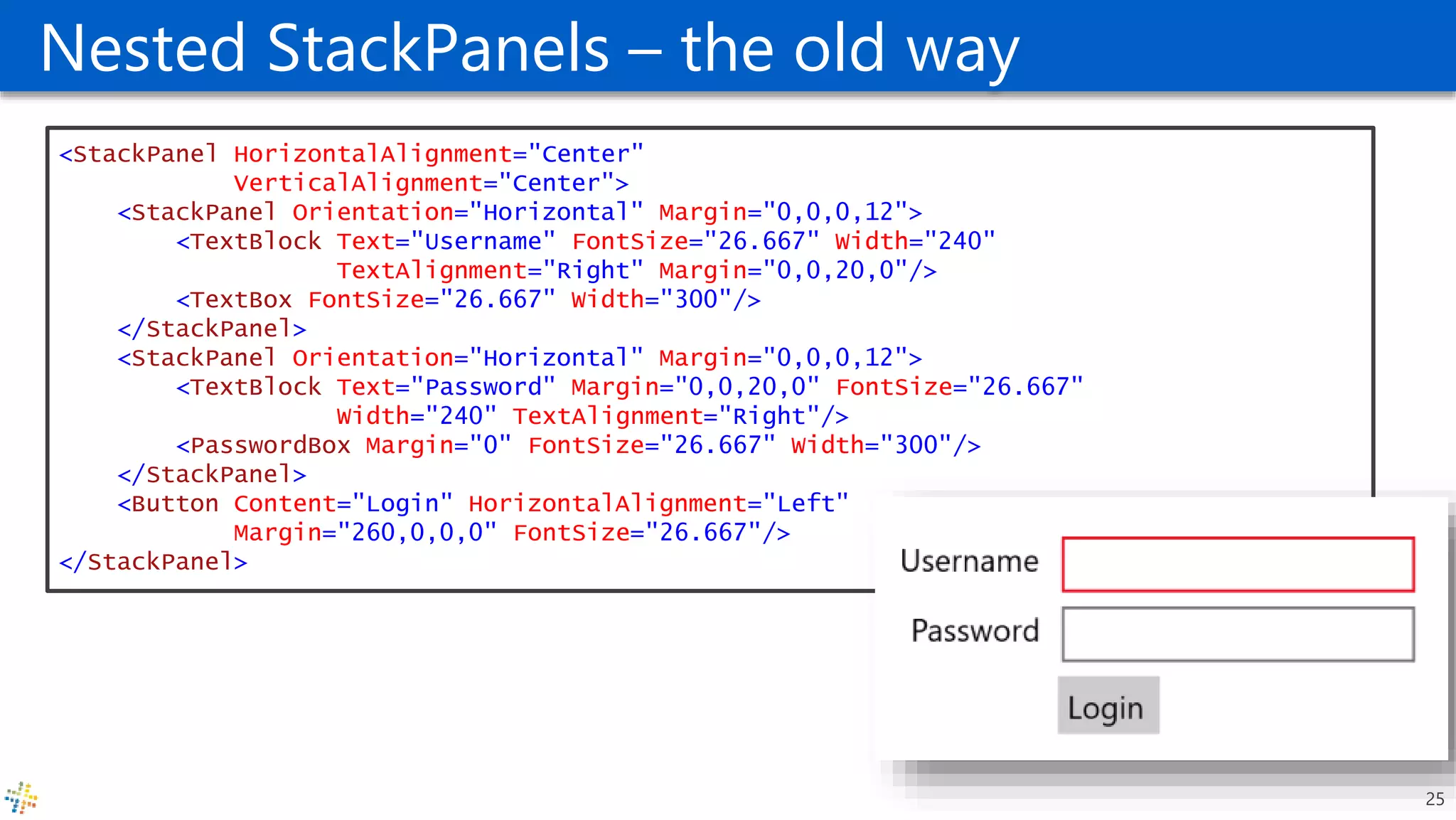
Nested StackPanels – the old way
<StackPanel HorizontalAlignment="Center"
VerticalAlignment="Center">
<StackPanel Orientation="Horizontal" Margin="0,0,0,12">
<TextBlock Text="Username" FontSize="26.667" Width="240"
TextAlignment="Right" Margin="0,0,20,0"/>
<TextBox FontSize="26.667" Width="300"/>
</StackPanel>
<StackPanel Orientation="Horizontal" Margin="0,0,0,12">
<TextBlock Text="Password" Margin="0,0,20,0" FontSize="26.667"
Width="240" TextAlignment="Right"/>
<PasswordBox Margin="0" FontSize="26.667" Width="300"/>
</StackPanel>
<Button Content="Login" HorizontalAlignment="Left"
Margin="260,0,0,0" FontSize="26.667"/>
</StackPanel>
25
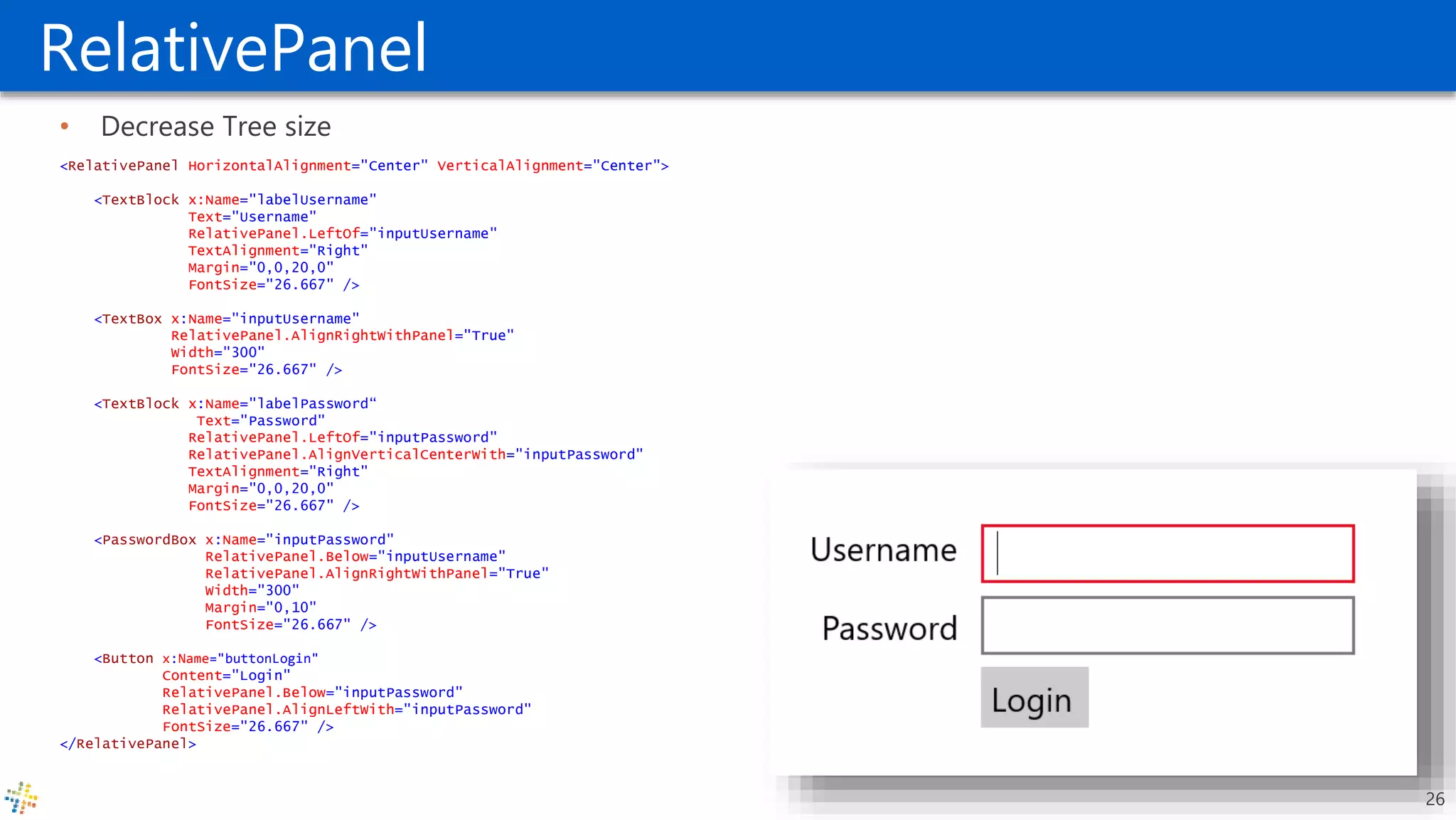
RelativePanel
• Decrease Tree size
<RelativePanel HorizontalAlignment="Center" VerticalAlignment="Center">
<TextBlock x:Name="labelUsername"
Text="Username"
RelativePanel.LeftOf="inputUsername"
TextAlignment="Right"
Margin="0,0,20,0"
FontSize="26.667" />
<TextBox x:Name="inputUsername"
RelativePanel.AlignRightWithPanel="True"
Width="300"
FontSize="26.667" />
<TextBlock x:Name="labelPassword“
Text="Password"
RelativePanel.LeftOf="inputPassword"
RelativePanel.AlignVerticalCenterWith="inputPassword"
TextAlignment="Right"
Margin="0,0,20,0"
FontSize="26.667" />
<PasswordBox x:Name="inputPassword"
RelativePanel.Below="inputUsername"
RelativePanel.AlignRightWithPanel="True"
Width="300"
Margin="0,10"
FontSize="26.667" />
<Button x:Name="buttonLogin"
Content="Login"
RelativePanel.Below="inputPassword"
RelativePanel.AlignLeftWith="inputPassword"
FontSize="26.667" />
</RelativePanel>
26
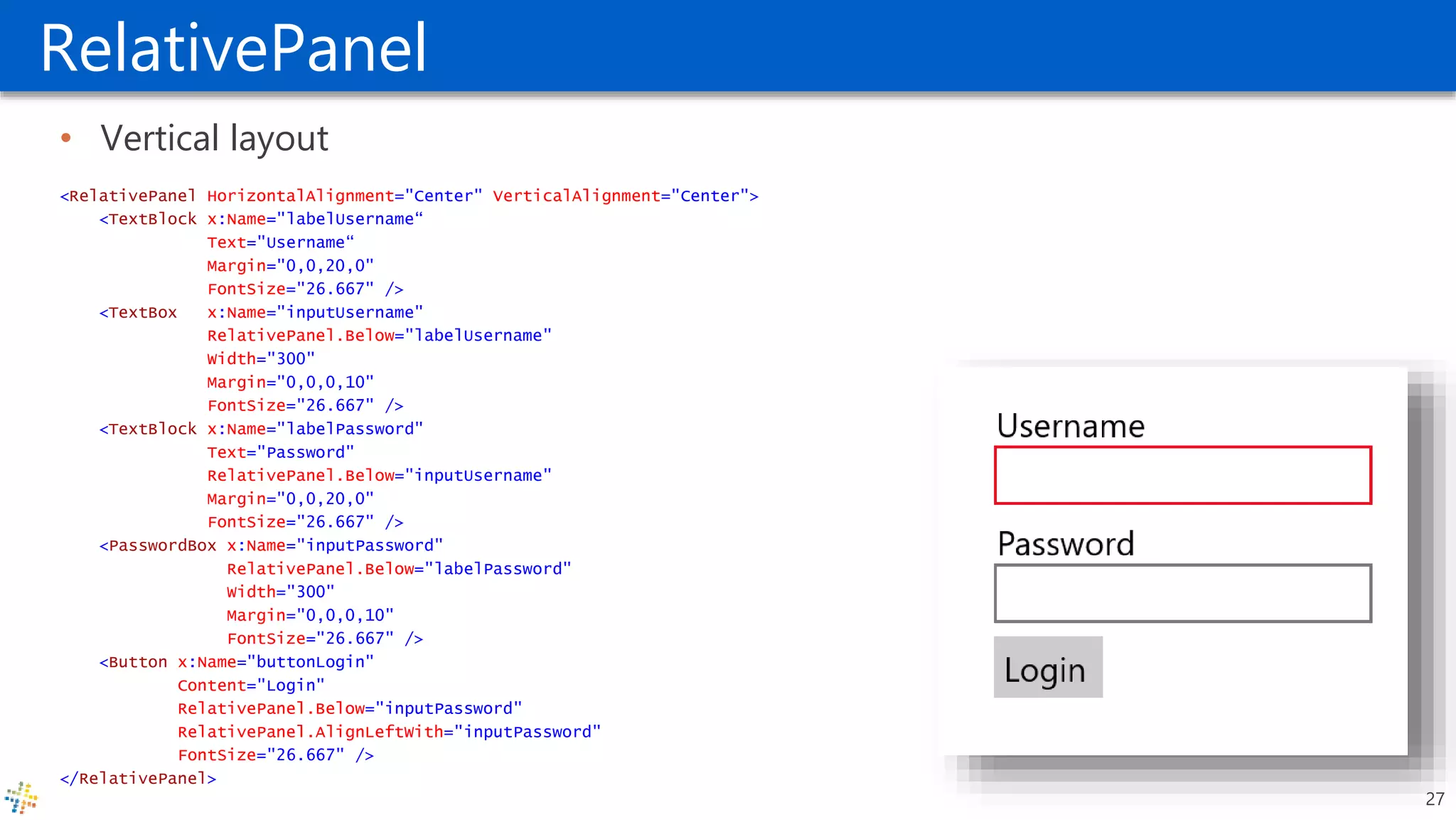
RelativePanel
• Vertical layout
<RelativePanel HorizontalAlignment="Center" VerticalAlignment="Center">
<TextBlock x:Name="labelUsername“
Text="Username“
Margin="0,0,20,0"
FontSize="26.667" />
<TextBox x:Name="inputUsername"
RelativePanel.Below="labelUsername"
Width="300"
Margin="0,0,0,10"
FontSize="26.667" />
<TextBlock x:Name="labelPassword"
Text="Password"
RelativePanel.Below="inputUsername"
Margin="0,0,20,0"
FontSize="26.667" />
<PasswordBox x:Name="inputPassword"
RelativePanel.Below="labelPassword"
Width="300"
Margin="0,0,0,10"
FontSize="26.667" />
<Button x:Name="buttonLogin"
Content="Login"
RelativePanel.Below="inputPassword"
RelativePanel.AlignLeftWith="inputPassword"
FontSize="26.667" />
</RelativePanel>
27
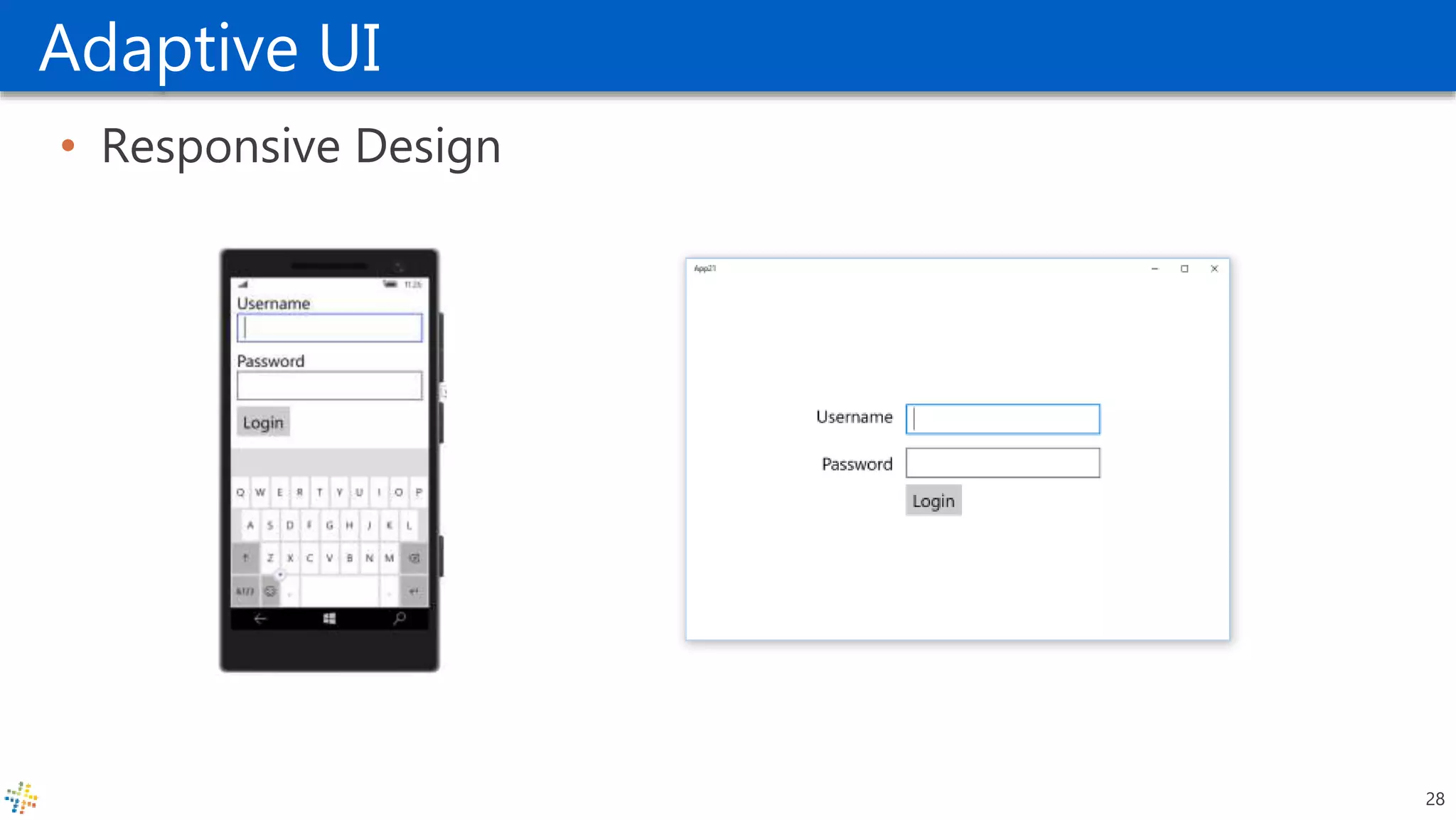
Adaptive UI
• Responsive Design
28
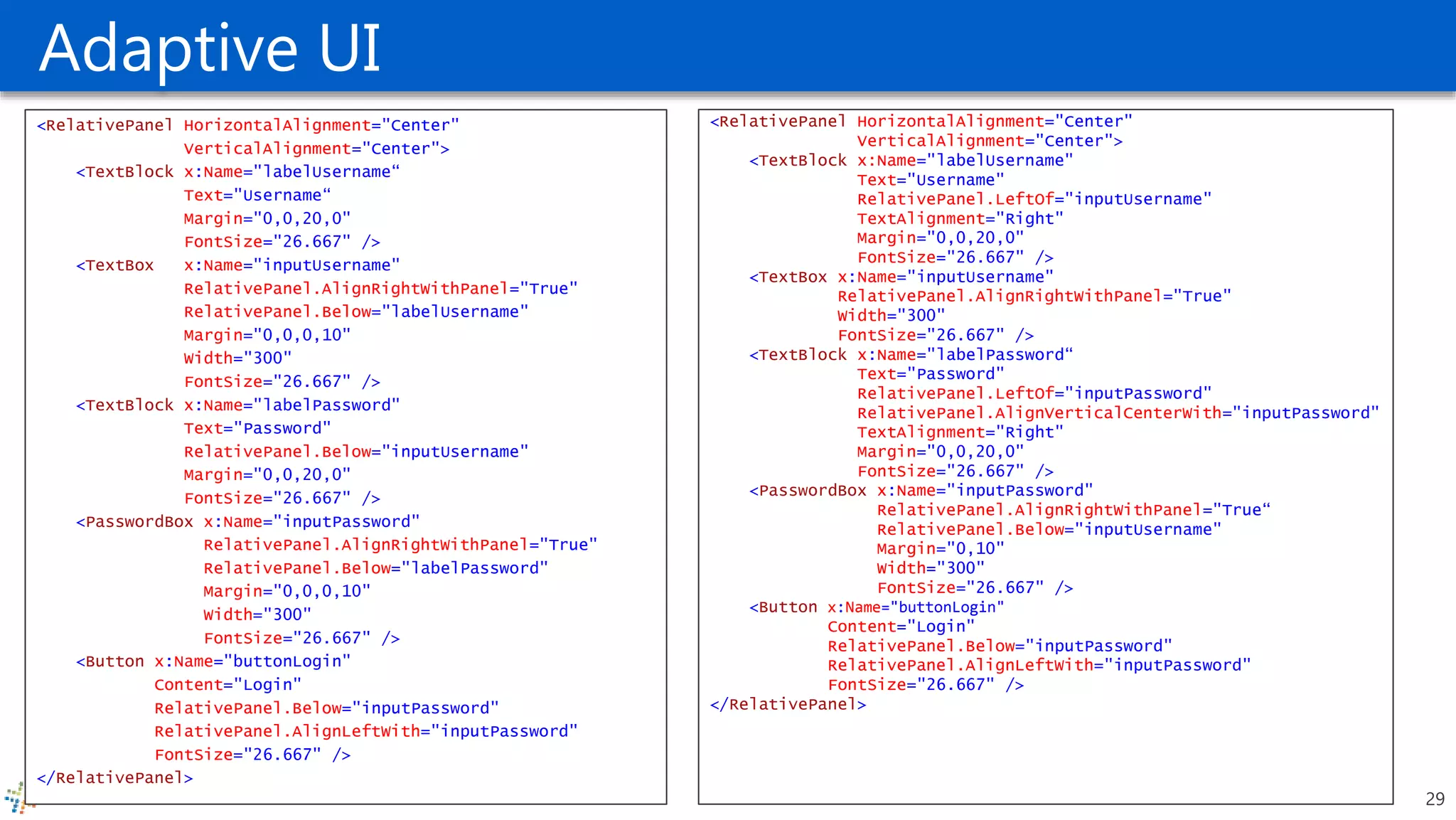
Adaptive UI
<RelativePanel HorizontalAlignment="Center"
VerticalAlignment="Center">
<TextBlock x:Name="labelUsername"
Text="Username"
RelativePanel.LeftOf="inputUsername"
TextAlignment="Right"
Margin="0,0,20,0"
FontSize="26.667" />
<TextBox x:Name="inputUsername"
RelativePanel.AlignRightWithPanel="True"
Width="300"
FontSize="26.667" />
<TextBlock x:Name="labelPassword“
Text="Password"
RelativePanel.LeftOf="inputPassword"
RelativePanel.AlignVerticalCenterWith="inputPassword"
TextAlignment="Right"
Margin="0,0,20,0"
FontSize="26.667" />
<PasswordBox x:Name="inputPassword"
RelativePanel.AlignRightWithPanel="True“
RelativePanel.Below="inputUsername"
Margin="0,10"
Width="300"
FontSize="26.667" />
<Button x:Name="buttonLogin"
Content="Login"
RelativePanel.Below="inputPassword"
RelativePanel.AlignLeftWith="inputPassword"
FontSize="26.667" />
</RelativePanel>
<RelativePanel HorizontalAlignment="Center"
VerticalAlignment="Center">
<TextBlock x:Name="labelUsername“
Text="Username“
Margin="0,0,20,0"
FontSize="26.667" />
<TextBox x:Name="inputUsername"
RelativePanel.AlignRightWithPanel="True"
RelativePanel.Below="labelUsername"
Margin="0,0,0,10"
Width="300"
FontSize="26.667" />
<TextBlock x:Name="labelPassword"
Text="Password"
RelativePanel.Below="inputUsername"
Margin="0,0,20,0"
FontSize="26.667" />
<PasswordBox x:Name="inputPassword"
RelativePanel.AlignRightWithPanel="True"
RelativePanel.Below="labelPassword"
Margin="0,0,0,10"
Width="300"
FontSize="26.667" />
<Button x:Name="buttonLogin"
Content="Login"
RelativePanel.Below="inputPassword"
RelativePanel.AlignLeftWith="inputPassword"
FontSize="26.667" />
</RelativePanel>
29
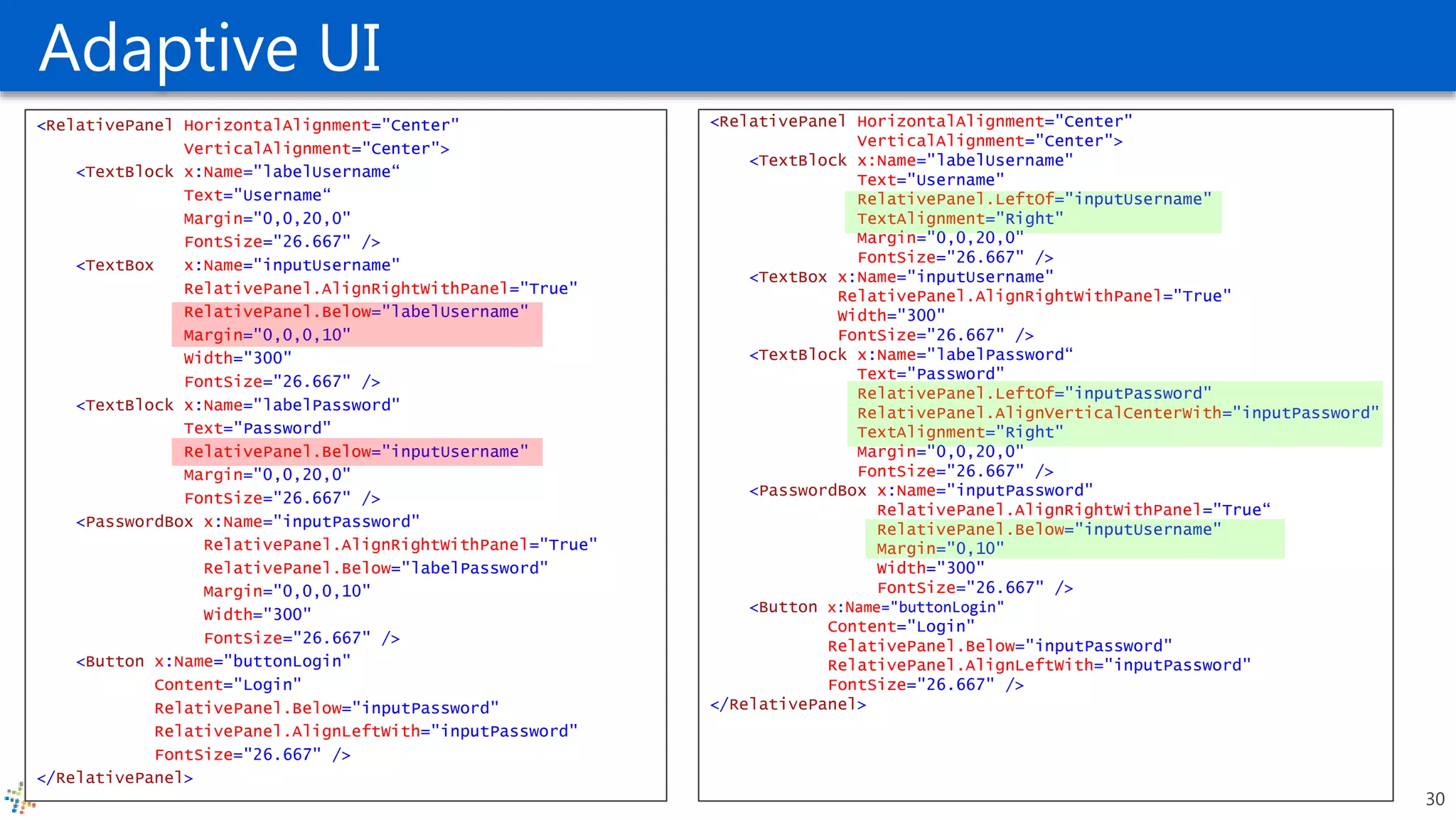
Adaptive UI
<RelativePanel HorizontalAlignment="Center"
VerticalAlignment="Center">
<TextBlock x:Name="labelUsername"
Text="Username"
RelativePanel.LeftOf="inputUsername"
TextAlignment="Right"
Margin="0,0,20,0"
FontSize="26.667" />
<TextBox x:Name="inputUsername"
RelativePanel.AlignRightWithPanel="True"
Width="300"
FontSize="26.667" />
<TextBlock x:Name="labelPassword“
Text="Password"
RelativePanel.LeftOf="inputPassword"
RelativePanel.AlignVerticalCenterWith="inputPassword"
TextAlignment="Right"
Margin="0,0,20,0"
FontSize="26.667" />
<PasswordBox x:Name="inputPassword"
RelativePanel.AlignRightWithPanel="True“
RelativePanel.Below="inputUsername"
Margin="0,10"
Width="300"
FontSize="26.667" />
<Button x:Name="buttonLogin"
Content="Login"
RelativePanel.Below="inputPassword"
RelativePanel.AlignLeftWith="inputPassword"
FontSize="26.667" />
</RelativePanel>
<RelativePanel HorizontalAlignment="Center"
VerticalAlignment="Center">
<TextBlock x:Name="labelUsername“
Text="Username“
Margin="0,0,20,0"
FontSize="26.667" />
<TextBox x:Name="inputUsername"
RelativePanel.AlignRightWithPanel="True"
RelativePanel.Below="labelUsername"
Margin="0,0,0,10"
Width="300"
FontSize="26.667" />
<TextBlock x:Name="labelPassword"
Text="Password"
RelativePanel.Below="inputUsername"
Margin="0,0,20,0"
FontSize="26.667" />
<PasswordBox x:Name="inputPassword"
RelativePanel.AlignRightWithPanel="True"
RelativePanel.Below="labelPassword"
Margin="0,0,0,10"
Width="300"
FontSize="26.667" />
<Button x:Name="buttonLogin"
Content="Login"
RelativePanel.Below="inputPassword"
RelativePanel.AlignLeftWith="inputPassword"
FontSize="26.667" />
</RelativePanel>
30
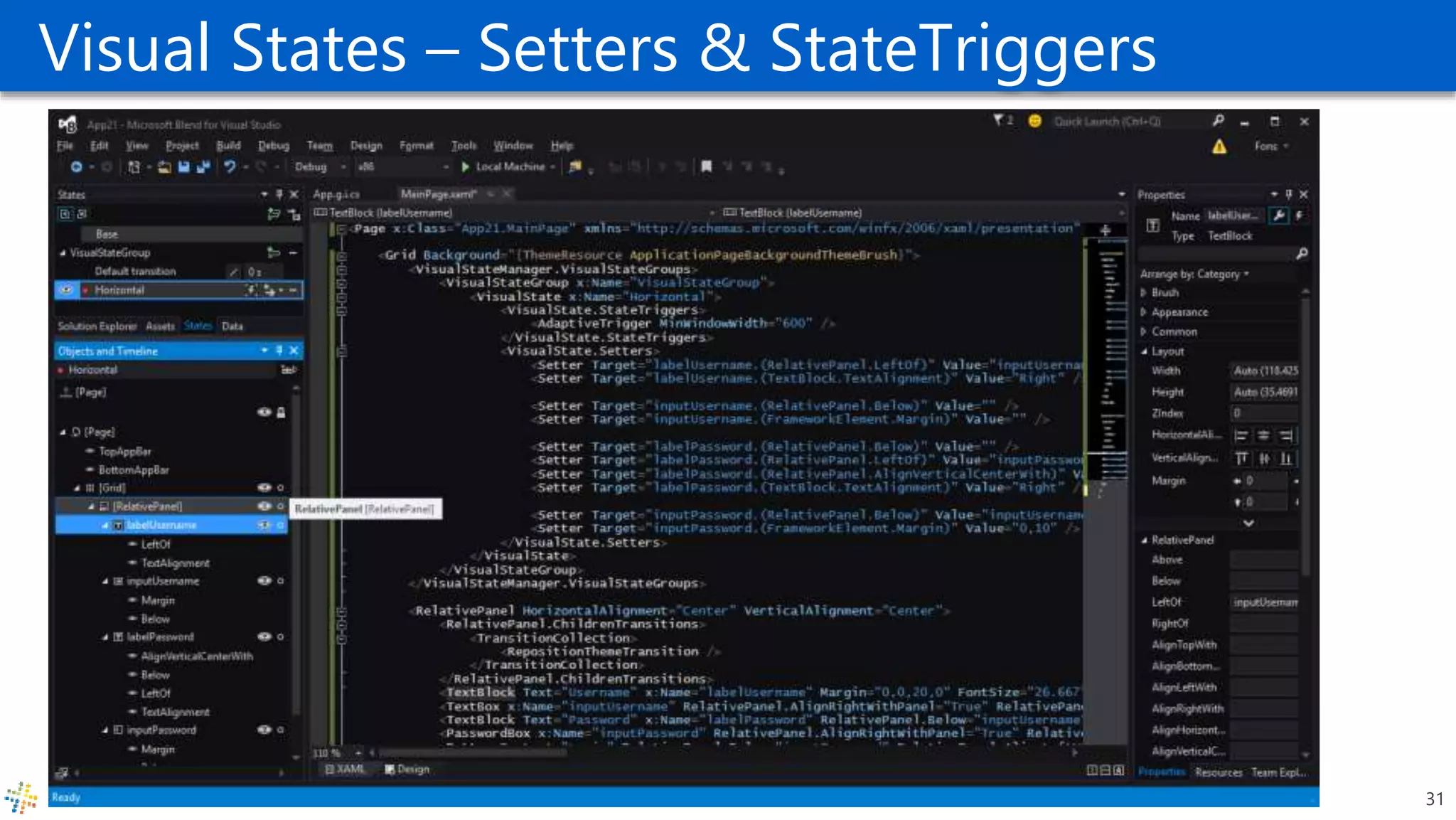
Visual States – Setters & StateTriggers
31
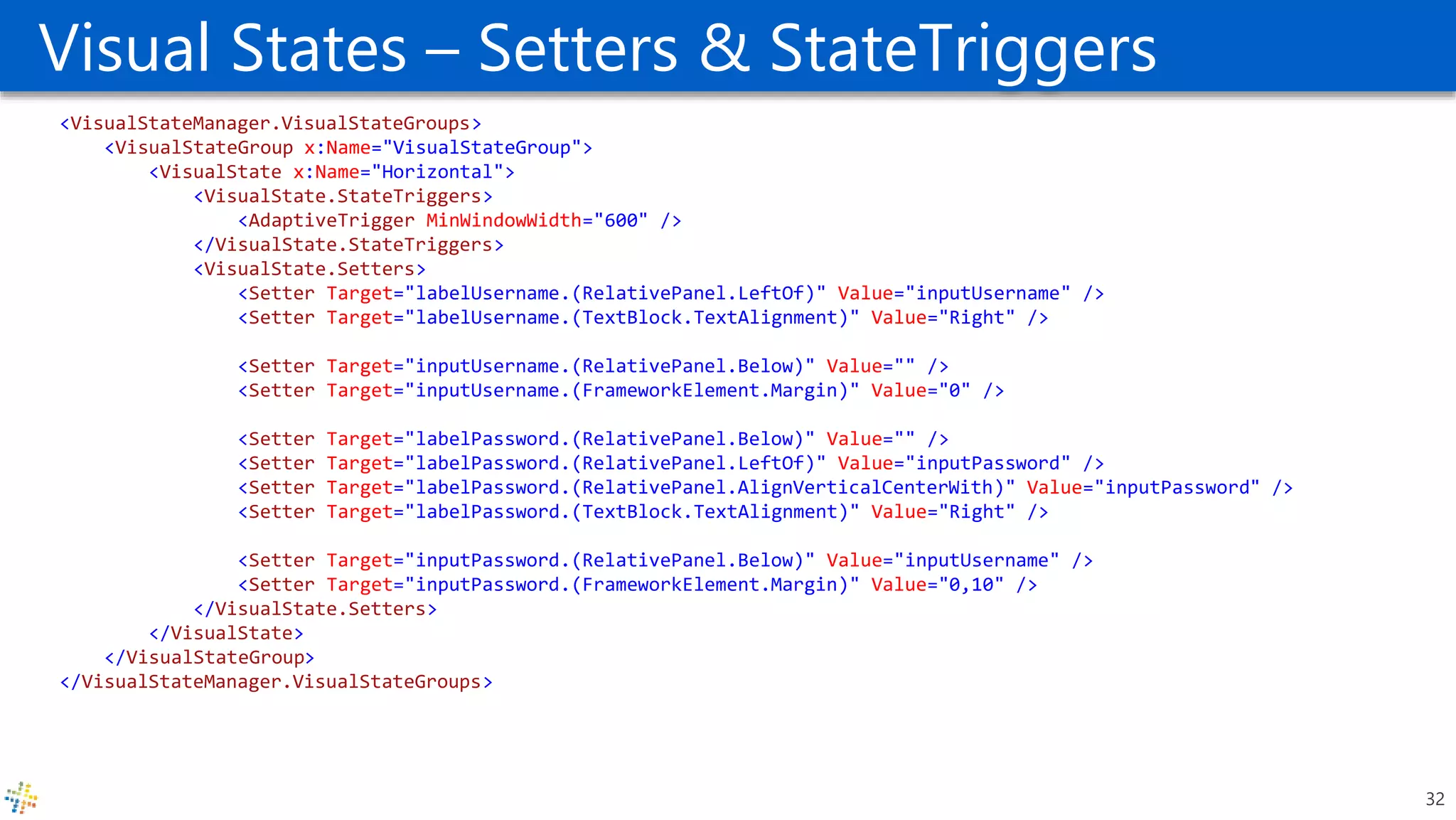
Visual States – Setters & StateTriggers
<VisualStateManager.VisualStateGroups>
<VisualStateGroup x:Name="VisualStateGroup">
<VisualState x:Name="Horizontal">
<VisualState.StateTriggers>
<AdaptiveTrigger MinWindowWidth="600" />
</VisualState.StateTriggers>
<VisualState.Setters>
<Setter Target="labelUsername.(RelativePanel.LeftOf)" Value="inputUsername" />
<Setter Target="labelUsername.(TextBlock.TextAlignment)" Value="Right" />
<Setter Target="inputUsername.(RelativePanel.Below)" Value="" />
<Setter Target="inputUsername.(FrameworkElement.Margin)" Value="0" />
<Setter Target="labelPassword.(RelativePanel.Below)" Value="" />
<Setter Target="labelPassword.(RelativePanel.LeftOf)" Value="inputPassword" />
<Setter Target="labelPassword.(RelativePanel.AlignVerticalCenterWith)" Value="inputPassword" />
<Setter Target="labelPassword.(TextBlock.TextAlignment)" Value="Right" />
<Setter Target="inputPassword.(RelativePanel.Below)" Value="inputUsername" />
<Setter Target="inputPassword.(FrameworkElement.Margin)" Value="0,10" />
</VisualState.Setters>
</VisualState>
</VisualStateGroup>
</VisualStateManager.VisualStateGroups>
32
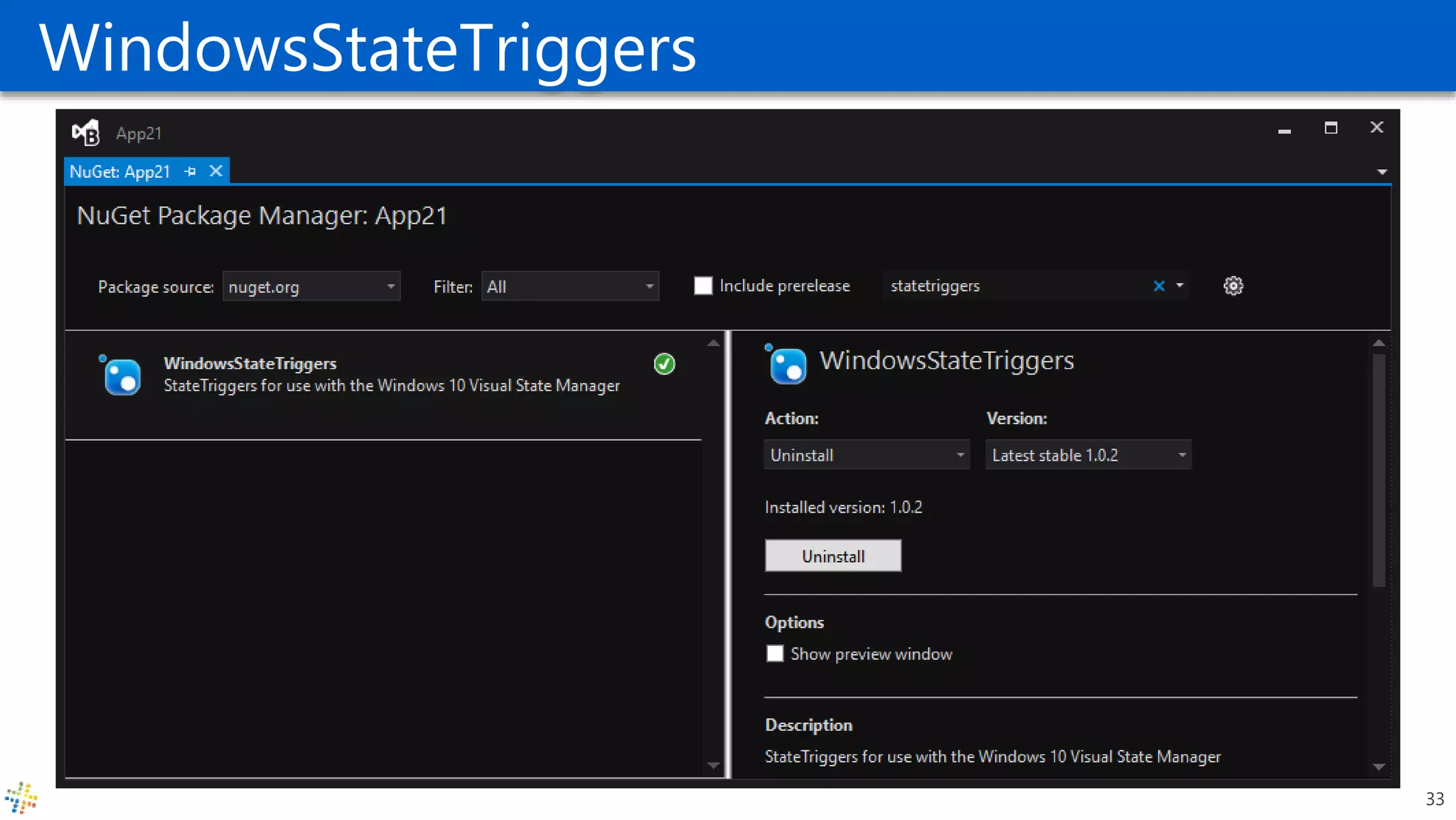
WindowsStateTriggers
33
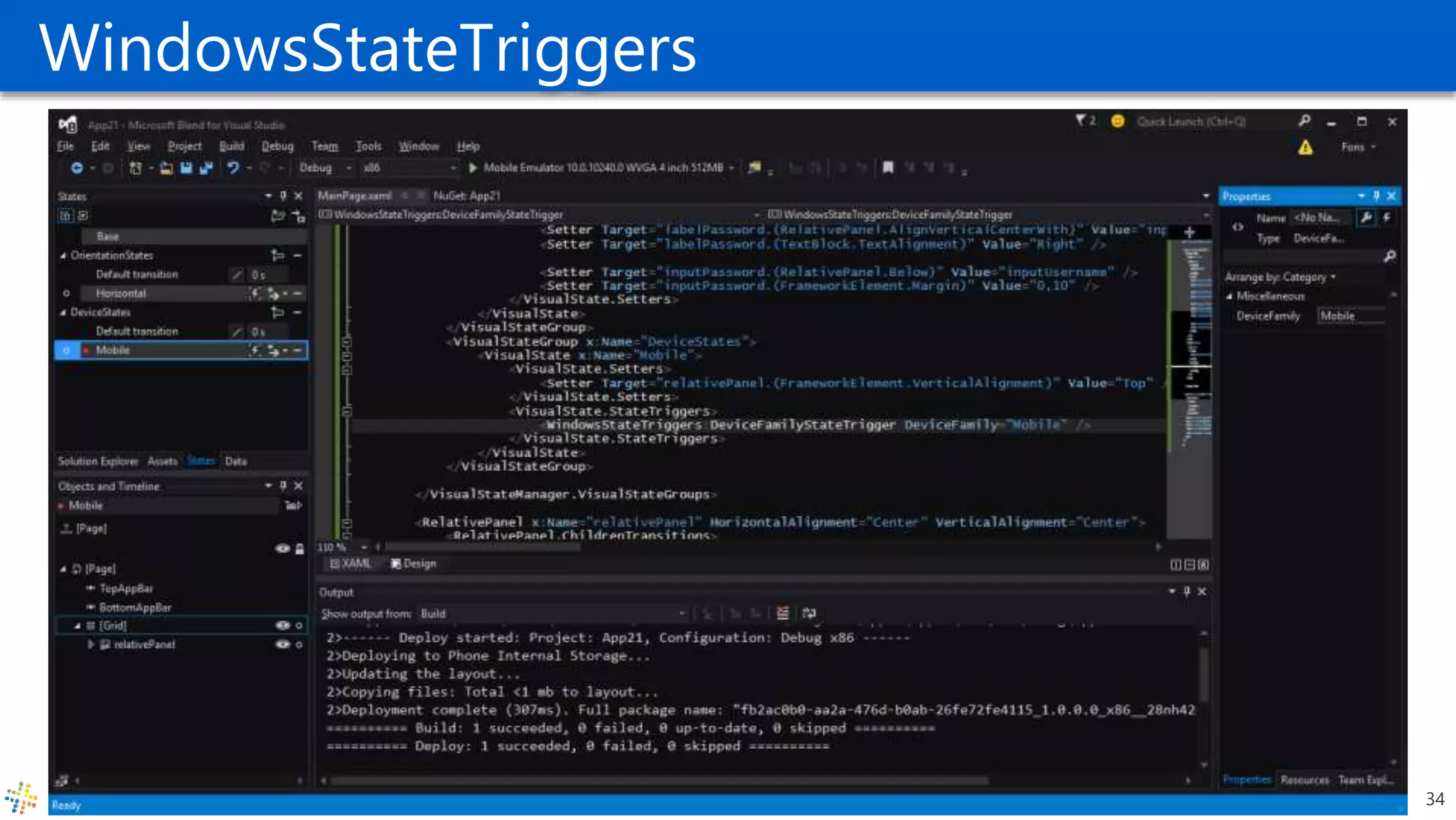
WindowsStateTriggers
34
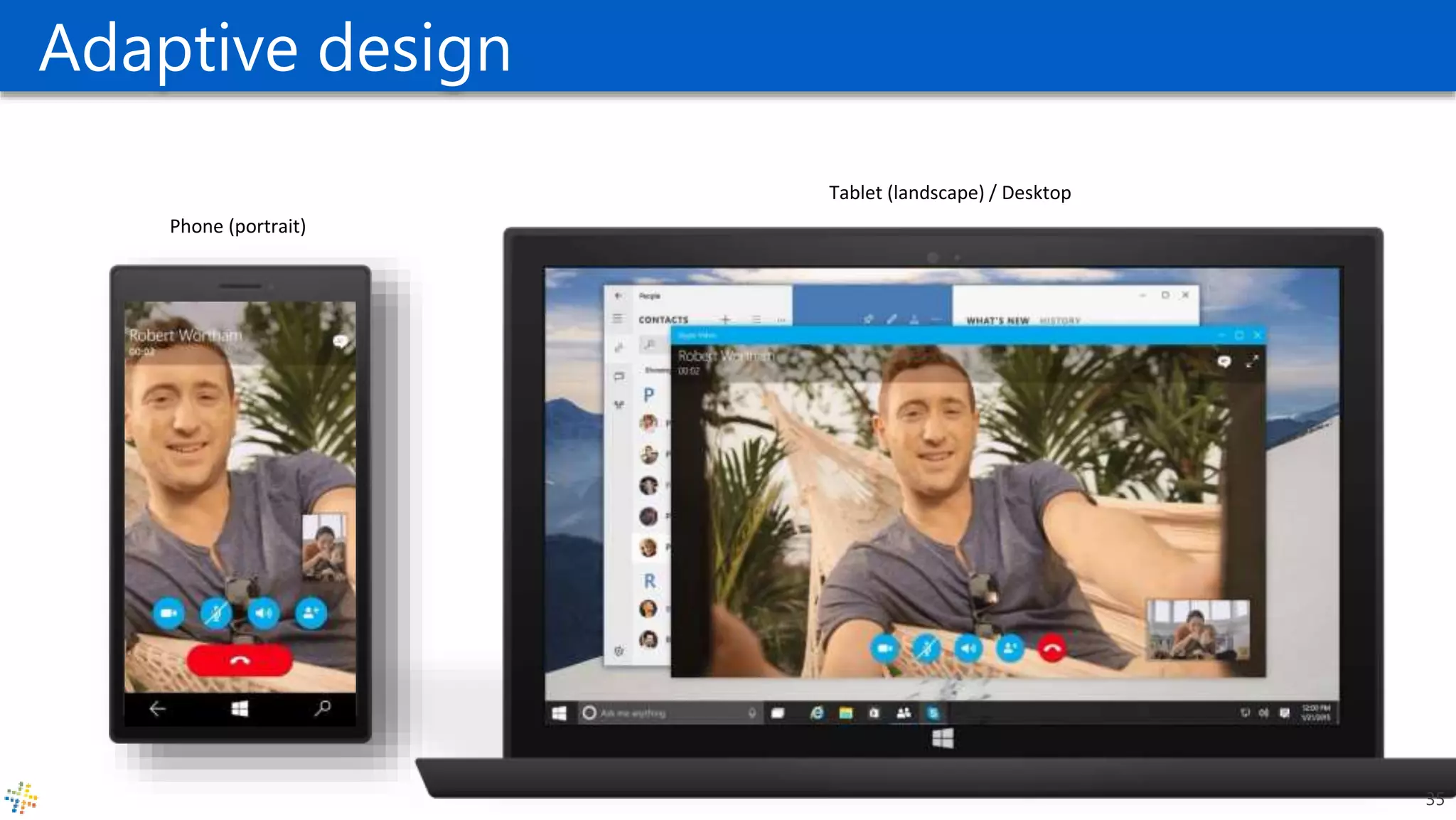
Adaptive design
Phone (portrait)
Tablet (landscape) / Desktop
35
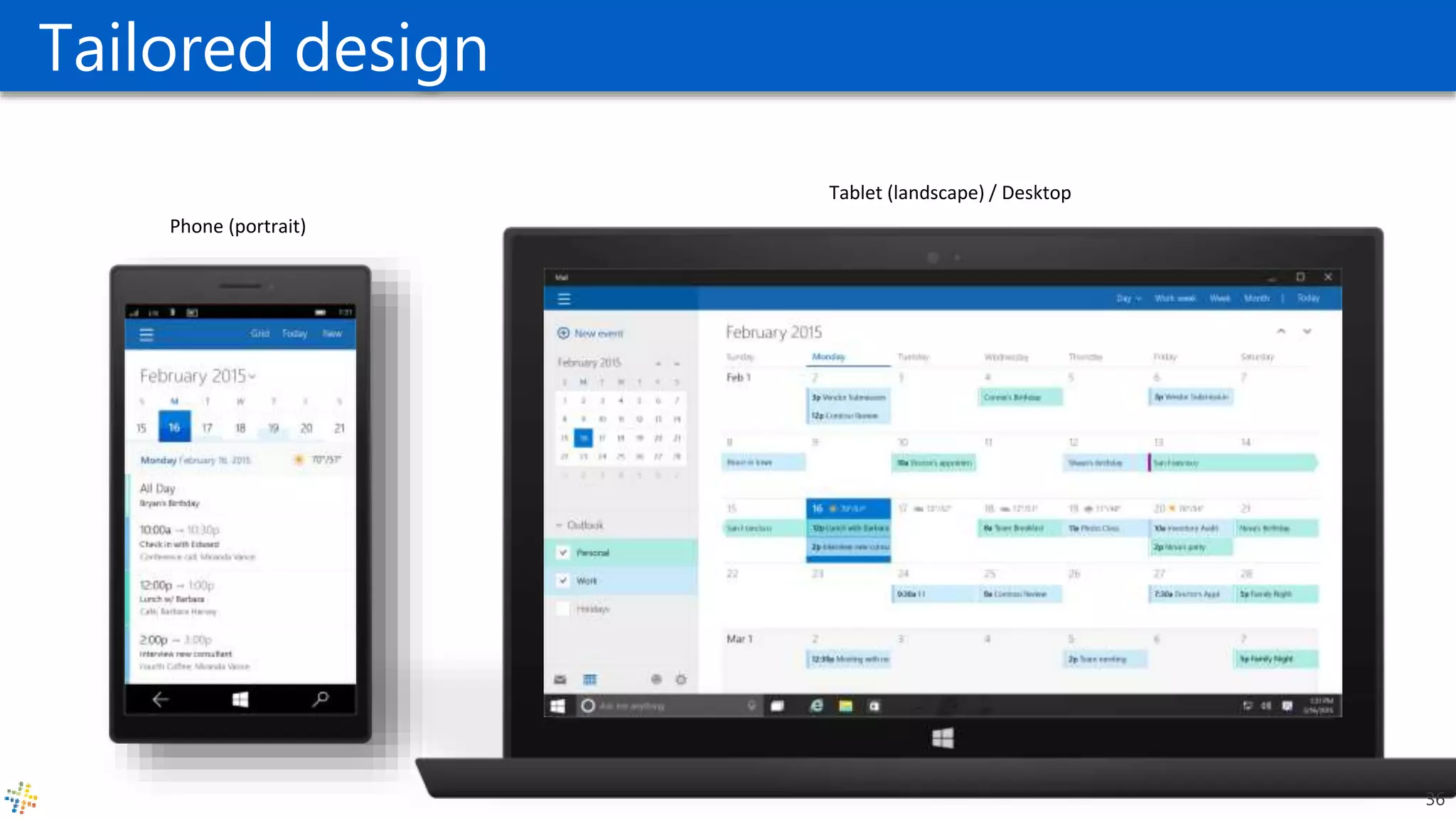
Tailored design
Phone (portrait)
Tablet (landscape) / Desktop
36
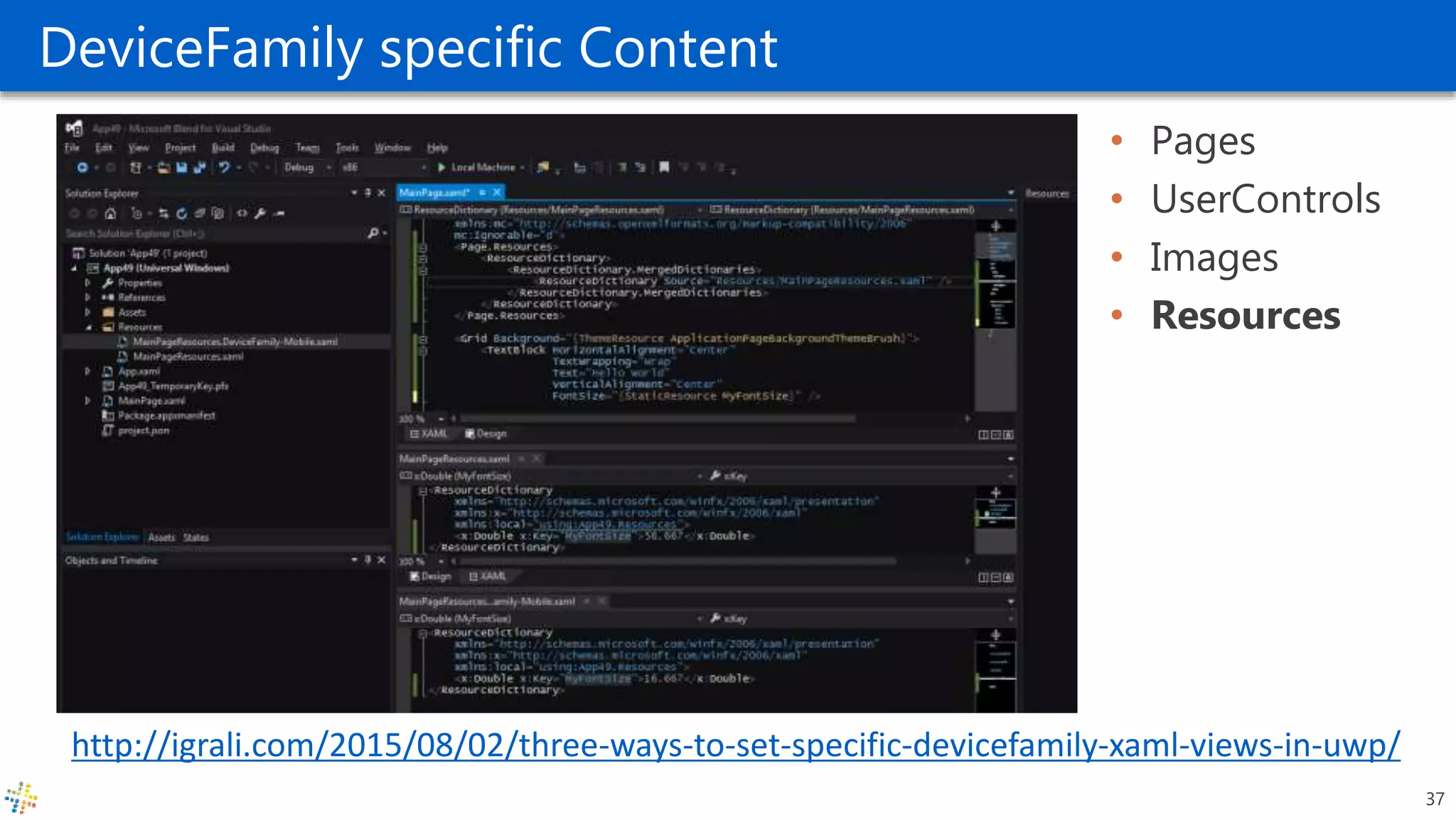
DeviceFamily specific Content
• Pages
• UserControls
• Images
• Resources
37
http://igrali.com/2015/08/02/three-ways-to-set-specific-devicefamily-xaml-views-in-uwp/
Deploying Windows 10 apps
Fons Sonnemans
Reflection IT
@fonssonnemans
www.storeappsug.nl
@StoreAppsUG
Topics
• How to deploy your app to the Store?
• How to get rich from app development?
• How to write a successful app?
39
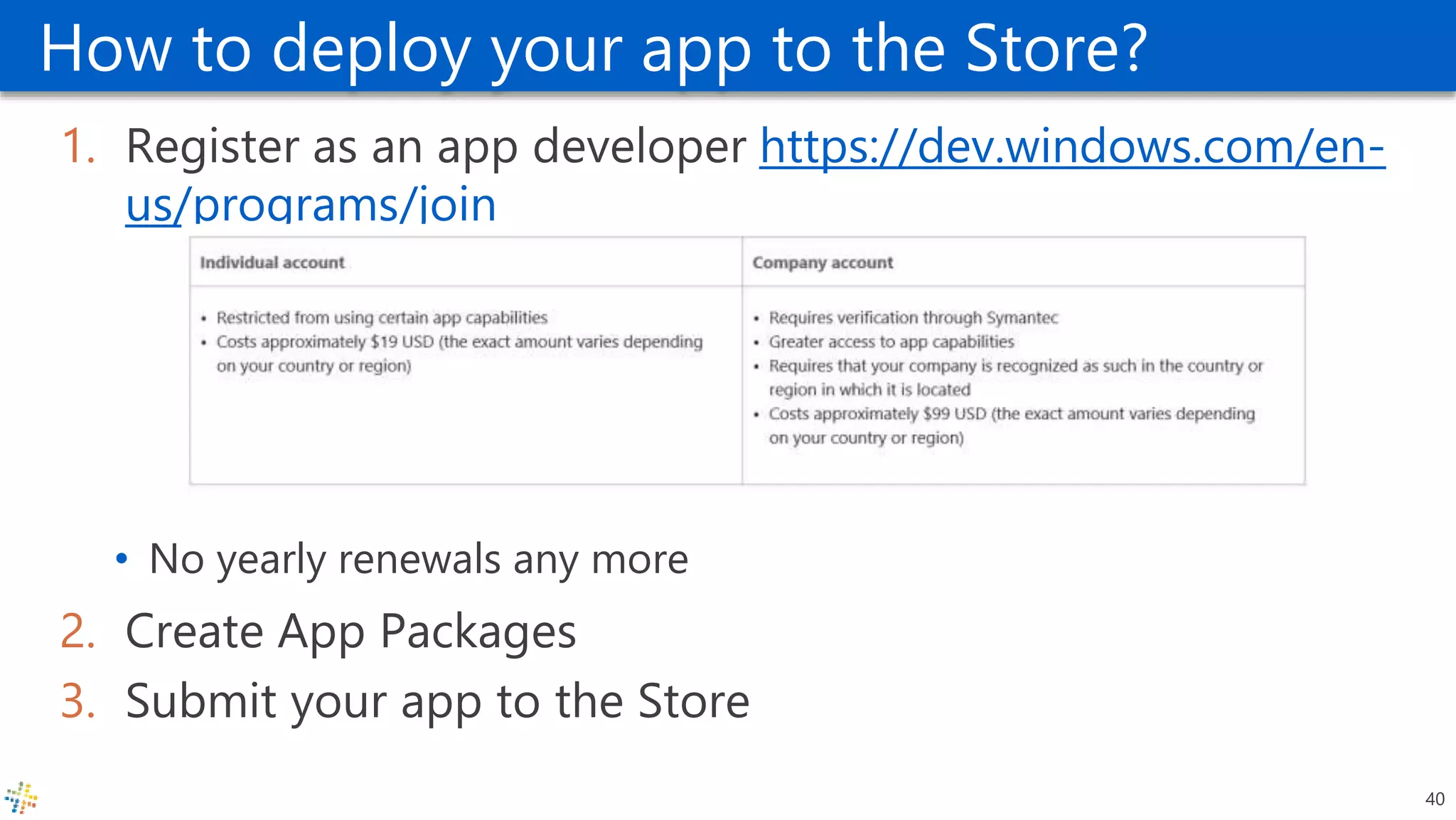
How to deploy your app to the Store?
1. Register as an app developer https://dev.windows.com/en-
us/programs/join
• No yearly renewals any more
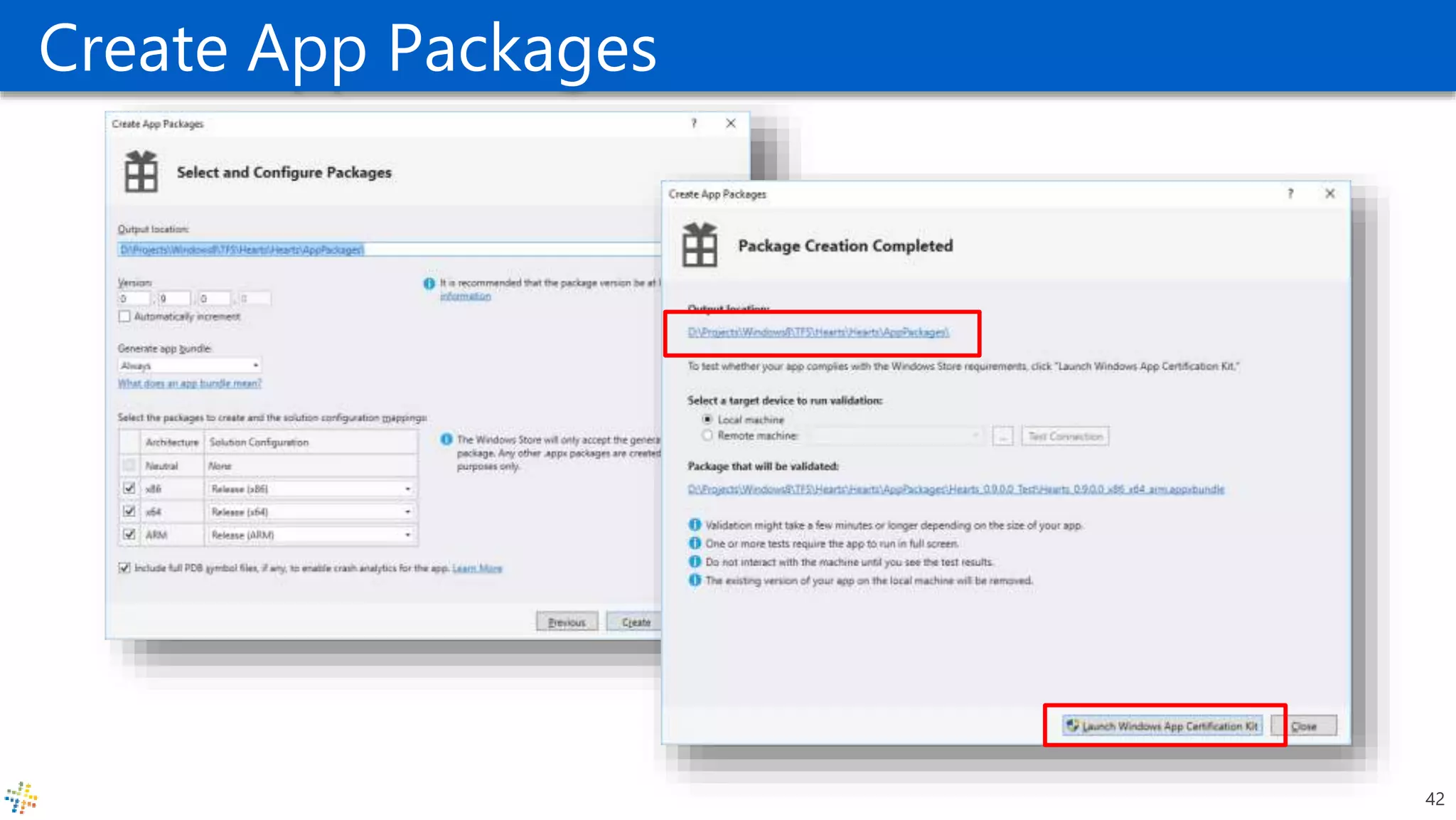
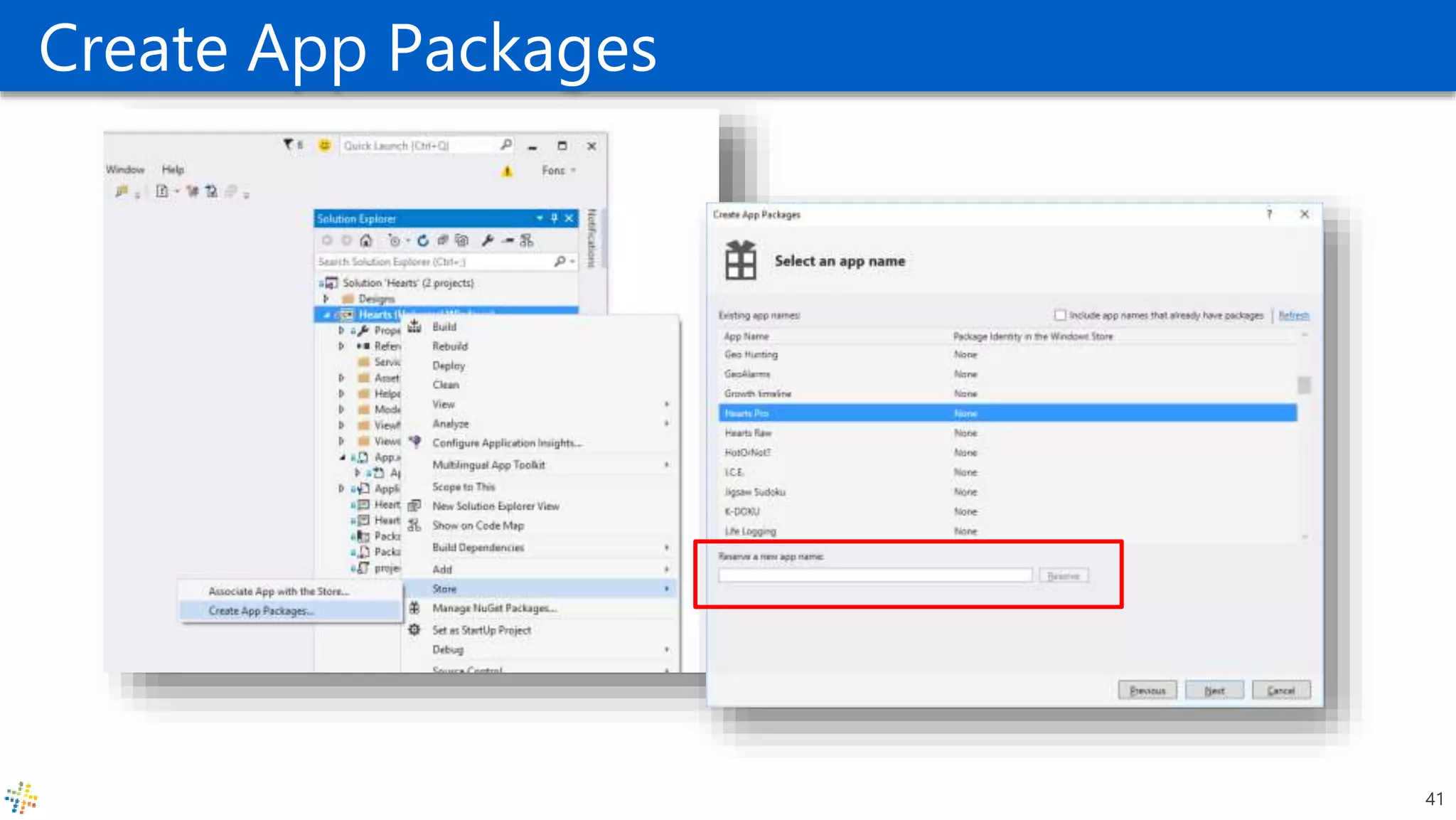
2. Create App Packages
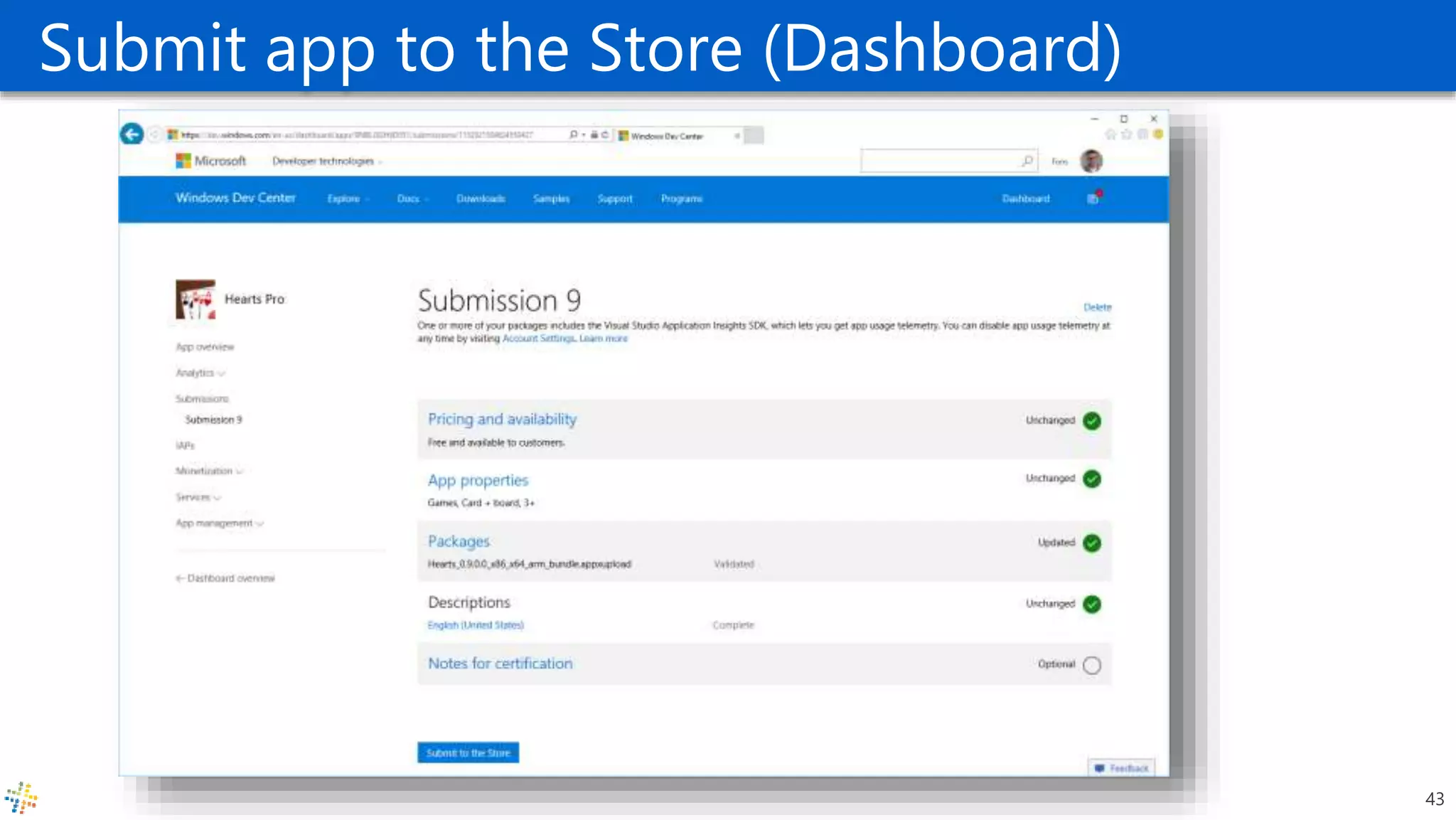
3. Submit your app to the Store
40
Create App Packages
41
Create App Packages
42
Submit app to the Store (Dashboard)
43
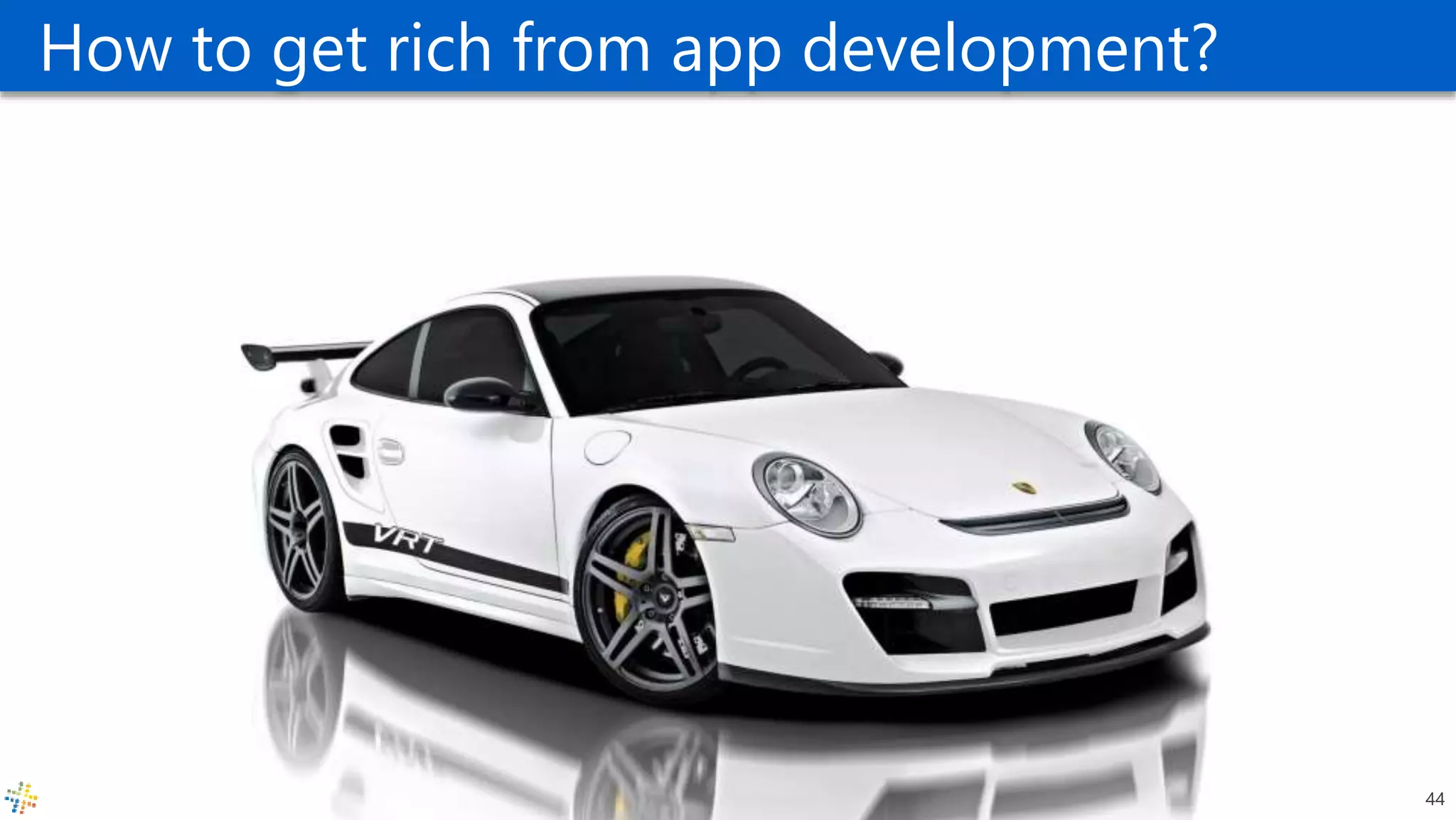
How to get rich from app development?
44
Ways to become “Rich”
• Write an app for a client
• Write an app and publish it in a Store
• Write an app and sell it
• Affiliate marketing
45
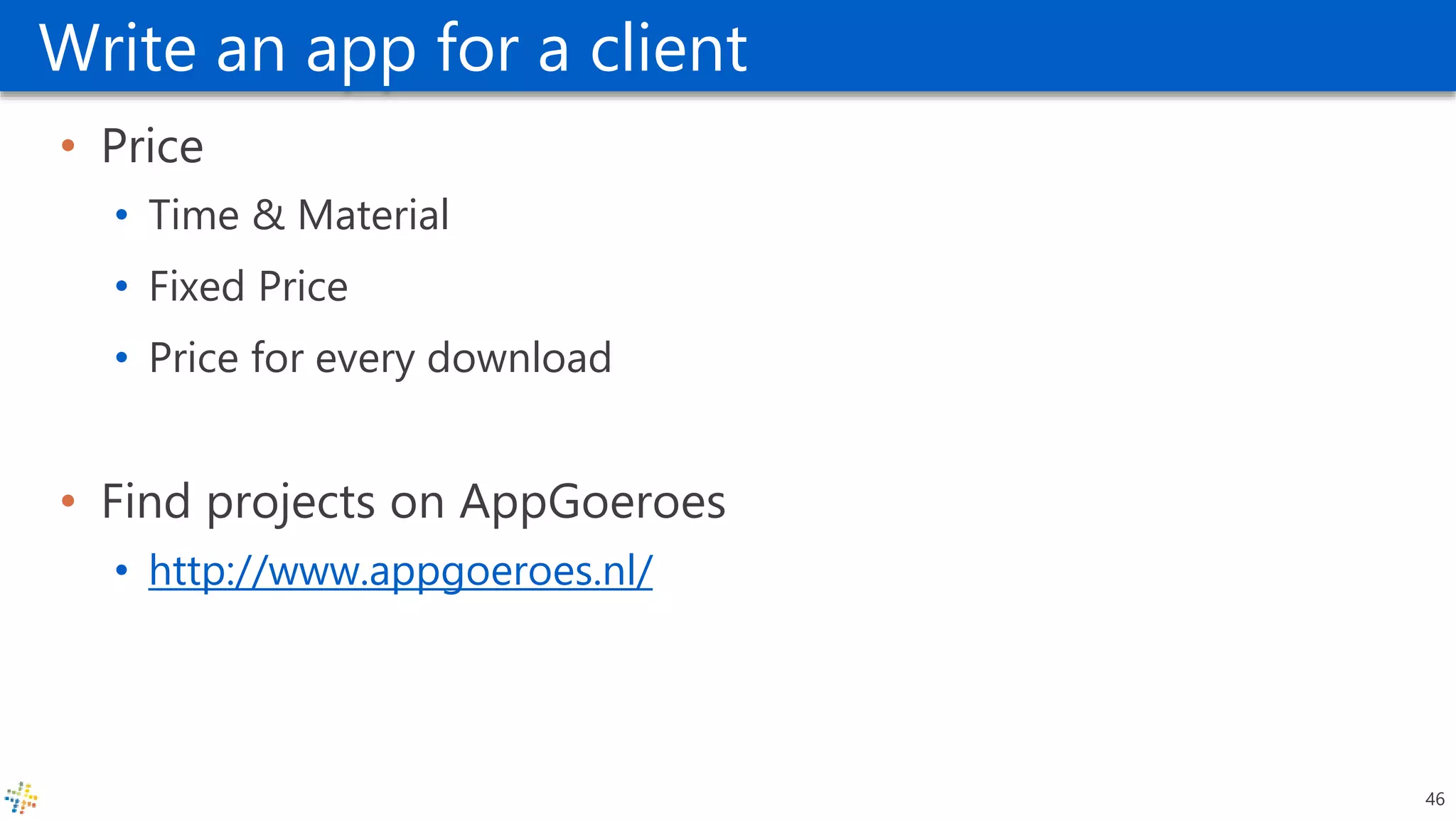
Write an app for a client
• Price
• Time & Material
• Fixed Price
• Price for every download
• Find projects on AppGoeroes
• http://www.appgoeroes.nl/
46
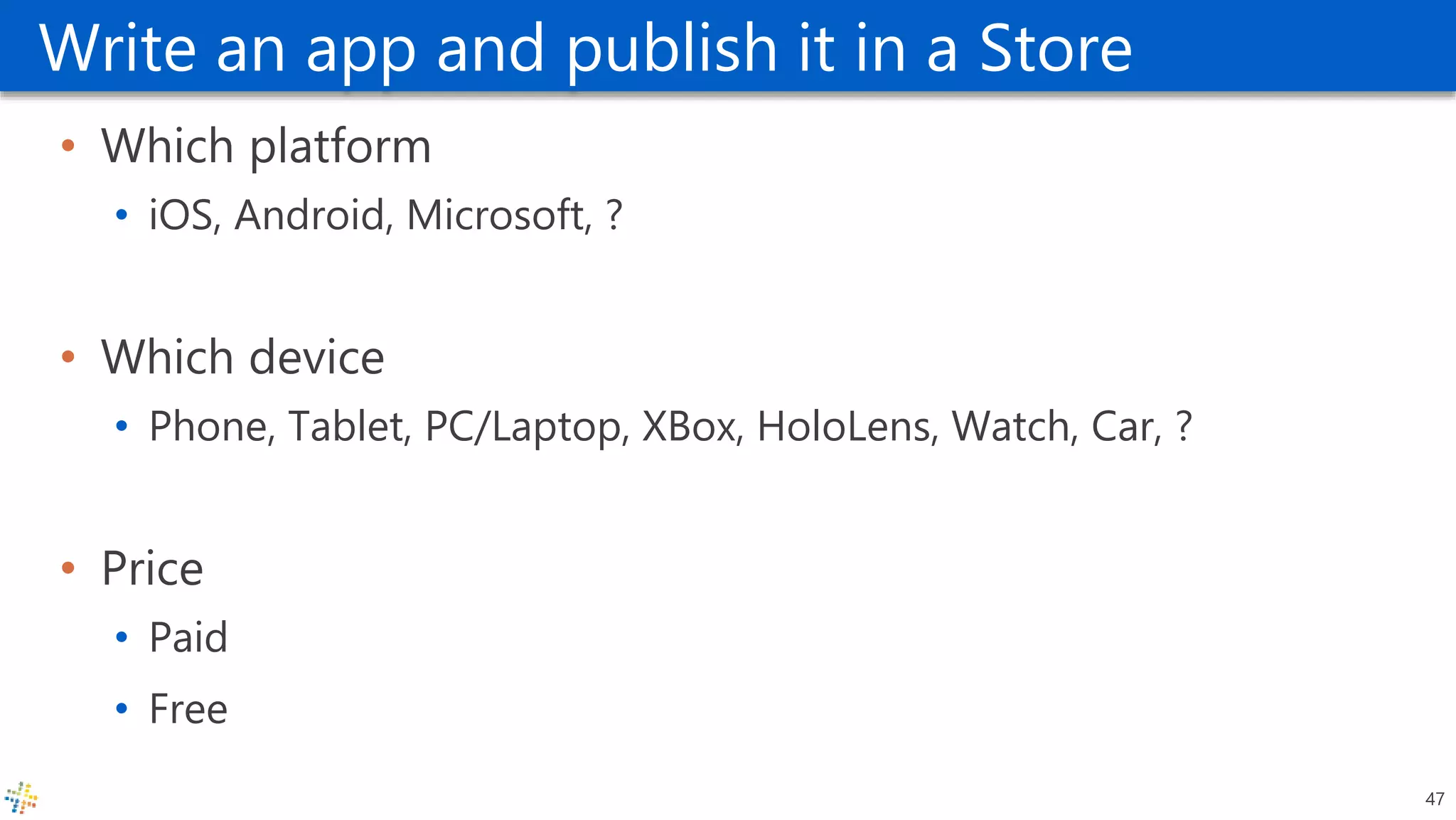
Write an app and publish it in a Store
• Which platform
• iOS, Android, Microsoft, ?
• Which device
• Phone, Tablet, PC/Laptop, XBox, HoloLens, Watch, Car, ?
• Price
• Paid
• Free
47
48
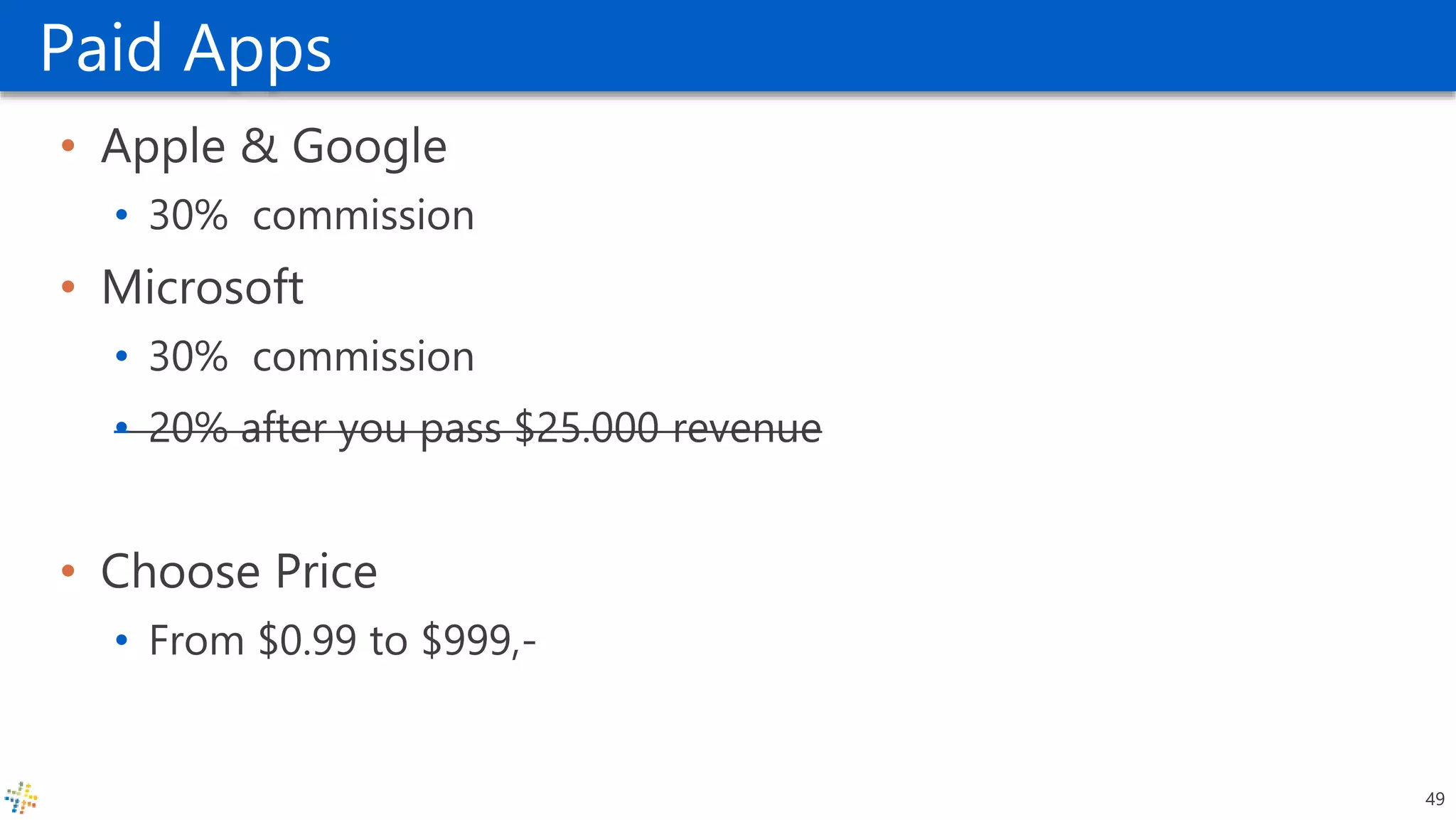
Paid Apps
• Apple & Google
• 30% commission
• Microsoft
• 30% commission
• 20% after you pass $25.000 revenue
• Choose Price
• From $0.99 to $999,-
49
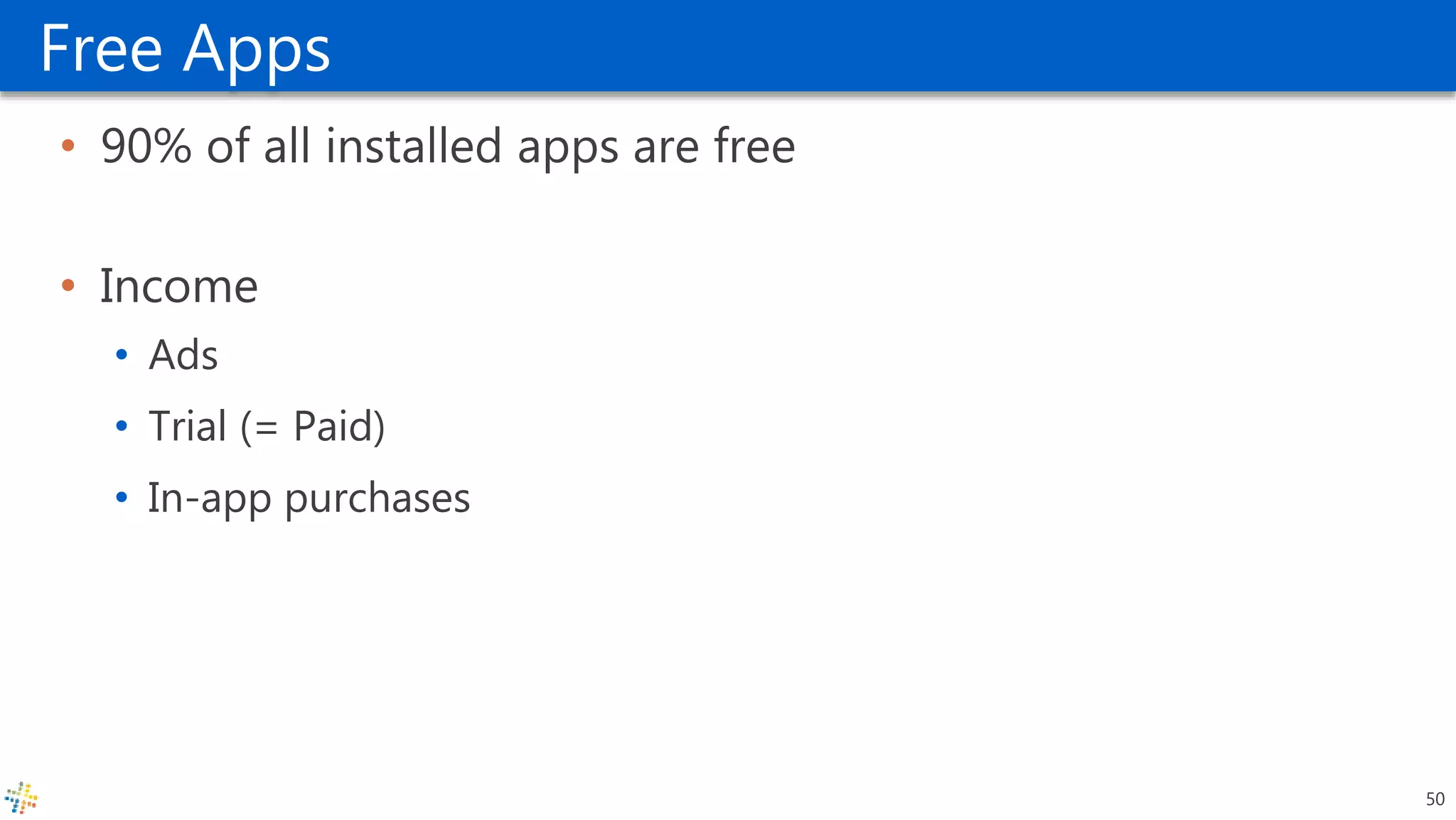
Free Apps
• 90% of all installed apps are free
• Income
• Ads
• Trial (= Paid)
• In-app purchases
50
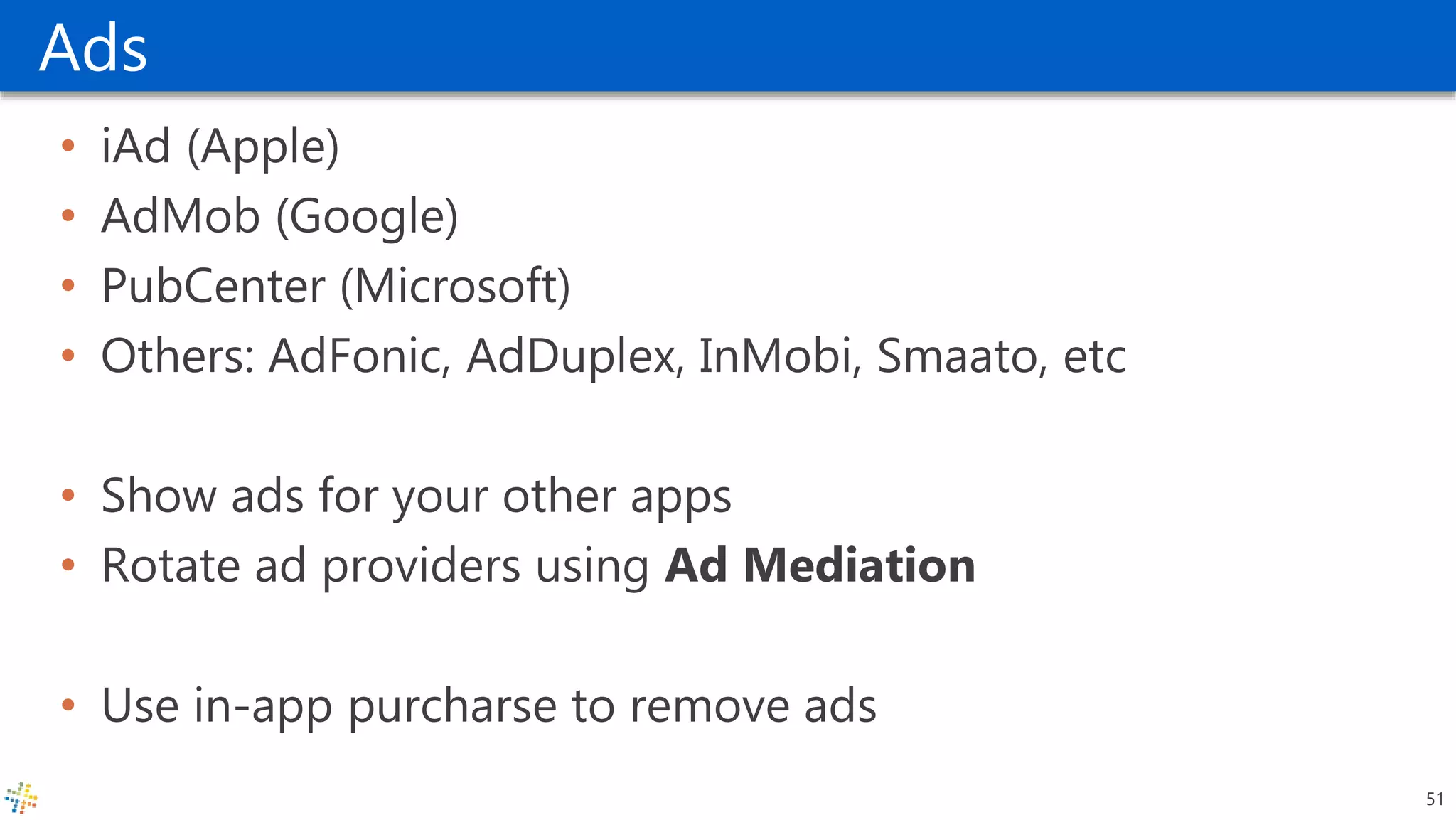
Ads
• iAd (Apple)
• AdMob (Google)
• PubCenter (Microsoft)
• Others: AdFonic, AdDuplex, InMobi, Smaato, etc
• Show ads for your other apps
• Rotate ad providers using Ad Mediation
• Use in-app purcharse to remove ads
51
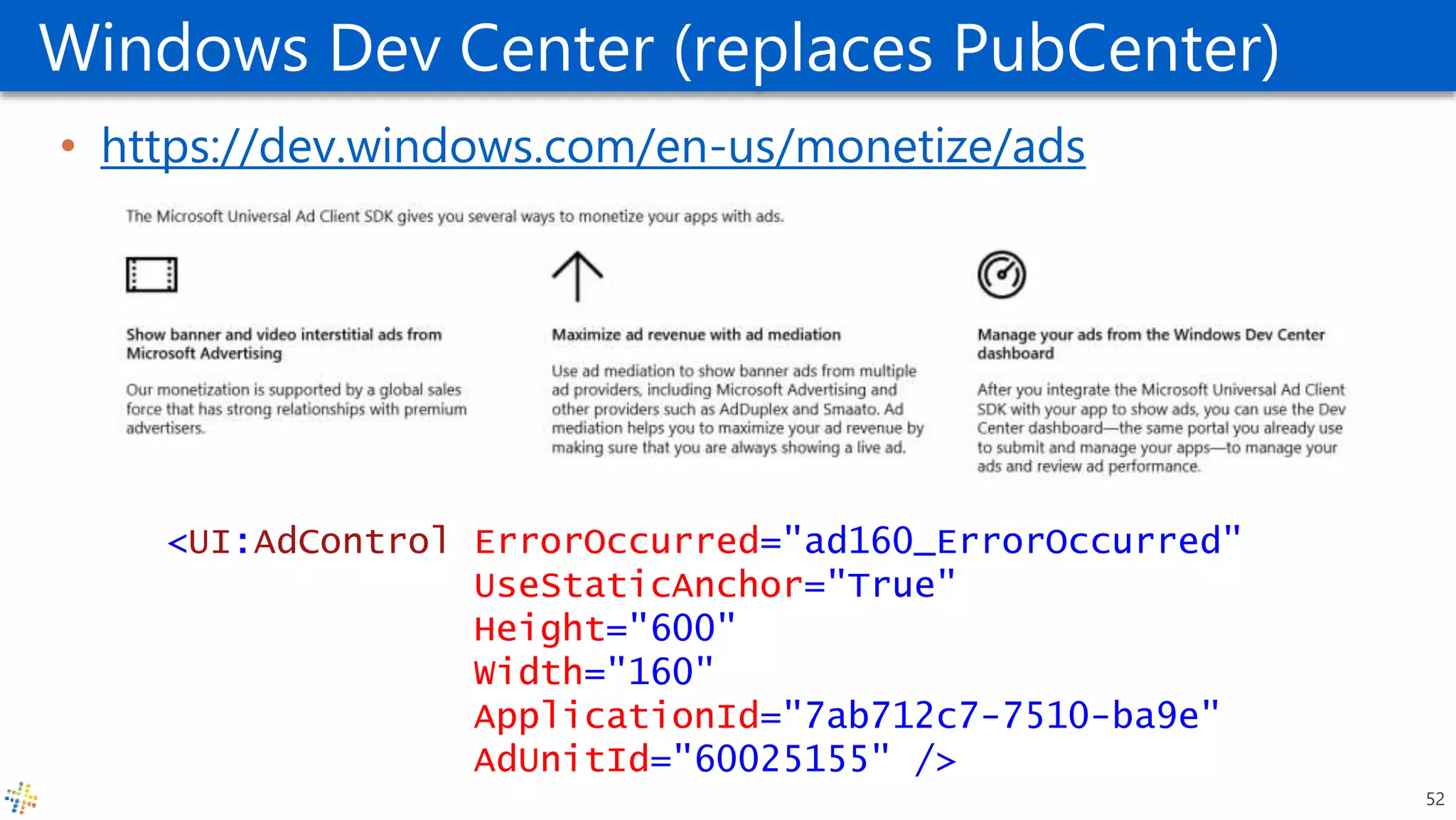
Windows Dev Center (replaces PubCenter)
• https://dev.windows.com/en-us/monetize/ads
<UI:AdControl ErrorOccurred="ad160_ErrorOccurred"
UseStaticAnchor="True"
Height="600"
Width="160"
ApplicationId="7ab712c7-7510-ba9e"
AdUnitId="60025155" />
52
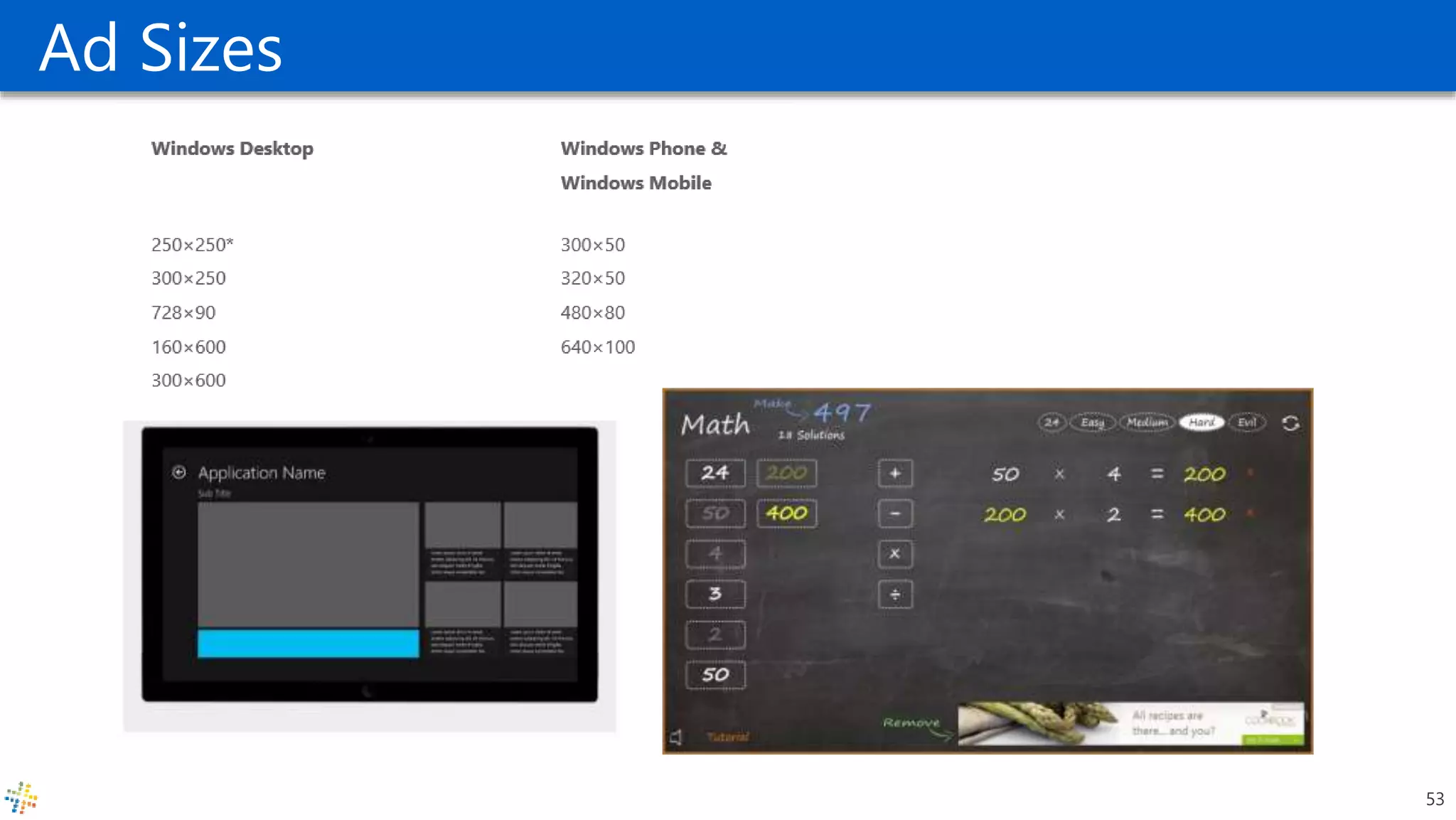
Ad Sizes
53
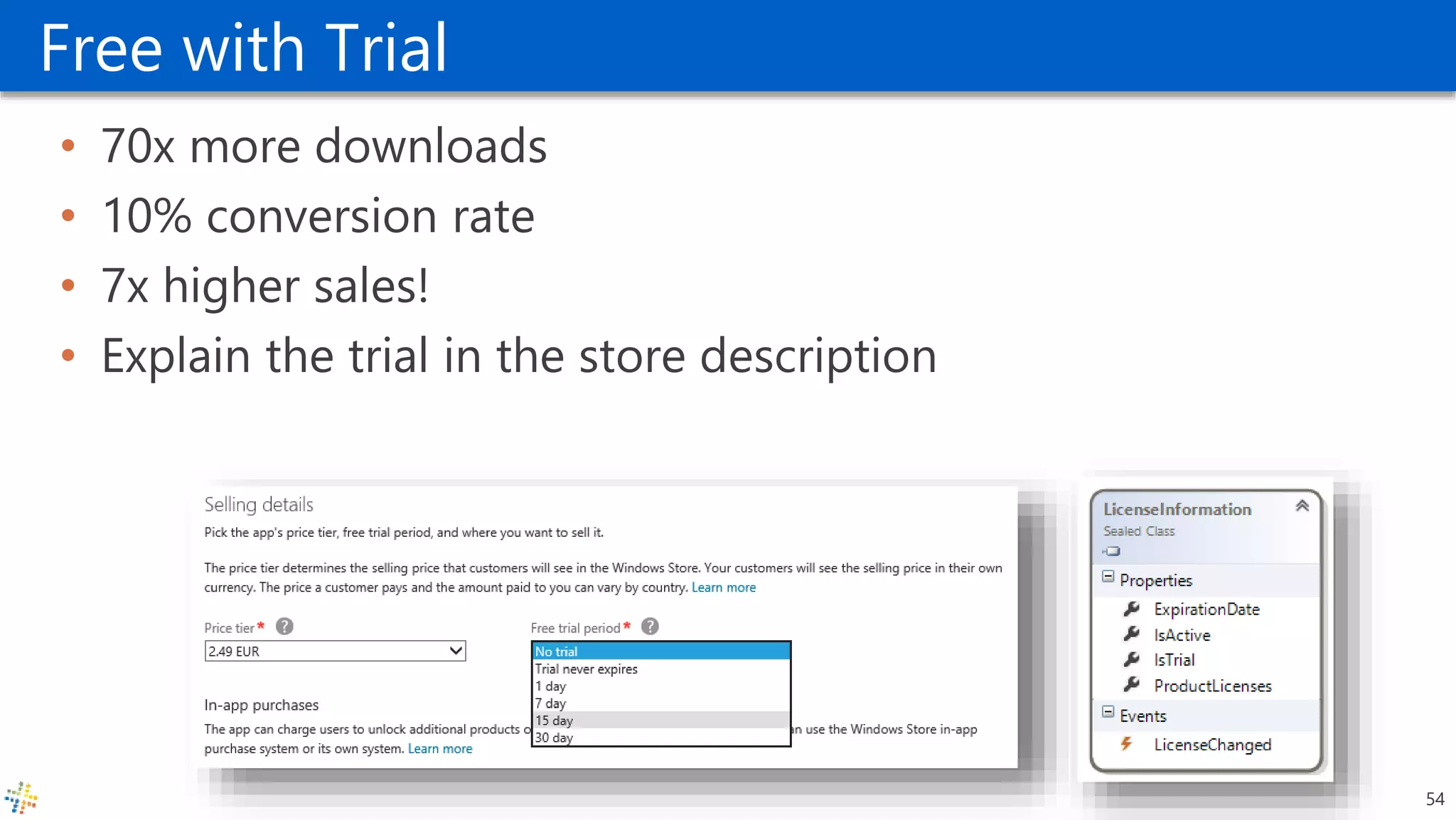
Free with Trial
• 70x more downloads
• 10% conversion rate
• 7x higher sales!
• Explain the trial in the store description
54
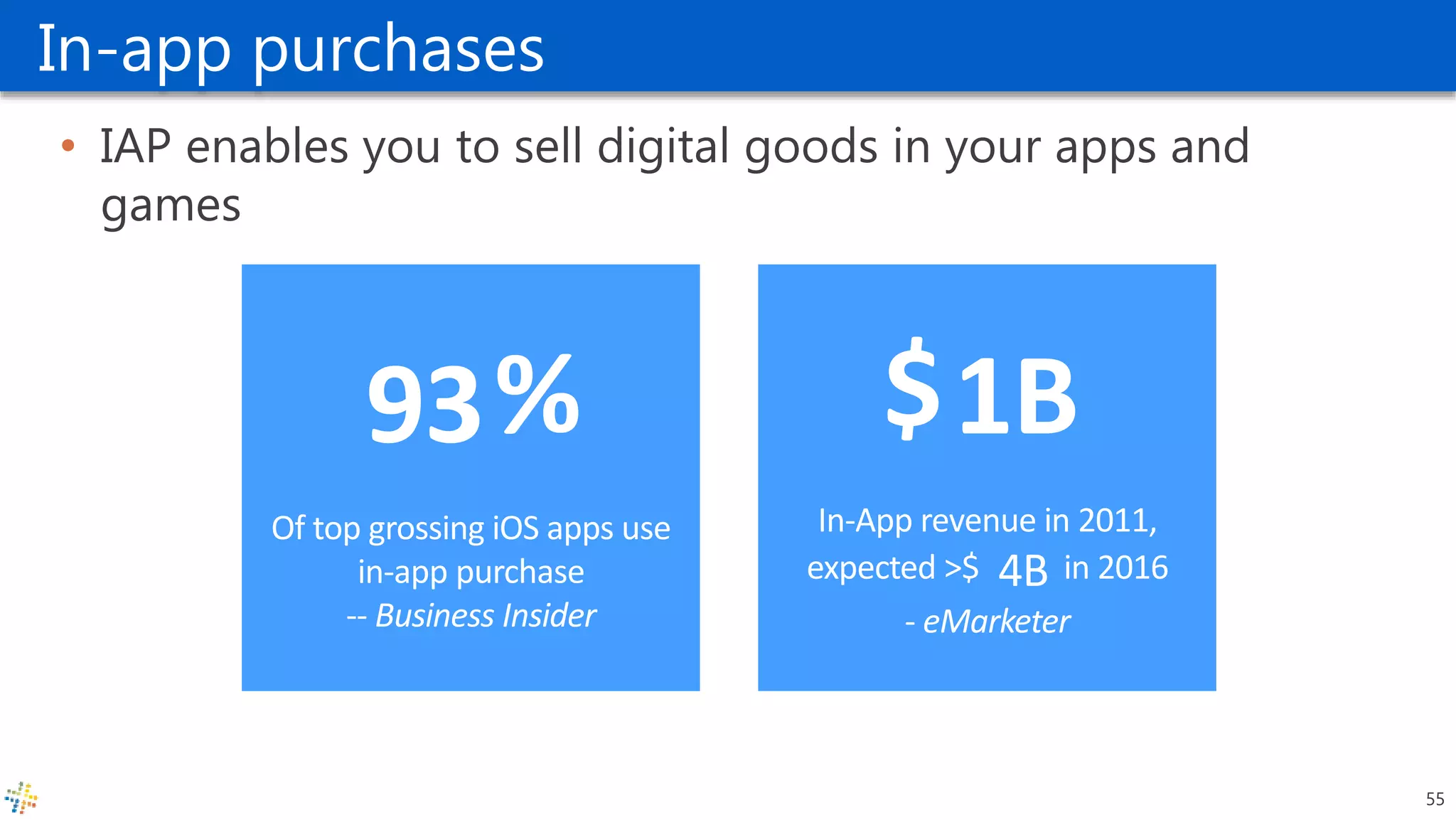
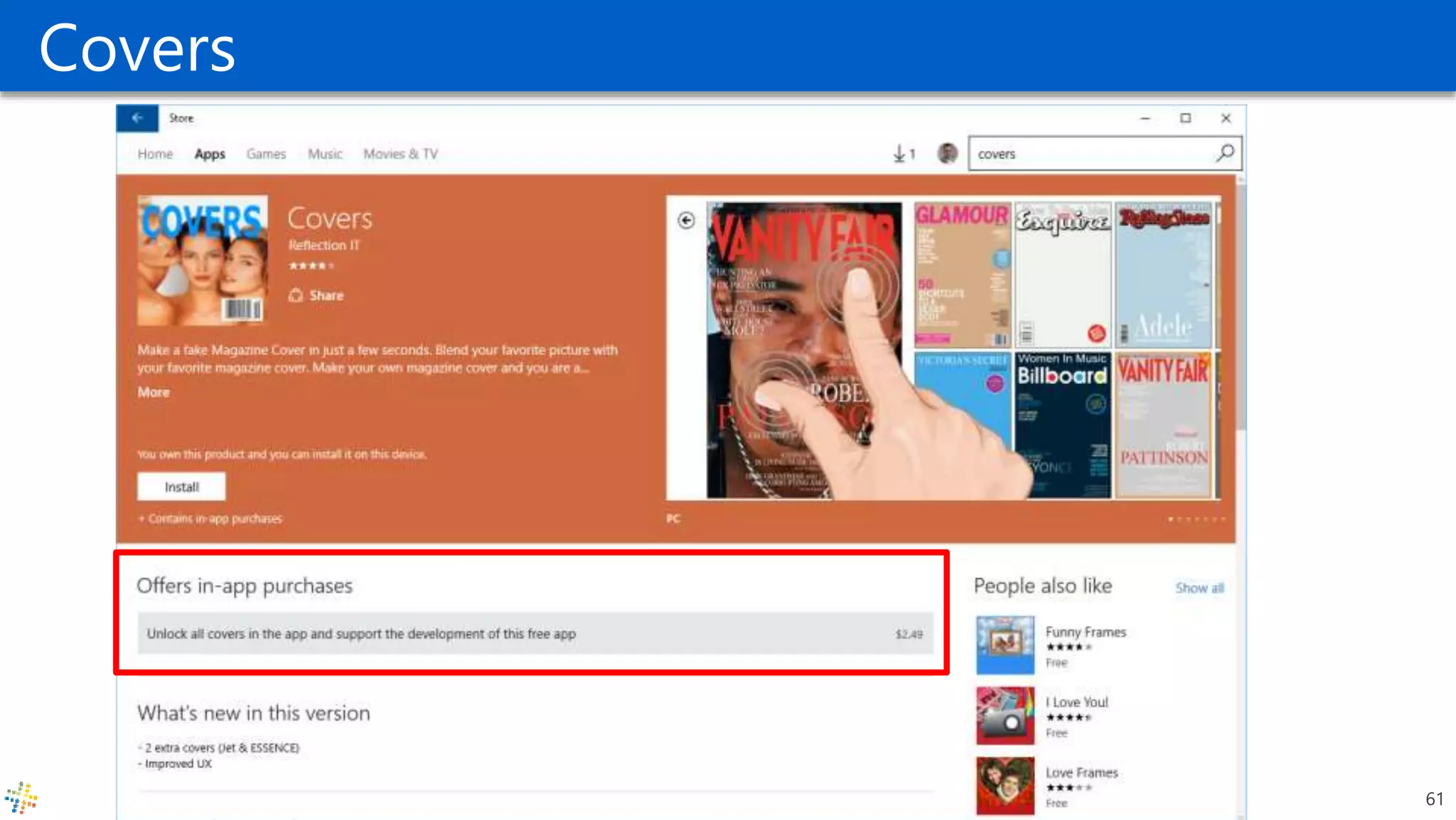
In-app purchases
• IAP enables you to sell digital goods in your apps and
games
%
Of top grossing iOS apps use
in-app purchase
-- Business Insider
$
In-App revenue in 2011,
expected >$ in 2016
- eMarketer
93 1B
4B
55
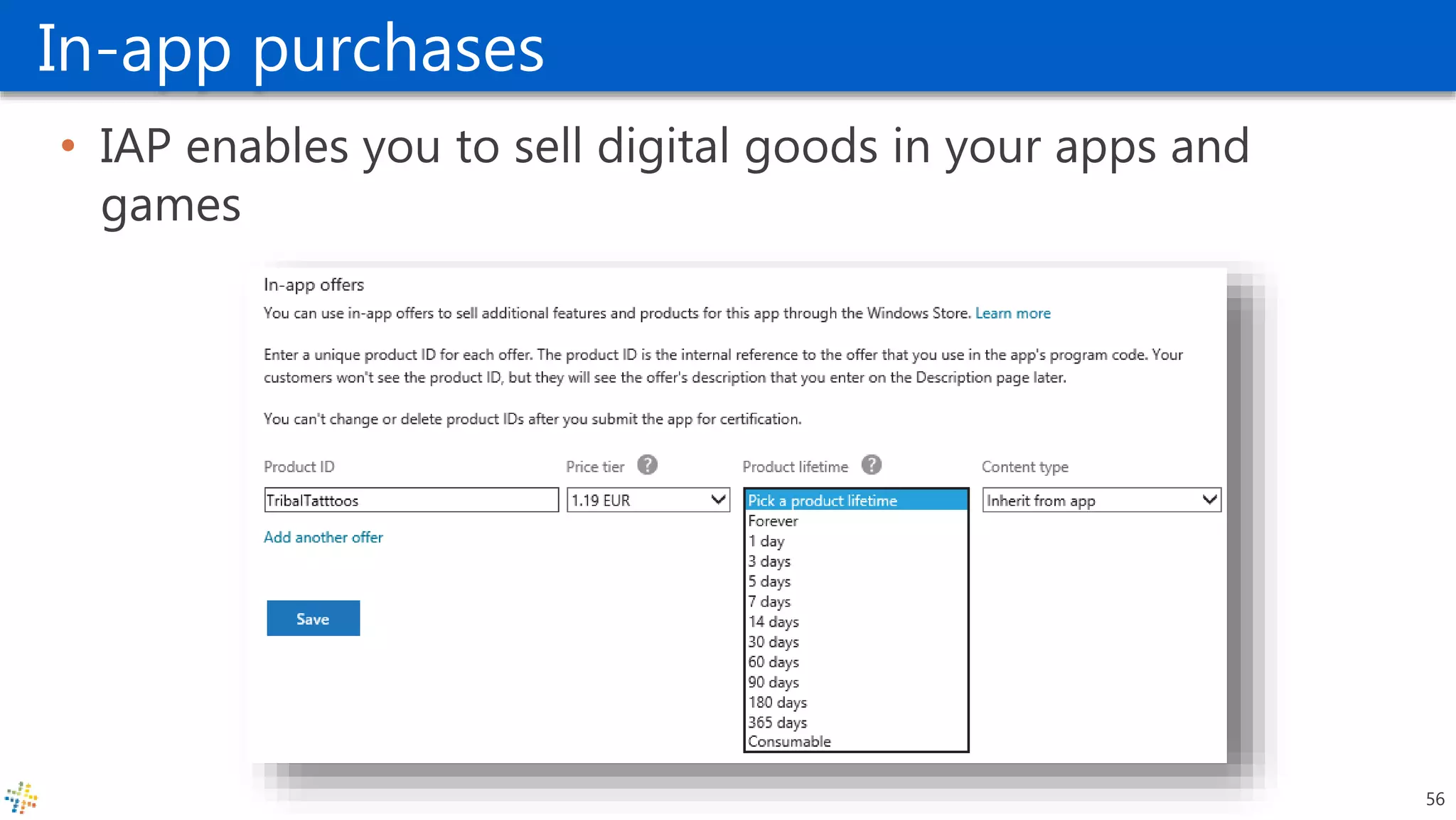
In-app purchases
• IAP enables you to sell digital goods in your apps and
games
56
What can you sell?
• Game items (swords, levels, characters)
• Functionality (more features, new graphics, maps, levels)
• Accelerated gameplay (unlock items, powerups)
• eBooks and eMagazines
• Digital images, music and videos
• Virtual Currency that can be shared across all your apps (gold, tokens, gems)
• Postcards from photos taken on the phone
• A DVD of a video captured and edited on the phone
• Digital services (backup data to cloud, rent-a-map)
• Donations
57
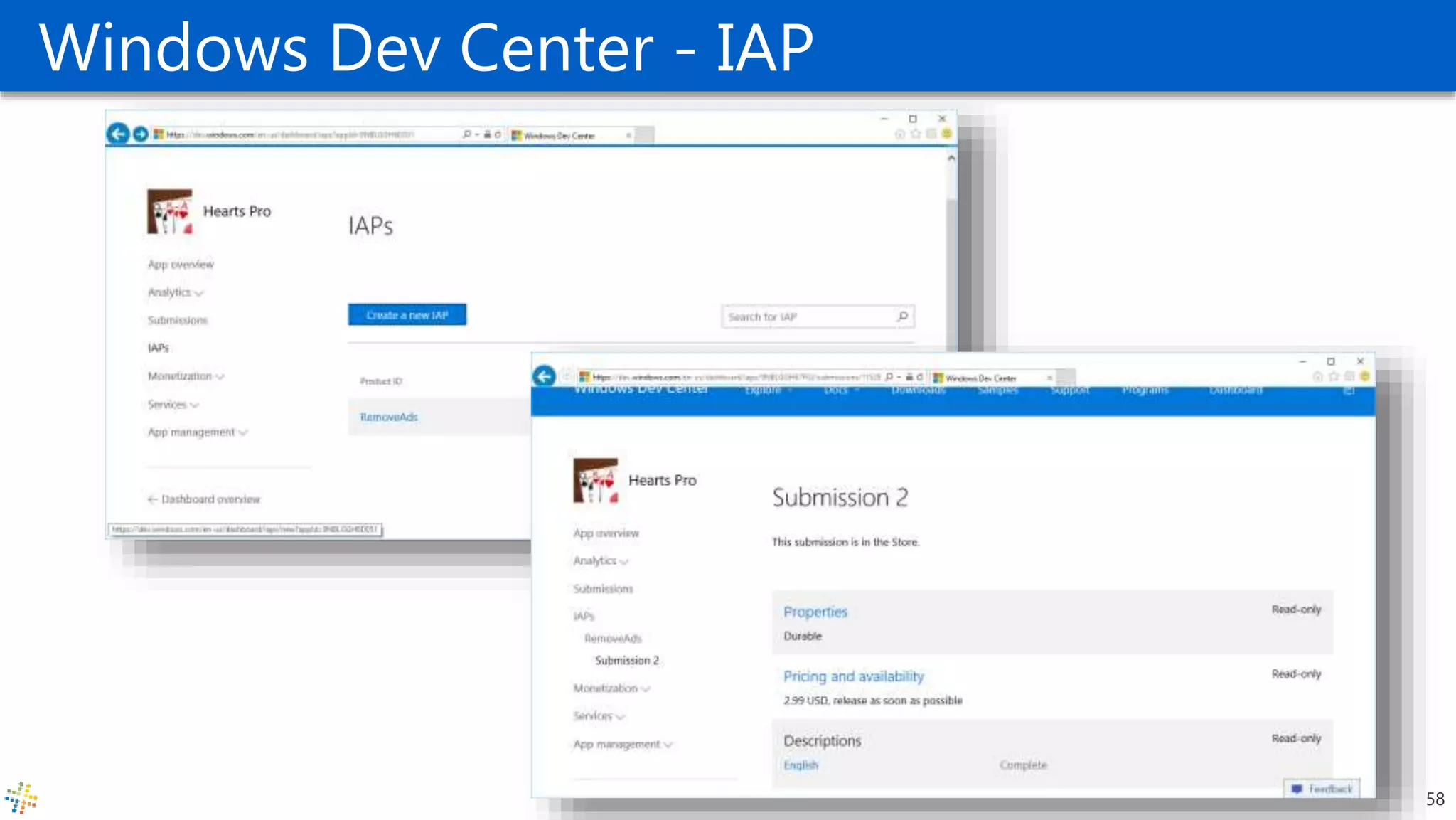
Windows Dev Center - IAP
58
In-app purchases
• Code samples
• Product purchases
• https://msdn.microsoft.com/en-us/library/windows/apps/mt219684.aspx
• Consumable in-app product purchases
• https://msdn.microsoft.com/en-us/library/windows/apps/mt219683.aspx
59
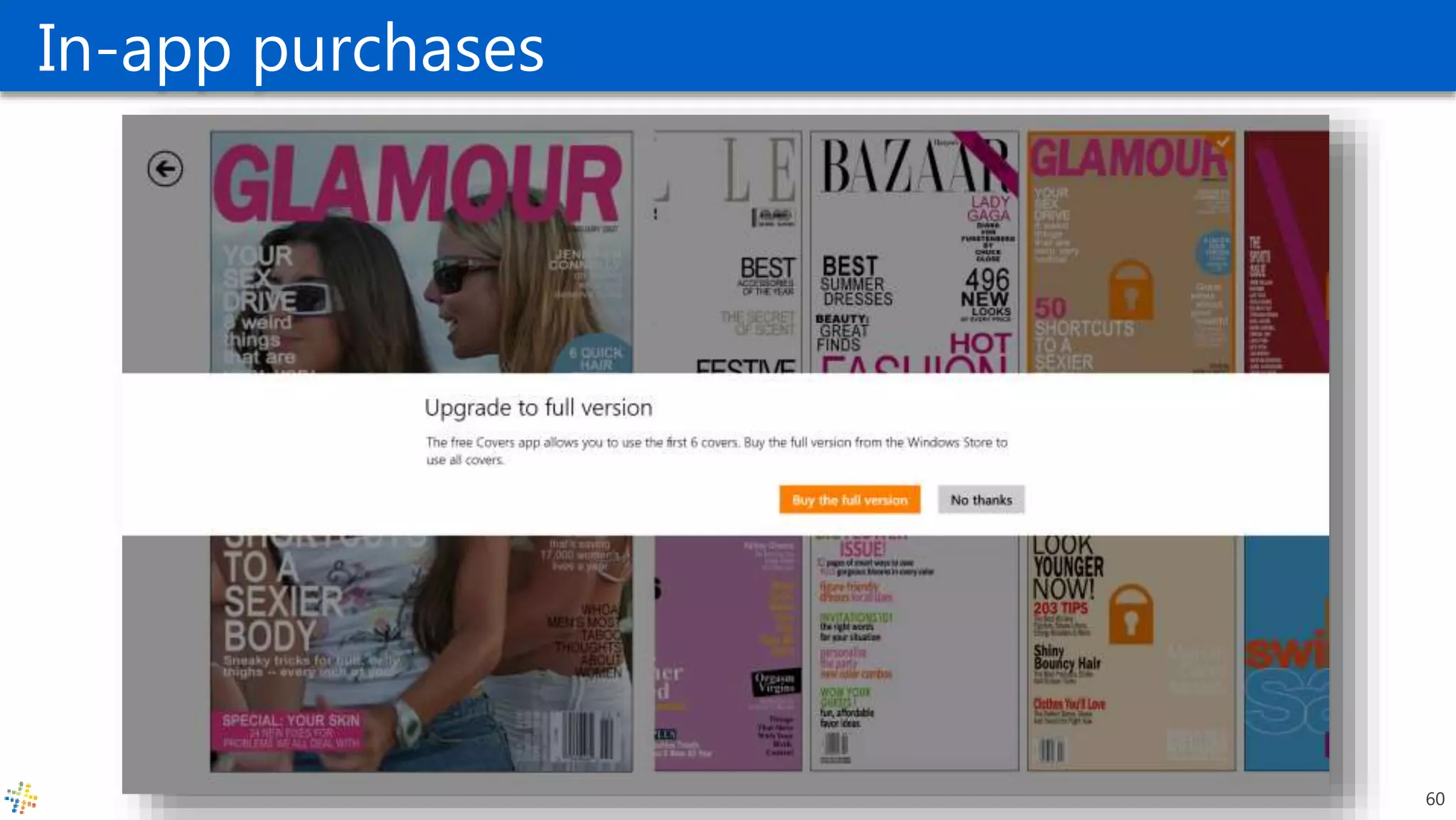
In-app purchases
60
Covers
61
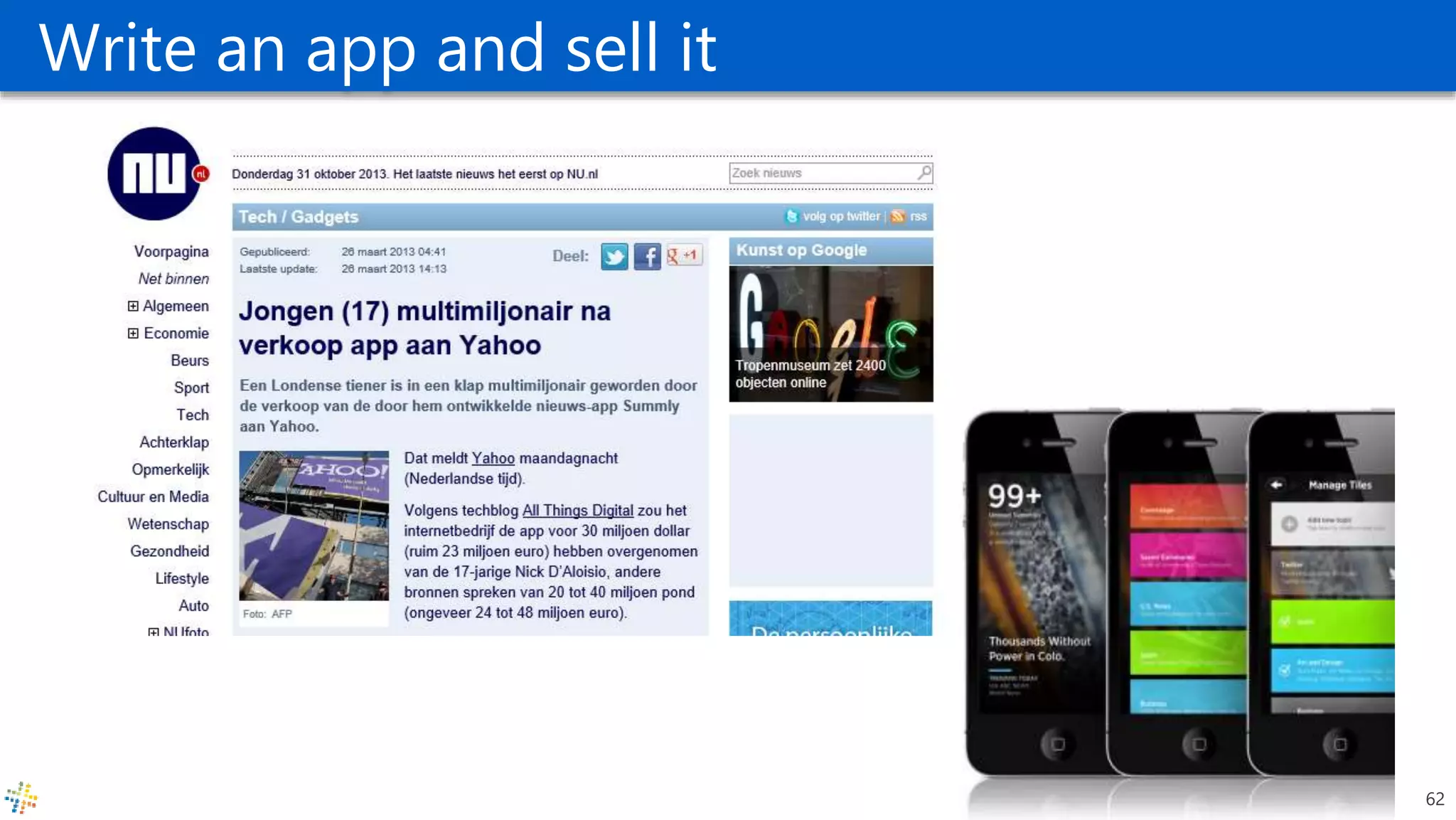
Write an app and sell it
62
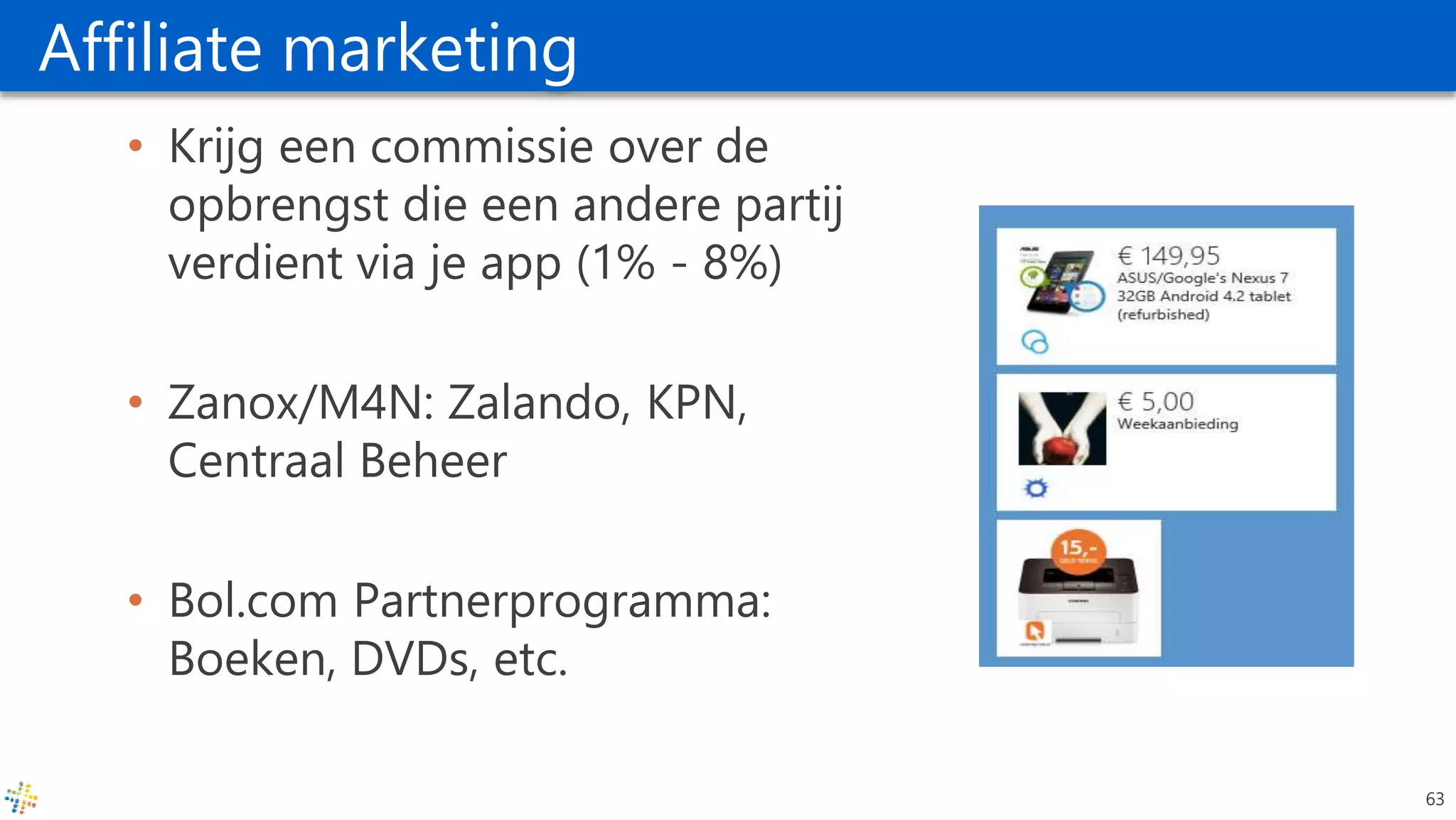
Affiliate marketing
• Krijg een commissie over de
opbrengst die een andere partij
verdient via je app (1% - 8%)
• Zanox/M4N: Zalando, KPN,
Centraal Beheer
• Bol.com Partnerprogramma:
Boeken, DVDs, etc.
63
How to write a successful app?
64
How to write a successful app?
• Create A Great Product
• The best apps only do one thing, but they do it very, very well.
• It’s important that the app is original, improves on another app,
solves a problem or entertains.
• If the app is good, everything that follows will be easier.
65
How to write a successful app?
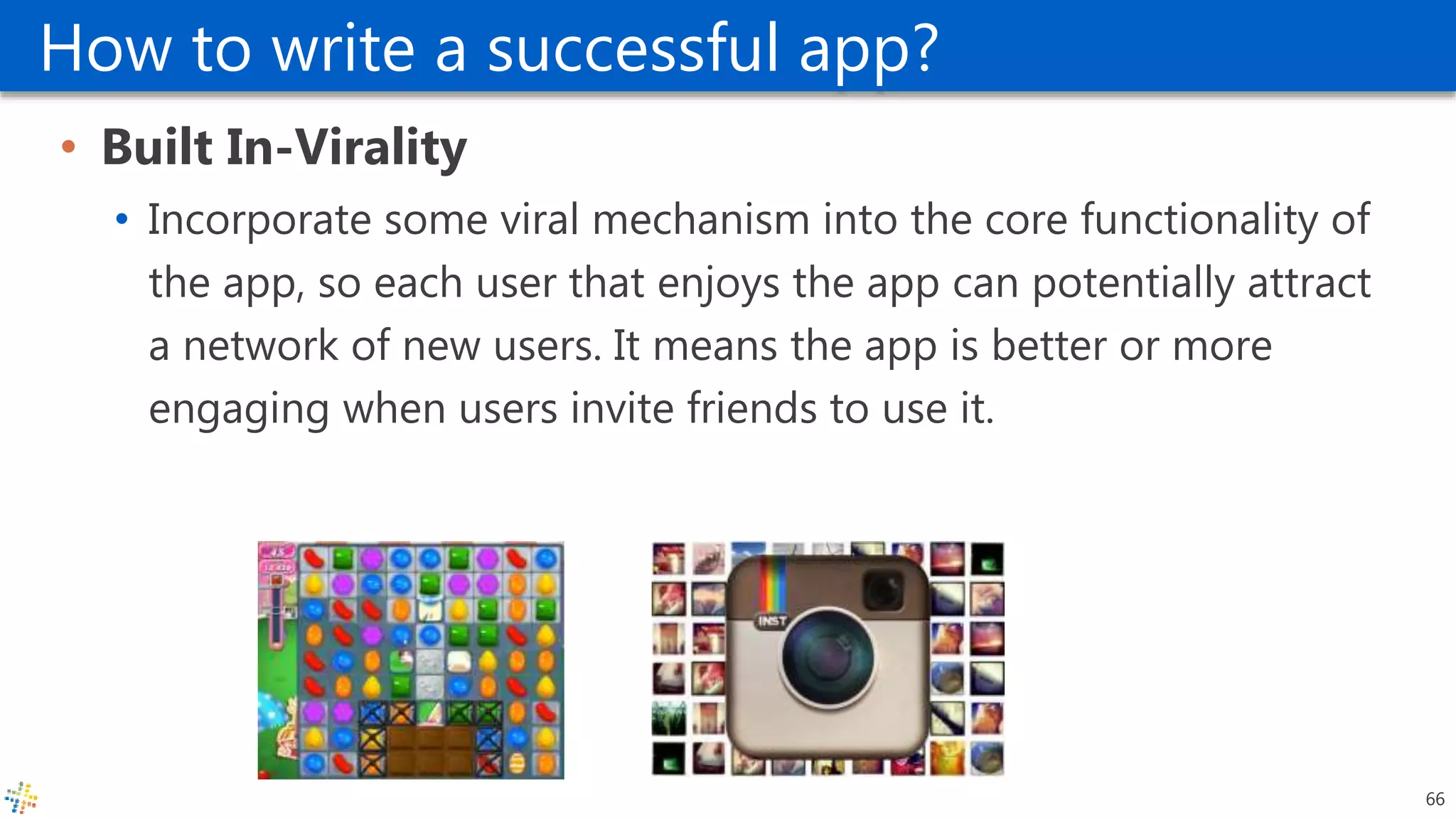
• Built In-Virality
• Incorporate some viral mechanism into the core functionality of
the app, so each user that enjoys the app can potentially attract
a network of new users. It means the app is better or more
engaging when users invite friends to use it.
66
How to write a successful app?
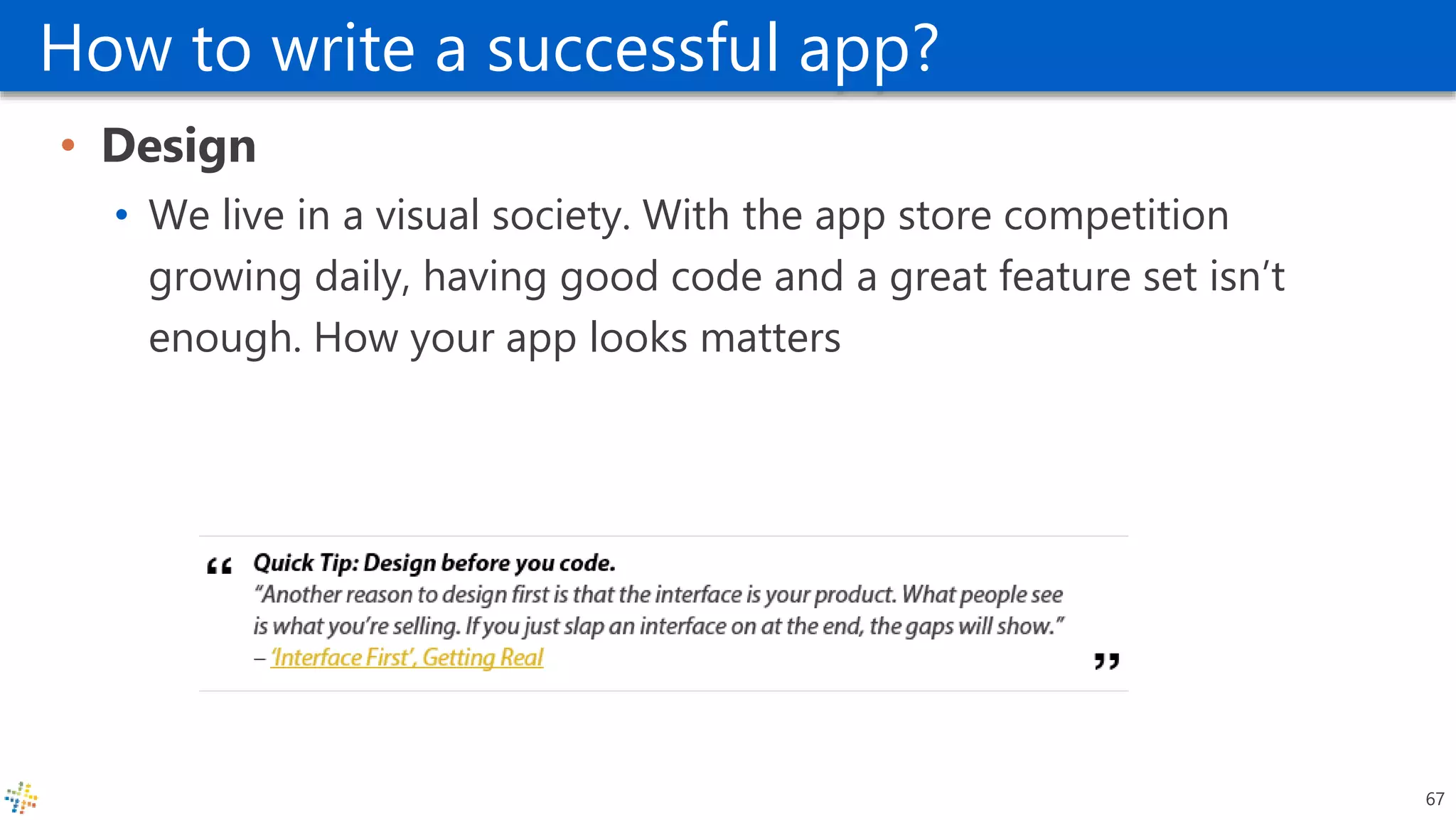
• Design
• We live in a visual society. With the app store competition
growing daily, having good code and a great feature set isn’t
enough. How your app looks matters
67
How to write a successful app?
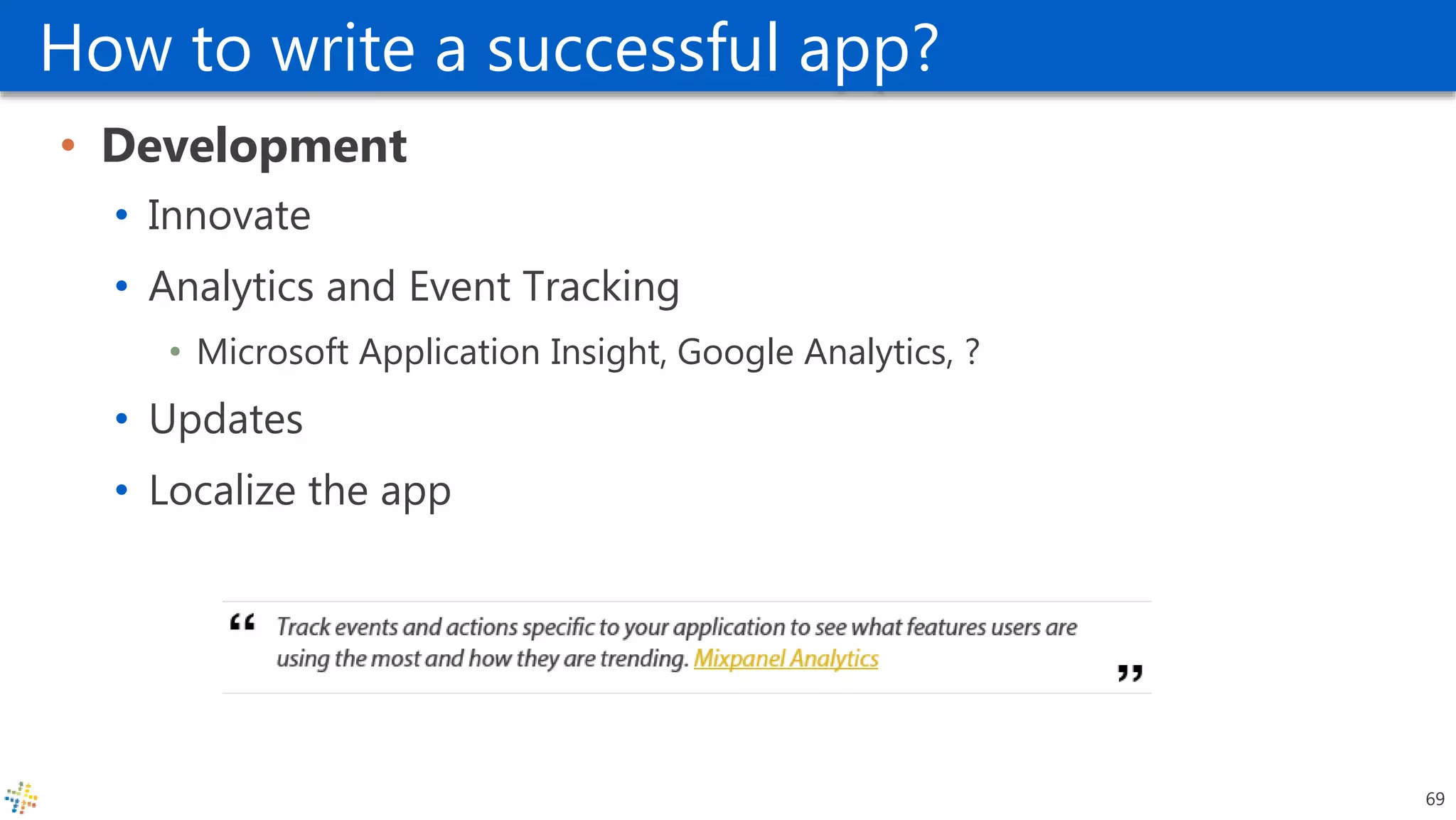
• Development
• Innovate
• Analytics and Event Tracking
• Microsoft Application Insight, Google Analytics, ?
• Updates
• Localize the app
69
How to write a successful app?
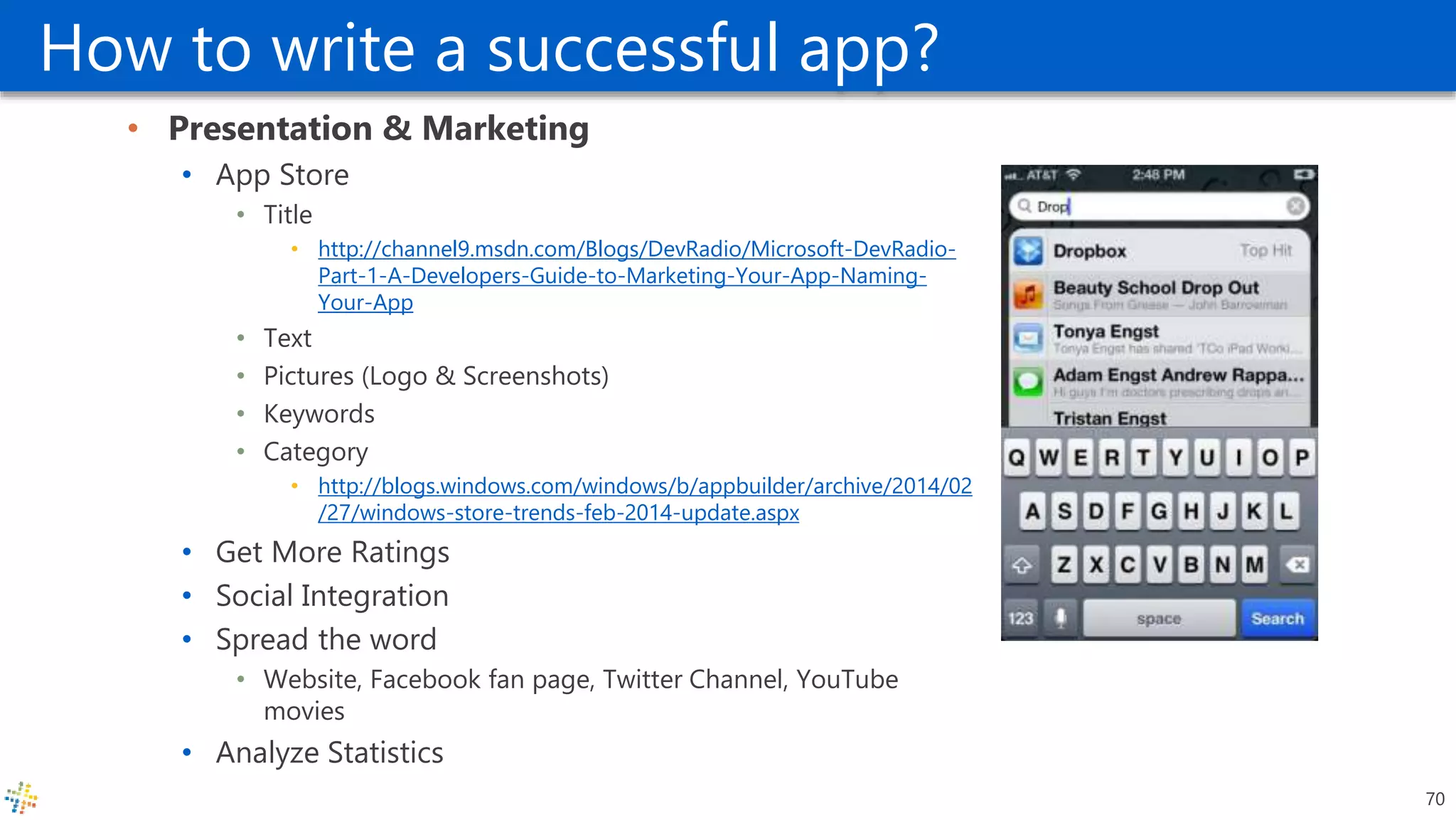
• Presentation & Marketing
• App Store
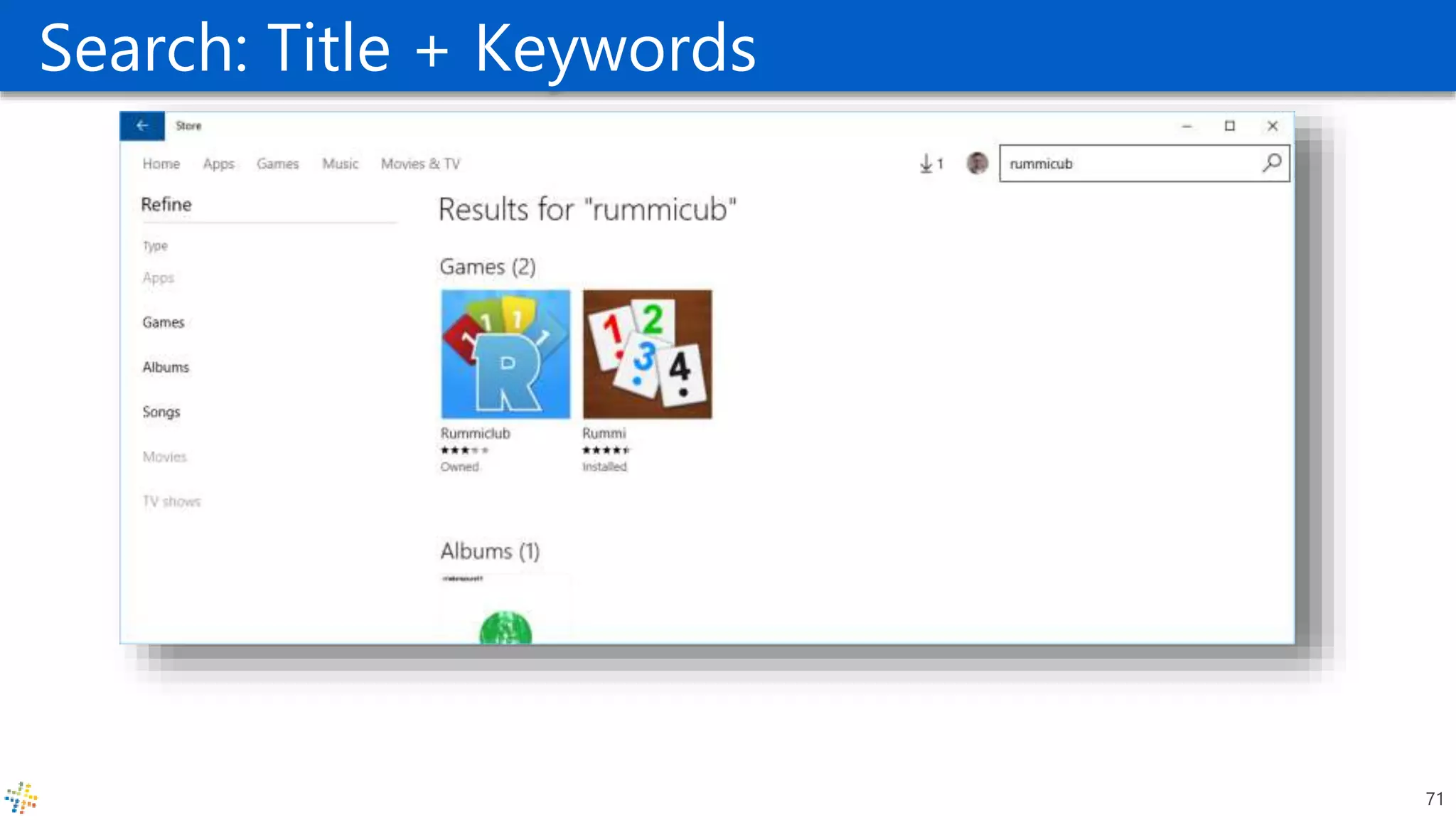
• Title
• http://channel9.msdn.com/Blogs/DevRadio/Microsoft-DevRadio-
Part-1-A-Developers-Guide-to-Marketing-Your-App-Naming-
Your-App
• Text
• Pictures (Logo & Screenshots)
• Keywords
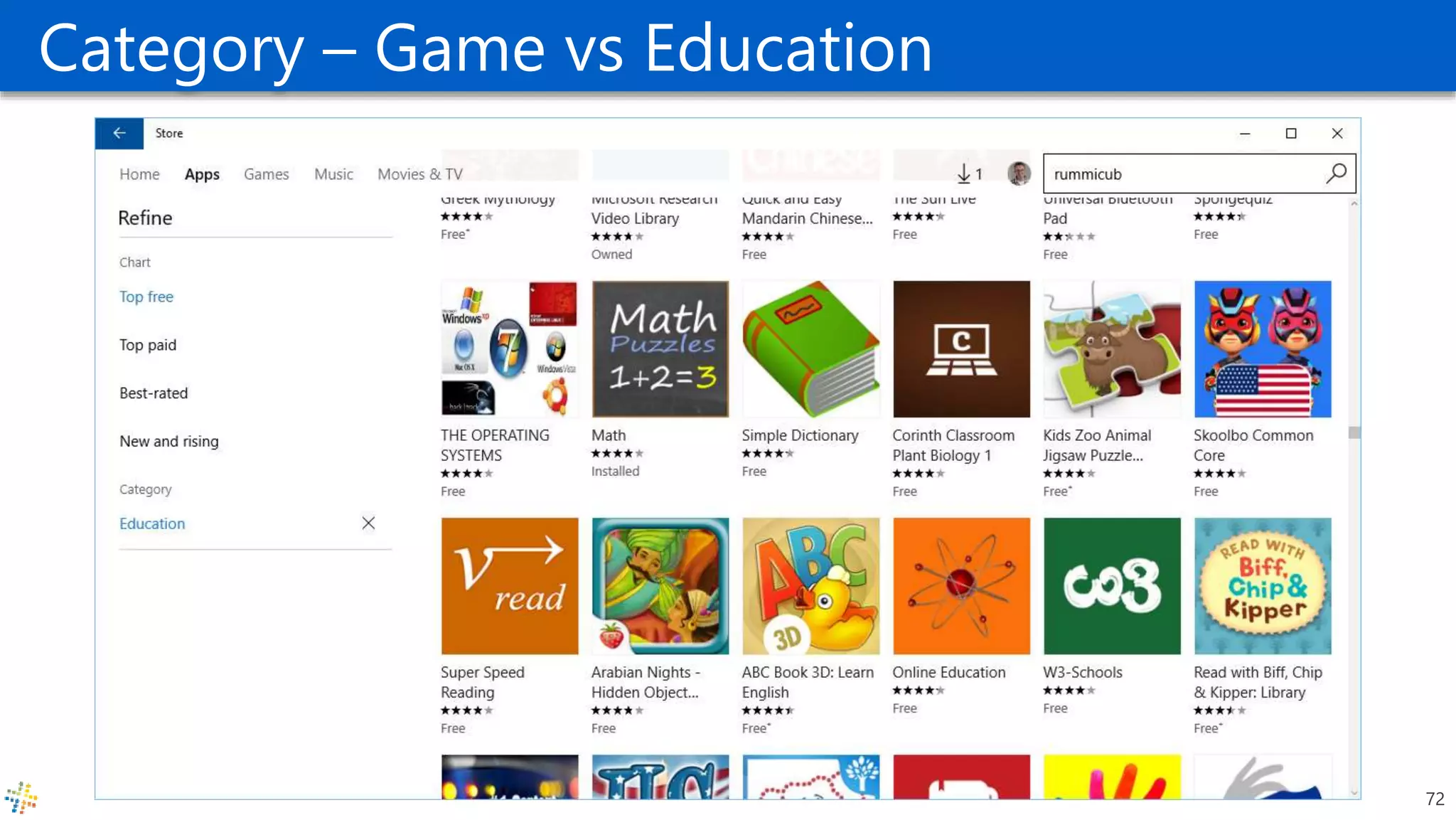
• Category
• http://blogs.windows.com/windows/b/appbuilder/archive/2014/02
/27/windows-store-trends-feb-2014-update.aspx
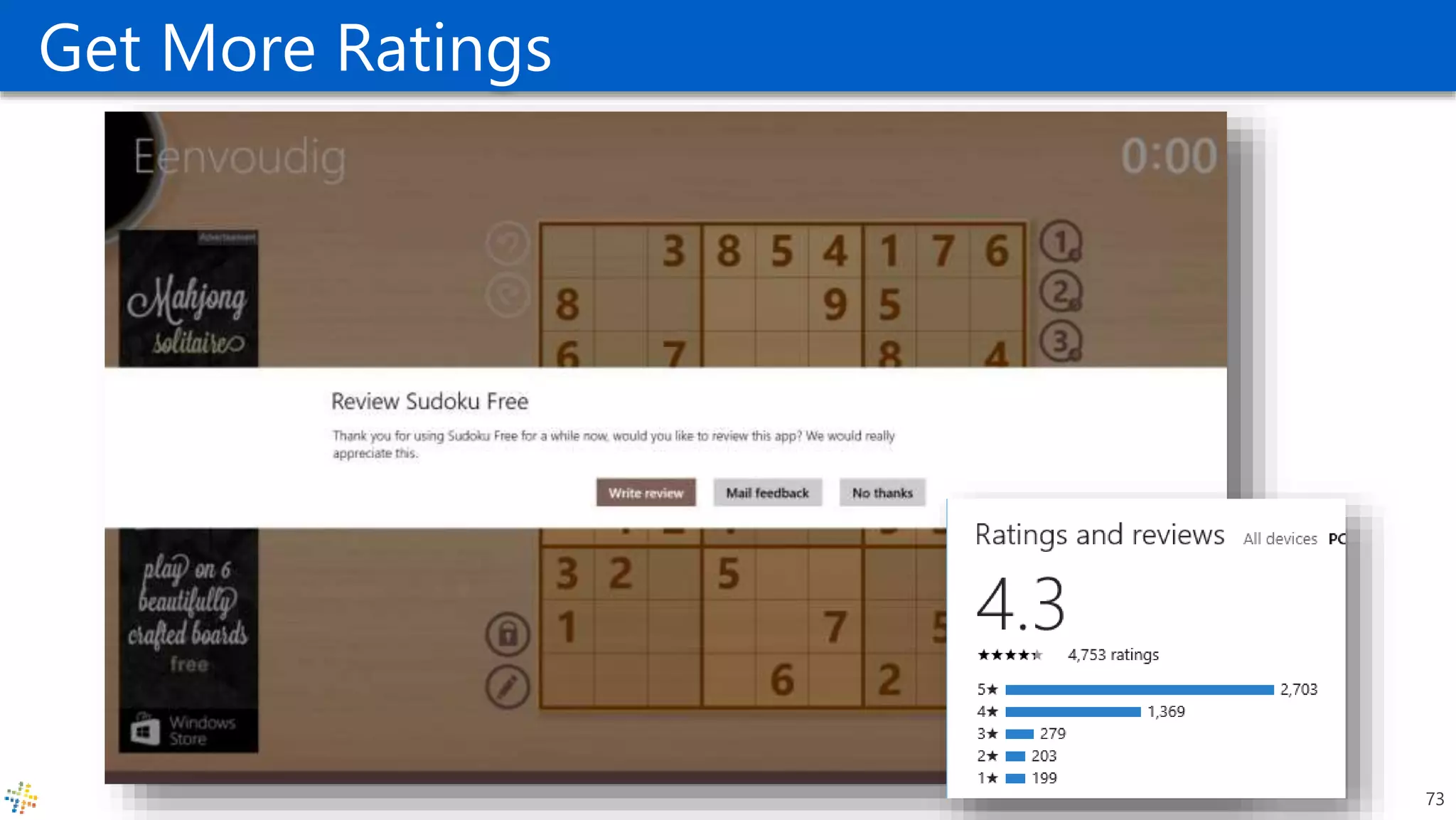
• Get More Ratings
• Social Integration
• Spread the word
• Website, Facebook fan page, Twitter Channel, YouTube
movies
• Analyze Statistics
70
Search: Title + Keywords
71
Category – Game vs Education
72
Get More Ratings
73
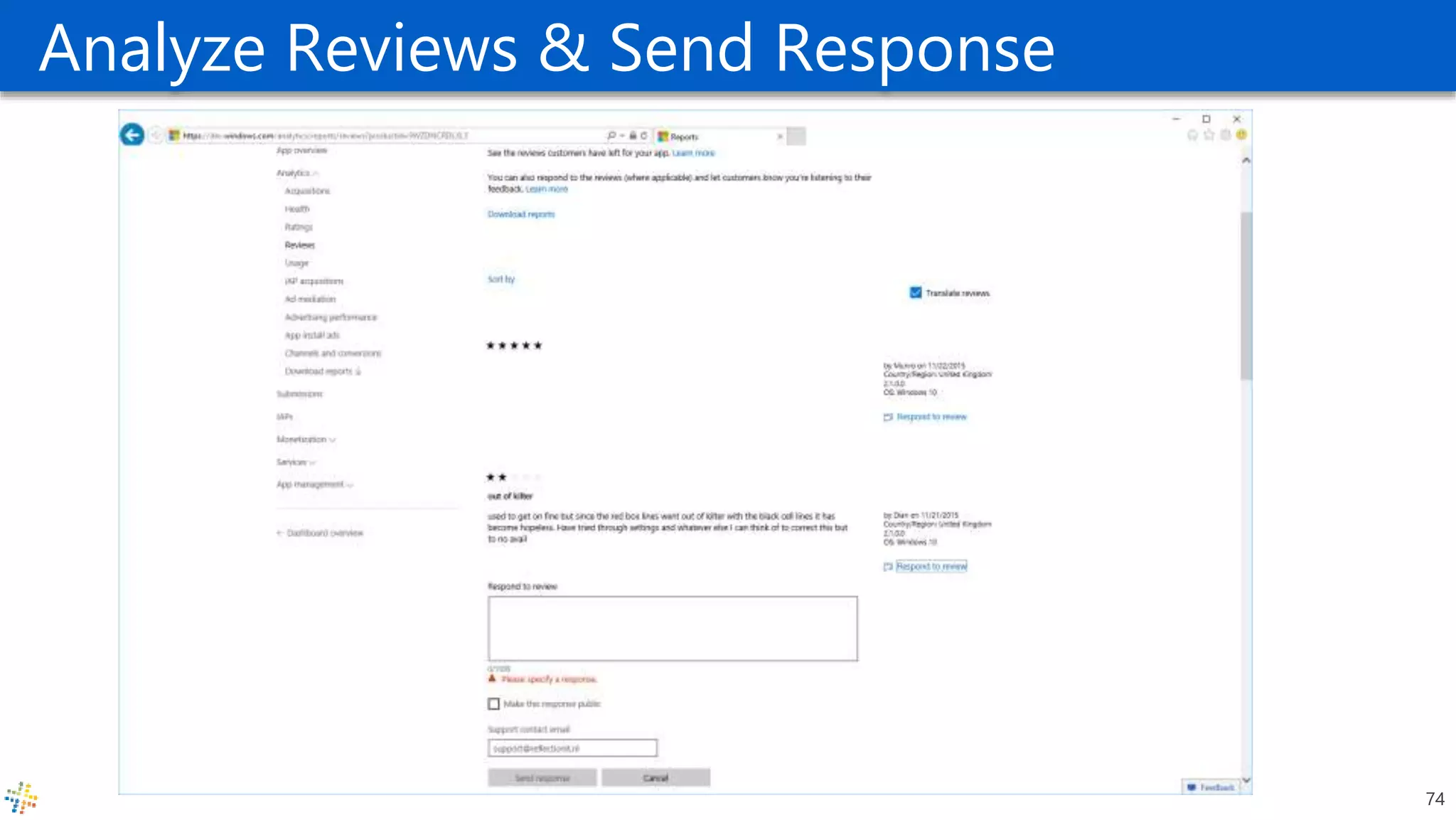
Analyze Reviews & Send Response
74
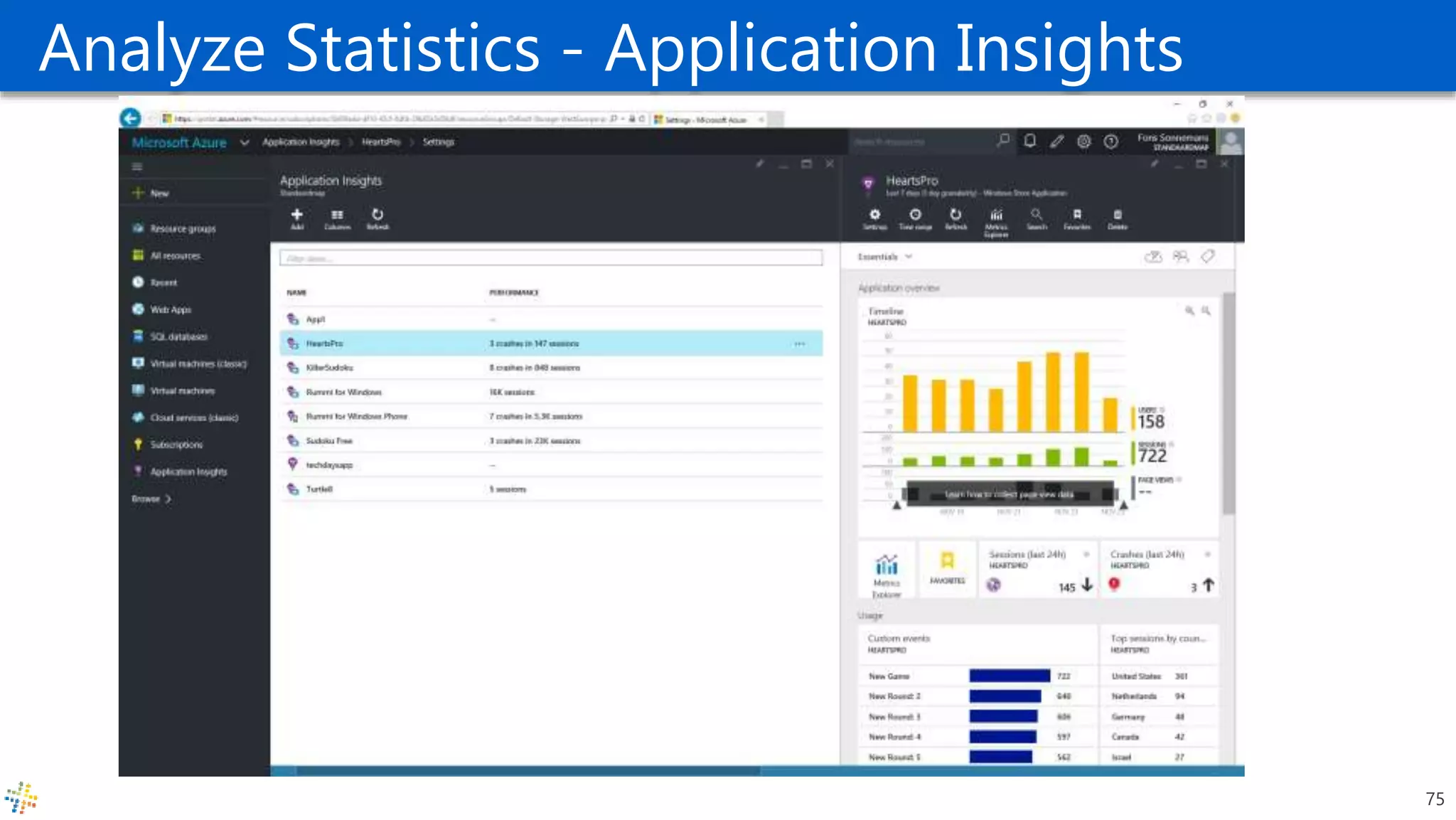
Analyze Statistics - Application Insights
75
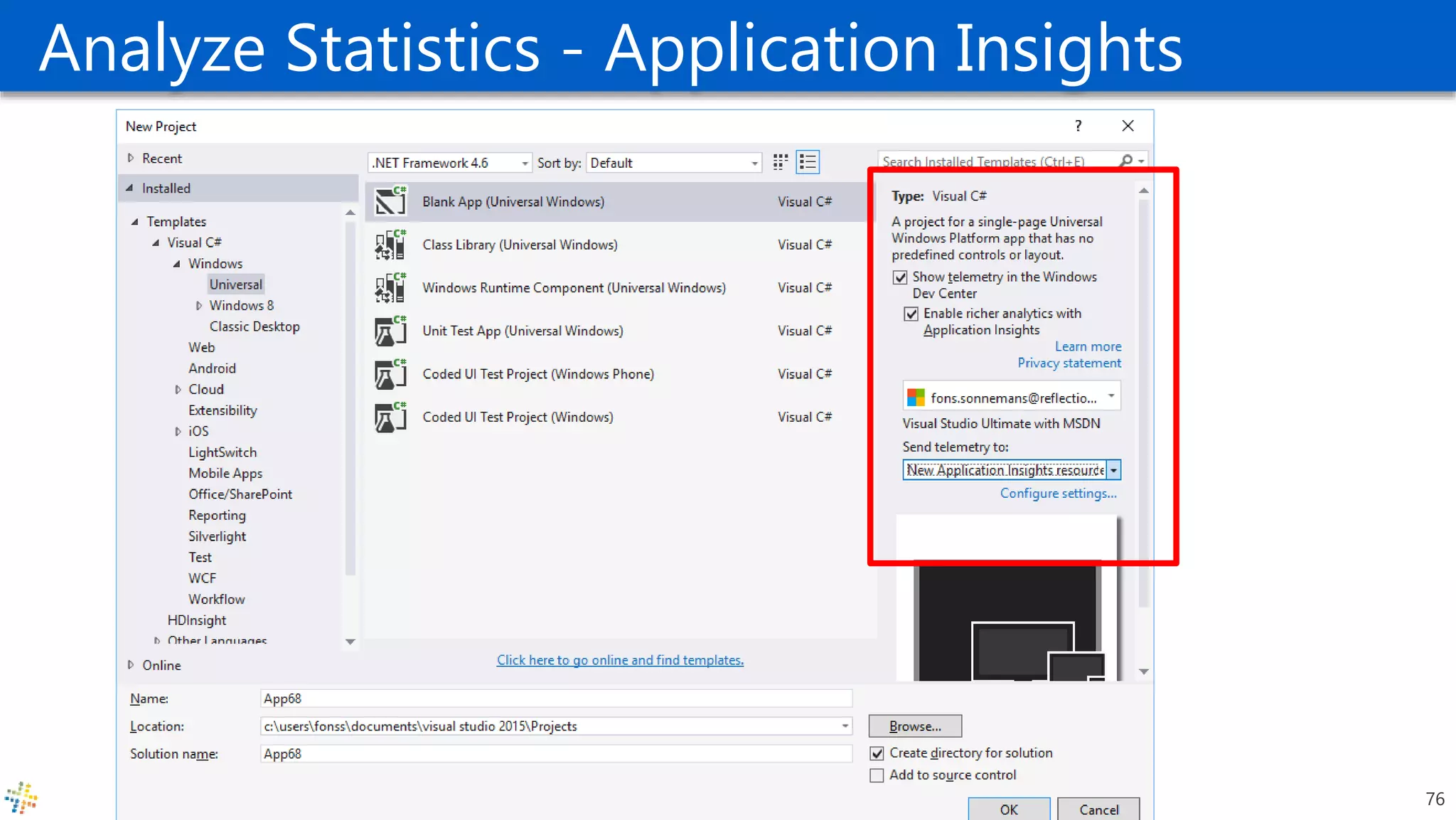
Analyze Statistics - Application Insights
76
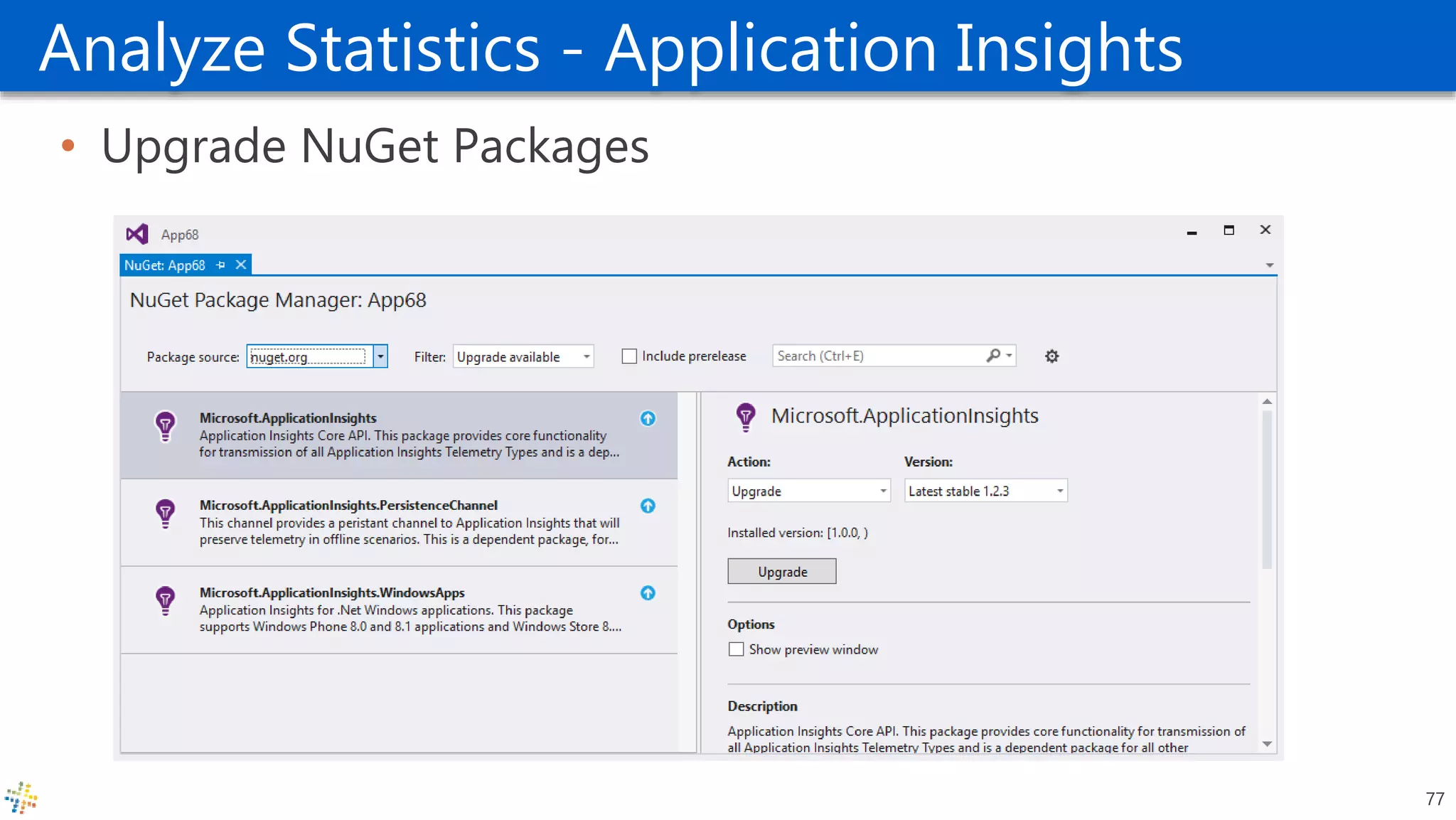
Analyze Statistics - Application Insights
• Upgrade NuGet Packages
77
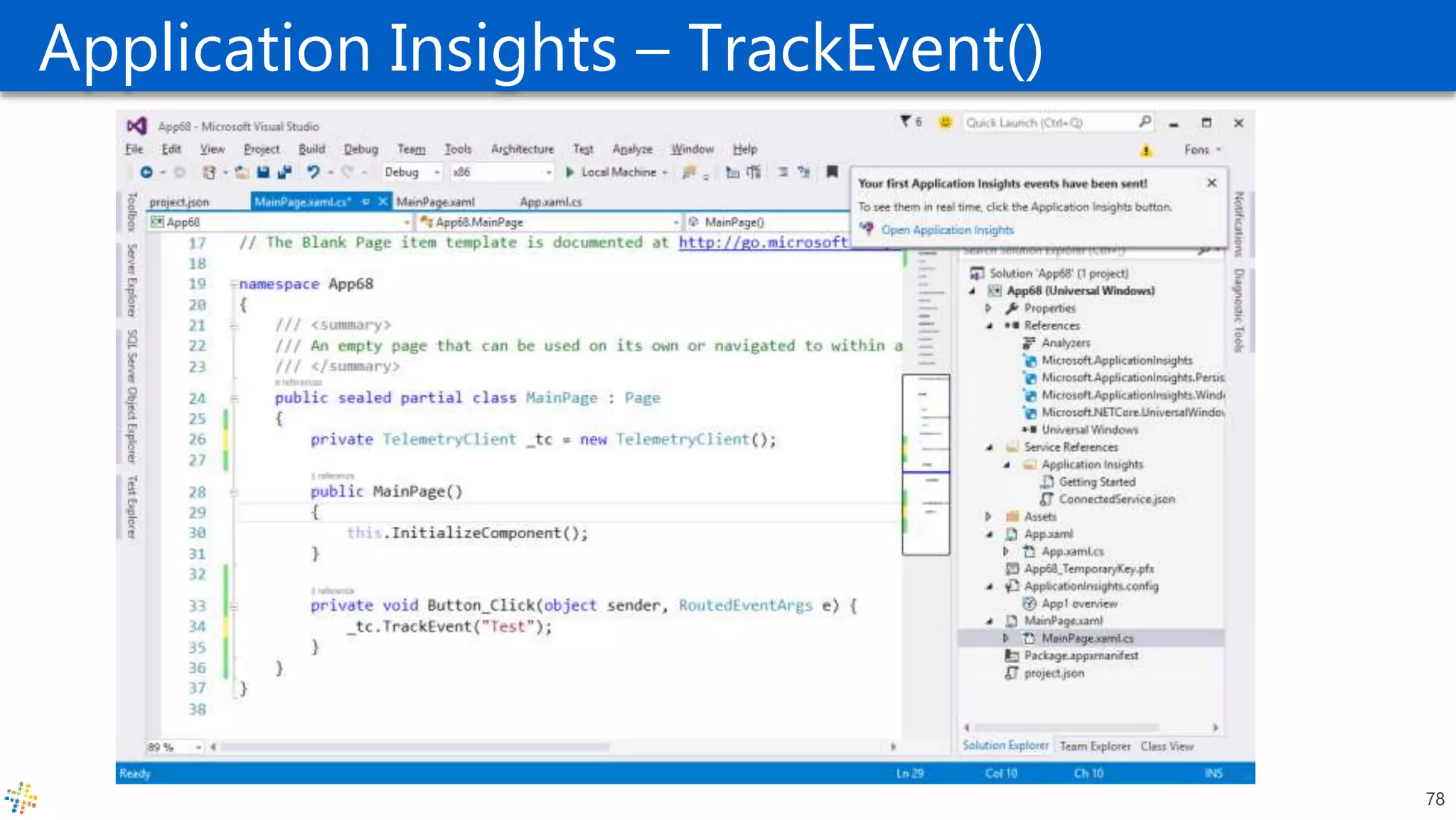
Application Insights – TrackEvent()
78
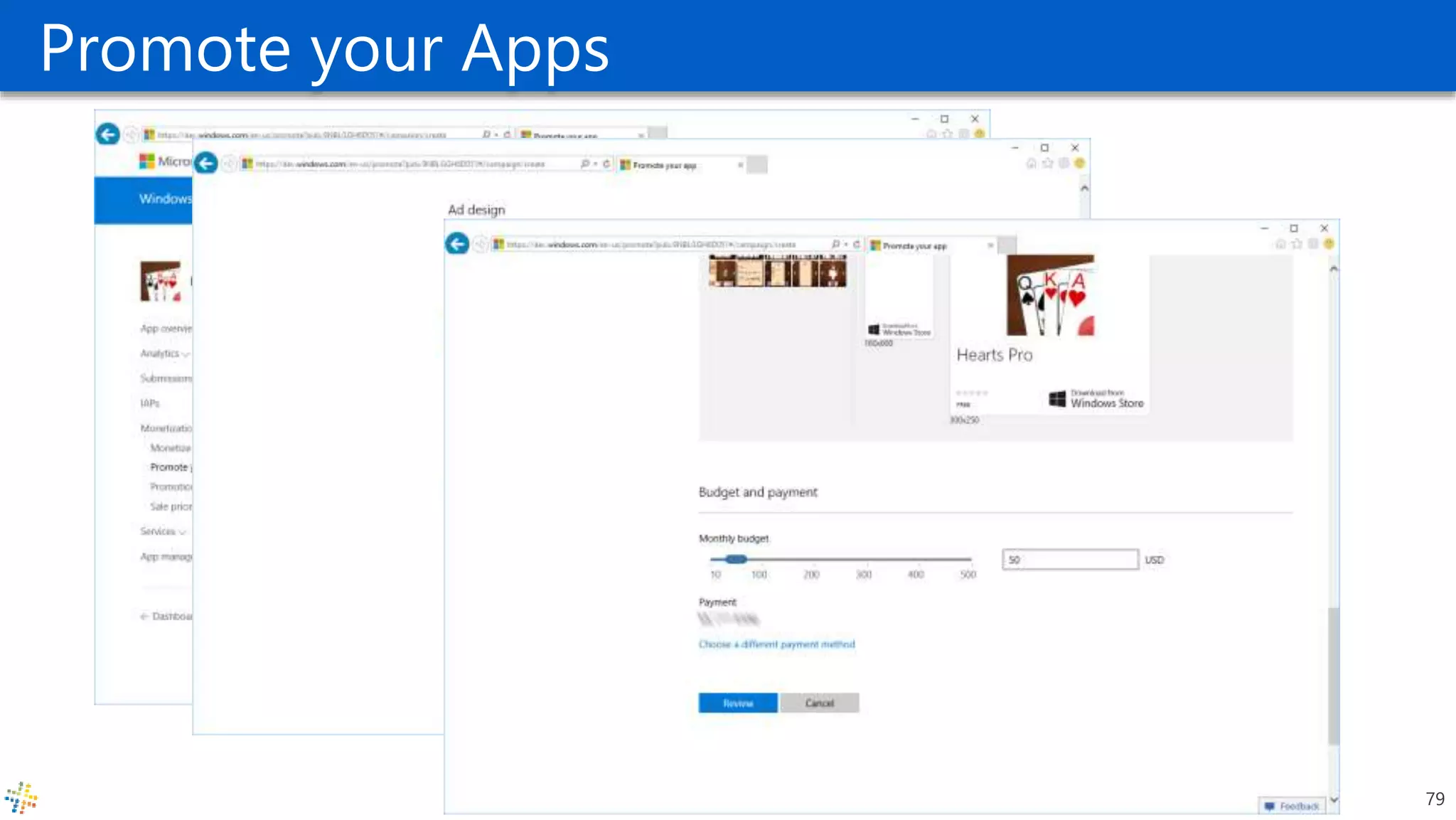
Promote your Apps
79
Recap & Questions
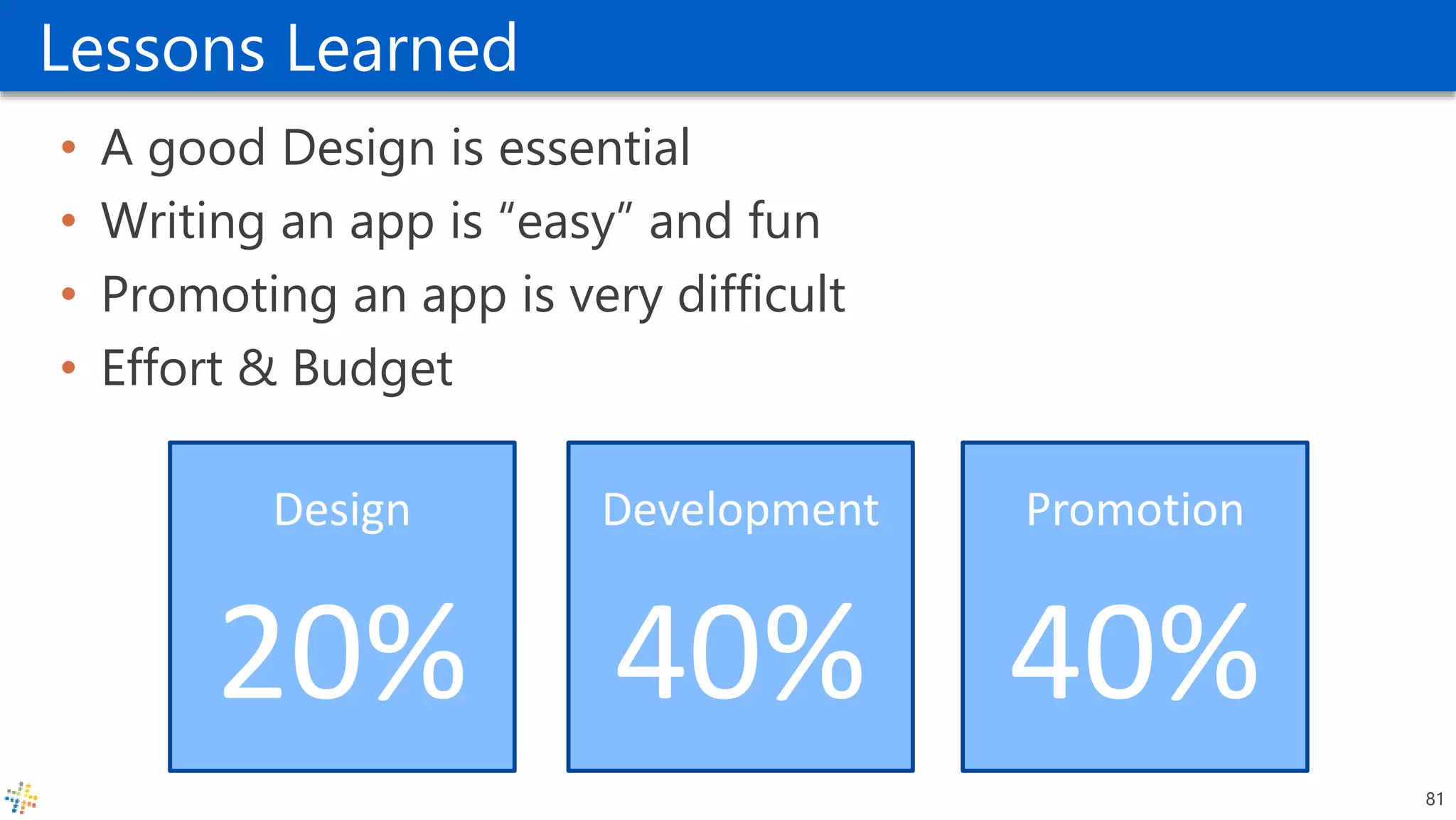
Lessons Learned
• A good Design is essential
• Writing an app is “easy” and fun
• Promoting an app is very difficult
• Effort & Budget
81
Promotion
40%
Development
40%
Design
20%
@fonssonnemans
fons.sonnemans@reflectionit.nl
fonssonnemans
reflectionit.nl/blog
82

Developing and Deploying Windows 10 Apps

  • 1.
    Developing and Deploying Windows10 Apps Fons Sonnemans Reflection IT @fonssonnemans www.storeappsug.nl @StoreAppsUG
  • 2.
    Topics • Developing Windows10 Apps • Universal Windows Apps • Blend 2015 • What’s new in XAML • Adaptive UI • Break • Deploying Windows 10 Apps
  • 3.
    Fons Sonnemans • SoftwareDevelopment Consultant • Programming Languages • Clipper, Smalltalk, Visual Basic, C# • Platforms • Windows Forms, ASP.NET (Web Forms, MVC), XAML (WPF, Silverlight, Windows Phone, Windows 8 & 10) • Databases • MS SQL Server, Oracle • Role • Trainer, Coach, Advisor, Architect, Designer, App Developer • More info: www.reflectionit.nl
  • 4.
  • 5.
    Universal Windows Apps Introducingthe Universal Windows Platform (UWP)
  • 6.
    Easy for usersto get & stay current Unified core and app platform The convergence journey Windows 10 Converged OS kernel Converged app model
  • 7.
    Phone Small Tablet 2-in-1s (Tabletor Laptop) Desktops & All-in-OnesPhablet Large Tablet Classic Laptop Xbox IoTSurface Hub Holographic Windows 10
  • 8.
    One Store + OneDev Center Reuse Existing Code One SDK + Tooling Adaptive User Interface Natural User Inputs One Universal Windows Platform
  • 9.
    Universal Windows Platform •A single API surface • A guaranteed API surface • The same on all devices Phone Device Xbox Device Desktop Device Windows Core Universal Windows Platform
  • 10.
    Universal Windows Platform •One Operating System • One Windows core for all devices • One App Platform • Apps run across every family • One Dev Center • Single submission flow and dashboard • One Store • Global reach, local monetization Consumers, Business & Education
  • 11.
    Adaptive code • Acompatible binary across devices • Universal API with device-specific implementation • Light up our app with capabilities • Testing for capabilities and namespaces
  • 12.
    UAP Windows Core WindowsCore Windows Core Windows Core UAP UAP UAP Desktop Mobile Xbox More… Adaptive codePlatform extensions (capabilities)
  • 13.
    Platform extensions (capabilities) •Device-specific API • Family-specific capabilities • Compatible across devices • Unique update cadence Phone Device Xbox Device Desktop Device Windows Core Universal Windows Platform Windows App Phone extension Xbox extension Desktop extension
  • 14.
    Test capabilities atruntime • Use Adaptive Code to light-up your app on specific devices var api = "Windows.Phone.UI.Input.HardwareButtons"; if (Windows.Foundation.Metadata.ApiInformation.IsTypePresent(api)) { Windows.Phone.UI.Input.HardwareButtons.CameraPressed += CameraButtonPressed; }
  • 15.
  • 16.
  • 17.
    Blend 2015 • Rebuiltfrom the ground up using VS technologies • IntelliSense, GoTo Definition, Peek, Debugging, Window Layouts, Reloading, Customizing • File reload experiences when switching between VS and Blend • Inconsistent shell & project system experiences with VS • Git and TFS • Expand/collapse of project nodes • Performance and scalability of large solutions
  • 18.
  • 19.
    Live Visual Tree- UI Debugging for XAML • Visual tree inspection and manipulation • Live tracking of tree and property changes • Fully integrated into debugging • Upcoming • Serializing edits back into source • Edit-n-continue • Data debugging visualizations
  • 20.
    Live Visual Tree- UI Debugging for XAML
  • 21.
    What’s new inXAML New Universal Controls New Properties Other Changes
  • 22.
    The Border controlis “Dead” • Panels • New properties in Win10 makes ‘Border’ obsolete <StackPanel Orientation="Horizontal" BorderBrush="#FF0B77FD" BorderThickness="2" Padding="5"> <Button Content="Button1" FontSize="30" /> <Button Content="Button2" FontSize="30" Margin="5,0" /> <Button Content="Button3" FontSize="30" /> </StackPanel> New Properties in Win10 makes ‘Border’ obsolete 24
  • 23.
    Nested StackPanels –the old way <StackPanel HorizontalAlignment="Center" VerticalAlignment="Center"> <StackPanel Orientation="Horizontal" Margin="0,0,0,12"> <TextBlock Text="Username" FontSize="26.667" Width="240" TextAlignment="Right" Margin="0,0,20,0"/> <TextBox FontSize="26.667" Width="300"/> </StackPanel> <StackPanel Orientation="Horizontal" Margin="0,0,0,12"> <TextBlock Text="Password" Margin="0,0,20,0" FontSize="26.667" Width="240" TextAlignment="Right"/> <PasswordBox Margin="0" FontSize="26.667" Width="300"/> </StackPanel> <Button Content="Login" HorizontalAlignment="Left" Margin="260,0,0,0" FontSize="26.667"/> </StackPanel> 25
  • 24.
    RelativePanel • Decrease Treesize <RelativePanel HorizontalAlignment="Center" VerticalAlignment="Center"> <TextBlock x:Name="labelUsername" Text="Username" RelativePanel.LeftOf="inputUsername" TextAlignment="Right" Margin="0,0,20,0" FontSize="26.667" /> <TextBox x:Name="inputUsername" RelativePanel.AlignRightWithPanel="True" Width="300" FontSize="26.667" /> <TextBlock x:Name="labelPassword“ Text="Password" RelativePanel.LeftOf="inputPassword" RelativePanel.AlignVerticalCenterWith="inputPassword" TextAlignment="Right" Margin="0,0,20,0" FontSize="26.667" /> <PasswordBox x:Name="inputPassword" RelativePanel.Below="inputUsername" RelativePanel.AlignRightWithPanel="True" Width="300" Margin="0,10" FontSize="26.667" /> <Button x:Name="buttonLogin" Content="Login" RelativePanel.Below="inputPassword" RelativePanel.AlignLeftWith="inputPassword" FontSize="26.667" /> </RelativePanel> 26
  • 25.
    RelativePanel • Vertical layout <RelativePanelHorizontalAlignment="Center" VerticalAlignment="Center"> <TextBlock x:Name="labelUsername“ Text="Username“ Margin="0,0,20,0" FontSize="26.667" /> <TextBox x:Name="inputUsername" RelativePanel.Below="labelUsername" Width="300" Margin="0,0,0,10" FontSize="26.667" /> <TextBlock x:Name="labelPassword" Text="Password" RelativePanel.Below="inputUsername" Margin="0,0,20,0" FontSize="26.667" /> <PasswordBox x:Name="inputPassword" RelativePanel.Below="labelPassword" Width="300" Margin="0,0,0,10" FontSize="26.667" /> <Button x:Name="buttonLogin" Content="Login" RelativePanel.Below="inputPassword" RelativePanel.AlignLeftWith="inputPassword" FontSize="26.667" /> </RelativePanel> 27
  • 26.
  • 27.
    Adaptive UI <RelativePanel HorizontalAlignment="Center" VerticalAlignment="Center"> <TextBlockx:Name="labelUsername" Text="Username" RelativePanel.LeftOf="inputUsername" TextAlignment="Right" Margin="0,0,20,0" FontSize="26.667" /> <TextBox x:Name="inputUsername" RelativePanel.AlignRightWithPanel="True" Width="300" FontSize="26.667" /> <TextBlock x:Name="labelPassword“ Text="Password" RelativePanel.LeftOf="inputPassword" RelativePanel.AlignVerticalCenterWith="inputPassword" TextAlignment="Right" Margin="0,0,20,0" FontSize="26.667" /> <PasswordBox x:Name="inputPassword" RelativePanel.AlignRightWithPanel="True“ RelativePanel.Below="inputUsername" Margin="0,10" Width="300" FontSize="26.667" /> <Button x:Name="buttonLogin" Content="Login" RelativePanel.Below="inputPassword" RelativePanel.AlignLeftWith="inputPassword" FontSize="26.667" /> </RelativePanel> <RelativePanel HorizontalAlignment="Center" VerticalAlignment="Center"> <TextBlock x:Name="labelUsername“ Text="Username“ Margin="0,0,20,0" FontSize="26.667" /> <TextBox x:Name="inputUsername" RelativePanel.AlignRightWithPanel="True" RelativePanel.Below="labelUsername" Margin="0,0,0,10" Width="300" FontSize="26.667" /> <TextBlock x:Name="labelPassword" Text="Password" RelativePanel.Below="inputUsername" Margin="0,0,20,0" FontSize="26.667" /> <PasswordBox x:Name="inputPassword" RelativePanel.AlignRightWithPanel="True" RelativePanel.Below="labelPassword" Margin="0,0,0,10" Width="300" FontSize="26.667" /> <Button x:Name="buttonLogin" Content="Login" RelativePanel.Below="inputPassword" RelativePanel.AlignLeftWith="inputPassword" FontSize="26.667" /> </RelativePanel> 29
  • 28.
    Adaptive UI <RelativePanel HorizontalAlignment="Center" VerticalAlignment="Center"> <TextBlockx:Name="labelUsername" Text="Username" RelativePanel.LeftOf="inputUsername" TextAlignment="Right" Margin="0,0,20,0" FontSize="26.667" /> <TextBox x:Name="inputUsername" RelativePanel.AlignRightWithPanel="True" Width="300" FontSize="26.667" /> <TextBlock x:Name="labelPassword“ Text="Password" RelativePanel.LeftOf="inputPassword" RelativePanel.AlignVerticalCenterWith="inputPassword" TextAlignment="Right" Margin="0,0,20,0" FontSize="26.667" /> <PasswordBox x:Name="inputPassword" RelativePanel.AlignRightWithPanel="True“ RelativePanel.Below="inputUsername" Margin="0,10" Width="300" FontSize="26.667" /> <Button x:Name="buttonLogin" Content="Login" RelativePanel.Below="inputPassword" RelativePanel.AlignLeftWith="inputPassword" FontSize="26.667" /> </RelativePanel> <RelativePanel HorizontalAlignment="Center" VerticalAlignment="Center"> <TextBlock x:Name="labelUsername“ Text="Username“ Margin="0,0,20,0" FontSize="26.667" /> <TextBox x:Name="inputUsername" RelativePanel.AlignRightWithPanel="True" RelativePanel.Below="labelUsername" Margin="0,0,0,10" Width="300" FontSize="26.667" /> <TextBlock x:Name="labelPassword" Text="Password" RelativePanel.Below="inputUsername" Margin="0,0,20,0" FontSize="26.667" /> <PasswordBox x:Name="inputPassword" RelativePanel.AlignRightWithPanel="True" RelativePanel.Below="labelPassword" Margin="0,0,0,10" Width="300" FontSize="26.667" /> <Button x:Name="buttonLogin" Content="Login" RelativePanel.Below="inputPassword" RelativePanel.AlignLeftWith="inputPassword" FontSize="26.667" /> </RelativePanel> 30
  • 29.
    Visual States –Setters & StateTriggers 31
  • 30.
    Visual States –Setters & StateTriggers <VisualStateManager.VisualStateGroups> <VisualStateGroup x:Name="VisualStateGroup"> <VisualState x:Name="Horizontal"> <VisualState.StateTriggers> <AdaptiveTrigger MinWindowWidth="600" /> </VisualState.StateTriggers> <VisualState.Setters> <Setter Target="labelUsername.(RelativePanel.LeftOf)" Value="inputUsername" /> <Setter Target="labelUsername.(TextBlock.TextAlignment)" Value="Right" /> <Setter Target="inputUsername.(RelativePanel.Below)" Value="" /> <Setter Target="inputUsername.(FrameworkElement.Margin)" Value="0" /> <Setter Target="labelPassword.(RelativePanel.Below)" Value="" /> <Setter Target="labelPassword.(RelativePanel.LeftOf)" Value="inputPassword" /> <Setter Target="labelPassword.(RelativePanel.AlignVerticalCenterWith)" Value="inputPassword" /> <Setter Target="labelPassword.(TextBlock.TextAlignment)" Value="Right" /> <Setter Target="inputPassword.(RelativePanel.Below)" Value="inputUsername" /> <Setter Target="inputPassword.(FrameworkElement.Margin)" Value="0,10" /> </VisualState.Setters> </VisualState> </VisualStateGroup> </VisualStateManager.VisualStateGroups> 32
  • 31.
  • 32.
  • 33.
  • 34.
  • 35.
    DeviceFamily specific Content •Pages • UserControls • Images • Resources 37 http://igrali.com/2015/08/02/three-ways-to-set-specific-devicefamily-xaml-views-in-uwp/
  • 36.
    Deploying Windows 10apps Fons Sonnemans Reflection IT @fonssonnemans www.storeappsug.nl @StoreAppsUG
  • 37.
    Topics • How todeploy your app to the Store? • How to get rich from app development? • How to write a successful app? 39
  • 38.
    How to deployyour app to the Store? 1. Register as an app developer https://dev.windows.com/en- us/programs/join • No yearly renewals any more 2. Create App Packages 3. Submit your app to the Store 40
  • 39.
  • 40.
  • 41.
    Submit app tothe Store (Dashboard) 43
  • 42.
    How to getrich from app development? 44
  • 43.
    Ways to become“Rich” • Write an app for a client • Write an app and publish it in a Store • Write an app and sell it • Affiliate marketing 45
  • 44.
    Write an appfor a client • Price • Time & Material • Fixed Price • Price for every download • Find projects on AppGoeroes • http://www.appgoeroes.nl/ 46
  • 45.
    Write an appand publish it in a Store • Which platform • iOS, Android, Microsoft, ? • Which device • Phone, Tablet, PC/Laptop, XBox, HoloLens, Watch, Car, ? • Price • Paid • Free 47
  • 46.
  • 47.
    Paid Apps • Apple& Google • 30% commission • Microsoft • 30% commission • 20% after you pass $25.000 revenue • Choose Price • From $0.99 to $999,- 49
  • 48.
    Free Apps • 90%of all installed apps are free • Income • Ads • Trial (= Paid) • In-app purchases 50
  • 49.
    Ads • iAd (Apple) •AdMob (Google) • PubCenter (Microsoft) • Others: AdFonic, AdDuplex, InMobi, Smaato, etc • Show ads for your other apps • Rotate ad providers using Ad Mediation • Use in-app purcharse to remove ads 51
  • 50.
    Windows Dev Center(replaces PubCenter) • https://dev.windows.com/en-us/monetize/ads <UI:AdControl ErrorOccurred="ad160_ErrorOccurred" UseStaticAnchor="True" Height="600" Width="160" ApplicationId="7ab712c7-7510-ba9e" AdUnitId="60025155" /> 52
  • 51.
  • 52.
    Free with Trial •70x more downloads • 10% conversion rate • 7x higher sales! • Explain the trial in the store description 54
  • 53.
    In-app purchases • IAPenables you to sell digital goods in your apps and games % Of top grossing iOS apps use in-app purchase -- Business Insider $ In-App revenue in 2011, expected >$ in 2016 - eMarketer 93 1B 4B 55
  • 54.
    In-app purchases • IAPenables you to sell digital goods in your apps and games 56
  • 55.
    What can yousell? • Game items (swords, levels, characters) • Functionality (more features, new graphics, maps, levels) • Accelerated gameplay (unlock items, powerups) • eBooks and eMagazines • Digital images, music and videos • Virtual Currency that can be shared across all your apps (gold, tokens, gems) • Postcards from photos taken on the phone • A DVD of a video captured and edited on the phone • Digital services (backup data to cloud, rent-a-map) • Donations 57
  • 56.
  • 57.
    In-app purchases • Codesamples • Product purchases • https://msdn.microsoft.com/en-us/library/windows/apps/mt219684.aspx • Consumable in-app product purchases • https://msdn.microsoft.com/en-us/library/windows/apps/mt219683.aspx 59
  • 58.
  • 59.
  • 60.
    Write an appand sell it 62
  • 61.
    Affiliate marketing • Krijgeen commissie over de opbrengst die een andere partij verdient via je app (1% - 8%) • Zanox/M4N: Zalando, KPN, Centraal Beheer • Bol.com Partnerprogramma: Boeken, DVDs, etc. 63
  • 62.
    How to writea successful app? 64
  • 63.
    How to writea successful app? • Create A Great Product • The best apps only do one thing, but they do it very, very well. • It’s important that the app is original, improves on another app, solves a problem or entertains. • If the app is good, everything that follows will be easier. 65
  • 64.
    How to writea successful app? • Built In-Virality • Incorporate some viral mechanism into the core functionality of the app, so each user that enjoys the app can potentially attract a network of new users. It means the app is better or more engaging when users invite friends to use it. 66
  • 65.
    How to writea successful app? • Design • We live in a visual society. With the app store competition growing daily, having good code and a great feature set isn’t enough. How your app looks matters 67
  • 66.
    How to writea successful app? • Development • Innovate • Analytics and Event Tracking • Microsoft Application Insight, Google Analytics, ? • Updates • Localize the app 69
  • 67.
    How to writea successful app? • Presentation & Marketing • App Store • Title • http://channel9.msdn.com/Blogs/DevRadio/Microsoft-DevRadio- Part-1-A-Developers-Guide-to-Marketing-Your-App-Naming- Your-App • Text • Pictures (Logo & Screenshots) • Keywords • Category • http://blogs.windows.com/windows/b/appbuilder/archive/2014/02 /27/windows-store-trends-feb-2014-update.aspx • Get More Ratings • Social Integration • Spread the word • Website, Facebook fan page, Twitter Channel, YouTube movies • Analyze Statistics 70
  • 68.
    Search: Title +Keywords 71
  • 69.
    Category – Gamevs Education 72
  • 70.
  • 71.
    Analyze Reviews &Send Response 74
  • 72.
    Analyze Statistics -Application Insights 75
  • 73.
    Analyze Statistics -Application Insights 76
  • 74.
    Analyze Statistics -Application Insights • Upgrade NuGet Packages 77
  • 75.
    Application Insights –TrackEvent() 78
  • 76.
  • 77.
  • 78.
    Lessons Learned • Agood Design is essential • Writing an app is “easy” and fun • Promoting an app is very difficult • Effort & Budget 81 Promotion 40% Development 40% Design 20%
  • 79.

Editor's Notes

  • #3 12/1/2015
  • #31 <VisualStateManager.VisualStateGroups> <VisualStateGroup x:Name="VisualStateGroup"> <VisualState x:Name="Horizontal"> <VisualState.StateTriggers> <AdaptiveTrigger MinWindowWidth="600" /> </VisualState.StateTriggers> <VisualState.Setters> <Setter Target="labelUsername.(RelativePanel.LeftOf)" Value="inputUsername" /> <Setter Target="labelUsername.(TextBlock.TextAlignment)" Value="Right" /> <Setter Target="inputUsername.(RelativePanel.Below)" Value="" /> <Setter Target="inputUsername.(FrameworkElement.Margin)" Value=“0" /> <Setter Target="labelPassword.(RelativePanel.Below)" Value="" /> <Setter Target="labelPassword.(RelativePanel.LeftOf)" Value="inputPassword" /> <Setter Target="labelPassword.(RelativePanel.AlignVerticalCenterWith)" Value="inputPassword" /> <Setter Target="labelPassword.(TextBlock.TextAlignment)" Value="Right" /> <Setter Target="inputPassword.(RelativePanel.Below)" Value="inputUsername" /> <Setter Target="inputPassword.(FrameworkElement.Margin)" Value="0,10" /> </VisualState.Setters> </VisualState> </VisualStateGroup> </VisualStateManager.VisualStateGroups>
  • #33  <Grid Background="{ThemeResource ApplicationPageBackgroundThemeBrush}"> <VisualStateManager.VisualStateGroups> <VisualStateGroup x:Name="VisualStateGroup"> <VisualState x:Name="Horizontal"> <VisualState.StateTriggers> <AdaptiveTrigger MinWindowWidth="600" /> </VisualState.StateTriggers> <VisualState.Setters> <Setter Target="labelUsername.(RelativePanel.LeftOf)" Value="inputUsername" /> <Setter Target="labelUsername.(TextBlock.TextAlignment)" Value="Right" /> <Setter Target="inputUsername.(RelativePanel.Below)" Value="" /> <Setter Target="inputUsername.(FrameworkElement.Margin)" Value="0" /> <Setter Target="labelPassword.(RelativePanel.Below)" Value="" /> <Setter Target="labelPassword.(RelativePanel.LeftOf)" Value="inputPassword" /> <Setter Target="labelPassword.(RelativePanel.AlignVerticalCenterWith)" Value="inputPassword" /> <Setter Target="labelPassword.(TextBlock.TextAlignment)" Value="Right" /> <Setter Target="inputPassword.(RelativePanel.Below)" Value="inputUsername" /> <Setter Target="inputPassword.(FrameworkElement.Margin)" Value="0,10" /> </VisualState.Setters> </VisualState> </VisualStateGroup> </VisualStateManager.VisualStateGroups> <RelativePanel HorizontalAlignment="Center" VerticalAlignment="Center"> <RelativePanel.ChildrenTransitions> <TransitionCollection> <RepositionThemeTransition /> </TransitionCollection> </RelativePanel.ChildrenTransitions> <TextBlock Text="Username" x:Name="labelUsername" Margin="0,0,20,0" FontSize="26.667" /> <TextBox x:Name="inputUsername" RelativePanel.AlignRightWithPanel="True" RelativePanel.Below="labelUsername" Width="300" Margin="0,0,0,10" FontSize="26.667" /> <TextBlock Text="Password" x:Name="labelPassword" RelativePanel.Below="inputUsername" Margin="0,0,20,0" FontSize="26.667" /> <PasswordBox x:Name="inputPassword" RelativePanel.AlignRightWithPanel="True" RelativePanel.Below="labelPassword" Width="300" Margin="0,0,0,10" FontSize="26.667" /> <Button Content="Login" RelativePanel.Below="inputPassword" RelativePanel.AlignLeftWith="inputPassword" FontSize="26.667" /> </RelativePanel> </Grid>
  • #38 http://igrali.com/2015/08/02/three-ways-to-set-specific-devicefamily-xaml-views-in-uwp/
  • #54 https://blogs.windows.com/buildingapps/2015/10/08/new-advertising-features-and-walkthrough-of-using-microsoft-ads-and-mediation/
  • #68 http://mobile.tutsplus.com/articles/marketing/mobile-marketing-the-three-pillars-of-a-successful-app/
  • #69 http://en.wikipedia.org/wiki/Dieter_Rams
  • #70 http://mobile.tutsplus.com/articles/marketing/mobile-marketing-the-three-pillars-of-a-successful-app/
  • #71 http://mobile.tutsplus.com/articles/marketing/mobile-marketing-the-three-pillars-of-a-successful-app/ http://channel9.msdn.com/Blogs/DevRadio/Microsoft-DevRadio-Part-1-A-Developers-Guide-to-Marketing-Your-App-Naming-Your-App
  • #79 private TelemetryClient _tc = new TelemetryClient(); public MainPage() { this.InitializeComponent(); } private void Button_Click(object sender, RoutedEventArgs e) { _tc.TrackEvent("Test"); }