How To Add Courses
To Your Plan
From the Camden County College home page, camdencc.edu, click on
“MyCCC” at the top right.
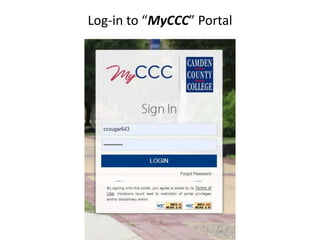
Log-in to “MyCCC” Portal
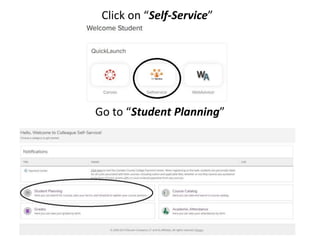
Click on “Self-Service”
Go to “Student Planning”
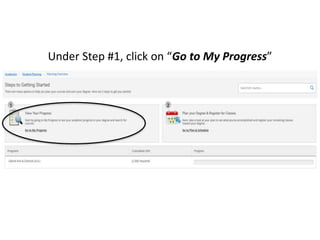
Under Step #1, click on “Go to My Progress”
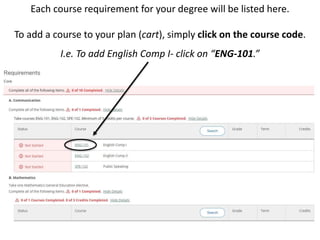
Each course requirement for your degree will be listed here.
To add a course to your plan (cart), simply click on the course code.
I.e. To add English Comp I- click on “ENG-101.”
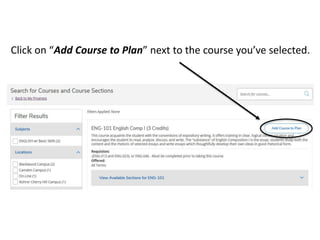
Click on “Add Course to Plan” next to the course you’ve selected.
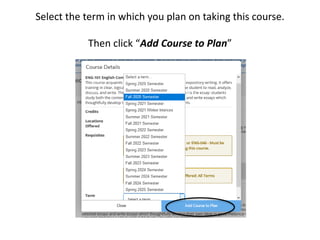
Select the term in which you plan on taking this course.
Then click “Add Course to Plan”
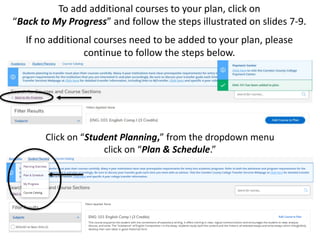
Click on “Student Planning,” from the dropdown menu
click on “Plan & Schedule.”
To add additional courses to your plan, click on
“Back to My Progress” and follow the steps illustrated on slides 7-9.
If no additional courses need to be added to your plan, please
continue to follow the steps below.
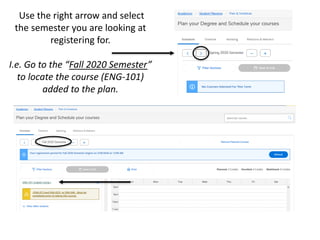
Use the right arrow and select
the semester you are looking at
registering for.
I.e. Go to the “Fall 2020 Semester”
to locate the course (ENG-101)
added to the plan.
Please visit our website for additional resources
such as:
• Understanding My Progress
• Understanding Developmental Course Sequence
• Viewing Course Sequence for a New Program
• Scheduling Courses
• Adding and Dropping Courses

How to add courses to your plan

  • 1.
    How To AddCourses To Your Plan
  • 2.
    From the CamdenCounty College home page, camdencc.edu, click on “MyCCC” at the top right.
  • 3.
  • 4.
    Click on “Self-Service” Goto “Student Planning”
  • 5.
    Under Step #1,click on “Go to My Progress”
  • 6.
    Each course requirementfor your degree will be listed here. To add a course to your plan (cart), simply click on the course code. I.e. To add English Comp I- click on “ENG-101.”
  • 7.
    Click on “AddCourse to Plan” next to the course you’ve selected.
  • 8.
    Select the termin which you plan on taking this course. Then click “Add Course to Plan”
  • 9.
    Click on “StudentPlanning,” from the dropdown menu click on “Plan & Schedule.” To add additional courses to your plan, click on “Back to My Progress” and follow the steps illustrated on slides 7-9. If no additional courses need to be added to your plan, please continue to follow the steps below.
  • 10.
    Use the rightarrow and select the semester you are looking at registering for. I.e. Go to the “Fall 2020 Semester” to locate the course (ENG-101) added to the plan.
  • 11.
    Please visit ourwebsite for additional resources such as: • Understanding My Progress • Understanding Developmental Course Sequence • Viewing Course Sequence for a New Program • Scheduling Courses • Adding and Dropping Courses