Download free for 30 days
Sign in
Upload
Language (EN)
Support
Business
Mobile
Social Media
Marketing
Technology
Art & Photos
Career
Design
Education
Presentations & Public Speaking
Government & Nonprofit
Healthcare
Internet
Law
Leadership & Management
Automotive
Engineering
Software
Recruiting & HR
Retail
Sales
Services
Science
Small Business & Entrepreneurship
Food
Environment
Economy & Finance
Data & Analytics
Investor Relations
Sports
Spiritual
News & Politics
Travel
Self Improvement
Real Estate
Entertainment & Humor
Health & Medicine
Devices & Hardware
Lifestyle
Change Language
Language
English
Español
Português
Français
Deutsche
Cancel
Save
Submit search
EN
Uploaded by
Amazon Web Services Japan
PDF, PPTX
16,282 views
多要素認証による Amazon WorkSpaces の利用
多要素認証による Amazon WorkSpaces の利用
Technology
◦
Read more
4
Save
Share
Embed
Embed presentation
Download
Download as PDF, PPTX
1
/ 93
2
/ 93
3
/ 93
4
/ 93
5
/ 93
6
/ 93
7
/ 93
8
/ 93
9
/ 93
10
/ 93
11
/ 93
12
/ 93
13
/ 93
14
/ 93
15
/ 93
16
/ 93
17
/ 93
18
/ 93
Most read
19
/ 93
20
/ 93
21
/ 93
22
/ 93
23
/ 93
Most read
24
/ 93
Most read
25
/ 93
26
/ 93
27
/ 93
28
/ 93
29
/ 93
30
/ 93
31
/ 93
32
/ 93
33
/ 93
34
/ 93
35
/ 93
36
/ 93
37
/ 93
38
/ 93
39
/ 93
40
/ 93
41
/ 93
42
/ 93
43
/ 93
44
/ 93
45
/ 93
46
/ 93
47
/ 93
48
/ 93
49
/ 93
50
/ 93
51
/ 93
52
/ 93
53
/ 93
54
/ 93
55
/ 93
56
/ 93
57
/ 93
58
/ 93
59
/ 93
60
/ 93
61
/ 93
62
/ 93
63
/ 93
64
/ 93
65
/ 93
66
/ 93
67
/ 93
68
/ 93
69
/ 93
70
/ 93
71
/ 93
72
/ 93
73
/ 93
74
/ 93
75
/ 93
76
/ 93
77
/ 93
78
/ 93
79
/ 93
80
/ 93
81
/ 93
82
/ 93
83
/ 93
84
/ 93
85
/ 93
86
/ 93
87
/ 93
88
/ 93
89
/ 93
90
/ 93
91
/ 93
92
/ 93
93
/ 93
More Related Content
PDF
202205 AWS Black Belt Online Seminar Amazon VPC IP Address Manager (IPAM)
by
Amazon Web Services Japan
PDF
AWS Black Belt Online Seminar 2017 AWS Elastic Beanstalk
by
Amazon Web Services Japan
PDF
20200219 AWS Black Belt Online Seminar オンプレミスとAWS間の冗長化接続
by
Amazon Web Services Japan
PDF
20190514 AWS Black Belt Online Seminar Amazon API Gateway
by
Amazon Web Services Japan
PDF
Infrastructure as Code (IaC) 談義 2022
by
Amazon Web Services Japan
PDF
AWS Black Belt Online Seminar 2016 AWS CloudFormation
by
Amazon Web Services Japan
PPTX
SPAセキュリティ入門~PHP Conference Japan 2021
by
Hiroshi Tokumaru
PDF
Docker Compose 徹底解説
by
Masahito Zembutsu
202205 AWS Black Belt Online Seminar Amazon VPC IP Address Manager (IPAM)
by
Amazon Web Services Japan
AWS Black Belt Online Seminar 2017 AWS Elastic Beanstalk
by
Amazon Web Services Japan
20200219 AWS Black Belt Online Seminar オンプレミスとAWS間の冗長化接続
by
Amazon Web Services Japan
20190514 AWS Black Belt Online Seminar Amazon API Gateway
by
Amazon Web Services Japan
Infrastructure as Code (IaC) 談義 2022
by
Amazon Web Services Japan
AWS Black Belt Online Seminar 2016 AWS CloudFormation
by
Amazon Web Services Japan
SPAセキュリティ入門~PHP Conference Japan 2021
by
Hiroshi Tokumaru
Docker Compose 徹底解説
by
Masahito Zembutsu
What's hot
PDF
20200526 AWS Black Belt Online Seminar AWS X-Ray
by
Amazon Web Services Japan
PDF
20210526 AWS Expert Online マルチアカウント管理の基本
by
Amazon Web Services Japan
PDF
20200212 AWS Black Belt Online Seminar AWS Systems Manager
by
Amazon Web Services Japan
PDF
20200722 AWS Black Belt Online Seminar AWSアカウント シングルサインオンの設計と運用
by
Amazon Web Services Japan
PDF
20191218 AWS Black Belt Online Seminar AWSのマネジメント&ガバナンス サービスアップデート
by
Amazon Web Services Japan
PDF
20200630 AWS Black Belt Online Seminar Amazon Cognito
by
Amazon Web Services Japan
PDF
20191016 AWS Black Belt Online Seminar Amazon Route 53 Resolver
by
Amazon Web Services Japan
PDF
AWS Black Belt Online Seminar 2017 Amazon ElastiCache
by
Amazon Web Services Japan
PDF
Kinesis + Elasticsearchでつくるさいきょうのログ分析基盤
by
Amazon Web Services Japan
PDF
20190806 AWS Black Belt Online Seminar AWS Glue
by
Amazon Web Services Japan
PDF
20191001 AWS Black Belt Online Seminar AWS Lake Formation
by
Amazon Web Services Japan
PDF
SaaS テナント毎のコストを把握するための「AWS Application Cost Profiler」のご紹介
by
Amazon Web Services Japan
PPTX
AWS Organizations連携サービスの罠(Security JAWS 第26回 発表資料)
by
NTT DATA Technology & Innovation
PDF
20200422 AWS Black Belt Online Seminar Amazon Elastic Container Service (Amaz...
by
Amazon Web Services Japan
PDF
20191105 AWS Black Belt Online Seminar Amazon Route 53 Hosted Zone
by
Amazon Web Services Japan
PDF
20190320 AWS Black Belt Online Seminar Amazon EBS
by
Amazon Web Services Japan
PDF
20190129 AWS Black Belt Online Seminar AWS Identity and Access Management (AW...
by
Amazon Web Services Japan
PDF
20190723 AWS Black Belt Online Seminar AWS CloudHSM
by
Amazon Web Services Japan
PDF
AWS Black Belt Online Seminar 2017 AWS Storage Gateway
by
Amazon Web Services Japan
PDF
AWS Black Belt Techシリーズ AWS Direct Connect
by
Amazon Web Services Japan
20200526 AWS Black Belt Online Seminar AWS X-Ray
by
Amazon Web Services Japan
20210526 AWS Expert Online マルチアカウント管理の基本
by
Amazon Web Services Japan
20200212 AWS Black Belt Online Seminar AWS Systems Manager
by
Amazon Web Services Japan
20200722 AWS Black Belt Online Seminar AWSアカウント シングルサインオンの設計と運用
by
Amazon Web Services Japan
20191218 AWS Black Belt Online Seminar AWSのマネジメント&ガバナンス サービスアップデート
by
Amazon Web Services Japan
20200630 AWS Black Belt Online Seminar Amazon Cognito
by
Amazon Web Services Japan
20191016 AWS Black Belt Online Seminar Amazon Route 53 Resolver
by
Amazon Web Services Japan
AWS Black Belt Online Seminar 2017 Amazon ElastiCache
by
Amazon Web Services Japan
Kinesis + Elasticsearchでつくるさいきょうのログ分析基盤
by
Amazon Web Services Japan
20190806 AWS Black Belt Online Seminar AWS Glue
by
Amazon Web Services Japan
20191001 AWS Black Belt Online Seminar AWS Lake Formation
by
Amazon Web Services Japan
SaaS テナント毎のコストを把握するための「AWS Application Cost Profiler」のご紹介
by
Amazon Web Services Japan
AWS Organizations連携サービスの罠(Security JAWS 第26回 発表資料)
by
NTT DATA Technology & Innovation
20200422 AWS Black Belt Online Seminar Amazon Elastic Container Service (Amaz...
by
Amazon Web Services Japan
20191105 AWS Black Belt Online Seminar Amazon Route 53 Hosted Zone
by
Amazon Web Services Japan
20190320 AWS Black Belt Online Seminar Amazon EBS
by
Amazon Web Services Japan
20190129 AWS Black Belt Online Seminar AWS Identity and Access Management (AW...
by
Amazon Web Services Japan
20190723 AWS Black Belt Online Seminar AWS CloudHSM
by
Amazon Web Services Japan
AWS Black Belt Online Seminar 2017 AWS Storage Gateway
by
Amazon Web Services Japan
AWS Black Belt Techシリーズ AWS Direct Connect
by
Amazon Web Services Japan
Similar to 多要素認証による Amazon WorkSpaces の利用
PPTX
20211109 bleaの使い方(基本編)
by
Amazon Web Services Japan
PDF
AWS Black Belt Techシリーズ Amazon Workspaces
by
Amazon Web Services Japan
PDF
Wireguard 実践入門
by
Kazuhiro Nishiyama
PDF
[AWSマイスターシリーズ] Amazon Elastic Compute Cloud (EC2) Windows編
by
Amazon Web Services Japan
PDF
Amazon VPCトレーニング-トレーニング資料
by
Amazon Web Services Japan
PDF
2014.09.11 よくわかるWorkSpaces 「クラウドでのディレクトリ構築 - Active Directory連携」
by
Yoshikazu Tsuji
PDF
AWSのハンズオンでWordpressを使う時に注意すべき事
by
Serverworks Co.,Ltd.
PDF
AWSのハンズオンでWordpressを使う時に注意すべき事
by
Aya Komuro
PDF
四国クラウドお遍路20141004
by
Genta Watanabe
PDF
IAM & Consolidated Billing -ほぼ週刊AWSマイスターシリーズ第4回
by
SORACOM, INC
PDF
20130309 windows on aws handson
by
Genta Watanabe
PDF
20121217 jawsug-yokohama
by
Tetsuya Chiba
PPTX
Word press preinstall-iam対応版-aws体験ハンズオン-セキュア&スケーラブルウェブサービス構築編
by
Kameda Harunobu
PDF
沢山のスマホサービス環境を カジュアルにセキュアに運用する
by
Hirotomo Oi
PDF
【改訂版】Amazon Web Service 基本の「き」 ~Amazon EC2でWebサーバを公開してみよう!~
by
Masaru Tomonaga
PDF
Amazon Web Service 基本の「き」 ~Amazon EC2でWebサーバを公開してみよう!~
by
Masaru Tomonaga
PDF
明星和楽2015ハンズオン資料
by
takaoka susumu
PDF
Aws handson 20181108
by
Kameda Harunobu
PDF
AWS Vol.1
by
Ryo Maruyama
PDF
Clrh55_LT_kamebuchi_public
by
Keiji Kamebuchi
20211109 bleaの使い方(基本編)
by
Amazon Web Services Japan
AWS Black Belt Techシリーズ Amazon Workspaces
by
Amazon Web Services Japan
Wireguard 実践入門
by
Kazuhiro Nishiyama
[AWSマイスターシリーズ] Amazon Elastic Compute Cloud (EC2) Windows編
by
Amazon Web Services Japan
Amazon VPCトレーニング-トレーニング資料
by
Amazon Web Services Japan
2014.09.11 よくわかるWorkSpaces 「クラウドでのディレクトリ構築 - Active Directory連携」
by
Yoshikazu Tsuji
AWSのハンズオンでWordpressを使う時に注意すべき事
by
Serverworks Co.,Ltd.
AWSのハンズオンでWordpressを使う時に注意すべき事
by
Aya Komuro
四国クラウドお遍路20141004
by
Genta Watanabe
IAM & Consolidated Billing -ほぼ週刊AWSマイスターシリーズ第4回
by
SORACOM, INC
20130309 windows on aws handson
by
Genta Watanabe
20121217 jawsug-yokohama
by
Tetsuya Chiba
Word press preinstall-iam対応版-aws体験ハンズオン-セキュア&スケーラブルウェブサービス構築編
by
Kameda Harunobu
沢山のスマホサービス環境を カジュアルにセキュアに運用する
by
Hirotomo Oi
【改訂版】Amazon Web Service 基本の「き」 ~Amazon EC2でWebサーバを公開してみよう!~
by
Masaru Tomonaga
Amazon Web Service 基本の「き」 ~Amazon EC2でWebサーバを公開してみよう!~
by
Masaru Tomonaga
明星和楽2015ハンズオン資料
by
takaoka susumu
Aws handson 20181108
by
Kameda Harunobu
AWS Vol.1
by
Ryo Maruyama
Clrh55_LT_kamebuchi_public
by
Keiji Kamebuchi
More from Amazon Web Services Japan
PDF
202202 AWS Black Belt Online Seminar AWS Managed Rules for AWS WAF の活用
by
Amazon Web Services Japan
PDF
機密データとSaaSは共存しうるのか!?セキュリティー重視のユーザー層を取り込む為のネットワーク通信のアプローチ
by
Amazon Web Services Japan
PDF
202202 AWS Black Belt Online Seminar AWS SaaS Boost で始めるSaaS開発⼊⾨
by
Amazon Web Services Japan
PPTX
[20220126] JAWS-UG 2022初頭までに葬ったAWSアンチパターン大紹介
by
Amazon Web Services Japan
PPTX
20220409 AWS BLEA 開発にあたって検討したこと
by
Amazon Web Services Japan
PDF
マルチテナント化で知っておきたいデータベースのこと
by
Amazon Web Services Japan
PDF
パッケージソフトウェアを簡単にSaaS化!?既存の資産を使ったSaaS化手法のご紹介
by
Amazon Web Services Japan
PDF
202201 AWS Black Belt Online Seminar Apache Spark Performnace Tuning for AWS ...
by
Amazon Web Services Japan
PDF
202205 AWS Black Belt Online Seminar Amazon FSx for OpenZFS
by
Amazon Web Services Japan
PDF
Amazon Game Tech Night #25 ゲーム業界向け機械学習最新状況アップデート
by
Amazon Web Services Japan
PDF
Amazon QuickSight の組み込み方法をちょっぴりDD
by
Amazon Web Services Japan
PDF
202204 AWS Black Belt Online Seminar Amazon Connect を活用したオンコール対応の実現
by
Amazon Web Services Japan
PDF
202204 AWS Black Belt Online Seminar AWS IoT Device Defender
by
Amazon Web Services Japan
PDF
202112 AWS Black Belt Online Seminar 店内の「今」をお届けする小売業向けリアルタイム配信基盤のレシピ
by
Amazon Web Services Japan
PDF
202204 AWS Black Belt Online Seminar Amazon Connect Salesforce連携(第1回 CTI Adap...
by
Amazon Web Services Japan
PDF
202203 AWS Black Belt Online Seminar Amazon Connect Tasks.pdf
by
Amazon Web Services Japan
PDF
202202 AWS Black Belt Online Seminar Amazon Connect Customer Profiles
by
Amazon Web Services Japan
PDF
Amazon Game Tech Night #24 KPIダッシュボードを最速で用意するために
by
Amazon Web Services Japan
PDF
20211209 Ops-JAWS Re invent2021re-cap-cloud operations
by
Amazon Web Services Japan
PDF
202111 AWS Black Belt Online Seminar AWSで構築するSmart Mirrorのご紹介
by
Amazon Web Services Japan
202202 AWS Black Belt Online Seminar AWS Managed Rules for AWS WAF の活用
by
Amazon Web Services Japan
機密データとSaaSは共存しうるのか!?セキュリティー重視のユーザー層を取り込む為のネットワーク通信のアプローチ
by
Amazon Web Services Japan
202202 AWS Black Belt Online Seminar AWS SaaS Boost で始めるSaaS開発⼊⾨
by
Amazon Web Services Japan
[20220126] JAWS-UG 2022初頭までに葬ったAWSアンチパターン大紹介
by
Amazon Web Services Japan
20220409 AWS BLEA 開発にあたって検討したこと
by
Amazon Web Services Japan
マルチテナント化で知っておきたいデータベースのこと
by
Amazon Web Services Japan
パッケージソフトウェアを簡単にSaaS化!?既存の資産を使ったSaaS化手法のご紹介
by
Amazon Web Services Japan
202201 AWS Black Belt Online Seminar Apache Spark Performnace Tuning for AWS ...
by
Amazon Web Services Japan
202205 AWS Black Belt Online Seminar Amazon FSx for OpenZFS
by
Amazon Web Services Japan
Amazon Game Tech Night #25 ゲーム業界向け機械学習最新状況アップデート
by
Amazon Web Services Japan
Amazon QuickSight の組み込み方法をちょっぴりDD
by
Amazon Web Services Japan
202204 AWS Black Belt Online Seminar Amazon Connect を活用したオンコール対応の実現
by
Amazon Web Services Japan
202204 AWS Black Belt Online Seminar AWS IoT Device Defender
by
Amazon Web Services Japan
202112 AWS Black Belt Online Seminar 店内の「今」をお届けする小売業向けリアルタイム配信基盤のレシピ
by
Amazon Web Services Japan
202204 AWS Black Belt Online Seminar Amazon Connect Salesforce連携(第1回 CTI Adap...
by
Amazon Web Services Japan
202203 AWS Black Belt Online Seminar Amazon Connect Tasks.pdf
by
Amazon Web Services Japan
202202 AWS Black Belt Online Seminar Amazon Connect Customer Profiles
by
Amazon Web Services Japan
Amazon Game Tech Night #24 KPIダッシュボードを最速で用意するために
by
Amazon Web Services Japan
20211209 Ops-JAWS Re invent2021re-cap-cloud operations
by
Amazon Web Services Japan
202111 AWS Black Belt Online Seminar AWSで構築するSmart Mirrorのご紹介
by
Amazon Web Services Japan
Recently uploaded
PPTX
ddevについて .
by
iPride Co., Ltd.
PDF
第21回 Gen AI 勉強会「NotebookLMで60ページ超の スライドを作成してみた」
by
嶋 是一 (Yoshikazu SHIMA)
PDF
Drupal Recipes 解説 .
by
iPride Co., Ltd.
PDF
さくらインターネットの今 法林リージョン:さくらのAIとか GPUとかイベントとか 〜2026年もバク進します!〜
by
法林浩之
PDF
2025→2026宙畑ゆく年くる年レポート_100社を超える企業アンケート総まとめ!!_企業まとめ_1229_3版
by
sorabatake
PDF
100年後の知財業界-生成AIスライドアドリブプレゼン イーパテントYouTube配信
by
e-Patent Co., Ltd.
PDF
Starlink Direct-to-Cell (D2C) 技術の概要と将来の展望
by
CRI Japan, Inc.
PDF
Reiwa 7 IT Strategist Afternoon I Question-1 3C Analysis
by
akipii ogaoga
PDF
Reiwa 7 IT Strategist Afternoon I Question-1 Ansoff's Growth Vector
by
akipii ogaoga
ddevについて .
by
iPride Co., Ltd.
第21回 Gen AI 勉強会「NotebookLMで60ページ超の スライドを作成してみた」
by
嶋 是一 (Yoshikazu SHIMA)
Drupal Recipes 解説 .
by
iPride Co., Ltd.
さくらインターネットの今 法林リージョン:さくらのAIとか GPUとかイベントとか 〜2026年もバク進します!〜
by
法林浩之
2025→2026宙畑ゆく年くる年レポート_100社を超える企業アンケート総まとめ!!_企業まとめ_1229_3版
by
sorabatake
100年後の知財業界-生成AIスライドアドリブプレゼン イーパテントYouTube配信
by
e-Patent Co., Ltd.
Starlink Direct-to-Cell (D2C) 技術の概要と将来の展望
by
CRI Japan, Inc.
Reiwa 7 IT Strategist Afternoon I Question-1 3C Analysis
by
akipii ogaoga
Reiwa 7 IT Strategist Afternoon I Question-1 Ansoff's Growth Vector
by
akipii ogaoga
多要素認証による Amazon WorkSpaces の利用
1.
© 2017, Amazon
Web Services, Inc. or its Affiliates. All rights reserved. アマゾン ウェブ サービス ジャパン株式会社 2018 / 01 / 23 Amazon WorkSpaces 多要素認証による Amazon WorkSpaces の利用
2.
© 2017, Amazon
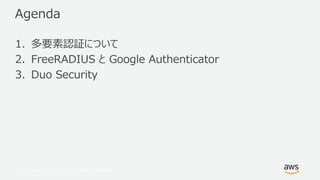
Web Services, Inc. or its Affiliates. All rights reserved. Agenda 1. 多要素認証について 2. FreeRADIUS と Google Authenticator 3. Duo Security
3.
© 2017, Amazon
Web Services, Inc. or its Affiliates. All rights reserved. 多要素認証
4.
© 2017, Amazon
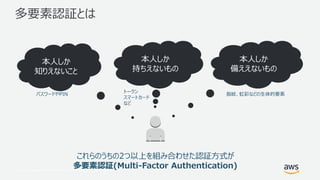
Web Services, Inc. or its Affiliates. All rights reserved. 多要素認証とは 本人しか 知りえないこと 本人しか 持ちえないもの 本人しか 備ええないもの これらのうちの2つ以上を組み合わせた認証方式が 多要素認証(Multi-Factor Authentication) パスワードやPIN トークン スマートカード など 指紋、虹彩などの生体的要素
5.
© 2017, Amazon
Web Services, Inc. or its Affiliates. All rights reserved. Amazon WorkSpaces における多要素認証の仕組み (概略) RADIUS Directory Services Amazon WorkSpaces クライアント端末
6.
© 2017, Amazon
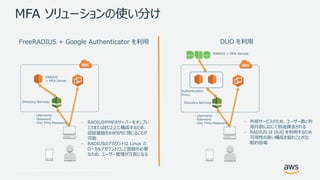
Web Services, Inc. or its Affiliates. All rights reserved. MFA ソリューションの使い分け - Username - Password - One Time Password DUO を利用 - Username - Password - One Time Password FreeRADIUS + Google Authenticator を利用 - 外部サービスのため、ユーザー数と利 用月数に応じて別途課金される - RADIUS は DUO を利用するため 可用性の高い構成を組むことが比 較的容易 - RADIUSやMFAサーバーをオンプレ ミスまたはEC2上に構成するため、 認証基盤をAWS内に閉じることが 可能 - RADIUSのアカウントは Linux の ローカルアカウントとして登録が必要 なため、ユーザー管理が冗長になる RADIUS + MFA Server Authentication Proxy RADIUS + MFA Service Directory ServicesDirectory Services
7.
© 2017, Amazon
Web Services, Inc. or its Affiliates. All rights reserved.© 2017, Amazon Web Services, Inc. or its Affiliates. All rights reserved. FreeRADIUS と Google Authenticator を用い たMFAの実装
8.
© 2017, Amazon
Web Services, Inc. or its Affiliates. All rights reserved. 本資料での構成 10.0.2.0/24 (Corp1-NAT1) 10.0.3.0/24 (Corp1-NAT2) 10.0.0.0/24 (Corp1-Public1) 10.0.1.0/24 (Corp1-Public2) AvailabilityZoneAAvailabilityZoneC Remote Desktop 踏み台兼 WorkSpaces クライアント RADIUS 兼 MFA Server 10.0.2.170 Private SubnetPublic Subnet example.local Destination Target 10.0.0.0/16 local 0.0.0.0/0 NATGW Destination Target 10.0.0.0/16 local 0.0.0.0/0 IGW Public Subnet Private Subnet
9.
© 2017, Amazon
Web Services, Inc. or its Affiliates. All rights reserved. 本資料での前提条件 • 東京リージョンを利用 • Amazon VPC • CIDR : 10.0.0.0/16 • サブネット • Public : 10.0.0.0/24, 10.0.1.0/24 • Private : 10.0.2.0/24, 10.0.3.0/24 • 10.0.0.0/24 と 10.0.2.0/24 は “ap-northeast-1a” に作成 • 10.0.1.0/24 と 10.0.3.0/24 は “ap-northeast-1c” に作成 • ルートテーブル • Public Subnet はインターネット ゲートウェイを介してインターネット接続可能なように構成 • Private Subnet は NAT ゲートウェイを介してインターネット接続可能なように構成 • NAT Gateway • Public Subnet に配置 • Microsoft AD • ドメイン名 : “example.local” • Private サブネットに作成 • 踏み台用 EC2 インスタンス • Windows Server 2016 • WORKGROUP で構成 • Public Subnet に作成 • “example.local” に参加済みの WorkSpaces x 1 • ユーザー名 : “testuser01” ※自動的に Microsoft AD が配置されている 2 つのサブネットが任意に選定されて配置されます • RADIUS サーバー兼 MFA サーバー用途の Amazon Linux x 1 • Private サブネットに作成
10.
© 2017, Amazon
Web Services, Inc. or its Affiliates. All rights reserved. 利用する EC2 インスタンスの構成 (1) 設定項目 踏み台兼 WorkSpaces クライアント OS Windows Server 2016 所属先サブネット Public Subnet ドメイン参加 なし ソフトウェア WorkSpaces クライアント、SSHクライアント セキュリティグループ アウトバウンドルール インバウンドルール プロトコル ポート範囲 送信先 備考 プロトコル ポート範囲 送信元 説明 TCP 443 10.0.0.0/16 WorkSpaces クライアント要件 TCP 3389 0.0.0.0/0 リモートデスクトップ接続 UDP 4172 10.0.0.0/16 TCP 4172 10.0.0.0/16 TCP 22 10.0.0.0/16 RADIUSサーバーへのSSH接続
11.
© 2017, Amazon
Web Services, Inc. or its Affiliates. All rights reserved. 利用する EC2 インスタンスの構成 (2) 設定項目 RADIUS 兼 MFA サーバー OS Amazon Linux 所属先サブネット Private Subnet ドメイン参加 なし ソフトウェア ※後述のため省略 セキュリティグループ アウトバウンドルール インバウンドルール プロトコル ポート範囲 送信先 備考 プロトコル ポート範囲 送信元 説明 TCP 443 0.0.0.0/0 ソフトウェアインストール UDP 1812 10.0.0.0/16 RADIUS認証 TCP 22 10.0.0.0/16 踏み台からの通信
12.
© 2017, Amazon
Web Services, Inc. or its Affiliates. All rights reserved. Microsoft AD の IP アドレスの確認 1. [Directories] をクリック 2. [DNS address] に記載されている IP アドレスを控えます
13.
© 2017, Amazon
Web Services, Inc. or its Affiliates. All rights reserved. Step1. RADIUS および MFA サービスの設定
14.
© 2017, Amazon
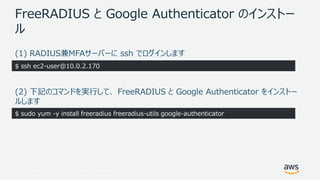
Web Services, Inc. or its Affiliates. All rights reserved. FreeRADIUS と Google Authenticator のインストー ル (1) RADIUS兼MFAサーバーに ssh でログインします (2) 下記のコマンドを実行して、 FreeRADIUS と Google Authenticator をインストー ルします $ ssh ec2-user@10.0.2.170 $ sudo yum -y install freeradius freeradius-utils google-authenticator
15.
© 2017, Amazon
Web Services, Inc. or its Affiliates. All rights reserved. RAIDUS 経由の認証を許可するグループの作成 $ sudo groupadd radius-enabled 下記のコマンドを実行してグループを作成します
16.
© 2017, Amazon
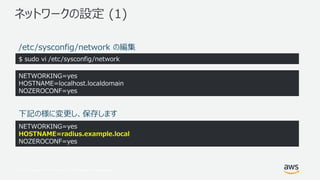
Web Services, Inc. or its Affiliates. All rights reserved. ネットワークの設定 (1) $ sudo vi /etc/sysconfig/network NETWORKING=yes HOSTNAME=localhost.localdomain NOZEROCONF=yes NETWORKING=yes HOSTNAME=radius.example.local NOZEROCONF=yes 下記の様に変更し、保存します /etc/sysconfig/network の編集
17.
© 2017, Amazon
Web Services, Inc. or its Affiliates. All rights reserved. ネットワークの設定 (2) $ sudo vi /etc/hosts 127.0.0.1 localhost localhost.localdomain localhost4 localhost4.localdomain4 ::1 localhost6 localhost6.localdomain6 127.0.0.1 localhost localhost.localdomain localhost4 localhost4.localdomain4 ::1 localhost6 localhost6.localdomain6 10.0.2.170 radius.example.local 下記の様に変更し、保存します /etc/hosts の編集
18.
© 2017, Amazon
Web Services, Inc. or its Affiliates. All rights reserved. FreeRADIUS の設定 (1) $ sudo vi /etc/raddb/radiusd.conf user = radiusd group = radiusd user = root group = root 下記の様に変更し、保存します /etc/raddb/radiusd.conf の編集 PAM を使って認証を行うため、 root ユーザーで動作させる必要があります。設定を変 更して、 root ユーザーで起動するようにします。 該当箇所
19.
© 2017, Amazon
Web Services, Inc. or its Affiliates. All rights reserved. FreeRADIUS の設定 (2) $ sudo vi /etc/raddb/users #DEFAULT Group == "disabled", Auth-Type := Reject # Reply-Message = "Your account has been disabled." # DEFAULT Group != "radius-enabled", Auth-Type := Reject Reply-Message = "Your account has been disabled." DEFAULT Auth-Type := PAM /etc/raddb/users の編集 “radius-enabled” グループに所属するユーザーのみ RADIUS 認証可能、かつ認証 の際は PAM を使うように設定します。 下記を追記して保存します
20.
© 2017, Amazon
Web Services, Inc. or its Affiliates. All rights reserved. FreeRADIUS の設定 (3) $ sudo vi /etc/raddb/sites-available/default # # Pluggable Authentication Modules. # pam /etc/raddb/sites-available/default の編集 default ファイルの編集 既定の設定 # # Pluggable Authentication Modules. pam コメントアウトを外して下記の様に編集し、保存します
21.
© 2017, Amazon
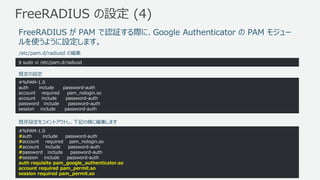
Web Services, Inc. or its Affiliates. All rights reserved. FreeRADIUS の設定 (4) $ sudo vi /etc/pam.d/radiusd #%PAM-1.0 auth include password-auth account required pam_nologin.so account include password-auth password include password-auth session include password-auth /etc/pam.d/radiusd の編集 FreeRADIUS が PAM で認証する際に、Google Authenticator の PAM モジュー ルを使うように設定します。 既定の設定 #%PAM-1.0 #auth include password-auth #account required pam_nologin.so #account include password-auth #password include password-auth #session include password-auth auth requisite pam_google_authenticator.so account required pam_permit.so session required pam_permit.so 既存設定をコメントアウトし、下記の様に編集します
22.
© 2017, Amazon
Web Services, Inc. or its Affiliates. All rights reserved. FreeRADIUS の設定 (5) $ sudo vi /etc/raddb/clients.conf client 10.0.0.0/16 { secret = P@ssw0rd! shortname = from-vpc } /etc/raddb/clients.conf の編集 FreeRADIUS が RADIUS プロトコルで接続を受け付ける RADIUS クライアントとの 接続情報を設定します。ここでは RADIUS クライアントは Microsoft AD です。 10.0.0.0/16 のセグメントに存在するRADIUS クライアントからの接続を受け付けるよう に下記を追記します。 “secret” に記載したパスワードは後で利用するので控えておきま す。
23.
© 2017, Amazon
Web Services, Inc. or its Affiliates. All rights reserved. FreeRADIUS の起動 sudo chkconfig --level 345 radiusd on sudo /etc/init.d/radiusd start Starting radiusd: [ OK ] 下記のコマンドを実行して RADIUS を起動します
24.
© 2017, Amazon
Web Services, Inc. or its Affiliates. All rights reserved. ユーザー登録 (1) useradd -g radius-enabled testuser01 sudo -u testuser01 /usr/bin/google-authenticator Do you want authentication tokens to be time-based (y/n) y (時刻ベースの認証トークンを使用しますか?) https://www.google.com/chart?chs=200x200&chld=M|0&cht=qr&chl=otpauth://totp/testuser01@ip-10- 0-2-170%3Fsecret%3DTN7QSETJOB7SHSUM Your new secret key is: TN7QSETJOB7SHSUM Your verification code is 284535 Your emergency scratch codes are: 59168610 39306435 39710443 38641909 31118666 Google Authenticator の PAM モジュールを使う場合は、Active Directory と同 名のユーザを作成した上で、Google Authenticatorのユーザ設定を行う必要がありま す。 下記では “testuser01” というユーザーで登録しています 2. この URL にアクセスすると QR コードが表示されます 1. “y” と入力して Enter を押下します
25.
© 2017, Amazon
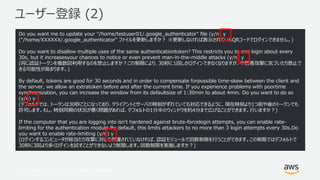
Web Services, Inc. or its Affiliates. All rights reserved. ユーザー登録 (2) Do you want me to update your "/home/testuser01/.google_authenticator" file (y/n) y ("/home/XXXXXX/.google_authenticator" ファイルを更新しますか? ※更新しなければ表示されているQRコードでログインできません。) Do you want to disallow multiple uses of the same authenticationtoken? This restricts you to one login about every 30s, but it increasesyour chances to notice or even prevent man-in-the-middle attacks (y/n) y (同じ認証トークンを複数回利用するのを禁止しますか?この制限により、30秒に1回しかログインできなくなりますが、中間者攻撃に気づいたり禁止で きる可能性が高まります。) By default, tokens are good for 30 seconds and in order to compensate forpossible time-skew between the client and the server, we allow an extratoken before and after the current time. If you experience problems with poortime synchronization, you can increase the window from its defaultsize of 1:30min to about 4min. Do you want to do so (y/n) y (デフォルトでは、トークンは30秒ごとになっており、クライアントとサーバの時刻がずれていても対応できるように、現在時刻より1つ前や後のトークンでも 許可します。もし、時刻同期の状況が悪く問題があれば、デフォルトの1分半のウィンドウを約4分まで広げることができます。行いますか?) If the computer that you are logging into isn't hardened against brute-forcelogin attempts, you can enable rate- limiting for the authentication module.By default, this limits attackers to no more than 3 login attempts every 30s.Do you want to enable rate-limiting (y/n) y (ログインするコンピュータが総当たり攻撃に対して保護されていなければ、認証モジュールで回数制限を行うことができます。この制限ではデフォルトで 30秒に3回より多くログインを試すことができないよう制限します。回数制限を実施しますか?)
26.
© 2017, Amazon
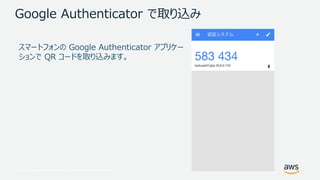
Web Services, Inc. or its Affiliates. All rights reserved. Google Authenticator で取り込み スマートフォンの Google Authenticator アプリケー ションで QR コードを取り込みます。
27.
© 2017, Amazon
Web Services, Inc. or its Affiliates. All rights reserved. 補足事項 $ sudo vi /home/testuser01/.google_authenticator TN7QSETJOB7SHSUM " RATE_LIMIT 3 30 " WINDOW_SIZE 17 " DISALLOW_REUSE " TOTP_AUTH 59168610 39306435 39710443 38641909 31118666 複数台のスマートフォンに同じユーザーの情報を登録する場合は、各ユーザーのディレクトリ直下にある “.google_authenticator” ファイルの先頭行を Google Authenticator に登録します。 万一スマートフォンを紛失した場合は、“.google_authenticator” ファイルをリネームまたは削除することでワンタイ ムパスワードが使えないようにすることができます。
28.
© 2017, Amazon
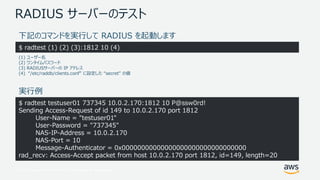
Web Services, Inc. or its Affiliates. All rights reserved. RADIUS サーバーのテスト $ radtest testuser01 737345 10.0.2.170:1812 10 P@ssw0rd! Sending Access-Request of id 149 to 10.0.2.170 port 1812 User-Name = "testuser01" User-Password = "737345" NAS-IP-Address = 10.0.2.170 NAS-Port = 10 Message-Authenticator = 0x00000000000000000000000000000000 rad_recv: Access-Accept packet from host 10.0.2.170 port 1812, id=149, length=20 下記のコマンドを実行して RADIUS を起動します $ radtest (1) (2) (3):1812 10 (4) (1) ユーザー名 (2) ワンタイムパスワード (3) RADIUSサーバーの IP アドレス (4) “/etc/raddb/clients.conf” に設定した “secret” の値 実行例
29.
© 2017, Amazon
Web Services, Inc. or its Affiliates. All rights reserved. Step2. Directory Services への設定
30.
© 2017, Amazon
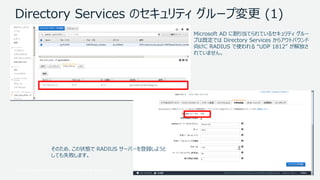
Web Services, Inc. or its Affiliates. All rights reserved. Directory Services のセキュリティ グループ変更 (1) Microsoft AD に割り当てられているセキュリティ グルー プは既定では Directory Services からアウトバウンド 向けに RADIUS で使われる “UDP 1812” が解放さ れていません。 そのため、この状態で RADIUS サーバーを登録しようと しても失敗します。
31.
© 2017, Amazon
Web Services, Inc. or its Affiliates. All rights reserved. Directory Services のセキュリティ グループ変更 (2) [WorkSpaces] をクリック
32.
© 2017, Amazon
Web Services, Inc. or its Affiliates. All rights reserved. Directory Services のセキュリティ グループ変更 (3) 1. [ディレクトリ] をクリック 2. 対象のディレクトリの [セキュリティグループ] に記載されている ID を控えます
33.
© 2017, Amazon
Web Services, Inc. or its Affiliates. All rights reserved. Directory Services のセキュリティ グループ変更 (4) 1. [セキュリティグループ] をクリック 2. 控えたセキュリティ グループの ID を入力してフィルタリング 3. [アウトバウンド] を選択 4. [編集] をクリック
34.
© 2017, Amazon
Web Services, Inc. or its Affiliates. All rights reserved. Directory Services のセキュリティ グループ変更 (5) 1. [ルールの追加] をクリック 2. 各項目を下記の様に指定 タイプ: カスタム UDP ポート範囲: 1812 送信先: カスタム、10.0.0.0/16 3. [保存] をクリック
35.
© 2017, Amazon
Web Services, Inc. or its Affiliates. All rights reserved. Directory Services のセキュリティ グループ変更 (6) 新しく追加されたことを確認
36.
© 2017, Amazon
Web Services, Inc. or its Affiliates. All rights reserved. Directory Services を開く [Directory Service] をクリック
37.
© 2017, Amazon
Web Services, Inc. or its Affiliates. All rights reserved. 対象の Directory ID の詳細表示 1. [ディレクトリ] をクリック 2. ディレクトリ ID のリンクをクリック
38.
© 2017, Amazon
Web Services, Inc. or its Affiliates. All rights reserved. RADIUS サーバーの情報を設定 1. [多要素認証] タブをクリック 2. [多要素認証の有効化] にチェックを入れる 3. 各項目に入力 - RADIUS サーバーの IP アドレス - ポート : 1812 - 共有シークレットコード : P@ssw0rd! - 共有シークレットコードの確認 : P@ssw0rd! - プロトコル : PAP - サーバータイムアウト (秒単位) : 30 (例) - 最大再試行回数 : 5 (例) 4. [ディレクトリの更新] をクリック
39.
© 2017, Amazon
Web Services, Inc. or its Affiliates. All rights reserved. 完了済みになることを確認 “完了済み” になる事を確認 ※処理完了までに1分ほどかかります
40.
© 2017, Amazon
Web Services, Inc. or its Affiliates. All rights reserved. Step3. WorkSpaces クライアントからの接続
41.
© 2017, Amazon
Web Services, Inc. or its Affiliates. All rights reserved. 接続先ディレクトリ サービスの登録コードの確認 1. [WorkSpaces] をクリック 2. [登録コード] を控えます
42.
© 2017, Amazon
Web Services, Inc. or its Affiliates. All rights reserved. 登録コードの登録 1. WorkSpaces クライアントを起動し て控えた登録コードを入力し、[登録] を クリックします 2. ログイン画面が表示されるので、 “MFAコード” と書かれた枠が表示されて いることを確認します
43.
© 2017, Amazon
Web Services, Inc. or its Affiliates. All rights reserved. ログイン 1. “ユーザー登録 (1)” のスライド内で 登録したユーザーとパスワード、およびス マートフォンの Google Authenticator のアプリケーションに表 示されているワンタイムパスワードを入力 し、 [サインイン] をクリック 2. 必要に応じてクリックします
44.
© 2017, Amazon
Web Services, Inc. or its Affiliates. All rights reserved. WorkSpaces の表示
45.
© 2017, Amazon
Web Services, Inc. or its Affiliates. All rights reserved.© 2017, Amazon Web Services, Inc. or its Affiliates. All rights reserved. DUO を利用した MFA 構成
46.
© 2017, Amazon
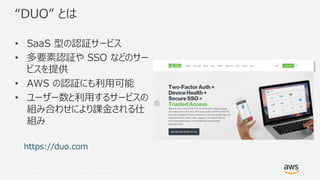
Web Services, Inc. or its Affiliates. All rights reserved. “DUO” とは • SaaS 型の認証サービス • 多要素認証や SSO などのサー ビスを提供 • AWS の認証にも利用可能 • ユーザー数と利用するサービスの 組み合わせにより課金される仕 組み https://duo.com
47.
© 2017, Amazon
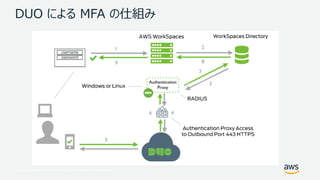
Web Services, Inc. or its Affiliates. All rights reserved. DUO による MFA の仕組み
48.
© 2017, Amazon
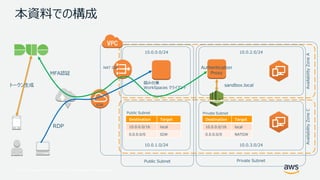
Web Services, Inc. or its Affiliates. All rights reserved. 本資料での前提条件 • 本項に記載の内容は、下記にも記載されていますので、必要に応じてご参照ください https://duo.com/docs/awsworkspaces • Duo のアカウントは作成済みであることとします • 下記のリソースは作成済みであるものとします • 東京リージョンを利用 • Amazon VPC • CIDR : 10.0.0.0/16 • サブネット • Public : 10.0.0.0/24, 10.0.1.0/24 • Private : 10.0.2.0/24, 10.0.3.0/24 • 10.0.0.0/24 と 10.0.2.0/24 は “ap-northeast-1a” に作成 • 10.0.1.0/24 と 10.0.3.0/24 は “ap-northeast-1c” に作成 • ルートテーブル • Public Subnet はインターネット ゲートウェイを介してインターネット接続可能であるように構成 • Private Subnet は NAT ゲートウェイを介してインターネット接続可能であるように構成 • NAT Gateway • Public Subnet に配置 • Microsoft AD • ドメイン名 : “sandbox.local” • Private サブネットに作成 • 踏み台用 EC2 インスタンス • Windows Server 2016 • WORKGROUP で構成 • “sandbox.local” に参加済みの WorkSpaces x 1 • ユーザー名 : “testuser01” • Authentication Proxy 用途の Amazon Linux x 1 • Private サブネットに作成
49.
© 2017, Amazon
Web Services, Inc. or its Affiliates. All rights reserved. 本資料での構成 10.0.2.0/24 10.0.3.0/24 10.0.0.0/24 10.0.1.0/24 AvailabilityZoneAAvailabilityZoneC RDP 踏み台兼 WorkSpaces クライアント Authentication Proxy Private SubnetPublic Subnet sandbox.local Destination Target 10.0.0.0/16 local 0.0.0.0/0 NATGW Destination Target 10.0.0.0/16 local 0.0.0.0/0 IGW Public Subnet Private Subnet NAT GW IGW トークン生成 MFA認証
50.
© 2017, Amazon
Web Services, Inc. or its Affiliates. All rights reserved. 利用する EC2 インスタンスの構成 (1) 設定項目 踏み台兼 WorkSpaces クライアント OS Windows Server 2016 所属先サブネット パブリックサブネット ドメイン参加 なし ソフトウェア WorkSpaces クライアント、SSHクライアント セキュリティグループ アウトバウンドルール インバウンドルール プロトコル ポート範囲 送信先 備考 プロトコル ポート範囲 送信元 説明 TCP 443 10.0.0.0/16 WorkSpaces クライアント要件 TCP 3389 0.0.0.0/0 リモートデスクトップ接続 UDP 4172 10.0.0.0/16 TCP 4172 10.0.0.0/16 TCP 22 10.0.0.0/16 RADIUSサーバーへのSSH接続
51.
© 2017, Amazon
Web Services, Inc. or its Affiliates. All rights reserved. 利用する EC2 インスタンスの構成 (2) 設定項目 Authentication Proxy OS Amazon Linux 所属先サブネット プライベートサブネット ドメイン参加 なし ソフトウェア ※後述のため省略 セキュリティグループ アウトバウンドルール インバウンドルール プロトコル ポート範囲 送信先 備考 プロトコル ポート範囲 送信元 説明 TCP 443 0.0.0.0/0 ソフトウェアインストール DUOへの接続 UDP 1812 10.0.0.0/16 RADIUS認証 TCP 22 10.0.0.0/16 踏み台からの通信
52.
© 2017, Amazon
Web Services, Inc. or its Affiliates. All rights reserved. Step1. DUO の設定
53.
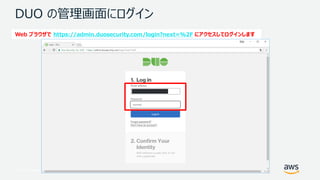
© 2017, Amazon
Web Services, Inc. or its Affiliates. All rights reserved. DUO の管理画面にログイン Web ブラウザで https://admin.duosecurity.com/login?next=%2F にアクセスしてログインします
54.
© 2017, Amazon
Web Services, Inc. or its Affiliates. All rights reserved. ワンタイムパスワードを入力してログイン “Text Me” をクリックして登録時に指定した 電話番号宛にSMSでワンタイムパスワードを送付 送られてきたワンタイムパスワードを入力して “Submit”
55.
© 2017, Amazon
Web Services, Inc. or its Affiliates. All rights reserved. RADIUS アプリケーションの作成 (1) 1. [Applications] をクリック 2. [Protect an Application] をクリック
56.
© 2017, Amazon
Web Services, Inc. or its Affiliates. All rights reserved. RADIUS アプリケーションの作成 (2) 1. 検索窓で “RADIUS” と入力して検索 2. “RADIUS” の [Protect this Application] をクリック
57.
© 2017, Amazon
Web Services, Inc. or its Affiliates. All rights reserved. RADIUS アプリケーションの作成 (3) “Integration key”, “Secret key”, “API hostname” の 3 つを控えます
58.
© 2017, Amazon
Web Services, Inc. or its Affiliates. All rights reserved. 認証対象ユーザーの作成 (1) 2. [Add User] をクリック 1. [Users] をクリック
59.
© 2017, Amazon
Web Services, Inc. or its Affiliates. All rights reserved. 認証対象ユーザーの作成 (2) 1. WorkSpaces のユーザー名 (sandboxtestuser01というユー ザーの場合は、 “testuser01” のみ) を入力 2. [Add User] をクリック
60.
© 2017, Amazon
Web Services, Inc. or its Affiliates. All rights reserved. スマートフォンの登録と Duo Mobile アプリの登録 (1) 画 面 下 部 1. 作成したユーザーの設定ページが開きます 2. [Add Phone] をクリックします
61.
© 2017, Amazon
Web Services, Inc. or its Affiliates. All rights reserved. スマートフォンの登録と Duo Mobile アプリの登録 (2) 1. [Phone] を選択します 2. 電話番号を国番号を付与して入力します 3. [Add Phone] をクリックします
62.
© 2017, Amazon
Web Services, Inc. or its Affiliates. All rights reserved. スマートフォンの登録と Duo Mobile アプリの登録 (3) [Activate Duo Mobile] をクリックします
63.
© 2017, Amazon
Web Services, Inc. or its Affiliates. All rights reserved. スマートフォンの登録と Duo Mobile アプリの登録 (4) [Generate Duo Mobile Activation Code] をクリックします
64.
© 2017, Amazon
Web Services, Inc. or its Affiliates. All rights reserved. スマートフォンの登録と Duo Mobile アプリの登録 (5) [Send Instructions by SMS] をクリックします
65.
© 2017, Amazon
Web Services, Inc. or its Affiliates. All rights reserved. スマートフォンの登録と Duo Mobile アプリの登録 (6) 1. リンクをクリックします 2. [開く] をクリックします 3. Duo Mobile のアプリが開 き、鍵が登録されます あらかじめ Duo Mobile のアプリをスマートフォンにインストールしておきます
66.
© 2017, Amazon
Web Services, Inc. or its Affiliates. All rights reserved. スマートフォンの登録と Duo Mobile アプリの登録 (6) デバイス情報等が登録されていることを確認します
67.
© 2017, Amazon
Web Services, Inc. or its Affiliates. All rights reserved. Step2. Authentication Proxy の構築と設定
68.
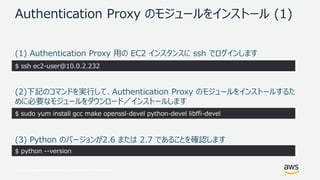
© 2017, Amazon
Web Services, Inc. or its Affiliates. All rights reserved. Authentication Proxy のモジュールをインストール (1) (1) Authentication Proxy 用の EC2 インスタンスに ssh でログインします (2)下記のコマンドを実行して、Authentication Proxy のモジュールをインストールするた めに必要なモジュールをダウンロード/インストールします (3) Python のバージョンが2.6 または 2.7 であることを確認します $ ssh ec2-user@10.0.2.232 $ sudo yum install gcc make openssl-devel python-devel libffi-devel $ python --version
69.
© 2017, Amazon
Web Services, Inc. or its Affiliates. All rights reserved. Authentication Proxy のモジュールをインストール (2) (1) Authentication Proxy のモジュールをダウンロードして解凍し、インストールを行います $ wget https://dl.duosecurity.com/duoauthproxy-latest-src.tgz $ tar xzf duoauthproxy-latest-src.tgz $ ls duoauthproxy-2.6.0-src duoauthproxy-latest-src.tgz $ cd duoauthproxy-2.6.0-src $ export PYTHON=python $ make (2) 解凍されたモジュールが格納されたディレクトリを確認し、ビルドします
70.
© 2017, Amazon
Web Services, Inc. or its Affiliates. All rights reserved. Authentication Proxy のモジュールをインストール (3) (1) ビルドしたモジュールの格納先に移動し、インストールを行います。途中の選択肢はデフォルトのまま Enter で進みます $ cd duoauthproxy-build $ sudo ./install In what directory do you wish to install the Duo Authentication Proxy? [/opt/duoauthproxy] Enter the name of a user account under which the Authentication Proxy should be run: [nobody] Copying files... Done. Create an initialization script to run the proxy upon startup? [yes/no] yes Installation completed. Before starting the Authentication Proxy, Please edit the configuration file at: /opt/duoauthproxy/conf/authproxy.cfg
71.
© 2017, Amazon
Web Services, Inc. or its Affiliates. All rights reserved. 設定ファイルの編集 (1) authproxy.cfg を編集します $ sudo vi /opt/duoauthproxy/conf/authproxy.cfg
72.
© 2017, Amazon
Web Services, Inc. or its Affiliates. All rights reserved. [ad_client] セクションをコメントアウト [ad_client] ; The hostname or IP address of your domain controller host= ; Username of the account that will read from your Active Directory database service_account_username= ; Password corresponding to service_account_username service_account_password= ; The LDAP distinguished name of an AD or OU containing all of the users you ; wish to permit to log in search_dn= [ad_client] ; The hostname or IP address of your domain controller ; host= ; Username of the account that will read from your Active Directory database ; service_account_username= ; Password corresponding to service_account_username ; service_account_password= ; The LDAP distinguished name of an AD or OU containing all of the users you ; wish to permit to log in ; search_dn= 既定の設定 編集後の設定
73.
© 2017, Amazon
Web Services, Inc. or its Affiliates. All rights reserved. [duo_only_client] セクションのコメントアウトを外す ;[duo_only_client] [duo_only_client] 既定の設定 編集後の設定
74.
© 2017, Amazon
Web Services, Inc. or its Affiliates. All rights reserved. [radius_server_auto] セクションをコメントアウトする [radius_server_auto] ; Your Duo integration key ; ikey= ; Your Duo secret key ; skey= ; Your Duo API hostname (e.g. "api-XXXX.duosecurity.com") ; api_host= ; The IP address or IP range of the device(s) or application(s) that will be ; contacting the authentication proxy via RADIUS ; radius_ip_1= ; A shared secret that you'll enter both here and in the configuration of the ; device(s) or application(s) with the corresponding radius_ip_x value. We ; recommend as strong a password as possible. (max 128 chars) ; radius_secret_1= ; Protocol followed in the event that Duo services are down. ; Safe: Authentication permitted if primary authentication succeeds ; Secure: All authentication attempts will be rejected ; failmode=safe ; Mechanism the Auth Proxy should use to perform primary auth. Should correspond ; with a "client" section elsewhere in this configuration file ; client=ad_client ; Port on which to listen for incoming RADIUS Access Requests ; port=1812
75.
© 2017, Amazon
Web Services, Inc. or its Affiliates. All rights reserved. [radius_server_duo_only] セクションに設定を記入する ; Include radius_server_duo_only when primary auth is handled elsewhere and you want ; to submit the passcode or factor choice as the RADIUS password field ; Config Options: https://duo.com/docs/authproxy_reference#radius-duo-only [radius_server_duo_only] ikey=DIIAPP0H1JJAX4L23ZNV skey=rJyw40td00THZNuV50cLB4Y6VrnWitXSxmwmDo5J api_host=api-0a1086d6.duosecurity.com radius_ip_1=10.0.2.199 radius_ip_2=10.0.3.118 radius_secret_1=P@ssw0rd! radius_secret_2=P@ssw0rd! client=duo_only_client https://duo.com/docs/awsworkspaces#configure-the-proxy-for-your-aws-directory “設定値の確認” で控えた値 ikey : Integration Key skey : Secret Key api_host : API Hostname Directory Services の DNS アドレス Directory Services への多要素認証設定時に割り当てるパスワード。 同じものを設定する
76.
© 2017, Amazon
Web Services, Inc. or its Affiliates. All rights reserved. Authentication Proxy の起動 $ sudo /opt/duoauthproxy/bin/authproxyctl start $ sudo /opt/duoauthproxy/bin/authproxyctl status duoauthproxy (pid xxxxx) is running Root 権限で起動します ステータスの確認
77.
© 2017, Amazon
Web Services, Inc. or its Affiliates. All rights reserved. Step3. Directory Services の設定
78.
© 2017, Amazon
Web Services, Inc. or its Affiliates. All rights reserved. Directory Services のセキュリティ グループ変更 (1) Microsoft AD に割り当てられているセキュリティ グルー プは既定では Directory Services からアウトバウンド 向けに RADIUS で使われる “UDP 1812” が解放さ れていません。 そのため、この状態で RADIUS サーバーの登録を行っ ても失敗します。
79.
© 2017, Amazon
Web Services, Inc. or its Affiliates. All rights reserved. Directory Services のセキュリティ グループ変更 (2) [WorkSpaces] をクリック
80.
© 2017, Amazon
Web Services, Inc. or its Affiliates. All rights reserved. Directory Services のセキュリティ グループ変更 (3) 1. [ディレクトリ] をクリック 2. 対象のディレクトリの [セキュリティグループ] に記載されている ID を控えます
81.
© 2017, Amazon
Web Services, Inc. or its Affiliates. All rights reserved. Directory Services のセキュリティ グループ変更 (4) 1. [セキュリティグループ] をクリック 2. 控えたセキュリティ グループの ID を入力してフィルタリング 3. [アウトバウンド] を選択 4. [編集] をクリック
82.
© 2017, Amazon
Web Services, Inc. or its Affiliates. All rights reserved. Directory Services のセキュリティ グループ変更 (5) 1. [ルールの追加] をクリック 2. 各項目を下記の様に指定 タイプ: カスタム UDP ポート範囲: 1812 送信先: カスタム、10.0.0.0/16 3. [保存] をクリック
83.
© 2017, Amazon
Web Services, Inc. or its Affiliates. All rights reserved. Directory Services のセキュリティ グループ変更 (6) 新しく追加されたことを確認
84.
© 2017, Amazon
Web Services, Inc. or its Affiliates. All rights reserved. Directory Services の構成 (1) 1. Directory Services のマネジメント コンソールを開きます 2. [ディレクトリ] をクリック 3. MFA 設定対象の Directory ID のリンクをクリック
85.
© 2017, Amazon
Web Services, Inc. or its Affiliates. All rights reserved. Directory Services の構成 (2) [多要素認証] タブをクリック
86.
© 2017, Amazon
Web Services, Inc. or its Affiliates. All rights reserved. Directory Services の構成 (3) 1. [多要素認証の有効化] をクリック 2. Authentication Proxy の IP アドレスを指定しま す。複数ある場合はカンマ区切りで指定します。 3. 既定値の “1812” とします 4. “[radius_server_duo_only] セクションに設定を 記入する” で “radius_secret_1” および “radius_secret_2” に設定した値を記述します 5. “PAP” を選択します 6. “サーバータイムアウト” x “最大試行回数” が 60 より大きくなるように設定します。タイムアウトは 20 以 上を指定します 7. [ディレクトリの更新] をクリックします
87.
© 2017, Amazon
Web Services, Inc. or its Affiliates. All rights reserved. Directory Services の構成 (4) [完了済み] になることを確認します
88.
© 2017, Amazon
Web Services, Inc. or its Affiliates. All rights reserved. Step4. WorkSpaces の登録
89.
© 2017, Amazon
Web Services, Inc. or its Affiliates. All rights reserved. 登録コードの確認 1. WorkSpaces をクリックします 2. 対象の WorkSpaces の [登録コード] を控えます
90.
© 2017, Amazon
Web Services, Inc. or its Affiliates. All rights reserved. WorkSpaces の登録とログイン 1. 控えた登録コードを入力します 2. [登録] をクリックします 3. ユーザーのアカウントとパスワードを入力します 4. Duo Mobile を開き、 鍵マークをクリック し、表示された数字を入力します 5. [サインイン] をクリックします
91.
© 2017, Amazon
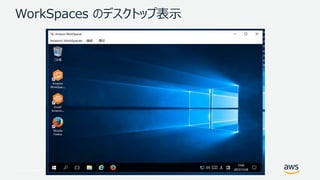
Web Services, Inc. or its Affiliates. All rights reserved. WorkSpaces のデスクトップ表示
92.
© 2017, Amazon
Web Services, Inc. or its Affiliates. All rights reserved. Appendix. 補足事項
93.
© 2017, Amazon
Web Services, Inc. or its Affiliates. All rights reserved. Authentication Proxy のログ確認 $ tail -f /opt/duoauthproxy/log/authproxy.log 2017-11-28T08:27:51+0000 [DuoForwardServer (UDP)] Sending request from 10.0.2.199 to radius_server_duo_only 2017-11-28T08:27:51+0000 [DuoForwardServer (UDP)] Received new request id 3 from ('10.0.2.199', 59920) 2017-11-28T08:27:51+0000 [DuoForwardServer (UDP)] (('10.0.2.199', 59920), 3): login attempt for username u'testuser01' 2017-11-28T08:27:51+0000 [DuoForwardServer (UDP)] http POST to https://api-0a1086d6.duosecurity.com:443/rest/v1/preauth 2017-11-28T08:27:51+0000 [duoauthproxy.lib.http._DuoHTTPClientFactory#info] Starting factory <_DuoHTTPClientFactory: https://api- 0a1086d6.duosecurity.com:443/rest/v1/preauth> 2017-11-28T08:27:52+0000 [HTTPPageGetter (TLSMemoryBIOProtocol),client] (('10.0.2.199', 59920), 3): Got preauth result for: u'auth' 2017-11-28T08:27:52+0000 [HTTPPageGetter (TLSMemoryBIOProtocol),client] http POST to https://api- 0a1086d6.duosecurity.com:443/rest/v1/auth 2017-11-28T08:27:52+0000 [duoauthproxy.lib.http._DuoHTTPClientFactory#info] Starting factory <_DuoHTTPClientFactory: https://api- 0a1086d6.duosecurity.com:443/rest/v1/auth> 2017-11-28T08:27:52+0000 [duoauthproxy.lib.http._DuoHTTPClientFactory#info] Stopping factory <_DuoHTTPClientFactory: https://api- 0a1086d6.duosecurity.com:443/rest/v1/preauth> 2017-11-28T08:27:52+0000 [HTTPPageGetter (TLSMemoryBIOProtocol),client] (('10.0.2.199', 59920), 3): Duo authentication returned 'allow': 'Success. Logging you in...' 2017-11-28T08:27:52+0000 [HTTPPageGetter (TLSMemoryBIOProtocol),client] (('10.0.2.199', 59920), 3): Returning response code 2: AccessAccept 2017-11-28T08:27:52+0000 [HTTPPageGetter (TLSMemoryBIOProtocol),client] (('10.0.2.199', 59920), 3): Sending response 2017-11-28T08:27:52+0000 [duoauthproxy.lib.http._DuoHTTPClientFactory#info] Stopping factory <_DuoHTTPClientFactory: https://api- 0a1086d6.duosecurity.com:443/rest/v1/auth> “/opt/duoauthproxy/log/authproxy.log” で、Directory Services との接続や WorkSpaces の認証に関するログなどを確 認することができます 下記の例では、 WorkSpaces へのログインの過程をトラックしています。
Download





![© 2017, Amazon Web Services, Inc. or its Affiliates. All rights reserved.
Microsoft AD の IP アドレスの確認
1. [Directories] をクリック
2. [DNS address] に記載されている IP アドレスを控えます](https://image.slidesharecdn.com/amazonworkspaces-180123074020/85/Amazon-WorkSpaces-12-320.jpg)





![© 2017, Amazon Web Services, Inc. or its Affiliates. All rights reserved.
FreeRADIUS の起動
sudo chkconfig --level 345 radiusd on
sudo /etc/init.d/radiusd start
Starting radiusd: [ OK ]
下記のコマンドを実行して RADIUS を起動します](https://image.slidesharecdn.com/amazonworkspaces-180123074020/85/Amazon-WorkSpaces-23-320.jpg)


![© 2017, Amazon Web Services, Inc. or its Affiliates. All rights reserved.
Directory Services のセキュリティ グループ変更 (2)
[WorkSpaces] をクリック](https://image.slidesharecdn.com/amazonworkspaces-180123074020/85/Amazon-WorkSpaces-31-320.jpg)
![© 2017, Amazon Web Services, Inc. or its Affiliates. All rights reserved.
Directory Services のセキュリティ グループ変更 (3)
1. [ディレクトリ] をクリック
2. 対象のディレクトリの [セキュリティグループ] に記載されている ID を控えます](https://image.slidesharecdn.com/amazonworkspaces-180123074020/85/Amazon-WorkSpaces-32-320.jpg)
![© 2017, Amazon Web Services, Inc. or its Affiliates. All rights reserved.
Directory Services のセキュリティ グループ変更 (4)
1. [セキュリティグループ] をクリック
2. 控えたセキュリティ グループの ID を入力してフィルタリング
3. [アウトバウンド] を選択
4. [編集] をクリック](https://image.slidesharecdn.com/amazonworkspaces-180123074020/85/Amazon-WorkSpaces-33-320.jpg)
![© 2017, Amazon Web Services, Inc. or its Affiliates. All rights reserved.
Directory Services のセキュリティ グループ変更 (5)
1. [ルールの追加] をクリック
2. 各項目を下記の様に指定
タイプ: カスタム UDP
ポート範囲: 1812
送信先: カスタム、10.0.0.0/16
3. [保存] をクリック](https://image.slidesharecdn.com/amazonworkspaces-180123074020/85/Amazon-WorkSpaces-34-320.jpg)

![© 2017, Amazon Web Services, Inc. or its Affiliates. All rights reserved.
Directory Services を開く
[Directory Service] をクリック](https://image.slidesharecdn.com/amazonworkspaces-180123074020/85/Amazon-WorkSpaces-36-320.jpg)
![© 2017, Amazon Web Services, Inc. or its Affiliates. All rights reserved.
対象の Directory ID の詳細表示
1. [ディレクトリ] をクリック
2. ディレクトリ ID のリンクをクリック](https://image.slidesharecdn.com/amazonworkspaces-180123074020/85/Amazon-WorkSpaces-37-320.jpg)
![© 2017, Amazon Web Services, Inc. or its Affiliates. All rights reserved.
RADIUS サーバーの情報を設定
1. [多要素認証] タブをクリック
2. [多要素認証の有効化] にチェックを入れる
3. 各項目に入力
- RADIUS サーバーの IP アドレス
- ポート : 1812
- 共有シークレットコード : P@ssw0rd!
- 共有シークレットコードの確認 : P@ssw0rd!
- プロトコル : PAP
- サーバータイムアウト (秒単位) : 30 (例)
- 最大再試行回数 : 5 (例)
4. [ディレクトリの更新] をクリック](https://image.slidesharecdn.com/amazonworkspaces-180123074020/85/Amazon-WorkSpaces-38-320.jpg)

![© 2017, Amazon Web Services, Inc. or its Affiliates. All rights reserved.
接続先ディレクトリ サービスの登録コードの確認
1. [WorkSpaces] をクリック
2. [登録コード] を控えます](https://image.slidesharecdn.com/amazonworkspaces-180123074020/85/Amazon-WorkSpaces-41-320.jpg)
![© 2017, Amazon Web Services, Inc. or its Affiliates. All rights reserved.
登録コードの登録
1. WorkSpaces クライアントを起動し
て控えた登録コードを入力し、[登録] を
クリックします
2. ログイン画面が表示されるので、
“MFAコード” と書かれた枠が表示されて
いることを確認します](https://image.slidesharecdn.com/amazonworkspaces-180123074020/85/Amazon-WorkSpaces-42-320.jpg)
![© 2017, Amazon Web Services, Inc. or its Affiliates. All rights reserved.
ログイン
1. “ユーザー登録 (1)” のスライド内で
登録したユーザーとパスワード、およびス
マートフォンの Google
Authenticator のアプリケーションに表
示されているワンタイムパスワードを入力
し、 [サインイン] をクリック
2. 必要に応じてクリックします](https://image.slidesharecdn.com/amazonworkspaces-180123074020/85/Amazon-WorkSpaces-43-320.jpg)






![© 2017, Amazon Web Services, Inc. or its Affiliates. All rights reserved.
RADIUS アプリケーションの作成 (1)
1. [Applications] をクリック
2. [Protect an Application] をクリック](https://image.slidesharecdn.com/amazonworkspaces-180123074020/85/Amazon-WorkSpaces-55-320.jpg)
![© 2017, Amazon Web Services, Inc. or its Affiliates. All rights reserved.
RADIUS アプリケーションの作成 (2)
1. 検索窓で “RADIUS” と入力して検索
2. “RADIUS” の [Protect this Application] をクリック](https://image.slidesharecdn.com/amazonworkspaces-180123074020/85/Amazon-WorkSpaces-56-320.jpg)

![© 2017, Amazon Web Services, Inc. or its Affiliates. All rights reserved.
認証対象ユーザーの作成 (1)
2. [Add User] をクリック
1. [Users] をクリック](https://image.slidesharecdn.com/amazonworkspaces-180123074020/85/Amazon-WorkSpaces-58-320.jpg)
![© 2017, Amazon Web Services, Inc. or its Affiliates. All rights reserved.
認証対象ユーザーの作成 (2)
1. WorkSpaces のユーザー名 (sandboxtestuser01というユー
ザーの場合は、 “testuser01” のみ) を入力
2. [Add User] をクリック](https://image.slidesharecdn.com/amazonworkspaces-180123074020/85/Amazon-WorkSpaces-59-320.jpg)
![© 2017, Amazon Web Services, Inc. or its Affiliates. All rights reserved.
スマートフォンの登録と Duo Mobile アプリの登録 (1)
画
面
下
部
1. 作成したユーザーの設定ページが開きます
2. [Add Phone] をクリックします](https://image.slidesharecdn.com/amazonworkspaces-180123074020/85/Amazon-WorkSpaces-60-320.jpg)
![© 2017, Amazon Web Services, Inc. or its Affiliates. All rights reserved.
スマートフォンの登録と Duo Mobile アプリの登録 (2)
1. [Phone] を選択します
2. 電話番号を国番号を付与して入力します
3. [Add Phone] をクリックします](https://image.slidesharecdn.com/amazonworkspaces-180123074020/85/Amazon-WorkSpaces-61-320.jpg)
![© 2017, Amazon Web Services, Inc. or its Affiliates. All rights reserved.
スマートフォンの登録と Duo Mobile アプリの登録 (3)
[Activate Duo Mobile] をクリックします](https://image.slidesharecdn.com/amazonworkspaces-180123074020/85/Amazon-WorkSpaces-62-320.jpg)
![© 2017, Amazon Web Services, Inc. or its Affiliates. All rights reserved.
スマートフォンの登録と Duo Mobile アプリの登録 (4)
[Generate Duo Mobile Activation Code] をクリックします](https://image.slidesharecdn.com/amazonworkspaces-180123074020/85/Amazon-WorkSpaces-63-320.jpg)
![© 2017, Amazon Web Services, Inc. or its Affiliates. All rights reserved.
スマートフォンの登録と Duo Mobile アプリの登録 (5)
[Send Instructions by SMS] をクリックします](https://image.slidesharecdn.com/amazonworkspaces-180123074020/85/Amazon-WorkSpaces-64-320.jpg)
![© 2017, Amazon Web Services, Inc. or its Affiliates. All rights reserved.
スマートフォンの登録と Duo Mobile アプリの登録 (6)
1. リンクをクリックします
2. [開く] をクリックします
3. Duo Mobile のアプリが開
き、鍵が登録されます
あらかじめ Duo Mobile のアプリをスマートフォンにインストールしておきます](https://image.slidesharecdn.com/amazonworkspaces-180123074020/85/Amazon-WorkSpaces-65-320.jpg)



![© 2017, Amazon Web Services, Inc. or its Affiliates. All rights reserved.
Authentication Proxy のモジュールをインストール (3)
(1) ビルドしたモジュールの格納先に移動し、インストールを行います。途中の選択肢はデフォルトのまま Enter で進みます
$ cd duoauthproxy-build
$ sudo ./install
In what directory do you wish to install the Duo Authentication Proxy?
[/opt/duoauthproxy]
Enter the name of a user account under which the Authentication Proxy should be run:
[nobody]
Copying files... Done.
Create an initialization script to run the proxy upon startup? [yes/no] yes
Installation completed. Before starting the Authentication Proxy,
Please edit the configuration file at:
/opt/duoauthproxy/conf/authproxy.cfg](https://image.slidesharecdn.com/amazonworkspaces-180123074020/85/Amazon-WorkSpaces-70-320.jpg)

![© 2017, Amazon Web Services, Inc. or its Affiliates. All rights reserved.
[ad_client] セクションをコメントアウト
[ad_client]
; The hostname or IP address of your domain controller
host=
; Username of the account that will read from your Active Directory database
service_account_username=
; Password corresponding to service_account_username
service_account_password=
; The LDAP distinguished name of an AD or OU containing all of the users you
; wish to permit to log in
search_dn=
[ad_client]
; The hostname or IP address of your domain controller
; host=
; Username of the account that will read from your Active Directory database
; service_account_username=
; Password corresponding to service_account_username
; service_account_password=
; The LDAP distinguished name of an AD or OU containing all of the users you
; wish to permit to log in
; search_dn=
既定の設定
編集後の設定](https://image.slidesharecdn.com/amazonworkspaces-180123074020/85/Amazon-WorkSpaces-72-320.jpg)
![© 2017, Amazon Web Services, Inc. or its Affiliates. All rights reserved.
[duo_only_client] セクションのコメントアウトを外す
;[duo_only_client]
[duo_only_client]
既定の設定
編集後の設定](https://image.slidesharecdn.com/amazonworkspaces-180123074020/85/Amazon-WorkSpaces-73-320.jpg)
![© 2017, Amazon Web Services, Inc. or its Affiliates. All rights reserved.
[radius_server_auto] セクションをコメントアウトする
[radius_server_auto]
; Your Duo integration key
; ikey=
; Your Duo secret key
; skey=
; Your Duo API hostname (e.g. "api-XXXX.duosecurity.com")
; api_host=
; The IP address or IP range of the device(s) or application(s) that will be
; contacting the authentication proxy via RADIUS
; radius_ip_1=
; A shared secret that you'll enter both here and in the configuration of the
; device(s) or application(s) with the corresponding radius_ip_x value. We
; recommend as strong a password as possible. (max 128 chars)
; radius_secret_1=
; Protocol followed in the event that Duo services are down.
; Safe: Authentication permitted if primary authentication succeeds
; Secure: All authentication attempts will be rejected
; failmode=safe
; Mechanism the Auth Proxy should use to perform primary auth. Should correspond
; with a "client" section elsewhere in this configuration file
; client=ad_client
; Port on which to listen for incoming RADIUS Access Requests
; port=1812](https://image.slidesharecdn.com/amazonworkspaces-180123074020/85/Amazon-WorkSpaces-74-320.jpg)
![© 2017, Amazon Web Services, Inc. or its Affiliates. All rights reserved.
[radius_server_duo_only] セクションに設定を記入する
; Include radius_server_duo_only when primary auth is handled elsewhere and you want
; to submit the passcode or factor choice as the RADIUS password field
; Config Options: https://duo.com/docs/authproxy_reference#radius-duo-only
[radius_server_duo_only]
ikey=DIIAPP0H1JJAX4L23ZNV
skey=rJyw40td00THZNuV50cLB4Y6VrnWitXSxmwmDo5J
api_host=api-0a1086d6.duosecurity.com
radius_ip_1=10.0.2.199
radius_ip_2=10.0.3.118
radius_secret_1=P@ssw0rd!
radius_secret_2=P@ssw0rd!
client=duo_only_client
https://duo.com/docs/awsworkspaces#configure-the-proxy-for-your-aws-directory
“設定値の確認” で控えた値
ikey : Integration Key
skey : Secret Key
api_host : API Hostname
Directory Services の DNS アドレス
Directory Services への多要素認証設定時に割り当てるパスワード。
同じものを設定する](https://image.slidesharecdn.com/amazonworkspaces-180123074020/85/Amazon-WorkSpaces-75-320.jpg)


![© 2017, Amazon Web Services, Inc. or its Affiliates. All rights reserved.
Directory Services のセキュリティ グループ変更 (2)
[WorkSpaces] をクリック](https://image.slidesharecdn.com/amazonworkspaces-180123074020/85/Amazon-WorkSpaces-79-320.jpg)
![© 2017, Amazon Web Services, Inc. or its Affiliates. All rights reserved.
Directory Services のセキュリティ グループ変更 (3)
1. [ディレクトリ] をクリック
2. 対象のディレクトリの [セキュリティグループ] に記載されている ID を控えます](https://image.slidesharecdn.com/amazonworkspaces-180123074020/85/Amazon-WorkSpaces-80-320.jpg)
![© 2017, Amazon Web Services, Inc. or its Affiliates. All rights reserved.
Directory Services のセキュリティ グループ変更 (4)
1. [セキュリティグループ] をクリック
2. 控えたセキュリティ グループの ID を入力してフィルタリング
3. [アウトバウンド] を選択
4. [編集] をクリック](https://image.slidesharecdn.com/amazonworkspaces-180123074020/85/Amazon-WorkSpaces-81-320.jpg)
![© 2017, Amazon Web Services, Inc. or its Affiliates. All rights reserved.
Directory Services のセキュリティ グループ変更 (5)
1. [ルールの追加] をクリック
2. 各項目を下記の様に指定
タイプ: カスタム UDP
ポート範囲: 1812
送信先: カスタム、10.0.0.0/16
3. [保存] をクリック](https://image.slidesharecdn.com/amazonworkspaces-180123074020/85/Amazon-WorkSpaces-82-320.jpg)

![© 2017, Amazon Web Services, Inc. or its Affiliates. All rights reserved.
Directory Services の構成 (1)
1. Directory Services のマネジメント コンソールを開きます
2. [ディレクトリ] をクリック
3. MFA 設定対象の Directory ID のリンクをクリック](https://image.slidesharecdn.com/amazonworkspaces-180123074020/85/Amazon-WorkSpaces-84-320.jpg)
![© 2017, Amazon Web Services, Inc. or its Affiliates. All rights reserved.
Directory Services の構成 (2)
[多要素認証] タブをクリック](https://image.slidesharecdn.com/amazonworkspaces-180123074020/85/Amazon-WorkSpaces-85-320.jpg)
![© 2017, Amazon Web Services, Inc. or its Affiliates. All rights reserved.
Directory Services の構成 (3)
1. [多要素認証の有効化] をクリック
2. Authentication Proxy の IP アドレスを指定しま
す。複数ある場合はカンマ区切りで指定します。
3. 既定値の “1812” とします
4. “[radius_server_duo_only] セクションに設定を
記入する” で “radius_secret_1” および
“radius_secret_2” に設定した値を記述します
5. “PAP” を選択します
6. “サーバータイムアウト” x “最大試行回数” が 60
より大きくなるように設定します。タイムアウトは 20 以
上を指定します 7. [ディレクトリの更新] をクリックします](https://image.slidesharecdn.com/amazonworkspaces-180123074020/85/Amazon-WorkSpaces-86-320.jpg)
![© 2017, Amazon Web Services, Inc. or its Affiliates. All rights reserved.
Directory Services の構成 (4)
[完了済み] になることを確認します](https://image.slidesharecdn.com/amazonworkspaces-180123074020/85/Amazon-WorkSpaces-87-320.jpg)

![© 2017, Amazon Web Services, Inc. or its Affiliates. All rights reserved.
登録コードの確認
1. WorkSpaces をクリックします
2. 対象の WorkSpaces の [登録コード] を控えます](https://image.slidesharecdn.com/amazonworkspaces-180123074020/85/Amazon-WorkSpaces-89-320.jpg)
![© 2017, Amazon Web Services, Inc. or its Affiliates. All rights reserved.
WorkSpaces の登録とログイン
1. 控えた登録コードを入力します
2. [登録] をクリックします
3. ユーザーのアカウントとパスワードを入力します
4. Duo Mobile を開き、 鍵マークをクリック
し、表示された数字を入力します
5. [サインイン] をクリックします](https://image.slidesharecdn.com/amazonworkspaces-180123074020/85/Amazon-WorkSpaces-90-320.jpg)
![© 2017, Amazon Web Services, Inc. or its Affiliates. All rights reserved.
Authentication Proxy のログ確認
$ tail -f /opt/duoauthproxy/log/authproxy.log
2017-11-28T08:27:51+0000 [DuoForwardServer (UDP)] Sending request from 10.0.2.199 to radius_server_duo_only
2017-11-28T08:27:51+0000 [DuoForwardServer (UDP)] Received new request id 3 from ('10.0.2.199', 59920)
2017-11-28T08:27:51+0000 [DuoForwardServer (UDP)] (('10.0.2.199', 59920), 3): login attempt for username u'testuser01'
2017-11-28T08:27:51+0000 [DuoForwardServer (UDP)] http POST to https://api-0a1086d6.duosecurity.com:443/rest/v1/preauth
2017-11-28T08:27:51+0000 [duoauthproxy.lib.http._DuoHTTPClientFactory#info] Starting factory <_DuoHTTPClientFactory: https://api-
0a1086d6.duosecurity.com:443/rest/v1/preauth>
2017-11-28T08:27:52+0000 [HTTPPageGetter (TLSMemoryBIOProtocol),client] (('10.0.2.199', 59920), 3): Got preauth result for: u'auth'
2017-11-28T08:27:52+0000 [HTTPPageGetter (TLSMemoryBIOProtocol),client] http POST to https://api-
0a1086d6.duosecurity.com:443/rest/v1/auth
2017-11-28T08:27:52+0000 [duoauthproxy.lib.http._DuoHTTPClientFactory#info] Starting factory <_DuoHTTPClientFactory: https://api-
0a1086d6.duosecurity.com:443/rest/v1/auth>
2017-11-28T08:27:52+0000 [duoauthproxy.lib.http._DuoHTTPClientFactory#info] Stopping factory <_DuoHTTPClientFactory: https://api-
0a1086d6.duosecurity.com:443/rest/v1/preauth>
2017-11-28T08:27:52+0000 [HTTPPageGetter (TLSMemoryBIOProtocol),client] (('10.0.2.199', 59920), 3): Duo authentication returned
'allow': 'Success. Logging you in...'
2017-11-28T08:27:52+0000 [HTTPPageGetter (TLSMemoryBIOProtocol),client] (('10.0.2.199', 59920), 3): Returning response code 2:
AccessAccept
2017-11-28T08:27:52+0000 [HTTPPageGetter (TLSMemoryBIOProtocol),client] (('10.0.2.199', 59920), 3): Sending response
2017-11-28T08:27:52+0000 [duoauthproxy.lib.http._DuoHTTPClientFactory#info] Stopping factory <_DuoHTTPClientFactory: https://api-
0a1086d6.duosecurity.com:443/rest/v1/auth>
“/opt/duoauthproxy/log/authproxy.log” で、Directory Services との接続や WorkSpaces の認証に関するログなどを確
認することができます
下記の例では、 WorkSpaces へのログインの過程をトラックしています。](https://image.slidesharecdn.com/amazonworkspaces-180123074020/85/Amazon-WorkSpaces-93-320.jpg)


![[AWSマイスターシリーズ] Amazon Elastic Compute Cloud (EC2) Windows編](https://cdn.slidesharecdn.com/ss_thumbnails/20130529aws-meister-regenerate-ec2-windowspublic-130530094135-phpapp02-thumbnail.jpg?width=640&height=640&fit=bounds)


![[20220126] JAWS-UG 2022初頭までに葬ったAWSアンチパターン大紹介](https://cdn.slidesharecdn.com/ss_thumbnails/20220126-anti-220126190603-thumbnail.jpg?width=640&height=640&fit=bounds)


