FLEXBOX
Zoe Mickley Gillenwater @zomigiSmashingConf
March 2014
LEVELING UP WITH
UX Designer
Author
Stunning CSS3:
A Project-based Guide
to the Latest in CSS
www.stunningcss3.com
Flexible Web Design:
Creating Liquid and Elastic
Layouts with CSS
www.flexiblewebbook.com
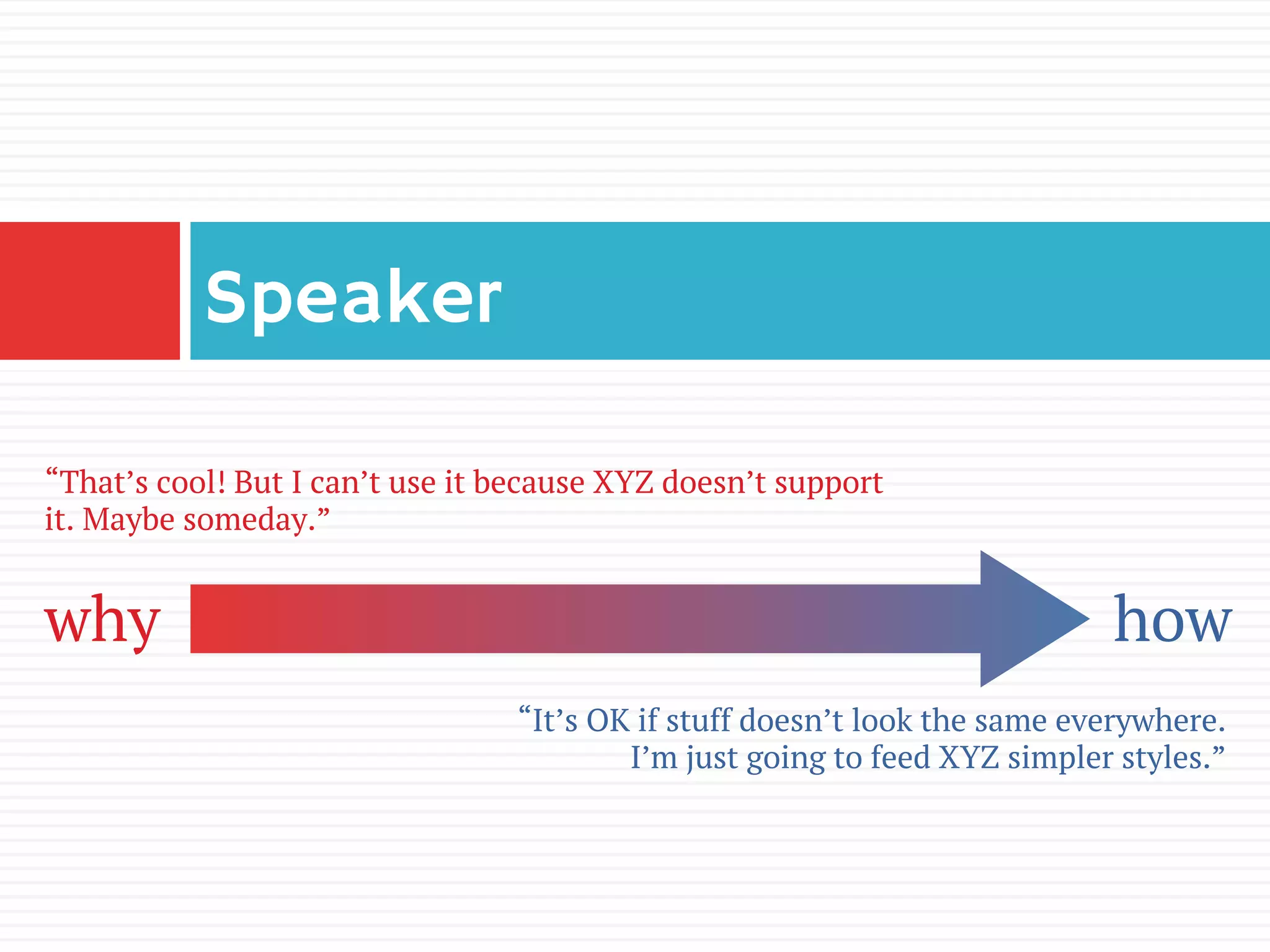
Speaker
why how
“That’s cool! But I can’t use it because XYZ doesn’t support
it. Maybe someday.”
“It’s OK if stuff doesn’t look the same everywhere.
I’m just going to feed XYZ simpler styles.”
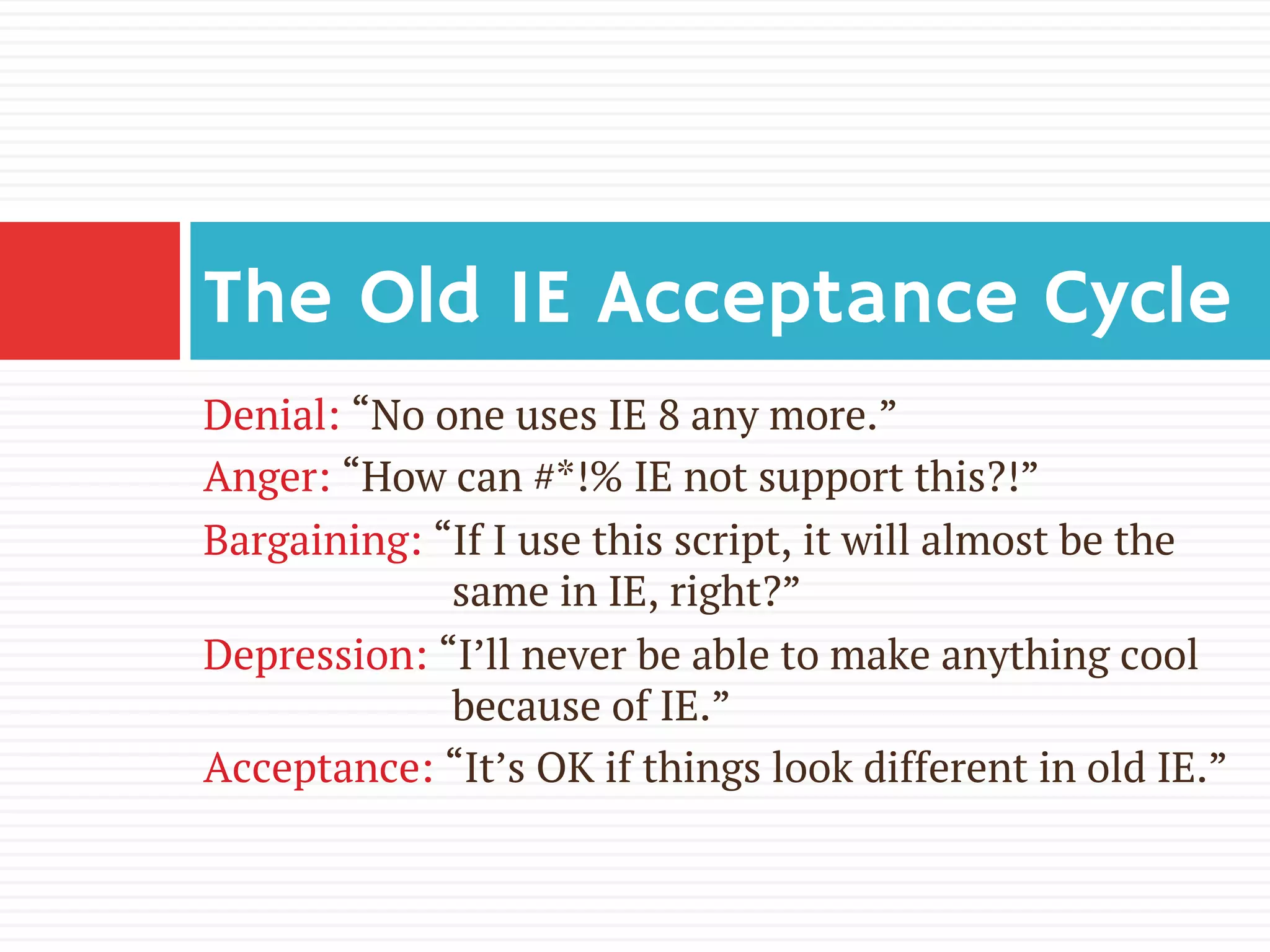
Denial: “No one uses IE 8 any more.”
Anger: “How can #*!% IE not support this?!”
Bargaining: “If I use this script, it will almost be the
same in IE, right?”
Depression: “I’ll never be able to make anything cool
because of IE.”
Acceptance: “It’s OK if things look different in old IE.”
The Old IE Acceptance Cycle
It doesn’t need to be in the “can’t use it
yet” pile anymore.
Use flexbox now on small page components
as progressive enhancement.
You can use flexbox now
The CSS Flexible Box Layout Module
(www.w3.org/TR/css3-flexbox/) has been a
Candidate Recommendation since
September 2012.
Syntax is solid
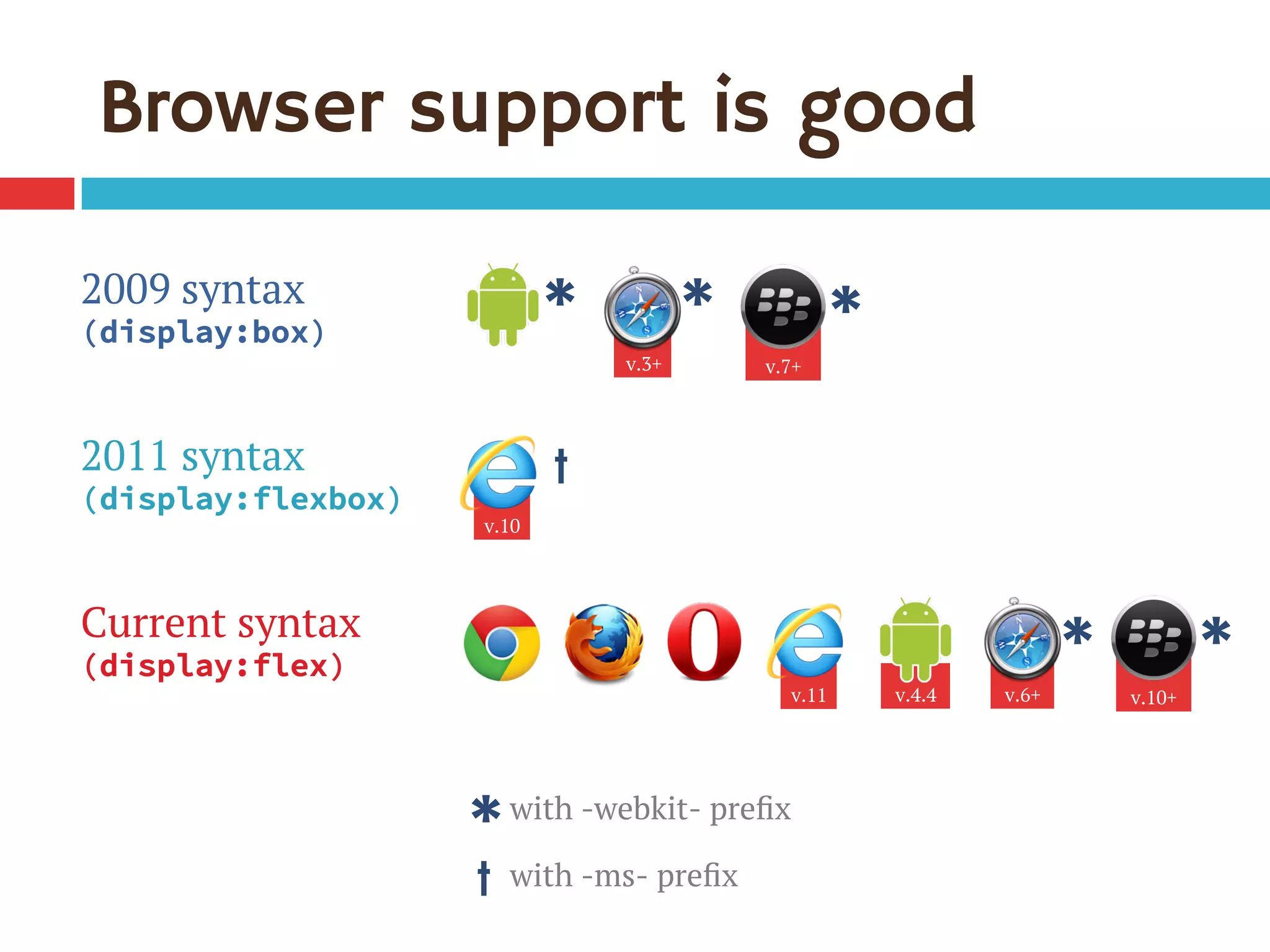
v.10+
2009 syntax
(display:box)
2011 syntax
(display:flexbox)
Current syntax
(display:flex)
v.10
Browser support is good
*with -webkit- prefix
† with -ms- prefix
v.6+
*
†
*
v.3+
*
v.4.4v.11
*
v.7+
*
Keeping track of variants
¨  Flexy Boxes code generator shows old and new
syntaxes: www.the-echoplex.net/flexyboxes/
¨  Let Sass or LESS do it for you, for instance:
¤  https://github.com/mastastealth/sass-flex-mixin
¤  https://gist.github.com/cimmanon/4461470
¨  Let Autoprefixer library do it for you:
https://github.com/ai/autoprefixer
But for the sake of readability, I’m omitting
them from the code samples on these
slides. You can see them in the live demo.
Use the variants you want.
Summary: setting the stage
1.  Create flex container using display:flex,
children become flex items
2.  Set its flex-direction to control
orientation (horizontal or vertical)
3.  Set its flex-wrap to control whether and in
which direction to wrap
(Or, set flex-flow as shorthand for flex-
direction and flex-wrap)
Problems with flex-wrap
¨  Firefox before version 28 didn’t support it
¨  No browser supports 2009 equivalent box-
lines property
¨  Limited control of where breaks occur without
support for break-before/break-after
properties (only IE 10+ and Opera support
them)
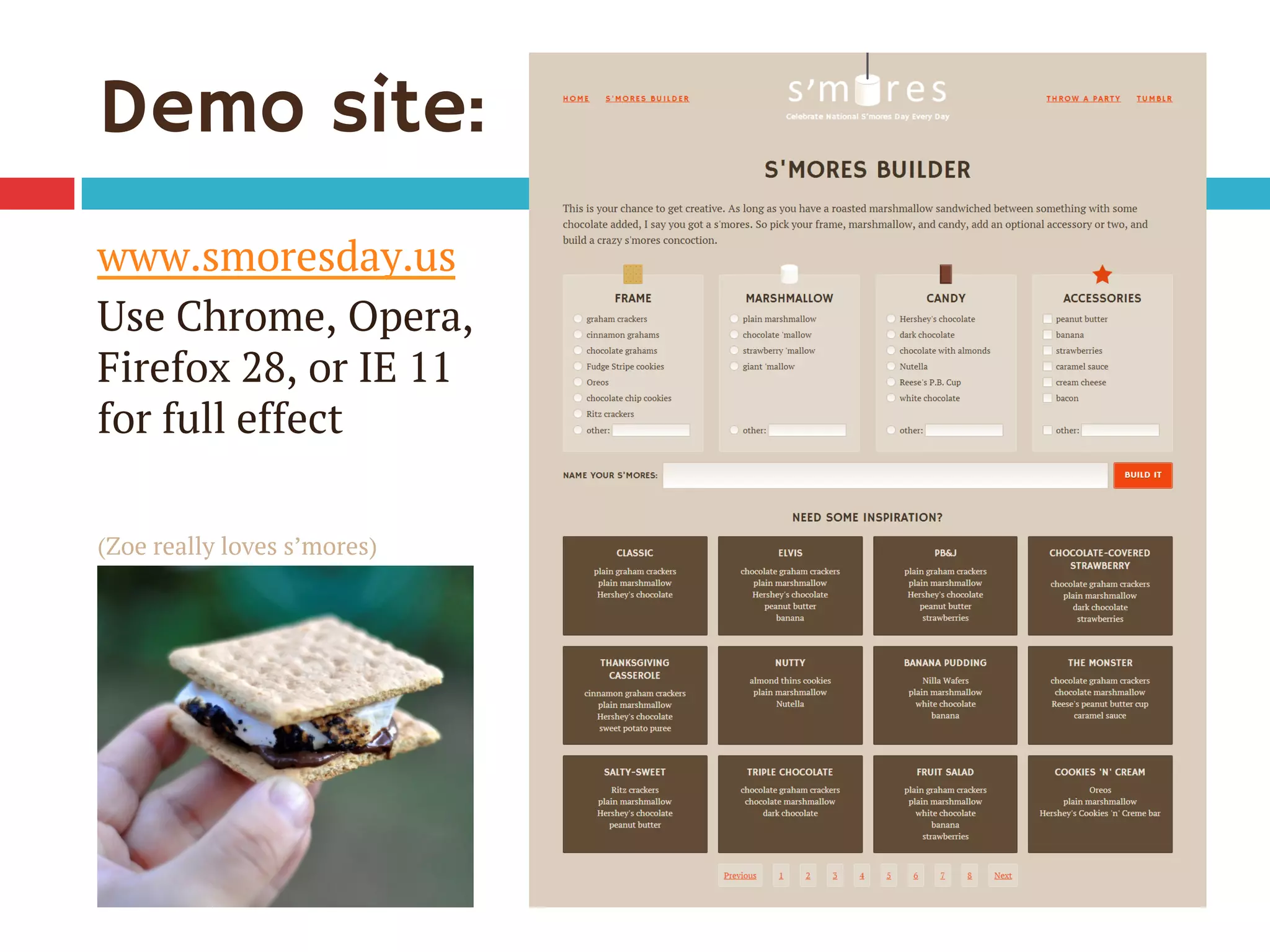
Demo site:
www.smoresday.us
Use Chrome, Opera,
Firefox 28, or IE 11
for full effect
(Zoe really loves s’mores)
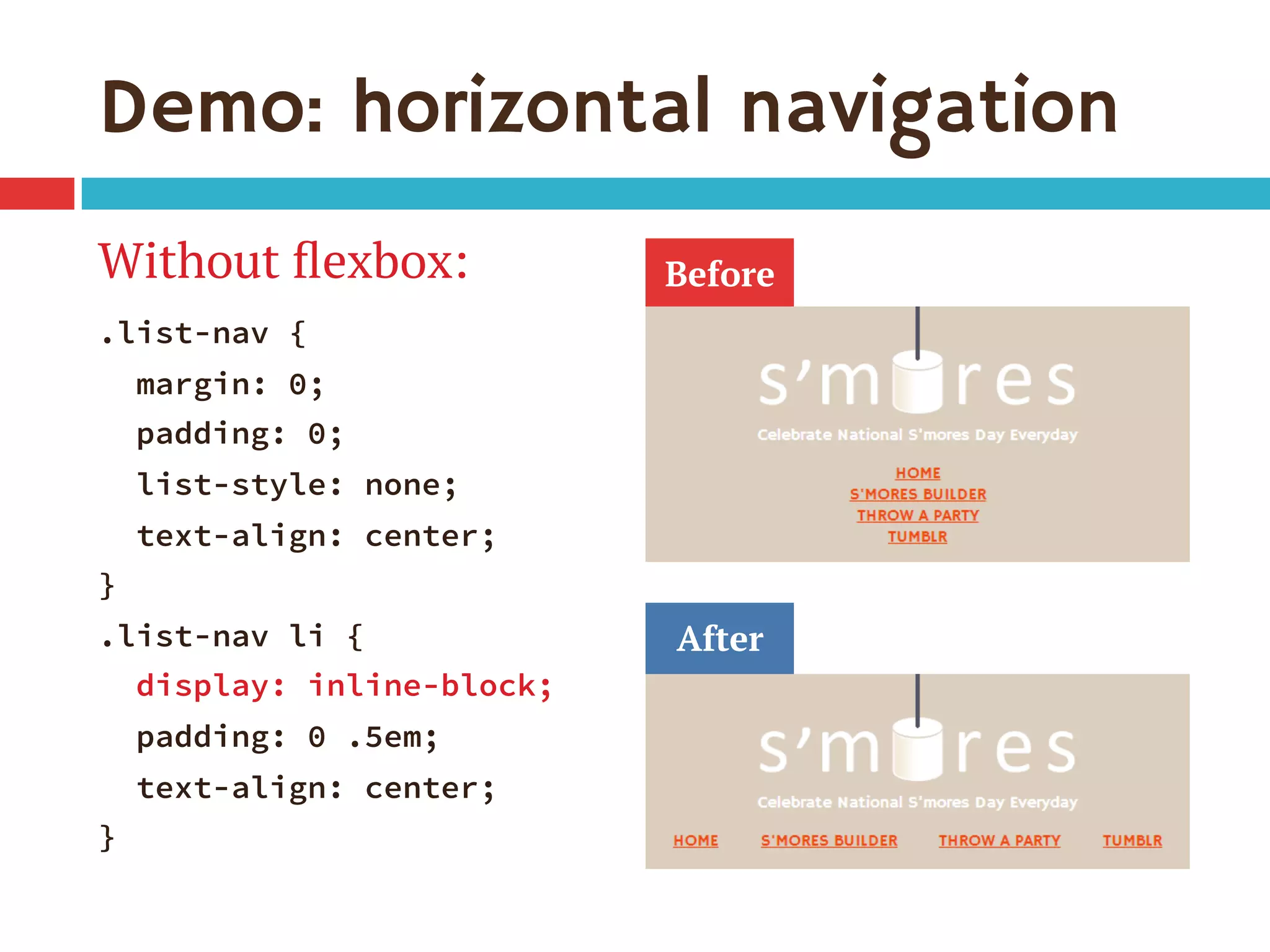
Demo: horizontal navigation
Without flexbox:
.list-nav {
margin: 0;
padding: 0;
list-style: none;
text-align: center;
}
.list-nav li {
display: inline-block;
padding: 0 .5em;
text-align: center;
}
Before
After
Demo: horizontal navigation
1.  Turn <ul> into flex container:
.list-nav {
display: flex;
flex-direction: row; /* default */
...
}
2.  Children <li> become flex items laid out on
single horizontal line
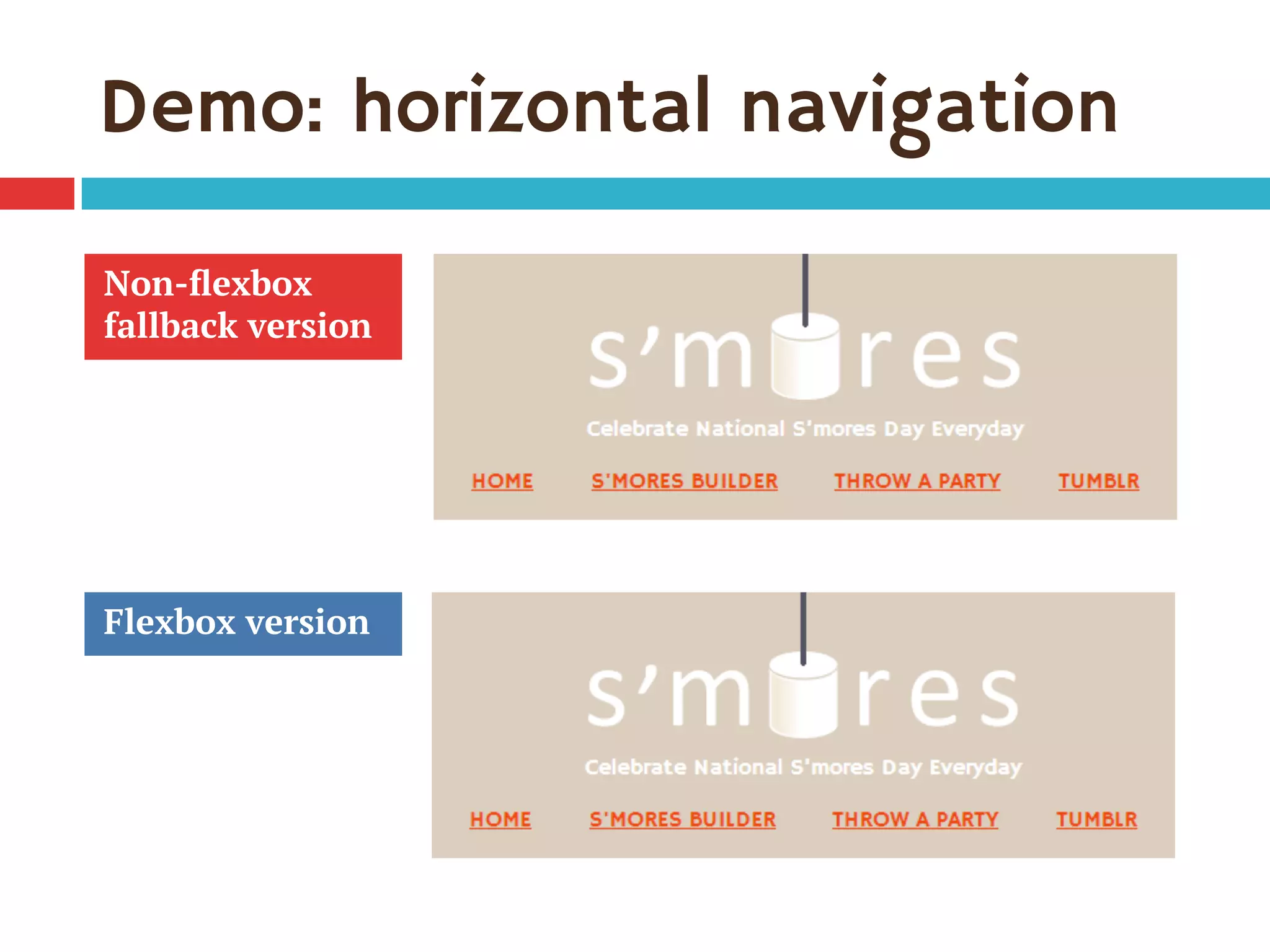
Demo: horizontal navigation
Non-flexbox
fallback version
Flexbox version
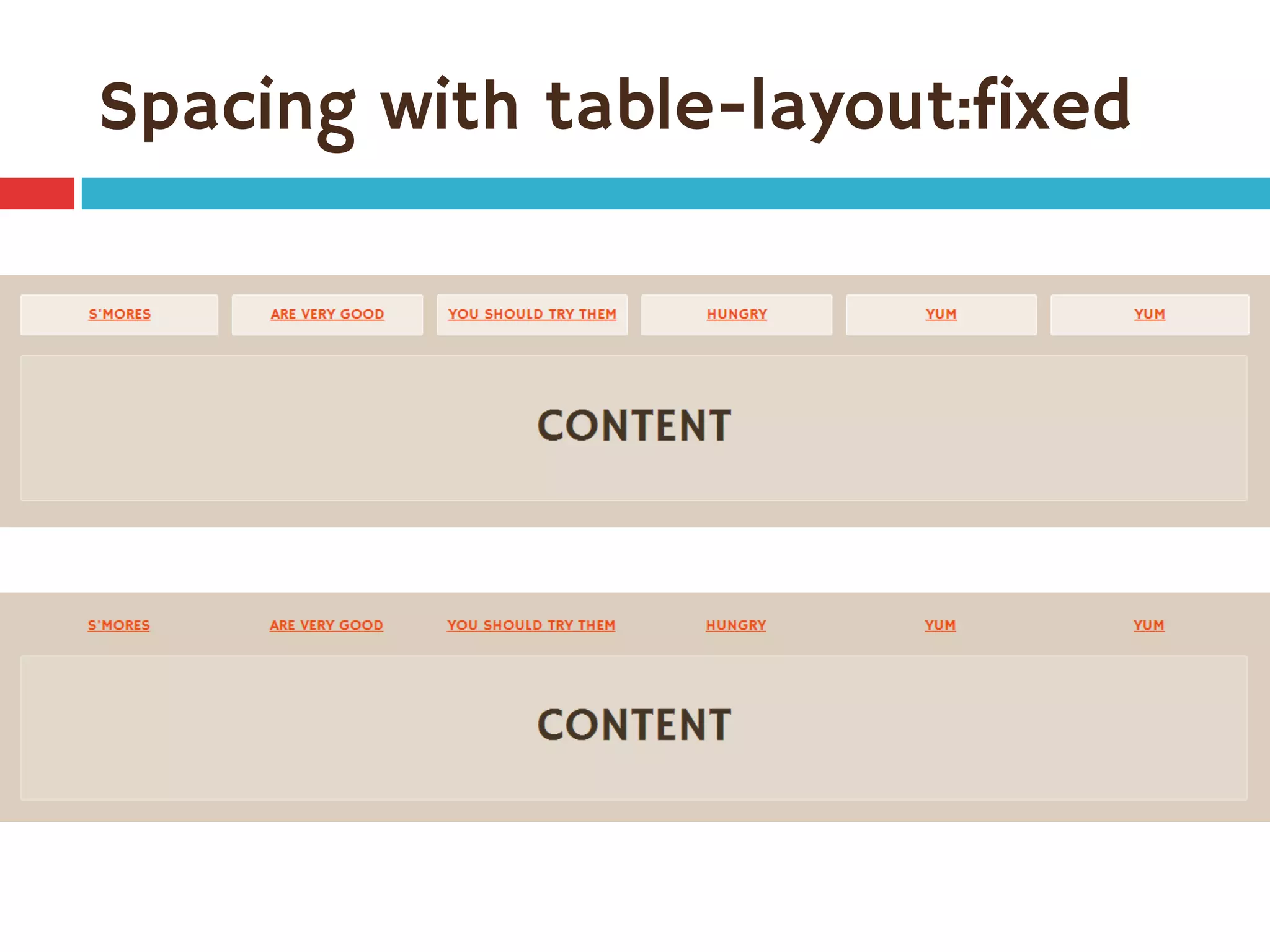
Making it full-width
¨  Requirements:
¤  All links on same line
¤  First link flush left, last link flush right
¤  Equal spaces between all links
¨  Using display:table-cell can do full-
width but not equal spaces
Spacing with table-layout:fixed
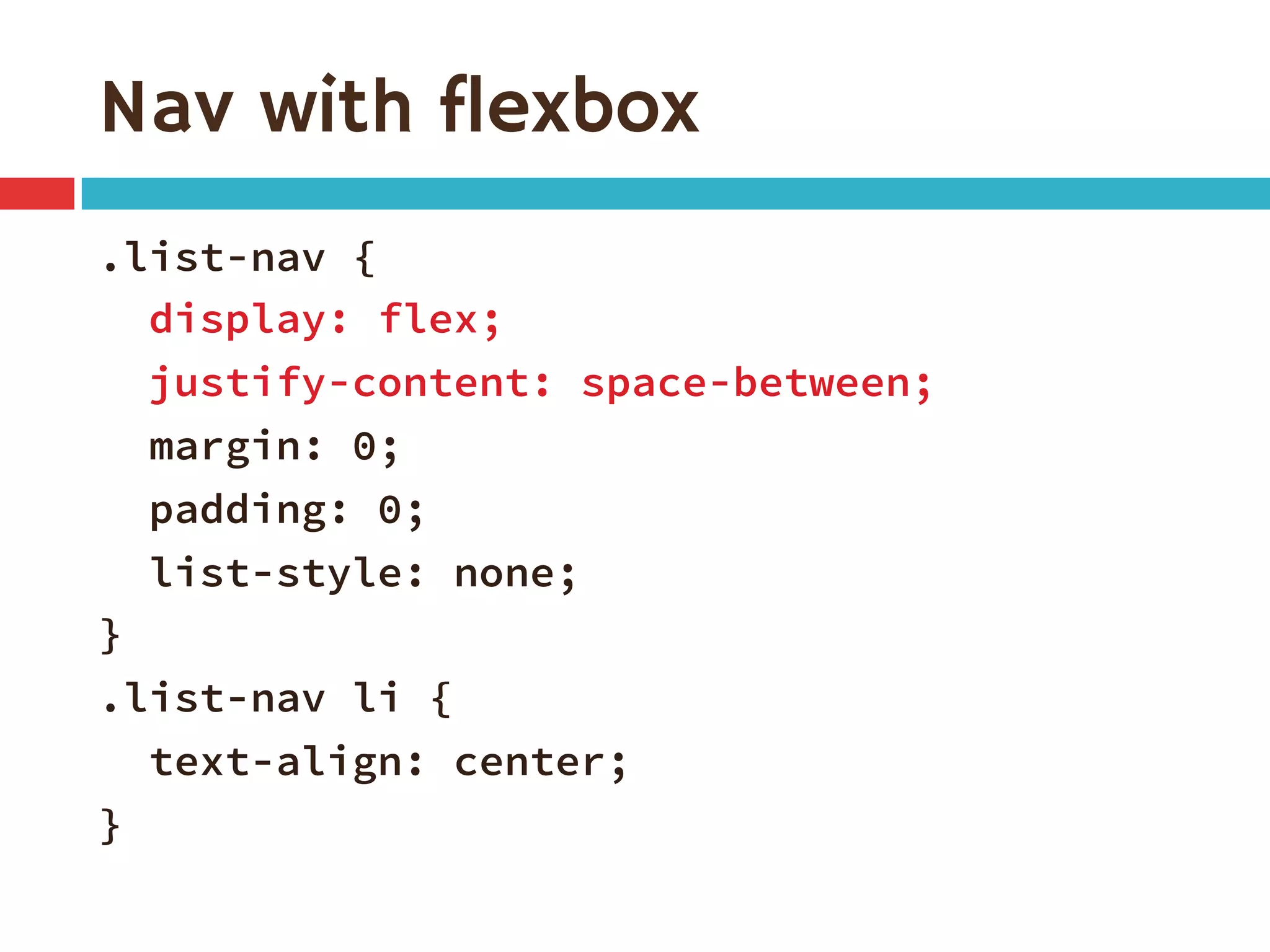
Nav with flexbox
.list-nav {
display: flex;
justify-content: space-between;
margin: 0;
padding: 0;
list-style: none;
}
.list-nav li {
text-align: center;
}
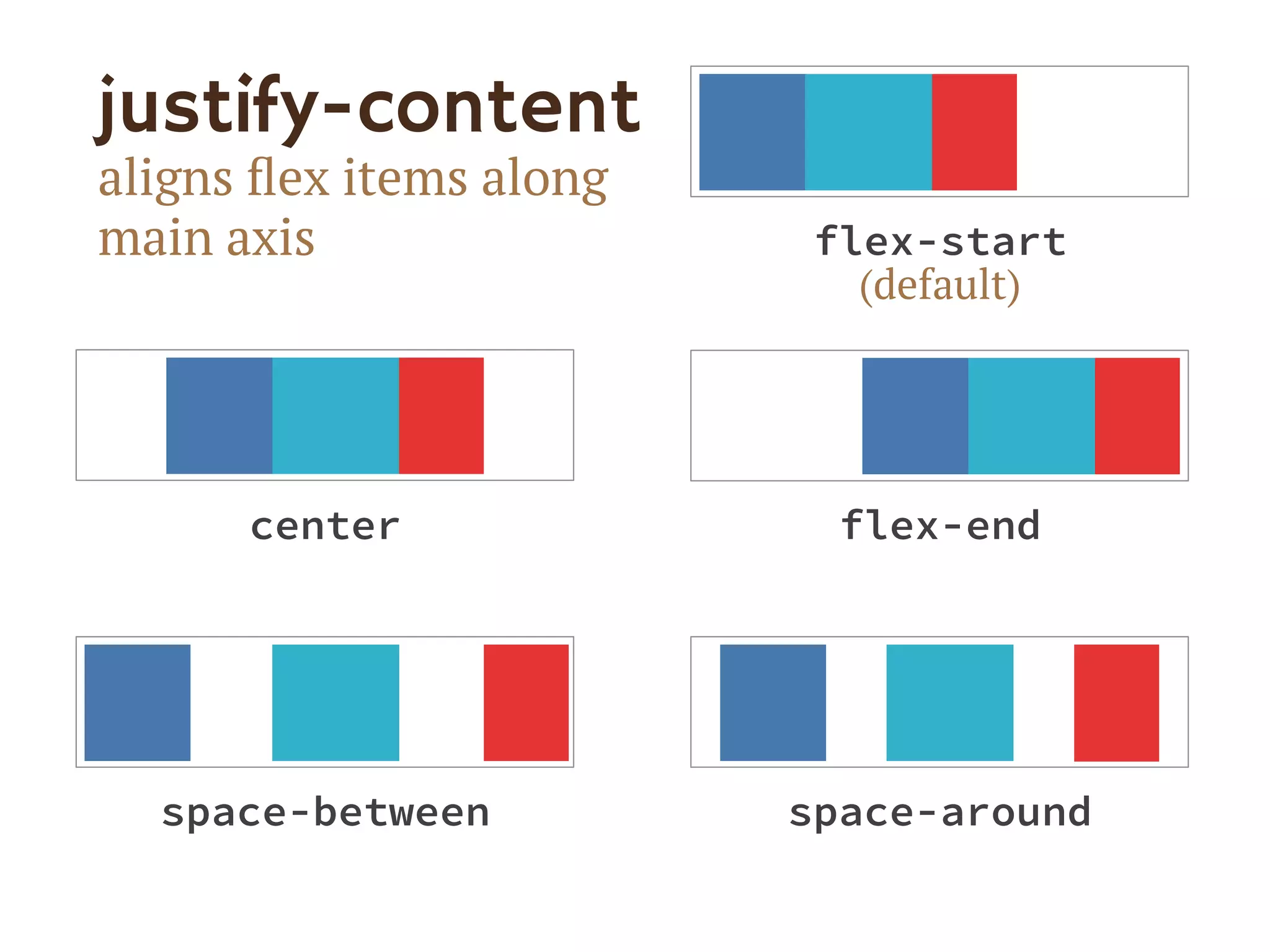
justify-content
aligns flex items along
main axis
space-around
flex-end
center
flex-start
(default)
space-between
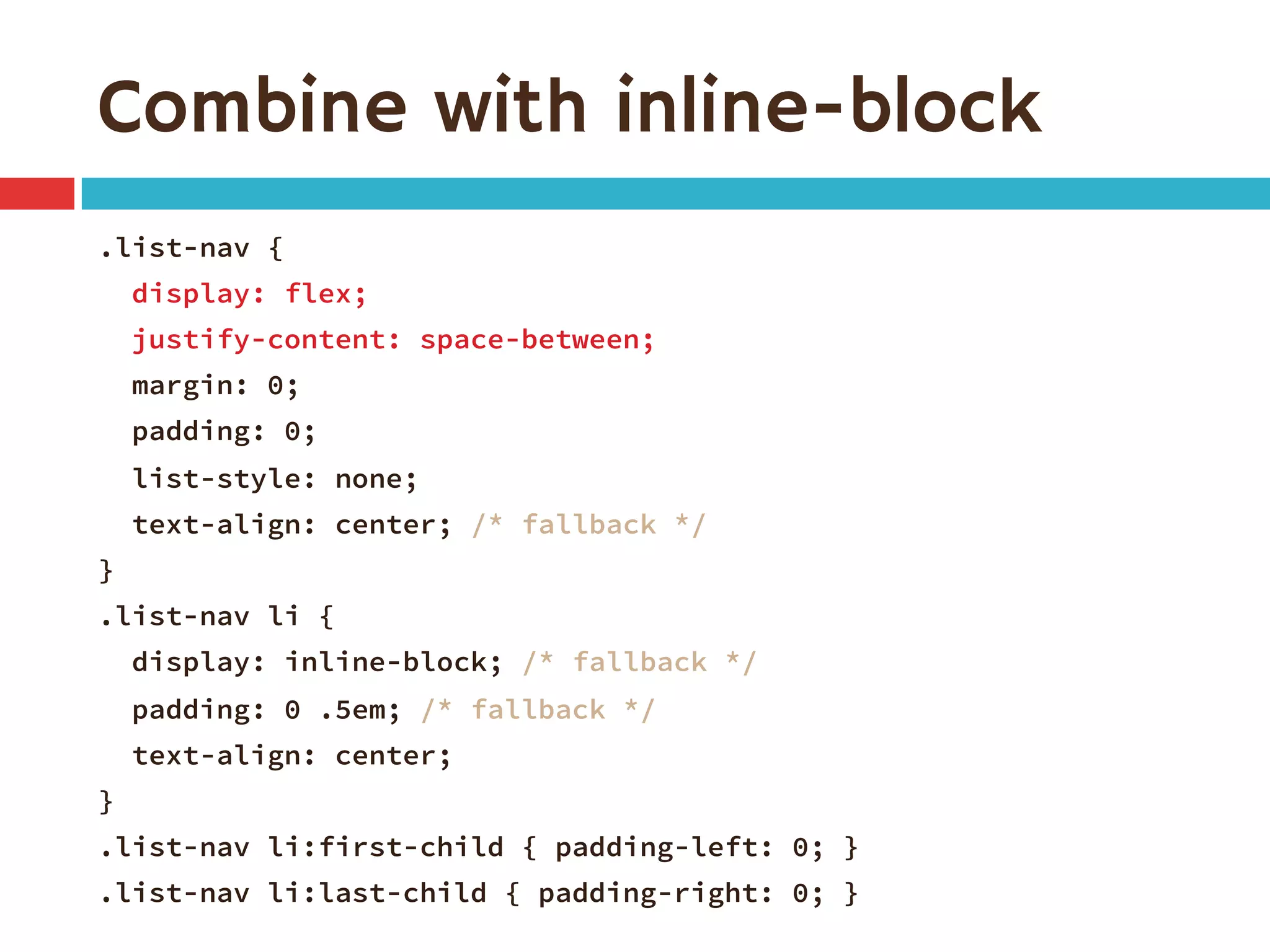
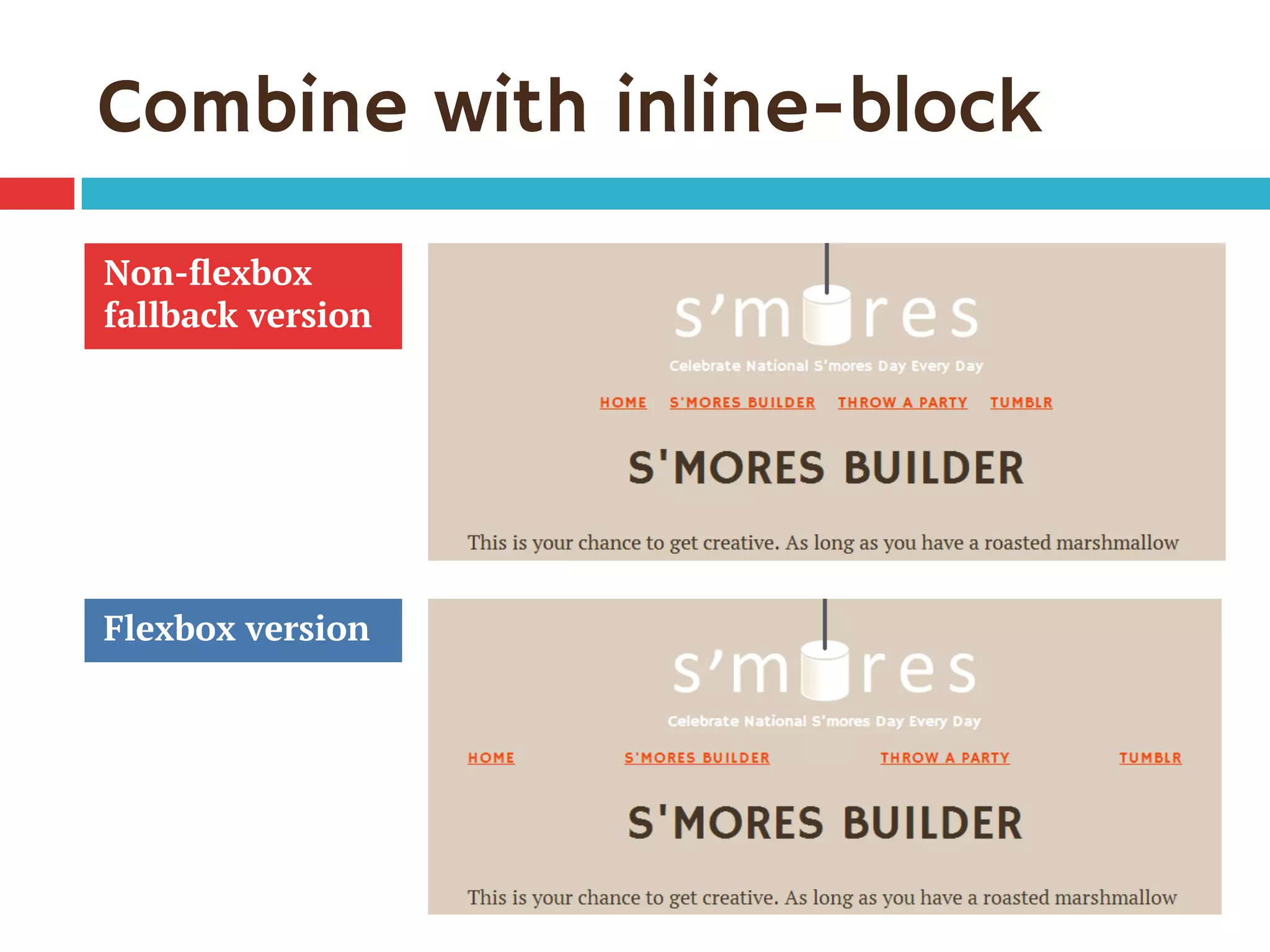
Combine with inline-block
.list-nav {
display: flex;
justify-content: space-between;
margin: 0;
padding: 0;
list-style: none;
text-align: center; /* fallback */
}
.list-nav li {
display: inline-block; /* fallback */
padding: 0 .5em; /* fallback */
text-align: center;
}
.list-nav li:first-child { padding-left: 0; }
.list-nav li:last-child { padding-right: 0; }
Combine with inline-block
Non-flexbox
fallback version
Flexbox version
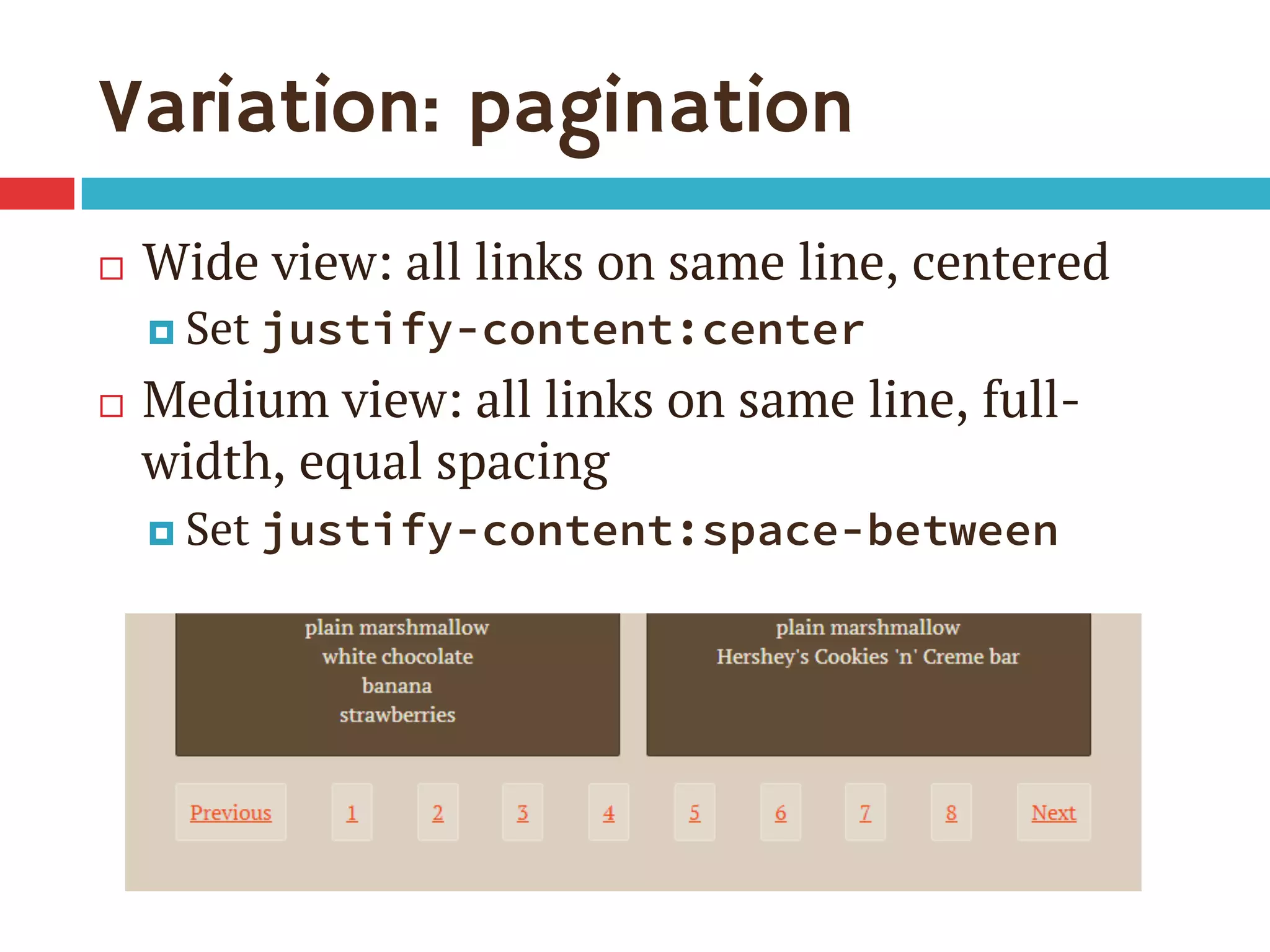
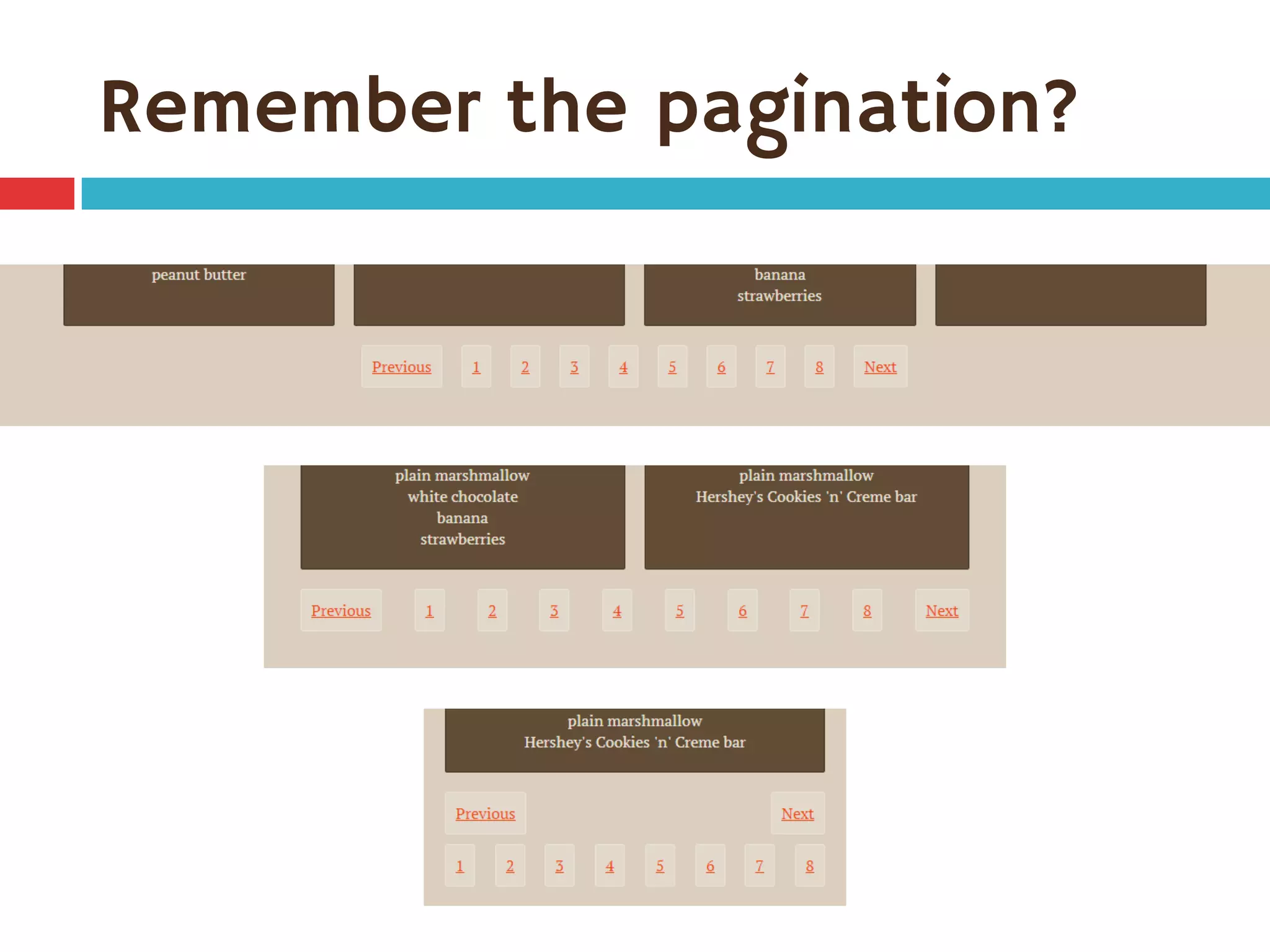
Variation: pagination
¨  Wide view: all links on same line, centered
¤  Set justify-content:center
¨  Medium view: all links on same line, full-
width, equal spacing
¤  Set justify-content:space-between
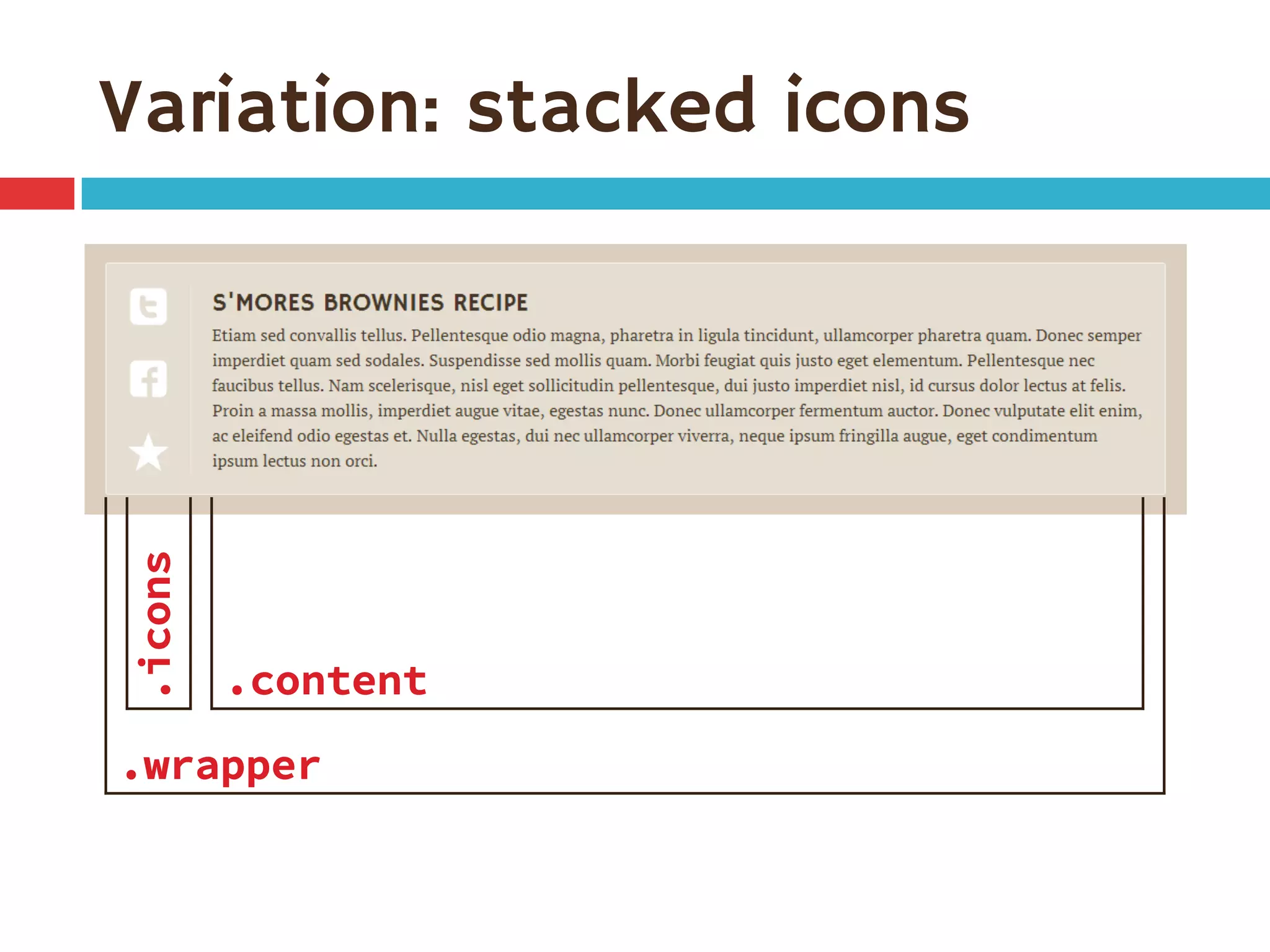
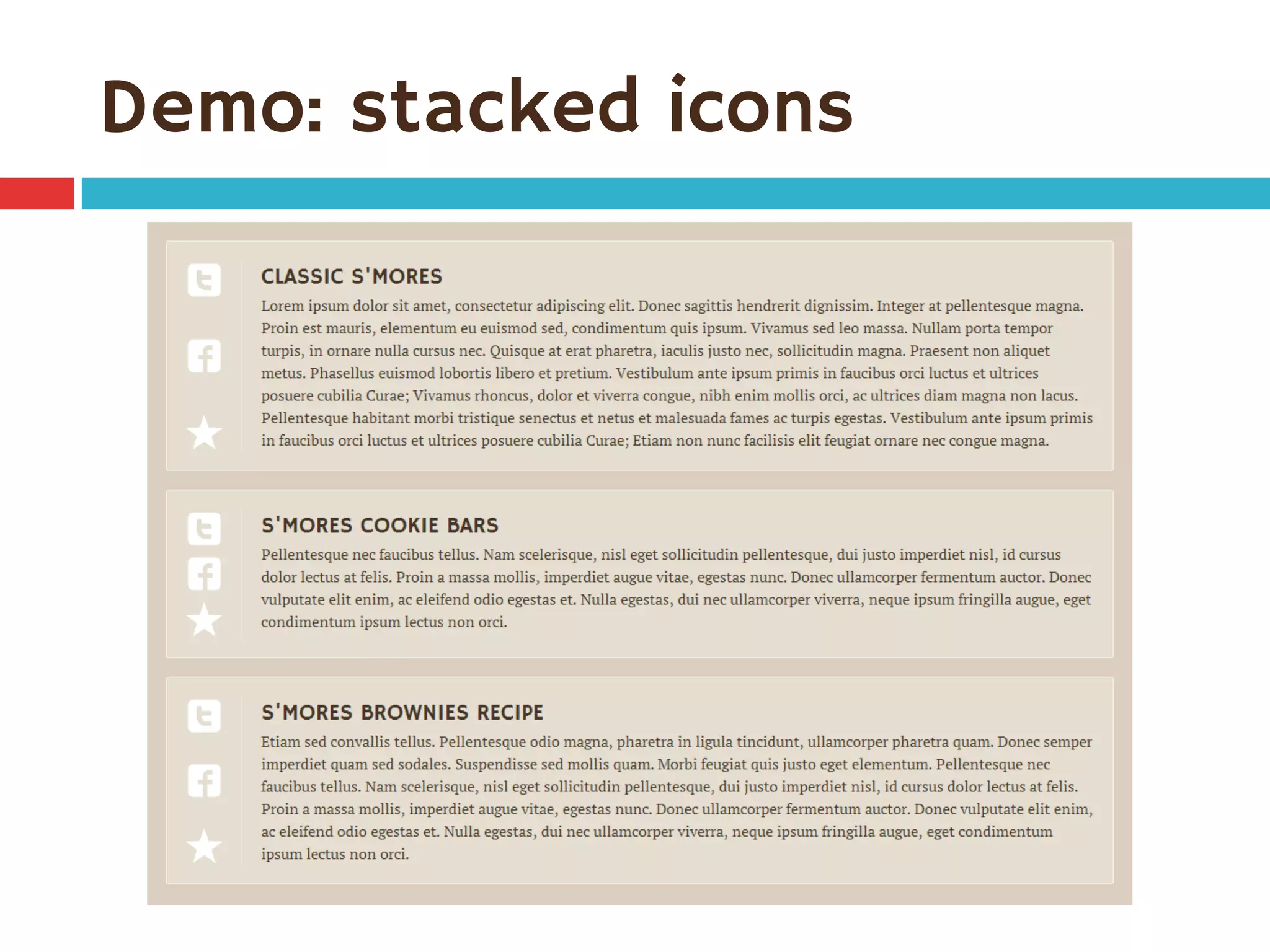
Variation: stacked icons
.wrapper
.icons
.content
Demo: stacked icons
1.  Turn .wrapper into flex container:
.wrapper {
display: flex;
align-items: stretch; /* default */
}
2.  Children .icons and .content become side-
by-side, equal-height flex items
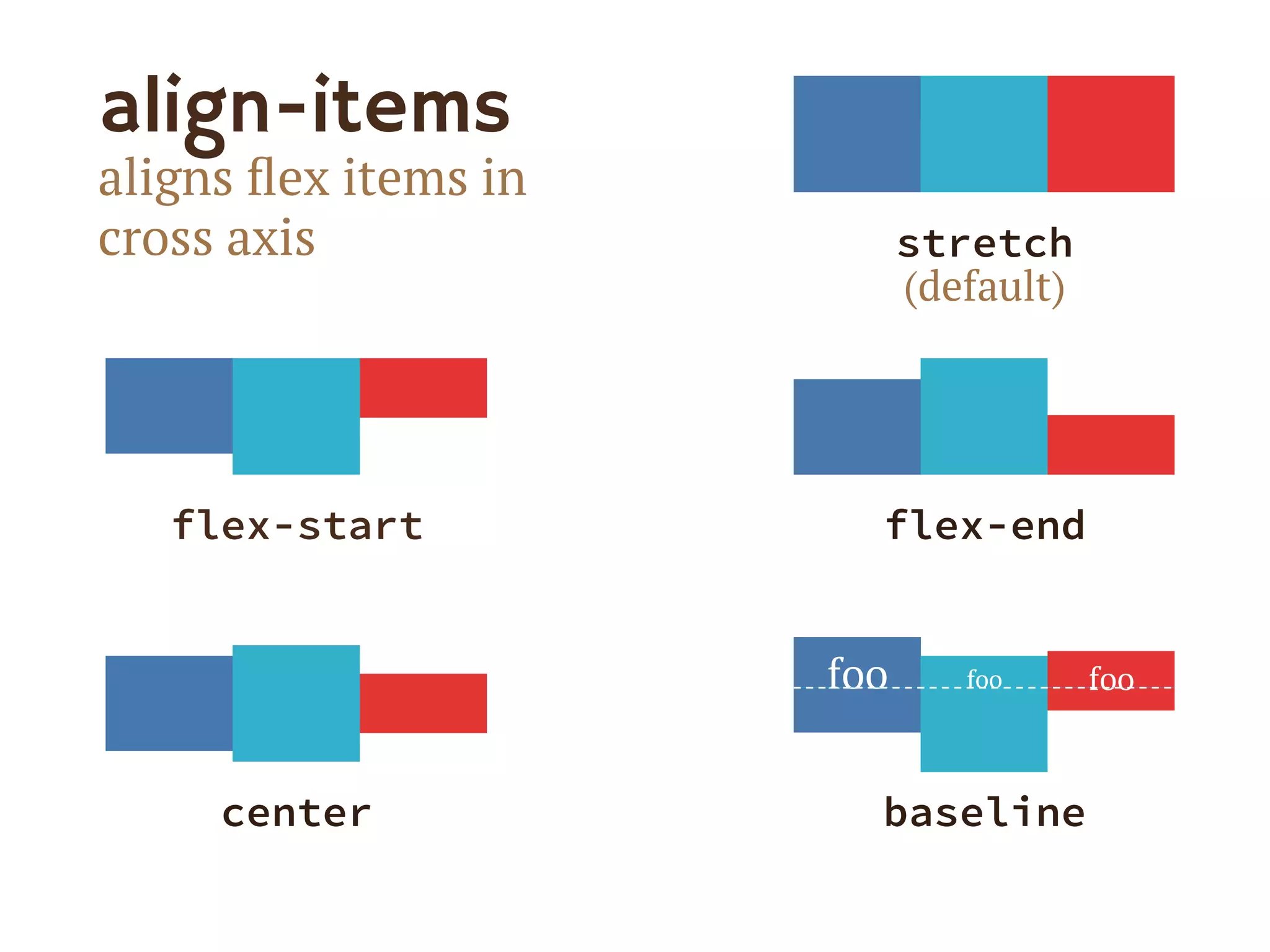
align-items
aligns flex items in
cross axis
flex-start
 flex-end
center
 baseline
stretch
(default)
foo	
   foo	
   foo	
  
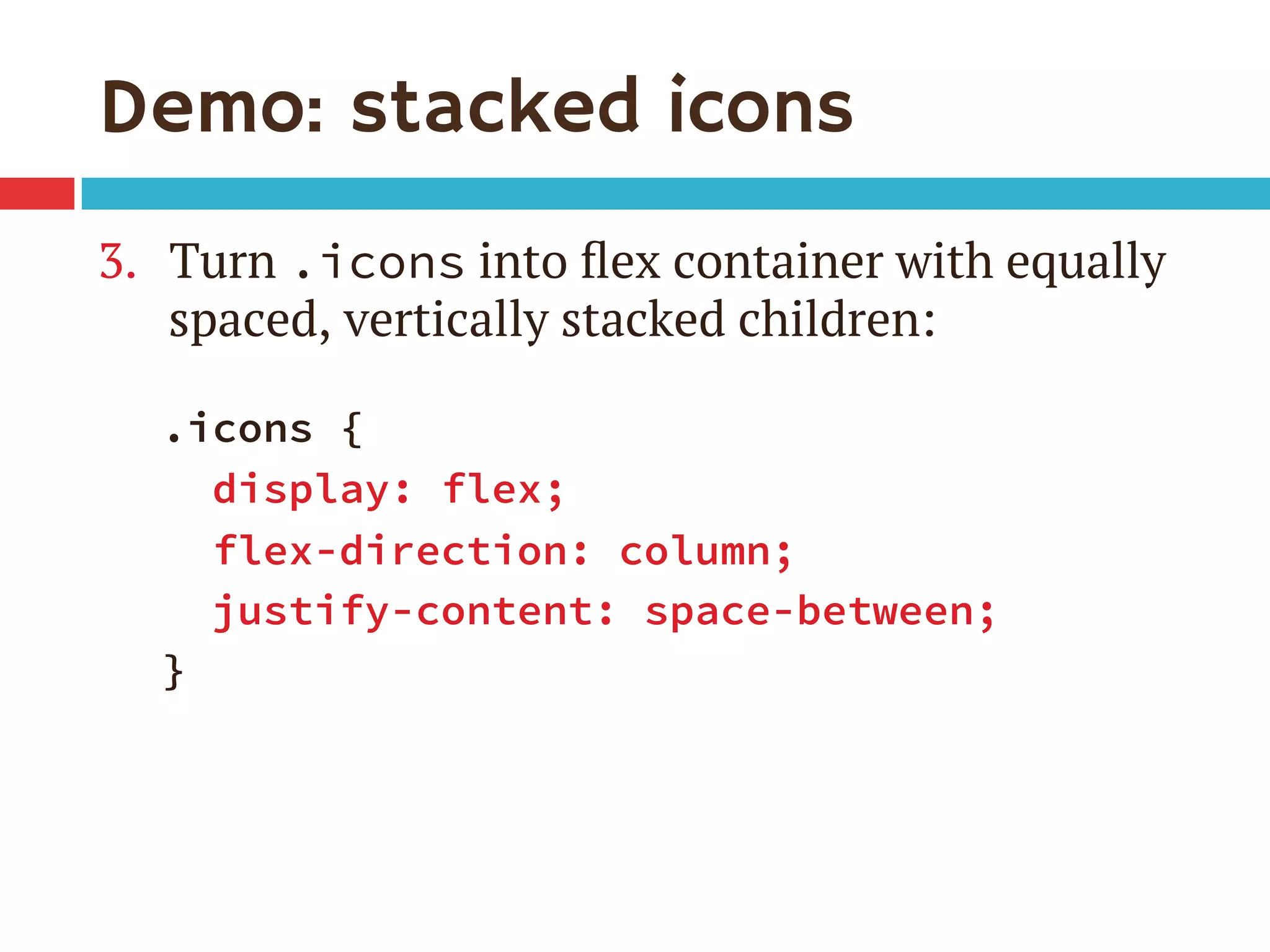
Demo: stacked icons
3.  Turn .icons into flex container with equally
spaced, vertically stacked children:
.icons {
display: flex;
flex-direction: column;
justify-content: space-between;
}
Demo: stacked icons
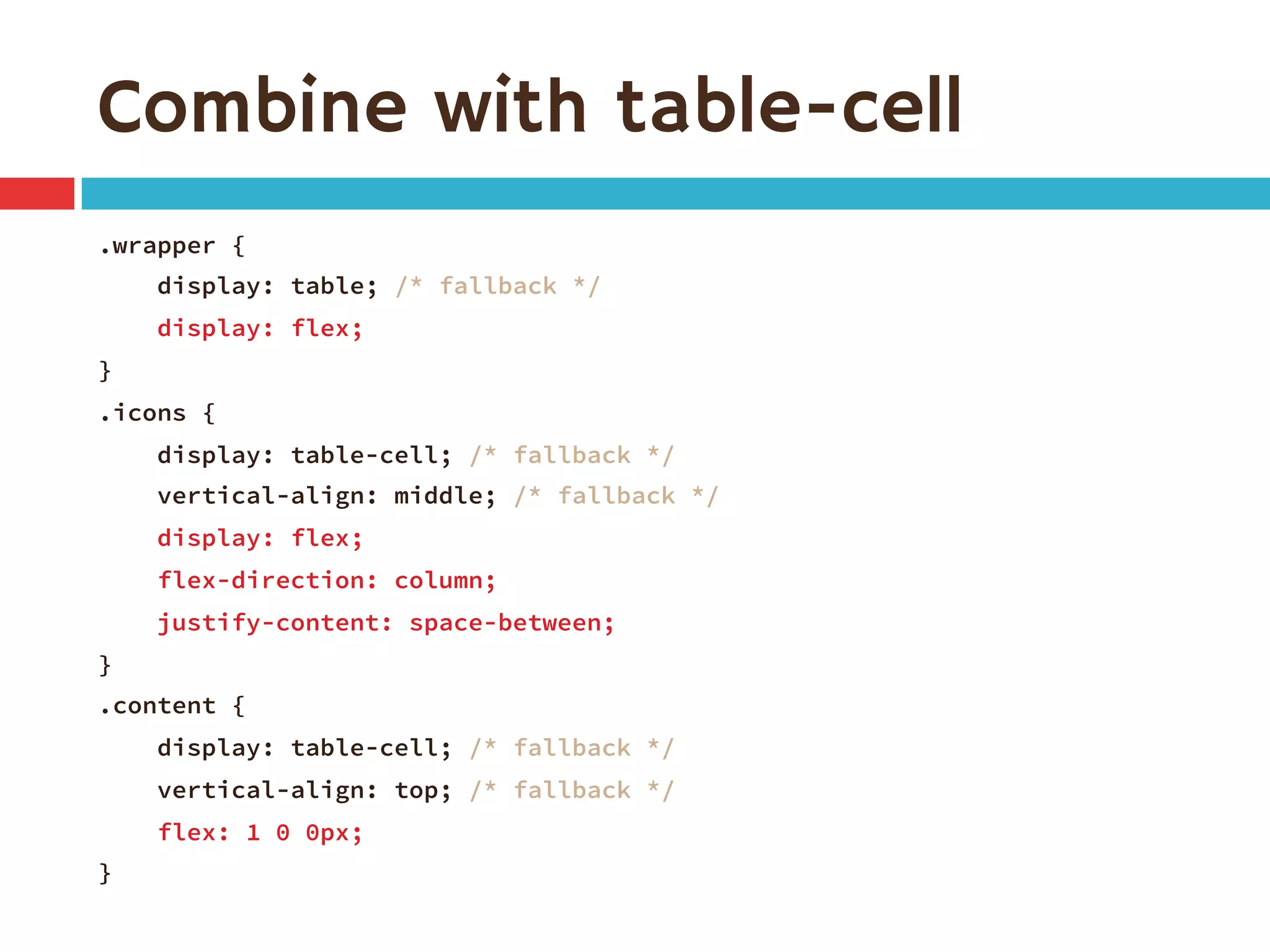
Combine with table-cell
.wrapper {
display: table; /* fallback */
display: flex;
}
.icons {
display: table-cell; /* fallback */
vertical-align: middle; /* fallback */
display: flex;
flex-direction: column;
justify-content: space-between;
}
.content {
display: table-cell; /* fallback */
vertical-align: top; /* fallback */
flex: 1 0 0px;
}
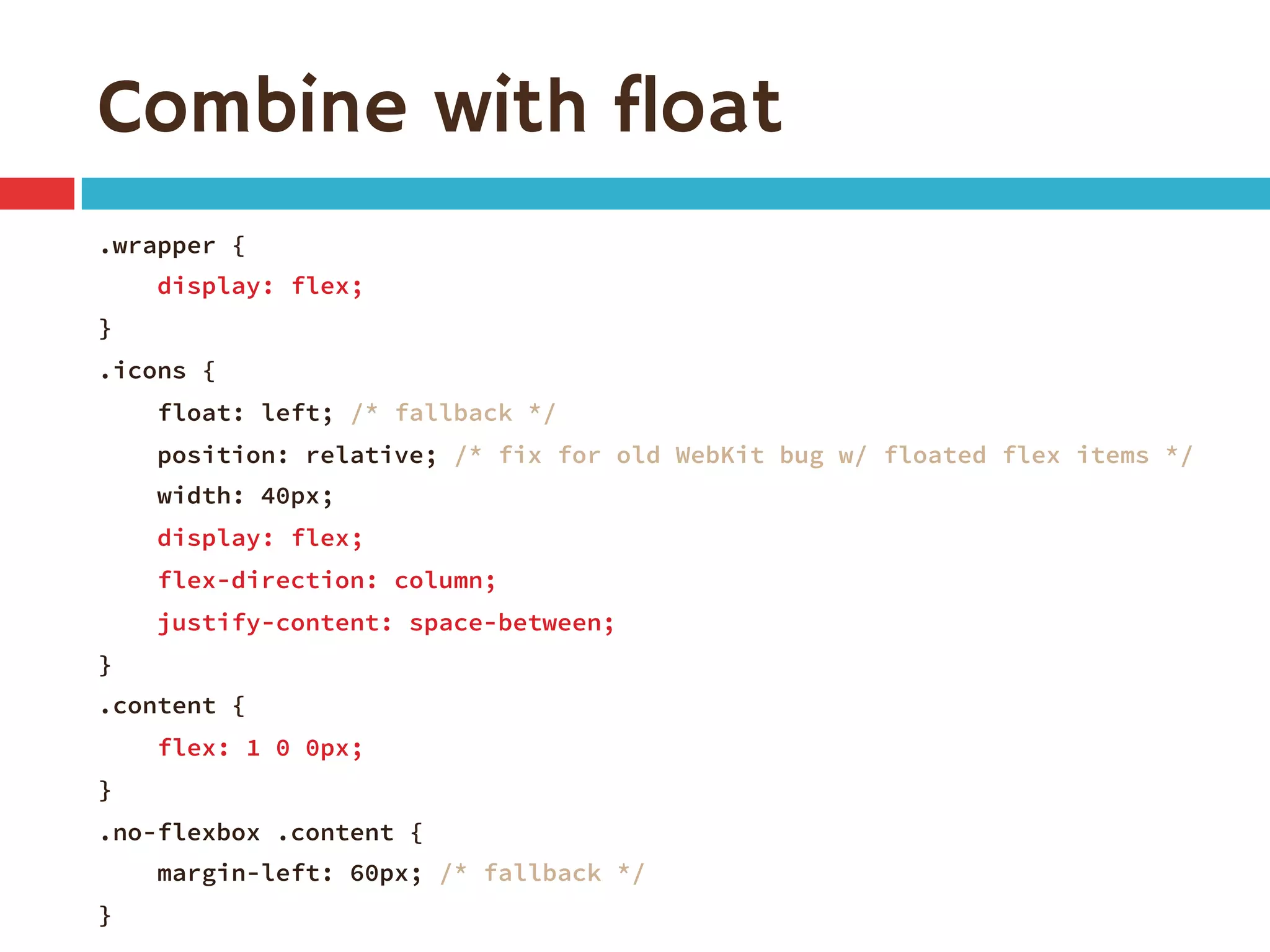
Combine with float
.wrapper {
display: flex;
}
.icons {
float: left; /* fallback */
position: relative; /* fix for old WebKit bug w/ floated flex items */
width: 40px;
display: flex;
flex-direction: column;
justify-content: space-between;
}
.content {
flex: 1 0 0px;
}
.no-flexbox .content {
margin-left: 60px; /* fallback */
}
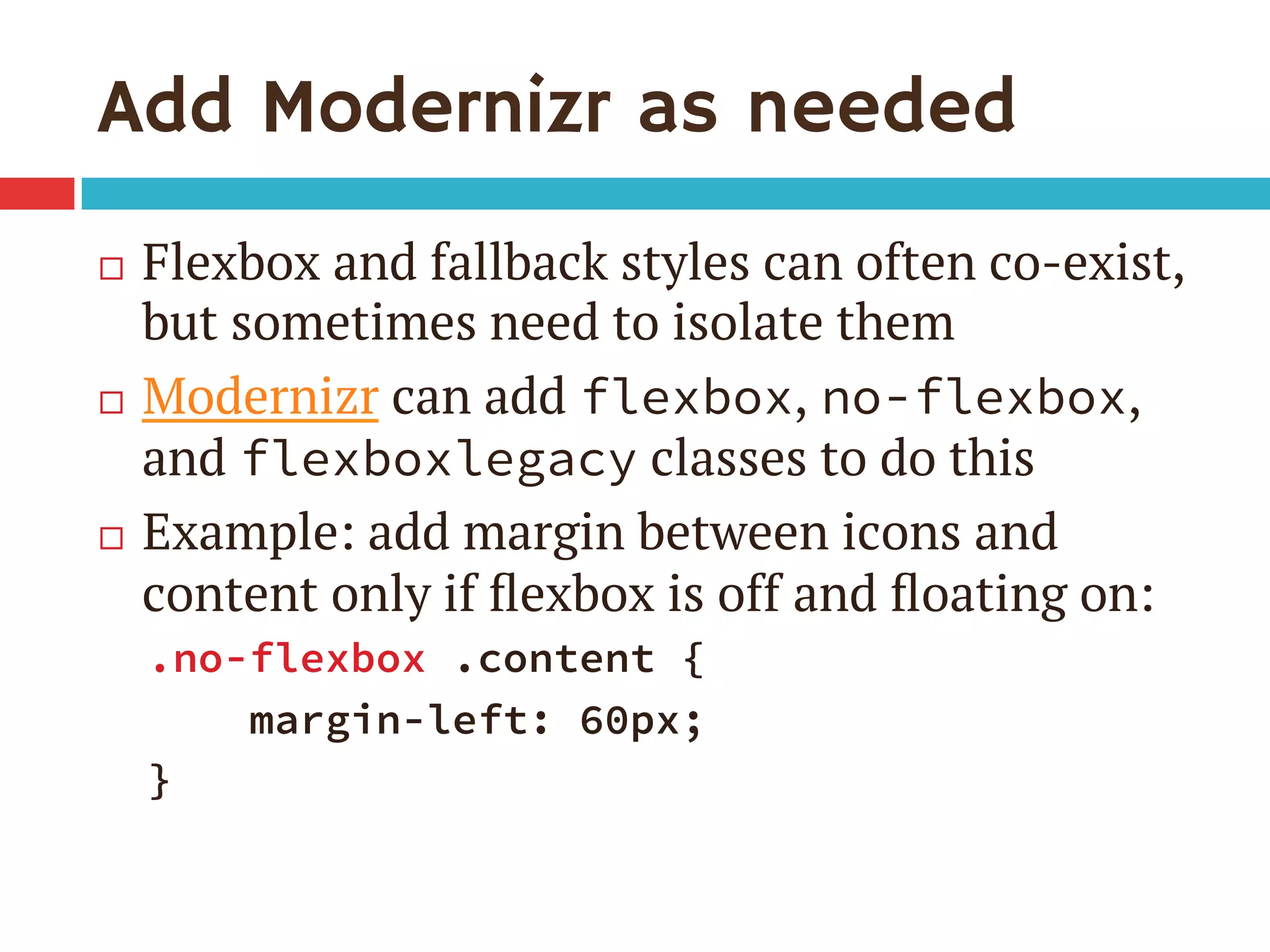
Add Modernizr as needed
¨  Flexbox and fallback styles can often co-exist,
but sometimes need to isolate them
¨  Modernizr can add flexbox, no-flexbox,
and flexboxlegacy classes to do this
¨  Example: add margin between icons and
content only if flexbox is off and floating on:
.no-flexbox .content {
margin-left: 60px;
}
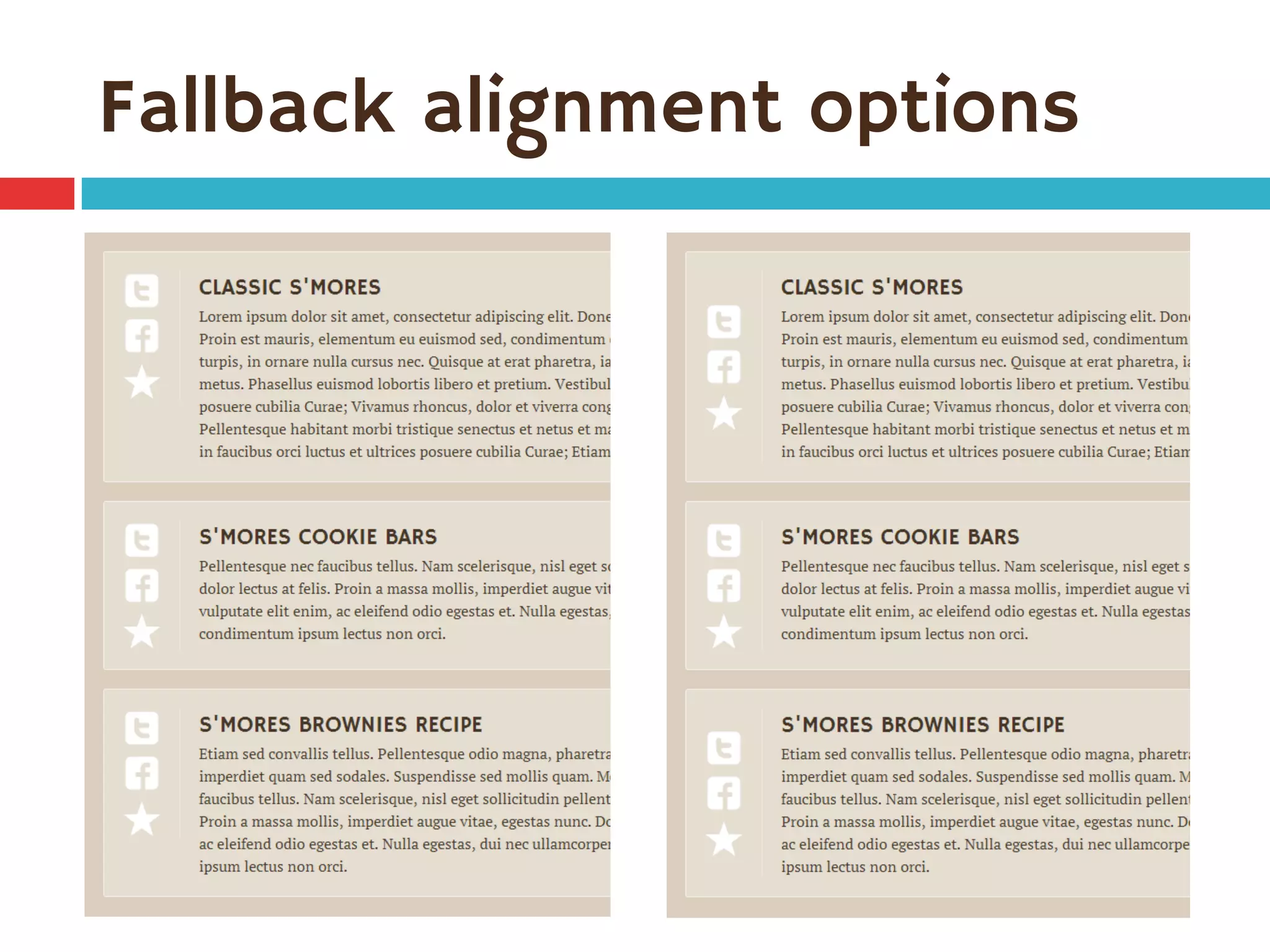
Fallback alignment options
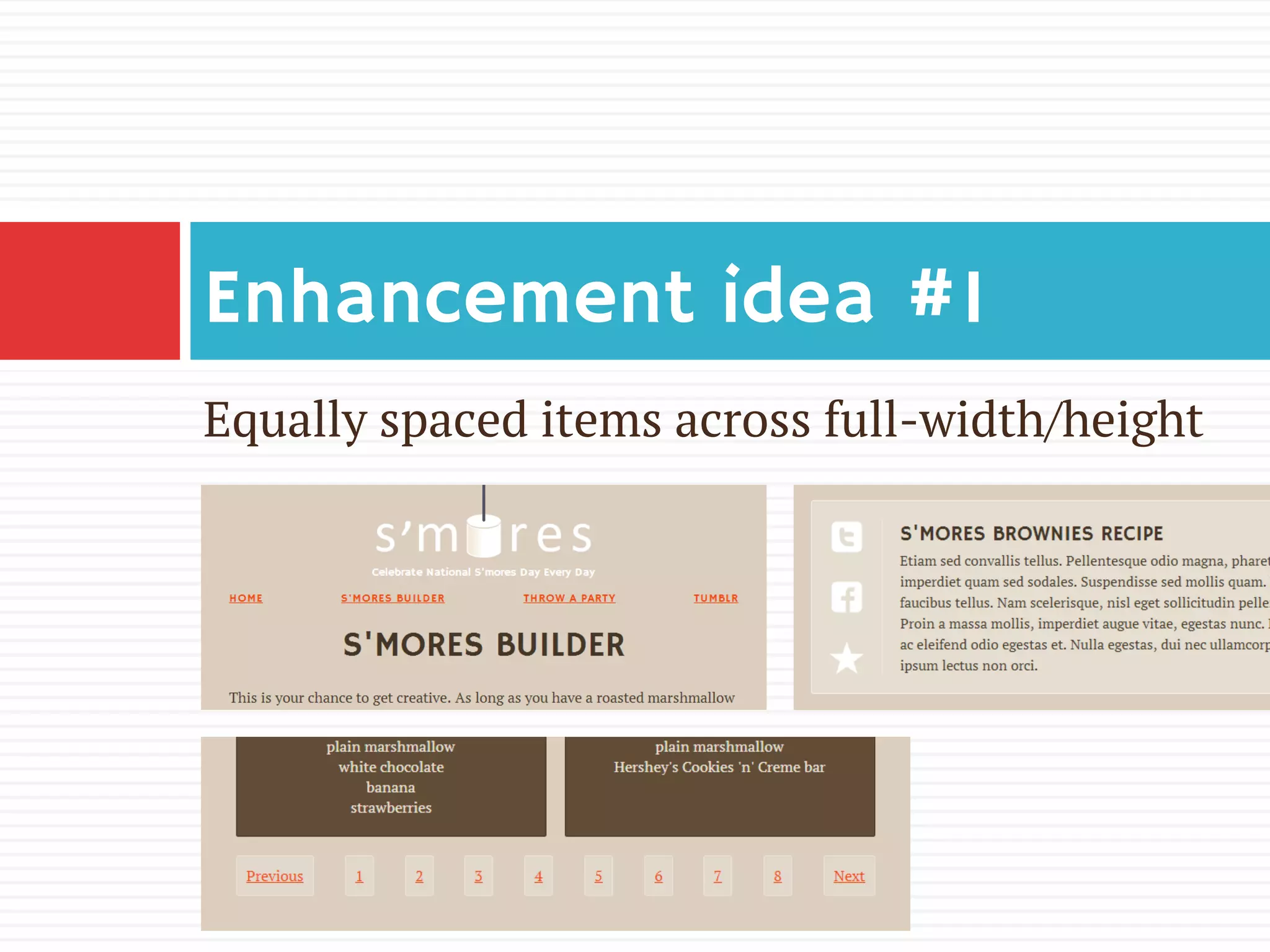
Equally spaced items across full-width/height
Enhancement idea #1
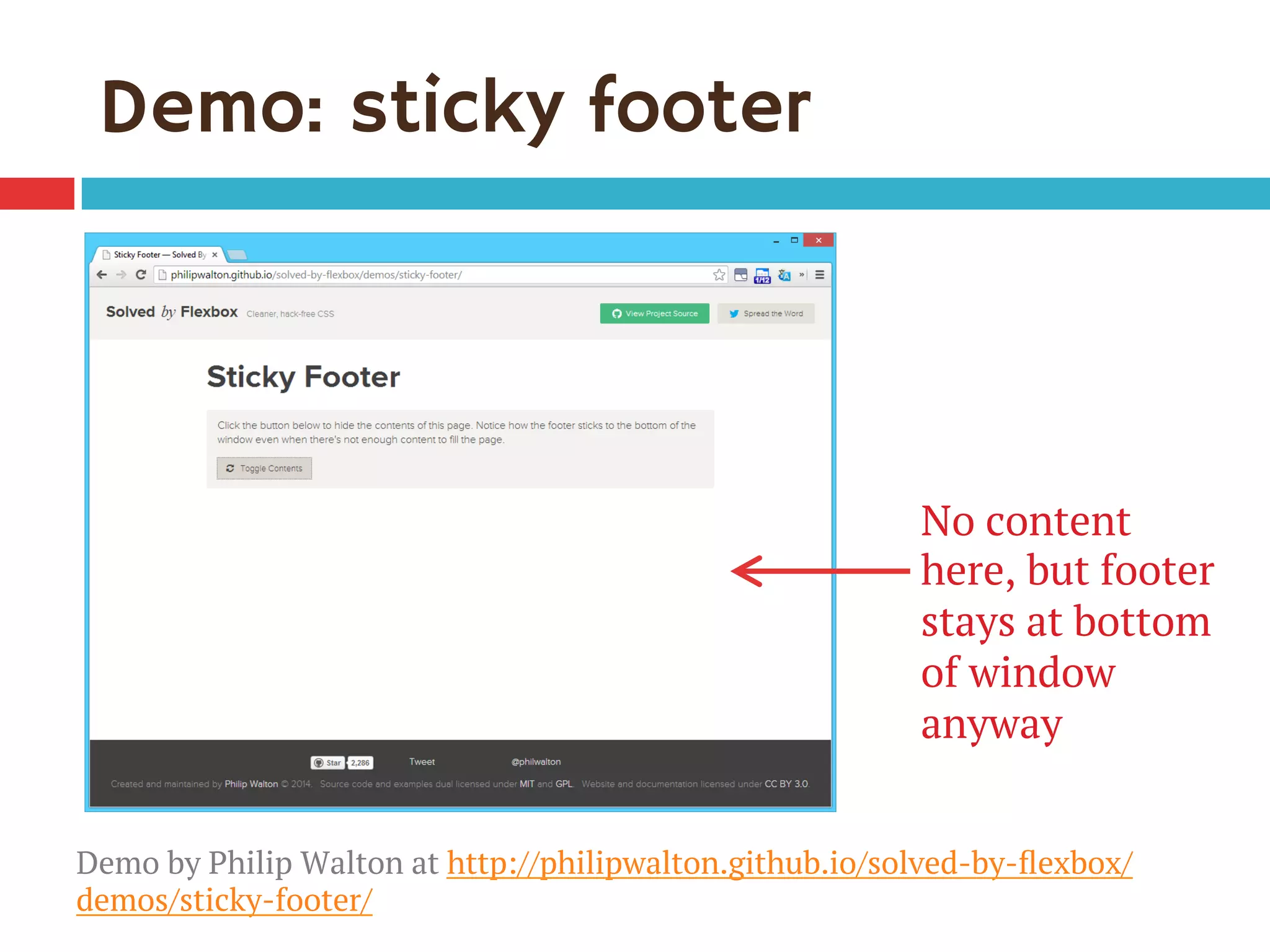
Demo: sticky footer
No content
here, but footer
stays at bottom
of window
anyway
Demo by Philip Walton at http://philipwalton.github.io/solved-by-flexbox/
demos/sticky-footer/
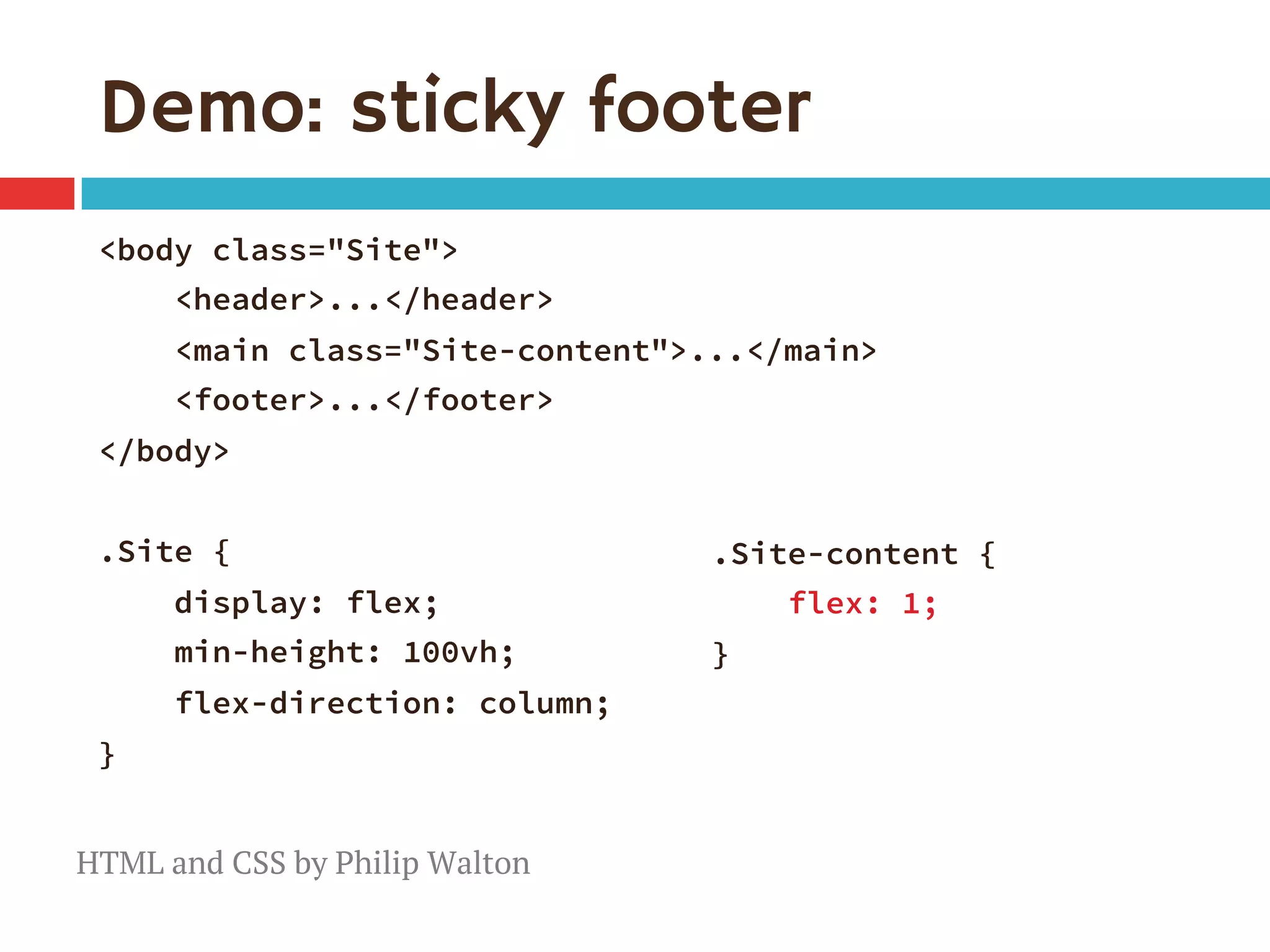
Demo: sticky footer
<body class="Site">
<header>...</header> 
<main class="Site-content">...</main> 
<footer>...</footer>
</body>

.Site {
display: flex;
min-height: 100vh;
flex-direction: column;
}
.Site-content {
flex: 1; 
}

HTML and CSS by Philip Walton
This is where flexbox gets flexible.
And kinda confusing.
The flex property
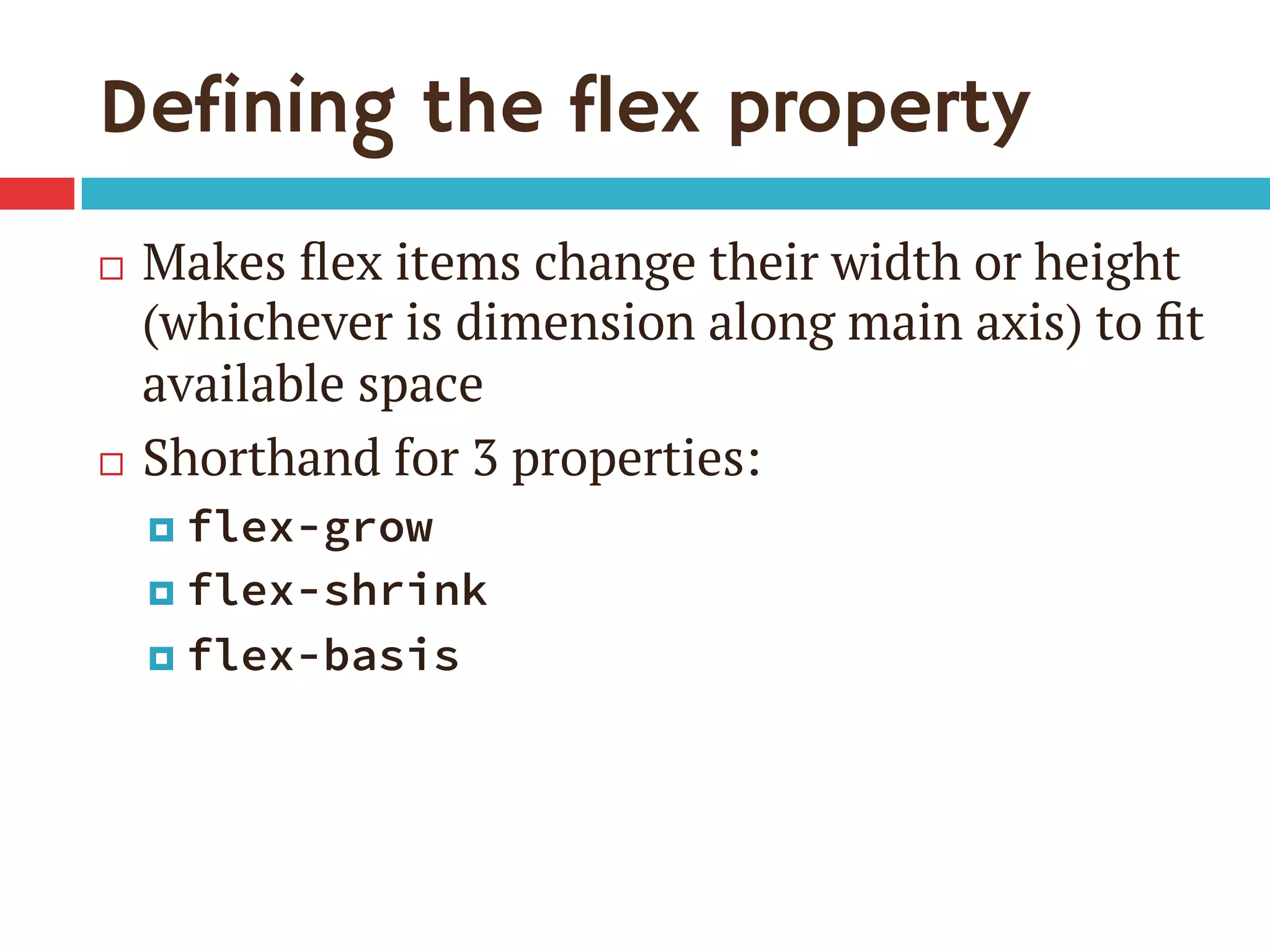
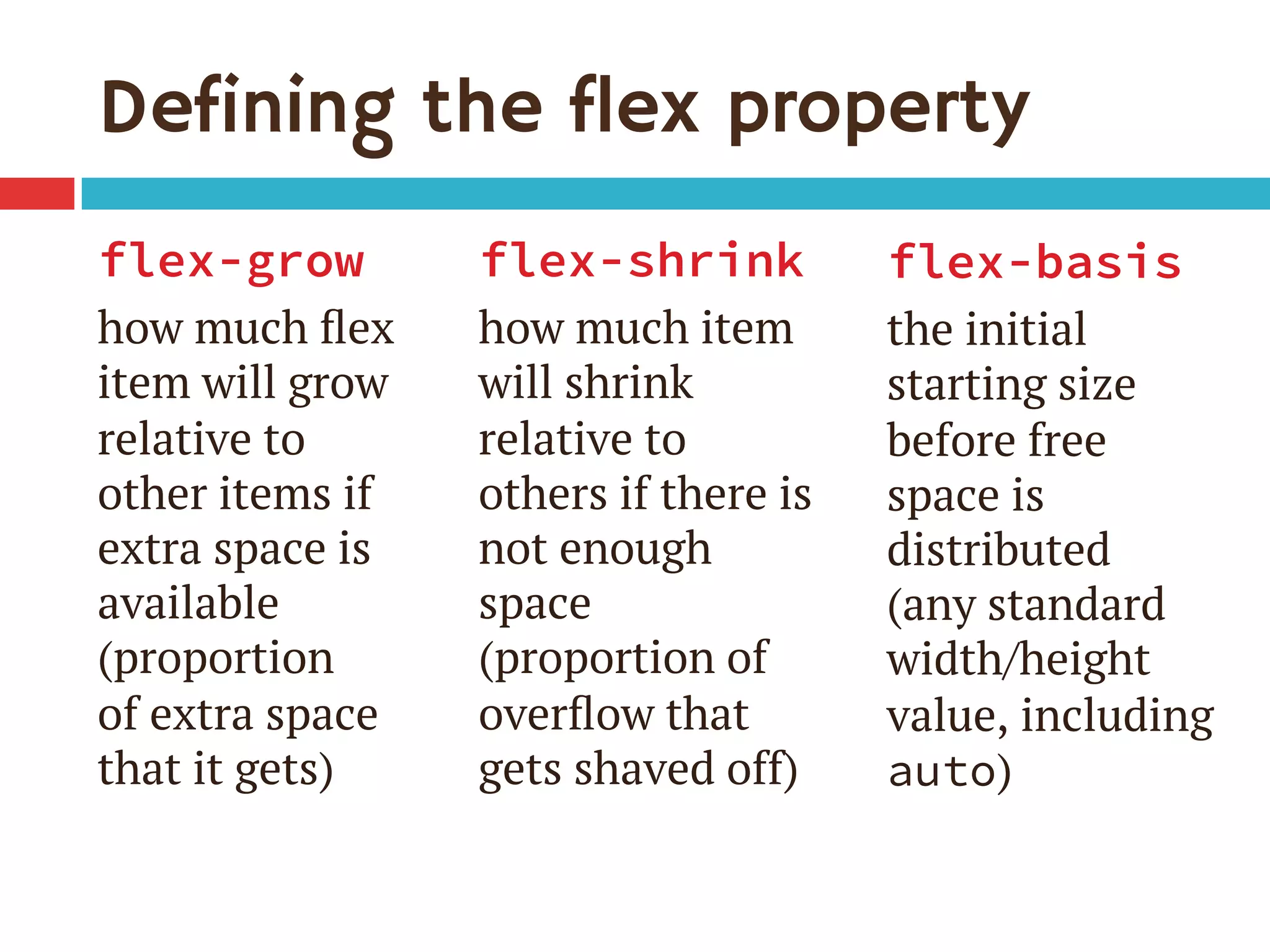
Defining the flex property
¨  Makes flex items change their width or height
(whichever is dimension along main axis) to fit
available space
¨  Shorthand for 3 properties:
¤  flex-grow
¤  flex-shrink
¤  flex-basis
Defining the flex property
flex-grow
how much flex
item will grow
relative to
other items if
extra space is
available
(proportion
of extra space
that it gets)
flex-shrink
how much item
will shrink
relative to
others if there is
not enough
space
(proportion of
overflow that
gets shaved off)
flex-basis
the initial
starting size
before free
space is
distributed
(any standard
width/height
value, including
auto)
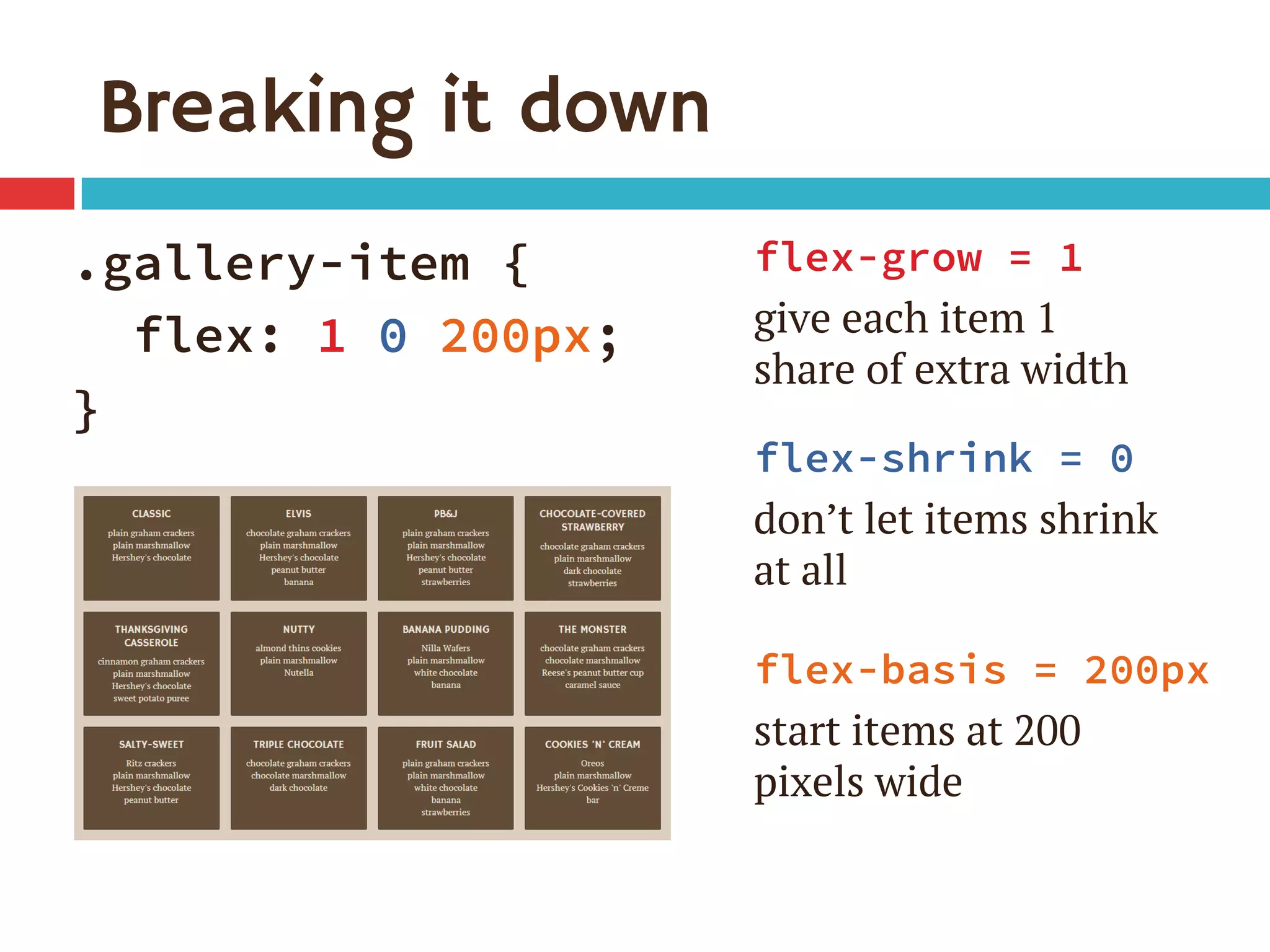
Breaking it down
.gallery-item {
flex: 1 0 200px; 
}
flex-grow = 1
give each item 1
share of extra width
flex-shrink = 0
don’t let items shrink
at all
flex-basis = 200px
start items at 200
pixels wide
Single-digit flex values
¨  Common to see flex: 1 in demos
¨  flex: [number] is equivalent to
flex: [number] 1 0px
¨  Be sure you really want flex-basis to be 0
¤  When wrap on, essentially min-width
¤  0px therefore means items can shrink to 0px
¤  If everything can get down to 0px, nothing ever
has a reason to wrap
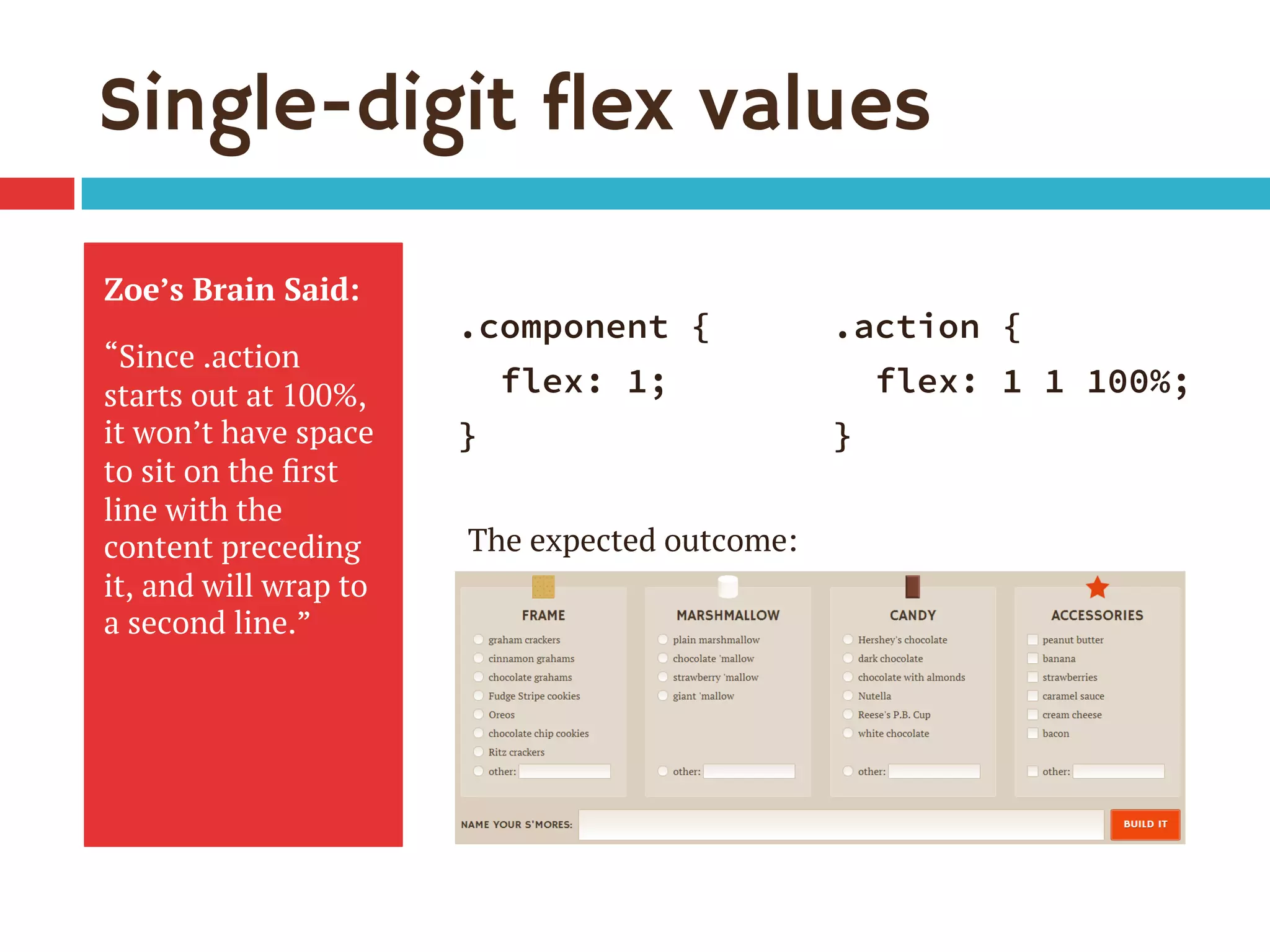
Single-digit flex values
Zoe’s Brain Said:
“Since .action
starts out at 100%,
it won’t have space
to sit on the first
line with the
content preceding
it, and will wrap to
a second line.”
.component {
flex: 1;
}
.action {
flex: 1 1 100%;
}
The expected outcome:
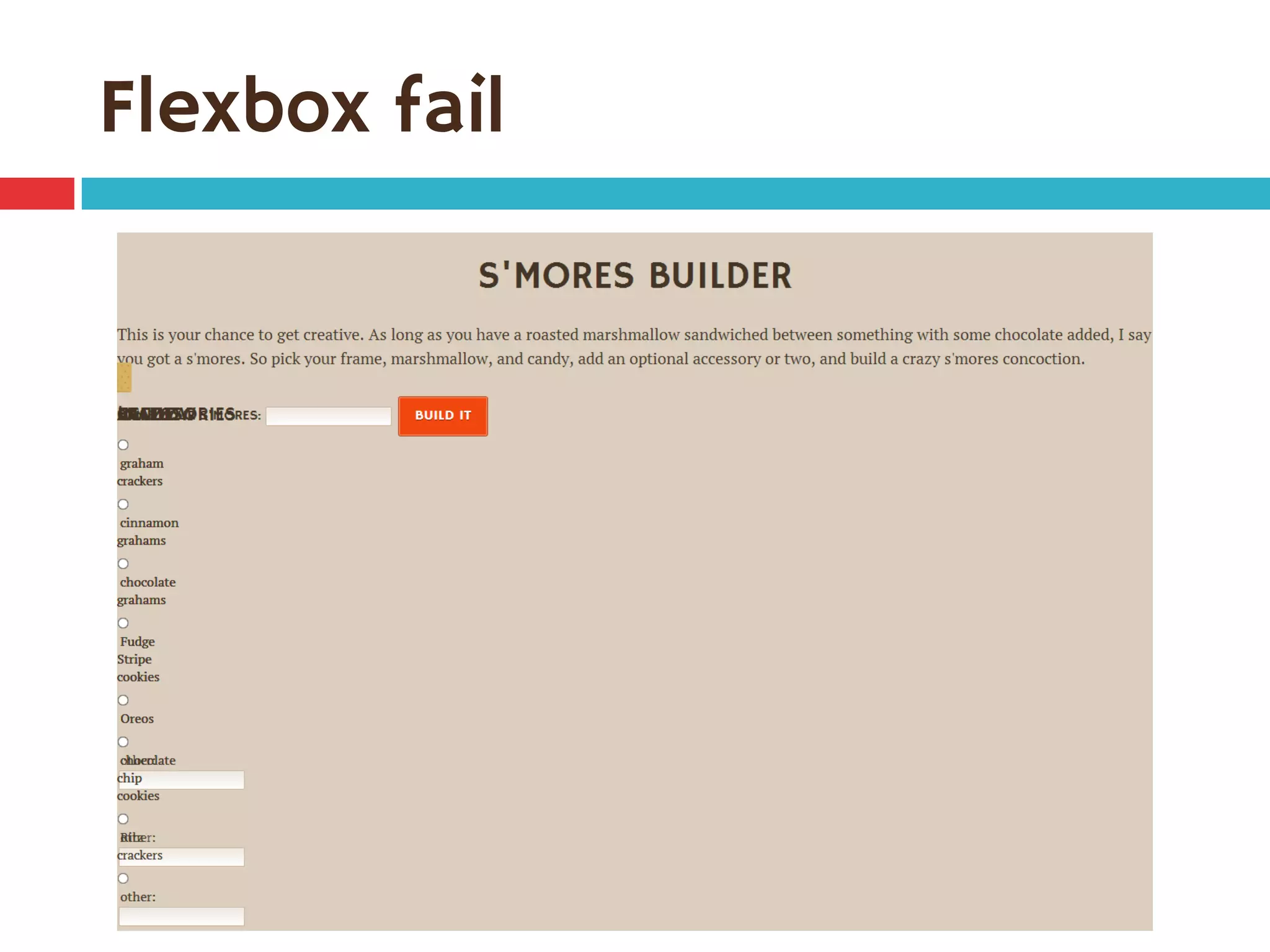
Flexbox fail
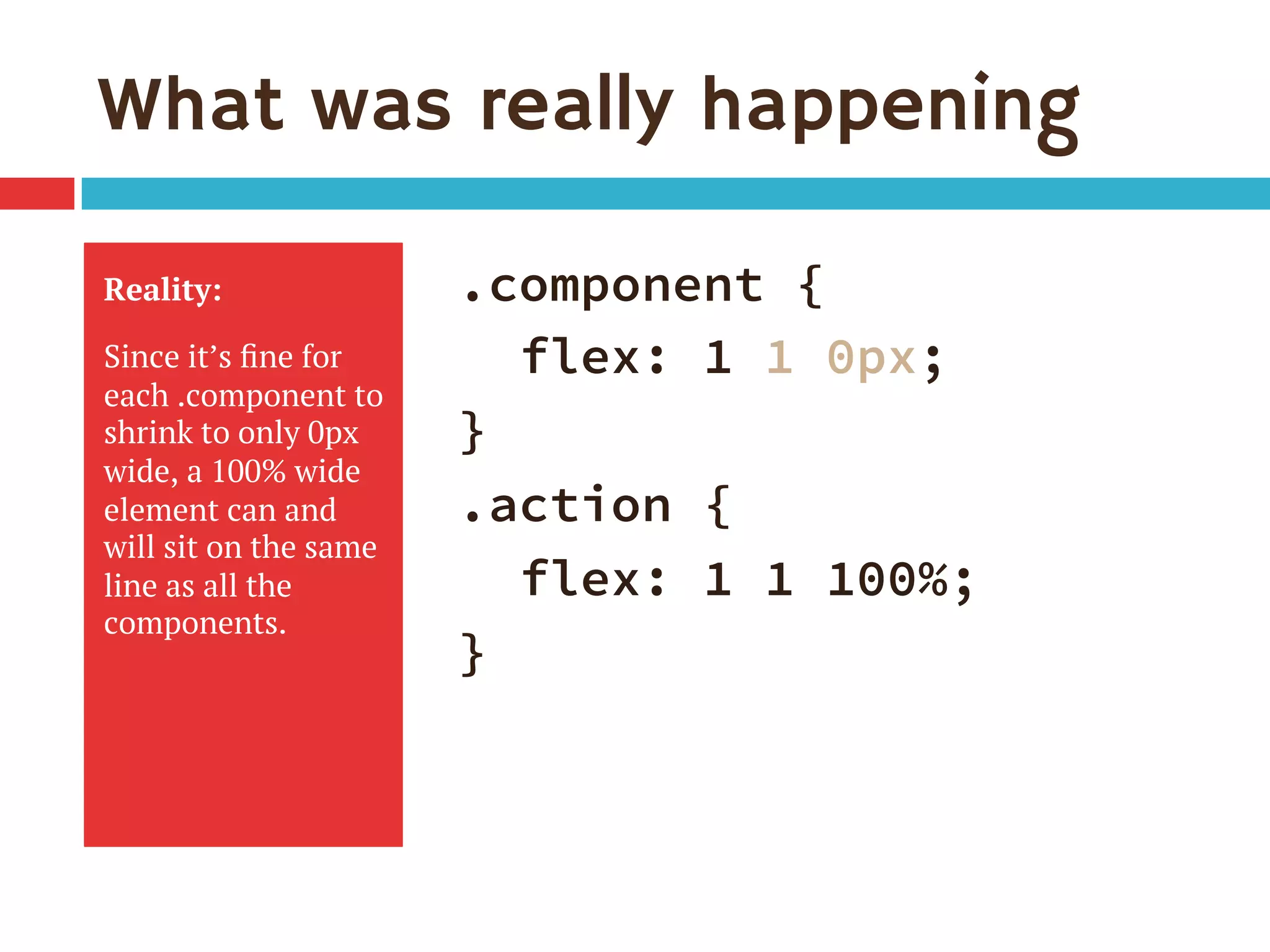
What was really happening
Reality:
Since it’s fine for
each .component to
shrink to only 0px
wide, a 100% wide
element can and
will sit on the same
line as all the
components.
.component {
flex: 1 1 0px;
}
.action {
flex: 1 1 100%;
}
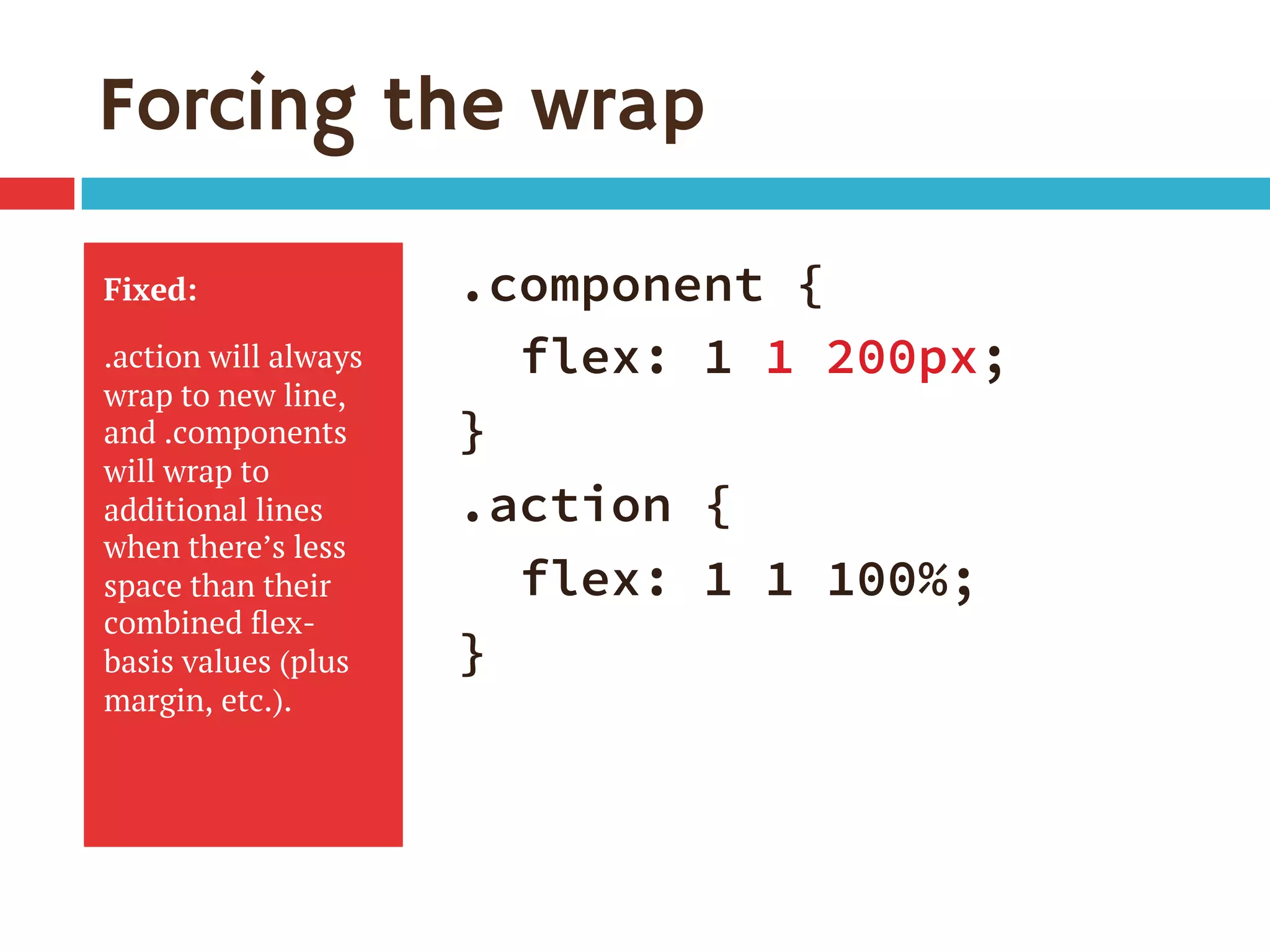
Forcing the wrap
Fixed:
.action will always
wrap to new line,
and .components
will wrap to
additional lines
when there’s less
space than their
combined flex-
basis values (plus
margin, etc.).
.component {
flex: 1 1 200px;
}
.action {
flex: 1 1 100%;
}
Why flex is great
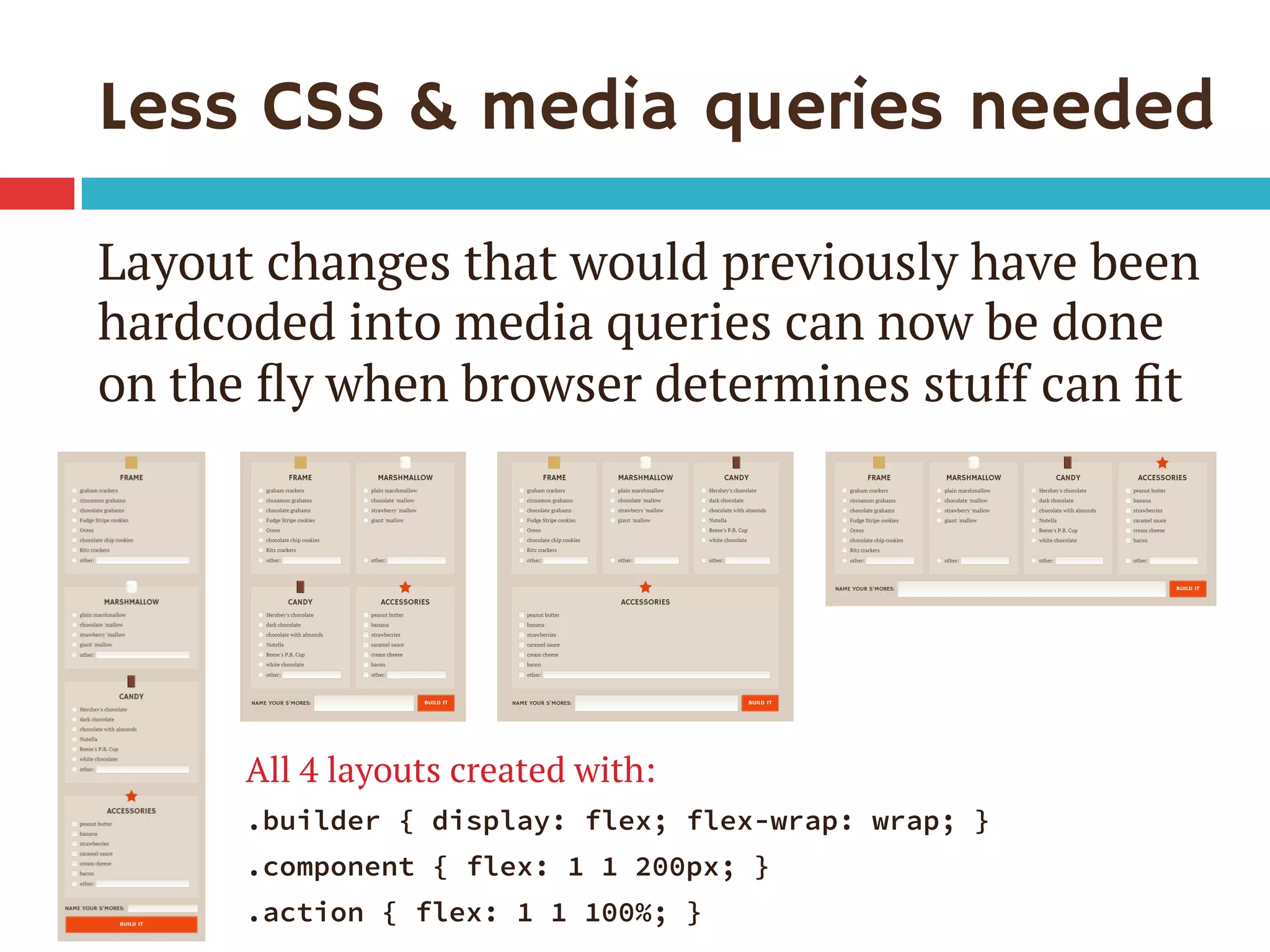
Less CSS & media queries needed
Layout changes that would previously have been
hardcoded into media queries can now be done
on the fly when browser determines stuff can fit
All 4 layouts created with:
.builder { display: flex; flex-wrap: wrap; }
.component { flex: 1 1 200px; }
.action { flex: 1 1 100%; }
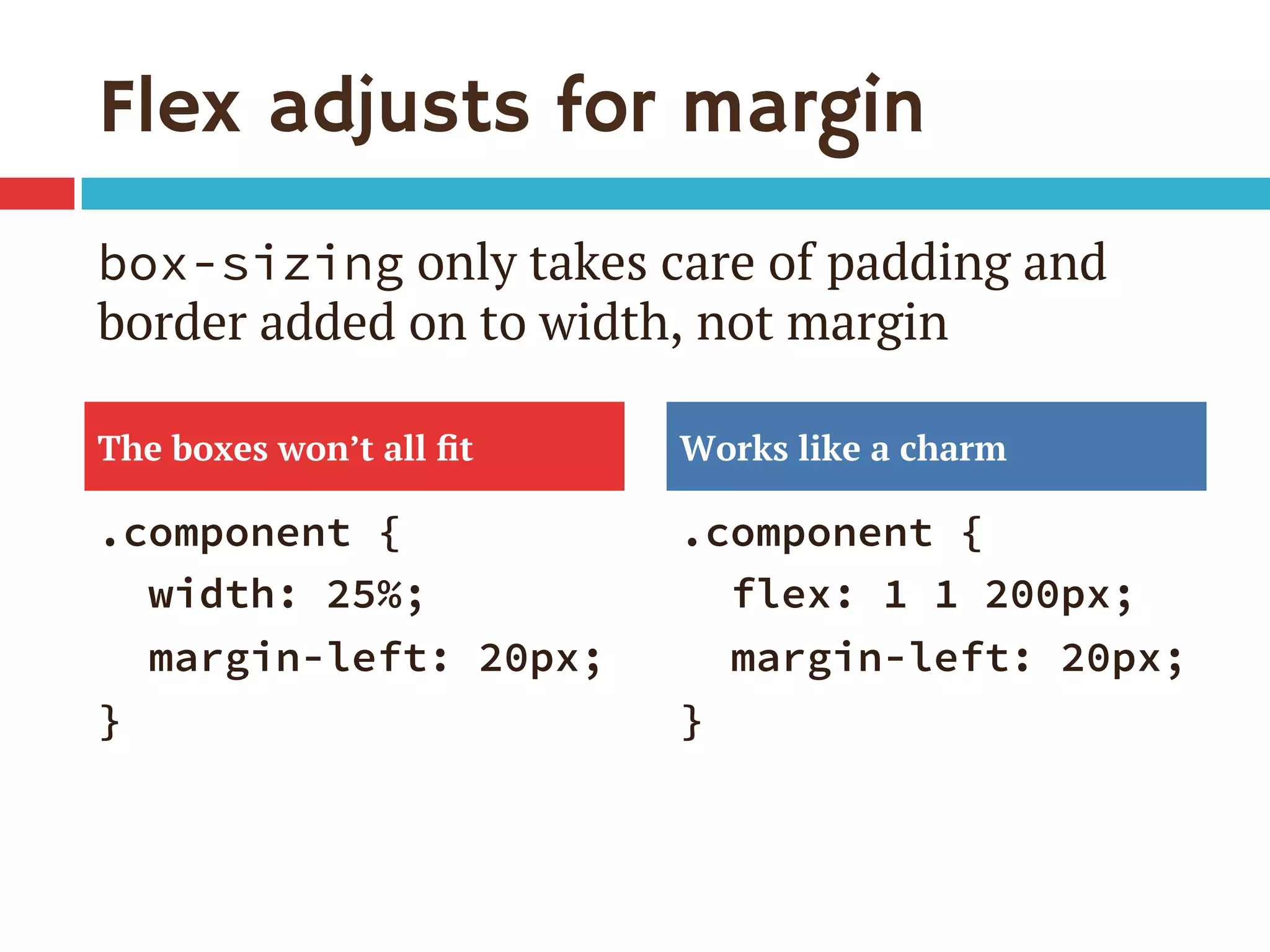
Flex adjusts for margin
.component {
width: 25%;
margin-left: 20px;
}
.component {
flex: 1 1 200px;
margin-left: 20px;
}
The boxes won’t all fit Works like a charm
box-sizing only takes care of padding and
border added on to width, not margin
Flex adjusts for quantity of items
¨  Great for sites with dynamic or frequently
changing content blocks, e.g.:
¤  News stories on home page vs inner page
¤  Product or feature tiles
¤  Pricing page with plans side by side
¨  Makes HTML/CSS more modular—an item can
move anywhere and adjust in size as needed
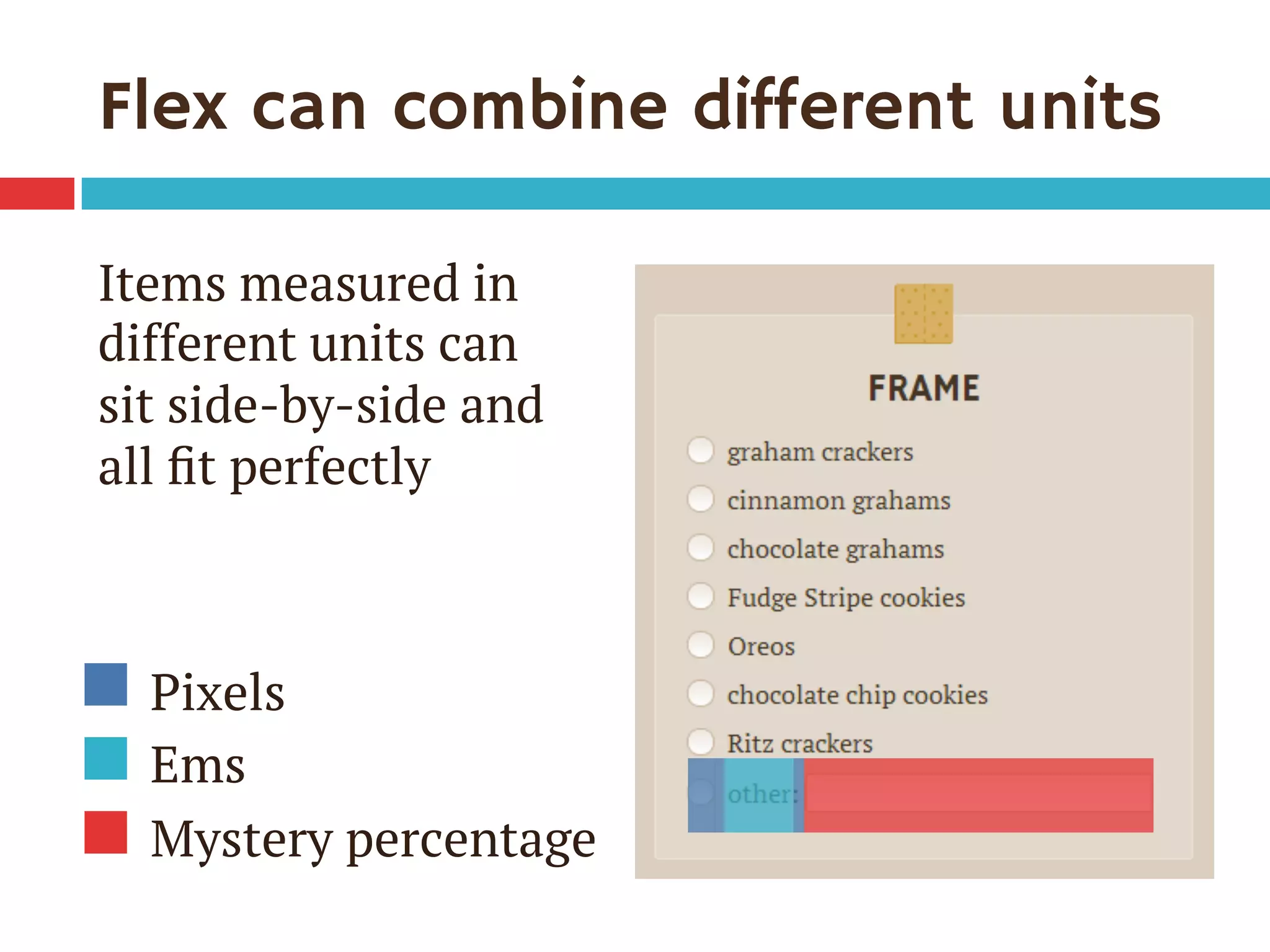
Flex can combine different units
Items measured in
different units can
sit side-by-side and
all fit perfectly
Pixels
Ems
Mystery percentage
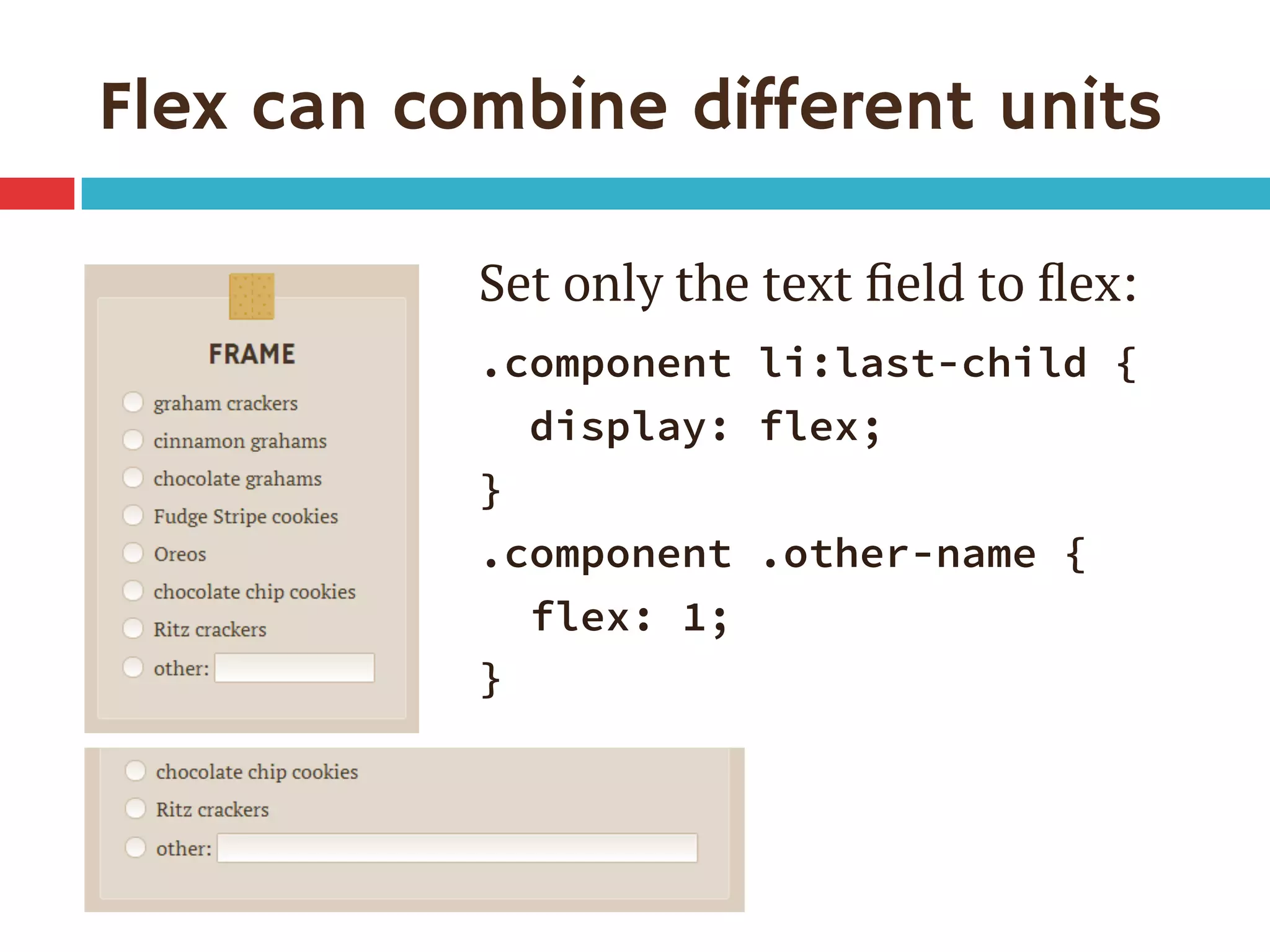
Flex can combine different units
Set only the text field to flex:
.component li:last-child {
display: flex;
}
.component .other-name {
flex: 1;
}
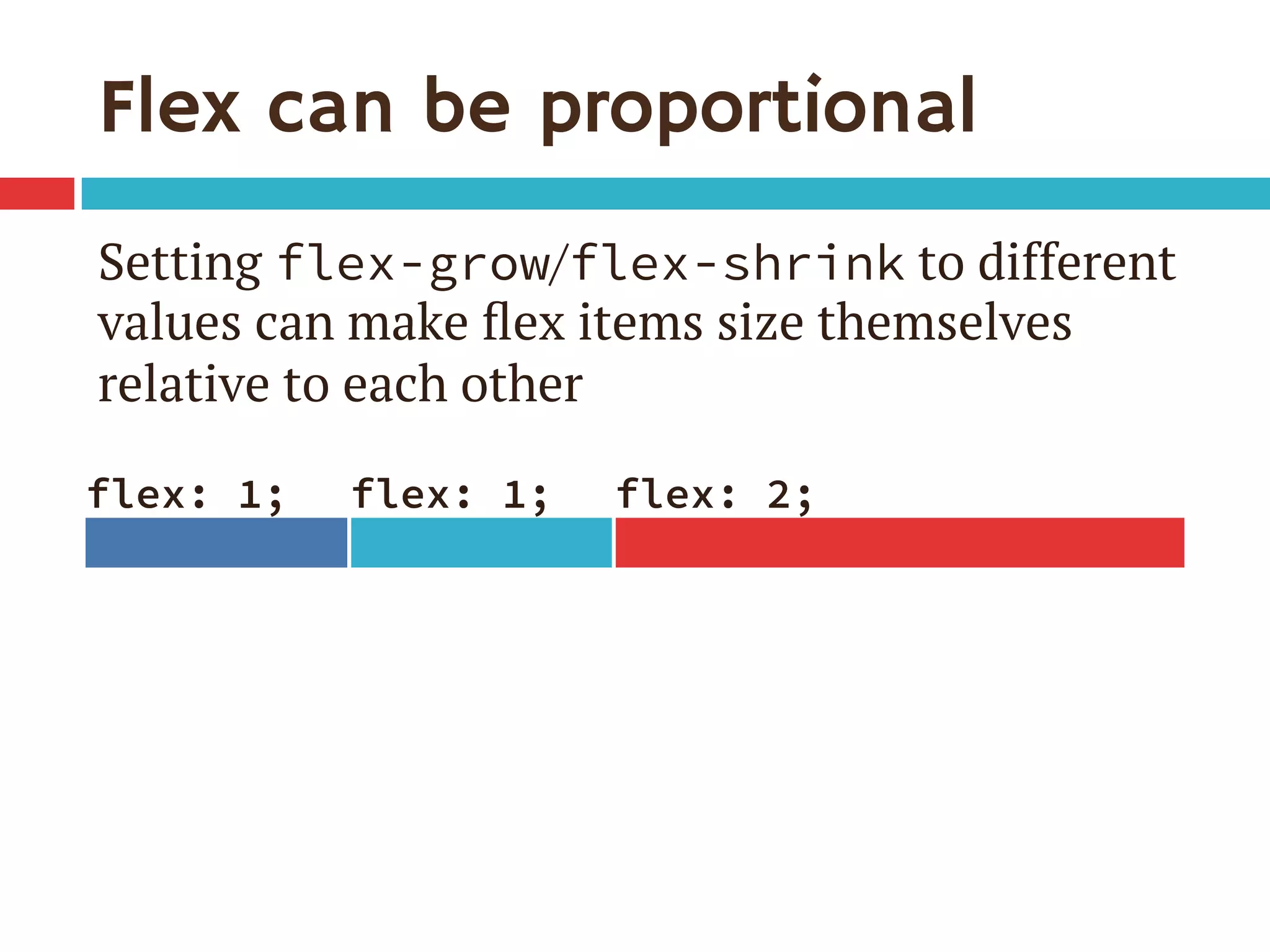
Flex can be proportional
Setting flex-grow/flex-shrink to different
values can make flex items size themselves
relative to each other
flex: 1;
 flex: 1;
 flex: 2;
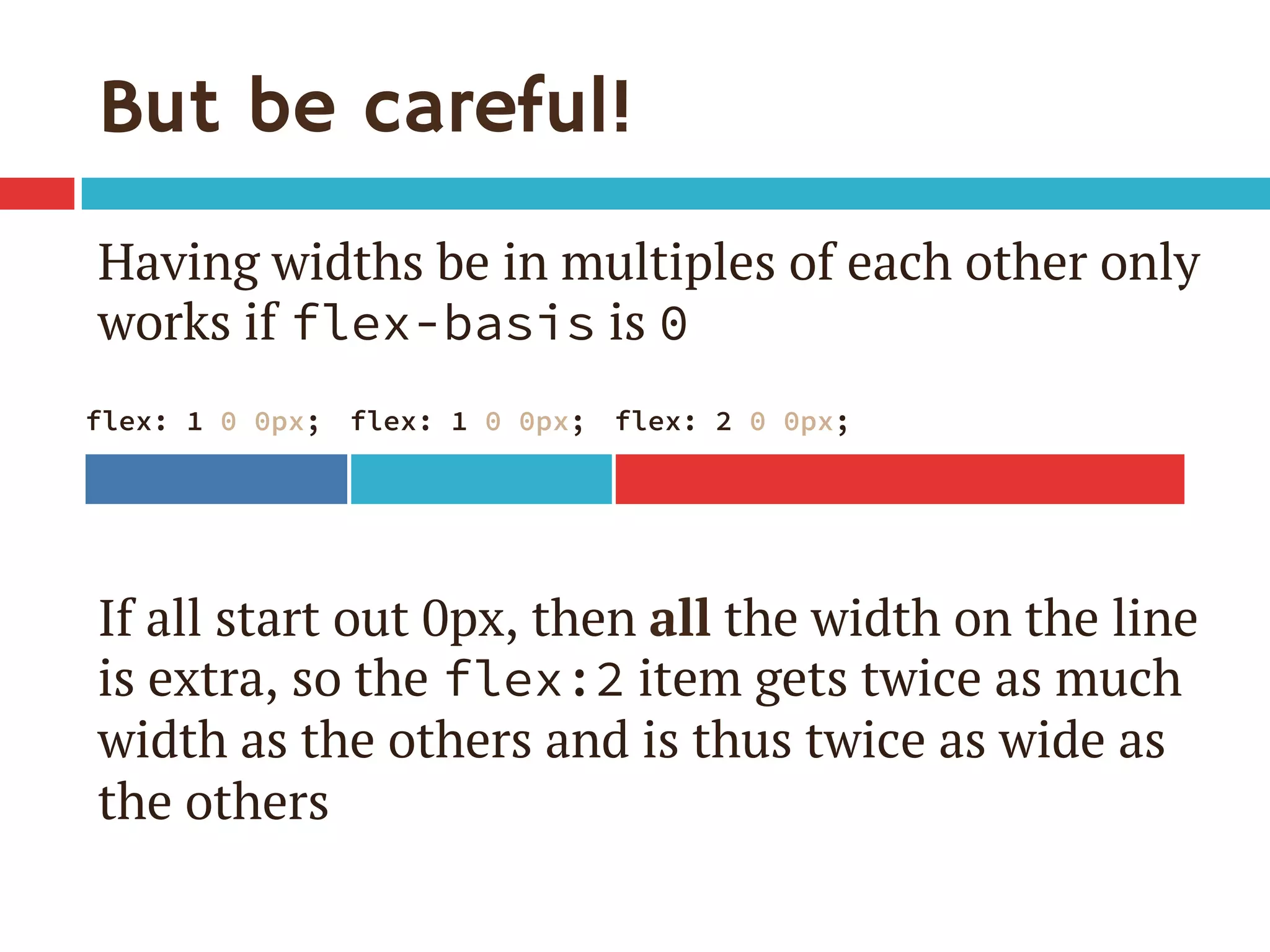
But be careful!
Having widths be in multiples of each other only
works if flex-basis is 0
If all start out 0px, then all the width on the line
is extra, so the flex:2 item gets twice as much
width as the others and is thus twice as wide as
the others
flex: 1 0 0px;
 flex: 1 0 0px;
 flex: 2 0 0px;
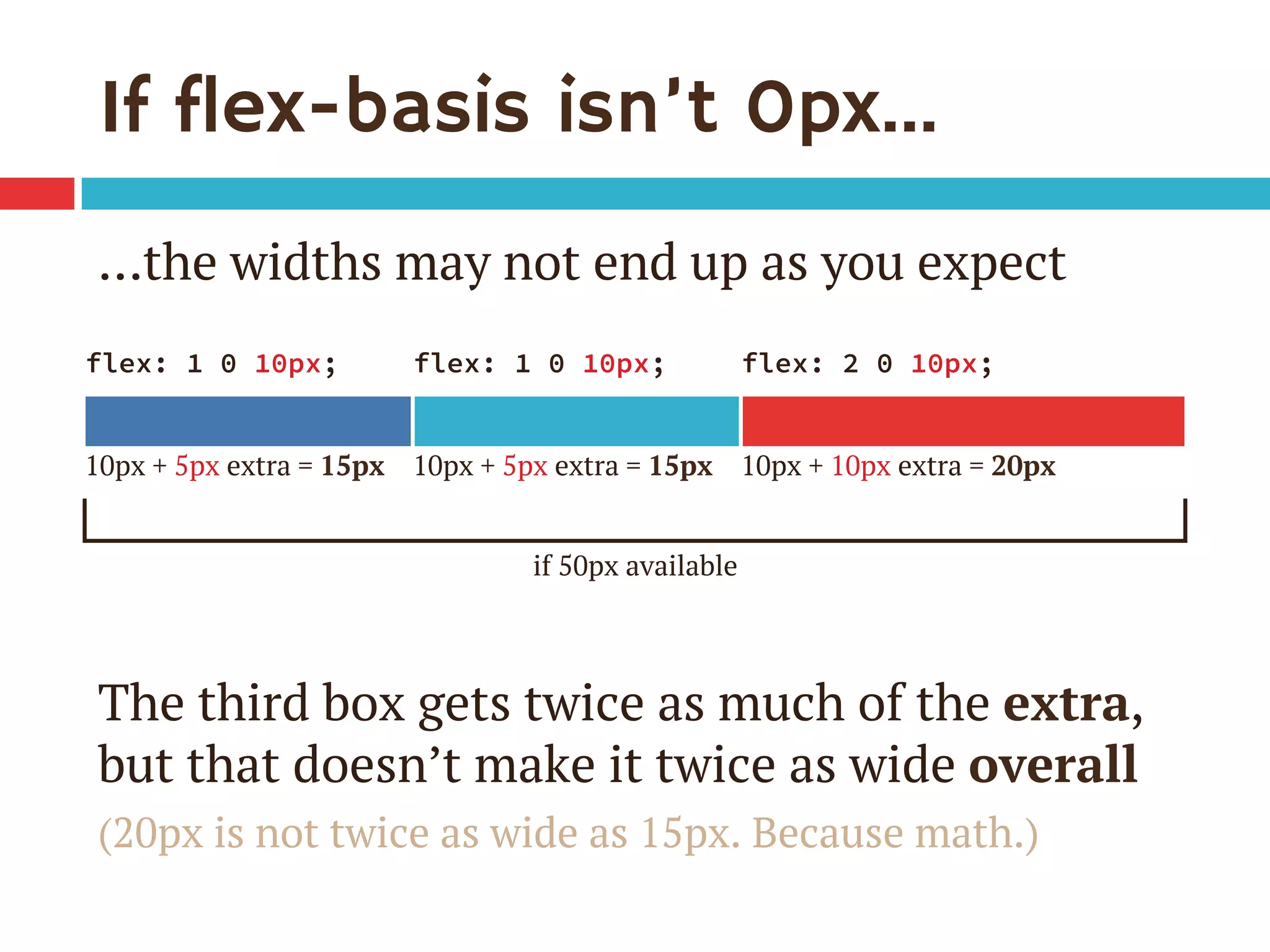
If flex-basis isn’t 0px…
…the widths may not end up as you expect

The third box gets twice as much of the extra,
but that doesn’t make it twice as wide overall
(20px is not twice as wide as 15px. Because math.)
flex: 1 0 10px;
 flex: 1 0 10px;
 flex: 2 0 10px;
10px + 5px extra = 15px 10px + 5px extra = 15px 10px + 10px extra = 20px
if 50px available
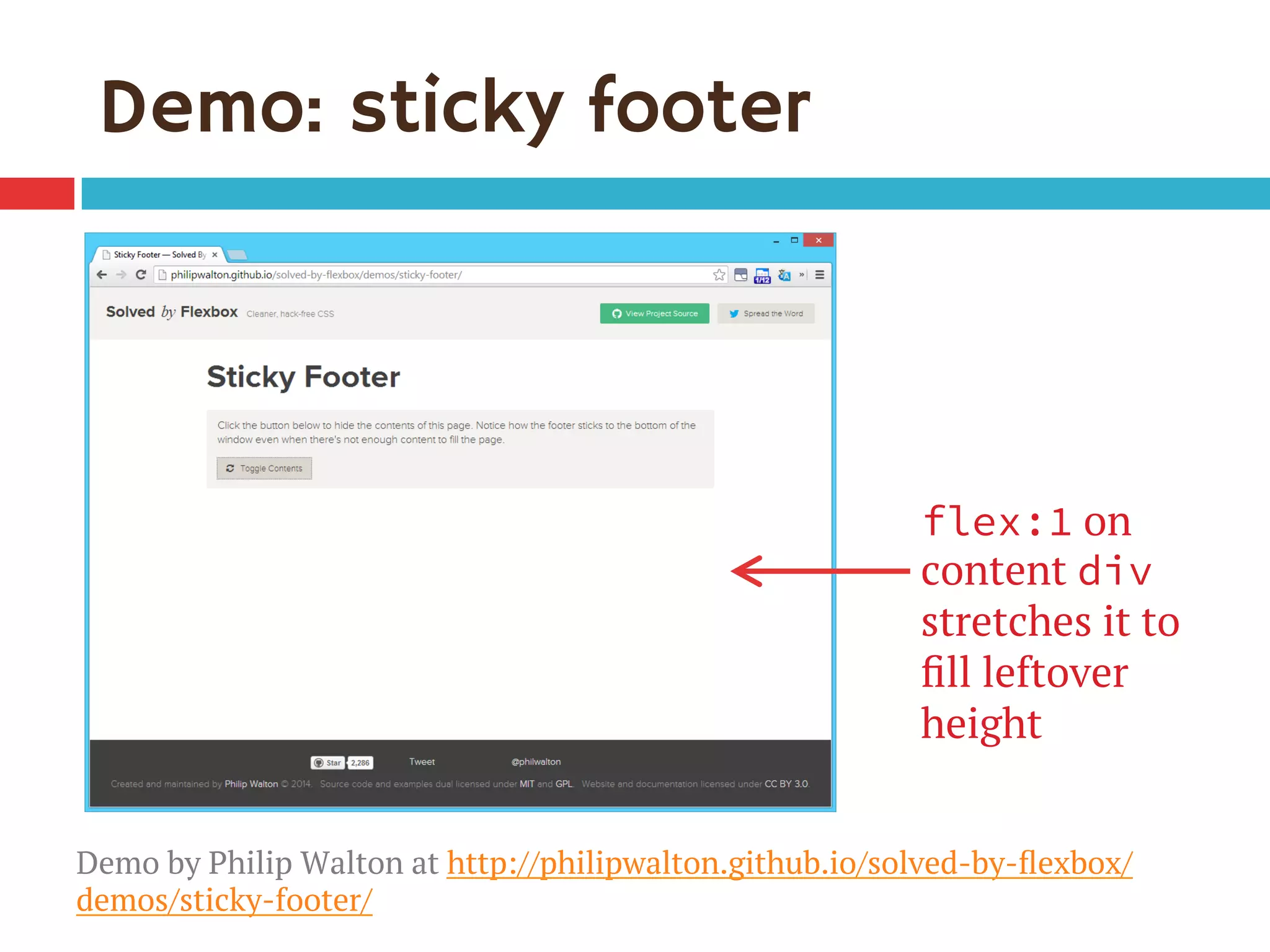
Demo: sticky footer
flex:1 on
content div
stretches it to
fill leftover
height
Demo by Philip Walton at http://philipwalton.github.io/solved-by-flexbox/
demos/sticky-footer/
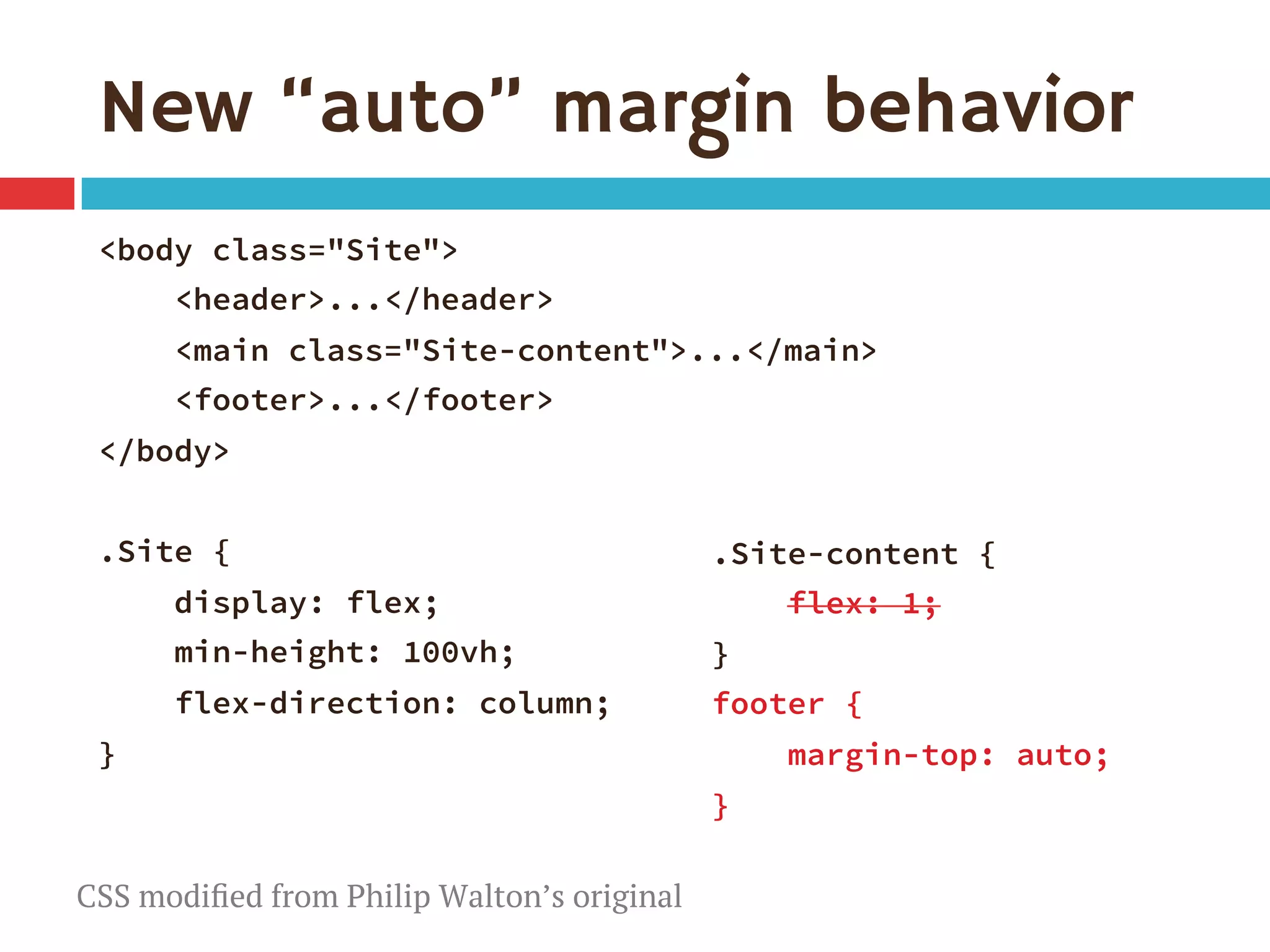
New “auto” margin behavior
<body class="Site">
<header>...</header> 
<main class="Site-content">...</main> 
<footer>...</footer>
</body>

.Site {
display: flex;
min-height: 100vh;
flex-direction: column;
}
.Site-content {
flex: 1; 
}
footer {
margin-top: auto;
}

CSS modified from Philip Walton’s original
New “auto” margin behavior
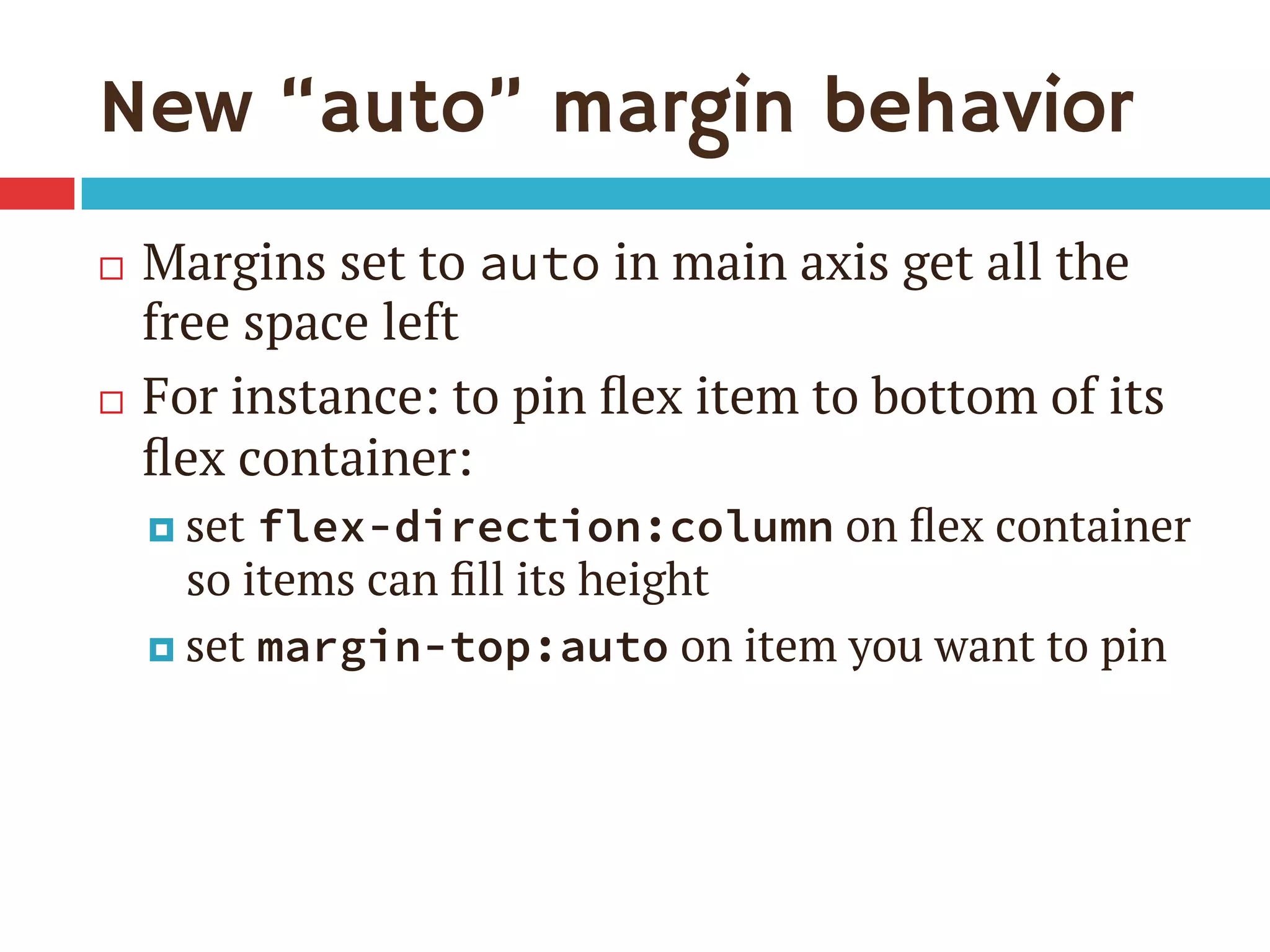
¨  Margins set to auto in main axis get all the
free space left
¨  For instance: to pin flex item to bottom of its
flex container:
¤  set flex-direction:column on flex container
so items can fill its height
¤  set margin-top:auto on item you want to pin
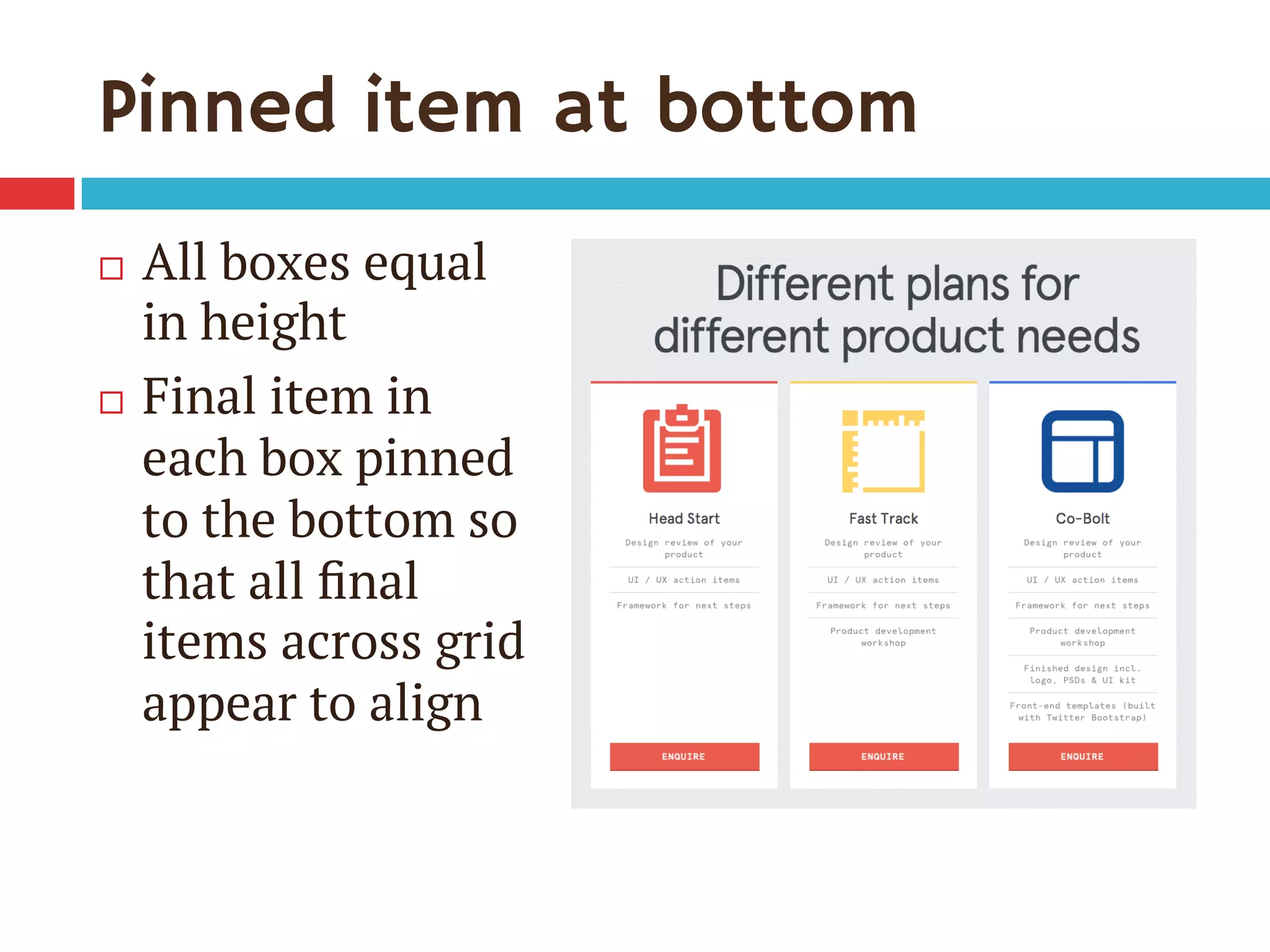
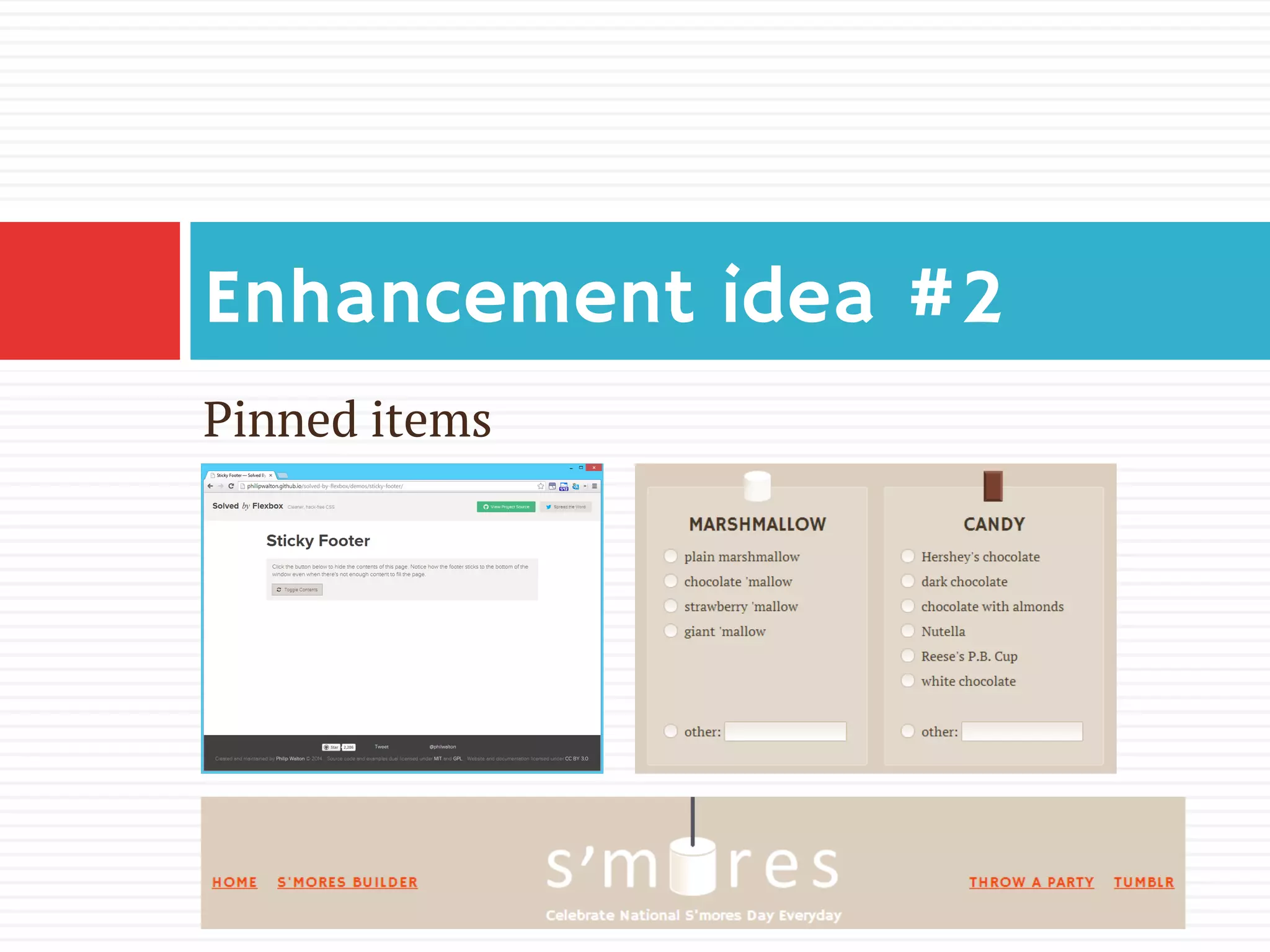
Pinned item at bottom
¨  All boxes equal
in height
¨  Final item in
each box pinned
to the bottom so
that all final
items across grid
appear to align
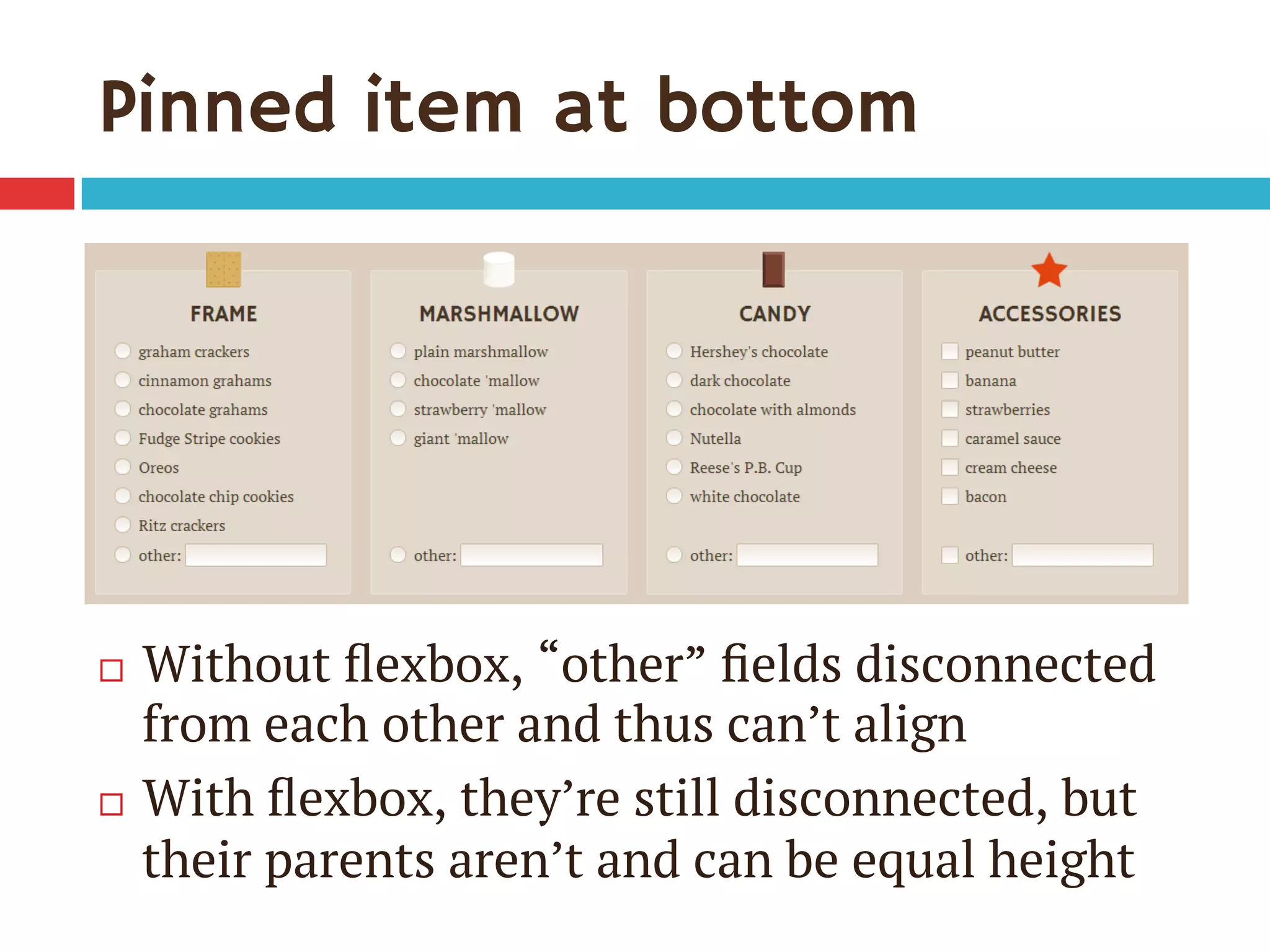
Pinned item at bottom
¨  Without flexbox, “other” fields disconnected
from each other and thus can’t align
¨  With flexbox, they’re still disconnected, but
their parents aren’t and can be equal height
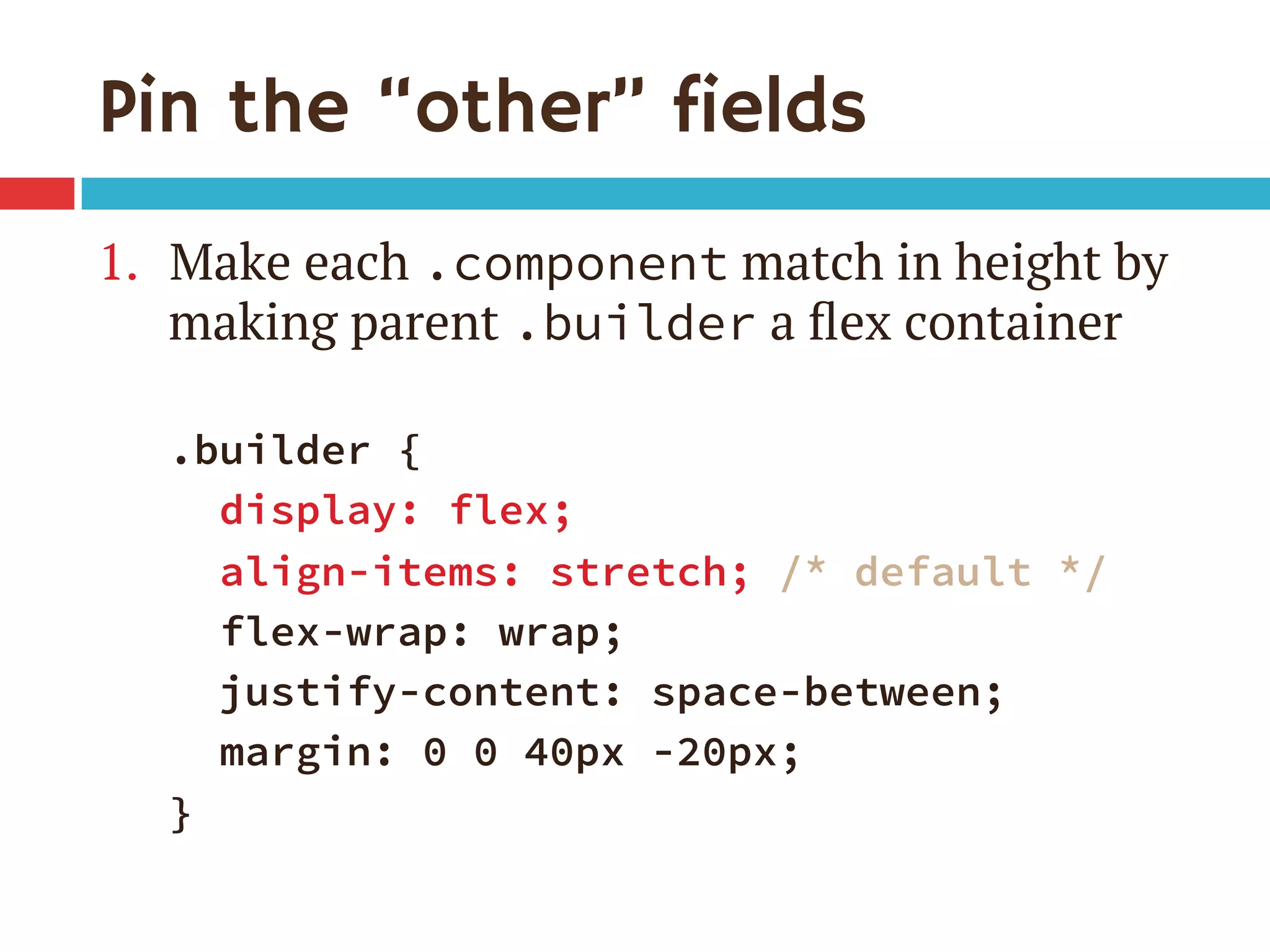
Pin the “other” fields
1.  Make each .component match in height by
making parent .builder a flex container
.builder {
display: flex;
align-items: stretch; /* default */
flex-wrap: wrap;
justify-content: space-between;
margin: 0 0 40px -20px;
}
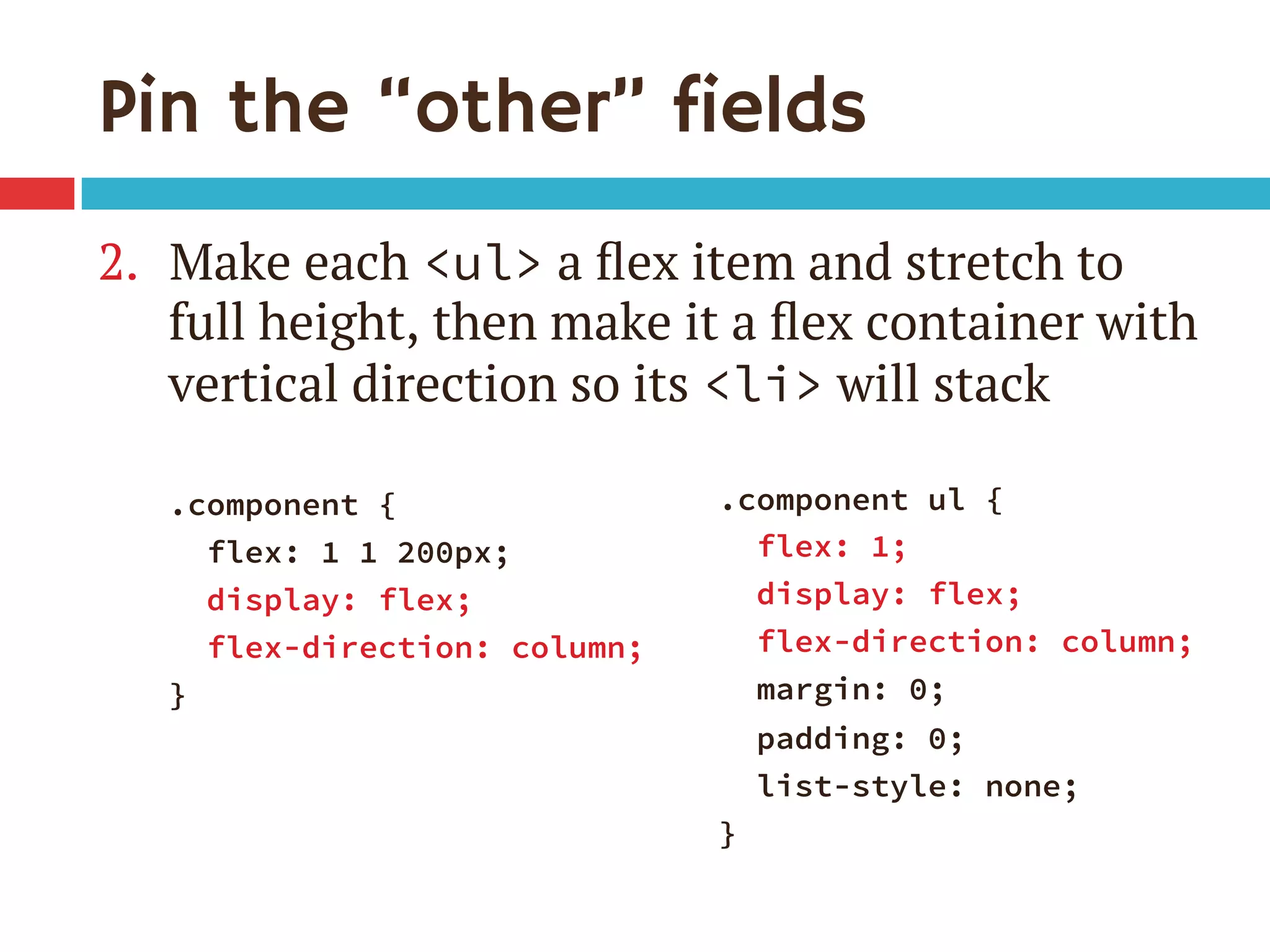
Pin the “other” fields
2.  Make each <ul> a flex item and stretch to
full height, then make it a flex container with
vertical direction so its <li> will stack
.component {
flex: 1 1 200px;
display: flex;
flex-direction: column;
}

.component ul {
flex: 1;
display: flex;
flex-direction: column;
margin: 0;
padding: 0;
list-style: none;
}
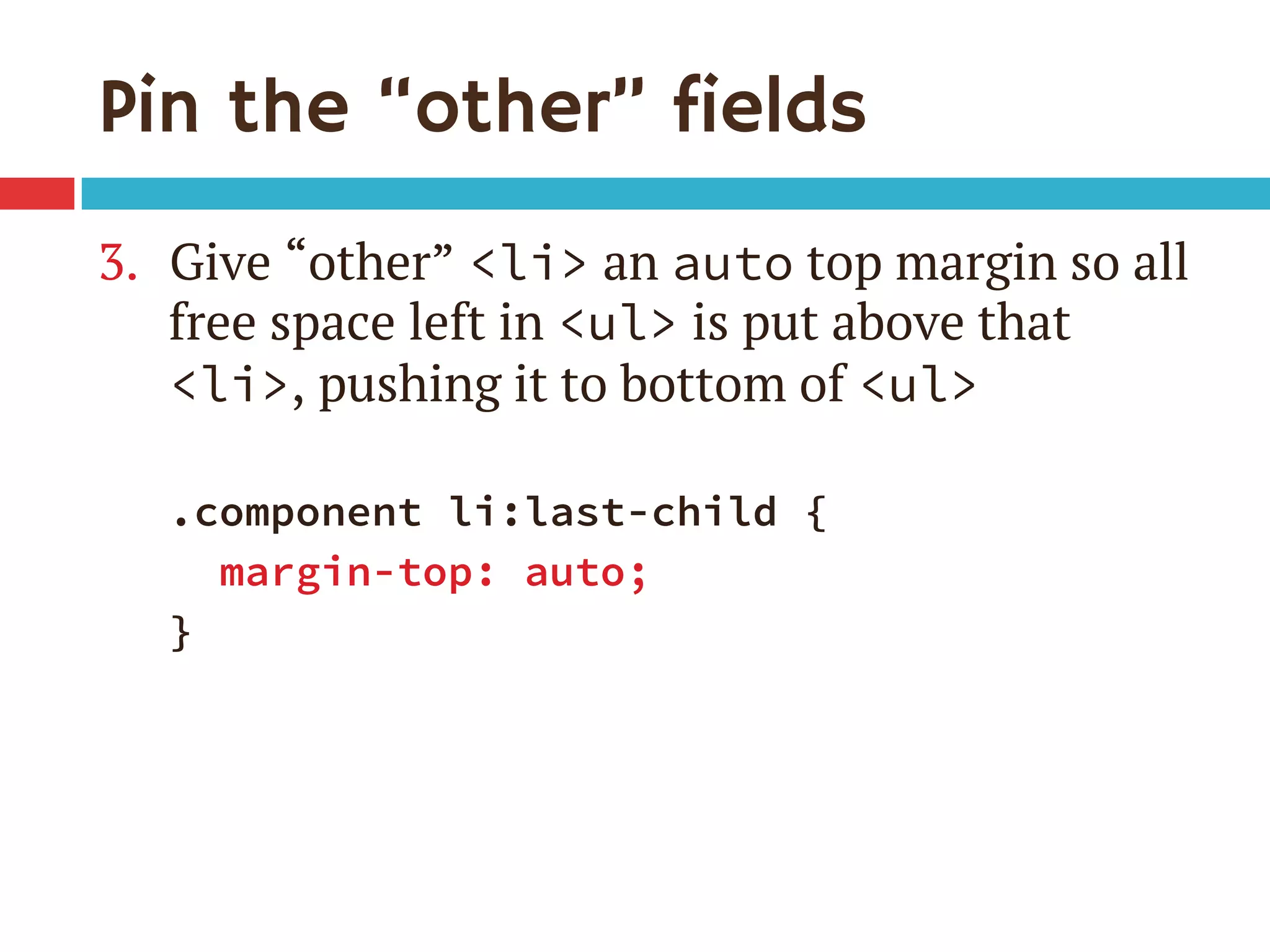
Pin the “other” fields
3.  Give “other” <li> an auto top margin so all
free space left in <ul> is put above that
<li>, pushing it to bottom of <ul>

.component li:last-child {
margin-top: auto;
}
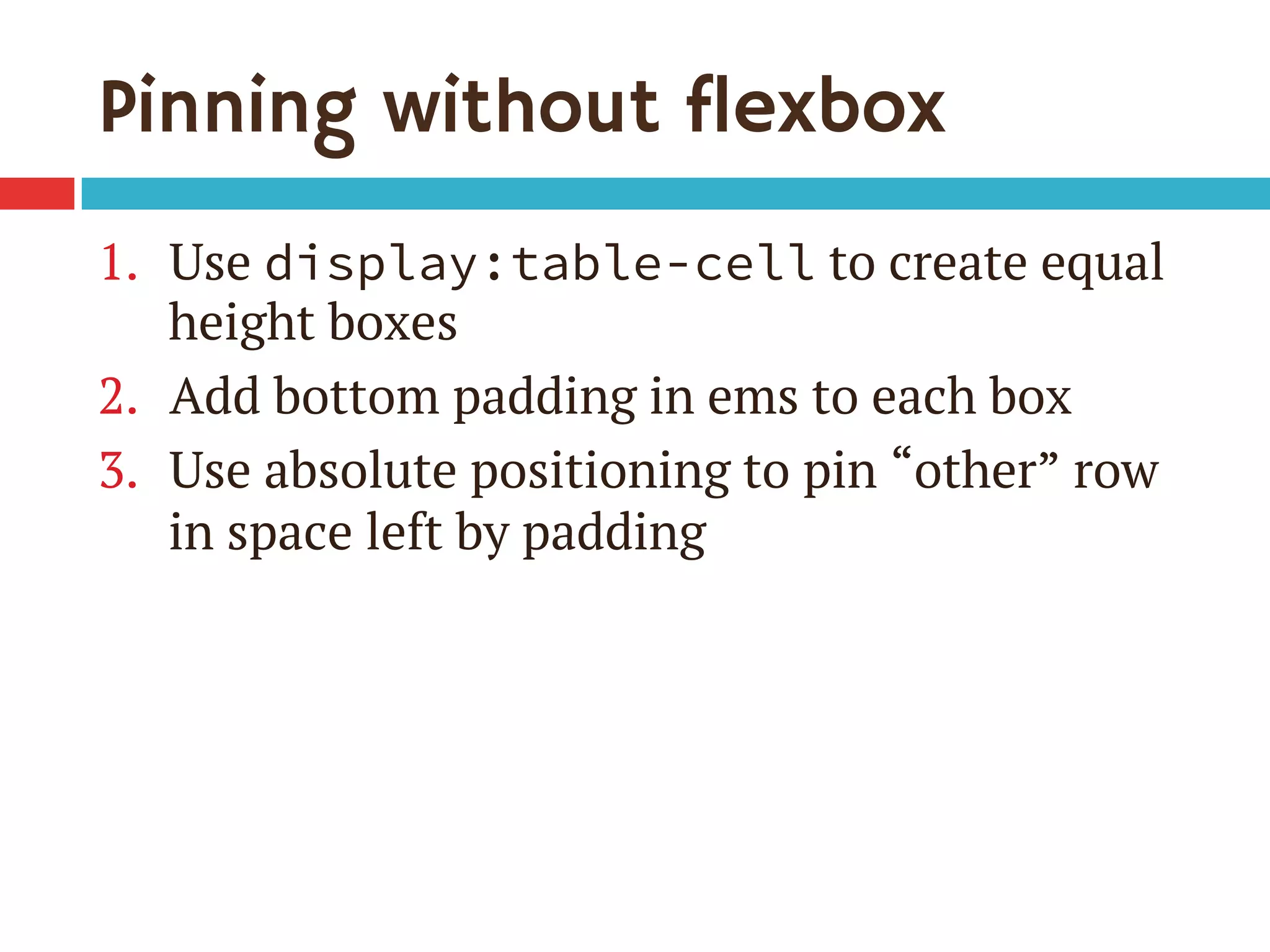
Pinning without flexbox
1.  Use display:table-cell to create equal
height boxes
2.  Add bottom padding in ems to each box
3.  Use absolute positioning to pin “other” row
in space left by padding
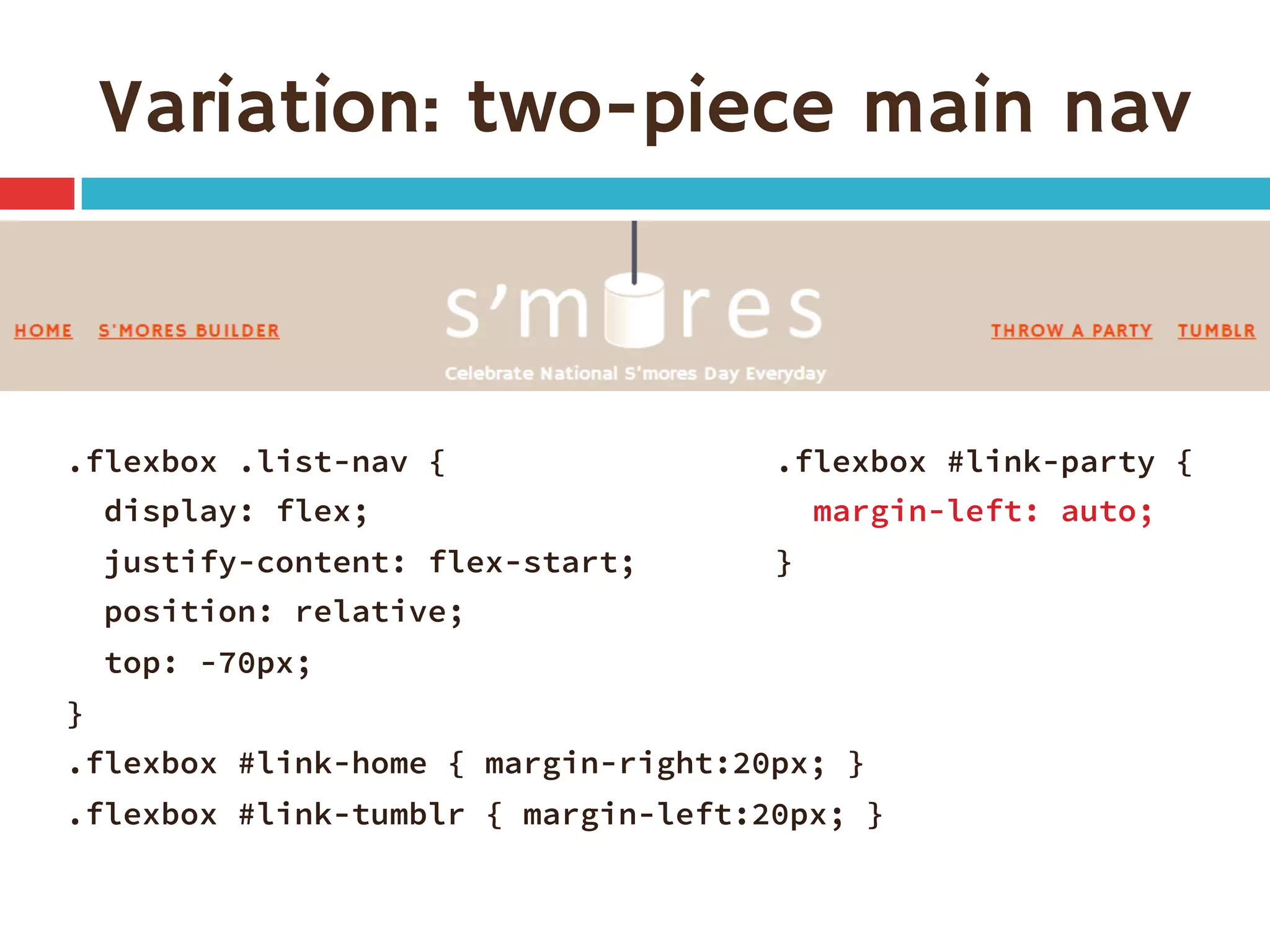
Variation: two-piece main nav
.flexbox .list-nav {
display: flex;
justify-content: flex-start; 
position: relative;
top: -70px;
}
.flexbox #link-home { margin-right:20px; }
.flexbox #link-tumblr { margin-left:20px; }

.flexbox #link-party {
margin-left: auto;
}
Pinned items
Enhancement idea #2
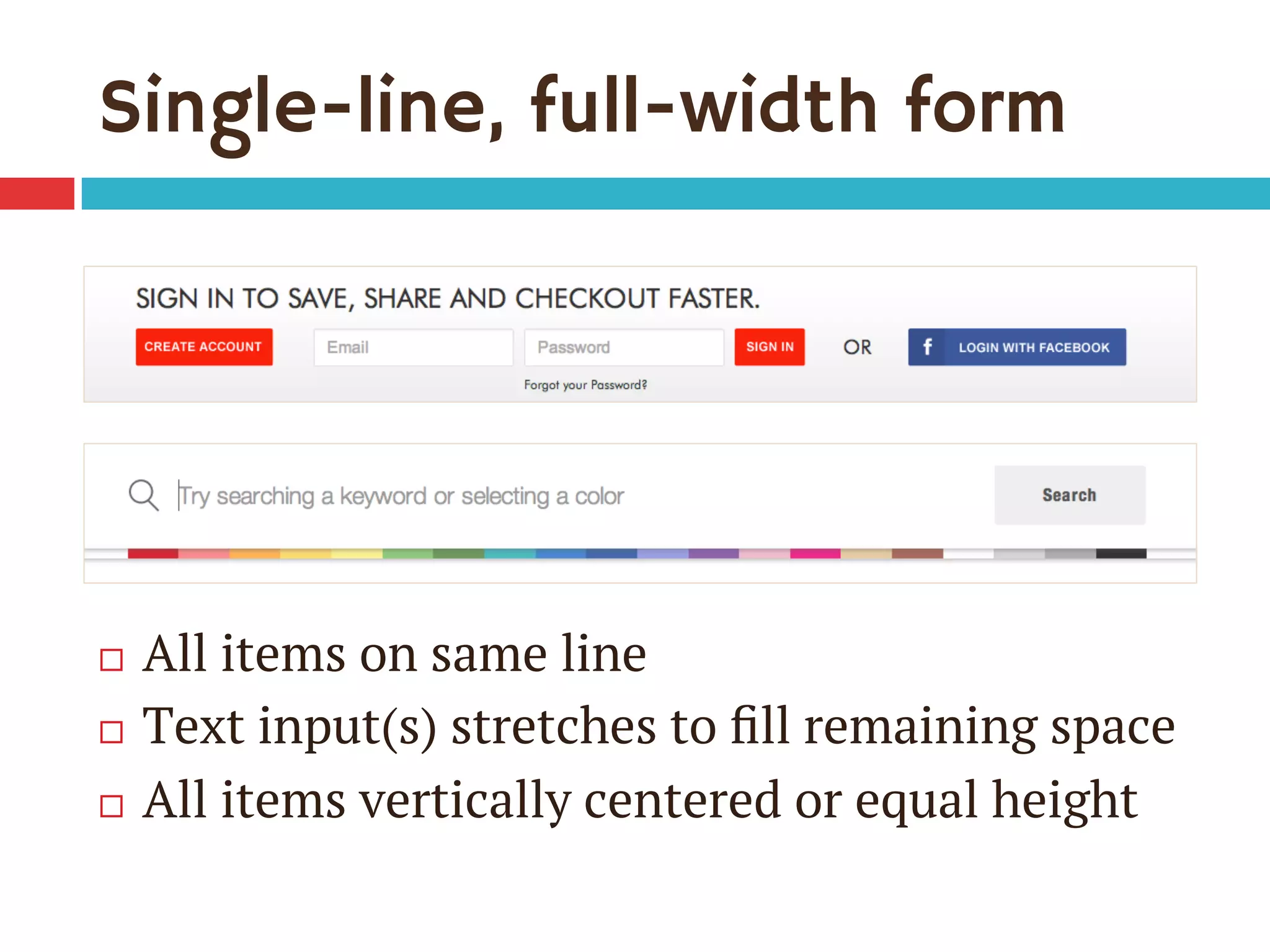
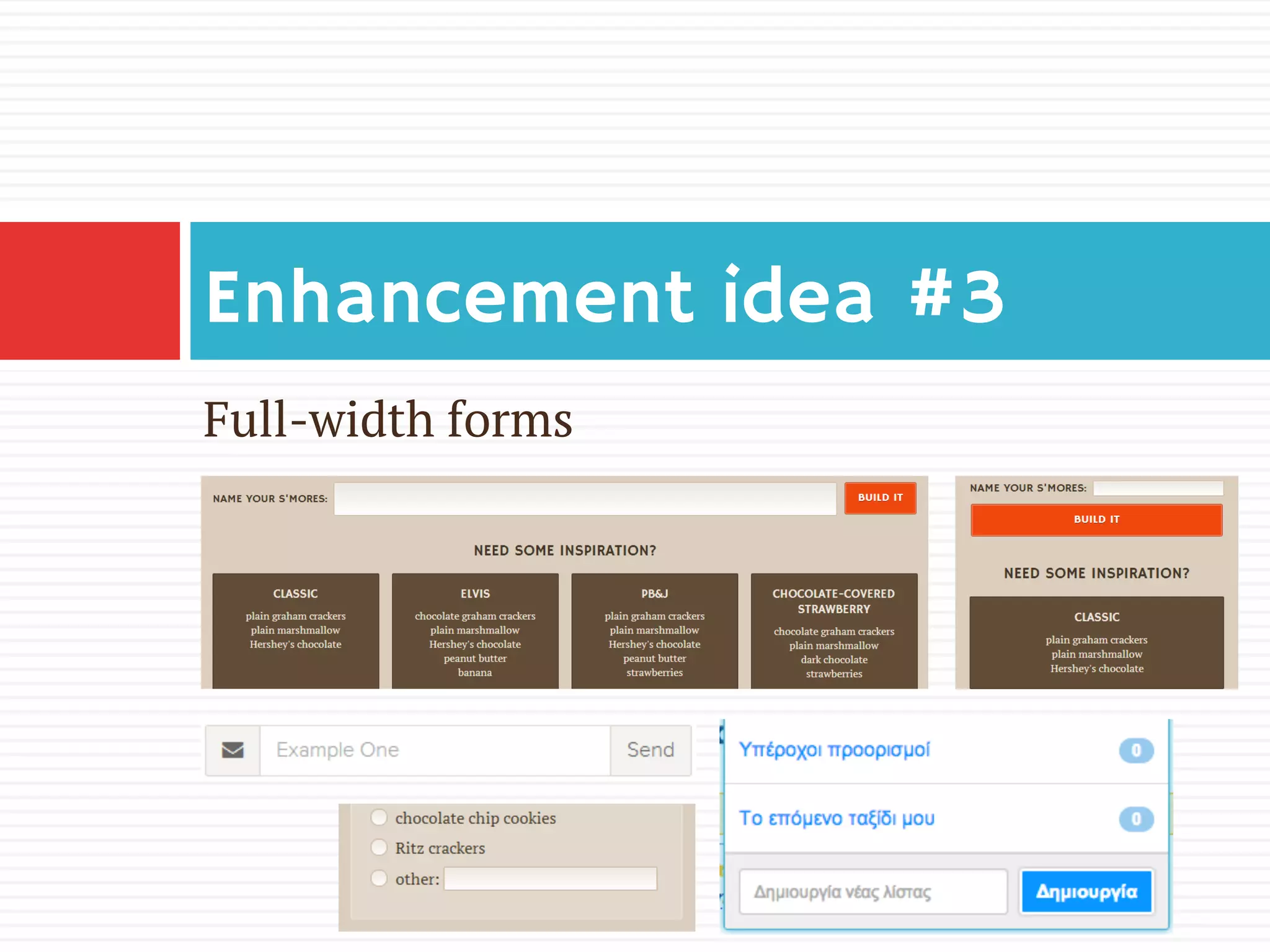
Single-line, full-width form
¨  All items on same line
¨  Text input(s) stretches to fill remaining space
¨  All items vertically centered or equal height
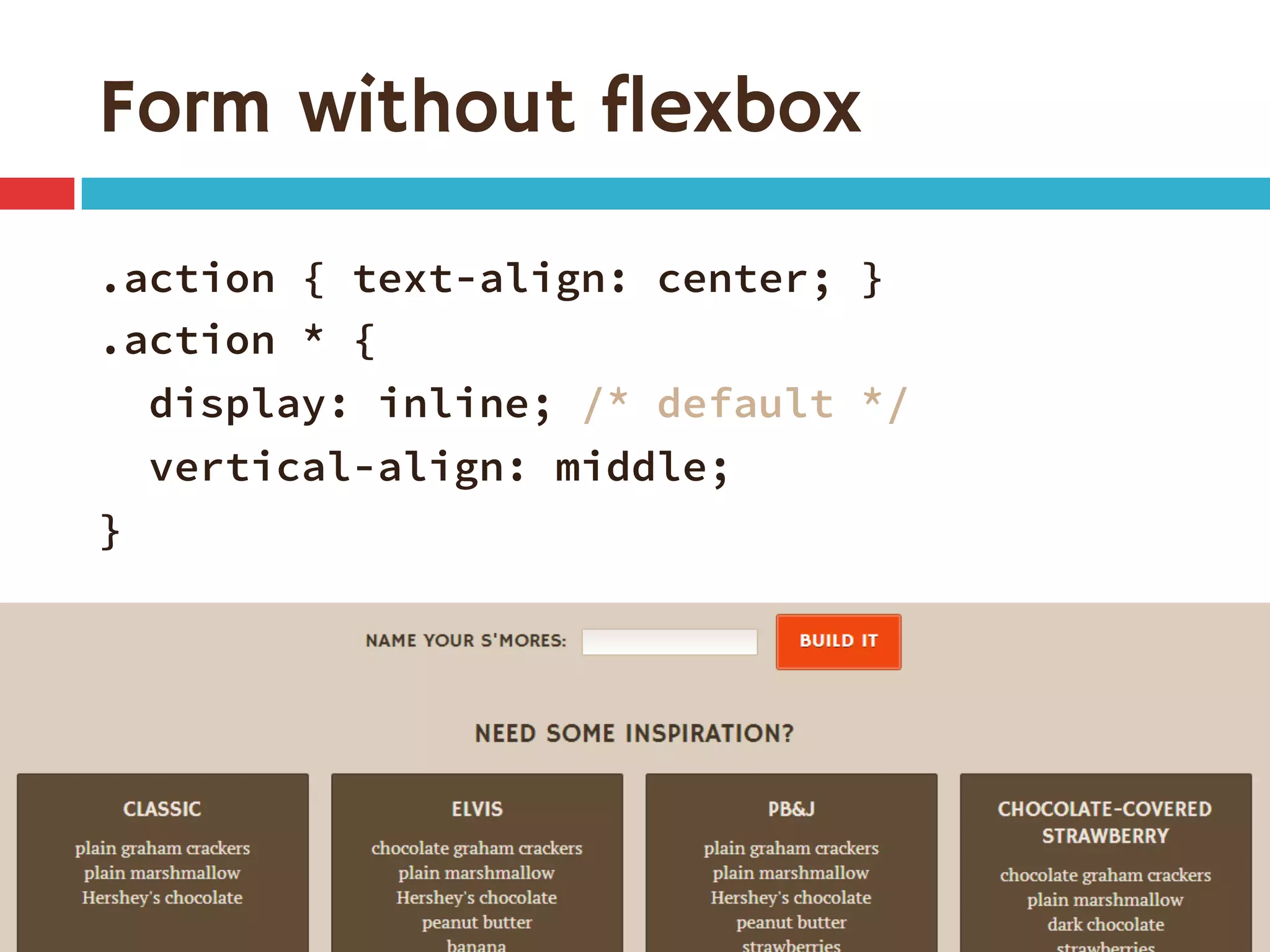
Form without flexbox
.action { text-align: center; }
.action * {
display: inline; /* default */
vertical-align: middle;
}
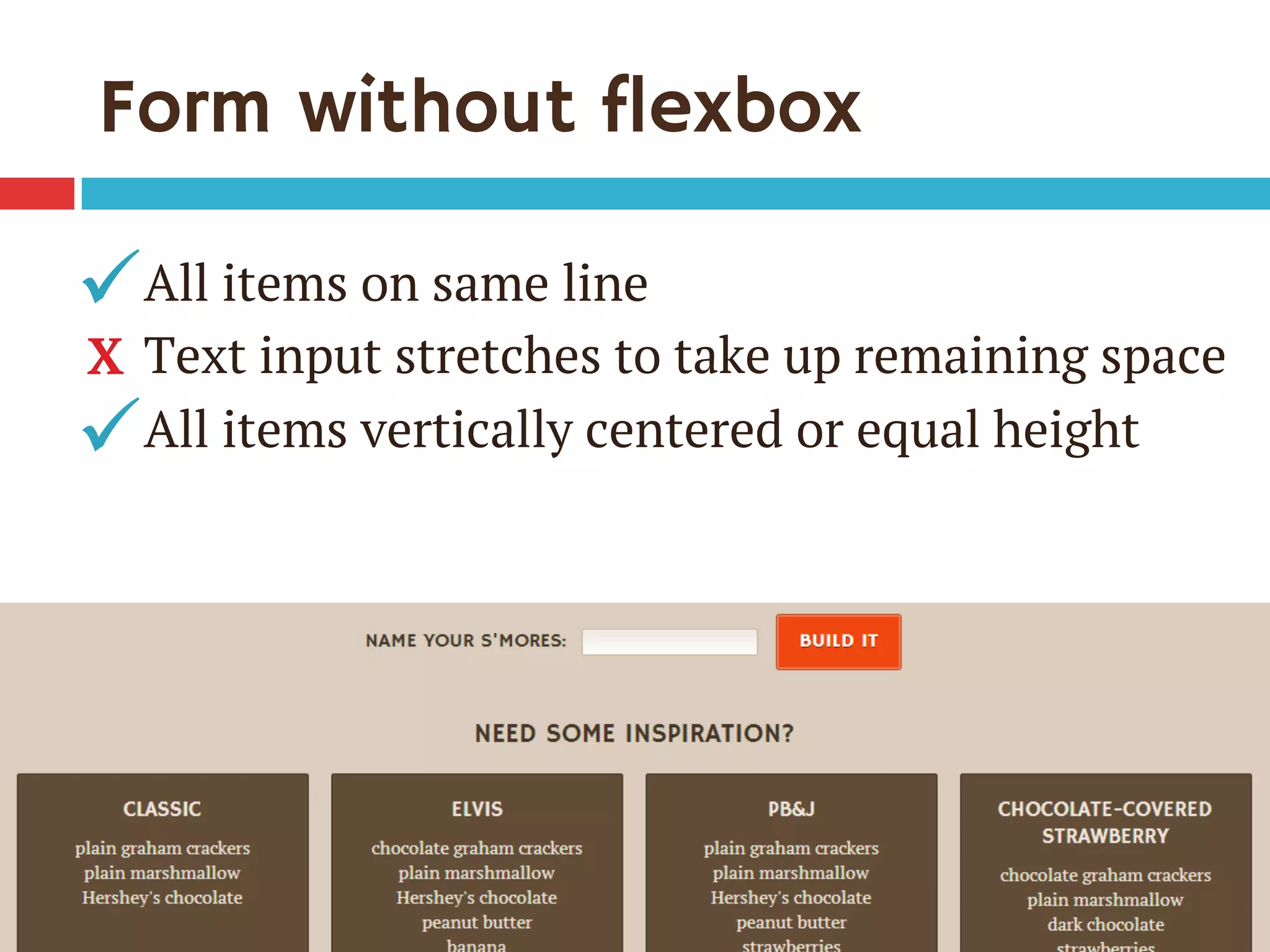
Form without flexbox
All items on same line
Text input stretches to take up remaining space
All items vertically centered or equal height
ü
ü
X
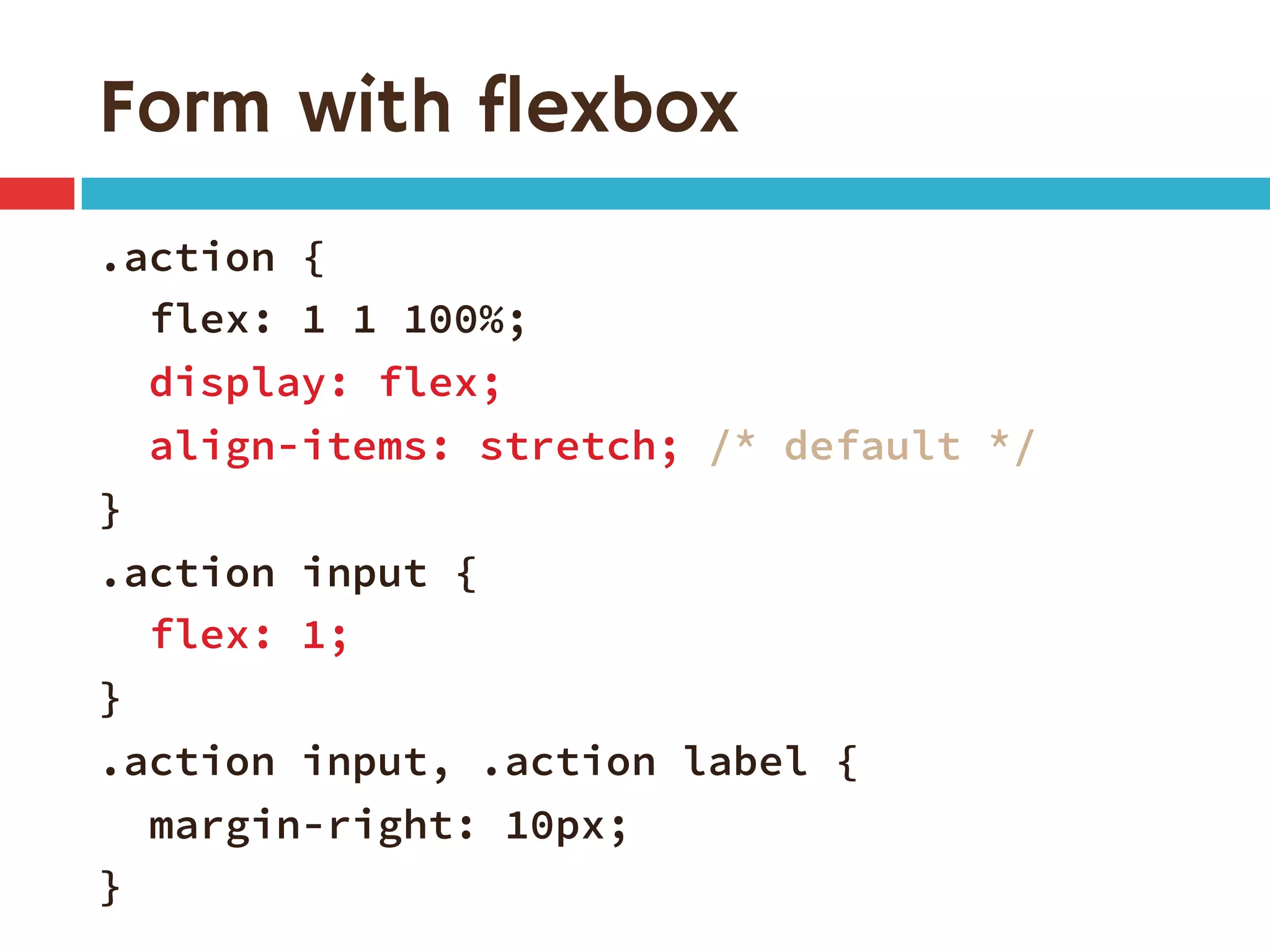
Form with flexbox
.action {
flex: 1 1 100%;
display: flex;
align-items: stretch; /* default */
}
.action input {
flex: 1;
}
.action input, .action label {
margin-right: 10px;
}
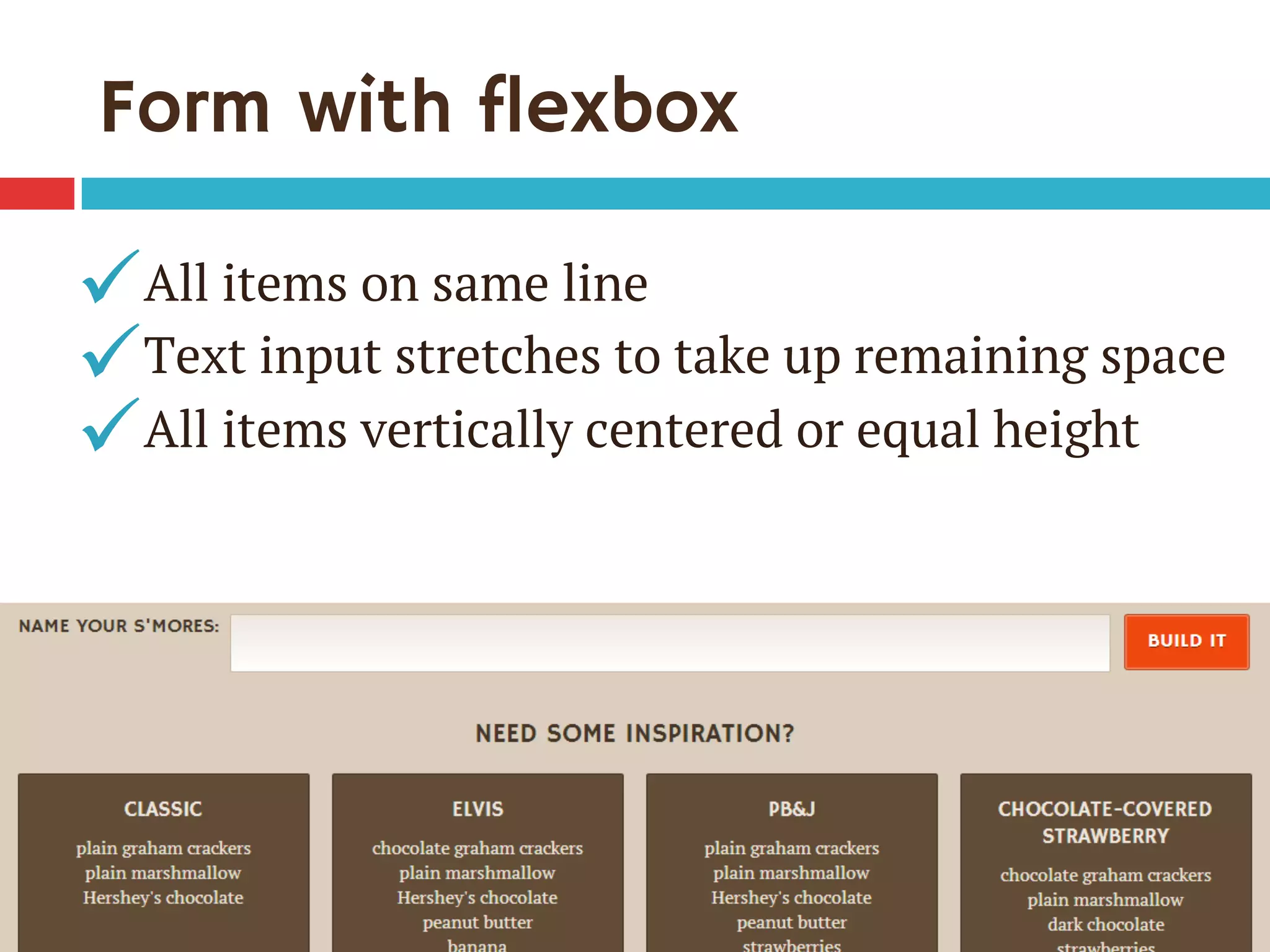
Form with flexbox
All items on same line
Text input stretches to take up remaining space
All items vertically centered or equal height
ü
ü
ü
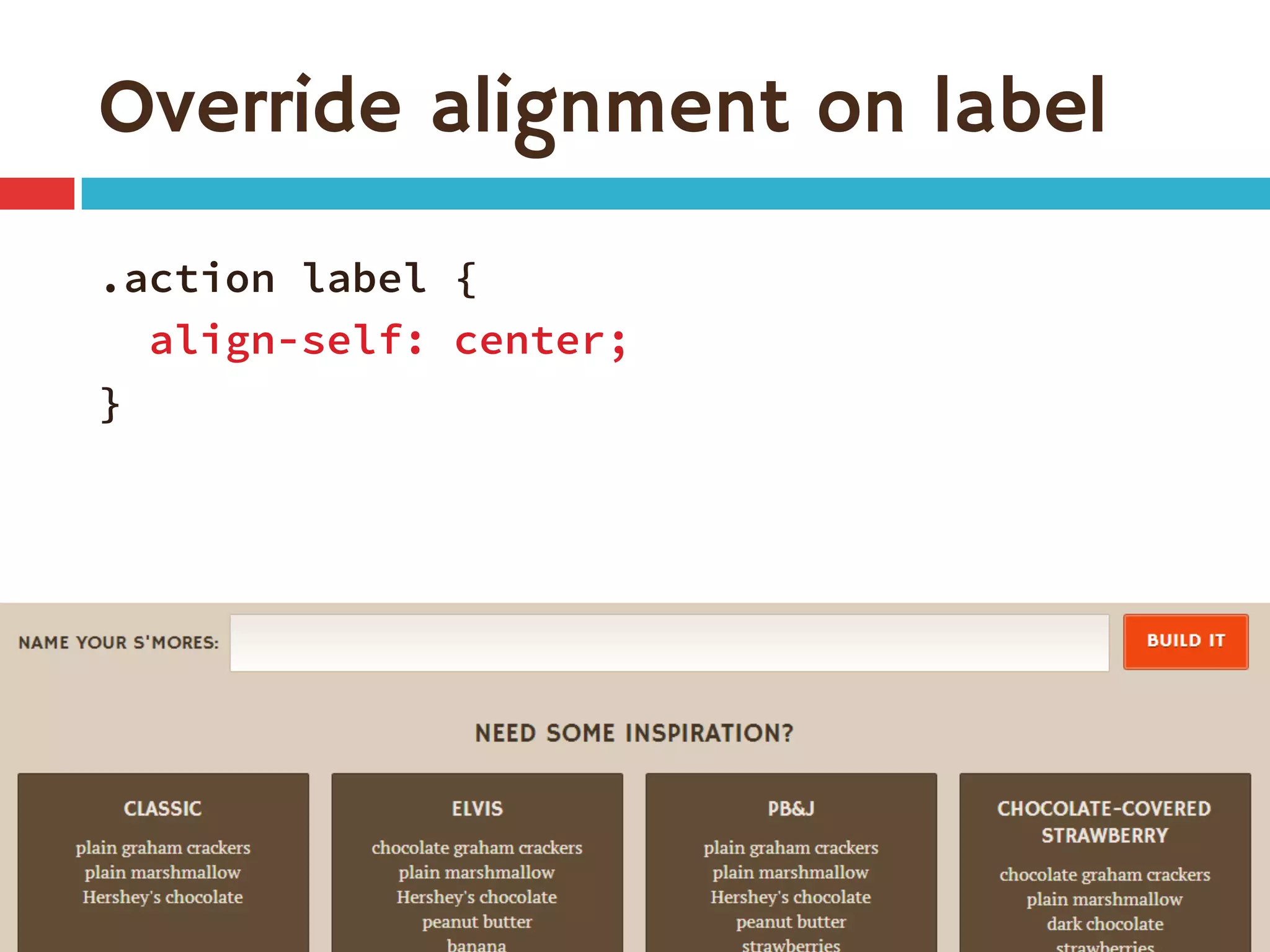
Override alignment on label
.action label {
align-self: center;
}
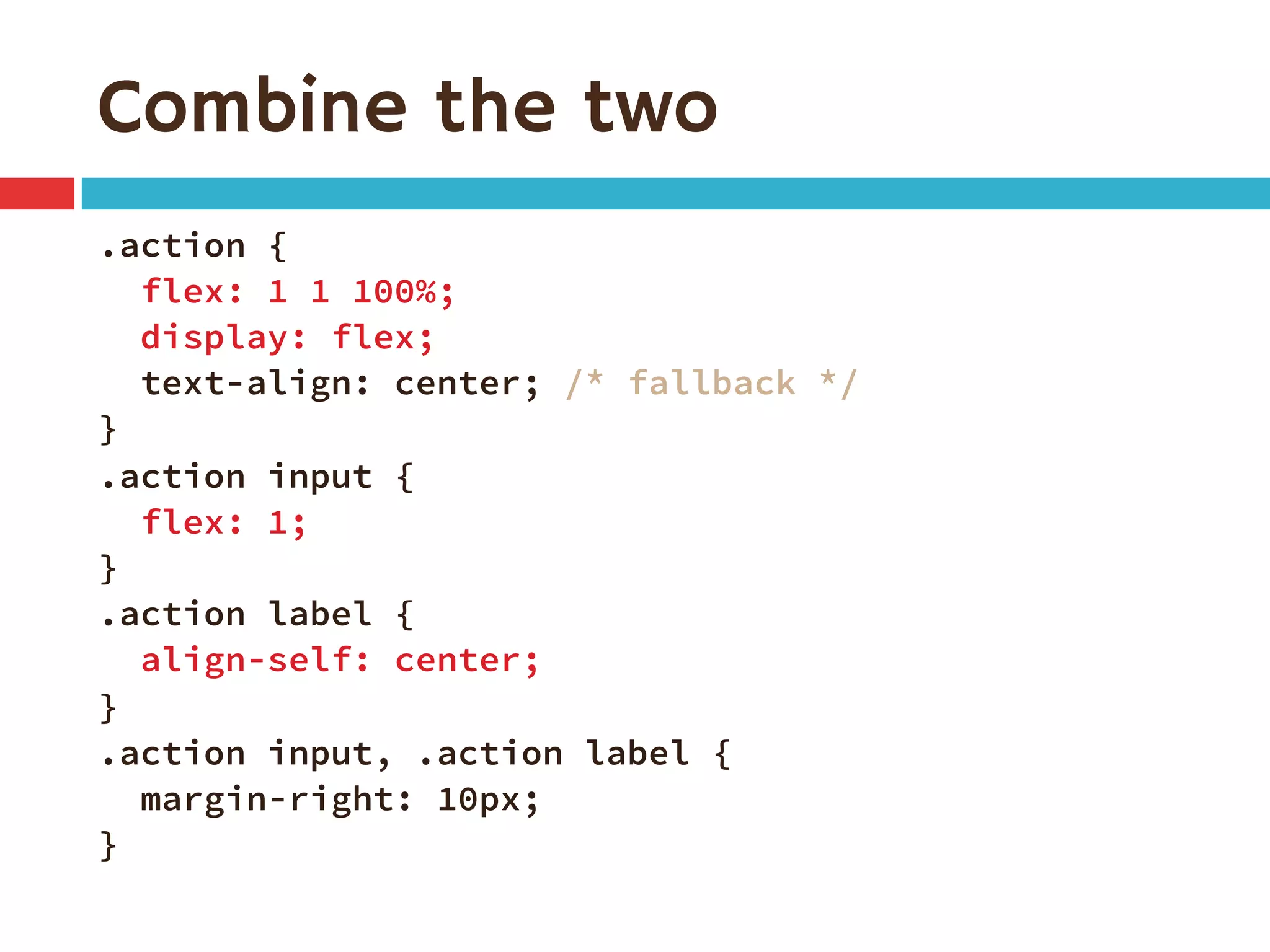
Combine the two
.action {
flex: 1 1 100%;
display: flex;
text-align: center; /* fallback */
}
.action input {
flex: 1;
}
.action label {
align-self: center;
}
.action input, .action label {
margin-right: 10px;
}
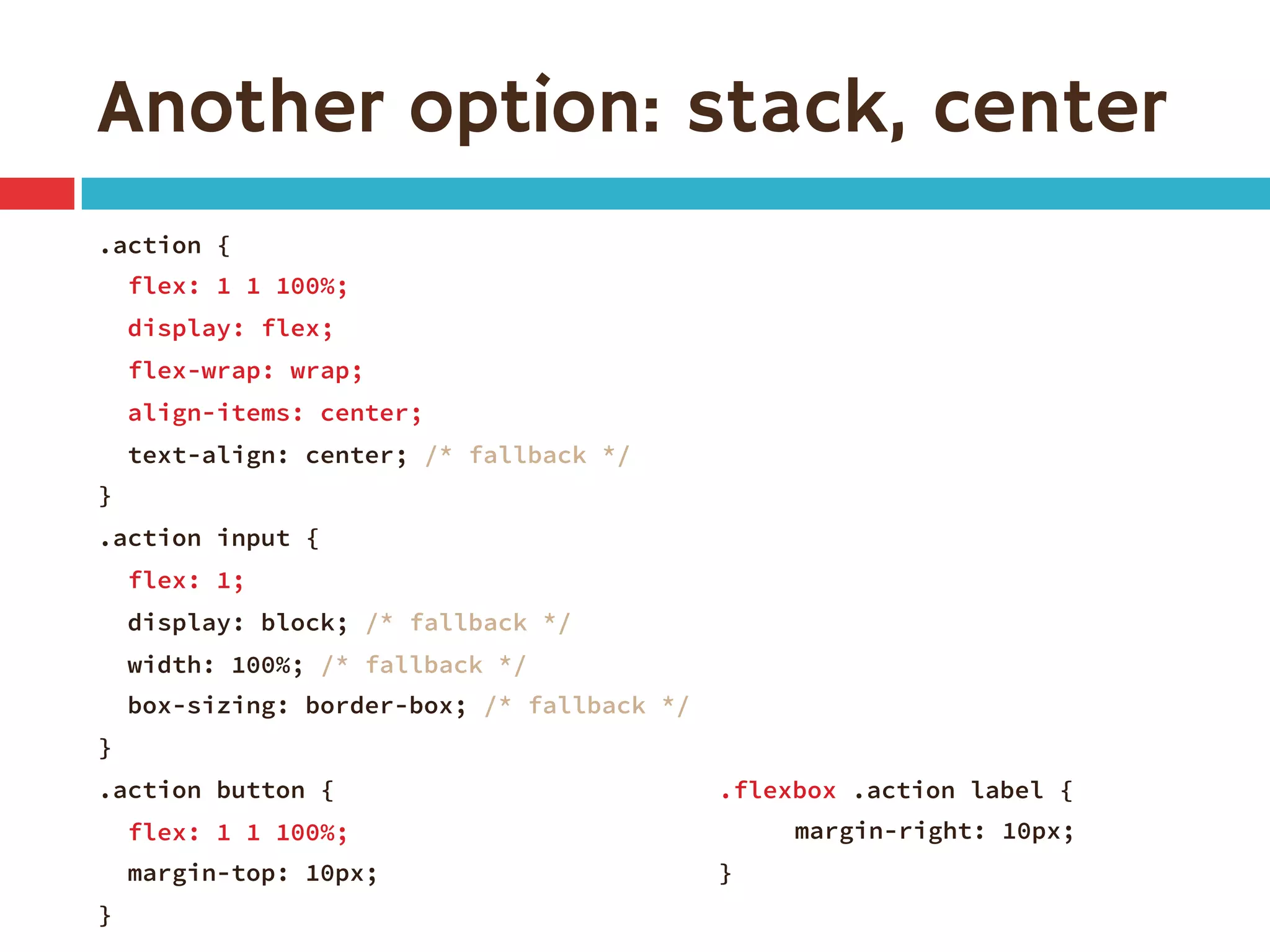
Another option: stack, center
.action {
flex: 1 1 100%;
display: flex;
flex-wrap: wrap;
align-items: center;
text-align: center; /* fallback */
}
.action input {
flex: 1;
display: block; /* fallback */
width: 100%; /* fallback */
box-sizing: border-box; /* fallback */
}
.action button {
flex: 1 1 100%;
margin-top: 10px;
}
.flexbox .action label {

margin-right: 10px;
}
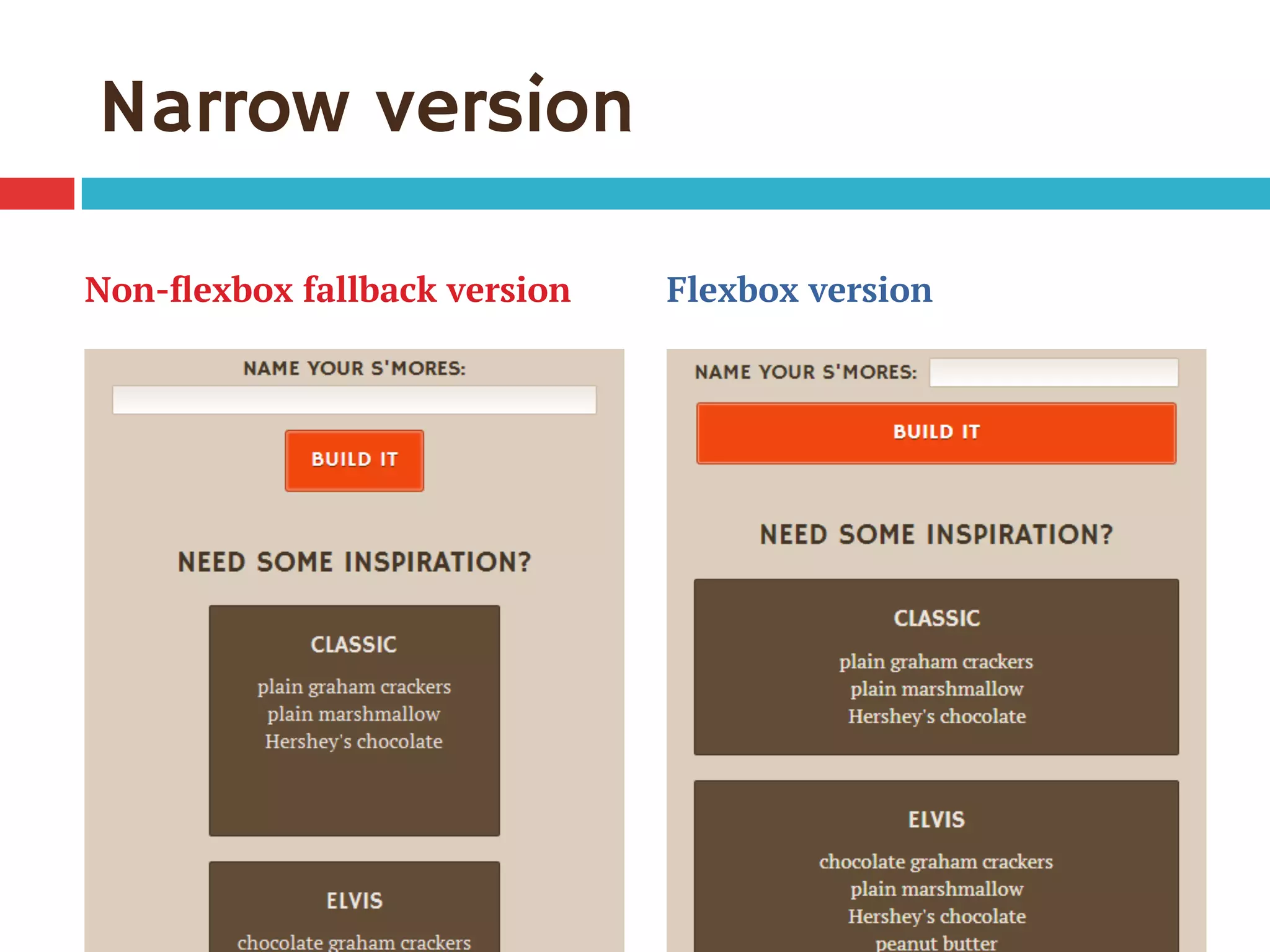
Narrow version
Non-flexbox fallback version Flexbox version
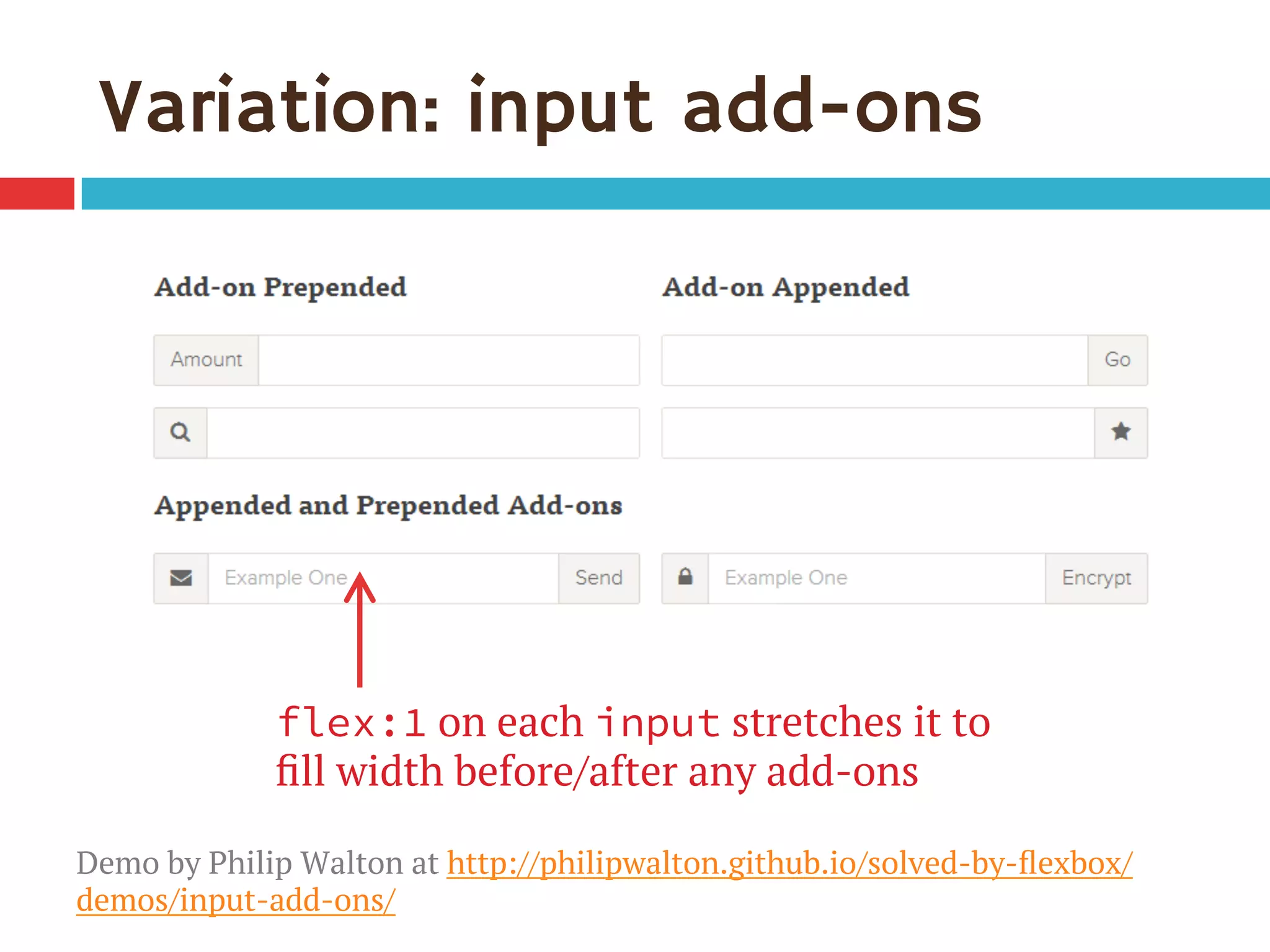
Variation: input add-ons
flex:1 on each input stretches it to
fill width before/after any add-ons
Demo by Philip Walton at http://philipwalton.github.io/solved-by-flexbox/
demos/input-add-ons/
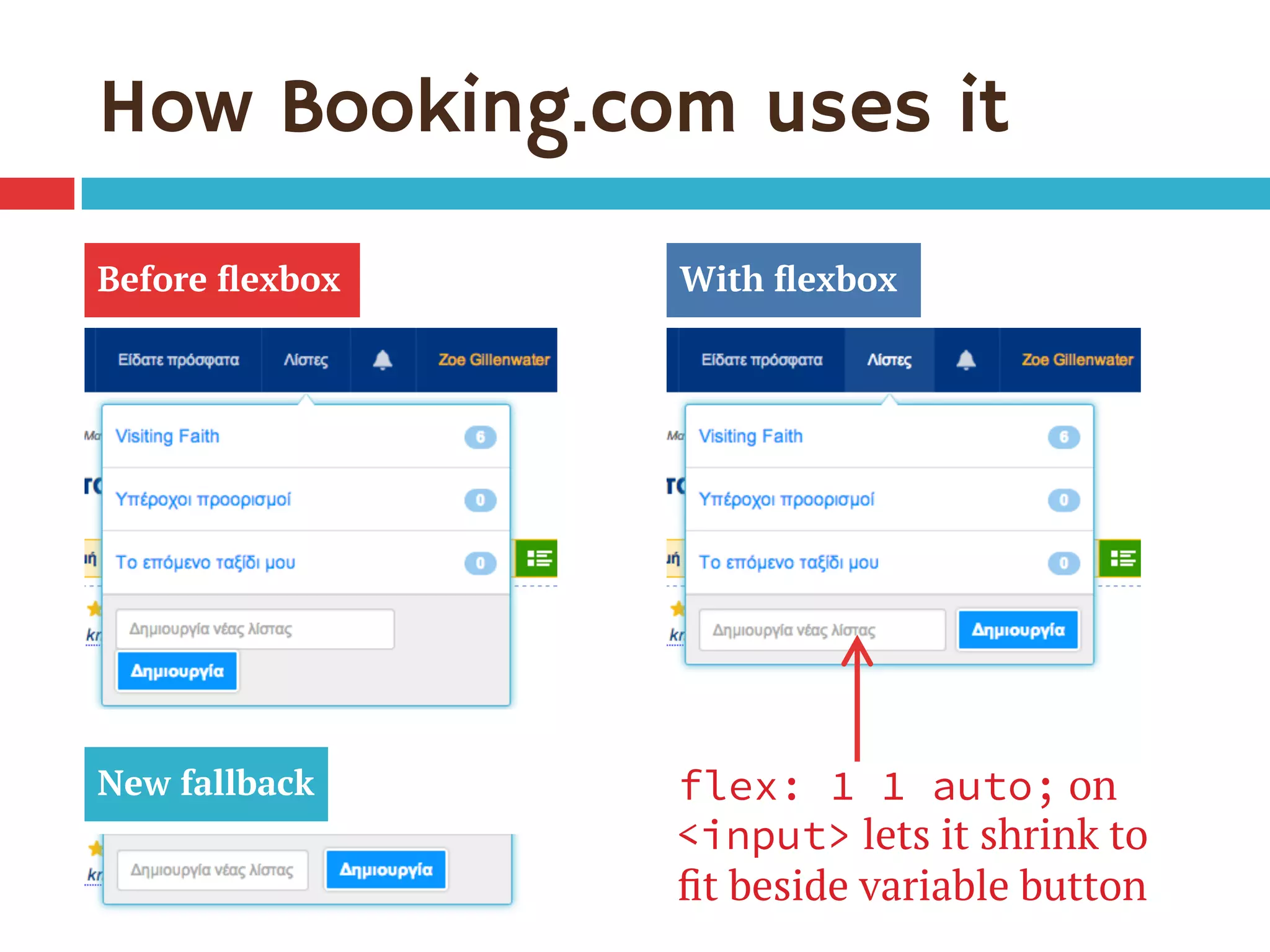
How Booking.com uses it
Before flexbox With flexbox
flex: 1 1 auto; on
<input> lets it shrink to
fit beside variable button
New fallback
Full-width forms
Enhancement idea #3
Remember the pagination?
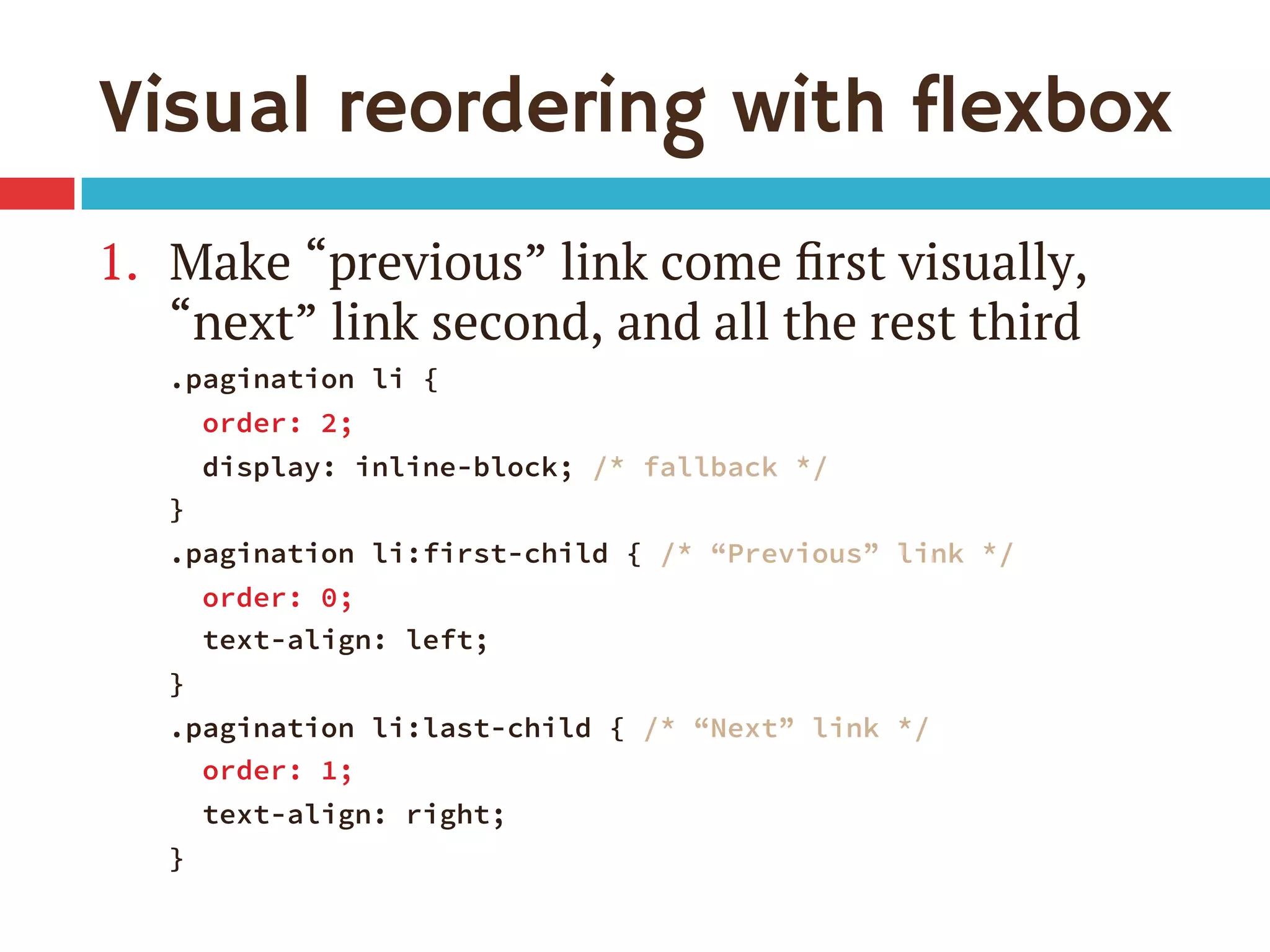
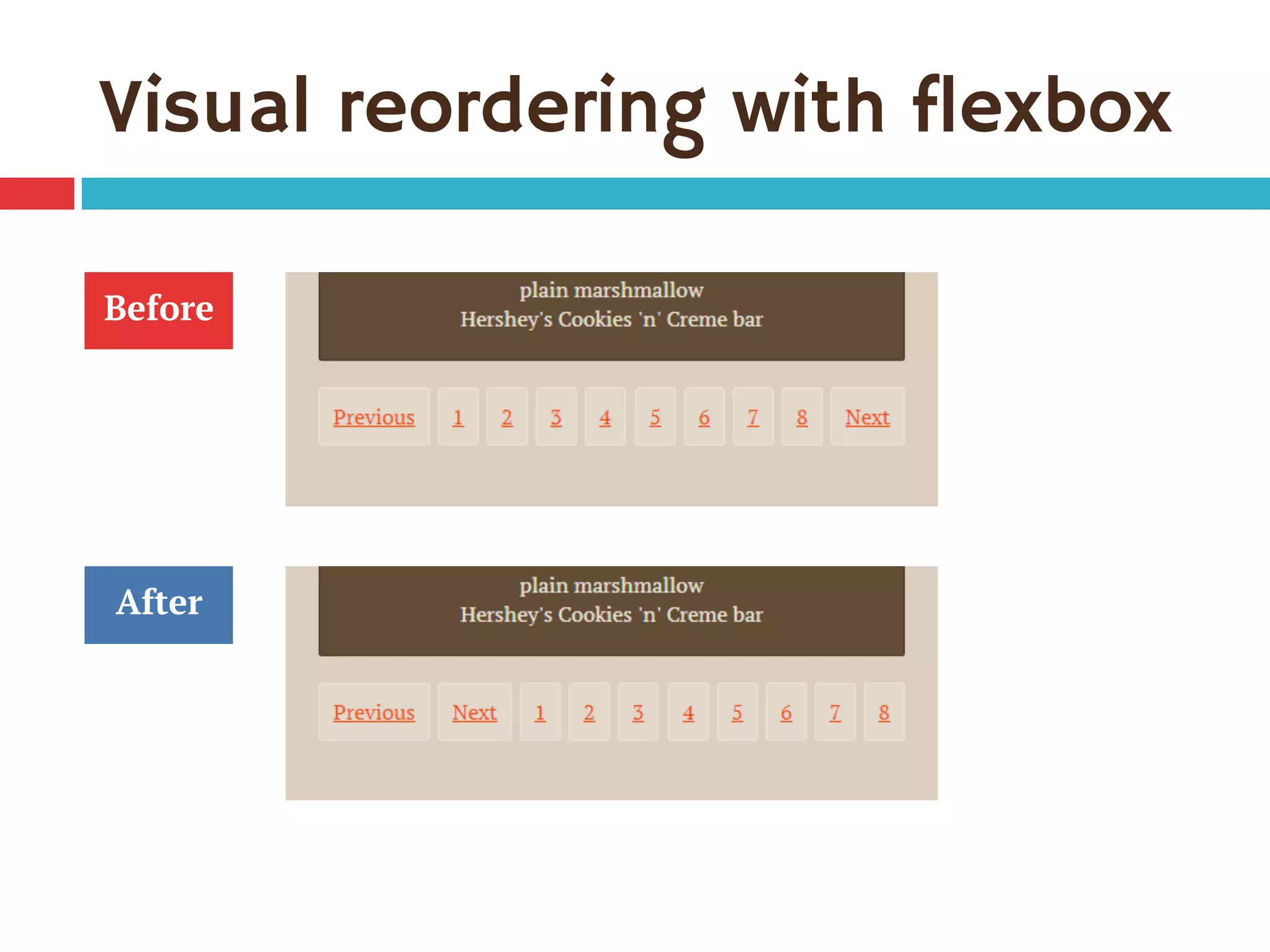
Visual reordering with flexbox
1.  Make “previous” link come first visually,
“next” link second, and all the rest third
.pagination li {
order: 2;
display: inline-block; /* fallback */
}
.pagination li:first-child { /* “Previous” link */
order: 0;
text-align: left;
}
.pagination li:last-child { /* “Next” link */
order: 1;
text-align: right;
}
Visual reordering with flexbox
Before
After
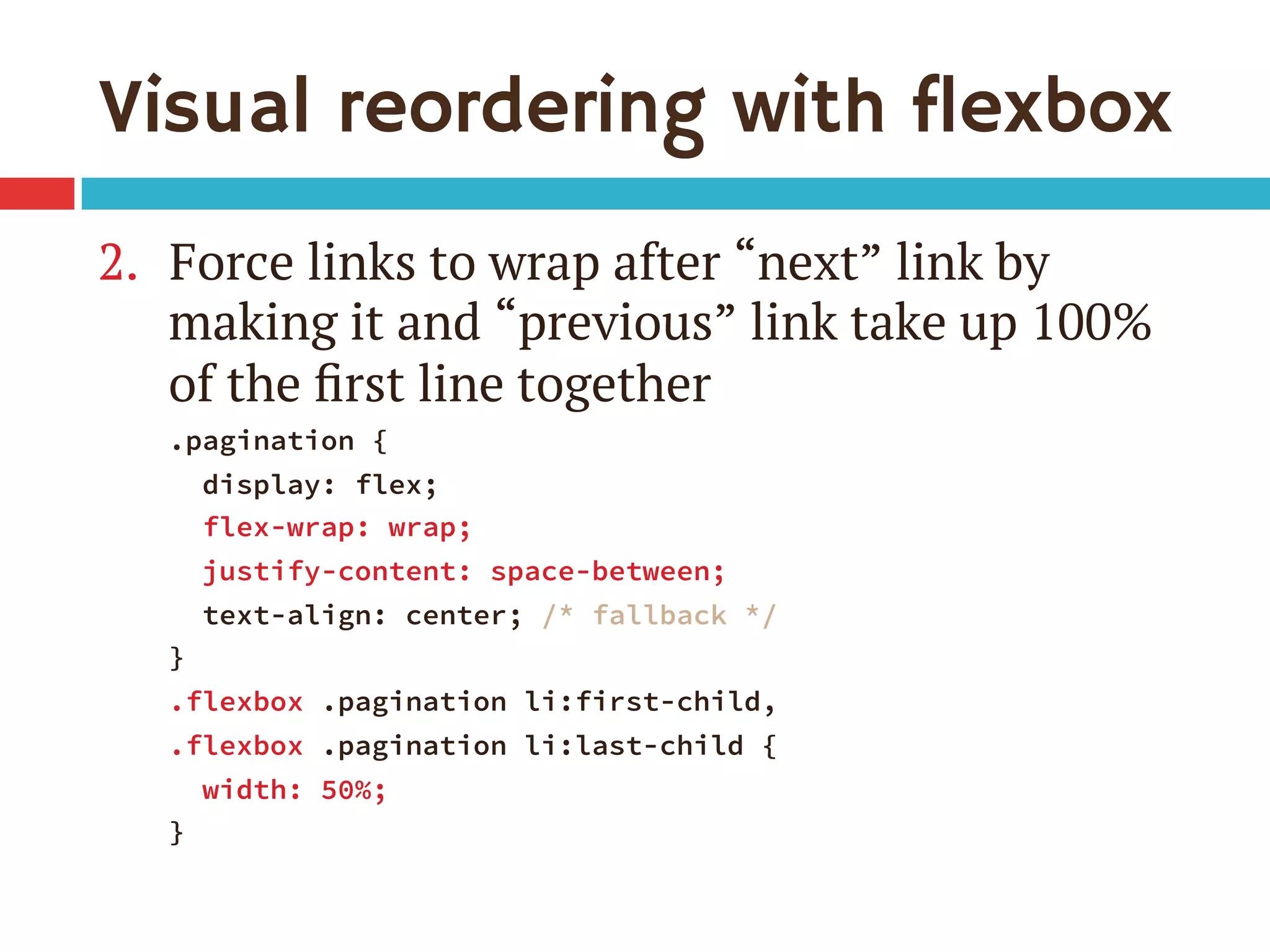
Visual reordering with flexbox
2.  Force links to wrap after “next” link by
making it and “previous” link take up 100%
of the first line together
.pagination {
display: flex;
flex-wrap: wrap;
justify-content: space-between;
text-align: center; /* fallback */
}
.flexbox .pagination li:first-child, 
.flexbox .pagination li:last-child {
width: 50%;
}
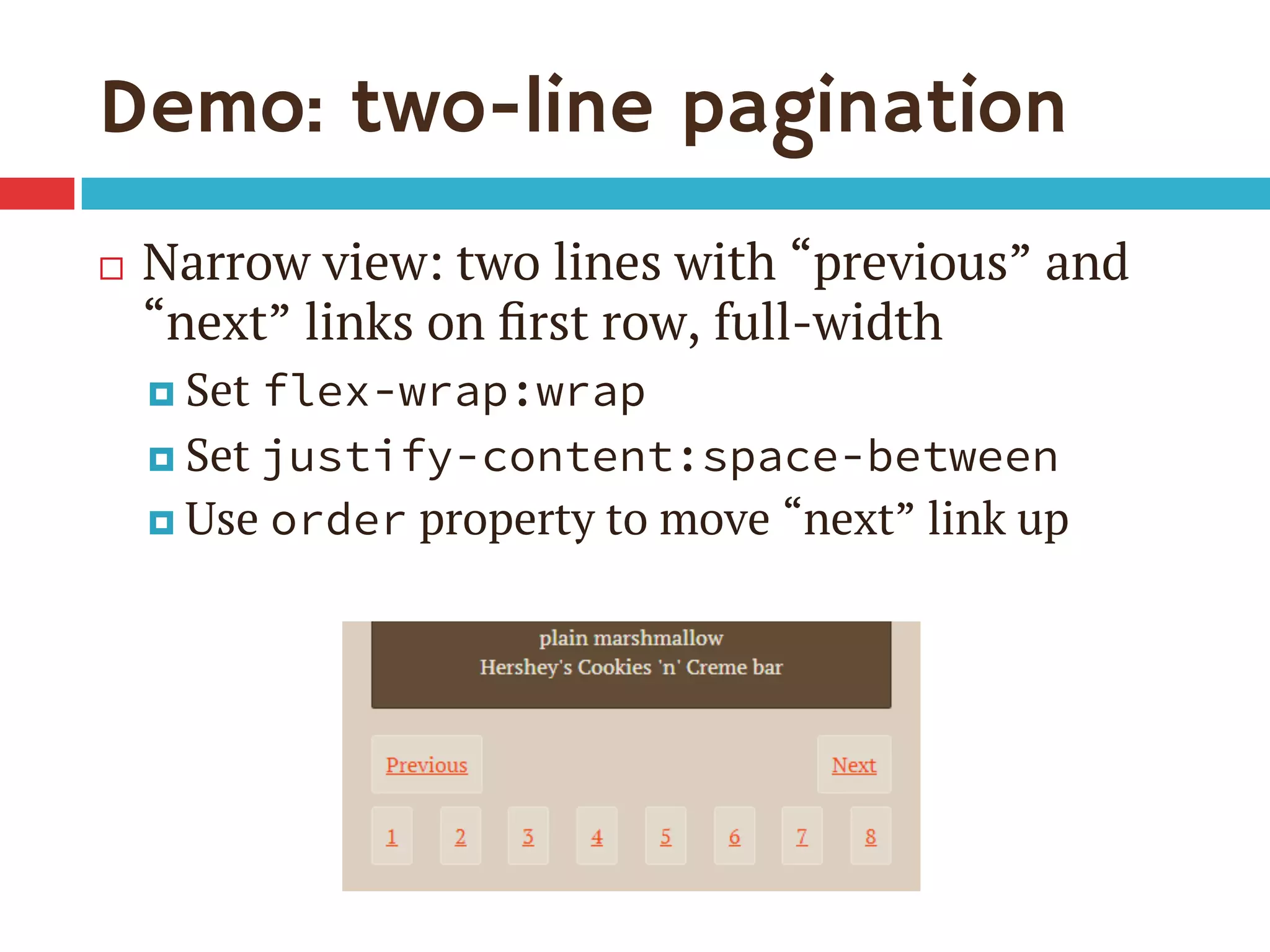
Demo: two-line pagination
¨  Narrow view: two lines with “previous” and
“next” links on first row, full-width
¤  Set flex-wrap:wrap
¤  Set justify-content:space-between
¤  Use order property to move “next” link up
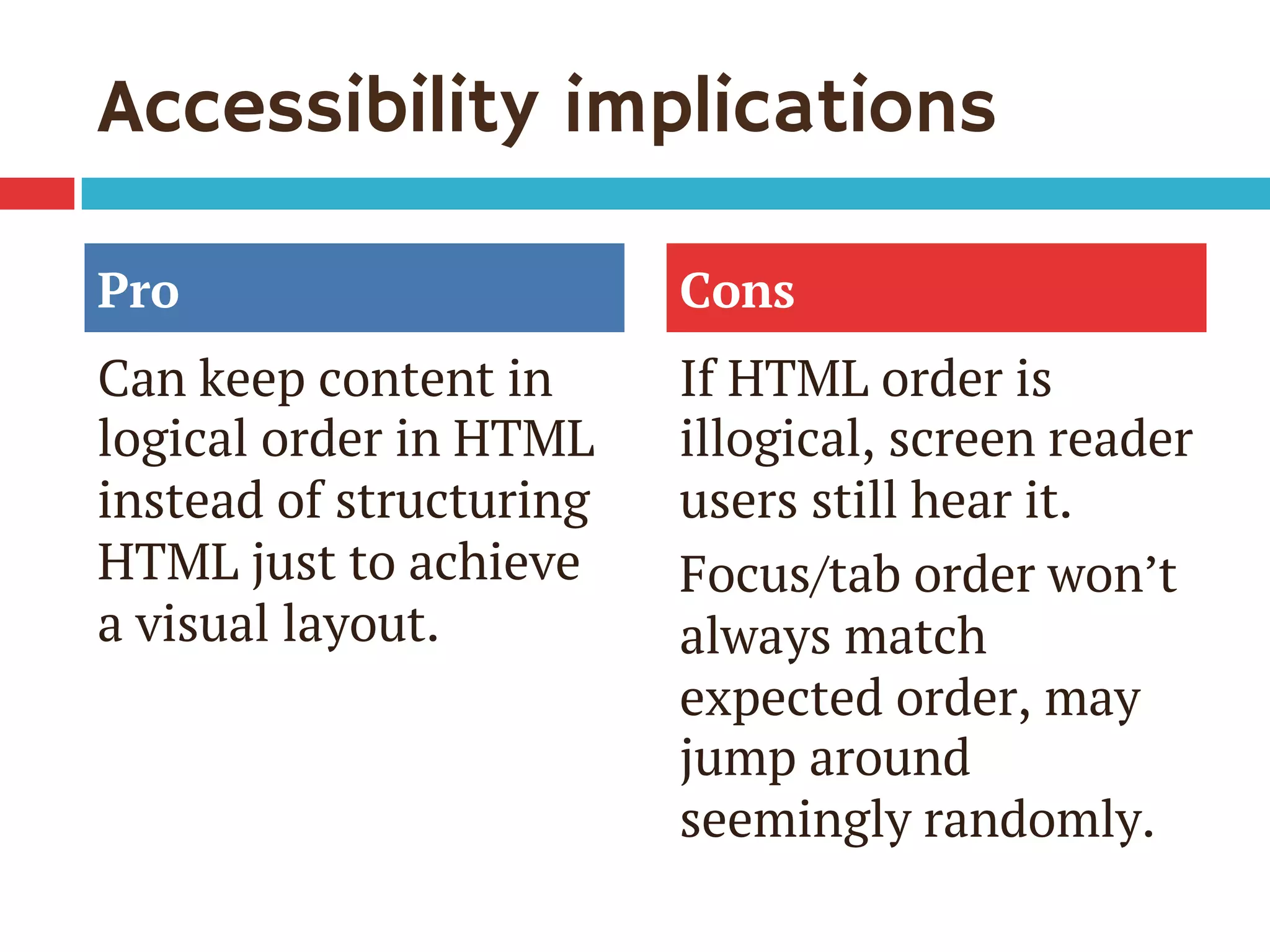
Accessibility implications
Pro
Can keep content in
logical order in HTML
instead of structuring
HTML just to achieve
a visual layout.
Cons
If HTML order is
illogical, screen reader
users still hear it.
Focus/tab order won’t
always match
expected order, may
jump around
seemingly randomly.
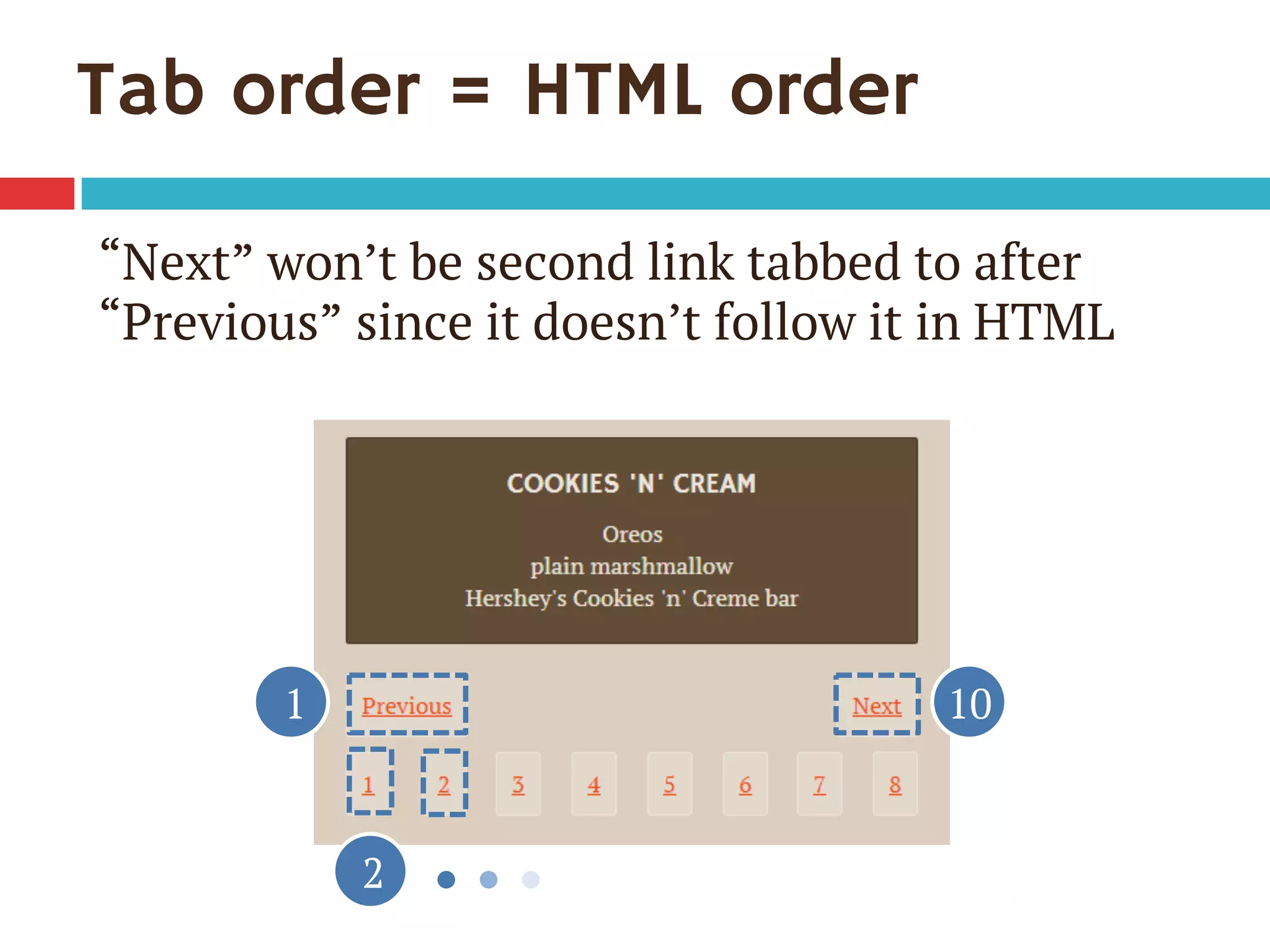
Tab order = HTML order
1
2
10
“Next” won’t be second link tabbed to after
“Previous” since it doesn’t follow it in HTML
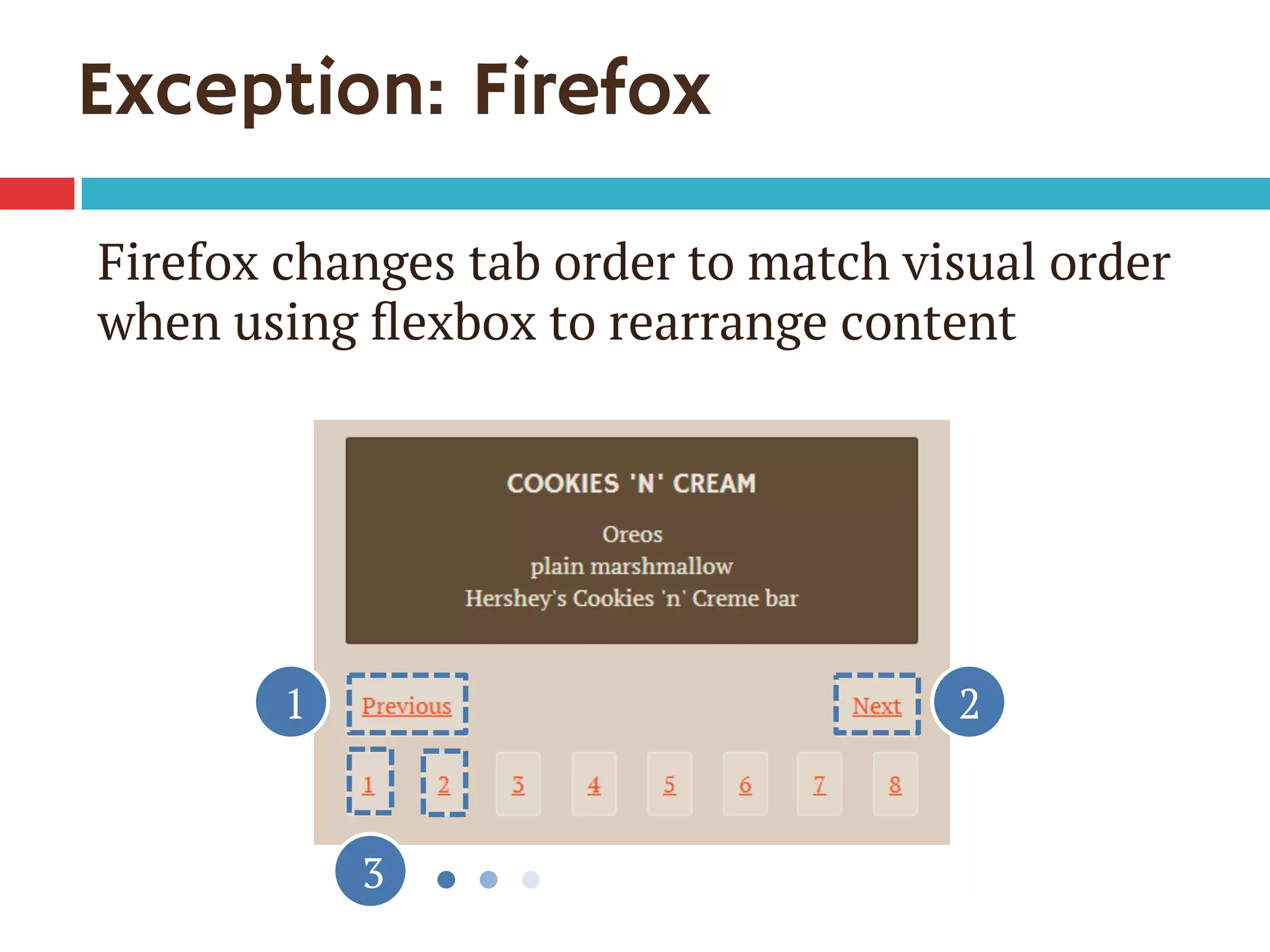
Exception: Firefox
1
3
2
Firefox changes tab order to match visual order
when using flexbox to rearrange content
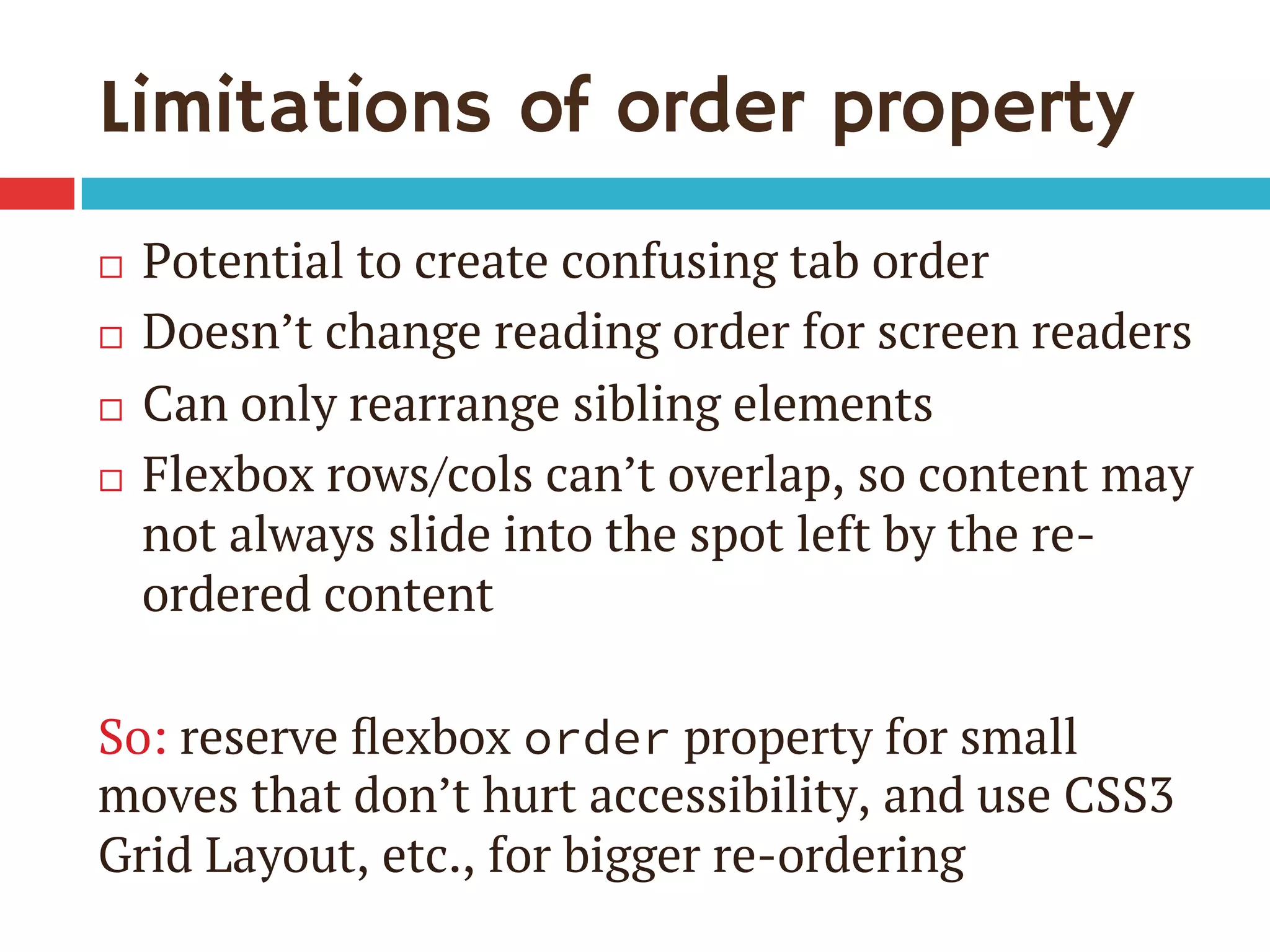
Limitations of order property
¨  Potential to create confusing tab order
¨  Doesn’t change reading order for screen readers
¨  Can only rearrange sibling elements
¨  Flexbox rows/cols can’t overlap, so content may
not always slide into the spot left by the re-
ordered content
So: reserve flexbox order property for small
moves that don’t hurt accessibility, and use CSS3
Grid Layout, etc., for bigger re-ordering
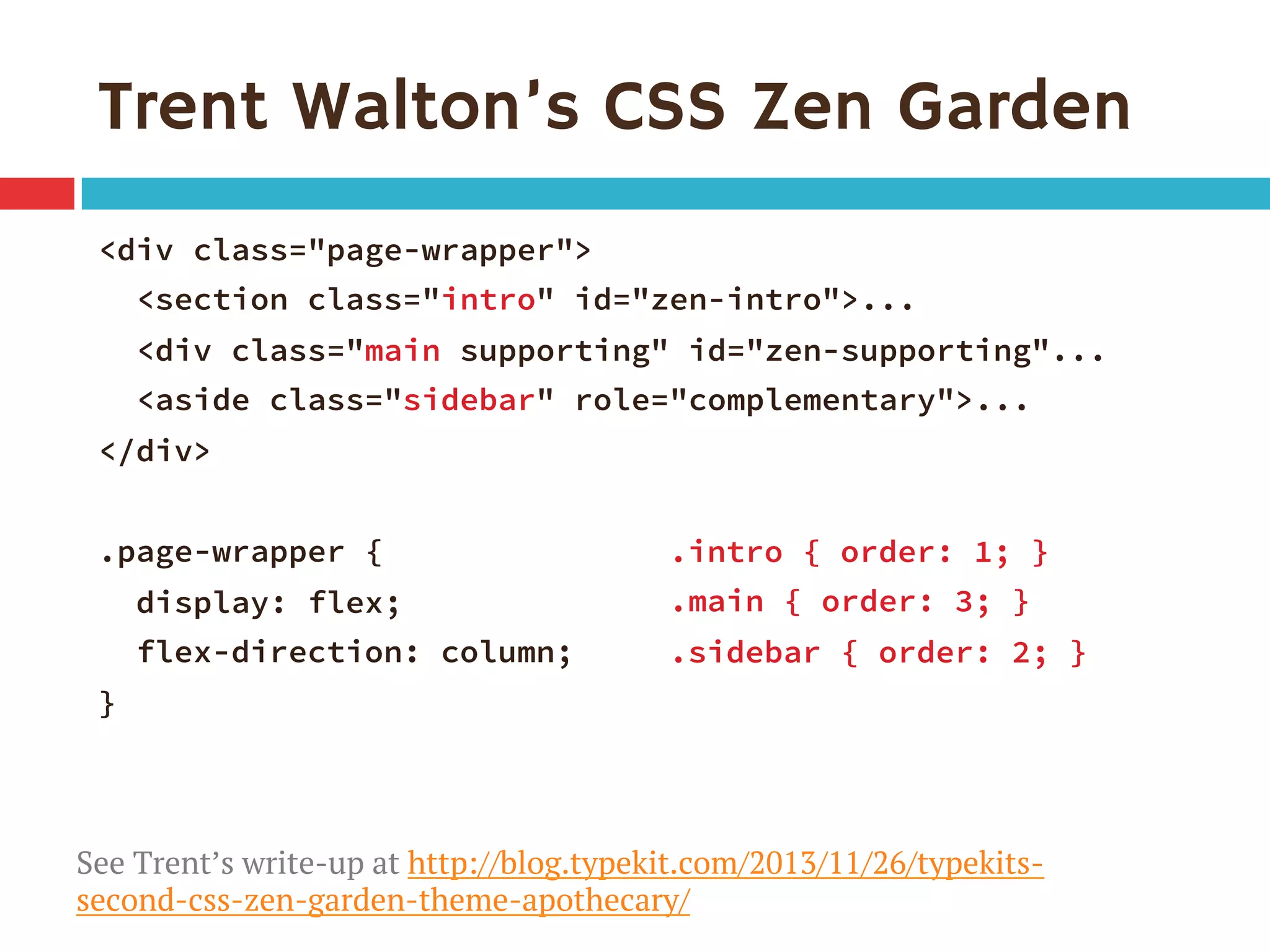
Trent Walton’s CSS Zen Garden
<div class="page-wrapper">
<section class="intro" id="zen-intro">...
<div class="main supporting" id="zen-supporting"...
<aside class="sidebar" role="complementary">...
</div>

.page-wrapper {
display: flex;
flex-direction: column;
}
.intro { order: 1; }
.main { order: 3; }
.sidebar { order: 2; }
See Trent’s write-up at http://blog.typekit.com/2013/11/26/typekits-
second-css-zen-garden-theme-apothecary/
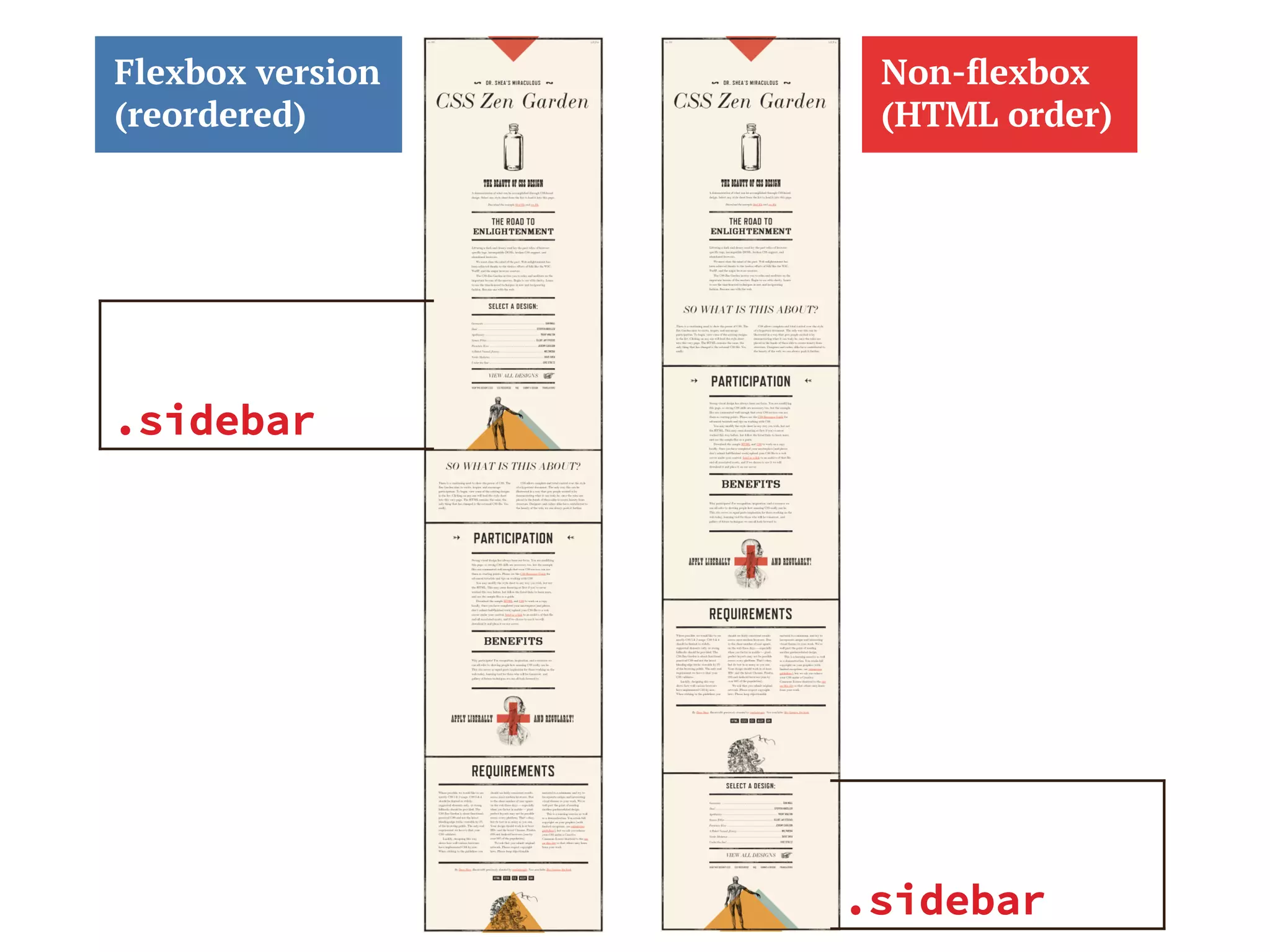
Non-flexbox
(HTML order)
Flexbox version
(reordered)
.sidebar
.sidebar
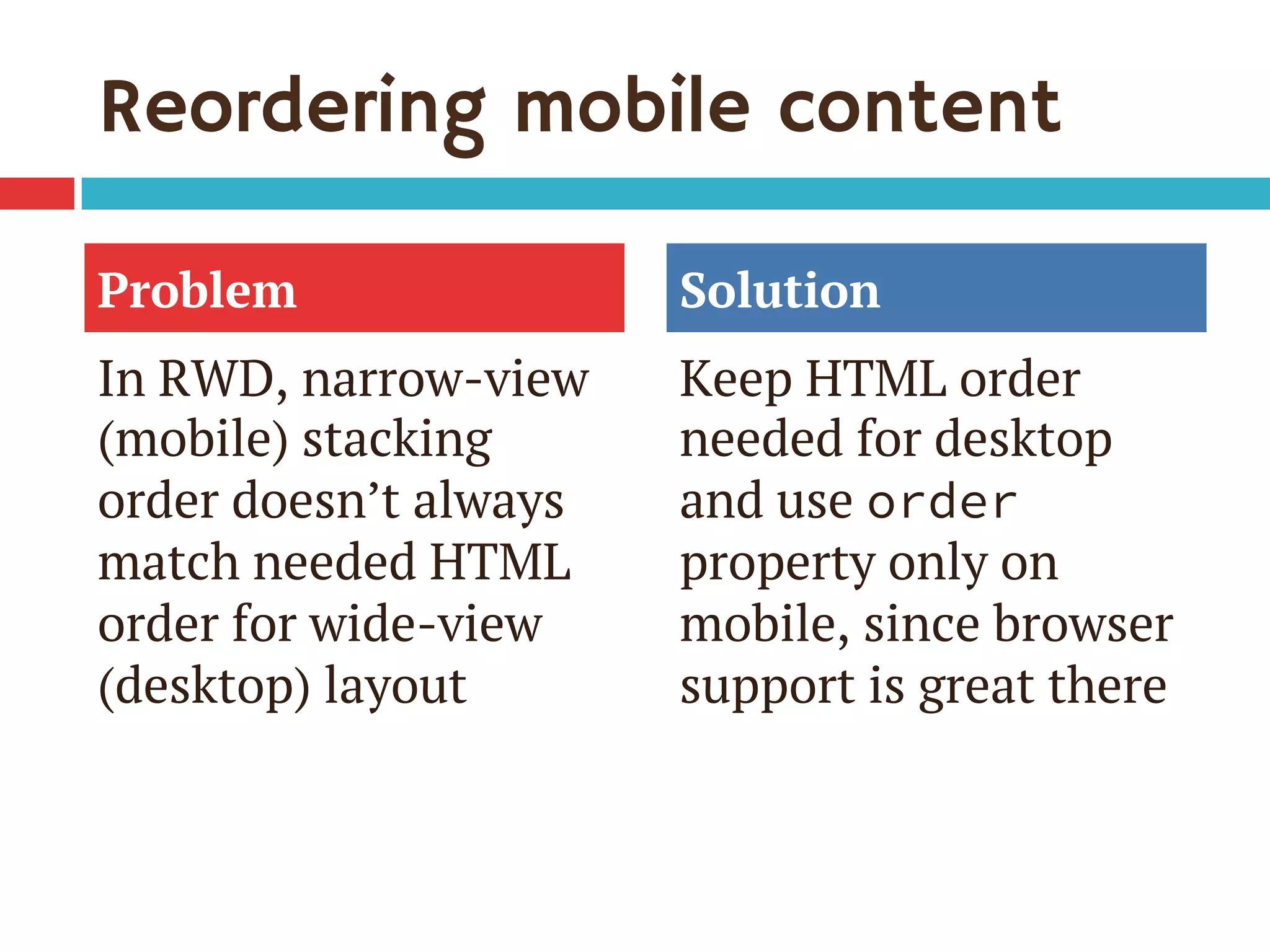
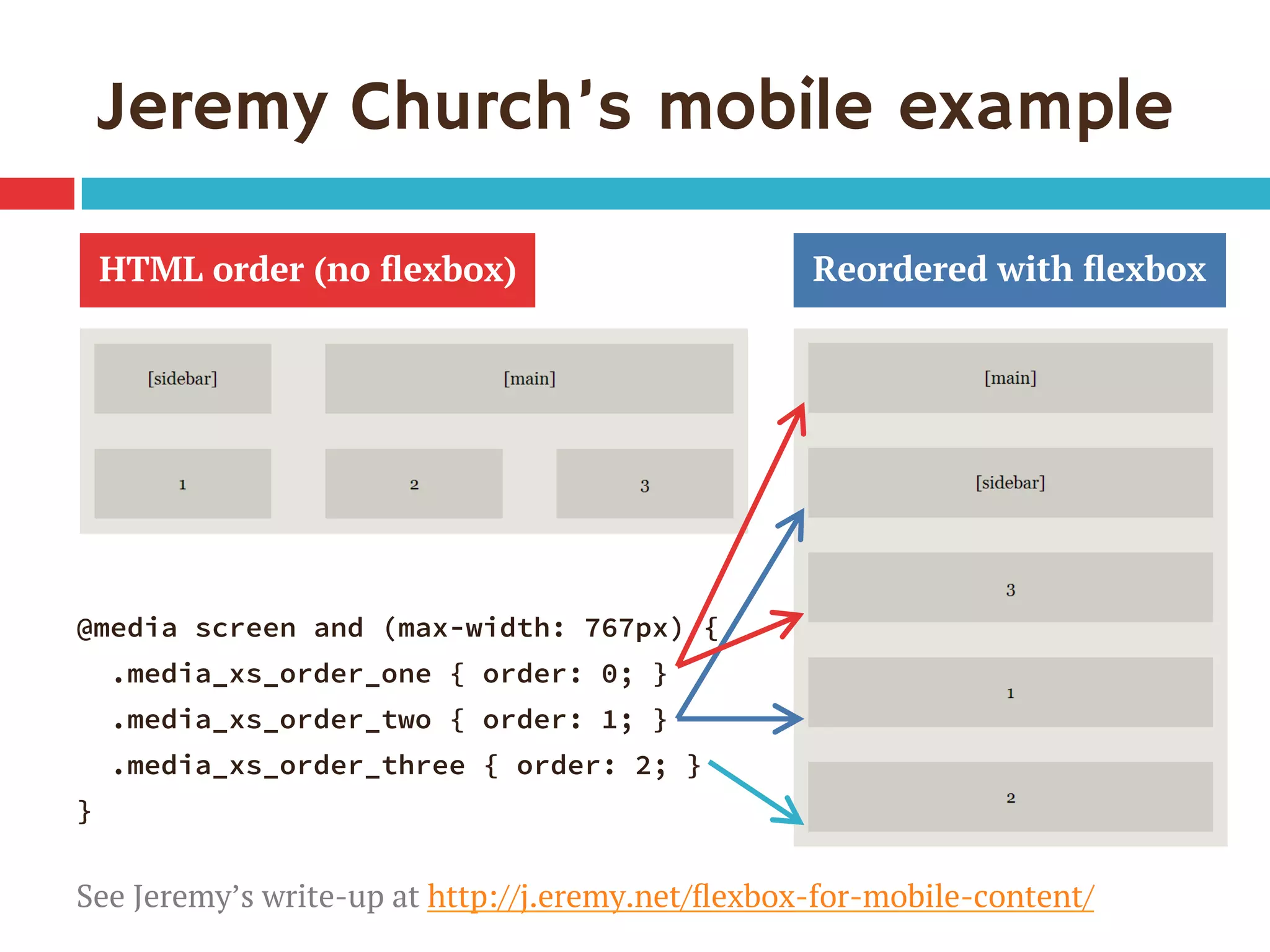
Reordering mobile content
In RWD, narrow-view
(mobile) stacking
order doesn’t always
match needed HTML
order for wide-view
(desktop) layout
Keep HTML order
needed for desktop
and use order
property only on
mobile, since browser
support is great there
Problem Solution
Jeremy Church’s mobile example
@media screen and (max-width: 767px) {
.media_xs_order_one { order: 0; }
.media_xs_order_two { order: 1; }
.media_xs_order_three { order: 2; }
}
See Jeremy’s write-up at http://j.eremy.net/flexbox-for-mobile-content/
HTML order (no flexbox) Reordered with flexbox
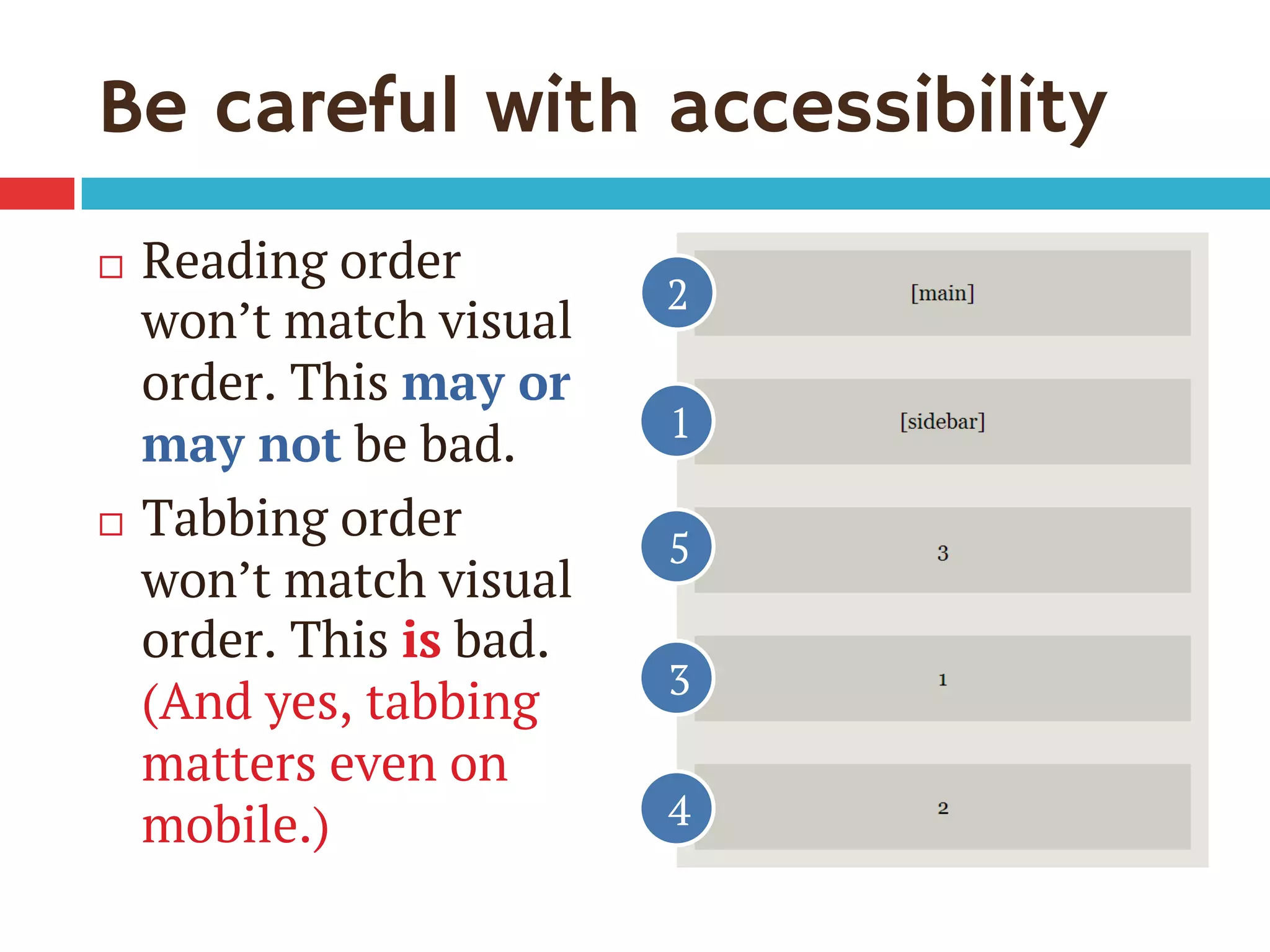
Be careful with accessibility
¨  Reading order
won’t match visual
order. This may or
may not be bad.
¨  Tabbing order
won’t match visual
order. This is bad.
(And yes, tabbing
matters even on
mobile.)
1
3
2
4
5
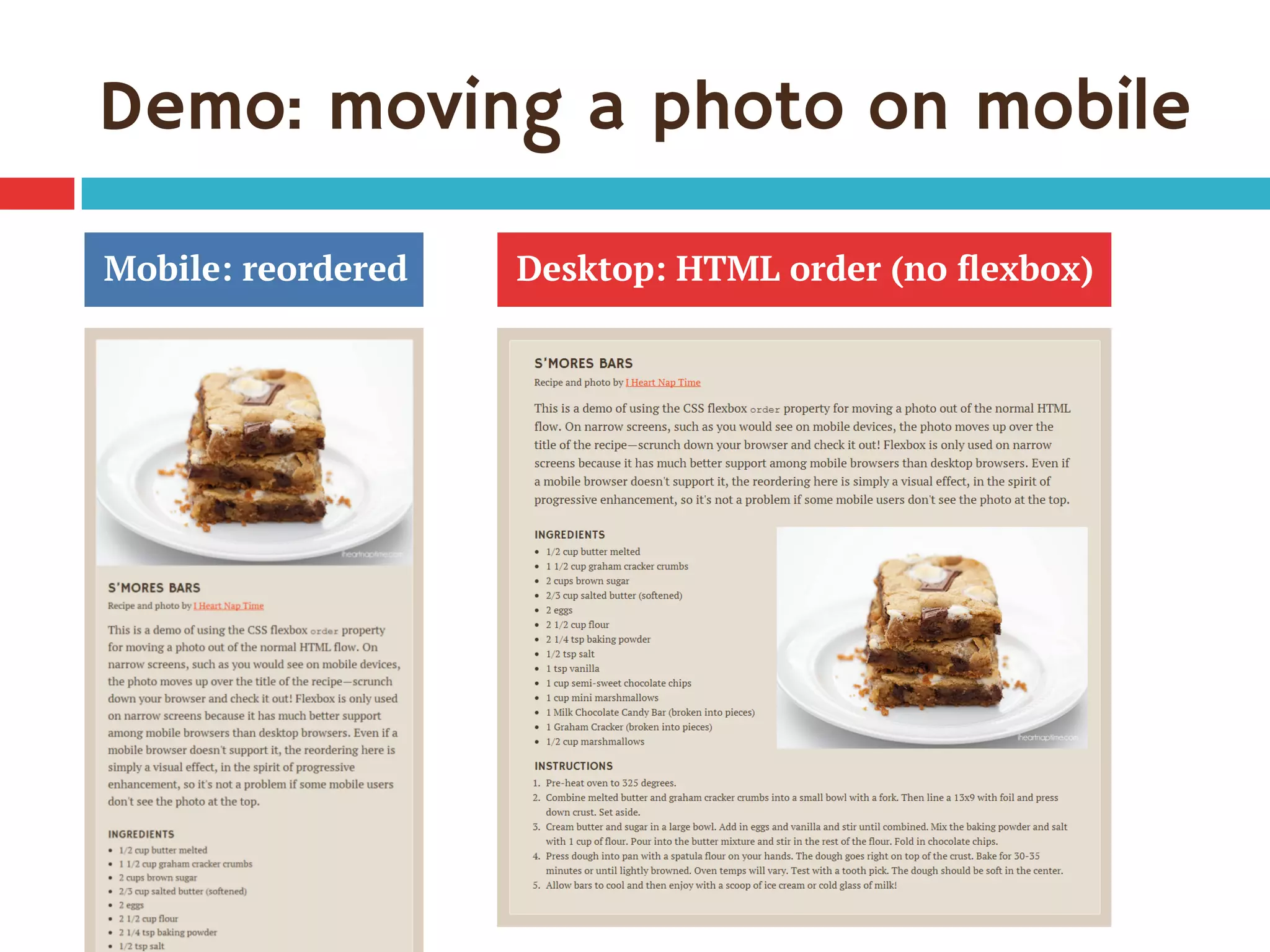
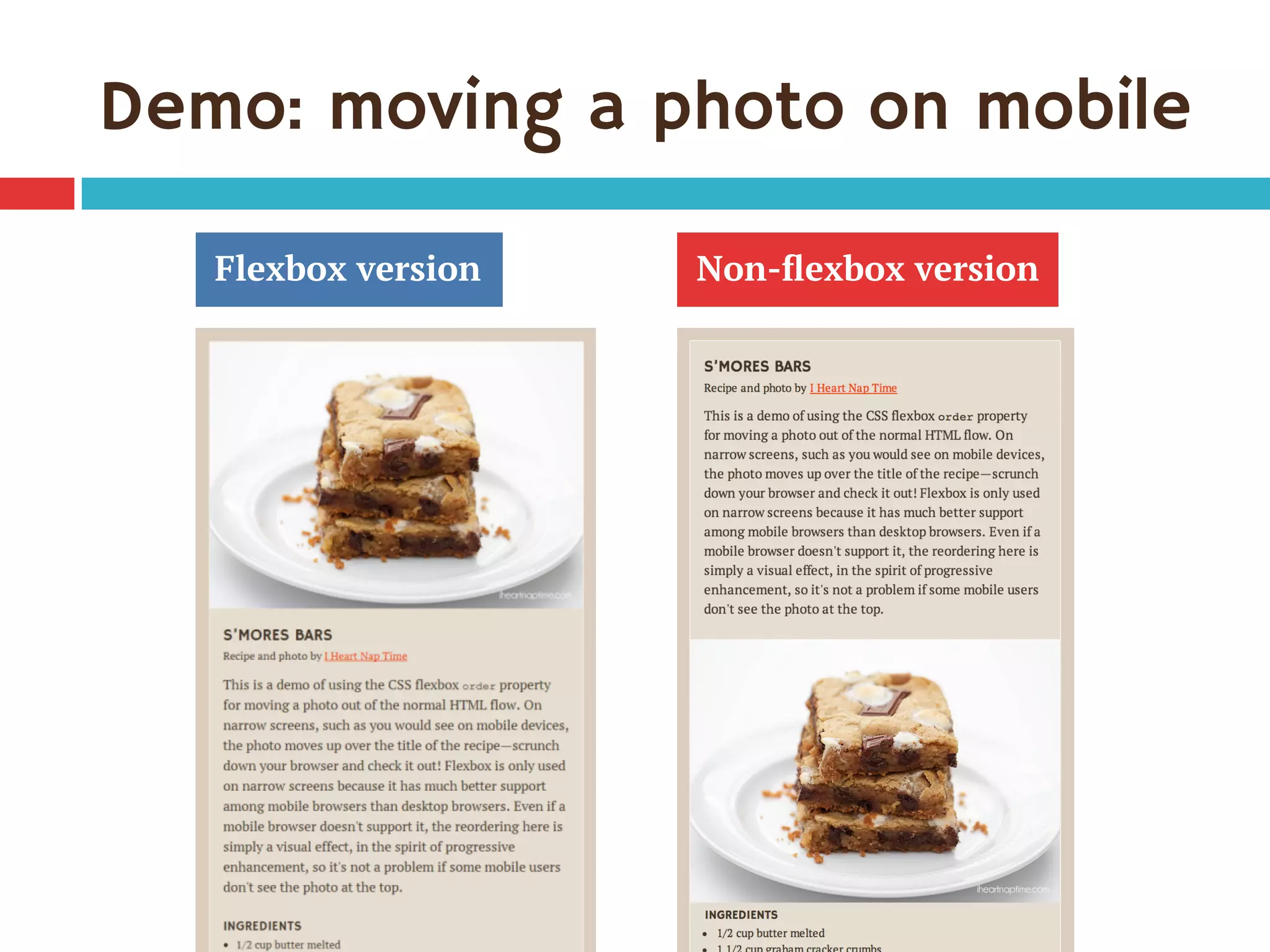
Demo: moving a photo on mobile
Desktop: HTML order (no flexbox)Mobile: reordered
Use “order” in mobile styles
.recipe {
display: flex;
flex-direction: column;
}
.recipe figure {
order: -1; /* before all items with default
order: 0 */
}
.recipe figure img {
width: 100%;
}
Inspired by Jonathan Cutrell’s example at http://webdesign.tutsplus.com/
tutorials/tricks-with-flexbox-for-better-css-patterns--cms-19449
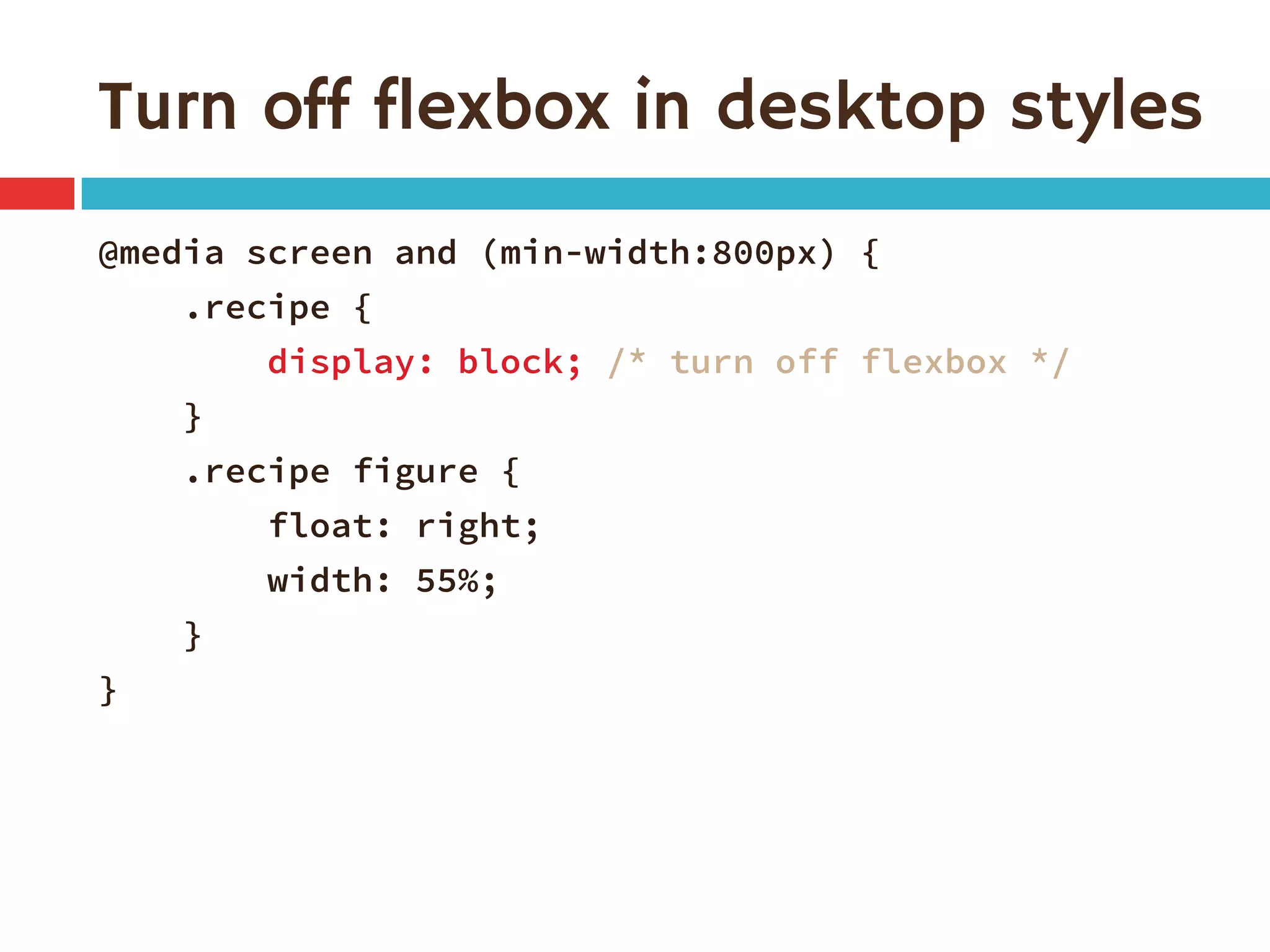
Turn off flexbox in desktop styles
@media screen and (min-width:800px) {
.recipe {
display: block; /* turn off flexbox */
}
.recipe figure {
float: right;
width: 55%;
}
}
Demo: moving a photo on mobile
Flexbox version Non-flexbox version
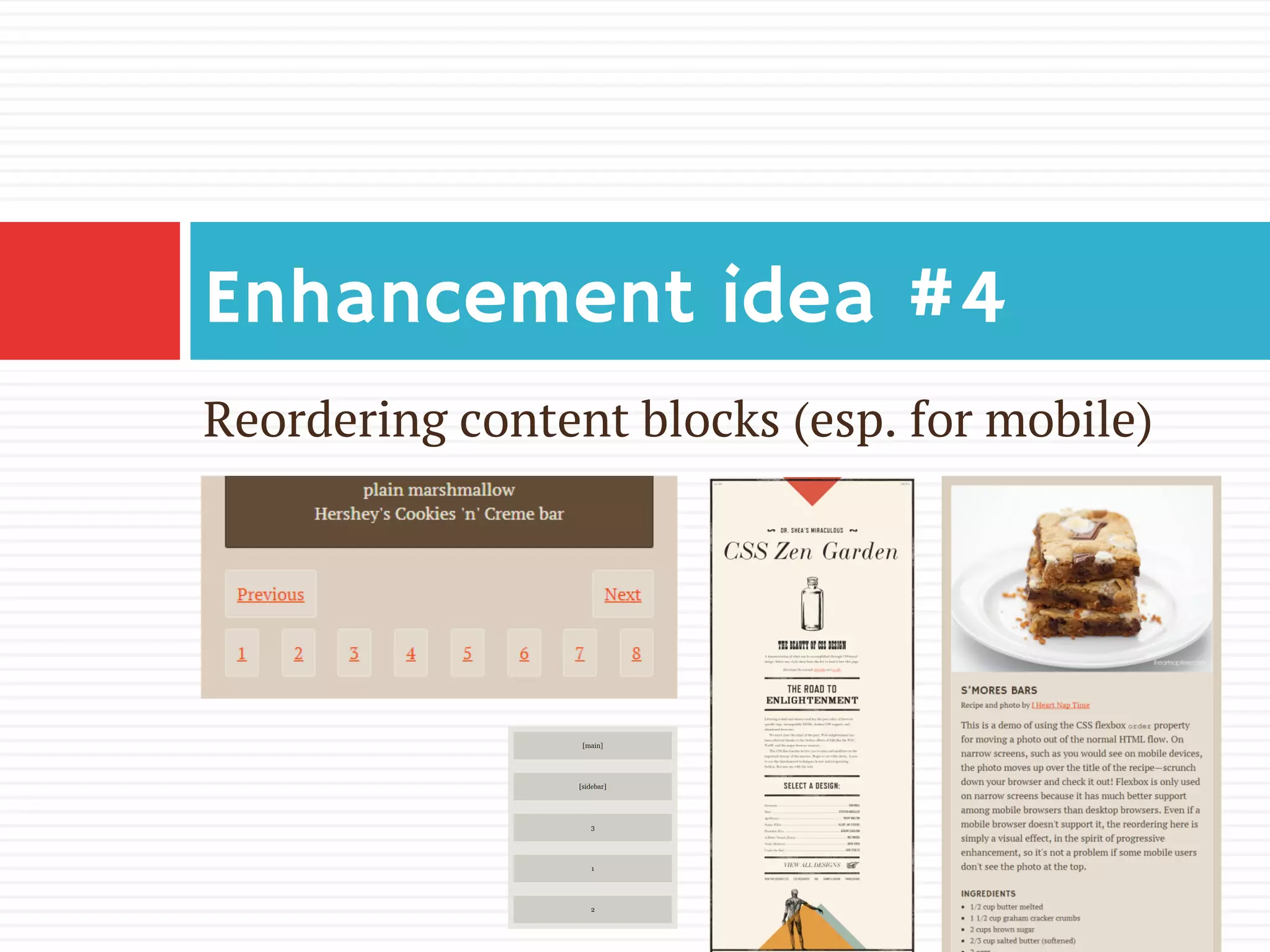
Reordering content blocks (esp. for mobile)
Enhancement idea #4
Flexbox enhancement ideas
¨  Equally spaced items across full-width/height
¨  Pinned items
¨  Full-width forms
¨  Reordering content blocks
Let your design appear different
in different browsers, and start
using flexbox.
ABRAHAM LINCOLN
Learn more
Download slides and get links at
www.zomigi.com/blog/leveling-up-with-flexbox
Thanks!
Zoe Mickley Gillenwater
@zomigi
design@zomigi.com
zomigi.com | stunningcss3.com | flexiblewebbook.com
Credit: “S’more” photo by Christopher Penn on Flickr. Looks like that man really knows how to make a good s’mores!

Leveling Up with Flexbox (Smashing Conference)

  • 1.
    FLEXBOX Zoe Mickley Gillenwater@zomigiSmashingConf March 2014 LEVELING UP WITH
  • 2.
  • 3.
    Author Stunning CSS3: A Project-basedGuide to the Latest in CSS www.stunningcss3.com Flexible Web Design: Creating Liquid and Elastic Layouts with CSS www.flexiblewebbook.com
  • 4.
    Speaker why how “That’s cool!But I can’t use it because XYZ doesn’t support it. Maybe someday.” “It’s OK if stuff doesn’t look the same everywhere. I’m just going to feed XYZ simpler styles.”
  • 5.
    Denial: “No oneuses IE 8 any more.” Anger: “How can #*!% IE not support this?!” Bargaining: “If I use this script, it will almost be the same in IE, right?” Depression: “I’ll never be able to make anything cool because of IE.” Acceptance: “It’s OK if things look different in old IE.” The Old IE Acceptance Cycle
  • 6.
    It doesn’t needto be in the “can’t use it yet” pile anymore. Use flexbox now on small page components as progressive enhancement. You can use flexbox now
  • 7.
    The CSS FlexibleBox Layout Module (www.w3.org/TR/css3-flexbox/) has been a Candidate Recommendation since September 2012. Syntax is solid
  • 8.
    v.10+ 2009 syntax (display:box) 2011 syntax (display:flexbox) Currentsyntax (display:flex) v.10 Browser support is good *with -webkit- prefix † with -ms- prefix v.6+ * † * v.3+ * v.4.4v.11 * v.7+ *
  • 9.
    Keeping track ofvariants ¨  Flexy Boxes code generator shows old and new syntaxes: www.the-echoplex.net/flexyboxes/ ¨  Let Sass or LESS do it for you, for instance: ¤  https://github.com/mastastealth/sass-flex-mixin ¤  https://gist.github.com/cimmanon/4461470 ¨  Let Autoprefixer library do it for you: https://github.com/ai/autoprefixer
  • 10.
    But for thesake of readability, I’m omitting them from the code samples on these slides. You can see them in the live demo. Use the variants you want.
  • 11.
    Summary: setting thestage 1.  Create flex container using display:flex, children become flex items 2.  Set its flex-direction to control orientation (horizontal or vertical) 3.  Set its flex-wrap to control whether and in which direction to wrap (Or, set flex-flow as shorthand for flex- direction and flex-wrap)
  • 12.
    Problems with flex-wrap ¨ Firefox before version 28 didn’t support it ¨  No browser supports 2009 equivalent box- lines property ¨  Limited control of where breaks occur without support for break-before/break-after properties (only IE 10+ and Opera support them)
  • 13.
    Demo site: www.smoresday.us Use Chrome,Opera, Firefox 28, or IE 11 for full effect (Zoe really loves s’mores)
  • 14.
    Demo: horizontal navigation Withoutflexbox: .list-nav { margin: 0; padding: 0; list-style: none; text-align: center; } .list-nav li { display: inline-block; padding: 0 .5em; text-align: center; } Before After
  • 15.
    Demo: horizontal navigation 1. Turn <ul> into flex container: .list-nav { display: flex; flex-direction: row; /* default */ ... } 2.  Children <li> become flex items laid out on single horizontal line
  • 16.
  • 17.
    Making it full-width ¨ Requirements: ¤  All links on same line ¤  First link flush left, last link flush right ¤  Equal spaces between all links ¨  Using display:table-cell can do full- width but not equal spaces
  • 18.
  • 19.
    Nav with flexbox .list-nav{ display: flex; justify-content: space-between; margin: 0; padding: 0; list-style: none; } .list-nav li { text-align: center; }
  • 20.
    justify-content aligns flex itemsalong main axis space-around flex-end center flex-start (default) space-between
  • 21.
    Combine with inline-block .list-nav{ display: flex; justify-content: space-between; margin: 0; padding: 0; list-style: none; text-align: center; /* fallback */ } .list-nav li { display: inline-block; /* fallback */ padding: 0 .5em; /* fallback */ text-align: center; } .list-nav li:first-child { padding-left: 0; } .list-nav li:last-child { padding-right: 0; }
  • 22.
  • 23.
    Variation: pagination ¨  Wideview: all links on same line, centered ¤  Set justify-content:center ¨  Medium view: all links on same line, full- width, equal spacing ¤  Set justify-content:space-between
  • 24.
  • 25.
    Demo: stacked icons 1. Turn .wrapper into flex container: .wrapper { display: flex; align-items: stretch; /* default */ } 2.  Children .icons and .content become side- by-side, equal-height flex items
  • 26.
    align-items aligns flex itemsin cross axis flex-start flex-end center baseline stretch (default) foo   foo   foo  
  • 27.
    Demo: stacked icons 3. Turn .icons into flex container with equally spaced, vertically stacked children: .icons { display: flex; flex-direction: column; justify-content: space-between; }
  • 28.
  • 29.
    Combine with table-cell .wrapper{ display: table; /* fallback */ display: flex; } .icons { display: table-cell; /* fallback */ vertical-align: middle; /* fallback */ display: flex; flex-direction: column; justify-content: space-between; } .content { display: table-cell; /* fallback */ vertical-align: top; /* fallback */ flex: 1 0 0px; }
  • 30.
    Combine with float .wrapper{ display: flex; } .icons { float: left; /* fallback */ position: relative; /* fix for old WebKit bug w/ floated flex items */ width: 40px; display: flex; flex-direction: column; justify-content: space-between; } .content { flex: 1 0 0px; } .no-flexbox .content { margin-left: 60px; /* fallback */ }
  • 31.
    Add Modernizr asneeded ¨  Flexbox and fallback styles can often co-exist, but sometimes need to isolate them ¨  Modernizr can add flexbox, no-flexbox, and flexboxlegacy classes to do this ¨  Example: add margin between icons and content only if flexbox is off and floating on: .no-flexbox .content { margin-left: 60px; }
  • 32.
  • 33.
    Equally spaced itemsacross full-width/height Enhancement idea #1
  • 34.
    Demo: sticky footer Nocontent here, but footer stays at bottom of window anyway Demo by Philip Walton at http://philipwalton.github.io/solved-by-flexbox/ demos/sticky-footer/
  • 35.
    Demo: sticky footer <bodyclass="Site"> <header>...</header> <main class="Site-content">...</main> <footer>...</footer> </body> .Site { display: flex; min-height: 100vh; flex-direction: column; } .Site-content { flex: 1; } HTML and CSS by Philip Walton
  • 36.
    This is whereflexbox gets flexible. And kinda confusing. The flex property
  • 37.
    Defining the flexproperty ¨  Makes flex items change their width or height (whichever is dimension along main axis) to fit available space ¨  Shorthand for 3 properties: ¤  flex-grow ¤  flex-shrink ¤  flex-basis
  • 38.
    Defining the flexproperty flex-grow how much flex item will grow relative to other items if extra space is available (proportion of extra space that it gets) flex-shrink how much item will shrink relative to others if there is not enough space (proportion of overflow that gets shaved off) flex-basis the initial starting size before free space is distributed (any standard width/height value, including auto)
  • 39.
    Breaking it down .gallery-item{ flex: 1 0 200px; } flex-grow = 1 give each item 1 share of extra width flex-shrink = 0 don’t let items shrink at all flex-basis = 200px start items at 200 pixels wide
  • 40.
    Single-digit flex values ¨ Common to see flex: 1 in demos ¨  flex: [number] is equivalent to flex: [number] 1 0px ¨  Be sure you really want flex-basis to be 0 ¤  When wrap on, essentially min-width ¤  0px therefore means items can shrink to 0px ¤  If everything can get down to 0px, nothing ever has a reason to wrap
  • 41.
    Single-digit flex values Zoe’sBrain Said: “Since .action starts out at 100%, it won’t have space to sit on the first line with the content preceding it, and will wrap to a second line.” .component { flex: 1; } .action { flex: 1 1 100%; } The expected outcome:
  • 42.
  • 43.
    What was reallyhappening Reality: Since it’s fine for each .component to shrink to only 0px wide, a 100% wide element can and will sit on the same line as all the components. .component { flex: 1 1 0px; } .action { flex: 1 1 100%; }
  • 44.
    Forcing the wrap Fixed: .actionwill always wrap to new line, and .components will wrap to additional lines when there’s less space than their combined flex- basis values (plus margin, etc.). .component { flex: 1 1 200px; } .action { flex: 1 1 100%; }
  • 45.
  • 46.
    Less CSS &media queries needed Layout changes that would previously have been hardcoded into media queries can now be done on the fly when browser determines stuff can fit All 4 layouts created with: .builder { display: flex; flex-wrap: wrap; } .component { flex: 1 1 200px; } .action { flex: 1 1 100%; }
  • 47.
    Flex adjusts formargin .component { width: 25%; margin-left: 20px; } .component { flex: 1 1 200px; margin-left: 20px; } The boxes won’t all fit Works like a charm box-sizing only takes care of padding and border added on to width, not margin
  • 48.
    Flex adjusts forquantity of items ¨  Great for sites with dynamic or frequently changing content blocks, e.g.: ¤  News stories on home page vs inner page ¤  Product or feature tiles ¤  Pricing page with plans side by side ¨  Makes HTML/CSS more modular—an item can move anywhere and adjust in size as needed
  • 49.
    Flex can combinedifferent units Items measured in different units can sit side-by-side and all fit perfectly Pixels Ems Mystery percentage
  • 50.
    Flex can combinedifferent units Set only the text field to flex: .component li:last-child { display: flex; } .component .other-name { flex: 1; }
  • 51.
    Flex can beproportional Setting flex-grow/flex-shrink to different values can make flex items size themselves relative to each other flex: 1; flex: 1; flex: 2;
  • 52.
    But be careful! Havingwidths be in multiples of each other only works if flex-basis is 0 If all start out 0px, then all the width on the line is extra, so the flex:2 item gets twice as much width as the others and is thus twice as wide as the others flex: 1 0 0px; flex: 1 0 0px; flex: 2 0 0px;
  • 53.
    If flex-basis isn’t0px… …the widths may not end up as you expect The third box gets twice as much of the extra, but that doesn’t make it twice as wide overall (20px is not twice as wide as 15px. Because math.) flex: 1 0 10px; flex: 1 0 10px; flex: 2 0 10px; 10px + 5px extra = 15px 10px + 5px extra = 15px 10px + 10px extra = 20px if 50px available
  • 54.
    Demo: sticky footer flex:1on content div stretches it to fill leftover height Demo by Philip Walton at http://philipwalton.github.io/solved-by-flexbox/ demos/sticky-footer/
  • 55.
    New “auto” marginbehavior <body class="Site"> <header>...</header> <main class="Site-content">...</main> <footer>...</footer> </body> .Site { display: flex; min-height: 100vh; flex-direction: column; } .Site-content { flex: 1; } footer { margin-top: auto; } CSS modified from Philip Walton’s original
  • 56.
    New “auto” marginbehavior ¨  Margins set to auto in main axis get all the free space left ¨  For instance: to pin flex item to bottom of its flex container: ¤  set flex-direction:column on flex container so items can fill its height ¤  set margin-top:auto on item you want to pin
  • 57.
    Pinned item atbottom ¨  All boxes equal in height ¨  Final item in each box pinned to the bottom so that all final items across grid appear to align
  • 58.
    Pinned item atbottom ¨  Without flexbox, “other” fields disconnected from each other and thus can’t align ¨  With flexbox, they’re still disconnected, but their parents aren’t and can be equal height
  • 59.
    Pin the “other”fields 1.  Make each .component match in height by making parent .builder a flex container .builder { display: flex; align-items: stretch; /* default */ flex-wrap: wrap; justify-content: space-between; margin: 0 0 40px -20px; }
  • 60.
    Pin the “other”fields 2.  Make each <ul> a flex item and stretch to full height, then make it a flex container with vertical direction so its <li> will stack .component { flex: 1 1 200px; display: flex; flex-direction: column; } .component ul { flex: 1; display: flex; flex-direction: column; margin: 0; padding: 0; list-style: none; }
  • 61.
    Pin the “other”fields 3.  Give “other” <li> an auto top margin so all free space left in <ul> is put above that <li>, pushing it to bottom of <ul> .component li:last-child { margin-top: auto; }
  • 62.
    Pinning without flexbox 1. Use display:table-cell to create equal height boxes 2.  Add bottom padding in ems to each box 3.  Use absolute positioning to pin “other” row in space left by padding
  • 63.
    Variation: two-piece mainnav .flexbox .list-nav { display: flex; justify-content: flex-start; position: relative; top: -70px; } .flexbox #link-home { margin-right:20px; } .flexbox #link-tumblr { margin-left:20px; } .flexbox #link-party { margin-left: auto; }
  • 64.
  • 65.
    Single-line, full-width form ¨ All items on same line ¨  Text input(s) stretches to fill remaining space ¨  All items vertically centered or equal height
  • 66.
    Form without flexbox .action{ text-align: center; } .action * { display: inline; /* default */ vertical-align: middle; }
  • 67.
    Form without flexbox Allitems on same line Text input stretches to take up remaining space All items vertically centered or equal height ü ü X
  • 68.
    Form with flexbox .action{ flex: 1 1 100%; display: flex; align-items: stretch; /* default */ } .action input { flex: 1; } .action input, .action label { margin-right: 10px; }
  • 69.
    Form with flexbox Allitems on same line Text input stretches to take up remaining space All items vertically centered or equal height ü ü ü
  • 70.
    Override alignment onlabel .action label { align-self: center; }
  • 71.
    Combine the two .action{ flex: 1 1 100%; display: flex; text-align: center; /* fallback */ } .action input { flex: 1; } .action label { align-self: center; } .action input, .action label { margin-right: 10px; }
  • 72.
    Another option: stack,center .action { flex: 1 1 100%; display: flex; flex-wrap: wrap; align-items: center; text-align: center; /* fallback */ } .action input { flex: 1; display: block; /* fallback */ width: 100%; /* fallback */ box-sizing: border-box; /* fallback */ } .action button { flex: 1 1 100%; margin-top: 10px; } .flexbox .action label { margin-right: 10px; }
  • 73.
    Narrow version Non-flexbox fallbackversion Flexbox version
  • 74.
    Variation: input add-ons flex:1on each input stretches it to fill width before/after any add-ons Demo by Philip Walton at http://philipwalton.github.io/solved-by-flexbox/ demos/input-add-ons/
  • 75.
    How Booking.com usesit Before flexbox With flexbox flex: 1 1 auto; on <input> lets it shrink to fit beside variable button New fallback
  • 76.
  • 77.
  • 78.
    Visual reordering withflexbox 1.  Make “previous” link come first visually, “next” link second, and all the rest third .pagination li { order: 2; display: inline-block; /* fallback */ } .pagination li:first-child { /* “Previous” link */ order: 0; text-align: left; } .pagination li:last-child { /* “Next” link */ order: 1; text-align: right; }
  • 79.
    Visual reordering withflexbox Before After
  • 80.
    Visual reordering withflexbox 2.  Force links to wrap after “next” link by making it and “previous” link take up 100% of the first line together .pagination { display: flex; flex-wrap: wrap; justify-content: space-between; text-align: center; /* fallback */ } .flexbox .pagination li:first-child, .flexbox .pagination li:last-child { width: 50%; }
  • 81.
    Demo: two-line pagination ¨ Narrow view: two lines with “previous” and “next” links on first row, full-width ¤  Set flex-wrap:wrap ¤  Set justify-content:space-between ¤  Use order property to move “next” link up
  • 82.
    Accessibility implications Pro Can keepcontent in logical order in HTML instead of structuring HTML just to achieve a visual layout. Cons If HTML order is illogical, screen reader users still hear it. Focus/tab order won’t always match expected order, may jump around seemingly randomly.
  • 83.
    Tab order =HTML order 1 2 10 “Next” won’t be second link tabbed to after “Previous” since it doesn’t follow it in HTML
  • 84.
    Exception: Firefox 1 3 2 Firefox changestab order to match visual order when using flexbox to rearrange content
  • 85.
    Limitations of orderproperty ¨  Potential to create confusing tab order ¨  Doesn’t change reading order for screen readers ¨  Can only rearrange sibling elements ¨  Flexbox rows/cols can’t overlap, so content may not always slide into the spot left by the re- ordered content So: reserve flexbox order property for small moves that don’t hurt accessibility, and use CSS3 Grid Layout, etc., for bigger re-ordering
  • 86.
    Trent Walton’s CSSZen Garden <div class="page-wrapper"> <section class="intro" id="zen-intro">... <div class="main supporting" id="zen-supporting"... <aside class="sidebar" role="complementary">... </div> .page-wrapper { display: flex; flex-direction: column; } .intro { order: 1; } .main { order: 3; } .sidebar { order: 2; } See Trent’s write-up at http://blog.typekit.com/2013/11/26/typekits- second-css-zen-garden-theme-apothecary/
  • 87.
  • 88.
    Reordering mobile content InRWD, narrow-view (mobile) stacking order doesn’t always match needed HTML order for wide-view (desktop) layout Keep HTML order needed for desktop and use order property only on mobile, since browser support is great there Problem Solution
  • 89.
    Jeremy Church’s mobileexample @media screen and (max-width: 767px) { .media_xs_order_one { order: 0; } .media_xs_order_two { order: 1; } .media_xs_order_three { order: 2; } } See Jeremy’s write-up at http://j.eremy.net/flexbox-for-mobile-content/ HTML order (no flexbox) Reordered with flexbox
  • 90.
    Be careful withaccessibility ¨  Reading order won’t match visual order. This may or may not be bad. ¨  Tabbing order won’t match visual order. This is bad. (And yes, tabbing matters even on mobile.) 1 3 2 4 5
  • 91.
    Demo: moving aphoto on mobile Desktop: HTML order (no flexbox)Mobile: reordered
  • 92.
    Use “order” inmobile styles .recipe { display: flex; flex-direction: column; } .recipe figure { order: -1; /* before all items with default order: 0 */ } .recipe figure img { width: 100%; } Inspired by Jonathan Cutrell’s example at http://webdesign.tutsplus.com/ tutorials/tricks-with-flexbox-for-better-css-patterns--cms-19449
  • 93.
    Turn off flexboxin desktop styles @media screen and (min-width:800px) { .recipe { display: block; /* turn off flexbox */ } .recipe figure { float: right; width: 55%; } }
  • 94.
    Demo: moving aphoto on mobile Flexbox version Non-flexbox version
  • 95.
    Reordering content blocks(esp. for mobile) Enhancement idea #4
  • 96.
    Flexbox enhancement ideas ¨ Equally spaced items across full-width/height ¨  Pinned items ¨  Full-width forms ¨  Reordering content blocks
  • 97.
    Let your designappear different in different browsers, and start using flexbox. ABRAHAM LINCOLN
  • 98.
    Learn more Download slidesand get links at www.zomigi.com/blog/leveling-up-with-flexbox Thanks! Zoe Mickley Gillenwater @zomigi design@zomigi.com zomigi.com | stunningcss3.com | flexiblewebbook.com Credit: “S’more” photo by Christopher Penn on Flickr. Looks like that man really knows how to make a good s’mores!