Free call center job
screening process flowchart
included
Essential Components
for a Successful
Customer Support
System
4
Happy customers
are the Lifeline of
your small business.
Is your call center
Ready?
FACT
Dissatisfied customers
are rarely quiet.
The quality and
level of support
your customers
receive from you
before, during or
after a transaction
can make or break
your business.
Having a solid
customer service &
support system can
prevent disputes or
ensure a quick,
amicable solution.
This is why the flow
of information in
your call center is
critical.
What does poor customer service
or support look like?
1but first
www.eqbsystems.com
 No follow-up with customers at all or within
the time frame promised
 Rude, curt and/or disrespectful tones
 Not honoring terms and conditions of
purchase
 Refusing to escalate an issue to a manager
or supervisor
 Abruptly ending a call
You just need a better
system
www.eqbsystems.com
A Better Customer Support System Has These FOUR Things in
Place
A better customer support system has
these four things in place
1. Competent Customer Team
2. Well-Crafted Scripts
3. Supportive Technology
4. Reliable Processes
CustomerSupportSystem
www.eqbsystems.com
Login to Avaya Phone
System with password
Ask any Unanswered
Mininum Requirement
Questions
Retrieve Appropriate
Script (from My Work)
based on Position
Applied For
Verify Candidate’s
Name, Position Applied
For & Location
Validate Candidate by
Confirmation Number
(Social Security
Number for POM)
Accept Call in
RSA System
Press the “Auto In”
button on phone to
begin making &
accepting calls
Check break & lunch
schedule for the day in
Impact 360 System
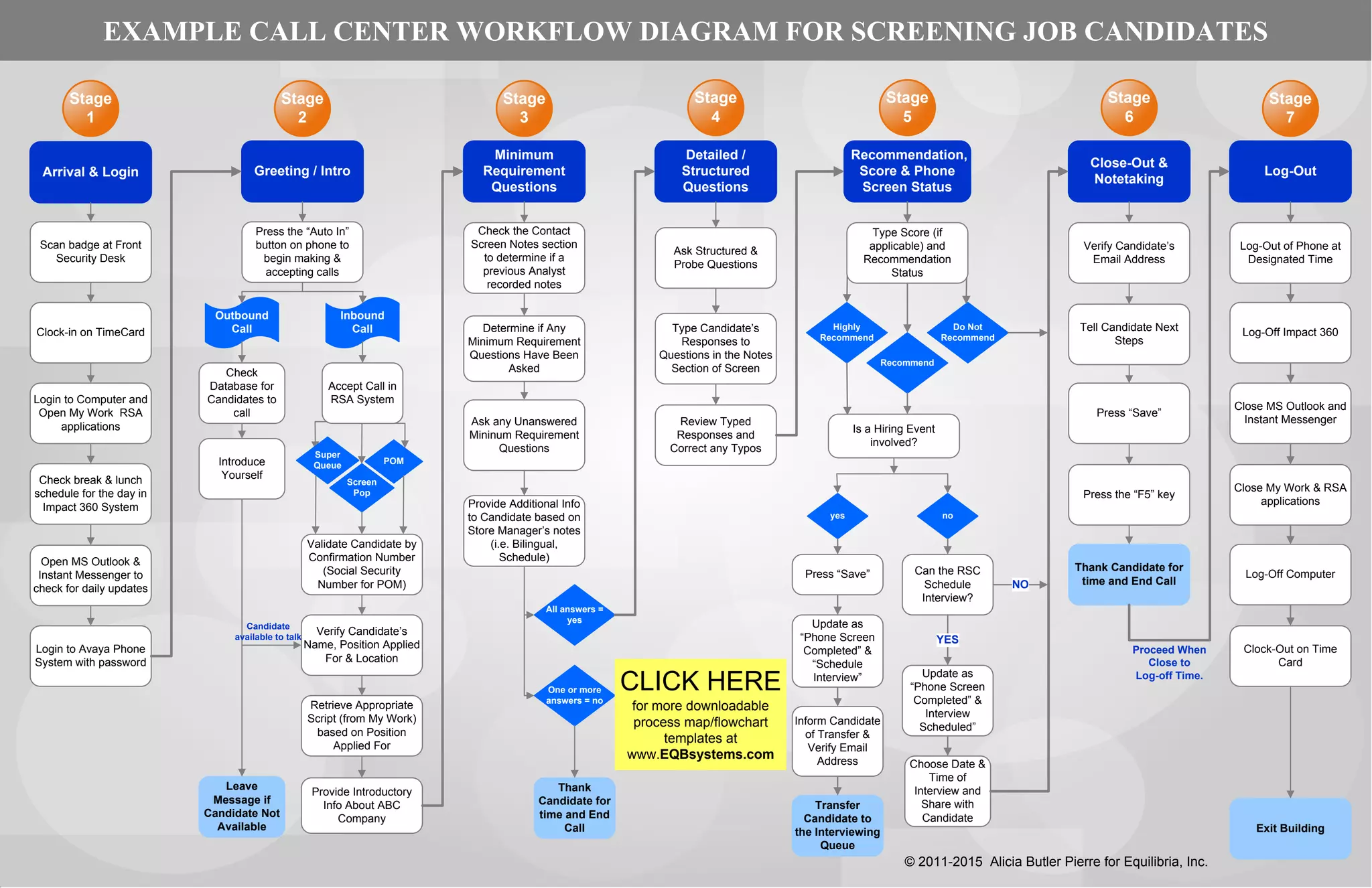
EXAMPLE CALL CENTER WORKFLOW DIAGRAM FOR SCREENING JOB CANDIDATES
All answers =
yes
One or more
answers = no
Thank
Candidate for
time and End
Call
© 2011-2015 Alicia Butler Pierre for Equilibria, Inc.
Ask Structured &
Probe Questions
Type Candidate’s
Responses to
Questions in the Notes
Section of Screen
Recommend
Highly
Recommend
Do Not
Recommend
Recommendation,
Score & Phone
Screen Status
Close-Out &
Notetaking
Greeting / Intro
Minimum
Requirement
Questions
Detailed /
Structured
Questions
Stage
2
Login to Computer and
Open My Work RSA
applications
Arrival & Login
Stage
5
Stage
4
Stage
3
Stage
1
Scan badge at Front
Security Desk
Clock-in on TimeCard
Log-Out
Stage
6
Stage
7
POM
Super
Queue
Screen
Pop
Check
Database for
Candidates to
call
Outbound
Call
Inbound
Call
Introduce
Yourself
Leave
Message if
Candidate Not
Available
Provide Introductory
Info About ABC
Company
Check the Contact
Screen Notes section
to determine if a
previous Analyst
recorded notes
Provide Additional Info
to Candidate based on
Store Manager’s notes
(i.e. Bilingual,
Schedule)
Determine if Any
Minimum Requirement
Questions Have Been
Asked
Review Typed
Responses and
Correct any Typos
Verify Candidate’s
Email Address
Is a Hiring Event
involved?
Type Score (if
applicable) and
Recommendation
Status
Transfer
Candidate to
the Interviewing
Queue
Update as
“Phone Screen
Completed” &
Interview
Scheduled”
Press the “F5” key
Log-Out of Phone at
Designated Time
Log-Off Impact 360
Close MS Outlook and
Instant Messenger
Close My Work & RSA
applications
Log-Off Computer
Clock-Out on Time
Card
Exit Building
yes no
Can the RSC
Schedule
Interview?
Candidate
available to talk
Tell Candidate Next
Steps
Thank Candidate for
time and End Call
Press “Save”
Open MS Outlook &
Instant Messenger to
check for daily updates
Press “Save”
Inform Candidate
of Transfer &
Verify Email
Address
Update as
“Phone Screen
Completed” &
“Schedule
Interview”
NO
YES
Choose Date &
Time of
Interview and
Share with
Candidate
Proceed When
Close to
Log-off Time.
If you would like a free one hour
phone consultation to discuss how
you can implement a better
customer support system into your
business, click here.
View full article
Free one hour
phone consultation
www.eqbsystems.com

Example Call Center Work/Information Flow Diagram

  • 1.
    Free call centerjob screening process flowchart included Essential Components for a Successful Customer Support System 4
  • 2.
    Happy customers are theLifeline of your small business. Is your call center Ready?
  • 3.
    FACT Dissatisfied customers are rarelyquiet. The quality and level of support your customers receive from you before, during or after a transaction can make or break your business. Having a solid customer service & support system can prevent disputes or ensure a quick, amicable solution. This is why the flow of information in your call center is critical.
  • 4.
    What does poorcustomer service or support look like? 1but first www.eqbsystems.com
  • 5.
     No follow-upwith customers at all or within the time frame promised  Rude, curt and/or disrespectful tones  Not honoring terms and conditions of purchase  Refusing to escalate an issue to a manager or supervisor  Abruptly ending a call You just need a better system www.eqbsystems.com
  • 6.
    A Better CustomerSupport System Has These FOUR Things in Place A better customer support system has these four things in place
  • 7.
    1. Competent CustomerTeam 2. Well-Crafted Scripts 3. Supportive Technology 4. Reliable Processes CustomerSupportSystem www.eqbsystems.com
  • 8.
    Login to AvayaPhone System with password Ask any Unanswered Mininum Requirement Questions Retrieve Appropriate Script (from My Work) based on Position Applied For Verify Candidate’s Name, Position Applied For & Location Validate Candidate by Confirmation Number (Social Security Number for POM) Accept Call in RSA System Press the “Auto In” button on phone to begin making & accepting calls Check break & lunch schedule for the day in Impact 360 System EXAMPLE CALL CENTER WORKFLOW DIAGRAM FOR SCREENING JOB CANDIDATES All answers = yes One or more answers = no Thank Candidate for time and End Call © 2011-2015 Alicia Butler Pierre for Equilibria, Inc. Ask Structured & Probe Questions Type Candidate’s Responses to Questions in the Notes Section of Screen Recommend Highly Recommend Do Not Recommend Recommendation, Score & Phone Screen Status Close-Out & Notetaking Greeting / Intro Minimum Requirement Questions Detailed / Structured Questions Stage 2 Login to Computer and Open My Work RSA applications Arrival & Login Stage 5 Stage 4 Stage 3 Stage 1 Scan badge at Front Security Desk Clock-in on TimeCard Log-Out Stage 6 Stage 7 POM Super Queue Screen Pop Check Database for Candidates to call Outbound Call Inbound Call Introduce Yourself Leave Message if Candidate Not Available Provide Introductory Info About ABC Company Check the Contact Screen Notes section to determine if a previous Analyst recorded notes Provide Additional Info to Candidate based on Store Manager’s notes (i.e. Bilingual, Schedule) Determine if Any Minimum Requirement Questions Have Been Asked Review Typed Responses and Correct any Typos Verify Candidate’s Email Address Is a Hiring Event involved? Type Score (if applicable) and Recommendation Status Transfer Candidate to the Interviewing Queue Update as “Phone Screen Completed” & Interview Scheduled” Press the “F5” key Log-Out of Phone at Designated Time Log-Off Impact 360 Close MS Outlook and Instant Messenger Close My Work & RSA applications Log-Off Computer Clock-Out on Time Card Exit Building yes no Can the RSC Schedule Interview? Candidate available to talk Tell Candidate Next Steps Thank Candidate for time and End Call Press “Save” Open MS Outlook & Instant Messenger to check for daily updates Press “Save” Inform Candidate of Transfer & Verify Email Address Update as “Phone Screen Completed” & “Schedule Interview” NO YES Choose Date & Time of Interview and Share with Candidate Proceed When Close to Log-off Time.
  • 9.
    If you wouldlike a free one hour phone consultation to discuss how you can implement a better customer support system into your business, click here. View full article Free one hour phone consultation www.eqbsystems.com