Mercury/32
A Mail Server for
Microsoft Windows and
Novell NetWare Systems
This manual, the Mercury Mail Transport System Software and all associated text
and graphics are Copyright (c) 1993-2008 David Harris, all rights reserved.
“Mercury Mail Transport System”, “Mercury”, and “Mercury/32” (in the context of elec-
tronic mail servers) are trademarks of David Harris, all rights reserved.
Overview of Mercury/32 . . . . . . . . . . . . . . . . . . . . . . . . . . . . . . . . . . . . 1
Introduction . . . . . . . . . . . . . . . . . . . . . . . . . . . . . . . . . . . . . . . . . . . . . . . . . . 1
System Requirements . . . . . . . . . . . . . . . . . . . . . . . . . . . . . . . . . . . . . . . . . . 2
Running under Windows Vista . . . . . . . . . . . . . . . . . . . . . . . . . . . . . . . . 2
Planning your installation . . . . . . . . . . . . . . . . . . . . . . . . . . . . . . . . . . . . . . . 2
Scenario 1: Permanent Internet connection . . . . . . . . . . . . . . . . . . . . . . . 3
Scenario 2: ADSL or ISDN connection with non-static IP addresses . . . 3
Scenario 3: Dialup connection . . . . . . . . . . . . . . . . . . . . . . . . . . . . . . . . . 3
Scenario 4: No Internet connection . . . . . . . . . . . . . . . . . . . . . . . . . . . . . 3
Using other modules . . . . . . . . . . . . . . . . . . . . . . . . . . . . . . . . . . . . . . . . . . . 4
Installing Mercury/32 . . . . . . . . . . . . . . . . . . . . . . . . . . . . . . . . . . . . . . . . . . 4
Running Mercury/32 . . . . . . . . . . . . . . . . . . . . . . . . . . . . . . . . . . . . . . . . . . . 4
Running Mercury/32 as a service: . . . . . . . . . . . . . . . . . . . . . . . . . . . . . . 5
The Mercury Core Module . . . . . . . . . . . . . . . . . . . . . . . . . . . . . . . . . . 6
Critical items . . . . . . . . . . . . . . . . . . . . . . . . . . . . . . . . . . . . . . . . . . . . . . . . . 6
Configuring the Core Module . . . . . . . . . . . . . . . . . . . . . . . . . . . . . . . . . . . . 6
The “Mercury Core Module” Configuration menu option.. . . . . . . . . . . . . . 7
Options on the General page . . . . . . . . . . . . . . . . . . . . . . . . . . . . . . . . . . 7
Options on the Mail Queue page . . . . . . . . . . . . . . . . . . . . . . . . . . . . . . . 8
Queue Processing Controls . . . . . . . . . . . . . . . . . . . . . . . . . . . . . . . . . 9
Secondary queues for mail submission. . . . . . . . . . . . . . . . . . . . . . . . 10
Options on the Local Domains page . . . . . . . . . . . . . . . . . . . . . . . . . . . . 11
Domain mailboxes . . . . . . . . . . . . . . . . . . . . . . . . . . . . . . . . . . . . . . . 11
Novell NetWare NDS Mode. . . . . . . . . . . . . . . . . . . . . . . . . . . . . . . . 11
Options on the Groups page. . . . . . . . . . . . . . . . . . . . . . . . . . . . . . . . . . . 12
Options on the Files page. . . . . . . . . . . . . . . . . . . . . . . . . . . . . . . . . . . . . 12
Foldering subsystem settings . . . . . . . . . . . . . . . . . . . . . . . . . . . . . . . 13
Options on the Reporting page. . . . . . . . . . . . . . . . . . . . . . . . . . . . . . . . . 14
Options on the Advanced page. . . . . . . . . . . . . . . . . . . . . . . . . . . . . . . . . 15
Address auto-recognition settings. . . . . . . . . . . . . . . . . . . . . . . . . . . . 15
Template files . . . . . . . . . . . . . . . . . . . . . . . . . . . . . . . . . . . . . . . . . . . . . . . . 17
Configuring the Autonomous Mail Server . . . . . . . . . . . . . . . . . . . . . . . . . . 18
General mail server configuration . . . . . . . . . . . . . . . . . . . . . . . . . . . . . . 18
Editing the mail server template files. . . . . . . . . . . . . . . . . . . . . . . . . . . . 19
Aliases . . . . . . . . . . . . . . . . . . . . . . . . . . . . . . . . . . . . . . . . . . . . . . . . . . . . . . 19
Public folder aliases . . . . . . . . . . . . . . . . . . . . . . . . . . . . . . . . . . . . . . . . . 19
Special aliases for autoresponding and filtering . . . . . . . . . . . . . . . . . . . 19
Alerts and Notifications. . . . . . . . . . . . . . . . . . . . . . . . . . . . . . . . . . . . . . . . . 20
Notification types . . . . . . . . . . . . . . . . . . . . . . . . . . . . . . . . . . . . . . . . . . . 21
Network support . . . . . . . . . . . . . . . . . . . . . . . . . . . . . . . . . . . . . . . . . . . . . . 21
NetWare Bindery Mode Support . . . . . . . . . . . . . . . . . . . . . . . . . . . . . . . 21
NetWare NDS Mode Support . . . . . . . . . . . . . . . . . . . . . . . . . . . . . . . . . 22
Managing local users . . . . . . . . . . . . . . . . . . . . . . . . . . . . . . . . . . . . . . . . 22
Contents
Configuring Pegasus Mail to use Mercury/32 . . . . . . . . . . . . . . . . . . . . . . . . 23
Mailing lists. . . . . . . . . . . . . . . . . . . . . . . . . . . . . . . . . . . . . . . . . . . . . . . 24
Mailing list settings and options . . . . . . . . . . . . . . . . . . . . . . . . . . . . . . . . . . 24
Creating and managing mailing lists . . . . . . . . . . . . . . . . . . . . . . . . . . . . 24
Creating a list. . . . . . . . . . . . . . . . . . . . . . . . . . . . . . . . . . . . . . . . . . . . 24
Copying lists . . . . . . . . . . . . . . . . . . . . . . . . . . . . . . . . . . . . . . . . . . . . 25
Managing a list’s settings and membership . . . . . . . . . . . . . . . . . . . . . . . 25
The General Page. . . . . . . . . . . . . . . . . . . . . . . . . . . . . . . . . . . . . . . . . 25
The List Access Page. . . . . . . . . . . . . . . . . . . . . . . . . . . . . . . . . . . . . . 26
Settings controlling submission of mail to the list . . . . . . . . . . . . . . . 27
The Distribution Page . . . . . . . . . . . . . . . . . . . . . . . . . . . . . . . . . . . . . 29
Digest support . . . . . . . . . . . . . . . . . . . . . . . . . . . . . . . . . . . . . . . . . . . 30
Anonymous mail support. . . . . . . . . . . . . . . . . . . . . . . . . . . . . . . . . . . 30
The Error Handling Page. . . . . . . . . . . . . . . . . . . . . . . . . . . . . . . . . . . 31
The Membership Page. . . . . . . . . . . . . . . . . . . . . . . . . . . . . . . . . . . . . 32
Using mailing lists . . . . . . . . . . . . . . . . . . . . . . . . . . . . . . . . . . . . . . . . . . . . . 33
Using Mail Server commands to manage lists . . . . . . . . . . . . . . . . . . . . . 34
Using the MercuryB Web Server MLSS Service to manage subscriptions 35
Policies . . . . . . . . . . . . . . . . . . . . . . . . . . . . . . . . . . . . . . . . . . . . . . . . . . . 36
Understanding how policies work . . . . . . . . . . . . . . . . . . . . . . . . . . . . . . . . . 36
Sentinel and result files. . . . . . . . . . . . . . . . . . . . . . . . . . . . . . . . . . . . . . . 37
Policy command settings . . . . . . . . . . . . . . . . . . . . . . . . . . . . . . . . . . . . . 37
Actions Mercury can take when a policy exception occurs . . . . . . . . . . . 38
Commandline substitutions. . . . . . . . . . . . . . . . . . . . . . . . . . . . . . . . . . . . 38
Policy issues . . . . . . . . . . . . . . . . . . . . . . . . . . . . . . . . . . . . . . . . . . . . . . . 39
Sample policies . . . . . . . . . . . . . . . . . . . . . . . . . . . . . . . . . . . . . . . . . . . . . . . 39
Mail Filtering Rules . . . . . . . . . . . . . . . . . . . . . . . . . . . . . . . . . . . . . . . . 40
How mail filtering works. . . . . . . . . . . . . . . . . . . . . . . . . . . . . . . . . . . . . . . . 40
Actions that rules can perform. . . . . . . . . . . . . . . . . . . . . . . . . . . . . . . . . . . . 43
Inserting text fragments (disclaimers) . . . . . . . . . . . . . . . . . . . . . . . . . . . 44
Rule order, editing and examples. . . . . . . . . . . . . . . . . . . . . . . . . . . . . . . . . . 44
Advanced rule processing options . . . . . . . . . . . . . . . . . . . . . . . . . . . . . . . . . 45
Flow Control. . . . . . . . . . . . . . . . . . . . . . . . . . . . . . . . . . . . . . . . . . . . . . . 45
Creating logical operations in your rule sets . . . . . . . . . . . . . . . . . . . . . . 46
Content Control . . . . . . . . . . . . . . . . . . . . . . . . . . . . . . . . . . . . . . . . . . . 48
How it works . . . . . . . . . . . . . . . . . . . . . . . . . . . . . . . . . . . . . . . . . . . . . . . . . 48
Using the Content control dialog . . . . . . . . . . . . . . . . . . . . . . . . . . . . . . . . . . 49
Editing a Content Control definition . . . . . . . . . . . . . . . . . . . . . . . . . . . . . . . 49
The General Page . . . . . . . . . . . . . . . . . . . . . . . . . . . . . . . . . . . . . . . . . . . 50
The Exceptions Page. . . . . . . . . . . . . . . . . . . . . . . . . . . . . . . . . . . . . . . . . 50
The Message Tests Page. . . . . . . . . . . . . . . . . . . . . . . . . . . . . . . . . . . . . . 50
The Actions Page . . . . . . . . . . . . . . . . . . . . . . . . . . . . . . . . . . . . . . . . . . . 51
Header addition and advanced options . . . . . . . . . . . . . . . . . . . . . . . . 52
Mercury's Content Control Filtering Language. . . . . . . . . . . . . . . . . . . . . . . 53
The types of test . . . . . . . . . . . . . . . . . . . . . . . . . . . . . . . . . . . . . . . . . . . . 53
General layout. . . . . . . . . . . . . . . . . . . . . . . . . . . . . . . . . . . . . . . . . . . . . . 56
Making the most of regular expressions. . . . . . . . . . . . . . . . . . . . . . . . . . 57
Matching anywhere within the text . . . . . . . . . . . . . . . . . . . . . . . . . . . . . 58
The MercuryS SMTP Server Module. . . . . . . . . . . . . . . . . . . . . . . . . . 59
General settings . . . . . . . . . . . . . . . . . . . . . . . . . . . . . . . . . . . . . . . . . . . . . . . 59
Relay/Connection control . . . . . . . . . . . . . . . . . . . . . . . . . . . . . . . . . . . . . . . 60
How Mercury applies connection control entries. . . . . . . . . . . . . . . . . . . 61
Controlling relaying . . . . . . . . . . . . . . . . . . . . . . . . . . . . . . . . . . . . . . . . . 61
Authenticated SMTP . . . . . . . . . . . . . . . . . . . . . . . . . . . . . . . . . . . . . . . . . . . 63
Spam control via Realtime Blacklists (RBLs). . . . . . . . . . . . . . . . . . . . . . . . 63
How this process works . . . . . . . . . . . . . . . . . . . . . . . . . . . . . . . . . . . . . . 64
Creating a blacklist definition. . . . . . . . . . . . . . . . . . . . . . . . . . . . . . . . . . 65
Actions to take when a message is blacklisted . . . . . . . . . . . . . . . . . . . . . 66
Compliance options . . . . . . . . . . . . . . . . . . . . . . . . . . . . . . . . . . . . . . . . . . . . 67
Restrictions to apply at the transaction level . . . . . . . . . . . . . . . . . . . . . . 67
Transaction-level filtering . . . . . . . . . . . . . . . . . . . . . . . . . . . . . . . . . . 68
Format of a transaction-level filtering rule file . . . . . . . . . . . . . . . . . . 68
Transaction-level filtering examples . . . . . . . . . . . . . . . . . . . . . . . . . . 70
Restrictions to apply to message content . . . . . . . . . . . . . . . . . . . . . . . . . 71
Using SSL for secure connections . . . . . . . . . . . . . . . . . . . . . . . . . . . . . . . . . 72
Outbound SMTP: MercuryC and MercuryE . . . . . . . . . . . . . . . . . . . 73
Choosing between MercuryC and MercuryE . . . . . . . . . . . . . . . . . . . . . . . . 73
Configuring the MercuryC SMTP Client Module. . . . . . . . . . . . . . . . . . . . . 73
Credentials for SMTP Authentication: . . . . . . . . . . . . . . . . . . . . . . . . . . . 74
Configuring the MercuryE SMTP client module. . . . . . . . . . . . . . . . . . . . . . 75
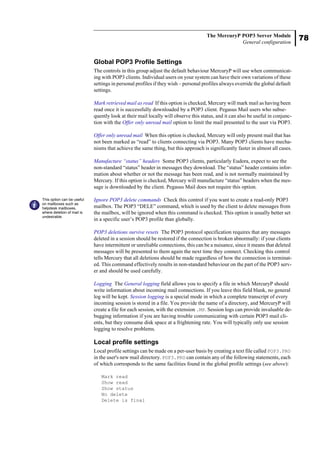
The MercuryP POP3 Server Module . . . . . . . . . . . . . . . . . . . . . . . . . . 77
General configuration . . . . . . . . . . . . . . . . . . . . . . . . . . . . . . . . . . . . . . . . . . 77
Global POP3 Profile Settings . . . . . . . . . . . . . . . . . . . . . . . . . . . . . . . . . . 78
Local profile settings . . . . . . . . . . . . . . . . . . . . . . . . . . . . . . . . . . . . . . . . 78
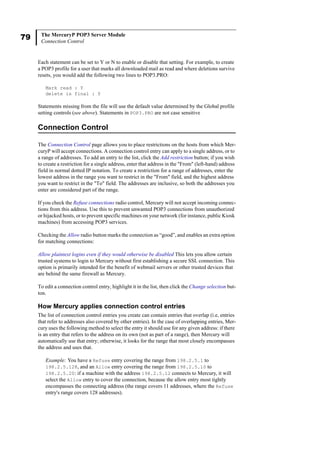
Connection Control . . . . . . . . . . . . . . . . . . . . . . . . . . . . . . . . . . . . . . . . . . . . 79
How Mercury applies connection control entries. . . . . . . . . . . . . . . . . . . 79
POP3 Login name aliasing . . . . . . . . . . . . . . . . . . . . . . . . . . . . . . . . . . . . 80
Using SSL for secure connections . . . . . . . . . . . . . . . . . . . . . . . . . . . . . . . . . 80
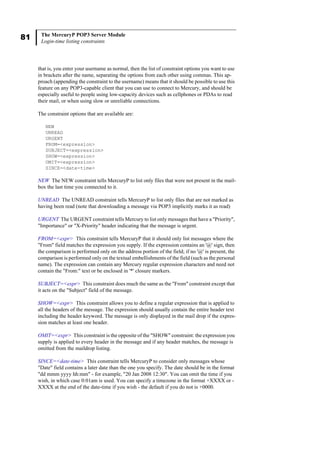
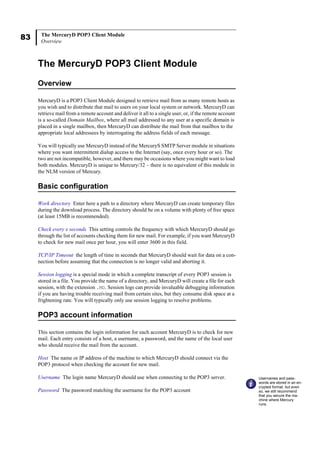
Login-time listing constraints . . . . . . . . . . . . . . . . . . . . . . . . . . . . . . . . . . . . 80
Notes and examples . . . . . . . . . . . . . . . . . . . . . . . . . . . . . . . . . . . . . . . . . 82
The MercuryD POP3 Client Module . . . . . . . . . . . . . . . . . . . . . . . . . . 83
Overview . . . . . . . . . . . . . . . . . . . . . . . . . . . . . . . . . . . . . . . . . . . . . . . . . . . . 83
Basic configuration . . . . . . . . . . . . . . . . . . . . . . . . . . . . . . . . . . . . . . . . . . . . 83
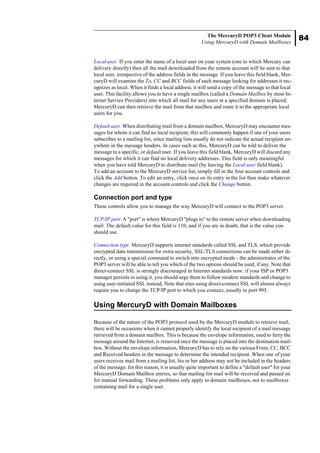
POP3 account information. . . . . . . . . . . . . . . . . . . . . . . . . . . . . . . . . . . . . . . 83
Connection port and type . . . . . . . . . . . . . . . . . . . . . . . . . . . . . . . . . . . . . 84
Using MercuryD with Domain Mailboxes . . . . . . . . . . . . . . . . . . . . . . . . . . 84
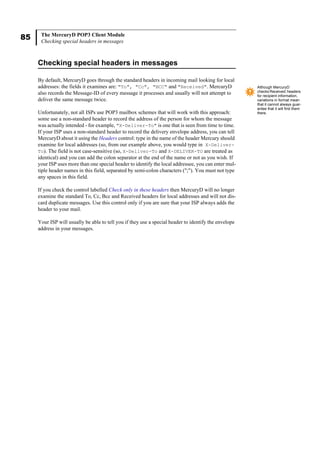
Checking special headers in messages. . . . . . . . . . . . . . . . . . . . . . . . . . . . . . 85
MercuryX, dialling and scheduled access . . . . . . . . . . . . . . . . . . . . . . 86
Commands issued before and after connecting . . . . . . . . . . . . . . . . . . . . . . . 86
Other settings . . . . . . . . . . . . . . . . . . . . . . . . . . . . . . . . . . . . . . . . . . . . . . . . . 87
Dialling considerations . . . . . . . . . . . . . . . . . . . . . . . . . . . . . . . . . . . . . . . . . 88
MercuryH, The PH lookup server . . . . . . . . . . . . . . . . . . . . . . . . . . . . 89
Configuration . . . . . . . . . . . . . . . . . . . . . . . . . . . . . . . . . . . . . . . . . . . . . . . . . 89
The MercuryI IMAP4rev1 server. . . . . . . . . . . . . . . . . . . . . . . . . . . . . 90
About IMAP. . . . . . . . . . . . . . . . . . . . . . . . . . . . . . . . . . . . . . . . . . . . . . . . . . 90
System requirements. . . . . . . . . . . . . . . . . . . . . . . . . . . . . . . . . . . . . . . . . 90
Client configuration . . . . . . . . . . . . . . . . . . . . . . . . . . . . . . . . . . . . . . . . . 90
Configuration . . . . . . . . . . . . . . . . . . . . . . . . . . . . . . . . . . . . . . . . . . . . . . . . . 90
Lingering mailboxes . . . . . . . . . . . . . . . . . . . . . . . . . . . . . . . . . . . . . . . . . 92
Connection Control . . . . . . . . . . . . . . . . . . . . . . . . . . . . . . . . . . . . . . . . . . . . 92
How Mercury applies connection control entries. . . . . . . . . . . . . . . . . . . 92
IMAP Login name aliasing. . . . . . . . . . . . . . . . . . . . . . . . . . . . . . . . . . . . 92
Using SSL for secure connections . . . . . . . . . . . . . . . . . . . . . . . . . . . . . . . . . 93
Using SSL to secure connections. . . . . . . . . . . . . . . . . . . . . . . . . . . . . . 94
SSL Overview . . . . . . . . . . . . . . . . . . . . . . . . . . . . . . . . . . . . . . . . . . . . . . . . 94
Enabling SSL support . . . . . . . . . . . . . . . . . . . . . . . . . . . . . . . . . . . . . . . . . . 94
Certificates and rights . . . . . . . . . . . . . . . . . . . . . . . . . . . . . . . . . . . . . . . . . . 96
MSendTo, the commandline mailer . . . . . . . . . . . . . . . . . . . . . . . . . . . 97
Mail mode . . . . . . . . . . . . . . . . . . . . . . . . . . . . . . . . . . . . . . . . . . . . . . . . . . . 97
Configuration mode . . . . . . . . . . . . . . . . . . . . . . . . . . . . . . . . . . . . . . . . . . . . 98
Workflow and Implementation. . . . . . . . . . . . . . . . . . . . . . . . . . . . . . .
100
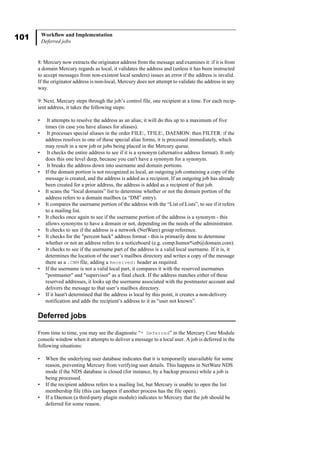
Message Processing Flowchart . . . . . . . . . . . . . . . . . . . . . . . . . . . . . . . . . . . 100
Deferred jobs . . . . . . . . . . . . . . . . . . . . . . . . . . . . . . . . . . . . . . . . . . . . . . . . . 101
Credits . . . . . . . . . . . . . . . . . . . . . . . . . . . . . . . . . . . . . . . . . . . . . . . . . . .
103
Dedication. . . . . . . . . . . . . . . . . . . . . . . . . . . . . . . . . . . . . . . . . . . . . . . . . 103
Index . . . . . . . . . . . . . . . . . . . . . . . . . . . . . . . . . . . . . . . . . . . . . . . . . . . .
104
1 Overview of Mercury/32
Introduction
Overview of Mercury/32
Introduction
Mercury/32 is a Mail Transport System — a suite of programs designed to move electronic
mail messages from one computer system to another (possibly different) system. Unlike a
user agent, or client such as Pegasus Mail, with which individual users interact to read and
send mail, Mercury is seldom directly encountered by users; its operation is largely invisible
— it is a “black box” running in the background, performing tasks autonomously.
Mercury/32 is divided into a core processing module (MERCURY.EXE) and a set of “service”
components, called protocol modules. Each protocol module supplies a specific service to the
core processing module – for instance, the Mercury SMTP Server Module, MERCURYS, ac-
cepts incoming mail delivery connections and submits them to the core module for process-
ing. The core module is responsible for routing mail (that is, deciding whether messages are
local or need to be sent to the outside world), and for providing core services such as the au-
tonomous mail server, mailing list management and error handling.
The following protocol modules are supplied with Mercury/32:
MercuryS – SMTP server module This module is responsible for handling incoming mail de-
livery connections from the outside world. It accepts mail and places it in the core module’s
mail queue for processing. MercuryS implements the Internet SMTP standard (Simple Mail
Transfer Protocol) and supports several Extended SMTP extensions.
MercuryC – SMTP client module MercuryC is responsible for sending mail to the outside
world using the Internet SMTP mail protocol. MercuryC is what is known as a relay mailer
– it does not attempt to deliver mail directly to the recipient; instead, it asks a larger SMTP
implementation (often a unix host) to deliver it on its behalf. This relay model makes Mercu-
ryC particularly suitable for use behind firewalls, since it can ask the firewall system to send
mail on its behalf.
MercuryE — SMTP direct delivery module MercuryE is an alternative SMTP client module
for Mercury; like the MercuryC module, it is responsible for sending mail from your system
to the outside world. Unlike MercuryC, though, MercuryE can perform complete end-to-end
delivery without requiring a relay host. MercuryE is typically used in situations where you
have either a permanent Internet connection, or one with fast establishment, such as an ISDN
connection. You can choose to install either MercuryC or MercuryE, depending on your
needs, but you can only install one, not both.
MercuryP – POP3 server module MercuryP listens for connections from POP3 client pack-
ages, such as Pegasus Mail, Eudora or Outlook Express, and provides access to new mail
waiting on the server via the POP3 protocol. MercuryP conforms to Internet Standards Doc-
ument RFC1939, including support for advanced commands such as APOP and UIDL.
MercuryD – POP3 client module MercuryD acts as a POP3 client on behalf of one or more
users on your system. Using MercuryD to download mail for your users from an Internet
Service Provider allows you to centralize your Internet connection to the single machine
where Mercury runs – users can see their mail without their own workstations actually being
connected to the Internet or having modems. MercuryD can also retrieve mail from Domain
Mailboxes – that is, single mailboxes where all mail destined for a specific domain gets de-
livered – and route the contents to the local users on your system.
You can change the set
of protocol modules Mer-
cury loads at any time us-
ing the Protocol Modules
option on the Configura-
tion menu.
2
Overview of Mercury/32
System Requirements
MercuryI – IMAP server module MercuryI allows users running IMAP-capable mail pro-
grams such as Pegasus Mail and Microsoft Outlook to access entire mailboxes of folders re-
motely. Where the POP3 protocol only makes new mail available to the remote client, all of
a user's folders can be opened and manipulated using the IMAP protocol. IMAP is also a
common way of providing WebMail services - many WebMail interfaces can connect to an
IMAP server to provide their services.
MercuryX – scheduling module MercuryX is a specialized module that provides scheduling
services: it can be used to start and stop other protocol modules periodically. This can be par-
ticularly valuable when your Internet connection is based on dialup services and is charged
on elapsed time, since it means you can receive and send mail at specific times.
MercuryH — PH directory lookup server MercuryH allows you to publicize addresses using
the Internet PH protocol. You simply create a Pegasus Mail address book and tell MercuryH
to use it, and it will answer queries about addresses and users on your system using informa-
tion from that addressbook.
MercuryW — Change password server MercuryW implements the PopPass protocol to al-
low your users to change their POP3 mailbox passwords. Common mail clients such as Eu-
dora and Pegasus Mail support the PopPass protocol.
System Requirements
Mercury/32 requires Windows 98, ME, NT 4.x, 2000, XP, Vista, or Windows Server 2003 to
run: we suggest running Mercury/32 on Windows Server 2003 or XP for best results. We rec-
ommend a minimum of 8MB RAM for Windows 95 systems, a minimum of 32MB of RAM
for Windows NT systems, and a minimum of 128MB RAM for Windows 2000 and Windows
XP systems. A properly installed TCP/IP services layer (implemented in a file called
WSOCK32.DLL) must be installed and correctly configured on the workstation where Mercu-
ry/32 is to run – consult your Windows manuals for information on setting up your worksta-
tion for TCP/IP operation. Mercury/32 has full support for Novell NetWare local area
networks, but you must use genuine Novell workstation client software to take advantage of
this - the Microsoft NetWare client software lacks the full NetWare support required by Mer-
cury and cannot be used.
Running under Windows Vista
Windows Vista (introduced in February 2007) no longer supports the WinHelp help system
offered in previous versions of Windows. Unfortunately, the help system it does support,
HTMLHelp, is badly broken (because of its reliance on Microsoft’s Internet Explorer engine)
and will not display help files when they are located on a shared volume, a common form of
installation for Mercury/32. This means that under Vista, there is effectively no help system
that an application can use reliably. In the medium term, we will be writing our own help sys-
tem to get around this problem, but in the short term, if you use Vista and wish to be able to
access Mercury’s online help, you will need to download WinHelp for Vista from the Micro-
soft web site - http://www.microsoft.com/downloads/details.aspx?family-
id=6ebcfad9-d3f5-4365-8070-334cd175d4bb&displaylang=en.
Planning your installation
Before you install Mercury/32, you should spend a few minutes working out what mail serv-
ices you need, and how best to configure Mercury/32 to provide them. In this section, we pro-
Mercury has support for
NetWare 3.2 in Bindery
Mode, and for NetWare
4.x, 5.x and 6.x in native
NDS mode.
3 Overview of Mercury/32
Planning your installation
vide a few common scenarios with suggested installations to match them, although we cannot
stress enough that every installation is different, and these should therefore be regarded as
guidelines only.
The key issue in any installation of Mercury is to decide which Mercury protocol modules
will best suit your needs. In the end, this issue is primarily dependent on exactly how you con-
nect to the Internet and on the services provided by your ISP (Internet Service Provider).
Scenario 1: Permanent Internet connection
If you have a full-time connection to the Internet, for instance using a leased circuit, or a mi-
crowave link, then you will typically install MercuryS to handle incoming mail, and Mercu-
ryE to handle outbound mail. In this scenario, the computer where Mercury/32 is running
needs a permanent IP address and a domain name that is properly advertised by your domain's
authoritative DNS server. The same combination will also typically work quite well if you
are on a permanently-connected network that uses NAT to assign addresses: in this case, you
can only have one SMTP server anywhere on your network - typically MercuryS.
Scenario 2: ADSL or ISDN connection with non-static IP
addresses
If you are using an ISDN or ADSL connection to access the Internet, then you will typically
not have a permanent IP address, which complicates the process of receiving mail somewhat.
The choice of modules you will make in this environment depends on whether or not your
ISP provides what are known as "smart DNS services", in which your computers' domain
names are dynamically mapped in real-time to the addresses allocated by your ISP. If your
ISP provides this kind of dynamic DNS mapping, you can proceed as if using scenario 1 (see
above). If your ISP does not provide dynamic address mapping for your hostnames, then you
will need to have your mailboxes located on one of your ISP's systems and download mail
from them using the MercuryD distributing POP3 client module. For outgoing mail you can
usually use MercuryE, although you may save some connection time by using the MercuryC
module and relaying through your ISP's smart host (you will need your ISP's permission and
some configuration on their systems to do this).
Scenario 3: Dialup connection
If you connect to the Internet via an intermittent connection, such as a dialup connection us-
ing a conventional modem, then you will need to use the MercuryD module to retrieve your
mail from POP3 mailboxes stored on your ISP's systems, the MercuryC module to send out-
going Internet mail via one of your ISP's mail hosts (you will need your ISP's permission and
some configuration on their systems to do this), and the MercuryX scheduling module to syn-
chronize these operations on a scheduled basis. In this scenario, your ISP must be ready to
create and maintain POP3 mailboxes for you on one or more of their systems - this is so that
mail can be stored until you are online and available to retrieve it.
Scenario 4: No Internet connection
Even if you do not have any kind of Internet connection, Mercury can still be useful to you
and provide services on your local area network. In this scenario, all mail is local, so you will
typically only install the MercuryS SMTP module (and you may not even need to install this
if your users run Pegasus Mail as their mail client, because Pegasus Mail can interact with
Mercury through a much simpler file-based interface). Using Mercury in an unconnected en-
vironment still gives you access to powerful features like its mailing list management servic-
es and directory lookup functions.
You can also get dynam-
ic DNS services from or-
ganizations like DynDns,
http://www.dyndns.org
4
Overview of Mercury/32
Using other modules
Using other modules
If your users are not running Pegasus Mail locally, or if you want to access your mailbox from
remote locations (such as hotels, or cybercafes), then you may wish to consider installing the
MercuryI module to provide IMAP services. MercuryI is also a useful back-end service pro-
vider for many popular webmail interfaces, such as Twig, SquirrelMail, and Horde/IMP.
If you want to provide remote access to users' new mail folders via the POP3 protocol, you
will typically install the MercuryP module. This is primarily useful if you have users who use
a mail program that does not support the IMAP protocol.
If you want to provide address lookup services, you may want to consider installing the Mer-
curyH module: popular mail programs such as Pegasus Mail and Eudora support the PH pro-
tocol offered by MercuryH.
If you want to allow your user to change their passwords remotely, you will typically install
the MercuryW module. Your users must be running a mail program that supports the POP-
Pass protocol to be able to use this facility – Pegasus Mail and Eudora do, but Outlook does
not.
Installing Mercury/32
As supplied, Mercury/32 will typically be packaged in a self-extracting, self-installing ar-
chive called M32-XXX.EXE, where XXX is the version number of the program. Simply run
this archive and follow the prompts to install the program. The installer will prompt you for
the information it needs on a step by step basis, and each step has extensive online help. You
can change any aspect of the installation from within the program after installation is com-
plete, so if there are specific areas that you don't understand or where the help is insufficient,
you can always adjust them later.
Under normal circumstances, the installer will create a basic working Mercury/32 setup for
you, but the program is enormously rich and configurable, so you will almost certainly want
to change aspects of its operation after installation – that is the focus of much of the remainder
of this manual.
Running Mercury/32
There are two ways you can run Mercury/32 – either by selecting the Mercury/32 shortcut
created for you in the Windows Start menu by the installer, or by using the Mercury/32 load-
er: the loader program starts Mercury/32 for you, then sits in the background; if there is a
problem with Mercury/32, or if you instruct Mercury/32 to exit once a day (you can do this
in the program's preferences) the loader will wait a few seconds then restart the program for
you automatically. The choice of run method depends on your needs and preferences, but our
opinion is that it is probably best to run Mercury via its loader instead of directly.
Note that the Mercury loader program will only attempt to reload Mercury a maximum of six
times in any 60 minute period: if it has to restart the program more often than this, then it will
assume that there is something terribly wrong (typically a major misconfiguration) and will
give up.
The latest versions of
Mercury are always
available from our home
web site,
http://www.pmail.com
5 Overview of Mercury/32
Running Mercury/32
Running Mercury/32 as a service:
Windows NT, 2000 and XP support a concept called a Service, or a special type of process
that runs in the background in a space separate from the desktop and the user. Mercury/32
currently cannot operate as a native service, but there are third-party tools, such as Microsoft's
SRVANY program (available as part of the Windows NT Resource Kit), which can be used to
run Mercury in this way. Running the program as a service has some trade-offs, especially if
you are using either of its NetWare-specific personality modules, and as a result, installation
of Mercury/32 as a service using a third-party tool should only be attempted by experienced
network administrators.
6
The Mercury Core Module
Critical items
The Mercury Core Module
Like the NLM version of Mercury, Mercury/32 stores its configuration and settings in a file
called MERCURY.INI, located in the directory where it is installed, but in general you will not
modify this file directly - you will use the program's Configuration menu instead. In this
chapter, we will cover configuring the core module and its support modules while it is run-
ning, using the Configuration menu options.
Critical items
There is a handful of configuration items in Mercury/32 that you must get right or the pro-
gram will not work properly. The most important of these are the following:
• The Local Domains section of the core module configuration dialog (see below)
• The computer's Internet name in the core module General configuration page
• The Mercury Primary Mail Queue directory in the core module Mail queue configura-
tion page
• The name of the local user who is to act as your postmaster
The computer must also have a properly-configured temporary files directory referenced in
either a TEMP or TMP environment variable. In practically all cases this is assured by Windows
itself, but we mention it here because it is a key requirement for the proper operation of Mer-
cury/32.
Configuring the Core Module
Various options on the Configuration menu directly control the operation of the Mercury core
module: the items on the Configuration menu that are covered in this chapter are the follow-
ing:
• Mercury Core Module is used to configure the general operation of the system. Many of
the settings made using this option will have a direct bearing on other modules in the
system.
• Template files is where you will configure the text of messages returned by Mercury
when errors or confirmations need to be generated automatically.
• Mail server allows you to configure Mercury’s autonomous mail server – a robotic proc-
ess that acts on commands sent to it via e-mail.
• Aliases allows you to create alternative versions of addresses on the system. An alias can
be used anywhere the real address would be used.
• Network support Mercury has specific support modules that allow it to interact intelli-
gently with various Local Area Network (LAN) environments. Network support is
loaded and maintained by the core module, so its configuration is covered in this chapter.
• Managing local users When you are not using a LAN personality module for Mercury,
it maintains its own database of users and their mailboxes. The Manage local users
option is where you will create and manage your users and their mailboxes in this mode.
If you answer all the
questions in the installer
correctly, these items will
all be set to reasonable
default values.
The Manage Local Users
option is disabled if you
are using a network per-
sonality module, such as
the Novell NetWare mod-
ules..
7 The Mercury Core Module
The “Mercury Core Module” Configuration menu option.
Note that in places in this manual, we may use the term Standalone Mode to describe a
copy of Mercury running with no LAN personality module selected.
• Configuring Pegasus Mail Mercury’s companion mail client, Pegasus Mail, has specific
support for Mercury that can be configured using this option.
The “Mercury Core Module” Configuration menu
option.
Choosing this option opens a dialog that allows you to configure many general aspects of the
core Mercury processing program. The dialog has seven different pages, each controlling a
different configuration area. The last of these, Policy, is covered separately in a later chapter,
while the remaining pages will be described here.
General note: in the descriptions that follow and in other sections of the manual where op-
tions are explained, you may see a word in brackets (parentheses to our American friends)
after the blue name of the configuration option: this is the keyword for the item in the appro-
priate section of MERCURY.INI that is equivalent to the option.
Options on the General page
Internet name for this system (myname) Enter here the Internet name for the machine on
which Mercury is running. Mercury will use this information when forming certain address-
es, such as the postmaster address. The name you enter here should be a fully-qualified do-
main name; if you are intending to use Mercury to provide mail services outside your
immediate organization, the name you provide will need to be advertised to the world by a
properly-configured Domain Name Server (DNS) system
Local mailbox directory path (newmail_path) This option is only meaningful if Mercury/32
is not using a Network Personality module (for example, MN_NW4.DLL, the personality mod-
ule for Novell NetWare 4.x and later); it tells Mercury/32 how to locate the directories for
each user on the system where new mail is to be stored. It should contain a full path (UNC
network paths are recommended) to a directory, and will usually contain one of two special
sequences – ~8, or ~N: these special sequences are called substitutions – Mercury/32 will re-
place them with either the user’s full username (for ~N) or with the first eight characters of
the user’s username (for ~8) when it is constructing the path. To illustrate how this works,
imagine that all your users have new mail folders as subdirectories of the directory D:MAIL
on your computer, and you have entered D:MAIL~N in this field: when Mercury receives
mail for a user called BRIAN, it will replace the ~N with the user’s name, resulting in the path
D:MAILBRIAN, which is presumed to be the proper directory for Brian’s new mail.
Time zone (timezone) Enter here the timezone for your site, expressed as a plus or minus dif-
ference from GMT. So, if you are in Los Angeles and are currently nine hours behind GMT,
you would enter -0900 in this field. Mercury will accept the so-called “vernacular” time zone
formats, such as PST and CST, but the use of these formats is no longer recommended on the
Internet and we strongly advise you to avoid them, since their use makes it difficult for some
mail programs to sort properly by date. In normal use, you should tick the control labelled
Auto, which tells Mercury/32 to ask your operating system for the proper timezone. If you
check the Auto button, any timezone you enter in the Timezone field is ignored.
Poll for new mail every x seconds (poll) This setting controls how often the core module
should check to see if there is mail waiting to be processed in the queue. For performance
reasons, we recommend that you do not set it below ten seconds.
The latest versions of
Pegasus Mail are always
available from our home
web site,
http://www.pmail.com
8
The Mercury Core Module
The “Mercury Core Module” Configuration menu option.
Username of postmaster (postmaster) Every system capable of receiving Internet mail must
have a user called postmaster, to whom problem and status reports are sent. The postmaster
account is usually an alias to a real user on your system, and this is the expectation within
Mercury. Enter in this field the username of the user on the machine where Mercury is run-
ning who is to act as your postmaster. While it is permissible to have a non-local address as
your postmaster address, we strongly recommend that you do not do this, since it can create
real problems and mail loops when the remote machine is unreachable. This setting is man-
datory - Mercury cannot run properly without it.
For delivery failures return x lines of the message (returnlines) When Mercury cannot de-
liver a message to a local user for some reason, it will invoke a template file you provide for
delivery failures. One of the optional replacements that can be used in the delivery failure
template file is a special substitution that sends a certain number of lines from the failed mes-
sage. This configuration option controls how many lines of the message are returned when
the special partial return substitution is encountered.
Broadcast notifications for normal mail (broadcast) Mercury has special Network aware-
ness modules that allow it to take advantage of certain specific features of some local area
networks. One of the features that some networks (such as Novell NetWare) support is the
transmission of a single-line broadcast message that appears on the target user’s screen. If this
control is checked and you are running Mercury on a network that supports broadcast mes-
sages, Mercury will send a short message to users when new mail arrives for them.
Broadcast notifications for receipts (receipts) (See the preceding section for more detail)
This control determines whether Mercury should send broadcast messages advising the arriv-
al of mail messages that confirm reading or delivery.
Send copies of all errors to the postmaster (pm_notify) If this control is checked, Mercury
will send a copy of all error reports it generates to the local postmaster as well as to the orig-
inal sender of the message. This allows the postmaster the option of correcting addressing er-
rors and other simple problems.
Change file ownership to recipient (change_owner) As with broadcast notifications, some
Network systems support the idea of file ownership, usually to calculate disk space usage. If
your network supports this idea and this control is checked, then Mercury will attempt to
change the ownership of all the messages it delivers so that the actual recipient owns the file.
Suppress validation of From field when processing mail (gullible) Mercury usually attempts
to validate that the From field of all mail it delivers is legal. This can sometimes cause prob-
lems if you receive mail from sites that use broken or faulty mail programs; if this is the case,
you can suppress the validity test Mercury makes by checking this control.
Hard to quit If this control is checked, then Mercury will ignore any attempt to quit the pro-
gram: this prevents the server from being accidentally stopped when run on a public machine.
To quit from Mercury when this option is turned on, you must hold down the Ctrl key while
selecting Exit from the File menu.
Options on the Mail Queue page
Mercury stores mail messages it is processing in directories called Queues. All Mercury sys-
tems must have at least one queue, called the Primary Queue, which is where jobs reside as
they transit the system. The primary queue should always be located on a drive local to the
machine where Mercury is running if at all possible. If you place the primary queue on a re-
Your postmaster alias
must refer to a valid local
user on your system. Do
not use a non-local ad-
dress here.
9 The Mercury Core Module
The “Mercury Core Module” Configuration menu option.
mote system, and the connection to the remote system becomes unavailable, mail may be lost
or damaged.
Mercury creates Queue Job Files in the primary queue: queue job files are typically pairs of
files with the same name part and different extensions: a job will always have a Queue Con-
trol File (with the extension .QCF) and a Queue Data File (with the extension .QDF); any
job may also have one or more Queue Information Files (with the extension .QIF). Queue
information files do not necessarily have the same name part as the job to which they belong
- they are used to store information about the processing state of the job, such as error mes-
sages. While queue job files may look like text files, they are not - they have a very specific
structure, and you should not attempt to edit them manually unless you are very sure of what
you are doing.
Primary queue directory Enter here the directory on a local drive which Mercury should use
as its primary mail queue. If you have a real-time virus scanner system, make sure that this
directory is exempted from its operation: real-time scanners interfere with Mercury's access
to its files and may result in damage or loss of mail. To perform anti-virus scanning of your
mail, create a Mercury policy, or use a Mercury anti-virus Daemon (plugin) such as Lukas
Gebauer's ClamWall instead.
Queue Processing Controls
This group of controls manage the way Mercury accesses the queue, and how it handles errors
and delays.
Basic minimum period between queue job retries Controls how frequently Mercury/32
should retry messages that have temporary delivery problems. You cannot set a retry period
shorter than one minute. 60 minutes is usually a good default value for this control, unless
you are using Mercury's progressive backoff algorithm (see below), in which case we recom-
mend a value of 15 minutes.
Maximum number of retries allowed before failure Controls the maximum number of times
a job should be retried before Mercury should conclude that it cannot be delivered. You can-
not set fewer than two, or more than 99 retry attempts.
Send delivery status notifications... These three controls allow you to configure Mercury to
send out Delivery Status Notifications (DSNs) when a message is delayed in the queue. By
default, Mercury will send DSNs at 3 hours (180 minutes), 24 hours (1440 minutes) and 72
hours (4320 minutes) of delay, but you can specify any gap you wish between the notifica-
tions. To suppress a DSN, enter a value of zero for its delay. To suppress status notifications
altogether, set all three fields to zero. Mercury uses a template file called DWARN.MER in the
same directory as MERCURY.EXE to prepare Delivery Status Notifications; deleting or renam-
ing this file will also prevent DSNs from being generated.
Only send delivery status notifications to local users If you check this control, Mercury will
only send DSNs (see above) when it can identify the sender of the message as being a local
address, or an address served by an alias on the local machine. Checking this reduces the like-
lihood of having DSNs for delayed spam cluttering up your system - you should normally
leave it checked (the default state).
Use progressive backoff algorithm to calculate job retries When you check this control,
Mercury will change the way it calculates retries on undeliverable mail. Normally, it simply
adds whatever retry period you have defined to the current time, but in progressive mode, it
will increase the period between retries the more of them there are. For every ten retries, the
time between retries increases by progressively larger steps, to a maximum of seven times the
10
The Mercury Core Module
The “Mercury Core Module” Configuration menu option.
retry period you have defined. Progressive retry mode works well when you use a retry period
of fifteen minutes and a maximum of 99 retries (giving a maximum retry period of about four
days).
Process the queue in two passes (file locking fix) If you check this control, Mercury will
change the way it processes mail submitted by programs such as Pegasus Mail; instead of tak-
ing the submitted job immediately, it will wait until the job has the same non-zero size for
two polling cycles in a row before processing it. This can be necessary in systems such as
Windows Peer-to-Peer networking where file locking is not properly implemented; it ensures
that the client has finished writing the mail message to the queue before Mercury tries to proc-
ess it. Turning this option on is always safe, but will result in a slightly longer delay in mail
being sent out.
Secondary queues for mail submission
When Pegasus Mail and Mercury are used together, Pegasus Mail submits mail to be proc-
essed by Mercury as files in a queue directory. Mercury then takes these submission files and
creates its own special queue format from them.
Mercury and Pegasus Mail can, if you wish, simply share a queue directory - this is complete-
ly safe. In some cases, though, there may be advantages in separating the core Mercury queue
from the submission directory used by Pegasus Mail. To do this, click the Secondary queues
button, and tell Mercury the full path to the directory where it should look for the submission
files created by Pegasus Mail. You can create as many secondary queues as you wish - the
Mercury core module will poll them in the order they are defined at the start of each mail poll-
ing cycle.
There are typically two reasons why you might want to create secondary queues:
• Improved reliability If your file server or shared volume is less than completely reliable,
then moving the Mercury core queue to a local drive can reduce the likelihood of prob-
lems during processing if the file server or shared volume becomes unavailable for some
reason.
• Novell NetWare NDS mode When using Novell's NDS-based networking products,
licensing is calculated based on the number of connections made to the server, rather
than the number of actual users. If your users need to authenticate to a specific server to
place mail in the Mercury queue directory, then each such authentication will consume a
license entry, even if the user primarily functions on another file server on the net-
work.Creating a secondary queue on each server can dramatically reduce the number of
licensed connections used on your NDS network, because the user does not have to
establish separate authentication just to send mail - he or she can simply use the queue on
the server to which they are currently attached.
Performance note: In the Novell NetWare environment, you can gain significant extra per-
formance from Mercury by having its processing queue on a local hard drive on the worksta-
tion and the Pegasus Mail submission queue on the NetWare server. This type of
configuration also means that Mercury can usually continue running more or less normally if
your file server crashes or goes offline for any short period of time.
Important note: when using secondary queues, it is up to you to ensure that the path is valid,
and that the workstation where Mercury is running has been authenticated to the file server
where the queue is located - Mercury does not attempt authentication by itself. We recom-
mend in the strongest possible terms that you use the Windows UNC format to specify the
location of the secondary queue, rather than a drive letter.
You cannot currently set a
retry count greater than 99
attempts.
If you notice that you are
occasionally seeing mes-
sages that appear to be
truncated, try turning this
option on.
It is up to you to ensure
that any secondary
queues you define are ac-
cessible by Mercury..
11 The Mercury Core Module
The “Mercury Core Module” Configuration menu option.
Options on the Local Domains page
This is probably the single most critical area of configuration in the Mercury system – if you
get this section wrong, you will inevitably get mail loops and other problems. In this section,
you must tell Mercury all the Internet domain names it should regard as “local” – that is, for
which it should attempt direct delivery on the local system rather than forwarding the mail to
another machine for processing. The host/server section of each definition is intended to al-
low Mercury to deliver mail to multiple file servers in supported network environments: if
you are running Mercury on a single system or serving Pegasus Mail in either networked or
multi-user standalone mode, the host/server entry is ignored. In the NetWare environment,
this entry is used to tell Mercury that a particular domain represents addresses on a specific
file server or tree. When entering domains into this section, you should usually provide three
entries per local Internet domain – a fully-qualified version, a simple version, and a special
entry called a domain literal version, which is the IP number of your system enclosed in
square brackets. For example, if your system’s Internet name was calli-
ope.pmail.gen.nz (192.156.225.76), you might create these domains definitions:
calliope calliope
calliope calliope.pmail.gen.nz
calliope [192.156.225.76]
If you are running Mercury on a network that is behind a NAT router, you typically should
not add the domain literal form, because the internal addresses have no meaning beyond the
NAT router.
Domain mailboxes
Mercury supports the idea of a domain mailbox, or a mailbox that accepts mail addressed to
any user at a given domain. To create a domain mailbox, first create the user account that is
to receive all mail addressed to the domain, then place an entry in the Domains recognized as
local by this server section in the following format:
DM=username domain address
username can be any valid reference to a single local user on your system. So, to create a
domain mailbox where user mailserver receives all mail addressed to any user in the domain
fish.net, you would create this entry:
DM=mailserver fish.net
With this entry in place, mail sent to [any address]@fish.net will be delivered into user
mailserver's mailbox.
Novell NetWare NDS Mode
In NetWare NDS mode, the domains section can be used to tie a domain to a specific portion
of your tree. So, if you have all mail sent to the domain myorg.com to a context in your NDS
tree called sales.us.myorg, you would use this entry:
sales.us.myorg myorg.com
When specifying an NDS domain, you can apply the definition to an entire portion of a tree
(including all sub-levels within the NDS tree) by prefixing the context name with the special
character / - so, in the example above, if you simply wanted to equate your entire NDS tree
with the domain myorg.com, you would use this entry:
/[root] myorg.com
12
The Mercury Core Module
The “Mercury Core Module” Configuration menu option.
Options on the Groups page
Many network systems, such as Novell NetWare, support the idea of user groups, or arbitrary
collections of users on the file server. Use this page if you are using a network plugin module
that supports the idea of groups and you want to allow Mercury to deliver mail to some or all
of the groups on your system. Group delivery is like a specialised form of mailing list con-
taining only local users. By default, Mercury does not make groups available for mailing pur-
poses - this is partially a security issue and partially a configurability issue. In order to make
a group on your system available to receive mail, you must add it here. Making a group avail-
able involves providing three pieces of information:
Public name The public name of a group is the e-mail address people will use to send mail
to the group. You can give a group the same public name as its actual name on your system,
but there may often be reasons why you might not want to do this - for instance, you might
feel that the group everyone on your Novell NetWare server is less suitable than the name
staff, so you might define the group’s public name to be staff. People would then mail
everyone on your server by sending a message to staff@server.domain. You will also
need to use different public names for groups on different servers that have the same group
name.
Group name The actual name of the group on your network. The group’s public name may
be different from this name.
Host system The server or host on which the group is based. In single-server environments
you will not have to enter anything in this field, and the value entered here will vary depend-
ing on the underlying network: for instance, under Novell NetWare Bindery Mode, the host
name will be the name of the Bindery Server that holds this group.
Example:
Your NetWare server’s Internet name is orange.com, and you have a group on it called
SUPPORT, which you want people to be able to mail as tech-support@orange.com.
In the Public name field enter tech-support
In the Group name field enter SUPPORT
Note that when defining groups you do not add your system's domain name.
Options on the Files page
Use this page to tell Mercury the locations in which it should look for various files associated
with specific features of the program. There should usually be little or no need to change these
values. Note that when you are using Mercury on a Network, all paths should be entered in
UNC format - like this: SERVERVOLUMEPATH. It is permissible to use DOS paths as
well, but you should not use non-standard paths, such as the Novell NetWare path format. In
all cases it is permissible for the filename you enter not to exist — Mercury will create it as
necessary. In most cases, however, the directory in which the file is located must exist – Mer-
cury generally will not create directories automatically.
“List of lists” file (listfile) The location and name of the file in which Pegasus Mail stores
information about the mailing lists available on your system.
Scratch files directory A path to a directory where Mercury can create temporary files. If sup-
plied, this path should be on a local workstation volume, not on a file server volume. If you
leave this field blank, Mercury will use either the temporary directory configured for Win-
dows, or the directory specified in a TEMP or TMP environment variable.
13 The Mercury Core Module
The “Mercury Core Module” Configuration menu option.
Alias database file (aliasfile) The location and name of the file in which your system aliases
are stored. Mercury will create this file as required – it need not exist.
Synonym database file (synfile) Synonyms are a specialised form of alias used in conjunction
with the Pegasus Mail system to provide alternative addressing formats on your system. If
you have created synonyms on your system using the Pegasus Mail PMGRANT utility, you will
need to use the CH_SYN.EXE utility supplied with Mercury to build a synonym database for
Mercury, and enter the name and location of that file here. (note that if running in NDS mode,
you will use the NDS-aware synonym builder NSYNONYM.EXE instead).
Delivery confirmation template (confirmfile) The name and location of a template file that
Mercury should use when reporting confirmation of delivery. This is the file that will be ed-
ited when you choose Delivery confirmation from the Template files submenu of the Config-
uration menu.
Delivery failure template (failfile) The name and location of a template file that Mercury
should use when reporting delivery failures. This is the file that will be edited when you
choose Delivery failure from the Template files submenu of the Configuration menu.
System log file (logfile) The name and location of a file into which Mercury should store in-
formation about the jobs it processes. If this entry is left empty, Mercury will not perform any
logging.
Directory for noticeboards (noticeboards) If you have created a noticeboard system within
Pegasus Mail, Mercury can delivery mail to it. Enter the top directory in your noticeboard
structure here (exactly the same as the NB environment variable you give to Pegasus Mail).
Mail can be sent to any noticeboard using the address format <boardname>%nb@host.do-
main - so, for example, if you have a noticeboard called comp.sys.mail, you could mail it
using the address comp.sys.mail%nb@host.domain. Hint: we suggest you set up aliases
for noticeboards that you plan to mail regularly — this can simplify addressing the message,
since the % format is probably not immediately intuitive for most users.
Foldering subsystem settings
The foldering subsystem is the Mercury component that manages user mailboxes: when you
connect to Mercury using the IMAP protocol, your access to your mailbox all happens
through this subsystem.
Enable 'lingering mailboxes' The process of accessing a user's mailbox requires a lot of ini-
tialization, and if the mailbox contains many folders, it can be quite time consuming. When
users connect to your mail server using a conventional IMAP client such as Pegasus Mail or
Microsoft Outlook, this initialization typically doesn't have a large impact, because the IMAP
client keeps the connection open while it uses it. By contrast, other types of IMAP client, such
as webmail interfaces and cellphones, often do not hold the session open, but establish a new
session each time they need to download information: for this type of client, the repeated de-
lay caused by mailbox initialization can become quite a problem. To get around this, Mercury
supports the idea of 'lingering mailboxes': when this feature is enabled, Mercury does not
break down the mailbox image when the connection to it is closed - instead, it puts it into a
short-term cache: if a new connection comes in for the mailbox before it expires from the
cache, it can be reused immediately, without any initialization at all. For IMAP-intensive en-
vironments, this setting can significantly reduce connection delays, increase IMAP perform-
ance, and can result in marked reductions of I/O loading on your server.
If you leave this field
blank, Mercury will not
respond to requests for
confirmation of delivery.
14
The Mercury Core Module
The “Mercury Core Module” Configuration menu option.
Who should use lingering mailboxes? If your clients primarily connect to their mailboxes via
IMAP or webmail, then you should consider enabling this option. If your users mostly use a
local copy of Pegasus Mail to access their mail, and only occasionally access their mailbox
via IMAP, you typically should not enable this option, or should enable it with a short timeout
period. The reason for this is that while the mailbox is in the cache, it remains "in use" and
locked, and local copies of Pegasus Mail will be unable to access the mailbox until the cache
entry times out.
Linger timeout (seconds) The number of seconds a mailbox should be allowed to stay in the
cache without being accessed before it is broken down and removed from the cache. You can-
not set this field to a value lower than 15 seconds, and you should exercise considerable cau-
tion in setting it to any value much greater than about 600 seconds.
Lingering mailboxes and memory A fully-initialized mailbox occupies quite a lot of server
memory (200 - 300KB is typical), and while the mailbox is in the linger cache, that memory
remains allocated. Now, 300KB is nothing on modern systems, but if you have 100 users,
suddenly the number goes up to 30MB, which is starting to get more significant. If you use
lingering mailboxes and have lots of users, make sure you are running Mercury on a system
that has adequate memory.
Options on the Reporting page
One of Mercury/32's most powerful features is its ability to gather statistics about mail flow-
ing through the system. You can view the statistics gathered by the program in real time by
opening the Statistics window using the option on the Window menu: the settings in this page
control other options for saving or posting the statistical information, and allow you to control
the type of information Mercury should display in its System Messages window.
Save statistics to a file periodically If you enable this control, Mercury/32 will save its sta-
tistical information to a file periodically. You supply the name of a directory on your compu-
ter (note that it is a directory, not a filename) and Mercury will create statistics log files in
that directory. Statistics log file names have the format YYMMDDHH.MSR.
E-mail statistics periodically Enabling this control tells Mercury/32 to send out its statistical
information to an e-mail address periodically. The e-mail address need not be local, but it is
a restriction at present that you can only enter a single address here. It is perfectly reasonable
to enable both the file save and e-mail options, usually with different periods — this allows
you to keep as much information about the running of your system as you wish, and to get an
overview of it mailed to you less frequently.
Automatically open the statistics window at startup If this control is checked, the Statistics
window will always be opened when you first start Mercury/32.
Collect statistics about mail sent by local users If you check this control, Mercury/32 will
gather information about the size and number of messages sent by each user on your system,
presenting them in a statistics window section called User statistics - sending. This setting is
an option because it can consume a significant amount of memory on your system if you have
many users, but it is an extremely useful way of tracking usage patterns on the server.
System messages These options control the way the Mercury/32 System Messages window
behaves. The System Messages window (opened using the option on the Window menu) acts
as a kind of console on which the various modules in the system can report information of
varying kinds to you. Modules will typically give each message they generate a priority val-
ue, indicating how significant it is: you can control the significance level you want Mercury
to display using the first control, System message reporting level. There is usually no reason
15 The Mercury Core Module
The “Mercury Core Module” Configuration menu option.
to alter this from its default setting, 3: Normal messages, but the more verbose reporting lev-
els can be useful when tracking down problems in the system. The Number of messages to
store entry controls how many messages Mercury/32 should store before starting to discard
the oldest messages. You can set this value as high as you like, although the higher you set
it, the more memory will be consumed storing the messages. If you always want the System
Messages window to open when you run Mercury, check the control labelled Automatically
open the System Messages Window at startup.
Options on the Advanced page
The items in this page control some of the more advanced Mercury features.
Allow file-based forwarding specification using FORWARD files Autoforwarding is normal-
ly a restricted feature in Mercury and Pegasus Mail, controlled in NetWare mode by the sys-
tem administrator. In non-NetWare modes, and in NetWare mode if the administrator wishes
to open the feature up, you can check this control to enable an alternative autoforwarding fea-
ture. When this control is enabled, Mercury will look for a file called FORWARD in the user's
new mail directory. If it finds a FORWARD file, it will open it and examine it for lines specify-
ing how forwarding should be done. FORWARD files can contain the following lines:
Forward-To : <address>
Deliver-Also : Y|N
The Forward-To line indicates the address to which the message should be sent. You can en-
ter any single valid local or Internet address in this line. You may have multiple Forward-
To lines in the file, in which case the message will be forwarded to the address in each line
encountered.
The Deliver-Also keyword controls whether or not the message should be delivered locally
as well as being forwarded. If set to Y, a copy of the message will be delivered to the user's
mailbox even if it is also forwarded to another address.
Enabling this feature can create a security issue, since it is possible for another user with write
access to a user's new mail directory to create a "fake" FORWARD file and forward the user's
mail without his or her knowledge. In environments where a little trust is possible, however,
it's a very useful feature. You can almost always avoid the security issue by creating an empty
(zero-length) FORWARD file in each new user’s mail directory.
Suppress automatic replies system-wide If you do not want your system to send automatic
replies, even if your users have attempted to enable the feature, check this control. Note that
this only suppresses standard user autoreplies - it does not affect messages generated by rules,
by the built-in mail server, or automatically generated notifications.
Show hostname in system tray and taskbar icons When this control is checked, Mercury will
add the value you entered as Internet name for this system in the General configuration page
to its taskbar and system tray icons. This is very useful if you run multiple copies of Mercury
on the same machine. Certain third-party utilities developed for earlier versions of Mercury,
however, may not run correctly when this option is turned on - if you depend on any utilities
falling into this category, leave the control unchecked to have Mercury behave as it did in
previous versions.
Address auto-recognition settings
The controls in this group allow you to configure Mercury to recognize certain common In-
ternet address formats based on the names of your users. When any of these controls is ena-
bled, it tells Mercury that it should perform some extra comparisons when trying to work out
16
The Mercury Core Module
The “Mercury Core Module” Configuration menu option.
if an address is local, by comparing the address with your local users' names, as they appear
in the Mercury "Manage local users" dialog. Note that at present, Mercury does not support
these options if either of its NetWare-specific identity modules is active – these options only
work with Mercury's own internal user database ("standalone mode").
In the examples below, we use myname.com to represent your Internet mail domain.
Automatically recognize “Firstname.Lastname” forms This is one of the most common In-
ternet addressing formats: if you have a user whose username is peter and whose full name
is Peter Smith, then his e-mail address is both peter@myname.com and
Peter.Smith@myname.com.
Automatically recognize “Initial.Lastname” forms This is like the previous setting, but it
combines your user's Initials and surname. So, given our hypothetical Peter Smith user,
with this setting enabled, his address is both peter@myname.com and P.Smith@my-
name.com.
Recognize variants using either periods or underscores This setting combines with either of
the previous two settings, by allowing either an underscore character or a period to appear in
place of spaces in your users' addresses. So, if all three controls in this group were checked,
our Peter Smith user could be mailed using any of the following addresses:
peter@myname.com
Peter.Smith@myname.com
P.Smith@myname.com
P_Smith@myname.com
Peter_Smith@myname.com
All of these settings are smart enough to handle multiple names or initials. So, if our Peter
Smith was actually Peter O.Smith, then his addresses would be P.O.Smith, Peter.O.Smith or
whatever.
It is up to you to ensure that your usernames are sufficiently distinct from each other if you
use these settings - Mercury will use the first valid match it can find. So, if you have both
Peter Smith and Patricia Smith on your system, and you use the Initial.Lastname format, you
should make sure you enter a middle initial for at least one of the two so their addresses be-
come distinct.
Allow the use of "+" forms in addresses to carry user-specified data If this control is
checked, then Mercury will support a specialized address variation where the user can append
data to his address using a "+" sign, and Mercury will still recognize it as local. An example
might serve to explain how this could be useful: user bob@mydomain.com has subscribed
to the Useful widgets mailing list and wants to use the filtering features of his mail pro-
gram to move all mail from that list into a folder automatically... To do this, he subscribes to
the list using the following address: bob+widgets@mydomain.com When the mailing list
software sends the message to Mercury, Mercury ignores the "+widgets" part and correctly
identifies the message as being for bob, delivering it accordingly. Bob's mail program can
then filter on the address and when it sees the "+widgets", recognize that the message should
be moved into the Useful widgets folder.
Daily maintenance settings Once a day, Mercury performs a certain number of routine main-
tenance tasks (such as handling automatic expirations in mailing lists). These settings allow
you to control when that maintenance should occur, and to force Mercury to perform a grace-
ful restart each day.
17 The Mercury Core Module
Template files
Time to perform daily maintenance tasks Just what the title suggests. Enter the time you want
Mercury to perform its tasks in 24-hour format - so, 22:00 for 10pm. Mercury will perform
its maintenance tasks on the first poll cycle after the specified time.
Exit and restart each day after performing daily maintenance In rare instances, you may
wish to restart Mercury each day (for instance, your network connection may need to be re-
linquished periodically in order to keep it alive). If you check this control, then Mercury will
perform a graceful shutdown after it has completed its daily maintenance tasks. If you are us-
ing the Mercury loader program, LOADER.EXE, to run it, the loader will restart Mercury after
a three second delay.
Template files
Template files are files used by Mercury to generate messages automatically. In a template
file, you can enter plain text, and also special substitution characters that Mercury will replace
with system-specific information. Delivery failure notifications, confirmations of delivery
and some of the mail server responses are formatted using template files.
A template file is a plain text file and can be created using any standard editor, for example
the Windows NOTEPAD command. It must be formatted as a mail message - in fact, the first
four lines of the message will usually look something like this:
From: postmaster@~N (Mail System Administrator)
To: ~T
Subject: Confirmation of delivery
Date: ~D
The ~N, ~T and ~D characters are special substitutions, replaced with the system’s domain
name, the recipient’s mail address and the date respectively. The rest of the message can take
any form you wish and you can use any of the special substitutions as often as you need.
Mercury recognizes the following substitutions in template files:
Using Multipart MIME format in Template files MIME is the dominant Internet standard for
message formatting. One of the more powerful features of MIME is its ability to generate
messages with multiple parts: in order to do this, you need to add some special headers to the
message, and to separate the parts of the message from each other using a special boundary
string. To generate a Multipart MIME message in a template file, add the following two lines
to the headers of your template file, exactly as they are shown:
MIME-Version: 1.0
~~ A single tilde character
~D The date, in proper RFC822 format
~T The recipient’s mail address
~G The first x lines of the message
~M The entire original message
~B The entire original message body (no headers)
~R The failure text, or mail server search results
~S The subject field from the original message
~N The current system’s Internet domain name
~Y A valid MIME Multipart boundary separator
The number of lines cop-
ied from the original mes-
sage is controlled by the
setting in the Mercury
core module configura-
tion dialog.
18
The Mercury Core Module
Configuring the Autonomous Mail Server
Content-type: Multipart/Mixed; boundary=~Y
Now, at the start of each part of your message, add the following lines
—~Y
Content-type: Text/Plain
Making sure that there is a single blank line between these lines and the start of the text of the
message part (note that there are two dash characters before the ~Y on the first line).
For an example of how to generate Multipart MIME messages in Mercury, please see the
sample delivery failure template file, FAILURE.MER, supplied with Mercury.
Configuring the Autonomous Mail Server
Mercury’s Autonomous Mail Server provides a number of automated services, including au-
tomatic mailing list subscription and unsubscription, file transmission, user lookup and
search facilities, and remailing messages at specific times. In the description of each option
below, the word in brackets after the name of the configuration option is the keyword in MER-
CURY.INI that is equivalent to that option.
General mail server configuration
Help file (helpfile) The file Mercury should send when it receives a help command, or when
it receives any command it does not recognize.
Lookup results file (lookupfile) The name of a template file that the mail server should use
to return the results of user searches using the Lookup command. If this field is left blank,
then the lookup command will be disabled.
Log file (logfile) The name of a file in which the mail server should record all the commands
it processes. If this field is left blank, the mail server will not perform any logging.
“Send” directory (send_dir) The directory in which the mail server should search for files
requested using the Send command. Files in this directory must be text files, so if you want
to make binary files available via the Send command, you will have to uuencode them your-
self first. The mail server will only look in the directory you specify here and will not accept
filenames containing paths; because of this, the option is an extremely safe way of distribut-
ing data to the public via e-mail. If this entry is blank, then the mail server’s Send command
will be disabled.
“Notify” queue directory (notify) Mercury’s mail server supports two deferred mail com-
mands - Notify, which sends a broadcast message to the sender at a given time (if broadcasts
are supported on your network), and Remail, which sends a mail message at a particular
time. For these commands to be available, Mercury requires a directory where it can create
status files for each request: enter the path to that directory in this field (the directory must
exist already - Mercury will not create it). If this field is blank, the notify and remail com-
mands will be unavailable.
Disable the mail server “Lookup” command Check this control if you do not want the
Lookup command to be available on your system.
Only accept “notify” commands from local users (local_only) If this command is checked,
then the mail server will only accept Notify commands from users who are local to your
19 The Mercury Core Module
Aliases
system (that is, to whom it could actually deliver a message). If the control is unchecked, then
anyone, no matter where they are located, may queue “notify” requests for users on your serv-
er.
Editing the mail server template files
The options to edit the mail server help file and to edit the lookup results template let you
customise the responses generated by the mail server to certain commands. (See the previous
section for information on editing template files). The Mail Server help file is a plain text file
- template substitutions cannot be used in it.
Aliases
An alias is a specialised form of e-mail address that stands in for another e-mail address on
your system. Aliases are often used to create addresses that do not vary, even though the per-
son receiving the mail may change. For example, say you want to offer your users an e-mail
address they can use to obtain help; it is clearly much better to use an address like help@my-
domain.com than to give the address of a user on your system, since if that user leaves or
is transferred, you can simply point the alias for “help” at the person’s replacement and your
users are not forced to change their addressing habits.
Mercury has very powerful aliasing features: you can access them either from this dialog, or
by using the commandline import/export tool MALIAS.EXE supplied with Mercury. An alias
simply consists of two parts - the alias (or, the address people use to send mail) and the real
world address (the address to which Mercury should deliver any messages it receives ad-
dressed to the alias). The real world address does not have to be a local address - it is perfectly
valid to have an alias for an address on a remote system (this approach is often used to redirect
mail to someone while they are absent, or if they leave the organization). To create an alias,
fill in the alias and the real world address, then click the Add as new button.
To change either the alias or the real world address of an existing alias, click on it in the list,
then make the changes and press the Change button.
To remove an alias, click on it in the list then press the Delete button.
Exporting aliases You can save your alias list to a simple text file in the format expected by
the MALIAS commandline utility by clicking the Export button.
Public folder aliases
Mercury's companion mail client, Pegasus Mail, supports the idea of Public Folders - folders
that can be accessed by more than one user at a time. Mercury can deliver mail directly into
Pegasus Mail's public folders in the proper format, ready to read. To allow Mercury to do this,
you need to create an alias for each public folder to which delivery is to be enabled. The alias
type for public folders is PUBLIC:, followed by the full path to the directory. So, if you have
a public folder in P:PUBLICMAIL1, and want any message sent to public1@exam-
ple.com to be delivered automatically into that folder, you would create this alias:
public1@example.com = PUBLIC:p:publicmail1
Special aliases for autoresponding and filtering
Mercury supports three specialised aliases that work differently from other aliases - FILE:
aliases, TFILE: aliases and FILTER: aliases. A FILE: alias is an address that will return the
You can even have an
alias for another alias, if
you wish, up to five levels
deep.
20
The Mercury Core Module
Alerts and Notifications
contents of a text file to the sender when it receives any message, while a TFILE: alias re-
turns a formatted message using a template file (see above).
To create a FILE: or TFILE: alias, enter the alias as normal, but for the real world address
enter either TFILE: or FILE: followed immediately by the path to the file you want to use.
Examples:
info = FILE:myserversyssystemmercuryinfo.txt
faqs = TFILE:r:systemmercuryfaq.mer
Note that it is very important that the file specified in a TFILE: alias is actually a template
file: if you do not specify a valid template file, Mercury may crash when it tries to send the
reply.
TFILE: and FILE: aliases are completely secure - they are only accepted if they actually ap-
pear in your alias file: a user cannot send a message to a TFILE: address to obtain files ille-
gally from your system.
FILTER: aliases are used to associate a set of Mercury filtering rules with an address on your
system. This powerful feature allows you to create addresses that are completely automated,
and which can perform extremely complex processing on incoming mail messages. For the
same general security reasons as for TFILE: and FILE: aliases, filtering rules can only be
tied to addresses through aliases – doing it this way removes the possible security threats im-
plicit in allowing users to create dangerous rule sets for their accounts. To create a FILTER:
alias, first create and edit a Mercury General Rule set (see the section Mail Filtering later in
this manual for more information on this). When you have done this, open the alias editor
window and create a new alias. For the alias, enter whatever real-world mail address you
wish to trigger the rule set, and for the real address portion, enter FILTER: followed imme-
diately by the full path to the file in which you saved the Mercury rule set.
Alerts and Notifications
If you have purchased a license for your copy of Mercury, you can enable Mercury's auto-
matic notification service. This process periodically checks with the Mercury development
team to see if there have been security bulletins or alerts, notifications of new releases or up-
dates, or simply general news about the system.
The presence of a valid license will enable the controls in this dialog. Once you have specified
local recipients in the Distribute advisories to... field, Mercury will then poll using the period
you have defined: if the development server reports new advisories of the types in which you
have specified interest, they will be automatically downloaded and distributed to the users
you specify (notifications take the form of standard e-mail messages).
Important note: In order to implement this feature, Mercury "calls home" - that is, it estab-
lishes a connection to the Mercury development server, validates its license information with
that server, then retrieves any new advisories the server offers. Mercury does not supply any
other information or data from your system or environment during this process. If you work
in a corporate, military or government environment, you should check with the appropriate
authorities in your organization that you can implement this type of "phone home" operation.
If you run a firewall, you must also allow your copy of Mercury to establishing outgoing con-
nections to Port 110 (POP3) on the notification host through your firewall.
21 The Mercury Core Module
Network support
Resetting notifications If you find, for some reason, that you want to reset Mercury so that
you receive all existing notifications again, delete the file MLNOTIFY.MER from the directory
where MERCURY.EXE is installed. Notifications are usually purged from the development
server after a couple of months.
Notification host This is the name of the host Mercury should check for new advisories. The
default value is notify.pmail.com, and you should only change it if specifically instructed
to do so by the Mercury Technical Support group.
Check for advisories every This control specifies how often Mercury should check for new
advisories, in hours. You cannot specify a value lower than four hours in this field.
Distribute advisories to In this field, you can type any number of valid local usernames, sep-
arated by commas: Mercury will deliver any advisories it downloads as mail messages to
these local users. It is important to understand that you can only enter local usernames in this
field – you cannot enter an alias or any address containing '@', and no filtering, content con-
trol, policy or autoforwarding will be applied to the advisories (which guarantees that you
won't miss an important notification through an over-zealous spam filter). You can be confi-
dent about the messages you retrieve from this service – we have taken elaborate steps to en-
sure that they are safe and secure, and pre-scan them to verify that they are completely free
from any type of malicious content.
Notification types
You can specify the types of advisory you want to receive using the 'Enable' checkboxes.
Security and vulnerability advisories These are the highest priority notifications: they will
detail any potential security weaknesses that might be discovered in Mercury, and will pro-
vide any known workarounds for avoiding them. All licensed sites should check this control.
Updates, patches and new releases These advisories will appear any time there is a new or
updated version of Mercury, or a patch for any Mercury component.
General information and news This type of advisory is informational and will usually be fair-
ly infrequent (typically not more than one per month at most). They might give an overview
of what we're working on, upcoming release schedules, or long-term planning overviews.
Network support
The Network support configuration menu option is only available if you are using a Network
personality module for Mercury. Network personality modules allow Mercury to take advan-
tage of specialised features of the Local Area Network system you use – at the time of writ-
ing, network personality modules are available for Mercury/32 providing support for Novell
NetWare bindery based file servers (that is, NetWare 3.x – 6.x using Bindery emulation), and
also for Native Novell NetWare NDS mode on NetWare 4.x, 5.x and 6.x file servers.
Note: because of deficiencies in the way Bindery Emulation is managed on NetWare 4.x and
later systems, we do not recommend that you use the Bindery mode personality module
(MN_NW3.DLL) on these servers – use the native NDS mode module instead.
NetWare Bindery Mode Support
Mercury's NetWare Bindery mode support is implemented in a file called MN_NW3.DLL,
which will be installed by the Mercury installer if you choose NetWare Bindery mode oper-
We do not recommend us-
ing NetWare Bindery
mode on NetWare 4.x or
later servers - use the
NDS module instead.
22
The Mercury Core Module
Network support
ation at install time. When this module is loaded, selecting Network support will bring up a
dialog allowing you to configure Mercury to support multiple file servers.
In multi-server mode, Mercury requires privileged access to every server to which it is to pro-
vide mail services. You should enter in this dialog the name of the server, the username Mer-
cury should use to login to that server (we recommend that you use SUPERVISOR or ADMIN)
and the password matching that username. Passwords are stored in a heavily encrypted local
format, safe from prying eyes.
When using Mercury in multiserver mode, there must be some way for Mercury to tell which
server is the destination for any given address: the easiest way to do this is to assign a differ-
ent Internet domain name to each server, then have multiple entries in the [Domains] section
of MERCURY.INI, one for each server. If you want Mercury to service all your servers under
a common domain name (that is, you want one Internet domain name to apply to all your file
servers) then every user will need a unique address and an entry in the alias file. The alias
entry should resolve to a standard NetWare SERVER/USER reference – so, if the address
bob@foo.com referred to a user called “BOB” on a server called “STAFF”, your alias entry
would look like this: bob@foo.com == STAFF/BOB.
NetWare NDS Mode Support
Mercury's NetWare NDS Mode support is provided by a file called MN_NW4.DLL, which will
be installed by the Mercury installer if you choose NetWare NDS mode operation at install
time. NetWare NDS mode requires slightly more configuration than Bindery mode, but takes
full advantage of the features offered by NDS. When running Mercury in NDS mode, you
will need to use the NCONFIG utility (supplied as part of the Mercury/32 distribution archive,
and installed in the directory where Mercury is installed) to create mailboxes on the file serv-
er for your NDS users. For more information on issues associated with NDS mode installa-
tion, please see the NCONFIG help file.
.
When running in NDS mode, selecting Network Support from the Mercury Configuration
menu will bring up a dialog containing only one item – Use LDAP synonyms: if this option
is enabled, then Mercury will use the special NDS user attribute called Internet Email Ad-
dress when working out delivery addresses for your users. In this mode, the NDS database is
searched for the address synonym, and a conventional Mercury synonym database is not re-
quired.
Managing local users
This option is only available when no Network personality module is loaded. It allows you
to create and manage users and mailboxes on the local system. This option directly manipu-
lates the Pegasus Mail user database file, PMAIL.USR, and is compatible with Pegasus Mail
in its multi-user standalone modes. Selecting this option presents a list of users known to
Mercury on the current system: users with administrative privileges (that is, users who are
permitted to add and edit the details for other users) are shown with an * next to their user-
name. To edit a user, double-click his or her entry in the list.
POP3 password, APOP secret These values are used by the MercuryP POP3 server to con-
trol access to user mailboxes via the POP3 protocol. The APOP secret is an optional extra
password that can be used to increase the security of the connection: the user must be using
a mail program that supports the APOP protocol (Pegasus Mail v2.75 and later, and Eudora
support APOP) and must enter the same secret value into that client as the value entered in
this dialog. When APOP is used, the user’s POP3 password is not required, and no plain text
version of a password is ever passed across the network: using APOP is strongly recommend-
ed in Local Area Network environments.
Each user’s mailbox
must be created using
the NCONFIG utility be-
fore the user can receive
mail.
The user’s LDAP Syno-
nym can be edited using
the NCONFIG utility, or
the Novell NWADMN32
system utility.
23 The Mercury Core Module
Configuring Pegasus Mail to use Mercury/32
Copy default mail messages This option is only available when you create a user. If checked,
Mercury will look for files in the same directory as MERCURY.EXE that have the extension
.DMI: any it finds are copied into the new user’s mailbox as default mail messages that the
user will see the first time he or she reads new mail.
Configuring Pegasus Mail to use Mercury/32
Pegasus Mail and Mercury/32 were designed with each other in mind, and as a result there is
a tight integration between them. When you are using a Network personality module in Mer-
cury (for instance, the Novell NetWare Bindery mode personality module) then the integra-
tion between the two systems is usually automatic, but in environments where there is no
specific network support, you need to tell Pegasus Mail a little information to allow it to in-
teract with Mercury. Mercury can create the necessary information for Pegasus Mail auto-
matically using this option – simply type in the path to the directory where the copy of the
Pegasus Mail executable is installed, and Mercury will provide it with the gateway definition
it needs to run. If you have more than one copy of Pegasus Mail installed in different direc-
tories (for instance, if you have the DOS and Windows versions installed in different direc-
tories) you will need to use this option once for each version.
What this option actually does At the technical level, this option creates a specialized gate-
way definition that Pegasus Mail uses to submit messages to Mercury. Gateway definitions
are manipulated using the Pegasus Mail PCONFIG program and are stored in a file called PM-
GATE.SYS in the same directory as the Pegasus Mail executable: this option creates PM-
GATE.SYS if it does not already exist, then adds or updates a definition for a gateway called
MERCURY. You can examine and modify the gateway definition created by Mercury using the
PCONFIG program, which is supplied with both Pegasus Mail and Mercury. PCONFIG is a
DOS program and should be run from a command prompt: run it, and choose the Manage
User-defined Gateways option. to see or modify the settings created by Mercury.
24
Mailing lists
Mailing list settings and options
Mailing lists
Mercury has strong support for Mailing Lists – groups of addresses that can be associated
with a single address on your system. When a mail message is sent to the address associated
with the list, Mercury will send it on to everyone who has subscribed to the list. Mercury’s
mailing lists are created and managed using the Mailing lists option on the Configuration
menu. This menu option directly manipulates the Mercury List of Lists file, the location of
which is configured in the Files page of the core module configuration dialog.
Mailing lists have three key elements: Membership, Moderators and Settings.
Membership The membership of a mailing list is the group of people who are subscribed to
it at any given time. Mercury’s mail server allows people to subscribe and unsubscribe auto-
matically by sending it messages containing subscription commands. List members also have
a certain amount of control over the way they receive mail — they can choose to enable and
disable receipt of mail from the list, and if you have enabled digest support for a list, they can
choose whether or not they want to receive their mail in digest format.
Moderators A mailing list can have one or more Moderators, who are effectively managers
for the list (other systems sometimes also use the term List Owners to describe moderators).
Moderators have full control over the membership and settings of a list, and you can also con-
figure a list so that only moderators may actually send mail to its membership: when you con-
figure a list this way, then the list is said to be moderated – that is, only specific people can
send mail to it. The intention of a moderated mailing list is that mail must be submitted to the
moderator, who will then decide if it should be distributed. Note that a list can have modera-
tors without being a moderated list – so, a list can have supervisors, but can still distribute
mail sent from the general public; having moderators on an otherwise public list means that
there is always someone who can handle subscription problems for users when their address-
es change. A list need not have any moderators if you wish, and it is quite possible for a mod-
erator not to be a member of the list.
Settings Mercury offers a wide range of settings that can be applied to a mailing list, which
control the way it behaves when it receives mail for distribution, and the way it responds to
control requests, such as subscription messages. This chapter provides a summary of the ba-
sic mailing lists settings supported by Mercury and how to enable and manage them.
Mailing list settings and options
Creating and managing mailing lists
To create a mailing list, choose Mailing lists from the Mercury Configuration menu. A win-
dow will open displaying the lists that are currently present on your system.
Creating a list
To create a list, click the Add new list button: another window will open asking you for the
two pieces of information mandatory for all lists – the List address, which is effectively its
"username" or "mail address" on your system, and the name of a file in which Mercury should
store details of the list's membership. The list address must be valid as an e-mail address,
which means that there are some significant restrictions on the characters it can contain: in
parrticular, a list address may contain the letters A-Z, the digits 0-9, a period, an underscore
or a hyphen (dash) character. You cannot use punctuation, spaces or international characters
List addresses may con-
tain the letters A-Z, the
digits 0-9, periods, un-
derscores and hyphens
only..
25 Mailing lists
Mailing list settings and options
in a list address (this restriction is imposed by the standards governing Internet mail, not by
Mercury specifically).
The membership file is a file Mercury uses to store information about the current subscribers
to the list. It need not exist (in fact, it should not exist when you create the list), and must have
the extension .MLF (Mercury will automatically add this extension for you). You must pro-
vide a full path to the membership file: if the file is to be located on a network drive, we
strongly recommend you use the Windows UNC format (serverpathfile) to specify
this path.
The Change selection and Remove selection buttons allow you to edit the two mandatory set-
tings for a list and remove a list from your system, respectively – use the Remove selection
button with care; once deleted, a list cannot be restored. You can also double-click any exist-
ing list entry to edit its settings and membership.
Copying lists
A quick and effective way of creating new lists is to copy an existing list, using the Copy but-
ton. Copying a list creates a new list (so you have to provide a list name and a membership
file) , then gives you a number of options for setting up the new list based on the settings,
membership and moderator list of the current selection in the list. You can choose to import
the current list’s moderators and subscribers. If you choose to import current subscribers, you
can choose to import only active members, and can reset posting statistics and subscription
dates if you wish.
Tip: If you use a lot of lists, try creating some basic lists set up the way you like, then use
them as templates for new lists, by copying one of the basic lists instead of creating a new
one.
Managing a list’s settings and membership
When you create or edit the settings for a mailing list, you will be presented with a tabbed
dialog that has five pages:
• General Contains the basic definition for the list, and is where you specify any modera-
tors that the list should have.
• List access Allows you to control the way people subscribe to the list, and to control
who can send mail to the list for distribution. This is also where you set passwords for
list access.
• Distribution Includes controls that determine how Mercury should construct the mes-
sages that it sends to the list membership. You can enable digest support, anonymous
mailing facilities and other distribution settings in this page.
• Error handling Allows you to control the way delivery errors should be processed when
mail is sent out to the list.
• Membership Lists the current subscribers and their personal settings.
The General Page
List title Every list must have a title -- a descriptive name that Mercury will use to form the
"from" field of messages sent to the list. Try to keep the title short and descriptive and avoid
international or accented characters. On rare occasions, you may wish to include address de-
tails as part of the title (Mercury usually adds the proper address to the list title automatical-
ly): in this case, you should ensure that the address you enter conforms to RFC2822
addressing rules and includes a fully-qualified domain address appropriate for the list, then
check the control labelled Is a full address next to the list title. NOTE: This feature is extreme-
The filename for a mail-
ing list’s membership file
must include a full path,
preferably in an absolute
format such as UNC. The
extension for a list mem-
bership file is always
.MLF.
The Copy button can be
used as a fast way of cre-
ating pre-configured
lists..
26
Mailing lists
Mailing list settings and options
ly specialised and is not normally required; because it can cause problems with mail delivery,
we recommend that you only use it if you are very sure of what you are doing.
Membership file The name of a file where Mercury should store the membership information
for the mailing list. Mercury will automatically add the extension .MLF to whatever path you
enter here. You must enter a filename with a full path in this field.
Archive file Mercury can save copies of every message sent to a list in an archive file. If you
want it to do this, enter an archive filename here. The filename must be a legal filename and
can include a path if you want to create it in a specific directory. You can use the following
special characters in the filename:
Using these substitution characters allows you to create sequences of archive files matching
specific periods of activity.
Allow membership enumeration via the mail server REVIEW command The Mercury mail
server has a REVIEW command that can be used to list the members currently subscribed to a
mailing list. The REVIEW command will only be processed for any given list if this control is
checked in that lists's definition- if it is unchecked, the command will return an error.
Conceal this list from the Mail server's LIST command The Mercury Mail Server, MAISER,
has a command (LIST) that returns all the lists serviced by the running copy of Mercury. If
you do not want a list to appear in responses to this command, check this control and it will
not be included in the summary returned by the mail server.
List owners (moderators) A mailing list can have one or more moderators, who are effec-
tively managers for the list. Moderators have full control over the membership and settings
of a list, and you can also configure a list so that only moderators may actually send mail to
its membership: when you configure a list this way, then the list is said to be moderated. The
intention of a moderated mailing list is that mail must be submitted to the moderator, who
will then decided if it should be distributed. Note that a list can have moderators without be-
ing a moderated list - that is, a list can have supervisors, but can still distribute mail sent from
the general public. A list need not have any moderators if you wish, and it is permissible for
a moderator not to be a member of the list. To create or change the moderators for the list,
use the Add new moderator, Change selection and Remove selection buttons next to the mod-
erator list.
Adjusting the order of moderators The first moderator in the list of moderators for a list has
a special role: he or she is known as the Primary Moderator, and will be the person to whom
queries and other issues associated with the list will be addressed. You can adjust the order
of moderators in the list, and hence the primary moderator, using the Move selected up and
Move selected down buttons next to the list.
The List Access Page
Welcome files, farewell files You can create simple text files that are automatically sent when
someone subscribes or unsubscribes from a mailing list. These files should usually contain
instructions for unsubscribing and resubscribing to the list, but can contain anything you feel
is appropriate. Enter the filenames for the Welcome and Farewell files in their respective
~Y The year, expressed as two digits
~M The month, expressed as two digits
~D The day, expressed as two digits
~W The week of the year, expressed as two digits
The first moderator
named for a list has a spe-
cial role, and is known as
the primary moderator:
his address is always giv-
en as the technical con-
tact for the list.
27 Mailing lists
Mailing list settings and options
fields in this page. You can edit the files once you have entered a name, by clicking the Edit
button next to the field.
Standard files Mercury comes pre-installed with a set of standard welcome and farewell
files that it will use by default - these standard files will cover the majority of common
list types and applications. You can instruct Mercury to use its standard set of files by
typing the word STANDARD in either or both of these fields. You cannot edit the standard
files using the Edit buttons, but if you wish, you can change them manually using a text
editor - look for files called STDSUB_?.MER and STDFW_?.MER in the directory where
Mercury is installed.
Confirmation file You can configure your list so that subscriptions to it will only be accepted
when the subscriber replies to a confirmation message sent out by the mail server on receipt
of the original request (this process is widely known as double-opt-in). Doing this reduces the
likelihood of someone subscribing to the list with a mis-typed or invalid e-mail address, since
they will never get the confirmation request if the address is unreachable; it also prevents peo-
ple from maliciously subscribing other people to a list. Mercury has a default confirmation
request text (contained in a file called CONFIRMS.MER), which it will use if you leave this
field blank, but you can also provide your own text by entering a filename here and clicking
the Edit button next to the field. Your confirmation text should include detailed instructions
on how the confirmation should be sent - see the base CONFIRMS.MER file for a recommend-
ed text.
Allow public subscription (anyone may subscribe) If this control is checked, then anyone
may subscribe to the list by sending a SUBSCRIBE command to the Mercury/32 Mail Server,
or by connecting to the MercuryB mailing list web service and using its Subscribe to list op-
tion. If this control is not checked, then only list moderators may add subscribers, using the
mail server's ADD command.
Require confirmation from subscribers before activating new subscriptions If this control is
checked, new subscribers will be required to reply to a confirmation request (i.e, to double-
opt-in) before being added to the list. See Confirmation file, above, for more details.
Automatically set new subscribers to digest mode if available If this control is checked and
digest support is available for the list, new subscribers will automatically be subscribed to the
list in digest mode.
Subscriptions expire automatically after x days If you enter a non-zero value in this field,
then subscriptions to your mailing list will have a limited life span: "x" days after the sub-
scription is activated, the subscriber will be removed from the list. When a user's subscription
to a list expires, Mercury sends a short message advising the user that it has happened. If the
list is moderated, Mercury sends the file AUTOEXPM.MER, and if the list is not moderated, it
sends the file AUTOEXP.MER. You can modify these files if you wish, but they are used for
all lists maintained by Mercury.
Settings controlling submission of mail to the list
Mail can be submitted to the list by This group of controls determines who is permitted to
send mail to the list for redistribution. If Anyone is checked, then Mercury simply distributes
any mail sent to the list without performing any checks. If Subscribers/Moderators is
checked, then Mercury will only permit mail to be distributed to the list if it is sent by a cur-
rent subscriber or list moderator. If Moderators only is checked, then the list is considered to
be fully-moderated, and only mail sent by people whose addresses currently appear in the
moderator list will be distributed to the list. Note that a list moderator is not required to be a
current subscriber to the list.
Mercury checks the
From:, Reply-to, Resent-
From, and Sender head-
ers in the message, which
means that a subscriber
can forward a message to
the list.
28
Mailing lists
Mailing list settings and options
Size limit If you enter a non-zero value in this field, then only messages smaller than that
number of bytes can be distributed to the list - messages larger than the limit will be returned
to the sender with an error. Leaving this entry set to zero allows messages of any size to be
distributed to the list.
Automatically redirect unauthorised postings to the primary moderator If this control is
checked, Mercury will forward unauthorised list postings to the first moderator in the mod-
erator list (the primary moderator). Clearly, this setting has no effect if mail can be submitted
to the list by anyone. The moderator will receive the message in a special multipart format
that preserves the original message intact - using most competent mail clients, it should be
easy for the moderator to forward the original message with or without changes to the list to
allow it to be distributed.
Require an X-Password field with a valid password for submissions When this control is
checked, Mercury will only accept messages for submission to the list if it can find an X-
Password header field in the message's headers, and that header contains either a valid mod-
erator password or a valid subscriber password (see below). Many mail clients will permit
you to add custom headers to messages - in Pegasus Mail, for instance, you would add the X-
Password field in the Special view of the Message Editor window.
Subscription passwords Mercury allows you to require that subscribers provide a password
in order to subscribe to a list. Password-protected subscription of this type is very useful if
you want to prevent people from casually subscribing to a list but do not want to force a mod-
erator to become involved with every subscription. You will typically provide the subscrip-
tion password by some external means, such as via a reference on a web page, or by e-mail.
Moderator passwords A password or passwords can be associated with a mailing list. When
this is done, commands that can only be issued by moderators will need the password before
they can be processed. The password is supplied by issuing a PASSWORD command in the
message to the mail server at some point in the message prior to the command that needs it.
So, if you have set the password fubar on the list called vobis on your server and a mod-
erator wants to add a user to that list, he or she will need to send something like this:
password fubar
add vobis user@host.domain
Subscriber passwords Subscriber passwords are like Moderator passwords, but are only used
in association with X-Password header lines to authorize messages for delivery to the mailing
list.
Single passwords vs password files For subscription, moderator and subscriber passwords,
you can provide either a single password, or a file of passwords. If you provide a file of pass-
words, then any password in the file can be used to gain access to the feature it controls. This
latter approach allows you to give each moderator or subscriber his own password, and re-
voke it without affecting other users in the event that he or she ceases to need access.
Default account password for new subscribers If you wish, you can provide a default pass-
word that will be automatically applied to new subscriptions if the subscription request does
not include a specific password. The user can typically change the password any time he or
she wishes using the MercuryB Web server’s Mailing List Subscriber Services (MLSS) mod-
ule (see the section on MercuryB later in this manual for more details).
29 Mailing lists
Mailing list settings and options
Automatically generate and assign passwords for subscribers without them When this con-
trol is checked, Mercury will do two things: first, whenever a new subscriber is added to the
list, it will automatically create a randomly-generated list access password for the subscriber
(the password will be shown in the welcome message sent to the user). Secondly, when a user
with no current password uses the "Forgotten your password for a list" option in the Mercu-
ryB web-based mlss subscription management module, it will automatically generate a pass-
word and assign it to the subscriber's account before mailing out the notification. Note that
this option overrides the Default account password option described above - if both are se-
lected, this is the one that will take precedence.
The Distribution Page
Headers and URLs If the Generate helper URL headers option is turned on, Mercury will
add specially-formatted headers to messages distributed to the list which will permit compli-
ant mail programs like Pegasus Mail to perform automatic subscription management for the
user. If you have a web page that describes the operation of the mailing list, enter its URL in
the Help URL field. Using Helper headers and URLs can result in a considerable improve-
ment in the usability and friendliness of your lists. For more information on the format and
function of Helper URLs, please see Internet Standards Document RFC2369.
Web-based (using MercuryB) If you have installed and enabled Mercury's HTTP server,
MercuryB, then you can instruct Mercury to generate helper URLs that refer to the "mlss"
(Mailing List Subscriber Services) service run by MercuryB. When this control is checked,
Mercury will ask MercuryB for the proper URL and port for access to the mlss service mod-
ule, and will use that in the helper URL headers instead of maiser commands. Most users find
it much easier to manage their settings using a web page than to send commands to a mail
server, so this option is recommended unless you have specific reasons not to use it. If you
enable this command but MercuryB is not loaded, Mercury will not generate those helper
URL headers that depend on it.
Signature file A list signature is a small text file that is automatically appended to the end of
every message distributed to the list membership. In digest mode, the list signature is append-
ed once as a separate message at the end of the digest. The first line of the list signature must
contain the text to be placed in the "Subject" field of the digest part; the remainder of the sig-
nature can be whatever text you wish to include. The "subject" line is ignored for non-digest
subscribers. List signatures are usually used to include information on unsubscribing from the
list, or on contacting the list moderator. They are optional - if you do not want to define a list
signature, leave this field blank. Remember: the first line of the message is the digest subject
line - you must leave a blank line there if your list does not support digests.
Force replies to go to the list (using the reply-to header) If you check this control, Mercury
will place the mailing list's address in the reply-to field of all messages distributed to the list.
This will cause any competent mail client to send replies to the list instead of to the person
who originally sent the message.
Disable header stripping for this list (allow headers to pass through) Usually, when Mercury
distributes a message to a mailing list, it rebuilds the message’s headers, discarding the ma-
jority of the headers from the original: only headers that are essential to the structure of the
message (for example, Content-Type and Content-Transfer-Encoding) are pre-
served, all others being replaced by new versions. In some cases, this may interfere with cer-
tain types of message; in such cases, you may find it useful to check this control, which tells
Mercury to leave all headers in the message as they are, with the exception of key addressing
headers (most notably From and Reply-To). Use of this control is not tied to any hard and
fast rules, and you will need to decide for yourself whether it is appropriate for your list.
In Pegasus Mail, the right-
most status indicator (an
envelope with a tick and
cross beneath it) will be
enabled if Helper URL
Headers are available in
the message.
List signatures currently
only work correctly with
plain text messages. They
will not work with messag-
es containing HTML data.
30
Mailing lists
Mailing list settings and options
Modify subject lines using this string Any text you enter in this field will be inserted at the
start of the subject field (or at the end if the Suffix control is checked) of all mail distributed
to the list. This feature is primarily intended for the comfort of MajorDomo users, and for the
benefit of mail programs with only rudimentary filtering capabilities. You can enter any text
you want in this field - the MajorDomo convention is usually to enter the list topic in square
brackets... In any case, try to keep whatever you enter short. For replies to the list, where the
subject line already contains the tag text, Mercury will strip it out and re-insert it after any
occurrences of "Re", "Re:" or "Re[x]:" at the start of the subject field, ensuring consistent
placement without affecting clients that can thread-sort by subject.
Enable Pegasus Mail-compatible encryption If the subscribers to your mailing list all use
Pegasus Mail, then you can encrypt the messages you send to the list by checking this control.
Whatever key you supply will be used to encrypt the messages, and your subscribers must
know that password in order to read the messages. Mail generated with this option turned on
is only readable using Pegasus Mail.
Explode submissions For large lists, it can be significantly more efficient to send the message
out to several chunks of the subscription list instead of simply generating one large message,
since doing so allows multiple SMTP processes to handle the mail at the same time. If you
enter a value here, Mercury will "explode" messages sent to the list into that number of out-
going jobs. This setting can have a dramatic impact on list delivery if you are using the Mer-
curyE SMTP end-to-end delivery protocol module. You cannot explode a submission into
more than 20 jobs.
Digest support
Mercury has comprehensive support for mail digests – messages that simply contain a col-
lection of other messages, like a kind of “mini-folder”. To enable digest support for a mailing
list, enter a simple filename in the Digest filename field. The filename you enter may not have
a path component - it is always stored in the Mercury scratch directory. The filename may
not contain substitution characters the way an archive filename does. If no filename is entered
in a list definition, then digest support will not be available for that list. You cannot prevent
a subscriber from changing in or out of digest mode if digest support is enabled for a list. The
Max size and Max waiting period fields control the trigger conditions that determine when a
digest is sent out to digest subscribers. If the Max size field is non-zero, then the digest will
be distributed as soon as the digest file exceeds the number of bytes you enter. If the Max
waiting period field is non-zero, then the digest will be sent after that number of hours has
elapsed. Note that Mercury only checks digests every fifteen minutes, so the Max waiting pe-
riod setting may not result in a precise delivery time.
Create an index of subject lines and senders When this control is enabled, Mercury will note
down the sender and subject of every message in the digest, and will construct an "index" as
the first item in the digest. The index contains a précis of the contents of the digest and is
handy for people whose mail packages do not support the MIME digest format.
Anonymous mail support
It is occasionally desirable to set up mailing lists that provide anonymity for people who send
mail to them -- examples of this include suggestion boxes, and lists covering sensitive or dan-
gerous subjects. Mercury lists support three levels of anonymity - none, where no attempt is
made to hide the sender's identity; logged, where no indication of the sender's identity appears
in mail sent out to the membership, but the sender's address is recorded in the Mercury log
file; and total, where the sender's identity is neither shown in mail sent to the list nor in the
Mercury log file. WARNING: In many states and countries, there may be legal issues asso-
ciated with hosting an anonymous list, particularly if it involves discussion of activities that
are illegal or subversive. Before agreeing to host an anonymous mailing list, we strongly rec-
Lists cannot be exploded
into more than a total of 20
separate jobs.
Running a server that al-
lows anonymous mail may
have legal implications in
many places. Consult your
legal counsel before using
this facility.
31 Mailing lists
Mailing list settings and options
ommend that you consult your legal counsel and check what legal obligations you may have
regarding disclosure and record-keeping.
The Error Handling Page
If you've ever managed a large mailing list (one with 200 or more addresses) you'll know that
handling errors quickly becomes a significant problem: people change e-mail addresses with-
out unsubscribing from the list, domains change their names, temporary DNS problems result
in valid addresses bouncing for a day or two - all this and more results in tens or hundreds of
error notifications every time a message is sent to the list.
Unfortunately, the way the Internet's mail protocols work make it hard to come up with au-
tomatic ways of handling this kind of problem that aren't also very expensive in terms of the
bandwidth they use. In recognition of this, Mercury allows you to choose between three dif-
ferent ways of handling errors on your mailing lists.
1: Conventional error handling When this method is chosen, a single address is supplied as
the end point for errors in list mail. This address is placed in a special e-mail header called
the Return-Path, which all responsible mail programs should use when returning error noti-
fications. The result of this is that all "mail undeliverable" errors and other errors in sending
mail to the list will be redirected to this one address, the idea being that a single person will
be assigned the task of handling list errors manually. For smaller lists or lists where the per-
sonal touch is important, this approach usually works quite well, but it rapidly becomes un-
sustainable for larger lists.
2: VERP-based error handling VERP stands for Variable Envelope Return-path Process-
ing: when you use this method, every subscriber in the list gets a separate copy of every mes-
sage sent to the list, and in that copy of the message, a special version of the Return-path
field is created that allows Mercury to work out the individual list and subscriber from any
errors that get returned to it. Using this information, Mercury can automatically take certain
actions when errors occur, such as setting the subscriber's entry to "NOMAIL" or deleting the
subscription. Using VERP allows error handling to be almost entirely automated for a mail-
ing list, but it is very "expensive" in the sense that it generates an individual message for eve-
ry subscriber when a message is sent to the list. Even given the expense factor, however,
VERP is often the only manageable way of handling larger mailing lists. Note: when using
VERP error handling, any value you enter in the Explode submissions into x jobs field of the
Distribution page of the Mailing List editor will be ignored - VERP-based mailing always
generates a separate copy of every message for every subscriber on the list.
3: Hybrid error handling This approach combines both conventional error handling and
VERP-based error handling, and is a good compromise for medium-sized mailing lists. In hy-
brid mode, messages sent to the list are distributed normally and conventional error handling
(see above) is used to field errors arising from the distribution. Combined with this, however,
you can instruct Mercury that it should periodically send a specialized VERP mailing using
technique (2) above: this VERP mailing is called a probe, the idea being that the probe will
result in errors that will be handled automatically by Mercury. The advantage of Hybrid error
handling is that most of the mail sent to the list will go out normally, allowing the usual econ-
omies of scale associated with list mail, but the periodic VERP probe will automatically catch
and handle the majority of error conditions within a reasonable time frame. Mercury allows
you to create your own template file and use that to create the probe message. This means that
you can send out a monthly help guide to remind people how to manage their subscriptions
and so on, and have that guide double as your VERP probe.
Error handling scheme for this list's mail Choose between Conventional error handling,
VERP-based error handling or Hybrid error handling (see above for more details on the dif-
Lists where VERP is ena-
bled always generate a
separate message for
each subscriber.
32
Mailing lists
Mailing list settings and options
ferences between these methods). The option you select will enable or disable certain other
options in the dialog.
Errors go to (only in Conventional and Hybrid mode) Enter here the e-mail address to which
any errors arising during delivery of mail to the list should be referred. In Hybrid mode, errors
in normal mail distribution will use this address, but the periodic VERP probe will not.
Errors allowed before error handling occurs (only in VERP mode) Enter here the number of
errors Mercury's VERP handler should allow on any individual address before taking action
against it. By default, Mercury accumulates errors over the life of a subscription, but you can
also tell it that it should zero its error count for a subscription on a weekly or monthly basis.
It is up to you to decide how tolerant of errors you wish to be: if you set this field to zero, any
errors at all will result in action being taken against the subscriber. When errors are accumu-
lated on a weekly basis, each subscriber's error counter is reset on Sunday; similarly, when
monthly accumulation is in force, each subscriber will have his or her error counter reset on
the first day of the month.
When a subscription reaches the error limit... (only in VERP and Hybrid modes) Tells Mer-
cury's VERP handler what action it should take against an address that generates too many
errors. You can either suspend the subscription (which is the same as setting it to NOMAIL -
the subscription is still there and can be reactivated, but will receive no postings from the list
until specific action is taken) or delete the subscription. Note that if you choose to delete the
subscription, no "Farewell" message will be sent to the subscriber, even if you have one de-
fined for the list. In Hybrid mode, there is an assumed error limit of "1" - so, if your periodic
VERP probe message results in an error, the action you define here is taken immediately.
Note: if a subscription is suspended by this action it will remain suspended even if you tell
Mercury to reset its error count periodically: once a subscription is suspended, reinstating it
must be done manually, either by the subscriber or by a list moderator.
Mail a summary of VERP changes to moderators... (only in VERP and Hybrid modes) If you
check this control, Mercury's VERP processor will keep a log of the changes it makes and
will periodically send that log to the list's moderators. All moderators will receive the log, not
just the list's primary moderator. Weekly summaries are sent each Sunday, while monthly
summaries are sent on the first day of each month.
Enable sending VERP subscription probes (only in VERP and Hybrid modes) Checking this
control tells Mercury to generate a periodic message to the list in VERP mode automatically.
In Hybrid mode, any errors resulting from this probe message will be processed immediately;
in VERP mode, this option is useful for lists that do not generate much traffic. By default,
Mercury uses a fairly nondescript template file to generate the probe message, but you can
specify your own template file if you wish - doing this allows you to send out a periodic re-
minder about the list, its subscription and unsubscription processes, etiquette rules or what-
ever and have that reminder do double duty as a VERP probe. If you wish to use your own
template for the VERP probe, type a full path to the template file in the using this template
file field. Weekly VERP probes are send on Wednesdays, while monthly VERP probes are
sent on the fifteenth day of the month.
The Membership Page
This page displays a list of all users currently subscibed to the mailing list. The Status column
contains three letters that indicate a variety of information about the subscriber.
The first character in the status string is one of the following status indicators:
33 Mailing lists
Using mailing lists
The second character in the status string is D if the user receives the list in Digest mode, or N
if the user receives the list normally.
The third character in the status string is R if the user receives copies of his or her own post-
ings to the list (“R” stands for “Repro mode”, and is the default) or N if the user does not re-
ceive such copies.
To edit a subscriber's information, double-click his record, or click the Change button.
The Toggle button quickly changes a subscriber's status: if the user is currently marked as
"Active" (A), it changes the subscription to "NoMail" (N) and vice-versa. If the user is cur-
rently marked as being "On Vacation" (V), it changes the subscription to "Active" (A).
To find a subscriber quickly, click the Find button: this will open an incremental search win-
dow, in which you can search for the user by any part of his name, address or both. When
performing an incremental search, the portion of text you type in can appear anywhere within
the name or address – it need not appear at the beginning.
Mercury remembers the date that the subscriber joined the list, the number of submissions
made by the subscriber to the list since that time, and the date of the last submission made by
the subscriber. You can view and reset these statistics in the editor dialog for the user's mem-
bership record.
Using mailing lists
OK, you've created your mailing list... Now what do you do with it?
In general, the answer to this question depends on whether the list you have created is mod-
erated or unmoderated. For moderated lists, only users marked as list moderators may send
messages to the list: other users, even if they are subscribers, cannot send mail directly to the
list. Moderated lists are useful for low-volume announcement lists, or in cases where the sub-
ject matter sent to the list needs to be scrutinized before posting.
A Active record A normal subscriber, receiving mail
N NoMail record The subscriber is not currently receiving mail from
the list. NoMail records are indefinite - they do not expire.
V Vacation record The subscriber is not receiving mail, but will be au-
tomatically re-enabled at a particular date (you can inspect the date on
which the record will be re-enabled by opening the subscriber’s
record using the Change button).
S Suspended record The subscription has been set to NoMail by the
Mercury VERP processor (see above) because it has generated errors
in excess of the level allowed by the list's settings. A suspended record
is exactly like a NoMail record and can be re-enabled using the same
methods.
X Excluded record An "Excluded" record denotes an address that is not
permitted to subscribe to the list; you can use this option to prevent
troublemakers from re-subscribing to the list.
D Deleted record The subscriber has been removed from the list, but the
Mercury daily cleanup has not purged the deleted record yet. You
cannot edit, delete or otherwise alter a deleted record.
Naturally, neither deleted
nor excluded addresses
receive list mailings - they
are not really “subscrib-
ers” in the traditional
sense.
34
Mailing lists
Using mailing lists
In the normal case, however, the list will be unmoderated, which means that your users can
manage their own subscriptions to it by sending commands to the Mercury Mail Server via
e-mail, or by using the MercuryB Web Server’s MLSS (Mailing List Subscriber Services)
module via a web browser.
Using Mail Server commands to manage lists
Commands affecting list membership or operation should be sent to the mail server address:
by default, this will be the reserved address Maiser at your site. Maiser is not a username -
it is a kind of alias handled in a special way by Mercury itself. Sending a message to maiser
tells Mercury that the message body contains commands that it needs to process, rather than
mail that needs to be delivered. Multiple commands can be included in a single message, one
line per complete command, and command processing terminates as soon as Mercury en-
counters a blank line or an EXIT command. The user who sends the message will receive a
short message back indicating the success or failure of the commands he has issued.
For mailing list management, the following commands are recognized by the mail server:
1: Commands available to everyone
SUBSCRIBE <list-name> [Full name]
Add the sender's address to the list
Also available as SUB <list-name> [Full name])
UNSUBSCRIBE <list-name>
Remove the sender's address from the list
Also available as UNSUB <list-name>
Also available as SIGNOFF <list-name>
ENUMERATE <list-name>
Return the list membership via e-mail
Also available as REVIEW <list-name>
LIST
Returns the lists available at this host
SET <list-name> DIGEST / NODIGEST
Set your list subscription in or out of digest mode
SET <list-name> MAIL / NOMAIL
Turn on or off delivery from a list
SET <list-name> VACATION X
Temporarily turn off delivery from a list for X days
SET <list-name> REPRO / NOREPRO
Receive / Do not receive copies of your own postings to the list
STATUS <list-name>
Get current subscription information for a list
PASSWORD <password>
Supply the password for subscriber-related commands, such as SUBSCRIBE.
2: Commands only available to list moderators:
ADD <list-name> <address> [Full name]
Add a user to a list
REMOVE <list-name> <address>
Remove a user from a list
MSET <user> <list> <option>
Change a user's subscription options – option can be MAIL, NOMAIL, DIGEST,
NODIGEST, VACATION, REPRO or NOREPRO
MSTATUS <list-name> <user>
35 Mailing lists
Using mailing lists
Get a user's subscription status
PASSWORD <password>
Supply the password for moderator commands
Using the MercuryB Web Server MLSS Service to manage sub-
scriptions
If you have loaded the MercuryB Web Server and its MLSS (Mailing List Subscriber Serv-
ices) module in Mercury, your users can manage their subscriptions using any web browser.
To access the MLSS service, your users need to point their web browser at:
http://<domain_name>/mlss
Replacing “domain_name” with the name of your server. So, if your server is called foo.ex-
ample.com, your subscribers would manage their subscriptions by connecting to -
http://foo.example.com/mlss
If you have configured MercuryB to listen on a port other than the standard HTTP port (80),
then you can use the standard “:xx” notation in the URL to indicate this: so, continuing our
example above, if you had configured MercuryB to listen on port 8080, your subscribers
would manage their subscriptions by connecting to -
http://foo.example.com:8080/mlss
MLSS allows your users to subscribe to lists (where public subscription is permitted), to un-
subscribe from lists, and to manage their subscriptions. It presents simple web pages that
should need little or no explanation.
If you have checked the Web-based (using MercuryB) option in the Distribution page of the
mailing list definition, then Mercury will automatically generate URLs in the form shown
above which your users can use to manage their subscriptions.
36
Policies
Understanding how policies work
Policies
Mercury allows you to create policies – special tasks that are automatically applied to mail
as it passes through the server. Using policies, you could do any of the following things and
more:
• Scan incoming and outgoing mail messages for viruses
• Check messages for offensive or unsuitable content
• Keep copies of all mail messages sent to or from any address
• Create special logs indicating mail activity
• Start automated maintenance tasks simply by sending a mail message
In its simplest terms, a policy tells Mercury how to run an external program: the external pro-
gram is responsible for performing whatever task is required and communicating the results
back to Mercury, which then decides how to handle the message based on the program's re-
sponse. The external program can be an executable program, batch file, a script in a suitable
scripting language - just about anything you could run in the "Run..." dialog on the Windows
"Start" menu. Policies are similar to filtering rules, but focus on providing the greatest possi-
ble control over the way the external program is run. The decision whether particular types
of mail processing are better-handled by rules or policies will depend on your preferences and
system requirements.
You can define as many policies as you wish, and Mercury will apply them all to each mes-
sage in the central mail queue before it processes it. If any policy "triggers" (that is, indicates
by its return value that the message fits the criteria for which it is designed to test), Mercury
will perform the action associated with the policy, and will then delete the message.
To create or manage policies, select Mercury Core Module from the Configuration menu, and
select the Policy page. The Policy page shows all the policies present on your system, along
with the status of each policy (enabled or disabled). Policies are applied in the order they
appear in this dialog – it is important to keep this in mind as you work with your policies,
since the order of application can have a bearing on the point at which the actions you are
planning will occur.
Understanding how policies work
A policy consists of two parts - a command, which is an external program Mercury executes
to determine if the policy has been triggered, and an action, which describes the steps Mer-
cury should take when a policy's command indicates that a policy exception has occurred.
The policy mechanism is intended to offer the maximum of ease and flexibility in running
external processes - you should be able to run a program, a batch file, a script in a scripting
language - anything that could reasonably be run on a Windows system. To support this flex-
ibility, two different ways are provided for running the external process:
Run a program and examine the return code Mercury runs the external program and uses
Windows' process control facilities to work out when the program terminates. When the pro-
gram has finished, Mercury retrieves the program's return value from Windows and if it is
greater than zero, it assumes that the message is a policy exception. If you are writing your
own programs to implement policies for Mercury, this is usually the simplest and most effi-
cient way of doing it - simply return 0 if the message is OK, or 1 if the message contains a
policy exception. You can store any information about why the exception has occurred in the
Starting with Mercury
v4.01b, a policy can
modify the actual data in
the message; in earlier
versions, policies only
ever saw a copy of the
message data and could
not alter the original.
37 Policies
Understanding how policies work
result file, for which you can specify an explicit name, or for which Mercury can create a
name for you.
Run a program using a sentinel file When using this technique, Mercury creates an empty
file called a sentinel file, then runs the external task. When the sentinel file is deleted, Mer-
cury knows that the external task has completed, at which time it checks to see if another file,
called the result file, exists on the system: if the result file has been created, Mercury assumes
that the message has caused a policy exception. You can specify the names Mercury should
use for the sentinel and result files if you wish: if you do not, Mercury will assign names for
you. You can use commandline substitutions (see below) to pass the names of the sentinel
and result files to your external task. The sentinel file approach is usually the best way of im-
plementing your policy if you want to use batch files, scripting languages, or programs that
do not indicate success or failure via their process return codes.
Sentinel and result files
As part of defining your policy's commandline, you can specify the names of either or both
of two files: the sentinel file is only used if you are using the Run a program using a sentinel
file method, and the result file applies to both types of program execution. If your task looks
for a sentinel file with a specific name, or creates its result file with a specific name, enter that
name in the relevant field. If you do not enter a name, Mercury will create a temporary filena-
me for you automatically, which can be passed to your task on the commandline using sub-
stitutions (see below). The result file is particularly important in all cases, since Mercury
expects your task to write some kind of explanatory message it can use as a diagnostic into
this file.
Policy command settings
The external command in your policy item can have a number of settings associated with it.
This task requires attachment unpacking support If you check this control, Mercury will
check to see if the message contains multiple parts ("attachments"). If it does, Mercury will
extract and decode each part and pass it to your task. This is extremely useful, since it allows
programs that do not understand Internet transport encodings such as BASE64 or Quoted-
printable to work with the raw data that they do understand. If you do not check this con-
trol, Mercury will invoke your task once for every message, passing it a file that contains the
entire text of the message.
This task only acts on the message headers If your task only examines the headers of the
mail message and is not interested in the body or any attachments, check this control. Mer-
cury uses this control to determine whether it can optimize the policy application process by
only extracting the headers of the message. Note that even if you check this control, your task
may still be passed the entire text of the message, because Mercury only makes a single file
and if any other active policy task does not have this flag set, Mercury is forced to put the
entire text of the message into that file.
This task should only be applied to mail originating locally If you check this control, then
your task will only be invoked if the message was submitted to Mercury locally - that is, the
message was placed in the Mercury queue by a copy of Pegasus Mail or another compatible
client. Mail received via MercuryD or MercuryS never qualifies as "local" in this context.
This setting is primarily useful if you only want to apply the policy to mail sent to the outside
world by your local users.
This task should be applied before any filtering rules Checking this control will cause the
policy task to be executed before Mercury applies any global filtering rules you have defined,
The unpacking process
can significantly increase
the time it takes to apply
your policy to the mes-
sage.
38
Policies
Understanding how policies work
whereas if you leave it unchecked, Mercury will execute the policy task after the global fil-
tering rules have been applied to the message. It is up to you to decide what order is most
suitable for your site.
This task modifies the raw data of the jobs it examines If your policy task needs to be able to
modify the messages it processes (for instance, by removing attachments or adding com-
ments to the message body), then you must check this control. This tells Mercury that it
should copy the temporary file it creates to pass to policies back into the job when policy
processing has finished. Only one copy of the job is made for all policy tasks, and if a policy
task modifies the message, the modified version will be supplied to the next policy in the task
list, even if that policy does not have this control checked. If no active policy task has this
control checked, the temporary copy of the job is simply deleted when all policy processing
is complete. It is your responsibility to ensure that the modifications made by your policy are
reasonable and that the message is still in a legal format afterwards. Checking this control in
any active policy will increase the time it takes to handle policy processing.
Actions Mercury can take when a policy exception occurs
When a policy exception occurs (that is, your policy task indicates to Mercury that it has trig-
gered) there are four actions Mercury can take:
• Delete the message with no further action
• Forward the message to another address enter the address to which the message should
be forwarded in the "parameter" field. Mercury will attach the suspect message to a new
message addressed to the address you supply, and will include any result text provided
by your policy task in the body of the message.
• Return the message as undeliverable Mercury will return the message to the person who
sent it. You can specify a template file in the parameter field - Mercury will use this tem-
plate file to construct the body of the delivery failure message: you can use the ~R substi-
tution in the template file to include the result text provided by your policy task in the
body of the message.
• Save to a file and notify a user In the parameter field, enter a directory where the file
containing the message should be placed, then a comma, then the address of the person
who should receive notification of the exception. So, for example, if you wanted to save
messages that caused exceptions in C:BADMAIL and to send a notification message to
foo@bar.com, you would type C:BADMAIL,foo@bar.com in the parameter field.
Once the copy has been saved and the notification sent, the message is deleted from the
queue.
Commandline substitutions
When you create a Mercury policy, one of the things you must provide is a commandline: this
is the command that Mercury asks the Windows operating system to execute to test your pol-
icy conditions: it consists of the name of a program, and any optional parameters that program
needs to run. You can imbed certain special characters in the commandline you enter in the
Mercury policy editor - when Mercury runs your command, it will replace the special char-
acters with the proper values they represent. This process is called command substitution.
You can use the following special characters in your policy commandlines:
~X Replaced by the name of the file containing the data to test
This option is only availa-
ble in Mercury v4.01b
and later.
If your policy is an anti-viral
policy, be cautious about
using this option: most vi-
rus-generated messages
have forged or invalid re-
turn addresses.
39 Policies
Sample policies
The date substitutions are provided largely to allow you to do simple archiving of mail: they
can be used to construct file or directory names as required.
Policy issues
Performance Each policy you define will slow down the processing of mail in the Mercury
queue somewhat. Depending on the complexity of the task and the size of the message, this
performance reduction can range from negligible to quite significant. If your system is ex-
tremely busy (for example, more than 750 messages per hour) you should monitor carefully
the impact that policy application has on your server's mail throughput. Having any active
policy task that can modify the content of the jobs it examines will further extend the time
taken by policy processing.
Timeouts and crashes If a policy task crashes or hangs, Mercury will timeout after 90 sec-
onds. In this case, Mercury treats the message as having passed the task's tests, and will allow
it to be processed normally. During the time that Mercury is waiting for the timeout, however,
no mail will be processed in the central queue - so it is obviously important for you to ensure
that your policy tasks are reliable and complete as quickly as possible.
Sample policies
Several sample policies exist in the Pegasus Mail and Mercury knowledgebase, an online ref-
erence stored at http://kbase.pmail.gen.nz. Please use this URL to examine the knowledge-
base articles on Mercury/32: http://kbase.pmail.gen.nz/mercury32.cfm.
~A Replaced by the name of a file containing the entire text of the
message
~R Replaced by the name of the result file (see above)
~S Replaced by the name of the sentinel file (see above)
~F Replaced by the "original" filename for the attachment as stored in
the message
~Z Replaced by the extension part of the "original" filename for the at-
tachment, as stored in the structure of the message
~Y Replaced by the current year expressed as two digits
~M Replaced by the current month expressed as two digits
~D Replaced by the current day of the month, expressed as two digits
~W Replaced by the current week of the year, expressed as two digits
40
Mail Filtering Rules
How mail filtering works
Mail Filtering Rules
One of Mercury's most powerful features is its ability to perform complex processing on in-
coming mail based on sets of rules that you create. This process, called mail filtering, was
invented for, and pioneered by Pegasus Mail in 1991, and can be used for almost any mail
processing task you can imagine. Three types of mail filtering are available in Mercury/32:
Global filtering You can create exactly one set of global filtering rules, which are applied to
every mail message processed by the Mercury Core Module. If your global filtering rules re-
sult in the message being deleted, or moved to another user, then the core module will make
no further attempt to deliver the message.
Outgoing mail filtering As with global filtering, you can create exactly one set of filtering
rules that will be applied only to messages leaving the server (i.e, outgoing mail). If, as many
organizations do these days, you need to add disclaimer text to the messages leaving your
site, this is the rule set where you will typically do it, using an Insert text fragment rule – but,
of course, you can also do anything else Mercury’s comprehensive rule process suite allows.
General filtering You can have as many general filtering rule sets as you wish, and can bind
them to any address on your system via a FILTER: alias (see the section entitled Aliases for
more information on doing this). Unlike Global filtering rules, general filtering rule sets are
only applied to a message when the core module actually attempts to deliver it to the aliased
address. General filtering rules are always applied after any global filtering rules on your sys-
tem, so if a global filtering rule deletes or moves a message addressed to a FILTER: alias, the
general rule set will never be invoked. It is legitimate to bind a general rule set to an existing,
valid address on your system: doing this will invoke the rule set before delivery occurs, but
will suppress delivery to the address. In order to interpose a filter set and still allow mail to
be delivered to the address, you must add a Copy to user rule action to the rule set, which
makes an unaltered copy of the message in the user's mailbox.
All three types of filtering rule sets are edited using the same interface, and can be created or
maintained using the options on the Mail Filtering submenu of the Mercury Configuration
menu.
How mail filtering works
A rule is activated when a particular condition, or trigger is met within a message. When a
match occurs, the action defined in the rule is applied to the message. This process repeats
until either there are no more rules, or the message is moved to another user's mailbox, or the
message is deleted. You can make multiple rules apply to the same message by giving them
all the same trigger condition: the rules will then be applied in the order they appear in the
rule list, reading from the top down.The trigger condition can be any of the following:
• A simple textual phrase is encountered in the message headers
• A particular regular expression is encountered in the message headers or body
• The sender of the message is a member of one of your distribution lists
• The message has attachments with particular filename or extension parts
• The message is larger or smaller than a specific size
• The message has certain attributes, such as attachments or urgent flags.
• No condition – the rule always triggers when it is encountered.
41 Mail Filtering Rules
How mail filtering works
When performing text matching within a message, you can perform two types of matching to
detect the trigger text – simple header matching, where Mercury looks for the trigger text in
selected common headers in the message; and regular expression matching, which allows
you to set up complex pattern-matching criteria in the message headers only, in both the mes-
sage headers and message body, or only in the message body.
To create a rule, highlight the item in the rule list before which you want the new rule to ap-
pear, then click the button on the left-hand side of the dialog that represents the type of rule
you want to create. A rule editor window will open, in which you tell Mercury what condi-
tions should trigger the rule, and what action the rule should take when it is triggered. The
various trigger types and their options are described below.
Standard header match (the Headers button) creates a rule which simply matches text in any
of a set of predefined message headers. Click the controls representing the fields you want
Mercury to check for the trigger text. You can check more than one control if you want Mer-
cury to examine multiple fields. So, if you want Mercury to check in both the From and To
fields for a string, you should check both controls. Mercury normally searches for the text
you enter anywhere in the header, so if you enter “bed”, the rule would trigger on bed,
tabbed, albedo, or any word containing bed. If you want the rule to trigger only when the field
matches the trigger text exactly, check the control labelled Exact match. So, if this control
were checked and the trigger text were Subscribe, then the text Please subscribe me would
not cause the rule to trigger. The trigger text is not case-sensitive, so SUBSCRIBE and Sub-
scribe are always regarded as a match.
Regular expression match (the Expression button) creates a rule that uses an arbitrary ex-
pression to match lines in the messages. The scope controls specify in which parts of the mes-
sage Mercury should try to match your expression: you can have your expression checked
against only the message headers, only the message body, or against the entire message.
Matching against the entire message or against the message body can slow down the process
of processing messages dramatically – performance is affected by having a single rule that
does a message body check, although subsequent rules will not slow the process down fur-
ther. The trigger text for a regular expression rule contains the text or expression Mercury
should attempt to find in your message. The text is always case-insensitive – so to Mercury,
NOVELL@suvm is the same as Novell@SUVM. It is very important to understand that reg-
ular expression matching always begins at the start of the line. Your expression can contain
the following special characters for pattern matching
:
Sets of characters can be entered literally – for example [abcd1234], or you can specify
ranges of characters using a hyphen, like this: [a-d1-4] (which would match any of
abcd or 1234). You can negate a set (tell Mercury only to match characters NOT present
in the set) by using a caret (^) as the first character in the set. If you need to search for a literal
occurrence of a special character, you must enter it as a set expression – so, to search for an
asterisk, you would enter [*]. Remember that regular expressions begin at the start of a
line, so if you want to match text anywhere in a line, the first character in the expression must
be a *.
* Matches any number of characters
? Matches any single character (but not zero characters)
[ ] Defines a set of characters to match (see below).
+ Matches any number of recurrences of the last character or
pattern that was matched.
Mercury’s regular expres-
sion engine predates
Posix, Perl and other
regex implementations, so
if you are used to those
formats, you may find it a
little idiosyncratic.
Mercury regular expres-
sions always start match-
ing from the start of a line.
42
Mail Filtering Rules
How mail filtering works
Rules that always trigger (the Always triggers button) This creates a rule that has no condi-
tions and always triggers. You will most commonly use this type of rule in conjunction with
flow control actions (see later in this section).
Message size matching (the Size button) Allows you to create a rule that triggers based on
the size of the message. Enter the size you want to check, and whether the rule should trigger
when the message is smaller or larger than that size.
Message attributes (the Attribute button) Allows you to trigger a rule depending on certain
identifiable characteristics of the message. Select the attributes that should trigger the rule by
checking any of the boxes in the editor dialog. Note that the rule will trigger if any of the con-
ditions you check is true. If you want to check for messages that contain multiple attributes,
you should check for each attribute and connect the rules using a Logical AND operator rule
action (see below).
List membership scan (the Scan list button) creates a rule that triggers if the sender of the
message is a member of a specified distribution list (see the section later in this manual for
more information on distribution lists). You can use this type of rule to control access to your
mailing lists (for instance, by allowing only list members to post mail to a list); you can also
use it to control spam, or unsolicited commercial e-mail by adding known spam addresses to
a distribution list then checking it before you accept mail for delivery. When you create the
rule, simply type in the name of the distribution list Mercury should search, and it will do the
rest (note: you should enter the name of the list as it appears in your "list of lists" file, without
a domain). You can tell Mercury to scan a plain text file instead of a Mercury mailing list by
entering the special character '@' followed by the full path to the file.
List scan rules have two major applications:
1. Creating "kill" files to catch "spam" (Unsolicited Commercial E-mail) from known
addresses. When you receive an unsolicited spam message, you can add the sender's
address to a list of known evildoers, then delete all future messages from that address
using a single rule of this type.
2. Verifying that a person is a list member: if you offer services that are triggered by filter-
ing rules (for instance, if you return product information or encryption keys in response
to automated messages), then you may wish to verify that the person sending the request
is actually a member of a list of authorised people before providing the service. You can
use a rule of this type to determine whether or not the person is authorised based on their
membership of a list.
Advanced option – matching whole domains: You can create an entry in your target distribu-
tion list that matches any address from a single domain by editing the list manually and add-
ing a line exactly like this:
MATCH *@domain.com
The "" character must appear hard against the left margin of the file.
Example: to suppress all mail from any address within the domain "bigdeals.com", you
would add the following line to your distribution list:
MATCH *@bigdeals.com
See the chapter on the
MercuryS SMTP Server
for information on other
ways of blacklisting known
spammers and their sys-
tems.
43 Mail Filtering Rules
Actions that rules can perform
Attachment filtering This button creates a special type of rule that checks the filename and/
or extension of attachments to messages. The rule is special because it will always trigger if
the attachment matches the conditions you specify. There are two specialized actions that are
only available in attachment filtering rules – one that deletes the attachment from the mes-
sage, and another that saves the attachment to a file.
The Comment Button simply adds a textual comment to the rule set. Use this to remind your-
self of why you’ve taken a particular action. Comments have no action component and are
ignored when rules are processed.
The Label Button creates a named point within the rule set. Labels have no actions, and can
be used by Goto and Call actions to transfer control within a rule set. See Flow control, later
in this section, for more details.
The Not Button inverts the meaning of a rule: so, if you have a rule that checks the subject
line for “Free” and you click the Not button, the rule will now trigger if the subject line does
not contain “Free”.
Actions that rules can perform
The Action to take field in each rule defines what Mercury should do when the rule is trig-
gered by a message that matches the condition you have defined.. Most of the available ac-
tions are obvious both in intention and in use, but some require a little clarification:
Copy to another user, Move to another user These actions duplicate the current message in
the mailbox of a local Mercury user. Unlike forwarding, the message is not altered in any way
by these actions – the copy of the message that appears in the mailbox is identical to the mes-
sage as delivered. You will typically use these actions to create audit trails of mail passing
through your system. If you would prefer to have the copies of the messages placed in an ar-
bitrary directory somewhere on your system instead of in a user's mailbox, then you can enter
a path to a directory preceded by the special character '@'. Mercury will place the duplicate
message in the directory, dealing with any possible filename clashes automatically. Note that
Move and Copy actions bypass autoforwarding and autoreply functions.
Running programs The Run Program rule action will start the specified program, passing a
temporary copy of the message on the commandline. Mercury will continue running after it
has run the program - it will not wait for the program to terminate. If you want to suspend
rule processing until the program has completed, you should create a second rule with the rule
action Wait until a file exists: when it encounters this rule, Mercury will wait a maximum of
two minutes for the filename you specify to appear on the system. When the file appears,
Mercury will delete it and continue. The intention here is that your program or batch file will
create a 0-length file as a semaphore to indicate that it has completed. Remember! Mercury
will delete the file before continuing – do not store any information you wish to keep in this
file.
Sending messages Mercury provides three different rule actions that can send a mail mes-
sage. The first two, Send text file to originator and Send binary file to originator will return
the file you specify to whomever sent the message. The third, Send a mail message, allows
you to send a text file to a specific address, rather than to the sender of the original message.
Printing messages Mercury's Print message rule action is fairly simplistic: it allows you to
choose the printer to which the message should be sent, but does not allow you to control
printer settings such as number of pages or paper source. Also, you should exercise caution
Attachment filtering is an
especially valuable tool
when dealing with virus-
generated messages.
You can use it to remove
any “dangerous” attach-
ment type from incoming
mail.
The user must be a local
user - you cannot use this
rule to forward a message-
to a non-local address.
44
Mail Filtering Rules
Rule order, editing and examples
when printing messages that have attachments – it is usually best to do an Attribute rule check
before printing to suppress printing of such messages.
Logical AND, Skip next rule, Goto a label, Call a label The Logical AND action allows you
to connect a groups of rules so that they must all trigger before the action in the final rule will
be taken. This, and the other rule actions shown here constitute part of flow control, or con-
trolling the order in which rules are processed. See below for more information on flow con-
trol.
Selecting many of the actions will cause Mercury to prompt you for extra information —
Move and Copy, for instance, require you to select a folder, while Forward requires you to
enter the address to which the message should be forwarded. Any extra information you have
provided will appear in the grey area beneath the Action to take field on the window. You can
change the parameter for the current rule without reselecting the action by clicking the Set
button.
Inserting text fragments (disclaimers)
One very commonly-requested feature is the ability to insert text into a message. Many or-
ganizations need to add disclaimer strings to messages sent to the outside world for legal rea-
sons, and many people who use rules for automation may wish to insert text into a message
indicating why something has happened. To do this in Mercury, create a rule for which the
action is Insert text fragment.
The process of inserting text into a message is actually very complicated, but Mercury is quite
smart about it and can handle all the most common cases. When you create a rule with the
Inserts text fragment action, you provide the rule with the name of a text file containing the
text it should add. If you wish, you can create a second file in the same location and with the
same name, but with the extension .HTM, containing simple HTML text that Mercury should
insert into HTML documents. Mercury will insert the text version of the file into plain text
message parts, and the HTML version into HTML parts (it is inserted immediately before the
</HTML> tag at the end of the message). If you do not provide an HTML version of the text,
Mercury will insert the text version in a <BLOCKQUOTE> section of the message, which is
probably adequate for most situations. Note that if you provide an HTML part, it can include
most HTML formatting except for graphics.
Rule order, editing and examples
The sequence of rules in the rule list is extremely important, since they are applied in the or-
der they appear in the list (remember that rule processing stops as soon as the message is de-
leted or moved to another user). To change the ordering of the rule list, highlight the rule you
want to shift then click on the up or down buttons at the foot of the dialog.
You can edit an existing rule in the rule list by highlighting it and clicking the Edit rule button,
or by double-clicking it. Editing a rule is the same general process as creating one. You can
delete a rule from the rule list by highlighting it and clicking the Delete button. Finally, to
save the changes you have made to your rule list, click the OK button; if you want to discard
your changes, press Cancel instead.
Using rules – an example: To create rules which would allow people to subscribe and un-
subscribe to one of your mailing lists using the subject field instead of mail server commands
in the message body, you might set up rules that look like this:
If subject is Subscribe then Add sender to list
Inserted HTML fragments
can contain most HTML
formatting except for
graphics.
Rules are always proc-
essed in the order they ap-
pear, and stop when the
message is deleted or re-
directed to another user.
45 Mail Filtering Rules
Advanced rule processing options
If subject is Subscribe then Send text file 'WELCOME.TXT'
If subject is Subscribe then Move message to subscription directory
If subject is Unsubscribe then Remove sender from list
If subject is Unsubscribe then Send text file 'GOODBYE.TXT'
If subject is Unsubscribe then Move message to subscription directory
Note the repetition of the match field to force several rules to apply to the same message. Re-
member when designing rules like this that any rule resulting in the message being moved or
deleted must be the last rule in the set, because Mercury stops processing rules when this hap-
pens.
Advanced rule processing options
Most of the time, you will probably use rules simply to automate the printing, forwarding and
auditing of your mail, and to remove unwanted messages automatically from the system;
sometimes, though, you may want to do much more complex things with the rule facility, like
applying multiple tests to a message (this is called logical operation) or controlling the order
in which rules are processed. This section provides information on these more advanced uses
of rules and assumes that you are already familiar with the basic uses – if you are not, please
spend some time familiarizing yourself with the basics before tackling these advanced topics.
Flow Control
Many times, you may find that there are certain groups of rules that you want to apply repeat-
edly in a rule set, or that you want to have more control over the order in which rules are proc-
essed. This concept is called flow control, and Mercury provides six rule actions to support it
- skip, exit, labels, call/return and goto.
Skip The simplest flow control operator is the Skip next rule action: when a rule triggers and
this action is indicated, Mercury will skip over the next rule in the list without testing or ap-
plying it. You can use this as a way of handling single exceptions to a general rule - for in-
stance, imagine that you want to delete all messages where the subject contains the phrase
free offer, except when that message comes from the address support@pmail.gen.nz - you
would add the following two rules to your rule set:
If "From" field contains "support@pmail.gen.nz", then skip next rule
If "Subject" field contains "free offer", then delete message
Exit When a rule triggers that has the action Exit this rule set, all rule processing for the cur-
rent message terminates at once - no more rules are examined or actioned. The primary use
of this action is to separate subroutines, or groups of rules that you access via call label ac-
tions, from the main body of your rule set.
Labels A label is simply a name you can add to any line in your rule set. Labels are used by
return and goto actions (see below) to transfer processing to a different location in the rule
set. Labels can appear anywhere in the rule set - when calling or going to a label, you can go
either forwards or backwards. Labels are simply a textual name - you can use any text or let-
ters you wish up to 45 characters in length. Labels, like comments, are passive items in a rule
set - on their own, they do absolutely nothing, and they have no trigger conditions or associ-
ated actions.
Calls and returns If you have defined a label in your rule set, you can call it at any time by
defining a rule with the Call label action. If the rule triggers, processing of the rule set will
transfer to the first rule after the label you name and will continue until either there are no
46
Mail Filtering Rules
Advanced rule processing options
more rules (in which case rule processing terminates), or a rule triggers that has the Return
from call action (in which case processing resumes at the rule following the one which initi-
ated the call).
Gotos A goto is like a call, in that it simply transfers processing to a label anywhere else in
the rule set. The difference is that you cannot return from a goto - the transfer of processing
is final. Gotos are primarily useful when implementing complex logical operations.
Creating logical operations in your rule sets
Often, you may only want to apply a rule to a message if all of a number of conditions are
matched, or if any one or more of a number of conditions apply. This kind of operation is
known as a logical operation (it is also known by the technical name Boolean operation).
Mercury implements logical operations by a combination of rule order and flow control struc-
tures. Before reading about logical operations, we strongly suggest you read the section on
flow control, above.
Tip When using logical operations in rule sets, it is very important to remember that rules are
always applied to the message in the order in which they appear in the rule list editor, starting
at the top of the list and working through to the bottom.
Applying a rule when any of several conditions is met (logical OR) “The simplest logical op-
eration you can create in a rule set is that where an action is applied if one or more conditions
is satisfied (i.e, condition1 OR condition2 OR condition3 and so on). You can create
this kind of operation simply by creating multiple rules matching on different conditions, all
executing the same action. For example, say you want to copy a message to an alternative
account if the subject contains the word order, or if the subject contains the word invoice
or if the To: field contains the address orders@foo.bar.com - you would add the following
three rules to your rule set
If "Subject" field contains "order" then copy to user "orders"
If "Subject" field contains "invoice" then copy to user "orders"
If "To" field contains "orders@foo.bar.com" then copy to user "orders"
Notice that the action is the same in each case. In cases where repeated application of the rule
action might not be desirable (for instance, copying messages to a folder, in which case you
could get multiple copies of the message), more complex combinations of goto and call state-
ments can be used to achieve the same effect - for example, like this:
If "Subject" field contains "order" then goto label "copy message"
If "Subject" field contains "invoice" then goto label "copy message"
If "To" field contains "orders@foo.bar.com" then goto label "copy message"
label "Next label"
[... other rules ...]
Label "copy message"
Always copy to user "orders"
Always goto label "next label"
In this example, any of the conditions will transfer control to the rule that actually copies the
message, which in turn immediately transfers control to the first rule after the group, so you
will only ever get one copy of the message.
Applying a rule only if all specified conditions are met (logical AND) Mercury offers three
ways of applying a rule only if all of a set of conditons apply. The simplest way is to create
multiple rules where the action for every rule but the last is Logical AND; the last rule in the
47 Mail Filtering Rules
Advanced rule processing options
sequence should have the action you want applied to the message. When using this approach,
Mercury will skip any remaining rules in the sequence as soon as any condition fails, and will
continue processing at the first rule after the last rule in the sequence. When using Logical
AND actions in this way, be careful if you rearrange the order of your rules, since breaking
the sequence of Logical AND rules will almost certainly result in undesirable matches occur-
ring. Mercury also provides two other ways of performing AND operations: the simpler form
allows you to match exactly two conditions, using the Skip next rule action. To do this, you
simply use the Skip next rule action on the first rule in the pair if the data does NOT match
the first condition, then apply the action you want in the second rule only if the second rule
DOES match the second condition. For instance, in the following example, we want to delete
the message only if the subject field contains free offer and the from field contains al-
iensales.com.
If "Subject" field does not contain "free offer" then skip next rule
If "From" field contains "aliensales.com" then delete message
The more complex approach to matching multiple conditions depends on using a call state-
ment to transfer to a group of rules where each rule returns if it does not contain the required
text. This approach requires more setup, but allows you to match on an unlimited number of
conditions. For instance, say we want to play a sound when we get a message from anyone
at compuserve.com where the subject line contains the word Transylvania but not the
word vampire, and the To: field contains the address foo@bar.com: to achieve this, we
would create the following rules in our rule set -
If "From" field contains "compuserve.com" then call label next-test
[... other normal rules are here...]
Label next-test
If "Subject" field does not contain "Transylvania" then return from call
If "Subject" field contains "vampire" then return from call
If "To" field does not contain "foo@bar.com" then return from call
Always play sound "tada.wav"
Always return from call
48
Content Control
How it works
Content Control
Mercury's general-purpose filtering gives you enormous control over the mail passing
through your system – but it is general-purpose in nature, and is not designed to perform ex-
tensive analysis of messages: instead, for that, Mercury provides a separate but parallel facil-
ity called Content Control. Using content control, you can apply your own comprehensive
tests to mail passing through your system based on the contents of that mail rather than its
physical characteristics. Examples of what you might use this for include —
• Spam detection This is the most common use for content control. Unlike tests that rely
on the origin of the message, or the headers it contains, Content Control allows you to
detect spam based on the type of thing it is trying to sell: since most spam is trying to sell
you something, a test that detects the product being pitched has a very high chance of
eliminating or at least severely reducing whole classes of unwanted mail.
• Auditing Using content control may allow you to detect certain types of message that
need to be analyzed for security reasons. As an example, a military contractor might use
content control to get an early warning that sensitive information is being disseminated
inappropriately.
• Controlling objectionable material After spam detection, unwanted pornographic mate-
rial is probably the the greatest nuisance mail most people get on a daily basis. Using
content control, messages containing objectionable material can be filtered out before
delivery, and because content control works on a weighted basis, the occasional exple-
tive we all occasionally use in our mail won't result in legitimate messages being mis-
identified as pornography.
How it works
Using the Content control option on the Configuration menu, you can create sets of tests that
Mercury applies to every message it processes: each set consists of three separate and option-
al tests -
• A blacklist check You can create a blacklist of addresses and sites from which all mail is
regarded as unacceptable. Blacklisted messages get a weight of 9999.
• A whitelist check This is like the blacklist, except that all addresses and sites that appear
in the list are never treated as unacceptable. Whitelisted messages get a weight of -9999.
• A rule set check For messages that are not caught by the blacklist or whitelist, you can
create arbitrarily complex sets of rules to test the content of the message. These rules are
like Mercury's general-purpose filtering rules, but are more specific to the particular task
of content evaluation, allowing unlimited numbers of "and" operations to link conditions
together. Also, unlike general purpose rules, content testing rules are given a "weight":
when all the rules have been processed, the weights of all the rules that were triggered
are added together, and the final result is compared against a predetermined value you
assign. If the combined weight of the message is greater than or equal to your preset
value, the message is regarded as unacceptable. Content rule sets are stored as text files
that can be easily modified using any text editor, or edited from within Mercury’s Con-
tent Control definition editor (the internal editor can handle definition files of any size).
They have a simple syntax that most system administrators should be able to learn in a
very short time.
For handling viral messag-
es, consider using Mercu-
ry’s attachment filtering
capabilities, or setting up
an anti-virus policy.
49 Content Control
Using the Content control dialog
Each content control set has an action, which is applied when a message is deemed to have
suspect content - this action can be to delete the message, to quarantine it for later examina-
tion, to forward it to an alternative address, or to return it to the sender. You can have as many
content control sets as you wish - Mercury will apply them in the order they appear in the list
in the Content control configuration dialog: the first set that results in the message being quar-
antined, deleted, or otherwise removed from circulation will terminate content control
processing for that message
Using the Content control dialog
To create a new content control definition, click the "Add" button - click here for detailed
information on the various settings associated with a single control set.
To change the values for a single content control definition, select the definition in the list
and click the "Edit" button.
To remove a content control definition, select it in the list and click the "Delete" button: Mer-
cury will ask you if you want to delete the list and rule files associated with the definition as
well as the definition itself - if you use the lists or rules in other definitions as well, you should
not delete them.
To adjust the position of a content control definition in the list, select it and click the "Move
up" or "Move down" button. The position of a definition in the list is important, because Mer-
cury applies them in the order they appear, and stops applying definitions to a message when
a definition results in the message being deleted or otherwise removed from circulation.
Content control definitions are stored in separate files with the extension .PNC in the direc-
tory where Mercury is installed. A definition file may include information about itself in the
Information on the selected set control in the editor by putting that information in plain text
in a file with the same name as the definition file, but with the double extension .PNC.INFO.
Editing a Content Control definition
A Mercury Content Control set consists of four separate parts, each of which is edited in its
own page within the Content Control editor dialog.
The "General" Page Use this page to change the name that appears next to the definition in
the list of definitions, and to define the types of mail to which the set should be applied.
The "Exceptions" Page Use this page to create Blacklists, which identify senders whose mail
should always be regarded as unacceptable, and Whitelists, which identify senders from
whom you always want to accept mail.
The "Message Tests" Page Use this page to maintain a set of rules that should be applied to
mail messages that are not covered by either a whitelist or blacklist. The rules allow you to
perform comprehensive tests on the actual content of the message, and can be linked together
to create chains of tests. Each rule can have a weight, and after all the rules have been applied,
Mercury adds up the combined weights of all the rules that matched the message: if the com-
bined weight is greater than a value you specify, the message is marked as acceptable.
Exercise caution when re-
turning material to the
sender: most spam has
forged return addresses,
meaning that the material
will be returned to an inno-
cent victim.
50
Content Control
Editing a Content Control definition
The "Actions" Page On this page, you define what you want to happen to messages when
they pass through the content control system. You can add headers to the message (which can
later be detected by your filtering rules), and you can also choose other actions such as mov-
ing the message to a folder, forwarding it to another address, or deleting it.
The General Page
The settings on this page allow you to change the name that appears next to the definition in
the list of definitions, and to define the types of mail to which the set should be applied.
Name for this content control definition Whatever you enter in this field is the name Mercury
will use to identify this definition in the list shown in the Content control dialog. You can use
any name you wish up to 50 characters in length.
Apply this definition to mail originating from Allows you to choose what type of message
this set should apply to. Any source will apply the definition to any mail passing through the
queue; Local addresses only will apply the definition if the sender of the message has a local
address (one with no domain part); and Non-local addresses only applies the definition to any
mail where the sender's address is not local (i.e, the address does contain a domain part).
The Exceptions Page
Use this page to create Blacklists, which identify senders whose mail should always be re-
garded as unacceptable, and Whitelists, which identify senders from whom you always want
to accept mail. For Pegasus Mail users, Blacklists and Whitelists are normally just regular
Pegasus Mail distribution lists, which means that you can easily manipulate them using fil-
tering rules, and with the right-click options Add sender to mailing list and Remove sender
from mailing list while you are reading a message or browsing the contents of a folder. It is
also possible to share system-wide Blacklists and Whitelists by putting them in a shared di-
rectory then entering the path to that directory in this window.
Blacklist file Enter in this field the name of a file in which Mercury should check for ad-
dresses and domains from which mail should always be regarded as unacceptable. The file
need not exist already. Once you have entered the filename, you can edit the file by clicking
the edit button next to the field. Within the blacklist file, you can use asterisks as wildcard
characters to match entire domains or parts of domains: so, if you want to block all users from
the domain spam.com, you would enter *@spam.com. Similarly, to block all mail from any
user on any machine within the spam.com domain group, you would enter *@*.spam.com.
Whitelist file Enter in this field the name of a file in which Mercury should check for ad-
dresses and domains from which mail should never be regarded as unacceptable. The file
need not exist already. Once you have entered the filename, you can edit the file by clicking
the edit button next to the field. You can use the same type of wildcard operations described
for the blacklist file within the whitelist.
The Message Tests Page
Use this page to maintain a set of rules that should be applied to mail messages that are not
covered by either a whitelist or blacklist. The rules allow you to perform comprehensive tests
on the actual content of the message, and can be linked together to create chains of tests. Each
rule can have a weight, and after all the rules have been applied, Mercury adds up the com-
bined weights of all the rules that matched the message: if the combined weight is greater than
a value you specify, the message is marked as acceptable.
Content processing rules file Enter in this field the name of a file containing rules written
using the Pegasus Mail/Mercury content control filtering language (see below) - Mercury will
It is currently a restriction
of the MercuryD POP3 cli-
ent that all mail handled by
it will appear to be “Local”
for purposes of content
control.
Mail matched by a black-
list is assigned a weight of
9999, while mail matched
by a whitelist is assigned a
weight of -9999.
51 Content Control
Editing a Content Control definition
apply these rules to any message that is not trapped by either the black or white lists. You can
either edit the rule file by clicking the Edit button next to the field, or by using an external
text editor. Unlike previous versions of Mercury, the internal editor now has no filesize lim-
itation - you can edit rule sets of any size using it.
Checking syntax When you are editing your rule file, you can check that the rules you have
entered are syntactically correct by clicking the Check Syntax button in the rule editor: if Mer-
cury encounters any errors in the rule set, it will pop up a dialog describing the error and place
the cursor on the line where the error occurred.
Weight at or above which this definition activates Within the rule file, each rule can be as-
signed a weight, which is a numeric value; after all rules have been processed, Mercury adds
together the weights assigned to every rule that matched the message - if the total weight is
greater than or equal to the value you enter here, the message will be deemed "unacceptable"
and will be subject to the action you define on the "Actions" page of the editor.
Check at most this many bytes in each message If you enter a value greater than zero here,
Mercury will only scan that many characters in each message when applying your content
control rule set. This can reduce the time taken to perform content control, but can also result
in less undesirable mail being detected. If you find that Content Control is taking a significant
amount of time on your system (for instance, if you receive many large messages), entering
a value of around 8000 in here will typically provide a good balance between speed and de-
tection.
Note that when scanning multipart messages, Mercury adds together the size of each text sec-
tion it scans to calculate the number of bytes it has scanned - it does not simply blindly read
through the file.
The Actions Page
On this page, you define what you want to happen to messages when they pass through the
content control system. You can add headers to the message (which can later be detected by
your filtering rules), and you can also choose other actions such as moving the message to a
folder, forwarding it to another address, or deleting it.
If a message has a weight greater than the activation weight... When a message has a weight
higher than the activation weight, either because it appears in the blacklist, or because its cal-
culated weight after rule processing exceeds your predetermined value, the action you select
here will be taken on the message. Some actions have a parameter (for instance, when you
select Forwarding, the parameter is the address to which the message should be forwarded).
The following actions are possible:
• Take no further action This action is useful if you want to turn off processing for a
while, but still want the mail to be marked as "processed". This option is also useful if
you only want standard headers added to messages as they pass through Content Control
(see below for more information on adding standard headers) - you will typically select
this case when you want to use filtering rules to handle such messages at a later stage.
• Add an identifying header If you select this action, Mercury will add an identifying
header to the headers of the message but will not otherwise divert or alter the message.
Whatever string you enter in the parameter field, Mercury will add as a header in the
delivered message, completely unmodified (so, you must include the header keyword,
the colon character, and the header body exactly as you want them to appear in the mes-
sage). You can use this action as well as using the standard "graphical" and diagnostic
headers (see below).
52
Content Control
Editing a Content Control definition
• Copy the message to another address Selecting this action will make a copy of the mes-
sage and send the copy to the address you specify in the "parameter" field. The original
message will not otherwise be diverted or altered in transit and will be delivered nor-
mally.
• Forward the message then delete it This action will divert the message to the address
you specify in the "parameter" field. When you select Forward and delete, this action
will cause all content control processing to terminate for the message, because it will be
effectively removed from circulation.
• Move the message to a directory as a file This action diverts the message to a "quaran-
tine directory". When you click the Set button, Mercury will prompt you to select a
directory, which can be anywhere on the local machine or on your network. Mercury will
move the message into this directory as a file and remove it from the queue so that no
further processing or delivery occurs.
• Delete the message Just like it says - this action deletes the message, end of story. All
content control processing ceases at this point, and the message is gone forever. We sug-
gest you use this action with considerable care.
Header addition and advanced options
As well as taking the action you specify on the message, Mercury can add certain headers to
mail to indicate the results of Content Control processing.
Add graphical X-UC-Weight headers for unacceptable mail When this control is checked,
Mercury will add a header called X-UC-Weight ("UC" stands for unacceptable content) to
any message that has a weight greater than the activation weight for the set (see the Message
tests page for more information on how the activation weight is calculated). The X-UC-
Weight is “graphical”, in that it contains a little graph that indicates how unacceptable the
message actually was. The graph consists of one to four hash characters, with the following
meaning:
After the graphic, the actual weight of the message is shown in brackets.
Add graphical X-AC-Weight headers for acceptable mail It is possible to assign negative
weights to a message during content control processing - in fact, this is what the whitelist
does (it assigns a weight of -9999). If a message comes through the content control process
with a negative weight, it is regarded as Acceptable - something important or desirable. If you
have rules in place that have negative weights to promote the value of a message, you can
instruct Mercury to add a header called X-AC-Weight ("AC" stands for acceptable content)
to any messages that end up with a negative weight. This can be a very handy way of high-
lighting messages with important content - you can use filtering rules later in the process to
[####] The message has been Blacklisted, or has a weight greater
than 9990
[### ] The message's weight is more than three times greater than
the activation weight for the set (in other words, it's probably
particularly odious)
[## ] The message's weight is more than twice but less than three
times the activation weight for the set
[# ] The message's weight is more than the activation weight for
the set, but less than twice the activation weight
53 Content Control
Mercury's Content Control Filtering Language
detect the X-AC-Weight header and take appropriate actions. Like the X-UC-Weight header
(see above), The X-AC-Weight header is graphical, in that it contains a little graph that in-
dicates how acceptable the message actually was. The graph consists of one to four hash char-
acters, with the same meanings as in the X-UC-Weight graph above, except that the values
are negative: so, [### ] would mean that the weight of the message is less than (3 * the ac-
tivation weight * -1). Similarly, [####] means that the message has been explicitly whitelist-
ed, or has a value lower than -9990.
Add a diagnostic header showing which rules were matched When this control is checked
and a rule generates any non-zero value after Content Control processing, Mercury will insert
a header called X-CC-Diagnostic into the message: this header contains a summary of the
rules that triggered during processing, and is a useful way of working out why a message was
given the weight it received. Each rule is written into the header in an abbreviated form, un-
less it has a Tag defined, in which case the tag is written into the header instead. For each rule
written, the weight associated with that rule is shown in brackets as well.
Mercury's Content Control Filtering Language
Mercury's content control rule language has been designed to be simple and flexible: it is
based on the use of regular expressions, which describe patterns of text within the message.
A rule set consists of a sequence of tests applied sequentially to the message.
The types of test
Body and subject tests these tests look for content in either the subject field or the body of
the mail message. There are two types of test - a substring test, using the CONTAINS operator,
and a regular expression test, using the MATCHES operator. The substring test simply looks
for a group of characters anywhere in the specified location, while a regular expression test
looks for more complex patterns of characters. See below for more information on the differ-
ence between substring and regular expression tests.
IF SUBJECT CONTAINS "string" WEIGHT x
IF SUBJECT MATCHES "regular_expression" WEIGHT x
IF BODY CONTAINS "string" WEIGHT x
IF BODY MATCHES "regular_expression" WEIGHT x
If you want to test for a string or a pattern in either the body or the subject field, you can use
the CONTENT test instead - this checks in both places automatically:
IF CONTENT CONTAINS "string" WEIGHT x
IF CONTENT MATCHES "regular_expression" WEIGHT x
Header tests these tests check specific headers or groups of headers in the mail message.
The SENDER test looks in the "From", "Sender", "Resent-From" and "Reply-to" fields of the
message, while the RECIPIENT test looks in the "To", "CC", "BCC" and "Resent-To", fields.
The HEADER test allows you to check any single header in the message: if the header does not
exist, the test does not trigger. Finally, the EXISTS test allows you to check whether or not a
specific header exists in the message.
IF SENDER CONTAINS "string" WEIGHT x
IF SENDER MATCHES "regular_expression" WEIGHT x
IF RECIPIENT CONTAINS "string" WEIGHT x
IF RECIPIENT MATCHES "regular_expression" WEIGHT x
IF HEADER "headername" CONTAINS "string" WEIGHT x
54
Content Control
Mercury's Content Control Filtering Language
IF HEADER "headername" MATCHES "regular_expression" WEIGHT x
IF EXISTS "headername" WEIGHT x
Wordlist tests - HAS and HASALL There are also some more specialized tests you can use to
test for groups of words in a message - HAS and HASALL:
IF xx HAS "wordlist" WEIGHT x
IF xx HASALL "wordlist" WEIGHT x
(Note that “xx” can be “subject”, “sender”, “recipient”, “header”, “content” or “body”) Both
of these tests accept a list of words separated by commas as their parameter. The HAS test will
succeed if the message contains any of the words in the list, while the HASALL test will suc-
ceed if the message contains all the words in the list, in any order.
Example: to detect a message containing "viagra", "prescription" and "erectile"
IF BODY HASALL "Viagra, prescription, erectile" weight 50
Specialized, or arbitrary tests Mercury has a number of specialized tests that are specifically
designed for detecting spam (unsolicited commercial e-mail); these tests examine special
characteristics of the message that could not otherwise be easily detected using standard reg-
ular expressions. Specialized tests are entered like any other rule in the rule set, and have the
following general form:
IF TEST "Testname-and-parameters" WEIGHT x
The name of the test and any parameters it requires are entered as a single string after the key-
word TEST: if Mercury does not recognize the name of the test, it ignores the rule. Doing
things this way allows tests to be added in future without breaking existing copies of Mercu-
ry/32. Tests are case-insensitive unless specifically noted below.
The following tests are available at present:
LazyHTML This test will trigger if the message is an HTML message that contains an IMG
link to a remote graphic - apart from being extraordinarily rude and annoying, this type of
link is a very reliable indicator of spam. Two parameters are available for this test - Tolerant
and Strict; the Tolerant parameter tells Mercury that a message may contain one (and no
more than one) Lazy HTML graphic link without triggering, while the Strict parameter tells
Mercury that any Lazy HTML is to cause a trigger.
Example: If Test "LazyHTML Tolerant" weight 51
HasIFrame This test will trigger if the message contains an HTML IFrame tag - this is an
almost 100% certain indication of a virus-generated message containing viral payload de-
signed to take advantage of an infamous activation bug in Microsoft Outlook. There is no im-
aginable justification for a valid e-mail message to contain an IFrame tag. This test takes no
parameters.
Example: If Test "HasIFrame" weight 51
HTMLComments This test allows you to trigger if a message has more than a certain number
of HTML comments. Spam often uses HTML comments to break up keywords that would
otherwise be detected as "naughty": because Mercury strips HTML tags before applying con-
tent control testing, this type of trick won't work with it, but the presence of all those com-
ments is a dead giveaway that the message is spam. The parameter to this test is the number
of comments above which Mercury should trigger the test.
Some eCommerce sites
generate Lazy HTML data
in notifications. This is a
bad practice, but you
should be aware that it
may occur and may re-
quire some whitelisting.
This test may catch legiti-
mate mail from some us-
ers who have opted to use
Microsoft Word as their
mail editor, because it
generates a significant
number of comments.
55 Content Control
Mercury's Content Control Filtering Language
Example: If Test "HTMLComments 20" weight 51
Garbage This test simply counts the number of characters in the message that are not stand-
ard ASCII characters: if the percentage of non-ASCII characters is higher than the value you
specify, the test will trigger. This test is an almost infallible way of detecting Russian and
Asian spam, but you will need to be careful if you receive legitimate mail from these regions
(we recommend whitelisting senders who might need to send you messages like this). The
parameter to this test is a percentage value of the whole message that must be non-ASCII be-
fore a trigger occurs.
Example: If Test "Garbage 25" weight 51
Other arbitrary tests may be added in future versions of Mercury/32
Negating and linking tests (NOT, AND and OR operators) You can negate a test by using
IFNOT instead of IF: similarly, you can link multiple tests together by using AND, ANDNOT,
OR or ORNOT instead of IF in each test following the first.
Substring matching vs Regular expressions Any test that uses the CONTAINS keyword to per-
form a substring search does a simple string search instead of a regular expression match: this
is a little faster and a little easier to understand than the regular-expression based versions of
the rules. Note that CONTAINS tests are completely literal - no regular expression matching
of any kind occurs. CONTAINS tests are always case-insensitive - so, the strings "foo" and
"FOO" are identical as far as a CONTAINS test is concerned.
Detecting obfuscated text A common trick in spam is to embed unusual characters in words
that commonly trigger anti-spam routines - like "vi@gra", or "pen1s"; indeed, this technique
is now becoming so pervasive that Mercury includes a special keyword just to handle it.
When defining HAS, HASALL or CONTAINS rules, you can add the keyword OBFUSCATED
(you can abbreviate this to OB if you wish) before the WEIGHT keyword in the rule - like this:
IF SUBJECT CONTAINS "viagra" OBFUSCATED WEIGHT 51
This rule will detect any of the following words in the subject line of a message: "viagra",
"v-i-a-g-r-a", "vi@gra", "V 1 -@- G R A" or even "_v$1&@(G*r*A".
If you want to test for a phrase when using the OBFUSCATED keyword, you must enter the
phrase in the rule without spaces: so, if you wanted to check for any obfuscated version of
the phrase "increase the length of", you would have to enter it like this:
IF CONTENT CONTAINS "increasethelengthof" OB WEIGHT 51
Note that you cannot use the OBFUSCATED keyword on a MATCHES test - if you do, Mercury
will simply ignore the keyword and match using the expression you provide.
CAUTION You should exercise a certain amount of caution when using obfuscated tests, be-
cause there is a slightly increased risk of false positive matching (i.e, having two adjacent
words which while harmless on their own, add together to form a trigger word).
Tags Any rule can have a Tag, or a name used to describe it: the tag is used by Mercury when
you have told it to construct a diagnostic header for messages, and is useful when the test that
the rule is performing is either very verbose or very obscure, or when the actual text of the
rule may contain offensive material.
56
Content Control
Mercury's Content Control Filtering Language
Example: IF BODY HAS "Fuck, Shit" Weight 100 Tag "Rude language"
In this example, when Mercury prepares the X-CC-Diagnostic header in the message, it
will format it as Rude language (100) instead of Body Has "Fuck, Shit" (100),
which may be offensive to some people.
Tags are optional, and can appear instead of or after a WEIGHT statement. The name param-
eter to a Tag statement must always appear in double-quote marks, as shown in the example
above.
General layout
The rule language itself is not case-sensitive, so the following tests are both semantically val-
id:
If Sender contains "foobar" weight 80
IF SENDER CONTAINS "foobar" WEIGHT 80
Furthermore, whitespace is ignored, so you can layout your tests in whatever way you feel is
clearest: as an example, the following is a completely syntactically valid test:
If
sender contains
"Foobar"
Weight 80
The only restriction is that neither a string nor a keyword can cross a line boundary; so, the
following test is invalid:
If sender con
tains foobar Weight 80
Examples:
1: To detect a message where the sender's address contains "spam.com"
IF SENDER CONTAINS "spam.com" WEIGHT 50
2: To detect a message where the sender's address contains "spam.com" and the body of the
mesage contains the word "viagra"
IF SENDER CONTAINS "spam.com"
AND BODY CONTAINS "viagra" WEIGHT 50
3: To detect a message where the sender's address contains "spam.com" and either the subject
field or the message body contains the word "viagra"
IF SENDER CONTAINS "spam.com"
AND SUBJECT CONTAINS "viagra"
OR BODY CONTAINS "viagra" WEIGHT 50
4: To detect a message where the sender's address contains "spam.com", the message has no
"Date" header, and the Subject or the Body contains "viagra"
IF SENDER CONTAINS "spam.com"
ANDNOT EXISTS "Date"
AND SUBJECT CONTAINS "viagra"
OR BODY CONTAINS "viagra" WEIGHT 50
57 Content Control
Mercury's Content Control Filtering Language
Making the most of regular expressions
The CONTAINS test does a simple string search, looking for the exact text you provide any-
where in the message. Often, however, you may want to look for patterns of text rather than
exact strings: you can do this by using a MATCHES test instead of a CONTAINS test, because
MATCHES tests use a special pattern-matching mechanism called a regular expression to de-
scribe the general form of text you want to find.
Using regular expressions, you can detect extremely complex patterns of text within the mes-
sages you filter. Mercury's regular expression uses what is known as a metasyntax to describe
the pattern you want to match: in the metasyntax, certain characters have special meanings
that Mercury applies to the text it is testing. The following special characters are recognized
in your expressions:
You can use any number of metacharacters in an expression - so, for example, to detect all
users at any system within the domain "spam.com", you could use the regular expression
*@*.spam.com
The set operation is especially powerful, particularly when combined with the repeat occur-
rence operator: so, to detect a message where the subject line ends in a group of three or more
digits (a common indicator of a spam message) you would use this expression:
Subject:*[0-9][0-9][0-9]+
In this expression, we use the "*" operator to match the general text within the subject line,
then we use the set "[0-9]" three times to force a minimum of three digits, and a "+" operator
to detect any extra digits following the third one. Because there is no "*" at the end of the
expression, the digits must therefore be the last characters on the line - if there is any text fol-
lowing them, the expression will fail.
Case sensitivity Normally, Mercury compares all text on a case-insenstive basis - that means
that it will regard "hello" and "HELLO" as being the same. In some cases, though, the case
of the text you're matching can be important, so the /c operator allows you to toggle Mercury
between case insensitive and case-sensitive comparisons. So, to detect the string "FREE!" an-
ywhere within the subject line of a message, you would use this expression:
Subject:/c*FREE!*
* Match any number of any characters
? Match any single character (must match at least one character)
+ Match one or more occurrence of the last character or pattern
[...] Set matching: the test will succeed if the next character in the in-
put matches any character in the set. Ranges can be specified in
the set using '-' (for example, [a-k] specifies every character
from a to k inclusive)
[^...] Set negation: the test will succeed if the next character in the in-
put does not match any character in the set.
/w Match zero or more whitespace characters
/W Match one or more whitespace characters
/c Toggle case sensitivity (case-insensitive by default)
Mercury’s regular expres-
sion engine predates
Posix, Perl and other
regex implementations, so
if you are used to those
formats, you may find it a
little idiosyncratic.
58
Content Control
Mercury's Content Control Filtering Language
In this expression, the expression will only succeed if the word "free" appears in uppercase
characters.
Matching anywhere within the text
Mercury's regular expression parser is designed to start at the beginning of the text it is eval-
uating and to stop matching at the end. As a result, if you want to find a regular expression
anywhere within the text you are examining, you need to start and end the expression with an
asterisk operator (*). To illustrate why this is necessary, consider the following three regular
expressions:
Wearing a fedora hat
Wearing a fedora hat*
*Wearing a fedora hat.
The first of these will only match if the target text consists only of the string "Wearing a fe-
dora hat": if there is text before or after the string, the match will fail. The second will match
only if the text starts with the string "Wearing a fedora hat". If there is any text before the
string, the match will fail, but the "*" at the end ensures that any text following the string will
not prevent a match. The last example will match only if the text ends with "Wearing a fedora
hat" - again, the "*" at the start of the expression will match anything prior to the string.
If you want to find the expression anywhere it occurs in the target text, you need to enter it as
*wearing a fedora hat*
If you forget to add the leading and trailing * operators, the rule will typically not work, and
this error can be quite difficult to spot when you're simply reading the source file.
59 The MercuryS SMTP Server Module
General settings
The MercuryS SMTP Server Module
MercuryS is the protocol module responsible for accepting mail from the outside world using
the Internet SMTP protocol. If the MercuryS protocol module is installed on your system, you
can configure its operation by selecting it from the Configuration menu. As the primary gate-
way into your system from the outside world, MercuryS is probably the most important pro-
tocol module in the Mercury/32 suite, and it is also the most richly-configurable. Careful
attention to the settings used by MercuryS can have a significant impact on the effectiveness
of your mail server as a whole.
In the descriptions that follow, the word in brackets after the name of the configuration option
is the keyword in the [MercuryS] section of MERCURY.INI that is equivalent to that option.
When you select the MercuryS configuration option, a dialog will open, containing four pag-
es.
General settings
Announce myself as (helo) In some situations, you may wish to have your SMTP server to
tell clients connecting to it that its name is something other than the value in the Core mod-
ule’s This server’s Internet Name field. An example of a situation when this might be neces-
sary is when the core module name represents an entire domain for which Mercury is acting,
but you want it to identify itself to connecting clients using its real Internet machine name. In
the majority of cases this field can and should be left blank.
TCP/IP Timeout (timeout) the length of time in seconds that MercuryS should wait for data
on a connection before assuming that the connection is no longer valid and aborting it.
ESMTP maximum size (size) If non-zero, the maximum size message MercuryS should ac-
cept from compliant ESMTP clients. MercuryS will advertise this via the ESMTP SIZE key-
word. Not all clients, even ESMTP clients, will honour this setting.
Listen on TCP/IP port Enter here the TCP/IP port on which MercuryS should listen for in-
coming connections. The usual and default value for this field is 25, but you may want to
change this on certain occasions.
Alternate port If you wish, you can enter a second port number here, and MercuryS will also
listen for SMTP connections on that port. This can be useful to allow your travelling users to
bypass port 25 blocking restrictions implemented by many ISPs these days. The most com-
monly-used alternate port is 587 (also known as the Message Submission Port).
IP Interface to use If your computer supports multiple IP interfaces, you can use this field
to tell MercuryS which interface it should select when listening for connections: enter the in-
terface as a dotted IP address in the general form www.xxx.yyy.zzz. As an example, your
system may have one IP address assigned to a dialup PPP connection, and another, different
IP address assigned to a local Ethernet network - you would enter here the interface you need
MercuryS to use. If you leave this field blank, MercuryS will listen on all available interfaces.
Unless you are very sure of what you are doing, or have been instructed by an ISP or network
administrator, you should leave this field blank. If you change the IP interface in this field,
you must restart Mercury before the new interface number will be used.
Sender Kill File MercuryS allows you to create a file of addresses from which you will
refuse to accept mail. The file can restrict individual addresses, or (using wildcard characters)
60
The MercuryS SMTP Server Module
Relay/Connection control
entire domains or groups of users. This feature can be useful for dealing with spam, or with
abusive correspondents. When a message is "killed" by the killfile, you don't even receive the
data, so it is an excellent way of protecting yourself from denial of service attacks. Be careful,
though - once someone is in your MercuryS killfile, they cannot send you mail at all - you
will need to work out for yourself whether or not this presents any problems. To edit the con-
tents of your killfile, click the Edit button next to the field. Note: using a killfile with more
than a few thousand entries can impact significantly on the speed of incoming mail process-
ing.
Display session progress and debugging information (debug) Check this control if you want
the MercuryS console screen to display more verbose information about each connection as
it comes in.
Accept 8BITMIME data connections If this control is checked, Mercury will tell connecting
clients that it supports the 8BITMIME SMTP extension. What this means is that Mercury will
tell connecting systems that it can handle mail messages containing 8-bit data, bypassing the
normal 7-bit restriction on Internet Mail data. It is very important to note that Mercury cur-
rently cannot convert 8-bit data to 7-bit data when it passes it on to other SMTP systems, as
is required by the 8BITMIME specification: in practice, this is unlikely to cause problems in
the majority of cases, but you should be aware that enabling this control has the potential to
produce undesirable effects in rare instances.
Accept mail for invalid local addresses In regular use, MercuryS will refuse to accept any
message that appears to be addressed to a local user, but who does not in fact exist. This re-
fusal can result in the sender getting unhelpful mail messages from their mail program. If you
check this control, Mercury will accept the message and the Mercury core module will later
reject it and send it back to the sender, but in a more clearly-explained form. Mercury will
also refer a copy to the postmaster, who can then correct any addressing error and pass the
message on to the proper recipient.
Disable the SMTP VRFY command The SMTP standard defines a command called VRFY
which connected clients can use to verify the validity of a particular e-mail address at your
site. While a good idea in principle, this feature has, like so many others, been heavily abused
by spammers, and for that reason many sites wish to turn it off. Check this control to disable
the use of the VRFY command (it will still be advertised and accepted, but will return an error).
Logging The General logging field allows you to specify a file in which MercuryS should
write information about incoming mail connections. If you leave this field blank, no general
log will be kept. Session logging is a special mode in which a complete transcript of every
incoming session is stored in a file. You provide the name of a directory, and MercuryS will
create a file for each session, with the extension .MS. Session logs can provide invaluable de-
bugging information if you are having trouble receiving mail from certain sites, but they con-
sume disk space at a frightening rate. You will typically only use session logging to resolve
problems.
Relay/Connection control
The Connection Control section allows you to place restrictions on the hosts from which
MercuryS will accept connections, and to configure certain capabilities, such as relaying,
based on the address of the connected host. A connection control entry can apply to a single
address, or to a range of addresses. To add an entry to the list, click the Add restriction button;
if you wish to create a restriction for a single address, enter that address in the "From" (left-
hand) address field in normal dotted IP notation. To create a restriction for a range of address-
61 The MercuryS SMTP Server Module
Relay/Connection control
es, enter the lowest address in the range you want to restrict in the "From" field, and the high-
est address you want to restrict in the "To" field. The addresses are inclusive, so both the
addresses you enter are considered part of the range.
If you check the Refuse connections radio control, Mercury will not accept incoming connec-
tions from this address. Use this to suppress sites that are abusive or have been hijacked by
spammers.
Checking the Allow connections radio button marks the address range as “good”, and enables
three extra controls that allow you to make certain concessions to the connected client:
• Connections may relay through this server If you check this control, Mercury will use
this as part of the process it applies to determine whether or not a specific connection can
relay mail (see below).
• Connections are exempt from transaction filtering If you check this control, Mercury
will not apply any transaction-level filtering expressions (see below, in the Compliance
section) you might have created to filter the commands supplied by connected clients;
this is particularly useful, or even essential if you have local workstations running clients
like Pegasus Mail or Eudora that need relaying facilities via your server.
• Autoenable session logging... This option allows you to turn on MercuryS’s powerful
session logging facility on an address-by-address basis. A session log contains a full
transcript of the entire transaction between MercuryS and the connected client, and can
be useful when gathering evidence or diagnosing problems. A session logging directory
must have been properly-specified in the General page for this to work correctly. The
captured session log will be a file with the extension .MS in that directory.
To edit a connection control entry, highlight it in the list, then click the Change selection but-
ton.
How Mercury applies connection control entries
The list of connection control entries you create can contain entries that overlap (i.e, entries
that refer to addresses also covered by other entries). In the case of overlapping entries, Mer-
cury uses the following method to select the entry it should use for any given address: if there
is an entry that refers to the address on its own (not as part of a range), then Mercury will
automatically use that entry; otherwise, it looks for the range that most closely encompasses
the address and uses that.
Example: You have a Refuse entry covering the range from 198.2.5.1 to
198.2.5.128, and an Allow entry covering the range from 198.2.5.10 to
198.2.5.20: if a machine with the address 198.2.5.12 connects to Mercury, it will
select the Allow entry to cover the connection, because the allow entry most tightly
encompasses the connecting address (the range covers 11 addresses, where the Refuse
entry's range covers 128 addresses).
Controlling relaying
SMTP relaying is the standard method of propagating mail on the Internet: in normal opera-
tion, an SMTP host will accept any message destined for any user, even if that user is not a
local user on the system: after it has accepted the message, it will relay it to the correct host
for delivery. Mail agents like Pegasus Mail and Eudora routinely depend on relaying to send
mail.
62
The MercuryS SMTP Server Module
Relay/Connection control
In recent times, relaying has been abused by perpetrators of mass unsolicited commercial e-
mail (or "spam"), and many sites wish to control the way relaying is managed. Mercury pro-
vides two anti-relaying modes, normal and strict. Normal mode is turned on by checking the
control labelled Do not permit SMTP relaying of non-local mail. Strict mode is turned on by
also checking the control labelled Use strict local relaying restrictions. The default for these
controls depends on the option you selected during installation.
In either mode, Mercury will always accept mail addressed to any local address. Similarly,
mail to any address for which Mercury holds an alias will also be accepted, even if the alias
resolves to a non-local address.
In normal anti-relaying mode, Mercury will accept mail for delivery if either the recipient or
the originator has a local e-mail address. If neither address is local, Mercury will compare the
IP address of the connecting host to its connection control list (see above): if it finds an Allow
entry in that list that explicitly includes the connecting machine, then it will accept the mail,
otherwise it will be failed with the diagnostic "553 We do not relay non-local mail".
In strict anti-relaying mode, Mercury follows the normal rules described above, but if the
"From" address appears to be local, then Mercury will search the connection control list and
will only accept the mail if an Allow entry appears that explicitly permits the connecting
host.
The difference between the two modes is that normal mode requires less setup and mainte-
nance, but is less secure, while strict mode practically guarantees that no unauthorised relay-
ing can occur at the expense of having to manage a list of permitted relay hosts. When you
configure Mercury to operate in strict mode, you must ensure that you add Allow entries to
your connection control list for every machine that is to be permitted to relay mail via this
copy of Mercury. Note that this does NOT mean that you have to enter the address of every
machine from which you want to accept mail – mail to local recipients is always accepted,
regardless of the relaying mode. Strict mode only requires Allow entries for machines from
which Mercury is to accept mail to be delivered to non-local addresses. It is almost always
safe to turn on normal anti-relaying mode.
Important note: the use of Allow entries in the connection control list to permit relaying is
called overloading - it depends on the fact that if you are explicitly allowing a machine to
connect, then by definition you are also permitting it to relay, and vice versa. The same is not,
however, true of Refuse entries: you might quite well wish to accept connections from a sys-
tem that you did not intend to allow the privilege of relaying. As a result, you should never
attempt to use Refuse entries as part of your relaying control strategy – only Allow entries.
We're stressing this because we've become aware of some FAQ resources on the Internet that
erroneously state that you need a Refuse All connection control rule in MercuryS as part
of controlling relaying: this is not true, and will have the undesired side-effect of effectively
disabling the receipt of all mail on your server. Once again, do not use Refuse statements to
control relaying - they are strictly for disabling connections from blacklisted or otherwise un-
wanted systems.
The best way to control relaying, if your mail clients support it, is to turn on authenticated
SMTP. Using authenticated SMTP, anyone knowing a proper password can be permitted to
relay via your system, irrespective of the address from which they connect. This is the lowest-
maintenance solution to the problem of relaying, particularly if you have roving users.
63 The MercuryS SMTP Server Module
Authenticated SMTP
Authenticated SMTP
Mercury supports an Internet standard called Authenticated SMTP (RFC 2554): when this
feature is enabled, Mercury will advertise to connecting clients that it can accept SMTP au-
thentication. If a client then authenticates correctly, it will be allowed to relay. Pegasus Mail
and other widely-used Internet mail clients support authenticated SMTP, and it is an excellent
way of allowing your roving users to use your server without opening yourself to relay abuse.
Mercury supports three Authentication methods - CRAM-MD5, PLAIN and LOGIN, although
PLAIN and LOGIN are very weak and you should avoid clients that use them if possible.
Authenticated SMTP requires that both the client and server have access to a common pass-
word. For that reason, you need to provide Mercury with a list of usernames and the pass-
words that correspond to them - Mercury typically cannot get this information from the
operating system. Enter the name of the file where Mercury should store the user/password
combinations, then click the Edit button to edit it. Each line contains one username/password
pair. For the purposes of SMTP authentication, there is nothing to stop you from assigning a
single username/password combination and giving that to all your users – most sensibly-writ-
ten mail clients will permit the user to enter specific SMTP authentication credentials rather
than depending on POP3 or other unrelated information. Using this kind of en masse author-
ization can greatly simplify the maintenance of your server.
If you check the control called Authenticated SMTP connections may relay mail, then any au-
thenticated connection will be permitted to relay messages even if it would otherwise have
been prevented from doing so by either the normal or strict relaying tests (see above).
If you check the control called Only Authenticated SMTP connections may relay mail, then
SMTP authentication becomes mandatory - a non-authenticated connection will not be per-
mitted to relay mail even if it would otherwise have been permitted to do so by either the nor-
mal or strict relaying tests. Because this option supersedes all other tests, selecting it will
disable the normal and strict controls in the dialog.
Spam control via Realtime Blacklists (RBLs)
SPAM, UCE, cruft – call it what you will, the fact remains that unsolicited commercial e-mail
is probably the single biggest problem facing the Internet at present: while clearly a social
and regulatory problem, legislators around the world – but particularly in the USA where
most of this stuff originates – have been incomprehensibly slow or reluctant to do anything
about it. As a result, we are left with trying to find technical solutions to the problem, but by
its very nature, it is not an area that lends itself to ready technical solution. Mercury/32 has
several powerful tools that will help you reduce the amount of unwanted clutter you get in
your mailbox; the first of these is via blacklist definitions, which allow you to tie into "black-
list databases", such as Paul Vixie's MAPS RBL, or the now-defunct ORBS open relay data-
base. These "blacklist databases" are essentially just Internet name servers that list either
machines or Internet domains that are known to be sources of unwanted mail.
When an incoming mail connection is made, a query-enabled server, such as Mercury, can
send a simple name server query to these databases to find out if the machine or the sender
of the incoming mail message is listed; if the blacklist database reports that it knows the ad-
dress or domain, then the server can take whatever action has been programmed for it, such
as rejecting the mail, or maybe quarantining it somewhere.
It is very important to un-
derstand that SMTP au-
thentication does not
secure the connection -
the data is still unencrypt-
ed and can be intercepted
in transit.
64
The MercuryS SMTP Server Module
Spam control via Realtime Blacklists (RBLs)
On the surface, this blacklist approach sounds like a good way of reducing unwanted mail,
and indeed it can be - but you absolutely must understand two key issues associated with this
type of technique:
1: Blacklist databases will not prevent all spam You should not believe that simply by turning
these functions on, you will prevent spam from reaching your site. These functions may re-
duce the amount of spam you receive, but nothing except co-ordinated global legislation can
eliminate it. We suggest strongly that you visit the CAUCE (Coalition Against UCE) web
pages at http://www.cauce.org for an overview of the positive steps you can take to combat
spam.
2: Blacklists can get it wrong From time to time, using a blacklist definition will inconven-
ience bona fide senders, and will result in legitimate mail not being delivered to your site.
None of the blacklist services currently in existence is an official body - all are ad-hoc and
subject to standard human failings. From time to time, legitimate sites will be affected by
these databases, and legitimate users may sometimes find that actions for which they have no
responsibility at all have resulted in their mail being blocked.
We recommend in the strongest possible terms that you think long and hard before enabling
these controls: they are certainly useful, but they are also dangerous.
Whitelists The same technique used by blacklist query servers could also be used to create
"whitelists" - servers listing machines that are always acceptable. At the time of writing, no
public whitelists exist on the Internet that we know of, but if you control your own local do-
main name server, there is nothing to prevent you from entering addresses in the proper form
within that database then creating a Mercury definition to query it. This approach could be
useful if you need to correspond with a site that has somehow become blacklisted, without
turning off blacklist controls for other sites.
How this process works
The process used to query a blacklist database is simplicity itself. Depending on its configu-
ration, Mercury takes either the physical IP address of the connecting mail client, or the do-
main name portion of the sender's e-mail address; it then reverses and appends this
information to a static domain name you supply and attempts to do a simple domain name
resolution on the resulting string. If the domain name can be resolved, then the address is re-
garded as being blacklisted. The IP address is reversed to conform to the normal standards
for Internet name resolution.
Example: The machine 190.47.32.33 connects to Mercury, which has been config-
ured to use the MAPS RBL blacklist at blackholes.mail-abuse.org. Mercury con-
structs the domain name 33.32.47.190.blackholes.mail-abuse.org and
attempts to resolve it as a domain name.
You can create as many query definitions as you wish: Mercury will action the query defini-
tions in the order they appear in the list in the Spam control page, stopping as soon as a def-
inition results in a positive response from the service. If the responding service is marked as
a whitelist, Mercury will take no further action against the message, allowing it to be proc-
essed normally - otherwise it will apply the action you have defined in the definition. Once a
site has responded, no further definitions in the list are checked. It should be clear that the
order of the definitions in the list can have an important bearing on the way your mail is proc-
essed - you can use the Up and Down buttons underneath the list of definitions to rearrange
the definitions within the list.
65 The MercuryS SMTP Server Module
Spam control via Realtime Blacklists (RBLs)
Finding services you can use Originally, two services existed providing blacklist services -
the RBL, and ORBS. Each took a very different approach to dealing with the problem of han-
dling unwanted mail: the RBL blacklisted sites known to have been involved in mail abuse,
while the ORBS system punished any sites with what are technically known as Open Relays
(this means a mail server that would accept mail for non-local addresses and forward it on-
wards). The RBL's approach attempted to identify real abusers, while ORBS attempted to
identify systems that might be used for abuse, whether or not they actually had any history of
it. Both systems had their share of critics, but ORBS in particular was excessively ad-hoc and
was eventually shut down by a lawsuit. These days, there are many, many systems on the In-
ternet providing a variety of blacklist services, some on a subscription basis, others free. Be-
cause the list of these services is fluid, there is little point listing them in this manual, but the
original RBL appears to be in for the long haul (although it is on a paid subscription basis
these days), so it's a good place to start looking: you can find information on the MAPS RBL
by visiting http://www.mail-abuse.org.
The Coalition Against Unwanted Commercial E-mail (CAUCE) is the premier anti-spam lob-
by group, and its web site, http://www.cauce.org, is an essential reference for anyone inter-
ested in fighting spam. Its Other resources link usually lists several spam blacklist servers or
organizations you can contact.
Creating a blacklist definition
To create a spam blacklist definition, you need to know a certain amount of information about
the service itself; you will typically find this information on the service's web site, or in the
subscription package you get if the service is one for which you pay.
Name for this definition The name Mercury should display in the Spam Control dialog for
this entry. Mercury also uses this name to construct X-BLOCKED headers by default when tag-
ging mail messages that are blacklisted. The name you enter can be up to 50 characters in
length, and should not contain special or international characters.
Hostname used to form query To query a blacklist, Mercury appends the name it wishes to
query to a static domain name which is supplied by the service itself. You should enter the
static domain name part of the query in this field. As an example, at the time of writing, the
hostname for the MAPS RBL blacklist database is blackholes.mail-abuse.org: other
services will use different hostnames.
Type of query service Mercury supports two types of service - blacklists and whitelists. A
blacklist lists abusers or sites that should be be regarded as hostile or pernicious, while a
whitelist lists sites or machines that should be regarded as acceptable under any circumstanc-
es. Mercury scans the list of definitions you create in order, trying each. As soon as a defini-
tion "triggers", Mercury uses it; if the definition is a blacklist, the action associated with the
definition is applied to the message. If the definition is a whitelist, Mercury takes no further
action against the message. At the time of writing, there are no whitelist services publicly
available on the Internet, but there is no reason for them not to exist in future.
Query structure Depending on the service, Mercury can query either based on the IP address
of the SMTP client connecting to it, or on the domain part of the e-mail address of the person
sending the message. If the service you are defining checks IP addresses, select Address-
based in this dialog. If, however, the service checks domain name portions of e-mail address-
es, select Domain based in this dialog. You must select the proper type of query for the serv-
ice - if you select the wrong type, then you will not necessarily see any errors later, but no
mail will ever be blocked by the service.
66
The MercuryS SMTP Server Module
Spam control via Realtime Blacklists (RBLs)
Strictness level of response Some blacklist servers can return a variety of different values,
indicating either the reason for the blacklisting of the address, or in some cases, an indication
of the severity of the "offense" that resulted in the blacklisting. Mercury supports three sep-
arate ways of evaluating the response from the server. Before describing the methods Mercu-
ry offers, a small digression is necessary to explain how these blacklist services work.
Mercury creates a special domain name based on the address (either IP or domain) of the orig-
inator of the message, then attempts to resolve that domain name using a standard name res-
olution call. If the domain is unknown or cannot be resolved, then no listing is currently held
for it. If, however, the attempt to resolve the name is successful, an IP address will be returned
to Mercury, indicating that the address is blacklisted. The address returned to Mercury will
be of the form 127.0.0.x, where "x" is a value greater than 1. In almost all cases, only the
last byte of this address will vary depending on the type of blacklist in operation - so, some
servers may simply return 127.0.0.2 if they hold a blacklist entry for the address, while
others may return anything from 127.0.0.2 to 127.0.0.10 or even higher to indicate the
type of listing held. With this digression in mind, here is how Mercury manages its three
strictness modes:
• Normal Mercury only regards the message as blacklisted if the remote name server
returns the value 127.0.0.2. Any higher value returned by the server will not result in
a blacklist response.
• Any (Called "Draconian" in previous versions of Mercury) Mercury will regard the
message as blacklisted if the name server returns any successful response at all. Use this
option with care - it can potentially result in an unacceptably high level of otherwise
legitimate mail being blocked depending on the blacklist service.
• Range Allows you to specify a range of name server returns within which the address
must fall before Mercury should regard the message as blacklisted. Checking this control
will enable the Range Low and Range High edit fields: enter the lowest return Mercury
should regard as a blacklist result as an IP address in the Range Low field, and the high-
est address Mercury should regard as a blacklist result in the Range High field. The
addresses are inclusive, so if you enter 127.0.0.3 in Range Low and 127.0.0.4 in
Range High, a return of either 127.0.0.3 or 127.0.0.4 will result in Mercury regard-
ing the message as blacklisted, but a return of 127.0.0.2 or 127.0.0.5 will not.
Actions to take when a message is blacklisted
When a service returns a value indicating that the message should be blacklisted, Mercury
can perform any of three different actions:
• Reject the message When this action is selected, Mercury will refuse to accept the mes-
sage, and will return a brief one-line message to the remote SMTP client explaining why
it has done so. It is very important that you make the rejection message clear - ideally, it
should contain a reference to a web site that explains to the sender why their mail has
been blocked and how to rectify the problem. Most blacklist services will have such a
web page you can reference in your rejection text. The primary advantage of rejecting
blacklisted mail is that no bandwidth is consumed in receiving it; the disadvantage is that
there is no way for a sender blacklisted in error to contact you by e-mail, because his or
her messages will always be rejected.
• Tag the message with a header When this action is selected, Mercury will accept the
message normally, but will add a header to it in transit. If you leave the Header field
blank, Mercury will add the header X-Blocked: <definition_name> to the mes-
sage, otherwise it will add whatever text you enter without modification. If you enter a
127.0.0.1 cannot be a val-
id return for a test be-
cause it is the address
reserved for the local
loopback interface on
every machine.
67 The MercuryS SMTP Server Module
Compliance options
header, you must include the keyword (for example, "X-Blocked"), the colon character
(":") and the parameter text. Tagging a message in this way allows your users to take
advantage of the mail filtering capabilities of their mail packages to handle blacklisted
mail in the way they feel is best.
• Redirect (forward) the message to another address When this option is selected, Mer-
cury will accept the message normally, but will ignore the recipients specified for it,
instead sending it to the address you supply. The address you supply can be any valid
local user or Internet address. Mercury also adds an X-Blocked:
<definition_name> header to the redirected message.
• Drop and short-term blacklist the connection When this option is selected, MercuryS
will immediately terminate the connection with the client and will add the client’s
address to an internal Short Term Blacklist, which will prevent the client from even con-
necting for the next 30 minutes. This option is very useful if you are being hit repeatedly
by “spam zombies”.
Disable this definition (do not use it to perform queries) Check this control if you want to
prevent MercuryS from using the definition without actually removing it.
MercuryS's blacklist Definitions are stored in a single file called MS_SPAM.MER in the direc-
tory where Mercury is installed. You should not normally attempt to edit or otherwise modify
this file manually.
Compliance options
MercuryS allows you to perform a number of checks on messages as they are received, and
to reject messages if any of those checks fails. The types of test can be broadly divided into
those that examine the way the SMTP protocol is being used, and those that do basic inspec-
tion of the message data. While many of the checks that MercuryS can do can also be done
in other places within the Mercury system (especially using filtering or content control) the
advantage of doing them at the protocol level is that it prevents non-compliant messages from
even entering the Mercury processing queue, thus cutting down the time Mercury wastes
processing messages you almost certainly don't want anyway.
Restrictions to apply at the transaction level
These restrictions examine aspects of the way the connecting client is using the SMTP pro-
tocol (the "language" that two mail programs use when talking to each other to exchange mail
- covered in the Internet standards document RFC2821, available from http://
www.ietf.org).
Require clients to use an ESMTP "Size" declaration If you check this control, MercuryS will
only accept mail where the connected SMTP client declares the size of the message in ad-
vance, as part of the MAIL TO: command. Turning this on allows Mercury to enforce the
maximum size requirements you specify without ever actually having to receive the data, but
it may cause problems for some older clients that do not use the ESMTP size declaration ex-
tension. We recommend exercising caution when using this option, although it may be very
useful in some environments where a degree of "bulletproofing" is required.
Limit maximum number of failed RCPT commands to... An increasingly common technique
used by spammers to "harvest" valid addresses is to connect to an SMTP server and issue a
long list of RCPT TO: commands, building the recipient addresses using a dictionary of com-
mon usernames. If the server accepts the RCPT TO: command, the harvesting program can
68
The MercuryS SMTP Server Module
Compliance options
note that the address appears to be good, and add it to a spam list. To help minimize the im-
pact of this kind of attack, Mercury allows you to limit the number of failed RCPT TO: com-
mands it will accept in a single session. This is almost always safe, since in the vast majority
of legitimate mail scenarios, there should be no failed RCPT TO: commands anyway. We rec-
ommend setting this to a value no lower than 2.
Limit maximum number of relay attempts to... Relaying occurs when someone asks your copy
of Mercury to accept a message addressed to a non-local user and forward it on to that person.
Originally, relaying was benign and useful, a good example of the co-operative spirit of the
Internet. Unfortunately, just as they have polluted everything else they have touched, spam-
mers have abused relaying to the point where it now has to be massively controlled. Mercury
incorporates a wide range of relaying controls that allow you to manage people with legiti-
mate reasons for relaying on your system, and if you use those controls, then this setting al-
lows you to cut off people who attempt unauthorized relaying before they waste too much of
your bandwidth or processing power. Because a legitimate message may appear to be a relay
attempt (the address may have been mis-typed, for instance) we recommend that you set this
value at a level that allows honest mistakes but still penalizes attempts at cynical abuse - 3 is
usually a good number, and we counsel caution if you plan on setting a lower value.
Enable short-term blacklisting for compliance failures If you check this control, MercuryS
will note the IP addresses of systems that exceed the limits you set for relaying and RCPT
command failures (see above) and will prevent them from connecting for a period of 30 min-
utes. This is intended to make life difficult for spammers and other undesirable elements who
may attempt to "harvest" addresses from your system by dictionary attacks. The short-term
blacklist is automatically cleared if you restart Mercury. Transaction-level filtering expres-
sions (see below) can also result in a system being blacklisted on a short-term basis, but only
if this control is checked.
Transaction-level filtering
Enable transaction-level expression filtering When this control is checked, MercuryS will
apply a set of regular expression-based rules you provide to each message as it processes it.
These expressions can be used to test the HELO/EHLO, MAIL FROM: and RCPT TO: phases
of the SMTP transaction, and can also test the subject line of messages as they are received.
They differ from other types of filtering in Mercury in that they can prevent a message you
know you don't want from being received at all - Mercury can either drop the connection, or
can simply discard the data without even placing it in the queue, thus reducing bandwidth
waste and processing overhead on your system. Transaction filters are especially useful for
detecting and suppressing specific types of messages that have readily identifiable features,
such as connections from address harvesters, or attempted deliveries from systems infected
by Outlook viruses or trojans.
Format of a transaction-level filtering rule file
Each line in a transaction-level expression filtering file defines a test that MercuryS should
apply at various stages of the SMTP transaction processing phase of mail delivery. A line de-
scribing an expression has the following general format:
<Operation>, <"Expression">, <Action>[Action]> ["Response"]
Operation can be one of the following characters:
• ‘H’ for an expression applied to the client's SMTP HELO or EHLO greeting
• ‘D’ for an expression applied to the HELO greeting, but with a deferred action
• ‘S’ for an expression applied to the subject line of the message
• ‘M’ for an expression applied to the SMTP MAIL FROM command
Transaction filters are es-
pecially effective when
combined with the use of
“honeypot” addresses on
a publicly-accessible web
page.
The ‘M’ operation is only
available in Mercury/32
v4.01b and later.
69 The MercuryS SMTP Server Module
Compliance options
• ‘R’ for an expression applied to each SMTP RCPT TO command
Deferred processing The 'D' operation is the same as the 'H' operation, in that it defines a
test that should be applied to the HELO or EHLO greeting offered by the connecting client. The
difference is that with the 'D' operation, the action is not applied until the connected client
actually tries to initiate a mail delivery. If, in the interim, the connected client issues a suc-
cessful SMTP AUTH command, the deferred action is cancelled. This allows you to test for a
wide range of common rubbish-connection indicators (such as non-qualified domain names
or your own IP address) in the EHLO phase, but still allow mail to get through if the client
subsequently proves itself to be valid through an explicit act of authentication. The 'D' op-
eration will be extremely useful to sites that have many roaming users who may have to con-
nect from a variety of sites or systems of varying quality.
Expression is a Mercury regular expression - The expression must be quoted, and is applied
to the entire HELO command. The following metacharacters are recognized in the regular ex-
pression:
Note that the expression begins at the start of the source line, so if you want to match an ex-
pression anywhere within the line, you need to start and end the expression with closure char-
acters (*): so, for example, if you wanted to search for the term "pharmacy" anywhere in the
line you are checking, you would need to enter the expression as "*pharmacy*".
Action is one or more characters indicating the action MercuryS should take when the ex-
pression is matched: the first character in the action can be one of the following:
• ‘R’ to refuse the transaction
• ‘D’ to drop the connection immediately with no error response
• ‘L’ to log a system message
* Match any number of any characters
? Match any single character (must match at least one character)
+ Match one or more occurrence of the last character or pattern
[ ] Encloses a group of characters to match. Ranges can be specified
in the group using '-' (for example, [a-k] specifies every charac-
ter from a to k inclusive)
/w Match zero or more whitespace characters
/W Match one or more whitespace characters
/c Toggle case sensitivity (case-insensitive by default)
/s Toggle whitespace stripping (off by default). When turned on, all
whitespace in the input is ignored and does not contribute to the
test.
/b Match a start-of-word boundary (including start of line)
/B Match an end-of-word boundary (including end of line)
/x Toggle “ignore non-alpha” mode (off by default). When on, all
non-alphanumeric characters in the input are ignored and do not
contribute to the test.
/X Toggle “ignore-spam” mode (off by default). When on, all non-
alphanumeric characters except for ‘@’ and ‘|’ are ignored and do
not contribute to the test.
70
The MercuryS SMTP Server Module
Compliance options
• ‘B’ to issue an error response then drop the connection immediately.
• 'X' to exit immediately from rule processing for the current type of rule
• 'S' to suppress all further rule processing for this connection.
• ‘F’ to fail the current command, but remain in the same state.
To understand the difference between the 'X' and 'S' actions, you need to be aware that
transaction filtering is done in several "passes", each pass testing a different state of the
SMTP transaction. The 'X' action only exits from the current pass, meaning that future pass-
es will still take place. The 'S' action, however, exits from the current pass and suppresses
all further transaction filtering on the message altogether.
The ‘F’ action is especially handy if you need to “turn off” an address for a while... For ex-
ample, if an address is being mailbombed, adding an ‘F’ rule that returns a 500-series diag-
nostic asking the sender to try again later can be a good way of “riding out the storm”. After
an ‘F’ action has been processed, the connected client can still issue other SMTP commands
if it wishes to do so – the ‘F’ action only refuses the current request.
The ‘R’ action differs from the ‘F’ action in that it will fail the current request and will also
put the connection into a state where all other SMTP commands except the QUIT command
will be rejected. This is the best way of handling situations where you get a message you do
not want delivered by a host that is not necessarily compromised or undesirable, because it
still allows the SMTP transaction to be closed down in a graceful manner.
The ‘D’ and ‘B’ actions both terminate the connection immediately, the difference being
that the ‘B’ action attempts to “shove an error response down the pipe” before it does so,
while the ‘D’ action simply kills the connection dead – you might say that the ‘B’ action is
slightly “less hostile” than the ‘D’ action.
The second character in the action string is optional and can have one of the following values:
• 'S' to blacklist the host for the next half hour
The third character in the action string is also optional, and can have one of the following val-
ues:
• ‘N’ if the rule should trigger if the test is NOT matched (negation).
Note that if you want to use a three-character action string but do not want to use the second
character (for instance, if you want to negate a rule but do not want to blacklist the address in
the event of the rule triggering), then you should specify a dash character (-) as the second
character in the action.
Response is an optional response code that MercuryS should return to the client (for the 'R'
action) or the string to log as the system message (for the 'L' action). It must be quoted, and
if it is returned as an error response to the client, then it must start with a 3-digit RFC2821
error response code (we recommend 554 for this).
Transaction-level filtering examples
1: To detect and refuse any connection where the client tries to connect using your own IP
address as its HELO greeting – an extremely common gambit by spam zombie systems – use
this test (assuming 192.156.225.99 as your IP address in this example)
H, "*192.156.225.99*", R, "554 Get out of here, worthless scum."
The ‘F’ action is only avail-
able in Mercury/32 v4.01b
and later.
71 The MercuryS SMTP Server Module
Compliance options
2: To detect and refuse any connection where the client’s HELO name is not a valid domain
name (i.e, contains no period characters)... This is also a near-infallible way of detecting con-
nections from spam zombies and address harvesters.
H, "*.*" RSN, "554 Format of HELO/EHLO greeting unacceptable."
3: To detect and refuse any attempt to deliver a message where the subject line contains the
word "Viagra":
S, "*viagra*", R, "554 Unacceptable subject - message refused."
Note that in this case, Mercury will accept the entire message but will discard it. This costs
you some bandwidth, but guarantees that "real" hosts that try to deliver such messages will
return a proper error response to the sender.
4: To detect any message where the subject line contains the word "Vicodin" and drop the
connection unceremoniously:
S, "*vicodin*", D, "'Vicodin' in subject - connection dropped."
Note that dropping the connection is extremely abrupt and rude, and may result in some bet-
ter-behaved hosts spending a lot of time retrying the delivery. You should only drop the con-
nection in cases where you know that a virus or zombie system is attempting to send you
information: such systems are usually very poorly-written and will be defeated by this tech-
nique.
Restrictions to apply to message content
These restrictions examine the headers of the message as it is passing through the SMTP
DATA state, and allow you to reject certain types of message that you don't want to receive. If
any of these tests fail, Mercury will accept the remainder of the data (because the SMTP pro-
tocol does not provide any means for the server to cancel a transaction in progress), but will
discard it, so that it never passes through the Mercury mail queue. A suitable error will be
returned to the connected SMTP client so that the sender knows why their message was re-
jected.
Check originator address fields against the killfile Mercury's killfile allows you to specify
particular addresses or domains from which you do not want to receive mail at all. Normally,
the killfile is only checked against the envelope address - the address the remote system offers
as the sender of the mail. If you check this control, MercuryS will burrow into the message
as it receives it and will compare the killfile against the From, Reply-to and Sender fields
in the message as well, ensuring that someone you have blacklisted cannot sneak into your
mail server by forging an envelope address. Checking this option will slow down reception
of mail slightly, but if you use the killfile feature in Mercury, it is almost certainly worth the
slight processing overhead to enable this option.
Refuse messages containing pure HTML data HTML mail can take two forms - alternative
formatting, where the message includes both plain text and HTML variants of the data and
the user's mail client chooses which one is preferred, or pure HTML, where the only content
in the message is HTML data - there is no plain text variant. HTML is the number one source
of viruses, trojan horses and other security problems in modern e-mail, and in our experience,
practically all mail that contains only pure HTML data is either viral or spam. Turning this
flag on tells Mercury to refuse messages that only contain HTML data, although it will still
accept messages in the alternative format, because they are at least nominally safe (especially
Some eCommerce sites
generate pure HTML noti-
fications. This is a bad
practice, but you can ac-
commodate it using
whitelisting if necessary.
72
The MercuryS SMTP Server Module
Using SSL for secure connections
if you are using a mail client such as Pegasus Mail, which is immune to HTML-based at-
tacks).
Refuse non-MIME messages MIME has been the dominant Internet standard for formatting
electronic mail since 1992, and there is no longer any justification for mail systems not to use
it. Turning this flag on tells Mercury that only mail with valid MIME signatures should be
accepted; it is especially useful when combined with pure HTML refusal (see above).
Refuse messages that have no 'subject' field We think it's a matter of basic courtesy to include
a subject line in the mail you send. Turning this switch on allows you to enforce that require-
ment, although an empty subject field will still be accepted, provided at least the header is
present.
Refuse messages that have no or empty 'subject' fields This is a more draconian version of
the previous setting: if you turn it on, messages will only be accepted if they contain a subject
field, and that subject field in turn contains non-blank data.
Refuse messages that have no 'date' field The Internet standards governing e-mail require
that all mail must contain a valid date header. In our experience, practically the only mail that
does not meet this requirement is spam.
Exceptions Just like everything else in life, all these compliance conditions are subject to
cases of "yes, but..." - there are always going to be a few exceptions: for instance, you may
have subscribed to a particular newsletter that regrettably only comes out in pure HTML for-
mat, or you may have an automated server somewhere that sends you progress reports that
don't have a "date" field (we know of several backup programs like this). To get around this,
enter a valid local filename in this field, then click the Edit button next to the field, and add
the sender address that should be exempted from the compliance restrictions. You can use *
as a wildcard character anywhere in the address if you want to exempt entire groups or do-
mains - so, for example, entering *@pmail.com would allow mail from any user at the
"pmail.com" domain to pass through even if it failed one or more compliance tests. Excep-
tions only apply to the controls in the Restrictions to apply to message content group, not to
the transaction-related group.
Using SSL for secure connections
The SSL page of the MercuryS configuration dialog allows you to enable and configure sup-
port for secure SSL-based connections. Configuring SSL is covered in the chapter Using SSL
to secure connections - please refer to that chapter for more information.
Note: Using SSL in MercuryS is probably a less good idea than using it in other modules be-
cause of the general unevenness of the quality of SSL implementations in widespread use.
We recommend that you exercise caution when turning on support for SSL in an environment
where you are accepting SMTP connections from the broader Internet.
One extra option is available when using SSL in MercuryS - Disable weak authenticators un-
less SSL-secured. If you check this control, MercuryS will refuse to accept insecure SMTP
authentication methods such as PLAIN and LOGIN unless the connection has first been se-
cured with an SSL connection - only the moderately secure CRAM-MD5 authentication
method will be offered to nonsecured connections. While checking this control will increase
the security of your system somewhat, it may prevent some clients from accessing your
SMTP services: we recommend that you pay careful attention to system usage for a while af-
ter enabling this option to make sure that it does not adversely affect your users.
Unfortunately, some auto-
mated systems (such as
backup systems) still gen-
erate non-MIME mail: you
may need to whitelist such
systems.
73 Outbound SMTP: MercuryC and MercuryE
Choosing between MercuryC and MercuryE
Outbound SMTP: MercuryC and MercuryE
Choosing between MercuryC and MercuryE
Mercury includes two different SMTP client modules – modules that send mail from your sys-
tem to the outside world. The first of these, MercuryC, is called a Relay Client – it depends
on being able to contact one single system and asking that system to send mail on its behalf:
the second, MercuryE, is a full SMTP delivery client, capable of name resolution, and of con-
necting directly to the recipient's mail system and delivering mail. There are pros and cons
for each module – you will need to choose which one most closely fits your needs.
If your Mercury workstation is behind a firewall, or you use a dialup connection to the Inter-
net, then you will typically use MercuryC. MercuryC is ideal for use behind firewalls because
it allows you to channel all your outgoing mail through your approved firewall mail server,
and on dialup links, it will typically keep your connections to the shortest possible times. On
the "con" side, if the host MercuryC uses is unavailable, no mail will be sent from your sys-
tem, and that host must also typically be configured to accept relaying requests from your
server.
If you are permanently connected to the Internet, or if you use a high-speed, rapid connection
link such as ISDN or ADSL, then MercuryE is probably the module of choice for you. Mer-
curyE does not require assistance in delivering mail, which gives you a higher degree of au-
tonomy. MercuryE is also fast, and very efficient. On the "con" side, MercuryE generates a
lot of traffic, both in Name Server requests and in connection requests to the end systems, and
it is not well-suited for use on dialup connections, because in exceptional cases it can take a
long time to time out when delivering to very remote systems.
Configuring the MercuryC SMTP Client Module
MercuryC is the protocol module that is responsible for sending mail from the local system
to the outside world using the Internet SMTP protocol. If it is installed and running on your
Mercury system, you can configure it by selecting its entry from the Configuration menu. In
the descriptions that follow, the word in brackets after the name of the configuration option
is the keyword in the [MercuryC] section of MERCURY.INI that is equivalent to that option.
Smart host (host) The name of the system MercuryC should contact to send mail. MercuryC
is what is known as a relay mailer – it does not attempt deliver directly to the recipient’s mail
system; instead, it asks a larger system to do the delivery on its behalf. You should enter in
this field the IP address or the hostname of the system MercuryC should contact to perform
this relaying. The machine you enter should be running a full SMTP implementation, such as
sendmail or PMDF – at sites with firewalls, the firewall system is usually a good choice.
Connection port/type This is the port on the smart host to which MercuryC should connect.
The standard port defined for this is 25, but in some cases (most notably if you are behind a
firewall) you may have to enter a different port number here. Consult your ISP or Network
administrator to find out if you need to alter the setting of this field. The "type" control allows
you to enable the use of secure (encrypted) data transfers using an Internet standard called
SSL. The default setting, Normal (no SSL encryption) tells MercuryC not to use SSL even if
the smart host indicates that it is available. The second option, SSL encryption via STARTTLS
command tells MercuryC to connect normally, but if the host indicates that SSL services are
available, to issue the command that switches into secure mode. The last option, SSL encryp-
74
Outbound SMTP: MercuryC and MercuryE
Configuring the MercuryC SMTP Client Module
tion using direct connection, tells Mercury to assume that the smart host will expect SSL en-
cryption to begin as soon as a connection is established. It is important to note that if you use
the direct connection option, you will almost certainly have to specify a different TCP port
as well (usually port 465). SSL via direct connection is heavily frowned upon these days - if
your smart host requires you to use it, you should contact the administrator and suggest that
they update to a more modern system.
Announce myself as (helo) In some situations, you may wish MercuryC to tell the servers to
which it connects that its name is something other than the value in the Core module’s Inter-
net Name for this System field. An example of a situation when this might be necessary is
when the Core Module’s name field represents an entire domain for which Mercury is acting,
but you want it to identify itself to servers using the machine’s real Internet name. In the ma-
jority of cases this field can and should be left blank.
Delivery failure template (failfile) The name and location of a template file that MercuryC
should use when reporting delivery failures. For more information on template files, see
above.
TCP/IP Timeout (timeout) the length of time in seconds that MercuryC should wait for data
on a connection before assuming that the connection is no longer valid and aborting it.
Poll the queue every X seconds (poll) The interval at which MercuryC should wake up and
see if there is any mail waiting to be delivered to the outside world. This field should not usu-
ally be set to a value less than 10 seconds, and in general should be set to some value substan-
tially larger than the poll time for the Mercury Core Module. For systems running on local
area networks we recommend about 30 seconds for this setting.
Use extended SMTP features where possible (esmtp) MercuryC understands the Extended
SMTP protocol as defined in RFC1869 and can use the SIZE extension to declare message
size to compliant servers. There should never be any need to turn this feature off – we strong-
ly recommend that you enable it unless you have specific reasons (usually a troublesome or
broken smart host) for disabling it.
Credentials for SMTP Authentication:
With the growth of malicious "spam" (unsolicited commercial junk mail) on the Internet,
many sites have begun placing restrictions on who may use their "smart" mailers to relay
mail. One of the common ways of enforcing this restriction is to require authentication of
some kind before accepting relayed mail. Mercury supports two types of authentication - au-
thentication via prior POP3 connection, and authentication via the extended SMTP AUTH
command.
With authentication via prior POP3 connection, Mercury does a simple POP3 login to a
POP3 server: if your login is successful, then the POP3 server tells the smart SMTP server
that it is OK to accept mail from your machine for a certain time (usually ten minutes or so).
Mercury can then connect normally and send mail. If your ISP uses this method to enforce
authentication, check the control labelled Authenticate via prior POP3 connection, fill in the
address of the POP3 server and put the proper POP3 username and password into the User-
name and Password fields respectively. As with the standard SMTP connection, you can
specify the port and type of connection for the POP3 connection - please see above under
Connection port/type for more information on these options.
Authentication via the extended SMTP AUTH command is handled automatically by Mercu-
ry: if you supply a username and password and have not checked the Authenticate via prior
POP3 connection control, Mercury will attempt to use AUTH instead. Mercury supports the
75 Outbound SMTP: MercuryC and MercuryE
Configuring the MercuryE SMTP client module
two most commonly-used variations of the AUTH command, LOGIN and CRAM-MD5. You do
not have to worry which gets used - Mercury will automatically detect which variations are
available and choose accordingly. Your ISP will be able to tell you whether his SMTP server
supports SMTP AUTH.
Do not use CRAM-MD5 even if the smart host advertises it The most secure SMTP authen-
tication method is called CRAM-MD5 (for reasons far too arcane to cover here). Because it is
the most secure method, MercuryC will always choose to use it if the server indicates that it
is available. Unfortunately, some SMTP servers will advertise CRAM-MD5 as being available
even though the extra configuration necessary to support it has not actually been done: this
results in MercuryC attempting to authenticate using a method that will never actually work.
If the SMTP server to which you're connecting has this problem, checking this control will
tell MercuryC not to use CRAM-MD5, relying instead on much less secure methods of authen-
tication. If you have to check this control to get MercuryC to work, then the remote SMTP
smart host is badly misconfigured, and you should rant at its administrator until he or she fix-
es it.
Configuring the MercuryE SMTP client module
MercuryE is typically much easier to configure than MercuryC, since it usually derives the
information it needs to operate directly from your Windows workstation.
Poll the queue every X seconds (poll) The interval at which MercuryE should wake up and
see if there is any mail waiting to be delivered to the outside world. This field should not usu-
ally be set to a value less than 10 seconds, and in general should be set to a value somewhat
larger than the poll time for the Mercury Core Module. For systems running on local area net-
works we recommend about 30 seconds for this setting.
TCP/IP Timeout (timeout) the length of time in seconds that MercuryE should wait for data
on a connection before assuming that the connection is no longer valid and aborting it.
Maximum simultaneous delivery threads This setting controls the number of messages Mer-
cury will attempt to deliver simultaneously. The larger the number you enter, the more heav-
ily loaded the system will become. In general, we recommend the default setting of 10 for
normal use. In systems with heavy mailing list usage, however, there may be considerable
value in setting it higher - for instance, to 30 or 40. You should not set this value above 100.
Note that you may end up being limited by the effectiveness of your Internet connection here
– if your Internet connection is only fast enough to support 10 simultaneous outgoing mail
delivery threads, then setting a maximum of 20 threads won’t make mail go out any faster
(indeed, it may actually slow delivery down somewhat).
Name servers If you are using a dialup connection, or if your TCP/IP settings are derived
from a DHCP or similar configuration server, then MercuryE may not be able to obtain the
proper address for a name server it can use for resolving domain names from your Windows
registry. In this case, you will typically need to enter a name server address manually in this
field. You can enter several addresses,. separated by commas, and MercuryE will use them
in order as required. Use standard Internet dotted IP notation for the name server addresses –
do not use domain names (for obvious reasons). Values entered in this field are used in pref-
erence to Windows registry settings, even if the registry settings are available and valid.
Session logging is a special mode in which a complete transcript of every outgoing session is
stored in a file. You provide the name of a directory, and MercuryE will create a file for each
session, with the extension .ME. Session logs can provide invaluable debugging information
MercuryE is extremely de-
pendent on having access
to reliable DNS services.
Using a flaky or slow DNS
server will have a consid-
erable impact on its per-
formance.
76
Outbound SMTP: MercuryC and MercuryE
Configuring the MercuryE SMTP client module
if you are having trouble receiving mail from certain sites, but they consume disk space at a
frightening rate. You will typically only use session logging to resolve problems.
DNS timeouts and retries MercuryE is heavily affected by the quality of DNS (Domain
Name Server) services available to it. The process of performing end-to-end SMTP delivery
requires extensive access to the DNS system, and any latency or delay in DNS services can
have a significant impact on the way MercuryE performs. You can adjust the length of time
MercuryE should wait for a DNS response, and the number of retries it will make to get a
response using these controls. Usually, you should use a DNS server that is on the same LAN
backbone as Mercury, but if you are a DNS server that is more remote, you may need to ex-
tend the timeout values here. The default values (20 second timeout with 4 retries) are tuned
to provide a reasonable balance of performance vs reliability when the DNS server is locally
accessible.
Honour requests for transcript generation MercuryE can be asked to produce a transcript of
successful mail deliveries, by adding an "X-Transcript-To: <address>" header to your
messages. When a transcript is requested, MercuryE will send a message containing a tran-
script of the message delivery to the address referenced in the X-Transcript-To header.
While not an absolute proof of delivery, a transcript can provide significant evidence that
your message was actually delivered. If you are using Pegasus Mail, you can use the Custom
headers control in the Special view of the message editor to add an X-Transcript-To head-
er to your mail. Transcript processing introduces a small overhead to message processing, so
if you would prefer MercuryE not to provide transcript processing services, make sure the
Honour requests... control is unchecked. Transcripts are only available (and only meaning-
ful) if you use MercuryE - they are not supported by the MercuryC module.
77 The MercuryP POP3 Server Module
General configuration
The MercuryP POP3 Server Module
MercuryP is the protocol module responsible for providing users with access to their new
mail on the server via the POP3 protocol. It complies with Internet Standards Document
RFC1939, with some extensions.
General configuration
Listen on TCP/IP port Enter here the TCP/IP port on which MercuryP should listen for in-
coming connections. The usual and default value for this field is 110, but you may want to
change this on certain occasions.
Timeout (timeout) the length of time in seconds that MercuryP should wait for data on a con-
nection before assuming that the connection is no longer valid and aborting it.
IP Interface to use If your computer supports multiple IP interfaces, you can use this field
to tell MercuryP which interface it should select when listening for connections: enter the in-
terface as a dotted IP address in the general form www.xxx.yyy.zzz. As an example, your
system may have one IP address assigned to a dialup PPP connection, and another, different
IP address assigned to a local Ethernet network - you would enter here the interface you need
MercuryP to use. If you leave this field blank, MercuryP will listen on all available interfaces.
Unless you are very sure of what you are doing, or have been instructed by an ISP or network
administrator, you should leave this field blank. If you change the IP interface in this field,
you must restart Mercury before the new interface number will be used.
Use 'Daylight Savings-proof' message IDs Without getting too technical, part of the POP3
protocol involves assigning what are known as unique IDs (UIDs) to messages. A message's
UID should never change during its time in the POP3 mailbox and it is intended as a means
by which POP3 client programs can remember whether or not they have seen a particular
message during a previous connection. In the past, Mercury calculated a message's UID
based partly on the file creation time maintained by the Windows operating system, but it
turns out that there is a serious and long-standing bug in Windows that makes this unreliable:
put simply, Windows applies the current Daylight Savings Time (DST) adjustment to all file
timestamps, even files that were created when the DST adjustment did not apply! So, after a
DST change, many files on your hard drive or server will suddenly appear have different
times. This bug impacts on Mercury by throwing out its calculated UIDs: as a result, after a
DST change, your POP3 clients will see new UIDs for the messages in the mailbox and will
typically download them all again. Checking this control tells Mercury to use a different
method of calculating the UIDs for messages - one not affected by the Windows bug, but you
should be aware that changing to it will result in all your POP3 clients re-retrieving all their
mail one last time, as a reaction to the new UIDs that are generated. After that one final re-
dundant download, though, there will be no future occurrences. We strongly recommend that
you check this control as soon as circumstances permit, or if it is already checked, that you
never uncheck it.
Refuse access when no password is defined When this control is checked, MercuryP will
refuse all attempts to login to an account where no password is provided. This effectively dis-
ables access to accounts without a password: because this is almost always an important se-
curity issue, this control is enabled by default.
78
The MercuryP POP3 Server Module
General configuration
Global POP3 Profile Settings
The controls in this group adjust the default behaviour MercuryP will use when communicat-
ing with POP3 clients. Individual users on your system can have their own variations of these
settings in personal profiles if they wish – personal profiles always override the global default
settings.
Mark retrieved mail as read If this option is checked, Mercury will mark mail as having been
read once it is successfully downloaded by a POP3 client. Pegasus Mail users who subse-
quently look at their mail locally will observe this status, and it can also be useful in conjunc-
tion with the Offer only unread mail option to limit the mail presented to the user via POP3.
Offer only unread mail When this option is checked, Mercury will only present mail that has
not been marked as “read” to clients connecting via POP3. Many POP3 clients have mecha-
nisms that achieve the same thing, but this approach is significantly faster in almost all cases.
Manufacture “status” headers Some POP3 clients, particularly Eudora, expect to see the
non-standard “status” header in messages they download. The “status” header contains infor-
mation about whether or not the message has been read, and is not normally maintained by
Mercury. If this option is checked, Mercury will manufacture “status” headers when the mes-
sage is downloaded by the client. Pegasus Mail does not require this option.
Ignore POP3 delete commands Check this control if you want to create a read-only POP3
mailbox. The POP3 “DELE” command, which is used by the client to delete messages from
the mailbox, will be ignored when this command is checked. This option is usually better set
in a specific user’s POP3 profile than globally.
POP3 deletions survive resets The POP3 protocol specification requires that any messages
deleted in a session should be restored if the connection is broken abnormally: if your clients
have intermittent or unreliable connections, this can be a nuisance, since it means that deleted
messages will be presented to them again the next time they connect. Checking this control
tells Mercury that all deletions should be made regardless of how the connection is terminat-
ed. This command effectively results in non-standard behaviour on the part of the POP3 serv-
er and should be used carefully.
Logging The General logging field allows you to specify a file in which MercuryP should
write information about incoming mail connections. If you leave this field blank, no general
log will be kept. Session logging is a special mode in which a complete transcript of every
incoming session is stored in a file. You provide the name of a directory, and MercuryP will
create a file for each session, with the extension .MP. Session logs can provide invaluable de-
bugging information if you are having trouble communicating with certain POP3 mail cli-
ents, but they consume disk space at a frightening rate. You will typically only use session
logging to resolve problems.
Local profile settings
Local profile settings can be made on a per-user basis by creating a text file called POP3.PRO
in the user's new mail directory. POP3.PRO can contain any of the following statements, each
of which corresponds to the same facilities found in the global profile settings (see above):
Mark read
Show read
Show status
No delete
Delete is final
This option can be useful
on mailboxes such as
helpdesk mailboxes,
where deletion of mail is
undesirable.
79 The MercuryP POP3 Server Module
Connection Control
Each statement can be set to Y or N to enable or disable that setting. For example, to create
a POP3 profile for a user that marks all downloaded mail as read and where deletions survive
resets, you would add the following two lines to POP3.PRO:
Mark read : Y
delete is final : Y
Statements missing from the file will use the default value determined by the Global profile
setting controls (see above). Statements in POP3.PRO are not case sensitive
Connection Control
The Connection Control page allows you to place restrictions on the hosts from which Mer-
curyP will accept connections. A connection control entry can apply to a single address, or to
a range of addresses. To add an entry to the list, click the Add restriction button; if you wish
to create a restriction for a single address, enter that address in the "From" (left-hand) address
field in normal dotted IP notation. To create a restriction for a range of addresses, enter the
lowest address in the range you want to restrict in the "From" field, and the highest address
you want to restrict in the "To" field. The addresses are inclusive, so both the addresses you
enter are considered part of the range.
If you check the Refuse connections radio control, Mercury will not accept incoming connec-
tions from this address. Use this to prevent unwanted POP3 connections from unauthorized
or hijacked hosts, or to prevent specific machines on your network (for instance, public Kiosk
machines) from accessing POP3 services.
Checking the Allow radio button marks the connection as “good”, and enables an extra option
for matching connections:
Allow plaintext logins even if they would otherwise be disabled This lets you allow certain
trusted systems to login to Mercury without first establishing a secure SSL connection. This
option is primarily intended for the benefit of webmail servers or other trusted devices that
are behind the same firewall as Mercury.
To edit a connection control entry, highlight it in the list, then click the Change selection but-
ton.
How Mercury applies connection control entries
The list of connection control entries you create can contain entries that overlap (i.e, entries
that refer to addresses also covered by other entries). In the case of overlapping entries, Mer-
cury uses the following method to select the entry it should use for any given address: if there
is an entry that refers to the address on its own (not as part of a range), then Mercury will
automatically use that entry; otherwise, it looks for the range that most closely encompasses
the address and uses that.
Example: You have a Refuse entry covering the range from 198.2.5.1 to
198.2.5.128, and an Allow entry covering the range from 198.2.5.10 to
198.2.5.20: if a machine with the address 198.2.5.12 connects to Mercury, it will
select the Allow entry to cover the connection, because the allow entry most tightly
encompasses the connecting address (the range covers 11 addresses, where the Refuse
entry's range covers 128 addresses).
80
The MercuryP POP3 Server Module
Using SSL for secure connections
POP3 Login name aliasing
There may be occasions where you want a user to be able to login via POP3 using a username
that differs from his or her “real world” username on your network. As an example, many
users are not comfortable with the hierarchical username structure imposed by tree-based
user databases like NetWare NDS or Microsoft ActiveDirectory: a user whose real-world
username is “joe.business.company” may prefer simply to login as “joe”.
MercuryP allows you to create a file containing POP3 login aliases: a login alias is simply a
line of text that equates a login name to a real world username. Using our “joe” user from the
paragraph above as an example, the login alias for him would look like this:
joe = joe.business.company
With this alias in place, Mercury will know that when someone attempts to login as “joe”,
that the real-world equivalent username is actually “joe.business.company” and will access
the proper mailbox.
MercuryP and the MercuryI IMAP4 server use an identical format for login alias files, and
you can specify the same file for both modules if you wish.
Note: If you use POP3 login aliases, it is your responsibility to ensure that any name clashes
within your system are properly-resolved. MercuryP will use the first entry it finds in the alias
file that matches the login name, and will not make any attempt to recognize or resolve am-
biguities.
Using SSL for secure connections
The SSL page of the MercuryP configuration dialog allows you to enable and configure sup-
port for secure SSL-based connections. Configuring SSL is generally covered in the chapter
Using SSL to secure connections - please refer to that chapter for more information.
The use of SSL to secure POP3 connections is strongly recommended, because it provides a
significant level of extra security both to the message data, and to the passwords provided by
the user across the link. MercuryP supports SSL negotiation via the STLS command, as de-
fined in RFC2595.
Extra SSL-related functionality The MercuryP POP3 and the MercuryI IMAP server server
allow you to check a control called Disable plaintext logins for non-SSL connections: if this
control is checked, these servers will not allow people to login unless they first establish an
SSL connection. The conventional wisdom on the Internet is that you should always enable
this kind of refusal for unsecured logins, but this may be impractical if you have some users
running mail clients that do not support SSL. We recommend strongly that you enable this
option if you can do so practically. Note that even if this control is enabled, it can be overrid-
den on a case-by-case basis using connection control Allow entries (see above).
Login-time listing constraints
One of the most powerful features offerred by the MercuryP POP3 server allows you to tailor
the list of messages it will present to you by attaching certain mailbox display constraints to
your POP3 login name. The general syntax of these options is as follows
username (<option1>[,<option2>...])
81 The MercuryP POP3 Server Module
Login-time listing constraints
that is, you enter your username as normal, then the list of constraint options you want to use
in brackets after the name, separating the options from each other using commas. This ap-
proach (appending the constraint to the username) means that it should be possible to use this
feature on any POP3-capable client that you can use to connect to Mercury, and should be
especially useful to people using low-capacity devices such as cellphones or PDAs to read
their mail, or when using slow or unreliable connections.
The constraint options that are available are:
NEW
UNREAD
URGENT
FROM=<expression>
SUBJECT=<expression>
SHOW=<expression>
OMIT=<expression>
SINCE=<date-time>
NEW The NEW constraint tells MercuryP to list only files that were not present in the mail-
box the last time you connected to it.
UNREAD The UNREAD constraint tells MercuryP to list only files that are not marked as
having been read (note that downloading a message via POP3 implicitly marks it as read)
URGENT The URGENT constraint tells Mercury to list only messages that have a "Priority",
"Importance" or "X-Priority" header indicating that the message is urgent.
FROM=<expr> This constraint tells MercuryP that it should only list messages where the
"From" field matches the expression you supply. If the expression contains an '@' sign, then
the comparison is performed only on the address portion of the field; if no '@' is present, the
comparison is performed only on the textual embellishments of the field (such as the personal
name). The expression can contain any Mercury regular expression characters and need not
contain the "From:" text or be enclosed in '*' closure markers.
SUBJECT=<expr> This constraint does much the same as the "From" constraint except that
it acts on the "Subject" field of the message.
SHOW=<expr> This constraint allows you to define a regular expression that is applied to
all the headers of the message. The expression should usually contain the entire header text
including the header keyword. The message is only displayed in the mail drop if the expres-
sion matches at least one header.
OMIT=<expr> This constraint is the opposite of the "SHOW" constraint: the expression you
supply is applied to every header in the message and if any header matches, the message is
omitted from the maildrop listing.
SINCE=<date-time> This constraint tells MercuryP to consider only messages whose
"Date" field contains a later date than the one you specify. The date should be in the format
"dd mmm yyyy hh:mm" - for example, "20 Jan 2008 12:30". You can omit the time if you
wish, in which case 0:01am is used. You can specify a timezone in the format +XXXX or -
XXXX at the end of the date-time if you wish - the default if you do not is +0000.
82
The MercuryP POP3 Server Module
Login-time listing constraints
Notes and examples
Only limited RFC2047 header unravelling is performed - what this means in practice is that
only headers using ASCII or ISO-8859-1 characters can be successfully tested.
You may combine constraints: so, specifying
(unread, from=@pmail.com)
would list only unread messages where the sender's address contains "@pmail.com". Only
one of each type of constraint may be applied - so you cannot have two "omit" constraints.
Whitespace is optional but allowed, both within the constraint list and between the constraint
list and the username - so these two usernames are equivalent to MercuryP
david(unread,urgent) and david (unread, urgent)
Examples:
1: To list only messages that contain the header "X-Whitelisted", append this string to
your username: (show=x-whitelisted)
2: To list only urgent messages that have been added to the mailbox since the last time you
logged in, append this string to your username: (new, urgent)
3: To omit all messages from "postmaster" at any domain, append this string to your user-
name: (omit=from:*postmaster@)
83 The MercuryD POP3 Client Module
Overview
The MercuryD POP3 Client Module
Overview
MercuryD is a POP3 Client Module designed to retrieve mail from as many remote hosts as
you wish and to distribute that mail to users on your local system or network. MercuryD can
retrieve mail from a remote account and deliver it all to a single user, or, if the remote account
is a so-called Domain Mailbox, where all mail addressed to any user at a specific domain is
placed in a single mailbox, then MercuryD can distribute the mail from that mailbox to the
appropriate local addressees by interrogating the address fields of each message.
You will typically use MercuryD instead of the MercuryS SMTP Server module in situations
where you want intermittent dialup access to the Internet (say, once every hour or so). The
two are not incompatible, however, and there may be occasions where you might want to load
both modules. MercuryD is unique to Mercury/32 – there is no equivalent of this module in
the NLM version of Mercury.
Basic configuration
Work directory Enter here a path to a directory where MercuryD can create temporary files
during the download process. The directory should be on a volume with plenty of free space
(at least 15MB is recommended).
Check every x seconds This setting controls the frequency with which MercuryD should go
through the list of accounts checking them for new mail. For example, if you want MercuryD
to check for new mail once per hour, you will enter 3600 in this field.
TCP/IP Timeout the length of time in seconds that MercuryD should wait for data on a con-
nection before assuming that the connection is no longer valid and aborting it.
Session logging is a special mode in which a complete transcript of every POP3 session is
stored in a file. You provide the name of a directory, and MercuryD will create a file for each
session, with the extension .MD. Session logs can provide invaluable debugging information
if you are having trouble receiving mail from certain sites, but they consume disk space at a
frightening rate. You will typically only use session logging to resolve problems.
POP3 account information
This section contains the login information for each account MercuryD is to check for new
mail. Each entry consists of a host, a username, a password, and the name of the local user
who should receive the mail from the account.
Host The name or IP address of the machine to which MercuryD should connect via the
POP3 protocol when checking the account for new mail.
Username The login name MercuryD should use when connecting to the POP3 server.
Password The password matching the username for the POP3 account
Usernames and pass-
words are stored in an en-
crypted format, but even
so, we still recommend
that you secure the ma-
chine where Mercury
runs.
84
The MercuryD POP3 Client Module
Using MercuryD with Domain Mailboxes
Local user If you enter the name of a local user on your system (one to which Mercury can
delivery directly) then all the mail downloaded from the remote account will be sent to that
local user, irrespective of the address fields in the message. If you leave this field blank, Mer-
curyD will examine the To, CC and BCC fields of each message looking for addresses it rec-
ognizes as local. When it finds a local address, it will send a copy of the message to that local
user. This facility allows you to have a single mailbox (called a Domain Mailbox by most In-
ternet Service Providers) into which all mail for any users at a specified domain is placed;
MercuryD can then retrieve the mail from that mailbox and route it to the appropriate local
users for you.
Default user When distributing mail from a domain mailbox, MercuryD may encounter mes-
sages for whom it can find no local recipient; this will commonly happen if one of your users
subscribes to a mailing list, since mailing lists usually do not indicate the actual recipient an-
ywhere in the message headers. In cases such as this, MercuryD can be told to deliver the
message to a specific, or default user. If you leave this field blank, MercuryD will discard any
messages for which it can find no local delivery addresses. This field is only meaningful
when you have told MercuryD to distribute mail (by leaving the Local user field blank).
To add an account to the MercuryD service list, simply fill in the four account controls and
click the Add button. To edit an entry, click once on its entry in the list then make whatever
changes are required in the account controls and click the Change button.
Connection port and type
These controls allow you to manage the way MercuryD will connect to the POP3 server.
TCP/IP port A "port" is where MercuryD "plugs in" to the remote server when downloading
mail. The default value for this field is 110, and if you are in doubt, that is the value you
should use.
Connection type MercuryD supports internet standards called SSL and TLS, which provide
encrypted data transmission for extra security. SSL/TLS connections can be made either di-
rectly, or using a special command to switch into encrypted mode - the administrator of the
POP3 server will be able to tell you which of the two options should be used, if any. Note that
direct-connect SSL is strongly discouraged in Internet standards now: if your ISP or POP3
manager persists in using it, you should urge them to follow modern standards and change to
using user-initiated SSL instead. Note that sites using direct-connect SSL will almost always
require you to change the TCP/IP port to which you connect, usually to port 995.
Using MercuryD with Domain Mailboxes
Because of the nature of the POP3 protocol used by the MercuryD module to retrieve mail,
there will be occasions when it cannot properly identify the local recipient of a mail message
retrieved from a domain mailbox. This is because the envelope information, used to ferry the
message around the Internet, is removed once the message is placed into the destination mail-
box. Without the envelope information, MercuryD has to rely on the various From, CC, BCC
and Received headers in the message to determine the intended recipient. When one of your
users receives mail from a mailing list, his or her address may not be included in the headers
of the message: for this reason, it is usually quite important to define a "default user" for your
MercuryD Domain Mailbox entries, so that mailing list mail will be received and passed on
for manual forwarding. These problems only apply to domain mailboxes, not to mailboxes
containing mail for a single user.
85 The MercuryD POP3 Client Module
Checking special headers in messages
By default, MercuryD goes through the standard headers in incoming mail looking for local
addresses: the fields it examines are: "To", "Cc", "BCC" and "Received". MercuryD
also records the Message-ID of every message it processes and usually will not attempt to
deliver the same message twice.
Unfortunately, not all ISPs use POP3 mailbox schemes that will work with this approach:
some use a non-standard header to record the address of the person for whom the message
was actually intended - for example, "X-Deliver-To" is one that is seen from time to time.
If your ISP uses a non-standard header to record the delivery envelope address, you can tell
MercuryD about it using the Headers control: type in the name of the header Mercury should
examine for local addresses (so, from our example above, you would type in X-Deliver-
To). The field is not case-sensitive (so, X-Deliver-To and X-DELIVER-TO are treated as
identical) and you can add the colon separator at the end of the name or not as you wish. If
your ISP uses more than one special header to identify the local addressee, you can enter mul-
tiple header names in this field, separated by semi-colon characters (";"). You must not type
any spaces in this field.
If you check the control labelled Check only in these headers then MercuryD will no longer
examine the standard To, Cc, Bcc and Received headers for local addresses and will not dis-
card duplicate messages. Use this control only if you are sure that your ISP always adds the
header to your mail.
Your ISP will usually be able to tell you if they use a special header to identify the envelope
address in your messages.
Although MercuryD
checks Received: headers
for recipient information,
variations in format mean
that it cannot always guar-
antee that it will find them
there.
86
MercuryX, dialling and scheduled access
Commands issued before and after connecting
MercuryX, dialling and scheduled access
Mercury will typically be run in one of two environments – one that is permanently connected
to the Internet via a leased line, cable or ADSL connection, or one that connects to the Internet
intermittently, typically via a modem or ISDN link. In the case of intermittent connections,
proper scheduling of the various modules in the system is essential to ensure the shortest
practical connection time, and that the various modules in the system are properly co-ordi-
nated with the periods of connection. The MercuryX module is responsible for this co-ordi-
nation in the dialup environment.
MercuryX allows you to create different schedules for each day of the week. Each day can
have a peak time and an off peak time - the assumption is that peak time connections will be
more frequent and will last longer than off-peak connections. Defining a scheduling rota, or
a set of times for a given day, is simplicity itself - simply select the day from the drop-down
control, then indicate the peak times in the Between XXXX and XXXX fields; once you have
done this, indicate how often MercuryX should start the protocol modules and for how long,
then do the same in the remaining fields for the off-peak times. Note that the connection cycle
includes the activation time - so, if you tell MercuryX to start processing every five minutes
for two minutes, it will begin a new connection three minutes after it shuts down the current
cycle.
To copy the definition from another day into the current day, click the Copy from button and
mark the day from which you wish to copy settings.
Commands issued before and after connecting
MercuryX can be told to execute programs before it starts the Mercury Protocol modules and
after it has shut them down during each rota period. You can enter any command in these
fields, and the command can have a commandline. For maximum reliability, we recommend
that you include a full path to the executable file in the commandline.
Run this command before starting If this field is not blank, MercuryX will attempt to run the
command you specify before activating the Mercury protocol modules. Possible uses for this
include invoking dialers, or loading network modules.
Wait until this process terminates before starting Mercury service processes If this control
is checked, MercuryX will attempt to wait until the process in the Run this command before
starting option has terminated before proceeding to activate the Mercury protocol modules.
This option will work reliably with all Win32 applications, most Win16 applications, and
some DOS applications. If this control is checked, MercuryX will not wait X seconds before
starting the protocol modules - it will start them as soon as the process terminates.
Run this command after stopping If this field is not blank, Mercury will run this command
after it has shut down all the protocol modules at the end of a rota cycle and waited the X
seconds delay, if that is defined
.
Before and after connections wait X seconds before running command If you enter a number
in this field, MercuryX will wait that many seconds after invoking the startup command at
the start of a rota cycle, and before invoking the shutdown command at the end of a rota cycle.
If the wait until this process terminates control is checked, MercuryX will ignore this delay.
87 MercuryX, dialling and scheduled access
Other settings
Use Win98/IE4 dialling functions Under Windows 98, 2000, XP or later and on systems
where Internet Explorer v4 or later has been installed, Mercury can take advantage of dialling
functions built-in to the operating system. If your system matches those described, you can
tell Mercury to dial or hang up using these new functions by checking either of these controls.
It is possible to "mix and match" options - so, you can use a command to dial, but the Win98
function to hang up if you have a need to do this.
Other settings
Issue SMTP ETRN commands (RFC1985) to start remote queues Internet Standards Docu-
ment RFC1985 defines a special command called ETRN, which can be issued by a dialup cli-
ent to indicate that it is online and ready to receive mail. If your Internet Service Provider has
a mail server that supports this command, then you can tell Mercury to issue it when it comes
online - this is a useful way of scheduling when you will and will not receive mail from the
Internet, but it requires the co-operation of your ISP. In order to use this option, you must also
have either the MercuryC SMTP Client or the MercuryE SMTP Client Protocol Module in-
stalled in your copy of Mercury. For more information on ETRN and whether or not you can
use it, please contact your Internet Service Provider (if they don't know what you mean when
you mention "ETRN" or "RFC1985") then they probably don't support this option).
When using ETRN commands to start remote queues, you need to create a file called
ETRN.DAT in the directory where Mercury is installed. Clicking the Specify button in this di-
alog will create this file if it does not exist, or will edit your existing ETRN.DAT. The format
of the file is quite simple and is documented heavily in comments when it is created.
Allow queues to "drain" completely before shutting down connection This setting only af-
fects the client modules, MercuryC (or MercuryE if you have installed that option instead)
and MercuryD. When it is checked, once MercuryX reaches the end of a connection cycle, it
will wait until the client processes enter an idle state by themselves before proceeding to shut
down the connection. This means that you can tell MercuryX to use a one minute cycle once
per hour, but all mail in the queue will still be sent even if it takes fifteen or twenty minutes:
as soon as all mail in the queue has been processed, MercuryX will close down the connec-
tion. If this control is not checked, then MercuryX will ask the client modules to close down
after the job they are currently processing is complete: in this case, mail can be left in the
queue until the next cycle for processing.
Process control mode This setting determines how MercuryX should handle busy processes
when it comes time to terminate a scheduled connection cycle. The setting that you should
use depends very much on the way you use Mercury – essentially, it allows you to control
how the Mercury client modules (MercuryC, MercuryE and MercuryD) are instructed to go
offline, and also tells MercuryX how to handle the Mercury Server modules (MercuryS, Mer-
curyP and MercuryH).
• No control When this option is selected, all Mercury modules are instructed to go offline
at the end of the connection cycle. Servers will go offline at once, and client modules
will complete the job they are currently processing. Jobs that the client modules have not
yet processed will remain in the queue until the next scheduled connection cycle.
• Clients When this option is selected, MercuryX will wait until all clients indicate that
they are idle (i.e, have no further jobs to process) and will then take them offline. The
connection will not be terminated until all client modules indicate that they are idle and
have been shut down. In this mode, Server modules are not instructed to go offline, but
will continue listening for connections. This mode is useful if you use the client modules
to connect to the outside world and the server modules to handle requests on your local
88
MercuryX, dialling and scheduled access
Dialling considerations
area network. This mode is particularly suited to environments where dial-on-demand
routing or ISDN is used.
• Clients/servers When this option is selected, MercuryX will wait until all clients indi-
cate that they are idle before shutting them down. It will also wait until all server mod-
ules are idle before terminating the connection, but will not actually instruct the server
modules to go offline. This mode is intended to handle cases where the server modules
may be able to accept connections from both the outside world while the connection is
established, and from your local area network at other times.
Dialling considerations
The process of dialling and hanging up intermittent Internet connections can be one of the
most frustrating and complex issues in the Windows environment.
Properly speaking, dialling and hanging up are functions of the Windows networking com-
ponent that provides TCP/IP protocol support. This module, called WSOCK32.DLL, is a Mi-
crosoft-supplied component that is a built-in part of Windows. Unfortunately, it does not
work correctly, and is unlikely ever to do so - Microsoft have shown no inclination to address
its quite significant shortcomings. To explain why dialling and hanging up are system func-
tions and not application functions, consider the situation where Mercury/32 is running at the
same time as the user on the workstation is accessing the Internet using a web browser. If
Mercury hangs up the connection, then the web browser will also be disconnected; similarly,
if the user closes down the web browser and it hangs up the connection, Mercury will be cut
off in mid-stream. Clearly, the system-level Network module, WSOCK32.DLL (which is used
by both Mercury and the browser), is the only component in the system that knows how many
tasks are active and hence when it is appropriate to close the connection.
At the time of writing, the Microsoft WSOCK32.DLL supplied with Windows 95, 98, NT, 2000
and XP can initiate a dialup connection correctly, but will not correctly hang it up when it is
idle.
Microsoft's failure to make WSOCK32.DLL handle dialling and hanging up correctly has
meant that application developers have had to come up with their own solutions to the prob-
lem. In general, these solutions take two forms: writing calls to the Windows RAS subsystem
to force dialling and hanging up, and using functions in a special Microsoft Internet Explorer
4.x module called WININET.DLL to force dialling and hanging up. Mercury/32 supports both
these approaches.
1: Making RAS calls Under Windows NT, you can use the MercuryX scheduler module's
command options to use the Windows NT RASDIAL utility to establish and disestablish con-
nections. Alternatively, you can use a free version of RASDIAL written by Claudio Fahey,
called RASDIAL95. This utility, which works under all versions of Windows from Windows
95 onwards, is included with Mercury in the EXTRAS subdirectory of the directory where you
installed Mercury/32. The utility is easy to use and has a comprehensive readme file describ-
ing its operation. We wish to offer our appreciation and thanks to Claudio for allowing us to
include RASDIAL95 with Mercury/32.
2: Using WININET calls If you have Internet Explorer 4.0 or later installed on your system,
or you are using Windows 98 or later, then MercuryX can take advantage of special functions
provided on these systems to establish and disestablish Internet connections. To enable this
option, check one or both of the controls associated with it in the MercuryX configuration
dialog.
89 MercuryH, The PH lookup server
Configuration
MercuryH, The PH lookup server
The MercuryH server allows remote systems to query information about users on your net-
work, using data you provide in the form of a Pegasus Mail addressbook. The query process
is largely automatic – all you need to do is create the data using any version of Pegasus Mail.
Configuration
Addressbook file Enter here the path to the Pegasus Mail addressbook file MercuryH should
use when resolving queries. Pegasus Mail addressbooks consists of two files with the same
name, one with the extension .PMR, the other with the extension .PM!. MercuryH only needs
access to the .PMR file - enter the path to this file in this field.
MOTD file The PH protocol allows you to define an arbitrary text message (referred to as a
Message Of The Day, or MOTD file) that is sent in response to a PH status command. Enter
the name of the text file MercuryH should send when it receives a status command here. The
file should be plain text, with lines no more than 60-70 characters in length. This field is op-
tional – you do not have to provide a MOTD file. You can perform simple text editing on
your MOTD file by clicking the Edit button after you have entered the path.
Admin address The PH status and siteinfo commands can advertise the address of an admin-
istrator to whom requests for support should be sent. If you wish to have a PH server admin-
istrator, enter his or her full e-mail address in this field. As with the MOTD file field, this
field is optional.
TCP/IP Timeout The length of time in seconds that MercuryH should wait for data on a con-
nection before assuming that the connection is no longer valid and aborting it.
IP Interface to use If your computer supports multiple IP interfaces, you can use this field to
tell MercuryH which interface it should select when listening for connections: enter the in-
terface as a dotted IP address in the general form www.xxx.yyy.zzz. As an example, your
system may have one IP address assigned to a dialup PPP connection, and another, different
IP address assigned to a local Ethernet network - you would enter here the interface Mercu-
ryH should use. If you leave this field blank, MercuryH will listen on all available interfaces.
Unless you are very sure of what you are doing, or have been instructed by an ISP or network
administrator, you should leave this field blank. If you change the IP interface in this field,
you must restart Mercury before the new interface number will be used.
Listen on TCP/IP port By default, MercuryH listens for connections from the outside world
on port 105, which is the standard reserved port for the PH Query protocol. In some cases,
particularly when you are behind a firewall, you may wish to listen on an alternative port -
enter the number of that port in this field. If you change this field and save the dialog, you
will need to exit and restart Mercury/32 before the change will take effect.
Connection control and logging Please see the section above, Configuring the MercuryS
SMTP Server module, for information on controlling who can connect to your server, and on
generating logfiles.
The addressbook should
be created using Pegasus
Mail: the latest versions of
Pegasus Mail are always
available from our home
web site,
http://www.pmail.com
90
The MercuryI IMAP4rev1 server
About IMAP
The MercuryI IMAP4rev1 server
About IMAP
IMAP is an Internet protocol that allows you to access mail folders on a remote computer sys-
tem. There are several versions of IMAP, but the most widely-used version these days is
called IMAP version 4, or IMAP4. Mercury only supports the IMAP4rev1 variant of the pro-
tocol and will not work with clients requiring older versions: in practice, this is unlikely ever
to be an issue.
System requirements
Most Internet protocols are reasonably "light-weight", but the nature of the IMAP protocol
makes it much more demanding, especially of memory. We recommend that you calculate
the memory requirements for the machine where MercuryI will be running as 500KB per user
connected at the same time. So, if you have 10 users connected to MercuryI, it will be using
approximately 5MB of virtual memory. This calculation is necessarily very rough - if your
users have few folders then it will be substantially less, and if your users have many folders
(more than 1000) then it may be substantially more. MercuryI allows simultaneous connec-
tions to the same mailbox: when simultaneous connections exist to the same mailbox, only
the first will typically incur any memory overhead - the other connections are essentially
"free". During normal operation, MercuryI may consume significant amounts of disk space
in the Windows temporary directory, so make sure that plenty (at least 100MB) is always
available.
Client configuration
At present, MercuryI presents the Pegasus Mail message store, which does not support the
idea of folders that can contain both messages and other folders: folders can contain either
messages, or other folders, but not both. You may need to configure your IMAP4 client to
take account of this fact - for instance, in Pegasus Mail, when you create an IMAP profile for
a MercuryI server, you would make sure that the "This server supports folders within folders"
control is not checked. Future versions of MercuryI and Pegasus Mail will almost certainly
allow folders to contain both messages and other folders.
Configuration
Unlike the POP3 protocol, which allows users to access their new mail only, the IMAP pro-
tocol allows users to access all their folders on the server, and to see them presented in the
familiar hierarchical layout. MercuryI is the Mercury protocol module that provides IMAP4
access to your users' compatible IMAP-compliant mail clients, such as Pegasus Mail, Eudora,
Mulberry and Microsoft Outlook. The version of the IMAP protocol supported by MercuryI
is called IMAP4rev1, and it is documented in Internet Standards document RFC3501; clients
specifically designed for use with earlier versions of the IMAP protocol may or may not work
correctly with MercuryI, but at the time of writing, practically all widely-used IMAP clients
were known to be compatible.
IMAP is probably the single most complex protocol of all the protocols in regular use on the
Internet – it is substantially more complex than the SMTP protocol used to send mail, the
HTTP protocol used to access web pages, or the POP3 protocol used to service new mail fold-
ers. Given this complexity, it is paradoxical that MercuryI is probably the easiest of the Mer-
91 The MercuryI IMAP4rev1 server
Configuration
cury protocol modules to configure and maintain; in most cases, in fact, it can be used without
any configuration or ongoing maintenance at all.
TCP/IP Timeout (timeout) The length of time in seconds that MercuryI should wait for data
on a connection before assuming that the connection is no longer valid and aborting it. Note
that this timeout value is only applied while MercuryI is actually actively sending data or
waiting for a response from the client – it is different from the connection idle timeout, which
is discussed below.
IMAP Idle Timeout The length of time that a connection to MercuryI can remain in an idle
state before MercuryI should disconnect it. Idle state in this context means a period of time
during which the client issues no commands to the server: when the server and client are ac-
tually exchanging data, the TCP/IP timeout value is used instead (see above). The standard
governing IMAP, RFC3501, mandates that the idle timeout value on any connection may
never be set lower than 30 minutes, and MercuryI enforces this requirement.
Listen on TCP/IP port Enter here the TCP/IP port on which MercuryI should listen for in-
coming connections. The usual and default value for this field is 143, but you may want to
change this on certain occasions.
Default charset for folder names IMAP provides a mechanism for creating folders that con-
tain accented (international) characters. MercuryI supports this, but needs to know what char-
acter set it should assume when processing the IMAP names. The usual default on English
language and Western European copies of Windows is ISO-8859-15, but if you live in parts
of Eastern Europe, you may prefer to use ISO-8859-2 or CP1250. Note that the requirement
for a default character set is a short-term measure only - future versions of Mercury will be
able to handle a much wider range of character sets, and to do so automatically.
IP Interface to use If your computer supports multiple IP interfaces, you can use this field
to tell MercuryI which interface it should select when listening for connections: enter the in-
terface as a dotted IP address in the general form www.xxx.yyy.zzz. As an example, your
system may have one IP address assigned to a dialup PPP connection, and another, different
IP address assigned to a local Ethernet network - you would enter here the interface you need
MercuryI to use. If you leave this field blank, MercuryI will listen on all available interfaces.
Unless you are very sure of what you are doing, or have been instructed by an ISP or network
administrator, you should leave this field blank. If you change the IP interface in this field,
you must restart Mercury before the new interface number will be used.
Refuse access when no password is defined When this control is checked, MercuryI will
refuse all attempts to login to an account where no password is provided. This effectively dis-
ables access to accounts without a password: because this is almost always an important se-
curity issue, this control is enabled by default.
Logging The General logging field allows you to specify a file in which MercuryI should
write information about incoming IMAP connections. If you leave this field blank, no general
log will be kept. Session logging is a special mode in which a complete transcript of every
incoming session is stored in a file. You provide the name of a directory, and MercuryI will
create a file for each session, with the extension .MI. Session logs can provide invaluable de-
bugging information if you are having trouble receiving mail from certain sites, but they con-
sume disk space at a frightening rate. You will typically only use session logging to resolve
specific problems.
92
The MercuryI IMAP4rev1 server
Connection Control
Lingering mailboxes
One setting that has a significant impact on the behaviour and performance of MercuryI is the
Lingering mailboxes setting in the Core module configuration Files page. This option con-
trols when Mercury breaks down the memory image it creates for mailboxes, and thus im-
pacts on the time it takes MercuryI to establish new connections. Please see the Core Module
Configuration section for more information on this setting and how to use it.
Connection Control
The Connection Control page allows you to place restrictions on the hosts from which Mer-
curyI will accept connections. A connection control entry can apply to a single address, or to
a range of addresses. To add an entry to the list, click the Add restriction button; if you wish
to create a restriction for a single address, enter that address in the "From" (left-hand) address
field in normal dotted IP notation. To create a restriction for a range of addresses, enter the
lowest address in the range you want to restrict in the "From" field, and the highest address
you want to restrict in the "To" field. The addresses are inclusive, so both the addresses you
enter are considered part of the range.
If you check the Refuse connections radio control, Mercury will not accept incoming connec-
tions from this address. Use this to prevent unwanted IMAP connections from unauthorized
or hijacked hosts, or to prevent specific machines on your network (for instance, public Kiosk
machines) from accessing IMAP services.
Checking the Allow radio button marks the connection as “good”, and enables an extra option
for matching connections:
Allow plaintext logins even if they would otherwise be disabled This lets you allow certain
trusted systems to login to MercuryI without first establishing a secure SSL connection. This
option is primarily intended for the benefit of webmail servers or other trusted devices that
are behind the same firewall as Mercury.
To edit a connection control entry, highlight it in the list, then click the Change selection but-
ton.
How Mercury applies connection control entries
The list of connection control entries you create can contain entries that overlap (i.e, entries
that refer to addresses also covered by other entries). In the case of overlapping entries, Mer-
cury uses the following method to select the entry it should use for any given address: if there
is an entry that refers to the address on its own (not as part of a range), then Mercury will
automatically use that entry; otherwise, it looks for the range that most closely encompasses
the address and uses that.
Example: You have a Refuse entry covering the range from 198.2.5.1 to
198.2.5.128, and an Allow entry covering the range from 198.2.5.10 to
198.2.5.20: if a machine with the address 198.2.5.12 connects to Mercury, it will
select the Allow entry to cover the connection, because the allow entry most tightly
encompasses the connecting address (the range covers 11 addresses, where the Refuse
entry's range covers 128 addresses).
IMAP Login name aliasing
There may be occasions where you want a user to be able to login via IMAP using a username
that differs from his or her “real world” username on your network. As an example, many
93 The MercuryI IMAP4rev1 server
Using SSL for secure connections
users are not comfortable with the hierarchical username structure imposed by tree-based
user databases like NetWare NDS or Microsoft ActiveDirectory: a user whose real-world
username is “joe.business.company” may prefer simply to login as “joe”.
MercuryI allows you to create a file containing IMAP login aliases: a login alias is simply a
line of text that equates a login name to a real world username. Using our “joe” user from the
paragraph above as an example, the login alias for him would look like this:
joe = joe.business.company
With this alias in place, Mercury will know that when someone attempts to login as “joe”,
that the real-world equivalent username is actually “joe.business.company” and will access
the proper mailbox.
MercuryI and the MercuryP POP3 server use an identical format for login alias files, and you
can specify the same file for both modules if you wish.
Note: If you use login aliases, it is your responsibility to ensure that any name clashes within
your system are properly-resolved. MercuryI will use the first entry it finds in the alias file
that matches the login name, and will not make any attempt to recognize or resolve ambigu-
ities.
Using SSL for secure connections
The SSL page of the MercuryI configuration dialog allows you to enable and configure sup-
port for secure SSL-based connections. Configuring SSL is covered in the chapter Using SSL
to secure connections - please refer to that chapter for more information.
The use of SSL to secure IMAP4 connections is strongly recommended, because it provides
a significant level of extra security both to the message data, and to the passwords provided
by the user across the link. MercuryP supports SSL negotiation via the STARTTLS com-
mand, as defined in RFC2595 and RFC3501.
Extra SSL-related functionality The MercuryP POP3 and the MercuryI IMAP server server
allow you to check a control called Disable plaintext logins for non-SSL connections: if this
control is checked, these servers will not allow people to login unless they first establish an
SSL connection. The conventional wisdom on the Internet is that you should always enable
this kind of refusal for unsecured logins, but this may be impractical if you have some users
running mail clients that do not support SSL. We recommend strongly that you enable this
option if you can do so practically. Note that even if this control is enabled, it can be overrid-
den on a case-by-case basis using connection control Allow entries (see above).
MercuryI only supports
SSL connections using
the STARTTLS protocol
defined in RFC3501. Di-
rect SSL connection is
now deprecated on the In-
ternet and Mercury does
not support it..
94
Using SSL to secure connections
SSL Overview
Using SSL to secure connections
SSL Overview
Mercury/32 has comprehensive support for secure connections using the Internet SSL/TLS
protocols. "SSL" (Secure Sockets Layer) and "TLS" (Transport Layer Security) are standards
for transferring data across Internet connections in an encrypted format to ensure security.
Mercury supports both SSL and TLS so from this point on we'll use the term "SSL" to mean
both. The way these protocols are implemented means that a client and a server can negotiate
an encrypted transaction in a way that prevents the data from being intercepted in transit even
if the intruder can see the entire session.
In Mercury/32, the MercuryS STMP server module, MercuryP POP3 server module and the
MercuryI IMAP4 server module all have support for SSL, and it is configured the same way
in each case. The instructions in this section apply to all these modules. The MercuryC and
MercuryD client modules also support SSL connections, but require only a single configura-
tion switch to enable SSL – see the specific sections for each module in this manual for more
information.
Enabling SSL support
There are three steps to enabling support for SSL in a Mercury/32 server protocol module:
Step 1: Enable advertising of the protocol
Step 2: Install a certificate the server can offer to clients connecting via SSL
Step 3: [Optional] Decide whether you will allow users to login without using SSL.
Step 1 is easy: in the configuration dialog for the protocol module, switch to the page called
"SSL" and check the control labelled Enable support for SSL/TLS secure connections. This
tells Mercury that it can advertise the availability of SSL services to clients when they con-
nect to it. If you do not enable this control then the protocol module will neither advertise the
availability of SSL services, nor will it accept attempts to establish SSL connections.
Step 2 is also easy in Mercury, but it needs a little explanation. When an SSL connection is
established, the server is required to supply a certificate to the client: a certificate is a special-
ly formatted piece of data that is intended to prove that the server is in fact who it claims to
be: the server is required to provide a certificate even if the proof of identity is not particularly
important. You can obtain certificates from a Certification Authority, such as Thawte or Ver-
isign, but the process is complicated and expensive: what's more, for SSL connections to mail
servers, the proof of identity that a Certification Authority Certificate provides is typically
not as important as encrypting the data in transit. For this reason, Mercury also allows you to
create a special type of certificate called a self-signed certificate.
A self-signed certificate basically says to the client "This is my name, and you can trust me";
now, you don't have to think about this for very long to realize that this isn't very secure, but
there's another aspect of certificates that compensates for this: every certificate, even a self-
signed one, has a unique attribute represented by a calculation called a fingerprint which is,
in practical terms, impossible to forge. As a result, you can get excellent security even when
using a self-signed certificate by comparing the certificate's fingerprint with the fingerprint
Mercury uses Peter Gut-
mann’s high-security
cryptlib library for all its
cryptographic support, in-
cluding SSL.
95 Using SSL to secure connections
Enabling SSL support
you obtained the last time you connected to the server: if the fingerprints are different, this
indicates that the certificate has changed and that there may be a security issue. The point is
that provided you are confident you connected to the right server the first time you ever con-
nected to it via SSL (and hence got a valid fingerprint for the server), you have a basis for
detecting changes in the server's certificate fingerprint, and hence can detect potential secu-
rity breaches on all subsequent connections. This technique is not a good approach for things
like e-commerce sites, because you'll mostly only connect to them once or twice, so the risks
of certificate falsification are magnified, but it works quite well with mail protocols because
you tend to connect to the same small group of servers continuously, hence the change in fin-
gerprint is really the most significant issue. Pegasus Mail, Mercury's companion mail client,
supports fingerprint comparison on certificates: other mail clients may also do so.
To create a self-signed certificate in Mercury, type a filename into the Server Certificate
"filename" field in the SSL configuration page: this is the name of a file in which Mercury
can secure the certificate and its associated security information - any existing file by this
name will be overwritten when you create the new certificate.
Important note: If you have already created a self-signed certificate for one Mercury protocol
module, you can use that certificate in any other protocol module without having to create it
again. So, if you have already created a self-signed certificate for use in the MercuryI IMAP
server, you can simply type in its filename for both the MercuryP POP3 server and the Mer-
curyS SMTP server without having to create new ones. A self-signed certificate created by
Mercury can be used for any process running on the same machine - it certifies the hostname,
not the process.
Once you have entered the filename, simply click the Create... button in the SSL configura-
tion dialog. Mercury will open a dialog prompting you for the Internet domain name to be
associated with the certificate - the default value for this is the server's Internet domain name
as it has been entered in the Mercury Core Module configuration dialog: it is very important
that you enter the right domain name here, because some clients may refuse to accept the cer-
tificate if its associated domain name does not match the domain name they thought they
were connecting to. When you have entered the name, simply click Create and Mercury will
manufacture a suitable self-signed certificate for you and will store it in the filename you sup-
plied. Assuming no error occurs in certificate creation, you can now click the OK button to
save the configuration and Mercury can immediately begin accepting SSL connections -
that's all there is to it.
Even more important note: The file in which Mercury stores your certificate is not especially
secure; it is encrypted in a manner beyond the ability of almost anyone except the most de-
termined and experienced security expert, to crack, but it is conceivable that it could be
cracked. As a result, we do not recommend the use of Mercury's SSL services in environ-
ments where the physical system on which Mercury runs is not located in a secure location.
Step 3 involves deciding whether or not people should still be able to login to the server with-
out first establishing an SSL connection. Since the primary reason for using SSL is to prevent
usernames and passwords from being transmitted in a format that could be intercepted in tran-
sit, it makes little sense to allow people to login without securing the link first. The MercuryI
IMAP server and the MercuryP POP3 server allow you to check a control called Disable
plaintext logins for non-SSL connections: if this control is checked, these servers will not al-
low people to login unless they first establish an SSL connection. The conventional wisdom
on the Internet is that you should always enable this kind of refusal for unsecured logins, but
this may be impractical if you have some users running mail clients that do not support SSL.
We recommend strongly that you enable this option if you can do so practically.
96
Using SSL to secure connections
Certificates and rights
When Mercury creates a self-signed certificate, it creates the file with very restrictive access
rights (only the file creator will have read access to the file) for security reasons. This is usu-
ally not a problem, but if you subsequently attempt to run Mercury while logged-in as a user
with fewer rights than the user who was logged-in when the certificate was created, you may
have trouble accessing the certificate file. To work around this, make sure that all users you
might use to login to the workstation where Mercury runs have sufficient rights to access the
certificate file.
97 MSendTo, the commandline mailer
Mail mode
MSendTo, the commandline mailer
Mercury is supplied with a commandline mail program called MSendTo.exe, which can be
used to generate quite complex mail messages either from the commandline of a command
prompt, or under program control.
MSendTo can be invoked in one of two ways – in mail mode, or in configuration mode.
Mail mode
Running MSendTo in mail mode simply involves providing it with the basic information it
needs to send a mail message for you. To do this, simply run the program with commandline
options to specify message addresses, content and format. MSendTo recognizes the follow-
ing commandline options (options marked with a * are those that can used default values cre-
ated by running the program in Configuration mode). Note that any command’s parameter
that contains spaces (whether a string or a filename) must be enclosed in double-quote char-
acters on the commandline.
All MSendTo commandline options can be abbreviated to their first two characters: so, -TR
and -TRANSCRIPT are the same option as far as MSendTo is concerned.
Specifying multiple addresses Any option that accepts an address, with the exception of the
-FROM option, can be given multiple addresses separated by commas. If the resulting list of
Option Description
-TO <address> * Specify the primary recipient of the message
-CC <address> Specify the secondary recipient of the message
-BCC <address> Specify a BCC recipient for the message
-SUBJECT <“string”> Specify the message subject: the subject string must be en-
closed in double-quote characters.
-BODY <filename> Specify a text file containing the message body.
-FROM <address> * Specify the address to be placed in the “From” field of the
message (i.e, the sender address).
-FT <filename> Add a simple text file as an attachment. No encoding or ar-
mouring is applied to the message.
-FB <filename> Add a binary file as an attachment. The file will be ar-
moured using BAS64 encoding in the outgoing message.
-FM <filename> Add a file containing a fully-formed RFC2822-compliant
mail message as an attachment. If there is more than one at-
tachment and they are all of this type, then the message will
be sent in MIME digest format.
-URGENT Mark the message as “urgent”
-DELIVERY Add a header requesting confirmation of delivery.
-TRANSCRIPT <address> * Add a header asking MercuryE to generate a delivery tran-
script and send it to <address>.
-INPUT <filename> Read options from a file. The file should contain any valid
MSendTo commandline options, one per line.
-SIGNATURE <filename> Append the text contained in <filename> to the end of the
message as a signature.
-QUEUE <directory> * Specify the Mercury submission queue where the outgoing
message should be created.
-CONFIG Enter configuration mode (see below)
98
MSendTo, the commandline mailer
Configuration mode
addresses contains a space character, the entire list must be enclosed between a pair of dou-
ble-quote characters.
Locating the queue If you do not specify -QUEUE on the commandline, and no default queue
directory has been defined in configuration mode, MSendTo will query the Windows registry
to see if a copy of Mercury is installed on this computer: if it is, it will retrieve the queue di-
rectory it should use from the registry and will write the outgoing message there. If no registry
entry exists and no queue location has been specified, MSendTo will issue an error.
Format of body file The file you pass as the parameter to the -BODY option should be a plain
text or HTML file containing only US-ASCII characters (future versions of MSendTo may
allow accented and international characters). MSendTo does not encode or otherwise alter the
file you pass: in particular, it does not wrap lines, so it is up to you to ensure that all the lines
in the message conform with the RFC2821 limit of 1000 characters maximum length. If the
body file has the extension .HTM or .HTML, MSendTo will assume that it contains HTML
data and will declare the message as the MIME text/html type, otherwise it will declare it
as the standard MIME text/plain type.
Configuration mode
Running MSendTo in configuration mode starts an interactive session where it will prompt
you for certain pieces of information that it will use to create a default configuration file. The
settings in the default configuration file are used when no matching setting is provided on the
commandline in future sessions.
To run MSendTo in configuration mode, enter the command –
MSendTo -CONFIG
The program will prompt you for the settings it needs, one at a time, providing a description
of each setting as it goes. For each setting, you can either type in a new value, enter a single
‘-’ (dash) character to clear the setting, or press <Enter> to leave the current value un-
changed. You do not have to provide values for every setting – only the ones that you need.
If you clear a setting or leave it blank, it will have no effect on future sessions.
At the time of writing, MSendTo supports five configurable options, although more may be
added over time. These options are:
Queue directory Specify the location of the Mercury submission queue directory where
MSendTo should create outgoing messages. Any default setting you enter is always overrid-
den by a -QUEUE commandline option.
Hostname The domain name MSendTo should use when auto-forming addresses. This op-
tion is not currently used, but may be in future.
Default sender Allows you to specify a default value for the -FROM commandline option. If
a default sender is defined and no -FROM option is present on the commandline, then the de-
fault sender will be used as the “From” field for the message.
Default recipient Allows you to specify a default value for the -TO commandline option. If
this option is defined and there is no -TO field present on the commandline, it will be used to
create the “To” field for the message.
99 MSendTo, the commandline mailer
Configuration mode
Transcripts Allows you to turn MercuryE transcript processing on by default for all messag-
es. Transcripts will be generated for every message MSendTo creates, and will be sent to the
address you provide. A special variation of this field is to enter AUTO as the address parameter
for this option: this tells MSendTo that it should automatically generate transcripts and send
them to whomever is specified as the -FROM option for the message. Note that the presence
of a -TRANSCRIPT option on the commandline always overrides this setting – in such cases,
the transcript will always be sent to the address specified on the commandline.
100
Workflow and Implementation
Message Processing Flowchart
Workflow and Implementation
This chapter presents some overviews and insights into the way Mercury works: it may be
useful to help system admininstrators understand some of the many pathways by which mail
delivery and handling can occur on their system. It may also be useful in troubleshooting cer-
tain error conditions in some cases.
Message Processing Flowchart
From the time a message arrives in the Mercury mail queue until the time it ends up in the
recipient’s mailbox as a file with the extension .CNM, a great deal can happen to it. This sec-
tion describes the various steps and processes that are applied to a message, and the order in
which they occur.
1: If the message originates internally within the mail system, then either Pegasus Mail or
Mercury has created a .101 file in the Mercury spool directory. Mercury processes the .101
spool file by processing the envelope information into a queue control file (.QCF) and the
data into a queue data file (.QDF), then it deletes the .101 file.
1a: If the message originates from outside the local mail system, then it has either been re-
ceived by the MercuryS SMTP server, or picked up from a remote POP3 mailbox by the Mer-
curyD POP3 client. In either case, it will enter the mail queue directly as a .QCF/.QDF file
pair, without ever being written into the interim .101 file format. Some other types of mes-
sage, including automatic replies, messages that are autoforwarded and messages generated
by the mail server also go directly into the queue without appearing in the interim .101 for-
mat.
2: On its next poll cycle, the core module opens the job. The job may contain internal timers
that indicate that it should not be processed until a particular time; if the job is not due for
processing yet, Mercury closes the job and moves onto the next one in the queue. If the job
is ready for processing, Mercury moves onto step 3.
3: Any Daemons in the system are given an opportunity to process the job. Daemons (or “plu-
gins” as they might be called in other systems) get full access to both the queue control file
and the queue data file, and can modify the job in any way.
4: If any pre-filtering policy definitions exist, they are applied to the job. Policy tasks only
get access to the queue data file as well as to certain standard header values through substi-
tution variables and can alter the message data, or instruct Mercury to delete the job altogeth-
er.
5: Any content control sets that are enabled are applied to the message data. Like policies,
content control sets can result in the message data being altered, or the message being deleted
altogether.
6: Any active global filtering rules are applied to the job. Once again, the filtering process can
result in the message being diverted, deleted or otherwise removed from the queue, at which
point processing on the job ends.
7: If any post-filtering policy definitions are active, they are now applied to the job. As with
pre-filtering policies, this process may result in the message being altered or deleted.
The extension .CNM
comes from the name I
originally planned for
Pegasus Mail back in
1989, “ComNet Mail”.
Daemons can “kill” a mes-
sage, resulting in it being
removed from the queue
without being processed.
101 Workflow and Implementation
Deferred jobs
8: Mercury now extracts the originator address from the message and examines it: if it is from
a domain Mercury regards as local, it validates the address and (unless it has been instructed
to accept messages from non-existent local senders) issues an error if the address is invalid.
If the originator address is non-local, Mercury does not attempt to validate the address in any
way.
9: Next, Mercury steps through the job’s control file, one recipient at a time. For each recip-
ient address, it takes the following steps:
• It attempts to resolve the address as an alias; it will do this up to a maximum of five
times (in case you have aliases for aliases).
• It processes special aliases in the order FILE:, TFILE:, DAEMON: then FILTER: if the
address resolves to one of these special alias forms, it is processed immediately, which
may result in a new job or jobs being placed in the Mercury queue.
• It checks the entire address to see if it is a synonym (alternative address format). It only
does this one level deep, because you can't have a synonym for a synonym.
• It breaks the address down into username and domain portions.
• If the domain portion is not recognized as local, an outgoing job containing a copy of the
message is created, and the address is added as a recipient. If an outgoing job has already
been created for a prior address, the address is added as a recipient of that job.
• It scans the “local domains” list to determine whether or not the domain portion of the
address refers to a domain mailbox (a “DM” entry).
• It compares the username portion of the address with the “List of Lists”, to see if it refers
to a mailing list.
• It checks once again to see if the username portion of the address is a synonym - this
allows synonyms to have a domain or not, depending on the needs of the administrator.
• It checks to see if the address is a network (NetWare) group reference.
• It checks for the "percent hack" address format - this is primarily done to determine
whether or not an address refers to a noticeboard (e.g. comp.humor%nb@domain.com).
• It checks to see if the username part of the address is a valid local username. If it is, it
determines the location of the user’s mailbox directory and writes a copy of the message
there as a .CNM file, adding a Received: header as required.
• If the username is not a valid local part, it compares it with the reserved usernames
"postmaster" and "supervisor" as a final check. If the address matches either of these
reserved addresses, it looks up the username associated with the postmaster account and
delivers the message to that user’s mailbox directory.
• If it hasn't determined that the address is local by this point, it creates a non-delivery
notification and adds the recipient’s address to it as “user not known”.
Deferred jobs
From time to time, you may see the diagnostic “* Deferred” in the Mercury Core Module
console window when it attempts to deliver a message to a local user. A job is deferred in the
following situations:
• When the underlying user database indicates that it is temporarily unavailable for some
reason, preventing Mercury from verifying user details. This happens in NetWare NDS
mode if the NDS database is closed (for instance, by a backup process) while a job is
being processed.
• If the recipient address refers to a mailing list, but Mercury is unable to open the list
membership file (this can happen if another process has the file open).
• If a Daemon (a third-party plugin module) indicates to Mercury that the job should be
deferred for some reason.
102
Workflow and Implementation
Deferred jobs
• If the recipient appears to be a valid local address but Mercury cannot determine the
mailbox directory for the user (this often happens when the underlying user database is
locked, as in the first case described above).
• If there is an active Network Personality Module, and it indicates to Mercury that it can-
not successfully attach to a server or resource required for delivery (this can happen if
Mercury is servicing a remote NetWare server that is temporarily out of licenses).
• If Mercury could not find a name for the .CNM file that was not already in use. Mercury
tries generating names up to 30 times, and uses algorithms that give a high degree of col-
lision avoidance, so this is a fairly unlikely scenario.
• If Mercury could not create the .CNM file for the message but all other aspects of the
delivery were normal. This condition typically indicates that Mercury does not have
enough rights to create files in the user’s mailbox directory, and in such a case, the job
will eventually expire and be returned to the sender.
• If a write error occurred while the .CNM file was being written to the user’s mailbox
directory; this is usually caused by a user exceeding quota, or a volume becoming full.
• If Mercury could not rename the .CNM file after finishing writing the message. To pre-
vent clients such as MercuryP or Pegasus Mail from picking up the message while it is
still being written, Mercury initially creates the file without the .CNM extension, then
renames it when it has finished writing it. If Mercury fails 30 times to rename the file, it
will defer the job. As with file creation, this type of error is usually caused by insuffi-
cient rights in the mailbox directory.
103 Credits
Credits
Mercury, its companion product Pegasus Mail, and all their documentation and help have
been written and maintained by David Harris since 1989, and I am proud to be able to say
that my work is a product of New Zealand.
But products this large are much more than just the work of the person who writes the code
– a great many people have invested a vast amount of time and effort in testing, arguing, sup-
porting, pushing, prodding, encouraging and generally giving the programs the life that
makes them what they are. There’s no way I could name everyone who has contributed to
Mercury and Pegasus Mail, but here at least is a woefully incomplete partial list – my thanks
to you all, my friends.
Han van den Bogaerde, Thomas Stephenson, Sven Henze,
David Kocmoud, Brad Clements, Peter Seitz,
Andrew Morrow, Jocelyn Nadeau, Richard Stevenson,
Mert Nickerson, Ton Roovers, Hans Öström,
Fred Viles, Dennis Cummins, James Haley,
Michael Kirby, Angus Scott-Fleming, Lex McPhail,
Paul Helleur, Michael in der Wiesche, Gerard Thomas,
Grant Root, Nils Lohse, Larry Havenstein
Markus Wiedemeier, Jerry Wise, Philip von Melle,
Martin Ireland, Henryk Birecki, Keith Tonge',
Pete Holzmann, Jan Muszynski, Sven Henze,
John Warren, Robert Croson, Lukas Gebauer,
Jiri Kuchta, Dameon Wagner, Shawn Wright,
Mike Morris, Anders Sjöö, Josh Assing, Henning Stams,
Rory Kallfelz, Frank Fesevur, Jon Fujiwara,
Wyatt Barbee, Glenn Fund, Manoj Goel.
There are many others, and no offense is meant to anyone whose name should be on this list
but has been overlooked.
Dedication
Mercury is dedicated with love to the memory of Merton Nickerson, a good friend, long-term
tester and supporter, who passed away in 2006. We miss you, Mert.
David Harris,
Dunedin, New Zealand,
May 2008.
Index
This index is hyperlinked: if you are using
Adobe Acrobat Reader 4 or later, you can
jump to any indexed entry by clicking on
the page number at the right of the column.
Symbols
.CNM files . . . . . . . . . . . . 100, 102
Numerics
8-Bit MIME . . . . . . . . . . . . . . . . 60
A
Address auto-recognition . . . . . . . . 15
Address harvesters
limiting access . . . . . . . . . . . . 68
ADSL . . . . . . . . . . . . . . . 3, 73, 86
Aliases . . . . . . . . . . . . . . . . . . . . 19
configuring . . . . . . . . . . . . . . 19
for IMAP logins . . . . . . . . . . . 93
for POP3 logins . . . . . . . . . . . 80
Public folders . . . . . . . . . . . . 19
Alternate address formats . . . . . . . . 15
Anonymous mail . . . . . . . . . . . . . 30
Antivirus
setting up A/V policies . . . . . . 36
APOP (POP3 command) . . . . . . 1, 22
Attachments
filtering and removing . . . . . . . 43
Audit trails . . . . . . . . . . . . . . 43, 48
AUTH (enticated SMTP) . . . . . . . . 63
and relaying . . . . . . . . . . . . . . 63
AUTOEXP?.MER . . . . . . . . . . . . 27
Autoforwarding . . . . . . . . . . . 15, 43
Autoreplies, Suppressing globally . . 15
Autoresponders . . . . . . . . . . . . . . 19
B
Blacklists. see Realtime Blacklists
Broadcast notifications . . . . . . . . . . 8
C
CAUCE . . . . . . . . . . . . . . . . 64, 65
Certificates for SSL . . . . . . . . . . . 94
CH_SYN.EXE . . . . . . . . . . . . . . . 13
Compliance options . . . . . . . . . . . 67
CONFIRMS.MER . . . . . . . . . . . . 27
Connection control
MercuryH . . . . . . . . . . . . . . . 89
MercuryI . . . . . . . . . . . . . . . 92
MercuryP . . . . . . . . . . . . . . . 79
MercuryS . . . . . . . . . . . . . . . 61
Content
filtering in MercuryS . . . . . . . . 71
Content control . . . . . . . . . . . . . . 48
actions . . . . . . . . . . . . . . . . . 51
blacklists . . . . . . . . . . . . 48, 50
filtering language syntax . . . . . 53
setting trigger weight . . . . . . . 51
special-purpose tests . . . . . . . . 54
whitelists . . . . . . . . . . . . 48, 50
D
Daemons . . . . . . . . . . . . . 100, 101
Daily maintenance . . . . . . . . . . . . 16
Default mail messages . . . . . . . . . . 23
Deferred jobs, diagnosing . . . . . . 101
Delivery status notifications . . . . . . . 9
Dialling
and MercuryX . . . . . . . . . 87, 88
Dialup connections . . . . . . . . . . . . 86
Digests
in mailing lists . . . . . . . . . . . . 30
Disclaimers
adding to outgoing mail . . . 40, 44
DNS . . . . . . . . . . . . . . . . . . . . . . 7
and MercuryE . . . . . . . . . . . . 75
Timeouts and retries . . . . . . . . 76
using for Realtime Blacklisting . 63
Domain literal addresses . . . . . . . . 11
Domain mailboxes . . . . . . 11, 83, 84
retrieving mail from . . . . . . 1, 84
double-opt-in . . . . . . . . . . . . . . . . 27
DynDNS . . . . . . . . . . . . . . . . . . . . 3
E
ESMTP . . . . . . . . . . . . . . . . . . . 67
SIZE extension . . . . . . . . . . . 74
ETRN . . . . . . . . . . . . . . . . . . . . 87
F
FILE aliases . . . . . . . . . . . . . . . . 20
File ownership . . . . . . . . . . . . . . . . 8
Files, Temporary . . . . . . . . . . . . . 12
FILTER aliases . . . . . . . . . . . . . . 20
Filtering
aliases and . . . . . . . . . . . . . . 20
Filtering mail . . . . . . . . . . . . . . . . 40
actions . . . . . . . . . . . . . . . . . 43
adding comments . . . . . . . . . . 43
exact text match . . . . . . . . . . . 41
flow control . . . . . . . . . . . . . . 45
logical (Boolean) operations . . . 46
on attachments . . . . . . . . . . . . 43
on list membership . . . . . . . . . 42
on message attributes . . . . . . . 42
on message size . . . . . . . . . . . 42
printing . . . . . . . . . . . . . . . . . 43
regular expression syntax . . . . . 41
rule processing order . . . . . . . . 44
running programs . . . . . . . . . . 43
see also content control . . . . . . 48
sending mail in response . . . . . 43
testing negative conditions . . . . 43
via aliases . . . . . . . . . . . . 19, 40
Flowchart of message processing . . 100
FORWARD files . . . . . . . . . . . . . 15
G
Groups . . . . . . . . . . . . . . . . . . . . 12
H
Headers
adding to messages . . . . . . . . . 52
HTML
restricting access . . . . . . . . . . 71
special Content Control tests for 54
I
iFrame
detecting using Content Control 54
IMAP . . . . . . . . . . . . . . . . . . . 2, 90
idle timeouts . . . . . . . . . . . . . 91
login name aliasing . . . . . . . . . 92
Installation
planning . . . . . . . . . . . . . . . . . 2
Installing Mercury . . . . . . . . . . . . . 4
IP Interfaces . . . . . . . . . . 59, 77, 91
ISDN . . . . . . . . . . . . . . . 73, 86, 88
K
Killfiles . . . . . . . . . . . . . . . . 59, 71
via filtering rules . . . . . . . . . . 42
L
Lazy HTML . . . . . . . . . . . . . . . . 54
Lingering mailboxes . . . . . . . . . . . 13
LOADER.EXE . . . . . . . . . . . . 4, 17
Local domains . . . . . . . . . . . . . 6, 11
Local users
managing . . . . . . . . . . . . . . . 22
Logging
core module . . . . . . . . . . . . . . 13
mail server . . . . . . . . . . . . . . 18
MercuryI . . . . . . . . . . . . . . . 91
MercuryP . . . . . . . . . . . . . . . 78
MercuryS . . . . . . . . . . . . . . . 60
M
Mail queue . . . . . . . . . . . . . . . . . . 8
Mail server (maiser)
configuring . . . . . . . . . . . . . . 18
Mailbox location . . . . . . . . . . . . . . 7
Mailing lists
anonymous mailing . . . . . . . . . 30
controlling who can send . . . . . 27
digest mode . . . . . . . . . . . . . . 30
encryption . . . . . . . . . . . . . . . 30
error handling . . . . . . . . . . . . 31
header stripping . . . . . . . . . . . 29
helper URL headers . . . . . . . . 29
limiting message size . . . . . . . 28
list signatures . . . . . . . . . . . . . 29
moderators . . . . . . . . . . . . . . 26
password-protecting . . . . . . . . 28
primary moderator . . . . . . . . . 26
subscription status . . . . . . . . . 32
using . . . . . . . . . . . . . . . . . . 33
web-based management . . . 29, 35
MALIAS.EXE . . . . . . . . . . . . . . . 19
MAPS RBL . . . . . . . . . . . . . . 63, 65
MERCURY.INI . . . . . . . . . . . . . . . 6
MercuryB (protocol module) . . . . . 35
MercuryC (protocol module) . . . . . 73
MercuryD (protocol module) . . . . . 83
MercuryE (protocol module) . . . . . . 75
MercuryH (protocol module) . . . . . 89
MercuryI (protocol module) . . . . . . 90
MercuryP (protocol module) . . . . . . 77
MercuryS (protocol module) . . . . . . 59
MercuryX (protocol module) . . . . . 86
Message size
controlling in MercuryS . . . . . . 59
MIME
refusing non-MIME mail . . . . . 72
using in template files . . . . . . . 17
MSendTo, commandline mailer . . . . 97
N
NAT . . . . . . . . . . . . . . . . . . . 3, 11
NCONFIG utility . . . . . . . . . . . . . 22
NetWare NDS . . . . . . . . . . . . . . . 11
NetWare NDS mode . . . . . . . . . . . 13
Noticeboards . . . . . . . . . . . . . . . . 13
Notifications
delivery status . . . . . . . . . . . . . 9
Novell NetWare
NDS mode . . . . . . . . . . . . . . 10
Novell NetWare NDS mode . . . 11, 13
Novell NetWare, Bindery mode . . . 21
Novell NetWare, NDS mode . . 22, 101
NSYNONYM.EXE . . . . . . . . . . . 13
O
Obfuscated text
detecting using Content Control 55
P
Passwords
changing . . . . . . . . . . . . . . . . . 4
in mailing lists . . . . . . . . . . . . 28
POP3 . . . . . . . . . . . . . . . . . . 22
Passwords, POP3 . . . . . . . . . . . . . 77
PCONFIG . . . . . . . . . . . . . . . . . . 23
PCONFIG utility . . . . . . . . . . . . . 23
Pegasus Mail . . . . . . . . . . . . 1, 7, 40
addressbooks and MercuryH . . . 89
configuring to work with Mercury .
23
secondary queues and . . . . . . . 10
PH protocol . . . . . . . . . . . . . 2, 4, 89
PMAIL.USR . . . . . . . . . . . . . . . . 22
PMGATE.SYS . . . . . . . . . . . . . . 23
Policies . . . . . . . . . . . . . . . . . . . . 36
actions . . . . . . . . . . . . . . . . . 38
samples . . . . . . . . . . . . . . . . 39
sentinel and result files . . . . . . 37
Polling frequency
core module . . . . . . . . . . . . . . . 7
MercuryC and MercuryE . . . . . 74
POP3
account information in MercuryD 83
global profile settings . . . . . . . 78
login name aliasing . . . . . . . . . 80
user profile settings . . . . . . . . . 78
Pornographic mail
filtering using Content Control . 48
Postmaster . . . . . . . . . . . . . . 6, 7, 8
referring errors to . . . . . . . . . . . 8
Primary Moderator . . . . . . . . . . . . 26
Primary moderator . . . . . . . . . 26, 28
Progressive backoff . . . . . . . . . . . . . 9
Public Folders . . . . . . . . . . . . . . . 19
Q
Queues . . . . . . . . . . . . . . . . . . . . 10
R
RASDIAL, RASDIAL95 . . . . . . . . 88
Realtime Blacklists (RBLs) . . . . . . 63
actions resulting from . . . . . . . 66
finding services to use . . . . . . . 65
how they work . . . . . . . . . . . . 64
Realtime Whitelists . . . . . . . . . . . . 64
Regular expressions
case sensitivity . . . . . . . . . . . . 57
in Content Control . . . . . . . . . 57
in mail filtering . . . . . . . . . . . 41
matching anywhere in text . . . . 58
Relaying
and aliases . . . . . . . . . . . . . . . 62
controlling . . . . . . . . . . . . . . 61
limiting number of attempts . . . 68
strict vs normal relaying controls 62
Remote queues
starting via ETRN . . . . . . . . . . 87
Retries . . . . . . . . . . . . . . . . . . . . . 9
Rules
exact text match . . . . . . . . . . . 41
S
Service
running Mercury as . . . . . . . . . . 5
Session logging
MercuryI . . . . . . . . . . . . . . . 91
MercuryP . . . . . . . . . . . . . . . 78
MercuryS . . . . . . . . . . . . . . . 60
Short-term blacklisting . . . . . . . . . 68
Smart DNS Services . . . . . . . . . . . . 3
SMTP . . . . . . . . . . . . . . . . . . . . 67
choosing a client module . . . . . 73
Spam
and open relays . . . . . . . . . . . 62
and realtime blacklists (RBLs) . 63
detecting using Content Control 48
Special headers
and MercuryD . . . . . . . . . . . . 85
SRVANY . . . . . . . . . . . . . . . . . . . 5
SSL
certificate fingerprints . . . . . . . 95
in MercuryI . . . . . . . . . . . . . . 93
in MercuryP . . . . . . . . . . . . . 80
in MercuryS . . . . . . . . . . . . . 72
overview and configuration . . . 94
Statistics . . . . . . . . . . . . . . . . . . . 14
Substitution
in template files . . . . . . . . . . . 17
Substitutions
in policy commandlines . . . . . . 38
when specifying mailbox path . . . 7
Synonyms . . . . . . . . . . . . . . . . . . 13
in NDS mode . . . . . . . . . . . . . 22
System messages window . . . . . . . 14
T
Template files
mail server . . . . . . . . . . . . . . 19
overview . . . . . . . . . . . . . . . . 17
Temporary files . . . . . . . . . . . . . . 12
TFILE aliases . . . . . . . . . . . . . . . 20
Time zones . . . . . . . . . . . . . . . . . . 7
Transaction-level filtering . . . . . . . 68
exempting systems from . . . . . 61
Transcripts . . . . . . . . . . . . . . . . . 76
U
UIDL (POP3 command) . . . . . . . . . 1
UIDs, POP3 . . . . . . . . . . . . . . . . 77
UNC Paths . . . . . . . . . . . . . . . . . . 7
UNC paths . . . . . . . . . . . . . . . . . 12
V
VERP . . . . . . . . . . . . . . . . . . 31, 32
Virus scanners
preventing interference from . . . . 9
Viruses
forged addresses from . . . . . . . 38
scanning using policies . . . . . . 36
W
Webmail . . . . . . . . . . . . . . . . . . 2, 4
WININET.DLL
using in MercuryX . . . . . . . . . 87

man-461.pdf

  • 1.
    Mercury/32 A Mail Serverfor Microsoft Windows and Novell NetWare Systems This manual, the Mercury Mail Transport System Software and all associated text and graphics are Copyright (c) 1993-2008 David Harris, all rights reserved. “Mercury Mail Transport System”, “Mercury”, and “Mercury/32” (in the context of elec- tronic mail servers) are trademarks of David Harris, all rights reserved.
  • 2.
    Overview of Mercury/32. . . . . . . . . . . . . . . . . . . . . . . . . . . . . . . . . . . . 1 Introduction . . . . . . . . . . . . . . . . . . . . . . . . . . . . . . . . . . . . . . . . . . . . . . . . . . 1 System Requirements . . . . . . . . . . . . . . . . . . . . . . . . . . . . . . . . . . . . . . . . . . 2 Running under Windows Vista . . . . . . . . . . . . . . . . . . . . . . . . . . . . . . . . 2 Planning your installation . . . . . . . . . . . . . . . . . . . . . . . . . . . . . . . . . . . . . . . 2 Scenario 1: Permanent Internet connection . . . . . . . . . . . . . . . . . . . . . . . 3 Scenario 2: ADSL or ISDN connection with non-static IP addresses . . . 3 Scenario 3: Dialup connection . . . . . . . . . . . . . . . . . . . . . . . . . . . . . . . . . 3 Scenario 4: No Internet connection . . . . . . . . . . . . . . . . . . . . . . . . . . . . . 3 Using other modules . . . . . . . . . . . . . . . . . . . . . . . . . . . . . . . . . . . . . . . . . . . 4 Installing Mercury/32 . . . . . . . . . . . . . . . . . . . . . . . . . . . . . . . . . . . . . . . . . . 4 Running Mercury/32 . . . . . . . . . . . . . . . . . . . . . . . . . . . . . . . . . . . . . . . . . . . 4 Running Mercury/32 as a service: . . . . . . . . . . . . . . . . . . . . . . . . . . . . . . 5 The Mercury Core Module . . . . . . . . . . . . . . . . . . . . . . . . . . . . . . . . . . 6 Critical items . . . . . . . . . . . . . . . . . . . . . . . . . . . . . . . . . . . . . . . . . . . . . . . . . 6 Configuring the Core Module . . . . . . . . . . . . . . . . . . . . . . . . . . . . . . . . . . . . 6 The “Mercury Core Module” Configuration menu option.. . . . . . . . . . . . . . 7 Options on the General page . . . . . . . . . . . . . . . . . . . . . . . . . . . . . . . . . . 7 Options on the Mail Queue page . . . . . . . . . . . . . . . . . . . . . . . . . . . . . . . 8 Queue Processing Controls . . . . . . . . . . . . . . . . . . . . . . . . . . . . . . . . . 9 Secondary queues for mail submission. . . . . . . . . . . . . . . . . . . . . . . . 10 Options on the Local Domains page . . . . . . . . . . . . . . . . . . . . . . . . . . . . 11 Domain mailboxes . . . . . . . . . . . . . . . . . . . . . . . . . . . . . . . . . . . . . . . 11 Novell NetWare NDS Mode. . . . . . . . . . . . . . . . . . . . . . . . . . . . . . . . 11 Options on the Groups page. . . . . . . . . . . . . . . . . . . . . . . . . . . . . . . . . . . 12 Options on the Files page. . . . . . . . . . . . . . . . . . . . . . . . . . . . . . . . . . . . . 12 Foldering subsystem settings . . . . . . . . . . . . . . . . . . . . . . . . . . . . . . . 13 Options on the Reporting page. . . . . . . . . . . . . . . . . . . . . . . . . . . . . . . . . 14 Options on the Advanced page. . . . . . . . . . . . . . . . . . . . . . . . . . . . . . . . . 15 Address auto-recognition settings. . . . . . . . . . . . . . . . . . . . . . . . . . . . 15 Template files . . . . . . . . . . . . . . . . . . . . . . . . . . . . . . . . . . . . . . . . . . . . . . . . 17 Configuring the Autonomous Mail Server . . . . . . . . . . . . . . . . . . . . . . . . . . 18 General mail server configuration . . . . . . . . . . . . . . . . . . . . . . . . . . . . . . 18 Editing the mail server template files. . . . . . . . . . . . . . . . . . . . . . . . . . . . 19 Aliases . . . . . . . . . . . . . . . . . . . . . . . . . . . . . . . . . . . . . . . . . . . . . . . . . . . . . . 19 Public folder aliases . . . . . . . . . . . . . . . . . . . . . . . . . . . . . . . . . . . . . . . . . 19 Special aliases for autoresponding and filtering . . . . . . . . . . . . . . . . . . . 19 Alerts and Notifications. . . . . . . . . . . . . . . . . . . . . . . . . . . . . . . . . . . . . . . . . 20 Notification types . . . . . . . . . . . . . . . . . . . . . . . . . . . . . . . . . . . . . . . . . . . 21 Network support . . . . . . . . . . . . . . . . . . . . . . . . . . . . . . . . . . . . . . . . . . . . . . 21 NetWare Bindery Mode Support . . . . . . . . . . . . . . . . . . . . . . . . . . . . . . . 21 NetWare NDS Mode Support . . . . . . . . . . . . . . . . . . . . . . . . . . . . . . . . . 22 Managing local users . . . . . . . . . . . . . . . . . . . . . . . . . . . . . . . . . . . . . . . . 22 Contents
  • 3.
    Configuring Pegasus Mailto use Mercury/32 . . . . . . . . . . . . . . . . . . . . . . . . 23 Mailing lists. . . . . . . . . . . . . . . . . . . . . . . . . . . . . . . . . . . . . . . . . . . . . . . 24 Mailing list settings and options . . . . . . . . . . . . . . . . . . . . . . . . . . . . . . . . . . 24 Creating and managing mailing lists . . . . . . . . . . . . . . . . . . . . . . . . . . . . 24 Creating a list. . . . . . . . . . . . . . . . . . . . . . . . . . . . . . . . . . . . . . . . . . . . 24 Copying lists . . . . . . . . . . . . . . . . . . . . . . . . . . . . . . . . . . . . . . . . . . . . 25 Managing a list’s settings and membership . . . . . . . . . . . . . . . . . . . . . . . 25 The General Page. . . . . . . . . . . . . . . . . . . . . . . . . . . . . . . . . . . . . . . . . 25 The List Access Page. . . . . . . . . . . . . . . . . . . . . . . . . . . . . . . . . . . . . . 26 Settings controlling submission of mail to the list . . . . . . . . . . . . . . . 27 The Distribution Page . . . . . . . . . . . . . . . . . . . . . . . . . . . . . . . . . . . . . 29 Digest support . . . . . . . . . . . . . . . . . . . . . . . . . . . . . . . . . . . . . . . . . . . 30 Anonymous mail support. . . . . . . . . . . . . . . . . . . . . . . . . . . . . . . . . . . 30 The Error Handling Page. . . . . . . . . . . . . . . . . . . . . . . . . . . . . . . . . . . 31 The Membership Page. . . . . . . . . . . . . . . . . . . . . . . . . . . . . . . . . . . . . 32 Using mailing lists . . . . . . . . . . . . . . . . . . . . . . . . . . . . . . . . . . . . . . . . . . . . . 33 Using Mail Server commands to manage lists . . . . . . . . . . . . . . . . . . . . . 34 Using the MercuryB Web Server MLSS Service to manage subscriptions 35 Policies . . . . . . . . . . . . . . . . . . . . . . . . . . . . . . . . . . . . . . . . . . . . . . . . . . . 36 Understanding how policies work . . . . . . . . . . . . . . . . . . . . . . . . . . . . . . . . . 36 Sentinel and result files. . . . . . . . . . . . . . . . . . . . . . . . . . . . . . . . . . . . . . . 37 Policy command settings . . . . . . . . . . . . . . . . . . . . . . . . . . . . . . . . . . . . . 37 Actions Mercury can take when a policy exception occurs . . . . . . . . . . . 38 Commandline substitutions. . . . . . . . . . . . . . . . . . . . . . . . . . . . . . . . . . . . 38 Policy issues . . . . . . . . . . . . . . . . . . . . . . . . . . . . . . . . . . . . . . . . . . . . . . . 39 Sample policies . . . . . . . . . . . . . . . . . . . . . . . . . . . . . . . . . . . . . . . . . . . . . . . 39 Mail Filtering Rules . . . . . . . . . . . . . . . . . . . . . . . . . . . . . . . . . . . . . . . . 40 How mail filtering works. . . . . . . . . . . . . . . . . . . . . . . . . . . . . . . . . . . . . . . . 40 Actions that rules can perform. . . . . . . . . . . . . . . . . . . . . . . . . . . . . . . . . . . . 43 Inserting text fragments (disclaimers) . . . . . . . . . . . . . . . . . . . . . . . . . . . 44 Rule order, editing and examples. . . . . . . . . . . . . . . . . . . . . . . . . . . . . . . . . . 44 Advanced rule processing options . . . . . . . . . . . . . . . . . . . . . . . . . . . . . . . . . 45 Flow Control. . . . . . . . . . . . . . . . . . . . . . . . . . . . . . . . . . . . . . . . . . . . . . . 45 Creating logical operations in your rule sets . . . . . . . . . . . . . . . . . . . . . . 46 Content Control . . . . . . . . . . . . . . . . . . . . . . . . . . . . . . . . . . . . . . . . . . . 48 How it works . . . . . . . . . . . . . . . . . . . . . . . . . . . . . . . . . . . . . . . . . . . . . . . . . 48 Using the Content control dialog . . . . . . . . . . . . . . . . . . . . . . . . . . . . . . . . . . 49 Editing a Content Control definition . . . . . . . . . . . . . . . . . . . . . . . . . . . . . . . 49 The General Page . . . . . . . . . . . . . . . . . . . . . . . . . . . . . . . . . . . . . . . . . . . 50 The Exceptions Page. . . . . . . . . . . . . . . . . . . . . . . . . . . . . . . . . . . . . . . . . 50 The Message Tests Page. . . . . . . . . . . . . . . . . . . . . . . . . . . . . . . . . . . . . . 50 The Actions Page . . . . . . . . . . . . . . . . . . . . . . . . . . . . . . . . . . . . . . . . . . . 51 Header addition and advanced options . . . . . . . . . . . . . . . . . . . . . . . . 52 Mercury's Content Control Filtering Language. . . . . . . . . . . . . . . . . . . . . . . 53 The types of test . . . . . . . . . . . . . . . . . . . . . . . . . . . . . . . . . . . . . . . . . . . . 53
  • 4.
    General layout. .. . . . . . . . . . . . . . . . . . . . . . . . . . . . . . . . . . . . . . . . . . . . 56 Making the most of regular expressions. . . . . . . . . . . . . . . . . . . . . . . . . . 57 Matching anywhere within the text . . . . . . . . . . . . . . . . . . . . . . . . . . . . . 58 The MercuryS SMTP Server Module. . . . . . . . . . . . . . . . . . . . . . . . . . 59 General settings . . . . . . . . . . . . . . . . . . . . . . . . . . . . . . . . . . . . . . . . . . . . . . . 59 Relay/Connection control . . . . . . . . . . . . . . . . . . . . . . . . . . . . . . . . . . . . . . . 60 How Mercury applies connection control entries. . . . . . . . . . . . . . . . . . . 61 Controlling relaying . . . . . . . . . . . . . . . . . . . . . . . . . . . . . . . . . . . . . . . . . 61 Authenticated SMTP . . . . . . . . . . . . . . . . . . . . . . . . . . . . . . . . . . . . . . . . . . . 63 Spam control via Realtime Blacklists (RBLs). . . . . . . . . . . . . . . . . . . . . . . . 63 How this process works . . . . . . . . . . . . . . . . . . . . . . . . . . . . . . . . . . . . . . 64 Creating a blacklist definition. . . . . . . . . . . . . . . . . . . . . . . . . . . . . . . . . . 65 Actions to take when a message is blacklisted . . . . . . . . . . . . . . . . . . . . . 66 Compliance options . . . . . . . . . . . . . . . . . . . . . . . . . . . . . . . . . . . . . . . . . . . . 67 Restrictions to apply at the transaction level . . . . . . . . . . . . . . . . . . . . . . 67 Transaction-level filtering . . . . . . . . . . . . . . . . . . . . . . . . . . . . . . . . . . 68 Format of a transaction-level filtering rule file . . . . . . . . . . . . . . . . . . 68 Transaction-level filtering examples . . . . . . . . . . . . . . . . . . . . . . . . . . 70 Restrictions to apply to message content . . . . . . . . . . . . . . . . . . . . . . . . . 71 Using SSL for secure connections . . . . . . . . . . . . . . . . . . . . . . . . . . . . . . . . . 72 Outbound SMTP: MercuryC and MercuryE . . . . . . . . . . . . . . . . . . . 73 Choosing between MercuryC and MercuryE . . . . . . . . . . . . . . . . . . . . . . . . 73 Configuring the MercuryC SMTP Client Module. . . . . . . . . . . . . . . . . . . . . 73 Credentials for SMTP Authentication: . . . . . . . . . . . . . . . . . . . . . . . . . . . 74 Configuring the MercuryE SMTP client module. . . . . . . . . . . . . . . . . . . . . . 75 The MercuryP POP3 Server Module . . . . . . . . . . . . . . . . . . . . . . . . . . 77 General configuration . . . . . . . . . . . . . . . . . . . . . . . . . . . . . . . . . . . . . . . . . . 77 Global POP3 Profile Settings . . . . . . . . . . . . . . . . . . . . . . . . . . . . . . . . . . 78 Local profile settings . . . . . . . . . . . . . . . . . . . . . . . . . . . . . . . . . . . . . . . . 78 Connection Control . . . . . . . . . . . . . . . . . . . . . . . . . . . . . . . . . . . . . . . . . . . . 79 How Mercury applies connection control entries. . . . . . . . . . . . . . . . . . . 79 POP3 Login name aliasing . . . . . . . . . . . . . . . . . . . . . . . . . . . . . . . . . . . . 80 Using SSL for secure connections . . . . . . . . . . . . . . . . . . . . . . . . . . . . . . . . . 80 Login-time listing constraints . . . . . . . . . . . . . . . . . . . . . . . . . . . . . . . . . . . . 80 Notes and examples . . . . . . . . . . . . . . . . . . . . . . . . . . . . . . . . . . . . . . . . . 82 The MercuryD POP3 Client Module . . . . . . . . . . . . . . . . . . . . . . . . . . 83 Overview . . . . . . . . . . . . . . . . . . . . . . . . . . . . . . . . . . . . . . . . . . . . . . . . . . . . 83 Basic configuration . . . . . . . . . . . . . . . . . . . . . . . . . . . . . . . . . . . . . . . . . . . . 83 POP3 account information. . . . . . . . . . . . . . . . . . . . . . . . . . . . . . . . . . . . . . . 83 Connection port and type . . . . . . . . . . . . . . . . . . . . . . . . . . . . . . . . . . . . . 84 Using MercuryD with Domain Mailboxes . . . . . . . . . . . . . . . . . . . . . . . . . . 84 Checking special headers in messages. . . . . . . . . . . . . . . . . . . . . . . . . . . . . . 85 MercuryX, dialling and scheduled access . . . . . . . . . . . . . . . . . . . . . . 86 Commands issued before and after connecting . . . . . . . . . . . . . . . . . . . . . . . 86
  • 5.
    Other settings .. . . . . . . . . . . . . . . . . . . . . . . . . . . . . . . . . . . . . . . . . . . . . . . . 87 Dialling considerations . . . . . . . . . . . . . . . . . . . . . . . . . . . . . . . . . . . . . . . . . 88 MercuryH, The PH lookup server . . . . . . . . . . . . . . . . . . . . . . . . . . . . 89 Configuration . . . . . . . . . . . . . . . . . . . . . . . . . . . . . . . . . . . . . . . . . . . . . . . . . 89 The MercuryI IMAP4rev1 server. . . . . . . . . . . . . . . . . . . . . . . . . . . . . 90 About IMAP. . . . . . . . . . . . . . . . . . . . . . . . . . . . . . . . . . . . . . . . . . . . . . . . . . 90 System requirements. . . . . . . . . . . . . . . . . . . . . . . . . . . . . . . . . . . . . . . . . 90 Client configuration . . . . . . . . . . . . . . . . . . . . . . . . . . . . . . . . . . . . . . . . . 90 Configuration . . . . . . . . . . . . . . . . . . . . . . . . . . . . . . . . . . . . . . . . . . . . . . . . . 90 Lingering mailboxes . . . . . . . . . . . . . . . . . . . . . . . . . . . . . . . . . . . . . . . . . 92 Connection Control . . . . . . . . . . . . . . . . . . . . . . . . . . . . . . . . . . . . . . . . . . . . 92 How Mercury applies connection control entries. . . . . . . . . . . . . . . . . . . 92 IMAP Login name aliasing. . . . . . . . . . . . . . . . . . . . . . . . . . . . . . . . . . . . 92 Using SSL for secure connections . . . . . . . . . . . . . . . . . . . . . . . . . . . . . . . . . 93 Using SSL to secure connections. . . . . . . . . . . . . . . . . . . . . . . . . . . . . . 94 SSL Overview . . . . . . . . . . . . . . . . . . . . . . . . . . . . . . . . . . . . . . . . . . . . . . . . 94 Enabling SSL support . . . . . . . . . . . . . . . . . . . . . . . . . . . . . . . . . . . . . . . . . . 94 Certificates and rights . . . . . . . . . . . . . . . . . . . . . . . . . . . . . . . . . . . . . . . . . . 96 MSendTo, the commandline mailer . . . . . . . . . . . . . . . . . . . . . . . . . . . 97 Mail mode . . . . . . . . . . . . . . . . . . . . . . . . . . . . . . . . . . . . . . . . . . . . . . . . . . . 97 Configuration mode . . . . . . . . . . . . . . . . . . . . . . . . . . . . . . . . . . . . . . . . . . . . 98 Workflow and Implementation. . . . . . . . . . . . . . . . . . . . . . . . . . . . . . . 100 Message Processing Flowchart . . . . . . . . . . . . . . . . . . . . . . . . . . . . . . . . . . . 100 Deferred jobs . . . . . . . . . . . . . . . . . . . . . . . . . . . . . . . . . . . . . . . . . . . . . . . . . 101 Credits . . . . . . . . . . . . . . . . . . . . . . . . . . . . . . . . . . . . . . . . . . . . . . . . . . . 103 Dedication. . . . . . . . . . . . . . . . . . . . . . . . . . . . . . . . . . . . . . . . . . . . . . . . . 103 Index . . . . . . . . . . . . . . . . . . . . . . . . . . . . . . . . . . . . . . . . . . . . . . . . . . . . 104
  • 6.
    1 Overview ofMercury/32 Introduction Overview of Mercury/32 Introduction Mercury/32 is a Mail Transport System — a suite of programs designed to move electronic mail messages from one computer system to another (possibly different) system. Unlike a user agent, or client such as Pegasus Mail, with which individual users interact to read and send mail, Mercury is seldom directly encountered by users; its operation is largely invisible — it is a “black box” running in the background, performing tasks autonomously. Mercury/32 is divided into a core processing module (MERCURY.EXE) and a set of “service” components, called protocol modules. Each protocol module supplies a specific service to the core processing module – for instance, the Mercury SMTP Server Module, MERCURYS, ac- cepts incoming mail delivery connections and submits them to the core module for process- ing. The core module is responsible for routing mail (that is, deciding whether messages are local or need to be sent to the outside world), and for providing core services such as the au- tonomous mail server, mailing list management and error handling. The following protocol modules are supplied with Mercury/32: MercuryS – SMTP server module This module is responsible for handling incoming mail de- livery connections from the outside world. It accepts mail and places it in the core module’s mail queue for processing. MercuryS implements the Internet SMTP standard (Simple Mail Transfer Protocol) and supports several Extended SMTP extensions. MercuryC – SMTP client module MercuryC is responsible for sending mail to the outside world using the Internet SMTP mail protocol. MercuryC is what is known as a relay mailer – it does not attempt to deliver mail directly to the recipient; instead, it asks a larger SMTP implementation (often a unix host) to deliver it on its behalf. This relay model makes Mercu- ryC particularly suitable for use behind firewalls, since it can ask the firewall system to send mail on its behalf. MercuryE — SMTP direct delivery module MercuryE is an alternative SMTP client module for Mercury; like the MercuryC module, it is responsible for sending mail from your system to the outside world. Unlike MercuryC, though, MercuryE can perform complete end-to-end delivery without requiring a relay host. MercuryE is typically used in situations where you have either a permanent Internet connection, or one with fast establishment, such as an ISDN connection. You can choose to install either MercuryC or MercuryE, depending on your needs, but you can only install one, not both. MercuryP – POP3 server module MercuryP listens for connections from POP3 client pack- ages, such as Pegasus Mail, Eudora or Outlook Express, and provides access to new mail waiting on the server via the POP3 protocol. MercuryP conforms to Internet Standards Doc- ument RFC1939, including support for advanced commands such as APOP and UIDL. MercuryD – POP3 client module MercuryD acts as a POP3 client on behalf of one or more users on your system. Using MercuryD to download mail for your users from an Internet Service Provider allows you to centralize your Internet connection to the single machine where Mercury runs – users can see their mail without their own workstations actually being connected to the Internet or having modems. MercuryD can also retrieve mail from Domain Mailboxes – that is, single mailboxes where all mail destined for a specific domain gets de- livered – and route the contents to the local users on your system. You can change the set of protocol modules Mer- cury loads at any time us- ing the Protocol Modules option on the Configura- tion menu.
  • 7.
    2 Overview of Mercury/32 SystemRequirements MercuryI – IMAP server module MercuryI allows users running IMAP-capable mail pro- grams such as Pegasus Mail and Microsoft Outlook to access entire mailboxes of folders re- motely. Where the POP3 protocol only makes new mail available to the remote client, all of a user's folders can be opened and manipulated using the IMAP protocol. IMAP is also a common way of providing WebMail services - many WebMail interfaces can connect to an IMAP server to provide their services. MercuryX – scheduling module MercuryX is a specialized module that provides scheduling services: it can be used to start and stop other protocol modules periodically. This can be par- ticularly valuable when your Internet connection is based on dialup services and is charged on elapsed time, since it means you can receive and send mail at specific times. MercuryH — PH directory lookup server MercuryH allows you to publicize addresses using the Internet PH protocol. You simply create a Pegasus Mail address book and tell MercuryH to use it, and it will answer queries about addresses and users on your system using informa- tion from that addressbook. MercuryW — Change password server MercuryW implements the PopPass protocol to al- low your users to change their POP3 mailbox passwords. Common mail clients such as Eu- dora and Pegasus Mail support the PopPass protocol. System Requirements Mercury/32 requires Windows 98, ME, NT 4.x, 2000, XP, Vista, or Windows Server 2003 to run: we suggest running Mercury/32 on Windows Server 2003 or XP for best results. We rec- ommend a minimum of 8MB RAM for Windows 95 systems, a minimum of 32MB of RAM for Windows NT systems, and a minimum of 128MB RAM for Windows 2000 and Windows XP systems. A properly installed TCP/IP services layer (implemented in a file called WSOCK32.DLL) must be installed and correctly configured on the workstation where Mercu- ry/32 is to run – consult your Windows manuals for information on setting up your worksta- tion for TCP/IP operation. Mercury/32 has full support for Novell NetWare local area networks, but you must use genuine Novell workstation client software to take advantage of this - the Microsoft NetWare client software lacks the full NetWare support required by Mer- cury and cannot be used. Running under Windows Vista Windows Vista (introduced in February 2007) no longer supports the WinHelp help system offered in previous versions of Windows. Unfortunately, the help system it does support, HTMLHelp, is badly broken (because of its reliance on Microsoft’s Internet Explorer engine) and will not display help files when they are located on a shared volume, a common form of installation for Mercury/32. This means that under Vista, there is effectively no help system that an application can use reliably. In the medium term, we will be writing our own help sys- tem to get around this problem, but in the short term, if you use Vista and wish to be able to access Mercury’s online help, you will need to download WinHelp for Vista from the Micro- soft web site - http://www.microsoft.com/downloads/details.aspx?family- id=6ebcfad9-d3f5-4365-8070-334cd175d4bb&displaylang=en. Planning your installation Before you install Mercury/32, you should spend a few minutes working out what mail serv- ices you need, and how best to configure Mercury/32 to provide them. In this section, we pro- Mercury has support for NetWare 3.2 in Bindery Mode, and for NetWare 4.x, 5.x and 6.x in native NDS mode.
  • 8.
    3 Overview ofMercury/32 Planning your installation vide a few common scenarios with suggested installations to match them, although we cannot stress enough that every installation is different, and these should therefore be regarded as guidelines only. The key issue in any installation of Mercury is to decide which Mercury protocol modules will best suit your needs. In the end, this issue is primarily dependent on exactly how you con- nect to the Internet and on the services provided by your ISP (Internet Service Provider). Scenario 1: Permanent Internet connection If you have a full-time connection to the Internet, for instance using a leased circuit, or a mi- crowave link, then you will typically install MercuryS to handle incoming mail, and Mercu- ryE to handle outbound mail. In this scenario, the computer where Mercury/32 is running needs a permanent IP address and a domain name that is properly advertised by your domain's authoritative DNS server. The same combination will also typically work quite well if you are on a permanently-connected network that uses NAT to assign addresses: in this case, you can only have one SMTP server anywhere on your network - typically MercuryS. Scenario 2: ADSL or ISDN connection with non-static IP addresses If you are using an ISDN or ADSL connection to access the Internet, then you will typically not have a permanent IP address, which complicates the process of receiving mail somewhat. The choice of modules you will make in this environment depends on whether or not your ISP provides what are known as "smart DNS services", in which your computers' domain names are dynamically mapped in real-time to the addresses allocated by your ISP. If your ISP provides this kind of dynamic DNS mapping, you can proceed as if using scenario 1 (see above). If your ISP does not provide dynamic address mapping for your hostnames, then you will need to have your mailboxes located on one of your ISP's systems and download mail from them using the MercuryD distributing POP3 client module. For outgoing mail you can usually use MercuryE, although you may save some connection time by using the MercuryC module and relaying through your ISP's smart host (you will need your ISP's permission and some configuration on their systems to do this). Scenario 3: Dialup connection If you connect to the Internet via an intermittent connection, such as a dialup connection us- ing a conventional modem, then you will need to use the MercuryD module to retrieve your mail from POP3 mailboxes stored on your ISP's systems, the MercuryC module to send out- going Internet mail via one of your ISP's mail hosts (you will need your ISP's permission and some configuration on their systems to do this), and the MercuryX scheduling module to syn- chronize these operations on a scheduled basis. In this scenario, your ISP must be ready to create and maintain POP3 mailboxes for you on one or more of their systems - this is so that mail can be stored until you are online and available to retrieve it. Scenario 4: No Internet connection Even if you do not have any kind of Internet connection, Mercury can still be useful to you and provide services on your local area network. In this scenario, all mail is local, so you will typically only install the MercuryS SMTP module (and you may not even need to install this if your users run Pegasus Mail as their mail client, because Pegasus Mail can interact with Mercury through a much simpler file-based interface). Using Mercury in an unconnected en- vironment still gives you access to powerful features like its mailing list management servic- es and directory lookup functions. You can also get dynam- ic DNS services from or- ganizations like DynDns, http://www.dyndns.org
  • 9.
    4 Overview of Mercury/32 Usingother modules Using other modules If your users are not running Pegasus Mail locally, or if you want to access your mailbox from remote locations (such as hotels, or cybercafes), then you may wish to consider installing the MercuryI module to provide IMAP services. MercuryI is also a useful back-end service pro- vider for many popular webmail interfaces, such as Twig, SquirrelMail, and Horde/IMP. If you want to provide remote access to users' new mail folders via the POP3 protocol, you will typically install the MercuryP module. This is primarily useful if you have users who use a mail program that does not support the IMAP protocol. If you want to provide address lookup services, you may want to consider installing the Mer- curyH module: popular mail programs such as Pegasus Mail and Eudora support the PH pro- tocol offered by MercuryH. If you want to allow your user to change their passwords remotely, you will typically install the MercuryW module. Your users must be running a mail program that supports the POP- Pass protocol to be able to use this facility – Pegasus Mail and Eudora do, but Outlook does not. Installing Mercury/32 As supplied, Mercury/32 will typically be packaged in a self-extracting, self-installing ar- chive called M32-XXX.EXE, where XXX is the version number of the program. Simply run this archive and follow the prompts to install the program. The installer will prompt you for the information it needs on a step by step basis, and each step has extensive online help. You can change any aspect of the installation from within the program after installation is com- plete, so if there are specific areas that you don't understand or where the help is insufficient, you can always adjust them later. Under normal circumstances, the installer will create a basic working Mercury/32 setup for you, but the program is enormously rich and configurable, so you will almost certainly want to change aspects of its operation after installation – that is the focus of much of the remainder of this manual. Running Mercury/32 There are two ways you can run Mercury/32 – either by selecting the Mercury/32 shortcut created for you in the Windows Start menu by the installer, or by using the Mercury/32 load- er: the loader program starts Mercury/32 for you, then sits in the background; if there is a problem with Mercury/32, or if you instruct Mercury/32 to exit once a day (you can do this in the program's preferences) the loader will wait a few seconds then restart the program for you automatically. The choice of run method depends on your needs and preferences, but our opinion is that it is probably best to run Mercury via its loader instead of directly. Note that the Mercury loader program will only attempt to reload Mercury a maximum of six times in any 60 minute period: if it has to restart the program more often than this, then it will assume that there is something terribly wrong (typically a major misconfiguration) and will give up. The latest versions of Mercury are always available from our home web site, http://www.pmail.com
  • 10.
    5 Overview ofMercury/32 Running Mercury/32 Running Mercury/32 as a service: Windows NT, 2000 and XP support a concept called a Service, or a special type of process that runs in the background in a space separate from the desktop and the user. Mercury/32 currently cannot operate as a native service, but there are third-party tools, such as Microsoft's SRVANY program (available as part of the Windows NT Resource Kit), which can be used to run Mercury in this way. Running the program as a service has some trade-offs, especially if you are using either of its NetWare-specific personality modules, and as a result, installation of Mercury/32 as a service using a third-party tool should only be attempted by experienced network administrators.
  • 11.
    6 The Mercury CoreModule Critical items The Mercury Core Module Like the NLM version of Mercury, Mercury/32 stores its configuration and settings in a file called MERCURY.INI, located in the directory where it is installed, but in general you will not modify this file directly - you will use the program's Configuration menu instead. In this chapter, we will cover configuring the core module and its support modules while it is run- ning, using the Configuration menu options. Critical items There is a handful of configuration items in Mercury/32 that you must get right or the pro- gram will not work properly. The most important of these are the following: • The Local Domains section of the core module configuration dialog (see below) • The computer's Internet name in the core module General configuration page • The Mercury Primary Mail Queue directory in the core module Mail queue configura- tion page • The name of the local user who is to act as your postmaster The computer must also have a properly-configured temporary files directory referenced in either a TEMP or TMP environment variable. In practically all cases this is assured by Windows itself, but we mention it here because it is a key requirement for the proper operation of Mer- cury/32. Configuring the Core Module Various options on the Configuration menu directly control the operation of the Mercury core module: the items on the Configuration menu that are covered in this chapter are the follow- ing: • Mercury Core Module is used to configure the general operation of the system. Many of the settings made using this option will have a direct bearing on other modules in the system. • Template files is where you will configure the text of messages returned by Mercury when errors or confirmations need to be generated automatically. • Mail server allows you to configure Mercury’s autonomous mail server – a robotic proc- ess that acts on commands sent to it via e-mail. • Aliases allows you to create alternative versions of addresses on the system. An alias can be used anywhere the real address would be used. • Network support Mercury has specific support modules that allow it to interact intelli- gently with various Local Area Network (LAN) environments. Network support is loaded and maintained by the core module, so its configuration is covered in this chapter. • Managing local users When you are not using a LAN personality module for Mercury, it maintains its own database of users and their mailboxes. The Manage local users option is where you will create and manage your users and their mailboxes in this mode. If you answer all the questions in the installer correctly, these items will all be set to reasonable default values. The Manage Local Users option is disabled if you are using a network per- sonality module, such as the Novell NetWare mod- ules..
  • 12.
    7 The MercuryCore Module The “Mercury Core Module” Configuration menu option. Note that in places in this manual, we may use the term Standalone Mode to describe a copy of Mercury running with no LAN personality module selected. • Configuring Pegasus Mail Mercury’s companion mail client, Pegasus Mail, has specific support for Mercury that can be configured using this option. The “Mercury Core Module” Configuration menu option. Choosing this option opens a dialog that allows you to configure many general aspects of the core Mercury processing program. The dialog has seven different pages, each controlling a different configuration area. The last of these, Policy, is covered separately in a later chapter, while the remaining pages will be described here. General note: in the descriptions that follow and in other sections of the manual where op- tions are explained, you may see a word in brackets (parentheses to our American friends) after the blue name of the configuration option: this is the keyword for the item in the appro- priate section of MERCURY.INI that is equivalent to the option. Options on the General page Internet name for this system (myname) Enter here the Internet name for the machine on which Mercury is running. Mercury will use this information when forming certain address- es, such as the postmaster address. The name you enter here should be a fully-qualified do- main name; if you are intending to use Mercury to provide mail services outside your immediate organization, the name you provide will need to be advertised to the world by a properly-configured Domain Name Server (DNS) system Local mailbox directory path (newmail_path) This option is only meaningful if Mercury/32 is not using a Network Personality module (for example, MN_NW4.DLL, the personality mod- ule for Novell NetWare 4.x and later); it tells Mercury/32 how to locate the directories for each user on the system where new mail is to be stored. It should contain a full path (UNC network paths are recommended) to a directory, and will usually contain one of two special sequences – ~8, or ~N: these special sequences are called substitutions – Mercury/32 will re- place them with either the user’s full username (for ~N) or with the first eight characters of the user’s username (for ~8) when it is constructing the path. To illustrate how this works, imagine that all your users have new mail folders as subdirectories of the directory D:MAIL on your computer, and you have entered D:MAIL~N in this field: when Mercury receives mail for a user called BRIAN, it will replace the ~N with the user’s name, resulting in the path D:MAILBRIAN, which is presumed to be the proper directory for Brian’s new mail. Time zone (timezone) Enter here the timezone for your site, expressed as a plus or minus dif- ference from GMT. So, if you are in Los Angeles and are currently nine hours behind GMT, you would enter -0900 in this field. Mercury will accept the so-called “vernacular” time zone formats, such as PST and CST, but the use of these formats is no longer recommended on the Internet and we strongly advise you to avoid them, since their use makes it difficult for some mail programs to sort properly by date. In normal use, you should tick the control labelled Auto, which tells Mercury/32 to ask your operating system for the proper timezone. If you check the Auto button, any timezone you enter in the Timezone field is ignored. Poll for new mail every x seconds (poll) This setting controls how often the core module should check to see if there is mail waiting to be processed in the queue. For performance reasons, we recommend that you do not set it below ten seconds. The latest versions of Pegasus Mail are always available from our home web site, http://www.pmail.com
  • 13.
    8 The Mercury CoreModule The “Mercury Core Module” Configuration menu option. Username of postmaster (postmaster) Every system capable of receiving Internet mail must have a user called postmaster, to whom problem and status reports are sent. The postmaster account is usually an alias to a real user on your system, and this is the expectation within Mercury. Enter in this field the username of the user on the machine where Mercury is run- ning who is to act as your postmaster. While it is permissible to have a non-local address as your postmaster address, we strongly recommend that you do not do this, since it can create real problems and mail loops when the remote machine is unreachable. This setting is man- datory - Mercury cannot run properly without it. For delivery failures return x lines of the message (returnlines) When Mercury cannot de- liver a message to a local user for some reason, it will invoke a template file you provide for delivery failures. One of the optional replacements that can be used in the delivery failure template file is a special substitution that sends a certain number of lines from the failed mes- sage. This configuration option controls how many lines of the message are returned when the special partial return substitution is encountered. Broadcast notifications for normal mail (broadcast) Mercury has special Network aware- ness modules that allow it to take advantage of certain specific features of some local area networks. One of the features that some networks (such as Novell NetWare) support is the transmission of a single-line broadcast message that appears on the target user’s screen. If this control is checked and you are running Mercury on a network that supports broadcast mes- sages, Mercury will send a short message to users when new mail arrives for them. Broadcast notifications for receipts (receipts) (See the preceding section for more detail) This control determines whether Mercury should send broadcast messages advising the arriv- al of mail messages that confirm reading or delivery. Send copies of all errors to the postmaster (pm_notify) If this control is checked, Mercury will send a copy of all error reports it generates to the local postmaster as well as to the orig- inal sender of the message. This allows the postmaster the option of correcting addressing er- rors and other simple problems. Change file ownership to recipient (change_owner) As with broadcast notifications, some Network systems support the idea of file ownership, usually to calculate disk space usage. If your network supports this idea and this control is checked, then Mercury will attempt to change the ownership of all the messages it delivers so that the actual recipient owns the file. Suppress validation of From field when processing mail (gullible) Mercury usually attempts to validate that the From field of all mail it delivers is legal. This can sometimes cause prob- lems if you receive mail from sites that use broken or faulty mail programs; if this is the case, you can suppress the validity test Mercury makes by checking this control. Hard to quit If this control is checked, then Mercury will ignore any attempt to quit the pro- gram: this prevents the server from being accidentally stopped when run on a public machine. To quit from Mercury when this option is turned on, you must hold down the Ctrl key while selecting Exit from the File menu. Options on the Mail Queue page Mercury stores mail messages it is processing in directories called Queues. All Mercury sys- tems must have at least one queue, called the Primary Queue, which is where jobs reside as they transit the system. The primary queue should always be located on a drive local to the machine where Mercury is running if at all possible. If you place the primary queue on a re- Your postmaster alias must refer to a valid local user on your system. Do not use a non-local ad- dress here.
  • 14.
    9 The MercuryCore Module The “Mercury Core Module” Configuration menu option. mote system, and the connection to the remote system becomes unavailable, mail may be lost or damaged. Mercury creates Queue Job Files in the primary queue: queue job files are typically pairs of files with the same name part and different extensions: a job will always have a Queue Con- trol File (with the extension .QCF) and a Queue Data File (with the extension .QDF); any job may also have one or more Queue Information Files (with the extension .QIF). Queue information files do not necessarily have the same name part as the job to which they belong - they are used to store information about the processing state of the job, such as error mes- sages. While queue job files may look like text files, they are not - they have a very specific structure, and you should not attempt to edit them manually unless you are very sure of what you are doing. Primary queue directory Enter here the directory on a local drive which Mercury should use as its primary mail queue. If you have a real-time virus scanner system, make sure that this directory is exempted from its operation: real-time scanners interfere with Mercury's access to its files and may result in damage or loss of mail. To perform anti-virus scanning of your mail, create a Mercury policy, or use a Mercury anti-virus Daemon (plugin) such as Lukas Gebauer's ClamWall instead. Queue Processing Controls This group of controls manage the way Mercury accesses the queue, and how it handles errors and delays. Basic minimum period between queue job retries Controls how frequently Mercury/32 should retry messages that have temporary delivery problems. You cannot set a retry period shorter than one minute. 60 minutes is usually a good default value for this control, unless you are using Mercury's progressive backoff algorithm (see below), in which case we recom- mend a value of 15 minutes. Maximum number of retries allowed before failure Controls the maximum number of times a job should be retried before Mercury should conclude that it cannot be delivered. You can- not set fewer than two, or more than 99 retry attempts. Send delivery status notifications... These three controls allow you to configure Mercury to send out Delivery Status Notifications (DSNs) when a message is delayed in the queue. By default, Mercury will send DSNs at 3 hours (180 minutes), 24 hours (1440 minutes) and 72 hours (4320 minutes) of delay, but you can specify any gap you wish between the notifica- tions. To suppress a DSN, enter a value of zero for its delay. To suppress status notifications altogether, set all three fields to zero. Mercury uses a template file called DWARN.MER in the same directory as MERCURY.EXE to prepare Delivery Status Notifications; deleting or renam- ing this file will also prevent DSNs from being generated. Only send delivery status notifications to local users If you check this control, Mercury will only send DSNs (see above) when it can identify the sender of the message as being a local address, or an address served by an alias on the local machine. Checking this reduces the like- lihood of having DSNs for delayed spam cluttering up your system - you should normally leave it checked (the default state). Use progressive backoff algorithm to calculate job retries When you check this control, Mercury will change the way it calculates retries on undeliverable mail. Normally, it simply adds whatever retry period you have defined to the current time, but in progressive mode, it will increase the period between retries the more of them there are. For every ten retries, the time between retries increases by progressively larger steps, to a maximum of seven times the
  • 15.
    10 The Mercury CoreModule The “Mercury Core Module” Configuration menu option. retry period you have defined. Progressive retry mode works well when you use a retry period of fifteen minutes and a maximum of 99 retries (giving a maximum retry period of about four days). Process the queue in two passes (file locking fix) If you check this control, Mercury will change the way it processes mail submitted by programs such as Pegasus Mail; instead of tak- ing the submitted job immediately, it will wait until the job has the same non-zero size for two polling cycles in a row before processing it. This can be necessary in systems such as Windows Peer-to-Peer networking where file locking is not properly implemented; it ensures that the client has finished writing the mail message to the queue before Mercury tries to proc- ess it. Turning this option on is always safe, but will result in a slightly longer delay in mail being sent out. Secondary queues for mail submission When Pegasus Mail and Mercury are used together, Pegasus Mail submits mail to be proc- essed by Mercury as files in a queue directory. Mercury then takes these submission files and creates its own special queue format from them. Mercury and Pegasus Mail can, if you wish, simply share a queue directory - this is complete- ly safe. In some cases, though, there may be advantages in separating the core Mercury queue from the submission directory used by Pegasus Mail. To do this, click the Secondary queues button, and tell Mercury the full path to the directory where it should look for the submission files created by Pegasus Mail. You can create as many secondary queues as you wish - the Mercury core module will poll them in the order they are defined at the start of each mail poll- ing cycle. There are typically two reasons why you might want to create secondary queues: • Improved reliability If your file server or shared volume is less than completely reliable, then moving the Mercury core queue to a local drive can reduce the likelihood of prob- lems during processing if the file server or shared volume becomes unavailable for some reason. • Novell NetWare NDS mode When using Novell's NDS-based networking products, licensing is calculated based on the number of connections made to the server, rather than the number of actual users. If your users need to authenticate to a specific server to place mail in the Mercury queue directory, then each such authentication will consume a license entry, even if the user primarily functions on another file server on the net- work.Creating a secondary queue on each server can dramatically reduce the number of licensed connections used on your NDS network, because the user does not have to establish separate authentication just to send mail - he or she can simply use the queue on the server to which they are currently attached. Performance note: In the Novell NetWare environment, you can gain significant extra per- formance from Mercury by having its processing queue on a local hard drive on the worksta- tion and the Pegasus Mail submission queue on the NetWare server. This type of configuration also means that Mercury can usually continue running more or less normally if your file server crashes or goes offline for any short period of time. Important note: when using secondary queues, it is up to you to ensure that the path is valid, and that the workstation where Mercury is running has been authenticated to the file server where the queue is located - Mercury does not attempt authentication by itself. We recom- mend in the strongest possible terms that you use the Windows UNC format to specify the location of the secondary queue, rather than a drive letter. You cannot currently set a retry count greater than 99 attempts. If you notice that you are occasionally seeing mes- sages that appear to be truncated, try turning this option on. It is up to you to ensure that any secondary queues you define are ac- cessible by Mercury..
  • 16.
    11 The MercuryCore Module The “Mercury Core Module” Configuration menu option. Options on the Local Domains page This is probably the single most critical area of configuration in the Mercury system – if you get this section wrong, you will inevitably get mail loops and other problems. In this section, you must tell Mercury all the Internet domain names it should regard as “local” – that is, for which it should attempt direct delivery on the local system rather than forwarding the mail to another machine for processing. The host/server section of each definition is intended to al- low Mercury to deliver mail to multiple file servers in supported network environments: if you are running Mercury on a single system or serving Pegasus Mail in either networked or multi-user standalone mode, the host/server entry is ignored. In the NetWare environment, this entry is used to tell Mercury that a particular domain represents addresses on a specific file server or tree. When entering domains into this section, you should usually provide three entries per local Internet domain – a fully-qualified version, a simple version, and a special entry called a domain literal version, which is the IP number of your system enclosed in square brackets. For example, if your system’s Internet name was calli- ope.pmail.gen.nz (192.156.225.76), you might create these domains definitions: calliope calliope calliope calliope.pmail.gen.nz calliope [192.156.225.76] If you are running Mercury on a network that is behind a NAT router, you typically should not add the domain literal form, because the internal addresses have no meaning beyond the NAT router. Domain mailboxes Mercury supports the idea of a domain mailbox, or a mailbox that accepts mail addressed to any user at a given domain. To create a domain mailbox, first create the user account that is to receive all mail addressed to the domain, then place an entry in the Domains recognized as local by this server section in the following format: DM=username domain address username can be any valid reference to a single local user on your system. So, to create a domain mailbox where user mailserver receives all mail addressed to any user in the domain fish.net, you would create this entry: DM=mailserver fish.net With this entry in place, mail sent to [any address]@fish.net will be delivered into user mailserver's mailbox. Novell NetWare NDS Mode In NetWare NDS mode, the domains section can be used to tie a domain to a specific portion of your tree. So, if you have all mail sent to the domain myorg.com to a context in your NDS tree called sales.us.myorg, you would use this entry: sales.us.myorg myorg.com When specifying an NDS domain, you can apply the definition to an entire portion of a tree (including all sub-levels within the NDS tree) by prefixing the context name with the special character / - so, in the example above, if you simply wanted to equate your entire NDS tree with the domain myorg.com, you would use this entry: /[root] myorg.com
  • 17.
    12 The Mercury CoreModule The “Mercury Core Module” Configuration menu option. Options on the Groups page Many network systems, such as Novell NetWare, support the idea of user groups, or arbitrary collections of users on the file server. Use this page if you are using a network plugin module that supports the idea of groups and you want to allow Mercury to deliver mail to some or all of the groups on your system. Group delivery is like a specialised form of mailing list con- taining only local users. By default, Mercury does not make groups available for mailing pur- poses - this is partially a security issue and partially a configurability issue. In order to make a group on your system available to receive mail, you must add it here. Making a group avail- able involves providing three pieces of information: Public name The public name of a group is the e-mail address people will use to send mail to the group. You can give a group the same public name as its actual name on your system, but there may often be reasons why you might not want to do this - for instance, you might feel that the group everyone on your Novell NetWare server is less suitable than the name staff, so you might define the group’s public name to be staff. People would then mail everyone on your server by sending a message to staff@server.domain. You will also need to use different public names for groups on different servers that have the same group name. Group name The actual name of the group on your network. The group’s public name may be different from this name. Host system The server or host on which the group is based. In single-server environments you will not have to enter anything in this field, and the value entered here will vary depend- ing on the underlying network: for instance, under Novell NetWare Bindery Mode, the host name will be the name of the Bindery Server that holds this group. Example: Your NetWare server’s Internet name is orange.com, and you have a group on it called SUPPORT, which you want people to be able to mail as tech-support@orange.com. In the Public name field enter tech-support In the Group name field enter SUPPORT Note that when defining groups you do not add your system's domain name. Options on the Files page Use this page to tell Mercury the locations in which it should look for various files associated with specific features of the program. There should usually be little or no need to change these values. Note that when you are using Mercury on a Network, all paths should be entered in UNC format - like this: SERVERVOLUMEPATH. It is permissible to use DOS paths as well, but you should not use non-standard paths, such as the Novell NetWare path format. In all cases it is permissible for the filename you enter not to exist — Mercury will create it as necessary. In most cases, however, the directory in which the file is located must exist – Mer- cury generally will not create directories automatically. “List of lists” file (listfile) The location and name of the file in which Pegasus Mail stores information about the mailing lists available on your system. Scratch files directory A path to a directory where Mercury can create temporary files. If sup- plied, this path should be on a local workstation volume, not on a file server volume. If you leave this field blank, Mercury will use either the temporary directory configured for Win- dows, or the directory specified in a TEMP or TMP environment variable.
  • 18.
    13 The MercuryCore Module The “Mercury Core Module” Configuration menu option. Alias database file (aliasfile) The location and name of the file in which your system aliases are stored. Mercury will create this file as required – it need not exist. Synonym database file (synfile) Synonyms are a specialised form of alias used in conjunction with the Pegasus Mail system to provide alternative addressing formats on your system. If you have created synonyms on your system using the Pegasus Mail PMGRANT utility, you will need to use the CH_SYN.EXE utility supplied with Mercury to build a synonym database for Mercury, and enter the name and location of that file here. (note that if running in NDS mode, you will use the NDS-aware synonym builder NSYNONYM.EXE instead). Delivery confirmation template (confirmfile) The name and location of a template file that Mercury should use when reporting confirmation of delivery. This is the file that will be ed- ited when you choose Delivery confirmation from the Template files submenu of the Config- uration menu. Delivery failure template (failfile) The name and location of a template file that Mercury should use when reporting delivery failures. This is the file that will be edited when you choose Delivery failure from the Template files submenu of the Configuration menu. System log file (logfile) The name and location of a file into which Mercury should store in- formation about the jobs it processes. If this entry is left empty, Mercury will not perform any logging. Directory for noticeboards (noticeboards) If you have created a noticeboard system within Pegasus Mail, Mercury can delivery mail to it. Enter the top directory in your noticeboard structure here (exactly the same as the NB environment variable you give to Pegasus Mail). Mail can be sent to any noticeboard using the address format <boardname>%nb@host.do- main - so, for example, if you have a noticeboard called comp.sys.mail, you could mail it using the address comp.sys.mail%nb@host.domain. Hint: we suggest you set up aliases for noticeboards that you plan to mail regularly — this can simplify addressing the message, since the % format is probably not immediately intuitive for most users. Foldering subsystem settings The foldering subsystem is the Mercury component that manages user mailboxes: when you connect to Mercury using the IMAP protocol, your access to your mailbox all happens through this subsystem. Enable 'lingering mailboxes' The process of accessing a user's mailbox requires a lot of ini- tialization, and if the mailbox contains many folders, it can be quite time consuming. When users connect to your mail server using a conventional IMAP client such as Pegasus Mail or Microsoft Outlook, this initialization typically doesn't have a large impact, because the IMAP client keeps the connection open while it uses it. By contrast, other types of IMAP client, such as webmail interfaces and cellphones, often do not hold the session open, but establish a new session each time they need to download information: for this type of client, the repeated de- lay caused by mailbox initialization can become quite a problem. To get around this, Mercury supports the idea of 'lingering mailboxes': when this feature is enabled, Mercury does not break down the mailbox image when the connection to it is closed - instead, it puts it into a short-term cache: if a new connection comes in for the mailbox before it expires from the cache, it can be reused immediately, without any initialization at all. For IMAP-intensive en- vironments, this setting can significantly reduce connection delays, increase IMAP perform- ance, and can result in marked reductions of I/O loading on your server. If you leave this field blank, Mercury will not respond to requests for confirmation of delivery.
  • 19.
    14 The Mercury CoreModule The “Mercury Core Module” Configuration menu option. Who should use lingering mailboxes? If your clients primarily connect to their mailboxes via IMAP or webmail, then you should consider enabling this option. If your users mostly use a local copy of Pegasus Mail to access their mail, and only occasionally access their mailbox via IMAP, you typically should not enable this option, or should enable it with a short timeout period. The reason for this is that while the mailbox is in the cache, it remains "in use" and locked, and local copies of Pegasus Mail will be unable to access the mailbox until the cache entry times out. Linger timeout (seconds) The number of seconds a mailbox should be allowed to stay in the cache without being accessed before it is broken down and removed from the cache. You can- not set this field to a value lower than 15 seconds, and you should exercise considerable cau- tion in setting it to any value much greater than about 600 seconds. Lingering mailboxes and memory A fully-initialized mailbox occupies quite a lot of server memory (200 - 300KB is typical), and while the mailbox is in the linger cache, that memory remains allocated. Now, 300KB is nothing on modern systems, but if you have 100 users, suddenly the number goes up to 30MB, which is starting to get more significant. If you use lingering mailboxes and have lots of users, make sure you are running Mercury on a system that has adequate memory. Options on the Reporting page One of Mercury/32's most powerful features is its ability to gather statistics about mail flow- ing through the system. You can view the statistics gathered by the program in real time by opening the Statistics window using the option on the Window menu: the settings in this page control other options for saving or posting the statistical information, and allow you to control the type of information Mercury should display in its System Messages window. Save statistics to a file periodically If you enable this control, Mercury/32 will save its sta- tistical information to a file periodically. You supply the name of a directory on your compu- ter (note that it is a directory, not a filename) and Mercury will create statistics log files in that directory. Statistics log file names have the format YYMMDDHH.MSR. E-mail statistics periodically Enabling this control tells Mercury/32 to send out its statistical information to an e-mail address periodically. The e-mail address need not be local, but it is a restriction at present that you can only enter a single address here. It is perfectly reasonable to enable both the file save and e-mail options, usually with different periods — this allows you to keep as much information about the running of your system as you wish, and to get an overview of it mailed to you less frequently. Automatically open the statistics window at startup If this control is checked, the Statistics window will always be opened when you first start Mercury/32. Collect statistics about mail sent by local users If you check this control, Mercury/32 will gather information about the size and number of messages sent by each user on your system, presenting them in a statistics window section called User statistics - sending. This setting is an option because it can consume a significant amount of memory on your system if you have many users, but it is an extremely useful way of tracking usage patterns on the server. System messages These options control the way the Mercury/32 System Messages window behaves. The System Messages window (opened using the option on the Window menu) acts as a kind of console on which the various modules in the system can report information of varying kinds to you. Modules will typically give each message they generate a priority val- ue, indicating how significant it is: you can control the significance level you want Mercury to display using the first control, System message reporting level. There is usually no reason
  • 20.
    15 The MercuryCore Module The “Mercury Core Module” Configuration menu option. to alter this from its default setting, 3: Normal messages, but the more verbose reporting lev- els can be useful when tracking down problems in the system. The Number of messages to store entry controls how many messages Mercury/32 should store before starting to discard the oldest messages. You can set this value as high as you like, although the higher you set it, the more memory will be consumed storing the messages. If you always want the System Messages window to open when you run Mercury, check the control labelled Automatically open the System Messages Window at startup. Options on the Advanced page The items in this page control some of the more advanced Mercury features. Allow file-based forwarding specification using FORWARD files Autoforwarding is normal- ly a restricted feature in Mercury and Pegasus Mail, controlled in NetWare mode by the sys- tem administrator. In non-NetWare modes, and in NetWare mode if the administrator wishes to open the feature up, you can check this control to enable an alternative autoforwarding fea- ture. When this control is enabled, Mercury will look for a file called FORWARD in the user's new mail directory. If it finds a FORWARD file, it will open it and examine it for lines specify- ing how forwarding should be done. FORWARD files can contain the following lines: Forward-To : <address> Deliver-Also : Y|N The Forward-To line indicates the address to which the message should be sent. You can en- ter any single valid local or Internet address in this line. You may have multiple Forward- To lines in the file, in which case the message will be forwarded to the address in each line encountered. The Deliver-Also keyword controls whether or not the message should be delivered locally as well as being forwarded. If set to Y, a copy of the message will be delivered to the user's mailbox even if it is also forwarded to another address. Enabling this feature can create a security issue, since it is possible for another user with write access to a user's new mail directory to create a "fake" FORWARD file and forward the user's mail without his or her knowledge. In environments where a little trust is possible, however, it's a very useful feature. You can almost always avoid the security issue by creating an empty (zero-length) FORWARD file in each new user’s mail directory. Suppress automatic replies system-wide If you do not want your system to send automatic replies, even if your users have attempted to enable the feature, check this control. Note that this only suppresses standard user autoreplies - it does not affect messages generated by rules, by the built-in mail server, or automatically generated notifications. Show hostname in system tray and taskbar icons When this control is checked, Mercury will add the value you entered as Internet name for this system in the General configuration page to its taskbar and system tray icons. This is very useful if you run multiple copies of Mercury on the same machine. Certain third-party utilities developed for earlier versions of Mercury, however, may not run correctly when this option is turned on - if you depend on any utilities falling into this category, leave the control unchecked to have Mercury behave as it did in previous versions. Address auto-recognition settings The controls in this group allow you to configure Mercury to recognize certain common In- ternet address formats based on the names of your users. When any of these controls is ena- bled, it tells Mercury that it should perform some extra comparisons when trying to work out
  • 21.
    16 The Mercury CoreModule The “Mercury Core Module” Configuration menu option. if an address is local, by comparing the address with your local users' names, as they appear in the Mercury "Manage local users" dialog. Note that at present, Mercury does not support these options if either of its NetWare-specific identity modules is active – these options only work with Mercury's own internal user database ("standalone mode"). In the examples below, we use myname.com to represent your Internet mail domain. Automatically recognize “Firstname.Lastname” forms This is one of the most common In- ternet addressing formats: if you have a user whose username is peter and whose full name is Peter Smith, then his e-mail address is both peter@myname.com and Peter.Smith@myname.com. Automatically recognize “Initial.Lastname” forms This is like the previous setting, but it combines your user's Initials and surname. So, given our hypothetical Peter Smith user, with this setting enabled, his address is both peter@myname.com and P.Smith@my- name.com. Recognize variants using either periods or underscores This setting combines with either of the previous two settings, by allowing either an underscore character or a period to appear in place of spaces in your users' addresses. So, if all three controls in this group were checked, our Peter Smith user could be mailed using any of the following addresses: peter@myname.com Peter.Smith@myname.com P.Smith@myname.com P_Smith@myname.com Peter_Smith@myname.com All of these settings are smart enough to handle multiple names or initials. So, if our Peter Smith was actually Peter O.Smith, then his addresses would be P.O.Smith, Peter.O.Smith or whatever. It is up to you to ensure that your usernames are sufficiently distinct from each other if you use these settings - Mercury will use the first valid match it can find. So, if you have both Peter Smith and Patricia Smith on your system, and you use the Initial.Lastname format, you should make sure you enter a middle initial for at least one of the two so their addresses be- come distinct. Allow the use of "+" forms in addresses to carry user-specified data If this control is checked, then Mercury will support a specialized address variation where the user can append data to his address using a "+" sign, and Mercury will still recognize it as local. An example might serve to explain how this could be useful: user bob@mydomain.com has subscribed to the Useful widgets mailing list and wants to use the filtering features of his mail pro- gram to move all mail from that list into a folder automatically... To do this, he subscribes to the list using the following address: bob+widgets@mydomain.com When the mailing list software sends the message to Mercury, Mercury ignores the "+widgets" part and correctly identifies the message as being for bob, delivering it accordingly. Bob's mail program can then filter on the address and when it sees the "+widgets", recognize that the message should be moved into the Useful widgets folder. Daily maintenance settings Once a day, Mercury performs a certain number of routine main- tenance tasks (such as handling automatic expirations in mailing lists). These settings allow you to control when that maintenance should occur, and to force Mercury to perform a grace- ful restart each day.
  • 22.
    17 The MercuryCore Module Template files Time to perform daily maintenance tasks Just what the title suggests. Enter the time you want Mercury to perform its tasks in 24-hour format - so, 22:00 for 10pm. Mercury will perform its maintenance tasks on the first poll cycle after the specified time. Exit and restart each day after performing daily maintenance In rare instances, you may wish to restart Mercury each day (for instance, your network connection may need to be re- linquished periodically in order to keep it alive). If you check this control, then Mercury will perform a graceful shutdown after it has completed its daily maintenance tasks. If you are us- ing the Mercury loader program, LOADER.EXE, to run it, the loader will restart Mercury after a three second delay. Template files Template files are files used by Mercury to generate messages automatically. In a template file, you can enter plain text, and also special substitution characters that Mercury will replace with system-specific information. Delivery failure notifications, confirmations of delivery and some of the mail server responses are formatted using template files. A template file is a plain text file and can be created using any standard editor, for example the Windows NOTEPAD command. It must be formatted as a mail message - in fact, the first four lines of the message will usually look something like this: From: postmaster@~N (Mail System Administrator) To: ~T Subject: Confirmation of delivery Date: ~D The ~N, ~T and ~D characters are special substitutions, replaced with the system’s domain name, the recipient’s mail address and the date respectively. The rest of the message can take any form you wish and you can use any of the special substitutions as often as you need. Mercury recognizes the following substitutions in template files: Using Multipart MIME format in Template files MIME is the dominant Internet standard for message formatting. One of the more powerful features of MIME is its ability to generate messages with multiple parts: in order to do this, you need to add some special headers to the message, and to separate the parts of the message from each other using a special boundary string. To generate a Multipart MIME message in a template file, add the following two lines to the headers of your template file, exactly as they are shown: MIME-Version: 1.0 ~~ A single tilde character ~D The date, in proper RFC822 format ~T The recipient’s mail address ~G The first x lines of the message ~M The entire original message ~B The entire original message body (no headers) ~R The failure text, or mail server search results ~S The subject field from the original message ~N The current system’s Internet domain name ~Y A valid MIME Multipart boundary separator The number of lines cop- ied from the original mes- sage is controlled by the setting in the Mercury core module configura- tion dialog.
  • 23.
    18 The Mercury CoreModule Configuring the Autonomous Mail Server Content-type: Multipart/Mixed; boundary=~Y Now, at the start of each part of your message, add the following lines —~Y Content-type: Text/Plain Making sure that there is a single blank line between these lines and the start of the text of the message part (note that there are two dash characters before the ~Y on the first line). For an example of how to generate Multipart MIME messages in Mercury, please see the sample delivery failure template file, FAILURE.MER, supplied with Mercury. Configuring the Autonomous Mail Server Mercury’s Autonomous Mail Server provides a number of automated services, including au- tomatic mailing list subscription and unsubscription, file transmission, user lookup and search facilities, and remailing messages at specific times. In the description of each option below, the word in brackets after the name of the configuration option is the keyword in MER- CURY.INI that is equivalent to that option. General mail server configuration Help file (helpfile) The file Mercury should send when it receives a help command, or when it receives any command it does not recognize. Lookup results file (lookupfile) The name of a template file that the mail server should use to return the results of user searches using the Lookup command. If this field is left blank, then the lookup command will be disabled. Log file (logfile) The name of a file in which the mail server should record all the commands it processes. If this field is left blank, the mail server will not perform any logging. “Send” directory (send_dir) The directory in which the mail server should search for files requested using the Send command. Files in this directory must be text files, so if you want to make binary files available via the Send command, you will have to uuencode them your- self first. The mail server will only look in the directory you specify here and will not accept filenames containing paths; because of this, the option is an extremely safe way of distribut- ing data to the public via e-mail. If this entry is blank, then the mail server’s Send command will be disabled. “Notify” queue directory (notify) Mercury’s mail server supports two deferred mail com- mands - Notify, which sends a broadcast message to the sender at a given time (if broadcasts are supported on your network), and Remail, which sends a mail message at a particular time. For these commands to be available, Mercury requires a directory where it can create status files for each request: enter the path to that directory in this field (the directory must exist already - Mercury will not create it). If this field is blank, the notify and remail com- mands will be unavailable. Disable the mail server “Lookup” command Check this control if you do not want the Lookup command to be available on your system. Only accept “notify” commands from local users (local_only) If this command is checked, then the mail server will only accept Notify commands from users who are local to your
  • 24.
    19 The MercuryCore Module Aliases system (that is, to whom it could actually deliver a message). If the control is unchecked, then anyone, no matter where they are located, may queue “notify” requests for users on your serv- er. Editing the mail server template files The options to edit the mail server help file and to edit the lookup results template let you customise the responses generated by the mail server to certain commands. (See the previous section for information on editing template files). The Mail Server help file is a plain text file - template substitutions cannot be used in it. Aliases An alias is a specialised form of e-mail address that stands in for another e-mail address on your system. Aliases are often used to create addresses that do not vary, even though the per- son receiving the mail may change. For example, say you want to offer your users an e-mail address they can use to obtain help; it is clearly much better to use an address like help@my- domain.com than to give the address of a user on your system, since if that user leaves or is transferred, you can simply point the alias for “help” at the person’s replacement and your users are not forced to change their addressing habits. Mercury has very powerful aliasing features: you can access them either from this dialog, or by using the commandline import/export tool MALIAS.EXE supplied with Mercury. An alias simply consists of two parts - the alias (or, the address people use to send mail) and the real world address (the address to which Mercury should deliver any messages it receives ad- dressed to the alias). The real world address does not have to be a local address - it is perfectly valid to have an alias for an address on a remote system (this approach is often used to redirect mail to someone while they are absent, or if they leave the organization). To create an alias, fill in the alias and the real world address, then click the Add as new button. To change either the alias or the real world address of an existing alias, click on it in the list, then make the changes and press the Change button. To remove an alias, click on it in the list then press the Delete button. Exporting aliases You can save your alias list to a simple text file in the format expected by the MALIAS commandline utility by clicking the Export button. Public folder aliases Mercury's companion mail client, Pegasus Mail, supports the idea of Public Folders - folders that can be accessed by more than one user at a time. Mercury can deliver mail directly into Pegasus Mail's public folders in the proper format, ready to read. To allow Mercury to do this, you need to create an alias for each public folder to which delivery is to be enabled. The alias type for public folders is PUBLIC:, followed by the full path to the directory. So, if you have a public folder in P:PUBLICMAIL1, and want any message sent to public1@exam- ple.com to be delivered automatically into that folder, you would create this alias: public1@example.com = PUBLIC:p:publicmail1 Special aliases for autoresponding and filtering Mercury supports three specialised aliases that work differently from other aliases - FILE: aliases, TFILE: aliases and FILTER: aliases. A FILE: alias is an address that will return the You can even have an alias for another alias, if you wish, up to five levels deep.
  • 25.
    20 The Mercury CoreModule Alerts and Notifications contents of a text file to the sender when it receives any message, while a TFILE: alias re- turns a formatted message using a template file (see above). To create a FILE: or TFILE: alias, enter the alias as normal, but for the real world address enter either TFILE: or FILE: followed immediately by the path to the file you want to use. Examples: info = FILE:myserversyssystemmercuryinfo.txt faqs = TFILE:r:systemmercuryfaq.mer Note that it is very important that the file specified in a TFILE: alias is actually a template file: if you do not specify a valid template file, Mercury may crash when it tries to send the reply. TFILE: and FILE: aliases are completely secure - they are only accepted if they actually ap- pear in your alias file: a user cannot send a message to a TFILE: address to obtain files ille- gally from your system. FILTER: aliases are used to associate a set of Mercury filtering rules with an address on your system. This powerful feature allows you to create addresses that are completely automated, and which can perform extremely complex processing on incoming mail messages. For the same general security reasons as for TFILE: and FILE: aliases, filtering rules can only be tied to addresses through aliases – doing it this way removes the possible security threats im- plicit in allowing users to create dangerous rule sets for their accounts. To create a FILTER: alias, first create and edit a Mercury General Rule set (see the section Mail Filtering later in this manual for more information on this). When you have done this, open the alias editor window and create a new alias. For the alias, enter whatever real-world mail address you wish to trigger the rule set, and for the real address portion, enter FILTER: followed imme- diately by the full path to the file in which you saved the Mercury rule set. Alerts and Notifications If you have purchased a license for your copy of Mercury, you can enable Mercury's auto- matic notification service. This process periodically checks with the Mercury development team to see if there have been security bulletins or alerts, notifications of new releases or up- dates, or simply general news about the system. The presence of a valid license will enable the controls in this dialog. Once you have specified local recipients in the Distribute advisories to... field, Mercury will then poll using the period you have defined: if the development server reports new advisories of the types in which you have specified interest, they will be automatically downloaded and distributed to the users you specify (notifications take the form of standard e-mail messages). Important note: In order to implement this feature, Mercury "calls home" - that is, it estab- lishes a connection to the Mercury development server, validates its license information with that server, then retrieves any new advisories the server offers. Mercury does not supply any other information or data from your system or environment during this process. If you work in a corporate, military or government environment, you should check with the appropriate authorities in your organization that you can implement this type of "phone home" operation. If you run a firewall, you must also allow your copy of Mercury to establishing outgoing con- nections to Port 110 (POP3) on the notification host through your firewall.
  • 26.
    21 The MercuryCore Module Network support Resetting notifications If you find, for some reason, that you want to reset Mercury so that you receive all existing notifications again, delete the file MLNOTIFY.MER from the directory where MERCURY.EXE is installed. Notifications are usually purged from the development server after a couple of months. Notification host This is the name of the host Mercury should check for new advisories. The default value is notify.pmail.com, and you should only change it if specifically instructed to do so by the Mercury Technical Support group. Check for advisories every This control specifies how often Mercury should check for new advisories, in hours. You cannot specify a value lower than four hours in this field. Distribute advisories to In this field, you can type any number of valid local usernames, sep- arated by commas: Mercury will deliver any advisories it downloads as mail messages to these local users. It is important to understand that you can only enter local usernames in this field – you cannot enter an alias or any address containing '@', and no filtering, content con- trol, policy or autoforwarding will be applied to the advisories (which guarantees that you won't miss an important notification through an over-zealous spam filter). You can be confi- dent about the messages you retrieve from this service – we have taken elaborate steps to en- sure that they are safe and secure, and pre-scan them to verify that they are completely free from any type of malicious content. Notification types You can specify the types of advisory you want to receive using the 'Enable' checkboxes. Security and vulnerability advisories These are the highest priority notifications: they will detail any potential security weaknesses that might be discovered in Mercury, and will pro- vide any known workarounds for avoiding them. All licensed sites should check this control. Updates, patches and new releases These advisories will appear any time there is a new or updated version of Mercury, or a patch for any Mercury component. General information and news This type of advisory is informational and will usually be fair- ly infrequent (typically not more than one per month at most). They might give an overview of what we're working on, upcoming release schedules, or long-term planning overviews. Network support The Network support configuration menu option is only available if you are using a Network personality module for Mercury. Network personality modules allow Mercury to take advan- tage of specialised features of the Local Area Network system you use – at the time of writ- ing, network personality modules are available for Mercury/32 providing support for Novell NetWare bindery based file servers (that is, NetWare 3.x – 6.x using Bindery emulation), and also for Native Novell NetWare NDS mode on NetWare 4.x, 5.x and 6.x file servers. Note: because of deficiencies in the way Bindery Emulation is managed on NetWare 4.x and later systems, we do not recommend that you use the Bindery mode personality module (MN_NW3.DLL) on these servers – use the native NDS mode module instead. NetWare Bindery Mode Support Mercury's NetWare Bindery mode support is implemented in a file called MN_NW3.DLL, which will be installed by the Mercury installer if you choose NetWare Bindery mode oper- We do not recommend us- ing NetWare Bindery mode on NetWare 4.x or later servers - use the NDS module instead.
  • 27.
    22 The Mercury CoreModule Network support ation at install time. When this module is loaded, selecting Network support will bring up a dialog allowing you to configure Mercury to support multiple file servers. In multi-server mode, Mercury requires privileged access to every server to which it is to pro- vide mail services. You should enter in this dialog the name of the server, the username Mer- cury should use to login to that server (we recommend that you use SUPERVISOR or ADMIN) and the password matching that username. Passwords are stored in a heavily encrypted local format, safe from prying eyes. When using Mercury in multiserver mode, there must be some way for Mercury to tell which server is the destination for any given address: the easiest way to do this is to assign a differ- ent Internet domain name to each server, then have multiple entries in the [Domains] section of MERCURY.INI, one for each server. If you want Mercury to service all your servers under a common domain name (that is, you want one Internet domain name to apply to all your file servers) then every user will need a unique address and an entry in the alias file. The alias entry should resolve to a standard NetWare SERVER/USER reference – so, if the address bob@foo.com referred to a user called “BOB” on a server called “STAFF”, your alias entry would look like this: bob@foo.com == STAFF/BOB. NetWare NDS Mode Support Mercury's NetWare NDS Mode support is provided by a file called MN_NW4.DLL, which will be installed by the Mercury installer if you choose NetWare NDS mode operation at install time. NetWare NDS mode requires slightly more configuration than Bindery mode, but takes full advantage of the features offered by NDS. When running Mercury in NDS mode, you will need to use the NCONFIG utility (supplied as part of the Mercury/32 distribution archive, and installed in the directory where Mercury is installed) to create mailboxes on the file serv- er for your NDS users. For more information on issues associated with NDS mode installa- tion, please see the NCONFIG help file. . When running in NDS mode, selecting Network Support from the Mercury Configuration menu will bring up a dialog containing only one item – Use LDAP synonyms: if this option is enabled, then Mercury will use the special NDS user attribute called Internet Email Ad- dress when working out delivery addresses for your users. In this mode, the NDS database is searched for the address synonym, and a conventional Mercury synonym database is not re- quired. Managing local users This option is only available when no Network personality module is loaded. It allows you to create and manage users and mailboxes on the local system. This option directly manipu- lates the Pegasus Mail user database file, PMAIL.USR, and is compatible with Pegasus Mail in its multi-user standalone modes. Selecting this option presents a list of users known to Mercury on the current system: users with administrative privileges (that is, users who are permitted to add and edit the details for other users) are shown with an * next to their user- name. To edit a user, double-click his or her entry in the list. POP3 password, APOP secret These values are used by the MercuryP POP3 server to con- trol access to user mailboxes via the POP3 protocol. The APOP secret is an optional extra password that can be used to increase the security of the connection: the user must be using a mail program that supports the APOP protocol (Pegasus Mail v2.75 and later, and Eudora support APOP) and must enter the same secret value into that client as the value entered in this dialog. When APOP is used, the user’s POP3 password is not required, and no plain text version of a password is ever passed across the network: using APOP is strongly recommend- ed in Local Area Network environments. Each user’s mailbox must be created using the NCONFIG utility be- fore the user can receive mail. The user’s LDAP Syno- nym can be edited using the NCONFIG utility, or the Novell NWADMN32 system utility.
  • 28.
    23 The MercuryCore Module Configuring Pegasus Mail to use Mercury/32 Copy default mail messages This option is only available when you create a user. If checked, Mercury will look for files in the same directory as MERCURY.EXE that have the extension .DMI: any it finds are copied into the new user’s mailbox as default mail messages that the user will see the first time he or she reads new mail. Configuring Pegasus Mail to use Mercury/32 Pegasus Mail and Mercury/32 were designed with each other in mind, and as a result there is a tight integration between them. When you are using a Network personality module in Mer- cury (for instance, the Novell NetWare Bindery mode personality module) then the integra- tion between the two systems is usually automatic, but in environments where there is no specific network support, you need to tell Pegasus Mail a little information to allow it to in- teract with Mercury. Mercury can create the necessary information for Pegasus Mail auto- matically using this option – simply type in the path to the directory where the copy of the Pegasus Mail executable is installed, and Mercury will provide it with the gateway definition it needs to run. If you have more than one copy of Pegasus Mail installed in different direc- tories (for instance, if you have the DOS and Windows versions installed in different direc- tories) you will need to use this option once for each version. What this option actually does At the technical level, this option creates a specialized gate- way definition that Pegasus Mail uses to submit messages to Mercury. Gateway definitions are manipulated using the Pegasus Mail PCONFIG program and are stored in a file called PM- GATE.SYS in the same directory as the Pegasus Mail executable: this option creates PM- GATE.SYS if it does not already exist, then adds or updates a definition for a gateway called MERCURY. You can examine and modify the gateway definition created by Mercury using the PCONFIG program, which is supplied with both Pegasus Mail and Mercury. PCONFIG is a DOS program and should be run from a command prompt: run it, and choose the Manage User-defined Gateways option. to see or modify the settings created by Mercury.
  • 29.
    24 Mailing lists Mailing listsettings and options Mailing lists Mercury has strong support for Mailing Lists – groups of addresses that can be associated with a single address on your system. When a mail message is sent to the address associated with the list, Mercury will send it on to everyone who has subscribed to the list. Mercury’s mailing lists are created and managed using the Mailing lists option on the Configuration menu. This menu option directly manipulates the Mercury List of Lists file, the location of which is configured in the Files page of the core module configuration dialog. Mailing lists have three key elements: Membership, Moderators and Settings. Membership The membership of a mailing list is the group of people who are subscribed to it at any given time. Mercury’s mail server allows people to subscribe and unsubscribe auto- matically by sending it messages containing subscription commands. List members also have a certain amount of control over the way they receive mail — they can choose to enable and disable receipt of mail from the list, and if you have enabled digest support for a list, they can choose whether or not they want to receive their mail in digest format. Moderators A mailing list can have one or more Moderators, who are effectively managers for the list (other systems sometimes also use the term List Owners to describe moderators). Moderators have full control over the membership and settings of a list, and you can also con- figure a list so that only moderators may actually send mail to its membership: when you con- figure a list this way, then the list is said to be moderated – that is, only specific people can send mail to it. The intention of a moderated mailing list is that mail must be submitted to the moderator, who will then decide if it should be distributed. Note that a list can have modera- tors without being a moderated list – so, a list can have supervisors, but can still distribute mail sent from the general public; having moderators on an otherwise public list means that there is always someone who can handle subscription problems for users when their address- es change. A list need not have any moderators if you wish, and it is quite possible for a mod- erator not to be a member of the list. Settings Mercury offers a wide range of settings that can be applied to a mailing list, which control the way it behaves when it receives mail for distribution, and the way it responds to control requests, such as subscription messages. This chapter provides a summary of the ba- sic mailing lists settings supported by Mercury and how to enable and manage them. Mailing list settings and options Creating and managing mailing lists To create a mailing list, choose Mailing lists from the Mercury Configuration menu. A win- dow will open displaying the lists that are currently present on your system. Creating a list To create a list, click the Add new list button: another window will open asking you for the two pieces of information mandatory for all lists – the List address, which is effectively its "username" or "mail address" on your system, and the name of a file in which Mercury should store details of the list's membership. The list address must be valid as an e-mail address, which means that there are some significant restrictions on the characters it can contain: in parrticular, a list address may contain the letters A-Z, the digits 0-9, a period, an underscore or a hyphen (dash) character. You cannot use punctuation, spaces or international characters List addresses may con- tain the letters A-Z, the digits 0-9, periods, un- derscores and hyphens only..
  • 30.
    25 Mailing lists Mailinglist settings and options in a list address (this restriction is imposed by the standards governing Internet mail, not by Mercury specifically). The membership file is a file Mercury uses to store information about the current subscribers to the list. It need not exist (in fact, it should not exist when you create the list), and must have the extension .MLF (Mercury will automatically add this extension for you). You must pro- vide a full path to the membership file: if the file is to be located on a network drive, we strongly recommend you use the Windows UNC format (serverpathfile) to specify this path. The Change selection and Remove selection buttons allow you to edit the two mandatory set- tings for a list and remove a list from your system, respectively – use the Remove selection button with care; once deleted, a list cannot be restored. You can also double-click any exist- ing list entry to edit its settings and membership. Copying lists A quick and effective way of creating new lists is to copy an existing list, using the Copy but- ton. Copying a list creates a new list (so you have to provide a list name and a membership file) , then gives you a number of options for setting up the new list based on the settings, membership and moderator list of the current selection in the list. You can choose to import the current list’s moderators and subscribers. If you choose to import current subscribers, you can choose to import only active members, and can reset posting statistics and subscription dates if you wish. Tip: If you use a lot of lists, try creating some basic lists set up the way you like, then use them as templates for new lists, by copying one of the basic lists instead of creating a new one. Managing a list’s settings and membership When you create or edit the settings for a mailing list, you will be presented with a tabbed dialog that has five pages: • General Contains the basic definition for the list, and is where you specify any modera- tors that the list should have. • List access Allows you to control the way people subscribe to the list, and to control who can send mail to the list for distribution. This is also where you set passwords for list access. • Distribution Includes controls that determine how Mercury should construct the mes- sages that it sends to the list membership. You can enable digest support, anonymous mailing facilities and other distribution settings in this page. • Error handling Allows you to control the way delivery errors should be processed when mail is sent out to the list. • Membership Lists the current subscribers and their personal settings. The General Page List title Every list must have a title -- a descriptive name that Mercury will use to form the "from" field of messages sent to the list. Try to keep the title short and descriptive and avoid international or accented characters. On rare occasions, you may wish to include address de- tails as part of the title (Mercury usually adds the proper address to the list title automatical- ly): in this case, you should ensure that the address you enter conforms to RFC2822 addressing rules and includes a fully-qualified domain address appropriate for the list, then check the control labelled Is a full address next to the list title. NOTE: This feature is extreme- The filename for a mail- ing list’s membership file must include a full path, preferably in an absolute format such as UNC. The extension for a list mem- bership file is always .MLF. The Copy button can be used as a fast way of cre- ating pre-configured lists..
  • 31.
    26 Mailing lists Mailing listsettings and options ly specialised and is not normally required; because it can cause problems with mail delivery, we recommend that you only use it if you are very sure of what you are doing. Membership file The name of a file where Mercury should store the membership information for the mailing list. Mercury will automatically add the extension .MLF to whatever path you enter here. You must enter a filename with a full path in this field. Archive file Mercury can save copies of every message sent to a list in an archive file. If you want it to do this, enter an archive filename here. The filename must be a legal filename and can include a path if you want to create it in a specific directory. You can use the following special characters in the filename: Using these substitution characters allows you to create sequences of archive files matching specific periods of activity. Allow membership enumeration via the mail server REVIEW command The Mercury mail server has a REVIEW command that can be used to list the members currently subscribed to a mailing list. The REVIEW command will only be processed for any given list if this control is checked in that lists's definition- if it is unchecked, the command will return an error. Conceal this list from the Mail server's LIST command The Mercury Mail Server, MAISER, has a command (LIST) that returns all the lists serviced by the running copy of Mercury. If you do not want a list to appear in responses to this command, check this control and it will not be included in the summary returned by the mail server. List owners (moderators) A mailing list can have one or more moderators, who are effec- tively managers for the list. Moderators have full control over the membership and settings of a list, and you can also configure a list so that only moderators may actually send mail to its membership: when you configure a list this way, then the list is said to be moderated. The intention of a moderated mailing list is that mail must be submitted to the moderator, who will then decided if it should be distributed. Note that a list can have moderators without be- ing a moderated list - that is, a list can have supervisors, but can still distribute mail sent from the general public. A list need not have any moderators if you wish, and it is permissible for a moderator not to be a member of the list. To create or change the moderators for the list, use the Add new moderator, Change selection and Remove selection buttons next to the mod- erator list. Adjusting the order of moderators The first moderator in the list of moderators for a list has a special role: he or she is known as the Primary Moderator, and will be the person to whom queries and other issues associated with the list will be addressed. You can adjust the order of moderators in the list, and hence the primary moderator, using the Move selected up and Move selected down buttons next to the list. The List Access Page Welcome files, farewell files You can create simple text files that are automatically sent when someone subscribes or unsubscribes from a mailing list. These files should usually contain instructions for unsubscribing and resubscribing to the list, but can contain anything you feel is appropriate. Enter the filenames for the Welcome and Farewell files in their respective ~Y The year, expressed as two digits ~M The month, expressed as two digits ~D The day, expressed as two digits ~W The week of the year, expressed as two digits The first moderator named for a list has a spe- cial role, and is known as the primary moderator: his address is always giv- en as the technical con- tact for the list.
  • 32.
    27 Mailing lists Mailinglist settings and options fields in this page. You can edit the files once you have entered a name, by clicking the Edit button next to the field. Standard files Mercury comes pre-installed with a set of standard welcome and farewell files that it will use by default - these standard files will cover the majority of common list types and applications. You can instruct Mercury to use its standard set of files by typing the word STANDARD in either or both of these fields. You cannot edit the standard files using the Edit buttons, but if you wish, you can change them manually using a text editor - look for files called STDSUB_?.MER and STDFW_?.MER in the directory where Mercury is installed. Confirmation file You can configure your list so that subscriptions to it will only be accepted when the subscriber replies to a confirmation message sent out by the mail server on receipt of the original request (this process is widely known as double-opt-in). Doing this reduces the likelihood of someone subscribing to the list with a mis-typed or invalid e-mail address, since they will never get the confirmation request if the address is unreachable; it also prevents peo- ple from maliciously subscribing other people to a list. Mercury has a default confirmation request text (contained in a file called CONFIRMS.MER), which it will use if you leave this field blank, but you can also provide your own text by entering a filename here and clicking the Edit button next to the field. Your confirmation text should include detailed instructions on how the confirmation should be sent - see the base CONFIRMS.MER file for a recommend- ed text. Allow public subscription (anyone may subscribe) If this control is checked, then anyone may subscribe to the list by sending a SUBSCRIBE command to the Mercury/32 Mail Server, or by connecting to the MercuryB mailing list web service and using its Subscribe to list op- tion. If this control is not checked, then only list moderators may add subscribers, using the mail server's ADD command. Require confirmation from subscribers before activating new subscriptions If this control is checked, new subscribers will be required to reply to a confirmation request (i.e, to double- opt-in) before being added to the list. See Confirmation file, above, for more details. Automatically set new subscribers to digest mode if available If this control is checked and digest support is available for the list, new subscribers will automatically be subscribed to the list in digest mode. Subscriptions expire automatically after x days If you enter a non-zero value in this field, then subscriptions to your mailing list will have a limited life span: "x" days after the sub- scription is activated, the subscriber will be removed from the list. When a user's subscription to a list expires, Mercury sends a short message advising the user that it has happened. If the list is moderated, Mercury sends the file AUTOEXPM.MER, and if the list is not moderated, it sends the file AUTOEXP.MER. You can modify these files if you wish, but they are used for all lists maintained by Mercury. Settings controlling submission of mail to the list Mail can be submitted to the list by This group of controls determines who is permitted to send mail to the list for redistribution. If Anyone is checked, then Mercury simply distributes any mail sent to the list without performing any checks. If Subscribers/Moderators is checked, then Mercury will only permit mail to be distributed to the list if it is sent by a cur- rent subscriber or list moderator. If Moderators only is checked, then the list is considered to be fully-moderated, and only mail sent by people whose addresses currently appear in the moderator list will be distributed to the list. Note that a list moderator is not required to be a current subscriber to the list. Mercury checks the From:, Reply-to, Resent- From, and Sender head- ers in the message, which means that a subscriber can forward a message to the list.
  • 33.
    28 Mailing lists Mailing listsettings and options Size limit If you enter a non-zero value in this field, then only messages smaller than that number of bytes can be distributed to the list - messages larger than the limit will be returned to the sender with an error. Leaving this entry set to zero allows messages of any size to be distributed to the list. Automatically redirect unauthorised postings to the primary moderator If this control is checked, Mercury will forward unauthorised list postings to the first moderator in the mod- erator list (the primary moderator). Clearly, this setting has no effect if mail can be submitted to the list by anyone. The moderator will receive the message in a special multipart format that preserves the original message intact - using most competent mail clients, it should be easy for the moderator to forward the original message with or without changes to the list to allow it to be distributed. Require an X-Password field with a valid password for submissions When this control is checked, Mercury will only accept messages for submission to the list if it can find an X- Password header field in the message's headers, and that header contains either a valid mod- erator password or a valid subscriber password (see below). Many mail clients will permit you to add custom headers to messages - in Pegasus Mail, for instance, you would add the X- Password field in the Special view of the Message Editor window. Subscription passwords Mercury allows you to require that subscribers provide a password in order to subscribe to a list. Password-protected subscription of this type is very useful if you want to prevent people from casually subscribing to a list but do not want to force a mod- erator to become involved with every subscription. You will typically provide the subscrip- tion password by some external means, such as via a reference on a web page, or by e-mail. Moderator passwords A password or passwords can be associated with a mailing list. When this is done, commands that can only be issued by moderators will need the password before they can be processed. The password is supplied by issuing a PASSWORD command in the message to the mail server at some point in the message prior to the command that needs it. So, if you have set the password fubar on the list called vobis on your server and a mod- erator wants to add a user to that list, he or she will need to send something like this: password fubar add vobis user@host.domain Subscriber passwords Subscriber passwords are like Moderator passwords, but are only used in association with X-Password header lines to authorize messages for delivery to the mailing list. Single passwords vs password files For subscription, moderator and subscriber passwords, you can provide either a single password, or a file of passwords. If you provide a file of pass- words, then any password in the file can be used to gain access to the feature it controls. This latter approach allows you to give each moderator or subscriber his own password, and re- voke it without affecting other users in the event that he or she ceases to need access. Default account password for new subscribers If you wish, you can provide a default pass- word that will be automatically applied to new subscriptions if the subscription request does not include a specific password. The user can typically change the password any time he or she wishes using the MercuryB Web server’s Mailing List Subscriber Services (MLSS) mod- ule (see the section on MercuryB later in this manual for more details).
  • 34.
    29 Mailing lists Mailinglist settings and options Automatically generate and assign passwords for subscribers without them When this con- trol is checked, Mercury will do two things: first, whenever a new subscriber is added to the list, it will automatically create a randomly-generated list access password for the subscriber (the password will be shown in the welcome message sent to the user). Secondly, when a user with no current password uses the "Forgotten your password for a list" option in the Mercu- ryB web-based mlss subscription management module, it will automatically generate a pass- word and assign it to the subscriber's account before mailing out the notification. Note that this option overrides the Default account password option described above - if both are se- lected, this is the one that will take precedence. The Distribution Page Headers and URLs If the Generate helper URL headers option is turned on, Mercury will add specially-formatted headers to messages distributed to the list which will permit compli- ant mail programs like Pegasus Mail to perform automatic subscription management for the user. If you have a web page that describes the operation of the mailing list, enter its URL in the Help URL field. Using Helper headers and URLs can result in a considerable improve- ment in the usability and friendliness of your lists. For more information on the format and function of Helper URLs, please see Internet Standards Document RFC2369. Web-based (using MercuryB) If you have installed and enabled Mercury's HTTP server, MercuryB, then you can instruct Mercury to generate helper URLs that refer to the "mlss" (Mailing List Subscriber Services) service run by MercuryB. When this control is checked, Mercury will ask MercuryB for the proper URL and port for access to the mlss service mod- ule, and will use that in the helper URL headers instead of maiser commands. Most users find it much easier to manage their settings using a web page than to send commands to a mail server, so this option is recommended unless you have specific reasons not to use it. If you enable this command but MercuryB is not loaded, Mercury will not generate those helper URL headers that depend on it. Signature file A list signature is a small text file that is automatically appended to the end of every message distributed to the list membership. In digest mode, the list signature is append- ed once as a separate message at the end of the digest. The first line of the list signature must contain the text to be placed in the "Subject" field of the digest part; the remainder of the sig- nature can be whatever text you wish to include. The "subject" line is ignored for non-digest subscribers. List signatures are usually used to include information on unsubscribing from the list, or on contacting the list moderator. They are optional - if you do not want to define a list signature, leave this field blank. Remember: the first line of the message is the digest subject line - you must leave a blank line there if your list does not support digests. Force replies to go to the list (using the reply-to header) If you check this control, Mercury will place the mailing list's address in the reply-to field of all messages distributed to the list. This will cause any competent mail client to send replies to the list instead of to the person who originally sent the message. Disable header stripping for this list (allow headers to pass through) Usually, when Mercury distributes a message to a mailing list, it rebuilds the message’s headers, discarding the ma- jority of the headers from the original: only headers that are essential to the structure of the message (for example, Content-Type and Content-Transfer-Encoding) are pre- served, all others being replaced by new versions. In some cases, this may interfere with cer- tain types of message; in such cases, you may find it useful to check this control, which tells Mercury to leave all headers in the message as they are, with the exception of key addressing headers (most notably From and Reply-To). Use of this control is not tied to any hard and fast rules, and you will need to decide for yourself whether it is appropriate for your list. In Pegasus Mail, the right- most status indicator (an envelope with a tick and cross beneath it) will be enabled if Helper URL Headers are available in the message. List signatures currently only work correctly with plain text messages. They will not work with messag- es containing HTML data.
  • 35.
    30 Mailing lists Mailing listsettings and options Modify subject lines using this string Any text you enter in this field will be inserted at the start of the subject field (or at the end if the Suffix control is checked) of all mail distributed to the list. This feature is primarily intended for the comfort of MajorDomo users, and for the benefit of mail programs with only rudimentary filtering capabilities. You can enter any text you want in this field - the MajorDomo convention is usually to enter the list topic in square brackets... In any case, try to keep whatever you enter short. For replies to the list, where the subject line already contains the tag text, Mercury will strip it out and re-insert it after any occurrences of "Re", "Re:" or "Re[x]:" at the start of the subject field, ensuring consistent placement without affecting clients that can thread-sort by subject. Enable Pegasus Mail-compatible encryption If the subscribers to your mailing list all use Pegasus Mail, then you can encrypt the messages you send to the list by checking this control. Whatever key you supply will be used to encrypt the messages, and your subscribers must know that password in order to read the messages. Mail generated with this option turned on is only readable using Pegasus Mail. Explode submissions For large lists, it can be significantly more efficient to send the message out to several chunks of the subscription list instead of simply generating one large message, since doing so allows multiple SMTP processes to handle the mail at the same time. If you enter a value here, Mercury will "explode" messages sent to the list into that number of out- going jobs. This setting can have a dramatic impact on list delivery if you are using the Mer- curyE SMTP end-to-end delivery protocol module. You cannot explode a submission into more than 20 jobs. Digest support Mercury has comprehensive support for mail digests – messages that simply contain a col- lection of other messages, like a kind of “mini-folder”. To enable digest support for a mailing list, enter a simple filename in the Digest filename field. The filename you enter may not have a path component - it is always stored in the Mercury scratch directory. The filename may not contain substitution characters the way an archive filename does. If no filename is entered in a list definition, then digest support will not be available for that list. You cannot prevent a subscriber from changing in or out of digest mode if digest support is enabled for a list. The Max size and Max waiting period fields control the trigger conditions that determine when a digest is sent out to digest subscribers. If the Max size field is non-zero, then the digest will be distributed as soon as the digest file exceeds the number of bytes you enter. If the Max waiting period field is non-zero, then the digest will be sent after that number of hours has elapsed. Note that Mercury only checks digests every fifteen minutes, so the Max waiting pe- riod setting may not result in a precise delivery time. Create an index of subject lines and senders When this control is enabled, Mercury will note down the sender and subject of every message in the digest, and will construct an "index" as the first item in the digest. The index contains a précis of the contents of the digest and is handy for people whose mail packages do not support the MIME digest format. Anonymous mail support It is occasionally desirable to set up mailing lists that provide anonymity for people who send mail to them -- examples of this include suggestion boxes, and lists covering sensitive or dan- gerous subjects. Mercury lists support three levels of anonymity - none, where no attempt is made to hide the sender's identity; logged, where no indication of the sender's identity appears in mail sent out to the membership, but the sender's address is recorded in the Mercury log file; and total, where the sender's identity is neither shown in mail sent to the list nor in the Mercury log file. WARNING: In many states and countries, there may be legal issues asso- ciated with hosting an anonymous list, particularly if it involves discussion of activities that are illegal or subversive. Before agreeing to host an anonymous mailing list, we strongly rec- Lists cannot be exploded into more than a total of 20 separate jobs. Running a server that al- lows anonymous mail may have legal implications in many places. Consult your legal counsel before using this facility.
  • 36.
    31 Mailing lists Mailinglist settings and options ommend that you consult your legal counsel and check what legal obligations you may have regarding disclosure and record-keeping. The Error Handling Page If you've ever managed a large mailing list (one with 200 or more addresses) you'll know that handling errors quickly becomes a significant problem: people change e-mail addresses with- out unsubscribing from the list, domains change their names, temporary DNS problems result in valid addresses bouncing for a day or two - all this and more results in tens or hundreds of error notifications every time a message is sent to the list. Unfortunately, the way the Internet's mail protocols work make it hard to come up with au- tomatic ways of handling this kind of problem that aren't also very expensive in terms of the bandwidth they use. In recognition of this, Mercury allows you to choose between three dif- ferent ways of handling errors on your mailing lists. 1: Conventional error handling When this method is chosen, a single address is supplied as the end point for errors in list mail. This address is placed in a special e-mail header called the Return-Path, which all responsible mail programs should use when returning error noti- fications. The result of this is that all "mail undeliverable" errors and other errors in sending mail to the list will be redirected to this one address, the idea being that a single person will be assigned the task of handling list errors manually. For smaller lists or lists where the per- sonal touch is important, this approach usually works quite well, but it rapidly becomes un- sustainable for larger lists. 2: VERP-based error handling VERP stands for Variable Envelope Return-path Process- ing: when you use this method, every subscriber in the list gets a separate copy of every mes- sage sent to the list, and in that copy of the message, a special version of the Return-path field is created that allows Mercury to work out the individual list and subscriber from any errors that get returned to it. Using this information, Mercury can automatically take certain actions when errors occur, such as setting the subscriber's entry to "NOMAIL" or deleting the subscription. Using VERP allows error handling to be almost entirely automated for a mail- ing list, but it is very "expensive" in the sense that it generates an individual message for eve- ry subscriber when a message is sent to the list. Even given the expense factor, however, VERP is often the only manageable way of handling larger mailing lists. Note: when using VERP error handling, any value you enter in the Explode submissions into x jobs field of the Distribution page of the Mailing List editor will be ignored - VERP-based mailing always generates a separate copy of every message for every subscriber on the list. 3: Hybrid error handling This approach combines both conventional error handling and VERP-based error handling, and is a good compromise for medium-sized mailing lists. In hy- brid mode, messages sent to the list are distributed normally and conventional error handling (see above) is used to field errors arising from the distribution. Combined with this, however, you can instruct Mercury that it should periodically send a specialized VERP mailing using technique (2) above: this VERP mailing is called a probe, the idea being that the probe will result in errors that will be handled automatically by Mercury. The advantage of Hybrid error handling is that most of the mail sent to the list will go out normally, allowing the usual econ- omies of scale associated with list mail, but the periodic VERP probe will automatically catch and handle the majority of error conditions within a reasonable time frame. Mercury allows you to create your own template file and use that to create the probe message. This means that you can send out a monthly help guide to remind people how to manage their subscriptions and so on, and have that guide double as your VERP probe. Error handling scheme for this list's mail Choose between Conventional error handling, VERP-based error handling or Hybrid error handling (see above for more details on the dif- Lists where VERP is ena- bled always generate a separate message for each subscriber.
  • 37.
    32 Mailing lists Mailing listsettings and options ferences between these methods). The option you select will enable or disable certain other options in the dialog. Errors go to (only in Conventional and Hybrid mode) Enter here the e-mail address to which any errors arising during delivery of mail to the list should be referred. In Hybrid mode, errors in normal mail distribution will use this address, but the periodic VERP probe will not. Errors allowed before error handling occurs (only in VERP mode) Enter here the number of errors Mercury's VERP handler should allow on any individual address before taking action against it. By default, Mercury accumulates errors over the life of a subscription, but you can also tell it that it should zero its error count for a subscription on a weekly or monthly basis. It is up to you to decide how tolerant of errors you wish to be: if you set this field to zero, any errors at all will result in action being taken against the subscriber. When errors are accumu- lated on a weekly basis, each subscriber's error counter is reset on Sunday; similarly, when monthly accumulation is in force, each subscriber will have his or her error counter reset on the first day of the month. When a subscription reaches the error limit... (only in VERP and Hybrid modes) Tells Mer- cury's VERP handler what action it should take against an address that generates too many errors. You can either suspend the subscription (which is the same as setting it to NOMAIL - the subscription is still there and can be reactivated, but will receive no postings from the list until specific action is taken) or delete the subscription. Note that if you choose to delete the subscription, no "Farewell" message will be sent to the subscriber, even if you have one de- fined for the list. In Hybrid mode, there is an assumed error limit of "1" - so, if your periodic VERP probe message results in an error, the action you define here is taken immediately. Note: if a subscription is suspended by this action it will remain suspended even if you tell Mercury to reset its error count periodically: once a subscription is suspended, reinstating it must be done manually, either by the subscriber or by a list moderator. Mail a summary of VERP changes to moderators... (only in VERP and Hybrid modes) If you check this control, Mercury's VERP processor will keep a log of the changes it makes and will periodically send that log to the list's moderators. All moderators will receive the log, not just the list's primary moderator. Weekly summaries are sent each Sunday, while monthly summaries are sent on the first day of each month. Enable sending VERP subscription probes (only in VERP and Hybrid modes) Checking this control tells Mercury to generate a periodic message to the list in VERP mode automatically. In Hybrid mode, any errors resulting from this probe message will be processed immediately; in VERP mode, this option is useful for lists that do not generate much traffic. By default, Mercury uses a fairly nondescript template file to generate the probe message, but you can specify your own template file if you wish - doing this allows you to send out a periodic re- minder about the list, its subscription and unsubscription processes, etiquette rules or what- ever and have that reminder do double duty as a VERP probe. If you wish to use your own template for the VERP probe, type a full path to the template file in the using this template file field. Weekly VERP probes are send on Wednesdays, while monthly VERP probes are sent on the fifteenth day of the month. The Membership Page This page displays a list of all users currently subscibed to the mailing list. The Status column contains three letters that indicate a variety of information about the subscriber. The first character in the status string is one of the following status indicators:
  • 38.
    33 Mailing lists Usingmailing lists The second character in the status string is D if the user receives the list in Digest mode, or N if the user receives the list normally. The third character in the status string is R if the user receives copies of his or her own post- ings to the list (“R” stands for “Repro mode”, and is the default) or N if the user does not re- ceive such copies. To edit a subscriber's information, double-click his record, or click the Change button. The Toggle button quickly changes a subscriber's status: if the user is currently marked as "Active" (A), it changes the subscription to "NoMail" (N) and vice-versa. If the user is cur- rently marked as being "On Vacation" (V), it changes the subscription to "Active" (A). To find a subscriber quickly, click the Find button: this will open an incremental search win- dow, in which you can search for the user by any part of his name, address or both. When performing an incremental search, the portion of text you type in can appear anywhere within the name or address – it need not appear at the beginning. Mercury remembers the date that the subscriber joined the list, the number of submissions made by the subscriber to the list since that time, and the date of the last submission made by the subscriber. You can view and reset these statistics in the editor dialog for the user's mem- bership record. Using mailing lists OK, you've created your mailing list... Now what do you do with it? In general, the answer to this question depends on whether the list you have created is mod- erated or unmoderated. For moderated lists, only users marked as list moderators may send messages to the list: other users, even if they are subscribers, cannot send mail directly to the list. Moderated lists are useful for low-volume announcement lists, or in cases where the sub- ject matter sent to the list needs to be scrutinized before posting. A Active record A normal subscriber, receiving mail N NoMail record The subscriber is not currently receiving mail from the list. NoMail records are indefinite - they do not expire. V Vacation record The subscriber is not receiving mail, but will be au- tomatically re-enabled at a particular date (you can inspect the date on which the record will be re-enabled by opening the subscriber’s record using the Change button). S Suspended record The subscription has been set to NoMail by the Mercury VERP processor (see above) because it has generated errors in excess of the level allowed by the list's settings. A suspended record is exactly like a NoMail record and can be re-enabled using the same methods. X Excluded record An "Excluded" record denotes an address that is not permitted to subscribe to the list; you can use this option to prevent troublemakers from re-subscribing to the list. D Deleted record The subscriber has been removed from the list, but the Mercury daily cleanup has not purged the deleted record yet. You cannot edit, delete or otherwise alter a deleted record. Naturally, neither deleted nor excluded addresses receive list mailings - they are not really “subscrib- ers” in the traditional sense.
  • 39.
    34 Mailing lists Using mailinglists In the normal case, however, the list will be unmoderated, which means that your users can manage their own subscriptions to it by sending commands to the Mercury Mail Server via e-mail, or by using the MercuryB Web Server’s MLSS (Mailing List Subscriber Services) module via a web browser. Using Mail Server commands to manage lists Commands affecting list membership or operation should be sent to the mail server address: by default, this will be the reserved address Maiser at your site. Maiser is not a username - it is a kind of alias handled in a special way by Mercury itself. Sending a message to maiser tells Mercury that the message body contains commands that it needs to process, rather than mail that needs to be delivered. Multiple commands can be included in a single message, one line per complete command, and command processing terminates as soon as Mercury en- counters a blank line or an EXIT command. The user who sends the message will receive a short message back indicating the success or failure of the commands he has issued. For mailing list management, the following commands are recognized by the mail server: 1: Commands available to everyone SUBSCRIBE <list-name> [Full name] Add the sender's address to the list Also available as SUB <list-name> [Full name]) UNSUBSCRIBE <list-name> Remove the sender's address from the list Also available as UNSUB <list-name> Also available as SIGNOFF <list-name> ENUMERATE <list-name> Return the list membership via e-mail Also available as REVIEW <list-name> LIST Returns the lists available at this host SET <list-name> DIGEST / NODIGEST Set your list subscription in or out of digest mode SET <list-name> MAIL / NOMAIL Turn on or off delivery from a list SET <list-name> VACATION X Temporarily turn off delivery from a list for X days SET <list-name> REPRO / NOREPRO Receive / Do not receive copies of your own postings to the list STATUS <list-name> Get current subscription information for a list PASSWORD <password> Supply the password for subscriber-related commands, such as SUBSCRIBE. 2: Commands only available to list moderators: ADD <list-name> <address> [Full name] Add a user to a list REMOVE <list-name> <address> Remove a user from a list MSET <user> <list> <option> Change a user's subscription options – option can be MAIL, NOMAIL, DIGEST, NODIGEST, VACATION, REPRO or NOREPRO MSTATUS <list-name> <user>
  • 40.
    35 Mailing lists Usingmailing lists Get a user's subscription status PASSWORD <password> Supply the password for moderator commands Using the MercuryB Web Server MLSS Service to manage sub- scriptions If you have loaded the MercuryB Web Server and its MLSS (Mailing List Subscriber Serv- ices) module in Mercury, your users can manage their subscriptions using any web browser. To access the MLSS service, your users need to point their web browser at: http://<domain_name>/mlss Replacing “domain_name” with the name of your server. So, if your server is called foo.ex- ample.com, your subscribers would manage their subscriptions by connecting to - http://foo.example.com/mlss If you have configured MercuryB to listen on a port other than the standard HTTP port (80), then you can use the standard “:xx” notation in the URL to indicate this: so, continuing our example above, if you had configured MercuryB to listen on port 8080, your subscribers would manage their subscriptions by connecting to - http://foo.example.com:8080/mlss MLSS allows your users to subscribe to lists (where public subscription is permitted), to un- subscribe from lists, and to manage their subscriptions. It presents simple web pages that should need little or no explanation. If you have checked the Web-based (using MercuryB) option in the Distribution page of the mailing list definition, then Mercury will automatically generate URLs in the form shown above which your users can use to manage their subscriptions.
  • 41.
    36 Policies Understanding how policieswork Policies Mercury allows you to create policies – special tasks that are automatically applied to mail as it passes through the server. Using policies, you could do any of the following things and more: • Scan incoming and outgoing mail messages for viruses • Check messages for offensive or unsuitable content • Keep copies of all mail messages sent to or from any address • Create special logs indicating mail activity • Start automated maintenance tasks simply by sending a mail message In its simplest terms, a policy tells Mercury how to run an external program: the external pro- gram is responsible for performing whatever task is required and communicating the results back to Mercury, which then decides how to handle the message based on the program's re- sponse. The external program can be an executable program, batch file, a script in a suitable scripting language - just about anything you could run in the "Run..." dialog on the Windows "Start" menu. Policies are similar to filtering rules, but focus on providing the greatest possi- ble control over the way the external program is run. The decision whether particular types of mail processing are better-handled by rules or policies will depend on your preferences and system requirements. You can define as many policies as you wish, and Mercury will apply them all to each mes- sage in the central mail queue before it processes it. If any policy "triggers" (that is, indicates by its return value that the message fits the criteria for which it is designed to test), Mercury will perform the action associated with the policy, and will then delete the message. To create or manage policies, select Mercury Core Module from the Configuration menu, and select the Policy page. The Policy page shows all the policies present on your system, along with the status of each policy (enabled or disabled). Policies are applied in the order they appear in this dialog – it is important to keep this in mind as you work with your policies, since the order of application can have a bearing on the point at which the actions you are planning will occur. Understanding how policies work A policy consists of two parts - a command, which is an external program Mercury executes to determine if the policy has been triggered, and an action, which describes the steps Mer- cury should take when a policy's command indicates that a policy exception has occurred. The policy mechanism is intended to offer the maximum of ease and flexibility in running external processes - you should be able to run a program, a batch file, a script in a scripting language - anything that could reasonably be run on a Windows system. To support this flex- ibility, two different ways are provided for running the external process: Run a program and examine the return code Mercury runs the external program and uses Windows' process control facilities to work out when the program terminates. When the pro- gram has finished, Mercury retrieves the program's return value from Windows and if it is greater than zero, it assumes that the message is a policy exception. If you are writing your own programs to implement policies for Mercury, this is usually the simplest and most effi- cient way of doing it - simply return 0 if the message is OK, or 1 if the message contains a policy exception. You can store any information about why the exception has occurred in the Starting with Mercury v4.01b, a policy can modify the actual data in the message; in earlier versions, policies only ever saw a copy of the message data and could not alter the original.
  • 42.
    37 Policies Understanding howpolicies work result file, for which you can specify an explicit name, or for which Mercury can create a name for you. Run a program using a sentinel file When using this technique, Mercury creates an empty file called a sentinel file, then runs the external task. When the sentinel file is deleted, Mer- cury knows that the external task has completed, at which time it checks to see if another file, called the result file, exists on the system: if the result file has been created, Mercury assumes that the message has caused a policy exception. You can specify the names Mercury should use for the sentinel and result files if you wish: if you do not, Mercury will assign names for you. You can use commandline substitutions (see below) to pass the names of the sentinel and result files to your external task. The sentinel file approach is usually the best way of im- plementing your policy if you want to use batch files, scripting languages, or programs that do not indicate success or failure via their process return codes. Sentinel and result files As part of defining your policy's commandline, you can specify the names of either or both of two files: the sentinel file is only used if you are using the Run a program using a sentinel file method, and the result file applies to both types of program execution. If your task looks for a sentinel file with a specific name, or creates its result file with a specific name, enter that name in the relevant field. If you do not enter a name, Mercury will create a temporary filena- me for you automatically, which can be passed to your task on the commandline using sub- stitutions (see below). The result file is particularly important in all cases, since Mercury expects your task to write some kind of explanatory message it can use as a diagnostic into this file. Policy command settings The external command in your policy item can have a number of settings associated with it. This task requires attachment unpacking support If you check this control, Mercury will check to see if the message contains multiple parts ("attachments"). If it does, Mercury will extract and decode each part and pass it to your task. This is extremely useful, since it allows programs that do not understand Internet transport encodings such as BASE64 or Quoted- printable to work with the raw data that they do understand. If you do not check this con- trol, Mercury will invoke your task once for every message, passing it a file that contains the entire text of the message. This task only acts on the message headers If your task only examines the headers of the mail message and is not interested in the body or any attachments, check this control. Mer- cury uses this control to determine whether it can optimize the policy application process by only extracting the headers of the message. Note that even if you check this control, your task may still be passed the entire text of the message, because Mercury only makes a single file and if any other active policy task does not have this flag set, Mercury is forced to put the entire text of the message into that file. This task should only be applied to mail originating locally If you check this control, then your task will only be invoked if the message was submitted to Mercury locally - that is, the message was placed in the Mercury queue by a copy of Pegasus Mail or another compatible client. Mail received via MercuryD or MercuryS never qualifies as "local" in this context. This setting is primarily useful if you only want to apply the policy to mail sent to the outside world by your local users. This task should be applied before any filtering rules Checking this control will cause the policy task to be executed before Mercury applies any global filtering rules you have defined, The unpacking process can significantly increase the time it takes to apply your policy to the mes- sage.
  • 43.
    38 Policies Understanding how policieswork whereas if you leave it unchecked, Mercury will execute the policy task after the global fil- tering rules have been applied to the message. It is up to you to decide what order is most suitable for your site. This task modifies the raw data of the jobs it examines If your policy task needs to be able to modify the messages it processes (for instance, by removing attachments or adding com- ments to the message body), then you must check this control. This tells Mercury that it should copy the temporary file it creates to pass to policies back into the job when policy processing has finished. Only one copy of the job is made for all policy tasks, and if a policy task modifies the message, the modified version will be supplied to the next policy in the task list, even if that policy does not have this control checked. If no active policy task has this control checked, the temporary copy of the job is simply deleted when all policy processing is complete. It is your responsibility to ensure that the modifications made by your policy are reasonable and that the message is still in a legal format afterwards. Checking this control in any active policy will increase the time it takes to handle policy processing. Actions Mercury can take when a policy exception occurs When a policy exception occurs (that is, your policy task indicates to Mercury that it has trig- gered) there are four actions Mercury can take: • Delete the message with no further action • Forward the message to another address enter the address to which the message should be forwarded in the "parameter" field. Mercury will attach the suspect message to a new message addressed to the address you supply, and will include any result text provided by your policy task in the body of the message. • Return the message as undeliverable Mercury will return the message to the person who sent it. You can specify a template file in the parameter field - Mercury will use this tem- plate file to construct the body of the delivery failure message: you can use the ~R substi- tution in the template file to include the result text provided by your policy task in the body of the message. • Save to a file and notify a user In the parameter field, enter a directory where the file containing the message should be placed, then a comma, then the address of the person who should receive notification of the exception. So, for example, if you wanted to save messages that caused exceptions in C:BADMAIL and to send a notification message to foo@bar.com, you would type C:BADMAIL,foo@bar.com in the parameter field. Once the copy has been saved and the notification sent, the message is deleted from the queue. Commandline substitutions When you create a Mercury policy, one of the things you must provide is a commandline: this is the command that Mercury asks the Windows operating system to execute to test your pol- icy conditions: it consists of the name of a program, and any optional parameters that program needs to run. You can imbed certain special characters in the commandline you enter in the Mercury policy editor - when Mercury runs your command, it will replace the special char- acters with the proper values they represent. This process is called command substitution. You can use the following special characters in your policy commandlines: ~X Replaced by the name of the file containing the data to test This option is only availa- ble in Mercury v4.01b and later. If your policy is an anti-viral policy, be cautious about using this option: most vi- rus-generated messages have forged or invalid re- turn addresses.
  • 44.
    39 Policies Sample policies Thedate substitutions are provided largely to allow you to do simple archiving of mail: they can be used to construct file or directory names as required. Policy issues Performance Each policy you define will slow down the processing of mail in the Mercury queue somewhat. Depending on the complexity of the task and the size of the message, this performance reduction can range from negligible to quite significant. If your system is ex- tremely busy (for example, more than 750 messages per hour) you should monitor carefully the impact that policy application has on your server's mail throughput. Having any active policy task that can modify the content of the jobs it examines will further extend the time taken by policy processing. Timeouts and crashes If a policy task crashes or hangs, Mercury will timeout after 90 sec- onds. In this case, Mercury treats the message as having passed the task's tests, and will allow it to be processed normally. During the time that Mercury is waiting for the timeout, however, no mail will be processed in the central queue - so it is obviously important for you to ensure that your policy tasks are reliable and complete as quickly as possible. Sample policies Several sample policies exist in the Pegasus Mail and Mercury knowledgebase, an online ref- erence stored at http://kbase.pmail.gen.nz. Please use this URL to examine the knowledge- base articles on Mercury/32: http://kbase.pmail.gen.nz/mercury32.cfm. ~A Replaced by the name of a file containing the entire text of the message ~R Replaced by the name of the result file (see above) ~S Replaced by the name of the sentinel file (see above) ~F Replaced by the "original" filename for the attachment as stored in the message ~Z Replaced by the extension part of the "original" filename for the at- tachment, as stored in the structure of the message ~Y Replaced by the current year expressed as two digits ~M Replaced by the current month expressed as two digits ~D Replaced by the current day of the month, expressed as two digits ~W Replaced by the current week of the year, expressed as two digits
  • 45.
    40 Mail Filtering Rules Howmail filtering works Mail Filtering Rules One of Mercury's most powerful features is its ability to perform complex processing on in- coming mail based on sets of rules that you create. This process, called mail filtering, was invented for, and pioneered by Pegasus Mail in 1991, and can be used for almost any mail processing task you can imagine. Three types of mail filtering are available in Mercury/32: Global filtering You can create exactly one set of global filtering rules, which are applied to every mail message processed by the Mercury Core Module. If your global filtering rules re- sult in the message being deleted, or moved to another user, then the core module will make no further attempt to deliver the message. Outgoing mail filtering As with global filtering, you can create exactly one set of filtering rules that will be applied only to messages leaving the server (i.e, outgoing mail). If, as many organizations do these days, you need to add disclaimer text to the messages leaving your site, this is the rule set where you will typically do it, using an Insert text fragment rule – but, of course, you can also do anything else Mercury’s comprehensive rule process suite allows. General filtering You can have as many general filtering rule sets as you wish, and can bind them to any address on your system via a FILTER: alias (see the section entitled Aliases for more information on doing this). Unlike Global filtering rules, general filtering rule sets are only applied to a message when the core module actually attempts to deliver it to the aliased address. General filtering rules are always applied after any global filtering rules on your sys- tem, so if a global filtering rule deletes or moves a message addressed to a FILTER: alias, the general rule set will never be invoked. It is legitimate to bind a general rule set to an existing, valid address on your system: doing this will invoke the rule set before delivery occurs, but will suppress delivery to the address. In order to interpose a filter set and still allow mail to be delivered to the address, you must add a Copy to user rule action to the rule set, which makes an unaltered copy of the message in the user's mailbox. All three types of filtering rule sets are edited using the same interface, and can be created or maintained using the options on the Mail Filtering submenu of the Mercury Configuration menu. How mail filtering works A rule is activated when a particular condition, or trigger is met within a message. When a match occurs, the action defined in the rule is applied to the message. This process repeats until either there are no more rules, or the message is moved to another user's mailbox, or the message is deleted. You can make multiple rules apply to the same message by giving them all the same trigger condition: the rules will then be applied in the order they appear in the rule list, reading from the top down.The trigger condition can be any of the following: • A simple textual phrase is encountered in the message headers • A particular regular expression is encountered in the message headers or body • The sender of the message is a member of one of your distribution lists • The message has attachments with particular filename or extension parts • The message is larger or smaller than a specific size • The message has certain attributes, such as attachments or urgent flags. • No condition – the rule always triggers when it is encountered.
  • 46.
    41 Mail FilteringRules How mail filtering works When performing text matching within a message, you can perform two types of matching to detect the trigger text – simple header matching, where Mercury looks for the trigger text in selected common headers in the message; and regular expression matching, which allows you to set up complex pattern-matching criteria in the message headers only, in both the mes- sage headers and message body, or only in the message body. To create a rule, highlight the item in the rule list before which you want the new rule to ap- pear, then click the button on the left-hand side of the dialog that represents the type of rule you want to create. A rule editor window will open, in which you tell Mercury what condi- tions should trigger the rule, and what action the rule should take when it is triggered. The various trigger types and their options are described below. Standard header match (the Headers button) creates a rule which simply matches text in any of a set of predefined message headers. Click the controls representing the fields you want Mercury to check for the trigger text. You can check more than one control if you want Mer- cury to examine multiple fields. So, if you want Mercury to check in both the From and To fields for a string, you should check both controls. Mercury normally searches for the text you enter anywhere in the header, so if you enter “bed”, the rule would trigger on bed, tabbed, albedo, or any word containing bed. If you want the rule to trigger only when the field matches the trigger text exactly, check the control labelled Exact match. So, if this control were checked and the trigger text were Subscribe, then the text Please subscribe me would not cause the rule to trigger. The trigger text is not case-sensitive, so SUBSCRIBE and Sub- scribe are always regarded as a match. Regular expression match (the Expression button) creates a rule that uses an arbitrary ex- pression to match lines in the messages. The scope controls specify in which parts of the mes- sage Mercury should try to match your expression: you can have your expression checked against only the message headers, only the message body, or against the entire message. Matching against the entire message or against the message body can slow down the process of processing messages dramatically – performance is affected by having a single rule that does a message body check, although subsequent rules will not slow the process down fur- ther. The trigger text for a regular expression rule contains the text or expression Mercury should attempt to find in your message. The text is always case-insensitive – so to Mercury, NOVELL@suvm is the same as Novell@SUVM. It is very important to understand that reg- ular expression matching always begins at the start of the line. Your expression can contain the following special characters for pattern matching : Sets of characters can be entered literally – for example [abcd1234], or you can specify ranges of characters using a hyphen, like this: [a-d1-4] (which would match any of abcd or 1234). You can negate a set (tell Mercury only to match characters NOT present in the set) by using a caret (^) as the first character in the set. If you need to search for a literal occurrence of a special character, you must enter it as a set expression – so, to search for an asterisk, you would enter [*]. Remember that regular expressions begin at the start of a line, so if you want to match text anywhere in a line, the first character in the expression must be a *. * Matches any number of characters ? Matches any single character (but not zero characters) [ ] Defines a set of characters to match (see below). + Matches any number of recurrences of the last character or pattern that was matched. Mercury’s regular expres- sion engine predates Posix, Perl and other regex implementations, so if you are used to those formats, you may find it a little idiosyncratic. Mercury regular expres- sions always start match- ing from the start of a line.
  • 47.
    42 Mail Filtering Rules Howmail filtering works Rules that always trigger (the Always triggers button) This creates a rule that has no condi- tions and always triggers. You will most commonly use this type of rule in conjunction with flow control actions (see later in this section). Message size matching (the Size button) Allows you to create a rule that triggers based on the size of the message. Enter the size you want to check, and whether the rule should trigger when the message is smaller or larger than that size. Message attributes (the Attribute button) Allows you to trigger a rule depending on certain identifiable characteristics of the message. Select the attributes that should trigger the rule by checking any of the boxes in the editor dialog. Note that the rule will trigger if any of the con- ditions you check is true. If you want to check for messages that contain multiple attributes, you should check for each attribute and connect the rules using a Logical AND operator rule action (see below). List membership scan (the Scan list button) creates a rule that triggers if the sender of the message is a member of a specified distribution list (see the section later in this manual for more information on distribution lists). You can use this type of rule to control access to your mailing lists (for instance, by allowing only list members to post mail to a list); you can also use it to control spam, or unsolicited commercial e-mail by adding known spam addresses to a distribution list then checking it before you accept mail for delivery. When you create the rule, simply type in the name of the distribution list Mercury should search, and it will do the rest (note: you should enter the name of the list as it appears in your "list of lists" file, without a domain). You can tell Mercury to scan a plain text file instead of a Mercury mailing list by entering the special character '@' followed by the full path to the file. List scan rules have two major applications: 1. Creating "kill" files to catch "spam" (Unsolicited Commercial E-mail) from known addresses. When you receive an unsolicited spam message, you can add the sender's address to a list of known evildoers, then delete all future messages from that address using a single rule of this type. 2. Verifying that a person is a list member: if you offer services that are triggered by filter- ing rules (for instance, if you return product information or encryption keys in response to automated messages), then you may wish to verify that the person sending the request is actually a member of a list of authorised people before providing the service. You can use a rule of this type to determine whether or not the person is authorised based on their membership of a list. Advanced option – matching whole domains: You can create an entry in your target distribu- tion list that matches any address from a single domain by editing the list manually and add- ing a line exactly like this: MATCH *@domain.com The "" character must appear hard against the left margin of the file. Example: to suppress all mail from any address within the domain "bigdeals.com", you would add the following line to your distribution list: MATCH *@bigdeals.com See the chapter on the MercuryS SMTP Server for information on other ways of blacklisting known spammers and their sys- tems.
  • 48.
    43 Mail FilteringRules Actions that rules can perform Attachment filtering This button creates a special type of rule that checks the filename and/ or extension of attachments to messages. The rule is special because it will always trigger if the attachment matches the conditions you specify. There are two specialized actions that are only available in attachment filtering rules – one that deletes the attachment from the mes- sage, and another that saves the attachment to a file. The Comment Button simply adds a textual comment to the rule set. Use this to remind your- self of why you’ve taken a particular action. Comments have no action component and are ignored when rules are processed. The Label Button creates a named point within the rule set. Labels have no actions, and can be used by Goto and Call actions to transfer control within a rule set. See Flow control, later in this section, for more details. The Not Button inverts the meaning of a rule: so, if you have a rule that checks the subject line for “Free” and you click the Not button, the rule will now trigger if the subject line does not contain “Free”. Actions that rules can perform The Action to take field in each rule defines what Mercury should do when the rule is trig- gered by a message that matches the condition you have defined.. Most of the available ac- tions are obvious both in intention and in use, but some require a little clarification: Copy to another user, Move to another user These actions duplicate the current message in the mailbox of a local Mercury user. Unlike forwarding, the message is not altered in any way by these actions – the copy of the message that appears in the mailbox is identical to the mes- sage as delivered. You will typically use these actions to create audit trails of mail passing through your system. If you would prefer to have the copies of the messages placed in an ar- bitrary directory somewhere on your system instead of in a user's mailbox, then you can enter a path to a directory preceded by the special character '@'. Mercury will place the duplicate message in the directory, dealing with any possible filename clashes automatically. Note that Move and Copy actions bypass autoforwarding and autoreply functions. Running programs The Run Program rule action will start the specified program, passing a temporary copy of the message on the commandline. Mercury will continue running after it has run the program - it will not wait for the program to terminate. If you want to suspend rule processing until the program has completed, you should create a second rule with the rule action Wait until a file exists: when it encounters this rule, Mercury will wait a maximum of two minutes for the filename you specify to appear on the system. When the file appears, Mercury will delete it and continue. The intention here is that your program or batch file will create a 0-length file as a semaphore to indicate that it has completed. Remember! Mercury will delete the file before continuing – do not store any information you wish to keep in this file. Sending messages Mercury provides three different rule actions that can send a mail mes- sage. The first two, Send text file to originator and Send binary file to originator will return the file you specify to whomever sent the message. The third, Send a mail message, allows you to send a text file to a specific address, rather than to the sender of the original message. Printing messages Mercury's Print message rule action is fairly simplistic: it allows you to choose the printer to which the message should be sent, but does not allow you to control printer settings such as number of pages or paper source. Also, you should exercise caution Attachment filtering is an especially valuable tool when dealing with virus- generated messages. You can use it to remove any “dangerous” attach- ment type from incoming mail. The user must be a local user - you cannot use this rule to forward a message- to a non-local address.
  • 49.
    44 Mail Filtering Rules Ruleorder, editing and examples when printing messages that have attachments – it is usually best to do an Attribute rule check before printing to suppress printing of such messages. Logical AND, Skip next rule, Goto a label, Call a label The Logical AND action allows you to connect a groups of rules so that they must all trigger before the action in the final rule will be taken. This, and the other rule actions shown here constitute part of flow control, or con- trolling the order in which rules are processed. See below for more information on flow con- trol. Selecting many of the actions will cause Mercury to prompt you for extra information — Move and Copy, for instance, require you to select a folder, while Forward requires you to enter the address to which the message should be forwarded. Any extra information you have provided will appear in the grey area beneath the Action to take field on the window. You can change the parameter for the current rule without reselecting the action by clicking the Set button. Inserting text fragments (disclaimers) One very commonly-requested feature is the ability to insert text into a message. Many or- ganizations need to add disclaimer strings to messages sent to the outside world for legal rea- sons, and many people who use rules for automation may wish to insert text into a message indicating why something has happened. To do this in Mercury, create a rule for which the action is Insert text fragment. The process of inserting text into a message is actually very complicated, but Mercury is quite smart about it and can handle all the most common cases. When you create a rule with the Inserts text fragment action, you provide the rule with the name of a text file containing the text it should add. If you wish, you can create a second file in the same location and with the same name, but with the extension .HTM, containing simple HTML text that Mercury should insert into HTML documents. Mercury will insert the text version of the file into plain text message parts, and the HTML version into HTML parts (it is inserted immediately before the </HTML> tag at the end of the message). If you do not provide an HTML version of the text, Mercury will insert the text version in a <BLOCKQUOTE> section of the message, which is probably adequate for most situations. Note that if you provide an HTML part, it can include most HTML formatting except for graphics. Rule order, editing and examples The sequence of rules in the rule list is extremely important, since they are applied in the or- der they appear in the list (remember that rule processing stops as soon as the message is de- leted or moved to another user). To change the ordering of the rule list, highlight the rule you want to shift then click on the up or down buttons at the foot of the dialog. You can edit an existing rule in the rule list by highlighting it and clicking the Edit rule button, or by double-clicking it. Editing a rule is the same general process as creating one. You can delete a rule from the rule list by highlighting it and clicking the Delete button. Finally, to save the changes you have made to your rule list, click the OK button; if you want to discard your changes, press Cancel instead. Using rules – an example: To create rules which would allow people to subscribe and un- subscribe to one of your mailing lists using the subject field instead of mail server commands in the message body, you might set up rules that look like this: If subject is Subscribe then Add sender to list Inserted HTML fragments can contain most HTML formatting except for graphics. Rules are always proc- essed in the order they ap- pear, and stop when the message is deleted or re- directed to another user.
  • 50.
    45 Mail FilteringRules Advanced rule processing options If subject is Subscribe then Send text file 'WELCOME.TXT' If subject is Subscribe then Move message to subscription directory If subject is Unsubscribe then Remove sender from list If subject is Unsubscribe then Send text file 'GOODBYE.TXT' If subject is Unsubscribe then Move message to subscription directory Note the repetition of the match field to force several rules to apply to the same message. Re- member when designing rules like this that any rule resulting in the message being moved or deleted must be the last rule in the set, because Mercury stops processing rules when this hap- pens. Advanced rule processing options Most of the time, you will probably use rules simply to automate the printing, forwarding and auditing of your mail, and to remove unwanted messages automatically from the system; sometimes, though, you may want to do much more complex things with the rule facility, like applying multiple tests to a message (this is called logical operation) or controlling the order in which rules are processed. This section provides information on these more advanced uses of rules and assumes that you are already familiar with the basic uses – if you are not, please spend some time familiarizing yourself with the basics before tackling these advanced topics. Flow Control Many times, you may find that there are certain groups of rules that you want to apply repeat- edly in a rule set, or that you want to have more control over the order in which rules are proc- essed. This concept is called flow control, and Mercury provides six rule actions to support it - skip, exit, labels, call/return and goto. Skip The simplest flow control operator is the Skip next rule action: when a rule triggers and this action is indicated, Mercury will skip over the next rule in the list without testing or ap- plying it. You can use this as a way of handling single exceptions to a general rule - for in- stance, imagine that you want to delete all messages where the subject contains the phrase free offer, except when that message comes from the address support@pmail.gen.nz - you would add the following two rules to your rule set: If "From" field contains "support@pmail.gen.nz", then skip next rule If "Subject" field contains "free offer", then delete message Exit When a rule triggers that has the action Exit this rule set, all rule processing for the cur- rent message terminates at once - no more rules are examined or actioned. The primary use of this action is to separate subroutines, or groups of rules that you access via call label ac- tions, from the main body of your rule set. Labels A label is simply a name you can add to any line in your rule set. Labels are used by return and goto actions (see below) to transfer processing to a different location in the rule set. Labels can appear anywhere in the rule set - when calling or going to a label, you can go either forwards or backwards. Labels are simply a textual name - you can use any text or let- ters you wish up to 45 characters in length. Labels, like comments, are passive items in a rule set - on their own, they do absolutely nothing, and they have no trigger conditions or associ- ated actions. Calls and returns If you have defined a label in your rule set, you can call it at any time by defining a rule with the Call label action. If the rule triggers, processing of the rule set will transfer to the first rule after the label you name and will continue until either there are no
  • 51.
    46 Mail Filtering Rules Advancedrule processing options more rules (in which case rule processing terminates), or a rule triggers that has the Return from call action (in which case processing resumes at the rule following the one which initi- ated the call). Gotos A goto is like a call, in that it simply transfers processing to a label anywhere else in the rule set. The difference is that you cannot return from a goto - the transfer of processing is final. Gotos are primarily useful when implementing complex logical operations. Creating logical operations in your rule sets Often, you may only want to apply a rule to a message if all of a number of conditions are matched, or if any one or more of a number of conditions apply. This kind of operation is known as a logical operation (it is also known by the technical name Boolean operation). Mercury implements logical operations by a combination of rule order and flow control struc- tures. Before reading about logical operations, we strongly suggest you read the section on flow control, above. Tip When using logical operations in rule sets, it is very important to remember that rules are always applied to the message in the order in which they appear in the rule list editor, starting at the top of the list and working through to the bottom. Applying a rule when any of several conditions is met (logical OR) “The simplest logical op- eration you can create in a rule set is that where an action is applied if one or more conditions is satisfied (i.e, condition1 OR condition2 OR condition3 and so on). You can create this kind of operation simply by creating multiple rules matching on different conditions, all executing the same action. For example, say you want to copy a message to an alternative account if the subject contains the word order, or if the subject contains the word invoice or if the To: field contains the address orders@foo.bar.com - you would add the following three rules to your rule set If "Subject" field contains "order" then copy to user "orders" If "Subject" field contains "invoice" then copy to user "orders" If "To" field contains "orders@foo.bar.com" then copy to user "orders" Notice that the action is the same in each case. In cases where repeated application of the rule action might not be desirable (for instance, copying messages to a folder, in which case you could get multiple copies of the message), more complex combinations of goto and call state- ments can be used to achieve the same effect - for example, like this: If "Subject" field contains "order" then goto label "copy message" If "Subject" field contains "invoice" then goto label "copy message" If "To" field contains "orders@foo.bar.com" then goto label "copy message" label "Next label" [... other rules ...] Label "copy message" Always copy to user "orders" Always goto label "next label" In this example, any of the conditions will transfer control to the rule that actually copies the message, which in turn immediately transfers control to the first rule after the group, so you will only ever get one copy of the message. Applying a rule only if all specified conditions are met (logical AND) Mercury offers three ways of applying a rule only if all of a set of conditons apply. The simplest way is to create multiple rules where the action for every rule but the last is Logical AND; the last rule in the
  • 52.
    47 Mail FilteringRules Advanced rule processing options sequence should have the action you want applied to the message. When using this approach, Mercury will skip any remaining rules in the sequence as soon as any condition fails, and will continue processing at the first rule after the last rule in the sequence. When using Logical AND actions in this way, be careful if you rearrange the order of your rules, since breaking the sequence of Logical AND rules will almost certainly result in undesirable matches occur- ring. Mercury also provides two other ways of performing AND operations: the simpler form allows you to match exactly two conditions, using the Skip next rule action. To do this, you simply use the Skip next rule action on the first rule in the pair if the data does NOT match the first condition, then apply the action you want in the second rule only if the second rule DOES match the second condition. For instance, in the following example, we want to delete the message only if the subject field contains free offer and the from field contains al- iensales.com. If "Subject" field does not contain "free offer" then skip next rule If "From" field contains "aliensales.com" then delete message The more complex approach to matching multiple conditions depends on using a call state- ment to transfer to a group of rules where each rule returns if it does not contain the required text. This approach requires more setup, but allows you to match on an unlimited number of conditions. For instance, say we want to play a sound when we get a message from anyone at compuserve.com where the subject line contains the word Transylvania but not the word vampire, and the To: field contains the address foo@bar.com: to achieve this, we would create the following rules in our rule set - If "From" field contains "compuserve.com" then call label next-test [... other normal rules are here...] Label next-test If "Subject" field does not contain "Transylvania" then return from call If "Subject" field contains "vampire" then return from call If "To" field does not contain "foo@bar.com" then return from call Always play sound "tada.wav" Always return from call
  • 53.
    48 Content Control How itworks Content Control Mercury's general-purpose filtering gives you enormous control over the mail passing through your system – but it is general-purpose in nature, and is not designed to perform ex- tensive analysis of messages: instead, for that, Mercury provides a separate but parallel facil- ity called Content Control. Using content control, you can apply your own comprehensive tests to mail passing through your system based on the contents of that mail rather than its physical characteristics. Examples of what you might use this for include — • Spam detection This is the most common use for content control. Unlike tests that rely on the origin of the message, or the headers it contains, Content Control allows you to detect spam based on the type of thing it is trying to sell: since most spam is trying to sell you something, a test that detects the product being pitched has a very high chance of eliminating or at least severely reducing whole classes of unwanted mail. • Auditing Using content control may allow you to detect certain types of message that need to be analyzed for security reasons. As an example, a military contractor might use content control to get an early warning that sensitive information is being disseminated inappropriately. • Controlling objectionable material After spam detection, unwanted pornographic mate- rial is probably the the greatest nuisance mail most people get on a daily basis. Using content control, messages containing objectionable material can be filtered out before delivery, and because content control works on a weighted basis, the occasional exple- tive we all occasionally use in our mail won't result in legitimate messages being mis- identified as pornography. How it works Using the Content control option on the Configuration menu, you can create sets of tests that Mercury applies to every message it processes: each set consists of three separate and option- al tests - • A blacklist check You can create a blacklist of addresses and sites from which all mail is regarded as unacceptable. Blacklisted messages get a weight of 9999. • A whitelist check This is like the blacklist, except that all addresses and sites that appear in the list are never treated as unacceptable. Whitelisted messages get a weight of -9999. • A rule set check For messages that are not caught by the blacklist or whitelist, you can create arbitrarily complex sets of rules to test the content of the message. These rules are like Mercury's general-purpose filtering rules, but are more specific to the particular task of content evaluation, allowing unlimited numbers of "and" operations to link conditions together. Also, unlike general purpose rules, content testing rules are given a "weight": when all the rules have been processed, the weights of all the rules that were triggered are added together, and the final result is compared against a predetermined value you assign. If the combined weight of the message is greater than or equal to your preset value, the message is regarded as unacceptable. Content rule sets are stored as text files that can be easily modified using any text editor, or edited from within Mercury’s Con- tent Control definition editor (the internal editor can handle definition files of any size). They have a simple syntax that most system administrators should be able to learn in a very short time. For handling viral messag- es, consider using Mercu- ry’s attachment filtering capabilities, or setting up an anti-virus policy.
  • 54.
    49 Content Control Usingthe Content control dialog Each content control set has an action, which is applied when a message is deemed to have suspect content - this action can be to delete the message, to quarantine it for later examina- tion, to forward it to an alternative address, or to return it to the sender. You can have as many content control sets as you wish - Mercury will apply them in the order they appear in the list in the Content control configuration dialog: the first set that results in the message being quar- antined, deleted, or otherwise removed from circulation will terminate content control processing for that message Using the Content control dialog To create a new content control definition, click the "Add" button - click here for detailed information on the various settings associated with a single control set. To change the values for a single content control definition, select the definition in the list and click the "Edit" button. To remove a content control definition, select it in the list and click the "Delete" button: Mer- cury will ask you if you want to delete the list and rule files associated with the definition as well as the definition itself - if you use the lists or rules in other definitions as well, you should not delete them. To adjust the position of a content control definition in the list, select it and click the "Move up" or "Move down" button. The position of a definition in the list is important, because Mer- cury applies them in the order they appear, and stops applying definitions to a message when a definition results in the message being deleted or otherwise removed from circulation. Content control definitions are stored in separate files with the extension .PNC in the direc- tory where Mercury is installed. A definition file may include information about itself in the Information on the selected set control in the editor by putting that information in plain text in a file with the same name as the definition file, but with the double extension .PNC.INFO. Editing a Content Control definition A Mercury Content Control set consists of four separate parts, each of which is edited in its own page within the Content Control editor dialog. The "General" Page Use this page to change the name that appears next to the definition in the list of definitions, and to define the types of mail to which the set should be applied. The "Exceptions" Page Use this page to create Blacklists, which identify senders whose mail should always be regarded as unacceptable, and Whitelists, which identify senders from whom you always want to accept mail. The "Message Tests" Page Use this page to maintain a set of rules that should be applied to mail messages that are not covered by either a whitelist or blacklist. The rules allow you to perform comprehensive tests on the actual content of the message, and can be linked together to create chains of tests. Each rule can have a weight, and after all the rules have been applied, Mercury adds up the combined weights of all the rules that matched the message: if the com- bined weight is greater than a value you specify, the message is marked as acceptable. Exercise caution when re- turning material to the sender: most spam has forged return addresses, meaning that the material will be returned to an inno- cent victim.
  • 55.
    50 Content Control Editing aContent Control definition The "Actions" Page On this page, you define what you want to happen to messages when they pass through the content control system. You can add headers to the message (which can later be detected by your filtering rules), and you can also choose other actions such as mov- ing the message to a folder, forwarding it to another address, or deleting it. The General Page The settings on this page allow you to change the name that appears next to the definition in the list of definitions, and to define the types of mail to which the set should be applied. Name for this content control definition Whatever you enter in this field is the name Mercury will use to identify this definition in the list shown in the Content control dialog. You can use any name you wish up to 50 characters in length. Apply this definition to mail originating from Allows you to choose what type of message this set should apply to. Any source will apply the definition to any mail passing through the queue; Local addresses only will apply the definition if the sender of the message has a local address (one with no domain part); and Non-local addresses only applies the definition to any mail where the sender's address is not local (i.e, the address does contain a domain part). The Exceptions Page Use this page to create Blacklists, which identify senders whose mail should always be re- garded as unacceptable, and Whitelists, which identify senders from whom you always want to accept mail. For Pegasus Mail users, Blacklists and Whitelists are normally just regular Pegasus Mail distribution lists, which means that you can easily manipulate them using fil- tering rules, and with the right-click options Add sender to mailing list and Remove sender from mailing list while you are reading a message or browsing the contents of a folder. It is also possible to share system-wide Blacklists and Whitelists by putting them in a shared di- rectory then entering the path to that directory in this window. Blacklist file Enter in this field the name of a file in which Mercury should check for ad- dresses and domains from which mail should always be regarded as unacceptable. The file need not exist already. Once you have entered the filename, you can edit the file by clicking the edit button next to the field. Within the blacklist file, you can use asterisks as wildcard characters to match entire domains or parts of domains: so, if you want to block all users from the domain spam.com, you would enter *@spam.com. Similarly, to block all mail from any user on any machine within the spam.com domain group, you would enter *@*.spam.com. Whitelist file Enter in this field the name of a file in which Mercury should check for ad- dresses and domains from which mail should never be regarded as unacceptable. The file need not exist already. Once you have entered the filename, you can edit the file by clicking the edit button next to the field. You can use the same type of wildcard operations described for the blacklist file within the whitelist. The Message Tests Page Use this page to maintain a set of rules that should be applied to mail messages that are not covered by either a whitelist or blacklist. The rules allow you to perform comprehensive tests on the actual content of the message, and can be linked together to create chains of tests. Each rule can have a weight, and after all the rules have been applied, Mercury adds up the com- bined weights of all the rules that matched the message: if the combined weight is greater than a value you specify, the message is marked as acceptable. Content processing rules file Enter in this field the name of a file containing rules written using the Pegasus Mail/Mercury content control filtering language (see below) - Mercury will It is currently a restriction of the MercuryD POP3 cli- ent that all mail handled by it will appear to be “Local” for purposes of content control. Mail matched by a black- list is assigned a weight of 9999, while mail matched by a whitelist is assigned a weight of -9999.
  • 56.
    51 Content Control Editinga Content Control definition apply these rules to any message that is not trapped by either the black or white lists. You can either edit the rule file by clicking the Edit button next to the field, or by using an external text editor. Unlike previous versions of Mercury, the internal editor now has no filesize lim- itation - you can edit rule sets of any size using it. Checking syntax When you are editing your rule file, you can check that the rules you have entered are syntactically correct by clicking the Check Syntax button in the rule editor: if Mer- cury encounters any errors in the rule set, it will pop up a dialog describing the error and place the cursor on the line where the error occurred. Weight at or above which this definition activates Within the rule file, each rule can be as- signed a weight, which is a numeric value; after all rules have been processed, Mercury adds together the weights assigned to every rule that matched the message - if the total weight is greater than or equal to the value you enter here, the message will be deemed "unacceptable" and will be subject to the action you define on the "Actions" page of the editor. Check at most this many bytes in each message If you enter a value greater than zero here, Mercury will only scan that many characters in each message when applying your content control rule set. This can reduce the time taken to perform content control, but can also result in less undesirable mail being detected. If you find that Content Control is taking a significant amount of time on your system (for instance, if you receive many large messages), entering a value of around 8000 in here will typically provide a good balance between speed and de- tection. Note that when scanning multipart messages, Mercury adds together the size of each text sec- tion it scans to calculate the number of bytes it has scanned - it does not simply blindly read through the file. The Actions Page On this page, you define what you want to happen to messages when they pass through the content control system. You can add headers to the message (which can later be detected by your filtering rules), and you can also choose other actions such as moving the message to a folder, forwarding it to another address, or deleting it. If a message has a weight greater than the activation weight... When a message has a weight higher than the activation weight, either because it appears in the blacklist, or because its cal- culated weight after rule processing exceeds your predetermined value, the action you select here will be taken on the message. Some actions have a parameter (for instance, when you select Forwarding, the parameter is the address to which the message should be forwarded). The following actions are possible: • Take no further action This action is useful if you want to turn off processing for a while, but still want the mail to be marked as "processed". This option is also useful if you only want standard headers added to messages as they pass through Content Control (see below for more information on adding standard headers) - you will typically select this case when you want to use filtering rules to handle such messages at a later stage. • Add an identifying header If you select this action, Mercury will add an identifying header to the headers of the message but will not otherwise divert or alter the message. Whatever string you enter in the parameter field, Mercury will add as a header in the delivered message, completely unmodified (so, you must include the header keyword, the colon character, and the header body exactly as you want them to appear in the mes- sage). You can use this action as well as using the standard "graphical" and diagnostic headers (see below).
  • 57.
    52 Content Control Editing aContent Control definition • Copy the message to another address Selecting this action will make a copy of the mes- sage and send the copy to the address you specify in the "parameter" field. The original message will not otherwise be diverted or altered in transit and will be delivered nor- mally. • Forward the message then delete it This action will divert the message to the address you specify in the "parameter" field. When you select Forward and delete, this action will cause all content control processing to terminate for the message, because it will be effectively removed from circulation. • Move the message to a directory as a file This action diverts the message to a "quaran- tine directory". When you click the Set button, Mercury will prompt you to select a directory, which can be anywhere on the local machine or on your network. Mercury will move the message into this directory as a file and remove it from the queue so that no further processing or delivery occurs. • Delete the message Just like it says - this action deletes the message, end of story. All content control processing ceases at this point, and the message is gone forever. We sug- gest you use this action with considerable care. Header addition and advanced options As well as taking the action you specify on the message, Mercury can add certain headers to mail to indicate the results of Content Control processing. Add graphical X-UC-Weight headers for unacceptable mail When this control is checked, Mercury will add a header called X-UC-Weight ("UC" stands for unacceptable content) to any message that has a weight greater than the activation weight for the set (see the Message tests page for more information on how the activation weight is calculated). The X-UC- Weight is “graphical”, in that it contains a little graph that indicates how unacceptable the message actually was. The graph consists of one to four hash characters, with the following meaning: After the graphic, the actual weight of the message is shown in brackets. Add graphical X-AC-Weight headers for acceptable mail It is possible to assign negative weights to a message during content control processing - in fact, this is what the whitelist does (it assigns a weight of -9999). If a message comes through the content control process with a negative weight, it is regarded as Acceptable - something important or desirable. If you have rules in place that have negative weights to promote the value of a message, you can instruct Mercury to add a header called X-AC-Weight ("AC" stands for acceptable content) to any messages that end up with a negative weight. This can be a very handy way of high- lighting messages with important content - you can use filtering rules later in the process to [####] The message has been Blacklisted, or has a weight greater than 9990 [### ] The message's weight is more than three times greater than the activation weight for the set (in other words, it's probably particularly odious) [## ] The message's weight is more than twice but less than three times the activation weight for the set [# ] The message's weight is more than the activation weight for the set, but less than twice the activation weight
  • 58.
    53 Content Control Mercury'sContent Control Filtering Language detect the X-AC-Weight header and take appropriate actions. Like the X-UC-Weight header (see above), The X-AC-Weight header is graphical, in that it contains a little graph that in- dicates how acceptable the message actually was. The graph consists of one to four hash char- acters, with the same meanings as in the X-UC-Weight graph above, except that the values are negative: so, [### ] would mean that the weight of the message is less than (3 * the ac- tivation weight * -1). Similarly, [####] means that the message has been explicitly whitelist- ed, or has a value lower than -9990. Add a diagnostic header showing which rules were matched When this control is checked and a rule generates any non-zero value after Content Control processing, Mercury will insert a header called X-CC-Diagnostic into the message: this header contains a summary of the rules that triggered during processing, and is a useful way of working out why a message was given the weight it received. Each rule is written into the header in an abbreviated form, un- less it has a Tag defined, in which case the tag is written into the header instead. For each rule written, the weight associated with that rule is shown in brackets as well. Mercury's Content Control Filtering Language Mercury's content control rule language has been designed to be simple and flexible: it is based on the use of regular expressions, which describe patterns of text within the message. A rule set consists of a sequence of tests applied sequentially to the message. The types of test Body and subject tests these tests look for content in either the subject field or the body of the mail message. There are two types of test - a substring test, using the CONTAINS operator, and a regular expression test, using the MATCHES operator. The substring test simply looks for a group of characters anywhere in the specified location, while a regular expression test looks for more complex patterns of characters. See below for more information on the differ- ence between substring and regular expression tests. IF SUBJECT CONTAINS "string" WEIGHT x IF SUBJECT MATCHES "regular_expression" WEIGHT x IF BODY CONTAINS "string" WEIGHT x IF BODY MATCHES "regular_expression" WEIGHT x If you want to test for a string or a pattern in either the body or the subject field, you can use the CONTENT test instead - this checks in both places automatically: IF CONTENT CONTAINS "string" WEIGHT x IF CONTENT MATCHES "regular_expression" WEIGHT x Header tests these tests check specific headers or groups of headers in the mail message. The SENDER test looks in the "From", "Sender", "Resent-From" and "Reply-to" fields of the message, while the RECIPIENT test looks in the "To", "CC", "BCC" and "Resent-To", fields. The HEADER test allows you to check any single header in the message: if the header does not exist, the test does not trigger. Finally, the EXISTS test allows you to check whether or not a specific header exists in the message. IF SENDER CONTAINS "string" WEIGHT x IF SENDER MATCHES "regular_expression" WEIGHT x IF RECIPIENT CONTAINS "string" WEIGHT x IF RECIPIENT MATCHES "regular_expression" WEIGHT x IF HEADER "headername" CONTAINS "string" WEIGHT x
  • 59.
    54 Content Control Mercury's ContentControl Filtering Language IF HEADER "headername" MATCHES "regular_expression" WEIGHT x IF EXISTS "headername" WEIGHT x Wordlist tests - HAS and HASALL There are also some more specialized tests you can use to test for groups of words in a message - HAS and HASALL: IF xx HAS "wordlist" WEIGHT x IF xx HASALL "wordlist" WEIGHT x (Note that “xx” can be “subject”, “sender”, “recipient”, “header”, “content” or “body”) Both of these tests accept a list of words separated by commas as their parameter. The HAS test will succeed if the message contains any of the words in the list, while the HASALL test will suc- ceed if the message contains all the words in the list, in any order. Example: to detect a message containing "viagra", "prescription" and "erectile" IF BODY HASALL "Viagra, prescription, erectile" weight 50 Specialized, or arbitrary tests Mercury has a number of specialized tests that are specifically designed for detecting spam (unsolicited commercial e-mail); these tests examine special characteristics of the message that could not otherwise be easily detected using standard reg- ular expressions. Specialized tests are entered like any other rule in the rule set, and have the following general form: IF TEST "Testname-and-parameters" WEIGHT x The name of the test and any parameters it requires are entered as a single string after the key- word TEST: if Mercury does not recognize the name of the test, it ignores the rule. Doing things this way allows tests to be added in future without breaking existing copies of Mercu- ry/32. Tests are case-insensitive unless specifically noted below. The following tests are available at present: LazyHTML This test will trigger if the message is an HTML message that contains an IMG link to a remote graphic - apart from being extraordinarily rude and annoying, this type of link is a very reliable indicator of spam. Two parameters are available for this test - Tolerant and Strict; the Tolerant parameter tells Mercury that a message may contain one (and no more than one) Lazy HTML graphic link without triggering, while the Strict parameter tells Mercury that any Lazy HTML is to cause a trigger. Example: If Test "LazyHTML Tolerant" weight 51 HasIFrame This test will trigger if the message contains an HTML IFrame tag - this is an almost 100% certain indication of a virus-generated message containing viral payload de- signed to take advantage of an infamous activation bug in Microsoft Outlook. There is no im- aginable justification for a valid e-mail message to contain an IFrame tag. This test takes no parameters. Example: If Test "HasIFrame" weight 51 HTMLComments This test allows you to trigger if a message has more than a certain number of HTML comments. Spam often uses HTML comments to break up keywords that would otherwise be detected as "naughty": because Mercury strips HTML tags before applying con- tent control testing, this type of trick won't work with it, but the presence of all those com- ments is a dead giveaway that the message is spam. The parameter to this test is the number of comments above which Mercury should trigger the test. Some eCommerce sites generate Lazy HTML data in notifications. This is a bad practice, but you should be aware that it may occur and may re- quire some whitelisting. This test may catch legiti- mate mail from some us- ers who have opted to use Microsoft Word as their mail editor, because it generates a significant number of comments.
  • 60.
    55 Content Control Mercury'sContent Control Filtering Language Example: If Test "HTMLComments 20" weight 51 Garbage This test simply counts the number of characters in the message that are not stand- ard ASCII characters: if the percentage of non-ASCII characters is higher than the value you specify, the test will trigger. This test is an almost infallible way of detecting Russian and Asian spam, but you will need to be careful if you receive legitimate mail from these regions (we recommend whitelisting senders who might need to send you messages like this). The parameter to this test is a percentage value of the whole message that must be non-ASCII be- fore a trigger occurs. Example: If Test "Garbage 25" weight 51 Other arbitrary tests may be added in future versions of Mercury/32 Negating and linking tests (NOT, AND and OR operators) You can negate a test by using IFNOT instead of IF: similarly, you can link multiple tests together by using AND, ANDNOT, OR or ORNOT instead of IF in each test following the first. Substring matching vs Regular expressions Any test that uses the CONTAINS keyword to per- form a substring search does a simple string search instead of a regular expression match: this is a little faster and a little easier to understand than the regular-expression based versions of the rules. Note that CONTAINS tests are completely literal - no regular expression matching of any kind occurs. CONTAINS tests are always case-insensitive - so, the strings "foo" and "FOO" are identical as far as a CONTAINS test is concerned. Detecting obfuscated text A common trick in spam is to embed unusual characters in words that commonly trigger anti-spam routines - like "vi@gra", or "pen1s"; indeed, this technique is now becoming so pervasive that Mercury includes a special keyword just to handle it. When defining HAS, HASALL or CONTAINS rules, you can add the keyword OBFUSCATED (you can abbreviate this to OB if you wish) before the WEIGHT keyword in the rule - like this: IF SUBJECT CONTAINS "viagra" OBFUSCATED WEIGHT 51 This rule will detect any of the following words in the subject line of a message: "viagra", "v-i-a-g-r-a", "vi@gra", "V 1 -@- G R A" or even "_v$1&@(G*r*A". If you want to test for a phrase when using the OBFUSCATED keyword, you must enter the phrase in the rule without spaces: so, if you wanted to check for any obfuscated version of the phrase "increase the length of", you would have to enter it like this: IF CONTENT CONTAINS "increasethelengthof" OB WEIGHT 51 Note that you cannot use the OBFUSCATED keyword on a MATCHES test - if you do, Mercury will simply ignore the keyword and match using the expression you provide. CAUTION You should exercise a certain amount of caution when using obfuscated tests, be- cause there is a slightly increased risk of false positive matching (i.e, having two adjacent words which while harmless on their own, add together to form a trigger word). Tags Any rule can have a Tag, or a name used to describe it: the tag is used by Mercury when you have told it to construct a diagnostic header for messages, and is useful when the test that the rule is performing is either very verbose or very obscure, or when the actual text of the rule may contain offensive material.
  • 61.
    56 Content Control Mercury's ContentControl Filtering Language Example: IF BODY HAS "Fuck, Shit" Weight 100 Tag "Rude language" In this example, when Mercury prepares the X-CC-Diagnostic header in the message, it will format it as Rude language (100) instead of Body Has "Fuck, Shit" (100), which may be offensive to some people. Tags are optional, and can appear instead of or after a WEIGHT statement. The name param- eter to a Tag statement must always appear in double-quote marks, as shown in the example above. General layout The rule language itself is not case-sensitive, so the following tests are both semantically val- id: If Sender contains "foobar" weight 80 IF SENDER CONTAINS "foobar" WEIGHT 80 Furthermore, whitespace is ignored, so you can layout your tests in whatever way you feel is clearest: as an example, the following is a completely syntactically valid test: If sender contains "Foobar" Weight 80 The only restriction is that neither a string nor a keyword can cross a line boundary; so, the following test is invalid: If sender con tains foobar Weight 80 Examples: 1: To detect a message where the sender's address contains "spam.com" IF SENDER CONTAINS "spam.com" WEIGHT 50 2: To detect a message where the sender's address contains "spam.com" and the body of the mesage contains the word "viagra" IF SENDER CONTAINS "spam.com" AND BODY CONTAINS "viagra" WEIGHT 50 3: To detect a message where the sender's address contains "spam.com" and either the subject field or the message body contains the word "viagra" IF SENDER CONTAINS "spam.com" AND SUBJECT CONTAINS "viagra" OR BODY CONTAINS "viagra" WEIGHT 50 4: To detect a message where the sender's address contains "spam.com", the message has no "Date" header, and the Subject or the Body contains "viagra" IF SENDER CONTAINS "spam.com" ANDNOT EXISTS "Date" AND SUBJECT CONTAINS "viagra" OR BODY CONTAINS "viagra" WEIGHT 50
  • 62.
    57 Content Control Mercury'sContent Control Filtering Language Making the most of regular expressions The CONTAINS test does a simple string search, looking for the exact text you provide any- where in the message. Often, however, you may want to look for patterns of text rather than exact strings: you can do this by using a MATCHES test instead of a CONTAINS test, because MATCHES tests use a special pattern-matching mechanism called a regular expression to de- scribe the general form of text you want to find. Using regular expressions, you can detect extremely complex patterns of text within the mes- sages you filter. Mercury's regular expression uses what is known as a metasyntax to describe the pattern you want to match: in the metasyntax, certain characters have special meanings that Mercury applies to the text it is testing. The following special characters are recognized in your expressions: You can use any number of metacharacters in an expression - so, for example, to detect all users at any system within the domain "spam.com", you could use the regular expression *@*.spam.com The set operation is especially powerful, particularly when combined with the repeat occur- rence operator: so, to detect a message where the subject line ends in a group of three or more digits (a common indicator of a spam message) you would use this expression: Subject:*[0-9][0-9][0-9]+ In this expression, we use the "*" operator to match the general text within the subject line, then we use the set "[0-9]" three times to force a minimum of three digits, and a "+" operator to detect any extra digits following the third one. Because there is no "*" at the end of the expression, the digits must therefore be the last characters on the line - if there is any text fol- lowing them, the expression will fail. Case sensitivity Normally, Mercury compares all text on a case-insenstive basis - that means that it will regard "hello" and "HELLO" as being the same. In some cases, though, the case of the text you're matching can be important, so the /c operator allows you to toggle Mercury between case insensitive and case-sensitive comparisons. So, to detect the string "FREE!" an- ywhere within the subject line of a message, you would use this expression: Subject:/c*FREE!* * Match any number of any characters ? Match any single character (must match at least one character) + Match one or more occurrence of the last character or pattern [...] Set matching: the test will succeed if the next character in the in- put matches any character in the set. Ranges can be specified in the set using '-' (for example, [a-k] specifies every character from a to k inclusive) [^...] Set negation: the test will succeed if the next character in the in- put does not match any character in the set. /w Match zero or more whitespace characters /W Match one or more whitespace characters /c Toggle case sensitivity (case-insensitive by default) Mercury’s regular expres- sion engine predates Posix, Perl and other regex implementations, so if you are used to those formats, you may find it a little idiosyncratic.
  • 63.
    58 Content Control Mercury's ContentControl Filtering Language In this expression, the expression will only succeed if the word "free" appears in uppercase characters. Matching anywhere within the text Mercury's regular expression parser is designed to start at the beginning of the text it is eval- uating and to stop matching at the end. As a result, if you want to find a regular expression anywhere within the text you are examining, you need to start and end the expression with an asterisk operator (*). To illustrate why this is necessary, consider the following three regular expressions: Wearing a fedora hat Wearing a fedora hat* *Wearing a fedora hat. The first of these will only match if the target text consists only of the string "Wearing a fe- dora hat": if there is text before or after the string, the match will fail. The second will match only if the text starts with the string "Wearing a fedora hat". If there is any text before the string, the match will fail, but the "*" at the end ensures that any text following the string will not prevent a match. The last example will match only if the text ends with "Wearing a fedora hat" - again, the "*" at the start of the expression will match anything prior to the string. If you want to find the expression anywhere it occurs in the target text, you need to enter it as *wearing a fedora hat* If you forget to add the leading and trailing * operators, the rule will typically not work, and this error can be quite difficult to spot when you're simply reading the source file.
  • 64.
    59 The MercurySSMTP Server Module General settings The MercuryS SMTP Server Module MercuryS is the protocol module responsible for accepting mail from the outside world using the Internet SMTP protocol. If the MercuryS protocol module is installed on your system, you can configure its operation by selecting it from the Configuration menu. As the primary gate- way into your system from the outside world, MercuryS is probably the most important pro- tocol module in the Mercury/32 suite, and it is also the most richly-configurable. Careful attention to the settings used by MercuryS can have a significant impact on the effectiveness of your mail server as a whole. In the descriptions that follow, the word in brackets after the name of the configuration option is the keyword in the [MercuryS] section of MERCURY.INI that is equivalent to that option. When you select the MercuryS configuration option, a dialog will open, containing four pag- es. General settings Announce myself as (helo) In some situations, you may wish to have your SMTP server to tell clients connecting to it that its name is something other than the value in the Core mod- ule’s This server’s Internet Name field. An example of a situation when this might be neces- sary is when the core module name represents an entire domain for which Mercury is acting, but you want it to identify itself to connecting clients using its real Internet machine name. In the majority of cases this field can and should be left blank. TCP/IP Timeout (timeout) the length of time in seconds that MercuryS should wait for data on a connection before assuming that the connection is no longer valid and aborting it. ESMTP maximum size (size) If non-zero, the maximum size message MercuryS should ac- cept from compliant ESMTP clients. MercuryS will advertise this via the ESMTP SIZE key- word. Not all clients, even ESMTP clients, will honour this setting. Listen on TCP/IP port Enter here the TCP/IP port on which MercuryS should listen for in- coming connections. The usual and default value for this field is 25, but you may want to change this on certain occasions. Alternate port If you wish, you can enter a second port number here, and MercuryS will also listen for SMTP connections on that port. This can be useful to allow your travelling users to bypass port 25 blocking restrictions implemented by many ISPs these days. The most com- monly-used alternate port is 587 (also known as the Message Submission Port). IP Interface to use If your computer supports multiple IP interfaces, you can use this field to tell MercuryS which interface it should select when listening for connections: enter the in- terface as a dotted IP address in the general form www.xxx.yyy.zzz. As an example, your system may have one IP address assigned to a dialup PPP connection, and another, different IP address assigned to a local Ethernet network - you would enter here the interface you need MercuryS to use. If you leave this field blank, MercuryS will listen on all available interfaces. Unless you are very sure of what you are doing, or have been instructed by an ISP or network administrator, you should leave this field blank. If you change the IP interface in this field, you must restart Mercury before the new interface number will be used. Sender Kill File MercuryS allows you to create a file of addresses from which you will refuse to accept mail. The file can restrict individual addresses, or (using wildcard characters)
  • 65.
    60 The MercuryS SMTPServer Module Relay/Connection control entire domains or groups of users. This feature can be useful for dealing with spam, or with abusive correspondents. When a message is "killed" by the killfile, you don't even receive the data, so it is an excellent way of protecting yourself from denial of service attacks. Be careful, though - once someone is in your MercuryS killfile, they cannot send you mail at all - you will need to work out for yourself whether or not this presents any problems. To edit the con- tents of your killfile, click the Edit button next to the field. Note: using a killfile with more than a few thousand entries can impact significantly on the speed of incoming mail process- ing. Display session progress and debugging information (debug) Check this control if you want the MercuryS console screen to display more verbose information about each connection as it comes in. Accept 8BITMIME data connections If this control is checked, Mercury will tell connecting clients that it supports the 8BITMIME SMTP extension. What this means is that Mercury will tell connecting systems that it can handle mail messages containing 8-bit data, bypassing the normal 7-bit restriction on Internet Mail data. It is very important to note that Mercury cur- rently cannot convert 8-bit data to 7-bit data when it passes it on to other SMTP systems, as is required by the 8BITMIME specification: in practice, this is unlikely to cause problems in the majority of cases, but you should be aware that enabling this control has the potential to produce undesirable effects in rare instances. Accept mail for invalid local addresses In regular use, MercuryS will refuse to accept any message that appears to be addressed to a local user, but who does not in fact exist. This re- fusal can result in the sender getting unhelpful mail messages from their mail program. If you check this control, Mercury will accept the message and the Mercury core module will later reject it and send it back to the sender, but in a more clearly-explained form. Mercury will also refer a copy to the postmaster, who can then correct any addressing error and pass the message on to the proper recipient. Disable the SMTP VRFY command The SMTP standard defines a command called VRFY which connected clients can use to verify the validity of a particular e-mail address at your site. While a good idea in principle, this feature has, like so many others, been heavily abused by spammers, and for that reason many sites wish to turn it off. Check this control to disable the use of the VRFY command (it will still be advertised and accepted, but will return an error). Logging The General logging field allows you to specify a file in which MercuryS should write information about incoming mail connections. If you leave this field blank, no general log will be kept. Session logging is a special mode in which a complete transcript of every incoming session is stored in a file. You provide the name of a directory, and MercuryS will create a file for each session, with the extension .MS. Session logs can provide invaluable de- bugging information if you are having trouble receiving mail from certain sites, but they con- sume disk space at a frightening rate. You will typically only use session logging to resolve problems. Relay/Connection control The Connection Control section allows you to place restrictions on the hosts from which MercuryS will accept connections, and to configure certain capabilities, such as relaying, based on the address of the connected host. A connection control entry can apply to a single address, or to a range of addresses. To add an entry to the list, click the Add restriction button; if you wish to create a restriction for a single address, enter that address in the "From" (left- hand) address field in normal dotted IP notation. To create a restriction for a range of address-
  • 66.
    61 The MercurySSMTP Server Module Relay/Connection control es, enter the lowest address in the range you want to restrict in the "From" field, and the high- est address you want to restrict in the "To" field. The addresses are inclusive, so both the addresses you enter are considered part of the range. If you check the Refuse connections radio control, Mercury will not accept incoming connec- tions from this address. Use this to suppress sites that are abusive or have been hijacked by spammers. Checking the Allow connections radio button marks the address range as “good”, and enables three extra controls that allow you to make certain concessions to the connected client: • Connections may relay through this server If you check this control, Mercury will use this as part of the process it applies to determine whether or not a specific connection can relay mail (see below). • Connections are exempt from transaction filtering If you check this control, Mercury will not apply any transaction-level filtering expressions (see below, in the Compliance section) you might have created to filter the commands supplied by connected clients; this is particularly useful, or even essential if you have local workstations running clients like Pegasus Mail or Eudora that need relaying facilities via your server. • Autoenable session logging... This option allows you to turn on MercuryS’s powerful session logging facility on an address-by-address basis. A session log contains a full transcript of the entire transaction between MercuryS and the connected client, and can be useful when gathering evidence or diagnosing problems. A session logging directory must have been properly-specified in the General page for this to work correctly. The captured session log will be a file with the extension .MS in that directory. To edit a connection control entry, highlight it in the list, then click the Change selection but- ton. How Mercury applies connection control entries The list of connection control entries you create can contain entries that overlap (i.e, entries that refer to addresses also covered by other entries). In the case of overlapping entries, Mer- cury uses the following method to select the entry it should use for any given address: if there is an entry that refers to the address on its own (not as part of a range), then Mercury will automatically use that entry; otherwise, it looks for the range that most closely encompasses the address and uses that. Example: You have a Refuse entry covering the range from 198.2.5.1 to 198.2.5.128, and an Allow entry covering the range from 198.2.5.10 to 198.2.5.20: if a machine with the address 198.2.5.12 connects to Mercury, it will select the Allow entry to cover the connection, because the allow entry most tightly encompasses the connecting address (the range covers 11 addresses, where the Refuse entry's range covers 128 addresses). Controlling relaying SMTP relaying is the standard method of propagating mail on the Internet: in normal opera- tion, an SMTP host will accept any message destined for any user, even if that user is not a local user on the system: after it has accepted the message, it will relay it to the correct host for delivery. Mail agents like Pegasus Mail and Eudora routinely depend on relaying to send mail.
  • 67.
    62 The MercuryS SMTPServer Module Relay/Connection control In recent times, relaying has been abused by perpetrators of mass unsolicited commercial e- mail (or "spam"), and many sites wish to control the way relaying is managed. Mercury pro- vides two anti-relaying modes, normal and strict. Normal mode is turned on by checking the control labelled Do not permit SMTP relaying of non-local mail. Strict mode is turned on by also checking the control labelled Use strict local relaying restrictions. The default for these controls depends on the option you selected during installation. In either mode, Mercury will always accept mail addressed to any local address. Similarly, mail to any address for which Mercury holds an alias will also be accepted, even if the alias resolves to a non-local address. In normal anti-relaying mode, Mercury will accept mail for delivery if either the recipient or the originator has a local e-mail address. If neither address is local, Mercury will compare the IP address of the connecting host to its connection control list (see above): if it finds an Allow entry in that list that explicitly includes the connecting machine, then it will accept the mail, otherwise it will be failed with the diagnostic "553 We do not relay non-local mail". In strict anti-relaying mode, Mercury follows the normal rules described above, but if the "From" address appears to be local, then Mercury will search the connection control list and will only accept the mail if an Allow entry appears that explicitly permits the connecting host. The difference between the two modes is that normal mode requires less setup and mainte- nance, but is less secure, while strict mode practically guarantees that no unauthorised relay- ing can occur at the expense of having to manage a list of permitted relay hosts. When you configure Mercury to operate in strict mode, you must ensure that you add Allow entries to your connection control list for every machine that is to be permitted to relay mail via this copy of Mercury. Note that this does NOT mean that you have to enter the address of every machine from which you want to accept mail – mail to local recipients is always accepted, regardless of the relaying mode. Strict mode only requires Allow entries for machines from which Mercury is to accept mail to be delivered to non-local addresses. It is almost always safe to turn on normal anti-relaying mode. Important note: the use of Allow entries in the connection control list to permit relaying is called overloading - it depends on the fact that if you are explicitly allowing a machine to connect, then by definition you are also permitting it to relay, and vice versa. The same is not, however, true of Refuse entries: you might quite well wish to accept connections from a sys- tem that you did not intend to allow the privilege of relaying. As a result, you should never attempt to use Refuse entries as part of your relaying control strategy – only Allow entries. We're stressing this because we've become aware of some FAQ resources on the Internet that erroneously state that you need a Refuse All connection control rule in MercuryS as part of controlling relaying: this is not true, and will have the undesired side-effect of effectively disabling the receipt of all mail on your server. Once again, do not use Refuse statements to control relaying - they are strictly for disabling connections from blacklisted or otherwise un- wanted systems. The best way to control relaying, if your mail clients support it, is to turn on authenticated SMTP. Using authenticated SMTP, anyone knowing a proper password can be permitted to relay via your system, irrespective of the address from which they connect. This is the lowest- maintenance solution to the problem of relaying, particularly if you have roving users.
  • 68.
    63 The MercurySSMTP Server Module Authenticated SMTP Authenticated SMTP Mercury supports an Internet standard called Authenticated SMTP (RFC 2554): when this feature is enabled, Mercury will advertise to connecting clients that it can accept SMTP au- thentication. If a client then authenticates correctly, it will be allowed to relay. Pegasus Mail and other widely-used Internet mail clients support authenticated SMTP, and it is an excellent way of allowing your roving users to use your server without opening yourself to relay abuse. Mercury supports three Authentication methods - CRAM-MD5, PLAIN and LOGIN, although PLAIN and LOGIN are very weak and you should avoid clients that use them if possible. Authenticated SMTP requires that both the client and server have access to a common pass- word. For that reason, you need to provide Mercury with a list of usernames and the pass- words that correspond to them - Mercury typically cannot get this information from the operating system. Enter the name of the file where Mercury should store the user/password combinations, then click the Edit button to edit it. Each line contains one username/password pair. For the purposes of SMTP authentication, there is nothing to stop you from assigning a single username/password combination and giving that to all your users – most sensibly-writ- ten mail clients will permit the user to enter specific SMTP authentication credentials rather than depending on POP3 or other unrelated information. Using this kind of en masse author- ization can greatly simplify the maintenance of your server. If you check the control called Authenticated SMTP connections may relay mail, then any au- thenticated connection will be permitted to relay messages even if it would otherwise have been prevented from doing so by either the normal or strict relaying tests (see above). If you check the control called Only Authenticated SMTP connections may relay mail, then SMTP authentication becomes mandatory - a non-authenticated connection will not be per- mitted to relay mail even if it would otherwise have been permitted to do so by either the nor- mal or strict relaying tests. Because this option supersedes all other tests, selecting it will disable the normal and strict controls in the dialog. Spam control via Realtime Blacklists (RBLs) SPAM, UCE, cruft – call it what you will, the fact remains that unsolicited commercial e-mail is probably the single biggest problem facing the Internet at present: while clearly a social and regulatory problem, legislators around the world – but particularly in the USA where most of this stuff originates – have been incomprehensibly slow or reluctant to do anything about it. As a result, we are left with trying to find technical solutions to the problem, but by its very nature, it is not an area that lends itself to ready technical solution. Mercury/32 has several powerful tools that will help you reduce the amount of unwanted clutter you get in your mailbox; the first of these is via blacklist definitions, which allow you to tie into "black- list databases", such as Paul Vixie's MAPS RBL, or the now-defunct ORBS open relay data- base. These "blacklist databases" are essentially just Internet name servers that list either machines or Internet domains that are known to be sources of unwanted mail. When an incoming mail connection is made, a query-enabled server, such as Mercury, can send a simple name server query to these databases to find out if the machine or the sender of the incoming mail message is listed; if the blacklist database reports that it knows the ad- dress or domain, then the server can take whatever action has been programmed for it, such as rejecting the mail, or maybe quarantining it somewhere. It is very important to un- derstand that SMTP au- thentication does not secure the connection - the data is still unencrypt- ed and can be intercepted in transit.
  • 69.
    64 The MercuryS SMTPServer Module Spam control via Realtime Blacklists (RBLs) On the surface, this blacklist approach sounds like a good way of reducing unwanted mail, and indeed it can be - but you absolutely must understand two key issues associated with this type of technique: 1: Blacklist databases will not prevent all spam You should not believe that simply by turning these functions on, you will prevent spam from reaching your site. These functions may re- duce the amount of spam you receive, but nothing except co-ordinated global legislation can eliminate it. We suggest strongly that you visit the CAUCE (Coalition Against UCE) web pages at http://www.cauce.org for an overview of the positive steps you can take to combat spam. 2: Blacklists can get it wrong From time to time, using a blacklist definition will inconven- ience bona fide senders, and will result in legitimate mail not being delivered to your site. None of the blacklist services currently in existence is an official body - all are ad-hoc and subject to standard human failings. From time to time, legitimate sites will be affected by these databases, and legitimate users may sometimes find that actions for which they have no responsibility at all have resulted in their mail being blocked. We recommend in the strongest possible terms that you think long and hard before enabling these controls: they are certainly useful, but they are also dangerous. Whitelists The same technique used by blacklist query servers could also be used to create "whitelists" - servers listing machines that are always acceptable. At the time of writing, no public whitelists exist on the Internet that we know of, but if you control your own local do- main name server, there is nothing to prevent you from entering addresses in the proper form within that database then creating a Mercury definition to query it. This approach could be useful if you need to correspond with a site that has somehow become blacklisted, without turning off blacklist controls for other sites. How this process works The process used to query a blacklist database is simplicity itself. Depending on its configu- ration, Mercury takes either the physical IP address of the connecting mail client, or the do- main name portion of the sender's e-mail address; it then reverses and appends this information to a static domain name you supply and attempts to do a simple domain name resolution on the resulting string. If the domain name can be resolved, then the address is re- garded as being blacklisted. The IP address is reversed to conform to the normal standards for Internet name resolution. Example: The machine 190.47.32.33 connects to Mercury, which has been config- ured to use the MAPS RBL blacklist at blackholes.mail-abuse.org. Mercury con- structs the domain name 33.32.47.190.blackholes.mail-abuse.org and attempts to resolve it as a domain name. You can create as many query definitions as you wish: Mercury will action the query defini- tions in the order they appear in the list in the Spam control page, stopping as soon as a def- inition results in a positive response from the service. If the responding service is marked as a whitelist, Mercury will take no further action against the message, allowing it to be proc- essed normally - otherwise it will apply the action you have defined in the definition. Once a site has responded, no further definitions in the list are checked. It should be clear that the order of the definitions in the list can have an important bearing on the way your mail is proc- essed - you can use the Up and Down buttons underneath the list of definitions to rearrange the definitions within the list.
  • 70.
    65 The MercurySSMTP Server Module Spam control via Realtime Blacklists (RBLs) Finding services you can use Originally, two services existed providing blacklist services - the RBL, and ORBS. Each took a very different approach to dealing with the problem of han- dling unwanted mail: the RBL blacklisted sites known to have been involved in mail abuse, while the ORBS system punished any sites with what are technically known as Open Relays (this means a mail server that would accept mail for non-local addresses and forward it on- wards). The RBL's approach attempted to identify real abusers, while ORBS attempted to identify systems that might be used for abuse, whether or not they actually had any history of it. Both systems had their share of critics, but ORBS in particular was excessively ad-hoc and was eventually shut down by a lawsuit. These days, there are many, many systems on the In- ternet providing a variety of blacklist services, some on a subscription basis, others free. Be- cause the list of these services is fluid, there is little point listing them in this manual, but the original RBL appears to be in for the long haul (although it is on a paid subscription basis these days), so it's a good place to start looking: you can find information on the MAPS RBL by visiting http://www.mail-abuse.org. The Coalition Against Unwanted Commercial E-mail (CAUCE) is the premier anti-spam lob- by group, and its web site, http://www.cauce.org, is an essential reference for anyone inter- ested in fighting spam. Its Other resources link usually lists several spam blacklist servers or organizations you can contact. Creating a blacklist definition To create a spam blacklist definition, you need to know a certain amount of information about the service itself; you will typically find this information on the service's web site, or in the subscription package you get if the service is one for which you pay. Name for this definition The name Mercury should display in the Spam Control dialog for this entry. Mercury also uses this name to construct X-BLOCKED headers by default when tag- ging mail messages that are blacklisted. The name you enter can be up to 50 characters in length, and should not contain special or international characters. Hostname used to form query To query a blacklist, Mercury appends the name it wishes to query to a static domain name which is supplied by the service itself. You should enter the static domain name part of the query in this field. As an example, at the time of writing, the hostname for the MAPS RBL blacklist database is blackholes.mail-abuse.org: other services will use different hostnames. Type of query service Mercury supports two types of service - blacklists and whitelists. A blacklist lists abusers or sites that should be be regarded as hostile or pernicious, while a whitelist lists sites or machines that should be regarded as acceptable under any circumstanc- es. Mercury scans the list of definitions you create in order, trying each. As soon as a defini- tion "triggers", Mercury uses it; if the definition is a blacklist, the action associated with the definition is applied to the message. If the definition is a whitelist, Mercury takes no further action against the message. At the time of writing, there are no whitelist services publicly available on the Internet, but there is no reason for them not to exist in future. Query structure Depending on the service, Mercury can query either based on the IP address of the SMTP client connecting to it, or on the domain part of the e-mail address of the person sending the message. If the service you are defining checks IP addresses, select Address- based in this dialog. If, however, the service checks domain name portions of e-mail address- es, select Domain based in this dialog. You must select the proper type of query for the serv- ice - if you select the wrong type, then you will not necessarily see any errors later, but no mail will ever be blocked by the service.
  • 71.
    66 The MercuryS SMTPServer Module Spam control via Realtime Blacklists (RBLs) Strictness level of response Some blacklist servers can return a variety of different values, indicating either the reason for the blacklisting of the address, or in some cases, an indication of the severity of the "offense" that resulted in the blacklisting. Mercury supports three sep- arate ways of evaluating the response from the server. Before describing the methods Mercu- ry offers, a small digression is necessary to explain how these blacklist services work. Mercury creates a special domain name based on the address (either IP or domain) of the orig- inator of the message, then attempts to resolve that domain name using a standard name res- olution call. If the domain is unknown or cannot be resolved, then no listing is currently held for it. If, however, the attempt to resolve the name is successful, an IP address will be returned to Mercury, indicating that the address is blacklisted. The address returned to Mercury will be of the form 127.0.0.x, where "x" is a value greater than 1. In almost all cases, only the last byte of this address will vary depending on the type of blacklist in operation - so, some servers may simply return 127.0.0.2 if they hold a blacklist entry for the address, while others may return anything from 127.0.0.2 to 127.0.0.10 or even higher to indicate the type of listing held. With this digression in mind, here is how Mercury manages its three strictness modes: • Normal Mercury only regards the message as blacklisted if the remote name server returns the value 127.0.0.2. Any higher value returned by the server will not result in a blacklist response. • Any (Called "Draconian" in previous versions of Mercury) Mercury will regard the message as blacklisted if the name server returns any successful response at all. Use this option with care - it can potentially result in an unacceptably high level of otherwise legitimate mail being blocked depending on the blacklist service. • Range Allows you to specify a range of name server returns within which the address must fall before Mercury should regard the message as blacklisted. Checking this control will enable the Range Low and Range High edit fields: enter the lowest return Mercury should regard as a blacklist result as an IP address in the Range Low field, and the high- est address Mercury should regard as a blacklist result in the Range High field. The addresses are inclusive, so if you enter 127.0.0.3 in Range Low and 127.0.0.4 in Range High, a return of either 127.0.0.3 or 127.0.0.4 will result in Mercury regard- ing the message as blacklisted, but a return of 127.0.0.2 or 127.0.0.5 will not. Actions to take when a message is blacklisted When a service returns a value indicating that the message should be blacklisted, Mercury can perform any of three different actions: • Reject the message When this action is selected, Mercury will refuse to accept the mes- sage, and will return a brief one-line message to the remote SMTP client explaining why it has done so. It is very important that you make the rejection message clear - ideally, it should contain a reference to a web site that explains to the sender why their mail has been blocked and how to rectify the problem. Most blacklist services will have such a web page you can reference in your rejection text. The primary advantage of rejecting blacklisted mail is that no bandwidth is consumed in receiving it; the disadvantage is that there is no way for a sender blacklisted in error to contact you by e-mail, because his or her messages will always be rejected. • Tag the message with a header When this action is selected, Mercury will accept the message normally, but will add a header to it in transit. If you leave the Header field blank, Mercury will add the header X-Blocked: <definition_name> to the mes- sage, otherwise it will add whatever text you enter without modification. If you enter a 127.0.0.1 cannot be a val- id return for a test be- cause it is the address reserved for the local loopback interface on every machine.
  • 72.
    67 The MercurySSMTP Server Module Compliance options header, you must include the keyword (for example, "X-Blocked"), the colon character (":") and the parameter text. Tagging a message in this way allows your users to take advantage of the mail filtering capabilities of their mail packages to handle blacklisted mail in the way they feel is best. • Redirect (forward) the message to another address When this option is selected, Mer- cury will accept the message normally, but will ignore the recipients specified for it, instead sending it to the address you supply. The address you supply can be any valid local user or Internet address. Mercury also adds an X-Blocked: <definition_name> header to the redirected message. • Drop and short-term blacklist the connection When this option is selected, MercuryS will immediately terminate the connection with the client and will add the client’s address to an internal Short Term Blacklist, which will prevent the client from even con- necting for the next 30 minutes. This option is very useful if you are being hit repeatedly by “spam zombies”. Disable this definition (do not use it to perform queries) Check this control if you want to prevent MercuryS from using the definition without actually removing it. MercuryS's blacklist Definitions are stored in a single file called MS_SPAM.MER in the direc- tory where Mercury is installed. You should not normally attempt to edit or otherwise modify this file manually. Compliance options MercuryS allows you to perform a number of checks on messages as they are received, and to reject messages if any of those checks fails. The types of test can be broadly divided into those that examine the way the SMTP protocol is being used, and those that do basic inspec- tion of the message data. While many of the checks that MercuryS can do can also be done in other places within the Mercury system (especially using filtering or content control) the advantage of doing them at the protocol level is that it prevents non-compliant messages from even entering the Mercury processing queue, thus cutting down the time Mercury wastes processing messages you almost certainly don't want anyway. Restrictions to apply at the transaction level These restrictions examine aspects of the way the connecting client is using the SMTP pro- tocol (the "language" that two mail programs use when talking to each other to exchange mail - covered in the Internet standards document RFC2821, available from http:// www.ietf.org). Require clients to use an ESMTP "Size" declaration If you check this control, MercuryS will only accept mail where the connected SMTP client declares the size of the message in ad- vance, as part of the MAIL TO: command. Turning this on allows Mercury to enforce the maximum size requirements you specify without ever actually having to receive the data, but it may cause problems for some older clients that do not use the ESMTP size declaration ex- tension. We recommend exercising caution when using this option, although it may be very useful in some environments where a degree of "bulletproofing" is required. Limit maximum number of failed RCPT commands to... An increasingly common technique used by spammers to "harvest" valid addresses is to connect to an SMTP server and issue a long list of RCPT TO: commands, building the recipient addresses using a dictionary of com- mon usernames. If the server accepts the RCPT TO: command, the harvesting program can
  • 73.
    68 The MercuryS SMTPServer Module Compliance options note that the address appears to be good, and add it to a spam list. To help minimize the im- pact of this kind of attack, Mercury allows you to limit the number of failed RCPT TO: com- mands it will accept in a single session. This is almost always safe, since in the vast majority of legitimate mail scenarios, there should be no failed RCPT TO: commands anyway. We rec- ommend setting this to a value no lower than 2. Limit maximum number of relay attempts to... Relaying occurs when someone asks your copy of Mercury to accept a message addressed to a non-local user and forward it on to that person. Originally, relaying was benign and useful, a good example of the co-operative spirit of the Internet. Unfortunately, just as they have polluted everything else they have touched, spam- mers have abused relaying to the point where it now has to be massively controlled. Mercury incorporates a wide range of relaying controls that allow you to manage people with legiti- mate reasons for relaying on your system, and if you use those controls, then this setting al- lows you to cut off people who attempt unauthorized relaying before they waste too much of your bandwidth or processing power. Because a legitimate message may appear to be a relay attempt (the address may have been mis-typed, for instance) we recommend that you set this value at a level that allows honest mistakes but still penalizes attempts at cynical abuse - 3 is usually a good number, and we counsel caution if you plan on setting a lower value. Enable short-term blacklisting for compliance failures If you check this control, MercuryS will note the IP addresses of systems that exceed the limits you set for relaying and RCPT command failures (see above) and will prevent them from connecting for a period of 30 min- utes. This is intended to make life difficult for spammers and other undesirable elements who may attempt to "harvest" addresses from your system by dictionary attacks. The short-term blacklist is automatically cleared if you restart Mercury. Transaction-level filtering expres- sions (see below) can also result in a system being blacklisted on a short-term basis, but only if this control is checked. Transaction-level filtering Enable transaction-level expression filtering When this control is checked, MercuryS will apply a set of regular expression-based rules you provide to each message as it processes it. These expressions can be used to test the HELO/EHLO, MAIL FROM: and RCPT TO: phases of the SMTP transaction, and can also test the subject line of messages as they are received. They differ from other types of filtering in Mercury in that they can prevent a message you know you don't want from being received at all - Mercury can either drop the connection, or can simply discard the data without even placing it in the queue, thus reducing bandwidth waste and processing overhead on your system. Transaction filters are especially useful for detecting and suppressing specific types of messages that have readily identifiable features, such as connections from address harvesters, or attempted deliveries from systems infected by Outlook viruses or trojans. Format of a transaction-level filtering rule file Each line in a transaction-level expression filtering file defines a test that MercuryS should apply at various stages of the SMTP transaction processing phase of mail delivery. A line de- scribing an expression has the following general format: <Operation>, <"Expression">, <Action>[Action]> ["Response"] Operation can be one of the following characters: • ‘H’ for an expression applied to the client's SMTP HELO or EHLO greeting • ‘D’ for an expression applied to the HELO greeting, but with a deferred action • ‘S’ for an expression applied to the subject line of the message • ‘M’ for an expression applied to the SMTP MAIL FROM command Transaction filters are es- pecially effective when combined with the use of “honeypot” addresses on a publicly-accessible web page. The ‘M’ operation is only available in Mercury/32 v4.01b and later.
  • 74.
    69 The MercurySSMTP Server Module Compliance options • ‘R’ for an expression applied to each SMTP RCPT TO command Deferred processing The 'D' operation is the same as the 'H' operation, in that it defines a test that should be applied to the HELO or EHLO greeting offered by the connecting client. The difference is that with the 'D' operation, the action is not applied until the connected client actually tries to initiate a mail delivery. If, in the interim, the connected client issues a suc- cessful SMTP AUTH command, the deferred action is cancelled. This allows you to test for a wide range of common rubbish-connection indicators (such as non-qualified domain names or your own IP address) in the EHLO phase, but still allow mail to get through if the client subsequently proves itself to be valid through an explicit act of authentication. The 'D' op- eration will be extremely useful to sites that have many roaming users who may have to con- nect from a variety of sites or systems of varying quality. Expression is a Mercury regular expression - The expression must be quoted, and is applied to the entire HELO command. The following metacharacters are recognized in the regular ex- pression: Note that the expression begins at the start of the source line, so if you want to match an ex- pression anywhere within the line, you need to start and end the expression with closure char- acters (*): so, for example, if you wanted to search for the term "pharmacy" anywhere in the line you are checking, you would need to enter the expression as "*pharmacy*". Action is one or more characters indicating the action MercuryS should take when the ex- pression is matched: the first character in the action can be one of the following: • ‘R’ to refuse the transaction • ‘D’ to drop the connection immediately with no error response • ‘L’ to log a system message * Match any number of any characters ? Match any single character (must match at least one character) + Match one or more occurrence of the last character or pattern [ ] Encloses a group of characters to match. Ranges can be specified in the group using '-' (for example, [a-k] specifies every charac- ter from a to k inclusive) /w Match zero or more whitespace characters /W Match one or more whitespace characters /c Toggle case sensitivity (case-insensitive by default) /s Toggle whitespace stripping (off by default). When turned on, all whitespace in the input is ignored and does not contribute to the test. /b Match a start-of-word boundary (including start of line) /B Match an end-of-word boundary (including end of line) /x Toggle “ignore non-alpha” mode (off by default). When on, all non-alphanumeric characters in the input are ignored and do not contribute to the test. /X Toggle “ignore-spam” mode (off by default). When on, all non- alphanumeric characters except for ‘@’ and ‘|’ are ignored and do not contribute to the test.
  • 75.
    70 The MercuryS SMTPServer Module Compliance options • ‘B’ to issue an error response then drop the connection immediately. • 'X' to exit immediately from rule processing for the current type of rule • 'S' to suppress all further rule processing for this connection. • ‘F’ to fail the current command, but remain in the same state. To understand the difference between the 'X' and 'S' actions, you need to be aware that transaction filtering is done in several "passes", each pass testing a different state of the SMTP transaction. The 'X' action only exits from the current pass, meaning that future pass- es will still take place. The 'S' action, however, exits from the current pass and suppresses all further transaction filtering on the message altogether. The ‘F’ action is especially handy if you need to “turn off” an address for a while... For ex- ample, if an address is being mailbombed, adding an ‘F’ rule that returns a 500-series diag- nostic asking the sender to try again later can be a good way of “riding out the storm”. After an ‘F’ action has been processed, the connected client can still issue other SMTP commands if it wishes to do so – the ‘F’ action only refuses the current request. The ‘R’ action differs from the ‘F’ action in that it will fail the current request and will also put the connection into a state where all other SMTP commands except the QUIT command will be rejected. This is the best way of handling situations where you get a message you do not want delivered by a host that is not necessarily compromised or undesirable, because it still allows the SMTP transaction to be closed down in a graceful manner. The ‘D’ and ‘B’ actions both terminate the connection immediately, the difference being that the ‘B’ action attempts to “shove an error response down the pipe” before it does so, while the ‘D’ action simply kills the connection dead – you might say that the ‘B’ action is slightly “less hostile” than the ‘D’ action. The second character in the action string is optional and can have one of the following values: • 'S' to blacklist the host for the next half hour The third character in the action string is also optional, and can have one of the following val- ues: • ‘N’ if the rule should trigger if the test is NOT matched (negation). Note that if you want to use a three-character action string but do not want to use the second character (for instance, if you want to negate a rule but do not want to blacklist the address in the event of the rule triggering), then you should specify a dash character (-) as the second character in the action. Response is an optional response code that MercuryS should return to the client (for the 'R' action) or the string to log as the system message (for the 'L' action). It must be quoted, and if it is returned as an error response to the client, then it must start with a 3-digit RFC2821 error response code (we recommend 554 for this). Transaction-level filtering examples 1: To detect and refuse any connection where the client tries to connect using your own IP address as its HELO greeting – an extremely common gambit by spam zombie systems – use this test (assuming 192.156.225.99 as your IP address in this example) H, "*192.156.225.99*", R, "554 Get out of here, worthless scum." The ‘F’ action is only avail- able in Mercury/32 v4.01b and later.
  • 76.
    71 The MercurySSMTP Server Module Compliance options 2: To detect and refuse any connection where the client’s HELO name is not a valid domain name (i.e, contains no period characters)... This is also a near-infallible way of detecting con- nections from spam zombies and address harvesters. H, "*.*" RSN, "554 Format of HELO/EHLO greeting unacceptable." 3: To detect and refuse any attempt to deliver a message where the subject line contains the word "Viagra": S, "*viagra*", R, "554 Unacceptable subject - message refused." Note that in this case, Mercury will accept the entire message but will discard it. This costs you some bandwidth, but guarantees that "real" hosts that try to deliver such messages will return a proper error response to the sender. 4: To detect any message where the subject line contains the word "Vicodin" and drop the connection unceremoniously: S, "*vicodin*", D, "'Vicodin' in subject - connection dropped." Note that dropping the connection is extremely abrupt and rude, and may result in some bet- ter-behaved hosts spending a lot of time retrying the delivery. You should only drop the con- nection in cases where you know that a virus or zombie system is attempting to send you information: such systems are usually very poorly-written and will be defeated by this tech- nique. Restrictions to apply to message content These restrictions examine the headers of the message as it is passing through the SMTP DATA state, and allow you to reject certain types of message that you don't want to receive. If any of these tests fail, Mercury will accept the remainder of the data (because the SMTP pro- tocol does not provide any means for the server to cancel a transaction in progress), but will discard it, so that it never passes through the Mercury mail queue. A suitable error will be returned to the connected SMTP client so that the sender knows why their message was re- jected. Check originator address fields against the killfile Mercury's killfile allows you to specify particular addresses or domains from which you do not want to receive mail at all. Normally, the killfile is only checked against the envelope address - the address the remote system offers as the sender of the mail. If you check this control, MercuryS will burrow into the message as it receives it and will compare the killfile against the From, Reply-to and Sender fields in the message as well, ensuring that someone you have blacklisted cannot sneak into your mail server by forging an envelope address. Checking this option will slow down reception of mail slightly, but if you use the killfile feature in Mercury, it is almost certainly worth the slight processing overhead to enable this option. Refuse messages containing pure HTML data HTML mail can take two forms - alternative formatting, where the message includes both plain text and HTML variants of the data and the user's mail client chooses which one is preferred, or pure HTML, where the only content in the message is HTML data - there is no plain text variant. HTML is the number one source of viruses, trojan horses and other security problems in modern e-mail, and in our experience, practically all mail that contains only pure HTML data is either viral or spam. Turning this flag on tells Mercury to refuse messages that only contain HTML data, although it will still accept messages in the alternative format, because they are at least nominally safe (especially Some eCommerce sites generate pure HTML noti- fications. This is a bad practice, but you can ac- commodate it using whitelisting if necessary.
  • 77.
    72 The MercuryS SMTPServer Module Using SSL for secure connections if you are using a mail client such as Pegasus Mail, which is immune to HTML-based at- tacks). Refuse non-MIME messages MIME has been the dominant Internet standard for formatting electronic mail since 1992, and there is no longer any justification for mail systems not to use it. Turning this flag on tells Mercury that only mail with valid MIME signatures should be accepted; it is especially useful when combined with pure HTML refusal (see above). Refuse messages that have no 'subject' field We think it's a matter of basic courtesy to include a subject line in the mail you send. Turning this switch on allows you to enforce that require- ment, although an empty subject field will still be accepted, provided at least the header is present. Refuse messages that have no or empty 'subject' fields This is a more draconian version of the previous setting: if you turn it on, messages will only be accepted if they contain a subject field, and that subject field in turn contains non-blank data. Refuse messages that have no 'date' field The Internet standards governing e-mail require that all mail must contain a valid date header. In our experience, practically the only mail that does not meet this requirement is spam. Exceptions Just like everything else in life, all these compliance conditions are subject to cases of "yes, but..." - there are always going to be a few exceptions: for instance, you may have subscribed to a particular newsletter that regrettably only comes out in pure HTML for- mat, or you may have an automated server somewhere that sends you progress reports that don't have a "date" field (we know of several backup programs like this). To get around this, enter a valid local filename in this field, then click the Edit button next to the field, and add the sender address that should be exempted from the compliance restrictions. You can use * as a wildcard character anywhere in the address if you want to exempt entire groups or do- mains - so, for example, entering *@pmail.com would allow mail from any user at the "pmail.com" domain to pass through even if it failed one or more compliance tests. Excep- tions only apply to the controls in the Restrictions to apply to message content group, not to the transaction-related group. Using SSL for secure connections The SSL page of the MercuryS configuration dialog allows you to enable and configure sup- port for secure SSL-based connections. Configuring SSL is covered in the chapter Using SSL to secure connections - please refer to that chapter for more information. Note: Using SSL in MercuryS is probably a less good idea than using it in other modules be- cause of the general unevenness of the quality of SSL implementations in widespread use. We recommend that you exercise caution when turning on support for SSL in an environment where you are accepting SMTP connections from the broader Internet. One extra option is available when using SSL in MercuryS - Disable weak authenticators un- less SSL-secured. If you check this control, MercuryS will refuse to accept insecure SMTP authentication methods such as PLAIN and LOGIN unless the connection has first been se- cured with an SSL connection - only the moderately secure CRAM-MD5 authentication method will be offered to nonsecured connections. While checking this control will increase the security of your system somewhat, it may prevent some clients from accessing your SMTP services: we recommend that you pay careful attention to system usage for a while af- ter enabling this option to make sure that it does not adversely affect your users. Unfortunately, some auto- mated systems (such as backup systems) still gen- erate non-MIME mail: you may need to whitelist such systems.
  • 78.
    73 Outbound SMTP:MercuryC and MercuryE Choosing between MercuryC and MercuryE Outbound SMTP: MercuryC and MercuryE Choosing between MercuryC and MercuryE Mercury includes two different SMTP client modules – modules that send mail from your sys- tem to the outside world. The first of these, MercuryC, is called a Relay Client – it depends on being able to contact one single system and asking that system to send mail on its behalf: the second, MercuryE, is a full SMTP delivery client, capable of name resolution, and of con- necting directly to the recipient's mail system and delivering mail. There are pros and cons for each module – you will need to choose which one most closely fits your needs. If your Mercury workstation is behind a firewall, or you use a dialup connection to the Inter- net, then you will typically use MercuryC. MercuryC is ideal for use behind firewalls because it allows you to channel all your outgoing mail through your approved firewall mail server, and on dialup links, it will typically keep your connections to the shortest possible times. On the "con" side, if the host MercuryC uses is unavailable, no mail will be sent from your sys- tem, and that host must also typically be configured to accept relaying requests from your server. If you are permanently connected to the Internet, or if you use a high-speed, rapid connection link such as ISDN or ADSL, then MercuryE is probably the module of choice for you. Mer- curyE does not require assistance in delivering mail, which gives you a higher degree of au- tonomy. MercuryE is also fast, and very efficient. On the "con" side, MercuryE generates a lot of traffic, both in Name Server requests and in connection requests to the end systems, and it is not well-suited for use on dialup connections, because in exceptional cases it can take a long time to time out when delivering to very remote systems. Configuring the MercuryC SMTP Client Module MercuryC is the protocol module that is responsible for sending mail from the local system to the outside world using the Internet SMTP protocol. If it is installed and running on your Mercury system, you can configure it by selecting its entry from the Configuration menu. In the descriptions that follow, the word in brackets after the name of the configuration option is the keyword in the [MercuryC] section of MERCURY.INI that is equivalent to that option. Smart host (host) The name of the system MercuryC should contact to send mail. MercuryC is what is known as a relay mailer – it does not attempt deliver directly to the recipient’s mail system; instead, it asks a larger system to do the delivery on its behalf. You should enter in this field the IP address or the hostname of the system MercuryC should contact to perform this relaying. The machine you enter should be running a full SMTP implementation, such as sendmail or PMDF – at sites with firewalls, the firewall system is usually a good choice. Connection port/type This is the port on the smart host to which MercuryC should connect. The standard port defined for this is 25, but in some cases (most notably if you are behind a firewall) you may have to enter a different port number here. Consult your ISP or Network administrator to find out if you need to alter the setting of this field. The "type" control allows you to enable the use of secure (encrypted) data transfers using an Internet standard called SSL. The default setting, Normal (no SSL encryption) tells MercuryC not to use SSL even if the smart host indicates that it is available. The second option, SSL encryption via STARTTLS command tells MercuryC to connect normally, but if the host indicates that SSL services are available, to issue the command that switches into secure mode. The last option, SSL encryp-
  • 79.
    74 Outbound SMTP: MercuryCand MercuryE Configuring the MercuryC SMTP Client Module tion using direct connection, tells Mercury to assume that the smart host will expect SSL en- cryption to begin as soon as a connection is established. It is important to note that if you use the direct connection option, you will almost certainly have to specify a different TCP port as well (usually port 465). SSL via direct connection is heavily frowned upon these days - if your smart host requires you to use it, you should contact the administrator and suggest that they update to a more modern system. Announce myself as (helo) In some situations, you may wish MercuryC to tell the servers to which it connects that its name is something other than the value in the Core module’s Inter- net Name for this System field. An example of a situation when this might be necessary is when the Core Module’s name field represents an entire domain for which Mercury is acting, but you want it to identify itself to servers using the machine’s real Internet name. In the ma- jority of cases this field can and should be left blank. Delivery failure template (failfile) The name and location of a template file that MercuryC should use when reporting delivery failures. For more information on template files, see above. TCP/IP Timeout (timeout) the length of time in seconds that MercuryC should wait for data on a connection before assuming that the connection is no longer valid and aborting it. Poll the queue every X seconds (poll) The interval at which MercuryC should wake up and see if there is any mail waiting to be delivered to the outside world. This field should not usu- ally be set to a value less than 10 seconds, and in general should be set to some value substan- tially larger than the poll time for the Mercury Core Module. For systems running on local area networks we recommend about 30 seconds for this setting. Use extended SMTP features where possible (esmtp) MercuryC understands the Extended SMTP protocol as defined in RFC1869 and can use the SIZE extension to declare message size to compliant servers. There should never be any need to turn this feature off – we strong- ly recommend that you enable it unless you have specific reasons (usually a troublesome or broken smart host) for disabling it. Credentials for SMTP Authentication: With the growth of malicious "spam" (unsolicited commercial junk mail) on the Internet, many sites have begun placing restrictions on who may use their "smart" mailers to relay mail. One of the common ways of enforcing this restriction is to require authentication of some kind before accepting relayed mail. Mercury supports two types of authentication - au- thentication via prior POP3 connection, and authentication via the extended SMTP AUTH command. With authentication via prior POP3 connection, Mercury does a simple POP3 login to a POP3 server: if your login is successful, then the POP3 server tells the smart SMTP server that it is OK to accept mail from your machine for a certain time (usually ten minutes or so). Mercury can then connect normally and send mail. If your ISP uses this method to enforce authentication, check the control labelled Authenticate via prior POP3 connection, fill in the address of the POP3 server and put the proper POP3 username and password into the User- name and Password fields respectively. As with the standard SMTP connection, you can specify the port and type of connection for the POP3 connection - please see above under Connection port/type for more information on these options. Authentication via the extended SMTP AUTH command is handled automatically by Mercu- ry: if you supply a username and password and have not checked the Authenticate via prior POP3 connection control, Mercury will attempt to use AUTH instead. Mercury supports the
  • 80.
    75 Outbound SMTP:MercuryC and MercuryE Configuring the MercuryE SMTP client module two most commonly-used variations of the AUTH command, LOGIN and CRAM-MD5. You do not have to worry which gets used - Mercury will automatically detect which variations are available and choose accordingly. Your ISP will be able to tell you whether his SMTP server supports SMTP AUTH. Do not use CRAM-MD5 even if the smart host advertises it The most secure SMTP authen- tication method is called CRAM-MD5 (for reasons far too arcane to cover here). Because it is the most secure method, MercuryC will always choose to use it if the server indicates that it is available. Unfortunately, some SMTP servers will advertise CRAM-MD5 as being available even though the extra configuration necessary to support it has not actually been done: this results in MercuryC attempting to authenticate using a method that will never actually work. If the SMTP server to which you're connecting has this problem, checking this control will tell MercuryC not to use CRAM-MD5, relying instead on much less secure methods of authen- tication. If you have to check this control to get MercuryC to work, then the remote SMTP smart host is badly misconfigured, and you should rant at its administrator until he or she fix- es it. Configuring the MercuryE SMTP client module MercuryE is typically much easier to configure than MercuryC, since it usually derives the information it needs to operate directly from your Windows workstation. Poll the queue every X seconds (poll) The interval at which MercuryE should wake up and see if there is any mail waiting to be delivered to the outside world. This field should not usu- ally be set to a value less than 10 seconds, and in general should be set to a value somewhat larger than the poll time for the Mercury Core Module. For systems running on local area net- works we recommend about 30 seconds for this setting. TCP/IP Timeout (timeout) the length of time in seconds that MercuryE should wait for data on a connection before assuming that the connection is no longer valid and aborting it. Maximum simultaneous delivery threads This setting controls the number of messages Mer- cury will attempt to deliver simultaneously. The larger the number you enter, the more heav- ily loaded the system will become. In general, we recommend the default setting of 10 for normal use. In systems with heavy mailing list usage, however, there may be considerable value in setting it higher - for instance, to 30 or 40. You should not set this value above 100. Note that you may end up being limited by the effectiveness of your Internet connection here – if your Internet connection is only fast enough to support 10 simultaneous outgoing mail delivery threads, then setting a maximum of 20 threads won’t make mail go out any faster (indeed, it may actually slow delivery down somewhat). Name servers If you are using a dialup connection, or if your TCP/IP settings are derived from a DHCP or similar configuration server, then MercuryE may not be able to obtain the proper address for a name server it can use for resolving domain names from your Windows registry. In this case, you will typically need to enter a name server address manually in this field. You can enter several addresses,. separated by commas, and MercuryE will use them in order as required. Use standard Internet dotted IP notation for the name server addresses – do not use domain names (for obvious reasons). Values entered in this field are used in pref- erence to Windows registry settings, even if the registry settings are available and valid. Session logging is a special mode in which a complete transcript of every outgoing session is stored in a file. You provide the name of a directory, and MercuryE will create a file for each session, with the extension .ME. Session logs can provide invaluable debugging information MercuryE is extremely de- pendent on having access to reliable DNS services. Using a flaky or slow DNS server will have a consid- erable impact on its per- formance.
  • 81.
    76 Outbound SMTP: MercuryCand MercuryE Configuring the MercuryE SMTP client module if you are having trouble receiving mail from certain sites, but they consume disk space at a frightening rate. You will typically only use session logging to resolve problems. DNS timeouts and retries MercuryE is heavily affected by the quality of DNS (Domain Name Server) services available to it. The process of performing end-to-end SMTP delivery requires extensive access to the DNS system, and any latency or delay in DNS services can have a significant impact on the way MercuryE performs. You can adjust the length of time MercuryE should wait for a DNS response, and the number of retries it will make to get a response using these controls. Usually, you should use a DNS server that is on the same LAN backbone as Mercury, but if you are a DNS server that is more remote, you may need to ex- tend the timeout values here. The default values (20 second timeout with 4 retries) are tuned to provide a reasonable balance of performance vs reliability when the DNS server is locally accessible. Honour requests for transcript generation MercuryE can be asked to produce a transcript of successful mail deliveries, by adding an "X-Transcript-To: <address>" header to your messages. When a transcript is requested, MercuryE will send a message containing a tran- script of the message delivery to the address referenced in the X-Transcript-To header. While not an absolute proof of delivery, a transcript can provide significant evidence that your message was actually delivered. If you are using Pegasus Mail, you can use the Custom headers control in the Special view of the message editor to add an X-Transcript-To head- er to your mail. Transcript processing introduces a small overhead to message processing, so if you would prefer MercuryE not to provide transcript processing services, make sure the Honour requests... control is unchecked. Transcripts are only available (and only meaning- ful) if you use MercuryE - they are not supported by the MercuryC module.
  • 82.
    77 The MercuryPPOP3 Server Module General configuration The MercuryP POP3 Server Module MercuryP is the protocol module responsible for providing users with access to their new mail on the server via the POP3 protocol. It complies with Internet Standards Document RFC1939, with some extensions. General configuration Listen on TCP/IP port Enter here the TCP/IP port on which MercuryP should listen for in- coming connections. The usual and default value for this field is 110, but you may want to change this on certain occasions. Timeout (timeout) the length of time in seconds that MercuryP should wait for data on a con- nection before assuming that the connection is no longer valid and aborting it. IP Interface to use If your computer supports multiple IP interfaces, you can use this field to tell MercuryP which interface it should select when listening for connections: enter the in- terface as a dotted IP address in the general form www.xxx.yyy.zzz. As an example, your system may have one IP address assigned to a dialup PPP connection, and another, different IP address assigned to a local Ethernet network - you would enter here the interface you need MercuryP to use. If you leave this field blank, MercuryP will listen on all available interfaces. Unless you are very sure of what you are doing, or have been instructed by an ISP or network administrator, you should leave this field blank. If you change the IP interface in this field, you must restart Mercury before the new interface number will be used. Use 'Daylight Savings-proof' message IDs Without getting too technical, part of the POP3 protocol involves assigning what are known as unique IDs (UIDs) to messages. A message's UID should never change during its time in the POP3 mailbox and it is intended as a means by which POP3 client programs can remember whether or not they have seen a particular message during a previous connection. In the past, Mercury calculated a message's UID based partly on the file creation time maintained by the Windows operating system, but it turns out that there is a serious and long-standing bug in Windows that makes this unreliable: put simply, Windows applies the current Daylight Savings Time (DST) adjustment to all file timestamps, even files that were created when the DST adjustment did not apply! So, after a DST change, many files on your hard drive or server will suddenly appear have different times. This bug impacts on Mercury by throwing out its calculated UIDs: as a result, after a DST change, your POP3 clients will see new UIDs for the messages in the mailbox and will typically download them all again. Checking this control tells Mercury to use a different method of calculating the UIDs for messages - one not affected by the Windows bug, but you should be aware that changing to it will result in all your POP3 clients re-retrieving all their mail one last time, as a reaction to the new UIDs that are generated. After that one final re- dundant download, though, there will be no future occurrences. We strongly recommend that you check this control as soon as circumstances permit, or if it is already checked, that you never uncheck it. Refuse access when no password is defined When this control is checked, MercuryP will refuse all attempts to login to an account where no password is provided. This effectively dis- ables access to accounts without a password: because this is almost always an important se- curity issue, this control is enabled by default.
  • 83.
    78 The MercuryP POP3Server Module General configuration Global POP3 Profile Settings The controls in this group adjust the default behaviour MercuryP will use when communicat- ing with POP3 clients. Individual users on your system can have their own variations of these settings in personal profiles if they wish – personal profiles always override the global default settings. Mark retrieved mail as read If this option is checked, Mercury will mark mail as having been read once it is successfully downloaded by a POP3 client. Pegasus Mail users who subse- quently look at their mail locally will observe this status, and it can also be useful in conjunc- tion with the Offer only unread mail option to limit the mail presented to the user via POP3. Offer only unread mail When this option is checked, Mercury will only present mail that has not been marked as “read” to clients connecting via POP3. Many POP3 clients have mecha- nisms that achieve the same thing, but this approach is significantly faster in almost all cases. Manufacture “status” headers Some POP3 clients, particularly Eudora, expect to see the non-standard “status” header in messages they download. The “status” header contains infor- mation about whether or not the message has been read, and is not normally maintained by Mercury. If this option is checked, Mercury will manufacture “status” headers when the mes- sage is downloaded by the client. Pegasus Mail does not require this option. Ignore POP3 delete commands Check this control if you want to create a read-only POP3 mailbox. The POP3 “DELE” command, which is used by the client to delete messages from the mailbox, will be ignored when this command is checked. This option is usually better set in a specific user’s POP3 profile than globally. POP3 deletions survive resets The POP3 protocol specification requires that any messages deleted in a session should be restored if the connection is broken abnormally: if your clients have intermittent or unreliable connections, this can be a nuisance, since it means that deleted messages will be presented to them again the next time they connect. Checking this control tells Mercury that all deletions should be made regardless of how the connection is terminat- ed. This command effectively results in non-standard behaviour on the part of the POP3 serv- er and should be used carefully. Logging The General logging field allows you to specify a file in which MercuryP should write information about incoming mail connections. If you leave this field blank, no general log will be kept. Session logging is a special mode in which a complete transcript of every incoming session is stored in a file. You provide the name of a directory, and MercuryP will create a file for each session, with the extension .MP. Session logs can provide invaluable de- bugging information if you are having trouble communicating with certain POP3 mail cli- ents, but they consume disk space at a frightening rate. You will typically only use session logging to resolve problems. Local profile settings Local profile settings can be made on a per-user basis by creating a text file called POP3.PRO in the user's new mail directory. POP3.PRO can contain any of the following statements, each of which corresponds to the same facilities found in the global profile settings (see above): Mark read Show read Show status No delete Delete is final This option can be useful on mailboxes such as helpdesk mailboxes, where deletion of mail is undesirable.
  • 84.
    79 The MercuryPPOP3 Server Module Connection Control Each statement can be set to Y or N to enable or disable that setting. For example, to create a POP3 profile for a user that marks all downloaded mail as read and where deletions survive resets, you would add the following two lines to POP3.PRO: Mark read : Y delete is final : Y Statements missing from the file will use the default value determined by the Global profile setting controls (see above). Statements in POP3.PRO are not case sensitive Connection Control The Connection Control page allows you to place restrictions on the hosts from which Mer- curyP will accept connections. A connection control entry can apply to a single address, or to a range of addresses. To add an entry to the list, click the Add restriction button; if you wish to create a restriction for a single address, enter that address in the "From" (left-hand) address field in normal dotted IP notation. To create a restriction for a range of addresses, enter the lowest address in the range you want to restrict in the "From" field, and the highest address you want to restrict in the "To" field. The addresses are inclusive, so both the addresses you enter are considered part of the range. If you check the Refuse connections radio control, Mercury will not accept incoming connec- tions from this address. Use this to prevent unwanted POP3 connections from unauthorized or hijacked hosts, or to prevent specific machines on your network (for instance, public Kiosk machines) from accessing POP3 services. Checking the Allow radio button marks the connection as “good”, and enables an extra option for matching connections: Allow plaintext logins even if they would otherwise be disabled This lets you allow certain trusted systems to login to Mercury without first establishing a secure SSL connection. This option is primarily intended for the benefit of webmail servers or other trusted devices that are behind the same firewall as Mercury. To edit a connection control entry, highlight it in the list, then click the Change selection but- ton. How Mercury applies connection control entries The list of connection control entries you create can contain entries that overlap (i.e, entries that refer to addresses also covered by other entries). In the case of overlapping entries, Mer- cury uses the following method to select the entry it should use for any given address: if there is an entry that refers to the address on its own (not as part of a range), then Mercury will automatically use that entry; otherwise, it looks for the range that most closely encompasses the address and uses that. Example: You have a Refuse entry covering the range from 198.2.5.1 to 198.2.5.128, and an Allow entry covering the range from 198.2.5.10 to 198.2.5.20: if a machine with the address 198.2.5.12 connects to Mercury, it will select the Allow entry to cover the connection, because the allow entry most tightly encompasses the connecting address (the range covers 11 addresses, where the Refuse entry's range covers 128 addresses).
  • 85.
    80 The MercuryP POP3Server Module Using SSL for secure connections POP3 Login name aliasing There may be occasions where you want a user to be able to login via POP3 using a username that differs from his or her “real world” username on your network. As an example, many users are not comfortable with the hierarchical username structure imposed by tree-based user databases like NetWare NDS or Microsoft ActiveDirectory: a user whose real-world username is “joe.business.company” may prefer simply to login as “joe”. MercuryP allows you to create a file containing POP3 login aliases: a login alias is simply a line of text that equates a login name to a real world username. Using our “joe” user from the paragraph above as an example, the login alias for him would look like this: joe = joe.business.company With this alias in place, Mercury will know that when someone attempts to login as “joe”, that the real-world equivalent username is actually “joe.business.company” and will access the proper mailbox. MercuryP and the MercuryI IMAP4 server use an identical format for login alias files, and you can specify the same file for both modules if you wish. Note: If you use POP3 login aliases, it is your responsibility to ensure that any name clashes within your system are properly-resolved. MercuryP will use the first entry it finds in the alias file that matches the login name, and will not make any attempt to recognize or resolve am- biguities. Using SSL for secure connections The SSL page of the MercuryP configuration dialog allows you to enable and configure sup- port for secure SSL-based connections. Configuring SSL is generally covered in the chapter Using SSL to secure connections - please refer to that chapter for more information. The use of SSL to secure POP3 connections is strongly recommended, because it provides a significant level of extra security both to the message data, and to the passwords provided by the user across the link. MercuryP supports SSL negotiation via the STLS command, as de- fined in RFC2595. Extra SSL-related functionality The MercuryP POP3 and the MercuryI IMAP server server allow you to check a control called Disable plaintext logins for non-SSL connections: if this control is checked, these servers will not allow people to login unless they first establish an SSL connection. The conventional wisdom on the Internet is that you should always enable this kind of refusal for unsecured logins, but this may be impractical if you have some users running mail clients that do not support SSL. We recommend strongly that you enable this option if you can do so practically. Note that even if this control is enabled, it can be overrid- den on a case-by-case basis using connection control Allow entries (see above). Login-time listing constraints One of the most powerful features offerred by the MercuryP POP3 server allows you to tailor the list of messages it will present to you by attaching certain mailbox display constraints to your POP3 login name. The general syntax of these options is as follows username (<option1>[,<option2>...])
  • 86.
    81 The MercuryPPOP3 Server Module Login-time listing constraints that is, you enter your username as normal, then the list of constraint options you want to use in brackets after the name, separating the options from each other using commas. This ap- proach (appending the constraint to the username) means that it should be possible to use this feature on any POP3-capable client that you can use to connect to Mercury, and should be especially useful to people using low-capacity devices such as cellphones or PDAs to read their mail, or when using slow or unreliable connections. The constraint options that are available are: NEW UNREAD URGENT FROM=<expression> SUBJECT=<expression> SHOW=<expression> OMIT=<expression> SINCE=<date-time> NEW The NEW constraint tells MercuryP to list only files that were not present in the mail- box the last time you connected to it. UNREAD The UNREAD constraint tells MercuryP to list only files that are not marked as having been read (note that downloading a message via POP3 implicitly marks it as read) URGENT The URGENT constraint tells Mercury to list only messages that have a "Priority", "Importance" or "X-Priority" header indicating that the message is urgent. FROM=<expr> This constraint tells MercuryP that it should only list messages where the "From" field matches the expression you supply. If the expression contains an '@' sign, then the comparison is performed only on the address portion of the field; if no '@' is present, the comparison is performed only on the textual embellishments of the field (such as the personal name). The expression can contain any Mercury regular expression characters and need not contain the "From:" text or be enclosed in '*' closure markers. SUBJECT=<expr> This constraint does much the same as the "From" constraint except that it acts on the "Subject" field of the message. SHOW=<expr> This constraint allows you to define a regular expression that is applied to all the headers of the message. The expression should usually contain the entire header text including the header keyword. The message is only displayed in the mail drop if the expres- sion matches at least one header. OMIT=<expr> This constraint is the opposite of the "SHOW" constraint: the expression you supply is applied to every header in the message and if any header matches, the message is omitted from the maildrop listing. SINCE=<date-time> This constraint tells MercuryP to consider only messages whose "Date" field contains a later date than the one you specify. The date should be in the format "dd mmm yyyy hh:mm" - for example, "20 Jan 2008 12:30". You can omit the time if you wish, in which case 0:01am is used. You can specify a timezone in the format +XXXX or - XXXX at the end of the date-time if you wish - the default if you do not is +0000.
  • 87.
    82 The MercuryP POP3Server Module Login-time listing constraints Notes and examples Only limited RFC2047 header unravelling is performed - what this means in practice is that only headers using ASCII or ISO-8859-1 characters can be successfully tested. You may combine constraints: so, specifying (unread, from=@pmail.com) would list only unread messages where the sender's address contains "@pmail.com". Only one of each type of constraint may be applied - so you cannot have two "omit" constraints. Whitespace is optional but allowed, both within the constraint list and between the constraint list and the username - so these two usernames are equivalent to MercuryP david(unread,urgent) and david (unread, urgent) Examples: 1: To list only messages that contain the header "X-Whitelisted", append this string to your username: (show=x-whitelisted) 2: To list only urgent messages that have been added to the mailbox since the last time you logged in, append this string to your username: (new, urgent) 3: To omit all messages from "postmaster" at any domain, append this string to your user- name: (omit=from:*postmaster@)
  • 88.
    83 The MercuryDPOP3 Client Module Overview The MercuryD POP3 Client Module Overview MercuryD is a POP3 Client Module designed to retrieve mail from as many remote hosts as you wish and to distribute that mail to users on your local system or network. MercuryD can retrieve mail from a remote account and deliver it all to a single user, or, if the remote account is a so-called Domain Mailbox, where all mail addressed to any user at a specific domain is placed in a single mailbox, then MercuryD can distribute the mail from that mailbox to the appropriate local addressees by interrogating the address fields of each message. You will typically use MercuryD instead of the MercuryS SMTP Server module in situations where you want intermittent dialup access to the Internet (say, once every hour or so). The two are not incompatible, however, and there may be occasions where you might want to load both modules. MercuryD is unique to Mercury/32 – there is no equivalent of this module in the NLM version of Mercury. Basic configuration Work directory Enter here a path to a directory where MercuryD can create temporary files during the download process. The directory should be on a volume with plenty of free space (at least 15MB is recommended). Check every x seconds This setting controls the frequency with which MercuryD should go through the list of accounts checking them for new mail. For example, if you want MercuryD to check for new mail once per hour, you will enter 3600 in this field. TCP/IP Timeout the length of time in seconds that MercuryD should wait for data on a con- nection before assuming that the connection is no longer valid and aborting it. Session logging is a special mode in which a complete transcript of every POP3 session is stored in a file. You provide the name of a directory, and MercuryD will create a file for each session, with the extension .MD. Session logs can provide invaluable debugging information if you are having trouble receiving mail from certain sites, but they consume disk space at a frightening rate. You will typically only use session logging to resolve problems. POP3 account information This section contains the login information for each account MercuryD is to check for new mail. Each entry consists of a host, a username, a password, and the name of the local user who should receive the mail from the account. Host The name or IP address of the machine to which MercuryD should connect via the POP3 protocol when checking the account for new mail. Username The login name MercuryD should use when connecting to the POP3 server. Password The password matching the username for the POP3 account Usernames and pass- words are stored in an en- crypted format, but even so, we still recommend that you secure the ma- chine where Mercury runs.
  • 89.
    84 The MercuryD POP3Client Module Using MercuryD with Domain Mailboxes Local user If you enter the name of a local user on your system (one to which Mercury can delivery directly) then all the mail downloaded from the remote account will be sent to that local user, irrespective of the address fields in the message. If you leave this field blank, Mer- curyD will examine the To, CC and BCC fields of each message looking for addresses it rec- ognizes as local. When it finds a local address, it will send a copy of the message to that local user. This facility allows you to have a single mailbox (called a Domain Mailbox by most In- ternet Service Providers) into which all mail for any users at a specified domain is placed; MercuryD can then retrieve the mail from that mailbox and route it to the appropriate local users for you. Default user When distributing mail from a domain mailbox, MercuryD may encounter mes- sages for whom it can find no local recipient; this will commonly happen if one of your users subscribes to a mailing list, since mailing lists usually do not indicate the actual recipient an- ywhere in the message headers. In cases such as this, MercuryD can be told to deliver the message to a specific, or default user. If you leave this field blank, MercuryD will discard any messages for which it can find no local delivery addresses. This field is only meaningful when you have told MercuryD to distribute mail (by leaving the Local user field blank). To add an account to the MercuryD service list, simply fill in the four account controls and click the Add button. To edit an entry, click once on its entry in the list then make whatever changes are required in the account controls and click the Change button. Connection port and type These controls allow you to manage the way MercuryD will connect to the POP3 server. TCP/IP port A "port" is where MercuryD "plugs in" to the remote server when downloading mail. The default value for this field is 110, and if you are in doubt, that is the value you should use. Connection type MercuryD supports internet standards called SSL and TLS, which provide encrypted data transmission for extra security. SSL/TLS connections can be made either di- rectly, or using a special command to switch into encrypted mode - the administrator of the POP3 server will be able to tell you which of the two options should be used, if any. Note that direct-connect SSL is strongly discouraged in Internet standards now: if your ISP or POP3 manager persists in using it, you should urge them to follow modern standards and change to using user-initiated SSL instead. Note that sites using direct-connect SSL will almost always require you to change the TCP/IP port to which you connect, usually to port 995. Using MercuryD with Domain Mailboxes Because of the nature of the POP3 protocol used by the MercuryD module to retrieve mail, there will be occasions when it cannot properly identify the local recipient of a mail message retrieved from a domain mailbox. This is because the envelope information, used to ferry the message around the Internet, is removed once the message is placed into the destination mail- box. Without the envelope information, MercuryD has to rely on the various From, CC, BCC and Received headers in the message to determine the intended recipient. When one of your users receives mail from a mailing list, his or her address may not be included in the headers of the message: for this reason, it is usually quite important to define a "default user" for your MercuryD Domain Mailbox entries, so that mailing list mail will be received and passed on for manual forwarding. These problems only apply to domain mailboxes, not to mailboxes containing mail for a single user.
  • 90.
    85 The MercuryDPOP3 Client Module Checking special headers in messages Checking special headers in messages By default, MercuryD goes through the standard headers in incoming mail looking for local addresses: the fields it examines are: "To", "Cc", "BCC" and "Received". MercuryD also records the Message-ID of every message it processes and usually will not attempt to deliver the same message twice. Unfortunately, not all ISPs use POP3 mailbox schemes that will work with this approach: some use a non-standard header to record the address of the person for whom the message was actually intended - for example, "X-Deliver-To" is one that is seen from time to time. If your ISP uses a non-standard header to record the delivery envelope address, you can tell MercuryD about it using the Headers control: type in the name of the header Mercury should examine for local addresses (so, from our example above, you would type in X-Deliver- To). The field is not case-sensitive (so, X-Deliver-To and X-DELIVER-TO are treated as identical) and you can add the colon separator at the end of the name or not as you wish. If your ISP uses more than one special header to identify the local addressee, you can enter mul- tiple header names in this field, separated by semi-colon characters (";"). You must not type any spaces in this field. If you check the control labelled Check only in these headers then MercuryD will no longer examine the standard To, Cc, Bcc and Received headers for local addresses and will not dis- card duplicate messages. Use this control only if you are sure that your ISP always adds the header to your mail. Your ISP will usually be able to tell you if they use a special header to identify the envelope address in your messages. Although MercuryD checks Received: headers for recipient information, variations in format mean that it cannot always guar- antee that it will find them there.
  • 91.
    86 MercuryX, dialling andscheduled access Commands issued before and after connecting MercuryX, dialling and scheduled access Mercury will typically be run in one of two environments – one that is permanently connected to the Internet via a leased line, cable or ADSL connection, or one that connects to the Internet intermittently, typically via a modem or ISDN link. In the case of intermittent connections, proper scheduling of the various modules in the system is essential to ensure the shortest practical connection time, and that the various modules in the system are properly co-ordi- nated with the periods of connection. The MercuryX module is responsible for this co-ordi- nation in the dialup environment. MercuryX allows you to create different schedules for each day of the week. Each day can have a peak time and an off peak time - the assumption is that peak time connections will be more frequent and will last longer than off-peak connections. Defining a scheduling rota, or a set of times for a given day, is simplicity itself - simply select the day from the drop-down control, then indicate the peak times in the Between XXXX and XXXX fields; once you have done this, indicate how often MercuryX should start the protocol modules and for how long, then do the same in the remaining fields for the off-peak times. Note that the connection cycle includes the activation time - so, if you tell MercuryX to start processing every five minutes for two minutes, it will begin a new connection three minutes after it shuts down the current cycle. To copy the definition from another day into the current day, click the Copy from button and mark the day from which you wish to copy settings. Commands issued before and after connecting MercuryX can be told to execute programs before it starts the Mercury Protocol modules and after it has shut them down during each rota period. You can enter any command in these fields, and the command can have a commandline. For maximum reliability, we recommend that you include a full path to the executable file in the commandline. Run this command before starting If this field is not blank, MercuryX will attempt to run the command you specify before activating the Mercury protocol modules. Possible uses for this include invoking dialers, or loading network modules. Wait until this process terminates before starting Mercury service processes If this control is checked, MercuryX will attempt to wait until the process in the Run this command before starting option has terminated before proceeding to activate the Mercury protocol modules. This option will work reliably with all Win32 applications, most Win16 applications, and some DOS applications. If this control is checked, MercuryX will not wait X seconds before starting the protocol modules - it will start them as soon as the process terminates. Run this command after stopping If this field is not blank, Mercury will run this command after it has shut down all the protocol modules at the end of a rota cycle and waited the X seconds delay, if that is defined . Before and after connections wait X seconds before running command If you enter a number in this field, MercuryX will wait that many seconds after invoking the startup command at the start of a rota cycle, and before invoking the shutdown command at the end of a rota cycle. If the wait until this process terminates control is checked, MercuryX will ignore this delay.
  • 92.
    87 MercuryX, diallingand scheduled access Other settings Use Win98/IE4 dialling functions Under Windows 98, 2000, XP or later and on systems where Internet Explorer v4 or later has been installed, Mercury can take advantage of dialling functions built-in to the operating system. If your system matches those described, you can tell Mercury to dial or hang up using these new functions by checking either of these controls. It is possible to "mix and match" options - so, you can use a command to dial, but the Win98 function to hang up if you have a need to do this. Other settings Issue SMTP ETRN commands (RFC1985) to start remote queues Internet Standards Docu- ment RFC1985 defines a special command called ETRN, which can be issued by a dialup cli- ent to indicate that it is online and ready to receive mail. If your Internet Service Provider has a mail server that supports this command, then you can tell Mercury to issue it when it comes online - this is a useful way of scheduling when you will and will not receive mail from the Internet, but it requires the co-operation of your ISP. In order to use this option, you must also have either the MercuryC SMTP Client or the MercuryE SMTP Client Protocol Module in- stalled in your copy of Mercury. For more information on ETRN and whether or not you can use it, please contact your Internet Service Provider (if they don't know what you mean when you mention "ETRN" or "RFC1985") then they probably don't support this option). When using ETRN commands to start remote queues, you need to create a file called ETRN.DAT in the directory where Mercury is installed. Clicking the Specify button in this di- alog will create this file if it does not exist, or will edit your existing ETRN.DAT. The format of the file is quite simple and is documented heavily in comments when it is created. Allow queues to "drain" completely before shutting down connection This setting only af- fects the client modules, MercuryC (or MercuryE if you have installed that option instead) and MercuryD. When it is checked, once MercuryX reaches the end of a connection cycle, it will wait until the client processes enter an idle state by themselves before proceeding to shut down the connection. This means that you can tell MercuryX to use a one minute cycle once per hour, but all mail in the queue will still be sent even if it takes fifteen or twenty minutes: as soon as all mail in the queue has been processed, MercuryX will close down the connec- tion. If this control is not checked, then MercuryX will ask the client modules to close down after the job they are currently processing is complete: in this case, mail can be left in the queue until the next cycle for processing. Process control mode This setting determines how MercuryX should handle busy processes when it comes time to terminate a scheduled connection cycle. The setting that you should use depends very much on the way you use Mercury – essentially, it allows you to control how the Mercury client modules (MercuryC, MercuryE and MercuryD) are instructed to go offline, and also tells MercuryX how to handle the Mercury Server modules (MercuryS, Mer- curyP and MercuryH). • No control When this option is selected, all Mercury modules are instructed to go offline at the end of the connection cycle. Servers will go offline at once, and client modules will complete the job they are currently processing. Jobs that the client modules have not yet processed will remain in the queue until the next scheduled connection cycle. • Clients When this option is selected, MercuryX will wait until all clients indicate that they are idle (i.e, have no further jobs to process) and will then take them offline. The connection will not be terminated until all client modules indicate that they are idle and have been shut down. In this mode, Server modules are not instructed to go offline, but will continue listening for connections. This mode is useful if you use the client modules to connect to the outside world and the server modules to handle requests on your local
  • 93.
    88 MercuryX, dialling andscheduled access Dialling considerations area network. This mode is particularly suited to environments where dial-on-demand routing or ISDN is used. • Clients/servers When this option is selected, MercuryX will wait until all clients indi- cate that they are idle before shutting them down. It will also wait until all server mod- ules are idle before terminating the connection, but will not actually instruct the server modules to go offline. This mode is intended to handle cases where the server modules may be able to accept connections from both the outside world while the connection is established, and from your local area network at other times. Dialling considerations The process of dialling and hanging up intermittent Internet connections can be one of the most frustrating and complex issues in the Windows environment. Properly speaking, dialling and hanging up are functions of the Windows networking com- ponent that provides TCP/IP protocol support. This module, called WSOCK32.DLL, is a Mi- crosoft-supplied component that is a built-in part of Windows. Unfortunately, it does not work correctly, and is unlikely ever to do so - Microsoft have shown no inclination to address its quite significant shortcomings. To explain why dialling and hanging up are system func- tions and not application functions, consider the situation where Mercury/32 is running at the same time as the user on the workstation is accessing the Internet using a web browser. If Mercury hangs up the connection, then the web browser will also be disconnected; similarly, if the user closes down the web browser and it hangs up the connection, Mercury will be cut off in mid-stream. Clearly, the system-level Network module, WSOCK32.DLL (which is used by both Mercury and the browser), is the only component in the system that knows how many tasks are active and hence when it is appropriate to close the connection. At the time of writing, the Microsoft WSOCK32.DLL supplied with Windows 95, 98, NT, 2000 and XP can initiate a dialup connection correctly, but will not correctly hang it up when it is idle. Microsoft's failure to make WSOCK32.DLL handle dialling and hanging up correctly has meant that application developers have had to come up with their own solutions to the prob- lem. In general, these solutions take two forms: writing calls to the Windows RAS subsystem to force dialling and hanging up, and using functions in a special Microsoft Internet Explorer 4.x module called WININET.DLL to force dialling and hanging up. Mercury/32 supports both these approaches. 1: Making RAS calls Under Windows NT, you can use the MercuryX scheduler module's command options to use the Windows NT RASDIAL utility to establish and disestablish con- nections. Alternatively, you can use a free version of RASDIAL written by Claudio Fahey, called RASDIAL95. This utility, which works under all versions of Windows from Windows 95 onwards, is included with Mercury in the EXTRAS subdirectory of the directory where you installed Mercury/32. The utility is easy to use and has a comprehensive readme file describ- ing its operation. We wish to offer our appreciation and thanks to Claudio for allowing us to include RASDIAL95 with Mercury/32. 2: Using WININET calls If you have Internet Explorer 4.0 or later installed on your system, or you are using Windows 98 or later, then MercuryX can take advantage of special functions provided on these systems to establish and disestablish Internet connections. To enable this option, check one or both of the controls associated with it in the MercuryX configuration dialog.
  • 94.
    89 MercuryH, ThePH lookup server Configuration MercuryH, The PH lookup server The MercuryH server allows remote systems to query information about users on your net- work, using data you provide in the form of a Pegasus Mail addressbook. The query process is largely automatic – all you need to do is create the data using any version of Pegasus Mail. Configuration Addressbook file Enter here the path to the Pegasus Mail addressbook file MercuryH should use when resolving queries. Pegasus Mail addressbooks consists of two files with the same name, one with the extension .PMR, the other with the extension .PM!. MercuryH only needs access to the .PMR file - enter the path to this file in this field. MOTD file The PH protocol allows you to define an arbitrary text message (referred to as a Message Of The Day, or MOTD file) that is sent in response to a PH status command. Enter the name of the text file MercuryH should send when it receives a status command here. The file should be plain text, with lines no more than 60-70 characters in length. This field is op- tional – you do not have to provide a MOTD file. You can perform simple text editing on your MOTD file by clicking the Edit button after you have entered the path. Admin address The PH status and siteinfo commands can advertise the address of an admin- istrator to whom requests for support should be sent. If you wish to have a PH server admin- istrator, enter his or her full e-mail address in this field. As with the MOTD file field, this field is optional. TCP/IP Timeout The length of time in seconds that MercuryH should wait for data on a con- nection before assuming that the connection is no longer valid and aborting it. IP Interface to use If your computer supports multiple IP interfaces, you can use this field to tell MercuryH which interface it should select when listening for connections: enter the in- terface as a dotted IP address in the general form www.xxx.yyy.zzz. As an example, your system may have one IP address assigned to a dialup PPP connection, and another, different IP address assigned to a local Ethernet network - you would enter here the interface Mercu- ryH should use. If you leave this field blank, MercuryH will listen on all available interfaces. Unless you are very sure of what you are doing, or have been instructed by an ISP or network administrator, you should leave this field blank. If you change the IP interface in this field, you must restart Mercury before the new interface number will be used. Listen on TCP/IP port By default, MercuryH listens for connections from the outside world on port 105, which is the standard reserved port for the PH Query protocol. In some cases, particularly when you are behind a firewall, you may wish to listen on an alternative port - enter the number of that port in this field. If you change this field and save the dialog, you will need to exit and restart Mercury/32 before the change will take effect. Connection control and logging Please see the section above, Configuring the MercuryS SMTP Server module, for information on controlling who can connect to your server, and on generating logfiles. The addressbook should be created using Pegasus Mail: the latest versions of Pegasus Mail are always available from our home web site, http://www.pmail.com
  • 95.
    90 The MercuryI IMAP4rev1server About IMAP The MercuryI IMAP4rev1 server About IMAP IMAP is an Internet protocol that allows you to access mail folders on a remote computer sys- tem. There are several versions of IMAP, but the most widely-used version these days is called IMAP version 4, or IMAP4. Mercury only supports the IMAP4rev1 variant of the pro- tocol and will not work with clients requiring older versions: in practice, this is unlikely ever to be an issue. System requirements Most Internet protocols are reasonably "light-weight", but the nature of the IMAP protocol makes it much more demanding, especially of memory. We recommend that you calculate the memory requirements for the machine where MercuryI will be running as 500KB per user connected at the same time. So, if you have 10 users connected to MercuryI, it will be using approximately 5MB of virtual memory. This calculation is necessarily very rough - if your users have few folders then it will be substantially less, and if your users have many folders (more than 1000) then it may be substantially more. MercuryI allows simultaneous connec- tions to the same mailbox: when simultaneous connections exist to the same mailbox, only the first will typically incur any memory overhead - the other connections are essentially "free". During normal operation, MercuryI may consume significant amounts of disk space in the Windows temporary directory, so make sure that plenty (at least 100MB) is always available. Client configuration At present, MercuryI presents the Pegasus Mail message store, which does not support the idea of folders that can contain both messages and other folders: folders can contain either messages, or other folders, but not both. You may need to configure your IMAP4 client to take account of this fact - for instance, in Pegasus Mail, when you create an IMAP profile for a MercuryI server, you would make sure that the "This server supports folders within folders" control is not checked. Future versions of MercuryI and Pegasus Mail will almost certainly allow folders to contain both messages and other folders. Configuration Unlike the POP3 protocol, which allows users to access their new mail only, the IMAP pro- tocol allows users to access all their folders on the server, and to see them presented in the familiar hierarchical layout. MercuryI is the Mercury protocol module that provides IMAP4 access to your users' compatible IMAP-compliant mail clients, such as Pegasus Mail, Eudora, Mulberry and Microsoft Outlook. The version of the IMAP protocol supported by MercuryI is called IMAP4rev1, and it is documented in Internet Standards document RFC3501; clients specifically designed for use with earlier versions of the IMAP protocol may or may not work correctly with MercuryI, but at the time of writing, practically all widely-used IMAP clients were known to be compatible. IMAP is probably the single most complex protocol of all the protocols in regular use on the Internet – it is substantially more complex than the SMTP protocol used to send mail, the HTTP protocol used to access web pages, or the POP3 protocol used to service new mail fold- ers. Given this complexity, it is paradoxical that MercuryI is probably the easiest of the Mer-
  • 96.
    91 The MercuryIIMAP4rev1 server Configuration cury protocol modules to configure and maintain; in most cases, in fact, it can be used without any configuration or ongoing maintenance at all. TCP/IP Timeout (timeout) The length of time in seconds that MercuryI should wait for data on a connection before assuming that the connection is no longer valid and aborting it. Note that this timeout value is only applied while MercuryI is actually actively sending data or waiting for a response from the client – it is different from the connection idle timeout, which is discussed below. IMAP Idle Timeout The length of time that a connection to MercuryI can remain in an idle state before MercuryI should disconnect it. Idle state in this context means a period of time during which the client issues no commands to the server: when the server and client are ac- tually exchanging data, the TCP/IP timeout value is used instead (see above). The standard governing IMAP, RFC3501, mandates that the idle timeout value on any connection may never be set lower than 30 minutes, and MercuryI enforces this requirement. Listen on TCP/IP port Enter here the TCP/IP port on which MercuryI should listen for in- coming connections. The usual and default value for this field is 143, but you may want to change this on certain occasions. Default charset for folder names IMAP provides a mechanism for creating folders that con- tain accented (international) characters. MercuryI supports this, but needs to know what char- acter set it should assume when processing the IMAP names. The usual default on English language and Western European copies of Windows is ISO-8859-15, but if you live in parts of Eastern Europe, you may prefer to use ISO-8859-2 or CP1250. Note that the requirement for a default character set is a short-term measure only - future versions of Mercury will be able to handle a much wider range of character sets, and to do so automatically. IP Interface to use If your computer supports multiple IP interfaces, you can use this field to tell MercuryI which interface it should select when listening for connections: enter the in- terface as a dotted IP address in the general form www.xxx.yyy.zzz. As an example, your system may have one IP address assigned to a dialup PPP connection, and another, different IP address assigned to a local Ethernet network - you would enter here the interface you need MercuryI to use. If you leave this field blank, MercuryI will listen on all available interfaces. Unless you are very sure of what you are doing, or have been instructed by an ISP or network administrator, you should leave this field blank. If you change the IP interface in this field, you must restart Mercury before the new interface number will be used. Refuse access when no password is defined When this control is checked, MercuryI will refuse all attempts to login to an account where no password is provided. This effectively dis- ables access to accounts without a password: because this is almost always an important se- curity issue, this control is enabled by default. Logging The General logging field allows you to specify a file in which MercuryI should write information about incoming IMAP connections. If you leave this field blank, no general log will be kept. Session logging is a special mode in which a complete transcript of every incoming session is stored in a file. You provide the name of a directory, and MercuryI will create a file for each session, with the extension .MI. Session logs can provide invaluable de- bugging information if you are having trouble receiving mail from certain sites, but they con- sume disk space at a frightening rate. You will typically only use session logging to resolve specific problems.
  • 97.
    92 The MercuryI IMAP4rev1server Connection Control Lingering mailboxes One setting that has a significant impact on the behaviour and performance of MercuryI is the Lingering mailboxes setting in the Core module configuration Files page. This option con- trols when Mercury breaks down the memory image it creates for mailboxes, and thus im- pacts on the time it takes MercuryI to establish new connections. Please see the Core Module Configuration section for more information on this setting and how to use it. Connection Control The Connection Control page allows you to place restrictions on the hosts from which Mer- curyI will accept connections. A connection control entry can apply to a single address, or to a range of addresses. To add an entry to the list, click the Add restriction button; if you wish to create a restriction for a single address, enter that address in the "From" (left-hand) address field in normal dotted IP notation. To create a restriction for a range of addresses, enter the lowest address in the range you want to restrict in the "From" field, and the highest address you want to restrict in the "To" field. The addresses are inclusive, so both the addresses you enter are considered part of the range. If you check the Refuse connections radio control, Mercury will not accept incoming connec- tions from this address. Use this to prevent unwanted IMAP connections from unauthorized or hijacked hosts, or to prevent specific machines on your network (for instance, public Kiosk machines) from accessing IMAP services. Checking the Allow radio button marks the connection as “good”, and enables an extra option for matching connections: Allow plaintext logins even if they would otherwise be disabled This lets you allow certain trusted systems to login to MercuryI without first establishing a secure SSL connection. This option is primarily intended for the benefit of webmail servers or other trusted devices that are behind the same firewall as Mercury. To edit a connection control entry, highlight it in the list, then click the Change selection but- ton. How Mercury applies connection control entries The list of connection control entries you create can contain entries that overlap (i.e, entries that refer to addresses also covered by other entries). In the case of overlapping entries, Mer- cury uses the following method to select the entry it should use for any given address: if there is an entry that refers to the address on its own (not as part of a range), then Mercury will automatically use that entry; otherwise, it looks for the range that most closely encompasses the address and uses that. Example: You have a Refuse entry covering the range from 198.2.5.1 to 198.2.5.128, and an Allow entry covering the range from 198.2.5.10 to 198.2.5.20: if a machine with the address 198.2.5.12 connects to Mercury, it will select the Allow entry to cover the connection, because the allow entry most tightly encompasses the connecting address (the range covers 11 addresses, where the Refuse entry's range covers 128 addresses). IMAP Login name aliasing There may be occasions where you want a user to be able to login via IMAP using a username that differs from his or her “real world” username on your network. As an example, many
  • 98.
    93 The MercuryIIMAP4rev1 server Using SSL for secure connections users are not comfortable with the hierarchical username structure imposed by tree-based user databases like NetWare NDS or Microsoft ActiveDirectory: a user whose real-world username is “joe.business.company” may prefer simply to login as “joe”. MercuryI allows you to create a file containing IMAP login aliases: a login alias is simply a line of text that equates a login name to a real world username. Using our “joe” user from the paragraph above as an example, the login alias for him would look like this: joe = joe.business.company With this alias in place, Mercury will know that when someone attempts to login as “joe”, that the real-world equivalent username is actually “joe.business.company” and will access the proper mailbox. MercuryI and the MercuryP POP3 server use an identical format for login alias files, and you can specify the same file for both modules if you wish. Note: If you use login aliases, it is your responsibility to ensure that any name clashes within your system are properly-resolved. MercuryI will use the first entry it finds in the alias file that matches the login name, and will not make any attempt to recognize or resolve ambigu- ities. Using SSL for secure connections The SSL page of the MercuryI configuration dialog allows you to enable and configure sup- port for secure SSL-based connections. Configuring SSL is covered in the chapter Using SSL to secure connections - please refer to that chapter for more information. The use of SSL to secure IMAP4 connections is strongly recommended, because it provides a significant level of extra security both to the message data, and to the passwords provided by the user across the link. MercuryP supports SSL negotiation via the STARTTLS com- mand, as defined in RFC2595 and RFC3501. Extra SSL-related functionality The MercuryP POP3 and the MercuryI IMAP server server allow you to check a control called Disable plaintext logins for non-SSL connections: if this control is checked, these servers will not allow people to login unless they first establish an SSL connection. The conventional wisdom on the Internet is that you should always enable this kind of refusal for unsecured logins, but this may be impractical if you have some users running mail clients that do not support SSL. We recommend strongly that you enable this option if you can do so practically. Note that even if this control is enabled, it can be overrid- den on a case-by-case basis using connection control Allow entries (see above). MercuryI only supports SSL connections using the STARTTLS protocol defined in RFC3501. Di- rect SSL connection is now deprecated on the In- ternet and Mercury does not support it..
  • 99.
    94 Using SSL tosecure connections SSL Overview Using SSL to secure connections SSL Overview Mercury/32 has comprehensive support for secure connections using the Internet SSL/TLS protocols. "SSL" (Secure Sockets Layer) and "TLS" (Transport Layer Security) are standards for transferring data across Internet connections in an encrypted format to ensure security. Mercury supports both SSL and TLS so from this point on we'll use the term "SSL" to mean both. The way these protocols are implemented means that a client and a server can negotiate an encrypted transaction in a way that prevents the data from being intercepted in transit even if the intruder can see the entire session. In Mercury/32, the MercuryS STMP server module, MercuryP POP3 server module and the MercuryI IMAP4 server module all have support for SSL, and it is configured the same way in each case. The instructions in this section apply to all these modules. The MercuryC and MercuryD client modules also support SSL connections, but require only a single configura- tion switch to enable SSL – see the specific sections for each module in this manual for more information. Enabling SSL support There are three steps to enabling support for SSL in a Mercury/32 server protocol module: Step 1: Enable advertising of the protocol Step 2: Install a certificate the server can offer to clients connecting via SSL Step 3: [Optional] Decide whether you will allow users to login without using SSL. Step 1 is easy: in the configuration dialog for the protocol module, switch to the page called "SSL" and check the control labelled Enable support for SSL/TLS secure connections. This tells Mercury that it can advertise the availability of SSL services to clients when they con- nect to it. If you do not enable this control then the protocol module will neither advertise the availability of SSL services, nor will it accept attempts to establish SSL connections. Step 2 is also easy in Mercury, but it needs a little explanation. When an SSL connection is established, the server is required to supply a certificate to the client: a certificate is a special- ly formatted piece of data that is intended to prove that the server is in fact who it claims to be: the server is required to provide a certificate even if the proof of identity is not particularly important. You can obtain certificates from a Certification Authority, such as Thawte or Ver- isign, but the process is complicated and expensive: what's more, for SSL connections to mail servers, the proof of identity that a Certification Authority Certificate provides is typically not as important as encrypting the data in transit. For this reason, Mercury also allows you to create a special type of certificate called a self-signed certificate. A self-signed certificate basically says to the client "This is my name, and you can trust me"; now, you don't have to think about this for very long to realize that this isn't very secure, but there's another aspect of certificates that compensates for this: every certificate, even a self- signed one, has a unique attribute represented by a calculation called a fingerprint which is, in practical terms, impossible to forge. As a result, you can get excellent security even when using a self-signed certificate by comparing the certificate's fingerprint with the fingerprint Mercury uses Peter Gut- mann’s high-security cryptlib library for all its cryptographic support, in- cluding SSL.
  • 100.
    95 Using SSLto secure connections Enabling SSL support you obtained the last time you connected to the server: if the fingerprints are different, this indicates that the certificate has changed and that there may be a security issue. The point is that provided you are confident you connected to the right server the first time you ever con- nected to it via SSL (and hence got a valid fingerprint for the server), you have a basis for detecting changes in the server's certificate fingerprint, and hence can detect potential secu- rity breaches on all subsequent connections. This technique is not a good approach for things like e-commerce sites, because you'll mostly only connect to them once or twice, so the risks of certificate falsification are magnified, but it works quite well with mail protocols because you tend to connect to the same small group of servers continuously, hence the change in fin- gerprint is really the most significant issue. Pegasus Mail, Mercury's companion mail client, supports fingerprint comparison on certificates: other mail clients may also do so. To create a self-signed certificate in Mercury, type a filename into the Server Certificate "filename" field in the SSL configuration page: this is the name of a file in which Mercury can secure the certificate and its associated security information - any existing file by this name will be overwritten when you create the new certificate. Important note: If you have already created a self-signed certificate for one Mercury protocol module, you can use that certificate in any other protocol module without having to create it again. So, if you have already created a self-signed certificate for use in the MercuryI IMAP server, you can simply type in its filename for both the MercuryP POP3 server and the Mer- curyS SMTP server without having to create new ones. A self-signed certificate created by Mercury can be used for any process running on the same machine - it certifies the hostname, not the process. Once you have entered the filename, simply click the Create... button in the SSL configura- tion dialog. Mercury will open a dialog prompting you for the Internet domain name to be associated with the certificate - the default value for this is the server's Internet domain name as it has been entered in the Mercury Core Module configuration dialog: it is very important that you enter the right domain name here, because some clients may refuse to accept the cer- tificate if its associated domain name does not match the domain name they thought they were connecting to. When you have entered the name, simply click Create and Mercury will manufacture a suitable self-signed certificate for you and will store it in the filename you sup- plied. Assuming no error occurs in certificate creation, you can now click the OK button to save the configuration and Mercury can immediately begin accepting SSL connections - that's all there is to it. Even more important note: The file in which Mercury stores your certificate is not especially secure; it is encrypted in a manner beyond the ability of almost anyone except the most de- termined and experienced security expert, to crack, but it is conceivable that it could be cracked. As a result, we do not recommend the use of Mercury's SSL services in environ- ments where the physical system on which Mercury runs is not located in a secure location. Step 3 involves deciding whether or not people should still be able to login to the server with- out first establishing an SSL connection. Since the primary reason for using SSL is to prevent usernames and passwords from being transmitted in a format that could be intercepted in tran- sit, it makes little sense to allow people to login without securing the link first. The MercuryI IMAP server and the MercuryP POP3 server allow you to check a control called Disable plaintext logins for non-SSL connections: if this control is checked, these servers will not al- low people to login unless they first establish an SSL connection. The conventional wisdom on the Internet is that you should always enable this kind of refusal for unsecured logins, but this may be impractical if you have some users running mail clients that do not support SSL. We recommend strongly that you enable this option if you can do so practically.
  • 101.
    96 Using SSL tosecure connections Certificates and rights Certificates and rights When Mercury creates a self-signed certificate, it creates the file with very restrictive access rights (only the file creator will have read access to the file) for security reasons. This is usu- ally not a problem, but if you subsequently attempt to run Mercury while logged-in as a user with fewer rights than the user who was logged-in when the certificate was created, you may have trouble accessing the certificate file. To work around this, make sure that all users you might use to login to the workstation where Mercury runs have sufficient rights to access the certificate file.
  • 102.
    97 MSendTo, thecommandline mailer Mail mode MSendTo, the commandline mailer Mercury is supplied with a commandline mail program called MSendTo.exe, which can be used to generate quite complex mail messages either from the commandline of a command prompt, or under program control. MSendTo can be invoked in one of two ways – in mail mode, or in configuration mode. Mail mode Running MSendTo in mail mode simply involves providing it with the basic information it needs to send a mail message for you. To do this, simply run the program with commandline options to specify message addresses, content and format. MSendTo recognizes the follow- ing commandline options (options marked with a * are those that can used default values cre- ated by running the program in Configuration mode). Note that any command’s parameter that contains spaces (whether a string or a filename) must be enclosed in double-quote char- acters on the commandline. All MSendTo commandline options can be abbreviated to their first two characters: so, -TR and -TRANSCRIPT are the same option as far as MSendTo is concerned. Specifying multiple addresses Any option that accepts an address, with the exception of the -FROM option, can be given multiple addresses separated by commas. If the resulting list of Option Description -TO <address> * Specify the primary recipient of the message -CC <address> Specify the secondary recipient of the message -BCC <address> Specify a BCC recipient for the message -SUBJECT <“string”> Specify the message subject: the subject string must be en- closed in double-quote characters. -BODY <filename> Specify a text file containing the message body. -FROM <address> * Specify the address to be placed in the “From” field of the message (i.e, the sender address). -FT <filename> Add a simple text file as an attachment. No encoding or ar- mouring is applied to the message. -FB <filename> Add a binary file as an attachment. The file will be ar- moured using BAS64 encoding in the outgoing message. -FM <filename> Add a file containing a fully-formed RFC2822-compliant mail message as an attachment. If there is more than one at- tachment and they are all of this type, then the message will be sent in MIME digest format. -URGENT Mark the message as “urgent” -DELIVERY Add a header requesting confirmation of delivery. -TRANSCRIPT <address> * Add a header asking MercuryE to generate a delivery tran- script and send it to <address>. -INPUT <filename> Read options from a file. The file should contain any valid MSendTo commandline options, one per line. -SIGNATURE <filename> Append the text contained in <filename> to the end of the message as a signature. -QUEUE <directory> * Specify the Mercury submission queue where the outgoing message should be created. -CONFIG Enter configuration mode (see below)
  • 103.
    98 MSendTo, the commandlinemailer Configuration mode addresses contains a space character, the entire list must be enclosed between a pair of dou- ble-quote characters. Locating the queue If you do not specify -QUEUE on the commandline, and no default queue directory has been defined in configuration mode, MSendTo will query the Windows registry to see if a copy of Mercury is installed on this computer: if it is, it will retrieve the queue di- rectory it should use from the registry and will write the outgoing message there. If no registry entry exists and no queue location has been specified, MSendTo will issue an error. Format of body file The file you pass as the parameter to the -BODY option should be a plain text or HTML file containing only US-ASCII characters (future versions of MSendTo may allow accented and international characters). MSendTo does not encode or otherwise alter the file you pass: in particular, it does not wrap lines, so it is up to you to ensure that all the lines in the message conform with the RFC2821 limit of 1000 characters maximum length. If the body file has the extension .HTM or .HTML, MSendTo will assume that it contains HTML data and will declare the message as the MIME text/html type, otherwise it will declare it as the standard MIME text/plain type. Configuration mode Running MSendTo in configuration mode starts an interactive session where it will prompt you for certain pieces of information that it will use to create a default configuration file. The settings in the default configuration file are used when no matching setting is provided on the commandline in future sessions. To run MSendTo in configuration mode, enter the command – MSendTo -CONFIG The program will prompt you for the settings it needs, one at a time, providing a description of each setting as it goes. For each setting, you can either type in a new value, enter a single ‘-’ (dash) character to clear the setting, or press <Enter> to leave the current value un- changed. You do not have to provide values for every setting – only the ones that you need. If you clear a setting or leave it blank, it will have no effect on future sessions. At the time of writing, MSendTo supports five configurable options, although more may be added over time. These options are: Queue directory Specify the location of the Mercury submission queue directory where MSendTo should create outgoing messages. Any default setting you enter is always overrid- den by a -QUEUE commandline option. Hostname The domain name MSendTo should use when auto-forming addresses. This op- tion is not currently used, but may be in future. Default sender Allows you to specify a default value for the -FROM commandline option. If a default sender is defined and no -FROM option is present on the commandline, then the de- fault sender will be used as the “From” field for the message. Default recipient Allows you to specify a default value for the -TO commandline option. If this option is defined and there is no -TO field present on the commandline, it will be used to create the “To” field for the message.
  • 104.
    99 MSendTo, thecommandline mailer Configuration mode Transcripts Allows you to turn MercuryE transcript processing on by default for all messag- es. Transcripts will be generated for every message MSendTo creates, and will be sent to the address you provide. A special variation of this field is to enter AUTO as the address parameter for this option: this tells MSendTo that it should automatically generate transcripts and send them to whomever is specified as the -FROM option for the message. Note that the presence of a -TRANSCRIPT option on the commandline always overrides this setting – in such cases, the transcript will always be sent to the address specified on the commandline.
  • 105.
    100 Workflow and Implementation MessageProcessing Flowchart Workflow and Implementation This chapter presents some overviews and insights into the way Mercury works: it may be useful to help system admininstrators understand some of the many pathways by which mail delivery and handling can occur on their system. It may also be useful in troubleshooting cer- tain error conditions in some cases. Message Processing Flowchart From the time a message arrives in the Mercury mail queue until the time it ends up in the recipient’s mailbox as a file with the extension .CNM, a great deal can happen to it. This sec- tion describes the various steps and processes that are applied to a message, and the order in which they occur. 1: If the message originates internally within the mail system, then either Pegasus Mail or Mercury has created a .101 file in the Mercury spool directory. Mercury processes the .101 spool file by processing the envelope information into a queue control file (.QCF) and the data into a queue data file (.QDF), then it deletes the .101 file. 1a: If the message originates from outside the local mail system, then it has either been re- ceived by the MercuryS SMTP server, or picked up from a remote POP3 mailbox by the Mer- curyD POP3 client. In either case, it will enter the mail queue directly as a .QCF/.QDF file pair, without ever being written into the interim .101 file format. Some other types of mes- sage, including automatic replies, messages that are autoforwarded and messages generated by the mail server also go directly into the queue without appearing in the interim .101 for- mat. 2: On its next poll cycle, the core module opens the job. The job may contain internal timers that indicate that it should not be processed until a particular time; if the job is not due for processing yet, Mercury closes the job and moves onto the next one in the queue. If the job is ready for processing, Mercury moves onto step 3. 3: Any Daemons in the system are given an opportunity to process the job. Daemons (or “plu- gins” as they might be called in other systems) get full access to both the queue control file and the queue data file, and can modify the job in any way. 4: If any pre-filtering policy definitions exist, they are applied to the job. Policy tasks only get access to the queue data file as well as to certain standard header values through substi- tution variables and can alter the message data, or instruct Mercury to delete the job altogeth- er. 5: Any content control sets that are enabled are applied to the message data. Like policies, content control sets can result in the message data being altered, or the message being deleted altogether. 6: Any active global filtering rules are applied to the job. Once again, the filtering process can result in the message being diverted, deleted or otherwise removed from the queue, at which point processing on the job ends. 7: If any post-filtering policy definitions are active, they are now applied to the job. As with pre-filtering policies, this process may result in the message being altered or deleted. The extension .CNM comes from the name I originally planned for Pegasus Mail back in 1989, “ComNet Mail”. Daemons can “kill” a mes- sage, resulting in it being removed from the queue without being processed.
  • 106.
    101 Workflow andImplementation Deferred jobs 8: Mercury now extracts the originator address from the message and examines it: if it is from a domain Mercury regards as local, it validates the address and (unless it has been instructed to accept messages from non-existent local senders) issues an error if the address is invalid. If the originator address is non-local, Mercury does not attempt to validate the address in any way. 9: Next, Mercury steps through the job’s control file, one recipient at a time. For each recip- ient address, it takes the following steps: • It attempts to resolve the address as an alias; it will do this up to a maximum of five times (in case you have aliases for aliases). • It processes special aliases in the order FILE:, TFILE:, DAEMON: then FILTER: if the address resolves to one of these special alias forms, it is processed immediately, which may result in a new job or jobs being placed in the Mercury queue. • It checks the entire address to see if it is a synonym (alternative address format). It only does this one level deep, because you can't have a synonym for a synonym. • It breaks the address down into username and domain portions. • If the domain portion is not recognized as local, an outgoing job containing a copy of the message is created, and the address is added as a recipient. If an outgoing job has already been created for a prior address, the address is added as a recipient of that job. • It scans the “local domains” list to determine whether or not the domain portion of the address refers to a domain mailbox (a “DM” entry). • It compares the username portion of the address with the “List of Lists”, to see if it refers to a mailing list. • It checks once again to see if the username portion of the address is a synonym - this allows synonyms to have a domain or not, depending on the needs of the administrator. • It checks to see if the address is a network (NetWare) group reference. • It checks for the "percent hack" address format - this is primarily done to determine whether or not an address refers to a noticeboard (e.g. comp.humor%nb@domain.com). • It checks to see if the username part of the address is a valid local username. If it is, it determines the location of the user’s mailbox directory and writes a copy of the message there as a .CNM file, adding a Received: header as required. • If the username is not a valid local part, it compares it with the reserved usernames "postmaster" and "supervisor" as a final check. If the address matches either of these reserved addresses, it looks up the username associated with the postmaster account and delivers the message to that user’s mailbox directory. • If it hasn't determined that the address is local by this point, it creates a non-delivery notification and adds the recipient’s address to it as “user not known”. Deferred jobs From time to time, you may see the diagnostic “* Deferred” in the Mercury Core Module console window when it attempts to deliver a message to a local user. A job is deferred in the following situations: • When the underlying user database indicates that it is temporarily unavailable for some reason, preventing Mercury from verifying user details. This happens in NetWare NDS mode if the NDS database is closed (for instance, by a backup process) while a job is being processed. • If the recipient address refers to a mailing list, but Mercury is unable to open the list membership file (this can happen if another process has the file open). • If a Daemon (a third-party plugin module) indicates to Mercury that the job should be deferred for some reason.
  • 107.
    102 Workflow and Implementation Deferredjobs • If the recipient appears to be a valid local address but Mercury cannot determine the mailbox directory for the user (this often happens when the underlying user database is locked, as in the first case described above). • If there is an active Network Personality Module, and it indicates to Mercury that it can- not successfully attach to a server or resource required for delivery (this can happen if Mercury is servicing a remote NetWare server that is temporarily out of licenses). • If Mercury could not find a name for the .CNM file that was not already in use. Mercury tries generating names up to 30 times, and uses algorithms that give a high degree of col- lision avoidance, so this is a fairly unlikely scenario. • If Mercury could not create the .CNM file for the message but all other aspects of the delivery were normal. This condition typically indicates that Mercury does not have enough rights to create files in the user’s mailbox directory, and in such a case, the job will eventually expire and be returned to the sender. • If a write error occurred while the .CNM file was being written to the user’s mailbox directory; this is usually caused by a user exceeding quota, or a volume becoming full. • If Mercury could not rename the .CNM file after finishing writing the message. To pre- vent clients such as MercuryP or Pegasus Mail from picking up the message while it is still being written, Mercury initially creates the file without the .CNM extension, then renames it when it has finished writing it. If Mercury fails 30 times to rename the file, it will defer the job. As with file creation, this type of error is usually caused by insuffi- cient rights in the mailbox directory.
  • 108.
    103 Credits Credits Mercury, itscompanion product Pegasus Mail, and all their documentation and help have been written and maintained by David Harris since 1989, and I am proud to be able to say that my work is a product of New Zealand. But products this large are much more than just the work of the person who writes the code – a great many people have invested a vast amount of time and effort in testing, arguing, sup- porting, pushing, prodding, encouraging and generally giving the programs the life that makes them what they are. There’s no way I could name everyone who has contributed to Mercury and Pegasus Mail, but here at least is a woefully incomplete partial list – my thanks to you all, my friends. Han van den Bogaerde, Thomas Stephenson, Sven Henze, David Kocmoud, Brad Clements, Peter Seitz, Andrew Morrow, Jocelyn Nadeau, Richard Stevenson, Mert Nickerson, Ton Roovers, Hans Öström, Fred Viles, Dennis Cummins, James Haley, Michael Kirby, Angus Scott-Fleming, Lex McPhail, Paul Helleur, Michael in der Wiesche, Gerard Thomas, Grant Root, Nils Lohse, Larry Havenstein Markus Wiedemeier, Jerry Wise, Philip von Melle, Martin Ireland, Henryk Birecki, Keith Tonge', Pete Holzmann, Jan Muszynski, Sven Henze, John Warren, Robert Croson, Lukas Gebauer, Jiri Kuchta, Dameon Wagner, Shawn Wright, Mike Morris, Anders Sjöö, Josh Assing, Henning Stams, Rory Kallfelz, Frank Fesevur, Jon Fujiwara, Wyatt Barbee, Glenn Fund, Manoj Goel. There are many others, and no offense is meant to anyone whose name should be on this list but has been overlooked. Dedication Mercury is dedicated with love to the memory of Merton Nickerson, a good friend, long-term tester and supporter, who passed away in 2006. We miss you, Mert. David Harris, Dunedin, New Zealand, May 2008.
  • 109.
    Index This index ishyperlinked: if you are using Adobe Acrobat Reader 4 or later, you can jump to any indexed entry by clicking on the page number at the right of the column. Symbols .CNM files . . . . . . . . . . . . 100, 102 Numerics 8-Bit MIME . . . . . . . . . . . . . . . . 60 A Address auto-recognition . . . . . . . . 15 Address harvesters limiting access . . . . . . . . . . . . 68 ADSL . . . . . . . . . . . . . . . 3, 73, 86 Aliases . . . . . . . . . . . . . . . . . . . . 19 configuring . . . . . . . . . . . . . . 19 for IMAP logins . . . . . . . . . . . 93 for POP3 logins . . . . . . . . . . . 80 Public folders . . . . . . . . . . . . 19 Alternate address formats . . . . . . . . 15 Anonymous mail . . . . . . . . . . . . . 30 Antivirus setting up A/V policies . . . . . . 36 APOP (POP3 command) . . . . . . 1, 22 Attachments filtering and removing . . . . . . . 43 Audit trails . . . . . . . . . . . . . . 43, 48 AUTH (enticated SMTP) . . . . . . . . 63 and relaying . . . . . . . . . . . . . . 63 AUTOEXP?.MER . . . . . . . . . . . . 27 Autoforwarding . . . . . . . . . . . 15, 43 Autoreplies, Suppressing globally . . 15 Autoresponders . . . . . . . . . . . . . . 19 B Blacklists. see Realtime Blacklists Broadcast notifications . . . . . . . . . . 8 C CAUCE . . . . . . . . . . . . . . . . 64, 65 Certificates for SSL . . . . . . . . . . . 94 CH_SYN.EXE . . . . . . . . . . . . . . . 13 Compliance options . . . . . . . . . . . 67 CONFIRMS.MER . . . . . . . . . . . . 27 Connection control MercuryH . . . . . . . . . . . . . . . 89 MercuryI . . . . . . . . . . . . . . . 92 MercuryP . . . . . . . . . . . . . . . 79 MercuryS . . . . . . . . . . . . . . . 61 Content filtering in MercuryS . . . . . . . . 71 Content control . . . . . . . . . . . . . . 48 actions . . . . . . . . . . . . . . . . . 51 blacklists . . . . . . . . . . . . 48, 50 filtering language syntax . . . . . 53 setting trigger weight . . . . . . . 51 special-purpose tests . . . . . . . . 54 whitelists . . . . . . . . . . . . 48, 50 D Daemons . . . . . . . . . . . . . 100, 101 Daily maintenance . . . . . . . . . . . . 16 Default mail messages . . . . . . . . . . 23 Deferred jobs, diagnosing . . . . . . 101 Delivery status notifications . . . . . . . 9 Dialling and MercuryX . . . . . . . . . 87, 88 Dialup connections . . . . . . . . . . . . 86 Digests in mailing lists . . . . . . . . . . . . 30 Disclaimers adding to outgoing mail . . . 40, 44 DNS . . . . . . . . . . . . . . . . . . . . . . 7 and MercuryE . . . . . . . . . . . . 75 Timeouts and retries . . . . . . . . 76 using for Realtime Blacklisting . 63 Domain literal addresses . . . . . . . . 11 Domain mailboxes . . . . . . 11, 83, 84 retrieving mail from . . . . . . 1, 84 double-opt-in . . . . . . . . . . . . . . . . 27 DynDNS . . . . . . . . . . . . . . . . . . . . 3 E ESMTP . . . . . . . . . . . . . . . . . . . 67 SIZE extension . . . . . . . . . . . 74 ETRN . . . . . . . . . . . . . . . . . . . . 87 F FILE aliases . . . . . . . . . . . . . . . . 20 File ownership . . . . . . . . . . . . . . . . 8 Files, Temporary . . . . . . . . . . . . . 12 FILTER aliases . . . . . . . . . . . . . . 20 Filtering aliases and . . . . . . . . . . . . . . 20 Filtering mail . . . . . . . . . . . . . . . . 40 actions . . . . . . . . . . . . . . . . . 43 adding comments . . . . . . . . . . 43 exact text match . . . . . . . . . . . 41 flow control . . . . . . . . . . . . . . 45 logical (Boolean) operations . . . 46 on attachments . . . . . . . . . . . . 43 on list membership . . . . . . . . . 42 on message attributes . . . . . . . 42 on message size . . . . . . . . . . . 42
  • 110.
    printing . .. . . . . . . . . . . . . . . 43 regular expression syntax . . . . . 41 rule processing order . . . . . . . . 44 running programs . . . . . . . . . . 43 see also content control . . . . . . 48 sending mail in response . . . . . 43 testing negative conditions . . . . 43 via aliases . . . . . . . . . . . . 19, 40 Flowchart of message processing . . 100 FORWARD files . . . . . . . . . . . . . 15 G Groups . . . . . . . . . . . . . . . . . . . . 12 H Headers adding to messages . . . . . . . . . 52 HTML restricting access . . . . . . . . . . 71 special Content Control tests for 54 I iFrame detecting using Content Control 54 IMAP . . . . . . . . . . . . . . . . . . . 2, 90 idle timeouts . . . . . . . . . . . . . 91 login name aliasing . . . . . . . . . 92 Installation planning . . . . . . . . . . . . . . . . . 2 Installing Mercury . . . . . . . . . . . . . 4 IP Interfaces . . . . . . . . . . 59, 77, 91 ISDN . . . . . . . . . . . . . . . 73, 86, 88 K Killfiles . . . . . . . . . . . . . . . . 59, 71 via filtering rules . . . . . . . . . . 42 L Lazy HTML . . . . . . . . . . . . . . . . 54 Lingering mailboxes . . . . . . . . . . . 13 LOADER.EXE . . . . . . . . . . . . 4, 17 Local domains . . . . . . . . . . . . . 6, 11 Local users managing . . . . . . . . . . . . . . . 22 Logging core module . . . . . . . . . . . . . . 13 mail server . . . . . . . . . . . . . . 18 MercuryI . . . . . . . . . . . . . . . 91 MercuryP . . . . . . . . . . . . . . . 78 MercuryS . . . . . . . . . . . . . . . 60 M Mail queue . . . . . . . . . . . . . . . . . . 8 Mail server (maiser) configuring . . . . . . . . . . . . . . 18 Mailbox location . . . . . . . . . . . . . . 7 Mailing lists anonymous mailing . . . . . . . . . 30 controlling who can send . . . . . 27 digest mode . . . . . . . . . . . . . . 30 encryption . . . . . . . . . . . . . . . 30 error handling . . . . . . . . . . . . 31 header stripping . . . . . . . . . . . 29 helper URL headers . . . . . . . . 29 limiting message size . . . . . . . 28 list signatures . . . . . . . . . . . . . 29 moderators . . . . . . . . . . . . . . 26 password-protecting . . . . . . . . 28 primary moderator . . . . . . . . . 26 subscription status . . . . . . . . . 32 using . . . . . . . . . . . . . . . . . . 33 web-based management . . . 29, 35 MALIAS.EXE . . . . . . . . . . . . . . . 19 MAPS RBL . . . . . . . . . . . . . . 63, 65 MERCURY.INI . . . . . . . . . . . . . . . 6 MercuryB (protocol module) . . . . . 35 MercuryC (protocol module) . . . . . 73 MercuryD (protocol module) . . . . . 83 MercuryE (protocol module) . . . . . . 75 MercuryH (protocol module) . . . . . 89 MercuryI (protocol module) . . . . . . 90 MercuryP (protocol module) . . . . . . 77 MercuryS (protocol module) . . . . . . 59 MercuryX (protocol module) . . . . . 86 Message size controlling in MercuryS . . . . . . 59 MIME refusing non-MIME mail . . . . . 72 using in template files . . . . . . . 17 MSendTo, commandline mailer . . . . 97 N NAT . . . . . . . . . . . . . . . . . . . 3, 11 NCONFIG utility . . . . . . . . . . . . . 22 NetWare NDS . . . . . . . . . . . . . . . 11 NetWare NDS mode . . . . . . . . . . . 13 Noticeboards . . . . . . . . . . . . . . . . 13 Notifications delivery status . . . . . . . . . . . . . 9 Novell NetWare NDS mode . . . . . . . . . . . . . . 10 Novell NetWare NDS mode . . . 11, 13 Novell NetWare, Bindery mode . . . 21 Novell NetWare, NDS mode . . 22, 101 NSYNONYM.EXE . . . . . . . . . . . 13 O Obfuscated text detecting using Content Control 55
  • 111.
    P Passwords changing . .. . . . . . . . . . . . . . . 4 in mailing lists . . . . . . . . . . . . 28 POP3 . . . . . . . . . . . . . . . . . . 22 Passwords, POP3 . . . . . . . . . . . . . 77 PCONFIG . . . . . . . . . . . . . . . . . . 23 PCONFIG utility . . . . . . . . . . . . . 23 Pegasus Mail . . . . . . . . . . . . 1, 7, 40 addressbooks and MercuryH . . . 89 configuring to work with Mercury . 23 secondary queues and . . . . . . . 10 PH protocol . . . . . . . . . . . . . 2, 4, 89 PMAIL.USR . . . . . . . . . . . . . . . . 22 PMGATE.SYS . . . . . . . . . . . . . . 23 Policies . . . . . . . . . . . . . . . . . . . . 36 actions . . . . . . . . . . . . . . . . . 38 samples . . . . . . . . . . . . . . . . 39 sentinel and result files . . . . . . 37 Polling frequency core module . . . . . . . . . . . . . . . 7 MercuryC and MercuryE . . . . . 74 POP3 account information in MercuryD 83 global profile settings . . . . . . . 78 login name aliasing . . . . . . . . . 80 user profile settings . . . . . . . . . 78 Pornographic mail filtering using Content Control . 48 Postmaster . . . . . . . . . . . . . . 6, 7, 8 referring errors to . . . . . . . . . . . 8 Primary Moderator . . . . . . . . . . . . 26 Primary moderator . . . . . . . . . 26, 28 Progressive backoff . . . . . . . . . . . . . 9 Public Folders . . . . . . . . . . . . . . . 19 Q Queues . . . . . . . . . . . . . . . . . . . . 10 R RASDIAL, RASDIAL95 . . . . . . . . 88 Realtime Blacklists (RBLs) . . . . . . 63 actions resulting from . . . . . . . 66 finding services to use . . . . . . . 65 how they work . . . . . . . . . . . . 64 Realtime Whitelists . . . . . . . . . . . . 64 Regular expressions case sensitivity . . . . . . . . . . . . 57 in Content Control . . . . . . . . . 57 in mail filtering . . . . . . . . . . . 41 matching anywhere in text . . . . 58 Relaying and aliases . . . . . . . . . . . . . . . 62 controlling . . . . . . . . . . . . . . 61 limiting number of attempts . . . 68 strict vs normal relaying controls 62 Remote queues starting via ETRN . . . . . . . . . . 87 Retries . . . . . . . . . . . . . . . . . . . . . 9 Rules exact text match . . . . . . . . . . . 41 S Service running Mercury as . . . . . . . . . . 5 Session logging MercuryI . . . . . . . . . . . . . . . 91 MercuryP . . . . . . . . . . . . . . . 78 MercuryS . . . . . . . . . . . . . . . 60 Short-term blacklisting . . . . . . . . . 68 Smart DNS Services . . . . . . . . . . . . 3 SMTP . . . . . . . . . . . . . . . . . . . . 67 choosing a client module . . . . . 73 Spam and open relays . . . . . . . . . . . 62 and realtime blacklists (RBLs) . 63 detecting using Content Control 48 Special headers and MercuryD . . . . . . . . . . . . 85 SRVANY . . . . . . . . . . . . . . . . . . . 5 SSL certificate fingerprints . . . . . . . 95 in MercuryI . . . . . . . . . . . . . . 93 in MercuryP . . . . . . . . . . . . . 80 in MercuryS . . . . . . . . . . . . . 72 overview and configuration . . . 94 Statistics . . . . . . . . . . . . . . . . . . . 14 Substitution in template files . . . . . . . . . . . 17 Substitutions in policy commandlines . . . . . . 38 when specifying mailbox path . . . 7 Synonyms . . . . . . . . . . . . . . . . . . 13 in NDS mode . . . . . . . . . . . . . 22 System messages window . . . . . . . 14 T Template files mail server . . . . . . . . . . . . . . 19 overview . . . . . . . . . . . . . . . . 17 Temporary files . . . . . . . . . . . . . . 12 TFILE aliases . . . . . . . . . . . . . . . 20 Time zones . . . . . . . . . . . . . . . . . . 7 Transaction-level filtering . . . . . . . 68 exempting systems from . . . . . 61 Transcripts . . . . . . . . . . . . . . . . . 76 U UIDL (POP3 command) . . . . . . . . . 1
  • 112.
    UIDs, POP3 .. . . . . . . . . . . . . . . 77 UNC Paths . . . . . . . . . . . . . . . . . . 7 UNC paths . . . . . . . . . . . . . . . . . 12 V VERP . . . . . . . . . . . . . . . . . . 31, 32 Virus scanners preventing interference from . . . . 9 Viruses forged addresses from . . . . . . . 38 scanning using policies . . . . . . 36 W Webmail . . . . . . . . . . . . . . . . . . 2, 4 WININET.DLL using in MercuryX . . . . . . . . . 87