1/8/16
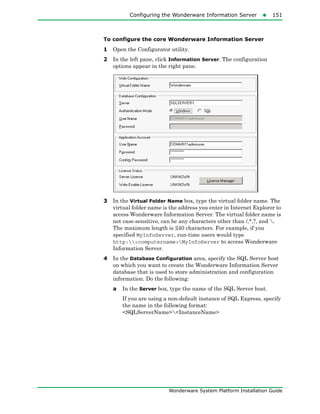
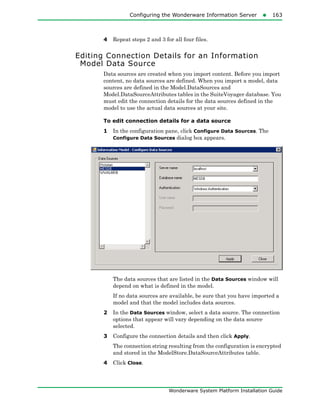
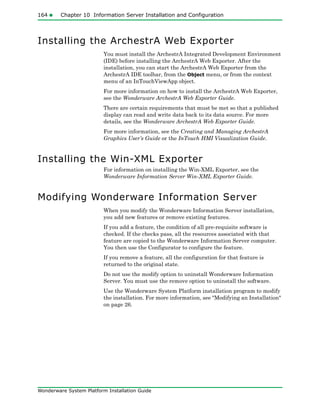
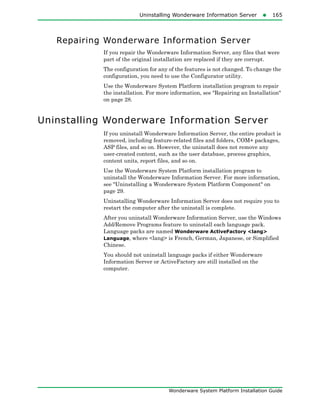
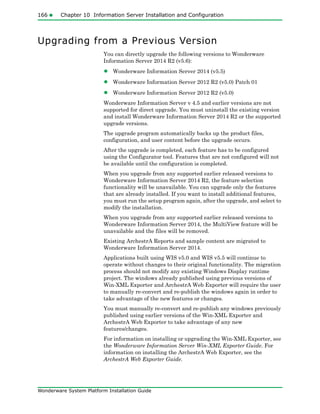
Wonderware
Wonderware System
Platform Installation
Guide
All rights reserved. No part of this documentation shall be reproduced, stored in a retrieval system, or
transmitted by any means, electronic, mechanical, photocopying, recording, or otherwise, without the
prior written permission of Schneider Electric Software, LLC. No copyright or patent liability is assumed
with respect to the use of the information contained herein. Although every precaution has been taken in
the preparation of this documentation, the publisher and the author assume no responsibility for errors or
omissions. Neither is any liability assumed for damages resulting from the use of the information
contained herein.
The information in this documentation is subject to change without notice and does not represent a
commitment on the part of Schneider Electric Software, LLC. The software described in this
documentation is furnished under a license agreement. This software may be used or copied only in
accordance with such license agreement.
© 2015 Schneider Electric Software, LLC. All rights reserved.
Schneider Electric Software, LLC
26561 Rancho Parkway South
Lake Forest, CA 92630 U.S.A.
(949) 727-3200
http://software.schneider-electric.com
For comments or suggestions about the product documentation, send an e-mail message to
ProductDocumentationComments@schneider-electric.com.
ArchestrA, Avantis, DYNSIM, EYESIM, Foxboro, Foxboro Evo, I/A Series, InBatch, InduSoft, IntelaTrac,
InTouch, PIPEPHASE, PRO/II, PROVISION, ROMeo, Schneider Electric, SIM4ME, SimCentral, SimSci,
Skelta, SmartGlance, Spiral Software, VISUAL FLARE, WindowMaker, WindowViewer, and
Wonderware are trademarks of Schneider Electric SE, its subsidiaries, and affiliated companies. An
extensive listing of Schneider Electric Software, LLC trademarks can be found at:
http://software.schneider-electric.com/legal/trademarks/. All other brands may be trademarks of their
respective owners.
3
Wonderware System Platform Installation Guide
Contents
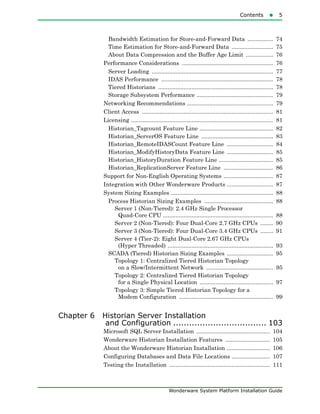
Chapter 1 Wonderware System Platform Installation........9
Preparing for Wonderware System Platform Installation ............. 9
Wonderware System Platform Prerequisites .............................. 9
About SQL Server Requirements ........................................... 12
Selecting a Type of Installation .................................................. 12
About Product-Based Installation .......................................... 12
About Role-Based Installation ................................................ 13
ArchestrA User Account ............................................................. 14
About ArchestrA User Account Privileges ............................. 14
Installing the Wonderware System Platform ............................... 15
Configuring Historian and Information Server ......................... 25
Modifying an ArchestrA User Account ......................................... 26
Modifying an Installation .............................................................. 26
Repairing an Installation .............................................................. 28
Uninstalling a Wonderware System Platform Component ......... 29
Upgrading the Wonderware System Platform ............................. 30
Installing a Product License .......................................................... 32
Chapter 2 Application Server Requirements and
Prerequisites ............................................ 33
SQL Server Requirements ............................................................. 33
SQL Server Rights Requirements .............................................. 35
4 Contents
Wonderware System Platform Installation Guide
Setting the SQL Server Security Mode .................................. 35
Restoring Required SQL Server Accounts ............................. 37
Working with SQL Server Versions ........................................... 38
Using a Non-Default Port for SQL Server ................................. 39
Setting a Windows Firewall Exception for the SQL
Server Port ............................................................................ 40
Issues with Legacy Common Components .................................... 41
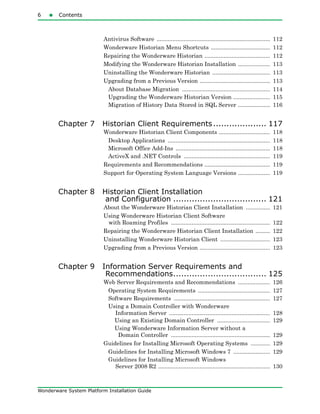
Chapter 3 Application Server Upgrade ......................... 43
Basic Upgrade Sequence ................................................................ 45
Upgrading a Galaxy Repository Node ........................................... 46
Upgrading an IDE-only Node ........................................................ 47
Migrating the Galaxy Database .................................................... 47
Upgrading Run-Time Nodes .......................................................... 48
Upgrading Redundant Pairs .......................................................... 48
Upgrade Considerations for Multi-Galaxy Communication ........ 54
Chapter 4 InTouch HMI Requirements
and Prerequisites ...................................... 55
Wonderware Product Licensing .................................................... 55
Installing FS Gateway and Modifying FS
Gateway Installations ................................................................. 57
FS Gateway Installation Scenarios ........................................ 58
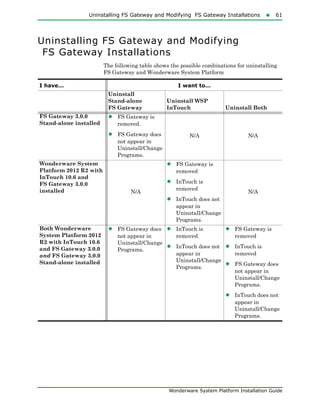
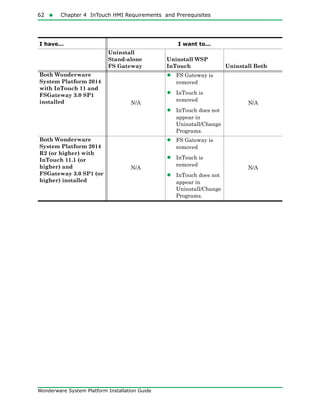
Uninstalling FS Gateway and Modifying
FS Gateway Installations ........................................................... 61
Chapter 5 Historian Server Requirements and
Recommendations..................................... 63
Server Requirements ..................................................................... 64
High Availability Support ........................................................... 66
Requirements for Historian Management Tools .......................... 66
Remote IDAS Requirements .......................................................... 67
Security Considerations for a Remote IDAS ............................. 67
Disk Sizing and Data Storage ....................................................... 68
General Hardware Recommendations for Storage .................... 69
Planning for Disk Space Requirements ..................................... 69
Disk Requirements for Database Files ...................................... 69
Disk Space Requirements for Historical Data Files ................. 71
Storage and Network Transmission Sizes for Tags .................. 71
Disk Space Estimation ................................................................ 72
Bandwidth Estimation for Streaming Data .............................. 73
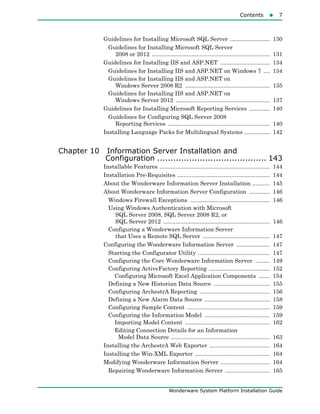
Contents5
Wonderware System Platform Installation Guide
Bandwidth Estimation for Store-and-Forward Data ................ 74
Time Estimation for Store-and-Forward Data .......................... 75
About Data Compression and the Buffer Age Limit ................. 76
Performance Considerations ......................................................... 76
Server Loading ............................................................................ 77
IDAS Performance ...................................................................... 78
Tiered Historians ........................................................................ 78
Storage Subsystem Performance ................................................ 79
Networking Recommendations ...................................................... 79
Client Access .................................................................................. 81
Licensing ......................................................................................... 81
Historian_Tagcount Feature Line .............................................. 82
Historian_ServerOS Feature Line ............................................. 83
Historian_RemoteIDASCount Feature Line ............................. 84
Historian_ModifyHistoryData Feature Line ............................. 85
Historian_HistoryDuration Feature Line .................................. 85
Historian_ReplicationServer Feature Line ............................... 86
Support for Non-English Operating Systems ............................... 87
Integration with Other Wonderware Products ............................. 87
System Sizing Examples ................................................................ 88
Process Historian Sizing Examples ........................................... 88
Server 1 (Non-Tiered): 2.4 GHz Single Processor
Quad-Core CPU ..................................................................... 88
Server 2 (Non-Tiered): Four Dual-Core 2.7 GHz CPUs ........ 90
Server 3 (Non-Tiered): Four Dual-Core 3.4 GHz CPUs ........ 91
Server 4 (Tier-2): Eight Dual-Core 2.67 GHz CPUs
(Hyper Threaded) .................................................................. 93
SCADA (Tiered) Historian Sizing Examples ............................. 95
Topology 1: Centralized Tiered Historian Topology
on a Slow/Intermittent Network .......................................... 95
Topology 2: Centralized Tiered Historian Topology
for a Single Physical Location .............................................. 97
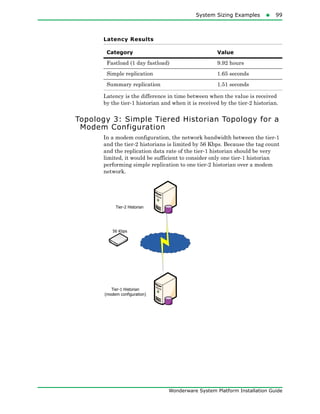
Topology 3: Simple Tiered Historian Topology for a
Modem Configuration ........................................................... 99
Chapter 6 Historian Server Installation
and Configuration ................................... 103
Microsoft SQL Server Installation .............................................. 104
Wonderware Historian Installation Features ............................ 105
About the Wonderware Historian Installation ........................... 106
Configuring Databases and Data File Locations ........................ 107
Testing the Installation ............................................................... 111
6 Contents
Wonderware System Platform Installation Guide
Antivirus Software ....................................................................... 112
Wonderware Historian Menu Shortcuts ..................................... 112
Repairing the Wonderware Historian ......................................... 112
Modifying the Wonderware Historian Installation .................... 113
Uninstalling the Wonderware Historian .................................... 113
Upgrading from a Previous Version ............................................ 113
About Database Migration ....................................................... 114
Upgrading the Wonderware Historian Version ....................... 115
Migration of History Data Stored in SQL Server .................... 116
Chapter 7 Historian Client Requirements.................... 117
Wonderware Historian Client Components ................................ 118
Desktop Applications ................................................................ 118
Microsoft Office Add-Ins ........................................................... 118
ActiveX and .NET Controls ...................................................... 119
Requirements and Recommendations ......................................... 119
Support for Operating System Language Versions .................... 119
Chapter 8 Historian Client Installation
and Configuration ................................... 121
About the Wonderware Historian Client Installation ............... 121
Using Wonderware Historian Client Software
with Roaming Profiles .............................................................. 122
Repairing the Wonderware Historian Client Installation ......... 122
Uninstalling Wonderware Historian Client ............................... 123
Upgrading from a Previous Version ............................................ 123
Chapter 9 Information Server Requirements and
Recommendations................................... 125
Web Server Requirements and Recommendations .................... 126
Operating System Requirements ............................................. 127
Software Requirements ............................................................ 127
Using a Domain Controller with Wonderware
Information Server ............................................................... 128
Using an Existing Domain Controller ................................. 129
Using Wonderware Information Server without a
Domain Controller .............................................................. 129
Guidelines for Installing Microsoft Operating Systems ............ 129
Guidelines for Installing Microsoft Windows 7 ....................... 129
Guidelines for Installing Microsoft Windows
Server 2008 R2 ...................................................................... 130
Contents7
Wonderware System Platform Installation Guide
Guidelines for Installing Microsoft SQL Server ......................... 130
Guidelines for Installing Microsoft SQL Server
2008 or 2012 .......................................................................... 131
Guidelines for Installing IIS and ASP.NET ............................... 134
Guidelines for Installing IIS and ASP.NET on Windows 7 .... 134
Guidelines for Installing IIS and ASP.NET on
Windows Server 2008 R2 ..................................................... 135
Guidelines for Installing IIS and ASP.NET on
Windows Server 2012 ........................................................... 137
Guidelines for Installing Microsoft Reporting Services ............. 140
Guidelines for Configuring SQL Server 2008
Reporting Services ................................................................ 140
Installing Language Packs for Multilingual Systems ................ 142
Chapter 10 Information Server Installation and
Configuration ......................................... 143
Installable Features ..................................................................... 144
Installation Pre-Requisites .......................................................... 144
About the Wonderware Information Server Installation ........... 145
About Wonderware Information Server Configuration ............. 146
Windows Firewall Exceptions .................................................. 146
Using Windows Authentication with Microsoft
SQL Server 2008, SQL Server 2008 R2, or
SQL Server 2012 ................................................................... 146
Configuring a Wonderware Information Server
that Uses a Remote SQL Server .......................................... 147
Configuring the Wonderware Information Server ..................... 147
Starting the Configurator Utility ............................................. 147
Configuring the Core Wonderware Information Server ......... 149
Configuring ActiveFactory Reporting ...................................... 152
Configuring Microsoft Excel Application Components ....... 154
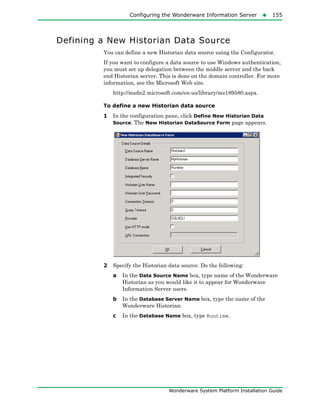
Defining a New Historian Data Source ................................... 155
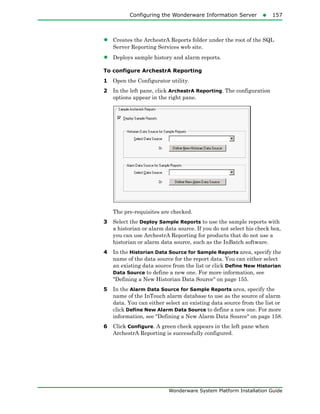
Configuring ArchestrA Reporting ............................................ 156
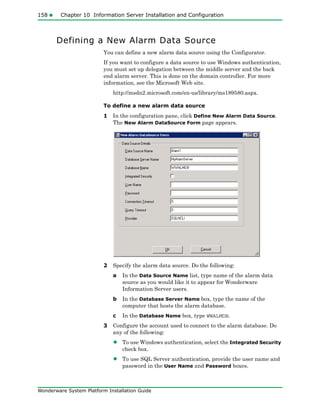
Defining a New Alarm Data Source ......................................... 158
Configuring Sample Content .................................................... 159
Configuring the Information Model ......................................... 159
Importing Model Content ..................................................... 162
Editing Connection Details for an Information
Model Data Source .............................................................. 163
Installing the ArchestrA Web Exporter ...................................... 164
Installing the Win-XML Exporter ............................................... 164
Modifying Wonderware Information Server ............................... 164
Repairing Wonderware Information Server ............................ 165
8 Contents
Wonderware System Platform Installation Guide
Uninstalling Wonderware Information Server .......................... 165
Upgrading from a Previous Version ............................................ 166
Upgrading the Server from Wonderware
Information Server 5.0 or 5.0 Patch 01 ............................... 167
Installing the Product License .................................................... 167
Appendix A Using Silent Installation............................ 167
Starting Silent Installation ......................................................... 167
Using Response Files ................................................................... 168
Response File Samples ................................................................ 169
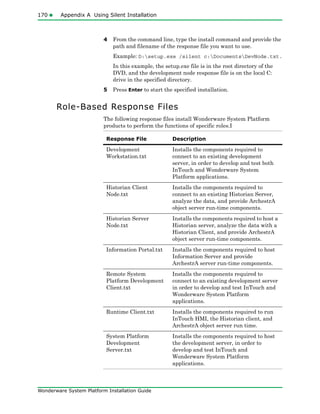
Role-Based Response Files ....................................................... 170
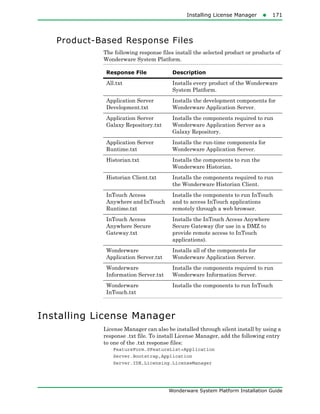
Product-Based Response Files .................................................. 171
Installing License Manager ......................................................... 171
Appendix B Single Product Installation ........................ 173
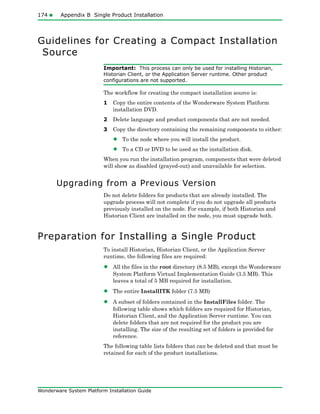
Guidelines for Creating a Compact Installation Source ............ 174
Upgrading from a Previous Version ......................................... 174
Preparation for Installing a Single Product ............................... 174
Optional Folder for Historian ................................................... 177
Creating the Installation Source and Installing
the Selected Component ........................................................... 178
Index..................................................... 179
9
Wonderware System Platform Installation Guide
Chapter 1
Wonderware System Platform
Installation
You can use the Wonderware® System Platform installation program
to install the entire suite of products or any of the components.
Preparing for Wonderware System Platform
Installation
Before you begin the installation program, you need to prepare your
system, and you should plan your installation according to the two
installation types available to you — product-based and role-based.
Note: You should not install the Galaxy Repository on a computer that
is used as a domain controller or an Active Directory server.
Wonderware System Platform Prerequisites
The Wonderware System Platform installation program analyzes the
software installed on your computer and lists any software that is
required but not currently installed, and any installed software that is
incompatible.
During product installation, the following prerequisites will be
installed by the Wonderware System Platform installation program, if
not already present on the system:
• Windows Installer 4.5
10  Chapter 1 Wonderware System Platform Installation
Wonderware System Platform Installation Guide
• Microsoft .NET® Framework 4.5.2: The .NET Framework will not
be installed if a version of .NET equal to, or higher than, 4.5.1 is
present.
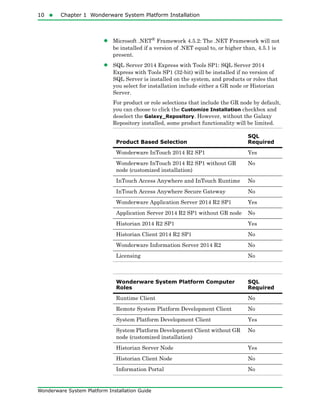
• SQL Server 2014 Express with Tools SP1: SQL Server 2014
Express with Tools SP1 (32-bit) will be installed if no version of
SQL Server is installed on the system, and products or roles that
you select for installation include either a GR node or Historian
Server.
For product or role selections that include the GR node by default,
you can choose to click the Customize Installation checkbox and
deselect the Galaxy_Repository. However, without the Galaxy
Repository installed, some product functionality will be limited.
Product Based Selection
SQL
Required
Wonderware InTouch 2014 R2 SP1 Yes
Wonderware InTouch 2014 R2 SP1 without GR
node (customized installation)
No
InTouch Access Anywhere and InTouch Runtime No
InTouch Access Anywhere Secure Gateway No
Wonderware Application Server 2014 R2 SP1 Yes
Application Server 2014 R2 SP1 without GR node No
Historian 2014 R2 SP1 Yes
Historian Client 2014 R2 SP1 No
Wonderware Information Server 2014 R2 No
Licensing No
Wonderware System Platform Computer
Roles
SQL
Required
Runtime Client No
Remote System Platform Development Client No
System Platform Development Client Yes
System Platform Development Client without GR
node (customized installation)
No
Historian Server Node Yes
Historian Client Node No
Information Portal No
Preparing for Wonderware System Platform Installation11
Wonderware System Platform Installation Guide
Note: Unlike past releases, this release of Wonderware System
Platform allows you to install an InTouch development system
without a GR node. However, InTouch Modern Applications will not
work without the GR node.
While installing Wonderware System Platform, if the logged-on user
(the installer) is not a SQL Server administrator, the aaConfig SQL
dialog box appears and requests SQL Server administrator
credentials. Enter valid SQL Server administrator credentials when
requested. For more information about setting user privileges with the
aaConfig SQL utility, see "Setting the SQL Server Security Mode" on
page 35. For more information about SQL Server installation, see
"About SQL Server Requirements" on page 12.
The Wonderware System Platform installation installs both
system-specific and product-specific prerequisites. It also checks for
incompatible software that will prevent installation from proceeding,
(for example, if InTouch Access Anywhere was previously installed).
You do not have to exit from the Wonderware System Platform
installation procedure to install the prerequisite software, with the
exception of standard or enterprise versions of SQL Server. You will
need to exit and perform any uninstall operations that are indicated
before continuing with installation.
For information on prerequisites and software requirements for the
specific products, see the Wonderware System Platform Readme, the
Readme files of the specific products located in your documentation
directory, or the specific product information chapter in this
installation guide.
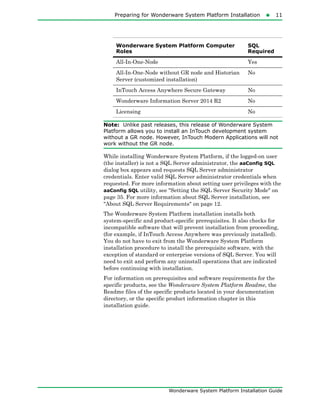
All-In-One-Node Yes
All-In-One-Node without GR node and Historian
Server (customized installation)
No
InTouch Access Anywhere Secure Gateway No
Wonderware Information Server 2014 R2 No
Licensing No
Wonderware System Platform Computer
Roles
SQL
Required
12  Chapter 1 Wonderware System Platform Installation
Wonderware System Platform Installation Guide
About SQL Server Requirements
The exception to the prerequisites installation workflow is the SQL
Server requirement for Wonderware System Platform products. In
most cases, SQL Server is required when you install:
• Wonderware Application Server
• Wonderware Historian
• Wonderware InTouch (when used with modern applications)
If a supported version of SQL Server is not already installed, you must
exit the installation program, install the supported SQL Server
version, then resume the installation.
Note: If you are installing a small system (less than 25000 I/O), you
can use SQL Server Express instead of a standard version of SQL
Server. You can elect to install SQL Server Express as part of the
Wonderware System Platform installation process; you do not have to
install it separately.
We recommend that you install and configure the supported SQL
Server version before you begin the Wonderware System Platform
installation program.
For more information about SQL Server prerequisites, see "SQL
Server Requirements" on page 33.
Selecting a Type of Installation
The Wonderware System Platform installation program offers you a
choice of two types of installation— product-based or role-based.
About Product-Based Installation
Product-based installation provides a combination of features not
specific to a node. This would be the preferred installation type for a
stand-alone product installation.
If you are familiar with Wonderware products and their associated
components, you can opt for a product-based installation, and then
choose the components that you need.
For example if you need to install InTouch®
with the default options,
then select a product-based installation.
Important: The Product-Based installation includes an option to
install the InTouch Access Anywhere Secure Gateway. This option can
only be installed on a computer running a supported version of the
Windows Server operating system. No other System Platform
components can be installed with it. See the Wonderware System
Platform Readme for supported Windows versions.
Preparing for Wonderware System Platform Installation13
Wonderware System Platform Installation Guide
About Role-Based Installation
Role-based installation provides a combination of features specific to a
node. This is preferred in ArchestrA types of installation.
If you are uncertain about the specific products or components you
need, but you know what role your computer will play, you can opt for
a role-based installation.
For example, if your computer is a run-time node or a development
node, you can select those roles in the role-based installation program.
The Wonderware System Platform installation program will install all
components required for the roles that you have selected.
It is recommended that you define the node you are installing and
select the appropriate role before starting the installation program.
During the installation, you can click a role to see its description, as
described in "Installing the Wonderware System Platform" on page 15.
The following roles are available for selection:
• Runtime Client: Install only the necessary components required
to run a visualization client, Historian client, and ArchestrA object
server run-time components.
• Remote System Development Workstation: Install the
components required for a remote engineering development
workstation with only the required components to allow the node
to connect to an existing development server; GR is not installed by
default. It allows development and testing of InTouch and
Wonderware System Platform applications.
• System Platform Development Server: Install the components
required to host the development server, and develop and test
InTouch and Wonderware System Platform applications.
• Historian Server Node: Install the necessary components to
store historical data in an ArchestrA environment.
• Historian Client Node: Install the components required to
connect to an existing Historian Server and analyze the data.
• Information Portal: Install the necessary components for
aggregating and presenting plant production and performance
data on the internet or company intranet with the capability to
access live plant process data, integrated data trending and
analysis, production and performance reporting, and integration to
existing IT infrastructure and web portals.
• All-in-One Node: All products are installed on a single node.
• Custom: Allows you to customize the components that are
installed.
14  Chapter 1 Wonderware System Platform Installation
Wonderware System Platform Installation Guide
• InTouch Access Anywhere Secure Gateway Node: Install the
components to access Wonderware InTouch applications hosted on
Terminal Servers by using HTML5 compatible web browsers. You
must install this component on a computer with no other System
Platform components installed.
ArchestrA User Account
The ArchestrA user account is a user name and password combination
that enables inter-node communication between all computers in an
ArchestrA environment. You must specify the same user account on
every node when you install the Wonderware System Platform
components for the first time on computers that communicate with
each other.
Wherever an ArchestrA user account is required, the Wonderware
System Platform Installation dialog box appears and you will need to
provide a valid user name and password.
WARNING! The ArchestrA user account is a Windows operating
system account located on the local computer or on a domain.
Do not delete this account with operating system account
management tools. If you do, ArchestrA-enabled software may
stop functioning properly.
If no other ArchestrA-enabled software is installed on the computer,
you are prompted to create a new ArchestrA user account or specify an
existing user account during the Wonderware System Platform
installation. If you select an existing user account, it should meet the
following requirements:
• User account with a permanent password that does not expire.
• User account in which the password cannot be changed.
• User account that is a member of the local Administrators group.
Important: For security reasons, the ArchestrA user account is not
permitted to log on to the Galaxy locally or through Remote Desktop
Services by default. This is configured in the operating system user
rights management.
About ArchestrA User Account Privileges
During the Wonderware System Platform installation, you can choose
to have the system automatically create a new local administrator
account. This new account cannot be used to interactively log on to the
computer.
If you select a pre-existing user during installation who is already a
local administrator (domain or local), the existing interactive log on
privileges are not changed.
Installing the Wonderware System Platform15
Wonderware System Platform Installation Guide
Note: The Application Server installation will add the necessary SQL
Server privileges for SQL Server. For more information, see "SQL
Server Rights Requirements" on page 35.
See "Modifying an ArchestrA User Account" on page 26 if you need to
change or recreate the ArchestrA user account.
Installing the Wonderware System Platform
You can select a product-based or a role-based installation for your
computer.
Note: The installation workflow for Wonderware System Platform
2014 R2 SP1 is different than in previous versions. Prerequisites are
installed as part of product installation and not in a separate workflow.
To install the Wonderware System Platform
1 Insert the DVD into your DVD-ROM drive. The installation
program automatically runs. Basic installation requirements are
checked; if .NET 4.5.1 or later is not installed, version 4.5.2 will be
installed now. You may be prompted to reboot after installation of
the .NET framework.
If your network or company security policy does not permit
autorun, browse the root directory of the DVD and run setup.exe.
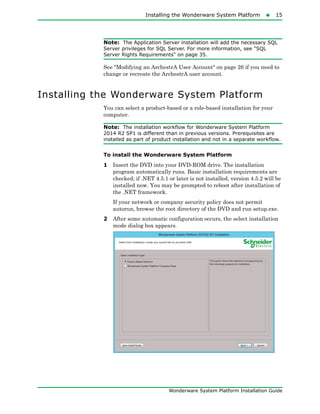
2 After some automatic configuration occurs, the select installation
mode dialog box appears.
16  Chapter 1 Wonderware System Platform Installation
Wonderware System Platform Installation Guide
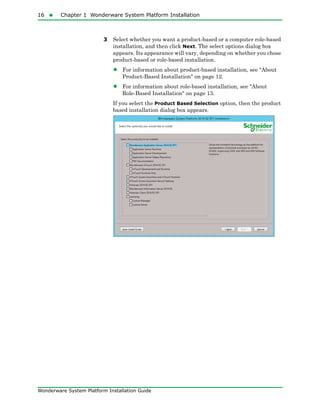
3 Select whether you want a product-based or a computer role-based
installation, and then click Next. The select options dialog box
appears. Its appearance will vary, depending on whether you chose
product-based or role-based installation.
• For information about product-based installation, see "About
Product-Based Installation" on page 12.
• For information about role-based installation, see "About
Role-Based Installation" on page 13.
If you select the Product Based Selection option, then the product
based installation dialog box appears.
Installing the Wonderware System Platform17
Wonderware System Platform Installation Guide
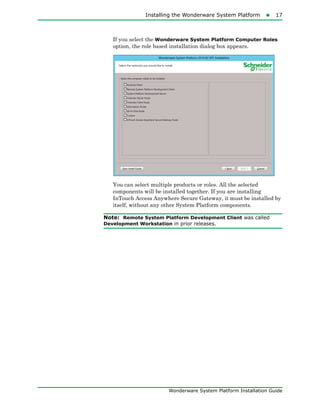
If you select the Wonderware System Platform Computer Roles
option, the role based installation dialog box appears.
You can select multiple products or roles. All the selected
components will be installed together. If you are installing
InTouch Access Anywhere Secure Gateway, it must be installed by
itself, without any other System Platform components.
Note: Remote System Platform Development Client was called
Development Workstation in prior releases.
18  Chapter 1 Wonderware System Platform Installation
Wonderware System Platform Installation Guide
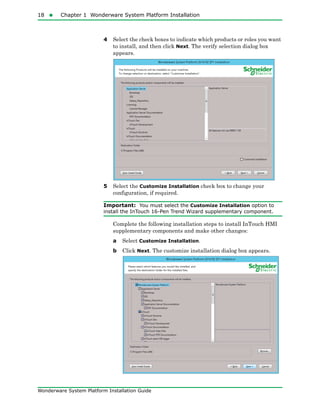
4 Select the check boxes to indicate which products or roles you want
to install, and then click Next. The verify selection dialog box
appears.
5 Select the Customize Installation check box to change your
configuration, if required.
Important: You must select the Customize Installation option to
install the InTouch 16-Pen Trend Wizard supplementary component.
Complete the following installation steps to install InTouch HMI
supplementary components and make other changes:
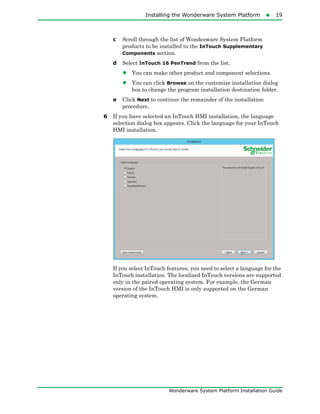
a Select Customize Installation.
b Click Next. The customize installation dialog box appears.
Installing the Wonderware System Platform19
Wonderware System Platform Installation Guide
c Scroll through the list of Wonderware System Platform
products to be installed to the InTouch Supplementary
Components section.
d Select InTouch 16 PenTrend from the list.
• You can make other product and component selections.
• You can click Browse on the customize installation dialog
box to change the program installation destination folder.
e Click Next to continue the remainder of the installation
procedure.
6 If you have selected an InTouch HMI installation, the language
selection dialog box appears. Click the language for your InTouch
HMI installation.
If you select InTouch features, you need to select a language for the
InTouch installation. The localized InTouch versions are supported
only in the paired operating system. For example, the German
version of the InTouch HMI is only supported on the German
operating system.
20  Chapter 1 Wonderware System Platform Installation
Wonderware System Platform Installation Guide
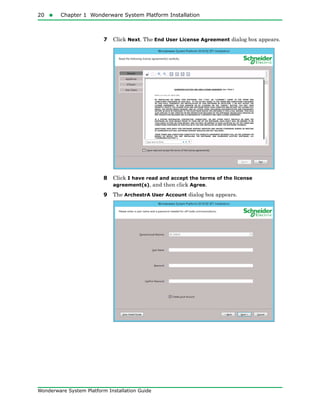
7 Click Next. The End User License Agreement dialog box appears.
8 Click I have read and accept the terms of the license
agreement(s), and then click Agree.
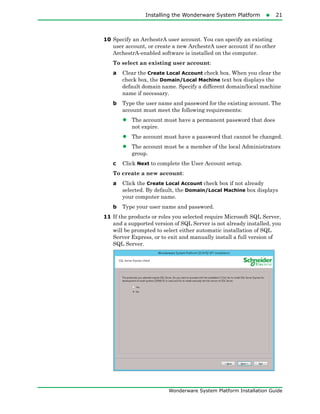
9 The ArchestrA User Account dialog box appears.
Installing the Wonderware System Platform21
Wonderware System Platform Installation Guide
10 Specify an ArchestrA user account. You can specify an existing
user account, or create a new ArchestrA user account if no other
ArchestrA-enabled software is installed on the computer.
To select an existing user account:
a Clear the Create Local Account check box. When you clear the
check box, the Domain/Local Machine text box displays the
default domain name. Specify a different domain/local machine
name if necessary.
b Type the user name and password for the existing account. The
account must meet the following requirements:
• The account must have a permanent password that does
not expire.
• The account must have a password that cannot be changed.
• The account must be a member of the local Administrators
group.
c Click Next to complete the User Account setup.
To create a new account:
a Click the Create Local Account check box if not already
selected. By default, the Domain/Local Machine box displays
your computer name.
b Type your user name and password.
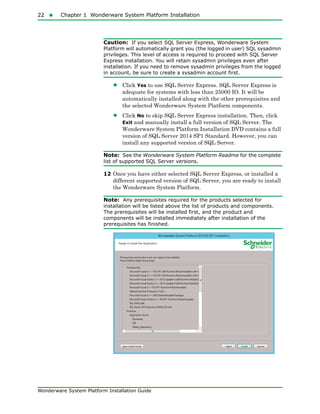
11 If the products or roles you selected require Microsoft SQL Server,
and a supported version of SQL Server is not already installed, you
will be prompted to select either automatic installation of SQL
Server Express, or to exit and manually install a full version of
SQL Server.
22  Chapter 1 Wonderware System Platform Installation
Wonderware System Platform Installation Guide
Caution: If you select SQL Server Express, Wonderware System
Platform will automatically grant you (the logged in user) SQL sysadmin
privileges. This level of access is required to proceed with SQL Server
Express installation. You will retain sysadmin privileges even after
installation. If you need to remove sysadmin privileges from the logged
in account, be sure to create a sysadmin account first.
• Click Yes to use SQL Server Express. SQL Server Express is
adequate for systems with less than 25000 IO. It will be
automatically installed along with the other prerequisites and
the selected Wonderware System Platform components.
• Click No to skip SQL Server Express installation. Then, click
Exit and manually install a full version of SQL Server. The
Wonderware System Platform Installation DVD contains a full
version of SQL Server 2014 SP1 Standard. However, you can
install any supported version of SQL Server.
Note: See the Wonderware System Platform Readme for the complete
list of supported SQL Server versions.
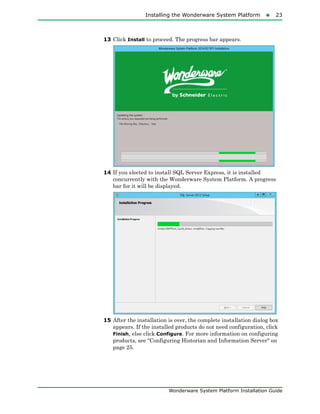
12 Once you have either selected SQL Server Express, or installed a
different supported version of SQL Server, you are ready to install
the Wonderware System Platform.
Note: Any prerequisites required for the products selected for
installation will be listed above the list of products and components.
The prerequisites will be installed first, and the product and
components will be installed immediately after installation of the
prerequisites has finished.
Installing the Wonderware System Platform23
Wonderware System Platform Installation Guide
13 Click Install to proceed. The progress bar appears.
14 If you elected to install SQL Server Express, it is installed
concurrently with the Wonderware System Platform. A progress
bar for it will be displayed.
15 After the installation is over, the complete installation dialog box
appears. If the installed products do not need configuration, click
Finish, else click Configure. For more information on configuring
products, see "Configuring Historian and Information Server" on
page 25.
24  Chapter 1 Wonderware System Platform Installation
Wonderware System Platform Installation Guide
16 If you are upgrading from a prior version of Wonderware
Application Server, and a galaxy is deployed, the Galaxy Patcher
will start as soon as you connect to the galaxy from the Application
Server IDE. Undeployed galaxies are not patched until you connect
to them.
Important: Galaxy patching may take several minutes. Do not shut
downs the node while the patching operation is in progress.
17 After configuration (and patching, if applicable) finishes, click
Restart Now to complete the installation.
Installing the Wonderware System Platform25
Wonderware System Platform Installation Guide
Configuring Historian and Information Server
Wonderware Historian Server and Wonderware Information Server
require post-installation configuration for initial setup. You need to
configure your products using the Configurator dialog box after you
have installed them. The Configurator dialog box lists all product
components that you have installed. You can configure the locations
for the product database and the data files.
You must have sysadmin permissions to configure products using the
Configurator.
Note: You need to configure the products only if you have installed
Wonderware Historian Server or Wonderware Information Server.
To configure products
1 In the complete installation dialog box, click Configure. The
Configurator dialog box appears. The following example shows
configuration for the Historian Server.
2 On the left pane, select the component and configure the details on
the right pane.
3 Click Configure. After the installation is complete, the system may
prompt you to restart. You can restart now or later.
Note: The installed programs may not function properly until you
restart the system.
26  Chapter 1 Wonderware System Platform Installation
Wonderware System Platform Installation Guide
Modifying an ArchestrA User Account
After you install the Wonderware System Platform, you can use the
ArchestrA Change Network Account utility to change or recreate the
ArchestrA user account. This utility is located in the Common folder
after you install the Wonderware System Platform products. You must
have Administrator privileges on the computer to make changes with
the Change Network Account utility. For more information, see the
Change Network Account utility on-line help.
Note: If you recreate the user account using the Change Network
Account utility, the Microsoft Windows security component on the
computer can take several minutes to update this information on the
ArchestrA Galaxy Repository node. Until that occurs, the ArchestrA
component may not function properly. Restarting the Galaxy Repository
node updates this information immediately.
Modifying an Installation
You can change the Wonderware System Platform components
installed on your computer. You can add new components or remove
the existing ones. You can modify any component of Wonderware
System Platform.
You must have the installation DVD inserted in the DVD-ROM drive
before you can modify a program.
To modify an installation
1 Click the Add or Remove Programs (or Uninstall or Change a
Program) option in Windows Control Panel.
2 Select any Wonderware System Platform component, and then
click the Uninstall/Change button. The Modify, Repair or Remove
Installation dialog box appears.
Note: The name of the Uninstall/Change button varies depending on
the Windows operating system installed on your computer.
Modifying an Installation27
Wonderware System Platform Installation Guide
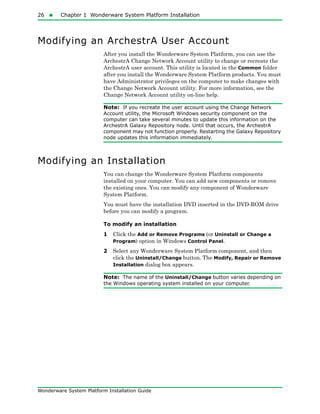
3 Click the Modify option, and then click Next. The list of
Wonderware System Platform components appears.
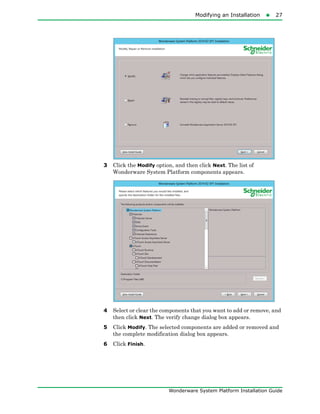
4 Select or clear the components that you want to add or remove, and
then click Next. The verify change dialog box appears.
5 Click Modify. The selected components are added or removed and
the complete modification dialog box appears.
6 Click Finish.
28  Chapter 1 Wonderware System Platform Installation
Wonderware System Platform Installation Guide
Repairing an Installation
You can repair the installation of any component of the Wonderware
System Platform. You can repair missing or corrupt files, registry keys
or shortcuts. You can also reset the registry key to the default value.
Note: You must insert the installer DVD in the DVD-ROM drive before
you can repair a program.
To repair an installation
1 Click the Uninstall or Change a Program option in Windows
Control Panel. The list of software installed on your computer
appears.
2 Select the Wonderware System Platform component that you want
to repair, and then click the Uninstall/Change button. The Modify
Repair or Remove Installation dialog box appears.
Note: The name of the Uninstall/Change button varies depending on
the Windows operating system installed on your computer.
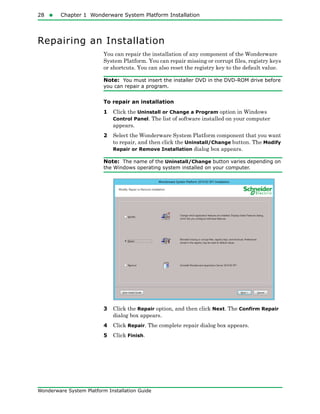
3 Click the Repair option, and then click Next. The Confirm Repair
dialog box appears.
4 Click Repair. The complete repair dialog box appears.
5 Click Finish.
Uninstalling a Wonderware System Platform Component29
Wonderware System Platform Installation Guide
Uninstalling a Wonderware System Platform
Component
You can uninstall any component of the Wonderware System Platform
that is installed on your computer.
To uninstall the Wonderware System Platform component
1 Click the Uninstall or Change a Program option in Windows
Control Panel. The list of software installed on your computer
appears.
2 Select the Wonderware System Platform component that you want
to uninstall, and then click the Uninstall/Change button. The
Modify Repair or Remove Installation dialog box appears.
Note: The name of the Uninstall/Change button varies depending on
the Windows operating system installed on your computer.
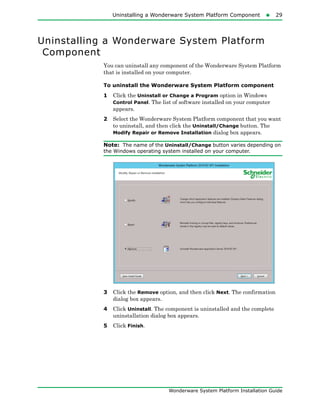
3 Click the Remove option, and then click Next. The confirmation
dialog box appears.
4 Click Uninstall. The component is uninstalled and the complete
uninstallation dialog box appears.
5 Click Finish.
30  Chapter 1 Wonderware System Platform Installation
Wonderware System Platform Installation Guide
Upgrading the Wonderware System Platform
You can upgrade to Wonderware System Platform 2014 R2 SP1 if you
have an older version of the software installed in your system. Only
components that were previously installed will be upgraded. You
cannot choose to add components that were not already installed, and
you cannot deselect components. That is, if a newer version of a
component is included on the installation DVD, the previously
installed component will be upgraded.
Note: If you plan to upgrade Wonderware System Platform on a
computer that has InTouch Access Anywhere Server or InTouch Access
Anywhere Gateway installed, you must first uninstall the InTouch
Access Anywhere Server or Gateway. Then, upgrade Wonderware
System Platform and finally reinstall InTouch Access Anywhere.
To upgrade a Wonderware System Platform component
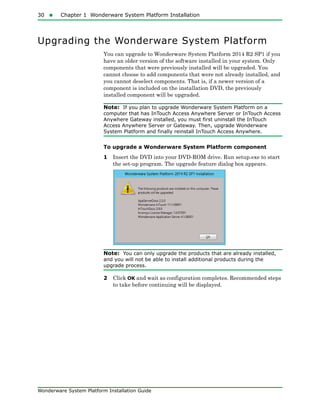
1 Insert the DVD into your DVD-ROM drive. Run setup.exe to start
the set-up program. The upgrade feature dialog box appears.
Note: You can only upgrade the products that are already installed,
and you will not be able to install additional products during the
upgrade process.
2 Click OK and wait as configuration completes. Recommended steps
to take before continuing will be displayed.
Upgrading the Wonderware System Platform31
Wonderware System Platform Installation Guide
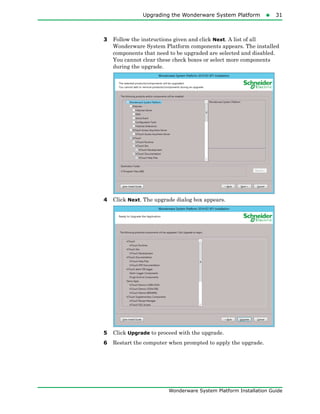
3 Follow the instructions given and click Next. A list of all
Wonderware System Platform components appears. The installed
components that need to be upgraded are selected and disabled.
You cannot clear these check boxes or select more components
during the upgrade.
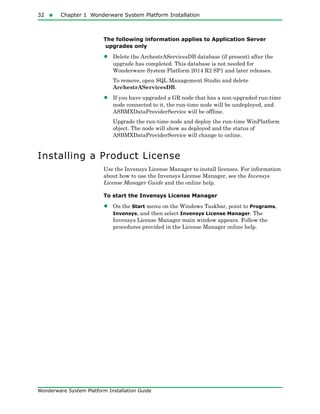
4 Click Next. The upgrade dialog box appears.
5 Click Upgrade to proceed with the upgrade.
6 Restart the computer when prompted to apply the upgrade.
32  Chapter 1 Wonderware System Platform Installation
Wonderware System Platform Installation Guide
The following information applies to Application Server
upgrades only
• Delete the ArchestrAServicesDB database (if present) after the
upgrade has completed. This database is not needed for
Wonderware System Platform 2014 R2 SP1 and later releases.
To remove, open SQL Management Studio and delete
ArchestrAServicesDB.
• If you have upgraded a GR node that has a non-upgraded run-time
node connected to it, the run-time node will be undeployed, and
ASBMXDataProviderService will be offline.
Upgrade the run-time node and deploy the run-time WinPlatform
object. The node will show as deployed and the status of
ASBMXDataProviderService will change to online.
Installing a Product License
Use the Invensys License Manager to install licenses. For information
about how to use the Invensys License Manager, see the Invensys
License Manager Guide and the online help.
To start the Invensys License Manager
• On the Start menu on the Windows Taskbar, point to Programs,
Invensys, and then select Invensys License Manager. The
Invensys License Manager main window appears. Follow the
procedures provided in the License Manager online help.
33
Wonderware System Platform Installation Guide
Chapter 2
Application Server
Requirements and
Prerequisites
SQL Server Requirements
In a typical configuration, you should install Microsoft SQL Server
before you install Application Server. It is important to take into
consideration the requirements of the different versions of SQL
Server. Follow Microsoft installation instructions for your particular
edition of SQL Server.
If no version of SQL Server is installed on your system when you
install Wonderware System Platform, and you install a product or role
that includes either Historian Server or a Galaxy Repository, you can
allow SQL Server 2014 Express with Tools SP1 to be installed
automatically.
For information about the versions of SQL Server supported by
Application Server and other Wonderware System Platform products,
see the Wonderware System Platform Readme.
For more information about specific requirements for SQL Server
configuration, see "SQL Server Rights Requirements" on page 35, or
see Microsoft documentation available online.
34  Chapter 2 Application Server Requirements and Prerequisites
Wonderware System Platform Installation Guide
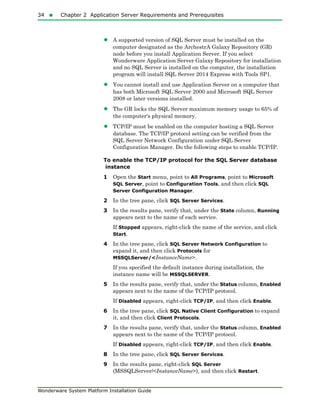
• A supported version of SQL Server must be installed on the
computer designated as the ArchestrA Galaxy Repository (GR)
node before you install Application Server. If you select
Wonderware Application Server Galaxy Repository for installation
and no SQL Server is installed on the computer, the installation
program will install SQL Server 2014 Express with Tools SP1.
• You cannot install and use Application Server on a computer that
has both Microsoft SQL Server 2000 and Microsoft SQL Server
2008 or later versions installed.
• The GR locks the SQL Server maximum memory usage to 65% of
the computer's physical memory.
• TCP/IP must be enabled on the computer hosting a SQL Server
database. The TCP/IP protocol setting can be verified from the
SQL Server Network Configuration under SQL Server
Configuration Manager. Do the following steps to enable TCP/IP.
To enable the TCP/IP protocol for the SQL Server database
instance
1 Open the Start menu, point to All Programs, point to Microsoft
SQL Server, point to Configuration Tools, and then click SQL
Server Configuration Manager.
2 In the tree pane, click SQL Server Services.
3 In the results pane, verify that, under the State column, Running
appears next to the name of each service.
If Stopped appears, right-click the name of the service, and click
Start.
4 In the tree pane, click SQL Server Network Configuration to
expand it, and then click Protocols for
MSSQLServer/<InstanceName>.
If you specified the default instance during installation, the
instance name will be MSSQLSERVER.
5 In the results pane, verify that, under the Status column, Enabled
appears next to the name of the TCP/IP protocol.
If Disabled appears, right-click TCP/IP, and then click Enable.
6 In the tree pane, click SQL Native Client Configuration to expand
it, and then click Client Protocols.
7 In the results pane, verify that, under the Status column, Enabled
appears next to the name of the TCP/IP protocol.
If Disabled appears, right-click TCP/IP, and then click Enable.
8 In the tree pane, click SQL Server Services.
9 In the results pane, right-click SQL Server
(MSSQLServer/<InstanceName>), and then click Restart.
SQL Server Requirements35
Wonderware System Platform Installation Guide
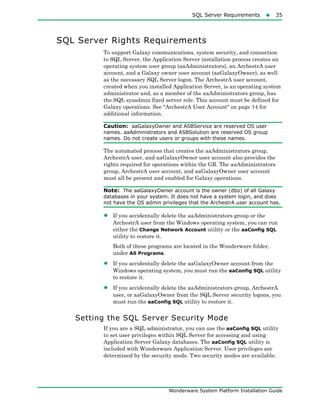
SQL Server Rights Requirements
To support Galaxy communications, system security, and connection
to SQL Server, the Application Server installation process creates an
operating system user group (aaAdministrators), an ArchestrA user
account, and a Galaxy owner user account (aaGalaxyOwner), as well
as the necessary SQL Server logon. The ArchestrA user account,
created when you installed Application Server, is an operating system
administrator and, as a member of the aaAdministrators group, has
the SQL sysadmin fixed server role. This account must be defined for
Galaxy operations. See "ArchestrA User Account" on page 14 for
additional information.
Caution: aaGalaxyOwner and ASBService are reserved OS user
names. aaAdministrators and ASBSolution are reserved OS group
names. Do not create users or groups with these names.
The automated process that creates the aaAdministrators group,
ArchestrA user, and aaGalaxyOwner user account also provides the
rights required for operations within the GR. The aaAdministrators
group, ArchestrA user account, and aaGalaxyOwner user account
must all be present and enabled for Galaxy operations.
Note: The aaGalaxyOwner account is the owner (dbo) of all Galaxy
databases in your system. It does not have a system login, and does
not have the OS admin privileges that the ArchestrA user account has.
• If you accidentally delete the aaAdministrators group or the
ArchestrA user from the Windows operating system, you can run
either the Change Network Account utility or the aaConfig SQL
utility to restore it.
Both of these programs are located in the Wonderware folder,
under All Programs.
• If you accidentally delete the aaGalaxyOwner account from the
Windows operating system, you must run the aaConfig SQL utility
to restore it.
• If you accidentally delete the aaAdministrators group, ArchestrA
user, or aaGalaxyOwner from the SQL Server security logons, you
must run the aaConfig SQL utility to restore it.
Setting the SQL Server Security Mode
If you are a SQL administrator, you can use the aaConfig SQL utility
to set user privileges within SQL Server for accessing and using
Application Server Galaxy databases. The aaConfig SQL utility is
included with Wonderware Application Server. User privileges are
determined by the security mode. Two security modes are available:
36  Chapter 2 Application Server Requirements and Prerequisites
Wonderware System Platform Installation Guide
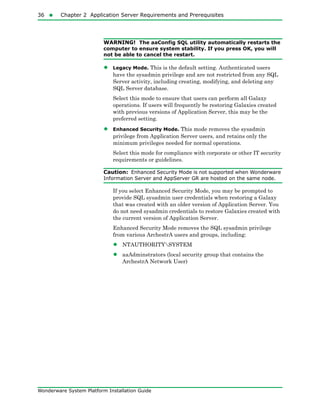
WARNING! The aaConfig SQL utility automatically restarts the
computer to ensure system stability. If you press OK, you will
not be able to cancel the restart.
• Legacy Mode. This is the default setting. Authenticated users
have the sysadmin privilege and are not restricted from any SQL
Server activity, including creating, modifying, and deleting any
SQL Server database.
Select this mode to ensure that users can perform all Galaxy
operations. If users will frequently be restoring Galaxies created
with previous versions of Application Server, this may be the
preferred setting.
• Enhanced Security Mode. This mode removes the sysadmin
privilege from Application Server users, and retains only the
minimum privileges needed for normal operations.
Select this mode for compliance with corporate or other IT security
requirements or guidelines.
Caution: Enhanced Security Mode is not supported when Wonderware
Information Server and AppServer GR are hosted on the same node.
If you select Enhanced Security Mode, you may be prompted to
provide SQL sysadmin user credentials when restoring a Galaxy
that was created with an older version of Application Server. You
do not need sysadmin credentials to restore Galaxies created with
the current version of Application Server.
Enhanced Security Mode removes the SQL sysadmin privilege
from various ArchestrA users and groups, including:
• NTAUTHORITYSYSTEM
• aaAdminstrators (local security group that contains the
ArchestrA Network User)
SQL Server Requirements37
Wonderware System Platform Installation Guide
• <NodeName>ASBService (used for cross-Galaxy
communications, and for browsing ArchestrA components)
To change the SQL security mode with aaConfig SQL
1 Select the authentication type (Windows or SQL Server).
2 Provide SQL sysadmin logon credentials (User Name and
Password).
3 Select the SQL Server security mode. The system will restart
automatically.
4 If you have selected Enhanced Security Mode: After the system
restarts, ensure that the BUILTINAdministrators group does not
have the sysadmin role.
Note: The system performs a check prior to changing to Enhanced
Security Mode. This is to ensure that at least one account will exist with
the SQL sysadmin privilege after the change. If the system check
determines that no accounts with the SQL sysadmin privilege will
remain after changing modes, an error message will be displayed and
security will remain in Legacy Mode.
Restoring Required SQL Server Accounts
If you delete the aaAdministrators group, ArchestrA user account, or
the aaGalaxyOwner account, restore them by running aaConfigSQL.
You do not have to do anything else to restore the missing group or
account. The missing group or account is created automatically when
you run the utility. Running the utility does force a system restart,
however, even if you retain the same security configuration.
38  Chapter 2 Application Server Requirements and Prerequisites
Wonderware System Platform Installation Guide
Working with SQL Server Versions
The installation workflow will vary, depending on whether or not SQL
Server is already installed. The version of SQL Server that is installed
can also make a difference in the workflow. If SQL Server is not
already installed, the Wonderware System Platform installation
program will install SQL Server Express. This is adequate for small
configurations, but not for medium and large configurations. For
these, install SQL Server before installing Wonderware. The following
workflow scenarios are described:
• SQL Server not found on node: small configuration
• SQL Server not found on node: medium and larger configurations
• Compatible version of SQL Server already installed
• New (untested) version of SQL Server already installed
• Incompatible version of SQL Server already installed
Note: Nodes are defined as follows: Small = up to 25,000 I/O per
node; Medium = 25,000 to 50,000 I/O per node; Large = 50,000 to
400,000 I/O per node.
SQL Server not found on node: small configuration
If you install the Application Server Galaxy Repository and SQL
Server is not found on the computer, SQL Server 2014 Express with
Tools SP1 is installed as part of the installation process. This version
of SQL Server is suited for small configurations, and is best for a
single-node system.
SQL Server not found on node: medium and larger
configurations
For medium and larger systems, the following versions are supported:
• SQL Server 2008 SP3: Standard or Enterprise edition (32-bit only)
• SQL Server 2008 R2 without service pack, or with SP1, SP2, or
SP3: Standard or Enterprise edition (32- or 64-bit)
• SQL Server 2012 without service pack, or with SP1 or SP2:
Standard or Enterprise edition (32- or 64-bit)
• SQL Server 2014 without service pack, or with SP1, Standard or
Enterprise edition (32- or 64-bit)
For more information about the comparative capabilities of different
SQL Server editions, see "Features Supported by the Different
Versions of SQL Server 2012" at the following URL:
http://msdn.microsoft.com/en-us/library/cc645993(v=SQL.110).aspx.
SQL Server Requirements39
Wonderware System Platform Installation Guide
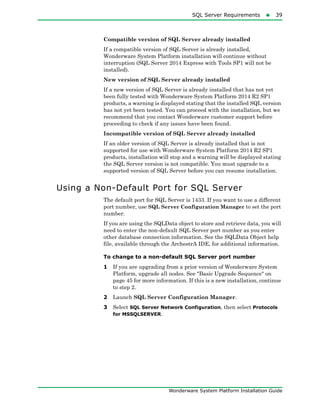
Compatible version of SQL Server already installed
If a compatible version of SQL Server is already installed,
Wonderware System Platform installation will continue without
interruption (SQL Server 2014 Express with Tools SP1 will not be
installed).
New version of SQL Server already installed
If a new version of SQL Server is already installed that has not yet
been fully tested with Wonderware System Platform 2014 R2 SP1
products, a warning is displayed stating that the installed SQL version
has not yet been tested. You can proceed with the installation, but we
recommend that you contact Wonderware customer support before
proceeding to check if any issues have been found.
Incompatible version of SQL Server already installed
If an older version of SQL Server is already installed that is not
supported for use with Wonderware System Platform 2014 R2 SP1
products, installation will stop and a warning will be displayed stating
the SQL Server version is not compatible. You must upgrade to a
supported version of SQL Server before you can resume installation.
Using a Non-Default Port for SQL Server
The default port for SQL Server is 1433. If you want to use a different
port number, use SQL Server Configuration Manager to set the port
number.
If you are using the SQLData object to store and retrieve data, you will
need to enter the non-default SQL Server port number as you enter
other database connection information. See the SQLData Object help
file, available through the ArchestrA IDE, for additional information.
To change to a non-default SQL Server port number
1 If you are upgrading from a prior version of Wonderware System
Platform, upgrade all nodes. See "Basic Upgrade Sequence" on
page 45 for more information. If this is a new installation, continue
to step 2.
2 Launch SQL Server Configuration Manager.
3 Select SQL Server Network Configuration, then select Protocols
for MSSQLSERVER.
40  Chapter 2 Application Server Requirements and Prerequisites
Wonderware System Platform Installation Guide
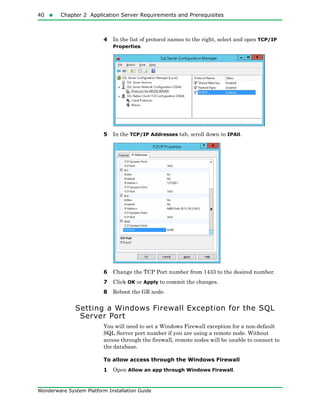
4 In the list of protocol names to the right, select and open TCP/IP
Properties.
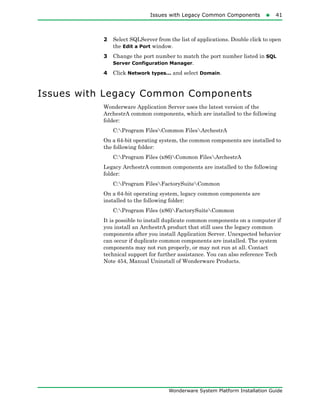
5 In the TCP/IP Addresses tab, scroll down to IPAll.
6 Change the TCP Port number from 1433 to the desired number.
7 Click OK or Apply to commit the changes.
8 Reboot the GR node.
Setting a Windows Firewall Exception for the SQL
Server Port
You will need to set a Windows Firewall exception for a non-default
SQL Server port number if you are using a remote node. Without
access through the firewall, remote nodes will be unable to connect to
the database.
To allow access through the Windows Firewall
1 Open Allow an app through Windows Firewall.
Issues with Legacy Common Components41
Wonderware System Platform Installation Guide
2 Select SQLServer from the list of applications. Double click to open
the Edit a Port window.
3 Change the port number to match the port number listed in SQL
Server Configuration Manager.
4 Click Network types... and select Domain.
Issues with Legacy Common Components
Wonderware Application Server uses the latest version of the
ArchestrA common components, which are installed to the following
folder:
C:Program FilesCommon FilesArchestrA
On a 64-bit operating system, the common components are installed to
the following folder:
C:Program Files (x86)Common FilesArchestrA
Legacy ArchestrA common components are installed to the following
folder:
C:Program FilesFactorySuiteCommon
On a 64-bit operating system, legacy common components are
installed to the following folder:
C:Program Files (x86)FactorySuiteCommon
It is possible to install duplicate common components on a computer if
you install an ArchestrA product that still uses the legacy common
components after you install Application Server. Unexpected behavior
can occur if duplicate common components are installed. The system
components may not run properly, or may not run at all. Contact
technical support for further assistance. You can also reference Tech
Note 454, Manual Uninstall of Wonderware Products.
42  Chapter 2 Application Server Requirements and Prerequisites
Wonderware System Platform Installation Guide
43
Wonderware System Platform Installation Guide
Chapter 3
Application Server Upgrade
For specific versions of the Application Server that you can upgrade to
version 2014 R2 SP1, see the Wonderware System Platform Readme
file.
Important: Ensure that you have installed the latest patch for your
existing version, wherever possible, before upgrading to the latest
version. Also, only systems that meet the minimum system
requirements, including operating system and SQL Server version, can
be upgraded.
If you plan to upgrade system components in addition to Application
Server, keep the following in mind:
• After Application Server is installed, operating system migration is
not supported, with the following upgrade exceptions:
• Windows 8 to Windows 8.1
• Windows 8.1 to Windows 10
• Windows Server 2012 to Windows Server 2012 R2
Other than the above exceptions, Wonderware System Platform
products must be uninstalled prior to upgrading the operating
system.
• You can upgrade SQL Server after Application Server is installed.
Refer to Microsoft’s SQL Server resources for guidelines and
procedures.
To upgrade SQL Server after Application Server is installed, we
recommend that you undeploy any galaxies deployed on the
relevant computer, and that you undeploy all ArchestrA Service
Bus (ASB) services. For more information, see the Wonderware
Application Server User Guide.
44  Chapter 3 Application Server Upgrade
Wonderware System Platform Installation Guide
You can upgrade the following Application Server components:
• Bootstrap
You will see a warning message if you attempt to upgrade a
computer with a deployed WinPlatform. You have the choice to
continue with the upgrade or to cancel. If you continue with the
Bootstrap upgrade, the deployed WinPlatform object is removed
from run time and upgraded to version 2014 R2 SP1.
If an InTouchViewApp instance is deployed for a managed InTouch
application, the folder is undeployed and deleted. You are
prompted to stop InTouch WindowViewer from running the
managed application.
• IDE and Bootstrap
You will see a warning message if you attempt to upgrade a
computer with a deployed WinPlatform. You have the choice to
continue with the upgrade or to cancel. If you continue with the
upgrade, the current IDE and Bootstrap are removed and the new
versions are installed.
If an installed InTouchViewApp instance is deployed for a
managed InTouch application, the folder is undeployed and
deleted. You are prompted to stop InTouch WindowViewer from
running the managed application.
• Galaxy Repository (GR) and Bootstrap
You will see a warning message if you attempt to upgrade a
computer with a deployed WinPlatform or a client application is
connected to the GR node. You can choose to continue with the
upgrade or to cancel. If you continue, the components are removed
and upgraded to version 2014 R2 SP1.
Upgraded IDE/Client nodes cannot connect to a non-upgraded GR
node. The GR node is undeployed before it is upgraded to
Application Server 2014 R2 SP1.
• IDE, GR, and Bootstrap
A warning message is displayed if you attempt to upgrade a
computer with a deployed WinPlatform or if a client application is
connected to the GR node. You can choose to continue with the
upgrade or to cancel. If you continue, all components are removed
and upgraded to version 2014 R2 SP1.
• Run-time node
Upgrading the Bootstrap on any computer removes the running
WinPlatform and AppEngine. Both of these system objects are
marked as undeployed if they are running on any Galaxy node.
Note: No system objects are removed on non-GR nodes when
migrating from earlier versions of Application Server.
Basic Upgrade Sequence45
Wonderware System Platform Installation Guide
If a remote node is disconnected from the GR node, or if you upgrade
the remote node before you upgrade the GR node, the remote Platform
is not marked as undeployed. You must undeploy and redeploy the
Platform.
The run-time functionality of Application Server continues throughout
the upgrade process, except during a run-time node upgrade.
Configuration, however, must be done using components that are at
the same version level. For example, you cannot use the Galaxy
Browser in the InTouch HMI on a non-upgraded node to view or select
attributes from an upgraded Galaxy. You can, though, view or modify
run-time data using an InTouch window or the Object Viewer.
Special considerations apply if you are upgrading both the Application
Server and the Wonderware Historian. For more information, see
"Upgrading from a Previous Version" on page 113.
Basic Upgrade Sequence
Important: Back up the Galaxy before starting an upgrade. Also,
upload any run-time changes for critical objects. You cannot upload any
run-time change from non-upgraded nodes after you upgrade the
system.
The basic upgrade steps are:
1 Upgrade your hardware and prerequisite software such as the
operating system or Microsoft SQL Server to the required versions.
For information on hardware and software requirements, see the
Wonderware System Platform Readme file.
If you are upgrading the SQL Server database on the GR node, you
must undeploy the GR node before starting the SQL Server
upgrade.
2 Upgrade the GR node. For more information, see "Upgrading a
Galaxy Repository Node" on page 46.
3 Upgrade at least one IDE installation. If you upgrade the GR node,
that IDE installation is upgraded. However, if you have any
IDE-only nodes, you will have to upgrade them separately. For
more information, see "Upgrading an IDE-only Node" on page 47.
4 Use the upgraded IDE to connect to the upgraded GR node and
migrate the Galaxy database. For more information, see
"Migrating the Galaxy Database" on page 47.
5 Deploy the GR Platform.
6 Upgrade run-time nodes.
• Upgrade non-redundant run-time nodes one at a time and
redeploy them. For more information, see "Upgrading
Run-Time Nodes" on page 48.
46  Chapter 3 Application Server Upgrade
Wonderware System Platform Installation Guide
• Upgrade redundant pairs one at a time. For more information,
see "Upgrading Redundant Pairs" on page 48.
If you upgrade a remote Platform node before you migrate the Galaxy
database, the remote Platform and hosted objects show the software
upgrade pending icon after you migrate and deploy the Galaxy. To
resolve this, undeploy and redeploy the remote Platform.
The preferred sequence of upgrade is:
1 Upgrade the GR node.
2 Upgrade the IDE node.
3 Migrate the Galaxy database.
4 Upgrade the remote Platforms.
Important: After you have upgraded the GR node to Application
Server 2014 R2 SP1, you will not be able to deploy or undeploy from
the GR node to non-upgraded remote nodes. Also, an IDE node that
has been upgraded to 2014 R2 SP1 will not be able to connect to a GR
node that has not been upgraded.
Note: As long as the operating system and SQL requirements are met,
upgrade is supported. During software installation, operating system
upgrade is not supported.
Upgrading a Galaxy Repository Node
When you upgrade a GR node, the database schema is migrated from
the existing schema to the Application Server 2014 R2 SP1 schema.
Existing data from the GR is also migrated to the new schema.
You must upgrade all Application Server components (IDE, Bootstrap,
and GR) to the same version that are installed on the GR node.
When you upgrade the GR node, the local Platform and all hosted
objects are undeployed.
To upgrade the GR node
1 Run Setup.exe from the DVD. The Welcome dialog box appears.
2 Click Next. Review the recommended steps before you upgrade and
take appropriate action, if needed.
3 Click Next. Review the status of objects deployed in the system and
take appropriate action, if needed.
4 Click Next. The Select Features dialog box appears. Any
previously-installed features appear dimmed.
5 Click Next. The Prerequisites dialog box appears. You can select
the Show All check box to view all prerequisites.
Upgrading an IDE-only Node47
Wonderware System Platform Installation Guide
6 Click the prerequisite whose status is "Not Met", and then click
Install Prerequisites. The general system prerequisites are
installed.
7 Click Next. Follow the prompts to complete the upgrade.
Upgrading an IDE-only Node
If you have IDE-only installations on nodes other than the GR node,
you need to upgrade them separately.
Important: An IDE node that has been upgraded to 2014 R2 SP1 will
not be able to connect to a GR node that has not been upgraded.
Conversely, an IDE node that has not been upgraded cannot connect to
a GR node that has been upgraded.
To upgrade an IDE-only node
1 On the IDE node, run Setup.exe from the DVD. An information box
appears that lists the products installed on the node.
2 Click OK. The Select Features dialog box appears. Any
previously-installed features appear dimmed.
3 Click Next. The Ready to Upgrade dialog box appears.
4 Click Upgrade. The node will be upgraded to Wonderware System
Platform 2014 R2 SP1, then click Finish.
5 When promped, click Restart Now to complete the upgrade.
Migrating the Galaxy Database
To migrate the database:
• The IDE you use to migrate the database must be the current
version.
• The GR node must already be upgraded to the current version.
Make sure that all connections to the Galaxy database are closed
before migrating the database.
After you migrate the Galaxy, deployed objects on a non-upgraded
node are marked with pending software upgrade status.
To migrate the Galaxy database
1 Start the IDE.
2 Connect to the Galaxy database to migrate. You are prompted to
migrate it.
3 Follow the prompts to complete the migration.
48  Chapter 3 Application Server Upgrade
Wonderware System Platform Installation Guide
Upgrading Run-Time Nodes
After you upgrade the GR and IDE, all run-time nodes continue to run.
This enables you to upgrade the run-time nodes individually when it is
convenient.
Important: After you have upgraded the GR node to Application
Server 2014 R2 SP1, and you have migrated the galaxy, you will not be
able to deploy or undeploy from the GR node to remote nodes. Also, an
upgraded IDE node will not be able to connect to a GR node that has
not been upgraded to 2014 R2 SP1.
Upgrading to Application Server 2014 R2 SP1 on a run-time node will
remove any deployed Platforms on that node.
After you upgrade and then deploy a run-time node, it continues to
function with other run-time nodes as long as the other nodes are the
current version or from the previous version.
The run-time node does not function while you are upgrading it. You
cannot roll back the upgrade.
After you upgrade the run-time node and all hosted objects, you need
to redeploy the WinPlatform and all hosted objects to the node.
The GR node migration fails if the GR node is used as a run-time node
for another GR.
To upgrade a run-time node
1 On the run-time node, run Setup.exe from the DVD. An
information box appears that lists the products installed on the
node.
2 Click OK. The Select Features dialog box appears. Any
previously-installed features appear dimmed.
3 Click Next. The Ready to Upgrade dialog box appears.
4 Click Upgrade. The node will be upgraded to Wonderware System
Platform 2014 R2 SP1, then click Finish.
5 When promped, click Restart Now to complete the upgrade.
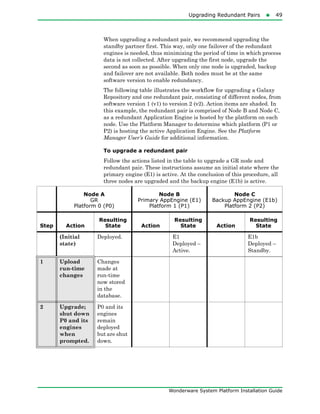
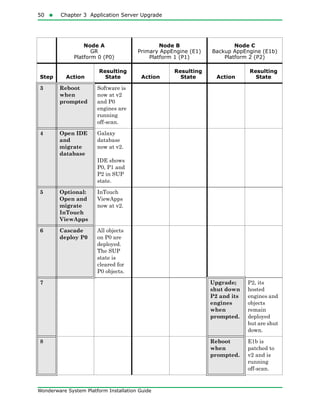
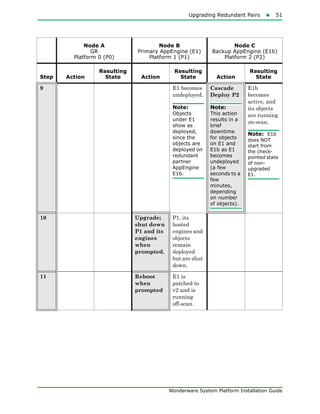
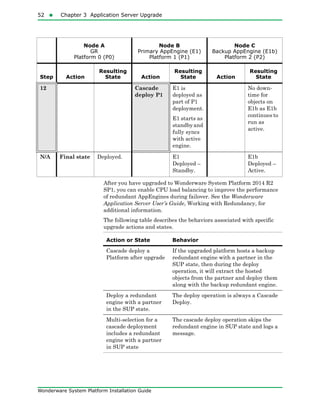
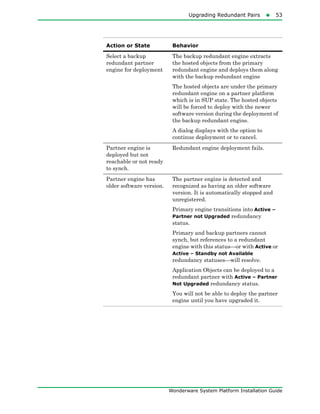
Upgrading Redundant Pairs
You can reduce plant down time by upgrading the two partner nodes
in a redundant pair, one at a time.
Platforms hosting redundant pairs may be deployed even when a
partner platform is not the same software version as the Galaxy
Repository (GR) platform, or is in the Software Upgrade Pending
(SUP) state.
Upgrading Redundant Pairs49
Wonderware System Platform Installation Guide
When upgrading a redundant pair, we recommend upgrading the
standby partner first. This way, only one failover of the redundant
engines is needed, thus minimizing the period of time in which process
data is not collected. After upgrading the first node, upgrade the
second as soon as possible. When only one node is upgraded, backup
and failover are not available. Both nodes must be at the same
software version to enable redundancy.
The following table illustrates the workflow for upgrading a Galaxy
Repository and one redundant pair, consisting of different nodes, from
software version 1 (v1) to version 2 (v2). Action items are shaded. In
this example, the redundant pair is comprised of Node B and Node C,
as a redundant Application Engine is hosted by the platform on each
node. Use the Platform Manager to determine which platform (P1 or
P2) is hosting the active Application Engine. See the Platform
Manager User’s Guide for additional information.
To upgrade a redundant pair
Follow the actions listed in the table to upgrade a GR node and
redundant pair. These instructions assume an initial state where the
primary engine (E1) is active. At the conclusion of this procedure, all
three nodes are upgraded and the backup engine (E1b) is active.
Node A
GR
Platform 0 (P0)
Node B
Primary AppEngine (E1)
Platform 1 (P1)
Node C
Backup AppEngine (E1b)
Platform 2 (P2)
Step Action
Resulting
State Action
Resulting
State Action
Resulting
State
(Initial
state)
Deployed. E1
Deployed –
Active.
E1b
Deployed –
Standby.
1 Upload
run-time
changes
Changes
made at
run-time
now stored
in the
database.
2 Upgrade;
shut down
P0 and its
engines
when
prompted.
P0 and its
engines
remain
deployed
but are shut
down.
50  Chapter 3 Application Server Upgrade
Wonderware System Platform Installation Guide
3 Reboot
when
prompted
Software is
now at v2
and P0
engines are
running
off-scan.
4 Open IDE
and
migrate
database
Galaxy
database
now at v2.
IDE shows
P0, P1 and
P2 in SUP
state.
5 Optional:
Open and
migrate
InTouch
ViewApps
InTouch
ViewApps
now at v2.
6 Cascade
deploy P0
All objects
on P0 are
deployed.
The SUP
state is
cleared for
P0 objects.
7 Upgrade;
shut down
P2 and its
engines
when
prompted.
P2, its
hosted
engines and
objects
remain
deployed
but are shut
down.
8 Reboot
when
prompted.
E1b is
patched to
v2 and is
running
off-scan.
Node A
GR
Platform 0 (P0)
Node B
Primary AppEngine (E1)
Platform 1 (P1)
Node C
Backup AppEngine (E1b)
Platform 2 (P2)
Step Action
Resulting
State Action
Resulting
State Action
Resulting
State
Upgrading Redundant Pairs51
Wonderware System Platform Installation Guide
9 E1 becomes
undeployed.
Note:
Objects
under E1
show as
deployed,
since the
objects are
deployed on
redundant
partner
AppEngine
E1b.
Cascade
Deploy P2
Note:
This action
results in a
brief
downtime
for objects
on E1 and
E1b as E1
becomes
undeployed
(a few
seconds to a
few
minutes,
depending
on number
of objects).
E1b
becomes
active, and
its objects
are running
on-scan.
Note: E1b
does NOT
start from
the check-
pointed state
of non-
upgraded
E1.
10 Upgrade;
shut down
P1 and its
engines
when
prompted.
P1, its
hosted
engines and
objects
remain
deployed
but are shut
down.
11 Reboot
when
prompted
E1 is
patched to
v2 and is
running
off-scan.
Node A
GR
Platform 0 (P0)
Node B
Primary AppEngine (E1)
Platform 1 (P1)
Node C
Backup AppEngine (E1b)
Platform 2 (P2)
Step Action
Resulting
State Action
Resulting
State Action
Resulting
State
52  Chapter 3 Application Server Upgrade
Wonderware System Platform Installation Guide
After you have upgraded to Wonderware System Platform 2014 R2
SP1, you can enable CPU load balancing to improve the performance
of redundant AppEngines during failover. See the Wonderware
Application Server User’s Guide, Working with Redundancy, for
additional information.
The following table describes the behaviors associated with specific
upgrade actions and states.
12 Cascade
deploy P1
E1 is
deployed as
part of P1
deployment.
E1 starts as
standbyand
fully syncs
with active
engine.
No down-
time for
objects on
E1b as E1b
continues to
run as
active.
N/A Final state Deployed. E1
Deployed –
Standby.
E1b
Deployed –
Active.
Node A
GR
Platform 0 (P0)
Node B
Primary AppEngine (E1)
Platform 1 (P1)
Node C
Backup AppEngine (E1b)
Platform 2 (P2)
Step Action
Resulting
State Action
Resulting
State Action
Resulting
State
Action or State Behavior
Cascade deploy a
Platform after upgrade
If the upgraded platform hosts a backup
redundant engine with a partner in the
SUP state, then during the deploy
operation, it will extract the hosted
objects from the partner and deploy them
along with the backup redundant engine.
Deploy a redundant
engine with a partner
in the SUP state.
The deploy operation is always a Cascade
Deploy.
Multi-selection for a
cascade deployment
includes a redundant
engine with a partner
in SUP state
The cascade deploy operation skips the
redundant engine in SUP state and logs a
message.
Upgrading Redundant Pairs53
Wonderware System Platform Installation Guide
Select a backup
redundant partner
engine for deployment
The backup redundant engine extracts
the hosted objects from the primary
redundant engine and deploys them along
with the backup redundant engine
The hosted objects are under the primary
redundant engine on a partner platform
which is in SUP state. The hosted objects
will be forced to deploy with the newer
software version during the deployment of
the backup redundant engine.
A dialog displays with the option to
continue deployment or to cancel.
Partner engine is
deployed but not
reachable or not ready
to synch.
Redundant engine deployment fails.
Partner engine has
older software version.
The partner engine is detected and
recognized as having an older software
version. It is automatically stopped and
unregistered.
Primary engine transitions into Active –
Partner not Upgraded redundancy
status.
Primary and backup partners cannot
synch, but references to a redundant
engine with this status—or with Active or
Active – Standby not Available
redundancy statuses—will resolve.
Application Objects can be deployed to a
redundant partner with Active – Partner
Not Upgraded redundancy status.
You will not be able to deploy the partner
engine until you have upgraded it.
Action or State Behavior
54  Chapter 3 Application Server Upgrade
Wonderware System Platform Installation Guide
Upgrade Considerations for Multi-Galaxy
Communication
Setting up a multiple Galaxy environment requires a unique name for
each Galaxy in the environment. This may require you to rename one
or more Galaxies if you plan to include galaxies with the same name in
your multi-Galaxy communication environment. We recommend
performing all necessary renaming prior to upgrading to Wonderware
System Platform 2014 R2 SP1. This will prepare your Galaxies for use
in a multi-Galaxy environment without disrupting the upgrade
workflow.
Important: It is very important that you follow the Galaxy name
change procedure provided in the following steps and in the
Wonderware Application Server User Guide. You must create a new
Galaxy with a new, unique name, from a backup .cab file rather than
creating a Galaxy and performing a restore of the backup .cab file.
Do the following to rename a Galaxy for use in a multi-Galaxy
environment. For more information about creating and backing up
galaxies, see Chapter 1 "Getting Started with the IDE," and Chapter
14 "Managing Galaxies," in the Wonderware Application Server User
Guide.
1 Select a Galaxy with a duplicate name, undeploy it and back it up
to create a .cab file.
2 Use the .cab file as a "template" by placing it in Program
FilesArchestrAFrameworkBinBackupGalaxies.
3 Create a new Galaxy with a new name, based on the backup .cab
file. The name must be unique, not in use anywhere else in the
multi-Galaxy environment.
4 Repeat the preceding steps for each Galaxy to be renamed with a
unique name.
5 Redeploy each newly created Galaxy.
6 Delete the original Galaxy from the GR node.
7 Upgrade to Wonderware Application Server 2014 R2 SP1.
Your Galaxy can now be configured for use in a multi-Galaxy
environment.
55
Wonderware System Platform Installation Guide
Chapter 4
InTouch HMI Requirements
and Prerequisites
You need to meet the requirements and prerequisites for Wonderware
products.
Wonderware Product Licensing
NOTICE: LIMITATIONS TO THE WONDERWARE LICENSING
FOR INTOUCH 11.1 SP1 AND APPLICATION SERVER 4.1 SP1.
PROPER USE OF LICENSED PRODUCTS MUST BE STRICTLY
FOLLOWED TO ENSURE A FULLY FUNCTIONING
PRODUCTION SYSTEM. READ THIS ENTIRE NOTICE.
If you are licensed for a Wonderware System Platform or the
Wonderware Application Server, you can use all the functionality in
these products up to the limits in your license files.
If you are licensed for only InTouch 2014 R2 SP1 development and run
time, you are licensed to use:
• All InTouch product software capabilities
• InTouch tags up to the licensed limit
• ArchestrA graphics
• ArchestrA IDE
Important: You are not licensed to use or deploy in production any
Object templates in the IDE other than InTouchViewApp Object.
56  Chapter 4 InTouch HMI Requirements and Prerequisites
Wonderware System Platform Installation Guide
However, you can use the additional functionality in the Wonderware
Application Server in a Demo mode as you learn about its capabilities
and consider the advantages of upgrading to a full Wonderware
System Platform license.
Wonderware provides you with most or all of the product software in a
demonstration, or “Demo,” mode. Demo mode lets you learn about and
experience the full breadth of the Wonderware product line,
technology, and capabilities without requiring a legal license file to
run the software.
You can use the License Information utility to see whether the current
local or remote I/O counts exceed the maximum specified by your
Wonderware license. To start the ArchestrA License Manager from
any Wonderware product, on the Help menu, click About, and then
click View License.
In addition, carefully read the License Certificate documentation,
which describes the licensed products you received. The License
Certificate is included with your Licensing CD.
Important: Attempting to deploy unlicensed functionality to a
production environment is illegal and results in problems when
upgrading to a future version. Deploying unlicensed functionality is not
supported by Wonderware.
For further explanation of licensing compliance, see Appendix B of the
InTouch Data Management Guide installed with the software. Or,
contact your local Wonderware Distributor or Wonderware Technical
Support.
Installing FS Gateway and Modifying FS Gateway Installations57
Wonderware System Platform Installation Guide
Installing FS Gateway and Modifying FS
Gateway Installations
FactorySuite Gateway (FS Gateway) automatically installs with
Wonderware System Platform with InTouch HMI as an InTouch HMI
component. FS Gateway functions as a data access server (DAServer)
and provides OPC connectivity access and configuration.
FS Gateway can also be installed and upgraded as a stand-alone
application. In some installation scenarios, FS Gateway will not
appear in the Windows Uninstall/Change Programs list. This does not
prevent you from uninstalling or upgrading FS Gateway.
The following describes the installation and modification behavior of
FS Gateway as part of a Wonderware System Platform with InTouch
HMI installation and as a stand-alone installation.
58  Chapter 4 InTouch HMI Requirements and Prerequisites
Wonderware System Platform Installation Guide
FS Gateway Installation Scenarios
The following table shows the possible combinations for installing
FS Gateway and Wonderware System Platform. See the Wonderware
System Platform Readme and the InTouch Readme for information
about upgrading and migrating to Wonderware System Platform
2014 R2 SP1 with InTouch 11.1 SP1 from earlier versions of InTouch.
I have... I want to...
Install FS Gateway 3.0 SP2
Stand-alone
Install Wonderware System
Platform 2014 R2 SP1 with
InTouch 11.1 SP1 and
FS Gateway 3.0 SP2
A clean system • FS Gateway is
preconfigured with a
predefined OPC access
Name.
• FS Gateway is installed as
stand-alone product.
• FS Gateway appears in
Uninstall/Change
Programs.
• FS Gateway is
preconfigured with a
predefined OPC access
Name.
• FS Gateway is installed as a
hidden feature.
• InTouch appears in
Uninstall/Change
Programs.
FS Gateway 2.0.0 or
previous installed
(Stand-alone)
• Existing FS Gateway
Configuration is retained.
• FS Gateway is upgraded.
• FS Gateway appears in
Uninstall/Change
Programs.
• Existing FS Gateway
Configuration is retained.
• InTouch is installed.
• FS Gateway is installed as a
hidden feature.
• FS Gateway is upgraded.
• FS Gateway appears in
Uninstall/Change
Programs.
• InTouch appears in
Uninstall/Change
Programs.
Installing FS Gateway and Modifying FS Gateway Installations59
Wonderware System Platform Installation Guide
InTouch 10.0.0 or
previous installed
• FS Gateway is
preconfigured with a
predefined OPC access
Name.
• FS Gateway is installed as
stand-alone product.
• FS Gateway appears in
Uninstall/Change
Programs.
• InTouch appears in
Uninstall/Change
Programs.
• FS Gateway is
preconfigured with a
predefined OPC access
Name.
• FS Gateway is installed as a
hidden feature.
• InTouch is upgraded.
• InTouch appears in
Uninstall/Change
Programs.
FS Gateway 2.0.0
(Stand-alone) or
previous and InTouch
10.0.0 or previous
• Existing FS Gateway
Configuration is retained.
• FS Gateway is upgraded.
• FS Gateway appears in
Uninstall/Change
Programs.
• InTouch appears in
Uninstall/Change
Programs.
• Existing FS Gateway
Configuration is retained.
• FS Gateway is upgraded.
• InTouch is upgraded.
• FS Gateway appears in
Uninstall/Change
Programs.
• InTouch appears in
Uninstall/Change
Programs.
FS Gateway 2.0.1
Stand-alone
• Existing FS Gateway
Configuration is retained.
• FS Gateway is upgraded.
• FS Gateway appears in
Uninstall/Change
Programs.
• Existing FS Gateway
Configuration is retained.
• FS Gateway is installed as a
hidden feature.
• InTouch is installed.
• FS Gateway appears in
Uninstall/Change
Programs.
• InTouch appears in
Uninstall/Change
Programs.
I have... I want to...
Install FS Gateway 3.0 SP2
Stand-alone
Install Wonderware System
Platform 2014 R2 SP1 with
InTouch 11.1 SP1 and
FS Gateway 3.0 SP2
60  Chapter 4 InTouch HMI Requirements and Prerequisites
Wonderware System Platform Installation Guide
Wonderware System
Platform 2012 with
InTouch 10.5 and
FS Gateway 2.0.1
• FS Gateway 2.0.1 must be
manually uninstalled (after
doing this, it is equivalent to
installing FS Gateway on a
clean system).
• Existing FS Gateway
Configuration is retained.
• FS Gateway is installed as a
hidden feature.
• InTouch is upgraded.
• InTouch appears in
Uninstall/Change
Programs.
FS Gateway 3.0.0
Stand-alone
• FS Gateway is
preconfigured with a
predefined OPC access
Name.
• FS Gateway is installed as
stand-alone product.
• FS Gateway appears in
Uninstall/Change
Programs.
• Existing FS Gateway
Configuration is retained.
• InTouch is installed.
• FS Gateway is installed as a
hidden feature.
• FS Gateway appears in
Uninstall/Change
Programs.
• InTouch appears in
Uninstall/Change
Programs.
Wonderware System
Platform 2012 R2 with
InTouch 10.6 and
FS Gateway 3.0.0
• Existing FS Gateway
Configuration is retained.
• FS Gateway is installed as
stand-alone product.
• FS Gateway appears in
Uninstall/Change
Programs.
• InTouch appears in
Uninstall/Change
Programs.
• Existing FS Gateway
Configuration is retained.
• InTouch is installed.
• FS Gateway is installed as a
hidden feature.
• FS Gateway appears in
Uninstall/Change
Programs.
• InTouch appears in
Uninstall/Change
Programs.
I have... I want to...
Install FS Gateway 3.0 SP2
Stand-alone
Install Wonderware System
Platform 2014 R2 SP1 with
InTouch 11.1 SP1 and
FS Gateway 3.0 SP2
Uninstalling FS Gateway and Modifying FS Gateway Installations61
Wonderware System Platform Installation Guide
Uninstalling FS Gateway and Modifying
FS Gateway Installations
The following table shows the possible combinations for uninstalling
FS Gateway and Wonderware System Platform
I have... I want to...
Uninstall
Stand-alone
FS Gateway
Uninstall WSP
InTouch Uninstall Both
FS Gateway 3.0.0
Stand-alone installed
• FS Gateway is
removed.
• FS Gateway does
not appear in
Uninstall/Change
Programs.
N/A N/A
Wonderware System
Platform 2012 R2 with
InTouch 10.6 and
FS Gateway 3.0.0
installed N/A
• FS Gateway is
removed
• InTouch is
removed
• InTouch does not
appear in
Uninstall/Change
Programs.
N/A
Both Wonderware
System Platform 2012
R2 with InTouch 10.6
and FS Gateway 3.0.0
Stand-alone installed
• FS Gateway does
not appear in
Uninstall/Change
Programs.
• InTouch is
removed
• InTouch does not
appear in
Uninstall/Change
Programs.
• FS Gateway is
removed
• InTouch is
removed
• FS Gateway does
not appear in
Uninstall/Change
Programs.
• InTouch does not
appear in
Uninstall/Change
Programs.
62  Chapter 4 InTouch HMI Requirements and Prerequisites
Wonderware System Platform Installation Guide
Both Wonderware
System Platform 2014
with InTouch 11 and
FSGateway 3.0 SP1
installed N/A
• FS Gateway is
removed
• InTouch is
removed
• InTouch does not
appear in
Uninstall/Change
Programs.
N/A
Both Wonderware
System Platform 2014
R2 (or higher) with
InTouch 11.1 (or
higher) and
FSGateway 3.0 SP1 (or
higher) installed
N/A
• FS Gateway is
removed
• InTouch is
removed
• InTouch does not
appear in
Uninstall/Change
Programs.
N/A
I have... I want to...
Uninstall
Stand-alone
FS Gateway
Uninstall WSP
InTouch Uninstall Both
63
Wonderware System Platform Installation Guide
Chapter 5
Historian Server
Requirements and
Recommendations
For your Wonderware Historian to achieve maximum performance,
make sure your hardware and software meets the following
requirements. Because the Wonderware Historian is a
high-performance relational database, it is also important to size your
system to handle the level of data that you expect to store.
The Wonderware Historian is tightly integrated with Microsoft
products, and a working knowledge of both Microsoft SQL Server and
Microsoft Windows operating systems is required. For more
information on Microsoft SQL Server or Windows operating systems,
see your Microsoft documentation.
64  Chapter 5 Historian Server Requirements and Recommendations
Wonderware System Platform Installation Guide
Server Requirements
The minimum hardware and software requirements for the
Wonderware Historian are based on the tag count and the anticipated
data throughput rate. These requirements are divided into four levels,
which are outlined in this section.
The recommended memory configuration for SQL Server (32-bit) is to
clamp memory consumption to 50 percent of the amount of physical
memory installed on the server or 512 MB, whichever is larger. For
SQL Server Standard and Enterprise editions (32-bit), the
recommended physical memory configuration is 1 GB. The
recommended Windows virtual memory setting is twice the amount of
physical RAM installed on the server. For installation requirements
for SQL Server versions, see the Microsoft documentation.
You need to ensure that the memory that SQL Server reserves for the
Wonderware Historian is adequate for the expected load. Based on
your particular environment, you may need to adjust the SQL Server
MemToLeave allocation. For more information on MemToLeave, see
the Microsoft documentation.
You can install the Wonderware Historian on operating systems that
have the User Account Control (UAC) turned on.
If you are running the Wonderware Historian on a virtual server, the
historian must have an adequate CPU, adequate network memory,
and disk I/O resources at all times. Overloading the virtual server
leads to unpredictable behavior.
Operating Systems
Any supported operating system, as documented in the Wonderware
System Platform Readme file.
Microsoft SQL Server
For supported Microsoft SQL Server versions, see the Wonderware
System Platform Readme file.
Disk Space
• 300 MB of free disk space to install the Wonderware Historian
• Appropriate space for history block storage. For more information,
see "Disk Sizing and Data Storage" on page 68.
Level 1 Server - Hardware
A Level 1 server can handle a load of about 5,000 tags. For example,
2,600 analogs, 2,200 discretes, 300 strings, and 20 non-I/O Server
(manual) tags.
When replicating to Wonderware Online, each Level 1 server can
support up to 15,000 tags and 5,000 values per second.
Server Requirements65
Wonderware System Platform Installation Guide
The requirements are:
• Processor:
• Minimum: P4 3.2 GHz CPU
• Recommended: dual-core CPU
• RAM:
• Minimum: 2 GB
• Recommended: 4 GB
• 100 Mbps network interface card (NIC)
Level 2 Server - Hardware
A Level 2 server can handle a load of about 100,000 tags, with 50%
analog, 45% discrete, and 5% string tags. The requirements are:
• Processor:
• Minimum: P4 3.0 GHz dual CPU
• Recommended: quad-core CPU
• RAM:
• Minimum: 4 GB
• Recommended: 8 GB
• 1 Gbps network interface card (NIC)
Level 3 Server - Hardware
A Level 3 server can handle a load of 150,000 tags, with 50% analog,
45% discrete, and 5% string tags. The requirements are:
• Processor:
• Minimum: P4 2.7 GHz Xeon quad CPU
• Recommended: dual processor, quad-core CPUs
• RAM:
• Minimum: 6 GB
• Recommended: 12 GB
• 1 Gbps network interface card
Level 4 Server - Hardware
A Level 4 server can handle a load of 2,000,000 tags, with 50% analog,
45% discrete, and 5% string tags. The requirements are:
• Processor:
• Recommended: two quad-core CPUs
66  Chapter 5 Historian Server Requirements and Recommendations
Wonderware System Platform Installation Guide
• RAM:
• Minimum: 24 GB
• Recommended: 48GB
• 1 Gbps network interface card
A performance report for different historian systems is provided in
"System Sizing Examples" on page 88.
High Availability Support
The Wonderware Historian provides built-in support for Stratus
ft3500 fault-tolerant servers. Other high availability features include:
• Tiering - using the "replication" functionality with a small "local"
Historian on site that replicates to two "tier 2" Historians.
• Virtualization - using HyperV or VMware high availability options
with Historian running on a virtual machine. For more
information, see the Wonderware System Platform in a Virtualized
Environment Implementation Guide.
• Redundancy - the Application Server can send data to two
Historians at once and maintains independent store-and-forward
channels to each.
Requirements for Historian Management Tools
The management tools include the Wonderware Historian System
Management Console and the Wonderware Historian Database
Export/Import Utility. If you are installing the tools on a remote
computer, the following requirements apply:
• Any supported operating system, as documented in the
Wonderware System Platform Readme file.
• Microsoft Management Console 2.0
• MDAC 2.7
• Internet Explorer 6.0 or later
• 20 MB of free disk space
Note: The Historian Data Importer is installed as part of the server
installation.
Remote IDAS Requirements67
Wonderware System Platform Installation Guide
Remote IDAS Requirements
A remote IDAS runs on all supported operating systems: domain
member, stand-alone workstation, or server.
To determine the CPU and memory needed for a remote IDAS, use the
same guidelines of the Wonderware Historian computer. For more
information, see "Server Requirements" on page 64.
The IDAS computer does not necessarily have to be as powerful as the
server computer, because it will not be performing all of the same
functions (for example, processing SQL Server transactions), but it
should be powerful enough to handle the tag load that you expect.
The amount of free disk space required depends on whether or not you
will have store-and-forward enabled for the IDAS. If store-and-forward
is enabled, you need to make sure that the disk space on the remote
IDAS computer is sufficient to store cached data if the network
connection to the historian fails. Estimate the disk space requirements
for a remote IDAS as that of the historian. For more information, see
"Disk Space Requirements for Historical Data Files" on page 71.
A remote IDAS configured for store-and-forward has more stringent
requirements on memory to ensure that the IDAS local storage engine
has sufficient resources to run properly. In general, estimate memory
requirements for a remote IDAS configured for store-and-forward the
same as you would for a historian having the corresponding tag count.
Security Considerations for a Remote IDAS
If you set up a remote IDAS, you need to configure security settings
that allow access permissions between the remote IDAS and the
Wonderware Historian. For example, the historian needs to access the
remote computer to start and stop the IDAS. Also, the remote IDAS
needs to access the historian computer to send data. These are
administrative tasks, which require administrative permissions.
When you install the historian, you must specify an administrative
user account under which all of the historian services run. Make sure
that this same user account is added to the Administrators security
group on the remote IDAS computer. The existence of the same
administrative user account on both the computers, allows the
historian to access the remote IDAS, and vice versa.
Note: A remote IDAS only requires the same administrative account
to exist on the local computer and the historian. It is not required for
you to log on to the remote IDAS computer using the administrator
account.
If you change the Windows login using the System Management
Console, after installing the historian, make sure that the user
account change is reflected on the remote IDAS computer.
68  Chapter 5 Historian Server Requirements and Recommendations
Wonderware System Platform Installation Guide
If you are running the historian in a domain environment
(recommended), you can create the administrative user account on the
domain controller and add the account to the Administrators group on
the historian computer and the remote IDAS computer. Do not create
a local user on any computer with the same name and/or password as
the administrative user account.
If you are running a remote IDAS in a workgroup environment, there
is no centralized management and authentication of user accounts (no
domain controller). Create the same administrative user account on
each individual computer running a historian component. For
example, if you have a computer running the historian and plan to
install remote IDASs on two other computers, create the user account
(that is, matching user names and passwords) on all three computers.
For information on workgroups, domains, creating user accounts, and
adding accounts to the Administrators security group, see your
Microsoft operating system documentation.
Disk Sizing and Data Storage
A number of storage-related questions must be answered when setting
up the Wonderware Historian. They include:
• How important is the data? Is it acceptable that four weeks of data
is stored online and is then over-written?
• How important is the configuration and event data? This type of
information is stored in the Microsoft SQL Server database.
• How often is data in the Microsoft SQL Server database changing?
• Is anyone in the organization going to require operating data that
is older than a month? Older than a year?
• How much is the SQL Server component of the historian expected
to be used (for example, for the event system)?
• How long can the system be off-line because of a component
failure?
• What happens if the system stops storing data?
• What happens if stored data is lost because of a hard drive failure?
• Can the server equipment be taken off-line to perform repairs?
Ask yourself questions like these to help you determine disk space
requirements and how you should plan to protect your data.
A performance report for different historian systems is provided in
"System Sizing Examples" on page 88.
Disk Sizing and Data Storage69
Wonderware System Platform Installation Guide
General Hardware Recommendations for Storage
The following are the general recommendations for the hardware used
for storage:
• SCSI drives configured using hardware RAID is optimum. The
disk space required is a function of data rate and the desired
history duration.
• NTFS is the only officially supported file system for a production
environment.
Planning for Disk Space Requirements
There are a number of factors to consider when estimating the amount
of disk space required to run the Wonderware Historian:
• Disk space required to install the required software components
and files needed to run the historian.
• Disk space required to store the historian database files.
• Disk space required to store the historian data files.
• If a remote IDAS is used, the disk space required on the local IDAS
computer to store cached data if the network connection to the
historian fails.
• We recommend that you keep sufficient free disk space (around
20%) so that you can run a disk defragmenting utility without
negatively affecting the historian performance.
A performance report for different historian systems is provided in
"System Sizing Examples" on page 88.
Disk Requirements for Database Files
The Wonderware Historian installation program adds the Runtime
and Holding databases to the Microsoft SQL Server by default. If you
choose to store events to SQL Server, the A2ALMDB database is
created.
Note: Historical plant data is not stored in the database files. This
type of data is stored in special files called history blocks.
70  Chapter 5 Historian Server Requirements and Recommendations
Wonderware System Platform Installation Guide
• The Runtime database stores all historian configuration data and
classic event data. The information in the Runtime database is
stored to disk as a database file named
RuntimeDat_116_<server_name>.mdf. Its associated log file is
RuntimeLog_116_<server_name>.ldf.
The configuration data in the database file remains relatively
static and usually never causes the file size to go above 20 MB.
However, if you set up classic events, records of event detections
and the results of any data summaries or snapshots increase the
size of the Runtime database file because the tables are filling up.
Also, entries are created in the log file for event-related
transactions. If the database files are set to auto-size, the Runtime
database file expands to accommodate event-related data until the
hard drive is full.
Note: In a 2,000,000 tag system, 2.5 GB of space should be
preallocated for data files when modification tracking is not used. When
modification tracking is used, 20 GB should be preallocated.
• The Holding database temporarily stores tag definitions being
imported from InTouch® HMI software. The information in the
Holding database is stored to a database file named
HoldingDat_116_<server_name>.mdf. Its associated log file is
HoldingLog_116_<server_name>.ldf.
• The A2ALMDB database stores alarm and event data. The
information in the A2ALMDB database is stored to a database file
named A2LMDat_115_<server_name>.mdf. Its associated log file is
A2ALMDB_LOG.ldf.
The Runtime and Holding databases are set to automatically expand
at a 10% rate (the default).
You cannot change these defaults during the installation. The
databases can be resized later using Microsoft SQL Server utilities.
For more information on sizing databases, see your Microsoft SQL
Server documentation for guidelines.
Note: If you are upgrading a previous version of the Wonderware
Historian, the installation program needs space to save a copy of the
old Runtime database while it creates the new one. To upgrade, the
database space required is twice the size of the old database, plus the
database size for the new install.
Disk Sizing and Data Storage71
Wonderware System Platform Installation Guide
Disk Space Requirements for Historical Data
Files
The Wonderware Historian stores historical plant data to hard disk in
special files called history blocks. When you install the historian, you
are required to specify a storage location (directory) in which these
files will be dynamically created and subsequently filled. You must
have at least 200 MB of free disk space for these files to install the
historian.
After the historian is up and running, when the free space on the drive
containing the storage directory drops below a minimum threshold,
the oldest data is overwritten. It is very important that you allocate
enough disk space to store your plant data for the desired length of
time.
The amount of data that can be stored to disk before running out of
space is dependent upon the number of tag values that are stored and
how often they are stored. That is, the more tags you have, the fewer
values you can store per tag before you need to archive off the oldest
data. Likewise, the higher the specified storage rate per tag, the faster
the system runs out of space.
Important: You must have sufficient disk space in the circular
storage area to hold at least two full history blocks, plus the space
specified for the minimum threshold for the circular storage area. Use
the System Management Console to view or change the minimum
threshold value.
A performance report for different historian systems is provided in
"System Sizing Examples" on page 88.
Storage and Network Transmission Sizes for
Tags
The following table lists the storage and network transmission sizes
for various tag types.
Tag Type
Storage Engine -
Storage Item Size
(Bytes)
Storage Engine -
Network Transmission
Item Size (Bytes)
Analog - Integer 8 34
Analog - Floating Point 8 34
Analog - Double 12 38
Discrete 5 31
String 5+AvgStringLength (5+AvgStringLength)+26
Analog Summary 37 63
72  Chapter 5 Historian Server Requirements and Recommendations
Wonderware System Platform Installation Guide
The storage size is used for estimating the space required for storage.
The network transmission size is used for calculating the network
bandwidth required between HCAL and the historian.
If you enable compression on the AppEngine from which events are
originating, then the network size is reduced by approximately 80%.
For alarms and events, the network transmission size assumes that
the average name length for each of the alarm properties is 20
characters.
The following table provides some sizing examples.
Note: Current space calculations are different than the calculations
used by the classic storage system.
Disk Space Estimation
This section provides guidance on how to determine the appropriate
history block duration. A history block duration can range from 1 hour
to 24 hours, with a default of 24 hours.
Discrete State Summary 40 66
Analog State Summary 28*NumberOfStates (28*NumberOfStates)+26
String State Summary (28+AvgStringLength)*
NumberOfStates
((28+AvgStringLength)*
NumberOfStates)+26
Alarm 325 6061
Acknowledgement 325 6066
Event 300 5048
Tag Type
Storage Engine -
Storage Item Size
(Bytes)
Storage Engine -
Network Transmission
Item Size (Bytes)
Tag Type
Storage Engine -
Storage Item Size
(Bytes)
Storage Engine -
Network Transmission
Item Size (Bytes)
String Tags (32 byte string) 5+32 = 37 (5+32)+26 = 63
State Summary for Analog (for 10 states) 28*10 = 280 71*10 = 710
State Summary for Discrete (for 2 states) 20*2 = 40 68*2 = 136
State Summary for String (10 states and
32 byte string)
(1+32)*10 = 330 (69+32)*10 = 1010
Disk Sizing and Data Storage73
Wonderware System Platform Installation Guide
For retrieval performance, it is better to have longer block durations.
However, if the incoming data rate is too high during a 24-hour period,
the Original.dat file in which data collects may grow so large that
issues occur for history block management and other aspects of the
storage subsystem.
We recommend that you tune the history block duration so that the
size of the Original.dat file does not exceed 8 GB per history block.
You can estimate how many bytes this data rate generates in one hour
by using the following formula:
N kbpbs = (N / 8) bytes per second = (450 * N) bytes per hour
Where N is the transmission item size for the type of data that you are
storing. For information on calculating this number, see "Storage and
Network Transmission Sizes for Tags" on page 71.
If you multiply this by the history block duration, you can get an
estimate of the biggest data file containing streamed and forwarded
data, Original.dat.
If that estimate is larger than 8 GB, keep reducing the history block
duration until the estimate is under the 8 GB limit.
Bandwidth Estimation for Streaming Data
The network bandwidth required can be estimated by adding the data
transmission rate for all data types and the network overhead.
Network overhead is approximately 4% of the total transmission rate,
assuming the data rate is above 1000 points/sec. The estimated
bandwidth would be the minimum bandwidth required for replication
with reliable network (always connected). However, if there are
network disconnections/reconnections, using only the minimum
required bandwidth would make the "catch-up" process take a long
time if possible. It is recommended that you add a 30% safe margin to
the estimated bandwidth to ensure that the forwarding process can
complete quickly if an unexpected network outage occurs.
The formula for estimated bandwidth is as follows:
BandwidthStreaming = 1.04 * 8 * Each Tag Type (Data Rate *
Transmission Item Size)
BandwidthRecommendedStreaming = 1.3 * BandwidthStreaming
For example, with the following replication configuration:
1 Simple Replication - 798 4-byte analog tags changing every second.
2 Simple Replication - 815 discrete tags changing every second.
3 Simple Replication - 187 string tags (20 bytes string) every second.
4 1 Minute Analog Summary - 800 tags
5 1 Hour Analog Summary - 800 tags
74  Chapter 5 Historian Server Requirements and Recommendations
Wonderware System Platform Installation Guide
6 1 Minute State Summary (Analog, 10 states) - 800 tags
7 1 Hour State Summary (Analog, 10 states) - 800 tags
The average number of bytes transmitted every second for each of the
above replication types is as follows. For a table of transmission sizes,
see "Storage and Network Transmission Sizes for Tags" on page 71.
1 798 * 34 = 27132 Bytes
2 815 * 31 = 25265 Bytes
3 187 * 52 = 9724 Bytes
4 800 * 96 / 60 = 1280 Bytes
5 800 * 96 / 3600 = 21 Bytes
6 800 * 710 / 60 = 9467 Bytes
7 800 * 710 / 3600 = 157.8 Bytes
BandwidthStreaming = 1.04 * 8 * (27132 + 25265 + 9724 + 1280 + 21 +
9467 + 158) = 608 Kbps
BandwidthRecommendedStreaming = 1.3 * 608 Kbps = 790 Kbps
Bandwidth Estimation for Store-and-Forward
Data
If there is a network disconnection, HCAL sends data to local storage
and later forwards the data to the historian. After the forwarding
process starts, HCAL will try to send as much as data as possible with
a large packet. The forwarding bandwidth is the bandwidth required
to stream the store-and-forward data.
The store-and-forward storage size is the same as for local historian
storage. The following table lists the average sizes used for bandwidth
estimation used in this example.
Tag Type
Storage Item Size
(Bytes)
Discrete Tags 5
Analog Tags (4 byte data) 8
String Tags (32 byte string) 37
Analog Summary (4 byte analog) 37
State Summary for Analog (for 10 states) 28 * 10 = 280
State Summary for Discrete (for 2 states) 20 * 2 = 40
State Summary for String (10 states and 32 byte string) (1 + 32) * 10 = 330
Disk Sizing and Data Storage75
Wonderware System Platform Installation Guide
The forwarding bandwidths are calculated using the following
formulas:
BandwidthForwarding = 1.04 * 8 * Each Tag Type (Data Rate * Storage
Item Size)
BandwidthRecommendedForwarding = 1.3 * BandwidthForwarding
For this example, if all are stored in the local storage engine and
forwarded later, the number of bytes required for every second is as
follows:
1 798 * 8 = 6384 Bytes
2 815 * 5 = 4075 Bytes
3 187 * 25 = 4675 Bytes
4 800 * 37 / 60 = 493 Bytes
5 800 * 37 / 3600 = 8 Bytes
6 800 * 280 / 60 = 3733 Bytes
7 800 * 280 / 3600 = 62 Bytes
BandwidthForwarding = 1.04 * 8 * (6384 + 4075 + 4675 + 493 + 8 + 3733 +
62) = 162 Kbps
BandwidthRecommendedForwarding = 1.3 * 162 Kbps = 211 Kbps
Time Estimation for Store-and-Forward Data
The actual time taken to forward store-and-forward snapshots
depends on the amount of data accumulated and the bandwidth limit.
HCAL typically waits for about 30 second to attempt forwarding
process after reconnection. It may need to wait for a longer time if the
historian is busy.
To simplify the calculation, the following is assumed:
• HCAL can start forwarding immediately without interruption
• The bandwidth is 30% above the data rate before disconnection
The time taken to forward is as follows:
TimeForwarding = TimeInStoreforward * RatioForwardingDataSize / 0.3
Where RatioForwardingDataSize = Forwarding data Size / Streaming data
size
For example, the date rate is 1 Mbps and the bandwidth is 1.3 Mbps.
Assume you have simple replication for analog tags and
store-and-forward data has been accumulating for 1 hour.
RatioForwardingDataSize = 8 / 34 = 0.235
TimeForwarding = 60 (minutes) * 0.235 / 0.3 = 47 minutes
76  Chapter 5 Historian Server Requirements and Recommendations
Wonderware System Platform Installation Guide
About Data Compression and the Buffer Age
Limit
Bandwidth usage is reduced by about 80% if compression is enabled.
This assumes that the data rate is high enough to keep the buffer
(64K) filled to have better compression ratio. For analog tags, the data
rate is roughly 2000 values/second.
When the data rate is low, enabling compression may not be effective.
To fill the buffer with low data rate, you can select the Wait to send
incomplete packets option (BufferAgeLimit attribute) for the
AppEngine configuration. This attribute is not applicable to
replication.
Performance Considerations
For a complete Wonderware Historian system, the following
components put a demand on memory.
• Internal historian subsystems, such as the Configuration
Manager, data acquisition, and data storage
• The associated Microsoft SQL Server
• The operating system
• Client access (data retrieval), which includes caching
When determining the amount of memory to purchase, remember that
adding more memory is the cheapest and easiest thing that you can do
to improve performance. Increasing the amount of memory reduces the
amount the server has to use virtual memory, thus lowering the load
on the storage subsystem. Even if you have a large amount of memory,
additional memory is used as additional disk cache, speeding up disk
access and therefore file service. Also, processes needed by the server
become faster because they are memory-resident.
A major factor in system performance is the amount of plant data you
anticipate storing in the system, including considerations about how
often that data is stored and retrieved. In general, the more you store,
the more often you store it, and the more you retrieve it, the slower the
system. The major storage factors affecting the performance of the
system are:
• Effective analog flow rate (analog updates per second).
• Period of online data storage required.
• Effective discrete variable flow rate.
• Number of concurrent end users required.
Performance Considerations77
Wonderware System Platform Installation Guide
• Complexity of end user queries.
• Number and size of string tags, as well as the effective flow rate of
string values.
• Number and duration of string tag retrieval queries, as well as the
frequency at which these queries are executed.
A performance report for different historian systems is provided in
"System Sizing Examples" on page 88.
Server Loading
When a user connects to the Wonderware Historian with a client,
configuration information is immediately requested from the
historian. This information includes the tags that the server stores,
their descriptions, engineering units, and other tag data. SQL Server
reads this information from the database (stored on disk) and places it
in memory.
As the user selects time periods to trend, the historian reads data from
files located on the disk and prepares the results of the client's data
request to be transmitted back to the client. The ability of the server to
quickly handle subsequent requests for data from the same client and
others is dependent on the server's ability to keep as much information
in memory without having to again access data from the disk.
As a higher load is placed for memory, a higher load is placed on the
disk I/O system as the server has to use disk caching and read from
the data files.
The following table summarizes the loading for various systems.
System Load Description
Acquisition
and storage
Base load of the historian. This load exists as long
as the system is running. However, this load is not
affected by client activity.
Retrieval Variable loading caused by data retrieval from
client applications. When the client initially
connects, the data requested is configuration data,
which is stored in SQL Server. The historian
requests data from SQL Server, causing its loading
to increase. As the client requests historical data,
the disk time increases as information from the
data files is transferred to memory. This continues
as the client requests additional data. If the client
application requests data that has already been
transferred to memory, there is no associated disk
activity and transfer of data to memory.
78  Chapter 5 Historian Server Requirements and Recommendations
Wonderware System Platform Installation Guide
The server must be able to adequately handle the variation on loading
caused by the client applications. To accomplish this, make sure that
your hardware is sized so that it can handle the base load created by
the acquisition and storage systems and that there are adequate
resources still available for the retrieval system.
IDAS Performance
An IDAS can acquire an unlimited number of real-time data values,
from an unlimited number of I/O Servers, each with an unlimited
number of topics. However, IDASs are subject to the following
limitations.
• The maximum sustained data throughput for any single IDAS is
30,000 items per second for real-time data. For late or old data, the
maximum throughput is 9,000 items per second. The total
combined throughput (real-time data plus late or old data) cannot
exceed 30,000 items per second. For higher-volume applications,
you can set up multiple IDASs to serve a single storage subsystem.
• The size of any data value is limited to 64,000 bytes.
• The maximum number of tags supported by any single IDAS is
30,000.
Tiered Historians
If you are installing a tiered historian, tier-1 nodes use the same basic
configuration for the number and types of tags and data collection
rates.
The tier 1 configuration should be “delta” data collected and stored:
• 12,000 analog tags every 2 seconds
• 2,900 discrete tags every 2 seconds
• 100 32-character string tags every 30 seconds
For the analog and discrete tags, the averages and value state
aggregates are:
• 6000 tags with an hourly calculation performed at the top of each
hour
• 6000 tags with 1-minute calculations performed at the top of each
minute
plus
• 1500 tags replicated (not aggregated) in tier 2
• 1500 tags stored only in tier 1 (no aggregates or replication)
Networking Recommendations79
Wonderware System Platform Installation Guide
Storage Subsystem Performance
The storage subsystem can support a continuous data acquisition rate
of 150,000 updates per second. The storage sub-system also supports a
burst rate of 300,000 updates per second up to 1 second.
The classic storage subsystem can support a continuous real-time data
acquisition rate of 30,000 updates per second and a burst rate of
60,000 updates per second up to 1 second.
The storage subsystem processes all real-time data as a high-priority
task that is never interrupted. However, data received from "manual"
methods (such as UPDATE/INSERT commands, CSV file imports, or
store-and-forward) is handled by a low priority task. If the system is
generally busy, then it may take some time for the manual data to be
posted.
Networking Recommendations
The Wonderware Historian is a highly configurable package that can
be set up in many different ways depending on your needs.
The historian can use any protocol currently supported by Microsoft
SQL Server 2012. You can use the default Microsoft SQL Server 2012
protocol (named pipes) with TCP/IP. TCP/IP is required if SuiteLink™
is used.
Do not use the historian computer as a domain controller.
It is highly recommended that you run the historian on a dedicated
computer. For example, running the historian on a mail server or an
Internet server may impact performance.
Generally, it is recommended that you split the process and IS
networks to ensure that the process network does not become
overloaded. The following illustration shows one possible network
architecture where the historian is the link between the process
network and the business LAN/WAN:
80  Chapter 5 Historian Server Requirements and Recommendations
Wonderware System Platform Installation Guide
For this architecture, install two network cards on a server computer
and configure them to segment the IS network from the process
network.
Note: All tags to be stored in historian are on "advise" all the time.
This may cause heavy load conditions on the process network. Before
you install the historian, investigate the possible load impact of
installing the historian on your network.
Client Access81
Wonderware System Platform Installation Guide
Client Access
All clients should connect to the Wonderware Historian using the
default Microsoft SQL Server connection. Usually, this means using
the name of the computer on which the historian is running as the
server name when logging on.
To change the default network protocol used by Microsoft SQL Server
to something other than named pipes, configure the client network
access using the SQL Server Client Network Utility. For more
information, see your Microsoft SQL Server documentation.
Licensing
Use the Invensys License Manager to manage licenses and associated
feature lines.
The historian allows functionality based on the presence of a valid
license file and/or feature lines. The historian checks that:
• A valid license file exists at the expected location on disk.
• One or more feature lines relevant to the product is contained in
the license file. A feature line defines specific behavior that is
allowed for the product. Typically, feature lines are bundled
together according to predefined licensing schemes.
If a valid license file cannot be found, or if the file does not contain the
appropriate feature lines, the historian is considered to be unlicensed.
If unlicensed, the historian starts up and runs for an unlimited period
of time. Data is stored for all tags, but you can only retrieve, replicate,
or advise only those tags that are licensed.
The historian reads the license file and appropriately updates the
system behavior when:
• The historian starts.
• You commit changes to the system using the System Management
Console.
• You refresh the license information using the System Management
Console.
Unless noted, all aspects of historian licensing are dynamic. That is,
you can make licensing changes during run time, and the system runs
uninterrupted.
The following main feature lines are available:
• Historian_Tagcount Feature Line
• Historian_ServerOS Feature Line
The following optional feature lines are available:
82  Chapter 5 Historian Server Requirements and Recommendations
Wonderware System Platform Installation Guide
• Historian_RemoteIDASCount Feature Line
• Historian_ModifyHistoryData Feature Line
• Historian_HistoryDuration Feature Line
• Historian_ReplicationServer Feature Line
If a main feature line is not detected, the Wonderware Historian runs
in a restricted mode, where data retrieval is supported only for system
tags plus up to the first 32 non-system tags in the wwTagKey order,
for a duration of the last seven days.
If the system is licensed and then the license status changes to
unlicensed, configured replication continues to work until the
replication service is restarted. However, the sync queue replication is
suspended. If the replication server starts in unlicensed mode, the
Historian does not perform back replication for the unlicensed period
except for the sync queue entries already recorded, which will be
processed after system becomes licensed.
Use the System Management Console to view license and feature line
information relevant to the historian. For more information, see
"Viewing License Information" in Chapter 9, "Viewing or Changing
System-Wide Properties," in the Wonderware Historian
Administration Guide.
Historian_Tagcount Feature Line
The Historian_Tagcount feature line specifies the allowed number of
non-system tags for which the historian retrieves, replicates, or
advises data. This feature line is essential for basic historian
functionality.
The tag count specified in this license has no effect on your ability to
edit the configuration database.
The tag count specified in the license denotes the maximum number of
non-system tags the historian recognizes at run time, in terms of
retrieving, replicating, or advising data. Data is stored for all tags
regardless of the license state. For a specified tag count of n, the
historian allows you to retrieve, replicate or expose through the
Historian I/O Server only the first n non-system tags it reads from the
database, based on the order of the wwTagKey. If there are <= 32
non-system tags, then all are accessible without restriction.
If this feature line is unavailable or the allowed tag count is zero on
startup or during reconfiguration, the historian switches to the
restricted mode. For more information on restricted mode, see
"Licensing" on page 81.
The historian does not enforce any limits on data storage for the tags,
up to the overall data storage levels supported by the historian.
Licensing83
Wonderware System Platform Installation Guide
For normal operation of the historian, the number of non-system tags
should be always equal to or less than the number of tags specified in
the feature line. At any time, you can dynamically increase the
number of non-system tags through a dynamic reconfiguration.
When the number of non-system tags becomes greater than the
allowed license limit, the historian stops retrieval, replication (if
replication has been restarted), or advisement of all tags except the
system tags and the first n tags in its list, where n denotes the tag
count.
You can uninstall the current license file and install another one
allowing more tags, and then use the Management Console to re-read
the license.
The historian does not "back replicate" the data for the period in which
the system was unlicensed. However, if a replication is occurring
during the licensed period and then the system becomes unlicensed,
the existing replication continues to work until replication is restarted.
The tag count does not include replicated tags from local replication.
If this feature line is locked to a hardware key and you have removed
the key from the historian computer, the Historian_TagCount license
is automatically released. If you reattach the hardware key, the
historian reacquires the license and automatically tries to reacquire
the Historian_TagCount feature line. This effectively means that data
collection continues uninterrupted all the time. However, retrieval is
limited by the last week until the Historian_Tagcount feature line is
acquired again and retrieval is limited to 32 tags and seven days. This
behavior applies not just to hardware key removal, but for all cases
when the Historian_Tagcount feature line has been initially acquired
successfully, but then suddenly was lost (for example, expired).
Historian_ServerOS Feature Line
The Historian_ServerOS feature line controls whether the installed
Historian is licensed to run on a Microsoft server operating system. If
this feature is missing, Historian runs in restricted mode on the server
operating systems. See the Wonderware System Platform Readme file
for the list of supported server operating systems.
The presence of this feature line has no effect when the historian runs
on a non-server operating system.
If this license is locked to a hardware key and you have removed the
key from the historian computer (or the license has expired), then the
historian switches to restricted mode. As soon as you reattach the
hardware key, the historian reacquires the license and switches to
licensed mode.
84  Chapter 5 Historian Server Requirements and Recommendations
Wonderware System Platform Installation Guide
Historian_RemoteIDASCount Feature Line
The Historian_RemoteIDASCount feature line controls the maximum
number of remote IDASes allowed. If this feature is missing, then no
remote IDASes are allowed. A value of 0 indicates that there is no
limit on remote IDASes.
If the remote IDAS count is specified as n, the historian loads the local
IDAS (always), plus the first n remote IDAS from the database, except
if n is 0, in which case there is no limit imposed on the number of
remote IDAS allowed. Any remaining IDASes in the configuration
database, and all I/O servers, topics and tags associated with the
IDASes, are ignored for run-time operations. The local IDAS is
identified as the IDAS having the same primary computer name as the
historian server computer.
The remote IDAS count feature line has no effect on your ability to edit
the configuration database.
If the remote IDAS count feature line does not exist, or if the license
file is not found, the IDAS count default is set to 0.
The historian will not acquire data for tags belonging to the IDAS that
is not licensed.
The remote IDAS count is adjusted at run time, without requiring a
historian restart.
If the remote IDAS count license changes (typically, if you substitute a
different license file), you must manually refresh the license
information using the System Management Console. If the remote
IDAS count increases, the historian starts acquiring and storing data
for the additional remote IDAS(s), if they exist in the database, with
their associated I/O servers, topics, and tags.
If the remote IDAS count decreases during reconfiguration or startup,
the historian stops acquiring and storing data for all tags assigned to
remote IDAS n+1 and higher, where n denotes the remote IDAS count,
and removes the corresponding IDAS, I/O servers and topics from
displays in the System Management Console, and so on.
If, after successful acquisition, the license has been lost during run
time (for example because of a hardware key removal or license
expiration), the data collection remains unaffected.
All IDASes may be configured for failover, including the local IDAS.
This means that IDAS potentially has to be physically installed on
more computers than there are actual entries for IDASes in the
configuration database. The remote IDAS licensing behavior remains
as follows in terms of the IDAS failover:
• The local IDAS is counted only one time, even if it has a failover
node configured. At run time, the failover IDAS (which by
definition has to be on a remote node), will not run unless a valid
license for at least one remote IDAS is present.
Licensing85
Wonderware System Platform Installation Guide
• Each remote IDAS configured in the database is counted only once,
even if it has a failover node configured.
Historian_ModifyHistoryData Feature Line
The Historian_ModifyHistoryData feature line controls whether you
can modify history data using SQL queries (inserts or updates) and
CSV file imports (both normal CSV imports and "fast load" CSV
imports).
• If the feature line is present, all CSV file import operations, as well
as SQL inserts and updates, are permitted.
• If the feature line is not detected, all attempted operations
involving SQL inserts and updates and CSV file imports (including
FastLoad) are not allowed.
An .lgh file import is allowed, regardless of the presence of this feature
line.
If disallowed, SQL insert queries and update queries return an
appropriate message to the client stating that the license excludes this
functionality. For CSV file imports and fast load file imports, a
warning message is logged when a file is first placed in the historian
import folder. The warning message states that the license excludes
this functionality. The file remains in the folder until you remove it.
Historian_HistoryDuration Feature Line
The Historian_HistoryDuration feature line controls the maximum
number of days in history, starting with the current day, for which
data can be retrieved from the historian. For example, if the history
duration is 50, you can only retrieve data that was stored during the
last 50 days.
If this feature line is 0, then there is no limit on retrieving data. If this
feature line is missing, the default is seven days.
This license, or its absence, has no impact on data storage. This
feature line has no effect on the your ability to configure the historian
indexing service. For example, specifying that the indexing service
should cache the last four weeks of history blocks in memory is
allowed, even if this feature line limits the availability of retrieved
data to the last seven days.
If you try to retrieve data for a period of time starting prior to the
earliest time implied by this feature line, the retrieval subsystem
returns all available data rows of the requested time interval, but
shows NULLs instead of values, along with a special QualityDetail of
33 that indicates a license violation for all rows falling outside of the
allowed number of days.
86  Chapter 5 Historian Server Requirements and Recommendations
Wonderware System Platform Installation Guide
If this license is locked to a hardware key and you have removed the
key from the historian computer, then the displayed values are limited
to the last seven days, while all rows corresponding to timestamps
prior to the last seven days are displayed with NULL values and a
QualityDetail of 33. If a lengthy retrieval operation is in progress, it is
allowed to be finished.
As soon as you reattach the hardware key, the historian reacquires the
license and switches back to licensed mode.
Note that the Historian_HistoryDuration feature line is used to
enforce some of other feature lines to be acquired all the time after
their successful acquisition after a startup or reconfiguration.
Historian_ReplicationServer Feature Line
The Historian_ReplicationServer feature line indicates that the
installed version of the historian can be a tier-2 historian. That is, the
feature line allows for creating/reconfiguring tier-2 tags through
remote tier-1 historians, and allows receiving and storing data from
them.
If a tier-1 historian gets a rejection from the tier-2 historian because
the tier-2 historian does not have this feature line, the tier-1 historian
attempts to contact the tier-2 historian every five minutes. During
that time, the tier-1 historian switches to store-and-forward mode and
all data that would have been sent to the tier-2 historian is instead
sent to the store-and-forward engine.
Any store-and-forward data cached on the tier-1 historian does not get
forwarded to the tier-2 historian until there is a confirmation that the
tier-2 historian has the feature line.
If this feature line is locked to a hardware key and you have removed
the key from the historian computer (or the license has been lost or
expired), logger messages are generated about the missing license on
the tier-1 computer. As soon as you reattach the hardware key, the
historian makes an attempt to reacquire the license.
If a license is lost when the replication from tier-1 to tier-2 has been
started, then the operation is allowed to proceed. A warning message
about the lost license is periodically reported to the logger on the tier-1
computer.
If the license is lost during processing the store-and-forward operation
from the tier-1 historian, the operation is allowed to finish.
Support for Non-English Operating Systems87
Wonderware System Platform Installation Guide
Support for Non-English Operating Systems
The English version of Wonderware Historian, the Wonderware
Historian Database Export/Import Utility, and the Historian Data
Importer run on localized versions of all the supporting operating
systems for the following languages. Also, the corresponding version of
Microsoft SQL Server for the required language must be used.
• German
• French
• Japanese
• Simplified Chinese
The following entities are not supported in double-byte languages:
• Domain names, user names, and passwords (including SQL Server
login names and passwords).
• Names of I/O Server host machines, I/O Server application names,
topic names, and item names.
• Any text associated with licensing.
Integration with Other Wonderware Products
The Wonderware Historian is Wonderware's open relational database
for plant and process data. Many of the features of the historian allow
it to be used with many of Wonderware's other products.
The historian can store data from any application that supports
SuiteLink™. Examples of Wonderware applications that can send
data to the historian are Wonderware Application Server, I/O Servers,
and InTouch® WindowViewer™.
Any client application that can retrieve information using SQL can
retrieve data from Wonderware Historian. For example, some
Wonderware products that can retrieve data by means of SQL queries
are the InTouch HMI, Wonderware Information Server, Historian
Client applications and controls, Manufacturing Execution Module,
and InBatch™ products. The historian further extends SQL to
improve the ability to handle time series data.
Also, Wonderware Historian I/O Server (aahIOSvrSvc.exe) is an
interface for clients to access current data values a historian by means
of the SuiteLink protocol. The Wonderware Historian I/O Server can
update items with current values for given topics, providing
"real-time" I/O Server functionality.
Finally, you can use InTouch to configure the historian by importing
tag definitions and I/O Server definitions from the InTouch Tagname.x
file into the Runtime database.
88  Chapter 5 Historian Server Requirements and Recommendations
Wonderware System Platform Installation Guide
System Sizing Examples
To help you determine how to size your system, performance reports
are provided for different Wonderware Historian configurations.
Important: The information presented here is a guideline only. The
actual results in your environment may vary.
Process Historian Sizing Examples
Performance reports are provided for various levels of a Historian.
Server 1 (Non-Tiered): 2.4 GHz Single Processor
Quad-Core CPU
Wonderware Historian Specifications
• DELL OptiPlex 755 with 2.4 GHz single processor quad-core CPU
• 4 GB RAM
• 512 MB Virtual Memory
• 1 Gbps NIC
• Microsoft SQL Server 2008 SP3 Standard Edition
• SQL memory clamped @ 512 MB
• 12-hour history block duration
Tag Information
Tag count (total) = 5,187
Analog tags = 2,607
Discrete tags = 2,285
String tags = 295
Manual tags = 17
Update rate of +/- 5,000 updates/second
Remote IDAS
None.
System Sizing Examples89
Wonderware System Platform Installation Guide
Event Information
• 3 snapshot events, each having:
• 1 analog snapshot
• 1 discrete snapshot
• 1 string snapshot
• 2 summary events, each having:
• 1 AVG calculation (1 tag every 8 hours)
• 1 MAX calculation (1 tag every 8 hours)
• 1 MIN calculation (1 tag every 8 hours)
• 1 SUM calculation (1 tag every 8 hours)
• 1 SQL insert every 4 hours
• 2 SQL multi-point updates every hour
Query Load
For the following seven queries, each are occurring at different times
in the hour:
• 1 query (trend):
• live mode - 1 second update
• 1-hour duration
• 10 tags (7 analogs, 3 discretes)
• 1 query: 1-hour range / hour (1 tag)
• 4 queries: 15-minute range / hour (1 tag)
• 1 query: 24-hour report every 24 hours (25 to 30 tags)
Performance Results
Category Value
Average CPU load (%) 1.896
Wonderware Historian memory (Private Bytes)
consumption (MB)
714
Number of online history blocks 18
Uncompressed hard drive disk space per history
block (MB)
1002
90  Chapter 5 Historian Server Requirements and Recommendations
Wonderware System Platform Installation Guide
Server 2 (Non-Tiered): Four Dual-Core 2.7 GHz
CPUs
Wonderware Historian Specifications
• DELL Precision WorkStation T5400 with four dual-core Intel Xeon
2.7 GHz CPUs
• 4 GB RAM
• 3072 MB Virtual Memory
• 1 Gbps NIC
• Microsoft SQL Server 2008 SP3 Standard Edition
• SQL memory clamped @ 1024 MB
• 4-hour history block duration
Tag Information
Tag count (total) = 63,000
Analog tags = 39,359
Discrete tags = 19,734
String tags = 295
Manual tags = 5,057
Update rate of +/- 30,000 updates/second
Remote IDAS
One remote IDAS:
• P4 1.7 GHz
• 1 GB RAM
• 34,000 tags via the remote IDAS and the rest via the local IDAS
Note: Because this configuration was used for performance and stress
testing, the remote IDAS tag count is more than the recommended
30,000 maximum.
Event Information
• 3 snapshot events, each having:
• 1 analog snapshot
• 1 discrete snapshot
• 1 string snapshot
• 2 summary events, each having:
• 1 AVG calculation (1 tag every 8 hours)
System Sizing Examples91
Wonderware System Platform Installation Guide
• 1 MAX calculation (1 tag every 8 hours)
• 1 MIN calculation (1 tag every 8 hours)
• 1 SUM calculation (1 tag every 8 hours)
• 1 SQL insert every 4 hours
• 2 SQL multi-point updates every hour
Query Load
For the following seven queries, each are occurring at different times
in the hour:
• 1 query (trend):
• live mode - 1 second update
• 1- hour duration
• 10 tags (7 analogs, 3 discretes)
• 1 query: 1-hour range / hour (1 tag)
• 4 queries: 15-minute range / hour (1 tag)
• 1 query: 24-hour report every 24 hours (25 to 30 tags)
Performance Results
Server 3 (Non-Tiered): Four Dual-Core 3.4 GHz
CPUs
Wonderware Historian Specifications
• DELL PowerEdge 6800 with four dual-core Intel Xeon 3.4 GHz
CPUs
• 16 GB RAM
• 4096 MB Virtual Memory
• 1 Gbps NIC
• Microsoft SQL Server 2008 SP3 Standard Edition
Category Value
Average CPU load (%) 5.38
Wonderware Historian memory (Private Bytes)
consumption (MB)
1174
Number of online history blocks 20
Uncompressed hard drive disk space per history
block (GB)
4.12
92  Chapter 5 Historian Server Requirements and Recommendations
Wonderware System Platform Installation Guide
• SQL memory clamped @ 3967 MB
• 2-hour history block duration
Tag Information
Tag count (total) = 133,941
Analog tags = 73,600
Discrete tags = 53,560
String tags = 6920
Update rate of +/- 50,000 updates/second
MDAS
In the total tag count, 4009 tags originated from Wonderware
Application Server.
Remote IDAS
Two remote IDASs:
• Remote IDAS 1: P4 1.9 GHz, 1 GB RAM
• Remote IDAS 2: P4 2.5 GHz, 512 MB RAM
44,370 tags via the remote IDAS 1
45,584 tags via the remote IDAS 2
44,383 tags via the local IDAS
Note: Because this configuration was used for performance and stress
testing, the remote IDAS tag counts are more than the recommended
30,000 maximum.
Event Information
• 3 snapshot events, each having:
• 1 analog snapshot
• 1 discrete snapshot
• 1 string snapshot
• 2 summary events, each having:
• 1 AVG calculation (1 tag every 8 hours)
• 1 MAX calculation (1 tag every 8 hours)
• 1 MIN calculation (1 tag every 8 hours)
• 1 SUM calculation (1 tag every 8 hours)
• 1 SQL insert every 4 hours
• 2 SQL multi-point updates:
System Sizing Examples93
Wonderware System Platform Installation Guide
• 1 every 15 minutes
• 1 every 30 minutes
Query Load
For the following seven queries, each are occurring at different times
in the hour:
• 1 query (trend):
• live mode - 1 second update
• 15-minute duration
• 15 tags (10 analogs, 5 discretes)
• 1 query: 1-hour range / hour (1 tag)
• 4 queries: 15-minute range / hour (1 tag)
• 1 query: 24-hour report every 24 hours (25 to 30 tags)
Performance Results
Server 4 (Tier-2): Eight Dual-Core 2.67 GHz CPUs
(Hyper Threaded)
Wonderware Historian Specifications
• DELL PowerEdge T610 with Eight Dual-Core 2.67 GHz CPUs
(Hyper Threaded)
• 48 GB RAM
• 48 GB Virtual Memory
• 1 Gbps NIC
• Windows Server 2012 Data Center Edition
• Microsoft SQL Server 2012 SP1 Standard and Enterprise
• SQL memory clamped @ 4096 MB
• 1-hour history block duration
Category Value
Average CPU load (%) 10
Wonderware Historian memory (Private Bytes)
consumption (MB)
360
Number of online history blocks 10
Uncompressed hard drive disk space per history
block (average GB)
1.81
94  Chapter 5 Historian Server Requirements and Recommendations
Wonderware System Platform Installation Guide
Tag Information
Tag count (total) = 2,000,000
Analog tags = 1,000,000
Discrete tags = 900,000
String tags = 100,000
Update rate of +/- 150,000 updates/second
Query Load
The following query is occurring at different times in the hour:
• 1 query (trend):
• live mode - 1 second update
• 15-minute duration
• 500 tags (250 analogs, 225 discretes, 25 strings)
Performance Results
Category Value
Average CPU load (%) 26.444
Wonderware Historian memory (Private Bytes)
consumption (MB)
11,124
Number of online history blocks 246
Uncompressed hard drive disk space per history
block (average GB)
10.00
System Sizing Examples95
Wonderware System Platform Installation Guide
SCADA (Tiered) Historian Sizing Examples
Performance reports are provided for various levels of a multiple
Historian SCADA configuration.
Topology 1: Centralized Tiered Historian Topology
on a Slow/Intermittent Network
This topology consists of ten tier-1 historians performing simple and
summary replication of the same tags independently to two tier-2
historians. This topology is targeted to reflect the requirements of
geographically distributed SCADA applications operating on slow and
intermittent networks.
The 400 Kbps data transfer limit reflects a typical data transfer speed
between remote locations over the Internet. The data transfer from
each tier-1 historian to a tier-2 historian is assumed to be through a
dedicated 400 Kbps connection; multiple tier-1 historians do not share
the same 400 Kbps connection. It is assumed that the 400 Kbps is a
bandwidth that can be fully used.
Tier 2 Historian Specifications
• DELL PowerEdge 6800 with four dual-core Intel Xeon 3.4 GHz
CPUs
• 16 GB RAM with enabled PAE or 4 GB RAM
• Disk I/O subsystem of a 100MB/s throughput, 6 ms access time.
• 100/1000 Base-T network card
• 400 Kbps network connection (actual usable bandwidth)
96  Chapter 5 Historian Server Requirements and Recommendations
Wonderware System Platform Installation Guide
Tier 1 Historian Specifications
• DELL Precision WorkStation T5400 with dual processor quad-core
Intel Xeon 2.7 GHz CPUs
• 4 GB RAM
• Disk I/O subsystem of a 60MB/s throughput, 16 ms access time.
• 100/1000 Base-T network card
Loading Information
Assume that the total tag count on the tier-1 historian is 15,000.
The tier-1 historian receives 15,000 tags from I/O Servers of the
following types and data rates:
• 12,000 4-byte analog delta tags changing every 2 seconds: (10,000
always fitting the real-time window and 2,000 falling outside of the
real-time window being 50 minutes late).
• 2,800 1-byte discrete delta tags changing every 2 seconds
• 200 variable-length string delta tags of 32-character length
changing every 30-seconds
The tier-2 historian stores the following:
• 6,000 tags with hourly analog summary calculations performed at
the top of each hour (using 6,000 4-byte analog tags as tier-1 tags)
• Another 6,000 tags with 1-minute analog summary calculations
performed at the top of each minute (using 6,000 4-byte analog
tags as tier-1 tags)
• 1,500 tags replicated (as simple replication) to tier-2 (using 1,400
1-byte discrete tags and 100 variable-length string delta tags as
tier-1 tags)
• Another 1,500 tags only stored on tier-1 (using 1,400 1-byte
discrete tags and 100 variable-length string delta tags as tier-1
tags)
Performance Results for the Tier-2 Historian
Category Value
Average CPU load (%) (with no queries
executing)
1%
Wonderware Historian memory (Virtual
Bytes) consumption (GB)
3.05 GB
Number of online history blocks 312
Uncompressed hard drive disk space per
history block (average MB)
888 MB
System Sizing Examples97
Wonderware System Platform Installation Guide
Latency Results
Latency is the difference in time between when the value is received
by the tier-1 historian and when it is received by the tier-2 historian.
Topology 2: Centralized Tiered Historian Topology
for a Single Physical Location
A 100 Mbps data transfer limit reflects a typical data transfer speed
within one location, but distributed over several buildings. In this case
the 100 Mbps bandwidth is a physical characteristic of the connection.
It is assumed that up to 33% of that physical bandwidth can be used.
Tier 2 Historian Specifications
• DELL PowerEdge 6800 with four dual-core Intel Xeon 3.4 GHz
CPUs
• 16 GB RAM with enabled PAE or 4 GB RAM
• Disk I/O subsystem of a 100MB/s throughput, 6 ms access time.
• 100/1000 Base-T network card
• 100 Kbps network connection (actual usable bandwidth)
Tier 1 Historian Specifications
• DELL Precision WorkStation T5400 with dual processor quad-core
Intel Xeon 2.7 GHz CPUs
Category Value
Fastload (1 day fastload) 10.33 hours
Simple replication 4 seconds
Summary replication 4.6 seconds
Tier-2 HistorianTier-2 Historian
100-Base T
Tier-1 Historians
(standard configurations)
98  Chapter 5 Historian Server Requirements and Recommendations
Wonderware System Platform Installation Guide
• 4 GB RAM
• Disk I/O subsystem of a 60MB/s throughput, 16 ms access time.
• 100/1000Base-T network card
Loading Information
Assume that the total tag count on the tier-1 historian is 15,000.
The tier-1 historian receives 15,000 tags from I/O Servers of the
following types and data rates:
• 12,000 4-byte analog delta tags changing every 2 seconds: (10,000
always fitting the real-time window and 2,000 falling outside of the
real-time window being 50 minutes late).
• 2,800 1-byte discrete delta tags changing every 2 seconds
• 200 variable-length string delta tags of 32-character length
changing every 30-seconds
The tier-2 historian stores the following:
• 6,000 tags with hourly analog summary calculations performed at
the top of each hour (using 6,000 4-byte analog tags as tier-1 tags)
• Another 6,000 tags with 1-minute analog summary calculations
performed at the top of each minute (using 6,000 4-byte analog
tags as tier-1 tags)
• 1,500 tags replicated (as simple replication) to tier-2 (using 1,400
1-byte discrete tags and 100 variable-length string delta tags as
tier-1 tags)
• Another 1,500 tags only stored on tier-1 (using 1,400 1-byte
discrete tags and 100 variable-length string delta tags as tier-1
tags)
Performance Results for the Tier-2 Historian
Category Value
Average CPU load (%) (with no queries
executing)
1.55%
Wonderware Historian memory (Virtual
Bytes) consumption (GB)
3.3 GB
Number of online history blocks 312
Uncompressed hard drive disk space per
history block (average MB)
888 MB
System Sizing Examples99
Wonderware System Platform Installation Guide
Latency Results
Latency is the difference in time between when the value is received
by the tier-1 historian and when it is received by the tier-2 historian.
Topology 3: Simple Tiered Historian Topology for a
Modem Configuration
In a modem configuration, the network bandwidth between the tier-1
and the tier-2 historians is limited by 56 Kbps. Because the tag count
and the replication data rate of the tier-1 historian should be very
limited, it would be sufficient to consider only one tier-1 historian
performing simple replication to one tier-2 historian over a modem
network.
Category Value
Fastload (1 day fastload) 9.92 hours
Simple replication 1.65 seconds
Summary replication 1.51 seconds
Tier-2 Historian
Tier-1 Historian
(modem configuration)
56 Kbps
100 Chapter 5 Historian Server Requirements and Recommendations
Wonderware System Platform Installation Guide
Tier 2 Historian Specifications
• DELL Precision WorkStation T5400 with dual processor quad-core
Intel Xeon 2.7 GHz CPUs
• 4 GB RAM
• Disk I/O subsystem of a 60MB/s throughput, 16 ms access time.
• 100/1000Base-T network card
• 56K modem
Tier 1 Historian Specifications
• OptiPlex 755 with single processor quad-core CPU 2.4 GHz
• 4 GB RAM
• Disk I/O subsystem of a 60MB/s throughput, 16 ms access time.
• 100/1000Base-T network card
• 56K modem
Loading Information
In the tier-1 historian modem configuration, the tier-1 historian
receives 3,000 tags from I/O Servers of the following types with
average update rate 300 items per second:
• 1,500 4-byte analog delta tags (1,400 always fitting the real-time
window and 100 falling outside of the real-time window being 50
minutes late)
• 1,350 1-byte discrete delta tags
• 150 variable-length string delta tags of 32 bytes each
Performance Results for the Tier-2 Historian
Category Value
Average CPU load (%) (with no queries
executing)
1%
Wonderware Historian memory (Virtual Bytes)
consumption (GB)
1.86 GB
Number of online history blocks 30
Uncompressed hard drive disk space per history
block (average GB)
43 MB
System Sizing Examples101
Wonderware System Platform Installation Guide
Latency Results
Latency is the difference in time between when the value is received
by the tier-1 historian and when it is received by the tier-2 historian.
Category Value
Fastload (1 day fastload) n/a
Simple replication 5 seconds
Summary replication n/a
102 Chapter 5 Historian Server Requirements and Recommendations
Wonderware System Platform Installation Guide
103
Wonderware System Platform Installation Guide
Chapter 6
Historian Server Installation
and Configuration
A complete Wonderware Historian system consists of the following
software components:
• Microsoft SQL Server
• Historian program files, database files, and history data files
• System Management Console, the configuration and control tool
• One or more local or remote IDASs (at least one must be defined)
• Wonderware Historian documentation.
You should have a definite plan for implementing the historian in your
plant environment before you start the installation process. This plan
should include the type of network architecture for the historian
system, the amount of disk space required for data storage, and the
amount of space required for the historian database files and log files.
Also, any administrative security accounts that you specify for either
the Microsoft SQL Server or the historian should be accounts that do
not change often, if ever. In particular, do not change an
administrative password during any part of the installation process.
You must have administrative rights on the local computer to install
the historian. The account with which you log on to the computer must
also be a sysadmin for the SQL Server or you must be able to provide a
sysadmin account for the SQL Server when prompted for it during the
installation. For SQL Server 2008, computer administrators are not
automatically added as SQL Server sysadmins by default.
104 Chapter 6 Historian Server Installation and Configuration
Wonderware System Platform Installation Guide
The installation program detects any previous versions of the
historian and notifies you of your migration options.
Microsoft SQL Server Installation
You need to install and run the required version of Microsoft SQL
Server before installing the Wonderware Historian.
Configure the following Microsoft SQL Server options before installing
the historian. If you already have Microsoft SQL Server installed, you
can run the Microsoft SQL Server setup program to change these
options. Microsoft SQL Server options should only be configured by a
qualified Windows or SQL Server administrator. For more
information, see your Microsoft SQL Server documentation.
• Microsoft Client Utilities must be installed.
• The historian must run with the Microsoft SQL Server default
instance name (that is, the computer name).
• During the Database Engine Configuration step of the SQL Server
2008 installation, make sure to add the ArchestrA user account
and/or the local Administrators group as authorized users.
• Remote Microsoft SQL Servers are not supported by the historian.
• For networking support, use named pipes and any other support
required at your site. However, you must select at least named
pipes and TCP/IP sockets (the defaults). It is highly recommended
that you do not modify the default configuration for named pipes
and TCP/IP sockets.
• As you select the path to the data files, you must consider that the
historian Runtime database will grow, especially if you are going to
use the event subsystem (including summaries) or storing data in
the ManualAnalog, ManualDiscrete, or ManualString tables.
• The Microsoft SQL Server services should be installed using the
local system account. The account you specify should be an account
that does not change often, if ever.
• For obvious security reasons, you should not use a blank password
for Microsoft SQL Server.
• Both case-sensitive and case-insensitive SQL Servers are
supported. However, you should avoid mixing case-sensitive
collations in tiered historian topologies.
Wonderware Historian Installation Features105
Wonderware System Platform Installation Guide
• The SQL Server e-mail functionality requires a Windows domain
user account. You can change the service account after SQL Server
is installed. However, it is highly recommended that you use an
account for which the password does not change often. For more
information on SQL Server e-mail, see your Microsoft SQL Server
documentation.
Wonderware Historian Installation Features
The Wonderware Historian installation program allows you to install
some of the features of the system separately. The following table
describes the various historian features that can be installed. The
online help is installed with all the features.
For information on hardware and software requirements for installing
any of these features, see the Wonderware Historian Readme file..
Feature Description
Wonderware
Historian
This option installs or re-installs the historian,
configuration tools and selected subcomponents.
IDAS An IDAS, which can be used remotely. The IDAS
is always installed if you select to install a
complete historian.
Configuration
Tools
The server management tools include
Wonderware Historian Configuration Editor and
Wonderware Historian Management Console.
Both of these applications are MMC snap-ins that
are contained in the System Management
Console. These tools are always installed on the
same computer as the historian and can also be
installed on a different computer on the network.
The Wonderware Historian Database
Export/Import Utility is also an installed
configuration tool.
ActiveEvent ActiveEvent is an ActiveX control that allows you
to notify the historian classic event system when
an event has occurred in another application,
such as InTouch HMI software.
Historian
Extensions
This option installs historian extensions for
OData and SQL Server Reporting Services
(SSRS).
106 Chapter 6 Historian Server Installation and Configuration
Wonderware System Platform Installation Guide
About the Wonderware Historian Installation
The Wonderware Historian installation is performed in two phases. In
the first phase, the installation program performs the following
operations:
• Deploys the common components, such as SuiteLink and the
License Viewer, unless they are already installed and validated.
• Locates the required version of a running Microsoft SQL Server on
the local computer.
• Logs on to the installed Microsoft SQL Server using the account of
the person who is currently logged on. This account must be an
administrative account on the local computer.
• Checks for required disk space based on the features that you
select.
• Creates the historian directories on the hard disk, installs program
files for the selected features, and registers components. For more
information, see "Wonderware Historian Installation Features" on
page 105.
• Populates the historian program or startup group with icons.
The Database Configuration Utility automatically runs after the
historian program file installation is complete. This utility:
• Creates and/or configures the required databases.
• Creates the directory for the history data files (history blocks).
To install the Wonderware Historian for use in a tiered historian
environment, install the Wonderware Historian on the individual
computers, then implement them as described in Chapter 7,
"Managing and Configuring Replication," in the Wonderware
Historian Administration Guide.
Use the Wonderware System Platform installation program to install
the entire system or any of the features. It is assumed that you are
familiar with the installation options. The installation program does
not log any errors that may occur.
You must have administrative rights on the local computer to install
the historian. The account with which you log on to the computer must
also be a sysadmin for the SQL Server or you must be able to provide a
sysadmin account for the SQL Server when prompted for it during the
installation. For SQL Server 2008, computer administrators are not
automatically added as SQL Server sysadmins by default.
Important: Do not install Wonderware Historian on a computer
named INSQL, because this conflicts with the name of the Wonderware
Historian OLE DB provider and the installation eventually fails.
Configuring Databases and Data File Locations107
Wonderware System Platform Installation Guide
For detailed instructions on installing, see Chapter 1, "Wonderware
System Platform Installation."
After the installation completes, configure the server using the
instructions in "Configuring Databases and Data File Locations" on
page 107.
Refer to the Wonderware System Platform Readme before using the
historian.
Configuring Databases and Data File Locations
Use the Configurator to configure locations for the Wonderware
Historian database and data files. Any supported version of Microsoft
SQL Server must be installed and running on the local computer. The
Configurator connects to the SQL Server using Windows
authentication by default or you can enter SQL Login information. The
system authenticates the credentials and connects to the SQL Server.
The Configurator is for the Historian Server only. The other features
such as IDAS, ActiveEvent, and Configuration tools do not have an
associated Configurator.
You can start the Configurator at any time using the Windows Start
menu on the Historian computer.
Note: You must have administrative rights on the local computer to
configure the historian. The account with which you log on to the
computer must also be a sysadmin for the SQL Server or else you must
be able to provide a sysadmin account for the SQL Server when
prompted for it during the installation. For SQL Server 2008, computer
administrators are not automatically added as SQL Server sysadmins
by default.
To configure the databases and data file folders
1 Click Configure on the final installation dialog box. The
Configurator dialog box appears. The product feature tree expands
by default.
The Legend box shows the status indicators. The status indicators
are:
• Error - Indicates that an error occurred during
configuration.
108 Chapter 6 Historian Server Installation and Configuration
Wonderware System Platform Installation Guide
• Not Configured - Indicates that the feature is installed, but
not configured.
• Warning - Indicates that configuration is complete, but with
warnings.
• Configured - Indicates that configuration completed
successfully.
• Not Installed - Indicates that the feature is not installed.
2 Click the Historian Server node. The Configurator dialog box
appears. The prerequisite status check automatically starts.
3 In the Database Information area, configure the databases.
Database Path
Unless you have specific requirements, keep the default SQL
Server database path. This is the path where the configuration
database is deployed. Click the ellipsis button to specify a different
directory in which to install the historian database files.
Configuring Databases and Data File Locations109
Wonderware System Platform Installation Guide
Data Path
Click the ellipsis button to specify a different directory for the
historian history blocks.
Make sure that you have a sufficient amount of available space on
the drive you specify, because the plant data will be stored
primarily in the path you specify in the Data Path box, which is
used for history blocks. The SQL Server database files typically
take less disk space.
Existing Database Conflict
If the database is created for the first time, then this option is not
available. When re-configuration is done, then the Drop and
Create New Database option is available. If you select this check
box, then the existing database is dropped and a new database is
created. If this check box is cleared, then the database would not
be dropped, but will be configured for changes, if any.
4 In the Alarms & Events Storage area, configure how you want to
store alarm and events.
Important: If you want to later change this setting after the Historian
is running, you must first shut down and disable the historian using the
Management Console. After making the change, you can then restart
and enable the historian.
Traditional
By default, alarms and events are stored in the A2ALMDB SQL
Server database. This works well for smaller applications. Alarm
and event data stored in the A2ALMDB database can be retrieved
using SQL queries. You can also use SQL Server tools, such as
Reporting Services, to query alarm and event history.
High-speed
If you have larger storage needs for alarms and events, you can
select this option to store alarm and event data to the history
blocks. Storing alarms and events in history blocks provides the
following advantages:
• You can manage the data using simple operations such as
moving, copying, or deleting folders, instead of using database
management software.
• You no longer need to purge to sustain storage.
• Significantly higher storage rates are achieved.
• The capacity for alarm and event storage is only limited by disk
space, not by insertion rate.
If you select this option, you will not be able to query alarm and
event history from SQL queries, but alarm and event data stored
in history blocks can be retrieved using the Open Data Protocol
(OData), the ArchestrA AlarmClient control 2014 R2 or later, or
the Historian SDK 2014 R2 or later.
110 Chapter 6 Historian Server Installation and Configuration
Wonderware System Platform Installation Guide
For more information on retrieving alarm and event history using
OData, see the Wonderware Historian Concepts Guide.
5 In the Service Configuration area, configure options that pertain
to components of the Historian that run as Windows services.
Historian TCP Port
If you are configuring a tiered historian server, enter the port
number for tag replication between the tier 1 and tier 2 servers.
You must enter the same port for all the tier 1 and tier 2 systems
working together in the tiered configuration. The port you specify
is added to the exclusions list of Windows Firewall.
Auto Start Historian
Automatically starts Wonderware Historian.
6 In the Start Applications area, select the appropriate check box to
start the License Manager or the InTouch Tag Importer. These
check boxes are not available until the server is successfully
configured.
7 In the SQL Login Information area, you can log on to the SQL
Server if you have the "sysadmin" privileges enabled. You can click
Windows Authentication to use the interactive user’s account or
click SQL Server Authentication and provide the credentials as
required. This connection information is not stored and is used
only for completing the configuration.
When you click Connect, the connection to the SQL Server is
tested.
8 In the Configuration Messages area, you can view the messages
regarding prerequisite checks, current configuration state, and
configuration activities that are logged.
Testing the Installation111
Wonderware System Platform Installation Guide
9 Click Configure. The Processing SQL Script dialog box appears.
You can see the historian database configuration scripts running.
Multiple scripts run during the configuration.
10 After the system finishes running the SQL scripts, the Historian
node and Historian Server node are shown with a green status
indicator if the database is successfully configured.
11 Click All Messages to see all the configuration messages.
12 Click Close to exit the Configurator.
Testing the Installation
Test the Wonderware Historian installation to make sure that
everything is installed correctly and is working properly.
To test the installation
1 Start the historian.
2 Start the storage system and check that the system is receiving
data from the system tags.
After the historian is installed, no additional configuration is required
to run client tools against the server using named pipes. However, you
may want to change the system or server configuration using the
System Management Console.
112 Chapter 6 Historian Server Installation and Configuration
Wonderware System Platform Installation Guide
Antivirus Software
After installing the Wonderware Historian, configure your antivirus
software to prevent archive files from being scanned. Also, antivirus
software should not scan files in certain folders. For a list of folder
exclusions, see the Wonderware System Platform Readme file.
Wonderware Historian Menu Shortcuts
The following Start menu shortcuts are created in the StartAll
ProgramsWonderwareWonderware Historian folder.
• Data Import
• Database Configuration Export and Import
• Historian Books Online
• Migrate A2ALMDB
• Wonderware Historian
In addition, the shortcut to the System Management Console appears
in the StartAll ProgramsWonderware folder.
Note: If you performed a complete historian installation, the System
Management Console is configured so that the local SQL Server is
already registered. However, if you only installed the client tools, the
console is empty.
Repairing the Wonderware Historian
For a repair, the installation program automatically detects if you
have an existing copy of the Wonderware Historian on your computer
and then reinstalls missing or corrupt program files, registry keys, and
shortcuts.
For detailed repair instructions, see "Repairing an Installation" on
page 28.
To repair a database, use the Database Configurator. For more
information, see "Configuring Databases and Data File Locations" on
page 107.
Modifying the Wonderware Historian Installation113
Wonderware System Platform Installation Guide
Modifying the Wonderware Historian
Installation
You can modify the Wonderware Historian features that are already
installed.
For detailed modification instructions, see "Modifying an Installation"
on page 26.
To modify the disk directories for the database files and/or the history
data files (history blocks), use the Database Configurator. For more
information, see "Configuring Databases and Data File Locations" on
page 107.
Uninstalling the Wonderware Historian
The uninstall program allows you to remove all the historian program
files. The Runtime, Holding, and A2ALMDB databases and the history
blocks are not deleted.
During the uninstall, you have the option to delete the configuration
files (idatacfg_*.dat) created by IDAS and the Configuration Service.
For detailed uninstall instructions, see "Uninstalling a Wonderware
System Platform Component" on page 29.
Upgrading from a Previous Version
You can upgrade to Wonderware Historian 2014 R2 (version
11.6.12100) SP1 from:
• Wonderware Historian 2014 R2 (and applicable patches)
• Wonderware Historian 2014 (and applicable patches)
• Wonderware Historian 2012 R2 (and applicable patches)
No other versions are supported for direct upgrades.
You should upgrade the Historian Server before upgrading
Wonderware Historian remote IDAS nodes. Remote IDAS nodes that
are not upgraded to 2014 R2 SP1 will remain fully functional.
However, it is strongly recommended that you upgrade them to 2014
R2 SP1 to incorporate minor improvements and simplify further
upgrades and maintenance.
114 Chapter 6 Historian Server Installation and Configuration
Wonderware System Platform Installation Guide
If you are upgrading from Application Server 3.5 or earlier, you should
upgrade the Wonderware Historian server first if it is located on a
separate node or the AppEngines will remain in store-and-forward
mode after the Application Server upgrade until you upgrade the
Historian. If you do not upgrade Application Server to the latest
version, the Application Server engines will remain fully functional;
however, they will not be able to take advantage of any new historian
capabilities.
If you are upgrading from Wonderware System Platform 2014 and are
using the Wonderware Historian for alarm and events (instead of
Alarm DB Logger), then you should also upgrade the Historian server
first. Otherwise, the alarm and event history for an AppEngine
upgraded to 2014 R2 SP1 will be collected as store-and-forward data
until you upgrade the Historian server. Note that there are no such
limitations for process history when upgrading from ArchestrA System
Platform 2012 R2 or Wonderware System Platform 2014.
If you have been using replication, when upgrading historian nodes,
upgrade the tier-2 historian node first and then the tier-1 historian
node. A tier-1 node running Wonderware Historian 2014 R2 SP1
cannot replicate to a tier-2 node running Wonderware Historian 2014
or earlier.
About Database Migration
The data in an existing Runtime database can be migrated to a new
Runtime database. The old Runtime database is not deleted. Keep the
old database until the Wonderware Historian migration is validated.
Important: Back up the Runtime database before performing the
migration.
There is no migration for the content of the Holding database, because
this database is used only to temporarily hold data when importing an
InTouch data dictionary.
Any configuration data associated with obsolete system tags is not
migrated.
For the event subsystem, all SQL-based detectors and actions are
migrated to the OLE DB syntax. If you have any custom SQL-based
detectors or actions, you need to rewrite them using the OLE DB
syntax.
History data that is stored in SQL Server tables (not history blocks)
can be migrated after the general upgrade has been performed.
The scripts are created when you first run the database setup utility so
that you can run them at any time. The file path is:
ProgramDataArchestrAHistorianInstallScripts
Upgrading from a Previous Version115
Wonderware System Platform Installation Guide
Upgrading the Wonderware Historian Version
You can upgrade directly to Wonderware Historian 2014 R2 (version
11.6.12100) SP1 from:
• Wonderware Historian 2014 R2 (and applicable patches)
• Wonderware Historian 2014 (and applicable patches)
• Wonderware Historian 2012 R2 (and applicable patches)
The existing Runtime and A2ALMDB databases are automatically
migrated to during the installation, preserving all existing settings
and tag configuration.
History blocks created using a previous version of Wonderware
Historian do not require any migration and can be copied to and used
with Wonderware Historian 2014 R2 SP1 as long as the tags they
contain are present in the Runtime database.
To upgrade Wonderware Historian
1 Back up the Runtime database.
2 Shut down and disable the Wonderware Historian using the
Management Console. Any remote IDAS nodes will go into
store-and-forward mode.
3 Run the Wonderware System Platform installation program to
perform the upgrade. For more information, see "Upgrading the
Wonderware System Platform" on page 30.
4 The installation program detects the previous version of the
Runtime database and prompts you to keep the existing database
or recreate the new database.
5 If you re-create the database, existing Runtime database will not
be re-named but will be overwritten with a new Runtime database.
If you do not re-create the database, the existing database will
remain intact.
6 Finish the installation of Wonderware Historian.
7 Restart the computer.
8 Start the Historian. The Historian will start acquiring and storing
the store-and-forward data from the existing remote IDASs.
9 After the Historian Server node is upgraded, you can upgrade any
remote IDAS nodes.
116 Chapter 6 Historian Server Installation and Configuration
Wonderware System Platform Installation Guide
Migration of History Data Stored in SQL Server
The normal SQL Server tables in the Runtime database contain
configuration data and certain types of history data. History data that
is stored in the normal SQL Server tables includes:
• Data in the AnalogManualHistory, DiscreteManualHistory, and
StringHistory tables.
• Classic event and summary data, which is stored in the
EventHistory, SummaryHistory, SummaryData, AnalogSnapshot,
DiscreteSnapshot, and StringSnapshot tables.
These tables can contain hundreds of thousands of rows, if not millions
of rows. Depending of the amount of data to be migrated, migrating
this data can take a few minutes to many hours, and in some cases,
days.
Important: You MUST perform the database migration before the
server goes back into production, because the history table content will
be truncated. Be sure that you have disk space equivalent to two times
the size of the Runtime database on the drive to which the history data
will be migrated; otherwise, the migration may fail. Back up the
Runtime database with the migrated configuration data before
migrating the history data.
117
Wonderware System Platform Installation Guide
Chapter 7
Historian Client
Requirements
You can use the Wonderware Historian Client software to address
specific data representation and analysis requirements. The
Wonderware Historian Client software maximizes the value of the
data present in the Wonderware Historian and helps you organize,
explore, analyze, present, and distribute process data in a variety of
formats.
With the Wonderware Historian Client software, you can:
• Explore data graphically to find important information
• Analyze data
• Develop and execute ad hoc queries against any data stored in the
Wonderware Historian database
• Visualize the current process state
• Produce rich automated reports, publish Trend charts and static
and dynamic Excel reports on the Wonderware Information Server
portal.
118 Chapter 7 Historian Client Requirements
Wonderware System Platform Installation Guide
Wonderware Historian Client Components
The Wonderware Historian Client software comprises of tools that
eliminate the need to be familiar with the SQL and provides intuitive
point-and-click interfaces to access, analyze, and graph both current
and historically acquired time-series data.
Desktop Applications
The Wonderware Historian Client software includes the following
stand-alone applications:
Wonderware Historian Client Trend
• Allows plotting of historical and recent data over time
• Allows you to compare data over different time periods
Wonderware Historian Client Query
• Allows you to query the Wonderware Historian database
• Provides complex, built-in queries
• Eliminates the need to be familiar with the database structure or
SQL
Microsoft Office Add-Ins
The Wonderware Historian Client software includes the following
add-ins to the Microsoft Excel and Microsoft Word applications.
Wonderware Historian Client Workbook
• Allows display and analysis of historical and recent data from a
Wonderware Historian database using the Excel spreadsheet
format
Wonderware Historian Client Report
• Allows advanced reporting of historical and recent data from a
Wonderware Historian database using the Word document format
Requirements and Recommendations119
Wonderware System Platform Installation Guide
ActiveX and .NET Controls
The aaHistClientTrend and aaHistClientQuery controls provide
essential functionality of Wonderware Historian Client Trend and
Wonderware Historian Client Query. You can use these controls in
container applications, such as InTouch®
HMI software, Visual Studio
(Visual Basic .NET or C#), and Internet Explorer. You can also use
Wonderware Historian Client "building block" controls (such as
aaHistClientTagPicker, aaHistClientTimeRangePicker, and so on) in
your custom applications.
Requirements and Recommendations
You must log on to the computer as an administrator to install the
Wonderware Historian Client software. Be sure that you read the
hardware and software requirements in the Wonderware System
Platform Readme before starting the installation.
Support for Operating System Language
Versions
The English version of the Wonderware Historian Client software runs
on the following operating system language versions:
• English
• French
• German
• Japanese
• Simplified Chinese
Note: The SQL Server locale language must be the same as the
operating system locale language.
120 Chapter 7 Historian Client Requirements
Wonderware System Platform Installation Guide
121
Wonderware System Platform Installation Guide
Chapter 8
Historian Client Installation
and Configuration
The Wonderware System Platform installation program allows you to
install the Wonderware Historian Client software. The Wonderware
System Platform installation program copies the files from the setup
DVD to the target computer.
For more information on the components installed, see "Wonderware
Historian Client Components" on page 118.
About the Wonderware Historian Client
Installation
Before installing the Wonderware Historian Client software, log on to
the computer as an administrator. Before copying the software files,
the Wonderware System Platform installation program checks for the
basic system prerequisites.
The Wonderware System Platform installation program checks if a
Microsoft Excel process is running. If Excel is running, a message
appears informing you that an Excel process and the
aaHistClientReportingService.exe service are running.
To continue with the installation, you need to manually stop the
services and click Retry. Click Close if you want to stop the
installation.
122 Chapter 8 Historian Client Installation and Configuration
Wonderware System Platform Installation Guide
When the aaHistClientReportingService.exe service stops, any
scheduled reports for Wonderware Information Server will not be
generated during the Historian Client installation. After the Historian
Client installation completes, the aaHistClientReportingService.exe
service needs to be started manually for the scheduled reports to get
generated.
This issue occurs if:
• You install Wonderware Historian Client after installing
Wonderware Information Server.
• An Excel scheduled report is published to the Wonderware
Information Server portal.
Note: In some cases, depending upon the operating system and the
prerequisite, you may have to restart the system after the prerequisites
are installed. In such cases, the setup automatically continues after the
restart.
For instructions on installing the Wonderware Historian Client
software files, see "Installing the Wonderware System Platform" on
page 15.
After the Wonderware Historian Client software is installed on the
computer, you must install the Language Packs manually.
Using Wonderware Historian Client Software
with Roaming Profiles
If your network environment uses roaming user profiles, you must
change a registry key so that changes to any Wonderware Historian
Client software options are saved in the user profiles.
To save software options in the roaming user's profile, add a DWORD
key named "EnableRoaming" to the user's
HKEY_CURRENT_USERSoftwareArchestrA
ActiveFactory registry folder and change its value to 1.
Repairing the Wonderware Historian Client
Installation
You can use the Wonderware System Platform installation program to
repair corrupt files of the installed features. For more information, see
"Repairing an Installation" on page 28.
Note: You can also use the standard Windows Add/Remove
Programs feature from the Control Panel to repair the Wonderware
Historian Client software installation.
Uninstalling Wonderware Historian Client123
Wonderware System Platform Installation Guide
Uninstalling Wonderware Historian Client
You can use the Wonderware System Platform installation program to
remove Wonderware Historian Client software that exists on your
computer. For more information, see "Uninstalling a Wonderware
System Platform Component" on page 29.
Note: You can also use the standard Windows Add/Remove
Programs feature from the Control Panel to remove the Wonderware
Historian Client software installation.
Upgrading from a Previous Version
You can directly upgrade the following versions to Wonderware
Historian Client 2014 R2 SP1:
• Wonderware Historian Client 2014 R2 (10.6)
• Wonderware Historian Client 2014 (10.5)
• Wonderware Historian Client 2012 R2 (v10.1)
Wonderware Historian Client 10.0 SP2 and earlier versions are not
supported for a direct upgrade.
The upgrade program automatically backs up the product files,
configuration, and user content before the upgrade occurs. When the
installation detects the correct previous versions and prerequisite
software, the upgrade starts.
For more information, see "Upgrading the Wonderware System
Platform" on page 30.
124 Chapter 8 Historian Client Installation and Configuration
Wonderware System Platform Installation Guide
125
Wonderware System Platform Installation Guide
Chapter 9
Information Server
Requirements and
Recommendations
Wonderware Information Server provides enterprise-wide viewing of
all information from the plant floor over the Internet or company
intranet. You can use Wonderware Information Server together with
Internet Explorer to view reports from a variety of data sources,
including reports, documents, alarms, and historical and real-time
information.
You can also use Wonderware Information Server to view and interact
with InTouch application windows that have been converted with the
Win-XML Exporter or ArchestrA Web Exporter. These windows show
all graphics and animation with real-time links to the factory floor,
just as they do in InTouch WindowViewer™, but they do not require
InTouch to be installed on the client computer. The Wonderware
Information Server uses the latest rendering technologies so that
application windows developed in InTouch can be viewed over the
Internet with better performance using only a browser.
Wonderware Information Server is tightly integrated with Microsoft
Internet Information Server. Working knowledge of Microsoft Internet
Information Services, Microsoft SQL Server, and Windows operating
systems is required. It is assumed that you are familiar with
administering an Internet Information Server and using the
administrative tools provided with Microsoft Windows operating
systems. For more information on Internet Information Server,
Microsoft SQL Server, and Microsoft Windows operating systems, see
your Microsoft documentation.
126 Chapter 9 Information Server Requirements and Recommendations
Wonderware System Platform Installation Guide
Other features of Wonderware Information Server include:
• Access panels, a logical grouping of navigation nodes (folders) and
links that is only accessible to particular users assigned to it.
• The ActiveFactory Reporting Website, a collection of features that
provide a wide array of reporting capabilities from the
Wonderware Historian (formally known as IndustrialSQL Server).
• A reporting capability based on the Microsoft SQL Server
Reporting Services (SSRS). This feature lets you create, deploy,
and execute SSRS reports within the Wonderware Information
Server. There are also interface options available to trigger those
reports from Wonderware Application Server and the Wonderware
Historian.
• Information Model, which retrieves and relates data from external
systems. You can then use the OverView client to view the data in
a grid or trend format.
Web Server Requirements and
Recommendations
Your first step in deploying Wonderware Information Server is to
install and configure the web server computer that hosts the
Wonderware Information Server web site. In general, use a fast
server-class computer with sufficient power to handle the expected
load on the web site.
Do not install Wonderware Information Server on a domain controller
computer. This is not supported.
Installing Wonderware Information Server is a three-step process:
1 Installing and configuring pre-requisite software, such as the
operating system, Microsoft SQL Server, Internet Information
Services (IIS), and so on.
2 Installing the Wonderware Information Server product files.
3 Configuring the Wonderware Information Server, so that it is
ready for use.
For details on hardware requirements and the specific versions of
required and supported software prerequisites, see the Readme file.
Web Server Requirements and Recommendations127
Wonderware System Platform Installation Guide
Operating System Requirements
You can install Wonderware Information Server on a server computer
running any of the supported operating systems listed in the Readme
file.
Some operating systems require certain configuration before use with
Wonderware Information Server. For more information, see
"Guidelines for Installing Microsoft Operating Systems" on page 129.
Software Requirements
You must install the following software on the web server computer
before installing Wonderware Information Server. For details
regarding the specific versions of required and supported software
prerequisites, see the Readme file.
• Microsoft Internet Information Services (IIS). For more
information, see "Guidelines for Installing IIS and ASP.NET" on
page 134.
• ASP.NET. For more information, see "Guidelines for Installing IIS
and ASP.NET" on page 134.
• Microsoft SQL Server. For more information, see "Guidelines for
Installing Microsoft SQL Server" on page 130. ArchestrA Reports
are not supported on SQL Server 2008 or SQL Server 2012 Express
Edition.
You may need to install the following additional software on the web
server computer depending on the Wonderware Information Server
features you install:
• To install the ArchestrA Reports feature, you must install and
configure Microsoft SQL Server Reporting Services on the same
node as Wonderware Information Server. For more information,
see "Guidelines for Installing Microsoft Reporting Services" on
page 140.
• To use ActiveFactory Reporting, you must install Microsoft Excel.
For all software, apply the latest patches.
In addition, client users must be members of the same Windows
domain, or a trusted domain, as the web server.
You must install an ArchestrA Bootstrap on the Wonderware
Information Server portal computer to support any process graphic
that uses an ArchestrA reference to get data.
128 Chapter 9 Information Server Requirements and Recommendations
Wonderware System Platform Installation Guide
Using a Domain Controller with Wonderware
Information Server
The purpose of a domain controller is to authenticate users in a
Windows domain for security reasons. Wonderware Information
Server is designed to take advantage of a domain controller for the
following security functions:
• Grant/deny users access to the site. If a user logged on to the
company network and is authenticated by the domain controller,
the Wonderware Information Server handles that user as an
authenticated login and then proceed to authorize the user
according to the security role to which the user has been assigned.
However, if a user attempts to access Wonderware Information
Server from a computer that is not logged onto the network, a
dialog box appears in which the user must provide a valid user
name and password for the domain. After entering the appropriate
information, the user is authenticated on the network by the
domain controller and is granted or denied access. The use of
domain logins to provide access is made possible by the use of
integrated Windows security by Wonderware Information Server.
• Assign user privileges within Wonderware Information
Server. Because Wonderware Information Server uses integrated
Windows security, the product automatically connects to all the
domains that it is a member of and returns a list of users already
configured in that domain. This allows you to save time and effort
when assigning role-based privileges for Wonderware Information
Server. In addition, users are able to have one account and
password to access the company network and Wonderware
Information Server, instead of multiple names and passwords.
Also, if you do not use a domain controller, Wonderware Information
Server uses CPU resources to authenticate users instead of serving
them web pages.
Because of these benefits, it is recommended that you use an existing
domain controller or install a new domain controller. This allows you
to manage users in the company domain separately.
For more information on domain controllers, see your Microsoft
documentation or visit the Microsoft web site at www.microsoft.com.
Guidelines for Installing Microsoft Operating Systems129
Wonderware System Platform Installation Guide
Using an Existing Domain Controller
If you already have a domain controller in place, you need to add the
Wonderware Information Server computer to the domain as a
resource. You can add the Wonderware Information Server computer
to the domain in advance of deployment.
When you deploy the Wonderware Information Server, the domain
resource administrator should be present to verify proper connections
to other domain resources, such as SQL Server, the Wonderware
Historian, Wonderware Application Server, and InTouch computers.
Using Wonderware Information Server without a
Domain Controller
If your company does not have a domain controller and does not have
plans to upgrade and install a domain controller, you can still use
Wonderware Information Server. However, the web server that
Wonderware Information Server is installed on has to perform user
authentication, and all users need to be created in the local user store
on the web server. For information on adding local user accounts, see
your Windows documentation. For more information on security, see
the Wonderware Information Server Administration Guide.
Guidelines for Installing Microsoft Operating
Systems
The following sections provide guidelines for installing the supported
Microsoft operating systems. For the list of supported operating
systems, see the Readme file.
Guidelines for Installing Microsoft Windows 7
Wonderware Information Server can be installed on a server computer
running a supported version of the Windows 7 operating system. The
supported versions are documented in the Readme file. This operating
system does not include IIS as part of the default installation, so you
must select to install it.
There are some limitations for using Wonderware Information Server
on Windows 7:
• Using Wonderware Information Server on Windows 7 is only
appropriate for smaller applications, because of the limits on the
number of users.
The following instructions are provided as a guide and do not
constitute the entire Windows 7 setup that your company guidelines
may require, or that you may encounter while installing the operating
system software. These instructions only document specific options
you need to configure during the installation.
130 Chapter 9 Information Server Requirements and Recommendations
Wonderware System Platform Installation Guide
• Install the operating system on an NTFS partition.
• Install the Windows 7 components. If you have decided not to use a
domain controller (not recommended), set up the local computer
with users and passwords at this time. For more information, see
"Using Wonderware Information Server without a Domain
Controller" on page 129.
• Check the Microsoft web site for updates and patches that you may
need to install.
Guidelines for Installing Microsoft Windows
Server 2008 R2
You can install Wonderware Information Server on a server computer
running a supported version of the Windows Server 2008 R2 operating
system. The supported versions are documented in the Readme file.
This operating system does not incorporate IIS as part of the default
installation, so you must select to install it.
The following instructions are provided as a guide and do not
constitute the entire Windows Server 2008 R2 setup that your
company guidelines may require, or that you may encounter while
installing the operating system software. These instructions only
document the specific options you need to configure during the
installation.
• Install the operating system on an NTFS partition.
• Install the defaults for Windows Server 2008 R2 components. If
you have decided not to use a domain controller (not
recommended), set up the local computer with users and
passwords at this time. For more information, see "Using
Wonderware Information Server without a Domain Controller" on
page 129.
• Check the Microsoft web site for updates and patches that you may
need to install.
Guidelines for Installing Microsoft SQL Server
Wonderware Information Server uses Microsoft SQL Server to store
vital configuration information, such as administrative passwords.
Wonderware Information Server needs continuous access to the SQL
Server to run properly.
For the list of supported SQL Server versions, see the Readme file.
You can use a SQL Server located anywhere on the same network. If
you choose to use a SQL Server that is on a computer other than the
one you will install the Wonderware Information Server on, you must:
Guidelines for Installing Microsoft SQL Server131
Wonderware System Platform Installation Guide
• Install the Microsoft SQL Server Client Tools on the Wonderware
Information Server computer and configure client-side TCP/IP
connectivity to the remote SQL Server.
• Exclude TCP Port 1433 and Port 80 from the Windows firewall on
the remote SQL Server computer.
Wonderware Information Server can be used with a case-sensitive or
case-insensitive SQL Server database.
If you want to use the ArchestrA Reporting Services feature of
Wonderware Information Server, you must install SQL Server
Reporting Services on the Wonderware Information Server portal
computer. It is best to select Reporting Services as part of the original
SQL Server installation, rather than to try to add it later.
Guidelines for Installing Microsoft SQL Server
2008 or 2012
These instructions are for installing a new SQL Server 2008 as a
stand-alone installation. The installation instructions for installing
SQL Server 2012 are similar and are not documented here in detail.
Be sure that you install the 64-bit version of SQL Server on a 64-bit
operating system.
ArchestrA Reports are not supported on SQL Server 2008 or SQL
Server 2012 Express Edition.
Important: During the Microsoft SQL Server installation, you must
select mixed mode as the authentication mode for InTouch and
Information Server but not for Historian or Application Server.
To install SQL Server 2008
1 Insert the SQL Server installation CD into the DVD drive. The
SQL Server Installation Center window appears.
2 In the left pane, click Installation.
3 In the right pane, click to start the new SQL Server stand-alone
installation wizard.
4 Click Next to progress through the installation windows.
5 When the Feature Selection window appears, select the following
features, at a minimum:
• Database Engine Services
• Reporting Services
• Client tools
• Management Tools - Basic
• Management Tools - Complete
132 Chapter 9 Information Server Requirements and Recommendations
Wonderware System Platform Installation Guide
6 Click Next. The Instance Configuration window appears.
7 Click Default instance.
8 Click Next. Continue with the installation until the Server
Configuration window appears.
9 For the service accounts, specify the network account unless
otherwise required by your environment. If the SQL Server is
installed on the same computer as the Wonderware Information
Server, then you can use the localsystem account. However, you
will need to be sure to specify a network account when you use the
Wonderware Information Server Backup and Restore utility.
10 Continue with the default settings in the Collation tab. The default
collation settings are:
• Database Engine: SQL_Latin1_General_CP1_CI_AS
• Analysis Services: Latin1_General_CI_AS
Guidelines for Installing Microsoft SQL Server133
Wonderware System Platform Installation Guide
11 Click Next. The Database Engine Configuration window appears.
12 Configure the authentication details. Do the following:
Important: During the Microsoft SQL Server installation, you must
select mixed mode as the authentication mode for InTouch and
Information Server but not for Historian or Application Server.
a Click Mixed Mode (SQL Server authentication and Windows
authentication).
b Enter your system administration password.
13 Click Next. The Report Server Installation Options window
appears.
14 Click Install the native mode default configuration.
134 Chapter 9 Information Server Requirements and Recommendations
Wonderware System Platform Installation Guide
15 Click Next to continue installing the SQL Server per your
requirements.
16 After the installation completes, verify that the SQL Server is
operational and that the Report Site can be accessed in Internet
Explorer at: http://<server name>/Reports
Guidelines for Installing IIS and ASP.NET
Wonderware Information Server requires Microsoft IIS and ASP.NET.
If you did not include these options as part of the operating system
installation, you will need to add them.
Guidelines for Installing IIS and ASP.NET on
Windows 7
The Windows 7 includes IIS, but it is not included in the default
installation. You must perform a default installation of IIS on this
operating system.
The Configurator utility configures IIS and ASP.NET automatically.
The steps provided in this section are for reference only.
To configure ASP.NET and IIS
1 On the Windows Start menu, click Control Panel. The Control
Panel appears.
2 Click Programs, and then double-click Programs and Features.
3 Click Continue in the User Account Control dialog box.
4 Click Turn Windows features on or off.
5 In the Windows Features dialog box, expand Internet
Information Services, expand Web Management Tools, expand
IIS6 Management Compatibility, and then select the following
check boxes:
• IIS 6 WMI Compatibility
• IIS Metabase and IIS 6 configuration compatibility
Also select the following check boxes:
• IIS Management Console
• IIS Management Scripts and Tools
• IIS Management Service
6 Expand World Wide Web Services, expand Application
Development Features, and then select the following check boxes:
• .NET Extensibility
• ASP
Guidelines for Installing IIS and ASP.NET135
Wonderware System Platform Installation Guide
• ASP.NET
• ISAPI Extensions
• ISAPI Filters
7 Expand Common HTTP Features, and then select the following
check boxes:
• Default Document
• Directory Browsing
• HTTP Errors
• HTTP Redirection
• Static Content
• WebDAV Publishing
8 Expand Health and Diagnostics, and then select the following
check boxes:
• HTTP Logging
• Request Monitor
9 Expand Performance Features, and then select the Static Content
Compression check box.
10 Expand Security, and then select the following check boxes:
• Request Filtering
• Windows Authentication
11 After you enable the required features, start the World Wide
Publishing service if you want to install the default configuration
of Reporting Services. Otherwise, the SQL Server Setup program
only installs Reporting Services and does not configure Reporting
Services.
Guidelines for Installing IIS and ASP.NET on
Windows Server 2008 R2
IIS is not installed by default on the Windows Server 2008 R2
operating system. You must perform a default installation of IIS on
this operating system.
The Configurator utility configures IIS and ASP.NET automatically.
The steps provided in this section are for reference only.
136 Chapter 9 Information Server Requirements and Recommendations
Wonderware System Platform Installation Guide
To configure ASP.NET and IIS
1 Open the Server Manager application. To open Server Manager:
a Open Control Panel, click System and Maintenance, and then
click Administrative Tools.
b In the right pane, double-click Server Manager.
2 In the left pane of Server Manager, select the node that represents
the server you are currently working on.
3 In the right pane, expand Roles Summary and click Add Roles.
The Add Roles Wizard appears.
4 Click Next. The wizard moves to the Select Server Roles step.
5 Select the Web Server (IIS) check box and click Next. The next
wizard step that appears is information that guides you in the
installation.
6 Click Next. The wizard moves to the Role Services step. A list of
available role services is displayed. If you click the name of a role,
a short description of the role is displayed.
7 Select the Application Development role service, and then select
the ASP.NET check box.
A message is displayed prompting you to select the related options
that are also required for Web application development. Click Add
Required Role Services.
8 Click Next and verify the role service selection.
9 Click Install to start the IIS and ASP.NET installation process.
10 After the installation is complete, click Close.
To configure Windows authentication for IIS
1 In Server Manager, under the Roles node, select the Web Server
(IIS) role.
2 In the Role Services section, click Add Role Services. The Add
Role Services wizard appears.
3 Under the Security role service, select the Windows
Authentication check box.
4 Click Next and verify the role service changes to be applied.
5 Click Install to start the IIS and ASP.NET installation process.
6 Click Close to close the Add Role Services wizard.
To configure Windows Server 2008 to start an IIS Web site
1 In Server Manager, click the Web Server (IIS) node.
If the node does not appear under the Roles node, refresh the view.
Guidelines for Installing IIS and ASP.NET137
Wonderware System Platform Installation Guide
2 In the System Service section, make sure that the World Wide
Web Publishing Service is running.
If the service is not running, start it.
3 Under the Web Server (IIS) node, select Internet Information
Services (IIS) Manager, expand the name of the Web server, and
then expand Sites.
4 Right-click Default Web Site and select Start.
5 If you need a secure Internet connection, set up Secure Sockets
Layer (SSL).
Guidelines for Installing IIS and ASP.NET on
Windows Server 2012
IIS is not installed by default on the Windows Server 2012 operating
system. You must perform a default installation of IIS on this
operating system. The Configurator utility configures IIS and
ASP.NET automatically.
The steps provided in this section are for reference only.
To configure ASP.NET and IIS
1 Open the Server Manager application. To open Server Manager:
a Open Control Panel, click Administrative Tools.
b In the right pane, double-click Server Manager.
2 Under the Manage menu, select Add Roles and Features. The Add
Roles and Features Wizard appears.
3 Click Next. The wizard moves to the Installation Type step.
138 Chapter 9 Information Server Requirements and Recommendations
Wonderware System Platform Installation Guide
4 Select Role-based or feature-based installation and then click
Next.
5 Select the server on which you want to install these roles and
features and then click Next.
6 Select the Web Server (IIS) check box and expand the IIS role to
view the underlying role services.
7 Under the Web Server (IIS) role, expand Management Tools,
expand IIS6 Management Compatibility, and then select the
following check boxes:
• IIS 6 WMI Compatibility
• IIS 6 Metabase compatibility
Guidelines for Installing IIS and ASP.NET139
Wonderware System Platform Installation Guide
• IIS Management Console
• IIS Management Scripts and Tools
• Management Service
8 Expand Web Server, expand Application Development, and then
select the following check boxes:
• .NET Extensibility 4.5
• ASP
• ASP.NET 4.5
• ISAPI Extensions
• ISAPI Filters
• Application Initialization
9 Expand Common HTTP Features, and then select the following
check boxes:
• Default Document
• Directory Browsing
• HTTP Errors
• HTTP Redirection
• Static Content
• WebDAV Publishing
10 Expand Health and Diagnostics, and then select the following
check boxes:
• HTTP Logging
• Request Monitor
11 Expand Performance, and then select the Static Content
Compression check box.
12 Expand Security, and then select the following check boxes:
• Request Filtering
• Windows Authentication
13 After you enable the required features, start the World Wide
Publishing service if you want to install the default configuration
of Reporting Services. Otherwise, the SQL Server Setup program
only installs Reporting Services and does not configure Reporting
Services.
To configure Windows Server 2012 to start an IIS Web site
1 In the Server Manager, click the IIS node.
2 In the Services section, make sure that the World Wide Web
Publishing Service is running. If the service is not running, start
it.
140 Chapter 9 Information Server Requirements and Recommendations
Wonderware System Platform Installation Guide
3 Under the Tools menu, select Internet Information Services
(IIS) Manager.
4 In the Internet Information Services (IIS) Manager, expand the
name of the Web server, and then expand Sites.
5 Right-click Default Web Site, select Manage Website and select
Start.
6 If you need a secure Internet connection, set up Secure Sockets
Layer (SSL).
Guidelines for Installing Microsoft Reporting
Services
You must have the SQL Server Reporting Services installed to use the
ArchestrA Reporting Services features of Wonderware Information
Server.
Guidelines for Configuring SQL Server 2008
Reporting Services
You can use the default settings for SQL Server 2008 Reporting
Services. Check the settings and if they are already set by default, do
not try to reset them as an error will occur.
You must have IIS and ASP.NET installed before configuring SQL
Server Reporting Services. For more information, see "Guidelines for
Installing IIS and ASP.NET on Windows 7" on page 134.
Guidelines for Installing Microsoft Reporting Services141
Wonderware System Platform Installation Guide
To configure the SQL Server Reporting Services
1 On the Windows Start menu, point to Programs, Microsoft SQL
Server 2008, Configuration Tools, and then click Report Server
Configuration Manager. The Reporting Services Configuration
Connection dialog box appears.
2 Configure the instance. Do the following:
a In the Server Name box, enter the name of the local report
server node.
b In the Report Server Instance box, enter MSSQLSERVER.
c Click Connect. After the connection has been established, the
Report Server Status page appears. The Server Status appears
as Started.
142 Chapter 9 Information Server Requirements and Recommendations
Wonderware System Platform Installation Guide
3 Make sure that the following components are configured with the
defaults and no errors occur:
• Service Account
• Web Service URL
• Database
• Report Manager URL
4 Click Exit.
Installing Language Packs for Multilingual
Systems
If you want to use Wonderware Information Server on a multilingual
system, you must manually install the Microsoft .NET language packs
for any language that is in addition to the default language of the
system. Wonderware Information Server supports French, German,
Chinese, and Japanese. You can download the language packs from
the Microsoft website.
143
Wonderware System Platform Installation Guide
Chapter 10
Information Server
Installation and
Configuration
Wonderware Information Server consists of a set of services, a COM+
package of components, and a customizable web server of ASP and
HTML pages.
You do not need to be familiar with web building software to set up
Wonderware Information Server. The Wonderware Information Server
installation program and Configurator utility builds and configures
the entire web server for you.
You use the Wonderware System Platform installation program to
copy the required resources, such as files, from the setup DVD to the
target computer.
You then use the Configurator utility to finish the setup.
For information on installing or upgrading the Win-XML Exporter, see
the Wonderware Information Server Win-XML Exporter Guide. For
information on installing the ArchestrA Web Exporter, see the
ArchestrA Web Exporter Guide.
144 Chapter 10 Information Server Installation and Configuration
Wonderware System Platform Installation Guide
Installable Features
You can select from the following features during the Wonderware
Information Server install:
• Information Server. Required. Consists of core Wonderware
Information Server system, which manages security, licensing,
data sources, process graphics, factory alarms, customizing the
portal, access panels, and Table Weaver contents.
• ActiveFactory Reporting. Allows you to generate reports from
published Historian Client workbooks and trends using data from
the Wonderware Historian.
• ArchestrA Reporting. Provides infrastructure and tools that
extend SQL Server Reporting Services to better support report
development and deployment.
• Sample Content. Includes sample configurations and reports to
show the system’s capabilities and accelerate application
development. The sample content includes a process graphics
demo, a SmartSymbol display, content unit samples, and
ArchestrA report samples. You must configure valid alarm and
Wonderware Historian data sources to use the sample content.
• Information Model. Required. Retrieves and relates data from
external systems. You can then use the OverView client to view
the data in a grid or trend format.
Installation Pre-Requisites
The installation program checks for the following basic system
pre-requisites:
• One of the required operating systems. For more information, see
the Readme file.
• IIS is installed. For more information, including which roles and
features are required for each supported operating system, see
"Guidelines for Installing IIS and ASP.NET" on page 134.
• Upgrade does not support Wonderware Information Server 4.0 SP1
and prior release versions.
All other product pre-requisites are part of configuration and are not
checked during the Wonderware Information Server install. For
example, the installation does not check for:
• Microsoft Excel, if you select the ActiveFactory Reporting Website
feature during installation.
• SQL Server Reporting Services, if you select the ArchestrA
Reporting feature during installation.
About the Wonderware Information Server Installation145
Wonderware System Platform Installation Guide
About the Wonderware Information Server
Installation
You must be a member of the local computer’s administrator group to
install Wonderware Information Server.
The person who logs onto the computer as administrator and installs
Wonderware Information Server is designated as the first
administrator for the Wonderware Information Server. This person is
the only one who has access to the administrative pages inside
Wonderware Information Server and is responsible for adding
additional users to roles, assigning access privileges, customizing the
product, configuring data sources, and deploying the licenses.
As an administrator, you must know the usernames and passwords for
the Wonderware Historian and InTouch Alarm System databases from
which Wonderware Information Server retrieves data.
You must install an ArchestrA Bootstrap on the Wonderware
Information Server portal computer to support any process graphic
that uses an ArchestrA reference to get data.
You may be required to restart the Wonderware Information Server
computer after the installation program copies the files and before the
Configurator runs.
Install the Wonderware Information Server using the Wonderware
System Platform installation program. For detailed instructions, see
"Installing the Wonderware System Platform" on page 15.
The installation path must be a valid path to which the currently
logged in user has write permissions.
When the installation is complete, continue with the configuration
steps required for Wonderware Information Server. For more
information, see "About Wonderware Information Server
Configuration" on page 146.
Important: If you exit the installation program without clicking
Configure, required files, such as the ActiveFactory language packs,
are not installed. To install ActiveFactory language packs, run the
Wonderware Information Server installation program, select to modify
the install, and then remove the ActiveFactory Reporting Website
feature. Then run the installation program again and add the
ActiveFactory Reporting Website feature. The language packs will be
installed.
If you are installing Wonderware Information Server on Terminal
Services, after you install Wonderware Information Server, you must
enable the Terminal Services feature using the Windows Components
wizard. For Windows Server 2008, this is the Remote Desktop
Session Host Tools option.
146 Chapter 10 Information Server Installation and Configuration
Wonderware System Platform Installation Guide
About Wonderware Information Server
Configuration
You use the Configurator to set up the product, such as creating the
databases and configuring the pre-requisite software. The
Configurator provides detailed feedback on the status of the
configuration process.
If you make changes to your operating environment, you can use the
Configurator to re-configure Wonderware Information Server.
However, always use the Wonderware Information Server portal to
make changes to portal configuration. For example, if you want to
change the settings for a Historian data source, use the Data Source
Manager within the portal, not the Configurator utility.
Windows Firewall Exceptions
You can leave the Windows firewall ON during configuration. The
Configurator makes the appropriate firewall exceptions for TCP Port
1433 and Port 80. However, you may need to manually adjust the
Windows firewall settings for the following scenarios:
• If you are using a remote SQL Server, you must enable File and
Printer Sharing in the Windows firewall configuration to permit
the Wonderware Information Server Backup and Restore utility to
work.
• If you are using a remote SQL Server, Port 1433 and port 80 must
be open in the Windows firewall on the remote node to access the
Reporting Service web pages.
• If the TCP Port on the local computer is configured to use a port
other than Port 1433, you must manually add this other port to the
Windows firewall exceptions list.
Using Windows Authentication with Microsoft
SQL Server 2008, SQL Server 2008 R2, or
SQL Server 2012
If you want to use Windows authentication, the
BUILTINAdministrators security group must be added to the
sysadmin server role.
The Configurator utility adds the group for you. The instructions
provided are for reference only.
Caution: Enhanced Security Mode is not supported when Wonderware
Information Server and AppServer GR are hosted on the same node.
Configuring the Wonderware Information Server147
Wonderware System Platform Installation Guide
To add the security group manually
1 Execute the SYS.SP_GrantLogin stored procedure as follows:
EXEC SYS.SP_GrantLogin 'BUILTINAdministrators'
2 Open the "BUILTINAdministrators" login properties and add it
to the sysadmin security role.
Configuring a Wonderware Information Server
that Uses a Remote SQL Server
If you try to configure a Wonderware Information Server that uses a
remote SQL Server computer running on a Windows Server 2008
operating system, the following warning message appears in the
Configurator: "The current user is not an Administrator on the
specified remote SQL Server node "MachineName"."
This is because the administrative share on the remote computer is
hidden. The Windows Server 2008 operating system hides this share
when UAC is enabled.
Enable the File and Printer Sharing exception for the remote
computer, without disabling UAC, so that the Information Server
feature can be configured.
Configuring the Wonderware Information
Server
Before you start the configuration, be sure that:
• You know the SQL administrative login credentials for the
Microsoft SQL Server you are using.
• During the Wonderware Information Server configuration, no one
accesses the web server, or any of its services, using a browser. The
Configurator needs to be able to shut down services appropriately.
The SQL Server services must be configured to execute using a
network account.
Starting the Configurator Utility
You can start the Configurator utility at the end of the installation
program. If Wonderware Information Server is already installed, you
can start the utility from the Windows Start menu.
148 Chapter 10 Information Server Installation and Configuration
Wonderware System Platform Installation Guide
To start the Configurator utility
1 On the Start menu on the Windows Taskbar, point to Programs,
Wonderware, then to Common, and then select Configurator. The
Configurator main window appears.
2 In the left pane, expand Wonderware Information Server. A list
of Wonderware Information Server features appears. The icon to
the left of the feature name shows the configuration status of the
feature.
When you click a feature name, configuration options appear in the
right pane.
Status and error messages appear in the window in the bottom
right of the dialog box. For more information about a message,
including possible actions you need to take, double-click the
message text in the window.
Configuring the Wonderware Information Server149
Wonderware System Platform Installation Guide
3 Click on each installed feature and configure the options.
• For more information on configuring Information Server, see
"Configuring the Core Wonderware Information Server" on
page 149.
• For more information on configuring ActiveFactory Reporting,
see "Configuring ActiveFactory Reporting" on page 152.
• For more information on configuring ArchestrA Reporting, see
"Configuring ArchestrA Reporting" on page 156.
• For more information on configuring sample content, see
"Configuring Sample Content" on page 159.
4 When you are done, click Close.
Configuring the Core Wonderware Information
Server
The Configurator checks for the following pre-requisites before
configuring the core Wonderware Information Server:
• A supported operating system is installed.
• IIS and ASP.NET are installed.
• SQL Server Client Components are installed on the local
computer.
• A supported version of SQL Server is installed.
• WebDAV is installed.
The Configurator:
• Creates the required virtual directories, configures web server
extensions, disables the static file cache, and creates the
appropriate application pools for the IIS.
• Creates the SuiteVoyager database in SQL Server. The
SuiteVoyager database is the administration and configuration
database for Wonderware Information Server.
• Creates login IDs used exclusively by the Wonderware Information
Server software to access the SuiteVoyager database: svAdmin,
svSysAdmin, svSuper and svUser.
• Sets up Windows registry entries.
• Creates the required exceptions in the Windows firewall on the
local computer.
• Creates and configures COM+ files and packages.
• Configures the Wonderware Information Server Alarm Consumer,
Wonderware License Manager and RDBHandler services.
150 Chapter 10 Information Server Installation and Configuration
Wonderware System Platform Installation Guide
• Enables WebDAV.
Configuring the Wonderware Information Server151
Wonderware System Platform Installation Guide
To configure the core Wonderware Information Server
1 Open the Configurator utility.
2 In the left pane, click Information Server. The configuration
options appear in the right pane.
3 In the Virtual Folder Name box, type the virtual folder name. The
virtual folder name is the address you enter in Internet Explorer to
access Wonderware Information Server. The virtual folder name is
not case-sensitive, can be any characters other than /,*,?, and .
The maximum length is 240 characters. For example, if you
specified MyInfoServer, run-time users would type
http:<computername>MyInfoServer to access Wonderware
Information Server.
4 In the Database Configuration area, specify the SQL Server host
on which you want to create the Wonderware Information Server
database that is used to store administration and configuration
information. Do the following:
a In the Server box, type the name of the SQL Server host.
If you are using a non-default instance of SQL Express, specify
the name in the following format:
<SQLServerName><InstanceName>
152 Chapter 10 Information Server Installation and Configuration
Wonderware System Platform Installation Guide
b Select the authentication mode you want to use. Click
Windows to log on to SQL Server using your current Windows
login account, or click SQL and type your SQL Server username
and password. The account you specify must be an
administrative SQL Server account.
Note: This account information is only used by the installation to
create the administration database. It is not stored on the computer in
any way or used by the Wonderware Information Server at any later
time.
5 In the Application Account area, type the user account
information used by portal components to log on and run as
Windows services. The account you specify must have sufficient
rights on the domain to retrieve a list of domain users. Otherwise,
domain users do not appear in the User Manager page of
Wonderware Information Server.
6 In the License Status area, verify the licensing status. If no valid
license is found, click License Manager to install the license. For
more information, see "Installing the Product License" on
page 167.
7 Click Configure. A green check appears in the left pane when
Wonderware Information Server is successfully configured.
Configuring ActiveFactory Reporting
The Configurator checks for the following pre-requisite before
configuring ActiveFactory Reporting:
• Microsoft Excel 2010 or later
The Configurator:
• Creates and configures the ActiveFactory Reporting WebSite
virtual directory.
• Configures the Wonderware Historian database to support
ActiveFactory Reporting.
• Generates and configures various ActiveFactory Reporting support
files (.xml, .xsl, and so on).
• Configures the Windows service for reporting.
Be sure that Microsoft Excel is not running while you configure
ActiveFactory Reporting.
Configuring the Wonderware Information Server153
Wonderware System Platform Installation Guide
To configure ActiveFactory Reporting
1 Open the Configurator utility.
2 In the left pane, click ActiveFactory Reporting. The configuration
options appear in the right pane.
The pre-requisites are checked.
3 In the Virtual Folder Name box, type the report web site name.
4 In the Historian Data Source area, specify the name of the
Wonderware Historian to use as the source of report data. You can
either select an existing data source from the list or click Define
New Historian Data Source to define a new one. For more
information, see "Defining a New Historian Data Source" on
page 155.
ActiveFactory Reporting does not support a data source that uses
Windows authentication.
5 In the Historian Configuration area, provide an administrative
SQL Server account that the Configurator will use to log on to the
Wonderware Historian and configure the database to support
ActiveFactory Reporting.
6 Click Configure. A green check appears in the left pane when
ActiveFactory Reporting is successfully configured.
If the Microsoft Excel Application component is not configured
correctly, an error appears in the Configurator. For more
information, see "Configuring Microsoft Excel Application
Components" on page 154.
154 Chapter 10 Information Server Installation and Configuration
Wonderware System Platform Installation Guide
Configuring Microsoft Excel Application
Components
If the Microsoft Excel Application component is not configured
correctly, the following error appears in the Configurator:
"The Microsoft Excel Application component requires additional
configuration to allow Microsoft Excel generated reports to work
properly for ActiveFactory Reporting. Please execute the following
steps. ..."
After you have configured the component, return to the Configurator
utility and click Refresh to resume the configuration.
To configure the component
1 On the Windows Start menu, click Run. The Run dialog box
appears.
2 Type the appropriate command for the operating system you are
using:
• If you are using a 32-bit operating system, in the box, type
dcomcnfg.
• If you are using a 64-bit operating system, in the box, type
comexp.msc /32.
3 If the UAC confirmation dialog box appears, click OK.
4 In the Component services window, expand Component Services,
expand Computers, expand My Computer, and then expand DCOM
Config.
5 Scroll down the list of DCOM components and then right-click on
Microsoft Excel Application. The Microsoft Excel Application
Properties dialog box appears.
6 Select Identity.
7 Make sure The interactive user is selected.
8 Click Apply and then OK to accept the changes.
Configuring the Wonderware Information Server155
Wonderware System Platform Installation Guide
Defining a New Historian Data Source
You can define a new Historian data source using the Configurator.
If you want to configure a data source to use Windows authentication,
you must set up delegation between the middle server and the back
end Historian server. This is done on the domain controller. For more
information, see the Microsoft Web site.
http://msdn2.microsoft.com/en-us/library/ms189580.aspx.
To define a new Historian data source
1 In the configuration pane, click Define New Historian Data
Source. The New Historian DataSource Form page appears.
2 Specify the Historian data source. Do the following:
a In the Data Source Name box, type name of the Wonderware
Historian as you would like it to appear for Wonderware
Information Server users.
b In the Database Server Name box, type the name of the
Wonderware Historian.
c In the Database Name box, type Runtime.
156 Chapter 10 Information Server Installation and Configuration
Wonderware System Platform Installation Guide
3 Configure the account used to connect to the Historian. Do any of
the following:
• To use Windows authentication, select the Integrated Security
check box.
• To use SQL Server authentication, provide the user name and
password in the Historian User Name and Historian User
Password boxes.
4 Configure the data source time-outs. Do the following:
a In the Connection Timeout box, type the time, in seconds, that
Wonderware Information Server should wait for the connection
to the Historian to be established, before returning an error
message.
b In the Query Timeout box, type the time, in seconds, that the
Wonderware Information Server should wait for the results of
a database query to the Historian to be returned, before
returning an error message.
5 In the Provider box, type the provider name for SQL Server. For
SQL Server 2008, type SQLNCLI10. For SQL Server 2012, type
SQLNCLI11.
6 If you want to access the Historian using HTTP instead of TCP/IP,
do the following:
a Select the Has HTTP mode check box.
b In the URL Connection box, enter the web service URL.
7 Click OK.
Configuring ArchestrA Reporting
The Configurator checks for the following pre-requisite before
configuring ArchestrA Reporting:
• SQL Server Reporting Services is configured and working on the
local computer
The Configurator:
• Creates and configures the ArchestrAReports virtual directory and
sets up folder security for the IIS.
• Creates and configures the aaReports database in SQL Server.
• Creates Windows security groups. Also creates the aaReportsUser
login ID.
• Creates any necessary Windows registry keys.
• Configures the aaReports data source for Wonderware Information
Server.
Configuring the Wonderware Information Server157
Wonderware System Platform Installation Guide
• Creates the ArchestrA Reports folder under the root of the SQL
Server Reporting Services web site.
• Deploys sample history and alarm reports.
To configure ArchestrA Reporting
1 Open the Configurator utility.
2 In the left pane, click ArchestrA Reporting. The configuration
options appear in the right pane.
The pre-requisites are checked.
3 Select the Deploy Sample Reports to use the sample reports with
a historian or alarm data source. If you do not select his check box,
you can use ArchestrA Reporting for products that do not use a
historian or alarm data source, such as the InBatch software.
4 In the Historian Data Source for Sample Reports area, specify the
name of the data source for the report data. You can either select
an existing data source from the list or click Define New Historian
Data Source to define a new one. For more information, see
"Defining a New Historian Data Source" on page 155.
5 In the Alarm Data Source for Sample Reports area, specify the
name of the InTouch alarm database to use as the source of alarm
data. You can either select an existing data source from the list or
click Define New Alarm Data Source to define a new one. For more
information, see "Defining a New Alarm Data Source" on page 158.
6 Click Configure. A green check appears in the left pane when
ArchestrA Reporting is successfully configured.
158 Chapter 10 Information Server Installation and Configuration
Wonderware System Platform Installation Guide
Defining a New Alarm Data Source
You can define a new alarm data source using the Configurator.
If you want to configure a data source to use Windows authentication,
you must set up delegation between the middle server and the back
end alarm server. This is done on the domain controller. For more
information, see the Microsoft Web site.
http://msdn2.microsoft.com/en-us/library/ms189580.aspx.
To define a new alarm data source
1 In the configuration pane, click Define New Alarm Data Source.
The New Alarm DataSource Form page appears.
2 Specify the alarm data source. Do the following:
a In the Data Source Name list, type name of the alarm data
source as you would like it to appear for Wonderware
Information Server users.
b In the Database Server Name box, type the name of the
computer that hosts the alarm database.
c In the Database Name box, type WWALMDB.
3 Configure the account used to connect to the alarm database. Do
any of the following:
• To use Windows authentication, select the Integrated Security
check box.
• To use SQL Server authentication, provide the user name and
password in the User Name and Password boxes.
Configuring the Wonderware Information Server159
Wonderware System Platform Installation Guide
4 Configure the data source time-outs. Do the following:
a In the Connection Timeout box, type the time, in seconds, that
Wonderware Information Server should wait for the connection
to the alarm database to be established, before returning an
error message.
b In the Query Timeout box, type the time, in seconds, that the
Wonderware Information Server should wait for the results of
an alarm query to be returned, before returning an error
message.
5 In the Provider box, type the provider name for SQL Server. For
SQL Server 2008, type SQLNCLI10. For SQL Server 2012, type
SQLNCLI11.
6 Click OK.
Configuring Sample Content
For the Process Graphics sample to update the live data, you must run
InTouch WindowViewer on the Wonderware Information Server
computer.
For the Trend Content Units to work, ActiveFactory Reporting feature
must be installed and configured.
The Configurator:
• Creates the FactorySuiteSample database in SQL Server.
• Creates and configures Wonderware Information Server data
sources for the samples.
• Creates and configures the sample, such as the InTouch
applications, TableWeaver content units, Symbol Weaver content,
and so on.
To configure sample content
1 Open the Configurator utility.
2 In the left pane, click Sample Content. There are no configuration
options.
3 Click Configure. A green check appears in the left pane when the
sample content is successfully configured.
Configuring the Information Model
The Information Model retrieves and relates data from different
sources. The data can then be viewed with the OverView client.
160 Chapter 10 Information Server Installation and Configuration
Wonderware System Platform Installation Guide
Before you can use the Information Model, the configuration for the
model must be defined in the Model schema tables in the SuiteVoyager
database. An application developer must create the model. For more
information, see the Wonderware Information Model Configuration
Guide.
You can also populate the model tables by importing sample content.
The Information Model uses the ArchestrA Data Adapter service to get
data from the following sources:
• Wonderware Historian
• Microsoft SQL Server
• Oracle
• OSI PI OLE DB
• Text (CSV) files
An instance of a data adapter can be created for each external data
repository. A data adapter is a component that can communicate with
the particular type of data repository. When you configure a data
source, you must provide a user account that has security privileges to
access the data source.
If you want to connect to an OSIsoft PI Server (OLE DB), Oracle, or a
text file data repository, you must install connectivity software on the
Information Server portal node so that the ArchestrA Data Adapter
service can communicate with the data source. For the required
versions of the connectivity software, see the Wonderware System
Platform Readme file.
To configure the Information Model
1 Open the Configurator utility.
Data Source Connectivity Software
OSIsoft PI Server (OLE DB) OSIsoft OLE DB client connectivity
software
Oracle Oracle client connectivity software
Text (CSV) Microsoft Office 10 client connectivity
software
Configuring the Wonderware Information Server161
Wonderware System Platform Installation Guide
2 In the left pane, click Information Model. The configuration
options appear in the right pane.
3 In the ArchestrA Information Model Server Service Account
area, configure the account under which the Information Model
Server service runs. The user account must have the appropriate
rights to start a service and read/write permission to access the
SuiteVoyager database. For most configurations, the LocalSystem
account can be used.
4 In the ArchestrA Data Adapter Service Account area, configure
the account under which the data adapter service runs. This is the
account used to connect to a SQL Server database when using
Windows integrated security. If you are using integrated security,
validate that each data source is configured to accept the
integrated security credentials.
5 In the Information Model Configuration area, import the model
content and then edit the connection details for the data sources.
• For information on importing content, see "Importing Model
Content" on page 162.
• For information on editing connection details for data sources,
see "Editing Connection Details for an Information Model
Data Source" on page 163.
6 Click Configure. A green check appears in the left pane when the
sample content is successfully configured.
162 Chapter 10 Information Server Installation and Configuration
Wonderware System Platform Installation Guide
Importing Model Content
You can import model content that was developed by an application
engineer. The engineer should provide one or more .sql files to import.
For more information about developing a model, see the Wonderware
Information Model Configuration Guide.
Sample files of predefined model content are also available for you to
import. The predefined model content is stored in four .sql files located
in the following folder for a 64-bit operating system:
<system drive>:Program Files (x86)Common
FilesArchestrAInformationModelPredefinedContent
The filenames reflect the order in which you must import the files:
1 1 MES Model.sql
2 2 MES Alarms Model.sql
3 3 Historian Model.sql
4 4 Historian Alarms Model.sql
To import model content
1 In the configuration pane, click Import Model Content. The
Import Model Content dialog box appears.
2 Select the .sql file and click Open.
3 In the message that appears, click Yes.
Configuring the Wonderware Information Server163
Wonderware System Platform Installation Guide
4 Repeat steps 2 and 3 for all four files.
Editing Connection Details for an Information
Model Data Source
Data sources are created when you import content. Before you import
content, no data sources are defined. When you import a model, data
sources are defined in the Model.DataSources and
Model.DataSourceAttributes tables in the SuiteVoyager database. You
must edit the connection details for the data sources defined in the
model to use the actual data sources at your site.
To edit connection details for a data source
1 In the configuration pane, click Configure Data Sources. The
Configure Data Sources dialog box appears.
The data sources that are listed in the Data Sources window will
depend on what is defined in the model.
If no data sources are available, be sure that you have imported a
model and that the model includes data sources.
2 In the Data Sources window, select a data source. The connection
options that appear will vary depending on the data source
selected.
3 Configure the connection details and then click Apply.
The connection string resulting from the configuration is encrypted
and stored in the ModelStore.DataSourceAttributes table.
4 Click Close.
164 Chapter 10 Information Server Installation and Configuration
Wonderware System Platform Installation Guide
Installing the ArchestrA Web Exporter
You must install the ArchestrA Integrated Development Environment
(IDE) before installing the ArchestrA Web Exporter. After the
installation, you can start the ArchestrA Web Exporter from the
ArchestrA IDE toolbar, from the Object menu, or from the context
menu of an InTouchViewApp object.
For more information on how to install the ArchestrA Web Exporter,
see the Wonderware ArchestrA Web Exporter Guide.
There are certain requirements that must be met so that a published
display can read and write data back to its data source. For more
details, see the Wonderware ArchestrA Web Exporter Guide.
For more information, see the Creating and Managing ArchestrA
Graphics User’s Guide or the InTouch HMI Visualization Guide.
Installing the Win-XML Exporter
For information on installing the Win-XML Exporter, see the
Wonderware Information Server Win-XML Exporter Guide.
Modifying Wonderware Information Server
When you modify the Wonderware Information Server installation,
you add new features or remove existing features.
If you add a feature, the condition of all pre-requisite software is
checked. If the checks pass, all the resources associated with that
feature are copied to the Wonderware Information Server computer.
You then use the Configurator to configure the feature.
If you remove a feature, all the configuration for that feature is
returned to the original state.
Do not use the modify option to uninstall Wonderware Information
Server. You must use the remove option to uninstall the software.
Use the Wonderware System Platform installation program to modify
the installation. For more information, see "Modifying an Installation"
on page 26.
Uninstalling Wonderware Information Server165
Wonderware System Platform Installation Guide
Repairing Wonderware Information Server
If you repair the Wonderware Information Server, any files that were
part of the original installation are replaced if they are corrupt.
The configuration for any of the features is not changed. To change the
configuration, you need to use the Configurator utility.
Use the Wonderware System Platform installation program to repair
the installation. For more information, see "Repairing an Installation"
on page 28.
Uninstalling Wonderware Information Server
If you uninstall Wonderware Information Server, the entire product is
removed, including feature-related files and folders, COM+ packages,
ASP files, and so on. However, the uninstall does not remove any
user-created content, such as the user database, process graphics,
content units, report files, and so on.
Use the Wonderware System Platform installation program to
uninstall the Wonderware Information Server. For more information,
see "Uninstalling a Wonderware System Platform Component" on
page 29.
Uninstalling Wonderware Information Server does not require you to
restart the computer after the uninstall is complete.
After you uninstall Wonderware Information Server, use the Windows
Add/Remove Programs feature to uninstall each language pack.
Language packs are named Wonderware ActiveFactory <lang>
Language, where <lang> is French, German, Japanese, or Simplified
Chinese.
You should not uninstall language packs if either Wonderware
Information Server or ActiveFactory are still installed on the
computer.
166 Chapter 10 Information Server Installation and Configuration
Wonderware System Platform Installation Guide
Upgrading from a Previous Version
You can directly upgrade the following versions to Wonderware
Information Server 2014 R2 (v5.6):
• Wonderware Information Server 2014 (v5.5)
• Wonderware Information Server 2012 R2 (v5.0) Patch 01
• Wonderware Information Server 2012 R2 (v5.0)
Wonderware Information Server v 4.5 and earlier versions are not
supported for direct upgrade. You must uninstall the existing version
and install Wonderware Information Server 2014 R2 or the supported
upgrade versions.
The upgrade program automatically backs up the product files,
configuration, and user content before the upgrade occurs.
After the upgrade is completed, each feature has to be configured
using the Configurator tool. Features that are not configured will not
be available until the configuration is completed.
When you upgrade from any supported earlier released versions to
Wonderware Information Server 2014 R2, the feature selection
functionality will be unavailable. You can upgrade only the features
that are already installed. If you want to install additional features,
you must run the setup program again, after the upgrade, and select to
modify the installation.
When you upgrade from any supported earlier released versions to
Wonderware Information Server 2014, the MultiView feature will be
unavailable and the files will be removed.
Existing ArchestrA Reports and sample content are migrated to
Wonderware Information Server 2014.
Applications built using WIS v5.0 and WIS v5.5 will continue to
operate without changes to their original functionality. The migration
process should not modify any existing Windows Display runtime
project. The windows already published using previous versions of
Win-XML Exporter and ArchestrA Web Exporter will require the user
to manually re-convert and re-publish the windows again in order to
take advantage of the new features or changes.
You must manually re-convert and re-publish any windows previously
published using earlier versions of the Win-XML Exporter and
ArchestrA Web Exporter to take advantage of any new
features/changes.
For information on installing or upgrading the Win-XML Exporter, see
the Wonderware Information Server Win-XML Exporter Guide. For
information on installing the ArchestrA Web Exporter, see the
ArchestrA Web Exporter Guide.
Installing the Product License167
Wonderware System Platform Installation Guide
Upgrading the Server from Wonderware
Information Server 5.0 or 5.0 Patch 01
You may be required to restart the Wonderware Information Server
computer after the installation program updates the files and before
the Configurator runs.
For instructions on upgrading Wonderware Information Server, see
"Upgrading the Wonderware System Platform" on page 30.
Installing the Product License
Wonderware Information Server requires you to set up a license server
using the Invensys License Manager. The license server can be set up
on the same computer as the Wonderware Information Server
software or on a different computer.
For information on licensing and how to install licenses, including how
to read license files and set up license servers, see the Invensys
License Manager Guide and the online help. For additional
information about specific licensing issues for Wonderware
Information Server, see the Wonderware Information Server
Administration Guide.
To start the Invensys License Manager
• On the Start menu on the Windows Taskbar, point to Programs,
Invensys, and then select Invensys License Manager. The
Invensys License Manager main window appears.
168 Chapter 10 Information Server Installation and Configuration
Wonderware System Platform Installation Guide
167
Wonderware System Platform Installation Guide
Appendix A
Using Silent Installation
Wonderware System Platform 2014 R2 SP1 supports silent (command
line) installation. This feature enables you to install Wonderware
System Platform products without user interaction.
Important: If prerequisite software is required for the
Wonderware System Platform products you are installing, it
must be installed before starting silent installation.
Prerequisite software includes .NET Framework and SQL Server.
Details about prerequisite software is provided in "Wonderware
System Platform Prerequisites" on page 9. See "SQL Server
Requirements" on page 33 for additional information about
supported versions of SQL Server.
Setup.exe is run from the command line and accepts as an argument
the name and path of a response file containing pre-scripted responses
to Wonderware System Platform installation prompts.
Starting Silent Installation
Silent installation is started from the command line. The basic syntax
of the silent installation command consists of the full path to the
setup.exe file (typically the DVD drive designation on your local
computer), the command line switch for silent installation, and the full
path to the response file.
Silent installation syntax:
<DVD>:setup.exe /silent “<pathresponse-file-name>”
Note that the full filespec of the response file (filename plus location of
file) must be included. For example:
168 Appendix A Using Silent Installation
Wonderware System Platform Installation Guide
D:setup.exe /silent “C:docsWSPInstallresponse.txt”
The /silent switch completely disables the graphical user interface of
Setup.exe. There is no input from or feedback to the end user.
However, the installation will output progress to a log file. The log is
usually found here:
C:Program Files (x86)Common FilesArchestrAInstall
{<FolderName>}ILog<timestamp>.log
Silent installation with minimal GUI syntax:
D:setup.exe /MINGUI <pathresponse-file-name>
Running setup with the /MINGUI switch will cause setup to install
without any input from the end user, but it will display the progress of
the installation on screen.
Silent installation command-line help:
D:setup.exe /?
Running setup with the /? switch will display the silent installation
command-line help.
Using Response Files
Response files are plain text files. They specify which Wonderware
System Platform products, and even which features of a product that
Setup.exe will install. For example, one response file could be used to
install the components for a run-time environment. A different
response file might be used to install the components for a
development server.
Response files can install more than one product at a time, enabling
you to install all the necessary products for a given role.
Because the user will get little feedback on error conditions, it is
necessary for the user to perform the following checks before installing
via command line:
1 Ensure that the operating system is a supported version with all of
the correct service packs.
2 Ensure that the SQL Server is a supported version.
3 Ensure that the user running the install has administrator rights.
Any issues that would stop a normal GUI-based installation, such as
the presence of incompatible software, will also prevent successful
completion of a command-line installation.
Note: If the GUI installer would install any necessary prerequisites,
the command line installer will also install these items.
Response File Samples169
Wonderware System Platform Installation Guide
If another WSP product was previously installed, already creating the
ArchestrA Network User, subsequent installations will not create
another ArchestrA Network User. The original ArchestrA Network
User will be retained.
For example, under those conditions, Setup.exe will ignore the
following lines in the response file:
AdminUserForm.SUserName=ArchestrAUser
AdminUserForm.SPassword=<password>
AdminUserForm.SCreateLocal=true
A good approach for testing is to first run the setup.exe in GUI mode
on a typical computer and confirm that no incompatibities exist that
would stop the installation, then cancel and run by command line.
Note: If the GUI-based installation requires a system reboot after the
installation is complete, installing by command line will also require a
system reboot.
Response File Samples
The response file samples are provided as .txt files on the installation
DVD within the following directory path:
InstallFilesResponseFilesSamples
These samples can be used as templates to initiate the installation of
certain products or features during the silent install process.
To use the response file samples as templates
1 In Notepad or a similar text editor, open the appropriate response
.txt file from the installation DVD. Refer to the Role-Based
Response Files or the Product-Based Response Files sections to
determine the correct .txt file to use.
2 Edit the response file as necessary.
a Edit the UserName, Password and CreateLocal (true or false)
responses. The templates contain sample responses on these
lines. Delete the sample responses, located to the right of the
equal sign (=), and replace with your own response.
b If you install Historian components, provide the SQL Server
user name and password.
3 Save the file to a directory on your local computer. Note the path
and full name of the file.
170 Appendix A Using Silent Installation
Wonderware System Platform Installation Guide
4 From the command line, type the install command and provide the
path and filename of the response file you want to use.
Example: D:setup.exe /silent c:DocumentsDevNode.txt.
In this example, the setup.exe file is in the root directory of the
DVD, and the development node response file is on the local C:
drive in the specified directory.
5 Press Enter to start the specified installation.
Role-Based Response Files
The following response files install Wonderware System Platform
products to perform the functions of specific roles.I
Response File Description
Development
Workstation.txt
Installs the components required to
connect to an existing development
server, in order to develop and test both
InTouch and Wonderware System
Platform applications.
Historian Client
Node.txt
Installs the components required to
connect to an existing Historian Server,
analyze the data, and provide ArchestrA
object server run-time components.
Historian Server
Node.txt
Installs the components required to host a
Historian server, analyze the data with a
Historian Client, and provide ArchestrA
object server run-time components.
Information Portal.txt Installs the components required to host
Information Server and provide
ArchestrA server run-time components.
Remote System
Platform Development
Client.txt
Installs the components required to
connect to an existing development server
in order to develop and test InTouch and
Wonderware System Platform
applications.
Runtime Client.txt Installs the components required to run
InTouch HMI, the Historian client, and
ArchestrA object server run time.
System Platform
Development
Server.txt
Installs the components required to host
the development server, in order to
develop and test InTouch and
Wonderware System Platform
applications.
Installing License Manager171
Wonderware System Platform Installation Guide
Product-Based Response Files
The following response files install the selected product or products of
Wonderware System Platform.
Installing License Manager
License Manager can also be installed through silent install by using a
response .txt file. To install License Manager, add the following entry
to one of the .txt response files:
FeatureForm.SFeatureList=Application
Server.Bootstrap,Application
Server.IDE,Licensing.LicenseManager
Response File Description
All.txt Installs every product of the Wonderware
System Platform.
Application Server
Development.txt
Installs the development components for
Wonderware Application Server.
Application Server
Galaxy Repository.txt
Installs the components required to run
Wonderware Application Server as a
Galaxy Repository.
Application Server
Runtime.txt
Installs the run-time components for
Wonderware Application Server.
Historian.txt Installs the components to run the
Wonderware Historian.
Historian Client.txt Installs the components required to run
the Wonderware Historian Client.
InTouch Access
Anywhere and InTouch
Runtime.txt
Installs the components to run InTouch
and to access InTouch applications
remotely through a web browser.
InTouch Access
Anywhere Secure
Gateway.txt
Installs the InTouch Access Anywhere
Secure Gateway (for use in a DMZ to
provide remote access to InTouch
applications).
Wonderware
Application Server.txt
Installs all of the components for
Wonderware Application Server.
Wonderware
Information Server.txt
Installs the components required to run
Wonderware Information Server.
Wonderware
InTouch.txt
Installs the components to run InTouch
172 Appendix A Using Silent Installation
Wonderware System Platform Installation Guide
173
Wonderware System Platform Installation Guide
Appendix B
Single Product Installation
You can create an alternative installation media source if you are
installing only Historian, Historian Client, or the Application Server
runtime, and you want to reduce network usage. This alternative
installation source will be much smaller than the full set of
installation files, and thus will be easier to send to remote locations.
This is of particular value if your network connection to the remote
site is slow or unreliable, and any of the following, or similar
circumstances, apply:
• You have multiple nodes at a remote site on which you want to
install only Historian, Historian Client, or the Application Server
runtime.
• A firewall at the remote site restricts most off-site access, and
having a local copy of the installation files is easier to manage than
having to modify the firewall.
• Installing from a WAN-based share is impossible due to the speed
or reliability of the network connection.
With this procedure, you will:
1 Create a new installation source that contains a subset of the
installation files contained on the Wonderware System Platform
installation DVD.
2 Install Historian, Historian Client, or the Application Server
runtime from this subset of files.
Copying the files, rather than installing from a remote location,
eliminates the possibility of a time-out during installation.
174 Appendix B Single Product Installation
Wonderware System Platform Installation Guide
Guidelines for Creating a Compact Installation
Source
Important: This process can only be used for installing Historian,
Historian Client, or the Application Server runtime. Other product
configurations are not supported.
The workflow for creating the compact installation source is:
1 Copy the entire contents of the Wonderware System Platform
installation DVD.
2 Delete language and product components that are not needed.
3 Copy the directory containing the remaining components to either:
• To the node where you will install the product.
• To a CD or DVD to be used as the installation disk.
When you run the installation program, components that were deleted
will show as disabled (grayed-out) and unavailable for selection.
Upgrading from a Previous Version
Do not delete folders for products that are already installed. The
upgrade process will not complete if you do not upgrade all products
previously installed on the node. For example, if both Historian and
Historian Client are installed on the node, you must upgrade both.
Preparation for Installing a Single Product
To install Historian, Historian Client, or the Application Server
runtime, the following files are required:
• All the files in the root directory (8.5 MB), except the Wonderware
System Platform Virtual Implementation Guide (3.5 MB). This
leaves a total of 5 MB required for installation.
• The entire InstallITK folder (7.5 MB)
• A subset of folders contained in the InstallFiles folder. The
following table shows which folders are required for Historian,
Historian Client, and the Application Server runtime. You can
delete folders that are not required for the product you are
installing. The size of the resulting set of folders is provided for
reference.
The following table lists folders that can be deleted and that must be
retained for each of the product installations.
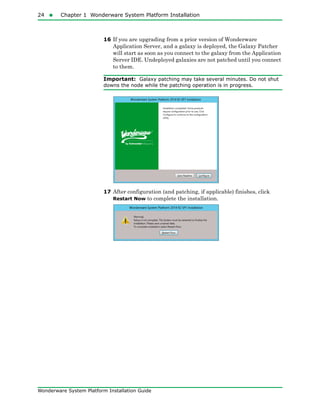
Preparation for Installing a Single Product175
Wonderware System Platform Installation Guide
indicates that a folder can be deleted.
indicates that a folder must be retained.
InstallFiles
Folder
(Component)
Folder
Size
(apprx) Historian
Historian
Client
Application
Server
Runtime
CD-Application
Server
250 MB
• Bulk Import
Utility
11 MB
• External 0.2 MB
• Framework 355 MB
• Redist 50 MB
• UserDocs 29 MB
CD-Gateway 37 MB
CD-Historian 104 MB
CD-Historian
Clients
221 MB
CD-Intouch 255 MB Optional
CD-IntouchFrench 312 MB
CD-IntouchGerman 316 MB
CD-Intouch
Japanese
330 MB
CD-Intouch
SChinese
314 MB
CD-Language
Assistant
102 MB
CD-Licensing 18 MB
CD-Server 30 MB
CD-WIS 543 MB
176 Appendix B Single Product Installation
Wonderware System Platform Installation Guide
External 4 MB
Redist 1414 MB1
(total)
1The Redist folder contains SQL Express in subfolder SQL2K14EXPRSP1. If you are installing Historian
Client or the Application Server runtime, or if you installing Historian and the target system
already has a supported version of SQL Server, you can remove the SQL Express subfolder. See
"SQL Server Requirements" on page 33 for information about supported versions of SQL Server.
• DOTNET (see
important note)
• 3.5SP1
• 4.5.2
298 MB
231 MB
67 MB
Optional
Optional
Optional
Optional
Optional
Optional
Optional
Optional
Optional
Important: You may be able to further reduce the size of the installation
source by removing the DOTNET folder (298 MB) from Redist. The DOTNET
folder contains two subfolders: 4.5.2 and 3.5SP1. The 4.5.2 subfolder can
be safely removed if .NET version 4.5.1 or higher is already installed on the
target system. .NET 3.5SP1 is required for SQL Server. Beginning with
Windows 8.1 and Windows Server 2012 R2, the required minimum versions
of the .NET framework are included as OS features. However, you may need
to enable .NET 3.5SP1 (or .NET 3.5.1) through the Windows Features
Control Panel.
Caution: The .NET framework is a required component. Do not attempt to
remove the DOTNET subfolder unless you have verified that .NET 4.5.1 or
higher is already installed. If you are installing SQL Server for Application
Server or Historian, .NET 3.5SP1 or .NET 3.5.1 is also required.
• MDAC 5 MB
• MSI4.5 6 MB
• PreReqInstaller <0.01 MB
• Safenet 8 MB
• SQL20114EXPRS
P1
1065 MB Optional
• VC10SP1 18 MB
• VC90SP1 4 MB
InstallFiles
Folder
(Component)
Folder
Size
(apprx) Historian
Historian
Client
Application
Server
Runtime
Preparation for Installing a Single Product177
Wonderware System Platform Installation Guide
Note: The Redist folder contains SQL Express in folder
SQL2014EXPRSP1. If you the products you are installing do not need
SQL Server, or if the target system already has a supported version of
SQL Server, you can remove the SQL Express subfolder. See "SQL
Server Requirements" on page 33 for information about supported
versions of SQL Server.
Caution: .NET 3.5SP1 or .NET 3.5.1 is required for SQL Server and is
an operating system component. However, you may need to enable it
through the Windows Features Control Panel.
Optional Folder for Historian
The CD-InTouch folder (255MB) contains a database purge utility
that Historian uses (this utility is not called when block-based event
history is utilized). Without this folder, Historian cannot purge the
A2ALMDB alarm database and an error will be generated (this does
not occur with block-based history). If you are installing Historian
Client only, this utility is not called and the folder can be deleted
without any issues.
Note: If you are installing Historian and the CD-Intouch has been
deleted, you will not be able to purge the A2ALMDB alarm database and
an error will be generated (does not apply if you are using block-based
history). However, the installation will complete successfully.
• VC2012U4 13 MB
ResponseFiles <0.1 MB
Support 0.2 MB
UpgradeSupport 38 MB
Total Size including
optional folders,
InstallITK and files
in root directory
4711 MB 1882 MB 650 MB 729 MB
Total Size without
optional files/folders
N/A 261 MB 348 MB 427 MB
InstallFiles
Folder
(Component)
Folder
Size
(apprx) Historian
Historian
Client
Application
Server
Runtime
178 Appendix B Single Product Installation
Wonderware System Platform Installation Guide
Creating the Installation Source and Installing
the Selected Component
To create an installation source
1 Copy the entire contents of the Wonderware System Platform
installation DVD to a local folder on your computer or to a network
share location.
This location will be used to prepare for the installation or upgrade
of the product you are installing.
Important: You must copy the entire DVD. The root directory from
the DVD and all files in it must be in place and completely intact.
2 Navigate to the location where you copied the DVD. Delete the
files, components and language folders that you do not need.
Now you are ready to install or upgrade the product(s) using either
of the methods described below.
To install or upgrade a single product
• Direct installation from the copy location (install locally or on a
different network node):
a Remove the original Wonderware installation DVD from the
drive.
Important: When you run setup.exe, it checks for the Wonderware
DVD. If the Wonderware DVD is available, it will be used instead of the
copy location.
a Navigate to the copy location.
b Make sure you have deleted the folders you do not need.
c Run setup.exe. Components that were deleted will be
grayed-out and unavailable for installation.
d If this is a new installation (not an upgrade), select the target
location when you are prompted.
• Installation from a CD or DVD:
a Create a CD or DVD from the copy location after deleting the
folders you do not need.
b Run setup.exe from the CD/DVD on each node. Components
that were deleted will be grayed-out and unavailable for
installation.
179
Wonderware System Platform Installation Guide
Index
Numerics
16 Pen Trend 18
A
A2ALMDB database
disk space 70
aaAdministrators group 35
aaConfigSQL 35
aaGalaxyOwner user account 35
acquisition
loading 77
ActiveEvent
installing 105
ActiveFactory reporting, configuring 152
ActiveX and .NET Controls
aaHistClientQuery 119
aaHistClientTrend 119
alarm data source
defining 158
antivirus software 112
Application Server
ArchestrA user account requirements 14
hardware requirements 45
ArchestrA Bootstrap 127
ArchestrA Change Network Account
utility 26
ArchestrA reporting, configuring 156
ArchestrA user account
requirements for use with Application
Server 14
updating with ArchestrA Change Network
Account utility 26
ASBService 35
ASBSolution 35
ASP.NET
installing 134
B
Bootstrap
upgrading 44
upgrading with Galaxy Repository 44
upgrading with IDE 44
upgrading with IDE and Galaxy
Repository 44
building block controls
aaHistClientTagPicker 119
aaHistClientTimeRangePicker 119
180Index
Wonderware System Platform Installation Guide
C
Change Network Account utility 35
common components 41, 106
Configuration Utility 107
Configurator
starting 147
configuring
ActiveFactory reporting 152
ArchestrA reporting 156
Wonderware Information Server 146, 147,
149
Configuring Products 25
CSV data
licensing 85
D
database
configuring 107
database files
disk space requirements 69
demo mode 56
disk sizing 68
disk space
history blocks 71
planning 69
domain controller 128, 129
security 128
using with Wonderware Information
Server 128, 129
E
Enhanced Security Mode 36
enhanced security mode 35
event data
migrating from older versions 116
F
fault-tolerant servers 66
feature lines 81
features 144
firewall exceptions 146
G
Galaxy database
migrating 47
Galaxy Repository
upgrading 46
upgrading with the Bootstrap 44
upgrading with the Bootstrap and IDE 44
H
hardware recommendations
storage 69
hardware requirements 45
disk space 69
IDASs 67
System Management Console 66
Wonderware Historian 64
Historian Client 87
historian data source
defining 155
Historian Database Export/Import Utility
requirements 66
history blocks
disk space requirements 71
licensing 85
history data
licensing 85
migrating from older versions 116
Holding database
disk space 70
I
IDASs
installing 105
performance 78
requirements 67
security 67
IDE
upgrading 47
upgrading with the Bootstrap 44
upgrading with the Bootstrap and Galaxy
Repository 44
IIS 129, 134
installing 134
InBatch 87
installation
about 103
components 103
modifying 26
repairing 28
silent 167
Wonderware Historian 103
installation pre-requisites 144
installing
IIS and ASP.NET 134
Index181
Wonderware System Platform Installation Guide
product license 167
SQL Server 130, 131
Windows Server 2003 129
Windows Server 2008 129, 130
Wonderware Historian Client 121
Wonderware Information Server 143, 145
Wonderware System Platform 9
Internet Information Services 130
InTouch 125, 129, 145
supplementary components 18
InTouch windows
running within browser 125
InTouch WindowViewer 87
Invensys License Manager 32, 167
L
LAN 79
language packs 142, 165
Legacy Mode 36
legacy mode 35
legacy software 41
License Viewer 106
licensing 55
about 81
feature lines
data modification 85
history duration 85
operating system 83
remote IDAS 84
replication server 86
tag count 82
loading
Wonderware Historian 77
M
Management Console 105
Manufacturing Execution Module 87
memory
requirements 64, 76
Microsoft Client Utilities 104
Microsoft SQL
Intelligence data adapters 160
Microsoft SQL Server
installation 104
Microsoft Windows Server 2003 129
Microsoft Windows Server 2008 129
Microsoft Windows Server 2008 R2 130
modify
installation 26
modifying Wonderware Information
Server 164
multilingual systems 142
N
named pipes 104
navigation tree 126
network cards 80
network protocol 81
networking 79
Non-default port
SQL Server 39
NTFS 69, 130
O
operating system requirements 127
operating system, upgrading 45
operating systems
licensing 83
non-English 87
Oracle
Intelligence data adapters 160
OSI PI
Intelligence data adapters 160
P
performance 76
examples 88
IDASs 78
physical memory 64
Port
SQL Server 39
process graphics 125
process network 79
product license 32, 167
installing 167
products
configuring 25
protocols 81
recommendations 79
R
RAID 69
repair
installation 28
repairing 122
Wonderware Historian 112
182Index
Wonderware System Platform Installation Guide
repairing Wonderware Information
Server 165
requirements 119
Historian Database Export/Import
Utility 66
reserved names
system 35
response files 168
retrieval
loading 77
roaming profiles 122
Runtime database
disk space 70
migration 114
S
SCSI 69
security
domain controller 128
modes 35
remote IDASs 67
SQL Server 35
silent installation 167
software
requirements 45
software requirements 127
IDASs 67
System Management Console 66
Wonderware Historian 64
SPCPro 18, 87
SQL Server 119
installing 130, 131
non-default port 39
upgrading 45
SQL Server Reporting Services 126, 140
SQL Server Versions 38
SQL Server, incompatible version installed 39
SQL Server, not found 38
SQL Server, untested version installed 39
SQL statements
licensing 85
storage
disk sizing 68
hardware recommendations 69
loading 77
SuiteLink 79
summary data
migrating from older versions 116
system
sizing 88
System Management Console
installing 105
requirements 66
T
TCP/IP 79, 104
text files
Intelligence data adapters 160
tiered historian
sizing 95
U
uninstall
Wonderware System Platform
Component 29
uninstalling 123
uninstalling Wonderware Information
Server 165
upgrade
basic steps 45
Galaxy Repository 46
Galaxy Repository node 46
IDE 47
operating system 45
redundant pairs 48
run-time nodes 48
SQL Server 45
upgrading 114
previous version 166
Wonderware Information Server 3.1 167
Wonderware Information Server 4.0 167
Wonderware Information Server 4.0 with
SP1 167
V
virtual memory 64
W
WAN 79
web server
requirements 126
Windows 7 129
Installing 129
windows authentication 146
Windows Server 2003 129, 130
installing 129
Index183
Wonderware System Platform Installation Guide
Windows Server 2008 134, 135, 137
installing 129, 130
Windows Server 2008 R2 130
Windows Vista 64
Wonderware Application Server 129
Wonderware Historian
components 105
installation 106
installing 103
loading 77
memory requirements 76
repairing 112
requirements 64
upgrading 113, 115
Wonderware Historian Client
Components 118
Query 118
Report 118
Trend 118
Workbook 118
Wonderware Information Server 87
configuring 146, 147
installing 143, 145
modifying 164
repairing 165
uninstalling 165
using with a domain controller 128
using without a domain controller 129
Wonderware System Platform
installing 15
upgrade 30

Wsp install guide

  • 1.
  • 2.
    All rights reserved.No part of this documentation shall be reproduced, stored in a retrieval system, or transmitted by any means, electronic, mechanical, photocopying, recording, or otherwise, without the prior written permission of Schneider Electric Software, LLC. No copyright or patent liability is assumed with respect to the use of the information contained herein. Although every precaution has been taken in the preparation of this documentation, the publisher and the author assume no responsibility for errors or omissions. Neither is any liability assumed for damages resulting from the use of the information contained herein. The information in this documentation is subject to change without notice and does not represent a commitment on the part of Schneider Electric Software, LLC. The software described in this documentation is furnished under a license agreement. This software may be used or copied only in accordance with such license agreement. © 2015 Schneider Electric Software, LLC. All rights reserved. Schneider Electric Software, LLC 26561 Rancho Parkway South Lake Forest, CA 92630 U.S.A. (949) 727-3200 http://software.schneider-electric.com For comments or suggestions about the product documentation, send an e-mail message to ProductDocumentationComments@schneider-electric.com. ArchestrA, Avantis, DYNSIM, EYESIM, Foxboro, Foxboro Evo, I/A Series, InBatch, InduSoft, IntelaTrac, InTouch, PIPEPHASE, PRO/II, PROVISION, ROMeo, Schneider Electric, SIM4ME, SimCentral, SimSci, Skelta, SmartGlance, Spiral Software, VISUAL FLARE, WindowMaker, WindowViewer, and Wonderware are trademarks of Schneider Electric SE, its subsidiaries, and affiliated companies. An extensive listing of Schneider Electric Software, LLC trademarks can be found at: http://software.schneider-electric.com/legal/trademarks/. All other brands may be trademarks of their respective owners.
  • 3.
    3 Wonderware System PlatformInstallation Guide Contents Chapter 1 Wonderware System Platform Installation........9 Preparing for Wonderware System Platform Installation ............. 9 Wonderware System Platform Prerequisites .............................. 9 About SQL Server Requirements ........................................... 12 Selecting a Type of Installation .................................................. 12 About Product-Based Installation .......................................... 12 About Role-Based Installation ................................................ 13 ArchestrA User Account ............................................................. 14 About ArchestrA User Account Privileges ............................. 14 Installing the Wonderware System Platform ............................... 15 Configuring Historian and Information Server ......................... 25 Modifying an ArchestrA User Account ......................................... 26 Modifying an Installation .............................................................. 26 Repairing an Installation .............................................................. 28 Uninstalling a Wonderware System Platform Component ......... 29 Upgrading the Wonderware System Platform ............................. 30 Installing a Product License .......................................................... 32 Chapter 2 Application Server Requirements and Prerequisites ............................................ 33 SQL Server Requirements ............................................................. 33 SQL Server Rights Requirements .............................................. 35
  • 4.
    4 Contents Wonderware SystemPlatform Installation Guide Setting the SQL Server Security Mode .................................. 35 Restoring Required SQL Server Accounts ............................. 37 Working with SQL Server Versions ........................................... 38 Using a Non-Default Port for SQL Server ................................. 39 Setting a Windows Firewall Exception for the SQL Server Port ............................................................................ 40 Issues with Legacy Common Components .................................... 41 Chapter 3 Application Server Upgrade ......................... 43 Basic Upgrade Sequence ................................................................ 45 Upgrading a Galaxy Repository Node ........................................... 46 Upgrading an IDE-only Node ........................................................ 47 Migrating the Galaxy Database .................................................... 47 Upgrading Run-Time Nodes .......................................................... 48 Upgrading Redundant Pairs .......................................................... 48 Upgrade Considerations for Multi-Galaxy Communication ........ 54 Chapter 4 InTouch HMI Requirements and Prerequisites ...................................... 55 Wonderware Product Licensing .................................................... 55 Installing FS Gateway and Modifying FS Gateway Installations ................................................................. 57 FS Gateway Installation Scenarios ........................................ 58 Uninstalling FS Gateway and Modifying FS Gateway Installations ........................................................... 61 Chapter 5 Historian Server Requirements and Recommendations..................................... 63 Server Requirements ..................................................................... 64 High Availability Support ........................................................... 66 Requirements for Historian Management Tools .......................... 66 Remote IDAS Requirements .......................................................... 67 Security Considerations for a Remote IDAS ............................. 67 Disk Sizing and Data Storage ....................................................... 68 General Hardware Recommendations for Storage .................... 69 Planning for Disk Space Requirements ..................................... 69 Disk Requirements for Database Files ...................................... 69 Disk Space Requirements for Historical Data Files ................. 71 Storage and Network Transmission Sizes for Tags .................. 71 Disk Space Estimation ................................................................ 72 Bandwidth Estimation for Streaming Data .............................. 73
  • 5.
    Contents5 Wonderware System PlatformInstallation Guide Bandwidth Estimation for Store-and-Forward Data ................ 74 Time Estimation for Store-and-Forward Data .......................... 75 About Data Compression and the Buffer Age Limit ................. 76 Performance Considerations ......................................................... 76 Server Loading ............................................................................ 77 IDAS Performance ...................................................................... 78 Tiered Historians ........................................................................ 78 Storage Subsystem Performance ................................................ 79 Networking Recommendations ...................................................... 79 Client Access .................................................................................. 81 Licensing ......................................................................................... 81 Historian_Tagcount Feature Line .............................................. 82 Historian_ServerOS Feature Line ............................................. 83 Historian_RemoteIDASCount Feature Line ............................. 84 Historian_ModifyHistoryData Feature Line ............................. 85 Historian_HistoryDuration Feature Line .................................. 85 Historian_ReplicationServer Feature Line ............................... 86 Support for Non-English Operating Systems ............................... 87 Integration with Other Wonderware Products ............................. 87 System Sizing Examples ................................................................ 88 Process Historian Sizing Examples ........................................... 88 Server 1 (Non-Tiered): 2.4 GHz Single Processor Quad-Core CPU ..................................................................... 88 Server 2 (Non-Tiered): Four Dual-Core 2.7 GHz CPUs ........ 90 Server 3 (Non-Tiered): Four Dual-Core 3.4 GHz CPUs ........ 91 Server 4 (Tier-2): Eight Dual-Core 2.67 GHz CPUs (Hyper Threaded) .................................................................. 93 SCADA (Tiered) Historian Sizing Examples ............................. 95 Topology 1: Centralized Tiered Historian Topology on a Slow/Intermittent Network .......................................... 95 Topology 2: Centralized Tiered Historian Topology for a Single Physical Location .............................................. 97 Topology 3: Simple Tiered Historian Topology for a Modem Configuration ........................................................... 99 Chapter 6 Historian Server Installation and Configuration ................................... 103 Microsoft SQL Server Installation .............................................. 104 Wonderware Historian Installation Features ............................ 105 About the Wonderware Historian Installation ........................... 106 Configuring Databases and Data File Locations ........................ 107 Testing the Installation ............................................................... 111
  • 6.
    6 Contents Wonderware SystemPlatform Installation Guide Antivirus Software ....................................................................... 112 Wonderware Historian Menu Shortcuts ..................................... 112 Repairing the Wonderware Historian ......................................... 112 Modifying the Wonderware Historian Installation .................... 113 Uninstalling the Wonderware Historian .................................... 113 Upgrading from a Previous Version ............................................ 113 About Database Migration ....................................................... 114 Upgrading the Wonderware Historian Version ....................... 115 Migration of History Data Stored in SQL Server .................... 116 Chapter 7 Historian Client Requirements.................... 117 Wonderware Historian Client Components ................................ 118 Desktop Applications ................................................................ 118 Microsoft Office Add-Ins ........................................................... 118 ActiveX and .NET Controls ...................................................... 119 Requirements and Recommendations ......................................... 119 Support for Operating System Language Versions .................... 119 Chapter 8 Historian Client Installation and Configuration ................................... 121 About the Wonderware Historian Client Installation ............... 121 Using Wonderware Historian Client Software with Roaming Profiles .............................................................. 122 Repairing the Wonderware Historian Client Installation ......... 122 Uninstalling Wonderware Historian Client ............................... 123 Upgrading from a Previous Version ............................................ 123 Chapter 9 Information Server Requirements and Recommendations................................... 125 Web Server Requirements and Recommendations .................... 126 Operating System Requirements ............................................. 127 Software Requirements ............................................................ 127 Using a Domain Controller with Wonderware Information Server ............................................................... 128 Using an Existing Domain Controller ................................. 129 Using Wonderware Information Server without a Domain Controller .............................................................. 129 Guidelines for Installing Microsoft Operating Systems ............ 129 Guidelines for Installing Microsoft Windows 7 ....................... 129 Guidelines for Installing Microsoft Windows Server 2008 R2 ...................................................................... 130
  • 7.
    Contents7 Wonderware System PlatformInstallation Guide Guidelines for Installing Microsoft SQL Server ......................... 130 Guidelines for Installing Microsoft SQL Server 2008 or 2012 .......................................................................... 131 Guidelines for Installing IIS and ASP.NET ............................... 134 Guidelines for Installing IIS and ASP.NET on Windows 7 .... 134 Guidelines for Installing IIS and ASP.NET on Windows Server 2008 R2 ..................................................... 135 Guidelines for Installing IIS and ASP.NET on Windows Server 2012 ........................................................... 137 Guidelines for Installing Microsoft Reporting Services ............. 140 Guidelines for Configuring SQL Server 2008 Reporting Services ................................................................ 140 Installing Language Packs for Multilingual Systems ................ 142 Chapter 10 Information Server Installation and Configuration ......................................... 143 Installable Features ..................................................................... 144 Installation Pre-Requisites .......................................................... 144 About the Wonderware Information Server Installation ........... 145 About Wonderware Information Server Configuration ............. 146 Windows Firewall Exceptions .................................................. 146 Using Windows Authentication with Microsoft SQL Server 2008, SQL Server 2008 R2, or SQL Server 2012 ................................................................... 146 Configuring a Wonderware Information Server that Uses a Remote SQL Server .......................................... 147 Configuring the Wonderware Information Server ..................... 147 Starting the Configurator Utility ............................................. 147 Configuring the Core Wonderware Information Server ......... 149 Configuring ActiveFactory Reporting ...................................... 152 Configuring Microsoft Excel Application Components ....... 154 Defining a New Historian Data Source ................................... 155 Configuring ArchestrA Reporting ............................................ 156 Defining a New Alarm Data Source ......................................... 158 Configuring Sample Content .................................................... 159 Configuring the Information Model ......................................... 159 Importing Model Content ..................................................... 162 Editing Connection Details for an Information Model Data Source .............................................................. 163 Installing the ArchestrA Web Exporter ...................................... 164 Installing the Win-XML Exporter ............................................... 164 Modifying Wonderware Information Server ............................... 164 Repairing Wonderware Information Server ............................ 165
  • 8.
    8 Contents Wonderware SystemPlatform Installation Guide Uninstalling Wonderware Information Server .......................... 165 Upgrading from a Previous Version ............................................ 166 Upgrading the Server from Wonderware Information Server 5.0 or 5.0 Patch 01 ............................... 167 Installing the Product License .................................................... 167 Appendix A Using Silent Installation............................ 167 Starting Silent Installation ......................................................... 167 Using Response Files ................................................................... 168 Response File Samples ................................................................ 169 Role-Based Response Files ....................................................... 170 Product-Based Response Files .................................................. 171 Installing License Manager ......................................................... 171 Appendix B Single Product Installation ........................ 173 Guidelines for Creating a Compact Installation Source ............ 174 Upgrading from a Previous Version ......................................... 174 Preparation for Installing a Single Product ............................... 174 Optional Folder for Historian ................................................... 177 Creating the Installation Source and Installing the Selected Component ........................................................... 178 Index..................................................... 179
  • 9.
    9 Wonderware System PlatformInstallation Guide Chapter 1 Wonderware System Platform Installation You can use the Wonderware® System Platform installation program to install the entire suite of products or any of the components. Preparing for Wonderware System Platform Installation Before you begin the installation program, you need to prepare your system, and you should plan your installation according to the two installation types available to you — product-based and role-based. Note: You should not install the Galaxy Repository on a computer that is used as a domain controller or an Active Directory server. Wonderware System Platform Prerequisites The Wonderware System Platform installation program analyzes the software installed on your computer and lists any software that is required but not currently installed, and any installed software that is incompatible. During product installation, the following prerequisites will be installed by the Wonderware System Platform installation program, if not already present on the system: • Windows Installer 4.5
  • 10.
    10  Chapter1 Wonderware System Platform Installation Wonderware System Platform Installation Guide • Microsoft .NET® Framework 4.5.2: The .NET Framework will not be installed if a version of .NET equal to, or higher than, 4.5.1 is present. • SQL Server 2014 Express with Tools SP1: SQL Server 2014 Express with Tools SP1 (32-bit) will be installed if no version of SQL Server is installed on the system, and products or roles that you select for installation include either a GR node or Historian Server. For product or role selections that include the GR node by default, you can choose to click the Customize Installation checkbox and deselect the Galaxy_Repository. However, without the Galaxy Repository installed, some product functionality will be limited. Product Based Selection SQL Required Wonderware InTouch 2014 R2 SP1 Yes Wonderware InTouch 2014 R2 SP1 without GR node (customized installation) No InTouch Access Anywhere and InTouch Runtime No InTouch Access Anywhere Secure Gateway No Wonderware Application Server 2014 R2 SP1 Yes Application Server 2014 R2 SP1 without GR node No Historian 2014 R2 SP1 Yes Historian Client 2014 R2 SP1 No Wonderware Information Server 2014 R2 No Licensing No Wonderware System Platform Computer Roles SQL Required Runtime Client No Remote System Platform Development Client No System Platform Development Client Yes System Platform Development Client without GR node (customized installation) No Historian Server Node Yes Historian Client Node No Information Portal No
  • 11.
    Preparing for WonderwareSystem Platform Installation11 Wonderware System Platform Installation Guide Note: Unlike past releases, this release of Wonderware System Platform allows you to install an InTouch development system without a GR node. However, InTouch Modern Applications will not work without the GR node. While installing Wonderware System Platform, if the logged-on user (the installer) is not a SQL Server administrator, the aaConfig SQL dialog box appears and requests SQL Server administrator credentials. Enter valid SQL Server administrator credentials when requested. For more information about setting user privileges with the aaConfig SQL utility, see "Setting the SQL Server Security Mode" on page 35. For more information about SQL Server installation, see "About SQL Server Requirements" on page 12. The Wonderware System Platform installation installs both system-specific and product-specific prerequisites. It also checks for incompatible software that will prevent installation from proceeding, (for example, if InTouch Access Anywhere was previously installed). You do not have to exit from the Wonderware System Platform installation procedure to install the prerequisite software, with the exception of standard or enterprise versions of SQL Server. You will need to exit and perform any uninstall operations that are indicated before continuing with installation. For information on prerequisites and software requirements for the specific products, see the Wonderware System Platform Readme, the Readme files of the specific products located in your documentation directory, or the specific product information chapter in this installation guide. All-In-One-Node Yes All-In-One-Node without GR node and Historian Server (customized installation) No InTouch Access Anywhere Secure Gateway No Wonderware Information Server 2014 R2 No Licensing No Wonderware System Platform Computer Roles SQL Required
  • 12.
    12  Chapter1 Wonderware System Platform Installation Wonderware System Platform Installation Guide About SQL Server Requirements The exception to the prerequisites installation workflow is the SQL Server requirement for Wonderware System Platform products. In most cases, SQL Server is required when you install: • Wonderware Application Server • Wonderware Historian • Wonderware InTouch (when used with modern applications) If a supported version of SQL Server is not already installed, you must exit the installation program, install the supported SQL Server version, then resume the installation. Note: If you are installing a small system (less than 25000 I/O), you can use SQL Server Express instead of a standard version of SQL Server. You can elect to install SQL Server Express as part of the Wonderware System Platform installation process; you do not have to install it separately. We recommend that you install and configure the supported SQL Server version before you begin the Wonderware System Platform installation program. For more information about SQL Server prerequisites, see "SQL Server Requirements" on page 33. Selecting a Type of Installation The Wonderware System Platform installation program offers you a choice of two types of installation— product-based or role-based. About Product-Based Installation Product-based installation provides a combination of features not specific to a node. This would be the preferred installation type for a stand-alone product installation. If you are familiar with Wonderware products and their associated components, you can opt for a product-based installation, and then choose the components that you need. For example if you need to install InTouch® with the default options, then select a product-based installation. Important: The Product-Based installation includes an option to install the InTouch Access Anywhere Secure Gateway. This option can only be installed on a computer running a supported version of the Windows Server operating system. No other System Platform components can be installed with it. See the Wonderware System Platform Readme for supported Windows versions.
  • 13.
    Preparing for WonderwareSystem Platform Installation13 Wonderware System Platform Installation Guide About Role-Based Installation Role-based installation provides a combination of features specific to a node. This is preferred in ArchestrA types of installation. If you are uncertain about the specific products or components you need, but you know what role your computer will play, you can opt for a role-based installation. For example, if your computer is a run-time node or a development node, you can select those roles in the role-based installation program. The Wonderware System Platform installation program will install all components required for the roles that you have selected. It is recommended that you define the node you are installing and select the appropriate role before starting the installation program. During the installation, you can click a role to see its description, as described in "Installing the Wonderware System Platform" on page 15. The following roles are available for selection: • Runtime Client: Install only the necessary components required to run a visualization client, Historian client, and ArchestrA object server run-time components. • Remote System Development Workstation: Install the components required for a remote engineering development workstation with only the required components to allow the node to connect to an existing development server; GR is not installed by default. It allows development and testing of InTouch and Wonderware System Platform applications. • System Platform Development Server: Install the components required to host the development server, and develop and test InTouch and Wonderware System Platform applications. • Historian Server Node: Install the necessary components to store historical data in an ArchestrA environment. • Historian Client Node: Install the components required to connect to an existing Historian Server and analyze the data. • Information Portal: Install the necessary components for aggregating and presenting plant production and performance data on the internet or company intranet with the capability to access live plant process data, integrated data trending and analysis, production and performance reporting, and integration to existing IT infrastructure and web portals. • All-in-One Node: All products are installed on a single node. • Custom: Allows you to customize the components that are installed.
  • 14.
    14  Chapter1 Wonderware System Platform Installation Wonderware System Platform Installation Guide • InTouch Access Anywhere Secure Gateway Node: Install the components to access Wonderware InTouch applications hosted on Terminal Servers by using HTML5 compatible web browsers. You must install this component on a computer with no other System Platform components installed. ArchestrA User Account The ArchestrA user account is a user name and password combination that enables inter-node communication between all computers in an ArchestrA environment. You must specify the same user account on every node when you install the Wonderware System Platform components for the first time on computers that communicate with each other. Wherever an ArchestrA user account is required, the Wonderware System Platform Installation dialog box appears and you will need to provide a valid user name and password. WARNING! The ArchestrA user account is a Windows operating system account located on the local computer or on a domain. Do not delete this account with operating system account management tools. If you do, ArchestrA-enabled software may stop functioning properly. If no other ArchestrA-enabled software is installed on the computer, you are prompted to create a new ArchestrA user account or specify an existing user account during the Wonderware System Platform installation. If you select an existing user account, it should meet the following requirements: • User account with a permanent password that does not expire. • User account in which the password cannot be changed. • User account that is a member of the local Administrators group. Important: For security reasons, the ArchestrA user account is not permitted to log on to the Galaxy locally or through Remote Desktop Services by default. This is configured in the operating system user rights management. About ArchestrA User Account Privileges During the Wonderware System Platform installation, you can choose to have the system automatically create a new local administrator account. This new account cannot be used to interactively log on to the computer. If you select a pre-existing user during installation who is already a local administrator (domain or local), the existing interactive log on privileges are not changed.
  • 15.
    Installing the WonderwareSystem Platform15 Wonderware System Platform Installation Guide Note: The Application Server installation will add the necessary SQL Server privileges for SQL Server. For more information, see "SQL Server Rights Requirements" on page 35. See "Modifying an ArchestrA User Account" on page 26 if you need to change or recreate the ArchestrA user account. Installing the Wonderware System Platform You can select a product-based or a role-based installation for your computer. Note: The installation workflow for Wonderware System Platform 2014 R2 SP1 is different than in previous versions. Prerequisites are installed as part of product installation and not in a separate workflow. To install the Wonderware System Platform 1 Insert the DVD into your DVD-ROM drive. The installation program automatically runs. Basic installation requirements are checked; if .NET 4.5.1 or later is not installed, version 4.5.2 will be installed now. You may be prompted to reboot after installation of the .NET framework. If your network or company security policy does not permit autorun, browse the root directory of the DVD and run setup.exe. 2 After some automatic configuration occurs, the select installation mode dialog box appears.
  • 16.
    16  Chapter1 Wonderware System Platform Installation Wonderware System Platform Installation Guide 3 Select whether you want a product-based or a computer role-based installation, and then click Next. The select options dialog box appears. Its appearance will vary, depending on whether you chose product-based or role-based installation. • For information about product-based installation, see "About Product-Based Installation" on page 12. • For information about role-based installation, see "About Role-Based Installation" on page 13. If you select the Product Based Selection option, then the product based installation dialog box appears.
  • 17.
    Installing the WonderwareSystem Platform17 Wonderware System Platform Installation Guide If you select the Wonderware System Platform Computer Roles option, the role based installation dialog box appears. You can select multiple products or roles. All the selected components will be installed together. If you are installing InTouch Access Anywhere Secure Gateway, it must be installed by itself, without any other System Platform components. Note: Remote System Platform Development Client was called Development Workstation in prior releases.
  • 18.
    18  Chapter1 Wonderware System Platform Installation Wonderware System Platform Installation Guide 4 Select the check boxes to indicate which products or roles you want to install, and then click Next. The verify selection dialog box appears. 5 Select the Customize Installation check box to change your configuration, if required. Important: You must select the Customize Installation option to install the InTouch 16-Pen Trend Wizard supplementary component. Complete the following installation steps to install InTouch HMI supplementary components and make other changes: a Select Customize Installation. b Click Next. The customize installation dialog box appears.
  • 19.
    Installing the WonderwareSystem Platform19 Wonderware System Platform Installation Guide c Scroll through the list of Wonderware System Platform products to be installed to the InTouch Supplementary Components section. d Select InTouch 16 PenTrend from the list. • You can make other product and component selections. • You can click Browse on the customize installation dialog box to change the program installation destination folder. e Click Next to continue the remainder of the installation procedure. 6 If you have selected an InTouch HMI installation, the language selection dialog box appears. Click the language for your InTouch HMI installation. If you select InTouch features, you need to select a language for the InTouch installation. The localized InTouch versions are supported only in the paired operating system. For example, the German version of the InTouch HMI is only supported on the German operating system.
  • 20.
    20  Chapter1 Wonderware System Platform Installation Wonderware System Platform Installation Guide 7 Click Next. The End User License Agreement dialog box appears. 8 Click I have read and accept the terms of the license agreement(s), and then click Agree. 9 The ArchestrA User Account dialog box appears.
  • 21.
    Installing the WonderwareSystem Platform21 Wonderware System Platform Installation Guide 10 Specify an ArchestrA user account. You can specify an existing user account, or create a new ArchestrA user account if no other ArchestrA-enabled software is installed on the computer. To select an existing user account: a Clear the Create Local Account check box. When you clear the check box, the Domain/Local Machine text box displays the default domain name. Specify a different domain/local machine name if necessary. b Type the user name and password for the existing account. The account must meet the following requirements: • The account must have a permanent password that does not expire. • The account must have a password that cannot be changed. • The account must be a member of the local Administrators group. c Click Next to complete the User Account setup. To create a new account: a Click the Create Local Account check box if not already selected. By default, the Domain/Local Machine box displays your computer name. b Type your user name and password. 11 If the products or roles you selected require Microsoft SQL Server, and a supported version of SQL Server is not already installed, you will be prompted to select either automatic installation of SQL Server Express, or to exit and manually install a full version of SQL Server.
  • 22.
    22  Chapter1 Wonderware System Platform Installation Wonderware System Platform Installation Guide Caution: If you select SQL Server Express, Wonderware System Platform will automatically grant you (the logged in user) SQL sysadmin privileges. This level of access is required to proceed with SQL Server Express installation. You will retain sysadmin privileges even after installation. If you need to remove sysadmin privileges from the logged in account, be sure to create a sysadmin account first. • Click Yes to use SQL Server Express. SQL Server Express is adequate for systems with less than 25000 IO. It will be automatically installed along with the other prerequisites and the selected Wonderware System Platform components. • Click No to skip SQL Server Express installation. Then, click Exit and manually install a full version of SQL Server. The Wonderware System Platform Installation DVD contains a full version of SQL Server 2014 SP1 Standard. However, you can install any supported version of SQL Server. Note: See the Wonderware System Platform Readme for the complete list of supported SQL Server versions. 12 Once you have either selected SQL Server Express, or installed a different supported version of SQL Server, you are ready to install the Wonderware System Platform. Note: Any prerequisites required for the products selected for installation will be listed above the list of products and components. The prerequisites will be installed first, and the product and components will be installed immediately after installation of the prerequisites has finished.
  • 23.
    Installing the WonderwareSystem Platform23 Wonderware System Platform Installation Guide 13 Click Install to proceed. The progress bar appears. 14 If you elected to install SQL Server Express, it is installed concurrently with the Wonderware System Platform. A progress bar for it will be displayed. 15 After the installation is over, the complete installation dialog box appears. If the installed products do not need configuration, click Finish, else click Configure. For more information on configuring products, see "Configuring Historian and Information Server" on page 25.
  • 24.
    24  Chapter1 Wonderware System Platform Installation Wonderware System Platform Installation Guide 16 If you are upgrading from a prior version of Wonderware Application Server, and a galaxy is deployed, the Galaxy Patcher will start as soon as you connect to the galaxy from the Application Server IDE. Undeployed galaxies are not patched until you connect to them. Important: Galaxy patching may take several minutes. Do not shut downs the node while the patching operation is in progress. 17 After configuration (and patching, if applicable) finishes, click Restart Now to complete the installation.
  • 25.
    Installing the WonderwareSystem Platform25 Wonderware System Platform Installation Guide Configuring Historian and Information Server Wonderware Historian Server and Wonderware Information Server require post-installation configuration for initial setup. You need to configure your products using the Configurator dialog box after you have installed them. The Configurator dialog box lists all product components that you have installed. You can configure the locations for the product database and the data files. You must have sysadmin permissions to configure products using the Configurator. Note: You need to configure the products only if you have installed Wonderware Historian Server or Wonderware Information Server. To configure products 1 In the complete installation dialog box, click Configure. The Configurator dialog box appears. The following example shows configuration for the Historian Server. 2 On the left pane, select the component and configure the details on the right pane. 3 Click Configure. After the installation is complete, the system may prompt you to restart. You can restart now or later. Note: The installed programs may not function properly until you restart the system.
  • 26.
    26  Chapter1 Wonderware System Platform Installation Wonderware System Platform Installation Guide Modifying an ArchestrA User Account After you install the Wonderware System Platform, you can use the ArchestrA Change Network Account utility to change or recreate the ArchestrA user account. This utility is located in the Common folder after you install the Wonderware System Platform products. You must have Administrator privileges on the computer to make changes with the Change Network Account utility. For more information, see the Change Network Account utility on-line help. Note: If you recreate the user account using the Change Network Account utility, the Microsoft Windows security component on the computer can take several minutes to update this information on the ArchestrA Galaxy Repository node. Until that occurs, the ArchestrA component may not function properly. Restarting the Galaxy Repository node updates this information immediately. Modifying an Installation You can change the Wonderware System Platform components installed on your computer. You can add new components or remove the existing ones. You can modify any component of Wonderware System Platform. You must have the installation DVD inserted in the DVD-ROM drive before you can modify a program. To modify an installation 1 Click the Add or Remove Programs (or Uninstall or Change a Program) option in Windows Control Panel. 2 Select any Wonderware System Platform component, and then click the Uninstall/Change button. The Modify, Repair or Remove Installation dialog box appears. Note: The name of the Uninstall/Change button varies depending on the Windows operating system installed on your computer.
  • 27.
    Modifying an Installation27 WonderwareSystem Platform Installation Guide 3 Click the Modify option, and then click Next. The list of Wonderware System Platform components appears. 4 Select or clear the components that you want to add or remove, and then click Next. The verify change dialog box appears. 5 Click Modify. The selected components are added or removed and the complete modification dialog box appears. 6 Click Finish.
  • 28.
    28  Chapter1 Wonderware System Platform Installation Wonderware System Platform Installation Guide Repairing an Installation You can repair the installation of any component of the Wonderware System Platform. You can repair missing or corrupt files, registry keys or shortcuts. You can also reset the registry key to the default value. Note: You must insert the installer DVD in the DVD-ROM drive before you can repair a program. To repair an installation 1 Click the Uninstall or Change a Program option in Windows Control Panel. The list of software installed on your computer appears. 2 Select the Wonderware System Platform component that you want to repair, and then click the Uninstall/Change button. The Modify Repair or Remove Installation dialog box appears. Note: The name of the Uninstall/Change button varies depending on the Windows operating system installed on your computer. 3 Click the Repair option, and then click Next. The Confirm Repair dialog box appears. 4 Click Repair. The complete repair dialog box appears. 5 Click Finish.
  • 29.
    Uninstalling a WonderwareSystem Platform Component29 Wonderware System Platform Installation Guide Uninstalling a Wonderware System Platform Component You can uninstall any component of the Wonderware System Platform that is installed on your computer. To uninstall the Wonderware System Platform component 1 Click the Uninstall or Change a Program option in Windows Control Panel. The list of software installed on your computer appears. 2 Select the Wonderware System Platform component that you want to uninstall, and then click the Uninstall/Change button. The Modify Repair or Remove Installation dialog box appears. Note: The name of the Uninstall/Change button varies depending on the Windows operating system installed on your computer. 3 Click the Remove option, and then click Next. The confirmation dialog box appears. 4 Click Uninstall. The component is uninstalled and the complete uninstallation dialog box appears. 5 Click Finish.
  • 30.
    30  Chapter1 Wonderware System Platform Installation Wonderware System Platform Installation Guide Upgrading the Wonderware System Platform You can upgrade to Wonderware System Platform 2014 R2 SP1 if you have an older version of the software installed in your system. Only components that were previously installed will be upgraded. You cannot choose to add components that were not already installed, and you cannot deselect components. That is, if a newer version of a component is included on the installation DVD, the previously installed component will be upgraded. Note: If you plan to upgrade Wonderware System Platform on a computer that has InTouch Access Anywhere Server or InTouch Access Anywhere Gateway installed, you must first uninstall the InTouch Access Anywhere Server or Gateway. Then, upgrade Wonderware System Platform and finally reinstall InTouch Access Anywhere. To upgrade a Wonderware System Platform component 1 Insert the DVD into your DVD-ROM drive. Run setup.exe to start the set-up program. The upgrade feature dialog box appears. Note: You can only upgrade the products that are already installed, and you will not be able to install additional products during the upgrade process. 2 Click OK and wait as configuration completes. Recommended steps to take before continuing will be displayed.
  • 31.
    Upgrading the WonderwareSystem Platform31 Wonderware System Platform Installation Guide 3 Follow the instructions given and click Next. A list of all Wonderware System Platform components appears. The installed components that need to be upgraded are selected and disabled. You cannot clear these check boxes or select more components during the upgrade. 4 Click Next. The upgrade dialog box appears. 5 Click Upgrade to proceed with the upgrade. 6 Restart the computer when prompted to apply the upgrade.
  • 32.
    32  Chapter1 Wonderware System Platform Installation Wonderware System Platform Installation Guide The following information applies to Application Server upgrades only • Delete the ArchestrAServicesDB database (if present) after the upgrade has completed. This database is not needed for Wonderware System Platform 2014 R2 SP1 and later releases. To remove, open SQL Management Studio and delete ArchestrAServicesDB. • If you have upgraded a GR node that has a non-upgraded run-time node connected to it, the run-time node will be undeployed, and ASBMXDataProviderService will be offline. Upgrade the run-time node and deploy the run-time WinPlatform object. The node will show as deployed and the status of ASBMXDataProviderService will change to online. Installing a Product License Use the Invensys License Manager to install licenses. For information about how to use the Invensys License Manager, see the Invensys License Manager Guide and the online help. To start the Invensys License Manager • On the Start menu on the Windows Taskbar, point to Programs, Invensys, and then select Invensys License Manager. The Invensys License Manager main window appears. Follow the procedures provided in the License Manager online help.
  • 33.
    33 Wonderware System PlatformInstallation Guide Chapter 2 Application Server Requirements and Prerequisites SQL Server Requirements In a typical configuration, you should install Microsoft SQL Server before you install Application Server. It is important to take into consideration the requirements of the different versions of SQL Server. Follow Microsoft installation instructions for your particular edition of SQL Server. If no version of SQL Server is installed on your system when you install Wonderware System Platform, and you install a product or role that includes either Historian Server or a Galaxy Repository, you can allow SQL Server 2014 Express with Tools SP1 to be installed automatically. For information about the versions of SQL Server supported by Application Server and other Wonderware System Platform products, see the Wonderware System Platform Readme. For more information about specific requirements for SQL Server configuration, see "SQL Server Rights Requirements" on page 35, or see Microsoft documentation available online.
  • 34.
    34  Chapter2 Application Server Requirements and Prerequisites Wonderware System Platform Installation Guide • A supported version of SQL Server must be installed on the computer designated as the ArchestrA Galaxy Repository (GR) node before you install Application Server. If you select Wonderware Application Server Galaxy Repository for installation and no SQL Server is installed on the computer, the installation program will install SQL Server 2014 Express with Tools SP1. • You cannot install and use Application Server on a computer that has both Microsoft SQL Server 2000 and Microsoft SQL Server 2008 or later versions installed. • The GR locks the SQL Server maximum memory usage to 65% of the computer's physical memory. • TCP/IP must be enabled on the computer hosting a SQL Server database. The TCP/IP protocol setting can be verified from the SQL Server Network Configuration under SQL Server Configuration Manager. Do the following steps to enable TCP/IP. To enable the TCP/IP protocol for the SQL Server database instance 1 Open the Start menu, point to All Programs, point to Microsoft SQL Server, point to Configuration Tools, and then click SQL Server Configuration Manager. 2 In the tree pane, click SQL Server Services. 3 In the results pane, verify that, under the State column, Running appears next to the name of each service. If Stopped appears, right-click the name of the service, and click Start. 4 In the tree pane, click SQL Server Network Configuration to expand it, and then click Protocols for MSSQLServer/<InstanceName>. If you specified the default instance during installation, the instance name will be MSSQLSERVER. 5 In the results pane, verify that, under the Status column, Enabled appears next to the name of the TCP/IP protocol. If Disabled appears, right-click TCP/IP, and then click Enable. 6 In the tree pane, click SQL Native Client Configuration to expand it, and then click Client Protocols. 7 In the results pane, verify that, under the Status column, Enabled appears next to the name of the TCP/IP protocol. If Disabled appears, right-click TCP/IP, and then click Enable. 8 In the tree pane, click SQL Server Services. 9 In the results pane, right-click SQL Server (MSSQLServer/<InstanceName>), and then click Restart.
  • 35.
    SQL Server Requirements35 WonderwareSystem Platform Installation Guide SQL Server Rights Requirements To support Galaxy communications, system security, and connection to SQL Server, the Application Server installation process creates an operating system user group (aaAdministrators), an ArchestrA user account, and a Galaxy owner user account (aaGalaxyOwner), as well as the necessary SQL Server logon. The ArchestrA user account, created when you installed Application Server, is an operating system administrator and, as a member of the aaAdministrators group, has the SQL sysadmin fixed server role. This account must be defined for Galaxy operations. See "ArchestrA User Account" on page 14 for additional information. Caution: aaGalaxyOwner and ASBService are reserved OS user names. aaAdministrators and ASBSolution are reserved OS group names. Do not create users or groups with these names. The automated process that creates the aaAdministrators group, ArchestrA user, and aaGalaxyOwner user account also provides the rights required for operations within the GR. The aaAdministrators group, ArchestrA user account, and aaGalaxyOwner user account must all be present and enabled for Galaxy operations. Note: The aaGalaxyOwner account is the owner (dbo) of all Galaxy databases in your system. It does not have a system login, and does not have the OS admin privileges that the ArchestrA user account has. • If you accidentally delete the aaAdministrators group or the ArchestrA user from the Windows operating system, you can run either the Change Network Account utility or the aaConfig SQL utility to restore it. Both of these programs are located in the Wonderware folder, under All Programs. • If you accidentally delete the aaGalaxyOwner account from the Windows operating system, you must run the aaConfig SQL utility to restore it. • If you accidentally delete the aaAdministrators group, ArchestrA user, or aaGalaxyOwner from the SQL Server security logons, you must run the aaConfig SQL utility to restore it. Setting the SQL Server Security Mode If you are a SQL administrator, you can use the aaConfig SQL utility to set user privileges within SQL Server for accessing and using Application Server Galaxy databases. The aaConfig SQL utility is included with Wonderware Application Server. User privileges are determined by the security mode. Two security modes are available:
  • 36.
    36  Chapter2 Application Server Requirements and Prerequisites Wonderware System Platform Installation Guide WARNING! The aaConfig SQL utility automatically restarts the computer to ensure system stability. If you press OK, you will not be able to cancel the restart. • Legacy Mode. This is the default setting. Authenticated users have the sysadmin privilege and are not restricted from any SQL Server activity, including creating, modifying, and deleting any SQL Server database. Select this mode to ensure that users can perform all Galaxy operations. If users will frequently be restoring Galaxies created with previous versions of Application Server, this may be the preferred setting. • Enhanced Security Mode. This mode removes the sysadmin privilege from Application Server users, and retains only the minimum privileges needed for normal operations. Select this mode for compliance with corporate or other IT security requirements or guidelines. Caution: Enhanced Security Mode is not supported when Wonderware Information Server and AppServer GR are hosted on the same node. If you select Enhanced Security Mode, you may be prompted to provide SQL sysadmin user credentials when restoring a Galaxy that was created with an older version of Application Server. You do not need sysadmin credentials to restore Galaxies created with the current version of Application Server. Enhanced Security Mode removes the SQL sysadmin privilege from various ArchestrA users and groups, including: • NTAUTHORITYSYSTEM • aaAdminstrators (local security group that contains the ArchestrA Network User)
  • 37.
    SQL Server Requirements37 WonderwareSystem Platform Installation Guide • <NodeName>ASBService (used for cross-Galaxy communications, and for browsing ArchestrA components) To change the SQL security mode with aaConfig SQL 1 Select the authentication type (Windows or SQL Server). 2 Provide SQL sysadmin logon credentials (User Name and Password). 3 Select the SQL Server security mode. The system will restart automatically. 4 If you have selected Enhanced Security Mode: After the system restarts, ensure that the BUILTINAdministrators group does not have the sysadmin role. Note: The system performs a check prior to changing to Enhanced Security Mode. This is to ensure that at least one account will exist with the SQL sysadmin privilege after the change. If the system check determines that no accounts with the SQL sysadmin privilege will remain after changing modes, an error message will be displayed and security will remain in Legacy Mode. Restoring Required SQL Server Accounts If you delete the aaAdministrators group, ArchestrA user account, or the aaGalaxyOwner account, restore them by running aaConfigSQL. You do not have to do anything else to restore the missing group or account. The missing group or account is created automatically when you run the utility. Running the utility does force a system restart, however, even if you retain the same security configuration.
  • 38.
    38  Chapter2 Application Server Requirements and Prerequisites Wonderware System Platform Installation Guide Working with SQL Server Versions The installation workflow will vary, depending on whether or not SQL Server is already installed. The version of SQL Server that is installed can also make a difference in the workflow. If SQL Server is not already installed, the Wonderware System Platform installation program will install SQL Server Express. This is adequate for small configurations, but not for medium and large configurations. For these, install SQL Server before installing Wonderware. The following workflow scenarios are described: • SQL Server not found on node: small configuration • SQL Server not found on node: medium and larger configurations • Compatible version of SQL Server already installed • New (untested) version of SQL Server already installed • Incompatible version of SQL Server already installed Note: Nodes are defined as follows: Small = up to 25,000 I/O per node; Medium = 25,000 to 50,000 I/O per node; Large = 50,000 to 400,000 I/O per node. SQL Server not found on node: small configuration If you install the Application Server Galaxy Repository and SQL Server is not found on the computer, SQL Server 2014 Express with Tools SP1 is installed as part of the installation process. This version of SQL Server is suited for small configurations, and is best for a single-node system. SQL Server not found on node: medium and larger configurations For medium and larger systems, the following versions are supported: • SQL Server 2008 SP3: Standard or Enterprise edition (32-bit only) • SQL Server 2008 R2 without service pack, or with SP1, SP2, or SP3: Standard or Enterprise edition (32- or 64-bit) • SQL Server 2012 without service pack, or with SP1 or SP2: Standard or Enterprise edition (32- or 64-bit) • SQL Server 2014 without service pack, or with SP1, Standard or Enterprise edition (32- or 64-bit) For more information about the comparative capabilities of different SQL Server editions, see "Features Supported by the Different Versions of SQL Server 2012" at the following URL: http://msdn.microsoft.com/en-us/library/cc645993(v=SQL.110).aspx.
  • 39.
    SQL Server Requirements39 WonderwareSystem Platform Installation Guide Compatible version of SQL Server already installed If a compatible version of SQL Server is already installed, Wonderware System Platform installation will continue without interruption (SQL Server 2014 Express with Tools SP1 will not be installed). New version of SQL Server already installed If a new version of SQL Server is already installed that has not yet been fully tested with Wonderware System Platform 2014 R2 SP1 products, a warning is displayed stating that the installed SQL version has not yet been tested. You can proceed with the installation, but we recommend that you contact Wonderware customer support before proceeding to check if any issues have been found. Incompatible version of SQL Server already installed If an older version of SQL Server is already installed that is not supported for use with Wonderware System Platform 2014 R2 SP1 products, installation will stop and a warning will be displayed stating the SQL Server version is not compatible. You must upgrade to a supported version of SQL Server before you can resume installation. Using a Non-Default Port for SQL Server The default port for SQL Server is 1433. If you want to use a different port number, use SQL Server Configuration Manager to set the port number. If you are using the SQLData object to store and retrieve data, you will need to enter the non-default SQL Server port number as you enter other database connection information. See the SQLData Object help file, available through the ArchestrA IDE, for additional information. To change to a non-default SQL Server port number 1 If you are upgrading from a prior version of Wonderware System Platform, upgrade all nodes. See "Basic Upgrade Sequence" on page 45 for more information. If this is a new installation, continue to step 2. 2 Launch SQL Server Configuration Manager. 3 Select SQL Server Network Configuration, then select Protocols for MSSQLSERVER.
  • 40.
    40  Chapter2 Application Server Requirements and Prerequisites Wonderware System Platform Installation Guide 4 In the list of protocol names to the right, select and open TCP/IP Properties. 5 In the TCP/IP Addresses tab, scroll down to IPAll. 6 Change the TCP Port number from 1433 to the desired number. 7 Click OK or Apply to commit the changes. 8 Reboot the GR node. Setting a Windows Firewall Exception for the SQL Server Port You will need to set a Windows Firewall exception for a non-default SQL Server port number if you are using a remote node. Without access through the firewall, remote nodes will be unable to connect to the database. To allow access through the Windows Firewall 1 Open Allow an app through Windows Firewall.
  • 41.
    Issues with LegacyCommon Components41 Wonderware System Platform Installation Guide 2 Select SQLServer from the list of applications. Double click to open the Edit a Port window. 3 Change the port number to match the port number listed in SQL Server Configuration Manager. 4 Click Network types... and select Domain. Issues with Legacy Common Components Wonderware Application Server uses the latest version of the ArchestrA common components, which are installed to the following folder: C:Program FilesCommon FilesArchestrA On a 64-bit operating system, the common components are installed to the following folder: C:Program Files (x86)Common FilesArchestrA Legacy ArchestrA common components are installed to the following folder: C:Program FilesFactorySuiteCommon On a 64-bit operating system, legacy common components are installed to the following folder: C:Program Files (x86)FactorySuiteCommon It is possible to install duplicate common components on a computer if you install an ArchestrA product that still uses the legacy common components after you install Application Server. Unexpected behavior can occur if duplicate common components are installed. The system components may not run properly, or may not run at all. Contact technical support for further assistance. You can also reference Tech Note 454, Manual Uninstall of Wonderware Products.
  • 42.
    42  Chapter2 Application Server Requirements and Prerequisites Wonderware System Platform Installation Guide
  • 43.
    43 Wonderware System PlatformInstallation Guide Chapter 3 Application Server Upgrade For specific versions of the Application Server that you can upgrade to version 2014 R2 SP1, see the Wonderware System Platform Readme file. Important: Ensure that you have installed the latest patch for your existing version, wherever possible, before upgrading to the latest version. Also, only systems that meet the minimum system requirements, including operating system and SQL Server version, can be upgraded. If you plan to upgrade system components in addition to Application Server, keep the following in mind: • After Application Server is installed, operating system migration is not supported, with the following upgrade exceptions: • Windows 8 to Windows 8.1 • Windows 8.1 to Windows 10 • Windows Server 2012 to Windows Server 2012 R2 Other than the above exceptions, Wonderware System Platform products must be uninstalled prior to upgrading the operating system. • You can upgrade SQL Server after Application Server is installed. Refer to Microsoft’s SQL Server resources for guidelines and procedures. To upgrade SQL Server after Application Server is installed, we recommend that you undeploy any galaxies deployed on the relevant computer, and that you undeploy all ArchestrA Service Bus (ASB) services. For more information, see the Wonderware Application Server User Guide.
  • 44.
    44  Chapter3 Application Server Upgrade Wonderware System Platform Installation Guide You can upgrade the following Application Server components: • Bootstrap You will see a warning message if you attempt to upgrade a computer with a deployed WinPlatform. You have the choice to continue with the upgrade or to cancel. If you continue with the Bootstrap upgrade, the deployed WinPlatform object is removed from run time and upgraded to version 2014 R2 SP1. If an InTouchViewApp instance is deployed for a managed InTouch application, the folder is undeployed and deleted. You are prompted to stop InTouch WindowViewer from running the managed application. • IDE and Bootstrap You will see a warning message if you attempt to upgrade a computer with a deployed WinPlatform. You have the choice to continue with the upgrade or to cancel. If you continue with the upgrade, the current IDE and Bootstrap are removed and the new versions are installed. If an installed InTouchViewApp instance is deployed for a managed InTouch application, the folder is undeployed and deleted. You are prompted to stop InTouch WindowViewer from running the managed application. • Galaxy Repository (GR) and Bootstrap You will see a warning message if you attempt to upgrade a computer with a deployed WinPlatform or a client application is connected to the GR node. You can choose to continue with the upgrade or to cancel. If you continue, the components are removed and upgraded to version 2014 R2 SP1. Upgraded IDE/Client nodes cannot connect to a non-upgraded GR node. The GR node is undeployed before it is upgraded to Application Server 2014 R2 SP1. • IDE, GR, and Bootstrap A warning message is displayed if you attempt to upgrade a computer with a deployed WinPlatform or if a client application is connected to the GR node. You can choose to continue with the upgrade or to cancel. If you continue, all components are removed and upgraded to version 2014 R2 SP1. • Run-time node Upgrading the Bootstrap on any computer removes the running WinPlatform and AppEngine. Both of these system objects are marked as undeployed if they are running on any Galaxy node. Note: No system objects are removed on non-GR nodes when migrating from earlier versions of Application Server.
  • 45.
    Basic Upgrade Sequence45 WonderwareSystem Platform Installation Guide If a remote node is disconnected from the GR node, or if you upgrade the remote node before you upgrade the GR node, the remote Platform is not marked as undeployed. You must undeploy and redeploy the Platform. The run-time functionality of Application Server continues throughout the upgrade process, except during a run-time node upgrade. Configuration, however, must be done using components that are at the same version level. For example, you cannot use the Galaxy Browser in the InTouch HMI on a non-upgraded node to view or select attributes from an upgraded Galaxy. You can, though, view or modify run-time data using an InTouch window or the Object Viewer. Special considerations apply if you are upgrading both the Application Server and the Wonderware Historian. For more information, see "Upgrading from a Previous Version" on page 113. Basic Upgrade Sequence Important: Back up the Galaxy before starting an upgrade. Also, upload any run-time changes for critical objects. You cannot upload any run-time change from non-upgraded nodes after you upgrade the system. The basic upgrade steps are: 1 Upgrade your hardware and prerequisite software such as the operating system or Microsoft SQL Server to the required versions. For information on hardware and software requirements, see the Wonderware System Platform Readme file. If you are upgrading the SQL Server database on the GR node, you must undeploy the GR node before starting the SQL Server upgrade. 2 Upgrade the GR node. For more information, see "Upgrading a Galaxy Repository Node" on page 46. 3 Upgrade at least one IDE installation. If you upgrade the GR node, that IDE installation is upgraded. However, if you have any IDE-only nodes, you will have to upgrade them separately. For more information, see "Upgrading an IDE-only Node" on page 47. 4 Use the upgraded IDE to connect to the upgraded GR node and migrate the Galaxy database. For more information, see "Migrating the Galaxy Database" on page 47. 5 Deploy the GR Platform. 6 Upgrade run-time nodes. • Upgrade non-redundant run-time nodes one at a time and redeploy them. For more information, see "Upgrading Run-Time Nodes" on page 48.
  • 46.
    46  Chapter3 Application Server Upgrade Wonderware System Platform Installation Guide • Upgrade redundant pairs one at a time. For more information, see "Upgrading Redundant Pairs" on page 48. If you upgrade a remote Platform node before you migrate the Galaxy database, the remote Platform and hosted objects show the software upgrade pending icon after you migrate and deploy the Galaxy. To resolve this, undeploy and redeploy the remote Platform. The preferred sequence of upgrade is: 1 Upgrade the GR node. 2 Upgrade the IDE node. 3 Migrate the Galaxy database. 4 Upgrade the remote Platforms. Important: After you have upgraded the GR node to Application Server 2014 R2 SP1, you will not be able to deploy or undeploy from the GR node to non-upgraded remote nodes. Also, an IDE node that has been upgraded to 2014 R2 SP1 will not be able to connect to a GR node that has not been upgraded. Note: As long as the operating system and SQL requirements are met, upgrade is supported. During software installation, operating system upgrade is not supported. Upgrading a Galaxy Repository Node When you upgrade a GR node, the database schema is migrated from the existing schema to the Application Server 2014 R2 SP1 schema. Existing data from the GR is also migrated to the new schema. You must upgrade all Application Server components (IDE, Bootstrap, and GR) to the same version that are installed on the GR node. When you upgrade the GR node, the local Platform and all hosted objects are undeployed. To upgrade the GR node 1 Run Setup.exe from the DVD. The Welcome dialog box appears. 2 Click Next. Review the recommended steps before you upgrade and take appropriate action, if needed. 3 Click Next. Review the status of objects deployed in the system and take appropriate action, if needed. 4 Click Next. The Select Features dialog box appears. Any previously-installed features appear dimmed. 5 Click Next. The Prerequisites dialog box appears. You can select the Show All check box to view all prerequisites.
  • 47.
    Upgrading an IDE-onlyNode47 Wonderware System Platform Installation Guide 6 Click the prerequisite whose status is "Not Met", and then click Install Prerequisites. The general system prerequisites are installed. 7 Click Next. Follow the prompts to complete the upgrade. Upgrading an IDE-only Node If you have IDE-only installations on nodes other than the GR node, you need to upgrade them separately. Important: An IDE node that has been upgraded to 2014 R2 SP1 will not be able to connect to a GR node that has not been upgraded. Conversely, an IDE node that has not been upgraded cannot connect to a GR node that has been upgraded. To upgrade an IDE-only node 1 On the IDE node, run Setup.exe from the DVD. An information box appears that lists the products installed on the node. 2 Click OK. The Select Features dialog box appears. Any previously-installed features appear dimmed. 3 Click Next. The Ready to Upgrade dialog box appears. 4 Click Upgrade. The node will be upgraded to Wonderware System Platform 2014 R2 SP1, then click Finish. 5 When promped, click Restart Now to complete the upgrade. Migrating the Galaxy Database To migrate the database: • The IDE you use to migrate the database must be the current version. • The GR node must already be upgraded to the current version. Make sure that all connections to the Galaxy database are closed before migrating the database. After you migrate the Galaxy, deployed objects on a non-upgraded node are marked with pending software upgrade status. To migrate the Galaxy database 1 Start the IDE. 2 Connect to the Galaxy database to migrate. You are prompted to migrate it. 3 Follow the prompts to complete the migration.
  • 48.
    48  Chapter3 Application Server Upgrade Wonderware System Platform Installation Guide Upgrading Run-Time Nodes After you upgrade the GR and IDE, all run-time nodes continue to run. This enables you to upgrade the run-time nodes individually when it is convenient. Important: After you have upgraded the GR node to Application Server 2014 R2 SP1, and you have migrated the galaxy, you will not be able to deploy or undeploy from the GR node to remote nodes. Also, an upgraded IDE node will not be able to connect to a GR node that has not been upgraded to 2014 R2 SP1. Upgrading to Application Server 2014 R2 SP1 on a run-time node will remove any deployed Platforms on that node. After you upgrade and then deploy a run-time node, it continues to function with other run-time nodes as long as the other nodes are the current version or from the previous version. The run-time node does not function while you are upgrading it. You cannot roll back the upgrade. After you upgrade the run-time node and all hosted objects, you need to redeploy the WinPlatform and all hosted objects to the node. The GR node migration fails if the GR node is used as a run-time node for another GR. To upgrade a run-time node 1 On the run-time node, run Setup.exe from the DVD. An information box appears that lists the products installed on the node. 2 Click OK. The Select Features dialog box appears. Any previously-installed features appear dimmed. 3 Click Next. The Ready to Upgrade dialog box appears. 4 Click Upgrade. The node will be upgraded to Wonderware System Platform 2014 R2 SP1, then click Finish. 5 When promped, click Restart Now to complete the upgrade. Upgrading Redundant Pairs You can reduce plant down time by upgrading the two partner nodes in a redundant pair, one at a time. Platforms hosting redundant pairs may be deployed even when a partner platform is not the same software version as the Galaxy Repository (GR) platform, or is in the Software Upgrade Pending (SUP) state.
  • 49.
    Upgrading Redundant Pairs49 WonderwareSystem Platform Installation Guide When upgrading a redundant pair, we recommend upgrading the standby partner first. This way, only one failover of the redundant engines is needed, thus minimizing the period of time in which process data is not collected. After upgrading the first node, upgrade the second as soon as possible. When only one node is upgraded, backup and failover are not available. Both nodes must be at the same software version to enable redundancy. The following table illustrates the workflow for upgrading a Galaxy Repository and one redundant pair, consisting of different nodes, from software version 1 (v1) to version 2 (v2). Action items are shaded. In this example, the redundant pair is comprised of Node B and Node C, as a redundant Application Engine is hosted by the platform on each node. Use the Platform Manager to determine which platform (P1 or P2) is hosting the active Application Engine. See the Platform Manager User’s Guide for additional information. To upgrade a redundant pair Follow the actions listed in the table to upgrade a GR node and redundant pair. These instructions assume an initial state where the primary engine (E1) is active. At the conclusion of this procedure, all three nodes are upgraded and the backup engine (E1b) is active. Node A GR Platform 0 (P0) Node B Primary AppEngine (E1) Platform 1 (P1) Node C Backup AppEngine (E1b) Platform 2 (P2) Step Action Resulting State Action Resulting State Action Resulting State (Initial state) Deployed. E1 Deployed – Active. E1b Deployed – Standby. 1 Upload run-time changes Changes made at run-time now stored in the database. 2 Upgrade; shut down P0 and its engines when prompted. P0 and its engines remain deployed but are shut down.
  • 50.
    50  Chapter3 Application Server Upgrade Wonderware System Platform Installation Guide 3 Reboot when prompted Software is now at v2 and P0 engines are running off-scan. 4 Open IDE and migrate database Galaxy database now at v2. IDE shows P0, P1 and P2 in SUP state. 5 Optional: Open and migrate InTouch ViewApps InTouch ViewApps now at v2. 6 Cascade deploy P0 All objects on P0 are deployed. The SUP state is cleared for P0 objects. 7 Upgrade; shut down P2 and its engines when prompted. P2, its hosted engines and objects remain deployed but are shut down. 8 Reboot when prompted. E1b is patched to v2 and is running off-scan. Node A GR Platform 0 (P0) Node B Primary AppEngine (E1) Platform 1 (P1) Node C Backup AppEngine (E1b) Platform 2 (P2) Step Action Resulting State Action Resulting State Action Resulting State
  • 51.
    Upgrading Redundant Pairs51 WonderwareSystem Platform Installation Guide 9 E1 becomes undeployed. Note: Objects under E1 show as deployed, since the objects are deployed on redundant partner AppEngine E1b. Cascade Deploy P2 Note: This action results in a brief downtime for objects on E1 and E1b as E1 becomes undeployed (a few seconds to a few minutes, depending on number of objects). E1b becomes active, and its objects are running on-scan. Note: E1b does NOT start from the check- pointed state of non- upgraded E1. 10 Upgrade; shut down P1 and its engines when prompted. P1, its hosted engines and objects remain deployed but are shut down. 11 Reboot when prompted E1 is patched to v2 and is running off-scan. Node A GR Platform 0 (P0) Node B Primary AppEngine (E1) Platform 1 (P1) Node C Backup AppEngine (E1b) Platform 2 (P2) Step Action Resulting State Action Resulting State Action Resulting State
  • 52.
    52  Chapter3 Application Server Upgrade Wonderware System Platform Installation Guide After you have upgraded to Wonderware System Platform 2014 R2 SP1, you can enable CPU load balancing to improve the performance of redundant AppEngines during failover. See the Wonderware Application Server User’s Guide, Working with Redundancy, for additional information. The following table describes the behaviors associated with specific upgrade actions and states. 12 Cascade deploy P1 E1 is deployed as part of P1 deployment. E1 starts as standbyand fully syncs with active engine. No down- time for objects on E1b as E1b continues to run as active. N/A Final state Deployed. E1 Deployed – Standby. E1b Deployed – Active. Node A GR Platform 0 (P0) Node B Primary AppEngine (E1) Platform 1 (P1) Node C Backup AppEngine (E1b) Platform 2 (P2) Step Action Resulting State Action Resulting State Action Resulting State Action or State Behavior Cascade deploy a Platform after upgrade If the upgraded platform hosts a backup redundant engine with a partner in the SUP state, then during the deploy operation, it will extract the hosted objects from the partner and deploy them along with the backup redundant engine. Deploy a redundant engine with a partner in the SUP state. The deploy operation is always a Cascade Deploy. Multi-selection for a cascade deployment includes a redundant engine with a partner in SUP state The cascade deploy operation skips the redundant engine in SUP state and logs a message.
  • 53.
    Upgrading Redundant Pairs53 WonderwareSystem Platform Installation Guide Select a backup redundant partner engine for deployment The backup redundant engine extracts the hosted objects from the primary redundant engine and deploys them along with the backup redundant engine The hosted objects are under the primary redundant engine on a partner platform which is in SUP state. The hosted objects will be forced to deploy with the newer software version during the deployment of the backup redundant engine. A dialog displays with the option to continue deployment or to cancel. Partner engine is deployed but not reachable or not ready to synch. Redundant engine deployment fails. Partner engine has older software version. The partner engine is detected and recognized as having an older software version. It is automatically stopped and unregistered. Primary engine transitions into Active – Partner not Upgraded redundancy status. Primary and backup partners cannot synch, but references to a redundant engine with this status—or with Active or Active – Standby not Available redundancy statuses—will resolve. Application Objects can be deployed to a redundant partner with Active – Partner Not Upgraded redundancy status. You will not be able to deploy the partner engine until you have upgraded it. Action or State Behavior
  • 54.
    54  Chapter3 Application Server Upgrade Wonderware System Platform Installation Guide Upgrade Considerations for Multi-Galaxy Communication Setting up a multiple Galaxy environment requires a unique name for each Galaxy in the environment. This may require you to rename one or more Galaxies if you plan to include galaxies with the same name in your multi-Galaxy communication environment. We recommend performing all necessary renaming prior to upgrading to Wonderware System Platform 2014 R2 SP1. This will prepare your Galaxies for use in a multi-Galaxy environment without disrupting the upgrade workflow. Important: It is very important that you follow the Galaxy name change procedure provided in the following steps and in the Wonderware Application Server User Guide. You must create a new Galaxy with a new, unique name, from a backup .cab file rather than creating a Galaxy and performing a restore of the backup .cab file. Do the following to rename a Galaxy for use in a multi-Galaxy environment. For more information about creating and backing up galaxies, see Chapter 1 "Getting Started with the IDE," and Chapter 14 "Managing Galaxies," in the Wonderware Application Server User Guide. 1 Select a Galaxy with a duplicate name, undeploy it and back it up to create a .cab file. 2 Use the .cab file as a "template" by placing it in Program FilesArchestrAFrameworkBinBackupGalaxies. 3 Create a new Galaxy with a new name, based on the backup .cab file. The name must be unique, not in use anywhere else in the multi-Galaxy environment. 4 Repeat the preceding steps for each Galaxy to be renamed with a unique name. 5 Redeploy each newly created Galaxy. 6 Delete the original Galaxy from the GR node. 7 Upgrade to Wonderware Application Server 2014 R2 SP1. Your Galaxy can now be configured for use in a multi-Galaxy environment.
  • 55.
    55 Wonderware System PlatformInstallation Guide Chapter 4 InTouch HMI Requirements and Prerequisites You need to meet the requirements and prerequisites for Wonderware products. Wonderware Product Licensing NOTICE: LIMITATIONS TO THE WONDERWARE LICENSING FOR INTOUCH 11.1 SP1 AND APPLICATION SERVER 4.1 SP1. PROPER USE OF LICENSED PRODUCTS MUST BE STRICTLY FOLLOWED TO ENSURE A FULLY FUNCTIONING PRODUCTION SYSTEM. READ THIS ENTIRE NOTICE. If you are licensed for a Wonderware System Platform or the Wonderware Application Server, you can use all the functionality in these products up to the limits in your license files. If you are licensed for only InTouch 2014 R2 SP1 development and run time, you are licensed to use: • All InTouch product software capabilities • InTouch tags up to the licensed limit • ArchestrA graphics • ArchestrA IDE Important: You are not licensed to use or deploy in production any Object templates in the IDE other than InTouchViewApp Object.
  • 56.
    56  Chapter4 InTouch HMI Requirements and Prerequisites Wonderware System Platform Installation Guide However, you can use the additional functionality in the Wonderware Application Server in a Demo mode as you learn about its capabilities and consider the advantages of upgrading to a full Wonderware System Platform license. Wonderware provides you with most or all of the product software in a demonstration, or “Demo,” mode. Demo mode lets you learn about and experience the full breadth of the Wonderware product line, technology, and capabilities without requiring a legal license file to run the software. You can use the License Information utility to see whether the current local or remote I/O counts exceed the maximum specified by your Wonderware license. To start the ArchestrA License Manager from any Wonderware product, on the Help menu, click About, and then click View License. In addition, carefully read the License Certificate documentation, which describes the licensed products you received. The License Certificate is included with your Licensing CD. Important: Attempting to deploy unlicensed functionality to a production environment is illegal and results in problems when upgrading to a future version. Deploying unlicensed functionality is not supported by Wonderware. For further explanation of licensing compliance, see Appendix B of the InTouch Data Management Guide installed with the software. Or, contact your local Wonderware Distributor or Wonderware Technical Support.
  • 57.
    Installing FS Gatewayand Modifying FS Gateway Installations57 Wonderware System Platform Installation Guide Installing FS Gateway and Modifying FS Gateway Installations FactorySuite Gateway (FS Gateway) automatically installs with Wonderware System Platform with InTouch HMI as an InTouch HMI component. FS Gateway functions as a data access server (DAServer) and provides OPC connectivity access and configuration. FS Gateway can also be installed and upgraded as a stand-alone application. In some installation scenarios, FS Gateway will not appear in the Windows Uninstall/Change Programs list. This does not prevent you from uninstalling or upgrading FS Gateway. The following describes the installation and modification behavior of FS Gateway as part of a Wonderware System Platform with InTouch HMI installation and as a stand-alone installation.
  • 58.
    58  Chapter4 InTouch HMI Requirements and Prerequisites Wonderware System Platform Installation Guide FS Gateway Installation Scenarios The following table shows the possible combinations for installing FS Gateway and Wonderware System Platform. See the Wonderware System Platform Readme and the InTouch Readme for information about upgrading and migrating to Wonderware System Platform 2014 R2 SP1 with InTouch 11.1 SP1 from earlier versions of InTouch. I have... I want to... Install FS Gateway 3.0 SP2 Stand-alone Install Wonderware System Platform 2014 R2 SP1 with InTouch 11.1 SP1 and FS Gateway 3.0 SP2 A clean system • FS Gateway is preconfigured with a predefined OPC access Name. • FS Gateway is installed as stand-alone product. • FS Gateway appears in Uninstall/Change Programs. • FS Gateway is preconfigured with a predefined OPC access Name. • FS Gateway is installed as a hidden feature. • InTouch appears in Uninstall/Change Programs. FS Gateway 2.0.0 or previous installed (Stand-alone) • Existing FS Gateway Configuration is retained. • FS Gateway is upgraded. • FS Gateway appears in Uninstall/Change Programs. • Existing FS Gateway Configuration is retained. • InTouch is installed. • FS Gateway is installed as a hidden feature. • FS Gateway is upgraded. • FS Gateway appears in Uninstall/Change Programs. • InTouch appears in Uninstall/Change Programs.
  • 59.
    Installing FS Gatewayand Modifying FS Gateway Installations59 Wonderware System Platform Installation Guide InTouch 10.0.0 or previous installed • FS Gateway is preconfigured with a predefined OPC access Name. • FS Gateway is installed as stand-alone product. • FS Gateway appears in Uninstall/Change Programs. • InTouch appears in Uninstall/Change Programs. • FS Gateway is preconfigured with a predefined OPC access Name. • FS Gateway is installed as a hidden feature. • InTouch is upgraded. • InTouch appears in Uninstall/Change Programs. FS Gateway 2.0.0 (Stand-alone) or previous and InTouch 10.0.0 or previous • Existing FS Gateway Configuration is retained. • FS Gateway is upgraded. • FS Gateway appears in Uninstall/Change Programs. • InTouch appears in Uninstall/Change Programs. • Existing FS Gateway Configuration is retained. • FS Gateway is upgraded. • InTouch is upgraded. • FS Gateway appears in Uninstall/Change Programs. • InTouch appears in Uninstall/Change Programs. FS Gateway 2.0.1 Stand-alone • Existing FS Gateway Configuration is retained. • FS Gateway is upgraded. • FS Gateway appears in Uninstall/Change Programs. • Existing FS Gateway Configuration is retained. • FS Gateway is installed as a hidden feature. • InTouch is installed. • FS Gateway appears in Uninstall/Change Programs. • InTouch appears in Uninstall/Change Programs. I have... I want to... Install FS Gateway 3.0 SP2 Stand-alone Install Wonderware System Platform 2014 R2 SP1 with InTouch 11.1 SP1 and FS Gateway 3.0 SP2
  • 60.
    60  Chapter4 InTouch HMI Requirements and Prerequisites Wonderware System Platform Installation Guide Wonderware System Platform 2012 with InTouch 10.5 and FS Gateway 2.0.1 • FS Gateway 2.0.1 must be manually uninstalled (after doing this, it is equivalent to installing FS Gateway on a clean system). • Existing FS Gateway Configuration is retained. • FS Gateway is installed as a hidden feature. • InTouch is upgraded. • InTouch appears in Uninstall/Change Programs. FS Gateway 3.0.0 Stand-alone • FS Gateway is preconfigured with a predefined OPC access Name. • FS Gateway is installed as stand-alone product. • FS Gateway appears in Uninstall/Change Programs. • Existing FS Gateway Configuration is retained. • InTouch is installed. • FS Gateway is installed as a hidden feature. • FS Gateway appears in Uninstall/Change Programs. • InTouch appears in Uninstall/Change Programs. Wonderware System Platform 2012 R2 with InTouch 10.6 and FS Gateway 3.0.0 • Existing FS Gateway Configuration is retained. • FS Gateway is installed as stand-alone product. • FS Gateway appears in Uninstall/Change Programs. • InTouch appears in Uninstall/Change Programs. • Existing FS Gateway Configuration is retained. • InTouch is installed. • FS Gateway is installed as a hidden feature. • FS Gateway appears in Uninstall/Change Programs. • InTouch appears in Uninstall/Change Programs. I have... I want to... Install FS Gateway 3.0 SP2 Stand-alone Install Wonderware System Platform 2014 R2 SP1 with InTouch 11.1 SP1 and FS Gateway 3.0 SP2
  • 61.
    Uninstalling FS Gatewayand Modifying FS Gateway Installations61 Wonderware System Platform Installation Guide Uninstalling FS Gateway and Modifying FS Gateway Installations The following table shows the possible combinations for uninstalling FS Gateway and Wonderware System Platform I have... I want to... Uninstall Stand-alone FS Gateway Uninstall WSP InTouch Uninstall Both FS Gateway 3.0.0 Stand-alone installed • FS Gateway is removed. • FS Gateway does not appear in Uninstall/Change Programs. N/A N/A Wonderware System Platform 2012 R2 with InTouch 10.6 and FS Gateway 3.0.0 installed N/A • FS Gateway is removed • InTouch is removed • InTouch does not appear in Uninstall/Change Programs. N/A Both Wonderware System Platform 2012 R2 with InTouch 10.6 and FS Gateway 3.0.0 and FS Gateway 3.0.0 Stand-alone installed • FS Gateway does not appear in Uninstall/Change Programs. • InTouch is removed • InTouch does not appear in Uninstall/Change Programs. • FS Gateway is removed • InTouch is removed • FS Gateway does not appear in Uninstall/Change Programs. • InTouch does not appear in Uninstall/Change Programs.
  • 62.
    62  Chapter4 InTouch HMI Requirements and Prerequisites Wonderware System Platform Installation Guide Both Wonderware System Platform 2014 with InTouch 11 and FSGateway 3.0 SP1 installed N/A • FS Gateway is removed • InTouch is removed • InTouch does not appear in Uninstall/Change Programs. N/A Both Wonderware System Platform 2014 R2 (or higher) with InTouch 11.1 (or higher) and FSGateway 3.0 SP1 (or higher) installed N/A • FS Gateway is removed • InTouch is removed • InTouch does not appear in Uninstall/Change Programs. N/A I have... I want to... Uninstall Stand-alone FS Gateway Uninstall WSP InTouch Uninstall Both
  • 63.
    63 Wonderware System PlatformInstallation Guide Chapter 5 Historian Server Requirements and Recommendations For your Wonderware Historian to achieve maximum performance, make sure your hardware and software meets the following requirements. Because the Wonderware Historian is a high-performance relational database, it is also important to size your system to handle the level of data that you expect to store. The Wonderware Historian is tightly integrated with Microsoft products, and a working knowledge of both Microsoft SQL Server and Microsoft Windows operating systems is required. For more information on Microsoft SQL Server or Windows operating systems, see your Microsoft documentation.
  • 64.
    64  Chapter5 Historian Server Requirements and Recommendations Wonderware System Platform Installation Guide Server Requirements The minimum hardware and software requirements for the Wonderware Historian are based on the tag count and the anticipated data throughput rate. These requirements are divided into four levels, which are outlined in this section. The recommended memory configuration for SQL Server (32-bit) is to clamp memory consumption to 50 percent of the amount of physical memory installed on the server or 512 MB, whichever is larger. For SQL Server Standard and Enterprise editions (32-bit), the recommended physical memory configuration is 1 GB. The recommended Windows virtual memory setting is twice the amount of physical RAM installed on the server. For installation requirements for SQL Server versions, see the Microsoft documentation. You need to ensure that the memory that SQL Server reserves for the Wonderware Historian is adequate for the expected load. Based on your particular environment, you may need to adjust the SQL Server MemToLeave allocation. For more information on MemToLeave, see the Microsoft documentation. You can install the Wonderware Historian on operating systems that have the User Account Control (UAC) turned on. If you are running the Wonderware Historian on a virtual server, the historian must have an adequate CPU, adequate network memory, and disk I/O resources at all times. Overloading the virtual server leads to unpredictable behavior. Operating Systems Any supported operating system, as documented in the Wonderware System Platform Readme file. Microsoft SQL Server For supported Microsoft SQL Server versions, see the Wonderware System Platform Readme file. Disk Space • 300 MB of free disk space to install the Wonderware Historian • Appropriate space for history block storage. For more information, see "Disk Sizing and Data Storage" on page 68. Level 1 Server - Hardware A Level 1 server can handle a load of about 5,000 tags. For example, 2,600 analogs, 2,200 discretes, 300 strings, and 20 non-I/O Server (manual) tags. When replicating to Wonderware Online, each Level 1 server can support up to 15,000 tags and 5,000 values per second.
  • 65.
    Server Requirements65 Wonderware SystemPlatform Installation Guide The requirements are: • Processor: • Minimum: P4 3.2 GHz CPU • Recommended: dual-core CPU • RAM: • Minimum: 2 GB • Recommended: 4 GB • 100 Mbps network interface card (NIC) Level 2 Server - Hardware A Level 2 server can handle a load of about 100,000 tags, with 50% analog, 45% discrete, and 5% string tags. The requirements are: • Processor: • Minimum: P4 3.0 GHz dual CPU • Recommended: quad-core CPU • RAM: • Minimum: 4 GB • Recommended: 8 GB • 1 Gbps network interface card (NIC) Level 3 Server - Hardware A Level 3 server can handle a load of 150,000 tags, with 50% analog, 45% discrete, and 5% string tags. The requirements are: • Processor: • Minimum: P4 2.7 GHz Xeon quad CPU • Recommended: dual processor, quad-core CPUs • RAM: • Minimum: 6 GB • Recommended: 12 GB • 1 Gbps network interface card Level 4 Server - Hardware A Level 4 server can handle a load of 2,000,000 tags, with 50% analog, 45% discrete, and 5% string tags. The requirements are: • Processor: • Recommended: two quad-core CPUs
  • 66.
    66  Chapter5 Historian Server Requirements and Recommendations Wonderware System Platform Installation Guide • RAM: • Minimum: 24 GB • Recommended: 48GB • 1 Gbps network interface card A performance report for different historian systems is provided in "System Sizing Examples" on page 88. High Availability Support The Wonderware Historian provides built-in support for Stratus ft3500 fault-tolerant servers. Other high availability features include: • Tiering - using the "replication" functionality with a small "local" Historian on site that replicates to two "tier 2" Historians. • Virtualization - using HyperV or VMware high availability options with Historian running on a virtual machine. For more information, see the Wonderware System Platform in a Virtualized Environment Implementation Guide. • Redundancy - the Application Server can send data to two Historians at once and maintains independent store-and-forward channels to each. Requirements for Historian Management Tools The management tools include the Wonderware Historian System Management Console and the Wonderware Historian Database Export/Import Utility. If you are installing the tools on a remote computer, the following requirements apply: • Any supported operating system, as documented in the Wonderware System Platform Readme file. • Microsoft Management Console 2.0 • MDAC 2.7 • Internet Explorer 6.0 or later • 20 MB of free disk space Note: The Historian Data Importer is installed as part of the server installation.
  • 67.
    Remote IDAS Requirements67 WonderwareSystem Platform Installation Guide Remote IDAS Requirements A remote IDAS runs on all supported operating systems: domain member, stand-alone workstation, or server. To determine the CPU and memory needed for a remote IDAS, use the same guidelines of the Wonderware Historian computer. For more information, see "Server Requirements" on page 64. The IDAS computer does not necessarily have to be as powerful as the server computer, because it will not be performing all of the same functions (for example, processing SQL Server transactions), but it should be powerful enough to handle the tag load that you expect. The amount of free disk space required depends on whether or not you will have store-and-forward enabled for the IDAS. If store-and-forward is enabled, you need to make sure that the disk space on the remote IDAS computer is sufficient to store cached data if the network connection to the historian fails. Estimate the disk space requirements for a remote IDAS as that of the historian. For more information, see "Disk Space Requirements for Historical Data Files" on page 71. A remote IDAS configured for store-and-forward has more stringent requirements on memory to ensure that the IDAS local storage engine has sufficient resources to run properly. In general, estimate memory requirements for a remote IDAS configured for store-and-forward the same as you would for a historian having the corresponding tag count. Security Considerations for a Remote IDAS If you set up a remote IDAS, you need to configure security settings that allow access permissions between the remote IDAS and the Wonderware Historian. For example, the historian needs to access the remote computer to start and stop the IDAS. Also, the remote IDAS needs to access the historian computer to send data. These are administrative tasks, which require administrative permissions. When you install the historian, you must specify an administrative user account under which all of the historian services run. Make sure that this same user account is added to the Administrators security group on the remote IDAS computer. The existence of the same administrative user account on both the computers, allows the historian to access the remote IDAS, and vice versa. Note: A remote IDAS only requires the same administrative account to exist on the local computer and the historian. It is not required for you to log on to the remote IDAS computer using the administrator account. If you change the Windows login using the System Management Console, after installing the historian, make sure that the user account change is reflected on the remote IDAS computer.
  • 68.
    68  Chapter5 Historian Server Requirements and Recommendations Wonderware System Platform Installation Guide If you are running the historian in a domain environment (recommended), you can create the administrative user account on the domain controller and add the account to the Administrators group on the historian computer and the remote IDAS computer. Do not create a local user on any computer with the same name and/or password as the administrative user account. If you are running a remote IDAS in a workgroup environment, there is no centralized management and authentication of user accounts (no domain controller). Create the same administrative user account on each individual computer running a historian component. For example, if you have a computer running the historian and plan to install remote IDASs on two other computers, create the user account (that is, matching user names and passwords) on all three computers. For information on workgroups, domains, creating user accounts, and adding accounts to the Administrators security group, see your Microsoft operating system documentation. Disk Sizing and Data Storage A number of storage-related questions must be answered when setting up the Wonderware Historian. They include: • How important is the data? Is it acceptable that four weeks of data is stored online and is then over-written? • How important is the configuration and event data? This type of information is stored in the Microsoft SQL Server database. • How often is data in the Microsoft SQL Server database changing? • Is anyone in the organization going to require operating data that is older than a month? Older than a year? • How much is the SQL Server component of the historian expected to be used (for example, for the event system)? • How long can the system be off-line because of a component failure? • What happens if the system stops storing data? • What happens if stored data is lost because of a hard drive failure? • Can the server equipment be taken off-line to perform repairs? Ask yourself questions like these to help you determine disk space requirements and how you should plan to protect your data. A performance report for different historian systems is provided in "System Sizing Examples" on page 88.
  • 69.
    Disk Sizing andData Storage69 Wonderware System Platform Installation Guide General Hardware Recommendations for Storage The following are the general recommendations for the hardware used for storage: • SCSI drives configured using hardware RAID is optimum. The disk space required is a function of data rate and the desired history duration. • NTFS is the only officially supported file system for a production environment. Planning for Disk Space Requirements There are a number of factors to consider when estimating the amount of disk space required to run the Wonderware Historian: • Disk space required to install the required software components and files needed to run the historian. • Disk space required to store the historian database files. • Disk space required to store the historian data files. • If a remote IDAS is used, the disk space required on the local IDAS computer to store cached data if the network connection to the historian fails. • We recommend that you keep sufficient free disk space (around 20%) so that you can run a disk defragmenting utility without negatively affecting the historian performance. A performance report for different historian systems is provided in "System Sizing Examples" on page 88. Disk Requirements for Database Files The Wonderware Historian installation program adds the Runtime and Holding databases to the Microsoft SQL Server by default. If you choose to store events to SQL Server, the A2ALMDB database is created. Note: Historical plant data is not stored in the database files. This type of data is stored in special files called history blocks.
  • 70.
    70  Chapter5 Historian Server Requirements and Recommendations Wonderware System Platform Installation Guide • The Runtime database stores all historian configuration data and classic event data. The information in the Runtime database is stored to disk as a database file named RuntimeDat_116_<server_name>.mdf. Its associated log file is RuntimeLog_116_<server_name>.ldf. The configuration data in the database file remains relatively static and usually never causes the file size to go above 20 MB. However, if you set up classic events, records of event detections and the results of any data summaries or snapshots increase the size of the Runtime database file because the tables are filling up. Also, entries are created in the log file for event-related transactions. If the database files are set to auto-size, the Runtime database file expands to accommodate event-related data until the hard drive is full. Note: In a 2,000,000 tag system, 2.5 GB of space should be preallocated for data files when modification tracking is not used. When modification tracking is used, 20 GB should be preallocated. • The Holding database temporarily stores tag definitions being imported from InTouch® HMI software. The information in the Holding database is stored to a database file named HoldingDat_116_<server_name>.mdf. Its associated log file is HoldingLog_116_<server_name>.ldf. • The A2ALMDB database stores alarm and event data. The information in the A2ALMDB database is stored to a database file named A2LMDat_115_<server_name>.mdf. Its associated log file is A2ALMDB_LOG.ldf. The Runtime and Holding databases are set to automatically expand at a 10% rate (the default). You cannot change these defaults during the installation. The databases can be resized later using Microsoft SQL Server utilities. For more information on sizing databases, see your Microsoft SQL Server documentation for guidelines. Note: If you are upgrading a previous version of the Wonderware Historian, the installation program needs space to save a copy of the old Runtime database while it creates the new one. To upgrade, the database space required is twice the size of the old database, plus the database size for the new install.
  • 71.
    Disk Sizing andData Storage71 Wonderware System Platform Installation Guide Disk Space Requirements for Historical Data Files The Wonderware Historian stores historical plant data to hard disk in special files called history blocks. When you install the historian, you are required to specify a storage location (directory) in which these files will be dynamically created and subsequently filled. You must have at least 200 MB of free disk space for these files to install the historian. After the historian is up and running, when the free space on the drive containing the storage directory drops below a minimum threshold, the oldest data is overwritten. It is very important that you allocate enough disk space to store your plant data for the desired length of time. The amount of data that can be stored to disk before running out of space is dependent upon the number of tag values that are stored and how often they are stored. That is, the more tags you have, the fewer values you can store per tag before you need to archive off the oldest data. Likewise, the higher the specified storage rate per tag, the faster the system runs out of space. Important: You must have sufficient disk space in the circular storage area to hold at least two full history blocks, plus the space specified for the minimum threshold for the circular storage area. Use the System Management Console to view or change the minimum threshold value. A performance report for different historian systems is provided in "System Sizing Examples" on page 88. Storage and Network Transmission Sizes for Tags The following table lists the storage and network transmission sizes for various tag types. Tag Type Storage Engine - Storage Item Size (Bytes) Storage Engine - Network Transmission Item Size (Bytes) Analog - Integer 8 34 Analog - Floating Point 8 34 Analog - Double 12 38 Discrete 5 31 String 5+AvgStringLength (5+AvgStringLength)+26 Analog Summary 37 63
  • 72.
    72  Chapter5 Historian Server Requirements and Recommendations Wonderware System Platform Installation Guide The storage size is used for estimating the space required for storage. The network transmission size is used for calculating the network bandwidth required between HCAL and the historian. If you enable compression on the AppEngine from which events are originating, then the network size is reduced by approximately 80%. For alarms and events, the network transmission size assumes that the average name length for each of the alarm properties is 20 characters. The following table provides some sizing examples. Note: Current space calculations are different than the calculations used by the classic storage system. Disk Space Estimation This section provides guidance on how to determine the appropriate history block duration. A history block duration can range from 1 hour to 24 hours, with a default of 24 hours. Discrete State Summary 40 66 Analog State Summary 28*NumberOfStates (28*NumberOfStates)+26 String State Summary (28+AvgStringLength)* NumberOfStates ((28+AvgStringLength)* NumberOfStates)+26 Alarm 325 6061 Acknowledgement 325 6066 Event 300 5048 Tag Type Storage Engine - Storage Item Size (Bytes) Storage Engine - Network Transmission Item Size (Bytes) Tag Type Storage Engine - Storage Item Size (Bytes) Storage Engine - Network Transmission Item Size (Bytes) String Tags (32 byte string) 5+32 = 37 (5+32)+26 = 63 State Summary for Analog (for 10 states) 28*10 = 280 71*10 = 710 State Summary for Discrete (for 2 states) 20*2 = 40 68*2 = 136 State Summary for String (10 states and 32 byte string) (1+32)*10 = 330 (69+32)*10 = 1010
  • 73.
    Disk Sizing andData Storage73 Wonderware System Platform Installation Guide For retrieval performance, it is better to have longer block durations. However, if the incoming data rate is too high during a 24-hour period, the Original.dat file in which data collects may grow so large that issues occur for history block management and other aspects of the storage subsystem. We recommend that you tune the history block duration so that the size of the Original.dat file does not exceed 8 GB per history block. You can estimate how many bytes this data rate generates in one hour by using the following formula: N kbpbs = (N / 8) bytes per second = (450 * N) bytes per hour Where N is the transmission item size for the type of data that you are storing. For information on calculating this number, see "Storage and Network Transmission Sizes for Tags" on page 71. If you multiply this by the history block duration, you can get an estimate of the biggest data file containing streamed and forwarded data, Original.dat. If that estimate is larger than 8 GB, keep reducing the history block duration until the estimate is under the 8 GB limit. Bandwidth Estimation for Streaming Data The network bandwidth required can be estimated by adding the data transmission rate for all data types and the network overhead. Network overhead is approximately 4% of the total transmission rate, assuming the data rate is above 1000 points/sec. The estimated bandwidth would be the minimum bandwidth required for replication with reliable network (always connected). However, if there are network disconnections/reconnections, using only the minimum required bandwidth would make the "catch-up" process take a long time if possible. It is recommended that you add a 30% safe margin to the estimated bandwidth to ensure that the forwarding process can complete quickly if an unexpected network outage occurs. The formula for estimated bandwidth is as follows: BandwidthStreaming = 1.04 * 8 * Each Tag Type (Data Rate * Transmission Item Size) BandwidthRecommendedStreaming = 1.3 * BandwidthStreaming For example, with the following replication configuration: 1 Simple Replication - 798 4-byte analog tags changing every second. 2 Simple Replication - 815 discrete tags changing every second. 3 Simple Replication - 187 string tags (20 bytes string) every second. 4 1 Minute Analog Summary - 800 tags 5 1 Hour Analog Summary - 800 tags
  • 74.
    74  Chapter5 Historian Server Requirements and Recommendations Wonderware System Platform Installation Guide 6 1 Minute State Summary (Analog, 10 states) - 800 tags 7 1 Hour State Summary (Analog, 10 states) - 800 tags The average number of bytes transmitted every second for each of the above replication types is as follows. For a table of transmission sizes, see "Storage and Network Transmission Sizes for Tags" on page 71. 1 798 * 34 = 27132 Bytes 2 815 * 31 = 25265 Bytes 3 187 * 52 = 9724 Bytes 4 800 * 96 / 60 = 1280 Bytes 5 800 * 96 / 3600 = 21 Bytes 6 800 * 710 / 60 = 9467 Bytes 7 800 * 710 / 3600 = 157.8 Bytes BandwidthStreaming = 1.04 * 8 * (27132 + 25265 + 9724 + 1280 + 21 + 9467 + 158) = 608 Kbps BandwidthRecommendedStreaming = 1.3 * 608 Kbps = 790 Kbps Bandwidth Estimation for Store-and-Forward Data If there is a network disconnection, HCAL sends data to local storage and later forwards the data to the historian. After the forwarding process starts, HCAL will try to send as much as data as possible with a large packet. The forwarding bandwidth is the bandwidth required to stream the store-and-forward data. The store-and-forward storage size is the same as for local historian storage. The following table lists the average sizes used for bandwidth estimation used in this example. Tag Type Storage Item Size (Bytes) Discrete Tags 5 Analog Tags (4 byte data) 8 String Tags (32 byte string) 37 Analog Summary (4 byte analog) 37 State Summary for Analog (for 10 states) 28 * 10 = 280 State Summary for Discrete (for 2 states) 20 * 2 = 40 State Summary for String (10 states and 32 byte string) (1 + 32) * 10 = 330
  • 75.
    Disk Sizing andData Storage75 Wonderware System Platform Installation Guide The forwarding bandwidths are calculated using the following formulas: BandwidthForwarding = 1.04 * 8 * Each Tag Type (Data Rate * Storage Item Size) BandwidthRecommendedForwarding = 1.3 * BandwidthForwarding For this example, if all are stored in the local storage engine and forwarded later, the number of bytes required for every second is as follows: 1 798 * 8 = 6384 Bytes 2 815 * 5 = 4075 Bytes 3 187 * 25 = 4675 Bytes 4 800 * 37 / 60 = 493 Bytes 5 800 * 37 / 3600 = 8 Bytes 6 800 * 280 / 60 = 3733 Bytes 7 800 * 280 / 3600 = 62 Bytes BandwidthForwarding = 1.04 * 8 * (6384 + 4075 + 4675 + 493 + 8 + 3733 + 62) = 162 Kbps BandwidthRecommendedForwarding = 1.3 * 162 Kbps = 211 Kbps Time Estimation for Store-and-Forward Data The actual time taken to forward store-and-forward snapshots depends on the amount of data accumulated and the bandwidth limit. HCAL typically waits for about 30 second to attempt forwarding process after reconnection. It may need to wait for a longer time if the historian is busy. To simplify the calculation, the following is assumed: • HCAL can start forwarding immediately without interruption • The bandwidth is 30% above the data rate before disconnection The time taken to forward is as follows: TimeForwarding = TimeInStoreforward * RatioForwardingDataSize / 0.3 Where RatioForwardingDataSize = Forwarding data Size / Streaming data size For example, the date rate is 1 Mbps and the bandwidth is 1.3 Mbps. Assume you have simple replication for analog tags and store-and-forward data has been accumulating for 1 hour. RatioForwardingDataSize = 8 / 34 = 0.235 TimeForwarding = 60 (minutes) * 0.235 / 0.3 = 47 minutes
  • 76.
    76  Chapter5 Historian Server Requirements and Recommendations Wonderware System Platform Installation Guide About Data Compression and the Buffer Age Limit Bandwidth usage is reduced by about 80% if compression is enabled. This assumes that the data rate is high enough to keep the buffer (64K) filled to have better compression ratio. For analog tags, the data rate is roughly 2000 values/second. When the data rate is low, enabling compression may not be effective. To fill the buffer with low data rate, you can select the Wait to send incomplete packets option (BufferAgeLimit attribute) for the AppEngine configuration. This attribute is not applicable to replication. Performance Considerations For a complete Wonderware Historian system, the following components put a demand on memory. • Internal historian subsystems, such as the Configuration Manager, data acquisition, and data storage • The associated Microsoft SQL Server • The operating system • Client access (data retrieval), which includes caching When determining the amount of memory to purchase, remember that adding more memory is the cheapest and easiest thing that you can do to improve performance. Increasing the amount of memory reduces the amount the server has to use virtual memory, thus lowering the load on the storage subsystem. Even if you have a large amount of memory, additional memory is used as additional disk cache, speeding up disk access and therefore file service. Also, processes needed by the server become faster because they are memory-resident. A major factor in system performance is the amount of plant data you anticipate storing in the system, including considerations about how often that data is stored and retrieved. In general, the more you store, the more often you store it, and the more you retrieve it, the slower the system. The major storage factors affecting the performance of the system are: • Effective analog flow rate (analog updates per second). • Period of online data storage required. • Effective discrete variable flow rate. • Number of concurrent end users required.
  • 77.
    Performance Considerations77 Wonderware SystemPlatform Installation Guide • Complexity of end user queries. • Number and size of string tags, as well as the effective flow rate of string values. • Number and duration of string tag retrieval queries, as well as the frequency at which these queries are executed. A performance report for different historian systems is provided in "System Sizing Examples" on page 88. Server Loading When a user connects to the Wonderware Historian with a client, configuration information is immediately requested from the historian. This information includes the tags that the server stores, their descriptions, engineering units, and other tag data. SQL Server reads this information from the database (stored on disk) and places it in memory. As the user selects time periods to trend, the historian reads data from files located on the disk and prepares the results of the client's data request to be transmitted back to the client. The ability of the server to quickly handle subsequent requests for data from the same client and others is dependent on the server's ability to keep as much information in memory without having to again access data from the disk. As a higher load is placed for memory, a higher load is placed on the disk I/O system as the server has to use disk caching and read from the data files. The following table summarizes the loading for various systems. System Load Description Acquisition and storage Base load of the historian. This load exists as long as the system is running. However, this load is not affected by client activity. Retrieval Variable loading caused by data retrieval from client applications. When the client initially connects, the data requested is configuration data, which is stored in SQL Server. The historian requests data from SQL Server, causing its loading to increase. As the client requests historical data, the disk time increases as information from the data files is transferred to memory. This continues as the client requests additional data. If the client application requests data that has already been transferred to memory, there is no associated disk activity and transfer of data to memory.
  • 78.
    78  Chapter5 Historian Server Requirements and Recommendations Wonderware System Platform Installation Guide The server must be able to adequately handle the variation on loading caused by the client applications. To accomplish this, make sure that your hardware is sized so that it can handle the base load created by the acquisition and storage systems and that there are adequate resources still available for the retrieval system. IDAS Performance An IDAS can acquire an unlimited number of real-time data values, from an unlimited number of I/O Servers, each with an unlimited number of topics. However, IDASs are subject to the following limitations. • The maximum sustained data throughput for any single IDAS is 30,000 items per second for real-time data. For late or old data, the maximum throughput is 9,000 items per second. The total combined throughput (real-time data plus late or old data) cannot exceed 30,000 items per second. For higher-volume applications, you can set up multiple IDASs to serve a single storage subsystem. • The size of any data value is limited to 64,000 bytes. • The maximum number of tags supported by any single IDAS is 30,000. Tiered Historians If you are installing a tiered historian, tier-1 nodes use the same basic configuration for the number and types of tags and data collection rates. The tier 1 configuration should be “delta” data collected and stored: • 12,000 analog tags every 2 seconds • 2,900 discrete tags every 2 seconds • 100 32-character string tags every 30 seconds For the analog and discrete tags, the averages and value state aggregates are: • 6000 tags with an hourly calculation performed at the top of each hour • 6000 tags with 1-minute calculations performed at the top of each minute plus • 1500 tags replicated (not aggregated) in tier 2 • 1500 tags stored only in tier 1 (no aggregates or replication)
  • 79.
    Networking Recommendations79 Wonderware SystemPlatform Installation Guide Storage Subsystem Performance The storage subsystem can support a continuous data acquisition rate of 150,000 updates per second. The storage sub-system also supports a burst rate of 300,000 updates per second up to 1 second. The classic storage subsystem can support a continuous real-time data acquisition rate of 30,000 updates per second and a burst rate of 60,000 updates per second up to 1 second. The storage subsystem processes all real-time data as a high-priority task that is never interrupted. However, data received from "manual" methods (such as UPDATE/INSERT commands, CSV file imports, or store-and-forward) is handled by a low priority task. If the system is generally busy, then it may take some time for the manual data to be posted. Networking Recommendations The Wonderware Historian is a highly configurable package that can be set up in many different ways depending on your needs. The historian can use any protocol currently supported by Microsoft SQL Server 2012. You can use the default Microsoft SQL Server 2012 protocol (named pipes) with TCP/IP. TCP/IP is required if SuiteLink™ is used. Do not use the historian computer as a domain controller. It is highly recommended that you run the historian on a dedicated computer. For example, running the historian on a mail server or an Internet server may impact performance. Generally, it is recommended that you split the process and IS networks to ensure that the process network does not become overloaded. The following illustration shows one possible network architecture where the historian is the link between the process network and the business LAN/WAN:
  • 80.
    80  Chapter5 Historian Server Requirements and Recommendations Wonderware System Platform Installation Guide For this architecture, install two network cards on a server computer and configure them to segment the IS network from the process network. Note: All tags to be stored in historian are on "advise" all the time. This may cause heavy load conditions on the process network. Before you install the historian, investigate the possible load impact of installing the historian on your network.
  • 81.
    Client Access81 Wonderware SystemPlatform Installation Guide Client Access All clients should connect to the Wonderware Historian using the default Microsoft SQL Server connection. Usually, this means using the name of the computer on which the historian is running as the server name when logging on. To change the default network protocol used by Microsoft SQL Server to something other than named pipes, configure the client network access using the SQL Server Client Network Utility. For more information, see your Microsoft SQL Server documentation. Licensing Use the Invensys License Manager to manage licenses and associated feature lines. The historian allows functionality based on the presence of a valid license file and/or feature lines. The historian checks that: • A valid license file exists at the expected location on disk. • One or more feature lines relevant to the product is contained in the license file. A feature line defines specific behavior that is allowed for the product. Typically, feature lines are bundled together according to predefined licensing schemes. If a valid license file cannot be found, or if the file does not contain the appropriate feature lines, the historian is considered to be unlicensed. If unlicensed, the historian starts up and runs for an unlimited period of time. Data is stored for all tags, but you can only retrieve, replicate, or advise only those tags that are licensed. The historian reads the license file and appropriately updates the system behavior when: • The historian starts. • You commit changes to the system using the System Management Console. • You refresh the license information using the System Management Console. Unless noted, all aspects of historian licensing are dynamic. That is, you can make licensing changes during run time, and the system runs uninterrupted. The following main feature lines are available: • Historian_Tagcount Feature Line • Historian_ServerOS Feature Line The following optional feature lines are available:
  • 82.
    82  Chapter5 Historian Server Requirements and Recommendations Wonderware System Platform Installation Guide • Historian_RemoteIDASCount Feature Line • Historian_ModifyHistoryData Feature Line • Historian_HistoryDuration Feature Line • Historian_ReplicationServer Feature Line If a main feature line is not detected, the Wonderware Historian runs in a restricted mode, where data retrieval is supported only for system tags plus up to the first 32 non-system tags in the wwTagKey order, for a duration of the last seven days. If the system is licensed and then the license status changes to unlicensed, configured replication continues to work until the replication service is restarted. However, the sync queue replication is suspended. If the replication server starts in unlicensed mode, the Historian does not perform back replication for the unlicensed period except for the sync queue entries already recorded, which will be processed after system becomes licensed. Use the System Management Console to view license and feature line information relevant to the historian. For more information, see "Viewing License Information" in Chapter 9, "Viewing or Changing System-Wide Properties," in the Wonderware Historian Administration Guide. Historian_Tagcount Feature Line The Historian_Tagcount feature line specifies the allowed number of non-system tags for which the historian retrieves, replicates, or advises data. This feature line is essential for basic historian functionality. The tag count specified in this license has no effect on your ability to edit the configuration database. The tag count specified in the license denotes the maximum number of non-system tags the historian recognizes at run time, in terms of retrieving, replicating, or advising data. Data is stored for all tags regardless of the license state. For a specified tag count of n, the historian allows you to retrieve, replicate or expose through the Historian I/O Server only the first n non-system tags it reads from the database, based on the order of the wwTagKey. If there are <= 32 non-system tags, then all are accessible without restriction. If this feature line is unavailable or the allowed tag count is zero on startup or during reconfiguration, the historian switches to the restricted mode. For more information on restricted mode, see "Licensing" on page 81. The historian does not enforce any limits on data storage for the tags, up to the overall data storage levels supported by the historian.
  • 83.
    Licensing83 Wonderware System PlatformInstallation Guide For normal operation of the historian, the number of non-system tags should be always equal to or less than the number of tags specified in the feature line. At any time, you can dynamically increase the number of non-system tags through a dynamic reconfiguration. When the number of non-system tags becomes greater than the allowed license limit, the historian stops retrieval, replication (if replication has been restarted), or advisement of all tags except the system tags and the first n tags in its list, where n denotes the tag count. You can uninstall the current license file and install another one allowing more tags, and then use the Management Console to re-read the license. The historian does not "back replicate" the data for the period in which the system was unlicensed. However, if a replication is occurring during the licensed period and then the system becomes unlicensed, the existing replication continues to work until replication is restarted. The tag count does not include replicated tags from local replication. If this feature line is locked to a hardware key and you have removed the key from the historian computer, the Historian_TagCount license is automatically released. If you reattach the hardware key, the historian reacquires the license and automatically tries to reacquire the Historian_TagCount feature line. This effectively means that data collection continues uninterrupted all the time. However, retrieval is limited by the last week until the Historian_Tagcount feature line is acquired again and retrieval is limited to 32 tags and seven days. This behavior applies not just to hardware key removal, but for all cases when the Historian_Tagcount feature line has been initially acquired successfully, but then suddenly was lost (for example, expired). Historian_ServerOS Feature Line The Historian_ServerOS feature line controls whether the installed Historian is licensed to run on a Microsoft server operating system. If this feature is missing, Historian runs in restricted mode on the server operating systems. See the Wonderware System Platform Readme file for the list of supported server operating systems. The presence of this feature line has no effect when the historian runs on a non-server operating system. If this license is locked to a hardware key and you have removed the key from the historian computer (or the license has expired), then the historian switches to restricted mode. As soon as you reattach the hardware key, the historian reacquires the license and switches to licensed mode.
  • 84.
    84  Chapter5 Historian Server Requirements and Recommendations Wonderware System Platform Installation Guide Historian_RemoteIDASCount Feature Line The Historian_RemoteIDASCount feature line controls the maximum number of remote IDASes allowed. If this feature is missing, then no remote IDASes are allowed. A value of 0 indicates that there is no limit on remote IDASes. If the remote IDAS count is specified as n, the historian loads the local IDAS (always), plus the first n remote IDAS from the database, except if n is 0, in which case there is no limit imposed on the number of remote IDAS allowed. Any remaining IDASes in the configuration database, and all I/O servers, topics and tags associated with the IDASes, are ignored for run-time operations. The local IDAS is identified as the IDAS having the same primary computer name as the historian server computer. The remote IDAS count feature line has no effect on your ability to edit the configuration database. If the remote IDAS count feature line does not exist, or if the license file is not found, the IDAS count default is set to 0. The historian will not acquire data for tags belonging to the IDAS that is not licensed. The remote IDAS count is adjusted at run time, without requiring a historian restart. If the remote IDAS count license changes (typically, if you substitute a different license file), you must manually refresh the license information using the System Management Console. If the remote IDAS count increases, the historian starts acquiring and storing data for the additional remote IDAS(s), if they exist in the database, with their associated I/O servers, topics, and tags. If the remote IDAS count decreases during reconfiguration or startup, the historian stops acquiring and storing data for all tags assigned to remote IDAS n+1 and higher, where n denotes the remote IDAS count, and removes the corresponding IDAS, I/O servers and topics from displays in the System Management Console, and so on. If, after successful acquisition, the license has been lost during run time (for example because of a hardware key removal or license expiration), the data collection remains unaffected. All IDASes may be configured for failover, including the local IDAS. This means that IDAS potentially has to be physically installed on more computers than there are actual entries for IDASes in the configuration database. The remote IDAS licensing behavior remains as follows in terms of the IDAS failover: • The local IDAS is counted only one time, even if it has a failover node configured. At run time, the failover IDAS (which by definition has to be on a remote node), will not run unless a valid license for at least one remote IDAS is present.
  • 85.
    Licensing85 Wonderware System PlatformInstallation Guide • Each remote IDAS configured in the database is counted only once, even if it has a failover node configured. Historian_ModifyHistoryData Feature Line The Historian_ModifyHistoryData feature line controls whether you can modify history data using SQL queries (inserts or updates) and CSV file imports (both normal CSV imports and "fast load" CSV imports). • If the feature line is present, all CSV file import operations, as well as SQL inserts and updates, are permitted. • If the feature line is not detected, all attempted operations involving SQL inserts and updates and CSV file imports (including FastLoad) are not allowed. An .lgh file import is allowed, regardless of the presence of this feature line. If disallowed, SQL insert queries and update queries return an appropriate message to the client stating that the license excludes this functionality. For CSV file imports and fast load file imports, a warning message is logged when a file is first placed in the historian import folder. The warning message states that the license excludes this functionality. The file remains in the folder until you remove it. Historian_HistoryDuration Feature Line The Historian_HistoryDuration feature line controls the maximum number of days in history, starting with the current day, for which data can be retrieved from the historian. For example, if the history duration is 50, you can only retrieve data that was stored during the last 50 days. If this feature line is 0, then there is no limit on retrieving data. If this feature line is missing, the default is seven days. This license, or its absence, has no impact on data storage. This feature line has no effect on the your ability to configure the historian indexing service. For example, specifying that the indexing service should cache the last four weeks of history blocks in memory is allowed, even if this feature line limits the availability of retrieved data to the last seven days. If you try to retrieve data for a period of time starting prior to the earliest time implied by this feature line, the retrieval subsystem returns all available data rows of the requested time interval, but shows NULLs instead of values, along with a special QualityDetail of 33 that indicates a license violation for all rows falling outside of the allowed number of days.
  • 86.
    86  Chapter5 Historian Server Requirements and Recommendations Wonderware System Platform Installation Guide If this license is locked to a hardware key and you have removed the key from the historian computer, then the displayed values are limited to the last seven days, while all rows corresponding to timestamps prior to the last seven days are displayed with NULL values and a QualityDetail of 33. If a lengthy retrieval operation is in progress, it is allowed to be finished. As soon as you reattach the hardware key, the historian reacquires the license and switches back to licensed mode. Note that the Historian_HistoryDuration feature line is used to enforce some of other feature lines to be acquired all the time after their successful acquisition after a startup or reconfiguration. Historian_ReplicationServer Feature Line The Historian_ReplicationServer feature line indicates that the installed version of the historian can be a tier-2 historian. That is, the feature line allows for creating/reconfiguring tier-2 tags through remote tier-1 historians, and allows receiving and storing data from them. If a tier-1 historian gets a rejection from the tier-2 historian because the tier-2 historian does not have this feature line, the tier-1 historian attempts to contact the tier-2 historian every five minutes. During that time, the tier-1 historian switches to store-and-forward mode and all data that would have been sent to the tier-2 historian is instead sent to the store-and-forward engine. Any store-and-forward data cached on the tier-1 historian does not get forwarded to the tier-2 historian until there is a confirmation that the tier-2 historian has the feature line. If this feature line is locked to a hardware key and you have removed the key from the historian computer (or the license has been lost or expired), logger messages are generated about the missing license on the tier-1 computer. As soon as you reattach the hardware key, the historian makes an attempt to reacquire the license. If a license is lost when the replication from tier-1 to tier-2 has been started, then the operation is allowed to proceed. A warning message about the lost license is periodically reported to the logger on the tier-1 computer. If the license is lost during processing the store-and-forward operation from the tier-1 historian, the operation is allowed to finish.
  • 87.
    Support for Non-EnglishOperating Systems87 Wonderware System Platform Installation Guide Support for Non-English Operating Systems The English version of Wonderware Historian, the Wonderware Historian Database Export/Import Utility, and the Historian Data Importer run on localized versions of all the supporting operating systems for the following languages. Also, the corresponding version of Microsoft SQL Server for the required language must be used. • German • French • Japanese • Simplified Chinese The following entities are not supported in double-byte languages: • Domain names, user names, and passwords (including SQL Server login names and passwords). • Names of I/O Server host machines, I/O Server application names, topic names, and item names. • Any text associated with licensing. Integration with Other Wonderware Products The Wonderware Historian is Wonderware's open relational database for plant and process data. Many of the features of the historian allow it to be used with many of Wonderware's other products. The historian can store data from any application that supports SuiteLink™. Examples of Wonderware applications that can send data to the historian are Wonderware Application Server, I/O Servers, and InTouch® WindowViewer™. Any client application that can retrieve information using SQL can retrieve data from Wonderware Historian. For example, some Wonderware products that can retrieve data by means of SQL queries are the InTouch HMI, Wonderware Information Server, Historian Client applications and controls, Manufacturing Execution Module, and InBatch™ products. The historian further extends SQL to improve the ability to handle time series data. Also, Wonderware Historian I/O Server (aahIOSvrSvc.exe) is an interface for clients to access current data values a historian by means of the SuiteLink protocol. The Wonderware Historian I/O Server can update items with current values for given topics, providing "real-time" I/O Server functionality. Finally, you can use InTouch to configure the historian by importing tag definitions and I/O Server definitions from the InTouch Tagname.x file into the Runtime database.
  • 88.
    88  Chapter5 Historian Server Requirements and Recommendations Wonderware System Platform Installation Guide System Sizing Examples To help you determine how to size your system, performance reports are provided for different Wonderware Historian configurations. Important: The information presented here is a guideline only. The actual results in your environment may vary. Process Historian Sizing Examples Performance reports are provided for various levels of a Historian. Server 1 (Non-Tiered): 2.4 GHz Single Processor Quad-Core CPU Wonderware Historian Specifications • DELL OptiPlex 755 with 2.4 GHz single processor quad-core CPU • 4 GB RAM • 512 MB Virtual Memory • 1 Gbps NIC • Microsoft SQL Server 2008 SP3 Standard Edition • SQL memory clamped @ 512 MB • 12-hour history block duration Tag Information Tag count (total) = 5,187 Analog tags = 2,607 Discrete tags = 2,285 String tags = 295 Manual tags = 17 Update rate of +/- 5,000 updates/second Remote IDAS None.
  • 89.
    System Sizing Examples89 WonderwareSystem Platform Installation Guide Event Information • 3 snapshot events, each having: • 1 analog snapshot • 1 discrete snapshot • 1 string snapshot • 2 summary events, each having: • 1 AVG calculation (1 tag every 8 hours) • 1 MAX calculation (1 tag every 8 hours) • 1 MIN calculation (1 tag every 8 hours) • 1 SUM calculation (1 tag every 8 hours) • 1 SQL insert every 4 hours • 2 SQL multi-point updates every hour Query Load For the following seven queries, each are occurring at different times in the hour: • 1 query (trend): • live mode - 1 second update • 1-hour duration • 10 tags (7 analogs, 3 discretes) • 1 query: 1-hour range / hour (1 tag) • 4 queries: 15-minute range / hour (1 tag) • 1 query: 24-hour report every 24 hours (25 to 30 tags) Performance Results Category Value Average CPU load (%) 1.896 Wonderware Historian memory (Private Bytes) consumption (MB) 714 Number of online history blocks 18 Uncompressed hard drive disk space per history block (MB) 1002
  • 90.
    90  Chapter5 Historian Server Requirements and Recommendations Wonderware System Platform Installation Guide Server 2 (Non-Tiered): Four Dual-Core 2.7 GHz CPUs Wonderware Historian Specifications • DELL Precision WorkStation T5400 with four dual-core Intel Xeon 2.7 GHz CPUs • 4 GB RAM • 3072 MB Virtual Memory • 1 Gbps NIC • Microsoft SQL Server 2008 SP3 Standard Edition • SQL memory clamped @ 1024 MB • 4-hour history block duration Tag Information Tag count (total) = 63,000 Analog tags = 39,359 Discrete tags = 19,734 String tags = 295 Manual tags = 5,057 Update rate of +/- 30,000 updates/second Remote IDAS One remote IDAS: • P4 1.7 GHz • 1 GB RAM • 34,000 tags via the remote IDAS and the rest via the local IDAS Note: Because this configuration was used for performance and stress testing, the remote IDAS tag count is more than the recommended 30,000 maximum. Event Information • 3 snapshot events, each having: • 1 analog snapshot • 1 discrete snapshot • 1 string snapshot • 2 summary events, each having: • 1 AVG calculation (1 tag every 8 hours)
  • 91.
    System Sizing Examples91 WonderwareSystem Platform Installation Guide • 1 MAX calculation (1 tag every 8 hours) • 1 MIN calculation (1 tag every 8 hours) • 1 SUM calculation (1 tag every 8 hours) • 1 SQL insert every 4 hours • 2 SQL multi-point updates every hour Query Load For the following seven queries, each are occurring at different times in the hour: • 1 query (trend): • live mode - 1 second update • 1- hour duration • 10 tags (7 analogs, 3 discretes) • 1 query: 1-hour range / hour (1 tag) • 4 queries: 15-minute range / hour (1 tag) • 1 query: 24-hour report every 24 hours (25 to 30 tags) Performance Results Server 3 (Non-Tiered): Four Dual-Core 3.4 GHz CPUs Wonderware Historian Specifications • DELL PowerEdge 6800 with four dual-core Intel Xeon 3.4 GHz CPUs • 16 GB RAM • 4096 MB Virtual Memory • 1 Gbps NIC • Microsoft SQL Server 2008 SP3 Standard Edition Category Value Average CPU load (%) 5.38 Wonderware Historian memory (Private Bytes) consumption (MB) 1174 Number of online history blocks 20 Uncompressed hard drive disk space per history block (GB) 4.12
  • 92.
    92  Chapter5 Historian Server Requirements and Recommendations Wonderware System Platform Installation Guide • SQL memory clamped @ 3967 MB • 2-hour history block duration Tag Information Tag count (total) = 133,941 Analog tags = 73,600 Discrete tags = 53,560 String tags = 6920 Update rate of +/- 50,000 updates/second MDAS In the total tag count, 4009 tags originated from Wonderware Application Server. Remote IDAS Two remote IDASs: • Remote IDAS 1: P4 1.9 GHz, 1 GB RAM • Remote IDAS 2: P4 2.5 GHz, 512 MB RAM 44,370 tags via the remote IDAS 1 45,584 tags via the remote IDAS 2 44,383 tags via the local IDAS Note: Because this configuration was used for performance and stress testing, the remote IDAS tag counts are more than the recommended 30,000 maximum. Event Information • 3 snapshot events, each having: • 1 analog snapshot • 1 discrete snapshot • 1 string snapshot • 2 summary events, each having: • 1 AVG calculation (1 tag every 8 hours) • 1 MAX calculation (1 tag every 8 hours) • 1 MIN calculation (1 tag every 8 hours) • 1 SUM calculation (1 tag every 8 hours) • 1 SQL insert every 4 hours • 2 SQL multi-point updates:
  • 93.
    System Sizing Examples93 WonderwareSystem Platform Installation Guide • 1 every 15 minutes • 1 every 30 minutes Query Load For the following seven queries, each are occurring at different times in the hour: • 1 query (trend): • live mode - 1 second update • 15-minute duration • 15 tags (10 analogs, 5 discretes) • 1 query: 1-hour range / hour (1 tag) • 4 queries: 15-minute range / hour (1 tag) • 1 query: 24-hour report every 24 hours (25 to 30 tags) Performance Results Server 4 (Tier-2): Eight Dual-Core 2.67 GHz CPUs (Hyper Threaded) Wonderware Historian Specifications • DELL PowerEdge T610 with Eight Dual-Core 2.67 GHz CPUs (Hyper Threaded) • 48 GB RAM • 48 GB Virtual Memory • 1 Gbps NIC • Windows Server 2012 Data Center Edition • Microsoft SQL Server 2012 SP1 Standard and Enterprise • SQL memory clamped @ 4096 MB • 1-hour history block duration Category Value Average CPU load (%) 10 Wonderware Historian memory (Private Bytes) consumption (MB) 360 Number of online history blocks 10 Uncompressed hard drive disk space per history block (average GB) 1.81
  • 94.
    94  Chapter5 Historian Server Requirements and Recommendations Wonderware System Platform Installation Guide Tag Information Tag count (total) = 2,000,000 Analog tags = 1,000,000 Discrete tags = 900,000 String tags = 100,000 Update rate of +/- 150,000 updates/second Query Load The following query is occurring at different times in the hour: • 1 query (trend): • live mode - 1 second update • 15-minute duration • 500 tags (250 analogs, 225 discretes, 25 strings) Performance Results Category Value Average CPU load (%) 26.444 Wonderware Historian memory (Private Bytes) consumption (MB) 11,124 Number of online history blocks 246 Uncompressed hard drive disk space per history block (average GB) 10.00
  • 95.
    System Sizing Examples95 WonderwareSystem Platform Installation Guide SCADA (Tiered) Historian Sizing Examples Performance reports are provided for various levels of a multiple Historian SCADA configuration. Topology 1: Centralized Tiered Historian Topology on a Slow/Intermittent Network This topology consists of ten tier-1 historians performing simple and summary replication of the same tags independently to two tier-2 historians. This topology is targeted to reflect the requirements of geographically distributed SCADA applications operating on slow and intermittent networks. The 400 Kbps data transfer limit reflects a typical data transfer speed between remote locations over the Internet. The data transfer from each tier-1 historian to a tier-2 historian is assumed to be through a dedicated 400 Kbps connection; multiple tier-1 historians do not share the same 400 Kbps connection. It is assumed that the 400 Kbps is a bandwidth that can be fully used. Tier 2 Historian Specifications • DELL PowerEdge 6800 with four dual-core Intel Xeon 3.4 GHz CPUs • 16 GB RAM with enabled PAE or 4 GB RAM • Disk I/O subsystem of a 100MB/s throughput, 6 ms access time. • 100/1000 Base-T network card • 400 Kbps network connection (actual usable bandwidth)
  • 96.
    96  Chapter5 Historian Server Requirements and Recommendations Wonderware System Platform Installation Guide Tier 1 Historian Specifications • DELL Precision WorkStation T5400 with dual processor quad-core Intel Xeon 2.7 GHz CPUs • 4 GB RAM • Disk I/O subsystem of a 60MB/s throughput, 16 ms access time. • 100/1000 Base-T network card Loading Information Assume that the total tag count on the tier-1 historian is 15,000. The tier-1 historian receives 15,000 tags from I/O Servers of the following types and data rates: • 12,000 4-byte analog delta tags changing every 2 seconds: (10,000 always fitting the real-time window and 2,000 falling outside of the real-time window being 50 minutes late). • 2,800 1-byte discrete delta tags changing every 2 seconds • 200 variable-length string delta tags of 32-character length changing every 30-seconds The tier-2 historian stores the following: • 6,000 tags with hourly analog summary calculations performed at the top of each hour (using 6,000 4-byte analog tags as tier-1 tags) • Another 6,000 tags with 1-minute analog summary calculations performed at the top of each minute (using 6,000 4-byte analog tags as tier-1 tags) • 1,500 tags replicated (as simple replication) to tier-2 (using 1,400 1-byte discrete tags and 100 variable-length string delta tags as tier-1 tags) • Another 1,500 tags only stored on tier-1 (using 1,400 1-byte discrete tags and 100 variable-length string delta tags as tier-1 tags) Performance Results for the Tier-2 Historian Category Value Average CPU load (%) (with no queries executing) 1% Wonderware Historian memory (Virtual Bytes) consumption (GB) 3.05 GB Number of online history blocks 312 Uncompressed hard drive disk space per history block (average MB) 888 MB
  • 97.
    System Sizing Examples97 WonderwareSystem Platform Installation Guide Latency Results Latency is the difference in time between when the value is received by the tier-1 historian and when it is received by the tier-2 historian. Topology 2: Centralized Tiered Historian Topology for a Single Physical Location A 100 Mbps data transfer limit reflects a typical data transfer speed within one location, but distributed over several buildings. In this case the 100 Mbps bandwidth is a physical characteristic of the connection. It is assumed that up to 33% of that physical bandwidth can be used. Tier 2 Historian Specifications • DELL PowerEdge 6800 with four dual-core Intel Xeon 3.4 GHz CPUs • 16 GB RAM with enabled PAE or 4 GB RAM • Disk I/O subsystem of a 100MB/s throughput, 6 ms access time. • 100/1000 Base-T network card • 100 Kbps network connection (actual usable bandwidth) Tier 1 Historian Specifications • DELL Precision WorkStation T5400 with dual processor quad-core Intel Xeon 2.7 GHz CPUs Category Value Fastload (1 day fastload) 10.33 hours Simple replication 4 seconds Summary replication 4.6 seconds Tier-2 HistorianTier-2 Historian 100-Base T Tier-1 Historians (standard configurations)
  • 98.
    98  Chapter5 Historian Server Requirements and Recommendations Wonderware System Platform Installation Guide • 4 GB RAM • Disk I/O subsystem of a 60MB/s throughput, 16 ms access time. • 100/1000Base-T network card Loading Information Assume that the total tag count on the tier-1 historian is 15,000. The tier-1 historian receives 15,000 tags from I/O Servers of the following types and data rates: • 12,000 4-byte analog delta tags changing every 2 seconds: (10,000 always fitting the real-time window and 2,000 falling outside of the real-time window being 50 minutes late). • 2,800 1-byte discrete delta tags changing every 2 seconds • 200 variable-length string delta tags of 32-character length changing every 30-seconds The tier-2 historian stores the following: • 6,000 tags with hourly analog summary calculations performed at the top of each hour (using 6,000 4-byte analog tags as tier-1 tags) • Another 6,000 tags with 1-minute analog summary calculations performed at the top of each minute (using 6,000 4-byte analog tags as tier-1 tags) • 1,500 tags replicated (as simple replication) to tier-2 (using 1,400 1-byte discrete tags and 100 variable-length string delta tags as tier-1 tags) • Another 1,500 tags only stored on tier-1 (using 1,400 1-byte discrete tags and 100 variable-length string delta tags as tier-1 tags) Performance Results for the Tier-2 Historian Category Value Average CPU load (%) (with no queries executing) 1.55% Wonderware Historian memory (Virtual Bytes) consumption (GB) 3.3 GB Number of online history blocks 312 Uncompressed hard drive disk space per history block (average MB) 888 MB
  • 99.
    System Sizing Examples99 WonderwareSystem Platform Installation Guide Latency Results Latency is the difference in time between when the value is received by the tier-1 historian and when it is received by the tier-2 historian. Topology 3: Simple Tiered Historian Topology for a Modem Configuration In a modem configuration, the network bandwidth between the tier-1 and the tier-2 historians is limited by 56 Kbps. Because the tag count and the replication data rate of the tier-1 historian should be very limited, it would be sufficient to consider only one tier-1 historian performing simple replication to one tier-2 historian over a modem network. Category Value Fastload (1 day fastload) 9.92 hours Simple replication 1.65 seconds Summary replication 1.51 seconds Tier-2 Historian Tier-1 Historian (modem configuration) 56 Kbps
  • 100.
    100 Chapter 5Historian Server Requirements and Recommendations Wonderware System Platform Installation Guide Tier 2 Historian Specifications • DELL Precision WorkStation T5400 with dual processor quad-core Intel Xeon 2.7 GHz CPUs • 4 GB RAM • Disk I/O subsystem of a 60MB/s throughput, 16 ms access time. • 100/1000Base-T network card • 56K modem Tier 1 Historian Specifications • OptiPlex 755 with single processor quad-core CPU 2.4 GHz • 4 GB RAM • Disk I/O subsystem of a 60MB/s throughput, 16 ms access time. • 100/1000Base-T network card • 56K modem Loading Information In the tier-1 historian modem configuration, the tier-1 historian receives 3,000 tags from I/O Servers of the following types with average update rate 300 items per second: • 1,500 4-byte analog delta tags (1,400 always fitting the real-time window and 100 falling outside of the real-time window being 50 minutes late) • 1,350 1-byte discrete delta tags • 150 variable-length string delta tags of 32 bytes each Performance Results for the Tier-2 Historian Category Value Average CPU load (%) (with no queries executing) 1% Wonderware Historian memory (Virtual Bytes) consumption (GB) 1.86 GB Number of online history blocks 30 Uncompressed hard drive disk space per history block (average GB) 43 MB
  • 101.
    System Sizing Examples101 WonderwareSystem Platform Installation Guide Latency Results Latency is the difference in time between when the value is received by the tier-1 historian and when it is received by the tier-2 historian. Category Value Fastload (1 day fastload) n/a Simple replication 5 seconds Summary replication n/a
  • 102.
    102 Chapter 5Historian Server Requirements and Recommendations Wonderware System Platform Installation Guide
  • 103.
    103 Wonderware System PlatformInstallation Guide Chapter 6 Historian Server Installation and Configuration A complete Wonderware Historian system consists of the following software components: • Microsoft SQL Server • Historian program files, database files, and history data files • System Management Console, the configuration and control tool • One or more local or remote IDASs (at least one must be defined) • Wonderware Historian documentation. You should have a definite plan for implementing the historian in your plant environment before you start the installation process. This plan should include the type of network architecture for the historian system, the amount of disk space required for data storage, and the amount of space required for the historian database files and log files. Also, any administrative security accounts that you specify for either the Microsoft SQL Server or the historian should be accounts that do not change often, if ever. In particular, do not change an administrative password during any part of the installation process. You must have administrative rights on the local computer to install the historian. The account with which you log on to the computer must also be a sysadmin for the SQL Server or you must be able to provide a sysadmin account for the SQL Server when prompted for it during the installation. For SQL Server 2008, computer administrators are not automatically added as SQL Server sysadmins by default.
  • 104.
    104 Chapter 6Historian Server Installation and Configuration Wonderware System Platform Installation Guide The installation program detects any previous versions of the historian and notifies you of your migration options. Microsoft SQL Server Installation You need to install and run the required version of Microsoft SQL Server before installing the Wonderware Historian. Configure the following Microsoft SQL Server options before installing the historian. If you already have Microsoft SQL Server installed, you can run the Microsoft SQL Server setup program to change these options. Microsoft SQL Server options should only be configured by a qualified Windows or SQL Server administrator. For more information, see your Microsoft SQL Server documentation. • Microsoft Client Utilities must be installed. • The historian must run with the Microsoft SQL Server default instance name (that is, the computer name). • During the Database Engine Configuration step of the SQL Server 2008 installation, make sure to add the ArchestrA user account and/or the local Administrators group as authorized users. • Remote Microsoft SQL Servers are not supported by the historian. • For networking support, use named pipes and any other support required at your site. However, you must select at least named pipes and TCP/IP sockets (the defaults). It is highly recommended that you do not modify the default configuration for named pipes and TCP/IP sockets. • As you select the path to the data files, you must consider that the historian Runtime database will grow, especially if you are going to use the event subsystem (including summaries) or storing data in the ManualAnalog, ManualDiscrete, or ManualString tables. • The Microsoft SQL Server services should be installed using the local system account. The account you specify should be an account that does not change often, if ever. • For obvious security reasons, you should not use a blank password for Microsoft SQL Server. • Both case-sensitive and case-insensitive SQL Servers are supported. However, you should avoid mixing case-sensitive collations in tiered historian topologies.
  • 105.
    Wonderware Historian InstallationFeatures105 Wonderware System Platform Installation Guide • The SQL Server e-mail functionality requires a Windows domain user account. You can change the service account after SQL Server is installed. However, it is highly recommended that you use an account for which the password does not change often. For more information on SQL Server e-mail, see your Microsoft SQL Server documentation. Wonderware Historian Installation Features The Wonderware Historian installation program allows you to install some of the features of the system separately. The following table describes the various historian features that can be installed. The online help is installed with all the features. For information on hardware and software requirements for installing any of these features, see the Wonderware Historian Readme file.. Feature Description Wonderware Historian This option installs or re-installs the historian, configuration tools and selected subcomponents. IDAS An IDAS, which can be used remotely. The IDAS is always installed if you select to install a complete historian. Configuration Tools The server management tools include Wonderware Historian Configuration Editor and Wonderware Historian Management Console. Both of these applications are MMC snap-ins that are contained in the System Management Console. These tools are always installed on the same computer as the historian and can also be installed on a different computer on the network. The Wonderware Historian Database Export/Import Utility is also an installed configuration tool. ActiveEvent ActiveEvent is an ActiveX control that allows you to notify the historian classic event system when an event has occurred in another application, such as InTouch HMI software. Historian Extensions This option installs historian extensions for OData and SQL Server Reporting Services (SSRS).
  • 106.
    106 Chapter 6Historian Server Installation and Configuration Wonderware System Platform Installation Guide About the Wonderware Historian Installation The Wonderware Historian installation is performed in two phases. In the first phase, the installation program performs the following operations: • Deploys the common components, such as SuiteLink and the License Viewer, unless they are already installed and validated. • Locates the required version of a running Microsoft SQL Server on the local computer. • Logs on to the installed Microsoft SQL Server using the account of the person who is currently logged on. This account must be an administrative account on the local computer. • Checks for required disk space based on the features that you select. • Creates the historian directories on the hard disk, installs program files for the selected features, and registers components. For more information, see "Wonderware Historian Installation Features" on page 105. • Populates the historian program or startup group with icons. The Database Configuration Utility automatically runs after the historian program file installation is complete. This utility: • Creates and/or configures the required databases. • Creates the directory for the history data files (history blocks). To install the Wonderware Historian for use in a tiered historian environment, install the Wonderware Historian on the individual computers, then implement them as described in Chapter 7, "Managing and Configuring Replication," in the Wonderware Historian Administration Guide. Use the Wonderware System Platform installation program to install the entire system or any of the features. It is assumed that you are familiar with the installation options. The installation program does not log any errors that may occur. You must have administrative rights on the local computer to install the historian. The account with which you log on to the computer must also be a sysadmin for the SQL Server or you must be able to provide a sysadmin account for the SQL Server when prompted for it during the installation. For SQL Server 2008, computer administrators are not automatically added as SQL Server sysadmins by default. Important: Do not install Wonderware Historian on a computer named INSQL, because this conflicts with the name of the Wonderware Historian OLE DB provider and the installation eventually fails.
  • 107.
    Configuring Databases andData File Locations107 Wonderware System Platform Installation Guide For detailed instructions on installing, see Chapter 1, "Wonderware System Platform Installation." After the installation completes, configure the server using the instructions in "Configuring Databases and Data File Locations" on page 107. Refer to the Wonderware System Platform Readme before using the historian. Configuring Databases and Data File Locations Use the Configurator to configure locations for the Wonderware Historian database and data files. Any supported version of Microsoft SQL Server must be installed and running on the local computer. The Configurator connects to the SQL Server using Windows authentication by default or you can enter SQL Login information. The system authenticates the credentials and connects to the SQL Server. The Configurator is for the Historian Server only. The other features such as IDAS, ActiveEvent, and Configuration tools do not have an associated Configurator. You can start the Configurator at any time using the Windows Start menu on the Historian computer. Note: You must have administrative rights on the local computer to configure the historian. The account with which you log on to the computer must also be a sysadmin for the SQL Server or else you must be able to provide a sysadmin account for the SQL Server when prompted for it during the installation. For SQL Server 2008, computer administrators are not automatically added as SQL Server sysadmins by default. To configure the databases and data file folders 1 Click Configure on the final installation dialog box. The Configurator dialog box appears. The product feature tree expands by default. The Legend box shows the status indicators. The status indicators are: • Error - Indicates that an error occurred during configuration.
  • 108.
    108 Chapter 6Historian Server Installation and Configuration Wonderware System Platform Installation Guide • Not Configured - Indicates that the feature is installed, but not configured. • Warning - Indicates that configuration is complete, but with warnings. • Configured - Indicates that configuration completed successfully. • Not Installed - Indicates that the feature is not installed. 2 Click the Historian Server node. The Configurator dialog box appears. The prerequisite status check automatically starts. 3 In the Database Information area, configure the databases. Database Path Unless you have specific requirements, keep the default SQL Server database path. This is the path where the configuration database is deployed. Click the ellipsis button to specify a different directory in which to install the historian database files.
  • 109.
    Configuring Databases andData File Locations109 Wonderware System Platform Installation Guide Data Path Click the ellipsis button to specify a different directory for the historian history blocks. Make sure that you have a sufficient amount of available space on the drive you specify, because the plant data will be stored primarily in the path you specify in the Data Path box, which is used for history blocks. The SQL Server database files typically take less disk space. Existing Database Conflict If the database is created for the first time, then this option is not available. When re-configuration is done, then the Drop and Create New Database option is available. If you select this check box, then the existing database is dropped and a new database is created. If this check box is cleared, then the database would not be dropped, but will be configured for changes, if any. 4 In the Alarms & Events Storage area, configure how you want to store alarm and events. Important: If you want to later change this setting after the Historian is running, you must first shut down and disable the historian using the Management Console. After making the change, you can then restart and enable the historian. Traditional By default, alarms and events are stored in the A2ALMDB SQL Server database. This works well for smaller applications. Alarm and event data stored in the A2ALMDB database can be retrieved using SQL queries. You can also use SQL Server tools, such as Reporting Services, to query alarm and event history. High-speed If you have larger storage needs for alarms and events, you can select this option to store alarm and event data to the history blocks. Storing alarms and events in history blocks provides the following advantages: • You can manage the data using simple operations such as moving, copying, or deleting folders, instead of using database management software. • You no longer need to purge to sustain storage. • Significantly higher storage rates are achieved. • The capacity for alarm and event storage is only limited by disk space, not by insertion rate. If you select this option, you will not be able to query alarm and event history from SQL queries, but alarm and event data stored in history blocks can be retrieved using the Open Data Protocol (OData), the ArchestrA AlarmClient control 2014 R2 or later, or the Historian SDK 2014 R2 or later.
  • 110.
    110 Chapter 6Historian Server Installation and Configuration Wonderware System Platform Installation Guide For more information on retrieving alarm and event history using OData, see the Wonderware Historian Concepts Guide. 5 In the Service Configuration area, configure options that pertain to components of the Historian that run as Windows services. Historian TCP Port If you are configuring a tiered historian server, enter the port number for tag replication between the tier 1 and tier 2 servers. You must enter the same port for all the tier 1 and tier 2 systems working together in the tiered configuration. The port you specify is added to the exclusions list of Windows Firewall. Auto Start Historian Automatically starts Wonderware Historian. 6 In the Start Applications area, select the appropriate check box to start the License Manager or the InTouch Tag Importer. These check boxes are not available until the server is successfully configured. 7 In the SQL Login Information area, you can log on to the SQL Server if you have the "sysadmin" privileges enabled. You can click Windows Authentication to use the interactive user’s account or click SQL Server Authentication and provide the credentials as required. This connection information is not stored and is used only for completing the configuration. When you click Connect, the connection to the SQL Server is tested. 8 In the Configuration Messages area, you can view the messages regarding prerequisite checks, current configuration state, and configuration activities that are logged.
  • 111.
    Testing the Installation111 WonderwareSystem Platform Installation Guide 9 Click Configure. The Processing SQL Script dialog box appears. You can see the historian database configuration scripts running. Multiple scripts run during the configuration. 10 After the system finishes running the SQL scripts, the Historian node and Historian Server node are shown with a green status indicator if the database is successfully configured. 11 Click All Messages to see all the configuration messages. 12 Click Close to exit the Configurator. Testing the Installation Test the Wonderware Historian installation to make sure that everything is installed correctly and is working properly. To test the installation 1 Start the historian. 2 Start the storage system and check that the system is receiving data from the system tags. After the historian is installed, no additional configuration is required to run client tools against the server using named pipes. However, you may want to change the system or server configuration using the System Management Console.
  • 112.
    112 Chapter 6Historian Server Installation and Configuration Wonderware System Platform Installation Guide Antivirus Software After installing the Wonderware Historian, configure your antivirus software to prevent archive files from being scanned. Also, antivirus software should not scan files in certain folders. For a list of folder exclusions, see the Wonderware System Platform Readme file. Wonderware Historian Menu Shortcuts The following Start menu shortcuts are created in the StartAll ProgramsWonderwareWonderware Historian folder. • Data Import • Database Configuration Export and Import • Historian Books Online • Migrate A2ALMDB • Wonderware Historian In addition, the shortcut to the System Management Console appears in the StartAll ProgramsWonderware folder. Note: If you performed a complete historian installation, the System Management Console is configured so that the local SQL Server is already registered. However, if you only installed the client tools, the console is empty. Repairing the Wonderware Historian For a repair, the installation program automatically detects if you have an existing copy of the Wonderware Historian on your computer and then reinstalls missing or corrupt program files, registry keys, and shortcuts. For detailed repair instructions, see "Repairing an Installation" on page 28. To repair a database, use the Database Configurator. For more information, see "Configuring Databases and Data File Locations" on page 107.
  • 113.
    Modifying the WonderwareHistorian Installation113 Wonderware System Platform Installation Guide Modifying the Wonderware Historian Installation You can modify the Wonderware Historian features that are already installed. For detailed modification instructions, see "Modifying an Installation" on page 26. To modify the disk directories for the database files and/or the history data files (history blocks), use the Database Configurator. For more information, see "Configuring Databases and Data File Locations" on page 107. Uninstalling the Wonderware Historian The uninstall program allows you to remove all the historian program files. The Runtime, Holding, and A2ALMDB databases and the history blocks are not deleted. During the uninstall, you have the option to delete the configuration files (idatacfg_*.dat) created by IDAS and the Configuration Service. For detailed uninstall instructions, see "Uninstalling a Wonderware System Platform Component" on page 29. Upgrading from a Previous Version You can upgrade to Wonderware Historian 2014 R2 (version 11.6.12100) SP1 from: • Wonderware Historian 2014 R2 (and applicable patches) • Wonderware Historian 2014 (and applicable patches) • Wonderware Historian 2012 R2 (and applicable patches) No other versions are supported for direct upgrades. You should upgrade the Historian Server before upgrading Wonderware Historian remote IDAS nodes. Remote IDAS nodes that are not upgraded to 2014 R2 SP1 will remain fully functional. However, it is strongly recommended that you upgrade them to 2014 R2 SP1 to incorporate minor improvements and simplify further upgrades and maintenance.
  • 114.
    114 Chapter 6Historian Server Installation and Configuration Wonderware System Platform Installation Guide If you are upgrading from Application Server 3.5 or earlier, you should upgrade the Wonderware Historian server first if it is located on a separate node or the AppEngines will remain in store-and-forward mode after the Application Server upgrade until you upgrade the Historian. If you do not upgrade Application Server to the latest version, the Application Server engines will remain fully functional; however, they will not be able to take advantage of any new historian capabilities. If you are upgrading from Wonderware System Platform 2014 and are using the Wonderware Historian for alarm and events (instead of Alarm DB Logger), then you should also upgrade the Historian server first. Otherwise, the alarm and event history for an AppEngine upgraded to 2014 R2 SP1 will be collected as store-and-forward data until you upgrade the Historian server. Note that there are no such limitations for process history when upgrading from ArchestrA System Platform 2012 R2 or Wonderware System Platform 2014. If you have been using replication, when upgrading historian nodes, upgrade the tier-2 historian node first and then the tier-1 historian node. A tier-1 node running Wonderware Historian 2014 R2 SP1 cannot replicate to a tier-2 node running Wonderware Historian 2014 or earlier. About Database Migration The data in an existing Runtime database can be migrated to a new Runtime database. The old Runtime database is not deleted. Keep the old database until the Wonderware Historian migration is validated. Important: Back up the Runtime database before performing the migration. There is no migration for the content of the Holding database, because this database is used only to temporarily hold data when importing an InTouch data dictionary. Any configuration data associated with obsolete system tags is not migrated. For the event subsystem, all SQL-based detectors and actions are migrated to the OLE DB syntax. If you have any custom SQL-based detectors or actions, you need to rewrite them using the OLE DB syntax. History data that is stored in SQL Server tables (not history blocks) can be migrated after the general upgrade has been performed. The scripts are created when you first run the database setup utility so that you can run them at any time. The file path is: ProgramDataArchestrAHistorianInstallScripts
  • 115.
    Upgrading from aPrevious Version115 Wonderware System Platform Installation Guide Upgrading the Wonderware Historian Version You can upgrade directly to Wonderware Historian 2014 R2 (version 11.6.12100) SP1 from: • Wonderware Historian 2014 R2 (and applicable patches) • Wonderware Historian 2014 (and applicable patches) • Wonderware Historian 2012 R2 (and applicable patches) The existing Runtime and A2ALMDB databases are automatically migrated to during the installation, preserving all existing settings and tag configuration. History blocks created using a previous version of Wonderware Historian do not require any migration and can be copied to and used with Wonderware Historian 2014 R2 SP1 as long as the tags they contain are present in the Runtime database. To upgrade Wonderware Historian 1 Back up the Runtime database. 2 Shut down and disable the Wonderware Historian using the Management Console. Any remote IDAS nodes will go into store-and-forward mode. 3 Run the Wonderware System Platform installation program to perform the upgrade. For more information, see "Upgrading the Wonderware System Platform" on page 30. 4 The installation program detects the previous version of the Runtime database and prompts you to keep the existing database or recreate the new database. 5 If you re-create the database, existing Runtime database will not be re-named but will be overwritten with a new Runtime database. If you do not re-create the database, the existing database will remain intact. 6 Finish the installation of Wonderware Historian. 7 Restart the computer. 8 Start the Historian. The Historian will start acquiring and storing the store-and-forward data from the existing remote IDASs. 9 After the Historian Server node is upgraded, you can upgrade any remote IDAS nodes.
  • 116.
    116 Chapter 6Historian Server Installation and Configuration Wonderware System Platform Installation Guide Migration of History Data Stored in SQL Server The normal SQL Server tables in the Runtime database contain configuration data and certain types of history data. History data that is stored in the normal SQL Server tables includes: • Data in the AnalogManualHistory, DiscreteManualHistory, and StringHistory tables. • Classic event and summary data, which is stored in the EventHistory, SummaryHistory, SummaryData, AnalogSnapshot, DiscreteSnapshot, and StringSnapshot tables. These tables can contain hundreds of thousands of rows, if not millions of rows. Depending of the amount of data to be migrated, migrating this data can take a few minutes to many hours, and in some cases, days. Important: You MUST perform the database migration before the server goes back into production, because the history table content will be truncated. Be sure that you have disk space equivalent to two times the size of the Runtime database on the drive to which the history data will be migrated; otherwise, the migration may fail. Back up the Runtime database with the migrated configuration data before migrating the history data.
  • 117.
    117 Wonderware System PlatformInstallation Guide Chapter 7 Historian Client Requirements You can use the Wonderware Historian Client software to address specific data representation and analysis requirements. The Wonderware Historian Client software maximizes the value of the data present in the Wonderware Historian and helps you organize, explore, analyze, present, and distribute process data in a variety of formats. With the Wonderware Historian Client software, you can: • Explore data graphically to find important information • Analyze data • Develop and execute ad hoc queries against any data stored in the Wonderware Historian database • Visualize the current process state • Produce rich automated reports, publish Trend charts and static and dynamic Excel reports on the Wonderware Information Server portal.
  • 118.
    118 Chapter 7Historian Client Requirements Wonderware System Platform Installation Guide Wonderware Historian Client Components The Wonderware Historian Client software comprises of tools that eliminate the need to be familiar with the SQL and provides intuitive point-and-click interfaces to access, analyze, and graph both current and historically acquired time-series data. Desktop Applications The Wonderware Historian Client software includes the following stand-alone applications: Wonderware Historian Client Trend • Allows plotting of historical and recent data over time • Allows you to compare data over different time periods Wonderware Historian Client Query • Allows you to query the Wonderware Historian database • Provides complex, built-in queries • Eliminates the need to be familiar with the database structure or SQL Microsoft Office Add-Ins The Wonderware Historian Client software includes the following add-ins to the Microsoft Excel and Microsoft Word applications. Wonderware Historian Client Workbook • Allows display and analysis of historical and recent data from a Wonderware Historian database using the Excel spreadsheet format Wonderware Historian Client Report • Allows advanced reporting of historical and recent data from a Wonderware Historian database using the Word document format
  • 119.
    Requirements and Recommendations119 WonderwareSystem Platform Installation Guide ActiveX and .NET Controls The aaHistClientTrend and aaHistClientQuery controls provide essential functionality of Wonderware Historian Client Trend and Wonderware Historian Client Query. You can use these controls in container applications, such as InTouch® HMI software, Visual Studio (Visual Basic .NET or C#), and Internet Explorer. You can also use Wonderware Historian Client "building block" controls (such as aaHistClientTagPicker, aaHistClientTimeRangePicker, and so on) in your custom applications. Requirements and Recommendations You must log on to the computer as an administrator to install the Wonderware Historian Client software. Be sure that you read the hardware and software requirements in the Wonderware System Platform Readme before starting the installation. Support for Operating System Language Versions The English version of the Wonderware Historian Client software runs on the following operating system language versions: • English • French • German • Japanese • Simplified Chinese Note: The SQL Server locale language must be the same as the operating system locale language.
  • 120.
    120 Chapter 7Historian Client Requirements Wonderware System Platform Installation Guide
  • 121.
    121 Wonderware System PlatformInstallation Guide Chapter 8 Historian Client Installation and Configuration The Wonderware System Platform installation program allows you to install the Wonderware Historian Client software. The Wonderware System Platform installation program copies the files from the setup DVD to the target computer. For more information on the components installed, see "Wonderware Historian Client Components" on page 118. About the Wonderware Historian Client Installation Before installing the Wonderware Historian Client software, log on to the computer as an administrator. Before copying the software files, the Wonderware System Platform installation program checks for the basic system prerequisites. The Wonderware System Platform installation program checks if a Microsoft Excel process is running. If Excel is running, a message appears informing you that an Excel process and the aaHistClientReportingService.exe service are running. To continue with the installation, you need to manually stop the services and click Retry. Click Close if you want to stop the installation.
  • 122.
    122 Chapter 8Historian Client Installation and Configuration Wonderware System Platform Installation Guide When the aaHistClientReportingService.exe service stops, any scheduled reports for Wonderware Information Server will not be generated during the Historian Client installation. After the Historian Client installation completes, the aaHistClientReportingService.exe service needs to be started manually for the scheduled reports to get generated. This issue occurs if: • You install Wonderware Historian Client after installing Wonderware Information Server. • An Excel scheduled report is published to the Wonderware Information Server portal. Note: In some cases, depending upon the operating system and the prerequisite, you may have to restart the system after the prerequisites are installed. In such cases, the setup automatically continues after the restart. For instructions on installing the Wonderware Historian Client software files, see "Installing the Wonderware System Platform" on page 15. After the Wonderware Historian Client software is installed on the computer, you must install the Language Packs manually. Using Wonderware Historian Client Software with Roaming Profiles If your network environment uses roaming user profiles, you must change a registry key so that changes to any Wonderware Historian Client software options are saved in the user profiles. To save software options in the roaming user's profile, add a DWORD key named "EnableRoaming" to the user's HKEY_CURRENT_USERSoftwareArchestrA ActiveFactory registry folder and change its value to 1. Repairing the Wonderware Historian Client Installation You can use the Wonderware System Platform installation program to repair corrupt files of the installed features. For more information, see "Repairing an Installation" on page 28. Note: You can also use the standard Windows Add/Remove Programs feature from the Control Panel to repair the Wonderware Historian Client software installation.
  • 123.
    Uninstalling Wonderware HistorianClient123 Wonderware System Platform Installation Guide Uninstalling Wonderware Historian Client You can use the Wonderware System Platform installation program to remove Wonderware Historian Client software that exists on your computer. For more information, see "Uninstalling a Wonderware System Platform Component" on page 29. Note: You can also use the standard Windows Add/Remove Programs feature from the Control Panel to remove the Wonderware Historian Client software installation. Upgrading from a Previous Version You can directly upgrade the following versions to Wonderware Historian Client 2014 R2 SP1: • Wonderware Historian Client 2014 R2 (10.6) • Wonderware Historian Client 2014 (10.5) • Wonderware Historian Client 2012 R2 (v10.1) Wonderware Historian Client 10.0 SP2 and earlier versions are not supported for a direct upgrade. The upgrade program automatically backs up the product files, configuration, and user content before the upgrade occurs. When the installation detects the correct previous versions and prerequisite software, the upgrade starts. For more information, see "Upgrading the Wonderware System Platform" on page 30.
  • 124.
    124 Chapter 8Historian Client Installation and Configuration Wonderware System Platform Installation Guide
  • 125.
    125 Wonderware System PlatformInstallation Guide Chapter 9 Information Server Requirements and Recommendations Wonderware Information Server provides enterprise-wide viewing of all information from the plant floor over the Internet or company intranet. You can use Wonderware Information Server together with Internet Explorer to view reports from a variety of data sources, including reports, documents, alarms, and historical and real-time information. You can also use Wonderware Information Server to view and interact with InTouch application windows that have been converted with the Win-XML Exporter or ArchestrA Web Exporter. These windows show all graphics and animation with real-time links to the factory floor, just as they do in InTouch WindowViewer™, but they do not require InTouch to be installed on the client computer. The Wonderware Information Server uses the latest rendering technologies so that application windows developed in InTouch can be viewed over the Internet with better performance using only a browser. Wonderware Information Server is tightly integrated with Microsoft Internet Information Server. Working knowledge of Microsoft Internet Information Services, Microsoft SQL Server, and Windows operating systems is required. It is assumed that you are familiar with administering an Internet Information Server and using the administrative tools provided with Microsoft Windows operating systems. For more information on Internet Information Server, Microsoft SQL Server, and Microsoft Windows operating systems, see your Microsoft documentation.
  • 126.
    126 Chapter 9Information Server Requirements and Recommendations Wonderware System Platform Installation Guide Other features of Wonderware Information Server include: • Access panels, a logical grouping of navigation nodes (folders) and links that is only accessible to particular users assigned to it. • The ActiveFactory Reporting Website, a collection of features that provide a wide array of reporting capabilities from the Wonderware Historian (formally known as IndustrialSQL Server). • A reporting capability based on the Microsoft SQL Server Reporting Services (SSRS). This feature lets you create, deploy, and execute SSRS reports within the Wonderware Information Server. There are also interface options available to trigger those reports from Wonderware Application Server and the Wonderware Historian. • Information Model, which retrieves and relates data from external systems. You can then use the OverView client to view the data in a grid or trend format. Web Server Requirements and Recommendations Your first step in deploying Wonderware Information Server is to install and configure the web server computer that hosts the Wonderware Information Server web site. In general, use a fast server-class computer with sufficient power to handle the expected load on the web site. Do not install Wonderware Information Server on a domain controller computer. This is not supported. Installing Wonderware Information Server is a three-step process: 1 Installing and configuring pre-requisite software, such as the operating system, Microsoft SQL Server, Internet Information Services (IIS), and so on. 2 Installing the Wonderware Information Server product files. 3 Configuring the Wonderware Information Server, so that it is ready for use. For details on hardware requirements and the specific versions of required and supported software prerequisites, see the Readme file.
  • 127.
    Web Server Requirementsand Recommendations127 Wonderware System Platform Installation Guide Operating System Requirements You can install Wonderware Information Server on a server computer running any of the supported operating systems listed in the Readme file. Some operating systems require certain configuration before use with Wonderware Information Server. For more information, see "Guidelines for Installing Microsoft Operating Systems" on page 129. Software Requirements You must install the following software on the web server computer before installing Wonderware Information Server. For details regarding the specific versions of required and supported software prerequisites, see the Readme file. • Microsoft Internet Information Services (IIS). For more information, see "Guidelines for Installing IIS and ASP.NET" on page 134. • ASP.NET. For more information, see "Guidelines for Installing IIS and ASP.NET" on page 134. • Microsoft SQL Server. For more information, see "Guidelines for Installing Microsoft SQL Server" on page 130. ArchestrA Reports are not supported on SQL Server 2008 or SQL Server 2012 Express Edition. You may need to install the following additional software on the web server computer depending on the Wonderware Information Server features you install: • To install the ArchestrA Reports feature, you must install and configure Microsoft SQL Server Reporting Services on the same node as Wonderware Information Server. For more information, see "Guidelines for Installing Microsoft Reporting Services" on page 140. • To use ActiveFactory Reporting, you must install Microsoft Excel. For all software, apply the latest patches. In addition, client users must be members of the same Windows domain, or a trusted domain, as the web server. You must install an ArchestrA Bootstrap on the Wonderware Information Server portal computer to support any process graphic that uses an ArchestrA reference to get data.
  • 128.
    128 Chapter 9Information Server Requirements and Recommendations Wonderware System Platform Installation Guide Using a Domain Controller with Wonderware Information Server The purpose of a domain controller is to authenticate users in a Windows domain for security reasons. Wonderware Information Server is designed to take advantage of a domain controller for the following security functions: • Grant/deny users access to the site. If a user logged on to the company network and is authenticated by the domain controller, the Wonderware Information Server handles that user as an authenticated login and then proceed to authorize the user according to the security role to which the user has been assigned. However, if a user attempts to access Wonderware Information Server from a computer that is not logged onto the network, a dialog box appears in which the user must provide a valid user name and password for the domain. After entering the appropriate information, the user is authenticated on the network by the domain controller and is granted or denied access. The use of domain logins to provide access is made possible by the use of integrated Windows security by Wonderware Information Server. • Assign user privileges within Wonderware Information Server. Because Wonderware Information Server uses integrated Windows security, the product automatically connects to all the domains that it is a member of and returns a list of users already configured in that domain. This allows you to save time and effort when assigning role-based privileges for Wonderware Information Server. In addition, users are able to have one account and password to access the company network and Wonderware Information Server, instead of multiple names and passwords. Also, if you do not use a domain controller, Wonderware Information Server uses CPU resources to authenticate users instead of serving them web pages. Because of these benefits, it is recommended that you use an existing domain controller or install a new domain controller. This allows you to manage users in the company domain separately. For more information on domain controllers, see your Microsoft documentation or visit the Microsoft web site at www.microsoft.com.
  • 129.
    Guidelines for InstallingMicrosoft Operating Systems129 Wonderware System Platform Installation Guide Using an Existing Domain Controller If you already have a domain controller in place, you need to add the Wonderware Information Server computer to the domain as a resource. You can add the Wonderware Information Server computer to the domain in advance of deployment. When you deploy the Wonderware Information Server, the domain resource administrator should be present to verify proper connections to other domain resources, such as SQL Server, the Wonderware Historian, Wonderware Application Server, and InTouch computers. Using Wonderware Information Server without a Domain Controller If your company does not have a domain controller and does not have plans to upgrade and install a domain controller, you can still use Wonderware Information Server. However, the web server that Wonderware Information Server is installed on has to perform user authentication, and all users need to be created in the local user store on the web server. For information on adding local user accounts, see your Windows documentation. For more information on security, see the Wonderware Information Server Administration Guide. Guidelines for Installing Microsoft Operating Systems The following sections provide guidelines for installing the supported Microsoft operating systems. For the list of supported operating systems, see the Readme file. Guidelines for Installing Microsoft Windows 7 Wonderware Information Server can be installed on a server computer running a supported version of the Windows 7 operating system. The supported versions are documented in the Readme file. This operating system does not include IIS as part of the default installation, so you must select to install it. There are some limitations for using Wonderware Information Server on Windows 7: • Using Wonderware Information Server on Windows 7 is only appropriate for smaller applications, because of the limits on the number of users. The following instructions are provided as a guide and do not constitute the entire Windows 7 setup that your company guidelines may require, or that you may encounter while installing the operating system software. These instructions only document specific options you need to configure during the installation.
  • 130.
    130 Chapter 9Information Server Requirements and Recommendations Wonderware System Platform Installation Guide • Install the operating system on an NTFS partition. • Install the Windows 7 components. If you have decided not to use a domain controller (not recommended), set up the local computer with users and passwords at this time. For more information, see "Using Wonderware Information Server without a Domain Controller" on page 129. • Check the Microsoft web site for updates and patches that you may need to install. Guidelines for Installing Microsoft Windows Server 2008 R2 You can install Wonderware Information Server on a server computer running a supported version of the Windows Server 2008 R2 operating system. The supported versions are documented in the Readme file. This operating system does not incorporate IIS as part of the default installation, so you must select to install it. The following instructions are provided as a guide and do not constitute the entire Windows Server 2008 R2 setup that your company guidelines may require, or that you may encounter while installing the operating system software. These instructions only document the specific options you need to configure during the installation. • Install the operating system on an NTFS partition. • Install the defaults for Windows Server 2008 R2 components. If you have decided not to use a domain controller (not recommended), set up the local computer with users and passwords at this time. For more information, see "Using Wonderware Information Server without a Domain Controller" on page 129. • Check the Microsoft web site for updates and patches that you may need to install. Guidelines for Installing Microsoft SQL Server Wonderware Information Server uses Microsoft SQL Server to store vital configuration information, such as administrative passwords. Wonderware Information Server needs continuous access to the SQL Server to run properly. For the list of supported SQL Server versions, see the Readme file. You can use a SQL Server located anywhere on the same network. If you choose to use a SQL Server that is on a computer other than the one you will install the Wonderware Information Server on, you must:
  • 131.
    Guidelines for InstallingMicrosoft SQL Server131 Wonderware System Platform Installation Guide • Install the Microsoft SQL Server Client Tools on the Wonderware Information Server computer and configure client-side TCP/IP connectivity to the remote SQL Server. • Exclude TCP Port 1433 and Port 80 from the Windows firewall on the remote SQL Server computer. Wonderware Information Server can be used with a case-sensitive or case-insensitive SQL Server database. If you want to use the ArchestrA Reporting Services feature of Wonderware Information Server, you must install SQL Server Reporting Services on the Wonderware Information Server portal computer. It is best to select Reporting Services as part of the original SQL Server installation, rather than to try to add it later. Guidelines for Installing Microsoft SQL Server 2008 or 2012 These instructions are for installing a new SQL Server 2008 as a stand-alone installation. The installation instructions for installing SQL Server 2012 are similar and are not documented here in detail. Be sure that you install the 64-bit version of SQL Server on a 64-bit operating system. ArchestrA Reports are not supported on SQL Server 2008 or SQL Server 2012 Express Edition. Important: During the Microsoft SQL Server installation, you must select mixed mode as the authentication mode for InTouch and Information Server but not for Historian or Application Server. To install SQL Server 2008 1 Insert the SQL Server installation CD into the DVD drive. The SQL Server Installation Center window appears. 2 In the left pane, click Installation. 3 In the right pane, click to start the new SQL Server stand-alone installation wizard. 4 Click Next to progress through the installation windows. 5 When the Feature Selection window appears, select the following features, at a minimum: • Database Engine Services • Reporting Services • Client tools • Management Tools - Basic • Management Tools - Complete
  • 132.
    132 Chapter 9Information Server Requirements and Recommendations Wonderware System Platform Installation Guide 6 Click Next. The Instance Configuration window appears. 7 Click Default instance. 8 Click Next. Continue with the installation until the Server Configuration window appears. 9 For the service accounts, specify the network account unless otherwise required by your environment. If the SQL Server is installed on the same computer as the Wonderware Information Server, then you can use the localsystem account. However, you will need to be sure to specify a network account when you use the Wonderware Information Server Backup and Restore utility. 10 Continue with the default settings in the Collation tab. The default collation settings are: • Database Engine: SQL_Latin1_General_CP1_CI_AS • Analysis Services: Latin1_General_CI_AS
  • 133.
    Guidelines for InstallingMicrosoft SQL Server133 Wonderware System Platform Installation Guide 11 Click Next. The Database Engine Configuration window appears. 12 Configure the authentication details. Do the following: Important: During the Microsoft SQL Server installation, you must select mixed mode as the authentication mode for InTouch and Information Server but not for Historian or Application Server. a Click Mixed Mode (SQL Server authentication and Windows authentication). b Enter your system administration password. 13 Click Next. The Report Server Installation Options window appears. 14 Click Install the native mode default configuration.
  • 134.
    134 Chapter 9Information Server Requirements and Recommendations Wonderware System Platform Installation Guide 15 Click Next to continue installing the SQL Server per your requirements. 16 After the installation completes, verify that the SQL Server is operational and that the Report Site can be accessed in Internet Explorer at: http://<server name>/Reports Guidelines for Installing IIS and ASP.NET Wonderware Information Server requires Microsoft IIS and ASP.NET. If you did not include these options as part of the operating system installation, you will need to add them. Guidelines for Installing IIS and ASP.NET on Windows 7 The Windows 7 includes IIS, but it is not included in the default installation. You must perform a default installation of IIS on this operating system. The Configurator utility configures IIS and ASP.NET automatically. The steps provided in this section are for reference only. To configure ASP.NET and IIS 1 On the Windows Start menu, click Control Panel. The Control Panel appears. 2 Click Programs, and then double-click Programs and Features. 3 Click Continue in the User Account Control dialog box. 4 Click Turn Windows features on or off. 5 In the Windows Features dialog box, expand Internet Information Services, expand Web Management Tools, expand IIS6 Management Compatibility, and then select the following check boxes: • IIS 6 WMI Compatibility • IIS Metabase and IIS 6 configuration compatibility Also select the following check boxes: • IIS Management Console • IIS Management Scripts and Tools • IIS Management Service 6 Expand World Wide Web Services, expand Application Development Features, and then select the following check boxes: • .NET Extensibility • ASP
  • 135.
    Guidelines for InstallingIIS and ASP.NET135 Wonderware System Platform Installation Guide • ASP.NET • ISAPI Extensions • ISAPI Filters 7 Expand Common HTTP Features, and then select the following check boxes: • Default Document • Directory Browsing • HTTP Errors • HTTP Redirection • Static Content • WebDAV Publishing 8 Expand Health and Diagnostics, and then select the following check boxes: • HTTP Logging • Request Monitor 9 Expand Performance Features, and then select the Static Content Compression check box. 10 Expand Security, and then select the following check boxes: • Request Filtering • Windows Authentication 11 After you enable the required features, start the World Wide Publishing service if you want to install the default configuration of Reporting Services. Otherwise, the SQL Server Setup program only installs Reporting Services and does not configure Reporting Services. Guidelines for Installing IIS and ASP.NET on Windows Server 2008 R2 IIS is not installed by default on the Windows Server 2008 R2 operating system. You must perform a default installation of IIS on this operating system. The Configurator utility configures IIS and ASP.NET automatically. The steps provided in this section are for reference only.
  • 136.
    136 Chapter 9Information Server Requirements and Recommendations Wonderware System Platform Installation Guide To configure ASP.NET and IIS 1 Open the Server Manager application. To open Server Manager: a Open Control Panel, click System and Maintenance, and then click Administrative Tools. b In the right pane, double-click Server Manager. 2 In the left pane of Server Manager, select the node that represents the server you are currently working on. 3 In the right pane, expand Roles Summary and click Add Roles. The Add Roles Wizard appears. 4 Click Next. The wizard moves to the Select Server Roles step. 5 Select the Web Server (IIS) check box and click Next. The next wizard step that appears is information that guides you in the installation. 6 Click Next. The wizard moves to the Role Services step. A list of available role services is displayed. If you click the name of a role, a short description of the role is displayed. 7 Select the Application Development role service, and then select the ASP.NET check box. A message is displayed prompting you to select the related options that are also required for Web application development. Click Add Required Role Services. 8 Click Next and verify the role service selection. 9 Click Install to start the IIS and ASP.NET installation process. 10 After the installation is complete, click Close. To configure Windows authentication for IIS 1 In Server Manager, under the Roles node, select the Web Server (IIS) role. 2 In the Role Services section, click Add Role Services. The Add Role Services wizard appears. 3 Under the Security role service, select the Windows Authentication check box. 4 Click Next and verify the role service changes to be applied. 5 Click Install to start the IIS and ASP.NET installation process. 6 Click Close to close the Add Role Services wizard. To configure Windows Server 2008 to start an IIS Web site 1 In Server Manager, click the Web Server (IIS) node. If the node does not appear under the Roles node, refresh the view.
  • 137.
    Guidelines for InstallingIIS and ASP.NET137 Wonderware System Platform Installation Guide 2 In the System Service section, make sure that the World Wide Web Publishing Service is running. If the service is not running, start it. 3 Under the Web Server (IIS) node, select Internet Information Services (IIS) Manager, expand the name of the Web server, and then expand Sites. 4 Right-click Default Web Site and select Start. 5 If you need a secure Internet connection, set up Secure Sockets Layer (SSL). Guidelines for Installing IIS and ASP.NET on Windows Server 2012 IIS is not installed by default on the Windows Server 2012 operating system. You must perform a default installation of IIS on this operating system. The Configurator utility configures IIS and ASP.NET automatically. The steps provided in this section are for reference only. To configure ASP.NET and IIS 1 Open the Server Manager application. To open Server Manager: a Open Control Panel, click Administrative Tools. b In the right pane, double-click Server Manager. 2 Under the Manage menu, select Add Roles and Features. The Add Roles and Features Wizard appears. 3 Click Next. The wizard moves to the Installation Type step.
  • 138.
    138 Chapter 9Information Server Requirements and Recommendations Wonderware System Platform Installation Guide 4 Select Role-based or feature-based installation and then click Next. 5 Select the server on which you want to install these roles and features and then click Next. 6 Select the Web Server (IIS) check box and expand the IIS role to view the underlying role services. 7 Under the Web Server (IIS) role, expand Management Tools, expand IIS6 Management Compatibility, and then select the following check boxes: • IIS 6 WMI Compatibility • IIS 6 Metabase compatibility
  • 139.
    Guidelines for InstallingIIS and ASP.NET139 Wonderware System Platform Installation Guide • IIS Management Console • IIS Management Scripts and Tools • Management Service 8 Expand Web Server, expand Application Development, and then select the following check boxes: • .NET Extensibility 4.5 • ASP • ASP.NET 4.5 • ISAPI Extensions • ISAPI Filters • Application Initialization 9 Expand Common HTTP Features, and then select the following check boxes: • Default Document • Directory Browsing • HTTP Errors • HTTP Redirection • Static Content • WebDAV Publishing 10 Expand Health and Diagnostics, and then select the following check boxes: • HTTP Logging • Request Monitor 11 Expand Performance, and then select the Static Content Compression check box. 12 Expand Security, and then select the following check boxes: • Request Filtering • Windows Authentication 13 After you enable the required features, start the World Wide Publishing service if you want to install the default configuration of Reporting Services. Otherwise, the SQL Server Setup program only installs Reporting Services and does not configure Reporting Services. To configure Windows Server 2012 to start an IIS Web site 1 In the Server Manager, click the IIS node. 2 In the Services section, make sure that the World Wide Web Publishing Service is running. If the service is not running, start it.
  • 140.
    140 Chapter 9Information Server Requirements and Recommendations Wonderware System Platform Installation Guide 3 Under the Tools menu, select Internet Information Services (IIS) Manager. 4 In the Internet Information Services (IIS) Manager, expand the name of the Web server, and then expand Sites. 5 Right-click Default Web Site, select Manage Website and select Start. 6 If you need a secure Internet connection, set up Secure Sockets Layer (SSL). Guidelines for Installing Microsoft Reporting Services You must have the SQL Server Reporting Services installed to use the ArchestrA Reporting Services features of Wonderware Information Server. Guidelines for Configuring SQL Server 2008 Reporting Services You can use the default settings for SQL Server 2008 Reporting Services. Check the settings and if they are already set by default, do not try to reset them as an error will occur. You must have IIS and ASP.NET installed before configuring SQL Server Reporting Services. For more information, see "Guidelines for Installing IIS and ASP.NET on Windows 7" on page 134.
  • 141.
    Guidelines for InstallingMicrosoft Reporting Services141 Wonderware System Platform Installation Guide To configure the SQL Server Reporting Services 1 On the Windows Start menu, point to Programs, Microsoft SQL Server 2008, Configuration Tools, and then click Report Server Configuration Manager. The Reporting Services Configuration Connection dialog box appears. 2 Configure the instance. Do the following: a In the Server Name box, enter the name of the local report server node. b In the Report Server Instance box, enter MSSQLSERVER. c Click Connect. After the connection has been established, the Report Server Status page appears. The Server Status appears as Started.
  • 142.
    142 Chapter 9Information Server Requirements and Recommendations Wonderware System Platform Installation Guide 3 Make sure that the following components are configured with the defaults and no errors occur: • Service Account • Web Service URL • Database • Report Manager URL 4 Click Exit. Installing Language Packs for Multilingual Systems If you want to use Wonderware Information Server on a multilingual system, you must manually install the Microsoft .NET language packs for any language that is in addition to the default language of the system. Wonderware Information Server supports French, German, Chinese, and Japanese. You can download the language packs from the Microsoft website.
  • 143.
    143 Wonderware System PlatformInstallation Guide Chapter 10 Information Server Installation and Configuration Wonderware Information Server consists of a set of services, a COM+ package of components, and a customizable web server of ASP and HTML pages. You do not need to be familiar with web building software to set up Wonderware Information Server. The Wonderware Information Server installation program and Configurator utility builds and configures the entire web server for you. You use the Wonderware System Platform installation program to copy the required resources, such as files, from the setup DVD to the target computer. You then use the Configurator utility to finish the setup. For information on installing or upgrading the Win-XML Exporter, see the Wonderware Information Server Win-XML Exporter Guide. For information on installing the ArchestrA Web Exporter, see the ArchestrA Web Exporter Guide.
  • 144.
    144 Chapter 10Information Server Installation and Configuration Wonderware System Platform Installation Guide Installable Features You can select from the following features during the Wonderware Information Server install: • Information Server. Required. Consists of core Wonderware Information Server system, which manages security, licensing, data sources, process graphics, factory alarms, customizing the portal, access panels, and Table Weaver contents. • ActiveFactory Reporting. Allows you to generate reports from published Historian Client workbooks and trends using data from the Wonderware Historian. • ArchestrA Reporting. Provides infrastructure and tools that extend SQL Server Reporting Services to better support report development and deployment. • Sample Content. Includes sample configurations and reports to show the system’s capabilities and accelerate application development. The sample content includes a process graphics demo, a SmartSymbol display, content unit samples, and ArchestrA report samples. You must configure valid alarm and Wonderware Historian data sources to use the sample content. • Information Model. Required. Retrieves and relates data from external systems. You can then use the OverView client to view the data in a grid or trend format. Installation Pre-Requisites The installation program checks for the following basic system pre-requisites: • One of the required operating systems. For more information, see the Readme file. • IIS is installed. For more information, including which roles and features are required for each supported operating system, see "Guidelines for Installing IIS and ASP.NET" on page 134. • Upgrade does not support Wonderware Information Server 4.0 SP1 and prior release versions. All other product pre-requisites are part of configuration and are not checked during the Wonderware Information Server install. For example, the installation does not check for: • Microsoft Excel, if you select the ActiveFactory Reporting Website feature during installation. • SQL Server Reporting Services, if you select the ArchestrA Reporting feature during installation.
  • 145.
    About the WonderwareInformation Server Installation145 Wonderware System Platform Installation Guide About the Wonderware Information Server Installation You must be a member of the local computer’s administrator group to install Wonderware Information Server. The person who logs onto the computer as administrator and installs Wonderware Information Server is designated as the first administrator for the Wonderware Information Server. This person is the only one who has access to the administrative pages inside Wonderware Information Server and is responsible for adding additional users to roles, assigning access privileges, customizing the product, configuring data sources, and deploying the licenses. As an administrator, you must know the usernames and passwords for the Wonderware Historian and InTouch Alarm System databases from which Wonderware Information Server retrieves data. You must install an ArchestrA Bootstrap on the Wonderware Information Server portal computer to support any process graphic that uses an ArchestrA reference to get data. You may be required to restart the Wonderware Information Server computer after the installation program copies the files and before the Configurator runs. Install the Wonderware Information Server using the Wonderware System Platform installation program. For detailed instructions, see "Installing the Wonderware System Platform" on page 15. The installation path must be a valid path to which the currently logged in user has write permissions. When the installation is complete, continue with the configuration steps required for Wonderware Information Server. For more information, see "About Wonderware Information Server Configuration" on page 146. Important: If you exit the installation program without clicking Configure, required files, such as the ActiveFactory language packs, are not installed. To install ActiveFactory language packs, run the Wonderware Information Server installation program, select to modify the install, and then remove the ActiveFactory Reporting Website feature. Then run the installation program again and add the ActiveFactory Reporting Website feature. The language packs will be installed. If you are installing Wonderware Information Server on Terminal Services, after you install Wonderware Information Server, you must enable the Terminal Services feature using the Windows Components wizard. For Windows Server 2008, this is the Remote Desktop Session Host Tools option.
  • 146.
    146 Chapter 10Information Server Installation and Configuration Wonderware System Platform Installation Guide About Wonderware Information Server Configuration You use the Configurator to set up the product, such as creating the databases and configuring the pre-requisite software. The Configurator provides detailed feedback on the status of the configuration process. If you make changes to your operating environment, you can use the Configurator to re-configure Wonderware Information Server. However, always use the Wonderware Information Server portal to make changes to portal configuration. For example, if you want to change the settings for a Historian data source, use the Data Source Manager within the portal, not the Configurator utility. Windows Firewall Exceptions You can leave the Windows firewall ON during configuration. The Configurator makes the appropriate firewall exceptions for TCP Port 1433 and Port 80. However, you may need to manually adjust the Windows firewall settings for the following scenarios: • If you are using a remote SQL Server, you must enable File and Printer Sharing in the Windows firewall configuration to permit the Wonderware Information Server Backup and Restore utility to work. • If you are using a remote SQL Server, Port 1433 and port 80 must be open in the Windows firewall on the remote node to access the Reporting Service web pages. • If the TCP Port on the local computer is configured to use a port other than Port 1433, you must manually add this other port to the Windows firewall exceptions list. Using Windows Authentication with Microsoft SQL Server 2008, SQL Server 2008 R2, or SQL Server 2012 If you want to use Windows authentication, the BUILTINAdministrators security group must be added to the sysadmin server role. The Configurator utility adds the group for you. The instructions provided are for reference only. Caution: Enhanced Security Mode is not supported when Wonderware Information Server and AppServer GR are hosted on the same node.
  • 147.
    Configuring the WonderwareInformation Server147 Wonderware System Platform Installation Guide To add the security group manually 1 Execute the SYS.SP_GrantLogin stored procedure as follows: EXEC SYS.SP_GrantLogin 'BUILTINAdministrators' 2 Open the "BUILTINAdministrators" login properties and add it to the sysadmin security role. Configuring a Wonderware Information Server that Uses a Remote SQL Server If you try to configure a Wonderware Information Server that uses a remote SQL Server computer running on a Windows Server 2008 operating system, the following warning message appears in the Configurator: "The current user is not an Administrator on the specified remote SQL Server node "MachineName"." This is because the administrative share on the remote computer is hidden. The Windows Server 2008 operating system hides this share when UAC is enabled. Enable the File and Printer Sharing exception for the remote computer, without disabling UAC, so that the Information Server feature can be configured. Configuring the Wonderware Information Server Before you start the configuration, be sure that: • You know the SQL administrative login credentials for the Microsoft SQL Server you are using. • During the Wonderware Information Server configuration, no one accesses the web server, or any of its services, using a browser. The Configurator needs to be able to shut down services appropriately. The SQL Server services must be configured to execute using a network account. Starting the Configurator Utility You can start the Configurator utility at the end of the installation program. If Wonderware Information Server is already installed, you can start the utility from the Windows Start menu.
  • 148.
    148 Chapter 10Information Server Installation and Configuration Wonderware System Platform Installation Guide To start the Configurator utility 1 On the Start menu on the Windows Taskbar, point to Programs, Wonderware, then to Common, and then select Configurator. The Configurator main window appears. 2 In the left pane, expand Wonderware Information Server. A list of Wonderware Information Server features appears. The icon to the left of the feature name shows the configuration status of the feature. When you click a feature name, configuration options appear in the right pane. Status and error messages appear in the window in the bottom right of the dialog box. For more information about a message, including possible actions you need to take, double-click the message text in the window.
  • 149.
    Configuring the WonderwareInformation Server149 Wonderware System Platform Installation Guide 3 Click on each installed feature and configure the options. • For more information on configuring Information Server, see "Configuring the Core Wonderware Information Server" on page 149. • For more information on configuring ActiveFactory Reporting, see "Configuring ActiveFactory Reporting" on page 152. • For more information on configuring ArchestrA Reporting, see "Configuring ArchestrA Reporting" on page 156. • For more information on configuring sample content, see "Configuring Sample Content" on page 159. 4 When you are done, click Close. Configuring the Core Wonderware Information Server The Configurator checks for the following pre-requisites before configuring the core Wonderware Information Server: • A supported operating system is installed. • IIS and ASP.NET are installed. • SQL Server Client Components are installed on the local computer. • A supported version of SQL Server is installed. • WebDAV is installed. The Configurator: • Creates the required virtual directories, configures web server extensions, disables the static file cache, and creates the appropriate application pools for the IIS. • Creates the SuiteVoyager database in SQL Server. The SuiteVoyager database is the administration and configuration database for Wonderware Information Server. • Creates login IDs used exclusively by the Wonderware Information Server software to access the SuiteVoyager database: svAdmin, svSysAdmin, svSuper and svUser. • Sets up Windows registry entries. • Creates the required exceptions in the Windows firewall on the local computer. • Creates and configures COM+ files and packages. • Configures the Wonderware Information Server Alarm Consumer, Wonderware License Manager and RDBHandler services.
  • 150.
    150 Chapter 10Information Server Installation and Configuration Wonderware System Platform Installation Guide • Enables WebDAV.
  • 151.
    Configuring the WonderwareInformation Server151 Wonderware System Platform Installation Guide To configure the core Wonderware Information Server 1 Open the Configurator utility. 2 In the left pane, click Information Server. The configuration options appear in the right pane. 3 In the Virtual Folder Name box, type the virtual folder name. The virtual folder name is the address you enter in Internet Explorer to access Wonderware Information Server. The virtual folder name is not case-sensitive, can be any characters other than /,*,?, and . The maximum length is 240 characters. For example, if you specified MyInfoServer, run-time users would type http:<computername>MyInfoServer to access Wonderware Information Server. 4 In the Database Configuration area, specify the SQL Server host on which you want to create the Wonderware Information Server database that is used to store administration and configuration information. Do the following: a In the Server box, type the name of the SQL Server host. If you are using a non-default instance of SQL Express, specify the name in the following format: <SQLServerName><InstanceName>
  • 152.
    152 Chapter 10Information Server Installation and Configuration Wonderware System Platform Installation Guide b Select the authentication mode you want to use. Click Windows to log on to SQL Server using your current Windows login account, or click SQL and type your SQL Server username and password. The account you specify must be an administrative SQL Server account. Note: This account information is only used by the installation to create the administration database. It is not stored on the computer in any way or used by the Wonderware Information Server at any later time. 5 In the Application Account area, type the user account information used by portal components to log on and run as Windows services. The account you specify must have sufficient rights on the domain to retrieve a list of domain users. Otherwise, domain users do not appear in the User Manager page of Wonderware Information Server. 6 In the License Status area, verify the licensing status. If no valid license is found, click License Manager to install the license. For more information, see "Installing the Product License" on page 167. 7 Click Configure. A green check appears in the left pane when Wonderware Information Server is successfully configured. Configuring ActiveFactory Reporting The Configurator checks for the following pre-requisite before configuring ActiveFactory Reporting: • Microsoft Excel 2010 or later The Configurator: • Creates and configures the ActiveFactory Reporting WebSite virtual directory. • Configures the Wonderware Historian database to support ActiveFactory Reporting. • Generates and configures various ActiveFactory Reporting support files (.xml, .xsl, and so on). • Configures the Windows service for reporting. Be sure that Microsoft Excel is not running while you configure ActiveFactory Reporting.
  • 153.
    Configuring the WonderwareInformation Server153 Wonderware System Platform Installation Guide To configure ActiveFactory Reporting 1 Open the Configurator utility. 2 In the left pane, click ActiveFactory Reporting. The configuration options appear in the right pane. The pre-requisites are checked. 3 In the Virtual Folder Name box, type the report web site name. 4 In the Historian Data Source area, specify the name of the Wonderware Historian to use as the source of report data. You can either select an existing data source from the list or click Define New Historian Data Source to define a new one. For more information, see "Defining a New Historian Data Source" on page 155. ActiveFactory Reporting does not support a data source that uses Windows authentication. 5 In the Historian Configuration area, provide an administrative SQL Server account that the Configurator will use to log on to the Wonderware Historian and configure the database to support ActiveFactory Reporting. 6 Click Configure. A green check appears in the left pane when ActiveFactory Reporting is successfully configured. If the Microsoft Excel Application component is not configured correctly, an error appears in the Configurator. For more information, see "Configuring Microsoft Excel Application Components" on page 154.
  • 154.
    154 Chapter 10Information Server Installation and Configuration Wonderware System Platform Installation Guide Configuring Microsoft Excel Application Components If the Microsoft Excel Application component is not configured correctly, the following error appears in the Configurator: "The Microsoft Excel Application component requires additional configuration to allow Microsoft Excel generated reports to work properly for ActiveFactory Reporting. Please execute the following steps. ..." After you have configured the component, return to the Configurator utility and click Refresh to resume the configuration. To configure the component 1 On the Windows Start menu, click Run. The Run dialog box appears. 2 Type the appropriate command for the operating system you are using: • If you are using a 32-bit operating system, in the box, type dcomcnfg. • If you are using a 64-bit operating system, in the box, type comexp.msc /32. 3 If the UAC confirmation dialog box appears, click OK. 4 In the Component services window, expand Component Services, expand Computers, expand My Computer, and then expand DCOM Config. 5 Scroll down the list of DCOM components and then right-click on Microsoft Excel Application. The Microsoft Excel Application Properties dialog box appears. 6 Select Identity. 7 Make sure The interactive user is selected. 8 Click Apply and then OK to accept the changes.
  • 155.
    Configuring the WonderwareInformation Server155 Wonderware System Platform Installation Guide Defining a New Historian Data Source You can define a new Historian data source using the Configurator. If you want to configure a data source to use Windows authentication, you must set up delegation between the middle server and the back end Historian server. This is done on the domain controller. For more information, see the Microsoft Web site. http://msdn2.microsoft.com/en-us/library/ms189580.aspx. To define a new Historian data source 1 In the configuration pane, click Define New Historian Data Source. The New Historian DataSource Form page appears. 2 Specify the Historian data source. Do the following: a In the Data Source Name box, type name of the Wonderware Historian as you would like it to appear for Wonderware Information Server users. b In the Database Server Name box, type the name of the Wonderware Historian. c In the Database Name box, type Runtime.
  • 156.
    156 Chapter 10Information Server Installation and Configuration Wonderware System Platform Installation Guide 3 Configure the account used to connect to the Historian. Do any of the following: • To use Windows authentication, select the Integrated Security check box. • To use SQL Server authentication, provide the user name and password in the Historian User Name and Historian User Password boxes. 4 Configure the data source time-outs. Do the following: a In the Connection Timeout box, type the time, in seconds, that Wonderware Information Server should wait for the connection to the Historian to be established, before returning an error message. b In the Query Timeout box, type the time, in seconds, that the Wonderware Information Server should wait for the results of a database query to the Historian to be returned, before returning an error message. 5 In the Provider box, type the provider name for SQL Server. For SQL Server 2008, type SQLNCLI10. For SQL Server 2012, type SQLNCLI11. 6 If you want to access the Historian using HTTP instead of TCP/IP, do the following: a Select the Has HTTP mode check box. b In the URL Connection box, enter the web service URL. 7 Click OK. Configuring ArchestrA Reporting The Configurator checks for the following pre-requisite before configuring ArchestrA Reporting: • SQL Server Reporting Services is configured and working on the local computer The Configurator: • Creates and configures the ArchestrAReports virtual directory and sets up folder security for the IIS. • Creates and configures the aaReports database in SQL Server. • Creates Windows security groups. Also creates the aaReportsUser login ID. • Creates any necessary Windows registry keys. • Configures the aaReports data source for Wonderware Information Server.
  • 157.
    Configuring the WonderwareInformation Server157 Wonderware System Platform Installation Guide • Creates the ArchestrA Reports folder under the root of the SQL Server Reporting Services web site. • Deploys sample history and alarm reports. To configure ArchestrA Reporting 1 Open the Configurator utility. 2 In the left pane, click ArchestrA Reporting. The configuration options appear in the right pane. The pre-requisites are checked. 3 Select the Deploy Sample Reports to use the sample reports with a historian or alarm data source. If you do not select his check box, you can use ArchestrA Reporting for products that do not use a historian or alarm data source, such as the InBatch software. 4 In the Historian Data Source for Sample Reports area, specify the name of the data source for the report data. You can either select an existing data source from the list or click Define New Historian Data Source to define a new one. For more information, see "Defining a New Historian Data Source" on page 155. 5 In the Alarm Data Source for Sample Reports area, specify the name of the InTouch alarm database to use as the source of alarm data. You can either select an existing data source from the list or click Define New Alarm Data Source to define a new one. For more information, see "Defining a New Alarm Data Source" on page 158. 6 Click Configure. A green check appears in the left pane when ArchestrA Reporting is successfully configured.
  • 158.
    158 Chapter 10Information Server Installation and Configuration Wonderware System Platform Installation Guide Defining a New Alarm Data Source You can define a new alarm data source using the Configurator. If you want to configure a data source to use Windows authentication, you must set up delegation between the middle server and the back end alarm server. This is done on the domain controller. For more information, see the Microsoft Web site. http://msdn2.microsoft.com/en-us/library/ms189580.aspx. To define a new alarm data source 1 In the configuration pane, click Define New Alarm Data Source. The New Alarm DataSource Form page appears. 2 Specify the alarm data source. Do the following: a In the Data Source Name list, type name of the alarm data source as you would like it to appear for Wonderware Information Server users. b In the Database Server Name box, type the name of the computer that hosts the alarm database. c In the Database Name box, type WWALMDB. 3 Configure the account used to connect to the alarm database. Do any of the following: • To use Windows authentication, select the Integrated Security check box. • To use SQL Server authentication, provide the user name and password in the User Name and Password boxes.
  • 159.
    Configuring the WonderwareInformation Server159 Wonderware System Platform Installation Guide 4 Configure the data source time-outs. Do the following: a In the Connection Timeout box, type the time, in seconds, that Wonderware Information Server should wait for the connection to the alarm database to be established, before returning an error message. b In the Query Timeout box, type the time, in seconds, that the Wonderware Information Server should wait for the results of an alarm query to be returned, before returning an error message. 5 In the Provider box, type the provider name for SQL Server. For SQL Server 2008, type SQLNCLI10. For SQL Server 2012, type SQLNCLI11. 6 Click OK. Configuring Sample Content For the Process Graphics sample to update the live data, you must run InTouch WindowViewer on the Wonderware Information Server computer. For the Trend Content Units to work, ActiveFactory Reporting feature must be installed and configured. The Configurator: • Creates the FactorySuiteSample database in SQL Server. • Creates and configures Wonderware Information Server data sources for the samples. • Creates and configures the sample, such as the InTouch applications, TableWeaver content units, Symbol Weaver content, and so on. To configure sample content 1 Open the Configurator utility. 2 In the left pane, click Sample Content. There are no configuration options. 3 Click Configure. A green check appears in the left pane when the sample content is successfully configured. Configuring the Information Model The Information Model retrieves and relates data from different sources. The data can then be viewed with the OverView client.
  • 160.
    160 Chapter 10Information Server Installation and Configuration Wonderware System Platform Installation Guide Before you can use the Information Model, the configuration for the model must be defined in the Model schema tables in the SuiteVoyager database. An application developer must create the model. For more information, see the Wonderware Information Model Configuration Guide. You can also populate the model tables by importing sample content. The Information Model uses the ArchestrA Data Adapter service to get data from the following sources: • Wonderware Historian • Microsoft SQL Server • Oracle • OSI PI OLE DB • Text (CSV) files An instance of a data adapter can be created for each external data repository. A data adapter is a component that can communicate with the particular type of data repository. When you configure a data source, you must provide a user account that has security privileges to access the data source. If you want to connect to an OSIsoft PI Server (OLE DB), Oracle, or a text file data repository, you must install connectivity software on the Information Server portal node so that the ArchestrA Data Adapter service can communicate with the data source. For the required versions of the connectivity software, see the Wonderware System Platform Readme file. To configure the Information Model 1 Open the Configurator utility. Data Source Connectivity Software OSIsoft PI Server (OLE DB) OSIsoft OLE DB client connectivity software Oracle Oracle client connectivity software Text (CSV) Microsoft Office 10 client connectivity software
  • 161.
    Configuring the WonderwareInformation Server161 Wonderware System Platform Installation Guide 2 In the left pane, click Information Model. The configuration options appear in the right pane. 3 In the ArchestrA Information Model Server Service Account area, configure the account under which the Information Model Server service runs. The user account must have the appropriate rights to start a service and read/write permission to access the SuiteVoyager database. For most configurations, the LocalSystem account can be used. 4 In the ArchestrA Data Adapter Service Account area, configure the account under which the data adapter service runs. This is the account used to connect to a SQL Server database when using Windows integrated security. If you are using integrated security, validate that each data source is configured to accept the integrated security credentials. 5 In the Information Model Configuration area, import the model content and then edit the connection details for the data sources. • For information on importing content, see "Importing Model Content" on page 162. • For information on editing connection details for data sources, see "Editing Connection Details for an Information Model Data Source" on page 163. 6 Click Configure. A green check appears in the left pane when the sample content is successfully configured.
  • 162.
    162 Chapter 10Information Server Installation and Configuration Wonderware System Platform Installation Guide Importing Model Content You can import model content that was developed by an application engineer. The engineer should provide one or more .sql files to import. For more information about developing a model, see the Wonderware Information Model Configuration Guide. Sample files of predefined model content are also available for you to import. The predefined model content is stored in four .sql files located in the following folder for a 64-bit operating system: <system drive>:Program Files (x86)Common FilesArchestrAInformationModelPredefinedContent The filenames reflect the order in which you must import the files: 1 1 MES Model.sql 2 2 MES Alarms Model.sql 3 3 Historian Model.sql 4 4 Historian Alarms Model.sql To import model content 1 In the configuration pane, click Import Model Content. The Import Model Content dialog box appears. 2 Select the .sql file and click Open. 3 In the message that appears, click Yes.
  • 163.
    Configuring the WonderwareInformation Server163 Wonderware System Platform Installation Guide 4 Repeat steps 2 and 3 for all four files. Editing Connection Details for an Information Model Data Source Data sources are created when you import content. Before you import content, no data sources are defined. When you import a model, data sources are defined in the Model.DataSources and Model.DataSourceAttributes tables in the SuiteVoyager database. You must edit the connection details for the data sources defined in the model to use the actual data sources at your site. To edit connection details for a data source 1 In the configuration pane, click Configure Data Sources. The Configure Data Sources dialog box appears. The data sources that are listed in the Data Sources window will depend on what is defined in the model. If no data sources are available, be sure that you have imported a model and that the model includes data sources. 2 In the Data Sources window, select a data source. The connection options that appear will vary depending on the data source selected. 3 Configure the connection details and then click Apply. The connection string resulting from the configuration is encrypted and stored in the ModelStore.DataSourceAttributes table. 4 Click Close.
  • 164.
    164 Chapter 10Information Server Installation and Configuration Wonderware System Platform Installation Guide Installing the ArchestrA Web Exporter You must install the ArchestrA Integrated Development Environment (IDE) before installing the ArchestrA Web Exporter. After the installation, you can start the ArchestrA Web Exporter from the ArchestrA IDE toolbar, from the Object menu, or from the context menu of an InTouchViewApp object. For more information on how to install the ArchestrA Web Exporter, see the Wonderware ArchestrA Web Exporter Guide. There are certain requirements that must be met so that a published display can read and write data back to its data source. For more details, see the Wonderware ArchestrA Web Exporter Guide. For more information, see the Creating and Managing ArchestrA Graphics User’s Guide or the InTouch HMI Visualization Guide. Installing the Win-XML Exporter For information on installing the Win-XML Exporter, see the Wonderware Information Server Win-XML Exporter Guide. Modifying Wonderware Information Server When you modify the Wonderware Information Server installation, you add new features or remove existing features. If you add a feature, the condition of all pre-requisite software is checked. If the checks pass, all the resources associated with that feature are copied to the Wonderware Information Server computer. You then use the Configurator to configure the feature. If you remove a feature, all the configuration for that feature is returned to the original state. Do not use the modify option to uninstall Wonderware Information Server. You must use the remove option to uninstall the software. Use the Wonderware System Platform installation program to modify the installation. For more information, see "Modifying an Installation" on page 26.
  • 165.
    Uninstalling Wonderware InformationServer165 Wonderware System Platform Installation Guide Repairing Wonderware Information Server If you repair the Wonderware Information Server, any files that were part of the original installation are replaced if they are corrupt. The configuration for any of the features is not changed. To change the configuration, you need to use the Configurator utility. Use the Wonderware System Platform installation program to repair the installation. For more information, see "Repairing an Installation" on page 28. Uninstalling Wonderware Information Server If you uninstall Wonderware Information Server, the entire product is removed, including feature-related files and folders, COM+ packages, ASP files, and so on. However, the uninstall does not remove any user-created content, such as the user database, process graphics, content units, report files, and so on. Use the Wonderware System Platform installation program to uninstall the Wonderware Information Server. For more information, see "Uninstalling a Wonderware System Platform Component" on page 29. Uninstalling Wonderware Information Server does not require you to restart the computer after the uninstall is complete. After you uninstall Wonderware Information Server, use the Windows Add/Remove Programs feature to uninstall each language pack. Language packs are named Wonderware ActiveFactory <lang> Language, where <lang> is French, German, Japanese, or Simplified Chinese. You should not uninstall language packs if either Wonderware Information Server or ActiveFactory are still installed on the computer.
  • 166.
    166 Chapter 10Information Server Installation and Configuration Wonderware System Platform Installation Guide Upgrading from a Previous Version You can directly upgrade the following versions to Wonderware Information Server 2014 R2 (v5.6): • Wonderware Information Server 2014 (v5.5) • Wonderware Information Server 2012 R2 (v5.0) Patch 01 • Wonderware Information Server 2012 R2 (v5.0) Wonderware Information Server v 4.5 and earlier versions are not supported for direct upgrade. You must uninstall the existing version and install Wonderware Information Server 2014 R2 or the supported upgrade versions. The upgrade program automatically backs up the product files, configuration, and user content before the upgrade occurs. After the upgrade is completed, each feature has to be configured using the Configurator tool. Features that are not configured will not be available until the configuration is completed. When you upgrade from any supported earlier released versions to Wonderware Information Server 2014 R2, the feature selection functionality will be unavailable. You can upgrade only the features that are already installed. If you want to install additional features, you must run the setup program again, after the upgrade, and select to modify the installation. When you upgrade from any supported earlier released versions to Wonderware Information Server 2014, the MultiView feature will be unavailable and the files will be removed. Existing ArchestrA Reports and sample content are migrated to Wonderware Information Server 2014. Applications built using WIS v5.0 and WIS v5.5 will continue to operate without changes to their original functionality. The migration process should not modify any existing Windows Display runtime project. The windows already published using previous versions of Win-XML Exporter and ArchestrA Web Exporter will require the user to manually re-convert and re-publish the windows again in order to take advantage of the new features or changes. You must manually re-convert and re-publish any windows previously published using earlier versions of the Win-XML Exporter and ArchestrA Web Exporter to take advantage of any new features/changes. For information on installing or upgrading the Win-XML Exporter, see the Wonderware Information Server Win-XML Exporter Guide. For information on installing the ArchestrA Web Exporter, see the ArchestrA Web Exporter Guide.
  • 167.
    Installing the ProductLicense167 Wonderware System Platform Installation Guide Upgrading the Server from Wonderware Information Server 5.0 or 5.0 Patch 01 You may be required to restart the Wonderware Information Server computer after the installation program updates the files and before the Configurator runs. For instructions on upgrading Wonderware Information Server, see "Upgrading the Wonderware System Platform" on page 30. Installing the Product License Wonderware Information Server requires you to set up a license server using the Invensys License Manager. The license server can be set up on the same computer as the Wonderware Information Server software or on a different computer. For information on licensing and how to install licenses, including how to read license files and set up license servers, see the Invensys License Manager Guide and the online help. For additional information about specific licensing issues for Wonderware Information Server, see the Wonderware Information Server Administration Guide. To start the Invensys License Manager • On the Start menu on the Windows Taskbar, point to Programs, Invensys, and then select Invensys License Manager. The Invensys License Manager main window appears.
  • 168.
    168 Chapter 10Information Server Installation and Configuration Wonderware System Platform Installation Guide
  • 169.
    167 Wonderware System PlatformInstallation Guide Appendix A Using Silent Installation Wonderware System Platform 2014 R2 SP1 supports silent (command line) installation. This feature enables you to install Wonderware System Platform products without user interaction. Important: If prerequisite software is required for the Wonderware System Platform products you are installing, it must be installed before starting silent installation. Prerequisite software includes .NET Framework and SQL Server. Details about prerequisite software is provided in "Wonderware System Platform Prerequisites" on page 9. See "SQL Server Requirements" on page 33 for additional information about supported versions of SQL Server. Setup.exe is run from the command line and accepts as an argument the name and path of a response file containing pre-scripted responses to Wonderware System Platform installation prompts. Starting Silent Installation Silent installation is started from the command line. The basic syntax of the silent installation command consists of the full path to the setup.exe file (typically the DVD drive designation on your local computer), the command line switch for silent installation, and the full path to the response file. Silent installation syntax: <DVD>:setup.exe /silent “<pathresponse-file-name>” Note that the full filespec of the response file (filename plus location of file) must be included. For example:
  • 170.
    168 Appendix AUsing Silent Installation Wonderware System Platform Installation Guide D:setup.exe /silent “C:docsWSPInstallresponse.txt” The /silent switch completely disables the graphical user interface of Setup.exe. There is no input from or feedback to the end user. However, the installation will output progress to a log file. The log is usually found here: C:Program Files (x86)Common FilesArchestrAInstall {<FolderName>}ILog<timestamp>.log Silent installation with minimal GUI syntax: D:setup.exe /MINGUI <pathresponse-file-name> Running setup with the /MINGUI switch will cause setup to install without any input from the end user, but it will display the progress of the installation on screen. Silent installation command-line help: D:setup.exe /? Running setup with the /? switch will display the silent installation command-line help. Using Response Files Response files are plain text files. They specify which Wonderware System Platform products, and even which features of a product that Setup.exe will install. For example, one response file could be used to install the components for a run-time environment. A different response file might be used to install the components for a development server. Response files can install more than one product at a time, enabling you to install all the necessary products for a given role. Because the user will get little feedback on error conditions, it is necessary for the user to perform the following checks before installing via command line: 1 Ensure that the operating system is a supported version with all of the correct service packs. 2 Ensure that the SQL Server is a supported version. 3 Ensure that the user running the install has administrator rights. Any issues that would stop a normal GUI-based installation, such as the presence of incompatible software, will also prevent successful completion of a command-line installation. Note: If the GUI installer would install any necessary prerequisites, the command line installer will also install these items.
  • 171.
    Response File Samples169 WonderwareSystem Platform Installation Guide If another WSP product was previously installed, already creating the ArchestrA Network User, subsequent installations will not create another ArchestrA Network User. The original ArchestrA Network User will be retained. For example, under those conditions, Setup.exe will ignore the following lines in the response file: AdminUserForm.SUserName=ArchestrAUser AdminUserForm.SPassword=<password> AdminUserForm.SCreateLocal=true A good approach for testing is to first run the setup.exe in GUI mode on a typical computer and confirm that no incompatibities exist that would stop the installation, then cancel and run by command line. Note: If the GUI-based installation requires a system reboot after the installation is complete, installing by command line will also require a system reboot. Response File Samples The response file samples are provided as .txt files on the installation DVD within the following directory path: InstallFilesResponseFilesSamples These samples can be used as templates to initiate the installation of certain products or features during the silent install process. To use the response file samples as templates 1 In Notepad or a similar text editor, open the appropriate response .txt file from the installation DVD. Refer to the Role-Based Response Files or the Product-Based Response Files sections to determine the correct .txt file to use. 2 Edit the response file as necessary. a Edit the UserName, Password and CreateLocal (true or false) responses. The templates contain sample responses on these lines. Delete the sample responses, located to the right of the equal sign (=), and replace with your own response. b If you install Historian components, provide the SQL Server user name and password. 3 Save the file to a directory on your local computer. Note the path and full name of the file.
  • 172.
    170 Appendix AUsing Silent Installation Wonderware System Platform Installation Guide 4 From the command line, type the install command and provide the path and filename of the response file you want to use. Example: D:setup.exe /silent c:DocumentsDevNode.txt. In this example, the setup.exe file is in the root directory of the DVD, and the development node response file is on the local C: drive in the specified directory. 5 Press Enter to start the specified installation. Role-Based Response Files The following response files install Wonderware System Platform products to perform the functions of specific roles.I Response File Description Development Workstation.txt Installs the components required to connect to an existing development server, in order to develop and test both InTouch and Wonderware System Platform applications. Historian Client Node.txt Installs the components required to connect to an existing Historian Server, analyze the data, and provide ArchestrA object server run-time components. Historian Server Node.txt Installs the components required to host a Historian server, analyze the data with a Historian Client, and provide ArchestrA object server run-time components. Information Portal.txt Installs the components required to host Information Server and provide ArchestrA server run-time components. Remote System Platform Development Client.txt Installs the components required to connect to an existing development server in order to develop and test InTouch and Wonderware System Platform applications. Runtime Client.txt Installs the components required to run InTouch HMI, the Historian client, and ArchestrA object server run time. System Platform Development Server.txt Installs the components required to host the development server, in order to develop and test InTouch and Wonderware System Platform applications.
  • 173.
    Installing License Manager171 WonderwareSystem Platform Installation Guide Product-Based Response Files The following response files install the selected product or products of Wonderware System Platform. Installing License Manager License Manager can also be installed through silent install by using a response .txt file. To install License Manager, add the following entry to one of the .txt response files: FeatureForm.SFeatureList=Application Server.Bootstrap,Application Server.IDE,Licensing.LicenseManager Response File Description All.txt Installs every product of the Wonderware System Platform. Application Server Development.txt Installs the development components for Wonderware Application Server. Application Server Galaxy Repository.txt Installs the components required to run Wonderware Application Server as a Galaxy Repository. Application Server Runtime.txt Installs the run-time components for Wonderware Application Server. Historian.txt Installs the components to run the Wonderware Historian. Historian Client.txt Installs the components required to run the Wonderware Historian Client. InTouch Access Anywhere and InTouch Runtime.txt Installs the components to run InTouch and to access InTouch applications remotely through a web browser. InTouch Access Anywhere Secure Gateway.txt Installs the InTouch Access Anywhere Secure Gateway (for use in a DMZ to provide remote access to InTouch applications). Wonderware Application Server.txt Installs all of the components for Wonderware Application Server. Wonderware Information Server.txt Installs the components required to run Wonderware Information Server. Wonderware InTouch.txt Installs the components to run InTouch
  • 174.
    172 Appendix AUsing Silent Installation Wonderware System Platform Installation Guide
  • 175.
    173 Wonderware System PlatformInstallation Guide Appendix B Single Product Installation You can create an alternative installation media source if you are installing only Historian, Historian Client, or the Application Server runtime, and you want to reduce network usage. This alternative installation source will be much smaller than the full set of installation files, and thus will be easier to send to remote locations. This is of particular value if your network connection to the remote site is slow or unreliable, and any of the following, or similar circumstances, apply: • You have multiple nodes at a remote site on which you want to install only Historian, Historian Client, or the Application Server runtime. • A firewall at the remote site restricts most off-site access, and having a local copy of the installation files is easier to manage than having to modify the firewall. • Installing from a WAN-based share is impossible due to the speed or reliability of the network connection. With this procedure, you will: 1 Create a new installation source that contains a subset of the installation files contained on the Wonderware System Platform installation DVD. 2 Install Historian, Historian Client, or the Application Server runtime from this subset of files. Copying the files, rather than installing from a remote location, eliminates the possibility of a time-out during installation.
  • 176.
    174 Appendix BSingle Product Installation Wonderware System Platform Installation Guide Guidelines for Creating a Compact Installation Source Important: This process can only be used for installing Historian, Historian Client, or the Application Server runtime. Other product configurations are not supported. The workflow for creating the compact installation source is: 1 Copy the entire contents of the Wonderware System Platform installation DVD. 2 Delete language and product components that are not needed. 3 Copy the directory containing the remaining components to either: • To the node where you will install the product. • To a CD or DVD to be used as the installation disk. When you run the installation program, components that were deleted will show as disabled (grayed-out) and unavailable for selection. Upgrading from a Previous Version Do not delete folders for products that are already installed. The upgrade process will not complete if you do not upgrade all products previously installed on the node. For example, if both Historian and Historian Client are installed on the node, you must upgrade both. Preparation for Installing a Single Product To install Historian, Historian Client, or the Application Server runtime, the following files are required: • All the files in the root directory (8.5 MB), except the Wonderware System Platform Virtual Implementation Guide (3.5 MB). This leaves a total of 5 MB required for installation. • The entire InstallITK folder (7.5 MB) • A subset of folders contained in the InstallFiles folder. The following table shows which folders are required for Historian, Historian Client, and the Application Server runtime. You can delete folders that are not required for the product you are installing. The size of the resulting set of folders is provided for reference. The following table lists folders that can be deleted and that must be retained for each of the product installations.
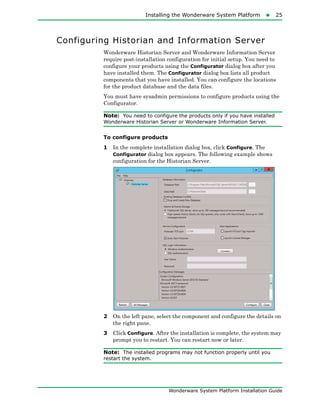
  • 177.
    Preparation for Installinga Single Product175 Wonderware System Platform Installation Guide indicates that a folder can be deleted. indicates that a folder must be retained. InstallFiles Folder (Component) Folder Size (apprx) Historian Historian Client Application Server Runtime CD-Application Server 250 MB • Bulk Import Utility 11 MB • External 0.2 MB • Framework 355 MB • Redist 50 MB • UserDocs 29 MB CD-Gateway 37 MB CD-Historian 104 MB CD-Historian Clients 221 MB CD-Intouch 255 MB Optional CD-IntouchFrench 312 MB CD-IntouchGerman 316 MB CD-Intouch Japanese 330 MB CD-Intouch SChinese 314 MB CD-Language Assistant 102 MB CD-Licensing 18 MB CD-Server 30 MB CD-WIS 543 MB
  • 178.
    176 Appendix BSingle Product Installation Wonderware System Platform Installation Guide External 4 MB Redist 1414 MB1 (total) 1The Redist folder contains SQL Express in subfolder SQL2K14EXPRSP1. If you are installing Historian Client or the Application Server runtime, or if you installing Historian and the target system already has a supported version of SQL Server, you can remove the SQL Express subfolder. See "SQL Server Requirements" on page 33 for information about supported versions of SQL Server. • DOTNET (see important note) • 3.5SP1 • 4.5.2 298 MB 231 MB 67 MB Optional Optional Optional Optional Optional Optional Optional Optional Optional Important: You may be able to further reduce the size of the installation source by removing the DOTNET folder (298 MB) from Redist. The DOTNET folder contains two subfolders: 4.5.2 and 3.5SP1. The 4.5.2 subfolder can be safely removed if .NET version 4.5.1 or higher is already installed on the target system. .NET 3.5SP1 is required for SQL Server. Beginning with Windows 8.1 and Windows Server 2012 R2, the required minimum versions of the .NET framework are included as OS features. However, you may need to enable .NET 3.5SP1 (or .NET 3.5.1) through the Windows Features Control Panel. Caution: The .NET framework is a required component. Do not attempt to remove the DOTNET subfolder unless you have verified that .NET 4.5.1 or higher is already installed. If you are installing SQL Server for Application Server or Historian, .NET 3.5SP1 or .NET 3.5.1 is also required. • MDAC 5 MB • MSI4.5 6 MB • PreReqInstaller <0.01 MB • Safenet 8 MB • SQL20114EXPRS P1 1065 MB Optional • VC10SP1 18 MB • VC90SP1 4 MB InstallFiles Folder (Component) Folder Size (apprx) Historian Historian Client Application Server Runtime
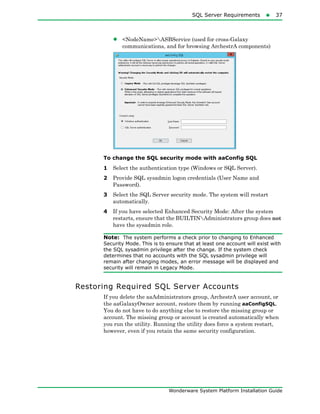
  • 179.
    Preparation for Installinga Single Product177 Wonderware System Platform Installation Guide Note: The Redist folder contains SQL Express in folder SQL2014EXPRSP1. If you the products you are installing do not need SQL Server, or if the target system already has a supported version of SQL Server, you can remove the SQL Express subfolder. See "SQL Server Requirements" on page 33 for information about supported versions of SQL Server. Caution: .NET 3.5SP1 or .NET 3.5.1 is required for SQL Server and is an operating system component. However, you may need to enable it through the Windows Features Control Panel. Optional Folder for Historian The CD-InTouch folder (255MB) contains a database purge utility that Historian uses (this utility is not called when block-based event history is utilized). Without this folder, Historian cannot purge the A2ALMDB alarm database and an error will be generated (this does not occur with block-based history). If you are installing Historian Client only, this utility is not called and the folder can be deleted without any issues. Note: If you are installing Historian and the CD-Intouch has been deleted, you will not be able to purge the A2ALMDB alarm database and an error will be generated (does not apply if you are using block-based history). However, the installation will complete successfully. • VC2012U4 13 MB ResponseFiles <0.1 MB Support 0.2 MB UpgradeSupport 38 MB Total Size including optional folders, InstallITK and files in root directory 4711 MB 1882 MB 650 MB 729 MB Total Size without optional files/folders N/A 261 MB 348 MB 427 MB InstallFiles Folder (Component) Folder Size (apprx) Historian Historian Client Application Server Runtime
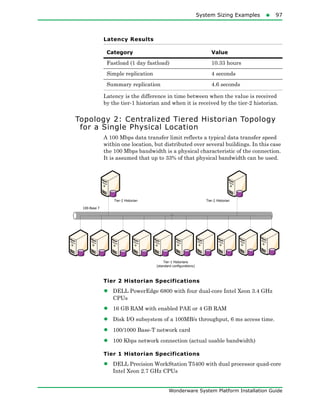
  • 180.
    178 Appendix BSingle Product Installation Wonderware System Platform Installation Guide Creating the Installation Source and Installing the Selected Component To create an installation source 1 Copy the entire contents of the Wonderware System Platform installation DVD to a local folder on your computer or to a network share location. This location will be used to prepare for the installation or upgrade of the product you are installing. Important: You must copy the entire DVD. The root directory from the DVD and all files in it must be in place and completely intact. 2 Navigate to the location where you copied the DVD. Delete the files, components and language folders that you do not need. Now you are ready to install or upgrade the product(s) using either of the methods described below. To install or upgrade a single product • Direct installation from the copy location (install locally or on a different network node): a Remove the original Wonderware installation DVD from the drive. Important: When you run setup.exe, it checks for the Wonderware DVD. If the Wonderware DVD is available, it will be used instead of the copy location. a Navigate to the copy location. b Make sure you have deleted the folders you do not need. c Run setup.exe. Components that were deleted will be grayed-out and unavailable for installation. d If this is a new installation (not an upgrade), select the target location when you are prompted. • Installation from a CD or DVD: a Create a CD or DVD from the copy location after deleting the folders you do not need. b Run setup.exe from the CD/DVD on each node. Components that were deleted will be grayed-out and unavailable for installation.
  • 181.
    179 Wonderware System PlatformInstallation Guide Index Numerics 16 Pen Trend 18 A A2ALMDB database disk space 70 aaAdministrators group 35 aaConfigSQL 35 aaGalaxyOwner user account 35 acquisition loading 77 ActiveEvent installing 105 ActiveFactory reporting, configuring 152 ActiveX and .NET Controls aaHistClientQuery 119 aaHistClientTrend 119 alarm data source defining 158 antivirus software 112 Application Server ArchestrA user account requirements 14 hardware requirements 45 ArchestrA Bootstrap 127 ArchestrA Change Network Account utility 26 ArchestrA reporting, configuring 156 ArchestrA user account requirements for use with Application Server 14 updating with ArchestrA Change Network Account utility 26 ASBService 35 ASBSolution 35 ASP.NET installing 134 B Bootstrap upgrading 44 upgrading with Galaxy Repository 44 upgrading with IDE 44 upgrading with IDE and Galaxy Repository 44 building block controls aaHistClientTagPicker 119 aaHistClientTimeRangePicker 119
  • 182.
    180Index Wonderware System PlatformInstallation Guide C Change Network Account utility 35 common components 41, 106 Configuration Utility 107 Configurator starting 147 configuring ActiveFactory reporting 152 ArchestrA reporting 156 Wonderware Information Server 146, 147, 149 Configuring Products 25 CSV data licensing 85 D database configuring 107 database files disk space requirements 69 demo mode 56 disk sizing 68 disk space history blocks 71 planning 69 domain controller 128, 129 security 128 using with Wonderware Information Server 128, 129 E Enhanced Security Mode 36 enhanced security mode 35 event data migrating from older versions 116 F fault-tolerant servers 66 feature lines 81 features 144 firewall exceptions 146 G Galaxy database migrating 47 Galaxy Repository upgrading 46 upgrading with the Bootstrap 44 upgrading with the Bootstrap and IDE 44 H hardware recommendations storage 69 hardware requirements 45 disk space 69 IDASs 67 System Management Console 66 Wonderware Historian 64 Historian Client 87 historian data source defining 155 Historian Database Export/Import Utility requirements 66 history blocks disk space requirements 71 licensing 85 history data licensing 85 migrating from older versions 116 Holding database disk space 70 I IDASs installing 105 performance 78 requirements 67 security 67 IDE upgrading 47 upgrading with the Bootstrap 44 upgrading with the Bootstrap and Galaxy Repository 44 IIS 129, 134 installing 134 InBatch 87 installation about 103 components 103 modifying 26 repairing 28 silent 167 Wonderware Historian 103 installation pre-requisites 144 installing IIS and ASP.NET 134
  • 183.
    Index181 Wonderware System PlatformInstallation Guide product license 167 SQL Server 130, 131 Windows Server 2003 129 Windows Server 2008 129, 130 Wonderware Historian Client 121 Wonderware Information Server 143, 145 Wonderware System Platform 9 Internet Information Services 130 InTouch 125, 129, 145 supplementary components 18 InTouch windows running within browser 125 InTouch WindowViewer 87 Invensys License Manager 32, 167 L LAN 79 language packs 142, 165 Legacy Mode 36 legacy mode 35 legacy software 41 License Viewer 106 licensing 55 about 81 feature lines data modification 85 history duration 85 operating system 83 remote IDAS 84 replication server 86 tag count 82 loading Wonderware Historian 77 M Management Console 105 Manufacturing Execution Module 87 memory requirements 64, 76 Microsoft Client Utilities 104 Microsoft SQL Intelligence data adapters 160 Microsoft SQL Server installation 104 Microsoft Windows Server 2003 129 Microsoft Windows Server 2008 129 Microsoft Windows Server 2008 R2 130 modify installation 26 modifying Wonderware Information Server 164 multilingual systems 142 N named pipes 104 navigation tree 126 network cards 80 network protocol 81 networking 79 Non-default port SQL Server 39 NTFS 69, 130 O operating system requirements 127 operating system, upgrading 45 operating systems licensing 83 non-English 87 Oracle Intelligence data adapters 160 OSI PI Intelligence data adapters 160 P performance 76 examples 88 IDASs 78 physical memory 64 Port SQL Server 39 process graphics 125 process network 79 product license 32, 167 installing 167 products configuring 25 protocols 81 recommendations 79 R RAID 69 repair installation 28 repairing 122 Wonderware Historian 112
  • 184.
    182Index Wonderware System PlatformInstallation Guide repairing Wonderware Information Server 165 requirements 119 Historian Database Export/Import Utility 66 reserved names system 35 response files 168 retrieval loading 77 roaming profiles 122 Runtime database disk space 70 migration 114 S SCSI 69 security domain controller 128 modes 35 remote IDASs 67 SQL Server 35 silent installation 167 software requirements 45 software requirements 127 IDASs 67 System Management Console 66 Wonderware Historian 64 SPCPro 18, 87 SQL Server 119 installing 130, 131 non-default port 39 upgrading 45 SQL Server Reporting Services 126, 140 SQL Server Versions 38 SQL Server, incompatible version installed 39 SQL Server, not found 38 SQL Server, untested version installed 39 SQL statements licensing 85 storage disk sizing 68 hardware recommendations 69 loading 77 SuiteLink 79 summary data migrating from older versions 116 system sizing 88 System Management Console installing 105 requirements 66 T TCP/IP 79, 104 text files Intelligence data adapters 160 tiered historian sizing 95 U uninstall Wonderware System Platform Component 29 uninstalling 123 uninstalling Wonderware Information Server 165 upgrade basic steps 45 Galaxy Repository 46 Galaxy Repository node 46 IDE 47 operating system 45 redundant pairs 48 run-time nodes 48 SQL Server 45 upgrading 114 previous version 166 Wonderware Information Server 3.1 167 Wonderware Information Server 4.0 167 Wonderware Information Server 4.0 with SP1 167 V virtual memory 64 W WAN 79 web server requirements 126 Windows 7 129 Installing 129 windows authentication 146 Windows Server 2003 129, 130 installing 129
  • 185.
    Index183 Wonderware System PlatformInstallation Guide Windows Server 2008 134, 135, 137 installing 129, 130 Windows Server 2008 R2 130 Windows Vista 64 Wonderware Application Server 129 Wonderware Historian components 105 installation 106 installing 103 loading 77 memory requirements 76 repairing 112 requirements 64 upgrading 113, 115 Wonderware Historian Client Components 118 Query 118 Report 118 Trend 118 Workbook 118 Wonderware Information Server 87 configuring 146, 147 installing 143, 145 modifying 164 repairing 165 uninstalling 165 using with a domain controller 128 using without a domain controller 129 Wonderware System Platform installing 15 upgrade 30