WinRunner
Softsmith Infotech
Need For Automation
• Speed - Automation scripts run very fast when
compared to human users.
• Reliable - Tests perform precisely the same operations
each time they are run, thereby eliminating human error.
• Repeatable - We can test how the application reacts
after repeated execution of the same operations.
• Programmable - We can program sophisticated tests
that bring out hidden information.
• Comprehensive - We can build a suite of tests that
covers every feature in our application.
• Reusable - We can reuse tests on different versions of
an application, even if the user interface changes.
WinRunner Overview
What is WinRunner?
• WinRunner is a test automation tool, designed to help customers save testing time
and effort by automating the manual testing process
- manual process: perform operations by hand, visually check results, and log
results by hand
- automated process: create a test script that will perform the same operations
as a Human operator, check the same information, and create a summary
report showing the test status
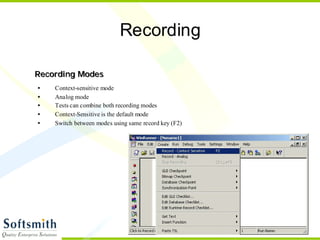
Recording
• Context-sensitive mode
• Analog mode
• Tests can combine both recording modes
• Context-Sensitive is the default mode
• Switch between modes using same record key (F2)
RReeccoorrddiinngg MMooddeess
Context-Sensitive Mode
• Object-based
• Unaffected by minor UI changes
• Maintainable (readable/editable)
• Generally used with GUI applications
• Portable script
Context-Sensitive Mode
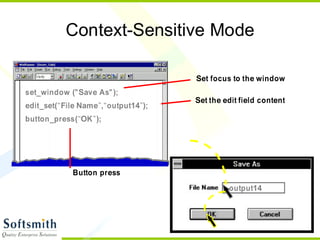
set_window ("Save As");
edit_set(“File Name”,“output14”);
output14
Set focus to the window
Set the edit field content
Button press
button_press(“OK”);
Analog Mode
• Position-dependent
• Works with any application
• UI changes force test script changes
• Usually drives tests with mouse, keyboard and
other such manual user inputs
• Less maintainable
y
x
Analog Mode
move_locator_track (1);
mouse drag
mtype (" <T55> <kLeft>-<kLeft>+"); mouse click
output14
type (" <t3>output14" );
keyboard
move_locator_track (2);
mtype (" <T35><kLeft>-<kLeft>+ ");
timing
Recording Modes
• Context-Sensitive mode statements can be
recorded or programmed
- record: button_press, win_activate
- program: list_get_num_items, edit_get_text
- recommended for most situations due to greater robustness
• Analog mode statements are rarely programmed,
mostly recorded and edited
- record: move_locator, type, mtype
- program: move_locator_abs, move_locator_rel, click
- Analog statements are useful for literally describing the keyboard, mouse,
and mouse button input of the user
Recording Tips
• plan your work
- decide exactly what actions / data to record
• check initial conditions
- test cases may have data dependency
- test cases may have screen dependence
- establish a common “initial state”for testing
• walk through the test case manually
- Verify that the test case is functional before recording script
• “test”your test script
- verify that the script will replay reliably by executing several times.
- watch the script execute and verify that it performs its intended
function
Recording Tips
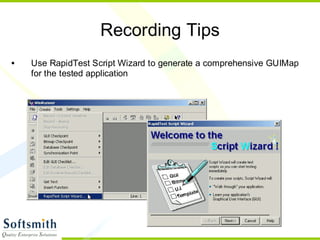
• Use RapidTest Script Wizard to generate a comprehensive GUIMap
for the tested application
Recording Tips
Run Modes
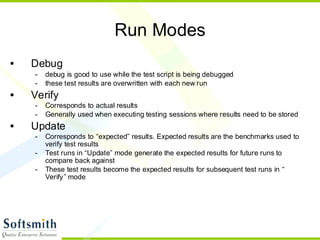
• Debug
- debug is good to use while the test script is being debugged
- these test results are overwritten with each new run
• Verify
- Corresponds to actual results
- Generally used when executing testing sessions where results need to be stored
• Update
- Corresponds to “expected”results. Expected results are the benchmarks used to
verify test results
- Test runs in “Update”mode generate the expected results for future runs to
compare back against
- These test results become the expected results for subsequent test runs in “
Verify”mode
Synchronization
• Enhances a test script to ensure reliable replay
- accounts for delays in order to prevent the automated script from running faster
than the tested application
- critical for successful test automation implementation
- among the main reasons why record-n-playback is not reliable
• In Context-Sensitive mode
- Examples: (operations)
• wait for a window to appear
• wait for a bitmap to refresh
• wait for an object property
• wait for a specific amount of time
• In Analog mode
- Examples: (operations)
• wait for a window bitmap to appear / refresh
• wait for a specific amount of time
Window Synchronization
invoke_application(“Notepad”,””, “c:temp”, SW_SHOW);
set_window (”Login”, 10);
edit_set(“User ID:”, “guest”);
edit_set(“Password:”, “mercury”);
button_press(“OK”);
set_window
Waits for the specified window to appear onscreen. If the
window appears before the timeout, the script immediately
proceeds to the next line.
Bitmap Synchronization
button_press(“Submit”);
obj_wait_bitmap (”Object”,”Img1”,10);
button_press(“Confirm”);
win_wait_bitmap (”Screen", "Img2", 10, 209, 170, 81, 20);
win_wait_bitmap, obj_wait_bitmap
Waits for a bitmap to be drawn onscreen. Bitmap may be
complete window/object or partial area. Bitmap is captured
and stored during recording.
Object Synchronization
win_wait_info(“Payment”, “enabled”, 0, 30);
button_press(“Confirm Payment”);
obj_wait_info (”StatusBar","label", “Complete...", 20);
win_wait_info, obj_wait_info
Waits for a window or object attribute to reach a specified
value.
Time Synchronization
wait(10);
wait
Waits for the specified amount of time.
Analog Synchronization
win_wait_bitmap(”Win_1",“icon_editor", 4, 855, 802, 292, 88);
type("<t6>ls -l <kReturn>");
win_wait_bitmap(“”,“icon_editor", 4, 855, 802, 292, 88);
win_wait_bitmap
Waits for a window bitmap to appear onscreen. Bitmap may
be full/partial window area. Optionally, bitmap filename may
be omitted, thus synchronizing on window refresh/redraw.
In analog mode, this is invoked using softkeys.
Synchronization Controls
GUI Map
• The GUI Map is an ASCII file that stores a unique description for
each application window/object
• These unique descriptors act as a liaison between the tested
application and the automated script
?
GUI Map Basics
• The GUI Map is created automatically through the
recording process (RapidTest Script Wizard, GUI Spy “Learn”and script recording),
but can also be built manually
• WinRunner test scripts depend on this information to
simplify maintenance
- Each release of a tested application contains changes that however
subtle may affect the object properties within that application. This can
have the effect of breaking scripts that may or may not appear
unchanged. The GUI Map helps to mitigate this situation by providing a
centralized location where changes are made rather than modifying
individual scripts accessing those object(s) that might have been changed
by the latest release of the AUT.
GUI Map Basics
• Objects in the GUI Map are organized with each Window
object encapsulating all the other object types within each
specific window object
• GUI Map files can either be test script specific or global in
nature
- Just as it is desirable to use a centralized source for data driven testing,
so it is usually most desirable to have centralized GUI Map files serving
more than 1 automated test script. This helps prevent duplication of GUI
Map objects as well as simplifying maintenance when the GUI Map needs
to be updated
- Having script specific GUI Maps allow greater independence for each
automated script which may be useful and make automation easier in
some circumstances.
- The tradeoff for using non-global GUI Map files is that when maintenance
for an object is required, it would require changing every GUI Map file
containing a physical description for that object.
- Too many objects in a few GUI Map files may slow down performance
GUI Map Basics (*)
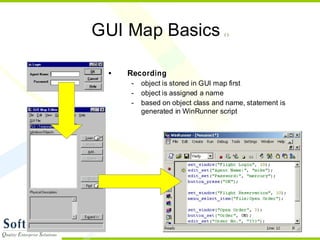
• Recording
- object is stored in GUI map first
- object is assigned a name
- based on object class and name, statement is
generated in WinRunner script
GUI Map Basics
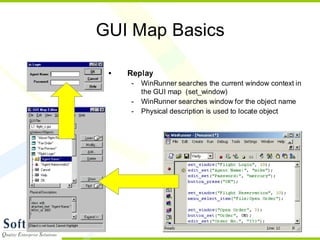
• Replay
- WinRunner searches the current window context in
the GUI map (set_window)
- WinRunner searches window for the object name
- Physical description is used to locate object
GUI Map Tips (*)
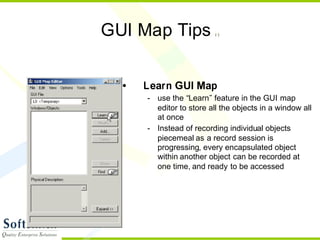
• Learn GUI Map
- use the “Learn”feature in the GUI map
editor to store all the objects in a window all
at once
- Instead of recording individual objects
piecemeal as a record session is
progressing, every encapsulated object
within another object can be recorded at
one time, and ready to be accessed
GUI Map Tips (*)
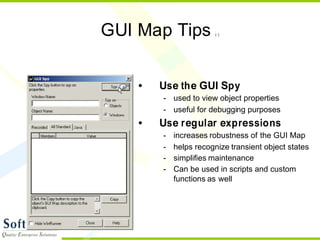
• Use the GUI Spy
- used to view object properties
- useful for debugging purposes
• Use regular expressions
- increases robustness of the GUI Map
- helps recognize transient object states
- simplifies maintenance
- Can be used in scripts and custom
functions as well
Regular Expressions
• Regular Expressions are wildcards
. any single character
[0-9] any single numeral
[A-Z] any single uppercase letter
[a-z] any single lowercase letter
[mf] a single letter either “m”or “f”
^ NOT boolean
| OR boolean
& AND boolean
* any repetition of the previous character or expression
.* any string of any character
Eg. “practicefile.txt - Notepad” …which regular expression is equivalent to this string?
a) “.*file.t.t - Notepad”
b) “[p|t]racticefile. - notepad”
c) “practi.txt –Notepa[de]”
d) “[p&t]racticefile.txt …otepad”
e) “[p|t]ractice…..txt.* [A-Z][g-t].*[darn]”
Answer: The answer is given on the next page in the upper-right hand corner
Regular Expressions [answer: a and d]
• Regular Expressions are wildcards
. any single character
[0-9] any single numeral
[A-Z] any single uppercase letter
[a-z] any single lowercase letter
[mf] a single letter either “m”or “f”
^ NOT boolean
| OR boolean
& AND boolean
* any repetition of the previous character or expression
.* any string of any character
Eg. “WinRunner 101” …which regular expression is equivalent to this string?
a) “[a-z]in[r]u.*01”
b) “Wi..[a-s].*[1-9]”
c) “.*[m-z]..[m-o][aklntv].*”
d) “.*[azR]..[m-o][er ].*”
Answer: The answer is given on the next page in the upper-right hand corner
Regular Expressions [answer: c and d]
• Regular Expressions are wildcards
. any single character
[0-9] any single numeral
[A-Z] any single uppercase letter
[a-z] any single lowercase letter
[mf] a single letter either “m”or “f”
^ NOT boolean
| OR boolean
& AND boolean
* any repetition of the previous character or expression
.* any string of any character
Eg. “$30,000,000 lottery pot” …which regular expression is equivalent to this number?
a) “$[2-8].*0…^[a-z]”
b) “$[2345].*0.*[a-z]”
c) “..0.*[aeiou]ey.* pot”
d) “.*lottery.”
Answer: The answer is given on the next page in the upper-right hand corner
GUI Map Tips [answer: b]
• Save the GUI file
- For reuse in future iterations of the automated
test
- To possibly be used in different automated
tests
GUI Map Tips
• close any previously opened GUI files before loading
- eliminates conflicts - GUI map files containing duplicate objects cannot be
loaded
• modify the script to automatically load and use the GUI Map file you’ve
created
TSL (Test Script Language)
• TSL is a C-like language
- High-level proprietary programming language designed for test
automation
- procedural language
• Full programming support
- variables, arrays, functions
- regular expressions
- control flow, decision logic, looping
Built-in TSL Functions
• TSL provides a comprehensive library of hundreds of
built-in functions to simplify test creation
- window/object functions
- environment functions
- reporting functions
- database query functions
- file/spreadsheet functions
- Win32 functions
• WinRunner provides a graphical function browser to
assist you
- Function Generator
Function Generator
Language Syntax
*** Same syntax as in standard C ***
Variables
• Basic Rules
- do not need to be declared / defined
- specific data types are not explicitly defined
- case sensitive
- first letter must be a character or underscore
- cannot be a reserved word
- by default all variables are local (static)
- can also be public and/or const
• Arrays
- single dimension: cust[1], cust[2], cust[3]
- multi-dimension: address[1,1], address[1,2]
- Can be indexed with number
• address[1], address[2]
- Can be indexed with strings (associative)
• address[“John”], address[“Mary”]
Operators
• Math
+ - * / ^ % ++ --
• Logical
&& || !
• Relational
== != >= <= > <
• Assignment
= += -= *= /= ^= %=
• Concatenation
&
Test Verification
• Enhancing a test script to verify data onscreen
- check objects’values / states
- check images
- check text
- check the database
• Context-Sensitive verification
• Analog verification
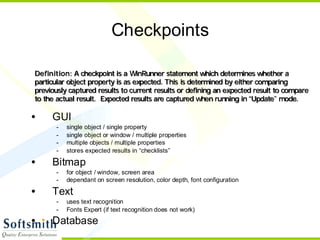
Checkpoints
• GUI
- single object / single property
- single object or window / multiple properties
- multiple objects / multiple properties
- stores expected results in “checklists”
• Bitmap
- for object / window, screen area
- dependant on screen resolution, color depth, font configuration
• Text
- uses text recognition
- Fonts Expert (if text recognition does not work)
• Database
DDeeffiinniittiioonn:: AA cchheecckkppooiinntt iiss aa WWiinnRRuunnnneerr ssttaatteemmeenntt wwhhiicchh ddeetteerrmmiinneess wwhheetthheerr aa
ppaarrttiiccuullaarr oobbjjeecctt pprrooppeerrttyy iiss aass eexxppeecctteedd.. TThhiiss iiss ddeetteerrmmiinneedd bbyy eeiitthheerr ccoommppaarriinngg
pprreevviioouussllyy ccaappttuurreedd rreessuullttss ttoo ccuurrrreenntt rreessuullttss oorr ddeeffiinniinngg aann eexxppeecctteedd rreessuulltt ttoo ccoommppaarree
ttoo tthhee aaccttuuaall rreessuulltt.. EExxppeecctteedd rreessuullttss aarree ccaappttuurreedd wwhheenn rruunnnniinngg iinn ““UUppddaattee””mmooddee..
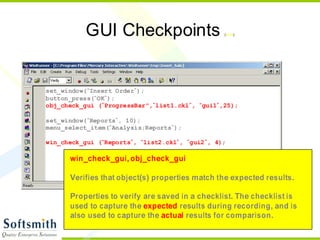
GUI Checkpoints (skim)
set_window(“Insert Order”);
button_press(“OK”);
obj_check_gui (”ProgressBar",”list1.ckl”, “gui1”,25);
set_window(“Reports”, 10);
menu_select_item(“Analysis;Reports”);
win_check_gui (“Reports”, “list2.ckl”, ”gui2”, 4);
win_check_gui, obj_check_gui
Verifies that object(s) properties match the expected results.
Properties to verify are saved in a checklist. The checklist is
used to capture the expected results during recording, and is
also used to capture the actual results for comparison.
Bitmap Checkpoints (skim)
set_window(“Insert Order”);
button_press(“OK”);
obj_check_bitmap ( ”ProgressBar",”Img1",25);
obj_check_bitmap ( ”StatusBar",”Img2",25, 0, 10, 50, 10);
set_window(“Reports”, 10);
win_check_bitmap( “Reports”, “Img3”, 4);
win_check_bitmap, obj_check_bitmap
Verifies a object/window bitmap matches its expected image.
Bitmap may be full/partial window area.
If a partial area is selected, the coordinates of the partial area
are captured (relative to the object).
Text Checkpoints (skim)
obj_get_text( “Statusbar95”, text );
if ( text == “Insert Done…”)
tl_step(“Check statusbar”, PASS, “Insert was completed”);
else
tl_step(“Check statusbar”, FAIL, “Insert failed”);
obj_get_text
retrieves the text within an area (absolute coordinates)
tl_step
logs message to the WinRunner report and changes test
status
Error Handling
• addresses specific “predictable”errors
- Using “error-handler”routines
• error codes
- most TSL statements have a return code
- this is used as a basis for error-checking
• running in Batch Mode
- ignores all script errors, continues execution
- also ignores breakpoints and pause statements
• break when verification fails
- halts the test if a verification fails in “Verify”mode
• Initializing and closing subroutines
- Prevents cascade errors
- Allows test case independence during batch runs
Error Handling
Exception/Recovery Handling (*)
• Unexpected errors during replay
- unlike error-handling, these can appear at any time when running a
script
• WinRunner provides a mechanism to trap and handle
exceptions
- popup exceptions
" popup windows
- object exceptions
" object property value changes
- TSL exceptions
" TSL error codes
Functions and Libraries
• simplifies building test frameworks
- application-specific functions
- general-purpose functions
- greater modularity
• can be stored in a script
- compiled module (function library)
- can be loaded as part of startup or initialization script and available
globally
• facilitates data-driven testing
- data-driven testing is where data retrieved externally from the test being
executed drives the test rather than using hard-coded data within each
test case. Using application specific custom functions and scripts helps
further the benefits of data-driven testing.
Functions
function type
• public (global)
• static (local)
public function flight_login( in uid, in passwd )
{
set_window( “Login”, 10);
edit_set( “Agent Name:”, uid );
edit_set(“Password:”, passwd );
button_press(“OK”);
}
function name
• first character cannot be numeric
• parameters can be overloaded
Functions
public function flight_login( in uid, in passwd )
{
set_window( “Login”, 10);
edit_set( “Agent Name:”, uid );
edit_set(“Password:”, passwd );
button_press(“OK”);
}
function parameters
• in
• out
• inout
arrays must be indicated with []
Functions
public function flight_login( in uid, in passwd )
{
auto x;
set_window( “Login”, 10);
edit_set( “Agent Name:”, uid );
edit_set(“Password:”, passwd );
button_get_info(“OK”, “state”, x );
if ( x == “ON”)
button_press(“OK”);
}
variables
unlike scripts, variables must be
declared before using
• auto
• static
• extern
Compiled Modules
Compiled Modules
3rd
Party Support
• extensive 3rd
party public libraries
- “CSO”TSL libraries
- “WrExtra”DLL encapsulated TSL callable functions
- Many other public libraries…
• ability to access functions/capabilities in other
programming languages for use in WinRunner either
directly or indirectly
• Easy method of programming DLLs with functions that
can be imported for use with TSL
Calling Test Scripts (*)
• call(), call_close() allows shelling out to and executing
code in other scripts
• allows greater modularity
• Does not need to be loaded prior to use like custom
functions need to be
Support
• Some testing environments are friendlier towards
automated testing tools than others
- Good
- Bad
- Ugly
• Out-of-the-Box support
- Visual C/C++, most C or C++ programs
- Visual Basic
- PowerBuilder
- Delphi
- ActiveX
- Terminal Emulators (WinRunner/2000 only)
Support
• Custom environments poorly programmed
• Custom objects (3rd
party APIs)
- Unrecognized objects
- Every object is displayed as a generic object
- difficult to map to a class and work reliably
• Virtual Object Wizard is unreliable (not recommended
to use)
Conclusion
It is obvious at this point that Test Automation is not as simple as record-n-
playback regardless of how good the test automation tool may be. The more
powerful the test automation tool, either greater rewards will be reaped or
more pitfalls will be encountered. It all depends on the skill and training of
the automation specialist. Hopefully, this presentation has provided a
grounding in the basics that will be required to effectively implement test
automation with WinRunner.

Winrunner

  • 1.
  • 2.
    Need For Automation •Speed - Automation scripts run very fast when compared to human users. • Reliable - Tests perform precisely the same operations each time they are run, thereby eliminating human error. • Repeatable - We can test how the application reacts after repeated execution of the same operations. • Programmable - We can program sophisticated tests that bring out hidden information. • Comprehensive - We can build a suite of tests that covers every feature in our application. • Reusable - We can reuse tests on different versions of an application, even if the user interface changes.
  • 3.
    WinRunner Overview What isWinRunner? • WinRunner is a test automation tool, designed to help customers save testing time and effort by automating the manual testing process - manual process: perform operations by hand, visually check results, and log results by hand - automated process: create a test script that will perform the same operations as a Human operator, check the same information, and create a summary report showing the test status
  • 4.
    Recording • Context-sensitive mode •Analog mode • Tests can combine both recording modes • Context-Sensitive is the default mode • Switch between modes using same record key (F2) RReeccoorrddiinngg MMooddeess
  • 5.
    Context-Sensitive Mode • Object-based •Unaffected by minor UI changes • Maintainable (readable/editable) • Generally used with GUI applications • Portable script
  • 6.
    Context-Sensitive Mode set_window ("SaveAs"); edit_set(“File Name”,“output14”); output14 Set focus to the window Set the edit field content Button press button_press(“OK”);
  • 7.
    Analog Mode • Position-dependent •Works with any application • UI changes force test script changes • Usually drives tests with mouse, keyboard and other such manual user inputs • Less maintainable y x
  • 8.
    Analog Mode move_locator_track (1); mousedrag mtype (" <T55> <kLeft>-<kLeft>+"); mouse click output14 type (" <t3>output14" ); keyboard move_locator_track (2); mtype (" <T35><kLeft>-<kLeft>+ "); timing
  • 9.
    Recording Modes • Context-Sensitivemode statements can be recorded or programmed - record: button_press, win_activate - program: list_get_num_items, edit_get_text - recommended for most situations due to greater robustness • Analog mode statements are rarely programmed, mostly recorded and edited - record: move_locator, type, mtype - program: move_locator_abs, move_locator_rel, click - Analog statements are useful for literally describing the keyboard, mouse, and mouse button input of the user
  • 10.
    Recording Tips • planyour work - decide exactly what actions / data to record • check initial conditions - test cases may have data dependency - test cases may have screen dependence - establish a common “initial state”for testing • walk through the test case manually - Verify that the test case is functional before recording script • “test”your test script - verify that the script will replay reliably by executing several times. - watch the script execute and verify that it performs its intended function
  • 11.
    Recording Tips • UseRapidTest Script Wizard to generate a comprehensive GUIMap for the tested application
  • 12.
  • 13.
    Run Modes • Debug -debug is good to use while the test script is being debugged - these test results are overwritten with each new run • Verify - Corresponds to actual results - Generally used when executing testing sessions where results need to be stored • Update - Corresponds to “expected”results. Expected results are the benchmarks used to verify test results - Test runs in “Update”mode generate the expected results for future runs to compare back against - These test results become the expected results for subsequent test runs in “ Verify”mode
  • 14.
    Synchronization • Enhances atest script to ensure reliable replay - accounts for delays in order to prevent the automated script from running faster than the tested application - critical for successful test automation implementation - among the main reasons why record-n-playback is not reliable • In Context-Sensitive mode - Examples: (operations) • wait for a window to appear • wait for a bitmap to refresh • wait for an object property • wait for a specific amount of time • In Analog mode - Examples: (operations) • wait for a window bitmap to appear / refresh • wait for a specific amount of time
  • 15.
    Window Synchronization invoke_application(“Notepad”,””, “c:temp”,SW_SHOW); set_window (”Login”, 10); edit_set(“User ID:”, “guest”); edit_set(“Password:”, “mercury”); button_press(“OK”); set_window Waits for the specified window to appear onscreen. If the window appears before the timeout, the script immediately proceeds to the next line.
  • 16.
    Bitmap Synchronization button_press(“Submit”); obj_wait_bitmap (”Object”,”Img1”,10); button_press(“Confirm”); win_wait_bitmap(”Screen", "Img2", 10, 209, 170, 81, 20); win_wait_bitmap, obj_wait_bitmap Waits for a bitmap to be drawn onscreen. Bitmap may be complete window/object or partial area. Bitmap is captured and stored during recording.
  • 17.
    Object Synchronization win_wait_info(“Payment”, “enabled”,0, 30); button_press(“Confirm Payment”); obj_wait_info (”StatusBar","label", “Complete...", 20); win_wait_info, obj_wait_info Waits for a window or object attribute to reach a specified value.
  • 18.
    Time Synchronization wait(10); wait Waits forthe specified amount of time.
  • 19.
    Analog Synchronization win_wait_bitmap(”Win_1",“icon_editor", 4,855, 802, 292, 88); type("<t6>ls -l <kReturn>"); win_wait_bitmap(“”,“icon_editor", 4, 855, 802, 292, 88); win_wait_bitmap Waits for a window bitmap to appear onscreen. Bitmap may be full/partial window area. Optionally, bitmap filename may be omitted, thus synchronizing on window refresh/redraw. In analog mode, this is invoked using softkeys.
  • 20.
  • 21.
    GUI Map • TheGUI Map is an ASCII file that stores a unique description for each application window/object • These unique descriptors act as a liaison between the tested application and the automated script ?
  • 22.
    GUI Map Basics •The GUI Map is created automatically through the recording process (RapidTest Script Wizard, GUI Spy “Learn”and script recording), but can also be built manually • WinRunner test scripts depend on this information to simplify maintenance - Each release of a tested application contains changes that however subtle may affect the object properties within that application. This can have the effect of breaking scripts that may or may not appear unchanged. The GUI Map helps to mitigate this situation by providing a centralized location where changes are made rather than modifying individual scripts accessing those object(s) that might have been changed by the latest release of the AUT.
  • 23.
    GUI Map Basics •Objects in the GUI Map are organized with each Window object encapsulating all the other object types within each specific window object • GUI Map files can either be test script specific or global in nature - Just as it is desirable to use a centralized source for data driven testing, so it is usually most desirable to have centralized GUI Map files serving more than 1 automated test script. This helps prevent duplication of GUI Map objects as well as simplifying maintenance when the GUI Map needs to be updated - Having script specific GUI Maps allow greater independence for each automated script which may be useful and make automation easier in some circumstances. - The tradeoff for using non-global GUI Map files is that when maintenance for an object is required, it would require changing every GUI Map file containing a physical description for that object. - Too many objects in a few GUI Map files may slow down performance
  • 24.
    GUI Map Basics(*) • Recording - object is stored in GUI map first - object is assigned a name - based on object class and name, statement is generated in WinRunner script
  • 25.
    GUI Map Basics •Replay - WinRunner searches the current window context in the GUI map (set_window) - WinRunner searches window for the object name - Physical description is used to locate object
  • 26.
    GUI Map Tips(*) • Learn GUI Map - use the “Learn”feature in the GUI map editor to store all the objects in a window all at once - Instead of recording individual objects piecemeal as a record session is progressing, every encapsulated object within another object can be recorded at one time, and ready to be accessed
  • 27.
    GUI Map Tips(*) • Use the GUI Spy - used to view object properties - useful for debugging purposes • Use regular expressions - increases robustness of the GUI Map - helps recognize transient object states - simplifies maintenance - Can be used in scripts and custom functions as well
  • 28.
    Regular Expressions • RegularExpressions are wildcards . any single character [0-9] any single numeral [A-Z] any single uppercase letter [a-z] any single lowercase letter [mf] a single letter either “m”or “f” ^ NOT boolean | OR boolean & AND boolean * any repetition of the previous character or expression .* any string of any character Eg. “practicefile.txt - Notepad” …which regular expression is equivalent to this string? a) “.*file.t.t - Notepad” b) “[p|t]racticefile. - notepad” c) “practi.txt –Notepa[de]” d) “[p&t]racticefile.txt …otepad” e) “[p|t]ractice…..txt.* [A-Z][g-t].*[darn]” Answer: The answer is given on the next page in the upper-right hand corner
  • 29.
    Regular Expressions [answer:a and d] • Regular Expressions are wildcards . any single character [0-9] any single numeral [A-Z] any single uppercase letter [a-z] any single lowercase letter [mf] a single letter either “m”or “f” ^ NOT boolean | OR boolean & AND boolean * any repetition of the previous character or expression .* any string of any character Eg. “WinRunner 101” …which regular expression is equivalent to this string? a) “[a-z]in[r]u.*01” b) “Wi..[a-s].*[1-9]” c) “.*[m-z]..[m-o][aklntv].*” d) “.*[azR]..[m-o][er ].*” Answer: The answer is given on the next page in the upper-right hand corner
  • 30.
    Regular Expressions [answer:c and d] • Regular Expressions are wildcards . any single character [0-9] any single numeral [A-Z] any single uppercase letter [a-z] any single lowercase letter [mf] a single letter either “m”or “f” ^ NOT boolean | OR boolean & AND boolean * any repetition of the previous character or expression .* any string of any character Eg. “$30,000,000 lottery pot” …which regular expression is equivalent to this number? a) “$[2-8].*0…^[a-z]” b) “$[2345].*0.*[a-z]” c) “..0.*[aeiou]ey.* pot” d) “.*lottery.” Answer: The answer is given on the next page in the upper-right hand corner
  • 31.
    GUI Map Tips[answer: b] • Save the GUI file - For reuse in future iterations of the automated test - To possibly be used in different automated tests
  • 32.
    GUI Map Tips •close any previously opened GUI files before loading - eliminates conflicts - GUI map files containing duplicate objects cannot be loaded • modify the script to automatically load and use the GUI Map file you’ve created
  • 33.
    TSL (Test ScriptLanguage) • TSL is a C-like language - High-level proprietary programming language designed for test automation - procedural language • Full programming support - variables, arrays, functions - regular expressions - control flow, decision logic, looping
  • 34.
    Built-in TSL Functions •TSL provides a comprehensive library of hundreds of built-in functions to simplify test creation - window/object functions - environment functions - reporting functions - database query functions - file/spreadsheet functions - Win32 functions • WinRunner provides a graphical function browser to assist you - Function Generator
  • 35.
  • 36.
    Language Syntax *** Samesyntax as in standard C ***
  • 37.
    Variables • Basic Rules -do not need to be declared / defined - specific data types are not explicitly defined - case sensitive - first letter must be a character or underscore - cannot be a reserved word - by default all variables are local (static) - can also be public and/or const • Arrays - single dimension: cust[1], cust[2], cust[3] - multi-dimension: address[1,1], address[1,2] - Can be indexed with number • address[1], address[2] - Can be indexed with strings (associative) • address[“John”], address[“Mary”]
  • 38.
    Operators • Math + -* / ^ % ++ -- • Logical && || ! • Relational == != >= <= > < • Assignment = += -= *= /= ^= %= • Concatenation &
  • 39.
    Test Verification • Enhancinga test script to verify data onscreen - check objects’values / states - check images - check text - check the database • Context-Sensitive verification • Analog verification
  • 40.
    Checkpoints • GUI - singleobject / single property - single object or window / multiple properties - multiple objects / multiple properties - stores expected results in “checklists” • Bitmap - for object / window, screen area - dependant on screen resolution, color depth, font configuration • Text - uses text recognition - Fonts Expert (if text recognition does not work) • Database DDeeffiinniittiioonn:: AA cchheecckkppooiinntt iiss aa WWiinnRRuunnnneerr ssttaatteemmeenntt wwhhiicchh ddeetteerrmmiinneess wwhheetthheerr aa ppaarrttiiccuullaarr oobbjjeecctt pprrooppeerrttyy iiss aass eexxppeecctteedd.. TThhiiss iiss ddeetteerrmmiinneedd bbyy eeiitthheerr ccoommppaarriinngg pprreevviioouussllyy ccaappttuurreedd rreessuullttss ttoo ccuurrrreenntt rreessuullttss oorr ddeeffiinniinngg aann eexxppeecctteedd rreessuulltt ttoo ccoommppaarree ttoo tthhee aaccttuuaall rreessuulltt.. EExxppeecctteedd rreessuullttss aarree ccaappttuurreedd wwhheenn rruunnnniinngg iinn ““UUppddaattee””mmooddee..
  • 41.
    GUI Checkpoints (skim) set_window(“InsertOrder”); button_press(“OK”); obj_check_gui (”ProgressBar",”list1.ckl”, “gui1”,25); set_window(“Reports”, 10); menu_select_item(“Analysis;Reports”); win_check_gui (“Reports”, “list2.ckl”, ”gui2”, 4); win_check_gui, obj_check_gui Verifies that object(s) properties match the expected results. Properties to verify are saved in a checklist. The checklist is used to capture the expected results during recording, and is also used to capture the actual results for comparison.
  • 42.
    Bitmap Checkpoints (skim) set_window(“InsertOrder”); button_press(“OK”); obj_check_bitmap ( ”ProgressBar",”Img1",25); obj_check_bitmap ( ”StatusBar",”Img2",25, 0, 10, 50, 10); set_window(“Reports”, 10); win_check_bitmap( “Reports”, “Img3”, 4); win_check_bitmap, obj_check_bitmap Verifies a object/window bitmap matches its expected image. Bitmap may be full/partial window area. If a partial area is selected, the coordinates of the partial area are captured (relative to the object).
  • 43.
    Text Checkpoints (skim) obj_get_text(“Statusbar95”, text ); if ( text == “Insert Done…”) tl_step(“Check statusbar”, PASS, “Insert was completed”); else tl_step(“Check statusbar”, FAIL, “Insert failed”); obj_get_text retrieves the text within an area (absolute coordinates) tl_step logs message to the WinRunner report and changes test status
  • 44.
    Error Handling • addressesspecific “predictable”errors - Using “error-handler”routines • error codes - most TSL statements have a return code - this is used as a basis for error-checking • running in Batch Mode - ignores all script errors, continues execution - also ignores breakpoints and pause statements • break when verification fails - halts the test if a verification fails in “Verify”mode • Initializing and closing subroutines - Prevents cascade errors - Allows test case independence during batch runs
  • 45.
  • 46.
    Exception/Recovery Handling (*) •Unexpected errors during replay - unlike error-handling, these can appear at any time when running a script • WinRunner provides a mechanism to trap and handle exceptions - popup exceptions " popup windows - object exceptions " object property value changes - TSL exceptions " TSL error codes
  • 47.
    Functions and Libraries •simplifies building test frameworks - application-specific functions - general-purpose functions - greater modularity • can be stored in a script - compiled module (function library) - can be loaded as part of startup or initialization script and available globally • facilitates data-driven testing - data-driven testing is where data retrieved externally from the test being executed drives the test rather than using hard-coded data within each test case. Using application specific custom functions and scripts helps further the benefits of data-driven testing.
  • 48.
    Functions function type • public(global) • static (local) public function flight_login( in uid, in passwd ) { set_window( “Login”, 10); edit_set( “Agent Name:”, uid ); edit_set(“Password:”, passwd ); button_press(“OK”); } function name • first character cannot be numeric • parameters can be overloaded
  • 49.
    Functions public function flight_login(in uid, in passwd ) { set_window( “Login”, 10); edit_set( “Agent Name:”, uid ); edit_set(“Password:”, passwd ); button_press(“OK”); } function parameters • in • out • inout arrays must be indicated with []
  • 50.
    Functions public function flight_login(in uid, in passwd ) { auto x; set_window( “Login”, 10); edit_set( “Agent Name:”, uid ); edit_set(“Password:”, passwd ); button_get_info(“OK”, “state”, x ); if ( x == “ON”) button_press(“OK”); } variables unlike scripts, variables must be declared before using • auto • static • extern
  • 51.
  • 52.
  • 53.
    3rd Party Support • extensive3rd party public libraries - “CSO”TSL libraries - “WrExtra”DLL encapsulated TSL callable functions - Many other public libraries… • ability to access functions/capabilities in other programming languages for use in WinRunner either directly or indirectly • Easy method of programming DLLs with functions that can be imported for use with TSL
  • 54.
    Calling Test Scripts(*) • call(), call_close() allows shelling out to and executing code in other scripts • allows greater modularity • Does not need to be loaded prior to use like custom functions need to be
  • 55.
    Support • Some testingenvironments are friendlier towards automated testing tools than others - Good - Bad - Ugly • Out-of-the-Box support - Visual C/C++, most C or C++ programs - Visual Basic - PowerBuilder - Delphi - ActiveX - Terminal Emulators (WinRunner/2000 only)
  • 56.
    Support • Custom environmentspoorly programmed • Custom objects (3rd party APIs) - Unrecognized objects - Every object is displayed as a generic object - difficult to map to a class and work reliably • Virtual Object Wizard is unreliable (not recommended to use)
  • 57.
    Conclusion It is obviousat this point that Test Automation is not as simple as record-n- playback regardless of how good the test automation tool may be. The more powerful the test automation tool, either greater rewards will be reaped or more pitfalls will be encountered. It all depends on the skill and training of the automation specialist. Hopefully, this presentation has provided a grounding in the basics that will be required to effectively implement test automation with WinRunner.