Windows
Windows is an operating system Windows is the program that manages all the other programs like the boss.  Windows knows which file to open when you double-click on an icon on the desktop  Windows ("the boss") keeps everything in order.   «AqÉÆÃ¸ï
«AqÉÆÃ¸ï Different Windows OS Windows 1.0, 2.0, 2.1, 3.0, 3.1 Windows 95 Windows 98, Windows   98 SE Windows Millenium, 2000 Windows  XP
«AqÉÆÃ¸ï Keyboards
«AqÉÆÃ¸ï Keyboard Functions in Windows Shift Key Used exactly the same as a typewriter in Windows. Makes capital letters  allows you to use the "cursing symbols" such as @#$%  The Shift Key can also be used to highlight text, like you would do with your mouse  hold down the shift key (don't release it), now move your cursor with the arrow keys. You should be able to highlight text this way.
«AqÉÆÃ¸ï Alt Key The ALT key stands for "Alternate."  When you push this key in Windows, the cursor moves to the menu bar at the top of the screen. It's the same as clicking your mouse on the "File" Menu above. From there you can use the arrow keys to select menu options. This is useful if you don't like switching between your mouse and keyboard often. Press "Alt" again to move the cursor back off of the menu bar. Keyboard Functions in Windows
«AqÉÆÃ¸ï Windows Key This key opens the "Start Menu" at the lower left corner of your screen. It has the same effect as you clicking the "Start" button with your mouse. Keyboard Functions in Windows
«AqÉÆÃ¸ï Delete Key This key erases the character directly to the right of your cursor.  If you have text or graphics that are highlighted, those are erased by pushing this key as well. Keyboard Functions in Windows
«AqÉÆÃ¸ï Backspace Key This key erases the character directly to the left of your cursor. If you have text or graphics that are highlighted, those are erased by pushing this key as well. Keyboard Functions in Windows
«AqÉÆÃ¸ï Enter Key Press Enter key to start New Paragraph only. Don’t press Enter key after every line. Windows knows when you are reaching the end of a line, and will automatically go to the next line.  It is similar to pressing an "OK" button, or a "Yes" button when any windows dialog box asks you. Keyboard Functions in Windows
«AqÉÆÃ¸ï Tab Key The Tab key will insert indentation into a document.  It also jumps from box to box when entering a form online, or in Windows. It also jumps from button to button or textbox to textbox in a dialog box of Windows. Keyboard Functions in Windows
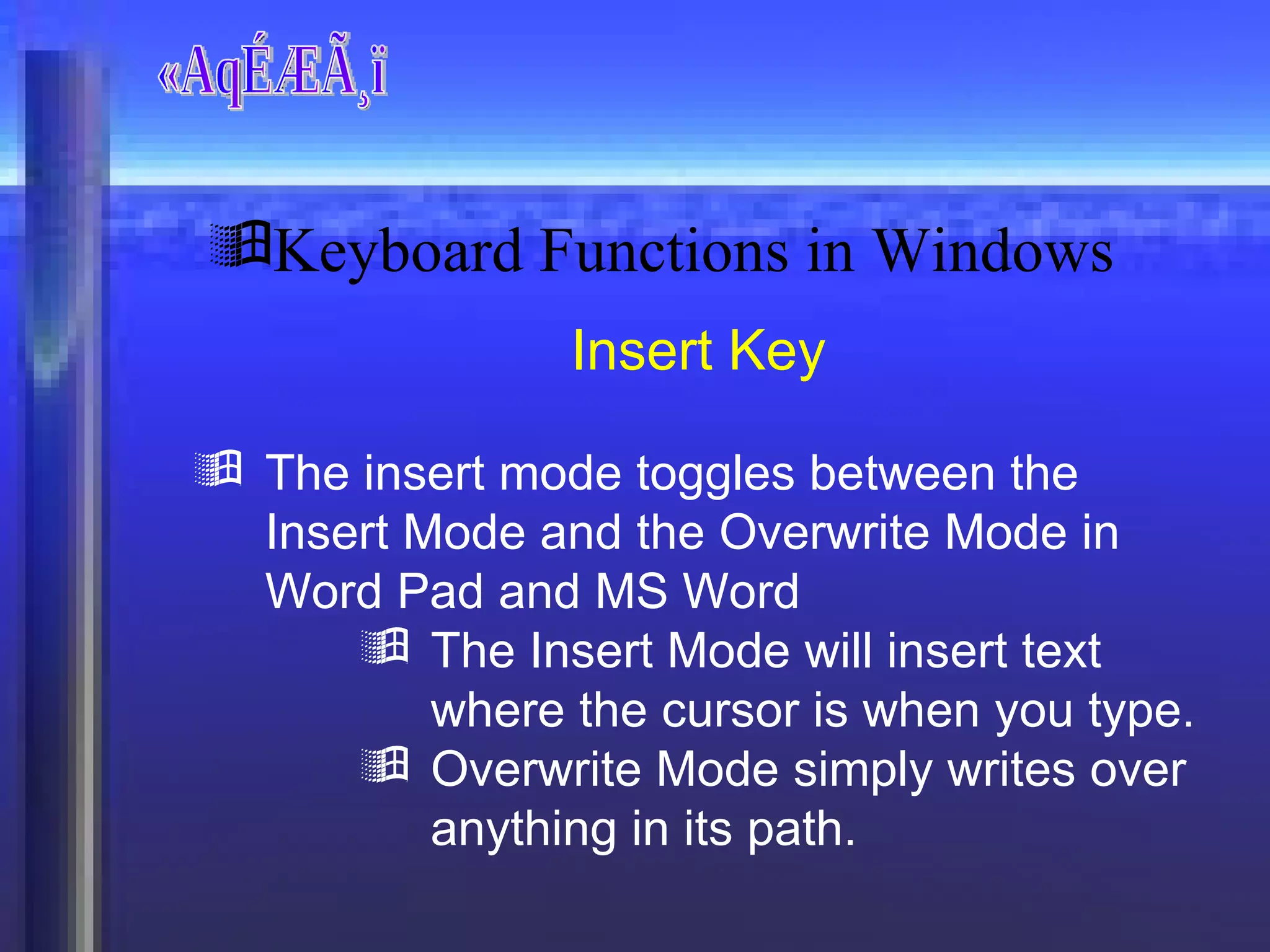
«AqÉÆÃ¸ï Insert Key The insert mode toggles between the Insert Mode and the Overwrite Mode in Word Pad and MS Word The Insert Mode will insert text where the cursor is when you type. Overwrite Mode simply writes over anything in its path. Keyboard Functions in Windows
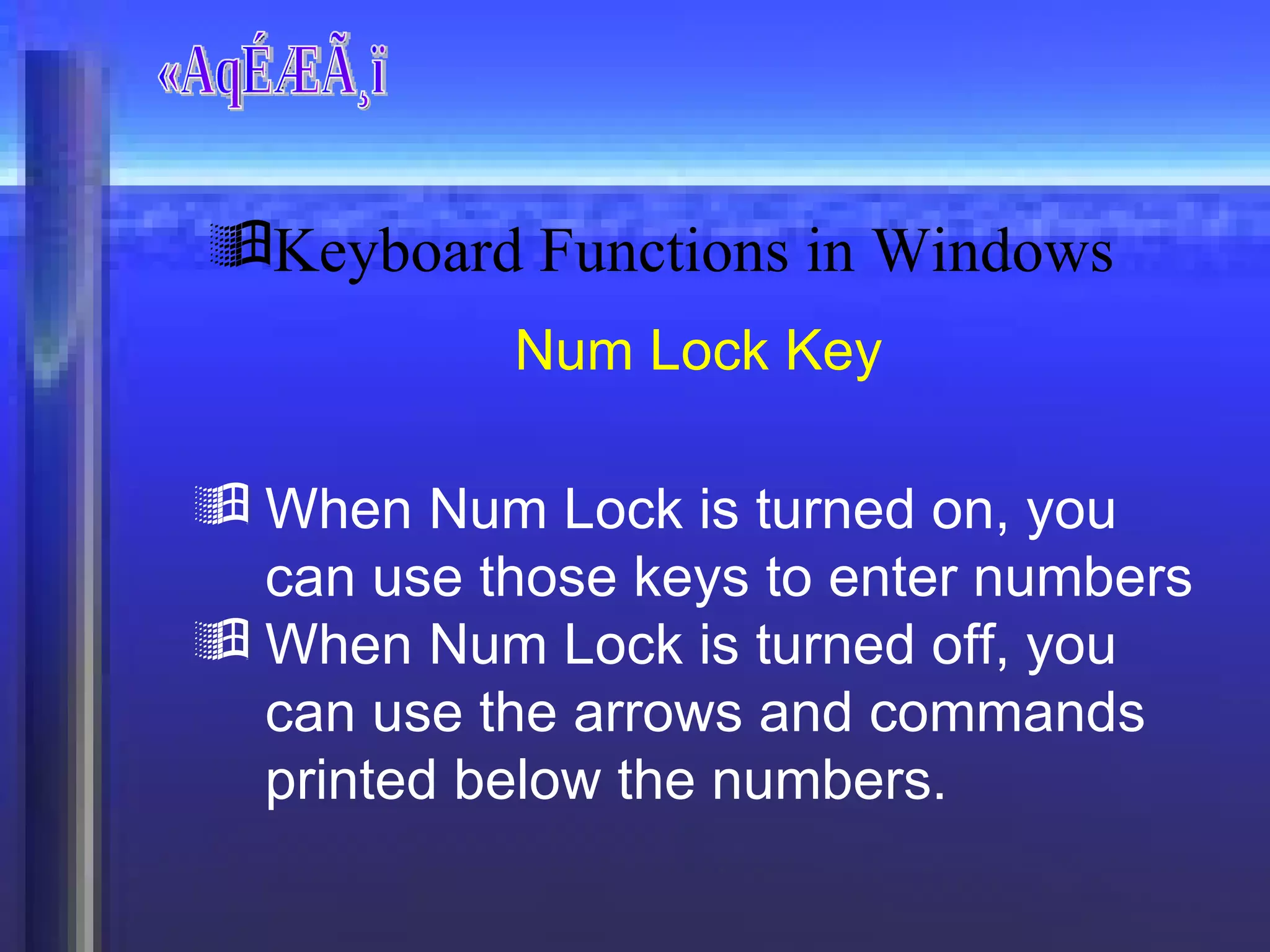
«AqÉÆÃ¸ï Num Lock Key When Num Lock is turned on, you can use those keys to enter numbers  When Num Lock is turned off, you can use the arrows and commands printed below the numbers. Keyboard Functions in Windows
«AqÉÆÃ¸ï Keys used to navigate in a document They move the cursor up/down one "screen-length" Remember that it will not move the page to next page. Keyboard Functions in Windows Page Up & Page Down
«AqÉÆÃ¸ï Keys used to navigate in a document Home key is used to move your cursor to the beginning of a line. Home key is used to move your cursor to the end of a line. Keyboard Functions in Windows Home and End Key
«AqÉÆÃ¸ï Keys used to navigate in a document This combination key is used to move your cursor to the beginning of the document. This combination key is used to move your cursor to the end of the document. Keyboard Functions in Windows Ctrl+Home & Ctrl+End
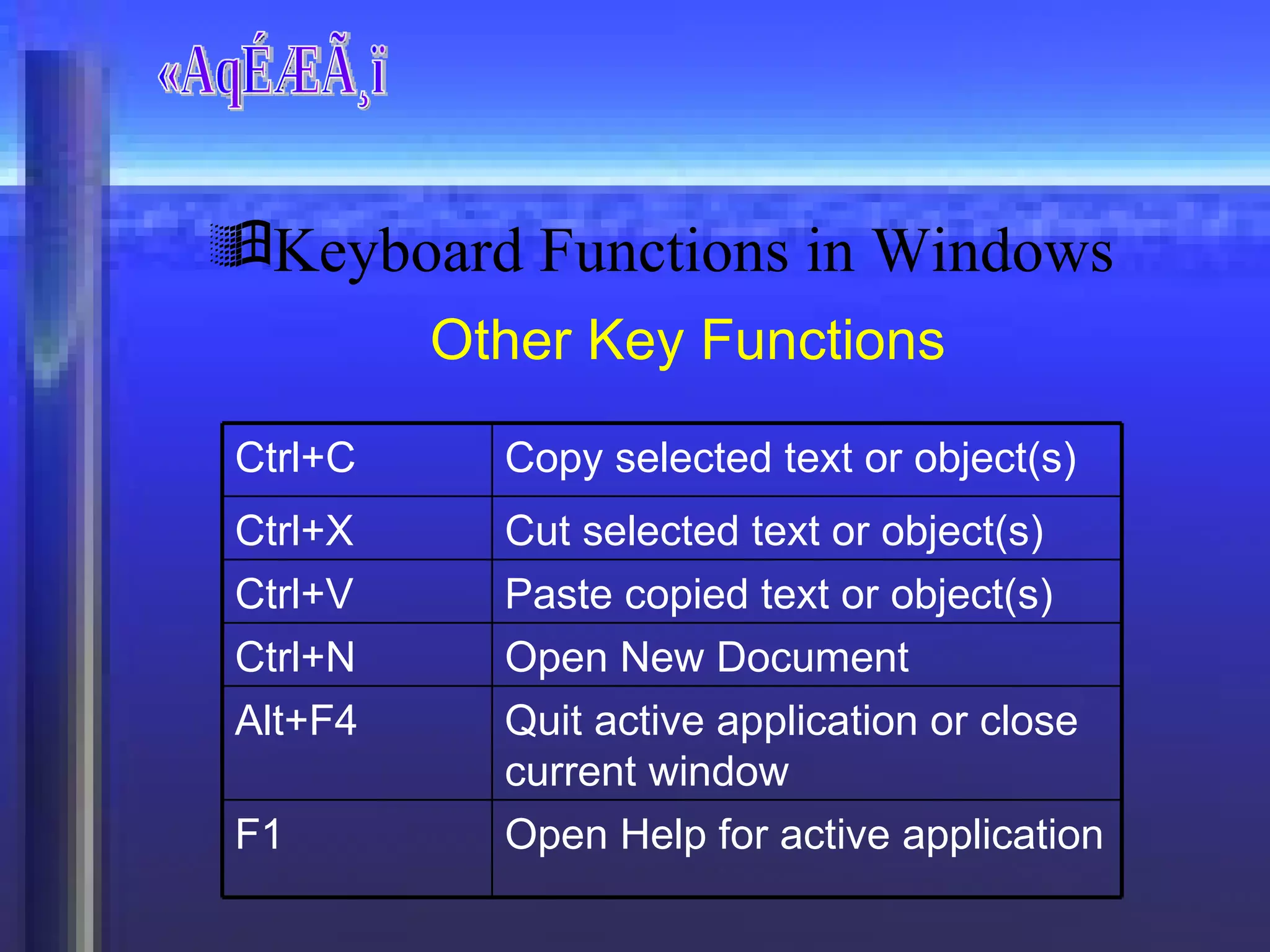
«AqÉÆÃ¸ï Other Key Functions Keyboard Functions in Windows Open New Document Ctrl+N Open Help for active application F1 Quit active application or close current window  Alt+F4 Paste copied text or object(s)  Ctrl+V Cut selected text or object(s)  Ctrl+X Copy selected text or object(s)  Ctrl+C
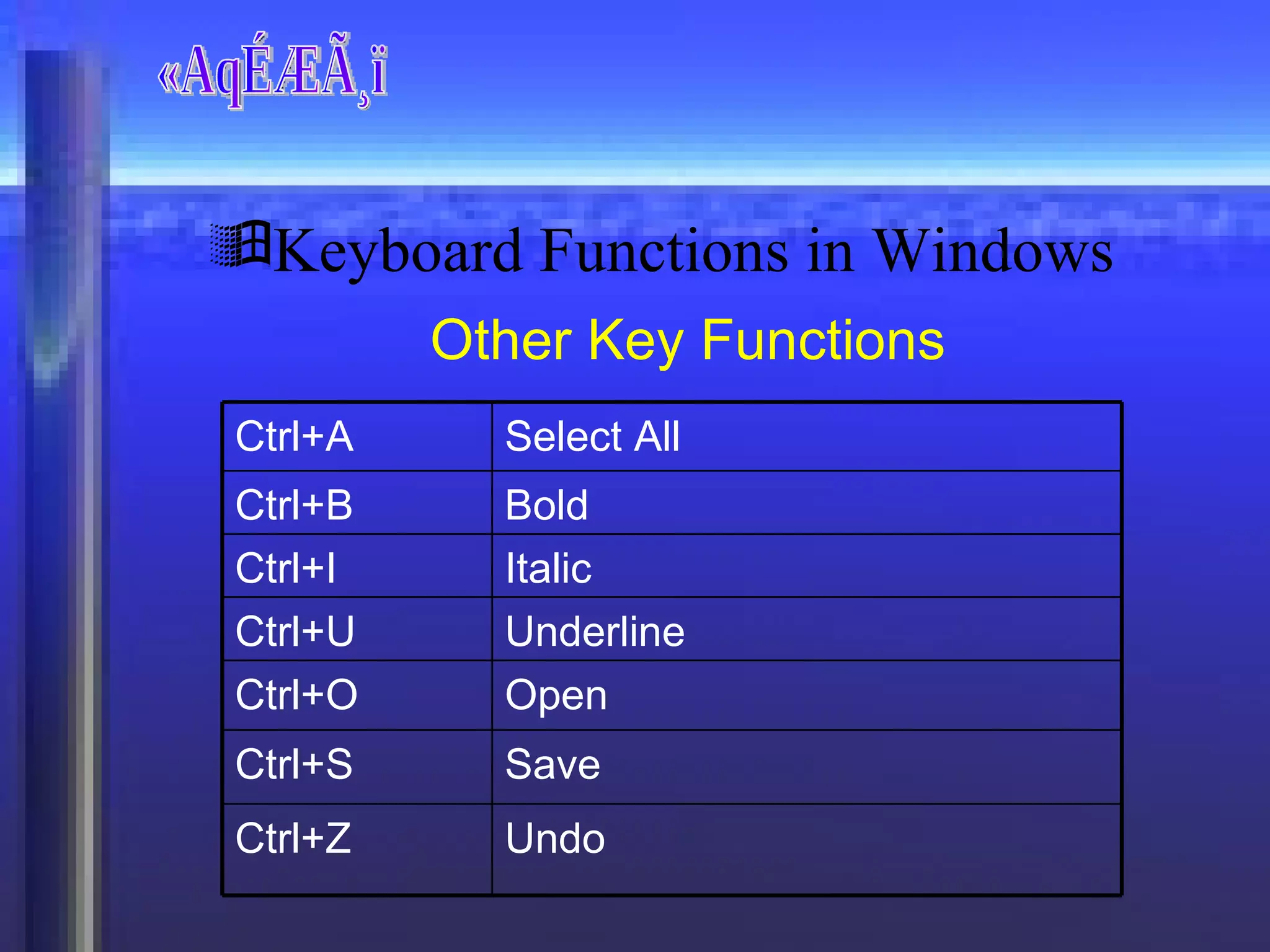
«AqÉÆÃ¸ï Other Key Functions Keyboard Functions in Windows Save Ctrl+S Open Ctrl+O Undo Ctrl+Z Underline Ctrl+U Italic Ctrl+I Bold  Ctrl+B Select All  Ctrl+A
«AqÉÆÃ¸ï Different Files
«AqÉÆÃ¸ï Measurement of File Size Computer files are measured in units called "bytes" A byte roughly translates into a character or letter. Special formatting codes such as Bold, Italics, or Underline add bytes to the document, as well as different fonts or font sizes. Understanding File
«AqÉÆÃ¸ï Units of File Size Understanding File 1,073,741,824 bytes  100,00,00,000 bytes or 10,00,000 KB or 1,000 MB  Gigabyte GB 1,048,576 bytes  10,00,000 bytes or 1000 KB Megabyte MB 1024 bytes 1000 bytes Kilobyte KB 1 byte 1 byte Byte Byte Actual Size Rough Size Term Abbreviation
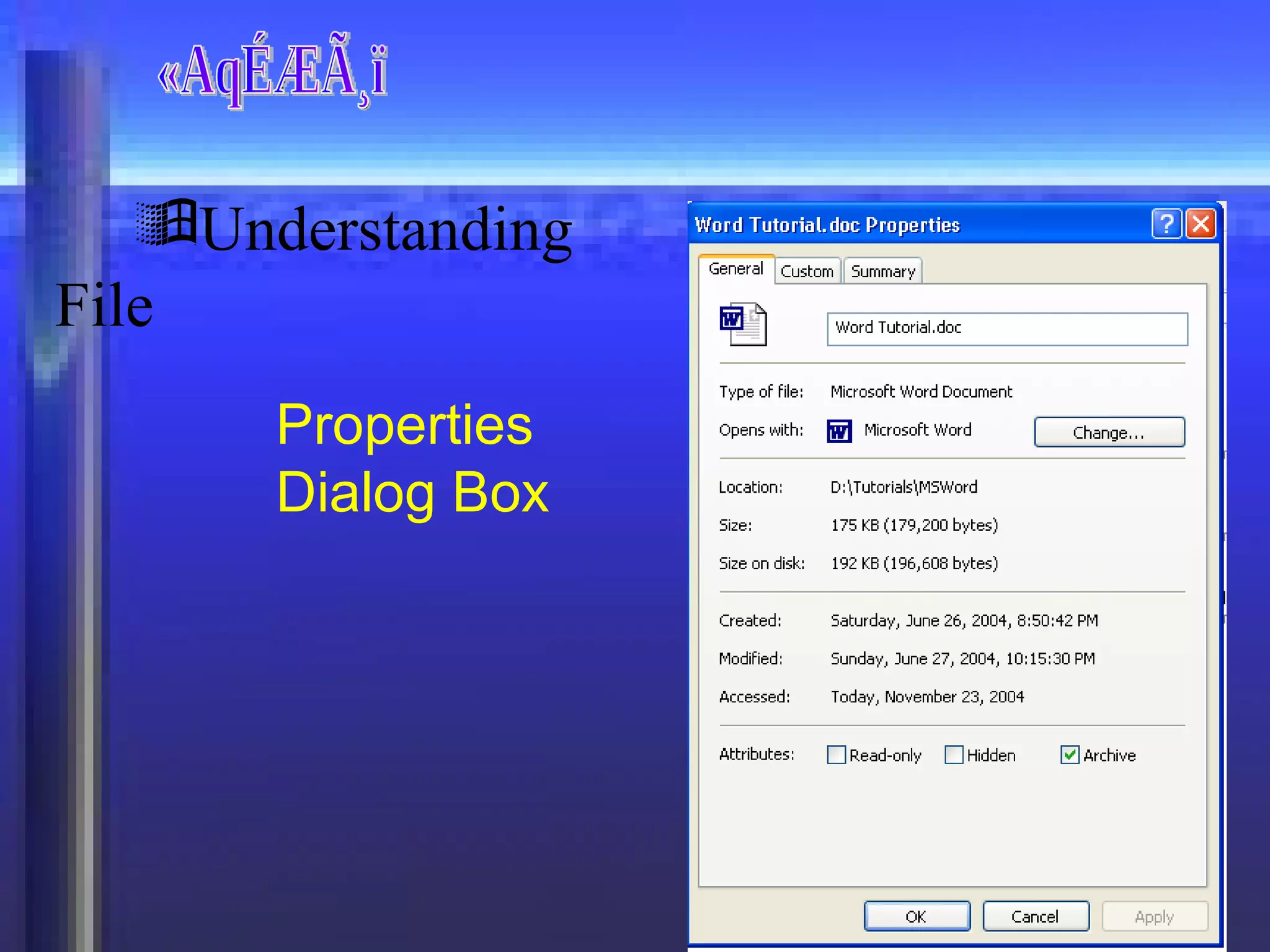
«AqÉÆÃ¸ï How to see file size in Windows? Select the file you want to see the size. Right Click    Properties . If the file is already open File    Properties Understanding File
«AqÉÆÃ¸ï Understanding File Properties  Dialog Box
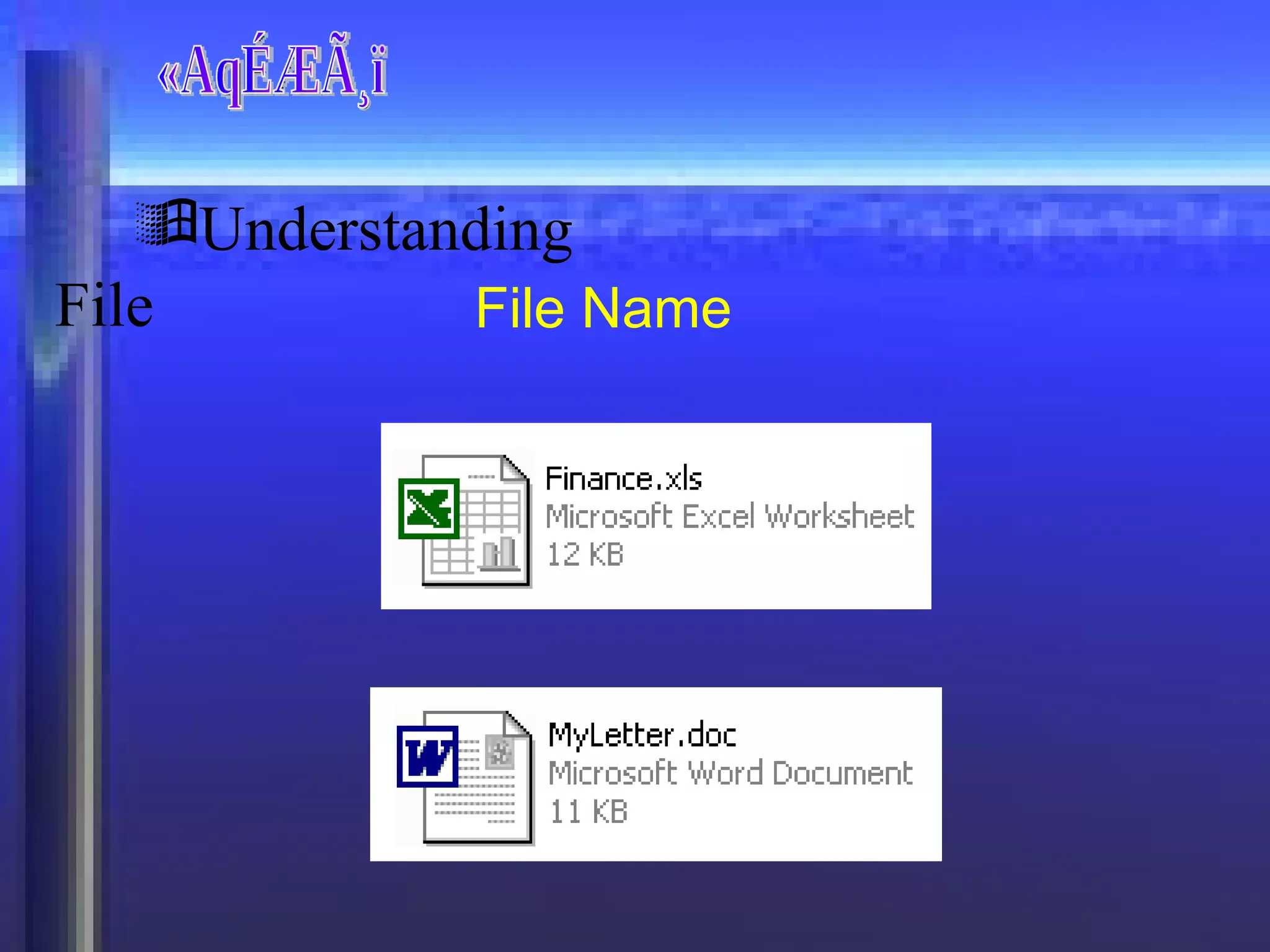
«AqÉÆÃ¸ï Understanding File File Name
«AqÉÆÃ¸ï Your computer's files have names like myletter.doc or finance.xls. The part before the "dot" (such as myletter) is Name of the file.  The part after the "dot" (such as doc) is called the extension. It tells the computer which type of file it is.  “ myletter.doc” has the extension of doc, the computer knows it is a Microsoft Word file, because doc is the extension associated with Microsoft Word.  Understanding File Name
«AqÉÆÃ¸ï What is Folder? Folders are used to keep your files. Imagine like keeping things in a room Folders help keep the files systematically. You can create as much as folders you want. Even you create folders inside a folder also. Understanding Folder
«AqÉÆÃ¸ï Creating and Renaming a Folder Right click on blank space where you want to create folder. Select New    Folder Type Name to the Folder You can rename the folder. Select the Folder you want to rename. Right Click & Select Rename Type New Name to the Folder Understanding Folder
«AqÉÆÃ¸ï Good Ways to Organise Folders & Files? Organize from the top down - Start by having a folder that has all of your files, documents, and sub-folders inside. Many people use the "My Documents" folder for this purpose. Understanding Folder
«AqÉÆÃ¸ï Good Ways to Organise Folders & Files? Name your Files and Folders Amply –  Instead of naming your file "rescoverltr", take the 3 extra seconds and name it "Resume Cover Letter - 4/5/2000". Windows allows you to use up to 255 characters, so use them! It's easy to get tired of looking for a file when there are a whole bunch of abbreviations everywhere. Understanding Folder
«AqÉÆÃ¸ï Good Ways to Organise Folders & Files? Create Sub-Folders –  Make Sub-Folders in "My Documents" (or wherever you created your personal folder) that are logically oriented. For example, if you have lots of letters on your computer, create a sub-folder called "Letters." If you mainly write to 2 different people, Mary and John, then create sub-folders inside of "Letters" called "Mary" and "John" respectively. Understanding Folder

Windows

  • 1.
  • 2.
    Windows is anoperating system Windows is the program that manages all the other programs like the boss. Windows knows which file to open when you double-click on an icon on the desktop Windows ("the boss") keeps everything in order. «AqÉÆÃ¸ï
  • 3.
    «AqÉÆÃ¸ï Different WindowsOS Windows 1.0, 2.0, 2.1, 3.0, 3.1 Windows 95 Windows 98, Windows 98 SE Windows Millenium, 2000 Windows XP
  • 4.
  • 5.
    «AqÉÆÃ¸ï Keyboard Functionsin Windows Shift Key Used exactly the same as a typewriter in Windows. Makes capital letters allows you to use the "cursing symbols" such as @#$% The Shift Key can also be used to highlight text, like you would do with your mouse hold down the shift key (don't release it), now move your cursor with the arrow keys. You should be able to highlight text this way.
  • 6.
    «AqÉÆÃ¸ï Alt KeyThe ALT key stands for "Alternate." When you push this key in Windows, the cursor moves to the menu bar at the top of the screen. It's the same as clicking your mouse on the "File" Menu above. From there you can use the arrow keys to select menu options. This is useful if you don't like switching between your mouse and keyboard often. Press "Alt" again to move the cursor back off of the menu bar. Keyboard Functions in Windows
  • 7.
    «AqÉÆÃ¸ï Windows KeyThis key opens the "Start Menu" at the lower left corner of your screen. It has the same effect as you clicking the "Start" button with your mouse. Keyboard Functions in Windows
  • 8.
    «AqÉÆÃ¸ï Delete KeyThis key erases the character directly to the right of your cursor. If you have text or graphics that are highlighted, those are erased by pushing this key as well. Keyboard Functions in Windows
  • 9.
    «AqÉÆÃ¸ï Backspace KeyThis key erases the character directly to the left of your cursor. If you have text or graphics that are highlighted, those are erased by pushing this key as well. Keyboard Functions in Windows
  • 10.
    «AqÉÆÃ¸ï Enter KeyPress Enter key to start New Paragraph only. Don’t press Enter key after every line. Windows knows when you are reaching the end of a line, and will automatically go to the next line. It is similar to pressing an "OK" button, or a "Yes" button when any windows dialog box asks you. Keyboard Functions in Windows
  • 11.
    «AqÉÆÃ¸ï Tab KeyThe Tab key will insert indentation into a document. It also jumps from box to box when entering a form online, or in Windows. It also jumps from button to button or textbox to textbox in a dialog box of Windows. Keyboard Functions in Windows
  • 12.
    «AqÉÆÃ¸ï Insert KeyThe insert mode toggles between the Insert Mode and the Overwrite Mode in Word Pad and MS Word The Insert Mode will insert text where the cursor is when you type. Overwrite Mode simply writes over anything in its path. Keyboard Functions in Windows
  • 13.
    «AqÉÆÃ¸ï Num LockKey When Num Lock is turned on, you can use those keys to enter numbers When Num Lock is turned off, you can use the arrows and commands printed below the numbers. Keyboard Functions in Windows
  • 14.
    «AqÉÆÃ¸ï Keys usedto navigate in a document They move the cursor up/down one "screen-length" Remember that it will not move the page to next page. Keyboard Functions in Windows Page Up & Page Down
  • 15.
    «AqÉÆÃ¸ï Keys usedto navigate in a document Home key is used to move your cursor to the beginning of a line. Home key is used to move your cursor to the end of a line. Keyboard Functions in Windows Home and End Key
  • 16.
    «AqÉÆÃ¸ï Keys usedto navigate in a document This combination key is used to move your cursor to the beginning of the document. This combination key is used to move your cursor to the end of the document. Keyboard Functions in Windows Ctrl+Home & Ctrl+End
  • 17.
    «AqÉÆÃ¸ï Other KeyFunctions Keyboard Functions in Windows Open New Document Ctrl+N Open Help for active application F1 Quit active application or close current window Alt+F4 Paste copied text or object(s) Ctrl+V Cut selected text or object(s) Ctrl+X Copy selected text or object(s) Ctrl+C
  • 18.
    «AqÉÆÃ¸ï Other KeyFunctions Keyboard Functions in Windows Save Ctrl+S Open Ctrl+O Undo Ctrl+Z Underline Ctrl+U Italic Ctrl+I Bold Ctrl+B Select All Ctrl+A
  • 19.
  • 20.
    «AqÉÆÃ¸ï Measurement ofFile Size Computer files are measured in units called "bytes" A byte roughly translates into a character or letter. Special formatting codes such as Bold, Italics, or Underline add bytes to the document, as well as different fonts or font sizes. Understanding File
  • 21.
    «AqÉÆÃ¸ï Units ofFile Size Understanding File 1,073,741,824 bytes 100,00,00,000 bytes or 10,00,000 KB or 1,000 MB Gigabyte GB 1,048,576 bytes 10,00,000 bytes or 1000 KB Megabyte MB 1024 bytes 1000 bytes Kilobyte KB 1 byte 1 byte Byte Byte Actual Size Rough Size Term Abbreviation
  • 22.
    «AqÉÆÃ¸ï How tosee file size in Windows? Select the file you want to see the size. Right Click  Properties . If the file is already open File  Properties Understanding File
  • 23.
    «AqÉÆÃ¸ï Understanding FileProperties Dialog Box
  • 24.
  • 25.
    «AqÉÆÃ¸ï Your computer'sfiles have names like myletter.doc or finance.xls. The part before the "dot" (such as myletter) is Name of the file. The part after the "dot" (such as doc) is called the extension. It tells the computer which type of file it is. “ myletter.doc” has the extension of doc, the computer knows it is a Microsoft Word file, because doc is the extension associated with Microsoft Word. Understanding File Name
  • 26.
    «AqÉÆÃ¸ï What isFolder? Folders are used to keep your files. Imagine like keeping things in a room Folders help keep the files systematically. You can create as much as folders you want. Even you create folders inside a folder also. Understanding Folder
  • 27.
    «AqÉÆÃ¸ï Creating andRenaming a Folder Right click on blank space where you want to create folder. Select New  Folder Type Name to the Folder You can rename the folder. Select the Folder you want to rename. Right Click & Select Rename Type New Name to the Folder Understanding Folder
  • 28.
    «AqÉÆÃ¸ï Good Waysto Organise Folders & Files? Organize from the top down - Start by having a folder that has all of your files, documents, and sub-folders inside. Many people use the "My Documents" folder for this purpose. Understanding Folder
  • 29.
    «AqÉÆÃ¸ï Good Waysto Organise Folders & Files? Name your Files and Folders Amply – Instead of naming your file "rescoverltr", take the 3 extra seconds and name it "Resume Cover Letter - 4/5/2000". Windows allows you to use up to 255 characters, so use them! It's easy to get tired of looking for a file when there are a whole bunch of abbreviations everywhere. Understanding Folder
  • 30.
    «AqÉÆÃ¸ï Good Waysto Organise Folders & Files? Create Sub-Folders – Make Sub-Folders in "My Documents" (or wherever you created your personal folder) that are logically oriented. For example, if you have lots of letters on your computer, create a sub-folder called "Letters." If you mainly write to 2 different people, Mary and John, then create sub-folders inside of "Letters" called "Mary" and "John" respectively. Understanding Folder