Windows 8:
Shapes and Geometries – Part
2
Shapes and Geometries – Part
2 http://www.LearnNowOnline.com


        Learn More @ http://www.learnnowonline.com
        Copyright © by Application Developers Training Company
Objectives
• Learn to use basic shapes: lines, ellipses,
  rectangles, and polygons
• Add line caps and joins
• Work with geometries and paths
• Investigate the geometry mini-language


              Learn More @ http://www.learnnowonline.com
              Copyright © by Application Developers Training Company
Agenda
• Working with Shapes
• Digging Deeper: Using Paths and
  Geometries


           Learn More @ http://www.learnnowonline.com
           Copyright © by Application Developers Training Company
Using Paths and Geometries
• Geometry class abstract, so must use:
  • EllipseGeometry, LineGeometry,
    RectangleGeometry
  • PathGeometry (can contain arcs, curves, lines)
  • GeometryGroup
     • Allows you to add any number of Geometry objects to a
      single Path


               Learn More @ http://www.learnnowonline.com
               Copyright © by Application Developers Training Company
Paths vs Geometries?
• Why both paths and geometries?
  • Geometry defines a single shape
     • Coordinates and properties
     • Doesn’t draw the shape
  • Path can group shapes
     • Allows you to draw the shape(s)

• Path provides Stroke and Fill
  • Also handles mouse and keyboard handling


               Learn More @ http://www.learnnowonline.com
                Copyright © by Application Developers Training Company
Ellipse, Line, RectangleGeometry
• Work much like Ellipse, Line, Rectangle shapes
• EllipseGeometry defines Center and Radius
  rather than width and height
• Real power comes in combining within Path


             Learn More @ http://www.learnnowonline.com
             Copyright © by Application Developers Training Company
DEMO
• SimpleGeometries


            Learn More @ http://www.learnnowonline.com
            Copyright © by Application Developers Training Company
Using GeometryGroup Element
• Create several shapes that share fill and stroke
  characteristics?
• Place within single Path element, using
  GeometryGroup element
• All shapes in group share fill and stroke
• No z-order implications—all borders show


             Learn More @ http://www.learnnowonline.com
              Copyright © by Application Developers Training Company
Using GeometryGroup Element
• GeometryGroup provides FillRule, treating
  entire group as a single "drawing"
• Using GeometryGroup reduces element count
  • Optimizes XAML slightly


              Learn More @ http://www.learnnowonline.com
              Copyright © by Application Developers Training Company
DEMO
• GeometryGroup


           Learn More @ http://www.learnnowonline.com
           Copyright © by Application Developers Training Company
Curves/Lines with PathGeometry
• Need to draw curves and specific shapes that
  don't fit other categories?
  • Use PathGeometry
• Can contain one or more PathFigure elements
  • Each PathFigure contains information about one or
    more segments
  • Segment can be line, or curve
• PathFigure properties: IsClosed, IsFilled,
  Segments, StartPoint
              Learn More @ http://www.learnnowonline.com
              Copyright © by Application Developers Training Company
PathFigure Properties
• IsClosed: Determines if first and last segments
  are connected
• IsFilled: Determines if contained area should
  be filled using brush in Path.Fill
• Segments: Collection of segments that define
  the shape; collection of PathSegment objects
• StartPoint: Determines the starting point for
  PathFigure
             Learn More @ http://www.learnnowonline.com
             Copyright © by Application Developers Training Company
Segment Types
• ArcSegment
• BezierSegment, PolyBezierSegment
• QuadraticBezierSegment,
  PolyQuadraticBezierSegment
• LineSegment, PolyLineSegment


            Learn More @ http://www.learnnowonline.com
            Copyright © by Application Developers Training Company
PathGeometry Markup
• PathGeometry element<Path.Data>
                       <Path …>

  generally looks like     <PathGeometry>
                             <PathFigure … >
  this:                         <LineSegment …                />
                                               <ArcSegment … />
                                             </PathFigure>
                                             <PathFigure … />
                                           </PathGeometry>
                                         </Path.Data>
                                       </Path>


              Learn More @ http://www.learnnowonline.com
               Copyright © by Application Developers Training Company
DEMO
• PathGeometryLines


           Learn More @ http://www.learnnowonline.com
            Copyright © by Application Developers Training Company
Working with Lines
• Path describes Fill, Stroke, StrokeThickness for
  entire path; also contains StrokeLineJoin and
  StrokeEndLineCap
• PathGeometry contains FillRule
• PathFigure maintains StartPoint
• Continuous line segments could be
  represented as PolyLineSegment


              Learn More @ http://www.learnnowonline.com
              Copyright © by Application Developers Training Company
Working with Arcs
• ArcSegment element defines an elliptical arc
• Many different ways to describe portion of
  ellipse; must study various properties
• PathFigure defines start point, ArcSegment
  defines end point in its Point property


             Learn More @ http://www.learnnowonline.com
             Copyright © by Application Developers Training Company
Working with Arcs
• X and Y radius in Size property as ordered pair
• RotationAngle defines rotation
• IsLargeArc: Using large or small portion or
  ellipse?
• SweepDirection: Clockwise?


             Learn More @ http://www.learnnowonline.com
              Copyright © by Application Developers Training Company
DEMO
• PathGeometryArcs


           Learn More @ http://www.learnnowonline.com
           Copyright © by Application Developers Training Company
Working with Curves
• Bezier curves provide basis for almost every
  vector drawing program
  • Make it possible to define almost any curve
  • Two end points, two control points
  • Quadratic Bezier uses only three points (only one
    control point)
     • Not as flexible, but easier to define and calculate


                Learn More @ http://www.learnnowonline.com
                Copyright © by Application Developers Training Company
Working with Curves
• Four points define standard Bezier curve
  • Start point
  • End point (Point3 property)
  • Two control points (Point1 and Point2 properties)
• No specific start point:
  • Parent PathFigure defines start point
  • BezierSegment defines two control points and end
    point

              Learn More @ http://www.learnnowonline.com
                  Copyright © by Application Developers Training Company
Working with Curves
• At starting point, curve runs parallel to line
  connecting start point and first control point
• At ending point, curve runs parallel to line
  connecting end point to second control point
• In between two points, line curves


             Learn More @ http://www.learnnowonline.com
              Copyright © by Application Developers Training Company
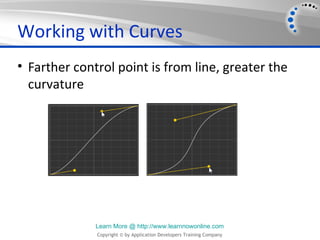
Working with Curves
• Farther control point is from line, greater the
  curvature


              Learn More @ http://www.learnnowonline.com
              Copyright © by Application Developers Training Company
Important Tip
• Don't create Bezier curves by trial and error
• Use a tool that helps generate XAML for you
  • Expression Blend!


              Learn More @ http://www.learnnowonline.com
              Copyright © by Application Developers Training Company
DEMO
• PathGeometryCurves


           Learn More @ http://www.learnnowonline.com
           Copyright © by Application Developers Training Company
Geometry Mini-Language
• Imagine scenario with lots of shapes
• Tons of markup!
• To reduce markup, can use mini markup
  language that describes geometry
  • Called Geometry mini-language or Path mini-
    language
• Design tools will create this
  • Must be able to recognize and try to interpret

               Learn More @ http://www.learnnowonline.com
               Copyright © by Application Developers Training Company
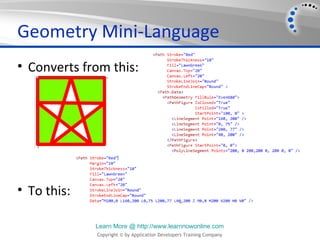
Geometry Mini-Language
• Converts from this:


• To this:

             Learn More @ http://www.learnnowonline.com
             Copyright © by Application Developers Training Company
Geometry Mini-Language
• For full description:
  • http://msdn.microsoft.com/en-
    us/library/ms752293.aspx


              Learn More @ http://www.learnnowonline.com
              Copyright © by Application Developers Training Company
DEMO
• GeometryMiniLanguage


           Learn More @ http://www.learnnowonline.com
           Copyright © by Application Developers Training Company
Questions?

   http://www.LearnNowOnline.com


        Learn More @ http://www.learnnowonline.com
        Copyright © by Application Developers Training Company

Windows 8: Shapes and Geometries

  • 1.
    Windows 8: Shapes andGeometries – Part 2 Shapes and Geometries – Part 2 http://www.LearnNowOnline.com Learn More @ http://www.learnnowonline.com Copyright © by Application Developers Training Company
  • 2.
    Objectives • Learn touse basic shapes: lines, ellipses, rectangles, and polygons • Add line caps and joins • Work with geometries and paths • Investigate the geometry mini-language Learn More @ http://www.learnnowonline.com Copyright © by Application Developers Training Company
  • 3.
    Agenda • Working withShapes • Digging Deeper: Using Paths and Geometries Learn More @ http://www.learnnowonline.com Copyright © by Application Developers Training Company
  • 4.
    Using Paths andGeometries • Geometry class abstract, so must use: • EllipseGeometry, LineGeometry, RectangleGeometry • PathGeometry (can contain arcs, curves, lines) • GeometryGroup • Allows you to add any number of Geometry objects to a single Path Learn More @ http://www.learnnowonline.com Copyright © by Application Developers Training Company
  • 5.
    Paths vs Geometries? •Why both paths and geometries? • Geometry defines a single shape • Coordinates and properties • Doesn’t draw the shape • Path can group shapes • Allows you to draw the shape(s) • Path provides Stroke and Fill • Also handles mouse and keyboard handling Learn More @ http://www.learnnowonline.com Copyright © by Application Developers Training Company
  • 6.
    Ellipse, Line, RectangleGeometry •Work much like Ellipse, Line, Rectangle shapes • EllipseGeometry defines Center and Radius rather than width and height • Real power comes in combining within Path Learn More @ http://www.learnnowonline.com Copyright © by Application Developers Training Company
  • 7.
    DEMO • SimpleGeometries Learn More @ http://www.learnnowonline.com Copyright © by Application Developers Training Company
  • 8.
    Using GeometryGroup Element •Create several shapes that share fill and stroke characteristics? • Place within single Path element, using GeometryGroup element • All shapes in group share fill and stroke • No z-order implications—all borders show Learn More @ http://www.learnnowonline.com Copyright © by Application Developers Training Company
  • 9.
    Using GeometryGroup Element •GeometryGroup provides FillRule, treating entire group as a single "drawing" • Using GeometryGroup reduces element count • Optimizes XAML slightly Learn More @ http://www.learnnowonline.com Copyright © by Application Developers Training Company
  • 10.
    DEMO • GeometryGroup Learn More @ http://www.learnnowonline.com Copyright © by Application Developers Training Company
  • 11.
    Curves/Lines with PathGeometry •Need to draw curves and specific shapes that don't fit other categories? • Use PathGeometry • Can contain one or more PathFigure elements • Each PathFigure contains information about one or more segments • Segment can be line, or curve • PathFigure properties: IsClosed, IsFilled, Segments, StartPoint Learn More @ http://www.learnnowonline.com Copyright © by Application Developers Training Company
  • 12.
    PathFigure Properties • IsClosed:Determines if first and last segments are connected • IsFilled: Determines if contained area should be filled using brush in Path.Fill • Segments: Collection of segments that define the shape; collection of PathSegment objects • StartPoint: Determines the starting point for PathFigure Learn More @ http://www.learnnowonline.com Copyright © by Application Developers Training Company
  • 13.
    Segment Types • ArcSegment •BezierSegment, PolyBezierSegment • QuadraticBezierSegment, PolyQuadraticBezierSegment • LineSegment, PolyLineSegment Learn More @ http://www.learnnowonline.com Copyright © by Application Developers Training Company
  • 14.
    PathGeometry Markup • PathGeometryelement<Path.Data> <Path …> generally looks like <PathGeometry> <PathFigure … > this: <LineSegment … /> <ArcSegment … /> </PathFigure> <PathFigure … /> </PathGeometry> </Path.Data> </Path> Learn More @ http://www.learnnowonline.com Copyright © by Application Developers Training Company
  • 15.
    DEMO • PathGeometryLines Learn More @ http://www.learnnowonline.com Copyright © by Application Developers Training Company
  • 16.
    Working with Lines •Path describes Fill, Stroke, StrokeThickness for entire path; also contains StrokeLineJoin and StrokeEndLineCap • PathGeometry contains FillRule • PathFigure maintains StartPoint • Continuous line segments could be represented as PolyLineSegment Learn More @ http://www.learnnowonline.com Copyright © by Application Developers Training Company
  • 17.
    Working with Arcs •ArcSegment element defines an elliptical arc • Many different ways to describe portion of ellipse; must study various properties • PathFigure defines start point, ArcSegment defines end point in its Point property Learn More @ http://www.learnnowonline.com Copyright © by Application Developers Training Company
  • 18.
    Working with Arcs •X and Y radius in Size property as ordered pair • RotationAngle defines rotation • IsLargeArc: Using large or small portion or ellipse? • SweepDirection: Clockwise? Learn More @ http://www.learnnowonline.com Copyright © by Application Developers Training Company
  • 19.
    DEMO • PathGeometryArcs Learn More @ http://www.learnnowonline.com Copyright © by Application Developers Training Company
  • 20.
    Working with Curves •Bezier curves provide basis for almost every vector drawing program • Make it possible to define almost any curve • Two end points, two control points • Quadratic Bezier uses only three points (only one control point) • Not as flexible, but easier to define and calculate Learn More @ http://www.learnnowonline.com Copyright © by Application Developers Training Company
  • 21.
    Working with Curves •Four points define standard Bezier curve • Start point • End point (Point3 property) • Two control points (Point1 and Point2 properties) • No specific start point: • Parent PathFigure defines start point • BezierSegment defines two control points and end point Learn More @ http://www.learnnowonline.com Copyright © by Application Developers Training Company
  • 22.
    Working with Curves •At starting point, curve runs parallel to line connecting start point and first control point • At ending point, curve runs parallel to line connecting end point to second control point • In between two points, line curves Learn More @ http://www.learnnowonline.com Copyright © by Application Developers Training Company
  • 23.
    Working with Curves •Farther control point is from line, greater the curvature Learn More @ http://www.learnnowonline.com Copyright © by Application Developers Training Company
  • 24.
    Important Tip • Don'tcreate Bezier curves by trial and error • Use a tool that helps generate XAML for you • Expression Blend! Learn More @ http://www.learnnowonline.com Copyright © by Application Developers Training Company
  • 25.
    DEMO • PathGeometryCurves Learn More @ http://www.learnnowonline.com Copyright © by Application Developers Training Company
  • 26.
    Geometry Mini-Language • Imaginescenario with lots of shapes • Tons of markup! • To reduce markup, can use mini markup language that describes geometry • Called Geometry mini-language or Path mini- language • Design tools will create this • Must be able to recognize and try to interpret Learn More @ http://www.learnnowonline.com Copyright © by Application Developers Training Company
  • 27.
    Geometry Mini-Language • Convertsfrom this: • To this: Learn More @ http://www.learnnowonline.com Copyright © by Application Developers Training Company
  • 28.
    Geometry Mini-Language • Forfull description: • http://msdn.microsoft.com/en- us/library/ms752293.aspx Learn More @ http://www.learnnowonline.com Copyright © by Application Developers Training Company
  • 29.
    DEMO • GeometryMiniLanguage Learn More @ http://www.learnnowonline.com Copyright © by Application Developers Training Company
  • 30.
    Questions? http://www.LearnNowOnline.com Learn More @ http://www.learnnowonline.com Copyright © by Application Developers Training Company