Classification: Controlled
Classification: Controlled. Copyright ©2024 Version 1. All rights reserved.
‘What’s This?’
Tech Tips – IBM SPSS Modeler
Classification: Controlled
Classification: Controlled. Copyright ©2024 Version 1. All rights reserved.
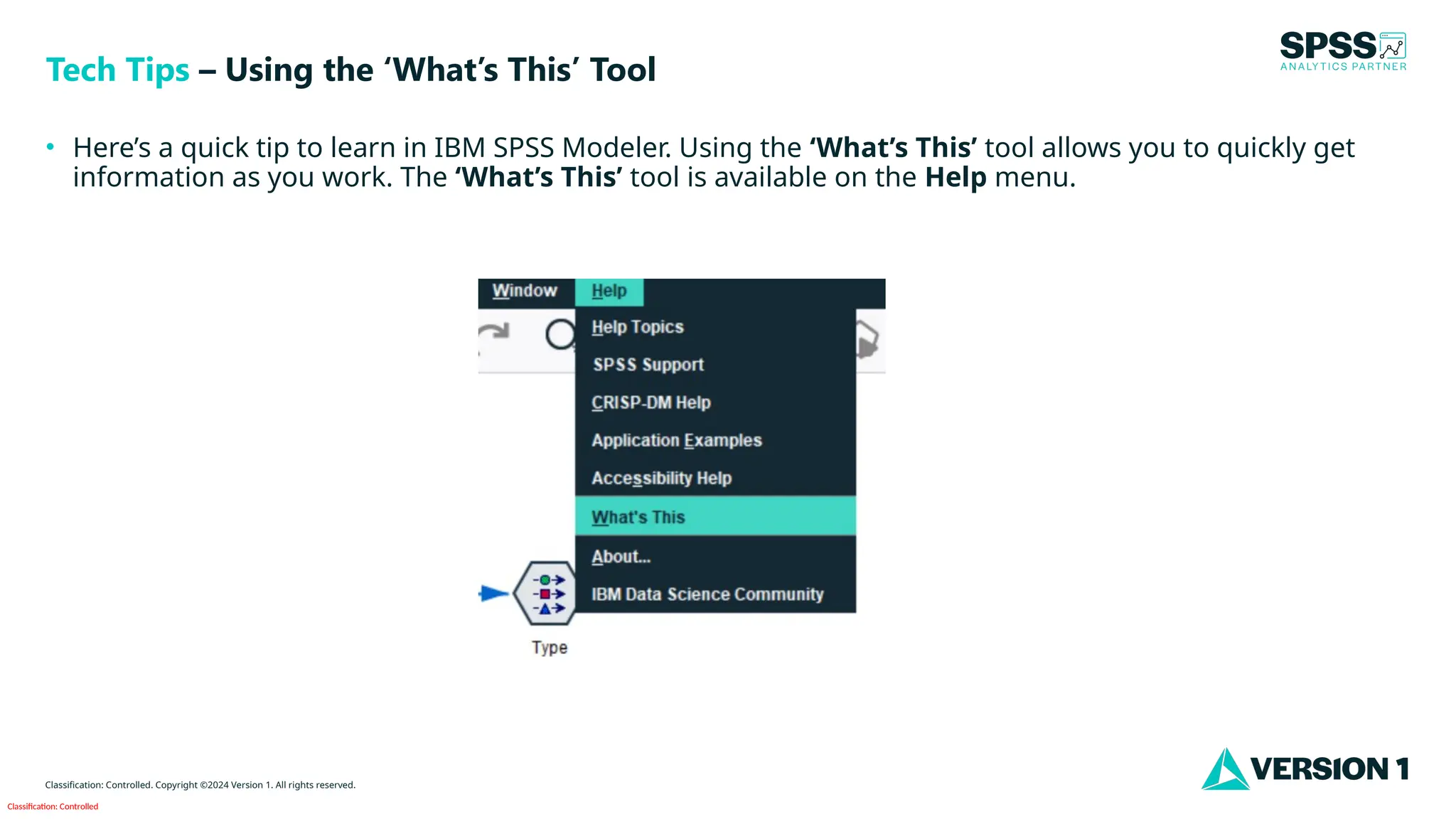
• Here’s a quick tip to learn in IBM SPSS Modeler. Using the ‘What’s This’ tool allows you to quickly get
information as you work. The ‘What’s This’ tool is available on the Help menu.
Tech Tips – Using the ‘What’s This’ Tool
Classification: Controlled
Classification: Controlled. Copyright ©2024 Version 1. All rights reserved.
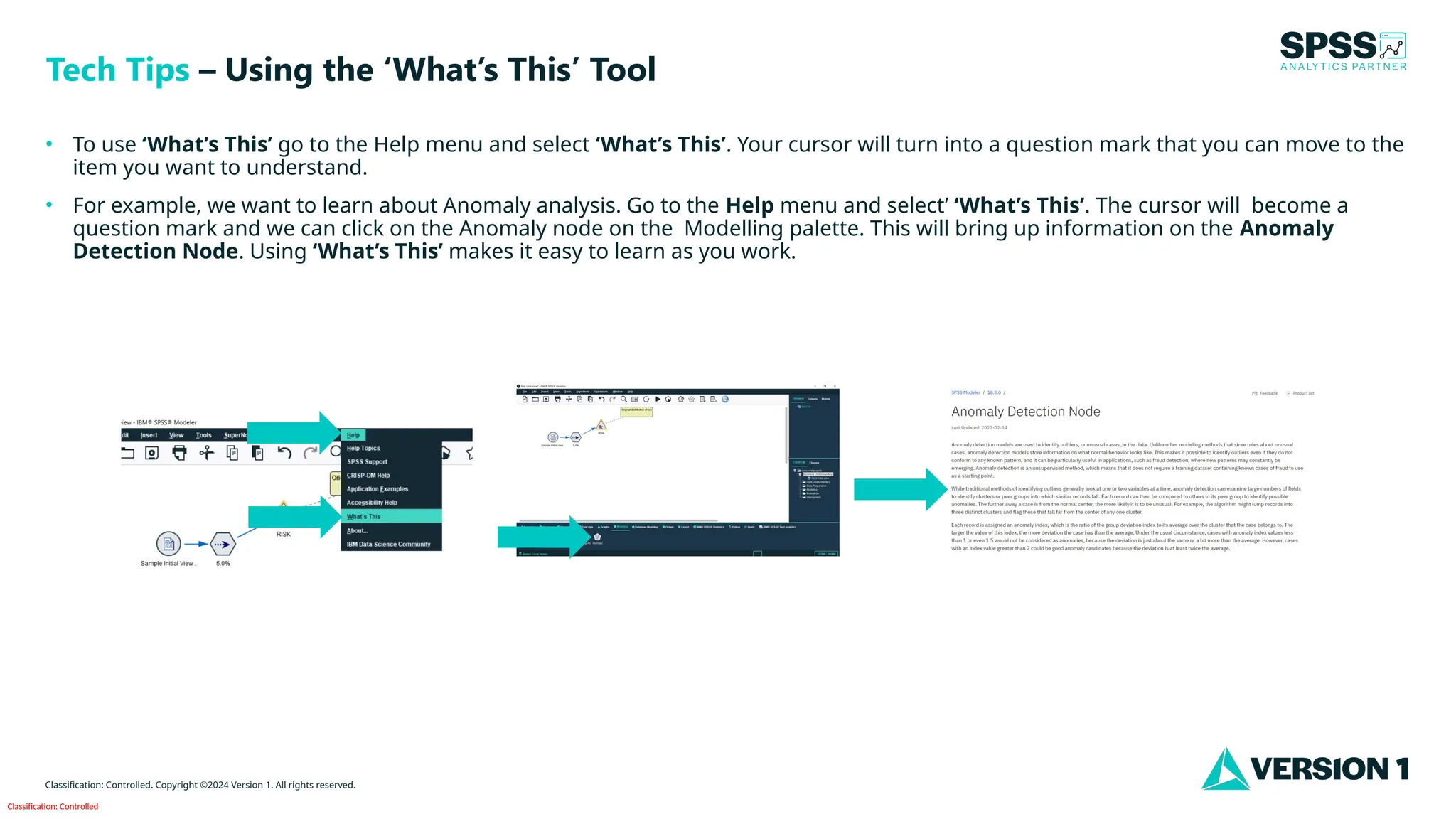
• To use ‘What’s This’ go to the Help menu and select ‘What’s This’. Your cursor will turn into a question mark that you can move to the
item you want to understand.
• For example, we want to learn about Anomaly analysis. Go to the Help menu and select’ ‘What’s This’. The cursor will become a
question mark and we can click on the Anomaly node on the Modelling palette. This will bring up information on the Anomaly
Detection Node. Using ‘What’s This’ makes it easy to learn as you work.
Tech Tips – Using the ‘What’s This’ Tool
Classification: Controlled
Classification: Controlled. Copyright ©2024 Version 1. All rights reserved.
For more information
please visit spssanalyticspartner.com
Thank You

What's This in IBM SPSS Modeler .pptx

  • 1.
    Classification: Controlled Classification: Controlled.Copyright ©2024 Version 1. All rights reserved. ‘What’s This?’ Tech Tips – IBM SPSS Modeler
  • 2.
    Classification: Controlled Classification: Controlled.Copyright ©2024 Version 1. All rights reserved. • Here’s a quick tip to learn in IBM SPSS Modeler. Using the ‘What’s This’ tool allows you to quickly get information as you work. The ‘What’s This’ tool is available on the Help menu. Tech Tips – Using the ‘What’s This’ Tool
  • 3.
    Classification: Controlled Classification: Controlled.Copyright ©2024 Version 1. All rights reserved. • To use ‘What’s This’ go to the Help menu and select ‘What’s This’. Your cursor will turn into a question mark that you can move to the item you want to understand. • For example, we want to learn about Anomaly analysis. Go to the Help menu and select’ ‘What’s This’. The cursor will become a question mark and we can click on the Anomaly node on the Modelling palette. This will bring up information on the Anomaly Detection Node. Using ‘What’s This’ makes it easy to learn as you work. Tech Tips – Using the ‘What’s This’ Tool
  • 4.
    Classification: Controlled Classification: Controlled.Copyright ©2024 Version 1. All rights reserved. For more information please visit spssanalyticspartner.com Thank You