In today’s dynamic digital landscape, ensuring the quality and
dependability ofweb applications is essential. While Selenium has
been a longstanding solution for automating browsertasks, the
integration ofWebdriverIO (WDIO) with Selenium and JavaScript
marks a significant advancement in automation testing. WDIO
enhances the testing process by offering a robust interface that
improves test creation, execution, and management. This
amalgamation capitalizes on the strengths of both tools, leveraging
Selenium’s broad browser support and WDIO’s modern, efficient
approach to test automation. As automation testing becomes
increasinglyvital forfaster development cycles and superior software
releases, WDIO emerges as a versatile framework, particularly potent
when paired with JavaScript, making it a preferred choice for
contemporarytesting teams.
AUTOMATED TESTING WEBDRIVERIO WITH JAVASCRIPT
WebdriverIOWithJavaScript:ThePerfect
DuoForEfficientWebAutomationTesting
•
BY QATEAM
Table ofContent
What is WebdriverIO?
WebdriverIO Architecture: How Does It Work?
Why Choose WebdriverIO forAutomation Testing?
Prerequisite Steps to Create a WDIO + JavaScript Project
▶️
Download & Install Visual Studio Code
▶️
Install Node.js and npm
▶️
Create a New Project Directory
▶️
Install WebdriverIO CLI
▶️
Run WebdriverIO Configuration Wizard
▶️
A Configuration steps for setup framework
▶️
Set Up WebdriverIO Configuration File
[wdio.conf.js]
▶️
Create Test Specifications
[contactUsTests.js]
Running the Test Script
Conclusion
What is WebdriverIO?
WebdriverIO is a robust automation testing framework designed for
web applications, offering a comprehensive set offeatures to
streamline the testing process. Developed in JavaScript and built on
the WebDriver protocol, it provides cross-browsertesting capabilities,
allowing testers to ensure compatibility across various browser
environments such as Chrome, Firefox, Safari, and Edge.With
WebdriverIO, testers can interact with web elements effortlessly,
performing actions like clicking buttons, typing into text fields, and
verifying element visibility. The framework includes built-in assertion
libraries and supports external libraries like Chai for assertions and
expectations, enabling testers to validate expected outcomes with
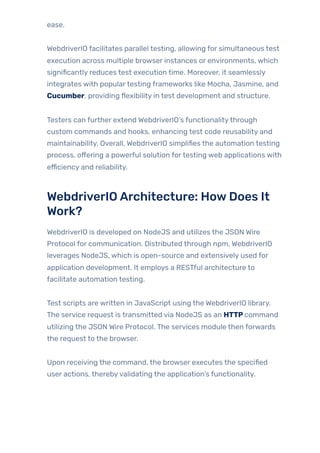
ease.
WebdriverIO facilitates parallel testing, allowing for simultaneous test
execution across multiple browser instances or environments, which
significantly reduces test execution time. Moreover, it seamlessly
integrates with populartesting frameworks like Mocha, Jasmine, and
Cucumber, providing flexibility in test development and structure.
Testers can further extend WebdriverIO’s functionalitythrough
custom commands and hooks, enhancing test code reusability and
maintainability. Overall, WebdriverIO simplifies the automation testing
process, offering a powerful solution fortesting web applications with
efficiency and reliability.
WebdriverIOArchitecture: HowDoes It
Work?
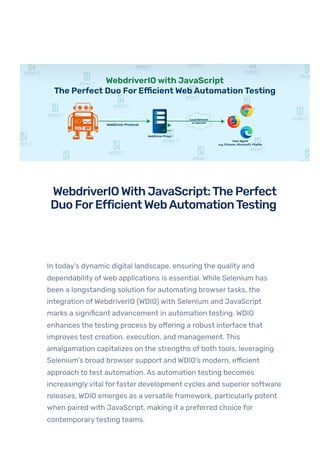
WebdriverIO is developed on NodeJS and utilizes the JSON Wire
Protocol for communication. Distributed through npm, WebdriverIO
leverages NodeJS, which is open-source and extensively used for
application development. It employs a RESTful architecture to
facilitate automation testing.
Test scripts are written in JavaScript using the WebdriverIO library.
The service request is transmitted via NodeJS as an HTTPcommand
utilizing the JSON Wire Protocol. The services module then forwards
the request to the browser.
Upon receiving the command, the browser executes the specified
user actions, therebyvalidating the application’s functionality.
WhyChoose WebdriverIO forAutomation
Testing?
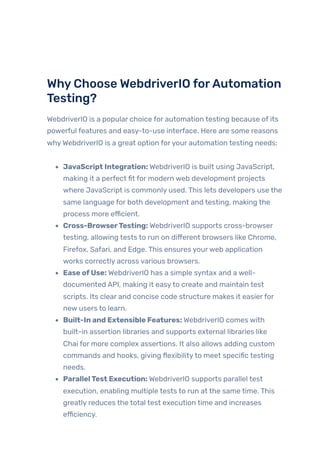
WebdriverIO is a popular choice for automation testing because of its
powerful features and easy-to-use interface. Here are some reasons
whyWebdriverIO is a great option foryour automation testing needs:
JavaScript Integration: WebdriverIO is built using JavaScript,
making it a perfect fit for modern web development projects
where JavaScript is commonly used. This lets developers use the
same language for both development and testing, making the
process more efficient.
Cross-BrowserTesting: WebdriverIO supports cross-browser
testing, allowing tests to run on different browsers like Chrome,
Firefox, Safari, and Edge. This ensures yourweb application
works correctly across various browsers.
Ease ofUse: WebdriverIO has a simple syntax and a well-
documented API, making it easyto create and maintain test
scripts. Its clear and concise code structure makes it easierfor
new users to learn.
Built-In and Extensible Features: WebdriverIO comes with
built-in assertion libraries and supports external libraries like
Chai for more complex assertions. It also allows adding custom
commands and hooks, giving flexibilityto meet specific testing
needs.
ParallelTest Execution: WebdriverIO supports parallel test
execution, enabling multiple tests to run at the same time. This
greatly reduces the total test execution time and increases
efficiency.
Sync/Async Mode: WDIO offers both synchronous and
asynchronous modes oftest execution. Testers can choose
between sync mode, where commands are executed
sequentially, and async mode, where commands are executed
asynchronouslyfor improved performance.
Integrationwith PopularFrameworks: WebdriverIO seamlessly
integrates with populartesting frameworks such as Mocha,
Jasmine, and Cucumber. This offers flexibility in test
development and structure, catering to different testing
preferences and styles.
Strong Communityand Support: WebdriverIO has a strong
community and active support, providing many resources,
tutorials, and plugins. This ensures you can find solutions to
common problems and continuously improve yourtesting
practices.
Comprehensive Reporting: WebdriverIO offers detailed
reporting features, including integration with Allure and other
reporting tools. This helps in tracking test results, identifying
issues, and maintaining comprehensive test documentation.
Prerequisite Stepsto Create aWDIO +
JavaScript Project
Throughout this blog, the following versions of libraries and
applications were utilized in our practical examples.
Visual Studio Code [Version 1.89]
Npm [Version 10.5.2]
Node [20.13.1]
Setting up a WebdriverIO (WDIO) project with JavaScript involves
several key steps. Below are the prerequisite steps to get started:
▶️
Download & InstallVisual Studio Code
Next, downloadVisual Studio Code (VS Code) from it’s official
site and install it.
▶️
Install Node.js and npm
Ensure that Node.js and npm (Node Package Manager) are
installed on your machine. You can download and install Node.js
from the officialwebsite. Note that npm is bundled with
Node.js.
▶️
Create a NewProject Directory
Begin by creating a new directoryforyour project and navigating
into it. You can use the following commands forthat: “mkdir
wdio-js-project” and “cdwdio-js-project”.
To initialize a WebdriverIO project, hit this command in your
project directoryterminal: ”npm initwdio@latest .”
ifyou want to create a new project in a specific directory, you
can use: “npm initwdio@latest ./path/to/new/project”
▶️
Install WebdriverIO CLI
Install the WebdriverIO CLI tool globallyto facilitate project
configuration. Run this cmd command “npm install –save-dev
@wdio/cli”.
▶️
Run WebdriverIO Configuration Wizard
Execute the WebdriverIO configuration wizard to set up your
project. This interactive tool will guide you through selecting
your preferred framework, reporter, and other configurations. Hit
this “npxwdio config” in the terminal and followthe
instructions.
During configuration, you will be prompted to select various
options, such as the test runner (e.g., Mocha, Jasmine,
Cucumber), reporter (e.g., Spec, Allure), and services (e.g.,
Chromedriver, Selenium Standalone, Appium).
▶️
AConfiguration steps forsetup framework
Depending on your chosen configurations, you need to provide
answers as belowforthe following setup questions based on
your requirements.
▶️
Set Up WebdriverIO Configuration File
Upon finalization, the configuration wizard will produce a
“wdio.conf.js” file within your project directory. Take the opportunity
to review and adjust this file according to your project requirements.
Below is a basic example:
[wdio.conf.js]
export const config = {
runner: 'local',
specs: [
'./test/specs/**/*.js'
],
exclude: [
// 'path/to/excluded/files'
],
maxInstances: 10,
capabilities: [{
browserName: 'chrome'
}],
logLevel: 'info',
bail: 0,
waitforTimeout: 10000,
connectionRetryTimeout: 120000,
connectionRetryCount: 3,
services: ['chromedriver'],
framework: 'mocha',
reporters: ['spec',['allure', {outputDir: 'allure-results'}]],
mochaOpts: {
ui: 'bdd',
timeout: 60000
},
}
▶️
CreateTest Specifications
Establish a directoryforyourtest specifications (e.g., test/specs) and
compose yourtest scripts in JavaScript. Below is a straightforward
example:
[contactUsTests.js]
import { expect, browser, $ } from '@wdio/globals'
describe('Contact Us', () => {
it('verifyThatContactusFormSubmittedSuccessfully', async () =>
{
await browser.url(`https://jignect.tech/contact-us/`);
await browser.maximizeWindow();
await $("//p//input[@type='submit']").click();
await expect($("//div[contains(@class,'response-
output')]")).toBeDisplayed();
})
})
➡️Let’s analyze each line ofthetest script and explain its
functionality:
import { expect, browser, $ } from ‘@wdio/globals’: This line
imports essential functions and objects from the @wdio/globals
package.
expect is used for assertions.
browser represents the browser instance to control
browser interactions.
$ is a shorthand for selecting elements using a CSS or
XPath selector.
describe(‘Contact Us’, () => {: This defines a test suite named
‘Contact Us’. The ‘describefunction groups the related tests,
making it easierto organize and manage them.
The ‘it’ function defines an individual test case named
“verifyThatContactusFormSubmittedSuccessfully” and
Used to specify a single test. The ‘async’ keyword allows the use
of ‘await’ within the test, enabling asynchronous operations.
The ‘browser.url’ command navigates the browserto the
specified URL (https://jignect.tech/contact-us/). The await
keyword ensures that the browserwaits forthe navigation to
complete before proceeding.
The ‘browser.maximizeWindow’ command maximizes the
browserwindowto ensure that all elements are visible and
interactable. Again, await ensures that the test waits forthe
windowto maximize before continuing.
The await ‘$(“//p//input[@type=’submit’]”).click();’ line
selects the submit button and clicks it to submit the form.
The ‘expect’ and ‘toBeDisplayed()’ assertion verifies that a div
element containing the class ‘response-output’ is displayed on
the page, indicating that the form submission was successful
and closing braces complete the test case and the test suite
definitions.
Running theTest Script
Once yourtest script is prepared, you can execute it by run the
following “npxwdiowdio.conf.js” command in the Command
Prompt:
Conclusion
In today’s rapidly evolving digital landscape, ensuring the quality and
reliability ofweb applications is crucial. While Selenium has been a
staple for browser automation, integrating WebdriverIO with Selenium
and JavaScript brings significant advancements to automation
testing. WebdriverIO offers a robust interface for Selenium, enhancing
test creation, execution, and management. With its modern approach
and extensive browser support, WebdriverIO streamlines the testing
process, facilitating faster development cycles and better software
releases.
Combining WebdriverIO with JavaScript yields powerful automation
solutions. It supports cross-browsertesting, simplifies interaction
with web elements, and integrates seamlesslywith populartesting
frameworks. The architecture, built on NodeJS and leveraging the
JSON Wire Protocol, ensures efficient communication and execution
oftests. Using JavaScript with WebdriverIO provides additional
benefits such as a vast ecosystem, asynchronous programming, and
strong community support. This enables testers to create scalable
and maintainable automation tests, ensuring high-qualityweb
applications.
In conclusion, WebdriverIO, in tandem with JavaScript and Selenium,
offers a comprehensive and flexible solution for automation testing,
empowering teams to deliver reliable web applications efficiently.
Keep practicing and exploringto masterthese powerfultools
furtherwith Jignect.
Witness howourmeticulous approach and cutting-edge
solutions elevated qualityand performanceto newheights.
Beginyourjourneyintotheworld ofsoftwaretesting excellence.
To knowmore refertoTools &Technologies & QAServices.
Ifyouwould liketo learn more aboutthe awesome serviceswe
provide, be sureto reach out.
HappyTesting 🙂
TAGS:
Appiumwith C#:Y…

PREVIOUS POST
 Cypress & Cucum… 
NEXT POST
Related Blogs

WebdriverIO & JavaScript: The Perfect Duo for Web Automation

  • 1.
    In today’s dynamicdigital landscape, ensuring the quality and dependability ofweb applications is essential. While Selenium has been a longstanding solution for automating browsertasks, the integration ofWebdriverIO (WDIO) with Selenium and JavaScript marks a significant advancement in automation testing. WDIO enhances the testing process by offering a robust interface that improves test creation, execution, and management. This amalgamation capitalizes on the strengths of both tools, leveraging Selenium’s broad browser support and WDIO’s modern, efficient approach to test automation. As automation testing becomes increasinglyvital forfaster development cycles and superior software releases, WDIO emerges as a versatile framework, particularly potent when paired with JavaScript, making it a preferred choice for contemporarytesting teams. AUTOMATED TESTING WEBDRIVERIO WITH JAVASCRIPT WebdriverIOWithJavaScript:ThePerfect DuoForEfficientWebAutomationTesting • BY QATEAM
  • 2.
    Table ofContent What isWebdriverIO? WebdriverIO Architecture: How Does It Work? Why Choose WebdriverIO forAutomation Testing? Prerequisite Steps to Create a WDIO + JavaScript Project ▶️ Download & Install Visual Studio Code ▶️ Install Node.js and npm ▶️ Create a New Project Directory ▶️ Install WebdriverIO CLI ▶️ Run WebdriverIO Configuration Wizard ▶️ A Configuration steps for setup framework ▶️ Set Up WebdriverIO Configuration File [wdio.conf.js] ▶️ Create Test Specifications [contactUsTests.js] Running the Test Script Conclusion What is WebdriverIO? WebdriverIO is a robust automation testing framework designed for web applications, offering a comprehensive set offeatures to streamline the testing process. Developed in JavaScript and built on the WebDriver protocol, it provides cross-browsertesting capabilities, allowing testers to ensure compatibility across various browser environments such as Chrome, Firefox, Safari, and Edge.With WebdriverIO, testers can interact with web elements effortlessly, performing actions like clicking buttons, typing into text fields, and verifying element visibility. The framework includes built-in assertion libraries and supports external libraries like Chai for assertions and expectations, enabling testers to validate expected outcomes with
  • 3.
    ease. WebdriverIO facilitates paralleltesting, allowing for simultaneous test execution across multiple browser instances or environments, which significantly reduces test execution time. Moreover, it seamlessly integrates with populartesting frameworks like Mocha, Jasmine, and Cucumber, providing flexibility in test development and structure. Testers can further extend WebdriverIO’s functionalitythrough custom commands and hooks, enhancing test code reusability and maintainability. Overall, WebdriverIO simplifies the automation testing process, offering a powerful solution fortesting web applications with efficiency and reliability. WebdriverIOArchitecture: HowDoes It Work? WebdriverIO is developed on NodeJS and utilizes the JSON Wire Protocol for communication. Distributed through npm, WebdriverIO leverages NodeJS, which is open-source and extensively used for application development. It employs a RESTful architecture to facilitate automation testing. Test scripts are written in JavaScript using the WebdriverIO library. The service request is transmitted via NodeJS as an HTTPcommand utilizing the JSON Wire Protocol. The services module then forwards the request to the browser. Upon receiving the command, the browser executes the specified user actions, therebyvalidating the application’s functionality.
  • 4.
    WhyChoose WebdriverIO forAutomation Testing? WebdriverIOis a popular choice for automation testing because of its powerful features and easy-to-use interface. Here are some reasons whyWebdriverIO is a great option foryour automation testing needs: JavaScript Integration: WebdriverIO is built using JavaScript, making it a perfect fit for modern web development projects where JavaScript is commonly used. This lets developers use the same language for both development and testing, making the process more efficient. Cross-BrowserTesting: WebdriverIO supports cross-browser testing, allowing tests to run on different browsers like Chrome, Firefox, Safari, and Edge. This ensures yourweb application works correctly across various browsers. Ease ofUse: WebdriverIO has a simple syntax and a well- documented API, making it easyto create and maintain test scripts. Its clear and concise code structure makes it easierfor new users to learn. Built-In and Extensible Features: WebdriverIO comes with built-in assertion libraries and supports external libraries like Chai for more complex assertions. It also allows adding custom commands and hooks, giving flexibilityto meet specific testing needs. ParallelTest Execution: WebdriverIO supports parallel test execution, enabling multiple tests to run at the same time. This greatly reduces the total test execution time and increases efficiency.
  • 5.
    Sync/Async Mode: WDIOoffers both synchronous and asynchronous modes oftest execution. Testers can choose between sync mode, where commands are executed sequentially, and async mode, where commands are executed asynchronouslyfor improved performance. Integrationwith PopularFrameworks: WebdriverIO seamlessly integrates with populartesting frameworks such as Mocha, Jasmine, and Cucumber. This offers flexibility in test development and structure, catering to different testing preferences and styles. Strong Communityand Support: WebdriverIO has a strong community and active support, providing many resources, tutorials, and plugins. This ensures you can find solutions to common problems and continuously improve yourtesting practices. Comprehensive Reporting: WebdriverIO offers detailed reporting features, including integration with Allure and other reporting tools. This helps in tracking test results, identifying issues, and maintaining comprehensive test documentation. Prerequisite Stepsto Create aWDIO + JavaScript Project Throughout this blog, the following versions of libraries and applications were utilized in our practical examples. Visual Studio Code [Version 1.89] Npm [Version 10.5.2] Node [20.13.1] Setting up a WebdriverIO (WDIO) project with JavaScript involves several key steps. Below are the prerequisite steps to get started: ▶️ Download & InstallVisual Studio Code
  • 6.
    Next, downloadVisual StudioCode (VS Code) from it’s official site and install it. ▶️ Install Node.js and npm Ensure that Node.js and npm (Node Package Manager) are installed on your machine. You can download and install Node.js from the officialwebsite. Note that npm is bundled with Node.js. ▶️ Create a NewProject Directory Begin by creating a new directoryforyour project and navigating into it. You can use the following commands forthat: “mkdir wdio-js-project” and “cdwdio-js-project”. To initialize a WebdriverIO project, hit this command in your project directoryterminal: ”npm initwdio@latest .” ifyou want to create a new project in a specific directory, you can use: “npm initwdio@latest ./path/to/new/project”
  • 7.
    ▶️ Install WebdriverIO CLI Installthe WebdriverIO CLI tool globallyto facilitate project configuration. Run this cmd command “npm install –save-dev @wdio/cli”.
  • 8.
    ▶️ Run WebdriverIO ConfigurationWizard Execute the WebdriverIO configuration wizard to set up your project. This interactive tool will guide you through selecting your preferred framework, reporter, and other configurations. Hit this “npxwdio config” in the terminal and followthe instructions. During configuration, you will be prompted to select various options, such as the test runner (e.g., Mocha, Jasmine, Cucumber), reporter (e.g., Spec, Allure), and services (e.g., Chromedriver, Selenium Standalone, Appium). ▶️ AConfiguration steps forsetup framework Depending on your chosen configurations, you need to provide answers as belowforthe following setup questions based on your requirements.
  • 9.
    ▶️ Set Up WebdriverIOConfiguration File Upon finalization, the configuration wizard will produce a “wdio.conf.js” file within your project directory. Take the opportunity to review and adjust this file according to your project requirements. Below is a basic example: [wdio.conf.js] export const config = { runner: 'local', specs: [ './test/specs/**/*.js' ], exclude: [ // 'path/to/excluded/files' ], maxInstances: 10, capabilities: [{ browserName: 'chrome' }], logLevel: 'info', bail: 0, waitforTimeout: 10000, connectionRetryTimeout: 120000, connectionRetryCount: 3, services: ['chromedriver'], framework: 'mocha', reporters: ['spec',['allure', {outputDir: 'allure-results'}]], mochaOpts: { ui: 'bdd', timeout: 60000 }, }
  • 10.
    ▶️ CreateTest Specifications Establish adirectoryforyourtest specifications (e.g., test/specs) and compose yourtest scripts in JavaScript. Below is a straightforward example: [contactUsTests.js] import { expect, browser, $ } from '@wdio/globals' describe('Contact Us', () => { it('verifyThatContactusFormSubmittedSuccessfully', async () => { await browser.url(`https://jignect.tech/contact-us/`); await browser.maximizeWindow(); await $("//p//input[@type='submit']").click(); await expect($("//div[contains(@class,'response- output')]")).toBeDisplayed(); }) }) ➡️Let’s analyze each line ofthetest script and explain its functionality: import { expect, browser, $ } from ‘@wdio/globals’: This line imports essential functions and objects from the @wdio/globals package. expect is used for assertions. browser represents the browser instance to control browser interactions. $ is a shorthand for selecting elements using a CSS or XPath selector. describe(‘Contact Us’, () => {: This defines a test suite named ‘Contact Us’. The ‘describefunction groups the related tests, making it easierto organize and manage them. The ‘it’ function defines an individual test case named
  • 11.
    “verifyThatContactusFormSubmittedSuccessfully” and Used tospecify a single test. The ‘async’ keyword allows the use of ‘await’ within the test, enabling asynchronous operations. The ‘browser.url’ command navigates the browserto the specified URL (https://jignect.tech/contact-us/). The await keyword ensures that the browserwaits forthe navigation to complete before proceeding. The ‘browser.maximizeWindow’ command maximizes the browserwindowto ensure that all elements are visible and interactable. Again, await ensures that the test waits forthe windowto maximize before continuing. The await ‘$(“//p//input[@type=’submit’]”).click();’ line selects the submit button and clicks it to submit the form. The ‘expect’ and ‘toBeDisplayed()’ assertion verifies that a div element containing the class ‘response-output’ is displayed on the page, indicating that the form submission was successful and closing braces complete the test case and the test suite definitions. Running theTest Script Once yourtest script is prepared, you can execute it by run the following “npxwdiowdio.conf.js” command in the Command Prompt:
  • 12.
    Conclusion In today’s rapidlyevolving digital landscape, ensuring the quality and reliability ofweb applications is crucial. While Selenium has been a staple for browser automation, integrating WebdriverIO with Selenium and JavaScript brings significant advancements to automation testing. WebdriverIO offers a robust interface for Selenium, enhancing test creation, execution, and management. With its modern approach and extensive browser support, WebdriverIO streamlines the testing process, facilitating faster development cycles and better software releases. Combining WebdriverIO with JavaScript yields powerful automation solutions. It supports cross-browsertesting, simplifies interaction with web elements, and integrates seamlesslywith populartesting frameworks. The architecture, built on NodeJS and leveraging the JSON Wire Protocol, ensures efficient communication and execution oftests. Using JavaScript with WebdriverIO provides additional benefits such as a vast ecosystem, asynchronous programming, and strong community support. This enables testers to create scalable and maintainable automation tests, ensuring high-qualityweb applications. In conclusion, WebdriverIO, in tandem with JavaScript and Selenium, offers a comprehensive and flexible solution for automation testing, empowering teams to deliver reliable web applications efficiently. Keep practicing and exploringto masterthese powerfultools furtherwith Jignect.
  • 13.
    Witness howourmeticulous approachand cutting-edge solutions elevated qualityand performanceto newheights. Beginyourjourneyintotheworld ofsoftwaretesting excellence. To knowmore refertoTools &Technologies & QAServices. Ifyouwould liketo learn more aboutthe awesome serviceswe provide, be sureto reach out. HappyTesting 🙂 TAGS: Appiumwith C#:Y…  PREVIOUS POST  Cypress & Cucum…  NEXT POST Related Blogs