Test Automation
by
Cypress
www.arshadqa.com
Introduction
• Why Automate?
• Automation Test Pyramid
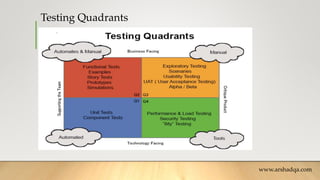
• Testing Quadrants
www.arshadqa.com
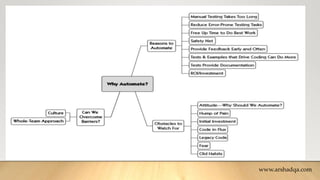
Why Automate?
www.arshadqa.com
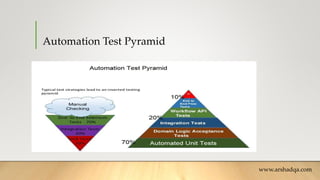
Automation Test Pyramid
www.arshadqa.com
Testing Quadrants
www.arshadqa.com
Cypress
• Test Automation Tool
• Uses Java script
• Open source
• Web site:
• https://www.cypress.io/
www.arshadqa.com
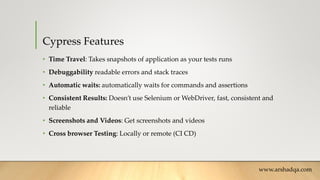
Cypress Features
• Time Travel: Takes snapshots of application as your tests runs
• Debuggability readable errors and stack traces
• Automatic waits: automatically waits for commands and assertions
• Consistent Results: Doesn’t use Selenium or WebDriver, fast, consistent and
reliable
• Screenshots and Videos: Get screenshots and videos
• Cross browser Testing: Locally or remote (CI CD)
www.arshadqa.com
Cypress Features
• Eng to End Testing
• Integration Tests
• Units Tests
www.arshadqa.com
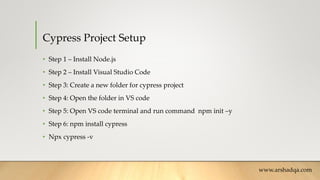
Cypress Project Setup
• Step 1 – Install Node.js
• Step 2 – Install Visual Studio Code
• Step 3: Create a new folder for cypress project
• Step 4: Open the folder in VS code
• Step 5: Open VS code terminal and run command npm init –y
• Step 6: npm install cypress
• Npx cypress -v
www.arshadqa.com
Java Script
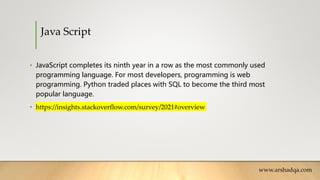
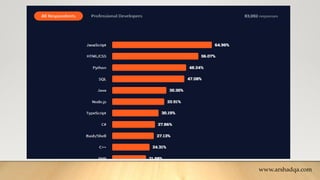
• JavaScript completes its ninth year in a row as the most commonly used
programming language. For most developers, programming is web
programming. Python traded places with SQL to become the third most
popular language.
• https://insights.stackoverflow.com/survey/2021#overview
www.arshadqa.com
www.arshadqa.com
NodeJS
• Download
• https://nodejs.org/en/download/
www.arshadqa.com
Code Editor
• Visual Studio code
• Download
• https://code.visualstudio.com/download
www.arshadqa.com
Cypress 1st Test
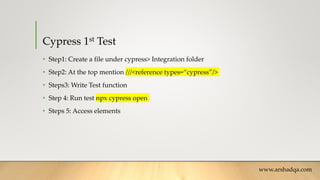
• Step1: Create a file under cypress> Integration folder
• Step2: At the top mention ///<reference types=“cypress”/>
• Steps3: Write Test function
• Step 4: Run test npx cypress open
• Steps 5: Access elements
www.arshadqa.com
Cypress – Some Commands
• -cy.visit ()
• -cy.get()
• -type()
www.arshadqa.com
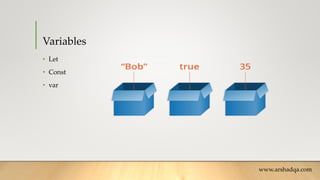
Variables
• Let
• Const
• var
www.arshadqa.com
.Should()
• .should('not.exist')
• .should(‘be.visible’)
• .should(‘be.not visible’)
• .should(‘contains’, ‘some text’)
• .should('have.text’, ‘some text')
• .should(‘eq’, ‘some text’)
• .should(‘be.enabled’)
• .should(‘be.disabled')
www.arshadqa.com
Verifying Page Title
• --cy.title().should(‘eq’, ‘ ‘)
Custom Waits
• --cy.wait(miliseconds)
• --npx cypress run --spec “cypress/integration/Demo_Project/Demo.js"
Random Function (Math.random()*5000)
• SSN
• Priority
• Unique value require for tests
Object Oriented Programming in Cypress
• Step 1: Create a class
• Step 2: Add functions
• Step 3: export that class so we can use it
• Step 4: import that class in test case where we can to use
• Step 5: Create a class object
• Step6: Call class functions
• Step 7: Run the main .js file and see (Note: .js file which is class, we can not
directly run it)
www.arshadqa.com
Data Driven Testing
• Files
• Fixtures
Working with Files
• cy.writeFile()
• cy.readFile()
www.arshadqa.com
Fixtures
• Fixtures are used to store and manage test data.
• Fixture files are located in cypress/fixtures by default but can be configured to
another directory.
• The test data is usually written inside a JSON file which can then be used
throughout your tests
www.arshadqa.com
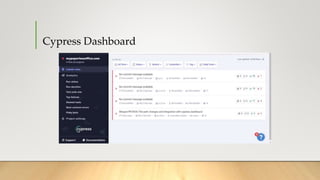
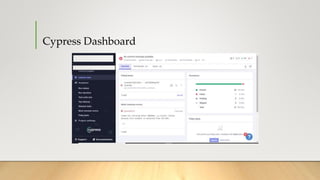
Cypress Dashboard
• The Cypress Dashboard Service is an optional web-based companion to the
Test Runner.
• It provides timely, simple and powerful insights on all your tests run at a glance.
With automatic parallelization and load balancing you can optimize CI and run
significantly faster tests.
• https://www.cypress.io/pricing/
Cypress Dashboard
Cypress Dashboard
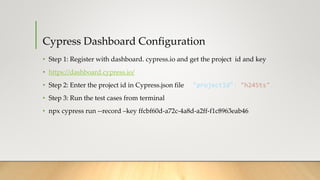
Cypress Dashboard Configuration
• Step 1: Register with dashboard. cypress.io and get the project id and key
• https://dashboard.cypress.io/
• Step 2: Enter the project id in Cypress.json file "projectId": "h245ts",
• Step 3: Run the test cases from terminal
• npx cypress run --record –key ffcbf60d-a72c-4a8d-a2ff-f1c8963eab46
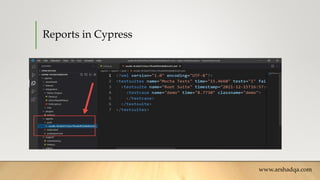
Reports in Cypress
www.arshadqa.com
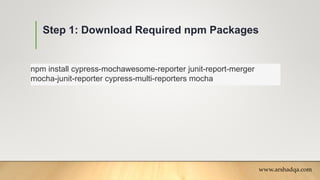
Step 1: Download Required npm Packages
www.arshadqa.com
npm install cypress-mochawesome-reporter junit-report-merger
mocha-junit-reporter cypress-multi-reporters mocha
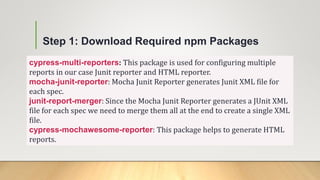
Step 1: Download Required npm Packages
cypress-multi-reporters: This package is used for configuring multiple
reports in our case Junit reporter and HTML reporter.
mocha-junit-reporter: Mocha Junit Reporter generates Junit XML file for
each spec.
junit-report-merger: Since the Mocha Junit Reporter generates a JUnit XML
file for each spec we need to merge them all at the end to create a single XML
file.
cypress-mochawesome-reporter: This package helps to generate HTML
reports.
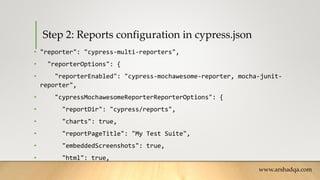
Step 2: Reports configuration in cypress.json
• "reporter": "cypress-multi-reporters",
• "reporterOptions": {
• "reporterEnabled": "cypress-mochawesome-reporter, mocha-junit-
reporter",
• "cypressMochawesomeReporterReporterOptions": {
• "reportDir": "cypress/reports",
• "charts": true,
• "reportPageTitle": "My Test Suite",
• "embeddedScreenshots": true,
• "html": true,
www.arshadqa.com
Step 2: Reports configuration in cypress.json
• "json": true,
• "inlineAssets": true
• },
• "mochaJunitReporterReporterOptions": {
• "mochaFile": "cypress/reports/junit/results-[hash].xml"
• }
• },
• "video": false
•
}
www.arshadqa.com
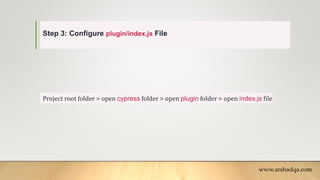
Step 3: Configure plugin/index.js File
Project root folder > open cypress folder > open plugin folder > open index.js file
www.arshadqa.com
Step 3: Configure plugin/index.js File
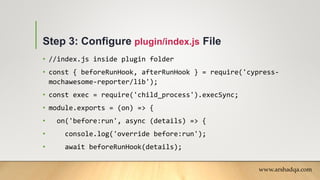
• //index.js inside plugin folder
• const { beforeRunHook, afterRunHook } = require('cypress-
mochawesome-reporter/lib');
• const exec = require('child_process').execSync;
• module.exports = (on) => {
• on('before:run', async (details) => {
• console.log('override before:run');
• await beforeRunHook(details);
www.arshadqa.com
Step 3: Configure plugin/index.js File
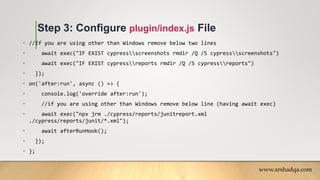
• //If you are using other than Windows remove below two lines
• await exec("IF EXIST cypressscreenshots rmdir /Q /S cypressscreenshots")
• await exec("IF EXIST cypressreports rmdir /Q /S cypressreports")
• });
• on('after:run', async () => {
• console.log('override after:run');
• //if you are using other than Windows remove below line (having await exec)
• await exec("npx jrm ./cypress/reports/junitreport.xml
./cypress/reports/junit/*.xml");
• await afterRunHook();
• });
• };
www.arshadqa.com
Step 4: Add an Entry Into support/index.js
Navigate to cypress folder > open support folder > open index.js file
www.arshadqa.com
Step 4: Add an Entry Into support/index.js
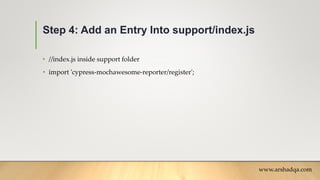
• //index.js inside support folder
• import 'cypress-mochawesome-reporter/register';
www.arshadqa.com
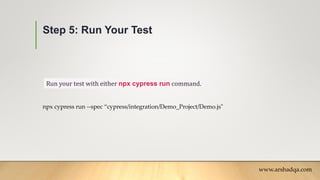
Step 5: Run Your Test
Run your test with either npx cypress run command.
www.arshadqa.com
npx cypress run --spec “cypress/integration/Demo_Project/Demo.js"
Step 6: Viewing HTML File
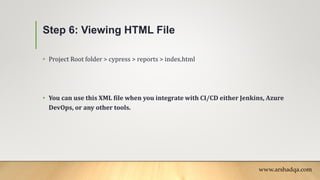
• Project Root folder > cypress > reports > index.html
• You can use this XML file when you integrate with CI/CD either Jenkins, Azure
DevOps, or any other tools.
www.arshadqa.com
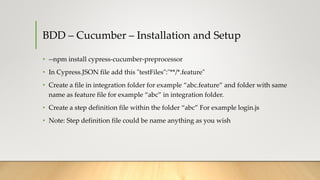
BDD – Cucumber – Installation and Setup
• --npm install cypress-cucumber-preprocessor
• In Cypress.JSON file add this "testFiles":"**/*.feature"
• Create a file in integration folder for example “abc.feature” and folder with same
name as feature file for example “abc” in integration folder.
• Create a step definition file within the folder “abc” For example login.js
• Note: Step definition file could be name anything as you wish
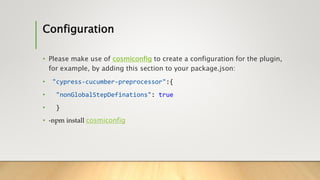
Configuration
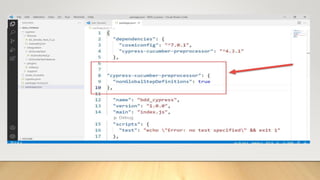
• Please make use of cosmiconfig to create a configuration for the plugin,
for example, by adding this section to your package.json:
• "cypress-cucumber-preprocessor":{
• "nonGlobalStepDefinations": true
• }
• -npm install cosmiconfig
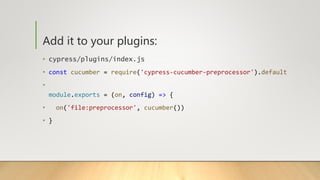
Add it to your plugins:
• cypress/plugins/index.js
• const cucumber = require('cypress-cucumber-preprocessor').default
•
module.exports = (on, config) => {
• on('file:preprocessor', cucumber())
• }
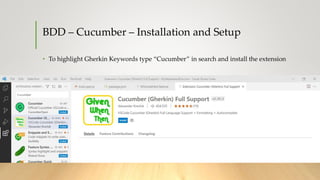
BDD – Cucumber – Installation and Setup
• To highlight Gherkin Keywords type “Cucumber” in search and install the extension
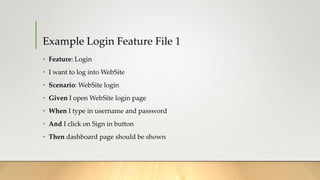
Example Login Feature File 1
• Feature: Login
• I want to log into WebSite
• Scenario: WebSite login
• Given I open WebSite login page
• When I type in username and password
• And I click on Sign in button
• Then dashboard page should be shown
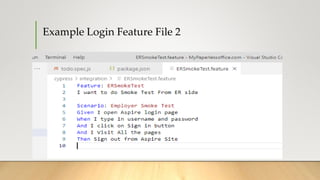
Example Login Feature File 2
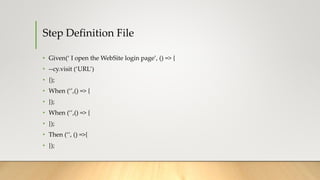
Step Definition File
• Given(‘ I open the WebSite login page’, () => {
• --cy.visit (‘URL’)
• {);
• When (‘’,() => {
• });
• When (‘’,() => {
• });
• Then (‘’, () =>{
• });
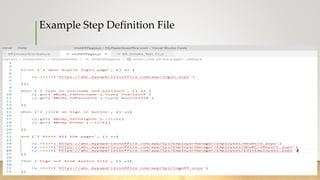
Example Step Definition File
Thanks
www.arshadqa.com

Cypress.pptx

  • 1.
  • 2.
    Introduction • Why Automate? •Automation Test Pyramid • Testing Quadrants www.arshadqa.com
  • 3.
  • 4.
  • 5.
  • 6.
    Cypress • Test AutomationTool • Uses Java script • Open source • Web site: • https://www.cypress.io/ www.arshadqa.com
  • 7.
    Cypress Features • TimeTravel: Takes snapshots of application as your tests runs • Debuggability readable errors and stack traces • Automatic waits: automatically waits for commands and assertions • Consistent Results: Doesn’t use Selenium or WebDriver, fast, consistent and reliable • Screenshots and Videos: Get screenshots and videos • Cross browser Testing: Locally or remote (CI CD) www.arshadqa.com
  • 8.
    Cypress Features • Engto End Testing • Integration Tests • Units Tests www.arshadqa.com
  • 9.
    Cypress Project Setup •Step 1 – Install Node.js • Step 2 – Install Visual Studio Code • Step 3: Create a new folder for cypress project • Step 4: Open the folder in VS code • Step 5: Open VS code terminal and run command npm init –y • Step 6: npm install cypress • Npx cypress -v www.arshadqa.com
  • 10.
    Java Script • JavaScriptcompletes its ninth year in a row as the most commonly used programming language. For most developers, programming is web programming. Python traded places with SQL to become the third most popular language. • https://insights.stackoverflow.com/survey/2021#overview www.arshadqa.com
  • 11.
  • 12.
  • 13.
    Code Editor • VisualStudio code • Download • https://code.visualstudio.com/download www.arshadqa.com
  • 14.
    Cypress 1st Test •Step1: Create a file under cypress> Integration folder • Step2: At the top mention ///<reference types=“cypress”/> • Steps3: Write Test function • Step 4: Run test npx cypress open • Steps 5: Access elements www.arshadqa.com
  • 15.
    Cypress – SomeCommands • -cy.visit () • -cy.get() • -type() www.arshadqa.com
  • 16.
    Variables • Let • Const •var www.arshadqa.com
  • 17.
    .Should() • .should('not.exist') • .should(‘be.visible’) •.should(‘be.not visible’) • .should(‘contains’, ‘some text’) • .should('have.text’, ‘some text') • .should(‘eq’, ‘some text’) • .should(‘be.enabled’) • .should(‘be.disabled') www.arshadqa.com
  • 18.
    Verifying Page Title •--cy.title().should(‘eq’, ‘ ‘)
  • 19.
    Custom Waits • --cy.wait(miliseconds) •--npx cypress run --spec “cypress/integration/Demo_Project/Demo.js"
  • 20.
    Random Function (Math.random()*5000) •SSN • Priority • Unique value require for tests
  • 21.
    Object Oriented Programmingin Cypress • Step 1: Create a class • Step 2: Add functions • Step 3: export that class so we can use it • Step 4: import that class in test case where we can to use • Step 5: Create a class object • Step6: Call class functions • Step 7: Run the main .js file and see (Note: .js file which is class, we can not directly run it) www.arshadqa.com
  • 22.
    Data Driven Testing •Files • Fixtures
  • 23.
    Working with Files •cy.writeFile() • cy.readFile() www.arshadqa.com
  • 24.
    Fixtures • Fixtures areused to store and manage test data. • Fixture files are located in cypress/fixtures by default but can be configured to another directory. • The test data is usually written inside a JSON file which can then be used throughout your tests www.arshadqa.com
  • 25.
    Cypress Dashboard • TheCypress Dashboard Service is an optional web-based companion to the Test Runner. • It provides timely, simple and powerful insights on all your tests run at a glance. With automatic parallelization and load balancing you can optimize CI and run significantly faster tests. • https://www.cypress.io/pricing/
  • 26.
  • 27.
  • 28.
    Cypress Dashboard Configuration •Step 1: Register with dashboard. cypress.io and get the project id and key • https://dashboard.cypress.io/ • Step 2: Enter the project id in Cypress.json file "projectId": "h245ts", • Step 3: Run the test cases from terminal • npx cypress run --record –key ffcbf60d-a72c-4a8d-a2ff-f1c8963eab46
  • 29.
  • 30.
    Step 1: DownloadRequired npm Packages www.arshadqa.com npm install cypress-mochawesome-reporter junit-report-merger mocha-junit-reporter cypress-multi-reporters mocha
  • 31.
    Step 1: DownloadRequired npm Packages cypress-multi-reporters: This package is used for configuring multiple reports in our case Junit reporter and HTML reporter. mocha-junit-reporter: Mocha Junit Reporter generates Junit XML file for each spec. junit-report-merger: Since the Mocha Junit Reporter generates a JUnit XML file for each spec we need to merge them all at the end to create a single XML file. cypress-mochawesome-reporter: This package helps to generate HTML reports.
  • 32.
    Step 2: Reportsconfiguration in cypress.json • "reporter": "cypress-multi-reporters", • "reporterOptions": { • "reporterEnabled": "cypress-mochawesome-reporter, mocha-junit- reporter", • "cypressMochawesomeReporterReporterOptions": { • "reportDir": "cypress/reports", • "charts": true, • "reportPageTitle": "My Test Suite", • "embeddedScreenshots": true, • "html": true, www.arshadqa.com
  • 33.
    Step 2: Reportsconfiguration in cypress.json • "json": true, • "inlineAssets": true • }, • "mochaJunitReporterReporterOptions": { • "mochaFile": "cypress/reports/junit/results-[hash].xml" • } • }, • "video": false • } www.arshadqa.com
  • 34.
    Step 3: Configureplugin/index.js File Project root folder > open cypress folder > open plugin folder > open index.js file www.arshadqa.com
  • 35.
    Step 3: Configureplugin/index.js File • //index.js inside plugin folder • const { beforeRunHook, afterRunHook } = require('cypress- mochawesome-reporter/lib'); • const exec = require('child_process').execSync; • module.exports = (on) => { • on('before:run', async (details) => { • console.log('override before:run'); • await beforeRunHook(details); www.arshadqa.com
  • 36.
    Step 3: Configureplugin/index.js File • //If you are using other than Windows remove below two lines • await exec("IF EXIST cypressscreenshots rmdir /Q /S cypressscreenshots") • await exec("IF EXIST cypressreports rmdir /Q /S cypressreports") • }); • on('after:run', async () => { • console.log('override after:run'); • //if you are using other than Windows remove below line (having await exec) • await exec("npx jrm ./cypress/reports/junitreport.xml ./cypress/reports/junit/*.xml"); • await afterRunHook(); • }); • }; www.arshadqa.com
  • 37.
    Step 4: Addan Entry Into support/index.js Navigate to cypress folder > open support folder > open index.js file www.arshadqa.com
  • 38.
    Step 4: Addan Entry Into support/index.js • //index.js inside support folder • import 'cypress-mochawesome-reporter/register'; www.arshadqa.com
  • 39.
    Step 5: RunYour Test Run your test with either npx cypress run command. www.arshadqa.com npx cypress run --spec “cypress/integration/Demo_Project/Demo.js"
  • 40.
    Step 6: ViewingHTML File • Project Root folder > cypress > reports > index.html • You can use this XML file when you integrate with CI/CD either Jenkins, Azure DevOps, or any other tools. www.arshadqa.com
  • 41.
    BDD – Cucumber– Installation and Setup • --npm install cypress-cucumber-preprocessor • In Cypress.JSON file add this "testFiles":"**/*.feature" • Create a file in integration folder for example “abc.feature” and folder with same name as feature file for example “abc” in integration folder. • Create a step definition file within the folder “abc” For example login.js • Note: Step definition file could be name anything as you wish
  • 42.
    Configuration • Please makeuse of cosmiconfig to create a configuration for the plugin, for example, by adding this section to your package.json: • "cypress-cucumber-preprocessor":{ • "nonGlobalStepDefinations": true • } • -npm install cosmiconfig
  • 44.
    Add it toyour plugins: • cypress/plugins/index.js • const cucumber = require('cypress-cucumber-preprocessor').default • module.exports = (on, config) => { • on('file:preprocessor', cucumber()) • }
  • 45.
    BDD – Cucumber– Installation and Setup • To highlight Gherkin Keywords type “Cucumber” in search and install the extension
  • 46.
    Example Login FeatureFile 1 • Feature: Login • I want to log into WebSite • Scenario: WebSite login • Given I open WebSite login page • When I type in username and password • And I click on Sign in button • Then dashboard page should be shown
  • 47.
  • 48.
    Step Definition File •Given(‘ I open the WebSite login page’, () => { • --cy.visit (‘URL’) • {); • When (‘’,() => { • }); • When (‘’,() => { • }); • Then (‘’, () =>{ • });
  • 49.
  • 50.