SOAPUI 
WEB SERVICES Testing
WEBSERVICE 
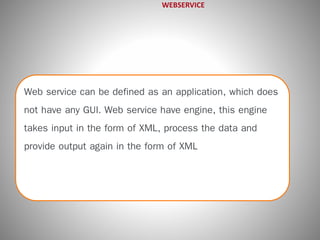
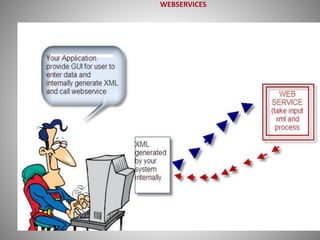
Web service can be defined as an application, which does 
not have any GUI. Web service have engine, this engine 
takes input in the form of XML, process the data and 
provide output again in the form of XML
XML(Extendible Markup Language) 
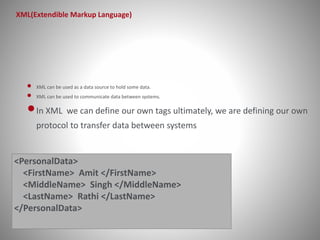
• XML can be used as a data source to hold some data. 
• XML can be used to communicate data between systems. 
•In XML we can define our own tags ultimately, we are defining our own 
protocol to transfer data between systems 
<PersonalData> 
<FirstName> Amit </FirstName> 
<MiddleName> Singh </MiddleName> 
<LastName> Rathi </LastName> 
</PersonalData>
WEBSERVICES
WSDL(Web Service Definition Language) 
* When we are working on web service, we don’t have idea, what is the format of input xml that web service take 
* What is the format of output xml generated by web services. 
* What are the different services is exposed by my web service 
All these information is mentioned 
in XML formatted document is 
called WSDL 
We use this wsdl while testing web 
services
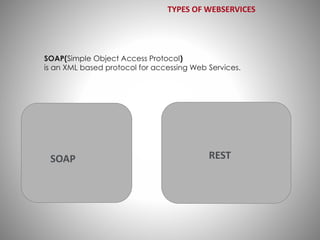
TYPES OF WEBSERVICES 
SOAP(Simple Object Access Protocol) 
is an XML based protocol for accessing Web Services. 
SOAP REST
->Xpath 
->Groovy (Java) 
Skills Needed
SoapUI 
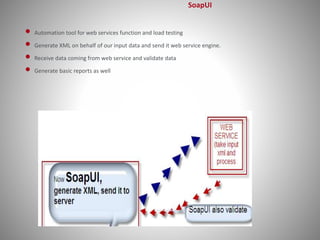
• Automation tool for web services function and load testing 
• Generate XML on behalf of our input data and send it web service engine. 
• Receive data coming from web service and validate data 
• Generate basic reports as well
bestpowerpointtem 
plates.com 
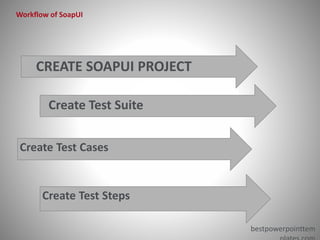
Workflow of SoapUI 
CREATE SOAPUI PROJECT 
Create Test Suite 
Create Test Cases 
Create Test Steps
SoapUI Training 
Induction course 
2014-23-09
• What is SoapUI 
• SoapUI Features 
• SOAP and WSDL 
• Functional Testing 
• Service Mocking 
Agenda 
11
What is SoapUI 
12 
• Free and open source cross-platform Functional Testing solution. 
• Creating even the most advanced test scenarios is very simple. 
• SoapUI is a complete and automated testing solution. 
• Testing for everyone. 
• Streamlined service simulation. 
• Advanced functionality comes standard.
SoapUI Features 
13 
• Functional Testing. 
• Service Simulation. 
• Security Testing. 
• Load Testing. 
• Technology Support. 
• Automation. 
• Analytics. 
• Recording. 
• Ecosystem.
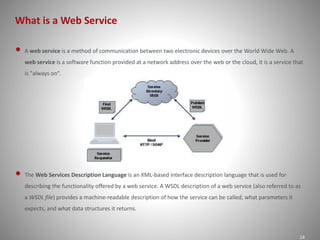
What is a Web Service 
14 
• A web service is a method of communication between two electronic devices over the World Wide Web. A 
web service is a software function provided at a network address over the web or the cloud, it is a service that 
is "always on“. 
• The Web Services Description Language is an XML-based interface description language that is used for 
describing the functionality offered by a web service. A WSDL description of a web service (also referred to as 
a WSDL file) provides a machine-readable description of how the service can be called, what parameters it 
expects, and what data structures it returns.
SOAP and WSDL 
15 
SOAP Definition WSDL Definition 
• XML-based protocol to let applications exchange 
information over HTTP. 
• SOAP stands for Simple Object Access Protocol 
• SOAP is a communication protocol 
• SOAP is a format for sending messages 
• SOAP is platform independent 
• SOAP is language independent 
• XML-based language for describing Web services 
and how to access them. 
• WSDL stands for Web Services Description 
Language 
• WSDL is an XML document 
• WSDL is also used to locate Web services.
SOAP and WSDL 
16 
SOAP Syntax 
• A SOAP message is an ordinary XML document containing the following elements: 
• An Envelope element that identifies the XML document as a SOAP message. 
• A Header element that contains header information. 
• A Body element that contains call and response information. 
• A Fault element containing errors and status information.
SOAP and WSDL 
17 
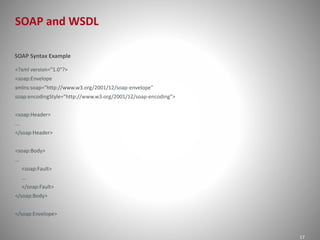
SOAP Syntax Example 
<?xml version="1.0"?> 
<soap:Envelope 
xmlns:soap="http://www.w3.org/2001/12/soap-envelope" 
soap:encodingStyle="http://www.w3.org/2001/12/soap-encoding"> 
<soap:Header> 
... 
</soap:Header> 
<soap:Body> 
... 
<soap:Fault> 
... 
</soap:Fault> 
</soap:Body> 
</soap:Envelope>
SOAP and WSDL 
18 
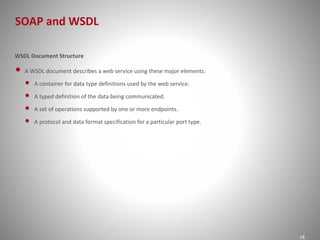
WSDL Document Structure 
• A WSDL document describes a web service using these major elements: 
• A container for data type definitions used by the web service. 
• A typed definition of the data being communicated. 
• A set of operations supported by one or more endpoints. 
• A protocol and data format specification for a particular port type.
SOAP and WSDL 
19 
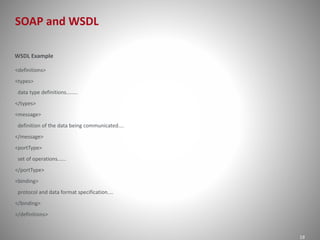
WSDL Example 
<definitions> 
<types> 
data type definitions........ 
</types> 
<message> 
definition of the data being communicated.... 
</message> 
<portType> 
set of operations...... 
</portType> 
<binding> 
protocol and data format specification.... 
</binding> 
</definitions>
Functional Testing 
20 
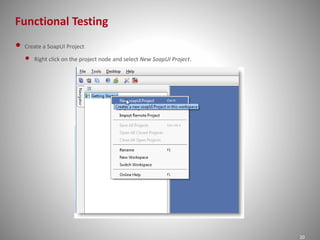
• Create a SoapUI Project 
• Right click on the project node and select New SoapUI Project.
Functional Testing 
21 
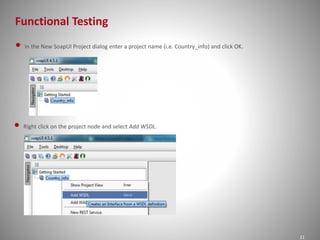
• In the New SoapUI Project dialog enter a project name (i.e. Country_info) and click OK. 
• Right click on the project node and select Add WSDL.
Functional Testing 
22 
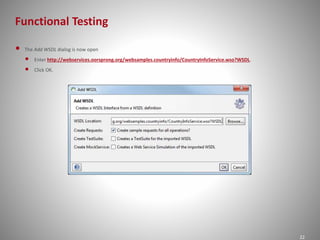
• The Add WSDL dialog is now open 
• Enter http://webservices.oorsprong.org/websamples.countryinfo/CountryInfoService.wso?WSDL. 
• Click OK.
Functional Testing 
23 
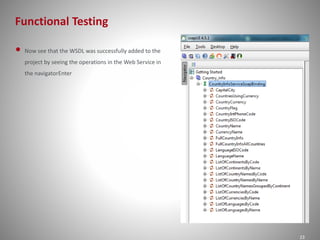
• Now see that the WSDL was successfully added to the 
project by seeing the operations in the Web Service in 
the navigatorEnter
Functional Testing 
24 
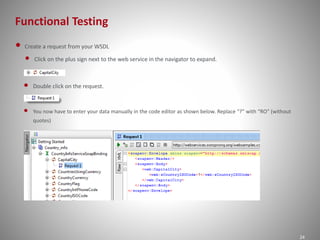
• Create a request from your WSDL 
• Click on the plus sign next to the web service in the navigator to expand. 
• Double click on the request. 
• You now have to enter your data manually in the code editor as shown below. Replace “?” with “RO” (without 
quotes)
Functional Testing 
25 
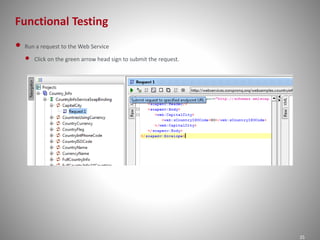
• Run a request to the Web Service 
• Click on the green arrow head sign to submit the request.
Functional Testing 
26 
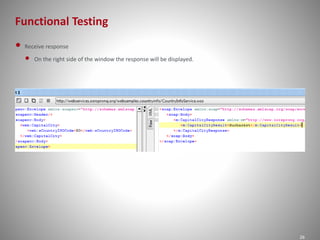
• Receive response 
• On the right side of the window the response will be displayed.
Functional Testing 
27 
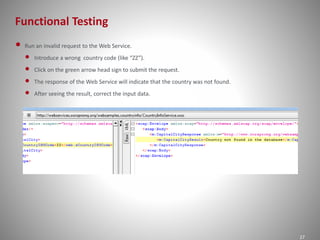
• Run an invalid request to the Web Service. 
• Introduce a wrong country code (like “ZZ”). 
• Click on the green arrow head sign to submit the request. 
• The response of the Web Service will indicate that the country was not found. 
• After seeing the result, correct the input data.
Functional Testing 
28 
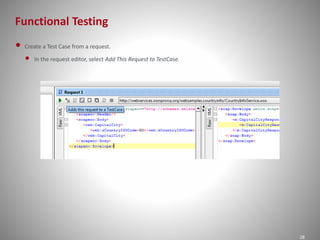
• Create a Test Case from a request. 
• In the request editor, select Add This Request to TestCase.
Functional Testing 
29 
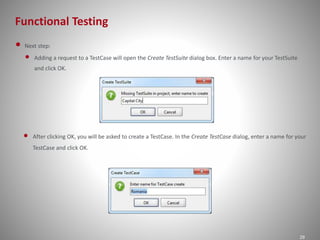
• Next step: 
• Adding a request to a TestCase will open the Create TestSuite dialog box. Enter a name for your TestSuite 
and click OK. 
• After clicking OK, you will be asked to create a TestCase. In the Create TestCase dialog, enter a name for your 
TestCase and click OK.
Functional Testing 
30 
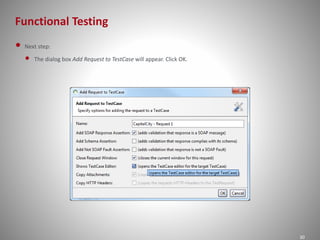
• Next step: 
• The dialog box Add Request to TestCase will appear. Click OK.
Functional Testing 
31 
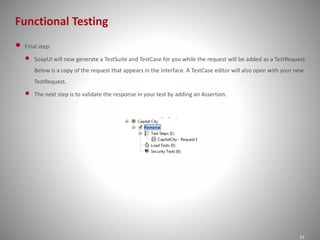
• Final step: 
• SoapUI will now generate a TestSuite and TestCase for you while the request will be added as a TestRequest. 
Below is a copy of the request that appears in the interface. A TestCase editor will also open with your new 
TestRequest. 
• The next step is to validate the response in your test by adding an Assertion.
Functional Testing 
32 
• Add an Assertion to the test: 
• Now that we've created and run our first test, we are going to add a validation of the response. In SoapUI, 
this is called adding an assertion. 
• Examples of assertions that is possible in SoapUI are: 
• Schema Compliance 
• Simple Contains 
• Simple Not Contains 
• SOAP Faults 
• Response SLA 
• XPath Match 
• XQuery Match 
• WS Security Status 
• WS-Addressing Request/Response Assertion 
• Script Assertion
Functional Testing 
33 
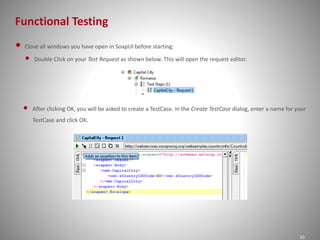
• Close all windows you have open in SoapUI before starting: 
• Double Click on your Test Request as shown below. This will open the request editor. 
• After clicking OK, you will be asked to create a TestCase. In the Create TestCase dialog, enter a name for your 
TestCase and click OK.
Functional Testing 
34 
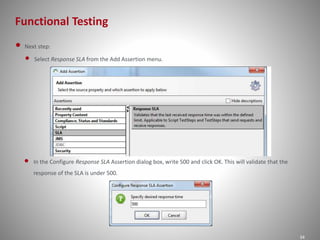
• Next step: 
• Select Response SLA from the Add Assertion menu. 
• In the Configure Response SLA Assertion dialog box, write 500 and click OK. This will validate that the 
response of the SLA is under 500.
Functional Testing 
35 
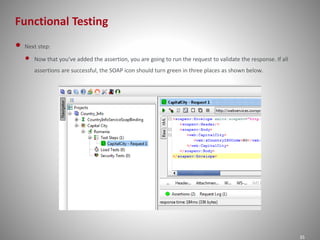
• Next step: 
• Now that you've added the assertion, you are going to run the request to validate the response. If all 
assertions are successful, the SOAP icon should turn green in three places as shown below.
Functional Testing 
36 
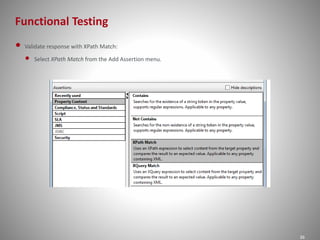
• Validate response with XPath Match: 
• Select XPath Match from the Add Assertion menu.
Functional Testing 
37 
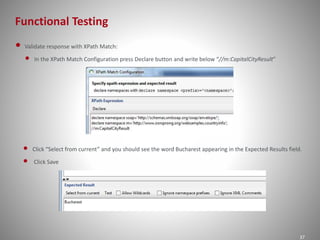
• Validate response with XPath Match: 
• In the XPath Match Configuration press Declare button and write below “//m:CapitalCityResult” 
• Click “Select from current” and you should see the word Bucharest appearing in the Expected Results field. 
• Click Save
Functional Testing 
38 
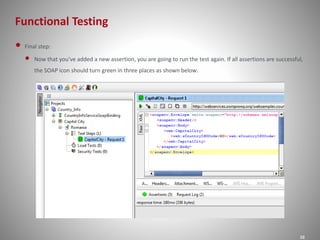
• Final step: 
• Now that you've added a new assertion, you are going to run the test again. If all assertions are successful, 
the SOAP icon should turn green in three places as shown below.
39 
THANK YOU

Web services testing

  • 1.
  • 2.
    WEBSERVICE Web servicecan be defined as an application, which does not have any GUI. Web service have engine, this engine takes input in the form of XML, process the data and provide output again in the form of XML
  • 3.
    XML(Extendible Markup Language) • XML can be used as a data source to hold some data. • XML can be used to communicate data between systems. •In XML we can define our own tags ultimately, we are defining our own protocol to transfer data between systems <PersonalData> <FirstName> Amit </FirstName> <MiddleName> Singh </MiddleName> <LastName> Rathi </LastName> </PersonalData>
  • 4.
  • 5.
    WSDL(Web Service DefinitionLanguage) * When we are working on web service, we don’t have idea, what is the format of input xml that web service take * What is the format of output xml generated by web services. * What are the different services is exposed by my web service All these information is mentioned in XML formatted document is called WSDL We use this wsdl while testing web services
  • 6.
    TYPES OF WEBSERVICES SOAP(Simple Object Access Protocol) is an XML based protocol for accessing Web Services. SOAP REST
  • 7.
  • 8.
    SoapUI • Automationtool for web services function and load testing • Generate XML on behalf of our input data and send it web service engine. • Receive data coming from web service and validate data • Generate basic reports as well
  • 9.
    bestpowerpointtem plates.com Workflowof SoapUI CREATE SOAPUI PROJECT Create Test Suite Create Test Cases Create Test Steps
  • 10.
    SoapUI Training Inductioncourse 2014-23-09
  • 11.
    • What isSoapUI • SoapUI Features • SOAP and WSDL • Functional Testing • Service Mocking Agenda 11
  • 12.
    What is SoapUI 12 • Free and open source cross-platform Functional Testing solution. • Creating even the most advanced test scenarios is very simple. • SoapUI is a complete and automated testing solution. • Testing for everyone. • Streamlined service simulation. • Advanced functionality comes standard.
  • 13.
    SoapUI Features 13 • Functional Testing. • Service Simulation. • Security Testing. • Load Testing. • Technology Support. • Automation. • Analytics. • Recording. • Ecosystem.
  • 14.
    What is aWeb Service 14 • A web service is a method of communication between two electronic devices over the World Wide Web. A web service is a software function provided at a network address over the web or the cloud, it is a service that is "always on“. • The Web Services Description Language is an XML-based interface description language that is used for describing the functionality offered by a web service. A WSDL description of a web service (also referred to as a WSDL file) provides a machine-readable description of how the service can be called, what parameters it expects, and what data structures it returns.
  • 15.
    SOAP and WSDL 15 SOAP Definition WSDL Definition • XML-based protocol to let applications exchange information over HTTP. • SOAP stands for Simple Object Access Protocol • SOAP is a communication protocol • SOAP is a format for sending messages • SOAP is platform independent • SOAP is language independent • XML-based language for describing Web services and how to access them. • WSDL stands for Web Services Description Language • WSDL is an XML document • WSDL is also used to locate Web services.
  • 16.
    SOAP and WSDL 16 SOAP Syntax • A SOAP message is an ordinary XML document containing the following elements: • An Envelope element that identifies the XML document as a SOAP message. • A Header element that contains header information. • A Body element that contains call and response information. • A Fault element containing errors and status information.
  • 17.
    SOAP and WSDL 17 SOAP Syntax Example <?xml version="1.0"?> <soap:Envelope xmlns:soap="http://www.w3.org/2001/12/soap-envelope" soap:encodingStyle="http://www.w3.org/2001/12/soap-encoding"> <soap:Header> ... </soap:Header> <soap:Body> ... <soap:Fault> ... </soap:Fault> </soap:Body> </soap:Envelope>
  • 18.
    SOAP and WSDL 18 WSDL Document Structure • A WSDL document describes a web service using these major elements: • A container for data type definitions used by the web service. • A typed definition of the data being communicated. • A set of operations supported by one or more endpoints. • A protocol and data format specification for a particular port type.
  • 19.
    SOAP and WSDL 19 WSDL Example <definitions> <types> data type definitions........ </types> <message> definition of the data being communicated.... </message> <portType> set of operations...... </portType> <binding> protocol and data format specification.... </binding> </definitions>
  • 20.
    Functional Testing 20 • Create a SoapUI Project • Right click on the project node and select New SoapUI Project.
  • 21.
    Functional Testing 21 • In the New SoapUI Project dialog enter a project name (i.e. Country_info) and click OK. • Right click on the project node and select Add WSDL.
  • 22.
    Functional Testing 22 • The Add WSDL dialog is now open • Enter http://webservices.oorsprong.org/websamples.countryinfo/CountryInfoService.wso?WSDL. • Click OK.
  • 23.
    Functional Testing 23 • Now see that the WSDL was successfully added to the project by seeing the operations in the Web Service in the navigatorEnter
  • 24.
    Functional Testing 24 • Create a request from your WSDL • Click on the plus sign next to the web service in the navigator to expand. • Double click on the request. • You now have to enter your data manually in the code editor as shown below. Replace “?” with “RO” (without quotes)
  • 25.
    Functional Testing 25 • Run a request to the Web Service • Click on the green arrow head sign to submit the request.
  • 26.
    Functional Testing 26 • Receive response • On the right side of the window the response will be displayed.
  • 27.
    Functional Testing 27 • Run an invalid request to the Web Service. • Introduce a wrong country code (like “ZZ”). • Click on the green arrow head sign to submit the request. • The response of the Web Service will indicate that the country was not found. • After seeing the result, correct the input data.
  • 28.
    Functional Testing 28 • Create a Test Case from a request. • In the request editor, select Add This Request to TestCase.
  • 29.
    Functional Testing 29 • Next step: • Adding a request to a TestCase will open the Create TestSuite dialog box. Enter a name for your TestSuite and click OK. • After clicking OK, you will be asked to create a TestCase. In the Create TestCase dialog, enter a name for your TestCase and click OK.
  • 30.
    Functional Testing 30 • Next step: • The dialog box Add Request to TestCase will appear. Click OK.
  • 31.
    Functional Testing 31 • Final step: • SoapUI will now generate a TestSuite and TestCase for you while the request will be added as a TestRequest. Below is a copy of the request that appears in the interface. A TestCase editor will also open with your new TestRequest. • The next step is to validate the response in your test by adding an Assertion.
  • 32.
    Functional Testing 32 • Add an Assertion to the test: • Now that we've created and run our first test, we are going to add a validation of the response. In SoapUI, this is called adding an assertion. • Examples of assertions that is possible in SoapUI are: • Schema Compliance • Simple Contains • Simple Not Contains • SOAP Faults • Response SLA • XPath Match • XQuery Match • WS Security Status • WS-Addressing Request/Response Assertion • Script Assertion
  • 33.
    Functional Testing 33 • Close all windows you have open in SoapUI before starting: • Double Click on your Test Request as shown below. This will open the request editor. • After clicking OK, you will be asked to create a TestCase. In the Create TestCase dialog, enter a name for your TestCase and click OK.
  • 34.
    Functional Testing 34 • Next step: • Select Response SLA from the Add Assertion menu. • In the Configure Response SLA Assertion dialog box, write 500 and click OK. This will validate that the response of the SLA is under 500.
  • 35.
    Functional Testing 35 • Next step: • Now that you've added the assertion, you are going to run the request to validate the response. If all assertions are successful, the SOAP icon should turn green in three places as shown below.
  • 36.
    Functional Testing 36 • Validate response with XPath Match: • Select XPath Match from the Add Assertion menu.
  • 37.
    Functional Testing 37 • Validate response with XPath Match: • In the XPath Match Configuration press Declare button and write below “//m:CapitalCityResult” • Click “Select from current” and you should see the word Bucharest appearing in the Expected Results field. • Click Save
  • 38.
    Functional Testing 38 • Final step: • Now that you've added a new assertion, you are going to run the test again. If all assertions are successful, the SOAP icon should turn green in three places as shown below.
  • 39.