Testing REST API using POSTMAN
• Postman is a powerful HTTP client for testing
web services. Created by Abhinav Asthana, a
programmer and designer based in Bangalore,
India, Postman makes it easy to test, develop
and document APIs by allowing users to
quickly put together both simple and complex
HTTP requests.
• Postman is available as a native app for Mac,
Windows, and Linux operating systems.
Installing the Postman app
• To install Postman, go to the
https://www.getpostman.com/apps
• Click Download for Mac / Windows / Linux depending
on your platform.
• macOS installation
• Once you’ve downloaded app, you can drag the file to
the “Applications” folder. Double click on Postman to
open the application.
• Windows installation
• Download the setup file
• Run the installer
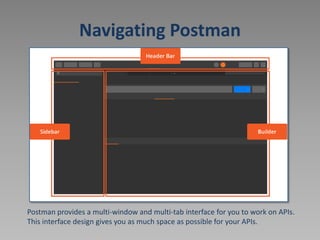
Navigating Postman
Postman provides a multi-window and multi-tab interface for you to work on APIs.
This interface design gives you as much space as possible for your APIs.
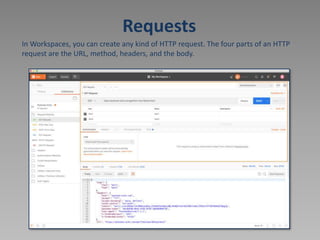
Requests
In Workspaces, you can create any kind of HTTP request. The four parts of an HTTP
request are the URL, method, headers, and the body.
Responses
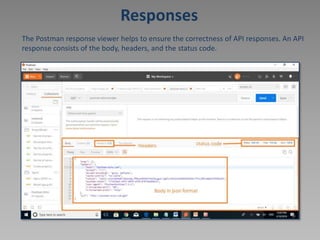
The Postman response viewer helps to ensure the correctness of API responses. An API
response consists of the body, headers, and the status code.
How does this work?
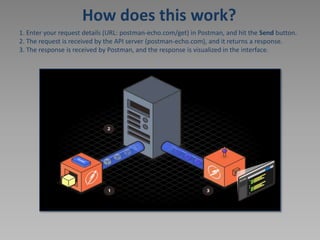
1. Enter your request details (URL: postman-echo.com/get) in Postman, and hit the Send button.
2. The request is received by the API server (postman-echo.com), and it returns a response.
3. The response is received by Postman, and the response is visualized in the interface.
CONSIDERATIONS OF TESTING
WEB SERVICE
A well-constructed API test suite answers questions such as:
• Does the service respond quickly enough for the intended
users?
• Will the server respond with the correct values?(Positive
Testing)
• How will the service handle exceptions and illegal
values?(Negative Testing)
• Is the service stable under expected and unexpected user
loads?(JMETER,LoadRunner)
Example of testing IPA of newbook
• API documentation for newbook:
http://newbookalliance.github.io/API/
• Base URL: https://stage-api.newbookmodels.com
Policies for all calls
• Clients should add following headers to all requests:
X-Newbook-Client: '<client>'
X-Newbook-Version: '<version>'
• API supports content negotiation
Via Accept header: Accept: application/json
• Authorization
API uses token-based authorization via Authorization header:
authorization: '<token>‘
• API Versioning
API uses url-path versioning. That means, you have to add
version prefix (e.g. /api/v1/) to each API url.
GET list of cities [GET /cities/]
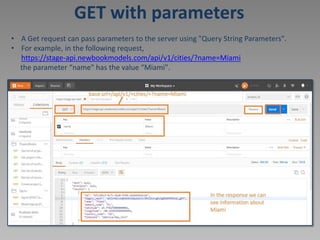
GET with parameters
• A Get request can pass parameters to the server using "Query String Parameters".
• For example, in the following request,
https://stage-api.newbookmodels.com/api/v1/cities/?name=Miami
the parameter “name" has the value “Miami".
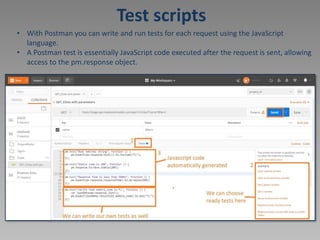
Test scripts
• With Postman you can write and run tests for each request using the JavaScript
language.
• A Postman test is essentially JavaScript code executed after the request is sent, allowing
access to the pm.response object.
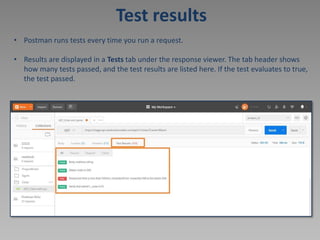
Test results
• Postman runs tests every time you run a request.
• Results are displayed in a Tests tab under the response viewer. The tab header shows
how many tests passed, and the test results are listed here. If the test evaluates to true,
the test passed.
Signin [POST /auth/signin/]
• The HTTP POST request method is meant to transfer data to a server (and elicit a
response). What data is returned depends on the implementation of the server.
• To send POST request we need:
URL: https://stage-api.newbookmodels.com/api/v1/auth/signin/
Body: example of request body provided in documentation
{
"email": "a@a.aa",
"password": "qwer1234"
}
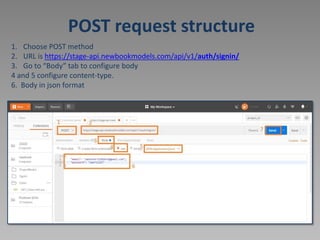
POST request structure
1. Choose POST method
2. URL is https://stage-api.newbookmodels.com/api/v1/auth/signin/
3. Go to “Body” tab to configure body
4 and 5 configure content-type.
6. Body in json format
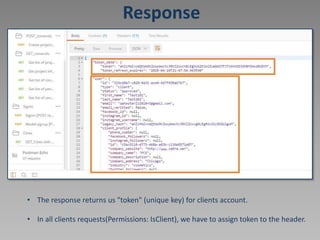
Response
• The response returns us "token" (unique key) for clients account.
• In all clients requests(Permissions: IsClient), we have to assign token to the header.
Get self data [GET /client/self/]
• URL: https://stage-api.newbookmodels.com/api/v1/client/self/
• For authorization will use token generated from Signin request.
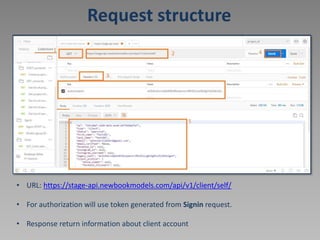
Request structure
• URL: https://stage-api.newbookmodels.com/api/v1/client/self/
• For authorization will use token generated from Signin request.
• Response return information about client account
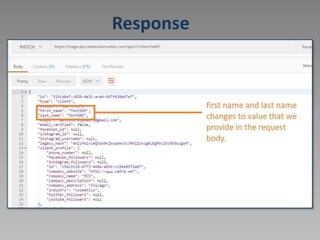
Update self user data
[PATCH /client/self/]
• URL: https://stage-api.newbookmodels.com/api/v1/client/self/
• For authorization will use token generated from Signin request.
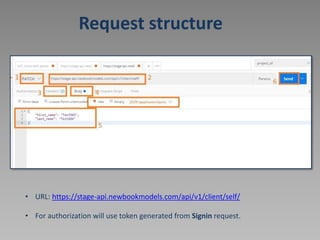
Request structure
• URL: https://stage-api.newbookmodels.com/api/v1/client/self/
• For authorization will use token generated from Signin request.
Response
Variables
• Variables allow you to reuse values in multiple places so you can keep your code DRY
(Don’t Repeat Yourself).
• Also, if you want to change the value, you can change the variable once with the
impact cascading through the rest of your code.
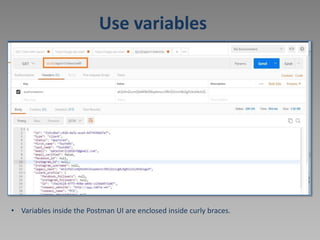
• Variables can be used in the following form in the Postman user interface -
{{variableName}} .
• The string {{variableName}} will be replaced with its corresponding value when
Postman resolves the variable.
• For example, for an environment variable url with the value http://localhost , you will
have to use {{url}} in the request URL field.
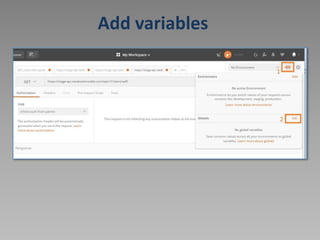
Add variables
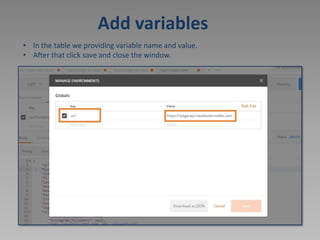
Add variables
• In the table we providing variable name and value.
• After that click save and close the window.
Use variables
• Variables inside the Postman UI are enclosed inside curly braces.
Links for more information
• https://www.getpostman.com/docs/v6/
• https://docs.postman-echo.com/
TYPES OF HTTP REQUESTS
• GET – Retrieves the data from a specified source
• POST- Sends new data to a specified source
• PATCH- Updates info for a specified source
• DELETE- Removes data from a specified source
HTTP STATUS CODE
• 1XX- Codes between 100-199 mean that the server is
working on the request. Not so common
• 2XX- Codes between 200-299 mean that the request was
successful.
• 3XX- Codes between 300-399 mean that the request was
not performed.
• 4XX- Codes between 400-499 mean that the request is
incomplete and may need more info
• 5XX- Codes between 500-599 mean that the server
encountered an error.

Postman.ppt

  • 1.
    Testing REST APIusing POSTMAN • Postman is a powerful HTTP client for testing web services. Created by Abhinav Asthana, a programmer and designer based in Bangalore, India, Postman makes it easy to test, develop and document APIs by allowing users to quickly put together both simple and complex HTTP requests. • Postman is available as a native app for Mac, Windows, and Linux operating systems.
  • 2.
    Installing the Postmanapp • To install Postman, go to the https://www.getpostman.com/apps • Click Download for Mac / Windows / Linux depending on your platform. • macOS installation • Once you’ve downloaded app, you can drag the file to the “Applications” folder. Double click on Postman to open the application. • Windows installation • Download the setup file • Run the installer
  • 3.
    Navigating Postman Postman providesa multi-window and multi-tab interface for you to work on APIs. This interface design gives you as much space as possible for your APIs.
  • 4.
    Requests In Workspaces, youcan create any kind of HTTP request. The four parts of an HTTP request are the URL, method, headers, and the body.
  • 5.
    Responses The Postman responseviewer helps to ensure the correctness of API responses. An API response consists of the body, headers, and the status code.
  • 6.
    How does thiswork? 1. Enter your request details (URL: postman-echo.com/get) in Postman, and hit the Send button. 2. The request is received by the API server (postman-echo.com), and it returns a response. 3. The response is received by Postman, and the response is visualized in the interface.
  • 7.
    CONSIDERATIONS OF TESTING WEBSERVICE A well-constructed API test suite answers questions such as: • Does the service respond quickly enough for the intended users? • Will the server respond with the correct values?(Positive Testing) • How will the service handle exceptions and illegal values?(Negative Testing) • Is the service stable under expected and unexpected user loads?(JMETER,LoadRunner)
  • 8.
    Example of testingIPA of newbook • API documentation for newbook: http://newbookalliance.github.io/API/ • Base URL: https://stage-api.newbookmodels.com
  • 9.
    Policies for allcalls • Clients should add following headers to all requests: X-Newbook-Client: '<client>' X-Newbook-Version: '<version>' • API supports content negotiation Via Accept header: Accept: application/json • Authorization API uses token-based authorization via Authorization header: authorization: '<token>‘ • API Versioning API uses url-path versioning. That means, you have to add version prefix (e.g. /api/v1/) to each API url.
  • 10.
    GET list ofcities [GET /cities/]
  • 11.
    GET with parameters •A Get request can pass parameters to the server using "Query String Parameters". • For example, in the following request, https://stage-api.newbookmodels.com/api/v1/cities/?name=Miami the parameter “name" has the value “Miami".
  • 12.
    Test scripts • WithPostman you can write and run tests for each request using the JavaScript language. • A Postman test is essentially JavaScript code executed after the request is sent, allowing access to the pm.response object.
  • 13.
    Test results • Postmanruns tests every time you run a request. • Results are displayed in a Tests tab under the response viewer. The tab header shows how many tests passed, and the test results are listed here. If the test evaluates to true, the test passed.
  • 14.
    Signin [POST /auth/signin/] •The HTTP POST request method is meant to transfer data to a server (and elicit a response). What data is returned depends on the implementation of the server. • To send POST request we need: URL: https://stage-api.newbookmodels.com/api/v1/auth/signin/ Body: example of request body provided in documentation { "email": "a@a.aa", "password": "qwer1234" }
  • 15.
    POST request structure 1.Choose POST method 2. URL is https://stage-api.newbookmodels.com/api/v1/auth/signin/ 3. Go to “Body” tab to configure body 4 and 5 configure content-type. 6. Body in json format
  • 16.
    Response • The responsereturns us "token" (unique key) for clients account. • In all clients requests(Permissions: IsClient), we have to assign token to the header.
  • 17.
    Get self data[GET /client/self/] • URL: https://stage-api.newbookmodels.com/api/v1/client/self/ • For authorization will use token generated from Signin request.
  • 18.
    Request structure • URL:https://stage-api.newbookmodels.com/api/v1/client/self/ • For authorization will use token generated from Signin request. • Response return information about client account
  • 19.
    Update self userdata [PATCH /client/self/] • URL: https://stage-api.newbookmodels.com/api/v1/client/self/ • For authorization will use token generated from Signin request.
  • 20.
    Request structure • URL:https://stage-api.newbookmodels.com/api/v1/client/self/ • For authorization will use token generated from Signin request.
  • 21.
  • 22.
    Variables • Variables allowyou to reuse values in multiple places so you can keep your code DRY (Don’t Repeat Yourself). • Also, if you want to change the value, you can change the variable once with the impact cascading through the rest of your code. • Variables can be used in the following form in the Postman user interface - {{variableName}} . • The string {{variableName}} will be replaced with its corresponding value when Postman resolves the variable. • For example, for an environment variable url with the value http://localhost , you will have to use {{url}} in the request URL field.
  • 23.
  • 24.
    Add variables • Inthe table we providing variable name and value. • After that click save and close the window.
  • 25.
    Use variables • Variablesinside the Postman UI are enclosed inside curly braces.
  • 26.
    Links for moreinformation • https://www.getpostman.com/docs/v6/ • https://docs.postman-echo.com/
  • 27.
    TYPES OF HTTPREQUESTS • GET – Retrieves the data from a specified source • POST- Sends new data to a specified source • PATCH- Updates info for a specified source • DELETE- Removes data from a specified source
  • 28.
    HTTP STATUS CODE •1XX- Codes between 100-199 mean that the server is working on the request. Not so common • 2XX- Codes between 200-299 mean that the request was successful. • 3XX- Codes between 300-399 mean that the request was not performed. • 4XX- Codes between 400-499 mean that the request is incomplete and may need more info • 5XX- Codes between 500-599 mean that the server encountered an error.