Web Designing and
multimedia
The Internet is an increasingly important part of everyday life for people around the world.
What is the Internet?
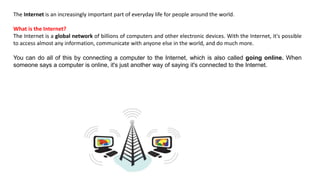
The Internet is a global network of billions of computers and other electronic devices. With the Internet, it's possible
to access almost any information, communicate with anyone else in the world, and do much more.
You can do all of this by connecting a computer to the Internet, which is also called going online. When
someone says a computer is online, it's just another way of saying it's connected to the Internet.
The computer network that gave birth to the internet was the Advanced Research Projects Agency Network
(ARPANET).
The agency currently called the Defense Advanced Research Projects Agency (DARPA) was initially called the
Advanced Research Projects Agency (ARPA).
What makes the situation more confusing is that ARPA was renamed to DARPA in March 1972, then renamed ARPA
in February 1993, and then renamed DARPA again in March 1996. Regardless of the name changes ARPA has always
been an agency of the U.S. Department of Defense.
what's the difference between DARPA and ARPANET? There is no "difference," one is the name of the
organization, one is the name of the product they created.
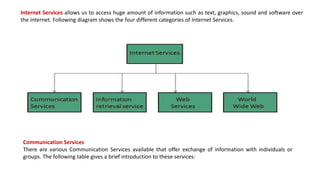
Internet Services allows us to access huge amount of information such as text, graphics, sound and software over
the internet. Following diagram shows the four different categories of Internet Services.
Communication Services
There are various Communication Services available that offer exchange of information with individuals or
groups. The following table gives a brief introduction to these services:
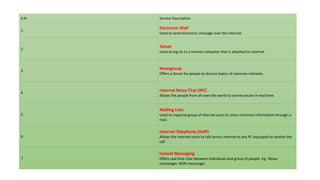
S.N. Service Description
1
Electronic Mail
Used to send electronic message over the internet.
2
Telnet
Used to log on to a remote computer that is attached to internet.
3
Newsgroup
Offers a forum for people to discuss topics of common interests.
4
Internet Relay Chat (IRC)
Allows the people from all over the world to communicate in real time.
5
Mailing Lists
Used to organize group of internet users to share common information through e-
mail.
6
Internet Telephony (VoIP)
Allows the internet users to talk across internet to any PC equipped to receive the
call.
7
Instant Messaging
Offers real time chat between individuals and group of people. Eg. Yahoo
messenger, MSN messenger.
Information Retrieval Services
There exist several Information retrieval services offering easy access to information present on the internet. The
following table gives a brief introduction to these services:
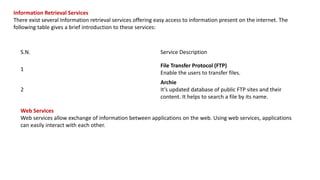
S.N. Service Description
1
File Transfer Protocol (FTP)
Enable the users to transfer files.
2
Archie
It’s updated database of public FTP sites and their
content. It helps to search a file by its name.
Web Services
Web services allow exchange of information between applications on the web. Using web services, applications
can easily interact with each other.
World Wide Web (WWW)
WWW is also known as W3. It offers a way to access documents spread over the several servers over the internet.
These documents may contain texts, graphics, audio, video, hyperlinks. The hyperlinks allow the users to navigate
between the documents.
Video Conferencing
Video conferencing or Video teleconferencing is a method of communicating by two-way video and audio
transmission with help of telecommunication technologies.
Internet Service Providers (ISP)
Internet Service Provider (ISP) is a company offering access to internet. They offer various services:
•Internet Access
•Domain name registration
•Dial-up access
•Leased line access
IP Address
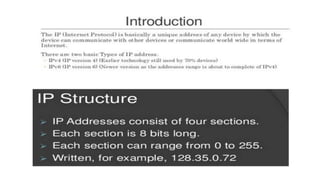
IP address is a unique logical address assigned to a machine over the network. An IP address exhibits the
following properties:
•IP address is the unique address assigned to each host present on Internet.
•IP address is 32 bits (4 bytes) long.
•Each of the 4 bytes is represented by a number from 0 to 255, separated with dots. For example
137.170.4.124
"It's a network address for your computer so the Internet knows where to send you emails, data and pictures.
IP addresses allow the location of literally billions of digital devices that are connected to the Internet to be
pinpointed and differentiated from other devices.
•Your house has a street address to get mail; your connected device has an Internet address to get and
receive data on the Web.
•Your home as a street number; your laptop, smartphone or your lights, baby monitor, (anything device
that connects to the Internet and works wirelessly) has an Internet number.
•The IP address you're using at any given time is your device's "digital address" that allows a connection to
the systematically laid-out, interconnected grid that governs global connectivity.
• Every website (Disney, Amazon, Apple, etc.) has a unique IP address, but it goes by its name instead
(Disney.com, Amazon.com, Apple.com.) But without IP addresses you couldn't connect with them and
they couldn't share information with you.
IP Addresses
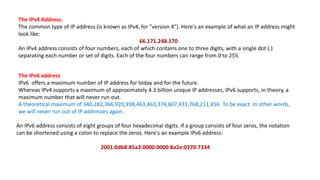
The IPv4 Address.
The common type of IP address (is known as IPv4, for "version 4"). Here's an example of what an IP address might
look like:
66.171.248.170
An IPv4 address consists of four numbers, each of which contains one to three digits, with a single dot (.)
separating each number or set of digits. Each of the four numbers can range from 0 to 255.
The IPv6 address
IPv6 offers a maximum number of IP address for today and for the future.
Whereas IPv4 supports a maximum of approximately 4.3 billion unique IP addresses, IPv6 supports, in theory, a
maximum number that will never run out.
A theoretical maximum of 340,282,366,920,938,463,463,374,607,431,768,211,456. To be exact. In other words,
we will never run out of IP addresses again.
An IPv6 address consists of eight groups of four hexadecimal digits. If a group consists of four zeros, the notation
can be shortened using a colon to replace the zeros. Here's an example IPv6 address:
2001:0db8:85a3:0000:0000:8a2e:0370:7334
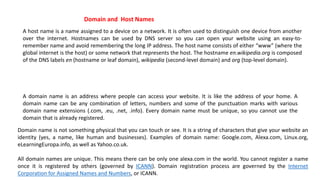
A host name is a name assigned to a device on a network. It is often used to distinguish one device from another
over the internet. Hostnames can be used by DNS server so you can open your website using an easy-to-
remember name and avoid remembering the long IP address. The host name consists of either “www” (where the
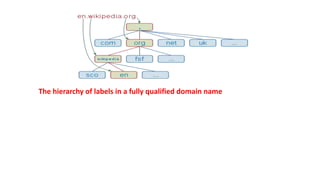
global internet is the host) or some network that represents the host. The hostname en.wikipedia.org is composed
of the DNS labels en (hostname or leaf domain), wikipedia (second-level domain) and org (top-level domain).
A domain name is an address where people can access your website. It is like the address of your home. A
domain name can be any combination of letters, numbers and some of the punctuation marks with various
domain name extensions (.com, .eu, .net, .info). Every domain name must be unique, so you cannot use the
domain that is already registered.
Domain name is not something physical that you can touch or see. It is a string of characters that give your website an
identity (yes, a name, like human and businesses). Examples of domain name: Google.com, Alexa.com, Linux.org,
eLearningEuropa.info, as well as Yahoo.co.uk.
All domain names are unique. This means there can be only one alexa.com in the world. You cannot register a name
once it is registered by others (governed by ICANN). Domain registration process are governed by the Internet
Corporation for Assigned Names and Numbers, or ICANN.
Domain and Host Names
Domain Names
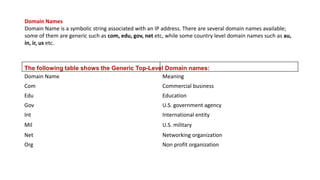
Domain Name is a symbolic string associated with an IP address. There are several domain names available;
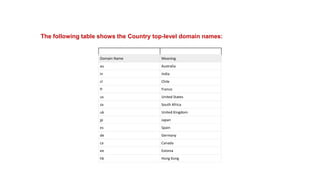
some of them are generic such as com, edu, gov, net etc, while some country level domain names such as au,
in, ir, us etc.
Domain Name Meaning
Com Commercial business
Edu Education
Gov U.S. government agency
Int International entity
Mil U.S. military
Net Networking organization
Org Non profit organization
The following table shows the Generic Top-Level Domain names:
Domain Name Meaning
au Australia
in India
cl Chile
fr France
us United States
za South Africa
uk United Kingdom
jp Japan
es Spain
de Germany
ca Canada
ee Estonia
hk Hong Kong
The following table shows the Country top-level domain names:
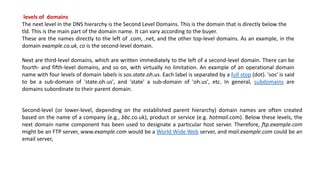
levels of domains
The next level in the DNS hierarchy is the Second Level Domains. This is the domain that is directly below the
tld. This is the main part of the domain name. It can vary according to the buyer.
These are the names directly to the left of .com, .net, and the other top-level domains. As an example, in the
domain example.co.uk, co is the second-level domain.
Next are third-level domains, which are written immediately to the left of a second-level domain. There can be
fourth- and fifth-level domains, and so on, with virtually no limitation. An example of an operational domain
name with four levels of domain labels is sos.state.oh.us. Each label is separated by a full stop (dot). 'sos' is said
to be a sub-domain of 'state.oh.us', and 'state' a sub-domain of 'oh.us', etc. In general, subdomains are
domains subordinate to their parent domain.
Second-level (or lower-level, depending on the established parent hierarchy) domain names are often created
based on the name of a company (e.g., bbc.co.uk), product or service (e.g. hotmail.com). Below these levels, the
next domain name component has been used to designate a particular host server. Therefore, ftp.example.com
might be an FTP server, www.example.com would be a World Wide Web server, and mail.example.com could be an
email server,
The hierarchy of labels in a fully qualified domain name
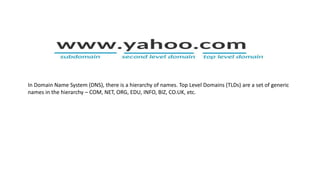
In Domain Name System (DNS), there is a hierarchy of names. Top Level Domains (TLDs) are a set of generic
names in the hierarchy – COM, NET, ORG, EDU, INFO, BIZ, CO.UK, etc.
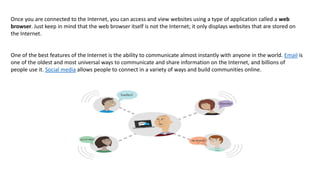
Once you are connected to the Internet, you can access and view websites using a type of application called a web
browser. Just keep in mind that the web browser itself is not the Internet; it only displays websites that are stored on
the Internet.
One of the best features of the Internet is the ability to communicate almost instantly with anyone in the world. Email is
one of the oldest and most universal ways to communicate and share information on the Internet, and billions of
people use it. Social media allows people to connect in a variety of ways and build communities online.
There are many other things you can do on the Internet. There are thousands of ways to keep up with news or
shop for anything online. You can pay your bills, manage your bank accounts, meet new people, watch TV, or learn
new skills. You can learn or do almost anything online.
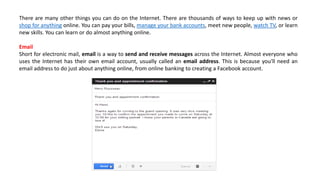
Email
Short for electronic mail, email is a way to send and receive messages across the Internet. Almost everyone who
uses the Internet has their own email account, usually called an email address. This is because you'll need an
email address to do just about anything online, from online banking to creating a Facebook account.
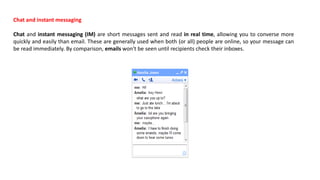
Chat and instant messaging
Chat and instant messaging (IM) are short messages sent and read in real time, allowing you to converse more
quickly and easily than email. These are generally used when both (or all) people are online, so your message can
be read immediately. By comparison, emails won't be seen until recipients check their inboxes.
World Wide Web (WWW), byname the Web, the leading information retrieval service of the Internet (the
worldwide computer network). The Web gives users access to a vast array of documents that are connected to
each other by means of hypertext or hypermedia links—i.e., hyperlinks, electronic connections that link related
pieces of information in order to allow a user easy access to them. Hypertext allows the user to select a word or
phrase from text and thereby access other documents that contain additional information pertaining to that
word or phrase. Hypermedia documents feature links to images, sounds, animations, and movies. The Web
operates within the Internet’s basic client-server format; servers are computer programs that store and
transmit documents to other computers on the network when asked to, while clients are programs that request
documents from a server as the user asks for them. Browser software allows users to view the retrieved
documents.
What is the Web?
The World Wide Web—usually called the Web for short—is a collection of different websites you can access
through the Internet. A website is made up of related text, images, and other resources. Websites can resemble
other forms of media—like newspaper articles or television programs—or they can be interactive in a way that's
unique to computers.
The purpose of a website can be almost anything: a news platform, an advertisement, an online library, a forum
for sharing images, or an educational site like us!
What is World Wide Web?
World Wide Web, which is also known as a Web, is a collection of websites or web pages stored in web
servers and connected to local computers through the internet. These websites contain text pages,
digital images, audios, videos, etc. Users can access the content of these sites from any part of the
world over the internet using their devices such as computers, laptops, cell phones, etc. The WWW,
along with internet, enables the retrieval and display of text and media to your device.
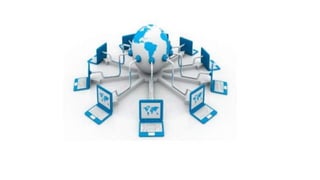
www is the world wide web now user can get every information with few clicks . with the help of world
wide now the whole world looks like a small village we can do every thing while sitting our home we can
play games, play music online, download music , download games, purchasing online, we can now do
trading also this only possible through the www
The building blocks of the Web are web pages which are formatted in HTML and connected by links
called "hypertext" or hyperlinks and accessed by HTTP. These links are electronic connections that link
related pieces of information so that users can access the desired information quickly. Hypertext offers
the advantage to select a word or phrase from text and thus to access other pages that provide
additional information related to that word or phrase.
A web page is given an online address called a Uniform Resource Locator (URL). A particular collection
of web pages that belong to a specific URL is called a website, e.g., www.facebook.com,
www.google.com, etc. So, the World Wide Web is like a huge electronic book whose pages are stored
on multiple servers across the world.
How the World Wide Web Works?
Now, we have understood that WWW is a collection of websites connected to the internet so that people can
search and share information. Now, let us understand how it works!
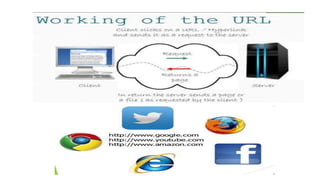
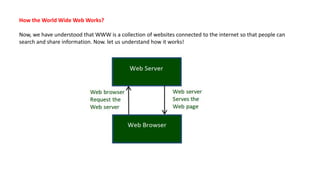
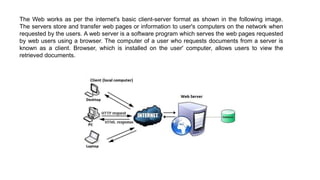
The Web works as per the internet's basic client-server format as shown in the following image.
The servers store and transfer web pages or information to user's computers on the network when
requested by the users. A web server is a software program which serves the web pages requested
by web users using a browser. The computer of a user who requests documents from a server is
known as a client. Browser, which is installed on the user' computer, allows users to view the
retrieved documents.
Origins of the Web
Definition 1
The World-Wide Web began in March 1989 at CERN by Tim Berners-Lee . (CERN was originally named after its
founding body the “Conseil Europeen pour la Recherche Nucleaire,” and is now called “European Laboratory for
Particle Physics.”
“CERN is a meeting place for physicists from all over the world, who collaborate on complex physics,
engineering and information handling projects.
Definition 2
The development of the World Wide Web was begun in 1989 by Tim Berners-Lee and his colleagues at CERN,
an international scientific organization based in Geneva, Switzerland. They created a protocol, HyperText
Transfer Protocol (HTTP), which standardized communication between servers and clients. Their text-based
Web browser was made available for general release in January 1992.
The World Wide Web gained rapid acceptance with the creation of a Web browser called Mosaic,
TCP/IP PROTOCOL TCP/IP MODEL 5 LAYER OSI MODEL 7 LAYERS APSTNDP
The World Wide Web ("WWW") is a global information medium which users can access
via computers connected to the Internet. The term is often mistakenly used as a synonym for the Internet itself
and often called "the Internet", but the Web is a service that operates over the Internet, just as email (also e-
mail) and Usenet also do. The history of the Internet dates back significantly further than that of the World Wide
We
In 1980, Tim Berners-Lee, an English independent contractor at the European Organization for Nuclear
Research (CERN) in Switzerland, built ENQUIRE, as a personal database of people and software models,
but also as a way to play with hypertext; each new page of information in ENQUIRE had to be linked to an
Existing page. In 1984 he returned to CERN in a permanent role, and considered its problems of information
management: physicists from around the world needed to share data, yet they lacked common machines and any
shared presentation software.
In keeping with its birth at CERN and the first page opened, early adopters of the Web were primarily university-based
scientific departments or physics laboratories such as Fermilab and SLAC. By January 1993 there were fifty Web servers
across the world.
By the end of 1994, the total number of websites was still minute compared to present figures, but quite a number
of notable websites were already active, many of which are the precursors or inspiring examples of today's most
popular services.
By 1996 world wide web became much popular and people saw the possibilities of fee publishing and instant world
wide information,increasing familiarity with two way communication over the “web” led to the possibility of direct
web based commerce(e-commerce) and instantaneous group communications world wide.
web page
A document which can be displayed in a web browser such as Firefox, Google Chrome, Opera, Microsoft Internet Explorer or
Edge, or Apple's Safari. These are also often called just "pages.“
webpage is a document, commonly written in HTML, that is viewed in an Internet browser. A web page can be
accessed by entering a URL address into a browser's address bar. A web page may contain text, graphics,
and hyperlinks to other web pages and files.
website
A collection of web pages which are grouped together and usually connected together in various ways. Often called a "web site" or
simply a "site."
web server
A computer that hosts a website on the Internet.
Home page is also a web page but is being considered as the starting page of your website with a navigation bar that provides links
to different sections within the particular website
For example, a website home page often has standard links at the top of the page and often at the side of the page for items like:
Home
Services
Products
About us
Contact us etc.
Web page and Website are relevant but distinct words. A web page can be considered as a
single entity whereas a website is a combination of web pages. Web pages are accessed
through a browser while in website HTTP, and DNS protocols are used to access it.
Web pages have the navigational links to connect a web page to another on the website.
The content in a website changes according to the web page while a web page contains
more specific information.
A website is the group of web pages which are placed in a location on the internet under
a domain. For example, a company website can have various web pages such as home,
about us, contact us, products, services and other. It is accessible through a web address.
A website can be industry-specific, product specific or services specific etc.; these websites
are intended to educate their site visitors about their industry, products or services
information. A website must be hosted on a server at first so that it can be accessed on
the internet.
Home page is also a web page but is being considered as the starting page of your website with a navigation bar
that provides links to different sections within the particular website
For example, a website home page often has standard links at the top of the page and often at the side of the page for
items like:
 Home
 Services
 Products
 About us
 Contact us etc.
Key Differences Between Web page and Website
 A webpage is an independent part of a website that contains the links to other web pages
on the website. On the other hand, a website is a collection of relevant web pages that is
addressed to a Uniform Resource Locator.
 Each website must have a unique URL whereas multiple web pages can have the same
name until they reside in different documents.
 Website is a location used to display the content. In contrast, a webpage is a content that
is to be displayed on the website.
 A web page URL has an extension like html, htm, php, etc. As against, website URL
doesn’t has any extension.
 Web page address has an integral part of the domain name in it, and it depends upon a
website. On the contrary, a website does not have any relation to web page address.
 Designing and Development of the webpage takes less time as compared to a website as
a website contain a lot of web pages.
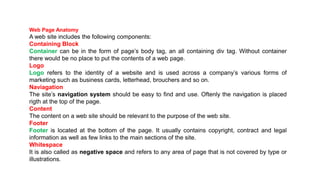
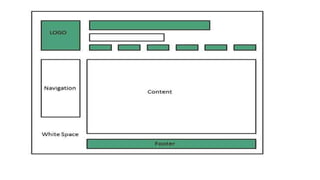
Web Page Anatomy
A web site includes the following components:
Containing Block
Container can be in the form of page’s body tag, an all containing div tag. Without container
there would be no place to put the contents of a web page.
Logo
Logo refers to the identity of a website and is used across a company’s various forms of
marketing such as business cards, letterhead, brouchers and so on.
Naviagation
The site’s navigation system should be easy to find and use. Oftenly the navigation is placed
rigth at the top of the page.
Content
The content on a web site should be relevant to the purpose of the web site.
Footer
Footer is located at the bottom of the page. It usually contains copyright, contract and legal
information as well as few links to the main sections of the site.
Whitespace
It is also called as negative space and refers to any area of page that is not covered by type or
illustrations.
Difference between World Wide Web and Internet:
The World Wide Web was invented by a British scientist, Tim Berners-Lee in 1989.
Some people use the terms 'internet' and 'World Wide Web' interchangeably. They think they
are the same thing, but it is not so. Internet is entirely different from WWW. It is a worldwide
network of devices like computers, laptops, tablets, etc. It enables users to send emails to
other users and chat with them online. For example, when you send an email or chatting with
someone online, you are using the internet.
But, when you have opened a website like google.com for information, you are using the
World Wide Web; a network of servers over the internet. You request a webpage from your
computer using a browser, and the server renders that page to your browser. Your computer
is called a client who runs a program (web browser), and asks the other computer (server) for
the information it needs.
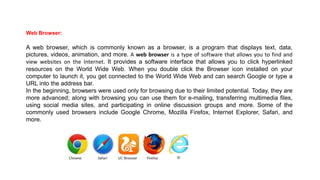
Web Browser:
A web browser, which is commonly known as a browser, is a program that displays text, data,
pictures, videos, animation, and more. A web browser is a type of software that allows you to find and
view websites on the Internet. It provides a software interface that allows you to click hyperlinked
resources on the World Wide Web. When you double click the Browser icon installed on your
computer to launch it, you get connected to the World Wide Web and can search Google or type a
URL into the address bar.
In the beginning, browsers were used only for browsing due to their limited potential. Today, they are
more advanced; along with browsing you can use them for e-mailing, transferring multimedia files,
using social media sites, and participating in online discussion groups and more. Some of the
commonly used browsers include Google Chrome, Mozilla Firefox, Internet Explorer, Safari, and
more.
Web Browser’s History
Mosaic allowed people using the Web to use the same sort of “point-and-click” graphical manipulations that
had been available in personal computers for some years. In April 1994 Andreessen cofounded Netscape
Communications Corporation, whose Netscape Navigator became the dominant Web browser soon after its
release in December 1994. BookLink Technologies’ InternetWorks, the first browser with tabs, in which a user
could visit another Web site without opening an entirely new window, debuted that same year. By the mid-
1990s the World Wide Web had millions of active users.
The software giant Microsoft Corporation became interested in supporting Internet applications on
personal computers and developed its own Web browser (based initially on Mosaic), Internet Explorer (IE),
in 1995 as an add-on to the Windows 95 operating system.
Apple’s Safari was released in 2003 as the default browser on Macintosh personal computers and later
on iPhones (2007) and iPads (2010). Safari 2.0 (2005) was the first browser with a privacy mode, Private
Browsing, in which the application would not save Web sites in its history, downloaded files in its cache, or
personal information entered on Web pages.
Popular Web Browsing Software
The most popular web browsing software includes −
Google Chrome
Google Chrome is a web browsing software developed in the year 2008 by Google Inc. First, it was designed for
windows platform, and later adopted to Linux, Macintosh, and even Android. It is written using C++, Assembly, Python,
and JavaScript.
Mozilla Firefox
Mozilla Firefox is a web browsing software developed in the year 2002 by the Mozilla Foundation. It is designed to work
on all operating systems like Windows, Macintosh, Linux, and Android. It is written using C++, JavaScript, Rust, C, CSS,
XUL, and XBL.
Opera
Opera is a web browsing software developed in the year 1995 by Opera Software. It is designed to work on all
operating systems like Windows, Macintosh, and Linux and is written using C++ language.
Internet Explorer
Internet Explorer is a web browsing software developed in the year 1995 by Microsoft. It is designed to work on all
operating systems like Windows, Macintosh, Linux and Android and is written using C++ language.
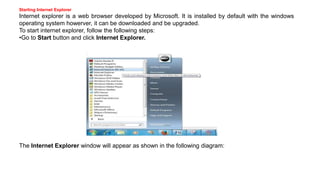
Starting Internet Explorer
Internet explorer is a web browser developed by Microsoft. It is installed by default with the windows
operating system howerver, it can be downloaded and be upgraded.
To start internet explorer, follow the following steps:
•Go to Start button and click Internet Explorer.
The Internet Explorer window will appear as shown in the following diagram:
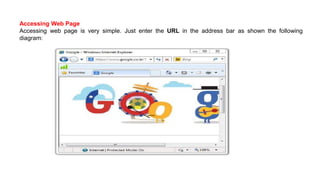
Accessing Web Page
Accessing web page is very simple. Just enter the URL in the address bar as shown the following
diagram:
A protocol is a standard set of rules that allow electronic devices to communicate with each other. These rules
include what type of data may be transmitted, what commands are used to send and receive data, and how data
transfers are confirmed.
Common Internet protocols
Common Internet protocols include TCP/IP (Transmission Control Protocol/Internet Protocol), UDP/IP (User Datagram
Protocol/Internet Protocol), HTTP (HyperText Transfer Protocol) and FTP (File Transfer Protocol).
TCP/IP
TCP/IP is a stream protocol. This means that a connection is negotiated between a client and a server. Any data transmitted
between these two endpoints is guaranteed to arrive, thus it is a so-called lossless protocol. Since the TCP protocol (as
it is also referred to in short form) can only connect two endpoints, it is also called a peer-to-peer protocol.
It is the Transmission Control Protocol/Internet Protocol, is a suite of communication protocols used to
interconnect network devices on the internet.
HTTP
HTTP is the protocol used to transmit all data present on the World Wide Web. This includes text, multimedia and graphics. It
is the protocol used to transmit HTML, the language that makes all the fancy decorations in your browser. It works
upon TCP/IP.
FTP
FTP is the protocol used to transmit files between computers connected to each other by a TCP/IP network, such as the
Internet.
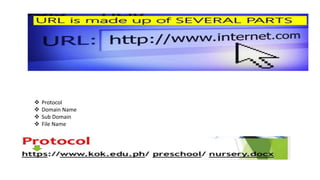
URLs and the address bar
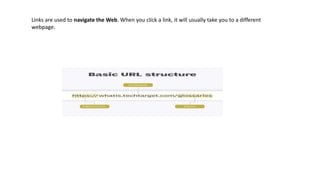
Each website has a unique address, called a URL (short for Uniform Resource Locator). It's like a
street address that tells your browser where to go on the Internet. When you type a URL into the
browser's address bar and press Enter on your keyboard, the browser will load the page associated
with that URL.
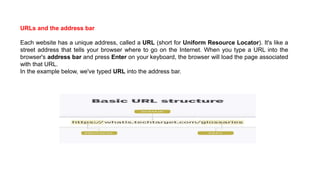
In the example below, we've typed URL into the address bar.
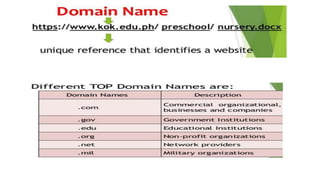
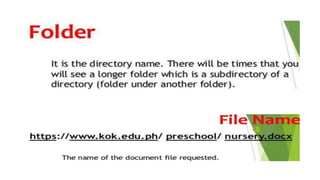
 Protocol
 Domain Name
 Sub Domain
 File Name
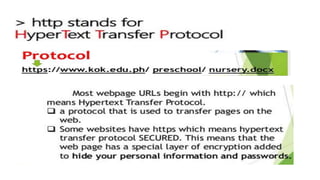
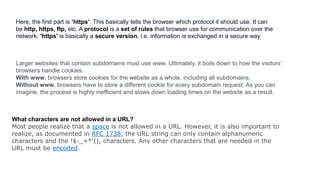
Here, the first part is ‘https’. This basically tells the browser which protocol it should use. It can
be http, https, ftp, etc. A protocol is a set of rules that browser use for communication over the
network. 'https' is basically a secure version, i.e. information is exchanged in a secure way.
Larger websites that contain subdomains must use www. Ultimately, it boils down to how the visitors’
browsers handle cookies.
With www, browsers store cookies for the website as a whole, including all subdomains.
Without www, browsers have to store a different cookie for every subdomain request. As you can
imagine, the process is highly inefficient and slows down loading times on the website as a result.
What characters are not allowed in a URL?
Most people realize that a space is not allowed in a URL. However, it is also important to
realize, as documented in RFC 1738, the URL string can only contain alphanumeric
characters and the !$-_+*'(), characters. Any other characters that are needed in the
URL must be encoded.
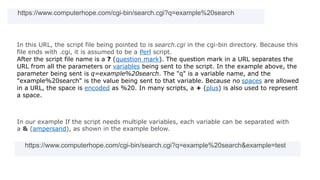
https://www.computerhope.com/cgi-bin/search.cgi?q=example%20search
In this URL, the script file being pointed to is search.cgi in the cgi-bin directory. Because this
file ends with .cgi, it is assumed to be a Perl script.
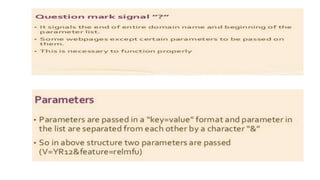
After the script file name is a ? (question mark). The question mark in a URL separates the
URL from all the parameters or variables being sent to the script. In the example above, the
parameter being sent is q=example%20search. The "q" is a variable name, and the
"example%20search" is the value being sent to that variable. Because no spaces are allowed
in a URL, the space is encoded as %20. In many scripts, a + (plus) is also used to represent
a space.
In our example If the script needs multiple variables, each variable can be separated with
a & (ampersand), as shown in the example below.
https://www.computerhope.com/cgi-bin/search.cgi?q=example%20search&example=test
In the above example, there are two different variables. The "q" variable equals
"example search" and the "example" variable equals "test".
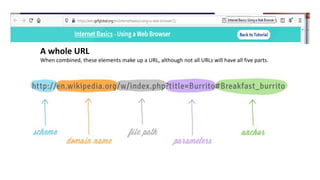
A whole URL
When combined, these elements make up a URL, although not all URLs will have all five parts.
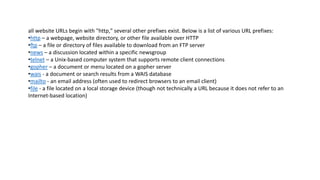
all website URLs begin with "http," several other prefixes exist. Below is a list of various URL prefixes:
•http – a webpage, website directory, or other file available over HTTP
•ftp – a file or directory of files available to download from an FTP server
•news – a discussion located within a specific newsgroup
•telnet – a Unix-based computer system that supports remote client connections
•gopher – a document or menu located on a gopher server
•wais - a document or search results from a WAIS database
•mailto - an email address (often used to redirect browsers to an email client)
•file - a file located on a local storage device (though not technically a URL because it does not refer to an
Internet-based location)
Links are used to navigate the Web. When you click a link, it will usually take you to a different
webpage.
Search Engine Components
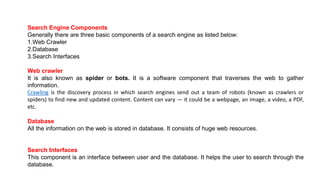
Generally there are three basic components of a search engine as listed below:
1.Web Crawler
2.Database
3.Search Interfaces
Web crawler
It is also known as spider or bots. It is a software component that traverses the web to gather
information.
Crawling is the discovery process in which search engines send out a team of robots (known as crawlers or
spiders) to find new and updated content. Content can vary — it could be a webpage, an image, a video, a PDF,
etc.
Database
All the information on the web is stored in database. It consists of huge web resources.
Search Interfaces
This component is an interface between user and the database. It helps the user to search through the
database.
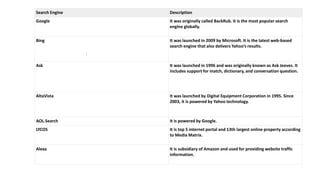
Search Engine Description
Google It was originally called BackRub. It is the most popular search
engine globally.
Bing It was launched in 2009 by Microsoft. It is the latest web-based
search engine that also delivers Yahoo’s results.
Ask It was launched in 1996 and was originally known as Ask Jeeves. It
includes support for match, dictionary, and conversation question.
AltaVista It was launched by Digital Equipment Corporation in 1995. Since
2003, it is powered by Yahoo technology.
AOL.Search It is powered by Google.
LYCOS It is top 5 internet portal and 13th largest online property according
to Media Matrix.
Alexa It is subsidiary of Amazon and used for providing website traffic
information.
:
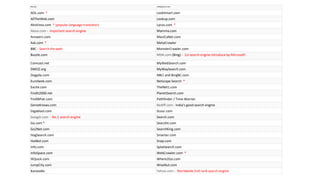
A9.com KellySearch.com
AOL.com * LookSmart.com
AllTheWeb.com Lookup.com
AltaVista.com * (popular language translator) Lycos.com *
Alexa.com - Important search engine Mamma.com
Answers.com MaviCaNet.com
Ask.com * MetaCrawler
BBC - Search the web MonsterCrawler.com
Buzzle.com MSN.com (Bing) - 1st search engine introduce by Microsoft
Comcast.net MyWebSearch.com
DMOZ.org MyWaySearch.com
Dogpile.com NBCi and BingBC.com
EuroSeek.com Netscape Search *
Excite.com TheNet1.com
Findit2000.net PlanetSearch.com
FindWhat.com Pathfinder / Time-Warner
GenieKnows.com Rediff.com - India's good search engine
Gigablast.com Scour.com
Google.com - No.1 search engine Search.com
Go.com * Searchit.com
Go2Net.com SearchKing.com
HogSearch.com Smarter.com
HotBot.com Snap.com
Info.com SplatSearch.com
InfoSpace.com WebCrawler.com *
IXQuick.com Where2Go.com
JumpCity.com WiseNut.com
Kanoodle Yahoo.com - Worldwide 2nd rank search engine
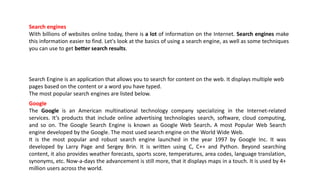
Search engines
With billions of websites online today, there is a lot of information on the Internet. Search engines make
this information easier to find. Let's look at the basics of using a search engine, as well as some techniques
you can use to get better search results.
Search Engine is an application that allows you to search for content on the web. It displays multiple web
pages based on the content or a word you have typed.
The most popular search engines are listed below.
Google
The Google is an American multinational technology company specializing in the Internet-related
services. It’s products that include online advertising technologies search, software, cloud computing,
and so on. The Google Search Engine is known as Google Web Search. A most Popular Web Search
engine developed by the Google. The most used search engine on the World Wide Web.
It is the most popular and robust search engine launched in the year 1997 by Google Inc. It was
developed by Larry Page and Sergey Brin. It is written using C, C++ and Python. Beyond searching
content, it also provides weather forecasts, sports score, temperatures, area codes, language translation,
synonyms, etc. Now-a-days the advancement is still more, that it displays maps in a touch. It is used by 4+
million users across the world.
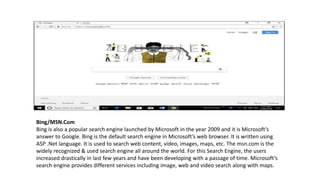
Bing/MSN.Com
Bing is also a popular search engine launched by Microsoft in the year 2009 and it is Microsoft’s
answer to Google. Bing is the default search engine in Microsoft’s web browser. It is written using
ASP .Net language. It is used to search web content, video, images, maps, etc. The msn.com is the
widely recognized & used search engine all around the world. For this Search Engine, the users
increased drastically in last few years and have been developing with a passage of time. Microsoft’s
search engine provides different services including image, web and video search along with maps.
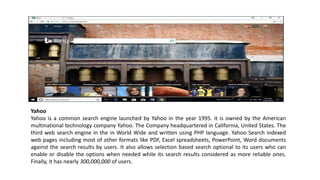
Yahoo
Yahoo is a common search engine launched by Yahoo in the year 1995. it is owned by the American
multinational technology company Yahoo. The Company headquartered in California, United States. The
third web search engine in the in World Wide and written using PHP language. Yahoo Search indexed
web pages including most of other formats like PDF, Excel spreadsheets, PowerPoint, Word documents
against the search results by users. It also allows selection based search optional to its users who can
enable or disable the options when needed while its search results considered as more reliable ones.
Finally, it has nearly 300,000,000 of users.
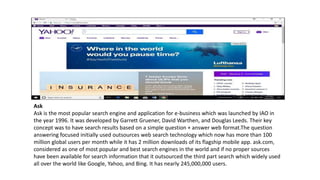
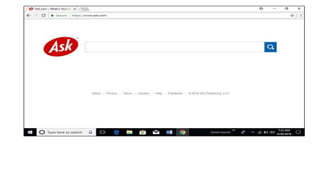
Ask
Ask is the most popular search engine and application for e-business which was launched by IAO in
the year 1996. It was developed by Garrett Gruener, David Warthen, and Douglas Leeds. Their key
concept was to have search results based on a simple question + answer web format.The question
answering focused initially used outsources web search technology which now has more than 100
million global users per month while it has 2 million downloads of its flagship mobile app. ask.com,
considered as one of most popular and best search engines in the world and if no proper sources
have been available for search information that it outsourced the third part search which widely used
all over the world like Google, Yahoo, and Bing. It has nearly 245,000,000 users.
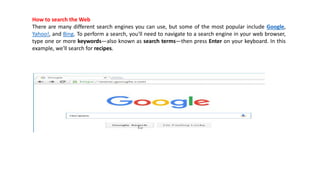
How to search the Web
There are many different search engines you can use, but some of the most popular include Google,
Yahoo!, and Bing. To perform a search, you'll need to navigate to a search engine in your web browser,
type one or more keywords—also known as search terms—then press Enter on your keyboard. In this
example, we'll search for recipes.
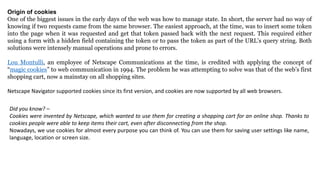
Origin of cookies
One of the biggest issues in the early days of the web was how to manage state. In short, the server had no way of
knowing if two requests came from the same browser. The easiest approach, at the time, was to insert some token
into the page when it was requested and get that token passed back with the next request. This required either
using a form with a hidden field containing the token or to pass the token as part of the URL’s query string. Both
solutions were intensely manual operations and prone to errors.
Lou Montulli, an employee of Netscape Communications at the time, is credited with applying the concept of
“magic cookies” to web communication in 1994. The problem he was attempting to solve was that of the web’s first
shopping cart, now a mainstay on all shopping sites.
Netscape Navigator supported cookies since its first version, and cookies are now supported by all web browsers.
Did you know? –
Cookies were invented by Netscape, which wanted to use them for creating a shopping cart for an online shop. Thanks to
cookies people were able to keep items their cart, even after disconnecting from the shop.
Nowadays, we use cookies for almost every purpose you can think of. You can use them for saving user settings like name,
language, location or screen size.
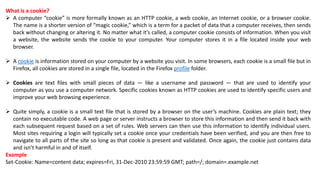
What is a cookie?
 A computer “cookie” is more formally known as an HTTP cookie, a web cookie, an Internet cookie, or a browser cookie.
The name is a shorter version of “magic cookie,” which is a term for a packet of data that a computer receives, then sends
back without changing or altering it. No matter what it’s called, a computer cookie consists of information. When you visit
a website, the website sends the cookie to your computer. Your computer stores it in a file located inside your web
browser.
 A cookie is information stored on your computer by a website you visit. In some browsers, each cookie is a small file but in
Firefox, all cookies are stored in a single file, located in the Firefox profile folder.
 Cookies are text files with small pieces of data — like a username and password — that are used to identify your
computer as you use a computer network. Specific cookies known as HTTP cookies are used to identify specific users and
improve your web browsing experience.
 Quite simply, a cookie is a small text file that is stored by a browser on the user’s machine. Cookies are plain text; they
contain no executable code. A web page or server instructs a browser to store this information and then send it back with
each subsequent request based on a set of rules. Web servers can then use this information to identify individual users.
Most sites requiring a login will typically set a cookie once your credentials have been verified, and you are then free to
navigate to all parts of the site so long as that cookie is present and validated. Once again, the cookie just contains data
and isn’t harmful in and of itself.
Example
Set-Cookie: Name=content data; expires=Fri, 31-Dec-2010 23:59:59 GMT; path=/; domain=.example.net
Cookies can store a wide range of information, including personally identifiable information (such as your name,
home address, email address, or telephone number). However, this information can only be stored if you provide it -
websites cannot gain access to information you didn't provide to them, and they can't access other files on your
computer.
By default, the activities of storing and sending cookies are invisible to you. However, you can change your Firefox
settings to allow you to approve or deny cookie storage requests, delete stored cookies automatically when you close
Firefox, and more.
Find the cookie storage. Each browser stores cookies in a slightly different location. In Internet Explorer 9, for
example, you can find them by clicking “Tools,” then “Internet Options,” then “Privacy.” In Chrome, choose the
Chrome menu on the toolbar, then click “Privacy.” Most browsers store cookie settings under the privacy
options. Choose your setting.
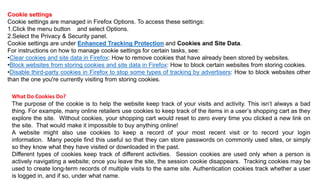
Cookie settings
Cookie settings are managed in Firefox Options. To access these settings:
1.Click the menu button and select Options.
2.Select the Privacy & Security panel.
Cookie settings are under Enhanced Tracking Protection and Cookies and Site Data.
For instructions on how to manage cookie settings for certain tasks, see:
•Clear cookies and site data in Firefox: How to remove cookies that have already been stored by websites.
•Block websites from storing cookies and site data in Firefox: How to block certain websites from storing cookies.
•Disable third-party cookies in Firefox to stop some types of tracking by advertisers: How to block websites other
than the one you're currently visiting from storing cookies.
What Do Cookies Do?
The purpose of the cookie is to help the website keep track of your visits and activity. This isn’t always a bad
thing. For example, many online retailers use cookies to keep track of the items in a user’s shopping cart as they
explore the site. Without cookies, your shopping cart would reset to zero every time you clicked a new link on
the site. That would make it impossible to buy anything online!
A website might also use cookies to keep a record of your most recent visit or to record your login
information. Many people find this useful so that they can store passwords on commonly used sites, or simply
so they know what they have visited or downloaded in the past.
Different types of cookies keep track of different activities. Session cookies are used only when a person is
actively navigating a website; once you leave the site, the session cookie disappears. Tracking cookies may be
used to create long-term records of multiple visits to the same site. Authentication cookies track whether a user
is logged in, and if so, under what name.
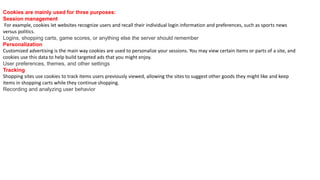
Cookies are mainly used for three purposes:
Session management
For example, cookies let websites recognize users and recall their individual login information and preferences, such as sports news
versus politics.
Logins, shopping carts, game scores, or anything else the server should remember
Personalization
Customized advertising is the main way cookies are used to personalize your sessions. You may view certain items or parts of a site, and
cookies use this data to help build targeted ads that you might enjoy.
User preferences, themes, and other settings
Tracking
Shopping sites use cookies to track items users previously viewed, allowing the sites to suggest other goods they might like and keep
items in shopping carts while they continue shopping.
Recording and analyzing user behavior
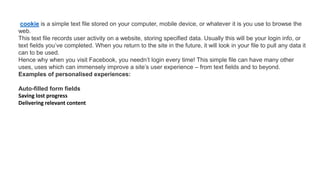
cookie is a simple text file stored on your computer, mobile device, or whatever it is you use to browse the
web.
This text file records user activity on a website, storing specified data. Usually this will be your login info, or
text fields you’ve completed. When you return to the site in the future, it will look in your file to pull any data it
can to be used.
Hence why when you visit Facebook, you needn’t login every time! This simple file can have many other
uses, uses which can immensely improve a site’s user experience – from text fields and to beyond.
Examples of personalised experiences:
Auto-filled form fields
Saving lost progress
Delivering relevant content
Today, computer transactions in which the server fulfills a request made by a client are very common and the
client-server model has become one of the central ideas of network computing. In this context, the client
establishes a connection to the server over a local area network (LAN) or wide-area network (WAN), such as
the Internet. Once the server has fulfilled the client's request, the connection is terminated. Because multiple
client programs share the services of the same server program.
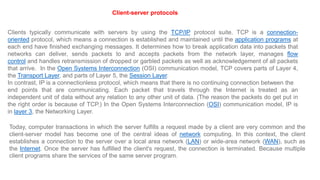
Client-server protocols
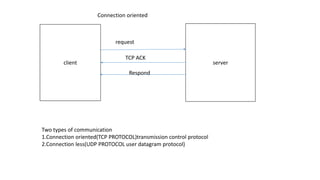
Clients typically communicate with servers by using the TCP/IP protocol suite. TCP is a connection-
oriented protocol, which means a connection is established and maintained until the application programs at
each end have finished exchanging messages. It determines how to break application data into packets that
networks can deliver, sends packets to and accepts packets from the network layer, manages flow
control and handles retransmission of dropped or garbled packets as well as acknowledgement of all packets
that arrive. In the Open Systems Interconnection (OSI) communication model, TCP covers parts of Layer 4,
the Transport Layer, and parts of Layer 5, the Session Layer.
In contrast, IP is a connectionless protocol, which means that there is no continuing connection between the
end points that are communicating. Each packet that travels through the Internet is treated as an
independent unit of data without any relation to any other unit of data. (The reason the packets do get put in
the right order is because of TCP.) In the Open Systems Interconnection (OSI) communication model, IP is
in layer 3, the Networking Layer.
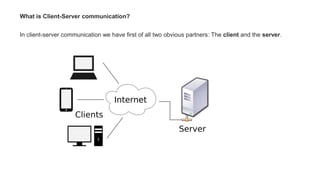
What is Client-Server communication?
In client-server communication we have first of all two obvious partners: The client and the server.
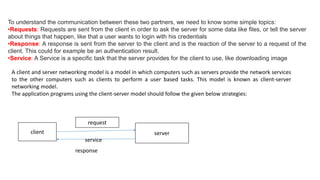
To understand the communication between these two partners, we need to know some simple topics:
•Requests: Requests are sent from the client in order to ask the server for some data like files, or tell the server
about things that happen, like that a user wants to login with his credentials
•Response: A response is sent from the server to the client and is the reaction of the server to a request of the
client. This could for example be an authentication result.
•Service: A Service is a specific task that the server provides for the client to use, like downloading image
A client and server networking model is a model in which computers such as servers provide the network services
to the other computers such as clients to perform a user based tasks. This model is known as client-server
networking model.
The application programs using the client-server model should follow the given below strategies:
client server
request
response
service
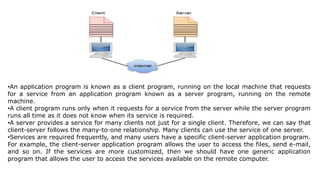
•An application program is known as a client program, running on the local machine that requests
for a service from an application program known as a server program, running on the remote
machine.
•A client program runs only when it requests for a service from the server while the server program
runs all time as it does not know when its service is required.
•A server provides a service for many clients not just for a single client. Therefore, we can say that
client-server follows the many-to-one relationship. Many clients can use the service of one server.
•Services are required frequently, and many users have a specific client-server application program.
For example, the client-server application program allows the user to access the files, send e-mail,
and so on. If the services are more customized, then we should have one generic application
program that allows the user to access the services available on the remote computer.
Advantages and disadvantages of the client-server model
An important advantage of the client-server model is that its centralized architecture helps make it easier to
protect data with access controls that are enforced by security policies. Also, it doesn't matter if the clients
and the server are built on the same operating system because data is transferred through client-server
protocols that are platform-agnostic.
An important disadvantage of the client-server model is that if too many clients simultaneously request
data from the server, it may get overloaded. In addition to causing network congestion, too many requests
may result in a denial of service.
client server
request
Two types of communication
1.Connection oriented(TCP PROTOCOL)transmission control protocol
2.Connection less(UDP PROTOCOL user datagram protocol)
Connection oriented
Respond
TCP ACK
Email
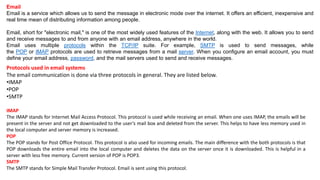
Email is a service which allows us to send the message in electronic mode over the internet. It offers an efficient, inexpensive and
real time mean of distributing information among people.
Email, short for "electronic mail," is one of the most widely used features of the Internet, along with the web. It allows you to send
and receive messages to and from anyone with an email address, anywhere in the world.
Email uses multiple protocols within the TCP/IP suite. For example, SMTP is used to send messages, while
the POP or IMAP protocols are used to retrieve messages from a mail server. When you configure an email account, you must
define your email address, password, and the mail servers used to send and receive messages.
Protocols used in email systems
The email communication is done via three protocols in general. They are listed below.
•IMAP
•POP
•SMTP
IMAP
The IMAP stands for Internet Mail Access Protocol. This protocol is used while receiving an email. When one uses IMAP, the emails will be
present in the server and not get downloaded to the user’s mail box and deleted from the server. This helps to have less memory used in
the local computer and server memory is increased.
POP
The POP stands for Post Office Protocol. This protocol is also used for incoming emails. The main difference with the both protocols is that
POP downloads the entire email into the local computer and deletes the data on the server once it is downloaded. This is helpful in a
server with less free memory. Current version of POP is POP3.
SMTP
The SMTP stands for Simple Mail Transfer Protocol. Email is sent using this protocol.
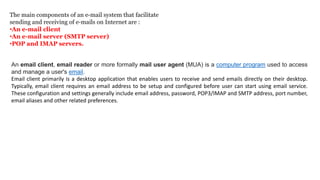
The main components of an e-mail system that facilitate
sending and receiving of e-mails on Internet are :
•An e-mail client
•An e-mail server (SMTP server)
•POP and IMAP servers.
An email client, email reader or more formally mail user agent (MUA) is a computer program used to access
and manage a user's email.
Email client primarily is a desktop application that enables users to receive and send emails directly on their desktop.
Typically, email client requires an email address to be setup and configured before user can start using email service.
These configuration and settings generally include email address, password, POP3/IMAP and SMTP address, port number,
email aliases and other related preferences.
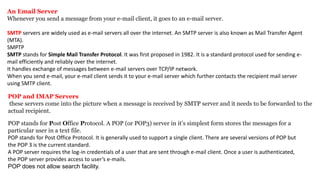
An Email Server
Whenever you send a message from your e-mail client, it goes to an e-mail server.
SMTP servers are widely used as e-mail servers all over the internet. An SMTP server is also known as Mail Transfer Agent
(MTA).
SMPTP
SMTP stands for Simple Mail Transfer Protocol. It was first proposed in 1982. It is a standard protocol used for sending e-
mail efficiently and reliably over the internet.
It handles exchange of messages between e-mail servers over TCP/IP network.
When you send e-mail, your e-mail client sends it to your e-mail server which further contacts the recipient mail server
using SMTP client.
POP and IMAP Servers
these servers come into the picture when a message is received by SMTP server and it needs to be forwarded to the
actual recipient.
POP stands for Post Office Protocol. A POP (or POP3) server in it’s simplest form stores the messages for a
particular user in a text file.
POP stands for Post Office Protocol. It is generally used to support a single client. There are several versions of POP but
the POP 3 is the current standard.
A POP server requires the log-in credentials of a user that are sent through e-mail client. Once a user is authenticated,
the POP server provides access to user’s e-mails.
POP does not allow search facility.
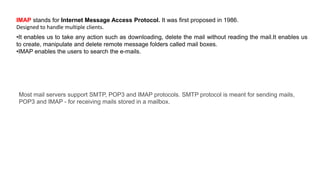
•It enables us to take any action such as downloading, delete the mail without reading the mail.It enables us
to create, manipulate and delete remote message folders called mail boxes.
•IMAP enables the users to search the e-mails.
IMAP stands for Internet Message Access Protocol. It was first proposed in 1986.
Designed to handle multiple clients.
Most mail servers support SMTP, POP3 and IMAP protocols. SMTP protocol is meant for sending mails,
POP3 and IMAP - for receiving mails stored in a mailbox.
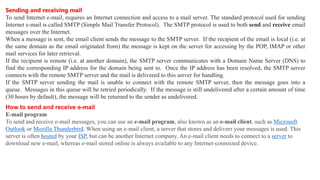
Sending and receiving mail
To send Internet e-mail, requires an Internet connection and access to a mail server. The standard protocol used for sending
Internet e-mail is called SMTP (Simple Mail Transfer Protocol). The SMTP protocol is used to both send and receive email
messages over the Internet.
When a message is sent, the email client sends the message to the SMTP server. If the recipient of the email is local (i.e. at
the same domain as the email originated from) the message is kept on the server for accessing by the POP, IMAP or other
mail services for later retrieval.
If the recipient is remote (i.e. at another domain), the SMTP server communicates with a Domain Name Server (DNS) to
find the corresponding IP address for the domain being sent to. Once the IP address has been resolved, the SMTP server
connects with the remote SMTP server and the mail is delivered to this server for handling.
If the SMTP server sending the mail is unable to connect with the remote SMTP server, then the message goes into a
queue. Messages in this queue will be retried periodically. If the message is still undelivered after a certain amount of time
(30 hours by default), the message will be returned to the sender as undelivered.
How to send and receive e-mail
E-mail program
To send and receive e-mail messages, you can use an e-mail program, also known as an e-mail client, such as Microsoft
Outlook or Mozilla Thunderbird. When using an e-mail client, a server that stores and delivers your messages is used. This
server is often hosted by your ISP, but can be another Internet company. An e-mail client needs to connect to a server to
download new e-mail, whereas e-mail stored online is always available to any Internet-connected device.
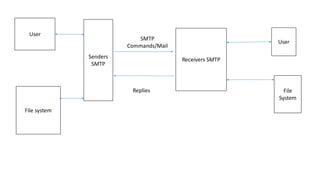
User
File system
Senders
SMTP
Receivers SMTP
User
File
System
SMTP
Commands/Mail
Replies
E-Mail Address
Each user of email is assigned a unique name for his email account. This name is known as E-mail address. Different users can send and receive messages
according to the e-mail address.
E-mail is generally of the form username@domainname. For example, webmaster@xyz.com is an e-mail address where webmaster is username and xyz.com is
domain name.
•The username and the domain name are separated by @ (at) symbol.
•E-mail addresses are not case sensitive.
•Spaces are not allowed in e-mail address.
NOTE: Email was originally written "e-mail," but is now more commonly written as "email" without the
dash.
E-mail address breakdown
support@abc.com
•The first portion of all e-mail addresses, the part before the @ symbol, contains the alias, user, group, or department of a company. In
our above example, support is the Technical Support department at abc.
•Next, the @ (at sign) is a divider in the e-mail address; it's required for all SMTP e-mail addresses since the first message was sent
by Ray Tomlinson.
•Finally, abc.com is the domain name to which the user belongs. The .com is the TLD (top-level domain) for our domain.
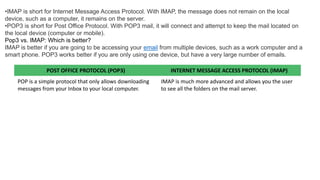
•IMAP is short for Internet Message Access Protocol. With IMAP, the message does not remain on the local
device, such as a computer, it remains on the server.
•POP3 is short for Post Office Protocol. With POP3 mail, it will connect and attempt to keep the mail located on
the local device (computer or mobile).
Pop3 vs. IMAP: Which is better?
IMAP is better if you are going to be accessing your email from multiple devices, such as a work computer and a
smart phone. POP3 works better if you are only using one device, but have a very large number of emails.
POST OFFICE PROTOCOL (POP3) INTERNET MESSAGE ACCESS PROTOCOL (IMAP)
POP is a simple protocol that only allows downloading
messages from your Inbox to your local computer.
IMAP is much more advanced and allows you the user
to see all the folders on the mail server.
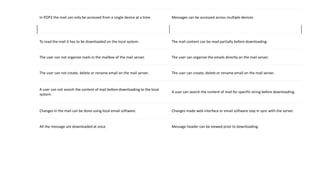
In POP3 the mail can only be accessed from a single device at a time. Messages can be accessed across multiple devices
To read the mail it has to be downloaded on the local system. The mail content can be read partially before downloading.
The user can not organize mails in the mailbox of the mail server. The user can organize the emails directly on the mail server.
The user can not create, delete or rename email on the mail server. The user can create, delete or rename email on the mail server.
A user can not search the content of mail before downloading to the local
system.
A user can search the content of mail for specific string before downloading.
Changes in the mail can be done using local email software. Changes made web interface or email software stay in sync with the server.
All the message are downloaded at once. Message header can be viewed prior to downloading.
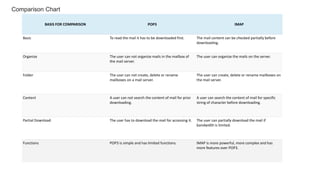
Comparison Chart
BASIS FOR COMPARISON POP3 IMAP
Basic To read the mail it has to be downloaded first. The mail content can be checked partially before
downloading.
Organize The user can not organize mails in the mailbox of
the mail server.
The user can organize the mails on the server.
Folder The user can not create, delete or rename
mailboxes on a mail server.
The user can create, delete or rename mailboxes on
the mail server.
Content A user can not search the content of mail for prior
downloading.
A user can search the content of mail for specific
string of character before downloading.
Partial Download The user has to download the mail for accessing it. The user can partially download the mail if
bandwidth is limited.
Functions POP3 is simple and has limited functions. IMAP is more powerful, more complex and has
more features over POP3.
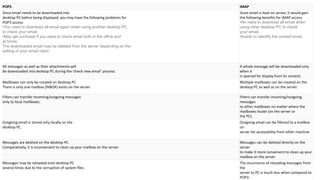
POP3 IMAP
Since email needs to be downloaded into
desktop PC before being displayed, you may have the following problems for
POP3 access:
•You need to download all email again when using another desktop PC
to check your email.
•May get confused if you need to check email both in the office and
at home.
The downloaded email may be deleted from the server depending on the
setting of your email client.
Since email is kept on server, it would gain
the following benefits for IMAP access:
•No need to download all email when
using other desktop PC to check
your email.
•Easier to identify the unread email.
All messages as well as their attachments will
be downloaded into desktop PC during the ‘check new email’ process.
A whole message will be downloaded only
when it
is opened for display from its content.
Mailboxes can only be created on desktop PC.
There is only one mailbox (INBOX) exists on the server.
Multiple mailboxes can be created on the
desktop PC as well as on the server.
Filters can transfer incoming/outgoing messages
only to local mailboxes.
Filters can transfer incoming/outgoing
messages
to other mailboxes no matter where the
mailboxes locate (on the server or
the PC).
Outgoing email is stored only locally on the
desktop PC.
Outgoing email can be filtered to a mailbox
on
server for accessibility from other machine.
Messages are deleted on the desktop PC.
Comparatively, it is inconvenient to clean up your mailbox on the server.
Messages can be deleted directly on the
server
to make it more convenient to clean up your
mailbox on the server.
Messages may be reloaded onto desktop PC
several times due to the corruption of system files.
The occurrence of reloading messages from
the
server to PC is much less when compared to
POP3.
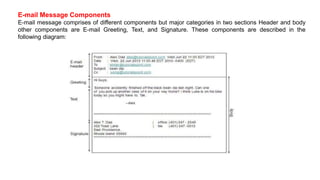
E-mail Message Components
E-mail message comprises of different components but major categories in two sections Header and body
other components are E-mail Greeting, Text, and Signature. These components are described in the
following diagram:
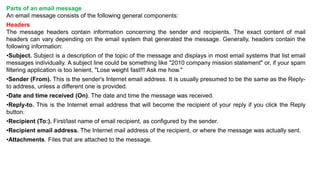
Parts of an email message
An email message consists of the following general components:
Headers
The message headers contain information concerning the sender and recipients. The exact content of mail
headers can vary depending on the email system that generated the message. Generally, headers contain the
following information:
•Subject. Subject is a description of the topic of the message and displays in most email systems that list email
messages individually. A subject line could be something like "2010 company mission statement" or, if your spam
filtering application is too lenient, "Lose weight fast!!! Ask me how."
•Sender (From). This is the sender's Internet email address. It is usually presumed to be the same as the Reply-
to address, unless a different one is provided.
•Date and time received (On). The date and time the message was received.
•Reply-to. This is the Internet email address that will become the recipient of your reply if you click the Reply
button.
•Recipient (To:). First/last name of email recipient, as configured by the sender.
•Recipient email address. The Internet mail address of the recipient, or where the message was actually sent.
•Attachments. Files that are attached to the message.
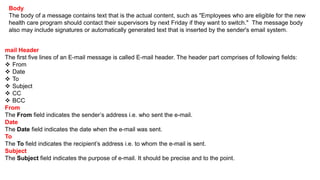
mail Header
The first five lines of an E-mail message is called E-mail header. The header part comprises of following fields:
 From
 Date
 To
 Subject
 CC
 BCC
From
The From field indicates the sender’s address i.e. who sent the e-mail.
Date
The Date field indicates the date when the e-mail was sent.
To
The To field indicates the recipient’s address i.e. to whom the e-mail is sent.
Subject
The Subject field indicates the purpose of e-mail. It should be precise and to the point.
Body
The body of a message contains text that is the actual content, such as "Employees who are eligible for the new
health care program should contact their supervisors by next Friday if they want to switch." The message body
also may include signatures or automatically generated text that is inserted by the sender's email system.
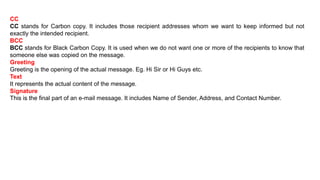
CC
CC stands for Carbon copy. It includes those recipient addresses whom we want to keep informed but not
exactly the intended recipient.
BCC
BCC stands for Black Carbon Copy. It is used when we do not want one or more of the recipients to know that
someone else was copied on the message.
Greeting
Greeting is the opening of the actual message. Eg. Hi Sir or Hi Guys etc.
Text
It represents the actual content of the message.
Signature
This is the final part of an e-mail message. It includes Name of Sender, Address, and Contact Number.
How Do You Know Your Mailbox Is Full?
You might be over your quota if you have received an email from our server indicating you were over your email
quota. It might look something like this:
“Re: Mailbox Size Warning . The mailbox you@yourE-mail.co is almost full. You should remove some emails as
soon as possible to prevent losing any future mail…”
Or
Someone who sent you an email might call to tell you that they got back an email like: “Subject: Mail delivery
failed: returning message to sender. … The following address(es) failed: ”
Or you’ve stopped receiving emails (but are still able to send them – try sending yourself an email to test).
Email is received from the internet by a POP (Post Office Protocol) email server. When you launch your email
program and click the send and receive email button, your email program asks the POP server to deliver any new
email. Your email program then downloads the current messages then tells the POP server to delete the messages
on the server since the email program now has a copy of the messages on your PC. You can control the action of
your email program by telling it to delete messages after they have been downloaded, or telling the server to keep a
copy for a period of time.
Deleting message from the server
It’s preferable to have your email program delete messages off of the server, because if you leave too many
messages on the server your inbox will get too large and will cause performance problems with your email
account. We STRONGLY recommend deleting messages off of the server.
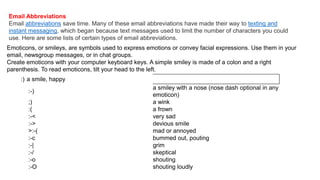
Email Abbreviations
Email abbreviations save time. Many of these email abbreviations have made their way to texting and
instant messaging, which began because text messages used to limit the number of characters you could
use. Here are some lists of certain types of email abbreviations.
Emoticons, or smileys, are symbols used to express emotions or convey facial expressions. Use them in your
email, newsgroup messages, or in chat groups.
Create emoticons with your computer keyboard keys. A simple smiley is made of a colon and a right
parenthesis. To read emoticons, tilt your head to the left.
:) a smile, happy
:-)
a smiley with a nose (nose dash optional in any
emoticon)
;) a wink
:( a frown
:-< very sad
:-> devious smile
>:-( mad or annoyed
:-c bummed out, pouting
:-| grim
:-/ skeptical
:-o shouting
:-O shouting loudly
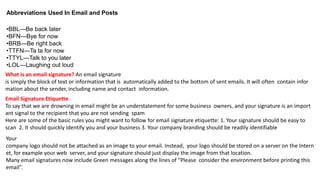
Abbreviations Used In Email and Posts
•BBL—Be back later
•BFN—Bye for now
•BRB—Be right back
•TTFN—Ta ta for now
•TTYL—Talk to you later
•LOL—Laughing out loud
What is an email signature? An email signature
is simply the block of text or information that is automatically added to the bottom of sent emails. It will often contain infor
mation about the sender, including name and contact information.
Email Signature Etiquette
To say that we are drowning in email might be an understatement for some business owners, and your signature is an import
ant signal to the recipient that you are not sending spam
Here are some of the basic rules you might want to follow for email signature etiquette: 1. Your signature should be easy to
scan 2. It should quickly identify you and your business 3. Your company branding should be readily identifiable
Your
company logo should not be attached as an image to your email. Instead, your logo should be stored on a server on the Intern
et, for example your web server, and your signature should just display the image from that location.
Many email signatures now include Green messages along the lines of “Please consider the environment before printing this
email”.
Stationery and themes are a set of unified design elements and color schemes. They specify fonts, bullets,
background color, horizontal lines, images, and other design elements that you want to include in outgoing email
messages.
Reading an Email Message
Gmail automatically and frequently checks for new email messages sent to you, whenever your computer or
mobile device is turned on and connected to the Internet. If you want to manually check for new messages, open
your inbox and then click the Refresh button above the message list.
To view all messages you’ve received, click Inbox in the navigation sidebar and then click the tab you want to view.
Your most important messages should be on the Primary tab; other messages might be on the Social, Promotions,
Updates, or Forums tabs.
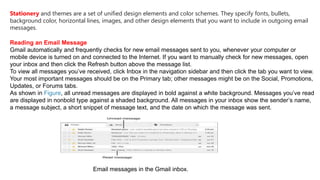
As shown in Figure, all unread messages are displayed in bold against a white background. Messages you’ve read
are displayed in nonbold type against a shaded background. All messages in your inbox show the sender’s name,
a message subject, a short snippet of message text, and the date on which the message was sent.
Email messages in the Gmail inbox.
To read a given message, follow these steps:
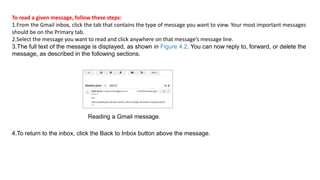
1.From the Gmail inbox, click the tab that contains the type of message you want to view. Your most important messages
should be on the Primary tab.
2.Select the message you want to read and click anywhere on that message’s message line.
3.The full text of the message is displayed, as shown in Figure 4.2. You can now reply to, forward, or delete the
message, as described in the following sections.
Reading a Gmail message.
4.To return to the inbox, click the Back to Inbox button above the message.
Email attachments allow you to send files along with your email messages. An attachment can be any type of
file, but the most common ones are text documents and images (photos etc).
Before you send an attachment, you need to know where it is located on your computer. Usually you will have
saved the file using Windows Explorer or some other software. Whenever you save a file to use as an
attachment, select "Save As..." and make a note of where you save it. If you can't find a file, use the Windows
search function.
Once you know where the file is you can create the email message.
• Create a new email message and enter the usual details (recipient address, subject, etc).
•Look for an icon in your toolbar which looks like a paper clip and click it.
•A "Browse" window will open. Locate and select the attachment file.
These files are quite common and safe:
•.txt - Plain text file
•.jpg (or .jpeg) - Image file for photos etc
•.gif - graphic file
These files are often used for attachments, but they also cause a lot of problems:
•.doc - MS Office document
•.xls - MS Excel Spreadsheet
•.pub - MS Publisher document
Now a day, the mail client comes with enhanced features such as attachment, address book, and MIME
support. Here in this chapter we will discuss all of these features which will give you a better understanding
of added feature of a mail client program.
Attachment
Ability to attach file(s) along with the message is one of the most useful features of email. The attachment
may be a word document, PowerPoint presentation, audio/video files, or images.
•In order to attach file(s) to an email, click the attach button. As a result, a dialog box appears asking for
specifying the name and location of the file you want to attach.
•Once you have selected the appropriate file, it is attached to the mail.
•Usually a paper clip icon appears in the email which indicates that it has an attachment.
•When adding an attachment it is better to compress the attached files so as to reduce the file size and
save transmission time as sending and downloading large files consumes a lot of space and time.
MIME Types
MIME is acronym of Multipurpose Internet Mail Extensions. MIME compliant mailer allows us to
send files other than simple text i.e. It allows us to send audio, video, images, document, and pdf files
as an attachment to an email.
Suppose if you want to send a word processor document that has a group of tabular columns with
complex formatting. If we transfer the file as text, all the formatting may be lost. MIME compliant
mailer takes care of messy details and the message arrives as desired.
An email attachment is a computer file sent within an email message.
An email attachment can be of many different types such as:
•Image (photo),
•Video,
•MP3,
•Document,
•Zipped file/folder.
How to Add an Attachment to an Email Message?
1.Open a new email message window (Click the "New Message" or "Compose Email" icon, or use the keyboard shortcut of CTRL + N)
2.Click on the paperclip icon titled "Attach a File/Files"
3.Browse through your computer's folders and click to select the targeted files/folders. You can select multiple files at once.
4.Click the "Open" or "Choose File" icon to attach the file to your email.
1. Large Attachments
2. Do not send large attachments to people (e.g. a computer program you have downloaded from the Internet, or a digital photo that is 2
or 3mbs in size) without first asking them if they want the file. Consider cloud services like Dropbox or HighTail for exchanging large files.
3. If you send a large attachment it may take a very long time to download the file, so it is courteous to ask first. It may also take up that
person's mail box quota, and the mail box will start "bouncing" (rejecting) other messages. In a commercial context, this could become
costly (in lost business) to your correspondent, so resize those images before you send them. A good size for an e-mailed photograph is
about 600 pixels across or 50kb.
4. Most users will be able to avoid downloading a large message once it arrives in their mailbox by using some form of webmail,
like www.mail2web.com for example.
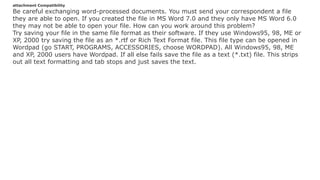
attachment Compatibility
Be careful exchanging word-processed documents. You must send your correspondent a file
they are able to open. If you created the file in MS Word 7.0 and they only have MS Word 6.0
they may not be able to open your file. How can you work around this problem?
Try saving your file in the same file format as their software. If they use Windows95, 98, ME or
XP, 2000 try saving the file as an *.rtf or Rich Text Format file. This file type can be opened in
Wordpad (go START, PROGRAMS, ACCESSORIES, choose WORDPAD). All Windows95, 98, ME
and XP, 2000 users have Wordpad. If all else fails save the file as a text (*.txt) file. This strips
out all text formatting and tab stops and just saves the text.
Composing and Sending Email
Before sending an email, we need to compose a message. When we are composing an email message, we specify the following things:
•Sender’s address in To field
•Cc (if required)
•Bcc (if required)
•Subject of email message
•Text
•Signature
You should specify the correct email address; otherwise it will send an error back to the sender.
Once you have specified all the above parameters, It’s time to send the email. The mailer program provides a Send button to send email, when you click Send, it is sent
to the mail server and a message mail sent successfully is shown at the above.
Replying Email
After reading an email, you may have to reply that email. To reply an email, click Reply option shown at the
bottom of the opened email.
Once you click on Reply, it will automatically copy the sender’s address in to the To field. Below the To field,
there is a text box where you can type the message.
Once you are done with entering message, click Send button. It’s that easy. Your email is sent.
Forwarding Email
It is also possible to send a copy of the message that you have received along with your own comments if you
want. This can be done using forward button available in mail client software.
The difference between replying and forwarding an email is that when you reply a message to a person who has
send the mail but while forwarding you can send it to anyone.
When you receive a forwarded message, the message is marked with a > character in front of each line
and Subject: field is prefixed with Fw.
Deleting Email
If you don’t want to keep email into your inbox, you can delete it by simply selecting the message from the
message list and clicking delete or pressing the appropriate command.
Some mail clients offers the deleted mails to be stored in a folder called deleted items or trash from where you
can recover a deleted email.
Spam
E-mail spamming is an act of sending Unsolicited Bulk E-mails (UBI) which one has not asked for. Email spams
are the junk mails sent by commercial companies as an advertisement of their products and services.
E-mail Spamming and Junk Mails
Email spamming is an act of sending Unsolicited Bulk E-mails (UBI) which one has not asked for. Email spams
are the junk mails sent by commercial companies as an advertisement of their products and services.
Spams may cause the following problems:
•It floods your e-mail account with unwanted e-mails, which may result in loss of important e-mails if inbox is full.
•Time and energy is wasted in reviewing and deleting junk emails or spams.
•It consumes the bandwidth that slows the speed with which mails are delivered.
•Some unsolicited email may contain virus that can cause harm to your computer.
Blocking Spams
Following ways will help you to reduce spams:
•While posting letters to newsgroups or mailing list, use a separate e-mail address than the one you used for
your personal e-mails.
•Don’t give your email address on the websites as it can easily be spammed.
•Avoid replying to emails which you have received from unknown persons.
•Never buy anything in response to a spam that advertises a product.
A firewall is a network security device that monitors incoming and outgoing network traffic and decides
whether to allow or block specific traffic based on a defined set of security rules.
Firewalls have been a first line of defense in network security
A firewall can be hardware, software, or both.
Firewalls carefully analyze incoming traffic based on pre-established rules and filter traffic coming from
unsecured or suspicious sources to prevent attacks.
Firewalls guard traffic at a computer’s entry point, called ports, which is where information is exchanged with
external devices. For example, “Source address 172.18.1.1 is allowed to reach destination 172.18.2.1 over port
22."
Think of IP addresses as houses, and port numbers as rooms within the house. Only trusted people (source
addresses) are allowed to enter the house (destination address) at all—then it’s further filtered so that people
within the house are only allowed to access certain rooms (destination ports), depending on if they're the
owner, a child, or a guest. The owner is allowed to any room (any port), while children and guests are allowed
into a certain set of rooms (specific ports).
Firewall is a barrier between Local Area Network (LAN) and the Internet. It allows keeping private resources
confidential and minimizes the security risks. It controls network traffic, in both directions.
The following diagram depicts a sample firewall between LAN and the internet. The connection between the two
is the point of vulnerability. Both hardware and the software can be used at this point to filter network traffic.
There are two types of Firewall system: One works by using filters at the network layer and the other works
by using proxy servers at the user, application, or network layer.
Usenet is a kind of discussion group where people can share views on topic of their interest. The article posted to a
newsgroup becomes available to all readers of the newsgroup.
A newsgroup is an online discussion forum accessible through Usenet. Each newsgroup contains discussions
about a specific topic, indicated in the newsgroup name.
Newsgroups may be either moderated or unmoderated. In a moderated newsgroup, a moderator must approve
posts in order for them to become part of the discussion. In an unmoderated group, everything posted is included
in the discussion. Some newsgroups may also use bots (A bot (short for "robot") is an automated program that runs
over the Internet. some common examples include web crawlers, chat room bots, and malicious bots.)to moderate the
content, automatically eliminating posts that are deemed offensive or off topic.
While many people now use web forums and online chat instead of newsgroups, the service is still popular
around the world.
Newsgroups are organized into subject hierarchies, with the first few letters of the newsgroup name indicating
the major subject category and sub-categories represented by a subtopic name. Many subjects have multiple
levels of subtopics. Some major subject categories are: news, rec (recreation), soc (society), sci (science), comp
(computers), and so forth (there are many more).
For example, the newsgroup comp.lang.C++ contains discussion on C++ language. The leftmost
part comp classifies the newsgroup as one that contains discussion of computer related topics. The second
part identifies one of the subtopic lang that related to computer languages. The third part identifirs one of the
computer languages, in this case C++.
Chat refers to the process of communicating, interacting and/or exchanging messages over the Internet. It
involves two or more individuals that communicate through a chat-enabled service or software.
Chat is also known as chatting, online chat or Internet chat.
Online or web chat is very different from Texting and Messaging.
Real-time chat is virtually any online communication that provides a real-time or live transmission of text
messages from sender to receiver. A variety of software programs are available to enable real-time chat
between individuals using Internet services.
Real-time chat can be any direct text-based or video-based (using webcams) one-to-one chat or one-to-many
group chats by means of tools like instant messengers (IMs), talkers, Internet Relay Chat (IRC)
The first real-time chat system was known as Talkomatic
•Common real-time chat programs and protocols include:
Apple's Messages
•Google Talk
•Internet Relay Chat (IRC)
•Skype
•WhatsApp
Websites having browser-based, real-time chat services include:
Facebook
•Google+
•Gmail
•Talkomatic
Asynchronous communication is when two (or more) people can communicate without the requirement that
they be “present” at the same exact moment in time.
Asynchronous communication examples:
•Email
•Facebook Messenger, WhatsApp, Slack, Microsoft Teams
Asynchronous Messaging is a communication method where a message is placed in a message queue and
does not require an immediate response to move forward with processing. Examples include email and SMS
messaging where as chat would be a form of synchronous messaging.
What Is Video Conferencing?
A system with video cameras connected by the internet or by a special connection so that people in different places can see and communicate with
each other, so they do not have to travel to meetings:
•Video conferencing is a highly convenient use of technology that allows users in different locations to hold face-to-face meetings.
•There are many ways to utilize video conferencing technology, such as company meetings, job training sessions, or addressing board members.
•Video conferencing can be used to connect a traditional classroom with students who are taking the class remotely.
•The stability and quality of the video conference may fluctuate with the speed and reliability of the data connection.
•There are a variety of ways video conferencing can be conducted—like using smartphones and tablets or via desktop computers.
Video conferencing is a technology that allows users in different locations to hold face-to-face meetings without having to move to a single
location together. This technology is particularly convenient for business users in different cities or even different countries because it saves time,
expenses, and hassles associated with business travel. Uses for video conferencing include holding routine meetings, negotiating business deals,
and interviewing job candidates.
Uses of Video Conferencing
 Companies with multiple offices might establish direct video communications between their locations in order to allow their teams to work more
collaboratively.
 Video conferencing can also be used as a medium for conducting training, with the instructor teaching a remote class from almost anywhere. This
can be done in a corporate context
 A video conference may also be used to conduct regular meetings with a company staff
 It may be used to announce significant changes at a company, such as introducing a new CEO
•Privacy: It helps to block websites, internet browsers, cable companies, and internet service providers from
tracking your information and your browser history.
•Security: It helps protect you from other people accessing your personal information and other data.
privacy It is all about the rights of individuals with respect to their personal information. Data privacy is about
proper usage, collection, retention, deletion, and storage of data.
Data security is focused on protecting personal data from any unauthorized third-party access or malicious
attacks and exploitation of data. It is set up to protect personal data using different methods and techniques to
ensure data privacy.
Data security ensures the integrity of the data, meaning data is accurate, reliable and available to authorized
parties. Data security is policies, methods, and means to secure personal data.
So, if you are using Google Gmail account, your password would be a method of data security, while the
way Google uses your data to administer your account, would be data privacy.
Here’s an example. You might share personal information with your bank when you open a checking account. What happens after that? Here
are three possible outcomes, all related to your personal information (not to the money you may have deposited in the checking account).
1.Your privacy and security are maintained. The bank uses your information to open your account and provide you with products and
services. They go on to protect that data.
2.Your privacy is compromised, and your security is maintained. The bank sells some of your information to a marketer. Note: You may
have agreed to this in the bank’s privacy disclosure. The result? Your personal information is in more hands than you may have wanted.
3.Both your privacy and security are compromised. The bank gets hit by a data breach. Cybercriminals penetrate a bank database,
a security breach. Your information is exposed and could be sold on the dark web. Your privacy is gone. You could become the victim of cyber
fraud and identity theft.
Different Data Security Technologies
Data security technology comes in many shapes and forms and protects data from a growing number of threats. Many of these threats are
from external sources, but organizations should also focus their efforts on safeguarding their data from the inside, too. Ways of securing
data include:
Data encryption: Data encryption applies a code to every individual piece of data and will not grant access to encrypted data without an
authorized key being given
Data masking: Masking specific areas of data can protect it from disclosure to external malicious sources, and also internal personnel
who could potentially use the data. For example, the first 12 digits of a credit card number may be masked within a database.
Data erasure: There are times when data that is no longer active or used needs to be erased from all systems. For example, if a customer
has requested for their name to be removed from a mailing list, the details should be deleted permanently.
Data resilience: By creating backup copies of data, organizations can recover data should it be erased or corrupted accidentally or stolen
during a data breach.
The fundamental principles (tenets) of information security are confidentiality, integrity, and availability. Every element of an information security
program (and every security control put in place by an entity) should be designed to achieve one or more of these principles. Together, they are
called the CIA Triad.
What is Confidentiality?
Confidentiality measures are designed to protect against unauthorized disclosure of information. The objective of the confidentiality principle is
to ensure that private information remains private and that it can only be viewed or accessed by individuals who need that information in order to
complete their job duties.
What is Integrity?
Integrity involves protection from unauthorized modifications (e.g., add, delete, or change) of data. The principle of integrity is designed to
ensure that data can be trusted to be accurate and that it has not been inappropriately modified.
What is Availability?
Availability is protecting the functionality of support systems and ensuring data is fully available at the point in time (or period requirements)
when it is needed by its users. The objective of availability is to ensure that data is available to be used when it is needed to make decisions.
The three core principles of information security are confidentiality, integrity and availability.
Cryptography
Cryptography is technique of securing information and communications through use of codes so that only those person for
whom the information is intended can understand it and process it. Thus preventing unauthorized access to information. The
prefix “crypt” means “hidden” and suffix graphy means “writing”.
In Cryptography the techniques which are use to protect information are obtained from mathematical concepts and a set of rule
based calculations known as algorithms to convert messages in ways that make it hard to decode it. These algorithms are used
for cryptographic key generation, digital signing, verification to protect data privacy, web browsing on internet and to protect
confidential transactions such as credit card and debit card transactions.
Techniques used For Cryptography:
In today’s age of computers cryptography is often associated with the process where an ordinary plain text is converted to cipher
text which is the text made such that intended receiver of the text can only decode it and hence this process is known as
encryption. The process of conversion of cipher text to plain text this is known as decryption.
Features Of Cryptography are as follows:
1.Confidentiality:
Information can only be accessed by the person for whom it is intended and no other person except him can access it.
2.Integrity:
Information cannot be modified in storage or transition between sender and intended receiver without any addition to information
being detected.
3.Non-repudiation:
The creator/sender of information cannot deny his or her intention to send information at later stage.
4.Authentication:
The identities of sender and receiver are confirmed. As well as destination/origin of information is confirmed.
ANSHU AGARWAL
sender
receiver
Plain text Cipher text/encoded form
cqvkx
Mailicious
user/hacker
key
Mathematical algorithms
What is Applet?
An applet is a Java program that can be embedded into a web page. It runs inside the web browser and works at client side. An applet is embedded in an HTML page using
the APPLET or OBJECT tag and hosted on a web server.
Applets are used to make the web site more dynamic and entertaining.
Applet is a special type of program that is embedded in the webpage to generate the dynamic content. It runs
inside the browser and works at client side.
Simple example of Applet by html file:
To execute the applet by html file, create an applet and compile it. After that create an html file and place the applet code in
html file. Now click the html file.
1.//First.java
2.import java.applet.Applet;
3.import java.awt.Graphics;
4.public class First extends Applet{
5.
6.public void paint(Graphics g){
7.g.drawString("welcome",150,150);
8.}
9.
10.}
myapplet.html
1.<html>
2.<body>
3.<applet code="First.class" width="300" height=
"300">
4.</applet>
5.</body>
6.</html>
A scripting language is used to write scripts. These contain a series of commands that are interpreted one by one at runtime unlike
programming languages that are compiled first before running.
Nowadays, scripts are generally associated with web development where they are widely used to make dynamic web applications. Scripting
languages can be divided into two categories:
•Server Side Scripting Languages
•Client Side Scripting Languages
Server-side scripting languages create the scripts that run on the server and hence minimize the workload of a browser. The functionality of your
website is written in those scripting languages. The most commonly used server-side scripting languages are Perl, Ruby, Python, PHP, etc.
Client-side scripting languages create the scripts that run on the client side (i.e. your browser). These are sent from the server by server-side
scripts. Some good examples are JavaScript, jQuery, CSS etc.
Advantages of scripting languages:
•Easy learning: The user can learn to code in scripting languages quickly, not much knowledge of web technology is required.
•Fast editing: It is highly efficient with the limited number of data structures and variables to use.
•Interactivity: It helps in adding visualization interfaces and combinations in web pages. Modern web pages demand the use of scripting languages.
To create enhanced web pages, fascinated visual description which includes background and foreground colors and so on.
•Functionality: There are different libraries which are part of different scripting languages. They help in creating new applications in web browsers
and are different from normal programming languages.
Application of Scripting Languages: Scripting languages are used in many areas:
•Scripting languages are used in web applications. It is used in server side as well as client side. Server side scripting languages are: JavaScript,
PHP, Perl etc. and client side scripting languages are: JavaScript, AJAX, jQuery etc.
•Scripting languages are used in system administration. For example: Shell, Perl, Python scripts etc.
•It is used in Games application and Multimedia.
•It is used to create plugins and extensions for existing applications.
https://careerkarma.com/blog/what-is-a-scripting-language/
ActiveX is a Microsoft-created technology that enables different software applications to share information and
functionality. ActiveX only works with Microsoft applications like Word, Excel, Internet Explorer and PowerPoint,
and will only work on a computer running the Windows operating system.
Early on at Microsoft, programmers realized that many of the same functions could be shared among different
applications. For example, a spell checker is just as useful in a word processing program like Word as in an e-
mail application like Outlook Express. Instead of writing two separate versions of code for the same spell-
checker, they created a spell checker object. This object lives on the Windows operating system. When any
Windows application needs spell-checking functionality, it calls on the spell-checker object.
ActiveX technology began as object linking and embedding (OLE). In the early days of Windows, OLE
allowed for simple cross-application functions like cut and paste. OLE evolved into the idea of a compound
object module (COM). The spell checker is an example of a COM
ActiveX and COM are essentially the same thing. An ActiveX control is another name for one of these
"objects," "modules" or "applets"
ActiveX controls are small applications written in common programming languages like Visual Basic and C++.
They're similar in function to Java applets, which are small programs that run within Web browsers.
ActiveX controls are Internet Explorer’s version of plug-ins. For example, Internet Explorer’s Flash player is an
ActiveX control. Unfortunately, ActiveX controls have been a significant source of security problems.
ActiveX controls are essentially pieces of software and have access to your entire computer if you opt to install
and run them. If you’re using Internet Explorer, websites can prompt you to install ActiveX controls — and this
feature can be used for malicious purposes.
What ActiveX Controls Do
An ActiveX control is a small program for Internet Explorer, often referred to as an add-on. ActiveX controls are
like other programs — they aren’t restricted from doing bad things with your computer. They could monitor your
personal browsing habits, install malware, generate pop-ups, log your keystrokes and passwords, and do other
malicious things.
ActiveX controls are actually not Internet Explorer-only. They also work in other Microsoft applications, such as
Microsoft Office.
Other browsers, such as Firefox, Chrome, Safari, and Opera, all use other types of browser plug-ins. ActiveX
controls only function in Internet Explorer. A website that requires an ActiveX control is an Internet Explorer-only
website.
ActiveX controls are mostly talked about in reference to Internet Explorer, the default Web browser for the
Windows operating system. Let's say you open a Web page with Internet Explorer that contains video clips
encoded as Windows Media files (.wmv). Internet Explorer comes pre-loaded with an ActiveX control that allows
for Windows Media files to be played directly in the Web page.In other words, you don't have to launch the
Windows Media Player application separately. The ActiveX control accesses the functionality of the Windows
Media Player behind the scenes and plays back the file in the browser window.
Another common ActiveX control plays Flash files (.swf). Internet Explorer can't play Flash files by itself. That's
something only the Adobe Flash Player can do. But if a whole Web site is programmed in Flash, you don't want to
launch the Flash Player to view it. So Internet Explorer gives you the option of downloading and installing the
Flash ActiveX Control. The Flash ActiveX Control automatically detects when a site contains Flash files. It then
accesses the Flash player functionality at the operating system level and plays the files directly in the browser.
A plugin is a software add-on that is installed on a program, enhancing its capabilities. For example, if you wanted to watch a video on a
website, you may need a plugin to do so. If the plugin is not installed, your browser will not understand how to play the video.
Every web browser has an official website where you can download and install plugins (also called "add-ons" or "extensions"). The web
browser publisher (e.g., Google, Mozilla, Apple, etc.) verifies the plugins are not harmful before making them available to download.
You should always install plugins directly from the browser's official website.
Examples of browser plugins
The following list are examples of Internet browser plugins that can be installed in a browser to extend its capabilities.
 Adobe Acrobat
 Adobe Flash
 Shockwave
 Silverlight
 QuickTime
 RealPlayer
Developed by Apple and initially released on December 2, 1991, QuickTime is software that allows a computer user to play movie
files. QuickTime is available for Apple and IBM compatible users running a compatible operating system, such
as Microsoft Windows or any Macintosh operating system. With IBM compatible computers, QuickTime is commonly used to play
.MOV extension files. The image is an example of Apple QuickTime program running on a computer.
Short for Portable Document Format, PDF is a file format and file extension developed by Adobe that enables users to capture the native
appearance of a document. It is useful because it allows the document to be viewed and printed the same way on any device. PDF files
are frequently used in legal documents, such as tax papers, bank statements, and other forms that need the user to fill in data. Clicking
the Adobe PDF file icon to the right opens an example of a PDF file if Adobe Acrobat Reader or other PDF reader is installed on your
computer.
Adobe Flash, Flash is software that allows users to create animated works that are saved as .FLV and can be viewed over the Internet. It was
originally developed by FutureWave and known as Future Splash Animator. In 1996, it was renamed and introduced to the public
as Macromedia Flash, shortly after Macromedia purchased the product. Later, Adobe announced plans to purchase Macromedia, which was
finalized and completed by the end of 2005.
RealPlayer was one of the first widely available streaming audio players available over the Internet. Originally called RealAudio, RealPlayer
gives you the capability of listening to live audio over the Internet without having to spend several hours downloading.
Due to the popularity of RealAudio, RealPlayer included the functionality of RealAudio, allowing you to listen to streaming audio and also
watch streaming video.
Shockwave is a multimedia application platform and file format by Adobe. It allows users with the
Shockwave plugin to view animated, interactive content in the browser window. Adobe Shockwave
is similar to Adobe Flash, but gives the developer more freedom to create certain types of
applications.
A subscription website is simply an online gate that restricts access to content on your website. Only those
who pay can cross through the gate and access your content.the content on your website must be valuable
enough for people to want to pay for it.
A subscription requires registration of an email address on a website. The registered email address is added to
a repository of customer email IDs, which are used for mass mailing some kind of digital content. Getting
daily/weekly updates, coupons or offers from different organizations is also another perk of subscription-based
models.
Software as a Service (SaaS) providers also offer a subscription-based model, which includes two types:
 Monthly subscription model: In this model, the customers pay on a monthly basis, often through credit
cards or automated e-payments. In general, customers are allowed to cancel the subscription any time, with
no penalty or fee. Although unusual, a few monthly subscription companies do provide quarterly and annual
subscriptions.

Term subscription model: In this model, the customers subscribe to the services for a mutually agreed time
period. The subscription agreement might or might not incorporate terms for cancellation during the
agreement period. Term subscription models feature flexible payment terms, which may include monthly,
quarterly, yearly or a mutually agreed customized payment terms.
•Some of the popular subscription website types are:
Membership subscription website: Paid members can subscribe to a library of data on a certain topic of
interest or a group of topics.
•
Magazine subscription website: Paid members can subscribe to a digital magazine or a related print or issue
of the magazine.
•
Application subscription website: Paid members can subscribe to gain access to specific online software
programs or applications that let them input data, search a proprietary database, access results, etc.
•
Blog subscription website: A mostly free subscription model where readers can access publisher as well as
user-generated content, which is updated consistently and frequently.
Some of the popular subscription websites you can go through to get some inspiration include:
Copy blogger
Study Gateway
International Living
What is web tv?
A web tv is a digital tool that works like a conventional TV channel, however, it is only displayed on the internet
and has its programming produced especially for this digital format.
A web tv is transmitted through video streaming features, which rely on the transmission of data from a server to
the viewer of the video to the viewer by the player on the internet.
It allows the transmission of live videos or recorded programming, and you can merge the two forms according to
need.
Advantages of setting up a web tv
The search for this type of online resource has been growing due to the advantages that this format presents
compared to a conventional television channel. Check out some of the key advantages:
 Flexibility regarding the choice of programming content that can be of different styles, for example, it is possible
to set up a web tv related to the specific segment that your company works for, to broadcast religious events
and events of a church, public hearings, tutorials, courses, entertainment, humorous programming and so on.
 Ease of access anywhere and on different platforms like smartphones, computers or tablets. Just have a stable internet
connection to watch the broadcast.
 Web channel is a combination of various web services. One web channel can provide many services such
as videos, news, discussion.
Websites and web portals thus can be differentiated on different aspects, firstly websites are majorly focused on driving traffic while web
portals are for limiting the traffic. Whereas the web portals require users to login while websites are open to being visited by any individual.
Web Portal is a specially designed website that provides information catered from various sources such as emails, online forums, search
engines on one platform, in a uniform way.
WEBSITE WEB PORTAL
Location on internet, publicaly accessible with a unique
URL(Web Address)
A private location on the internet it can be accessible with
unique url and unique username and password
No any requirment of any login Login required
Any one can visit and can see content of website
Only memeber of the webportal having access can see the
content of web portal
Content does not change by different individuals
Dynamic content changes more frequently than typical
websites.
Examples of portals, particularly those that use a login experience, abound in most industries:
•Patient Portals
•Government Portals
•Intranets/Extranets/Workplace Portals
•Knowledge Management Portals
•Student Portals
•Vendor Portals
A portal provides at least four essential services: (1) search engine(s), (2) email, (3) links to other related sites,
and (4) personalized content. It may also provide facilities such as chat, members list, free downloads, etc.
Portals such as AOL, MSN, Netcenter, and Yahoo, earn their revenue from membership fees and/or by selling
advertising space on their webpages. Also called portal site or web portal.
USE OF WEB RESOURCES
• Portals Web
• News and Weather
• SportS
• Personal Finance and Investing
• Entertainment News
• Shopping
• Travel
• Health and Medicine
• Communities and Clubs
Personal finance is a term that covers managing your money as well as saving and investing. It encompasses
budgeting, banking, insurance, mortgages, investments, retirement planning, and tax and estate planning.
Personal Finance Explained
Personal finance is about meeting personal financial goals, whether it’s having enough for short-term financial
needs, planning for retirement, or saving for your child's college education. It all depends on your income,
expenses, living requirements, and individual goals and desires—and coming up with a plan to fulfill those
needs within your financial constraints. But to make the most of your income and savings it's important to
become financially literate, so you can distinguish between good and bad advice and make savvy decisions.
•Few schools have courses in how to manage your money, so it is important to learn the basics through free
online articles, courses, and blogs; podcasts; or at the library.
•Smart personal finance involves developing strategies that include budgeting, creating an emergency fund,
paying off debt, using credit cards wisely, saving for retirement, and more.

Web Development college presentation.pptx

  • 1.
  • 2.
    The Internet isan increasingly important part of everyday life for people around the world. What is the Internet? The Internet is a global network of billions of computers and other electronic devices. With the Internet, it's possible to access almost any information, communicate with anyone else in the world, and do much more. You can do all of this by connecting a computer to the Internet, which is also called going online. When someone says a computer is online, it's just another way of saying it's connected to the Internet.
  • 3.
    The computer networkthat gave birth to the internet was the Advanced Research Projects Agency Network (ARPANET). The agency currently called the Defense Advanced Research Projects Agency (DARPA) was initially called the Advanced Research Projects Agency (ARPA). What makes the situation more confusing is that ARPA was renamed to DARPA in March 1972, then renamed ARPA in February 1993, and then renamed DARPA again in March 1996. Regardless of the name changes ARPA has always been an agency of the U.S. Department of Defense. what's the difference between DARPA and ARPANET? There is no "difference," one is the name of the organization, one is the name of the product they created.
  • 16.
    Internet Services allowsus to access huge amount of information such as text, graphics, sound and software over the internet. Following diagram shows the four different categories of Internet Services. Communication Services There are various Communication Services available that offer exchange of information with individuals or groups. The following table gives a brief introduction to these services:
  • 17.
    S.N. Service Description 1 ElectronicMail Used to send electronic message over the internet. 2 Telnet Used to log on to a remote computer that is attached to internet. 3 Newsgroup Offers a forum for people to discuss topics of common interests. 4 Internet Relay Chat (IRC) Allows the people from all over the world to communicate in real time. 5 Mailing Lists Used to organize group of internet users to share common information through e- mail. 6 Internet Telephony (VoIP) Allows the internet users to talk across internet to any PC equipped to receive the call. 7 Instant Messaging Offers real time chat between individuals and group of people. Eg. Yahoo messenger, MSN messenger.
  • 18.
    Information Retrieval Services Thereexist several Information retrieval services offering easy access to information present on the internet. The following table gives a brief introduction to these services: S.N. Service Description 1 File Transfer Protocol (FTP) Enable the users to transfer files. 2 Archie It’s updated database of public FTP sites and their content. It helps to search a file by its name. Web Services Web services allow exchange of information between applications on the web. Using web services, applications can easily interact with each other.
  • 19.
    World Wide Web(WWW) WWW is also known as W3. It offers a way to access documents spread over the several servers over the internet. These documents may contain texts, graphics, audio, video, hyperlinks. The hyperlinks allow the users to navigate between the documents. Video Conferencing Video conferencing or Video teleconferencing is a method of communicating by two-way video and audio transmission with help of telecommunication technologies. Internet Service Providers (ISP) Internet Service Provider (ISP) is a company offering access to internet. They offer various services: •Internet Access •Domain name registration •Dial-up access •Leased line access
  • 21.
    IP Address IP addressis a unique logical address assigned to a machine over the network. An IP address exhibits the following properties: •IP address is the unique address assigned to each host present on Internet. •IP address is 32 bits (4 bytes) long. •Each of the 4 bytes is represented by a number from 0 to 255, separated with dots. For example 137.170.4.124
  • 22.
    "It's a networkaddress for your computer so the Internet knows where to send you emails, data and pictures. IP addresses allow the location of literally billions of digital devices that are connected to the Internet to be pinpointed and differentiated from other devices. •Your house has a street address to get mail; your connected device has an Internet address to get and receive data on the Web. •Your home as a street number; your laptop, smartphone or your lights, baby monitor, (anything device that connects to the Internet and works wirelessly) has an Internet number. •The IP address you're using at any given time is your device's "digital address" that allows a connection to the systematically laid-out, interconnected grid that governs global connectivity. • Every website (Disney, Amazon, Apple, etc.) has a unique IP address, but it goes by its name instead (Disney.com, Amazon.com, Apple.com.) But without IP addresses you couldn't connect with them and they couldn't share information with you. IP Addresses
  • 23.
    The IPv4 Address. Thecommon type of IP address (is known as IPv4, for "version 4"). Here's an example of what an IP address might look like: 66.171.248.170 An IPv4 address consists of four numbers, each of which contains one to three digits, with a single dot (.) separating each number or set of digits. Each of the four numbers can range from 0 to 255. The IPv6 address IPv6 offers a maximum number of IP address for today and for the future. Whereas IPv4 supports a maximum of approximately 4.3 billion unique IP addresses, IPv6 supports, in theory, a maximum number that will never run out. A theoretical maximum of 340,282,366,920,938,463,463,374,607,431,768,211,456. To be exact. In other words, we will never run out of IP addresses again. An IPv6 address consists of eight groups of four hexadecimal digits. If a group consists of four zeros, the notation can be shortened using a colon to replace the zeros. Here's an example IPv6 address: 2001:0db8:85a3:0000:0000:8a2e:0370:7334
  • 24.
    A host nameis a name assigned to a device on a network. It is often used to distinguish one device from another over the internet. Hostnames can be used by DNS server so you can open your website using an easy-to- remember name and avoid remembering the long IP address. The host name consists of either “www” (where the global internet is the host) or some network that represents the host. The hostname en.wikipedia.org is composed of the DNS labels en (hostname or leaf domain), wikipedia (second-level domain) and org (top-level domain). A domain name is an address where people can access your website. It is like the address of your home. A domain name can be any combination of letters, numbers and some of the punctuation marks with various domain name extensions (.com, .eu, .net, .info). Every domain name must be unique, so you cannot use the domain that is already registered. Domain name is not something physical that you can touch or see. It is a string of characters that give your website an identity (yes, a name, like human and businesses). Examples of domain name: Google.com, Alexa.com, Linux.org, eLearningEuropa.info, as well as Yahoo.co.uk. All domain names are unique. This means there can be only one alexa.com in the world. You cannot register a name once it is registered by others (governed by ICANN). Domain registration process are governed by the Internet Corporation for Assigned Names and Numbers, or ICANN. Domain and Host Names
  • 25.
    Domain Names Domain Nameis a symbolic string associated with an IP address. There are several domain names available; some of them are generic such as com, edu, gov, net etc, while some country level domain names such as au, in, ir, us etc. Domain Name Meaning Com Commercial business Edu Education Gov U.S. government agency Int International entity Mil U.S. military Net Networking organization Org Non profit organization The following table shows the Generic Top-Level Domain names:
  • 26.
    Domain Name Meaning auAustralia in India cl Chile fr France us United States za South Africa uk United Kingdom jp Japan es Spain de Germany ca Canada ee Estonia hk Hong Kong The following table shows the Country top-level domain names:
  • 27.
    levels of domains Thenext level in the DNS hierarchy is the Second Level Domains. This is the domain that is directly below the tld. This is the main part of the domain name. It can vary according to the buyer. These are the names directly to the left of .com, .net, and the other top-level domains. As an example, in the domain example.co.uk, co is the second-level domain. Next are third-level domains, which are written immediately to the left of a second-level domain. There can be fourth- and fifth-level domains, and so on, with virtually no limitation. An example of an operational domain name with four levels of domain labels is sos.state.oh.us. Each label is separated by a full stop (dot). 'sos' is said to be a sub-domain of 'state.oh.us', and 'state' a sub-domain of 'oh.us', etc. In general, subdomains are domains subordinate to their parent domain. Second-level (or lower-level, depending on the established parent hierarchy) domain names are often created based on the name of a company (e.g., bbc.co.uk), product or service (e.g. hotmail.com). Below these levels, the next domain name component has been used to designate a particular host server. Therefore, ftp.example.com might be an FTP server, www.example.com would be a World Wide Web server, and mail.example.com could be an email server,
  • 28.
    The hierarchy oflabels in a fully qualified domain name
  • 29.
    In Domain NameSystem (DNS), there is a hierarchy of names. Top Level Domains (TLDs) are a set of generic names in the hierarchy – COM, NET, ORG, EDU, INFO, BIZ, CO.UK, etc.
  • 30.
    Once you areconnected to the Internet, you can access and view websites using a type of application called a web browser. Just keep in mind that the web browser itself is not the Internet; it only displays websites that are stored on the Internet. One of the best features of the Internet is the ability to communicate almost instantly with anyone in the world. Email is one of the oldest and most universal ways to communicate and share information on the Internet, and billions of people use it. Social media allows people to connect in a variety of ways and build communities online.
  • 31.
    There are manyother things you can do on the Internet. There are thousands of ways to keep up with news or shop for anything online. You can pay your bills, manage your bank accounts, meet new people, watch TV, or learn new skills. You can learn or do almost anything online. Email Short for electronic mail, email is a way to send and receive messages across the Internet. Almost everyone who uses the Internet has their own email account, usually called an email address. This is because you'll need an email address to do just about anything online, from online banking to creating a Facebook account.
  • 32.
    Chat and instantmessaging Chat and instant messaging (IM) are short messages sent and read in real time, allowing you to converse more quickly and easily than email. These are generally used when both (or all) people are online, so your message can be read immediately. By comparison, emails won't be seen until recipients check their inboxes.
  • 33.
    World Wide Web(WWW), byname the Web, the leading information retrieval service of the Internet (the worldwide computer network). The Web gives users access to a vast array of documents that are connected to each other by means of hypertext or hypermedia links—i.e., hyperlinks, electronic connections that link related pieces of information in order to allow a user easy access to them. Hypertext allows the user to select a word or phrase from text and thereby access other documents that contain additional information pertaining to that word or phrase. Hypermedia documents feature links to images, sounds, animations, and movies. The Web operates within the Internet’s basic client-server format; servers are computer programs that store and transmit documents to other computers on the network when asked to, while clients are programs that request documents from a server as the user asks for them. Browser software allows users to view the retrieved documents.
  • 34.
    What is theWeb? The World Wide Web—usually called the Web for short—is a collection of different websites you can access through the Internet. A website is made up of related text, images, and other resources. Websites can resemble other forms of media—like newspaper articles or television programs—or they can be interactive in a way that's unique to computers. The purpose of a website can be almost anything: a news platform, an advertisement, an online library, a forum for sharing images, or an educational site like us!
  • 35.
    What is WorldWide Web? World Wide Web, which is also known as a Web, is a collection of websites or web pages stored in web servers and connected to local computers through the internet. These websites contain text pages, digital images, audios, videos, etc. Users can access the content of these sites from any part of the world over the internet using their devices such as computers, laptops, cell phones, etc. The WWW, along with internet, enables the retrieval and display of text and media to your device. www is the world wide web now user can get every information with few clicks . with the help of world wide now the whole world looks like a small village we can do every thing while sitting our home we can play games, play music online, download music , download games, purchasing online, we can now do trading also this only possible through the www The building blocks of the Web are web pages which are formatted in HTML and connected by links called "hypertext" or hyperlinks and accessed by HTTP. These links are electronic connections that link related pieces of information so that users can access the desired information quickly. Hypertext offers the advantage to select a word or phrase from text and thus to access other pages that provide additional information related to that word or phrase. A web page is given an online address called a Uniform Resource Locator (URL). A particular collection of web pages that belong to a specific URL is called a website, e.g., www.facebook.com, www.google.com, etc. So, the World Wide Web is like a huge electronic book whose pages are stored on multiple servers across the world.
  • 37.
    How the WorldWide Web Works? Now, we have understood that WWW is a collection of websites connected to the internet so that people can search and share information. Now, let us understand how it works!
  • 38.
    The Web worksas per the internet's basic client-server format as shown in the following image. The servers store and transfer web pages or information to user's computers on the network when requested by the users. A web server is a software program which serves the web pages requested by web users using a browser. The computer of a user who requests documents from a server is known as a client. Browser, which is installed on the user' computer, allows users to view the retrieved documents.
  • 39.
    Origins of theWeb Definition 1 The World-Wide Web began in March 1989 at CERN by Tim Berners-Lee . (CERN was originally named after its founding body the “Conseil Europeen pour la Recherche Nucleaire,” and is now called “European Laboratory for Particle Physics.” “CERN is a meeting place for physicists from all over the world, who collaborate on complex physics, engineering and information handling projects. Definition 2 The development of the World Wide Web was begun in 1989 by Tim Berners-Lee and his colleagues at CERN, an international scientific organization based in Geneva, Switzerland. They created a protocol, HyperText Transfer Protocol (HTTP), which standardized communication between servers and clients. Their text-based Web browser was made available for general release in January 1992. The World Wide Web gained rapid acceptance with the creation of a Web browser called Mosaic, TCP/IP PROTOCOL TCP/IP MODEL 5 LAYER OSI MODEL 7 LAYERS APSTNDP
  • 40.
    The World WideWeb ("WWW") is a global information medium which users can access via computers connected to the Internet. The term is often mistakenly used as a synonym for the Internet itself and often called "the Internet", but the Web is a service that operates over the Internet, just as email (also e- mail) and Usenet also do. The history of the Internet dates back significantly further than that of the World Wide We In 1980, Tim Berners-Lee, an English independent contractor at the European Organization for Nuclear Research (CERN) in Switzerland, built ENQUIRE, as a personal database of people and software models, but also as a way to play with hypertext; each new page of information in ENQUIRE had to be linked to an Existing page. In 1984 he returned to CERN in a permanent role, and considered its problems of information management: physicists from around the world needed to share data, yet they lacked common machines and any shared presentation software. In keeping with its birth at CERN and the first page opened, early adopters of the Web were primarily university-based scientific departments or physics laboratories such as Fermilab and SLAC. By January 1993 there were fifty Web servers across the world. By the end of 1994, the total number of websites was still minute compared to present figures, but quite a number of notable websites were already active, many of which are the precursors or inspiring examples of today's most popular services. By 1996 world wide web became much popular and people saw the possibilities of fee publishing and instant world wide information,increasing familiarity with two way communication over the “web” led to the possibility of direct web based commerce(e-commerce) and instantaneous group communications world wide.
  • 41.
    web page A documentwhich can be displayed in a web browser such as Firefox, Google Chrome, Opera, Microsoft Internet Explorer or Edge, or Apple's Safari. These are also often called just "pages.“ webpage is a document, commonly written in HTML, that is viewed in an Internet browser. A web page can be accessed by entering a URL address into a browser's address bar. A web page may contain text, graphics, and hyperlinks to other web pages and files. website A collection of web pages which are grouped together and usually connected together in various ways. Often called a "web site" or simply a "site." web server A computer that hosts a website on the Internet. Home page is also a web page but is being considered as the starting page of your website with a navigation bar that provides links to different sections within the particular website For example, a website home page often has standard links at the top of the page and often at the side of the page for items like: Home Services Products About us Contact us etc.
  • 42.
    Web page andWebsite are relevant but distinct words. A web page can be considered as a single entity whereas a website is a combination of web pages. Web pages are accessed through a browser while in website HTTP, and DNS protocols are used to access it. Web pages have the navigational links to connect a web page to another on the website. The content in a website changes according to the web page while a web page contains more specific information. A website is the group of web pages which are placed in a location on the internet under a domain. For example, a company website can have various web pages such as home, about us, contact us, products, services and other. It is accessible through a web address. A website can be industry-specific, product specific or services specific etc.; these websites are intended to educate their site visitors about their industry, products or services information. A website must be hosted on a server at first so that it can be accessed on the internet.
  • 43.
    Home page isalso a web page but is being considered as the starting page of your website with a navigation bar that provides links to different sections within the particular website For example, a website home page often has standard links at the top of the page and often at the side of the page for items like:  Home  Services  Products  About us  Contact us etc.
  • 44.
    Key Differences BetweenWeb page and Website  A webpage is an independent part of a website that contains the links to other web pages on the website. On the other hand, a website is a collection of relevant web pages that is addressed to a Uniform Resource Locator.  Each website must have a unique URL whereas multiple web pages can have the same name until they reside in different documents.  Website is a location used to display the content. In contrast, a webpage is a content that is to be displayed on the website.  A web page URL has an extension like html, htm, php, etc. As against, website URL doesn’t has any extension.  Web page address has an integral part of the domain name in it, and it depends upon a website. On the contrary, a website does not have any relation to web page address.  Designing and Development of the webpage takes less time as compared to a website as a website contain a lot of web pages.
  • 45.
    Web Page Anatomy Aweb site includes the following components: Containing Block Container can be in the form of page’s body tag, an all containing div tag. Without container there would be no place to put the contents of a web page. Logo Logo refers to the identity of a website and is used across a company’s various forms of marketing such as business cards, letterhead, brouchers and so on. Naviagation The site’s navigation system should be easy to find and use. Oftenly the navigation is placed rigth at the top of the page. Content The content on a web site should be relevant to the purpose of the web site. Footer Footer is located at the bottom of the page. It usually contains copyright, contract and legal information as well as few links to the main sections of the site. Whitespace It is also called as negative space and refers to any area of page that is not covered by type or illustrations.
  • 47.
    Difference between WorldWide Web and Internet: The World Wide Web was invented by a British scientist, Tim Berners-Lee in 1989. Some people use the terms 'internet' and 'World Wide Web' interchangeably. They think they are the same thing, but it is not so. Internet is entirely different from WWW. It is a worldwide network of devices like computers, laptops, tablets, etc. It enables users to send emails to other users and chat with them online. For example, when you send an email or chatting with someone online, you are using the internet. But, when you have opened a website like google.com for information, you are using the World Wide Web; a network of servers over the internet. You request a webpage from your computer using a browser, and the server renders that page to your browser. Your computer is called a client who runs a program (web browser), and asks the other computer (server) for the information it needs.
  • 48.
    Web Browser: A webbrowser, which is commonly known as a browser, is a program that displays text, data, pictures, videos, animation, and more. A web browser is a type of software that allows you to find and view websites on the Internet. It provides a software interface that allows you to click hyperlinked resources on the World Wide Web. When you double click the Browser icon installed on your computer to launch it, you get connected to the World Wide Web and can search Google or type a URL into the address bar. In the beginning, browsers were used only for browsing due to their limited potential. Today, they are more advanced; along with browsing you can use them for e-mailing, transferring multimedia files, using social media sites, and participating in online discussion groups and more. Some of the commonly used browsers include Google Chrome, Mozilla Firefox, Internet Explorer, Safari, and more.
  • 49.
    Web Browser’s History Mosaicallowed people using the Web to use the same sort of “point-and-click” graphical manipulations that had been available in personal computers for some years. In April 1994 Andreessen cofounded Netscape Communications Corporation, whose Netscape Navigator became the dominant Web browser soon after its release in December 1994. BookLink Technologies’ InternetWorks, the first browser with tabs, in which a user could visit another Web site without opening an entirely new window, debuted that same year. By the mid- 1990s the World Wide Web had millions of active users. The software giant Microsoft Corporation became interested in supporting Internet applications on personal computers and developed its own Web browser (based initially on Mosaic), Internet Explorer (IE), in 1995 as an add-on to the Windows 95 operating system. Apple’s Safari was released in 2003 as the default browser on Macintosh personal computers and later on iPhones (2007) and iPads (2010). Safari 2.0 (2005) was the first browser with a privacy mode, Private Browsing, in which the application would not save Web sites in its history, downloaded files in its cache, or personal information entered on Web pages.
  • 50.
    Popular Web BrowsingSoftware The most popular web browsing software includes − Google Chrome Google Chrome is a web browsing software developed in the year 2008 by Google Inc. First, it was designed for windows platform, and later adopted to Linux, Macintosh, and even Android. It is written using C++, Assembly, Python, and JavaScript. Mozilla Firefox Mozilla Firefox is a web browsing software developed in the year 2002 by the Mozilla Foundation. It is designed to work on all operating systems like Windows, Macintosh, Linux, and Android. It is written using C++, JavaScript, Rust, C, CSS, XUL, and XBL. Opera Opera is a web browsing software developed in the year 1995 by Opera Software. It is designed to work on all operating systems like Windows, Macintosh, and Linux and is written using C++ language. Internet Explorer Internet Explorer is a web browsing software developed in the year 1995 by Microsoft. It is designed to work on all operating systems like Windows, Macintosh, Linux and Android and is written using C++ language.
  • 51.
    Starting Internet Explorer Internetexplorer is a web browser developed by Microsoft. It is installed by default with the windows operating system howerver, it can be downloaded and be upgraded. To start internet explorer, follow the following steps: •Go to Start button and click Internet Explorer. The Internet Explorer window will appear as shown in the following diagram:
  • 52.
    Accessing Web Page Accessingweb page is very simple. Just enter the URL in the address bar as shown the following diagram:
  • 54.
    A protocol isa standard set of rules that allow electronic devices to communicate with each other. These rules include what type of data may be transmitted, what commands are used to send and receive data, and how data transfers are confirmed. Common Internet protocols Common Internet protocols include TCP/IP (Transmission Control Protocol/Internet Protocol), UDP/IP (User Datagram Protocol/Internet Protocol), HTTP (HyperText Transfer Protocol) and FTP (File Transfer Protocol). TCP/IP TCP/IP is a stream protocol. This means that a connection is negotiated between a client and a server. Any data transmitted between these two endpoints is guaranteed to arrive, thus it is a so-called lossless protocol. Since the TCP protocol (as it is also referred to in short form) can only connect two endpoints, it is also called a peer-to-peer protocol. It is the Transmission Control Protocol/Internet Protocol, is a suite of communication protocols used to interconnect network devices on the internet. HTTP HTTP is the protocol used to transmit all data present on the World Wide Web. This includes text, multimedia and graphics. It is the protocol used to transmit HTML, the language that makes all the fancy decorations in your browser. It works upon TCP/IP. FTP FTP is the protocol used to transmit files between computers connected to each other by a TCP/IP network, such as the Internet.
  • 55.
    URLs and theaddress bar Each website has a unique address, called a URL (short for Uniform Resource Locator). It's like a street address that tells your browser where to go on the Internet. When you type a URL into the browser's address bar and press Enter on your keyboard, the browser will load the page associated with that URL. In the example below, we've typed URL into the address bar.
  • 57.
     Protocol  DomainName  Sub Domain  File Name
  • 59.
    Here, the firstpart is ‘https’. This basically tells the browser which protocol it should use. It can be http, https, ftp, etc. A protocol is a set of rules that browser use for communication over the network. 'https' is basically a secure version, i.e. information is exchanged in a secure way. Larger websites that contain subdomains must use www. Ultimately, it boils down to how the visitors’ browsers handle cookies. With www, browsers store cookies for the website as a whole, including all subdomains. Without www, browsers have to store a different cookie for every subdomain request. As you can imagine, the process is highly inefficient and slows down loading times on the website as a result. What characters are not allowed in a URL? Most people realize that a space is not allowed in a URL. However, it is also important to realize, as documented in RFC 1738, the URL string can only contain alphanumeric characters and the !$-_+*'(), characters. Any other characters that are needed in the URL must be encoded.
  • 60.
    https://www.computerhope.com/cgi-bin/search.cgi?q=example%20search In this URL,the script file being pointed to is search.cgi in the cgi-bin directory. Because this file ends with .cgi, it is assumed to be a Perl script. After the script file name is a ? (question mark). The question mark in a URL separates the URL from all the parameters or variables being sent to the script. In the example above, the parameter being sent is q=example%20search. The "q" is a variable name, and the "example%20search" is the value being sent to that variable. Because no spaces are allowed in a URL, the space is encoded as %20. In many scripts, a + (plus) is also used to represent a space. In our example If the script needs multiple variables, each variable can be separated with a & (ampersand), as shown in the example below. https://www.computerhope.com/cgi-bin/search.cgi?q=example%20search&example=test
  • 61.
    In the aboveexample, there are two different variables. The "q" variable equals "example search" and the "example" variable equals "test".
  • 64.
    A whole URL Whencombined, these elements make up a URL, although not all URLs will have all five parts.
  • 66.
    all website URLsbegin with "http," several other prefixes exist. Below is a list of various URL prefixes: •http – a webpage, website directory, or other file available over HTTP •ftp – a file or directory of files available to download from an FTP server •news – a discussion located within a specific newsgroup •telnet – a Unix-based computer system that supports remote client connections •gopher – a document or menu located on a gopher server •wais - a document or search results from a WAIS database •mailto - an email address (often used to redirect browsers to an email client) •file - a file located on a local storage device (though not technically a URL because it does not refer to an Internet-based location)
  • 67.
    Links are usedto navigate the Web. When you click a link, it will usually take you to a different webpage.
  • 68.
    Search Engine Components Generallythere are three basic components of a search engine as listed below: 1.Web Crawler 2.Database 3.Search Interfaces Web crawler It is also known as spider or bots. It is a software component that traverses the web to gather information. Crawling is the discovery process in which search engines send out a team of robots (known as crawlers or spiders) to find new and updated content. Content can vary — it could be a webpage, an image, a video, a PDF, etc. Database All the information on the web is stored in database. It consists of huge web resources. Search Interfaces This component is an interface between user and the database. It helps the user to search through the database.
  • 70.
    Search Engine Description GoogleIt was originally called BackRub. It is the most popular search engine globally. Bing It was launched in 2009 by Microsoft. It is the latest web-based search engine that also delivers Yahoo’s results. Ask It was launched in 1996 and was originally known as Ask Jeeves. It includes support for match, dictionary, and conversation question. AltaVista It was launched by Digital Equipment Corporation in 1995. Since 2003, it is powered by Yahoo technology. AOL.Search It is powered by Google. LYCOS It is top 5 internet portal and 13th largest online property according to Media Matrix. Alexa It is subsidiary of Amazon and used for providing website traffic information. :
  • 71.
    A9.com KellySearch.com AOL.com *LookSmart.com AllTheWeb.com Lookup.com AltaVista.com * (popular language translator) Lycos.com * Alexa.com - Important search engine Mamma.com Answers.com MaviCaNet.com Ask.com * MetaCrawler BBC - Search the web MonsterCrawler.com Buzzle.com MSN.com (Bing) - 1st search engine introduce by Microsoft Comcast.net MyWebSearch.com DMOZ.org MyWaySearch.com Dogpile.com NBCi and BingBC.com EuroSeek.com Netscape Search * Excite.com TheNet1.com Findit2000.net PlanetSearch.com FindWhat.com Pathfinder / Time-Warner GenieKnows.com Rediff.com - India's good search engine Gigablast.com Scour.com Google.com - No.1 search engine Search.com Go.com * Searchit.com Go2Net.com SearchKing.com HogSearch.com Smarter.com HotBot.com Snap.com Info.com SplatSearch.com InfoSpace.com WebCrawler.com * IXQuick.com Where2Go.com JumpCity.com WiseNut.com Kanoodle Yahoo.com - Worldwide 2nd rank search engine
  • 72.
    Search engines With billionsof websites online today, there is a lot of information on the Internet. Search engines make this information easier to find. Let's look at the basics of using a search engine, as well as some techniques you can use to get better search results. Search Engine is an application that allows you to search for content on the web. It displays multiple web pages based on the content or a word you have typed. The most popular search engines are listed below. Google The Google is an American multinational technology company specializing in the Internet-related services. It’s products that include online advertising technologies search, software, cloud computing, and so on. The Google Search Engine is known as Google Web Search. A most Popular Web Search engine developed by the Google. The most used search engine on the World Wide Web. It is the most popular and robust search engine launched in the year 1997 by Google Inc. It was developed by Larry Page and Sergey Brin. It is written using C, C++ and Python. Beyond searching content, it also provides weather forecasts, sports score, temperatures, area codes, language translation, synonyms, etc. Now-a-days the advancement is still more, that it displays maps in a touch. It is used by 4+ million users across the world.
  • 73.
    Bing/MSN.Com Bing is alsoa popular search engine launched by Microsoft in the year 2009 and it is Microsoft’s answer to Google. Bing is the default search engine in Microsoft’s web browser. It is written using ASP .Net language. It is used to search web content, video, images, maps, etc. The msn.com is the widely recognized & used search engine all around the world. For this Search Engine, the users increased drastically in last few years and have been developing with a passage of time. Microsoft’s search engine provides different services including image, web and video search along with maps.
  • 74.
    Yahoo Yahoo is acommon search engine launched by Yahoo in the year 1995. it is owned by the American multinational technology company Yahoo. The Company headquartered in California, United States. The third web search engine in the in World Wide and written using PHP language. Yahoo Search indexed web pages including most of other formats like PDF, Excel spreadsheets, PowerPoint, Word documents against the search results by users. It also allows selection based search optional to its users who can enable or disable the options when needed while its search results considered as more reliable ones. Finally, it has nearly 300,000,000 of users.
  • 75.
    Ask Ask is themost popular search engine and application for e-business which was launched by IAO in the year 1996. It was developed by Garrett Gruener, David Warthen, and Douglas Leeds. Their key concept was to have search results based on a simple question + answer web format.The question answering focused initially used outsources web search technology which now has more than 100 million global users per month while it has 2 million downloads of its flagship mobile app. ask.com, considered as one of most popular and best search engines in the world and if no proper sources have been available for search information that it outsourced the third part search which widely used all over the world like Google, Yahoo, and Bing. It has nearly 245,000,000 users.
  • 77.
    How to searchthe Web There are many different search engines you can use, but some of the most popular include Google, Yahoo!, and Bing. To perform a search, you'll need to navigate to a search engine in your web browser, type one or more keywords—also known as search terms—then press Enter on your keyboard. In this example, we'll search for recipes.
  • 78.
    Origin of cookies Oneof the biggest issues in the early days of the web was how to manage state. In short, the server had no way of knowing if two requests came from the same browser. The easiest approach, at the time, was to insert some token into the page when it was requested and get that token passed back with the next request. This required either using a form with a hidden field containing the token or to pass the token as part of the URL’s query string. Both solutions were intensely manual operations and prone to errors. Lou Montulli, an employee of Netscape Communications at the time, is credited with applying the concept of “magic cookies” to web communication in 1994. The problem he was attempting to solve was that of the web’s first shopping cart, now a mainstay on all shopping sites. Netscape Navigator supported cookies since its first version, and cookies are now supported by all web browsers. Did you know? – Cookies were invented by Netscape, which wanted to use them for creating a shopping cart for an online shop. Thanks to cookies people were able to keep items their cart, even after disconnecting from the shop. Nowadays, we use cookies for almost every purpose you can think of. You can use them for saving user settings like name, language, location or screen size.
  • 79.
    What is acookie?  A computer “cookie” is more formally known as an HTTP cookie, a web cookie, an Internet cookie, or a browser cookie. The name is a shorter version of “magic cookie,” which is a term for a packet of data that a computer receives, then sends back without changing or altering it. No matter what it’s called, a computer cookie consists of information. When you visit a website, the website sends the cookie to your computer. Your computer stores it in a file located inside your web browser.  A cookie is information stored on your computer by a website you visit. In some browsers, each cookie is a small file but in Firefox, all cookies are stored in a single file, located in the Firefox profile folder.  Cookies are text files with small pieces of data — like a username and password — that are used to identify your computer as you use a computer network. Specific cookies known as HTTP cookies are used to identify specific users and improve your web browsing experience.  Quite simply, a cookie is a small text file that is stored by a browser on the user’s machine. Cookies are plain text; they contain no executable code. A web page or server instructs a browser to store this information and then send it back with each subsequent request based on a set of rules. Web servers can then use this information to identify individual users. Most sites requiring a login will typically set a cookie once your credentials have been verified, and you are then free to navigate to all parts of the site so long as that cookie is present and validated. Once again, the cookie just contains data and isn’t harmful in and of itself. Example Set-Cookie: Name=content data; expires=Fri, 31-Dec-2010 23:59:59 GMT; path=/; domain=.example.net
  • 80.
    Cookies can storea wide range of information, including personally identifiable information (such as your name, home address, email address, or telephone number). However, this information can only be stored if you provide it - websites cannot gain access to information you didn't provide to them, and they can't access other files on your computer. By default, the activities of storing and sending cookies are invisible to you. However, you can change your Firefox settings to allow you to approve or deny cookie storage requests, delete stored cookies automatically when you close Firefox, and more. Find the cookie storage. Each browser stores cookies in a slightly different location. In Internet Explorer 9, for example, you can find them by clicking “Tools,” then “Internet Options,” then “Privacy.” In Chrome, choose the Chrome menu on the toolbar, then click “Privacy.” Most browsers store cookie settings under the privacy options. Choose your setting.
  • 81.
    Cookie settings Cookie settingsare managed in Firefox Options. To access these settings: 1.Click the menu button and select Options. 2.Select the Privacy & Security panel. Cookie settings are under Enhanced Tracking Protection and Cookies and Site Data. For instructions on how to manage cookie settings for certain tasks, see: •Clear cookies and site data in Firefox: How to remove cookies that have already been stored by websites. •Block websites from storing cookies and site data in Firefox: How to block certain websites from storing cookies. •Disable third-party cookies in Firefox to stop some types of tracking by advertisers: How to block websites other than the one you're currently visiting from storing cookies. What Do Cookies Do? The purpose of the cookie is to help the website keep track of your visits and activity. This isn’t always a bad thing. For example, many online retailers use cookies to keep track of the items in a user’s shopping cart as they explore the site. Without cookies, your shopping cart would reset to zero every time you clicked a new link on the site. That would make it impossible to buy anything online! A website might also use cookies to keep a record of your most recent visit or to record your login information. Many people find this useful so that they can store passwords on commonly used sites, or simply so they know what they have visited or downloaded in the past. Different types of cookies keep track of different activities. Session cookies are used only when a person is actively navigating a website; once you leave the site, the session cookie disappears. Tracking cookies may be used to create long-term records of multiple visits to the same site. Authentication cookies track whether a user is logged in, and if so, under what name.
  • 82.
    Cookies are mainlyused for three purposes: Session management For example, cookies let websites recognize users and recall their individual login information and preferences, such as sports news versus politics. Logins, shopping carts, game scores, or anything else the server should remember Personalization Customized advertising is the main way cookies are used to personalize your sessions. You may view certain items or parts of a site, and cookies use this data to help build targeted ads that you might enjoy. User preferences, themes, and other settings Tracking Shopping sites use cookies to track items users previously viewed, allowing the sites to suggest other goods they might like and keep items in shopping carts while they continue shopping. Recording and analyzing user behavior
  • 83.
    cookie is asimple text file stored on your computer, mobile device, or whatever it is you use to browse the web. This text file records user activity on a website, storing specified data. Usually this will be your login info, or text fields you’ve completed. When you return to the site in the future, it will look in your file to pull any data it can to be used. Hence why when you visit Facebook, you needn’t login every time! This simple file can have many other uses, uses which can immensely improve a site’s user experience – from text fields and to beyond. Examples of personalised experiences: Auto-filled form fields Saving lost progress Delivering relevant content
  • 84.
    Today, computer transactionsin which the server fulfills a request made by a client are very common and the client-server model has become one of the central ideas of network computing. In this context, the client establishes a connection to the server over a local area network (LAN) or wide-area network (WAN), such as the Internet. Once the server has fulfilled the client's request, the connection is terminated. Because multiple client programs share the services of the same server program. Client-server protocols Clients typically communicate with servers by using the TCP/IP protocol suite. TCP is a connection- oriented protocol, which means a connection is established and maintained until the application programs at each end have finished exchanging messages. It determines how to break application data into packets that networks can deliver, sends packets to and accepts packets from the network layer, manages flow control and handles retransmission of dropped or garbled packets as well as acknowledgement of all packets that arrive. In the Open Systems Interconnection (OSI) communication model, TCP covers parts of Layer 4, the Transport Layer, and parts of Layer 5, the Session Layer. In contrast, IP is a connectionless protocol, which means that there is no continuing connection between the end points that are communicating. Each packet that travels through the Internet is treated as an independent unit of data without any relation to any other unit of data. (The reason the packets do get put in the right order is because of TCP.) In the Open Systems Interconnection (OSI) communication model, IP is in layer 3, the Networking Layer.
  • 85.
    What is Client-Servercommunication? In client-server communication we have first of all two obvious partners: The client and the server.
  • 86.
    To understand thecommunication between these two partners, we need to know some simple topics: •Requests: Requests are sent from the client in order to ask the server for some data like files, or tell the server about things that happen, like that a user wants to login with his credentials •Response: A response is sent from the server to the client and is the reaction of the server to a request of the client. This could for example be an authentication result. •Service: A Service is a specific task that the server provides for the client to use, like downloading image A client and server networking model is a model in which computers such as servers provide the network services to the other computers such as clients to perform a user based tasks. This model is known as client-server networking model. The application programs using the client-server model should follow the given below strategies: client server request response service
  • 87.
    •An application programis known as a client program, running on the local machine that requests for a service from an application program known as a server program, running on the remote machine. •A client program runs only when it requests for a service from the server while the server program runs all time as it does not know when its service is required. •A server provides a service for many clients not just for a single client. Therefore, we can say that client-server follows the many-to-one relationship. Many clients can use the service of one server. •Services are required frequently, and many users have a specific client-server application program. For example, the client-server application program allows the user to access the files, send e-mail, and so on. If the services are more customized, then we should have one generic application program that allows the user to access the services available on the remote computer.
  • 88.
    Advantages and disadvantagesof the client-server model An important advantage of the client-server model is that its centralized architecture helps make it easier to protect data with access controls that are enforced by security policies. Also, it doesn't matter if the clients and the server are built on the same operating system because data is transferred through client-server protocols that are platform-agnostic. An important disadvantage of the client-server model is that if too many clients simultaneously request data from the server, it may get overloaded. In addition to causing network congestion, too many requests may result in a denial of service.
  • 89.
    client server request Two typesof communication 1.Connection oriented(TCP PROTOCOL)transmission control protocol 2.Connection less(UDP PROTOCOL user datagram protocol) Connection oriented Respond TCP ACK
  • 90.
    Email Email is aservice which allows us to send the message in electronic mode over the internet. It offers an efficient, inexpensive and real time mean of distributing information among people. Email, short for "electronic mail," is one of the most widely used features of the Internet, along with the web. It allows you to send and receive messages to and from anyone with an email address, anywhere in the world. Email uses multiple protocols within the TCP/IP suite. For example, SMTP is used to send messages, while the POP or IMAP protocols are used to retrieve messages from a mail server. When you configure an email account, you must define your email address, password, and the mail servers used to send and receive messages. Protocols used in email systems The email communication is done via three protocols in general. They are listed below. •IMAP •POP •SMTP IMAP The IMAP stands for Internet Mail Access Protocol. This protocol is used while receiving an email. When one uses IMAP, the emails will be present in the server and not get downloaded to the user’s mail box and deleted from the server. This helps to have less memory used in the local computer and server memory is increased. POP The POP stands for Post Office Protocol. This protocol is also used for incoming emails. The main difference with the both protocols is that POP downloads the entire email into the local computer and deletes the data on the server once it is downloaded. This is helpful in a server with less free memory. Current version of POP is POP3. SMTP The SMTP stands for Simple Mail Transfer Protocol. Email is sent using this protocol.
  • 91.
    The main componentsof an e-mail system that facilitate sending and receiving of e-mails on Internet are : •An e-mail client •An e-mail server (SMTP server) •POP and IMAP servers. An email client, email reader or more formally mail user agent (MUA) is a computer program used to access and manage a user's email. Email client primarily is a desktop application that enables users to receive and send emails directly on their desktop. Typically, email client requires an email address to be setup and configured before user can start using email service. These configuration and settings generally include email address, password, POP3/IMAP and SMTP address, port number, email aliases and other related preferences.
  • 92.
    An Email Server Wheneveryou send a message from your e-mail client, it goes to an e-mail server. SMTP servers are widely used as e-mail servers all over the internet. An SMTP server is also known as Mail Transfer Agent (MTA). SMPTP SMTP stands for Simple Mail Transfer Protocol. It was first proposed in 1982. It is a standard protocol used for sending e- mail efficiently and reliably over the internet. It handles exchange of messages between e-mail servers over TCP/IP network. When you send e-mail, your e-mail client sends it to your e-mail server which further contacts the recipient mail server using SMTP client. POP and IMAP Servers these servers come into the picture when a message is received by SMTP server and it needs to be forwarded to the actual recipient. POP stands for Post Office Protocol. A POP (or POP3) server in it’s simplest form stores the messages for a particular user in a text file. POP stands for Post Office Protocol. It is generally used to support a single client. There are several versions of POP but the POP 3 is the current standard. A POP server requires the log-in credentials of a user that are sent through e-mail client. Once a user is authenticated, the POP server provides access to user’s e-mails. POP does not allow search facility.
  • 93.
    •It enables usto take any action such as downloading, delete the mail without reading the mail.It enables us to create, manipulate and delete remote message folders called mail boxes. •IMAP enables the users to search the e-mails. IMAP stands for Internet Message Access Protocol. It was first proposed in 1986. Designed to handle multiple clients. Most mail servers support SMTP, POP3 and IMAP protocols. SMTP protocol is meant for sending mails, POP3 and IMAP - for receiving mails stored in a mailbox.
  • 94.
    Sending and receivingmail To send Internet e-mail, requires an Internet connection and access to a mail server. The standard protocol used for sending Internet e-mail is called SMTP (Simple Mail Transfer Protocol). The SMTP protocol is used to both send and receive email messages over the Internet. When a message is sent, the email client sends the message to the SMTP server. If the recipient of the email is local (i.e. at the same domain as the email originated from) the message is kept on the server for accessing by the POP, IMAP or other mail services for later retrieval. If the recipient is remote (i.e. at another domain), the SMTP server communicates with a Domain Name Server (DNS) to find the corresponding IP address for the domain being sent to. Once the IP address has been resolved, the SMTP server connects with the remote SMTP server and the mail is delivered to this server for handling. If the SMTP server sending the mail is unable to connect with the remote SMTP server, then the message goes into a queue. Messages in this queue will be retried periodically. If the message is still undelivered after a certain amount of time (30 hours by default), the message will be returned to the sender as undelivered. How to send and receive e-mail E-mail program To send and receive e-mail messages, you can use an e-mail program, also known as an e-mail client, such as Microsoft Outlook or Mozilla Thunderbird. When using an e-mail client, a server that stores and delivers your messages is used. This server is often hosted by your ISP, but can be another Internet company. An e-mail client needs to connect to a server to download new e-mail, whereas e-mail stored online is always available to any Internet-connected device.
  • 95.
  • 96.
    E-Mail Address Each userof email is assigned a unique name for his email account. This name is known as E-mail address. Different users can send and receive messages according to the e-mail address. E-mail is generally of the form username@domainname. For example, webmaster@xyz.com is an e-mail address where webmaster is username and xyz.com is domain name. •The username and the domain name are separated by @ (at) symbol. •E-mail addresses are not case sensitive. •Spaces are not allowed in e-mail address. NOTE: Email was originally written "e-mail," but is now more commonly written as "email" without the dash. E-mail address breakdown support@abc.com •The first portion of all e-mail addresses, the part before the @ symbol, contains the alias, user, group, or department of a company. In our above example, support is the Technical Support department at abc. •Next, the @ (at sign) is a divider in the e-mail address; it's required for all SMTP e-mail addresses since the first message was sent by Ray Tomlinson. •Finally, abc.com is the domain name to which the user belongs. The .com is the TLD (top-level domain) for our domain.
  • 97.
    •IMAP is shortfor Internet Message Access Protocol. With IMAP, the message does not remain on the local device, such as a computer, it remains on the server. •POP3 is short for Post Office Protocol. With POP3 mail, it will connect and attempt to keep the mail located on the local device (computer or mobile). Pop3 vs. IMAP: Which is better? IMAP is better if you are going to be accessing your email from multiple devices, such as a work computer and a smart phone. POP3 works better if you are only using one device, but have a very large number of emails. POST OFFICE PROTOCOL (POP3) INTERNET MESSAGE ACCESS PROTOCOL (IMAP) POP is a simple protocol that only allows downloading messages from your Inbox to your local computer. IMAP is much more advanced and allows you the user to see all the folders on the mail server.
  • 98.
    In POP3 themail can only be accessed from a single device at a time. Messages can be accessed across multiple devices To read the mail it has to be downloaded on the local system. The mail content can be read partially before downloading. The user can not organize mails in the mailbox of the mail server. The user can organize the emails directly on the mail server. The user can not create, delete or rename email on the mail server. The user can create, delete or rename email on the mail server. A user can not search the content of mail before downloading to the local system. A user can search the content of mail for specific string before downloading. Changes in the mail can be done using local email software. Changes made web interface or email software stay in sync with the server. All the message are downloaded at once. Message header can be viewed prior to downloading.
  • 99.
    Comparison Chart BASIS FORCOMPARISON POP3 IMAP Basic To read the mail it has to be downloaded first. The mail content can be checked partially before downloading. Organize The user can not organize mails in the mailbox of the mail server. The user can organize the mails on the server. Folder The user can not create, delete or rename mailboxes on a mail server. The user can create, delete or rename mailboxes on the mail server. Content A user can not search the content of mail for prior downloading. A user can search the content of mail for specific string of character before downloading. Partial Download The user has to download the mail for accessing it. The user can partially download the mail if bandwidth is limited. Functions POP3 is simple and has limited functions. IMAP is more powerful, more complex and has more features over POP3.
  • 100.
    POP3 IMAP Since emailneeds to be downloaded into desktop PC before being displayed, you may have the following problems for POP3 access: •You need to download all email again when using another desktop PC to check your email. •May get confused if you need to check email both in the office and at home. The downloaded email may be deleted from the server depending on the setting of your email client. Since email is kept on server, it would gain the following benefits for IMAP access: •No need to download all email when using other desktop PC to check your email. •Easier to identify the unread email. All messages as well as their attachments will be downloaded into desktop PC during the ‘check new email’ process. A whole message will be downloaded only when it is opened for display from its content. Mailboxes can only be created on desktop PC. There is only one mailbox (INBOX) exists on the server. Multiple mailboxes can be created on the desktop PC as well as on the server. Filters can transfer incoming/outgoing messages only to local mailboxes. Filters can transfer incoming/outgoing messages to other mailboxes no matter where the mailboxes locate (on the server or the PC). Outgoing email is stored only locally on the desktop PC. Outgoing email can be filtered to a mailbox on server for accessibility from other machine. Messages are deleted on the desktop PC. Comparatively, it is inconvenient to clean up your mailbox on the server. Messages can be deleted directly on the server to make it more convenient to clean up your mailbox on the server. Messages may be reloaded onto desktop PC several times due to the corruption of system files. The occurrence of reloading messages from the server to PC is much less when compared to POP3.
  • 101.
    E-mail Message Components E-mailmessage comprises of different components but major categories in two sections Header and body other components are E-mail Greeting, Text, and Signature. These components are described in the following diagram:
  • 102.
    Parts of anemail message An email message consists of the following general components: Headers The message headers contain information concerning the sender and recipients. The exact content of mail headers can vary depending on the email system that generated the message. Generally, headers contain the following information: •Subject. Subject is a description of the topic of the message and displays in most email systems that list email messages individually. A subject line could be something like "2010 company mission statement" or, if your spam filtering application is too lenient, "Lose weight fast!!! Ask me how." •Sender (From). This is the sender's Internet email address. It is usually presumed to be the same as the Reply- to address, unless a different one is provided. •Date and time received (On). The date and time the message was received. •Reply-to. This is the Internet email address that will become the recipient of your reply if you click the Reply button. •Recipient (To:). First/last name of email recipient, as configured by the sender. •Recipient email address. The Internet mail address of the recipient, or where the message was actually sent. •Attachments. Files that are attached to the message.
  • 103.
    mail Header The firstfive lines of an E-mail message is called E-mail header. The header part comprises of following fields:  From  Date  To  Subject  CC  BCC From The From field indicates the sender’s address i.e. who sent the e-mail. Date The Date field indicates the date when the e-mail was sent. To The To field indicates the recipient’s address i.e. to whom the e-mail is sent. Subject The Subject field indicates the purpose of e-mail. It should be precise and to the point. Body The body of a message contains text that is the actual content, such as "Employees who are eligible for the new health care program should contact their supervisors by next Friday if they want to switch." The message body also may include signatures or automatically generated text that is inserted by the sender's email system.
  • 104.
    CC CC stands forCarbon copy. It includes those recipient addresses whom we want to keep informed but not exactly the intended recipient. BCC BCC stands for Black Carbon Copy. It is used when we do not want one or more of the recipients to know that someone else was copied on the message. Greeting Greeting is the opening of the actual message. Eg. Hi Sir or Hi Guys etc. Text It represents the actual content of the message. Signature This is the final part of an e-mail message. It includes Name of Sender, Address, and Contact Number.
  • 105.
    How Do YouKnow Your Mailbox Is Full? You might be over your quota if you have received an email from our server indicating you were over your email quota. It might look something like this: “Re: Mailbox Size Warning . The mailbox you@yourE-mail.co is almost full. You should remove some emails as soon as possible to prevent losing any future mail…” Or Someone who sent you an email might call to tell you that they got back an email like: “Subject: Mail delivery failed: returning message to sender. … The following address(es) failed: ” Or you’ve stopped receiving emails (but are still able to send them – try sending yourself an email to test). Email is received from the internet by a POP (Post Office Protocol) email server. When you launch your email program and click the send and receive email button, your email program asks the POP server to deliver any new email. Your email program then downloads the current messages then tells the POP server to delete the messages on the server since the email program now has a copy of the messages on your PC. You can control the action of your email program by telling it to delete messages after they have been downloaded, or telling the server to keep a copy for a period of time. Deleting message from the server It’s preferable to have your email program delete messages off of the server, because if you leave too many messages on the server your inbox will get too large and will cause performance problems with your email account. We STRONGLY recommend deleting messages off of the server.
  • 106.
    Email Abbreviations Email abbreviationssave time. Many of these email abbreviations have made their way to texting and instant messaging, which began because text messages used to limit the number of characters you could use. Here are some lists of certain types of email abbreviations. Emoticons, or smileys, are symbols used to express emotions or convey facial expressions. Use them in your email, newsgroup messages, or in chat groups. Create emoticons with your computer keyboard keys. A simple smiley is made of a colon and a right parenthesis. To read emoticons, tilt your head to the left. :) a smile, happy :-) a smiley with a nose (nose dash optional in any emoticon) ;) a wink :( a frown :-< very sad :-> devious smile >:-( mad or annoyed :-c bummed out, pouting :-| grim :-/ skeptical :-o shouting :-O shouting loudly
  • 107.
    Abbreviations Used InEmail and Posts •BBL—Be back later •BFN—Bye for now •BRB—Be right back •TTFN—Ta ta for now •TTYL—Talk to you later •LOL—Laughing out loud What is an email signature? An email signature is simply the block of text or information that is automatically added to the bottom of sent emails. It will often contain infor mation about the sender, including name and contact information. Email Signature Etiquette To say that we are drowning in email might be an understatement for some business owners, and your signature is an import ant signal to the recipient that you are not sending spam Here are some of the basic rules you might want to follow for email signature etiquette: 1. Your signature should be easy to scan 2. It should quickly identify you and your business 3. Your company branding should be readily identifiable Your company logo should not be attached as an image to your email. Instead, your logo should be stored on a server on the Intern et, for example your web server, and your signature should just display the image from that location. Many email signatures now include Green messages along the lines of “Please consider the environment before printing this email”.
  • 108.
    Stationery and themesare a set of unified design elements and color schemes. They specify fonts, bullets, background color, horizontal lines, images, and other design elements that you want to include in outgoing email messages. Reading an Email Message Gmail automatically and frequently checks for new email messages sent to you, whenever your computer or mobile device is turned on and connected to the Internet. If you want to manually check for new messages, open your inbox and then click the Refresh button above the message list. To view all messages you’ve received, click Inbox in the navigation sidebar and then click the tab you want to view. Your most important messages should be on the Primary tab; other messages might be on the Social, Promotions, Updates, or Forums tabs. As shown in Figure, all unread messages are displayed in bold against a white background. Messages you’ve read are displayed in nonbold type against a shaded background. All messages in your inbox show the sender’s name, a message subject, a short snippet of message text, and the date on which the message was sent. Email messages in the Gmail inbox.
  • 109.
    To read agiven message, follow these steps: 1.From the Gmail inbox, click the tab that contains the type of message you want to view. Your most important messages should be on the Primary tab. 2.Select the message you want to read and click anywhere on that message’s message line. 3.The full text of the message is displayed, as shown in Figure 4.2. You can now reply to, forward, or delete the message, as described in the following sections. Reading a Gmail message. 4.To return to the inbox, click the Back to Inbox button above the message.
  • 110.
    Email attachments allowyou to send files along with your email messages. An attachment can be any type of file, but the most common ones are text documents and images (photos etc). Before you send an attachment, you need to know where it is located on your computer. Usually you will have saved the file using Windows Explorer or some other software. Whenever you save a file to use as an attachment, select "Save As..." and make a note of where you save it. If you can't find a file, use the Windows search function. Once you know where the file is you can create the email message. • Create a new email message and enter the usual details (recipient address, subject, etc). •Look for an icon in your toolbar which looks like a paper clip and click it. •A "Browse" window will open. Locate and select the attachment file. These files are quite common and safe: •.txt - Plain text file •.jpg (or .jpeg) - Image file for photos etc •.gif - graphic file These files are often used for attachments, but they also cause a lot of problems: •.doc - MS Office document •.xls - MS Excel Spreadsheet •.pub - MS Publisher document
  • 111.
    Now a day,the mail client comes with enhanced features such as attachment, address book, and MIME support. Here in this chapter we will discuss all of these features which will give you a better understanding of added feature of a mail client program. Attachment Ability to attach file(s) along with the message is one of the most useful features of email. The attachment may be a word document, PowerPoint presentation, audio/video files, or images. •In order to attach file(s) to an email, click the attach button. As a result, a dialog box appears asking for specifying the name and location of the file you want to attach. •Once you have selected the appropriate file, it is attached to the mail. •Usually a paper clip icon appears in the email which indicates that it has an attachment. •When adding an attachment it is better to compress the attached files so as to reduce the file size and save transmission time as sending and downloading large files consumes a lot of space and time. MIME Types MIME is acronym of Multipurpose Internet Mail Extensions. MIME compliant mailer allows us to send files other than simple text i.e. It allows us to send audio, video, images, document, and pdf files as an attachment to an email. Suppose if you want to send a word processor document that has a group of tabular columns with complex formatting. If we transfer the file as text, all the formatting may be lost. MIME compliant mailer takes care of messy details and the message arrives as desired.
  • 112.
    An email attachmentis a computer file sent within an email message. An email attachment can be of many different types such as: •Image (photo), •Video, •MP3, •Document, •Zipped file/folder. How to Add an Attachment to an Email Message? 1.Open a new email message window (Click the "New Message" or "Compose Email" icon, or use the keyboard shortcut of CTRL + N) 2.Click on the paperclip icon titled "Attach a File/Files" 3.Browse through your computer's folders and click to select the targeted files/folders. You can select multiple files at once. 4.Click the "Open" or "Choose File" icon to attach the file to your email. 1. Large Attachments 2. Do not send large attachments to people (e.g. a computer program you have downloaded from the Internet, or a digital photo that is 2 or 3mbs in size) without first asking them if they want the file. Consider cloud services like Dropbox or HighTail for exchanging large files. 3. If you send a large attachment it may take a very long time to download the file, so it is courteous to ask first. It may also take up that person's mail box quota, and the mail box will start "bouncing" (rejecting) other messages. In a commercial context, this could become costly (in lost business) to your correspondent, so resize those images before you send them. A good size for an e-mailed photograph is about 600 pixels across or 50kb. 4. Most users will be able to avoid downloading a large message once it arrives in their mailbox by using some form of webmail, like www.mail2web.com for example.
  • 113.
    attachment Compatibility Be carefulexchanging word-processed documents. You must send your correspondent a file they are able to open. If you created the file in MS Word 7.0 and they only have MS Word 6.0 they may not be able to open your file. How can you work around this problem? Try saving your file in the same file format as their software. If they use Windows95, 98, ME or XP, 2000 try saving the file as an *.rtf or Rich Text Format file. This file type can be opened in Wordpad (go START, PROGRAMS, ACCESSORIES, choose WORDPAD). All Windows95, 98, ME and XP, 2000 users have Wordpad. If all else fails save the file as a text (*.txt) file. This strips out all text formatting and tab stops and just saves the text.
  • 114.
    Composing and SendingEmail Before sending an email, we need to compose a message. When we are composing an email message, we specify the following things: •Sender’s address in To field •Cc (if required) •Bcc (if required) •Subject of email message •Text •Signature You should specify the correct email address; otherwise it will send an error back to the sender. Once you have specified all the above parameters, It’s time to send the email. The mailer program provides a Send button to send email, when you click Send, it is sent to the mail server and a message mail sent successfully is shown at the above. Replying Email After reading an email, you may have to reply that email. To reply an email, click Reply option shown at the bottom of the opened email. Once you click on Reply, it will automatically copy the sender’s address in to the To field. Below the To field, there is a text box where you can type the message. Once you are done with entering message, click Send button. It’s that easy. Your email is sent.
  • 115.
    Forwarding Email It isalso possible to send a copy of the message that you have received along with your own comments if you want. This can be done using forward button available in mail client software. The difference between replying and forwarding an email is that when you reply a message to a person who has send the mail but while forwarding you can send it to anyone. When you receive a forwarded message, the message is marked with a > character in front of each line and Subject: field is prefixed with Fw. Deleting Email If you don’t want to keep email into your inbox, you can delete it by simply selecting the message from the message list and clicking delete or pressing the appropriate command. Some mail clients offers the deleted mails to be stored in a folder called deleted items or trash from where you can recover a deleted email. Spam E-mail spamming is an act of sending Unsolicited Bulk E-mails (UBI) which one has not asked for. Email spams are the junk mails sent by commercial companies as an advertisement of their products and services.
  • 116.
    E-mail Spamming andJunk Mails Email spamming is an act of sending Unsolicited Bulk E-mails (UBI) which one has not asked for. Email spams are the junk mails sent by commercial companies as an advertisement of their products and services. Spams may cause the following problems: •It floods your e-mail account with unwanted e-mails, which may result in loss of important e-mails if inbox is full. •Time and energy is wasted in reviewing and deleting junk emails or spams. •It consumes the bandwidth that slows the speed with which mails are delivered. •Some unsolicited email may contain virus that can cause harm to your computer. Blocking Spams Following ways will help you to reduce spams: •While posting letters to newsgroups or mailing list, use a separate e-mail address than the one you used for your personal e-mails. •Don’t give your email address on the websites as it can easily be spammed. •Avoid replying to emails which you have received from unknown persons. •Never buy anything in response to a spam that advertises a product.
  • 117.
    A firewall isa network security device that monitors incoming and outgoing network traffic and decides whether to allow or block specific traffic based on a defined set of security rules. Firewalls have been a first line of defense in network security A firewall can be hardware, software, or both. Firewalls carefully analyze incoming traffic based on pre-established rules and filter traffic coming from unsecured or suspicious sources to prevent attacks. Firewalls guard traffic at a computer’s entry point, called ports, which is where information is exchanged with external devices. For example, “Source address 172.18.1.1 is allowed to reach destination 172.18.2.1 over port 22." Think of IP addresses as houses, and port numbers as rooms within the house. Only trusted people (source addresses) are allowed to enter the house (destination address) at all—then it’s further filtered so that people within the house are only allowed to access certain rooms (destination ports), depending on if they're the owner, a child, or a guest. The owner is allowed to any room (any port), while children and guests are allowed into a certain set of rooms (specific ports).
  • 119.
    Firewall is abarrier between Local Area Network (LAN) and the Internet. It allows keeping private resources confidential and minimizes the security risks. It controls network traffic, in both directions. The following diagram depicts a sample firewall between LAN and the internet. The connection between the two is the point of vulnerability. Both hardware and the software can be used at this point to filter network traffic. There are two types of Firewall system: One works by using filters at the network layer and the other works by using proxy servers at the user, application, or network layer.
  • 120.
    Usenet is akind of discussion group where people can share views on topic of their interest. The article posted to a newsgroup becomes available to all readers of the newsgroup. A newsgroup is an online discussion forum accessible through Usenet. Each newsgroup contains discussions about a specific topic, indicated in the newsgroup name. Newsgroups may be either moderated or unmoderated. In a moderated newsgroup, a moderator must approve posts in order for them to become part of the discussion. In an unmoderated group, everything posted is included in the discussion. Some newsgroups may also use bots (A bot (short for "robot") is an automated program that runs over the Internet. some common examples include web crawlers, chat room bots, and malicious bots.)to moderate the content, automatically eliminating posts that are deemed offensive or off topic. While many people now use web forums and online chat instead of newsgroups, the service is still popular around the world. Newsgroups are organized into subject hierarchies, with the first few letters of the newsgroup name indicating the major subject category and sub-categories represented by a subtopic name. Many subjects have multiple levels of subtopics. Some major subject categories are: news, rec (recreation), soc (society), sci (science), comp (computers), and so forth (there are many more).
  • 121.
    For example, thenewsgroup comp.lang.C++ contains discussion on C++ language. The leftmost part comp classifies the newsgroup as one that contains discussion of computer related topics. The second part identifies one of the subtopic lang that related to computer languages. The third part identifirs one of the computer languages, in this case C++.
  • 122.
    Chat refers tothe process of communicating, interacting and/or exchanging messages over the Internet. It involves two or more individuals that communicate through a chat-enabled service or software. Chat is also known as chatting, online chat or Internet chat. Online or web chat is very different from Texting and Messaging. Real-time chat is virtually any online communication that provides a real-time or live transmission of text messages from sender to receiver. A variety of software programs are available to enable real-time chat between individuals using Internet services. Real-time chat can be any direct text-based or video-based (using webcams) one-to-one chat or one-to-many group chats by means of tools like instant messengers (IMs), talkers, Internet Relay Chat (IRC) The first real-time chat system was known as Talkomatic •Common real-time chat programs and protocols include: Apple's Messages •Google Talk •Internet Relay Chat (IRC) •Skype •WhatsApp
  • 123.
    Websites having browser-based,real-time chat services include: Facebook •Google+ •Gmail •Talkomatic Asynchronous communication is when two (or more) people can communicate without the requirement that they be “present” at the same exact moment in time. Asynchronous communication examples: •Email •Facebook Messenger, WhatsApp, Slack, Microsoft Teams Asynchronous Messaging is a communication method where a message is placed in a message queue and does not require an immediate response to move forward with processing. Examples include email and SMS messaging where as chat would be a form of synchronous messaging.
  • 124.
    What Is VideoConferencing? A system with video cameras connected by the internet or by a special connection so that people in different places can see and communicate with each other, so they do not have to travel to meetings: •Video conferencing is a highly convenient use of technology that allows users in different locations to hold face-to-face meetings. •There are many ways to utilize video conferencing technology, such as company meetings, job training sessions, or addressing board members. •Video conferencing can be used to connect a traditional classroom with students who are taking the class remotely. •The stability and quality of the video conference may fluctuate with the speed and reliability of the data connection. •There are a variety of ways video conferencing can be conducted—like using smartphones and tablets or via desktop computers. Video conferencing is a technology that allows users in different locations to hold face-to-face meetings without having to move to a single location together. This technology is particularly convenient for business users in different cities or even different countries because it saves time, expenses, and hassles associated with business travel. Uses for video conferencing include holding routine meetings, negotiating business deals, and interviewing job candidates. Uses of Video Conferencing  Companies with multiple offices might establish direct video communications between their locations in order to allow their teams to work more collaboratively.  Video conferencing can also be used as a medium for conducting training, with the instructor teaching a remote class from almost anywhere. This can be done in a corporate context  A video conference may also be used to conduct regular meetings with a company staff  It may be used to announce significant changes at a company, such as introducing a new CEO
  • 125.
    •Privacy: It helpsto block websites, internet browsers, cable companies, and internet service providers from tracking your information and your browser history. •Security: It helps protect you from other people accessing your personal information and other data. privacy It is all about the rights of individuals with respect to their personal information. Data privacy is about proper usage, collection, retention, deletion, and storage of data. Data security is focused on protecting personal data from any unauthorized third-party access or malicious attacks and exploitation of data. It is set up to protect personal data using different methods and techniques to ensure data privacy. Data security ensures the integrity of the data, meaning data is accurate, reliable and available to authorized parties. Data security is policies, methods, and means to secure personal data. So, if you are using Google Gmail account, your password would be a method of data security, while the way Google uses your data to administer your account, would be data privacy.
  • 127.
    Here’s an example.You might share personal information with your bank when you open a checking account. What happens after that? Here are three possible outcomes, all related to your personal information (not to the money you may have deposited in the checking account). 1.Your privacy and security are maintained. The bank uses your information to open your account and provide you with products and services. They go on to protect that data. 2.Your privacy is compromised, and your security is maintained. The bank sells some of your information to a marketer. Note: You may have agreed to this in the bank’s privacy disclosure. The result? Your personal information is in more hands than you may have wanted. 3.Both your privacy and security are compromised. The bank gets hit by a data breach. Cybercriminals penetrate a bank database, a security breach. Your information is exposed and could be sold on the dark web. Your privacy is gone. You could become the victim of cyber fraud and identity theft. Different Data Security Technologies Data security technology comes in many shapes and forms and protects data from a growing number of threats. Many of these threats are from external sources, but organizations should also focus their efforts on safeguarding their data from the inside, too. Ways of securing data include: Data encryption: Data encryption applies a code to every individual piece of data and will not grant access to encrypted data without an authorized key being given Data masking: Masking specific areas of data can protect it from disclosure to external malicious sources, and also internal personnel who could potentially use the data. For example, the first 12 digits of a credit card number may be masked within a database. Data erasure: There are times when data that is no longer active or used needs to be erased from all systems. For example, if a customer has requested for their name to be removed from a mailing list, the details should be deleted permanently. Data resilience: By creating backup copies of data, organizations can recover data should it be erased or corrupted accidentally or stolen during a data breach.
  • 128.
    The fundamental principles(tenets) of information security are confidentiality, integrity, and availability. Every element of an information security program (and every security control put in place by an entity) should be designed to achieve one or more of these principles. Together, they are called the CIA Triad. What is Confidentiality? Confidentiality measures are designed to protect against unauthorized disclosure of information. The objective of the confidentiality principle is to ensure that private information remains private and that it can only be viewed or accessed by individuals who need that information in order to complete their job duties. What is Integrity? Integrity involves protection from unauthorized modifications (e.g., add, delete, or change) of data. The principle of integrity is designed to ensure that data can be trusted to be accurate and that it has not been inappropriately modified. What is Availability? Availability is protecting the functionality of support systems and ensuring data is fully available at the point in time (or period requirements) when it is needed by its users. The objective of availability is to ensure that data is available to be used when it is needed to make decisions. The three core principles of information security are confidentiality, integrity and availability.
  • 129.
    Cryptography Cryptography is techniqueof securing information and communications through use of codes so that only those person for whom the information is intended can understand it and process it. Thus preventing unauthorized access to information. The prefix “crypt” means “hidden” and suffix graphy means “writing”. In Cryptography the techniques which are use to protect information are obtained from mathematical concepts and a set of rule based calculations known as algorithms to convert messages in ways that make it hard to decode it. These algorithms are used for cryptographic key generation, digital signing, verification to protect data privacy, web browsing on internet and to protect confidential transactions such as credit card and debit card transactions. Techniques used For Cryptography: In today’s age of computers cryptography is often associated with the process where an ordinary plain text is converted to cipher text which is the text made such that intended receiver of the text can only decode it and hence this process is known as encryption. The process of conversion of cipher text to plain text this is known as decryption. Features Of Cryptography are as follows: 1.Confidentiality: Information can only be accessed by the person for whom it is intended and no other person except him can access it. 2.Integrity: Information cannot be modified in storage or transition between sender and intended receiver without any addition to information being detected. 3.Non-repudiation: The creator/sender of information cannot deny his or her intention to send information at later stage. 4.Authentication: The identities of sender and receiver are confirmed. As well as destination/origin of information is confirmed.
  • 130.
    ANSHU AGARWAL sender receiver Plain textCipher text/encoded form cqvkx Mailicious user/hacker key Mathematical algorithms
  • 131.
    What is Applet? Anapplet is a Java program that can be embedded into a web page. It runs inside the web browser and works at client side. An applet is embedded in an HTML page using the APPLET or OBJECT tag and hosted on a web server. Applets are used to make the web site more dynamic and entertaining. Applet is a special type of program that is embedded in the webpage to generate the dynamic content. It runs inside the browser and works at client side. Simple example of Applet by html file: To execute the applet by html file, create an applet and compile it. After that create an html file and place the applet code in html file. Now click the html file. 1.//First.java 2.import java.applet.Applet; 3.import java.awt.Graphics; 4.public class First extends Applet{ 5. 6.public void paint(Graphics g){ 7.g.drawString("welcome",150,150); 8.} 9. 10.} myapplet.html 1.<html> 2.<body> 3.<applet code="First.class" width="300" height= "300"> 4.</applet> 5.</body> 6.</html>
  • 132.
    A scripting languageis used to write scripts. These contain a series of commands that are interpreted one by one at runtime unlike programming languages that are compiled first before running. Nowadays, scripts are generally associated with web development where they are widely used to make dynamic web applications. Scripting languages can be divided into two categories: •Server Side Scripting Languages •Client Side Scripting Languages Server-side scripting languages create the scripts that run on the server and hence minimize the workload of a browser. The functionality of your website is written in those scripting languages. The most commonly used server-side scripting languages are Perl, Ruby, Python, PHP, etc. Client-side scripting languages create the scripts that run on the client side (i.e. your browser). These are sent from the server by server-side scripts. Some good examples are JavaScript, jQuery, CSS etc. Advantages of scripting languages: •Easy learning: The user can learn to code in scripting languages quickly, not much knowledge of web technology is required. •Fast editing: It is highly efficient with the limited number of data structures and variables to use. •Interactivity: It helps in adding visualization interfaces and combinations in web pages. Modern web pages demand the use of scripting languages. To create enhanced web pages, fascinated visual description which includes background and foreground colors and so on. •Functionality: There are different libraries which are part of different scripting languages. They help in creating new applications in web browsers and are different from normal programming languages. Application of Scripting Languages: Scripting languages are used in many areas: •Scripting languages are used in web applications. It is used in server side as well as client side. Server side scripting languages are: JavaScript, PHP, Perl etc. and client side scripting languages are: JavaScript, AJAX, jQuery etc. •Scripting languages are used in system administration. For example: Shell, Perl, Python scripts etc. •It is used in Games application and Multimedia. •It is used to create plugins and extensions for existing applications. https://careerkarma.com/blog/what-is-a-scripting-language/
  • 133.
    ActiveX is aMicrosoft-created technology that enables different software applications to share information and functionality. ActiveX only works with Microsoft applications like Word, Excel, Internet Explorer and PowerPoint, and will only work on a computer running the Windows operating system. Early on at Microsoft, programmers realized that many of the same functions could be shared among different applications. For example, a spell checker is just as useful in a word processing program like Word as in an e- mail application like Outlook Express. Instead of writing two separate versions of code for the same spell- checker, they created a spell checker object. This object lives on the Windows operating system. When any Windows application needs spell-checking functionality, it calls on the spell-checker object. ActiveX technology began as object linking and embedding (OLE). In the early days of Windows, OLE allowed for simple cross-application functions like cut and paste. OLE evolved into the idea of a compound object module (COM). The spell checker is an example of a COM ActiveX and COM are essentially the same thing. An ActiveX control is another name for one of these "objects," "modules" or "applets" ActiveX controls are small applications written in common programming languages like Visual Basic and C++. They're similar in function to Java applets, which are small programs that run within Web browsers.
  • 134.
    ActiveX controls areInternet Explorer’s version of plug-ins. For example, Internet Explorer’s Flash player is an ActiveX control. Unfortunately, ActiveX controls have been a significant source of security problems. ActiveX controls are essentially pieces of software and have access to your entire computer if you opt to install and run them. If you’re using Internet Explorer, websites can prompt you to install ActiveX controls — and this feature can be used for malicious purposes.
  • 135.
    What ActiveX ControlsDo An ActiveX control is a small program for Internet Explorer, often referred to as an add-on. ActiveX controls are like other programs — they aren’t restricted from doing bad things with your computer. They could monitor your personal browsing habits, install malware, generate pop-ups, log your keystrokes and passwords, and do other malicious things. ActiveX controls are actually not Internet Explorer-only. They also work in other Microsoft applications, such as Microsoft Office. Other browsers, such as Firefox, Chrome, Safari, and Opera, all use other types of browser plug-ins. ActiveX controls only function in Internet Explorer. A website that requires an ActiveX control is an Internet Explorer-only website.
  • 136.
    ActiveX controls aremostly talked about in reference to Internet Explorer, the default Web browser for the Windows operating system. Let's say you open a Web page with Internet Explorer that contains video clips encoded as Windows Media files (.wmv). Internet Explorer comes pre-loaded with an ActiveX control that allows for Windows Media files to be played directly in the Web page.In other words, you don't have to launch the Windows Media Player application separately. The ActiveX control accesses the functionality of the Windows Media Player behind the scenes and plays back the file in the browser window. Another common ActiveX control plays Flash files (.swf). Internet Explorer can't play Flash files by itself. That's something only the Adobe Flash Player can do. But if a whole Web site is programmed in Flash, you don't want to launch the Flash Player to view it. So Internet Explorer gives you the option of downloading and installing the Flash ActiveX Control. The Flash ActiveX Control automatically detects when a site contains Flash files. It then accesses the Flash player functionality at the operating system level and plays the files directly in the browser.
  • 137.
    A plugin isa software add-on that is installed on a program, enhancing its capabilities. For example, if you wanted to watch a video on a website, you may need a plugin to do so. If the plugin is not installed, your browser will not understand how to play the video. Every web browser has an official website where you can download and install plugins (also called "add-ons" or "extensions"). The web browser publisher (e.g., Google, Mozilla, Apple, etc.) verifies the plugins are not harmful before making them available to download. You should always install plugins directly from the browser's official website. Examples of browser plugins The following list are examples of Internet browser plugins that can be installed in a browser to extend its capabilities.  Adobe Acrobat  Adobe Flash  Shockwave  Silverlight  QuickTime  RealPlayer
  • 138.
    Developed by Appleand initially released on December 2, 1991, QuickTime is software that allows a computer user to play movie files. QuickTime is available for Apple and IBM compatible users running a compatible operating system, such as Microsoft Windows or any Macintosh operating system. With IBM compatible computers, QuickTime is commonly used to play .MOV extension files. The image is an example of Apple QuickTime program running on a computer. Short for Portable Document Format, PDF is a file format and file extension developed by Adobe that enables users to capture the native appearance of a document. It is useful because it allows the document to be viewed and printed the same way on any device. PDF files are frequently used in legal documents, such as tax papers, bank statements, and other forms that need the user to fill in data. Clicking the Adobe PDF file icon to the right opens an example of a PDF file if Adobe Acrobat Reader or other PDF reader is installed on your computer. Adobe Flash, Flash is software that allows users to create animated works that are saved as .FLV and can be viewed over the Internet. It was originally developed by FutureWave and known as Future Splash Animator. In 1996, it was renamed and introduced to the public as Macromedia Flash, shortly after Macromedia purchased the product. Later, Adobe announced plans to purchase Macromedia, which was finalized and completed by the end of 2005. RealPlayer was one of the first widely available streaming audio players available over the Internet. Originally called RealAudio, RealPlayer gives you the capability of listening to live audio over the Internet without having to spend several hours downloading. Due to the popularity of RealAudio, RealPlayer included the functionality of RealAudio, allowing you to listen to streaming audio and also watch streaming video.
  • 139.
    Shockwave is amultimedia application platform and file format by Adobe. It allows users with the Shockwave plugin to view animated, interactive content in the browser window. Adobe Shockwave is similar to Adobe Flash, but gives the developer more freedom to create certain types of applications.
  • 140.
    A subscription websiteis simply an online gate that restricts access to content on your website. Only those who pay can cross through the gate and access your content.the content on your website must be valuable enough for people to want to pay for it. A subscription requires registration of an email address on a website. The registered email address is added to a repository of customer email IDs, which are used for mass mailing some kind of digital content. Getting daily/weekly updates, coupons or offers from different organizations is also another perk of subscription-based models. Software as a Service (SaaS) providers also offer a subscription-based model, which includes two types:  Monthly subscription model: In this model, the customers pay on a monthly basis, often through credit cards or automated e-payments. In general, customers are allowed to cancel the subscription any time, with no penalty or fee. Although unusual, a few monthly subscription companies do provide quarterly and annual subscriptions.  Term subscription model: In this model, the customers subscribe to the services for a mutually agreed time period. The subscription agreement might or might not incorporate terms for cancellation during the agreement period. Term subscription models feature flexible payment terms, which may include monthly, quarterly, yearly or a mutually agreed customized payment terms.
  • 141.
    •Some of thepopular subscription website types are: Membership subscription website: Paid members can subscribe to a library of data on a certain topic of interest or a group of topics. • Magazine subscription website: Paid members can subscribe to a digital magazine or a related print or issue of the magazine. • Application subscription website: Paid members can subscribe to gain access to specific online software programs or applications that let them input data, search a proprietary database, access results, etc. • Blog subscription website: A mostly free subscription model where readers can access publisher as well as user-generated content, which is updated consistently and frequently. Some of the popular subscription websites you can go through to get some inspiration include: Copy blogger Study Gateway International Living
  • 142.
    What is webtv? A web tv is a digital tool that works like a conventional TV channel, however, it is only displayed on the internet and has its programming produced especially for this digital format. A web tv is transmitted through video streaming features, which rely on the transmission of data from a server to the viewer of the video to the viewer by the player on the internet. It allows the transmission of live videos or recorded programming, and you can merge the two forms according to need. Advantages of setting up a web tv The search for this type of online resource has been growing due to the advantages that this format presents compared to a conventional television channel. Check out some of the key advantages:  Flexibility regarding the choice of programming content that can be of different styles, for example, it is possible to set up a web tv related to the specific segment that your company works for, to broadcast religious events and events of a church, public hearings, tutorials, courses, entertainment, humorous programming and so on.  Ease of access anywhere and on different platforms like smartphones, computers or tablets. Just have a stable internet connection to watch the broadcast.  Web channel is a combination of various web services. One web channel can provide many services such as videos, news, discussion.
  • 143.
    Websites and webportals thus can be differentiated on different aspects, firstly websites are majorly focused on driving traffic while web portals are for limiting the traffic. Whereas the web portals require users to login while websites are open to being visited by any individual. Web Portal is a specially designed website that provides information catered from various sources such as emails, online forums, search engines on one platform, in a uniform way. WEBSITE WEB PORTAL Location on internet, publicaly accessible with a unique URL(Web Address) A private location on the internet it can be accessible with unique url and unique username and password No any requirment of any login Login required Any one can visit and can see content of website Only memeber of the webportal having access can see the content of web portal Content does not change by different individuals Dynamic content changes more frequently than typical websites. Examples of portals, particularly those that use a login experience, abound in most industries: •Patient Portals •Government Portals •Intranets/Extranets/Workplace Portals •Knowledge Management Portals •Student Portals •Vendor Portals
  • 144.
    A portal providesat least four essential services: (1) search engine(s), (2) email, (3) links to other related sites, and (4) personalized content. It may also provide facilities such as chat, members list, free downloads, etc. Portals such as AOL, MSN, Netcenter, and Yahoo, earn their revenue from membership fees and/or by selling advertising space on their webpages. Also called portal site or web portal.
  • 145.
    USE OF WEBRESOURCES • Portals Web • News and Weather • SportS • Personal Finance and Investing • Entertainment News • Shopping • Travel • Health and Medicine • Communities and Clubs
  • 146.
    Personal finance isa term that covers managing your money as well as saving and investing. It encompasses budgeting, banking, insurance, mortgages, investments, retirement planning, and tax and estate planning. Personal Finance Explained Personal finance is about meeting personal financial goals, whether it’s having enough for short-term financial needs, planning for retirement, or saving for your child's college education. It all depends on your income, expenses, living requirements, and individual goals and desires—and coming up with a plan to fulfill those needs within your financial constraints. But to make the most of your income and savings it's important to become financially literate, so you can distinguish between good and bad advice and make savvy decisions. •Few schools have courses in how to manage your money, so it is important to learn the basics through free online articles, courses, and blogs; podcasts; or at the library. •Smart personal finance involves developing strategies that include budgeting, creating an emergency fund, paying off debt, using credit cards wisely, saving for retirement, and more.