For Srishti Wireless Solutions
26, 2nd Building, Rocky Industrial Estate, I B Patel Road, Goregaon (East), Mumbai – 400063
VTS PROTOCOL DESCRIPTION
Protocol Description for Chukas+ & Scout+ VTS Devices
v2.2
26, 2nd Building, Rocky Industrial Estate, Support: https://help.siwi.in/
I B Patel Road, Goregaon (East), v2.2 Sales: sales@siwi.in
Mumbai – 400063 PAGE 1 www.siwi.in
COPYRIGHT
THIS INFORMATION CONTAINED HERE IS PROPRIETARY TECHNICAL INFORMATION OF SRISHTI WIRELESS
SOLUTIONS. TRANSMITTABLE, REPRODUCTION, DISSEMINATION AND EDITING OF THIS DOCUMENT AS WELL
AS UTILIZATION OF ITS CONTENTS ARE FORBIDDEN WITHOUT PERMISSION. OFFENDERS WILL BE HELD LIABLE
FOR PAYMENT OF DAMAGES. ALL RIGHTS ARE RESERVED.
Copyright © 2020 Srishti Wireless Solutions
26, 2nd Building, Rocky Industrial Estate, Support: https://help.siwi.in/
I B Patel Road, Goregaon (East), v2.2 Sales: sales@siwi.in
Mumbai – 400063 PAGE 2 www.siwi.in
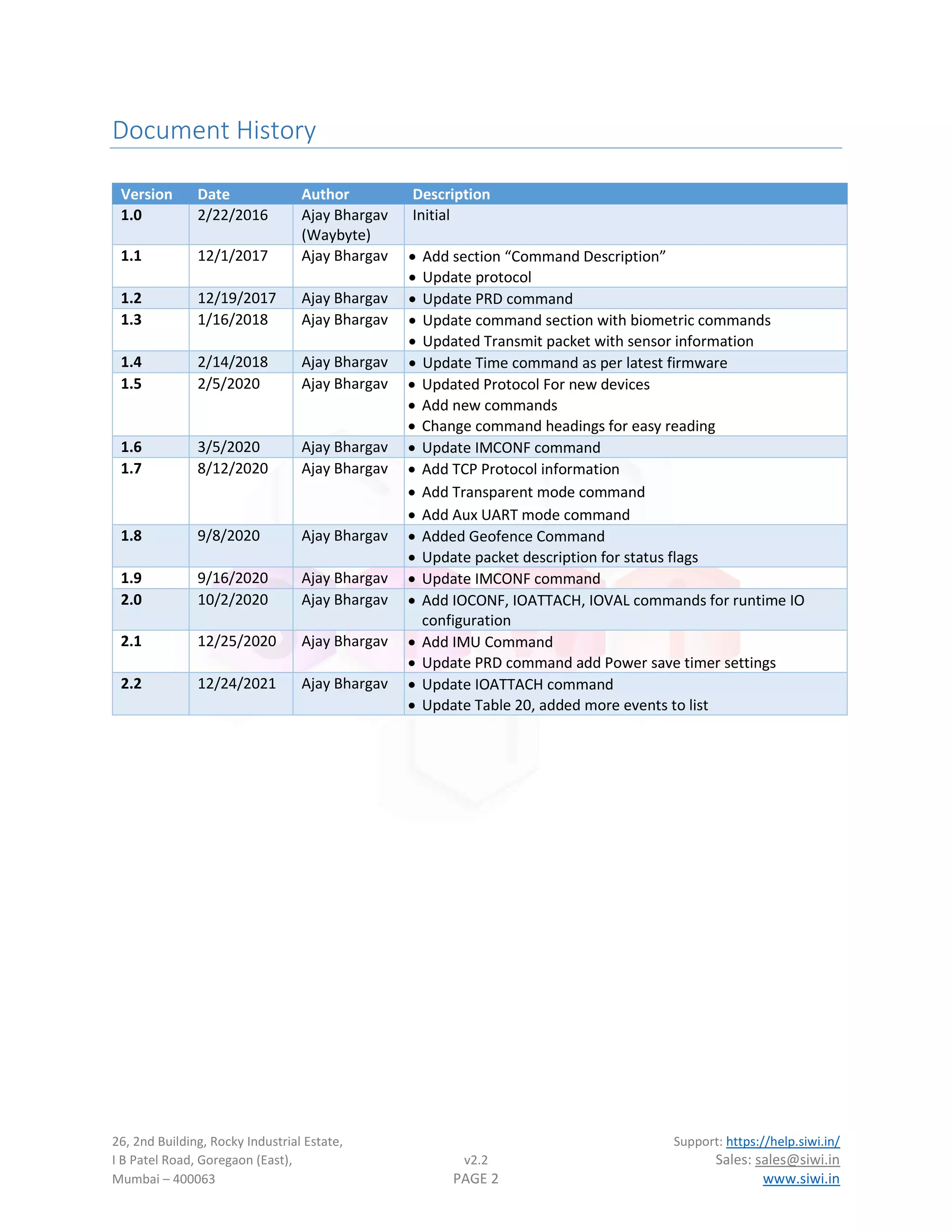
Document History
Version Date Author Description
1.0 2/22/2016 Ajay Bhargav
(Waybyte)
Initial
1.1 12/1/2017 Ajay Bhargav • Add section “Command Description”
• Update protocol
1.2 12/19/2017 Ajay Bhargav • Update PRD command
1.3 1/16/2018 Ajay Bhargav • Update command section with biometric commands
• Updated Transmit packet with sensor information
1.4 2/14/2018 Ajay Bhargav • Update Time command as per latest firmware
1.5 2/5/2020 Ajay Bhargav • Updated Protocol For new devices
• Add new commands
• Change command headings for easy reading
1.6 3/5/2020 Ajay Bhargav • Update IMCONF command
1.7 8/12/2020 Ajay Bhargav • Add TCP Protocol information
• Add Transparent mode command
• Add Aux UART mode command
1.8 9/8/2020 Ajay Bhargav • Added Geofence Command
• Update packet description for status flags
1.9 9/16/2020 Ajay Bhargav • Update IMCONF command
2.0 10/2/2020 Ajay Bhargav • Add IOCONF, IOATTACH, IOVAL commands for runtime IO
configuration
2.1 12/25/2020 Ajay Bhargav • Add IMU Command
• Update PRD command add Power save timer settings
2.2 12/24/2021 Ajay Bhargav • Update IOATTACH command
• Update Table 20, added more events to list
26, 2nd Building, Rocky Industrial Estate, Support: https://help.siwi.in/
I B Patel Road, Goregaon (East), v2.2 Sales: sales@siwi.in
Mumbai – 400063 PAGE 3 www.siwi.in
References
Sr. No. Name Author Remarks
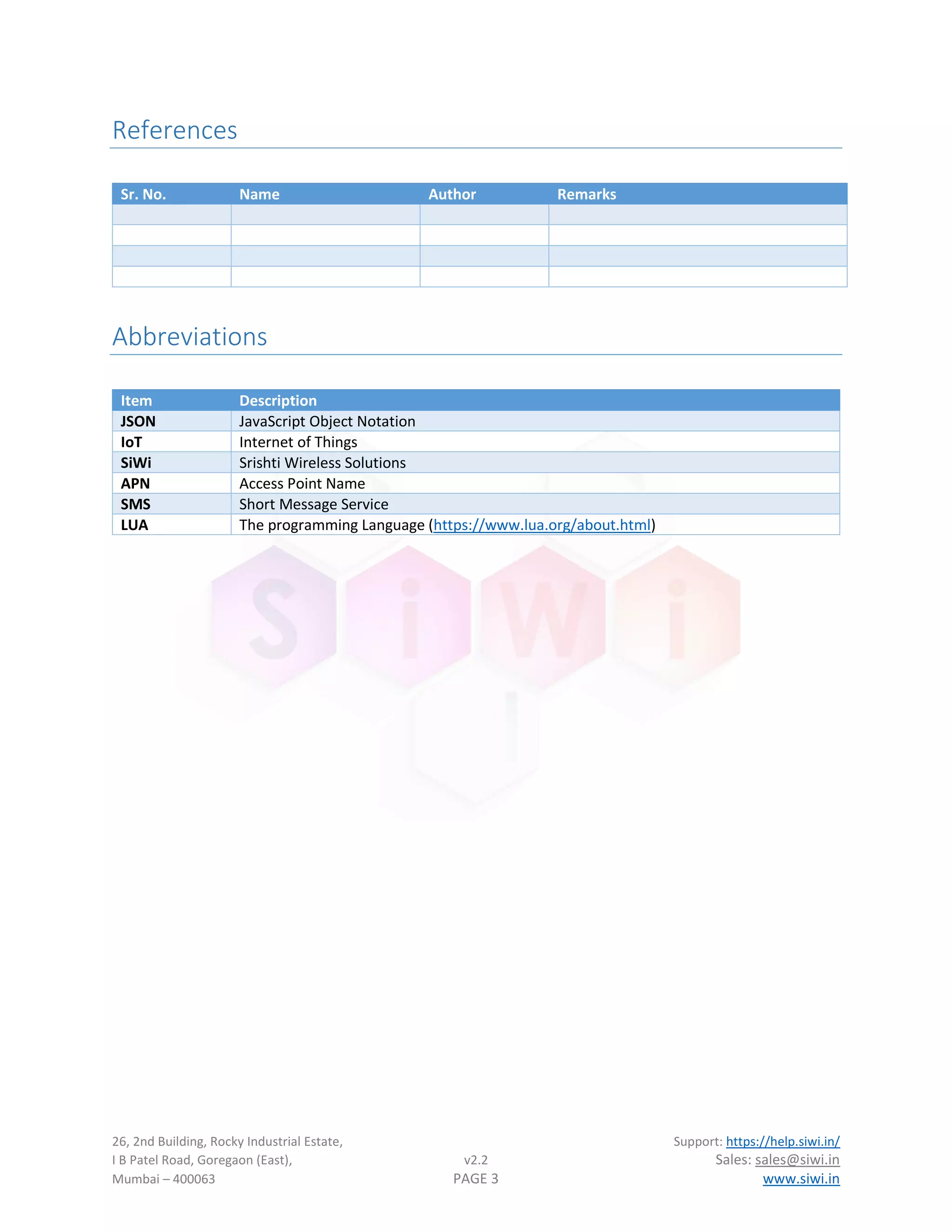
Abbreviations
Item Description
JSON JavaScript Object Notation
IoT Internet of Things
SiWi Srishti Wireless Solutions
APN Access Point Name
SMS Short Message Service
LUA The programming Language (https://www.lua.org/about.html)
26, 2nd Building, Rocky Industrial Estate, Support: https://help.siwi.in/
I B Patel Road, Goregaon (East), v2.2 Sales: sales@siwi.in
Mumbai – 400063 PAGE 4 www.siwi.in
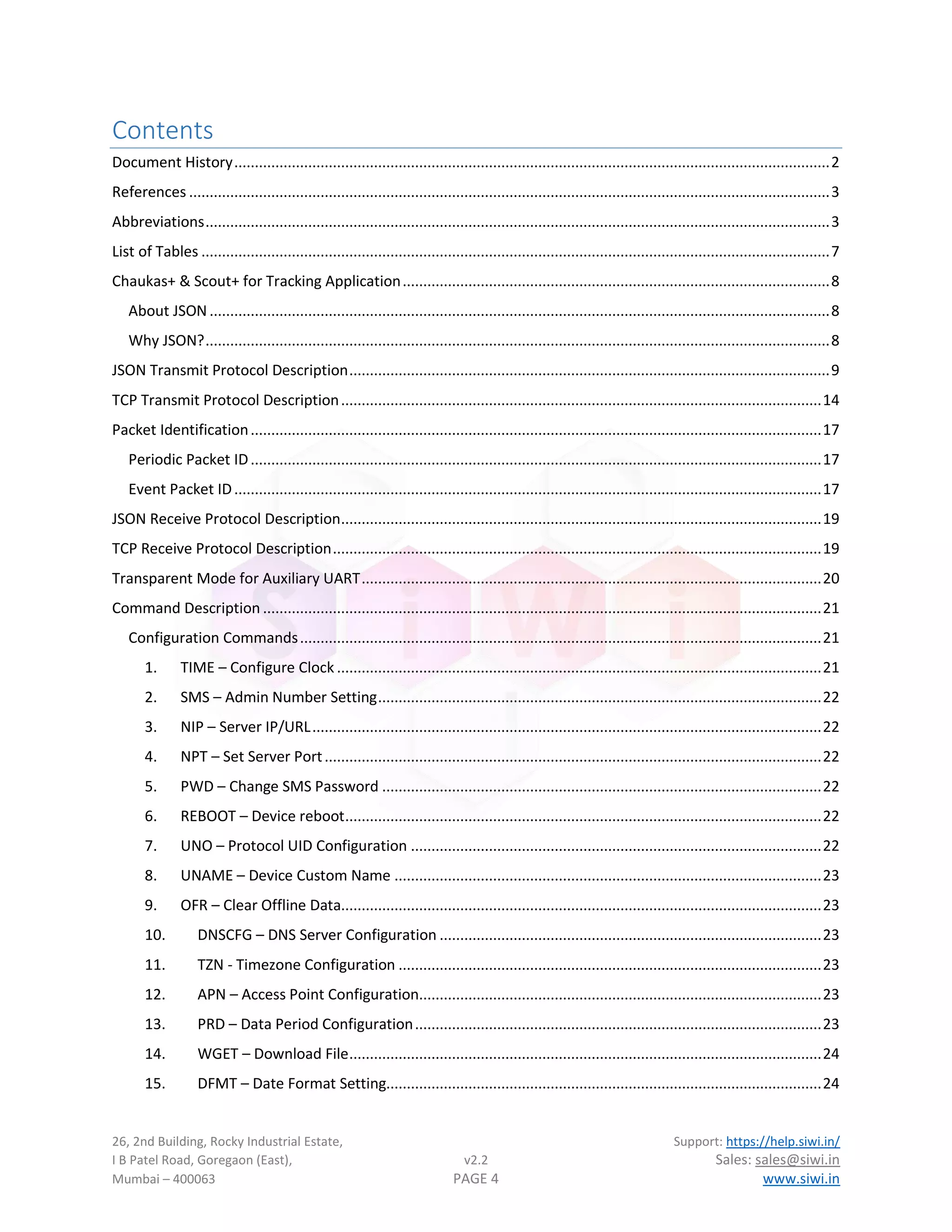
Contents
Document History.................................................................................................................................................2
References ............................................................................................................................................................3
Abbreviations........................................................................................................................................................3
List of Tables .........................................................................................................................................................7
Chaukas+ & Scout+ for Tracking Application........................................................................................................8
About JSON.......................................................................................................................................................8
Why JSON?........................................................................................................................................................8
JSON Transmit Protocol Description.....................................................................................................................9
TCP Transmit Protocol Description.....................................................................................................................14
Packet Identification...........................................................................................................................................17
Periodic Packet ID...........................................................................................................................................17
Event Packet ID...............................................................................................................................................17
JSON Receive Protocol Description.....................................................................................................................19
TCP Receive Protocol Description.......................................................................................................................19
Transparent Mode for Auxiliary UART................................................................................................................20
Command Description ........................................................................................................................................21
Configuration Commands...............................................................................................................................21
1. TIME – Configure Clock ......................................................................................................................21
2. SMS – Admin Number Setting............................................................................................................22
3. NIP – Server IP/URL............................................................................................................................22
4. NPT – Set Server Port.........................................................................................................................22
5. PWD – Change SMS Password ...........................................................................................................22
6. REBOOT – Device reboot....................................................................................................................22
7. UNO – Protocol UID Configuration ....................................................................................................22
8. UNAME – Device Custom Name ........................................................................................................23
9. OFR – Clear Offline Data.....................................................................................................................23
10. DNSCFG – DNS Server Configuration .............................................................................................23
11. TZN - Timezone Configuration .......................................................................................................23
12. APN – Access Point Configuration..................................................................................................23
13. PRD – Data Period Configuration...................................................................................................23
14. WGET – Download File...................................................................................................................24
15. DFMT – Date Format Setting..........................................................................................................24
26, 2nd Building, Rocky Industrial Estate, Support: https://help.siwi.in/
I B Patel Road, Goregaon (East), v2.2 Sales: sales@siwi.in
Mumbai – 400063 PAGE 5 www.siwi.in
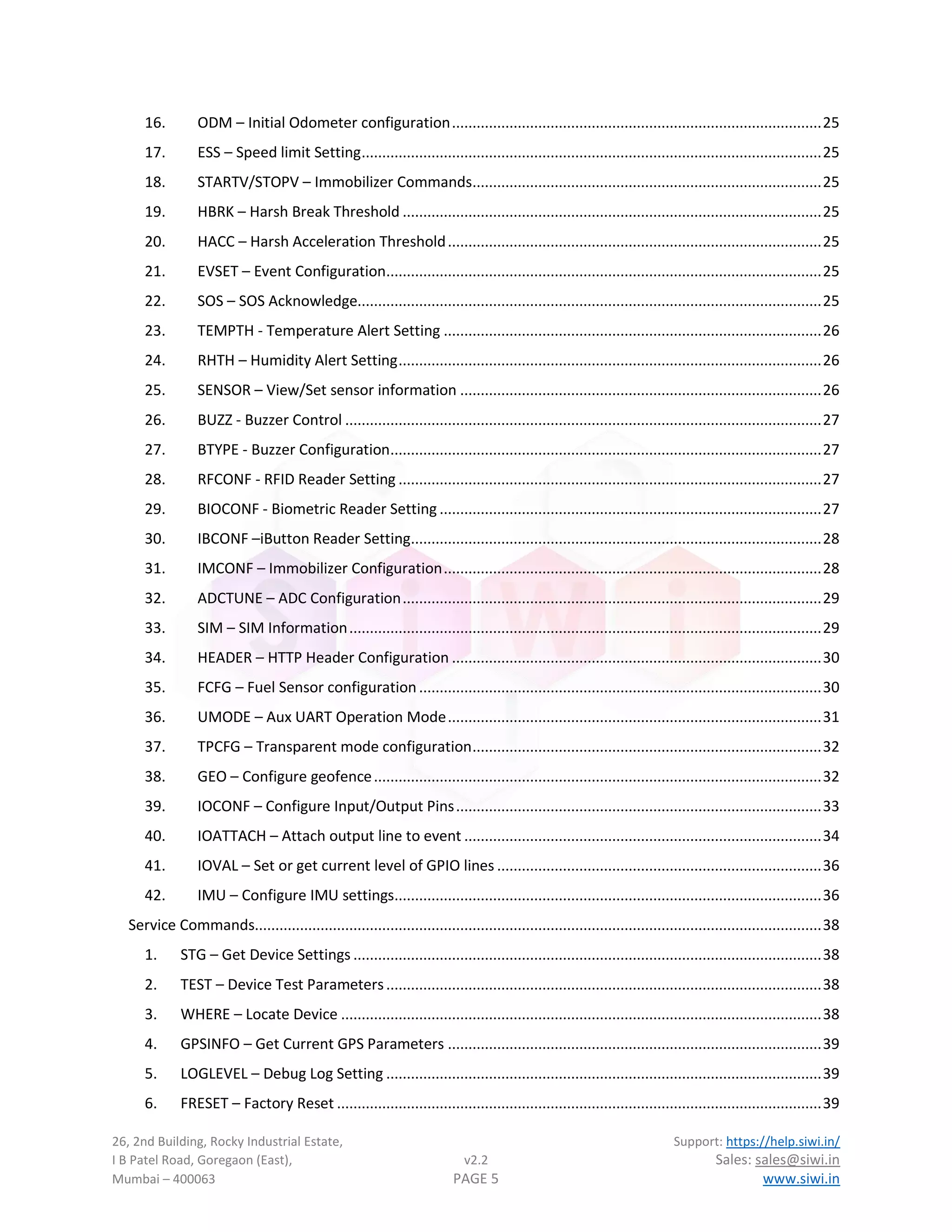
16. ODM – Initial Odometer configuration..........................................................................................25
17. ESS – Speed limit Setting................................................................................................................25
18. STARTV/STOPV – Immobilizer Commands.....................................................................................25
19. HBRK – Harsh Break Threshold ......................................................................................................25
20. HACC – Harsh Acceleration Threshold...........................................................................................25
21. EVSET – Event Configuration..........................................................................................................25
22. SOS – SOS Acknowledge.................................................................................................................25
23. TEMPTH - Temperature Alert Setting ............................................................................................26
24. RHTH – Humidity Alert Setting.......................................................................................................26
25. SENSOR – View/Set sensor information ........................................................................................26
26. BUZZ - Buzzer Control ....................................................................................................................27
27. BTYPE - Buzzer Configuration.........................................................................................................27
28. RFCONF - RFID Reader Setting .......................................................................................................27
29. BIOCONF - Biometric Reader Setting .............................................................................................27
30. IBCONF –iButton Reader Setting....................................................................................................28
31. IMCONF – Immobilizer Configuration............................................................................................28
32. ADCTUNE – ADC Configuration......................................................................................................29
33. SIM – SIM Information...................................................................................................................29
34. HEADER – HTTP Header Configuration ..........................................................................................30
35. FCFG – Fuel Sensor configuration..................................................................................................30
36. UMODE – Aux UART Operation Mode...........................................................................................31
37. TPCFG – Transparent mode configuration.....................................................................................32
38. GEO – Configure geofence.............................................................................................................32
39. IOCONF – Configure Input/Output Pins.........................................................................................33
40. IOATTACH – Attach output line to event .......................................................................................34
41. IOVAL – Set or get current level of GPIO lines ...............................................................................36
42. IMU – Configure IMU settings........................................................................................................36
Service Commands..........................................................................................................................................38
1. STG – Get Device Settings ..................................................................................................................38
2. TEST – Device Test Parameters..........................................................................................................38
3. WHERE – Locate Device .....................................................................................................................38
4. GPSINFO – Get Current GPS Parameters ...........................................................................................39
5. LOGLEVEL – Debug Log Setting ..........................................................................................................39
6. FRESET – Factory Reset ......................................................................................................................39
26, 2nd Building, Rocky Industrial Estate, Support: https://help.siwi.in/
I B Patel Road, Goregaon (East), v2.2 Sales: sales@siwi.in
Mumbai – 400063 PAGE 6 www.siwi.in
7. FEATURE – Feature Configuration......................................................................................................40
8. IDENTIFY – Get Device Identity ..........................................................................................................40
9. FWCONFIG – Get firmware configuration..........................................................................................40
10. FWCHECK – Check for new firmware update ................................................................................40
11. OTA – Firmware Update.................................................................................................................40
26, 2nd Building, Rocky Industrial Estate, Support: https://help.siwi.in/
I B Patel Road, Goregaon (East), v2.2 Sales: sales@siwi.in
Mumbai – 400063 PAGE 7 www.siwi.in
List of Tables
Table 1: Transmit Protocol Field Descriptions ....................................................................................................10
Table 2: Information Object................................................................................................................................10
Table 3: GPS Data Object....................................................................................................................................10
Table 4: Device IO Object....................................................................................................................................11
Table 5: Power Status Object..............................................................................................................................11
Table 6: Debug Status Object..............................................................................................................................11
Table 7: System's Server State............................................................................................................................12
Table 8: Fuel Sensor Data Object........................................................................................................................12
Table 9: Sensor Data object................................................................................................................................13
Table 10: Temperature & Humidity Error Bit Encoded.......................................................................................13
Table 11: System Status Flags.............................................................................................................................13
Table 12: Transmit Protocol Field Description....................................................................................................14
Table 13: System's Server State..........................................................................................................................15
Table 14: Sensor Error Bit Encoded ....................................................................................................................16
Table 15: System Status Flags.............................................................................................................................16
Table 16: Periodic Packet Identifier....................................................................................................................17
Table 17: Event Packet Identifier........................................................................................................................17
Table 18: Receive Protocol Field Description .....................................................................................................19
Table 19: IO Name and Specifications ................................................................................................................33
Table 20: Function Value for event type.............................................................................................................34
26, 2nd Building, Rocky Industrial Estate, Support: https://help.siwi.in/
I B Patel Road, Goregaon (East), v2.2 Sales: sales@siwi.in
Mumbai – 400063 PAGE 8 www.siwi.in
Chaukas+ & Scout+ for Tracking Application
SIWI VTS supports its legacy mode of communication over TCP socket and simple to parse CSV packet. There
are no complicated login procedures to follow or no need to send heartbeat packets to keep track of server
connectivity. Device works on its own with TCP level acknowledgement to maintain connectivity and ensuring
zero packet loss.
Keeping the latest trends of market in mind we have introduced new data transfer method. Now instead of
sending data to server via traditional methods like TCP/UDP, device can send data directly to your HTTP
server or web API and in an extremely easy to parse format JSON. Since JSON is one of the common data
exchange method available in all web technologies, so implementing a receiving frontend for SiWi VTS
Products will be much easier than writing a TCP listener. This will also help lower down your web server
requirements and hence the overall cost of implementation.
About JSON
JSON (JavaScript Object Notation) is a lightweight data-interchange format. It is easy for humans to read and
write. It is easy for machines to parse and generate JSON data. JSON is a text format that is completely
language independent but uses conventions that are familiar to programmers of the C-family of languages,
including C, C++, C#, Java, JavaScript, Perl, Python, and many others. These properties make JSON an ideal
data-interchange language.
Why JSON?
The reason for introducing JSON to VTS was to ease and expedite front end development for it. Since most of
the web developers are very much familiar with formats like JSON and ample amount of support available on
web. Moreover, all web development platforms support JSON and its parsing. This is the reason JSON has
become common data exchange format between IoT devices and web services.
26, 2nd Building, Rocky Industrial Estate, Support: https://help.siwi.in/
I B Patel Road, Goregaon (East), v2.2 Sales: sales@siwi.in
Mumbai – 400063 PAGE 9 www.siwi.in
JSON Transmit Protocol Description
Sample JSON Packet for Locator sent to server via HTTP/HTTPS POST method:
{
"uid": 222,
"info": {
"dt": 1512141732,
"txn": "E",
"msgkey": 0,
"msgid": 11720,
"cmdkey": ""
"cmdval": ""
},
"gps": {
"fix": "A",
"loc": [22.061200, 74.133017],
"speed": 0,
"sat": 10,
"alt": 14,
"dir": 137,
"odo": 1332893
},
"io": {
"box": 0,
"ign": 1,
"gpi": 1,
"status": 0,
"analog": [1935, 1234]
},
"pwr": {
"main": 1,
"batt": 1,
"volt": 3826,
"mvolt": 12.36,
},
"dbg": {
"status": [5, 5, 22, 8, 3, 1],
"ver": ["X.YY", "A.BB"],
"lib": "6.65"
}
}
NOTE: It is not possible to include all sample packets based on different sensor combinations, hence only
basic device packet is mentioned here. Please cross check the actual packet with field description table
provided below.
26, 2nd Building, Rocky Industrial Estate, Support: https://help.siwi.in/
I B Patel Road, Goregaon (East), v2.2 Sales: sales@siwi.in
Mumbai – 400063 PAGE 10 www.siwi.in
Table 1: Transmit Protocol Field Descriptions
Key Data Type Description Value
uid Number Unit/Device ID (Software selectable, can be a numeric ID or
IMEI of device)
info Object Packet related info, Refer Table 2: Information Object
gps Object GPS related data, Refer Table 3: GPS Data Object
io Object Device’s Digital and Analog IO information, Refer
Table 4: Device IO Object
pwr Object Device power parameters, Refer Table 5: Power Status
Object
dbg Object Device debug parameters, Refer Table 6: Debug Status
Object
Table 2: Information Object
Key Data Type Description Value
dt Number Date time represented in Unix Timestamp format (Seconds
since 1 Jan, 1970)
1512141732
txn String Transmission Reason, A packet identifier. Refer Section
Packet Identification for list of packet Identifiers
"E"
msgkey Number This field provide information regarding key number during
key press event in the device, currently kept as reserved
0
msgid Number A numeric counter for data packet. 11720
cmdkey String Command key identifier “prd”
cmdval String This field contains value of the parameter when changed or
requested from server or SMS or command line interface
“60”
Table 3: GPS Data Object
Key Data Type Description Value
fix String GPS fix status
A – For Valid Data
V – For invalid data
“A”
loc Number
Array
Location represented as array of Number [Latitude,
Longitude]. Both Latitude and Longitude are represented as
decimal number up to a precision of 10 and a scale of 7.
[22.061200,
74.133017]
speed Number GPS speed parameter in Km/h 0
sat Number GPS Satellites in view 10
alt Number GPS altitude in meters 14
dir Number GPS direction/Bearing in degree 137
odo Number Device Odometer in meters 1332893
26, 2nd Building, Rocky Industrial Estate, Support: https://help.siwi.in/
I B Patel Road, Goregaon (East), v2.2 Sales: sales@siwi.in
Mumbai – 400063 PAGE 11 www.siwi.in
Table 4: Device IO Object
Key Data Type Description Value
box Number Device enclosure open/close status
1 – Open
0 – Close
0
ign Number Vehicle ignition status
1 – Ignition On
0 – Ignition Off
1
gpi Number General purpose inputs represented in binary format
e.g., A value of 12 represents in binary as 0001100 which
means GPI0, GP1, GPI4, GPI5, GPI6 – Off
GP2, GP3 – On
0
status Number Status Flags: Bitwise status information see Table 11:
System Status Flags for more details.
0
analog Number
Array
Analog input value represented in millivolts [1234,1234]
fuel1
Object Fuel Data vary based on the fuel source selected
sensor2 Object
Array
Sensor data object. Refer
Table 9: Sensor Data object for more information
Table 5: Power Status Object
Key Data Type Description Value
main Number Power mains input availability status
1 – Mains Available
0 – Mains Unavailable
1
batt Number Battery connections status
1 – Battery Connected
0 – Battery Unconnected
1
volt Number Battery Voltage in millivolts 3826
mvolt Number Main battery input voltage in volts 12.36
Table 6: Debug Status Object
Key Data Type Description Value
status Number
Array
Debug array: [CREG, CGREG, CSQ, Net, Server, Offline]
CREG – GSM Registration status
CGREG – GPRS Registration Status
CSQ – Signal Quality
Net – Network debug field
Server – Server connectivity debug field (
Table 7: System's Server State)
Offline – Packet is online or offline indicator (1 – offline
packet/retransmitted, 0 – Online packet)
[5, 5, 22, 8, 3, 1]
1
Fuel key is not available in all protocols, devices with Fuel sensor installed will have this key present.
2
Sensor key is not available in all protocols, devices with temperature sensor installed will have this key present.
26, 2nd Building, Rocky Industrial Estate, Support: https://help.siwi.in/
I B Patel Road, Goregaon (East), v2.2 Sales: sales@siwi.in
Mumbai – 400063 PAGE 12 www.siwi.in
ver String Array Device Application software version and hardware version [“1.9JCPLUS”,
“1.0”]
lib String Device firmware library version 6.65
Table 7: System's Server State
Index Description
0 Invalid or unknown state
1 No network registered
2 GSM network registered
3 GPRS & GSM network registered
4 Trying to connect to programmed server IP & Port
5 Connected to programmed server IP & Port
6 Currently sending data to server
Table 8: Fuel Sensor Data Object
Type Key Data
Type
Description Value
Analog/MODBUS/UART
Type Sensor
level Number Fuel Level in mV, to be calculated on server 1234
err Number Error code if sensor fails 0
Omnicomm Digital
Sensor
f Number Device sends all sensor parameter as it is to
server, please refer Omnicomm sensor
datasheet for more information.
t Number
n Number
err Number Error code if sensor reading fail
Ultrasonic Sensor
UFS-1/UFS-2
type String Device sends sensor information to server as
it is. Please read sensor datasheet for more
information
llv Number
rtv3
Number
temp4 Number
tilt4
Number
cvl4
sig Number
swc String
hwc String
err Number Error code if sensor reading fail
3
UFS-1 Type Sensor only
4
UFS-2 Type Sensor only
26, 2nd Building, Rocky Industrial Estate, Support: https://help.siwi.in/
I B Patel Road, Goregaon (East), v2.2 Sales: sales@siwi.in
Mumbai – 400063 PAGE 13 www.siwi.in
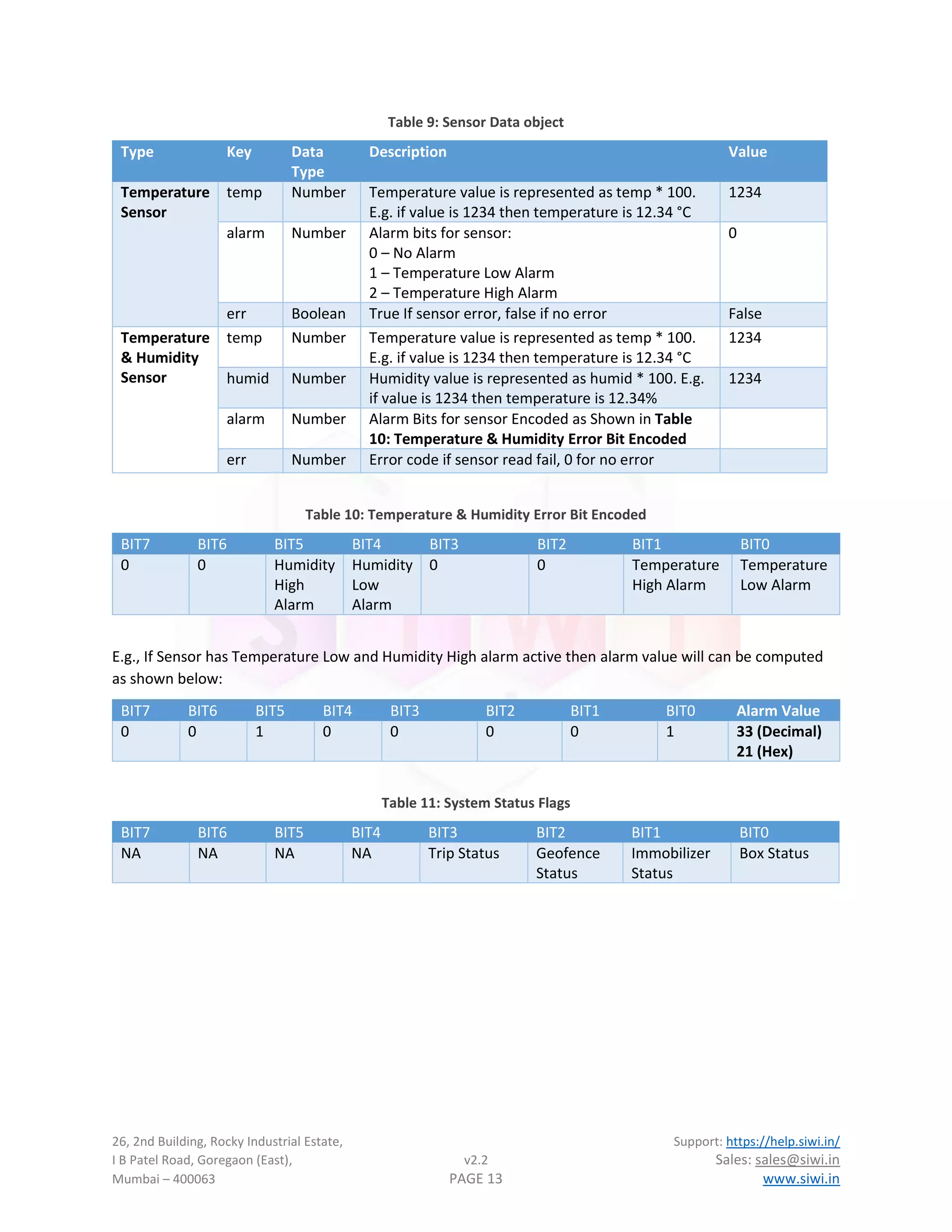
Table 9: Sensor Data object
Type Key Data
Type
Description Value
Temperature
Sensor
temp Number Temperature value is represented as temp * 100.
E.g. if value is 1234 then temperature is 12.34 °C
1234
alarm Number Alarm bits for sensor:
0 – No Alarm
1 – Temperature Low Alarm
2 – Temperature High Alarm
0
err Boolean True If sensor error, false if no error False
Temperature
& Humidity
Sensor
temp Number Temperature value is represented as temp * 100.
E.g. if value is 1234 then temperature is 12.34 °C
1234
humid Number Humidity value is represented as humid * 100. E.g.
if value is 1234 then temperature is 12.34%
1234
alarm Number Alarm Bits for sensor Encoded as Shown in Table
10: Temperature & Humidity Error Bit Encoded
err Number Error code if sensor read fail, 0 for no error
Table 10: Temperature & Humidity Error Bit Encoded
BIT7 BIT6 BIT5 BIT4 BIT3 BIT2 BIT1 BIT0
0 0 Humidity
High
Alarm
Humidity
Low
Alarm
0 0 Temperature
High Alarm
Temperature
Low Alarm
E.g., If Sensor has Temperature Low and Humidity High alarm active then alarm value will can be computed
as shown below:
BIT7 BIT6 BIT5 BIT4 BIT3 BIT2 BIT1 BIT0 Alarm Value
0 0 1 0 0 0 0 1 33 (Decimal)
21 (Hex)
Table 11: System Status Flags
BIT7 BIT6 BIT5 BIT4 BIT3 BIT2 BIT1 BIT0
NA NA NA NA Trip Status Geofence
Status
Immobilizer
Status
Box Status
26, 2nd Building, Rocky Industrial Estate, Support: https://help.siwi.in/
I B Patel Road, Goregaon (East), v2.2 Sales: sales@siwi.in
Mumbai – 400063 PAGE 14 www.siwi.in
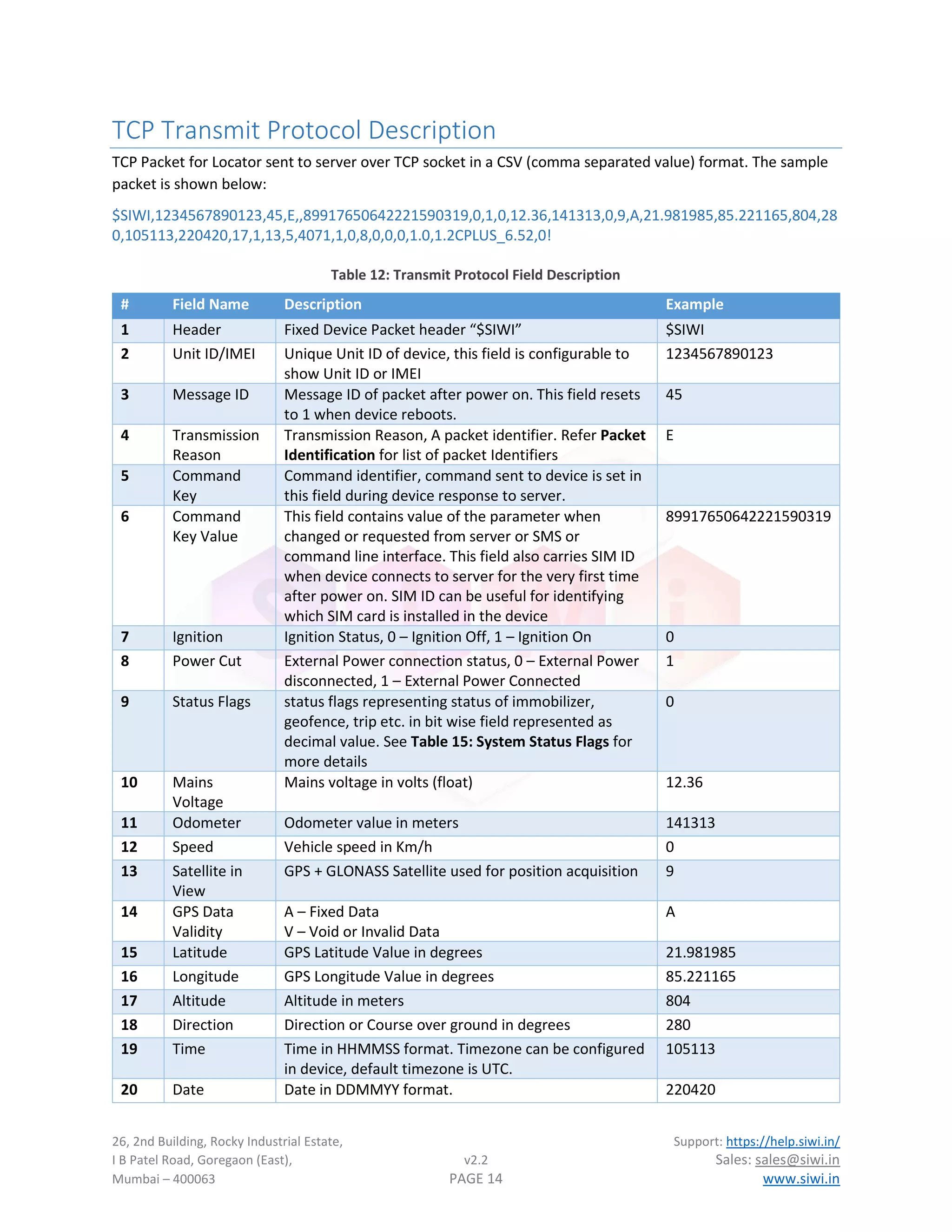
TCP Transmit Protocol Description
TCP Packet for Locator sent to server over TCP socket in a CSV (comma separated value) format. The sample
packet is shown below:
$SIWI,1234567890123,45,E,,89917650642221590319,0,1,0,12.36,141313,0,9,A,21.981985,85.221165,804,28
0,105113,220420,17,1,13,5,4071,1,0,8,0,0,0,1.0,1.2CPLUS_6.52,0!
Table 12: Transmit Protocol Field Description
# Field Name Description Example
1 Header Fixed Device Packet header “$SIWI” $SIWI
2 Unit ID/IMEI Unique Unit ID of device, this field is configurable to
show Unit ID or IMEI
1234567890123
3 Message ID Message ID of packet after power on. This field resets
to 1 when device reboots.
45
4 Transmission
Reason
Transmission Reason, A packet identifier. Refer Packet
Identification for list of packet Identifiers
E
5 Command
Key
Command identifier, command sent to device is set in
this field during device response to server.
6 Command
Key Value
This field contains value of the parameter when
changed or requested from server or SMS or
command line interface. This field also carries SIM ID
when device connects to server for the very first time
after power on. SIM ID can be useful for identifying
which SIM card is installed in the device
89917650642221590319
7 Ignition Ignition Status, 0 – Ignition Off, 1 – Ignition On 0
8 Power Cut External Power connection status, 0 – External Power
disconnected, 1 – External Power Connected
1
9 Status Flags status flags representing status of immobilizer,
geofence, trip etc. in bit wise field represented as
decimal value. See Table 15: System Status Flags for
more details
0
10 Mains
Voltage
Mains voltage in volts (float) 12.36
11 Odometer Odometer value in meters 141313
12 Speed Vehicle speed in Km/h 0
13 Satellite in
View
GPS + GLONASS Satellite used for position acquisition 9
14 GPS Data
Validity
A – Fixed Data
V – Void or Invalid Data
A
15 Latitude GPS Latitude Value in degrees 21.981985
16 Longitude GPS Longitude Value in degrees 85.221165
17 Altitude Altitude in meters 804
18 Direction Direction or Course over ground in degrees 280
19 Time Time in HHMMSS format. Timezone can be configured
in device, default timezone is UTC.
105113
20 Date Date in DDMMYY format. 220420
26, 2nd Building, Rocky Industrial Estate, Support: https://help.siwi.in/
I B Patel Road, Goregaon (East), v2.2 Sales: sales@siwi.in
Mumbai – 400063 PAGE 15 www.siwi.in
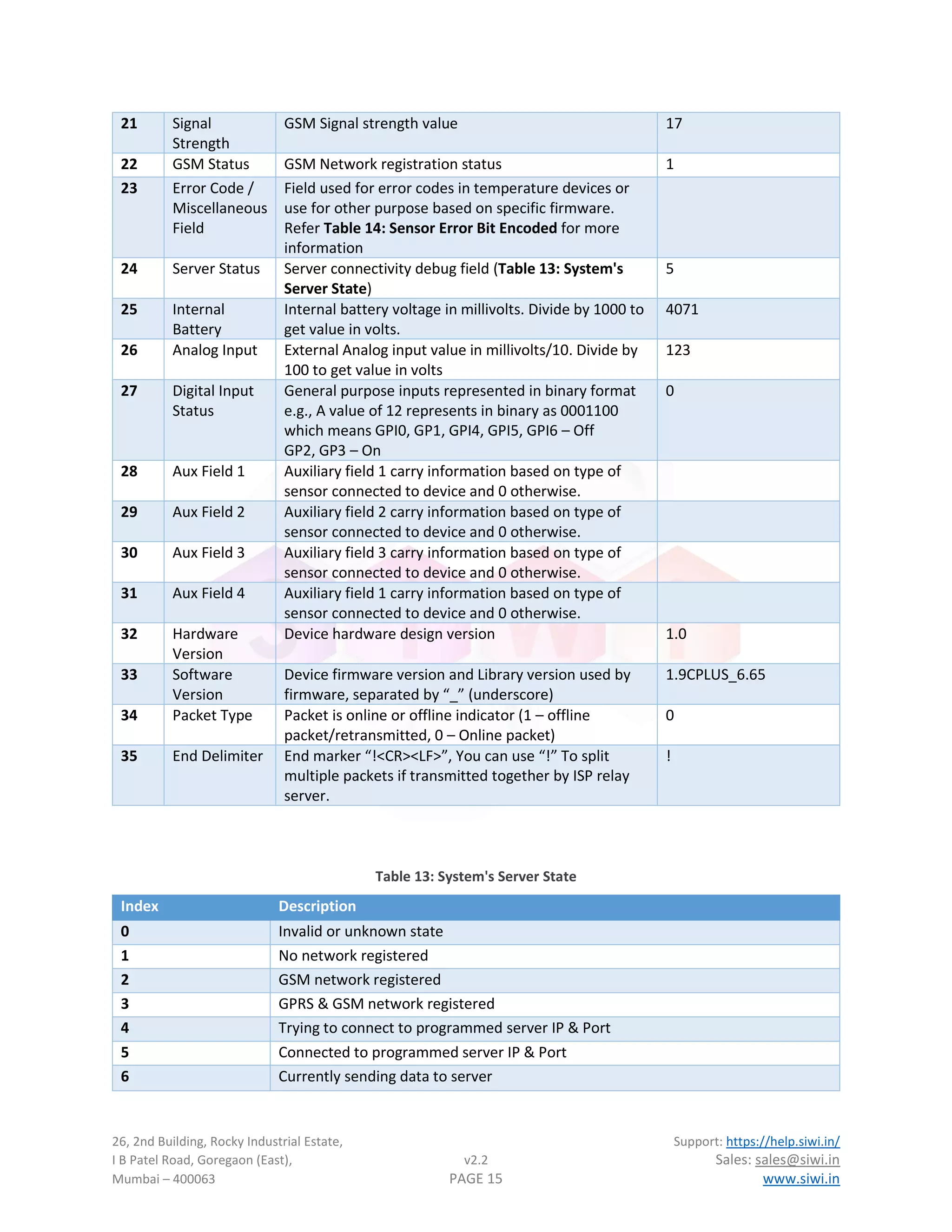
21 Signal
Strength
GSM Signal strength value 17
22 GSM Status GSM Network registration status 1
23 Error Code /
Miscellaneous
Field
Field used for error codes in temperature devices or
use for other purpose based on specific firmware.
Refer Table 14: Sensor Error Bit Encoded for more
information
24 Server Status Server connectivity debug field (Table 13: System's
Server State)
5
25 Internal
Battery
Internal battery voltage in millivolts. Divide by 1000 to
get value in volts.
4071
26 Analog Input External Analog input value in millivolts/10. Divide by
100 to get value in volts
123
27 Digital Input
Status
General purpose inputs represented in binary format
e.g., A value of 12 represents in binary as 0001100
which means GPI0, GP1, GPI4, GPI5, GPI6 – Off
GP2, GP3 – On
0
28 Aux Field 1 Auxiliary field 1 carry information based on type of
sensor connected to device and 0 otherwise.
29 Aux Field 2 Auxiliary field 2 carry information based on type of
sensor connected to device and 0 otherwise.
30 Aux Field 3 Auxiliary field 3 carry information based on type of
sensor connected to device and 0 otherwise.
31 Aux Field 4 Auxiliary field 1 carry information based on type of
sensor connected to device and 0 otherwise.
32 Hardware
Version
Device hardware design version 1.0
33 Software
Version
Device firmware version and Library version used by
firmware, separated by “_” (underscore)
1.9CPLUS_6.65
34 Packet Type Packet is online or offline indicator (1 – offline
packet/retransmitted, 0 – Online packet)
0
35 End Delimiter End marker “!<CR><LF>”, You can use “!” To split
multiple packets if transmitted together by ISP relay
server.
!
Table 13: System's Server State
Index Description
0 Invalid or unknown state
1 No network registered
2 GSM network registered
3 GPRS & GSM network registered
4 Trying to connect to programmed server IP & Port
5 Connected to programmed server IP & Port
6 Currently sending data to server
26, 2nd Building, Rocky Industrial Estate, Support: https://help.siwi.in/
I B Patel Road, Goregaon (East), v2.2 Sales: sales@siwi.in
Mumbai – 400063 PAGE 16 www.siwi.in
Table 14: Sensor Error Bit Encoded
BIT7 BIT6 BIT5 BIT4 BIT3 BIT2 BIT1 BIT0
NA NA NA NA Sensor4 Sensor 3 Sensor2 Sensor1
NA - Fields in the table are not used and always read as 0.
BIT [0:4] – Each bit is assigned to a sensor. If corresponding bit is 1 that sensor is faulty or not responding.
E.g. If Sensor 3 and Sensor 1 are at fault the error value will can be computed as shown:
BIT7 BIT6 BIT5 BIT4 BIT3 BIT2 BIT1 BIT0 Error
0 0 0 0 0 1 0 1 5
Table 15: System Status Flags
BIT7 BIT6 BIT5 BIT4 BIT3 BIT2 BIT1 BIT0
NA NA NA NA Trip Status Geofence
Status
Immobilizer
Status
Box Status
26, 2nd Building, Rocky Industrial Estate, Support: https://help.siwi.in/
I B Patel Road, Goregaon (East), v2.2 Sales: sales@siwi.in
Mumbai – 400063 PAGE 17 www.siwi.in
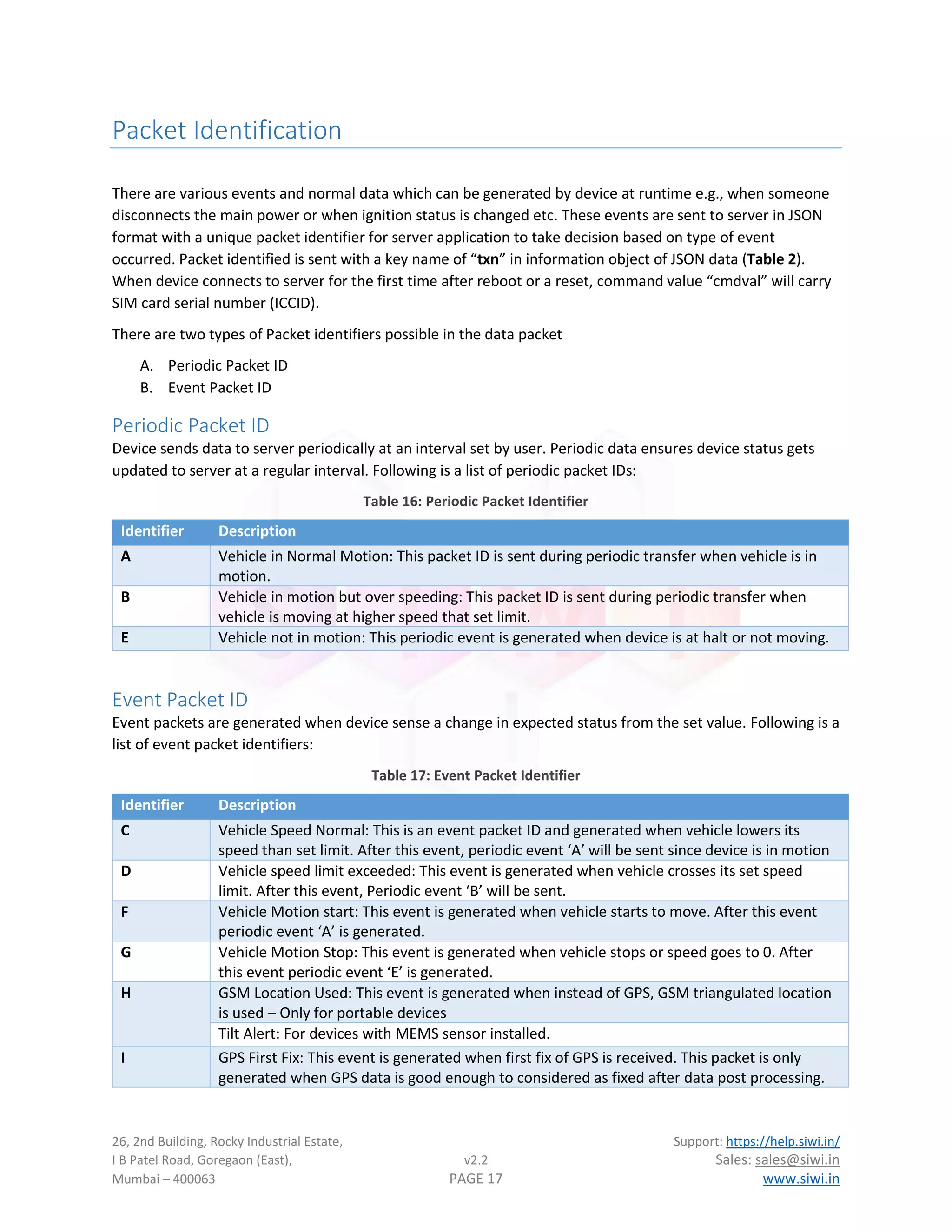
Packet Identification
There are various events and normal data which can be generated by device at runtime e.g., when someone
disconnects the main power or when ignition status is changed etc. These events are sent to server in JSON
format with a unique packet identifier for server application to take decision based on type of event
occurred. Packet identified is sent with a key name of “txn” in information object of JSON data (Table 2).
When device connects to server for the first time after reboot or a reset, command value “cmdval” will carry
SIM card serial number (ICCID).
There are two types of Packet identifiers possible in the data packet
A. Periodic Packet ID
B. Event Packet ID
Periodic Packet ID
Device sends data to server periodically at an interval set by user. Periodic data ensures device status gets
updated to server at a regular interval. Following is a list of periodic packet IDs:
Table 16: Periodic Packet Identifier
Identifier Description
A Vehicle in Normal Motion: This packet ID is sent during periodic transfer when vehicle is in
motion.
B Vehicle in motion but over speeding: This packet ID is sent during periodic transfer when
vehicle is moving at higher speed that set limit.
E Vehicle not in motion: This periodic event is generated when device is at halt or not moving.
Event Packet ID
Event packets are generated when device sense a change in expected status from the set value. Following is a
list of event packet identifiers:
Table 17: Event Packet Identifier
Identifier Description
C Vehicle Speed Normal: This is an event packet ID and generated when vehicle lowers its
speed than set limit. After this event, periodic event ‘A’ will be sent since device is in motion
D Vehicle speed limit exceeded: This event is generated when vehicle crosses its set speed
limit. After this event, Periodic event ‘B’ will be sent.
F Vehicle Motion start: This event is generated when vehicle starts to move. After this event
periodic event ‘A’ is generated.
G Vehicle Motion Stop: This event is generated when vehicle stops or speed goes to 0. After
this event periodic event ‘E’ is generated.
H GSM Location Used: This event is generated when instead of GPS, GSM triangulated location
is used – Only for portable devices
Tilt Alert: For devices with MEMS sensor installed.
I GPS First Fix: This event is generated when first fix of GPS is received. This packet is only
generated when GPS data is good enough to considered as fixed after data post processing.
26, 2nd Building, Rocky Industrial Estate, Support: https://help.siwi.in/
I B Patel Road, Goregaon (East), v2.2 Sales: sales@siwi.in
Mumbai – 400063 PAGE 18 www.siwi.in
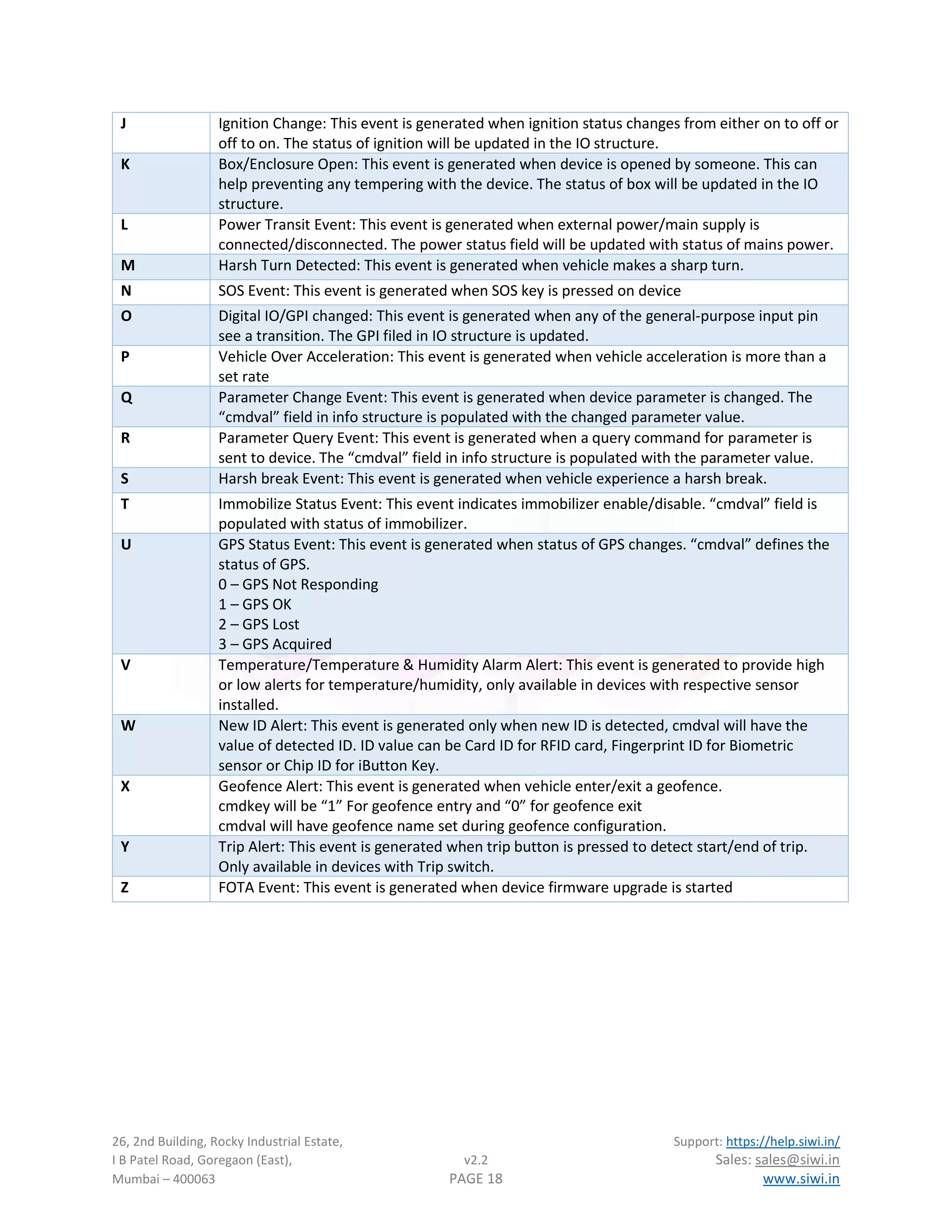
J Ignition Change: This event is generated when ignition status changes from either on to off or
off to on. The status of ignition will be updated in the IO structure.
K Box/Enclosure Open: This event is generated when device is opened by someone. This can
help preventing any tempering with the device. The status of box will be updated in the IO
structure.
L Power Transit Event: This event is generated when external power/main supply is
connected/disconnected. The power status field will be updated with status of mains power.
M Harsh Turn Detected: This event is generated when vehicle makes a sharp turn.
N SOS Event: This event is generated when SOS key is pressed on device
O Digital IO/GPI changed: This event is generated when any of the general-purpose input pin
see a transition. The GPI filed in IO structure is updated.
P Vehicle Over Acceleration: This event is generated when vehicle acceleration is more than a
set rate
Q Parameter Change Event: This event is generated when device parameter is changed. The
“cmdval” field in info structure is populated with the changed parameter value.
R Parameter Query Event: This event is generated when a query command for parameter is
sent to device. The “cmdval” field in info structure is populated with the parameter value.
S Harsh break Event: This event is generated when vehicle experience a harsh break.
T Immobilize Status Event: This event indicates immobilizer enable/disable. “cmdval” field is
populated with status of immobilizer.
U GPS Status Event: This event is generated when status of GPS changes. “cmdval” defines the
status of GPS.
0 – GPS Not Responding
1 – GPS OK
2 – GPS Lost
3 – GPS Acquired
V Temperature/Temperature & Humidity Alarm Alert: This event is generated to provide high
or low alerts for temperature/humidity, only available in devices with respective sensor
installed.
W New ID Alert: This event is generated only when new ID is detected, cmdval will have the
value of detected ID. ID value can be Card ID for RFID card, Fingerprint ID for Biometric
sensor or Chip ID for iButton Key.
X Geofence Alert: This event is generated when vehicle enter/exit a geofence.
cmdkey will be “1” For geofence entry and “0” for geofence exit
cmdval will have geofence name set during geofence configuration.
Y Trip Alert: This event is generated when trip button is pressed to detect start/end of trip.
Only available in devices with Trip switch.
Z FOTA Event: This event is generated when device firmware upgrade is started
26, 2nd Building, Rocky Industrial Estate, Support: https://help.siwi.in/
I B Patel Road, Goregaon (East), v2.2 Sales: sales@siwi.in
Mumbai – 400063 PAGE 19 www.siwi.in
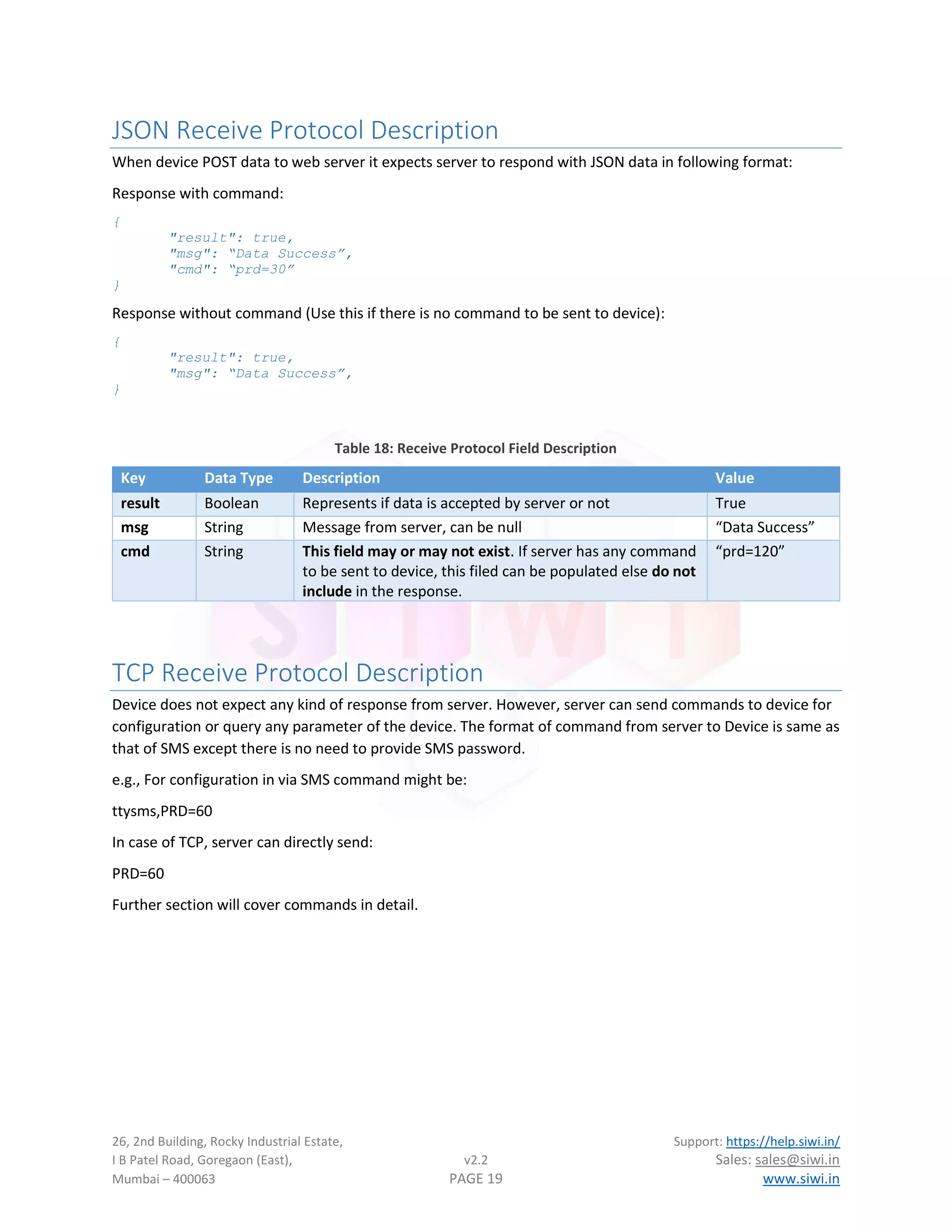
JSON Receive Protocol Description
When device POST data to web server it expects server to respond with JSON data in following format:
Response with command:
{
"result": true,
"msg": “Data Success”,
"cmd": “prd=30”
}
Response without command (Use this if there is no command to be sent to device):
{
"result": true,
"msg": “Data Success”,
}
Table 18: Receive Protocol Field Description
Key Data Type Description Value
result Boolean Represents if data is accepted by server or not True
msg String Message from server, can be null “Data Success”
cmd String This field may or may not exist. If server has any command
to be sent to device, this filed can be populated else do not
include in the response.
“prd=120”
TCP Receive Protocol Description
Device does not expect any kind of response from server. However, server can send commands to device for
configuration or query any parameter of the device. The format of command from server to Device is same as
that of SMS except there is no need to provide SMS password.
e.g., For configuration in via SMS command might be:
ttysms,PRD=60
In case of TCP, server can directly send:
PRD=60
Further section will cover commands in detail.
26, 2nd Building, Rocky Industrial Estate, Support: https://help.siwi.in/
I B Patel Road, Goregaon (East), v2.2 Sales: sales@siwi.in
Mumbai – 400063 PAGE 20 www.siwi.in
Transparent Mode for Auxiliary UART
VTS has auxiliary port for communication with external devices with firmware support available for many
different types of devices e.g., RFID, Fuel, UHF reader etc. However, there are some use case where user
need to get direct access of the device remotely. This is where transparent port comes into play.
In transparent mode, VTS device open a secondary TCP connection and sends its identification to the server
in format shown:
$TPUART,[Device UID],[Device IMEI]!
This helps server maintain individual connections based on device UID or IMEI.
Once connection is established, TCP connection works as a transparent channel between Auxiliary UART port
and server. Whatever is sent from server is directly transferred to UART and data from UART port is sent
directly to server.
Transparent mode can be helpful in managing external device as well as to debug external device in case of
failure.
To set UART into transparent mode user can send UMODE – Aux UART Operation Mode command.
Transparent mode parameters like server IP, server port and UART communication settings can be done
using TPCFG – Transparent mode configuration command.
External Device VTS Device
Cloud Server
UART
TCP Socket
Virtual Channel between cloud
server and external device
26, 2nd Building, Rocky Industrial Estate, Support: https://help.siwi.in/
I B Patel Road, Goregaon (East), v2.2 Sales: sales@siwi.in
Mumbai – 400063 PAGE 21 www.siwi.in
Command Description
Device supports configuration that can be done from either server or via SMS. Commands sent over SMS are
protected via SMS password. User can change this password anytime if they feel security is compromised in
anyway.
Commands sent from TCP are in simple format as shown:
cmd=parameters
Commands sent via SMS are sent with passwords as shown:
password,cmd=parameters
Default password is “ttysms”. So, if user has not changed any password then, commands can be sent as:
ttysms,cmd=parameters
SiWi Modbus device support two types of commands:
A. Configuration Commands: To configure device over the air using TCP/SMS. All configuration
commands require SMS password when sending over SMS.
B. Service Commands: Service level commands used during installation and troubleshooting. All
commands can be sent over SMS, and not all commands are allowed over TCP. The one which are
allowed will be mentioned separately.
Configuration Commands
1. TIME – Configure Clock
Set/get/sync system clock. VTS device can sync its clock from three different time sources, following is the list
based on source priority:
1. NSP – Network Service Provider (Lowest priority)
2. NTP – Network Time Protocol
3. GPS – GPS clock (highest priority)
Usage:
time - Get current operating mode and system date & time
time=[timestamp] - Set system time, where timestamp is Unix Timestamp/EPOC Time
time=auto – Set Auto synchronization mode with time sources
time=manual – Disable Auto mode, User can set time using timestamp
time=mode – Get Current operating mode (Auto/Manual)
time=server – Get current NTP server
time=server,[NTP Server address] – Set NTP server address, default is siwi.in
time=src – Get currently used time source.
26, 2nd Building, Rocky Industrial Estate, Support: https://help.siwi.in/
I B Patel Road, Goregaon (East), v2.2 Sales: sales@siwi.in
Mumbai – 400063 PAGE 22 www.siwi.in
2. SMS – Admin Number Setting
Set SMS or call verification numbers. Currently only used for devices with call facility. SMS are currently
protected by SMS Password only.
Usage:
sms=<index>,[<value>]
Index – Index to read/write cell number (1-5)
value – Cell number to be stored, use value as “Delete” to remove stored number
3. NIP – Server IP/URL
Set server URL for posting JSON data or Server IP or domain for TCP data.
Usage for TCP:
nip=example.com
Usage for JSON:
nip=http://xxx.xxx.xxx.xxx/post.php
nip=http://www.example.com/post.php
if use is using a different port then use as shown
nip=http://www.example.com:port/post.php
4. NPT – Set Server Port
This command is used in case of TCP mode only and is used to set server port.
Usage:
npt=8446
5. PWD – Change SMS Password
Set Device SMS password
Usage:
pwd=<new>
new: New password
Note Default password is “ttysms”.
6. REBOOT – Device reboot
Reset or Reboot device
Usage:
reboot – No parameters needed
reboot=<delay>
Where delay is number of seconds to wait before reboot.
7. UNO – Protocol UID Configuration
Select to use Device ID (UID), IMEI or custom name (UNAME) of the device in UID filed of protocol.
Usage:
uno=[imei/uid/uname]
26, 2nd Building, Rocky Industrial Estate, Support: https://help.siwi.in/
I B Patel Road, Goregaon (East), v2.2 Sales: sales@siwi.in
Mumbai – 400063 PAGE 23 www.siwi.in
8. UNAME – Device Custom Name
Set User defined name for device
Usage:
uname=<value> - where value is new device name in alphanumeric format (50 characters max)
9. OFR – Clear Offline Data
Clean and reset offline data
Usage:
ofr – Get currently stored offline packet count
ofr=1 – Clear Offline storage
10.DNSCFG – DNS Server Configuration
Configure custom DNS servers. By default, device will use DNS server provided by GSM service provider.
Usage:
dnscfg=primary,secondary
dnscfg=reset – Reset DNS server to default (reboot required)
e.g.
dnscfg=8.8.8.8,8.8.4.4
11.TZN5
- Timezone Configuration
Device Time zone setup
Usage:
tzn=<+/-HH:MM>
12.APN – Access Point Configuration
Set APN information for internet access
Usage:
apn=apn_name,[apn_username],[apn_password]
apn_name: Access point name. Can be set to "auto" for auto APN feature.
apn_username: APN username (Optional)
apn_password: APN user password (Optional)
13.PRD – Data Period Configuration
Set data transmission period/rate
Usage (For Non-Portable Devices):
To set all timings at once:
prd=<value> - where value is time in seconds
To set ignition dependent data transmission rate.
5
TZN will not affect UNIX timestamp since they are always represented in GMT.
26, 2nd Building, Rocky Industrial Estate, Support: https://help.siwi.in/
I B Patel Road, Goregaon (East), v2.2 Sales: sales@siwi.in
Mumbai – 400063 PAGE 24 www.siwi.in
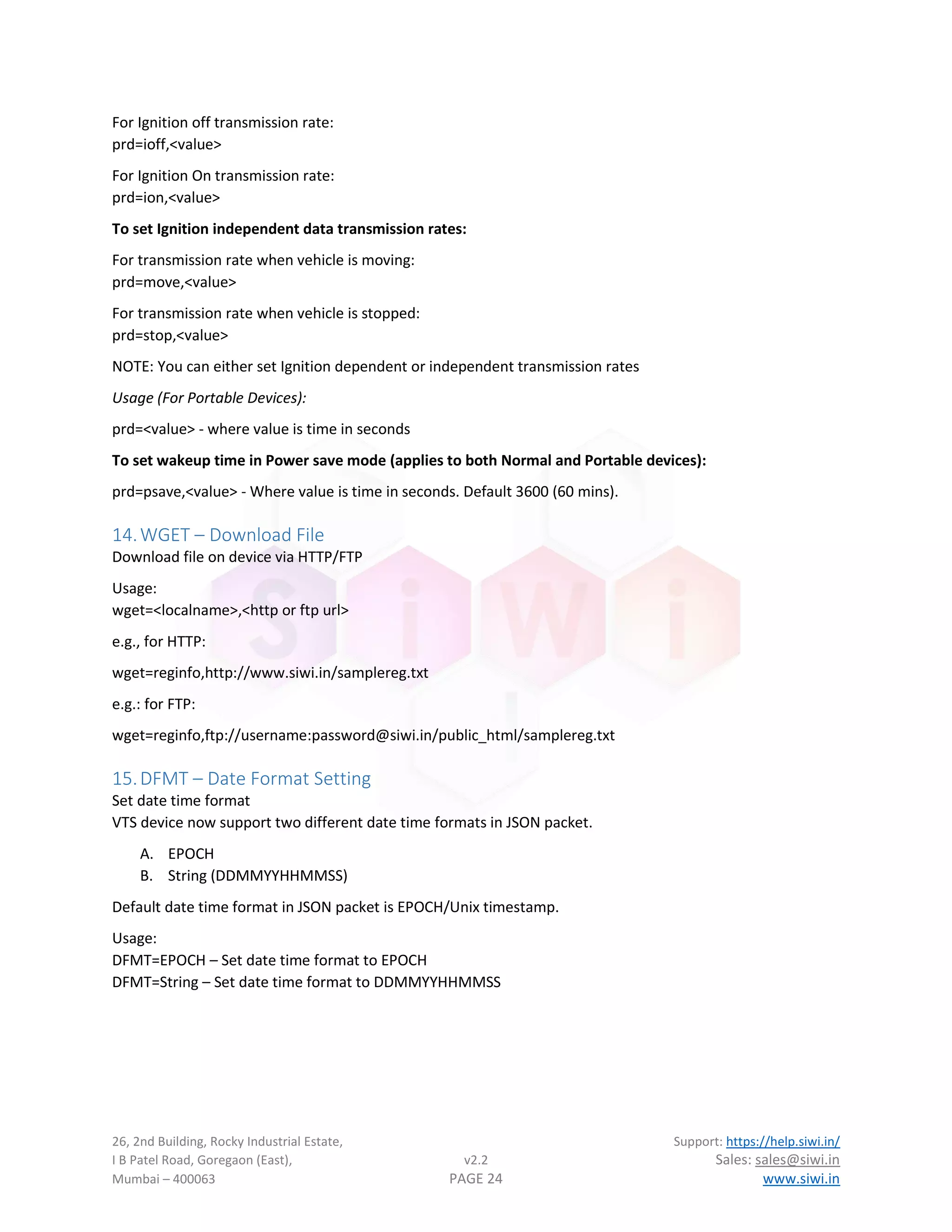
For Ignition off transmission rate:
prd=ioff,<value>
For Ignition On transmission rate:
prd=ion,<value>
To set Ignition independent data transmission rates:
For transmission rate when vehicle is moving:
prd=move,<value>
For transmission rate when vehicle is stopped:
prd=stop,<value>
NOTE: You can either set Ignition dependent or independent transmission rates
Usage (For Portable Devices):
prd=<value> - where value is time in seconds
To set wakeup time in Power save mode (applies to both Normal and Portable devices):
prd=psave,<value> - Where value is time in seconds. Default 3600 (60 mins).
14.WGET – Download File
Download file on device via HTTP/FTP
Usage:
wget=<localname>,<http or ftp url>
e.g., for HTTP:
wget=reginfo,http://www.siwi.in/samplereg.txt
e.g.: for FTP:
wget=reginfo,ftp://username:password@siwi.in/public_html/samplereg.txt
15.DFMT – Date Format Setting
Set date time format
VTS device now support two different date time formats in JSON packet.
A. EPOCH
B. String (DDMMYYHHMMSS)
Default date time format in JSON packet is EPOCH/Unix timestamp.
Usage:
DFMT=EPOCH – Set date time format to EPOCH
DFMT=String – Set date time format to DDMMYYHHMMSS
26, 2nd Building, Rocky Industrial Estate, Support: https://help.siwi.in/
I B Patel Road, Goregaon (East), v2.2 Sales: sales@siwi.in
Mumbai – 400063 PAGE 25 www.siwi.in
16.ODM – Initial Odometer configuration
Set initial odometer value. It is sometimes necessary to set a start value of odometer during new installation
if user do not want odometer to start from 0. This command sets the initial value of odometer.
Usage:
odm=<value>
Value of odometer is in meters, e.g. if user wants to set 1950Km as initial value then command should be
odm=1950000
17.ESS – Speed limit Setting
Set excess speed value or maximum speed limit of vehicle. After the maximum speed limit of vehicle is set
server will be notified if device moves at a higher speed than set value. If buzzer is installed in the device,
then buzzer will also beep locally to notify driver of speed limit reached.
Usage:
ess=<value>
Value is in Km/h
18.STARTV/STOPV – Immobilizer Commands
These are immobilizer commands and only available in device with immobilizer feature. These commands do
not have any special parameters.
Startv – Start the vehicle
Stopv – Stop the vehicle
19.HBRK – Harsh Break Threshold
Set harsh break threshold in g (1g = 9.8m/s2
). Default value is 0.55g
Usage:
hbrk=<value>
20.HACC – Harsh Acceleration Threshold
Set harsh acceleration threshold in g (1g = 9.8m/s2
). Default value is 0.43g
Usage:
hacc=<value>
21.EVSET – Event Configuration
To enable or disable event packets.
Usage:
evset=<list of txn to disable>,[0/1]
TXN list can be found in Table 17: Event Packet Identifier
22.SOS – SOS Acknowledge
Server command to acknowledge SOS packet. This will provide LED indication to person in vehicle that server
has acknowledged SOS event sent by device. This command has no parameters.
26, 2nd Building, Rocky Industrial Estate, Support: https://help.siwi.in/
I B Patel Road, Goregaon (East), v2.2 Sales: sales@siwi.in
Mumbai – 400063 PAGE 26 www.siwi.in
23.TEMPTH6
- Temperature Alert Setting
Set temperature threshold.
Usage:
tempth=<id>,<high value>,<low value>
Where high and low value are the temperature thresholds in ˚C
24.RHTH – Humidity Alert Setting
This command is used to set humidity sensor thresholds in percent. Default values are 5% for low and 80%
for high.
Usage:
RHTH=<ID>,<HIGH>,<LOW>
Where ID is sensor ID.
High and low are relative humidity thresholds in percent.
25.SENSOR – View/Set sensor information
This command is used to view real time sensor values and set per sensor offsets. For temperature sensor it is
also used to reset the sensor if needed during installation.
Usage:
To Reset Temperature sensor
SENSOR=[ID],reset
To View current offset values:
SENSOR=[ID],offset
To Configure Temperature sensor offset
SENSOR=[ID],[Temp_offset]
To Configure Temperature and Humidity sensor offsets
SENSOR=[ID],[Temp_offset],[Humid_offset]
ID is sensor ID starting from 1.
To Set Temperature sensor count installed on device:
SENSOR=temp,<count>
To Set Temperature & Humidity sensor count installed on device:
SENSOR=trh,<count>
Temperature and Humidity offset values are in float can be negative or positive.
NOTE: Please be careful when resetting the sensor. Only use it when really required. Contact support team
for any help.
6
This command is only available in devices with temperature sensors installed.
26, 2nd Building, Rocky Industrial Estate, Support: https://help.siwi.in/
I B Patel Road, Goregaon (East), v2.2 Sales: sales@siwi.in
Mumbai – 400063 PAGE 27 www.siwi.in
26.BUZZ7
- Buzzer Control
To turn buzzer on or off from server
Usage:
buzz=<duration>
Duration is provided in seconds, to turn off duration set as 0.
Buzz=<type>,<on/off>
Type can be:
SL: Speed Alert
TMP: Temperature Alert
EMR: SOS Alert
TA: Tilt Alert8
27.BTYPE9
- Buzzer Configuration
Set or select buzzer type
Usage:
btype=<1/0>
1 – For Hooter type
0 – For Beeper type
28.RFCONF10
- RFID Reader Setting
To set RFID reader configuration
Usage:
rfconf=[timeout],[mode]
Timeout is in seconds for repeat card detection, set to 0 to disable and only alternate cards will be detected.
mode – Card display format, “decimal” (default) or “hex”.
29.BIOCONF11
- Biometric Reader Setting
To set Biometric/Fingerprint reader configuration
Usage:
bioconf=[operation],[argument]
Supported Operations:
Load: To load biometric template from URL
bioconf=load,[index],[URL]
where index can be 1 to 200 (biometric ID)
7
This command is only available in devices with buzzer installed.
8
Only available if MEMS sensor installed
9
This command is only available in devices with buzzer installed.
10
This command is only available in devices with RFID installed.
11
This command is only available in devices with Biometric installed.
26, 2nd Building, Rocky Industrial Estate, Support: https://help.siwi.in/
I B Patel Road, Goregaon (East), v2.2 Sales: sales@siwi.in
Mumbai – 400063 PAGE 28 www.siwi.in
Del: To delete template
Bioconf=del,[index]
Where index can be 1 to 200. To delete all templates at once use:
Bioconf=del,all
30.IBCONF12
–iButton Reader Setting
This command is used for configuring iButton reader operation
Usage:
IBCONF=[Timeout],[Mode]
Timeout is in seconds for repeat iButton detection. Setting this value to 0 disable same ID detection back to
back. Default value is 2 sec.
Mode can be sent to 0 or 1, 0 as Normal mode and 1 as reverse mode. In reverse mode ID is sent to server in
reverse order.
31.IMCONF – Immobilizer Configuration
This command is used to configure advanced configuration for immobilizer. To automate immobilizer control
based on RFID/Biometric/iButton. The individual configuration of control devices can be done with
RFCONF/BIOCONF/IBCONF –iButton commands respectively.
Command Format:
IMCONF=<Operation>,<Type>,<arguments…>
Operation can be “set” or “get to set or get the configuration value respectively.
Type defines the configuration on which operation to be performed and based on type the argument list is
decided. Following are the types:
CTL: Control Configuration
This configuration is used to set the source of control for Immobilizer. The source can be as follows:
0 – No Source (Default)
1 – Any scanned ID from RFID/Biometric/iButton reader (No validation)
2 – RFID Reader
3 – Biometric Reader
4 – iButton Reader
Usage:
IMCONF=<set/get>,CTL,<source>,[<mode>]
Mode is optional argument and can be any of the following. The operation mode is only valid when source is
not set to 0 (No Source).
Normal: This is default mode of operation. In this mode immobilizer is disabled when a valid ID is found or
STARTV command is sent to the device. Immobilizer is enabled again after ignition is turned off.
12
This command is only available in device with iButton Reader installed.
26, 2nd Building, Rocky Industrial Estate, Support: https://help.siwi.in/
I B Patel Road, Goregaon (East), v2.2 Sales: sales@siwi.in
Mumbai – 400063 PAGE 29 www.siwi.in
Toggle: In this mode, immobilizer will be enabled if it was disabled previously or disabled if enabled
previously by showing a valid ID to the reader. Ignition has no effect when this mode is selected.
TOUT: Normal Mode Timeout
This command configures timeout value (in seconds) to auto turn-on immobilizer. Default value is 60
seconds. When Immobilizer is disabled via a control source and ignition is not turned on within configured
timeout value, Immobilizer will get turned on again automatically.
Usage:
IMCONF=<set/get>,TOUT,<timeout>
Timeout is value in seconds, default value is 60 seconds and minimum value is 10 seconds.
RFID: RFID Card Configuration
This configuration set RFID card number to be used for immobilizer control.
Usage:
IMCONF=<set/get>,RFID,<index>,<RFID Card Number>
BIO: Biometric Fingerprint Configuration
This configuration set fingerprint ID to be used for immobilizer control.
Usage:
IMCONF=<set/get>,BIO,<index>,<Biometric ID>
Biometric fingerprint ID starts from 1.
IBTN: iButton Configuration
This configuration set iButton ID to be used for immobilizer control.
Usage:
IMCONF=<set/get>,IBTN,<index>,<iButton ID>
Index in all configurations can be from 1 to 10, which means maximum 10 cards/Biometric IDs/iButtons can
be configured for control.
32.ADCTUNE – ADC Configuration
Set ADC approximation level.
This command can be used to smooth jumps in ADC data. The level of approximation can be adjusted by user
from 0 (low or no approximation) to 10 (high approximation, will take more time to reflect changes).
Default value of approximation is 1.
Usage:
ADCTUNE=5
33.SIM – SIM Information
Get SIM ID of SIM card installed in the device. This command requires no parameter.
26, 2nd Building, Rocky Industrial Estate, Support: https://help.siwi.in/
I B Patel Road, Goregaon (East), v2.2 Sales: sales@siwi.in
Mumbai – 400063 PAGE 30 www.siwi.in
34.HEADER – HTTP Header Configuration
Set custom HTTP Header during data post. Used in case of JSON only.
User can add custom headers to be added to HTTP POST request sent by device to server. Most of the time
custom headers are needed for device authentication or security. Header is set in a key: value pair in the
POST request.
Usage:
To set key and value together:
HEADER=set,<keyname>,<keyvalue>
e.g. HEADER=set,Authorization,c29tZSB2YWx1ZSBhcyBhdXRoIGtleQ==
The above will add following to the POST Header
Authorization: c29tZSB2YWx1ZSBhcyBhdXRoIGtleQ==
To change only Key Name:
HEADER=key,<keyname>
To change only Key value:
HEADER=value,<keyvalue>
To delete key, value:
HEADER=del or HEADER=delete
35.FCFG – Fuel Sensor configuration
This command is used to configure fuel sensors supported by device.
Usage:
FCFG=[Operation],[Value…]
The operation is the sub-command to run for fuel configuration. Based on operation value and parameter
count can be different. Operations are explained below
SRC: Sensor Type
Device supports 5 different types of sensors which are pre implemented in the firmware.
FCFG=SRC,<type>
Type is as follows:
1 – Analog Sensor
2 – Modbus type Sensor
3 – UART type sensor
4 – Omnicomm Digital sensor
5 – Ultrasonic Fuel sensor
PORT: Serial port configuration
Sensors which connects over serial/modbus require port parameters to be configured.
FCFG=PORT,[Baud],[Com parameters]
Baud is Baudrate of com port. Default is 9600
26, 2nd Building, Rocky Industrial Estate, Support: https://help.siwi.in/
I B Patel Road, Goregaon (East), v2.2 Sales: sales@siwi.in
Mumbai – 400063 PAGE 31 www.siwi.in
Com parameters are serial port communication parameters like databits, parity, stopbits etc. The parameters
are given in following format.
[Databits][Parity][Stopbits]
Databits: 7 or 8
Parity: n – None, e – Even, o – Odd, m – Mark, s – Space
Stopbits: 1 or 2
Default value is 8n1 for 8 bits, no parity and 1 stopbit.
SID: Slave ID
For omnicomm and modbus devices, slave id is required. Default value is 99.
FCFG=SID,<ID>
OFF: To set sensor offset value
FCFG=OFF,<value>
Value is the offset to sensor reading can be positive or negative. Default 0.
CTL: Fuel data post process control
To smooth out any data abnormalities caused by vehicle motion etc., the data is post-processed inside the
device before it is sent to server. This setting enables or disable post processing of sensor data. Default is off.
FCFG=CTL,<0/1>
0 – Off, 1 – On
FIL: Post process level
This operation controls the level of post processing done on data. Higher the value, slower will be the
response to change in data. Default level is 2.
FCFG=FIL,<level>
Level can be anywhere from 0 to 10.
RESET: Reset Settings
This operation will reset fuel sensor settings stored on device to default.
36.UMODE – Aux UART Operation Mode
This command is used to configure operation mode of Auxiliary UART port. Default mode is application
mode.
Usage:
UMODE=<mode>
Mode can be 0 for Application mode (default), 1 for transparent mode.
For detail on transparent mode see Transparent Mode for Auxiliary UART.
26, 2nd Building, Rocky Industrial Estate, Support: https://help.siwi.in/
I B Patel Road, Goregaon (East), v2.2 Sales: sales@siwi.in
Mumbai – 400063 PAGE 32 www.siwi.in
37.TPCFG – Transparent mode configuration
This command is used to configure transparent mode settings.
Usage:
TPCFG=<operation>,<value,…>
Operation are sub commands explained further in this section and Value list is optional and depends on
operation being executed. When value is not present device will return current settings.
CONN – Set Transparent server configuration
TPCFG=CONN,[IP],[PORT]
PORT – Set UART port configuration
TPCFG=PORT,[BAUD],[Com parameters],[DIRCTL]
BAUD: is Baudrate of UART port, Default Baudrate is 9600
Com Parameters: UART communication parameters same as: PORT: Serial port configuration
default value is 8n1.
DIRCTL: This parameter is optional to enable direction control if external device is using RS485 port.
38.GEO – Configure geofence
Device support only one geofence which can be either a circle or a rectangle.
Usage:
GEO=<event type>,<fence type>,<fence parameters>
Event Type:
0: Fence disabled, when fence is disabled all other parameters are ignored.
1: Fence Enabled and Event generated on geofence entry.
2: Fence Enabled and Event generated on geofence exit.
3: Fence Enabled and Event generated on geofence entry and exit.
Fence Type:
0: Fence type circular
1: Fence type rectangular
Fence Parameters: based on fence type fence parameter vary
For Circular Geofence
GEO=<event type>,0,<latitude>,<longitude>,<radius>,<name>
Latitude: Latitude of center of circular geofence
Longitude: Longitude of center of circular geofence
Radius: Fence radius in meters, this parameter is optional. Minimum and default value is 100m.
Name: User defined name for geofence, this can be any alphanumeric value not more than 31 characters.
For Rectangular Geofence:
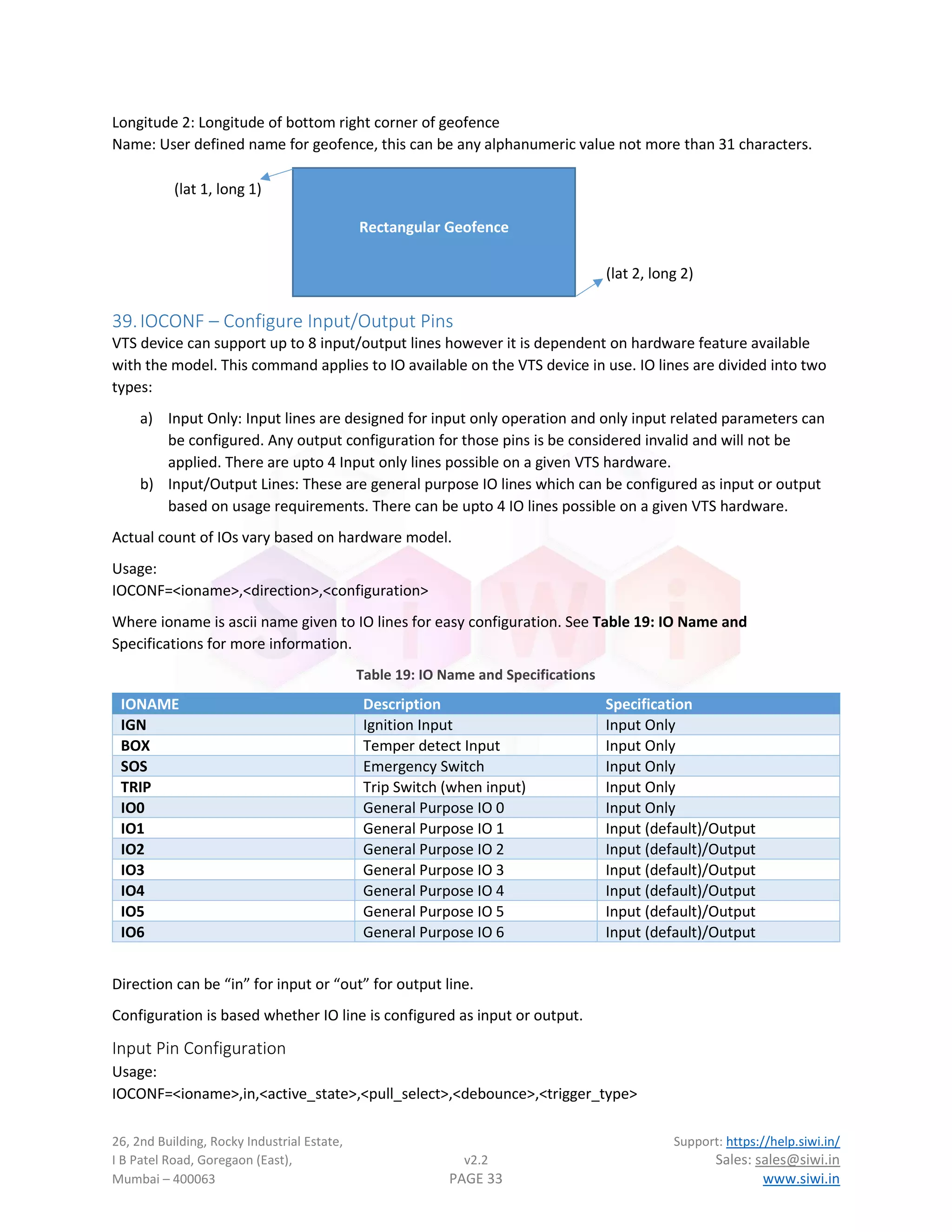
GEO=<event type>,1,<latitude 1>,<longitude 1>,<latitude 2>,<longitude 2>,name
Latitude 1: Latitude of top left corner of geofence
Longitude 1: Longitude of top left corner of geofence
Latitude 2: Latitude of bottom right corner of geofence
26, 2nd Building, Rocky Industrial Estate, Support: https://help.siwi.in/
I B Patel Road, Goregaon (East), v2.2 Sales: sales@siwi.in
Mumbai – 400063 PAGE 33 www.siwi.in
Longitude 2: Longitude of bottom right corner of geofence
Name: User defined name for geofence, this can be any alphanumeric value not more than 31 characters.
39.IOCONF – Configure Input/Output Pins
VTS device can support up to 8 input/output lines however it is dependent on hardware feature available
with the model. This command applies to IO available on the VTS device in use. IO lines are divided into two
types:
a) Input Only: Input lines are designed for input only operation and only input related parameters can
be configured. Any output configuration for those pins is be considered invalid and will not be
applied. There are upto 4 Input only lines possible on a given VTS hardware.
b) Input/Output Lines: These are general purpose IO lines which can be configured as input or output
based on usage requirements. There can be upto 4 IO lines possible on a given VTS hardware.
Actual count of IOs vary based on hardware model.
Usage:
IOCONF=<ioname>,<direction>,<configuration>
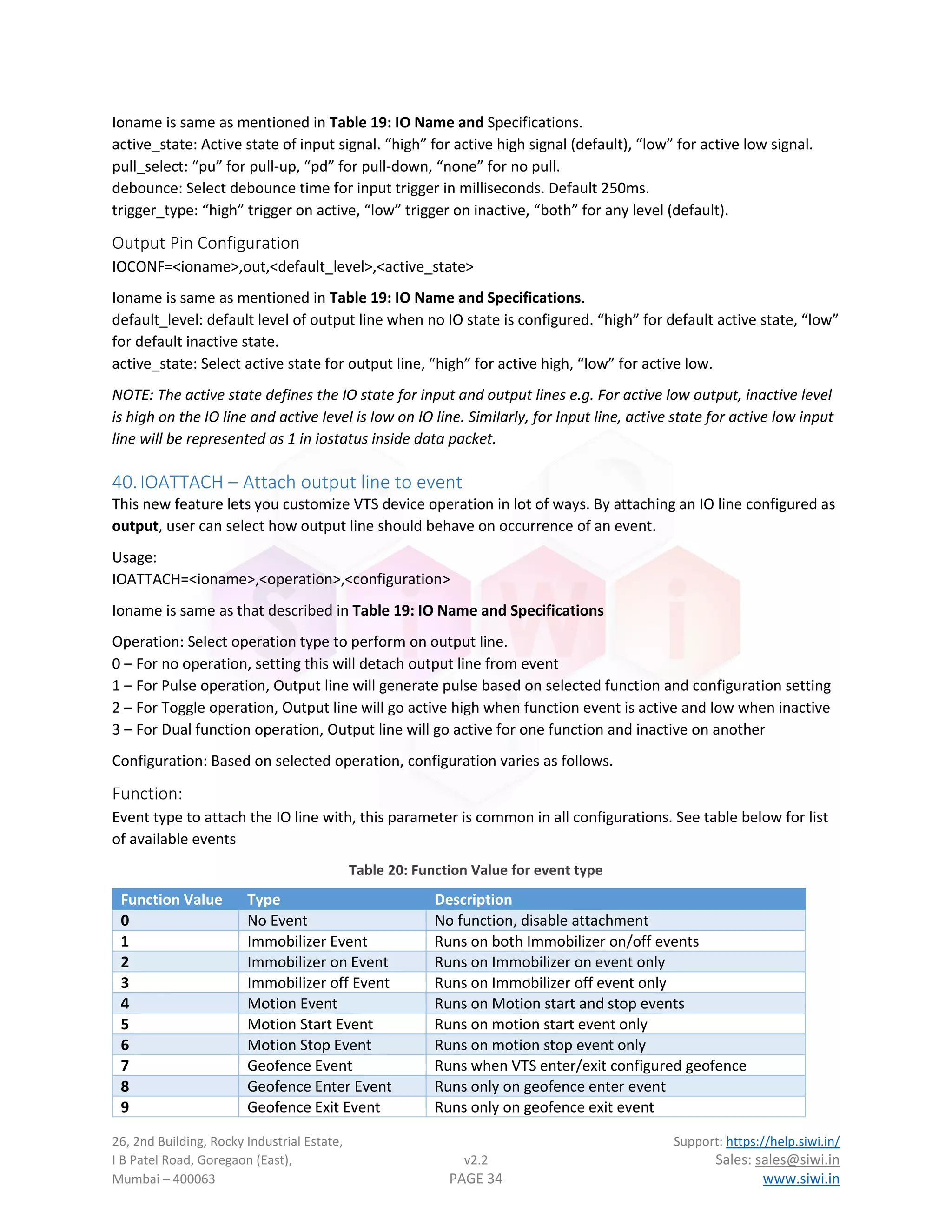
Where ioname is ascii name given to IO lines for easy configuration. See Table 19: IO Name and
Specifications for more information.
Table 19: IO Name and Specifications
IONAME Description Specification
IGN Ignition Input Input Only
BOX Temper detect Input Input Only
SOS Emergency Switch Input Only
TRIP Trip Switch (when input) Input Only
IO0 General Purpose IO 0 Input Only
IO1 General Purpose IO 1 Input (default)/Output
IO2 General Purpose IO 2 Input (default)/Output
IO3 General Purpose IO 3 Input (default)/Output
IO4 General Purpose IO 4 Input (default)/Output
IO5 General Purpose IO 5 Input (default)/Output
IO6 General Purpose IO 6 Input (default)/Output
Direction can be “in” for input or “out” for output line.
Configuration is based whether IO line is configured as input or output.
Input Pin Configuration
Usage:
IOCONF=<ioname>,in,<active_state>,<pull_select>,<debounce>,<trigger_type>
Rectangular Geofence
(lat 1, long 1)
(lat 2, long 2)
26, 2nd Building, Rocky Industrial Estate, Support: https://help.siwi.in/
I B Patel Road, Goregaon (East), v2.2 Sales: sales@siwi.in
Mumbai – 400063 PAGE 34 www.siwi.in
Ioname is same as mentioned in Table 19: IO Name and Specifications.
active_state: Active state of input signal. “high” for active high signal (default), “low” for active low signal.
pull_select: “pu” for pull-up, “pd” for pull-down, “none” for no pull.
debounce: Select debounce time for input trigger in milliseconds. Default 250ms.
trigger_type: “high” trigger on active, “low” trigger on inactive, “both” for any level (default).
Output Pin Configuration
IOCONF=<ioname>,out,<default_level>,<active_state>
Ioname is same as mentioned in Table 19: IO Name and Specifications.
default_level: default level of output line when no IO state is configured. “high” for default active state, “low”
for default inactive state.
active_state: Select active state for output line, “high” for active high, “low” for active low.
NOTE: The active state defines the IO state for input and output lines e.g. For active low output, inactive level
is high on the IO line and active level is low on IO line. Similarly, for Input line, active state for active low input
line will be represented as 1 in iostatus inside data packet.
40.IOATTACH – Attach output line to event
This new feature lets you customize VTS device operation in lot of ways. By attaching an IO line configured as
output, user can select how output line should behave on occurrence of an event.
Usage:
IOATTACH=<ioname>,<operation>,<configuration>
Ioname is same as that described in Table 19: IO Name and Specifications
Operation: Select operation type to perform on output line.
0 – For no operation, setting this will detach output line from event
1 – For Pulse operation, Output line will generate pulse based on selected function and configuration setting
2 – For Toggle operation, Output line will go active high when function event is active and low when inactive
3 – For Dual function operation, Output line will go active for one function and inactive on another
Configuration: Based on selected operation, configuration varies as follows.
Function:
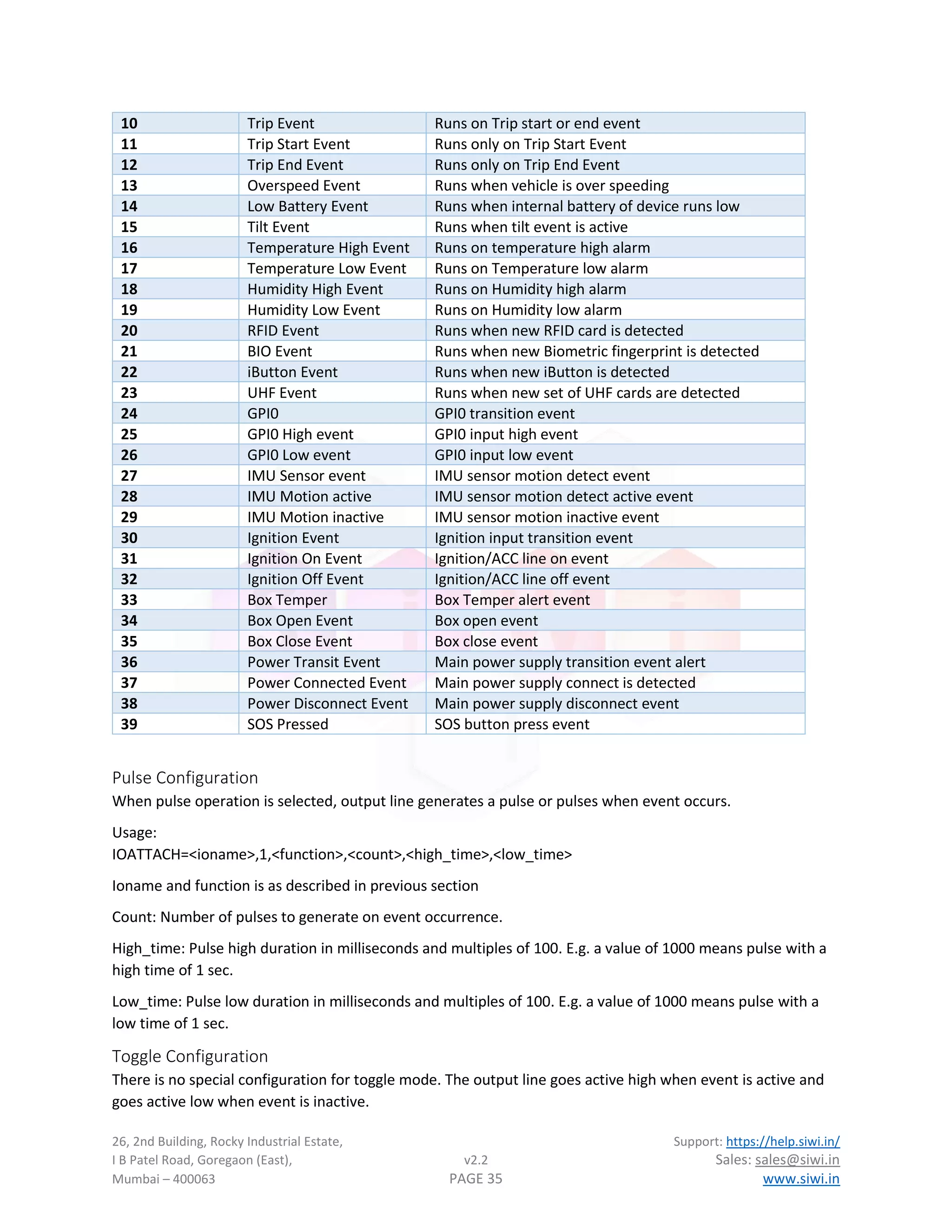
Event type to attach the IO line with, this parameter is common in all configurations. See table below for list
of available events
Table 20: Function Value for event type
Function Value Type Description
0 No Event No function, disable attachment
1 Immobilizer Event Runs on both Immobilizer on/off events
2 Immobilizer on Event Runs on Immobilizer on event only
3 Immobilizer off Event Runs on Immobilizer off event only
4 Motion Event Runs on Motion start and stop events
5 Motion Start Event Runs on motion start event only
6 Motion Stop Event Runs on motion stop event only
7 Geofence Event Runs when VTS enter/exit configured geofence
8 Geofence Enter Event Runs only on geofence enter event
9 Geofence Exit Event Runs only on geofence exit event
26, 2nd Building, Rocky Industrial Estate, Support: https://help.siwi.in/
I B Patel Road, Goregaon (East), v2.2 Sales: sales@siwi.in
Mumbai – 400063 PAGE 35 www.siwi.in
10 Trip Event Runs on Trip start or end event
11 Trip Start Event Runs only on Trip Start Event
12 Trip End Event Runs only on Trip End Event
13 Overspeed Event Runs when vehicle is over speeding
14 Low Battery Event Runs when internal battery of device runs low
15 Tilt Event Runs when tilt event is active
16 Temperature High Event Runs on temperature high alarm
17 Temperature Low Event Runs on Temperature low alarm
18 Humidity High Event Runs on Humidity high alarm
19 Humidity Low Event Runs on Humidity low alarm
20 RFID Event Runs when new RFID card is detected
21 BIO Event Runs when new Biometric fingerprint is detected
22 iButton Event Runs when new iButton is detected
23 UHF Event Runs when new set of UHF cards are detected
24 GPI0 GPI0 transition event
25 GPI0 High event GPI0 input high event
26 GPI0 Low event GPI0 input low event
27 IMU Sensor event IMU sensor motion detect event
28 IMU Motion active IMU sensor motion detect active event
29 IMU Motion inactive IMU sensor motion inactive event
30 Ignition Event Ignition input transition event
31 Ignition On Event Ignition/ACC line on event
32 Ignition Off Event Ignition/ACC line off event
33 Box Temper Box Temper alert event
34 Box Open Event Box open event
35 Box Close Event Box close event
36 Power Transit Event Main power supply transition event alert
37 Power Connected Event Main power supply connect is detected
38 Power Disconnect Event Main power supply disconnect event
39 SOS Pressed SOS button press event
Pulse Configuration
When pulse operation is selected, output line generates a pulse or pulses when event occurs.
Usage:
IOATTACH=<ioname>,1,<function>,<count>,<high_time>,<low_time>
Ioname and function is as described in previous section
Count: Number of pulses to generate on event occurrence.
High_time: Pulse high duration in milliseconds and multiples of 100. E.g. a value of 1000 means pulse with a
high time of 1 sec.
Low_time: Pulse low duration in milliseconds and multiples of 100. E.g. a value of 1000 means pulse with a
low time of 1 sec.
Toggle Configuration
There is no special configuration for toggle mode. The output line goes active high when event is active and
goes active low when event is inactive.
26, 2nd Building, Rocky Industrial Estate, Support: https://help.siwi.in/
I B Patel Road, Goregaon (East), v2.2 Sales: sales@siwi.in
Mumbai – 400063 PAGE 36 www.siwi.in
Usage:
IOATTACH=<ioname>,2, <function>
Dual Mode Configuration
In this mode IO line can be attached to two events, one event set the line active high, and another sets it
active low.
Usage:
IOATTACH=<ioname>,3, <function1>,<function2>
Function 1: Active high event
Function 2: Active low event
Function code as same as described in Table 20.
41.IOVAL – Set or get current level of GPIO lines
This command is only valid for GPIO lines only.
Usage:
IOVAL=<ioname>[,val]
Ioname is same as described in Table 19: IO Name and Specifications
Val is optional when setting level of output line. 1 means active high and 0 means active low level. The output
state is decided by active state of the IO line configured using IOCONF – Configure Input/Output Pins
command.
Usage for Pulse output:
IOVAL=<ioname>,pulse,<count>,<high_time>,<low_time>
Count: Number of pulses to generate
high_time, low_time: Pulse high and low duration respectively in milliseconds.
42.IMU – Configure IMU settings
This command is used to configure and calibrate Inertial Measurement Unit.
Usage:
IMU=<op>,<param>
Op: Operation or configuration to change.
Param: Value based on operation
TILT
Set tilt angle for event generation when vehicle is tilted
Usage:
IMU=TILT,<value>
Where value is angle in degrees. Default value is 45°
MTH
Set motion detection threshold.
Usage:
IMU=MTH,<value>
where value is time in seconds. Default value is 10s.
26, 2nd Building, Rocky Industrial Estate, Support: https://help.siwi.in/
I B Patel Road, Goregaon (East), v2.2 Sales: sales@siwi.in
Mumbai – 400063 PAGE 37 www.siwi.in
RST
Reset device mount position
Usage:
IMU=RST
DBG
Enable IMU sensor debug output
Usage:
IMU=DBG,<value>
Value is 1 to enable Yaw, Pitch, Roll output of IMU sensor
0 to disable debug output.
CAL
Calibrate IMU sensor
Usage:
IMU=CAL,<type>
Type set to 1 for sensor base calibration
Type set to 2 for zero calibration when vehicle is steady
Contact our support team for help on how to calibrate IMU sensor.
26, 2nd Building, Rocky Industrial Estate, Support: https://help.siwi.in/
I B Patel Road, Goregaon (East), v2.2 Sales: sales@siwi.in
Mumbai – 400063 PAGE 38 www.siwi.in
Service Commands
1. STG – Get Device Settings
This command can be sent without SMS password, it is a service level command which can be shared with
installation person without issue. This command is used to verify current device setting and get software
information. This command is only allowed over SMS.
Response format:
U: <unitid>
IM: <IMEI>
SIG: <Signal strength>
CON: <Server connectivity status>
APN: <Current APN in use>
IP: <Configured server IP/URL>
PT: <Configured server port> (unused in JSON)
SW: <Software version installed>
HW: <Hardware version>
2. TEST – Device Test Parameters
This command is used to get device runtime information. Values of parameters vary from version to version,
but response is kept same for consistency purpose. Unused fields will have a zero or no value. This command
is only allowed over SMS and requires no password.
Response Format:
U: <Unit ID>
IM: <IMEI>
GP: <GPS Status>
MV: <Main power status>
BT: <Battery voltage>
GSM: <GSM Registration status>
<latitude, longitude>: <Current location>
SIG: <signal strength>
CON: <Connectivity status>
BX: <Device open/close>
IO: <GPI or GPO value>
AD1: <Analog 1 value>
IGN: <Ignition status>
3. WHERE – Locate Device
To get current device location information. Only applicable via SMS.
26, 2nd Building, Rocky Industrial Estate, Support: https://help.siwi.in/
I B Patel Road, Goregaon (East), v2.2 Sales: sales@siwi.in
Mumbai – 400063 PAGE 39 www.siwi.in
4. GPSINFO – Get Current GPS Parameters
This command can be used to get current device GPS parameters to verify GPS status etc. This command
requires password if sent via SMS.
Device will respond in following format:
gps:<GPS Status>
Time:<UTC Time in HHMMSS>
Date:<Date in DDMMYY>
Fix:<A/V>
Sat:<Visible Satellites>
Speed:<Speed in km/h>
dir:<Direction degrees>
pdop:<PDOP value>
hdop:<HDOP Value
Lat:<Current Latitude>
Long:<Current Longitude>
Alt:<Altitude in meters>
Odom:<Odometer in Km>
5. LOGLEVEL – Debug Log Setting
This command can only be used from Bluetooth terminal and is intended for device debugging on field. User
can use Bluetooth application on phone to view on going device activity.
Usage:
LOGLEVEL=<debug level>
e.g. LOGLEVEL=1
Allowed debug levels:
1: To view Network related debug messages
24: To view packet data going on to server
Contact SiWi support (https://help.siwi.in/) if specific log level information or help is needed.
6. FRESET – Factory Reset
This command is used to reset device to factory settings. This command requires password to execute
successfully, if sent via SMS.
NOTE: This command will remove all device configuration and format memory of the device. It is
recommended to contact SIWI support before using this command.
Usage:
For SMS:
<SMS Password>,FRESET=confirm
For Server:
FRESET=confirm
26, 2nd Building, Rocky Industrial Estate, Support: https://help.siwi.in/
I B Patel Road, Goregaon (East), v2.2 Sales: sales@siwi.in
Mumbai – 400063 PAGE 40 www.siwi.in
7. FEATURE – Feature Configuration
This command is used to configure device optional features. Please contact support team for more
information. This command requires password if sent via SMS.
Usage:
Feature – get currently enabled features
To set or enable a feature
Feature=<set/clear>,<feature name>
e.g. Feature=set,json
The above will enable data in JSON format over HTTP.
8. IDENTIFY – Get Device Identity
This command can be used to get information like, device cell number, IMEI, SIM ID, IMSI etc. This command
can be sent from anywhere.
Usage:
identify=<reply number with +91>
e.g.: identify=+919876543210
Device will respond in following format:
<Device ID>,<IMEI>,<IMSI>,<SIM ID>,<Current Fiwmare Code>
e.g.: 1905090039297,869867036065573,404041042202747,89910473031822027477,CPLUS
9. FWCONFIG – Get firmware configuration
This command is used to get currently enabled firmware features.
10.FWCHECK – Check for new firmware update
To check for new firmware:
fwcheck=now
To disable auto firmware updates:
fwcheck=off
To enable auto firmware updates:
fwcheck=on
11.OTA – Firmware Update
This command is used for Over the air firmware upgrade. This command is allowed via SMS and TCP.
Password is mandatory for this command to work over SMS.
Usage:
ota=<firmware_filename>
Please contact SiWi support to get right firmware filename for the device.
Installing a wrong firmware might cause permanent damage to the device and will void warranty.

VTS Protocol description v2.2.pdf

  • 1.
    For Srishti WirelessSolutions 26, 2nd Building, Rocky Industrial Estate, I B Patel Road, Goregaon (East), Mumbai – 400063 VTS PROTOCOL DESCRIPTION Protocol Description for Chukas+ & Scout+ VTS Devices v2.2
  • 2.
    26, 2nd Building,Rocky Industrial Estate, Support: https://help.siwi.in/ I B Patel Road, Goregaon (East), v2.2 Sales: sales@siwi.in Mumbai – 400063 PAGE 1 www.siwi.in COPYRIGHT THIS INFORMATION CONTAINED HERE IS PROPRIETARY TECHNICAL INFORMATION OF SRISHTI WIRELESS SOLUTIONS. TRANSMITTABLE, REPRODUCTION, DISSEMINATION AND EDITING OF THIS DOCUMENT AS WELL AS UTILIZATION OF ITS CONTENTS ARE FORBIDDEN WITHOUT PERMISSION. OFFENDERS WILL BE HELD LIABLE FOR PAYMENT OF DAMAGES. ALL RIGHTS ARE RESERVED. Copyright © 2020 Srishti Wireless Solutions
  • 3.
    26, 2nd Building,Rocky Industrial Estate, Support: https://help.siwi.in/ I B Patel Road, Goregaon (East), v2.2 Sales: sales@siwi.in Mumbai – 400063 PAGE 2 www.siwi.in Document History Version Date Author Description 1.0 2/22/2016 Ajay Bhargav (Waybyte) Initial 1.1 12/1/2017 Ajay Bhargav • Add section “Command Description” • Update protocol 1.2 12/19/2017 Ajay Bhargav • Update PRD command 1.3 1/16/2018 Ajay Bhargav • Update command section with biometric commands • Updated Transmit packet with sensor information 1.4 2/14/2018 Ajay Bhargav • Update Time command as per latest firmware 1.5 2/5/2020 Ajay Bhargav • Updated Protocol For new devices • Add new commands • Change command headings for easy reading 1.6 3/5/2020 Ajay Bhargav • Update IMCONF command 1.7 8/12/2020 Ajay Bhargav • Add TCP Protocol information • Add Transparent mode command • Add Aux UART mode command 1.8 9/8/2020 Ajay Bhargav • Added Geofence Command • Update packet description for status flags 1.9 9/16/2020 Ajay Bhargav • Update IMCONF command 2.0 10/2/2020 Ajay Bhargav • Add IOCONF, IOATTACH, IOVAL commands for runtime IO configuration 2.1 12/25/2020 Ajay Bhargav • Add IMU Command • Update PRD command add Power save timer settings 2.2 12/24/2021 Ajay Bhargav • Update IOATTACH command • Update Table 20, added more events to list
  • 4.
    26, 2nd Building,Rocky Industrial Estate, Support: https://help.siwi.in/ I B Patel Road, Goregaon (East), v2.2 Sales: sales@siwi.in Mumbai – 400063 PAGE 3 www.siwi.in References Sr. No. Name Author Remarks Abbreviations Item Description JSON JavaScript Object Notation IoT Internet of Things SiWi Srishti Wireless Solutions APN Access Point Name SMS Short Message Service LUA The programming Language (https://www.lua.org/about.html)
  • 5.
    26, 2nd Building,Rocky Industrial Estate, Support: https://help.siwi.in/ I B Patel Road, Goregaon (East), v2.2 Sales: sales@siwi.in Mumbai – 400063 PAGE 4 www.siwi.in Contents Document History.................................................................................................................................................2 References ............................................................................................................................................................3 Abbreviations........................................................................................................................................................3 List of Tables .........................................................................................................................................................7 Chaukas+ & Scout+ for Tracking Application........................................................................................................8 About JSON.......................................................................................................................................................8 Why JSON?........................................................................................................................................................8 JSON Transmit Protocol Description.....................................................................................................................9 TCP Transmit Protocol Description.....................................................................................................................14 Packet Identification...........................................................................................................................................17 Periodic Packet ID...........................................................................................................................................17 Event Packet ID...............................................................................................................................................17 JSON Receive Protocol Description.....................................................................................................................19 TCP Receive Protocol Description.......................................................................................................................19 Transparent Mode for Auxiliary UART................................................................................................................20 Command Description ........................................................................................................................................21 Configuration Commands...............................................................................................................................21 1. TIME – Configure Clock ......................................................................................................................21 2. SMS – Admin Number Setting............................................................................................................22 3. NIP – Server IP/URL............................................................................................................................22 4. NPT – Set Server Port.........................................................................................................................22 5. PWD – Change SMS Password ...........................................................................................................22 6. REBOOT – Device reboot....................................................................................................................22 7. UNO – Protocol UID Configuration ....................................................................................................22 8. UNAME – Device Custom Name ........................................................................................................23 9. OFR – Clear Offline Data.....................................................................................................................23 10. DNSCFG – DNS Server Configuration .............................................................................................23 11. TZN - Timezone Configuration .......................................................................................................23 12. APN – Access Point Configuration..................................................................................................23 13. PRD – Data Period Configuration...................................................................................................23 14. WGET – Download File...................................................................................................................24 15. DFMT – Date Format Setting..........................................................................................................24
  • 6.
    26, 2nd Building,Rocky Industrial Estate, Support: https://help.siwi.in/ I B Patel Road, Goregaon (East), v2.2 Sales: sales@siwi.in Mumbai – 400063 PAGE 5 www.siwi.in 16. ODM – Initial Odometer configuration..........................................................................................25 17. ESS – Speed limit Setting................................................................................................................25 18. STARTV/STOPV – Immobilizer Commands.....................................................................................25 19. HBRK – Harsh Break Threshold ......................................................................................................25 20. HACC – Harsh Acceleration Threshold...........................................................................................25 21. EVSET – Event Configuration..........................................................................................................25 22. SOS – SOS Acknowledge.................................................................................................................25 23. TEMPTH - Temperature Alert Setting ............................................................................................26 24. RHTH – Humidity Alert Setting.......................................................................................................26 25. SENSOR – View/Set sensor information ........................................................................................26 26. BUZZ - Buzzer Control ....................................................................................................................27 27. BTYPE - Buzzer Configuration.........................................................................................................27 28. RFCONF - RFID Reader Setting .......................................................................................................27 29. BIOCONF - Biometric Reader Setting .............................................................................................27 30. IBCONF –iButton Reader Setting....................................................................................................28 31. IMCONF – Immobilizer Configuration............................................................................................28 32. ADCTUNE – ADC Configuration......................................................................................................29 33. SIM – SIM Information...................................................................................................................29 34. HEADER – HTTP Header Configuration ..........................................................................................30 35. FCFG – Fuel Sensor configuration..................................................................................................30 36. UMODE – Aux UART Operation Mode...........................................................................................31 37. TPCFG – Transparent mode configuration.....................................................................................32 38. GEO – Configure geofence.............................................................................................................32 39. IOCONF – Configure Input/Output Pins.........................................................................................33 40. IOATTACH – Attach output line to event .......................................................................................34 41. IOVAL – Set or get current level of GPIO lines ...............................................................................36 42. IMU – Configure IMU settings........................................................................................................36 Service Commands..........................................................................................................................................38 1. STG – Get Device Settings ..................................................................................................................38 2. TEST – Device Test Parameters..........................................................................................................38 3. WHERE – Locate Device .....................................................................................................................38 4. GPSINFO – Get Current GPS Parameters ...........................................................................................39 5. LOGLEVEL – Debug Log Setting ..........................................................................................................39 6. FRESET – Factory Reset ......................................................................................................................39
  • 7.
    26, 2nd Building,Rocky Industrial Estate, Support: https://help.siwi.in/ I B Patel Road, Goregaon (East), v2.2 Sales: sales@siwi.in Mumbai – 400063 PAGE 6 www.siwi.in 7. FEATURE – Feature Configuration......................................................................................................40 8. IDENTIFY – Get Device Identity ..........................................................................................................40 9. FWCONFIG – Get firmware configuration..........................................................................................40 10. FWCHECK – Check for new firmware update ................................................................................40 11. OTA – Firmware Update.................................................................................................................40
  • 8.
    26, 2nd Building,Rocky Industrial Estate, Support: https://help.siwi.in/ I B Patel Road, Goregaon (East), v2.2 Sales: sales@siwi.in Mumbai – 400063 PAGE 7 www.siwi.in List of Tables Table 1: Transmit Protocol Field Descriptions ....................................................................................................10 Table 2: Information Object................................................................................................................................10 Table 3: GPS Data Object....................................................................................................................................10 Table 4: Device IO Object....................................................................................................................................11 Table 5: Power Status Object..............................................................................................................................11 Table 6: Debug Status Object..............................................................................................................................11 Table 7: System's Server State............................................................................................................................12 Table 8: Fuel Sensor Data Object........................................................................................................................12 Table 9: Sensor Data object................................................................................................................................13 Table 10: Temperature & Humidity Error Bit Encoded.......................................................................................13 Table 11: System Status Flags.............................................................................................................................13 Table 12: Transmit Protocol Field Description....................................................................................................14 Table 13: System's Server State..........................................................................................................................15 Table 14: Sensor Error Bit Encoded ....................................................................................................................16 Table 15: System Status Flags.............................................................................................................................16 Table 16: Periodic Packet Identifier....................................................................................................................17 Table 17: Event Packet Identifier........................................................................................................................17 Table 18: Receive Protocol Field Description .....................................................................................................19 Table 19: IO Name and Specifications ................................................................................................................33 Table 20: Function Value for event type.............................................................................................................34
  • 9.
    26, 2nd Building,Rocky Industrial Estate, Support: https://help.siwi.in/ I B Patel Road, Goregaon (East), v2.2 Sales: sales@siwi.in Mumbai – 400063 PAGE 8 www.siwi.in Chaukas+ & Scout+ for Tracking Application SIWI VTS supports its legacy mode of communication over TCP socket and simple to parse CSV packet. There are no complicated login procedures to follow or no need to send heartbeat packets to keep track of server connectivity. Device works on its own with TCP level acknowledgement to maintain connectivity and ensuring zero packet loss. Keeping the latest trends of market in mind we have introduced new data transfer method. Now instead of sending data to server via traditional methods like TCP/UDP, device can send data directly to your HTTP server or web API and in an extremely easy to parse format JSON. Since JSON is one of the common data exchange method available in all web technologies, so implementing a receiving frontend for SiWi VTS Products will be much easier than writing a TCP listener. This will also help lower down your web server requirements and hence the overall cost of implementation. About JSON JSON (JavaScript Object Notation) is a lightweight data-interchange format. It is easy for humans to read and write. It is easy for machines to parse and generate JSON data. JSON is a text format that is completely language independent but uses conventions that are familiar to programmers of the C-family of languages, including C, C++, C#, Java, JavaScript, Perl, Python, and many others. These properties make JSON an ideal data-interchange language. Why JSON? The reason for introducing JSON to VTS was to ease and expedite front end development for it. Since most of the web developers are very much familiar with formats like JSON and ample amount of support available on web. Moreover, all web development platforms support JSON and its parsing. This is the reason JSON has become common data exchange format between IoT devices and web services.
  • 10.
    26, 2nd Building,Rocky Industrial Estate, Support: https://help.siwi.in/ I B Patel Road, Goregaon (East), v2.2 Sales: sales@siwi.in Mumbai – 400063 PAGE 9 www.siwi.in JSON Transmit Protocol Description Sample JSON Packet for Locator sent to server via HTTP/HTTPS POST method: { "uid": 222, "info": { "dt": 1512141732, "txn": "E", "msgkey": 0, "msgid": 11720, "cmdkey": "" "cmdval": "" }, "gps": { "fix": "A", "loc": [22.061200, 74.133017], "speed": 0, "sat": 10, "alt": 14, "dir": 137, "odo": 1332893 }, "io": { "box": 0, "ign": 1, "gpi": 1, "status": 0, "analog": [1935, 1234] }, "pwr": { "main": 1, "batt": 1, "volt": 3826, "mvolt": 12.36, }, "dbg": { "status": [5, 5, 22, 8, 3, 1], "ver": ["X.YY", "A.BB"], "lib": "6.65" } } NOTE: It is not possible to include all sample packets based on different sensor combinations, hence only basic device packet is mentioned here. Please cross check the actual packet with field description table provided below.
  • 11.
    26, 2nd Building,Rocky Industrial Estate, Support: https://help.siwi.in/ I B Patel Road, Goregaon (East), v2.2 Sales: sales@siwi.in Mumbai – 400063 PAGE 10 www.siwi.in Table 1: Transmit Protocol Field Descriptions Key Data Type Description Value uid Number Unit/Device ID (Software selectable, can be a numeric ID or IMEI of device) info Object Packet related info, Refer Table 2: Information Object gps Object GPS related data, Refer Table 3: GPS Data Object io Object Device’s Digital and Analog IO information, Refer Table 4: Device IO Object pwr Object Device power parameters, Refer Table 5: Power Status Object dbg Object Device debug parameters, Refer Table 6: Debug Status Object Table 2: Information Object Key Data Type Description Value dt Number Date time represented in Unix Timestamp format (Seconds since 1 Jan, 1970) 1512141732 txn String Transmission Reason, A packet identifier. Refer Section Packet Identification for list of packet Identifiers "E" msgkey Number This field provide information regarding key number during key press event in the device, currently kept as reserved 0 msgid Number A numeric counter for data packet. 11720 cmdkey String Command key identifier “prd” cmdval String This field contains value of the parameter when changed or requested from server or SMS or command line interface “60” Table 3: GPS Data Object Key Data Type Description Value fix String GPS fix status A – For Valid Data V – For invalid data “A” loc Number Array Location represented as array of Number [Latitude, Longitude]. Both Latitude and Longitude are represented as decimal number up to a precision of 10 and a scale of 7. [22.061200, 74.133017] speed Number GPS speed parameter in Km/h 0 sat Number GPS Satellites in view 10 alt Number GPS altitude in meters 14 dir Number GPS direction/Bearing in degree 137 odo Number Device Odometer in meters 1332893
  • 12.
    26, 2nd Building,Rocky Industrial Estate, Support: https://help.siwi.in/ I B Patel Road, Goregaon (East), v2.2 Sales: sales@siwi.in Mumbai – 400063 PAGE 11 www.siwi.in Table 4: Device IO Object Key Data Type Description Value box Number Device enclosure open/close status 1 – Open 0 – Close 0 ign Number Vehicle ignition status 1 – Ignition On 0 – Ignition Off 1 gpi Number General purpose inputs represented in binary format e.g., A value of 12 represents in binary as 0001100 which means GPI0, GP1, GPI4, GPI5, GPI6 – Off GP2, GP3 – On 0 status Number Status Flags: Bitwise status information see Table 11: System Status Flags for more details. 0 analog Number Array Analog input value represented in millivolts [1234,1234] fuel1 Object Fuel Data vary based on the fuel source selected sensor2 Object Array Sensor data object. Refer Table 9: Sensor Data object for more information Table 5: Power Status Object Key Data Type Description Value main Number Power mains input availability status 1 – Mains Available 0 – Mains Unavailable 1 batt Number Battery connections status 1 – Battery Connected 0 – Battery Unconnected 1 volt Number Battery Voltage in millivolts 3826 mvolt Number Main battery input voltage in volts 12.36 Table 6: Debug Status Object Key Data Type Description Value status Number Array Debug array: [CREG, CGREG, CSQ, Net, Server, Offline] CREG – GSM Registration status CGREG – GPRS Registration Status CSQ – Signal Quality Net – Network debug field Server – Server connectivity debug field ( Table 7: System's Server State) Offline – Packet is online or offline indicator (1 – offline packet/retransmitted, 0 – Online packet) [5, 5, 22, 8, 3, 1] 1 Fuel key is not available in all protocols, devices with Fuel sensor installed will have this key present. 2 Sensor key is not available in all protocols, devices with temperature sensor installed will have this key present.
  • 13.
    26, 2nd Building,Rocky Industrial Estate, Support: https://help.siwi.in/ I B Patel Road, Goregaon (East), v2.2 Sales: sales@siwi.in Mumbai – 400063 PAGE 12 www.siwi.in ver String Array Device Application software version and hardware version [“1.9JCPLUS”, “1.0”] lib String Device firmware library version 6.65 Table 7: System's Server State Index Description 0 Invalid or unknown state 1 No network registered 2 GSM network registered 3 GPRS & GSM network registered 4 Trying to connect to programmed server IP & Port 5 Connected to programmed server IP & Port 6 Currently sending data to server Table 8: Fuel Sensor Data Object Type Key Data Type Description Value Analog/MODBUS/UART Type Sensor level Number Fuel Level in mV, to be calculated on server 1234 err Number Error code if sensor fails 0 Omnicomm Digital Sensor f Number Device sends all sensor parameter as it is to server, please refer Omnicomm sensor datasheet for more information. t Number n Number err Number Error code if sensor reading fail Ultrasonic Sensor UFS-1/UFS-2 type String Device sends sensor information to server as it is. Please read sensor datasheet for more information llv Number rtv3 Number temp4 Number tilt4 Number cvl4 sig Number swc String hwc String err Number Error code if sensor reading fail 3 UFS-1 Type Sensor only 4 UFS-2 Type Sensor only
  • 14.
    26, 2nd Building,Rocky Industrial Estate, Support: https://help.siwi.in/ I B Patel Road, Goregaon (East), v2.2 Sales: sales@siwi.in Mumbai – 400063 PAGE 13 www.siwi.in Table 9: Sensor Data object Type Key Data Type Description Value Temperature Sensor temp Number Temperature value is represented as temp * 100. E.g. if value is 1234 then temperature is 12.34 °C 1234 alarm Number Alarm bits for sensor: 0 – No Alarm 1 – Temperature Low Alarm 2 – Temperature High Alarm 0 err Boolean True If sensor error, false if no error False Temperature & Humidity Sensor temp Number Temperature value is represented as temp * 100. E.g. if value is 1234 then temperature is 12.34 °C 1234 humid Number Humidity value is represented as humid * 100. E.g. if value is 1234 then temperature is 12.34% 1234 alarm Number Alarm Bits for sensor Encoded as Shown in Table 10: Temperature & Humidity Error Bit Encoded err Number Error code if sensor read fail, 0 for no error Table 10: Temperature & Humidity Error Bit Encoded BIT7 BIT6 BIT5 BIT4 BIT3 BIT2 BIT1 BIT0 0 0 Humidity High Alarm Humidity Low Alarm 0 0 Temperature High Alarm Temperature Low Alarm E.g., If Sensor has Temperature Low and Humidity High alarm active then alarm value will can be computed as shown below: BIT7 BIT6 BIT5 BIT4 BIT3 BIT2 BIT1 BIT0 Alarm Value 0 0 1 0 0 0 0 1 33 (Decimal) 21 (Hex) Table 11: System Status Flags BIT7 BIT6 BIT5 BIT4 BIT3 BIT2 BIT1 BIT0 NA NA NA NA Trip Status Geofence Status Immobilizer Status Box Status
  • 15.
    26, 2nd Building,Rocky Industrial Estate, Support: https://help.siwi.in/ I B Patel Road, Goregaon (East), v2.2 Sales: sales@siwi.in Mumbai – 400063 PAGE 14 www.siwi.in TCP Transmit Protocol Description TCP Packet for Locator sent to server over TCP socket in a CSV (comma separated value) format. The sample packet is shown below: $SIWI,1234567890123,45,E,,89917650642221590319,0,1,0,12.36,141313,0,9,A,21.981985,85.221165,804,28 0,105113,220420,17,1,13,5,4071,1,0,8,0,0,0,1.0,1.2CPLUS_6.52,0! Table 12: Transmit Protocol Field Description # Field Name Description Example 1 Header Fixed Device Packet header “$SIWI” $SIWI 2 Unit ID/IMEI Unique Unit ID of device, this field is configurable to show Unit ID or IMEI 1234567890123 3 Message ID Message ID of packet after power on. This field resets to 1 when device reboots. 45 4 Transmission Reason Transmission Reason, A packet identifier. Refer Packet Identification for list of packet Identifiers E 5 Command Key Command identifier, command sent to device is set in this field during device response to server. 6 Command Key Value This field contains value of the parameter when changed or requested from server or SMS or command line interface. This field also carries SIM ID when device connects to server for the very first time after power on. SIM ID can be useful for identifying which SIM card is installed in the device 89917650642221590319 7 Ignition Ignition Status, 0 – Ignition Off, 1 – Ignition On 0 8 Power Cut External Power connection status, 0 – External Power disconnected, 1 – External Power Connected 1 9 Status Flags status flags representing status of immobilizer, geofence, trip etc. in bit wise field represented as decimal value. See Table 15: System Status Flags for more details 0 10 Mains Voltage Mains voltage in volts (float) 12.36 11 Odometer Odometer value in meters 141313 12 Speed Vehicle speed in Km/h 0 13 Satellite in View GPS + GLONASS Satellite used for position acquisition 9 14 GPS Data Validity A – Fixed Data V – Void or Invalid Data A 15 Latitude GPS Latitude Value in degrees 21.981985 16 Longitude GPS Longitude Value in degrees 85.221165 17 Altitude Altitude in meters 804 18 Direction Direction or Course over ground in degrees 280 19 Time Time in HHMMSS format. Timezone can be configured in device, default timezone is UTC. 105113 20 Date Date in DDMMYY format. 220420
  • 16.
    26, 2nd Building,Rocky Industrial Estate, Support: https://help.siwi.in/ I B Patel Road, Goregaon (East), v2.2 Sales: sales@siwi.in Mumbai – 400063 PAGE 15 www.siwi.in 21 Signal Strength GSM Signal strength value 17 22 GSM Status GSM Network registration status 1 23 Error Code / Miscellaneous Field Field used for error codes in temperature devices or use for other purpose based on specific firmware. Refer Table 14: Sensor Error Bit Encoded for more information 24 Server Status Server connectivity debug field (Table 13: System's Server State) 5 25 Internal Battery Internal battery voltage in millivolts. Divide by 1000 to get value in volts. 4071 26 Analog Input External Analog input value in millivolts/10. Divide by 100 to get value in volts 123 27 Digital Input Status General purpose inputs represented in binary format e.g., A value of 12 represents in binary as 0001100 which means GPI0, GP1, GPI4, GPI5, GPI6 – Off GP2, GP3 – On 0 28 Aux Field 1 Auxiliary field 1 carry information based on type of sensor connected to device and 0 otherwise. 29 Aux Field 2 Auxiliary field 2 carry information based on type of sensor connected to device and 0 otherwise. 30 Aux Field 3 Auxiliary field 3 carry information based on type of sensor connected to device and 0 otherwise. 31 Aux Field 4 Auxiliary field 1 carry information based on type of sensor connected to device and 0 otherwise. 32 Hardware Version Device hardware design version 1.0 33 Software Version Device firmware version and Library version used by firmware, separated by “_” (underscore) 1.9CPLUS_6.65 34 Packet Type Packet is online or offline indicator (1 – offline packet/retransmitted, 0 – Online packet) 0 35 End Delimiter End marker “!<CR><LF>”, You can use “!” To split multiple packets if transmitted together by ISP relay server. ! Table 13: System's Server State Index Description 0 Invalid or unknown state 1 No network registered 2 GSM network registered 3 GPRS & GSM network registered 4 Trying to connect to programmed server IP & Port 5 Connected to programmed server IP & Port 6 Currently sending data to server
  • 17.
    26, 2nd Building,Rocky Industrial Estate, Support: https://help.siwi.in/ I B Patel Road, Goregaon (East), v2.2 Sales: sales@siwi.in Mumbai – 400063 PAGE 16 www.siwi.in Table 14: Sensor Error Bit Encoded BIT7 BIT6 BIT5 BIT4 BIT3 BIT2 BIT1 BIT0 NA NA NA NA Sensor4 Sensor 3 Sensor2 Sensor1 NA - Fields in the table are not used and always read as 0. BIT [0:4] – Each bit is assigned to a sensor. If corresponding bit is 1 that sensor is faulty or not responding. E.g. If Sensor 3 and Sensor 1 are at fault the error value will can be computed as shown: BIT7 BIT6 BIT5 BIT4 BIT3 BIT2 BIT1 BIT0 Error 0 0 0 0 0 1 0 1 5 Table 15: System Status Flags BIT7 BIT6 BIT5 BIT4 BIT3 BIT2 BIT1 BIT0 NA NA NA NA Trip Status Geofence Status Immobilizer Status Box Status
  • 18.
    26, 2nd Building,Rocky Industrial Estate, Support: https://help.siwi.in/ I B Patel Road, Goregaon (East), v2.2 Sales: sales@siwi.in Mumbai – 400063 PAGE 17 www.siwi.in Packet Identification There are various events and normal data which can be generated by device at runtime e.g., when someone disconnects the main power or when ignition status is changed etc. These events are sent to server in JSON format with a unique packet identifier for server application to take decision based on type of event occurred. Packet identified is sent with a key name of “txn” in information object of JSON data (Table 2). When device connects to server for the first time after reboot or a reset, command value “cmdval” will carry SIM card serial number (ICCID). There are two types of Packet identifiers possible in the data packet A. Periodic Packet ID B. Event Packet ID Periodic Packet ID Device sends data to server periodically at an interval set by user. Periodic data ensures device status gets updated to server at a regular interval. Following is a list of periodic packet IDs: Table 16: Periodic Packet Identifier Identifier Description A Vehicle in Normal Motion: This packet ID is sent during periodic transfer when vehicle is in motion. B Vehicle in motion but over speeding: This packet ID is sent during periodic transfer when vehicle is moving at higher speed that set limit. E Vehicle not in motion: This periodic event is generated when device is at halt or not moving. Event Packet ID Event packets are generated when device sense a change in expected status from the set value. Following is a list of event packet identifiers: Table 17: Event Packet Identifier Identifier Description C Vehicle Speed Normal: This is an event packet ID and generated when vehicle lowers its speed than set limit. After this event, periodic event ‘A’ will be sent since device is in motion D Vehicle speed limit exceeded: This event is generated when vehicle crosses its set speed limit. After this event, Periodic event ‘B’ will be sent. F Vehicle Motion start: This event is generated when vehicle starts to move. After this event periodic event ‘A’ is generated. G Vehicle Motion Stop: This event is generated when vehicle stops or speed goes to 0. After this event periodic event ‘E’ is generated. H GSM Location Used: This event is generated when instead of GPS, GSM triangulated location is used – Only for portable devices Tilt Alert: For devices with MEMS sensor installed. I GPS First Fix: This event is generated when first fix of GPS is received. This packet is only generated when GPS data is good enough to considered as fixed after data post processing.
  • 19.
    26, 2nd Building,Rocky Industrial Estate, Support: https://help.siwi.in/ I B Patel Road, Goregaon (East), v2.2 Sales: sales@siwi.in Mumbai – 400063 PAGE 18 www.siwi.in J Ignition Change: This event is generated when ignition status changes from either on to off or off to on. The status of ignition will be updated in the IO structure. K Box/Enclosure Open: This event is generated when device is opened by someone. This can help preventing any tempering with the device. The status of box will be updated in the IO structure. L Power Transit Event: This event is generated when external power/main supply is connected/disconnected. The power status field will be updated with status of mains power. M Harsh Turn Detected: This event is generated when vehicle makes a sharp turn. N SOS Event: This event is generated when SOS key is pressed on device O Digital IO/GPI changed: This event is generated when any of the general-purpose input pin see a transition. The GPI filed in IO structure is updated. P Vehicle Over Acceleration: This event is generated when vehicle acceleration is more than a set rate Q Parameter Change Event: This event is generated when device parameter is changed. The “cmdval” field in info structure is populated with the changed parameter value. R Parameter Query Event: This event is generated when a query command for parameter is sent to device. The “cmdval” field in info structure is populated with the parameter value. S Harsh break Event: This event is generated when vehicle experience a harsh break. T Immobilize Status Event: This event indicates immobilizer enable/disable. “cmdval” field is populated with status of immobilizer. U GPS Status Event: This event is generated when status of GPS changes. “cmdval” defines the status of GPS. 0 – GPS Not Responding 1 – GPS OK 2 – GPS Lost 3 – GPS Acquired V Temperature/Temperature & Humidity Alarm Alert: This event is generated to provide high or low alerts for temperature/humidity, only available in devices with respective sensor installed. W New ID Alert: This event is generated only when new ID is detected, cmdval will have the value of detected ID. ID value can be Card ID for RFID card, Fingerprint ID for Biometric sensor or Chip ID for iButton Key. X Geofence Alert: This event is generated when vehicle enter/exit a geofence. cmdkey will be “1” For geofence entry and “0” for geofence exit cmdval will have geofence name set during geofence configuration. Y Trip Alert: This event is generated when trip button is pressed to detect start/end of trip. Only available in devices with Trip switch. Z FOTA Event: This event is generated when device firmware upgrade is started
  • 20.
    26, 2nd Building,Rocky Industrial Estate, Support: https://help.siwi.in/ I B Patel Road, Goregaon (East), v2.2 Sales: sales@siwi.in Mumbai – 400063 PAGE 19 www.siwi.in JSON Receive Protocol Description When device POST data to web server it expects server to respond with JSON data in following format: Response with command: { "result": true, "msg": “Data Success”, "cmd": “prd=30” } Response without command (Use this if there is no command to be sent to device): { "result": true, "msg": “Data Success”, } Table 18: Receive Protocol Field Description Key Data Type Description Value result Boolean Represents if data is accepted by server or not True msg String Message from server, can be null “Data Success” cmd String This field may or may not exist. If server has any command to be sent to device, this filed can be populated else do not include in the response. “prd=120” TCP Receive Protocol Description Device does not expect any kind of response from server. However, server can send commands to device for configuration or query any parameter of the device. The format of command from server to Device is same as that of SMS except there is no need to provide SMS password. e.g., For configuration in via SMS command might be: ttysms,PRD=60 In case of TCP, server can directly send: PRD=60 Further section will cover commands in detail.
  • 21.
    26, 2nd Building,Rocky Industrial Estate, Support: https://help.siwi.in/ I B Patel Road, Goregaon (East), v2.2 Sales: sales@siwi.in Mumbai – 400063 PAGE 20 www.siwi.in Transparent Mode for Auxiliary UART VTS has auxiliary port for communication with external devices with firmware support available for many different types of devices e.g., RFID, Fuel, UHF reader etc. However, there are some use case where user need to get direct access of the device remotely. This is where transparent port comes into play. In transparent mode, VTS device open a secondary TCP connection and sends its identification to the server in format shown: $TPUART,[Device UID],[Device IMEI]! This helps server maintain individual connections based on device UID or IMEI. Once connection is established, TCP connection works as a transparent channel between Auxiliary UART port and server. Whatever is sent from server is directly transferred to UART and data from UART port is sent directly to server. Transparent mode can be helpful in managing external device as well as to debug external device in case of failure. To set UART into transparent mode user can send UMODE – Aux UART Operation Mode command. Transparent mode parameters like server IP, server port and UART communication settings can be done using TPCFG – Transparent mode configuration command. External Device VTS Device Cloud Server UART TCP Socket Virtual Channel between cloud server and external device
  • 22.
    26, 2nd Building,Rocky Industrial Estate, Support: https://help.siwi.in/ I B Patel Road, Goregaon (East), v2.2 Sales: sales@siwi.in Mumbai – 400063 PAGE 21 www.siwi.in Command Description Device supports configuration that can be done from either server or via SMS. Commands sent over SMS are protected via SMS password. User can change this password anytime if they feel security is compromised in anyway. Commands sent from TCP are in simple format as shown: cmd=parameters Commands sent via SMS are sent with passwords as shown: password,cmd=parameters Default password is “ttysms”. So, if user has not changed any password then, commands can be sent as: ttysms,cmd=parameters SiWi Modbus device support two types of commands: A. Configuration Commands: To configure device over the air using TCP/SMS. All configuration commands require SMS password when sending over SMS. B. Service Commands: Service level commands used during installation and troubleshooting. All commands can be sent over SMS, and not all commands are allowed over TCP. The one which are allowed will be mentioned separately. Configuration Commands 1. TIME – Configure Clock Set/get/sync system clock. VTS device can sync its clock from three different time sources, following is the list based on source priority: 1. NSP – Network Service Provider (Lowest priority) 2. NTP – Network Time Protocol 3. GPS – GPS clock (highest priority) Usage: time - Get current operating mode and system date & time time=[timestamp] - Set system time, where timestamp is Unix Timestamp/EPOC Time time=auto – Set Auto synchronization mode with time sources time=manual – Disable Auto mode, User can set time using timestamp time=mode – Get Current operating mode (Auto/Manual) time=server – Get current NTP server time=server,[NTP Server address] – Set NTP server address, default is siwi.in time=src – Get currently used time source.
  • 23.
    26, 2nd Building,Rocky Industrial Estate, Support: https://help.siwi.in/ I B Patel Road, Goregaon (East), v2.2 Sales: sales@siwi.in Mumbai – 400063 PAGE 22 www.siwi.in 2. SMS – Admin Number Setting Set SMS or call verification numbers. Currently only used for devices with call facility. SMS are currently protected by SMS Password only. Usage: sms=<index>,[<value>] Index – Index to read/write cell number (1-5) value – Cell number to be stored, use value as “Delete” to remove stored number 3. NIP – Server IP/URL Set server URL for posting JSON data or Server IP or domain for TCP data. Usage for TCP: nip=example.com Usage for JSON: nip=http://xxx.xxx.xxx.xxx/post.php nip=http://www.example.com/post.php if use is using a different port then use as shown nip=http://www.example.com:port/post.php 4. NPT – Set Server Port This command is used in case of TCP mode only and is used to set server port. Usage: npt=8446 5. PWD – Change SMS Password Set Device SMS password Usage: pwd=<new> new: New password Note Default password is “ttysms”. 6. REBOOT – Device reboot Reset or Reboot device Usage: reboot – No parameters needed reboot=<delay> Where delay is number of seconds to wait before reboot. 7. UNO – Protocol UID Configuration Select to use Device ID (UID), IMEI or custom name (UNAME) of the device in UID filed of protocol. Usage: uno=[imei/uid/uname]
  • 24.
    26, 2nd Building,Rocky Industrial Estate, Support: https://help.siwi.in/ I B Patel Road, Goregaon (East), v2.2 Sales: sales@siwi.in Mumbai – 400063 PAGE 23 www.siwi.in 8. UNAME – Device Custom Name Set User defined name for device Usage: uname=<value> - where value is new device name in alphanumeric format (50 characters max) 9. OFR – Clear Offline Data Clean and reset offline data Usage: ofr – Get currently stored offline packet count ofr=1 – Clear Offline storage 10.DNSCFG – DNS Server Configuration Configure custom DNS servers. By default, device will use DNS server provided by GSM service provider. Usage: dnscfg=primary,secondary dnscfg=reset – Reset DNS server to default (reboot required) e.g. dnscfg=8.8.8.8,8.8.4.4 11.TZN5 - Timezone Configuration Device Time zone setup Usage: tzn=<+/-HH:MM> 12.APN – Access Point Configuration Set APN information for internet access Usage: apn=apn_name,[apn_username],[apn_password] apn_name: Access point name. Can be set to "auto" for auto APN feature. apn_username: APN username (Optional) apn_password: APN user password (Optional) 13.PRD – Data Period Configuration Set data transmission period/rate Usage (For Non-Portable Devices): To set all timings at once: prd=<value> - where value is time in seconds To set ignition dependent data transmission rate. 5 TZN will not affect UNIX timestamp since they are always represented in GMT.
  • 25.
    26, 2nd Building,Rocky Industrial Estate, Support: https://help.siwi.in/ I B Patel Road, Goregaon (East), v2.2 Sales: sales@siwi.in Mumbai – 400063 PAGE 24 www.siwi.in For Ignition off transmission rate: prd=ioff,<value> For Ignition On transmission rate: prd=ion,<value> To set Ignition independent data transmission rates: For transmission rate when vehicle is moving: prd=move,<value> For transmission rate when vehicle is stopped: prd=stop,<value> NOTE: You can either set Ignition dependent or independent transmission rates Usage (For Portable Devices): prd=<value> - where value is time in seconds To set wakeup time in Power save mode (applies to both Normal and Portable devices): prd=psave,<value> - Where value is time in seconds. Default 3600 (60 mins). 14.WGET – Download File Download file on device via HTTP/FTP Usage: wget=<localname>,<http or ftp url> e.g., for HTTP: wget=reginfo,http://www.siwi.in/samplereg.txt e.g.: for FTP: wget=reginfo,ftp://username:password@siwi.in/public_html/samplereg.txt 15.DFMT – Date Format Setting Set date time format VTS device now support two different date time formats in JSON packet. A. EPOCH B. String (DDMMYYHHMMSS) Default date time format in JSON packet is EPOCH/Unix timestamp. Usage: DFMT=EPOCH – Set date time format to EPOCH DFMT=String – Set date time format to DDMMYYHHMMSS
  • 26.
    26, 2nd Building,Rocky Industrial Estate, Support: https://help.siwi.in/ I B Patel Road, Goregaon (East), v2.2 Sales: sales@siwi.in Mumbai – 400063 PAGE 25 www.siwi.in 16.ODM – Initial Odometer configuration Set initial odometer value. It is sometimes necessary to set a start value of odometer during new installation if user do not want odometer to start from 0. This command sets the initial value of odometer. Usage: odm=<value> Value of odometer is in meters, e.g. if user wants to set 1950Km as initial value then command should be odm=1950000 17.ESS – Speed limit Setting Set excess speed value or maximum speed limit of vehicle. After the maximum speed limit of vehicle is set server will be notified if device moves at a higher speed than set value. If buzzer is installed in the device, then buzzer will also beep locally to notify driver of speed limit reached. Usage: ess=<value> Value is in Km/h 18.STARTV/STOPV – Immobilizer Commands These are immobilizer commands and only available in device with immobilizer feature. These commands do not have any special parameters. Startv – Start the vehicle Stopv – Stop the vehicle 19.HBRK – Harsh Break Threshold Set harsh break threshold in g (1g = 9.8m/s2 ). Default value is 0.55g Usage: hbrk=<value> 20.HACC – Harsh Acceleration Threshold Set harsh acceleration threshold in g (1g = 9.8m/s2 ). Default value is 0.43g Usage: hacc=<value> 21.EVSET – Event Configuration To enable or disable event packets. Usage: evset=<list of txn to disable>,[0/1] TXN list can be found in Table 17: Event Packet Identifier 22.SOS – SOS Acknowledge Server command to acknowledge SOS packet. This will provide LED indication to person in vehicle that server has acknowledged SOS event sent by device. This command has no parameters.
  • 27.
    26, 2nd Building,Rocky Industrial Estate, Support: https://help.siwi.in/ I B Patel Road, Goregaon (East), v2.2 Sales: sales@siwi.in Mumbai – 400063 PAGE 26 www.siwi.in 23.TEMPTH6 - Temperature Alert Setting Set temperature threshold. Usage: tempth=<id>,<high value>,<low value> Where high and low value are the temperature thresholds in ˚C 24.RHTH – Humidity Alert Setting This command is used to set humidity sensor thresholds in percent. Default values are 5% for low and 80% for high. Usage: RHTH=<ID>,<HIGH>,<LOW> Where ID is sensor ID. High and low are relative humidity thresholds in percent. 25.SENSOR – View/Set sensor information This command is used to view real time sensor values and set per sensor offsets. For temperature sensor it is also used to reset the sensor if needed during installation. Usage: To Reset Temperature sensor SENSOR=[ID],reset To View current offset values: SENSOR=[ID],offset To Configure Temperature sensor offset SENSOR=[ID],[Temp_offset] To Configure Temperature and Humidity sensor offsets SENSOR=[ID],[Temp_offset],[Humid_offset] ID is sensor ID starting from 1. To Set Temperature sensor count installed on device: SENSOR=temp,<count> To Set Temperature & Humidity sensor count installed on device: SENSOR=trh,<count> Temperature and Humidity offset values are in float can be negative or positive. NOTE: Please be careful when resetting the sensor. Only use it when really required. Contact support team for any help. 6 This command is only available in devices with temperature sensors installed.
  • 28.
    26, 2nd Building,Rocky Industrial Estate, Support: https://help.siwi.in/ I B Patel Road, Goregaon (East), v2.2 Sales: sales@siwi.in Mumbai – 400063 PAGE 27 www.siwi.in 26.BUZZ7 - Buzzer Control To turn buzzer on or off from server Usage: buzz=<duration> Duration is provided in seconds, to turn off duration set as 0. Buzz=<type>,<on/off> Type can be: SL: Speed Alert TMP: Temperature Alert EMR: SOS Alert TA: Tilt Alert8 27.BTYPE9 - Buzzer Configuration Set or select buzzer type Usage: btype=<1/0> 1 – For Hooter type 0 – For Beeper type 28.RFCONF10 - RFID Reader Setting To set RFID reader configuration Usage: rfconf=[timeout],[mode] Timeout is in seconds for repeat card detection, set to 0 to disable and only alternate cards will be detected. mode – Card display format, “decimal” (default) or “hex”. 29.BIOCONF11 - Biometric Reader Setting To set Biometric/Fingerprint reader configuration Usage: bioconf=[operation],[argument] Supported Operations: Load: To load biometric template from URL bioconf=load,[index],[URL] where index can be 1 to 200 (biometric ID) 7 This command is only available in devices with buzzer installed. 8 Only available if MEMS sensor installed 9 This command is only available in devices with buzzer installed. 10 This command is only available in devices with RFID installed. 11 This command is only available in devices with Biometric installed.
  • 29.
    26, 2nd Building,Rocky Industrial Estate, Support: https://help.siwi.in/ I B Patel Road, Goregaon (East), v2.2 Sales: sales@siwi.in Mumbai – 400063 PAGE 28 www.siwi.in Del: To delete template Bioconf=del,[index] Where index can be 1 to 200. To delete all templates at once use: Bioconf=del,all 30.IBCONF12 –iButton Reader Setting This command is used for configuring iButton reader operation Usage: IBCONF=[Timeout],[Mode] Timeout is in seconds for repeat iButton detection. Setting this value to 0 disable same ID detection back to back. Default value is 2 sec. Mode can be sent to 0 or 1, 0 as Normal mode and 1 as reverse mode. In reverse mode ID is sent to server in reverse order. 31.IMCONF – Immobilizer Configuration This command is used to configure advanced configuration for immobilizer. To automate immobilizer control based on RFID/Biometric/iButton. The individual configuration of control devices can be done with RFCONF/BIOCONF/IBCONF –iButton commands respectively. Command Format: IMCONF=<Operation>,<Type>,<arguments…> Operation can be “set” or “get to set or get the configuration value respectively. Type defines the configuration on which operation to be performed and based on type the argument list is decided. Following are the types: CTL: Control Configuration This configuration is used to set the source of control for Immobilizer. The source can be as follows: 0 – No Source (Default) 1 – Any scanned ID from RFID/Biometric/iButton reader (No validation) 2 – RFID Reader 3 – Biometric Reader 4 – iButton Reader Usage: IMCONF=<set/get>,CTL,<source>,[<mode>] Mode is optional argument and can be any of the following. The operation mode is only valid when source is not set to 0 (No Source). Normal: This is default mode of operation. In this mode immobilizer is disabled when a valid ID is found or STARTV command is sent to the device. Immobilizer is enabled again after ignition is turned off. 12 This command is only available in device with iButton Reader installed.
  • 30.
    26, 2nd Building,Rocky Industrial Estate, Support: https://help.siwi.in/ I B Patel Road, Goregaon (East), v2.2 Sales: sales@siwi.in Mumbai – 400063 PAGE 29 www.siwi.in Toggle: In this mode, immobilizer will be enabled if it was disabled previously or disabled if enabled previously by showing a valid ID to the reader. Ignition has no effect when this mode is selected. TOUT: Normal Mode Timeout This command configures timeout value (in seconds) to auto turn-on immobilizer. Default value is 60 seconds. When Immobilizer is disabled via a control source and ignition is not turned on within configured timeout value, Immobilizer will get turned on again automatically. Usage: IMCONF=<set/get>,TOUT,<timeout> Timeout is value in seconds, default value is 60 seconds and minimum value is 10 seconds. RFID: RFID Card Configuration This configuration set RFID card number to be used for immobilizer control. Usage: IMCONF=<set/get>,RFID,<index>,<RFID Card Number> BIO: Biometric Fingerprint Configuration This configuration set fingerprint ID to be used for immobilizer control. Usage: IMCONF=<set/get>,BIO,<index>,<Biometric ID> Biometric fingerprint ID starts from 1. IBTN: iButton Configuration This configuration set iButton ID to be used for immobilizer control. Usage: IMCONF=<set/get>,IBTN,<index>,<iButton ID> Index in all configurations can be from 1 to 10, which means maximum 10 cards/Biometric IDs/iButtons can be configured for control. 32.ADCTUNE – ADC Configuration Set ADC approximation level. This command can be used to smooth jumps in ADC data. The level of approximation can be adjusted by user from 0 (low or no approximation) to 10 (high approximation, will take more time to reflect changes). Default value of approximation is 1. Usage: ADCTUNE=5 33.SIM – SIM Information Get SIM ID of SIM card installed in the device. This command requires no parameter.
  • 31.
    26, 2nd Building,Rocky Industrial Estate, Support: https://help.siwi.in/ I B Patel Road, Goregaon (East), v2.2 Sales: sales@siwi.in Mumbai – 400063 PAGE 30 www.siwi.in 34.HEADER – HTTP Header Configuration Set custom HTTP Header during data post. Used in case of JSON only. User can add custom headers to be added to HTTP POST request sent by device to server. Most of the time custom headers are needed for device authentication or security. Header is set in a key: value pair in the POST request. Usage: To set key and value together: HEADER=set,<keyname>,<keyvalue> e.g. HEADER=set,Authorization,c29tZSB2YWx1ZSBhcyBhdXRoIGtleQ== The above will add following to the POST Header Authorization: c29tZSB2YWx1ZSBhcyBhdXRoIGtleQ== To change only Key Name: HEADER=key,<keyname> To change only Key value: HEADER=value,<keyvalue> To delete key, value: HEADER=del or HEADER=delete 35.FCFG – Fuel Sensor configuration This command is used to configure fuel sensors supported by device. Usage: FCFG=[Operation],[Value…] The operation is the sub-command to run for fuel configuration. Based on operation value and parameter count can be different. Operations are explained below SRC: Sensor Type Device supports 5 different types of sensors which are pre implemented in the firmware. FCFG=SRC,<type> Type is as follows: 1 – Analog Sensor 2 – Modbus type Sensor 3 – UART type sensor 4 – Omnicomm Digital sensor 5 – Ultrasonic Fuel sensor PORT: Serial port configuration Sensors which connects over serial/modbus require port parameters to be configured. FCFG=PORT,[Baud],[Com parameters] Baud is Baudrate of com port. Default is 9600
  • 32.
    26, 2nd Building,Rocky Industrial Estate, Support: https://help.siwi.in/ I B Patel Road, Goregaon (East), v2.2 Sales: sales@siwi.in Mumbai – 400063 PAGE 31 www.siwi.in Com parameters are serial port communication parameters like databits, parity, stopbits etc. The parameters are given in following format. [Databits][Parity][Stopbits] Databits: 7 or 8 Parity: n – None, e – Even, o – Odd, m – Mark, s – Space Stopbits: 1 or 2 Default value is 8n1 for 8 bits, no parity and 1 stopbit. SID: Slave ID For omnicomm and modbus devices, slave id is required. Default value is 99. FCFG=SID,<ID> OFF: To set sensor offset value FCFG=OFF,<value> Value is the offset to sensor reading can be positive or negative. Default 0. CTL: Fuel data post process control To smooth out any data abnormalities caused by vehicle motion etc., the data is post-processed inside the device before it is sent to server. This setting enables or disable post processing of sensor data. Default is off. FCFG=CTL,<0/1> 0 – Off, 1 – On FIL: Post process level This operation controls the level of post processing done on data. Higher the value, slower will be the response to change in data. Default level is 2. FCFG=FIL,<level> Level can be anywhere from 0 to 10. RESET: Reset Settings This operation will reset fuel sensor settings stored on device to default. 36.UMODE – Aux UART Operation Mode This command is used to configure operation mode of Auxiliary UART port. Default mode is application mode. Usage: UMODE=<mode> Mode can be 0 for Application mode (default), 1 for transparent mode. For detail on transparent mode see Transparent Mode for Auxiliary UART.
  • 33.
    26, 2nd Building,Rocky Industrial Estate, Support: https://help.siwi.in/ I B Patel Road, Goregaon (East), v2.2 Sales: sales@siwi.in Mumbai – 400063 PAGE 32 www.siwi.in 37.TPCFG – Transparent mode configuration This command is used to configure transparent mode settings. Usage: TPCFG=<operation>,<value,…> Operation are sub commands explained further in this section and Value list is optional and depends on operation being executed. When value is not present device will return current settings. CONN – Set Transparent server configuration TPCFG=CONN,[IP],[PORT] PORT – Set UART port configuration TPCFG=PORT,[BAUD],[Com parameters],[DIRCTL] BAUD: is Baudrate of UART port, Default Baudrate is 9600 Com Parameters: UART communication parameters same as: PORT: Serial port configuration default value is 8n1. DIRCTL: This parameter is optional to enable direction control if external device is using RS485 port. 38.GEO – Configure geofence Device support only one geofence which can be either a circle or a rectangle. Usage: GEO=<event type>,<fence type>,<fence parameters> Event Type: 0: Fence disabled, when fence is disabled all other parameters are ignored. 1: Fence Enabled and Event generated on geofence entry. 2: Fence Enabled and Event generated on geofence exit. 3: Fence Enabled and Event generated on geofence entry and exit. Fence Type: 0: Fence type circular 1: Fence type rectangular Fence Parameters: based on fence type fence parameter vary For Circular Geofence GEO=<event type>,0,<latitude>,<longitude>,<radius>,<name> Latitude: Latitude of center of circular geofence Longitude: Longitude of center of circular geofence Radius: Fence radius in meters, this parameter is optional. Minimum and default value is 100m. Name: User defined name for geofence, this can be any alphanumeric value not more than 31 characters. For Rectangular Geofence: GEO=<event type>,1,<latitude 1>,<longitude 1>,<latitude 2>,<longitude 2>,name Latitude 1: Latitude of top left corner of geofence Longitude 1: Longitude of top left corner of geofence Latitude 2: Latitude of bottom right corner of geofence
  • 34.
    26, 2nd Building,Rocky Industrial Estate, Support: https://help.siwi.in/ I B Patel Road, Goregaon (East), v2.2 Sales: sales@siwi.in Mumbai – 400063 PAGE 33 www.siwi.in Longitude 2: Longitude of bottom right corner of geofence Name: User defined name for geofence, this can be any alphanumeric value not more than 31 characters. 39.IOCONF – Configure Input/Output Pins VTS device can support up to 8 input/output lines however it is dependent on hardware feature available with the model. This command applies to IO available on the VTS device in use. IO lines are divided into two types: a) Input Only: Input lines are designed for input only operation and only input related parameters can be configured. Any output configuration for those pins is be considered invalid and will not be applied. There are upto 4 Input only lines possible on a given VTS hardware. b) Input/Output Lines: These are general purpose IO lines which can be configured as input or output based on usage requirements. There can be upto 4 IO lines possible on a given VTS hardware. Actual count of IOs vary based on hardware model. Usage: IOCONF=<ioname>,<direction>,<configuration> Where ioname is ascii name given to IO lines for easy configuration. See Table 19: IO Name and Specifications for more information. Table 19: IO Name and Specifications IONAME Description Specification IGN Ignition Input Input Only BOX Temper detect Input Input Only SOS Emergency Switch Input Only TRIP Trip Switch (when input) Input Only IO0 General Purpose IO 0 Input Only IO1 General Purpose IO 1 Input (default)/Output IO2 General Purpose IO 2 Input (default)/Output IO3 General Purpose IO 3 Input (default)/Output IO4 General Purpose IO 4 Input (default)/Output IO5 General Purpose IO 5 Input (default)/Output IO6 General Purpose IO 6 Input (default)/Output Direction can be “in” for input or “out” for output line. Configuration is based whether IO line is configured as input or output. Input Pin Configuration Usage: IOCONF=<ioname>,in,<active_state>,<pull_select>,<debounce>,<trigger_type> Rectangular Geofence (lat 1, long 1) (lat 2, long 2)
  • 35.
    26, 2nd Building,Rocky Industrial Estate, Support: https://help.siwi.in/ I B Patel Road, Goregaon (East), v2.2 Sales: sales@siwi.in Mumbai – 400063 PAGE 34 www.siwi.in Ioname is same as mentioned in Table 19: IO Name and Specifications. active_state: Active state of input signal. “high” for active high signal (default), “low” for active low signal. pull_select: “pu” for pull-up, “pd” for pull-down, “none” for no pull. debounce: Select debounce time for input trigger in milliseconds. Default 250ms. trigger_type: “high” trigger on active, “low” trigger on inactive, “both” for any level (default). Output Pin Configuration IOCONF=<ioname>,out,<default_level>,<active_state> Ioname is same as mentioned in Table 19: IO Name and Specifications. default_level: default level of output line when no IO state is configured. “high” for default active state, “low” for default inactive state. active_state: Select active state for output line, “high” for active high, “low” for active low. NOTE: The active state defines the IO state for input and output lines e.g. For active low output, inactive level is high on the IO line and active level is low on IO line. Similarly, for Input line, active state for active low input line will be represented as 1 in iostatus inside data packet. 40.IOATTACH – Attach output line to event This new feature lets you customize VTS device operation in lot of ways. By attaching an IO line configured as output, user can select how output line should behave on occurrence of an event. Usage: IOATTACH=<ioname>,<operation>,<configuration> Ioname is same as that described in Table 19: IO Name and Specifications Operation: Select operation type to perform on output line. 0 – For no operation, setting this will detach output line from event 1 – For Pulse operation, Output line will generate pulse based on selected function and configuration setting 2 – For Toggle operation, Output line will go active high when function event is active and low when inactive 3 – For Dual function operation, Output line will go active for one function and inactive on another Configuration: Based on selected operation, configuration varies as follows. Function: Event type to attach the IO line with, this parameter is common in all configurations. See table below for list of available events Table 20: Function Value for event type Function Value Type Description 0 No Event No function, disable attachment 1 Immobilizer Event Runs on both Immobilizer on/off events 2 Immobilizer on Event Runs on Immobilizer on event only 3 Immobilizer off Event Runs on Immobilizer off event only 4 Motion Event Runs on Motion start and stop events 5 Motion Start Event Runs on motion start event only 6 Motion Stop Event Runs on motion stop event only 7 Geofence Event Runs when VTS enter/exit configured geofence 8 Geofence Enter Event Runs only on geofence enter event 9 Geofence Exit Event Runs only on geofence exit event
  • 36.
    26, 2nd Building,Rocky Industrial Estate, Support: https://help.siwi.in/ I B Patel Road, Goregaon (East), v2.2 Sales: sales@siwi.in Mumbai – 400063 PAGE 35 www.siwi.in 10 Trip Event Runs on Trip start or end event 11 Trip Start Event Runs only on Trip Start Event 12 Trip End Event Runs only on Trip End Event 13 Overspeed Event Runs when vehicle is over speeding 14 Low Battery Event Runs when internal battery of device runs low 15 Tilt Event Runs when tilt event is active 16 Temperature High Event Runs on temperature high alarm 17 Temperature Low Event Runs on Temperature low alarm 18 Humidity High Event Runs on Humidity high alarm 19 Humidity Low Event Runs on Humidity low alarm 20 RFID Event Runs when new RFID card is detected 21 BIO Event Runs when new Biometric fingerprint is detected 22 iButton Event Runs when new iButton is detected 23 UHF Event Runs when new set of UHF cards are detected 24 GPI0 GPI0 transition event 25 GPI0 High event GPI0 input high event 26 GPI0 Low event GPI0 input low event 27 IMU Sensor event IMU sensor motion detect event 28 IMU Motion active IMU sensor motion detect active event 29 IMU Motion inactive IMU sensor motion inactive event 30 Ignition Event Ignition input transition event 31 Ignition On Event Ignition/ACC line on event 32 Ignition Off Event Ignition/ACC line off event 33 Box Temper Box Temper alert event 34 Box Open Event Box open event 35 Box Close Event Box close event 36 Power Transit Event Main power supply transition event alert 37 Power Connected Event Main power supply connect is detected 38 Power Disconnect Event Main power supply disconnect event 39 SOS Pressed SOS button press event Pulse Configuration When pulse operation is selected, output line generates a pulse or pulses when event occurs. Usage: IOATTACH=<ioname>,1,<function>,<count>,<high_time>,<low_time> Ioname and function is as described in previous section Count: Number of pulses to generate on event occurrence. High_time: Pulse high duration in milliseconds and multiples of 100. E.g. a value of 1000 means pulse with a high time of 1 sec. Low_time: Pulse low duration in milliseconds and multiples of 100. E.g. a value of 1000 means pulse with a low time of 1 sec. Toggle Configuration There is no special configuration for toggle mode. The output line goes active high when event is active and goes active low when event is inactive.
  • 37.
    26, 2nd Building,Rocky Industrial Estate, Support: https://help.siwi.in/ I B Patel Road, Goregaon (East), v2.2 Sales: sales@siwi.in Mumbai – 400063 PAGE 36 www.siwi.in Usage: IOATTACH=<ioname>,2, <function> Dual Mode Configuration In this mode IO line can be attached to two events, one event set the line active high, and another sets it active low. Usage: IOATTACH=<ioname>,3, <function1>,<function2> Function 1: Active high event Function 2: Active low event Function code as same as described in Table 20. 41.IOVAL – Set or get current level of GPIO lines This command is only valid for GPIO lines only. Usage: IOVAL=<ioname>[,val] Ioname is same as described in Table 19: IO Name and Specifications Val is optional when setting level of output line. 1 means active high and 0 means active low level. The output state is decided by active state of the IO line configured using IOCONF – Configure Input/Output Pins command. Usage for Pulse output: IOVAL=<ioname>,pulse,<count>,<high_time>,<low_time> Count: Number of pulses to generate high_time, low_time: Pulse high and low duration respectively in milliseconds. 42.IMU – Configure IMU settings This command is used to configure and calibrate Inertial Measurement Unit. Usage: IMU=<op>,<param> Op: Operation or configuration to change. Param: Value based on operation TILT Set tilt angle for event generation when vehicle is tilted Usage: IMU=TILT,<value> Where value is angle in degrees. Default value is 45° MTH Set motion detection threshold. Usage: IMU=MTH,<value> where value is time in seconds. Default value is 10s.
  • 38.
    26, 2nd Building,Rocky Industrial Estate, Support: https://help.siwi.in/ I B Patel Road, Goregaon (East), v2.2 Sales: sales@siwi.in Mumbai – 400063 PAGE 37 www.siwi.in RST Reset device mount position Usage: IMU=RST DBG Enable IMU sensor debug output Usage: IMU=DBG,<value> Value is 1 to enable Yaw, Pitch, Roll output of IMU sensor 0 to disable debug output. CAL Calibrate IMU sensor Usage: IMU=CAL,<type> Type set to 1 for sensor base calibration Type set to 2 for zero calibration when vehicle is steady Contact our support team for help on how to calibrate IMU sensor.
  • 39.
    26, 2nd Building,Rocky Industrial Estate, Support: https://help.siwi.in/ I B Patel Road, Goregaon (East), v2.2 Sales: sales@siwi.in Mumbai – 400063 PAGE 38 www.siwi.in Service Commands 1. STG – Get Device Settings This command can be sent without SMS password, it is a service level command which can be shared with installation person without issue. This command is used to verify current device setting and get software information. This command is only allowed over SMS. Response format: U: <unitid> IM: <IMEI> SIG: <Signal strength> CON: <Server connectivity status> APN: <Current APN in use> IP: <Configured server IP/URL> PT: <Configured server port> (unused in JSON) SW: <Software version installed> HW: <Hardware version> 2. TEST – Device Test Parameters This command is used to get device runtime information. Values of parameters vary from version to version, but response is kept same for consistency purpose. Unused fields will have a zero or no value. This command is only allowed over SMS and requires no password. Response Format: U: <Unit ID> IM: <IMEI> GP: <GPS Status> MV: <Main power status> BT: <Battery voltage> GSM: <GSM Registration status> <latitude, longitude>: <Current location> SIG: <signal strength> CON: <Connectivity status> BX: <Device open/close> IO: <GPI or GPO value> AD1: <Analog 1 value> IGN: <Ignition status> 3. WHERE – Locate Device To get current device location information. Only applicable via SMS.
  • 40.
    26, 2nd Building,Rocky Industrial Estate, Support: https://help.siwi.in/ I B Patel Road, Goregaon (East), v2.2 Sales: sales@siwi.in Mumbai – 400063 PAGE 39 www.siwi.in 4. GPSINFO – Get Current GPS Parameters This command can be used to get current device GPS parameters to verify GPS status etc. This command requires password if sent via SMS. Device will respond in following format: gps:<GPS Status> Time:<UTC Time in HHMMSS> Date:<Date in DDMMYY> Fix:<A/V> Sat:<Visible Satellites> Speed:<Speed in km/h> dir:<Direction degrees> pdop:<PDOP value> hdop:<HDOP Value Lat:<Current Latitude> Long:<Current Longitude> Alt:<Altitude in meters> Odom:<Odometer in Km> 5. LOGLEVEL – Debug Log Setting This command can only be used from Bluetooth terminal and is intended for device debugging on field. User can use Bluetooth application on phone to view on going device activity. Usage: LOGLEVEL=<debug level> e.g. LOGLEVEL=1 Allowed debug levels: 1: To view Network related debug messages 24: To view packet data going on to server Contact SiWi support (https://help.siwi.in/) if specific log level information or help is needed. 6. FRESET – Factory Reset This command is used to reset device to factory settings. This command requires password to execute successfully, if sent via SMS. NOTE: This command will remove all device configuration and format memory of the device. It is recommended to contact SIWI support before using this command. Usage: For SMS: <SMS Password>,FRESET=confirm For Server: FRESET=confirm
  • 41.
    26, 2nd Building,Rocky Industrial Estate, Support: https://help.siwi.in/ I B Patel Road, Goregaon (East), v2.2 Sales: sales@siwi.in Mumbai – 400063 PAGE 40 www.siwi.in 7. FEATURE – Feature Configuration This command is used to configure device optional features. Please contact support team for more information. This command requires password if sent via SMS. Usage: Feature – get currently enabled features To set or enable a feature Feature=<set/clear>,<feature name> e.g. Feature=set,json The above will enable data in JSON format over HTTP. 8. IDENTIFY – Get Device Identity This command can be used to get information like, device cell number, IMEI, SIM ID, IMSI etc. This command can be sent from anywhere. Usage: identify=<reply number with +91> e.g.: identify=+919876543210 Device will respond in following format: <Device ID>,<IMEI>,<IMSI>,<SIM ID>,<Current Fiwmare Code> e.g.: 1905090039297,869867036065573,404041042202747,89910473031822027477,CPLUS 9. FWCONFIG – Get firmware configuration This command is used to get currently enabled firmware features. 10.FWCHECK – Check for new firmware update To check for new firmware: fwcheck=now To disable auto firmware updates: fwcheck=off To enable auto firmware updates: fwcheck=on 11.OTA – Firmware Update This command is used for Over the air firmware upgrade. This command is allowed via SMS and TCP. Password is mandatory for this command to work over SMS. Usage: ota=<firmware_filename> Please contact SiWi support to get right firmware filename for the device. Installing a wrong firmware might cause permanent damage to the device and will void warranty.