Athena View Print
June 2020
Athena View Print
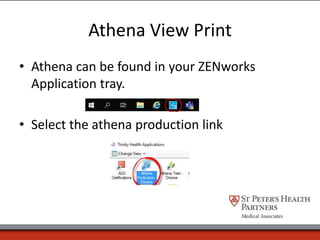
• Athena can be found in your ZENworks
Application tray.
• Select the athena production link
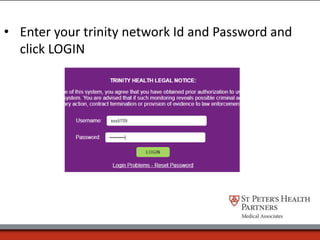
• Enter your trinity network Id and Password and
click LOGIN
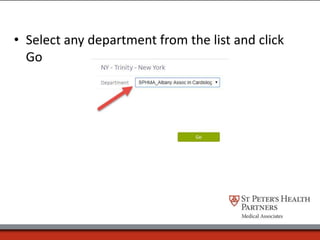
• Select any department from the list and click
Go
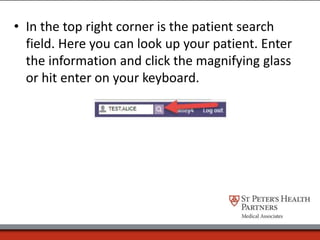
• In the top right corner is the patient search
field. Here you can look up your patient. Enter
the information and click the magnifying glass
or hit enter on your keyboard.
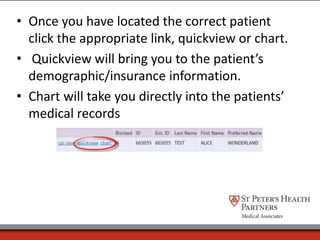
• Once you have located the correct patient
click the appropriate link, quickview or chart.
• Quickview will bring you to the patient’s
demographic/insurance information.
• Chart will take you directly into the patients’
medical records
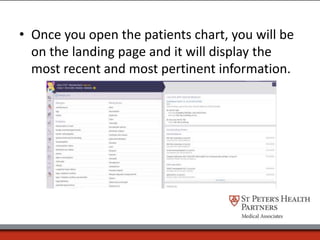
• Once you open the patients chart, you will be
on the landing page and it will display the
most recent and most pertinent information.
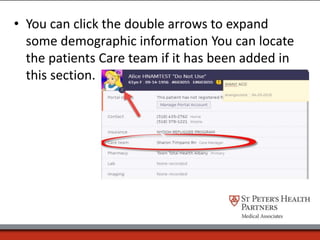
• You can click the double arrows to expand
some demographic information You can locate
the patients Care team if it has been added in
this section.
• Once in the patients chart you will use the left
side navigation to locate the information you
are looking for.
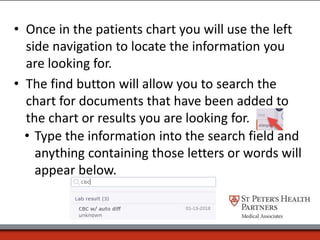
• The find button will allow you to search the
chart for documents that have been added to
the chart or results you are looking for.
• Type the information into the search field and
anything containing those letters or words will
appear below.
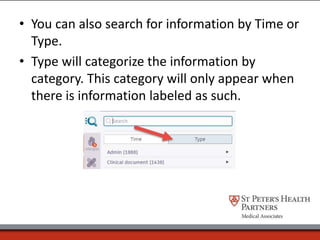
• You can also search for information by Time or
Type.
• Type will categorize the information by
category. This category will only appear when
there is information labeled as such.
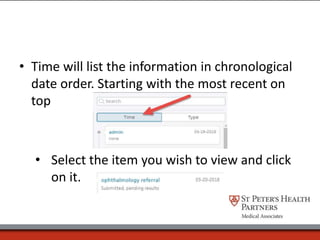
• Time will list the information in chronological
date order. Starting with the most recent on
top
• Select the item you wish to view and click
on it.
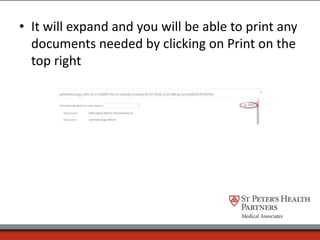
• It will expand and you will be able to print any
documents needed by clicking on Print on the
top right
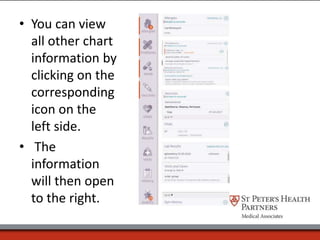
• You can view
all other chart
information by
clicking on the
corresponding
icon on the
left side.
• The
information
will then open
to the right.
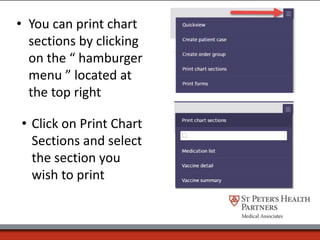
• You can print chart
sections by clicking
on the “ hamburger
menu ” located at
the top right
• Click on Print Chart
Sections and select
the section you
wish to print
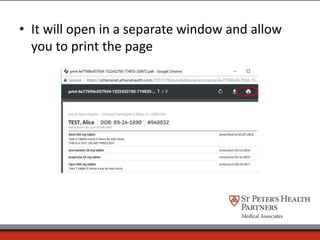
• It will open in a separate window and allow
you to print the page

View Print

  • 1.
  • 2.
    Athena View Print •Athena can be found in your ZENworks Application tray. • Select the athena production link
  • 3.
    • Enter yourtrinity network Id and Password and click LOGIN
  • 4.
    • Select anydepartment from the list and click Go
  • 5.
    • In thetop right corner is the patient search field. Here you can look up your patient. Enter the information and click the magnifying glass or hit enter on your keyboard.
  • 6.
    • Once youhave located the correct patient click the appropriate link, quickview or chart. • Quickview will bring you to the patient’s demographic/insurance information. • Chart will take you directly into the patients’ medical records
  • 7.
    • Once youopen the patients chart, you will be on the landing page and it will display the most recent and most pertinent information.
  • 8.
    • You canclick the double arrows to expand some demographic information You can locate the patients Care team if it has been added in this section.
  • 9.
    • Once inthe patients chart you will use the left side navigation to locate the information you are looking for. • The find button will allow you to search the chart for documents that have been added to the chart or results you are looking for. • Type the information into the search field and anything containing those letters or words will appear below.
  • 10.
    • You canalso search for information by Time or Type. • Type will categorize the information by category. This category will only appear when there is information labeled as such.
  • 11.
    • Time willlist the information in chronological date order. Starting with the most recent on top • Select the item you wish to view and click on it.
  • 12.
    • It willexpand and you will be able to print any documents needed by clicking on Print on the top right
  • 13.
    • You canview all other chart information by clicking on the corresponding icon on the left side. • The information will then open to the right.
  • 14.
    • You canprint chart sections by clicking on the “ hamburger menu ” located at the top right • Click on Print Chart Sections and select the section you wish to print
  • 15.
    • It willopen in a separate window and allow you to print the page