Video Conferencing – IP
      conferencing


          Some basic information


What is video conferencing?
 You are using video conferencing anytime you
 use technology to connect 2 or more locations
 by video and audio
 Distance learning uses video conferencing
 •   For the 2002/03 school year, NCCSC used video
     conferencing to broadcast the live rat dissection to
     other NCCSC schools
 •   NCCSC conducted a conference with teachers in
     Taiwan


                                                            1
Why use video conferencing
 Allows you to bring resources into your
 classroom that you might not be able to
 experience “in person”
 • Virtual field trips
 • Watch a presentation from a school in another
     state of country
 •   Share a lesson with other schools


What is the cost?
 To communicate directly with another
 location (like a school or business) there
 is not cost to connect
 Many distance learning opportunities do
 have a fee
 • Indianapolis Zoo
 • Virtual field trips


                                                   2
Equipment
 NCCSC is using Polycom Viewstation
 video conferencing systems
 • Purchased thru Video Distance Learning
     grant
 Equipment can be moved to classroom
 or library for use
 Will only require connecting power and
 network cable


What is what?
 ViewStation FX                H323
 •   Parker, Eastwood and      •   Riley and Sunnyside
     Technology Center              •   Point-to-Point only
      •   Join up to 3 add’n        •   1 mic
          connections
                               ViaVideo
      •   Can add Elmo
      •   Up to 4 cameras      •   Wilbur Wright and
                                   Westwood
      •   VCR can be used
                                    •   Point-to-Point only
      •   2 mics
                                    •   Uses a camera
                                        connected to computer
                                    •   Does allow application
                                        sharing


                                                                 3
What about CU-SeeMe?
 This technology is best suited to a “chat”
 situation – not class participation
  • But it was a good place to start
 Camera worked great for one-on-one but
 not a large group
 Audio worked best with
 headphone/microphone
  • Which did not promote classroom situations


Let’s go over some definitions
 Point-to-Point                      Polycom
  •   2 participants                 •   Company that makes video
       •   Remote                        equipment
       •   Host                           •   ViewStation FX
 Multi-Point                              •   ViaVideo
  •   More than 1 remote             IP address
 Remote                              •   Internet Protocol
  •   Outside locations              •   The 11 digit number for a
      participating                      website
 IP-to-IP
                                          •   xxx.xxx.xxx.xx
                                          •   All website addresses
  •   Making a direct call using              translate to a number
      the IP address
       •   Not using Click-to-Meet
  •   Clearer connection


                                                                      4
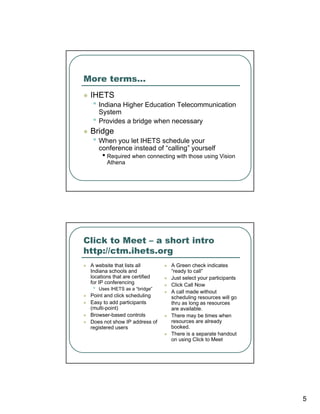
More terms…
 IHETS
  • Indiana Higher Education Telecommunication
      System
  •   Provides a bridge when necessary
 Bridge
  • When you let IHETS schedule your
      conference instead of “calling” yourself
       • Required when connecting with those using Vision
         Athena


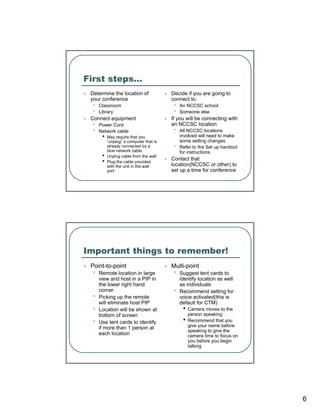
Click to Meet – a short intro
http://ctm.ihets.org
 A website that lists all        A Green check indicates
 Indiana schools and             “ready to call”
 locations that are certified    Just select your participants
 for IP conferencing             Click Call Now
  •   Uses IHETS as a “bridge”
                                 A call made without
 Point and click scheduling      scheduling resources will go
 Easy to add participants        thru as long as resources
 (multi-point)                   are available.
 Browser-based controls          There may be times when
 Does not show IP address of     resources are already
 registered users                booked.
                                 There is a separate handout
                                 on using Click to Meet


                                                                 5
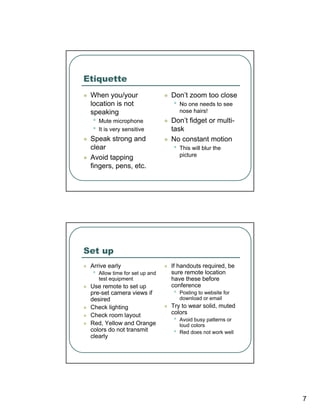
First steps…
 Determine the location of               Decide if you are going to
 your conference                         connect to:
  •   Classroom                           •   An NCCSC school
  •   Library                             •   Someone else
 Connect equipment                       If you will be connecting with
  •   Power Cord                         an NCCSC location
  •   Network cable                       •   All NCCSC locations
       •   May require that you               involved will need to make
           “unplug” a computer that is        some setting changes
           already connected by a
           blue network cable.
                                          •   Refer to the Set up handout
                                              for instructions
       •   Unplug cable from the wall
                                         Contact that
       •   Plug the cable provided
                                         location(NCCSC or other) to
           with the unit in the wall
           port                          set up a time for conference


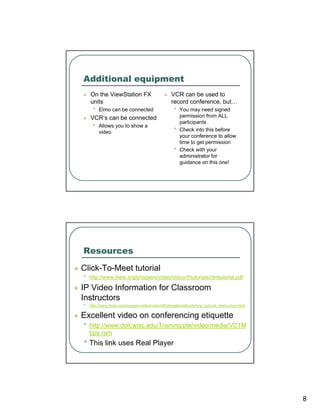
Important things to remember!
 Point-to-point                          Multi-point
  •   Remote location in large            •   Suggest tent cards to
      view and host in a PIP in               identify location as well
      the lower right hand                    as individuals
      corner                              •   Recommend setting for
  •   Picking up the remote                   voice activated(this is
      will eliminate host PIP                 default for CTM)
  •   Location will be shown at                •   Camera moves to the
      bottom of screen                             person speaking
  •   Use tent cards to identify               •   Recommend that you
      if more than 1 person at                     give your name before
                                                   speaking to give the
      each location                                camera time to focus on
                                                   you before you begin
                                                   talking


                                                                             6
Etiquette
 When you/your                   Don’t zoom too close
 location is not                 •   No one needs to see
 speaking                            nose hairs!
 •   Mute microphone             Don’t fidget or multi-
 •   It is very sensitive        task
 Speak strong and                No constant motion
 clear                           •   This will blur the
 Avoid tapping                       picture
 fingers, pens, etc.


Set up
 Arrive early                    If handouts required, be
 •   Allow time for set up and   sure remote location
     test equipment              have these before
 Use remote to set up            conference
 pre-set camera views if         •   Posting to website for
 desired                             download or email
 Check lighting                  Try to wear solid, muted
 Check room layout               colors
 Red, Yellow and Orange
                                 •   Avoid busy patterns or
                                     loud colors
 colors do not transmit          •   Red does not work well
 clearly


                                                              7
Additional equipment
    On the ViewStation FX                            VCR can be used to
    units                                            record conference, but…
      •   Elmo can be connected                       •   You may need signed
    VCR’s can be connected                                permission from ALL
                                                          participants
      •   Allows you to show a
                                                      •   Check into this before
          video
                                                          your conference to allow
                                                          time to get permission
                                                      •   Check with your
                                                          administrator for
                                                          guidance on this one!


Resources
Click-To-Meet tutorial
•   http://www.ihets.org/progserv/video/vidconf/tutorials/ctmtutorial.pdf

IP Video Information for Classroom
Instructors
•   http://www.ihets.org/progserv/video/vidconf/tutorials/instructors/ip_tutorial_instructors.html

Excellent video on conferencing etiquette
• http://www.doit.wisc.edu/Training/pte/video/media/VC1M
    bps.ram
• This link uses Real Player


                                                                                                     8
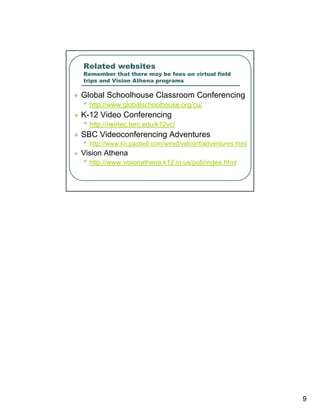
Related websites
Remember that there may be fees on virtual field
trips and Vision Athena programs

Global Schoolhouse Classroom Conferencing
• http://www.globalschoolhouse.org/cu/
K-12 Video Conferencing
• http://neirtec.terc.edu/k12vc/
SBC Videoconferencing Adventures
• http://www.kn.pacbell.com/wired/vidconf/adventures.html
Vision Athena
• http://www.visionathena.k12.in.us/pub/index.html


                                                            9

Video Conferencing – IP conferencing

  • 1.
    Video Conferencing –IP conferencing Some basic information What is video conferencing? You are using video conferencing anytime you use technology to connect 2 or more locations by video and audio Distance learning uses video conferencing • For the 2002/03 school year, NCCSC used video conferencing to broadcast the live rat dissection to other NCCSC schools • NCCSC conducted a conference with teachers in Taiwan 1
  • 2.
    Why use videoconferencing Allows you to bring resources into your classroom that you might not be able to experience “in person” • Virtual field trips • Watch a presentation from a school in another state of country • Share a lesson with other schools What is the cost? To communicate directly with another location (like a school or business) there is not cost to connect Many distance learning opportunities do have a fee • Indianapolis Zoo • Virtual field trips 2
  • 3.
    Equipment NCCSC isusing Polycom Viewstation video conferencing systems • Purchased thru Video Distance Learning grant Equipment can be moved to classroom or library for use Will only require connecting power and network cable What is what? ViewStation FX H323 • Parker, Eastwood and • Riley and Sunnyside Technology Center • Point-to-Point only • Join up to 3 add’n • 1 mic connections ViaVideo • Can add Elmo • Up to 4 cameras • Wilbur Wright and Westwood • VCR can be used • Point-to-Point only • 2 mics • Uses a camera connected to computer • Does allow application sharing 3
  • 4.
    What about CU-SeeMe? This technology is best suited to a “chat” situation – not class participation • But it was a good place to start Camera worked great for one-on-one but not a large group Audio worked best with headphone/microphone • Which did not promote classroom situations Let’s go over some definitions Point-to-Point Polycom • 2 participants • Company that makes video • Remote equipment • Host • ViewStation FX Multi-Point • ViaVideo • More than 1 remote IP address Remote • Internet Protocol • Outside locations • The 11 digit number for a participating website IP-to-IP • xxx.xxx.xxx.xx • All website addresses • Making a direct call using translate to a number the IP address • Not using Click-to-Meet • Clearer connection 4
  • 5.
    More terms… IHETS • Indiana Higher Education Telecommunication System • Provides a bridge when necessary Bridge • When you let IHETS schedule your conference instead of “calling” yourself • Required when connecting with those using Vision Athena Click to Meet – a short intro http://ctm.ihets.org A website that lists all A Green check indicates Indiana schools and “ready to call” locations that are certified Just select your participants for IP conferencing Click Call Now • Uses IHETS as a “bridge” A call made without Point and click scheduling scheduling resources will go Easy to add participants thru as long as resources (multi-point) are available. Browser-based controls There may be times when Does not show IP address of resources are already registered users booked. There is a separate handout on using Click to Meet 5
  • 6.
    First steps… Determinethe location of Decide if you are going to your conference connect to: • Classroom • An NCCSC school • Library • Someone else Connect equipment If you will be connecting with • Power Cord an NCCSC location • Network cable • All NCCSC locations • May require that you involved will need to make “unplug” a computer that is some setting changes already connected by a blue network cable. • Refer to the Set up handout for instructions • Unplug cable from the wall Contact that • Plug the cable provided location(NCCSC or other) to with the unit in the wall port set up a time for conference Important things to remember! Point-to-point Multi-point • Remote location in large • Suggest tent cards to view and host in a PIP in identify location as well the lower right hand as individuals corner • Recommend setting for • Picking up the remote voice activated(this is will eliminate host PIP default for CTM) • Location will be shown at • Camera moves to the bottom of screen person speaking • Use tent cards to identify • Recommend that you if more than 1 person at give your name before speaking to give the each location camera time to focus on you before you begin talking 6
  • 7.
    Etiquette When you/your Don’t zoom too close location is not • No one needs to see speaking nose hairs! • Mute microphone Don’t fidget or multi- • It is very sensitive task Speak strong and No constant motion clear • This will blur the Avoid tapping picture fingers, pens, etc. Set up Arrive early If handouts required, be • Allow time for set up and sure remote location test equipment have these before Use remote to set up conference pre-set camera views if • Posting to website for desired download or email Check lighting Try to wear solid, muted Check room layout colors Red, Yellow and Orange • Avoid busy patterns or loud colors colors do not transmit • Red does not work well clearly 7
  • 8.
    Additional equipment On the ViewStation FX VCR can be used to units record conference, but… • Elmo can be connected • You may need signed VCR’s can be connected permission from ALL participants • Allows you to show a • Check into this before video your conference to allow time to get permission • Check with your administrator for guidance on this one! Resources Click-To-Meet tutorial • http://www.ihets.org/progserv/video/vidconf/tutorials/ctmtutorial.pdf IP Video Information for Classroom Instructors • http://www.ihets.org/progserv/video/vidconf/tutorials/instructors/ip_tutorial_instructors.html Excellent video on conferencing etiquette • http://www.doit.wisc.edu/Training/pte/video/media/VC1M bps.ram • This link uses Real Player 8
  • 9.
    Related websites Remember thatthere may be fees on virtual field trips and Vision Athena programs Global Schoolhouse Classroom Conferencing • http://www.globalschoolhouse.org/cu/ K-12 Video Conferencing • http://neirtec.terc.edu/k12vc/ SBC Videoconferencing Adventures • http://www.kn.pacbell.com/wired/vidconf/adventures.html Vision Athena • http://www.visionathena.k12.in.us/pub/index.html 9