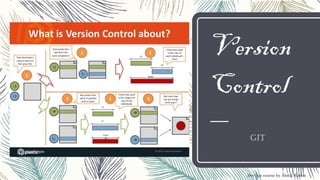
Version
Control
GIT
DevOps course by Abdul Rahim
Introduction to Version
Control System (VCS)
– Version Control (aka Revision Control aka Source Control)
is a system that records changes to a file or set of files
over time so that you can recall specific versions later.
– Why do you care? So when you mess up you can easily
get back to a previous working version.
– It is very helpful when multiple users are continuously
working or changing a document.
DevOps course by Abdul Rahim
Using VCS, the Users can review the document history to
find out the following details:
– Which changes were made in the document?
– Who made the changes in the document?
– When were the changes made in the document?
– Why were changes needed?
Advantages of Version
Control System
DevOps course by Abdul Rahim
Advantages of Version
Control System
A good VCS does the following:
– Backup and Restore.
– Synchronization.
– Short-term undo
– Long-term undo.
– Track Changes.
– Track Ownership.
– Sandboxing, or insurance against yourself.
– Branching and merging
DevOps course by Abdul Rahim
Type Of VCS
There are two types of VCS, namely:
– Local Version Control Systems (LVCS).
– Centralized version control system (CVCS).
– Distributed version control system (DVCS).
DevOps course by Abdul Rahim
Local Version Control
Systems (LVCS)
– You’ve probably cooked up your own version control system without realizing it
had such a geeky name. Got any files like this?
– Rahim-Resume-Oct2014.docx
– Rahim-Resume-Mar2015.docx
– Rahim-Resume-Mar2015-OLD.docx
– It’s why we use “Save As”. You want the new file without obliterating the old one.
It’s a common problem, and solutions are usually like this:
– Make a single backup copy (Document.old.txt).
– If we’re clever, we add a version number or date: CV_V1.txt or CVMarch2015.txt
– We may even use a shared folder so other people can see and edit files without sending
them over email. Hopefully they relabel the file after they save it.
DevOps course by Abdul Rahim
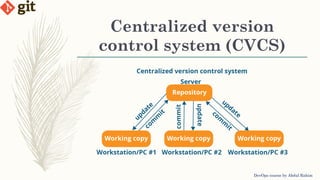
Centralized version
control system (CVCS)
DevOps course by Abdul Rahim
Centralized version
control system (CVCS)
DevOps course by Abdul Rahim
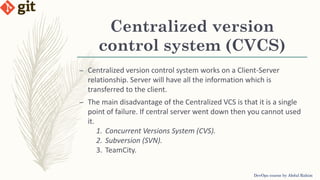
– Centralized version control system works on a Client-Server
relationship. Server will have all the information which is
transferred to the client.
– The main disadvantage of the Centralized VCS is that it is a single
point of failure. If central server went down then you cannot used
it.
1. Concurrent Versions System (CVS).
2. Subversion (SVN).
3. TeamCity.
Distributed version
control system (DVCS)
DevOps course by Abdul Rahim
Distributed version
control system (DVCS)
DevOps course by Abdul Rahim
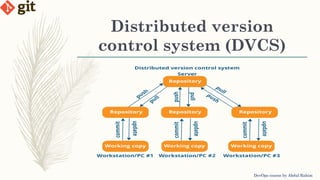
– Distributed version control system has a centralized repository as
well as all developers have local copy of repository.
– Developers can work on their local copy simultaneously. If the
central server went down then also there will be no impact
because of the local repository.
1. Git.
2. Mercurial.
3. Bazaar.
4. Visual Studio Team Services
Git Features
– Tracks history
– Free and open source
– Supports non-linear development
– Creates backups
– Scalable
– Supports collaboration
– Branching is easier
– Distributed development
– Secure
DevOps course by Abdul Rahim
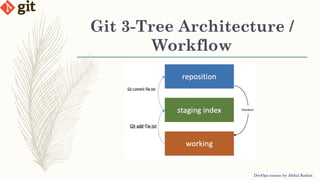
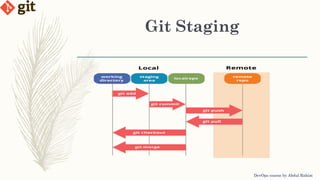
Git 3-Tree Architecture /
Workflow
DevOps course by Abdul Rahim
Lab – Git
DevOps course by Abdul Rahim
1. Install Git
2. Setting up name and e-mail address
3. Add SSH key
4. Creating Github Account
If you already have Git installed and Github account, skip the lab
and help others.
Lab 1– Install Git
DevOps course by Abdul Rahim
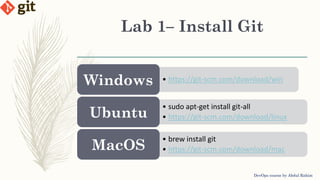
• https://git-scm.com/download/winWindows
• sudo apt-get install git-all
• https://git-scm.com/download/linuxUbuntu
• brew install git
• https://git-scm.com/download/macMacOS
Lab 2– Setting up name
and e-mail address
DevOps course by Abdul Rahim
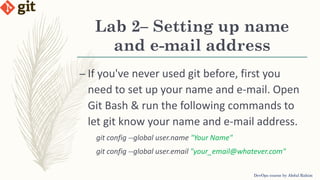
– If you've never used git before, first you
need to set up your name and e-mail. Open
Git Bash & run the following commands to
let git know your name and e-mail address.
git config --global user.name "Your Name"
git config --global user.email "your_email@whatever.com"
Lab 3– Add SSH key
DevOps course by Abdul Rahim
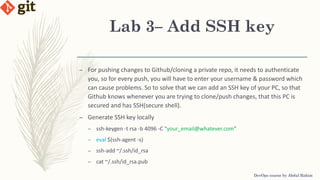
– For pushing changes to Github/cloning a private repo, it needs to authenticate
you, so for every push, you will have to enter your username & password which
can cause problems. So to solve that we can add an SSH key of your PC, so that
Github knows whenever you are trying to clone/push changes, that this PC is
secured and has SSH(secure shell).
– Generate SSH key locally
– ssh-keygen -t rsa -b 4096 -C "your_email@whatever.com"
– eval $(ssh-agent -s)
– ssh-add ~/.ssh/id_rsa
– cat ~/.ssh/id_rsa.pub
Lab 3– Add SSH key
DevOps course by Abdul Rahim
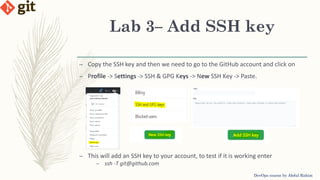
– Copy the SSH key and then we need to go to the GitHub account and click on
– Profile -> Settings -> SSH & GPG Keys -> New SSH Key -> Paste.
– This will add an SSH key to your account, to test if it is working enter
– ssh -T git@github.com
Lab 4– Creating Github
Account
DevOps course by Abdul Rahim
– Go to https://www.github.com/ and Signup
– your username will be your github address e.g.
https://github.com/rahimkhanabdul
Git Staging
DevOps course by Abdul Rahim
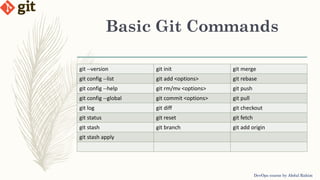
Basic Git Commands
DevOps course by Abdul Rahim
Basic Git Commands
DevOps course by Abdul Rahim
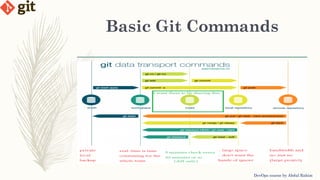
git --version git init git merge
git config --list git add <options> git rebase
git config --help git rm/mv <options> git push
git config --global git commit <options> git pull
git log git diff git checkout
git status git reset git fetch
git stash git branch git add origin
git stash apply
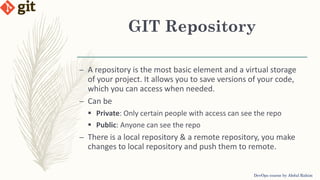
GIT Repository
DevOps course by Abdul Rahim
– A repository is the most basic element and a virtual storage
of your project. It allows you to save versions of your code,
which you can access when needed.
– Can be
 Private: Only certain people with access can see the repo
 Public: Anyone can see the repo
– There is a local repository & a remote repository, you make
changes to local repository and push them to remote.
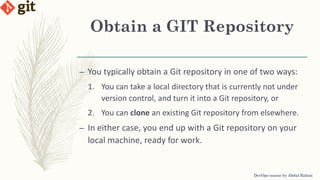
Obtain a GIT Repository
DevOps course by Abdul Rahim
– You typically obtain a Git repository in one of two ways:
1. You can take a local directory that is currently not under
version control, and turn it into a Git repository, or
2. You can clone an existing Git repository from elsewhere.
– In either case, you end up with a Git repository on your
local machine, ready for work.
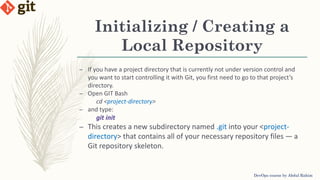
Initializing / Creating a
Local Repository
DevOps course by Abdul Rahim
– If you have a project directory that is currently not under version control and
you want to start controlling it with Git, you first need to go to that project’s
directory.
– Open GIT Bash
cd <project-directory>
– and type:
git init
– This creates a new subdirectory named .git into your <project-
directory> that contains all of your necessary repository files — a
Git repository skeleton.
Create a Remote
Repository
DevOps course by Abdul Rahim
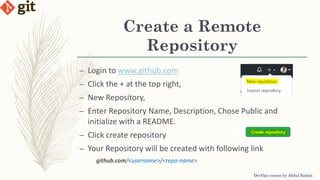
– Login to www.github.com
– Click the + at the top right,
– New Repository,
– Enter Repository Name, Description, Chose Public and
initialize with a README.
– Click create repository
– Your Repository will be created with following link
github.com/<username>/<repo-name>
Connect Local & Remote
Repository
DevOps course by Abdul Rahim
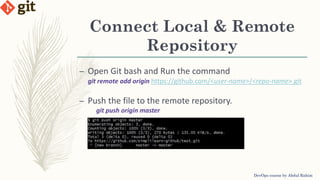
– Open Git bash and Run the command
git remote add origin https://github.com/<user-name>/<repo-name>.git
– Push the file to the remote repository.
git push origin master
Cloning an Existing
Repository
DevOps course by Abdul Rahim
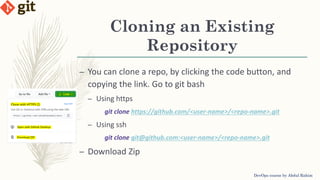
– You can clone a repo, by clicking the code button, and
copying the link. Go to git bash
– Using https
git clone https://github.com/<user-name>/<repo-name>.git
– Using ssh
git clone git@github.com:<user-name>/<repo-name>.git
– Download Zip
LAB - GIT Commands
DevOps course by Abdul Rahim
1. Make changes to your project
2. Checking File Differences
3. Commit changes to your local repository
4. Resetting Differences
LAB 5- Make changes to
your project
DevOps course by Abdul Rahim
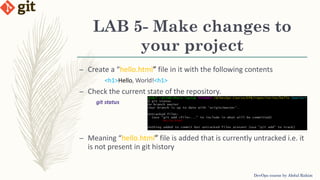
– Create a “hello.html” file in it with the following contents
<h1>Hello, World!<h1>
– Check the current state of the repository.
git status
– Meaning “hello.html” file is added that is currently untracked i.e. it
is not present in git history
LAB 6- Checking File
Differences
DevOps course by Abdul Rahim
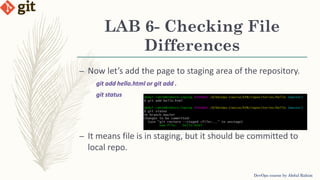
– Now let’s add the page to staging area of the repository.
git add hello.html or git add .
git status
– It means file is in staging, but it should be committed to
local repo.
LAB 6- Checking File
Differences
DevOps course by Abdul Rahim
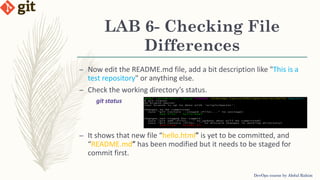
– Now edit the README.md file, add a bit description like "This is a
test repository" or anything else.
– Check the working directory’s status.
git status
– It shows that new file “hello.html” is yet to be committed, and
“README.md” has been modified but it needs to be staged for
commit first.
LAB 6- Checking File
Differences
DevOps course by Abdul Rahim
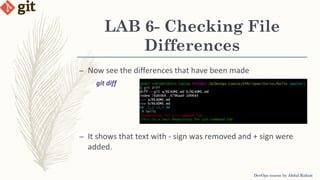
– Now see the differences that have been made
git diff
– It shows that text with - sign was removed and + sign were
added.
LAB 6- Checking File
Differences
DevOps course by Abdul Rahim
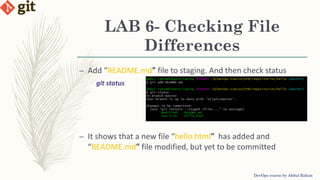
– Add “README.md” file to staging. And then check status
git status
– It shows that a new file “hello.html” has added and
“README.md” file modified, but yet to be committed
LAB 6- Checking File
Differences
DevOps course by Abdul Rahim
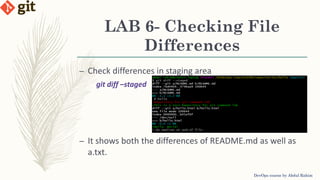
– Check differences in staging area
git diff –staged
– It shows both the differences of README.md as well as
a.txt.
LAB 7- Commit changes to
your local repository
DevOps course by Abdul Rahim
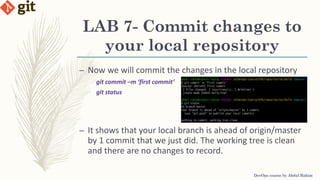
– Now we will commit the changes in the local repository
git commit –m ‘first commit’
git status
– It shows that your local branch is ahead of origin/master
by 1 commit that we just did. The working tree is clean
and there are no changes to record.
LAB 8- Resetting
Differences
DevOps course by Abdul Rahim
– Now we have two changes in a commit. We want to reset
these differences. There are 3 possible options.
1. MIXED (Default Method)
Remove the commit from local repo, and also remove changes from staging area
2. SOFT
Remove the commit from local repo, but keep the files in staging area
3. HARD
Remove the commit from local repo, and staging area and even change the
local files.
Method-1 Mixed
(Default Method)
DevOps course by Abdul Rahim
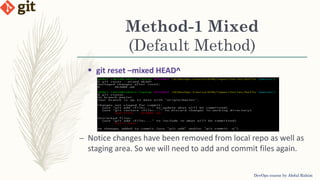
 git reset –mixed HEAD^
– Notice changes have been removed from local repo as well as
staging area. So we will need to add and commit files again.
Method-2 Soft
DevOps course by Abdul Rahim
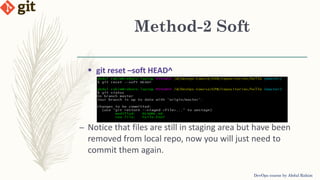
 git reset –soft HEAD^
– Notice that files are still in staging area but have been
removed from local repo, now you will just need to
commit them again.
Method-3 Hard
DevOps course by Abdul Rahim
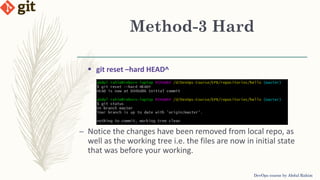
 git reset –hard HEAD^
– Notice the changes have been removed from local repo, as
well as the working tree i.e. the files are now in initial state
that was before your working.
PUSH And PULL
DevOps course by Abdul Rahim
– PUSH
– Transfer commits from your local repository to a
remote repository.
– Share modifications with remote team members.
– Commands
 git push origin
PUSH And PULL
DevOps course by Abdul Rahim
– PULL
– Download content from a remote repository and
update the local repository
– Get modification from remote team members
– Commands
 git pull origin
LAB - PUSH And PULL
DevOps course by Abdul Rahim
1. Push to Remote Repository
2. Pull from Remote Repository
LAB 1- Push to Remote
Repository
DevOps course by Abdul Rahim
– Let’s create the “hello.html” file in it with the following
contents
<h1>Hello, World!<h1>
– Now add and commit the file
– git add .
– git commit –m ‘first commit’
LAB 1- Push to Remote
Repository
DevOps course by Abdul Rahim
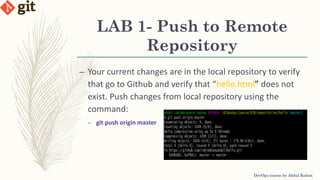
– Your current changes are in the local repository to verify
that go to Github and verify that “hello.html” does not
exist. Push changes from local repository using the
command:
– git push origin master
LAB 2- Pull from Remote
Repository
DevOps course by Abdul Rahim
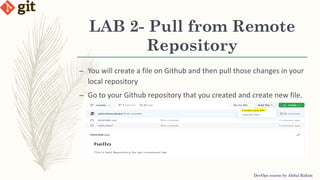
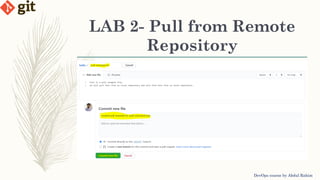
– You will create a file on Github and then pull those changes in your
local repository
– Go to your Github repository that you created and create new file.
LAB 2- Pull from Remote
Repository
DevOps course by Abdul Rahim
LAB 2- Pull from Remote
Repository
DevOps course by Abdul Rahim
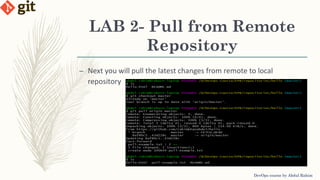
– Next you will pull the latest changes from remote to local
repository
Github Pages
DevOps course by Abdul Rahim
– GitHub Pages is a static site hosting service that takes HTML, CSS, and
JavaScript files straight from a repository on GitHub, optionally runs the
files through a build process, and publishes a website.
– You can use GitHub Pages to host a website about yourself, your
organization, or your project directly from a GitHub repository.
– You get one site per GitHub account and organization, and unlimited
project sites.
– Does not support server side code such as PHP, Python or Ruby
– GitHub Pages are publicly available on the internet, even if their
repositories are private.
ASSIGNMENT
DevOps course by Abdul Rahim
– HOST YOUR RESUME ON GITHUB PAGES
– INSTRUCTIONS
 Create your Resume Repository on GitHub
 Host it through GitHub Pages
Reference
DevOps course by Abdul Rahim
– https://git-scm.com/
– https://www.simplilearn.com/tutorials/git-tutorial/what-is-git
– https://www.atlassian.com/git/tutorials/why-git
– https://www.designveloper.com/blog/git-concepts-architecture/
– https://www.youtube.com/
– https://githowto.com/
– https://pages.github.com/
– https://docs.github.com/en/github/working-with-github-pages

Version control git - lecture-1

  • 1.
  • 2.
    Introduction to Version ControlSystem (VCS) – Version Control (aka Revision Control aka Source Control) is a system that records changes to a file or set of files over time so that you can recall specific versions later. – Why do you care? So when you mess up you can easily get back to a previous working version. – It is very helpful when multiple users are continuously working or changing a document. DevOps course by Abdul Rahim
  • 3.
    Using VCS, theUsers can review the document history to find out the following details: – Which changes were made in the document? – Who made the changes in the document? – When were the changes made in the document? – Why were changes needed? Advantages of Version Control System DevOps course by Abdul Rahim
  • 4.
    Advantages of Version ControlSystem A good VCS does the following: – Backup and Restore. – Synchronization. – Short-term undo – Long-term undo. – Track Changes. – Track Ownership. – Sandboxing, or insurance against yourself. – Branching and merging DevOps course by Abdul Rahim
  • 5.
    Type Of VCS Thereare two types of VCS, namely: – Local Version Control Systems (LVCS). – Centralized version control system (CVCS). – Distributed version control system (DVCS). DevOps course by Abdul Rahim
  • 6.
    Local Version Control Systems(LVCS) – You’ve probably cooked up your own version control system without realizing it had such a geeky name. Got any files like this? – Rahim-Resume-Oct2014.docx – Rahim-Resume-Mar2015.docx – Rahim-Resume-Mar2015-OLD.docx – It’s why we use “Save As”. You want the new file without obliterating the old one. It’s a common problem, and solutions are usually like this: – Make a single backup copy (Document.old.txt). – If we’re clever, we add a version number or date: CV_V1.txt or CVMarch2015.txt – We may even use a shared folder so other people can see and edit files without sending them over email. Hopefully they relabel the file after they save it. DevOps course by Abdul Rahim
  • 7.
    Centralized version control system(CVCS) DevOps course by Abdul Rahim
  • 8.
    Centralized version control system(CVCS) DevOps course by Abdul Rahim – Centralized version control system works on a Client-Server relationship. Server will have all the information which is transferred to the client. – The main disadvantage of the Centralized VCS is that it is a single point of failure. If central server went down then you cannot used it. 1. Concurrent Versions System (CVS). 2. Subversion (SVN). 3. TeamCity.
  • 9.
    Distributed version control system(DVCS) DevOps course by Abdul Rahim
  • 10.
    Distributed version control system(DVCS) DevOps course by Abdul Rahim – Distributed version control system has a centralized repository as well as all developers have local copy of repository. – Developers can work on their local copy simultaneously. If the central server went down then also there will be no impact because of the local repository. 1. Git. 2. Mercurial. 3. Bazaar. 4. Visual Studio Team Services
  • 11.
    Git Features – Trackshistory – Free and open source – Supports non-linear development – Creates backups – Scalable – Supports collaboration – Branching is easier – Distributed development – Secure DevOps course by Abdul Rahim
  • 12.
    Git 3-Tree Architecture/ Workflow DevOps course by Abdul Rahim
  • 13.
    Lab – Git DevOpscourse by Abdul Rahim 1. Install Git 2. Setting up name and e-mail address 3. Add SSH key 4. Creating Github Account If you already have Git installed and Github account, skip the lab and help others.
  • 14.
    Lab 1– InstallGit DevOps course by Abdul Rahim • https://git-scm.com/download/winWindows • sudo apt-get install git-all • https://git-scm.com/download/linuxUbuntu • brew install git • https://git-scm.com/download/macMacOS
  • 15.
    Lab 2– Settingup name and e-mail address DevOps course by Abdul Rahim – If you've never used git before, first you need to set up your name and e-mail. Open Git Bash & run the following commands to let git know your name and e-mail address. git config --global user.name "Your Name" git config --global user.email "your_email@whatever.com"
  • 16.
    Lab 3– AddSSH key DevOps course by Abdul Rahim – For pushing changes to Github/cloning a private repo, it needs to authenticate you, so for every push, you will have to enter your username & password which can cause problems. So to solve that we can add an SSH key of your PC, so that Github knows whenever you are trying to clone/push changes, that this PC is secured and has SSH(secure shell). – Generate SSH key locally – ssh-keygen -t rsa -b 4096 -C "your_email@whatever.com" – eval $(ssh-agent -s) – ssh-add ~/.ssh/id_rsa – cat ~/.ssh/id_rsa.pub
  • 17.
    Lab 3– AddSSH key DevOps course by Abdul Rahim – Copy the SSH key and then we need to go to the GitHub account and click on – Profile -> Settings -> SSH & GPG Keys -> New SSH Key -> Paste. – This will add an SSH key to your account, to test if it is working enter – ssh -T git@github.com
  • 18.
    Lab 4– CreatingGithub Account DevOps course by Abdul Rahim – Go to https://www.github.com/ and Signup – your username will be your github address e.g. https://github.com/rahimkhanabdul
  • 19.
  • 20.
    Basic Git Commands DevOpscourse by Abdul Rahim
  • 21.
    Basic Git Commands DevOpscourse by Abdul Rahim git --version git init git merge git config --list git add <options> git rebase git config --help git rm/mv <options> git push git config --global git commit <options> git pull git log git diff git checkout git status git reset git fetch git stash git branch git add origin git stash apply
  • 22.
    GIT Repository DevOps courseby Abdul Rahim – A repository is the most basic element and a virtual storage of your project. It allows you to save versions of your code, which you can access when needed. – Can be  Private: Only certain people with access can see the repo  Public: Anyone can see the repo – There is a local repository & a remote repository, you make changes to local repository and push them to remote.
  • 23.
    Obtain a GITRepository DevOps course by Abdul Rahim – You typically obtain a Git repository in one of two ways: 1. You can take a local directory that is currently not under version control, and turn it into a Git repository, or 2. You can clone an existing Git repository from elsewhere. – In either case, you end up with a Git repository on your local machine, ready for work.
  • 24.
    Initializing / Creatinga Local Repository DevOps course by Abdul Rahim – If you have a project directory that is currently not under version control and you want to start controlling it with Git, you first need to go to that project’s directory. – Open GIT Bash cd <project-directory> – and type: git init – This creates a new subdirectory named .git into your <project- directory> that contains all of your necessary repository files — a Git repository skeleton.
  • 25.
    Create a Remote Repository DevOpscourse by Abdul Rahim – Login to www.github.com – Click the + at the top right, – New Repository, – Enter Repository Name, Description, Chose Public and initialize with a README. – Click create repository – Your Repository will be created with following link github.com/<username>/<repo-name>
  • 26.
    Connect Local &Remote Repository DevOps course by Abdul Rahim – Open Git bash and Run the command git remote add origin https://github.com/<user-name>/<repo-name>.git – Push the file to the remote repository. git push origin master
  • 27.
    Cloning an Existing Repository DevOpscourse by Abdul Rahim – You can clone a repo, by clicking the code button, and copying the link. Go to git bash – Using https git clone https://github.com/<user-name>/<repo-name>.git – Using ssh git clone git@github.com:<user-name>/<repo-name>.git – Download Zip
  • 28.
    LAB - GITCommands DevOps course by Abdul Rahim 1. Make changes to your project 2. Checking File Differences 3. Commit changes to your local repository 4. Resetting Differences
  • 29.
    LAB 5- Makechanges to your project DevOps course by Abdul Rahim – Create a “hello.html” file in it with the following contents <h1>Hello, World!<h1> – Check the current state of the repository. git status – Meaning “hello.html” file is added that is currently untracked i.e. it is not present in git history
  • 30.
    LAB 6- CheckingFile Differences DevOps course by Abdul Rahim – Now let’s add the page to staging area of the repository. git add hello.html or git add . git status – It means file is in staging, but it should be committed to local repo.
  • 31.
    LAB 6- CheckingFile Differences DevOps course by Abdul Rahim – Now edit the README.md file, add a bit description like "This is a test repository" or anything else. – Check the working directory’s status. git status – It shows that new file “hello.html” is yet to be committed, and “README.md” has been modified but it needs to be staged for commit first.
  • 32.
    LAB 6- CheckingFile Differences DevOps course by Abdul Rahim – Now see the differences that have been made git diff – It shows that text with - sign was removed and + sign were added.
  • 33.
    LAB 6- CheckingFile Differences DevOps course by Abdul Rahim – Add “README.md” file to staging. And then check status git status – It shows that a new file “hello.html” has added and “README.md” file modified, but yet to be committed
  • 34.
    LAB 6- CheckingFile Differences DevOps course by Abdul Rahim – Check differences in staging area git diff –staged – It shows both the differences of README.md as well as a.txt.
  • 35.
    LAB 7- Commitchanges to your local repository DevOps course by Abdul Rahim – Now we will commit the changes in the local repository git commit –m ‘first commit’ git status – It shows that your local branch is ahead of origin/master by 1 commit that we just did. The working tree is clean and there are no changes to record.
  • 36.
    LAB 8- Resetting Differences DevOpscourse by Abdul Rahim – Now we have two changes in a commit. We want to reset these differences. There are 3 possible options. 1. MIXED (Default Method) Remove the commit from local repo, and also remove changes from staging area 2. SOFT Remove the commit from local repo, but keep the files in staging area 3. HARD Remove the commit from local repo, and staging area and even change the local files.
  • 37.
    Method-1 Mixed (Default Method) DevOpscourse by Abdul Rahim  git reset –mixed HEAD^ – Notice changes have been removed from local repo as well as staging area. So we will need to add and commit files again.
  • 38.
    Method-2 Soft DevOps courseby Abdul Rahim  git reset –soft HEAD^ – Notice that files are still in staging area but have been removed from local repo, now you will just need to commit them again.
  • 39.
    Method-3 Hard DevOps courseby Abdul Rahim  git reset –hard HEAD^ – Notice the changes have been removed from local repo, as well as the working tree i.e. the files are now in initial state that was before your working.
  • 40.
    PUSH And PULL DevOpscourse by Abdul Rahim – PUSH – Transfer commits from your local repository to a remote repository. – Share modifications with remote team members. – Commands  git push origin
  • 41.
    PUSH And PULL DevOpscourse by Abdul Rahim – PULL – Download content from a remote repository and update the local repository – Get modification from remote team members – Commands  git pull origin
  • 42.
    LAB - PUSHAnd PULL DevOps course by Abdul Rahim 1. Push to Remote Repository 2. Pull from Remote Repository
  • 43.
    LAB 1- Pushto Remote Repository DevOps course by Abdul Rahim – Let’s create the “hello.html” file in it with the following contents <h1>Hello, World!<h1> – Now add and commit the file – git add . – git commit –m ‘first commit’
  • 44.
    LAB 1- Pushto Remote Repository DevOps course by Abdul Rahim – Your current changes are in the local repository to verify that go to Github and verify that “hello.html” does not exist. Push changes from local repository using the command: – git push origin master
  • 45.
    LAB 2- Pullfrom Remote Repository DevOps course by Abdul Rahim – You will create a file on Github and then pull those changes in your local repository – Go to your Github repository that you created and create new file.
  • 46.
    LAB 2- Pullfrom Remote Repository DevOps course by Abdul Rahim
  • 47.
    LAB 2- Pullfrom Remote Repository DevOps course by Abdul Rahim – Next you will pull the latest changes from remote to local repository
  • 48.
    Github Pages DevOps courseby Abdul Rahim – GitHub Pages is a static site hosting service that takes HTML, CSS, and JavaScript files straight from a repository on GitHub, optionally runs the files through a build process, and publishes a website. – You can use GitHub Pages to host a website about yourself, your organization, or your project directly from a GitHub repository. – You get one site per GitHub account and organization, and unlimited project sites. – Does not support server side code such as PHP, Python or Ruby – GitHub Pages are publicly available on the internet, even if their repositories are private.
  • 49.
    ASSIGNMENT DevOps course byAbdul Rahim – HOST YOUR RESUME ON GITHUB PAGES – INSTRUCTIONS  Create your Resume Repository on GitHub  Host it through GitHub Pages
  • 50.
    Reference DevOps course byAbdul Rahim – https://git-scm.com/ – https://www.simplilearn.com/tutorials/git-tutorial/what-is-git – https://www.atlassian.com/git/tutorials/why-git – https://www.designveloper.com/blog/git-concepts-architecture/ – https://www.youtube.com/ – https://githowto.com/ – https://pages.github.com/ – https://docs.github.com/en/github/working-with-github-pages