VMWare vCenter Operations Prepared by: Cristian Calin – October 2011 http://www.vmware.com/products/vcenter-operations/overview.html
What Is It ? A VMWare appliance VM
Derrived from the Alive Enterprise product
Allows you to have an overview of the whole infrastructure
Helps an IT team to have a “helpdesk” like interface to quickly identify problems in a virtualized infrastructure
Is licensed per VM on a 50VM pack basis
Welcome to the Main Screen You first open the interface  and are presented with an interface that looks a lot like the  following
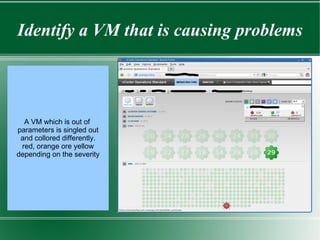
Identify a VM that is causing problems A VM which is out of  parameters is singled out and collored differently. red, orange ore yellow depending on the severity
Double Click to Drill Down From first glance you can see that there is a problem with the CPU
This VM has been like this for some time You can view a zoom on the graphics to see if it is an isolated incident or a continuous problem
Let's Drill Down and See Usage contention seems to be low, this is good, it means that it is not affecting other  workloads and is not itself affected by another workload
Let's Look at Another Example Here we se a VM having memory issues, we can see that it's memory is fully  allocated
Let's Drill Down It's been like this for a while seems to oscilate between a wide set of values
No Memory Contention from the Hypervisor Layer We look at the active memory,  Balooning and compression This seems to be a soly guest issue
User Reposts an Eratic Issue From the looks of it, this VM is running an eratic  workload, best to look at the windows task manager this is nolonger a VM-Admin  issue
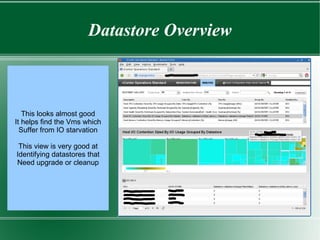
Clusters Overview Generally looks OK, If we had any issues, We would see yelow or red Good to show your manager This :)

vCenter Operations

  • 1.
    VMWare vCenter OperationsPrepared by: Cristian Calin – October 2011 http://www.vmware.com/products/vcenter-operations/overview.html
  • 2.
    What Is It? A VMWare appliance VM
  • 3.
    Derrived from theAlive Enterprise product
  • 4.
    Allows you tohave an overview of the whole infrastructure
  • 5.
    Helps an ITteam to have a “helpdesk” like interface to quickly identify problems in a virtualized infrastructure
  • 6.
    Is licensed perVM on a 50VM pack basis
  • 7.
    Welcome to theMain Screen You first open the interface and are presented with an interface that looks a lot like the following
  • 8.
    Identify a VMthat is causing problems A VM which is out of parameters is singled out and collored differently. red, orange ore yellow depending on the severity
  • 9.
    Double Click toDrill Down From first glance you can see that there is a problem with the CPU
  • 10.
    This VM hasbeen like this for some time You can view a zoom on the graphics to see if it is an isolated incident or a continuous problem
  • 11.
    Let's Drill Downand See Usage contention seems to be low, this is good, it means that it is not affecting other workloads and is not itself affected by another workload
  • 12.
    Let's Look atAnother Example Here we se a VM having memory issues, we can see that it's memory is fully allocated
  • 13.
    Let's Drill DownIt's been like this for a while seems to oscilate between a wide set of values
  • 14.
    No Memory Contentionfrom the Hypervisor Layer We look at the active memory, Balooning and compression This seems to be a soly guest issue
  • 15.
    User Reposts anEratic Issue From the looks of it, this VM is running an eratic workload, best to look at the windows task manager this is nolonger a VM-Admin issue
  • 16.
    Clusters Overview Generallylooks OK, If we had any issues, We would see yelow or red Good to show your manager This :)