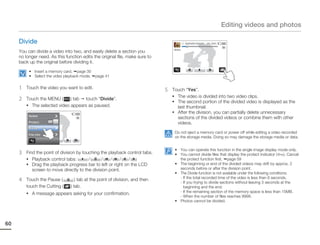
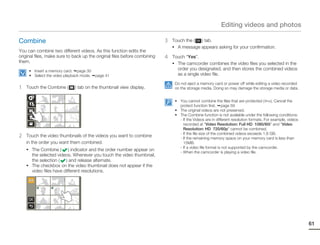
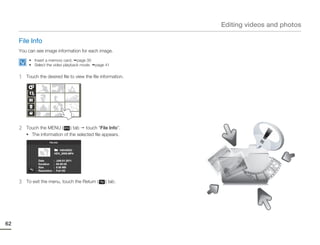
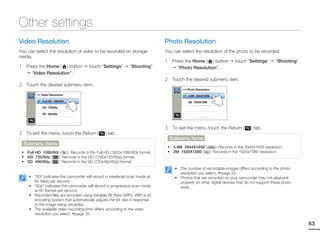
User Manual


High Definition Digital Camcorder
www.samsung.com/register
                                                               HMX-Q10BN/HMX-Q100BN/HMX-Q130BN
 For video recording, use a memory card that supports faster   HMX-Q10TN/HMX-Q100TN/HMX-Q130TN
 write speeds.                                                 HMX-Q10UN/HMX-Q100UN/HMX-Q130UN
 - Memory Card: A Class 6 SDHC card or above.
                                                               HMX-Q10PN/HMX-Q100PN/HMX-Q130PN
Important safety instructions
                                      CAUTION                                       4   Follow all instructions.
                              RISK OF ELECTRIC SHOCK
                                   DO NOT OPEN
                                                                                    5   Do not use this apparatus near water.

             CAUTION: TO REDUCE THE RISK OF ELECTRIC SHOCK,                         6   Clean only with dry cloth.
                    DO NOT REMOVE COVER (OR BACK).
      NO USER-SERVICEABLE PARTS INSIDE REFER SERVICING TO QUALIFIED                 7   Do not block any ventilation openings. Install in accordance with
                           SERVICE PERSONNEL.
                                                                                        the manufacturer’s instructions.

               This symbol indicates that dangerous voltage consisting a risk of    8   Do not install near any heat sources such as radiators, heat
               electric shock is present within this unit.                              registers, stoves, or other apparatus (including amplifiers) that
                                                                                        produce heat.
               This symbol indicates that there are important operating and
               maintenance instructions in the literature accompanying this unit.
                                                                                    9   Do not defeat the safety purpose of the polarized or grounding-
                                                                                        type plug. A polarized plug has two blades with one wider than
                                                                                        the other. A grounding type plug has two blades and a third
     Warning                                                                            grounding prong. The wide blade or the third prong are provided
     To Reduce The Risk Of Fire Or Electric Shock, Do Not Expose This                   for your safety. If the provided plug does not fit into your outlet,
     Apparatus To Rain Or Moisture.                                                     consult an electrician for replacement of the obsolete outlet.

                                                                                    10 Protect the power cord from being walked on or pinched
     Caution
                                                                                       particularly at plugs, convenience receptacles, and the point
     Apparatus shall not be exposed to dripping or splashing and no
     objects filled with liquids, such as vases, shall be placed on the                where they exit from the apparatus.
     apparatus.
                                                                                    11 Only use attachment/accessories specified by the manufacturer.
     To disconnect the apparatus from the mains, the plug must be
     pulled out from the mains socket, therefore the mains plug shall be
                                                                                    12 Use only with the cart, stand, tripod, bracket, or
     readily operable.
                                                                                       table specified by the manufacturer, or sold with
                                                                                       the apparatus. When a cart is used, use caution
     1   Read these instructions.                                                      when moving the cart/apparatus combination to
                                                                                       avoid injury from tipover.
     2   Keep these instructions.
                                                                                    13 Unplug this apparatus during lightning storms or when unused
     3   Heed all warnings.                                                            for long periods of time.
ii
Important safety instructions

14 Refer all servicing to qualified service personnel. Servicing is           outlet, try reversing the plug. If the plug still fails to fit, contact
   required when the apparatus has been damaged in any way,                   your electrician to replace your outlet. Do not defeat the safety
   such as powersupply cord or plug is damaged, liquid has been               purpose of the polarized plug.
   spilled or objects have fallen into the apparatus, the apparatus
   has been exposed to rain or moisture, does not operate                  19. POWER-CORD PROTECTION:
   normally, or has been dropped.                                              Power-supply cords should be routed so that they are not likely
                                                                               to be walked on or pinched by items placed upon or against
15. Apparatus shall not be exposed to dripping or splashing and no             them, paying particular attention to cords or plugs, convenient
    objects filled with liquids, such as vases, shall be placed on the         receptacles, and the point where they exit from the unit.
    apparatus.
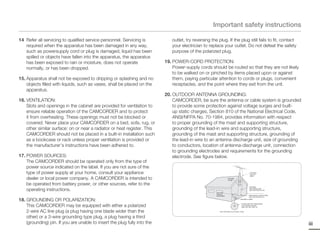
                                                                           20. OUTDOOR ANTENNA GROUNDING:
16. VENTILATION:                                                               CAMCORDER, be sure the antenna or cable system is grounded
    Slots and openings in the cabinet are provided for ventilation to          to provide some protection against voltage surges and built-
    ensure reliable operation of the CAMCORDER and to protect                  up static charges, Section 810 of the National Electrical Code,
    it from overheating. These openings must not be blocked or                 ANSI/NFPA No. 70-1984, provides information with respect
    covered. Never place your CAMCORDER on a bed, sofa, rug, or                to proper grounding of the mast and supporting structure,
    other similar surface: on or near a radiator or heat register. This        grounding of the lead-in wire and supporting structure,
    CAMCORDER should not be placed in a built-in installation such             grounding of the mast and supporting structure, grounding of
    as a bookcase or rack unless proper ventilation is provided or             the lead-in wire to an antenna discharge unit, size of grounding
    the manufacturer’s instructions have been adhered to.                      to conductors, location of antenna-discharge unit, connection
                                                                               to grounding electrodes and requirements for the grounding
17. POWER SOURCES:                                                             electrode. See figure below.
    The CAMCORDER should be operated only from the type of
    power source indicated on the label. If you are not sure of the
    type of power supply at your home, consult your appliance                                                                               ANTENNA
                                                                                                                                            LEAD IN
                                                                                                                                            WIRE

    dealer or local power company. A CAMCORDER is intended to                                                      GROUND
                                                                                                                   CLAMP


    be operated from battery power, or other sources, refer to the                                                                         ANTENNA

    operating instructions.                                                                                                                DISCHARGE UNIT
                                                                                                                                           (NEC SECTION 810-20)
                                                                                                       ELECTRIC
                                                                                                       SERVICE
                                                                                                       EQUIPMENT                          GROUNDING CONDUCTORS
                                                                                                                                          (NEC SECTION 810-21)

18. GROUNDING OR POLARIZATION:                                                                                                   GROUND CLAMPS


                                                                                                                                   POWER SERVICE GROUNDING
    This CAMCORDER may be equipped with either a polarized                                                                         ELECTRODE SYSTEM
                                                                                                                                   (NEC ART 250, PART H)


    2-wire AC line plug (a plug having one blade wider than the                                           NEC NATIONAL ELECTRICAL CODE


    other) or a 3-wire grounding type plug, a plug having a third
    (grounding) pin. If you are unable to insert the plug fully into the                                                                                          iii
Important safety instructions

     21. LIGHTNING:                                                                a. When the power-supply cord or plug is damaged.
         For added protection of this CAMCORDER during a lightning                 b. If any liquid has been spilled onto, or objects have fallen into the
         storm or when it is left unattended and unused for long periods              CAMCORDER.
         of time, unplug it from the wall outlet and disconnect the antenna        c. If the CAMCORDER has been exposed to rain or water.
         or cable system. This will prevent damage to the CAMCORDER
                                                                                   d. If the CAMCORDER does not operate normally by following the
         due to lightning and powerline surges.
                                                                                      operating instructions, adjust only those controls that are covered
     22. POWER LINES:                                                                 by the operating instructions. Improper adjustment of other
         An outside antenna system should not be located in the vicinity              controls may result in damage and will often require extensive
         of overhead power lines or other electric light or power circuits            work by a qualified technician to restore the CAMCORDER to its
         where it can fall into such power lines or circuits. When installing         normal operation.
         an outside antenna system, extreme care should be taken to                e. If the CAMCORDER has been dropped or the cabinet has been
         keep from touching such power lines or circuits as contact with              damaged.
         them might be fatal.                                                      f.   When the CAMCORDER exhibits a distinct change in
                                                                                        performance, this indicates a need for service.
     23. OVERLOADING:
         Do not overload wall outlets and extension cords as this can           27. REPLACEMENT PARTS:
         result in a risk of fire or electric shock.                                When replacement parts are required, be sure the service
                                                                                    technician has used replacement parts specified by the
     24. OBJECTS AND LIQUIDS:                                                       manufacturer and having the same characteristics as the original
         Never push objects of any kind into this CAMCORDER through                 part. Unauthorized substitutions may result in fire, electric shock
         openings as they may touch dangerous voltage points or short               or other hazards.
         out a part that could result in a fire or electric shock. Never
         spill liquids of any kind onto the CAMCORDER. Should spillage          28. SAFETY CHECK:
         occur, unplug unit and have it checked by a technician before              Upon completion of any service or repairs to this CAMCORDER,
         use.                                                                       ask the service technician to perform safety checks to determine
                                                                                    that the CAMCORDER is in safe operating order.
     25. SERVICING:
         Do not attempt to service this CAMCORDER yourself. Opening             29. To prevent damage which may result in fire or shock hazard, do
         or removing covers may expose you to dangerous voltage or                  not expose this appliance to rain or moisture.
         other hazards. Refer all servicing to qualified service personnel.
                                                                                30. If this power supply is used at 240V ac, a suitable plug adaptor
     26. DAMAGE REQUIRING SERVICE:                                                  should be used.
         Unplug this CAMCORDER from the wall outlet and refer servicing
iv
         to qualified service personnel under the following conditions:
Important safety instructions

USER INSTALLER CAUTION:
Your authority to operate this FCC certified equipment could be voided if   NOTE:
you make changes or modifications not expressly approved by this party      This equipment has been tested and found to comply with the
responsible for compliance to part 15 FCC rules.                            limits for a Class B digital device, pursuant to part 15 of the FCC
                                                                            Rules.
NOTE:                                                                       These limits are designed to provide reasonable protection
Hg LAMP(S) INSIDE THIS PRODUCT CONTAIN MERCURY AND MUST                     against harmful interference in a residential installation.
   BE RECYCLED OR DISPOSED OF ACCORDING TO LOCAL, STATE                     This equipment generates, uses and can radiate radio
   OR FEDERAL LAWS. For details see lamprecycle.org, eiae.org, or call
                                                                            frequency energy and, if not installed and used in accordance
   1-800-Samsung (7267864)
                                                                            with the instructions, may cause harmful interference to
                                                                            radio communications. However, there is no guarantee that
 CALIFORNIA USA ONLY                                                        interference will not occur in a particular installation.
 This Perchlorate warning applies only to primary CR (Manganese
                                                                            If this equipment does cause harmful interference to radio or
 Dioxide) Lithium coin cells in the product sold or distributed ONLY in
 California USA“Perchlorate Material - special handling may apply, See      television reception, which can be determined by turning the
 www.dtsc.ca.gov/hazardouswaste/perchlorate”.                               equipment off and on, the user is encouraged to try to correct
                                                                            the interference by one or more of the following measures:
                                                                            - Reorient or relocate the receiving antenna.- Increase the separation
                                                                              between the equipment and receiver.
                                                                            - Connect the equipment into an outlet on a circuit different from that to
                                                                              which the receiver is connected.
                                                                            - Consult the dealer or an experienced radio/TV technician for help and for
                                                                              additional suggestions. The user may find the following booklet prepared
                                                                              by the Federal Communications Commission helpful: “How to Identify and
                                                                              Resolve Radio-TV Interference Problems.” This Booklet is available from
                                                                              the U.S. Government Printing Office, Washington, D.C. 20402, Stock No.
                                                                              004-000-00345-4.

                                                                            FCC Warning
                                                                            The user is cautioned that changes or modifications not
                                                                            expressly approved by the manufacturer could void the user’
                                                                            s authority to operate the equipment.This device complies with
                                                                            Part 15 of FCC Rules.Operation is subject to the following two
                                                                            conditions;
                                                                            (1) This device may not cause harmful interference, and
                                                                            (2) This device must accept any interference received, including interference
                                                                                that may cause undesired operation.

                                                                                                                                                            v
Before reading this user manual
    SAFETY WARNINGS                                                                           IMPORTANT INFORMATION ON USE
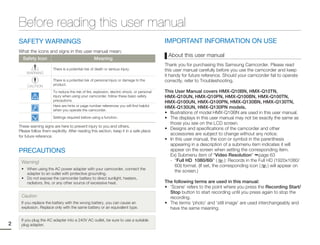
    What the icons and signs in this user manual mean;
                                                                                                About this user manual
      Safety Icon                                    Meaning
                                                                                              Thank you for purchasing this Samsung Camcorder. Please read
                         There is a potential risk of death or serious injury.                this user manual carefully before you use the camcorder and keep
        WARNING
                                                                                              it handy for future reference. Should your camcorder fail to operate
                         There is a potential risk of personal injury or damage to the        correctly, refer to Troubleshooting.
         CAUTION         product.
                         To reduce the risk of fire, explosion, electric shock, or personal   This User Manual covers HMX-Q10BN, HMX-Q10TN,
                         injury when using your camcorder, follow these basic safety          HMX-Q10UN, HMX-Q10PN, HMX-Q100BN, HMX-Q100TN,
                         precautions.                                                         HMX-Q100UN, HMX-Q100PN, HMX-Q130BN, HMX-Q130TN,
                         Here are hints or page number references you will find helpful       HMX-Q130UN, HMX-Q130PN models.
                         when you operate the camcorder.
                                                                                              • Illustrations of model HMX-Q10BN are used in this user manual.
                         Settings required before using a function.                           • The displays in this user manual may not be exactly the same as
                                                                                                those you see on the LCD screen.
    These warning signs are here to prevent injury to you and others.
    Please follow them explicitly. After reading this section, keep it in a safe place
                                                                                              • Designs and specifications of the camcorder and other
    for future reference.
                                                                                                accessories are subject to change without any notice.
                                                                                              • In this user manual, the icon or symbol in the parenthesis
                                                                                                appearing in a description of a submenu item indicates it will
    PRECAUTIONS                                                                                 appear on the screen when setting the corresponding item.
                                                                                                Ex) Submenu item of “Video Resolution” page 63
     Warning!                                                                                   - “Full HD 1080/60i” (          ): Records in the Full HD (1920x1080/
                                                                                                    60i) format. (If set, the corresponding icon (     ) will appear on
     • When using the AC power adapter with your camcorder, connect the
                                                                                                    the screen.)
       adapter to an outlet with protective grounding.
     • Do not expose the camcorder battery to direct sunlight, heaters,
       radiators, fire, or any other source of excessive heat.                                The following terms are used in this manual:
                                                                                              • ‘Scene’ refers to the point where you press the Recording Start/
                                                                                                Stop button to start recording until you press again to stop the
     Caution                                                                                    recording.
     If you replace the battery with the wrong battery, you can cause an                      • The terms ‘photo’ and ‘still image’ are used interchangeably and
     explosion. Replace only with the same battery or an equivalent type.                       have the same meaning.

     If you plug the AC adapter into a 240V AC outlet, be sure to use a suitable
2    plug adapter.
Before reading this user manual

 Before using this camcorder                                             Notes regarding trademarks
• This camcorder records video in H.264 (MPEG4/AVC) format.             • All the trade names and registered trademarks mentioned in this
• You can play back and edit the video recorded by the                    manual or other documentation provided with your Samsung
  camcorder on a personal computer using the internal                     product are trademarks or registered trademarks of their
  software of this camcorder.                                             respective holders. Furthermore, “™” and “®” are not mentioned
• Please note that this camcorder is not compatible with other            in each case in this manual.
  digital video formats.                                                • The SD logo is a trademark. The SDHC logo is a trademark.
• Before recording important video, make a trial recording.             • Microsoft®, Windows®, Windows Vista®, Windows® 7, and
  Play back your trial recording to make sure the video and audio         DirectX® are either registered trademarks or trademarks of the
  have been recorded properly.                                            Microsoft Corporation in the United States and/or other countries.
• Recorded contents may be lost due to a mistake when                   • Intel®, Core™, Core 2 Duo®, and Pentium® are the registered
  handling the camcorder or memory card, etc.                             trademarks or trademarks of the Intel Corporation in the United
  Samsung will not provide compensation for damages due to the            States and other countries.
  loss of recorded contents.                                            • AMD and Athlon™ are either registered trademarks or trademarks
• Make a backup of important recorded data.                               of AMD in the United States and other countries.
  Protect your important recorded data by copying the files to a        • Macintosh, Mac OS are either registered trademarks or
  PC. We also recommend you copy them from your PC to other               trademarks of Apple Inc. in the United States and/or other
  recording media for storage. Refer to the software installation and     countries.
  USB connection guide.                                                 • YouTube is a trademark of Google Inc.
• Copyrights: Please note that this camcorder is intended for           • Flickr is a trademark of Yahoo.
  individual use only.                                                  • Facebook is a trademark of Facebook Inc.
  Data recorded on the storage media in this camcorder using            • twitter is a trademark of twitter Inc.
  other digital/analog media or devices is protected by the             • Picasa is a trademark of Google Inc.
  Copyright Act and cannot be used without permission of the            • HDMI, the HDMI logo and High-Definition Multimedia Interface
  owner of the copyright, except for personal enjoyment. Even if          are trademarks or registered trademarks of HDMI Licensing LLC.
  you record an event such as a show, performance, or exhibition        • Adobe, the Adobe logo, and Adobe Acrobat are either registered
  for personal enjoyment, we strongly recommend that you obtain           trademarks or trademarks of Adobe Systems Incorporated in the
  permission beforehand.                                                  United States and/or other countries.
• For Open Source licenses information, refer to the
  “Opensource-Q10.pdf” in the provided CD-ROM.


                                                                                                                                               3
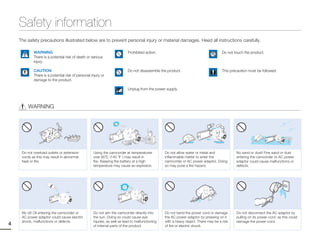
Safety information
    The safety precautions illustrated below are to prevent personal injury or material damages. Heed all instructions carefully.

            WARNING                                                       Prohibited action.                                         Do not touch the product.
            There is a potential risk of death or serious
            injury.

            CAUTION                                                       Do not disassemble the product.                            This precaution must be followed.
            There is a potential risk of personal injury or
            damage to the product.

                                                                          Unplug from the power supply.


         WARNING


     Do not overload outlets or extension          Using the camcorder at temperatures           Do not allow water or metal and             No sand or dust! Fine sand or dust
     cords as this may result in abnormal          over 60 (140       ) may result in            inflammable matter to enter the             entering the camcorder or AC power
     heat or fire.                                 fire. Keeping the battery at a high           camcorder or AC power adaptor. Doing        adaptor could cause malfunctions or
                                                   temperature may cause an explosion.           so may pose a fire hazard.                  defects.
                      L
                      OI


     No oil! Oil entering the camcorder or         Do not aim the camcorder directly into        Do not bend the power cord or damage        Do not disconnect the AC adaptor by
     AC power adaptor could cause electric         the sun. Doing so could cause eye             the AC power adaptor by pressing on it      pulling on its power-cord, as this could
     shock, malfunctions or defects.               injuries, as well as lead to malfunctioning   with a heavy object. There may be a risk    damage the power-cord.
4                                                  of internal parts of the product.             of fire or electric shock.
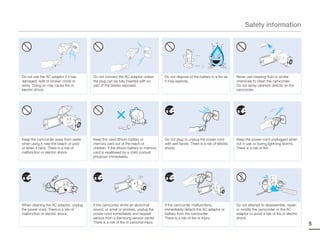
Safety information

                                                                                                                                                                    d
                                                                                                                                                                flui
                                                                                                                                                           ng
                                                                                                                                                        ani
                                                                                                                                                    cle


Do not use the AC adaptor if it has    Do not connect the AC adaptor unless          Do not dispose of the battery in a fire as    Never use cleaning fluid or similar
damaged, split or broken cords or      the plug can be fully inserted with no        it may explode.                               chemicals to clean the camcorder.
wires. Doing so may cause fire or      part of the blades exposed.                                                                 Do not spray cleaners directly on the
electric shock.                                                                                                                    camcorder.


Keep the camcorder away from water     Keep the used lithium battery or              Do not plug or unplug the power cord          Keep the power-cord unplugged when
when using it near the beach or pool   memory card out of the reach of               with wet hands. There is a risk of electric   not in use or during lightning storms.
or when it rains. There is a risk of   children. If the lithium battery or memory    shock.                                        There is a risk of fire.
malfunction or electric shock.         card is swallowed by a child, consult
                                       physician immediately.


When cleaning the AC adaptor, unplug   If the camcorder emits an abnormal            If the camcorder malfunctions,                Do not attempt to disassemble, repair,
the power-cord. There is a risk of     sound, or smell or smokes, unplug the         immediately detach the AC adaptor or          or modify the camcorder or the AC
malfunction or electric shock.         power-cord immediately and request            battery from the camcorder.                   adaptor to avoid a risk of fire or electric
                                       service from a Samsung service center.        There is a risk of fire or injury.            shock.
                                       There is a risk of fire or personal injury.
                                                                                                                                                                                 5
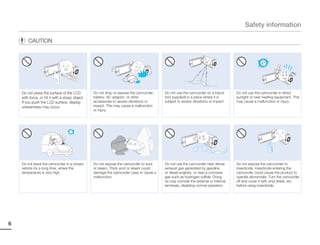
Safety information

        CAUTION


    Do not press the surface of the LCD          Do not drop or expose the camcorder,   Do not use the camcorder on a tripod      Do not use the camcorder in direct
    with force, or hit it with a sharp object.   battery, AC adaptor, or other          (not supplied) in a place where it is     sunlight or near heating equipment. This
    If you push the LCD surface, display         accessories to severe vibrations or    subject to severe vibrations or impact.   may cause a malfunction or injury.
    unevenness may occur.                        impact. This may cause a malfunction
                                                 or injury.


                                                                                                                                                       ICIDE
                                                                                                                                                        INSECT
    Do not leave the camcorder in a closed       Do not expose the camcorder to soot    Do not use the camcorder near dense       Do not expose the camcorder to
    vehicle for a long time, where the           or steam. Thick soot or steam could    exhaust gas generated by gasoline         insecticide. Insecticide entering the
    temperature is very high.                    damage the camcorder case or cause a   or diesel engines, or near a corrosive    camcorder could cause the product to
                                                 malfunction.                           gas such as hydrogen sulfide. Doing       operate abnormally. Turn the camcorder
                                                                                        so may corrode the external or internal   off and cover it with vinyl sheet, etc.
                                                                                        terminals, disabling normal operation.    before using insecticide.


6
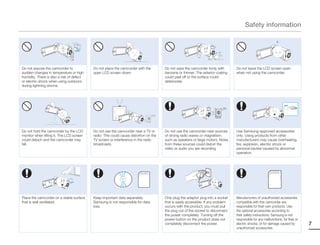
Safety information


Do not expose the camcorder to             Do not place the camcorder with the         Do not wipe the camcorder body with         Do not leave the LCD screen open
sudden changes in temperature or high      open LCD screen down.                       benzene or thinner. The exterior coating    when not using the camcorder.
humidity. There is also a risk of defect                                               could peel off or the surface could
or electric shock when using outdoors                                                  deteriorate.
during lightning storms.


Do not hold the camcorder by the LCD       Do not use the camcorder near a TV or       Do not use the camcorder near sources       Use Samsung-approved accessories
monitor when lifting it. The LCD screen    radio: This could cause distortion on the   of strong radio waves or magnetism          only. Using products from other
could detach and the camcorder may         TV screen or interference in the radio      such as speakers or large motors. Noise     manufacturers may cause overheating,
fall.                                      broadcasts.                                 from these sources could distort the        fire, explosion, electric shock or
                                                                                       video or audio you are recording.           personal injuries caused by abnormal
                                                                                                                                   operation.


Place the camcorder on a stable surface    Keep important data separately.             Only plug the adaptor plug into a socket    Manufacturers of unauthorized accessories
that is well ventilated.                   Samsung is not responsible for data         that is easily accessible. If any problem   compatible with this camcorder are
                                           loss.                                       occurs with the product, you must pull      responsible for their own products. Use
                                                                                       the plug out of the socket to disconnect    the optional accessories according to
                                                                                       the power completely. Turning off the       their safety instructions. Samsung is not
                                                                                       power button on the product does not        responsible for any malfunctions, for fires or
                                                                                       completely disconnect the power.            electric shocks, or for damage caused by         7
                                                                                                                                   unauthorized accessories.
Contents
    Quick start guide ........................................... 10                                 Basic playback .............................................. 41
                                                                                                     CHANGING THE PLAYBACK MODE ........................................... 41
    Getting to know the camcorder ...................... 14                                          PLAYING VIDEOS ....................................................................... 42
    WHAT'S INCLUDED WITH YOUR CAMCORDER ........................ 14                                  VIEWING PHOTOS ...................................................................... 45
    LOCATION OF CONTROLS......................................................... 15
    IDENTIFYING THE SCREEN DISPLAYS....................................... 17                        Using the menu items .................................... 47
                                                                                                     HANDLING MENUS .................................................................... 47
    Getting started .............................................. 21                                MENU ITEMS .............................................................................. 48
    INSERTING/EJECTING THE BATTERY........................................ 21
    CHARGING THE BATTERY ......................................................... 22                Advanced recordings..................................... 50
    CHECKING THE BATTERY STATE .............................................. 23                     White Balance ............................................................................. 50
                                                                                                     EV (Exposure Value) .................................................................... 51
    Basic operation of the camcorder ................... 25                                          Back Light ................................................................................... 51
    TURNING YOUR CAMCORDER ON/OFF .................................... 25                            Self Timer .................................................................................... 52
    SETTING THE OPERATION MODES ........................................... 26                       Super C.Nite................................................................................ 52
    USING THE TOUCH SCREEN ..................................................... 26                  Cont. Shot ................................................................................... 53
    SETTING THE TIME ZONE AND DATE/TIME                                                              Focus .......................................................................................... 53
    FOR THE FIRST TIME.................................................................. 28
    SELECTING THE OSD LANGUAGE............................................. 29                       Special effects for recordings ......................... 54
                                                                                                     Fader ........................................................................................... 54
    Getting ready to start recording ...................... 30                                       Time Lapse REC ......................................................................... 55
    INSERTING/EJECTING A MEMORY CARD (NOT SUPPLIED) ...... 30                                        Digital Effect ................................................................................ 57
    SELECTING A SUITABLE MEMORY CARD (NOT SUPPLIED) ..... 31
    RECORDABLE TIME AND CAPACITY ......................................... 33                        Editing videos and photos .............................. 58
    USING THE GRIP BELT............................................................... 34            Delete .......................................................................................... 58
    ADJUSTING THE LCD SCREEN .................................................. 35                   Protect ........................................................................................ 59
                                                                                                     Divide .......................................................................................... 60
    Basic recording ............................................. 36                                 Combine ..................................................................................... 61
    RECORDING VIDEOS.................................................................. 36            File Info ........................................................................................ 62
    RECORDING PHOTOS................................................................ 38
8   RECORDING WITH EASE FOR BEGINNERS (SMART AUTO)...... 39
    ZOOMING ................................................................................... 40
Contents

Other settings................................................ 63                                      Format......................................................................................... 77
Video Resolution.......................................................................... 63          Default Set................................................................................... 78
Photo Resolution ......................................................................... 63          Language .................................................................................... 78
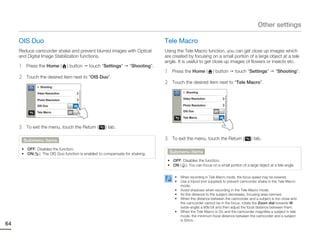
OIS Duo ...................................................................................... 64      Demo .......................................................................................... 79
Tele Macro .................................................................................. 64
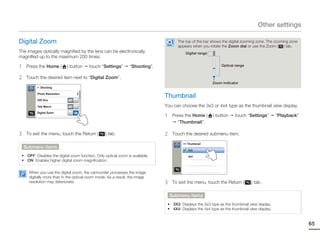
Digital Zoom ................................................................................ 65       Connecting to a TV ........................................ 80
                                                                                                       CONNECTING TO A HIGH DEFINITION TV WITH HDMI .............. 80
Thumbnail ................................................................................... 65
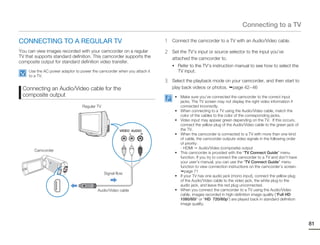
                                                                                                       CONNECTING TO A REGULAR TV ............................................. 81
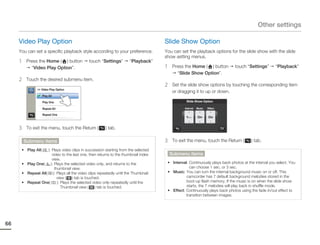
Video Play Option ........................................................................ 66
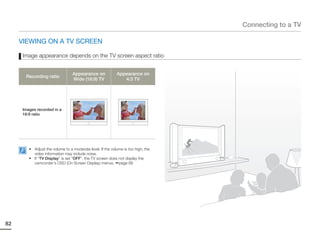
                                                                                                       VIEWING ON A TV SCREEN........................................................ 82
Slide Show Option ....................................................................... 66
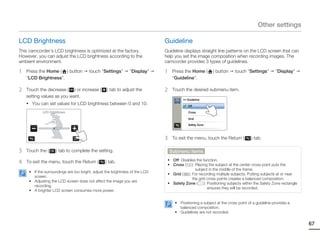
LCD Brightness ........................................................................... 67
Guideline ..................................................................................... 67
                                                                                                       Dubbing videos ............................................. 83
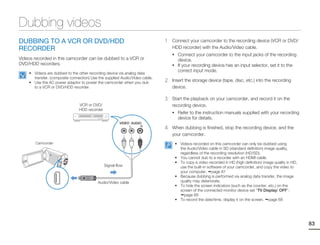
                                                                                                       DUBBING TO A VCR OR DVD/HDD RECORDER ........................ 83
Date/Time Display ....................................................................... 68
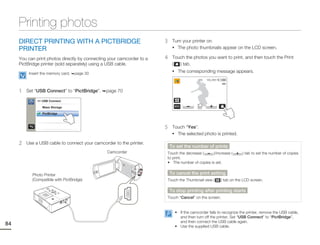
TV Display ................................................................................... 68      Printing photos .............................................. 84
HDMI TV Out ............................................................................... 69         DIRECT PRINTING WITH A PICTBRIDGE PRINTER .................... 84
Auto LCD Off ............................................................................... 69
PC Software ................................................................................ 70        Using with a Windows computer .................... 86
USB Connect .............................................................................. 70          WHAT YOU CAN DO WITH A WINDOWS COMPUTER ............... 86
TV Connect Guide ....................................................................... 71            USING THE Intelli-studio PROGRAM ........................................... 87
Anynet+ (HDMI-CEC)................................................................... 71               USING AS A REMOVABLE STORAGE DEVICE ........................... 91
Card Info ..................................................................................... 72
File No. ........................................................................................ 72   Troubleshooting............................................. 93
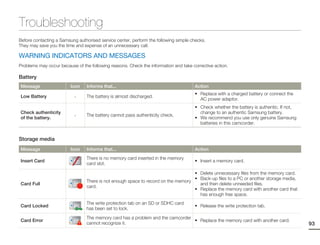
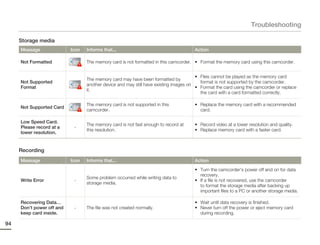
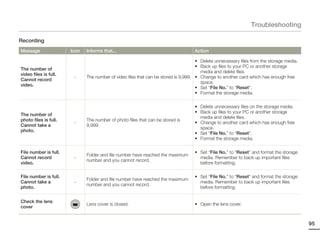
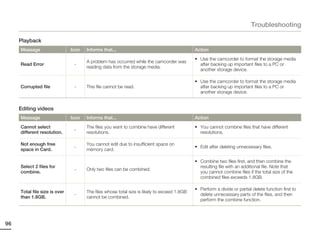
Time Zone ................................................................................... 73       WARNING INDICATORS AND MESSAGES ................................. 93
Date/Time Set ............................................................................. 73         SYMPTOMS AND SOLUTIONS ................................................... 98
Date Type .................................................................................... 73
Time Type ................................................................................... 74       Additional information ................................... 104
Beep Sound ................................................................................ 74         MAINTENANCE ......................................................................... 104
Shutter Sound ............................................................................. 75         USING YOUR CAMCORDER ABROAD ..................................... 105
Auto Power Off ............................................................................ 75         GLOSSARY ............................................................................... 106
Quick On STBY ........................................................................... 76
Switch Grip.................................................................................. 77
                                                                                                       Specifications .............................................. 107
                                                                                                                                                                                                            9
Quick start guide
     This quick start guide introduces the basic operation and features of your camcorder. See the reference pages for more information.
     You can record videos in H.264 format!
     You can record videos in H.264 format that is convenient to email and share with your friends and family.
     You can also take photos with your camcorder.


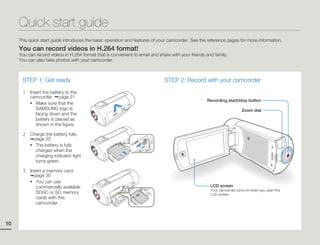
      STEP 1: Get ready                                                       STEP 2: Record with your camcorder

      1   Insert the battery to the
          camcorder. page 21
                                                                                                   Recording start/stop button
          • Make sure that the
             SAMSUNG logo is                                                                                           Zoom dial
             facing down and the
             battery is placed as
             shown in the figure.

      2   Charge the battery fully.
            page 22
          • The battery is fully
             charged when the
             charging indicator light
             turns green.

      3   Insert a memory card.
            page 30
          • You can use
             commercially available                                                                  LCD screen
                                                                                                     Your camcorder turns on when you open the
             SDHC or SD memory                                                                       LCD screen.
             cards with this
             camcorder.


10
Quick start guide


Recording videos                                                           Recording photos
Your camcorder uses advanced H.264 compression technology                  Your camcorder can record high quality photos with a 16:9 aspect
give you the clearest video quality.                                       ratio.

1   Open the LCD screen.                                                   1   Open the LCD screen.

2   Select the video recording mode by touching the Video                  2   Select the photo recording mode by touching the Photo
    recording mode ( ) tab.                                                    recording mode ( ) tab.
        STBY 00:00:00 [253Min]                                                                     9999


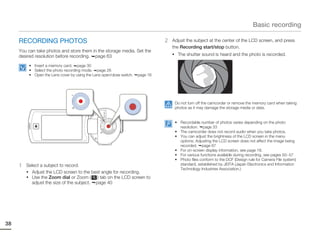
3   Press the Recording start/stop button.                                 3   Press the Recording start/stop button.
    • To stop recording, press the Recording start/stop button.                • The shutter sound is heard and the photo is recorded.

             00:00:00 [253Min]


     The default video resolution setting is “Full HD 1080/60i”. You can
     also record with SD (standard definition) video quality.
                                                                                 Using ‘Quick On STBY’ by opening/closing the LCD
                                                                                 screen.
                                                                                 When you close the LCD screen, your camcorder goes to the Quick
                                                                                 On STBY mode (power saving mode). You can start recording
                                                                                 quickly when you open the LCD screen. page 76


                                                                                                                                                   11
Quick start guide


     STEP3: Play back videos or photos                                         STEP4: Save recorded videos or photos
                                                                               Simple and fun! Enjoy the various features of the internal
     Viewing videos or photos on the LCD screen                                Intelli-studio program on your Windows computer.
     You can find recordings quickly by using the thumbnail index view.        Using the Intelli-studio program built into your camcorder, you can
                                                                               import videos/photos into your computer, and edit or share the
     1   Touch the Playback (         ) tab on the LCD screen in STBY          videos/photos with your friends and family.
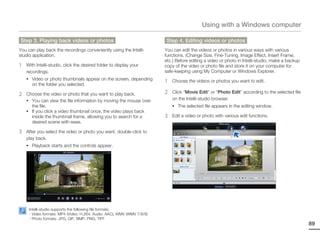
         mode.                                                                 For details, see pages 86~90
             STBY 00:00:00 [253Min]

                                                                               Importing and viewing videos/photos from the
                                                                               camcorder to your PC

                                                                               1   Start the Intelli-studio program by connecting the camcorder
                                                                                   to your PC with a USB cable.
                                                                                   • A new file saving screen appears with the Intelli-studio main
                                                                                      window. Click “Yes”, and the uploading procedure starts.
     2   Touch the thumbnail (        /   ) tab, then touch the desired
         image.


     Viewing on a high definition TV
     You can enjoy HD (high definition) videos on an HDTV.           page 80
          You can also play back videos on a SD (standard definition) image
          quality TV. page 81
12
Quick start guide


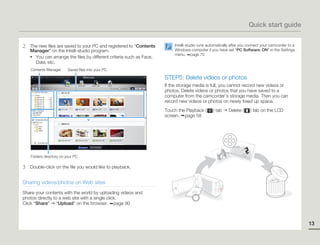
2   The new files are saved to your PC and registered to “Contents         Intelli-studio runs automatically after you connect your camcorder to a
    Manager” on the Intelli-studio program.                                Windows computer if you have set “PC Software: ON” in the Settings
                                                                           menu. page 70
    • You can arrange the files by different criteria such as Face,
      Date, etc.
    Contents Manager      Saved files into your PC

                                                                      STEP5: Delete videos or photos
                                                                      If the storage media is full, you cannot record new videos or
                                                                      photos. Delete videos or photos that you have saved to a
                                                                      computer from the camcorder’s storage media. Then you can
                                                                      record new videos or photos on newly freed up space.
                                                                      Touch the Playback (       ) tab    Delete (     ) tab on the LCD
                                                                      screen. page 58


    Folders directory on your PC

3   Double-click on the file you would like to playback.


Sharing videos/photos on Web sites
Share your contents with the world by uploading videos and
photos directly to a web site with a single click.
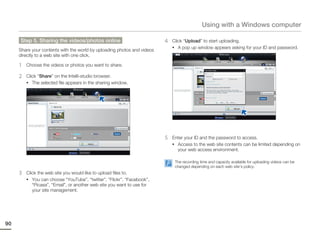
Click “Share” “Upload” on the browser. page 90


                                                                                                                                                     13
Getting to know the camcorder
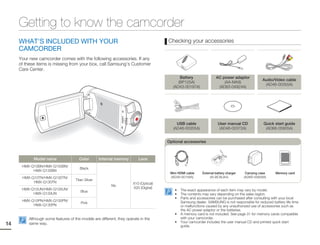
     WHAT'S INCLUDED WITH YOUR                                                        Checking your accessories
     CAMCORDER
     Your new camcorder comes with the following accessories. If any
     of these items is missing from your box, call Samsung’s Customer
     Care Center.
                                                                                             Battery               AC power adaptor
                                                                                                                                                Audio/Video cable
                                                                                            (BP125A)                   (AA-MA9)
                                                                                                                                                 (AD46-00355A)
                                                                                         (AD43-00197A)              (AD63-04924A)


                                                                                           USB cable                 User manual CD              Quick start guide
                                                                                         (AD46-00355A)                (AD46-00372A)               (AD68-05905A)


                                                                                      Optional accessories


            Model name                Color        Internal memory       Lens
      HMX-Q10BN/HMX-Q100BN/
                                      Black
           HMX-Q130BN
                                                                                       Mini HDMI cable    External battery charger    Carrying case    Memory card
      HMX-Q10TN/HMX-Q100TN/                                                            (AD39-00159A)           (IA-BC9UA4)           (AD69-00929A)
                                    Titan Silver
           HMX-Q130TN                                                 X10 (Optical)
                                                         No
      HMX-Q10UN/HMX-Q100UN/                                           X20 (Digital)
                                       Blue                                              •   The exact appearance of each item may vary by model.
           HMX-Q130UN                                                                    •   The contents may vary depending on the sales region.
                                                                                         •   Parts and accessories can be purchased after consulting with your local
      HMX-Q10PN/HMX-Q100PN/                                                                  Samsung dealer. SAMSUNG is not responsible for reduced battery life time
                                       Pink
           HMX-Q130PN                                                                        or malfunctions caused by any unauthorized use of accessories such as
                                                                                             the AC power adaptor or the batteries.
                                                                                         •   A memory card is not included. See page 31 for memory cards compatible
         Although some features of the models are different, they operate in the             with your camcorder.
                                                                                         •   Your camcorder includes the user manual CD and printed quick start
14       same way.
                                                                                             guide.
Getting to know the camcorder

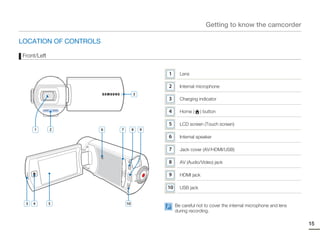
LOCATION OF CONTROLS

Front/Left


                                            1      Lens

                                            2      Internal microphone
                                    3
                                            3      Charging indicator

                                            4      Home (     ) button

                                            5      LCD screen (Touch screen)
     1       2         6   7        8   9
                                            6      Internal speaker

                                            7      Jack cover (AV/HDMI/USB)

                                            8      AV (Audio/Video) jack

                                            9      HDMI jack

                                            10     USB jack


 3   4       5                 10
                                                 Be careful not to cover the internal microphone and lens
                                                 during recording.

                                                                                                            15
Getting to know the camcorder


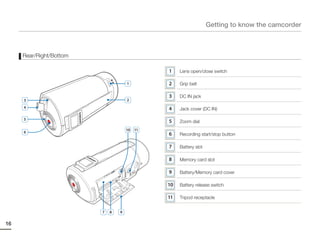
     Rear/Right/Bottom

                                             1    Lens open/close switch

                                     1       2    Grip belt

                                             3    DC IN jack
     3                               2
     4                                       4    Jack cover (DC IN)

     5
                                             5    Zoom dial
                                     10 11
     6
                                             6    Recording start/stop button

                                             7    Battery slot

                                             8    Memory card slot

                                             9    Battery/Memory card cover

                                             10   Battery release switch

                                             11   Tripod receptacle


                         7   8   9


16
Getting to know the camcorder

IDENTIFYING THE SCREEN DISPLAYS
The available functions vary depending on the operation mode you have selected. Different indicators appear depending on the setting
values.
    • This On Screen Display (OSD) is shown in the video recording mode only.
    • Select the video recording mode. page 26


 Video recording mode

      STBY 00:00:00 [253Min]
                                                    Left of the LCD screen                                      Right of the LCD screen
                                                       Indicator                       Meaning                    Indicator                Meaning
                                                                        Smart Auto mode/Manual mode
                                                         /      /                                                             Storage media (Memory card)
                                                                        /Art Film mode
                                                                                                                              Battery information (remaining
                                                                        Video/Photo recording mode tab                        charge level)

                                                                        Zoom tab                                              Optical zoom/Digital zoom bar
                                 JAN/01/2011
                                 12:00AM
                                                                        Playback tab                                          Video resolution

                                                                                                                              Tele Macro


                                                    Center of the LCD screen                                                  OIS Duo

                                                       Indicator                       Meaning
                                                                        Operating status (standby/recording         • The on-screen indicators are based on
                                                       STBY /       /                                                 an 32GB SDHC memory card capacity.
                                                                        /pause)
                                                                                                                    • The screen above is an example and
                                                        00:00:00        Time counter (video recording time)           may differ from the actual display.
                                                                                                                    • For warning indicators and messages,
                                                        [253Min]        Remaining recordable time                     see pages 93~97
                                                                                                                    • The illustrated items above and their
                                                                        Time Zone (Visit)                             positions can be changed without notice
                                                                                                                      to improve performance.
                                                       JAN/01/2011
                                                       12:00 AM
                                                                        Date/Time                                                                               17
Getting to know the camcorder

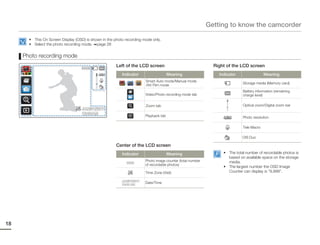
       • This On Screen Display (OSD) is shown in the photo recording mode only.
       • Select the photo recording mode. page 26


     Photo recording mode
                                                       Left of the LCD screen                                 Right of the LCD screen
                                    9999
                                                          Indicator                    Meaning                  Indicator                Meaning
                                                                        Smart Auto mode/Manual mode
                                                            /    /                                                          Storage media (Memory card)
                                                                        /Art Film mode
                                                                                                                            Battery information (remaining
                                                                        Video/Photo recording mode tab                      charge level)

                                                                        Zoom tab                                            Optical zoom/Digital zoom bar
                                    JAN/01/2011
                                    12:00AM
                                                                        Playback tab                                        Photo resolution

                                                                                                                            Tele Macro

                                                                                                                            OIS Duo

                                                       Center of the LCD screen
                                                          Indicator                    Meaning                    • The total number of recordable photos is
                                                                                                                    based on available space on the storage
                                                                        Photo image counter (total number           media.
                                                             9999
                                                                        of recordable photos)
                                                                                                                  • The largest number the OSD Image
                                                                        Time Zone (Visit)                           Counter can display is “9,999”.

                                                          JAN/01/2011
                                                          12:00 AM
                                                                        Date/Time


18
Getting to know the camcorder

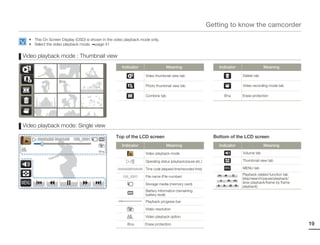
  • This On Screen Display (OSD) is shown in the video playback mode only.
  • Select the video playback mode. page 41


Video playback mode : Thumbnail view
                                                     Indicator                       Meaning                        Indicator                Meaning

                                                                       Video thumbnail view tab                                 Delete tab

                                                                       Photo thumbnail view tab                                 Video recording mode tab

                                                                       Combine tab                                              Erase protection


Video playback mode: Single view

      00:00:20/ 00:01:03   100_0001
                                                  Top of the LCD screen                                           Bottom of the LCD screen
                                                     Indicator                       Meaning                        Indicator                Meaning
                                                                       Video playback mode                                      Volume tab

                                                           /           Operating status (playback/pause etc.)                   Thumbnail view tab

                                                   00:00:00/00:00:55   Time code (elapsed time/recorded time)                   MENU tab
                                                                                                                                Playback related function tab
                                                      100_0001         File name (File number)
                                                                                                                                (skip/search/pause/playback/
                                                                       Storage media (memory card)                              slow playback/frame by frame
                                                                                                                                playback)
                                                                       Battery information (remaining
                                                                       battery level)
                                                                       Playback progress bar

                                                                       Video resolution

                                                                       Video playback option

                                                                       Erase protection                                                                         19
Getting to know the camcorder

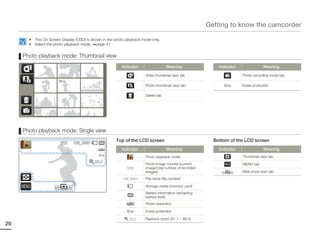
       • This On Screen Display (OSD) is shown in the photo playback mode only.
       • Select the photo playback mode. page 41


     Photo playback mode: Thumbnail view
                                                          Indicator                 Meaning                 Indicator                Meaning

                                                                       Video thumbnail view tab                         Photo recording mode tab

                                                                       Photo thumbnail view tab                         Erase protection

                                                                       Delete tab


     Photo playback mode: Single view

                        1/12   100_0001
                                                      Top of the LCD screen                               Bottom of the LCD screen
                                                          Indicator                 Meaning                 Indicator                Meaning
                                                                       Photo playback mode                              Thumbnail view tab
                                           X1.1
                                                                       Photo image counter (current                     MENU tab
                                                            1/12       image/total number of recorded
                                                                       images)                                          Slide show start tab
                                                          100_0001     File name (file number)

                                                                       Storage media (memory card)
                                                                       Battery information (remaining
                                                                       battery level)
                                                                       Photo resolution

                                                                       Erase protection

                                                              X1.1    Playback zoom (X1.1 ~ X8.0)
20
Getting started
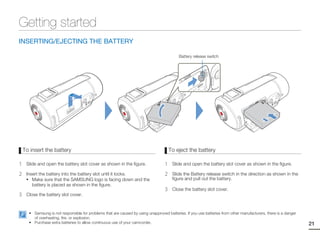
INSERTING/EJECTING THE BATTERY

                                                                                           Battery release switch


    To insert the battery                                                              To eject the battery

1    Slide and open the battery slot cover as shown in the figure.                 1    Slide and open the battery slot cover as shown in the figure.

2    Insert the battery into the battery slot until it locks.                      2    Slide the Battery release switch in the direction as shown in the
     • Make sure that the SAMSUNG logo is facing down and the                           figure and pull out the battery.
        battery is placed as shown in the figure.
                                                                                   3    Close the battery slot cover.
3    Close the battery slot cover.


      • Samsung is not responsible for problems that are caused by using unapproved batteries. If you use batteries from other manufacturers, there is a danger
        of overheating, fire, or explosion.
      • Purchase extra batteries to allow continuous use of your camcorder.                                                                                       21
Getting started

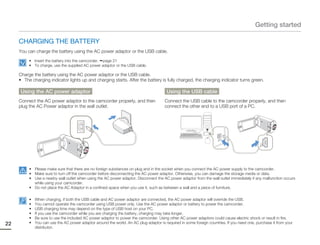
     CHARGING THE BATTERY
     You can charge the battery using the AC power adaptor or the USB cable.
          • Insert the battery into the camcorder. page 21
          • To charge, use the supplied AC power adaptor or the USB cable.

     Charge the battery using the AC power adaptor or the USB cable.
     • The charging indicator lights up and charging starts. After the battery is fully charged, the charging indicator turns green.

     Using the AC power adaptor                                                          Using the USB cable
     Connect the AC power adaptor to the camcorder properly, and then                   Connect the USB cable to the camcorder properly, and then
     plug the AC Power adaptor in the wall outlet.                                      connect the other end to a USB port of a PC.


          • Please make sure that there are no foreign substances on plug and in the socket when you connect the AC power supply to the camcorder.
          • Make sure to turn off the camcorder before disconnecting the AC power adaptor. Otherwise, you can damage the storage media or data.
          • Use a nearby wall outlet when using the AC power adaptor. Disconnect the AC power adaptor from the wall outlet immediately if any malfunction occurs
            while using your camcorder.
          • Do not place the AC Adaptor in a confined space when you use it, such as between a wall and a piece of furniture.

          •   When charging, if both the USB cable and AC power adaptor are connected, the AC power adaptor will override the USB.
          •   You cannot operate the camcorder using USB power only. Use the AC power adaptor or battery to power the camcorder.
          •   USB charging time may depend on the type of USB host on your PC.
          •   If you use the camcorder while you are charging the battery, charging may take longer.
          •   Be sure to use the included AC power adaptor to power the camcorder. Using other AC power adaptors could cause electric shock or result in fire.
22        •   You can use the AC power adaptor around the world. An AC plug adaptor is required in some foreign countries. If you need one, purchase it from your
              distributor.
Getting started

CHECKING THE BATTERY STATE                                          Battery level display
You can check the charging state and remaining battery capacity.   The battery level display shows the                   STBY 00:00:00 [253Min]
                                                                   amount of battery power remaining
 To check the charging state                                       in the battery.

The color of the LED indicates the power or charging state.


                                                                     Battery level
                                                                                                        State                              Message
                                                                      indicator

                                                                                                    Fully charged                                 -


                                                                                                    25~50% used                                   -


                                                                                                    50~75% used                                   -


                                                                                                    75~95% used                                   -


                                          Charging                                                  95~98% used                                   -
       (Orange)
                                                                                      Exhausted (flickers): The camcorder will be
                                        Fully charged                                 forced to turn off after 3 minutes. Change                  -
        (Green)
                                                                                           the battery as soon as possible.

                                                                           -          After 3 seconds, the camcorder turns off.         “Low Battery”


                                                                        The figures above are based on a fully charged battery at a normal
                                                                        temperature. Low ambient temperature may affect the use time.


                                                                                                                                                        23
Getting started

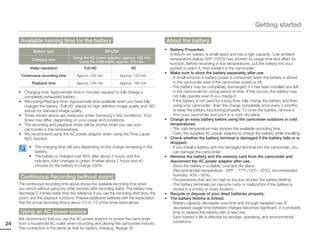
      Available running time for the battery                                                    About the battery
              Battery type                                  BP125A                             • Battery Properties
                                                                                                 A lithium-ion battery is small-sized and has a high capacity. Low ambient
                                       Using the AC power adaptor: approx. 120 min.              temperature (below 50ºF (10ºC)) may shorten its usage time and affect its
             Charging time
                                           Using the USB cable: approx. 270 min.
                                                                                                 function. Before recording in low temperatures, put the battery into your
            Video resolution                  Full HD                       SD                   pocket to warm it, then install it in the camcorder.
                                                                                               • Make sure to store the battery separately after use.
      Continuous recording time          Approx. 105 min.            Approx. 120 min.
                                                                                                 - A small amount of battery power is consumed when the battery is stored
             Playback time               Approx. 140 min.            Approx. 160 min.              in the camcorder even if the camcorder power is off.
                                                                                                 - The battery may be completely discharged, if it has been installed and left
     • Charging time: Approximate time in minutes required to fully charge a                       in the camcorder for a long period of time. If this occurs, the battery may
       completely exhausted battery.                                                               not fully operate even if you charge it.
     • Recording/Playback time: Approximate time available when you have fully                   - If the battery is not used for a long time, fully charge the battery and then,
       charged the battery. ‘Full HD’ stands for high definition image quality and ‘SD’            using your camcorder, drain the charge completely once every 3 months
       stands for standard image quality.                                                          to keep the battery functioning properly. To store the battery, remove it
     • Times shown above are measured under Samsung’s test conditions. Your                        from your camcorder and put it in a cool, dry place.
       times may differ, depending on your usage and conditions.                               • Charge an extra battery before using the camcorder outdoors in cold
     • The recording and playback times will be shorter when you use your                        temperatures.
       camcorder in low temperatures.                                                            - The cold temperature may shorten the available recording time.
     • We recommend using the AC power adaptor when using the Time Lapse                         - Carry the supplied AC power adaptor to charge the battery while travelling.
       REC function.                                                                           • Check whether the battery terminal is damaged if the battery falls or is
                                                                                                 dropped.
           • The charging time will vary depending on the charge remaining in the                - If you install a battery with the damaged terminal into the camcorder, you
             battery.                                                                              can damage the camcorder.
           • The battery is charged over 95% after about 2 hours, and the                      • Remove the battery and the memory card from the camcorder and
             indicator color changes to green. It takes about 2 hours and 40                     disconnect the AC power adaptor after use.
             minutes for the battery to charge 100%.                                             - Store the battery in a stable, cool and dry place.
                                                                                                   (Recommended temperature : 59ºF ~ 77ºF (15ºC~ 25ºC), recommended
                                                                                                   humidity: 40%~ 60%)
      Continuous Recording (without zoom)                                                        - Temperatures that are too high or too low shorten the battery lifetime.
     The continuous recording time above shows the available recording time when                 - The battery terminals can become rusty or malfunction if the battery is
     you record without using any other function after recording starts. The battery may           stored in a smoky or dusty location.
     discharge 2-3 times faster than this reference if you use the recording start/stop, the   • Recycle or dispose of your dead batteries properly.
     zoom, and the playback functions. Prepare additional batteries with the expectation       • The battery lifetime is limited.
     that the actual recording time is about 1/3 to 1/2 of the times listed above.               - Battery capacity decreases over time and through repeated use. If
                                                                                                   decreased usage time between charges becomes significant, it is probably
      Using an AC power source                                                                     time to replace the battery with a new one.
     We recommend that you use the AC power adaptor to power the camcorder                       - Each battery’s life is affected by storage, operating, and environmental
                                                                                                   conditions.
24   from a household AC outlet when recording and playing the camcorder indoors.
     The connection is the same as that for battery charging. page 22
Basic operation of the camcorder
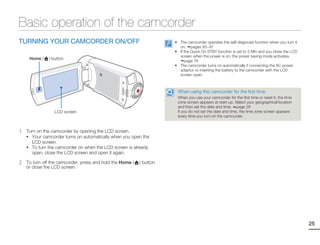
TURNING YOUR CAMCORDER ON/OFF                                         • The camcorder operates the self-diagnosis function when you turn it
                                                                        on. pages 93~97
                                                                      • If the Quick On STBY function is set to 5 Min and you close the LCD
                                                                        screen when the power is on, the power saving mode activates.
     Home (    ) button
                                                                           page 76
                                                                      • The camcorder turns on automatically if connecting the AC power
                                                                        adaptor or inserting the battery to the camcorder with the LCD
                                                                        screen open.


                                                                       When using this camcorder for the first time
                                                                       When you use your camcorder for the first time or reset it, the time
                                                                       zone screen appears at start-up. Select your geographical location
                                                                       and then set the date and time. page 28
                  LCD screen                                           If you do not set the date and time, the time zone screen appears
                                                                       every time you turn on the camcorder.


1   Turn on the camcorder by opening the LCD screen.
    • Your camcorder turns on automatically when you open the
      LCD screen.
    • To turn the camcorder on when the LCD screen is already
      open, close the LCD screen and open it again.

2   To turn off the camcorder, press and hold the Home (   ) button
    or close the LCD screen.


                                                                                                                                              25
Basic operation of the camcorder

     SETTING THE OPERATION MODES                                                     USING THE TOUCH SCREEN
     You can easily switch the operating mode by touching the tabs on                The touch screen lets you playback and recording with a simple
     the LCD screen.                                                                 touch of your finger. Place your hand on the rear side of the LCD
                                                                                     screen to support it. Then, touch the items displayed on the screen.
      Switching to the recording mode
     In STBY mode, touch the Video recording mode ( ) or Photo recording mode
     ( ) tab. Touching each tab switches to the respective mode.
     • You can also switch directly to the recording mode when pressing the
         Recording start/stop button in the playback mode.
     • You can switch to the desired recording mode by touching “Smart Auto”,
         “Manual”, or “Art Film” on the Home menu.


                       STBY 00:00:00 [253Min]


                                                                                     Touch
                                                                                     Slightly touch the items to select or execute with your finger.

      Switching to the playback mode
                                                                                                                  STBY 00:00:00 [253Min]
     You can switch to the playback mode by touching “Album” on the Home
     menu. page 47
     • You can also switch the operation mode directly into the playback thumbnail
       display by touching the Playback ( ) tab in STBY mode.


                    Smart Auto    Manual        Art Film


                      Album       Settings


26
Basic operation of the camcorder

Drag                                                                             Switching the information display mode
Drag the touch screen to up, down, left, or right to select the desired         You can switch the on-screen information display mode.
items or files.                                                                 Each time you touch the LCD screen, the full and minimum display
                                                                                modes alternate.
                                                                                                           Full display mode


                                                                                                           STBY 00:00:00 [253Min]


                                                                                                        Minimum display mode


                                                                                                           STBY

     • Do not place any protective film on the LCD screen.
     • If you leave a film attached for a long while, strong adhesion between
       the film and the surface of the screen may cause a malfunction of the
       touch screen.

     • Be careful not to accidentally press the button near the LCD screen
       while using the touch screen.
     • The tabs and indicators that appear on the LCD screen depend on
       the current recording/playback status of your camcorder.
     • The camcorder does not recognize touches if you touch more than two
       points on the screen at the same time. Touch one point at a time.            Warning indicators and messages may appear, depending on the
                                                                                    recording conditions. pages 93~97
                                                                                                                                                   27
Basic operation of the camcorder

     SETTING THE TIME ZONE AND DATE/TIME                                      4   Touch the time ( ) tab, and then set the time by touching the
                                                                                  corresponding item or dragging it to up or down.
     FOR THE FIRST TIME
                                                                                          Date / Time Set
     Set the date and time of your local area when turning on this
                                                                                                 Hr   Min
     camcorder for the first time.
                                                                                                 12   00    AM

     1   Open the LCD screen to turn on the camcorder.
         • The time zone (“Home”) screen appears based on Lisbon
           and London (Greenwich Mean Time).

     2   Select your local area on the map by touching the left (     ) or    5   Make sure the clock is correctly set, and then touch the (             )
         right ( ) tab on the LCD screen, and then press the (       ) tab.       tab.
         • The “Date/Time Set” screen appears.                                    • The date/time setting finishes.

                         Home                                                      • You can set the year up to 2037, based on the “Home” item.
                                                                                   • Set “Date/Time Display” to On. page 68
                                                                                   • Activating the ( ) icon moves the time forward by 1 hour.

                     London,Lisbon

             [GMT-00:00] JAN/01/2011 12:00AM                                        Internal rechargeable battery
                                                                                    • Your camcorder includes a internal rechargeable battery that
     3   Set the date by touching the corresponding item or dragging it               retains the date and time settings even after the power is turned
                                                                                      off.
         to up or down.
                                                                                    • If the battery is depleted, the current date/time values are reset to
                   Date / Time Set                                                    the default values. If this occurs, you need to recharge the internal
                                                                                      rechargeable battery (see below), and then re-set the current date
                     Month   Date    Year                                             and time.
                     JAN 01          2011                                           Charging the internal rechargeable battery
                                                                                    • The internal battery is always recharged while your camcorder is
                                                                                      connected to the AC power or while the battery is attached.
                                                                                    • If you have not used the camcorder for about 2 weeks and you
                                                                                      have not connected the AC power or the battery to it, the internal
                                                                                      battery fully discharges. If this occurs, charge the internal battery
                                                                                      by connecting the camcorder to the supplied AC adaptor for 24
                                                                                      hours.
28
Basic operation of the camcorder

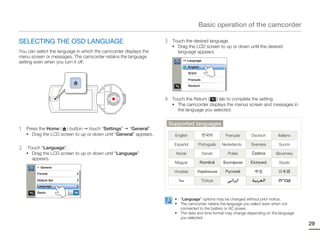
SELECTING THE OSD LANGUAGE                                         3    Touch the desired language.
                                                                        • Drag the LCD screen to up or down until the desired
You can select the language in which the camcorder displays the           language appears.
menu screen or messages. The camcorder retains the language
                                                                              >> Language
setting even when you turn it off.
                                                                                   English


                                                                                   Français

                                                                                   Deutsch


                                                                   4    Touch the Return (  ) tab to complete the setting.
                                                                        • The camcorder displays the menus screen and messages in
                                                                          the language you selected.


                                                                       Supported languages
1   Press the Home ( ) button touch “Settings” “General”.
    • Drag the LCD screen to up or down until “General” appears.         English                        Français    Deutsch     Italiano

                                                                         Español         Português     Nederlands   Svenska     Suomi
2    Touch “Language”.
    • Drag the LCD screen to up or down until “Language”                  Norsk               Dansk       Polski    Čeština    Slovensky
       appears.
                                                                         Magyar              Română    Български    Ελληνικά    Srpski
         > General

         Format
                                                                         Hrvatski       Українська      Русский

         Default Set                                                       ไทย                Türkçe
         Language

         Demo             ON

                                                                         • “Language” options may be changed without prior notice.
                                                                         • The camcorder retains the language you select even when not
                                                                           connected to the battery or AC power.
                                                                         • The date and time format may change depending on the language
                                                                           you selected.
                                                                                                                                           29
Getting ready to start recording
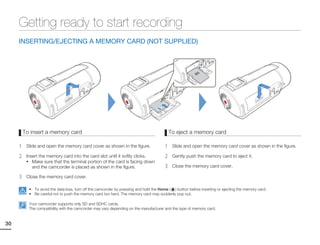
     INSERTING/EJECTING A MEMORY CARD (NOT SUPPLIED)


         To insert a memory card                                                            To eject a memory card

     1    Slide and open the memory card cover as shown in the figure.                  1    Slide and open the memory card cover as shown in the figure.

     2    Insert the memory card into the card slot until it softly clicks.             2    Gently push the memory card to eject it.
          • Make sure that the terminal portion of the card is facing down
             and the camcorder is placed as shown in the figure.                        3    Close the memory card cover.

     3    Close the memory card cover.

           • To avoid the data loss, turn off the camcorder by pressing and hold the Home ( ) button before inserting or ejecting the memory card.
           • Be careful not to push the memory card too hard. The memory card may suddenly pop out.

           Your camcorder supports only SD and SDHC cards.
           The compatibility with the camcorder may vary depending on the manufacturer and the type of memory card.


30
Getting ready to start recording

SELECTING A SUITABLE MEMORY CARD
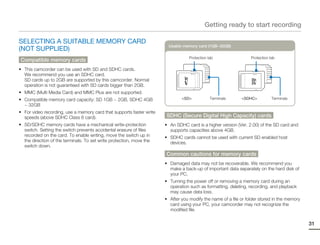
                                                                        Usable memory card (1GB~32GB)
(NOT SUPPLIED)
                                                                                  Protection tab                 Protection tab
Compatible memory cards
• This camcorder can be used with SD and SDHC cards.
  We recommend you use an SDHC card.
  SD cards up to 2GB are supported by this camcorder. Normal
  operation is not guaranteed with SD cards bigger than 2GB.
• MMC (Multi Media Card) and MMC Plus are not supported.
• Compatible memory card capacity: SD 1GB ~ 2GB, SDHC 4GB                     <SD>            Terminals     <SDHC>           Terminals
  ~ 32GB
• For video recording, use a memory card that supports faster write
  speeds (above SDHC Class 6 card).                                   SDHC (Secure Digital High Capacity) cards
• SD/SDHC memory cards have a mechanical write-protection             • An SDHC card is a higher version (Ver. 2.00) of the SD card and
  switch. Setting the switch prevents accidental erasure of files       supports capacities above 4GB.
  recorded on the card. To enable writing, move the switch up in      • SDHC cards cannot be used with current SD enabled host
  the direction of the terminals. To set write protection, move the     devices.
  switch down.
                                                                      Common cautions for memory cards
                                                                      • Damaged data may not be recoverable. We recommend you
                                                                        make a back-up of important data separately on the hard disk of
                                                                        your PC.
                                                                      • Turning the power off or removing a memory card during an
                                                                        operation such as formatting, deleting, recording, and playback
                                                                        may cause data loss.
                                                                      • After you modify the name of a file or folder stored in the memory
                                                                        card using your PC, your camcorder may not recognize the
                                                                        modified file.


                                                                                                                                             31
Getting ready to start recording

     Handling a memory card                                                The camcorder supports SD and SDHC memory cards,
     • We recommend that you power off the camcorder before                giving you a wider choice of cards!
       inserting or removing the memory card to avoid data loss.           The data storage speed may differ, depending on the
                                                                           manufacturer and production system.
     • Make sure to format the memory card on this camcorder. If           • SLC (Single Level Cell) system: faster write speed enabled.
       the memory card had been formatted by a PC or other device,         • MLC (Multi Level Cell) system: only lower write speed is
       using it on this camcorder without formatting may find trouble          supported.
       with recording and/or playback. Samsung is not responsible for      For best results, we recommend using a memory card that
       damage of recorded contents caused by such reasons.                 supports a faster write speed.
     • You have to format newly-purchased memory cards, memory             Using a lower write speed memory card for recording video may
       cards with data that your camcorder cannot recognize or with        cause difficulties when storing.
       data saved by other devices. Note that formatting erases all data   You may even lose your video data during the recording.
       on the memory card and deleted data cannot be recovered.            In an attempt to preserve every bit of the recorded video, the
     • A memory card has a certain life span. If you cannot record new     camcorder forcibly stores the video on the memory card and
       data, you have to purchase a new memory card.                       displays a warning:
                                                                           “Low speed card. Please record at a lower resolution”.
     • Do not bend, drop, or subject the card to strong impacts.           If you are unavoidably using a low speed memory card, the
     • Do not place foreign substances on the memory card terminals.       resolution of the recording may be lower than the set value.
       Use a soft dry cloth to clean the terminals if required.               page 63
                                                                           The higher the resolution and quality, the more memory the
     • Do not paste anything other than the label provided with the card
                                                                           camcorder uses.
       on the label pasting area of the card.
     • Do not use a damaged memory card.
                                                                              • Samsung is not responsible for data loss due to misuse, including
     • Be careful to keep the memory card out of the reach of children,         loss caused by any PC virus.
       who might swallow it.                                                  • We recommend using a memory card case to prevent data loss from
                                                                                motion or static electricity.
                                                                              • After a period of use, the memory card may get warm. This is normal
                                                                                and is not a malfunction.


32
Getting ready to start recording

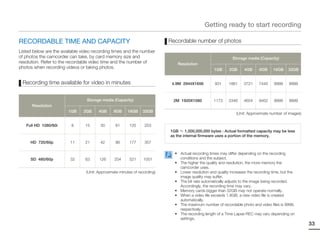
RECORDABLE TIME AND CAPACITY                                                Recordable number of photos
Listed below are the available video recording times and the number
of photos the camcorder can take, by card memory size and                                                     Storage media (Capacity)
resolution. Refer to the recordable video time and the number of               Resolution
photos when recording videos or taking photos.                                                      1GB     2GB      4GB     8GB     16GB     32GB


 Recording time available for video in minutes                               4.9M 2944X1656         931     1861     3721    7440     9999    9999


                                 Storage media (Capacity)                    2M 1920X1080           1173    2346     4654    9402     9999    9999
      Resolution
                        1GB    2GB      4GB     8GB     16GB     32GB
                                                                                                                (Unit: Approximate number of images)


   Full HD 1080/60i      8      15       30      61       125     253
                                                                            1GB     1,000,000,000 bytes : Actual formatted capacity may be less
                                                                            as the internal firmware uses a portion of the memory.
     HD 720/60p          11     21       42      86       177     357

                                                                              • Actual recording times may differ depending on the recording
     SD 480/60p          32     63      126      254      521     1051          conditions and the subject.
                                                                              • The higher the quality and resolution, the more memory the
                                                                                camcorder uses.
                                 (Unit: Approximate minutes of recording)     • Lower resolution and quality increases the recording time, but the
                                                                                image quality may suffer.
                                                                              • The bit rate automatically adjusts to the image being recorded.
                                                                                Accordingly, the recording time may vary.
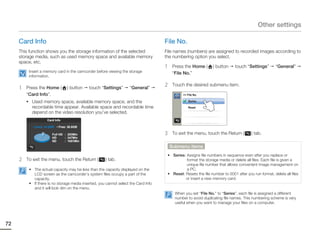
                                                                              • Memory cards bigger than 32GB may not operate normally.
                                                                              • When a video file exceeds 1.8GB, a new video file is created
                                                                                automatically.
                                                                              • The maximum number of recordable photo and video files is 9999,
                                                                                respectively.
                                                                              • The recording length of a Time Lapse REC may vary depending on
                                                                                settings.
                                                                                                                                                       33
Getting ready to start recording

     USING THE GRIP BELT                                                    Switch grip (Either handed grip)
     Adjust the length of grip belt so that the camcorder is stable when    The camcorder is designed for you to use conveniently with either
     you press the Recording start/stop button with your thumb.             your right or left hand. If you want to use this function, set “Switch
                                                                            Grip” to “ON” in the Settings menu. page 77


                                                                                                                             STBY 00:00:00 [253Min]


                                                                                     <When you hold the camcorder with your left hand>


                                                                                                    STBY 00:00:00 [253Min]


                                                                                     <When you hold the camcorder with your right hand>


                                                                           If you make the grip belt too tight and use excessive force to insert your
                                                                           hand, the grip belt hook of the camcorder may be damaged.


34
Getting ready to start recording

ADJUSTING THE LCD SCREEN                                                 When you reverse and close the LCD screen by rotating it
The wide LCD screen on your camcorder offers high quality image          to 180° towards the lens, the camcorder switches to the
viewing.                                                                 playback mode automatically.


                                                                        Excessive rotation may damage the connective hinge between the
                                                                        screen and the camcorder.


                                                                        Clean fingerprints or dust on the screen with a soft cloth.


1   Open the LCD screen with your finger.
    • The screen opens up to 90°.

2   Rotate the LCD screen towards the lens.
    • You can rotate it up to 180° towards the lens and up to 90°
      backward. To view recordings more conveniently, rotate the
      screen by 180° towards the lens, then fold it back to the body.


                                                                                                                                         35
Basic recording
     RECORDING VIDEOS                                                            2   Press the Recording start/stop button.
                                                                                     • The recording ( ) indicator appears and recording starts.
     This camcorder supports both High Definition (HD) and Standard
     Definition (SD) image resolutions. Set your desired resolution before                  00:00:00 [253Min]

     recording. page 63
          • Insert a memory card. page 30
          • Select the video recording mode. page 26
          • Open the Lens cover by using the Lens open/close switch.   page 16


                                                                                 3   To stop recording, press the Recording start/stop button again.

                                                                                       To pause recording
                                                                                       The camcorder allows you to pause temporarily while recording a
                                                                                       video. With this function, you can record your favorite scenes as a
                                                                                       single video.

                                                                                       Touch the Pause (     ) tab on the LCD screen to pause while
                                                                                       recording. Touch the Recording (     ) tab to resume.

                                                                                                 00:00:00 [253Min]


     1   Select a subject to record.
         • Adjust the LCD screen to the best angle for recording.
         • Use the Zoom dial or Zoom (      ) tab on the LCD screen to
           adjust the size of the subject. page 40


36
Basic recording

                                                                         • Videos are compressed in the H.264 (MPEG-4.AVC) format.
• If the power is interrupted or an error occurs during recording, the
                                                                         • Eject the battery when you have finished recording to prevent
  video may not be recorded/edited.
                                                                           unnecessary battery power consumption.
• Samsung is not responsible for any damage caused by a failure of
                                                                         • For the on-screen information display, see page 17
  normal recording or playback operation because of memory card error.
                                                                         • For approximate recording time, see page 33.
• Note that damaged data cannot be recovered.
                                                                         • Sound is recorded by the internal stereo microphone located on
• Do not turn off the camcorder or remove the memory card while
                                                                           the front of the camcorder. Make sure that the microphone is not
  accessing the storage media. Doing so may damage the storage
                                                                           blocked.
  media or the data in the storage media.
                                                                         • Before recording an important video, make sure to test the recording
                                                                           function to see if there any problems with the audio or video
                                                                           recording.
                                                                         • For various functions available during recording, see pages 50~57
                                                                         • If the power cable/battery is disconnected or recording is disabled
                                                                           during recording, the system is switched to the data recovery mode.
                                                                           While data is being recovered, no other function is enabled. When
                                                                           the recording time is short, the data recovery might fail.
                                                                         • You can adjust the brightness of the LCD screen in the menu options.
                                                                           Adjusting the LCD screen does not affect the image being recorded.
                                                                              page 67
                                                                         • The menu setting tabs shown on the LCD screen do not affect the
                                                                           image being recorded.
                                                                         • The Home ( ) button cannot be used during video recording.
                                                                         • Recording videos in a quiet environment increases microphone
                                                                           sensitivity that may record surrounding ambient noise. The increasing
                                                                           microphone sensitivity can let the camcorder record zoom noises
                                                                           during zooming (the sound of the zoom mechanism etc).
                                                                         • When you record indoors or in the dark places, ISO sensitivity is
                                                                           automatically adjusted. It can make interference effects on images
                                                                           and you cannot view the images recorded in the dark places
                                                                           correctly. We recommend you to use professional camcorders like a
                                                                           infrared camcorder when recording at night.
                                                                         • An image can be shaken when the OIS Duo function is enabled if the
                                                                           camcorder is mounted on a tripod or fixed on a place. Release the
                                                                           OIS Duo function when the camcorder is mounted on a tripod.


                                                                                                                                                   37
Basic recording

     RECORDING PHOTOS                                                            2   Adjust the subject at the center of the LCD screen, and press
                                                                                     the Recording start/stop button.
     You can take photos and store them in the storage media. Set the
                                                                                     • The shutter sound is heard and the photo is recorded.
     desired resolution before recording. page 63
          • Insert a memory card. page 30
          • Select the photo recording mode. page 26
          • Open the Lens cover by using the Lens open/close switch.   page 16


                                                                                      Do not turn off the camcorder or remove the memory card when taking
                                                                                      photos as it may damage the storage media or data.


                                                                                      • Recordable number of photos varies depending on the photo
                                                                                        resolution. page 33
                                                                                      • The camcorder does not record audio when you take photos.
                                                                                      • You can adjust the brightness of the LCD screen in the menu
                                                                                        options. Adjusting the LCD screen does not affect the image being
                                                                                        recorded. page 67
                                                                                      • For on-screen display information, see page 18.
                                                                                      • For various functions available during recording, see pages 50~57
                                                                                      • Photo files conform to the DCF (Design rule for Camera File system)
     1   Select a subject to record.                                                    standard, established by JEITA (Japan Electronics and Information
                                                                                        Technology Industries Association.)
         • Adjust the LCD screen to the best angle for recording.
         • Use the Zoom dial or Zoom (      ) tab on the LCD screen to
           adjust the size of the subject. page 40


38
Basic recording

RECORDING WITH EASE FOR BEGINNERS                                            Appears when recording at night. (Night)
(SMART AUTO)
                                                                             Appears when recording images of landscapes with backlighting. (Backlight)
User-friendly SMART AUTO optimizes your camcorder to the
recording conditions automatically, providing beginners with the             Appears when recording people. (Portrait)
best performance.
                                                                             Appears when recording a very bright scene. (White)
1   Press the Home ( ) button touch “Smart Auto”.
                                                                             Appears when recording an outdoor scene. (Landscape)
    • Smart Auto (  ) indicator appears on the LCD screen.
                                                                             Appears when recording images using close-up. (Macro)

                                                                             Appears when recording images of clear skies. (Blue sky)
     Smart Auto     Manual       Art Film

                                                                             Appears when recording images of forested areas. (Natural green)

       Album       Settings                                                  Appears when recording images of sunsets. (Sunset)


2   Align your subject in the frame.                               3   To record the video or photo, press the Recording start/stop
    • The camcorder automatically detects the scene (Landscape,        button.
       etc.) and adjusts the camcorder settings accordingly.
    • The appropriate scene icon appears on the LCD screen.
                                                                   4   To cancel the Smart Auto mode, press the Home (                    ) button
        STBY 00:00:00 [253Min]                                           touch “Manual”.
                                                                        • Most settings are automatically adjusted in the Smart Auto mode. To
                                                                          set or adjust functions on your own, select “Manual” on the Home
                                                                          menu.
                                                                        • When the camcorder fails to recognize the recording situations, it
                                                                          records in the basic setting ( ).
                                                                        • The camcorder may not select the correct scene depending on
                                                                          shooting conditions, such as camcorder shake, lighting, and distance
                                                                          to the subject.
                                                                        • The camcorder may not detect the portrait mode depending on the
                                                                          orientation or the brightness of faces.


                                                                                                                                                          39
Basic recording

     ZOOMING                                                                                 T: Telephoto

     This camcorder allows you to record using optical X10 zoom and
     digital zoom by rotating the Zoom dial or touching the Zoom
     ( ) tab on the LCD screen.


                                                 T: Recording enlarged image
                                                    (telephoto)


                                                 W: Recording wide area
                                                    (wide-angle)


               STBY 00:00:00 [253Min]


      To zoom in                                                                             W: Wide-angle

     Rotate the Zoom dial towards T (telephoto). Or touch the Zoom               •   Using the optical zoom does not degrade the image quality and clarity.
     ( ) tab, and then touch the Telephoto ( ) tab.                              •   Use the digital zoom when you want to zoom more than the optical zoom
     • The distant subject is gradually magnified.                                   range. page 65
     • The highest zoom magnification ratio is X10 in the normal zoom-in.        •   Focusing may become unstable when you record with a fast zoom or
                                                                                     zoom into a subject standing too far away. If this occurs, use the manual
                                                                                     focus function. (Video recording mode only) page 53
      To zoom out                                                                •   The minimum distance you can have between the camcorder and subject
                                                                                     while maintaining sharp focus is about 1cm (about 0.4 inches) for wide
     Rotate the Zoom dial towards W (wide-angle). Or touch the Zoom                  angle and about 1m (about 40 inches) for telephoto. If you want to shoot
     ( ) tab, and then touch the Wide-angle ( ) tab.                                 the subject close to the lens at a wide angle, use the Tele Macro function.
                                                                                       page 64
     • The subject gets smaller and further away.
40   • The smallest zoom ratio is the subject’s original size in the zoom-out.
                                                                                 •   Frequent use of the zoom function consumes more power.
                                                                                 •   The camcorder can record the sound of the zoom mechanism.
Basic playback
CHANGING THE PLAYBACK MODE
You can switch to the playback mode by selecting “Album” on the Home menu. You can also switch the operation mode directly into the playback thumbnail display
by touching the Playback ( ) tab on the LCD screen.
• The most recently created file is highlighted in the thumbnail view.
• The camcorder selects the thumbnail display options based on the standby mode that was last used. However, you can choose the video or photo thumbnail
   view display options by touching the Video thumbnail view ( ) or Photo thumbnail view ( ) tab on the LCD screen.
     Understanding how to change the operation modes
     You can easily change the playback mode by touching the LCD screen or using the button as shown in the following figures:


                  Using the Playback (            ) tab

                      STBY 00:00:00 [253Min]


                                                                        <Video thumbnail view>                        <Photo thumbnail view>


                  Using the Home (             ) button


                                                                      Smart Auto   Manual     Art Film


                                                                        Album      Settings


                                                                             <Home menu>                              <Video thumbnail view>


     • You can choose the thumbnail display type you want by selecting “Thumbnail” in the Settings menu or using the Zoom dial.    page 65                       41
     • You can switch the playback mode to the recording mode by pressing the Recording start/stop button.
Basic playback

     PLAYING VIDEOS                                                      Find videos in various ways
     You can preview recorded videos in the thumbnail index view, find   Drag the thumbnails to up
     and play your desired video directly.                               or down on the LCD screen
                                                                         to search the thumbnails
          • Insert a memory card. page 30                                you want.
          • Select the video playback mode.    page 41


     1   Touch the thumbnail of the desired video clip.
         • The camcorder plays the video you selected.

                                                                         When playback is paused,
                                                                         drag the image to left or
                                                                         right on the LCD screen to
                                                                         go to the previous or next
                                                                         file.


     2   To stop playback and return to the thumbnails, touch the
         Thumbnail view (   ) tab.
                                                                         Touch a point or drag the
               00:00:20/ 00:01:03   100_0001                             pointer to left or right in the
                                                                         playback progress bar on           00:00:20/ 00:01:03   100_0001


                                                                         the LCD screen to move
                                                                         directly to the section of the
                                                                         video you want.


42
Basic playback

Do not power off or eject the memory card during photo playback.           To adjust the volume during video playback
Doing so may damage the recorded data.
                                                                       You can hear the sound through the internal speaker of the
                                                                       camcorder while the video is playing back on the LCD screen.
• It may take some time to start playback, depending on the size and
  quality of the selected video.                                       1    Touch the Volume (                     ) tab on the LCD screen.
• The camcorder may not play back the following video files:
  - A video recorded on another device.                                           00:00:20/ 00:01:03    100_0001

  - A video whose file format is not supported by the camcorder.
• You can use various playback options during the video playback.
     page 44
• You can set playback settings using the “Video Play Option” menu.
     page 66
• You can play back the recorded videos on a TV or PC. pages
  80~82, 86~92
• If you touch the MENU ( ) tab or press the Home ( ) button           2    Touch the (          )/(      ) tab to increase or decrease audio volume.
  during playback, the video playback is paused and the menu screen
  appears.                                                                         00:00:20/ 00:01:03   100_0001


                                                                                            10


                                                                             • The sound level is adjusted between “0~19”. When the level is at “0”,
                                                                               you cannot hear sound.
                                                                             • When the camcorder is connected to a TV, you will not hear the
                                                                               sound from the speaker on the camcorder.


                                                                                                                                                        43
Basic playback

      Various playback operations                                         Skip playback
                                                                         Touch the Reverse skip (         ) / Forward skip (     ) tab during
     Playback / Pause / Stop                                             playback.
                                                                         • Touching the Forward skip (           ) tab plays the next video.
     • Playback and pause alternate when you touch the Playback          • Touching the Reverse skip (           ) plays the beginning of the scene.
       (      ) / Pause (  ) tab during playback.                           If reverse skip (     ) is touched within 3 seconds from the start of
     • Touch the Thumbnail view (    ) tab to stop playback and return      the file, the previous video plays.
       to the thumbnail.                                                 • Place and hold your finger on the Reverse skip (            ) / Forward
                                                                            skip (     ) tab to search for a video quickly. When you lift off your
              00:00:20/ 00:01:03   100_0001
                                                                            finger, the selected video plays.

                                                                          Slow playback
                                                                         When playback is paused, touching the Reverse slow ( )/
                                                                         Forward slow (   ) tab reduces the playback speed:
                                                                         • Reverse/forward playback slow rate: x1/2 x1/4 x1/8                   x1/2
                                                                                   00:00:20/ 00:01:03   100_0001

     Search playback
     During playback, each touch of the Reverse search ( ) / Forward
     search (   ) tab increases the playback speed:
     • RPS (Reverse Playback Search)/FPS (Forward Playback Search)
       rate: x2 x4 x8 x2
              00:00:20/ 00:01:03   100_0001


                                                                          Frame by frame playback
                                                                         When playback is paused, touching the Reverse frame advance
                                                                         (    ) / Forward frame advance ( ) tab makes playback go reverse
                                                                         or forward one frame at a time.
                                                                              • Touch the Playback (     ) tab to play back in normal speed.
                                                                              • You can hear sound only when the playback is in normal speed.

44
Basic playback

VIEWING PHOTOS                                                          Find photos in various ways
You can view recorded photos by using various playback functions.       Drag the thumbnails to up
                                                                        or down on the LCD screen
     • Insert a memory card. page 30
                                                                        to search the thumbnails
     • Select the photo playback mode.   page 41
                                                                        you want.

1   Touch the thumbnail of the desired photo.
    • The camcorder displays the photo you selected in full screen.


                                                                        Drag the image to left or
                                                                        right on the LCD screen to
                                                                        go to the previous or next
                                                                        file.


2   To return to the thumbnails, touch the Thumbnail view (   ) tab.
                 1/12   100_0001


                                                                       Do not power off or eject the memory card during photo playback.
                                                                       Doing so may damage the recorded data.


                                                                       • Loading time may vary depending on the size and quality of the
                                                                         photo you selected.
                                                                       • Your camcorder may not play back the following photo files normally:
                                                                         - A photo recorded on another device.
                                                                         - A photo with a file format not supported by this camcorder. (One
                                                                           that does not conform to DCF standards.)


                                                                                                                                                45
Basic playback

         Viewing a slide show                                                       Zooming during photo playback
     You can view a photo slide show with background music.                     You can magnify a playback image.

     1    Touch the Slide Show (      ) tab during photo playback.              1    Touch the desired photo.
          • The slide show starts from the current selected photo.                   • The selected photo appears on the full screen.
          • To pause the slide show, touch the LCD screen anywhere.
                                                                                2    Adjust the magnification with the Zoom dial.
                        1/12   100_0001
                                                                                     • Magnification starts from the center of the photo.
                                                                                     • You can zoom in from X1.1 to X8.0.

                                                                                3    Drag the LCD screen to up/down/left/right to view the area you
                                                                                     want on the magnified photo.

                                                                                                                       Magnified part

     2    To stop the slide show, touch the Return (        ) tab.
                                                                                                             X 1.3


                        1/12   100_0001


                                                                                4    To cancel, touch the Return (      ) tab.


                                                                                      • Photos recorded on other devices or those edited on a PC cannot
                                                                                        be magnified.
                                                                                      • While the playback zoom is in use, the other images cannot be
                                                                                        selected.
           • All photos are played back depending on the slide show options.
               page 66
           • You can adjust the background music’s volume level using the
             Volume (     ) tab while playing back the slide show with music.


46
Using the menu items
HANDLING MENUS                                                              3    Select the desired item, and then adjust the setting values you
                                                                                 want.
With Home menu, you can use various functions and change their
                                                                                 • The White Balance function of “Manual” is used here as an
settings according to your preference. The camcorder offers five
categories as Home menu and each category has submenu items.                        example.
                                                                                     STBY 00:00:00 [253Min]


                                                                                      White Balance : Auto


                                                                                Categories                             Functions

                                                                                                  Switches to Smart Auto mode.       page 39
                                                                                Smart Auto

                                                                                                  Items to adjust for scene conditions.   pages 50~53
    Using the Home (               ) menu                                         Manual


1    Press the Home (           ) button to display the Home menu screen.
                                                                                 Art Film
                                                                                                  Item for a fun and unique look.    pages 54~57


                                                                                                  Items for playback and editing.    pages 58~62
                                                                                  Album
       Smart Auto   Manual     Art Film

                                                                                                  Items for other settings (Shooting, Playback,
                                                                                 Settings         Display, Connectivity, General). pages 63~79
         Album      Settings


2    Touch one of five categories you want on the Home menu.                      • When using the Home menu items, some menu items can not be
                                                                                    used at the same time, or may be grayed out. For more information,
     • The items of the selected category appears.                                  see Troubleshooting on page 103
     • If you select “Smart Auto”, the Smart Auto mode is switched to.            • For easy understanding, the menu setting procedures on this page
     • If you select “Album”, the thumbnail view of the recorded                    are explained using the simplest methods. Menu setting methods
       image is switched to.                                                        can differ depending on the menu options you choose.                 47
Using the menu items

     MENU ITEMS
     • The items available in each menu vary depending on the operating mode.
     • For item operation details, see the page number listed under Page in the table.


      Manual menu items                                                          Art Film menu items
                                                               • : Accessible                                                                               • : Accessible
                                                          X : Not accessible                                                                           X : Not accessible

                     Operation                                                          Operation
                        mode     Video    Photo     Default value    Page                  mode         Video               Photo              Default value       Page
     Items                                                                      Items

         White Balance            •         •           Auto          50            Fader                  •                  X                        Off          54

                                                                                Time Lapse REC             •                  X                        Off          55
                EV                •         •            0            51         Digital Effect            •                  •                        Off          57


             Back Light           •         •            Off          51         Album menu items
                                                                                        Operation          Video                      Photo
             Self Timer           X         •            Off          52                   mode                                                          Default
                                                                                                                                                                   Page
                                                                                                    Thumbnail      Single   Thumbnail         Single      value
                                                                                Items                 view          view      view             view
          Super C.Nite            •         X         Normal          52
                                                                                    Delete             •             •            •             •             -     58

             Cont. Shot           X         •            Off          53
                                                                                   Protect             X             •            X             •            OFF    59

                                                                                    Divide             X             •            X             X             -     60
               Focus              •         X           Auto          53           Combine             •             X            X             X             -     61

                                                                                   File Info           X             •            X             •             -     62

48
Using the menu items

Settings menu items


                Items                    Default value     Page                Items                          Default value       Page
  Shooting          Video Resolution    Full HD 1080/60i    63    General                Card Info                  -              72

                    Photo Resolution    4.9M 2944X1656      63                            File No.                Series           72

                          OIS Duo             OFF           64                           Time Zone                Home             73

                         Tele Macro           OFF           64                                                JAN/01/2011
                                                                                       Date/Time Set                               73
                                                                                                                12:00AM
                        Digital Zoom          ON            65                           Date Type            JAN/01/2011          73
  Playback               Thumbnail            3X3           65                           Time Type                12 Hr            74
                    Video Play Option       Play All        66                          Beep Sound                 ON              74
                   Slide Show Option           -            66                         Shutter Sound               ON              75
   Display          LCD Brightness             -            67                         Auto Power Off             5 Min            75
                         Guideline            Off           67                       Quick On STBY                 Off             76
                   Date/Time Display          Off           68                          Switch Grip                ON              77
                         TV Display           ON            68                            Format                    -              77
                        HDMI TV Out          Auto           69                          Default Set                 -              78
                        Auto LCD Off          ON            69                           Language                English           78
 Connectivity           PC Software           ON            70                             Demo                    ON              79
                        USB Connect      Mass Storage       70
                                                                  Menu options and default values may be changed without prior notice.
                   TV Connect Guide            -            71

                  Anynet+(HDMI-CEC)           ON            71
                                                                                                                                         49
Advanced recordings
     White Balance                                                                           Understanding White Balance
     The color of your image depends on the type and quality of the light                    White balance (WB) is the process of removing unrealistic color casts,
     source. If you want the color of your image to be realistic, select an                  so that objects which appear white are rendered white in your image.
                                                                                             Proper white balance has to take into account the “color temperature”
     appropriate lighting condition to calibrate the white balance.                          of a light source, which refers to the relative warmth or coolness of
                                                                                             white light.
     1    Press the Home ( ) button touch “Manual”
          touch the White Balance ( ) tab.
                                                                                          To set the white balance manually
     2    Touch the desired submenu item.
                                                                                      1    Press the Home ( ) button touch “Manual” touch the
              STBY 00:00:00 [253Min]
                                                                                           White Balance (  ) tab touch the Custom WB ( ) tab.
                                                                                           • The “(     ) Set White Balance” indicator appears.
               White Balance : Auto

                                                                                      2    Fill the screen with a white object, and then touch the ( ) tab.
                                                                                           • The white balance setting is stored.
                                                                                           • The stored white balance setting will be applied the next time
                                                                                               you record.
         Submenu items
      • Auto (     ): Adjusts the white balance automatically according to the
                      recording conditions.
      •   Daylight ( ): Use outdoors in normal daylight. Adjusts the white
                           balance according to outdoor lighting conditions.
      •   Cloudy (      ): Use when recording in the shade or cloudy weather.
      •   Fluorescent (       ): Use when recording under white fluorescent lights.
      •   Tungsten ( ): Use when recording under halogen lamps and
                            incandescent lights.
      •   Custom WB ( ): Lets you manually adjust the white balance to match
                                 the light source or situation.                             • When setting the white balance manually, the subject must be white,
                                                                                              otherwise, your camcorder may not detect an appropriate setting value.
                                                                                            • The adjusted setting remains until you set the white balance again.
                                                                                            • During normal outdoor recording, setting to “Auto” may provide
                                                                                              better results.
                                                                                            • Cancel the digital zoom function for clear and precise setting.
                                                                                                page 65
50                                                                                          • Reset the white balance if light conditions change.
Advanced recordings

EV (Exposure Value)                                                        Back Light
Depending on the intensity of the ambient light, your videos and           When a subject is lit from behind, this function compensates for
photos may be too bright or dark. In these cases, you can adjust the       back lighting so that the subject does not appear too dark.
exposure to get a better videos and photos.
                                                                           1    Press the Home ( ) button touch “Manual”
1   Press the Home ( ) button            touch “Manual”                         touch the Back Light ( ) tab.
    touch the EV (  ) tab.
                                                                           2    Touch the desired submenu item.
2   Touch the decrease (         ) or increase (   ) tab to adjust the
                                                                                   STBY 00:00:00 [253Min]
    setting values.
    • The setting values range from -2.0 to +2.0
                                                                                      Back Light : Off
        STBY 00:00:00 [253Min]


        EV : 0

                                                                               Submenu items
                                                                            • Off (        ): Disables the function.
                                                                            • On (      ): Backlight compensation brightens the subject.

      Understanding EV (Exposure Value)                                           Back lighting causes the subject to be darker than the
      Exposure value is the total amount of light allowed to fall on the          background
      photographic medium (Image sensor) during the process of taking             It typically occurs when:
      photos or videos. The higher the number, the greater the exposure.          • The subject is in front of a window.
      For example, + 0.3 lets in more light than -0.3.                            • The person you want to record is
                                                                                       wearing white or shiny clothes and is
                                                                                       placed against a bright background.
                                                                                       The person’s face is too dark to
                                                                                       distinguish his/her features.
                                                                                  • The subject is outdoors and the
                                                                                       background is overcast.
                                                                                  • The light sources are too bright.
                   EV : 0                                                         • The subject is in front of a snowy
                                                                                       background.
                                                                                                                                              51
Advanced recordings

     Self Timer                                                                       Super C.Nite
     When the self-timer is enabled, there is a time delay of 10 seconds              Use to get better images of slowly moving subjects or subjects
     before recording starts. You can take photos of yourself.                        in dark places. When you turn the Super C.Nite function on, the
                                                                                      camcorder adjusts the shutter speed so that the images are brighter
           Select the photo recording mode.      page 26                              without compromising color.
                                                                                            Select the video recording mode.    page 26
     1    Press the Home ( ) button touch “Manual”
          touch the Self Timer ( ) tab.
                                                                                      1    Press the Home ( ) button touch “Manual”
     2    Touch the desired submenu item.                                                  touch the Super C.Nite ( ) tab.

                                   9999
                                                                                      2    Touch the desired submenu item.
                                                                                               STBY 00:00:00 [253Min]
                Self Timer : Off


                                                                                               Super C.Nite : Normal


         Submenu items
      • Off (        ): Disables the function.                                            Submenu items
      • On (        ): There is a time delay of 10 seconds after you press the
                        Recording Start/Stop button.                                   • Off (   ): Disables the function.
                                                                                       • Normal ( ): The shutter opens for 1/60 of a second in the normal
                                                                                                          mode and automatically switches to open for 1/30 of a
           • The camcorder automatically turns the Self Timer function off after it                       second in a dark place. Use this function to get bright
             has been used once. You must turn it on each time you want to use                            images in a dark place.
             it.                                                                       • Super (      ) : The shutter opens for 1/15 of a second regardless of
           • When the camcorder exits from Manual mode, the Self Timer                                    surrounding conditions. Use this function to get bright
             function is automatically set to Off.                                                        images in a darker place.


                                                                                            The images may not seem smoothly because the camcorder has
                                                                                            recorded them with the low shutter speed when using Super C.Nite.
52
Advanced recordings

Cont. Shot                                                                   Focus
The Continuous Shot function lets you capture up to eight photos in          The camcorder usually focuses on a subject automatically (auto
rapid.                                                                       focus). When you turn the camcorder on, focus is always set to
                                                                             automatic. You can also set the focus manually.
      Select the photo recording mode.    page 26
                                                                                    Select the video recording mode.              page 26

1    Press the Home ( ) button touch “Manual”
     touch the Cont. Shot ( ) tab.                                           1     Press the Home (              ) button        touch “Manual”
                                                                                   touch the Focus (               ) tab.
2    Touch the desired submenu item.
                                                                             2     Touch the desired submenu item.
                              9999
                                                                                        STBY 00:00:00 [253Min]


           Cont. Shot : Off
                                                                                         Focus : Auto


    Submenu items
                                                                                  Submenu items
 • Off (       ): The camcorder records only one photo image.
 • On (       ): When you press the Recording start/stop button, the          •    Auto (      ): In most situations, it is better to use the automatic focus feature, as it lets
                                                                                   you concentrate on the creative side of your recording.
                 camcorder can take up to 8 photos in one second.             •    Manual (        ): You may need to focus manually under conditions in which automatic
                                                                                   focusing is difficult or unreliable. To adjust the focus, place and hold your finger on the
                                                                                   (    ) for a nearer subject, and on the (        ) tab for a farther subject. The nearer or
      • When an error occurs (Card Full, etc.) during continuous shot, the         farther icon ( /        ) appears when focus adjustment reaches the end. The camcorder
                                                                                   applies the adjusted value right after you touch the (           ) or (  ) tab.
        recording stops and an error message appears.
      • When the Cont. Shot is On, the photo resolution is fixed to
        1920x1080.                                                                  •   The Auto Focus (AF) setting is useful when you operate the zoom function because
      • When the camcorder exits from Manual mode, the Cont. Shot                       you might not be able to keep accurate focus after the zoom ratio has been
        function is automatically set to Off.                                           changed.
                                                                                    •   In the manual focus setting menu screen, you can access auto focus by touching
                                                                                        the AF( ) tab on the screen. You can return to manual focus by touching the
                                                                                        manual focusing tabs.
                                                                                    •   When the camcorder exits from Manual mode or switch to the photo recording
                                                                                        mode, the Focus function is automatically set to Auto.                                      53
Special effects for recordings
     Fader                                                                            Recording a video with Fade effect

     You can give your recording a professional look by using special                                  Fade In (Approx.3 seconds)
     effects such as fade in at the beginning of a sequence or fade out at
     the end of a sequence.
           Select the video recording mode.         page 26


     1    Press the Home (               ) button   touch “Art Film”     touch the
          Fader (   ) tab.

     2    Touch the desired submenu item.
                STBY 00:00:00 [253Min]


                Fader : Off


                                                                                                            Fade Out (Approx. 3 seconds)

                                                                                      Fade in
                                                                                      With “Fader” set to On, press the Recording start/stop button. The
         Submenu items                                                                recording starts with a dark screen, and then the image and sound
                                                                                      fade in.
      • Off (        ): Disables the function.
      • On (        ): When you start or stop recording, the recording fades in or    Fade out
                       fades out accordingly.                                         With “Fader” set to On, press the Recording start/stop button to
                                                                                      stop recording. The image and sound fade out, the screen goes
                                                                                      black, and then the recording stops.


                                                                                     • The camcorder automatically turns the Fader function off after it has
                                                                                       been used once. You must reset it each time you want to use it.
                                                                                     • When the camcorder sets the Time Lapse REC function to On or
                                                                                       exits from the Art Film mode, the Fader function is automatically set
                                                                                       to Off.
54
Special effects for recordings

Time Lapse REC                                                              3    After setting the Time Lapse REC mode, press the Recording
                                                                                 start/stop button.
Using the Time Lapse feature, you can program your camcorder to
                                                                                 • The Time Lapse recording starts.
create a time lapse video by recording a series of frames over a set
                                                                                 • Time Lapse REC only supports the 720/60p resolution.
period of time with a set time interval between each frame. The Time
Lapse feature lets you create time lapse videos of blooming flowers                     00:00:00 [253Min]
and similar subjects.                                                                           0.5 Sec/72Hr
                                                                                        Time Lapse Recording...

     • Select the video recording mode. page 26
     • To record in the Time Lapse REC mode, you must set the recording
       interval between frames (Interval) using the menu.


1   Press the Home ( ) button                touch “Art Film”   touch the
    Time Lapse REC (   ) tab.
                                                                                Submenu items
        STBY 00:00:00 [253Min]
                                                                            • Off (  ): Disables the function.
                                                                            • 0.5 Sec ( 0.5 ): Enables the interval recording function. Images are
        Time Lapse REC : Off                                                                   automatically captured one frame at a time, at 0.5
                                                                                               seconds interval and stored in the storage media.
                    0.5     1        3   5
                                                                            • 1 Sec ( 1 ): Enables the interval recording function. Images are
                                                                                            automatically captured one frame at a time, at 1 second
                                                                                            interval and stored in the storage media.
                                                                            • 3 Sec ( 3 ): Enables the interval recording function. Images are
                                                                                            automatically captured one frame at a time, at 3 seconds
2   Touch the desired submenu item.                                                         interval and stored in the storage media.
                                                                            • 5 Sec ( 5 ): Enables the interval recording function. Images are
                                                                                            automatically captured one frame at a time, at 5 seconds
        STBY 00:00:00 [253Min]
                      0.5 Sec/72Hr
                                                                                            interval and stored in the storage media.

        Time Lapse REC : 0.5 Sec

                    0.5     1        3   5


                                                                                                                                                       55
Special effects for recordings

         Example of Time Lapse Recording

                      Total time for recording                                                 The Time Lapse Recording function records image frames at
                  Recording interval                                                           a predefined interval over the total recording time to produce a
                                                                                               time-lapse video.
                                                Timeline                                       Time Lapse Recording is useful for filming the following subjects:
                                                                                               • Blooming flowers
                                                                                               • A bird building a nest
                                                                                               • Clouds rolling by in the sky


                       Time for recording on the
                     storage media (a video clip of
                           Time Lapse REC)

                                                             00:00:20/ 00:01:03   100_0001               00:00:25/ 00:01:03   100_0001               00:00:30/ 00:01:03   100_0001


     •    Time lapse recording mode is released once recording has been finished. To start another Time Lapse Recording, repeat steps 1 to 3.
     •    When the camcorder sets the Fader function to On or exits from the Art Film mode, the Time Lapse REC function is automatically set to Off.
     •    60 captured images compose a video of 1 second length. Since the minimum length of a video to be saved by your camcorder is one second, the interval defines how
          long the time lapse recording should be. For example, if you set the interval to “5 Sec”, time lapse recording should be set to at least 10 minutes to record a minimum
          video length of 2 seconds (120 images).
     •    Time lapse REC function lets the camcorder record up to 72 hours until you stop recording or turn the camcorder’s power off.
     •    Once time lapse recording finishes the camcorder switches to the standby mode.
     •    You cannot pause recording during Time lapse recording.
     •    Press the Recording start/stop button if you want to stop time lapse recording.
     •    Audio is not recorded during time lapse recording.
     •    If a video recording fills up 1.8GB of storage memory, a new recording file is automatically started at that point.
     •    If the battery charge is exhausted during the time lapse recording, the camcorder saves the recording up to that point and switches to standby mode. After some time,
56        it displays a warning message, then turns off automatically.
     •    If memory runs out during a Time Lapse REC, the camcorder switches to standby mode after saving what was recorded so far.
     •    We recommend using the AC power adaptor for a time lapse recording.
Special effects for recordings

Digital Effect
                                                                           Submenu items
Using the Digital Effect function gives your recording a creative look.

1   Press the Home ( ) button       touch “Art Film”     touch the
                                                                             OFF
    Digital Effect ( ) tab.

2   Touch the desired submenu item.                                       Off( )                   Black & White( BW )         Sepia( S )
                                                                          Without any Digital      This mode changes           This mode gives the
    • You can view the hidden items by dragging the LCD screen            Effect, a normal,        the image to black and      image a reddish brown
      to left or right.                                                   natural image is         wite.                       look.
                                                                          displayed during
        STBY 00:00:00 [253Min]
                                                                          recording or playback.

        Digital Effect : Off
                  OFF


                                                                          Negative( N )            Art( )                      Noir( Nr )
                                                                          This mode reverses       This mode helps adjust      This mode creates
                                                                          the colors, creating a   for facial imperfections.   a stronger image by
                                                                          negative image.                                      increasing contrast.


                                                                          Western( W )             Dazzle( D )                 Ghost(     )
                                                                          This mode creates        This mode creates           This mode creates a
                                                                          a faded and old film     a brighter image            drawn out image effect
                                                                          vintage look.            by increasing color         like an apparition or
                                                                                                   saturation.                 ghost. (Video recording
                                                                                                                               mode only)


                                                                                                                                                         57
Editing videos and photos
     Delete
     You can erase your recordings one by one or all at once.

          • Insert a memory card. page 30
          • Select the video playback mode or photo playback mode.   page 41


     1   Touch the Delete (     ) tab on the thumbnail view display.
                                                                                 3   Touch “Yes”.
                                                                                     • The camcorder deletes all the files having the delete (              )
                                                                                       indicator.


                                                                                      • Deleted images cannot be recovered.
                                                                                      • Do not eject a memory card or power off while deleting videos
                                                                                        recorded on the storage media. Doing so may damage the storage
                                                                                        media or data.


     2   Touch the files you want to delete. After you have selected all
                                                                                      • You can also operate this function in the full and single image display
         the files you want to delete, touch the (   ) tab.                             mode.
         • The delete (                                                               • To protect important images from accidental erasure, activate the
                           ) indicator appears on the selected files.
                                                                                        image protection function in advance. page 59
           Whenever you touch the thumbnail file, the selection ( ) and               • You cannot delete protected files. Cancel the protect function first.
           release alternate.                                                              page 59
         • To delete all the files, touch the Select all (   ) tab. The delete        • If the write protection tab on the memory card is set to lock, you
           ( ) indicator appears on all the thumbnails.                                 cannot delete the images. page 31
         • To release the delete (     ) indicator all at once, touch the             • The delete function does not work if battery charge is insufficient. It is
           Clear ( ) tab.                                                               recommended to use AC power to continue power supply during the
                                                                                        deletion.


58
Editing videos and photos

Protect                                                                             00:00:00/ 00:01:03   100_0001


You can protect important recordings from accidental erasure.
The protected videos and photos can not be deleted unless you
format the memory card or cancel the protection.

     • Insert a memory card. page 30
     • Select the video playback mode or photo playback mode.   page 41

                                                                           Submenu items
1   Touch the file you want to protect.                                   • OFF: Turns off protection on protected image.
                                                                          • ON(    ): Protects the selected image.


                                                                              • You can operate this function in the full and single image display
                                                                                mode only.
                                                                              • If the write protection tab on the memory card is set to lock, you
                                                                                cannot apply this function. page 31


2   Touch the MENU (       ) tab   Touch the desired item next to
    “Protect”.

     Delete

     Protect      ON

     Divide

     File Info


                                                                                                                                                     59
Editing videos and photos

     Divide                                                                                00:00:20/ 00:01:03   100_0001

                                                                                  Divide
     You can divide a video into two, and easily delete a section you
     no longer need. As this function edits the original file, make sure to
     back up the original before dividing it.
          • Insert a memory card. page 30
          • Select the video playback mode.   page 41


     1   Touch the video you want to edit.
                                                                              5   Touch “Yes”.
                                                                                  • The video is divided into two video clips.
     2   Touch the MENU (     ) tab touch “Divide”.
                                                                                  • The second portion of the divided video is displayed as the
         • The selected video appears as paused.                                    last thumbnail.
                                                                                  • After the division, you can partially delete unnecessary
          Delete
                                                                                    sections of the divided videos or combine them with other
                      OFF
          Protect                                                                   videos.
          Divide
                                                                                   Do not eject a memory card or power off while editing a video recorded
          File Info
                                                                                   on the storage media. Doing so may damage the storage media or data.


                                                                                   • You can operate this function in the single image display mode only.
     3   Find the point of division by touching the playback control tabs.         • You cannot divide files that display the protect indicator (      ). Cancel
         • Playback control tabs:         /     /    /    /  /                       the protect function first. page 59
         • Drag the playback progress bar to left or right on the LCD              • The beginning or end of the divided videos may drift by approx. 2
            screen to move directly to the division point.                           seconds before or after the division point.
                                                                                   • The Divide function is not available under the following conditions:
     4   Touch the Pause (         ) tab at the point of division, and then          - If the total recorded time of the video is less than 6 seconds.
                                                                                     - If you trying to divide sections without leaving 3 seconds at the
         touch the Cutting (    ) tab.                                                 beginning and the end.
         • A message appears asking for your confirmation.                           - If the remaining section of the memory space is less than 15MB.
                                                                                     - When the number of files reaches 9999.
                                                                                   • Photos cannot be divided.


60
Editing videos and photos

Combine                                                                    3   Touch the ( ) tab.
                                                                               • A message appears asking for your confirmation.
You can combine two different videos. As this function edits the
original files, make sure to back up the original files before combining   4   Touch “Yes”.
them.                                                                          • The camcorder combines the video files you selected in the
     • Insert a memory card. page 30
                                                                                 order you designated, and then stores the combined videos
     • Select the video playback mode.   page 41                                 as a single video file.
                                                                                Do not eject a memory card or power off while editing a video recorded
1   Touch the Combine (      ) tab on the thumbnail view display.               on the storage media. Doing so may damage the storage media or data.


                                                                                • You cannot combine the files that are protected (        ). Cancel the
                                                                                  protect function first. page 59
                                                                                • The original videos are not preserved.
                                                                                • The Combine function is not available under the following conditions:
                                                                                  - If the Videos are in different resolution formats. For example, videos
                                                                                    recorded at “Video Resolution: Full HD 1080/60i” and “Video
                                                                                    Resolution: HD 720/60p” cannot be combined.
2   Touch the video thumbnails of the videos you want to combine
                                                                                  - If the file size of the combined videos exceeds 1.8 GB.
                                                                                  - If the remaining memory space on your memory card is less than
    in the order you want them combined.                                            15MB.
                                                                                  - If a video file format is not supported by the camcorder.
    • The Combine (       ) indicator and the order number appear on              - When the camcorder is playing a video file.
      the selected videos. Whenever you touch the video thumbnail,
      the selection ( ) and release alternate.
    • The checkbox on the video thumbnail does not appear if the
      video files have different resolutions.


                                                                                                                                                             61
Editing videos and photos

     File Info
     You can see image information for each image.
          • Insert a memory card. page 30
          • Select the video playback mode.   page 41


     1   Touch the desired file to view the file information.


     2   Touch the MENU (      ) tab touch “File Info”.
         • The information of the selected file appears.
                       File Info


                               100VIDEO
                            HDV_0008.MP4

               Date         :   JAN.01.2011
               Duration     :   00:00:05
               Size         :   9.56 MB
               Resolution   :   Full HD


     3   To exit the menu, touch the Return (      ) tab.


62
Other settings
Video Resolution                                                               Photo Resolution
You can select the resolution of video to be recorded on storage               You can select the resolution of the photo to be recorded.
media.
                                                                               1    Press the Home ( ) button          touch “Settings”        “Shooting”
1    Press the Home ( ) button          touch “Settings”       “Shooting”             “Photo Resolution”.
       “Video Resolution”.
                                                                               2    Touch the desired submenu item.
2    Touch the desired submenu item.
                                                                                         >> Photo Resolution
          >> Video Resolution                                                               4.9M 2944X1656
             Full HD 1080/60i                                                               2M 1920X1080
             HD 720/60p

             SD 480/60p


                                                                               3    To exit the menu, touch the Return (         ) tab.
3    To exit the menu, touch the Return (        ) tab.
                                                                                   Submenu items
    Submenu items
                                                                                • 4.9M 2944X1656 (     ): Records in the 2944x1656 resolution.
 • Full HD 1080/60i (   ): Records in the Full HD (1920x1080/60i) format.       • 2M 1920X1080 ( 2 ): Records in the 1920x1080 resolution.
                                                                                                         M


 • HD 720/60p (    ): Records in the HD (1280x720/60p) format.
 • SD 480/60p (    ): Records in the SD (720x480/60p) format.
                                                                                     • The number of recordable images differs according to the photo
                                                                                       resolution you select. page 33
      • “60i” indicates the camcorder will record in interlaced scan mode at         • Photos that are recorded on your camcorder may not playback
        60 fields per second.                                                          properly on other digital devices that do not support these photo
      • “60p” indicates the camcorder will record in progressive scan mode             sizes.
        at 60 frames per second.
      • Recorded files are encoded using Variable Bit Rate (VBR). VBR is an
        encoding system that automatically adjusts the bit rate in response
        to the image being recorded.
      • The available video recording time differs according to the video
        resolution you select. page 33

                                                                                                                                                            63
Other settings

     OIS Duo                                                                  Tele Macro
     Reduce camcorder shake and prevent blurred images with Optical           Using the Tele Macro function, you can get close up images which
     and Digital Image Stabilization functions.                               are created by focusing on a small portion of a large object at a tele
                                                                              angle. It is useful to get close up images of flowers or insects etc.
     1    Press the Home (        ) button   touch “Settings”   “Shooting”.
                                                                              1    Press the Home (         ) button      touch “Settings”          “Shooting”.
     2    Touch the desired item next to “OIS Duo”.
                                                                              2    Touch the desired item next to “Tele Macro”.
               > Shooting

               Video Resolution                                                          > Shooting

               Photo Resolution                                                          Video Resolution

               OIS Duo                  ON                                               Photo Resolution

               Tele Macro         OFF                                                    OIS Duo             OFF

                                                                                         Tele Macro                ON


     3    To exit the menu, touch the Return (      ) tab.

         Submenu items                                                        3    To exit the menu, touch the Return (              ) tab.

      • OFF: Disables the function.
      • ON( ): The OIS Duo function is enabled to compensate for shaking.         Submenu items
                                                                               • OFF: Disables the function.
                                                                               • ON ( ): You can focus on a small portion of a large object at a tele angle.

                                                                                    •   When recording in Tele Macro mode, the focus speed may be lowered.
                                                                                    •   Use a tripod (not supplied) to prevent camcorder shake in the Tele Macro
                                                                                        mode.
                                                                                    •   Avoid shadows when recording in the Tele Macro mode.
                                                                                    •   As the distance to the subject decreases, focusing area narrows.
                                                                                    •   When the distance between the camcorder and a subject is too close and
                                                                                        the camcorder cannot be in the focus, rotate the Zoom dial towards W
                                                                                        (wide-angle) a little bit and then adjust the focal distance between them.
                                                                                    •   When the Tele Macro is On and the camcorder magnifies a subject in tele
                                                                                        mode, the minimum focal distance between the camcorder and a subject
                                                                                        is 50cm.
64
Other settings

Digital Zoom                                                                         The top of the bar shows the digital zooming zone. The zooming zone
                                                                                     appears when you rotate the Zoom dial or use the Zoom ( ) tab.
The images optically magnified by the lens can be electronically                         Digital range
magnified up to the maximum 200 times.

1    Press the Home (        ) button    touch “Settings”       “Shooting”.                                  Optical range


2    Touch the desired item next to “Digital Zoom”.
                                                                                                         Zoom indicator
          > Shooting

          Photo Resolution

          OIS Duo
                                                                              Thumbnail
                             OFF

          Tele Macro         OFF                                              You can choose the 3x3 or 4x4 type as the thumbnail view display.

                                                                              1
          Digital Zoom             ON
                                                                                   Press the Home (      ) button    touch “Settings”        “Playback”
                                                                                     “Thumbnail”.

3    To exit the menu, touch the Return (         ) tab.                      2    Touch the desired submenu item.

                                                                                        >> Thumbnail
    Submenu items
                                                                                           3x3
 • OFF: Disables the digital zoom function. Only optical zoom is available.                4x4
 • ON: Enables higher digital zoom magnification.


      When you use the digital zoom, the camcorder processes the image
      digitally more than in the optical zoom mode. As a result, the image
      resolution may deteriorate.                                             3    To exit the menu, touch the Return (       ) tab.

                                                                                  Submenu items
                                                                               • 3X3: Displays the 3x3 type as the thumbnail view display.
                                                                               • 4X4: Displays the 4x4 type as the thumbnail view display.


                                                                                                                                                           65
Other settings

     Video Play Option                                                             Slide Show Option
     You can set a specific playback style according to your preference.           You can set the playback options for the slide show with the slide
                                                                                   show setting menus.
     1    Press the Home ( ) button          touch “Settings”       “Playback”
            “Video Play Option”.                                                   1    Press the Home ( ) button          touch “Settings”       “Playback”
                                                                                          “Slide Show Option”.
     2    Touch the desired submenu item.
                                                                                   2    Set the slide show options by touching the corresponding item
               >> Video Play Option
                                                                                        or dragging it to up or down.
                    Play All

                    Play One                                                                   Slide Show Option

                    Repeat All                                                                Interval   Music   Effect

                    Repeat One
                                                                                               1Sec      On      On


     3    To exit the menu, touch the Return (        ) tab.

         Submenu items                                                             3    To exit the menu, touch the Return (        ) tab.
      • Play All(  ): Plays video clips in succession starting from the selected
                      video to the last one, then returns to the thumbnail index       Submenu items
                      view.
      • Play One(    ): Plays the selected video only, and returns to the           • Interval: Continuously plays back photos at the interval you select. You
                        thumbnail view.                                                         can choose 1 sec. or 3 sec.
      • Repeat All( ): Plays all the video clips repeatedly until the Thumbnail     • Music: You can turn the internal background music on or off. This
                          view ( ) tab is touched.                                            camcorder has 7 default background melodies stored in the
      • Repeat One(       ): Plays the selected video only repeatedly until the               boot-up flash memory. If the music is on when the slide show
                             Thumbnail view ( ) tab is touched.                               starts, the 7 melodies will play back in shuffle mode.
                                                                                    • Effect: Continuously plays back photos using the fade in/out effect to
                                                                                              transition between images.


66
Other settings

LCD Brightness                                                                Guideline
This camcorder’s LCD brightness is optimized at the factory.                  Guideline displays straight line patterns on the LCD screen that can
However, you can adjust the LCD brightness according to the                   help you set the image composition when recording images. The
ambient environment.                                                          camcorder provides 3 types of guidelines.

1   Press the Home ( ) button           touch “Settings”        “Display”     1    Press the Home (       ) button     touch “Settings”        “Display”
    “LCD Brightness”.                                                              “Guideline”.

2   Touch the decrease ( ) or increase (          ) tab to adjust the         2    Touch the desired submenu item.
    setting values as you want.
                                                                                        >> Guideline
    • You can set values for LCD brightness between 0 and 10.
                                                                                           Off

            LCD Brightness                                                                 Cross


                  5                                                                        Grid

                                                                                           Safety Zone


                                                                              3    To exit the menu, touch the Return (          ) tab.

3   Touch the (     ) tab to complete the setting.                                Submenu items

4   To exit the menu, touch the Return (         ) tab.                        • Off: Disables the function.
                                                                               • Cross ( ): Placing the subject at the center cross point puts the
                                                                                              subject in the middle of the frame.
     • If the surroundings are too bright, adjust the brightness of the LCD
                                                                               • Grid ( ): For recording multiple subjects. Putting subjects at or near
       screen.
                                                                                            the grid cross points creates a balanced composition.
     • Adjusting the LCD screen does not affect the image you are
                                                                               • Safety Zone (      ): Positioning subjects within the Safety Zone rectangle
       recording.
                                                                                                       ensures they will be recorded.
     • A brighter LCD screen consumes more power.


                                                                                    • Positioning a subject at the cross point of a guideline provides a
                                                                                      balanced composition.
                                                                                    • Guidelines are not recorded.

                                                                                                                                                               67
Other settings

     Date/Time Display                                                           TV Display
     You can set the Date/Time Display function so that the date and             When your camcorder is connected to a TV, you can select whether
     time appear on the LCD screen.                                              the camcorder’s On Screen Display (OSD) appears on the TV
                                                                                 screen.
     1    Press the Home ( ) button           touch “Settings”       “Display”
          “Date/Time Display”.                                                   1    Press the Home (         ) button   touch “Settings”   “Display”.

     2    Touch the desired submenu item.                                        2    Touch the desired item next to “TV Display”.

                                                                                           > Display
               >> Date/Time Display
                                                                                           LCD Brightness
                  Off
                                                                                           Guideline
                  Date
                                                                                           Date/Time Display
                  Time
                                                                                           TV Display             ON
                  Date & Time


     3    To exit the menu, touch the Return (          ) tab.
                                                                                 3    To exit the menu, touch the Return (       ) tab.
         Submenu items
                                                                                     Submenu items
      •   Off: The current date/time information is not displayed.
      •   Date: Displays the current date.                                        • OFF: The OSD (On Screen Display) menus are only shown on the LCD
      •   Time: Displays the current time.                                               screen.
      •   Date & Time: Displays the current date and time.                        • ON: The OSD menus are shown on the LCD screen and the TV screen
                                                                                        as well.

           • The date/time will read “JAN/01/2011 12:00 AM” in the following
             case:                                                                     The menu screen, thumbnail display, and demo screens are shown on
             - When the internal rechargeable battery is depleted.                     the TV even if you set “TV Display” to “OFF”.
           • The date and time displayed by this function depend on the “Date
             Type” and “Time Type” settings. pages 73~74


68
Other settings

HDMI TV Out                                                                  Auto LCD Off
You can set the HDMI video output to match the TV you have                   You can set the LCD screen to darken automatically when there
connected the camcorder to.                                                  is no user interaction for a period of time to decrease power
                                                                             consumption.
1    Press the Home (      ) button    touch “Settings”       “Display”
     “HDMI TV Out”.                                                          1    Press the Home (         ) button   touch “Settings”   “Display”.

2    Touch the desired submenu item.                                         2    Touch the desired item next to “Auto LCD Off”.

                                                                                       > Display
          >> HDMI TV Out
                                                                                       Date/Time Display
             Auto
                                                                                       TV Display             ON
             480p
                                                                                       HDMI TV Out

                                                                                       Auto LCD Off           ON


3    To exit the menu, touch the Return (       ) tab.
                                                                             3    To exit the menu, touch the Return (       ) tab.
    Submenu items
                                                                                 Submenu items
 • Auto: The video signals are output in the same format as the recorded
         file. Use this setting only when connecting to an HDTV.              • OFF: Disables the function.
 • 480p: The recorded file is output in the 720x480p format. Use this         • ON: When the camcorder is idle for more than 2 minutes in the STBY
         setting only when connecting to a standard and analog TV which             mode, or for more than 5 minutes when recording a video, the
         supports SD (Standard Definition) progressive scan (480p) signals          power saving mode starts by dimming the LCD screen.
         through its HDMI jacks.

                                                                                   • When the “Auto LCD Off” function is enabled, you can press any
                                                                                     button on the camcorder to return LCD brightness to normal.
                                                                                   • Auto LCD Off is disabled in the following cases:
                                                                                     - When the camcorder has a cable connection. (USB cable, AC
                                                                                       power adaptor, etc.)
                                                                                     - While the Demo function is in operation.

                                                                                                                                                      69
Other settings

     PC Software                                                                      USB Connect
     If you set PC Software to On, you can use the built-in video and                 You can transfer data to a PC or print photos directly by establishing
     photo management software by connecting your camcorder to your                   the USB connection.
     PC using the camcorder’s USB cable. With this software, you can
     download stored video and photo images from the camcorder to                     1    Press the Home ( ) button touch “Settings”
     your PC’s hard disk and edit the video and photo files right on your                  “Connectivity” “USB Connect”.
     PC’s screen.

     1    Press the Home (          ) button   touch “Settings”
                                                                                      2    Touch the desired submenu item.

          “Connectivity”.                                                                       >> USB Connect

                                                                                                   Mass Storage
     2    Touch the desired item next to “PC Software”.                                            PictBridge

               > Connectivity

               PC Software             ON

               USB Connect

               TV Connect Guide                                                       3    To exit the menu, touch the Return (         ) tab.
               Anynet+ (HDMI-CEC)      ON
                                                                                          Submenu items
     3    To exit the menu, touch the Return (          ) tab.                         • Mass Storage : Connect to a PC to transfer videos or photos.
                                                                                                           page 91
                                                                                       • PictBridge : Connect to a PictBridge printer to print photos directly (when
         Submenu items                                                                                using the PictBridge function). page 84
      • OFF: Disables the function.
      • ON: The built-in editing software launches when you connect the
            camcorder to a PC.                                                              Before connecting a USB cable, check whether the current USB mode
                                                                                            is appropriate for the function you want to use.

           • The PC Software function is not available in the following conditions:
             - If “USB Connect” is set to “PictBridge”
           • To enable the PC Software function, set “USB Connect” to “Mass
             Storage”, in the system setting menu option. page 70
           • The PC Software is compatible with the Windows OS’s only.
70
Other settings

TV Connect Guide                                                                         Anynet+ (HDMI-CEC)
You can view the TV Connect Guide for instructions before you                            This camcorder supports Anynet+. Anynet+ is an AV network
connect the camcorder to your TV set.                                                    system that lets you control all connected Samsung AV devices with
                                                                                         a Samsung TV remote control that supports Anynet+.
1   Press the Home ( ) button touch “Settings”
    “Connectivity” “TV Connect Guide”.                                                   1    Press the Home (          ) button   touch “Settings”
                                                                                              “Connectivity”.
2   Touch the desired submenu item.
                                                                                         2    Touch the desired item next to “Anynet+ (HDMI-CEC)”.
         >> TV Connect Guide                            TV Connect Guide
                                                            Composite
            HDMI                                                                                   > Connectivity
                                                                        TV
            Composite                       Camcorder                        Video                 PC Software             ON
                                                                             L
                                                                                 Audio
                                                                             R
                                                                                                   USB Connect

                                                                                                   TV Connect Guide

                                                                                                   Anynet+ (HDMI-CEC)      ON

3   To exit the menu, touch the Return (          ) tab.
                                                                                         3    To exit the menu, touch the Return (        ) tab.
      To connect to a standard and analog TV
      with the supplied Audio/Video cable.                                                   Submenu items
                                                                                          • OFF : Disables the function.
                               Regular TV
                                                                                          • ON : The Anynet+ function is enabled.
                                                                                                 When the camcorder is connected to a TV that supports Anynet+,
                                                                                                 you can operate some functions of the camcorder using the TV’s
                                                                                                 remote control.
                Camcorder

                                                                                               • When you turn on the camcorder and it is connected by an HDMI
                                                                                                 cable to a TV that supports Anynet+, the TV automatically turns on.
                                                                                                 If you do not want to use the Anynet+ function, set the “Anynet+
                                                                                                 (HDMI-CEC)” to “OFF”.
                                                                                               • For details on the Anynet+ (HDMI-CEC) function, refer to the user
                                                                                                 manual of Samsung’s Anynet+ supported TV.
                                                                                                                                                                       71
Other settings

     Card Info                                                                       File No.
     This function shows you the storage information of the selected                 File names (numbers) are assigned to recorded images according to
     storage media, such as used memory space and available memory                   the numbering option you select.
     space, etc.
                                                                                     1    Press the Home (       ) button     touch “Settings”        “General”
          Insert a memory card in the camcorder before viewing the storage                “File No.”
          information.


     1   Press the Home (         ) button   touch “Settings”        “General”
                                                                                     2    Touch the desired submenu item.

         “Card Info”.                                                                          >> File No.

         • Used memory space, available memory space, and the                                      Series

           recordable time appear. Available space and recordable time                             Reset
           depend on the video resolution you’ve selected.
                     Card Info

            • Used: 40.5MB • Free: 30.8GB

                        Full HD : 253Min                                             3    To exit the menu, touch the Return (         ) tab.
                        HD      : 347Min
                        SD      : 1051Min
                                                                                         Submenu items
                                                                                      • Series: Assigns file numbers in sequence even after you replace or
     2   To exit the menu, touch the Return (         ) tab.                                    format the storage media or delete all files. Each file is given a
                                                                                                unique file number that allows convenient image management on
          • The actual capacity may be less than the capacity displayed on the                  a PC.
            LCD screen as the camcorder’s system files occupy a part of the           • Reset: Resets the file number to 0001 after you run format, delete all files
            capacity.                                                                          or insert a new memory card.
          • If there is no storage media inserted, you cannot select the Card Info
            and it will look dim on the menu.
                                                                                           When you set “File No.” to “Series”, each file is assigned a different
                                                                                           number to avoid duplicating file names. This numbering scheme is very
                                                                                           useful when you want to manage your files on a computer.


72
Other settings

Time Zone                                                                       Date/Time Set
You can easily set the clock to the local time when using your                  By setting the date and time, you can display the date and time of
camcorder while traveling.                                                      the recording during playback. page 28

Setting the local time
                                                                                Date Type
1    Press the Home ( ) button              touch “Settings”   “General”
     “Time Zone” “Visit”.                                                       You can set the date display to one of four types.

                                                                                1    Press the Home (       ) button    touch “Settings”        “General”
2    Select the time zone by touching the left ( )/right (         ) tab on          “Date Type”.
     the LCD screen, and then touch the (      ) tab.

                      Visit
                                                                                2    Touch the desired submenu item.

                                                                                          >> Date Type

                                                                                             2011/01/01

                                                                                             JAN/01/2011
                  London,Lisbon
                                                                                             01/JAN/2011
         [HOME-00:00] JAN/01/2011 12:00AM
                                                                                             01/01/2011

3    To exit the menu, touch the Return (          ) tab.
                                                                                3    To exit the menu, touch the Return (         ) tab.
    Submenu items
                                                                                    Submenu items
 • Home: The clock will be used according to your setting on the Date/Time
           Set menu. Select Home when using your camcorder for the first         •   2011/01/01: Displays the date in the year/month (two-digit)/day format.
           time or when returning the clock to your hometown date/time           •   JAN/01/2011: Displays the date in the month/day/year format.
           settings.                                                             •   01/JAN/2011: Displays the date in the day/month/year format.
 • Visit ( ): When you visit a different time zone, the Visit function lets      •   01/01/2011: Displays the date in the day/month (two-digit)/year format.
              you use the local time without changing your hometown time
              setting. The clock is adjusted according to the time difference
              between your home and the location you are visiting.
                                                                                      This function depends on the “Date/Time Display” setting.    page 68


                                                                                                                                                               73
Other settings

     Time Type                                                                   Beep Sound
     You can set the time display type to 12 hour or 24 hour.                    You can turn the beep that sounds when you touch tabs and
                                                                                 buttons on the screen on or off.
     1    Press the Home (      ) button     touch “Settings”      “General”
          “Time Type”.                                                           1    Press the Home (      ) button    touch “Settings”       “General”.

     2    Touch the desired submenu item.                                        2    Touch the desired item next to “Beep Sound”.

                                                                                           > General
               >> Time Type
                                                                                           Beep Sound           ON
                  12 Hr
                                                                                           Shutter Sound        ON
                  24 Hr
                                                                                           Auto Power Off

                                                                                           Quick On STBY


     3    To exit the menu, touch the Return (        ) tab.                     3    To exit the menu, touch the Return (       ) tab.


         Submenu items                                                               Submenu items

      • 12 Hr: Displays the time information in 12 hour units.                    • OFF: Disables the function.
      • 24 Hr: Displays the time information in 24 hour units.                    • ON: You will hear a beep sound when operating button or tabs such as
                                                                                        Recording start/stop button.


           This function depends on the “Date/Time Display” setting.   page 68
                                                                                       The Beep Sound is canceled in the following cases:
                                                                                       - During recording and playing
                                                                                       - When the camcorder has a cable connection. (Audio/Video cable, mini
                                                                                         HDMI cable, etc.)


74
Other settings

Shutter Sound                                                                 Auto Power Off
You can turn the shutter sound that plays when taking a photo with            You can set your camcorder to turn off automatically if it is idle for
the Recording start/stop button on or off.                                    5 minutes without performing an operation. This function prevents
                                                                              unnecessary power consumption.
1    Press the Home (      ) button    touch “Settings”       “General”.
                                                                              1    Press the Home ( ) button           touch “Settings”       “General”
2    Touch the desired item next to “Shutter Sound”.                               “Auto Power Off”.

                                                                              2
          > General
                                                                                   Touch the desired submenu item.
          Beep Sound           ON

          Shutter Sound        ON                                                       >> Auto Power Off

          Auto Power Off                                                                   Off

          Quick On STBY                                                                    5 Min


3    To exit the menu, touch the Return(        ) tab.

    Submenu items                                                             3    To exit the menu, touch the Return(         ) tab.
 • OFF: Disables the function.
 • ON: You will hear the shutter sound when taking a photo with the               Submenu items
       Recording start/stop button.
                                                                               • Off: Disables the function.
                                                                               • 5 Min: The camcorder turns off if idle for 5 minutes without performing
                                                                                         an operation.
      The camcorder does not make the shutter sound:
      - When the camcorder has a cable connection. (Audio/Video cable, mini
        HDMI cable, etc.)                                                           • Auto Power Off does not work in the following situations:
                                                                                      - When the camcorder has a cable connection. (USB cable, AC
                                                                                        power adaptor, etc.)
                                                                                      - While the Demo function is in operation.
                                                                                      - While you are recording (including the recording pause), playing
                                                                                        (except pause), or running a photo slide show.
                                                                                    • To turn the camcorder on again, close the LCD screen and then
                                                                                      open it.

                                                                                                                                                           75
Other settings

     Quick On STBY
                                                                           Submenu items
     When you are going to record frequently for an extended time, use
                                                                          • Off: Closing the LCD screen turns off the camcorder.
     the Quick On STBY function to reduce energy consumption and
                                                                          • 5 Min: Closing the LCD screen starts the Quick On STBY mode after a
     battery drain. With the Quick On STBY function On, closing the LCD            short period of time. After 5 minutes in Quick On STBY mode, the
     screen starts Quick On STBY.                                                  camcorder turns off.

     1   Press the Home ( ) button      touch “Settings”   “General”
         “Quick On STBY”.                                                     • We recommend turning off the camcorder after use to reduce energy
                                                                                consumption. However, as an alternative, you can use the Quick
                                                                                On STBY function under most shooting conditions to reduce energy
     2   Touch the desired submenu item.                                        consumption effectively.
                                                                              • The charging indicator keeps blinking in Quick On STBY mode.
              >> Quick On STBY
                                                                              • The Quick On STBY mode is not available under the following
                 Off                                                            conditions:
                 5 Min
                                                                                - When the LCD screen is open.
                                                                                - When you operate the buttons on the camcorder.
                                                                                - While recording.


     3   To exit the menu, touch the Return(   ) tab.


76
Other settings

Switch Grip                                                              Format
The camcorder is designed for you to use conveniently with either        Use this function if you want to delete all files completely or to
your right or left hand. If the “Switch Grip” sets to “On”, you can      correct problems on the storage media.
use the camcorder easily with both your hands.
                                                                         1   Press the Home (       ) button    touch “Settings”        “General”
1    Press the Home (    ) button    touch “Settings”       “General”.       “Format”.

2    Touch the desired item next to “Switch Grip”.                                > General

                                                                                  Switch Grip           ON
          > General
                                                                                  Format
          Switch Grip        ON
                                                                                  Default Set
          Format
                                                                                  Language
          Default Set

          Language
                                                                         2   Touch “Yes” “Yes”.
                                                                             • The format is executed with a message.
3    To exit the menu, touch the Return (     ) tab.
                                                                         3   To exit the menu, touch the Return(         ) tab.
    Submenu items
                                                                              • Do not remove the storage media or perform any other operation
 • OFF : Disables the function.                                                 (such as turning off the power) during formatting. Also, be sure to
 • ON : You can use the camcorder easily with both your hands.                  use the provided AC power adapter, as the storage media may be
                                                                                corrupted if the battery becomes exhausted during formatting.
                                                                              • If the storage media becomes corrupted, format it again.


                                                                              • Do not format the storage media on a PC or other device. Make sure
                                                                                to format the storage media on this camcorder.
                                                                              • You cannot format a memory card with the protection tab set to
                                                                                lock. page 31
                                                                              • If there is no storage media inserted, you cannot select the Format
                                                                                function, and its name will be dimmed on the menu.
                                                                              • Formatting completely deletes all files and options on a memory
                                                                                card, including protected files. By deleting all files and options,
                                                                                formatting typically corrects problems, enabling stable read/write
                                                                                speeds and operation.                                                 77
Other settings

     Default Set                                                                      Language
     You can restore all menu settings to the default conditions (factory             You can select the language the camcorder uses to display the
     settings).                                                                       menu and messages. page 29

     1   Press the Home (       ) button      touch “Settings”        “General”                >> Language

                                                                                                     English
         “Default Set”.
         • A message appears asking for your confirmation.
                                                                                                     Français
               > General                                                                             Deutsch
               Switch Grip           ON

               Format

               Default Set

               Language
                                                                                       Supported languages

                                                                                           English                          Français    Deutsch     Italiano
     2   Touch "Yes" if you want all the settings returned to the default.
         • The Time Zone screen appears after all settings return to the                  Español              Português   Nederlands   Svenska     Suomi
           default.                                                                        Norsk                Dansk         Polski    Čeština    Slovensky

     3   Set the date and time again.        page 28                                      Magyar                Română     Български    Ελληνικά    Srpski

          • Do not turn off the power while using this function.                          Hrvatski         Українська       Русский
          • Initializing the camcorder settings to factory defaults does not affect
            recorded images.                                                                 ไทย                Türkçe


78
Other settings

Demo                                                                 Using the Demo function
The Demo mode automatically shows you the major functions that       The Demo mode is canceled in the following cases:
are included with your camcorder so that you can use them more       - If the LCD screen is touched.
                                                                     - If you press any button (Recording start/stop, Home ( ), etc.).
easily.
                                                                       However, the camcorder enters the Demo mode automatically
1    Press the Home (    ) button   touch “Settings”   “General”.
                                                                       after 5 minutes in STBY mode if it is idle for 5 minutes without an
                                                                       operation. If you don’t want the Demo function to start, set “Demo”
                                                                       to “OFF”.
2    Touch the desired item next to “Demo”.

          > General                                                 The Demo function does not operate in the following case:
          Format                                                    - If you set “Auto Power Off” to “5 Min” and you are using the battery
                                                                      to power the camcorder, the Auto Power Off function turns the
          Default Set
                                                                      camcorder off before Demo runs.
          Language

          Demo              ON


3    To exit the menu, touch the Return (   ) tab.

    Submenu items
 • OFF: Disables the function.
 • ON: Enables the Demo function.


                                                                                                                                             79
Connecting to a TV
     CONNECTING TO A HIGH DEFINITION TV                                      1   Turn on the camcorder.
     WITH HDMI                                                                   • If you do not turn on the camcorder first, the camcorder may
                                                                                   fail to recognize the connected TV.
     You can view High Definition (HD) quality videos recorded in HD
     resolution on an HDTV using an HDMI connection. This camcorder          2   Connect the camcorder to the TV with a Mini HDMI cable.
     supports HDMI output to deliver high-definition video transfer.
                                                                             3   Set the TV’s input or source selector to the HDMI input you’ve
         • Check if there is an HDMI input jack on your TV.                      attached the camcorder to.
         • Use the AC power adaptor to power the camcorder when you attach
           it to a TV.                                                           • Refer to the TV’s instruction manual to see how to select the
         • Select “HDMI TV Out”. page 69                                              TV’s input or source.

      Using a mini HDMI cable                                                4   Select the playback mode on your camcorder, and then start to
                                                                                 play back videos or photos. pages 42~46
                                                       HDTV

                                                                                      Understanding the HDMI
                                                                                      HDMI (High Definition Multimedia Interface) is a compact audio/video
                                                                                      interface for transmitting uncompressed digital data.

                                                                                      What is Anynet+ function?
                                                                                      The Anynet+ function lets you control all devices that support the
                                                                                      Anynet + function with the same remote. You can use the Anynet
                                                                                      + function on the camcorder if the camcorder is connected with an
                                                                                      HDMI cable to an Anynet+ supported TV. For more information, refer
                                                                                      to the Anynet+ supported TV’s user manual.
              Camcorder

                                                                                  •    This camcorder is provided with the “TV Connect Guide” menu function. If you
                                                                                       try to connect the camcorder to a TV and don’t have your user’s manual, you can
                                                                                       use the “TV Connect Guide” menu function to view connection instructions on the
                                                                                       camcorder’s screen. page 71
                                                                                  •    You can use only a C to A type Mini HDMI cable with this camcorder.
                                                    Signal flow                   •    The HDMI jack on the camcorder is for output only.
                                                                                  •    If an Anynet+ supported TV is connected to the camcorder by an HDMI cable,
                                                                                       turning on the camcorder may turn the TV’s power on. (an Anynet+ function) If you
                                                                                       don’t want this to occur, set “Anynet+ (HDMI-CEC)” to “OFF”. page 71
                                                  Mini HDMI Cable                 •    Use only HDMI 1.3 cable when connecting to the HDMI jack of this camcorder. If
                                                                                       the camcorder is connected with HDMI cables that are not version 1.3, the screen
                                                                                       display may not work.
80
Connecting to a TV

CONNECTING TO A REGULAR TV                                                1   Connect the camcorder to a TV with an Audio/Video cable.

You can view images recorded with your camcorder on a regular             2   Set the TV’s input or source selector to the input you’ve
TV that supports standard definition. This camcorder supports the             attached the camcorder to.
composite output for standard definition video transfer.
                                                                              • Refer to the TV’s instruction manual to see how to select the
     Use the AC power adaptor to power the camcorder when you attach it         TV input.
     to a TV.
                                                                          3   Select the playback mode on your camcorder, and then start to
 Connecting an Audio/Video cable for the                                      play back videos or photos. page 42~46
 composite output                                                              • Make sure you’ve connected the camcorder to the correct input
                                                                                 jacks. The TV screen may not display the right video information if
                                  Regular TV                                     connected incorrectly.
                                                                               • When connecting to a TV using the Audio/Video cable, match the
                                                                                 color of the cables to the color of the corresponding jacks.
                                                                               • Video input may appear green depending on the TV. If this occurs,
                                                                                 connect the yellow plug of the Audio/Video cable to the green jack of
                                                                                 the TV.
                                                                               • When the camcorder is connected to a TV with more than one kind
                                                                                 of cable, the camcorder outputs video signals in the following order
                                                                                 of priority:
                                                                                 - HDMI Audio/Video (composite) output
       Camcorder
                                                                               • This camcorder is provided with the “TV Connect Guide” menu
                                                                                 function. If you try to connect the camcorder to a TV and don’t have
                                                                                 your user’s manual, you can use the “TV Connect Guide” menu
                                                                                 function to view connection instructions on the camcorder’s screen.
                                                                                    page 71
                                               Signal flow
                                                                               • If your TV has one audio jack (mono input), connect the yellow plug
                                                                                 of the Audio/Video cable to the video jack, the white plug to the
                                                                                 audio jack, and leave the red plug unconnected.
                                          Audio/Video cable                    • When you connect the camcorder to a TV using the Audio/Video
                                                                                 cable, images recorded in high-definition image quality (“Full HD
                                                                                 1080/60i” or “HD 720/60p”) are played back in standard definition
                                                                                 image quality.


                                                                                                                                                         81
Connecting to a TV

     VIEWING ON A TV SCREEN

     Image appearance depends on the TV screen aspect ratio


                                 Appearance on             Appearance on
      Recording ratio
                                 Wide (16:9) TV               4:3 TV


     Images recorded in a
     16:9 ratio


        • Adjust the volume to a moderate level. If the volume is too high, the
          video information may include noise.
        • If “TV Display” is set “OFF”, the TV screen does not display the
          camcorder’s OSD (On Screen Display) menus. page 68


82
Dubbing videos
DUBBING TO A VCR OR DVD/HDD                                                  1   Connect your camcorder to the recording device (VCR or DVD/
RECORDER                                                                         HDD recorder) with the Audio/Video cable.
                                                                                 • Connect your camcorder to the input jacks of the recording
Videos recorded in this camcorder can be dubbed to a VCR or                        device.
DVD/HDD recorders.                                                               • If your recording device has an input selector, set it to the
                                                                                   correct input mode.
    • Videos are dubbed to the other recording device via analog data
      transfer. (composite connection) Use the supplied Audio/Video cable.
    • Use the AC power adaptor to power the camcorder when you dub           2   Insert the storage device (tape, disc, etc.) into the recording
      to a VCR or DVD/HDD recorder.                                              device.

                                                                             3   Start the playback on your camcorder, and record it on the
                                VCR or DVD/                                      recording device.
                                HDD recorder
                                                                                 • Refer to the instruction manuals supplied with your recording
                                                                                   device for details.

                                                                             4   When dubbing is finished, stop the recording device, and the
                                                                                 your camcorder.
       Camcorder                                                                  • Videos recorded on this camcorder can only be dubbed using
                                                                                    the Audio/Video cable in SD (standard definition) image quality,
                                                                                    regardless of the recording resolution (HD/SD).
                                                                                  • You cannot dub to a recorder with an HDMI cable.
                                                                                  • To copy a video recorded in HD (high definition) image quality in HD,
                                               Signal flow                          use the built-in software of your camcorder, and copy the video to
                                                                                    your computer. page 87
                                                                                  • Because dubbing is performed via analog data transfer, the image
                                           Audio/Video cable                        quality may deteriorate.
                                                                                  • To hide the screen indicators (such as the counter, etc.) on the
                                                                                    screen of the connected monitor device set “TV Display: OFF”.
                                                                                      page 68
                                                                                  • To record the date/time, display it on the screen. page 68


                                                                                                                                                            83
Printing photos
     DIRECT PRINTING WITH A PICTBRIDGE                                 3    Turn your printer on.
     PRINTER                                                                • The photo thumbnails appear on the LCD screen.

     You can print photos directly by connecting your camcorder to a   4    Touch the photos you want to print, and then touch the Print
     PictBridge printer (sold separately) using a USB cable.                (  ) tab.
                                                                            • The corresponding message appears.
          Insert the memory card.   page 30
                                                                                          1/12   100_0001


     1   Set “USB Connect” to “PictBridge”.    page 70

              >> USB Connect

                 Mass Storage

                 PictBridge


                                                                       5    Touch “Yes”.
                                                                            • The selected photo is printed.

     2   Use a USB cable to connect your camcorder to the printer.
                                                                           To set the number of prints
                                                Camcorder              Touch the decrease (     )/increase (            ) tab to set the number of copies
                                                                       to print.
                                                                       • The number of copies is set.


           Photo Printer                                                   To cancel the print setting
           (Compatible with PictBridge)                                Touch the Thumbnail view (           ) tab on the LCD screen.

                                                                           To stop printing after printing starts
                                                                       Touch “Cancel” on the screen.


                                                                             • If the camcorder fails to recognize the printer, remove the USB cable,
                                                                               and then turn off the printer. Set “USB Connect” to “PictBridge”,
                                                                               and then connect the USB cable again.
84                                                                           • Use the supplied USB cable.
Printing photos

    To set the date/time imprint for Pictbridge printers             • The date/time imprint option may not be supported by all printers.
                                                                       Check with your printer manufacturer. The date/time imprint option
                                                                       cannot be setup if the printer does not support the option.
1    In the printer mode, touch the MENU (    ) tab   “Date/Time”.   • PictBridge™ is a registered trademark of CIPA (Camera & Imaging
                                                                       Products Association), an image transfer standard developed by
                    1/12   100_0001
                                                                       Canon, Fuji, HP, Olympus, Seiko Epson, and Sony.
                                                                     • Use the AC power adaptor to power the camcorder during
                                                                       PictBridge printing. If the camcorder shuts off during printing, it might
                                                                       damage data on the storage media.
                                                                     • You cannot print video images.
                                                                     • You cannot print photos recorded on other devices.
                                                                     • Various printing options are available depending on the printer. Refer
                                                                       to the printer’s user manual for details.


2    Touch the desired submenu item.
     • The selected date and time display option is set.

                    1/10   100_0001
        Off
                                                                                                                    JAN
        Date                                                                                                    0
                                                                                                                       /01/2
                                                                                                                            011
                                                                                                            12:0                  12:0
                                                                                                      011                             0AM
                                                                                                   1/2
        Time                                                                                  JA
                                                                                                N/0


        Date/Time


3    To exit the menu, touch the Return (   ) tab.
     • The selected date and time will be printed on photos.


                                                                                                                                                              85
Using with a Windows computer
     WHAT YOU CAN DO WITH A WINDOWS                                      System requirements
     COMPUTER                                                           The following requirements must be satisfied to use the internal
                                                                        editing software (Intelli-studio):
     You can perform the following functions by connecting your
     camcorder to your Windows computer with a USB cable and using
                                                                              Items                                Requirement
     the Intelli-studio editing software built into your camcorder.
                                                                        OS                Microsoft Windows XP SP2, Vista, or Windows 7
      Main function                                                     CPU               Intel® Core 2 Duo® 1.66 GHz or higher is recommended
                                                                                          AMD Athlon™ X2 Dual-Core 2.2 GHz or higher is recommended
     • Intelli-studio editing software’s main functions.                                  (Notebook: Intel Core2 Duo 2.2GHz or AMD Athlon X2 Dual-Core
       - Playing back recorded videos or photos.                                                      2.6GHz or higher is recommended)
       - Editing recorded videos or photos.                             RAM               1GB or higher is recommended
       - Uploading the recorded videos and photos to YouTube, Flickr,   Video Card        NVIDIA GeForce 8500 or higher, ATI Radeon HD 2600 series or
          Facebook, etc.                                                                  higher
     • You can transfer or copy the files (videos and photos) saved
                                                                        Display           1024 x 768, 16-bit color or higher (1280 x 1024, 32-bit color
       on the storage media into your computer. (the mass storage                         recommended)
       function)
                                                                        USB               USB 2.0
                                                                        Direct X          DirectX 9.0c or higher
                                                                        Memory Card       A SDHC card of Class 6 or above


                                                                              • System requirements mentioned above are recommendations. Even
                                                                                on a system that satisfies the requirements, Intelli-studio may not
                                                                                operate optimally.
                                                                              • On a slower computer than recommended, video playback may skip
                                                                                frames or operate unexpectedly.
                                                                              • If the version of DirectX on your computer is lower than 9.0c, install
                                                                                DirectX 9.0c or higher.
                                                                              • We recommend transferring the recorded videos to a PC before
                                                                                playing back or editing the video data.
                                                                              • To run Intelli-studio, a laptop computer requires better and faster
                                                                                components than a desktop PC.
                                                                              • Intelli-studio is not Mac OS compliant.

86
Using with a Windows computer

USING THE Intelli-studio PROGRAM                                        3   Click “Yes” in the new file saving window. The uploading
                                                                            procedure starts. Click “Yes” to confirm.
Intelli-studio is a built-in program that allows you to play back and
edit files. You can upload files to web sites, such as YouTube              • If you do not want to save any new files, select “No”.
or Flickr. For details, select “Help” “Help” on the Intelli-studio
screen.

Step 1. Connecting the USB cable
1   Set “USB Connect: Mass Storage” and “PC Software: ON”.                    To disconnect the USB cable
      page 70                                                                 To disconnect the USB cable after completing the file transfer, you
    • These are the default settings.                                         must follow these steps:

2   Connect the camcorder to a PC with the USB cable.
    • A new file saving window appears along with the Intelli-studio          1.   Click the “Safely Remove Hardware” icon on the taskbar.
      main window. If your camcorder has no new files, the pop-up             2.   Select “USB Mass Storage Device”, and then click “Stop”.
      window for saving new files will not appear.                            3.   If the “Stop a Hardware device” window appears, click “OK”.
    • Depending on your version of Windows, the Windows                       4.   Disconnect the USB cable from the camcorder and PC.
      removable disk window may also appear.

                                                                             • Use the provided USB cable. (Supplied by Samsung)
                                                                             • Make sure you insert the USB plug into the USB jack with the plug
                                                                               facing in the correct direction.
                                                                             • Use the AC power adaptor to power the camcorder when
                                                                               transferring files to your computer.
                                                                             • When the USB cable is connected, turning the camcorder on or off
                                                                               may cause the PC to malfunction.
                                                                             • If you disconnect the USB cable from the PC or the camcorder while
                                                                               transferring files, the data transmission will stop and the data may be
                                                                               damaged.
                                                                             • If you connect the camcorder to a PC via a USB HUB or
                                                                               simultaneously connect the camcorder along with other USB
                                                                               devices, the camcorder may not work properly. If this occurs, remove
                                                                               all USB devices from the PC, and then reconnect the camcorder.
                                                                             • Intelli-studio may not automatically run. If this occurs, access My
                                                                               Computer or Windows Explorer, open the drive that corresponds to
                                                                               your camcorder, find Intelli-studio, and then run iStudio.exe.            87
Using with a Windows computer

     Step 2. About the Intelli-studio main window
     When the Intelli-studio starts up, video and photo thumbnails appear in the main window.


                 1               2 3           4       5 6              7             No.   Description

                                                                                      1     Menu items
     %
     $                                                                                2     Display files in the selected folder.

                                                                                      3     Switch to Photo edit mode.
     #                                                                           8    4     Switch to Video edit mode.

                                                                                      5     Switch to Share mode.
                                                                                 9
     @                                                                                6     Enlarge or reduce the thumbnails in the list.
                                                                                 0    7     Select a file type.

                                                                                      8     View videos and photos of the selected folder on your computer.
                                                                                 !
                                                                                      9     Show or hide videos and photos of the connected device.

                                                                                      0     View videos and photos of the selected folder on the device.
          • If you install Intelli-studio on your PC, the program will launch more
            quickly. To install the program, select “Tool” “Install Intelli-studio    !     View files as thumbnails or on a map
            on PC”.
          • If you install the full version of Intelli-studio software, you can use   @     Browse folders in the connected device.
            various functions. Start the installation by clicking on “Web Support”
                “Update Intelli-studio” “Start Update”.                               #     Browse folders stored on your computer
          • You can update the firmware of this product by selecting “Web
            Support” “Upgrade firmware for the connected device” from                 $     Move to the previous or next folder
            the program toolbar.
                                                                                            Print files, view files on a map, store files in Contents Manager, or
          • The camcorder’s built-in Intelli-studio software is intended for          %
                                                                                            register faces.
            home use. It is not for precision or industrial productions. For these
            applications, we recommend an editing software designed for
            professional use.
88
Using with a Windows computer

Step 3. Playing back videos or photos                                   Step 4. Editing videos or photos
You can play back the recordings conveniently using the Intelli-        You can edit the videos or photos in various ways with various
studio application.                                                     functions. (Change Size, Fine-Tuning, Image Effect, Insert Frame,
                                                                        etc.) Before editing a video or photo in Intelli-studio, make a backup
1   With Intelli-studio, click the desired folder to display your       copy of the video or photo file and store it on your computer for
    recordings.                                                         safe-keeping using My Computer or Windows Explorer.
    • Video or photo thumbnails appear on the screen, depending
       on the folder you selected.
                                                                        1   Choose the videos or photos you want to edit.

2   Choose the video or photo that you want to play back.               2   Click “Movie Edit” or “Photo Edit” according to the selected file
    • You can view the file information by moving the mouse over            on the Intelli-studio browser.
       the file.                                                            • The selected file appears in the editing window.
    • If you click a video thumbnail once, the video plays back
       inside the thumbnail frame, allowing you to search for a         3   Edit a video or photo with various edit functions.
       desired scene with ease.

3   After you select the video or photo you want, double-click to
    play back.
    • Playback starts and the controls appear.


     Intelli-studio supports the following file formats:
     - Video formats: MP4 (Video: H.264, Audio: AAC), WMV (WMV 7/8/9)
     - Photo formats: JPG, GIF, BMP, PNG, TIFF
                                                                                                                                                 89
Using with a Windows computer

     Step 5. Sharing the videos/photos online                            4   Click “Upload” to start uploading.
                                                                             • A pop up window appears asking for your ID and password.
     Share your contents with the world by uploading photos and videos
     directly to a web site with one click.

     1   Choose the videos or photos you want to share.

     2   Click “Share” on the Intelli-studio browser.
         • The selected file appears in the sharing window.


                                                                         5   Enter your ID and the password to access.
                                                                             • Access to the web site contents can be limited depending on
                                                                               your web access environment.

                                                                              The recording time and capacity available for uploading videos can be
                                                                              changed depending on each web site’s policy.
     3   Click the web site you would like to upload files to.
         • You can choose “YouTube”, “twitter”, “Flickr”, “Facebook”,
            “Picasa”, “Email”, or another web site you want to use for
            your site management.


90
Using with a Windows computer

USING AS A REMOVABLE STORAGE DEVICE                                  5   The folders in the storage media appear.
                                                                         • Different file types are stored in different folders.
You can copy video or photo files recorded by the camcorder to a
Windows computer by connecting the camcorder to the computer
using a USB cable.

    Viewing the contents of storage media

1    Set “USB Connect” to “Mass Storage”.        page 70                            Photos     Videos
                                                                                         Setting data
2    Set “PC Software” to “OFF”.       page 70
                                                                                                System data
3    Insert a memory card.   page 30
                                                                     6   Select the desired folder or files to copy, then drag and drop
4    Connect the camcorder to the PC with the USB cable.                 them into the destination folder.
      page 87                                                            • The folder or files are copied from the storage media to the
     • The “Removable Disk” or “Samsung” window appears on the              PC.
       PC’s screen after a moment.
     • Select “Open folders to view files using Windows Explorer”,        • If the “Removable Disk” window does not appear, confirm the
       and then click “OK”.                                                 connection ( page 87) or perform steps 1 to 4 again. If the
                                                                            removable disk does not appear automatically, open the removable
                                                                            disk folder in My Computer.
                                                                          • If the connected camcorder’s disk drive does not open or the
                                                                            context menu that appears when right clicking your mouse (open or
                                                                            browse) appears broken, your computer may be infected by Autorun
                                                                            virus. Please update your anti-virus software to its latest version and
                                                                            scan your disk drives.


                                                                                                                                                      91
Using with a Windows computer

       Structure of folders and files on the storage media                        File format
     • The folder and file structure for storage media are below.
     • File naming follows DCF (Design rule for Camera File System)               Video files
       rules.
                                                                                  • Video files are compressed in H.264 format. The file extension is
                                                                                    “.MP4”.
      Video file (H.264) 1                                                        • Refer to page 63 for the video resolution.
     • HD-quality videos have an HDV_####.MP4 name format.
     • SD-quality videos have a SDV_####.MP4 name format.
     • The file number used in the file name automatically increases when you     Photo files
       create a new video file.
     • A new folder is created when the file number has reached 999~1,000.        • Photo images are compressed in JPEG (Joint Photographic
     • The folder names are given in the following order: 100VIDEO, 101VIDEO,       Experts Group) format. The file extension is “.JPG”.
       etc. The maximum number of folders is 999.
                                                                                  • Refer to page 63 for the photo resolution.
     • The camcorder can create a maximum of 9,999 files in a storage media.

      Photo file 2                                                                     Do not modify the name of a video file recorded by the camcorder. For
                                                                                       proper playback, the camcorder requires that files have their original
     • As with video files, the file number used in the file name automatically        folder and file names.
       increases when you create a new photo file.
     • Photos have a SAM_####.JPG name format.
     • The folder names are given in the following order: 100PHOTO, 101PHOTO,
       etc.


92
Troubleshooting
Before contacting a Samsung authorised service center, perform the following simple checks.
They may save you the time and expense of an unnecessary call.

WARNING INDICATORS AND MESSAGES
Problems may occur because of the following reasons. Check the information and take corrective action.

Battery
Message                  Icon    Informs that...                                     Action
                                                                                     • Replace with a charged battery or connect the
Low Battery                -     The battery is almost discharged.
                                                                                       AC power adaptor.
                                                                                     • Check whether the battery is authentic. If not,
Check authenticity                                                                     change to an authentic Samsung battery.
                           -     The battery cannot pass authenticity check.
of the battery.                                                                      • We recommend you use only genuine Samsung
                                                                                       batteries in this camcorder.


Storage media
Message                  Icon    Informs that...                                     Action
                                 There is no memory card inserted in the memory
Insert Card                                                                          • Insert a memory card.
                                 card slot.

                                                                                     • Delete unnecessary files from the memory card.
                                                                                     • Back-up files to a PC or another storage media,
                                 There is not enough space to record on the memory
Card Full                                                                              and then delete unneeded files.
                                 card.
                                                                                     • Replace the memory card with another card that
                                                                                       has enough free space.
                                 The write protection tab on an SD or SDHC card
Card Locked                                                                          • Release the write protection tab.
                                 has been set to lock.
                                 The memory card has a problem and the camcorder
Card Error                                                                       • Replace the memory card with another card.
                                 cannot recognize it.                                                                                    93
Troubleshooting

     Storage media
     Message               Icon   Informs that...                                     Action

     Not Formatted                The memory card is not formatted in this camcorder. • Format the memory card using this camcorder.


                                                                                       • Files cannot be played as the memory card
                                  The memory card may have been formatted by
     Not Supported                                                                       format is not supported by the camcorder.
                                  another device and may still have existing images on
     Format                                                                            • Format the card using the camcorder or replace
                                  it.
                                                                                         the card with a card formatted correctly.

                                  The memory card is not supported in this            • Replace the memory card with a recommended
     Not Supported Card
                                  camcorder.                                            card.

     Low Speed Card.
                                  The memory card is not fast enough to record at     • Record video at a lower resolution and quality.
     Please record at a     -
                                  this resolution.                                    • Replace memory card with a faster card.
     lower resolution.


     Recording
     Message               Icon   Informs that...                                     Action
                                                                                      • Turn the camcorder's power off and on for data
                                                                                        recovery.
                                  Some problem occurred while writing data to
     Write Error            -                                                         • If a file is not recovered, use the camcorder
                                  storage media.
                                                                                        to format the storage media after backing up
                                                                                        important files to a PC or another storage media.

     Recovering Data…                                                                 • Wait until data recovery is finished.
     Don’t power off and    -     The file was not created normally.                  • Never turn off the power or eject memory card
     keep card inside.                                                                  during recording.

94
Troubleshooting

Recording
Message                Icon   Informs that...                                      Action

                                                                                     • Delete unnecessary files from the storage media.
                                                                                     • Back up files to your PC or another storage
The number of
                                                                                       media and delete files.
video files is full.
                        -     The number of video files that can be stored is 9,999. • Change to another card which has enough free
Cannot record
                                                                                       space.
video.
                                                                                     • Set “File No.” to “Reset”.
                                                                                     • Format the storage media.

                                                                                   • Delete unnecessary files on the storage media.
                                                                                   • Back up files to your PC or another storage
The number of
                                                                                     media and delete files.
photo files is full.          The number of photo files that can be stored is
                        -                                                          • Change to another card which has enough free
Cannot take a                 9,999.
                                                                                     space.
photo.
                                                                                   • Set “File No.” to “Reset”.
                                                                                   • Format the storage media.

File number is full.                                                               • Set “File No.” to “Reset” and format the storage
                              Folder and file number have reached the maximum
Cannot record           -                                                            media. Remember to back up important files
                              number and you cannot record.
video.                                                                               before formatting.

File number is full.                                                               • Set “File No.” to “Reset” and format the storage
                              Folder and file number have reached the maximum
Cannot take a           -                                                            media. Remember to back up important files
                              number and you cannot record.
photo.                                                                               before formatting.


Check the lens
                              Lens cover is closed.                                • Open the lens cover.
cover


                                                                                                                                          95
Troubleshooting

     Playback
     Message                   Icon   Informs that...                                        Action
                                                                                             • Use the camcorder to format the storage media
                                      A problem has occurred while the camcorder was
     Read Error                 -                                                              after backing up important files to a PC or
                                      reading data from the storage media.
                                                                                               another storage device.

                                                                                             • Use the camcorder to format the storage media
     Corrupted file             -     This file cannot be read.                                after backing up important files to a PC or
                                                                                               another storage device.


     Editing videos
     Message                   Icon   Informs that...                                        Action
     Cannot select                    The files you want to combine have different           • You cannot combine files that have different
                                -
     different resolution.            resolutions.                                             resolutions.

     Not enough free                  You cannot edit due to insufficient space on
                                -                                                            • Edit after deleting unnecessary files.
     space in Card.                   memory card.

                                                                                             • Combine two files first, and then combine the
     Select 2 files for                                                                        resulting file with an additional file. Note that
                                -     Only two files can be combined.
     combine.                                                                                  you cannot combine files if the total size of the
                                                                                               combined files exceeds 1.8GB.

                                                                                             • Perform a divide or partial delete function first to
     Total file size is over          The files whose total size is likely to exceed 1.8GB
                                -                                                              delete unnecessary parts of the files, and then
     than 1.8GB.                      cannot be combined.
                                                                                               perform the combine function.


96
Troubleshooting

USB
Message         Icon   Informs that...                             Action

Fail Printer
                                                                   • Check the USB cable.
Connecting             A problem occurred when connecting the
                 -                                                 • Try the connection procedure again.
Change 'USB            camcorder via USB to a printer.
                                                                   • Switch “USB connect” function to “PictBridge”.
Connect'

Fail USB                                                           • Check the USB cable.
Connecting             A problem occurred when connecting the      • Try the connection procedure again.
                 -
Change 'USB            camcorder via USB to a PC.                  • Switch “USB connect” function to “Mass
Connect'                                                             Storage”.

                                                                   • Check the ink cartridge.
Ink Error        -     There is a problem with an ink cartridge.
                                                                   • Put a new ink cartridge into the printer.

                                                                   • Check the paper in the printer. If there is no
Paper Error      -     There is a problem with the paper.
                                                                     paper, insert paper.

                                                                   • Your camcorder does not support this file format.
File Error       -     There is a problem with the file.
                                                                   • Try another file recorded on your camcorder.

                                                                   • Turn the printer’s power off and on.
Printer Error          There is a problem with the printer.
                                                                   • Contact the printer manufacturer’s service center.

                                                                   • Do not remove power source or eject memory
Print Error      -     A problem occurred during printing.
                                                                     card during printing.


                                                                                                                          97
Troubleshooting

     SYMPTOMS AND SOLUTIONS
     If these instructions do not solve your problem, contact your nearest Samsung authorized service center.

     Power
     Symptom                                        Explanation/Solution
                                                    • The battery may not be installed in your camcorder. Insert the battery into the camcorder.
                                                    • The inserted battery may be discharged.
     The camcorder does not turn on.
                                                      Charge the battery or replace it with a charged one.
                                                    • If you use the AC power adaptor, make sure it is properly connected to a wall outlet.
                                                    • Is “Auto Power Off” set to “5 Min”? If no button is pressed for about 5 minutes, the
                                                      camcorder is automatically turned off (“Auto Power Off”). To disable this option, change
     The power turns off automatically.
                                                      the setting of “Auto Power Off” to “Off”. page 75
                                                    • The battery is almost exhausted. Charge the battery or replace it with a charged one.
                                                    • Remove the battery or unplug the AC power adaptor, and connect the power supply to
     Power cannot be turned off.
                                                      the camcorder again before turning it on.
                                                    • The temperature is too low.
                                                    • The battery is not fully charged. Charge the battery again.
     The battery discharges quickly.
                                                    • The battery has reached the end of its lifespan and cannot be recharged. Use another
                                                      battery.


     Display
     Symptom                                        Explanation/Solution
     The TV screen or LCD display has distorted
                                                    • This can occur when recording or viewing a 16:9 ratio image on a 4:3 ratio TV, or vice
     images or has stripes at the top/bottom or
                                                      versa. For more details, see the display specification. page 82
     on the left/right.
                                                    • The camcorder is in Demo mode. If you do not want to see Demo images, change the
     Unknown image appears on the LCD screen.
                                                      setting “Demo” to “OFF”. page 79
     Unknown indicator appears on the screen.       • A warning indicator or message appears on the screen.     pages 93~97
98
Troubleshooting

Display
Symptom                                      Explanation/Solution
                                             • This occurs if you disconnect the AC power adaptor or remove the battery before turning
An afterimage remains on the LCD screen.
                                               the power off.
The image on the LCD screen looks dark.      • Ambient light is too bright. Adjust the brightness and angle of the LCD.


Recording
Symptom                                      Explanation/Solution
                                             • Set your camcorder to the recording mode. page 26
Pressing the Recording start/stop button
                                             • There is not enough free space to record on the storage media.
does not start recording.
                                             • Check if memory card is not inserted or write-protect tab is set to lock.
The actual recording time is less than the   • The estimated recording time may vary depending on content and features used.
estimated recording time.                    • When you record an object that moves fast, the actual recording time may be shortened.
                                             • There is no more free space for recording on the storage media. Back up important files
                                               on your PC and format the storage media or delete the unnecessary files.
                                             • If you make recordings or delete files frequently, the performance of the storage media
The recording stops automatically.
                                               deteriorates. If this occurs, format the storage media again.
                                             • If you use a memory card with low writing speed, the camcorder automatically stops
                                               recording videos and a corresponding message appears on the LCD screen.
When recording a subject illuminated by
                                              • This is not a malfunction.
bright light, a vertical line appears.
When the screen is exposed to direct sunlight
during recording, the screen becomes red or • This is not a malfunction.
black for an instant.
During recording, the date/time does not
                                              • “Date/Time Display” is set to “Off”. Set the “Date/Time Display” to On. page 68
display.
                                              • Set your camcorder to the photo recording mode. page 26
                                              • Release the lock on the write-protection tab of the memory card if any.
You cannot record a photo image.
                                              • The storage media is full. Use a new memory card or format the storage media.
                                                  page 77 Or remove unnecessary images. page 58
                                                                                                                                         99
Troubleshooting

      Recording
      Symptom                                          Explanation/Solution
                                                       • Set “Shutter Sound” to “ON”.
      You don’t hear the shutter sound when you
                                                       • When the Mini HDMI cable or Audio/Video cable is connected to the camcorder, the
      record a photo image.
                                                         Shutter Sound is not available.
                                                       • Set “Beep Sound” to “ON”.
                                                       • Beep sound is temporally off while recording videos.
      You don’t hear the beep sound.
                                                       • When the Mini HDMI cable or Audio/Video cable is connected to the camcorder, the
                                                         Beep Sound is not available.
      There is a time difference between the point
                                                       • On your camcorder, there may be a slight time delay between the point when you press
      where you press the Recording start/stop
                                                         the Recording start/stop button and the actual point where the recorded video starts/
      button and the point where the recorded
                                                         stops. This is not an error.
      video starts/stops.
                                                       • This occurs when recording images under a fluorescent lamp, sodium lamp, or mercury
      Horizontal stripes appear on the images.
                                                         lamp. This is not a malfunction.

      Storage Media
      Symptom                                          Explanation/Solution
                                                       • Insert a memory card into your camcorder properly. page 30
      Memory card functions do not operate.            • If you use a memory card formatted on a computer, format it again directly on your
                                                         camcorder. page 77
                                                       • Release the lock on the write-protect tab of the memory card (SDHC/SD memory card), if
                                                         any. page 31
      Image cannot be deleted.
                                                       • You cannot delete a protected images. Release protection of the image using the Protect
                                                         function. page 59
                                                       • Release the lock on the write-protect tab of the memory card (SDHC/SD memory card), if
      You cannot format the memory card.                 any. page 31
                                                       • The memory card is not supported on your camcorder or card has some problems.
                                                       • The file may be corrupted.
                                                       • The file format is not supported by your camcorder.
      The data file name is not indicated correctly.
                                                       • Only the file name is displayed if the directory structure complies with the international
100                                                      standard.
Troubleshooting

Adjusting the image during recording
Symptom                                       Explanation/Solution
                                              • Set “Focus” to “Auto”. (Video recording mode only) page 53
                                              • The recording conditions are not suitable for auto focus. Adjust the focus manually. (Video
Focus does not adjust automatically.            recording mode only) page 53
                                              • The lens is dusty on the surface. Clean the lens and check the focus.
                                              • Recording is being made in a dark location. Use a light to brighten the area.
Image’s color balance is not natural.         • The white balance is incorrect. Set the proper “White Balance”.     page 50
                                              • This is called the focal plane phenomenon. This is not a malfunction. Because of the way
A subject passing quickly through the frame
                                                the image device (CMOS sensor) reads out video signals, a subject passing through a
appears distorted
                                                frame rapidly may appear to bend, depending on the recording conditions.

Playback on your camcorder
Symptom                                       Explanation/Solution
Playback (playback/pause) function does not • Image files recorded using another device may not play back on your camcorder.
work.                                       • Check memory card compatibility. page 31
Photo images stored on a storage media are    • Photo images recorded on other devices may not appear in their actual size. This is not
not displayed in the actual size.               an error.
Playback is interrupted unexpectedly.         • Check if the AC power adaptor or battery back is properly connected and secure.

Playback on other devices (TV, etc.)
Symptom                                       Explanation/Solution
You cannot view the image on or hear the
                                              • Make sure that the connection cable is connected to the proper jack.
sound from the connected device.
The image appears distorted on a TV.          • This phenomenon is caused by connecting to a TV with 4:3 aspect ratio.
You cannot view the image on or hear the
                                              • The camcorder cannot output Images from the HDMI jack if the material is copyright
sound from a TV connected using the HDMI
                                                protected.                                                                                    101
cable.
Troubleshooting

      Connecting/Dubbing with other devices (Recorder, PC, Printer, etc.)
      Symptom                                       Explanation/Solution
      You cannot dub correctly using the HDMI
                                                    • You cannot dub images using the HDMI cable.
      cable.

                                                    • The Audio/Video cable is not connected properly. Make sure that the Audio/Video cable
      You cannot dub correctly using the Audio/
                                                      is connected to the proper jack, i.e. to the input jack of the device used for dubbing
      Video cable.
                                                      images from your camcorder. page 83

      Your PictBridge printer cannot print photos   • Your printer may not print images edited on a computer or recorded using other devices.
      from your camcorder.                            This is not an error.


      Connecting to a computer
      Symptom                                       Explanation/Solution
      Your computer does not recognize your         • Disconnect the USB cable from the computer and camcorder, restart the computer, and
      camcorder.                                      then connect the USB cable again correctly.

                                                    • You need a video codec to play back the file recorded on your camcorder. Install the
                                                      software provided with your camcorder. page 88
                                                    • Make sure you insert the connector in the correct direction, and connect the USB cable
      Cannot play back a video file properly on a     to the USB jack on your camcorder firmly.
      PC.                                           • Disconnect the cable from the computer and camcorder, restart the computer, and then
                                                      connect the cable again properly.
                                                    • To play back an HD video file, you need a computer with better specifications.
                                                      Use a computer with the recommended specifications. page 86

      Intelli-studio does not function properly.    • Exit the Intelli-studio application, and restart the Windows computer.

                                                    • Set “PC Software” to “ON” in the Settings menu or install Intelli-studio on the computer.
      Intelli-studio does not start.
                                                        pages 70, 88
102
Troubleshooting

Connecting to a computer
Symptom                                       Explanation/Solution

                                             • Video playback or sound may stop temporarily depending on your computer. The video
Your computer is not playing videos, images,   or sound copied to your computer is not affected.
or sound located on your camcorder           • If your camcorder is connected to a computer that does not support Hi-speed USB
properly.                                      (USB2.0), the image or sound may not play back correctly. Images, video, and sound
                                               copied from the camcorder to your computer are not affected.


                                              • Check the system requirements to play a video.
                                              • Shut down all other applications currently running on the computer.
The playback screen is paused or distorted.   • If you play back a video on your camcorder when it is connected to a computer, the video
                                                may not play back smoothly on the computer, depending on the transfer speed. Please
                                                copy the file to your PC, and then play it back.


Overall operations
Symptom                                       Explanation/Solution

                                              • Has the camcorder been left unused for a long period of time?
The date and time are incorrect.
                                                The backup internal rechargeable battery may be discharged. page 28


                                                                                                                                           103
Additional information
      MAINTENANCE                                                            • To clean the lens
                                                                               Use a blower brush to remove dust, and then wipe the lens gently
      The suggestions below will help you fulfill any warranty obligations     with a soft cloth.
      and allow you to enjoy this product for many years.                      If necessary, wipe gently with lens paper or tissue.
                                                                               - Mold may form if the lens is left dirty.
      Cautions when storing                                                    - If the lens looks dim, turn off the camcorder and leave it off for
                                                                                   about 1 hour.
      • For safekeeping of the camcorder, turn off the camcorder.
        - Remove the battery.
        - Remove the memory card.

      Cleaning the camcorder
      Before cleaning, turn off the camcorder and remove the battery.
      • To clean the exterior
        - Wipe gently with a soft dry cloth. Do not apply excessive force    LCD screen
           when cleaning. Gently rub the surface.
        - Do not use benzene or thinner to clean the camcorder. The          • To prolong its service life, do not rub the LCD screen with a
           exterior coating could peel off or the case could deteriorate.      coarse cloth.
      • To clean the LCD screen                                              • Be aware of the following LCD screen phenomena. They are not
        Wipe very gently with a soft dry cloth. Be careful not to damage       malfunctions.
        the screen.                                                            - When you use the camcorder, the surface around the LCD
                                                                                  screen may heat up.
                                                                               - If you leave the power on for a long time, the surface around
                                                                                  the LCD screen becomes hot.
                                                                               - When using the camcorder in cold conditions, an afterimage
                                                                                  may appear on the LCD screen.
                                                                             • An LCD screen is manufactured using advanced technology
                                                                               which creates screens with pixel failure rates of less than 0.01%.
                                                                               However, a black or bright spot (red, blue, white) may appear in
                                                                               the center of the LCD screen and up to two spots may appear
                                                                               outside the center. These spots, which are normally incurred
                                                                               during the manufacturing process, do not affect the recorded
                                                                               images.
104
Additional information

 When there is dew condensation, put the camcorder aside                   USING YOUR CAMCORDER ABROAD
 for a while before using
                                                                           • Each country or region has its own electric and color systems.
 • What is dew condensation?
                                                                           • Before using your camcorder abroad, check the following items.
   Dew condensation happens when a camcorder is moved to a
   location where there is a significant temperature difference from
   the previous location. The dew condenses on the external or              Power sources
   internal parts of the camcorder, and on the reflection lens. If there
   is dew on or in your camcorder, it may cause the camcorder to           The AC adaptor provided lets you power, recharge, and use your camcorder in
   malfunction or damage the camcorder when you turn the power             any country/region that has AC power in the 100 V to 240 V, 50/60 Hz range.
   on.                                                                     You may need a commercially available AC plug adaptor depending on the
 • Exactly when does dew condensation occur?                               design of local wall outlets.
   When you move the camera to a location with a higher
   temperature than the previous location, or when you move it to a         On TV color systems
   hot area suddenly. Examples:
   - You record outside in cold weather during the winter and then         Your camcorder is an NTSC based camcorder. If you want to view your
     move the camera in indoors.                                           recordings on a TV or copy them to an external device, it must be an NTSC
   - You record outside in hot weather after being indoors or inside a     based TV or external device and have the appropriate Audio/Video jacks.
     car where the A/C was running.                                        Otherwise, you may need to use a separate video format transcoder (For
 • What can I do?                                                          example, an NTSC to PAL format converter).
   - Turn the power off, detach the battery, and leave the camcorder
     in a dry area for 1~2 hours before using it.                               The format transcoder is not provided by Samsung.


• Use the camcorder only after dew condensation has completely                NTSC-compatible countries/regions
  disappeared.
• Be sure to use the recommended accessories supplied with the               Bahamas, Canada, Central America, Japan, Korea, Mexico, Philippines,
  camcorder. For service, contact your nearest Samsung authorized            Taiwan, United States of America, etc.
  service center.
                                                                              PAL-compatible countries/regions
                                                                             Australia, Austria, Belgium, Bulgaria, China, CIS, Czech Republic,
                                                                             Denmark, Egypt, Finland, France, Germany, Greece, Great Britain, Holland,
                                                                             Hong Kong, Hungary, India, Iran, Iraq, Kuwait, Libya, Malaysia, Mauritius,
                                                                             Norway, Romania, Saudi Arabia, Singapore, Slovak Republic, Spain,
                                                                             Sweden, Switzerland, Syria, Thailand, Tunisia, etc.

                                                                                  You can make recordings with your camcorder and view pictures
                                                                                  on the LCD screen anywhere in the world.
                                                                                                                                                          105
Additional information

      GLOSSARY

      AF (Auto Focus)                                                                                      F. No (F-Number)
      A system that automatically focuses the camcorder lens on the subject. Your camcorder uses           The f-number defines the brightness of lens. Smaller number lens has generally brighter image.
      the contrast to focus automatically.                                                                 The f-number is directly proportional to the focal length and inversely proportional to the lens
                                                                                                           diameter.
      Aperture                                                                                             *F.No=focal length/diameter of lens aperture
      The aperture controls the amount of light that reaches the camcorder’s sensor.
                                                                                                           MPEG-4 AVC/H.264
      Camcorder shake (Blur)                                                                               MPEG-4 AVC/H.264 defines the latest video coding format standardized by the ISO-IEC and
                                                                                                           the ITU-T, in 2003. Compared with the conventional MPEG-2 format, MPEG-4 AVC/H.264 has
      If the camcorder is moved while the shutter is open, the entire image may appear blurred. This
                                                                                                           more than twice the efficiency. Your camcorder employs MPEG-4 AVC/H.264 to encode high
      occurs more often when the shutter speed is slow. Prevent camcorder shake by raising the
                                                                                                           definition videos.
      sensitivity, using a faster shutter speed. Alternately, use a tripod, the DIS or OIS function to
      stabilize the camcorder.
                                                                                                           Optical zoom
      Composition                                                                                          This is a general zoom which can enlarge images with a lens and does not deteriorate quality of
                                                                                                           images.
      Composition in photography means arranging objects in a photo. Usually, abiding by the rule of
      thirds leads to a good composition.
                                                                                                           Quality
      Complementary Metal-Oxide-Semiconductor (CMOS)                                                       An expression of the rate of compression used in a digital image. Higher quality images have a
                                                                                                           lower rate of compression, which usually results in a larger file size.
      CMOS is an image sensor producing images approaching the quality of CCD (charge coupled
      device) sensors. It consumes less power, meaning a longer battery life on your camcorder.
                                                                                                           Resolution
      Digital zoom                                                                                         The number of pixels present in a digital image. High resolution images contain more pixels and
                                                                                                           typically show more detail than low resolution images.
      A feature that artificially increases the amount of zoom available with zoom lens (Optical zoom).
      When using the Digital zoom, the image quality will deteriorate as the magnification increases.
                                                                                                           Shutter speed
      Effective Pixel Count                                                                                Shutter speed refers to the amount of time it takes to open and close the shutter, and it is
                                                                                                           an important factor in the brightness of a photo, as it controls the amount of light which pass
      Unlike the total pixel count, this is the actual number of pixels used to capture an image.
                                                                                                           through the aperture before it reaches the image sensor. A fast shutter speed allows less time
                                                                                                           to let light in and the photo becomes darker and more easily freezes subjects in motion.
      EV (Exposure Value)
      All the combinations of the camcorder’s shutter speed and lens aperture that result in the same      Tele Macro
      exposure.
                                                                                                           This feature allows you to capture close-up images of very small objects. When using the Tele
                                                                                                           Macro feature, the camcorder can maintain a sharp focus on small objects at a near life-size
      Exposure                                                                                             ratio (1:1).
      The amount of light allowed to reach the camcorder’s sensor. Exposure is controlled by a
      combination of the shutter speed, the aperture value, and ISO sensitivity.                           White balance (color balance)
                                                                                                           An adjustment of the intensities of colors (typically the primary colors red, green, and blue), in
      Focal length                                                                                         an image. The goal of adjusting the white balance, or color balance, is to correctly render the
106   The distance from the middle of the lens to its focal point (in millimeters). Longer focal lengths   colors in an image.
      result in narrower angles of view and the subject is magnified. Shorter focal lengths result in
      wider angles of view.
Specifications
                     HMX-Q10BN/HMX-Q10TN/HMX-Q10UN/HMX-Q10PN
Model name           HMX-Q100BN/HMX-Q100TN/HMX-Q100UN/HMX-Q100PN
                     HMX-Q130BN/HMX-Q130TN/HMX-Q130UN/HMX-Q130PN

                     Video signal                           NTSC
                     Picture compression format             H.264 (MPEG-4.AVC)
                     Audio compression format               AAC (Advanced Audio Coding)
                     Image device                           1/4” CMOS
System               Effective pixels                       2.07 mega pixels
                     Total pixels                           5.1 mega pixels
                     Lens                                   F1.8 ~ F2.5, x10 Optical Zoom, x20 Digital Zoom
                     Focal length                           2.75mm ~ 27.5mm
                     Angle of View                          57.27°(W) ~ 6.23°(T)
                     Size/dot number                        2.7” Wide Touch LCD / 230k
LCD screen
                     LCD screen method                      TFT LCD
                     Composite output                       1Vp-p (75 Ω terminated)
                     HDMI output                            C type connector
Connectors
                     Audio output                           -7.5 dBs (600 Ω terminated)
                     USB output                             USB 2.0
                     Power source                           DC 5 V, Lithium Ion battery 3.7 V
                     Power source type                      Lithium Ion battery, Power supply (100 V ~ 240 V) 50/60 Hz
                     Power consumption (Recording)          2.5W (LCD on)
                     Operating temperature                  32 ˚F~104 ˚F (0 ˚C ~ 40 ˚C)
                     Operating humidity                     40% ~ 60%
General
                     Storage temperature                    -4 ˚F ~ 140 ˚F (-20 ˚C ~ 60 ˚C)
                     Storage media                          Memory card (SD/SDHC) (not supplied)
                     External dimensions (WxHxD)            Approx. 43.7mm (1.72 inches) x 53.3mm (2.1 inches) x119.4mm (4.7 inches)
                     Weight                                 Approx. 185.9g (0.41 lb, 6.56 oz) (Except for Lithium Ion battery)
                     Internal MIC                           Omni-directional stereo microphone

 The technical specifications and design may be changed without notice.
                                                                                                                                       107
Warranty
                                                            SAMSUNG
                                                       LIMITED WARRANTY
SAMSUNG Electronics America Inc. (SEA), warrants that this product is free from defective material and workmanship.
SEA further warrants that if product fails to operate properly within the specified warranty period and the failure is due to improper
workmanship or defective material, SEA will repair or replace the product at it’s option.
All warranty repairs must be performed by a SEA authorized service center. The name and address of the location nearest you can be
obtained by calling toll free: 1-800 SAMSUNG (1-800-726-7864).
Labor
90 days carry-in
Parts
1 year
On carry-in models, transportation to and from the service center is the customer’s responsibility.
The original dated sales receipt must be retained by the customer and is the only acceptable proof of purchase.
It must be presented to the authorized service center.


                                       EXCLUSIONS (WHAT IS NOT COVERED)
This warranty does not cover damage due to accident, fire, flood and/or other acts of God; misuse, incorrect line voltage, improper
installation, improper or unauthorized repairs, commercial use, or damage that occurs in shipping.
Exterior and interior finish, lamps, and glass are not covered under this warranty.
Customer adjustments which are explained in the instruction manual are not covered under the terms of this warranty.
This warranty will automatically be voided for any unit found with a missing or altered serial number. This warranty is valid only on products
purchased in the United States and Puerto Rico.
Some States do not allow the exclusions or limitations of incidental or consequential damages, or allow limitations on how long an implied
warranty lasts, so the above limitations or exclusions may not apply to you.
This warranty gives you specific legal rights, and you may also have other rights which vary from State to State.
QUESTIONS OR COMMENTS?
   COUNTRY                CALL             OR VISIT US ONLINE AT                         WRITE

                    1-800-SAMSUNG                                            Samsung Electronics America, Inc.
   IN THE US                                  www.samsung.com
                       (726-7864)                                   85 Challenger Road Ridgefield Park, NJ 07660-2112


                    RoHS compliant
                    Our product complies with “The Restriction Of
                    the use of certain Hazardous Substances in
                    electrical and electronic equipment”, and we
do not use the 6 hazardous materials- Cadmium(Cd), Lead (Pb),
Mercury (Hg), Hexavalent Chromium (Cr +6), Poly Brominated
Biphenyls (PBBs), Poly Brominated Diphenyl Ethers(PBDEs)- in our
products.

Samsung Camcorder Q10 User Manual

  • 1.
    User Manual High DefinitionDigital Camcorder www.samsung.com/register HMX-Q10BN/HMX-Q100BN/HMX-Q130BN For video recording, use a memory card that supports faster HMX-Q10TN/HMX-Q100TN/HMX-Q130TN write speeds. HMX-Q10UN/HMX-Q100UN/HMX-Q130UN - Memory Card: A Class 6 SDHC card or above. HMX-Q10PN/HMX-Q100PN/HMX-Q130PN
  • 2.
    Important safety instructions CAUTION 4 Follow all instructions. RISK OF ELECTRIC SHOCK DO NOT OPEN 5 Do not use this apparatus near water. CAUTION: TO REDUCE THE RISK OF ELECTRIC SHOCK, 6 Clean only with dry cloth. DO NOT REMOVE COVER (OR BACK). NO USER-SERVICEABLE PARTS INSIDE REFER SERVICING TO QUALIFIED 7 Do not block any ventilation openings. Install in accordance with SERVICE PERSONNEL. the manufacturer’s instructions. This symbol indicates that dangerous voltage consisting a risk of 8 Do not install near any heat sources such as radiators, heat electric shock is present within this unit. registers, stoves, or other apparatus (including amplifiers) that produce heat. This symbol indicates that there are important operating and maintenance instructions in the literature accompanying this unit. 9 Do not defeat the safety purpose of the polarized or grounding- type plug. A polarized plug has two blades with one wider than the other. A grounding type plug has two blades and a third Warning grounding prong. The wide blade or the third prong are provided To Reduce The Risk Of Fire Or Electric Shock, Do Not Expose This for your safety. If the provided plug does not fit into your outlet, Apparatus To Rain Or Moisture. consult an electrician for replacement of the obsolete outlet. 10 Protect the power cord from being walked on or pinched Caution particularly at plugs, convenience receptacles, and the point Apparatus shall not be exposed to dripping or splashing and no objects filled with liquids, such as vases, shall be placed on the where they exit from the apparatus. apparatus. 11 Only use attachment/accessories specified by the manufacturer. To disconnect the apparatus from the mains, the plug must be pulled out from the mains socket, therefore the mains plug shall be 12 Use only with the cart, stand, tripod, bracket, or readily operable. table specified by the manufacturer, or sold with the apparatus. When a cart is used, use caution 1 Read these instructions. when moving the cart/apparatus combination to avoid injury from tipover. 2 Keep these instructions. 13 Unplug this apparatus during lightning storms or when unused 3 Heed all warnings. for long periods of time. ii
  • 3.
    Important safety instructions 14Refer all servicing to qualified service personnel. Servicing is outlet, try reversing the plug. If the plug still fails to fit, contact required when the apparatus has been damaged in any way, your electrician to replace your outlet. Do not defeat the safety such as powersupply cord or plug is damaged, liquid has been purpose of the polarized plug. spilled or objects have fallen into the apparatus, the apparatus has been exposed to rain or moisture, does not operate 19. POWER-CORD PROTECTION: normally, or has been dropped. Power-supply cords should be routed so that they are not likely to be walked on or pinched by items placed upon or against 15. Apparatus shall not be exposed to dripping or splashing and no them, paying particular attention to cords or plugs, convenient objects filled with liquids, such as vases, shall be placed on the receptacles, and the point where they exit from the unit. apparatus. 20. OUTDOOR ANTENNA GROUNDING: 16. VENTILATION: CAMCORDER, be sure the antenna or cable system is grounded Slots and openings in the cabinet are provided for ventilation to to provide some protection against voltage surges and built- ensure reliable operation of the CAMCORDER and to protect up static charges, Section 810 of the National Electrical Code, it from overheating. These openings must not be blocked or ANSI/NFPA No. 70-1984, provides information with respect covered. Never place your CAMCORDER on a bed, sofa, rug, or to proper grounding of the mast and supporting structure, other similar surface: on or near a radiator or heat register. This grounding of the lead-in wire and supporting structure, CAMCORDER should not be placed in a built-in installation such grounding of the mast and supporting structure, grounding of as a bookcase or rack unless proper ventilation is provided or the lead-in wire to an antenna discharge unit, size of grounding the manufacturer’s instructions have been adhered to. to conductors, location of antenna-discharge unit, connection to grounding electrodes and requirements for the grounding 17. POWER SOURCES: electrode. See figure below. The CAMCORDER should be operated only from the type of power source indicated on the label. If you are not sure of the type of power supply at your home, consult your appliance ANTENNA LEAD IN WIRE dealer or local power company. A CAMCORDER is intended to GROUND CLAMP be operated from battery power, or other sources, refer to the ANTENNA operating instructions. DISCHARGE UNIT (NEC SECTION 810-20) ELECTRIC SERVICE EQUIPMENT GROUNDING CONDUCTORS (NEC SECTION 810-21) 18. GROUNDING OR POLARIZATION: GROUND CLAMPS POWER SERVICE GROUNDING This CAMCORDER may be equipped with either a polarized ELECTRODE SYSTEM (NEC ART 250, PART H) 2-wire AC line plug (a plug having one blade wider than the NEC NATIONAL ELECTRICAL CODE other) or a 3-wire grounding type plug, a plug having a third (grounding) pin. If you are unable to insert the plug fully into the iii
  • 4.
    Important safety instructions 21. LIGHTNING: a. When the power-supply cord or plug is damaged. For added protection of this CAMCORDER during a lightning b. If any liquid has been spilled onto, or objects have fallen into the storm or when it is left unattended and unused for long periods CAMCORDER. of time, unplug it from the wall outlet and disconnect the antenna c. If the CAMCORDER has been exposed to rain or water. or cable system. This will prevent damage to the CAMCORDER d. If the CAMCORDER does not operate normally by following the due to lightning and powerline surges. operating instructions, adjust only those controls that are covered 22. POWER LINES: by the operating instructions. Improper adjustment of other An outside antenna system should not be located in the vicinity controls may result in damage and will often require extensive of overhead power lines or other electric light or power circuits work by a qualified technician to restore the CAMCORDER to its where it can fall into such power lines or circuits. When installing normal operation. an outside antenna system, extreme care should be taken to e. If the CAMCORDER has been dropped or the cabinet has been keep from touching such power lines or circuits as contact with damaged. them might be fatal. f. When the CAMCORDER exhibits a distinct change in performance, this indicates a need for service. 23. OVERLOADING: Do not overload wall outlets and extension cords as this can 27. REPLACEMENT PARTS: result in a risk of fire or electric shock. When replacement parts are required, be sure the service technician has used replacement parts specified by the 24. OBJECTS AND LIQUIDS: manufacturer and having the same characteristics as the original Never push objects of any kind into this CAMCORDER through part. Unauthorized substitutions may result in fire, electric shock openings as they may touch dangerous voltage points or short or other hazards. out a part that could result in a fire or electric shock. Never spill liquids of any kind onto the CAMCORDER. Should spillage 28. SAFETY CHECK: occur, unplug unit and have it checked by a technician before Upon completion of any service or repairs to this CAMCORDER, use. ask the service technician to perform safety checks to determine that the CAMCORDER is in safe operating order. 25. SERVICING: Do not attempt to service this CAMCORDER yourself. Opening 29. To prevent damage which may result in fire or shock hazard, do or removing covers may expose you to dangerous voltage or not expose this appliance to rain or moisture. other hazards. Refer all servicing to qualified service personnel. 30. If this power supply is used at 240V ac, a suitable plug adaptor 26. DAMAGE REQUIRING SERVICE: should be used. Unplug this CAMCORDER from the wall outlet and refer servicing iv to qualified service personnel under the following conditions:
  • 5.
    Important safety instructions USERINSTALLER CAUTION: Your authority to operate this FCC certified equipment could be voided if NOTE: you make changes or modifications not expressly approved by this party This equipment has been tested and found to comply with the responsible for compliance to part 15 FCC rules. limits for a Class B digital device, pursuant to part 15 of the FCC Rules. NOTE: These limits are designed to provide reasonable protection Hg LAMP(S) INSIDE THIS PRODUCT CONTAIN MERCURY AND MUST against harmful interference in a residential installation. BE RECYCLED OR DISPOSED OF ACCORDING TO LOCAL, STATE This equipment generates, uses and can radiate radio OR FEDERAL LAWS. For details see lamprecycle.org, eiae.org, or call frequency energy and, if not installed and used in accordance 1-800-Samsung (7267864) with the instructions, may cause harmful interference to radio communications. However, there is no guarantee that CALIFORNIA USA ONLY interference will not occur in a particular installation. This Perchlorate warning applies only to primary CR (Manganese If this equipment does cause harmful interference to radio or Dioxide) Lithium coin cells in the product sold or distributed ONLY in California USA“Perchlorate Material - special handling may apply, See television reception, which can be determined by turning the www.dtsc.ca.gov/hazardouswaste/perchlorate”. equipment off and on, the user is encouraged to try to correct the interference by one or more of the following measures: - Reorient or relocate the receiving antenna.- Increase the separation between the equipment and receiver. - Connect the equipment into an outlet on a circuit different from that to which the receiver is connected. - Consult the dealer or an experienced radio/TV technician for help and for additional suggestions. The user may find the following booklet prepared by the Federal Communications Commission helpful: “How to Identify and Resolve Radio-TV Interference Problems.” This Booklet is available from the U.S. Government Printing Office, Washington, D.C. 20402, Stock No. 004-000-00345-4. FCC Warning The user is cautioned that changes or modifications not expressly approved by the manufacturer could void the user’ s authority to operate the equipment.This device complies with Part 15 of FCC Rules.Operation is subject to the following two conditions; (1) This device may not cause harmful interference, and (2) This device must accept any interference received, including interference that may cause undesired operation. v
  • 6.
    Before reading thisuser manual SAFETY WARNINGS IMPORTANT INFORMATION ON USE What the icons and signs in this user manual mean; About this user manual Safety Icon Meaning Thank you for purchasing this Samsung Camcorder. Please read There is a potential risk of death or serious injury. this user manual carefully before you use the camcorder and keep WARNING it handy for future reference. Should your camcorder fail to operate There is a potential risk of personal injury or damage to the correctly, refer to Troubleshooting. CAUTION product. To reduce the risk of fire, explosion, electric shock, or personal This User Manual covers HMX-Q10BN, HMX-Q10TN, injury when using your camcorder, follow these basic safety HMX-Q10UN, HMX-Q10PN, HMX-Q100BN, HMX-Q100TN, precautions. HMX-Q100UN, HMX-Q100PN, HMX-Q130BN, HMX-Q130TN, Here are hints or page number references you will find helpful HMX-Q130UN, HMX-Q130PN models. when you operate the camcorder. • Illustrations of model HMX-Q10BN are used in this user manual. Settings required before using a function. • The displays in this user manual may not be exactly the same as those you see on the LCD screen. These warning signs are here to prevent injury to you and others. Please follow them explicitly. After reading this section, keep it in a safe place • Designs and specifications of the camcorder and other for future reference. accessories are subject to change without any notice. • In this user manual, the icon or symbol in the parenthesis appearing in a description of a submenu item indicates it will PRECAUTIONS appear on the screen when setting the corresponding item. Ex) Submenu item of “Video Resolution” page 63 Warning! - “Full HD 1080/60i” ( ): Records in the Full HD (1920x1080/ 60i) format. (If set, the corresponding icon ( ) will appear on • When using the AC power adapter with your camcorder, connect the the screen.) adapter to an outlet with protective grounding. • Do not expose the camcorder battery to direct sunlight, heaters, radiators, fire, or any other source of excessive heat. The following terms are used in this manual: • ‘Scene’ refers to the point where you press the Recording Start/ Stop button to start recording until you press again to stop the Caution recording. If you replace the battery with the wrong battery, you can cause an • The terms ‘photo’ and ‘still image’ are used interchangeably and explosion. Replace only with the same battery or an equivalent type. have the same meaning. If you plug the AC adapter into a 240V AC outlet, be sure to use a suitable 2 plug adapter.
  • 7.
    Before reading thisuser manual Before using this camcorder Notes regarding trademarks • This camcorder records video in H.264 (MPEG4/AVC) format. • All the trade names and registered trademarks mentioned in this • You can play back and edit the video recorded by the manual or other documentation provided with your Samsung camcorder on a personal computer using the internal product are trademarks or registered trademarks of their software of this camcorder. respective holders. Furthermore, “™” and “®” are not mentioned • Please note that this camcorder is not compatible with other in each case in this manual. digital video formats. • The SD logo is a trademark. The SDHC logo is a trademark. • Before recording important video, make a trial recording. • Microsoft®, Windows®, Windows Vista®, Windows® 7, and Play back your trial recording to make sure the video and audio DirectX® are either registered trademarks or trademarks of the have been recorded properly. Microsoft Corporation in the United States and/or other countries. • Recorded contents may be lost due to a mistake when • Intel®, Core™, Core 2 Duo®, and Pentium® are the registered handling the camcorder or memory card, etc. trademarks or trademarks of the Intel Corporation in the United Samsung will not provide compensation for damages due to the States and other countries. loss of recorded contents. • AMD and Athlon™ are either registered trademarks or trademarks • Make a backup of important recorded data. of AMD in the United States and other countries. Protect your important recorded data by copying the files to a • Macintosh, Mac OS are either registered trademarks or PC. We also recommend you copy them from your PC to other trademarks of Apple Inc. in the United States and/or other recording media for storage. Refer to the software installation and countries. USB connection guide. • YouTube is a trademark of Google Inc. • Copyrights: Please note that this camcorder is intended for • Flickr is a trademark of Yahoo. individual use only. • Facebook is a trademark of Facebook Inc. Data recorded on the storage media in this camcorder using • twitter is a trademark of twitter Inc. other digital/analog media or devices is protected by the • Picasa is a trademark of Google Inc. Copyright Act and cannot be used without permission of the • HDMI, the HDMI logo and High-Definition Multimedia Interface owner of the copyright, except for personal enjoyment. Even if are trademarks or registered trademarks of HDMI Licensing LLC. you record an event such as a show, performance, or exhibition • Adobe, the Adobe logo, and Adobe Acrobat are either registered for personal enjoyment, we strongly recommend that you obtain trademarks or trademarks of Adobe Systems Incorporated in the permission beforehand. United States and/or other countries. • For Open Source licenses information, refer to the “Opensource-Q10.pdf” in the provided CD-ROM. 3
  • 8.
    Safety information The safety precautions illustrated below are to prevent personal injury or material damages. Heed all instructions carefully. WARNING Prohibited action. Do not touch the product. There is a potential risk of death or serious injury. CAUTION Do not disassemble the product. This precaution must be followed. There is a potential risk of personal injury or damage to the product. Unplug from the power supply. WARNING Do not overload outlets or extension Using the camcorder at temperatures Do not allow water or metal and No sand or dust! Fine sand or dust cords as this may result in abnormal over 60 (140 ) may result in inflammable matter to enter the entering the camcorder or AC power heat or fire. fire. Keeping the battery at a high camcorder or AC power adaptor. Doing adaptor could cause malfunctions or temperature may cause an explosion. so may pose a fire hazard. defects. L OI No oil! Oil entering the camcorder or Do not aim the camcorder directly into Do not bend the power cord or damage Do not disconnect the AC adaptor by AC power adaptor could cause electric the sun. Doing so could cause eye the AC power adaptor by pressing on it pulling on its power-cord, as this could shock, malfunctions or defects. injuries, as well as lead to malfunctioning with a heavy object. There may be a risk damage the power-cord. 4 of internal parts of the product. of fire or electric shock.
  • 9.
    Safety information d flui ng ani cle Do not use the AC adaptor if it has Do not connect the AC adaptor unless Do not dispose of the battery in a fire as Never use cleaning fluid or similar damaged, split or broken cords or the plug can be fully inserted with no it may explode. chemicals to clean the camcorder. wires. Doing so may cause fire or part of the blades exposed. Do not spray cleaners directly on the electric shock. camcorder. Keep the camcorder away from water Keep the used lithium battery or Do not plug or unplug the power cord Keep the power-cord unplugged when when using it near the beach or pool memory card out of the reach of with wet hands. There is a risk of electric not in use or during lightning storms. or when it rains. There is a risk of children. If the lithium battery or memory shock. There is a risk of fire. malfunction or electric shock. card is swallowed by a child, consult physician immediately. When cleaning the AC adaptor, unplug If the camcorder emits an abnormal If the camcorder malfunctions, Do not attempt to disassemble, repair, the power-cord. There is a risk of sound, or smell or smokes, unplug the immediately detach the AC adaptor or or modify the camcorder or the AC malfunction or electric shock. power-cord immediately and request battery from the camcorder. adaptor to avoid a risk of fire or electric service from a Samsung service center. There is a risk of fire or injury. shock. There is a risk of fire or personal injury. 5
  • 10.
    Safety information CAUTION Do not press the surface of the LCD Do not drop or expose the camcorder, Do not use the camcorder on a tripod Do not use the camcorder in direct with force, or hit it with a sharp object. battery, AC adaptor, or other (not supplied) in a place where it is sunlight or near heating equipment. This If you push the LCD surface, display accessories to severe vibrations or subject to severe vibrations or impact. may cause a malfunction or injury. unevenness may occur. impact. This may cause a malfunction or injury. ICIDE INSECT Do not leave the camcorder in a closed Do not expose the camcorder to soot Do not use the camcorder near dense Do not expose the camcorder to vehicle for a long time, where the or steam. Thick soot or steam could exhaust gas generated by gasoline insecticide. Insecticide entering the temperature is very high. damage the camcorder case or cause a or diesel engines, or near a corrosive camcorder could cause the product to malfunction. gas such as hydrogen sulfide. Doing operate abnormally. Turn the camcorder so may corrode the external or internal off and cover it with vinyl sheet, etc. terminals, disabling normal operation. before using insecticide. 6
  • 11.
    Safety information Do notexpose the camcorder to Do not place the camcorder with the Do not wipe the camcorder body with Do not leave the LCD screen open sudden changes in temperature or high open LCD screen down. benzene or thinner. The exterior coating when not using the camcorder. humidity. There is also a risk of defect could peel off or the surface could or electric shock when using outdoors deteriorate. during lightning storms. Do not hold the camcorder by the LCD Do not use the camcorder near a TV or Do not use the camcorder near sources Use Samsung-approved accessories monitor when lifting it. The LCD screen radio: This could cause distortion on the of strong radio waves or magnetism only. Using products from other could detach and the camcorder may TV screen or interference in the radio such as speakers or large motors. Noise manufacturers may cause overheating, fall. broadcasts. from these sources could distort the fire, explosion, electric shock or video or audio you are recording. personal injuries caused by abnormal operation. Place the camcorder on a stable surface Keep important data separately. Only plug the adaptor plug into a socket Manufacturers of unauthorized accessories that is well ventilated. Samsung is not responsible for data that is easily accessible. If any problem compatible with this camcorder are loss. occurs with the product, you must pull responsible for their own products. Use the plug out of the socket to disconnect the optional accessories according to the power completely. Turning off the their safety instructions. Samsung is not power button on the product does not responsible for any malfunctions, for fires or completely disconnect the power. electric shocks, or for damage caused by 7 unauthorized accessories.
  • 12.
    Contents Quick start guide ........................................... 10 Basic playback .............................................. 41 CHANGING THE PLAYBACK MODE ........................................... 41 Getting to know the camcorder ...................... 14 PLAYING VIDEOS ....................................................................... 42 WHAT'S INCLUDED WITH YOUR CAMCORDER ........................ 14 VIEWING PHOTOS ...................................................................... 45 LOCATION OF CONTROLS......................................................... 15 IDENTIFYING THE SCREEN DISPLAYS....................................... 17 Using the menu items .................................... 47 HANDLING MENUS .................................................................... 47 Getting started .............................................. 21 MENU ITEMS .............................................................................. 48 INSERTING/EJECTING THE BATTERY........................................ 21 CHARGING THE BATTERY ......................................................... 22 Advanced recordings..................................... 50 CHECKING THE BATTERY STATE .............................................. 23 White Balance ............................................................................. 50 EV (Exposure Value) .................................................................... 51 Basic operation of the camcorder ................... 25 Back Light ................................................................................... 51 TURNING YOUR CAMCORDER ON/OFF .................................... 25 Self Timer .................................................................................... 52 SETTING THE OPERATION MODES ........................................... 26 Super C.Nite................................................................................ 52 USING THE TOUCH SCREEN ..................................................... 26 Cont. Shot ................................................................................... 53 SETTING THE TIME ZONE AND DATE/TIME Focus .......................................................................................... 53 FOR THE FIRST TIME.................................................................. 28 SELECTING THE OSD LANGUAGE............................................. 29 Special effects for recordings ......................... 54 Fader ........................................................................................... 54 Getting ready to start recording ...................... 30 Time Lapse REC ......................................................................... 55 INSERTING/EJECTING A MEMORY CARD (NOT SUPPLIED) ...... 30 Digital Effect ................................................................................ 57 SELECTING A SUITABLE MEMORY CARD (NOT SUPPLIED) ..... 31 RECORDABLE TIME AND CAPACITY ......................................... 33 Editing videos and photos .............................. 58 USING THE GRIP BELT............................................................... 34 Delete .......................................................................................... 58 ADJUSTING THE LCD SCREEN .................................................. 35 Protect ........................................................................................ 59 Divide .......................................................................................... 60 Basic recording ............................................. 36 Combine ..................................................................................... 61 RECORDING VIDEOS.................................................................. 36 File Info ........................................................................................ 62 RECORDING PHOTOS................................................................ 38 8 RECORDING WITH EASE FOR BEGINNERS (SMART AUTO)...... 39 ZOOMING ................................................................................... 40
  • 13.
    Contents Other settings................................................ 63 Format......................................................................................... 77 Video Resolution.......................................................................... 63 Default Set................................................................................... 78 Photo Resolution ......................................................................... 63 Language .................................................................................... 78 OIS Duo ...................................................................................... 64 Demo .......................................................................................... 79 Tele Macro .................................................................................. 64 Digital Zoom ................................................................................ 65 Connecting to a TV ........................................ 80 CONNECTING TO A HIGH DEFINITION TV WITH HDMI .............. 80 Thumbnail ................................................................................... 65 CONNECTING TO A REGULAR TV ............................................. 81 Video Play Option ........................................................................ 66 VIEWING ON A TV SCREEN........................................................ 82 Slide Show Option ....................................................................... 66 LCD Brightness ........................................................................... 67 Guideline ..................................................................................... 67 Dubbing videos ............................................. 83 DUBBING TO A VCR OR DVD/HDD RECORDER ........................ 83 Date/Time Display ....................................................................... 68 TV Display ................................................................................... 68 Printing photos .............................................. 84 HDMI TV Out ............................................................................... 69 DIRECT PRINTING WITH A PICTBRIDGE PRINTER .................... 84 Auto LCD Off ............................................................................... 69 PC Software ................................................................................ 70 Using with a Windows computer .................... 86 USB Connect .............................................................................. 70 WHAT YOU CAN DO WITH A WINDOWS COMPUTER ............... 86 TV Connect Guide ....................................................................... 71 USING THE Intelli-studio PROGRAM ........................................... 87 Anynet+ (HDMI-CEC)................................................................... 71 USING AS A REMOVABLE STORAGE DEVICE ........................... 91 Card Info ..................................................................................... 72 File No. ........................................................................................ 72 Troubleshooting............................................. 93 Time Zone ................................................................................... 73 WARNING INDICATORS AND MESSAGES ................................. 93 Date/Time Set ............................................................................. 73 SYMPTOMS AND SOLUTIONS ................................................... 98 Date Type .................................................................................... 73 Time Type ................................................................................... 74 Additional information ................................... 104 Beep Sound ................................................................................ 74 MAINTENANCE ......................................................................... 104 Shutter Sound ............................................................................. 75 USING YOUR CAMCORDER ABROAD ..................................... 105 Auto Power Off ............................................................................ 75 GLOSSARY ............................................................................... 106 Quick On STBY ........................................................................... 76 Switch Grip.................................................................................. 77 Specifications .............................................. 107 9
  • 14.
    Quick start guide This quick start guide introduces the basic operation and features of your camcorder. See the reference pages for more information. You can record videos in H.264 format! You can record videos in H.264 format that is convenient to email and share with your friends and family. You can also take photos with your camcorder. STEP 1: Get ready STEP 2: Record with your camcorder 1 Insert the battery to the camcorder. page 21 Recording start/stop button • Make sure that the SAMSUNG logo is Zoom dial facing down and the battery is placed as shown in the figure. 2 Charge the battery fully. page 22 • The battery is fully charged when the charging indicator light turns green. 3 Insert a memory card. page 30 • You can use commercially available LCD screen Your camcorder turns on when you open the SDHC or SD memory LCD screen. cards with this camcorder. 10
  • 15.
    Quick start guide Recordingvideos Recording photos Your camcorder uses advanced H.264 compression technology Your camcorder can record high quality photos with a 16:9 aspect give you the clearest video quality. ratio. 1 Open the LCD screen. 1 Open the LCD screen. 2 Select the video recording mode by touching the Video 2 Select the photo recording mode by touching the Photo recording mode ( ) tab. recording mode ( ) tab. STBY 00:00:00 [253Min] 9999 3 Press the Recording start/stop button. 3 Press the Recording start/stop button. • To stop recording, press the Recording start/stop button. • The shutter sound is heard and the photo is recorded. 00:00:00 [253Min] The default video resolution setting is “Full HD 1080/60i”. You can also record with SD (standard definition) video quality. Using ‘Quick On STBY’ by opening/closing the LCD screen. When you close the LCD screen, your camcorder goes to the Quick On STBY mode (power saving mode). You can start recording quickly when you open the LCD screen. page 76 11
  • 16.
    Quick start guide STEP3: Play back videos or photos STEP4: Save recorded videos or photos Simple and fun! Enjoy the various features of the internal Viewing videos or photos on the LCD screen Intelli-studio program on your Windows computer. You can find recordings quickly by using the thumbnail index view. Using the Intelli-studio program built into your camcorder, you can import videos/photos into your computer, and edit or share the 1 Touch the Playback ( ) tab on the LCD screen in STBY videos/photos with your friends and family. mode. For details, see pages 86~90 STBY 00:00:00 [253Min] Importing and viewing videos/photos from the camcorder to your PC 1 Start the Intelli-studio program by connecting the camcorder to your PC with a USB cable. • A new file saving screen appears with the Intelli-studio main window. Click “Yes”, and the uploading procedure starts. 2 Touch the thumbnail ( / ) tab, then touch the desired image. Viewing on a high definition TV You can enjoy HD (high definition) videos on an HDTV. page 80 You can also play back videos on a SD (standard definition) image quality TV. page 81 12
  • 17.
    Quick start guide 2 The new files are saved to your PC and registered to “Contents Intelli-studio runs automatically after you connect your camcorder to a Manager” on the Intelli-studio program. Windows computer if you have set “PC Software: ON” in the Settings menu. page 70 • You can arrange the files by different criteria such as Face, Date, etc. Contents Manager Saved files into your PC STEP5: Delete videos or photos If the storage media is full, you cannot record new videos or photos. Delete videos or photos that you have saved to a computer from the camcorder’s storage media. Then you can record new videos or photos on newly freed up space. Touch the Playback ( ) tab Delete ( ) tab on the LCD screen. page 58 Folders directory on your PC 3 Double-click on the file you would like to playback. Sharing videos/photos on Web sites Share your contents with the world by uploading videos and photos directly to a web site with a single click. Click “Share” “Upload” on the browser. page 90 13
  • 18.
    Getting to knowthe camcorder WHAT'S INCLUDED WITH YOUR Checking your accessories CAMCORDER Your new camcorder comes with the following accessories. If any of these items is missing from your box, call Samsung’s Customer Care Center. Battery AC power adaptor Audio/Video cable (BP125A) (AA-MA9) (AD46-00355A) (AD43-00197A) (AD63-04924A) USB cable User manual CD Quick start guide (AD46-00355A) (AD46-00372A) (AD68-05905A) Optional accessories Model name Color Internal memory Lens HMX-Q10BN/HMX-Q100BN/ Black HMX-Q130BN Mini HDMI cable External battery charger Carrying case Memory card HMX-Q10TN/HMX-Q100TN/ (AD39-00159A) (IA-BC9UA4) (AD69-00929A) Titan Silver HMX-Q130TN X10 (Optical) No HMX-Q10UN/HMX-Q100UN/ X20 (Digital) Blue • The exact appearance of each item may vary by model. HMX-Q130UN • The contents may vary depending on the sales region. • Parts and accessories can be purchased after consulting with your local HMX-Q10PN/HMX-Q100PN/ Samsung dealer. SAMSUNG is not responsible for reduced battery life time Pink HMX-Q130PN or malfunctions caused by any unauthorized use of accessories such as the AC power adaptor or the batteries. • A memory card is not included. See page 31 for memory cards compatible Although some features of the models are different, they operate in the with your camcorder. • Your camcorder includes the user manual CD and printed quick start 14 same way. guide.
  • 19.
    Getting to knowthe camcorder LOCATION OF CONTROLS Front/Left 1 Lens 2 Internal microphone 3 3 Charging indicator 4 Home ( ) button 5 LCD screen (Touch screen) 1 2 6 7 8 9 6 Internal speaker 7 Jack cover (AV/HDMI/USB) 8 AV (Audio/Video) jack 9 HDMI jack 10 USB jack 3 4 5 10 Be careful not to cover the internal microphone and lens during recording. 15
  • 20.
    Getting to knowthe camcorder Rear/Right/Bottom 1 Lens open/close switch 1 2 Grip belt 3 DC IN jack 3 2 4 4 Jack cover (DC IN) 5 5 Zoom dial 10 11 6 6 Recording start/stop button 7 Battery slot 8 Memory card slot 9 Battery/Memory card cover 10 Battery release switch 11 Tripod receptacle 7 8 9 16
  • 21.
    Getting to knowthe camcorder IDENTIFYING THE SCREEN DISPLAYS The available functions vary depending on the operation mode you have selected. Different indicators appear depending on the setting values. • This On Screen Display (OSD) is shown in the video recording mode only. • Select the video recording mode. page 26 Video recording mode STBY 00:00:00 [253Min] Left of the LCD screen Right of the LCD screen Indicator Meaning Indicator Meaning Smart Auto mode/Manual mode / / Storage media (Memory card) /Art Film mode Battery information (remaining Video/Photo recording mode tab charge level) Zoom tab Optical zoom/Digital zoom bar JAN/01/2011 12:00AM Playback tab Video resolution Tele Macro Center of the LCD screen OIS Duo Indicator Meaning Operating status (standby/recording • The on-screen indicators are based on STBY / / an 32GB SDHC memory card capacity. /pause) • The screen above is an example and 00:00:00 Time counter (video recording time) may differ from the actual display. • For warning indicators and messages, [253Min] Remaining recordable time see pages 93~97 • The illustrated items above and their Time Zone (Visit) positions can be changed without notice to improve performance. JAN/01/2011 12:00 AM Date/Time 17
  • 22.
    Getting to knowthe camcorder • This On Screen Display (OSD) is shown in the photo recording mode only. • Select the photo recording mode. page 26 Photo recording mode Left of the LCD screen Right of the LCD screen 9999 Indicator Meaning Indicator Meaning Smart Auto mode/Manual mode / / Storage media (Memory card) /Art Film mode Battery information (remaining Video/Photo recording mode tab charge level) Zoom tab Optical zoom/Digital zoom bar JAN/01/2011 12:00AM Playback tab Photo resolution Tele Macro OIS Duo Center of the LCD screen Indicator Meaning • The total number of recordable photos is based on available space on the storage Photo image counter (total number media. 9999 of recordable photos) • The largest number the OSD Image Time Zone (Visit) Counter can display is “9,999”. JAN/01/2011 12:00 AM Date/Time 18
  • 23.
    Getting to knowthe camcorder • This On Screen Display (OSD) is shown in the video playback mode only. • Select the video playback mode. page 41 Video playback mode : Thumbnail view Indicator Meaning Indicator Meaning Video thumbnail view tab Delete tab Photo thumbnail view tab Video recording mode tab Combine tab Erase protection Video playback mode: Single view 00:00:20/ 00:01:03 100_0001 Top of the LCD screen Bottom of the LCD screen Indicator Meaning Indicator Meaning Video playback mode Volume tab / Operating status (playback/pause etc.) Thumbnail view tab 00:00:00/00:00:55 Time code (elapsed time/recorded time) MENU tab Playback related function tab 100_0001 File name (File number) (skip/search/pause/playback/ Storage media (memory card) slow playback/frame by frame playback) Battery information (remaining battery level) Playback progress bar Video resolution Video playback option Erase protection 19
  • 24.
    Getting to knowthe camcorder • This On Screen Display (OSD) is shown in the photo playback mode only. • Select the photo playback mode. page 41 Photo playback mode: Thumbnail view Indicator Meaning Indicator Meaning Video thumbnail view tab Photo recording mode tab Photo thumbnail view tab Erase protection Delete tab Photo playback mode: Single view 1/12 100_0001 Top of the LCD screen Bottom of the LCD screen Indicator Meaning Indicator Meaning Photo playback mode Thumbnail view tab X1.1 Photo image counter (current MENU tab 1/12 image/total number of recorded images) Slide show start tab 100_0001 File name (file number) Storage media (memory card) Battery information (remaining battery level) Photo resolution Erase protection X1.1 Playback zoom (X1.1 ~ X8.0) 20
  • 25.
    Getting started INSERTING/EJECTING THEBATTERY Battery release switch To insert the battery To eject the battery 1 Slide and open the battery slot cover as shown in the figure. 1 Slide and open the battery slot cover as shown in the figure. 2 Insert the battery into the battery slot until it locks. 2 Slide the Battery release switch in the direction as shown in the • Make sure that the SAMSUNG logo is facing down and the figure and pull out the battery. battery is placed as shown in the figure. 3 Close the battery slot cover. 3 Close the battery slot cover. • Samsung is not responsible for problems that are caused by using unapproved batteries. If you use batteries from other manufacturers, there is a danger of overheating, fire, or explosion. • Purchase extra batteries to allow continuous use of your camcorder. 21
  • 26.
    Getting started CHARGING THE BATTERY You can charge the battery using the AC power adaptor or the USB cable. • Insert the battery into the camcorder. page 21 • To charge, use the supplied AC power adaptor or the USB cable. Charge the battery using the AC power adaptor or the USB cable. • The charging indicator lights up and charging starts. After the battery is fully charged, the charging indicator turns green. Using the AC power adaptor Using the USB cable Connect the AC power adaptor to the camcorder properly, and then Connect the USB cable to the camcorder properly, and then plug the AC Power adaptor in the wall outlet. connect the other end to a USB port of a PC. • Please make sure that there are no foreign substances on plug and in the socket when you connect the AC power supply to the camcorder. • Make sure to turn off the camcorder before disconnecting the AC power adaptor. Otherwise, you can damage the storage media or data. • Use a nearby wall outlet when using the AC power adaptor. Disconnect the AC power adaptor from the wall outlet immediately if any malfunction occurs while using your camcorder. • Do not place the AC Adaptor in a confined space when you use it, such as between a wall and a piece of furniture. • When charging, if both the USB cable and AC power adaptor are connected, the AC power adaptor will override the USB. • You cannot operate the camcorder using USB power only. Use the AC power adaptor or battery to power the camcorder. • USB charging time may depend on the type of USB host on your PC. • If you use the camcorder while you are charging the battery, charging may take longer. • Be sure to use the included AC power adaptor to power the camcorder. Using other AC power adaptors could cause electric shock or result in fire. 22 • You can use the AC power adaptor around the world. An AC plug adaptor is required in some foreign countries. If you need one, purchase it from your distributor.
  • 27.
    Getting started CHECKING THEBATTERY STATE Battery level display You can check the charging state and remaining battery capacity. The battery level display shows the STBY 00:00:00 [253Min] amount of battery power remaining To check the charging state in the battery. The color of the LED indicates the power or charging state. Battery level State Message indicator Fully charged - 25~50% used - 50~75% used - 75~95% used - Charging 95~98% used - (Orange) Exhausted (flickers): The camcorder will be Fully charged forced to turn off after 3 minutes. Change - (Green) the battery as soon as possible. - After 3 seconds, the camcorder turns off. “Low Battery” The figures above are based on a fully charged battery at a normal temperature. Low ambient temperature may affect the use time. 23
  • 28.
    Getting started Available running time for the battery About the battery Battery type BP125A • Battery Properties A lithium-ion battery is small-sized and has a high capacity. Low ambient Using the AC power adaptor: approx. 120 min. temperature (below 50ºF (10ºC)) may shorten its usage time and affect its Charging time Using the USB cable: approx. 270 min. function. Before recording in low temperatures, put the battery into your Video resolution Full HD SD pocket to warm it, then install it in the camcorder. • Make sure to store the battery separately after use. Continuous recording time Approx. 105 min. Approx. 120 min. - A small amount of battery power is consumed when the battery is stored Playback time Approx. 140 min. Approx. 160 min. in the camcorder even if the camcorder power is off. - The battery may be completely discharged, if it has been installed and left • Charging time: Approximate time in minutes required to fully charge a in the camcorder for a long period of time. If this occurs, the battery may completely exhausted battery. not fully operate even if you charge it. • Recording/Playback time: Approximate time available when you have fully - If the battery is not used for a long time, fully charge the battery and then, charged the battery. ‘Full HD’ stands for high definition image quality and ‘SD’ using your camcorder, drain the charge completely once every 3 months stands for standard image quality. to keep the battery functioning properly. To store the battery, remove it • Times shown above are measured under Samsung’s test conditions. Your from your camcorder and put it in a cool, dry place. times may differ, depending on your usage and conditions. • Charge an extra battery before using the camcorder outdoors in cold • The recording and playback times will be shorter when you use your temperatures. camcorder in low temperatures. - The cold temperature may shorten the available recording time. • We recommend using the AC power adaptor when using the Time Lapse - Carry the supplied AC power adaptor to charge the battery while travelling. REC function. • Check whether the battery terminal is damaged if the battery falls or is dropped. • The charging time will vary depending on the charge remaining in the - If you install a battery with the damaged terminal into the camcorder, you battery. can damage the camcorder. • The battery is charged over 95% after about 2 hours, and the • Remove the battery and the memory card from the camcorder and indicator color changes to green. It takes about 2 hours and 40 disconnect the AC power adaptor after use. minutes for the battery to charge 100%. - Store the battery in a stable, cool and dry place. (Recommended temperature : 59ºF ~ 77ºF (15ºC~ 25ºC), recommended humidity: 40%~ 60%) Continuous Recording (without zoom) - Temperatures that are too high or too low shorten the battery lifetime. The continuous recording time above shows the available recording time when - The battery terminals can become rusty or malfunction if the battery is you record without using any other function after recording starts. The battery may stored in a smoky or dusty location. discharge 2-3 times faster than this reference if you use the recording start/stop, the • Recycle or dispose of your dead batteries properly. zoom, and the playback functions. Prepare additional batteries with the expectation • The battery lifetime is limited. that the actual recording time is about 1/3 to 1/2 of the times listed above. - Battery capacity decreases over time and through repeated use. If decreased usage time between charges becomes significant, it is probably Using an AC power source time to replace the battery with a new one. We recommend that you use the AC power adaptor to power the camcorder - Each battery’s life is affected by storage, operating, and environmental conditions. 24 from a household AC outlet when recording and playing the camcorder indoors. The connection is the same as that for battery charging. page 22
  • 29.
    Basic operation ofthe camcorder TURNING YOUR CAMCORDER ON/OFF • The camcorder operates the self-diagnosis function when you turn it on. pages 93~97 • If the Quick On STBY function is set to 5 Min and you close the LCD screen when the power is on, the power saving mode activates. Home ( ) button page 76 • The camcorder turns on automatically if connecting the AC power adaptor or inserting the battery to the camcorder with the LCD screen open. When using this camcorder for the first time When you use your camcorder for the first time or reset it, the time zone screen appears at start-up. Select your geographical location and then set the date and time. page 28 LCD screen If you do not set the date and time, the time zone screen appears every time you turn on the camcorder. 1 Turn on the camcorder by opening the LCD screen. • Your camcorder turns on automatically when you open the LCD screen. • To turn the camcorder on when the LCD screen is already open, close the LCD screen and open it again. 2 To turn off the camcorder, press and hold the Home ( ) button or close the LCD screen. 25
  • 30.
    Basic operation ofthe camcorder SETTING THE OPERATION MODES USING THE TOUCH SCREEN You can easily switch the operating mode by touching the tabs on The touch screen lets you playback and recording with a simple the LCD screen. touch of your finger. Place your hand on the rear side of the LCD screen to support it. Then, touch the items displayed on the screen. Switching to the recording mode In STBY mode, touch the Video recording mode ( ) or Photo recording mode ( ) tab. Touching each tab switches to the respective mode. • You can also switch directly to the recording mode when pressing the Recording start/stop button in the playback mode. • You can switch to the desired recording mode by touching “Smart Auto”, “Manual”, or “Art Film” on the Home menu. STBY 00:00:00 [253Min] Touch Slightly touch the items to select or execute with your finger. Switching to the playback mode STBY 00:00:00 [253Min] You can switch to the playback mode by touching “Album” on the Home menu. page 47 • You can also switch the operation mode directly into the playback thumbnail display by touching the Playback ( ) tab in STBY mode. Smart Auto Manual Art Film Album Settings 26
  • 31.
    Basic operation ofthe camcorder Drag Switching the information display mode Drag the touch screen to up, down, left, or right to select the desired You can switch the on-screen information display mode. items or files. Each time you touch the LCD screen, the full and minimum display modes alternate. Full display mode STBY 00:00:00 [253Min] Minimum display mode STBY • Do not place any protective film on the LCD screen. • If you leave a film attached for a long while, strong adhesion between the film and the surface of the screen may cause a malfunction of the touch screen. • Be careful not to accidentally press the button near the LCD screen while using the touch screen. • The tabs and indicators that appear on the LCD screen depend on the current recording/playback status of your camcorder. • The camcorder does not recognize touches if you touch more than two points on the screen at the same time. Touch one point at a time. Warning indicators and messages may appear, depending on the recording conditions. pages 93~97 27
  • 32.
    Basic operation ofthe camcorder SETTING THE TIME ZONE AND DATE/TIME 4 Touch the time ( ) tab, and then set the time by touching the corresponding item or dragging it to up or down. FOR THE FIRST TIME Date / Time Set Set the date and time of your local area when turning on this Hr Min camcorder for the first time. 12 00 AM 1 Open the LCD screen to turn on the camcorder. • The time zone (“Home”) screen appears based on Lisbon and London (Greenwich Mean Time). 2 Select your local area on the map by touching the left ( ) or 5 Make sure the clock is correctly set, and then touch the ( ) right ( ) tab on the LCD screen, and then press the ( ) tab. tab. • The “Date/Time Set” screen appears. • The date/time setting finishes. Home • You can set the year up to 2037, based on the “Home” item. • Set “Date/Time Display” to On. page 68 • Activating the ( ) icon moves the time forward by 1 hour. London,Lisbon [GMT-00:00] JAN/01/2011 12:00AM Internal rechargeable battery • Your camcorder includes a internal rechargeable battery that 3 Set the date by touching the corresponding item or dragging it retains the date and time settings even after the power is turned off. to up or down. • If the battery is depleted, the current date/time values are reset to Date / Time Set the default values. If this occurs, you need to recharge the internal rechargeable battery (see below), and then re-set the current date Month Date Year and time. JAN 01 2011 Charging the internal rechargeable battery • The internal battery is always recharged while your camcorder is connected to the AC power or while the battery is attached. • If you have not used the camcorder for about 2 weeks and you have not connected the AC power or the battery to it, the internal battery fully discharges. If this occurs, charge the internal battery by connecting the camcorder to the supplied AC adaptor for 24 hours. 28
  • 33.
    Basic operation ofthe camcorder SELECTING THE OSD LANGUAGE 3 Touch the desired language. • Drag the LCD screen to up or down until the desired You can select the language in which the camcorder displays the language appears. menu screen or messages. The camcorder retains the language >> Language setting even when you turn it off. English Français Deutsch 4 Touch the Return ( ) tab to complete the setting. • The camcorder displays the menus screen and messages in the language you selected. Supported languages 1 Press the Home ( ) button touch “Settings” “General”. • Drag the LCD screen to up or down until “General” appears. English Français Deutsch Italiano Español Português Nederlands Svenska Suomi 2 Touch “Language”. • Drag the LCD screen to up or down until “Language” Norsk Dansk Polski Čeština Slovensky appears. Magyar Română Български Ελληνικά Srpski > General Format Hrvatski Українська Русский Default Set ไทย Türkçe Language Demo ON • “Language” options may be changed without prior notice. • The camcorder retains the language you select even when not connected to the battery or AC power. • The date and time format may change depending on the language you selected. 29
  • 34.
    Getting ready tostart recording INSERTING/EJECTING A MEMORY CARD (NOT SUPPLIED) To insert a memory card To eject a memory card 1 Slide and open the memory card cover as shown in the figure. 1 Slide and open the memory card cover as shown in the figure. 2 Insert the memory card into the card slot until it softly clicks. 2 Gently push the memory card to eject it. • Make sure that the terminal portion of the card is facing down and the camcorder is placed as shown in the figure. 3 Close the memory card cover. 3 Close the memory card cover. • To avoid the data loss, turn off the camcorder by pressing and hold the Home ( ) button before inserting or ejecting the memory card. • Be careful not to push the memory card too hard. The memory card may suddenly pop out. Your camcorder supports only SD and SDHC cards. The compatibility with the camcorder may vary depending on the manufacturer and the type of memory card. 30
  • 35.
    Getting ready tostart recording SELECTING A SUITABLE MEMORY CARD Usable memory card (1GB~32GB) (NOT SUPPLIED) Protection tab Protection tab Compatible memory cards • This camcorder can be used with SD and SDHC cards. We recommend you use an SDHC card. SD cards up to 2GB are supported by this camcorder. Normal operation is not guaranteed with SD cards bigger than 2GB. • MMC (Multi Media Card) and MMC Plus are not supported. • Compatible memory card capacity: SD 1GB ~ 2GB, SDHC 4GB <SD> Terminals <SDHC> Terminals ~ 32GB • For video recording, use a memory card that supports faster write speeds (above SDHC Class 6 card). SDHC (Secure Digital High Capacity) cards • SD/SDHC memory cards have a mechanical write-protection • An SDHC card is a higher version (Ver. 2.00) of the SD card and switch. Setting the switch prevents accidental erasure of files supports capacities above 4GB. recorded on the card. To enable writing, move the switch up in • SDHC cards cannot be used with current SD enabled host the direction of the terminals. To set write protection, move the devices. switch down. Common cautions for memory cards • Damaged data may not be recoverable. We recommend you make a back-up of important data separately on the hard disk of your PC. • Turning the power off or removing a memory card during an operation such as formatting, deleting, recording, and playback may cause data loss. • After you modify the name of a file or folder stored in the memory card using your PC, your camcorder may not recognize the modified file. 31
  • 36.
    Getting ready tostart recording Handling a memory card The camcorder supports SD and SDHC memory cards, • We recommend that you power off the camcorder before giving you a wider choice of cards! inserting or removing the memory card to avoid data loss. The data storage speed may differ, depending on the manufacturer and production system. • Make sure to format the memory card on this camcorder. If • SLC (Single Level Cell) system: faster write speed enabled. the memory card had been formatted by a PC or other device, • MLC (Multi Level Cell) system: only lower write speed is using it on this camcorder without formatting may find trouble supported. with recording and/or playback. Samsung is not responsible for For best results, we recommend using a memory card that damage of recorded contents caused by such reasons. supports a faster write speed. • You have to format newly-purchased memory cards, memory Using a lower write speed memory card for recording video may cards with data that your camcorder cannot recognize or with cause difficulties when storing. data saved by other devices. Note that formatting erases all data You may even lose your video data during the recording. on the memory card and deleted data cannot be recovered. In an attempt to preserve every bit of the recorded video, the • A memory card has a certain life span. If you cannot record new camcorder forcibly stores the video on the memory card and data, you have to purchase a new memory card. displays a warning: “Low speed card. Please record at a lower resolution”. • Do not bend, drop, or subject the card to strong impacts. If you are unavoidably using a low speed memory card, the • Do not place foreign substances on the memory card terminals. resolution of the recording may be lower than the set value. Use a soft dry cloth to clean the terminals if required. page 63 The higher the resolution and quality, the more memory the • Do not paste anything other than the label provided with the card camcorder uses. on the label pasting area of the card. • Do not use a damaged memory card. • Samsung is not responsible for data loss due to misuse, including • Be careful to keep the memory card out of the reach of children, loss caused by any PC virus. who might swallow it. • We recommend using a memory card case to prevent data loss from motion or static electricity. • After a period of use, the memory card may get warm. This is normal and is not a malfunction. 32
  • 37.
    Getting ready tostart recording RECORDABLE TIME AND CAPACITY Recordable number of photos Listed below are the available video recording times and the number of photos the camcorder can take, by card memory size and Storage media (Capacity) resolution. Refer to the recordable video time and the number of Resolution photos when recording videos or taking photos. 1GB 2GB 4GB 8GB 16GB 32GB Recording time available for video in minutes 4.9M 2944X1656 931 1861 3721 7440 9999 9999 Storage media (Capacity) 2M 1920X1080 1173 2346 4654 9402 9999 9999 Resolution 1GB 2GB 4GB 8GB 16GB 32GB (Unit: Approximate number of images) Full HD 1080/60i 8 15 30 61 125 253 1GB 1,000,000,000 bytes : Actual formatted capacity may be less as the internal firmware uses a portion of the memory. HD 720/60p 11 21 42 86 177 357 • Actual recording times may differ depending on the recording SD 480/60p 32 63 126 254 521 1051 conditions and the subject. • The higher the quality and resolution, the more memory the camcorder uses. (Unit: Approximate minutes of recording) • Lower resolution and quality increases the recording time, but the image quality may suffer. • The bit rate automatically adjusts to the image being recorded. Accordingly, the recording time may vary. • Memory cards bigger than 32GB may not operate normally. • When a video file exceeds 1.8GB, a new video file is created automatically. • The maximum number of recordable photo and video files is 9999, respectively. • The recording length of a Time Lapse REC may vary depending on settings. 33
  • 38.
    Getting ready tostart recording USING THE GRIP BELT Switch grip (Either handed grip) Adjust the length of grip belt so that the camcorder is stable when The camcorder is designed for you to use conveniently with either you press the Recording start/stop button with your thumb. your right or left hand. If you want to use this function, set “Switch Grip” to “ON” in the Settings menu. page 77 STBY 00:00:00 [253Min] <When you hold the camcorder with your left hand> STBY 00:00:00 [253Min] <When you hold the camcorder with your right hand> If you make the grip belt too tight and use excessive force to insert your hand, the grip belt hook of the camcorder may be damaged. 34
  • 39.
    Getting ready tostart recording ADJUSTING THE LCD SCREEN When you reverse and close the LCD screen by rotating it The wide LCD screen on your camcorder offers high quality image to 180° towards the lens, the camcorder switches to the viewing. playback mode automatically. Excessive rotation may damage the connective hinge between the screen and the camcorder. Clean fingerprints or dust on the screen with a soft cloth. 1 Open the LCD screen with your finger. • The screen opens up to 90°. 2 Rotate the LCD screen towards the lens. • You can rotate it up to 180° towards the lens and up to 90° backward. To view recordings more conveniently, rotate the screen by 180° towards the lens, then fold it back to the body. 35
  • 40.
    Basic recording RECORDING VIDEOS 2 Press the Recording start/stop button. • The recording ( ) indicator appears and recording starts. This camcorder supports both High Definition (HD) and Standard Definition (SD) image resolutions. Set your desired resolution before 00:00:00 [253Min] recording. page 63 • Insert a memory card. page 30 • Select the video recording mode. page 26 • Open the Lens cover by using the Lens open/close switch. page 16 3 To stop recording, press the Recording start/stop button again. To pause recording The camcorder allows you to pause temporarily while recording a video. With this function, you can record your favorite scenes as a single video. Touch the Pause ( ) tab on the LCD screen to pause while recording. Touch the Recording ( ) tab to resume. 00:00:00 [253Min] 1 Select a subject to record. • Adjust the LCD screen to the best angle for recording. • Use the Zoom dial or Zoom ( ) tab on the LCD screen to adjust the size of the subject. page 40 36
  • 41.
    Basic recording • Videos are compressed in the H.264 (MPEG-4.AVC) format. • If the power is interrupted or an error occurs during recording, the • Eject the battery when you have finished recording to prevent video may not be recorded/edited. unnecessary battery power consumption. • Samsung is not responsible for any damage caused by a failure of • For the on-screen information display, see page 17 normal recording or playback operation because of memory card error. • For approximate recording time, see page 33. • Note that damaged data cannot be recovered. • Sound is recorded by the internal stereo microphone located on • Do not turn off the camcorder or remove the memory card while the front of the camcorder. Make sure that the microphone is not accessing the storage media. Doing so may damage the storage blocked. media or the data in the storage media. • Before recording an important video, make sure to test the recording function to see if there any problems with the audio or video recording. • For various functions available during recording, see pages 50~57 • If the power cable/battery is disconnected or recording is disabled during recording, the system is switched to the data recovery mode. While data is being recovered, no other function is enabled. When the recording time is short, the data recovery might fail. • You can adjust the brightness of the LCD screen in the menu options. Adjusting the LCD screen does not affect the image being recorded. page 67 • The menu setting tabs shown on the LCD screen do not affect the image being recorded. • The Home ( ) button cannot be used during video recording. • Recording videos in a quiet environment increases microphone sensitivity that may record surrounding ambient noise. The increasing microphone sensitivity can let the camcorder record zoom noises during zooming (the sound of the zoom mechanism etc). • When you record indoors or in the dark places, ISO sensitivity is automatically adjusted. It can make interference effects on images and you cannot view the images recorded in the dark places correctly. We recommend you to use professional camcorders like a infrared camcorder when recording at night. • An image can be shaken when the OIS Duo function is enabled if the camcorder is mounted on a tripod or fixed on a place. Release the OIS Duo function when the camcorder is mounted on a tripod. 37
  • 42.
    Basic recording RECORDING PHOTOS 2 Adjust the subject at the center of the LCD screen, and press the Recording start/stop button. You can take photos and store them in the storage media. Set the • The shutter sound is heard and the photo is recorded. desired resolution before recording. page 63 • Insert a memory card. page 30 • Select the photo recording mode. page 26 • Open the Lens cover by using the Lens open/close switch. page 16 Do not turn off the camcorder or remove the memory card when taking photos as it may damage the storage media or data. • Recordable number of photos varies depending on the photo resolution. page 33 • The camcorder does not record audio when you take photos. • You can adjust the brightness of the LCD screen in the menu options. Adjusting the LCD screen does not affect the image being recorded. page 67 • For on-screen display information, see page 18. • For various functions available during recording, see pages 50~57 • Photo files conform to the DCF (Design rule for Camera File system) 1 Select a subject to record. standard, established by JEITA (Japan Electronics and Information Technology Industries Association.) • Adjust the LCD screen to the best angle for recording. • Use the Zoom dial or Zoom ( ) tab on the LCD screen to adjust the size of the subject. page 40 38
  • 43.
    Basic recording RECORDING WITHEASE FOR BEGINNERS Appears when recording at night. (Night) (SMART AUTO) Appears when recording images of landscapes with backlighting. (Backlight) User-friendly SMART AUTO optimizes your camcorder to the recording conditions automatically, providing beginners with the Appears when recording people. (Portrait) best performance. Appears when recording a very bright scene. (White) 1 Press the Home ( ) button touch “Smart Auto”. Appears when recording an outdoor scene. (Landscape) • Smart Auto ( ) indicator appears on the LCD screen. Appears when recording images using close-up. (Macro) Appears when recording images of clear skies. (Blue sky) Smart Auto Manual Art Film Appears when recording images of forested areas. (Natural green) Album Settings Appears when recording images of sunsets. (Sunset) 2 Align your subject in the frame. 3 To record the video or photo, press the Recording start/stop • The camcorder automatically detects the scene (Landscape, button. etc.) and adjusts the camcorder settings accordingly. • The appropriate scene icon appears on the LCD screen. 4 To cancel the Smart Auto mode, press the Home ( ) button STBY 00:00:00 [253Min] touch “Manual”. • Most settings are automatically adjusted in the Smart Auto mode. To set or adjust functions on your own, select “Manual” on the Home menu. • When the camcorder fails to recognize the recording situations, it records in the basic setting ( ). • The camcorder may not select the correct scene depending on shooting conditions, such as camcorder shake, lighting, and distance to the subject. • The camcorder may not detect the portrait mode depending on the orientation or the brightness of faces. 39
  • 44.
    Basic recording ZOOMING T: Telephoto This camcorder allows you to record using optical X10 zoom and digital zoom by rotating the Zoom dial or touching the Zoom ( ) tab on the LCD screen. T: Recording enlarged image (telephoto) W: Recording wide area (wide-angle) STBY 00:00:00 [253Min] To zoom in W: Wide-angle Rotate the Zoom dial towards T (telephoto). Or touch the Zoom • Using the optical zoom does not degrade the image quality and clarity. ( ) tab, and then touch the Telephoto ( ) tab. • Use the digital zoom when you want to zoom more than the optical zoom • The distant subject is gradually magnified. range. page 65 • The highest zoom magnification ratio is X10 in the normal zoom-in. • Focusing may become unstable when you record with a fast zoom or zoom into a subject standing too far away. If this occurs, use the manual focus function. (Video recording mode only) page 53 To zoom out • The minimum distance you can have between the camcorder and subject while maintaining sharp focus is about 1cm (about 0.4 inches) for wide Rotate the Zoom dial towards W (wide-angle). Or touch the Zoom angle and about 1m (about 40 inches) for telephoto. If you want to shoot ( ) tab, and then touch the Wide-angle ( ) tab. the subject close to the lens at a wide angle, use the Tele Macro function. page 64 • The subject gets smaller and further away. 40 • The smallest zoom ratio is the subject’s original size in the zoom-out. • Frequent use of the zoom function consumes more power. • The camcorder can record the sound of the zoom mechanism.
  • 45.
    Basic playback CHANGING THEPLAYBACK MODE You can switch to the playback mode by selecting “Album” on the Home menu. You can also switch the operation mode directly into the playback thumbnail display by touching the Playback ( ) tab on the LCD screen. • The most recently created file is highlighted in the thumbnail view. • The camcorder selects the thumbnail display options based on the standby mode that was last used. However, you can choose the video or photo thumbnail view display options by touching the Video thumbnail view ( ) or Photo thumbnail view ( ) tab on the LCD screen. Understanding how to change the operation modes You can easily change the playback mode by touching the LCD screen or using the button as shown in the following figures: Using the Playback ( ) tab STBY 00:00:00 [253Min] <Video thumbnail view> <Photo thumbnail view> Using the Home ( ) button Smart Auto Manual Art Film Album Settings <Home menu> <Video thumbnail view> • You can choose the thumbnail display type you want by selecting “Thumbnail” in the Settings menu or using the Zoom dial. page 65 41 • You can switch the playback mode to the recording mode by pressing the Recording start/stop button.
  • 46.
    Basic playback PLAYING VIDEOS Find videos in various ways You can preview recorded videos in the thumbnail index view, find Drag the thumbnails to up and play your desired video directly. or down on the LCD screen to search the thumbnails • Insert a memory card. page 30 you want. • Select the video playback mode. page 41 1 Touch the thumbnail of the desired video clip. • The camcorder plays the video you selected. When playback is paused, drag the image to left or right on the LCD screen to go to the previous or next file. 2 To stop playback and return to the thumbnails, touch the Thumbnail view ( ) tab. Touch a point or drag the 00:00:20/ 00:01:03 100_0001 pointer to left or right in the playback progress bar on 00:00:20/ 00:01:03 100_0001 the LCD screen to move directly to the section of the video you want. 42
  • 47.
    Basic playback Do notpower off or eject the memory card during photo playback. To adjust the volume during video playback Doing so may damage the recorded data. You can hear the sound through the internal speaker of the camcorder while the video is playing back on the LCD screen. • It may take some time to start playback, depending on the size and quality of the selected video. 1 Touch the Volume ( ) tab on the LCD screen. • The camcorder may not play back the following video files: - A video recorded on another device. 00:00:20/ 00:01:03 100_0001 - A video whose file format is not supported by the camcorder. • You can use various playback options during the video playback. page 44 • You can set playback settings using the “Video Play Option” menu. page 66 • You can play back the recorded videos on a TV or PC. pages 80~82, 86~92 • If you touch the MENU ( ) tab or press the Home ( ) button 2 Touch the ( )/( ) tab to increase or decrease audio volume. during playback, the video playback is paused and the menu screen appears. 00:00:20/ 00:01:03 100_0001 10 • The sound level is adjusted between “0~19”. When the level is at “0”, you cannot hear sound. • When the camcorder is connected to a TV, you will not hear the sound from the speaker on the camcorder. 43
  • 48.
    Basic playback Various playback operations Skip playback Touch the Reverse skip ( ) / Forward skip ( ) tab during Playback / Pause / Stop playback. • Touching the Forward skip ( ) tab plays the next video. • Playback and pause alternate when you touch the Playback • Touching the Reverse skip ( ) plays the beginning of the scene. ( ) / Pause ( ) tab during playback. If reverse skip ( ) is touched within 3 seconds from the start of • Touch the Thumbnail view ( ) tab to stop playback and return the file, the previous video plays. to the thumbnail. • Place and hold your finger on the Reverse skip ( ) / Forward skip ( ) tab to search for a video quickly. When you lift off your 00:00:20/ 00:01:03 100_0001 finger, the selected video plays. Slow playback When playback is paused, touching the Reverse slow ( )/ Forward slow ( ) tab reduces the playback speed: • Reverse/forward playback slow rate: x1/2 x1/4 x1/8 x1/2 00:00:20/ 00:01:03 100_0001 Search playback During playback, each touch of the Reverse search ( ) / Forward search ( ) tab increases the playback speed: • RPS (Reverse Playback Search)/FPS (Forward Playback Search) rate: x2 x4 x8 x2 00:00:20/ 00:01:03 100_0001 Frame by frame playback When playback is paused, touching the Reverse frame advance ( ) / Forward frame advance ( ) tab makes playback go reverse or forward one frame at a time. • Touch the Playback ( ) tab to play back in normal speed. • You can hear sound only when the playback is in normal speed. 44
  • 49.
    Basic playback VIEWING PHOTOS Find photos in various ways You can view recorded photos by using various playback functions. Drag the thumbnails to up or down on the LCD screen • Insert a memory card. page 30 to search the thumbnails • Select the photo playback mode. page 41 you want. 1 Touch the thumbnail of the desired photo. • The camcorder displays the photo you selected in full screen. Drag the image to left or right on the LCD screen to go to the previous or next file. 2 To return to the thumbnails, touch the Thumbnail view ( ) tab. 1/12 100_0001 Do not power off or eject the memory card during photo playback. Doing so may damage the recorded data. • Loading time may vary depending on the size and quality of the photo you selected. • Your camcorder may not play back the following photo files normally: - A photo recorded on another device. - A photo with a file format not supported by this camcorder. (One that does not conform to DCF standards.) 45
  • 50.
    Basic playback Viewing a slide show Zooming during photo playback You can view a photo slide show with background music. You can magnify a playback image. 1 Touch the Slide Show ( ) tab during photo playback. 1 Touch the desired photo. • The slide show starts from the current selected photo. • The selected photo appears on the full screen. • To pause the slide show, touch the LCD screen anywhere. 2 Adjust the magnification with the Zoom dial. 1/12 100_0001 • Magnification starts from the center of the photo. • You can zoom in from X1.1 to X8.0. 3 Drag the LCD screen to up/down/left/right to view the area you want on the magnified photo. Magnified part 2 To stop the slide show, touch the Return ( ) tab. X 1.3 1/12 100_0001 4 To cancel, touch the Return ( ) tab. • Photos recorded on other devices or those edited on a PC cannot be magnified. • While the playback zoom is in use, the other images cannot be selected. • All photos are played back depending on the slide show options. page 66 • You can adjust the background music’s volume level using the Volume ( ) tab while playing back the slide show with music. 46
  • 51.
    Using the menuitems HANDLING MENUS 3 Select the desired item, and then adjust the setting values you want. With Home menu, you can use various functions and change their • The White Balance function of “Manual” is used here as an settings according to your preference. The camcorder offers five categories as Home menu and each category has submenu items. example. STBY 00:00:00 [253Min] White Balance : Auto Categories Functions Switches to Smart Auto mode. page 39 Smart Auto Items to adjust for scene conditions. pages 50~53 Using the Home ( ) menu Manual 1 Press the Home ( ) button to display the Home menu screen. Art Film Item for a fun and unique look. pages 54~57 Items for playback and editing. pages 58~62 Album Smart Auto Manual Art Film Items for other settings (Shooting, Playback, Settings Display, Connectivity, General). pages 63~79 Album Settings 2 Touch one of five categories you want on the Home menu. • When using the Home menu items, some menu items can not be used at the same time, or may be grayed out. For more information, • The items of the selected category appears. see Troubleshooting on page 103 • If you select “Smart Auto”, the Smart Auto mode is switched to. • For easy understanding, the menu setting procedures on this page • If you select “Album”, the thumbnail view of the recorded are explained using the simplest methods. Menu setting methods image is switched to. can differ depending on the menu options you choose. 47
  • 52.
    Using the menuitems MENU ITEMS • The items available in each menu vary depending on the operating mode. • For item operation details, see the page number listed under Page in the table. Manual menu items Art Film menu items • : Accessible • : Accessible X : Not accessible X : Not accessible Operation Operation mode Video Photo Default value Page mode Video Photo Default value Page Items Items White Balance • • Auto 50 Fader • X Off 54 Time Lapse REC • X Off 55 EV • • 0 51 Digital Effect • • Off 57 Back Light • • Off 51 Album menu items Operation Video Photo Self Timer X • Off 52 mode Default Page Thumbnail Single Thumbnail Single value Items view view view view Super C.Nite • X Normal 52 Delete • • • • - 58 Cont. Shot X • Off 53 Protect X • X • OFF 59 Divide X • X X - 60 Focus • X Auto 53 Combine • X X X - 61 File Info X • X • - 62 48
  • 53.
    Using the menuitems Settings menu items Items Default value Page Items Default value Page Shooting Video Resolution Full HD 1080/60i 63 General Card Info - 72 Photo Resolution 4.9M 2944X1656 63 File No. Series 72 OIS Duo OFF 64 Time Zone Home 73 Tele Macro OFF 64 JAN/01/2011 Date/Time Set 73 12:00AM Digital Zoom ON 65 Date Type JAN/01/2011 73 Playback Thumbnail 3X3 65 Time Type 12 Hr 74 Video Play Option Play All 66 Beep Sound ON 74 Slide Show Option - 66 Shutter Sound ON 75 Display LCD Brightness - 67 Auto Power Off 5 Min 75 Guideline Off 67 Quick On STBY Off 76 Date/Time Display Off 68 Switch Grip ON 77 TV Display ON 68 Format - 77 HDMI TV Out Auto 69 Default Set - 78 Auto LCD Off ON 69 Language English 78 Connectivity PC Software ON 70 Demo ON 79 USB Connect Mass Storage 70 Menu options and default values may be changed without prior notice. TV Connect Guide - 71 Anynet+(HDMI-CEC) ON 71 49
  • 54.
    Advanced recordings White Balance Understanding White Balance The color of your image depends on the type and quality of the light White balance (WB) is the process of removing unrealistic color casts, source. If you want the color of your image to be realistic, select an so that objects which appear white are rendered white in your image. Proper white balance has to take into account the “color temperature” appropriate lighting condition to calibrate the white balance. of a light source, which refers to the relative warmth or coolness of white light. 1 Press the Home ( ) button touch “Manual” touch the White Balance ( ) tab. To set the white balance manually 2 Touch the desired submenu item. 1 Press the Home ( ) button touch “Manual” touch the STBY 00:00:00 [253Min] White Balance ( ) tab touch the Custom WB ( ) tab. • The “( ) Set White Balance” indicator appears. White Balance : Auto 2 Fill the screen with a white object, and then touch the ( ) tab. • The white balance setting is stored. • The stored white balance setting will be applied the next time you record. Submenu items • Auto ( ): Adjusts the white balance automatically according to the recording conditions. • Daylight ( ): Use outdoors in normal daylight. Adjusts the white balance according to outdoor lighting conditions. • Cloudy ( ): Use when recording in the shade or cloudy weather. • Fluorescent ( ): Use when recording under white fluorescent lights. • Tungsten ( ): Use when recording under halogen lamps and incandescent lights. • Custom WB ( ): Lets you manually adjust the white balance to match the light source or situation. • When setting the white balance manually, the subject must be white, otherwise, your camcorder may not detect an appropriate setting value. • The adjusted setting remains until you set the white balance again. • During normal outdoor recording, setting to “Auto” may provide better results. • Cancel the digital zoom function for clear and precise setting. page 65 50 • Reset the white balance if light conditions change.
  • 55.
    Advanced recordings EV (ExposureValue) Back Light Depending on the intensity of the ambient light, your videos and When a subject is lit from behind, this function compensates for photos may be too bright or dark. In these cases, you can adjust the back lighting so that the subject does not appear too dark. exposure to get a better videos and photos. 1 Press the Home ( ) button touch “Manual” 1 Press the Home ( ) button touch “Manual” touch the Back Light ( ) tab. touch the EV ( ) tab. 2 Touch the desired submenu item. 2 Touch the decrease ( ) or increase ( ) tab to adjust the STBY 00:00:00 [253Min] setting values. • The setting values range from -2.0 to +2.0 Back Light : Off STBY 00:00:00 [253Min] EV : 0 Submenu items • Off ( ): Disables the function. • On ( ): Backlight compensation brightens the subject. Understanding EV (Exposure Value) Back lighting causes the subject to be darker than the Exposure value is the total amount of light allowed to fall on the background photographic medium (Image sensor) during the process of taking It typically occurs when: photos or videos. The higher the number, the greater the exposure. • The subject is in front of a window. For example, + 0.3 lets in more light than -0.3. • The person you want to record is wearing white or shiny clothes and is placed against a bright background. The person’s face is too dark to distinguish his/her features. • The subject is outdoors and the background is overcast. • The light sources are too bright. EV : 0 • The subject is in front of a snowy background. 51
  • 56.
    Advanced recordings Self Timer Super C.Nite When the self-timer is enabled, there is a time delay of 10 seconds Use to get better images of slowly moving subjects or subjects before recording starts. You can take photos of yourself. in dark places. When you turn the Super C.Nite function on, the camcorder adjusts the shutter speed so that the images are brighter Select the photo recording mode. page 26 without compromising color. Select the video recording mode. page 26 1 Press the Home ( ) button touch “Manual” touch the Self Timer ( ) tab. 1 Press the Home ( ) button touch “Manual” 2 Touch the desired submenu item. touch the Super C.Nite ( ) tab. 9999 2 Touch the desired submenu item. STBY 00:00:00 [253Min] Self Timer : Off Super C.Nite : Normal Submenu items • Off ( ): Disables the function. Submenu items • On ( ): There is a time delay of 10 seconds after you press the Recording Start/Stop button. • Off ( ): Disables the function. • Normal ( ): The shutter opens for 1/60 of a second in the normal mode and automatically switches to open for 1/30 of a • The camcorder automatically turns the Self Timer function off after it second in a dark place. Use this function to get bright has been used once. You must turn it on each time you want to use images in a dark place. it. • Super ( ) : The shutter opens for 1/15 of a second regardless of • When the camcorder exits from Manual mode, the Self Timer surrounding conditions. Use this function to get bright function is automatically set to Off. images in a darker place. The images may not seem smoothly because the camcorder has recorded them with the low shutter speed when using Super C.Nite. 52
  • 57.
    Advanced recordings Cont. Shot Focus The Continuous Shot function lets you capture up to eight photos in The camcorder usually focuses on a subject automatically (auto rapid. focus). When you turn the camcorder on, focus is always set to automatic. You can also set the focus manually. Select the photo recording mode. page 26 Select the video recording mode. page 26 1 Press the Home ( ) button touch “Manual” touch the Cont. Shot ( ) tab. 1 Press the Home ( ) button touch “Manual” touch the Focus ( ) tab. 2 Touch the desired submenu item. 2 Touch the desired submenu item. 9999 STBY 00:00:00 [253Min] Cont. Shot : Off Focus : Auto Submenu items Submenu items • Off ( ): The camcorder records only one photo image. • On ( ): When you press the Recording start/stop button, the • Auto ( ): In most situations, it is better to use the automatic focus feature, as it lets you concentrate on the creative side of your recording. camcorder can take up to 8 photos in one second. • Manual ( ): You may need to focus manually under conditions in which automatic focusing is difficult or unreliable. To adjust the focus, place and hold your finger on the ( ) for a nearer subject, and on the ( ) tab for a farther subject. The nearer or • When an error occurs (Card Full, etc.) during continuous shot, the farther icon ( / ) appears when focus adjustment reaches the end. The camcorder applies the adjusted value right after you touch the ( ) or ( ) tab. recording stops and an error message appears. • When the Cont. Shot is On, the photo resolution is fixed to 1920x1080. • The Auto Focus (AF) setting is useful when you operate the zoom function because • When the camcorder exits from Manual mode, the Cont. Shot you might not be able to keep accurate focus after the zoom ratio has been function is automatically set to Off. changed. • In the manual focus setting menu screen, you can access auto focus by touching the AF( ) tab on the screen. You can return to manual focus by touching the manual focusing tabs. • When the camcorder exits from Manual mode or switch to the photo recording mode, the Focus function is automatically set to Auto. 53
  • 58.
    Special effects forrecordings Fader Recording a video with Fade effect You can give your recording a professional look by using special Fade In (Approx.3 seconds) effects such as fade in at the beginning of a sequence or fade out at the end of a sequence. Select the video recording mode. page 26 1 Press the Home ( ) button touch “Art Film” touch the Fader ( ) tab. 2 Touch the desired submenu item. STBY 00:00:00 [253Min] Fader : Off Fade Out (Approx. 3 seconds) Fade in With “Fader” set to On, press the Recording start/stop button. The Submenu items recording starts with a dark screen, and then the image and sound fade in. • Off ( ): Disables the function. • On ( ): When you start or stop recording, the recording fades in or Fade out fades out accordingly. With “Fader” set to On, press the Recording start/stop button to stop recording. The image and sound fade out, the screen goes black, and then the recording stops. • The camcorder automatically turns the Fader function off after it has been used once. You must reset it each time you want to use it. • When the camcorder sets the Time Lapse REC function to On or exits from the Art Film mode, the Fader function is automatically set to Off. 54
  • 59.
    Special effects forrecordings Time Lapse REC 3 After setting the Time Lapse REC mode, press the Recording start/stop button. Using the Time Lapse feature, you can program your camcorder to • The Time Lapse recording starts. create a time lapse video by recording a series of frames over a set • Time Lapse REC only supports the 720/60p resolution. period of time with a set time interval between each frame. The Time Lapse feature lets you create time lapse videos of blooming flowers 00:00:00 [253Min] and similar subjects. 0.5 Sec/72Hr Time Lapse Recording... • Select the video recording mode. page 26 • To record in the Time Lapse REC mode, you must set the recording interval between frames (Interval) using the menu. 1 Press the Home ( ) button touch “Art Film” touch the Time Lapse REC ( ) tab. Submenu items STBY 00:00:00 [253Min] • Off ( ): Disables the function. • 0.5 Sec ( 0.5 ): Enables the interval recording function. Images are Time Lapse REC : Off automatically captured one frame at a time, at 0.5 seconds interval and stored in the storage media. 0.5 1 3 5 • 1 Sec ( 1 ): Enables the interval recording function. Images are automatically captured one frame at a time, at 1 second interval and stored in the storage media. • 3 Sec ( 3 ): Enables the interval recording function. Images are automatically captured one frame at a time, at 3 seconds 2 Touch the desired submenu item. interval and stored in the storage media. • 5 Sec ( 5 ): Enables the interval recording function. Images are automatically captured one frame at a time, at 5 seconds STBY 00:00:00 [253Min] 0.5 Sec/72Hr interval and stored in the storage media. Time Lapse REC : 0.5 Sec 0.5 1 3 5 55
  • 60.
    Special effects forrecordings Example of Time Lapse Recording Total time for recording The Time Lapse Recording function records image frames at Recording interval a predefined interval over the total recording time to produce a time-lapse video. Timeline Time Lapse Recording is useful for filming the following subjects: • Blooming flowers • A bird building a nest • Clouds rolling by in the sky Time for recording on the storage media (a video clip of Time Lapse REC) 00:00:20/ 00:01:03 100_0001 00:00:25/ 00:01:03 100_0001 00:00:30/ 00:01:03 100_0001 • Time lapse recording mode is released once recording has been finished. To start another Time Lapse Recording, repeat steps 1 to 3. • When the camcorder sets the Fader function to On or exits from the Art Film mode, the Time Lapse REC function is automatically set to Off. • 60 captured images compose a video of 1 second length. Since the minimum length of a video to be saved by your camcorder is one second, the interval defines how long the time lapse recording should be. For example, if you set the interval to “5 Sec”, time lapse recording should be set to at least 10 minutes to record a minimum video length of 2 seconds (120 images). • Time lapse REC function lets the camcorder record up to 72 hours until you stop recording or turn the camcorder’s power off. • Once time lapse recording finishes the camcorder switches to the standby mode. • You cannot pause recording during Time lapse recording. • Press the Recording start/stop button if you want to stop time lapse recording. • Audio is not recorded during time lapse recording. • If a video recording fills up 1.8GB of storage memory, a new recording file is automatically started at that point. • If the battery charge is exhausted during the time lapse recording, the camcorder saves the recording up to that point and switches to standby mode. After some time, 56 it displays a warning message, then turns off automatically. • If memory runs out during a Time Lapse REC, the camcorder switches to standby mode after saving what was recorded so far. • We recommend using the AC power adaptor for a time lapse recording.
  • 61.
    Special effects forrecordings Digital Effect Submenu items Using the Digital Effect function gives your recording a creative look. 1 Press the Home ( ) button touch “Art Film” touch the OFF Digital Effect ( ) tab. 2 Touch the desired submenu item. Off( ) Black & White( BW ) Sepia( S ) Without any Digital This mode changes This mode gives the • You can view the hidden items by dragging the LCD screen Effect, a normal, the image to black and image a reddish brown to left or right. natural image is wite. look. displayed during STBY 00:00:00 [253Min] recording or playback. Digital Effect : Off OFF Negative( N ) Art( ) Noir( Nr ) This mode reverses This mode helps adjust This mode creates the colors, creating a for facial imperfections. a stronger image by negative image. increasing contrast. Western( W ) Dazzle( D ) Ghost( ) This mode creates This mode creates This mode creates a a faded and old film a brighter image drawn out image effect vintage look. by increasing color like an apparition or saturation. ghost. (Video recording mode only) 57
  • 62.
    Editing videos andphotos Delete You can erase your recordings one by one or all at once. • Insert a memory card. page 30 • Select the video playback mode or photo playback mode. page 41 1 Touch the Delete ( ) tab on the thumbnail view display. 3 Touch “Yes”. • The camcorder deletes all the files having the delete ( ) indicator. • Deleted images cannot be recovered. • Do not eject a memory card or power off while deleting videos recorded on the storage media. Doing so may damage the storage media or data. 2 Touch the files you want to delete. After you have selected all • You can also operate this function in the full and single image display the files you want to delete, touch the ( ) tab. mode. • The delete ( • To protect important images from accidental erasure, activate the ) indicator appears on the selected files. image protection function in advance. page 59 Whenever you touch the thumbnail file, the selection ( ) and • You cannot delete protected files. Cancel the protect function first. release alternate. page 59 • To delete all the files, touch the Select all ( ) tab. The delete • If the write protection tab on the memory card is set to lock, you ( ) indicator appears on all the thumbnails. cannot delete the images. page 31 • To release the delete ( ) indicator all at once, touch the • The delete function does not work if battery charge is insufficient. It is Clear ( ) tab. recommended to use AC power to continue power supply during the deletion. 58
  • 63.
    Editing videos andphotos Protect 00:00:00/ 00:01:03 100_0001 You can protect important recordings from accidental erasure. The protected videos and photos can not be deleted unless you format the memory card or cancel the protection. • Insert a memory card. page 30 • Select the video playback mode or photo playback mode. page 41 Submenu items 1 Touch the file you want to protect. • OFF: Turns off protection on protected image. • ON( ): Protects the selected image. • You can operate this function in the full and single image display mode only. • If the write protection tab on the memory card is set to lock, you cannot apply this function. page 31 2 Touch the MENU ( ) tab Touch the desired item next to “Protect”. Delete Protect ON Divide File Info 59
  • 64.
    Editing videos andphotos Divide 00:00:20/ 00:01:03 100_0001 Divide You can divide a video into two, and easily delete a section you no longer need. As this function edits the original file, make sure to back up the original before dividing it. • Insert a memory card. page 30 • Select the video playback mode. page 41 1 Touch the video you want to edit. 5 Touch “Yes”. • The video is divided into two video clips. 2 Touch the MENU ( ) tab touch “Divide”. • The second portion of the divided video is displayed as the • The selected video appears as paused. last thumbnail. • After the division, you can partially delete unnecessary Delete sections of the divided videos or combine them with other OFF Protect videos. Divide Do not eject a memory card or power off while editing a video recorded File Info on the storage media. Doing so may damage the storage media or data. • You can operate this function in the single image display mode only. 3 Find the point of division by touching the playback control tabs. • You cannot divide files that display the protect indicator ( ). Cancel • Playback control tabs: / / / / / the protect function first. page 59 • Drag the playback progress bar to left or right on the LCD • The beginning or end of the divided videos may drift by approx. 2 screen to move directly to the division point. seconds before or after the division point. • The Divide function is not available under the following conditions: 4 Touch the Pause ( ) tab at the point of division, and then - If the total recorded time of the video is less than 6 seconds. - If you trying to divide sections without leaving 3 seconds at the touch the Cutting ( ) tab. beginning and the end. • A message appears asking for your confirmation. - If the remaining section of the memory space is less than 15MB. - When the number of files reaches 9999. • Photos cannot be divided. 60
  • 65.
    Editing videos andphotos Combine 3 Touch the ( ) tab. • A message appears asking for your confirmation. You can combine two different videos. As this function edits the original files, make sure to back up the original files before combining 4 Touch “Yes”. them. • The camcorder combines the video files you selected in the • Insert a memory card. page 30 order you designated, and then stores the combined videos • Select the video playback mode. page 41 as a single video file. Do not eject a memory card or power off while editing a video recorded 1 Touch the Combine ( ) tab on the thumbnail view display. on the storage media. Doing so may damage the storage media or data. • You cannot combine the files that are protected ( ). Cancel the protect function first. page 59 • The original videos are not preserved. • The Combine function is not available under the following conditions: - If the Videos are in different resolution formats. For example, videos recorded at “Video Resolution: Full HD 1080/60i” and “Video Resolution: HD 720/60p” cannot be combined. 2 Touch the video thumbnails of the videos you want to combine - If the file size of the combined videos exceeds 1.8 GB. - If the remaining memory space on your memory card is less than in the order you want them combined. 15MB. - If a video file format is not supported by the camcorder. • The Combine ( ) indicator and the order number appear on - When the camcorder is playing a video file. the selected videos. Whenever you touch the video thumbnail, the selection ( ) and release alternate. • The checkbox on the video thumbnail does not appear if the video files have different resolutions. 61
  • 66.
    Editing videos andphotos File Info You can see image information for each image. • Insert a memory card. page 30 • Select the video playback mode. page 41 1 Touch the desired file to view the file information. 2 Touch the MENU ( ) tab touch “File Info”. • The information of the selected file appears. File Info 100VIDEO HDV_0008.MP4 Date : JAN.01.2011 Duration : 00:00:05 Size : 9.56 MB Resolution : Full HD 3 To exit the menu, touch the Return ( ) tab. 62
  • 67.
    Other settings Video Resolution Photo Resolution You can select the resolution of video to be recorded on storage You can select the resolution of the photo to be recorded. media. 1 Press the Home ( ) button touch “Settings” “Shooting” 1 Press the Home ( ) button touch “Settings” “Shooting” “Photo Resolution”. “Video Resolution”. 2 Touch the desired submenu item. 2 Touch the desired submenu item. >> Photo Resolution >> Video Resolution 4.9M 2944X1656 Full HD 1080/60i 2M 1920X1080 HD 720/60p SD 480/60p 3 To exit the menu, touch the Return ( ) tab. 3 To exit the menu, touch the Return ( ) tab. Submenu items Submenu items • 4.9M 2944X1656 ( ): Records in the 2944x1656 resolution. • Full HD 1080/60i ( ): Records in the Full HD (1920x1080/60i) format. • 2M 1920X1080 ( 2 ): Records in the 1920x1080 resolution. M • HD 720/60p ( ): Records in the HD (1280x720/60p) format. • SD 480/60p ( ): Records in the SD (720x480/60p) format. • The number of recordable images differs according to the photo resolution you select. page 33 • “60i” indicates the camcorder will record in interlaced scan mode at • Photos that are recorded on your camcorder may not playback 60 fields per second. properly on other digital devices that do not support these photo • “60p” indicates the camcorder will record in progressive scan mode sizes. at 60 frames per second. • Recorded files are encoded using Variable Bit Rate (VBR). VBR is an encoding system that automatically adjusts the bit rate in response to the image being recorded. • The available video recording time differs according to the video resolution you select. page 33 63
  • 68.
    Other settings OIS Duo Tele Macro Reduce camcorder shake and prevent blurred images with Optical Using the Tele Macro function, you can get close up images which and Digital Image Stabilization functions. are created by focusing on a small portion of a large object at a tele angle. It is useful to get close up images of flowers or insects etc. 1 Press the Home ( ) button touch “Settings” “Shooting”. 1 Press the Home ( ) button touch “Settings” “Shooting”. 2 Touch the desired item next to “OIS Duo”. 2 Touch the desired item next to “Tele Macro”. > Shooting Video Resolution > Shooting Photo Resolution Video Resolution OIS Duo ON Photo Resolution Tele Macro OFF OIS Duo OFF Tele Macro ON 3 To exit the menu, touch the Return ( ) tab. Submenu items 3 To exit the menu, touch the Return ( ) tab. • OFF: Disables the function. • ON( ): The OIS Duo function is enabled to compensate for shaking. Submenu items • OFF: Disables the function. • ON ( ): You can focus on a small portion of a large object at a tele angle. • When recording in Tele Macro mode, the focus speed may be lowered. • Use a tripod (not supplied) to prevent camcorder shake in the Tele Macro mode. • Avoid shadows when recording in the Tele Macro mode. • As the distance to the subject decreases, focusing area narrows. • When the distance between the camcorder and a subject is too close and the camcorder cannot be in the focus, rotate the Zoom dial towards W (wide-angle) a little bit and then adjust the focal distance between them. • When the Tele Macro is On and the camcorder magnifies a subject in tele mode, the minimum focal distance between the camcorder and a subject is 50cm. 64
  • 69.
    Other settings Digital Zoom The top of the bar shows the digital zooming zone. The zooming zone appears when you rotate the Zoom dial or use the Zoom ( ) tab. The images optically magnified by the lens can be electronically Digital range magnified up to the maximum 200 times. 1 Press the Home ( ) button touch “Settings” “Shooting”. Optical range 2 Touch the desired item next to “Digital Zoom”. Zoom indicator > Shooting Photo Resolution OIS Duo Thumbnail OFF Tele Macro OFF You can choose the 3x3 or 4x4 type as the thumbnail view display. 1 Digital Zoom ON Press the Home ( ) button touch “Settings” “Playback” “Thumbnail”. 3 To exit the menu, touch the Return ( ) tab. 2 Touch the desired submenu item. >> Thumbnail Submenu items 3x3 • OFF: Disables the digital zoom function. Only optical zoom is available. 4x4 • ON: Enables higher digital zoom magnification. When you use the digital zoom, the camcorder processes the image digitally more than in the optical zoom mode. As a result, the image resolution may deteriorate. 3 To exit the menu, touch the Return ( ) tab. Submenu items • 3X3: Displays the 3x3 type as the thumbnail view display. • 4X4: Displays the 4x4 type as the thumbnail view display. 65
  • 70.
    Other settings Video Play Option Slide Show Option You can set a specific playback style according to your preference. You can set the playback options for the slide show with the slide show setting menus. 1 Press the Home ( ) button touch “Settings” “Playback” “Video Play Option”. 1 Press the Home ( ) button touch “Settings” “Playback” “Slide Show Option”. 2 Touch the desired submenu item. 2 Set the slide show options by touching the corresponding item >> Video Play Option or dragging it to up or down. Play All Play One Slide Show Option Repeat All Interval Music Effect Repeat One 1Sec On On 3 To exit the menu, touch the Return ( ) tab. Submenu items 3 To exit the menu, touch the Return ( ) tab. • Play All( ): Plays video clips in succession starting from the selected video to the last one, then returns to the thumbnail index Submenu items view. • Play One( ): Plays the selected video only, and returns to the • Interval: Continuously plays back photos at the interval you select. You thumbnail view. can choose 1 sec. or 3 sec. • Repeat All( ): Plays all the video clips repeatedly until the Thumbnail • Music: You can turn the internal background music on or off. This view ( ) tab is touched. camcorder has 7 default background melodies stored in the • Repeat One( ): Plays the selected video only repeatedly until the boot-up flash memory. If the music is on when the slide show Thumbnail view ( ) tab is touched. starts, the 7 melodies will play back in shuffle mode. • Effect: Continuously plays back photos using the fade in/out effect to transition between images. 66
  • 71.
    Other settings LCD Brightness Guideline This camcorder’s LCD brightness is optimized at the factory. Guideline displays straight line patterns on the LCD screen that can However, you can adjust the LCD brightness according to the help you set the image composition when recording images. The ambient environment. camcorder provides 3 types of guidelines. 1 Press the Home ( ) button touch “Settings” “Display” 1 Press the Home ( ) button touch “Settings” “Display” “LCD Brightness”. “Guideline”. 2 Touch the decrease ( ) or increase ( ) tab to adjust the 2 Touch the desired submenu item. setting values as you want. >> Guideline • You can set values for LCD brightness between 0 and 10. Off LCD Brightness Cross 5 Grid Safety Zone 3 To exit the menu, touch the Return ( ) tab. 3 Touch the ( ) tab to complete the setting. Submenu items 4 To exit the menu, touch the Return ( ) tab. • Off: Disables the function. • Cross ( ): Placing the subject at the center cross point puts the subject in the middle of the frame. • If the surroundings are too bright, adjust the brightness of the LCD • Grid ( ): For recording multiple subjects. Putting subjects at or near screen. the grid cross points creates a balanced composition. • Adjusting the LCD screen does not affect the image you are • Safety Zone ( ): Positioning subjects within the Safety Zone rectangle recording. ensures they will be recorded. • A brighter LCD screen consumes more power. • Positioning a subject at the cross point of a guideline provides a balanced composition. • Guidelines are not recorded. 67
  • 72.
    Other settings Date/Time Display TV Display You can set the Date/Time Display function so that the date and When your camcorder is connected to a TV, you can select whether time appear on the LCD screen. the camcorder’s On Screen Display (OSD) appears on the TV screen. 1 Press the Home ( ) button touch “Settings” “Display” “Date/Time Display”. 1 Press the Home ( ) button touch “Settings” “Display”. 2 Touch the desired submenu item. 2 Touch the desired item next to “TV Display”. > Display >> Date/Time Display LCD Brightness Off Guideline Date Date/Time Display Time TV Display ON Date & Time 3 To exit the menu, touch the Return ( ) tab. 3 To exit the menu, touch the Return ( ) tab. Submenu items Submenu items • Off: The current date/time information is not displayed. • Date: Displays the current date. • OFF: The OSD (On Screen Display) menus are only shown on the LCD • Time: Displays the current time. screen. • Date & Time: Displays the current date and time. • ON: The OSD menus are shown on the LCD screen and the TV screen as well. • The date/time will read “JAN/01/2011 12:00 AM” in the following case: The menu screen, thumbnail display, and demo screens are shown on - When the internal rechargeable battery is depleted. the TV even if you set “TV Display” to “OFF”. • The date and time displayed by this function depend on the “Date Type” and “Time Type” settings. pages 73~74 68
  • 73.
    Other settings HDMI TVOut Auto LCD Off You can set the HDMI video output to match the TV you have You can set the LCD screen to darken automatically when there connected the camcorder to. is no user interaction for a period of time to decrease power consumption. 1 Press the Home ( ) button touch “Settings” “Display” “HDMI TV Out”. 1 Press the Home ( ) button touch “Settings” “Display”. 2 Touch the desired submenu item. 2 Touch the desired item next to “Auto LCD Off”. > Display >> HDMI TV Out Date/Time Display Auto TV Display ON 480p HDMI TV Out Auto LCD Off ON 3 To exit the menu, touch the Return ( ) tab. 3 To exit the menu, touch the Return ( ) tab. Submenu items Submenu items • Auto: The video signals are output in the same format as the recorded file. Use this setting only when connecting to an HDTV. • OFF: Disables the function. • 480p: The recorded file is output in the 720x480p format. Use this • ON: When the camcorder is idle for more than 2 minutes in the STBY setting only when connecting to a standard and analog TV which mode, or for more than 5 minutes when recording a video, the supports SD (Standard Definition) progressive scan (480p) signals power saving mode starts by dimming the LCD screen. through its HDMI jacks. • When the “Auto LCD Off” function is enabled, you can press any button on the camcorder to return LCD brightness to normal. • Auto LCD Off is disabled in the following cases: - When the camcorder has a cable connection. (USB cable, AC power adaptor, etc.) - While the Demo function is in operation. 69
  • 74.
    Other settings PC Software USB Connect If you set PC Software to On, you can use the built-in video and You can transfer data to a PC or print photos directly by establishing photo management software by connecting your camcorder to your the USB connection. PC using the camcorder’s USB cable. With this software, you can download stored video and photo images from the camcorder to 1 Press the Home ( ) button touch “Settings” your PC’s hard disk and edit the video and photo files right on your “Connectivity” “USB Connect”. PC’s screen. 1 Press the Home ( ) button touch “Settings” 2 Touch the desired submenu item. “Connectivity”. >> USB Connect Mass Storage 2 Touch the desired item next to “PC Software”. PictBridge > Connectivity PC Software ON USB Connect TV Connect Guide 3 To exit the menu, touch the Return ( ) tab. Anynet+ (HDMI-CEC) ON Submenu items 3 To exit the menu, touch the Return ( ) tab. • Mass Storage : Connect to a PC to transfer videos or photos. page 91 • PictBridge : Connect to a PictBridge printer to print photos directly (when Submenu items using the PictBridge function). page 84 • OFF: Disables the function. • ON: The built-in editing software launches when you connect the camcorder to a PC. Before connecting a USB cable, check whether the current USB mode is appropriate for the function you want to use. • The PC Software function is not available in the following conditions: - If “USB Connect” is set to “PictBridge” • To enable the PC Software function, set “USB Connect” to “Mass Storage”, in the system setting menu option. page 70 • The PC Software is compatible with the Windows OS’s only. 70
  • 75.
    Other settings TV ConnectGuide Anynet+ (HDMI-CEC) You can view the TV Connect Guide for instructions before you This camcorder supports Anynet+. Anynet+ is an AV network connect the camcorder to your TV set. system that lets you control all connected Samsung AV devices with a Samsung TV remote control that supports Anynet+. 1 Press the Home ( ) button touch “Settings” “Connectivity” “TV Connect Guide”. 1 Press the Home ( ) button touch “Settings” “Connectivity”. 2 Touch the desired submenu item. 2 Touch the desired item next to “Anynet+ (HDMI-CEC)”. >> TV Connect Guide TV Connect Guide Composite HDMI > Connectivity TV Composite Camcorder Video PC Software ON L Audio R USB Connect TV Connect Guide Anynet+ (HDMI-CEC) ON 3 To exit the menu, touch the Return ( ) tab. 3 To exit the menu, touch the Return ( ) tab. To connect to a standard and analog TV with the supplied Audio/Video cable. Submenu items • OFF : Disables the function. Regular TV • ON : The Anynet+ function is enabled. When the camcorder is connected to a TV that supports Anynet+, you can operate some functions of the camcorder using the TV’s remote control. Camcorder • When you turn on the camcorder and it is connected by an HDMI cable to a TV that supports Anynet+, the TV automatically turns on. If you do not want to use the Anynet+ function, set the “Anynet+ (HDMI-CEC)” to “OFF”. • For details on the Anynet+ (HDMI-CEC) function, refer to the user manual of Samsung’s Anynet+ supported TV. 71
  • 76.
    Other settings Card Info File No. This function shows you the storage information of the selected File names (numbers) are assigned to recorded images according to storage media, such as used memory space and available memory the numbering option you select. space, etc. 1 Press the Home ( ) button touch “Settings” “General” Insert a memory card in the camcorder before viewing the storage “File No.” information. 1 Press the Home ( ) button touch “Settings” “General” 2 Touch the desired submenu item. “Card Info”. >> File No. • Used memory space, available memory space, and the Series recordable time appear. Available space and recordable time Reset depend on the video resolution you’ve selected. Card Info • Used: 40.5MB • Free: 30.8GB Full HD : 253Min 3 To exit the menu, touch the Return ( ) tab. HD : 347Min SD : 1051Min Submenu items • Series: Assigns file numbers in sequence even after you replace or 2 To exit the menu, touch the Return ( ) tab. format the storage media or delete all files. Each file is given a unique file number that allows convenient image management on • The actual capacity may be less than the capacity displayed on the a PC. LCD screen as the camcorder’s system files occupy a part of the • Reset: Resets the file number to 0001 after you run format, delete all files capacity. or insert a new memory card. • If there is no storage media inserted, you cannot select the Card Info and it will look dim on the menu. When you set “File No.” to “Series”, each file is assigned a different number to avoid duplicating file names. This numbering scheme is very useful when you want to manage your files on a computer. 72
  • 77.
    Other settings Time Zone Date/Time Set You can easily set the clock to the local time when using your By setting the date and time, you can display the date and time of camcorder while traveling. the recording during playback. page 28 Setting the local time Date Type 1 Press the Home ( ) button touch “Settings” “General” “Time Zone” “Visit”. You can set the date display to one of four types. 1 Press the Home ( ) button touch “Settings” “General” 2 Select the time zone by touching the left ( )/right ( ) tab on “Date Type”. the LCD screen, and then touch the ( ) tab. Visit 2 Touch the desired submenu item. >> Date Type 2011/01/01 JAN/01/2011 London,Lisbon 01/JAN/2011 [HOME-00:00] JAN/01/2011 12:00AM 01/01/2011 3 To exit the menu, touch the Return ( ) tab. 3 To exit the menu, touch the Return ( ) tab. Submenu items Submenu items • Home: The clock will be used according to your setting on the Date/Time Set menu. Select Home when using your camcorder for the first • 2011/01/01: Displays the date in the year/month (two-digit)/day format. time or when returning the clock to your hometown date/time • JAN/01/2011: Displays the date in the month/day/year format. settings. • 01/JAN/2011: Displays the date in the day/month/year format. • Visit ( ): When you visit a different time zone, the Visit function lets • 01/01/2011: Displays the date in the day/month (two-digit)/year format. you use the local time without changing your hometown time setting. The clock is adjusted according to the time difference between your home and the location you are visiting. This function depends on the “Date/Time Display” setting. page 68 73
  • 78.
    Other settings Time Type Beep Sound You can set the time display type to 12 hour or 24 hour. You can turn the beep that sounds when you touch tabs and buttons on the screen on or off. 1 Press the Home ( ) button touch “Settings” “General” “Time Type”. 1 Press the Home ( ) button touch “Settings” “General”. 2 Touch the desired submenu item. 2 Touch the desired item next to “Beep Sound”. > General >> Time Type Beep Sound ON 12 Hr Shutter Sound ON 24 Hr Auto Power Off Quick On STBY 3 To exit the menu, touch the Return ( ) tab. 3 To exit the menu, touch the Return ( ) tab. Submenu items Submenu items • 12 Hr: Displays the time information in 12 hour units. • OFF: Disables the function. • 24 Hr: Displays the time information in 24 hour units. • ON: You will hear a beep sound when operating button or tabs such as Recording start/stop button. This function depends on the “Date/Time Display” setting. page 68 The Beep Sound is canceled in the following cases: - During recording and playing - When the camcorder has a cable connection. (Audio/Video cable, mini HDMI cable, etc.) 74
  • 79.
    Other settings Shutter Sound Auto Power Off You can turn the shutter sound that plays when taking a photo with You can set your camcorder to turn off automatically if it is idle for the Recording start/stop button on or off. 5 minutes without performing an operation. This function prevents unnecessary power consumption. 1 Press the Home ( ) button touch “Settings” “General”. 1 Press the Home ( ) button touch “Settings” “General” 2 Touch the desired item next to “Shutter Sound”. “Auto Power Off”. 2 > General Touch the desired submenu item. Beep Sound ON Shutter Sound ON >> Auto Power Off Auto Power Off Off Quick On STBY 5 Min 3 To exit the menu, touch the Return( ) tab. Submenu items 3 To exit the menu, touch the Return( ) tab. • OFF: Disables the function. • ON: You will hear the shutter sound when taking a photo with the Submenu items Recording start/stop button. • Off: Disables the function. • 5 Min: The camcorder turns off if idle for 5 minutes without performing an operation. The camcorder does not make the shutter sound: - When the camcorder has a cable connection. (Audio/Video cable, mini HDMI cable, etc.) • Auto Power Off does not work in the following situations: - When the camcorder has a cable connection. (USB cable, AC power adaptor, etc.) - While the Demo function is in operation. - While you are recording (including the recording pause), playing (except pause), or running a photo slide show. • To turn the camcorder on again, close the LCD screen and then open it. 75
  • 80.
    Other settings Quick On STBY Submenu items When you are going to record frequently for an extended time, use • Off: Closing the LCD screen turns off the camcorder. the Quick On STBY function to reduce energy consumption and • 5 Min: Closing the LCD screen starts the Quick On STBY mode after a battery drain. With the Quick On STBY function On, closing the LCD short period of time. After 5 minutes in Quick On STBY mode, the screen starts Quick On STBY. camcorder turns off. 1 Press the Home ( ) button touch “Settings” “General” “Quick On STBY”. • We recommend turning off the camcorder after use to reduce energy consumption. However, as an alternative, you can use the Quick On STBY function under most shooting conditions to reduce energy 2 Touch the desired submenu item. consumption effectively. • The charging indicator keeps blinking in Quick On STBY mode. >> Quick On STBY • The Quick On STBY mode is not available under the following Off conditions: 5 Min - When the LCD screen is open. - When you operate the buttons on the camcorder. - While recording. 3 To exit the menu, touch the Return( ) tab. 76
  • 81.
    Other settings Switch Grip Format The camcorder is designed for you to use conveniently with either Use this function if you want to delete all files completely or to your right or left hand. If the “Switch Grip” sets to “On”, you can correct problems on the storage media. use the camcorder easily with both your hands. 1 Press the Home ( ) button touch “Settings” “General” 1 Press the Home ( ) button touch “Settings” “General”. “Format”. 2 Touch the desired item next to “Switch Grip”. > General Switch Grip ON > General Format Switch Grip ON Default Set Format Language Default Set Language 2 Touch “Yes” “Yes”. • The format is executed with a message. 3 To exit the menu, touch the Return ( ) tab. 3 To exit the menu, touch the Return( ) tab. Submenu items • Do not remove the storage media or perform any other operation • OFF : Disables the function. (such as turning off the power) during formatting. Also, be sure to • ON : You can use the camcorder easily with both your hands. use the provided AC power adapter, as the storage media may be corrupted if the battery becomes exhausted during formatting. • If the storage media becomes corrupted, format it again. • Do not format the storage media on a PC or other device. Make sure to format the storage media on this camcorder. • You cannot format a memory card with the protection tab set to lock. page 31 • If there is no storage media inserted, you cannot select the Format function, and its name will be dimmed on the menu. • Formatting completely deletes all files and options on a memory card, including protected files. By deleting all files and options, formatting typically corrects problems, enabling stable read/write speeds and operation. 77
  • 82.
    Other settings Default Set Language You can restore all menu settings to the default conditions (factory You can select the language the camcorder uses to display the settings). menu and messages. page 29 1 Press the Home ( ) button touch “Settings” “General” >> Language English “Default Set”. • A message appears asking for your confirmation. Français > General Deutsch Switch Grip ON Format Default Set Language Supported languages English Français Deutsch Italiano 2 Touch "Yes" if you want all the settings returned to the default. • The Time Zone screen appears after all settings return to the Español Português Nederlands Svenska Suomi default. Norsk Dansk Polski Čeština Slovensky 3 Set the date and time again. page 28 Magyar Română Български Ελληνικά Srpski • Do not turn off the power while using this function. Hrvatski Українська Русский • Initializing the camcorder settings to factory defaults does not affect recorded images. ไทย Türkçe 78
  • 83.
    Other settings Demo Using the Demo function The Demo mode automatically shows you the major functions that The Demo mode is canceled in the following cases: are included with your camcorder so that you can use them more - If the LCD screen is touched. - If you press any button (Recording start/stop, Home ( ), etc.). easily. However, the camcorder enters the Demo mode automatically 1 Press the Home ( ) button touch “Settings” “General”. after 5 minutes in STBY mode if it is idle for 5 minutes without an operation. If you don’t want the Demo function to start, set “Demo” to “OFF”. 2 Touch the desired item next to “Demo”. > General The Demo function does not operate in the following case: Format - If you set “Auto Power Off” to “5 Min” and you are using the battery to power the camcorder, the Auto Power Off function turns the Default Set camcorder off before Demo runs. Language Demo ON 3 To exit the menu, touch the Return ( ) tab. Submenu items • OFF: Disables the function. • ON: Enables the Demo function. 79
  • 84.
    Connecting to aTV CONNECTING TO A HIGH DEFINITION TV 1 Turn on the camcorder. WITH HDMI • If you do not turn on the camcorder first, the camcorder may fail to recognize the connected TV. You can view High Definition (HD) quality videos recorded in HD resolution on an HDTV using an HDMI connection. This camcorder 2 Connect the camcorder to the TV with a Mini HDMI cable. supports HDMI output to deliver high-definition video transfer. 3 Set the TV’s input or source selector to the HDMI input you’ve • Check if there is an HDMI input jack on your TV. attached the camcorder to. • Use the AC power adaptor to power the camcorder when you attach it to a TV. • Refer to the TV’s instruction manual to see how to select the • Select “HDMI TV Out”. page 69 TV’s input or source. Using a mini HDMI cable 4 Select the playback mode on your camcorder, and then start to play back videos or photos. pages 42~46 HDTV Understanding the HDMI HDMI (High Definition Multimedia Interface) is a compact audio/video interface for transmitting uncompressed digital data. What is Anynet+ function? The Anynet+ function lets you control all devices that support the Anynet + function with the same remote. You can use the Anynet + function on the camcorder if the camcorder is connected with an HDMI cable to an Anynet+ supported TV. For more information, refer to the Anynet+ supported TV’s user manual. Camcorder • This camcorder is provided with the “TV Connect Guide” menu function. If you try to connect the camcorder to a TV and don’t have your user’s manual, you can use the “TV Connect Guide” menu function to view connection instructions on the camcorder’s screen. page 71 • You can use only a C to A type Mini HDMI cable with this camcorder. Signal flow • The HDMI jack on the camcorder is for output only. • If an Anynet+ supported TV is connected to the camcorder by an HDMI cable, turning on the camcorder may turn the TV’s power on. (an Anynet+ function) If you don’t want this to occur, set “Anynet+ (HDMI-CEC)” to “OFF”. page 71 Mini HDMI Cable • Use only HDMI 1.3 cable when connecting to the HDMI jack of this camcorder. If the camcorder is connected with HDMI cables that are not version 1.3, the screen display may not work. 80
  • 85.
    Connecting to aTV CONNECTING TO A REGULAR TV 1 Connect the camcorder to a TV with an Audio/Video cable. You can view images recorded with your camcorder on a regular 2 Set the TV’s input or source selector to the input you’ve TV that supports standard definition. This camcorder supports the attached the camcorder to. composite output for standard definition video transfer. • Refer to the TV’s instruction manual to see how to select the Use the AC power adaptor to power the camcorder when you attach it TV input. to a TV. 3 Select the playback mode on your camcorder, and then start to Connecting an Audio/Video cable for the play back videos or photos. page 42~46 composite output • Make sure you’ve connected the camcorder to the correct input jacks. The TV screen may not display the right video information if Regular TV connected incorrectly. • When connecting to a TV using the Audio/Video cable, match the color of the cables to the color of the corresponding jacks. • Video input may appear green depending on the TV. If this occurs, connect the yellow plug of the Audio/Video cable to the green jack of the TV. • When the camcorder is connected to a TV with more than one kind of cable, the camcorder outputs video signals in the following order of priority: - HDMI Audio/Video (composite) output Camcorder • This camcorder is provided with the “TV Connect Guide” menu function. If you try to connect the camcorder to a TV and don’t have your user’s manual, you can use the “TV Connect Guide” menu function to view connection instructions on the camcorder’s screen. page 71 Signal flow • If your TV has one audio jack (mono input), connect the yellow plug of the Audio/Video cable to the video jack, the white plug to the audio jack, and leave the red plug unconnected. Audio/Video cable • When you connect the camcorder to a TV using the Audio/Video cable, images recorded in high-definition image quality (“Full HD 1080/60i” or “HD 720/60p”) are played back in standard definition image quality. 81
  • 86.
    Connecting to aTV VIEWING ON A TV SCREEN Image appearance depends on the TV screen aspect ratio Appearance on Appearance on Recording ratio Wide (16:9) TV 4:3 TV Images recorded in a 16:9 ratio • Adjust the volume to a moderate level. If the volume is too high, the video information may include noise. • If “TV Display” is set “OFF”, the TV screen does not display the camcorder’s OSD (On Screen Display) menus. page 68 82
  • 87.
    Dubbing videos DUBBING TOA VCR OR DVD/HDD 1 Connect your camcorder to the recording device (VCR or DVD/ RECORDER HDD recorder) with the Audio/Video cable. • Connect your camcorder to the input jacks of the recording Videos recorded in this camcorder can be dubbed to a VCR or device. DVD/HDD recorders. • If your recording device has an input selector, set it to the correct input mode. • Videos are dubbed to the other recording device via analog data transfer. (composite connection) Use the supplied Audio/Video cable. • Use the AC power adaptor to power the camcorder when you dub 2 Insert the storage device (tape, disc, etc.) into the recording to a VCR or DVD/HDD recorder. device. 3 Start the playback on your camcorder, and record it on the VCR or DVD/ recording device. HDD recorder • Refer to the instruction manuals supplied with your recording device for details. 4 When dubbing is finished, stop the recording device, and the your camcorder. Camcorder • Videos recorded on this camcorder can only be dubbed using the Audio/Video cable in SD (standard definition) image quality, regardless of the recording resolution (HD/SD). • You cannot dub to a recorder with an HDMI cable. • To copy a video recorded in HD (high definition) image quality in HD, Signal flow use the built-in software of your camcorder, and copy the video to your computer. page 87 • Because dubbing is performed via analog data transfer, the image Audio/Video cable quality may deteriorate. • To hide the screen indicators (such as the counter, etc.) on the screen of the connected monitor device set “TV Display: OFF”. page 68 • To record the date/time, display it on the screen. page 68 83
  • 88.
    Printing photos DIRECT PRINTING WITH A PICTBRIDGE 3 Turn your printer on. PRINTER • The photo thumbnails appear on the LCD screen. You can print photos directly by connecting your camcorder to a 4 Touch the photos you want to print, and then touch the Print PictBridge printer (sold separately) using a USB cable. ( ) tab. • The corresponding message appears. Insert the memory card. page 30 1/12 100_0001 1 Set “USB Connect” to “PictBridge”. page 70 >> USB Connect Mass Storage PictBridge 5 Touch “Yes”. • The selected photo is printed. 2 Use a USB cable to connect your camcorder to the printer. To set the number of prints Camcorder Touch the decrease ( )/increase ( ) tab to set the number of copies to print. • The number of copies is set. Photo Printer To cancel the print setting (Compatible with PictBridge) Touch the Thumbnail view ( ) tab on the LCD screen. To stop printing after printing starts Touch “Cancel” on the screen. • If the camcorder fails to recognize the printer, remove the USB cable, and then turn off the printer. Set “USB Connect” to “PictBridge”, and then connect the USB cable again. 84 • Use the supplied USB cable.
  • 89.
    Printing photos To set the date/time imprint for Pictbridge printers • The date/time imprint option may not be supported by all printers. Check with your printer manufacturer. The date/time imprint option cannot be setup if the printer does not support the option. 1 In the printer mode, touch the MENU ( ) tab “Date/Time”. • PictBridge™ is a registered trademark of CIPA (Camera & Imaging Products Association), an image transfer standard developed by 1/12 100_0001 Canon, Fuji, HP, Olympus, Seiko Epson, and Sony. • Use the AC power adaptor to power the camcorder during PictBridge printing. If the camcorder shuts off during printing, it might damage data on the storage media. • You cannot print video images. • You cannot print photos recorded on other devices. • Various printing options are available depending on the printer. Refer to the printer’s user manual for details. 2 Touch the desired submenu item. • The selected date and time display option is set. 1/10 100_0001 Off JAN Date 0 /01/2 011 12:0 12:0 011 0AM 1/2 Time JA N/0 Date/Time 3 To exit the menu, touch the Return ( ) tab. • The selected date and time will be printed on photos. 85
  • 90.
    Using with aWindows computer WHAT YOU CAN DO WITH A WINDOWS System requirements COMPUTER The following requirements must be satisfied to use the internal editing software (Intelli-studio): You can perform the following functions by connecting your camcorder to your Windows computer with a USB cable and using Items Requirement the Intelli-studio editing software built into your camcorder. OS Microsoft Windows XP SP2, Vista, or Windows 7 Main function CPU Intel® Core 2 Duo® 1.66 GHz or higher is recommended AMD Athlon™ X2 Dual-Core 2.2 GHz or higher is recommended • Intelli-studio editing software’s main functions. (Notebook: Intel Core2 Duo 2.2GHz or AMD Athlon X2 Dual-Core - Playing back recorded videos or photos. 2.6GHz or higher is recommended) - Editing recorded videos or photos. RAM 1GB or higher is recommended - Uploading the recorded videos and photos to YouTube, Flickr, Video Card NVIDIA GeForce 8500 or higher, ATI Radeon HD 2600 series or Facebook, etc. higher • You can transfer or copy the files (videos and photos) saved Display 1024 x 768, 16-bit color or higher (1280 x 1024, 32-bit color on the storage media into your computer. (the mass storage recommended) function) USB USB 2.0 Direct X DirectX 9.0c or higher Memory Card A SDHC card of Class 6 or above • System requirements mentioned above are recommendations. Even on a system that satisfies the requirements, Intelli-studio may not operate optimally. • On a slower computer than recommended, video playback may skip frames or operate unexpectedly. • If the version of DirectX on your computer is lower than 9.0c, install DirectX 9.0c or higher. • We recommend transferring the recorded videos to a PC before playing back or editing the video data. • To run Intelli-studio, a laptop computer requires better and faster components than a desktop PC. • Intelli-studio is not Mac OS compliant. 86
  • 91.
    Using with aWindows computer USING THE Intelli-studio PROGRAM 3 Click “Yes” in the new file saving window. The uploading procedure starts. Click “Yes” to confirm. Intelli-studio is a built-in program that allows you to play back and edit files. You can upload files to web sites, such as YouTube • If you do not want to save any new files, select “No”. or Flickr. For details, select “Help” “Help” on the Intelli-studio screen. Step 1. Connecting the USB cable 1 Set “USB Connect: Mass Storage” and “PC Software: ON”. To disconnect the USB cable page 70 To disconnect the USB cable after completing the file transfer, you • These are the default settings. must follow these steps: 2 Connect the camcorder to a PC with the USB cable. • A new file saving window appears along with the Intelli-studio 1. Click the “Safely Remove Hardware” icon on the taskbar. main window. If your camcorder has no new files, the pop-up 2. Select “USB Mass Storage Device”, and then click “Stop”. window for saving new files will not appear. 3. If the “Stop a Hardware device” window appears, click “OK”. • Depending on your version of Windows, the Windows 4. Disconnect the USB cable from the camcorder and PC. removable disk window may also appear. • Use the provided USB cable. (Supplied by Samsung) • Make sure you insert the USB plug into the USB jack with the plug facing in the correct direction. • Use the AC power adaptor to power the camcorder when transferring files to your computer. • When the USB cable is connected, turning the camcorder on or off may cause the PC to malfunction. • If you disconnect the USB cable from the PC or the camcorder while transferring files, the data transmission will stop and the data may be damaged. • If you connect the camcorder to a PC via a USB HUB or simultaneously connect the camcorder along with other USB devices, the camcorder may not work properly. If this occurs, remove all USB devices from the PC, and then reconnect the camcorder. • Intelli-studio may not automatically run. If this occurs, access My Computer or Windows Explorer, open the drive that corresponds to your camcorder, find Intelli-studio, and then run iStudio.exe. 87
  • 92.
    Using with aWindows computer Step 2. About the Intelli-studio main window When the Intelli-studio starts up, video and photo thumbnails appear in the main window. 1 2 3 4 5 6 7 No. Description 1 Menu items % $ 2 Display files in the selected folder. 3 Switch to Photo edit mode. # 8 4 Switch to Video edit mode. 5 Switch to Share mode. 9 @ 6 Enlarge or reduce the thumbnails in the list. 0 7 Select a file type. 8 View videos and photos of the selected folder on your computer. ! 9 Show or hide videos and photos of the connected device. 0 View videos and photos of the selected folder on the device. • If you install Intelli-studio on your PC, the program will launch more quickly. To install the program, select “Tool” “Install Intelli-studio ! View files as thumbnails or on a map on PC”. • If you install the full version of Intelli-studio software, you can use @ Browse folders in the connected device. various functions. Start the installation by clicking on “Web Support” “Update Intelli-studio” “Start Update”. # Browse folders stored on your computer • You can update the firmware of this product by selecting “Web Support” “Upgrade firmware for the connected device” from $ Move to the previous or next folder the program toolbar. Print files, view files on a map, store files in Contents Manager, or • The camcorder’s built-in Intelli-studio software is intended for % register faces. home use. It is not for precision or industrial productions. For these applications, we recommend an editing software designed for professional use. 88
  • 93.
    Using with aWindows computer Step 3. Playing back videos or photos Step 4. Editing videos or photos You can play back the recordings conveniently using the Intelli- You can edit the videos or photos in various ways with various studio application. functions. (Change Size, Fine-Tuning, Image Effect, Insert Frame, etc.) Before editing a video or photo in Intelli-studio, make a backup 1 With Intelli-studio, click the desired folder to display your copy of the video or photo file and store it on your computer for recordings. safe-keeping using My Computer or Windows Explorer. • Video or photo thumbnails appear on the screen, depending on the folder you selected. 1 Choose the videos or photos you want to edit. 2 Choose the video or photo that you want to play back. 2 Click “Movie Edit” or “Photo Edit” according to the selected file • You can view the file information by moving the mouse over on the Intelli-studio browser. the file. • The selected file appears in the editing window. • If you click a video thumbnail once, the video plays back inside the thumbnail frame, allowing you to search for a 3 Edit a video or photo with various edit functions. desired scene with ease. 3 After you select the video or photo you want, double-click to play back. • Playback starts and the controls appear. Intelli-studio supports the following file formats: - Video formats: MP4 (Video: H.264, Audio: AAC), WMV (WMV 7/8/9) - Photo formats: JPG, GIF, BMP, PNG, TIFF 89
  • 94.
    Using with aWindows computer Step 5. Sharing the videos/photos online 4 Click “Upload” to start uploading. • A pop up window appears asking for your ID and password. Share your contents with the world by uploading photos and videos directly to a web site with one click. 1 Choose the videos or photos you want to share. 2 Click “Share” on the Intelli-studio browser. • The selected file appears in the sharing window. 5 Enter your ID and the password to access. • Access to the web site contents can be limited depending on your web access environment. The recording time and capacity available for uploading videos can be changed depending on each web site’s policy. 3 Click the web site you would like to upload files to. • You can choose “YouTube”, “twitter”, “Flickr”, “Facebook”, “Picasa”, “Email”, or another web site you want to use for your site management. 90
  • 95.
    Using with aWindows computer USING AS A REMOVABLE STORAGE DEVICE 5 The folders in the storage media appear. • Different file types are stored in different folders. You can copy video or photo files recorded by the camcorder to a Windows computer by connecting the camcorder to the computer using a USB cable. Viewing the contents of storage media 1 Set “USB Connect” to “Mass Storage”. page 70 Photos Videos Setting data 2 Set “PC Software” to “OFF”. page 70 System data 3 Insert a memory card. page 30 6 Select the desired folder or files to copy, then drag and drop 4 Connect the camcorder to the PC with the USB cable. them into the destination folder. page 87 • The folder or files are copied from the storage media to the • The “Removable Disk” or “Samsung” window appears on the PC. PC’s screen after a moment. • Select “Open folders to view files using Windows Explorer”, • If the “Removable Disk” window does not appear, confirm the and then click “OK”. connection ( page 87) or perform steps 1 to 4 again. If the removable disk does not appear automatically, open the removable disk folder in My Computer. • If the connected camcorder’s disk drive does not open or the context menu that appears when right clicking your mouse (open or browse) appears broken, your computer may be infected by Autorun virus. Please update your anti-virus software to its latest version and scan your disk drives. 91
  • 96.
    Using with aWindows computer Structure of folders and files on the storage media File format • The folder and file structure for storage media are below. • File naming follows DCF (Design rule for Camera File System) Video files rules. • Video files are compressed in H.264 format. The file extension is “.MP4”. Video file (H.264) 1 • Refer to page 63 for the video resolution. • HD-quality videos have an HDV_####.MP4 name format. • SD-quality videos have a SDV_####.MP4 name format. • The file number used in the file name automatically increases when you Photo files create a new video file. • A new folder is created when the file number has reached 999~1,000. • Photo images are compressed in JPEG (Joint Photographic • The folder names are given in the following order: 100VIDEO, 101VIDEO, Experts Group) format. The file extension is “.JPG”. etc. The maximum number of folders is 999. • Refer to page 63 for the photo resolution. • The camcorder can create a maximum of 9,999 files in a storage media. Photo file 2 Do not modify the name of a video file recorded by the camcorder. For proper playback, the camcorder requires that files have their original • As with video files, the file number used in the file name automatically folder and file names. increases when you create a new photo file. • Photos have a SAM_####.JPG name format. • The folder names are given in the following order: 100PHOTO, 101PHOTO, etc. 92
  • 97.
    Troubleshooting Before contacting aSamsung authorised service center, perform the following simple checks. They may save you the time and expense of an unnecessary call. WARNING INDICATORS AND MESSAGES Problems may occur because of the following reasons. Check the information and take corrective action. Battery Message Icon Informs that... Action • Replace with a charged battery or connect the Low Battery - The battery is almost discharged. AC power adaptor. • Check whether the battery is authentic. If not, Check authenticity change to an authentic Samsung battery. - The battery cannot pass authenticity check. of the battery. • We recommend you use only genuine Samsung batteries in this camcorder. Storage media Message Icon Informs that... Action There is no memory card inserted in the memory Insert Card • Insert a memory card. card slot. • Delete unnecessary files from the memory card. • Back-up files to a PC or another storage media, There is not enough space to record on the memory Card Full and then delete unneeded files. card. • Replace the memory card with another card that has enough free space. The write protection tab on an SD or SDHC card Card Locked • Release the write protection tab. has been set to lock. The memory card has a problem and the camcorder Card Error • Replace the memory card with another card. cannot recognize it. 93
  • 98.
    Troubleshooting Storage media Message Icon Informs that... Action Not Formatted The memory card is not formatted in this camcorder. • Format the memory card using this camcorder. • Files cannot be played as the memory card The memory card may have been formatted by Not Supported format is not supported by the camcorder. another device and may still have existing images on Format • Format the card using the camcorder or replace it. the card with a card formatted correctly. The memory card is not supported in this • Replace the memory card with a recommended Not Supported Card camcorder. card. Low Speed Card. The memory card is not fast enough to record at • Record video at a lower resolution and quality. Please record at a - this resolution. • Replace memory card with a faster card. lower resolution. Recording Message Icon Informs that... Action • Turn the camcorder's power off and on for data recovery. Some problem occurred while writing data to Write Error - • If a file is not recovered, use the camcorder storage media. to format the storage media after backing up important files to a PC or another storage media. Recovering Data… • Wait until data recovery is finished. Don’t power off and - The file was not created normally. • Never turn off the power or eject memory card keep card inside. during recording. 94
  • 99.
    Troubleshooting Recording Message Icon Informs that... Action • Delete unnecessary files from the storage media. • Back up files to your PC or another storage The number of media and delete files. video files is full. - The number of video files that can be stored is 9,999. • Change to another card which has enough free Cannot record space. video. • Set “File No.” to “Reset”. • Format the storage media. • Delete unnecessary files on the storage media. • Back up files to your PC or another storage The number of media and delete files. photo files is full. The number of photo files that can be stored is - • Change to another card which has enough free Cannot take a 9,999. space. photo. • Set “File No.” to “Reset”. • Format the storage media. File number is full. • Set “File No.” to “Reset” and format the storage Folder and file number have reached the maximum Cannot record - media. Remember to back up important files number and you cannot record. video. before formatting. File number is full. • Set “File No.” to “Reset” and format the storage Folder and file number have reached the maximum Cannot take a - media. Remember to back up important files number and you cannot record. photo. before formatting. Check the lens Lens cover is closed. • Open the lens cover. cover 95
  • 100.
    Troubleshooting Playback Message Icon Informs that... Action • Use the camcorder to format the storage media A problem has occurred while the camcorder was Read Error - after backing up important files to a PC or reading data from the storage media. another storage device. • Use the camcorder to format the storage media Corrupted file - This file cannot be read. after backing up important files to a PC or another storage device. Editing videos Message Icon Informs that... Action Cannot select The files you want to combine have different • You cannot combine files that have different - different resolution. resolutions. resolutions. Not enough free You cannot edit due to insufficient space on - • Edit after deleting unnecessary files. space in Card. memory card. • Combine two files first, and then combine the Select 2 files for resulting file with an additional file. Note that - Only two files can be combined. combine. you cannot combine files if the total size of the combined files exceeds 1.8GB. • Perform a divide or partial delete function first to Total file size is over The files whose total size is likely to exceed 1.8GB - delete unnecessary parts of the files, and then than 1.8GB. cannot be combined. perform the combine function. 96
  • 101.
    Troubleshooting USB Message Icon Informs that... Action Fail Printer • Check the USB cable. Connecting A problem occurred when connecting the - • Try the connection procedure again. Change 'USB camcorder via USB to a printer. • Switch “USB connect” function to “PictBridge”. Connect' Fail USB • Check the USB cable. Connecting A problem occurred when connecting the • Try the connection procedure again. - Change 'USB camcorder via USB to a PC. • Switch “USB connect” function to “Mass Connect' Storage”. • Check the ink cartridge. Ink Error - There is a problem with an ink cartridge. • Put a new ink cartridge into the printer. • Check the paper in the printer. If there is no Paper Error - There is a problem with the paper. paper, insert paper. • Your camcorder does not support this file format. File Error - There is a problem with the file. • Try another file recorded on your camcorder. • Turn the printer’s power off and on. Printer Error There is a problem with the printer. • Contact the printer manufacturer’s service center. • Do not remove power source or eject memory Print Error - A problem occurred during printing. card during printing. 97
  • 102.
    Troubleshooting SYMPTOMS AND SOLUTIONS If these instructions do not solve your problem, contact your nearest Samsung authorized service center. Power Symptom Explanation/Solution • The battery may not be installed in your camcorder. Insert the battery into the camcorder. • The inserted battery may be discharged. The camcorder does not turn on. Charge the battery or replace it with a charged one. • If you use the AC power adaptor, make sure it is properly connected to a wall outlet. • Is “Auto Power Off” set to “5 Min”? If no button is pressed for about 5 minutes, the camcorder is automatically turned off (“Auto Power Off”). To disable this option, change The power turns off automatically. the setting of “Auto Power Off” to “Off”. page 75 • The battery is almost exhausted. Charge the battery or replace it with a charged one. • Remove the battery or unplug the AC power adaptor, and connect the power supply to Power cannot be turned off. the camcorder again before turning it on. • The temperature is too low. • The battery is not fully charged. Charge the battery again. The battery discharges quickly. • The battery has reached the end of its lifespan and cannot be recharged. Use another battery. Display Symptom Explanation/Solution The TV screen or LCD display has distorted • This can occur when recording or viewing a 16:9 ratio image on a 4:3 ratio TV, or vice images or has stripes at the top/bottom or versa. For more details, see the display specification. page 82 on the left/right. • The camcorder is in Demo mode. If you do not want to see Demo images, change the Unknown image appears on the LCD screen. setting “Demo” to “OFF”. page 79 Unknown indicator appears on the screen. • A warning indicator or message appears on the screen. pages 93~97 98
  • 103.
    Troubleshooting Display Symptom Explanation/Solution • This occurs if you disconnect the AC power adaptor or remove the battery before turning An afterimage remains on the LCD screen. the power off. The image on the LCD screen looks dark. • Ambient light is too bright. Adjust the brightness and angle of the LCD. Recording Symptom Explanation/Solution • Set your camcorder to the recording mode. page 26 Pressing the Recording start/stop button • There is not enough free space to record on the storage media. does not start recording. • Check if memory card is not inserted or write-protect tab is set to lock. The actual recording time is less than the • The estimated recording time may vary depending on content and features used. estimated recording time. • When you record an object that moves fast, the actual recording time may be shortened. • There is no more free space for recording on the storage media. Back up important files on your PC and format the storage media or delete the unnecessary files. • If you make recordings or delete files frequently, the performance of the storage media The recording stops automatically. deteriorates. If this occurs, format the storage media again. • If you use a memory card with low writing speed, the camcorder automatically stops recording videos and a corresponding message appears on the LCD screen. When recording a subject illuminated by • This is not a malfunction. bright light, a vertical line appears. When the screen is exposed to direct sunlight during recording, the screen becomes red or • This is not a malfunction. black for an instant. During recording, the date/time does not • “Date/Time Display” is set to “Off”. Set the “Date/Time Display” to On. page 68 display. • Set your camcorder to the photo recording mode. page 26 • Release the lock on the write-protection tab of the memory card if any. You cannot record a photo image. • The storage media is full. Use a new memory card or format the storage media. page 77 Or remove unnecessary images. page 58 99
  • 104.
    Troubleshooting Recording Symptom Explanation/Solution • Set “Shutter Sound” to “ON”. You don’t hear the shutter sound when you • When the Mini HDMI cable or Audio/Video cable is connected to the camcorder, the record a photo image. Shutter Sound is not available. • Set “Beep Sound” to “ON”. • Beep sound is temporally off while recording videos. You don’t hear the beep sound. • When the Mini HDMI cable or Audio/Video cable is connected to the camcorder, the Beep Sound is not available. There is a time difference between the point • On your camcorder, there may be a slight time delay between the point when you press where you press the Recording start/stop the Recording start/stop button and the actual point where the recorded video starts/ button and the point where the recorded stops. This is not an error. video starts/stops. • This occurs when recording images under a fluorescent lamp, sodium lamp, or mercury Horizontal stripes appear on the images. lamp. This is not a malfunction. Storage Media Symptom Explanation/Solution • Insert a memory card into your camcorder properly. page 30 Memory card functions do not operate. • If you use a memory card formatted on a computer, format it again directly on your camcorder. page 77 • Release the lock on the write-protect tab of the memory card (SDHC/SD memory card), if any. page 31 Image cannot be deleted. • You cannot delete a protected images. Release protection of the image using the Protect function. page 59 • Release the lock on the write-protect tab of the memory card (SDHC/SD memory card), if You cannot format the memory card. any. page 31 • The memory card is not supported on your camcorder or card has some problems. • The file may be corrupted. • The file format is not supported by your camcorder. The data file name is not indicated correctly. • Only the file name is displayed if the directory structure complies with the international 100 standard.
  • 105.
    Troubleshooting Adjusting the imageduring recording Symptom Explanation/Solution • Set “Focus” to “Auto”. (Video recording mode only) page 53 • The recording conditions are not suitable for auto focus. Adjust the focus manually. (Video Focus does not adjust automatically. recording mode only) page 53 • The lens is dusty on the surface. Clean the lens and check the focus. • Recording is being made in a dark location. Use a light to brighten the area. Image’s color balance is not natural. • The white balance is incorrect. Set the proper “White Balance”. page 50 • This is called the focal plane phenomenon. This is not a malfunction. Because of the way A subject passing quickly through the frame the image device (CMOS sensor) reads out video signals, a subject passing through a appears distorted frame rapidly may appear to bend, depending on the recording conditions. Playback on your camcorder Symptom Explanation/Solution Playback (playback/pause) function does not • Image files recorded using another device may not play back on your camcorder. work. • Check memory card compatibility. page 31 Photo images stored on a storage media are • Photo images recorded on other devices may not appear in their actual size. This is not not displayed in the actual size. an error. Playback is interrupted unexpectedly. • Check if the AC power adaptor or battery back is properly connected and secure. Playback on other devices (TV, etc.) Symptom Explanation/Solution You cannot view the image on or hear the • Make sure that the connection cable is connected to the proper jack. sound from the connected device. The image appears distorted on a TV. • This phenomenon is caused by connecting to a TV with 4:3 aspect ratio. You cannot view the image on or hear the • The camcorder cannot output Images from the HDMI jack if the material is copyright sound from a TV connected using the HDMI protected. 101 cable.
  • 106.
    Troubleshooting Connecting/Dubbing with other devices (Recorder, PC, Printer, etc.) Symptom Explanation/Solution You cannot dub correctly using the HDMI • You cannot dub images using the HDMI cable. cable. • The Audio/Video cable is not connected properly. Make sure that the Audio/Video cable You cannot dub correctly using the Audio/ is connected to the proper jack, i.e. to the input jack of the device used for dubbing Video cable. images from your camcorder. page 83 Your PictBridge printer cannot print photos • Your printer may not print images edited on a computer or recorded using other devices. from your camcorder. This is not an error. Connecting to a computer Symptom Explanation/Solution Your computer does not recognize your • Disconnect the USB cable from the computer and camcorder, restart the computer, and camcorder. then connect the USB cable again correctly. • You need a video codec to play back the file recorded on your camcorder. Install the software provided with your camcorder. page 88 • Make sure you insert the connector in the correct direction, and connect the USB cable Cannot play back a video file properly on a to the USB jack on your camcorder firmly. PC. • Disconnect the cable from the computer and camcorder, restart the computer, and then connect the cable again properly. • To play back an HD video file, you need a computer with better specifications. Use a computer with the recommended specifications. page 86 Intelli-studio does not function properly. • Exit the Intelli-studio application, and restart the Windows computer. • Set “PC Software” to “ON” in the Settings menu or install Intelli-studio on the computer. Intelli-studio does not start. pages 70, 88 102
  • 107.
    Troubleshooting Connecting to acomputer Symptom Explanation/Solution • Video playback or sound may stop temporarily depending on your computer. The video Your computer is not playing videos, images, or sound copied to your computer is not affected. or sound located on your camcorder • If your camcorder is connected to a computer that does not support Hi-speed USB properly. (USB2.0), the image or sound may not play back correctly. Images, video, and sound copied from the camcorder to your computer are not affected. • Check the system requirements to play a video. • Shut down all other applications currently running on the computer. The playback screen is paused or distorted. • If you play back a video on your camcorder when it is connected to a computer, the video may not play back smoothly on the computer, depending on the transfer speed. Please copy the file to your PC, and then play it back. Overall operations Symptom Explanation/Solution • Has the camcorder been left unused for a long period of time? The date and time are incorrect. The backup internal rechargeable battery may be discharged. page 28 103
  • 108.
    Additional information MAINTENANCE • To clean the lens Use a blower brush to remove dust, and then wipe the lens gently The suggestions below will help you fulfill any warranty obligations with a soft cloth. and allow you to enjoy this product for many years. If necessary, wipe gently with lens paper or tissue. - Mold may form if the lens is left dirty. Cautions when storing - If the lens looks dim, turn off the camcorder and leave it off for about 1 hour. • For safekeeping of the camcorder, turn off the camcorder. - Remove the battery. - Remove the memory card. Cleaning the camcorder Before cleaning, turn off the camcorder and remove the battery. • To clean the exterior - Wipe gently with a soft dry cloth. Do not apply excessive force LCD screen when cleaning. Gently rub the surface. - Do not use benzene or thinner to clean the camcorder. The • To prolong its service life, do not rub the LCD screen with a exterior coating could peel off or the case could deteriorate. coarse cloth. • To clean the LCD screen • Be aware of the following LCD screen phenomena. They are not Wipe very gently with a soft dry cloth. Be careful not to damage malfunctions. the screen. - When you use the camcorder, the surface around the LCD screen may heat up. - If you leave the power on for a long time, the surface around the LCD screen becomes hot. - When using the camcorder in cold conditions, an afterimage may appear on the LCD screen. • An LCD screen is manufactured using advanced technology which creates screens with pixel failure rates of less than 0.01%. However, a black or bright spot (red, blue, white) may appear in the center of the LCD screen and up to two spots may appear outside the center. These spots, which are normally incurred during the manufacturing process, do not affect the recorded images. 104
  • 109.
    Additional information Whenthere is dew condensation, put the camcorder aside USING YOUR CAMCORDER ABROAD for a while before using • Each country or region has its own electric and color systems. • What is dew condensation? • Before using your camcorder abroad, check the following items. Dew condensation happens when a camcorder is moved to a location where there is a significant temperature difference from the previous location. The dew condenses on the external or Power sources internal parts of the camcorder, and on the reflection lens. If there is dew on or in your camcorder, it may cause the camcorder to The AC adaptor provided lets you power, recharge, and use your camcorder in malfunction or damage the camcorder when you turn the power any country/region that has AC power in the 100 V to 240 V, 50/60 Hz range. on. You may need a commercially available AC plug adaptor depending on the • Exactly when does dew condensation occur? design of local wall outlets. When you move the camera to a location with a higher temperature than the previous location, or when you move it to a On TV color systems hot area suddenly. Examples: - You record outside in cold weather during the winter and then Your camcorder is an NTSC based camcorder. If you want to view your move the camera in indoors. recordings on a TV or copy them to an external device, it must be an NTSC - You record outside in hot weather after being indoors or inside a based TV or external device and have the appropriate Audio/Video jacks. car where the A/C was running. Otherwise, you may need to use a separate video format transcoder (For • What can I do? example, an NTSC to PAL format converter). - Turn the power off, detach the battery, and leave the camcorder in a dry area for 1~2 hours before using it. The format transcoder is not provided by Samsung. • Use the camcorder only after dew condensation has completely NTSC-compatible countries/regions disappeared. • Be sure to use the recommended accessories supplied with the Bahamas, Canada, Central America, Japan, Korea, Mexico, Philippines, camcorder. For service, contact your nearest Samsung authorized Taiwan, United States of America, etc. service center. PAL-compatible countries/regions Australia, Austria, Belgium, Bulgaria, China, CIS, Czech Republic, Denmark, Egypt, Finland, France, Germany, Greece, Great Britain, Holland, Hong Kong, Hungary, India, Iran, Iraq, Kuwait, Libya, Malaysia, Mauritius, Norway, Romania, Saudi Arabia, Singapore, Slovak Republic, Spain, Sweden, Switzerland, Syria, Thailand, Tunisia, etc. You can make recordings with your camcorder and view pictures on the LCD screen anywhere in the world. 105
  • 110.
    Additional information GLOSSARY AF (Auto Focus) F. No (F-Number) A system that automatically focuses the camcorder lens on the subject. Your camcorder uses The f-number defines the brightness of lens. Smaller number lens has generally brighter image. the contrast to focus automatically. The f-number is directly proportional to the focal length and inversely proportional to the lens diameter. Aperture *F.No=focal length/diameter of lens aperture The aperture controls the amount of light that reaches the camcorder’s sensor. MPEG-4 AVC/H.264 Camcorder shake (Blur) MPEG-4 AVC/H.264 defines the latest video coding format standardized by the ISO-IEC and the ITU-T, in 2003. Compared with the conventional MPEG-2 format, MPEG-4 AVC/H.264 has If the camcorder is moved while the shutter is open, the entire image may appear blurred. This more than twice the efficiency. Your camcorder employs MPEG-4 AVC/H.264 to encode high occurs more often when the shutter speed is slow. Prevent camcorder shake by raising the definition videos. sensitivity, using a faster shutter speed. Alternately, use a tripod, the DIS or OIS function to stabilize the camcorder. Optical zoom Composition This is a general zoom which can enlarge images with a lens and does not deteriorate quality of images. Composition in photography means arranging objects in a photo. Usually, abiding by the rule of thirds leads to a good composition. Quality Complementary Metal-Oxide-Semiconductor (CMOS) An expression of the rate of compression used in a digital image. Higher quality images have a lower rate of compression, which usually results in a larger file size. CMOS is an image sensor producing images approaching the quality of CCD (charge coupled device) sensors. It consumes less power, meaning a longer battery life on your camcorder. Resolution Digital zoom The number of pixels present in a digital image. High resolution images contain more pixels and typically show more detail than low resolution images. A feature that artificially increases the amount of zoom available with zoom lens (Optical zoom). When using the Digital zoom, the image quality will deteriorate as the magnification increases. Shutter speed Effective Pixel Count Shutter speed refers to the amount of time it takes to open and close the shutter, and it is an important factor in the brightness of a photo, as it controls the amount of light which pass Unlike the total pixel count, this is the actual number of pixels used to capture an image. through the aperture before it reaches the image sensor. A fast shutter speed allows less time to let light in and the photo becomes darker and more easily freezes subjects in motion. EV (Exposure Value) All the combinations of the camcorder’s shutter speed and lens aperture that result in the same Tele Macro exposure. This feature allows you to capture close-up images of very small objects. When using the Tele Macro feature, the camcorder can maintain a sharp focus on small objects at a near life-size Exposure ratio (1:1). The amount of light allowed to reach the camcorder’s sensor. Exposure is controlled by a combination of the shutter speed, the aperture value, and ISO sensitivity. White balance (color balance) An adjustment of the intensities of colors (typically the primary colors red, green, and blue), in Focal length an image. The goal of adjusting the white balance, or color balance, is to correctly render the 106 The distance from the middle of the lens to its focal point (in millimeters). Longer focal lengths colors in an image. result in narrower angles of view and the subject is magnified. Shorter focal lengths result in wider angles of view.
  • 111.
    Specifications HMX-Q10BN/HMX-Q10TN/HMX-Q10UN/HMX-Q10PN Model name HMX-Q100BN/HMX-Q100TN/HMX-Q100UN/HMX-Q100PN HMX-Q130BN/HMX-Q130TN/HMX-Q130UN/HMX-Q130PN Video signal NTSC Picture compression format H.264 (MPEG-4.AVC) Audio compression format AAC (Advanced Audio Coding) Image device 1/4” CMOS System Effective pixels 2.07 mega pixels Total pixels 5.1 mega pixels Lens F1.8 ~ F2.5, x10 Optical Zoom, x20 Digital Zoom Focal length 2.75mm ~ 27.5mm Angle of View 57.27°(W) ~ 6.23°(T) Size/dot number 2.7” Wide Touch LCD / 230k LCD screen LCD screen method TFT LCD Composite output 1Vp-p (75 Ω terminated) HDMI output C type connector Connectors Audio output -7.5 dBs (600 Ω terminated) USB output USB 2.0 Power source DC 5 V, Lithium Ion battery 3.7 V Power source type Lithium Ion battery, Power supply (100 V ~ 240 V) 50/60 Hz Power consumption (Recording) 2.5W (LCD on) Operating temperature 32 ˚F~104 ˚F (0 ˚C ~ 40 ˚C) Operating humidity 40% ~ 60% General Storage temperature -4 ˚F ~ 140 ˚F (-20 ˚C ~ 60 ˚C) Storage media Memory card (SD/SDHC) (not supplied) External dimensions (WxHxD) Approx. 43.7mm (1.72 inches) x 53.3mm (2.1 inches) x119.4mm (4.7 inches) Weight Approx. 185.9g (0.41 lb, 6.56 oz) (Except for Lithium Ion battery) Internal MIC Omni-directional stereo microphone The technical specifications and design may be changed without notice. 107
  • 112.
    Warranty SAMSUNG LIMITED WARRANTY SAMSUNG Electronics America Inc. (SEA), warrants that this product is free from defective material and workmanship. SEA further warrants that if product fails to operate properly within the specified warranty period and the failure is due to improper workmanship or defective material, SEA will repair or replace the product at it’s option. All warranty repairs must be performed by a SEA authorized service center. The name and address of the location nearest you can be obtained by calling toll free: 1-800 SAMSUNG (1-800-726-7864). Labor 90 days carry-in Parts 1 year On carry-in models, transportation to and from the service center is the customer’s responsibility. The original dated sales receipt must be retained by the customer and is the only acceptable proof of purchase. It must be presented to the authorized service center. EXCLUSIONS (WHAT IS NOT COVERED) This warranty does not cover damage due to accident, fire, flood and/or other acts of God; misuse, incorrect line voltage, improper installation, improper or unauthorized repairs, commercial use, or damage that occurs in shipping. Exterior and interior finish, lamps, and glass are not covered under this warranty. Customer adjustments which are explained in the instruction manual are not covered under the terms of this warranty. This warranty will automatically be voided for any unit found with a missing or altered serial number. This warranty is valid only on products purchased in the United States and Puerto Rico. Some States do not allow the exclusions or limitations of incidental or consequential damages, or allow limitations on how long an implied warranty lasts, so the above limitations or exclusions may not apply to you. This warranty gives you specific legal rights, and you may also have other rights which vary from State to State.
  • 113.
    QUESTIONS OR COMMENTS? COUNTRY CALL OR VISIT US ONLINE AT WRITE 1-800-SAMSUNG Samsung Electronics America, Inc. IN THE US www.samsung.com (726-7864) 85 Challenger Road Ridgefield Park, NJ 07660-2112 RoHS compliant Our product complies with “The Restriction Of the use of certain Hazardous Substances in electrical and electronic equipment”, and we do not use the 6 hazardous materials- Cadmium(Cd), Lead (Pb), Mercury (Hg), Hexavalent Chromium (Cr +6), Poly Brominated Biphenyls (PBBs), Poly Brominated Diphenyl Ethers(PBDEs)- in our products.