Burrell School District In-Service Monday, February 16, 2009 BRIAN QUERRY Pennsylvania Keystone Technology Integrator Discovery STAR Educator
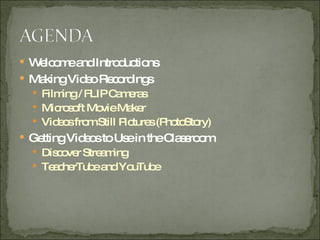
Welcome and Introductions Making Video Recordings Filming / FLIP Cameras Microsoft Movie Maker Videos from Still Pictures (PhotoStory) Getting Videos to Use in the Classroom Discover Streaming TeacherTube and YouTube
Video as a Student Component BREAK Individual Work Time Summary and Recap
Name Grade Level and Subject Taught What aspect of video you want to focus on in your classroom
DIFFERENT LEARNING STYLES Aural Visual Kinesthetic TEACHER VIDEO: Visual STUDENT VIDEO: Visual and Kinesthetic
Demonstration (one-time) Allows you to demonstrate things you may not be able to within the confines or timeframe of the regular classroom Review Extra Support Materials “ Speak the same language” Allows students who are absent to easily catch-up on work missed Usually only have to make it one time
STUDENTS CREATING VIDEO RECORDINGS Allows students to learn new concepts in conjunction with their subject material Differentiated Instruction / Student Choice Though more work in setting up, often easier end result Proper training on equipment/software is VITAL Additional allotted class time Permission forms for posting any work with student photos or names included
Def: the practice of using computer-based tools to tell stories Digital stories usually contain some mixture of computer-based images, text, recorded audio narration, video clips and/or music Gives a whole new meaning to text when not just read, but seen and/or heard also
Public Service Announcements “ Movie” Trailer (book, article, historical era or event) Documentary Virtual Tour Story told from the perspective of an object
To make a video recording to use in the classroom, you need: Video Camera (Simpler is better) Cable to connect camera to display Computer  Video Editing Software (optional) Web site to host your clip (if posting online) TeacherWeb Wiki Page Podcast Hosting Site (if making a podcast)
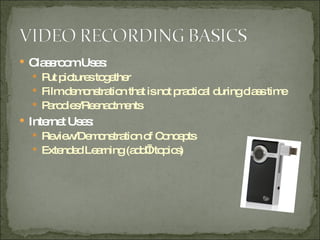
EASIEST: FLIP Video Camera, Digital camera with a video feature, Webcam, or other USB cameras, including WebCams “ Plug and Play” Record your video on the camera, plug in to the computer, transfer your completed video file Quality is acceptable for basic classroom and online use Often can connect directly to display (TV or Projector) If high-quality video is needed, use a better digital video camera
Classroom Uses: Put pictures together Film demonstration that is not practical during class time Parodies/Reenactments Internet Uses: Review/Demonstration of Concepts Extended Learning (add’l topics)
Basic Editing of Clips “ Clean up” footage to allow for stops, extra time, etc. Add titles, still images, and transitions More professional-looking final product Standard on EVERY Microsoft Windows computer starting with Microsoft XP BRIEF DEMO OF MOVIE MAKER
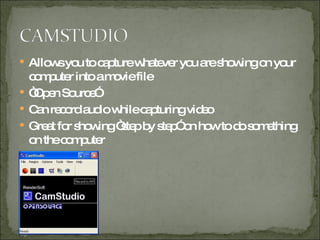
Allows you to capture whatever you are showing on your computer into a movie file “ Open Source” Can record audio while capturing video Great for showing “step by step” on how to do something on the computer
 
Takes still photos and makes them one movie in continuous motion Add fades, transitions, effects Add background music Very easy and has automated settings Still photographs ONLY
DISCOVERY STREAMING All of us have accounts with Discovery Streaming Thousands of video clips on a variety of topics Can be incorporated into a PowerPoint presentation or played independently Also have still images and music files www.discoverystreaming.com Need login information?  Contact IT department
TeacherTube www.teachertube.com Teacher-created and student-created videos Laid out in a format similar to YouTube Variety of subject areas Open on our school network
YouTube www.youtube.com Practically any video on any subject Blocked on our school network Zamzar www.zamzar.com Converts video to a file type playable on your computer Converts YouTube and TeacherTube videos
Royalty-free music Public Domain music Original music compositions Copyrighted music within “Fair Use” guidelines as established by the US copyright office
Differentiated instruction activity Can be done with equipment in school or by allowing students to use video as an option using their own equipment Video Camera Digital Camera Cellular Phones
INDIVIDUAL PRACTICE TIME Plan out video to use in class OR video project to incorporate in class Create something for your classroom (if prepared) and save to your flash drive Film using FLIP cameras, take pictures with digital cameras Look for video materials to use in classroom using online resources
BREAK TIME! After the break: Work on individual practice or record from prepared material Approximately 45-50 minutes to work Come back together and share what we have done and answer any final questions
SHARING AND FINAL QUESTIONS Examples of what you’ve created Questions? Presentation materials, links, and tutorials on my wiki page hms-music.wikispaces.com

Using Video in the Classroom

  • 1.
    Burrell School DistrictIn-Service Monday, February 16, 2009 BRIAN QUERRY Pennsylvania Keystone Technology Integrator Discovery STAR Educator
  • 2.
    Welcome and IntroductionsMaking Video Recordings Filming / FLIP Cameras Microsoft Movie Maker Videos from Still Pictures (PhotoStory) Getting Videos to Use in the Classroom Discover Streaming TeacherTube and YouTube
  • 3.
    Video as aStudent Component BREAK Individual Work Time Summary and Recap
  • 4.
    Name Grade Leveland Subject Taught What aspect of video you want to focus on in your classroom
  • 5.
    DIFFERENT LEARNING STYLESAural Visual Kinesthetic TEACHER VIDEO: Visual STUDENT VIDEO: Visual and Kinesthetic
  • 6.
    Demonstration (one-time) Allowsyou to demonstrate things you may not be able to within the confines or timeframe of the regular classroom Review Extra Support Materials “ Speak the same language” Allows students who are absent to easily catch-up on work missed Usually only have to make it one time
  • 7.
    STUDENTS CREATING VIDEORECORDINGS Allows students to learn new concepts in conjunction with their subject material Differentiated Instruction / Student Choice Though more work in setting up, often easier end result Proper training on equipment/software is VITAL Additional allotted class time Permission forms for posting any work with student photos or names included
  • 8.
    Def: the practiceof using computer-based tools to tell stories Digital stories usually contain some mixture of computer-based images, text, recorded audio narration, video clips and/or music Gives a whole new meaning to text when not just read, but seen and/or heard also
  • 9.
    Public Service Announcements“ Movie” Trailer (book, article, historical era or event) Documentary Virtual Tour Story told from the perspective of an object
  • 10.
    To make avideo recording to use in the classroom, you need: Video Camera (Simpler is better) Cable to connect camera to display Computer Video Editing Software (optional) Web site to host your clip (if posting online) TeacherWeb Wiki Page Podcast Hosting Site (if making a podcast)
  • 11.
    EASIEST: FLIP VideoCamera, Digital camera with a video feature, Webcam, or other USB cameras, including WebCams “ Plug and Play” Record your video on the camera, plug in to the computer, transfer your completed video file Quality is acceptable for basic classroom and online use Often can connect directly to display (TV or Projector) If high-quality video is needed, use a better digital video camera
  • 12.
    Classroom Uses: Putpictures together Film demonstration that is not practical during class time Parodies/Reenactments Internet Uses: Review/Demonstration of Concepts Extended Learning (add’l topics)
  • 13.
    Basic Editing ofClips “ Clean up” footage to allow for stops, extra time, etc. Add titles, still images, and transitions More professional-looking final product Standard on EVERY Microsoft Windows computer starting with Microsoft XP BRIEF DEMO OF MOVIE MAKER
  • 14.
    Allows you tocapture whatever you are showing on your computer into a movie file “ Open Source” Can record audio while capturing video Great for showing “step by step” on how to do something on the computer
  • 15.
  • 16.
    Takes still photosand makes them one movie in continuous motion Add fades, transitions, effects Add background music Very easy and has automated settings Still photographs ONLY
  • 17.
    DISCOVERY STREAMING Allof us have accounts with Discovery Streaming Thousands of video clips on a variety of topics Can be incorporated into a PowerPoint presentation or played independently Also have still images and music files www.discoverystreaming.com Need login information? Contact IT department
  • 18.
    TeacherTube www.teachertube.com Teacher-createdand student-created videos Laid out in a format similar to YouTube Variety of subject areas Open on our school network
  • 19.
    YouTube www.youtube.com Practicallyany video on any subject Blocked on our school network Zamzar www.zamzar.com Converts video to a file type playable on your computer Converts YouTube and TeacherTube videos
  • 20.
    Royalty-free music PublicDomain music Original music compositions Copyrighted music within “Fair Use” guidelines as established by the US copyright office
  • 21.
    Differentiated instruction activityCan be done with equipment in school or by allowing students to use video as an option using their own equipment Video Camera Digital Camera Cellular Phones
  • 22.
    INDIVIDUAL PRACTICE TIMEPlan out video to use in class OR video project to incorporate in class Create something for your classroom (if prepared) and save to your flash drive Film using FLIP cameras, take pictures with digital cameras Look for video materials to use in classroom using online resources
  • 23.
    BREAK TIME! Afterthe break: Work on individual practice or record from prepared material Approximately 45-50 minutes to work Come back together and share what we have done and answer any final questions
  • 24.
    SHARING AND FINALQUESTIONS Examples of what you’ve created Questions? Presentation materials, links, and tutorials on my wiki page hms-music.wikispaces.com