Using the right tools
to keep control of
your Office 365 deployments
GSX Solutions© 2015 2
Speakers
Tim Book
Technical Sales
Manager
Olivier Raynaut
Microsoft Specialist
& Pre-sales Manager
GSX Solutions© 2015 3
Agenda
Context
Office 365 Phases
How to access the information?
Tool by tool walkthrough
Automating the health checks and reporting
GSX Solutions© 2015 4
Context
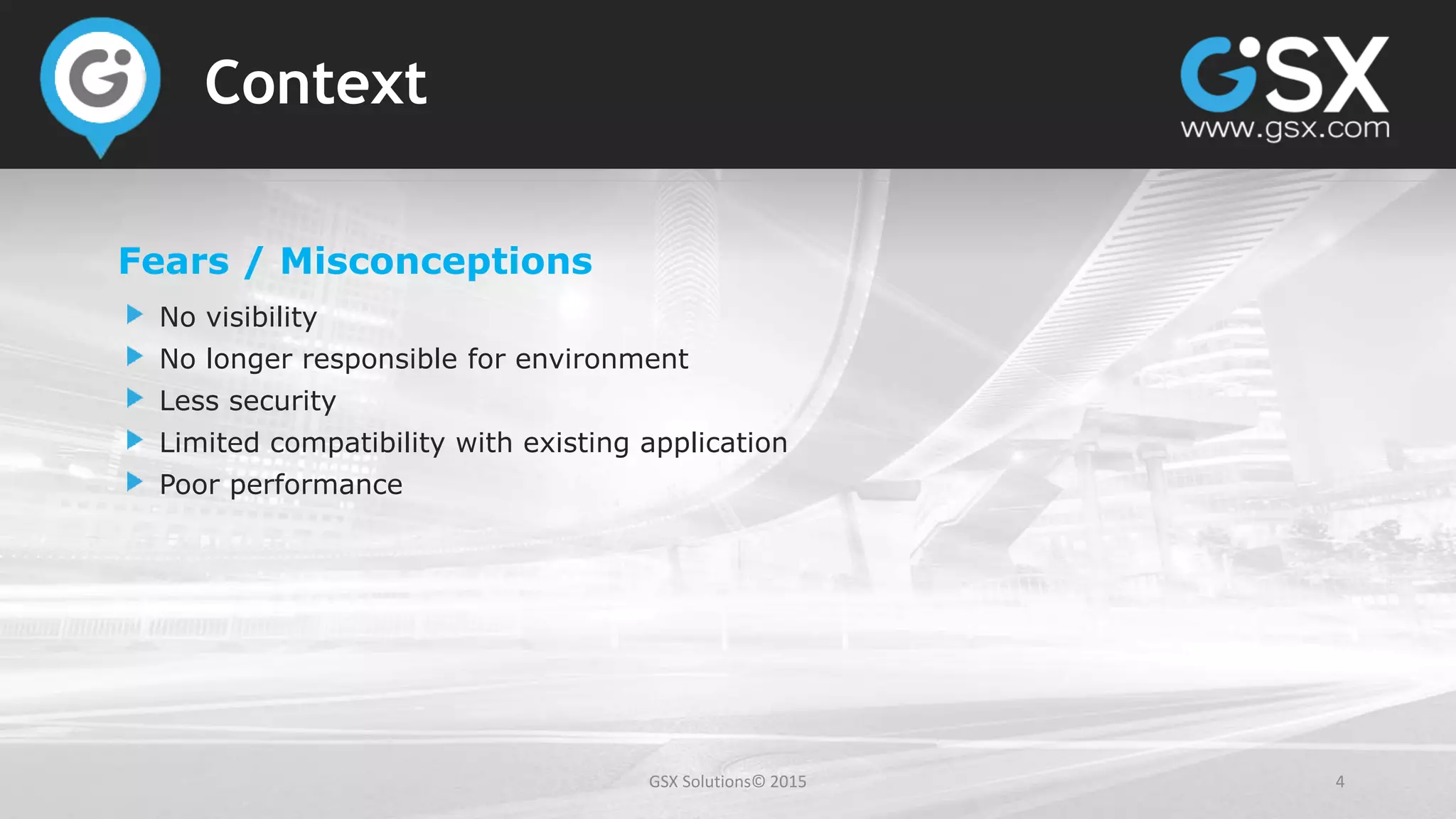
Fears / Misconceptions
No visibility
No longer responsible for environment
Less security
Limited compatibility with existing application
Poor performance
GSX Solutions© 2015 5
Context
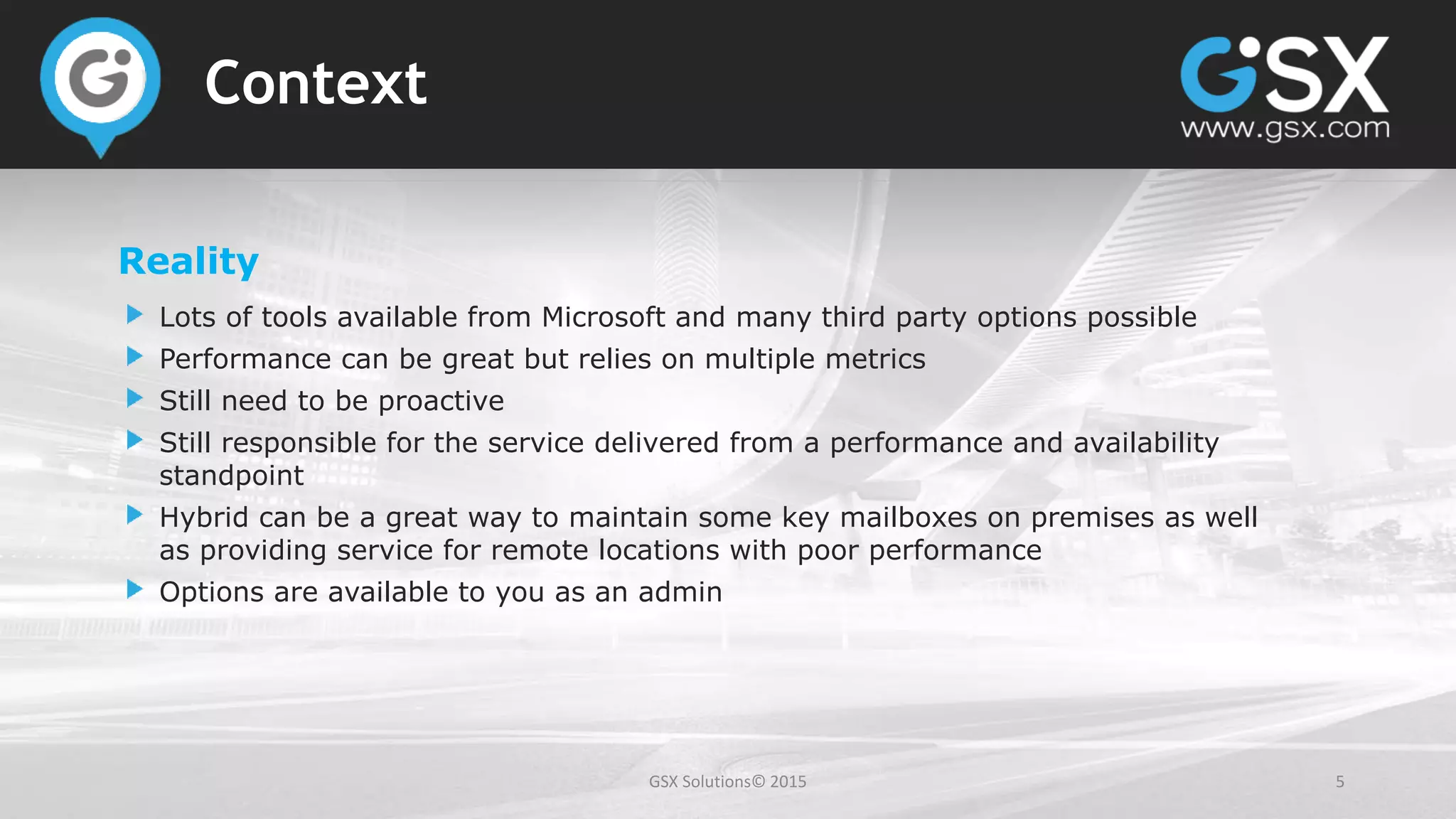
Reality
Lots of tools available from Microsoft and many third party options possible
Performance can be great but relies on multiple metrics
Still need to be proactive
Still responsible for the service delivered from a performance and availability
standpoint
Hybrid can be a great way to maintain some key mailboxes on premises as well
as providing service for remote locations with poor performance
Options are available to you as an admin
6
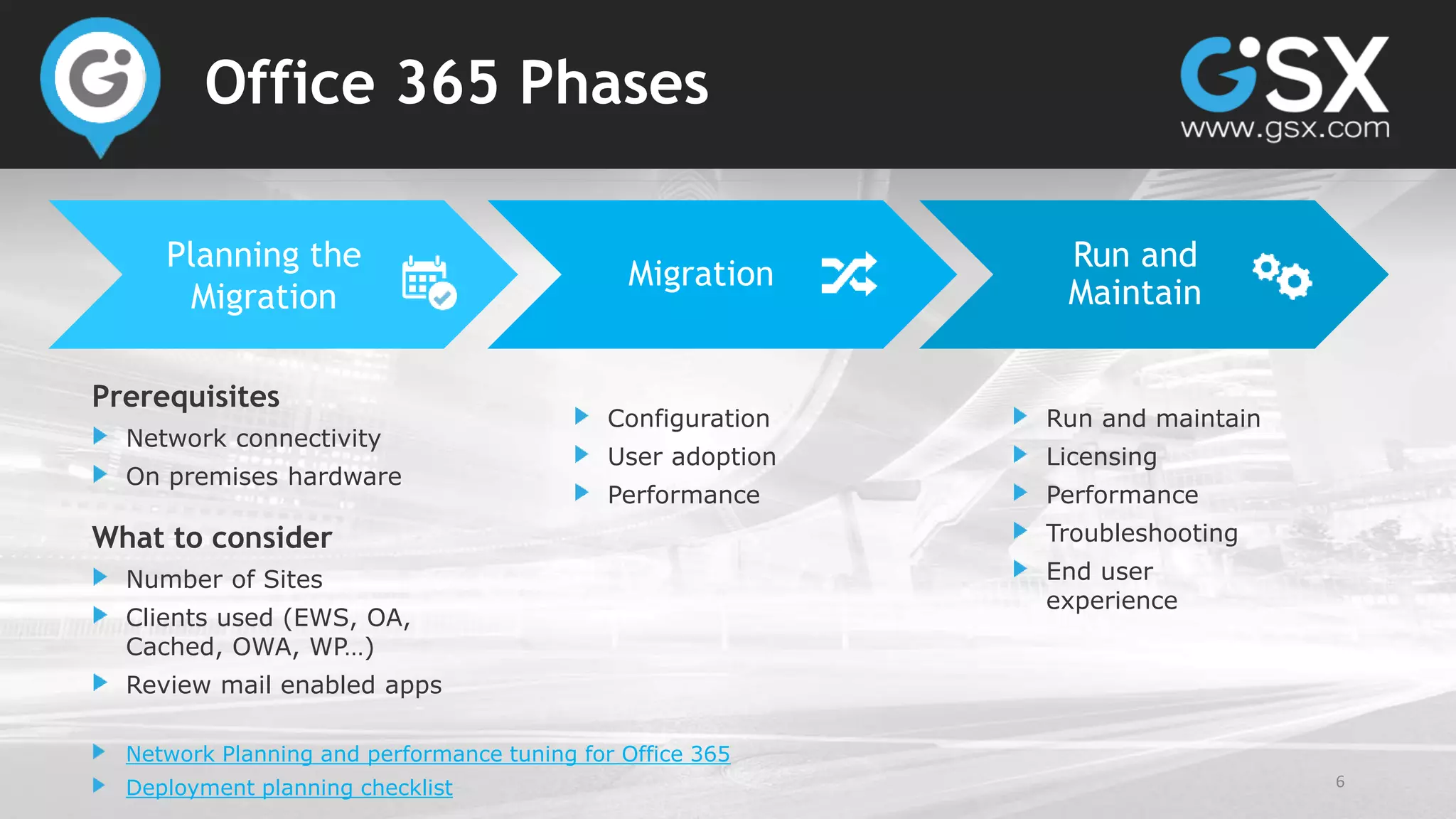
Office 365 Phases
Planning the
Migration
Migration
Run and
Maintain
Prerequisites
Network connectivity
On premises hardware
What to consider
Number of Sites
Clients used (EWS, OA,
Cached, OWA, WP…)
Review mail enabled apps
Network Planning and performance tuning for Office 365
Deployment planning checklist
Configuration
User adoption
Performance
Run and maintain
Licensing
Performance
Troubleshooting
End user
experience
GSX Solutions© 2015 7
How to access the information?
Lots of tools available from Microsoft
Office 365 Portal
Microsoft Connectivity tools
PowerShell
Office 365 API
GSX Solutions© 2015 8
Office 365 Portal
Portal
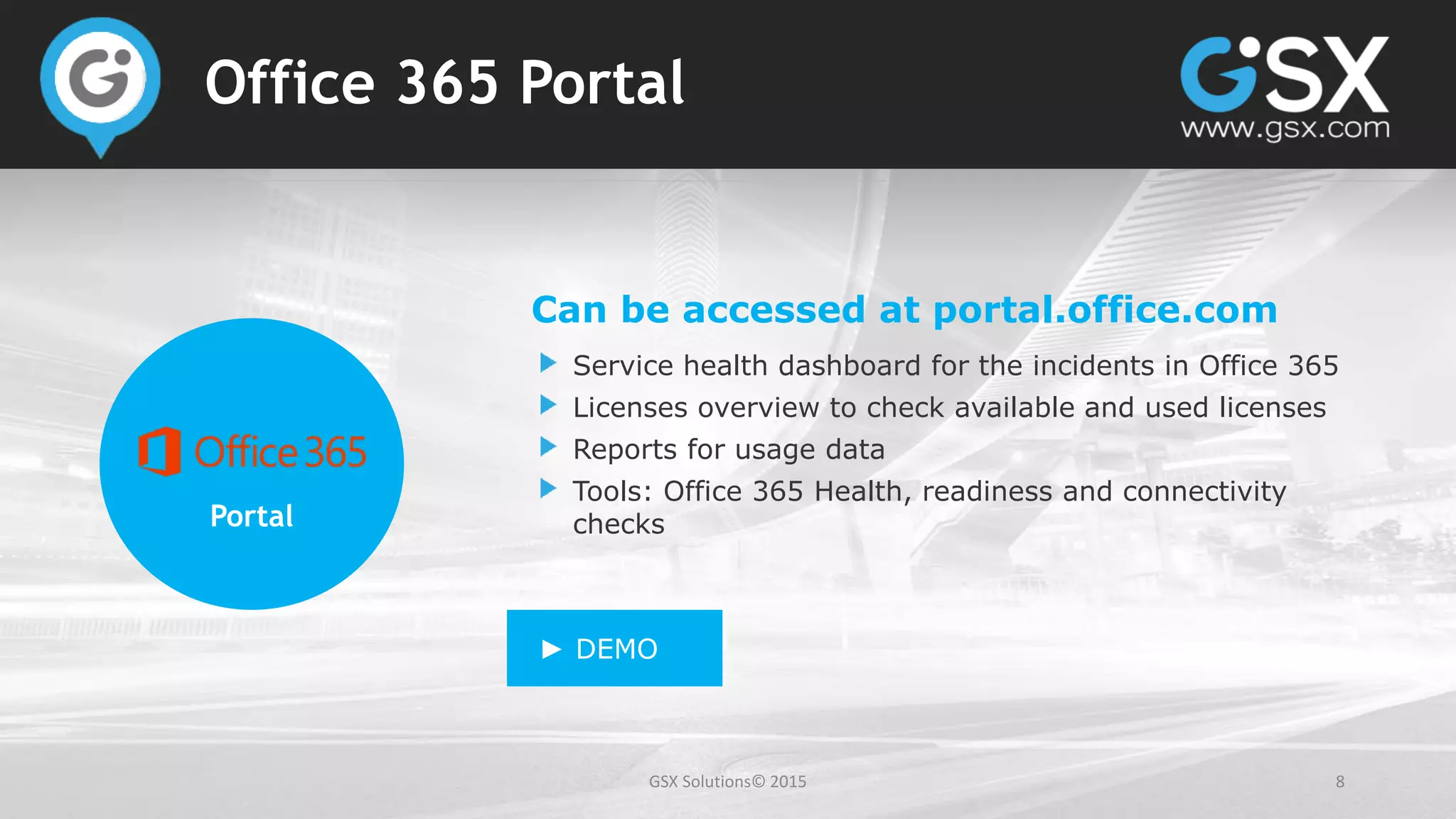
Can be accessed at portal.office.com
Service health dashboard for the incidents in Office 365
Licenses overview to check available and used licenses
Reports for usage data
Tools: Office 365 Health, readiness and connectivity
checks
► DEMO
GSX Solutions© 2015 10
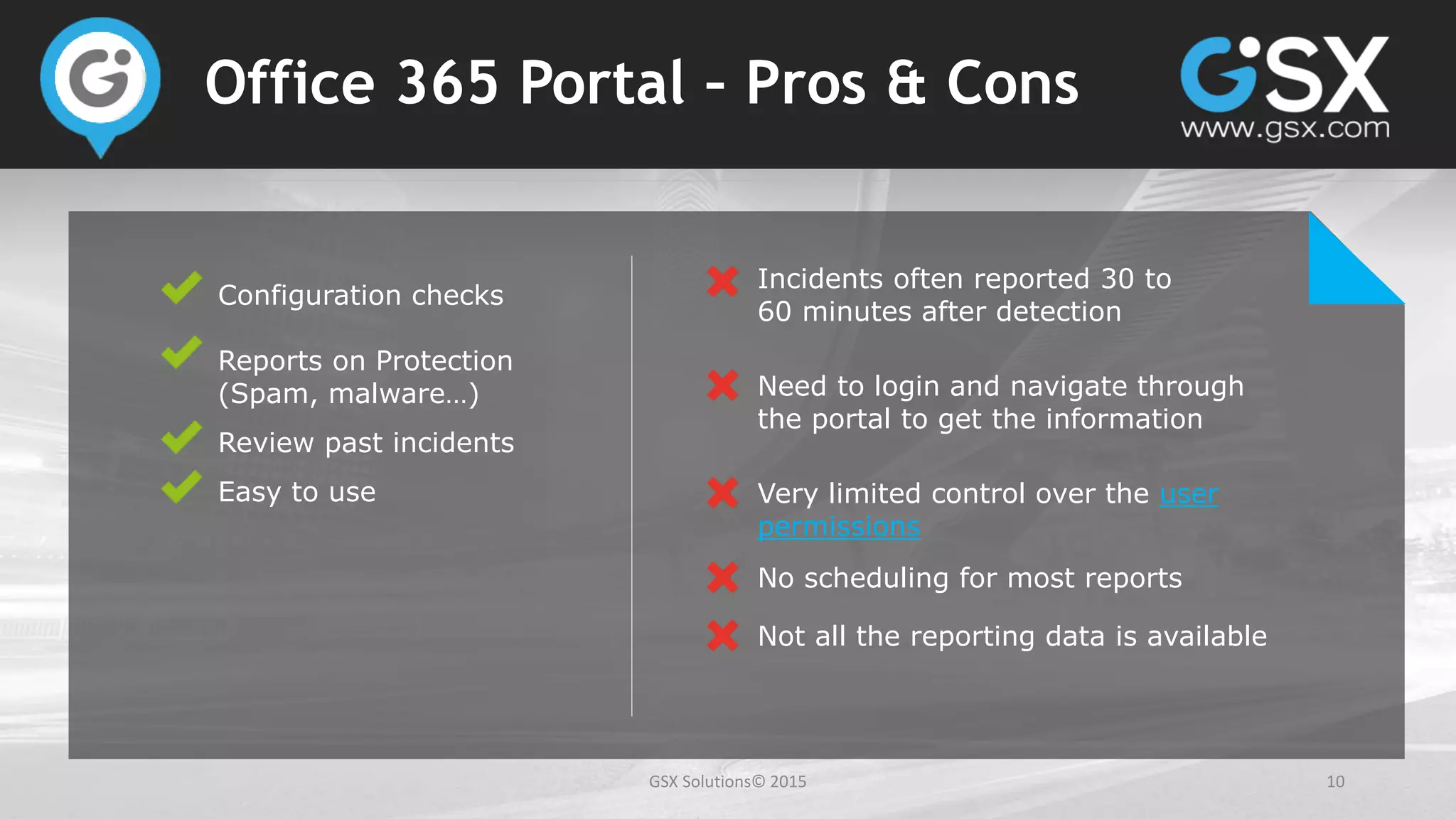
Office 365 Portal – Pros & Cons
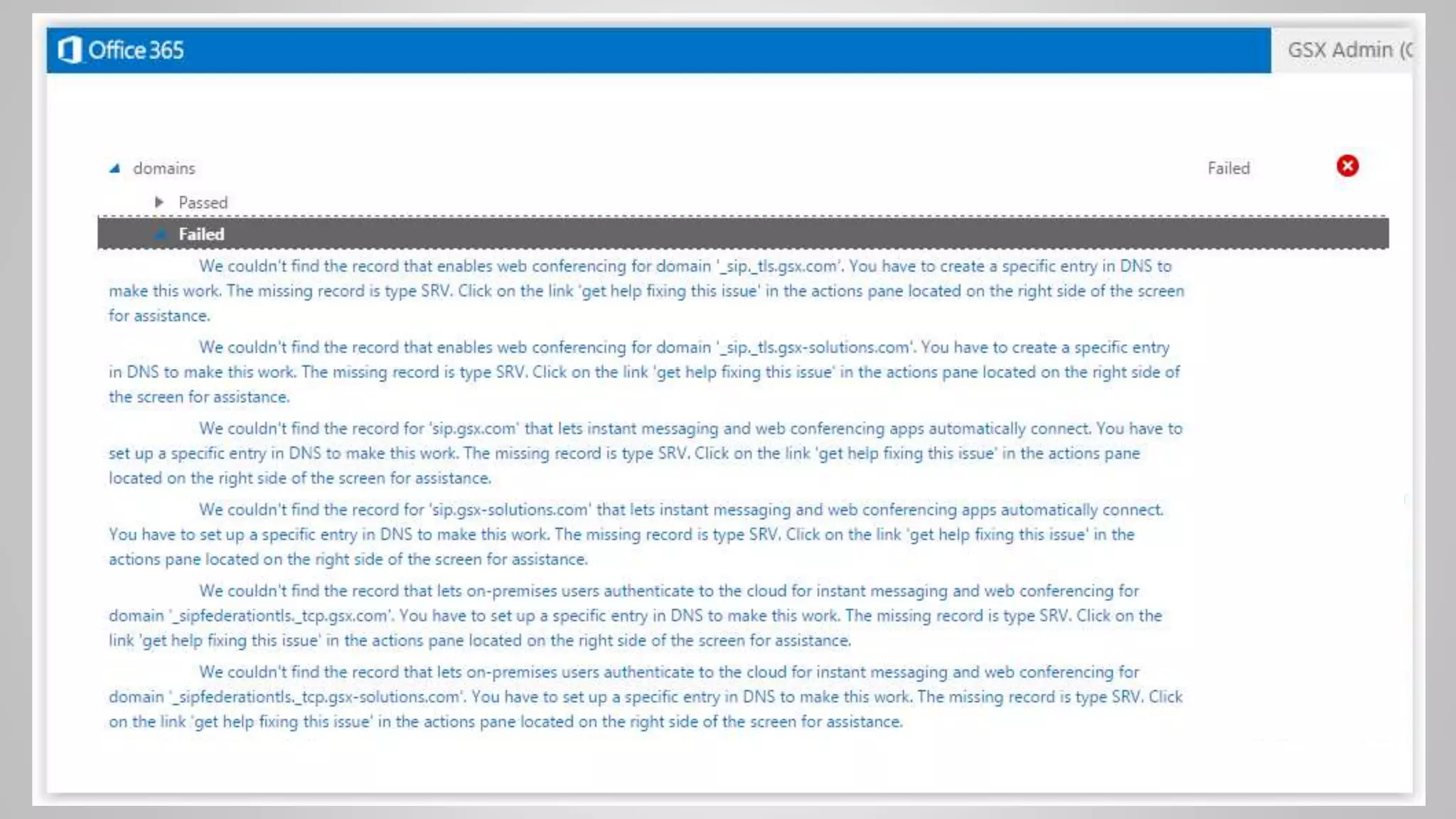
Configuration checks
Reports on Protection
(Spam, malware…)
Review past incidents
Easy to use
Incidents often reported 30 to
60 minutes after detection
Need to login and navigate through
the portal to get the information
Very limited control over the user
permissions
No scheduling for most reports
Not all the reporting data is available
GSX Solutions© 2015 11
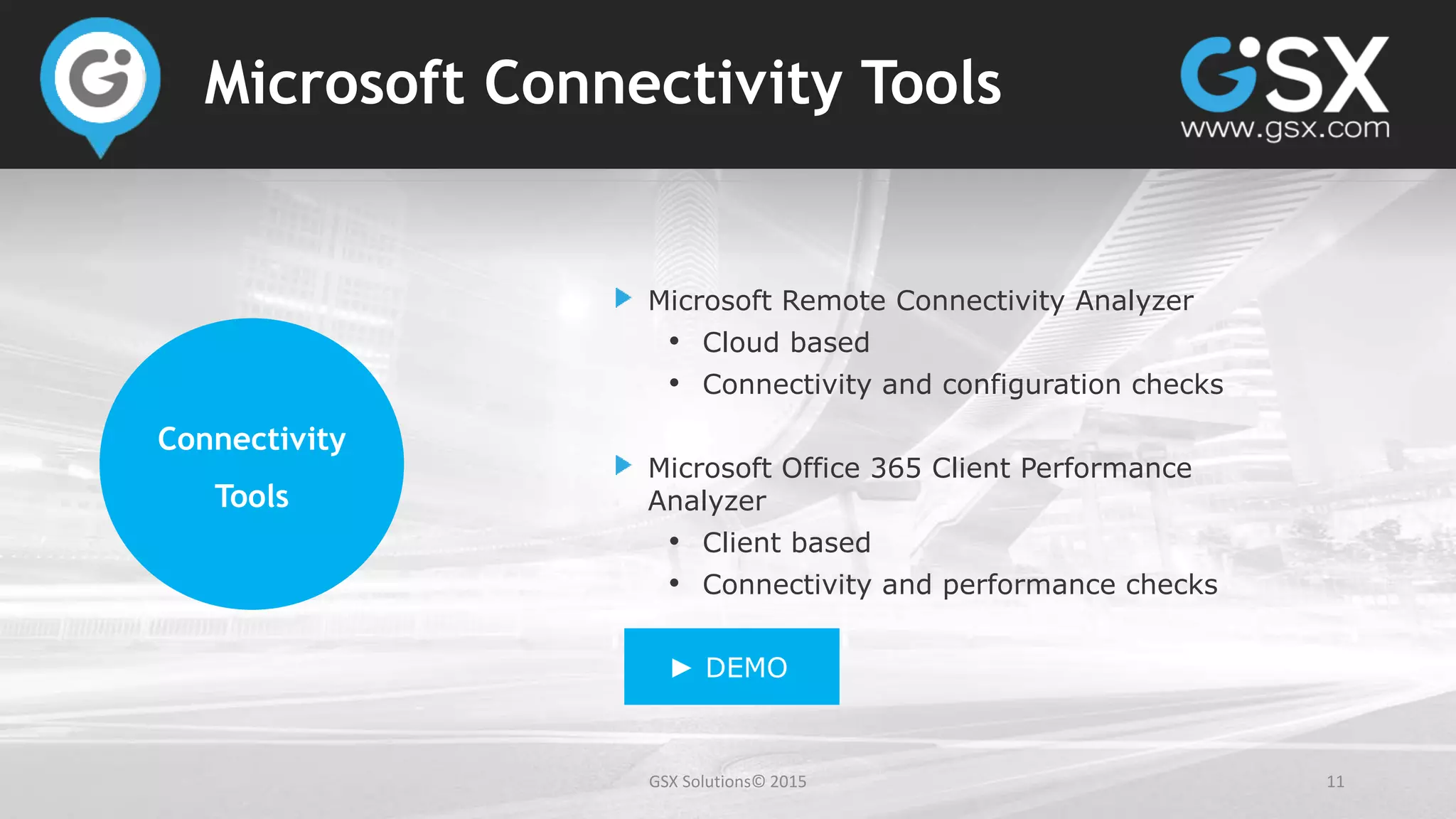
Microsoft Connectivity Tools
Microsoft Remote Connectivity Analyzer
• Cloud based
• Connectivity and configuration checks
Microsoft Office 365 Client Performance
Analyzer
• Client based
• Connectivity and performance checks
► DEMO
Connectivity
Tools
GSX Solutions© 2015 12
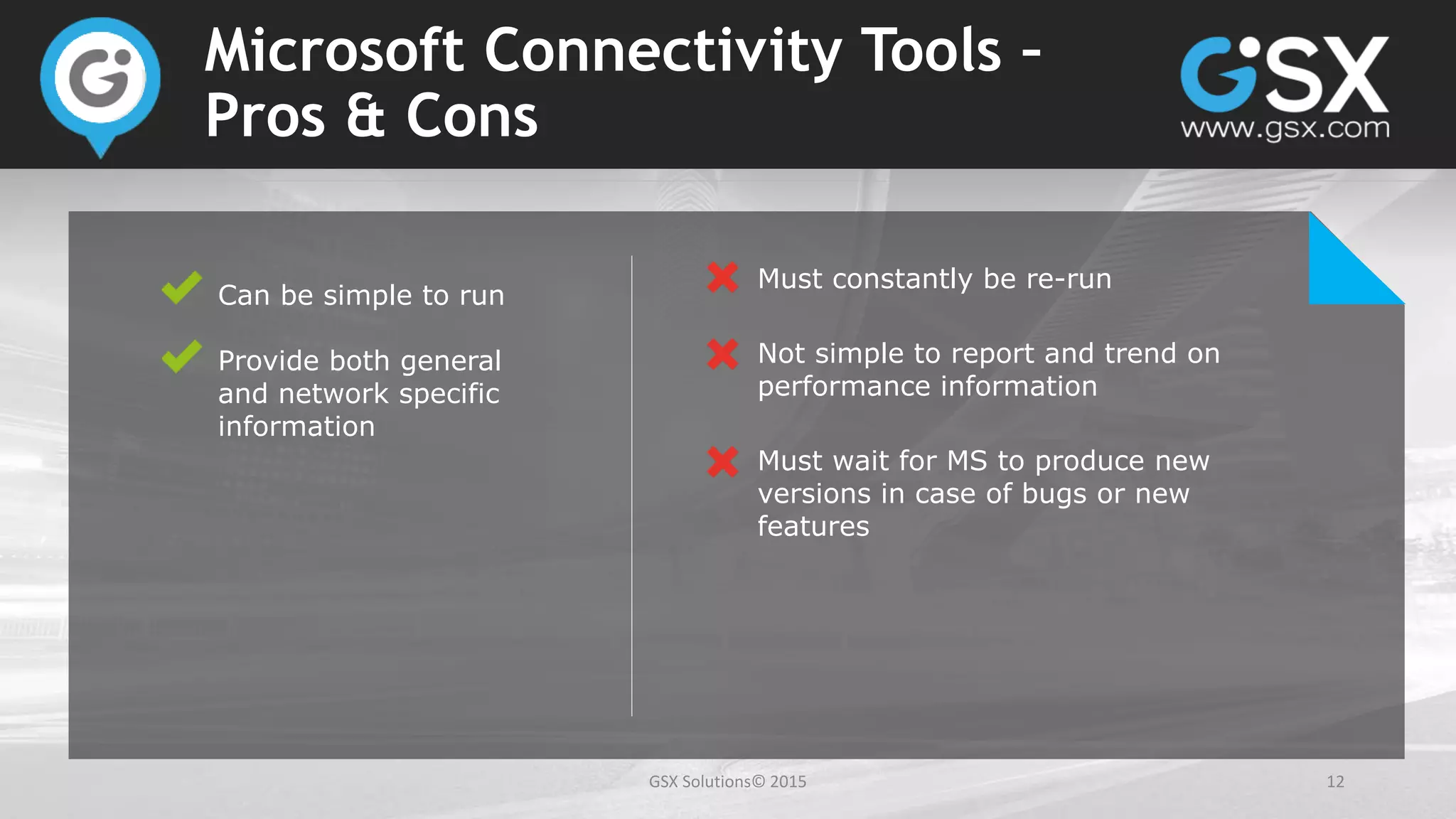
Microsoft Connectivity Tools –
Pros & Cons
Can be simple to run
Provide both general
and network specific
information
Must constantly be re-run
Not simple to report and trend on
performance information
Must wait for MS to produce new
versions in case of bugs or new
features
GSX Solutions© 2015 13
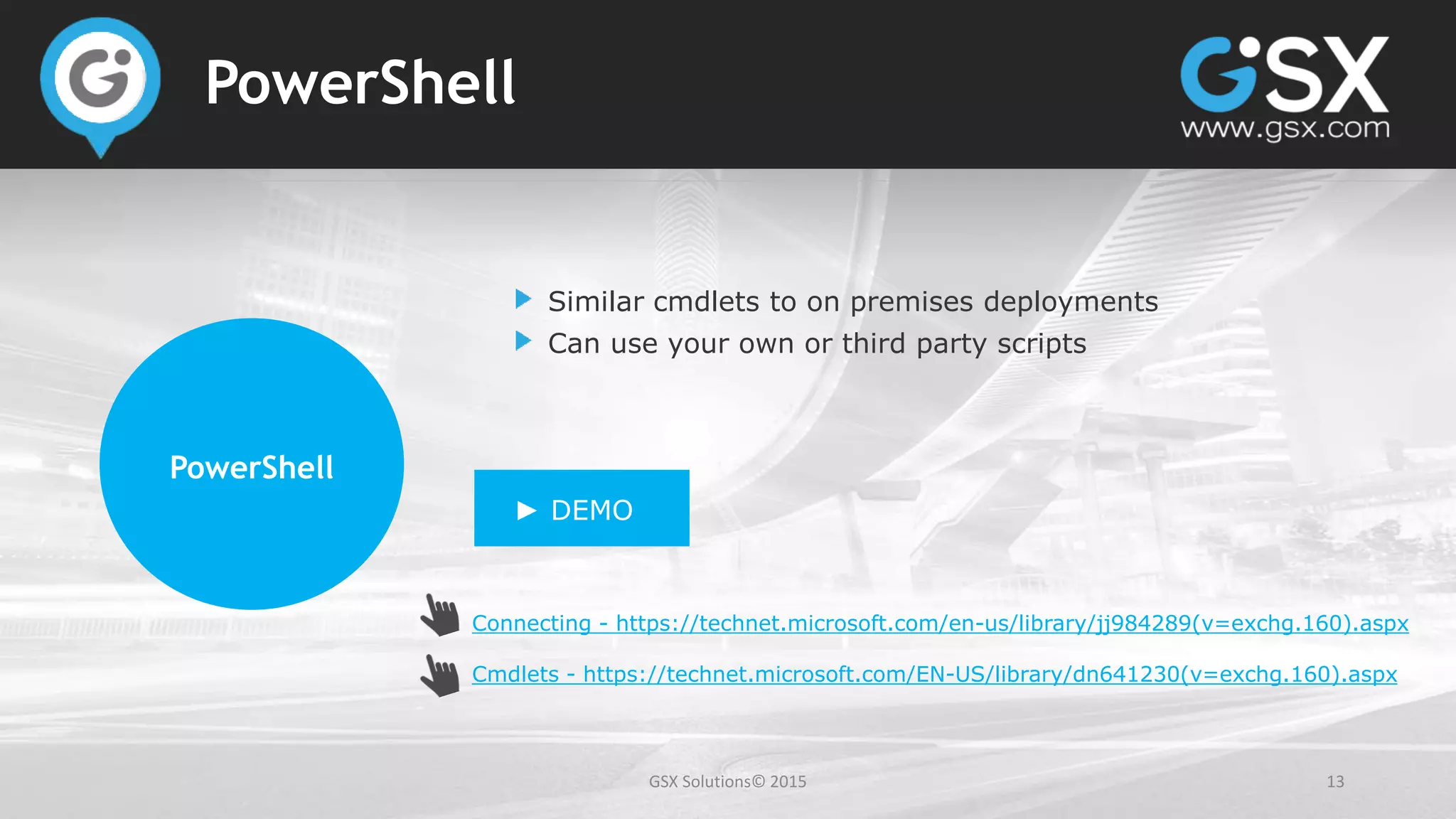
PowerShell
Connecting - https://technet.microsoft.com/en-us/library/jj984289(v=exchg.160).aspx
Cmdlets - https://technet.microsoft.com/EN-US/library/dn641230(v=exchg.160).aspx
PowerShell
Similar cmdlets to on premises deployments
Can use your own or third party scripts
► DEMO
GSX Solutions© 2015 14
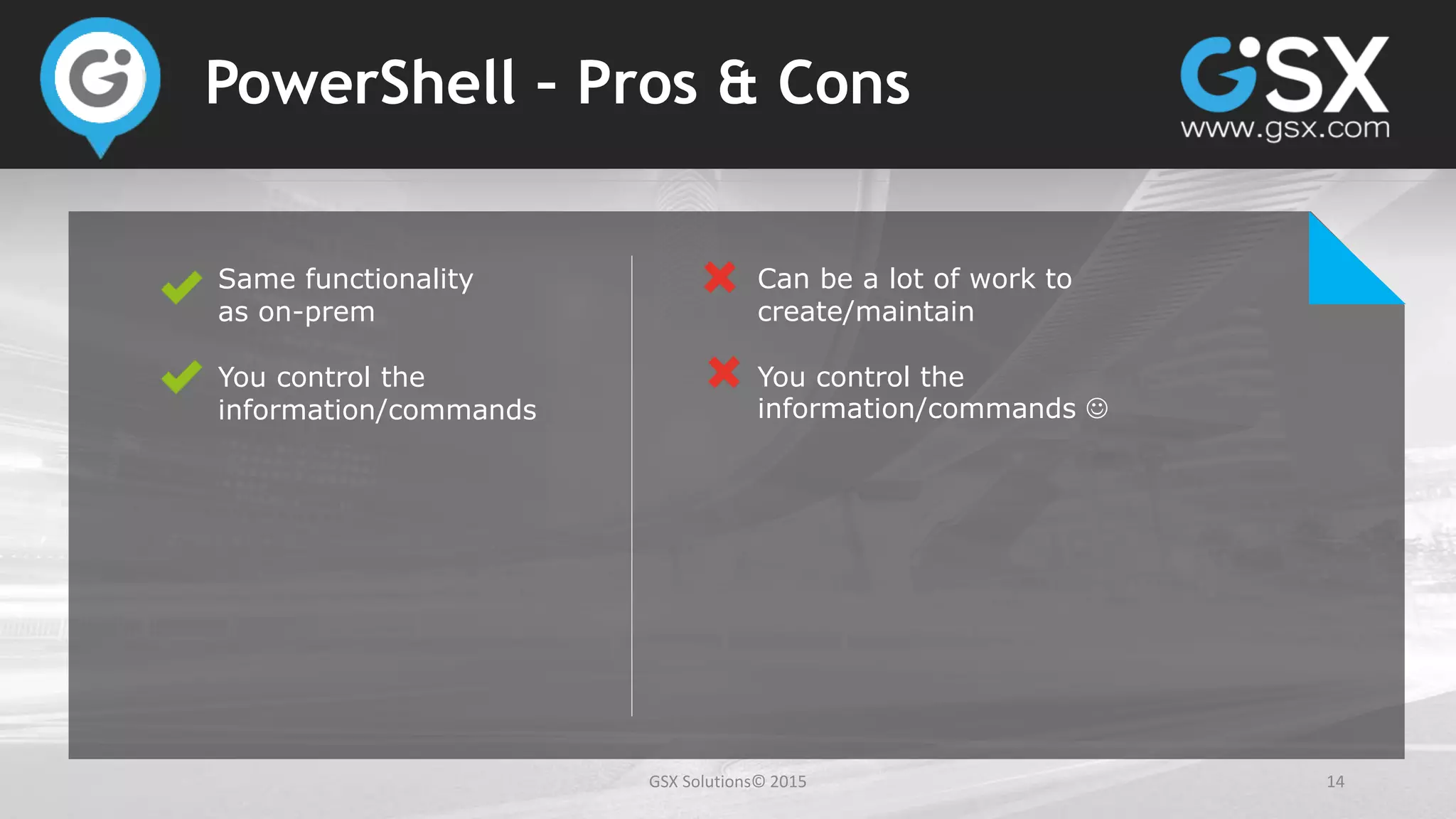
PowerShell – Pros & Cons
Same functionality
as on-prem
You control the
information/commands
Can be a lot of work to
create/maintain
You control the
information/commands 
GSX Solutions© 2015 15
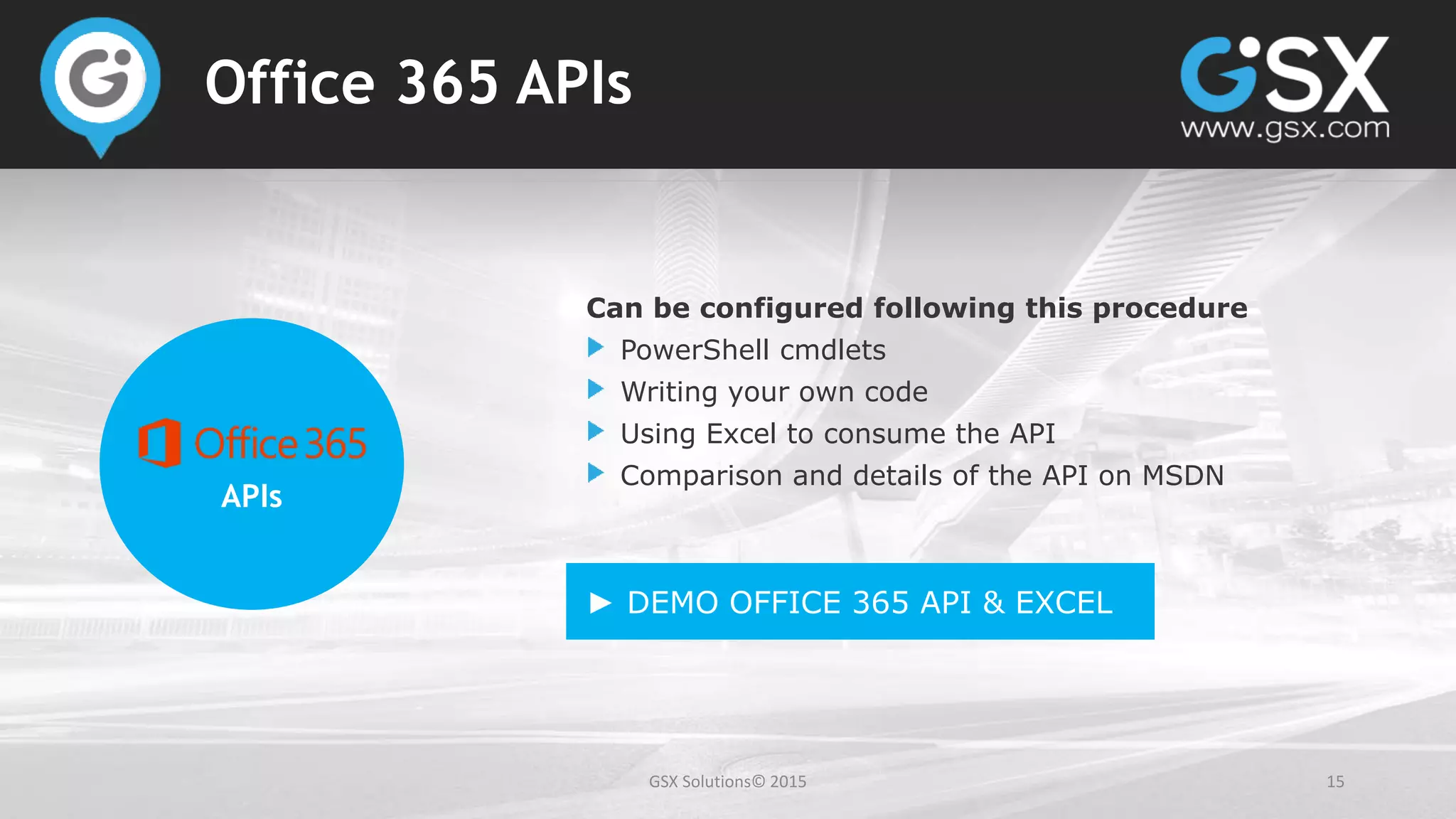
Office 365 APIs
APIs
Can be configured following this procedure
PowerShell cmdlets
Writing your own code
Using Excel to consume the API
Comparison and details of the API on MSDN
► DEMO OFFICE 365 API & EXCEL
GSX Solutions© 2015 16
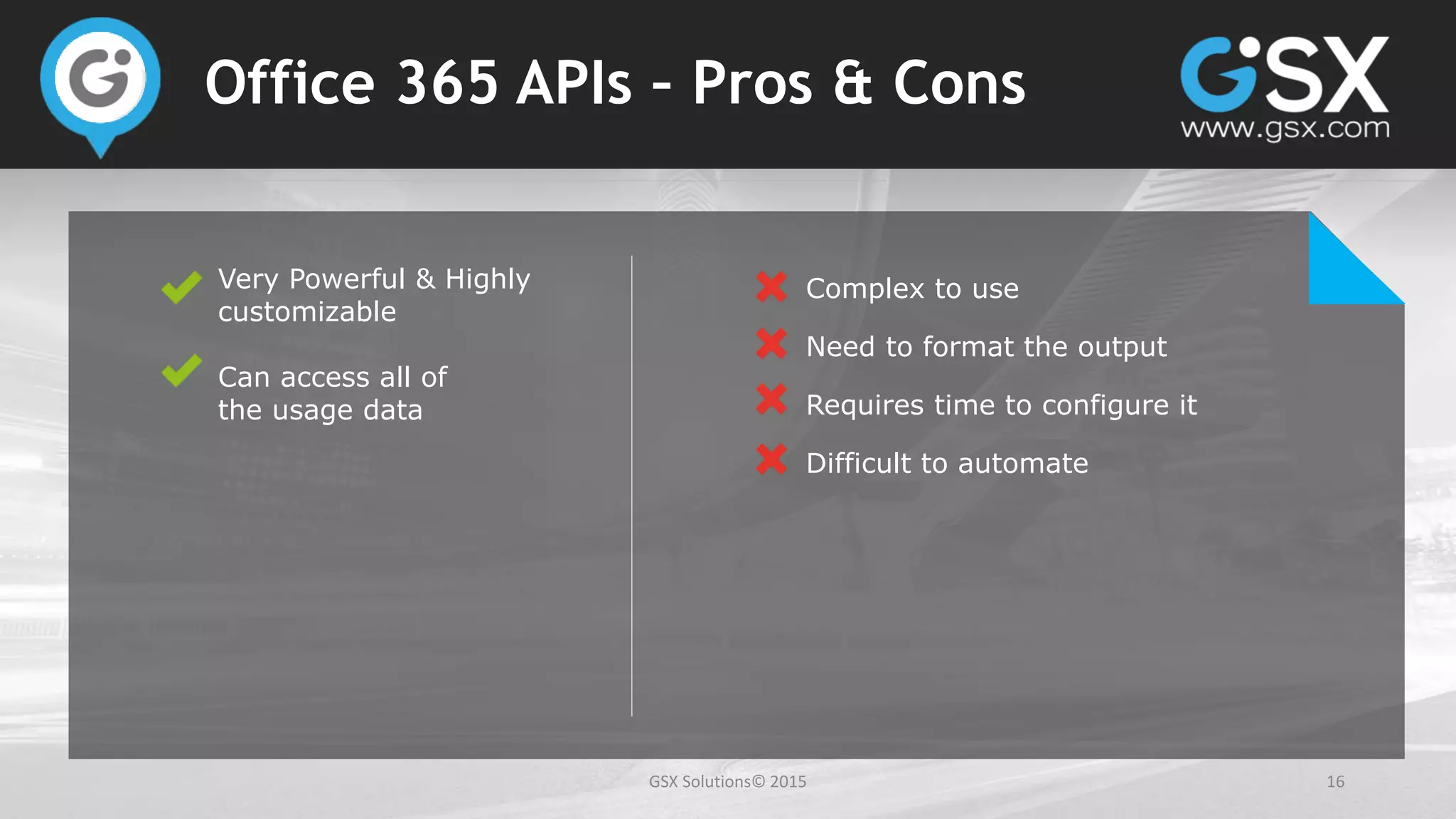
Office 365 APIs – Pros & Cons
Very Powerful & Highly
customizable
Can access all of
the usage data
Complex to use
Need to format the output
Requires time to configure it
Difficult to automate
GSX Solutions© 2015 17
Automating
the health checks and reports
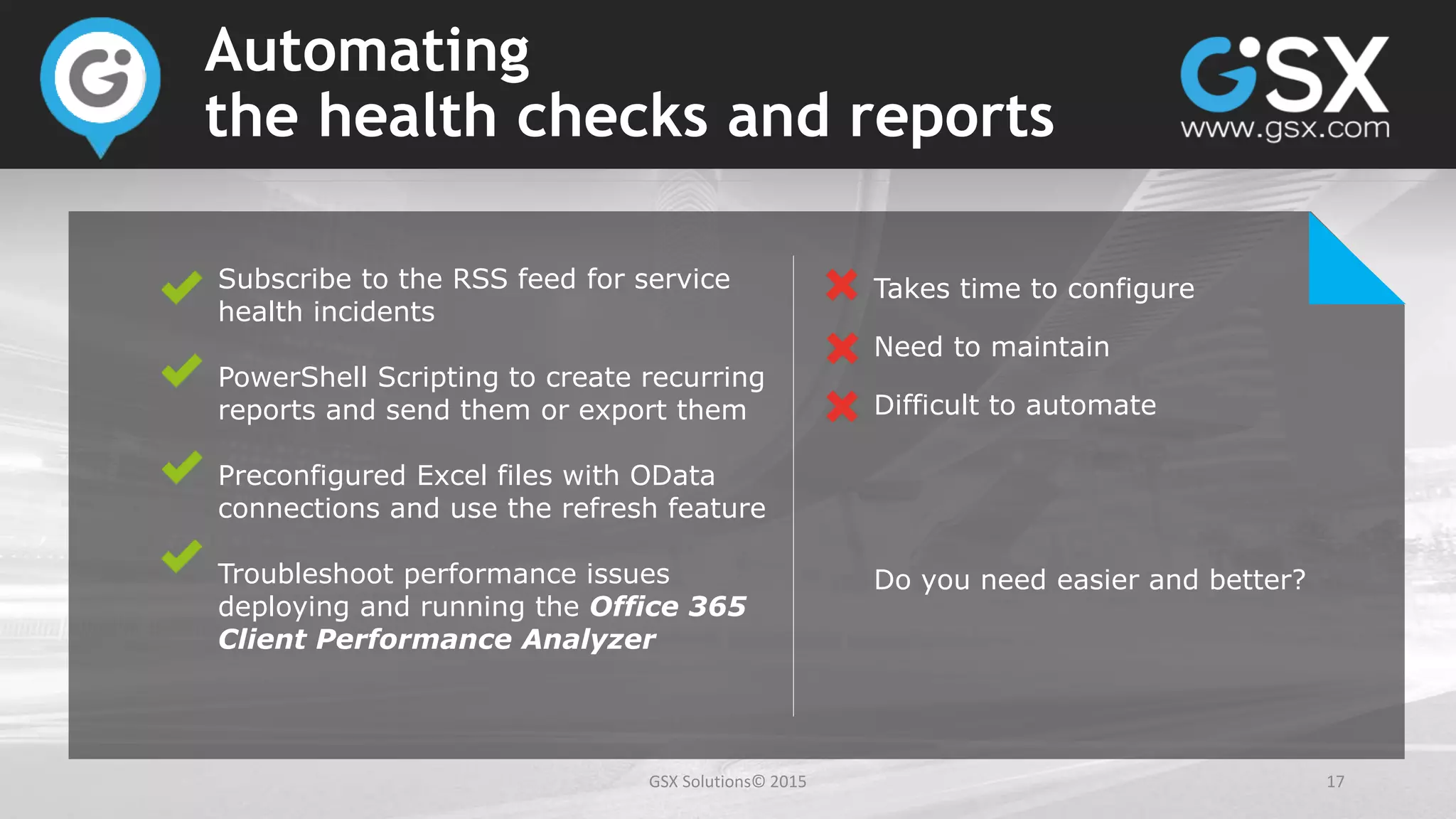
Subscribe to the RSS feed for service
health incidents
PowerShell Scripting to create recurring
reports and send them or export them
Preconfigured Excel files with OData
connections and use the refresh feature
Troubleshoot performance issues
deploying and running the Office 365
Client Performance Analyzer
Takes time to configure
Need to maintain
Difficult to automate
Do you need easier and better?
GSX Solutions© 2015 18
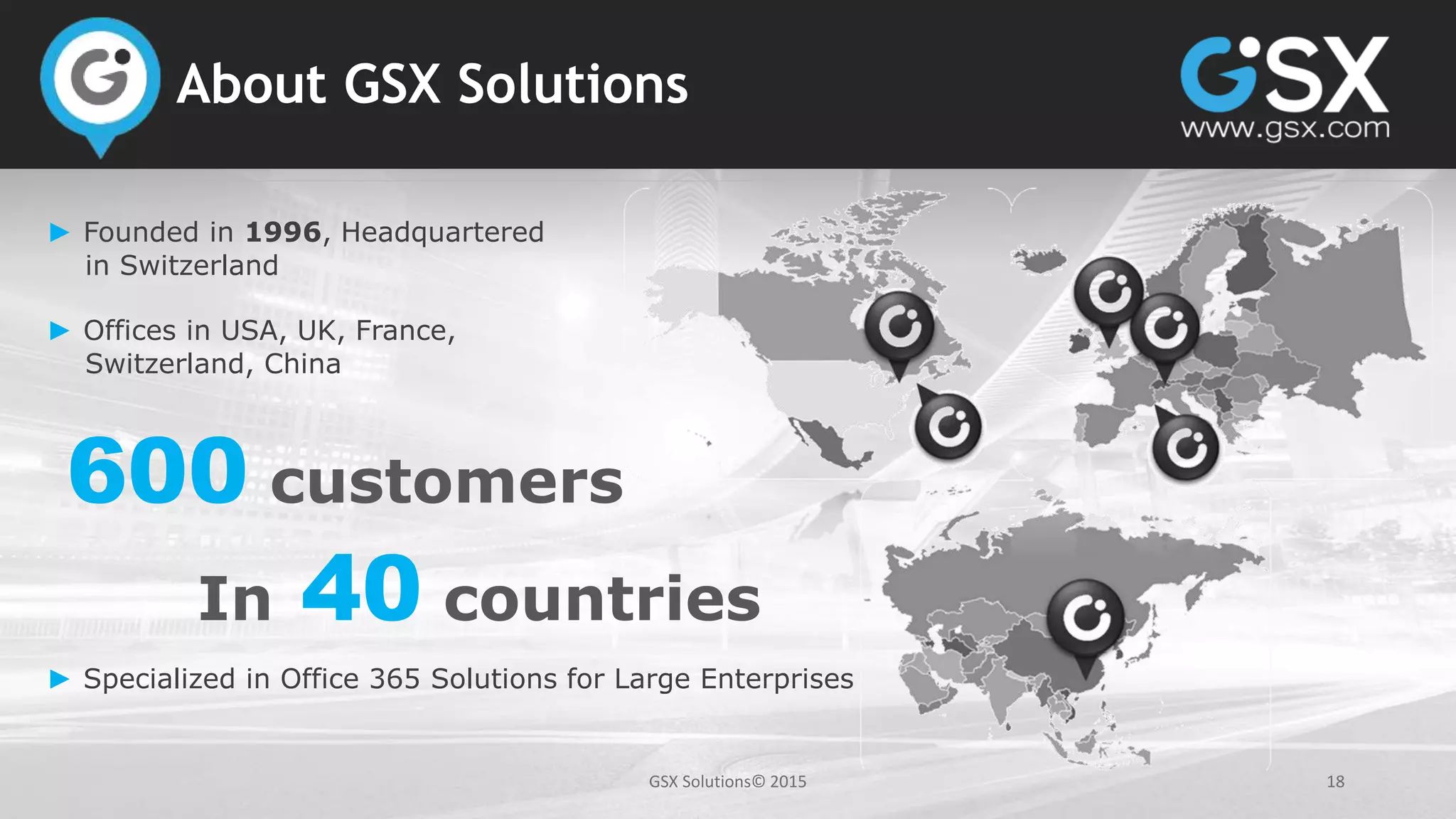
About GSX Solutions
600 customers
In 40 countries
► Founded in 1996, Headquartered
in Switzerland
► Offices in USA, UK, France,
Switzerland, China
► Specialized in Office 365 Solutions for Large Enterprises
GSX Solutions© 2015 19
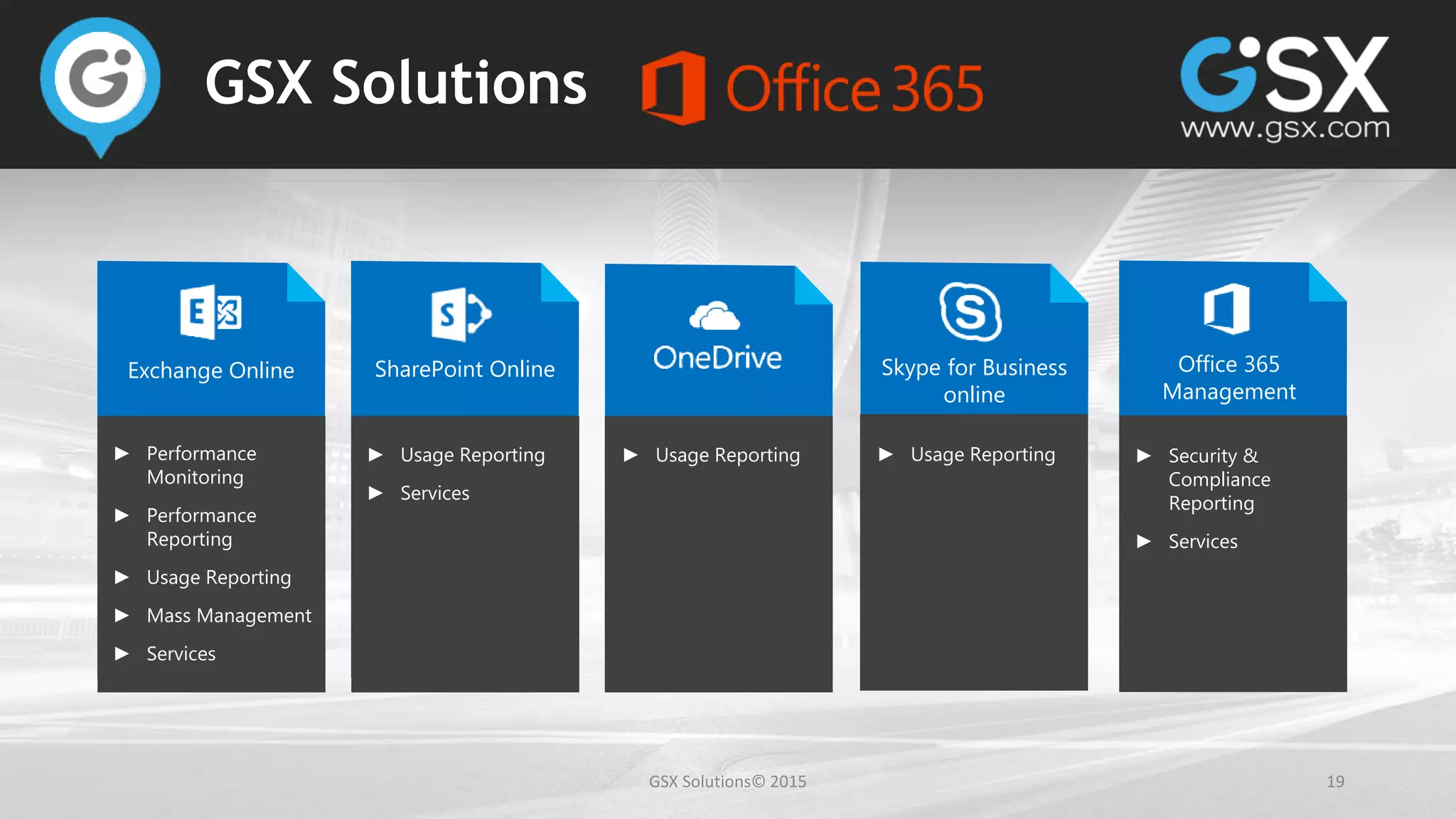
GSX Solutions
Exchange Online
► Performance
Monitoring
► Performance
Reporting
► Usage Reporting
► Mass Management
► Services
SharePoint Online
► Usage Reporting
► Services
► Usage Reporting
Skype for Business
online
► Usage Reporting
Office 365
Management
► Security &
Compliance
Reporting
► Services
GSX Solutions© 2015 20
Links
Office 365 Portal
Microsoft Connectivity tools
PowerShell connection and cmdlets for Office 365
PowerShell reporting
Use the Office 365 API from PowerShell and Excel
Office 365 Reporting web services
Office 365 Recovery Assistant
GSX Solutions at gsx.com
21GSX Solutions© 2015
22GSX Solutions© 2015
GSX Solutions USA
Boston, MA
877-894-0961
sales@gsx.com
GSX Solutions Headquarter
Geneva, Switzerland
+41 22 735 82 40
sales@gsx.com

Using the right tools to keep control of your Office 365 deployments

  • 1.
    Using the righttools to keep control of your Office 365 deployments
  • 2.
    GSX Solutions© 20152 Speakers Tim Book Technical Sales Manager Olivier Raynaut Microsoft Specialist & Pre-sales Manager
  • 3.
    GSX Solutions© 20153 Agenda Context Office 365 Phases How to access the information? Tool by tool walkthrough Automating the health checks and reporting
  • 4.
    GSX Solutions© 20154 Context Fears / Misconceptions No visibility No longer responsible for environment Less security Limited compatibility with existing application Poor performance
  • 5.
    GSX Solutions© 20155 Context Reality Lots of tools available from Microsoft and many third party options possible Performance can be great but relies on multiple metrics Still need to be proactive Still responsible for the service delivered from a performance and availability standpoint Hybrid can be a great way to maintain some key mailboxes on premises as well as providing service for remote locations with poor performance Options are available to you as an admin
  • 6.
    6 Office 365 Phases Planningthe Migration Migration Run and Maintain Prerequisites Network connectivity On premises hardware What to consider Number of Sites Clients used (EWS, OA, Cached, OWA, WP…) Review mail enabled apps Network Planning and performance tuning for Office 365 Deployment planning checklist Configuration User adoption Performance Run and maintain Licensing Performance Troubleshooting End user experience
  • 7.
    GSX Solutions© 20157 How to access the information? Lots of tools available from Microsoft Office 365 Portal Microsoft Connectivity tools PowerShell Office 365 API
  • 8.
    GSX Solutions© 20158 Office 365 Portal Portal Can be accessed at portal.office.com Service health dashboard for the incidents in Office 365 Licenses overview to check available and used licenses Reports for usage data Tools: Office 365 Health, readiness and connectivity checks ► DEMO
  • 10.
    GSX Solutions© 201510 Office 365 Portal – Pros & Cons Configuration checks Reports on Protection (Spam, malware…) Review past incidents Easy to use Incidents often reported 30 to 60 minutes after detection Need to login and navigate through the portal to get the information Very limited control over the user permissions No scheduling for most reports Not all the reporting data is available
  • 11.
    GSX Solutions© 201511 Microsoft Connectivity Tools Microsoft Remote Connectivity Analyzer • Cloud based • Connectivity and configuration checks Microsoft Office 365 Client Performance Analyzer • Client based • Connectivity and performance checks ► DEMO Connectivity Tools
  • 12.
    GSX Solutions© 201512 Microsoft Connectivity Tools – Pros & Cons Can be simple to run Provide both general and network specific information Must constantly be re-run Not simple to report and trend on performance information Must wait for MS to produce new versions in case of bugs or new features
  • 13.
    GSX Solutions© 201513 PowerShell Connecting - https://technet.microsoft.com/en-us/library/jj984289(v=exchg.160).aspx Cmdlets - https://technet.microsoft.com/EN-US/library/dn641230(v=exchg.160).aspx PowerShell Similar cmdlets to on premises deployments Can use your own or third party scripts ► DEMO
  • 14.
    GSX Solutions© 201514 PowerShell – Pros & Cons Same functionality as on-prem You control the information/commands Can be a lot of work to create/maintain You control the information/commands 
  • 15.
    GSX Solutions© 201515 Office 365 APIs APIs Can be configured following this procedure PowerShell cmdlets Writing your own code Using Excel to consume the API Comparison and details of the API on MSDN ► DEMO OFFICE 365 API & EXCEL
  • 16.
    GSX Solutions© 201516 Office 365 APIs – Pros & Cons Very Powerful & Highly customizable Can access all of the usage data Complex to use Need to format the output Requires time to configure it Difficult to automate
  • 17.
    GSX Solutions© 201517 Automating the health checks and reports Subscribe to the RSS feed for service health incidents PowerShell Scripting to create recurring reports and send them or export them Preconfigured Excel files with OData connections and use the refresh feature Troubleshoot performance issues deploying and running the Office 365 Client Performance Analyzer Takes time to configure Need to maintain Difficult to automate Do you need easier and better?
  • 18.
    GSX Solutions© 201518 About GSX Solutions 600 customers In 40 countries ► Founded in 1996, Headquartered in Switzerland ► Offices in USA, UK, France, Switzerland, China ► Specialized in Office 365 Solutions for Large Enterprises
  • 19.
    GSX Solutions© 201519 GSX Solutions Exchange Online ► Performance Monitoring ► Performance Reporting ► Usage Reporting ► Mass Management ► Services SharePoint Online ► Usage Reporting ► Services ► Usage Reporting Skype for Business online ► Usage Reporting Office 365 Management ► Security & Compliance Reporting ► Services
  • 20.
    GSX Solutions© 201520 Links Office 365 Portal Microsoft Connectivity tools PowerShell connection and cmdlets for Office 365 PowerShell reporting Use the Office 365 API from PowerShell and Excel Office 365 Reporting web services Office 365 Recovery Assistant GSX Solutions at gsx.com
  • 21.
  • 22.
    22GSX Solutions© 2015 GSXSolutions USA Boston, MA 877-894-0961 sales@gsx.com GSX Solutions Headquarter Geneva, Switzerland +41 22 735 82 40 sales@gsx.com

Editor's Notes

  • #2 [TB]
  • #3 [TB] [OR]
  • #4 [OR] Purpose of this session: Empower you with more visibility and control over the cloud services you benefit from
  • #5 [TB] Common fears/misconceptions about migrations from On-prem Exchange to Office 365 deployments No visibility – “black box” with no insight into internal architecture. Admins used to CPU/RAM/Disk/etc. All managed – HUH? No longer responsible for environment – “not my problem "syndrome if something goes wrong. Not the case. We as admins still have responsibility Less security – not in my network, so not secure Compatibility – Existing apps don’t work in the Office 365 architecture Poor performance – It’s off my fast robust network, so performance will suffer. Potentially millions of other customers accessing O365 causes problems
  • #6 [TB] Just read slide End users will NOT call Microsoft when they have issues.
  • #7 [OR] I assume there are some of you in each phase showed here. 1. Planning the migration Check out the “Network planning and performance tuning for Office 365” (https://technet.microsoft.com/library/f97c2f06-0426-443d-8a16-d98abb0da252#NetReference) Prerequisites: Number of hops to Office 365 service Ping latency (TCP + HTTP) DNS resolution times Ports to be opened Bandwidth On premises hardware (DirSync, ADFS, Edge servers…) What to consider before looking at the prerequisites: Sites Clients and protocols (recommended Office 2013 suite) Collect information Distribution groups Resources/Equipment mailboxes External contacts Public folders Archiving… Hybrid or full cloud (Coexistence or cutover) 2. Migration Configuration AD, DNS, Exchange, Mailboxes Directory Synchronization User computers and clients used User adoption Keep track of usage to ensure user adoption Follow the migration status (number of mailboxes, SharePoint sites…) Licenses assigned and used Performance Track performance from each site Verify bandwidth and latency Troubleshoot at network level and application level 3. Run and Maintain Recurring tasks Be alerted when the services is not accessible (wherever the issues is) Manage your licenses Ensure performance of the service delivered Being able to troubleshoot any issues (Network connection, specific users) End user experience in remote sites (getting metrics over feelings)
  • #8 [OR] Lots of things available within the Office 365 Portal I guess most of you are already familiar with it (not always easy to find what we’re looking for, but useful) We will see how you can use it to Assess your configuration for the cloud or hybrid deployments Report on usage Check for incidents Review your licenses Microsoft provides different tools either web based or with clients to test connectivity and allow you to troubleshoot PowerShell (most of you should now be used to do some PowerShell every once in a while, not because you like it, but because you have to!) Great to access some key metrics and automate some reports The only solution to access to all of the reporting data: The Office 365 API You will see how you can create amazing graphs to show to upper management  using… Excel !!!
  • #9 [OR] Can be access from any browser at portal.office.com What data available: incidents, licenses, and some reports. Service health: incidents Licenses: check what is available Tools (Readiness): a few tools that Tim will cover as well as a readiness assessment that can be run Reports
  • #11 [OR] Limitations
  • #12 [TB] Remote Connectivity Analyzer: https://testconnectivity.microsoft.com/ Microsoft Office 365 Client Performance Analyzer: http://go.microsoft.com/fwlink/p/?LinkId=615840 http://go.microsoft.com/fwlink/p/?LinkId=506979 RCA – Online tool to check for “pre-requisites” to connect to O365 infrastructure From the cloud’s perspective Doesn’t check local perspective Show test for: EAS Connectivity (10-15 seconds) Outlook connectivity (10-15 seconds) OCPA – local tool to test from client perspective Show setup of test Show results from previous run
  • #13 [TB] Limitations
  • #14 [TB] Common misconception is that all of the PowerShell tools you’re used to for on-prem are not available. Well good news! Most are available, as well as a lot of handy additional cmdlets that provide extra functionality (which Olivier will cover a little later on) Show webpages Demo of: Connection using desktop script Get-Mailbox Get-MailboxStatistics So as you can see, we can use most if not all of the available on-prem cmdlets to get lots of information about our O365 tenant
  • #15 [TB] Limitations
  • #16 [OR] Can be accessed through code, PowerShell cmdlets (pre-built cmdlet ready to use), Excel. - What data available: All the usage data What are they - How to use them - PowerShell => pre-built for you…. You can use Excel >> Demo Reports to show: - MailTraffic - ConnectionByClientTypeMonthly
  • #17 [OR] Limitations
  • #18 [OR] Limitations
  • #19 [OR]
  • #20 [OR]
  • #21 [OR]
  • #22  What are the requirements/permissions to run PowerShell scripts? What permissions are required to access the Office 365 portal? What Office version you need to be able to use Excel for the Office 365 API? Does GSX provide services around Office 365 migration? Do all of these technique work in Hybrid deployments? Can you run the OCPA from a remote location?
  • #23  What are the requirements/permissions to run PowerShell scripts? What permissions are required to access the Office 365 portal? What Office version you need to be able to use Excel for the Office 365 API? Does GSX provide services around Office 365 migration? Do all of these technique work in Hybrid deployments? Can you run the OCPA from a remote location?