Introduction to uKwazi – The UWC
Library Search Engine/Catalogue
UWC Library
GRACE VAN NIEKERK
gvanniekerk@uwc.ac.za
Presentation Format
• Introduction: What is a Search Engine?
• Why do you need to learn how to use uKwazi?
• How to access the uKwazi online tutorial
• Off –campus access to the UWC Library : The
rules
• uKwazi functions and search options
• Signing in
• How to perform a basic search
• Citation option
Important terminology
• Catalogue: An alphabetical list of items
• Database: A collection of information that is
organized in a particular way so that it is easily
accessed
• Search Engine: A programme that searches for and
identifies items in a database that correspond to
keywords specified by the user
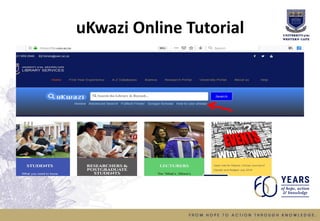
uKwazi Online Tutorial
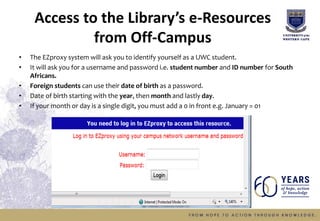
Access to the Library’s e-Resources
from Off-Campus
• The EZproxy system will ask you to identify yourself as a UWC student.
• It will ask you for a username and password i.e. student number and ID number for South
Africans.
• Foreign students can use their date of birth as a password.
• Date of birth starting with the year, then month and lastly day.
• If your month or day is a single digit, you must add a 0 in front e.g. January = 01
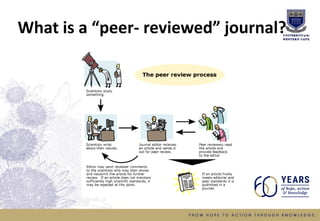
What is a “peer- reviewed” journal?
Search the uKwazi Database - Enter your
keywords/phrases in the search box and click on Search
to obtain a list of books, journal articles, videos etc.
Sign in to get complete results and to
request items.
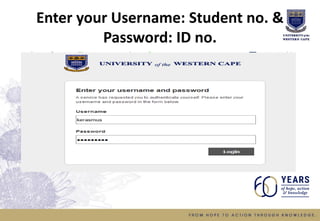
Enter your Username: Student no. &
Password: ID no.
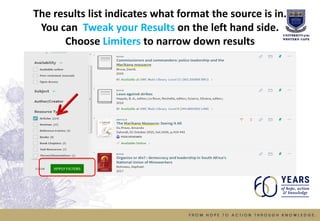
The results list indicates what format the source is in.
You can Tweak your Results on the left hand side.
Choose Limiters to narrow down results
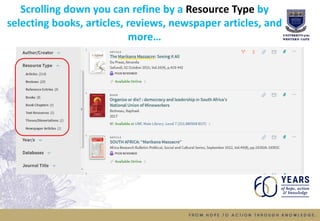
Scrolling down you can refine by a Resource Type by
selecting books, articles, reviews, newspaper articles, and
more…
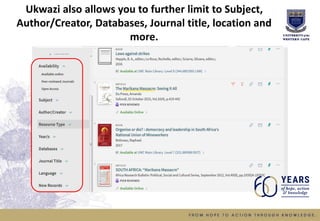
Ukwazi also allows you to further limit to Subject,
Author/Creator, Databases, Journal title, location and
more.
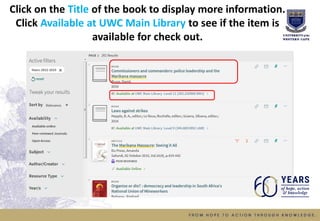
Click on the Title of the book to display more information.
Click Available at UWC Main Library to see if the item is
available for check out.
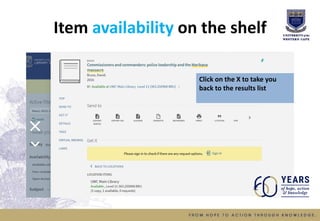
Item availability on the shelf
Click on the X to take you
back to the results list
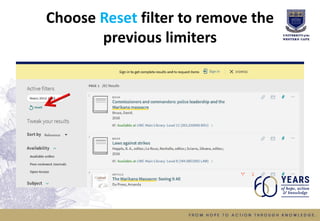
Choose Reset filter to remove the
previous limiters
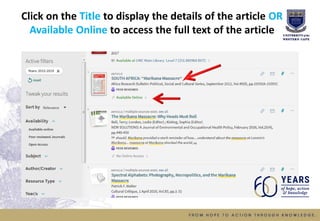
Click on the Title to display the details of the article OR
Available Online to access the full text of the article
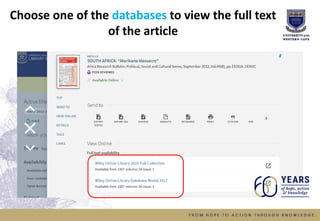
Choose one of the databases to view the full text
of the article
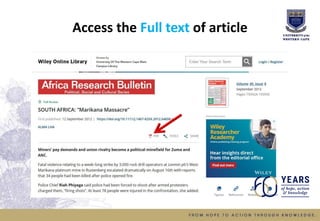
Access the Full text of article
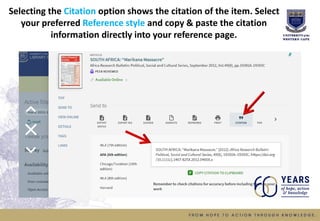
Selecting the Citation option shows the citation of the item. Select
your preferred Reference style and copy & paste the citation
information directly into your reference page.
Thank You!!!
Any Questions?
Faculty Librarian
Grace Van Niekerk
gvanniekerk@uwc.ac.za
Thank you
uKwazi - UWC Catalogue

uKwazi - UWC Catalogue

  • 1.
    Introduction to uKwazi– The UWC Library Search Engine/Catalogue UWC Library GRACE VAN NIEKERK gvanniekerk@uwc.ac.za
  • 2.
    Presentation Format • Introduction:What is a Search Engine? • Why do you need to learn how to use uKwazi? • How to access the uKwazi online tutorial • Off –campus access to the UWC Library : The rules • uKwazi functions and search options • Signing in • How to perform a basic search • Citation option
  • 3.
    Important terminology • Catalogue:An alphabetical list of items • Database: A collection of information that is organized in a particular way so that it is easily accessed • Search Engine: A programme that searches for and identifies items in a database that correspond to keywords specified by the user
  • 4.
  • 6.
    Access to theLibrary’s e-Resources from Off-Campus • The EZproxy system will ask you to identify yourself as a UWC student. • It will ask you for a username and password i.e. student number and ID number for South Africans. • Foreign students can use their date of birth as a password. • Date of birth starting with the year, then month and lastly day. • If your month or day is a single digit, you must add a 0 in front e.g. January = 01
  • 7.
    What is a“peer- reviewed” journal?
  • 8.
    Search the uKwaziDatabase - Enter your keywords/phrases in the search box and click on Search to obtain a list of books, journal articles, videos etc.
  • 9.
    Sign in toget complete results and to request items.
  • 10.
    Enter your Username:Student no. & Password: ID no.
  • 11.
    The results listindicates what format the source is in. You can Tweak your Results on the left hand side. Choose Limiters to narrow down results
  • 12.
    Scrolling down youcan refine by a Resource Type by selecting books, articles, reviews, newspaper articles, and more…
  • 13.
    Ukwazi also allowsyou to further limit to Subject, Author/Creator, Databases, Journal title, location and more.
  • 14.
    Click on theTitle of the book to display more information. Click Available at UWC Main Library to see if the item is available for check out.
  • 15.
    Item availability onthe shelf Click on the X to take you back to the results list
  • 16.
    Choose Reset filterto remove the previous limiters
  • 17.
    Click on theTitle to display the details of the article OR Available Online to access the full text of the article
  • 18.
    Choose one ofthe databases to view the full text of the article
  • 19.
    Access the Fulltext of article
  • 20.
    Selecting the Citationoption shows the citation of the item. Select your preferred Reference style and copy & paste the citation information directly into your reference page.
  • 21.
  • 22.
    Faculty Librarian Grace VanNiekerk gvanniekerk@uwc.ac.za Thank you