Tutorial for Oracle10g Forms / Reports


Lesson 2

In this lesson you will learn how to create an end-user interface and add more functionality to the
basic form that we created in Lesson 1. Specifically, this will involve:

      Creating LOVs, or List of Values, where you will connect your form to another table from which
   the users make their selections

      Creating Radio Buttons

      Creating Combo Boxes and Poplists

      Creating Push Buttons

      Adding triggers to the Push Buttons for inserting, deleting and retrieving records

List of Values (LOVs)

 1. In this form we are designing, we will create a List of Values for major, so that the user can
    select a major from the list. To do this, first we will have to create table called Major_List.
 2. To do this, go to SQL*Plus and type the following code at the SQL prompt

             SQL> CREATE TABLE MAJOR_LIST (MAJOR              VARCHAR2(20));

 3. Now type in the following statement to insert more data into the Major_list table:

             SQL>   INSERT   INTO   MAJOR_LIST   VALUES   ('Accounting');
             SQL>   INSERT   INTO   MAJOR_LIST   VALUES   ('Info. Systems');
             SQL>   INSERT   INTO   MAJOR_LIST   VALUES   ('Marketing');
             SQL>   INSERT   INTO   MAJOR_LIST   VALUES   ('Finance');
             SQL>   INSERT   INTO   MAJOR_LIST   VALUES   ('Decision Sciences');
             SQL> COMMIT;

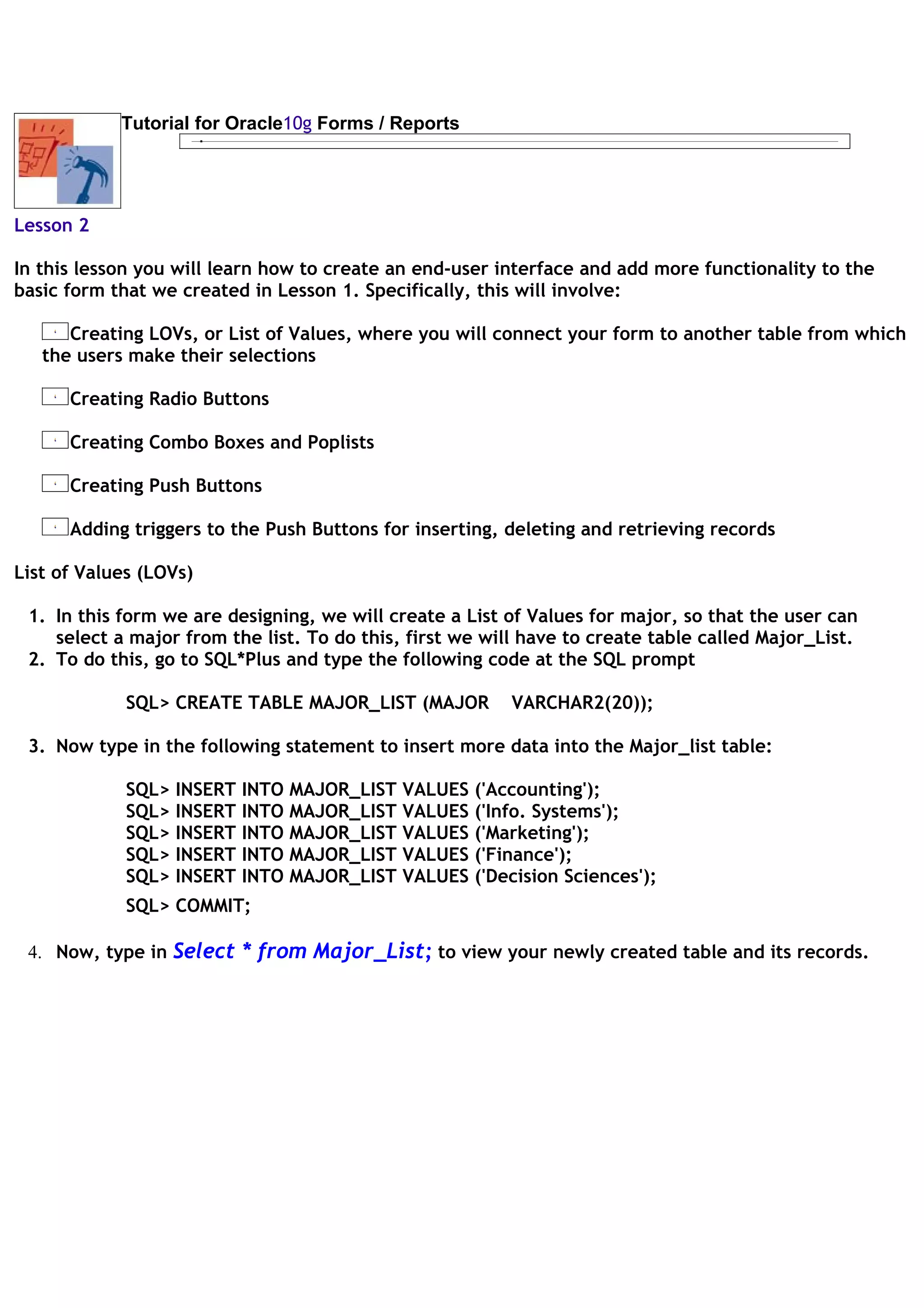
 4. Now, type in Select * from Major_List; to view your newly created table and its records.
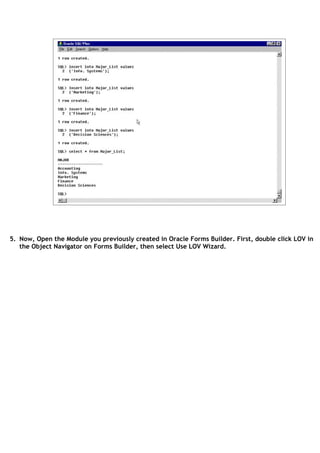
5. Now, Open the Module you previously created in Oracle Forms Builder. First, double click LOV in
   the Object Navigator on Forms Builder, then select Use LOV Wizard.
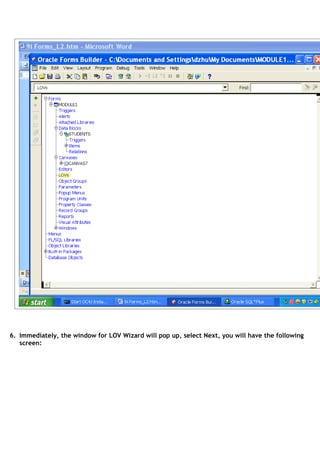
6. Immediately, the window for LOV Wizard will pop up, select Next, you will have the following
   screen:
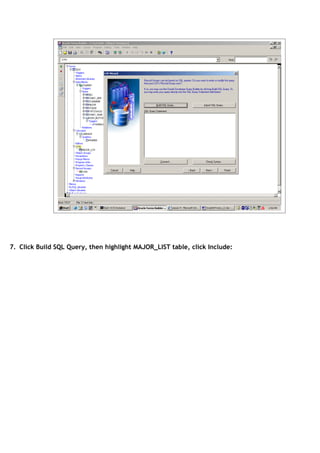
7. Click Build SQL Query, then highlight MAJOR_LIST table, click Include:
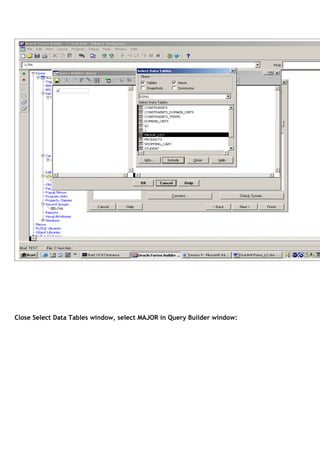
Close Select Data Tables window, select MAJOR in Query Builder window:
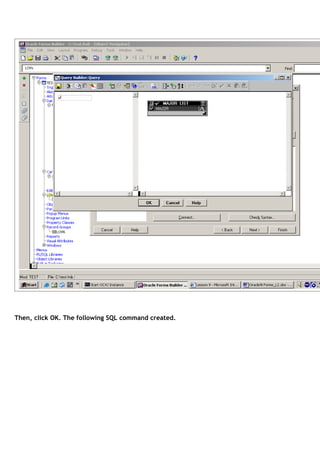
Then, click OK. The following SQL command created.
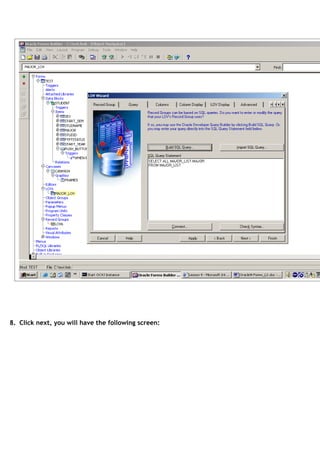
8. Click next, you will have the following screen:
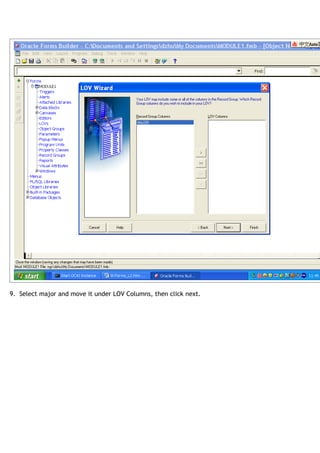
9. Select major and move it under LOV Columns, then click next.
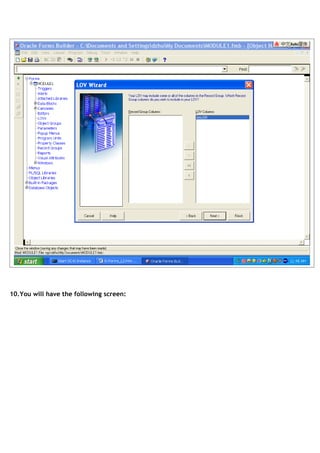
10.You will have the following screen:
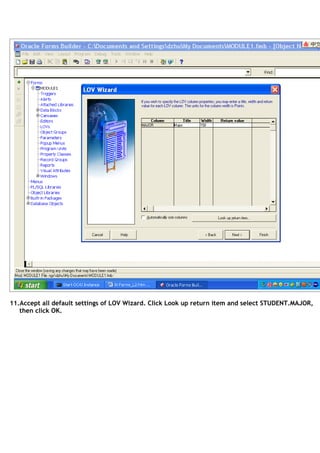
11.Accept all default settings of LOV Wizard. Click Look up return item and select STUDENT.MAJOR,
   then click OK.
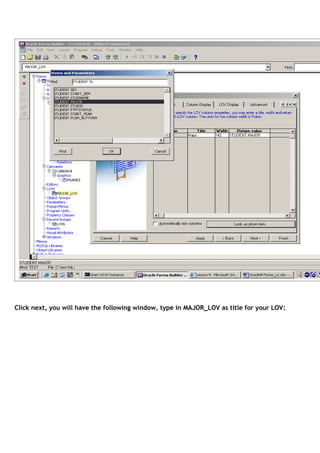
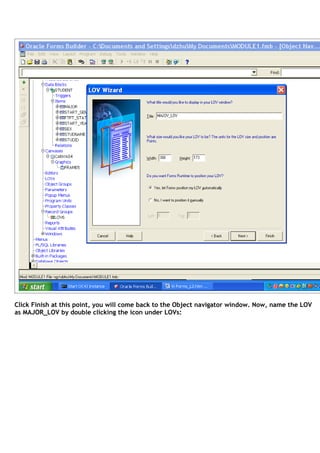
Click next, you will have the following window, type in MAJOR_LOV as title for your LOV:
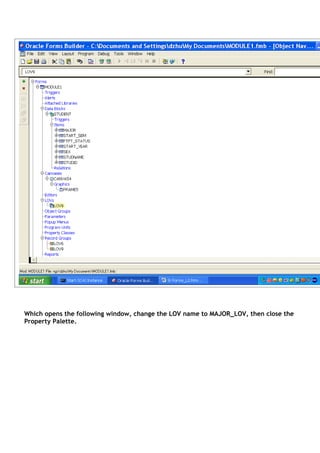
Click Finish at this point, you will come back to the Object navigator window. Now, name the LOV
as MAJOR_LOV by double clicking the icon under LOVs:
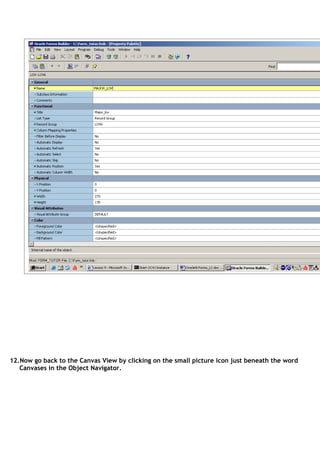
Which opens the following window, change the LOV name to MAJOR_LOV, then close the
Property Palette.
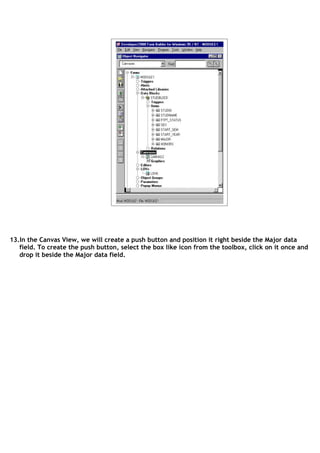
12.Now go back to the Canvas View by clicking on the small picture icon just beneath the word
   Canvases in the Object Navigator.
13.In the Canvas View, we will create a push button and position it right beside the Major data
   field. To create the push button, select the box like icon from the toolbox, click on it once and
   drop it beside the Major data field.
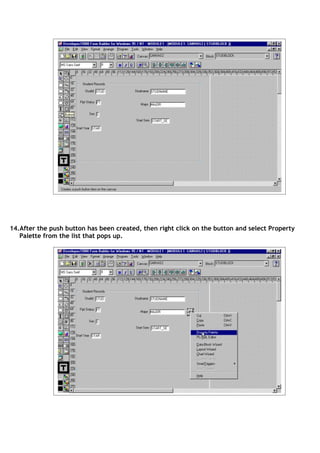
14.After the push button has been created, then right click on the button and select Property
   Palette from the list that pops up.
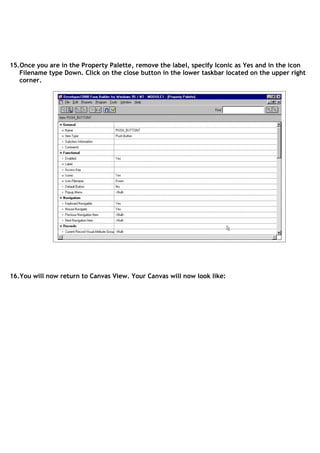
15.Once you are in the Property Palette, remove the label, specify Iconic as Yes and in the icon
   Filename type Down. Click on the close button in the lower taskbar located on the upper right
   corner.


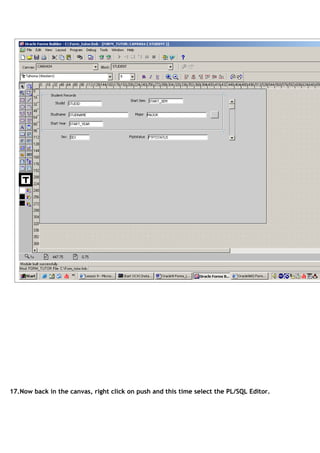
16.You will now return to Canvas View. Your Canvas will now look like:
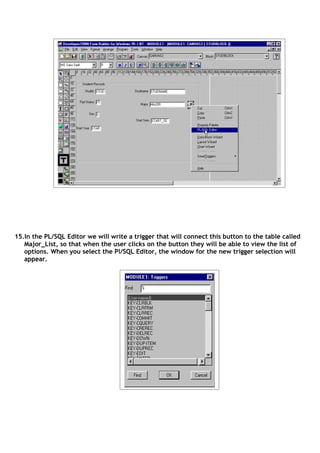
17.Now back in the canvas, right click on push and this time select the PL/SQL Editor.
15.In the PL/SQL Editor we will write a trigger that will connect this button to the table called
   Major_List, so that when the user clicks on the button they will be able to view the list of
   options. When you select the Pl/SQL Editor, the window for the new trigger selection will
   appear.
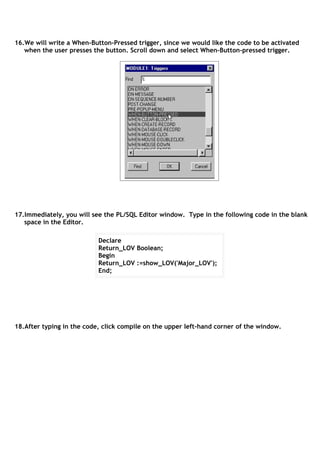
16.We will write a When-Button-Pressed trigger, since we would like the code to be activated
   when the user presses the button. Scroll down and select When-Button-pressed trigger.


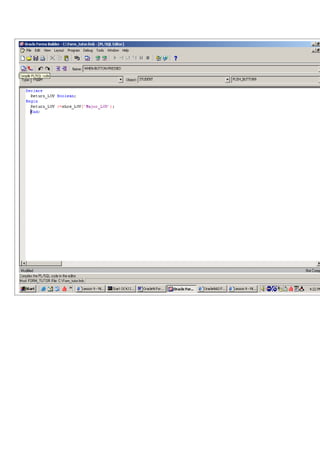
17.Immediately, you will see the PL/SQL Editor window. Type in the following code in the blank
   space in the Editor.

                           Declare
                           Return_LOV Boolean;
                           Begin
                           Return_LOV :=show_LOV('Major_LOV');
                           End;


18.After typing in the code, click compile on the upper left-hand corner of the window.
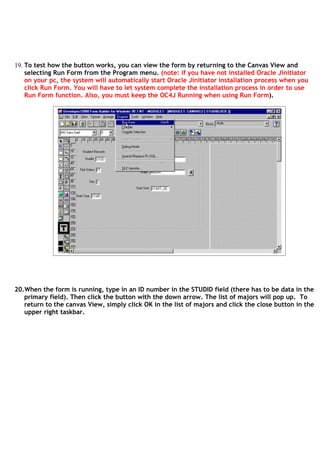
19. To test how the button works, you can view the form by returning to the Canvas View and
    selecting Run Form from the Program menu. (note: if you have not installed Oracle Jinitiator
    on your pc, the system will automatically start Oracle Jinitiator installation process when you
    click Run Form. You will have to let system complete the installation process in order to use
    Run Form function. Also, you must keep the OC4J Running when using Run Form).


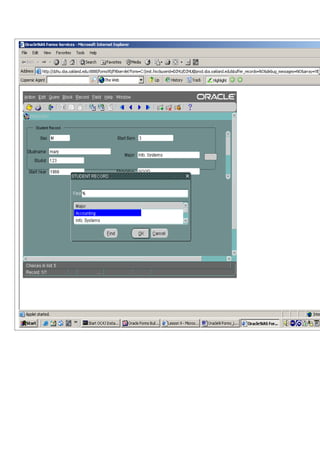
20.When the form is running, type in an ID number in the STUDID field (there has to be data in the
   primary field). Then click the button with the down arrow. The list of majors will pop up. To
   return to the canvas View, simply click OK in the list of majors and click the close button in the
   upper right taskbar.
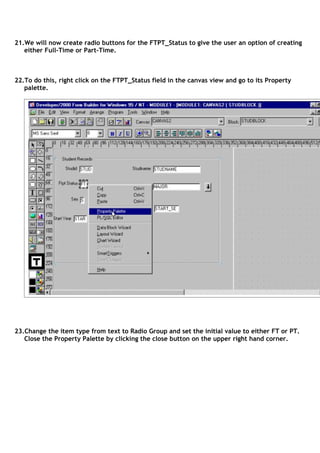
21.We will now create radio buttons for the FTPT_Status to give the user an option of creating
   either Full-Time or Part-Time.


22.To do this, right click on the FTPT_Status field in the canvas view and go to its Property
   palette.


23.Change the item type from text to Radio Group and set the initial value to either FT or PT.
   Close the Property Palette by clicking the close button on the upper right hand corner.
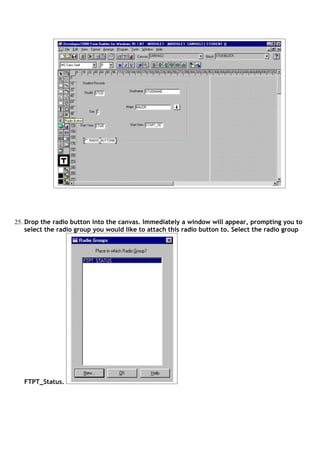
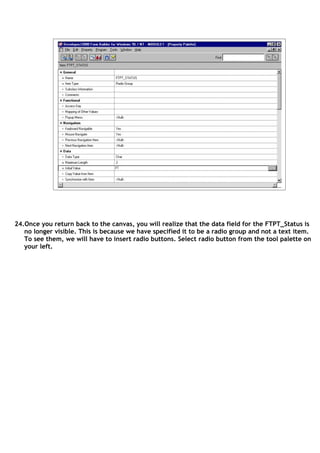
24.Once you return back to the canvas, you will realize that the data field for the FTPT_Status is
   no longer visible. This is because we have specified it to be a radio group and not a text item.
   To see them, we will have to insert radio buttons. Select radio button from the tool palette on
   your left.
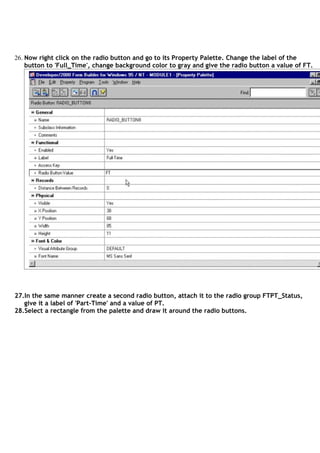
25. Drop the radio button into the canvas. Immediately a window will appear, prompting you to
    select the radio group you would like to attach this radio button to. Select the radio group


   FTPT_Status.
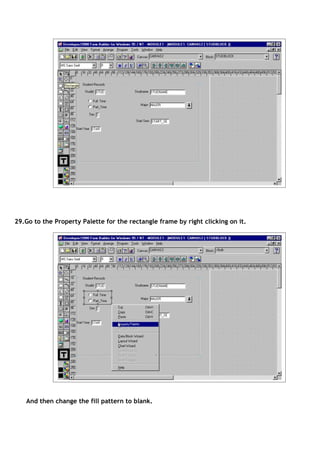
26. Now right click on the radio button and go to its Property Palette. Change the label of the
    button to 'Full_Time', change background color to gray and give the radio button a value of FT.


27.In the same manner create a second radio button, attach it to the radio group FTPT_Status,
   give it a label of 'Part-Time' and a value of PT.
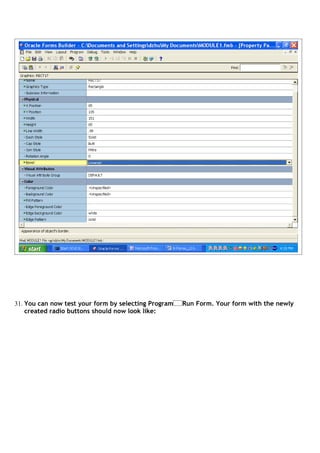
28.Select a rectangle from the palette and draw it around the radio buttons.
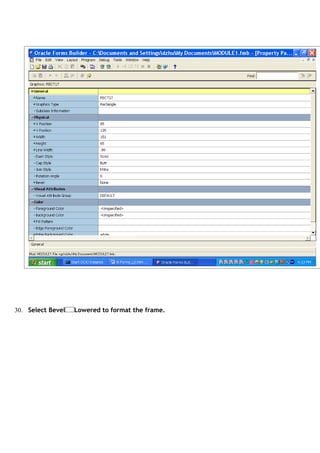
29.Go to the Property Palette for the rectangle frame by right clicking on it.


   And then change the fill pattern to blank.
30. Select Bevel   Lowered to format the frame.
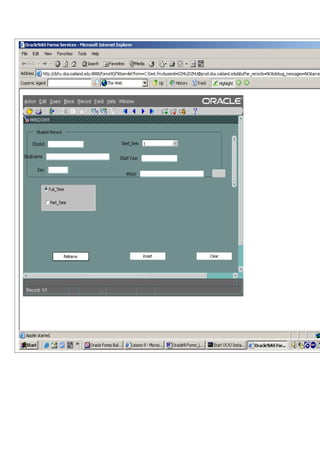
31. You can now test your form by selecting Program   Run Form. Your form with the newly
    created radio buttons should now look like:
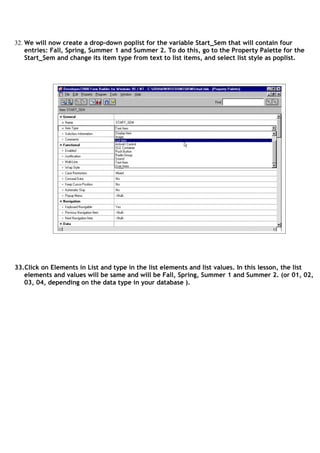
32. We will now create a drop-down poplist for the variable Start_Sem that will contain four
    entries: Fall, Spring, Summer 1 and Summer 2. To do this, go to the Property Palette for the
    Start_Sem and change its item type from text to list items, and select list style as poplist.


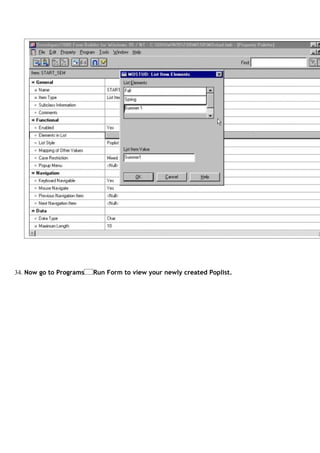
33.Click on Elements in List and type in the list elements and list values. In this lesson, the list
   elements and values will be same and will be Fall, Spring, Summer 1 and Summer 2. (or 01, 02,
   03, 04, depending on the data type in your database ).
34. Now go to Programs   Run Form to view your newly created Poplist.
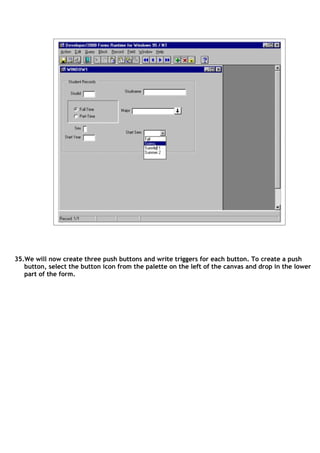
35.We will now create three push buttons and write triggers for each button. To create a push
   button, select the button icon from the palette on the left of the canvas and drop in the lower
   part of the form.
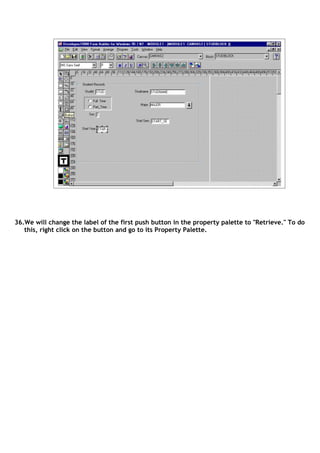
36.We will change the label of the first push button in the property palette to "Retrieve." To do
   this, right click on the button and go to its Property Palette.
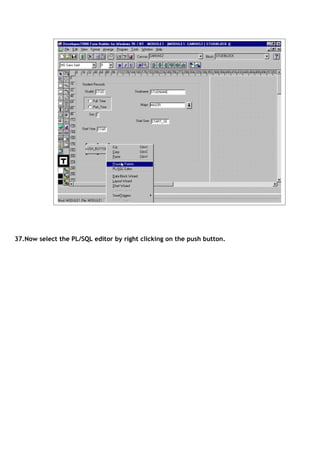
37.Now select the PL/SQL editor by right clicking on the push button.
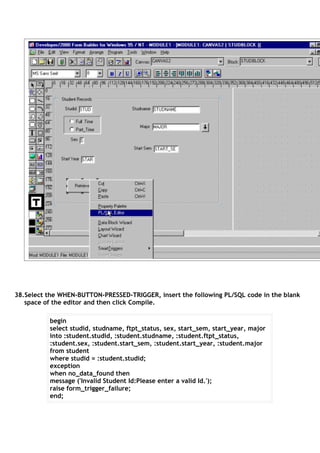
38.Select the WHEN-BUTTON-PRESSED-TRIGGER, insert the following PL/SQL code in the blank
   space of the editor and then click Compile.

          begin
          select studid, studname, ftpt_status, sex, start_sem, start_year, major
          into :student.studid, :student.studname, :student.ftpt_status,
          :student.sex, :student.start_sem, :student.start_year, :student.major
          from student
          where studid = :student.studid;
          exception
          when no_data_found then
          message ('Invalid Student Id:Please enter a valid Id.');
          raise form_trigger_failure;
          end;
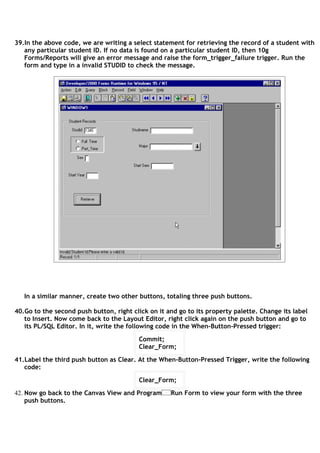
39.In the above code, we are writing a select statement for retrieving the record of a student with
   any particular student ID. If no data is found on a particular student ID, then 10g
   Forms/Reports will give an error message and raise the form_trigger_failure trigger. Run the
   form and type in a invalid STUDID to check the message.


   In a similar manner, create two other buttons, totaling three push buttons.

40.Go to the second push button, right click on it and go to its property palette. Change its label
   to Insert. Now come back to the Layout Editor, right click again on the push button and go to
   its PL/SQL Editor. In it, write the following code in the When-Button-Pressed trigger:

                                          Commit;
                                          Clear_Form;

41.Label the third push button as Clear. At the When-Button-Pressed Trigger, write the following
   code:

                                          Clear_Form;

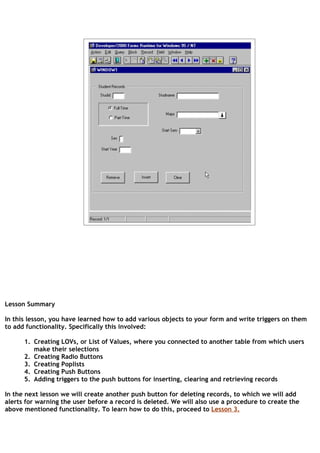
42. Now go back to the Canvas View and Program      Run Form to view your form with the three
    push buttons.
Lesson Summary

In this lesson, you have learned how to add various objects to your form and write triggers on them
to add functionality. Specifically this involved:
      1. Creating LOVs, or List of Values, where you connected to another table from which users
         make their selections
      2. Creating Radio Buttons
      3. Creating Poplists
      4. Creating Push Buttons
      5. Adding triggers to the push buttons for inserting, clearing and retrieving records

In the next lesson we will create another push button for deleting records, to which we will add
alerts for warning the user before a record is deleted. We will also use a procedure to create the
above mentioned functionality. To learn how to do this, proceed to Lesson 3.
Tutorials2

Tutorials2

  • 1.
    Tutorial for Oracle10gForms / Reports Lesson 2 In this lesson you will learn how to create an end-user interface and add more functionality to the basic form that we created in Lesson 1. Specifically, this will involve: Creating LOVs, or List of Values, where you will connect your form to another table from which the users make their selections Creating Radio Buttons Creating Combo Boxes and Poplists Creating Push Buttons Adding triggers to the Push Buttons for inserting, deleting and retrieving records List of Values (LOVs) 1. In this form we are designing, we will create a List of Values for major, so that the user can select a major from the list. To do this, first we will have to create table called Major_List. 2. To do this, go to SQL*Plus and type the following code at the SQL prompt SQL> CREATE TABLE MAJOR_LIST (MAJOR VARCHAR2(20)); 3. Now type in the following statement to insert more data into the Major_list table: SQL> INSERT INTO MAJOR_LIST VALUES ('Accounting'); SQL> INSERT INTO MAJOR_LIST VALUES ('Info. Systems'); SQL> INSERT INTO MAJOR_LIST VALUES ('Marketing'); SQL> INSERT INTO MAJOR_LIST VALUES ('Finance'); SQL> INSERT INTO MAJOR_LIST VALUES ('Decision Sciences'); SQL> COMMIT; 4. Now, type in Select * from Major_List; to view your newly created table and its records.
  • 2.
    5. Now, Openthe Module you previously created in Oracle Forms Builder. First, double click LOV in the Object Navigator on Forms Builder, then select Use LOV Wizard.
  • 3.
    6. Immediately, thewindow for LOV Wizard will pop up, select Next, you will have the following screen:
  • 4.
    7. Click BuildSQL Query, then highlight MAJOR_LIST table, click Include:
  • 5.
    Close Select DataTables window, select MAJOR in Query Builder window:
  • 6.
    Then, click OK.The following SQL command created.
  • 7.
    8. Click next,you will have the following screen:
  • 8.
    9. Select majorand move it under LOV Columns, then click next.
  • 9.
    10.You will havethe following screen:
  • 10.
    11.Accept all defaultsettings of LOV Wizard. Click Look up return item and select STUDENT.MAJOR, then click OK.
  • 11.
    Click next, youwill have the following window, type in MAJOR_LOV as title for your LOV:
  • 12.
    Click Finish atthis point, you will come back to the Object navigator window. Now, name the LOV as MAJOR_LOV by double clicking the icon under LOVs:
  • 13.
    Which opens thefollowing window, change the LOV name to MAJOR_LOV, then close the Property Palette.
  • 14.
    12.Now go backto the Canvas View by clicking on the small picture icon just beneath the word Canvases in the Object Navigator.
  • 15.
    13.In the CanvasView, we will create a push button and position it right beside the Major data field. To create the push button, select the box like icon from the toolbox, click on it once and drop it beside the Major data field.
  • 16.
    14.After the pushbutton has been created, then right click on the button and select Property Palette from the list that pops up.
  • 17.
    15.Once you arein the Property Palette, remove the label, specify Iconic as Yes and in the icon Filename type Down. Click on the close button in the lower taskbar located on the upper right corner. 16.You will now return to Canvas View. Your Canvas will now look like:
  • 18.
    17.Now back inthe canvas, right click on push and this time select the PL/SQL Editor.
  • 19.
    15.In the PL/SQLEditor we will write a trigger that will connect this button to the table called Major_List, so that when the user clicks on the button they will be able to view the list of options. When you select the Pl/SQL Editor, the window for the new trigger selection will appear.
  • 20.
    16.We will writea When-Button-Pressed trigger, since we would like the code to be activated when the user presses the button. Scroll down and select When-Button-pressed trigger. 17.Immediately, you will see the PL/SQL Editor window. Type in the following code in the blank space in the Editor. Declare Return_LOV Boolean; Begin Return_LOV :=show_LOV('Major_LOV'); End; 18.After typing in the code, click compile on the upper left-hand corner of the window.
  • 22.
    19. To testhow the button works, you can view the form by returning to the Canvas View and selecting Run Form from the Program menu. (note: if you have not installed Oracle Jinitiator on your pc, the system will automatically start Oracle Jinitiator installation process when you click Run Form. You will have to let system complete the installation process in order to use Run Form function. Also, you must keep the OC4J Running when using Run Form). 20.When the form is running, type in an ID number in the STUDID field (there has to be data in the primary field). Then click the button with the down arrow. The list of majors will pop up. To return to the canvas View, simply click OK in the list of majors and click the close button in the upper right taskbar.
  • 24.
    21.We will nowcreate radio buttons for the FTPT_Status to give the user an option of creating either Full-Time or Part-Time. 22.To do this, right click on the FTPT_Status field in the canvas view and go to its Property palette. 23.Change the item type from text to Radio Group and set the initial value to either FT or PT. Close the Property Palette by clicking the close button on the upper right hand corner.
  • 25.
    24.Once you returnback to the canvas, you will realize that the data field for the FTPT_Status is no longer visible. This is because we have specified it to be a radio group and not a text item. To see them, we will have to insert radio buttons. Select radio button from the tool palette on your left.
  • 26.
    25. Drop theradio button into the canvas. Immediately a window will appear, prompting you to select the radio group you would like to attach this radio button to. Select the radio group FTPT_Status.
  • 27.
    26. Now rightclick on the radio button and go to its Property Palette. Change the label of the button to 'Full_Time', change background color to gray and give the radio button a value of FT. 27.In the same manner create a second radio button, attach it to the radio group FTPT_Status, give it a label of 'Part-Time' and a value of PT. 28.Select a rectangle from the palette and draw it around the radio buttons.
  • 28.
    29.Go to theProperty Palette for the rectangle frame by right clicking on it. And then change the fill pattern to blank.
  • 29.
    30. Select Bevel Lowered to format the frame.
  • 30.
    31. You cannow test your form by selecting Program Run Form. Your form with the newly created radio buttons should now look like:
  • 32.
    32. We willnow create a drop-down poplist for the variable Start_Sem that will contain four entries: Fall, Spring, Summer 1 and Summer 2. To do this, go to the Property Palette for the Start_Sem and change its item type from text to list items, and select list style as poplist. 33.Click on Elements in List and type in the list elements and list values. In this lesson, the list elements and values will be same and will be Fall, Spring, Summer 1 and Summer 2. (or 01, 02, 03, 04, depending on the data type in your database ).
  • 33.
    34. Now goto Programs Run Form to view your newly created Poplist.
  • 34.
    35.We will nowcreate three push buttons and write triggers for each button. To create a push button, select the button icon from the palette on the left of the canvas and drop in the lower part of the form.
  • 35.
    36.We will changethe label of the first push button in the property palette to "Retrieve." To do this, right click on the button and go to its Property Palette.
  • 36.
    37.Now select thePL/SQL editor by right clicking on the push button.
  • 37.
    38.Select the WHEN-BUTTON-PRESSED-TRIGGER,insert the following PL/SQL code in the blank space of the editor and then click Compile. begin select studid, studname, ftpt_status, sex, start_sem, start_year, major into :student.studid, :student.studname, :student.ftpt_status, :student.sex, :student.start_sem, :student.start_year, :student.major from student where studid = :student.studid; exception when no_data_found then message ('Invalid Student Id:Please enter a valid Id.'); raise form_trigger_failure; end;
  • 38.
    39.In the abovecode, we are writing a select statement for retrieving the record of a student with any particular student ID. If no data is found on a particular student ID, then 10g Forms/Reports will give an error message and raise the form_trigger_failure trigger. Run the form and type in a invalid STUDID to check the message. In a similar manner, create two other buttons, totaling three push buttons. 40.Go to the second push button, right click on it and go to its property palette. Change its label to Insert. Now come back to the Layout Editor, right click again on the push button and go to its PL/SQL Editor. In it, write the following code in the When-Button-Pressed trigger: Commit; Clear_Form; 41.Label the third push button as Clear. At the When-Button-Pressed Trigger, write the following code: Clear_Form; 42. Now go back to the Canvas View and Program Run Form to view your form with the three push buttons.
  • 39.
    Lesson Summary In thislesson, you have learned how to add various objects to your form and write triggers on them to add functionality. Specifically this involved: 1. Creating LOVs, or List of Values, where you connected to another table from which users make their selections 2. Creating Radio Buttons 3. Creating Poplists 4. Creating Push Buttons 5. Adding triggers to the push buttons for inserting, clearing and retrieving records In the next lesson we will create another push button for deleting records, to which we will add alerts for warning the user before a record is deleted. We will also use a procedure to create the above mentioned functionality. To learn how to do this, proceed to Lesson 3.