Oracle Developer:
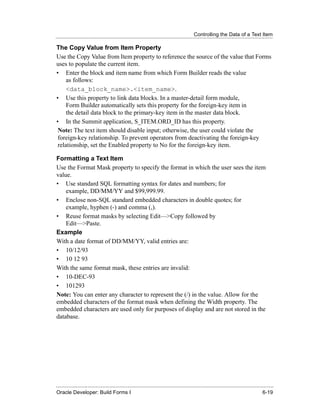
                     Build Forms I

                     Volume 1 • Instructor Guide
                 .......................................................................................


43112GC10
Production 1.0
April 1999
M08604
Authors             Copyright © Oracle Corporation, 1999. All rights reserved.

                    This documentation contains proprietary information of Oracle Corporation. It is
Fergus Griffin
                    provided under a license agreement containing restrictions on use and disclosure
Ellen Gravina       and is also protected by copyright law. Reverse engineering of the software is
                    prohibited. If this documentation is delivered to a U.S. Government Agency of the
                    Department of Defense, then it is delivered with Restricted Rights and the
                    following legend is applicable:

Technical
                    Restricted Rights Legend
Contributors and
                    Use, duplication or disclosure by the Government is subject to restrictions for
Reviewers           commercial computer software and shall be deemed to be Restricted Rights
                    software under Federal law, as set forth in subparagraph (c) (1) (ii) of DFARS
Grant Anderson
                    252.227-7013, Rights in Technical Data and Computer Software (October 1988).
David Ball
                    This material or any portion of it may not be copied in any form or by any means
Christian Bauwens   without the express prior written permission of the Worldwide Education Services
Ruth Delaney        group of Oracle Corporation. Any other copying is a violation of copyright law and
Brian Fry           may result in civil and/or criminal penalties.

Tushar Gadhia       If this documentation is delivered to a U.S. Government Agency not within the
                    Department of Defense, then it is delivered with “Restricted Rights,” as defined in
Danae Hadjioannou
                    FAR 52.227-14, Rights in Data-General, including Alternate III (June 1987).
Daniel Maas
                    The information in this document is subject to change without notice. If you find
Jayne Marlow        any problems in the documentation, please report them in writing to Education
Stella Misiulis     Products, Oracle Corporation, 500 Oracle Parkway, Box 659806, Redwood
Mark Sullivan       Shores, CA 94065. Oracle Corporation does not warrant that this document is
                    error-free.

                    Oracle Developer, Oracle Server, and PL/SQL are trademarks or registered
                    trademarks of Oracle Corporation.
Publisher           All other products or company names are used for identification purposes only,
                    and may be trademarks of their respective owners.
Tommy Cheung
Contents
.....................................................................................................................................................

Preface
      Profile xvii
      Related Publications xviii
      Typographic Conventions xix

Introduction
      Overview I-3
      Course Objectives I-5
      Course Content I-7

Lesson 1: Course Introduction
     Introduction 1-3
     What Is Oracle Developer? 1-5
     Introducing the Oracle Developer Components 1-11
     Common Builder Components 1-15
     Getting Started in the Oracle Developer Interface 1-21
     Navigating Around the Oracle Developer Main Menu 1-23
     Customizing Your Oracle Developer Session 1-25
     Oracle Developer Environment Variables 1-29
     Invoking Online Help Facilities 1-31
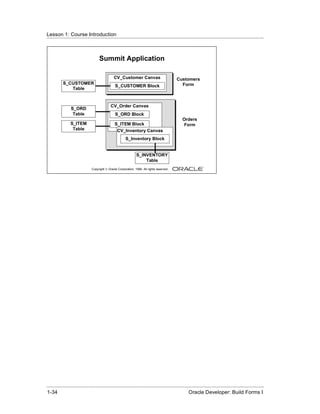
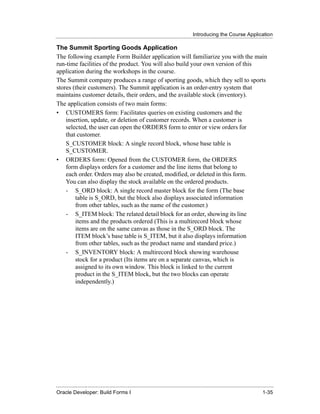
     Introducing the Course Application 1-33
     Summary 1-37
     Practice 1 Overview 1-39
     Practice 1 1-40

Lesson 2: Running a Form Builder Application
     Introduction 2-3
     What You See at Run Time 2-5
     Navigating a Form Builder Application 2-11
     Modes of Operation 2-15
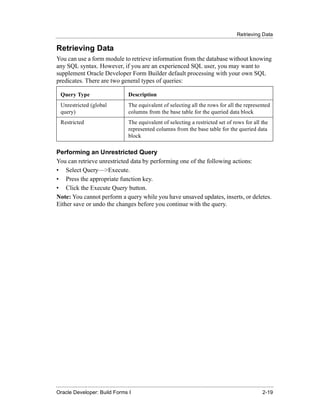
     Retrieving Data 2-19
     Inserting, Updating, and Deleting Records 2-27
     Displaying Errors 2-31
     Summary 2-33


.....................................................................................................................................................
Oracle Developer: Build Forms I                                                                                                                  iii
Contents
.....................................................................................................................................................

             Practice 2 Overview 2-35
             Practice 2 2-36

Lesson 3: Working in the Form Builder Environment
     Introduction 3-3
     What Is Form Builder? 3-5
     Form Builder Executables 3-7
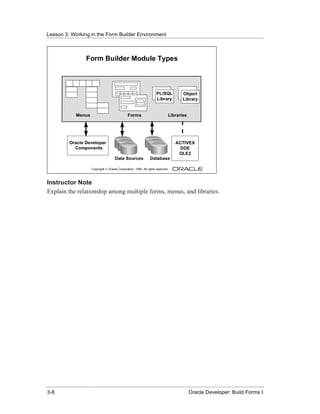
     Form Builder Module Types 3-9
     Form Builder Components 3-11
     Summary 3-23

Lesson 4: Creating a Basic Form Module
     Introduction 4-3
     Creating a New Form Module 4-5
     Creating a New Data Block 4-11
     Modifying the Layout 4-23
     Template Forms 4-25
     Saving, Compiling, and Running a Form Module                                                     4-27
     Creating Data Blocks with Relationships 4-33
     Creating a Relation Manually 4-39
     Modifying a Relation 4-41
     Running a Master-Detail Form Module 4-45
     Summary 4-47
     Practice 4 Overview 4-49
     Practice 4 4-50

Lesson 5: Working with Data Blocks and Frames
     Introduction 5-3
     Managing Object Properties 5-5
     Controlling the Behavior of Data Blocks 5-15
     Controlling the Appearance of Data Blocks 5-21
     Controlling Frame Properties 5-25
     More About Object Properties 5-27
     Creating Control Blocks 5-33


.....................................................................................................................................................
iv                                                                                               Oracle Developer: Build Forms I
Contents
.....................................................................................................................................................

            Deleting Data Blocks 5-35
            Summary 5-37
            Practice 5 Overview 5-39
            Practice 5 5-40

Lesson 6: Working with Text Items
     Introduction 6-3
     What Is a Text Item? 6-5
     Creating a Text Item 6-7
     Modifying the Appearance of a Text Item 6-9
     Associating Text with an Item Prompt 6-15
     Controlling the Data of a Text Item 6-17
     Altering the Navigational Behavior of a Text Item 6-23
     Enhancing the Relationship Between Text Item and Database 6-25
     Adding Functionality to a Text Item 6-27
     Including Helpful Messages 6-33
     Summary 6-35
     Practice 6 Overview 6-37
     Practice 6 6-38

Lesson 7: Creating LOVs and Editors
     Introduction 7-3
     What Are LOVs and Editors? 7-5
     Defining an LOV 7-9
     Creating an LOV by Using the LOV Wizard                                                  7-19
     Defining an Editor 7-25
     Summary 7-29
     Practice 7 Overview 7-31
     Practice 7 7-32

Lesson 8: Creating Additional Input Items
     Introduction 8-3
     What Are Input Items? 8-5
     Creating a Check Box 8-7


.....................................................................................................................................................
Oracle Developer: Build Forms I                                                                                                                   v
Contents
.....................................................................................................................................................

             Creating a List Item 8-15
             Creating a Radio Group 8-23
             Summary 8-31
             Practice 8 Overview 8-33
             Practice 8 8-34

Lesson 9: Creating Noninput Items
     Introduction 9-3
     What Are Noninput Items? 9-5
     Creating a Display Item 9-7
     Creating an Image Item 9-11
     Creating a Sound Item 9-19
     Creating a Push Button 9-25
     Creating a Calculated Item 9-31
     Creating a Hierarchical Tree Item 9-39
     Summary 9-41
     Practice 9 Overview 9-43
     Practice 9 9-44

Lesson 10: Creating Windows and Content Canvases
     Introduction 10-3
     Windows and Content Canvases 10-5
     Displaying a Form Module in Multiple Windows 10-9
     Displaying a Form Module on Multiple Layouts 10-15
     Summary 10-19
     Practice 10 Overview 10-21
     Practice 10 10-22

Lesson 11: Working with Other Canvases
     Introduction 11-3
     Canvases Overview 11-5
     Creating a Stacked Canvas 11-7
     Creating a Toolbar 11-13
     Creating a Tab Canvas 11-17


.....................................................................................................................................................
vi                                                                                               Oracle Developer: Build Forms I
Contents
.....................................................................................................................................................

            Summary 11-25
            Practice 11 Overview 11-27
            Practice 11 11-28

Lesson 12: Introduction to Triggers
     Introduction 12-3
     What Is a Trigger? 12-5
     Trigger Components 12-7
     Summary 12-15

Lesson 13: Producing Triggers
     Introduction 13-3
     Defining Triggers in Form Builder 13-5
     PL/SQL Editor Features 13-9
     Database Trigger Editor 13-11
     Writing the Trigger Code 13-13
     Adding Functionality Using Built-in Subprograms                                                    13-19
     Using Triggers 13-27
     Practice 13 Overview 13-32
     Practice 13 13-33

Lesson 14: Debugging Triggers
     Introduction 14-3
     Debugging Triggers 14-5
     Summary 14-27
     Practice 14 Overview 14-29
     Practice 14 14-30

Lesson 15: Adding Functionality to Items
     Introduction 15-3
     Item Interaction Triggers 15-5
     Defining Functionality for Input Items 15-9
     Defining Functionality for Noninput Items 15-13
     Summary 15-27
     Practice 15 Overview 15-29


.....................................................................................................................................................
Oracle Developer: Build Forms I                                                                                                                 vii
Contents
.....................................................................................................................................................

             Practice 15            15-30

Lesson 16: Runform Messages and Alerts
     Introduction 16-3
     Run-time Messages and Alerts Overview 16-5
     Built-ins and Handling Errors 16-7
     Errors and Built-Ins 16-9
     Controlling System Messages 16-11
     The FORM_TRIGGER_FAILURE Exception 16-15
     Triggers for Intercepting System Messages 16-17
     Creating and Controlling Alerts 16-21
     Summary 16-31
     Practice 16 Overview 16-33
     Practice 16 16-34

Lesson 17: Query Triggers
     Introduction 17-3
     Query Triggers 17-5
     SELECT Statements Issued During Query Processing 17-7
     WHERE and ORDER BY Clauses 17-9
     Writing Query Triggers 17-11
     Query Array Processing 17-15
     Coding Triggers for Enter Query Mode 17-17
     Overriding Default Query Processing 17-21
     Obtaining Query Information at Run Time 17-25
     Summary 17-29
     Practice 17 Overview 17-31
     Practice 17 17-32

Lesson 18: Validation
     Introduction 18-3
     Validation Process 18-5
     Using Object Properties to Control Validation 18-7
     Controlling Validation by Using Triggers 18-11


.....................................................................................................................................................
viii                                                                                             Oracle Developer: Build Forms I
Contents
.....................................................................................................................................................

            Validating User Input 18-13
            Tracking Validation Status 18-15
            Built-ins for Validation 18-17
            Summary 18-19
            Practice 18 Overview 18-21
            Practice 18 18-22

Lesson 19: Navigation
     Introduction 19-3
     About Navigation 19-5
     Controlling Navigation 19-7
     Understanding Internal Navigation 19-11
     Navigation Triggers 19-13
     Using the When-New-“object”-Instance Triggers                                                    19-15
     Using the Pre- and Post-Triggers 19-17
     The Navigation Trap 19-19
     Navigation in Triggers 19-21
     Summary 19-23
     Practice 19 Overview 19-25
     Practice 19 19-26

Lesson 20: Transaction Processing
     Introduction 20-3
     Transaction Processing 20-5
     The Commit Sequence of Events 20-9
     Characteristics of Commit Triggers 20-11
     Common Uses for Commit Triggers 20-13
     DML Statements Issued During Commit Processing 20-25
     Overriding Default Transaction Processing 20-27
     Running Against Data Sources Other than Oracle 20-31
     Getting and Setting the Commit Status 20-33
     Array Processing 20-39
     Summary 20-43
     Practice 20 Overview 20-45


.....................................................................................................................................................
Oracle Developer: Build Forms I                                                                                                                  ix
Contents
.....................................................................................................................................................

             Practice 20            20-46

Lesson 21: Writing Flexible Code
     Introduction 21-3
     What Is Flexible Code? 21-5
     Using System Variables for Flexible Coding 21-7
     Using Built-in Subprograms for Flexible Coding 21-11
     Referencing Objects by Internal ID 21-15
     Referencing Items Indirectly 21-23
     Summary 21-27
     Practice 21 Overview 21-29
     Practice 21 21-30

Lesson 22: Sharing Objects and Code
     Introduction 22-3
     Reusable Objects and Code Overview 22-5
     Property Class 22-7
     Creating a Property Class 22-9
     Inheriting a Property Class 22-11
     Creating an Object Group 22-13
     Copying and Subclassing Objects and Code 22-17
     What Is an Object Library? 22-23
     Working with Object Libraries 22-25
     What Is a SmartClass? 22-27
     Reusing PL/SQL 22-29
     PL/SQL Libraries 22-31
     Working with PL/SQL Libraries 22-33
     Summary 22-37
     Practice 22 Overview 22-39
     Practice 22 22-40

Lesson 23: Introducing Multiple Form Applications
     Introduction 23-3
     Multiple Form Applications 23-5


.....................................................................................................................................................
x                                                                                                Oracle Developer: Build Forms I
Contents
.....................................................................................................................................................

            How to Start Another Form Module 23-7
            Defining Multiple Form Functionality 23-9
            Task List 23-21
            Summary 23-23
            Practice 23 Overview 23-25
            Practice 23 23-26

Appendix A: Practice Solutions
     Practice 1 Solutions A-2
     Practice 2 Solutions A-6
     Practice 4 Solutions A-9
     Practice 5 Solution A-14
     Practice 6 Solutions A-18
     Practice 7 Solution A-24
     Practice 8 Solutions A-27
     Practice 9 Solutions A-29
     Practice 10 Solutions A-34
     Practice 11 Solutions A-35
     Practice 13 Solutions A-43
     Practice 14 Solutions A-45
     Practice 15 Solutions A-46
     Practice 16 Solutions A-48
     Practice 17 Solutions A-50
     Practice 18 Solutions A-52
     Practice 19 Solutions A-54
     Practice 20 Solutions A-56
     Practice 21 Solutions A-60
     Practice 22 Solutions A-62
     Practice 23 Solutions A-65

Appendix B: Table Descriptions and Data
     Summit Sporting Goods Database Diagram                                                 B-2
     S_CUSTOMER Description B-3
     S_CUSTOMER Data B-4


.....................................................................................................................................................
Oracle Developer: Build Forms I                                                                                                                  xi
Contents
.....................................................................................................................................................

             S_DEPT Description and Data B-8
             S_EMP Description B-9
             S_EMP Data B-10
             S_ITEM Description B-13
             S_ITEM Data B-14
             S_ORD Description and Data B-16
             S_PRODUCT Description B-17
             S_PRODUCT Data B-18
             S_REGION Description and Data B-22
             S_TITLE Description and Data B-23
             Oracle8 Objects: Types, Tables B-24

Appendix C: Frequently Asked Questions
     Frequently Asked Questions C-2
     Frequently Asked Questions and Answers                                               C-4

Appendix D: Oracle Rdb Overview
     What Is Oracle Rdb? D-2

Appendix E: Locking in Form Builder
     Locking E-5
     Default Locking in Forms E-7
     Locking in Triggers E-13
     Summary E-19

Appendix F: Oracle8 Object Features in Oracle Developer
     Overview F-3
     New Oracle8 Datatypes F-5
     Creating Oracle8 Objects F-11
     Referencing Objects F-19
     Displaying Oracle8 Objects in the Object Navigator F-21
     Summary F-29


.....................................................................................................................................................
xii                                                                                              Oracle Developer: Build Forms I
Contents
.....................................................................................................................................................

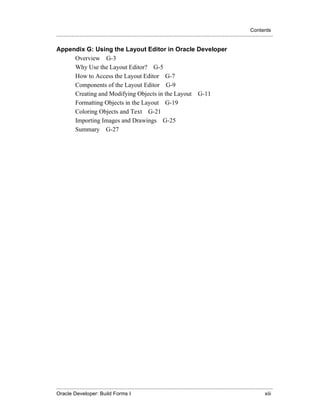
Appendix G: Using the Layout Editor in Oracle Developer
     Overview G-3
     Why Use the Layout Editor? G-5
     How to Access the Layout Editor G-7
     Components of the Layout Editor G-9
     Creating and Modifying Objects in the Layout G-11
     Formatting Objects in the Layout G-19
     Coloring Objects and Text G-21
     Importing Images and Drawings G-25
     Summary G-27


.....................................................................................................................................................
Oracle Developer: Build Forms I                                                                                                                xiii
Contents
.....................................................................................................................................................


.....................................................................................................................................................
xiv                                                                                              Oracle Developer: Build Forms I
Preface

.................................
Preface
.....................................................................................................................................................

Instructor Note
General course information for instructors:

PowerPoint Slides The slideshow provides many builds to enable you to step
through your explanation. Of course, you can modify these builds if you prefer, and if
you know how to use PowerPoint.

Demonstrations Additional demonstration, that are not mentioned in the course
instructor notes, are included in the DEMO directory.

Practice Sessions Students might want to view the form output that they are asked
to produce in each question. Solution files of all forms are available in the LAB_SOL
directory. These files are named ORDWKXX.FMB and CUSTWKXX.FMB, where XX is
the lesson number the solution file is for. The solution file for Lesson 1 is called
summitwk.fmb.


.....................................................................................................................................................
xvi                                                                                              Oracle Developer: Build Forms I
Profile
.....................................................................................................................................................


Profile
Before You Begin This Course
Before you begin this course, you should have the following qualifications:
• Thorough knowledge of creating SQL query statements
• Working experience of:
   - Creating PL/SQL constructs, including conditional statements,
       procedures and functions
   - Creating PL/SQL stored (server) procedures and functions
   - Using a graphical user interface (GUI)

Prerequisites
• The following Instructor-Led Training (ILT) courses:
   - Introduction to Oracle: SQL & PL/SQL or Introduction to Oracle for
      Experienced SQL Users
   - Advanced SQL and SQL*Plus
   - Develop PL/SQL Program Units
• Or, the following CBTs from our SQL * PL/SQL CBT Library:
   - Oracle SQL and SQL*Plus: Basic SELECT Statements or Oracle
      SQL Specifics: Retrieving and Formatting Data
   - Oracle SQL and SQL*Plus: DDL and DML or Oracle SQL
      Specifics: Creating and Managing Database Objects
   - Oracle PL/SQL: Basics
   - Oracle SQL and SQL*Plus: Advanced SELECT Statements
   - Oracle SQL and SQL*Plus: SQL*Plus and Reporting
   - Oracle PL/SQL: Procedures, Functions and Packages
   - Oracle PL/SQL: Database Programming

Suggested Follow-Up Courses
• Oracle Developer: Build Forms II
• Oracle Developer: Build Reports
• Oracle Developer: Deploy Web-Based Applications

How This Course Is Organized
Oracle Developer: Build Forms I is an instructor-led course featuring lecture and
hands-on exercises. Online demonstrations and written practice sessions reinforce the
concepts and skills introduced.


.....................................................................................................................................................
Oracle Developer: Build Forms I                                                                                                                xvii
Preface
.....................................................................................................................................................


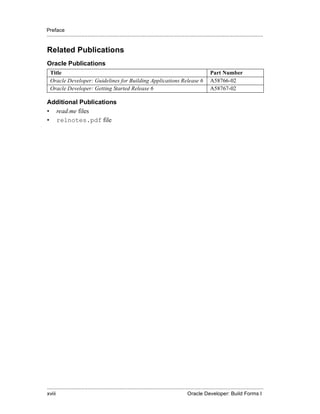
Related Publications
Oracle Publications
  Title                                                                                                         Part Number
  Oracle Developer: Guidelines for Building Applications Release 6                                              A58766-02
  Oracle Developer: Getting Started Release 6                                                                   A58767-02

Additional Publications
• read.me files
• relnotes.pdf file


.....................................................................................................................................................
xviii                                                                                            Oracle Developer: Build Forms I
Typographic Conventions
.....................................................................................................................................................


Typographic Conventions
Typographic Conventions in Text
  Convention                         Element                             Example
  Bold italic                        Glossary term (if                   The algorithm inserts the new key.
                                     there is a glossary)
  Caps and lowercase                 Buttons,                            Click the Executable button.
                                     check boxes,                        Select the Can’t Delete Card check box.
                                     triggers,
                                                                         Assign a When-Validate-Item trigger . . .
                                     windows
                                                                         Open the Master Schedule window.
  Courier new,                       Code output,                        Code output: debug.seti(’I’,300);
  case sensitive                     directory names,                    Directory: bin (DOS), $FMHOME (UNIX)
  (default is                        filenames,
                                                                         Filename: Locate the init.ora file.
  lowercase)                         passwords,
                                     pathnames,                          Password: Use tiger as your password.
                                     URLs,                               Pathname: Open c:my_docsprojects
                                     user input,                         URL: Go to http://www.oracle.com
                                     usernames                           User input: Enter 300
                                                                         Username: Log on as scott
  Initial cap                        Graphics labels                     Customer address (but Oracle Payables)
                                     (unless the term is a
                                     proper noun)
  Italic                             Emphasized words                    Do not save changes to the database.
                                     and phrases,                        For further information, see Oracle7 Server
                                     titles of books                     SQL Language Reference Manual.
                                     and courses,
                                                                         Enter user_id@us.oracle.com, where
                                     variables
                                                                         user_id is the name of the user.
  Quotation marks                    Interface elements                  Select “Include a reusable module
                                     with long names                     component” and click Finish.
                                     that have only                      This subject is covered in Unit II, Lesson 3,
                                     initial caps; lesson                “Working with Objects.”
                                     and chapter titles in
                                     cross-references
  Uppercase                          SQL column                          Use the SELECT command to view
                                     names, commands,                    information stored in the LAST_NAME
                                     functions, schemas,                 column of the EMP table.
                                     table names


.....................................................................................................................................................
Oracle Developer: Build Forms I                                                                                                                xix
Preface
.....................................................................................................................................................


  Convention                          Element                            Example
  Arrow                               Menu paths                         Select File—>Save.
  Brackets                            Key names                          Press [Enter].
  Commas                              Key sequences                      Press and release these keys one at a time:
                                                                         [Alt], [F], [D]
  Plus signs                          Key combinations                   Press and hold these keys simultaneously:
                                                                         [Ctrl]+[Alt]+[Del]

Typographic Conventions in Code
  Convention                          Element                         Example
  Caps and lowercase                  Oracle Forms                    When-Validate-Item
                                      triggers
  Lowercase                           Column names,                   SELECT last_name
                                      table names                     FROM s_emp;
                                      Passwords                       DROP USER scott
                                                                      IDENTIFIED BY tiger;
                                      PL/SQL objects                  OG_ACTIVATE_LAYER
                                                                        (OG_GET_LAYER (’prod_pie_layer’))
  Lowercase italic                    Syntax variables                CREATE ROLE role
  Uppercase                           SQL commands                    SELECT userid
                                      and functions                   FROM emp;

Typographic Conventions in Navigation Paths
This course uses simplified navigation paths, such as the following example, to direct
you through Oracle Applications.

(N) Invoice—>Entry—>Invoice Batches Summary (M) Query—>Find
(B) Approve

This simplified path translates to the following:
 1 (N) From the Navigator window, select Invoice—>Entry—>Invoice Batches
   Summary.
 2 (M) From the menu bar, select Query—>Find.
 3 (B) Click the Approve button.


N = Navigator, M = Menu, B = Button


.....................................................................................................................................................
xx                                                                                               Oracle Developer: Build Forms I
I
   ................................


Introduction
Introduction
......................................................................................................................................................


                                               Objectives


         After completing this lesson, you should be able to
         do the following:
         •     Identify the course objectives
         •     Identify the course content and structure


                              Copyright © Oracle Corporation, 1999. All rights reserved.


Schedule
Topic                     Timing
Lecture                   15 minutes
Total                     15 minutes


.....................................................................................................................................................
I-2                                                                                              Oracle Developer: Build Forms I
Overview
.....................................................................................................................................................

Overview
Introduction
This lesson introduces you to the Oracle Developer: Build Forms I course:
the objectives that the course intends to meet, the topics that it covers, and
how the topics are structured over the duration of the course.


.....................................................................................................................................................
Oracle Developer: Build Forms I                                                                                                                I-3
Introduction
......................................................................................................................................................


                                   Oracle Developer
                                  Release 6 Curriculum

                                                                                                  ILT
                              App. Developer Entry                                                CBT
                                                                                                  Seminar
                  Build Forms I
              Form Builder Library


                 Build Forms II                       Build Reports
                                                                                            Rel1 to Rel6 New Features
              Form Builder Library               Report Builder Library


      Tuning & Productivity

      Product Overview                          Oracle Developer Server:
                                                  Deploy Web-Based
                                                      Applications
                               Copyright © Oracle Corporation, 1999. All rights reserved.


                                      Course Objectives

          After completing this course, you should be able to
          do the following:
          •     Describe the capabilities of Oracle Developer Form Builder
          •     Create form modules including components for database
                interaction and GUI controls
          •     Display form modules in multiple windows and a variety of
                layout styles
          •     Implement triggers to:
                  –   Enhance functionality
                  –   Communicate with users
                  –   Supplement validation, control
                      navigation, and modify default
                      transaction processing
          •     Reuse objects and code
                               Copyright © Oracle Corporation, 1999. All rights reserved.


.....................................................................................................................................................
I-4                                                                                              Oracle Developer: Build Forms I
Course Objectives
.....................................................................................................................................................

Course Objectives
Course Description
In this course, participants will build and test interactive applications.
Working in a graphical user interface (GUI) environment, participants will
learn how to create and customize forms with user input items such as check
boxes, list items, and radio groups. They will also learn how to modify data
access by creating event-related triggers.


.....................................................................................................................................................
Oracle Developer: Build Forms I                                                                                                                I-5
Introduction
......................................................................................................................................................


                                        Course Content


         Day 1
         •     Lesson 1               Course Introduction
         •     Lesson 2               Running a Form Builder Application
         •     Lesson 3               Working in the Form Builder
                                      Environment
         •     Lesson 4               Creating a Basic Form Module


                              Copyright © Oracle Corporation, 1999. All rights reserved.


                                        Course Content


         Day 2
         •     Lesson 5               Working with Data Blocks and Frames
         •     Lesson 6               Working with Text Items
         •     Lesson 7               Creating LOVs and Editors
         •     Lesson 8               Creating Additional Input Items


                              Copyright © Oracle Corporation, 1999. All rights reserved.


.....................................................................................................................................................
I-6                                                                                              Oracle Developer: Build Forms I
Course Content
.....................................................................................................................................................

Course Content
The lesson titles show the topics we cover in this course, and the usual
sequence of lessons. However, the daily schedule is an estimate, and may
vary for each individual class.

Day 1

   Lesson
   Number                    Lesson Name
   1                         Course Introduction
   2                         Running a Form Builder Application
   3                         Working in the Form Builder Environment
   4                         Creating a Basic Form Module

Day 2

   Lesson
   Number                    Lesson Name
   5                         Working with Data Blocks and Frames
   6                         Working with Text Items
   7                         Creating LOVs and Editors
   8                         Creating Additional Input Items


.....................................................................................................................................................
Oracle Developer: Build Forms I                                                                                                                I-7
Introduction
......................................................................................................................................................


                                        Course Content


         Day 3
         •     Lesson 9              Creating Non-Input Items
         •     Lesson 10              Creating Windows and Content
                                      Canvases
         •      Lesson 11 Working with Other Canvases
         •      Lesson 12 Introduction to Triggers
         •      Lesson 13 Producing Triggers
         •      Lesson 14 Debugging Triggers


                              Copyright © Oracle Corporation, 1999. All rights reserved.


                                        Course Content


         Day 4
         •     Lesson 15              Adding Functionality to Items
         •     Lesson 16             Runform Messages and Alerts
         •     Lesson 17              Query Triggers
         •     Lesson 18              Validation
         •     Lesson 19             Navigation


                              Copyright © Oracle Corporation, 1999. All rights reserved.


.....................................................................................................................................................
I-8                                                                                              Oracle Developer: Build Forms I
Course Content
.....................................................................................................................................................

Day 3

  Lesson
  Number                    Lesson Name
  9                         Creating Non-Input Items
  10                        Creating Windows and Content
                            Canvases
  11                        Working with Other Canvases
  12                        Introduction to Triggers
  13                        Producing Triggers
  14                        Debugging Triggers

Day 4

  Lesson
  Number                    Lesson Name
  15                        Adding Functionality to Items
  16                        Runform Messages and Alerts
  17                        Query Triggers
  18                        Validation
  19                        Navigation


.....................................................................................................................................................
Oracle Developer: Build Forms I                                                                                                                I-9
Introduction
......................................................................................................................................................


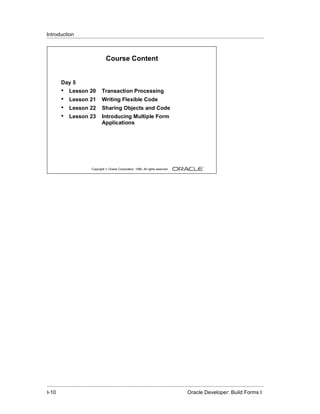
                                        Course Content


         Day 5
         •     Lesson 20              Transaction Processing
         •     Lesson 21              Writing Flexible Code
         •     Lesson 22              Sharing Objects and Code
         •     Lesson 23              Introducing Multiple Form
                                      Applications


                              Copyright © Oracle Corporation, 1999. All rights reserved.


.....................................................................................................................................................
I-10                                                                                             Oracle Developer: Build Forms I
Course Content
.....................................................................................................................................................

Day 5

  Lesson
  Number                    Lesson Name
  20                        Transaction Processing
  21                        Writing Flexible Code
  22                        Sharing Objects and Code
  23                        Introducing Multiple Form Applications


.....................................................................................................................................................
Oracle Developer: Build Forms I                                                                                                              I-11
Introduction
......................................................................................................................................................


.....................................................................................................................................................
I-12                                                                                             Oracle Developer: Build Forms I
1
          ................................


Course Introduction
Lesson 1: Course Introduction
......................................................................................................................................................


                                                Objectives


          After completing this lesson, you should be able to
          do the following:
          •    Describe common features and benefits of Oracle
               Developer
          •    Describe Oracle Developer components
          •    Describe common builder components
          •    Navigate around the builder interface
          •    Customize the Oracle Developer session
          •    Describe the course application


                               Copyright © Oracle Corporation, 1999. All rights reserved.


Schedule
Topic                     Timing
Lecture                   60 minutes
Practice                  25 minutes
Total                     85 minutes


......................................................................................................................................................
 1-2                                                                                              Oracle Developer: Build Forms I
Introduction
......................................................................................................................................................

Introduction
Overview
This course teaches you how to build effective and professional form applications
using Oracle Developer Form Builder. This is only one component of Oracle
Developer, and it is useful for you to understand the whole suite of components and
the capabilities of Oracle Developer in building consistent, integrated applications.
This lesson identifies the key and common features of Oracle Developer, the Oracle
Developer components, and the course application model and contents.


......................................................................................................................................................
Oracle Developer: Build Forms I                                                                                                                 1-3
Lesson 1: Course Introduction
......................................................................................................................................................


                            What Is Oracle Developer?
                      Family of                                                 Supported
                      products                                                 technologies


                 Oracle Designer
                                                                     GUI
                                                                                            Database


                Oracle Developer
                                                           Client-server

                                                                                      World Wide Web
               Oracle Discoverer

                               Copyright © Oracle Corporation, 1999. All rights reserved.


Instructor Note
In this course, several slides, such as the one above, have builds or animation
associated with them. These are created to enhance the explanation of several key
concepts. As you show these slides to the students, each new concept will build one at
a time, until all of the builds are displayed.


......................................................................................................................................................
 1-4                                                                                              Oracle Developer: Build Forms I
What Is Oracle Developer?
......................................................................................................................................................

What Is Oracle Developer?
Introduction
Oracle Developer is a suite of Oracle components that you can integrate to build
comprehensive applications.

A Family of Products
Oracle Developer is one group of a family of products that support the design,
creation, and running of applications across a variety of platforms.
The Oracle design, development, and data access tools are:
• Oracle Designer
• Oracle Developer
• Oracle Discoverer

Development Features
Oracle Developer enables you to build high-performance systems that take advantage
of graphical user interface (GUI), database, client-server, and Web technologies.
The intuitive tools within Oracle Developer have common interfaces and features that
make it easy to move among tools and to design elements that are both modular and
reusable.


......................................................................................................................................................
Oracle Developer: Build Forms I                                                                                                                 1-5
Lesson 1: Course Introduction
......................................................................................................................................................


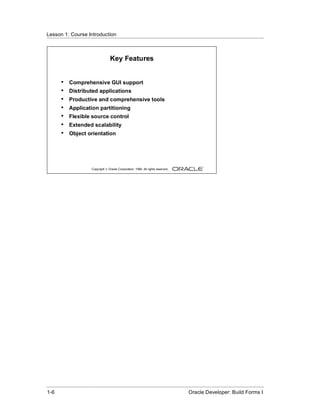
                                            Key Features


          •    Comprehensive GUI support
          •    Distributed applications
          •    Productive and comprehensive tools
          •    Application partitioning
          •    Flexible source control
          •    Extended scalability
          •    Object orientation


                               Copyright © Oracle Corporation, 1999. All rights reserved.


......................................................................................................................................................
 1-6                                                                                              Oracle Developer: Build Forms I
What Is Oracle Developer?
......................................................................................................................................................

Oracle Developer Key Features
Oracle Developer Release 6 provides a number of features that contribute to the
strength and flexibility of the product.

Comprehensive GUI Support Oracle Developer supports the native features of
Microsoft Windows 95 and NT 4.0, and it provides portability to Motif, Macintosh,
and character-mode production environments.

Distributed Applications The tools provide local, client-server, and Web support
with multiple database connections per application. In addition to Oracle7 and
Oracle8, your applications can access Structured Query Language (SQL) databases
through open database connectivity (ODBC).

Productive and Comprehensive Tools Oracle Developer provides the same design
facilities across tools for common functions such as the Layout Editor and the Object
Navigator.

Application Partitioning You can place individual PL/SQL program units on the
database server, the application server, or in the client-side application, whichever is
most suitable in each case. You can copy and move objects between modules and the
database server by using convenient drag-and-drop techniques.

Flexible Source Control You can store the definitions of your application modules
in flat files or in the Oracle database. You can perform version control on these
modules and produce documentation by using Oracle Developer facilities.

Extended Scalability You can scale applications from single users to tens of
thousands, with no changes to the application. Scalability is inherent in the multitiered
architecture of the product. There is support for server functionality, such as array
DML, database cursors, bind variables, and result sets.

Object Orientation Oracle Developer offers an inheritance model that facilitates
the inheritance of attributes and code from one object to another and from one
application to another, through subclassing and object libraries.


......................................................................................................................................................
Oracle Developer: Build Forms I                                                                                                                 1-7
Lesson 1: Course Introduction
......................................................................................................................................................


                    Improved Developer Productivity


         Release 6 provides:
         •     Wizards
         •     Visual query builder
         •     Templates
         •     MAPI support
         •     Open APIs


                              Copyright © Oracle Corporation, 1999. All rights reserved.


Instructor Note
• API: Application Programming Interface
• MAPI: Microsoft Messaging Application Programming Interface


......................................................................................................................................................
 1-8                                                                                              Oracle Developer: Build Forms I
What Is Oracle Developer?
......................................................................................................................................................

Improved Developer Productivity
Release 6 simplifies many developer tasks. Features include:
• Wizards for many simple, repetitive tasks
• Visual query builder both as a stand-alone executable, and as a utility
   embedded in Reports
• Gallery of predefined and user-extensible templates
• Support for Microsoft Messaging Application Program Interface
   (MAPI) compliant clients, for easy report distribution
• Open Application Programming Interfaces (APIs), enabling developers
   to write their own programs in C/C++ and call the API to manipulate a
   file, providing a very fast program interface


......................................................................................................................................................
Oracle Developer: Build Forms I                                                                                                                 1-9
Lesson 1: Course Introduction
......................................................................................................................................................


                       Oracle Developer Components


                                                       API

                                Project                                  Translation
                                Builder                                    Builder

                           Form                      Report                       Graphics
                          Builder                    Builder                       Builder

                       Procedure                     Query                        Schema
                        Builder                      Builder                      Builder

                                    Database interface


                              Copyright © Oracle Corporation, 1999. All rights reserved.


Instructor Note
Project Builder is covered in detail in the course Oracle Developer: Build Forms II.
CGI or common gateway interface, is the industry standard technique for running
applications on a Web server. CGI enables a program running on a Web server to
generate dynamic HTML documents.


......................................................................................................................................................
 1-10                                                                                             Oracle Developer: Build Forms I
Introducing the Oracle Developer Components
......................................................................................................................................................

Introducing the Oracle Developer Components
Release 6 Components

Project Builder This component of Release 6 helps in the entire project life cycle. A
navigator-style interface provides easy access to all your project files and the actions
associated with them. The customizable launcher enables you to launch any
application directly, such as Form Builder, Report Builder, or Microsoft Word.
You can package your application and then deploy it on other machines by using
utilities of your own choosing.

Form Builder This development interface helps you build sophisticated, interactive
applications—screens and pull-down menus. Form Builder can present information
through textual items, GUI objects, and bitmapped images. Users can perform
database transactions by interacting with these objects.
Wizards help you build simple, standard modules very quickly. You can then use the
powerful features of Form Builder to enhance the appearance and functionality of your
application.

Report Builder This development interface helps you build both simple and
extremely complex production-quality reports. The wizard offers a variety of styles.
Templates help you develop professional, standard reports quickly and easily. Report
Builder also supports many more complex and individual enhancements.
You can run a report as a stand-alone application, or invoke it from an Oracle
Developer form, passing data to the report as required. You can deploy reports on the
Web by using the Reports Server and Reports Web Common Gateway Interface (CGI).

Graphics Builder This development interface helps you build a variety of charts,
including drilldown graphics applications. Use the Graphics Builder to enhance and
modify charts created by the Chart Wizard in the Form and Report builders.
Note: You can automatically generate Oracle Developer applications from design
specifications by using Oracle Designer.


......................................................................................................................................................
Oracle Developer: Build Forms I                                                                                                               1-11
Lesson 1: Course Introduction
......................................................................................................................................................


                        Oracle Developer Components


                                                        API

                                 Project                                  Translation
                                 Builder                                    Builder
                            Form                      Report                       Graphics
                           Builder                    Builder                       Builder

                        Procedure                     Query                         Schema
                         Builder                      Builder                       Builder

                                     Database interface


                               Copyright © Oracle Corporation, 1999. All rights reserved.


......................................................................................................................................................
 1-12                                                                                             Oracle Developer: Build Forms I
Introducing the Oracle Developer Components
......................................................................................................................................................

Release 6 Components (continued)

Query Builder With this user-friendly graphical interface, you can build queries,
either in a stand-alone executable or during development of a report by using Report
Builder.

Schema Builder With this user-friendly graphical tool you can define database
objects and their relationships, in a stand-alone executable.

Procedure Builder Procedure Builder provides the common PL/SQL and program
unit management facilities contained within the Oracle Developer application builders
(Form, Report, and Graphics). You can also invoke the stand-alone builder, which
enables you to create and manage program units in a separate session, without
invoking the other application builders.
Procedure Builder enables you to:
• Create, modify, compile, and save program units
• Manage stored subprograms and database triggers
• Move code between Oracle Developer applications and the database, by
    using convenient drag-and-drop techniques

Translation Builder This user-friendly and powerful tool supports and manages
translations of text extracted from Oracle resources. It is a cost effective solution to
translate a given application, and above all, it helps Oracle developers to make a
simultaneous release of native and multilingual applications.


......................................................................................................................................................
Oracle Developer: Build Forms I                                                                                                               1-13
Lesson 1: Course Introduction
......................................................................................................................................................


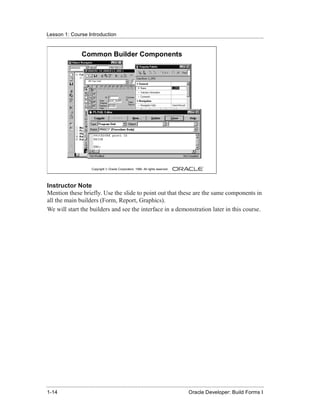
                        Common Builder Components


                               Copyright © Oracle Corporation, 1999. All rights reserved.


Instructor Note
Mention these briefly. Use the slide to point out that these are the same components in
all the main builders (Form, Report, Graphics).
We will start the builders and see the interface in a demonstration later in this course.


......................................................................................................................................................
 1-14                                                                                             Oracle Developer: Build Forms I
Common Builder Components
......................................................................................................................................................

Common Builder Components
Introduction
The Oracle Developer Form, Report, and Graphics builders share a number of
common interface components. These components may include options in one tool
that do not occur in another, but their basic functionalities are the same throughout.
These components help to provide the flexibility and productivity of the Oracle
Developer development environment.

Object Navigator
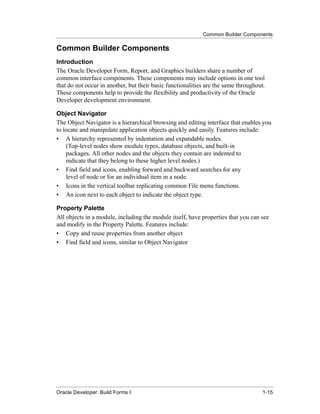
The Object Navigator is a hierarchical browsing and editing interface that enables you
to locate and manipulate application objects quickly and easily. Features include:
• A hierarchy represented by indentation and expandable nodes.
    (Top-level nodes show module types, database objects, and built-in
    packages. All other nodes and the objects they contain are indented to
    indicate that they belong to these higher level nodes.)
• Find field and icons, enabling forward and backward searches for any
    level of node or for an individual item in a node.
• Icons in the vertical toolbar replicating common File menu functions.
• An icon next to each object to indicate the object type.

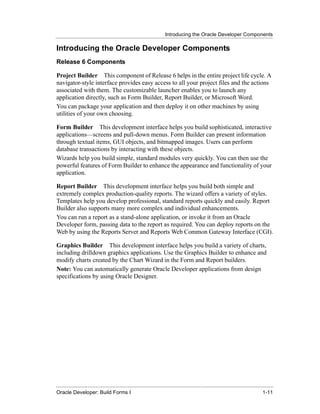
Property Palette
All objects in a module, including the module itself, have properties that you can see
and modify in the Property Palette. Features include:
• Copy and reuse properties from another object
• Find field and icons, similar to Object Navigator


......................................................................................................................................................
Oracle Developer: Build Forms I                                                                                                               1-15
Lesson 1: Course Introduction
......................................................................................................................................................


                            Form Builder Layout Editor


                                                Toolbar


                          Tool Palette


                               Copyright © Oracle Corporation, 1999. All rights reserved.


Instructor Note
It is important for the students to gain exposure to the Object Navigator and the Layout
Editor in Form Builder. They will need this knowledge to complete the practice
exercise at the end of this lesson.

Demonstration
• Open an existing form, and briefly explain the features of the Object
  Navigator.
• Go to the Layout Editor. Point out the major tools in the Toolbar.
  Demonstrate some of the major tools in the Tool Palette.
• Draw a rectangle and an ellipse, and also show how to draw a square and
  a circle by holding down the [Shift] key when using the rectangle and
  ellipse tools.
• Demonstrate selecting more than one object at the same time, and show
  how to group various objects.
• Demonstrate resizing, moving, aligning, coloring, and deleting objects.
• Demonstrate using the Text tool and changing the font style and size.
• Demonstrate how to pin a tool by double-clicking a tool.


......................................................................................................................................................
 1-16                                                                                             Oracle Developer: Build Forms I
Common Builder Components
......................................................................................................................................................

Layout Editor (or Layout Model)
The Layout Editor is a graphical design facility for creating and arranging interface
items and graphical objects in your application. When you use the Tool Palette and the
Toolbar available in the Layout Editor, you can design the style, color, size, and
arrangement of visual objects in the application. The layout can include graphical
objects and bitmapped images when running in a GUI environment.

PL/SQL Development Environment
The development environment is the integrated functionality of Procedure Builder that
exists within the application builders. It provides:
• Development of triggers, procedures, functions, and packages in Oracle
    Developer as well as the database
• Development of libraries to hold PL/SQL program units
• Statement-level debugging of PL/SQL at run time


......................................................................................................................................................
Oracle Developer: Build Forms I                                                                                                               1-17
Lesson 1: Course Introduction
......................................................................................................................................................


                         Oracle Toolkit and Multimedia

                                               Applications
              1                            Form, Report, Graphics

              2


              3


              4
                                                 Microsoft
                                                Windows 95                           Character
                                                Windows NT                            mode
                                     OSF/Motif                Macintosh
                                Copyright © Oracle Corporation, 1999. All rights reserved.


    1       Oracle Developer tools
    2       Multimedia extension
    3       Toolkit
    4       Base functionality

 Instructor Note
 ActiveX is an open platform that combines desktop and Web technologies. An
 ActiveX control can be automatically downloaded and executed by a Web browser.
 ActiveX is a set of rules for how applications should share information. Programmers
 can develop ActiveX controls in a variety of languages, including C, C++, Visual
 Basic, and Java.
 ActiveX is the Microsoft third generation control architecture; the first is VBX, and
 the second is OCX.
 The course Oracle Developer: Build Forms II discusses the use of ActiveX controls.


......................................................................................................................................................
 1-18                                                                                             Oracle Developer: Build Forms I
Common Builder Components
......................................................................................................................................................

Oracle Toolkit and Oracle Multimedia
Oracle Toolkit is a library of functions that perform user interface events, such as
control of the scroll bar and menu activation.
Together with Oracle Multimedia, which provides the integration of images, sounds,
and other media facilities, Toolkit underlays the Oracle Developer development tools,
bridging the gap between your Oracle Developer applications and the native
environment in which you are working.
As your applications request facilities, such as opening a window or displaying a
menu, Oracle Developer passes the requests to Toolkit, which communicates them to
the native platform.
Toolkit attempts to pass tasks to the native interface, if that interface can handle them,
so that your application uses the natural features of your environment, wherever
possible. This means that a Oracle Developer application looks and behaves like a
Windows NT application when running on Windows NT, and like a Motif or
Macintosh application if moved to those platforms.
Toolkit itself provides the functionality where certain functionalities are not available
through the native interface, for example, on character mode devices. This provides an
adaptable user interface for your Oracle Developer applications.
Note: You can see a list of these and other products that support the common
components and integration of Oracle Developer tools by selecting Help—>About in
the builder menus.

Microsoft Windows 95 and NT Support
If you are designing your applications to run on Windows, Oracle Developer provides
extensive support for its facilities.
In addition to basic Windows objects and features, Oracle Developer supports:
• Open Database Connectivity (ODBC)
• Object Linking and Embedding (OLE2)
• Dynamic Data Exchange (DDE)
• ActiveX controls


......................................................................................................................................................
Oracle Developer: Build Forms I                                                                                                               1-19
Lesson 1: Course Introduction
......................................................................................................................................................


                                          Getting Started


          •    Start the builders:
                 – Invoke by using the Project Builder launchpad
                 – Invoke from individual builder icons
          •    See:
                 – Project Builder: the banner and then the wizard
                 – Other builders: wizard
          •    Connect to the database.
          •    Select File—>Connect.


                               Copyright © Oracle Corporation, 1999. All rights reserved.


Instructor Note
Invoke Project Builder. Invoke Form Builder from the launchpad. Oracle Project
Builder 6.0.5.7.0 has a bug. The tooltips for the Builders on the launchpad indicate
Release 6.1 rather than 6.0.
Open an existing form. Use one of the forms from the existing prebuilt application.
We use an existing form in this lesson to familiarize students with the Oracle
Developer interface. Later we create new forms using the wizards.
Form Builder will probably prompt you to connect to the database when it tries to run
the form. Also show students the File—>Connect menu option.


......................................................................................................................................................
 1-20                                                                                             Oracle Developer: Build Forms I
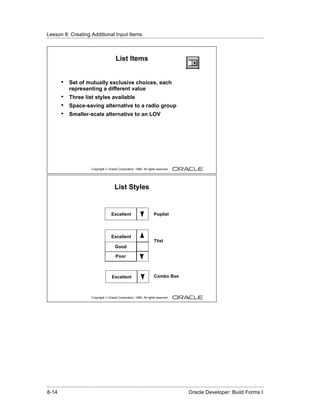
Getting Started in the Oracle Developer Interface
......................................................................................................................................................

Getting Started in the Oracle Developer Interface
Starting the Builders
There are two suggested methods of invoking any of the builders:
•      Invoke Project Builder and launch the builder you require from the
       Project Builder launchpad.
•      Invoke an individual builder from the Oracle Developer 6.0 group.

What You See in the Builders
When you invoke Project Builder, you first see a product banner and then the wizard.
When you invoke the other builders, you first see the wizard. Each builder wizard
gives you several options, including:
•      Create a new module by using the wizard
•      Create a new module manually
•      Open an existing module

Database Connection
If you build applications that access database objects, you need to connect to a
database account from the builder.
Connect to a database if you need to:
•      Compile code that contains SQL
•      Access database objects in the Object Navigator
•      Create Oracle Developer objects that are based on database objects

How to Connect to Oracle
    1 Select File—>Connect from the menu.
    2 Enter the database user and password in the Connect dialog box. If not
       connecting to the default database, also provide the necessary connect
       string or database alias.
Note: Oracle Developer automatically displays the Connect dialog box if you try to
perform a task that requires connection.


......................................................................................................................................................
Oracle Developer: Build Forms I                                                                                                               1-21
Lesson 1: Course Introduction
......................................................................................................................................................


                                   Main Menu Structure


                               Copyright © Oracle Corporation, 1999. All rights reserved.


Instructor Note
Show the Main menu options, and how they differ in context.
Switch between Object Navigator and Layout Editor. The Navigator menu option is
replaced with the Format and Arrange options while in the Layout Editor.
Do not describe Help in detail; there are more details for these options later in this
lesson.


......................................................................................................................................................
 1-22                                                                                             Oracle Developer: Build Forms I
Navigating Around the Oracle Developer Main Menu
......................................................................................................................................................

Navigating Around the Oracle Developer Main Menu
Introduction
The Main menu in each of the three main application builders is very similar.
The Main menu contains options in one builder that do not always appear in another,
but their basic functionality is the same throughout. The Main menu also varies
depending on your current context in the builder.

Common Menu Features
The following table describes some common features in GUI menus.

   Feature                         Description
   Underline                       Shortcut key: [Alt] + letter
   Ellipsis ( . . . )              Additional input, usually by using a dialog box
   >                               Menu option has a submenu
   Windows menu                    List of open windows; select any window to make it active
   Help                            List of help facilities, such as online help text, Cue Cards, Quick Tour


Native GUI Interface
The menu example here is shown in Windows NT. However, menus appear with the
same look and feel of your native GUI interface.
For example, in Motif, the Windows Print Dialog options appear as submenus of the
Font menu.

The Builder Main Menu

   Menu Item               Description
   File                    Common file utilities, such as open, save, connect, administration
   Edit                    Cut, copy, paste, and so on
   View                    Switch view in current window; options vary greatly depending on context
   Navigator               Only appears in Object Navigator; includes expand, collapse, bookmark
   Program                 Includes compilation and access to PL/SQL editors
   Tools                   Includes wizards and preferences


......................................................................................................................................................
Oracle Developer: Build Forms I                                                                                                               1-23
Lesson 1: Course Introduction
......................................................................................................................................................


                  Customizing Your Oracle Developer
                               Session


                               Copyright © Oracle Corporation, 1999. All rights reserved.


Instructor Note
The table opposite lists some specific Form Builder properties and some common to
all builders.


......................................................................................................................................................
 1-24                                                                                             Oracle Developer: Build Forms I
Customizing Your Oracle Developer Session
......................................................................................................................................................

Customizing Your Oracle Developer Session
What Are Oracle Developer Tools Preferences?
You can use tools preferences to customize some aspects of your
Oracle Developer builder session.
Each Oracle Developer builder has its own set of preferences; however, there are some
that are common to all three.

Form Builder Preferences There are four tab pages in the Form Builder
Preferences dialog box. Press the Help key ([F1] for Windows NT/95) in the
Preferences dialog to see a description of each preference.
As well as session preferences, Form Builder preferences enable you to set run-time
settings when running your form within the builder.
The table describes a few example form preferences.

   Tab                  Preference Name                     Description
   General              Build Before                        Determines whether Form Builder automatically
                        Running                             compiles the active module when you run a form. This
                                                            option enables you to avoid issuing separate Compile
                                                            and Run commands each time you modify and run a
                                                            form.
   Access               Access                              Determines if form definitions are saved to (or opened
                                                            from) the database or from files, or both. If access is set
                                                            to both, Form Builder prompts you when you save or
                                                            open each form.
   Wizards              Welcome Dialog                      Check box to suppress or display the first Welcome
                                                            dialog box. There are several similar check boxes.
   Runtime              Array Processing                    Determines whether Form Builder processes groups of
                                                            records at a time, reducing network traffic and
                                                            increasing performance.


How to Modify Tools Preferences
  1 Select Tools—>Preferences.
  2 Select the option you require.
  3 Click OK to save changes, or Cancel to cancel changes.


......................................................................................................................................................
Oracle Developer: Build Forms I                                                                                                               1-25
Lesson 1: Course Introduction
......................................................................................................................................................


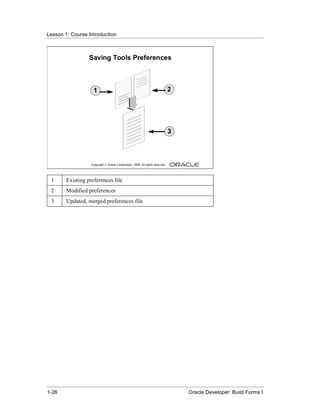
                             Saving Tools Preferences


                                1                                                           2


                                                                                            3


                               Copyright © Oracle Corporation, 1999. All rights reserved.


   1         Existing preferences file
   2         Modified preferences
   3         Updated, merged preferences file


......................................................................................................................................................
 1-26                                                                                             Oracle Developer: Build Forms I
Customizing Your Oracle Developer Session
......................................................................................................................................................

Saving Tools Preferences
When you click OK in the Preferences dialog box, Oracle Developer updates your
current session with the changes.
When you exit the builder, Oracle Developer writes the changes to a preference file for
future sessions.
If the preference file already exists, each Oracle Developer tool merges its changes
with the existing file. This means that preferences for other tools are not affected.
Each option in the preference file is prefixed by the Oracle Developer tool name to
which it belongs.

Example
       OracleGraphics.Rulers = Yes
       Reports.Object_Access = File
       Forms.build_before_run = on
       Forms.welcome_dialog = on

Oracle Developer reads the preference file whenever you invoke the Form, Report, or
Graphics builder.
The name of the preference file varies on different platforms:

   Window Manager                             Preference Filename
   Microsoft Windows                          cauprefs.ora
   Motif                                      prefs.ora

Note: The preferences file is an editable text file. However, we recommend that,
where possible, you alter the options in the Preferences dialog box.


......................................................................................................................................................
Oracle Developer: Build Forms I                                                                                                               1-27
Lesson 1: Course Introduction
......................................................................................................................................................


                                   Oracle Developer
                                 Environment Variables

          •    FORMS60_PATH
          •    REPORTS60_PATH
          •    GRAPHICS60_PATH
          •    UI_ICON
          •    ORACLE_PATH
          Windows NT: Modify in Registry (REGEDIT.EXE or
          REGEDT32.EXE)


                               Copyright © Oracle Corporation, 1999. All rights reserved.


Instructor Note
Warn students to take care when modifying these variables, because they immediately
affect the environment and mistakes can prevent applications from running.
Whenever possible later in the course, point out when these variables are used, and
remind students to avoid hardcoding pathnames in to their applications.
Oracle Developer components also search the local working directory.


......................................................................................................................................................
 1-28                                                                                             Oracle Developer: Build Forms I
Oracle Developer Environment Variables
......................................................................................................................................................

Oracle Developer Environment Variables
Introduction
Oracle Developer uses many environment variables. These have default values, all of
which you can modify in your own environment for different applications.
In this section, we discuss only those variables that relate to file searching at run time.

Setting Pathnames
The main Oracle Developer builders—Form, Report, and Graphics—use some
environment variables to search for files at run time. This enables you to build
applications that are portable across platforms and directory structures, by avoiding
hardcoded paths in file references within a form, report, or chart.

   Variable                                            Description
   FORMS60_PATH                                        A path that Form Builder searches for files at run time
   REPORTS60_PATH                                      A path that Report Builder searches for files at run time
   GRAPHICS60_PATH                                     A path that Graphics Builder searches for files at run time
   UI_ICON                                             A path that all builders search for icon files at run time

Generic Oracle Path
ORACLE_PATH is an additional path that all components search if they cannot find a
file in their own specific path.

Modifying Environment Variables
In a Windows NT 32-bit environment, use the Windows Registry to modify these
paths.


......................................................................................................................................................
Oracle Developer: Build Forms I                                                                                                               1-29
Lesson 1: Course Introduction
......................................................................................................................................................


                        Using the Online Help System


          •    Quick Tour: Built-in CBT package of technical
               information
          •    Cue Cards: Simple step-by-step instructions


                               Copyright © Oracle Corporation, 1999. All rights reserved.


......................................................................................................................................................
 1-30                                                                                             Oracle Developer: Build Forms I
Invoking Online Help Facilities
......................................................................................................................................................

Invoking Online Help Facilities
Oracle Developer Help Options
The table describes the Help menu options in Report Builder.

   Help Menu Option                                    Description
   Form Builder Help Topics                            This is the contents page for comprehensive online help.
                                                       Includes Index and Find tabs.
                                                       The Help key ([F1] (for Windows NT/95) displays
                                                       context-sensitive online help at any place in the builder.
   Quick Tour                                          This built-in computer-based training package is more
                                                       detailed than the Cue Cards, including technical
                                                       explanations of the Form Builder components.
   Cue Cards                                           These appear as separate windows that give simple
                                                       step-by-step instructions and examples to help novice
                                                       users learn basic functionality.
   Manuals                                             This provides an index to installed online manuals, which
                                                       are HTML files that you can view with any browser.
   About Form Builder                                  This is a separate window that shows product components
                                                       and their version numbers. When you are connected to a
                                                       database server, it also displays similar information for
                                                       server-side product components.

Most of the Help features are optional extras during product installation, which require
additional resources.


......................................................................................................................................................
Oracle Developer: Build Forms I                                                                                                               1-31
Lesson 1: Course Introduction
......................................................................................................................................................


                     Summit Sporting Goods Schema


                s_item                               s_ord                        s_customer


                                 s_inventory                                            s_emp


               s_product                     s_warehouse                                s_dept


                 s_image                                              s_region
                               Copyright © Oracle Corporation, 1999. All rights reserved.


Instructor Note

Demonstration Run the prebuilt application to show how all parts of Oracle
Developer come together in a complete project for this schema. Explain that the form
application was built with Form Builder.


......................................................................................................................................................
 1-32                                                                                             Oracle Developer: Build Forms I
Introducing the Course Application
......................................................................................................................................................

Introducing the Course Application
The Summit Sporting Goods Schema
The simplified table diagram shows the tables that we use throughout this course, to
build our form application. Some of you will be familiar with these tables from other
Oracle courses.
Summit Sporting Goods is a company supplying sports goods to customers. Summit
has a number of employees in several departments. Some employees are sales
representatives who have a relationship to specific customers.
Customers place orders. Each order consists of one or more line items. Each line item
represents a product.
Each product has an image associated with it, in the form of an image file.
The company products are stored in a number of warehouses. The contents of the
warehouses are managed in the inventory.

Prebuilt Course Application
The prebuilt application consists of forms, reports, and charts, all of which refer to
these tables.
In this course, you build similar forms to those that form part of this Oracle Developer
application.


......................................................................................................................................................
Oracle Developer: Build Forms I                                                                                                               1-33
Lesson 1: Course Introduction
......................................................................................................................................................


                                    Summit Application

                                               CV_Customer Canvas                           Customers
           S_CUSTOMER                                                                         Form
                                                S_CUSTOMER Block
              Table


                                             CV_Order Canvas
                 S_ORD
                  Table                         S_ORD Block
                                                                                              Orders
                S_ITEM                          S_ITEM Block                                   Form
                 Table                           CV_Inventory Canvas
                                                        S_Inventory Block


                                                                S_INVENTORY
                                                                    Table
                               Copyright © Oracle Corporation, 1999. All rights reserved.


......................................................................................................................................................
 1-34                                                                                             Oracle Developer: Build Forms I
Introducing the Course Application
......................................................................................................................................................

The Summit Sporting Goods Application
The following example Form Builder application will familiarize you with the main
run-time facilities of the product. You will also build your own version of this
application during the workshops in the course.
The Summit company produces a range of sporting goods, which they sell to sports
stores (their customers). The Summit application is an order-entry system that
maintains customer details, their orders, and the available stock (inventory).
The application consists of two main forms:
• CUSTOMERS form: Facilitates queries on existing customers and the
    insertion, update, or deletion of customer records. When a customer is
    selected, the user can open the ORDERS form to enter or view orders for
    that customer.
    S_CUSTOMER block: A single record block, whose base table is
    S_CUSTOMER.
• ORDERS form: Opened from the CUSTOMER form, the ORDERS
    form displays orders for a customer and the line items that belong to
    each order. Orders may also be created, modified, or deleted in this form.
    You can also display the stock available on the ordered products.
    - S_ORD block: A single record master block for the form (The base
        table is S_ORD, but the block also displays associated information
        from other tables, such as the name of the customer.)
    - S_ITEM block: The related detail block for an order, showing its line
        items and the products ordered (This is a multirecord block whose
        items are on the same canvas as those in the S_ORD block. The
        ITEM block’s base table is S_ITEM, but it also displays information
        from other tables, such as the product name and standard price.)
    - S_INVENTORY block: A multirecord block showing warehouse
        stock for a product (Its items are on a separate canvas, which is
        assigned to its own window. This block is linked to the current
        product in the S_ITEM block, but the two blocks can operate
        independently.)


......................................................................................................................................................
Oracle Developer: Build Forms I                                                                                                               1-35
Lesson 1: Course Introduction
......................................................................................................................................................


                                                 Summary


          •    Oracle Developer common features
          •    Common builder interface
          •    Builder preferences
          •    The S_SUMMIT course application


                               Copyright © Oracle Corporation, 1999. All rights reserved.


......................................................................................................................................................
 1-36                                                                                             Oracle Developer: Build Forms I
Summary
......................................................................................................................................................

Summary
•      Oracle Developer provides a suite of components with common features
       and a common builder interface for Form, Report, and Graphic charts.
•      The product provides a common builder interface, including Object
       Navigator, Layout Editor, PL/SQL Editor and Property Palette
       components, and it offers a comprehensive online Help system.
•      Each Oracle Developer component has a set of preferences that you can
       alter for the current and subsequent builder sessions.
•      Finally, in this lesson we described the Summit application tables that
       we use throughout the course to build our forms.


......................................................................................................................................................
Oracle Developer: Build Forms I                                                                                                               1-37
Lesson 1: Course Introduction
......................................................................................................................................................


                                    Practice 1 Overview


          This practice covers the following topics:
          •    Becoming familiar with the Object Navigator and
               Layout Editor
          •    Modifing file access preferences
          •    Creating executable files by using Project
               Builder


                               Copyright © Oracle Corporation, 1999. All rights reserved.


Note
For solutions to this practice, see Practice 1 in Appendix A, “Practice Solutions.”


......................................................................................................................................................
 1-38                                                                                             Oracle Developer: Build Forms I
Practice 1 Overview
......................................................................................................................................................

Practice 1 Overview
This practice familiarizes you with Oracle Developer by asking you a
number of questions that you answer by navigating around the Oracle
Developer interface.
•      Becoming familiar with the Layout Editor and Object Navigator in Form
       Builder
•      Modifying file access preferences
•      Creating the required executable files by using Project Builder to get
       ready for the next lesson

Instructor Note
This practice is intended to serve several purposes:
•      Make students familiar and at-ease with the interface.
•      Exercise 12 in which you create the required executable files
       (orders.fmx and customers.fmx) that will be needed in the next
       lesson is optional.
•      Inform the students where the lab folder is located. They will need the
       pathname when doing this exercise. Also give them the connect string
       (user ID, password, database).
•      Demonstrate Exercise 12 if you are planning to have your students
       complete it. During the demonstration, point out that the Oracle
       Developer Build Forms I node must be selected first when invoking the
       Property Palette in Project Builder. At the end of the demonstration,
       show that the exercise creates the .fmx files.
•      Do not discuss the Property Palette or Project Builder in detail. Explain
       that the Property Palette is discussed in later lessons, and the Project
       Builder is covered in detail in the course Oracle Developer: Build Forms
       II.


......................................................................................................................................................
Oracle Developer: Build Forms I                                                                                                               1-39
Lesson 1: Course Introduction
......................................................................................................................................................

Practice 1
  1 Invoke Project Builder and select “Go to the Project Navigator.”
  2 Launch Form Builder, and select “Open an existing form” from the
       Welcome page.
  3    Open the Orders.fmb form module from the Open Dialog window.
  4    Change your preferences so that when you open or save a file Form
       Builder gives you the option of saving the file to the file system or the
       database.
  5    Try to open the Customers.fmb form module. Notice that the module
       access dialog box displays. Press Cancel.
       Modify your preferences so that Form Builder will access the file system
       only.
  6    Close the ORDERS form.
  7    Open the Summit.fmb form module.
  8    Expand the Data Blocks node.
  9    Expand the Database Objects node. If you cannot expand the node,
       connect to the database and try again. What do you see below this node?
10     Collapse the Data Blocks node.


......................................................................................................................................................
 1-40                                                                                             Oracle Developer: Build Forms I
Practice 1
......................................................................................................................................................

11 Change the layout of the Summit.fmb form module to match the
       screen shot shown below. At the end, save your changes, and exit Form
       Builder.


       a     Invoke the Layout Editor.
       b     Move the three summit shapes to the top-right corner of the layout.
             Align the objects along the bottom edge.
       c     Select the summit shape in the middle and place it behind the other
             two shapes.
       d     Draw a box with no fill around the summit shapes.
       e     Add the text Summit Sporting on top of the box.
       f     Move the Name, Id, and Region_Id items to match the screenshot.
       g     Move the First_Name item up to align it at the same level as the
             Last_Name item.
       h     Resize the scroll bar, to make it the same height as the three records
             in the Emp block.
       i     Save the form module, and exit Form Builder.


......................................................................................................................................................
Oracle Developer: Build Forms I                                                                                                               1-41
Lesson 1: Course Introduction
......................................................................................................................................................

Optional Practice
12 Your instructor may ask you to do the following exercise to prepare
   some forms for the next practice session:
   a Launch Project Builder.
   b Select the “Open an existing project” option in the Welcome page.
   c Select the Summit.upd project in the Lab folder of the directory.
   d In the Project Builder - Project View window, expand the Projects
      node.
   e Expand the Oracle Developer: Build Forms I node. Open the
      Property Palette, and specify the Project Directory as well as the user
      ID and password.
   f Expand the Summit Application node in the Project Builder - Project
      View window.
   g Expand the Form Builder document node.
   h Select the Orders.fmb entry.
   i Select Project—>Build All from the default menu system. This
      creates the run-time files you will need for the next practice session.
   j Exit Project Builder.


......................................................................................................................................................
 1-42                                                                                             Oracle Developer: Build Forms I
2
             ................................


Running a Form Builder
           Application
Lesson 2: Running a Form Builder Application
......................................................................................................................................................


                                                Objectives


          After completing this lesson, you should be able to
          do the following:
          •    Describe the run-time environment
          •    Navigate a Form Builder application
          •    Describe the two modes of operation
          •    Retrieve both restricted and unrestricted data
          •    Insert, update, and delete records
          •    Display database errors


                               Copyright © Oracle Corporation, 1999. All rights reserved.


Schedule
Topic                     Timing
Lecture                   50 minutes
Practice                  25 minutes
Total                     75 minutes


......................................................................................................................................................
 2-2                                                                                              Oracle Developer: Build Forms I
Introduction
......................................................................................................................................................

Introduction
Overview
In this lesson, you will run an existing application in order to become familiar with the
run time interface of the Oracle Developer forms component. It is essential that you
understand the form operator environment before you design and build your own
applications.


......................................................................................................................................................
Oracle Developer: Build Forms I                                                                                                                 2-3
Lesson 2: Running a Form Builder Application
......................................................................................................................................................


                                Run-Time Components
                                                  2
                                                                                               3


                  1


                  4


                               Copyright © Oracle Corporation, 1999. All rights reserved.


   1        MDI parent window
   2        Default menu
   3        Menu toolbar
   4        Console


......................................................................................................................................................
 2-4                                                                                              Oracle Developer: Build Forms I
What You See at Run Time
......................................................................................................................................................

What You See at Run Time
Starting a Run-Time Session
A run-time session consists of one or more linked form and menu modules, all under
the control of a single user.
In a GUI environment, you usually start a Forms run-time session by selecting one of
the following items:
• An icon in the window system
• A menu option in the window system
In either case, this executes a run-time command to start a session. (The command
name varies according to the platform).
For example:
       IFRUN60 my_form scott/tiger
In a GUI environment, the Forms Run time Options screen is displayed when you
execute the command (IFRUN60 in Microsoft Windows). Use this screen to enter the
form name, the database user ID, and other options, if you did not specify them in the
initial command.

What Is the MDI Parent Window?
The multiple-document interface (MDI) parent window is the container window in
which your application can display multiple form modules (document windows). The
title of the MDI parent window is Oracle Developer Forms Runtime.
Note: The concept of MDI is only applicable to Microsoft Windows.

What Is the SDI Window?
Although MDI is the default system of window management during run time, Form
Builder also provides support for a single-document interface (SDI) window on
Microsoft Windows.

What Is the Default Menu?
The Default menu, which is part of all Oracle Developer form applications, is an
alternative to keystroke operations. You can replace or customize the Default menu to
introduce your own functionality into a form module.


......................................................................................................................................................
Oracle Developer: Build Forms I                                                                                                                 2-5
Lesson 2: Running a Form Builder Application
......................................................................................................................................................


                                Run-Time Components
                                                  2
                                                                                               3


                  1


                  4


                               Copyright © Oracle Corporation, 1999. All rights reserved.


Instructor Note

Demonstration Launch the Forms Runtime component. Run the Orders form by
using Orders.fmx. Point out the MDI parent window, Default menu, Menu toolbar,
and Console components.


......................................................................................................................................................
 2-6                                                                                              Oracle Developer: Build Forms I
What You See at Run Time
......................................................................................................................................................

What Is the Menu Toolbar?
The Menu toolbar contains buttons corresponding to menu items. At run time, it
appears above any user-defined toolbars. It executes the same code as menu items, and
it is a shortcut to menu commands that does not duplicate code or effort.

What Is the Console?
The console is the generic name for the standard features that provide information at
run time. The console is displayed at the bottom of the window and consists of:
•      The message line that displays both Form Builder and application
       specific messages.
•      The status line that displays a variety of indicators to reflect the current
       state of the form module.
    Record: n/m                      The nth record retrieved and displayed so far, out of m number
                                     of total records that can be retrieved by the query.
                                     Until the last record is viewed, m displays a “?”; after that it
                                     displays the number corresponding to the last record.
    Enter-Query                      The current block is in Enter Query mode and no records have
                                     been retrieved.
    List of Values                   A list of values (LOV) is associated with the current item.


......................................................................................................................................................
Oracle Developer: Build Forms I                                                                                                                 2-7
Lesson 2: Running a Form Builder Application
......................................................................................................................................................


                                            Data Elements

                   1         2                                                              3    4


                                            8                       9
                                                                                                     5
                                        7                                                            6
                               Copyright © Oracle Corporation, 1999. All rights reserved.


   1        Prompt
   2        Text item
   3        Button
   4        Image item
   5        Display item
   6        Calculated field
   7        Iconic button
   8        Radio group
   9        Check box


......................................................................................................................................................
 2-8                                                                                              Oracle Developer: Build Forms I
What You See at Run Time
......................................................................................................................................................

Identifying the Data Elements
A typical Form Builder application uses and displays a variety of objects and item
types:
• Boilerplate text
• Boilerplate graphics
• Prompts
• Text items
• List items
• Push buttons
• Display items
• Radio buttons
• Check boxes
• Image items
• Sound items
• Hierarchical Tree items
• Chart items
• Custom items
The environment determines the appearance (layout and size of objects do not change)
of the application and the data elements. The visually appealing characteristics that
display when you run the application in a bitmapped environment are limited when
you run it in a character mode environment.


......................................................................................................................................................
Oracle Developer: Build Forms I                                                                                                                 2-9
Lesson 2: Running a Form Builder Application
......................................................................................................................................................


                                Navigating at Run Time


          •    Default menu
          •    Menu toolbar
          •    Mouse
          •    Buttons
          •    Function keys


                               Copyright © Oracle Corporation, 1999. All rights reserved.


Instructor Note

Demonstration In the ORDERS form, point out the main data elements. Show the
different means of navigation.


......................................................................................................................................................
 2-10                                                                                             Oracle Developer: Build Forms I
Navigating a Form Builder Application
......................................................................................................................................................

Navigating a Form Builder Application
The Default Menu
The Default menu is automatically available in a form, unless it is disabled or replaced
with a customized menu. Select options from the menu by using the mouse or function
keys. At run time, use the menu to perform the following tasks:
• Move the cursor and navigate between data blocks, records, and items.
• Save or clear all changes.
• Execute queries.
• Insert new records or delete existing records.
• Invoke Help.

The Menu Toolbar
You can use the Default menu toolbar buttons to perform the following operations also
available through the Default menu:
• Save all changes.
• Exit the form.
• Execute queries.
• Navigate between data blocks or records.
• Insert new records or delete existing records.
• Invoke Help to see properties of an item.

The Mouse
You can use the mouse to navigate and to perform many user operations in a
bitmapped environment without needing to learn the function keys. Use the mouse to
perform the following actions:
• Move the cursor.
• Select from a menu.
• Select from an LOV.
• Select or clear a check box.
• Select a button, including a radio group button.
• Switch to an open window.
• Respond to an alert.
• Scroll records or lines by using a data block or item scroll bar.


......................................................................................................................................................
Oracle Developer: Build Forms I                                                                                                               2-11
Lesson 2: Running a Form Builder Application
......................................................................................................................................................


                                Navigating at Run Time


          •    Default menu
          •    Menu toolbar
          •    Mouse
          •    Buttons
          •    Function keys


                               Copyright © Oracle Corporation, 1999. All rights reserved.


......................................................................................................................................................
 2-12                                                                                             Oracle Developer: Build Forms I
Navigating a Form Builder Application
......................................................................................................................................................

Buttons
Some applications use buttons as a means of navigation. You can click buttons with
the mouse. Use buttons to perform the following tasks:
• Move input focus.
• Display a LOV.
• Invoke an editor.
• Invoke another window.
• Commit data.
• Issue a query.
• Perform calculations.
• Exit the form.

Function Keys
If you are running your application in a bitmapped environment, you can navigate with
the mouse, or you can move from item to item in sequence with function keys. Use
function keys to perform the following tasks:
• Navigate between data blocks, records, and items.
• Execute queries.
• Insert new records or delete existing ones.
• Invoke Help.
To view a list of keys and the functions they perform, select Help—>Keys.
Note: If you run a form application in a character mode environment, function keys
are the only means of operation.


......................................................................................................................................................
Oracle Developer: Build Forms I                                                                                                               2-13
Lesson 2: Running a Form Builder Application
......................................................................................................................................................


                                      Enter Query Mode


          Allows:                                              Does not allow:
          •    Unrestricted and                                •     Navigation out of
               restricted queries                                    current data block
          •    Record count by using                           •     Exiting run-time session
               Query—>Count Hits                               •     Certain functions
                                                               •     Insert, update, delete


                               Copyright © Oracle Corporation, 1999. All rights reserved.


......................................................................................................................................................
 2-14                                                                                             Oracle Developer: Build Forms I
Modes of Operation
......................................................................................................................................................

Modes of Operation
Form Builder has two main modes of operation: Enter Query mode and Normal mode.

Enter Query Mode
Use Enter Query mode to enter search criteria for a database query. In Enter Query
mode, your keystrokes are interpreted as search criteria for retrieving restricted data.

What You Can Do in Enter Query Mode
• Retrieve all records.
• Retrieve records by using selection criteria.
• Retrieve records by using the Query/Where dialog box.
• Obtain the number of records that will be retrieved before fetching them
  from the database by using Query—>Count Hits.

What You Cannot Do in Enter Query Mode
• Navigate out of the current block.
• Exit from the run-time session.
• Use certain functions, such as Next Record.
• Insert new records.
• Update existing records.
• Delete records.


......................................................................................................................................................
Oracle Developer: Build Forms I                                                                                                               2-15
Lesson 2: Running a Form Builder Application
......................................................................................................................................................


                                            Normal Mode


          Allows:                                              Does Not Allow:
          •    Unrestricted queries                            •     Restricted queries
          •    Insert, update, delete                          •     Query/Where dialog box
          •    Commit (Save)
          •    Navigation out of
               current data block
          •    Exiting run-time session


                               Copyright © Oracle Corporation, 1999. All rights reserved.


......................................................................................................................................................
 2-16                                                                                             Oracle Developer: Build Forms I
Modes of Operation
......................................................................................................................................................

Normal Mode
Use Normal mode to insert and alter records in the database. In Normal mode, your
keystrokes are interpreted as either the entering of new records or the altering of
existing ones.

What You Can Do in Normal Mode
• Retrieve all records.
• Insert new records.
• Update records.
• Delete records.
• Commit (Save) records.
• Rollback (Clear) records.
• Navigate outside of the current data block.
• Exit the run-time session.

What You Cannot Do in Normal Mode
• Retrieve a restricted set of records.
• Invoke the Query/Where dialog box.


......................................................................................................................................................
Oracle Developer: Build Forms I                                                                                                               2-17
Lesson 2: Running a Form Builder Application
......................................................................................................................................................


                                          Retrieving Data

                Unrestricted query                                          Restricted query

                   A B         C        D                                     A B           C   D
                   1                                                          3
                   2                                                          4
                   3
                   4


                         A B C D                                                       A B C D
                         1                                                             1
                         2                                                             2
                         3                                                             3
                         4                                                             4


                               Copyright © Oracle Corporation, 1999. All rights reserved.


......................................................................................................................................................
 2-18                                                                                             Oracle Developer: Build Forms I
Retrieving Data
......................................................................................................................................................

Retrieving Data
You can use a form module to retrieve information from the database without knowing
any SQL syntax. However, if you are an experienced SQL user, you may want to
supplement Oracle Developer Form Builder default processing with your own SQL
predicates. There are two general types of queries:

   Query Type                                     Description
   Unrestricted (global                           The equivalent of selecting all the rows for all the represented
   query)                                         columns from the base table for the queried data block
   Restricted                                     The equivalent of selecting a restricted set of rows for all the
                                                  represented columns from the base table for the queried data
                                                  block

Performing an Unrestricted Query
You can retrieve unrestricted data by performing one of the following actions:
• Select Query—>Execute.
• Press the appropriate function key.
• Click the Execute Query button.
Note: You cannot perform a query while you have unsaved updates, inserts, or deletes.
Either save or undo the changes before you continue with the query.


......................................................................................................................................................
Oracle Developer: Build Forms I                                                                                                               2-19
Lesson 2: Running a Form Builder Application
......................................................................................................................................................


                             Retrieving Restricted Data


          •    Do not use quotation marks with character and
               date items.
          •    The LIKE operator is implied with % or _.
          •    Use hash (#) in front of SQL operators.
          •    Use Query/Where for complex query conditions.
          •    Use default date format (DD-MON-YY) in
               Query/Where.
          •    Use quotes around literals in Query/Where.


                               Copyright © Oracle Corporation, 1999. All rights reserved.


......................................................................................................................................................
 2-20                                                                                             Oracle Developer: Build Forms I
Retrieving Data
......................................................................................................................................................

Performing a Restricted Query
You can perform a restricted query by using any one of the following methods:
• Matching values
• Matching patterns (wildcards)
• A Query/Where dialog box for user entry of SQL predicates

Valid Search Criteria

   Item                           Criterion                                           Uses
   Order ID                       110                                                 Exact match
   Customer ID                    %6                                                  Implied LIKE operator
   Order ID                       #BETWEEN 105 AND 107                                BETWEEN operator
   Date Ordered                   09/09/1992                                          Exact match by comparing the date,
                                                                                      using the default format (09-SEP-92)
   Payment Type                   CASH                                                Exact match
   Sales Rep ID                   :S                                                  Query Where dialog

How to Perform a Restricted Query
 1 Do one of the following:
   - Select Query—>Enter.
   - Click the Enter Query button.
   - Press the appropriate function key.
   Enter-Query displays on the status line.
 2 Enter search criteria into appropriate items.
 3 Do one of the following:
   - Select Query—>Execute.
   - Click the Execute Query button.
   - Press the appropriate function key.
Note: Form Builder constructs a select statement by using the AND operator for all
specified conditions.


......................................................................................................................................................
Oracle Developer: Build Forms I                                                                                                               2-21
Lesson 2: Running a Form Builder Application
......................................................................................................................................................


                              Query/Where Dialog Box


          •    Invoke by:
                 – Entering :variable_name
                 – Executing query
          •    Used to write:
                 – Complex search conditions
                 – Queries with OR predicates
                 – ORDER BY clause


                               Copyright © Oracle Corporation, 1999. All rights reserved.


......................................................................................................................................................
 2-22                                                                                             Oracle Developer: Build Forms I
Retrieving Data
......................................................................................................................................................

Using the Query/Where Dialog Box
The Query Where dialog box is a window in which you enter complex search criteria by
using raw SQL. Using the Query/Where dialog effectively requires knowledge of SQL.
Use Query/Where to perform the following tasks:
• Write complex search conditions.
• Write queries with OR predicates.
• Order the result of a query.
Note: Form Builder logically uses the AND operator to append the Query/Where
conditions to any other search criteria (including those imposed by the form designer)
and constructs a SELECT statement.

Example
To restrict the query to orders with a Sales Rep ID (:S) of 11 OR an Order ID (:O)
between 100 and 200, enter the following in the Query/Where dialog box:
       :S = 11 OR :O between 100 and 200

Example
To sort the data by Sales rep ID (:S), enter the following in the Query/Where dialog box:
       ORDER BY :S
If you enter an ORDER BY at run time, it overrides any ordering defined by the
designer.


......................................................................................................................................................
Oracle Developer: Build Forms I                                                                                                               2-23
Lesson 2: Running a Form Builder Application
......................................................................................................................................................


                              Query/Where Dialog Box


                               Copyright © Oracle Corporation, 1999. All rights reserved.


......................................................................................................................................................
 2-24                                                                                             Oracle Developer: Build Forms I
Retrieving Data
......................................................................................................................................................

How to Use the Query/Where Dialog Box
 1 Do one of the following:
    - Select Query—>Enter.
    - Click Enter Query.
    - Press the appropriate function key.
 2 Enter a colon (:) followed by a unique character variable name in one or
    more items.
 3 Do one of the following:
    - Select Query—>Execute.
    - Click Execute Query.
    - Press the appropriate function key.
    Note: Alternatively, you can select Query—>Count Hits if you simply want to
    know how many records will match your criteria.
    The Query/Where dialog box is displayed.
 4 Enter the search criteria by using variables, SQL, and logical operators.
 5 Click OK.
Note: To perform a query without any variables, type only the colon (:) and execute
the query. Doing so also displays the Query/Where dialog box.


......................................................................................................................................................
Oracle Developer: Build Forms I                                                                                                               2-25
Lesson 2: Running a Form Builder Application
......................................................................................................................................................


                          Making Changes Permanent
                                                            Memory

                                                            Deletes
                                                            Updates
                                                                                     FORMS RUNTIME
                                                            Inserts
               Form module                                                             Action
                      ORDERS
                                                                                            Save
             Order
                                                                                                or


             Item


                               Copyright © Oracle Corporation, 1999. All rights reserved.


......................................................................................................................................................
 2-26                                                                                             Oracle Developer: Build Forms I
Inserting, Updating, and Deleting Records
......................................................................................................................................................

Inserting, Updating, and Deleting Records
Upon entering a typical form module you are in Normal mode. This means that Form
Builder regards anything you type into a blank record as an insert and anything you
type over an existing record as an update.

How to Insert a Record
 1 Ensure that you have the cursor positioned on a blank record by taking
   one of the following actions:
   - Scroll down until you find one (always the last in the block).
   - Select Record—>Insert.
   - Click Insert Record (green +).
   - Press the appropriate function key.
 2 Enter the data into the relevant items.

How to Update a Record
 1 Select Query—>Enter.
 2 Enter the search criteria to retrieve the appropriate record.
 3 Select Query—>Execute to retrieve all records that satisfy your specific
   search criteria.
 4 Scroll through the records, stopping at the record to be updated.
 5 Update the record.

How to Delete a Record
 1 Select Query—>Enter.
 2 Enter the search criteria to retrieve the appropriate record.
 3 Select Query—>Execute to retrieve all records that satisfy your specific
   search criteria.
 4 Scroll through the records, stopping at the record to be deleted. Delete
   the record by taking one of the following actions:
   - Select Record—>Remove to clear the record and mark it for
       deletion.
   - Click Remove Record (red X) to clear the record and mark it for
       deletion.
   - Press the appropriate function keys.


......................................................................................................................................................
Oracle Developer: Build Forms I                                                                                                               2-27
Lesson 2: Running a Form Builder Application
......................................................................................................................................................


                          Making Permanent Changes


          •    Select Action—>Save to make changes permanent.
          •    Select Action—>Clear All to discard changes.


                               Copyright © Oracle Corporation, 1999. All rights reserved.


......................................................................................................................................................
 2-28                                                                                             Oracle Developer: Build Forms I
Inserting, Updating, and Deleting Records
......................................................................................................................................................

Making Inserts, Updates, and Deletes Permanent
To make any inserts, updates, or deletes permanent you must save (commit) them to
the database. To do this, take one of the following actions:
• Select Action—>Save.
• Click Save in the menu toolbar.

Discarding Inserts, Updates, and Deletes
To discard any inserts, updates, or deletes, you must clear the records (rollback)
instead of saving. Perform a rollback by selecting Action—>Clear All.

Exiting a Run-Time Session
In a GUI environment, you exit the run-time session by taking one of the following
actions:
• Select Action—>Exit.
• Click Exit.
• Press the appropriate function keys.
Note: By default, you cannot exit the form while you have unsaved updates, inserts, or
deletes. You need to either save or undo the changes before you can exit.


......................................................................................................................................................
Oracle Developer: Build Forms I                                                                                                               2-29
Lesson 2: Running a Form Builder Application
......................................................................................................................................................


                                            Display Error


          •     Use to view Oracle errors
          •     Select Help—>Display Error
          •     Shows:
                 – SQL statement in error
                 – Error information


                               Copyright © Oracle Corporation, 1999. All rights reserved.


......................................................................................................................................................
 2-30                                                                                             Oracle Developer: Build Forms I
Displaying Errors
......................................................................................................................................................

Displaying Errors
If an Oracle error is displayed on the message line while you are operating a form
application, you can view the underlying SQL code by selecting Help—>Display
Error.

Example
Here is the SQL statement in error and its corresponding error:
     SELECT deptno,dname,loc,ROWID
     FROM dept
     WHERE (deptno in (‘a’,’b’))


    ORA-01722: invalid number
Note: Selecting Help—>Display Error displays only those errors where the error on
the message line is preceded by ORACLE error.


......................................................................................................................................................
Oracle Developer: Build Forms I                                                                                                               2-31
Lesson 2: Running a Form Builder Application
......................................................................................................................................................


                                                 Summary


          •    The run-time environment
          •    Data elements
          •    Navigation methods
          •    Modes of operation:
                 – Normal mode
                 – Enter Query mode


                               Copyright © Oracle Corporation, 1999. All rights reserved.


                                                 Summary


          •    Retrieving data:
                 – Restricted queries
                 – Unrestricted queries
          •    Inserting, updating, and deleting data
          •    Displaying errors


                               Copyright © Oracle Corporation, 1999. All rights reserved.


......................................................................................................................................................
 2-32                                                                                             Oracle Developer: Build Forms I
Summary
......................................................................................................................................................

Summary
This lesson introduced the operator interface of Form Builder. The following concepts
were covered in this lesson:
• The run-time environment
• The data elements of a form
• Navigation methods
• Modes of operation:
    - Normal mode
    - Enter Query mode
• Retrieving data by performing:
    - Restricted queries—you supply search criteria
    - Unrestricted queries—you supply no search criteria
• Inserting, updating, and deleting records
• Displaying error information, when an error is reported by Form Builder
Many other facilities are available when operating a form, depending on what the form
designer has implemented. These other Form Builder facilities are discussed in the
coming lessons.


......................................................................................................................................................
Oracle Developer: Build Forms I                                                                                                               2-33
Lesson 2: Running a Form Builder Application
......................................................................................................................................................


                                    Practice 2 Overview


          This practice covers the following topics:
          •     Running a form application
          •     Executing unrestricted and restricted queries
          •     Performing inserts, updates, and deletes in a form
                application
          •     Saving changes to the database


                               Copyright © Oracle Corporation, 1999. All rights reserved.


Note
For solutions to this practice, see Practice 2 in Appendix A, “Practice Solutions.”


......................................................................................................................................................
 2-34                                                                                             Oracle Developer: Build Forms I
Practice 2 Overview
......................................................................................................................................................

Practice 2 Overview
In this practice session, you use the Summit application to query the database tables.
You also insert, update, and delete data through the application.
• Running a form application
• Executing unrestricted queries to query database tables
• Executing restricted queries and specify search criteria
• Performing insert, update, and delete operations in a form application
• Saving changes to the database


......................................................................................................................................................
Oracle Developer: Build Forms I                                                                                                               2-35
Lesson 2: Running a Form Builder Application
......................................................................................................................................................

Practice 2
Queries
 1 Start Forms Runtime by using the form module Customers.
 2 Select Help—>Keys from the menu.
 3 Execute an unrestricted query.
 4 Execute a restricted query to retrieve the “Womansport” record.
   Notice that the status line displays the words ENTER QUERY.
   Notice that only the one record is retrieved.
 5 Execute a restricted query to retrieve customers with a Sales Rep ID
   greater than 13.
 6 Try each of these restricted queries:
   - Retrieve all cities starting with San.
   - Retrieve all those customers based in the USA with a credit rating of
       Excellent.
 7 Display the customer details for Big John’s Sports Emporium and click
   the Orders button to move to the Orders form module.
 8 Click the Image Off button and notice that the image item no longer
   displays. Click the Image On button and notice that the image item
   displays.
 9 Query only those orders with a payment type of Credit.
10 Move to the first record in the Item block and click the Stock button.
   The Inventory block displays in a separate window. Execute a query to
   get stock information.


......................................................................................................................................................
 2-36                                                                                             Oracle Developer: Build Forms I
Practice 2
......................................................................................................................................................

Inserting, Updating, and Deleting Records
11 Insert a new record in the ORDER block, as detailed below.
   Notice that some items are already populated with default values. Enter
   the following:
 Item                                                                      Value
 Date Shipped                                                              Today’s date (DD-MON-YYYY)
 Payment Type                                                              Cash (Radio group button)
 Order Filled                                                              No (Unchecked)

12 Insert a new record in the ITEM block.
       Move to the ITEM block and enter the following:
 Item                                                                      Value
 Product ID                                                                50530
 Quantity                                                                  2

13 Save the new records.
14 Update the order that you have just placed and save the change.
15 Attempt to delete the order that you have just placed. What happens?
16 Delete the line item for your order and save the change.
17 Now attempt to delete your order and save the change.
18 Exit the run-time session.


......................................................................................................................................................
Oracle Developer: Build Forms I                                                                                                               2-37
Lesson 2: Running a Form Builder Application
......................................................................................................................................................


......................................................................................................................................................
 2-38                                                                                             Oracle Developer: Build Forms I
3
          ................................


Working in the Form
Builder Environment
Lesson 3: Working in the Form Builder Environment
......................................................................................................................................................


                                                Objectives


          After completing this lesson, you should be able to
          do the following:
          •    Identify the main Form Builder executables
          •    Identify the main components of Form Builder
          •    Identify the main objects in a form module


                               Copyright © Oracle Corporation, 1999. All rights reserved.


Schedule
Topic                     Timing
Lecture                   45 minutes
Total                     45 minutes


......................................................................................................................................................
 3-2                                                                                              Oracle Developer: Build Forms I
Introduction
......................................................................................................................................................

Introduction
Overview
This lesson provides you with an overview of Form Builder, including a high-level
description of its components and object hierarchy. Using this knowledge, you can
plan and implement the structure of your form applications.


......................................................................................................................................................
Oracle Developer: Build Forms I                                                                                                                 3-3
Lesson 3: Working in the Form Builder Environment
......................................................................................................................................................


                            Form Builder Key Features


          With Form Builder you can:
          •    Insert, update, delete, and query data
          •    Present data as text, sound, video, image, and
               ActiveX controls
          •    Control forms across several windows and
               database transactions
          •    Access Graphics and OLE2 applications
          •    Use integrated menus
          •    Send data to Report Builder


                               Copyright © Oracle Corporation, 1999. All rights reserved.


......................................................................................................................................................
 3-4                                                                                              Oracle Developer: Build Forms I
What Is Form Builder?
......................................................................................................................................................

What Is Form Builder?
Form Builder is a major component of Oracle Developer. It enables you to quickly
develop form-based applications for presenting and manipulating data in a variety of
ways.
With Form Builder applications your users can:
• Insert, update, delete, and query data by using a variety of interface
   items
• Present data using text, sound, video, image, and custom controls,
   including JavaBeans and ActiveX
• Control forms across several windows and database transactions
• Access the facilities of Graphic Builder and OLE2 applications directly
• Access comprehensive facilities by using integrated menus
• Send data directly to Report Builder
As the designer of Form Builder applications, you can:
• Design forms that use a number of data sources, including Oracle
   databases
• Build applications quickly and easily by using powerful GUI
   development tools
• Design applications that are portable across both GUI and
   character-mode environments
• Copy and move objects and their properties easily between applications
• Use familiar, common design features of Oracle Developer tools, such as
   the wizards, Layout Editor, Object Navigator, and PL/SQL Editor


......................................................................................................................................................
Oracle Developer: Build Forms I                                                                                                                 3-5
Lesson 3: Working in the Form Builder Environment
......................................................................................................................................................


                             Form Builder Executables


                                    Form Builder


                                                                   Forms
          Form Compiler
                                                                  Runtime

                                         Definitions


                                           Runfiles

                               Copyright © Oracle Corporation, 1999. All rights reserved.


Instructor Note
Explain the components of the product and their relationships.


......................................................................................................................................................
 3-6                                                                                              Oracle Developer: Build Forms I
Form Builder Executables
......................................................................................................................................................

Form Builder Executables
Form Builder includes three executables (components) that you can access as the
designer of applications.

Form Builder
This is the main application-building component of Oracle Developer. This
component lets you design and store the definitions of form, menu, and library
documents. While in the Form Builder, you can invoke the other two components,
Form Compiler and Forms Runtime. You must run the Form Builder component in a
GUI environment in order to use its graphical design facilities.

Form Compiler
Once your form is built, use the Form Compiler. This reads the definition of your
module and creates an executable run file.

Forms Runtime
This is the program that runs an executable form application, and the modules within
it. The files used at run time must already have been compiled by the Form Compiler
component.

Invoking Form Builder Executables
In a GUI environment, you usually store commands to invoke Form Builder
components in menus and window icons for convenient access. You can also enter
these commands on the command line.
For example:
      IFRUN60 my_form scott/tiger
Note: Commands for invoking the product components vary according to platform.


......................................................................................................................................................
Oracle Developer: Build Forms I                                                                                                                 3-7
Lesson 3: Working in the Form Builder Environment
......................................................................................................................................................


                           Form Builder Module Types


                                                                               PL/SQL          Object
                                                                               Library         Library


                    Menus                                 Forms                         Libraries


               Oracle Developer                                            Other            ACTIVEX
                 Components                                                                   DDE
                                                                                             OLE2
                                                Data Sources               Database

                               Copyright © Oracle Corporation, 1999. All rights reserved.


Instructor Note
Explain the relationship among multiple forms, menus, and libraries.


......................................................................................................................................................
 3-8                                                                                              Oracle Developer: Build Forms I
Form Builder Module Types
......................................................................................................................................................

Form Builder Module Types
A Form Builder application can consist of many modules—that is, files. A module is a
major component of your application and is the basis for storage and ownership. A
module owns the rest of the objects in the system.
A Form Builder module can be of the following types:
• Form: As the main component of an application, the form module
    presents the objects and data that users can see or interact with. Data
    items in a form are arranged into records.
• Menu: A menu module can consist of a hierarchy of menus, each with
    selectable items.
• PL/SQL Library: A PL/SQL Library is a collection of PL/SQL program
    units, as in the other Oracle Developer tools, whose code can be
    referenced and called from other modules.
• Object Library: An Object Library is a collection of form objects that
    you can use in other modules. You can create it to store, maintain, and
    distribute standard objects that can be reused across the entire
    development organization.
Form Builder provides the default menu for every form. The default menu includes
commands for all basic database operations, such as insert, update, delete, query, and
so on. If your application has specific requirements that are not met by the default
menu, you can create a custom menu module. Menu modules are usually attached to
form modules. In this way, the menus can provide a service to the facilities offered by
a form, as well as options to invoke facilities elsewhere.
PL/SQL Library documents can contain program units that can be used by other form
and menu modules.
You can build an application from multiple form modules, menu modules, and library
documents as needed.


......................................................................................................................................................
Oracle Developer: Build Forms I                                                                                                                 3-9
Lesson 3: Working in the Form Builder Environment
......................................................................................................................................................


                          Blocks, Items, and Canvases

                      Canvas 1                                   Canvas 2


                                                                                            Items
                                                  Items
                                                                                            Block B
                                                             Block A

                               Copyright © Oracle Corporation, 1999. All rights reserved.


......................................................................................................................................................
 3-10                                                                                             Oracle Developer: Build Forms I
Form Builder Components
......................................................................................................................................................

Form Builder Components
Form modules make up the main “body” of a Oracle Developer application. They can
consist of many object types, and some of these objects are visible to the user at run
time.
The three major objects in a form are:
• Blocks: A block is the intermediate building unit for forms. Each form
   consists of one or more blocks. A block is the logical owner of items,
   rather like the sections of a paper form. Each item in a form belongs to a
   block. Items in one block are logically related; for example, they may
   correspond to columns in the same database table or may need to be part
   of the same navigation cycle.
   Blocks therefore provide a mechanism for grouping related items into a functional
   unit for storing, displaying, and manipulating records.
• Items: These are interface objects that present data values to the user or
   enable the user to interact with the form, depending upon the item type.
   There are several different types of items. Items are logically grouped
   into blocks and visibly arranged on canvases.
• Canvases: A canvas is a “surface” where visual objects, such as graphics
   and items, are arranged. A form module can have several canvases (like
   the pages of a paper form). A canvas can display items from one or more
   blocks. To see a canvas and its items, you must display the canvas in a
   window. By default, all canvases in a form appear in the same window
   (which could mean you see only one canvas at a time), but you can
   assign separate windows for each canvas so that several canvases can be
   viewed at once.
Note: Items in one block do not need to be physically grouped. They can span many
canvases (and windows).

Instructor Note
A canvas is like a picture portrait, and a window is like a picture frame. Just as you
need a picture frame to display a picture portrait, you need a window to display a
canvas and its contents.


......................................................................................................................................................
Oracle Developer: Build Forms I                                                                                                               3-11
Lesson 3: Working in the Form Builder Environment
......................................................................................................................................................


                                  Navigation in a Block


                              Canvas 1                                      Canvas 2


                               Copyright © Oracle Corporation, 1999. All rights reserved.


......................................................................................................................................................
 3-12                                                                                             Oracle Developer: Build Forms I
Form Builder Components
......................................................................................................................................................

Navigation in a Form Module
When you run a form, you principally navigate around its contents by way of items
and blocks, not by canvases. Each item has a sequenced position within its block, and
each block has a sequenced position in the form.
When a user requests to move to the next item in a block, focus will be set on the next
item in sequence, wherever that may be. If the next item is on a different canvas,
Oracle Developer displays that canvas automatically. Similarly, users can request to
move to the next block (or previous block). If the first item in this block resides on
another canvas, then that canvas is displayed automatically.
Of course, if you can already see the item that you want to move to, then you may
click on it directly with the mouse. You can also program mechanisms into the
application to enable navigation in other ways.


......................................................................................................................................................
Oracle Developer: Build Forms I                                                                                                               3-13
Lesson 3: Working in the Form Builder Environment
......................................................................................................................................................


                                              Data Blocks

            A B C
                                            Master Data Block
                                                                                                2
                                       A        B         C              D

            Table                                                                           3
                                                                                                    4
                         1                   Detail Data Block
                                       X         Y          Z
                                                                                                5
             X Y Z


                                                                                                6
            Table
                               Copyright © Oracle Corporation, 1999. All rights reserved.


   1       Base table source
   2       Single-record data block
   3       Trigger access
   4       Nonbase table source
   5       Multirecord data block
   6       Record


......................................................................................................................................................
 3-14                                                                                             Oracle Developer: Build Forms I
Form Builder Components
......................................................................................................................................................

Types of Blocks
In Form Builder there are two main types of blocks: data blocks and control blocks.

Data Blocks When you build database applications with Form Builder, many of the
blocks will be data blocks. A data block is associated with a specific database table (or
view), a stored procedure, a FROM clause query, or transactional triggers.
If it is based on a table (or view), the data block can be based on only one base table,
even though the data block can be programmed to access data from more than one
table and data sources. By default, the association between a data block and the
database enables the user to automatically access and manipulate data in the database.
However, to access data from other tables (nonbase tables), you need to write triggers.
For a base table, Form Builder automatically performs the following actions:
• Creates items in the data block to correspond to columns in the table
     (These items are data items or base table items.)
• Produces code in the form to employ the rules of the table’s constraints
• Generates SQL at run time (implicit SQL) to insert, update, delete, and
     query rows in the base table, based upon the user’s actions
At run time, you can use standard function keys, buttons, menu options, or standard
toolbar options to initiate query, insert, update, or delete operations on base tables, and
the subsequent commit of the transaction.

Control Blocks A control block is not associated with a database, and its items do
not relate to any columns within any database table. Its items are called control items.
For example, you can create many buttons in your module to initiate certain actions
and to logically group these buttons in a control block.


......................................................................................................................................................
Oracle Developer: Build Forms I                                                                                                               3-15
Lesson 3: Working in the Form Builder Environment
......................................................................................................................................................


                                              Data Blocks

            A B C
                                            Master Data Block
                                                                                                2
                                       A        B         C              D

            Table                                                                           3
                                                                                                    4
                         1                   Detail Data Block
                                       X         Y          Z
                                                                                                5
             X Y Z


                                                                                                6
            Table
                               Copyright © Oracle Corporation, 1999. All rights reserved.


   1       Base table source
   2       Single-record data block
   3       Trigger access
   4       Nonbase table source
   5       Multirecord data block
   6       Record


......................................................................................................................................................
 3-16                                                                                             Oracle Developer: Build Forms I
Form Builder Components
......................................................................................................................................................

Master Versus Detail Blocks
To support the relationship between data blocks and their underlying base tables, you
can define one data block as the detail (child) of a master (parent) data block. This
links primary key and foreign key values across data blocks, and synchronizes the data
that these data blocks display.
Form Builder automatically generates the objects and code needed to support master-
detail relationships. As the designer, you need only request it.
Note: If your application requires it, you can also create independent data blocks in
which there is no relationship between the two data blocks.

Single-Record Versus Multirecord Blocks
You can design a data block to show one record at a time (single-record block) or
several records at once (multirecord block). Usually, you create a single-record data
block to show master block data and a multirecord data block to show detail block
data. In either case, records in a data block that are currently not visible on the screen
are stored in a block buffer.


......................................................................................................................................................
Oracle Developer: Build Forms I                                                                                                               3-17
Lesson 3: Working in the Form Builder Environment
......................................................................................................................................................


                                Forms and Data Blocks


                    Block 1                         Block 1                                 Block 1

                                                                                            Form C
                    Block 2                                                                 Open Form
                                                    Block 2
                                                                         Open               Block 1
                    Block 3                                              Form
                                                     Form A                                 Form B

                    Block 4                                   Multiple Form Modules


                Single Form
                  Module
                               Copyright © Oracle Corporation, 1999. All rights reserved.


 Note
 This slide illustrates multiple data blocks in a single form compared to the multiple
 form application.


......................................................................................................................................................
 3-18                                                                                             Oracle Developer: Build Forms I
Form Builder Components
......................................................................................................................................................

Many Blocks or Many Forms?
Typically, a Form Builder application consists of more than one data block. With more
than one data block, you can do the following:
• Separate the navigation cycle of one group of items from another
• Map each data block to a different database table (You can have one base
    table per data block.)
• Produce a master-detail form, with a master data block and
    corresponding detail data blocks that are related to the master
You can create a large form module with many data blocks. Alternatively, you can
create several smaller form modules with fewer data blocks in each.
Generally, a modular application with several smaller form modules has the following
characteristics:
• Modules are loaded only when their components are required, thus
    conserving memory.
• Maintenance can occur on one module without regenerating or loading
    the others.
• Forms can call upon one another, as required.
• Parallel development can be carried out by different team members on
    different components.
Here are some points to consider when grouping data blocks in the application:

   Data Blocks in the Same Form Module                                      Data Blocks in Different Form Modules
   The data blocks can be directly linked in                                The data blocks cannot be linked by the
   master-detail relationships.                                             standard interblock relations.
   Navigation between data blocks is handled                                Navigation between data blocks of
   by default functionality.                                                different forms is programmed by the
                                                                            designer (although mouse navigation to
                                                                            visible items can be automatic).


......................................................................................................................................................
Oracle Developer: Build Forms I                                                                                                               3-19
Lesson 3: Working in the Form Builder Environment
......................................................................................................................................................


                                Form Module Hierarchy
                                                          Table


            Module                                                                               Database


                                            Blocks
                                            Block(s)
                                                                                        Column

                        Trigger
                        Trigger                                      Item
                                                                     Item
                                                Frame
                                                Frame                Item
                                                                     Item
                      Program
                      Program                                                                 Canvas
                                                                                             Canvas
                      Units
                      units                                          Item
                                                                     Item

                                                                                 Trigger
                                                                                 Trigger
                                      Trigger
                                      Trigger

             Window
             Window


                               Copyright © Oracle Corporation, 1999. All rights reserved.


Technical Note
A form module is made up of one or more blocks. A data block is based on a database
object, such as a table or a view. A data block can contain both data items and control
items. A frame can be created to arrange data block items. Each item in a block must
appear on a canvas, and each canvas must appear in a window. A form module can
have one or more canvases and windows.
Using triggers, you can add functionality to your form. Triggers can be written at
different levels in a form module. User-named program units enable you to write
additional PL/SQL code through procedures, functions, and packages.


......................................................................................................................................................
 3-20                                                                                             Oracle Developer: Build Forms I
Form Builder Components
......................................................................................................................................................

The Object Hierarchy
You can create many types of objects in a form module. They are discussed in more
detail in later lessons.
In the following table, note that some objects are associated, even though one might
not be “owned” by the other.

   Object                         Description
   Data block                     Logical section of a form; owned by the form module
   Item                           Member of a data block (Items are functionally grouped into records.)
   Canvas                         The surface where visual objects are arranged; owned by the
                                  form module
                                  A canvas can contain text and graphics—static information that the user
                                  cannot interact with.
   Window                         Produced to contain the views of canvases; owned by the form module
   Frame                          A graphic object that appears on a canvas (A frame is used to arrange
                                  the items within a data block and is owned by the canvas it appears on.)
   User-named                     Named procedure, function, or package; owned by the form module
   program unit
   Trigger                        PL/SQL block executed on an event (Triggers can be owned by the
                                  form module, a data block, or an item, depending upon their scope.)
   Other objects                  Include alerts, parameters, and record groups (These are mainly owned
                                  by the form module itself.)

The structure of a menu module is discussed in the course Oracle Developer: Build
Forms II.

Instructor Note
Point out the above objects to the students, using the Object Navigator.


......................................................................................................................................................
Oracle Developer: Build Forms I                                                                                                               3-21
Lesson 3: Working in the Form Builder Environment
......................................................................................................................................................


                                                 Summary


          •     Form Builder allows screen-based querying,
                insertion, updating, and deletion of data.
          •     Form Builder has powerful GUI and integration
                features.
          •     Applications can consist of form modules, menu
                modules, and library documents.


                               Copyright © Oracle Corporation, 1999. All rights reserved.


                                                 Summary


          •     Form modules consist of logical data blocks,
                which are logical owners of items.
          •     Items in a data block can span several canvases.


                               Copyright © Oracle Corporation, 1999. All rights reserved.


......................................................................................................................................................
 3-22                                                                                             Oracle Developer: Build Forms I
Summary
......................................................................................................................................................

Summary
•      With Form Builder, an Oracle Developer component, you can develop
       form-based applications for presenting and manipulating data in a
       variety of ways. Form Builder enables screen-based queries, inserts,
       updates, and deletes of data.
•      Form Builder provides powerful GUI and integration features.
•      Applications consist of form modules, menu modules, and library
       documents. A form presents the objects and data with which users can
       see and interact. A menu module can consist of a hierarchy of menus,
       each with selectable items. A library document is a collection of PL/SQL
       program units. The use of the Object Library can ensure consistency and
       help prevent developers from re-creating objects that have already been
       developed.
•      Form modules consist of logical data blocks. A data block is the logical
       owner of items.
•      Items in one data block do not need to be physically grouped. Items in
       one data block can span several canvases.


......................................................................................................................................................
Oracle Developer: Build Forms I                                                                                                               3-23
Lesson 3: Working in the Form Builder Environment
......................................................................................................................................................


......................................................................................................................................................
 3-24                                                                                             Oracle Developer: Build Forms I
4
       ................................


Creating a Basic
   Form Module
Lesson 4: Creating a Basic Form Module
......................................................................................................................................................


                                                Objectives


          After completing this lesson, you should be able to
          do the following:
          •    Create a form module
          •    Create a data block
          •    Modify a data block by using the Data Block
               Wizard
          •    Modify the layout by using the Layout Wizard
          •    Save, compile, and run a form module
          •    Identify file formats and their characteristics
          •    Create data blocks with relationships
          •    Run a master-detail form module
                               Copyright © Oracle Corporation, 1999. All rights reserved.


Schedule
Topic                    Timing
Lecture                  80 minutes
Practice                 60 minutes
Total                   140 minutes


......................................................................................................................................................
 4-2                                                                                              Oracle Developer: Build Forms I
Introduction
......................................................................................................................................................

Introduction
Overview
Oracle Developer applications usually consist of a number of form modules. Each
form module consists of data blocks that are built using table specifications from the
database. This lesson shows you how to create a basic form module and its data
blocks.


......................................................................................................................................................
Oracle Developer: Build Forms I                                                                                                                 4-3
Lesson 4: Creating a Basic Form Module
......................................................................................................................................................


                          Creating a New Form Module
                                   Create an empty module


                                Create data blocks and items


                                          Apply standards


                                         Fine-tune layout


                                     Set object properties


                                               Add code


                                        Test form module

                               Copyright © Oracle Corporation, 1999. All rights reserved.


......................................................................................................................................................
 4-4                                                                                              Oracle Developer: Build Forms I
Creating a New Form Module
......................................................................................................................................................

Creating a New Form Module
This lesson covers the basic process for creating a new form module and data blocks
within it.

How to Create a New Form Module
 1 Create an empty form module.
 2 Create data blocks and items.
 3 Apply user interface standards to objects.
 4 Fine-tune the layout.
 5 Set object properties.
 6 Add code.
 7 Test the form module.

Creating a New Form Module
 To Do This                                          Use This Form Builder Tool
 Create an empty module                              Object Navigator
 Create data blocks and items                        Data Block Wizard
 Apply standards                                     Object Library
 Fine-tune the layout                                Layout Wizard or Layout Editor
 Set object properties                               Property Palette
 Add code                                            PL/SQL Editor
 Test the form module                                Forms Runtime


......................................................................................................................................................
Oracle Developer: Build Forms I                                                                                                                 4-5
Lesson 4: Creating a Basic Form Module
......................................................................................................................................................


                          Creating a New Form Module


          Choose one of several methods:
          •    Use wizards:
                 – Data Block Wizard
                 – Layout Wizard
          •    Build module manually
          •    Use template form


                               Copyright © Oracle Corporation, 1999. All rights reserved.


Instructor Note

Demonstration                   Create a new, empty form module and change its name.


......................................................................................................................................................
 4-6                                                                                              Oracle Developer: Build Forms I
Creating a New Form Module
......................................................................................................................................................

Methods for Creating a New Form Module
You can create a new form module in many different ways.
• Invoke the Form Builder component. This takes you to the Form Builder
   Welcome page. Now do one of the following:
   - Select the “Use the Data Block Wizard” option, then follow the
      required data block creation steps. Then follow the Layout Wizard
      steps.
   - Select the “Build a new form manually” option. This takes you into
      the Form Builder Object Navigator (automatically creating an empty
      form module).
   - Select the “Build a form based on a template” option and use a
      template form.
• If you are already in the Form Builder component, you can create a new
   form module by doing one of the following:
   - Double-click the Forms node in the Object Navigator (only when no
      other form modules are available).
   - Select File—>New—>Form.
   - Select the Object Navigator node for Forms, and then click the
      Create icon.

Changing the Form Module Name
• When you first build a form module, Form Builder assigns the name
   MODULEXX to the new form module, where XX is the next number
   available for module names. This name is displayed in the Object
   Navigator and in the Property Palette. You should change the default
   name to a meaningful name in either of the following places:
• In the Object Navigator:
   - Double-click the form module name.
   - Change the default name as desired and press [Enter].
• In the Property Palette (shown on the next page)
Note: Follow Oracle naming rules. Do not give two objects of the same type the same
name. The name cannot include Oracle or Form Builder reserved words.


......................................................................................................................................................
Oracle Developer: Build Forms I                                                                                                                 4-7
Lesson 4: Creating a Basic Form Module
......................................................................................................................................................


                               Form Module Properties


                                                                                             Name
                                                                                             property


                                                                                            Coordinate
                                                                                            System
                                                                                            property


                               Copyright © Oracle Corporation, 1999. All rights reserved.


Instructor Note
Open the Property Palette of the new form module. Concentrate only on the Name and
Coordinate System properties. Point out that other properties will be discussed in later
lessons. Open the Coordinate Info window and explain the implications of choosing
the units. (72 points = 1 inch). Points allow for flexibility when designing cross
platform applications.


......................................................................................................................................................
 4-8                                                                                              Oracle Developer: Build Forms I
Creating a New Form Module
......................................................................................................................................................

Setting Form Module Properties
Each form module consists of several objects. Objects within a form, and the form
module itself, have properties that define their behavior. You can see the properties of
an object and their values in its Property Palette.
To open the Property Palette of an object, do one of the following:
• Double-click the object’s icon in the Object Navigator.
• Select the object in the Object Navigator and select Tools>Property
    Palette.
Define the properties of the form module when you first create it. The properties affect
the general behavior of the form and the objects within it. Properties for a form module
include the following:
 Property                          Description
 Name                              Specifies the internal name of the form module, as it appears in the
                                   Object Navigator
 Coordinate                        Defines the units used to measure objects in the form and their posi-
 System                            tions (see next section)

Choosing a Unit for the Coordinate System
When you click More in the Property Palette window with the Coordinate System
property selected, the Coordinate Info window opens.
The Coordinate System unit for a form can be one of the following:
• Real
    - Unit can be pixel, centimeter, inch, point, or decipoint.
    - Real units are suitable for GUI applications and enable flexibility
        and fine alignment when adjusting object positions and sizes.
• Character
    - Units are character cells (default size taken from the default
        font settings).
    - Character units are suitable where the run-time environment includes
        character mode devices.
The default unit is point (Real). This means that object positions and sizes within the
form are measured by this unit. Points provide fine alignment and consistency across
different platforms and video devices.


......................................................................................................................................................
Oracle Developer: Build Forms I                                                                                                                 4-9
Lesson 4: Creating a Basic Form Module
......................................................................................................................................................


                            Creating a New Data Block


           Use Form Builder Wizards:
          •    Data Block Wizard: Create a data block with
               associated data source quickly and easily
          •    Layout Wizard: Lay out data block contents for
               visual presentation
          •    Create manually


                               Copyright © Oracle Corporation, 1999. All rights reserved.


                            Creating a New Data Block

                                 Launch Data              Reentrant mode
                                 Block Wizard


                                   Enter data
                                    source


                                Launch Layout Reentrant mode
                                   Wizard

                                                                                      New Data Block
                                 Lay out data
                                block contents

                               Copyright © Oracle Corporation, 1999. All rights reserved.


......................................................................................................................................................
 4-10                                                                                             Oracle Developer: Build Forms I
Creating a New Data Block
......................................................................................................................................................

Creating a New Data Block
A form module consists of one or more data blocks and control blocks. Now that you
know how to create a new form module, you need to create new data blocks within it.
Block creation involves creating the data block and then laying out its contents for
visual presentation. You can create a data block manually or by using the Form Builder
wizards. In this lesson you learn how to create a new data block based on a database
table, using the Data Block Wizard and the Layout Wizard.
Note: Recall that a data block can be based on a table or view, a stored procedure, a
FROM clause query, or a transactional trigger. In this course, you use database tables
as the source; other sources for creating data blocks are covered in the course Oracle
Developer: Build Forms II.

Data Block Wizard
The Data Block Wizard enables you to create (or modify) data blocks quickly and
easily for use in your application. The wizard can automatically generate code to
enforce integrity constraints in the database.

Layout Wizard
Although the Data Block Wizard allows you to create a new data block easily with its
associated data sources, it does not deal with the visual presentation of objects
included in the data block. Once you create the data block, you need to lay out its
contents for user interaction. To accomplish this task quickly and easily, use the
Layout Wizard.
Note: The wizards are not the only way to perform a task such as building a data
block, but they are usually the simplest. You can build a block manually instead of
using the wizards.


......................................................................................................................................................
Oracle Developer: Build Forms I                                                                                                               4-11
Lesson 4: Creating a Basic Form Module
......................................................................................................................................................


                                Navigating the Wizards


                               Copyright © Oracle Corporation, 1999. All rights reserved.


Instructor Note
If you click the Next or Back buttons before entering all necessary information for a
particular wizard page, the wizard prevents you from navigating to another page.
Similarly, if you have not entered all necessary information into the wizard when you
click Apply or Finish, the wizard automatically takes you to the page where you can
finish entering the required information.


......................................................................................................................................................
 4-12                                                                                             Oracle Developer: Build Forms I
Creating a New Data Block
......................................................................................................................................................

Navigating the Wizards
The Data Block Wizard and the Layout Wizard provide several buttons to help you
navigate:

  Button                    Description

  Cancel                    Cancels any changes and exits the wizard

  Help                      Displays online help text for the current wizard page

  Back                      Navigates to the previous page in the wizard

  Next                      Navigates to the next page in the wizard

  Apply                     Applies your changes without exiting the wizard (available only upon reen-
                            tering the wizard)

  Finish                    Saves any changes and exits the wizard


Note: Apply is available only when you reenter the Layout Wizard to modify an
existing layout.


......................................................................................................................................................
Oracle Developer: Build Forms I                                                                                                               4-13
Lesson 4: Creating a Basic Form Module
......................................................................................................................................................


                                     Launching the Data
                                        Block Wizard

          In Form Builder, do one of the following:
          •    Select Tools—>Data Block Wizard.
          •    Click the right mouse button.
               Use the Data Block Wizard option.
          •    Select the Data Blocks node and then click the
               Create icon in Object Navigator.
               Use the Data Block Wizard option.
          •    Use the Data Block Wizard button on the toolbar in
               the Layout Editor


                               Copyright © Oracle Corporation, 1999. All rights reserved.


Instructor Note

Demonstration Create a new data block by using the Form Builder wizards. Base
the data block on the S_ORD table.


......................................................................................................................................................
 4-14                                                                                             Oracle Developer: Build Forms I
Creating a New Data Block
......................................................................................................................................................

Launching the Data Block Wizard
Launch the Data Block Wizard by doing one of the following:
• In Form Builder, do one of the following:
   - Select Tools—>Data Block Wizard from the Form Builder default
       menu system.
   - Click the right mouse button and select the Data Block Wizard
       option.
   - In the Object Navigator, select the Data Blocks node, then click the
       Create icon. In the New Data Block dialog box, select the Use the
       Data Block Wizard option.
   - In the Layout Editor, click the Data Block Wizard button on the
       toolbar.
• If you are not already in Form Builder, launch Form Builder and select
   the Use the Data Block Wizard option in the Form Builder Welcome
   page.


......................................................................................................................................................
Oracle Developer: Build Forms I                                                                                                               4-15
Lesson 4: Creating a Basic Form Module
......................................................................................................................................................


                        Data Block Wizard: Type Page


                               Copyright © Oracle Corporation, 1999. All rights reserved.


                        Data Block Wizard: Table Page


                               Copyright © Oracle Corporation, 1999. All rights reserved.


Instructor Note
You can also select Oracle8 objects as object data sources in the Layout Wizard.
Oracle8 objects as data sources are covered in the Build Forms II course. Appendix F
of this course describes the basics of Oracle8 objects.


......................................................................................................................................................
 4-16                                                                                             Oracle Developer: Build Forms I
Creating a New Data Block
......................................................................................................................................................

Creating a New Data Block with the Data Block Wizard
Use the Data Block Wizard to create a new data block with its associated data sources.
The Data Block Wizard consists of several pages. To create a new data block, you
must interact with each page.

Type Page Choose between one of two data source types:
• Table or View
• Stored Procedure
Select the Table or View (default) option.

Table Page
 1 Enter the table or view name for the data source name, or click Browse
    and select a name from a dialog box.
 2 Click Refresh to display a list of columns in the selected table or view.
    If you are not connected to the database, the Connect box is displayed.
 3 Select the columns you want to include in the data block. (Use [Control]-
    click to select more than one column.)
 4 Click >> or << to include or exclude all columns, or click > or < to
    include or exclude selected columns only. You can also drag and drop
    selected columns from one list to another.
 5 Select the Enforce Data Integrity check box if you want the wizard to
    enforce the database integrity constraints.
Note: If there is at least one other existing block in the current module, you next get
the Master-Detail page, where you can associate the new data block with other master
data blocks. This page is discussed later in the lesson.

Finish Page Select the “Create the data block, then call the Layout Wizard” option.
Select Finish to create the new data block and immediately invoke the Layout Wizard.
Note: You have the option of exiting the Data Block Wizard at this stage, without
immediately invoking the Layout Wizard. If you do so, you can either lay out the data
block manually or invoke the Layout Wizard at a later time to lay out the items of a
data block.
To invoke the Layout Wizard at a later time, select the data block in the Object
Navigator, and choose Tools—>Layout Wizard.


......................................................................................................................................................
Oracle Developer: Build Forms I                                                                                                               4-17
Lesson 4: Creating a Basic Form Module
......................................................................................................................................................


                            Layout Wizard: Items Page


                               Copyright © Oracle Corporation, 1999. All rights reserved.


                             Layout Wizard: Style Page


                               Copyright © Oracle Corporation, 1999. All rights reserved.


......................................................................................................................................................
 4-18                                                                                             Oracle Developer: Build Forms I
Creating a New Data Block
......................................................................................................................................................

Laying Out a New Data Block with the Layout Wizard
Use the Layout Wizard to lay out the data block items for visual presentation quickly
and easily. The Layout Wizard consists of several pages. You must interact with each
page.

Welcome Page Click Next to continue.

Canvas Page
 1 Select New Canvas from the Canvas pop-up list to get a new canvas on
   which to display the data block items.
 2 Select Content as the canvas type in the Type pop-up list.

Data Block Page
 1 Select the items you want to display in the data block frame. (Use
   [Control]-click to select more than one column).
 2 Click >> or << to include or exclude all items, or click > or < to include
   or exclude selected items only. You can also drag and drop selected
   items from one list to another.
   Note: To lay out the items in a particular sequence, drag and drop items into that
   sequence.
 3 You can use the Item Type pop-up list to select a type for each item. The
   default type is Text for each item.
   Note: An item type can also be changed later to something else, such as pop-up list
   or radio group.

Items Page Specify the prompt text and the display width and height for each
display item for the data block.

Style Page Select a layout style for your frame. Your options are:
• Form (usually used to create single-record data blocks)
• Tabular (usually used to create multirecord data blocks)


......................................................................................................................................................
Oracle Developer: Build Forms I                                                                                                               4-19
Lesson 4: Creating a Basic Form Module
......................................................................................................................................................


                            Layout Wizard: Rows Page


                               Copyright © Oracle Corporation, 1999. All rights reserved.


                               Data Block Functionality


          Once you create a data block with the wizards,
          Form Builder automatically creates:
          •    A form module with database functionality
               including query, insert, update, delete
          •    A frame object
          •    Items in the data block
          •    A prompt for each item


                               Copyright © Oracle Corporation, 1999. All rights reserved.


......................................................................................................................................................
 4-20                                                                                             Oracle Developer: Build Forms I
Creating a New Data Block
......................................................................................................................................................

Laying Out a New Data Block with the Layout Wizard (continued)

Rows Page
 1 Enter a title in the Frame Title field.
 2 Enter the number of records you want to display at run time in the
   Records Displayed field.
 3 Enter the physical distance (in the coordinate system unit of the form)
   between records.
 4 You can select the Display Scrollbar check box to display a scroll bar
   next to the frame (common for multirecord data blocks).

Finish Page Select Finish to create a new frame and lay out the selected items for
the new data block. The Layout Wizard steps are complete.
Note: Once you complete the Layout Wizard steps, you can view the layout in the
Layout Editor. Here you can customize or modify the layout if necessary.

Data Block Functionality
Once you create a new data block by using the wizards, Form Builder automatically
creates the following objects for you:
• A new form module with a default menu (Basic database functionality
    such as querying, inserting, updating, and deleting is automatically
    available on the items in the base table block when you run the new
    form.)
    The new data block is created with default property values. These values can be
    modified to change the behavior of the form.
• A frame object to arrange the items within the new data block
• An item for each database table column included in the data block (Each
    item is assigned default property values to match the underlying column
    specifications.)
• A prompt for each item in the data block (The default prompt is the
    name of the column.)


......................................................................................................................................................
Oracle Developer: Build Forms I                                                                                                               4-21
Lesson 4: Creating a Basic Form Module
......................................................................................................................................................


                                   Modifying the Layout

          •    Reentrant Layout Wizard:
                 – Select frame in Object Navigator.
                 – Select Tools—>Layout Wizard.
                  Or
                 – Select frame in Layout Editor.
                 – Click Layout Wizard button.
          •    Layout Editor:
                 – Select Tools—>Layout Editor.
                 – Make changes manually.
          •    Frame Property Palette: Change property values.


                               Copyright © Oracle Corporation, 1999. All rights reserved.


Instructor Note

Demonstration Invoke the Layout Wizard in reentrant mode to show how to modify
the layout of the new data block created in the previous demonstration. Make sure you
select the correct frame before invoking the Layout Wizard.


......................................................................................................................................................
 4-22                                                                                             Oracle Developer: Build Forms I
Modifying the Layout
......................................................................................................................................................

Modifying the Layout
Once you create a data block, you may want to customize or modify its layout. You
can do this by doing one of the following:
• Reenter the Layout Wizard (see the next section), and use it to make the
   changes.
• Select Tools—>Layout Editor to invoke the Layout Editor and make
   changes manually in the editor.
• Change the property values of the frame in its Property Palette.

Invoking the Layout Wizard in Reentrant Mode
A very powerful feature of the Layout Wizard is its ability to operate in
reentrant mode. Use the reentrant mode to modify the layout of items in an existing
frame, even if the frame was not originally created with the Layout Wizard.
Invoke the Layout Wizard in reentrant mode from the Object Navigator or the Layout
Editor.
• From the Object Navigator:
    - Select the appropriate frame (under the Canvases node).
    - Select Tools—>Layout Wizard.
    or
    Click the right mouse button and select the Layout Wizard option.
• In the Layout Editor:
    - Select the appropriate frame.
    - Click Layout Wizard.
    Note: Before you reenter the Layout Wizard, it is important to select the correct
    frame in the Object Navigator or the Layout Editor. If you overlook this when you
    reenter the Layout Wizard, you may create an additional frame instead of
    modifying the current frame.
Either method takes you to the Data Block page in the Layout Wizard. Use the Next
and Back buttons as before, or go directly to a certain page by clicking the particular
page tab.
Note: If necessary, you can also invoke the Data Block Wizard in reentrant mode to
modify an existing data block. To do so, select the existing data block in the Object
Navigator, and choose Tools—>Data Block Wizard.


......................................................................................................................................................
Oracle Developer: Build Forms I                                                                                                               4-23
Lesson 4: Creating a Basic Form Module
......................................................................................................................................................


                                          Template Form


                               Copyright © Oracle Corporation, 1999. All rights reserved.


......................................................................................................................................................
 4-24                                                                                             Oracle Developer: Build Forms I
Template Forms
......................................................................................................................................................

Template Forms
You can create a new form based on standard template forms, so that you can provide
other team members with a default starting point. Templates typically include generic
objects, such as graphics, toolbars, and program units. You can define standard
window layouts, standard toolbars, and other common objects that you want to include
in new forms.

Creating a Form Based on a Template
To create a form based on a template, follow these steps:
 1 Start Form Builder.
 2 In the Welcome to the Form Builder dialog box, select the “Build a form
   based on a template” option, and then click OK.


......................................................................................................................................................
Oracle Developer: Build Forms I                                                                                                               4-25
Lesson 4: Creating a Basic Form Module
......................................................................................................................................................


                                 Saving a Form Module


          •    Save the form module:
                 – Select File—>Save.
                 – Click the Save icon.
          •    Enter a filename.
          •    Save to one of the following:
                 – File system
                 – Database


                               Copyright © Oracle Corporation, 1999. All rights reserved.


                             Compiling a Form Module


          •    Compile explicitly:
                 – Select File—>Administration—>Compile File.
                 – Launch the Form Compiler component.
                 – Initiate from Command line interface.
          •    Compile implicitly:
                 – Select Tools—>Preferences.
                 – Set the Build Before Running preference.


                               Copyright © Oracle Corporation, 1999. All rights reserved.


......................................................................................................................................................
 4-26                                                                                             Oracle Developer: Build Forms I
Saving, Compiling, and Running a Form Module
......................................................................................................................................................

Saving, Compiling, and Running a Form Module
Saving a Form Module
You can save the form module definition by doing one of the following:
• Select File—>Save.
• Select the Save icon.
Both of these options display the File dialog box for the initial save. In the dialog box,
do the following:
 1 Enter a filename.
 2 Click OK.
Note: You can choose to save a form module to either the database or the file system
by setting your preference after selecting Tools—>Preferences. If you save to the file
system, an .fmb file is produced. This saved definition of a form in the file system or
database is not executable.
Note: When you work with more than one module at a time, Form Builder keeps track
of the changes you make to each module separately. When you issue a Save command,
only the current module is saved.

Compiling a Form Module
Before you can run a form, you must compile an executable (.fmx) file from the
design (.fmb) file you created in Form Builder. Compiling a form (or menu) module
creates the needed executable file.
• You can compile a form explicitly by doing one of the following:
    - Selecting File—>Administration—>Compile File after opening the
        form module
    - Launching the Form Compiler component
    - Initiating the process from the command line interface
• You can compile a form implicitly or automatically by checking the
    Build Before Running preference.
    Form Builder implicitly compiles the form module when you attempt to run it. Set
    this preference by selecting Tools—>Preferences.
Note: Compiling and saving are two independent tasks. Performing one does not
automatically accomplish the other. Both tasks must occur separately.


......................................................................................................................................................
Oracle Developer: Build Forms I                                                                                                               4-27
Lesson 4: Creating a Basic Form Module
......................................................................................................................................................


                               Running a Form Module


          •    Forms Runtime component
          •    Command line interface
          •    Form Builder component
                 – Select Program—>Run.
                 – Click the Run icon.


                               Copyright © Oracle Corporation, 1999. All rights reserved.


......................................................................................................................................................
 4-28                                                                                             Oracle Developer: Build Forms I
Saving, Compiling, and Running a Form Module
......................................................................................................................................................

Running a Form Module
You can run a form module from one of the following:
• Forms Runtime component
• Command line interface
• Form Builder component
   - Select Program—>Run Form.
   or
   - Click the Run icon.
Note: If more than one form module is open in the Form Builder, make the form
module you want to run the current one by selecting any of its objects in the Object
Navigator.

Producing Text Files and Documentation
The files normally produced by saving and generating modules are in binary format.
You can convert a binary file to text by doing the following:
 1 Select File—>Administration—>Convert.
   This opens the Convert dialog box.
 2 Select the type of module (Form, Menu, PL/SQL Libraries, Object
   Libraries), the file to convert, and the direction (Binary-to-Text).
 3 Select Convert. This produces a text file for the module.
You can produce documentation for your module by doing the following:
 1 Select the module to be documented in the Object Navigator.
 2 Select File—>Administration—>Object List Report from the menu
   system. This produces an ASCII file with the name <module>.txt.


......................................................................................................................................................
Oracle Developer: Build Forms I                                                                                                               4-29
Lesson 4: Creating a Basic Form Module
......................................................................................................................................................


                                           Module Types


                          Form
                          Module                .fmb                .fmx                .fmt


                          Menu
                          Module                 .mmb                .mmx               .mmt


                          PL/SQL
                          Library                 .pll               .plx               .pld


                          Object
                          Library                 .olb                                  .olt


                               Copyright © Oracle Corporation, 1999. All rights reserved.


......................................................................................................................................................
 4-30                                                                                             Oracle Developer: Build Forms I
Saving, Compiling, and Running a Form Module
......................................................................................................................................................

Module Type and Storage Format
When you create form modules, menu modules, and library documents in Form
Builder they are stored in source files that have a binary format and are portable across
platforms. The application files that your users run are also in a binary format;
however, they are not portable across platforms.

  Module/
  Document                       Extension                 Storage Format                                                      Portable

  Form                           .fmb                      Form module binary                                                  Yes

                                 .fmx                      Form module executable; executable                                  No

                                 .fmt                      Form module text                                                    Yes

  Menu                           .mmb                      Menu module binary                                                  Yes

                                 .mmx                      Menu module executable; executable                                  No

                                 .mmt                      Menu module text                                                    Yes

  PL/SQL Library                 .pll                      PL/SQL Library document binary                                      Yes

                                 .plx                      PL/SQL Library document executable                                  No
                                                           (no source)

                                 .pld                      PL/SQL Library document text                                        Yes

  Object Library                 .olb                      Object Library module binary                                        Yes

                                 .olt                      Object Library module text                                          Yes


Note: .pll is portable but requires recompilation, because it contains both source and
compiled pcode.


......................................................................................................................................................
Oracle Developer: Build Forms I                                                                                                               4-31
Lesson 4: Creating a Basic Form Module
......................................................................................................................................................


                             Form Block Relationships


                  Master                     Master                                Master


                  Detail                      Detail                    Detail              Detail


                                              Detail


                               Copyright © Oracle Corporation, 1999. All rights reserved.


......................................................................................................................................................
 4-32                                                                                             Oracle Developer: Build Forms I
Creating Data Blocks with Relationships
......................................................................................................................................................

Creating Data Blocks with Relationships
A form module can contain one or more data blocks. Each data block can stand alone
or be related to another data block.

Master-Detail Relationship
A master-detail relationship is an association between two data blocks that reflects a
primary-foreign key relationship between the database tables on which the two data
blocks are based. The master data block is based on the table with the primary key, and
the detail data block is based on the table with the foreign key. A master-detail
relationship equates to the one-to-many relationship in the entity relationship diagram.

A Detail Block Can Be a Master
You can create block relationships in which the detail of one master-detail link is the
master for another link.

A Master Block Can Have More Details
You can create more than one detail block for a master block.
Note: The following are examples of the master-detail structure:
• Master-detail: Order-items
• Master-detail-detail: Customer-order-items
• Master-2*detail: Customer-order and customer-shipping contacts

Instructor Note
The Data Block Wizard also enables you to select an Oracle8 object when creating
relationships.


......................................................................................................................................................
Oracle Developer: Build Forms I                                                                                                               4-33
Lesson 4: Creating a Basic Form Module
......................................................................................................................................................


                                     Data Block Wizard:
                                     Master-Detail Page


                               Copyright © Oracle Corporation, 1999. All rights reserved.


Instructor Note

Demonstration Create a second data block, using the Form Builder Wizards. Base
the block on the S_ITEM table. In the Data Block Wizard, create a master-detail
relationship between the new data block and the S_ORD data block.


......................................................................................................................................................
 4-34                                                                                             Oracle Developer: Build Forms I
Creating Data Blocks with Relationships
......................................................................................................................................................

Creating a Master-Detail Form Module with the Data Block Wizard
You can build a master-detail form module either by creating a relation between a
master and detail block explicitly, or by using the Data Block Wizard.
 1 Create the master block as described earlier in this lesson.
 2 Invoke the Data Block Wizard in the Object Navigator.
 3 Follow the same steps as before to create a new data block in the Data
    Block Wizard until you come to the Master-Detail page. On this page,
    select the “Auto-join data blocks” check box and click Create
    Relationship.
    Note: If the “Auto-join data blocks” check box is clear, the Data Block dialog is
    displayed with a list of all data blocks in the form without any foreign key
    constraint names.
 4 Select a master data block in the Data Block dialog and click OK. The
    wizard automatically creates the join condition between the detail and
    master data blocks in the Join Condition field and displays the name of
    the master data block in the Master Data Blocks field.
    Note: If the “Auto-join data blocks” check box is clear, the wizard does not
   automatically create the join condition between the detail and master data blocks.
   You must use the Detail Item and Master Item pop-up lists to create a join
   condition manually.
 5 Click Next and finish the Data Block Wizard steps. Go through the
    Layout Wizard steps as described earlier in this lesson to finish creating
    and laying out the detail data block.
Note: The master data block must exist in the form module before you create the detail
block.


......................................................................................................................................................
Oracle Developer: Build Forms I                                                                                                               4-35
Lesson 4: Creating a Basic Form Module
......................................................................................................................................................


                                          Relation Object


          •    New relation object created in Object Navigator
               under master data block node
          •    Default name assigned:
               MasterDataBlock_DetailDataBlock
          •    Triggers and program units generated
               automatically


                               Copyright © Oracle Corporation, 1999. All rights reserved.


......................................................................................................................................................
 4-36                                                                                             Oracle Developer: Build Forms I
Creating Data Blocks with Relationships
......................................................................................................................................................

New Relation
Once you create a master-detail form module, the Data Block Wizard automatically
creates a form object that handles the relationship between two associated data blocks.
This object is called a relation. The following tasks occur automatically:
• The new relation object is created under the master data block node in
    the Object Navigator with default properties.
• The relation is given the following default name:
    MasterDataBlock_DetailDataBlock, for example ORDER_ITEM
• Triggers and program units are generated to maintain coordination
    between the two data blocks.


......................................................................................................................................................
Oracle Developer: Build Forms I                                                                                                               4-37
Lesson 4: Creating a Basic Form Module
......................................................................................................................................................


                          Creating a Relation Manually


                               Copyright © Oracle Corporation, 1999. All rights reserved.


......................................................................................................................................................
 4-38                                                                                             Oracle Developer: Build Forms I
Creating a Relation Manually
......................................................................................................................................................

Creating a Relation Manually
What Is a Relation?
A relation is a Form Builder object that handles the relationship between two
associated blocks.
You can create a relation either:
• Implicitly with a master-detail form module
• Explicitly in the Object Navigator

Implicit Relations
When you create a master-detail form module, a relation is automatically created. This
relation is named masterblock_detailblock, for example, S_ORD_S_ITEM.

Explicit Relations
If a relation is not established when default blocks are created, you can create your
own by setting the properties in the New Relation dialog box. Like implicitly created
relations, PL/SQL program units and triggers are created automatically when you
explicitly create a relation.

How to Create a Relation Explicitly
 1 Select the master block entry in the Object Navigator.
 2 Click the Create icon.
   The New Relation window is displayed.
 3 Specify the name of the relation.
 4 Specify the name of the master block.
 5 Specify the name of the detail block.
 6 Choose your master delete property.
 7 Choose your coordination property.
 8 Specify the join condition.
 9 Click OK.
The new relation, new triggers, and new program units are highlighted in the Object
Navigator.


......................................................................................................................................................
Oracle Developer: Build Forms I                                                                                                               4-39
Lesson 4: Creating a Basic Form Module
......................................................................................................................................................


                                     Deletion Properties

                       = Deleted                                           Isolated


                                                                           Cascading


                                                                           Nonisolated
                                                                           No Detail Rec
                 Master-Detail
                   Records
                                                                           Nonisolated
                                                                           Detail Rec


                               Copyright © Oracle Corporation, 1999. All rights reserved.


......................................................................................................................................................
 4-40                                                                                             Oracle Developer: Build Forms I
Modifying a Relation
......................................................................................................................................................

Modifying a Relation
You can alter the relation properties to affect the way deletes and block coordination
are handled.
Master Deletes
You can prevent, propagate, or isolate deletion of a record in a master block when
corresponding records exist in the detail block by setting the Master Deletes property.
For example, you can delete all corresponding line items when an order is deleted.

   Property                  Use
   Non-Isolated              Prevents the deletion of the master record when the detail records exist
   Cascading                 Deletes the detail records when a master record is deleted
   Isolated                  Deletes only the master record

Note: Although deleting with the cascading property may remove many detail records,
the commit message shows only the number of records deleted from the master block .

What Happens When You Modify a Relation?
• Changing the Master Deletes property from the default of Non-Isolated
  to Cascading replaces the On-Check-Delete-Master trigger with the Pre-
  Delete trigger.
• Changing the Master Deletes property from the default of Non-Isolated
  to Isolated results in the removal of the On-Check-Delete-Master trigger.


......................................................................................................................................................
Oracle Developer: Build Forms I                                                                                                               4-41
Lesson 4: Creating a Basic Form Module
......................................................................................................................................................


                               Coordination Properties


                     Default                          Deferred                               Deferred
                                                      with auto                              without
                                                       query                                auto query


                               Copyright © Oracle Corporation, 1999. All rights reserved.


                                           Join Condition


          •    Creates primary-foreign key link between blocks
          •    Define using:
                 – Block and item names
                 – SQL equijoin syntax


                               Copyright © Oracle Corporation, 1999. All rights reserved.


Instructor Note

Demonstration Explicitly add a relation between the Department and Employee
blocks of explrela.fmb. Set the deletion property to Cascading and the
coordination property to Deferred with Auto-Query.


......................................................................................................................................................
 4-42                                                                                             Oracle Developer: Build Forms I
Modifying a Relation
......................................................................................................................................................

Coordination
You can control how the detail records are displayed when a master block is queried
by setting the coordination property. For example, you can defer querying the line
items for an order until the operator navigates to the item block.

   Coordination Property                                            Use
   Default                                                          Forces coordination of blocks to occur when-
                                                                    ever the master record is changed by a user or
                                                                    a trigger
   Deferred with Auto Query                                         Postpones potentially expensive detail query
                                                                    processing until the cursor visits the related
                                                                    blocks
   Deferred Without Auto Query                                      Allows entry of additional query criteria in the
                                                                    detail block prior to querying
   Prevent Masterless Operations                                    Ensures that the detail block cannot be queried
                                                                    or used to insert records when a master record
                                                                    is not displayed

Note: Setting the Deferred property to Yes enables the Auto Query check box.

Join Condition
Use to:
• Create links between blocks using SQL
• Alter links between blocks using SQL
Define using:
• Usual SQL equi-join condition syntax
• Block names instead of the base table names
• Item names that exist in the form module instead of base table column
   names


......................................................................................................................................................
Oracle Developer: Build Forms I                                                                                                               4-43
Lesson 4: Creating a Basic Form Module
......................................................................................................................................................


               Running a Master-Detail Form Module


          •    Automatic block linking for:
                 – Querying
                 – Inserting
          •    Default deletion rules: Cannot delete master
               record if detail records exist


                               Copyright © Oracle Corporation, 1999. All rights reserved.


......................................................................................................................................................
 4-44                                                                                             Oracle Developer: Build Forms I
Running a Master-Detail Form Module
......................................................................................................................................................

Running a Master-Detail Form Module
When you run your master-detail form module you will find that:
• Querying the master data block immediately retrieves corresponding
  detail records.
• Deleting a master record is prevented if detail records exist.
  Note: You can change the above behavior by modifying the relation object
  properties.
• Inserting a detail record automatically associates it with the currently
  displayed master.


......................................................................................................................................................
Oracle Developer: Build Forms I                                                                                                               4-45
Lesson 4: Creating a Basic Form Module
......................................................................................................................................................


                                                 Summary


          •    Build a new form module:
                 – Using Form Builder wizards
                 – Manually
                 – Using a template form
          •    Use the Data Block Wizard—data source.
          •    Use the Layout Wizard—visual presentation.


                               Copyright © Oracle Corporation, 1999. All rights reserved.


                                                 Summary


          •    Modify layout—reentrant wizards.
          •    Save, compile, and run a form module.
          •    Use module types and storage formats.
          •    Create master-detail form module.


                               Copyright © Oracle Corporation, 1999. All rights reserved.


......................................................................................................................................................
 4-46                                                                                             Oracle Developer: Build Forms I
Summary
......................................................................................................................................................

Summary
•      Building a new form module by using the following methods:
       - Form Builder wizards
       - Manually
       - Template form
•      Using the Data Block Wizard to create a new data block with its
       associated data sources quickly and easily
•      Using the Layout Wizard to quickly lay out the new data block contents
       for user interaction
•      Modifying the data block layout:
       - Using reentrant wizards
       - Changing frame properties
•      Saving the form module to preserve its definition; compiling it to get an
       executable file; running the form module to test it
•      Using several module types and storage formats that are available for
       form modules, menu modules, PL/SQL Library documents, and Object
       Library modules
•      Creating data blocks with a master-detail relationship


......................................................................................................................................................
Oracle Developer: Build Forms I                                                                                                               4-47
Lesson 4: Creating a Basic Form Module
......................................................................................................................................................


                                    Practice 4 Overview


          This practice covers the following topics:
          •    Creating new form modules
          •    Creating data blocks by using Form Builder
               wizards
          •    Modifying data block layout by using the Layout
               Wizard in reentrant mode
          •    Saving and running the form modules


                               Copyright © Oracle Corporation, 1999. All rights reserved.


Note
For solutions to this practice, see Practice 4 in Appendix A, “Practice Solutions.”


......................................................................................................................................................
 4-48                                                                                             Oracle Developer: Build Forms I
Practice 4 Overview
......................................................................................................................................................

Practice 4 Overview
In this practice session, you will create two new form modules. You will create a
single-block form that displays a single record. You will also create a form that
displays master-detail information.
• Create a new form module called CUSTOMERS. Create a new data
    block in this form by using the Form Builder wizards, and base it on the
    S_CUSTOMER table. Using the Layout Editor, reposition the items in
    this block to match the screenshot provided.
• Create a master-detail form module called ORDERS. Create a master
    block based on the S_ORD table and a detail block based on the
    S_ITEM table. Create a third data block that is not related to any other
    block in the form module. Base this block on the S_INVENTORY table,
    and manually create a relation with the block based on the item table.
    Use the Form Builder wizards to create all three data blocks.
• Invoke the Layout Wizard in reentrant mode, and change the layout of
    the S_ITEM and S_INVENTORY data blocks.
• Save and run the new form modules.


......................................................................................................................................................
Oracle Developer: Build Forms I                                                                                                               4-49
Lesson 4: Creating a Basic Form Module
......................................................................................................................................................

Practice 4
  1 Create a new form module.
    Create a new single block by using the Data Block Wizard.
    Base it on the S_CUSTOMER table and include all columns.
    Display the S_CUSTOMER block with a form style layout on a new content
    canvas called CV_CUSTOMER and show just one record at a time. Set the frame
    title to Customers.
    Hint: Manually rename the canvas in the Object Navigator.
  2 Save the new module to a file called CUSTGXX, where XX is the group
    number that your instructor has assigned to you.
    Run your form module and execute a query.
    Navigate through the fields. Exit run time and return to Form Builder.
  3 Change the form module name in the Object Navigator to
    CUSTOMERS.
  4 In the Layout Editor, reposition the items, so that the canvas resembles
    the screenshot below.
    Hint: First resize the canvas and the frame.


  5 Create a new form module.
       Create a new block by using the Data Block Wizard.
       Base it on the S_ORD table and include all columns except TOTAL.
       Display the S_ORD block on a new content canvas called CV_ORDER and show
       just one record at a time. Use a form style layout. Set the frame title to Orders.
       Hint: Manually rename the canvas in the Object Navigator.


......................................................................................................................................................
 4-50                                                                                             Oracle Developer: Build Forms I
Practice 4
......................................................................................................................................................

Practice 4 (continued)
 6 Create a new block by using the Data Block Wizard.
   Base the block on the S_ITEM table and include all columns.
   Create a relationship and select the master block as S_ORD.
   Display all items except ORD_ID on the CV_ORDER canvas.
   Display six records in this detail block on the same canvas as the master block.
   Use a tabular style layout and include a scroll bar.
   Change the order of the blocks in the Object Navigator, moving the S_ITEM block
   after the S_ORD block. Set the frame title to Items.
 7 Save the new module to a file called ORDGXX, where XX is the group
   number that your instructor has assigned to you.
 8 Create a new block based on S_INVENTORY (do not create any
   relationships with other blocks at this time) to display on a different
   canvas.
   Base it on the S_INVENTORY table; exclude the
   OUT_OF_STOCK_EXPLANATION column from the definition.
   Display four records in this block and ensure that they display on a new content
   canvas called CV_INVENTORY.
   Use a tabular style layout, and include a scroll bar.
   In the Object Navigator move the S_INVENTORY block after the S_ITEM block.
   Set the frame title to Stock.
   Do not create any relationships between blocks at this time.
 9 Create a relation called S_Item_S_Inventory explicitly between the
   S_Item and S_Inventory blocks.
   Ensure that line item records can be deleted independently of any related
   inventory.
   Set the coordination so that the Inventory block is not queried until you explicitly
   execute a query.
10 On the S_ITEM block change the prompt for the Quantity Shipped item
   to Shipped by using the reentrant Layout Wizard. First select the relevant
   frame in the Layout editor, then use Layout Wizard.
11 In the S_INVENTORY data block, change the prompt for Amount in
   Stock to In Stock by using the Layout Wizard.


......................................................................................................................................................
Oracle Developer: Build Forms I                                                                                                               4-51
Lesson 4: Creating a Basic Form Module
......................................................................................................................................................

Practice 4 (continued)
12 Run your form module.
   Execute a query.
   Navigate through the blocks so that you see the S_INVENTORY block.
   Exit run time and return to Form Builder.
13 Change the form module name in the Object Navigator to ORDERS and
   save.


......................................................................................................................................................
 4-52                                                                                             Oracle Developer: Build Forms I
5
               ................................


Working with Data Blocks
             and Frames
Lesson 5: Working with Data Blocks and Frames
......................................................................................................................................................


                                                Objectives


          After completing this lesson, you should be able to
          do the following:
          •    Identify the components of the Property Palette
          •    Manipulate properties through the Property Palette
          •    Control the behavior and appearance of data
               blocks


                               Copyright © Oracle Corporation, 1999. All rights reserved.


                                                Objectives


          •    Control frame properties
          •    Create blocks that do not directly correspond to
               the database
          •    Delete data blocks and their components


                               Copyright © Oracle Corporation, 1999. All rights reserved.


Schedule
Topic                    Timing
Lecture                  60 minutes
Practice                 40 minutes
Total                   100 minutes


......................................................................................................................................................
 5-2                                                                                              Oracle Developer: Build Forms I
Introduction
......................................................................................................................................................

Introduction
Overview
In this lesson you will learn how to customize existing data blocks and modify frames.
You will also learn how to include blocks that are not associated with the database.


......................................................................................................................................................
Oracle Developer: Build Forms I                                                                                                                 5-3
Lesson 5: Working with Data Blocks and Frames
......................................................................................................................................................


              Modifying the Appearance and Behavior
                          of Data Blocks

          •    Reentrant wizards
          •    Layout Editor
          •    Data Block Property Palette
          •    Frame Property Palette


                               Copyright © Oracle Corporation, 1999. All rights reserved.


......................................................................................................................................................
 5-4                                                                                              Oracle Developer: Build Forms I
Managing Object Properties
......................................................................................................................................................

Managing Object Properties
Modifying the Appearance and Behavior of Data Blocks
You can modify the appearance and behavior of a data block after it has been created.
To do this use one of the following methods:
• Reentrant wizards: Reenter the Data Block Wizard or the Layout Wizard
   as described in the previous lesson to modify the data source and visual
   presentation of objects within the data block.
• Layout Editor: Invoke the Layout Editor and make your modifications
   manually.
• Data Block Property Palette: Open the Data Block Property Palette and
   change individual property values to modify the behavior of the data
   block at run time.
• Frame Property Palette: Open the associated Frame Property Palette and
   change individual property values to modify the arrangement of items
   within the data block.


......................................................................................................................................................
Oracle Developer: Build Forms I                                                                                                                 5-5
Lesson 5: Working with Data Blocks and Frames
......................................................................................................................................................


                        Displaying the Property Palette


          Use one of several methods:
          •     Select Tools—>Property Palette.
          •     Double-click the object icon in the Object
                Navigator.
          •     Double-click the object in Layout Editor.
          •     Click the right mouse button.


                               Copyright © Oracle Corporation, 1999. All rights reserved.


                              Property Palette Features

                                                                                            Find field
              Toolbar
              Expand/                                                                       Search
                                                                                            Backward
              Collapse
                                                                                            Search
                                                                                            Forward
              Property                                                                      Property
              name                                                                          value


                               Copyright © Oracle Corporation, 1999. All rights reserved.


......................................................................................................................................................
 5-6                                                                                              Oracle Developer: Build Forms I
Managing Object Properties
......................................................................................................................................................

Property Palette
Every object in a form module, as well as the form module itself, has properties that
dictate the object’s behavior. When an object is first created, it is automatically
assigned several property values by default. You can change these property values in
the Property Palette.

Displaying the Property Palette
To display the Property Palette of an object, use any of the
following methods:
• Select the object in the Object Navigator and then select
    Tools—>Property Palette from the menu system.
• Double-click the object icon for the object in the Object Navigator
    (except for code objects and canvases).
• Double-click an item in the Layout Editor.
• Select the object in the editor or the Object Navigator, and then click the
    right mouse button. From the pop-up menu, select the Property
    Palette option.

Property Palette Features

   Feature                   Description
   Property list             The property list displays a two-column list of property names and
                             property values. Properties are grouped under functional headings
                             or nodes.
                             You can expand or collapse a node by using the plus and minus icons
                             beside the node name.
   Find field                The Find field enables you to quickly locate the name of a particular
                             property. The Search Forward and Search Backward buttons enhance
                             your search.
   Toolbar                   The toolbar consists of a series of buttons that provide quick access
                             to commands.


......................................................................................................................................................
Oracle Developer: Build Forms I                                                                                                                 5-7
Lesson 5: Working with Data Blocks and Frames
......................................................................................................................................................


                                       Property Controls


          •    Text field
          •    Pop-up list
          •    LOV window
          •    More button


                               Copyright © Oracle Corporation, 1999. All rights reserved.


Note
Once you activate the Property Palette for an object, its window remains open. The
window automatically displays the properties of each object you visit in the Layout
Editor or Object Navigator. This is because, by default, the list of properties in the
Property Palette is synchronized whenever you select an object.
You can turn the synchronization on or off for a specific palette by clicking Freeze/
Unfreeze in that Property Palette toolbar.


......................................................................................................................................................
 5-8                                                                                              Oracle Developer: Build Forms I
Managing Object Properties
......................................................................................................................................................

Using the Property Palette
Each form object has various types of properties. Properties are manipulated
differently, depending on the property type. Here is a summary of controls used in the
Property Palette:

   Property
   Control                   Description
   Text field                This is displayed when the current property can be set by entering a text
                             value. For longer text values, an iconic button also appears, enabling you
                             to open a text editor.
   Poplist                   This occurs where the property is Yes or No, or where a fixed set of values
                             are allowed. Click the down arrow to open the list and select a value.
                             Alternatively, double-click the property name to cycle through the values.
   LOV                       LOVs occur where a potentially large list of possible values is available.
   window                    Click the iconic button in the property value column to invoke an LOV.
   More button               Use this when more complex settings are needed. Click the More button to
                             open the extra dialog.

Property Palette Icons
Each property in a Property Palette has an icon to its left. Here is a summary of these
icons and their description:

   Icon                      Description
   Circle                    Specifies that the property value is the default value
   Square                    Specifies that the property value has been changed from the default
   Arrow                     Specifies that the property value is inherited
   Arrow with                Specifies that the property value was inherited but has been overridden
   a cross


......................................................................................................................................................
Oracle Developer: Build Forms I                                                                                                                 5-9
Lesson 5: Working with Data Blocks and Frames
......................................................................................................................................................


                                        Visual Attributes


          •    Visual attributes:
                 – Are font, color, and pattern properties
                 – Can be set for form and menu objects
          •    A visual attribute is a form object with font, color,
               and pattern properties.
          •    Set the Visual Attribute Group property to the
               visual attribute object.


                               Copyright © Oracle Corporation, 1999. All rights reserved.


Instructor Note

Demonstration Create a visual attribute to be used later in this lesson. Use the
Color, Pattern, and Font pickers. Use the ordwk04.fmb file.


                       Font, Pattern, and Color Picker


                               Copyright © Oracle Corporation, 1999. All rights reserved.


......................................................................................................................................................
 5-10                                                                                             Oracle Developer: Build Forms I
Managing Object Properties
......................................................................................................................................................

Visual Attributes
Visual attributes are the font, color, and pattern properties that you set for form and
menu objects.
A visual attribute is another object that you can create in the Object Navigator with
properties such as font, color, and pattern combinations.
When creating visual attributes, you can use the Font Picker and Color Picker to select
the font and color. When changing a font from the Property Palette, click the Font
group itself to invoke the Font Picker.
Every interface object in a forms application has a property called Visual Attribute
Group, which determines how the individual visual attribute settings of an object are
derived. The Visual Attribute Group property can be set to Default, NULL, or the
name of a named visual attribute object.

Partial Visual Attributes
Partial visual attributes are just like visual attributes, except that you need to set only
the properties that you want to be inherited by the objects that use them. This means
that you can apply a visual attribute that changes the font color without having to set
the font name.


......................................................................................................................................................
Oracle Developer: Build Forms I                                                                                                               5-11
Lesson 5: Working with Data Blocks and Frames
......................................................................................................................................................


                                  Data Block Properties


                               Copyright © Oracle Corporation, 1999. All rights reserved.


                          Data Block Property Groups


          •    General
          •    Navigation
          •    Records
          •    Database
          •    Advanced Database
          •    Scrollbar
          •    Font and Color
          •    Character Mode
          •    International


                               Copyright © Oracle Corporation, 1999. All rights reserved.


......................................................................................................................................................
 5-12                                                                                             Oracle Developer: Build Forms I
Managing Object Properties
......................................................................................................................................................

Data Block Properties
Each data block has several properties. These properties are divided into the following
groups:
• General
• Navigation
• Records
• Database
• Advanced Database
• Scrollbar
• Font and Color
• Character Mode
• International

Instructor Note
The properties of several objects have been renamed from previous versions. To get a
detailed listing of the renamed properties, refer to the “Renamed properties” topic in
the online documentation. In the Help Topics: Form Builder Help window, select the
Contents tab, and expand the relevant topics until you get to the “Renamed properties”
topic.


......................................................................................................................................................
Oracle Developer: Build Forms I                                                                                                               5-13
Lesson 5: Working with Data Blocks and Frames
......................................................................................................................................................


                                       Navigation Properties

                                                        ORDERS
                       Order


                                Previous Navigation
                                Data Block
                       Item
          Same
          Record
          Next
          Record


                                                                      Next Navigation
                                                                      Data Block
                               Copyright © Oracle Corporation, 1999. All rights reserved.


Instructor Note

Demonstration Use the ordwk04.fmb file to show the run-time effect of
changing the Navigation Style property on the S_ITEM block.


......................................................................................................................................................
 5-14                                                                                             Oracle Developer: Build Forms I
Controlling the Behavior of Data Blocks
......................................................................................................................................................

Controlling the Behavior of Data Blocks
Setting Navigation Properties

Navigation Style Normally, when you navigate beyond the last item in a record,
Form Builder returns you to the beginning of the same record. With this property you
can change the location of the cursor.
The following settings are valid for the Navigation Style property:
• Same Record (default)
• Change Record
• Change Data Block
Note: If you want the cursor to move to the next record when you reach the end of the
current record, set the Navigation Style property for the block to Change Record.

Previous/Next Navigation Data Block Each data block in a form module has a
sequenced position in the data block object hierarchy. Normally, when you perform an
operation to move to the previous or next data block at run time, Form Builder moves
control to the previous or next adjacent data block in sequence. These properties
enable you to name the previous or next data block to which to navigate from the
current one.
.


......................................................................................................................................................
Oracle Developer: Build Forms I                                                                                                               5-15
Lesson 5: Working with Data Blocks and Frames
......................................................................................................................................................


                                   Database Properties


         Use properties in the Database group to control:
         •     Type of block—data or control block
         •     Query, insert, update, and delete operations on the
               data block
         •     Data block’s data source
         •     Query search criteria and default sort order
         •     Maximum query time
         •     Maximum number of records fetched


                              Copyright © Oracle Corporation, 1999. All rights reserved.


......................................................................................................................................................
 5-16                                                                                             Oracle Developer: Build Forms I
Controlling the Behavior of Data Blocks
......................................................................................................................................................

Setting Database Properties

Database Data Block This property is set to Yes if the data block is based on a
database object and No if it is a control block.

Enforce Primary Key This controls whether Form Builder checks that records are
unique before they are inserted or updated in the base table, in order to avoid
committing duplicate rows in the database. A value of Yes means that the form checks
that inserted or updated records in the client-side record group are unique before an
attempt is made to commit possible duplicate rows.

Query/Insert/Update/Delete Allowed These properties control whether the
associated operations can be performed on the data block records.

Query Data Source Type This property specifies the type of the query data source
for the data block. Possible values for this property are None, Table, Procedure,
Transactional Triggers, or FROM clause query.

Query Data Source Name This property specifies the name of the query data
source for the data block. This property is used only if the type of the query data
source is Table, FROM clause query, or Procedure.

Query Data Source Columns This property specifies, in a dialog box, the name
and data type of the columns associated with the query data source. This property is
used only if the type of the query data source is Table, FROM clause query, or
Procedure.

WHERE Clause This property specifies a SQL condition that is attached to every
default SELECT statement associated with the data block through implicit SQL. This
clause is automatically appended (ANDed) with any conditions supplied by the
operator in Enter Query mode.
Use this property to define general restrictions on the rows this data block may fetch.


......................................................................................................................................................
Oracle Developer: Build Forms I                                                                                                               5-17
Lesson 5: Working with Data Blocks and Frames
......................................................................................................................................................


                                    Database Properties


                               Records Records buffered
                               fetched


                                                                                            Block display
             SELECT ....
             WHERE Clause
             [ORDER BY Clause]


                                                                     Work file


                               Copyright © Oracle Corporation, 1999. All rights reserved.


Instructor Note
When Update Changed Columns Only is set to No, Form Builder can reuse the same
SQL statement for multiple updates without having to reparse each time in the system
global area (SGA). Changing this property value to Yes can degrade performance
because the update statement must be reparsed each time.


......................................................................................................................................................
 5-18                                                                                             Oracle Developer: Build Forms I
Controlling the Behavior of Data Blocks
......................................................................................................................................................

Setting Database Properties (continued)

ORDER BY Clause This clause defines a default order for records displayed from a
query. The operator can alter this order by using the Query Where dialog box at run
time.

Optimizer Hint This property specifies a hint string that Form Builder passes to the
Optimizer when constructing implicit SQL on the data block. Using the Optimizer can
improve the performance of database transactions.

Locking Mode/Key Mode These properties control how Form Builder handles
records and transactions when the data block is primarily associated with non-Oracle
data sources. The default settings are usually appropriate for data blocks connected
with an Oracle database.

Update Changed Columns Only When this property is set to Yes, only those items
updated by the operator are written to their corresponding database columns. If the
operator commonly updates or inserts records with only one or two columns, this can
save network traffic. By default, this property value is set to No, so that all columns
are included in the default UPDATE statement.

Enforce Column Security When this property is set to Yes, items in the data block
can be updated only if the current user has permission to update the corresponding
database columns.

Maximum Query Time This property provides the option to abort a query when the
elapsed time of the query exceeds the value of this property. This property is useful
when the Query All Records property is set to Yes.

Maximum Records Fetched This property provides the option to abort a query
when the number of records fetched exceeds the value of this property. This property
is useful when the Query All Records property is set to Yes.


......................................................................................................................................................
Oracle Developer: Build Forms I                                                                                                               5-19
Lesson 5: Working with Data Blocks and Frames
......................................................................................................................................................


                                     Records Properties
                                      Vertical Record Orientation


                                      Horizontal Record Orientation


                               Copyright © Oracle Corporation, 1999. All rights reserved.


                                     Records Properties


                 Item
                                                                                     Current Record


           Number
           of Records
           Displayed


                               Copyright © Oracle Corporation, 1999. All rights reserved.


......................................................................................................................................................
 5-20                                                                                             Oracle Developer: Build Forms I
Controlling the Appearance of Data Blocks
......................................................................................................................................................

Controlling the Appearance of Data Blocks
Setting Record Properties

Current Record Visual Attribute Group This group names a visual attribute that
will be used to highlight the current record in the data block.

Query Array Size This size specifies the maximum number of records that Form
Builder should fetch from the database at one time.
A lower value in this property value means faster response time; however, a larger
value means fewer calls to the database for records, thereby resulting in reduced
overall processing time.

Number of Records Buffered This is the minimum amount of buffer space retained
for holding queried records in the data block. The minimum setting allowed is the
value of the Number of Records Displayed property plus 3.
Form Builder buffers any additional records to a temporary disk file.

Number of Records Displayed This property specifies the maximum number of
records the data block can display on the canvas at one time and how many records
you can see at once. If you change this value, make sure there is enough room on the
canvas layout for the number of records, or objects may overlap.

Query All Records This property specifies whether all the records matching the
query criteria should be fetched when a query is executed. (This query is necessary to
support the Calculated Field feature.)

Record Orientation This property determines the orientation of records in the data
block—horizontal or vertical. When you set this property, Form Builder adjusts the
display position of items in the data block accordingly.

Single Record This property specifies that the control block should always contain
one record. Set this property to Yes for a control block that contains a summary
calculated item.
Note: You cannot set this property to Yes for a data block.


......................................................................................................................................................
Oracle Developer: Build Forms I                                                                                                               5-21
Lesson 5: Working with Data Blocks and Frames
......................................................................................................................................................


                                   Scroll Bar Properties


                 Item                                                     Scroll Bar X/Y
                                                                          Position


                                                                                               Scroll
                                                                                               Bar
                                                                                               Height


                                                                                   Scroll Bar Width


                               Copyright © Oracle Corporation, 1999. All rights reserved.


Instructor Note
Improve processing speed by increasing the number of records buffered. Save memory
by decreasing the number of records buffered. This can, however, result in slower disk
I/O.

Demonstration This demonstration is for the previous page. Using the
ordwk04.fmb, assign the visual attribute created earlier to the S_ITEM block. Show
the run time effect of doing this. Also show how to increase or decrease the number of
records displayed in a data block.


......................................................................................................................................................
 5-22                                                                                             Oracle Developer: Build Forms I
Controlling the Appearance of Data Blocks
......................................................................................................................................................

Setting Scroll Bar Properties
• Show Scroll Bar: This property specifies whether Form Builder should
   create a scroll bar for the data block. To delete an existing scroll bar, set
   this property to No.
• Scroll Bar Canvas: This property specifies the canvas on which the data
   block scroll bar will be displayed. The specified canvas must exist in the
   form.
• Scroll Bar Tab Page: This property specifies the canvas tab page on
   which the scroll bar will be displayed.
• Scroll Bar Orientation: This property specifies whether the scroll bar
   should be displayed horizontally or vertically.
• Scroll Bar X/Y Position: This property specifies the x and y coordinates
   (measured in the coordination system units of the form) where the scroll
   bar will display on the canvas. The default value for both coordinates
   is 0.
• Scroll Bar Width/Height: This property specifies the width and height of
   the scroll bar.
• Reverse Direction: This property specifies that the scroll bar scrolls in
   reverse. Setting this value to Yes causes Form Builder to fetch the next
   set of records when the user scrolls upward. If the user scrolls
   downward, Form Builder displays already fetched records.


......................................................................................................................................................
Oracle Developer: Build Forms I                                                                                                               5-23
Lesson 5: Working with Data Blocks and Frames
......................................................................................................................................................


                                            Frame Properties
                                                        ORDERS

                                  Order
            Form
            Layout
            Style


                                  Item
            Tabular
            Layout
            Style
                                                                                            Distance
                                                                                            between
                                                                                            records


                               Copyright © Oracle Corporation, 1999. All rights reserved.


Instructor Note
Stress the importance of the Update Layout property.


......................................................................................................................................................
 5-24                                                                                             Oracle Developer: Build Forms I
Controlling Frame Properties
......................................................................................................................................................

Controlling Frame Properties
The selections that you make in the Layout Wizard when creating a data block are
recorded as properties of the resulting layout frame object. You can change frame
properties to modify the arrangements of items within a data block. The main frame
properties are as follows:

Layout Data Block This property specifies the name of the data block with which
the frame is associated. The items within this data block are arranged within the frame.
Note: A data block can be associated with only one frame. You cannot arrange a block
item within multiple frames.
• Update Layout: Specifies when the frame layout is updated. Valid
    settings are:
    - Automatically: The layout is updated whenever you move or resize
        the frame, or modify any frame layout property.
    - Manually: The layout is updated whenever you use the Layout
        Wizard to modify the frame, or in the Layout Editor, when you click
        Update Layout or select the Arrange—>Update Layout menu option.
    - Locked: The layout is locked and cannot be updated.
• Layout Style: This property specifies the layout style for the items within
    the frame. Choose between Form and Tabular styles.
• Distance Between Records: This property specifies the physical distance
    (measured in the form’s coordination system units) with which to
    separate records displayed in the frame.
• X/Y Position: This property specifies the x and y coordinates (measured
    in the form’s coordination system units) of the frame’s position on the
    canvas.
• Width/Height: This property specifies the width and height of the frame
    (measured in the form’s coordination system units).
Note: You can arrange a frame as well as the objects within it manually in the Layout
Editor.


......................................................................................................................................................
Oracle Developer: Build Forms I                                                                                                               5-25
Lesson 5: Working with Data Blocks and Frames
......................................................................................................................................................


                             Multiple Property Palettes


          •    Display multiple Property Palettes for an object:
                 1 Open a Property Palette for the object.
                 2 Hold down the [Shift] key and double-click the
                   object icon for an additional palette.
          •    Display Property Palettes for the multiple objects:
                 1 Open the Property Palette for first object.
                 2 Click the Freeze/Unfreeze button on the
                   toolbar.
                 3 Invoke Property Palette for the next object.


                               Copyright © Oracle Corporation, 1999. All rights reserved.


......................................................................................................................................................
 5-26                                                                                             Oracle Developer: Build Forms I
More About Object Properties
......................................................................................................................................................

More About Object Properties
Displaying Multiple Property Palettes
• To display the properties of an object in multiple Property Palettes:
     While one Property Palette is already open, hold down the [Shift] key
     and double-click the object icon for the object in the Object Navigator.
• To display the Property Palettes for multiple objects at the same time:
    1 Open the Property Palette of the first object. Click Freeze/Unfreeze
        on the toolbar to “freeze” this palette.
    2 Invoke the Property Palette for another object. This Property Palette
        appears in a separate window.
If the second window is on top of the first one, drag it alongside the first window.


......................................................................................................................................................
Oracle Developer: Build Forms I                                                                                                               5-27
Lesson 5: Working with Data Blocks and Frames
......................................................................................................................................................


               Setting Properties on Multiple Objects


                                                                                            Intersection/
                                                                                                Union


                               Copyright © Oracle Corporation, 1999. All rights reserved.


Instructor Note
Show how to select multiple objects in the Object Navigator, and how their combined
properties can be represented in the Property Palette. Switch between Intersection and
Union, pointing out the difference between the properties.


......................................................................................................................................................
 5-28                                                                                             Oracle Developer: Build Forms I
More About Object Properties
......................................................................................................................................................

Setting Properties on Multiple Objects
You can view and set the properties of several objects simultaneously, whether they
are the same or different object types. To do this, select the objects in the Object
Navigator and display a combination of the properties in the Property Palette. The
combination or set may be:
• Intersection (∩): A subset in which you display only the common
    properties of the selected objects (This is the default set operator.)
• Union (∪): A superset in which you display both the common properties
    and the unique properties of the selected objects
Where there are differing values for a property across the selected objects, you will see
***** in the property value. This changes to a definitive value once you enter a new
value in the Property Palette. This new value then applies to each of the selected
objects to which the property is relevant.

How to Set Properties on Multiple Objects
 1 Open the Property Palette for one of the objects.
 2 Hold down the [Ctrl] key and click each object in the Object Navigator
    or the editors whose properties are to be viewed or changed in
    combination. The selected objects are highlighted.
 3 Set the Intersection/Union button from the toolbar in the Property Palette
    to the desired operation. This button toggles between the two options.
 4 Change the displayed properties, as required. Your changes are applied
    to all selected objects with these properties.
Note: With a union, some properties you see might not be relevant to all of the
selected objects. Changes to a property are applied only to objects that have the
property.


......................................................................................................................................................
Oracle Developer: Build Forms I                                                                                                               5-29
Lesson 5: Working with Data Blocks and Frames
......................................................................................................................................................


                                     Copying Properties
                            Copy                                                     Paste


                                                                   Name      S_ITEM
          Query All Records                  No             Query All Records    Yes
          Query Allowed                      Yes            Query Allowed        Yes
          Insert Allowed                     Yes Properties Insert Allowed       Yes
          Update Allowed                     Yes            Update Allowed       No
          Delete Allowed                     Yes            Delete Allowed       Yes


               Source objects                                                   Destination objects
                               Copyright © Oracle Corporation, 1999. All rights reserved.


Instructor Note
Show how to copy the properties of one object to another. Do not save the effects of
this demonstration.


......................................................................................................................................................
 5-30                                                                                             Oracle Developer: Build Forms I
More About Object Properties
......................................................................................................................................................

How to Copy Properties to Other Objects
You can write the properties and values from the Property Palette to a buffer, so that
they can be applied (pasted) to other objects in your design session.
 1 In the Property Palette, display and set the properties to be copied. This
    may be from one object or a combination of them.
    - To copy all the property settings from the Property Palette, select
        Edit—>Select All.
    - To copy selected property settings only, hold down the [Ctrl] key and
        click each property individually.
 2 Click Copy Properties on the toolbar of the Property Palette.
 3 From the Object Navigator select the object into which the properties are
    to be copied.
 4 In the Property Palette, click Paste Properties. The selected object
    receives values from all copied properties that are relevant to their object
    types.
Note: It is possible to copy the property settings of an object to objects of different
types. In this case, properties that do not apply to the target object are ignored.

Property Classes
When you display a list of properties (from either one object or a combination of
objects) in the Property Palette, the list of property names and associated values can be
saved for future application to other objects. This is known as a property class, which
is a Form Builder object in its own right.
Objects can inherit some of their properties from a linked property class, so their
properties will automatically change if the associated properties are changed in the
property class.
Property classes are discussed in more detail in a later lesson.


......................................................................................................................................................
Oracle Developer: Build Forms I                                                                                                               5-31
Lesson 5: Working with Data Blocks and Frames
......................................................................................................................................................


                              Creating a Control Block


          •    Click the Data Blocks node and click the Create
               icon.
               or
               Select Navigator—>Create.
          •    Select the “Build a new data block manually”
               option in the New Data Block dialog box.


                               Copyright © Oracle Corporation, 1999. All rights reserved.


Instructor Note

Demonstration Create a control block in the form module, using the
ordwk04.fmb file.


......................................................................................................................................................
 5-32                                                                                             Oracle Developer: Build Forms I
Creating Control Blocks
......................................................................................................................................................

Creating Control Blocks
A control block is a block that is not associated with any database, and its items do not
relate to any columns within any database table.
This means that Form Builder does not perform an automatic query when the operator
issues an Enter Query or Execute Query command, nor does it issue an automatic
Insert, Update, or Delete for the block when the operator saves changes to the
database.

How to Create a Control Block
 1 Click the Data Blocks node in the Object Navigator.
 2 Click the Create icon on the toolbar.
   or
   Select Navigator—>Create from the menu.
 3 In the New Data Block dialog box, select the “Build a new data block
   manually” option.
 4 Open the Property Palette of the new data block and change its name.
Note: Because there are no database columns on which to base control block items, a
control block has no items until you manually add them later.


......................................................................................................................................................
Oracle Developer: Build Forms I                                                                                                               5-33
Lesson 5: Working with Data Blocks and Frames
......................................................................................................................................................


                                  Deleting a Data Block


          •    Select a data block for deletion and click the
               Delete icon.
               or
               Select Navigator—>Delete.
          •    Click Yes in the alert box.


                               Copyright © Oracle Corporation, 1999. All rights reserved.


Instructor Note

Demonstration Delete the S_ITEM data block in the ordwk04.fmb file. Show
the effect of doing this in the Layout Editor. Do not save the effects of this
demonstration.


......................................................................................................................................................
 5-34                                                                                             Oracle Developer: Build Forms I
Deleting Data Blocks
......................................................................................................................................................

Deleting Data Blocks
To delete a data block:
 1 Select the data block to be deleted in the Object Navigator.
 2 Click the Delete icon on the toolbar
    or
    Select Navigator—>Delete from the menu.
 3 An alert is displayed for delete confirmation. Click Yes to delete the data
    block.
Note: Deleting a data block also deletes its subordinate objects (items and triggers). If
the data block was a master or detail block in a relation, the relation is also deleted.
However, the frame border and its title will remain. Delete the frame manually in the
Layout Editor.


......................................................................................................................................................
Oracle Developer: Build Forms I                                                                                                               5-35
Lesson 5: Working with Data Blocks and Frames
......................................................................................................................................................


                                                 Summary


          •    Modify the data block properties in its Property
               Palette to change its behavior.
          •    Data blocks have Navigation, Database, Records,
               Scrollbar and other properties.
          •    Database properties include WHERE Clause,
               Query Data Source, and Maximum Records
               Fetched.
          •    Change frame properties to modify the
               arrangements of items within a data block.


                               Copyright © Oracle Corporation, 1999. All rights reserved.


                                                 Summary


          •    A control block is not associated with the
               database.
          •    Copy properties between data blocks and other
               objects.
          •    View and change properties of several objects
               together (Intersection/Union).


                               Copyright © Oracle Corporation, 1999. All rights reserved.


......................................................................................................................................................
 5-36                                                                                             Oracle Developer: Build Forms I
Summary
......................................................................................................................................................

Summary
•      Modify the data block properties in its Property Palette to change its
       behavior at run time.
•      Data blocks have Navigation, Database, Records, Scrollbar, and other
       properties.
•      Database properties include WHERE Clause, Query Data Source Type,
       and Maximum Records Fetched.
•      You can change frame properties to modify the arrangements of items
       within a data block.
•      You can copy properties between data blocks and other objects.
•      You can view and change the properties of several objects together. You
       can use Intersection or Union settings to connect their properties in the
       Property Palette.


......................................................................................................................................................
Oracle Developer: Build Forms I                                                                                                               5-37
Lesson 5: Working with Data Blocks and Frames
......................................................................................................................................................


                                    Practice 5 Overview


          This practice covers the following topics:
          •    Creating a control block
          •    Creating a visual attribute
          •    Modifying data block properties
          •    Modifying frame properties


                               Copyright © Oracle Corporation, 1999. All rights reserved.


Note
For solutions to this practice, see Practice 5 in Appendix A, “Practice Solutions.”


......................................................................................................................................................
 5-38                                                                                             Oracle Developer: Build Forms I
Practice 5 Overview
......................................................................................................................................................

Practice 5 Overview
In this practice session, you will create control blocks and modify several data block
properties as well as frame properties.
• Create a control block in the CUSTOMERS form.
• Using the Property Palette, change properties in the S_CUSTOMER
    data block to change its run-time appearance and behavior. Change the
    related frame properties to change the run-time appearance and to keep
    any layout changes you make manually in the Layout Editor. Save and
    run the form after the changes are applied.
• Create a control block in the ORDERS form.
• Create a visual attribute in the ORDERS form and use it to highlight the
    current record in the S_ITEM and S_INVENTORY data blocks at run
    time. Use the multiple selection feature on both data blocks when setting
    the appropriate property in the Property Palette.
• Change properties in the S_ITEM and S_INVENTORY data blocks to
    change their run-time appearance and behavior. Change the frame
    properties of all the data blocks in the ORDERS form to change their
    run-time appearance and to keep any layout changes you make manually
    in the Layout Editor. Save and run the form after the changes are
    applied.


......................................................................................................................................................
Oracle Developer: Build Forms I                                                                                                               5-39
Lesson 5: Working with Data Blocks and Frames
......................................................................................................................................................

Practice 5
CUSTGXX Form
 1 Create a control block in the CUSTGXX form.
   Create a new block manually, and rename this block CONTROL.
   Set the Database Data Block, Query Allowed, Insert Allowed, Update Allowed,
   and Delete Allowed Database properties to No. Set the Query Data Source Type
   property to None. Leave other properties as default.
   Move the CONTROL block after the S_CUSTOMER block.
 2 Ensure that the records retrieved in the S_CUSTOMER block are sorted
   by the customer’s ID.
 3 Set the frame properties for the S_CUSTOMER block as follows:
   Remove the frame title, and set the Update Layout property to Manually.
 4 Save and run the CUSTGXX form.
   Test the effects of the properties that you have set.
Note: The Compilation Errors window displays a warning that advises you that the
CONTROL block has no items. This is expected (until you add some items to the
CONTROL block in a later lesson).

ORDGXX Form
 5 Create a control block in the ORDGXX form.
   Create a new block manually, and rename this block CONTROL.
   Set the Database Data Block, Query Allowed, Insert Allowed, Update Allowed,
   and Delete Allowed database properties to No. Set the Query Data Source Type
   property to None. Leave other properties as default.
   Position the CONTROL block after the S_INVENTORY block in the Object
   Navigator.
   Hint: You can copy the CONTROL block from CUSTGXX form.


......................................................................................................................................................
 5-40                                                                                             Oracle Developer: Build Forms I
Practice 5
......................................................................................................................................................

ORDGXX Form (continued)
 6 Ensure that the current record is displayed differently from the others in
   both the S_ITEM and S_INVENTORY blocks.
   Create a visual attribute called Current_Record.
   Using the Color Picker, set the Foreground Color to White and the Background
   Color to Dark Cyan. (If these colors are not available on your window manager,
   use other colors instead.) Using the Pattern Picker, choose any fill pattern. Using
   the Font Picker, set the font to MS Serif italic 10 point. (If that font is not available
   on your window manager, use any available font.)
   Use the multiple selection feature on both data blocks to set the relevant block
   property to use this visual attribute.
 7 For the S_ITEM block change the number of records displayed to 4 and
   resize the scroll bar accordingly.
 8 Ensure that the records retrieved in the S_ITEM block are sorted by the
   ITEM_ID.
 9 Set the property that causes automatic navigation to Next Record, when
   the user uses [Next Item] to exit the last item of a record in the S_ITEM
   block.
10 Set the frame properties for all blocks as follows:
   Remove the frame title and set the Update Layout property to Manually.
11 Save, compile, and run the ORDGXX form.
   Test the effects of the properties that you have set.


......................................................................................................................................................
Oracle Developer: Build Forms I                                                                                                               5-41
Lesson 5: Working with Data Blocks and Frames
......................................................................................................................................................


......................................................................................................................................................
 5-42                                                                                             Oracle Developer: Build Forms I
6
              ................................


Working with Text Items
Lesson 6: Working with Text Items
......................................................................................................................................................


                                                Objectives


          After completing this lesson, you should be able to
          do the following :
          •    Describe text items
          •    Create a text item
          •    Modify the appearance of a text item
          •    Control the data in a text item


                               Copyright © Oracle Corporation, 1999. All rights reserved.


                                                Objectives


          •    Modify the navigational behavior of a text item
          •    Enhance the relationship between the text item
               and the database
          •    Modify the functionality of a text item
          •    Include Help messages


                               Copyright © Oracle Corporation, 1999. All rights reserved.


Schedule
Topic                    Timing
Lecture                  60 minutes
Practice                 40 minutes
Total                   100 minutes


......................................................................................................................................................
 6-2                                                                                              Oracle Developer: Build Forms I
Introduction
......................................................................................................................................................

Introduction
Overview
The default item type in the Oracle Developer form component is the text item or field.
You have seen how creating a new data block based on a table creates text items for
each selected column from that table. This lesson shows you how to customize text
items to change their appearance and behavior.


......................................................................................................................................................
Oracle Developer: Build Forms I                                                                                                                 6-3
Lesson 6: Working with Text Items
......................................................................................................................................................


                                                Text Items


          •     Default item type
          •     Interface object for:
                 – Querying
                 – Inserting
                 – Updating
                 – Deleting
          •    Behavior defined in the Property Palette


                               Copyright © Oracle Corporation, 1999. All rights reserved.


Instructor Note
• Although the technical term item is used in design terminology, end
   users see these objects as fields.
• Ensure that the class does not get confused between item as a Form
   Builder term for the objects in a block, and item as the application term
   for line item records in the Order Entry system.


......................................................................................................................................................
 6-4                                                                                              Oracle Developer: Build Forms I
What Is a Text Item?
......................................................................................................................................................

What Is a Text Item?
A text item is an interface object through which you can query, insert, update, and
delete data. A text item usually corresponds to a column in the database table. When
an item is first created, its default type is text.
The item type determines the properties available in the Property Palette. In this lesson
you look at the properties of a text item. Remaining item types are covered in
subsequent lessons.
Use the Property Palette to define, alter, or examine the characteristics of items.


......................................................................................................................................................
Oracle Developer: Build Forms I                                                                                                                 6-5
Lesson 6: Working with Text Items
......................................................................................................................................................


                                    Creating a Text Item
                                                         Canvas selection                   Block selection


                               Copyright © Oracle Corporation, 1999. All rights reserved.


Instructor Note

Demonstration
• In the first demonstration, show how to create a text item in the Layout
  Editor.
• In the second demonstration, create a text item in the Object Navigator
  and do the following:
  - Go to the Layout Editor. The new text item is not seen. Point out to
      the students that this is a Null canvas item, because it is not assigned
      to any canvas yet.
  - Open the text item property sheet, and assign the Canvas property to
      the desired canvas.
  - Show the text item in the Layout Editor.
• Point out the importance of creating a new text item in the correct data
  block and canvas. Also point out the Canvas and Block pop-up lists in
  the Layout Editor.


......................................................................................................................................................
 6-6                                                                                              Oracle Developer: Build Forms I
Creating a Text Item
......................................................................................................................................................

Creating a Text Item
You can create a text item by doing one of the following:
• Converting an existing item into a text item
• Using the Text Item tool in the Layout Editor
• Using the Create icon in the Object Navigator
• Using the wizards

How to Create a Text Item in the Layout Editor
 1 Invoke the Layout Editor.
   It is important to point to the correct data block where you want to create the text
   item. In the Layout Editor, select the data block from the Block pop-up list.
 2 Click the Text Item tool.
 3 Click the canvas.
   The text item appears.
 4 Double-click the text item.
   The text item Property Palette appears.
 5 Set the item properties as required.

How to Create a Text Item in the Object Navigator
 1 Locate the block in which you want to create the item.
 2 Select the Items node.
 3 Click the Create icon.
    A new item entry is displayed in the Object Navigator.
 4 Double-click the icon to the left of the new item entry.
    The Property Palette appears.
 5 Set the Type property to Text Item.
 6 Set all other item properties as required.
Note: To display an item at run time, you must assign the item to a canvas. Do this in
the Property Palette of the text item by setting the Canvas property to the desired
canvas.


......................................................................................................................................................
Oracle Developer: Build Forms I                                                                                                                 6-7
Lesson 6: Working with Text Items
......................................................................................................................................................


             Modifying the Appearance of a Text Item


                                      Order


                                     Item
            Distance
            between
            records

            Number
            of items
            displayed

                               Copyright © Oracle Corporation, 1999. All rights reserved.


 Instructor Note

 Demonstration Using the ordwk05.fmb file, show how to alter the width and
 height of a text item. Show how to change the number of items displayed at run time.


......................................................................................................................................................
 6-8                                                                                              Oracle Developer: Build Forms I
Modifying the Appearance of a Text Item
......................................................................................................................................................

Modifying the Appearance of a Text Item
The properties of an item are divided into several groups.
You can affect the way the text item is displayed by altering its General, Physical,
Records, and Font and Color group properties.
 General Property                                  Function
 Item Type                                         Selects the type of item you want to create

 Physical Property                                 Function
 Visible                                           Determines whether the item is displayed
 Canvas                                            Determines on which canvas the item is displayed
 Tab Page                                          Determines the tab page on which the item is located
 X Position                                        Sets the X coordinate of the item relative to the canvas
                                                   (bitmapped) or the screen (character)
 Y Position                                        Sets the Y coordinate of the item relative to the canvas
                                                   (bitmapped) or the screen (character)
 Width                                             Sets the width of the text item in the current form
                                                   coordinate units
 Height                                            Sets the height of the text item in the current form
                                                   coordinate units
 Bevel                                             Sets the sculpted appearance of the item border
 Rendered                                          Conserves system resources (When a rendered item no
                                                   longer has focus, the resources used to display it are
                                                   released.)
 Show Vertical Scrollbar                           Determines whether a vertical scroll bar appears for the
                                                   multiline text item

 Records Property                                  Function
 Current Record Visual                             Specifies the name of the visual attribute to use when the item
 Attribute Group                                   is part of the current record
 Distance Between Records                          Specifies the amount of space between instances of the item
                                                   in a multirecord data block
 Number of Items Displayed                         Specifies the number of item instances displayed for the item
                                                   when the item is in a multirecord block

Note: When the Canvas property of an item is left unspecified, it is said to be a Null
canvas item. It will not display at run time or in the Layout Editor.


......................................................................................................................................................
Oracle Developer: Build Forms I                                                                                                                 6-9
Lesson 6: Working with Text Items
......................................................................................................................................................


                             Font and Color Properties


          Use properties in the Font and Color group to specify
          an item’s:
          •    Visual attributes
          •    Font name, size, weight, style, color, and pattern


                               Copyright © Oracle Corporation, 1999. All rights reserved.


Instructor Note
When the form module does not contain any named visual attribute objects, the pop-up
list for the Visual Attribute Group property shows only Default.
An item that has the Visual Attribute Group property set to default, or that has
individual attribute settings left unspecified, inherits those settings from the canvas to
which it is assigned.


......................................................................................................................................................
 6-10                                                                                             Oracle Developer: Build Forms I
Modifying the Appearance of a Text Item
......................................................................................................................................................


 Font and Color Property          Function
 Visual Attribute Group           Specifies how the item’s individual visual attributes are
                                  derived (Select Default or Named.)
 Font Name                        Specifies the font family (The list of fonts available is
                                  system dependent.)
 Font Size                        Specifies the font size in points
 Font Weight                      Specifies the weight of the font
 Font Style                       Specifies the font style
 Font Spacing                     Specifies the width of the font (This is the amount of
                                  space between characters.)
 Foreground Color                 Specifies the foreground color for the item
 Background Color                 Specifies the background color for the item
 Fill Pattern                     Specifies the pattern for the item fill region
 Character Mode Logical Attribute Specifies the name of the Oracle Terminal resource file
                                  attribute that sets the attributes of the device when
                                  running in character mode
 White on Black                   Determines whether the item appears as white text on a
                                  black background when displayed on a monochrome
                                  device


......................................................................................................................................................
Oracle Developer: Build Forms I                                                                                                               6-11
Lesson 6: Working with Text Items
......................................................................................................................................................


                                                  Prompts


          •    Prompts specify the text label that is associated
               with an item.
          •    Several properties are available to arrange and
               manage prompts.
          •    Use prompt properties of an item to change the
               prompt’s display style, justification, alignment,
               color, and font.


                               Copyright © Oracle Corporation, 1999. All rights reserved.


......................................................................................................................................................
 6-12                                                                                             Oracle Developer: Build Forms I
Modifying the Appearance of a Text Item
......................................................................................................................................................


   Prompt Property                        Function
   Prompt                                 Specifies the text label for the item
   Prompt Display Style                   Specifies the display style of the prompt (Choose among First
                                          Record, Hidden, and All Records.)
   Prompt Justification                   Specifies how the prompt is justified
   Prompt Attachment                      Specifies the item edge to which the prompt is attached
   Edge
   Prompt Alignment                       Specifies how the prompt is aligned along the item edge (Choose
                                          among: Start, End, and Center.)
   Prompt Attachment                      Specifies the distance between the item and its prompt
   Offset
   Prompt Alignment                       Specifies the alignment offset of the prompt
   Offset
   Prompt Reading                         Specifies the prompt order (Choose among: Default, Left To
   Order                                  Right, and Right To Left.)


   Prompt Font and
   Color Properties                       Function
   Prompt Visual                          Specifies the named visual attribute that should be applied to the
   Attribute Group                        item prompt at run time
   Prompt Font Name                       Specifies the font family or typeface of the item prompt
   Prompt Font Size                       Specifies the size of the prompt font, in points
   Prompt Font Weight                     Specifies the weight of the prompt font
   Prompt Font Style                      Specifies the style of the prompt font
   Prompt Font Spacing                    Specifies the amount of space between characters
   Prompt Foreground                      Specifies the prompt text color
   Color


......................................................................................................................................................
Oracle Developer: Build Forms I                                                                                                               6-13
Lesson 6: Working with Text Items
......................................................................................................................................................
.


                Associating Text with an Item Prompt


      1                                                                                                      3

     2


                               Copyright © Oracle Corporation, 1999. All rights reserved.


......................................................................................................................................................
 6-14                                                                                             Oracle Developer: Build Forms I
Associating Text with an Item Prompt
......................................................................................................................................................

Associating Text with an Item Prompt
The enhanced Form Builder Layout Editor has a tool called Associate Prompt which
enables you to create a prompt for an item using any boilerplate text in the editor. In
order to create a prompt-item association using the Associate Prompt tool, do the
following:
 1 Open the Layout Editor window.
 2 Select the item and boilerplate text you want as the item’s prompt in the
    editor.
 3 Click the Associate Prompt tool.
Note: Release 6.0 of Form Builder enables users to create text items with a border but
without a bevel by setting the Bevel property to Plain. In previous releases, if bevel for
a text item was removed, the border was also removed.


......................................................................................................................................................
Oracle Developer: Build Forms I                                                                                                               6-15
Lesson 6: Working with Text Items
......................................................................................................................................................


                       Synchronize with Item Property


                                                              1                                      2


                               Copyright © Oracle Corporation, 1999. All rights reserved.


   1       Synchronize with Item property set to Description item
   2       Number of Items Displayed property set to 1

Instructor Note
• The number of characters a text item can display is determined by a
   combination of factors, including the width of the text item, the font
   attributes, and the run-time platform.
• Form Builder assigns a default value whenever the item is part of a
   record whose status is marked as NEW (when a new record is created).
• If a text item is based on a column with a NOT NULL constraint, Form
   Builder automatically sets the Required property of the item to Yes.
• You can use the Synchronize with Item property to create more than one
   item in a data block that displays the same database column values.
• When data blocks are related through a compound join, the Copy Value
   from Item property is set on two or more foreign-key items in the detail
   data block.


......................................................................................................................................................
 6-16                                                                                             Oracle Developer: Build Forms I
Controlling the Data of a Text Item
......................................................................................................................................................

Controlling the Data of a Text Item
Use the data group properties of a text item to control the way the data is displayed and
entered.
 Data Property                          Function
 Data Type                              Determines what kinds of values Form Builder allows as input into
                                        the item
 Maximum Length                         Sets the maximum number of characters allowed in the item (This
                                        usually corresponds to the column width for base table items.)
 Fixed Length                           Determines whether the user is required to fill the item completely
                                        before being able to move into another item
 Initial Value                          Specifies the default value that Form Builder gives to the item for
                                        each new record
 Required                               Determines whether the item is mandatory; that is, whether it is
                                        based on a NOT NULL column constraint in the underlying table
 Format Mask                            Specifies a format for the text item
 Lowest Allowed Value                   Sets the minimum value allowed in this item
 Highest Allowed Value                  Sets the maximum value allowed in this item
 Copy Value from Item                   Specifies the block and item to use as the source for copying a value
                                        into this item when focus is set on one of its records (used in
                                        interblock relations)
 Synchronize with Item                  Specifies the name of the item from which the current item derives
                                        its value (This property means that you can have two items in a
                                        block that simultaneously represent the same base table column,
                                        thus mirroring each other.)

Note
• If the Maximum Length exceeds the display width of the item, Form
   Builder automatically enables the end user to scroll the contents of the
   item horizontally, so that the cursor remains visible.
• When Fixed Length is set to Yes, a text item is valid only if it contains
   the number of characters specified in the Maximum Length property.
• Form Builder accepts NULL values in a fixed length text item, provided
   the text item does not have its Required property set to Yes.
• Use only CHAR, NUMBER, DATE, and LONG data types. All other
   data types are available for compatibility with earlier versions of Oracle
   Developer.


......................................................................................................................................................
Oracle Developer: Build Forms I                                                                                                               6-17
Lesson 6: Working with Text Items
......................................................................................................................................................


                       Copy Value from Item Property

                                        Dept          ORDERS
                                            Id 31        Region Id          1

                                      Name           Sales


                             Employee

              Id         Last Name              First Name              Title               Dept Id
              3          Nagayama               Midori                  VP, Sales           31
              11         Magee                  Colin                   Sales Rep           31


                               Copyright © Oracle Corporation, 1999. All rights reserved.


                                           Format Masks


          •    Standard SQL formats
                 – Dates                       FXDD-MON-YY
                 – Numbers                     L099G99D99
          •    Nonstandard formats
                 Use double quotes for embedded characters
                "("099")"099"-"0999
          Note: Allow for format mask’s embedded characters
          when defining Width property.


                               Copyright © Oracle Corporation, 1999. All rights reserved.


FX Format Mask
The FX format mask in a date value ensures that the date is entered exactly as defined
in the mask. Element D is for decimal, and G is a group separator.


......................................................................................................................................................
 6-18                                                                                             Oracle Developer: Build Forms I
Controlling the Data of a Text Item
......................................................................................................................................................

The Copy Value from Item Property
Use the Copy Value from Item property to reference the source of the value that Forms
uses to populate the current item.
• Enter the block and item name from which Form Builder reads the value
     as follows:
     <data_block_name>.<item_name>.
• Use this property to link data blocks. In a master-detail form module,
     Form Builder automatically sets this property for the foreign-key item in
     the detail data block to the primary-key item in the master data block.
• In the Summit application, S_ITEM.ORD_ID has this property.
 Note: The text item should disable input; otherwise, the user could violate the
 foreign-key relationship. To prevent operators from deactivating the foreign-key
 relationship, set the Enabled property to No for the foreign-key item.

Formatting a Text Item
Use the Format Mask property to specify the format in which the user sees the item
value.
• Use standard SQL formatting syntax for dates and numbers; for
    example, DD/MM/YY and $99,999.99.
• Enclose non-SQL standard embedded characters in double quotes; for
    example, hyphen (-) and comma (,).
• Reuse format masks by selecting Edit—>Copy followed by
    Edit—>Paste.
Example
With a date format of DD/MM/YY, valid entries are:
• 10/12/93
• 10 12 93
With the same format mask, these entries are invalid:
• 10-DEC-93
• 101293
Note: You can enter any character to represent the (/) in the value. Allow for the
embedded characters of the format mask when defining the Width property. The
embedded characters are used only for purposes of display and are not stored in the
database.


......................................................................................................................................................
Oracle Developer: Build Forms I                                                                                                               6-19
Lesson 6: Working with Text Items
......................................................................................................................................................


                                             Initial Values


          •     Are used for every new record
          •     Can be overwritten
          •     Must be compatible with item’s data type
          •     Use:
                 – Raw value
                 – System variable
                 – Global variable
                 – Form parameter
                 – Form item
                 – Sequence
                               Copyright © Oracle Corporation, 1999. All rights reserved.


Initial Values
The initial value must be compatible with the item data type. If the Lowest/Highest
Allowed values are specified, the initial value cannot be outside the range.


......................................................................................................................................................
 6-20                                                                                             Oracle Developer: Build Forms I
Controlling the Data of a Text Item
......................................................................................................................................................

Creating an Initial Value
Use any one of the following values to issue an initial item value whenever a new
record is created:
• Raw value
    Example: 340, RICHMOND
• System variable
    - Variables giving current operating system date/time:

    Variable                                      Format
    $$DATE$$                                      DD-MON-YY
    $$DATETIME$$                                  DD-MON-YYYY hh:mi[:ss]
    $$TIME$$                                      hh:mi[:ss]

       -     Variables giving current database date/time:

    Variable                                      Format
    $$DBDATE$$                                    DD-MON-YY
    $$DBDATETIME$$                                DD-MON-YYYY hh:mi[:ss]
    $$DBTIME$$                                    hh:mi[:ss]

•      Global variable
       Example: :GLOBAL.CUSTOMER_ID
•      Form parameter
       Example: :PARAMETER.SALES_REP_ID
•      Form item
       Example: :ORDER.ID
•      Sequence
       Example: :SEQUENCE.S_ORD_ID.NEXTVAL

Automatic Sequence Number Generation
The initial value can reference a sequence in the database. Form Builder automatically
writes generated sequence numbers into the text item.


......................................................................................................................................................
Oracle Developer: Build Forms I                                                                                                               6-21
Lesson 6: Working with Text Items
......................................................................................................................................................


                  Navigational Behavior of Text Items


          •    Established by order of entries in Object Navigator
          •    Controlled by:
                 – Keyboard Navigable
                 – Previous Navigation Item
                 – Next Navigation Item


                               Copyright © Oracle Corporation, 1999. All rights reserved.


......................................................................................................................................................
 6-22                                                                                             Oracle Developer: Build Forms I
Altering the Navigational Behavior of a Text Item
......................................................................................................................................................

Altering the Navigational Behavior of a Text Item
You can see the default navigational sequence of items in the Object Navigator, as the
item entries are displayed in the navigational order. However, you can also use the
Navigation group properties to control the navigational behavior of a text item.
 Navigation Property                                     Function
 Keyboard Navigable                                      Determines whether you can navigate to an item
                                                         during default navigation with the function keys or menu
                                                         items and place input focus on it (When this property is
                                                         set to No, Form Builder skips over the item and enters the
                                                         next navigable item in the default navigation sequence.)
 Previous Navigation Item                                Determines the previous item to be visited when you
                                                         navigate out of the current item
 Next Navigation Item                                    Determines the next item to be visited when you navigate
                                                         out of the current item

Note: The next or previous navigation item must be in the same data block as the
current item.


......................................................................................................................................................
Oracle Developer: Build Forms I                                                                                                               6-23
Lesson 6: Working with Text Items
......................................................................................................................................................


                                    Database Properties


          Use properties in the Database group to control:
          •    Item’s data source—base table item or control item
          •    Query, insert, and update operations on an item
          •    Maximum query length
          •    Query case


                               Copyright © Oracle Corporation, 1999. All rights reserved.


Instructor Note
• Setting Case Insensitive Query to Yes may take queries longer to
   execute.
• Update Allowed must be set to No before setting Update Only if NULL
   to Yes.
• When might Update Only if NULL be used?
   For a value that can be set only once. For example, it might be used for a ship date.
   Once an order is shipped the ship date cannot be modified.


......................................................................................................................................................
 6-24                                                                                             Oracle Developer: Build Forms I
Enhancing the Relationship Between Text Item and Database
......................................................................................................................................................

Enhancing the Relationship Between Text Item
and Database
You can alter or enhance the way in which a text item interacts with its corresponding
database column by setting the Database group properties.
 Database Property      Function
 Database Item          Determines whether the item value is stored in the block base table
                        as opposed to being a control item
 Column Name            Establishes that the item corresponds to a column in the table
                        associated with the data block
 Primary Key            Indicates that the item is a base table item and that it corresponds to
                        a primary key column in the base table (Its value must be unique.)
 Query Only             Specifies that the item can be queried but not included in an
                        INSERT or an UPDATE statement
 Query Allowed          Determines whether the item can accept query criteria
 Query Length           Sets the maximum length of a query expression for the item (Enter
                        Query mode) (This may not be set to a value lower than that of the
                        Maximum Length, unless set to zero.)
 Case Insensitive Query Determines whether the difference between upper, mixed, and low-
                        ercase values is recognized during query processing
 Insert Allowed         Determines whether the item allows values to be inserted (This
                        property applies only to new records.)
 Update Allowed         Determines whether the item allows updates
 Update Only If NULL Determines whether the item allows updates only when the current
                        value is NULL (This property applies to existing records only.)
 Lock Record            Determines whether the record is locked when the item is modified
                        (This property applies only to nonbase table items.)

Note: When you create an item in a data block, Form Builder assumes the item is a
data item and sets its Database Item property to Yes. Data items are automatically
included in any SELECT, UPDATE, and INSERT statements issued to the database. If
an item you are creating is a control item, you must explicitly set its Database Item
property to No.


......................................................................................................................................................
Oracle Developer: Build Forms I                                                                                                               6-25
Lesson 6: Working with Text Items
......................................................................................................................................................


                                    Functional Properties

                                              Enabled=No
                          Order
                                                                                 Case
                          Order Id 100                 Date 31-aug-1992          Restriction=
                                                     Ordered
                                                                                 Upper
                             Date                                   Payment CREDIT
                           Shipped 10-sep-1992                        Type

                           Item
                        Justification =                             Justification =
                        Start                                       Right
                              Id      Product Id           Price       Shipped     Item Total
                             1        10011                   135            500    67,500.00
                             2        10013                   380            400 152,000.00


                                 Copyright © Oracle Corporation, 1999. All rights reserved.


                                   Conceal Data Property


                                                      Log Screen


                                    Enter Userid:              scott

                             Enter Password:                   *****


                                 Copyright © Oracle Corporation, 1999. All rights reserved.


......................................................................................................................................................
 6-26                                                                                             Oracle Developer: Build Forms I
Adding Functionality to a Text Item
......................................................................................................................................................

Adding Functionality to a Text Item
Add to the default functionality of a text item by introducing some of the additional
features:
 Functional Property                      Function
 Enabled                                  Determines whether you can navigate to an item and manipulate it
                                          with the mouse (When this property is set to No, the item is dis-
                                          abled and appears grayed out on most window managers.)
 Justification                            Determines the text justification of the value within the item
 Multi-Line                               Determines whether the item can store multiple lines of text (Text
                                          items can be multiline only if they represent a VARCHAR2, or
                                          long base table column.)
 Wrap Style                               Determines whether a multiline text item wraps onto the next line;
                                          choose from None, Character, or Word
 Case Restriction                         Forces the case of the user’s input to Upper, Lower, or Mixed
 Conceal Data                             Determines whether the value in the item is echoed to the screen
                                          and hence visible to the user (This setting is typically used for
                                          password protection.)
 Keep Cursor Position                     Retains the cursor position so that when you reenter an item, it is
                                          in the same place
 Automatic Skip                           Determines whether the cursor automatically skips into the next
                                          item when this one is full (Auto Skip is used in conjunction with
                                          the Fixed Length property.)
 Popup Menu                               Specifies the pop-up menu within the current form module to
                                          display for the item

Note: The Enabled property set to No grays out the item. If you want the item to
appear normally but do not want the users to change it, do the following:
• Set Insert Allowed to No.
• Set Update Allowed to No.
• Set Enabled to Yes.
Note: A pop-up menu is a context-sensitive menu that enables users to access
common functions and commands quickly. It is a top-level object in the Object
Navigator and belongs to a form module.

Technical Note
A pop-up menu belongs to the form module, as opposed to a form menu, which
belongs to a separate menu module.


......................................................................................................................................................
Oracle Developer: Build Forms I                                                                                                               6-27
Lesson 6: Working with Text Items
......................................................................................................................................................


                                 Keyboard Navigable
                                and Enabled Properties

          •    Set both properties to allow or disallow navigation
               and interaction with text item.
          •    When Enabled is set to Yes, Keyboard Navigable
               can be set to Yes or No.
          •    When Enabled is set to No, the item is always
               nonnavigable.


                               Copyright © Oracle Corporation, 1999. All rights reserved.


Instructor Note

Demonstration Using the ordwk05.fmb file, show the run-time effects of
changing the Enabled, Justification, Multi-Line, Case Restriction, Conceal Data, and
Automatic Skip properties.


......................................................................................................................................................
 6-28                                                                                             Oracle Developer: Build Forms I
Adding Functionality to a Text Item
......................................................................................................................................................

Setting Keyboard Navigable and Enabled Properties
You can set the Keyboard Navigable and Enabled properties for items to specify
whether operators can navigate to and interact with them.

                           Keyboard
 Enabled                   Navigable                 Navigation Behavior
 Yes                       Yes                       Item is included during default navigation. The item can be
                                                     navigated to and manipulated with the mouse.
 Yes                       No                        Item is excluded during default navigation. The item can be
                                                     navigated to and manipulated with the mouse.
 No                        No                        Item is excluded during default navigation. The item cannot
                                                     be navigated to or manipulated with the mouse.
 No                        Yes                       Item is excluded during default navigation. The item cannot
                                                     be navigated to or manipulated with the mouse. The
                                                     Keyboard Navigable property is also effectively set to No.


......................................................................................................................................................
Oracle Developer: Build Forms I                                                                                                               6-29
Lesson 6: Working with Text Items
......................................................................................................................................................


                                     Multiline Text Items


                                                          Width


                             Text
                            Text
              Height
                            Text
                            Text


                                         Total text = Maximum length


                               Copyright © Oracle Corporation, 1999. All rights reserved.


......................................................................................................................................................
 6-30                                                                                             Oracle Developer: Build Forms I
Adding Functionality to a Text Item
......................................................................................................................................................

Creating a Multiline Text Item
Use multiline text items to display the following:
• Addresses
• Comments
• Descriptions
The data in a multiline text item must be one of the following types:
• Char
• Alpha
• Long
When creating a multiline text item, consider the following properties:
• Width
• Height
• Font Size
• Maximum Length
• Show Vertical Scroll Bar
To see the desired number of lines, you need to alter the default values for the
aforementioned properties; otherwise, the text item merely has the ability to store
multilined data.
The number of characters that can fit on one line is dictated by the width of the text
item and the font in use.

Setting the Justification
You can specify how text values are aligned in a text item by setting the Justification
property to Left, Right, Center, Start, or End.
Note: Some window managers do not display right-aligned or centered text.
Setting right or center alignment for scrollable text items may result in values being
hidden from the user.


......................................................................................................................................................
Oracle Developer: Build Forms I                                                                                                               6-31
Lesson 6: Working with Text Items
......................................................................................................................................................


                                          Help Properties


            Hint


                               Copyright © Oracle Corporation, 1999. All rights reserved.


Instructor Note
Tool tips are discussed in Lesson 9.


......................................................................................................................................................
 6-32                                                                                             Oracle Developer: Build Forms I
Including Helpful Messages
......................................................................................................................................................

Including Helpful Messages
Use the Help group properties to provide context-sensitive help to your user:
 Help Property                                                    Function
 Hint                                                             Writes item-specific Help text that is displayed on
                                                                  the message line at run time (The Help text is avail-
                                                                  able when input focus is on the item.)
 Display Hint Automatically                                       Determines whether the hint for the item is dis-
                                                                  played automatically


......................................................................................................................................................
Oracle Developer: Build Forms I                                                                                                               6-33
Lesson 6: Working with Text Items
......................................................................................................................................................


                                                 Summary


          •    Creating a text item
          •    Modifying appearance
          •    Controlling data
          •    Altering navigational behavior
          •    Enhancing relationship with database
          •    Adding functionality
          •    Including context-sensitive Help


                               Copyright © Oracle Corporation, 1999. All rights reserved.


......................................................................................................................................................
 6-34                                                                                             Oracle Developer: Build Forms I
Summary
......................................................................................................................................................

Summary
This lesson showed you how to create and modify a text item that Form Builder
creates for each column flagged for inclusion in a data block. In particular, text items
have properties that enable you to do the following:
• Modify their appearance
• Control the data stored in the item
• Alter navigational behavior
• Enhance the relationship with the database
• Add functionality
• Include Help information


......................................................................................................................................................
Oracle Developer: Build Forms I                                                                                                               6-35
Lesson 6: Working with Text Items
......................................................................................................................................................


                                    Practice 6 Overview


          This practice covers the following topics:
          •    Deleting text items
          •    Modifying text item properties
          •    Creating text items


                               Copyright © Oracle Corporation, 1999. All rights reserved.


Note
For solutions to this practice, see Practice 6 in Appendix A, “Practice Solutions.”


......................................................................................................................................................
 6-36                                                                                             Oracle Developer: Build Forms I
Practice 6 Overview
......................................................................................................................................................

Practice 6 Overview
In this practice session you will create text items, alter the behavior and the appearance
of text items, and delete text items.
• Delete the region ID item in the CUSTOMERS form.
• Using the Property Palette, change the properties of several text items in
    the S_CUSTOMER data block to change their run-time appearance.
    Save and run the form after the changes are applied.
• In the ORDERS form, create new text items to hold the customer name
    and sales rep name values in the S_ORD block, and set the suggested
    properties. Change additional text item properties in the S_ORD,
    S_ITEM, and S_INVENTORY data blocks to change their run-time
    appearance and behavior. Save and run the form after the changes are
    applied.


......................................................................................................................................................
Oracle Developer: Build Forms I                                                                                                               6-37
Lesson 6: Working with Text Items
......................................................................................................................................................

Practice 6
CUSTGXX Form
 1 Remove the Region ID item.
 2 Make sure that the Comments item allows multiline text to display.
 3 Automatically display a unique, new customer number for each new
   record and ensure that it cannot be changed. Use the S_CUSTOMER_ID
   sequence.
   Note: This is not the only way to do this. Other methods are shown in later lessons.
 4 In the CUSTGXX form, resize and reposition the items. Reorder the
   items in the Object Navigator. Use the screenshot and the table below as
   a guide. Resize items by setting the width according to the following
   property table.
 Item                                                                      Suggested Width
 ID                                                                        60
 NAME                                                                      195
 ADDRESS                                                                   195
 CITY                                                                      195
 STATE                                                                     130
 COUNTRY                                                                   195
 ZIP_CODE                                                                  85
 PHONE                                                                     160
 CREDIT_RATING                                                             65
 SALES_REP_ID                                                              65
 COMMENTS                                                                  236


......................................................................................................................................................
 6-38                                                                                             Oracle Developer: Build Forms I
Practice 6
......................................................................................................................................................


  5 Save, compile, and run the form to test the changes.


......................................................................................................................................................
Oracle Developer: Build Forms I                                                                                                               6-39
Lesson 6: Working with Text Items
......................................................................................................................................................

ORDGXX Form
 6 In the S_ORD block, create a new text item called Customer_Name.
   Ensure that Customer_Name is not associated with the S_ORD table.
   Do not allow insert, update, or query operations on this item, and make sure that
   navigation is possible only by means of the mouse. Set the Prompt text to
   Customer Name. Display this item on CV_ORDER canvas.
 7 In the S_ORD block, create a new text item called Sales_Rep_Name.
   Ensure that Sales_Rep_Name is not associated with the S_ORD table.
   Do not allow insert, update, or query operations on this item and make sure that
   navigation is possible only by means of the mouse. Set the Prompt text to Sales
   Rep Name. Display this item on the CV_ORDER canvas.
 8 Set the relevant property for Date_Ordered, so that it displays the current
   date whenever a new record is entered.
 9 In the S_ITEM block, create a new text item called Item_Total.
   Ensure that Item_Total is not associated with the S_ITEM table.
   Do not allow insert, update, or query operations on this item and make sure that
   navigation is possible only by means of the mouse.
   Allow numeric data only and display it by using a format of 999G990D99.
   Set the Prompt text to Item Total. Display this item on the CV_ORDER canvas.
10 Justify the values of Price, Quantity, and Quantity_Shipped to the right.
11 Alter the Quantity_Shipped item, so that navigation is possible only by
   means of the mouse and updates are not allowed.


......................................................................................................................................................
 6-40                                                                                             Oracle Developer: Build Forms I
Practice 6
......................................................................................................................................................

12 In the ORDGXX form, resize and reposition the items according to the
       screenshot and the table below.
       Resize the items by setting the width in the corresponding property palette. Drag
       and drop the items to reposition:
 S_ORD Block Items                                                         Suggested Width
 ID                                                                        40
 DATE_ORDERED                                                              66
 CUSTOMER_ID                                                               66
 CUSTOMER_NAME                                                             116
 SALES_REP_ID                                                              66
 SALES_REP_NAME                                                            116
 DATE_SHIPPED                                                              66
 PAYMENT_TYPE                                                              48
 ORDER_FILLED                                                              18

 S_ITEM Block Items                                                        Suggested Width
 ITEM_ID                                                                   20
 PRODUCT_ID                                                                40
 PRICE                                                                     42
 QUANTITY                                                                  26
 QUANTITY_SHIPPED                                                          26
 ITEM_TOTAL                                                                86

Instructor Note
Customer_Name and Sales_Rep_Name are created as text items in this
course. They could also be created as display items. Display items use less
memory than text items.


......................................................................................................................................................
Oracle Developer: Build Forms I                                                                                                               6-41
Lesson 6: Working with Text Items
......................................................................................................................................................


......................................................................................................................................................
 6-42                                                                                             Oracle Developer: Build Forms I
Practice 6
......................................................................................................................................................

13 In the S_INVENTORY block, alter the number of instances of the
   Product_ID so that it is displayed just once.
14 Arrange the items and boilerplate on CV_INVENTORY, so that it
   resembles the screenshot.
   Hint: Set the Update Layout property for the frame to Manually.


15 Save, compile, and run the forms to test the changes.


......................................................................................................................................................
Oracle Developer: Build Forms I                                                                                                               6-43
Lesson 6: Working with Text Items
......................................................................................................................................................


......................................................................................................................................................
 6-44                                                                                             Oracle Developer: Build Forms I
7
     ................................


Creating LOVs
   and Editors
Lesson 7: Creating LOVs and Editors
......................................................................................................................................................


                                                Objectives


          After completing this lesson, you should be able to
          do the following:
          •    Describe LOVs and editors
          •    Design, create, and associate LOVs with text items
               in a form module
          •    Create editors and associate them with text items
               in a form module


                               Copyright © Oracle Corporation, 1999. All rights reserved.


Schedule
Topic                     Timing
Lecture                   50 minutes
Practice                  30 minutes
Total                     80 minutes


......................................................................................................................................................
 7-2                                                                                              Oracle Developer: Build Forms I
Introduction
......................................................................................................................................................

Introduction
Overview
With Oracle Developer you can enhance your application with lists of available values
and text editors to supplement the text item object. In this lesson you will learn how to
create lists of values (LOVs) and text editors, and to associate them with items in your
application.


......................................................................................................................................................
Oracle Developer: Build Forms I                                                                                                                 7-3
Lesson 7: Creating LOVs and Editors
......................................................................................................................................................


                                       LOVs and Editors

                                                          Editor


                  Text item                             Text item                           Text item


                                                            LOV


                           Supporting data
                           record group
                               Copyright © Oracle Corporation, 1999. All rights reserved.


......................................................................................................................................................
 7-4                                                                                              Oracle Developer: Build Forms I
What Are LOVs and Editors?
......................................................................................................................................................

What Are LOVs and Editors?
Lists of values (LOV) and editors are objects in a form module that each open their
own window when activated at run time. They are defined at the form level, which
means you can use them to support text items in any block of the form module.

LOVs
An LOV is a scrollable pop-up window that provides a user with a simple mechanism
to pick the value of an item from a multicolumn dynamic list. The user can reduce the
lines displayed in the list by simple automatic reduction techniques, or by search
strings.
Each line in an LOV can present several field values, with column headings above.
You can design your LOV to retrieve some or all of the field values from the line
chosen by the user, and place them into form items or variables.
LOVs have the following qualities:
• Dynamic: The list entries can change to reflect changes in the source
    data.
• Independent: The designer can invoke an LOV from any text item, or
    from outside a text item if called programmatically.
• Flexible: You can use the same LOV to support several items, if
    appropriate (for example, product_ID, product_name).
• Efficient: You can design LOVs to reuse data already loaded into the
    form, instead of accessing the database for every call. This is useful
    where data is relatively static.


......................................................................................................................................................
Oracle Developer: Build Forms I                                                                                                                 7-5
Lesson 7: Creating LOVs and Editors
......................................................................................................................................................


                                       LOVs and Editors


          •    LOVs
                 – List of values for text items
                 – Dynamic or static list
                 – Independent of single text items
                 – Flexible and efficient
          •    Editors
                 – Override default editor
                 – Used for special requirements such as larger
                   editing window, position, color, and title
                 – System editor available as an option

                               Copyright © Oracle Corporation, 1999. All rights reserved.


Instructor Note
• Pressing the [Delete Backward] key expands the reduced list of choices
   in the LOV. To find a key to match [Delete Backward], select
   Help—>Keys to display Keys list.
• The EDIT_TEXTITEM built-in invokes the editor associated with the
   current text item. The SHOW_EDITOR built-in invokes a user-named
   editor at the specified display coordinates.


......................................................................................................................................................
 7-6                                                                                              Oracle Developer: Build Forms I
What Are LOVs and Editors?
......................................................................................................................................................

How to Use an LOV at Run Time
When a text item has an LOV attached, the List of Values lamp displays on the status
line, while the cursor is in the item.
 1 Either press the [List of Values] key, or select Edit>Display List to
    invoke the LOV.
 2 Select an entry in the displayed list. You can type characters to
    automatically reduce the list, or enter a search string in the Find field.
 3 Click OK to retrieve the line value.
Note: Automatic reduction works by comparing the search string entered with the
values displayed in the first column of the LOV. If you start your search criteria with a
% symbol, Form Builder performs a search on all LOV columns.

Editors
With a text editor enabled the user can view multiple lines of a text item
simultaneously, search and replace text in it, and generally modify the value of an item
from this separate window.
You can use one of three editors at run time:
• Form Builder default editor
• User-named editor
• System editor
Every text item has the default editor available, but you can design your own
replacement editor for those items that have special requirements such as larger editing
window, position, color, and title.
By overriding the default editor for a text item, you can provide a larger editing
window for items with potentially large textual values. Optionally, use an external
system editor.

How to Use an Editor at Run Time
With the cursor in the text item to be edited, follow these steps:
 1 Press the [Edit] key, or select Edit>Edit to invoke the attached editor.
 2 Edit the text in the Editor window. Form Builder editors provide a
   Search button that invokes an additional search-and-replace dialog box
   for manipulating text.
 3 Click OK to write your changes back to the text item.


......................................................................................................................................................
Oracle Developer: Build Forms I                                                                                                                 7-7
Lesson 7: Creating LOVs and Editors
......................................................................................................................................................


                             LOVs and Record Groups

                                     Text item                           Text item


                                         LOV                                 LOV


          Record group Record group                                  Record group Query-based
          based on                                         OR                     record
          static data                                                    SQL      group


                                                                                             Database

                               Copyright © Oracle Corporation, 1999. All rights reserved.


                                                      LOVs

                   Customers
                   LOV


                                        name         id      phone city
                                                                                   Customers
                                                                                   record group

          S_CUSTOMER table
                                  SELECT
                                  SELECT   name, id, phone, city
                                            name, id, phone, city
                                  FROM
                                  FROM     s_customer
                                            s_customer
                                  ORDER BY name
                                  ORDER BY name
                               Copyright © Oracle Corporation, 1999. All rights reserved.


......................................................................................................................................................
 7-8                                                                                              Oracle Developer: Build Forms I
Defining an LOV
......................................................................................................................................................

Defining an LOV
Designing an LOV
When you build an LOV, consider the following objects:
• Record group: A Form Builder object that is used to store the array of
  values that are presented by an LOV (The record group can be created
  first or as part of the LOV creation process if based on a query.)
• LOV: The list itself, which presents one or more column values from the
  supporting record group in the LOV window (It enables the user to
  select values, and then write values back to specified items or variables.)
  Text items: The main text item that you attach to an LOV is usually one that the
  LOV returns a value to. You can call the LOV from this item to provide possible
  values for it. A single LOV can return values to several items, and you may want
  to attach it to these items as well in your application.
  In fact, you can attach the LOV to any text item from which the same list of values
  needs to be viewed, whether or not it will receive a value.

Record Groups
A record group is a column-and-row structure stored within Forms Runtime memory
and is similar to the structure of a database table. It holds records that can be reused by
Oracle Developer applications, hence reducing repeated access to external data.
Record groups can be designed to contain static values. Alternatively, they can be
populated programmatically at run time or, most commonly, populated by a SQL
query. In this lesson, you use record groups to support LOVs.
Record groups can provide the following:
• Data that is presented by LOVs
• Data for dynamic list items
• Data to be passed to Report Builder and Graphics Builder
• Other application-defined uses
Note: Because LOVs and record groups are separate objects, you can create multiple
LOVs based on the same record group.


......................................................................................................................................................
Oracle Developer: Build Forms I                                                                                                                 7-9
Lesson 7: Creating LOVs and Editors
......................................................................................................................................................


                                                 New LOV


                               Copyright © Oracle Corporation, 1999. All rights reserved.


Instructor Note
The WHERE clause in the SELECT statement can also reference the current values of
form items, global variables, or form parameters.

Demonstration Show how to create a new LOV and the objects that are displayed in
the Object Navigator as a result. You may want to show the main properties of the
LOV as well as Record Group.


......................................................................................................................................................
 7-10                                                                                             Oracle Developer: Build Forms I
Defining an LOV
......................................................................................................................................................

Creating an LOV
Select the LOVs node in the Object Navigator, and then click the Create icon. This
opens the New LOV dialog box, with the following elements:
 Element                                             Description
 Data to be displayed in this                        Select from:
 LOV (radio group)                                   • Existing record group
                                                     • V2 style TABLE.COLUMN values
                                                     • New record group based on the query below
 Select (Button)                                     Use to see list of record groups, if LOV uses one that
                                                     already exists.
 Query Text                                          Multiline area where you enter SQL statement (Use this if a
                                                     query-based record group is to be created to support the
                                                     LOV. See the next section.)

The Query Text
When you create a record group at the same time as the LOV (the default action), the
new record group will be query-based. That is, it will execute a SQL SELECT
statement to populate the group from the database.
The query text that you supply in the New LOV dialog box defines the following:
• The query on which the new record group will be based
• Optionally, the return items for values in the LOV (This can be defined
    through the INTO clause, but you can supply this information more
    conveniently later.)
The query text must include a SELECT and FROM clause. Optional clauses include
the following:
• INTO
• WHERE
• GROUP BY
• ORDER BY
Note: The names of the database columns in the SELECT statement must be listed in
the order in which you want them to appear in the LOV at run time.


......................................................................................................................................................
Oracle Developer: Build Forms I                                                                                                               7-11
Lesson 7: Creating LOVs and Editors
......................................................................................................................................................


                                             LOV Queries


          •    Avoid very large queries—use restrictions.
          •    Use column in LOV to validate user input—place
               this column first in SELECT list.
          •    Define return items later, or use optional INTO
               clause.
          •    Use optional WHERE, GROUP BY, and ORDER BY
               clauses.


                               Copyright © Oracle Corporation, 1999. All rights reserved.


......................................................................................................................................................
 7-12                                                                                             Oracle Developer: Build Forms I
Defining an LOV
......................................................................................................................................................

Query Text Example
The following query text example displays salespeople’s names, IDs, and departments
from the S_EMP table. (Department numbers are for display purposes only and are not
returned by the LOV.)
      SELECT last_name, id, dept_id
      FROM s_emp
      WHERE title = ’Sales Representative’
      ORDER BY last_name
Note: Avoid large queries because they result in large memory requirements for the
record group, and they slow down the run time session during execution. You can use
the Filter Before Display LOV property to help restrict queries (covered later in this
lesson).
If you plan to use a column from the LOV to validate user input on a text item, make
sure you place this column first in the SELECT list.

Query Text Example
The following New LOV Query Text retrieves and displays the names and IDs of
customers. Receiving items will be defined for the LOV later.
      SELECT name, id
      FROM s_customer
      ORDER BY name
Note: You can define the return items in the SELECT statement by using the INTO
clause. By defining the return items later, rather than in the SQL, you can easily
choose to omit leading or intermediate columns from the list. For example, you can
display the customer’s name first but only return his or her ID to a text item in your
form application.

LOV Default Functionality
Once you create the new LOV, it displays in the Object Navigator. You will also see
the associated record group. The two objects initially have the same name, if they were
created together.
Note: To view the underlying SELECT statement, open the Property Palette of the
associated record group and examine the Record Group Query property value.


......................................................................................................................................................
Oracle Developer: Build Forms I                                                                                                               7-13
Lesson 7: Creating LOVs and Editors
......................................................................................................................................................


                                          LOV Properties

            (X,Y)                 Width
                                  LOV
                                                                                 Automatic
          Height                                                                 Select


                        Column Mapping                  Filter Before
                                                           Display
                                                                 ?                          Automatic
                                                                                            Skip


                           Return Items             Automatic Display


                               Copyright © Oracle Corporation, 1999. All rights reserved.


                                          LOV Properties

                                                                Automatic
                                  LOV                           Column Width

                                                                           Automatic
                                                                           Position


                        Column Mapping


                           Return Items


                               Copyright © Oracle Corporation, 1999. All rights reserved.


......................................................................................................................................................
 7-14                                                                                             Oracle Developer: Build Forms I
Defining an LOV
......................................................................................................................................................

Setting LOV Properties
After you create an LOV, open its Property Palette to define its properties.
 Property                  Function
 Title                     Specifies a title for the LOV
 X Position and Y Position Screen coordinates for the LOV window in the current form
                           coordinate units (Choose a position that is suitable for the
                           items that the LOV supports.)
 Width and Height          Size of the LOV window in the current form coordinate units
                           (The user can adjust this, but choose a size that is suitable for
                           the data.)
 Column Mapping Properties Opens the LOV Column Mapping window (discussed later in
 (More . . . )             this lesson)
 Filter Before Display     Determines whether users should be prompted with a dialog
                           box that enables them to enter a search value before the LOV is
                           invoked (This value is used as an additional restriction on the
                           first column in the query.)
 Automatic Display         Determines whether the LOV should be invoked automatically
                           when the cursor enters an item to which the LOV is attached
 Automatic Refresh         When this property is set to Yes, the record group reexecutes
                           its query every time the LOV is invoked.
                                                When this property is set to No, the record group query fires
                                                only the first time the LOV is invoked within a user session.
                                                Subsequent LOV calls use current record group data (more
                                                efficient for data that will not change much.)
 Automatic Select                               Determines whether the LOV should close and return values
                                                automatically when reduced to a single entry
 Automatic Skip                                 Determines whether the cursor skips to the next navigable item
                                                when the operator selects a value from the LOV to populate the
                                                text item
 Automatic Position                             Determines whether Form Builder automatically positions the
                                                LOV near the field from which it was invoked
 Automatic Column Width                         Determines whether Form Builder automatically sets the width
                                                of each column to display the entire column title when the
                                                column title width is longer than the column display width

Note: More than one LOV can be based on the same record group. When this is the
case and you set Automatic Refresh to No, Form Builder will not reexecute the LOV
query once any of the LOVs is invoked.


......................................................................................................................................................
Oracle Developer: Build Forms I                                                                                                               7-15
Lesson 7: Creating LOVs and Editors
......................................................................................................................................................


                                  LOV Column Mapping
          customer.name               customer.id            customer.phone customer.city


                                                                                      Phone        City
                                                                                     809-352689     San Pedro De
                                                                                     1-415-555-6281 San Francisco
                                                                                      91-1031       New Delhi
                                                                                      52-404562     Nogales
         Customers
         LOV                                                                          Hidden columns


                                        name         id      phone city
                                                                                   Customers
                                                                                   record group
          S_CUSTOMER table
                       SELECT
                        SELECT                        name, id, phone, city
                                                      name, id, phone, city
                       FROM
                        FROM                          s_customer
                                                      s_customer
                       ORDER BY
                        ORDER BY                      name
                                                      name
                               Copyright © Oracle Corporation, 1999. All rights reserved.


Instructor Note
• Do not put a colon in front of the Return Item object names.
• To add extra spaces between columns in the LOV window, set the
   Display Width wider than the column default width. However, you
   cannot increase the width between a number column and a nonnumber
   column this way because LOVs display numbers right-justified.
• You can also attach an LOV to a text item programmatically with the
   SET_ITEM_PROPERTY built-in.


......................................................................................................................................................
 7-16                                                                                             Oracle Developer: Build Forms I
Defining an LOV
......................................................................................................................................................

The Column Mapping Properties
When you click the More property control button for Column Mapping Properties, the
LOV Column Mapping dialog box opens.
 Column Mapping Element                                  Description
 Column Names (List)                                     Lets you select an LOV column for mapping or defining a
                                                         column
 Return Item                                             Specifies the name of the form item or variable to which
                                                         Form Builder should assign the column value.
                                                         Use one of the following:
                                                         block_name.item_name
                                                         GLOBAL.variable_name
                                                         PARAMETER.parameter_name
                                                         If null, the column value is not returned from LOV.
 Display Width                                           Width of column display in LOV (A 0 value causes the
                                                         column to be hidden, although its value remains available
                                                         for return.)
 Column Title                                            Heading for column in LOV window

To set a column mapping in this dialog, first select the column from the Column
Names list, then set the other mapping values, as required.
Note: The record group columns and LOV columns must remain compatible.
You can modify the record group query from its own properties list.

Associating an LOV with a Text Item
So that the user can invoke an LOV from a text item, you must specify the LOV name
in the Property Palette of the text item.
 1 Select the text item in the Object Navigator from which the LOV is to be
    accessible.
 2 In the item Property Palette, set the List of Values property to the
    required LOV.
Remember that the List of Values lamp is displayed when the user navigates to this
text item, indicating that the LOV is available through the [List of Values] key or menu
command.


......................................................................................................................................................
Oracle Developer: Build Forms I                                                                                                               7-17
Lesson 7: Creating LOVs and Editors
......................................................................................................................................................


             Creating an LOV Using the LOV Wizard:
                        SQL Query Page


                               Copyright © Oracle Corporation, 1999. All rights reserved.


             Creating an LOV Using the LOV Wizard:
                     Column Selection Page


                               Copyright © Oracle Corporation, 1999. All rights reserved.


......................................................................................................................................................
 7-18                                                                                             Oracle Developer: Build Forms I
Creating an LOV by Using the LOV Wizard
......................................................................................................................................................

Creating an LOV by Using the LOV Wizard
  1 Launch the LOV Wizard.
    The Welcome page is displayed. Click Next.
  2 Specify the LOV source in the LOV Source page. Choose an existing
    record group or create a new one based on a query. The New Record
    Group based on a query radio button is set by default. Click Next to
    select the default.
  3 In the SQL Query page specify the query used to construct the record
    group.
    - Click the Build SQL Query button to use the Query Builder.
    - Click the Import SQL Query button to import a query from a file.
    - To enter the query directly, type the SQL syntax in the SQL Query
        Statement field. Then click the Check Syntax button.
  4 In the Column Selection page, select the record columns that you want to
    include in the LOV.


......................................................................................................................................................
Oracle Developer: Build Forms I                                                                                                               7-19
Lesson 7: Creating LOVs and Editors
......................................................................................................................................................


             Creating an LOV Using the LOV Wizard:
                    Column Properties Page


                               Copyright © Oracle Corporation, 1999. All rights reserved.


             Creating an LOV Using the LOV Wizard:
                          Display Page


                               Copyright © Oracle Corporation, 1999. All rights reserved.


......................................................................................................................................................
 7-20                                                                                             Oracle Developer: Build Forms I
Creating an LOV by Using the LOV Wizard
......................................................................................................................................................

Creating an LOV by Using the LOV Wizard (continued)
 5 In the Column Properties page, specify the title, width and return value
   for each LOV column. Note that the Return Value Into item is optional.
 6 In the LOV Display page, specify the title, width, and height of the LOV
   window.


......................................................................................................................................................
Oracle Developer: Build Forms I                                                                                                               7-21
Lesson 7: Creating LOVs and Editors
......................................................................................................................................................


             Creating an LOV Using the LOV Wizard:
                   Advanced Properties Page


                               Copyright © Oracle Corporation, 1999. All rights reserved.


......................................................................................................................................................
 7-22                                                                                             Oracle Developer: Build Forms I
Creating an LOV by Using the LOV Wizard
......................................................................................................................................................

Creating an LOV by Using the LOV Wizard (continued)
 7 In the Advanced Options page, set the additional advanced properties.
   Specify:
   - The number of records to be fetched from the database
   - If the user should be presented with a dialog box to add criteria
       before the LOV is displayed
   - If the LOV records should be queried each time the LOV is invoked
 8 In the Finish page, click Finish to complete the LOV creation process.


......................................................................................................................................................
Oracle Developer: Build Forms I                                                                                                               7-23
Lesson 7: Creating LOVs and Editors
......................................................................................................................................................


                                                    Editors


                               Copyright © Oracle Corporation, 1999. All rights reserved.


Instructor Note

Demonstration                   Show how to create an editor.


......................................................................................................................................................
 7-24                                                                                             Oracle Developer: Build Forms I
Defining an Editor
......................................................................................................................................................

Defining an Editor
If the user needs to use an editor on text values, the default Form Builder editor is
usually sufficient for most items. However, you can design your own customized
editor as an object in a form module, and then attach it to the text items that need it.

How to Create a Customized Editor
 1 Select the Editors node in the Object Navigator, then click Create. A new
   editor object is displayed in the list.
 2 Select the new editor in the Object Navigator, and then access its
   Property Palette, where you can set its name and other properties.
The following properties show the individual tailoring that is possible by creating your
own editor. Properties are abridged and summarized.
 Property                                          Function
 Title/Bottom Title                                Displays at top or bottom of editor window
 Width/Height                                      These properties control the size of the editor and hence its
                                                   editing area
 X Position/Y Position                             Screen position for window; can also be defined by a text
                                                   item property
 Wrap Style                                        Specifies how text is displayed when a line of text exceeds the
                                                   width of the editing area (Choose among None, Character, or
                                                   Word.)
 Show Vertical Scroll Bar                          To add a vertical scroll bar to the editor, specify Yes for this
                                                   property.


......................................................................................................................................................
Oracle Developer: Build Forms I                                                                                                               7-25
Lesson 7: Creating LOVs and Editors
......................................................................................................................................................


                                                    Editors


          •    Associate one of three types of editors with a text
               item.
          •    Set text item’s Editor property to one of the
               following:
                 – Null (default Form Builder editor)
                 – editor_name (customized editor)
                 – SYSTEM_EDITOR (external editor)


                               Copyright © Oracle Corporation, 1999. All rights reserved.


......................................................................................................................................................
 7-26                                                                                             Oracle Developer: Build Forms I
Defining an Editor
......................................................................................................................................................

Associating an Editor with a Text Item
To associate an editor with a text item, you must specify the editor in the Property
Palette of the text item.
Select the text item in the Object Navigator from which the editor is to be accessible.
In the item Property Palette, set the Editor property to one of the following settings:
• Null: The text item uses the default Form Builder editor.
• editor_name: The text item uses the named editor that you have created
    and customized in this module.
• SYSTEM_EDITOR: The item uses the external ASCII editor defined in
    the system editor environment variable (which varies according to
    platform).


......................................................................................................................................................
Oracle Developer: Build Forms I                                                                                                               7-27
Lesson 7: Creating LOVs and Editors
......................................................................................................................................................


                                                 Summary


          •    LOVs and editors are form objects.
          •    LOVs and editors can be shared across text items.
          •    There are three steps to implement an LOV.
          •    Text items can use the default editor, a custom
               editor, or a system editor.


                               Copyright © Oracle Corporation, 1999. All rights reserved.


......................................................................................................................................................
 7-28                                                                                             Oracle Developer: Build Forms I
Summary
......................................................................................................................................................

Summary
In the lesson you learned that lists of values (LOVs) and text editors can be used to
support text items. Both LOVs and editors are objects in a form module that open their
own window when activated at run time and are used to support text items in any
block of the form module.
• LOVs and editors can be shared across text items.
• The steps to implement an LOV are:
    a Create a new LOV (and record group).
    b Define column mapping for return items.
    c Attach the LOV to text items, as required.
• Text items can use the default editor, a user-named editor, or a system
    editor.


......................................................................................................................................................
Oracle Developer: Build Forms I                                                                                                               7-29
Lesson 7: Creating LOVs and Editors
......................................................................................................................................................


                                    Practice 7 Overview


          This practice covers the following topics:
          •    Creating an LOV and attaching the LOV
               to a text item
          •    Creating an editor and attaching the editor
               to a text item


                               Copyright © Oracle Corporation, 1999. All rights reserved.


Note
For solutions to this practice, see Practice 7 in Appendix A, “Practice Solutions.”


......................................................................................................................................................
 7-30                                                                                             Oracle Developer: Build Forms I
Practice 7 Overview
......................................................................................................................................................

Practice 7 Overview
In this practice session, you will create two LOVs and an editor.
• Using the LOV Wizard, create an LOV in the ORDERS form to display
    product numbers and their descriptions. Attach the LOV to the
    Product_ID item in the S_ITEM data block. Save and run the form.
• Using the LOV wizard, create an LOV in the CUSTOMERS form to
    display sales representatives’ numbers and their names. Attach the LOV
    to the Sales_Rep_ID item in the S_CUSTOMER data block. Save and
    run the form.
• Create an editor in the CUSTOMERS form, and attach it to the
    Comments item. Save and run the form.


......................................................................................................................................................
Oracle Developer: Build Forms I                                                                                                               7-31
Lesson 7: Creating LOVs and Editors
......................................................................................................................................................

Practice 7
  1 In the ORDGXX form, create an LOV using the LOV Wizard to display
       product numbers and descriptions to be used with the Product_Id item in
       the S_ITEM block. Use the S_PRODUCT table, Id, and Name columns.
       Assign a title of Products to the LOV. Assign a column width of 25 for ID, and
       assign the LOV width of 200 and a height of 250. Position the LOV 30 pixels
       below and to the right of the upper lefthand corner. For the ID column, set the
       return item to S_ITEM.PRODUCT_ID. Attach the LOV to the Product_Id item in
       the S_ITEM block. Change the name of the LOV to PRODUCTS_LOV.
  2    Save, compile, and run the form to test the changes.
  3    In the CUSTGXX form, create an LOV to display sales representatives’
       numbers and their names, using the LOV Wizard. Use the S_EMP table,
       Id, First_Name, and Last_Name columns. Concatenate the First_Name
       and the Last_Name columns and give an alias such as Name.
       Assign a title of Sales Representatives to the LOV. Assign a column width of 20
       for ID, and assign the LOV a width of 200, and a height of 250. Position the LOV
       30 pixels below and to the right of the upper lefthand corner. For the ID column,
       set the return item to S_CUSTOMER.SALES_REP_ID. Attach the LOV to the
       Sales_Rep_Id item in the S_CUSTOMER block.
       Change the name of the LOV to SALES_REP_LOV.
  4    In the CUSTGXX form, create an editor and attach it to the Comments
       item. Set the title to Comments, the background color to gray, and the
       foreground color to yellow.
  5    Save, compile, and run the forms to test the changes. Resize the window
       if necessary.


......................................................................................................................................................
 7-32                                                                                             Oracle Developer: Build Forms I
8
               ................................


Creating Additional Input
                   Items
Lesson 8: Creating Additional Input Items
......................................................................................................................................................


                                                Objectives


          After completing this lesson, you should be able to
          do the following:
          •    Identify the item types that allow input
          •    Create a check box
          •    Create a list item
          •    Create a radio group


                               Copyright © Oracle Corporation, 1999. All rights reserved.


Schedule
Topic                    Timing
Lecture                  60 minutes
Practice                 45 minutes
Total                   105 minutes


......................................................................................................................................................
 8-2                                                                                              Oracle Developer: Build Forms I
Introduction
......................................................................................................................................................

Introduction
Overview
In Oracle Developer addition to text items, Oracle Developer provides a variety of
other item types. These can be divided into two groups: those that accept input and
those that do not. This lesson covers input items and how they are used.


......................................................................................................................................................
Oracle Developer: Build Forms I                                                                                                                 8-3
Lesson 8: Creating Additional Input Items
......................................................................................................................................................


                                               Input Items


          •    Item types that accept user input include:
                 – Check boxes
                 – List items
                 – Radio groups
          •    Input items enable insert, update, delete,
               and query.


                               Copyright © Oracle Corporation, 1999. All rights reserved.


......................................................................................................................................................
 8-4                                                                                              Oracle Developer: Build Forms I
What Are Input Items?
......................................................................................................................................................

What Are Input Items?
Input item is a generic term for Form Builder item types that accept user input.
These item types include the following:
• Check box
• List item
• Radio group

What Can You Do with Input Items?
When you create input items, they already have some initial functionality. Through
items you can interact with the database in the following ways:
• Insert values
• Update existing values
• Delete existing values
• Query existing values
Note: You can add functionality to input items with triggers and PL/SQL program
units.


......................................................................................................................................................
Oracle Developer: Build Forms I                                                                                                                 8-5
Lesson 8: Creating Additional Input Items
......................................................................................................................................................


                                            Check Boxes


          •    Two-state interface object:
                 – Checked
                 – Unchecked
          •    Not limited to two values


                               Copyright © Oracle Corporation, 1999. All rights reserved.


......................................................................................................................................................
 8-6                                                                                              Oracle Developer: Build Forms I
Creating a Check Box
......................................................................................................................................................

Creating a Check Box
What Is a Check Box?
A check box is a two-state interface object that indicates whether a certain value is ON
or OFF. The display state of a check box is always either checked or unchecked.
Although a check box is limited to two states, it is not limited to just two values. You
specify the value to represent Checked, the value to represent Unchecked, and how
other values are processed.
You can use check boxes to enhance the user interface by converting existing items
that have two possible states.

Using a Check Box at Run Time
You can do the following at run time:
• Set check box values in the following ways:
   - By user input
   - By means of the Initial Value property
   - Programmatically
• Query checked values.
• Query unchecked values.
• Ignore check box values in Enter Query mode by disabling the item with
   [Shift] + Click.


......................................................................................................................................................
Oracle Developer: Build Forms I                                                                                                                 8-7
Lesson 8: Creating Additional Input Items
......................................................................................................................................................


                                  Creating a Check Box


          •     Convert an existing item.
          •     Use the Check Box tool in the Layout Editor.
          •     Use the Create icon in the Object Navigator.


                               Copyright © Oracle Corporation, 1999. All rights reserved.


                        Check Box Specific Properties


          •    Data Type                                       •     Value When Unchecked
          •    Label                                           •     Check Box Mapping of
          •    Access Key                                            Other Values
          •    Value When Checked                              •     Mouse Navigate


                               Copyright © Oracle Corporation, 1999. All rights reserved.


......................................................................................................................................................
 8-8                                                                                              Oracle Developer: Build Forms I
Creating a Check Box
......................................................................................................................................................

Creating a Check Box
A check box can be created in three ways:
• Converting an existing item
• Using the Check Box tool in the Layout Editor
• Using the Create icon in the Object Navigator

Item Properties Specific to the Check Box
 Property                                    Function
 Data Type                                   Determines the data type (There is a restricted choice of CHAR,
                                             NUMBER, and DATE.)
 Label                                       Specifies the text label that is displayed adjacent to the check
                                             box item (This is independent of the check box value.)
 Access Key                                  Determines which combination of keys can be used to navigate
                                             to this item and check or uncheck it
 Initial Value                               Specifies the initial value of the item and thus determines
                                             whether the check box is initially checked or unchecked
 Value When Checked                          Specifies a value to represent the checked state of the check box
                                             (The value must be compatible with the data type specified.)
 Value When Unchecked                        Specifies a value to represent the unchecked state of the check
                                             box (The value must be compatible with the data type specified.)
 Check Box Mapping of                        Determines how other values are processed (Choose from NOT
 Other Values                                ALLOWED, CHECKED, and UNCHECKED.)
 Mouse Navigate                              Determines whether Form Builder navigates to the item and
                                             moves input focus to it when the user activates the item with the
                                             mouse (The default setting is Yes.)

Instructor Note
The Mouse Navigate property applies only to GUI applications and is valid only for
buttons, check boxes, list items, sound items, and radio group items. When Mouse
Navigate is set to Yes, Form Builder navigates to the item, firing any appropriate
navigation and validation triggers on the way.


......................................................................................................................................................
Oracle Developer: Build Forms I                                                                                                                 8-9
Lesson 8: Creating Additional Input Items
......................................................................................................................................................


                                  Creating a Check Box


                               Copyright © Oracle Corporation, 1999. All rights reserved.


Instructor Note

Demonstration Using the ordwk07.fmb file, convert the Order_Filled item to a
check box item. Point out that the object icon for this check box item changes
automatically in the Object Navigator.


......................................................................................................................................................
 8-10                                                                                             Oracle Developer: Build Forms I
Creating a Check Box
......................................................................................................................................................

How to Convert an Existing Item into a Check Box
You can convert an existing item into a check box by changing the Item Type property
to Check Box in the Property Palette and setting other relevant properties.
 1 Invoke the Property Palette for the item that you want to convert.
 2 Set the Item Type property to Check Box.
 3 Enter a check box label.
 4 Enter values for the checked and the unchecked states.
 5 Set the Check Box Mapping of Other Values property.
 6 Enter an initial value for the check box item.
Note: The check box label that you specify is displayed to the right of the check box
element at run time. If the complete label name is not displayed, adjust it in the Layout
Editor. If the item already has a prompt, delete it in the item Property Palette.

How to Create a Check Box in the Layout Editor
You can also create a check box by using the Check Box tool in the Layout Editor.
 1 Invoke the Layout Editor.
 2 Set the canvas and block to those on which you want the check box item
   to be displayed.
 3 Click the Check Box tool.
 4 Click the canvas in the position where you want the check box to be
   displayed.
 5 Double-click the check box to invoke its Property Palette.
 6 Set the properties as required.


......................................................................................................................................................
Oracle Developer: Build Forms I                                                                                                               8-11
Lesson 8: Creating Additional Input Items
......................................................................................................................................................


                                    Check Box Mapping
                                      of Other Values


                                           Order_Filled                            Checked
                                                                                            Y
                                                Y
                                                Y                                  Unchecked
                                                N
                                                                                            N
                                             Null
                                                A                              Check Box Mapping of
                                                                                       Other Values
                                                                                            Unchecked


                               Copyright © Oracle Corporation, 1999. All rights reserved.


Instructor Note
You must specify a valid initial value, except under either of the following conditions:
• The Check Box Mapping of Other Values property is set to Checked or
   Unchecked.
• The value associated with Checked or Unchecked is NULL.


......................................................................................................................................................
 8-12                                                                                             Oracle Developer: Build Forms I
Creating a Check Box
......................................................................................................................................................

Dealing with Other Values
If your base table column accepts other values, then your check box should account for
them. You can assign other values to either the checked or unchecked states by using
the Check Box Mapping of Other Values property. Alternatively, you can choose not to
accept other values with the Not Allowed setting.
Note: If you choose not to accept other values and they exist in the base table column,
Form Builder ignores the entire record during query processing.

Dealing with Null Values
If your base table column accepts null values, you can account for them by one of the
following methods:
• Set the Check Box Mapping of Other Values property.
• Set the checked or unchecked state to represent null (leave the value
    blank).
• Ignore a check box in Enter Query mode (use [Shift] + Click).


......................................................................................................................................................
Oracle Developer: Build Forms I                                                                                                               8-13
Lesson 8: Creating Additional Input Items
......................................................................................................................................................


                                                 List Items


          •    Set of mutually exclusive choices, each
               representing a different value
          •    Three list styles available
          •    Space-saving alternative to a radio group
          •    Smaller-scale alternative to an LOV


                               Copyright © Oracle Corporation, 1999. All rights reserved.


                                                List Styles


                                             Excellent                        Poplist


                                             Excellent
                                                                              Tlist
                                                Good

                                                 Poor


                                              Excellent                       Combo Box


                               Copyright © Oracle Corporation, 1999. All rights reserved.


......................................................................................................................................................
 8-14                                                                                             Oracle Developer: Build Forms I
Creating a List Item
......................................................................................................................................................

Creating a List Item
What Is a List Item?
A list item is an interface object that displays a predefined set of choices, each
corresponding to a specific data value. You use the list item at run time to select a
single value. List choices or elements are mutually exclusive; one and only one can be
selected at a time.

The Three List Item Styles
 List Style                  Description
 Poplist                     Appears as a field with an iconic button attached to the right side (When
                             you click a poplist, all its list elements are displayed.)
 Tlist                       Appears as a rectangular box that displays the list elements (When the
                             display area is not big enough to display all the list elements, a scroll bar is
                             automatically attached to the right side to view the remaining list
                             elements.)
 Combo box                   Appears as a field with a down arrow next to its right side (Use the button
                             to display all the combo box list elements. The combo box accepts user
                             input.)

Uses and Benefits of List Items
• Enable display of a defined set of choices
• Display a set of choices without using a vast area of canvas
• Provide an alternative to radio groups
• Provide a Windows-style list of values

Setting the Value for a List Item
The value for a list item can be set in any of the following ways:
• User selection
• User input (combo box style only)
• A default value
• Programmatic control


......................................................................................................................................................
Oracle Developer: Build Forms I                                                                                                               8-15
Lesson 8: Creating Additional Input Items
......................................................................................................................................................


                                     Creating a List Item


          •    Convert an existing item.
          •    Use the List Item tool in the Layout Editor.
          •    Use the Create icon in the Object Navigator.


                               Copyright © Oracle Corporation, 1999. All rights reserved.


                          List Item Specific Properties


          •    Elements in List:
                 – List elements
                 – List item value
          •    List Style
          •    Mapping of Other Values
          •    Mouse Navigate


                               Copyright © Oracle Corporation, 1999. All rights reserved.


......................................................................................................................................................
 8-16                                                                                             Oracle Developer: Build Forms I
Creating a List Item
......................................................................................................................................................

Creating a List Item
A list item can be created in three ways:
• Converting an existing item
• Using the List Item tool in the Layout Editor
• Using the Create icon in the Object Navigator

Item Properties Specific to the List Item
 Property                          Function
 Elements in List                  Opens List Item Elements dialog window (covered later in this lesson)
 List Style                        Specifies the display style of the list item (choose from Poplist, Tlist, or
                                   Combo Box)
 Mapping of                        Determines how other values are processed
 Other Values
 Mouse Navigate                    Determines whether Form Builder navigates to the item and moves
                                   input focus to it when the user activates the item with the mouse

Note: The poplist and combo box take up less space, but end users must open them to
see the list elements. A Tlist remains “open,” and end users can see multiple values at
a time. Use the attached scroll bar to see more values if the Tlist is not big enough to
display all the list elements.

The Elements in List Property
When you click the More property control button for the Elements in List property, the
List Item Elements dialog window opens.
   Element                        Description
   List Elements                  Enables you enter the list elements as they appear at run time
   List Item Value                Enables you to specify the actual value that correspond to each of the
                                  list elements


......................................................................................................................................................
Oracle Developer: Build Forms I                                                                                                               8-17
Lesson 8: Creating Additional Input Items
......................................................................................................................................................


                                     Creating a List Item


                               Copyright © Oracle Corporation, 1999. All rights reserved.


Instructor Note
What are some of the differences between a list item and an LOV?
List items:
• Are generally used for a small number of elements
• Do not have a Find button
• Cannot be attached to other items
• Are not based on a SELECT statement


......................................................................................................................................................
 8-18                                                                                             Oracle Developer: Build Forms I
Creating a List Item
......................................................................................................................................................

How to Convert an Existing Item into a List Item
You can convert an existing item into a list item by changing its Item Type property to
List Item and setting the relevant properties.
 1 Invoke the Property Palette for the item that you want to convert.
 2 Set the Item Type property to List Item.
 3 Select the Elements in List property.
 4 Click More.
    The List Item Elements dialog box appears.
 5 Enter the element that you want to appear in your list item in the List
    Elements column.
 6 Enter the value for the currently selected list element in the List Item
    Value field.
 7 Create additional list elements and values by repeating steps 5 and 6.
 8 Click OK to accept and close the List Item Elements dialog box.
 9 Set the Other Values property to do one of the following:
    - Reject values other than those predefined as list values
    - Accept and default all other values to one of the predefined list
        element values
10 Enter an initial value for the list item.

How to Create a List Item in the Layout Editor
You can also create a list item by using the List Item tool in the Layout Editor.
 1 Invoke the Layout Editor.
 2 Set the canvas and block to those on which you want the list item to be
   displayed.
 3 Select the List Item tool.
 4 Click the canvas in the position where you want the list item to be
   displayed.
 5 Double-click the list item to invoke its Property Palette.
 6 Set the properties as required.


......................................................................................................................................................
Oracle Developer: Build Forms I                                                                                                               8-19
Lesson 8: Creating Additional Input Items
......................................................................................................................................................


                                       List Item Mapping
                                        of Other Values


                                Credit_Rating                                          List Elements
                              EXCELLENT                                                Excellent
                              GOOD                                                     Good
                              POOR                                                     Poor
                              FAIR
                              EXCELLENT


                                                                                    Mapping of Other
                                                                                    Values = Poor


                               Copyright © Oracle Corporation, 1999. All rights reserved.


......................................................................................................................................................
 8-20                                                                                             Oracle Developer: Build Forms I
Creating a List Item
......................................................................................................................................................

NULL Values in a List Item
If the base table column for a list item accepts NULL values, Form Builder creates a
pseudochoice in the list to represent the null.
All three list styles display a blank field if a query returns a NULL value. If the Data
Required property is set to Yes, upon activation list items display a blank element.
• A poplist displays a blank element for a NULL value.
• For Tlists, the user must scroll through to display the blank element.
• A combo box does not display a blank element. The end user must delete
     the default value if the default value is not NULL.

Handling Other Values in a List Item
If the base table column for a list item accepts values other than those associated with
your list elements, you must specify how you want to handle the values. Do this in one
of the following ways:
• Ignore other values by leaving the Mapping of Other Values property
     blank.
• Associate the other values with one of the existing list elements (by
     naming either the list element or its associated value) in the Mapping of
     Other Values property.


......................................................................................................................................................
Oracle Developer: Build Forms I                                                                                                               8-21
Lesson 8: Creating Additional Input Items
......................................................................................................................................................


                                            Radio Groups


          •    Set of mutually exclusive radio buttons, each
               representing a value
          •    Use:
                 – To display two or more static choices
                 – As an alternative to a list item
                 – As an alternative to a check box


                               Copyright © Oracle Corporation, 1999. All rights reserved.


......................................................................................................................................................
 8-22                                                                                             Oracle Developer: Build Forms I
Creating a Radio Group
......................................................................................................................................................

Creating a Radio Group
What Is a Radio Group?
A radio group is a set of radio buttons. Each radio button represents a different value.
These values and hence their corresponding radio buttons are mutually exclusive.

Uses and Benefits of Radio Groups
• Provide a choice between two or more static values
• Provide an alternative to list items with two or three choices
• Provide a choice between two alternatives, where choice is not On/Off
   or Yes/No; for example, Landscape or Portrait print format
Note: Consider list items instead of radio groups if there are more than four or five
choices.

Using a Radio Group at Run Time
You can do the following at run time:
• Set radio group values:
   - By user input
   - By means of the Initial Value property
   - Programmatically
• Query individual radio button values
• Ignore radio button values in Enter Query mode by ensuring that none
   are selected


......................................................................................................................................................
Oracle Developer: Build Forms I                                                                                                               8-23
Lesson 8: Creating Additional Input Items
......................................................................................................................................................


                                Creating a Radio Group


          •    Convert an existing item.
          •    Create a new radio group item in the Layout Editor.
          •    Use the Create icon in the Object Navigator.


                               Copyright © Oracle Corporation, 1999. All rights reserved.


              Radio Group and Radio Button Specific
                           Properties

          Radio group                                          Radio button
          •    Data Type                                       •     Access Key
          •    Mapping of Other Values                         •     Label
          •    Mouse Navigate                                  •     Radio Button Value


                               Copyright © Oracle Corporation, 1999. All rights reserved.


......................................................................................................................................................
 8-24                                                                                             Oracle Developer: Build Forms I
Creating a Radio Group
......................................................................................................................................................

Creating a Radio Group
A radio group can be created in three ways:
• Converting an existing item to a radio group
• Creating a new radio group item in the Layout Editor
• Using the Create icon in the Object Navigator

Item Properties Specific to Radio Group Items and Radio Buttons
 Radio Group Property                                    Function
 Data Type                                               Sets the data type (There is a restricted choice of CHAR,
                                                         NUMBER, and DATE.)
 Mapping of Other Values                                 Determines how values other than those specified are
                                                         processed
 Mouse Navigate                                          Determines whether Form Builder navigates to the item
                                                         when the operator activates the item with the mouse

   Radio Button Property                                   Function
   Name                                                    Identifies each radio button in the radio group
   Access Key                                              Determines which combination of keys can be used to
                                                           navigate to and manipulate this button
   Label                                                   Specifies the text that appears adjacent to the radio
                                                           button (These labels are independent of the button
                                                           values.)
   Radio Button Value                                      Specifies the value that the radio button represents in a
                                                           radio group


......................................................................................................................................................
Oracle Developer: Build Forms I                                                                                                               8-25
Lesson 8: Creating Additional Input Items
......................................................................................................................................................


                                Creating Radio Buttons


                               Copyright © Oracle Corporation, 1999. All rights reserved.


Instructor Note
The canvas property for a radio group is set in the Property Palette of the radio group.
The individual radio buttons do not have a canvas property.


......................................................................................................................................................
 8-26                                                                                             Oracle Developer: Build Forms I
Creating a Radio Group
......................................................................................................................................................

How to Convert an Existing Item into a Radio Group
You can convert an existing item to a radio group by changing the item type and
setting the properties for a radio group.
 1 Invoke the Property Palette for the item that you want to convert.
 2 Set the Item Type property to Radio Group.
 3 Set the Mapping of Other Values property to specify how the Radio
    Group should handle any other values.
 4 Set the Initial Value property, as required. This should be the name of a
    radio button.
 5 Expand the item node in the Object Navigator.
    The Radio Buttons node appears.
 6 Select the Radio Buttons node and click the Create icon.
    A radio button displays in the Object Navigator and the Property Palette takes on
    its context.
 7 Enter a name, value, and a label for the radio button.
 8 Specify the display properties of the radio button.
 9 Create additional radio buttons by repeating steps 6 through 8.

How to Create a Radio Group in the Layout Editor
You can also create a radio group by using the Radio Button tool in the Layout Editor.
 1 Invoke the Layout Editor.
 2 Set the canvas and block to those on which you want the radio group to
   be displayed.
 3 Select the Radio Button tool.
 4 Position the cursor at the desired location and click.
   If you already have a radio group in the current block, the Radio Groups dialog
   box appears and you must decide whether the new radio button should appear in
   the existing group or a new one.
 5 Double-click the radio button to invoke the Property Palette.
   The new radio group is created implicitly.
 6 Set the radio button properties as required.


......................................................................................................................................................
Oracle Developer: Build Forms I                                                                                                               8-27
Lesson 8: Creating Additional Input Items
......................................................................................................................................................


                                 Radio Group Mapping
                                   of Other Values


                                   Payment_Type                                         List Elements
                                         CASH                                               BUTTON1
                                                                                              Cash
                                         CHECK
                                         CREDIT                                             BUTTON2
                                                                                             Credit
                                         Null
                                                                                            BUTTON3


                                                                                             Mapping of
                                                                                            Other Values
                                                                                             BUTTON1

                               Copyright © Oracle Corporation, 1999. All rights reserved.


Instructor Note
You must specify a valid initial value, except under either of the following conditions:
• The radio group accepts other values.
• The value associated with one of the radio buttons is NULL.


......................................................................................................................................................
 8-28                                                                                             Oracle Developer: Build Forms I
Creating a Radio Group
......................................................................................................................................................

NULL Values in a Radio Group
A radio group can treat NULL as a valid value. You should account for the NULL
case, if your base table column allows them. Do this in one of the following ways:
• Use the Mapping of Other Values property to implicitly force NULL to a
   radio button.
• Assign the NULL to its own radio button.
   Note: To assign a NULL value to a radio button, leave the Radio Button Value
   property blank.

Handling Other Values in a Radio Group
If the base table column for a radio group accepts values other than those associated
with your radio buttons, you must use one of the following methods to specify how
you want to handle the values:
• Ignore other values (by leaving the radio group’s Mapping of Other
     Values property blank)
• Associate the other values with one of the existing radio buttons (by
     naming the associated value of the button in the Mapping of Other
     Values property)
Note: Ignoring other values results in the entire row being ignored during query
processing.


......................................................................................................................................................
Oracle Developer: Build Forms I                                                                                                               8-29
Lesson 8: Creating Additional Input Items
......................................................................................................................................................


                                                 Summary


          •    Check boxes
          •    List items
          •    Radio groups


                               Copyright © Oracle Corporation, 1999. All rights reserved.


......................................................................................................................................................
 8-30                                                                                             Oracle Developer: Build Forms I
Summary
......................................................................................................................................................

Summary
In this lesson, you learned how to create items that accept direct user input. Use these
items to enhance the user interface:
• Check boxes: To convert items that have two possible states
• List items (Poplists, Tlists, and Combo boxes): To convert items that are
    mutually exclusive
• Radio groups: To convert items (two or three alternatives) that are
    mutually exclusive


......................................................................................................................................................
Oracle Developer: Build Forms I                                                                                                               8-31
Lesson 8: Creating Additional Input Items
......................................................................................................................................................


                                    Practice 8 Overview


          This practice covers the following topics:
          •    Converting a text item into a list item
          •    Converting a text item into a radio group
          •    Converting a text item into a radio group
          •    Adding radio buttons to the radio group


                               Copyright © Oracle Corporation, 1999. All rights reserved.


Note
For solutions to this practice, see Practice 8 in Appendix A, “Practice Solutions.”


......................................................................................................................................................
 8-32                                                                                             Oracle Developer: Build Forms I
Practice 8 Overview
......................................................................................................................................................

Practice 8 Overview
In this practice session, you will convert existing text items into other input item types.
You will create a list item, a check box, and a radio group.
• In the CUSTOMERS form, convert the Credit_Rating item into a list
    item. Save and run the form.
• In the ORDERS form, convert the Order_Filled item into a check box
    item.
• In the ORDERS form, convert the Payment_Type item into a radio
    group. Add two radio buttons in the radio group. Save and run the form.


......................................................................................................................................................
Oracle Developer: Build Forms I                                                                                                               8-33
Lesson 8: Creating Additional Input Items
......................................................................................................................................................

Practice 8
  1 In the CUSTGXX form, convert the Credit_Rating text item into a pop-
       up list item.
       Add list elements of Poor, Good, and Excellent to represent database values of
       POOR, GOOD, and EXCELLENT.
       Display any other values as Poor.
       Ensure that new records display the initial value GOOD.
       Resize the poplist in the Layout Editor, so that the elements do not truncate at run
       time.
  2    Save, compile, and run the form to test the changes.
  3    In the ORDGXX form, convert the Order_Filled text item into a check
       box.
       Set the checked state to represent the base table value of Y and the unchecked state
       to represent N.
       Ensure that new records are automatically assigned the value N.
       Allow only those records with Order_Filled values of Y or N to display.
       Remove the existing prompt and set label as Order Filled.
       In the Layout Editor resize the check box so that its label is displayed to the right.
  4    Convert the Payment_Type text item into a radio group.
       Add radio buttons for Cash and Credit to represent database values of CASH and
       CREDIT.
       Define access keys of S for cash and T for credit.
       Add text Payment type to describe the radio group’s purpose.
       Set Label to Cash for Cash radio button and Credit for Credit radio button.
       Ensure that new records display the default of Cash.
  5    Reorder the items of the S_ORD block in the Object Navigator. Use the
       order of the items in the Layout Editor as a guide.
  6    Save, compile, and run the forms to test the changes.


......................................................................................................................................................
 8-34                                                                                             Oracle Developer: Build Forms I
9
              ................................


Creating Noninput Items
Lesson 9: Creating Noninput Items
......................................................................................................................................................


                                                Objectives


          After completing this lesson, you should be able to
          do the following:
          •    Identify item types that do not allow input
          •    Create a display item
          •    Create an image item
          •    Create a sound item
          •    Create a button
          •    Create a calculated item
          •    Create a hierarchical tree item


                               Copyright © Oracle Corporation, 1999. All rights reserved.


Schedule
Topic                    Timing
Lecture                  60 minutes
Practice                 40 minutes
Total                   100 minutes


......................................................................................................................................................
 9-2                                                                                              Oracle Developer: Build Forms I
Introduction
......................................................................................................................................................

Introduction
Overview
Some Oracle Developer item types do not accept user input (noninput items);
however, they do provide an effective means of accessing data and initiating actions.
This lesson describes how to create and use noninput items.


......................................................................................................................................................
Oracle Developer: Build Forms I                                                                                                                 9-3
Lesson 9: Creating Noninput Items
......................................................................................................................................................


                                          Noninput Items


          Item types that do not accept direct user input
          include:
          •    Display items
          •    Image items
          •    Sound items
          •    Buttons
          •    Calculated items
          •    Hierarchical tree items


                               Copyright © Oracle Corporation, 1999. All rights reserved.


......................................................................................................................................................
 9-4                                                                                              Oracle Developer: Build Forms I
What Are Noninput Items?
......................................................................................................................................................

What Are Noninput Items?
Noninput items is a generic term for item types that do not accept direct user input.
However, you can set the value of some noninput items by programmatic control.
Noninput items can be divided into two groups—those that can display data and those
that cannot.

Noninput Items That Can Display Data
• Display items
• Image items
• Calculated items

Noninput Items That Cannot Display Data
• Sound items
• Push Buttons

Using Noninput Items
Use noninput items to enhance your application by displaying additional data often
from a nonbase table.


......................................................................................................................................................
Oracle Developer: Build Forms I                                                                                                                 9-5
Lesson 9: Creating Noninput Items
......................................................................................................................................................


                                            Display Items

          •     Display items are similar to text items.
          •     Display items cannot:
                 – Be edited
                 – Be queried
                 – Be navigated to
                 – Accept user input
          •    Display items can:
                 – Display data
                 – Conserve resources


                               Copyright © Oracle Corporation, 1999. All rights reserved.


......................................................................................................................................................
 9-6                                                                                              Oracle Developer: Build Forms I
Creating a Display Item
......................................................................................................................................................

Creating a Display Item
What Is a Display Item?
A display item is similar to a text item, except that it cannot be edited or navigated to at
runtime. A display item is a read-only text box whose value must be fetched or
assigned programmatically.
Display items:
• Display additional, no-base table information
• Display derived data values
• Conserve memory
Note: Display items require less memory than text items. However, this is no longer as
significant, now that we have the Rendered property for text items.


......................................................................................................................................................
Oracle Developer: Build Forms I                                                                                                                 9-7
Lesson 9: Creating Noninput Items
......................................................................................................................................................


                                Creating a Display Item


                               Copyright © Oracle Corporation, 1999. All rights reserved.


......................................................................................................................................................
 9-8                                                                                              Oracle Developer: Build Forms I
Creating a Display Item
......................................................................................................................................................

Creating a Display Item
A display item can be created by using:
• The Layout Editor
• The Create icon in the Object Navigator
• The Item Type property to convert an existing item into a
   display item
Whichever method you choose, you need to set the required item properties in the
Property Palette.

How to Create a Display Item from the Layout Editor
 1 Invoke the Layout Editor.
 2 Display the desired canvas and ensure that the correct data block is set.
 3 Select the Display Item tool.
 4 Click the canvas at the position where the display item is required.
 5 Double-click the new display item.
    The Property Palette displays.
 6 Change the name from DISPLAY_ITEMXX to the required name.
 7 Specify the other properties as required.
Note: Remember to set the Database Item property to No for a display item whose
value is not stored in the base table.
You can assign a format mask to a single-line display item by manipulating its Format
Mask property.


......................................................................................................................................................
Oracle Developer: Build Forms I                                                                                                                 9-9
Lesson 9: Creating Noninput Items
......................................................................................................................................................


                                              Image Items


          •    Interface control
          •    Use to display bitmapped images:
                 – From file system—supported file type
                 – From database—LONG RAW column


                               Copyright © Oracle Corporation, 1999. All rights reserved.


......................................................................................................................................................
 9-10                                                                                             Oracle Developer: Build Forms I
Creating an Image Item
......................................................................................................................................................

Creating an Image Item
You can use images as graphic objects within a form module. A graphics image
displays automatically and cannot be manipulated at runtime. It can be imported from
the database or the file system.
Alternatively, you can display images within image items.

What Is an Image Item?
An image item is a special interface control that can store and display vector or
scanned bitmapped images. Just as text items store and display VARCHAR2, number,
or date values, image items store and display images.
Like other items that store values, image items can be either data block items or
control items.

Displaying Image Items
You can populate an image item using one of the following methods:
• Fetching from a LONG RAW database column
• Using a trigger and a built-in to populate the image item
   programmatically
• Cutting or pasting an image to the clipboard, selecting the image item at
   runtime, and choosing Edit—>Paste

Storing Images
You can store images in either the database or the file system.
When you insert images into the database by means of a Form Builder save (commit),
they are automatically compressed using Oracle Image compression.
 Where Image Is Stored Description
 Database              Long Raw column compressed image that can be up to two
                       gigabytes
 File                  Any supported file format

Note: To conserve client memory when displaying large image items, reduce the
number of records that are buffered by manipulating the Number of Records Buffered
data block property.


......................................................................................................................................................
Oracle Developer: Build Forms I                                                                                                               9-11
Lesson 9: Creating Noninput Items
......................................................................................................................................................


                                     Image File Formats
             Image files                                                                      Image files

             JPG                                                                                   CALS
                                                    Image item                              JPEG
                        CALS
            TIFF                  Read                                          Write
                                                                                                    GIF

                          GIF                                                               TIFF
             JFIF
                                                                                                   BMP
                         BMP                                                                JFIF
            PICT
                                                                                                   RAS
                         RAS                                                                PICT

            TPIC                                                                                   TPIC
                               Copyright © Oracle Corporation, 1999. All rights reserved.


......................................................................................................................................................
 9-12                                                                                             Oracle Developer: Build Forms I
Creating an Image Item
......................................................................................................................................................

Image File Formats
Form Builder supports the following image formats:
 File Suffix                           Description                                                                  Image Items
 BMP                                   Microsoft Windows and OS/2 BitMap Picture                                    Read/Write
 CALS                                  CALS type raster                                                             Read/Write
 GIF                                   CompuServe                                                                   Read/Write
 JFIF                                  JPEG File Interchange Format                                                 Read/Write
 TIFF                                  Tag Image File Format                                                        Read/Write
 JPEG                                  Joint Photographic Experts Group                                             Read/Write
 PICT                                  Macintosh Quickdraw Picture                                                  Read/Write
 RAS                                   Sun Raster                                                                   Read/Write
 TPIC                                  Truevision Raster Graphics Array Picture                                     Read /Write


......................................................................................................................................................
Oracle Developer: Build Forms I                                                                                                               9-13
Lesson 9: Creating Noninput Items
......................................................................................................................................................


                        Image-Specific Item Properties


          •    Image Format
          •    Image Depth
          •    Compression Quality
          •    Display Quality
          •    Show Palette
          •    Sizing Style
          •    Show Horizontal Scrollbar
          •    Show Vertical Scrollbar


                               Copyright © Oracle Corporation, 1999. All rights reserved.


......................................................................................................................................................
 9-14                                                                                             Oracle Developer: Build Forms I
Creating an Image Item
......................................................................................................................................................

Item Properties Specific to the Image Item
 Property                                       Function
 Image Format                                   Specifies the format in which the image item will be stored in
                                                the database
 Image Depth                                    Specifies the image depth setting for the image item being read
                                                from or written to a file in the file system (Choose from:
                                                Original, Monochrome, Gray, LUT, or RGB.)
 Compression Quality                            Specifies whether an image item being read from or written to
                                                a file should be compressed, and to what degree (Choose from:
                                                None, Minimum, Low, Medium, High, or Maximum.)
 Display Quality                                Determines the resolution used to display the image item (You
                                                can use this property to control the trade off between quality
                                                and performance. Choose from: High, Medium, or Low.)
 Show Palette                                   Display image manipulation palette (Discussed later in this
                                                lesson).
 Sizing Style                                   Determines how much of the image displays when the image
                                                size does not match the size of the item (Crop and Adjust are
                                                the two style choices. Crop cuts the edges off the images so
                                                that it fits in the rectangle. Adjust scales the image to fit within
                                                the display rectangle.)
 Show Horizontal Scrollbar                      Displays a horizontal scroll bar
 Show Vertical Scrollbar                        Displays a vertical scroll bar

Note: Image items do not have a Data Type property. If you set an image item
Database Item property to Yes, Form Builder understands that the data type is LONG
RAW.

Instructor Note
• LUT = Lookup Table
• RGB = Red, Green, Blue


......................................................................................................................................................
Oracle Developer: Build Forms I                                                                                                               9-15
Lesson 9: Creating Noninput Items
......................................................................................................................................................


                            Image Manipulation Palette

                        Select
                         Zoom
                           Pan
                        Rotate


                               Copyright © Oracle Corporation, 1999. All rights reserved.


                                Creating an Image Item


                               Copyright © Oracle Corporation, 1999. All rights reserved.


......................................................................................................................................................
 9-16                                                                                             Oracle Developer: Build Forms I
Creating an Image Item
......................................................................................................................................................

Manipulating an Image
To manipulate an image at run time, set the Show Palette property for the image item
to Yes. This will display a palette adjacent to the image item with three image
manipulation tools.

   Tool                      Function
   Select                    Select an area in the image
   Zoom                       Zoom in or zoom out the image incrementally
   Pan                       Pan unseen portions of the image
   Rotate                    Rotate the image clockwise in 90-degree increments

Creating an Image Item
An image item can be created in three ways:
• By using the Image Item tool in the Layout Editor (as described in the
   next section)
• By using the Create icon in the Object Navigator
• By converting an existing item into an image item

Steps to Create an Image Item from the Layout Editor
 1 Invoke the Layout Editor.
 2 Set the canvas and block to those on which you require the item to
    display.
 3 Select the Image Item tool.
 4 Click the canvas at the position where you want the image item
    to display.
 5 Double-click the image item.
    The Property Palette displays.
 6 Change the name from IMAGEXX to the required name.
 7 Specify the other properties as required.
Note: Remember to set the Database Item property to No for an image item whose
value is not stored in the base table.


......................................................................................................................................................
Oracle Developer: Build Forms I                                                                                                               9-17
Lesson 9: Creating Noninput Items
......................................................................................................................................................


                                             Sound Items


          •    Interface control
          •    Use to play and record sound:
                 – From file system—supported sound types
                 – From database—LONG RAW column


                               Copyright © Oracle Corporation, 1999. All rights reserved.


                                     Sound Item Control

                                                                                                   Slider


                  Play
              Record
              Rewind
                                                Time Indicator
               Fast
           Forward
              Volume


                               Copyright © Oracle Corporation, 1999. All rights reserved.


......................................................................................................................................................
 9-18                                                                                             Oracle Developer: Build Forms I
Creating a Sound Item
......................................................................................................................................................

Creating a Sound Item
What Is a Sound Item?
A sound item is a special interface control that can play and record sound data. Sound
data can be stored in either the database or a file system.
Sound items can be either data block items or control items.

Playing Sound Data
You can play sound data in one of two ways:
• Fetching from a LONG RAW database column
• Programmatically using a trigger and built-ins

Sound Item Control
When you create a sound item, Form Builder automatically represents the item in the
layout with a sound control widget for user interaction. Each component within the
sound control widget has a specific task.

   Sound Control                   Description
   Play                            Starts playback of sound from the current pointer position
   Record                          Starts recording sound data from the current pointer position
   Rewind                          Rewinds sound data
   Fast Forward                    Fast forwards sound data
   Volume                          Displays a vertical slide control you can use to control playback and
                                   recording volume
   Time Indicator                  Displays three modes of time information for the sound data (You can
                                   click the indicator text to switch between total time, elapsed time, and
                                   remaining time.)
   Slider                          Displays a horizontal slide control to indicate current pointer position
                                   within the sound data (You can slide the handle left or right to
                                   reposition the pointer.)

Note: Each of the sound control components is optional, except for Play or Record,
one of which must always be displayed if the sound item is visible.


......................................................................................................................................................
Oracle Developer: Build Forms I                                                                                                               9-19
Lesson 9: Creating Noninput Items
......................................................................................................................................................


                                            Sound Types

                                                     AIFF


                 AU                                                                         AIFF-C


                                                      WAV


                               Copyright © Oracle Corporation, 1999. All rights reserved.


                       Sound-Specific Item Properties


          •    Sound Format
          •    Audio Channels
          •    Compress
          •    Sound Quality
          •    Show Play/Record/Rewind/Fast Forward/Volume
               Control/Time Indicator/Slider Button


                               Copyright © Oracle Corporation, 1999. All rights reserved.


......................................................................................................................................................
 9-20                                                                                             Oracle Developer: Build Forms I
Creating a Sound Item
......................................................................................................................................................

Sound Types
Form Builder supports the following sound types:
• AU
• AIFF
• AIFF-C
• WAV

Creating a Sound Item
A sound item can be created in three ways:
• By converting an existing item
• By using the Sound Item tool in the Layout Editor
• By using the Create icon in the Object Navigator

Item Properties Specific to the Sound Item

   Property                                 Function
   Sound Format                             Specifies the format in which the sound item will be stored in the
                                            database (Choose from AU, AIFF, AIFF-C, or WAVE.)
   Audio Channels                           Specifies the number of channels with which the sound item will
                                            be stored in the database (Choose from Automatic, Mono, or
                                            Stereo.)
   Compress                                 Specifies whether a sound object that is read from a file should
                                            be compressed
   Sound Quality                            Specifies the quality for storing the sound item in the database
                                            (Choose from Automatic, Highest, High, Medium, Low,
                                            or Lowest.)
   Show Play/Record/                        To display or hide a sound item control component
   Rewind/Fast Forward/
   Volume Control/Time
   Indicator/Slider Button

Note: Large sound objects can degrade performance over a network. Improve
performance by setting the Update Changed Columns Only property to Yes for the
sound item block.


......................................................................................................................................................
Oracle Developer: Build Forms I                                                                                                               9-21
Lesson 9: Creating Noninput Items
......................................................................................................................................................


                                 Creating a Sound Item


                               Copyright © Oracle Corporation, 1999. All rights reserved.


Instructor Note
The built-ins that are relevant to sound items are covered in a later lesson.


......................................................................................................................................................
 9-22                                                                                             Oracle Developer: Build Forms I
Creating a Sound Item
......................................................................................................................................................

How to Create a Sound Item from the Layout Editor
 1 Invoke the Layout Editor.
 2 Set the canvas and block to those you require the item to display on.
 3 Select the Sound Item tool.
 4 Click the canvas at the position in which you want the sound item to
    display.
 5 Double-click the sound item.
    The Property Palette displays.
 6 Change the name from SOUND_ITEMXX to the required name.
 7 Specify the other properties as required.
Note: Remember to set the Database Item property to No for a sound item whose
value is not stored in the base table.


......................................................................................................................................................
Oracle Developer: Build Forms I                                                                                                               9-23
Lesson 9: Creating Noninput Items
......................................................................................................................................................


                                                   Buttons


          •    Interface control
          •    Cannot display/represent data
          •    Use to initiate an action
          •    Display as:
                 – Text button
                 – Iconic


                               Copyright © Oracle Corporation, 1999. All rights reserved.


                                                   Buttons


          •    Use buttons to:
                 – Move input focus
                 – Display an LOV
                 – Invoke an editor
                 – Invoke another window
                 – Commit data
                 – Issue a query
                 – Perform calculations


                               Copyright © Oracle Corporation, 1999. All rights reserved.


......................................................................................................................................................
 9-24                                                                                             Oracle Developer: Build Forms I
Creating a Push Button
......................................................................................................................................................

Creating a Push Button
What Is a Push Button?
A push button is an interface object that you click to initiate an action. A push button is
usually displayed as a rectangle with a descriptive label inside. Push buttons cannot
store or display values.
You can enhance your form module further by adding push buttons to provide quick
and direct access to the most needed operations.

Push Button Styles
Form Builder supports two push button styles:
• Text button: Displayed with a text label on the push button
• Iconic button: Displayed with a bitmapped graphic on the push button,
   and often used in toolbars

Some Typical Push Button Actions
• Moving the input focus
• Displaying an LOV
• Invoking an editor
• Invoking another window
• Committing data
• Issuing a query
• Performing calculations
Note: Push buttons do not accept input focus on some window managers. On these
platforms, the Keyboard Navigable property has no effect, and users can only interact
with the items by using a mouse. Clicking a push button does not move the input focus
on these platforms. The input focus remains in the item that was active before the push
button.


......................................................................................................................................................
Oracle Developer: Build Forms I                                                                                                               9-25
Lesson 9: Creating Noninput Items
......................................................................................................................................................


                       Button-Specific Item Properties


          •    Label
          •    Mouse Navigate
          •    Default Button
          •    Iconic
          •    Icon Filename
          •    Tooltip
          •    Tooltip Visual Attribute Group


                               Copyright © Oracle Corporation, 1999. All rights reserved.


                                                   Tool Tip


                               Copyright © Oracle Corporation, 1999. All rights reserved.


......................................................................................................................................................
 9-26                                                                                             Oracle Developer: Build Forms I
Creating a Push Button
......................................................................................................................................................

Creating a Push Button
A push button can be created by using:
• The Push Button tool in the Layout Editor
• The Create icon in the Object Navigator

Item Properties Specific to the Push Button
 Property                          Function
 Label                             Specifies the text label that appears on the push button at run time
 Mouse Navigate                    Determines whether Form Builder navigates to the item when you click
                                   on it by using the mouse
 Default Button                    Determines whether this is the default push button for the block (You
                                   can select the default push button implicitly by pressing a platform-
                                   specific key without the need to navigate or use the mouse.)
 Iconic                            Determines whether the push button displays as an icon instead of as a
                                   label
 Icon Filename                     Identifies the name of the file that contains the icon resource (Do not
                                   enter the icon file extension here.)
 Tooltip                           Specifies the help text that should appear in a tool tip beneath the
                                   current item
 Tooltip Visual                    Specifies the named visual attribute that should be applied to the tool
 Attribute Group                   tip at run time

Note: On some window managers, the default push button is bordered or highlighted
in a unique fashion to distinguish it from other push buttons.

Tool Tip
A tool tip is a small text box that displays help information about an item when you
navigate to it with the mouse. The tool tip remains visible until the mouse is moved
outside the item, or until another window is shown, or until the user performs an action
in the current item.
You can specify helpful information about a push button by entering the required help
text in the Tooltip property of the push button. At run time, this text will automatically
display in a small box when the user navigates to the push button.

Instructor Note
A tool tip is completely portable, and it replaces HINT.PLL/DLL. You cannot control
the timing of a tool tip as you can with HINT.PLL by using timers. It is internalized in
the form code.


......................................................................................................................................................
Oracle Developer: Build Forms I                                                                                                               9-27
Lesson 9: Creating Noninput Items
......................................................................................................................................................


                                       Creating a Button


                               Copyright © Oracle Corporation, 1999. All rights reserved.


......................................................................................................................................................
 9-28                                                                                             Oracle Developer: Build Forms I
Creating a Push Button
......................................................................................................................................................

How to Create a Push Button from the Layout Editor
 1 Invoke the Layout Editor.
 2 Set the canvas and block to those on which you require the push button
    to display.
 3 Select the Push Button tool.
 4 Click the canvas at the position where you want the push button to
    display.
 5 Double-click the push button.
    The Property Palette displays.
 6 Change the name from PUSH_BUTTONXX to the required name.
 7 Specify the other properties as required.
Note: You can use the mouse to resize and move the push button once you have
created it.


......................................................................................................................................................
Oracle Developer: Build Forms I                                                                                                               9-29
Lesson 9: Creating Noninput Items
......................................................................................................................................................


                                        Calculated Items


          •    They accept item values that are based on
               calculations.
          •    They are read-only.
          •    They can be expressed as:
                 – Formula
                 – Summary


                               Copyright © Oracle Corporation, 1999. All rights reserved.


                                      Calculation Modes


          •    Formula
                 – A calculated item value is the result of a
                   horizontal calculation.
                 – It involves bind variables.
          •    Summary
                 – A calculated item value is a vertical
                   calculation.
                 – A summary is performed on values of a single
                   item over all rows in a block.


                               Copyright © Oracle Corporation, 1999. All rights reserved.


......................................................................................................................................................
 9-30                                                                                             Oracle Developer: Build Forms I
Creating a Calculated Item
......................................................................................................................................................

Creating a Calculated Item
What Is a Calculated Item?
With a calculated item you can declaratively base item values on calculations
involving one or more variable values. For example, obtaining a running total of
employees’ total compensation.
Any item that can store a value can be used as a calculated item by setting its required
property values.

Calculation Modes
Calculations can be expressed as a formula or as a summary of all items in a block.
Form Builder supports the following calculation modes:

   Calculation
   Mode                      Description
   Formula                   The calculated item value is the result of a horizontal calculation
                             involving one or more bind variables, such as form items, global variables,
                             and parameters
   Summary                   The calculated item value is a vertical calculation involving the values of a
                             single item over all the rows within a single block

Note: A calculated item is read only. End users cannot insert or modify calculate
items. You should, therefore, generally use display items as calculated items.

Instructor Note
Point out to the students that, unlike the rest of the items covered so far in this lesson,
there is no Item Type property value called Calculated Item. The calculation-specific
properties of an item make it a calculated item. Both text as well as display items
support calculated items.


......................................................................................................................................................
Oracle Developer: Build Forms I                                                                                                               9-31
Lesson 9: Creating Noninput Items
......................................................................................................................................................


                        Item Properties Specific to the
                               Calculated Item

          Formula                                              Summary
          •    Calculation Mode                                •     Calculation Mode
          •    Formula                                         •     Summary Function
                                                               •     Summarized Block
                                                               •     Summarized Item


                               Copyright © Oracle Corporation, 1999. All rights reserved.


                                    Summary Functions


          •    AVG
          •    COUNT
          •    MAX
          •    MIN
          •    STDDEV
          •    SUM
          •    VARIANCE


                               Copyright © Oracle Corporation, 1999. All rights reserved.


......................................................................................................................................................
 9-32                                                                                             Oracle Developer: Build Forms I
Creating a Calculated Item
......................................................................................................................................................

Creating a Calculated Item
A calculated item can be created by:
• Setting the calculation specific properties of any existing item that can
   store a value
• Creating a new item in the Layout Editor and setting its calculation
   specific properties
• Using the Create icon in the Object Navigator and setting its calculation
   specific properties

Item Properties Specific to the Calculated Item

   Property                  Function
   Calculation               Specifies the method of computing the calculated item value (Choose from
   Mode                      None, Formula, and Summary.)
   Formula                   Specifies a single PL/SQL expression that determines the calculated item
                             value (The expression can compute a value or call a subprogram.)
   Summary                   Specifies the type of summary function to be performed on the calculated
   Function                  item (discussed later in this lesson).
   Summarized                Specifies the block over which all rows will be summarized in order to
   Block                     assign a value to the calculated item; required if the item Calculation
                             Mode property value is set to Summary
   Summarized                Specifies the item whose value is summarized in order to be assign a value
   Item                      to the calculated item; required if the item Calculation Mode property
                             value is set to Summary

Summary Functions
You can use the standard SQL aggregate functions for summary items:
• AVG
• COUNT
• MAX
• MIN
• STDDEV
• SUM
• VARIANCE


......................................................................................................................................................
Oracle Developer: Build Forms I                                                                                                               9-33
Lesson 9: Creating Noninput Items
......................................................................................................................................................


                                  Item Based on a Formula
                                 Order
                                                        ORDERS


              NVL((:s_item.price * :s_item.quantity_shipped),0)

                         Item
                                                     Item
                Item id Product id Price Qty Shipped Total
                   1                200          5     1,000                                 Formula
                   2                120          4       480                                   item
                   3                  50         9       450
                   4                  25         3        75

                               Copyright © Oracle Corporation, 1999. All rights reserved.


                               Rules for Formula Items


          •    A formula item must not invoke restricted built-ins.
          •    A formula item cannot execute any DML
               statements.
          •    Do not terminate a PL/SQL expression with a
               semicolon.
          •    Do not enter a complete PL/SQL statement in
               assignment expressions.


                               Copyright © Oracle Corporation, 1999. All rights reserved.


......................................................................................................................................................
 9-34                                                                                             Oracle Developer: Build Forms I
Creating a Calculated Item
......................................................................................................................................................

How to Create an Item Based on a Formula
 1 Create a new item in the Object Navigator.
 2 Open the Property Palette of the item.
 3 Set the Calculation Mode property to Formula.
 4 Click More for the Formula property and enter the PL/SQL expression
   to define the formula.
Note: A formula item cannot be a database item because its value is computed by
Form Builder, not queried from a database column.

Rules for Creating an Item Based on a Formula
• The formula (and any user-written subprogram that calls it) must not
   invoke any restricted built-ins.
• The formula (and any user-written subprogram that calls it) cannot
   execute any DML statements.
• Do not terminate the PL/SQL expression with a semicolon.
• If the PL/SQL expression involves an assignment, do not enter the
   complete PL/SQL statement. Form Builder assigns the actual
   assignment code internally.

Example
If you set the Formula property to:
       NVL(:s_emp.salary,0) * NVL(:s_emp.commission_pct,0)


Form Builder will internally convert this expression into a complete statement as:
       :s_emp.gross_comp :=
       (NVL(:s_emp.salary,0) * NVL(:s_emp.commission_pct,0));


......................................................................................................................................................
Oracle Developer: Build Forms I                                                                                                               9-35
Lesson 9: Creating Noninput Items
......................................................................................................................................................


                                 Item Based on a Summary
                                 Order
                                                        ORDERS


                                                                                    Summarized
                                                                                       item
                         Item
                                                     Item
                Item id Product id Price Qty Shipped Total
                   1                200          5     1,000
                   2                120          4       480                                Summary
                   3                  50         9       450                                  item
                   4                  25         3        75
                                         Order Total 2,005

                               Copyright © Oracle Corporation, 1999. All rights reserved.


                              Rules for Summary Items


          •    Summary item must reside in:
                 – The same block as the summarized item
                 – A control block with Single Record property
                   set to Yes
          •    Summarized item must reside in:
                 – A data block with Query All Records property
                   or Precompute Summaries property set to Yes
                 – A control block
          •    Datatype of summary item must be Number,
               unless using MAX or MIN

                               Copyright © Oracle Corporation, 1999. All rights reserved.


......................................................................................................................................................
 9-36                                                                                             Oracle Developer: Build Forms I
Creating a Calculated Item
......................................................................................................................................................

How to Create an Item Based on a Summary
 1 Create a new item in the Object Navigator.
 2 Open the Property Palette of an item.
 3 Set the Calculation Mode property to Summary.
 4 Select the required function from the Summary Function pop-up list.
 5 From the Summarized Block pop-up list, select a block over which all
   rows will be summarized.
 6 From the Summarized Item pop-up list, select an item to be summarized.
Note: A summary item is the calculated item to which you assign a value.
A summarized item is the item whose values are summarized and then assigned to the
summary item.

Rules for Creating an Item Based on a Summary
• The summary item must reside in the same block as the summarized
   item, or in a control block whose Single Record property is set to Yes.
• The summarized item must reside in a control block, or in a data block
   whose Query All Records property or the Precompute Summaries
   property is set to Yes.
   Note: This ensures that records fetched in the block and the summarized value are
   consistent. Otherwise, another user may possibly update a record that has not been
   fetched yet.
• Set the Data Type property for a summary item to Number, unless the
   summary function is Max or Min, in which case the datatype must
   mirror that of its associated summarized item.
• If the summarized item values are based on a formula, the summarized
   item must reside in a block whose Query All Records property is set to
   Yes.


......................................................................................................................................................
Oracle Developer: Build Forms I                                                                                                               9-37
Lesson 9: Creating Noninput Items
......................................................................................................................................................


                           Creating a Hierarchical Tree


                               Copyright © Oracle Corporation, 1999. All rights reserved.


                           Hierarchical Tree Properties


          •    Allow empty branches
          •    Multi selection
          •    Show lines
          •    Show symbols
          •    Record group
          •    Data query


                               Copyright © Oracle Corporation, 1999. All rights reserved.


......................................................................................................................................................
 9-38                                                                                             Oracle Developer: Build Forms I
Creating a Hierarchical Tree Item
......................................................................................................................................................

Creating a Hierarchical Tree Item
A hierarchical tree is a new item in Oracle Developer Release 6. It displays in the form
of a standard navigator.

How to Create a Hierarchical Tree Item
To create a hierarchical tree item, do one of the following:
• In the Layout Editor:
   - Click the Hierarchical Tree icon.
   - Click and drag the mouse on the canvas to create the hierarchical tree
       object.
   - Set other hierarchical tree-related properties as required.
• In the Object Navigator:
   - Create a new item by using the Create icon.
   - Open the item’s Property Palette and set the Item Type property to
       Hierarchical Tree.
   - Set other hierarchical tree related properties as required.

Hierarchical Tree Properties
Hierarchical Tree Properties include:
• Item Type
• Allow Empty Branches
• Multi Selection
• Show Lines
• Show Symbols
• Record Group
• Data Query
Several new built-ins are available to manipulate hierarchical trees. These are dis-
cussed in Lesson 15.

Instructor Note
Lesson 15 discusses how to implement a hierarchical tree in a form.


......................................................................................................................................................
Oracle Developer: Build Forms I                                                                                                               9-39
Lesson 9: Creating Noninput Items
......................................................................................................................................................


                                                 Summary


          •    Display items
          •    Image items
          •    Sound items
          •    Buttons
          •    Calculated items
          •    Hierarchical tree items


                               Copyright © Oracle Corporation, 1999. All rights reserved.


......................................................................................................................................................
 9-40                                                                                             Oracle Developer: Build Forms I
Summary
......................................................................................................................................................

Summary
In this lesson, you should have learned that:
• Display items display graphics or conditional text.
• Image items store and display vector or scanned bitmapped images.
• Sound items play and record sound data.
• Push Buttons initiate an action.
• Calculated items base item values on calculations. Calculations can be
    expressed in one of the following modes:
    - Formula
    - Summary
• Hierarchical trees display information in an Object Navigator style
    display.


......................................................................................................................................................
Oracle Developer: Build Forms I                                                                                                               9-41
Lesson 9: Creating Noninput Items
......................................................................................................................................................


                                    Practice 9 Overview


          This practice covers the following topics:
          •    Creating display items
          •    Creating an image item
          •    Creating iconic buttons
          •    Creating calculated items:
                 – Formula
                 – Summary


                               Copyright © Oracle Corporation, 1999. All rights reserved.


Note
For solutions to this practice, see Practice 9 in Appendix A, “Practice Solutions.”


......................................................................................................................................................
 9-42                                                                                             Oracle Developer: Build Forms I
Practice 9 Overview
......................................................................................................................................................

Practice 9 Overview
In this practice session, you will add several items in the CUSTOMERS and ORDERS
forms: display items, image item, push buttons, and calculated items.
• In the ORDERS form, create two display items in the S_ITEM block.
• Create an image item in the S_ITEM block.
• In the ORDERS form, create an iconic button in the control block.
• In the ORDERS form, base the Item_Total item in the S_ITEM block on
    a formula. Create a control item in the same block. Base this item value
    on a summary that displays the total value of an order.
• In the CUSTOMERS form, create an iconic button in the CONTROL
    block.
• Save and run the ORDERS and CUSTOMERS forms.


......................................................................................................................................................
Oracle Developer: Build Forms I                                                                                                               9-43
Lesson 9: Creating Noninput Items
......................................................................................................................................................

Practice 9
  1 In the S_ITEM block of the ORDGXX form, create a display item called
       Description. Set the Prompt property to Description and display the
       prompt above the item.
  2    Create a single-record image item called Product_Image in the S_ITEM
       block of the ORDGXX form.
  3    Create another display item, Image_Description, in the S_ITEM block.
       This should synchronize with the Description item. Set the Maximum
       Length property to the same value as the Description item.
  4    In the CONTROL block of the ORDGXX form, create an iconic button
       called Product_LOV_Button. Use the list.ico file (do not include
       the .ico extension). Set both the Keyboard Navigable property and the
       Mouse Navigate property to No.
  5    To display item total information, set the following properties for the
       Item_Total item in the S_ITEM block:
       - Set the Justification property to right.
       - Set the Calculation Mode property to Formula.
       - Set the Formula property to
           :S_ITEM.quantity_shipped * :S_ITEM.price.
       - Set the Keyboard Navigable property to No.
  6    To display the total of the item totals create a new nondatabase item in
       the S_ITEM block.
       - Set the position, size and prompt properties according to the
           screenshot.
       - Set the format mask property to 9G999G990D99.
       - Set the Justification property to right.
       - Set the Number of Items Displayed property to 1.
       - Make S_ITEM.total a summary item and display summaries of the
           item_total values in the S_ITEM block. Ensure that you have to set
           the Query All Records property to Yes for the S_ITEM block.
       - Set the Keyboard Navigable property to No.


......................................................................................................................................................
 9-44                                                                                             Oracle Developer: Build Forms I
Practice 9
......................................................................................................................................................


  7 Save, compile, and run the forms to test the changes. Change the
       window size if necessary.


  8 Perform a query in the ORDGXX form to ensure that the new items do
       not cause an error. Did you remember to switch off the Database Item
       property for items that do not correspond to columns in the base table?


......................................................................................................................................................
Oracle Developer: Build Forms I                                                                                                               9-45
Lesson 9: Creating Noninput Items
......................................................................................................................................................

  9 Create an iconic button similar to the one created in question 4, in the
   CONTROL block of form CUSTGXX. Use the list.ico file (do not
   include the .ico extension). Name the push button
   Sales_Rep_Lov_Button, and place it next to Sales_Rep_ID.
10 Save, compile, and run the form to test the changes.


......................................................................................................................................................
 9-46                                                                                             Oracle Developer: Build Forms I

15884086 Oracle Developer Build Forms I

  • 1.
    Oracle Developer: Build Forms I Volume 1 • Instructor Guide ....................................................................................... 43112GC10 Production 1.0 April 1999 M08604
  • 2.
    Authors Copyright © Oracle Corporation, 1999. All rights reserved. This documentation contains proprietary information of Oracle Corporation. It is Fergus Griffin provided under a license agreement containing restrictions on use and disclosure Ellen Gravina and is also protected by copyright law. Reverse engineering of the software is prohibited. If this documentation is delivered to a U.S. Government Agency of the Department of Defense, then it is delivered with Restricted Rights and the following legend is applicable: Technical Restricted Rights Legend Contributors and Use, duplication or disclosure by the Government is subject to restrictions for Reviewers commercial computer software and shall be deemed to be Restricted Rights software under Federal law, as set forth in subparagraph (c) (1) (ii) of DFARS Grant Anderson 252.227-7013, Rights in Technical Data and Computer Software (October 1988). David Ball This material or any portion of it may not be copied in any form or by any means Christian Bauwens without the express prior written permission of the Worldwide Education Services Ruth Delaney group of Oracle Corporation. Any other copying is a violation of copyright law and Brian Fry may result in civil and/or criminal penalties. Tushar Gadhia If this documentation is delivered to a U.S. Government Agency not within the Department of Defense, then it is delivered with “Restricted Rights,” as defined in Danae Hadjioannou FAR 52.227-14, Rights in Data-General, including Alternate III (June 1987). Daniel Maas The information in this document is subject to change without notice. If you find Jayne Marlow any problems in the documentation, please report them in writing to Education Stella Misiulis Products, Oracle Corporation, 500 Oracle Parkway, Box 659806, Redwood Mark Sullivan Shores, CA 94065. Oracle Corporation does not warrant that this document is error-free. Oracle Developer, Oracle Server, and PL/SQL are trademarks or registered trademarks of Oracle Corporation. Publisher All other products or company names are used for identification purposes only, and may be trademarks of their respective owners. Tommy Cheung
  • 3.
    Contents ..................................................................................................................................................... Preface Profile xvii Related Publications xviii Typographic Conventions xix Introduction Overview I-3 Course Objectives I-5 Course Content I-7 Lesson 1: Course Introduction Introduction 1-3 What Is Oracle Developer? 1-5 Introducing the Oracle Developer Components 1-11 Common Builder Components 1-15 Getting Started in the Oracle Developer Interface 1-21 Navigating Around the Oracle Developer Main Menu 1-23 Customizing Your Oracle Developer Session 1-25 Oracle Developer Environment Variables 1-29 Invoking Online Help Facilities 1-31 Introducing the Course Application 1-33 Summary 1-37 Practice 1 Overview 1-39 Practice 1 1-40 Lesson 2: Running a Form Builder Application Introduction 2-3 What You See at Run Time 2-5 Navigating a Form Builder Application 2-11 Modes of Operation 2-15 Retrieving Data 2-19 Inserting, Updating, and Deleting Records 2-27 Displaying Errors 2-31 Summary 2-33 ..................................................................................................................................................... Oracle Developer: Build Forms I iii
  • 4.
    Contents ..................................................................................................................................................... Practice 2 Overview 2-35 Practice 2 2-36 Lesson 3: Working in the Form Builder Environment Introduction 3-3 What Is Form Builder? 3-5 Form Builder Executables 3-7 Form Builder Module Types 3-9 Form Builder Components 3-11 Summary 3-23 Lesson 4: Creating a Basic Form Module Introduction 4-3 Creating a New Form Module 4-5 Creating a New Data Block 4-11 Modifying the Layout 4-23 Template Forms 4-25 Saving, Compiling, and Running a Form Module 4-27 Creating Data Blocks with Relationships 4-33 Creating a Relation Manually 4-39 Modifying a Relation 4-41 Running a Master-Detail Form Module 4-45 Summary 4-47 Practice 4 Overview 4-49 Practice 4 4-50 Lesson 5: Working with Data Blocks and Frames Introduction 5-3 Managing Object Properties 5-5 Controlling the Behavior of Data Blocks 5-15 Controlling the Appearance of Data Blocks 5-21 Controlling Frame Properties 5-25 More About Object Properties 5-27 Creating Control Blocks 5-33 ..................................................................................................................................................... iv Oracle Developer: Build Forms I
  • 5.
    Contents ..................................................................................................................................................... Deleting Data Blocks 5-35 Summary 5-37 Practice 5 Overview 5-39 Practice 5 5-40 Lesson 6: Working with Text Items Introduction 6-3 What Is a Text Item? 6-5 Creating a Text Item 6-7 Modifying the Appearance of a Text Item 6-9 Associating Text with an Item Prompt 6-15 Controlling the Data of a Text Item 6-17 Altering the Navigational Behavior of a Text Item 6-23 Enhancing the Relationship Between Text Item and Database 6-25 Adding Functionality to a Text Item 6-27 Including Helpful Messages 6-33 Summary 6-35 Practice 6 Overview 6-37 Practice 6 6-38 Lesson 7: Creating LOVs and Editors Introduction 7-3 What Are LOVs and Editors? 7-5 Defining an LOV 7-9 Creating an LOV by Using the LOV Wizard 7-19 Defining an Editor 7-25 Summary 7-29 Practice 7 Overview 7-31 Practice 7 7-32 Lesson 8: Creating Additional Input Items Introduction 8-3 What Are Input Items? 8-5 Creating a Check Box 8-7 ..................................................................................................................................................... Oracle Developer: Build Forms I v
  • 6.
    Contents ..................................................................................................................................................... Creating a List Item 8-15 Creating a Radio Group 8-23 Summary 8-31 Practice 8 Overview 8-33 Practice 8 8-34 Lesson 9: Creating Noninput Items Introduction 9-3 What Are Noninput Items? 9-5 Creating a Display Item 9-7 Creating an Image Item 9-11 Creating a Sound Item 9-19 Creating a Push Button 9-25 Creating a Calculated Item 9-31 Creating a Hierarchical Tree Item 9-39 Summary 9-41 Practice 9 Overview 9-43 Practice 9 9-44 Lesson 10: Creating Windows and Content Canvases Introduction 10-3 Windows and Content Canvases 10-5 Displaying a Form Module in Multiple Windows 10-9 Displaying a Form Module on Multiple Layouts 10-15 Summary 10-19 Practice 10 Overview 10-21 Practice 10 10-22 Lesson 11: Working with Other Canvases Introduction 11-3 Canvases Overview 11-5 Creating a Stacked Canvas 11-7 Creating a Toolbar 11-13 Creating a Tab Canvas 11-17 ..................................................................................................................................................... vi Oracle Developer: Build Forms I
  • 7.
    Contents ..................................................................................................................................................... Summary 11-25 Practice 11 Overview 11-27 Practice 11 11-28 Lesson 12: Introduction to Triggers Introduction 12-3 What Is a Trigger? 12-5 Trigger Components 12-7 Summary 12-15 Lesson 13: Producing Triggers Introduction 13-3 Defining Triggers in Form Builder 13-5 PL/SQL Editor Features 13-9 Database Trigger Editor 13-11 Writing the Trigger Code 13-13 Adding Functionality Using Built-in Subprograms 13-19 Using Triggers 13-27 Practice 13 Overview 13-32 Practice 13 13-33 Lesson 14: Debugging Triggers Introduction 14-3 Debugging Triggers 14-5 Summary 14-27 Practice 14 Overview 14-29 Practice 14 14-30 Lesson 15: Adding Functionality to Items Introduction 15-3 Item Interaction Triggers 15-5 Defining Functionality for Input Items 15-9 Defining Functionality for Noninput Items 15-13 Summary 15-27 Practice 15 Overview 15-29 ..................................................................................................................................................... Oracle Developer: Build Forms I vii
  • 8.
    Contents ..................................................................................................................................................... Practice 15 15-30 Lesson 16: Runform Messages and Alerts Introduction 16-3 Run-time Messages and Alerts Overview 16-5 Built-ins and Handling Errors 16-7 Errors and Built-Ins 16-9 Controlling System Messages 16-11 The FORM_TRIGGER_FAILURE Exception 16-15 Triggers for Intercepting System Messages 16-17 Creating and Controlling Alerts 16-21 Summary 16-31 Practice 16 Overview 16-33 Practice 16 16-34 Lesson 17: Query Triggers Introduction 17-3 Query Triggers 17-5 SELECT Statements Issued During Query Processing 17-7 WHERE and ORDER BY Clauses 17-9 Writing Query Triggers 17-11 Query Array Processing 17-15 Coding Triggers for Enter Query Mode 17-17 Overriding Default Query Processing 17-21 Obtaining Query Information at Run Time 17-25 Summary 17-29 Practice 17 Overview 17-31 Practice 17 17-32 Lesson 18: Validation Introduction 18-3 Validation Process 18-5 Using Object Properties to Control Validation 18-7 Controlling Validation by Using Triggers 18-11 ..................................................................................................................................................... viii Oracle Developer: Build Forms I
  • 9.
    Contents ..................................................................................................................................................... Validating User Input 18-13 Tracking Validation Status 18-15 Built-ins for Validation 18-17 Summary 18-19 Practice 18 Overview 18-21 Practice 18 18-22 Lesson 19: Navigation Introduction 19-3 About Navigation 19-5 Controlling Navigation 19-7 Understanding Internal Navigation 19-11 Navigation Triggers 19-13 Using the When-New-“object”-Instance Triggers 19-15 Using the Pre- and Post-Triggers 19-17 The Navigation Trap 19-19 Navigation in Triggers 19-21 Summary 19-23 Practice 19 Overview 19-25 Practice 19 19-26 Lesson 20: Transaction Processing Introduction 20-3 Transaction Processing 20-5 The Commit Sequence of Events 20-9 Characteristics of Commit Triggers 20-11 Common Uses for Commit Triggers 20-13 DML Statements Issued During Commit Processing 20-25 Overriding Default Transaction Processing 20-27 Running Against Data Sources Other than Oracle 20-31 Getting and Setting the Commit Status 20-33 Array Processing 20-39 Summary 20-43 Practice 20 Overview 20-45 ..................................................................................................................................................... Oracle Developer: Build Forms I ix
  • 10.
    Contents ..................................................................................................................................................... Practice 20 20-46 Lesson 21: Writing Flexible Code Introduction 21-3 What Is Flexible Code? 21-5 Using System Variables for Flexible Coding 21-7 Using Built-in Subprograms for Flexible Coding 21-11 Referencing Objects by Internal ID 21-15 Referencing Items Indirectly 21-23 Summary 21-27 Practice 21 Overview 21-29 Practice 21 21-30 Lesson 22: Sharing Objects and Code Introduction 22-3 Reusable Objects and Code Overview 22-5 Property Class 22-7 Creating a Property Class 22-9 Inheriting a Property Class 22-11 Creating an Object Group 22-13 Copying and Subclassing Objects and Code 22-17 What Is an Object Library? 22-23 Working with Object Libraries 22-25 What Is a SmartClass? 22-27 Reusing PL/SQL 22-29 PL/SQL Libraries 22-31 Working with PL/SQL Libraries 22-33 Summary 22-37 Practice 22 Overview 22-39 Practice 22 22-40 Lesson 23: Introducing Multiple Form Applications Introduction 23-3 Multiple Form Applications 23-5 ..................................................................................................................................................... x Oracle Developer: Build Forms I
  • 11.
    Contents ..................................................................................................................................................... How to Start Another Form Module 23-7 Defining Multiple Form Functionality 23-9 Task List 23-21 Summary 23-23 Practice 23 Overview 23-25 Practice 23 23-26 Appendix A: Practice Solutions Practice 1 Solutions A-2 Practice 2 Solutions A-6 Practice 4 Solutions A-9 Practice 5 Solution A-14 Practice 6 Solutions A-18 Practice 7 Solution A-24 Practice 8 Solutions A-27 Practice 9 Solutions A-29 Practice 10 Solutions A-34 Practice 11 Solutions A-35 Practice 13 Solutions A-43 Practice 14 Solutions A-45 Practice 15 Solutions A-46 Practice 16 Solutions A-48 Practice 17 Solutions A-50 Practice 18 Solutions A-52 Practice 19 Solutions A-54 Practice 20 Solutions A-56 Practice 21 Solutions A-60 Practice 22 Solutions A-62 Practice 23 Solutions A-65 Appendix B: Table Descriptions and Data Summit Sporting Goods Database Diagram B-2 S_CUSTOMER Description B-3 S_CUSTOMER Data B-4 ..................................................................................................................................................... Oracle Developer: Build Forms I xi
  • 12.
    Contents ..................................................................................................................................................... S_DEPT Description and Data B-8 S_EMP Description B-9 S_EMP Data B-10 S_ITEM Description B-13 S_ITEM Data B-14 S_ORD Description and Data B-16 S_PRODUCT Description B-17 S_PRODUCT Data B-18 S_REGION Description and Data B-22 S_TITLE Description and Data B-23 Oracle8 Objects: Types, Tables B-24 Appendix C: Frequently Asked Questions Frequently Asked Questions C-2 Frequently Asked Questions and Answers C-4 Appendix D: Oracle Rdb Overview What Is Oracle Rdb? D-2 Appendix E: Locking in Form Builder Locking E-5 Default Locking in Forms E-7 Locking in Triggers E-13 Summary E-19 Appendix F: Oracle8 Object Features in Oracle Developer Overview F-3 New Oracle8 Datatypes F-5 Creating Oracle8 Objects F-11 Referencing Objects F-19 Displaying Oracle8 Objects in the Object Navigator F-21 Summary F-29 ..................................................................................................................................................... xii Oracle Developer: Build Forms I
  • 13.
    Contents ..................................................................................................................................................... Appendix G: Usingthe Layout Editor in Oracle Developer Overview G-3 Why Use the Layout Editor? G-5 How to Access the Layout Editor G-7 Components of the Layout Editor G-9 Creating and Modifying Objects in the Layout G-11 Formatting Objects in the Layout G-19 Coloring Objects and Text G-21 Importing Images and Drawings G-25 Summary G-27 ..................................................................................................................................................... Oracle Developer: Build Forms I xiii
  • 14.
  • 15.
  • 16.
    Preface ..................................................................................................................................................... Instructor Note General courseinformation for instructors: PowerPoint Slides The slideshow provides many builds to enable you to step through your explanation. Of course, you can modify these builds if you prefer, and if you know how to use PowerPoint. Demonstrations Additional demonstration, that are not mentioned in the course instructor notes, are included in the DEMO directory. Practice Sessions Students might want to view the form output that they are asked to produce in each question. Solution files of all forms are available in the LAB_SOL directory. These files are named ORDWKXX.FMB and CUSTWKXX.FMB, where XX is the lesson number the solution file is for. The solution file for Lesson 1 is called summitwk.fmb. ..................................................................................................................................................... xvi Oracle Developer: Build Forms I
  • 17.
    Profile ..................................................................................................................................................... Profile Before You BeginThis Course Before you begin this course, you should have the following qualifications: • Thorough knowledge of creating SQL query statements • Working experience of: - Creating PL/SQL constructs, including conditional statements, procedures and functions - Creating PL/SQL stored (server) procedures and functions - Using a graphical user interface (GUI) Prerequisites • The following Instructor-Led Training (ILT) courses: - Introduction to Oracle: SQL & PL/SQL or Introduction to Oracle for Experienced SQL Users - Advanced SQL and SQL*Plus - Develop PL/SQL Program Units • Or, the following CBTs from our SQL * PL/SQL CBT Library: - Oracle SQL and SQL*Plus: Basic SELECT Statements or Oracle SQL Specifics: Retrieving and Formatting Data - Oracle SQL and SQL*Plus: DDL and DML or Oracle SQL Specifics: Creating and Managing Database Objects - Oracle PL/SQL: Basics - Oracle SQL and SQL*Plus: Advanced SELECT Statements - Oracle SQL and SQL*Plus: SQL*Plus and Reporting - Oracle PL/SQL: Procedures, Functions and Packages - Oracle PL/SQL: Database Programming Suggested Follow-Up Courses • Oracle Developer: Build Forms II • Oracle Developer: Build Reports • Oracle Developer: Deploy Web-Based Applications How This Course Is Organized Oracle Developer: Build Forms I is an instructor-led course featuring lecture and hands-on exercises. Online demonstrations and written practice sessions reinforce the concepts and skills introduced. ..................................................................................................................................................... Oracle Developer: Build Forms I xvii
  • 18.
    Preface ..................................................................................................................................................... Related Publications Oracle Publications Title Part Number Oracle Developer: Guidelines for Building Applications Release 6 A58766-02 Oracle Developer: Getting Started Release 6 A58767-02 Additional Publications • read.me files • relnotes.pdf file ..................................................................................................................................................... xviii Oracle Developer: Build Forms I
  • 19.
    Typographic Conventions ..................................................................................................................................................... Typographic Conventions TypographicConventions in Text Convention Element Example Bold italic Glossary term (if The algorithm inserts the new key. there is a glossary) Caps and lowercase Buttons, Click the Executable button. check boxes, Select the Can’t Delete Card check box. triggers, Assign a When-Validate-Item trigger . . . windows Open the Master Schedule window. Courier new, Code output, Code output: debug.seti(’I’,300); case sensitive directory names, Directory: bin (DOS), $FMHOME (UNIX) (default is filenames, Filename: Locate the init.ora file. lowercase) passwords, pathnames, Password: Use tiger as your password. URLs, Pathname: Open c:my_docsprojects user input, URL: Go to http://www.oracle.com usernames User input: Enter 300 Username: Log on as scott Initial cap Graphics labels Customer address (but Oracle Payables) (unless the term is a proper noun) Italic Emphasized words Do not save changes to the database. and phrases, For further information, see Oracle7 Server titles of books SQL Language Reference Manual. and courses, Enter user_id@us.oracle.com, where variables user_id is the name of the user. Quotation marks Interface elements Select “Include a reusable module with long names component” and click Finish. that have only This subject is covered in Unit II, Lesson 3, initial caps; lesson “Working with Objects.” and chapter titles in cross-references Uppercase SQL column Use the SELECT command to view names, commands, information stored in the LAST_NAME functions, schemas, column of the EMP table. table names ..................................................................................................................................................... Oracle Developer: Build Forms I xix
  • 20.
    Preface ..................................................................................................................................................... Convention Element Example Arrow Menu paths Select File—>Save. Brackets Key names Press [Enter]. Commas Key sequences Press and release these keys one at a time: [Alt], [F], [D] Plus signs Key combinations Press and hold these keys simultaneously: [Ctrl]+[Alt]+[Del] Typographic Conventions in Code Convention Element Example Caps and lowercase Oracle Forms When-Validate-Item triggers Lowercase Column names, SELECT last_name table names FROM s_emp; Passwords DROP USER scott IDENTIFIED BY tiger; PL/SQL objects OG_ACTIVATE_LAYER (OG_GET_LAYER (’prod_pie_layer’)) Lowercase italic Syntax variables CREATE ROLE role Uppercase SQL commands SELECT userid and functions FROM emp; Typographic Conventions in Navigation Paths This course uses simplified navigation paths, such as the following example, to direct you through Oracle Applications. (N) Invoice—>Entry—>Invoice Batches Summary (M) Query—>Find (B) Approve This simplified path translates to the following: 1 (N) From the Navigator window, select Invoice—>Entry—>Invoice Batches Summary. 2 (M) From the menu bar, select Query—>Find. 3 (B) Click the Approve button. N = Navigator, M = Menu, B = Button ..................................................................................................................................................... xx Oracle Developer: Build Forms I
  • 21.
    I ................................ Introduction
  • 22.
    Introduction ...................................................................................................................................................... Objectives After completing this lesson, you should be able to do the following: • Identify the course objectives • Identify the course content and structure Copyright © Oracle Corporation, 1999. All rights reserved. Schedule Topic Timing Lecture 15 minutes Total 15 minutes ..................................................................................................................................................... I-2 Oracle Developer: Build Forms I
  • 23.
    Overview ..................................................................................................................................................... Overview Introduction This lesson introducesyou to the Oracle Developer: Build Forms I course: the objectives that the course intends to meet, the topics that it covers, and how the topics are structured over the duration of the course. ..................................................................................................................................................... Oracle Developer: Build Forms I I-3
  • 24.
    Introduction ...................................................................................................................................................... Oracle Developer Release 6 Curriculum ILT App. Developer Entry CBT Seminar Build Forms I Form Builder Library Build Forms II Build Reports Rel1 to Rel6 New Features Form Builder Library Report Builder Library Tuning & Productivity Product Overview Oracle Developer Server: Deploy Web-Based Applications Copyright © Oracle Corporation, 1999. All rights reserved. Course Objectives After completing this course, you should be able to do the following: • Describe the capabilities of Oracle Developer Form Builder • Create form modules including components for database interaction and GUI controls • Display form modules in multiple windows and a variety of layout styles • Implement triggers to: – Enhance functionality – Communicate with users – Supplement validation, control navigation, and modify default transaction processing • Reuse objects and code Copyright © Oracle Corporation, 1999. All rights reserved. ..................................................................................................................................................... I-4 Oracle Developer: Build Forms I
  • 25.
    Course Objectives ..................................................................................................................................................... Course Objectives CourseDescription In this course, participants will build and test interactive applications. Working in a graphical user interface (GUI) environment, participants will learn how to create and customize forms with user input items such as check boxes, list items, and radio groups. They will also learn how to modify data access by creating event-related triggers. ..................................................................................................................................................... Oracle Developer: Build Forms I I-5
  • 26.
    Introduction ...................................................................................................................................................... Course Content Day 1 • Lesson 1 Course Introduction • Lesson 2 Running a Form Builder Application • Lesson 3 Working in the Form Builder Environment • Lesson 4 Creating a Basic Form Module Copyright © Oracle Corporation, 1999. All rights reserved. Course Content Day 2 • Lesson 5 Working with Data Blocks and Frames • Lesson 6 Working with Text Items • Lesson 7 Creating LOVs and Editors • Lesson 8 Creating Additional Input Items Copyright © Oracle Corporation, 1999. All rights reserved. ..................................................................................................................................................... I-6 Oracle Developer: Build Forms I
  • 27.
    Course Content ..................................................................................................................................................... Course Content Thelesson titles show the topics we cover in this course, and the usual sequence of lessons. However, the daily schedule is an estimate, and may vary for each individual class. Day 1 Lesson Number Lesson Name 1 Course Introduction 2 Running a Form Builder Application 3 Working in the Form Builder Environment 4 Creating a Basic Form Module Day 2 Lesson Number Lesson Name 5 Working with Data Blocks and Frames 6 Working with Text Items 7 Creating LOVs and Editors 8 Creating Additional Input Items ..................................................................................................................................................... Oracle Developer: Build Forms I I-7
  • 28.
    Introduction ...................................................................................................................................................... Course Content Day 3 • Lesson 9 Creating Non-Input Items • Lesson 10 Creating Windows and Content Canvases • Lesson 11 Working with Other Canvases • Lesson 12 Introduction to Triggers • Lesson 13 Producing Triggers • Lesson 14 Debugging Triggers Copyright © Oracle Corporation, 1999. All rights reserved. Course Content Day 4 • Lesson 15 Adding Functionality to Items • Lesson 16 Runform Messages and Alerts • Lesson 17 Query Triggers • Lesson 18 Validation • Lesson 19 Navigation Copyright © Oracle Corporation, 1999. All rights reserved. ..................................................................................................................................................... I-8 Oracle Developer: Build Forms I
  • 29.
    Course Content ..................................................................................................................................................... Day 3 Lesson Number Lesson Name 9 Creating Non-Input Items 10 Creating Windows and Content Canvases 11 Working with Other Canvases 12 Introduction to Triggers 13 Producing Triggers 14 Debugging Triggers Day 4 Lesson Number Lesson Name 15 Adding Functionality to Items 16 Runform Messages and Alerts 17 Query Triggers 18 Validation 19 Navigation ..................................................................................................................................................... Oracle Developer: Build Forms I I-9
  • 30.
    Introduction ...................................................................................................................................................... Course Content Day 5 • Lesson 20 Transaction Processing • Lesson 21 Writing Flexible Code • Lesson 22 Sharing Objects and Code • Lesson 23 Introducing Multiple Form Applications Copyright © Oracle Corporation, 1999. All rights reserved. ..................................................................................................................................................... I-10 Oracle Developer: Build Forms I
  • 31.
    Course Content ..................................................................................................................................................... Day 5 Lesson Number Lesson Name 20 Transaction Processing 21 Writing Flexible Code 22 Sharing Objects and Code 23 Introducing Multiple Form Applications ..................................................................................................................................................... Oracle Developer: Build Forms I I-11
  • 32.
  • 33.
    1 ................................ Course Introduction
  • 34.
    Lesson 1: CourseIntroduction ...................................................................................................................................................... Objectives After completing this lesson, you should be able to do the following: • Describe common features and benefits of Oracle Developer • Describe Oracle Developer components • Describe common builder components • Navigate around the builder interface • Customize the Oracle Developer session • Describe the course application Copyright © Oracle Corporation, 1999. All rights reserved. Schedule Topic Timing Lecture 60 minutes Practice 25 minutes Total 85 minutes ...................................................................................................................................................... 1-2 Oracle Developer: Build Forms I
  • 35.
    Introduction ...................................................................................................................................................... Introduction Overview This course teachesyou how to build effective and professional form applications using Oracle Developer Form Builder. This is only one component of Oracle Developer, and it is useful for you to understand the whole suite of components and the capabilities of Oracle Developer in building consistent, integrated applications. This lesson identifies the key and common features of Oracle Developer, the Oracle Developer components, and the course application model and contents. ...................................................................................................................................................... Oracle Developer: Build Forms I 1-3
  • 36.
    Lesson 1: CourseIntroduction ...................................................................................................................................................... What Is Oracle Developer? Family of Supported products technologies Oracle Designer GUI Database Oracle Developer Client-server World Wide Web Oracle Discoverer Copyright © Oracle Corporation, 1999. All rights reserved. Instructor Note In this course, several slides, such as the one above, have builds or animation associated with them. These are created to enhance the explanation of several key concepts. As you show these slides to the students, each new concept will build one at a time, until all of the builds are displayed. ...................................................................................................................................................... 1-4 Oracle Developer: Build Forms I
  • 37.
    What Is OracleDeveloper? ...................................................................................................................................................... What Is Oracle Developer? Introduction Oracle Developer is a suite of Oracle components that you can integrate to build comprehensive applications. A Family of Products Oracle Developer is one group of a family of products that support the design, creation, and running of applications across a variety of platforms. The Oracle design, development, and data access tools are: • Oracle Designer • Oracle Developer • Oracle Discoverer Development Features Oracle Developer enables you to build high-performance systems that take advantage of graphical user interface (GUI), database, client-server, and Web technologies. The intuitive tools within Oracle Developer have common interfaces and features that make it easy to move among tools and to design elements that are both modular and reusable. ...................................................................................................................................................... Oracle Developer: Build Forms I 1-5
  • 38.
    Lesson 1: CourseIntroduction ...................................................................................................................................................... Key Features • Comprehensive GUI support • Distributed applications • Productive and comprehensive tools • Application partitioning • Flexible source control • Extended scalability • Object orientation Copyright © Oracle Corporation, 1999. All rights reserved. ...................................................................................................................................................... 1-6 Oracle Developer: Build Forms I
  • 39.
    What Is OracleDeveloper? ...................................................................................................................................................... Oracle Developer Key Features Oracle Developer Release 6 provides a number of features that contribute to the strength and flexibility of the product. Comprehensive GUI Support Oracle Developer supports the native features of Microsoft Windows 95 and NT 4.0, and it provides portability to Motif, Macintosh, and character-mode production environments. Distributed Applications The tools provide local, client-server, and Web support with multiple database connections per application. In addition to Oracle7 and Oracle8, your applications can access Structured Query Language (SQL) databases through open database connectivity (ODBC). Productive and Comprehensive Tools Oracle Developer provides the same design facilities across tools for common functions such as the Layout Editor and the Object Navigator. Application Partitioning You can place individual PL/SQL program units on the database server, the application server, or in the client-side application, whichever is most suitable in each case. You can copy and move objects between modules and the database server by using convenient drag-and-drop techniques. Flexible Source Control You can store the definitions of your application modules in flat files or in the Oracle database. You can perform version control on these modules and produce documentation by using Oracle Developer facilities. Extended Scalability You can scale applications from single users to tens of thousands, with no changes to the application. Scalability is inherent in the multitiered architecture of the product. There is support for server functionality, such as array DML, database cursors, bind variables, and result sets. Object Orientation Oracle Developer offers an inheritance model that facilitates the inheritance of attributes and code from one object to another and from one application to another, through subclassing and object libraries. ...................................................................................................................................................... Oracle Developer: Build Forms I 1-7
  • 40.
    Lesson 1: CourseIntroduction ...................................................................................................................................................... Improved Developer Productivity Release 6 provides: • Wizards • Visual query builder • Templates • MAPI support • Open APIs Copyright © Oracle Corporation, 1999. All rights reserved. Instructor Note • API: Application Programming Interface • MAPI: Microsoft Messaging Application Programming Interface ...................................................................................................................................................... 1-8 Oracle Developer: Build Forms I
  • 41.
    What Is OracleDeveloper? ...................................................................................................................................................... Improved Developer Productivity Release 6 simplifies many developer tasks. Features include: • Wizards for many simple, repetitive tasks • Visual query builder both as a stand-alone executable, and as a utility embedded in Reports • Gallery of predefined and user-extensible templates • Support for Microsoft Messaging Application Program Interface (MAPI) compliant clients, for easy report distribution • Open Application Programming Interfaces (APIs), enabling developers to write their own programs in C/C++ and call the API to manipulate a file, providing a very fast program interface ...................................................................................................................................................... Oracle Developer: Build Forms I 1-9
  • 42.
    Lesson 1: CourseIntroduction ...................................................................................................................................................... Oracle Developer Components API Project Translation Builder Builder Form Report Graphics Builder Builder Builder Procedure Query Schema Builder Builder Builder Database interface Copyright © Oracle Corporation, 1999. All rights reserved. Instructor Note Project Builder is covered in detail in the course Oracle Developer: Build Forms II. CGI or common gateway interface, is the industry standard technique for running applications on a Web server. CGI enables a program running on a Web server to generate dynamic HTML documents. ...................................................................................................................................................... 1-10 Oracle Developer: Build Forms I
  • 43.
    Introducing the OracleDeveloper Components ...................................................................................................................................................... Introducing the Oracle Developer Components Release 6 Components Project Builder This component of Release 6 helps in the entire project life cycle. A navigator-style interface provides easy access to all your project files and the actions associated with them. The customizable launcher enables you to launch any application directly, such as Form Builder, Report Builder, or Microsoft Word. You can package your application and then deploy it on other machines by using utilities of your own choosing. Form Builder This development interface helps you build sophisticated, interactive applications—screens and pull-down menus. Form Builder can present information through textual items, GUI objects, and bitmapped images. Users can perform database transactions by interacting with these objects. Wizards help you build simple, standard modules very quickly. You can then use the powerful features of Form Builder to enhance the appearance and functionality of your application. Report Builder This development interface helps you build both simple and extremely complex production-quality reports. The wizard offers a variety of styles. Templates help you develop professional, standard reports quickly and easily. Report Builder also supports many more complex and individual enhancements. You can run a report as a stand-alone application, or invoke it from an Oracle Developer form, passing data to the report as required. You can deploy reports on the Web by using the Reports Server and Reports Web Common Gateway Interface (CGI). Graphics Builder This development interface helps you build a variety of charts, including drilldown graphics applications. Use the Graphics Builder to enhance and modify charts created by the Chart Wizard in the Form and Report builders. Note: You can automatically generate Oracle Developer applications from design specifications by using Oracle Designer. ...................................................................................................................................................... Oracle Developer: Build Forms I 1-11
  • 44.
    Lesson 1: CourseIntroduction ...................................................................................................................................................... Oracle Developer Components API Project Translation Builder Builder Form Report Graphics Builder Builder Builder Procedure Query Schema Builder Builder Builder Database interface Copyright © Oracle Corporation, 1999. All rights reserved. ...................................................................................................................................................... 1-12 Oracle Developer: Build Forms I
  • 45.
    Introducing the OracleDeveloper Components ...................................................................................................................................................... Release 6 Components (continued) Query Builder With this user-friendly graphical interface, you can build queries, either in a stand-alone executable or during development of a report by using Report Builder. Schema Builder With this user-friendly graphical tool you can define database objects and their relationships, in a stand-alone executable. Procedure Builder Procedure Builder provides the common PL/SQL and program unit management facilities contained within the Oracle Developer application builders (Form, Report, and Graphics). You can also invoke the stand-alone builder, which enables you to create and manage program units in a separate session, without invoking the other application builders. Procedure Builder enables you to: • Create, modify, compile, and save program units • Manage stored subprograms and database triggers • Move code between Oracle Developer applications and the database, by using convenient drag-and-drop techniques Translation Builder This user-friendly and powerful tool supports and manages translations of text extracted from Oracle resources. It is a cost effective solution to translate a given application, and above all, it helps Oracle developers to make a simultaneous release of native and multilingual applications. ...................................................................................................................................................... Oracle Developer: Build Forms I 1-13
  • 46.
    Lesson 1: CourseIntroduction ...................................................................................................................................................... Common Builder Components Copyright © Oracle Corporation, 1999. All rights reserved. Instructor Note Mention these briefly. Use the slide to point out that these are the same components in all the main builders (Form, Report, Graphics). We will start the builders and see the interface in a demonstration later in this course. ...................................................................................................................................................... 1-14 Oracle Developer: Build Forms I
  • 47.
    Common Builder Components ...................................................................................................................................................... CommonBuilder Components Introduction The Oracle Developer Form, Report, and Graphics builders share a number of common interface components. These components may include options in one tool that do not occur in another, but their basic functionalities are the same throughout. These components help to provide the flexibility and productivity of the Oracle Developer development environment. Object Navigator The Object Navigator is a hierarchical browsing and editing interface that enables you to locate and manipulate application objects quickly and easily. Features include: • A hierarchy represented by indentation and expandable nodes. (Top-level nodes show module types, database objects, and built-in packages. All other nodes and the objects they contain are indented to indicate that they belong to these higher level nodes.) • Find field and icons, enabling forward and backward searches for any level of node or for an individual item in a node. • Icons in the vertical toolbar replicating common File menu functions. • An icon next to each object to indicate the object type. Property Palette All objects in a module, including the module itself, have properties that you can see and modify in the Property Palette. Features include: • Copy and reuse properties from another object • Find field and icons, similar to Object Navigator ...................................................................................................................................................... Oracle Developer: Build Forms I 1-15
  • 48.
    Lesson 1: CourseIntroduction ...................................................................................................................................................... Form Builder Layout Editor Toolbar Tool Palette Copyright © Oracle Corporation, 1999. All rights reserved. Instructor Note It is important for the students to gain exposure to the Object Navigator and the Layout Editor in Form Builder. They will need this knowledge to complete the practice exercise at the end of this lesson. Demonstration • Open an existing form, and briefly explain the features of the Object Navigator. • Go to the Layout Editor. Point out the major tools in the Toolbar. Demonstrate some of the major tools in the Tool Palette. • Draw a rectangle and an ellipse, and also show how to draw a square and a circle by holding down the [Shift] key when using the rectangle and ellipse tools. • Demonstrate selecting more than one object at the same time, and show how to group various objects. • Demonstrate resizing, moving, aligning, coloring, and deleting objects. • Demonstrate using the Text tool and changing the font style and size. • Demonstrate how to pin a tool by double-clicking a tool. ...................................................................................................................................................... 1-16 Oracle Developer: Build Forms I
  • 49.
    Common Builder Components ...................................................................................................................................................... LayoutEditor (or Layout Model) The Layout Editor is a graphical design facility for creating and arranging interface items and graphical objects in your application. When you use the Tool Palette and the Toolbar available in the Layout Editor, you can design the style, color, size, and arrangement of visual objects in the application. The layout can include graphical objects and bitmapped images when running in a GUI environment. PL/SQL Development Environment The development environment is the integrated functionality of Procedure Builder that exists within the application builders. It provides: • Development of triggers, procedures, functions, and packages in Oracle Developer as well as the database • Development of libraries to hold PL/SQL program units • Statement-level debugging of PL/SQL at run time ...................................................................................................................................................... Oracle Developer: Build Forms I 1-17
  • 50.
    Lesson 1: CourseIntroduction ...................................................................................................................................................... Oracle Toolkit and Multimedia Applications 1 Form, Report, Graphics 2 3 4 Microsoft Windows 95 Character Windows NT mode OSF/Motif Macintosh Copyright © Oracle Corporation, 1999. All rights reserved. 1 Oracle Developer tools 2 Multimedia extension 3 Toolkit 4 Base functionality Instructor Note ActiveX is an open platform that combines desktop and Web technologies. An ActiveX control can be automatically downloaded and executed by a Web browser. ActiveX is a set of rules for how applications should share information. Programmers can develop ActiveX controls in a variety of languages, including C, C++, Visual Basic, and Java. ActiveX is the Microsoft third generation control architecture; the first is VBX, and the second is OCX. The course Oracle Developer: Build Forms II discusses the use of ActiveX controls. ...................................................................................................................................................... 1-18 Oracle Developer: Build Forms I
  • 51.
    Common Builder Components ...................................................................................................................................................... OracleToolkit and Oracle Multimedia Oracle Toolkit is a library of functions that perform user interface events, such as control of the scroll bar and menu activation. Together with Oracle Multimedia, which provides the integration of images, sounds, and other media facilities, Toolkit underlays the Oracle Developer development tools, bridging the gap between your Oracle Developer applications and the native environment in which you are working. As your applications request facilities, such as opening a window or displaying a menu, Oracle Developer passes the requests to Toolkit, which communicates them to the native platform. Toolkit attempts to pass tasks to the native interface, if that interface can handle them, so that your application uses the natural features of your environment, wherever possible. This means that a Oracle Developer application looks and behaves like a Windows NT application when running on Windows NT, and like a Motif or Macintosh application if moved to those platforms. Toolkit itself provides the functionality where certain functionalities are not available through the native interface, for example, on character mode devices. This provides an adaptable user interface for your Oracle Developer applications. Note: You can see a list of these and other products that support the common components and integration of Oracle Developer tools by selecting Help—>About in the builder menus. Microsoft Windows 95 and NT Support If you are designing your applications to run on Windows, Oracle Developer provides extensive support for its facilities. In addition to basic Windows objects and features, Oracle Developer supports: • Open Database Connectivity (ODBC) • Object Linking and Embedding (OLE2) • Dynamic Data Exchange (DDE) • ActiveX controls ...................................................................................................................................................... Oracle Developer: Build Forms I 1-19
  • 52.
    Lesson 1: CourseIntroduction ...................................................................................................................................................... Getting Started • Start the builders: – Invoke by using the Project Builder launchpad – Invoke from individual builder icons • See: – Project Builder: the banner and then the wizard – Other builders: wizard • Connect to the database. • Select File—>Connect. Copyright © Oracle Corporation, 1999. All rights reserved. Instructor Note Invoke Project Builder. Invoke Form Builder from the launchpad. Oracle Project Builder 6.0.5.7.0 has a bug. The tooltips for the Builders on the launchpad indicate Release 6.1 rather than 6.0. Open an existing form. Use one of the forms from the existing prebuilt application. We use an existing form in this lesson to familiarize students with the Oracle Developer interface. Later we create new forms using the wizards. Form Builder will probably prompt you to connect to the database when it tries to run the form. Also show students the File—>Connect menu option. ...................................................................................................................................................... 1-20 Oracle Developer: Build Forms I
  • 53.
    Getting Started inthe Oracle Developer Interface ...................................................................................................................................................... Getting Started in the Oracle Developer Interface Starting the Builders There are two suggested methods of invoking any of the builders: • Invoke Project Builder and launch the builder you require from the Project Builder launchpad. • Invoke an individual builder from the Oracle Developer 6.0 group. What You See in the Builders When you invoke Project Builder, you first see a product banner and then the wizard. When you invoke the other builders, you first see the wizard. Each builder wizard gives you several options, including: • Create a new module by using the wizard • Create a new module manually • Open an existing module Database Connection If you build applications that access database objects, you need to connect to a database account from the builder. Connect to a database if you need to: • Compile code that contains SQL • Access database objects in the Object Navigator • Create Oracle Developer objects that are based on database objects How to Connect to Oracle 1 Select File—>Connect from the menu. 2 Enter the database user and password in the Connect dialog box. If not connecting to the default database, also provide the necessary connect string or database alias. Note: Oracle Developer automatically displays the Connect dialog box if you try to perform a task that requires connection. ...................................................................................................................................................... Oracle Developer: Build Forms I 1-21
  • 54.
    Lesson 1: CourseIntroduction ...................................................................................................................................................... Main Menu Structure Copyright © Oracle Corporation, 1999. All rights reserved. Instructor Note Show the Main menu options, and how they differ in context. Switch between Object Navigator and Layout Editor. The Navigator menu option is replaced with the Format and Arrange options while in the Layout Editor. Do not describe Help in detail; there are more details for these options later in this lesson. ...................................................................................................................................................... 1-22 Oracle Developer: Build Forms I
  • 55.
    Navigating Around theOracle Developer Main Menu ...................................................................................................................................................... Navigating Around the Oracle Developer Main Menu Introduction The Main menu in each of the three main application builders is very similar. The Main menu contains options in one builder that do not always appear in another, but their basic functionality is the same throughout. The Main menu also varies depending on your current context in the builder. Common Menu Features The following table describes some common features in GUI menus. Feature Description Underline Shortcut key: [Alt] + letter Ellipsis ( . . . ) Additional input, usually by using a dialog box > Menu option has a submenu Windows menu List of open windows; select any window to make it active Help List of help facilities, such as online help text, Cue Cards, Quick Tour Native GUI Interface The menu example here is shown in Windows NT. However, menus appear with the same look and feel of your native GUI interface. For example, in Motif, the Windows Print Dialog options appear as submenus of the Font menu. The Builder Main Menu Menu Item Description File Common file utilities, such as open, save, connect, administration Edit Cut, copy, paste, and so on View Switch view in current window; options vary greatly depending on context Navigator Only appears in Object Navigator; includes expand, collapse, bookmark Program Includes compilation and access to PL/SQL editors Tools Includes wizards and preferences ...................................................................................................................................................... Oracle Developer: Build Forms I 1-23
  • 56.
    Lesson 1: CourseIntroduction ...................................................................................................................................................... Customizing Your Oracle Developer Session Copyright © Oracle Corporation, 1999. All rights reserved. Instructor Note The table opposite lists some specific Form Builder properties and some common to all builders. ...................................................................................................................................................... 1-24 Oracle Developer: Build Forms I
  • 57.
    Customizing Your OracleDeveloper Session ...................................................................................................................................................... Customizing Your Oracle Developer Session What Are Oracle Developer Tools Preferences? You can use tools preferences to customize some aspects of your Oracle Developer builder session. Each Oracle Developer builder has its own set of preferences; however, there are some that are common to all three. Form Builder Preferences There are four tab pages in the Form Builder Preferences dialog box. Press the Help key ([F1] for Windows NT/95) in the Preferences dialog to see a description of each preference. As well as session preferences, Form Builder preferences enable you to set run-time settings when running your form within the builder. The table describes a few example form preferences. Tab Preference Name Description General Build Before Determines whether Form Builder automatically Running compiles the active module when you run a form. This option enables you to avoid issuing separate Compile and Run commands each time you modify and run a form. Access Access Determines if form definitions are saved to (or opened from) the database or from files, or both. If access is set to both, Form Builder prompts you when you save or open each form. Wizards Welcome Dialog Check box to suppress or display the first Welcome dialog box. There are several similar check boxes. Runtime Array Processing Determines whether Form Builder processes groups of records at a time, reducing network traffic and increasing performance. How to Modify Tools Preferences 1 Select Tools—>Preferences. 2 Select the option you require. 3 Click OK to save changes, or Cancel to cancel changes. ...................................................................................................................................................... Oracle Developer: Build Forms I 1-25
  • 58.
    Lesson 1: CourseIntroduction ...................................................................................................................................................... Saving Tools Preferences 1 2 3 Copyright © Oracle Corporation, 1999. All rights reserved. 1 Existing preferences file 2 Modified preferences 3 Updated, merged preferences file ...................................................................................................................................................... 1-26 Oracle Developer: Build Forms I
  • 59.
    Customizing Your OracleDeveloper Session ...................................................................................................................................................... Saving Tools Preferences When you click OK in the Preferences dialog box, Oracle Developer updates your current session with the changes. When you exit the builder, Oracle Developer writes the changes to a preference file for future sessions. If the preference file already exists, each Oracle Developer tool merges its changes with the existing file. This means that preferences for other tools are not affected. Each option in the preference file is prefixed by the Oracle Developer tool name to which it belongs. Example OracleGraphics.Rulers = Yes Reports.Object_Access = File Forms.build_before_run = on Forms.welcome_dialog = on Oracle Developer reads the preference file whenever you invoke the Form, Report, or Graphics builder. The name of the preference file varies on different platforms: Window Manager Preference Filename Microsoft Windows cauprefs.ora Motif prefs.ora Note: The preferences file is an editable text file. However, we recommend that, where possible, you alter the options in the Preferences dialog box. ...................................................................................................................................................... Oracle Developer: Build Forms I 1-27
  • 60.
    Lesson 1: CourseIntroduction ...................................................................................................................................................... Oracle Developer Environment Variables • FORMS60_PATH • REPORTS60_PATH • GRAPHICS60_PATH • UI_ICON • ORACLE_PATH Windows NT: Modify in Registry (REGEDIT.EXE or REGEDT32.EXE) Copyright © Oracle Corporation, 1999. All rights reserved. Instructor Note Warn students to take care when modifying these variables, because they immediately affect the environment and mistakes can prevent applications from running. Whenever possible later in the course, point out when these variables are used, and remind students to avoid hardcoding pathnames in to their applications. Oracle Developer components also search the local working directory. ...................................................................................................................................................... 1-28 Oracle Developer: Build Forms I
  • 61.
    Oracle Developer EnvironmentVariables ...................................................................................................................................................... Oracle Developer Environment Variables Introduction Oracle Developer uses many environment variables. These have default values, all of which you can modify in your own environment for different applications. In this section, we discuss only those variables that relate to file searching at run time. Setting Pathnames The main Oracle Developer builders—Form, Report, and Graphics—use some environment variables to search for files at run time. This enables you to build applications that are portable across platforms and directory structures, by avoiding hardcoded paths in file references within a form, report, or chart. Variable Description FORMS60_PATH A path that Form Builder searches for files at run time REPORTS60_PATH A path that Report Builder searches for files at run time GRAPHICS60_PATH A path that Graphics Builder searches for files at run time UI_ICON A path that all builders search for icon files at run time Generic Oracle Path ORACLE_PATH is an additional path that all components search if they cannot find a file in their own specific path. Modifying Environment Variables In a Windows NT 32-bit environment, use the Windows Registry to modify these paths. ...................................................................................................................................................... Oracle Developer: Build Forms I 1-29
  • 62.
    Lesson 1: CourseIntroduction ...................................................................................................................................................... Using the Online Help System • Quick Tour: Built-in CBT package of technical information • Cue Cards: Simple step-by-step instructions Copyright © Oracle Corporation, 1999. All rights reserved. ...................................................................................................................................................... 1-30 Oracle Developer: Build Forms I
  • 63.
    Invoking Online HelpFacilities ...................................................................................................................................................... Invoking Online Help Facilities Oracle Developer Help Options The table describes the Help menu options in Report Builder. Help Menu Option Description Form Builder Help Topics This is the contents page for comprehensive online help. Includes Index and Find tabs. The Help key ([F1] (for Windows NT/95) displays context-sensitive online help at any place in the builder. Quick Tour This built-in computer-based training package is more detailed than the Cue Cards, including technical explanations of the Form Builder components. Cue Cards These appear as separate windows that give simple step-by-step instructions and examples to help novice users learn basic functionality. Manuals This provides an index to installed online manuals, which are HTML files that you can view with any browser. About Form Builder This is a separate window that shows product components and their version numbers. When you are connected to a database server, it also displays similar information for server-side product components. Most of the Help features are optional extras during product installation, which require additional resources. ...................................................................................................................................................... Oracle Developer: Build Forms I 1-31
  • 64.
    Lesson 1: CourseIntroduction ...................................................................................................................................................... Summit Sporting Goods Schema s_item s_ord s_customer s_inventory s_emp s_product s_warehouse s_dept s_image s_region Copyright © Oracle Corporation, 1999. All rights reserved. Instructor Note Demonstration Run the prebuilt application to show how all parts of Oracle Developer come together in a complete project for this schema. Explain that the form application was built with Form Builder. ...................................................................................................................................................... 1-32 Oracle Developer: Build Forms I
  • 65.
    Introducing the CourseApplication ...................................................................................................................................................... Introducing the Course Application The Summit Sporting Goods Schema The simplified table diagram shows the tables that we use throughout this course, to build our form application. Some of you will be familiar with these tables from other Oracle courses. Summit Sporting Goods is a company supplying sports goods to customers. Summit has a number of employees in several departments. Some employees are sales representatives who have a relationship to specific customers. Customers place orders. Each order consists of one or more line items. Each line item represents a product. Each product has an image associated with it, in the form of an image file. The company products are stored in a number of warehouses. The contents of the warehouses are managed in the inventory. Prebuilt Course Application The prebuilt application consists of forms, reports, and charts, all of which refer to these tables. In this course, you build similar forms to those that form part of this Oracle Developer application. ...................................................................................................................................................... Oracle Developer: Build Forms I 1-33
  • 66.
    Lesson 1: CourseIntroduction ...................................................................................................................................................... Summit Application CV_Customer Canvas Customers S_CUSTOMER Form S_CUSTOMER Block Table CV_Order Canvas S_ORD Table S_ORD Block Orders S_ITEM S_ITEM Block Form Table CV_Inventory Canvas S_Inventory Block S_INVENTORY Table Copyright © Oracle Corporation, 1999. All rights reserved. ...................................................................................................................................................... 1-34 Oracle Developer: Build Forms I
  • 67.
    Introducing the CourseApplication ...................................................................................................................................................... The Summit Sporting Goods Application The following example Form Builder application will familiarize you with the main run-time facilities of the product. You will also build your own version of this application during the workshops in the course. The Summit company produces a range of sporting goods, which they sell to sports stores (their customers). The Summit application is an order-entry system that maintains customer details, their orders, and the available stock (inventory). The application consists of two main forms: • CUSTOMERS form: Facilitates queries on existing customers and the insertion, update, or deletion of customer records. When a customer is selected, the user can open the ORDERS form to enter or view orders for that customer. S_CUSTOMER block: A single record block, whose base table is S_CUSTOMER. • ORDERS form: Opened from the CUSTOMER form, the ORDERS form displays orders for a customer and the line items that belong to each order. Orders may also be created, modified, or deleted in this form. You can also display the stock available on the ordered products. - S_ORD block: A single record master block for the form (The base table is S_ORD, but the block also displays associated information from other tables, such as the name of the customer.) - S_ITEM block: The related detail block for an order, showing its line items and the products ordered (This is a multirecord block whose items are on the same canvas as those in the S_ORD block. The ITEM block’s base table is S_ITEM, but it also displays information from other tables, such as the product name and standard price.) - S_INVENTORY block: A multirecord block showing warehouse stock for a product (Its items are on a separate canvas, which is assigned to its own window. This block is linked to the current product in the S_ITEM block, but the two blocks can operate independently.) ...................................................................................................................................................... Oracle Developer: Build Forms I 1-35
  • 68.
    Lesson 1: CourseIntroduction ...................................................................................................................................................... Summary • Oracle Developer common features • Common builder interface • Builder preferences • The S_SUMMIT course application Copyright © Oracle Corporation, 1999. All rights reserved. ...................................................................................................................................................... 1-36 Oracle Developer: Build Forms I
  • 69.
    Summary ...................................................................................................................................................... Summary • Oracle Developer provides a suite of components with common features and a common builder interface for Form, Report, and Graphic charts. • The product provides a common builder interface, including Object Navigator, Layout Editor, PL/SQL Editor and Property Palette components, and it offers a comprehensive online Help system. • Each Oracle Developer component has a set of preferences that you can alter for the current and subsequent builder sessions. • Finally, in this lesson we described the Summit application tables that we use throughout the course to build our forms. ...................................................................................................................................................... Oracle Developer: Build Forms I 1-37
  • 70.
    Lesson 1: CourseIntroduction ...................................................................................................................................................... Practice 1 Overview This practice covers the following topics: • Becoming familiar with the Object Navigator and Layout Editor • Modifing file access preferences • Creating executable files by using Project Builder Copyright © Oracle Corporation, 1999. All rights reserved. Note For solutions to this practice, see Practice 1 in Appendix A, “Practice Solutions.” ...................................................................................................................................................... 1-38 Oracle Developer: Build Forms I
  • 71.
    Practice 1 Overview ...................................................................................................................................................... Practice1 Overview This practice familiarizes you with Oracle Developer by asking you a number of questions that you answer by navigating around the Oracle Developer interface. • Becoming familiar with the Layout Editor and Object Navigator in Form Builder • Modifying file access preferences • Creating the required executable files by using Project Builder to get ready for the next lesson Instructor Note This practice is intended to serve several purposes: • Make students familiar and at-ease with the interface. • Exercise 12 in which you create the required executable files (orders.fmx and customers.fmx) that will be needed in the next lesson is optional. • Inform the students where the lab folder is located. They will need the pathname when doing this exercise. Also give them the connect string (user ID, password, database). • Demonstrate Exercise 12 if you are planning to have your students complete it. During the demonstration, point out that the Oracle Developer Build Forms I node must be selected first when invoking the Property Palette in Project Builder. At the end of the demonstration, show that the exercise creates the .fmx files. • Do not discuss the Property Palette or Project Builder in detail. Explain that the Property Palette is discussed in later lessons, and the Project Builder is covered in detail in the course Oracle Developer: Build Forms II. ...................................................................................................................................................... Oracle Developer: Build Forms I 1-39
  • 72.
    Lesson 1: CourseIntroduction ...................................................................................................................................................... Practice 1 1 Invoke Project Builder and select “Go to the Project Navigator.” 2 Launch Form Builder, and select “Open an existing form” from the Welcome page. 3 Open the Orders.fmb form module from the Open Dialog window. 4 Change your preferences so that when you open or save a file Form Builder gives you the option of saving the file to the file system or the database. 5 Try to open the Customers.fmb form module. Notice that the module access dialog box displays. Press Cancel. Modify your preferences so that Form Builder will access the file system only. 6 Close the ORDERS form. 7 Open the Summit.fmb form module. 8 Expand the Data Blocks node. 9 Expand the Database Objects node. If you cannot expand the node, connect to the database and try again. What do you see below this node? 10 Collapse the Data Blocks node. ...................................................................................................................................................... 1-40 Oracle Developer: Build Forms I
  • 73.
    Practice 1 ...................................................................................................................................................... 11 Changethe layout of the Summit.fmb form module to match the screen shot shown below. At the end, save your changes, and exit Form Builder. a Invoke the Layout Editor. b Move the three summit shapes to the top-right corner of the layout. Align the objects along the bottom edge. c Select the summit shape in the middle and place it behind the other two shapes. d Draw a box with no fill around the summit shapes. e Add the text Summit Sporting on top of the box. f Move the Name, Id, and Region_Id items to match the screenshot. g Move the First_Name item up to align it at the same level as the Last_Name item. h Resize the scroll bar, to make it the same height as the three records in the Emp block. i Save the form module, and exit Form Builder. ...................................................................................................................................................... Oracle Developer: Build Forms I 1-41
  • 74.
    Lesson 1: CourseIntroduction ...................................................................................................................................................... Optional Practice 12 Your instructor may ask you to do the following exercise to prepare some forms for the next practice session: a Launch Project Builder. b Select the “Open an existing project” option in the Welcome page. c Select the Summit.upd project in the Lab folder of the directory. d In the Project Builder - Project View window, expand the Projects node. e Expand the Oracle Developer: Build Forms I node. Open the Property Palette, and specify the Project Directory as well as the user ID and password. f Expand the Summit Application node in the Project Builder - Project View window. g Expand the Form Builder document node. h Select the Orders.fmb entry. i Select Project—>Build All from the default menu system. This creates the run-time files you will need for the next practice session. j Exit Project Builder. ...................................................................................................................................................... 1-42 Oracle Developer: Build Forms I
  • 75.
    2 ................................ Running a Form Builder Application
  • 76.
    Lesson 2: Runninga Form Builder Application ...................................................................................................................................................... Objectives After completing this lesson, you should be able to do the following: • Describe the run-time environment • Navigate a Form Builder application • Describe the two modes of operation • Retrieve both restricted and unrestricted data • Insert, update, and delete records • Display database errors Copyright © Oracle Corporation, 1999. All rights reserved. Schedule Topic Timing Lecture 50 minutes Practice 25 minutes Total 75 minutes ...................................................................................................................................................... 2-2 Oracle Developer: Build Forms I
  • 77.
    Introduction ...................................................................................................................................................... Introduction Overview In this lesson,you will run an existing application in order to become familiar with the run time interface of the Oracle Developer forms component. It is essential that you understand the form operator environment before you design and build your own applications. ...................................................................................................................................................... Oracle Developer: Build Forms I 2-3
  • 78.
    Lesson 2: Runninga Form Builder Application ...................................................................................................................................................... Run-Time Components 2 3 1 4 Copyright © Oracle Corporation, 1999. All rights reserved. 1 MDI parent window 2 Default menu 3 Menu toolbar 4 Console ...................................................................................................................................................... 2-4 Oracle Developer: Build Forms I
  • 79.
    What You Seeat Run Time ...................................................................................................................................................... What You See at Run Time Starting a Run-Time Session A run-time session consists of one or more linked form and menu modules, all under the control of a single user. In a GUI environment, you usually start a Forms run-time session by selecting one of the following items: • An icon in the window system • A menu option in the window system In either case, this executes a run-time command to start a session. (The command name varies according to the platform). For example: IFRUN60 my_form scott/tiger In a GUI environment, the Forms Run time Options screen is displayed when you execute the command (IFRUN60 in Microsoft Windows). Use this screen to enter the form name, the database user ID, and other options, if you did not specify them in the initial command. What Is the MDI Parent Window? The multiple-document interface (MDI) parent window is the container window in which your application can display multiple form modules (document windows). The title of the MDI parent window is Oracle Developer Forms Runtime. Note: The concept of MDI is only applicable to Microsoft Windows. What Is the SDI Window? Although MDI is the default system of window management during run time, Form Builder also provides support for a single-document interface (SDI) window on Microsoft Windows. What Is the Default Menu? The Default menu, which is part of all Oracle Developer form applications, is an alternative to keystroke operations. You can replace or customize the Default menu to introduce your own functionality into a form module. ...................................................................................................................................................... Oracle Developer: Build Forms I 2-5
  • 80.
    Lesson 2: Runninga Form Builder Application ...................................................................................................................................................... Run-Time Components 2 3 1 4 Copyright © Oracle Corporation, 1999. All rights reserved. Instructor Note Demonstration Launch the Forms Runtime component. Run the Orders form by using Orders.fmx. Point out the MDI parent window, Default menu, Menu toolbar, and Console components. ...................................................................................................................................................... 2-6 Oracle Developer: Build Forms I
  • 81.
    What You Seeat Run Time ...................................................................................................................................................... What Is the Menu Toolbar? The Menu toolbar contains buttons corresponding to menu items. At run time, it appears above any user-defined toolbars. It executes the same code as menu items, and it is a shortcut to menu commands that does not duplicate code or effort. What Is the Console? The console is the generic name for the standard features that provide information at run time. The console is displayed at the bottom of the window and consists of: • The message line that displays both Form Builder and application specific messages. • The status line that displays a variety of indicators to reflect the current state of the form module. Record: n/m The nth record retrieved and displayed so far, out of m number of total records that can be retrieved by the query. Until the last record is viewed, m displays a “?”; after that it displays the number corresponding to the last record. Enter-Query The current block is in Enter Query mode and no records have been retrieved. List of Values A list of values (LOV) is associated with the current item. ...................................................................................................................................................... Oracle Developer: Build Forms I 2-7
  • 82.
    Lesson 2: Runninga Form Builder Application ...................................................................................................................................................... Data Elements 1 2 3 4 8 9 5 7 6 Copyright © Oracle Corporation, 1999. All rights reserved. 1 Prompt 2 Text item 3 Button 4 Image item 5 Display item 6 Calculated field 7 Iconic button 8 Radio group 9 Check box ...................................................................................................................................................... 2-8 Oracle Developer: Build Forms I
  • 83.
    What You Seeat Run Time ...................................................................................................................................................... Identifying the Data Elements A typical Form Builder application uses and displays a variety of objects and item types: • Boilerplate text • Boilerplate graphics • Prompts • Text items • List items • Push buttons • Display items • Radio buttons • Check boxes • Image items • Sound items • Hierarchical Tree items • Chart items • Custom items The environment determines the appearance (layout and size of objects do not change) of the application and the data elements. The visually appealing characteristics that display when you run the application in a bitmapped environment are limited when you run it in a character mode environment. ...................................................................................................................................................... Oracle Developer: Build Forms I 2-9
  • 84.
    Lesson 2: Runninga Form Builder Application ...................................................................................................................................................... Navigating at Run Time • Default menu • Menu toolbar • Mouse • Buttons • Function keys Copyright © Oracle Corporation, 1999. All rights reserved. Instructor Note Demonstration In the ORDERS form, point out the main data elements. Show the different means of navigation. ...................................................................................................................................................... 2-10 Oracle Developer: Build Forms I
  • 85.
    Navigating a FormBuilder Application ...................................................................................................................................................... Navigating a Form Builder Application The Default Menu The Default menu is automatically available in a form, unless it is disabled or replaced with a customized menu. Select options from the menu by using the mouse or function keys. At run time, use the menu to perform the following tasks: • Move the cursor and navigate between data blocks, records, and items. • Save or clear all changes. • Execute queries. • Insert new records or delete existing records. • Invoke Help. The Menu Toolbar You can use the Default menu toolbar buttons to perform the following operations also available through the Default menu: • Save all changes. • Exit the form. • Execute queries. • Navigate between data blocks or records. • Insert new records or delete existing records. • Invoke Help to see properties of an item. The Mouse You can use the mouse to navigate and to perform many user operations in a bitmapped environment without needing to learn the function keys. Use the mouse to perform the following actions: • Move the cursor. • Select from a menu. • Select from an LOV. • Select or clear a check box. • Select a button, including a radio group button. • Switch to an open window. • Respond to an alert. • Scroll records or lines by using a data block or item scroll bar. ...................................................................................................................................................... Oracle Developer: Build Forms I 2-11
  • 86.
    Lesson 2: Runninga Form Builder Application ...................................................................................................................................................... Navigating at Run Time • Default menu • Menu toolbar • Mouse • Buttons • Function keys Copyright © Oracle Corporation, 1999. All rights reserved. ...................................................................................................................................................... 2-12 Oracle Developer: Build Forms I
  • 87.
    Navigating a FormBuilder Application ...................................................................................................................................................... Buttons Some applications use buttons as a means of navigation. You can click buttons with the mouse. Use buttons to perform the following tasks: • Move input focus. • Display a LOV. • Invoke an editor. • Invoke another window. • Commit data. • Issue a query. • Perform calculations. • Exit the form. Function Keys If you are running your application in a bitmapped environment, you can navigate with the mouse, or you can move from item to item in sequence with function keys. Use function keys to perform the following tasks: • Navigate between data blocks, records, and items. • Execute queries. • Insert new records or delete existing ones. • Invoke Help. To view a list of keys and the functions they perform, select Help—>Keys. Note: If you run a form application in a character mode environment, function keys are the only means of operation. ...................................................................................................................................................... Oracle Developer: Build Forms I 2-13
  • 88.
    Lesson 2: Runninga Form Builder Application ...................................................................................................................................................... Enter Query Mode Allows: Does not allow: • Unrestricted and • Navigation out of restricted queries current data block • Record count by using • Exiting run-time session Query—>Count Hits • Certain functions • Insert, update, delete Copyright © Oracle Corporation, 1999. All rights reserved. ...................................................................................................................................................... 2-14 Oracle Developer: Build Forms I
  • 89.
    Modes of Operation ...................................................................................................................................................... Modesof Operation Form Builder has two main modes of operation: Enter Query mode and Normal mode. Enter Query Mode Use Enter Query mode to enter search criteria for a database query. In Enter Query mode, your keystrokes are interpreted as search criteria for retrieving restricted data. What You Can Do in Enter Query Mode • Retrieve all records. • Retrieve records by using selection criteria. • Retrieve records by using the Query/Where dialog box. • Obtain the number of records that will be retrieved before fetching them from the database by using Query—>Count Hits. What You Cannot Do in Enter Query Mode • Navigate out of the current block. • Exit from the run-time session. • Use certain functions, such as Next Record. • Insert new records. • Update existing records. • Delete records. ...................................................................................................................................................... Oracle Developer: Build Forms I 2-15
  • 90.
    Lesson 2: Runninga Form Builder Application ...................................................................................................................................................... Normal Mode Allows: Does Not Allow: • Unrestricted queries • Restricted queries • Insert, update, delete • Query/Where dialog box • Commit (Save) • Navigation out of current data block • Exiting run-time session Copyright © Oracle Corporation, 1999. All rights reserved. ...................................................................................................................................................... 2-16 Oracle Developer: Build Forms I
  • 91.
    Modes of Operation ...................................................................................................................................................... NormalMode Use Normal mode to insert and alter records in the database. In Normal mode, your keystrokes are interpreted as either the entering of new records or the altering of existing ones. What You Can Do in Normal Mode • Retrieve all records. • Insert new records. • Update records. • Delete records. • Commit (Save) records. • Rollback (Clear) records. • Navigate outside of the current data block. • Exit the run-time session. What You Cannot Do in Normal Mode • Retrieve a restricted set of records. • Invoke the Query/Where dialog box. ...................................................................................................................................................... Oracle Developer: Build Forms I 2-17
  • 92.
    Lesson 2: Runninga Form Builder Application ...................................................................................................................................................... Retrieving Data Unrestricted query Restricted query A B C D A B C D 1 3 2 4 3 4 A B C D A B C D 1 1 2 2 3 3 4 4 Copyright © Oracle Corporation, 1999. All rights reserved. ...................................................................................................................................................... 2-18 Oracle Developer: Build Forms I
  • 93.
    Retrieving Data ...................................................................................................................................................... Retrieving Data Youcan use a form module to retrieve information from the database without knowing any SQL syntax. However, if you are an experienced SQL user, you may want to supplement Oracle Developer Form Builder default processing with your own SQL predicates. There are two general types of queries: Query Type Description Unrestricted (global The equivalent of selecting all the rows for all the represented query) columns from the base table for the queried data block Restricted The equivalent of selecting a restricted set of rows for all the represented columns from the base table for the queried data block Performing an Unrestricted Query You can retrieve unrestricted data by performing one of the following actions: • Select Query—>Execute. • Press the appropriate function key. • Click the Execute Query button. Note: You cannot perform a query while you have unsaved updates, inserts, or deletes. Either save or undo the changes before you continue with the query. ...................................................................................................................................................... Oracle Developer: Build Forms I 2-19
  • 94.
    Lesson 2: Runninga Form Builder Application ...................................................................................................................................................... Retrieving Restricted Data • Do not use quotation marks with character and date items. • The LIKE operator is implied with % or _. • Use hash (#) in front of SQL operators. • Use Query/Where for complex query conditions. • Use default date format (DD-MON-YY) in Query/Where. • Use quotes around literals in Query/Where. Copyright © Oracle Corporation, 1999. All rights reserved. ...................................................................................................................................................... 2-20 Oracle Developer: Build Forms I
  • 95.
    Retrieving Data ...................................................................................................................................................... Performing aRestricted Query You can perform a restricted query by using any one of the following methods: • Matching values • Matching patterns (wildcards) • A Query/Where dialog box for user entry of SQL predicates Valid Search Criteria Item Criterion Uses Order ID 110 Exact match Customer ID %6 Implied LIKE operator Order ID #BETWEEN 105 AND 107 BETWEEN operator Date Ordered 09/09/1992 Exact match by comparing the date, using the default format (09-SEP-92) Payment Type CASH Exact match Sales Rep ID :S Query Where dialog How to Perform a Restricted Query 1 Do one of the following: - Select Query—>Enter. - Click the Enter Query button. - Press the appropriate function key. Enter-Query displays on the status line. 2 Enter search criteria into appropriate items. 3 Do one of the following: - Select Query—>Execute. - Click the Execute Query button. - Press the appropriate function key. Note: Form Builder constructs a select statement by using the AND operator for all specified conditions. ...................................................................................................................................................... Oracle Developer: Build Forms I 2-21
  • 96.
    Lesson 2: Runninga Form Builder Application ...................................................................................................................................................... Query/Where Dialog Box • Invoke by: – Entering :variable_name – Executing query • Used to write: – Complex search conditions – Queries with OR predicates – ORDER BY clause Copyright © Oracle Corporation, 1999. All rights reserved. ...................................................................................................................................................... 2-22 Oracle Developer: Build Forms I
  • 97.
    Retrieving Data ...................................................................................................................................................... Using theQuery/Where Dialog Box The Query Where dialog box is a window in which you enter complex search criteria by using raw SQL. Using the Query/Where dialog effectively requires knowledge of SQL. Use Query/Where to perform the following tasks: • Write complex search conditions. • Write queries with OR predicates. • Order the result of a query. Note: Form Builder logically uses the AND operator to append the Query/Where conditions to any other search criteria (including those imposed by the form designer) and constructs a SELECT statement. Example To restrict the query to orders with a Sales Rep ID (:S) of 11 OR an Order ID (:O) between 100 and 200, enter the following in the Query/Where dialog box: :S = 11 OR :O between 100 and 200 Example To sort the data by Sales rep ID (:S), enter the following in the Query/Where dialog box: ORDER BY :S If you enter an ORDER BY at run time, it overrides any ordering defined by the designer. ...................................................................................................................................................... Oracle Developer: Build Forms I 2-23
  • 98.
    Lesson 2: Runninga Form Builder Application ...................................................................................................................................................... Query/Where Dialog Box Copyright © Oracle Corporation, 1999. All rights reserved. ...................................................................................................................................................... 2-24 Oracle Developer: Build Forms I
  • 99.
    Retrieving Data ...................................................................................................................................................... How toUse the Query/Where Dialog Box 1 Do one of the following: - Select Query—>Enter. - Click Enter Query. - Press the appropriate function key. 2 Enter a colon (:) followed by a unique character variable name in one or more items. 3 Do one of the following: - Select Query—>Execute. - Click Execute Query. - Press the appropriate function key. Note: Alternatively, you can select Query—>Count Hits if you simply want to know how many records will match your criteria. The Query/Where dialog box is displayed. 4 Enter the search criteria by using variables, SQL, and logical operators. 5 Click OK. Note: To perform a query without any variables, type only the colon (:) and execute the query. Doing so also displays the Query/Where dialog box. ...................................................................................................................................................... Oracle Developer: Build Forms I 2-25
  • 100.
    Lesson 2: Runninga Form Builder Application ...................................................................................................................................................... Making Changes Permanent Memory Deletes Updates FORMS RUNTIME Inserts Form module Action ORDERS Save Order or Item Copyright © Oracle Corporation, 1999. All rights reserved. ...................................................................................................................................................... 2-26 Oracle Developer: Build Forms I
  • 101.
    Inserting, Updating, andDeleting Records ...................................................................................................................................................... Inserting, Updating, and Deleting Records Upon entering a typical form module you are in Normal mode. This means that Form Builder regards anything you type into a blank record as an insert and anything you type over an existing record as an update. How to Insert a Record 1 Ensure that you have the cursor positioned on a blank record by taking one of the following actions: - Scroll down until you find one (always the last in the block). - Select Record—>Insert. - Click Insert Record (green +). - Press the appropriate function key. 2 Enter the data into the relevant items. How to Update a Record 1 Select Query—>Enter. 2 Enter the search criteria to retrieve the appropriate record. 3 Select Query—>Execute to retrieve all records that satisfy your specific search criteria. 4 Scroll through the records, stopping at the record to be updated. 5 Update the record. How to Delete a Record 1 Select Query—>Enter. 2 Enter the search criteria to retrieve the appropriate record. 3 Select Query—>Execute to retrieve all records that satisfy your specific search criteria. 4 Scroll through the records, stopping at the record to be deleted. Delete the record by taking one of the following actions: - Select Record—>Remove to clear the record and mark it for deletion. - Click Remove Record (red X) to clear the record and mark it for deletion. - Press the appropriate function keys. ...................................................................................................................................................... Oracle Developer: Build Forms I 2-27
  • 102.
    Lesson 2: Runninga Form Builder Application ...................................................................................................................................................... Making Permanent Changes • Select Action—>Save to make changes permanent. • Select Action—>Clear All to discard changes. Copyright © Oracle Corporation, 1999. All rights reserved. ...................................................................................................................................................... 2-28 Oracle Developer: Build Forms I
  • 103.
    Inserting, Updating, andDeleting Records ...................................................................................................................................................... Making Inserts, Updates, and Deletes Permanent To make any inserts, updates, or deletes permanent you must save (commit) them to the database. To do this, take one of the following actions: • Select Action—>Save. • Click Save in the menu toolbar. Discarding Inserts, Updates, and Deletes To discard any inserts, updates, or deletes, you must clear the records (rollback) instead of saving. Perform a rollback by selecting Action—>Clear All. Exiting a Run-Time Session In a GUI environment, you exit the run-time session by taking one of the following actions: • Select Action—>Exit. • Click Exit. • Press the appropriate function keys. Note: By default, you cannot exit the form while you have unsaved updates, inserts, or deletes. You need to either save or undo the changes before you can exit. ...................................................................................................................................................... Oracle Developer: Build Forms I 2-29
  • 104.
    Lesson 2: Runninga Form Builder Application ...................................................................................................................................................... Display Error • Use to view Oracle errors • Select Help—>Display Error • Shows: – SQL statement in error – Error information Copyright © Oracle Corporation, 1999. All rights reserved. ...................................................................................................................................................... 2-30 Oracle Developer: Build Forms I
  • 105.
    Displaying Errors ...................................................................................................................................................... Displaying Errors Ifan Oracle error is displayed on the message line while you are operating a form application, you can view the underlying SQL code by selecting Help—>Display Error. Example Here is the SQL statement in error and its corresponding error: SELECT deptno,dname,loc,ROWID FROM dept WHERE (deptno in (‘a’,’b’)) ORA-01722: invalid number Note: Selecting Help—>Display Error displays only those errors where the error on the message line is preceded by ORACLE error. ...................................................................................................................................................... Oracle Developer: Build Forms I 2-31
  • 106.
    Lesson 2: Runninga Form Builder Application ...................................................................................................................................................... Summary • The run-time environment • Data elements • Navigation methods • Modes of operation: – Normal mode – Enter Query mode Copyright © Oracle Corporation, 1999. All rights reserved. Summary • Retrieving data: – Restricted queries – Unrestricted queries • Inserting, updating, and deleting data • Displaying errors Copyright © Oracle Corporation, 1999. All rights reserved. ...................................................................................................................................................... 2-32 Oracle Developer: Build Forms I
  • 107.
    Summary ...................................................................................................................................................... Summary This lesson introducedthe operator interface of Form Builder. The following concepts were covered in this lesson: • The run-time environment • The data elements of a form • Navigation methods • Modes of operation: - Normal mode - Enter Query mode • Retrieving data by performing: - Restricted queries—you supply search criteria - Unrestricted queries—you supply no search criteria • Inserting, updating, and deleting records • Displaying error information, when an error is reported by Form Builder Many other facilities are available when operating a form, depending on what the form designer has implemented. These other Form Builder facilities are discussed in the coming lessons. ...................................................................................................................................................... Oracle Developer: Build Forms I 2-33
  • 108.
    Lesson 2: Runninga Form Builder Application ...................................................................................................................................................... Practice 2 Overview This practice covers the following topics: • Running a form application • Executing unrestricted and restricted queries • Performing inserts, updates, and deletes in a form application • Saving changes to the database Copyright © Oracle Corporation, 1999. All rights reserved. Note For solutions to this practice, see Practice 2 in Appendix A, “Practice Solutions.” ...................................................................................................................................................... 2-34 Oracle Developer: Build Forms I
  • 109.
    Practice 2 Overview ...................................................................................................................................................... Practice2 Overview In this practice session, you use the Summit application to query the database tables. You also insert, update, and delete data through the application. • Running a form application • Executing unrestricted queries to query database tables • Executing restricted queries and specify search criteria • Performing insert, update, and delete operations in a form application • Saving changes to the database ...................................................................................................................................................... Oracle Developer: Build Forms I 2-35
  • 110.
    Lesson 2: Runninga Form Builder Application ...................................................................................................................................................... Practice 2 Queries 1 Start Forms Runtime by using the form module Customers. 2 Select Help—>Keys from the menu. 3 Execute an unrestricted query. 4 Execute a restricted query to retrieve the “Womansport” record. Notice that the status line displays the words ENTER QUERY. Notice that only the one record is retrieved. 5 Execute a restricted query to retrieve customers with a Sales Rep ID greater than 13. 6 Try each of these restricted queries: - Retrieve all cities starting with San. - Retrieve all those customers based in the USA with a credit rating of Excellent. 7 Display the customer details for Big John’s Sports Emporium and click the Orders button to move to the Orders form module. 8 Click the Image Off button and notice that the image item no longer displays. Click the Image On button and notice that the image item displays. 9 Query only those orders with a payment type of Credit. 10 Move to the first record in the Item block and click the Stock button. The Inventory block displays in a separate window. Execute a query to get stock information. ...................................................................................................................................................... 2-36 Oracle Developer: Build Forms I
  • 111.
    Practice 2 ...................................................................................................................................................... Inserting, Updating,and Deleting Records 11 Insert a new record in the ORDER block, as detailed below. Notice that some items are already populated with default values. Enter the following: Item Value Date Shipped Today’s date (DD-MON-YYYY) Payment Type Cash (Radio group button) Order Filled No (Unchecked) 12 Insert a new record in the ITEM block. Move to the ITEM block and enter the following: Item Value Product ID 50530 Quantity 2 13 Save the new records. 14 Update the order that you have just placed and save the change. 15 Attempt to delete the order that you have just placed. What happens? 16 Delete the line item for your order and save the change. 17 Now attempt to delete your order and save the change. 18 Exit the run-time session. ...................................................................................................................................................... Oracle Developer: Build Forms I 2-37
  • 112.
    Lesson 2: Runninga Form Builder Application ...................................................................................................................................................... ...................................................................................................................................................... 2-38 Oracle Developer: Build Forms I
  • 113.
    3 ................................ Working in the Form Builder Environment
  • 114.
    Lesson 3: Workingin the Form Builder Environment ...................................................................................................................................................... Objectives After completing this lesson, you should be able to do the following: • Identify the main Form Builder executables • Identify the main components of Form Builder • Identify the main objects in a form module Copyright © Oracle Corporation, 1999. All rights reserved. Schedule Topic Timing Lecture 45 minutes Total 45 minutes ...................................................................................................................................................... 3-2 Oracle Developer: Build Forms I
  • 115.
    Introduction ...................................................................................................................................................... Introduction Overview This lesson providesyou with an overview of Form Builder, including a high-level description of its components and object hierarchy. Using this knowledge, you can plan and implement the structure of your form applications. ...................................................................................................................................................... Oracle Developer: Build Forms I 3-3
  • 116.
    Lesson 3: Workingin the Form Builder Environment ...................................................................................................................................................... Form Builder Key Features With Form Builder you can: • Insert, update, delete, and query data • Present data as text, sound, video, image, and ActiveX controls • Control forms across several windows and database transactions • Access Graphics and OLE2 applications • Use integrated menus • Send data to Report Builder Copyright © Oracle Corporation, 1999. All rights reserved. ...................................................................................................................................................... 3-4 Oracle Developer: Build Forms I
  • 117.
    What Is FormBuilder? ...................................................................................................................................................... What Is Form Builder? Form Builder is a major component of Oracle Developer. It enables you to quickly develop form-based applications for presenting and manipulating data in a variety of ways. With Form Builder applications your users can: • Insert, update, delete, and query data by using a variety of interface items • Present data using text, sound, video, image, and custom controls, including JavaBeans and ActiveX • Control forms across several windows and database transactions • Access the facilities of Graphic Builder and OLE2 applications directly • Access comprehensive facilities by using integrated menus • Send data directly to Report Builder As the designer of Form Builder applications, you can: • Design forms that use a number of data sources, including Oracle databases • Build applications quickly and easily by using powerful GUI development tools • Design applications that are portable across both GUI and character-mode environments • Copy and move objects and their properties easily between applications • Use familiar, common design features of Oracle Developer tools, such as the wizards, Layout Editor, Object Navigator, and PL/SQL Editor ...................................................................................................................................................... Oracle Developer: Build Forms I 3-5
  • 118.
    Lesson 3: Workingin the Form Builder Environment ...................................................................................................................................................... Form Builder Executables Form Builder Forms Form Compiler Runtime Definitions Runfiles Copyright © Oracle Corporation, 1999. All rights reserved. Instructor Note Explain the components of the product and their relationships. ...................................................................................................................................................... 3-6 Oracle Developer: Build Forms I
  • 119.
    Form Builder Executables ...................................................................................................................................................... FormBuilder Executables Form Builder includes three executables (components) that you can access as the designer of applications. Form Builder This is the main application-building component of Oracle Developer. This component lets you design and store the definitions of form, menu, and library documents. While in the Form Builder, you can invoke the other two components, Form Compiler and Forms Runtime. You must run the Form Builder component in a GUI environment in order to use its graphical design facilities. Form Compiler Once your form is built, use the Form Compiler. This reads the definition of your module and creates an executable run file. Forms Runtime This is the program that runs an executable form application, and the modules within it. The files used at run time must already have been compiled by the Form Compiler component. Invoking Form Builder Executables In a GUI environment, you usually store commands to invoke Form Builder components in menus and window icons for convenient access. You can also enter these commands on the command line. For example: IFRUN60 my_form scott/tiger Note: Commands for invoking the product components vary according to platform. ...................................................................................................................................................... Oracle Developer: Build Forms I 3-7
  • 120.
    Lesson 3: Workingin the Form Builder Environment ...................................................................................................................................................... Form Builder Module Types PL/SQL Object Library Library Menus Forms Libraries Oracle Developer Other ACTIVEX Components DDE OLE2 Data Sources Database Copyright © Oracle Corporation, 1999. All rights reserved. Instructor Note Explain the relationship among multiple forms, menus, and libraries. ...................................................................................................................................................... 3-8 Oracle Developer: Build Forms I
  • 121.
    Form Builder ModuleTypes ...................................................................................................................................................... Form Builder Module Types A Form Builder application can consist of many modules—that is, files. A module is a major component of your application and is the basis for storage and ownership. A module owns the rest of the objects in the system. A Form Builder module can be of the following types: • Form: As the main component of an application, the form module presents the objects and data that users can see or interact with. Data items in a form are arranged into records. • Menu: A menu module can consist of a hierarchy of menus, each with selectable items. • PL/SQL Library: A PL/SQL Library is a collection of PL/SQL program units, as in the other Oracle Developer tools, whose code can be referenced and called from other modules. • Object Library: An Object Library is a collection of form objects that you can use in other modules. You can create it to store, maintain, and distribute standard objects that can be reused across the entire development organization. Form Builder provides the default menu for every form. The default menu includes commands for all basic database operations, such as insert, update, delete, query, and so on. If your application has specific requirements that are not met by the default menu, you can create a custom menu module. Menu modules are usually attached to form modules. In this way, the menus can provide a service to the facilities offered by a form, as well as options to invoke facilities elsewhere. PL/SQL Library documents can contain program units that can be used by other form and menu modules. You can build an application from multiple form modules, menu modules, and library documents as needed. ...................................................................................................................................................... Oracle Developer: Build Forms I 3-9
  • 122.
    Lesson 3: Workingin the Form Builder Environment ...................................................................................................................................................... Blocks, Items, and Canvases Canvas 1 Canvas 2 Items Items Block B Block A Copyright © Oracle Corporation, 1999. All rights reserved. ...................................................................................................................................................... 3-10 Oracle Developer: Build Forms I
  • 123.
    Form Builder Components ...................................................................................................................................................... FormBuilder Components Form modules make up the main “body” of a Oracle Developer application. They can consist of many object types, and some of these objects are visible to the user at run time. The three major objects in a form are: • Blocks: A block is the intermediate building unit for forms. Each form consists of one or more blocks. A block is the logical owner of items, rather like the sections of a paper form. Each item in a form belongs to a block. Items in one block are logically related; for example, they may correspond to columns in the same database table or may need to be part of the same navigation cycle. Blocks therefore provide a mechanism for grouping related items into a functional unit for storing, displaying, and manipulating records. • Items: These are interface objects that present data values to the user or enable the user to interact with the form, depending upon the item type. There are several different types of items. Items are logically grouped into blocks and visibly arranged on canvases. • Canvases: A canvas is a “surface” where visual objects, such as graphics and items, are arranged. A form module can have several canvases (like the pages of a paper form). A canvas can display items from one or more blocks. To see a canvas and its items, you must display the canvas in a window. By default, all canvases in a form appear in the same window (which could mean you see only one canvas at a time), but you can assign separate windows for each canvas so that several canvases can be viewed at once. Note: Items in one block do not need to be physically grouped. They can span many canvases (and windows). Instructor Note A canvas is like a picture portrait, and a window is like a picture frame. Just as you need a picture frame to display a picture portrait, you need a window to display a canvas and its contents. ...................................................................................................................................................... Oracle Developer: Build Forms I 3-11
  • 124.
    Lesson 3: Workingin the Form Builder Environment ...................................................................................................................................................... Navigation in a Block Canvas 1 Canvas 2 Copyright © Oracle Corporation, 1999. All rights reserved. ...................................................................................................................................................... 3-12 Oracle Developer: Build Forms I
  • 125.
    Form Builder Components ...................................................................................................................................................... Navigationin a Form Module When you run a form, you principally navigate around its contents by way of items and blocks, not by canvases. Each item has a sequenced position within its block, and each block has a sequenced position in the form. When a user requests to move to the next item in a block, focus will be set on the next item in sequence, wherever that may be. If the next item is on a different canvas, Oracle Developer displays that canvas automatically. Similarly, users can request to move to the next block (or previous block). If the first item in this block resides on another canvas, then that canvas is displayed automatically. Of course, if you can already see the item that you want to move to, then you may click on it directly with the mouse. You can also program mechanisms into the application to enable navigation in other ways. ...................................................................................................................................................... Oracle Developer: Build Forms I 3-13
  • 126.
    Lesson 3: Workingin the Form Builder Environment ...................................................................................................................................................... Data Blocks A B C Master Data Block 2 A B C D Table 3 4 1 Detail Data Block X Y Z 5 X Y Z 6 Table Copyright © Oracle Corporation, 1999. All rights reserved. 1 Base table source 2 Single-record data block 3 Trigger access 4 Nonbase table source 5 Multirecord data block 6 Record ...................................................................................................................................................... 3-14 Oracle Developer: Build Forms I
  • 127.
    Form Builder Components ...................................................................................................................................................... Typesof Blocks In Form Builder there are two main types of blocks: data blocks and control blocks. Data Blocks When you build database applications with Form Builder, many of the blocks will be data blocks. A data block is associated with a specific database table (or view), a stored procedure, a FROM clause query, or transactional triggers. If it is based on a table (or view), the data block can be based on only one base table, even though the data block can be programmed to access data from more than one table and data sources. By default, the association between a data block and the database enables the user to automatically access and manipulate data in the database. However, to access data from other tables (nonbase tables), you need to write triggers. For a base table, Form Builder automatically performs the following actions: • Creates items in the data block to correspond to columns in the table (These items are data items or base table items.) • Produces code in the form to employ the rules of the table’s constraints • Generates SQL at run time (implicit SQL) to insert, update, delete, and query rows in the base table, based upon the user’s actions At run time, you can use standard function keys, buttons, menu options, or standard toolbar options to initiate query, insert, update, or delete operations on base tables, and the subsequent commit of the transaction. Control Blocks A control block is not associated with a database, and its items do not relate to any columns within any database table. Its items are called control items. For example, you can create many buttons in your module to initiate certain actions and to logically group these buttons in a control block. ...................................................................................................................................................... Oracle Developer: Build Forms I 3-15
  • 128.
    Lesson 3: Workingin the Form Builder Environment ...................................................................................................................................................... Data Blocks A B C Master Data Block 2 A B C D Table 3 4 1 Detail Data Block X Y Z 5 X Y Z 6 Table Copyright © Oracle Corporation, 1999. All rights reserved. 1 Base table source 2 Single-record data block 3 Trigger access 4 Nonbase table source 5 Multirecord data block 6 Record ...................................................................................................................................................... 3-16 Oracle Developer: Build Forms I
  • 129.
    Form Builder Components ...................................................................................................................................................... MasterVersus Detail Blocks To support the relationship between data blocks and their underlying base tables, you can define one data block as the detail (child) of a master (parent) data block. This links primary key and foreign key values across data blocks, and synchronizes the data that these data blocks display. Form Builder automatically generates the objects and code needed to support master- detail relationships. As the designer, you need only request it. Note: If your application requires it, you can also create independent data blocks in which there is no relationship between the two data blocks. Single-Record Versus Multirecord Blocks You can design a data block to show one record at a time (single-record block) or several records at once (multirecord block). Usually, you create a single-record data block to show master block data and a multirecord data block to show detail block data. In either case, records in a data block that are currently not visible on the screen are stored in a block buffer. ...................................................................................................................................................... Oracle Developer: Build Forms I 3-17
  • 130.
    Lesson 3: Workingin the Form Builder Environment ...................................................................................................................................................... Forms and Data Blocks Block 1 Block 1 Block 1 Form C Block 2 Open Form Block 2 Open Block 1 Block 3 Form Form A Form B Block 4 Multiple Form Modules Single Form Module Copyright © Oracle Corporation, 1999. All rights reserved. Note This slide illustrates multiple data blocks in a single form compared to the multiple form application. ...................................................................................................................................................... 3-18 Oracle Developer: Build Forms I
  • 131.
    Form Builder Components ...................................................................................................................................................... ManyBlocks or Many Forms? Typically, a Form Builder application consists of more than one data block. With more than one data block, you can do the following: • Separate the navigation cycle of one group of items from another • Map each data block to a different database table (You can have one base table per data block.) • Produce a master-detail form, with a master data block and corresponding detail data blocks that are related to the master You can create a large form module with many data blocks. Alternatively, you can create several smaller form modules with fewer data blocks in each. Generally, a modular application with several smaller form modules has the following characteristics: • Modules are loaded only when their components are required, thus conserving memory. • Maintenance can occur on one module without regenerating or loading the others. • Forms can call upon one another, as required. • Parallel development can be carried out by different team members on different components. Here are some points to consider when grouping data blocks in the application: Data Blocks in the Same Form Module Data Blocks in Different Form Modules The data blocks can be directly linked in The data blocks cannot be linked by the master-detail relationships. standard interblock relations. Navigation between data blocks is handled Navigation between data blocks of by default functionality. different forms is programmed by the designer (although mouse navigation to visible items can be automatic). ...................................................................................................................................................... Oracle Developer: Build Forms I 3-19
  • 132.
    Lesson 3: Workingin the Form Builder Environment ...................................................................................................................................................... Form Module Hierarchy Table Module Database Blocks Block(s) Column Trigger Trigger Item Item Frame Frame Item Item Program Program Canvas Canvas Units units Item Item Trigger Trigger Trigger Trigger Window Window Copyright © Oracle Corporation, 1999. All rights reserved. Technical Note A form module is made up of one or more blocks. A data block is based on a database object, such as a table or a view. A data block can contain both data items and control items. A frame can be created to arrange data block items. Each item in a block must appear on a canvas, and each canvas must appear in a window. A form module can have one or more canvases and windows. Using triggers, you can add functionality to your form. Triggers can be written at different levels in a form module. User-named program units enable you to write additional PL/SQL code through procedures, functions, and packages. ...................................................................................................................................................... 3-20 Oracle Developer: Build Forms I
  • 133.
    Form Builder Components ...................................................................................................................................................... TheObject Hierarchy You can create many types of objects in a form module. They are discussed in more detail in later lessons. In the following table, note that some objects are associated, even though one might not be “owned” by the other. Object Description Data block Logical section of a form; owned by the form module Item Member of a data block (Items are functionally grouped into records.) Canvas The surface where visual objects are arranged; owned by the form module A canvas can contain text and graphics—static information that the user cannot interact with. Window Produced to contain the views of canvases; owned by the form module Frame A graphic object that appears on a canvas (A frame is used to arrange the items within a data block and is owned by the canvas it appears on.) User-named Named procedure, function, or package; owned by the form module program unit Trigger PL/SQL block executed on an event (Triggers can be owned by the form module, a data block, or an item, depending upon their scope.) Other objects Include alerts, parameters, and record groups (These are mainly owned by the form module itself.) The structure of a menu module is discussed in the course Oracle Developer: Build Forms II. Instructor Note Point out the above objects to the students, using the Object Navigator. ...................................................................................................................................................... Oracle Developer: Build Forms I 3-21
  • 134.
    Lesson 3: Workingin the Form Builder Environment ...................................................................................................................................................... Summary • Form Builder allows screen-based querying, insertion, updating, and deletion of data. • Form Builder has powerful GUI and integration features. • Applications can consist of form modules, menu modules, and library documents. Copyright © Oracle Corporation, 1999. All rights reserved. Summary • Form modules consist of logical data blocks, which are logical owners of items. • Items in a data block can span several canvases. Copyright © Oracle Corporation, 1999. All rights reserved. ...................................................................................................................................................... 3-22 Oracle Developer: Build Forms I
  • 135.
    Summary ...................................................................................................................................................... Summary • With Form Builder, an Oracle Developer component, you can develop form-based applications for presenting and manipulating data in a variety of ways. Form Builder enables screen-based queries, inserts, updates, and deletes of data. • Form Builder provides powerful GUI and integration features. • Applications consist of form modules, menu modules, and library documents. A form presents the objects and data with which users can see and interact. A menu module can consist of a hierarchy of menus, each with selectable items. A library document is a collection of PL/SQL program units. The use of the Object Library can ensure consistency and help prevent developers from re-creating objects that have already been developed. • Form modules consist of logical data blocks. A data block is the logical owner of items. • Items in one data block do not need to be physically grouped. Items in one data block can span several canvases. ...................................................................................................................................................... Oracle Developer: Build Forms I 3-23
  • 136.
    Lesson 3: Workingin the Form Builder Environment ...................................................................................................................................................... ...................................................................................................................................................... 3-24 Oracle Developer: Build Forms I
  • 137.
    4 ................................ Creating a Basic Form Module
  • 138.
    Lesson 4: Creatinga Basic Form Module ...................................................................................................................................................... Objectives After completing this lesson, you should be able to do the following: • Create a form module • Create a data block • Modify a data block by using the Data Block Wizard • Modify the layout by using the Layout Wizard • Save, compile, and run a form module • Identify file formats and their characteristics • Create data blocks with relationships • Run a master-detail form module Copyright © Oracle Corporation, 1999. All rights reserved. Schedule Topic Timing Lecture 80 minutes Practice 60 minutes Total 140 minutes ...................................................................................................................................................... 4-2 Oracle Developer: Build Forms I
  • 139.
    Introduction ...................................................................................................................................................... Introduction Overview Oracle Developer applicationsusually consist of a number of form modules. Each form module consists of data blocks that are built using table specifications from the database. This lesson shows you how to create a basic form module and its data blocks. ...................................................................................................................................................... Oracle Developer: Build Forms I 4-3
  • 140.
    Lesson 4: Creatinga Basic Form Module ...................................................................................................................................................... Creating a New Form Module Create an empty module Create data blocks and items Apply standards Fine-tune layout Set object properties Add code Test form module Copyright © Oracle Corporation, 1999. All rights reserved. ...................................................................................................................................................... 4-4 Oracle Developer: Build Forms I
  • 141.
    Creating a NewForm Module ...................................................................................................................................................... Creating a New Form Module This lesson covers the basic process for creating a new form module and data blocks within it. How to Create a New Form Module 1 Create an empty form module. 2 Create data blocks and items. 3 Apply user interface standards to objects. 4 Fine-tune the layout. 5 Set object properties. 6 Add code. 7 Test the form module. Creating a New Form Module To Do This Use This Form Builder Tool Create an empty module Object Navigator Create data blocks and items Data Block Wizard Apply standards Object Library Fine-tune the layout Layout Wizard or Layout Editor Set object properties Property Palette Add code PL/SQL Editor Test the form module Forms Runtime ...................................................................................................................................................... Oracle Developer: Build Forms I 4-5
  • 142.
    Lesson 4: Creatinga Basic Form Module ...................................................................................................................................................... Creating a New Form Module Choose one of several methods: • Use wizards: – Data Block Wizard – Layout Wizard • Build module manually • Use template form Copyright © Oracle Corporation, 1999. All rights reserved. Instructor Note Demonstration Create a new, empty form module and change its name. ...................................................................................................................................................... 4-6 Oracle Developer: Build Forms I
  • 143.
    Creating a NewForm Module ...................................................................................................................................................... Methods for Creating a New Form Module You can create a new form module in many different ways. • Invoke the Form Builder component. This takes you to the Form Builder Welcome page. Now do one of the following: - Select the “Use the Data Block Wizard” option, then follow the required data block creation steps. Then follow the Layout Wizard steps. - Select the “Build a new form manually” option. This takes you into the Form Builder Object Navigator (automatically creating an empty form module). - Select the “Build a form based on a template” option and use a template form. • If you are already in the Form Builder component, you can create a new form module by doing one of the following: - Double-click the Forms node in the Object Navigator (only when no other form modules are available). - Select File—>New—>Form. - Select the Object Navigator node for Forms, and then click the Create icon. Changing the Form Module Name • When you first build a form module, Form Builder assigns the name MODULEXX to the new form module, where XX is the next number available for module names. This name is displayed in the Object Navigator and in the Property Palette. You should change the default name to a meaningful name in either of the following places: • In the Object Navigator: - Double-click the form module name. - Change the default name as desired and press [Enter]. • In the Property Palette (shown on the next page) Note: Follow Oracle naming rules. Do not give two objects of the same type the same name. The name cannot include Oracle or Form Builder reserved words. ...................................................................................................................................................... Oracle Developer: Build Forms I 4-7
  • 144.
    Lesson 4: Creatinga Basic Form Module ...................................................................................................................................................... Form Module Properties Name property Coordinate System property Copyright © Oracle Corporation, 1999. All rights reserved. Instructor Note Open the Property Palette of the new form module. Concentrate only on the Name and Coordinate System properties. Point out that other properties will be discussed in later lessons. Open the Coordinate Info window and explain the implications of choosing the units. (72 points = 1 inch). Points allow for flexibility when designing cross platform applications. ...................................................................................................................................................... 4-8 Oracle Developer: Build Forms I
  • 145.
    Creating a NewForm Module ...................................................................................................................................................... Setting Form Module Properties Each form module consists of several objects. Objects within a form, and the form module itself, have properties that define their behavior. You can see the properties of an object and their values in its Property Palette. To open the Property Palette of an object, do one of the following: • Double-click the object’s icon in the Object Navigator. • Select the object in the Object Navigator and select Tools>Property Palette. Define the properties of the form module when you first create it. The properties affect the general behavior of the form and the objects within it. Properties for a form module include the following: Property Description Name Specifies the internal name of the form module, as it appears in the Object Navigator Coordinate Defines the units used to measure objects in the form and their posi- System tions (see next section) Choosing a Unit for the Coordinate System When you click More in the Property Palette window with the Coordinate System property selected, the Coordinate Info window opens. The Coordinate System unit for a form can be one of the following: • Real - Unit can be pixel, centimeter, inch, point, or decipoint. - Real units are suitable for GUI applications and enable flexibility and fine alignment when adjusting object positions and sizes. • Character - Units are character cells (default size taken from the default font settings). - Character units are suitable where the run-time environment includes character mode devices. The default unit is point (Real). This means that object positions and sizes within the form are measured by this unit. Points provide fine alignment and consistency across different platforms and video devices. ...................................................................................................................................................... Oracle Developer: Build Forms I 4-9
  • 146.
    Lesson 4: Creatinga Basic Form Module ...................................................................................................................................................... Creating a New Data Block Use Form Builder Wizards: • Data Block Wizard: Create a data block with associated data source quickly and easily • Layout Wizard: Lay out data block contents for visual presentation • Create manually Copyright © Oracle Corporation, 1999. All rights reserved. Creating a New Data Block Launch Data Reentrant mode Block Wizard Enter data source Launch Layout Reentrant mode Wizard New Data Block Lay out data block contents Copyright © Oracle Corporation, 1999. All rights reserved. ...................................................................................................................................................... 4-10 Oracle Developer: Build Forms I
  • 147.
    Creating a NewData Block ...................................................................................................................................................... Creating a New Data Block A form module consists of one or more data blocks and control blocks. Now that you know how to create a new form module, you need to create new data blocks within it. Block creation involves creating the data block and then laying out its contents for visual presentation. You can create a data block manually or by using the Form Builder wizards. In this lesson you learn how to create a new data block based on a database table, using the Data Block Wizard and the Layout Wizard. Note: Recall that a data block can be based on a table or view, a stored procedure, a FROM clause query, or a transactional trigger. In this course, you use database tables as the source; other sources for creating data blocks are covered in the course Oracle Developer: Build Forms II. Data Block Wizard The Data Block Wizard enables you to create (or modify) data blocks quickly and easily for use in your application. The wizard can automatically generate code to enforce integrity constraints in the database. Layout Wizard Although the Data Block Wizard allows you to create a new data block easily with its associated data sources, it does not deal with the visual presentation of objects included in the data block. Once you create the data block, you need to lay out its contents for user interaction. To accomplish this task quickly and easily, use the Layout Wizard. Note: The wizards are not the only way to perform a task such as building a data block, but they are usually the simplest. You can build a block manually instead of using the wizards. ...................................................................................................................................................... Oracle Developer: Build Forms I 4-11
  • 148.
    Lesson 4: Creatinga Basic Form Module ...................................................................................................................................................... Navigating the Wizards Copyright © Oracle Corporation, 1999. All rights reserved. Instructor Note If you click the Next or Back buttons before entering all necessary information for a particular wizard page, the wizard prevents you from navigating to another page. Similarly, if you have not entered all necessary information into the wizard when you click Apply or Finish, the wizard automatically takes you to the page where you can finish entering the required information. ...................................................................................................................................................... 4-12 Oracle Developer: Build Forms I
  • 149.
    Creating a NewData Block ...................................................................................................................................................... Navigating the Wizards The Data Block Wizard and the Layout Wizard provide several buttons to help you navigate: Button Description Cancel Cancels any changes and exits the wizard Help Displays online help text for the current wizard page Back Navigates to the previous page in the wizard Next Navigates to the next page in the wizard Apply Applies your changes without exiting the wizard (available only upon reen- tering the wizard) Finish Saves any changes and exits the wizard Note: Apply is available only when you reenter the Layout Wizard to modify an existing layout. ...................................................................................................................................................... Oracle Developer: Build Forms I 4-13
  • 150.
    Lesson 4: Creatinga Basic Form Module ...................................................................................................................................................... Launching the Data Block Wizard In Form Builder, do one of the following: • Select Tools—>Data Block Wizard. • Click the right mouse button. Use the Data Block Wizard option. • Select the Data Blocks node and then click the Create icon in Object Navigator. Use the Data Block Wizard option. • Use the Data Block Wizard button on the toolbar in the Layout Editor Copyright © Oracle Corporation, 1999. All rights reserved. Instructor Note Demonstration Create a new data block by using the Form Builder wizards. Base the data block on the S_ORD table. ...................................................................................................................................................... 4-14 Oracle Developer: Build Forms I
  • 151.
    Creating a NewData Block ...................................................................................................................................................... Launching the Data Block Wizard Launch the Data Block Wizard by doing one of the following: • In Form Builder, do one of the following: - Select Tools—>Data Block Wizard from the Form Builder default menu system. - Click the right mouse button and select the Data Block Wizard option. - In the Object Navigator, select the Data Blocks node, then click the Create icon. In the New Data Block dialog box, select the Use the Data Block Wizard option. - In the Layout Editor, click the Data Block Wizard button on the toolbar. • If you are not already in Form Builder, launch Form Builder and select the Use the Data Block Wizard option in the Form Builder Welcome page. ...................................................................................................................................................... Oracle Developer: Build Forms I 4-15
  • 152.
    Lesson 4: Creatinga Basic Form Module ...................................................................................................................................................... Data Block Wizard: Type Page Copyright © Oracle Corporation, 1999. All rights reserved. Data Block Wizard: Table Page Copyright © Oracle Corporation, 1999. All rights reserved. Instructor Note You can also select Oracle8 objects as object data sources in the Layout Wizard. Oracle8 objects as data sources are covered in the Build Forms II course. Appendix F of this course describes the basics of Oracle8 objects. ...................................................................................................................................................... 4-16 Oracle Developer: Build Forms I
  • 153.
    Creating a NewData Block ...................................................................................................................................................... Creating a New Data Block with the Data Block Wizard Use the Data Block Wizard to create a new data block with its associated data sources. The Data Block Wizard consists of several pages. To create a new data block, you must interact with each page. Type Page Choose between one of two data source types: • Table or View • Stored Procedure Select the Table or View (default) option. Table Page 1 Enter the table or view name for the data source name, or click Browse and select a name from a dialog box. 2 Click Refresh to display a list of columns in the selected table or view. If you are not connected to the database, the Connect box is displayed. 3 Select the columns you want to include in the data block. (Use [Control]- click to select more than one column.) 4 Click >> or << to include or exclude all columns, or click > or < to include or exclude selected columns only. You can also drag and drop selected columns from one list to another. 5 Select the Enforce Data Integrity check box if you want the wizard to enforce the database integrity constraints. Note: If there is at least one other existing block in the current module, you next get the Master-Detail page, where you can associate the new data block with other master data blocks. This page is discussed later in the lesson. Finish Page Select the “Create the data block, then call the Layout Wizard” option. Select Finish to create the new data block and immediately invoke the Layout Wizard. Note: You have the option of exiting the Data Block Wizard at this stage, without immediately invoking the Layout Wizard. If you do so, you can either lay out the data block manually or invoke the Layout Wizard at a later time to lay out the items of a data block. To invoke the Layout Wizard at a later time, select the data block in the Object Navigator, and choose Tools—>Layout Wizard. ...................................................................................................................................................... Oracle Developer: Build Forms I 4-17
  • 154.
    Lesson 4: Creatinga Basic Form Module ...................................................................................................................................................... Layout Wizard: Items Page Copyright © Oracle Corporation, 1999. All rights reserved. Layout Wizard: Style Page Copyright © Oracle Corporation, 1999. All rights reserved. ...................................................................................................................................................... 4-18 Oracle Developer: Build Forms I
  • 155.
    Creating a NewData Block ...................................................................................................................................................... Laying Out a New Data Block with the Layout Wizard Use the Layout Wizard to lay out the data block items for visual presentation quickly and easily. The Layout Wizard consists of several pages. You must interact with each page. Welcome Page Click Next to continue. Canvas Page 1 Select New Canvas from the Canvas pop-up list to get a new canvas on which to display the data block items. 2 Select Content as the canvas type in the Type pop-up list. Data Block Page 1 Select the items you want to display in the data block frame. (Use [Control]-click to select more than one column). 2 Click >> or << to include or exclude all items, or click > or < to include or exclude selected items only. You can also drag and drop selected items from one list to another. Note: To lay out the items in a particular sequence, drag and drop items into that sequence. 3 You can use the Item Type pop-up list to select a type for each item. The default type is Text for each item. Note: An item type can also be changed later to something else, such as pop-up list or radio group. Items Page Specify the prompt text and the display width and height for each display item for the data block. Style Page Select a layout style for your frame. Your options are: • Form (usually used to create single-record data blocks) • Tabular (usually used to create multirecord data blocks) ...................................................................................................................................................... Oracle Developer: Build Forms I 4-19
  • 156.
    Lesson 4: Creatinga Basic Form Module ...................................................................................................................................................... Layout Wizard: Rows Page Copyright © Oracle Corporation, 1999. All rights reserved. Data Block Functionality Once you create a data block with the wizards, Form Builder automatically creates: • A form module with database functionality including query, insert, update, delete • A frame object • Items in the data block • A prompt for each item Copyright © Oracle Corporation, 1999. All rights reserved. ...................................................................................................................................................... 4-20 Oracle Developer: Build Forms I
  • 157.
    Creating a NewData Block ...................................................................................................................................................... Laying Out a New Data Block with the Layout Wizard (continued) Rows Page 1 Enter a title in the Frame Title field. 2 Enter the number of records you want to display at run time in the Records Displayed field. 3 Enter the physical distance (in the coordinate system unit of the form) between records. 4 You can select the Display Scrollbar check box to display a scroll bar next to the frame (common for multirecord data blocks). Finish Page Select Finish to create a new frame and lay out the selected items for the new data block. The Layout Wizard steps are complete. Note: Once you complete the Layout Wizard steps, you can view the layout in the Layout Editor. Here you can customize or modify the layout if necessary. Data Block Functionality Once you create a new data block by using the wizards, Form Builder automatically creates the following objects for you: • A new form module with a default menu (Basic database functionality such as querying, inserting, updating, and deleting is automatically available on the items in the base table block when you run the new form.) The new data block is created with default property values. These values can be modified to change the behavior of the form. • A frame object to arrange the items within the new data block • An item for each database table column included in the data block (Each item is assigned default property values to match the underlying column specifications.) • A prompt for each item in the data block (The default prompt is the name of the column.) ...................................................................................................................................................... Oracle Developer: Build Forms I 4-21
  • 158.
    Lesson 4: Creatinga Basic Form Module ...................................................................................................................................................... Modifying the Layout • Reentrant Layout Wizard: – Select frame in Object Navigator. – Select Tools—>Layout Wizard. Or – Select frame in Layout Editor. – Click Layout Wizard button. • Layout Editor: – Select Tools—>Layout Editor. – Make changes manually. • Frame Property Palette: Change property values. Copyright © Oracle Corporation, 1999. All rights reserved. Instructor Note Demonstration Invoke the Layout Wizard in reentrant mode to show how to modify the layout of the new data block created in the previous demonstration. Make sure you select the correct frame before invoking the Layout Wizard. ...................................................................................................................................................... 4-22 Oracle Developer: Build Forms I
  • 159.
    Modifying the Layout ...................................................................................................................................................... Modifyingthe Layout Once you create a data block, you may want to customize or modify its layout. You can do this by doing one of the following: • Reenter the Layout Wizard (see the next section), and use it to make the changes. • Select Tools—>Layout Editor to invoke the Layout Editor and make changes manually in the editor. • Change the property values of the frame in its Property Palette. Invoking the Layout Wizard in Reentrant Mode A very powerful feature of the Layout Wizard is its ability to operate in reentrant mode. Use the reentrant mode to modify the layout of items in an existing frame, even if the frame was not originally created with the Layout Wizard. Invoke the Layout Wizard in reentrant mode from the Object Navigator or the Layout Editor. • From the Object Navigator: - Select the appropriate frame (under the Canvases node). - Select Tools—>Layout Wizard. or Click the right mouse button and select the Layout Wizard option. • In the Layout Editor: - Select the appropriate frame. - Click Layout Wizard. Note: Before you reenter the Layout Wizard, it is important to select the correct frame in the Object Navigator or the Layout Editor. If you overlook this when you reenter the Layout Wizard, you may create an additional frame instead of modifying the current frame. Either method takes you to the Data Block page in the Layout Wizard. Use the Next and Back buttons as before, or go directly to a certain page by clicking the particular page tab. Note: If necessary, you can also invoke the Data Block Wizard in reentrant mode to modify an existing data block. To do so, select the existing data block in the Object Navigator, and choose Tools—>Data Block Wizard. ...................................................................................................................................................... Oracle Developer: Build Forms I 4-23
  • 160.
    Lesson 4: Creatinga Basic Form Module ...................................................................................................................................................... Template Form Copyright © Oracle Corporation, 1999. All rights reserved. ...................................................................................................................................................... 4-24 Oracle Developer: Build Forms I
  • 161.
    Template Forms ...................................................................................................................................................... Template Forms Youcan create a new form based on standard template forms, so that you can provide other team members with a default starting point. Templates typically include generic objects, such as graphics, toolbars, and program units. You can define standard window layouts, standard toolbars, and other common objects that you want to include in new forms. Creating a Form Based on a Template To create a form based on a template, follow these steps: 1 Start Form Builder. 2 In the Welcome to the Form Builder dialog box, select the “Build a form based on a template” option, and then click OK. ...................................................................................................................................................... Oracle Developer: Build Forms I 4-25
  • 162.
    Lesson 4: Creatinga Basic Form Module ...................................................................................................................................................... Saving a Form Module • Save the form module: – Select File—>Save. – Click the Save icon. • Enter a filename. • Save to one of the following: – File system – Database Copyright © Oracle Corporation, 1999. All rights reserved. Compiling a Form Module • Compile explicitly: – Select File—>Administration—>Compile File. – Launch the Form Compiler component. – Initiate from Command line interface. • Compile implicitly: – Select Tools—>Preferences. – Set the Build Before Running preference. Copyright © Oracle Corporation, 1999. All rights reserved. ...................................................................................................................................................... 4-26 Oracle Developer: Build Forms I
  • 163.
    Saving, Compiling, andRunning a Form Module ...................................................................................................................................................... Saving, Compiling, and Running a Form Module Saving a Form Module You can save the form module definition by doing one of the following: • Select File—>Save. • Select the Save icon. Both of these options display the File dialog box for the initial save. In the dialog box, do the following: 1 Enter a filename. 2 Click OK. Note: You can choose to save a form module to either the database or the file system by setting your preference after selecting Tools—>Preferences. If you save to the file system, an .fmb file is produced. This saved definition of a form in the file system or database is not executable. Note: When you work with more than one module at a time, Form Builder keeps track of the changes you make to each module separately. When you issue a Save command, only the current module is saved. Compiling a Form Module Before you can run a form, you must compile an executable (.fmx) file from the design (.fmb) file you created in Form Builder. Compiling a form (or menu) module creates the needed executable file. • You can compile a form explicitly by doing one of the following: - Selecting File—>Administration—>Compile File after opening the form module - Launching the Form Compiler component - Initiating the process from the command line interface • You can compile a form implicitly or automatically by checking the Build Before Running preference. Form Builder implicitly compiles the form module when you attempt to run it. Set this preference by selecting Tools—>Preferences. Note: Compiling and saving are two independent tasks. Performing one does not automatically accomplish the other. Both tasks must occur separately. ...................................................................................................................................................... Oracle Developer: Build Forms I 4-27
  • 164.
    Lesson 4: Creatinga Basic Form Module ...................................................................................................................................................... Running a Form Module • Forms Runtime component • Command line interface • Form Builder component – Select Program—>Run. – Click the Run icon. Copyright © Oracle Corporation, 1999. All rights reserved. ...................................................................................................................................................... 4-28 Oracle Developer: Build Forms I
  • 165.
    Saving, Compiling, andRunning a Form Module ...................................................................................................................................................... Running a Form Module You can run a form module from one of the following: • Forms Runtime component • Command line interface • Form Builder component - Select Program—>Run Form. or - Click the Run icon. Note: If more than one form module is open in the Form Builder, make the form module you want to run the current one by selecting any of its objects in the Object Navigator. Producing Text Files and Documentation The files normally produced by saving and generating modules are in binary format. You can convert a binary file to text by doing the following: 1 Select File—>Administration—>Convert. This opens the Convert dialog box. 2 Select the type of module (Form, Menu, PL/SQL Libraries, Object Libraries), the file to convert, and the direction (Binary-to-Text). 3 Select Convert. This produces a text file for the module. You can produce documentation for your module by doing the following: 1 Select the module to be documented in the Object Navigator. 2 Select File—>Administration—>Object List Report from the menu system. This produces an ASCII file with the name <module>.txt. ...................................................................................................................................................... Oracle Developer: Build Forms I 4-29
  • 166.
    Lesson 4: Creatinga Basic Form Module ...................................................................................................................................................... Module Types Form Module .fmb .fmx .fmt Menu Module .mmb .mmx .mmt PL/SQL Library .pll .plx .pld Object Library .olb .olt Copyright © Oracle Corporation, 1999. All rights reserved. ...................................................................................................................................................... 4-30 Oracle Developer: Build Forms I
  • 167.
    Saving, Compiling, andRunning a Form Module ...................................................................................................................................................... Module Type and Storage Format When you create form modules, menu modules, and library documents in Form Builder they are stored in source files that have a binary format and are portable across platforms. The application files that your users run are also in a binary format; however, they are not portable across platforms. Module/ Document Extension Storage Format Portable Form .fmb Form module binary Yes .fmx Form module executable; executable No .fmt Form module text Yes Menu .mmb Menu module binary Yes .mmx Menu module executable; executable No .mmt Menu module text Yes PL/SQL Library .pll PL/SQL Library document binary Yes .plx PL/SQL Library document executable No (no source) .pld PL/SQL Library document text Yes Object Library .olb Object Library module binary Yes .olt Object Library module text Yes Note: .pll is portable but requires recompilation, because it contains both source and compiled pcode. ...................................................................................................................................................... Oracle Developer: Build Forms I 4-31
  • 168.
    Lesson 4: Creatinga Basic Form Module ...................................................................................................................................................... Form Block Relationships Master Master Master Detail Detail Detail Detail Detail Copyright © Oracle Corporation, 1999. All rights reserved. ...................................................................................................................................................... 4-32 Oracle Developer: Build Forms I
  • 169.
    Creating Data Blockswith Relationships ...................................................................................................................................................... Creating Data Blocks with Relationships A form module can contain one or more data blocks. Each data block can stand alone or be related to another data block. Master-Detail Relationship A master-detail relationship is an association between two data blocks that reflects a primary-foreign key relationship between the database tables on which the two data blocks are based. The master data block is based on the table with the primary key, and the detail data block is based on the table with the foreign key. A master-detail relationship equates to the one-to-many relationship in the entity relationship diagram. A Detail Block Can Be a Master You can create block relationships in which the detail of one master-detail link is the master for another link. A Master Block Can Have More Details You can create more than one detail block for a master block. Note: The following are examples of the master-detail structure: • Master-detail: Order-items • Master-detail-detail: Customer-order-items • Master-2*detail: Customer-order and customer-shipping contacts Instructor Note The Data Block Wizard also enables you to select an Oracle8 object when creating relationships. ...................................................................................................................................................... Oracle Developer: Build Forms I 4-33
  • 170.
    Lesson 4: Creatinga Basic Form Module ...................................................................................................................................................... Data Block Wizard: Master-Detail Page Copyright © Oracle Corporation, 1999. All rights reserved. Instructor Note Demonstration Create a second data block, using the Form Builder Wizards. Base the block on the S_ITEM table. In the Data Block Wizard, create a master-detail relationship between the new data block and the S_ORD data block. ...................................................................................................................................................... 4-34 Oracle Developer: Build Forms I
  • 171.
    Creating Data Blockswith Relationships ...................................................................................................................................................... Creating a Master-Detail Form Module with the Data Block Wizard You can build a master-detail form module either by creating a relation between a master and detail block explicitly, or by using the Data Block Wizard. 1 Create the master block as described earlier in this lesson. 2 Invoke the Data Block Wizard in the Object Navigator. 3 Follow the same steps as before to create a new data block in the Data Block Wizard until you come to the Master-Detail page. On this page, select the “Auto-join data blocks” check box and click Create Relationship. Note: If the “Auto-join data blocks” check box is clear, the Data Block dialog is displayed with a list of all data blocks in the form without any foreign key constraint names. 4 Select a master data block in the Data Block dialog and click OK. The wizard automatically creates the join condition between the detail and master data blocks in the Join Condition field and displays the name of the master data block in the Master Data Blocks field. Note: If the “Auto-join data blocks” check box is clear, the wizard does not automatically create the join condition between the detail and master data blocks. You must use the Detail Item and Master Item pop-up lists to create a join condition manually. 5 Click Next and finish the Data Block Wizard steps. Go through the Layout Wizard steps as described earlier in this lesson to finish creating and laying out the detail data block. Note: The master data block must exist in the form module before you create the detail block. ...................................................................................................................................................... Oracle Developer: Build Forms I 4-35
  • 172.
    Lesson 4: Creatinga Basic Form Module ...................................................................................................................................................... Relation Object • New relation object created in Object Navigator under master data block node • Default name assigned: MasterDataBlock_DetailDataBlock • Triggers and program units generated automatically Copyright © Oracle Corporation, 1999. All rights reserved. ...................................................................................................................................................... 4-36 Oracle Developer: Build Forms I
  • 173.
    Creating Data Blockswith Relationships ...................................................................................................................................................... New Relation Once you create a master-detail form module, the Data Block Wizard automatically creates a form object that handles the relationship between two associated data blocks. This object is called a relation. The following tasks occur automatically: • The new relation object is created under the master data block node in the Object Navigator with default properties. • The relation is given the following default name: MasterDataBlock_DetailDataBlock, for example ORDER_ITEM • Triggers and program units are generated to maintain coordination between the two data blocks. ...................................................................................................................................................... Oracle Developer: Build Forms I 4-37
  • 174.
    Lesson 4: Creatinga Basic Form Module ...................................................................................................................................................... Creating a Relation Manually Copyright © Oracle Corporation, 1999. All rights reserved. ...................................................................................................................................................... 4-38 Oracle Developer: Build Forms I
  • 175.
    Creating a RelationManually ...................................................................................................................................................... Creating a Relation Manually What Is a Relation? A relation is a Form Builder object that handles the relationship between two associated blocks. You can create a relation either: • Implicitly with a master-detail form module • Explicitly in the Object Navigator Implicit Relations When you create a master-detail form module, a relation is automatically created. This relation is named masterblock_detailblock, for example, S_ORD_S_ITEM. Explicit Relations If a relation is not established when default blocks are created, you can create your own by setting the properties in the New Relation dialog box. Like implicitly created relations, PL/SQL program units and triggers are created automatically when you explicitly create a relation. How to Create a Relation Explicitly 1 Select the master block entry in the Object Navigator. 2 Click the Create icon. The New Relation window is displayed. 3 Specify the name of the relation. 4 Specify the name of the master block. 5 Specify the name of the detail block. 6 Choose your master delete property. 7 Choose your coordination property. 8 Specify the join condition. 9 Click OK. The new relation, new triggers, and new program units are highlighted in the Object Navigator. ...................................................................................................................................................... Oracle Developer: Build Forms I 4-39
  • 176.
    Lesson 4: Creatinga Basic Form Module ...................................................................................................................................................... Deletion Properties = Deleted Isolated Cascading Nonisolated No Detail Rec Master-Detail Records Nonisolated Detail Rec Copyright © Oracle Corporation, 1999. All rights reserved. ...................................................................................................................................................... 4-40 Oracle Developer: Build Forms I
  • 177.
    Modifying a Relation ...................................................................................................................................................... Modifyinga Relation You can alter the relation properties to affect the way deletes and block coordination are handled. Master Deletes You can prevent, propagate, or isolate deletion of a record in a master block when corresponding records exist in the detail block by setting the Master Deletes property. For example, you can delete all corresponding line items when an order is deleted. Property Use Non-Isolated Prevents the deletion of the master record when the detail records exist Cascading Deletes the detail records when a master record is deleted Isolated Deletes only the master record Note: Although deleting with the cascading property may remove many detail records, the commit message shows only the number of records deleted from the master block . What Happens When You Modify a Relation? • Changing the Master Deletes property from the default of Non-Isolated to Cascading replaces the On-Check-Delete-Master trigger with the Pre- Delete trigger. • Changing the Master Deletes property from the default of Non-Isolated to Isolated results in the removal of the On-Check-Delete-Master trigger. ...................................................................................................................................................... Oracle Developer: Build Forms I 4-41
  • 178.
    Lesson 4: Creatinga Basic Form Module ...................................................................................................................................................... Coordination Properties Default Deferred Deferred with auto without query auto query Copyright © Oracle Corporation, 1999. All rights reserved. Join Condition • Creates primary-foreign key link between blocks • Define using: – Block and item names – SQL equijoin syntax Copyright © Oracle Corporation, 1999. All rights reserved. Instructor Note Demonstration Explicitly add a relation between the Department and Employee blocks of explrela.fmb. Set the deletion property to Cascading and the coordination property to Deferred with Auto-Query. ...................................................................................................................................................... 4-42 Oracle Developer: Build Forms I
  • 179.
    Modifying a Relation ...................................................................................................................................................... Coordination Youcan control how the detail records are displayed when a master block is queried by setting the coordination property. For example, you can defer querying the line items for an order until the operator navigates to the item block. Coordination Property Use Default Forces coordination of blocks to occur when- ever the master record is changed by a user or a trigger Deferred with Auto Query Postpones potentially expensive detail query processing until the cursor visits the related blocks Deferred Without Auto Query Allows entry of additional query criteria in the detail block prior to querying Prevent Masterless Operations Ensures that the detail block cannot be queried or used to insert records when a master record is not displayed Note: Setting the Deferred property to Yes enables the Auto Query check box. Join Condition Use to: • Create links between blocks using SQL • Alter links between blocks using SQL Define using: • Usual SQL equi-join condition syntax • Block names instead of the base table names • Item names that exist in the form module instead of base table column names ...................................................................................................................................................... Oracle Developer: Build Forms I 4-43
  • 180.
    Lesson 4: Creatinga Basic Form Module ...................................................................................................................................................... Running a Master-Detail Form Module • Automatic block linking for: – Querying – Inserting • Default deletion rules: Cannot delete master record if detail records exist Copyright © Oracle Corporation, 1999. All rights reserved. ...................................................................................................................................................... 4-44 Oracle Developer: Build Forms I
  • 181.
    Running a Master-DetailForm Module ...................................................................................................................................................... Running a Master-Detail Form Module When you run your master-detail form module you will find that: • Querying the master data block immediately retrieves corresponding detail records. • Deleting a master record is prevented if detail records exist. Note: You can change the above behavior by modifying the relation object properties. • Inserting a detail record automatically associates it with the currently displayed master. ...................................................................................................................................................... Oracle Developer: Build Forms I 4-45
  • 182.
    Lesson 4: Creatinga Basic Form Module ...................................................................................................................................................... Summary • Build a new form module: – Using Form Builder wizards – Manually – Using a template form • Use the Data Block Wizard—data source. • Use the Layout Wizard—visual presentation. Copyright © Oracle Corporation, 1999. All rights reserved. Summary • Modify layout—reentrant wizards. • Save, compile, and run a form module. • Use module types and storage formats. • Create master-detail form module. Copyright © Oracle Corporation, 1999. All rights reserved. ...................................................................................................................................................... 4-46 Oracle Developer: Build Forms I
  • 183.
    Summary ...................................................................................................................................................... Summary • Building a new form module by using the following methods: - Form Builder wizards - Manually - Template form • Using the Data Block Wizard to create a new data block with its associated data sources quickly and easily • Using the Layout Wizard to quickly lay out the new data block contents for user interaction • Modifying the data block layout: - Using reentrant wizards - Changing frame properties • Saving the form module to preserve its definition; compiling it to get an executable file; running the form module to test it • Using several module types and storage formats that are available for form modules, menu modules, PL/SQL Library documents, and Object Library modules • Creating data blocks with a master-detail relationship ...................................................................................................................................................... Oracle Developer: Build Forms I 4-47
  • 184.
    Lesson 4: Creatinga Basic Form Module ...................................................................................................................................................... Practice 4 Overview This practice covers the following topics: • Creating new form modules • Creating data blocks by using Form Builder wizards • Modifying data block layout by using the Layout Wizard in reentrant mode • Saving and running the form modules Copyright © Oracle Corporation, 1999. All rights reserved. Note For solutions to this practice, see Practice 4 in Appendix A, “Practice Solutions.” ...................................................................................................................................................... 4-48 Oracle Developer: Build Forms I
  • 185.
    Practice 4 Overview ...................................................................................................................................................... Practice4 Overview In this practice session, you will create two new form modules. You will create a single-block form that displays a single record. You will also create a form that displays master-detail information. • Create a new form module called CUSTOMERS. Create a new data block in this form by using the Form Builder wizards, and base it on the S_CUSTOMER table. Using the Layout Editor, reposition the items in this block to match the screenshot provided. • Create a master-detail form module called ORDERS. Create a master block based on the S_ORD table and a detail block based on the S_ITEM table. Create a third data block that is not related to any other block in the form module. Base this block on the S_INVENTORY table, and manually create a relation with the block based on the item table. Use the Form Builder wizards to create all three data blocks. • Invoke the Layout Wizard in reentrant mode, and change the layout of the S_ITEM and S_INVENTORY data blocks. • Save and run the new form modules. ...................................................................................................................................................... Oracle Developer: Build Forms I 4-49
  • 186.
    Lesson 4: Creatinga Basic Form Module ...................................................................................................................................................... Practice 4 1 Create a new form module. Create a new single block by using the Data Block Wizard. Base it on the S_CUSTOMER table and include all columns. Display the S_CUSTOMER block with a form style layout on a new content canvas called CV_CUSTOMER and show just one record at a time. Set the frame title to Customers. Hint: Manually rename the canvas in the Object Navigator. 2 Save the new module to a file called CUSTGXX, where XX is the group number that your instructor has assigned to you. Run your form module and execute a query. Navigate through the fields. Exit run time and return to Form Builder. 3 Change the form module name in the Object Navigator to CUSTOMERS. 4 In the Layout Editor, reposition the items, so that the canvas resembles the screenshot below. Hint: First resize the canvas and the frame. 5 Create a new form module. Create a new block by using the Data Block Wizard. Base it on the S_ORD table and include all columns except TOTAL. Display the S_ORD block on a new content canvas called CV_ORDER and show just one record at a time. Use a form style layout. Set the frame title to Orders. Hint: Manually rename the canvas in the Object Navigator. ...................................................................................................................................................... 4-50 Oracle Developer: Build Forms I
  • 187.
    Practice 4 ...................................................................................................................................................... Practice 4(continued) 6 Create a new block by using the Data Block Wizard. Base the block on the S_ITEM table and include all columns. Create a relationship and select the master block as S_ORD. Display all items except ORD_ID on the CV_ORDER canvas. Display six records in this detail block on the same canvas as the master block. Use a tabular style layout and include a scroll bar. Change the order of the blocks in the Object Navigator, moving the S_ITEM block after the S_ORD block. Set the frame title to Items. 7 Save the new module to a file called ORDGXX, where XX is the group number that your instructor has assigned to you. 8 Create a new block based on S_INVENTORY (do not create any relationships with other blocks at this time) to display on a different canvas. Base it on the S_INVENTORY table; exclude the OUT_OF_STOCK_EXPLANATION column from the definition. Display four records in this block and ensure that they display on a new content canvas called CV_INVENTORY. Use a tabular style layout, and include a scroll bar. In the Object Navigator move the S_INVENTORY block after the S_ITEM block. Set the frame title to Stock. Do not create any relationships between blocks at this time. 9 Create a relation called S_Item_S_Inventory explicitly between the S_Item and S_Inventory blocks. Ensure that line item records can be deleted independently of any related inventory. Set the coordination so that the Inventory block is not queried until you explicitly execute a query. 10 On the S_ITEM block change the prompt for the Quantity Shipped item to Shipped by using the reentrant Layout Wizard. First select the relevant frame in the Layout editor, then use Layout Wizard. 11 In the S_INVENTORY data block, change the prompt for Amount in Stock to In Stock by using the Layout Wizard. ...................................................................................................................................................... Oracle Developer: Build Forms I 4-51
  • 188.
    Lesson 4: Creatinga Basic Form Module ...................................................................................................................................................... Practice 4 (continued) 12 Run your form module. Execute a query. Navigate through the blocks so that you see the S_INVENTORY block. Exit run time and return to Form Builder. 13 Change the form module name in the Object Navigator to ORDERS and save. ...................................................................................................................................................... 4-52 Oracle Developer: Build Forms I
  • 189.
    5 ................................ Working with Data Blocks and Frames
  • 190.
    Lesson 5: Workingwith Data Blocks and Frames ...................................................................................................................................................... Objectives After completing this lesson, you should be able to do the following: • Identify the components of the Property Palette • Manipulate properties through the Property Palette • Control the behavior and appearance of data blocks Copyright © Oracle Corporation, 1999. All rights reserved. Objectives • Control frame properties • Create blocks that do not directly correspond to the database • Delete data blocks and their components Copyright © Oracle Corporation, 1999. All rights reserved. Schedule Topic Timing Lecture 60 minutes Practice 40 minutes Total 100 minutes ...................................................................................................................................................... 5-2 Oracle Developer: Build Forms I
  • 191.
    Introduction ...................................................................................................................................................... Introduction Overview In this lessonyou will learn how to customize existing data blocks and modify frames. You will also learn how to include blocks that are not associated with the database. ...................................................................................................................................................... Oracle Developer: Build Forms I 5-3
  • 192.
    Lesson 5: Workingwith Data Blocks and Frames ...................................................................................................................................................... Modifying the Appearance and Behavior of Data Blocks • Reentrant wizards • Layout Editor • Data Block Property Palette • Frame Property Palette Copyright © Oracle Corporation, 1999. All rights reserved. ...................................................................................................................................................... 5-4 Oracle Developer: Build Forms I
  • 193.
    Managing Object Properties ...................................................................................................................................................... ManagingObject Properties Modifying the Appearance and Behavior of Data Blocks You can modify the appearance and behavior of a data block after it has been created. To do this use one of the following methods: • Reentrant wizards: Reenter the Data Block Wizard or the Layout Wizard as described in the previous lesson to modify the data source and visual presentation of objects within the data block. • Layout Editor: Invoke the Layout Editor and make your modifications manually. • Data Block Property Palette: Open the Data Block Property Palette and change individual property values to modify the behavior of the data block at run time. • Frame Property Palette: Open the associated Frame Property Palette and change individual property values to modify the arrangement of items within the data block. ...................................................................................................................................................... Oracle Developer: Build Forms I 5-5
  • 194.
    Lesson 5: Workingwith Data Blocks and Frames ...................................................................................................................................................... Displaying the Property Palette Use one of several methods: • Select Tools—>Property Palette. • Double-click the object icon in the Object Navigator. • Double-click the object in Layout Editor. • Click the right mouse button. Copyright © Oracle Corporation, 1999. All rights reserved. Property Palette Features Find field Toolbar Expand/ Search Backward Collapse Search Forward Property Property name value Copyright © Oracle Corporation, 1999. All rights reserved. ...................................................................................................................................................... 5-6 Oracle Developer: Build Forms I
  • 195.
    Managing Object Properties ...................................................................................................................................................... PropertyPalette Every object in a form module, as well as the form module itself, has properties that dictate the object’s behavior. When an object is first created, it is automatically assigned several property values by default. You can change these property values in the Property Palette. Displaying the Property Palette To display the Property Palette of an object, use any of the following methods: • Select the object in the Object Navigator and then select Tools—>Property Palette from the menu system. • Double-click the object icon for the object in the Object Navigator (except for code objects and canvases). • Double-click an item in the Layout Editor. • Select the object in the editor or the Object Navigator, and then click the right mouse button. From the pop-up menu, select the Property Palette option. Property Palette Features Feature Description Property list The property list displays a two-column list of property names and property values. Properties are grouped under functional headings or nodes. You can expand or collapse a node by using the plus and minus icons beside the node name. Find field The Find field enables you to quickly locate the name of a particular property. The Search Forward and Search Backward buttons enhance your search. Toolbar The toolbar consists of a series of buttons that provide quick access to commands. ...................................................................................................................................................... Oracle Developer: Build Forms I 5-7
  • 196.
    Lesson 5: Workingwith Data Blocks and Frames ...................................................................................................................................................... Property Controls • Text field • Pop-up list • LOV window • More button Copyright © Oracle Corporation, 1999. All rights reserved. Note Once you activate the Property Palette for an object, its window remains open. The window automatically displays the properties of each object you visit in the Layout Editor or Object Navigator. This is because, by default, the list of properties in the Property Palette is synchronized whenever you select an object. You can turn the synchronization on or off for a specific palette by clicking Freeze/ Unfreeze in that Property Palette toolbar. ...................................................................................................................................................... 5-8 Oracle Developer: Build Forms I
  • 197.
    Managing Object Properties ...................................................................................................................................................... Usingthe Property Palette Each form object has various types of properties. Properties are manipulated differently, depending on the property type. Here is a summary of controls used in the Property Palette: Property Control Description Text field This is displayed when the current property can be set by entering a text value. For longer text values, an iconic button also appears, enabling you to open a text editor. Poplist This occurs where the property is Yes or No, or where a fixed set of values are allowed. Click the down arrow to open the list and select a value. Alternatively, double-click the property name to cycle through the values. LOV LOVs occur where a potentially large list of possible values is available. window Click the iconic button in the property value column to invoke an LOV. More button Use this when more complex settings are needed. Click the More button to open the extra dialog. Property Palette Icons Each property in a Property Palette has an icon to its left. Here is a summary of these icons and their description: Icon Description Circle Specifies that the property value is the default value Square Specifies that the property value has been changed from the default Arrow Specifies that the property value is inherited Arrow with Specifies that the property value was inherited but has been overridden a cross ...................................................................................................................................................... Oracle Developer: Build Forms I 5-9
  • 198.
    Lesson 5: Workingwith Data Blocks and Frames ...................................................................................................................................................... Visual Attributes • Visual attributes: – Are font, color, and pattern properties – Can be set for form and menu objects • A visual attribute is a form object with font, color, and pattern properties. • Set the Visual Attribute Group property to the visual attribute object. Copyright © Oracle Corporation, 1999. All rights reserved. Instructor Note Demonstration Create a visual attribute to be used later in this lesson. Use the Color, Pattern, and Font pickers. Use the ordwk04.fmb file. Font, Pattern, and Color Picker Copyright © Oracle Corporation, 1999. All rights reserved. ...................................................................................................................................................... 5-10 Oracle Developer: Build Forms I
  • 199.
    Managing Object Properties ...................................................................................................................................................... VisualAttributes Visual attributes are the font, color, and pattern properties that you set for form and menu objects. A visual attribute is another object that you can create in the Object Navigator with properties such as font, color, and pattern combinations. When creating visual attributes, you can use the Font Picker and Color Picker to select the font and color. When changing a font from the Property Palette, click the Font group itself to invoke the Font Picker. Every interface object in a forms application has a property called Visual Attribute Group, which determines how the individual visual attribute settings of an object are derived. The Visual Attribute Group property can be set to Default, NULL, or the name of a named visual attribute object. Partial Visual Attributes Partial visual attributes are just like visual attributes, except that you need to set only the properties that you want to be inherited by the objects that use them. This means that you can apply a visual attribute that changes the font color without having to set the font name. ...................................................................................................................................................... Oracle Developer: Build Forms I 5-11
  • 200.
    Lesson 5: Workingwith Data Blocks and Frames ...................................................................................................................................................... Data Block Properties Copyright © Oracle Corporation, 1999. All rights reserved. Data Block Property Groups • General • Navigation • Records • Database • Advanced Database • Scrollbar • Font and Color • Character Mode • International Copyright © Oracle Corporation, 1999. All rights reserved. ...................................................................................................................................................... 5-12 Oracle Developer: Build Forms I
  • 201.
    Managing Object Properties ...................................................................................................................................................... DataBlock Properties Each data block has several properties. These properties are divided into the following groups: • General • Navigation • Records • Database • Advanced Database • Scrollbar • Font and Color • Character Mode • International Instructor Note The properties of several objects have been renamed from previous versions. To get a detailed listing of the renamed properties, refer to the “Renamed properties” topic in the online documentation. In the Help Topics: Form Builder Help window, select the Contents tab, and expand the relevant topics until you get to the “Renamed properties” topic. ...................................................................................................................................................... Oracle Developer: Build Forms I 5-13
  • 202.
    Lesson 5: Workingwith Data Blocks and Frames ...................................................................................................................................................... Navigation Properties ORDERS Order Previous Navigation Data Block Item Same Record Next Record Next Navigation Data Block Copyright © Oracle Corporation, 1999. All rights reserved. Instructor Note Demonstration Use the ordwk04.fmb file to show the run-time effect of changing the Navigation Style property on the S_ITEM block. ...................................................................................................................................................... 5-14 Oracle Developer: Build Forms I
  • 203.
    Controlling the Behaviorof Data Blocks ...................................................................................................................................................... Controlling the Behavior of Data Blocks Setting Navigation Properties Navigation Style Normally, when you navigate beyond the last item in a record, Form Builder returns you to the beginning of the same record. With this property you can change the location of the cursor. The following settings are valid for the Navigation Style property: • Same Record (default) • Change Record • Change Data Block Note: If you want the cursor to move to the next record when you reach the end of the current record, set the Navigation Style property for the block to Change Record. Previous/Next Navigation Data Block Each data block in a form module has a sequenced position in the data block object hierarchy. Normally, when you perform an operation to move to the previous or next data block at run time, Form Builder moves control to the previous or next adjacent data block in sequence. These properties enable you to name the previous or next data block to which to navigate from the current one. . ...................................................................................................................................................... Oracle Developer: Build Forms I 5-15
  • 204.
    Lesson 5: Workingwith Data Blocks and Frames ...................................................................................................................................................... Database Properties Use properties in the Database group to control: • Type of block—data or control block • Query, insert, update, and delete operations on the data block • Data block’s data source • Query search criteria and default sort order • Maximum query time • Maximum number of records fetched Copyright © Oracle Corporation, 1999. All rights reserved. ...................................................................................................................................................... 5-16 Oracle Developer: Build Forms I
  • 205.
    Controlling the Behaviorof Data Blocks ...................................................................................................................................................... Setting Database Properties Database Data Block This property is set to Yes if the data block is based on a database object and No if it is a control block. Enforce Primary Key This controls whether Form Builder checks that records are unique before they are inserted or updated in the base table, in order to avoid committing duplicate rows in the database. A value of Yes means that the form checks that inserted or updated records in the client-side record group are unique before an attempt is made to commit possible duplicate rows. Query/Insert/Update/Delete Allowed These properties control whether the associated operations can be performed on the data block records. Query Data Source Type This property specifies the type of the query data source for the data block. Possible values for this property are None, Table, Procedure, Transactional Triggers, or FROM clause query. Query Data Source Name This property specifies the name of the query data source for the data block. This property is used only if the type of the query data source is Table, FROM clause query, or Procedure. Query Data Source Columns This property specifies, in a dialog box, the name and data type of the columns associated with the query data source. This property is used only if the type of the query data source is Table, FROM clause query, or Procedure. WHERE Clause This property specifies a SQL condition that is attached to every default SELECT statement associated with the data block through implicit SQL. This clause is automatically appended (ANDed) with any conditions supplied by the operator in Enter Query mode. Use this property to define general restrictions on the rows this data block may fetch. ...................................................................................................................................................... Oracle Developer: Build Forms I 5-17
  • 206.
    Lesson 5: Workingwith Data Blocks and Frames ...................................................................................................................................................... Database Properties Records Records buffered fetched Block display SELECT .... WHERE Clause [ORDER BY Clause] Work file Copyright © Oracle Corporation, 1999. All rights reserved. Instructor Note When Update Changed Columns Only is set to No, Form Builder can reuse the same SQL statement for multiple updates without having to reparse each time in the system global area (SGA). Changing this property value to Yes can degrade performance because the update statement must be reparsed each time. ...................................................................................................................................................... 5-18 Oracle Developer: Build Forms I
  • 207.
    Controlling the Behaviorof Data Blocks ...................................................................................................................................................... Setting Database Properties (continued) ORDER BY Clause This clause defines a default order for records displayed from a query. The operator can alter this order by using the Query Where dialog box at run time. Optimizer Hint This property specifies a hint string that Form Builder passes to the Optimizer when constructing implicit SQL on the data block. Using the Optimizer can improve the performance of database transactions. Locking Mode/Key Mode These properties control how Form Builder handles records and transactions when the data block is primarily associated with non-Oracle data sources. The default settings are usually appropriate for data blocks connected with an Oracle database. Update Changed Columns Only When this property is set to Yes, only those items updated by the operator are written to their corresponding database columns. If the operator commonly updates or inserts records with only one or two columns, this can save network traffic. By default, this property value is set to No, so that all columns are included in the default UPDATE statement. Enforce Column Security When this property is set to Yes, items in the data block can be updated only if the current user has permission to update the corresponding database columns. Maximum Query Time This property provides the option to abort a query when the elapsed time of the query exceeds the value of this property. This property is useful when the Query All Records property is set to Yes. Maximum Records Fetched This property provides the option to abort a query when the number of records fetched exceeds the value of this property. This property is useful when the Query All Records property is set to Yes. ...................................................................................................................................................... Oracle Developer: Build Forms I 5-19
  • 208.
    Lesson 5: Workingwith Data Blocks and Frames ...................................................................................................................................................... Records Properties Vertical Record Orientation Horizontal Record Orientation Copyright © Oracle Corporation, 1999. All rights reserved. Records Properties Item Current Record Number of Records Displayed Copyright © Oracle Corporation, 1999. All rights reserved. ...................................................................................................................................................... 5-20 Oracle Developer: Build Forms I
  • 209.
    Controlling the Appearanceof Data Blocks ...................................................................................................................................................... Controlling the Appearance of Data Blocks Setting Record Properties Current Record Visual Attribute Group This group names a visual attribute that will be used to highlight the current record in the data block. Query Array Size This size specifies the maximum number of records that Form Builder should fetch from the database at one time. A lower value in this property value means faster response time; however, a larger value means fewer calls to the database for records, thereby resulting in reduced overall processing time. Number of Records Buffered This is the minimum amount of buffer space retained for holding queried records in the data block. The minimum setting allowed is the value of the Number of Records Displayed property plus 3. Form Builder buffers any additional records to a temporary disk file. Number of Records Displayed This property specifies the maximum number of records the data block can display on the canvas at one time and how many records you can see at once. If you change this value, make sure there is enough room on the canvas layout for the number of records, or objects may overlap. Query All Records This property specifies whether all the records matching the query criteria should be fetched when a query is executed. (This query is necessary to support the Calculated Field feature.) Record Orientation This property determines the orientation of records in the data block—horizontal or vertical. When you set this property, Form Builder adjusts the display position of items in the data block accordingly. Single Record This property specifies that the control block should always contain one record. Set this property to Yes for a control block that contains a summary calculated item. Note: You cannot set this property to Yes for a data block. ...................................................................................................................................................... Oracle Developer: Build Forms I 5-21
  • 210.
    Lesson 5: Workingwith Data Blocks and Frames ...................................................................................................................................................... Scroll Bar Properties Item Scroll Bar X/Y Position Scroll Bar Height Scroll Bar Width Copyright © Oracle Corporation, 1999. All rights reserved. Instructor Note Improve processing speed by increasing the number of records buffered. Save memory by decreasing the number of records buffered. This can, however, result in slower disk I/O. Demonstration This demonstration is for the previous page. Using the ordwk04.fmb, assign the visual attribute created earlier to the S_ITEM block. Show the run time effect of doing this. Also show how to increase or decrease the number of records displayed in a data block. ...................................................................................................................................................... 5-22 Oracle Developer: Build Forms I
  • 211.
    Controlling the Appearanceof Data Blocks ...................................................................................................................................................... Setting Scroll Bar Properties • Show Scroll Bar: This property specifies whether Form Builder should create a scroll bar for the data block. To delete an existing scroll bar, set this property to No. • Scroll Bar Canvas: This property specifies the canvas on which the data block scroll bar will be displayed. The specified canvas must exist in the form. • Scroll Bar Tab Page: This property specifies the canvas tab page on which the scroll bar will be displayed. • Scroll Bar Orientation: This property specifies whether the scroll bar should be displayed horizontally or vertically. • Scroll Bar X/Y Position: This property specifies the x and y coordinates (measured in the coordination system units of the form) where the scroll bar will display on the canvas. The default value for both coordinates is 0. • Scroll Bar Width/Height: This property specifies the width and height of the scroll bar. • Reverse Direction: This property specifies that the scroll bar scrolls in reverse. Setting this value to Yes causes Form Builder to fetch the next set of records when the user scrolls upward. If the user scrolls downward, Form Builder displays already fetched records. ...................................................................................................................................................... Oracle Developer: Build Forms I 5-23
  • 212.
    Lesson 5: Workingwith Data Blocks and Frames ...................................................................................................................................................... Frame Properties ORDERS Order Form Layout Style Item Tabular Layout Style Distance between records Copyright © Oracle Corporation, 1999. All rights reserved. Instructor Note Stress the importance of the Update Layout property. ...................................................................................................................................................... 5-24 Oracle Developer: Build Forms I
  • 213.
    Controlling Frame Properties ...................................................................................................................................................... ControllingFrame Properties The selections that you make in the Layout Wizard when creating a data block are recorded as properties of the resulting layout frame object. You can change frame properties to modify the arrangements of items within a data block. The main frame properties are as follows: Layout Data Block This property specifies the name of the data block with which the frame is associated. The items within this data block are arranged within the frame. Note: A data block can be associated with only one frame. You cannot arrange a block item within multiple frames. • Update Layout: Specifies when the frame layout is updated. Valid settings are: - Automatically: The layout is updated whenever you move or resize the frame, or modify any frame layout property. - Manually: The layout is updated whenever you use the Layout Wizard to modify the frame, or in the Layout Editor, when you click Update Layout or select the Arrange—>Update Layout menu option. - Locked: The layout is locked and cannot be updated. • Layout Style: This property specifies the layout style for the items within the frame. Choose between Form and Tabular styles. • Distance Between Records: This property specifies the physical distance (measured in the form’s coordination system units) with which to separate records displayed in the frame. • X/Y Position: This property specifies the x and y coordinates (measured in the form’s coordination system units) of the frame’s position on the canvas. • Width/Height: This property specifies the width and height of the frame (measured in the form’s coordination system units). Note: You can arrange a frame as well as the objects within it manually in the Layout Editor. ...................................................................................................................................................... Oracle Developer: Build Forms I 5-25
  • 214.
    Lesson 5: Workingwith Data Blocks and Frames ...................................................................................................................................................... Multiple Property Palettes • Display multiple Property Palettes for an object: 1 Open a Property Palette for the object. 2 Hold down the [Shift] key and double-click the object icon for an additional palette. • Display Property Palettes for the multiple objects: 1 Open the Property Palette for first object. 2 Click the Freeze/Unfreeze button on the toolbar. 3 Invoke Property Palette for the next object. Copyright © Oracle Corporation, 1999. All rights reserved. ...................................................................................................................................................... 5-26 Oracle Developer: Build Forms I
  • 215.
    More About ObjectProperties ...................................................................................................................................................... More About Object Properties Displaying Multiple Property Palettes • To display the properties of an object in multiple Property Palettes: While one Property Palette is already open, hold down the [Shift] key and double-click the object icon for the object in the Object Navigator. • To display the Property Palettes for multiple objects at the same time: 1 Open the Property Palette of the first object. Click Freeze/Unfreeze on the toolbar to “freeze” this palette. 2 Invoke the Property Palette for another object. This Property Palette appears in a separate window. If the second window is on top of the first one, drag it alongside the first window. ...................................................................................................................................................... Oracle Developer: Build Forms I 5-27
  • 216.
    Lesson 5: Workingwith Data Blocks and Frames ...................................................................................................................................................... Setting Properties on Multiple Objects Intersection/ Union Copyright © Oracle Corporation, 1999. All rights reserved. Instructor Note Show how to select multiple objects in the Object Navigator, and how their combined properties can be represented in the Property Palette. Switch between Intersection and Union, pointing out the difference between the properties. ...................................................................................................................................................... 5-28 Oracle Developer: Build Forms I
  • 217.
    More About ObjectProperties ...................................................................................................................................................... Setting Properties on Multiple Objects You can view and set the properties of several objects simultaneously, whether they are the same or different object types. To do this, select the objects in the Object Navigator and display a combination of the properties in the Property Palette. The combination or set may be: • Intersection (∩): A subset in which you display only the common properties of the selected objects (This is the default set operator.) • Union (∪): A superset in which you display both the common properties and the unique properties of the selected objects Where there are differing values for a property across the selected objects, you will see ***** in the property value. This changes to a definitive value once you enter a new value in the Property Palette. This new value then applies to each of the selected objects to which the property is relevant. How to Set Properties on Multiple Objects 1 Open the Property Palette for one of the objects. 2 Hold down the [Ctrl] key and click each object in the Object Navigator or the editors whose properties are to be viewed or changed in combination. The selected objects are highlighted. 3 Set the Intersection/Union button from the toolbar in the Property Palette to the desired operation. This button toggles between the two options. 4 Change the displayed properties, as required. Your changes are applied to all selected objects with these properties. Note: With a union, some properties you see might not be relevant to all of the selected objects. Changes to a property are applied only to objects that have the property. ...................................................................................................................................................... Oracle Developer: Build Forms I 5-29
  • 218.
    Lesson 5: Workingwith Data Blocks and Frames ...................................................................................................................................................... Copying Properties Copy Paste Name S_ITEM Query All Records No Query All Records Yes Query Allowed Yes Query Allowed Yes Insert Allowed Yes Properties Insert Allowed Yes Update Allowed Yes Update Allowed No Delete Allowed Yes Delete Allowed Yes Source objects Destination objects Copyright © Oracle Corporation, 1999. All rights reserved. Instructor Note Show how to copy the properties of one object to another. Do not save the effects of this demonstration. ...................................................................................................................................................... 5-30 Oracle Developer: Build Forms I
  • 219.
    More About ObjectProperties ...................................................................................................................................................... How to Copy Properties to Other Objects You can write the properties and values from the Property Palette to a buffer, so that they can be applied (pasted) to other objects in your design session. 1 In the Property Palette, display and set the properties to be copied. This may be from one object or a combination of them. - To copy all the property settings from the Property Palette, select Edit—>Select All. - To copy selected property settings only, hold down the [Ctrl] key and click each property individually. 2 Click Copy Properties on the toolbar of the Property Palette. 3 From the Object Navigator select the object into which the properties are to be copied. 4 In the Property Palette, click Paste Properties. The selected object receives values from all copied properties that are relevant to their object types. Note: It is possible to copy the property settings of an object to objects of different types. In this case, properties that do not apply to the target object are ignored. Property Classes When you display a list of properties (from either one object or a combination of objects) in the Property Palette, the list of property names and associated values can be saved for future application to other objects. This is known as a property class, which is a Form Builder object in its own right. Objects can inherit some of their properties from a linked property class, so their properties will automatically change if the associated properties are changed in the property class. Property classes are discussed in more detail in a later lesson. ...................................................................................................................................................... Oracle Developer: Build Forms I 5-31
  • 220.
    Lesson 5: Workingwith Data Blocks and Frames ...................................................................................................................................................... Creating a Control Block • Click the Data Blocks node and click the Create icon. or Select Navigator—>Create. • Select the “Build a new data block manually” option in the New Data Block dialog box. Copyright © Oracle Corporation, 1999. All rights reserved. Instructor Note Demonstration Create a control block in the form module, using the ordwk04.fmb file. ...................................................................................................................................................... 5-32 Oracle Developer: Build Forms I
  • 221.
    Creating Control Blocks ...................................................................................................................................................... CreatingControl Blocks A control block is a block that is not associated with any database, and its items do not relate to any columns within any database table. This means that Form Builder does not perform an automatic query when the operator issues an Enter Query or Execute Query command, nor does it issue an automatic Insert, Update, or Delete for the block when the operator saves changes to the database. How to Create a Control Block 1 Click the Data Blocks node in the Object Navigator. 2 Click the Create icon on the toolbar. or Select Navigator—>Create from the menu. 3 In the New Data Block dialog box, select the “Build a new data block manually” option. 4 Open the Property Palette of the new data block and change its name. Note: Because there are no database columns on which to base control block items, a control block has no items until you manually add them later. ...................................................................................................................................................... Oracle Developer: Build Forms I 5-33
  • 222.
    Lesson 5: Workingwith Data Blocks and Frames ...................................................................................................................................................... Deleting a Data Block • Select a data block for deletion and click the Delete icon. or Select Navigator—>Delete. • Click Yes in the alert box. Copyright © Oracle Corporation, 1999. All rights reserved. Instructor Note Demonstration Delete the S_ITEM data block in the ordwk04.fmb file. Show the effect of doing this in the Layout Editor. Do not save the effects of this demonstration. ...................................................................................................................................................... 5-34 Oracle Developer: Build Forms I
  • 223.
    Deleting Data Blocks ...................................................................................................................................................... DeletingData Blocks To delete a data block: 1 Select the data block to be deleted in the Object Navigator. 2 Click the Delete icon on the toolbar or Select Navigator—>Delete from the menu. 3 An alert is displayed for delete confirmation. Click Yes to delete the data block. Note: Deleting a data block also deletes its subordinate objects (items and triggers). If the data block was a master or detail block in a relation, the relation is also deleted. However, the frame border and its title will remain. Delete the frame manually in the Layout Editor. ...................................................................................................................................................... Oracle Developer: Build Forms I 5-35
  • 224.
    Lesson 5: Workingwith Data Blocks and Frames ...................................................................................................................................................... Summary • Modify the data block properties in its Property Palette to change its behavior. • Data blocks have Navigation, Database, Records, Scrollbar and other properties. • Database properties include WHERE Clause, Query Data Source, and Maximum Records Fetched. • Change frame properties to modify the arrangements of items within a data block. Copyright © Oracle Corporation, 1999. All rights reserved. Summary • A control block is not associated with the database. • Copy properties between data blocks and other objects. • View and change properties of several objects together (Intersection/Union). Copyright © Oracle Corporation, 1999. All rights reserved. ...................................................................................................................................................... 5-36 Oracle Developer: Build Forms I
  • 225.
    Summary ...................................................................................................................................................... Summary • Modify the data block properties in its Property Palette to change its behavior at run time. • Data blocks have Navigation, Database, Records, Scrollbar, and other properties. • Database properties include WHERE Clause, Query Data Source Type, and Maximum Records Fetched. • You can change frame properties to modify the arrangements of items within a data block. • You can copy properties between data blocks and other objects. • You can view and change the properties of several objects together. You can use Intersection or Union settings to connect their properties in the Property Palette. ...................................................................................................................................................... Oracle Developer: Build Forms I 5-37
  • 226.
    Lesson 5: Workingwith Data Blocks and Frames ...................................................................................................................................................... Practice 5 Overview This practice covers the following topics: • Creating a control block • Creating a visual attribute • Modifying data block properties • Modifying frame properties Copyright © Oracle Corporation, 1999. All rights reserved. Note For solutions to this practice, see Practice 5 in Appendix A, “Practice Solutions.” ...................................................................................................................................................... 5-38 Oracle Developer: Build Forms I
  • 227.
    Practice 5 Overview ...................................................................................................................................................... Practice5 Overview In this practice session, you will create control blocks and modify several data block properties as well as frame properties. • Create a control block in the CUSTOMERS form. • Using the Property Palette, change properties in the S_CUSTOMER data block to change its run-time appearance and behavior. Change the related frame properties to change the run-time appearance and to keep any layout changes you make manually in the Layout Editor. Save and run the form after the changes are applied. • Create a control block in the ORDERS form. • Create a visual attribute in the ORDERS form and use it to highlight the current record in the S_ITEM and S_INVENTORY data blocks at run time. Use the multiple selection feature on both data blocks when setting the appropriate property in the Property Palette. • Change properties in the S_ITEM and S_INVENTORY data blocks to change their run-time appearance and behavior. Change the frame properties of all the data blocks in the ORDERS form to change their run-time appearance and to keep any layout changes you make manually in the Layout Editor. Save and run the form after the changes are applied. ...................................................................................................................................................... Oracle Developer: Build Forms I 5-39
  • 228.
    Lesson 5: Workingwith Data Blocks and Frames ...................................................................................................................................................... Practice 5 CUSTGXX Form 1 Create a control block in the CUSTGXX form. Create a new block manually, and rename this block CONTROL. Set the Database Data Block, Query Allowed, Insert Allowed, Update Allowed, and Delete Allowed Database properties to No. Set the Query Data Source Type property to None. Leave other properties as default. Move the CONTROL block after the S_CUSTOMER block. 2 Ensure that the records retrieved in the S_CUSTOMER block are sorted by the customer’s ID. 3 Set the frame properties for the S_CUSTOMER block as follows: Remove the frame title, and set the Update Layout property to Manually. 4 Save and run the CUSTGXX form. Test the effects of the properties that you have set. Note: The Compilation Errors window displays a warning that advises you that the CONTROL block has no items. This is expected (until you add some items to the CONTROL block in a later lesson). ORDGXX Form 5 Create a control block in the ORDGXX form. Create a new block manually, and rename this block CONTROL. Set the Database Data Block, Query Allowed, Insert Allowed, Update Allowed, and Delete Allowed database properties to No. Set the Query Data Source Type property to None. Leave other properties as default. Position the CONTROL block after the S_INVENTORY block in the Object Navigator. Hint: You can copy the CONTROL block from CUSTGXX form. ...................................................................................................................................................... 5-40 Oracle Developer: Build Forms I
  • 229.
    Practice 5 ...................................................................................................................................................... ORDGXX Form(continued) 6 Ensure that the current record is displayed differently from the others in both the S_ITEM and S_INVENTORY blocks. Create a visual attribute called Current_Record. Using the Color Picker, set the Foreground Color to White and the Background Color to Dark Cyan. (If these colors are not available on your window manager, use other colors instead.) Using the Pattern Picker, choose any fill pattern. Using the Font Picker, set the font to MS Serif italic 10 point. (If that font is not available on your window manager, use any available font.) Use the multiple selection feature on both data blocks to set the relevant block property to use this visual attribute. 7 For the S_ITEM block change the number of records displayed to 4 and resize the scroll bar accordingly. 8 Ensure that the records retrieved in the S_ITEM block are sorted by the ITEM_ID. 9 Set the property that causes automatic navigation to Next Record, when the user uses [Next Item] to exit the last item of a record in the S_ITEM block. 10 Set the frame properties for all blocks as follows: Remove the frame title and set the Update Layout property to Manually. 11 Save, compile, and run the ORDGXX form. Test the effects of the properties that you have set. ...................................................................................................................................................... Oracle Developer: Build Forms I 5-41
  • 230.
    Lesson 5: Workingwith Data Blocks and Frames ...................................................................................................................................................... ...................................................................................................................................................... 5-42 Oracle Developer: Build Forms I
  • 231.
    6 ................................ Working with Text Items
  • 232.
    Lesson 6: Workingwith Text Items ...................................................................................................................................................... Objectives After completing this lesson, you should be able to do the following : • Describe text items • Create a text item • Modify the appearance of a text item • Control the data in a text item Copyright © Oracle Corporation, 1999. All rights reserved. Objectives • Modify the navigational behavior of a text item • Enhance the relationship between the text item and the database • Modify the functionality of a text item • Include Help messages Copyright © Oracle Corporation, 1999. All rights reserved. Schedule Topic Timing Lecture 60 minutes Practice 40 minutes Total 100 minutes ...................................................................................................................................................... 6-2 Oracle Developer: Build Forms I
  • 233.
    Introduction ...................................................................................................................................................... Introduction Overview The default itemtype in the Oracle Developer form component is the text item or field. You have seen how creating a new data block based on a table creates text items for each selected column from that table. This lesson shows you how to customize text items to change their appearance and behavior. ...................................................................................................................................................... Oracle Developer: Build Forms I 6-3
  • 234.
    Lesson 6: Workingwith Text Items ...................................................................................................................................................... Text Items • Default item type • Interface object for: – Querying – Inserting – Updating – Deleting • Behavior defined in the Property Palette Copyright © Oracle Corporation, 1999. All rights reserved. Instructor Note • Although the technical term item is used in design terminology, end users see these objects as fields. • Ensure that the class does not get confused between item as a Form Builder term for the objects in a block, and item as the application term for line item records in the Order Entry system. ...................................................................................................................................................... 6-4 Oracle Developer: Build Forms I
  • 235.
    What Is aText Item? ...................................................................................................................................................... What Is a Text Item? A text item is an interface object through which you can query, insert, update, and delete data. A text item usually corresponds to a column in the database table. When an item is first created, its default type is text. The item type determines the properties available in the Property Palette. In this lesson you look at the properties of a text item. Remaining item types are covered in subsequent lessons. Use the Property Palette to define, alter, or examine the characteristics of items. ...................................................................................................................................................... Oracle Developer: Build Forms I 6-5
  • 236.
    Lesson 6: Workingwith Text Items ...................................................................................................................................................... Creating a Text Item Canvas selection Block selection Copyright © Oracle Corporation, 1999. All rights reserved. Instructor Note Demonstration • In the first demonstration, show how to create a text item in the Layout Editor. • In the second demonstration, create a text item in the Object Navigator and do the following: - Go to the Layout Editor. The new text item is not seen. Point out to the students that this is a Null canvas item, because it is not assigned to any canvas yet. - Open the text item property sheet, and assign the Canvas property to the desired canvas. - Show the text item in the Layout Editor. • Point out the importance of creating a new text item in the correct data block and canvas. Also point out the Canvas and Block pop-up lists in the Layout Editor. ...................................................................................................................................................... 6-6 Oracle Developer: Build Forms I
  • 237.
    Creating a TextItem ...................................................................................................................................................... Creating a Text Item You can create a text item by doing one of the following: • Converting an existing item into a text item • Using the Text Item tool in the Layout Editor • Using the Create icon in the Object Navigator • Using the wizards How to Create a Text Item in the Layout Editor 1 Invoke the Layout Editor. It is important to point to the correct data block where you want to create the text item. In the Layout Editor, select the data block from the Block pop-up list. 2 Click the Text Item tool. 3 Click the canvas. The text item appears. 4 Double-click the text item. The text item Property Palette appears. 5 Set the item properties as required. How to Create a Text Item in the Object Navigator 1 Locate the block in which you want to create the item. 2 Select the Items node. 3 Click the Create icon. A new item entry is displayed in the Object Navigator. 4 Double-click the icon to the left of the new item entry. The Property Palette appears. 5 Set the Type property to Text Item. 6 Set all other item properties as required. Note: To display an item at run time, you must assign the item to a canvas. Do this in the Property Palette of the text item by setting the Canvas property to the desired canvas. ...................................................................................................................................................... Oracle Developer: Build Forms I 6-7
  • 238.
    Lesson 6: Workingwith Text Items ...................................................................................................................................................... Modifying the Appearance of a Text Item Order Item Distance between records Number of items displayed Copyright © Oracle Corporation, 1999. All rights reserved. Instructor Note Demonstration Using the ordwk05.fmb file, show how to alter the width and height of a text item. Show how to change the number of items displayed at run time. ...................................................................................................................................................... 6-8 Oracle Developer: Build Forms I
  • 239.
    Modifying the Appearanceof a Text Item ...................................................................................................................................................... Modifying the Appearance of a Text Item The properties of an item are divided into several groups. You can affect the way the text item is displayed by altering its General, Physical, Records, and Font and Color group properties. General Property Function Item Type Selects the type of item you want to create Physical Property Function Visible Determines whether the item is displayed Canvas Determines on which canvas the item is displayed Tab Page Determines the tab page on which the item is located X Position Sets the X coordinate of the item relative to the canvas (bitmapped) or the screen (character) Y Position Sets the Y coordinate of the item relative to the canvas (bitmapped) or the screen (character) Width Sets the width of the text item in the current form coordinate units Height Sets the height of the text item in the current form coordinate units Bevel Sets the sculpted appearance of the item border Rendered Conserves system resources (When a rendered item no longer has focus, the resources used to display it are released.) Show Vertical Scrollbar Determines whether a vertical scroll bar appears for the multiline text item Records Property Function Current Record Visual Specifies the name of the visual attribute to use when the item Attribute Group is part of the current record Distance Between Records Specifies the amount of space between instances of the item in a multirecord data block Number of Items Displayed Specifies the number of item instances displayed for the item when the item is in a multirecord block Note: When the Canvas property of an item is left unspecified, it is said to be a Null canvas item. It will not display at run time or in the Layout Editor. ...................................................................................................................................................... Oracle Developer: Build Forms I 6-9
  • 240.
    Lesson 6: Workingwith Text Items ...................................................................................................................................................... Font and Color Properties Use properties in the Font and Color group to specify an item’s: • Visual attributes • Font name, size, weight, style, color, and pattern Copyright © Oracle Corporation, 1999. All rights reserved. Instructor Note When the form module does not contain any named visual attribute objects, the pop-up list for the Visual Attribute Group property shows only Default. An item that has the Visual Attribute Group property set to default, or that has individual attribute settings left unspecified, inherits those settings from the canvas to which it is assigned. ...................................................................................................................................................... 6-10 Oracle Developer: Build Forms I
  • 241.
    Modifying the Appearanceof a Text Item ...................................................................................................................................................... Font and Color Property Function Visual Attribute Group Specifies how the item’s individual visual attributes are derived (Select Default or Named.) Font Name Specifies the font family (The list of fonts available is system dependent.) Font Size Specifies the font size in points Font Weight Specifies the weight of the font Font Style Specifies the font style Font Spacing Specifies the width of the font (This is the amount of space between characters.) Foreground Color Specifies the foreground color for the item Background Color Specifies the background color for the item Fill Pattern Specifies the pattern for the item fill region Character Mode Logical Attribute Specifies the name of the Oracle Terminal resource file attribute that sets the attributes of the device when running in character mode White on Black Determines whether the item appears as white text on a black background when displayed on a monochrome device ...................................................................................................................................................... Oracle Developer: Build Forms I 6-11
  • 242.
    Lesson 6: Workingwith Text Items ...................................................................................................................................................... Prompts • Prompts specify the text label that is associated with an item. • Several properties are available to arrange and manage prompts. • Use prompt properties of an item to change the prompt’s display style, justification, alignment, color, and font. Copyright © Oracle Corporation, 1999. All rights reserved. ...................................................................................................................................................... 6-12 Oracle Developer: Build Forms I
  • 243.
    Modifying the Appearanceof a Text Item ...................................................................................................................................................... Prompt Property Function Prompt Specifies the text label for the item Prompt Display Style Specifies the display style of the prompt (Choose among First Record, Hidden, and All Records.) Prompt Justification Specifies how the prompt is justified Prompt Attachment Specifies the item edge to which the prompt is attached Edge Prompt Alignment Specifies how the prompt is aligned along the item edge (Choose among: Start, End, and Center.) Prompt Attachment Specifies the distance between the item and its prompt Offset Prompt Alignment Specifies the alignment offset of the prompt Offset Prompt Reading Specifies the prompt order (Choose among: Default, Left To Order Right, and Right To Left.) Prompt Font and Color Properties Function Prompt Visual Specifies the named visual attribute that should be applied to the Attribute Group item prompt at run time Prompt Font Name Specifies the font family or typeface of the item prompt Prompt Font Size Specifies the size of the prompt font, in points Prompt Font Weight Specifies the weight of the prompt font Prompt Font Style Specifies the style of the prompt font Prompt Font Spacing Specifies the amount of space between characters Prompt Foreground Specifies the prompt text color Color ...................................................................................................................................................... Oracle Developer: Build Forms I 6-13
  • 244.
    Lesson 6: Workingwith Text Items ...................................................................................................................................................... . Associating Text with an Item Prompt 1 3 2 Copyright © Oracle Corporation, 1999. All rights reserved. ...................................................................................................................................................... 6-14 Oracle Developer: Build Forms I
  • 245.
    Associating Text withan Item Prompt ...................................................................................................................................................... Associating Text with an Item Prompt The enhanced Form Builder Layout Editor has a tool called Associate Prompt which enables you to create a prompt for an item using any boilerplate text in the editor. In order to create a prompt-item association using the Associate Prompt tool, do the following: 1 Open the Layout Editor window. 2 Select the item and boilerplate text you want as the item’s prompt in the editor. 3 Click the Associate Prompt tool. Note: Release 6.0 of Form Builder enables users to create text items with a border but without a bevel by setting the Bevel property to Plain. In previous releases, if bevel for a text item was removed, the border was also removed. ...................................................................................................................................................... Oracle Developer: Build Forms I 6-15
  • 246.
    Lesson 6: Workingwith Text Items ...................................................................................................................................................... Synchronize with Item Property 1 2 Copyright © Oracle Corporation, 1999. All rights reserved. 1 Synchronize with Item property set to Description item 2 Number of Items Displayed property set to 1 Instructor Note • The number of characters a text item can display is determined by a combination of factors, including the width of the text item, the font attributes, and the run-time platform. • Form Builder assigns a default value whenever the item is part of a record whose status is marked as NEW (when a new record is created). • If a text item is based on a column with a NOT NULL constraint, Form Builder automatically sets the Required property of the item to Yes. • You can use the Synchronize with Item property to create more than one item in a data block that displays the same database column values. • When data blocks are related through a compound join, the Copy Value from Item property is set on two or more foreign-key items in the detail data block. ...................................................................................................................................................... 6-16 Oracle Developer: Build Forms I
  • 247.
    Controlling the Dataof a Text Item ...................................................................................................................................................... Controlling the Data of a Text Item Use the data group properties of a text item to control the way the data is displayed and entered. Data Property Function Data Type Determines what kinds of values Form Builder allows as input into the item Maximum Length Sets the maximum number of characters allowed in the item (This usually corresponds to the column width for base table items.) Fixed Length Determines whether the user is required to fill the item completely before being able to move into another item Initial Value Specifies the default value that Form Builder gives to the item for each new record Required Determines whether the item is mandatory; that is, whether it is based on a NOT NULL column constraint in the underlying table Format Mask Specifies a format for the text item Lowest Allowed Value Sets the minimum value allowed in this item Highest Allowed Value Sets the maximum value allowed in this item Copy Value from Item Specifies the block and item to use as the source for copying a value into this item when focus is set on one of its records (used in interblock relations) Synchronize with Item Specifies the name of the item from which the current item derives its value (This property means that you can have two items in a block that simultaneously represent the same base table column, thus mirroring each other.) Note • If the Maximum Length exceeds the display width of the item, Form Builder automatically enables the end user to scroll the contents of the item horizontally, so that the cursor remains visible. • When Fixed Length is set to Yes, a text item is valid only if it contains the number of characters specified in the Maximum Length property. • Form Builder accepts NULL values in a fixed length text item, provided the text item does not have its Required property set to Yes. • Use only CHAR, NUMBER, DATE, and LONG data types. All other data types are available for compatibility with earlier versions of Oracle Developer. ...................................................................................................................................................... Oracle Developer: Build Forms I 6-17
  • 248.
    Lesson 6: Workingwith Text Items ...................................................................................................................................................... Copy Value from Item Property Dept ORDERS Id 31 Region Id 1 Name Sales Employee Id Last Name First Name Title Dept Id 3 Nagayama Midori VP, Sales 31 11 Magee Colin Sales Rep 31 Copyright © Oracle Corporation, 1999. All rights reserved. Format Masks • Standard SQL formats – Dates FXDD-MON-YY – Numbers L099G99D99 • Nonstandard formats Use double quotes for embedded characters "("099")"099"-"0999 Note: Allow for format mask’s embedded characters when defining Width property. Copyright © Oracle Corporation, 1999. All rights reserved. FX Format Mask The FX format mask in a date value ensures that the date is entered exactly as defined in the mask. Element D is for decimal, and G is a group separator. ...................................................................................................................................................... 6-18 Oracle Developer: Build Forms I
  • 249.
    Controlling the Dataof a Text Item ...................................................................................................................................................... The Copy Value from Item Property Use the Copy Value from Item property to reference the source of the value that Forms uses to populate the current item. • Enter the block and item name from which Form Builder reads the value as follows: <data_block_name>.<item_name>. • Use this property to link data blocks. In a master-detail form module, Form Builder automatically sets this property for the foreign-key item in the detail data block to the primary-key item in the master data block. • In the Summit application, S_ITEM.ORD_ID has this property. Note: The text item should disable input; otherwise, the user could violate the foreign-key relationship. To prevent operators from deactivating the foreign-key relationship, set the Enabled property to No for the foreign-key item. Formatting a Text Item Use the Format Mask property to specify the format in which the user sees the item value. • Use standard SQL formatting syntax for dates and numbers; for example, DD/MM/YY and $99,999.99. • Enclose non-SQL standard embedded characters in double quotes; for example, hyphen (-) and comma (,). • Reuse format masks by selecting Edit—>Copy followed by Edit—>Paste. Example With a date format of DD/MM/YY, valid entries are: • 10/12/93 • 10 12 93 With the same format mask, these entries are invalid: • 10-DEC-93 • 101293 Note: You can enter any character to represent the (/) in the value. Allow for the embedded characters of the format mask when defining the Width property. The embedded characters are used only for purposes of display and are not stored in the database. ...................................................................................................................................................... Oracle Developer: Build Forms I 6-19
  • 250.
    Lesson 6: Workingwith Text Items ...................................................................................................................................................... Initial Values • Are used for every new record • Can be overwritten • Must be compatible with item’s data type • Use: – Raw value – System variable – Global variable – Form parameter – Form item – Sequence Copyright © Oracle Corporation, 1999. All rights reserved. Initial Values The initial value must be compatible with the item data type. If the Lowest/Highest Allowed values are specified, the initial value cannot be outside the range. ...................................................................................................................................................... 6-20 Oracle Developer: Build Forms I
  • 251.
    Controlling the Dataof a Text Item ...................................................................................................................................................... Creating an Initial Value Use any one of the following values to issue an initial item value whenever a new record is created: • Raw value Example: 340, RICHMOND • System variable - Variables giving current operating system date/time: Variable Format $$DATE$$ DD-MON-YY $$DATETIME$$ DD-MON-YYYY hh:mi[:ss] $$TIME$$ hh:mi[:ss] - Variables giving current database date/time: Variable Format $$DBDATE$$ DD-MON-YY $$DBDATETIME$$ DD-MON-YYYY hh:mi[:ss] $$DBTIME$$ hh:mi[:ss] • Global variable Example: :GLOBAL.CUSTOMER_ID • Form parameter Example: :PARAMETER.SALES_REP_ID • Form item Example: :ORDER.ID • Sequence Example: :SEQUENCE.S_ORD_ID.NEXTVAL Automatic Sequence Number Generation The initial value can reference a sequence in the database. Form Builder automatically writes generated sequence numbers into the text item. ...................................................................................................................................................... Oracle Developer: Build Forms I 6-21
  • 252.
    Lesson 6: Workingwith Text Items ...................................................................................................................................................... Navigational Behavior of Text Items • Established by order of entries in Object Navigator • Controlled by: – Keyboard Navigable – Previous Navigation Item – Next Navigation Item Copyright © Oracle Corporation, 1999. All rights reserved. ...................................................................................................................................................... 6-22 Oracle Developer: Build Forms I
  • 253.
    Altering the NavigationalBehavior of a Text Item ...................................................................................................................................................... Altering the Navigational Behavior of a Text Item You can see the default navigational sequence of items in the Object Navigator, as the item entries are displayed in the navigational order. However, you can also use the Navigation group properties to control the navigational behavior of a text item. Navigation Property Function Keyboard Navigable Determines whether you can navigate to an item during default navigation with the function keys or menu items and place input focus on it (When this property is set to No, Form Builder skips over the item and enters the next navigable item in the default navigation sequence.) Previous Navigation Item Determines the previous item to be visited when you navigate out of the current item Next Navigation Item Determines the next item to be visited when you navigate out of the current item Note: The next or previous navigation item must be in the same data block as the current item. ...................................................................................................................................................... Oracle Developer: Build Forms I 6-23
  • 254.
    Lesson 6: Workingwith Text Items ...................................................................................................................................................... Database Properties Use properties in the Database group to control: • Item’s data source—base table item or control item • Query, insert, and update operations on an item • Maximum query length • Query case Copyright © Oracle Corporation, 1999. All rights reserved. Instructor Note • Setting Case Insensitive Query to Yes may take queries longer to execute. • Update Allowed must be set to No before setting Update Only if NULL to Yes. • When might Update Only if NULL be used? For a value that can be set only once. For example, it might be used for a ship date. Once an order is shipped the ship date cannot be modified. ...................................................................................................................................................... 6-24 Oracle Developer: Build Forms I
  • 255.
    Enhancing the RelationshipBetween Text Item and Database ...................................................................................................................................................... Enhancing the Relationship Between Text Item and Database You can alter or enhance the way in which a text item interacts with its corresponding database column by setting the Database group properties. Database Property Function Database Item Determines whether the item value is stored in the block base table as opposed to being a control item Column Name Establishes that the item corresponds to a column in the table associated with the data block Primary Key Indicates that the item is a base table item and that it corresponds to a primary key column in the base table (Its value must be unique.) Query Only Specifies that the item can be queried but not included in an INSERT or an UPDATE statement Query Allowed Determines whether the item can accept query criteria Query Length Sets the maximum length of a query expression for the item (Enter Query mode) (This may not be set to a value lower than that of the Maximum Length, unless set to zero.) Case Insensitive Query Determines whether the difference between upper, mixed, and low- ercase values is recognized during query processing Insert Allowed Determines whether the item allows values to be inserted (This property applies only to new records.) Update Allowed Determines whether the item allows updates Update Only If NULL Determines whether the item allows updates only when the current value is NULL (This property applies to existing records only.) Lock Record Determines whether the record is locked when the item is modified (This property applies only to nonbase table items.) Note: When you create an item in a data block, Form Builder assumes the item is a data item and sets its Database Item property to Yes. Data items are automatically included in any SELECT, UPDATE, and INSERT statements issued to the database. If an item you are creating is a control item, you must explicitly set its Database Item property to No. ...................................................................................................................................................... Oracle Developer: Build Forms I 6-25
  • 256.
    Lesson 6: Workingwith Text Items ...................................................................................................................................................... Functional Properties Enabled=No Order Case Order Id 100 Date 31-aug-1992 Restriction= Ordered Upper Date Payment CREDIT Shipped 10-sep-1992 Type Item Justification = Justification = Start Right Id Product Id Price Shipped Item Total 1 10011 135 500 67,500.00 2 10013 380 400 152,000.00 Copyright © Oracle Corporation, 1999. All rights reserved. Conceal Data Property Log Screen Enter Userid: scott Enter Password: ***** Copyright © Oracle Corporation, 1999. All rights reserved. ...................................................................................................................................................... 6-26 Oracle Developer: Build Forms I
  • 257.
    Adding Functionality toa Text Item ...................................................................................................................................................... Adding Functionality to a Text Item Add to the default functionality of a text item by introducing some of the additional features: Functional Property Function Enabled Determines whether you can navigate to an item and manipulate it with the mouse (When this property is set to No, the item is dis- abled and appears grayed out on most window managers.) Justification Determines the text justification of the value within the item Multi-Line Determines whether the item can store multiple lines of text (Text items can be multiline only if they represent a VARCHAR2, or long base table column.) Wrap Style Determines whether a multiline text item wraps onto the next line; choose from None, Character, or Word Case Restriction Forces the case of the user’s input to Upper, Lower, or Mixed Conceal Data Determines whether the value in the item is echoed to the screen and hence visible to the user (This setting is typically used for password protection.) Keep Cursor Position Retains the cursor position so that when you reenter an item, it is in the same place Automatic Skip Determines whether the cursor automatically skips into the next item when this one is full (Auto Skip is used in conjunction with the Fixed Length property.) Popup Menu Specifies the pop-up menu within the current form module to display for the item Note: The Enabled property set to No grays out the item. If you want the item to appear normally but do not want the users to change it, do the following: • Set Insert Allowed to No. • Set Update Allowed to No. • Set Enabled to Yes. Note: A pop-up menu is a context-sensitive menu that enables users to access common functions and commands quickly. It is a top-level object in the Object Navigator and belongs to a form module. Technical Note A pop-up menu belongs to the form module, as opposed to a form menu, which belongs to a separate menu module. ...................................................................................................................................................... Oracle Developer: Build Forms I 6-27
  • 258.
    Lesson 6: Workingwith Text Items ...................................................................................................................................................... Keyboard Navigable and Enabled Properties • Set both properties to allow or disallow navigation and interaction with text item. • When Enabled is set to Yes, Keyboard Navigable can be set to Yes or No. • When Enabled is set to No, the item is always nonnavigable. Copyright © Oracle Corporation, 1999. All rights reserved. Instructor Note Demonstration Using the ordwk05.fmb file, show the run-time effects of changing the Enabled, Justification, Multi-Line, Case Restriction, Conceal Data, and Automatic Skip properties. ...................................................................................................................................................... 6-28 Oracle Developer: Build Forms I
  • 259.
    Adding Functionality toa Text Item ...................................................................................................................................................... Setting Keyboard Navigable and Enabled Properties You can set the Keyboard Navigable and Enabled properties for items to specify whether operators can navigate to and interact with them. Keyboard Enabled Navigable Navigation Behavior Yes Yes Item is included during default navigation. The item can be navigated to and manipulated with the mouse. Yes No Item is excluded during default navigation. The item can be navigated to and manipulated with the mouse. No No Item is excluded during default navigation. The item cannot be navigated to or manipulated with the mouse. No Yes Item is excluded during default navigation. The item cannot be navigated to or manipulated with the mouse. The Keyboard Navigable property is also effectively set to No. ...................................................................................................................................................... Oracle Developer: Build Forms I 6-29
  • 260.
    Lesson 6: Workingwith Text Items ...................................................................................................................................................... Multiline Text Items Width Text Text Height Text Text Total text = Maximum length Copyright © Oracle Corporation, 1999. All rights reserved. ...................................................................................................................................................... 6-30 Oracle Developer: Build Forms I
  • 261.
    Adding Functionality toa Text Item ...................................................................................................................................................... Creating a Multiline Text Item Use multiline text items to display the following: • Addresses • Comments • Descriptions The data in a multiline text item must be one of the following types: • Char • Alpha • Long When creating a multiline text item, consider the following properties: • Width • Height • Font Size • Maximum Length • Show Vertical Scroll Bar To see the desired number of lines, you need to alter the default values for the aforementioned properties; otherwise, the text item merely has the ability to store multilined data. The number of characters that can fit on one line is dictated by the width of the text item and the font in use. Setting the Justification You can specify how text values are aligned in a text item by setting the Justification property to Left, Right, Center, Start, or End. Note: Some window managers do not display right-aligned or centered text. Setting right or center alignment for scrollable text items may result in values being hidden from the user. ...................................................................................................................................................... Oracle Developer: Build Forms I 6-31
  • 262.
    Lesson 6: Workingwith Text Items ...................................................................................................................................................... Help Properties Hint Copyright © Oracle Corporation, 1999. All rights reserved. Instructor Note Tool tips are discussed in Lesson 9. ...................................................................................................................................................... 6-32 Oracle Developer: Build Forms I
  • 263.
    Including Helpful Messages ...................................................................................................................................................... IncludingHelpful Messages Use the Help group properties to provide context-sensitive help to your user: Help Property Function Hint Writes item-specific Help text that is displayed on the message line at run time (The Help text is avail- able when input focus is on the item.) Display Hint Automatically Determines whether the hint for the item is dis- played automatically ...................................................................................................................................................... Oracle Developer: Build Forms I 6-33
  • 264.
    Lesson 6: Workingwith Text Items ...................................................................................................................................................... Summary • Creating a text item • Modifying appearance • Controlling data • Altering navigational behavior • Enhancing relationship with database • Adding functionality • Including context-sensitive Help Copyright © Oracle Corporation, 1999. All rights reserved. ...................................................................................................................................................... 6-34 Oracle Developer: Build Forms I
  • 265.
    Summary ...................................................................................................................................................... Summary This lesson showedyou how to create and modify a text item that Form Builder creates for each column flagged for inclusion in a data block. In particular, text items have properties that enable you to do the following: • Modify their appearance • Control the data stored in the item • Alter navigational behavior • Enhance the relationship with the database • Add functionality • Include Help information ...................................................................................................................................................... Oracle Developer: Build Forms I 6-35
  • 266.
    Lesson 6: Workingwith Text Items ...................................................................................................................................................... Practice 6 Overview This practice covers the following topics: • Deleting text items • Modifying text item properties • Creating text items Copyright © Oracle Corporation, 1999. All rights reserved. Note For solutions to this practice, see Practice 6 in Appendix A, “Practice Solutions.” ...................................................................................................................................................... 6-36 Oracle Developer: Build Forms I
  • 267.
    Practice 6 Overview ...................................................................................................................................................... Practice6 Overview In this practice session you will create text items, alter the behavior and the appearance of text items, and delete text items. • Delete the region ID item in the CUSTOMERS form. • Using the Property Palette, change the properties of several text items in the S_CUSTOMER data block to change their run-time appearance. Save and run the form after the changes are applied. • In the ORDERS form, create new text items to hold the customer name and sales rep name values in the S_ORD block, and set the suggested properties. Change additional text item properties in the S_ORD, S_ITEM, and S_INVENTORY data blocks to change their run-time appearance and behavior. Save and run the form after the changes are applied. ...................................................................................................................................................... Oracle Developer: Build Forms I 6-37
  • 268.
    Lesson 6: Workingwith Text Items ...................................................................................................................................................... Practice 6 CUSTGXX Form 1 Remove the Region ID item. 2 Make sure that the Comments item allows multiline text to display. 3 Automatically display a unique, new customer number for each new record and ensure that it cannot be changed. Use the S_CUSTOMER_ID sequence. Note: This is not the only way to do this. Other methods are shown in later lessons. 4 In the CUSTGXX form, resize and reposition the items. Reorder the items in the Object Navigator. Use the screenshot and the table below as a guide. Resize items by setting the width according to the following property table. Item Suggested Width ID 60 NAME 195 ADDRESS 195 CITY 195 STATE 130 COUNTRY 195 ZIP_CODE 85 PHONE 160 CREDIT_RATING 65 SALES_REP_ID 65 COMMENTS 236 ...................................................................................................................................................... 6-38 Oracle Developer: Build Forms I
  • 269.
    Practice 6 ...................................................................................................................................................... 5 Save, compile, and run the form to test the changes. ...................................................................................................................................................... Oracle Developer: Build Forms I 6-39
  • 270.
    Lesson 6: Workingwith Text Items ...................................................................................................................................................... ORDGXX Form 6 In the S_ORD block, create a new text item called Customer_Name. Ensure that Customer_Name is not associated with the S_ORD table. Do not allow insert, update, or query operations on this item, and make sure that navigation is possible only by means of the mouse. Set the Prompt text to Customer Name. Display this item on CV_ORDER canvas. 7 In the S_ORD block, create a new text item called Sales_Rep_Name. Ensure that Sales_Rep_Name is not associated with the S_ORD table. Do not allow insert, update, or query operations on this item and make sure that navigation is possible only by means of the mouse. Set the Prompt text to Sales Rep Name. Display this item on the CV_ORDER canvas. 8 Set the relevant property for Date_Ordered, so that it displays the current date whenever a new record is entered. 9 In the S_ITEM block, create a new text item called Item_Total. Ensure that Item_Total is not associated with the S_ITEM table. Do not allow insert, update, or query operations on this item and make sure that navigation is possible only by means of the mouse. Allow numeric data only and display it by using a format of 999G990D99. Set the Prompt text to Item Total. Display this item on the CV_ORDER canvas. 10 Justify the values of Price, Quantity, and Quantity_Shipped to the right. 11 Alter the Quantity_Shipped item, so that navigation is possible only by means of the mouse and updates are not allowed. ...................................................................................................................................................... 6-40 Oracle Developer: Build Forms I
  • 271.
    Practice 6 ...................................................................................................................................................... 12 Inthe ORDGXX form, resize and reposition the items according to the screenshot and the table below. Resize the items by setting the width in the corresponding property palette. Drag and drop the items to reposition: S_ORD Block Items Suggested Width ID 40 DATE_ORDERED 66 CUSTOMER_ID 66 CUSTOMER_NAME 116 SALES_REP_ID 66 SALES_REP_NAME 116 DATE_SHIPPED 66 PAYMENT_TYPE 48 ORDER_FILLED 18 S_ITEM Block Items Suggested Width ITEM_ID 20 PRODUCT_ID 40 PRICE 42 QUANTITY 26 QUANTITY_SHIPPED 26 ITEM_TOTAL 86 Instructor Note Customer_Name and Sales_Rep_Name are created as text items in this course. They could also be created as display items. Display items use less memory than text items. ...................................................................................................................................................... Oracle Developer: Build Forms I 6-41
  • 272.
    Lesson 6: Workingwith Text Items ...................................................................................................................................................... ...................................................................................................................................................... 6-42 Oracle Developer: Build Forms I
  • 273.
    Practice 6 ...................................................................................................................................................... 13 Inthe S_INVENTORY block, alter the number of instances of the Product_ID so that it is displayed just once. 14 Arrange the items and boilerplate on CV_INVENTORY, so that it resembles the screenshot. Hint: Set the Update Layout property for the frame to Manually. 15 Save, compile, and run the forms to test the changes. ...................................................................................................................................................... Oracle Developer: Build Forms I 6-43
  • 274.
    Lesson 6: Workingwith Text Items ...................................................................................................................................................... ...................................................................................................................................................... 6-44 Oracle Developer: Build Forms I
  • 275.
    7 ................................ Creating LOVs and Editors
  • 276.
    Lesson 7: CreatingLOVs and Editors ...................................................................................................................................................... Objectives After completing this lesson, you should be able to do the following: • Describe LOVs and editors • Design, create, and associate LOVs with text items in a form module • Create editors and associate them with text items in a form module Copyright © Oracle Corporation, 1999. All rights reserved. Schedule Topic Timing Lecture 50 minutes Practice 30 minutes Total 80 minutes ...................................................................................................................................................... 7-2 Oracle Developer: Build Forms I
  • 277.
    Introduction ...................................................................................................................................................... Introduction Overview With Oracle Developeryou can enhance your application with lists of available values and text editors to supplement the text item object. In this lesson you will learn how to create lists of values (LOVs) and text editors, and to associate them with items in your application. ...................................................................................................................................................... Oracle Developer: Build Forms I 7-3
  • 278.
    Lesson 7: CreatingLOVs and Editors ...................................................................................................................................................... LOVs and Editors Editor Text item Text item Text item LOV Supporting data record group Copyright © Oracle Corporation, 1999. All rights reserved. ...................................................................................................................................................... 7-4 Oracle Developer: Build Forms I
  • 279.
    What Are LOVsand Editors? ...................................................................................................................................................... What Are LOVs and Editors? Lists of values (LOV) and editors are objects in a form module that each open their own window when activated at run time. They are defined at the form level, which means you can use them to support text items in any block of the form module. LOVs An LOV is a scrollable pop-up window that provides a user with a simple mechanism to pick the value of an item from a multicolumn dynamic list. The user can reduce the lines displayed in the list by simple automatic reduction techniques, or by search strings. Each line in an LOV can present several field values, with column headings above. You can design your LOV to retrieve some or all of the field values from the line chosen by the user, and place them into form items or variables. LOVs have the following qualities: • Dynamic: The list entries can change to reflect changes in the source data. • Independent: The designer can invoke an LOV from any text item, or from outside a text item if called programmatically. • Flexible: You can use the same LOV to support several items, if appropriate (for example, product_ID, product_name). • Efficient: You can design LOVs to reuse data already loaded into the form, instead of accessing the database for every call. This is useful where data is relatively static. ...................................................................................................................................................... Oracle Developer: Build Forms I 7-5
  • 280.
    Lesson 7: CreatingLOVs and Editors ...................................................................................................................................................... LOVs and Editors • LOVs – List of values for text items – Dynamic or static list – Independent of single text items – Flexible and efficient • Editors – Override default editor – Used for special requirements such as larger editing window, position, color, and title – System editor available as an option Copyright © Oracle Corporation, 1999. All rights reserved. Instructor Note • Pressing the [Delete Backward] key expands the reduced list of choices in the LOV. To find a key to match [Delete Backward], select Help—>Keys to display Keys list. • The EDIT_TEXTITEM built-in invokes the editor associated with the current text item. The SHOW_EDITOR built-in invokes a user-named editor at the specified display coordinates. ...................................................................................................................................................... 7-6 Oracle Developer: Build Forms I
  • 281.
    What Are LOVsand Editors? ...................................................................................................................................................... How to Use an LOV at Run Time When a text item has an LOV attached, the List of Values lamp displays on the status line, while the cursor is in the item. 1 Either press the [List of Values] key, or select Edit>Display List to invoke the LOV. 2 Select an entry in the displayed list. You can type characters to automatically reduce the list, or enter a search string in the Find field. 3 Click OK to retrieve the line value. Note: Automatic reduction works by comparing the search string entered with the values displayed in the first column of the LOV. If you start your search criteria with a % symbol, Form Builder performs a search on all LOV columns. Editors With a text editor enabled the user can view multiple lines of a text item simultaneously, search and replace text in it, and generally modify the value of an item from this separate window. You can use one of three editors at run time: • Form Builder default editor • User-named editor • System editor Every text item has the default editor available, but you can design your own replacement editor for those items that have special requirements such as larger editing window, position, color, and title. By overriding the default editor for a text item, you can provide a larger editing window for items with potentially large textual values. Optionally, use an external system editor. How to Use an Editor at Run Time With the cursor in the text item to be edited, follow these steps: 1 Press the [Edit] key, or select Edit>Edit to invoke the attached editor. 2 Edit the text in the Editor window. Form Builder editors provide a Search button that invokes an additional search-and-replace dialog box for manipulating text. 3 Click OK to write your changes back to the text item. ...................................................................................................................................................... Oracle Developer: Build Forms I 7-7
  • 282.
    Lesson 7: CreatingLOVs and Editors ...................................................................................................................................................... LOVs and Record Groups Text item Text item LOV LOV Record group Record group Record group Query-based based on OR record static data SQL group Database Copyright © Oracle Corporation, 1999. All rights reserved. LOVs Customers LOV name id phone city Customers record group S_CUSTOMER table SELECT SELECT name, id, phone, city name, id, phone, city FROM FROM s_customer s_customer ORDER BY name ORDER BY name Copyright © Oracle Corporation, 1999. All rights reserved. ...................................................................................................................................................... 7-8 Oracle Developer: Build Forms I
  • 283.
    Defining an LOV ...................................................................................................................................................... Definingan LOV Designing an LOV When you build an LOV, consider the following objects: • Record group: A Form Builder object that is used to store the array of values that are presented by an LOV (The record group can be created first or as part of the LOV creation process if based on a query.) • LOV: The list itself, which presents one or more column values from the supporting record group in the LOV window (It enables the user to select values, and then write values back to specified items or variables.) Text items: The main text item that you attach to an LOV is usually one that the LOV returns a value to. You can call the LOV from this item to provide possible values for it. A single LOV can return values to several items, and you may want to attach it to these items as well in your application. In fact, you can attach the LOV to any text item from which the same list of values needs to be viewed, whether or not it will receive a value. Record Groups A record group is a column-and-row structure stored within Forms Runtime memory and is similar to the structure of a database table. It holds records that can be reused by Oracle Developer applications, hence reducing repeated access to external data. Record groups can be designed to contain static values. Alternatively, they can be populated programmatically at run time or, most commonly, populated by a SQL query. In this lesson, you use record groups to support LOVs. Record groups can provide the following: • Data that is presented by LOVs • Data for dynamic list items • Data to be passed to Report Builder and Graphics Builder • Other application-defined uses Note: Because LOVs and record groups are separate objects, you can create multiple LOVs based on the same record group. ...................................................................................................................................................... Oracle Developer: Build Forms I 7-9
  • 284.
    Lesson 7: CreatingLOVs and Editors ...................................................................................................................................................... New LOV Copyright © Oracle Corporation, 1999. All rights reserved. Instructor Note The WHERE clause in the SELECT statement can also reference the current values of form items, global variables, or form parameters. Demonstration Show how to create a new LOV and the objects that are displayed in the Object Navigator as a result. You may want to show the main properties of the LOV as well as Record Group. ...................................................................................................................................................... 7-10 Oracle Developer: Build Forms I
  • 285.
    Defining an LOV ...................................................................................................................................................... Creatingan LOV Select the LOVs node in the Object Navigator, and then click the Create icon. This opens the New LOV dialog box, with the following elements: Element Description Data to be displayed in this Select from: LOV (radio group) • Existing record group • V2 style TABLE.COLUMN values • New record group based on the query below Select (Button) Use to see list of record groups, if LOV uses one that already exists. Query Text Multiline area where you enter SQL statement (Use this if a query-based record group is to be created to support the LOV. See the next section.) The Query Text When you create a record group at the same time as the LOV (the default action), the new record group will be query-based. That is, it will execute a SQL SELECT statement to populate the group from the database. The query text that you supply in the New LOV dialog box defines the following: • The query on which the new record group will be based • Optionally, the return items for values in the LOV (This can be defined through the INTO clause, but you can supply this information more conveniently later.) The query text must include a SELECT and FROM clause. Optional clauses include the following: • INTO • WHERE • GROUP BY • ORDER BY Note: The names of the database columns in the SELECT statement must be listed in the order in which you want them to appear in the LOV at run time. ...................................................................................................................................................... Oracle Developer: Build Forms I 7-11
  • 286.
    Lesson 7: CreatingLOVs and Editors ...................................................................................................................................................... LOV Queries • Avoid very large queries—use restrictions. • Use column in LOV to validate user input—place this column first in SELECT list. • Define return items later, or use optional INTO clause. • Use optional WHERE, GROUP BY, and ORDER BY clauses. Copyright © Oracle Corporation, 1999. All rights reserved. ...................................................................................................................................................... 7-12 Oracle Developer: Build Forms I
  • 287.
    Defining an LOV ...................................................................................................................................................... QueryText Example The following query text example displays salespeople’s names, IDs, and departments from the S_EMP table. (Department numbers are for display purposes only and are not returned by the LOV.) SELECT last_name, id, dept_id FROM s_emp WHERE title = ’Sales Representative’ ORDER BY last_name Note: Avoid large queries because they result in large memory requirements for the record group, and they slow down the run time session during execution. You can use the Filter Before Display LOV property to help restrict queries (covered later in this lesson). If you plan to use a column from the LOV to validate user input on a text item, make sure you place this column first in the SELECT list. Query Text Example The following New LOV Query Text retrieves and displays the names and IDs of customers. Receiving items will be defined for the LOV later. SELECT name, id FROM s_customer ORDER BY name Note: You can define the return items in the SELECT statement by using the INTO clause. By defining the return items later, rather than in the SQL, you can easily choose to omit leading or intermediate columns from the list. For example, you can display the customer’s name first but only return his or her ID to a text item in your form application. LOV Default Functionality Once you create the new LOV, it displays in the Object Navigator. You will also see the associated record group. The two objects initially have the same name, if they were created together. Note: To view the underlying SELECT statement, open the Property Palette of the associated record group and examine the Record Group Query property value. ...................................................................................................................................................... Oracle Developer: Build Forms I 7-13
  • 288.
    Lesson 7: CreatingLOVs and Editors ...................................................................................................................................................... LOV Properties (X,Y) Width LOV Automatic Height Select Column Mapping Filter Before Display ? Automatic Skip Return Items Automatic Display Copyright © Oracle Corporation, 1999. All rights reserved. LOV Properties Automatic LOV Column Width Automatic Position Column Mapping Return Items Copyright © Oracle Corporation, 1999. All rights reserved. ...................................................................................................................................................... 7-14 Oracle Developer: Build Forms I
  • 289.
    Defining an LOV ...................................................................................................................................................... SettingLOV Properties After you create an LOV, open its Property Palette to define its properties. Property Function Title Specifies a title for the LOV X Position and Y Position Screen coordinates for the LOV window in the current form coordinate units (Choose a position that is suitable for the items that the LOV supports.) Width and Height Size of the LOV window in the current form coordinate units (The user can adjust this, but choose a size that is suitable for the data.) Column Mapping Properties Opens the LOV Column Mapping window (discussed later in (More . . . ) this lesson) Filter Before Display Determines whether users should be prompted with a dialog box that enables them to enter a search value before the LOV is invoked (This value is used as an additional restriction on the first column in the query.) Automatic Display Determines whether the LOV should be invoked automatically when the cursor enters an item to which the LOV is attached Automatic Refresh When this property is set to Yes, the record group reexecutes its query every time the LOV is invoked. When this property is set to No, the record group query fires only the first time the LOV is invoked within a user session. Subsequent LOV calls use current record group data (more efficient for data that will not change much.) Automatic Select Determines whether the LOV should close and return values automatically when reduced to a single entry Automatic Skip Determines whether the cursor skips to the next navigable item when the operator selects a value from the LOV to populate the text item Automatic Position Determines whether Form Builder automatically positions the LOV near the field from which it was invoked Automatic Column Width Determines whether Form Builder automatically sets the width of each column to display the entire column title when the column title width is longer than the column display width Note: More than one LOV can be based on the same record group. When this is the case and you set Automatic Refresh to No, Form Builder will not reexecute the LOV query once any of the LOVs is invoked. ...................................................................................................................................................... Oracle Developer: Build Forms I 7-15
  • 290.
    Lesson 7: CreatingLOVs and Editors ...................................................................................................................................................... LOV Column Mapping customer.name customer.id customer.phone customer.city Phone City 809-352689 San Pedro De 1-415-555-6281 San Francisco 91-1031 New Delhi 52-404562 Nogales Customers LOV Hidden columns name id phone city Customers record group S_CUSTOMER table SELECT SELECT name, id, phone, city name, id, phone, city FROM FROM s_customer s_customer ORDER BY ORDER BY name name Copyright © Oracle Corporation, 1999. All rights reserved. Instructor Note • Do not put a colon in front of the Return Item object names. • To add extra spaces between columns in the LOV window, set the Display Width wider than the column default width. However, you cannot increase the width between a number column and a nonnumber column this way because LOVs display numbers right-justified. • You can also attach an LOV to a text item programmatically with the SET_ITEM_PROPERTY built-in. ...................................................................................................................................................... 7-16 Oracle Developer: Build Forms I
  • 291.
    Defining an LOV ...................................................................................................................................................... TheColumn Mapping Properties When you click the More property control button for Column Mapping Properties, the LOV Column Mapping dialog box opens. Column Mapping Element Description Column Names (List) Lets you select an LOV column for mapping or defining a column Return Item Specifies the name of the form item or variable to which Form Builder should assign the column value. Use one of the following: block_name.item_name GLOBAL.variable_name PARAMETER.parameter_name If null, the column value is not returned from LOV. Display Width Width of column display in LOV (A 0 value causes the column to be hidden, although its value remains available for return.) Column Title Heading for column in LOV window To set a column mapping in this dialog, first select the column from the Column Names list, then set the other mapping values, as required. Note: The record group columns and LOV columns must remain compatible. You can modify the record group query from its own properties list. Associating an LOV with a Text Item So that the user can invoke an LOV from a text item, you must specify the LOV name in the Property Palette of the text item. 1 Select the text item in the Object Navigator from which the LOV is to be accessible. 2 In the item Property Palette, set the List of Values property to the required LOV. Remember that the List of Values lamp is displayed when the user navigates to this text item, indicating that the LOV is available through the [List of Values] key or menu command. ...................................................................................................................................................... Oracle Developer: Build Forms I 7-17
  • 292.
    Lesson 7: CreatingLOVs and Editors ...................................................................................................................................................... Creating an LOV Using the LOV Wizard: SQL Query Page Copyright © Oracle Corporation, 1999. All rights reserved. Creating an LOV Using the LOV Wizard: Column Selection Page Copyright © Oracle Corporation, 1999. All rights reserved. ...................................................................................................................................................... 7-18 Oracle Developer: Build Forms I
  • 293.
    Creating an LOVby Using the LOV Wizard ...................................................................................................................................................... Creating an LOV by Using the LOV Wizard 1 Launch the LOV Wizard. The Welcome page is displayed. Click Next. 2 Specify the LOV source in the LOV Source page. Choose an existing record group or create a new one based on a query. The New Record Group based on a query radio button is set by default. Click Next to select the default. 3 In the SQL Query page specify the query used to construct the record group. - Click the Build SQL Query button to use the Query Builder. - Click the Import SQL Query button to import a query from a file. - To enter the query directly, type the SQL syntax in the SQL Query Statement field. Then click the Check Syntax button. 4 In the Column Selection page, select the record columns that you want to include in the LOV. ...................................................................................................................................................... Oracle Developer: Build Forms I 7-19
  • 294.
    Lesson 7: CreatingLOVs and Editors ...................................................................................................................................................... Creating an LOV Using the LOV Wizard: Column Properties Page Copyright © Oracle Corporation, 1999. All rights reserved. Creating an LOV Using the LOV Wizard: Display Page Copyright © Oracle Corporation, 1999. All rights reserved. ...................................................................................................................................................... 7-20 Oracle Developer: Build Forms I
  • 295.
    Creating an LOVby Using the LOV Wizard ...................................................................................................................................................... Creating an LOV by Using the LOV Wizard (continued) 5 In the Column Properties page, specify the title, width and return value for each LOV column. Note that the Return Value Into item is optional. 6 In the LOV Display page, specify the title, width, and height of the LOV window. ...................................................................................................................................................... Oracle Developer: Build Forms I 7-21
  • 296.
    Lesson 7: CreatingLOVs and Editors ...................................................................................................................................................... Creating an LOV Using the LOV Wizard: Advanced Properties Page Copyright © Oracle Corporation, 1999. All rights reserved. ...................................................................................................................................................... 7-22 Oracle Developer: Build Forms I
  • 297.
    Creating an LOVby Using the LOV Wizard ...................................................................................................................................................... Creating an LOV by Using the LOV Wizard (continued) 7 In the Advanced Options page, set the additional advanced properties. Specify: - The number of records to be fetched from the database - If the user should be presented with a dialog box to add criteria before the LOV is displayed - If the LOV records should be queried each time the LOV is invoked 8 In the Finish page, click Finish to complete the LOV creation process. ...................................................................................................................................................... Oracle Developer: Build Forms I 7-23
  • 298.
    Lesson 7: CreatingLOVs and Editors ...................................................................................................................................................... Editors Copyright © Oracle Corporation, 1999. All rights reserved. Instructor Note Demonstration Show how to create an editor. ...................................................................................................................................................... 7-24 Oracle Developer: Build Forms I
  • 299.
    Defining an Editor ...................................................................................................................................................... Definingan Editor If the user needs to use an editor on text values, the default Form Builder editor is usually sufficient for most items. However, you can design your own customized editor as an object in a form module, and then attach it to the text items that need it. How to Create a Customized Editor 1 Select the Editors node in the Object Navigator, then click Create. A new editor object is displayed in the list. 2 Select the new editor in the Object Navigator, and then access its Property Palette, where you can set its name and other properties. The following properties show the individual tailoring that is possible by creating your own editor. Properties are abridged and summarized. Property Function Title/Bottom Title Displays at top or bottom of editor window Width/Height These properties control the size of the editor and hence its editing area X Position/Y Position Screen position for window; can also be defined by a text item property Wrap Style Specifies how text is displayed when a line of text exceeds the width of the editing area (Choose among None, Character, or Word.) Show Vertical Scroll Bar To add a vertical scroll bar to the editor, specify Yes for this property. ...................................................................................................................................................... Oracle Developer: Build Forms I 7-25
  • 300.
    Lesson 7: CreatingLOVs and Editors ...................................................................................................................................................... Editors • Associate one of three types of editors with a text item. • Set text item’s Editor property to one of the following: – Null (default Form Builder editor) – editor_name (customized editor) – SYSTEM_EDITOR (external editor) Copyright © Oracle Corporation, 1999. All rights reserved. ...................................................................................................................................................... 7-26 Oracle Developer: Build Forms I
  • 301.
    Defining an Editor ...................................................................................................................................................... Associatingan Editor with a Text Item To associate an editor with a text item, you must specify the editor in the Property Palette of the text item. Select the text item in the Object Navigator from which the editor is to be accessible. In the item Property Palette, set the Editor property to one of the following settings: • Null: The text item uses the default Form Builder editor. • editor_name: The text item uses the named editor that you have created and customized in this module. • SYSTEM_EDITOR: The item uses the external ASCII editor defined in the system editor environment variable (which varies according to platform). ...................................................................................................................................................... Oracle Developer: Build Forms I 7-27
  • 302.
    Lesson 7: CreatingLOVs and Editors ...................................................................................................................................................... Summary • LOVs and editors are form objects. • LOVs and editors can be shared across text items. • There are three steps to implement an LOV. • Text items can use the default editor, a custom editor, or a system editor. Copyright © Oracle Corporation, 1999. All rights reserved. ...................................................................................................................................................... 7-28 Oracle Developer: Build Forms I
  • 303.
    Summary ...................................................................................................................................................... Summary In the lessonyou learned that lists of values (LOVs) and text editors can be used to support text items. Both LOVs and editors are objects in a form module that open their own window when activated at run time and are used to support text items in any block of the form module. • LOVs and editors can be shared across text items. • The steps to implement an LOV are: a Create a new LOV (and record group). b Define column mapping for return items. c Attach the LOV to text items, as required. • Text items can use the default editor, a user-named editor, or a system editor. ...................................................................................................................................................... Oracle Developer: Build Forms I 7-29
  • 304.
    Lesson 7: CreatingLOVs and Editors ...................................................................................................................................................... Practice 7 Overview This practice covers the following topics: • Creating an LOV and attaching the LOV to a text item • Creating an editor and attaching the editor to a text item Copyright © Oracle Corporation, 1999. All rights reserved. Note For solutions to this practice, see Practice 7 in Appendix A, “Practice Solutions.” ...................................................................................................................................................... 7-30 Oracle Developer: Build Forms I
  • 305.
    Practice 7 Overview ...................................................................................................................................................... Practice7 Overview In this practice session, you will create two LOVs and an editor. • Using the LOV Wizard, create an LOV in the ORDERS form to display product numbers and their descriptions. Attach the LOV to the Product_ID item in the S_ITEM data block. Save and run the form. • Using the LOV wizard, create an LOV in the CUSTOMERS form to display sales representatives’ numbers and their names. Attach the LOV to the Sales_Rep_ID item in the S_CUSTOMER data block. Save and run the form. • Create an editor in the CUSTOMERS form, and attach it to the Comments item. Save and run the form. ...................................................................................................................................................... Oracle Developer: Build Forms I 7-31
  • 306.
    Lesson 7: CreatingLOVs and Editors ...................................................................................................................................................... Practice 7 1 In the ORDGXX form, create an LOV using the LOV Wizard to display product numbers and descriptions to be used with the Product_Id item in the S_ITEM block. Use the S_PRODUCT table, Id, and Name columns. Assign a title of Products to the LOV. Assign a column width of 25 for ID, and assign the LOV width of 200 and a height of 250. Position the LOV 30 pixels below and to the right of the upper lefthand corner. For the ID column, set the return item to S_ITEM.PRODUCT_ID. Attach the LOV to the Product_Id item in the S_ITEM block. Change the name of the LOV to PRODUCTS_LOV. 2 Save, compile, and run the form to test the changes. 3 In the CUSTGXX form, create an LOV to display sales representatives’ numbers and their names, using the LOV Wizard. Use the S_EMP table, Id, First_Name, and Last_Name columns. Concatenate the First_Name and the Last_Name columns and give an alias such as Name. Assign a title of Sales Representatives to the LOV. Assign a column width of 20 for ID, and assign the LOV a width of 200, and a height of 250. Position the LOV 30 pixels below and to the right of the upper lefthand corner. For the ID column, set the return item to S_CUSTOMER.SALES_REP_ID. Attach the LOV to the Sales_Rep_Id item in the S_CUSTOMER block. Change the name of the LOV to SALES_REP_LOV. 4 In the CUSTGXX form, create an editor and attach it to the Comments item. Set the title to Comments, the background color to gray, and the foreground color to yellow. 5 Save, compile, and run the forms to test the changes. Resize the window if necessary. ...................................................................................................................................................... 7-32 Oracle Developer: Build Forms I
  • 307.
    8 ................................ Creating Additional Input Items
  • 308.
    Lesson 8: CreatingAdditional Input Items ...................................................................................................................................................... Objectives After completing this lesson, you should be able to do the following: • Identify the item types that allow input • Create a check box • Create a list item • Create a radio group Copyright © Oracle Corporation, 1999. All rights reserved. Schedule Topic Timing Lecture 60 minutes Practice 45 minutes Total 105 minutes ...................................................................................................................................................... 8-2 Oracle Developer: Build Forms I
  • 309.
    Introduction ...................................................................................................................................................... Introduction Overview In Oracle Developeraddition to text items, Oracle Developer provides a variety of other item types. These can be divided into two groups: those that accept input and those that do not. This lesson covers input items and how they are used. ...................................................................................................................................................... Oracle Developer: Build Forms I 8-3
  • 310.
    Lesson 8: CreatingAdditional Input Items ...................................................................................................................................................... Input Items • Item types that accept user input include: – Check boxes – List items – Radio groups • Input items enable insert, update, delete, and query. Copyright © Oracle Corporation, 1999. All rights reserved. ...................................................................................................................................................... 8-4 Oracle Developer: Build Forms I
  • 311.
    What Are InputItems? ...................................................................................................................................................... What Are Input Items? Input item is a generic term for Form Builder item types that accept user input. These item types include the following: • Check box • List item • Radio group What Can You Do with Input Items? When you create input items, they already have some initial functionality. Through items you can interact with the database in the following ways: • Insert values • Update existing values • Delete existing values • Query existing values Note: You can add functionality to input items with triggers and PL/SQL program units. ...................................................................................................................................................... Oracle Developer: Build Forms I 8-5
  • 312.
    Lesson 8: CreatingAdditional Input Items ...................................................................................................................................................... Check Boxes • Two-state interface object: – Checked – Unchecked • Not limited to two values Copyright © Oracle Corporation, 1999. All rights reserved. ...................................................................................................................................................... 8-6 Oracle Developer: Build Forms I
  • 313.
    Creating a CheckBox ...................................................................................................................................................... Creating a Check Box What Is a Check Box? A check box is a two-state interface object that indicates whether a certain value is ON or OFF. The display state of a check box is always either checked or unchecked. Although a check box is limited to two states, it is not limited to just two values. You specify the value to represent Checked, the value to represent Unchecked, and how other values are processed. You can use check boxes to enhance the user interface by converting existing items that have two possible states. Using a Check Box at Run Time You can do the following at run time: • Set check box values in the following ways: - By user input - By means of the Initial Value property - Programmatically • Query checked values. • Query unchecked values. • Ignore check box values in Enter Query mode by disabling the item with [Shift] + Click. ...................................................................................................................................................... Oracle Developer: Build Forms I 8-7
  • 314.
    Lesson 8: CreatingAdditional Input Items ...................................................................................................................................................... Creating a Check Box • Convert an existing item. • Use the Check Box tool in the Layout Editor. • Use the Create icon in the Object Navigator. Copyright © Oracle Corporation, 1999. All rights reserved. Check Box Specific Properties • Data Type • Value When Unchecked • Label • Check Box Mapping of • Access Key Other Values • Value When Checked • Mouse Navigate Copyright © Oracle Corporation, 1999. All rights reserved. ...................................................................................................................................................... 8-8 Oracle Developer: Build Forms I
  • 315.
    Creating a CheckBox ...................................................................................................................................................... Creating a Check Box A check box can be created in three ways: • Converting an existing item • Using the Check Box tool in the Layout Editor • Using the Create icon in the Object Navigator Item Properties Specific to the Check Box Property Function Data Type Determines the data type (There is a restricted choice of CHAR, NUMBER, and DATE.) Label Specifies the text label that is displayed adjacent to the check box item (This is independent of the check box value.) Access Key Determines which combination of keys can be used to navigate to this item and check or uncheck it Initial Value Specifies the initial value of the item and thus determines whether the check box is initially checked or unchecked Value When Checked Specifies a value to represent the checked state of the check box (The value must be compatible with the data type specified.) Value When Unchecked Specifies a value to represent the unchecked state of the check box (The value must be compatible with the data type specified.) Check Box Mapping of Determines how other values are processed (Choose from NOT Other Values ALLOWED, CHECKED, and UNCHECKED.) Mouse Navigate Determines whether Form Builder navigates to the item and moves input focus to it when the user activates the item with the mouse (The default setting is Yes.) Instructor Note The Mouse Navigate property applies only to GUI applications and is valid only for buttons, check boxes, list items, sound items, and radio group items. When Mouse Navigate is set to Yes, Form Builder navigates to the item, firing any appropriate navigation and validation triggers on the way. ...................................................................................................................................................... Oracle Developer: Build Forms I 8-9
  • 316.
    Lesson 8: CreatingAdditional Input Items ...................................................................................................................................................... Creating a Check Box Copyright © Oracle Corporation, 1999. All rights reserved. Instructor Note Demonstration Using the ordwk07.fmb file, convert the Order_Filled item to a check box item. Point out that the object icon for this check box item changes automatically in the Object Navigator. ...................................................................................................................................................... 8-10 Oracle Developer: Build Forms I
  • 317.
    Creating a CheckBox ...................................................................................................................................................... How to Convert an Existing Item into a Check Box You can convert an existing item into a check box by changing the Item Type property to Check Box in the Property Palette and setting other relevant properties. 1 Invoke the Property Palette for the item that you want to convert. 2 Set the Item Type property to Check Box. 3 Enter a check box label. 4 Enter values for the checked and the unchecked states. 5 Set the Check Box Mapping of Other Values property. 6 Enter an initial value for the check box item. Note: The check box label that you specify is displayed to the right of the check box element at run time. If the complete label name is not displayed, adjust it in the Layout Editor. If the item already has a prompt, delete it in the item Property Palette. How to Create a Check Box in the Layout Editor You can also create a check box by using the Check Box tool in the Layout Editor. 1 Invoke the Layout Editor. 2 Set the canvas and block to those on which you want the check box item to be displayed. 3 Click the Check Box tool. 4 Click the canvas in the position where you want the check box to be displayed. 5 Double-click the check box to invoke its Property Palette. 6 Set the properties as required. ...................................................................................................................................................... Oracle Developer: Build Forms I 8-11
  • 318.
    Lesson 8: CreatingAdditional Input Items ...................................................................................................................................................... Check Box Mapping of Other Values Order_Filled Checked Y Y Y Unchecked N N Null A Check Box Mapping of Other Values Unchecked Copyright © Oracle Corporation, 1999. All rights reserved. Instructor Note You must specify a valid initial value, except under either of the following conditions: • The Check Box Mapping of Other Values property is set to Checked or Unchecked. • The value associated with Checked or Unchecked is NULL. ...................................................................................................................................................... 8-12 Oracle Developer: Build Forms I
  • 319.
    Creating a CheckBox ...................................................................................................................................................... Dealing with Other Values If your base table column accepts other values, then your check box should account for them. You can assign other values to either the checked or unchecked states by using the Check Box Mapping of Other Values property. Alternatively, you can choose not to accept other values with the Not Allowed setting. Note: If you choose not to accept other values and they exist in the base table column, Form Builder ignores the entire record during query processing. Dealing with Null Values If your base table column accepts null values, you can account for them by one of the following methods: • Set the Check Box Mapping of Other Values property. • Set the checked or unchecked state to represent null (leave the value blank). • Ignore a check box in Enter Query mode (use [Shift] + Click). ...................................................................................................................................................... Oracle Developer: Build Forms I 8-13
  • 320.
    Lesson 8: CreatingAdditional Input Items ...................................................................................................................................................... List Items • Set of mutually exclusive choices, each representing a different value • Three list styles available • Space-saving alternative to a radio group • Smaller-scale alternative to an LOV Copyright © Oracle Corporation, 1999. All rights reserved. List Styles Excellent Poplist Excellent Tlist Good Poor Excellent Combo Box Copyright © Oracle Corporation, 1999. All rights reserved. ...................................................................................................................................................... 8-14 Oracle Developer: Build Forms I
  • 321.
    Creating a ListItem ...................................................................................................................................................... Creating a List Item What Is a List Item? A list item is an interface object that displays a predefined set of choices, each corresponding to a specific data value. You use the list item at run time to select a single value. List choices or elements are mutually exclusive; one and only one can be selected at a time. The Three List Item Styles List Style Description Poplist Appears as a field with an iconic button attached to the right side (When you click a poplist, all its list elements are displayed.) Tlist Appears as a rectangular box that displays the list elements (When the display area is not big enough to display all the list elements, a scroll bar is automatically attached to the right side to view the remaining list elements.) Combo box Appears as a field with a down arrow next to its right side (Use the button to display all the combo box list elements. The combo box accepts user input.) Uses and Benefits of List Items • Enable display of a defined set of choices • Display a set of choices without using a vast area of canvas • Provide an alternative to radio groups • Provide a Windows-style list of values Setting the Value for a List Item The value for a list item can be set in any of the following ways: • User selection • User input (combo box style only) • A default value • Programmatic control ...................................................................................................................................................... Oracle Developer: Build Forms I 8-15
  • 322.
    Lesson 8: CreatingAdditional Input Items ...................................................................................................................................................... Creating a List Item • Convert an existing item. • Use the List Item tool in the Layout Editor. • Use the Create icon in the Object Navigator. Copyright © Oracle Corporation, 1999. All rights reserved. List Item Specific Properties • Elements in List: – List elements – List item value • List Style • Mapping of Other Values • Mouse Navigate Copyright © Oracle Corporation, 1999. All rights reserved. ...................................................................................................................................................... 8-16 Oracle Developer: Build Forms I
  • 323.
    Creating a ListItem ...................................................................................................................................................... Creating a List Item A list item can be created in three ways: • Converting an existing item • Using the List Item tool in the Layout Editor • Using the Create icon in the Object Navigator Item Properties Specific to the List Item Property Function Elements in List Opens List Item Elements dialog window (covered later in this lesson) List Style Specifies the display style of the list item (choose from Poplist, Tlist, or Combo Box) Mapping of Determines how other values are processed Other Values Mouse Navigate Determines whether Form Builder navigates to the item and moves input focus to it when the user activates the item with the mouse Note: The poplist and combo box take up less space, but end users must open them to see the list elements. A Tlist remains “open,” and end users can see multiple values at a time. Use the attached scroll bar to see more values if the Tlist is not big enough to display all the list elements. The Elements in List Property When you click the More property control button for the Elements in List property, the List Item Elements dialog window opens. Element Description List Elements Enables you enter the list elements as they appear at run time List Item Value Enables you to specify the actual value that correspond to each of the list elements ...................................................................................................................................................... Oracle Developer: Build Forms I 8-17
  • 324.
    Lesson 8: CreatingAdditional Input Items ...................................................................................................................................................... Creating a List Item Copyright © Oracle Corporation, 1999. All rights reserved. Instructor Note What are some of the differences between a list item and an LOV? List items: • Are generally used for a small number of elements • Do not have a Find button • Cannot be attached to other items • Are not based on a SELECT statement ...................................................................................................................................................... 8-18 Oracle Developer: Build Forms I
  • 325.
    Creating a ListItem ...................................................................................................................................................... How to Convert an Existing Item into a List Item You can convert an existing item into a list item by changing its Item Type property to List Item and setting the relevant properties. 1 Invoke the Property Palette for the item that you want to convert. 2 Set the Item Type property to List Item. 3 Select the Elements in List property. 4 Click More. The List Item Elements dialog box appears. 5 Enter the element that you want to appear in your list item in the List Elements column. 6 Enter the value for the currently selected list element in the List Item Value field. 7 Create additional list elements and values by repeating steps 5 and 6. 8 Click OK to accept and close the List Item Elements dialog box. 9 Set the Other Values property to do one of the following: - Reject values other than those predefined as list values - Accept and default all other values to one of the predefined list element values 10 Enter an initial value for the list item. How to Create a List Item in the Layout Editor You can also create a list item by using the List Item tool in the Layout Editor. 1 Invoke the Layout Editor. 2 Set the canvas and block to those on which you want the list item to be displayed. 3 Select the List Item tool. 4 Click the canvas in the position where you want the list item to be displayed. 5 Double-click the list item to invoke its Property Palette. 6 Set the properties as required. ...................................................................................................................................................... Oracle Developer: Build Forms I 8-19
  • 326.
    Lesson 8: CreatingAdditional Input Items ...................................................................................................................................................... List Item Mapping of Other Values Credit_Rating List Elements EXCELLENT Excellent GOOD Good POOR Poor FAIR EXCELLENT Mapping of Other Values = Poor Copyright © Oracle Corporation, 1999. All rights reserved. ...................................................................................................................................................... 8-20 Oracle Developer: Build Forms I
  • 327.
    Creating a ListItem ...................................................................................................................................................... NULL Values in a List Item If the base table column for a list item accepts NULL values, Form Builder creates a pseudochoice in the list to represent the null. All three list styles display a blank field if a query returns a NULL value. If the Data Required property is set to Yes, upon activation list items display a blank element. • A poplist displays a blank element for a NULL value. • For Tlists, the user must scroll through to display the blank element. • A combo box does not display a blank element. The end user must delete the default value if the default value is not NULL. Handling Other Values in a List Item If the base table column for a list item accepts values other than those associated with your list elements, you must specify how you want to handle the values. Do this in one of the following ways: • Ignore other values by leaving the Mapping of Other Values property blank. • Associate the other values with one of the existing list elements (by naming either the list element or its associated value) in the Mapping of Other Values property. ...................................................................................................................................................... Oracle Developer: Build Forms I 8-21
  • 328.
    Lesson 8: CreatingAdditional Input Items ...................................................................................................................................................... Radio Groups • Set of mutually exclusive radio buttons, each representing a value • Use: – To display two or more static choices – As an alternative to a list item – As an alternative to a check box Copyright © Oracle Corporation, 1999. All rights reserved. ...................................................................................................................................................... 8-22 Oracle Developer: Build Forms I
  • 329.
    Creating a RadioGroup ...................................................................................................................................................... Creating a Radio Group What Is a Radio Group? A radio group is a set of radio buttons. Each radio button represents a different value. These values and hence their corresponding radio buttons are mutually exclusive. Uses and Benefits of Radio Groups • Provide a choice between two or more static values • Provide an alternative to list items with two or three choices • Provide a choice between two alternatives, where choice is not On/Off or Yes/No; for example, Landscape or Portrait print format Note: Consider list items instead of radio groups if there are more than four or five choices. Using a Radio Group at Run Time You can do the following at run time: • Set radio group values: - By user input - By means of the Initial Value property - Programmatically • Query individual radio button values • Ignore radio button values in Enter Query mode by ensuring that none are selected ...................................................................................................................................................... Oracle Developer: Build Forms I 8-23
  • 330.
    Lesson 8: CreatingAdditional Input Items ...................................................................................................................................................... Creating a Radio Group • Convert an existing item. • Create a new radio group item in the Layout Editor. • Use the Create icon in the Object Navigator. Copyright © Oracle Corporation, 1999. All rights reserved. Radio Group and Radio Button Specific Properties Radio group Radio button • Data Type • Access Key • Mapping of Other Values • Label • Mouse Navigate • Radio Button Value Copyright © Oracle Corporation, 1999. All rights reserved. ...................................................................................................................................................... 8-24 Oracle Developer: Build Forms I
  • 331.
    Creating a RadioGroup ...................................................................................................................................................... Creating a Radio Group A radio group can be created in three ways: • Converting an existing item to a radio group • Creating a new radio group item in the Layout Editor • Using the Create icon in the Object Navigator Item Properties Specific to Radio Group Items and Radio Buttons Radio Group Property Function Data Type Sets the data type (There is a restricted choice of CHAR, NUMBER, and DATE.) Mapping of Other Values Determines how values other than those specified are processed Mouse Navigate Determines whether Form Builder navigates to the item when the operator activates the item with the mouse Radio Button Property Function Name Identifies each radio button in the radio group Access Key Determines which combination of keys can be used to navigate to and manipulate this button Label Specifies the text that appears adjacent to the radio button (These labels are independent of the button values.) Radio Button Value Specifies the value that the radio button represents in a radio group ...................................................................................................................................................... Oracle Developer: Build Forms I 8-25
  • 332.
    Lesson 8: CreatingAdditional Input Items ...................................................................................................................................................... Creating Radio Buttons Copyright © Oracle Corporation, 1999. All rights reserved. Instructor Note The canvas property for a radio group is set in the Property Palette of the radio group. The individual radio buttons do not have a canvas property. ...................................................................................................................................................... 8-26 Oracle Developer: Build Forms I
  • 333.
    Creating a RadioGroup ...................................................................................................................................................... How to Convert an Existing Item into a Radio Group You can convert an existing item to a radio group by changing the item type and setting the properties for a radio group. 1 Invoke the Property Palette for the item that you want to convert. 2 Set the Item Type property to Radio Group. 3 Set the Mapping of Other Values property to specify how the Radio Group should handle any other values. 4 Set the Initial Value property, as required. This should be the name of a radio button. 5 Expand the item node in the Object Navigator. The Radio Buttons node appears. 6 Select the Radio Buttons node and click the Create icon. A radio button displays in the Object Navigator and the Property Palette takes on its context. 7 Enter a name, value, and a label for the radio button. 8 Specify the display properties of the radio button. 9 Create additional radio buttons by repeating steps 6 through 8. How to Create a Radio Group in the Layout Editor You can also create a radio group by using the Radio Button tool in the Layout Editor. 1 Invoke the Layout Editor. 2 Set the canvas and block to those on which you want the radio group to be displayed. 3 Select the Radio Button tool. 4 Position the cursor at the desired location and click. If you already have a radio group in the current block, the Radio Groups dialog box appears and you must decide whether the new radio button should appear in the existing group or a new one. 5 Double-click the radio button to invoke the Property Palette. The new radio group is created implicitly. 6 Set the radio button properties as required. ...................................................................................................................................................... Oracle Developer: Build Forms I 8-27
  • 334.
    Lesson 8: CreatingAdditional Input Items ...................................................................................................................................................... Radio Group Mapping of Other Values Payment_Type List Elements CASH BUTTON1 Cash CHECK CREDIT BUTTON2 Credit Null BUTTON3 Mapping of Other Values BUTTON1 Copyright © Oracle Corporation, 1999. All rights reserved. Instructor Note You must specify a valid initial value, except under either of the following conditions: • The radio group accepts other values. • The value associated with one of the radio buttons is NULL. ...................................................................................................................................................... 8-28 Oracle Developer: Build Forms I
  • 335.
    Creating a RadioGroup ...................................................................................................................................................... NULL Values in a Radio Group A radio group can treat NULL as a valid value. You should account for the NULL case, if your base table column allows them. Do this in one of the following ways: • Use the Mapping of Other Values property to implicitly force NULL to a radio button. • Assign the NULL to its own radio button. Note: To assign a NULL value to a radio button, leave the Radio Button Value property blank. Handling Other Values in a Radio Group If the base table column for a radio group accepts values other than those associated with your radio buttons, you must use one of the following methods to specify how you want to handle the values: • Ignore other values (by leaving the radio group’s Mapping of Other Values property blank) • Associate the other values with one of the existing radio buttons (by naming the associated value of the button in the Mapping of Other Values property) Note: Ignoring other values results in the entire row being ignored during query processing. ...................................................................................................................................................... Oracle Developer: Build Forms I 8-29
  • 336.
    Lesson 8: CreatingAdditional Input Items ...................................................................................................................................................... Summary • Check boxes • List items • Radio groups Copyright © Oracle Corporation, 1999. All rights reserved. ...................................................................................................................................................... 8-30 Oracle Developer: Build Forms I
  • 337.
    Summary ...................................................................................................................................................... Summary In this lesson,you learned how to create items that accept direct user input. Use these items to enhance the user interface: • Check boxes: To convert items that have two possible states • List items (Poplists, Tlists, and Combo boxes): To convert items that are mutually exclusive • Radio groups: To convert items (two or three alternatives) that are mutually exclusive ...................................................................................................................................................... Oracle Developer: Build Forms I 8-31
  • 338.
    Lesson 8: CreatingAdditional Input Items ...................................................................................................................................................... Practice 8 Overview This practice covers the following topics: • Converting a text item into a list item • Converting a text item into a radio group • Converting a text item into a radio group • Adding radio buttons to the radio group Copyright © Oracle Corporation, 1999. All rights reserved. Note For solutions to this practice, see Practice 8 in Appendix A, “Practice Solutions.” ...................................................................................................................................................... 8-32 Oracle Developer: Build Forms I
  • 339.
    Practice 8 Overview ...................................................................................................................................................... Practice8 Overview In this practice session, you will convert existing text items into other input item types. You will create a list item, a check box, and a radio group. • In the CUSTOMERS form, convert the Credit_Rating item into a list item. Save and run the form. • In the ORDERS form, convert the Order_Filled item into a check box item. • In the ORDERS form, convert the Payment_Type item into a radio group. Add two radio buttons in the radio group. Save and run the form. ...................................................................................................................................................... Oracle Developer: Build Forms I 8-33
  • 340.
    Lesson 8: CreatingAdditional Input Items ...................................................................................................................................................... Practice 8 1 In the CUSTGXX form, convert the Credit_Rating text item into a pop- up list item. Add list elements of Poor, Good, and Excellent to represent database values of POOR, GOOD, and EXCELLENT. Display any other values as Poor. Ensure that new records display the initial value GOOD. Resize the poplist in the Layout Editor, so that the elements do not truncate at run time. 2 Save, compile, and run the form to test the changes. 3 In the ORDGXX form, convert the Order_Filled text item into a check box. Set the checked state to represent the base table value of Y and the unchecked state to represent N. Ensure that new records are automatically assigned the value N. Allow only those records with Order_Filled values of Y or N to display. Remove the existing prompt and set label as Order Filled. In the Layout Editor resize the check box so that its label is displayed to the right. 4 Convert the Payment_Type text item into a radio group. Add radio buttons for Cash and Credit to represent database values of CASH and CREDIT. Define access keys of S for cash and T for credit. Add text Payment type to describe the radio group’s purpose. Set Label to Cash for Cash radio button and Credit for Credit radio button. Ensure that new records display the default of Cash. 5 Reorder the items of the S_ORD block in the Object Navigator. Use the order of the items in the Layout Editor as a guide. 6 Save, compile, and run the forms to test the changes. ...................................................................................................................................................... 8-34 Oracle Developer: Build Forms I
  • 341.
    9 ................................ Creating Noninput Items
  • 342.
    Lesson 9: CreatingNoninput Items ...................................................................................................................................................... Objectives After completing this lesson, you should be able to do the following: • Identify item types that do not allow input • Create a display item • Create an image item • Create a sound item • Create a button • Create a calculated item • Create a hierarchical tree item Copyright © Oracle Corporation, 1999. All rights reserved. Schedule Topic Timing Lecture 60 minutes Practice 40 minutes Total 100 minutes ...................................................................................................................................................... 9-2 Oracle Developer: Build Forms I
  • 343.
    Introduction ...................................................................................................................................................... Introduction Overview Some Oracle Developeritem types do not accept user input (noninput items); however, they do provide an effective means of accessing data and initiating actions. This lesson describes how to create and use noninput items. ...................................................................................................................................................... Oracle Developer: Build Forms I 9-3
  • 344.
    Lesson 9: CreatingNoninput Items ...................................................................................................................................................... Noninput Items Item types that do not accept direct user input include: • Display items • Image items • Sound items • Buttons • Calculated items • Hierarchical tree items Copyright © Oracle Corporation, 1999. All rights reserved. ...................................................................................................................................................... 9-4 Oracle Developer: Build Forms I
  • 345.
    What Are NoninputItems? ...................................................................................................................................................... What Are Noninput Items? Noninput items is a generic term for item types that do not accept direct user input. However, you can set the value of some noninput items by programmatic control. Noninput items can be divided into two groups—those that can display data and those that cannot. Noninput Items That Can Display Data • Display items • Image items • Calculated items Noninput Items That Cannot Display Data • Sound items • Push Buttons Using Noninput Items Use noninput items to enhance your application by displaying additional data often from a nonbase table. ...................................................................................................................................................... Oracle Developer: Build Forms I 9-5
  • 346.
    Lesson 9: CreatingNoninput Items ...................................................................................................................................................... Display Items • Display items are similar to text items. • Display items cannot: – Be edited – Be queried – Be navigated to – Accept user input • Display items can: – Display data – Conserve resources Copyright © Oracle Corporation, 1999. All rights reserved. ...................................................................................................................................................... 9-6 Oracle Developer: Build Forms I
  • 347.
    Creating a DisplayItem ...................................................................................................................................................... Creating a Display Item What Is a Display Item? A display item is similar to a text item, except that it cannot be edited or navigated to at runtime. A display item is a read-only text box whose value must be fetched or assigned programmatically. Display items: • Display additional, no-base table information • Display derived data values • Conserve memory Note: Display items require less memory than text items. However, this is no longer as significant, now that we have the Rendered property for text items. ...................................................................................................................................................... Oracle Developer: Build Forms I 9-7
  • 348.
    Lesson 9: CreatingNoninput Items ...................................................................................................................................................... Creating a Display Item Copyright © Oracle Corporation, 1999. All rights reserved. ...................................................................................................................................................... 9-8 Oracle Developer: Build Forms I
  • 349.
    Creating a DisplayItem ...................................................................................................................................................... Creating a Display Item A display item can be created by using: • The Layout Editor • The Create icon in the Object Navigator • The Item Type property to convert an existing item into a display item Whichever method you choose, you need to set the required item properties in the Property Palette. How to Create a Display Item from the Layout Editor 1 Invoke the Layout Editor. 2 Display the desired canvas and ensure that the correct data block is set. 3 Select the Display Item tool. 4 Click the canvas at the position where the display item is required. 5 Double-click the new display item. The Property Palette displays. 6 Change the name from DISPLAY_ITEMXX to the required name. 7 Specify the other properties as required. Note: Remember to set the Database Item property to No for a display item whose value is not stored in the base table. You can assign a format mask to a single-line display item by manipulating its Format Mask property. ...................................................................................................................................................... Oracle Developer: Build Forms I 9-9
  • 350.
    Lesson 9: CreatingNoninput Items ...................................................................................................................................................... Image Items • Interface control • Use to display bitmapped images: – From file system—supported file type – From database—LONG RAW column Copyright © Oracle Corporation, 1999. All rights reserved. ...................................................................................................................................................... 9-10 Oracle Developer: Build Forms I
  • 351.
    Creating an ImageItem ...................................................................................................................................................... Creating an Image Item You can use images as graphic objects within a form module. A graphics image displays automatically and cannot be manipulated at runtime. It can be imported from the database or the file system. Alternatively, you can display images within image items. What Is an Image Item? An image item is a special interface control that can store and display vector or scanned bitmapped images. Just as text items store and display VARCHAR2, number, or date values, image items store and display images. Like other items that store values, image items can be either data block items or control items. Displaying Image Items You can populate an image item using one of the following methods: • Fetching from a LONG RAW database column • Using a trigger and a built-in to populate the image item programmatically • Cutting or pasting an image to the clipboard, selecting the image item at runtime, and choosing Edit—>Paste Storing Images You can store images in either the database or the file system. When you insert images into the database by means of a Form Builder save (commit), they are automatically compressed using Oracle Image compression. Where Image Is Stored Description Database Long Raw column compressed image that can be up to two gigabytes File Any supported file format Note: To conserve client memory when displaying large image items, reduce the number of records that are buffered by manipulating the Number of Records Buffered data block property. ...................................................................................................................................................... Oracle Developer: Build Forms I 9-11
  • 352.
    Lesson 9: CreatingNoninput Items ...................................................................................................................................................... Image File Formats Image files Image files JPG CALS Image item JPEG CALS TIFF Read Write GIF GIF TIFF JFIF BMP BMP JFIF PICT RAS RAS PICT TPIC TPIC Copyright © Oracle Corporation, 1999. All rights reserved. ...................................................................................................................................................... 9-12 Oracle Developer: Build Forms I
  • 353.
    Creating an ImageItem ...................................................................................................................................................... Image File Formats Form Builder supports the following image formats: File Suffix Description Image Items BMP Microsoft Windows and OS/2 BitMap Picture Read/Write CALS CALS type raster Read/Write GIF CompuServe Read/Write JFIF JPEG File Interchange Format Read/Write TIFF Tag Image File Format Read/Write JPEG Joint Photographic Experts Group Read/Write PICT Macintosh Quickdraw Picture Read/Write RAS Sun Raster Read/Write TPIC Truevision Raster Graphics Array Picture Read /Write ...................................................................................................................................................... Oracle Developer: Build Forms I 9-13
  • 354.
    Lesson 9: CreatingNoninput Items ...................................................................................................................................................... Image-Specific Item Properties • Image Format • Image Depth • Compression Quality • Display Quality • Show Palette • Sizing Style • Show Horizontal Scrollbar • Show Vertical Scrollbar Copyright © Oracle Corporation, 1999. All rights reserved. ...................................................................................................................................................... 9-14 Oracle Developer: Build Forms I
  • 355.
    Creating an ImageItem ...................................................................................................................................................... Item Properties Specific to the Image Item Property Function Image Format Specifies the format in which the image item will be stored in the database Image Depth Specifies the image depth setting for the image item being read from or written to a file in the file system (Choose from: Original, Monochrome, Gray, LUT, or RGB.) Compression Quality Specifies whether an image item being read from or written to a file should be compressed, and to what degree (Choose from: None, Minimum, Low, Medium, High, or Maximum.) Display Quality Determines the resolution used to display the image item (You can use this property to control the trade off between quality and performance. Choose from: High, Medium, or Low.) Show Palette Display image manipulation palette (Discussed later in this lesson). Sizing Style Determines how much of the image displays when the image size does not match the size of the item (Crop and Adjust are the two style choices. Crop cuts the edges off the images so that it fits in the rectangle. Adjust scales the image to fit within the display rectangle.) Show Horizontal Scrollbar Displays a horizontal scroll bar Show Vertical Scrollbar Displays a vertical scroll bar Note: Image items do not have a Data Type property. If you set an image item Database Item property to Yes, Form Builder understands that the data type is LONG RAW. Instructor Note • LUT = Lookup Table • RGB = Red, Green, Blue ...................................................................................................................................................... Oracle Developer: Build Forms I 9-15
  • 356.
    Lesson 9: CreatingNoninput Items ...................................................................................................................................................... Image Manipulation Palette Select Zoom Pan Rotate Copyright © Oracle Corporation, 1999. All rights reserved. Creating an Image Item Copyright © Oracle Corporation, 1999. All rights reserved. ...................................................................................................................................................... 9-16 Oracle Developer: Build Forms I
  • 357.
    Creating an ImageItem ...................................................................................................................................................... Manipulating an Image To manipulate an image at run time, set the Show Palette property for the image item to Yes. This will display a palette adjacent to the image item with three image manipulation tools. Tool Function Select Select an area in the image Zoom Zoom in or zoom out the image incrementally Pan Pan unseen portions of the image Rotate Rotate the image clockwise in 90-degree increments Creating an Image Item An image item can be created in three ways: • By using the Image Item tool in the Layout Editor (as described in the next section) • By using the Create icon in the Object Navigator • By converting an existing item into an image item Steps to Create an Image Item from the Layout Editor 1 Invoke the Layout Editor. 2 Set the canvas and block to those on which you require the item to display. 3 Select the Image Item tool. 4 Click the canvas at the position where you want the image item to display. 5 Double-click the image item. The Property Palette displays. 6 Change the name from IMAGEXX to the required name. 7 Specify the other properties as required. Note: Remember to set the Database Item property to No for an image item whose value is not stored in the base table. ...................................................................................................................................................... Oracle Developer: Build Forms I 9-17
  • 358.
    Lesson 9: CreatingNoninput Items ...................................................................................................................................................... Sound Items • Interface control • Use to play and record sound: – From file system—supported sound types – From database—LONG RAW column Copyright © Oracle Corporation, 1999. All rights reserved. Sound Item Control Slider Play Record Rewind Time Indicator Fast Forward Volume Copyright © Oracle Corporation, 1999. All rights reserved. ...................................................................................................................................................... 9-18 Oracle Developer: Build Forms I
  • 359.
    Creating a SoundItem ...................................................................................................................................................... Creating a Sound Item What Is a Sound Item? A sound item is a special interface control that can play and record sound data. Sound data can be stored in either the database or a file system. Sound items can be either data block items or control items. Playing Sound Data You can play sound data in one of two ways: • Fetching from a LONG RAW database column • Programmatically using a trigger and built-ins Sound Item Control When you create a sound item, Form Builder automatically represents the item in the layout with a sound control widget for user interaction. Each component within the sound control widget has a specific task. Sound Control Description Play Starts playback of sound from the current pointer position Record Starts recording sound data from the current pointer position Rewind Rewinds sound data Fast Forward Fast forwards sound data Volume Displays a vertical slide control you can use to control playback and recording volume Time Indicator Displays three modes of time information for the sound data (You can click the indicator text to switch between total time, elapsed time, and remaining time.) Slider Displays a horizontal slide control to indicate current pointer position within the sound data (You can slide the handle left or right to reposition the pointer.) Note: Each of the sound control components is optional, except for Play or Record, one of which must always be displayed if the sound item is visible. ...................................................................................................................................................... Oracle Developer: Build Forms I 9-19
  • 360.
    Lesson 9: CreatingNoninput Items ...................................................................................................................................................... Sound Types AIFF AU AIFF-C WAV Copyright © Oracle Corporation, 1999. All rights reserved. Sound-Specific Item Properties • Sound Format • Audio Channels • Compress • Sound Quality • Show Play/Record/Rewind/Fast Forward/Volume Control/Time Indicator/Slider Button Copyright © Oracle Corporation, 1999. All rights reserved. ...................................................................................................................................................... 9-20 Oracle Developer: Build Forms I
  • 361.
    Creating a SoundItem ...................................................................................................................................................... Sound Types Form Builder supports the following sound types: • AU • AIFF • AIFF-C • WAV Creating a Sound Item A sound item can be created in three ways: • By converting an existing item • By using the Sound Item tool in the Layout Editor • By using the Create icon in the Object Navigator Item Properties Specific to the Sound Item Property Function Sound Format Specifies the format in which the sound item will be stored in the database (Choose from AU, AIFF, AIFF-C, or WAVE.) Audio Channels Specifies the number of channels with which the sound item will be stored in the database (Choose from Automatic, Mono, or Stereo.) Compress Specifies whether a sound object that is read from a file should be compressed Sound Quality Specifies the quality for storing the sound item in the database (Choose from Automatic, Highest, High, Medium, Low, or Lowest.) Show Play/Record/ To display or hide a sound item control component Rewind/Fast Forward/ Volume Control/Time Indicator/Slider Button Note: Large sound objects can degrade performance over a network. Improve performance by setting the Update Changed Columns Only property to Yes for the sound item block. ...................................................................................................................................................... Oracle Developer: Build Forms I 9-21
  • 362.
    Lesson 9: CreatingNoninput Items ...................................................................................................................................................... Creating a Sound Item Copyright © Oracle Corporation, 1999. All rights reserved. Instructor Note The built-ins that are relevant to sound items are covered in a later lesson. ...................................................................................................................................................... 9-22 Oracle Developer: Build Forms I
  • 363.
    Creating a SoundItem ...................................................................................................................................................... How to Create a Sound Item from the Layout Editor 1 Invoke the Layout Editor. 2 Set the canvas and block to those you require the item to display on. 3 Select the Sound Item tool. 4 Click the canvas at the position in which you want the sound item to display. 5 Double-click the sound item. The Property Palette displays. 6 Change the name from SOUND_ITEMXX to the required name. 7 Specify the other properties as required. Note: Remember to set the Database Item property to No for a sound item whose value is not stored in the base table. ...................................................................................................................................................... Oracle Developer: Build Forms I 9-23
  • 364.
    Lesson 9: CreatingNoninput Items ...................................................................................................................................................... Buttons • Interface control • Cannot display/represent data • Use to initiate an action • Display as: – Text button – Iconic Copyright © Oracle Corporation, 1999. All rights reserved. Buttons • Use buttons to: – Move input focus – Display an LOV – Invoke an editor – Invoke another window – Commit data – Issue a query – Perform calculations Copyright © Oracle Corporation, 1999. All rights reserved. ...................................................................................................................................................... 9-24 Oracle Developer: Build Forms I
  • 365.
    Creating a PushButton ...................................................................................................................................................... Creating a Push Button What Is a Push Button? A push button is an interface object that you click to initiate an action. A push button is usually displayed as a rectangle with a descriptive label inside. Push buttons cannot store or display values. You can enhance your form module further by adding push buttons to provide quick and direct access to the most needed operations. Push Button Styles Form Builder supports two push button styles: • Text button: Displayed with a text label on the push button • Iconic button: Displayed with a bitmapped graphic on the push button, and often used in toolbars Some Typical Push Button Actions • Moving the input focus • Displaying an LOV • Invoking an editor • Invoking another window • Committing data • Issuing a query • Performing calculations Note: Push buttons do not accept input focus on some window managers. On these platforms, the Keyboard Navigable property has no effect, and users can only interact with the items by using a mouse. Clicking a push button does not move the input focus on these platforms. The input focus remains in the item that was active before the push button. ...................................................................................................................................................... Oracle Developer: Build Forms I 9-25
  • 366.
    Lesson 9: CreatingNoninput Items ...................................................................................................................................................... Button-Specific Item Properties • Label • Mouse Navigate • Default Button • Iconic • Icon Filename • Tooltip • Tooltip Visual Attribute Group Copyright © Oracle Corporation, 1999. All rights reserved. Tool Tip Copyright © Oracle Corporation, 1999. All rights reserved. ...................................................................................................................................................... 9-26 Oracle Developer: Build Forms I
  • 367.
    Creating a PushButton ...................................................................................................................................................... Creating a Push Button A push button can be created by using: • The Push Button tool in the Layout Editor • The Create icon in the Object Navigator Item Properties Specific to the Push Button Property Function Label Specifies the text label that appears on the push button at run time Mouse Navigate Determines whether Form Builder navigates to the item when you click on it by using the mouse Default Button Determines whether this is the default push button for the block (You can select the default push button implicitly by pressing a platform- specific key without the need to navigate or use the mouse.) Iconic Determines whether the push button displays as an icon instead of as a label Icon Filename Identifies the name of the file that contains the icon resource (Do not enter the icon file extension here.) Tooltip Specifies the help text that should appear in a tool tip beneath the current item Tooltip Visual Specifies the named visual attribute that should be applied to the tool Attribute Group tip at run time Note: On some window managers, the default push button is bordered or highlighted in a unique fashion to distinguish it from other push buttons. Tool Tip A tool tip is a small text box that displays help information about an item when you navigate to it with the mouse. The tool tip remains visible until the mouse is moved outside the item, or until another window is shown, or until the user performs an action in the current item. You can specify helpful information about a push button by entering the required help text in the Tooltip property of the push button. At run time, this text will automatically display in a small box when the user navigates to the push button. Instructor Note A tool tip is completely portable, and it replaces HINT.PLL/DLL. You cannot control the timing of a tool tip as you can with HINT.PLL by using timers. It is internalized in the form code. ...................................................................................................................................................... Oracle Developer: Build Forms I 9-27
  • 368.
    Lesson 9: CreatingNoninput Items ...................................................................................................................................................... Creating a Button Copyright © Oracle Corporation, 1999. All rights reserved. ...................................................................................................................................................... 9-28 Oracle Developer: Build Forms I
  • 369.
    Creating a PushButton ...................................................................................................................................................... How to Create a Push Button from the Layout Editor 1 Invoke the Layout Editor. 2 Set the canvas and block to those on which you require the push button to display. 3 Select the Push Button tool. 4 Click the canvas at the position where you want the push button to display. 5 Double-click the push button. The Property Palette displays. 6 Change the name from PUSH_BUTTONXX to the required name. 7 Specify the other properties as required. Note: You can use the mouse to resize and move the push button once you have created it. ...................................................................................................................................................... Oracle Developer: Build Forms I 9-29
  • 370.
    Lesson 9: CreatingNoninput Items ...................................................................................................................................................... Calculated Items • They accept item values that are based on calculations. • They are read-only. • They can be expressed as: – Formula – Summary Copyright © Oracle Corporation, 1999. All rights reserved. Calculation Modes • Formula – A calculated item value is the result of a horizontal calculation. – It involves bind variables. • Summary – A calculated item value is a vertical calculation. – A summary is performed on values of a single item over all rows in a block. Copyright © Oracle Corporation, 1999. All rights reserved. ...................................................................................................................................................... 9-30 Oracle Developer: Build Forms I
  • 371.
    Creating a CalculatedItem ...................................................................................................................................................... Creating a Calculated Item What Is a Calculated Item? With a calculated item you can declaratively base item values on calculations involving one or more variable values. For example, obtaining a running total of employees’ total compensation. Any item that can store a value can be used as a calculated item by setting its required property values. Calculation Modes Calculations can be expressed as a formula or as a summary of all items in a block. Form Builder supports the following calculation modes: Calculation Mode Description Formula The calculated item value is the result of a horizontal calculation involving one or more bind variables, such as form items, global variables, and parameters Summary The calculated item value is a vertical calculation involving the values of a single item over all the rows within a single block Note: A calculated item is read only. End users cannot insert or modify calculate items. You should, therefore, generally use display items as calculated items. Instructor Note Point out to the students that, unlike the rest of the items covered so far in this lesson, there is no Item Type property value called Calculated Item. The calculation-specific properties of an item make it a calculated item. Both text as well as display items support calculated items. ...................................................................................................................................................... Oracle Developer: Build Forms I 9-31
  • 372.
    Lesson 9: CreatingNoninput Items ...................................................................................................................................................... Item Properties Specific to the Calculated Item Formula Summary • Calculation Mode • Calculation Mode • Formula • Summary Function • Summarized Block • Summarized Item Copyright © Oracle Corporation, 1999. All rights reserved. Summary Functions • AVG • COUNT • MAX • MIN • STDDEV • SUM • VARIANCE Copyright © Oracle Corporation, 1999. All rights reserved. ...................................................................................................................................................... 9-32 Oracle Developer: Build Forms I
  • 373.
    Creating a CalculatedItem ...................................................................................................................................................... Creating a Calculated Item A calculated item can be created by: • Setting the calculation specific properties of any existing item that can store a value • Creating a new item in the Layout Editor and setting its calculation specific properties • Using the Create icon in the Object Navigator and setting its calculation specific properties Item Properties Specific to the Calculated Item Property Function Calculation Specifies the method of computing the calculated item value (Choose from Mode None, Formula, and Summary.) Formula Specifies a single PL/SQL expression that determines the calculated item value (The expression can compute a value or call a subprogram.) Summary Specifies the type of summary function to be performed on the calculated Function item (discussed later in this lesson). Summarized Specifies the block over which all rows will be summarized in order to Block assign a value to the calculated item; required if the item Calculation Mode property value is set to Summary Summarized Specifies the item whose value is summarized in order to be assign a value Item to the calculated item; required if the item Calculation Mode property value is set to Summary Summary Functions You can use the standard SQL aggregate functions for summary items: • AVG • COUNT • MAX • MIN • STDDEV • SUM • VARIANCE ...................................................................................................................................................... Oracle Developer: Build Forms I 9-33
  • 374.
    Lesson 9: CreatingNoninput Items ...................................................................................................................................................... Item Based on a Formula Order ORDERS NVL((:s_item.price * :s_item.quantity_shipped),0) Item Item Item id Product id Price Qty Shipped Total 1 200 5 1,000 Formula 2 120 4 480 item 3 50 9 450 4 25 3 75 Copyright © Oracle Corporation, 1999. All rights reserved. Rules for Formula Items • A formula item must not invoke restricted built-ins. • A formula item cannot execute any DML statements. • Do not terminate a PL/SQL expression with a semicolon. • Do not enter a complete PL/SQL statement in assignment expressions. Copyright © Oracle Corporation, 1999. All rights reserved. ...................................................................................................................................................... 9-34 Oracle Developer: Build Forms I
  • 375.
    Creating a CalculatedItem ...................................................................................................................................................... How to Create an Item Based on a Formula 1 Create a new item in the Object Navigator. 2 Open the Property Palette of the item. 3 Set the Calculation Mode property to Formula. 4 Click More for the Formula property and enter the PL/SQL expression to define the formula. Note: A formula item cannot be a database item because its value is computed by Form Builder, not queried from a database column. Rules for Creating an Item Based on a Formula • The formula (and any user-written subprogram that calls it) must not invoke any restricted built-ins. • The formula (and any user-written subprogram that calls it) cannot execute any DML statements. • Do not terminate the PL/SQL expression with a semicolon. • If the PL/SQL expression involves an assignment, do not enter the complete PL/SQL statement. Form Builder assigns the actual assignment code internally. Example If you set the Formula property to: NVL(:s_emp.salary,0) * NVL(:s_emp.commission_pct,0) Form Builder will internally convert this expression into a complete statement as: :s_emp.gross_comp := (NVL(:s_emp.salary,0) * NVL(:s_emp.commission_pct,0)); ...................................................................................................................................................... Oracle Developer: Build Forms I 9-35
  • 376.
    Lesson 9: CreatingNoninput Items ...................................................................................................................................................... Item Based on a Summary Order ORDERS Summarized item Item Item Item id Product id Price Qty Shipped Total 1 200 5 1,000 2 120 4 480 Summary 3 50 9 450 item 4 25 3 75 Order Total 2,005 Copyright © Oracle Corporation, 1999. All rights reserved. Rules for Summary Items • Summary item must reside in: – The same block as the summarized item – A control block with Single Record property set to Yes • Summarized item must reside in: – A data block with Query All Records property or Precompute Summaries property set to Yes – A control block • Datatype of summary item must be Number, unless using MAX or MIN Copyright © Oracle Corporation, 1999. All rights reserved. ...................................................................................................................................................... 9-36 Oracle Developer: Build Forms I
  • 377.
    Creating a CalculatedItem ...................................................................................................................................................... How to Create an Item Based on a Summary 1 Create a new item in the Object Navigator. 2 Open the Property Palette of an item. 3 Set the Calculation Mode property to Summary. 4 Select the required function from the Summary Function pop-up list. 5 From the Summarized Block pop-up list, select a block over which all rows will be summarized. 6 From the Summarized Item pop-up list, select an item to be summarized. Note: A summary item is the calculated item to which you assign a value. A summarized item is the item whose values are summarized and then assigned to the summary item. Rules for Creating an Item Based on a Summary • The summary item must reside in the same block as the summarized item, or in a control block whose Single Record property is set to Yes. • The summarized item must reside in a control block, or in a data block whose Query All Records property or the Precompute Summaries property is set to Yes. Note: This ensures that records fetched in the block and the summarized value are consistent. Otherwise, another user may possibly update a record that has not been fetched yet. • Set the Data Type property for a summary item to Number, unless the summary function is Max or Min, in which case the datatype must mirror that of its associated summarized item. • If the summarized item values are based on a formula, the summarized item must reside in a block whose Query All Records property is set to Yes. ...................................................................................................................................................... Oracle Developer: Build Forms I 9-37
  • 378.
    Lesson 9: CreatingNoninput Items ...................................................................................................................................................... Creating a Hierarchical Tree Copyright © Oracle Corporation, 1999. All rights reserved. Hierarchical Tree Properties • Allow empty branches • Multi selection • Show lines • Show symbols • Record group • Data query Copyright © Oracle Corporation, 1999. All rights reserved. ...................................................................................................................................................... 9-38 Oracle Developer: Build Forms I
  • 379.
    Creating a HierarchicalTree Item ...................................................................................................................................................... Creating a Hierarchical Tree Item A hierarchical tree is a new item in Oracle Developer Release 6. It displays in the form of a standard navigator. How to Create a Hierarchical Tree Item To create a hierarchical tree item, do one of the following: • In the Layout Editor: - Click the Hierarchical Tree icon. - Click and drag the mouse on the canvas to create the hierarchical tree object. - Set other hierarchical tree-related properties as required. • In the Object Navigator: - Create a new item by using the Create icon. - Open the item’s Property Palette and set the Item Type property to Hierarchical Tree. - Set other hierarchical tree related properties as required. Hierarchical Tree Properties Hierarchical Tree Properties include: • Item Type • Allow Empty Branches • Multi Selection • Show Lines • Show Symbols • Record Group • Data Query Several new built-ins are available to manipulate hierarchical trees. These are dis- cussed in Lesson 15. Instructor Note Lesson 15 discusses how to implement a hierarchical tree in a form. ...................................................................................................................................................... Oracle Developer: Build Forms I 9-39
  • 380.
    Lesson 9: CreatingNoninput Items ...................................................................................................................................................... Summary • Display items • Image items • Sound items • Buttons • Calculated items • Hierarchical tree items Copyright © Oracle Corporation, 1999. All rights reserved. ...................................................................................................................................................... 9-40 Oracle Developer: Build Forms I
  • 381.
    Summary ...................................................................................................................................................... Summary In this lesson,you should have learned that: • Display items display graphics or conditional text. • Image items store and display vector or scanned bitmapped images. • Sound items play and record sound data. • Push Buttons initiate an action. • Calculated items base item values on calculations. Calculations can be expressed in one of the following modes: - Formula - Summary • Hierarchical trees display information in an Object Navigator style display. ...................................................................................................................................................... Oracle Developer: Build Forms I 9-41
  • 382.
    Lesson 9: CreatingNoninput Items ...................................................................................................................................................... Practice 9 Overview This practice covers the following topics: • Creating display items • Creating an image item • Creating iconic buttons • Creating calculated items: – Formula – Summary Copyright © Oracle Corporation, 1999. All rights reserved. Note For solutions to this practice, see Practice 9 in Appendix A, “Practice Solutions.” ...................................................................................................................................................... 9-42 Oracle Developer: Build Forms I
  • 383.
    Practice 9 Overview ...................................................................................................................................................... Practice9 Overview In this practice session, you will add several items in the CUSTOMERS and ORDERS forms: display items, image item, push buttons, and calculated items. • In the ORDERS form, create two display items in the S_ITEM block. • Create an image item in the S_ITEM block. • In the ORDERS form, create an iconic button in the control block. • In the ORDERS form, base the Item_Total item in the S_ITEM block on a formula. Create a control item in the same block. Base this item value on a summary that displays the total value of an order. • In the CUSTOMERS form, create an iconic button in the CONTROL block. • Save and run the ORDERS and CUSTOMERS forms. ...................................................................................................................................................... Oracle Developer: Build Forms I 9-43
  • 384.
    Lesson 9: CreatingNoninput Items ...................................................................................................................................................... Practice 9 1 In the S_ITEM block of the ORDGXX form, create a display item called Description. Set the Prompt property to Description and display the prompt above the item. 2 Create a single-record image item called Product_Image in the S_ITEM block of the ORDGXX form. 3 Create another display item, Image_Description, in the S_ITEM block. This should synchronize with the Description item. Set the Maximum Length property to the same value as the Description item. 4 In the CONTROL block of the ORDGXX form, create an iconic button called Product_LOV_Button. Use the list.ico file (do not include the .ico extension). Set both the Keyboard Navigable property and the Mouse Navigate property to No. 5 To display item total information, set the following properties for the Item_Total item in the S_ITEM block: - Set the Justification property to right. - Set the Calculation Mode property to Formula. - Set the Formula property to :S_ITEM.quantity_shipped * :S_ITEM.price. - Set the Keyboard Navigable property to No. 6 To display the total of the item totals create a new nondatabase item in the S_ITEM block. - Set the position, size and prompt properties according to the screenshot. - Set the format mask property to 9G999G990D99. - Set the Justification property to right. - Set the Number of Items Displayed property to 1. - Make S_ITEM.total a summary item and display summaries of the item_total values in the S_ITEM block. Ensure that you have to set the Query All Records property to Yes for the S_ITEM block. - Set the Keyboard Navigable property to No. ...................................................................................................................................................... 9-44 Oracle Developer: Build Forms I
  • 385.
    Practice 9 ...................................................................................................................................................... 7 Save, compile, and run the forms to test the changes. Change the window size if necessary. 8 Perform a query in the ORDGXX form to ensure that the new items do not cause an error. Did you remember to switch off the Database Item property for items that do not correspond to columns in the base table? ...................................................................................................................................................... Oracle Developer: Build Forms I 9-45
  • 386.
    Lesson 9: CreatingNoninput Items ...................................................................................................................................................... 9 Create an iconic button similar to the one created in question 4, in the CONTROL block of form CUSTGXX. Use the list.ico file (do not include the .ico extension). Name the push button Sales_Rep_Lov_Button, and place it next to Sales_Rep_ID. 10 Save, compile, and run the form to test the changes. ...................................................................................................................................................... 9-46 Oracle Developer: Build Forms I