Tutorial 1.4: Explore results in a heatmap
Explore the heatmap with the enrichment analysis results by sorting,
filtering, hiding and moving rows and columns
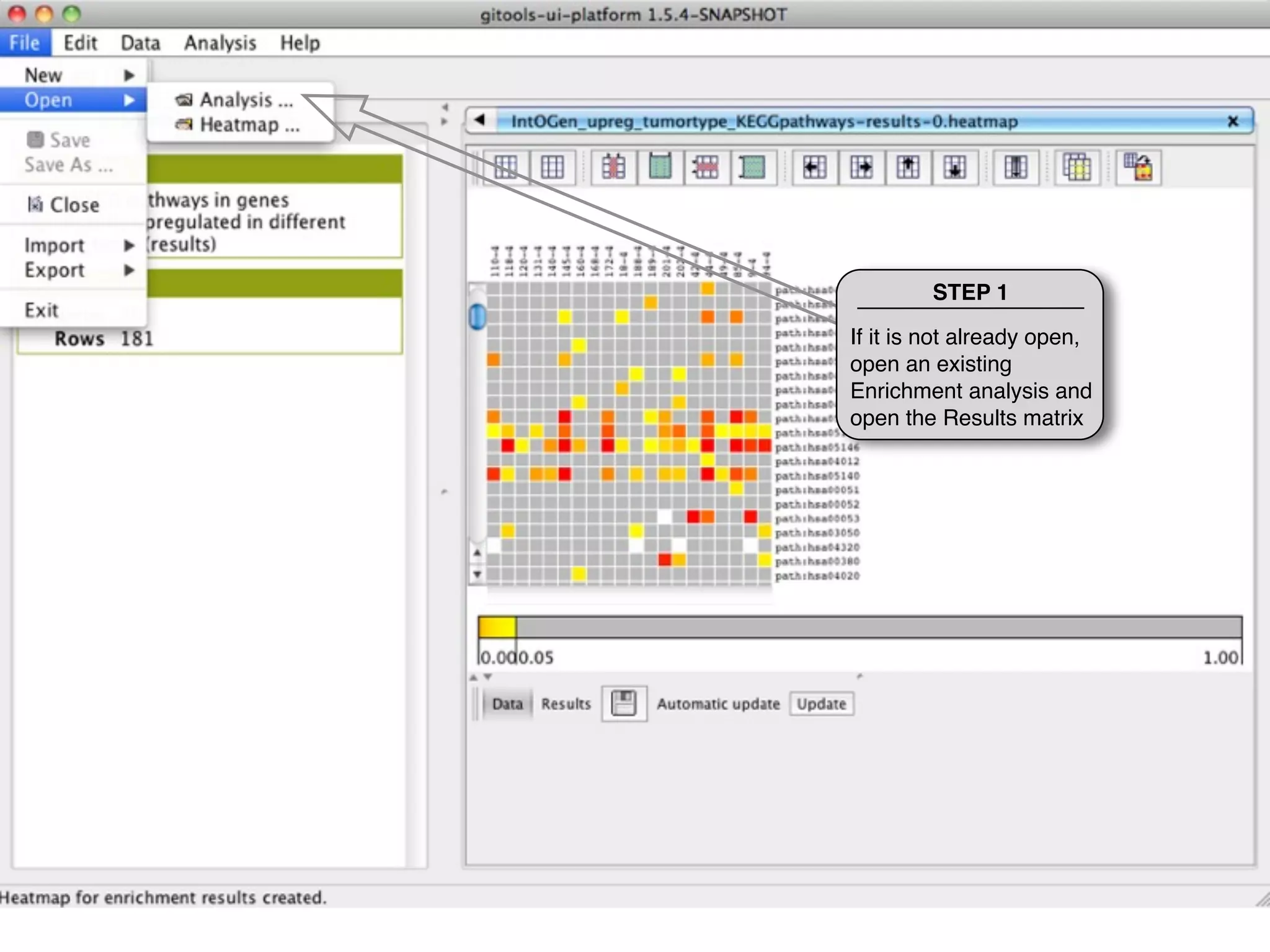
STEP 1

If it is not already open,
open an existing
Enrichment analysis and
open the Results matrix
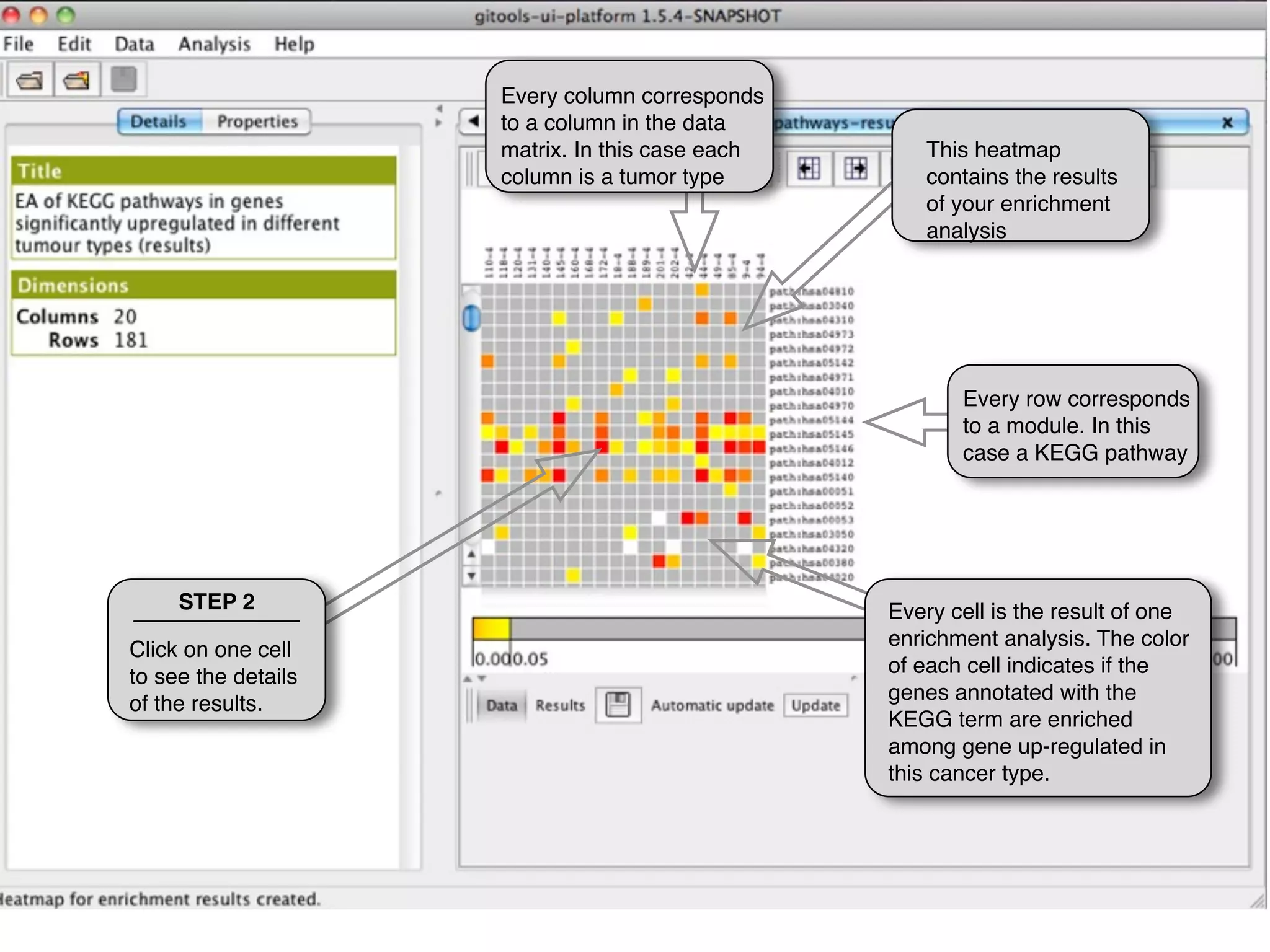
Every column corresponds
                     to a column in the data
                     matrix. In this case each      This heatmap
                     column is a tumor type         contains the results
                                                    of your enrichment
                                                    analysis


                                                        Every row corresponds
                                                        to a module. In this
                                                        case a KEGG pathway


     STEP 2                                      Every cell is the result of one
                                                 enrichment analysis. The color
Click on one cell
                                                 of each cell indicates if the
to see the details
                                                 genes annotated with the
of the results.
                                                 KEGG term are enriched
                                                 among gene up-regulated in
                                                 this cancer type.
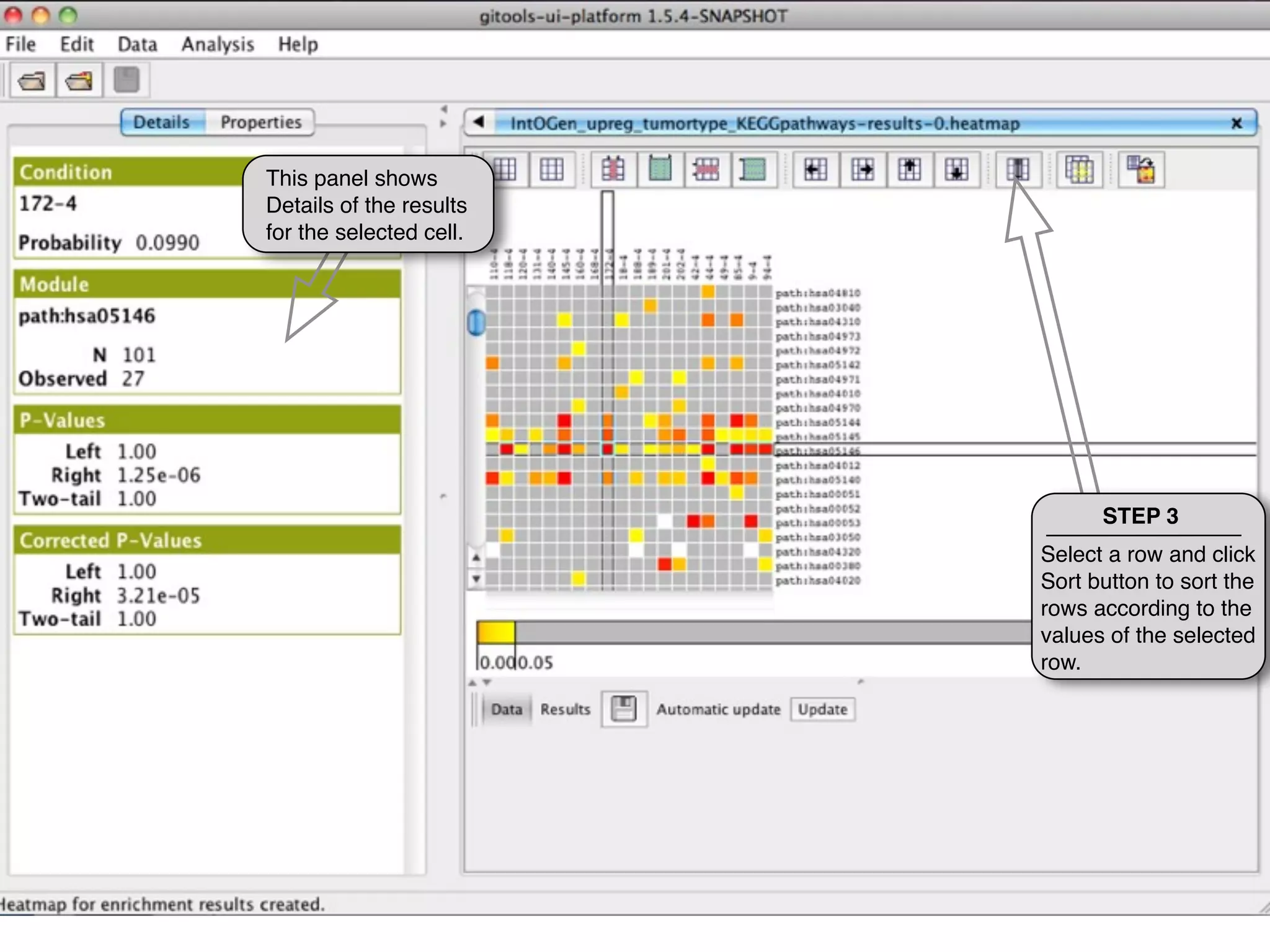
This panel shows
Details of the results
for the selected cell.


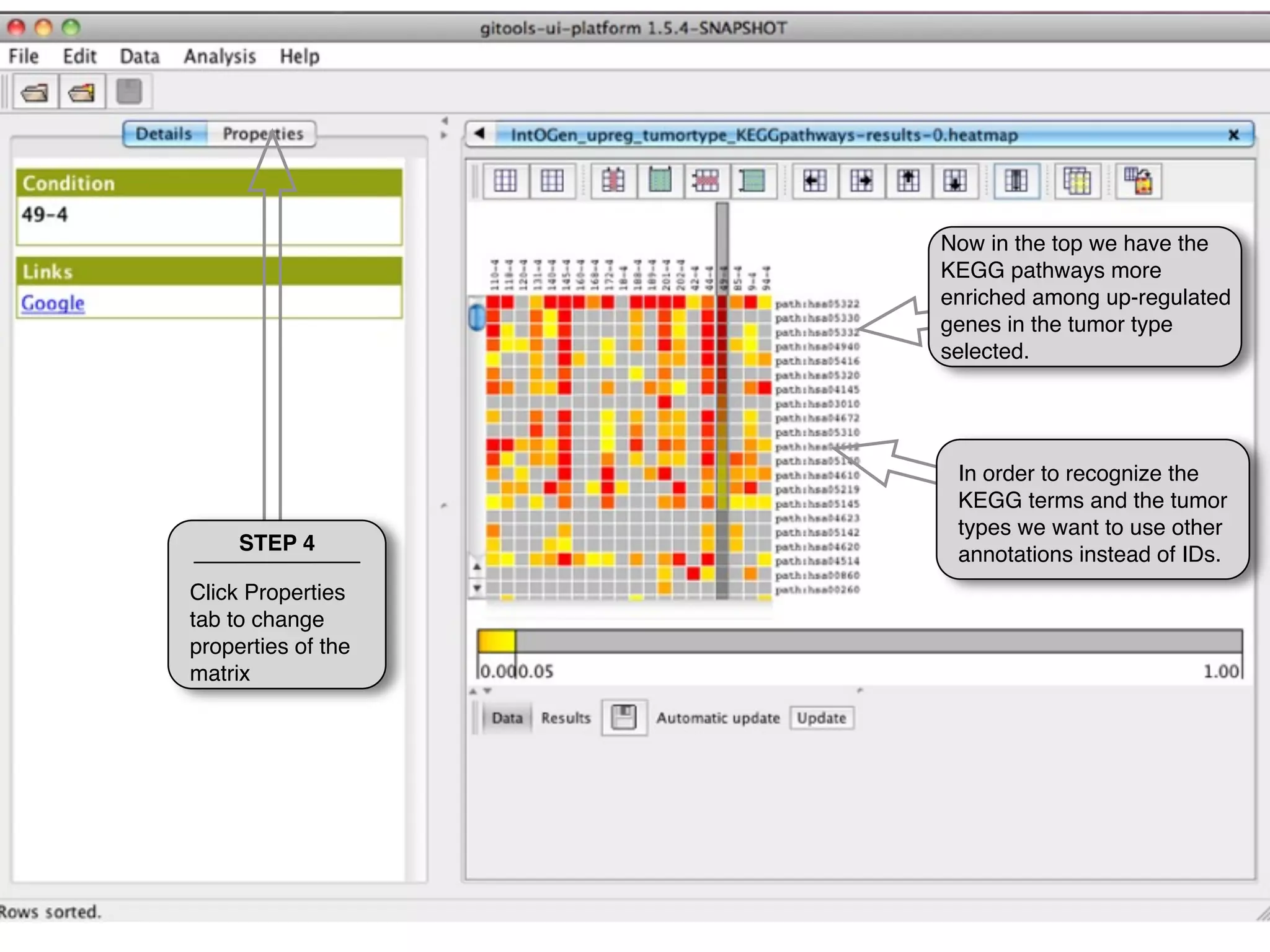
                               STEP 3
                         Select a row and click
                         Sort button to sort the
                         rows according to the
                         values of the selected
                         row.
Now in the top we have the
                    KEGG pathways more
                    enriched among up-regulated
                    genes in the tumor type
                    selected.


                     In order to recognize the
                     KEGG terms and the tumor
                     types we want to use other
     STEP 4          annotations instead of IDs.
Click Properties
tab to change
properties of the
matrix
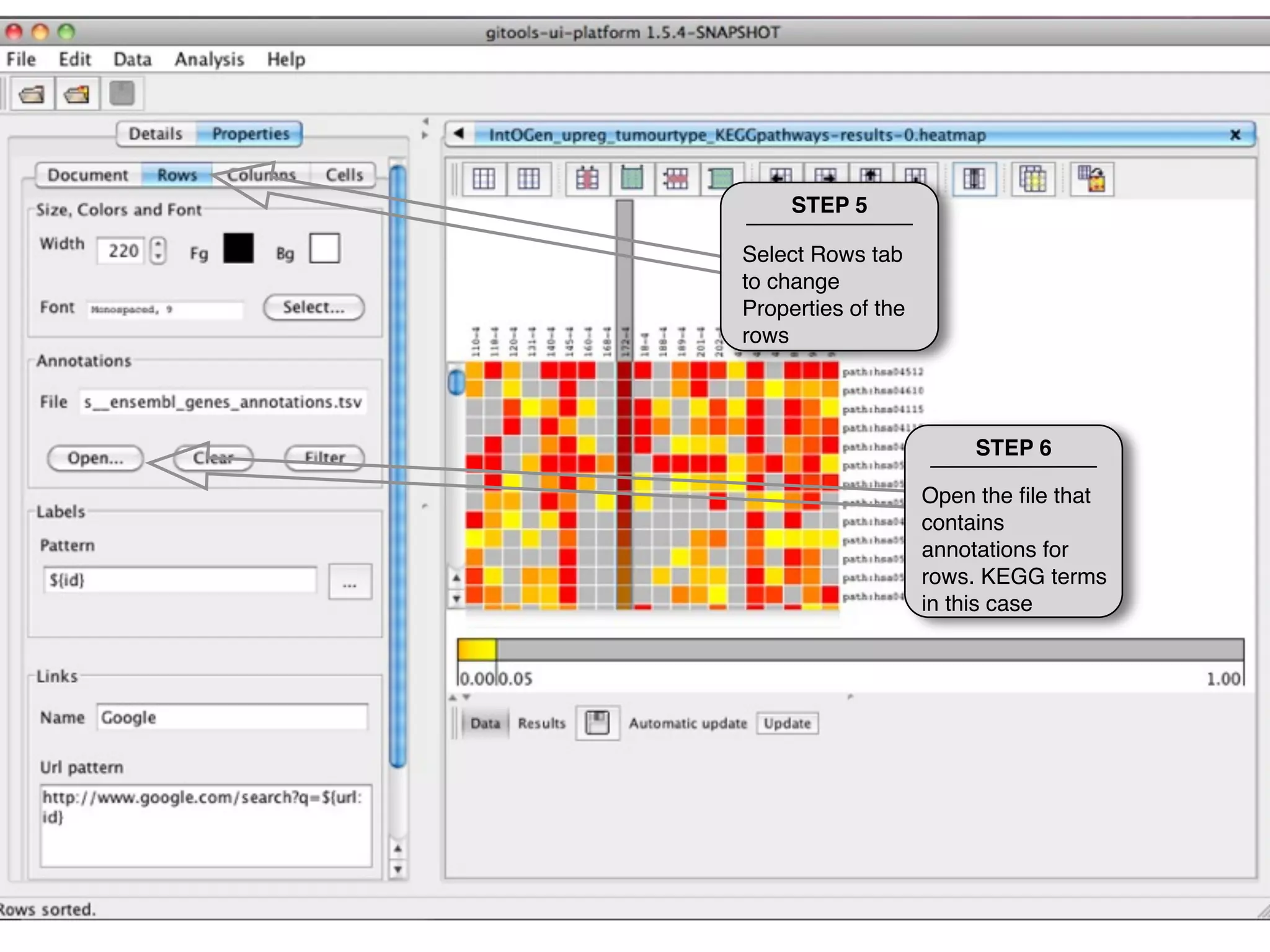
STEP 5

Select Rows tab
to change
Properties of the
rows


                        STEP 6

                    Open the file that
                    contains
                    annotations for
                    rows. KEGG terms
                    in this case
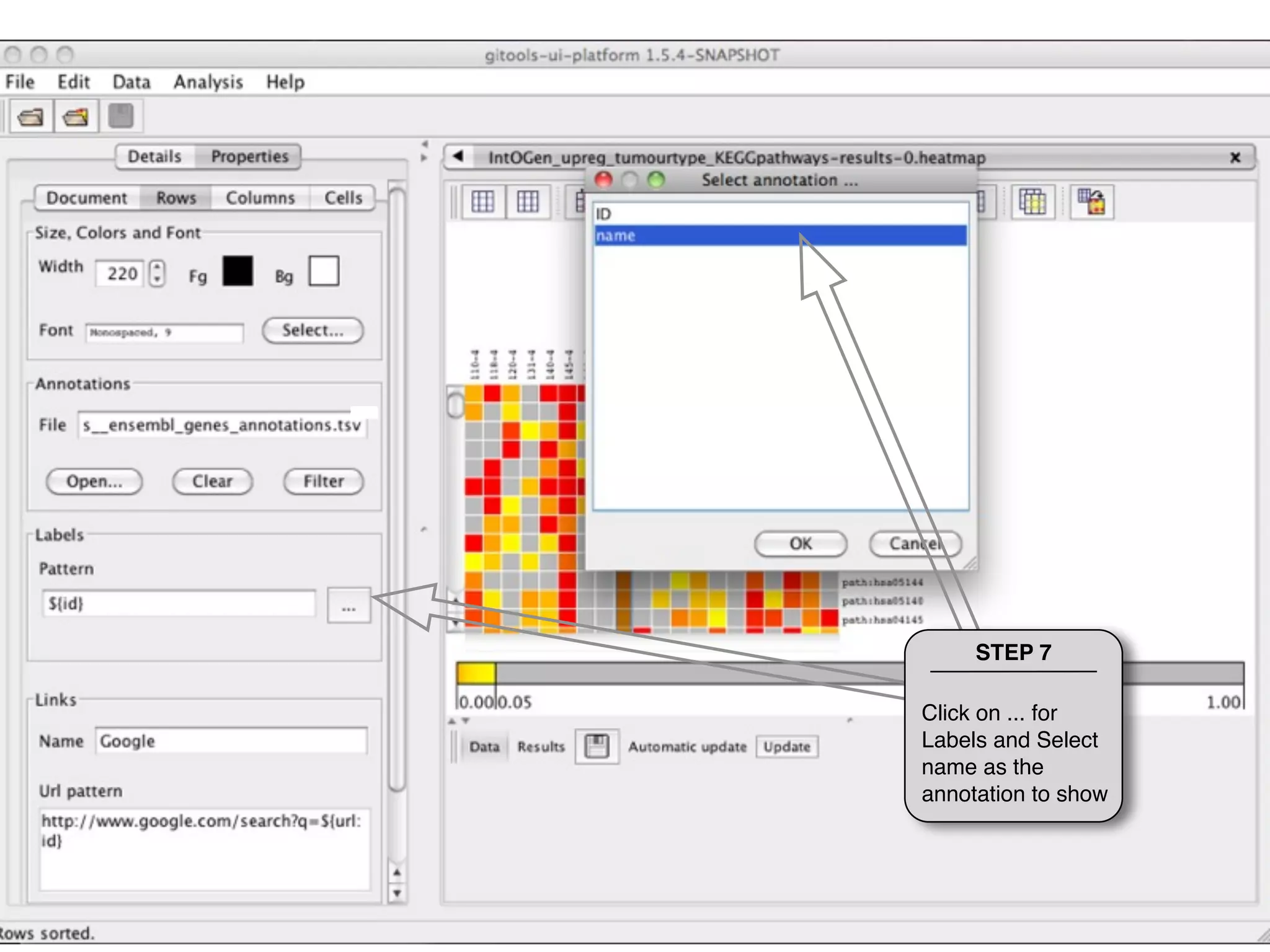
STEP 7

Click on ... for
Labels and Select
name as the
annotation to show
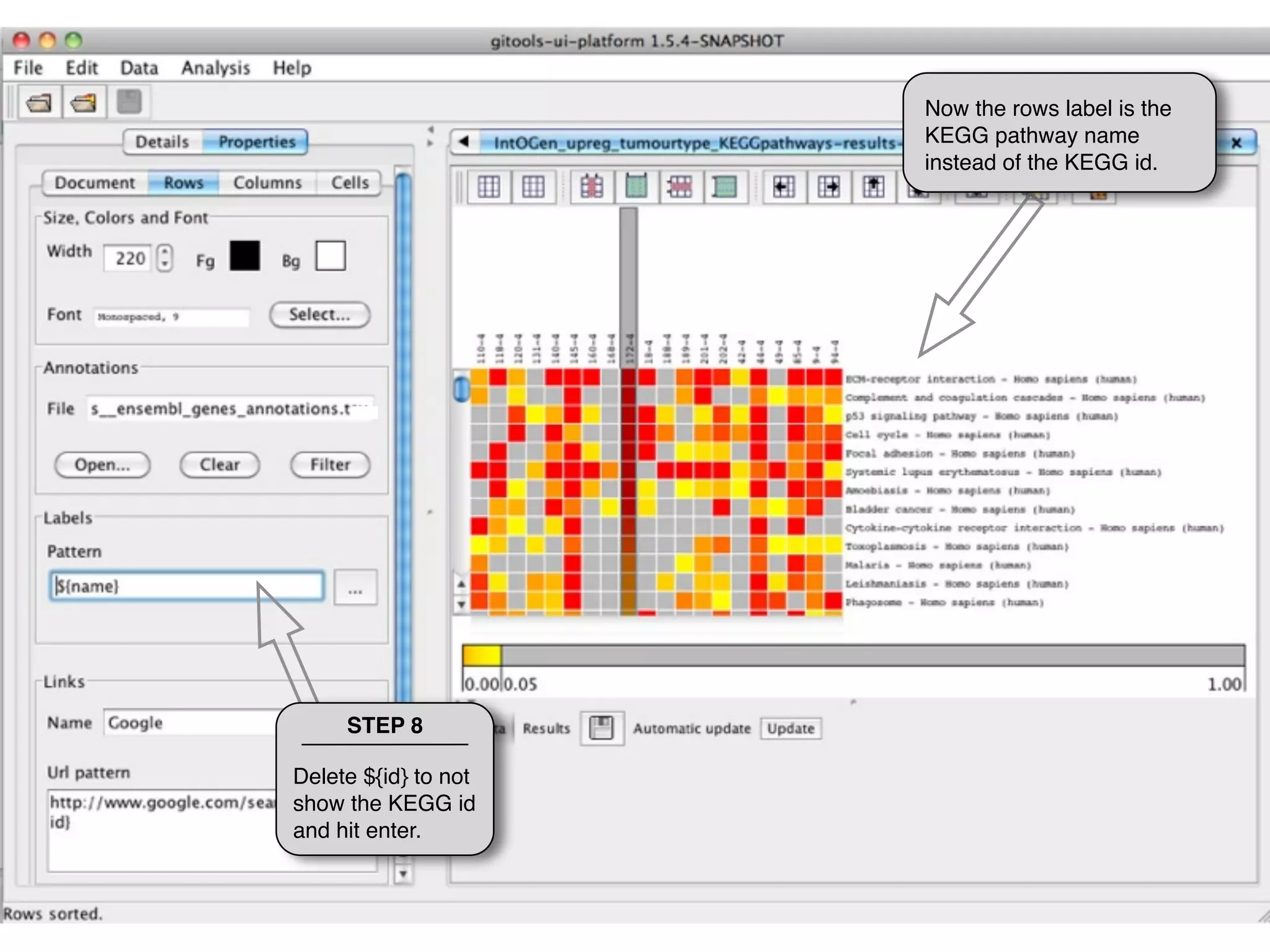
Now the rows label is the
                      KEGG pathway name
                      instead of the KEGG id.


     STEP 8

Delete ${id} to not
show the KEGG id
and hit enter.
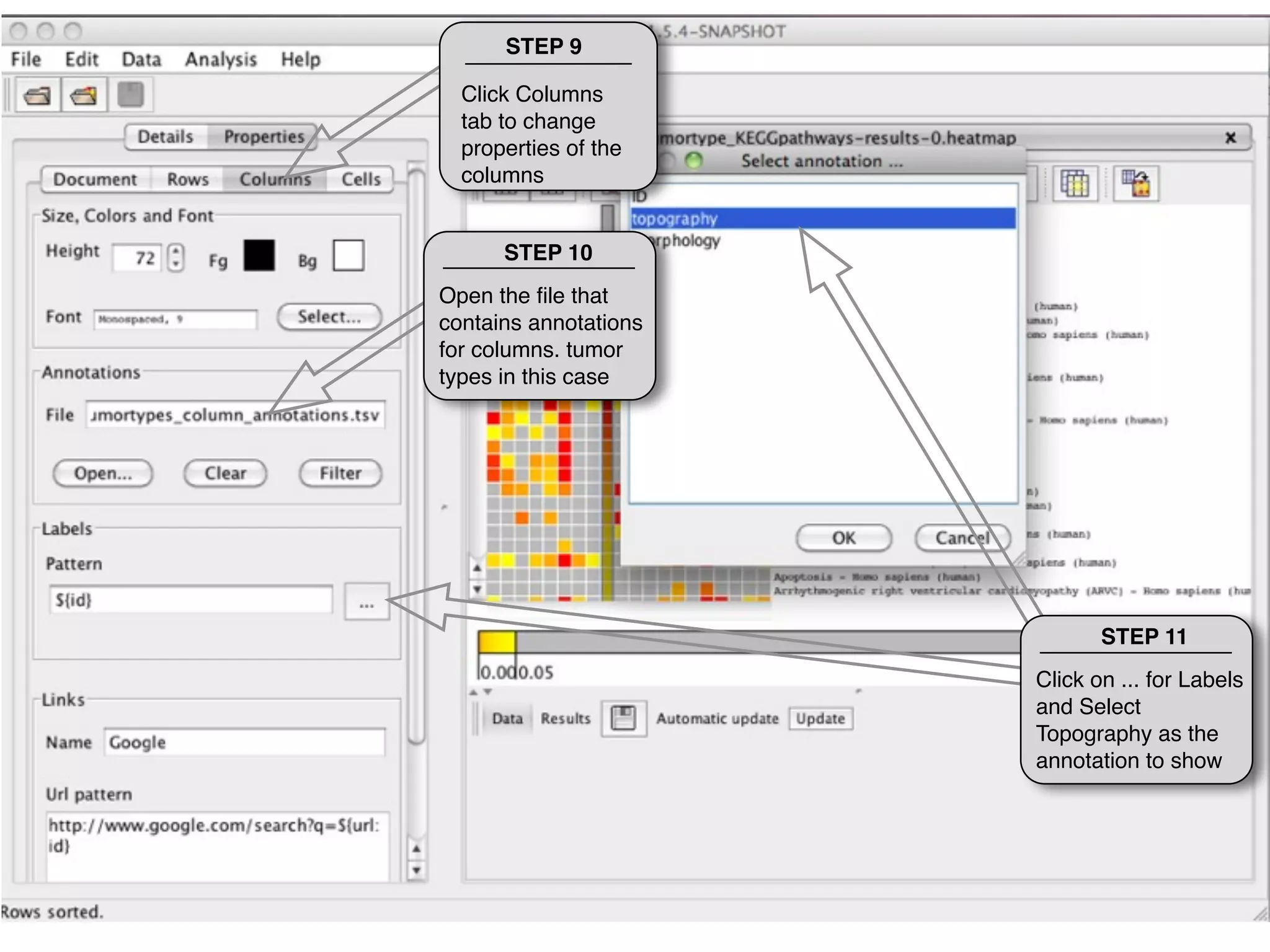
STEP 9

  Click Columns
  tab to change
  properties of the
  columns


      STEP 10
Open the file that
contains annotations
for columns. tumor
types in this case


                              STEP 11
                       Click on ... for Labels
                       and Select
                       Topography as the
                       annotation to show
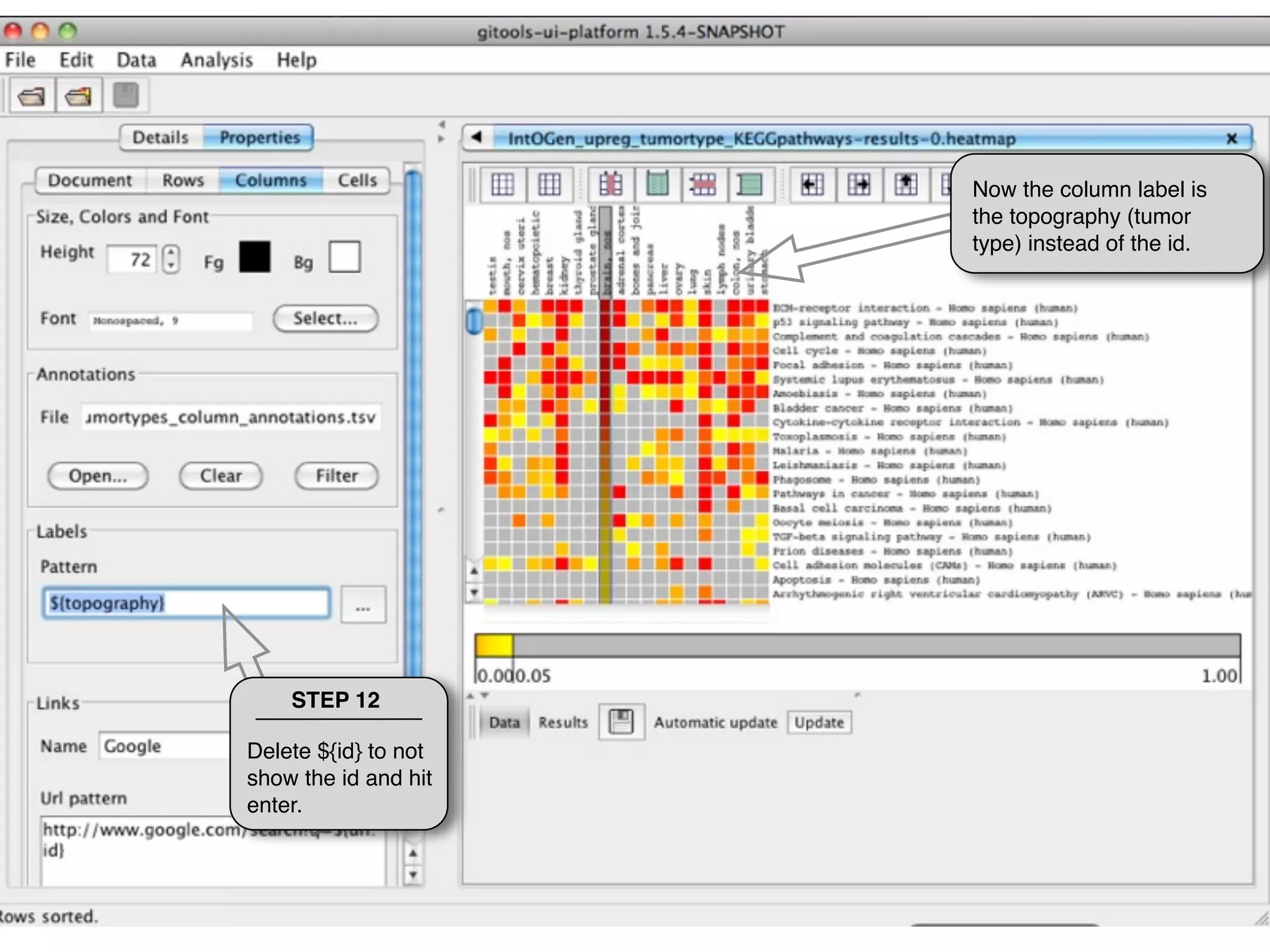
Now the column label is
                      the topography (tumor
                      type) instead of the id.


    STEP 12

Delete ${id} to not
show the id and hit
enter.
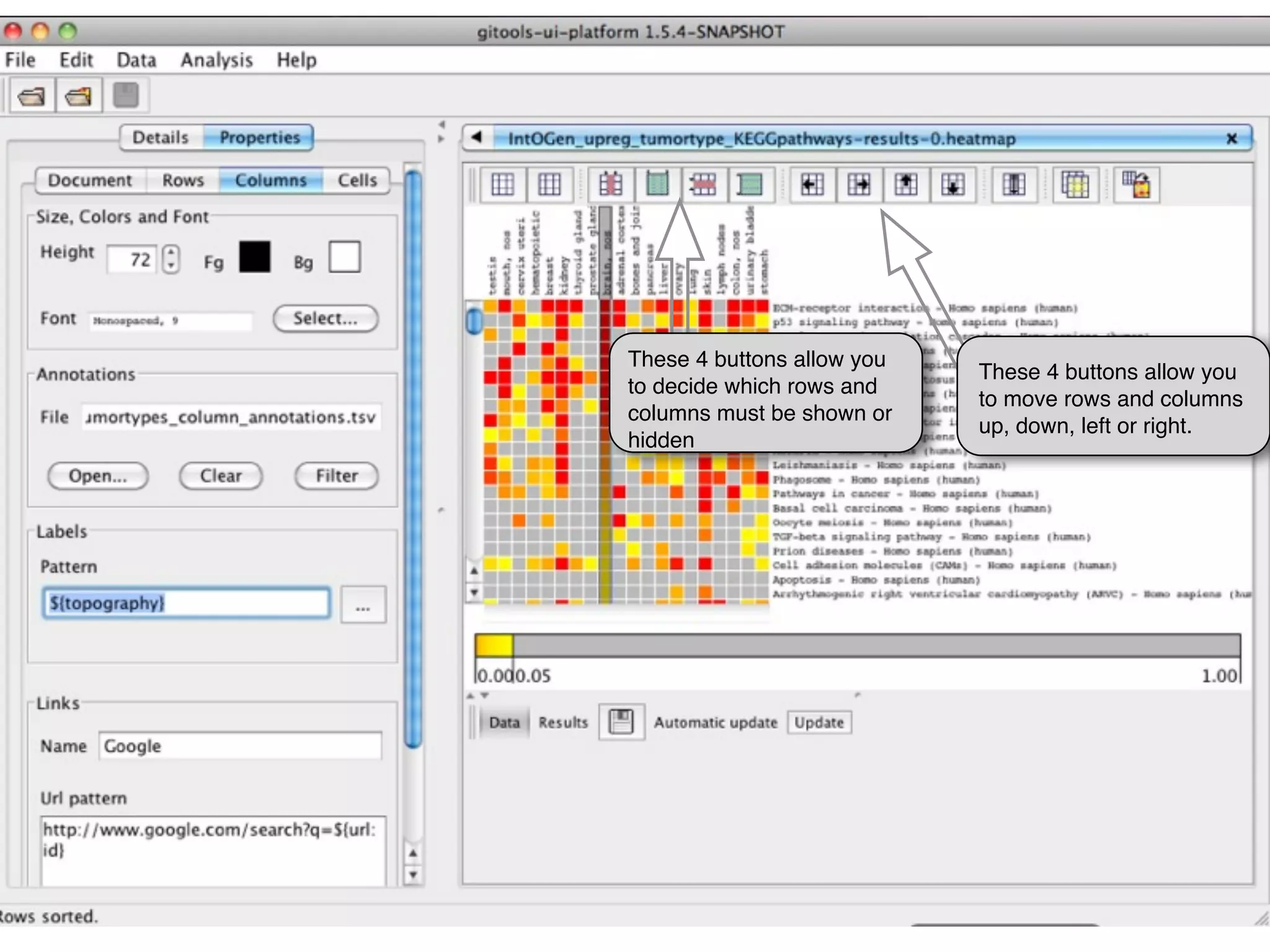
These 4 buttons allow you
                            These 4 buttons allow you
to decide which rows and
                            to move rows and columns
columns must be shown or
                            up, down, left or right.
hidden
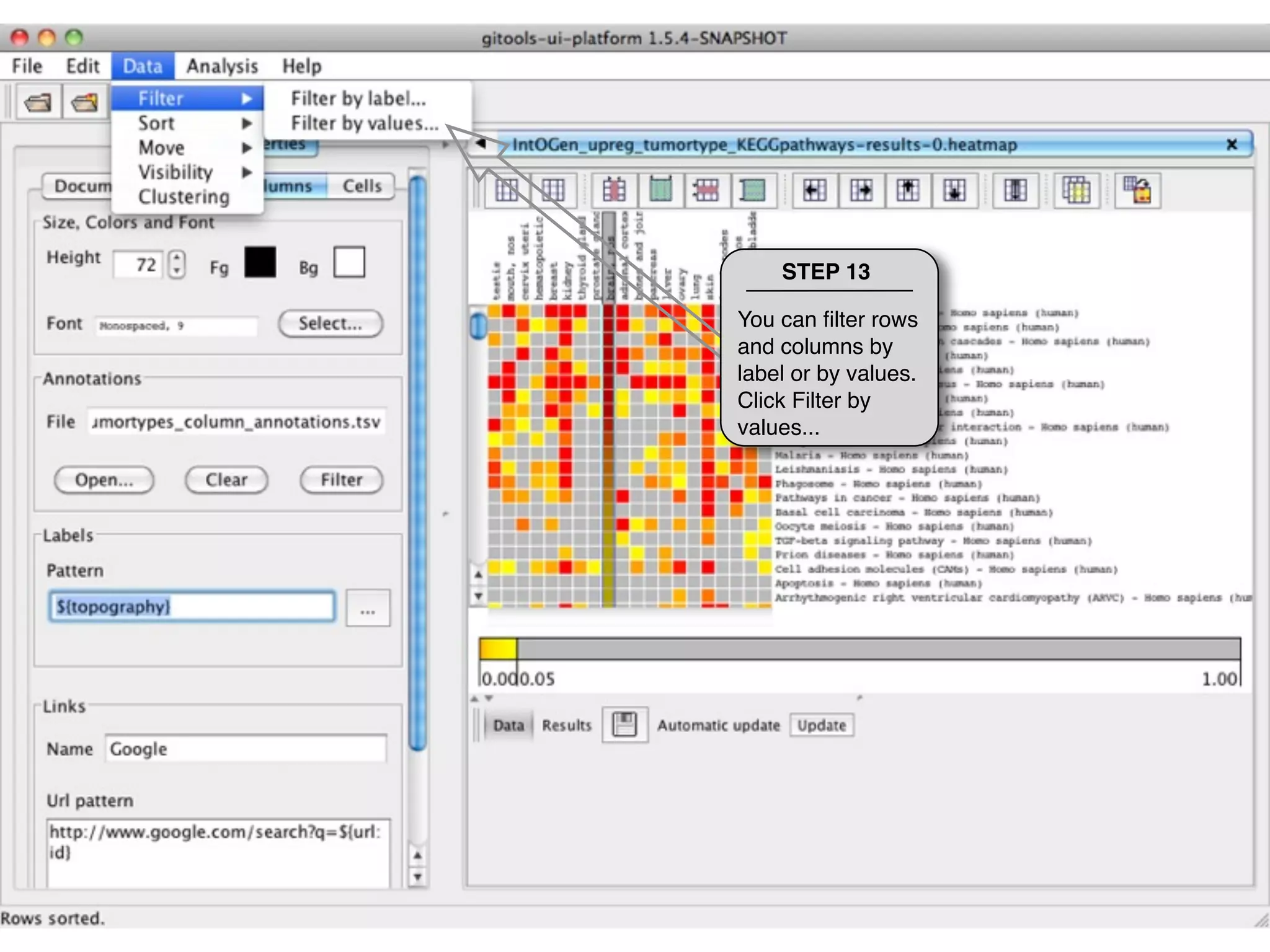
STEP 13

You can filter rows
and columns by
label or by values.
Click Filter by
values...
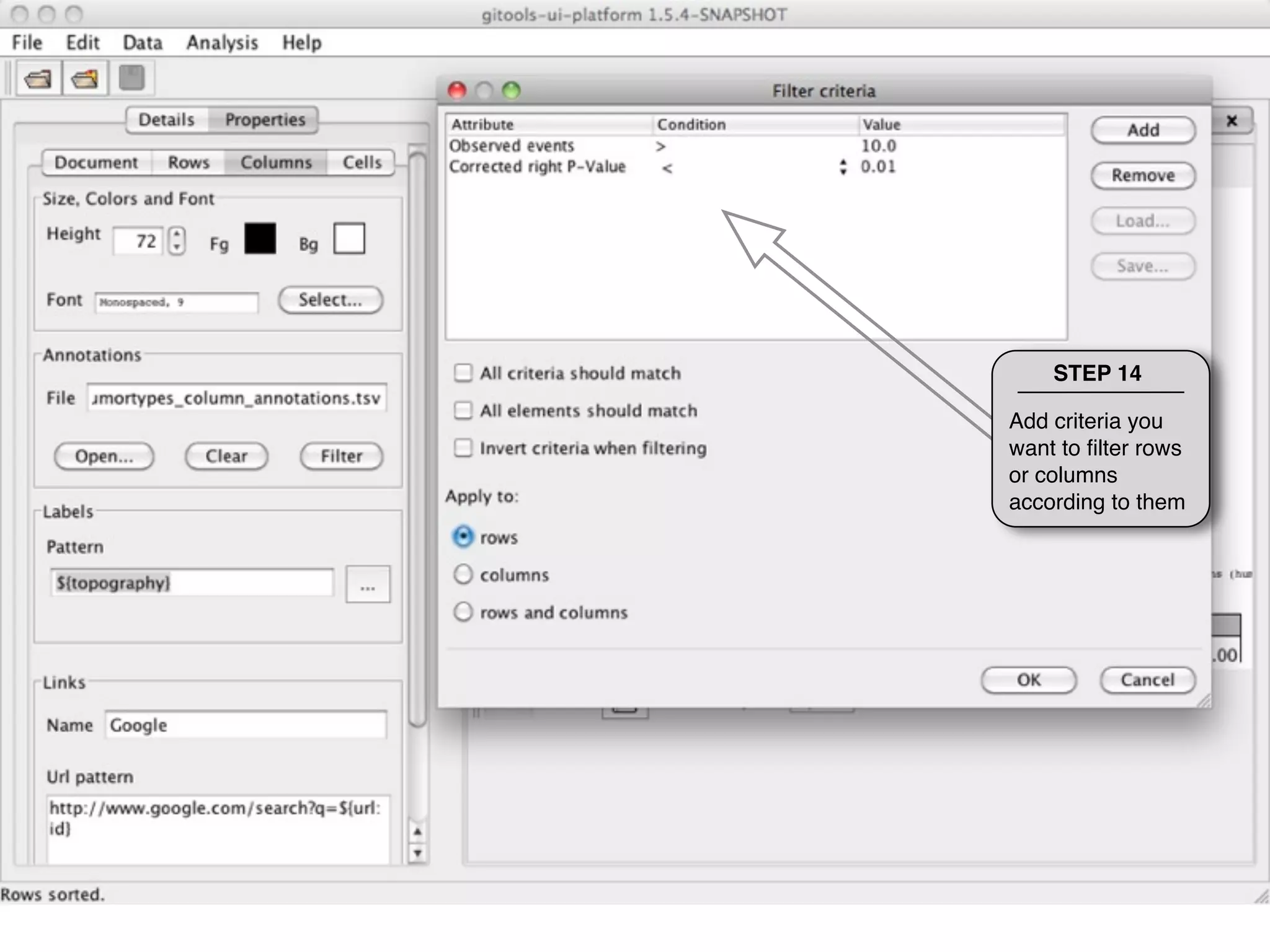
STEP 14

Add criteria you
want to filter rows
or columns
according to them
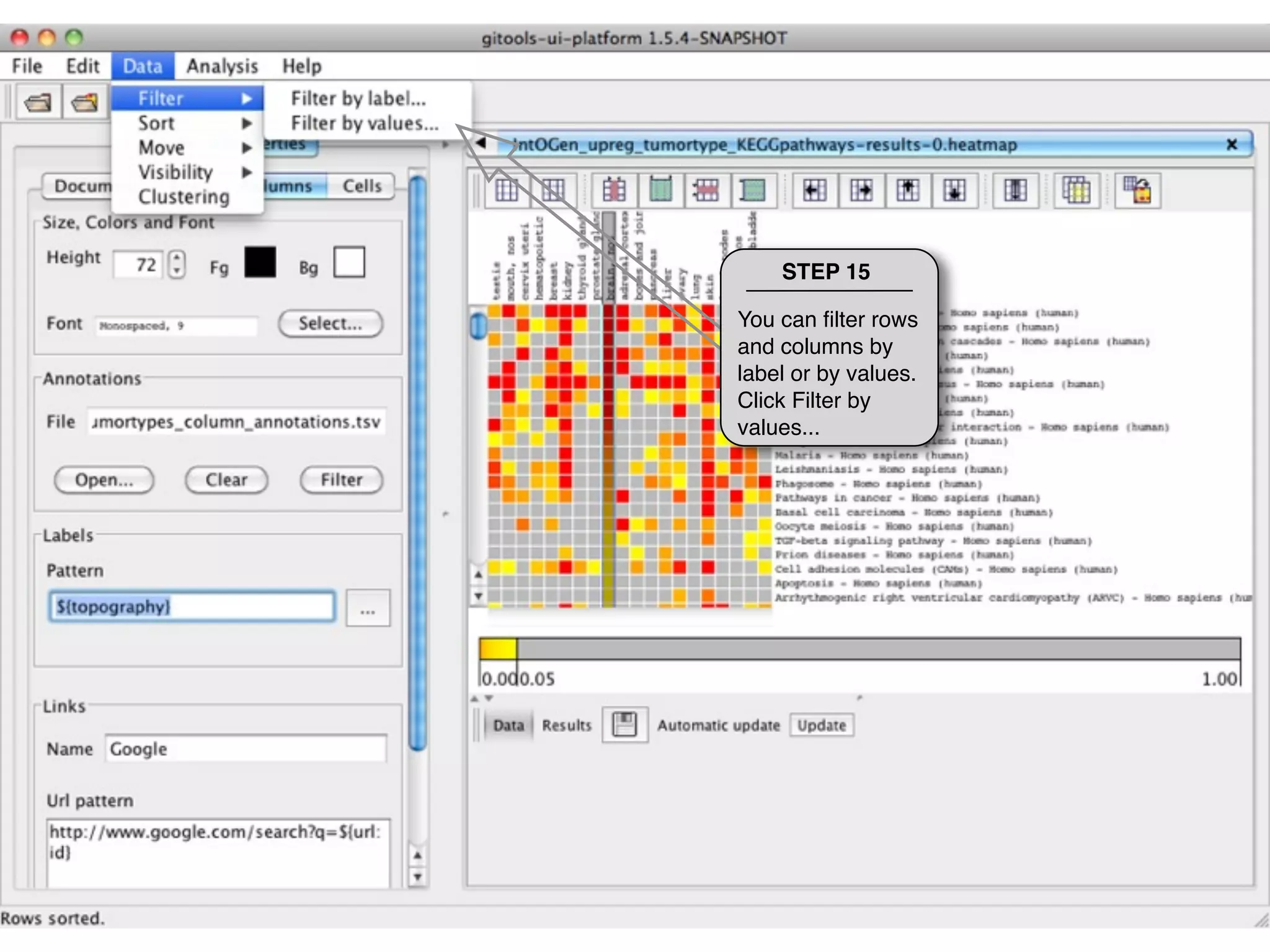
STEP 15

You can filter rows
and columns by
label or by values.
Click Filter by
values...
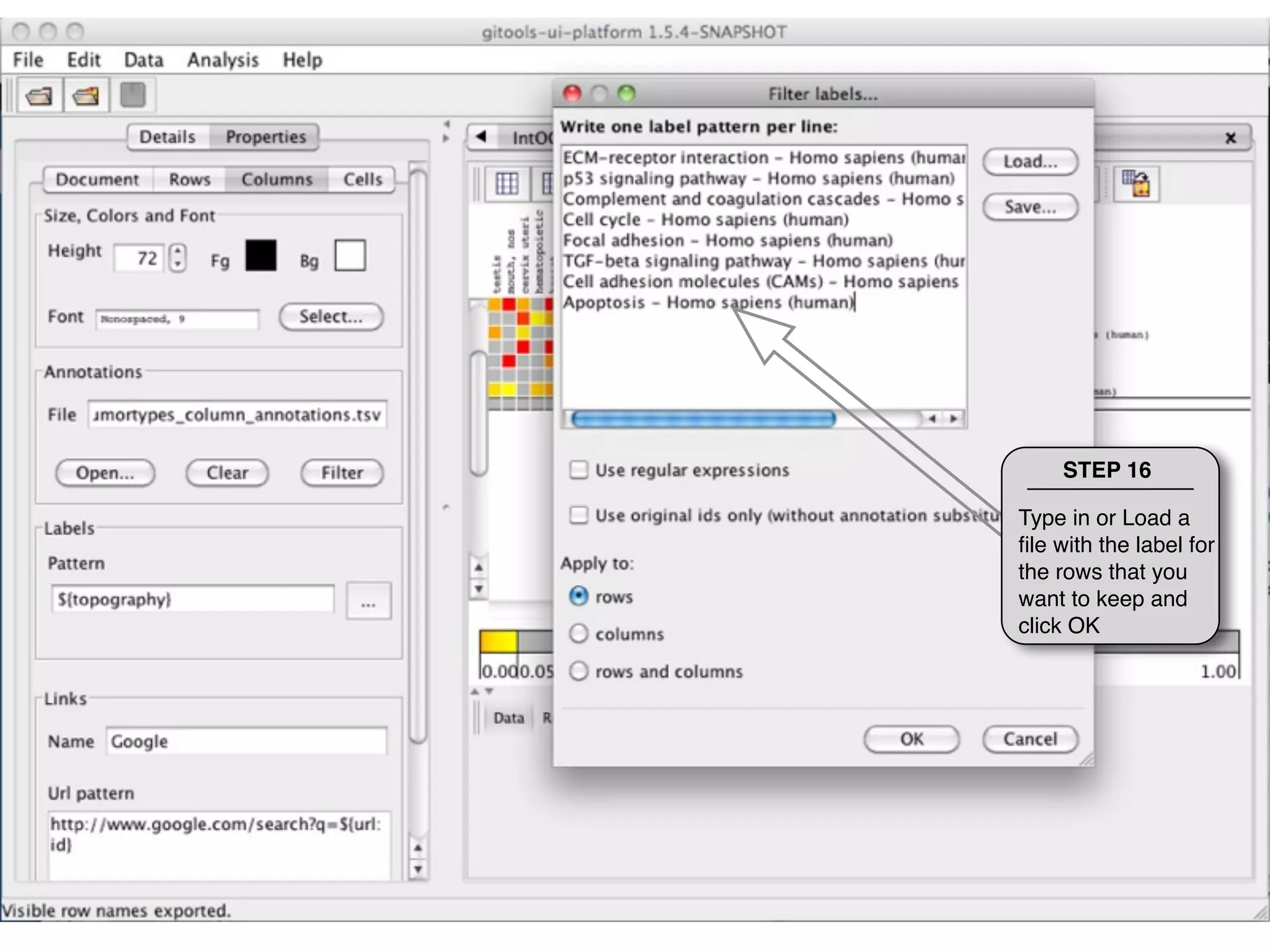
STEP 16

Type in or Load a
file with the label for
the rows that you
want to keep and
click OK
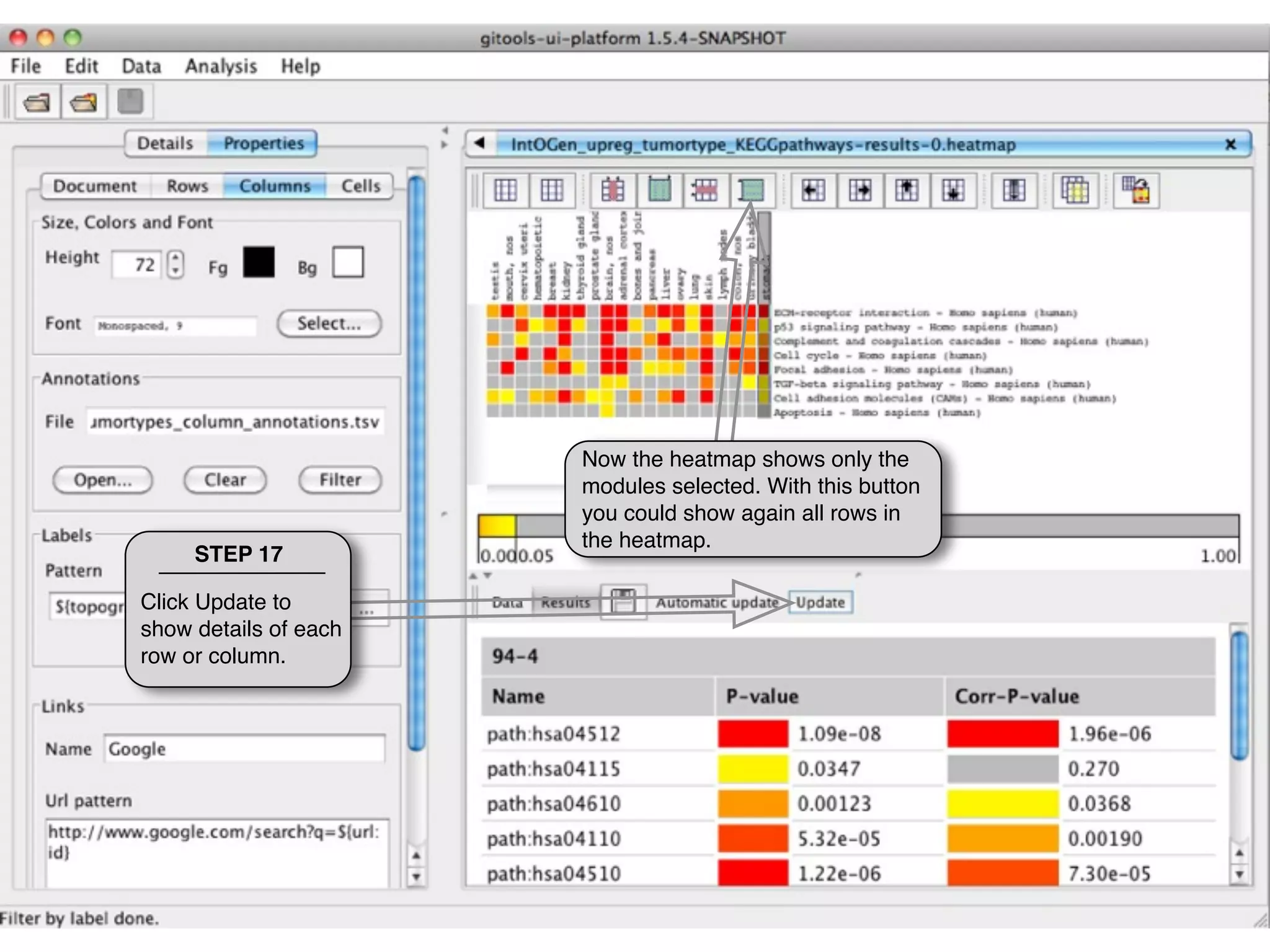
Now the heatmap shows only the
                       modules selected. With this button
                       you could show again all rows in
                       the heatmap.
     STEP 17

Click Update to
show details of each
row or column.
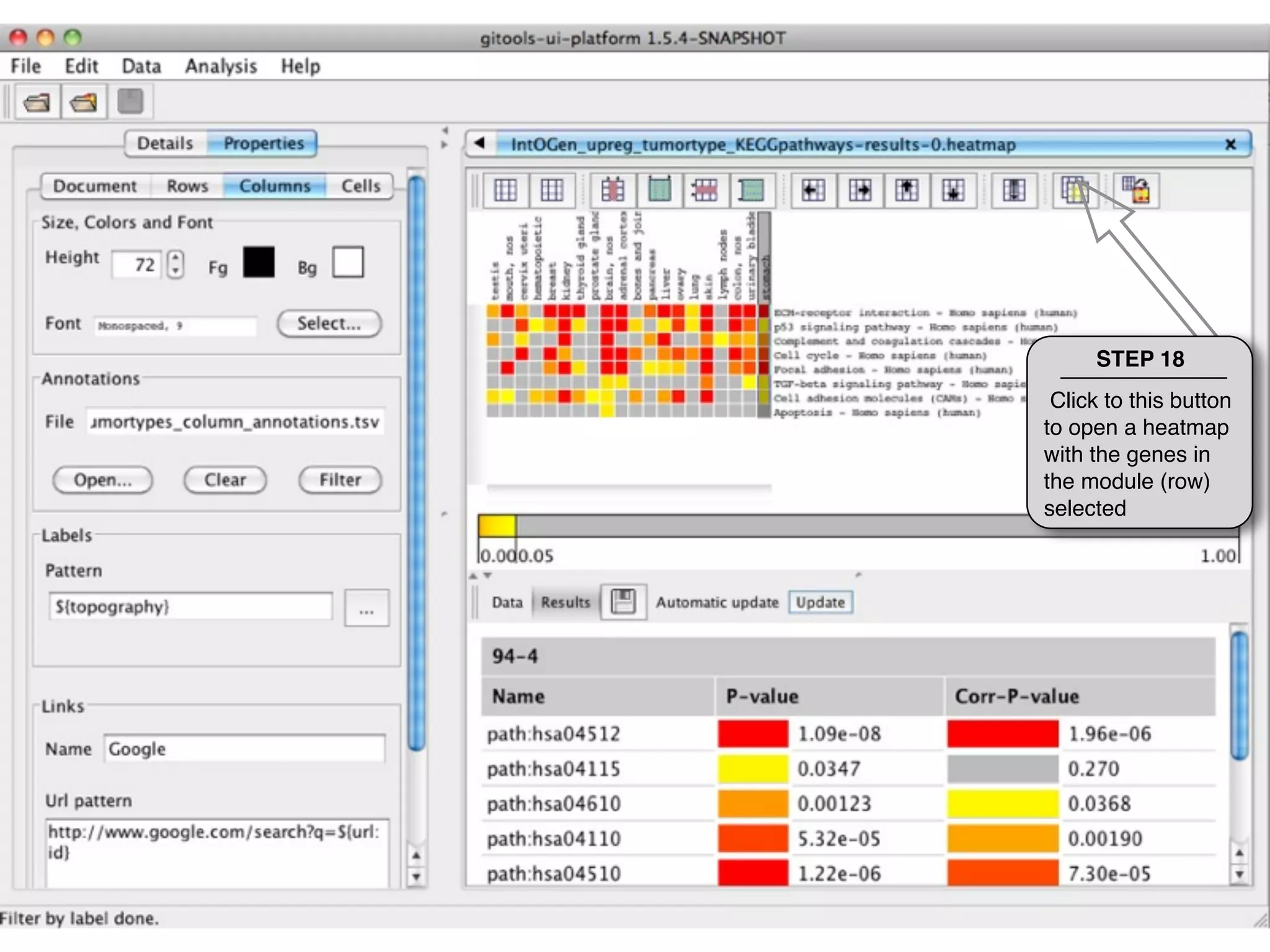
STEP 18
 Click to this button
to open a heatmap
with the genes in
the module (row)
selected
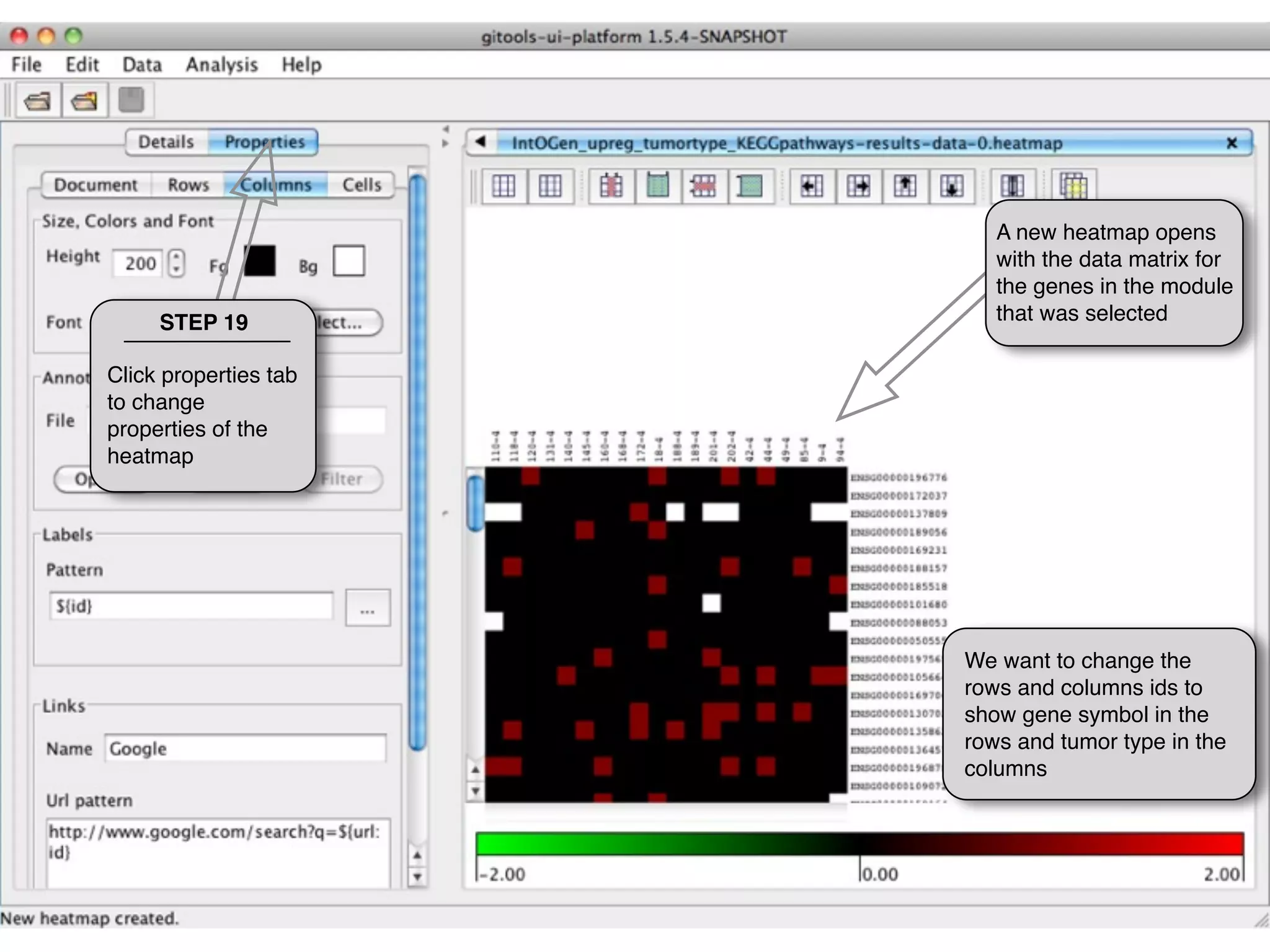
A new heatmap opens
                          with the data matrix for
                          the genes in the module
     STEP 19              that was selected

Click properties tab
to change
properties of the
heatmap


                       We want to change the
                       rows and columns ids to
                       show gene symbol in the
                       rows and tumor type in the
                       columns
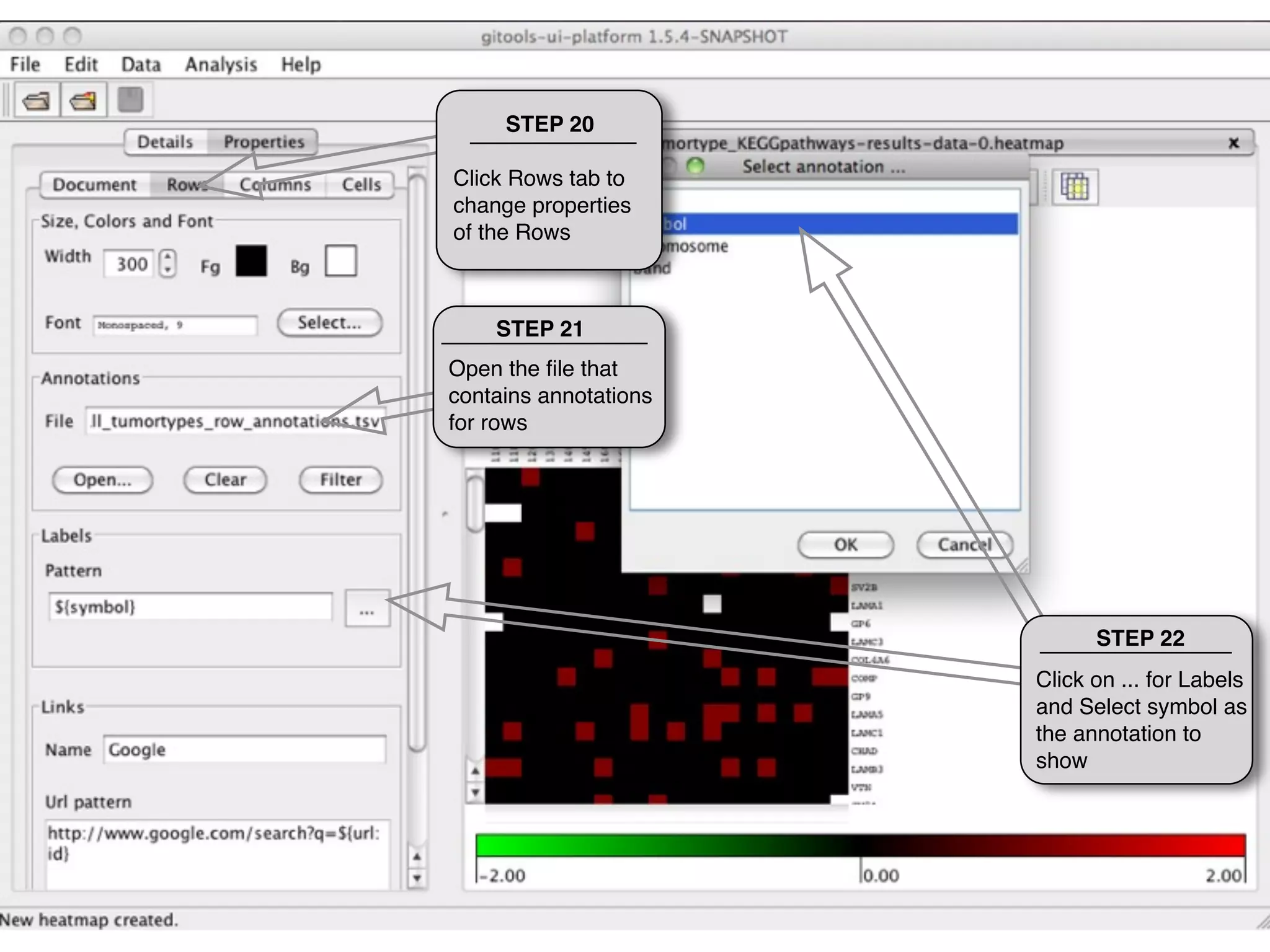
STEP 20

Click Rows tab to
change properties
of the Rows


    STEP 21
Open the file that
contains annotations
for rows


                             STEP 22
                       Click on ... for Labels
                       and Select symbol as
                       the annotation to
                       show
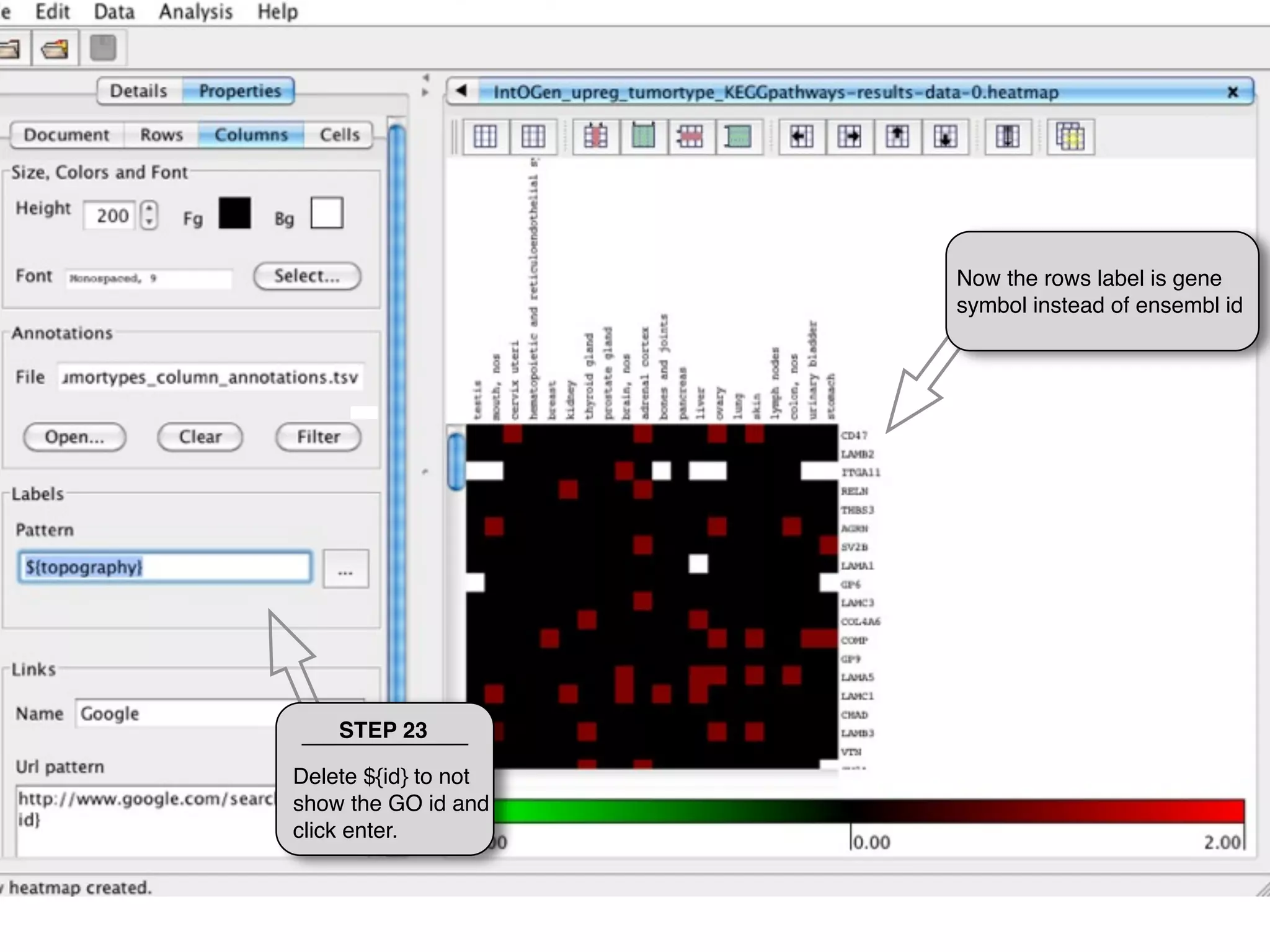
Now the rows label is gene
                      symbol instead of ensembl id


    STEP 23

Delete ${id} to not
show the GO id and
click enter.
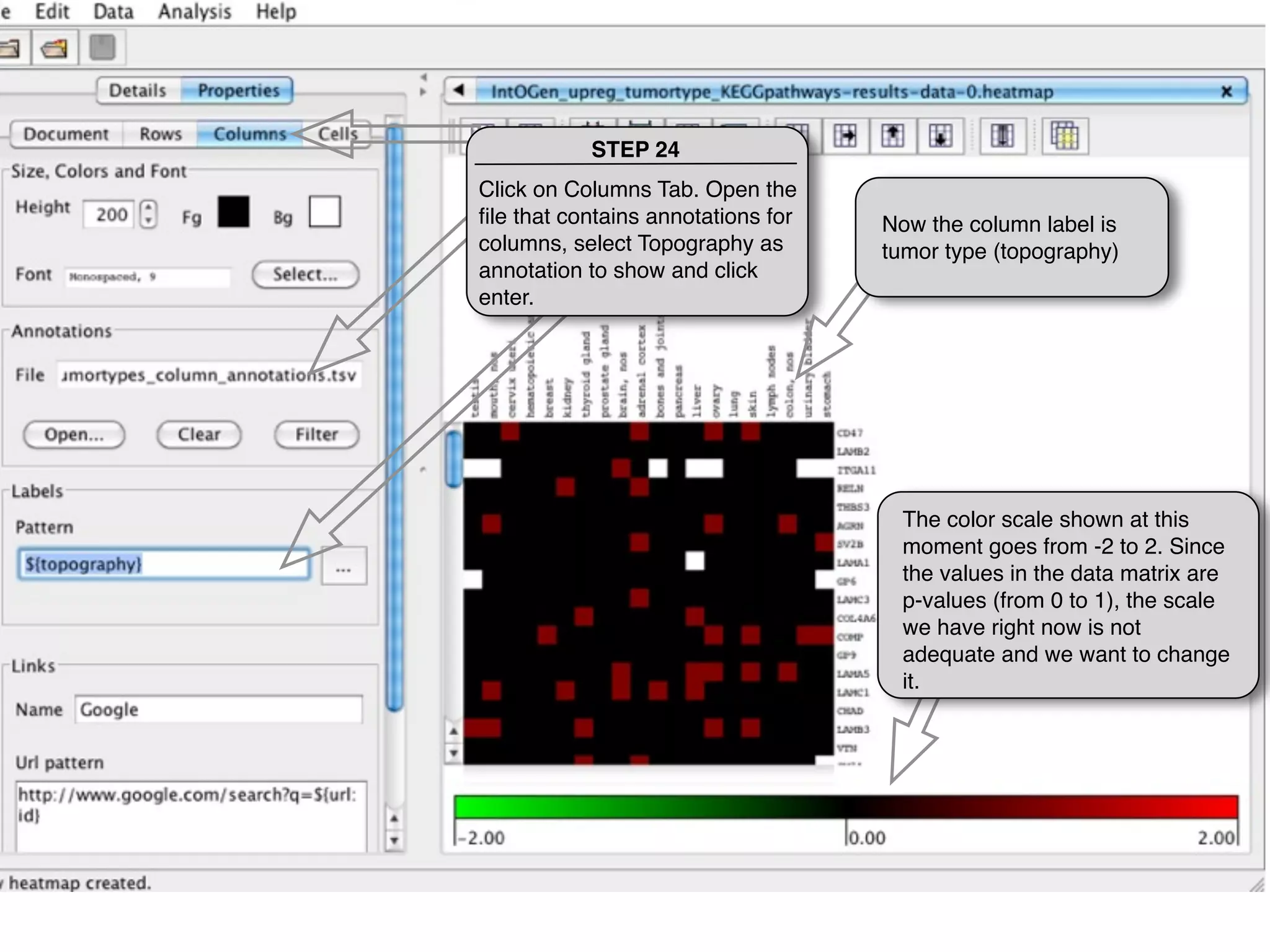
STEP 24
Click on Columns Tab. Open the
file that contains annotations for   Now the column label is
columns, select Topography as       tumor type (topography)
annotation to show and click
enter.


                                      The color scale shown at this
                                      moment goes from -2 to 2. Since
                                      the values in the data matrix are
                                      p-values (from 0 to 1), the scale
                                      we have right now is not
                                      adequate and we want to change
                                      it.
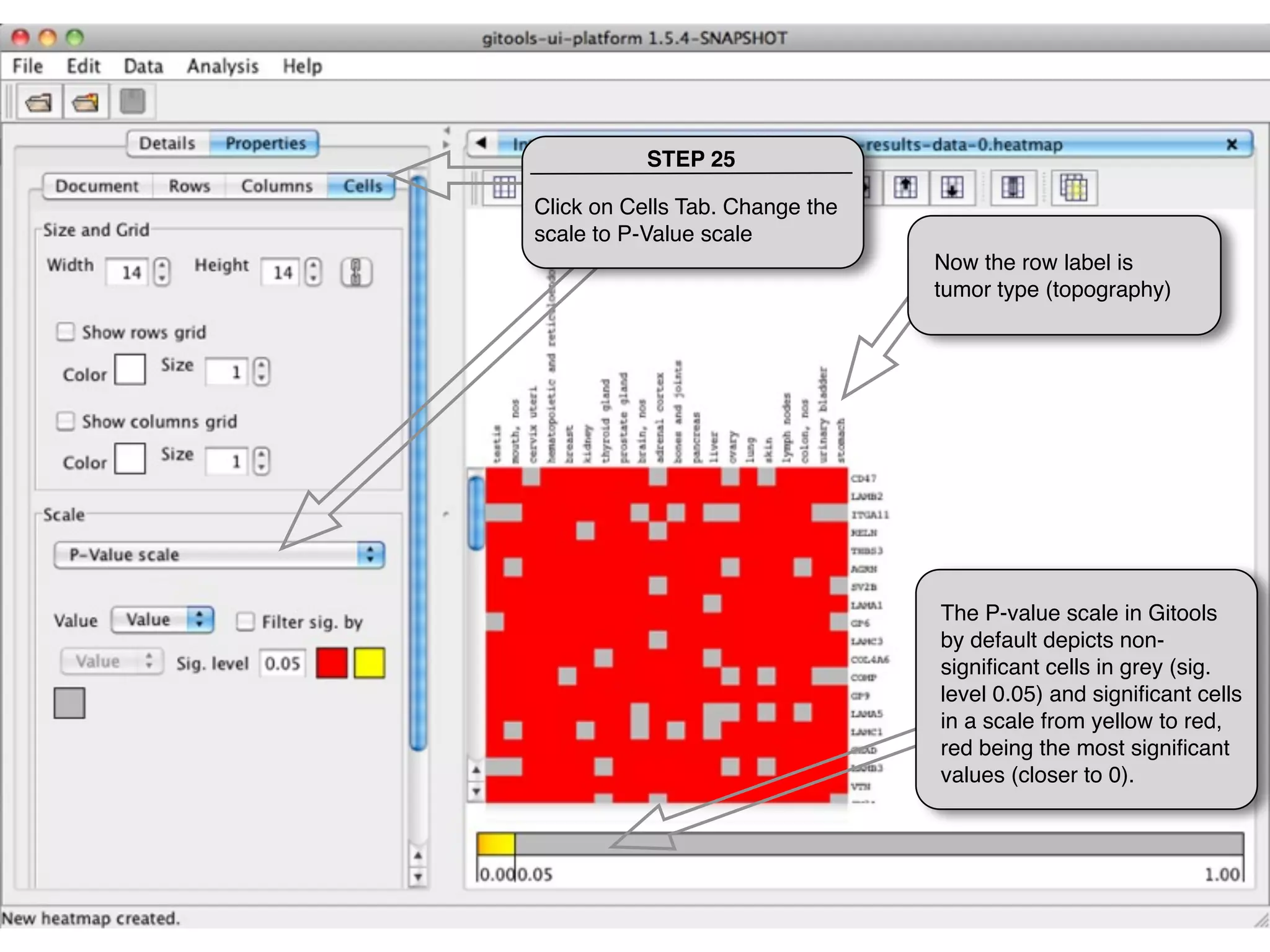
STEP 25

Click on Cells Tab. Change the
scale to P-Value scale
                                 Now the row label is
                                 tumor type (topography)


                                 The P-value scale in Gitools
                                 by default depicts non-
                                 significant cells in grey (sig.
                                 level 0.05) and significant cells
                                 in a scale from yellow to red,
                                 red being the most significant
                                 values (closer to 0).
THANKS FOR USING GITOOLS


    http://www.gitools.org

Tutorial 1.4 - Explore results in a heatmap

  • 1.
    Tutorial 1.4: Exploreresults in a heatmap Explore the heatmap with the enrichment analysis results by sorting, filtering, hiding and moving rows and columns
  • 2.
    STEP 1 If itis not already open, open an existing Enrichment analysis and open the Results matrix
  • 3.
    Every column corresponds to a column in the data matrix. In this case each This heatmap column is a tumor type contains the results of your enrichment analysis Every row corresponds to a module. In this case a KEGG pathway STEP 2 Every cell is the result of one enrichment analysis. The color Click on one cell of each cell indicates if the to see the details genes annotated with the of the results. KEGG term are enriched among gene up-regulated in this cancer type.
  • 4.
    This panel shows Detailsof the results for the selected cell. STEP 3 Select a row and click Sort button to sort the rows according to the values of the selected row.
  • 5.
    Now in thetop we have the KEGG pathways more enriched among up-regulated genes in the tumor type selected. In order to recognize the KEGG terms and the tumor types we want to use other STEP 4 annotations instead of IDs. Click Properties tab to change properties of the matrix
  • 6.
    STEP 5 Select Rowstab to change Properties of the rows STEP 6 Open the file that contains annotations for rows. KEGG terms in this case
  • 7.
    STEP 7 Click on... for Labels and Select name as the annotation to show
  • 8.
    Now the rowslabel is the KEGG pathway name instead of the KEGG id. STEP 8 Delete ${id} to not show the KEGG id and hit enter.
  • 9.
    STEP 9 Click Columns tab to change properties of the columns STEP 10 Open the file that contains annotations for columns. tumor types in this case STEP 11 Click on ... for Labels and Select Topography as the annotation to show
  • 10.
    Now the columnlabel is the topography (tumor type) instead of the id. STEP 12 Delete ${id} to not show the id and hit enter.
  • 11.
    These 4 buttonsallow you These 4 buttons allow you to decide which rows and to move rows and columns columns must be shown or up, down, left or right. hidden
  • 12.
    STEP 13 You canfilter rows and columns by label or by values. Click Filter by values...
  • 13.
    STEP 14 Add criteriayou want to filter rows or columns according to them
  • 14.
    STEP 15 You canfilter rows and columns by label or by values. Click Filter by values...
  • 15.
    STEP 16 Type inor Load a file with the label for the rows that you want to keep and click OK
  • 16.
    Now the heatmapshows only the modules selected. With this button you could show again all rows in the heatmap. STEP 17 Click Update to show details of each row or column.
  • 17.
    STEP 18 Clickto this button to open a heatmap with the genes in the module (row) selected
  • 18.
    A new heatmapopens with the data matrix for the genes in the module STEP 19 that was selected Click properties tab to change properties of the heatmap We want to change the rows and columns ids to show gene symbol in the rows and tumor type in the columns
  • 19.
    STEP 20 Click Rowstab to change properties of the Rows STEP 21 Open the file that contains annotations for rows STEP 22 Click on ... for Labels and Select symbol as the annotation to show
  • 20.
    Now the rowslabel is gene symbol instead of ensembl id STEP 23 Delete ${id} to not show the GO id and click enter.
  • 21.
    STEP 24 Click onColumns Tab. Open the file that contains annotations for Now the column label is columns, select Topography as tumor type (topography) annotation to show and click enter. The color scale shown at this moment goes from -2 to 2. Since the values in the data matrix are p-values (from 0 to 1), the scale we have right now is not adequate and we want to change it.
  • 22.
    STEP 25 Click onCells Tab. Change the scale to P-Value scale Now the row label is tumor type (topography) The P-value scale in Gitools by default depicts non- significant cells in grey (sig. level 0.05) and significant cells in a scale from yellow to red, red being the most significant values (closer to 0).
  • 23.
    THANKS FOR USINGGITOOLS http://www.gitools.org